MS Software Installation Guide Chromeleon 7.2 SR1
2016-05-24
: Pdf Ms Installation Guide - Chromeleon 7.2 Sr1 MS Installation Guide - Chromeleon 7.2 SR1 Chromeleon 7.2 SR1 MuA ation ation Chromeleon Software
Open the PDF directly: View PDF  .
.
Page Count: 30
- Table of Contents
- 1 About the Documentation
- 2 Supported Thermo Scientific MS Instruments
- 3 System Requirements / Compatibility
- 4 Prerequisites
- 5 Installing the MS Software Components
- 5.1 General Information
- 5.2 Installing an Exactive or ISQ Series Instrument Driver
- 5.3 Modifying MS Options in Chromeleon (Exactive or ISQ Series)
- 5.4 Installing an MSQ Plus Instrument Driver
- 5.5 Installing a TSQ Quantiva or TSQ Endura Driver
- 5.6 Installing a TSQ 8000 Classic, TSQ 8000 Evo or TSQ Duo
- 5.7 Configuring an MS instrument in Chromeleon
- 6 Installation on a PC with Xcalibur / TraceFinder installed
- 7 Using Xcalibur/TraceFinder and Chromeleon on the same PC
- 8 Uninstalling MS Software Components
- 9 APPENDIX

MS Software
Installation Guide
Chromeleon 7.2 SR1 MUa
Revision 1.2 • July 2014
User Manual

Chromeleon 7.2 SR1
Table of Contents
1 About the Documentation ......................................................................... 1
1.1 About this Document ................................................................................................ 1
1.2 Document Conventions ............................................................................................. 1
1.3 Other Documents ...................................................................................................... 2
2 Supported Thermo Scientific MS Instruments ............................................ 3
3 System Requirements / Compatibility ........................................................ 4
3.1 PC Hardware Requirements ...................................................................................... 4
3.2 Supported Operating Systems ................................................................................... 5
4 Prerequisites .............................................................................................. 6
4.1 Chromeleon 7 ............................................................................................................ 6
4.2 Thermo Scientific MS Instrument Drivers ................................................................. 6
4.2.1 Thermo Scientific Exactive Series and ISQ Series ............................................ 6
4.2.2 Thermo Scientific MSQ Plus ............................................................................. 6
4.2.3 Thermo Scientific TSQ Quantiva and TSQ Endura ........................................... 6
4.2.4 Thermo Scientific TSQ 8000 Classic, TSQ 8000 Evo and TSQ Duo ................... 7
4.3 Thermo Foundation ................................................................................................... 7
4.4 Chromeleon Instrument Licenses .............................................................................. 8
5 Installing the MS Software Components .................................................... 9
5.1 General Information .................................................................................................. 9
5.2 Installing an Exactive or ISQ Series Instrument Driver ............................................ 10
5.3 Modifying MS Options in Chromeleon (Exactive or ISQ Series) .............................. 12
5.3.1 Adding an MS instrument driver .................................................................... 12
5.3.2 Replacing an MS instrument driver ............................................................... 13
5.3.3 NIST Mass Spectral Search Program .............................................................. 13
5.4 Installing an MSQ Plus Instrument Driver ............................................................... 14
5.5 Installing a TSQ Quantiva or TSQ Endura Driver ..................................................... 14
5.6 Installing a TSQ 8000 Classic, TSQ 8000 Evo or TSQ Duo ........................................ 17
5.7 Configuring an MS instrument in Chromeleon ....................................................... 18
MS Software Installation Guide Page i

Chromeleon 7.2 SR1
6 Installation on a PC with Xcalibur / TraceFinder installed ........................ 20
6.1 Client / Server Installations ..................................................................................... 20
6.2 Other Installation Considerations ........................................................................... 20
7 Using Xcalibur/TraceFinder and Chromeleon on the same PC ................. 21
8 Uninstalling MS Software Components ................................................... 22
9 APPENDIX ................................................................................................ 23
9.1 Performance Improvements on PC with Xcalibur / TraceFinder ............................ 23
9.2 Uninstalling Xcalibur / TraceFinder ......................................................................... 23
Page ii MS Software Installation Guide

Chromeleon 7.2 SR1
Copyright
Copyright © 2014Thermo Fisher Scientific
Trademarks
Windows, Windows 7, SQL Server 2008, SQL Server, and Microsoft are registered trademarks of Microsoft
Corporation.
All other trademarks are property of Thermo Fisher Scientific Inc. and its subsidiaries.
Thermo Fisher Scientific Inc. provides this document to its customers with a product pruchase to use in
the product operation. The document is copyright protected; any reproduction of the whole or any part of
this document is strictly prohibited, except with the written authorization of Thermo Fisher Scientific Inc.
This manual is provided “as is”. The contents of this manual are subject to being changed, without notice,
in future revisions.
Thermo Fisher Scientific Inc. make no representations that this document is complete, accurate, or error-
free. Thermo Fisher Scientific Inc. assumes no responsibility and will not be liable for any errors,
omissions, damage, or loss that might result from any use of this document, even if the information in the
document is followed properly.
This document is not part of any sales contract between Thermo Fisher Scientific Inc. and a purchaser.
This document shall in now way govern or modify any Terms and Conditions of Sale. The Terms and
Conditions of Sale shall govern all conflicting information between the two documents
MS Software Installation Guide Page iii
Chromeleon 7.2 SR1
1 About the Documentation
1.1 About this Document
This guide provides instructions for installing and upgrading MS instrument drivers and MS control
software on stand-alone Chromeleon 7 TM workstations and Client / Server installations. The following
operations are covered:
• installing / updating Chromeleon 7
• installing / upgrading Thermo Scientific Mass Spectrometry drivers
• uninstalling Thermo Scientific MS software components
The following installation scenarios are covered in particular:
• Workstation installation on a PC that has no MS Software installed
• Workstation installations on a PC with Xcalibur / TraceFinder installed
• Client / Server installations
This guide also describes:
• Hardware and software requirements for installing Chromeleon 7
The intended audience includes both laboratory administrators and local IT professionals who have
administrative privileges for the system.
Note: If you are installing multiple workstations that will be networked together, or adding a station to
an existing networked installation, please contact the Thermo Fisher Scientific Service for Dionex
Chromatography Software for support.
1.2 Document Conventions
The following formatting is used throughout the document to indicate text with special importance.
Caution: Indicates text that must be followed carefully to avoid potential problems.
Note: Indicates information of special interest.
Tip: Indicates information that will help you to use the software more efficiently.
MS Software Installation Guide Page 1

Chromeleon 7.2 SR1
1.3 Other Documents
Other documents provided with Chromeleon will help you to learn more about the Chromeleon software.
Their scope is described in the Document Overview, which is included with the Chromeleon installation
media in printed form. The documents are also available in electronic form on the installation disk in the
Documents folder.
Tip: The Glossary describes Chromeleon-specific terms and common abbreviations used throughout the
documentation.
The Instrument Configuration Manager Help for Chromeleon 7 also provides information about
installing and configuring Thermo Scientific Mass Spectrometry drivers.
The Chromeleon 7 Installation Guide provides further information about installing Chromeleon.
Page 2 MS Software Installation Guide

Chromeleon 7.2 SR1
2 Supported Thermo Scientific MS Instruments
Chromeleon 7.2 SR1 MUa provides support for controlling the Thermo Scientific Mass Spectrometry
systems listed in the table below.
To operate an instrument a corresponding instrument driver is required. Depending on the instrument
driver used, installation of the driver either has to be performed using the Chromeleon setup program or
manually. The table below provides information about the supported MS instruments and the applicable
installation type for each driver.
MS Instrument Installation via…
• ISQ Series (ISQ Classic, ISQ-QD and ISQ-LT)
Single Quadrupole Mass Spectrometers
Chromeleon setup program
• Exactive Series Benchtop Orbitrap Mass
Spectrometers (Exactive Plus and
Q Exactive)
Chromeleon setup program
• TSQ 8000 Chromeleon setup program
• TSQ Series 3.1 Triple Quadrupole Gas
Chromatography Mass Spectrometers
(TSQ Classic, TSQ 8000 Evo, TSQ Duo)
manual installation
• TSQ Quantiva
• TSQ Endura
manual installation
• MSQ Plus manual installation
TSQ 8000 and TSQ Series 3.1 instrument drivers
Starting with Chromeleon 7.2 SR1 MUa, an updated instrument driver (TSQ Series 3.1 driver) for the TSQ
Series is available, which replaces the previous TSQ 8000 driver that was distributed with Chromeleon
version 7.2 SR1.
The new TSQ Series 3.1 driver provides support for an extended number of instruments – the TSQ
Classic, TSQ 8000 Evo and TSQ Duo MS systems.
The TSQ Series 3.1 driver, however, has to be installed manually as described in section 5.6 Installing
a TSQ 8000 Classic, TSQ 8000 Evo or TSQ Duo.
MS Software Installation Guide Page 3

Chromeleon 7.2 SR1
3 System Requirements / Compatibility
3.1 PC Hardware Requirements
Processor With GC-MS: 2.4 GHz Dual Core Processor
With LC-MS: 2.4 GHz Dual Core Processor
Recommended: 3 GHz Intel Core i7* or better
RAM Minimum: 4 GB*
Recommended: 8 GB or more*
Hard Disk With ISQ/TSQ
Series: 250 GB**
With Exactive: 500 GB**
With MSQ Plus: 150 GB
With TSQ Quantiva /
Endura: 400 GB
Optical
Drive
DVD
Display Minimum: 1024 x 768 resolution
32-bit color
Recommended: 1280 x 1024 (MSQ Plus) or 1440 x 900 or higher
resolution
32-bit color
USB Ports For license device: 1 port
MSQ Plus: 1 port
LAN Ports ISQ/TSQ Series: 2 ports
Exactive: 2 ports
TSQ Quantiva /
Endura: 2 ports
Includes 1 additional LAN port for the Chromeleon Client/Server PC.
* For taking full advantage of this hardware, a 64-bit Windows version is required.
** These hard disk requirements are set to enable storage of a substantial amount of data. The software
itself requires approximately 4 GB disk space on the C drive (twice as much during an update). In addition,
a few GB disk space must always be available on the C drive for Sequences cached in the XVault.
Page 4 MS Software Installation Guide

Chromeleon 7.2 SR1
3.2 Supported Operating Systems
Chromeleon MS instrument control is designed to work on the operating systems listed below:
• Microsoft Windows 7 (32 bit and 64 bit)
Note: The MSQ Plus supports Windows7 (32 bit) Operating Systems only.
For more details, refer to the Chromeleon 7 Installation Guide which is available in the Documents folder
on the Chromeleon DVD.
MS Software Installation Guide Page 5

Chromeleon 7.2 SR1
4 Prerequisites
This chapter provides information about the software components that are required for controlling
Thermo Scientific MS instruments using Chromeleon.
4.1 Chromeleon 7
Chromeleon version 7.2 or later is required for controlling Thermo Scientific MS instruments. For an
overview of the MS instruments supported in Chromeleon, see section 2 Supported Thermo Scientific
MS Instruments
4.2 Thermo Scientific MS Instrument Drivers
4.2.1 Thermo Scientific Exactive Series and ISQ Series
Chromeleon version 7.2 SR1 or later is required. The Chromeleon 7.2 SR1 setup program includes
dedicated drivers for the following MS instruments:
• Exactive Series
• ISQ Series
• TSQ 8000
The drivers for these instruments can be installed at the user’s option by running the Chromeleon setup
program (setup.exe).
Tip: By default, the Chromeleon setup program installs MS editor components for the above listed
systems which allow viewing and editing of instrument methods.
Note: For information about the updated TSQ Series 3.1 instrument driver distributed with Chromeleon
7.2 SR1 MUa see section 2 Supported Thermo Scientific MS Instruments.
4.2.2 Thermo Scientific MSQ Plus
Chromeleon version 7.2 SR1 or later is required. The instrument driver for the MSQ Plus is not part of the
Chromeleon 7.2 SR1 setup package. Therefore, the driver has to be installed in a separate installation
step. For details see section 5.4 Installing an MSQ Plus Instrument Driver.
4.2.3 Thermo Scientific TSQ Quantiva and TSQ Endura
Chromeleon version 7.2 SR1 MUa and instrument driver version 1.1 are required for controlling the
Thermo Scientific TSQ Quantiva and TSQ Endura Quadrupole Mass Spectrometry systems.
The instrument driver for these instruments is not integrated into the Chromeleon setup package.
Therefore, the driver has to be installed manually in a separate installation step. For details see section
5.5 Installing a TSQ Quantiva or TSQ Endura Driver.
Page 6 MS Software Installation Guide

Chromeleon 7.2 SR1
Warning: TSQ Quantiva or Endura running driver version 1.0 may require hardware upgrades to be
compatible with version 1.1. Please consult with your local MS field service engineer prior to
attempting an upgrade!
4.2.4 Thermo Scientific TSQ 8000 Classic, TSQ 8000 Evo and TSQ Duo
Chromeleon version 7.2 SR1 MUa is required for controlling the Thermo Scientific TSQ 8000 Classic, TSQ
8000 Evo and TSQ Duo Quadrupole Mass Spectrometry systems.
The instrument driver for these instruments is not integrated into the Chromeleon setup package.
Therefore, the driver has to be installed manually in a separate installation step. For details see section
5.6 Installing a TSQ 8000 Classic, TSQ 8000 Evo or TSQ Duo.
4.3 Thermo Foundation
Chromeleon 7 requires Thermo Foundation™ platform version 3.0 SP2. Foundation can be installed from
the Chromeleon 7.2 SR1 Distribution DVD.
If a Foundation version prior to 3.0 SP2 is already present on the computer, you may upgrade it to version
3.0 SP2 by running the FoundationPlatform.exe application provided in the Packages\Thermo Foundation
folder on the Chromeleon 7.2 SR1 distribution DVD.
Note: Foundation 3.0 SP2 supports Windows 7 operating systems only.
When installing an ISQ Series or Exactive Series instrument driver using the Chromeleon setup package,
Foundation 3.0 SP2 will be installed automatically. Other instrument drivers, for example a Thermo
Scientific TSQ Endura or TSQ Quantiva, however, may require manual installation of Thermo Foundation.
Refer to the table below for details.
MS Instrument Foundation
• ISQ Series (ISQ Classic, ISQ-QD and ISQ-LT)
Single Quadrupole Mass Spectrometers
• Exactive Series Benchtop Quadrupole-
Orbitrap Mass Spectrometers (applies
only to Exactive Series instrument s
version 2.3 or later)
Foundation version 3.0 SP2 is installed automatically
when installing the instrument driver for one of the
instruments listed on the left.
Earlier Foundation versions present on the PC will be
upgraded during installation or upgrade of
Chromeleon.
• MSQ Plus Thermo Foundation is not installed automatically.
Users who want to operate the MSQ Plus have to
install Foundation manually. For details see section
5.4 Installing an MSQ Plus Instrument Driver.
• TSQ Quantiva / TSQ Endura Thermo Foundation is not installed automatically.
Users who want to operate the TSQ Quantiva or TSQ
Endura have to install Foundation manually. For
details see section 5.5 Installing a TSQ Quantiva or
TSQ Endura Driver.
MS Software Installation Guide Page 7

Chromeleon 7.2 SR1
MS Instrument Foundation
• TSQ Series 3.1 (TSQ 8000 Classic , TSQ 8000
Evo, TSQ Duo)
Thermo Foundation is not installed automatically.
Users who want to operate an instrument of the TSQ
Series 3.1 have to install Foundation manually. For
details see section 5.6 Installing a TSQ 8000
Classic, TSQ 8000 Evo or TSQ Duo.
4.4 Chromeleon Instrument Licenses
For controlling MS instruments in Chromeleon 7, an
• Instrument Class 1 license
in combination with one of the following licenses is required:
• SQ / QqQ GC-MS Data Acquisition (ISQ Series, TSQ 8000 Classic, TSQ 8000 Evo, and TSQ Duo)
• LC-MS Data Acquisition (Exactive Series, TSQ Quantiva, TSQ Endura, and MSQ Plus)
Page 8 MS Software Installation Guide
Chromeleon 7.2 SR1
5 Installing the MS Software Components
5.1 General Information
Starting with Chromeleon version 7.2, support for controlling Thermo Scientific MS instruments is
provided. Depending on the MS instrument, the required MS software components have to be installed
either manually or by using the Chromeleon setup package. The setup package allows installation of the
components at the user’s option. If you chose not to install them during setup, you can still install the
components at a later time by re-running the Setup.
The step-by-step descriptions provided below are applicable to a PC with no version of DCMSLink, Xcalibur,
TraceFinder or any other Thermo Scientific MS software installed. For information about installing a
specific instrument driver, refer to instructions.
Caution: Make sure that the person performing the installation has local administrator privileges in
Windows! Otherwise, the installation will fail.
If you are asked to do so, reboot the computer. After the reboot, the administrator who started the
setup must log in again so that the installation process can be completed correctly.
Caution: Make sure that third-party firewalls are turned OFF.
Caution: Make sure that there is enough free drive space on your PC. Otherwise, the installation will
fail ( chapter 3.1 PC Hardware Requirements).
Note: The (built-in) Windows Firewall service must be running. (Do not confuse with Windows
Firewall.) If you need to turn off Windows Firewall for some reason, use the Windows Firewall Control
Panel program (Control Panel\System and Security\Windows Firewall), but leave the Windows Firewall
service running.
Note: Do not connect new instruments/modules via USB to your PC until the Chromeleon software
installation is finished and the Chromeleon Installation Qualification (IQ) is completed and passed.
Note: Uninstalling previous versions of Chromeleon / PeakNet 6 is not required before installing
Chromeleon 7.
Note: Setup time varies depending on the presence of third-party components. For example, installing
.NET framework libraries may take considerable amount of time.
It is best to close all applications before starting the setup to ensure that it can update relevant system
files.
Note that certain IT tools and anti-virus software may lock system files and therefore require rebooting
after the setup. In addition, installing some of the third-party components (such as Windows Installer and
MS Software Installation Guide Page 9
Chromeleon 7.2 SR1
.NET Framework) usually require a reboot. If such a reboot is required, Chromeleon setup will
automatically resume without the need for user interaction.
5.2 Installing an Exactive or ISQ Series Instrument Driver
This section describes how to install an MS instrument driver with Chromeleon 7.2 SR1 or later for
controlling one of the following MS instruments:
• ISQ Series (Classic, QD, LT) Single Quadrupole Mass Spectrometer
• Exactive Series (Exactive Plus, Q Exactive) Benchtop Quadrupole-Orbitrap Mass Spectrometer
The instructions below apply to first-time installations of Chromeleon.
Tip: If Chromeleon 7.2 SR1 is already present on your computer but no MS instrument driver is
currently installed, refer to section 5.3 Modifying MS Options in Chromeleon for instructions
on how to modify an existing Chromeleon installation.
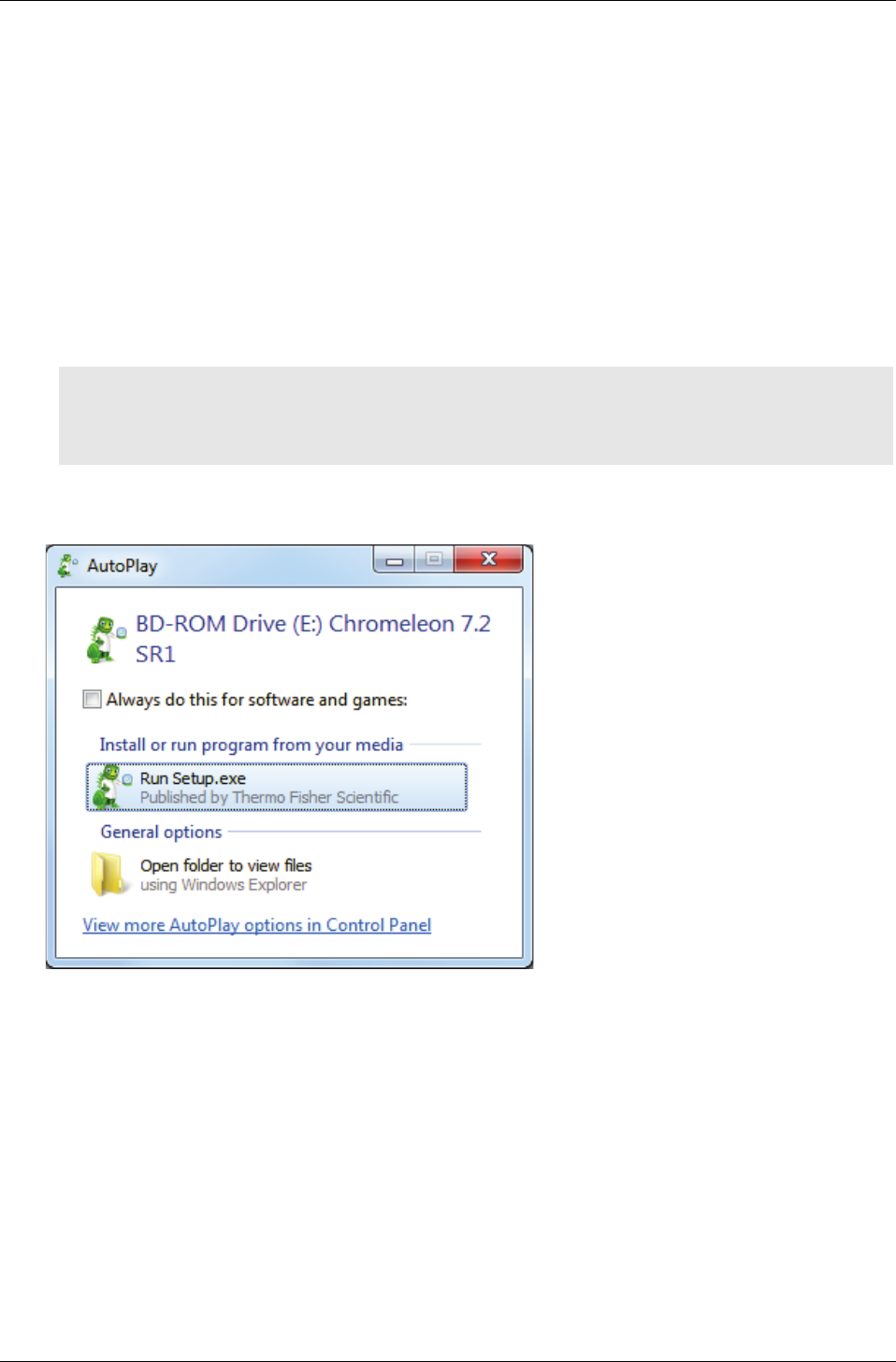
1. Insert the installation disk into the PC. The AutoPlay window opens automatically and offers links
for accessing the Chromeleon Setup window and exploring the installation disk:
Figure 1: Chromeleon AutoPlay window
2. Click Run Setup.exe.
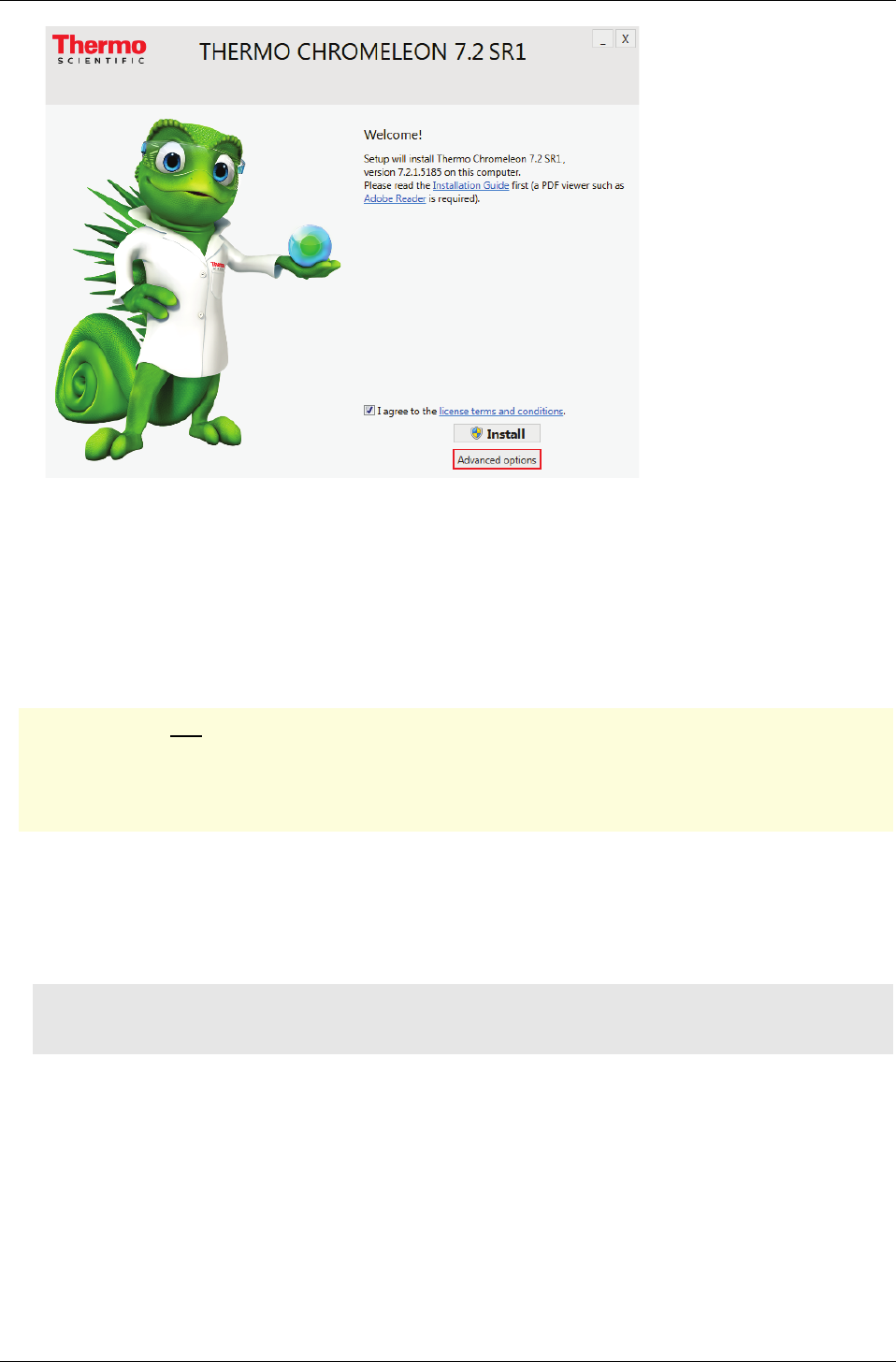
If you are upgrading from a previous Chromeleon version or installing the software for the first time, the
first page of the setup displays the Install and Advanced options buttons (Figure 2).
Page 10 MS Software Installation Guide
Chromeleon 7.2 SR1
Figure 2: Chromeleon Setup window
3. Click Advanced options (note that you must read and accept the license terms and conditions
first).
This will display the list of optional components.
4. Under Mass spectrometry drivers, select the Exactive or ISQ instrument driver.
Important: Only one Mass Spectrometry driver can be installed per computer.
After an MS instrument driver has been installed in Chromeleon, it is not possible to later change the
driver by re-running the Chromeleon setup. Refer to section 8 Uninstalling MS Software
Components for further details.
5. Change the installation path, if necessary. By default, Chromeleon is installed in the following
location:
C:\Program Files\Thermo\Chromeleon (32-bit systems)
C:\Program Files (x86)\Thermo\Chromeleon (64-bit systems).
Note: The location of any other third-party software package, for example, Microsoft SQL Server,
cannot be changed.
6. Click Install. This will launch the installation of the Chromeleon installation package and also
install the specified MS instrument driver.
Along with the MS instrument driver, the Chromeleon setup also installs Thermo Foundation
version 3.0 SP2, if not yet present.
If an earlier version of Foundation already exists on the computer, it will be upgraded by the
Chromeleon setup.
If a version later than 3.0 SP2 is detected, the setup program will skip installation of Foundation.
MS Software Installation Guide Page 11
Chromeleon 7.2 SR1
7. If either the dongle or the License File is missing, or if the previous procedures failed (for example,
due to a mismatch between the dongle and the file), click Skip.
You will have to provide a license after the setup has finished. Refer to the Chromeleon 7
Installation Guide for details about installing and activating your license.
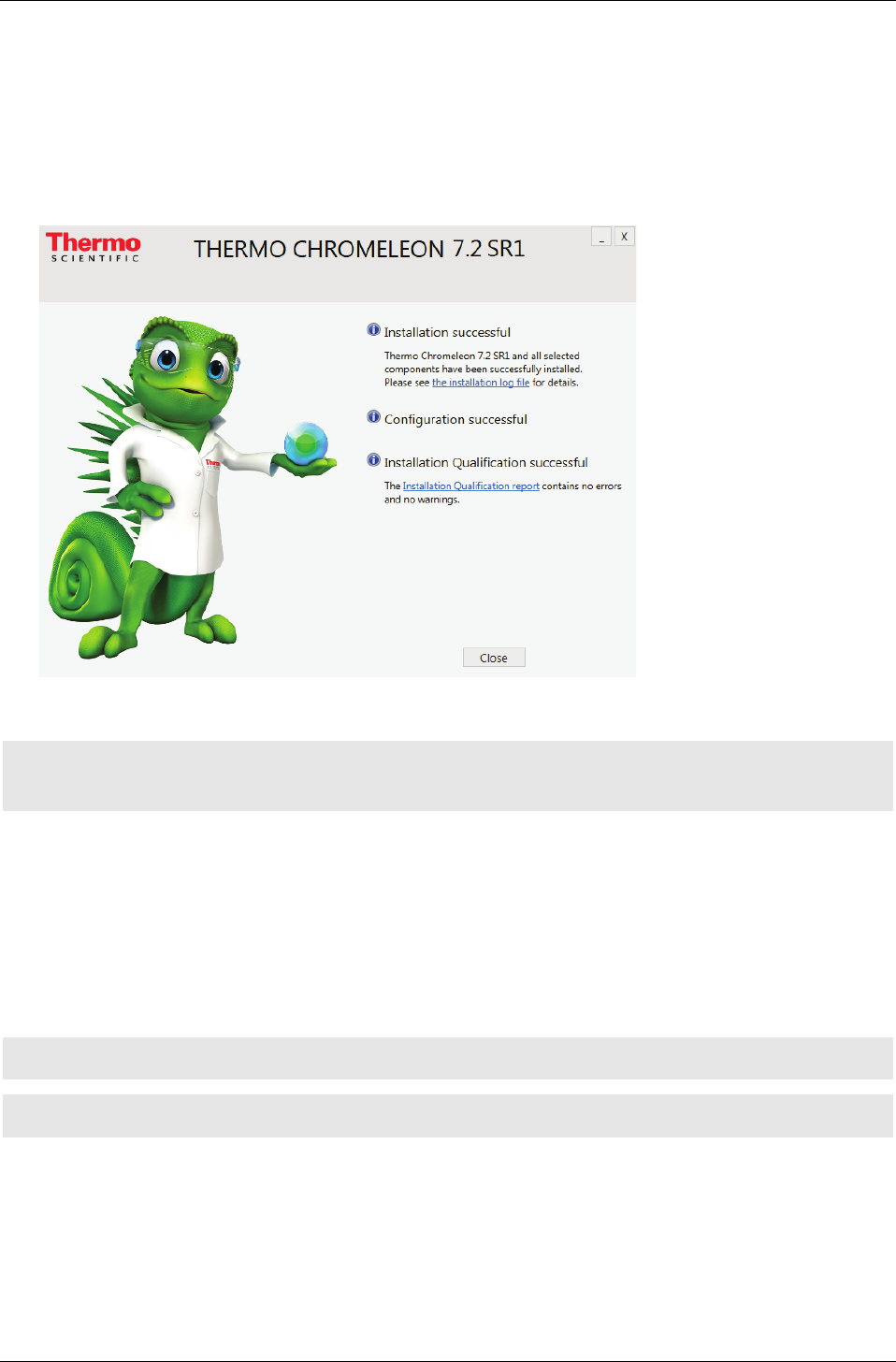
8. As the final step, an Installation Qualification Report will be created. To open the report, click the
Installation Qualification Report link provided on the setup window (Figure 4).
Figure 3: Chromeleon Installation complete
Tip: By default, the Chromeleon setup program installs MS editor components for the Exactive and ISQ
systems which allow viewing and editing of instrument methods.
5.3 Modifying MS Options in Chromeleon (Exactive or ISQ Series)
5.3.1 Adding an MS instrument driver
Should your existing Chromeleon 7.2 SR1 installation not yet include an MS instrument driver, you can
install the instrument driver any time later by re-running the Chromeleon Setup.exe application.
Note: You will need access to the Chromeleon installation media to modify an installation.
Note: Also make sure that the user who starts the setup has local administrator privileges.
1. Insert the Chromeleon 7.2 SR1 installation disk.
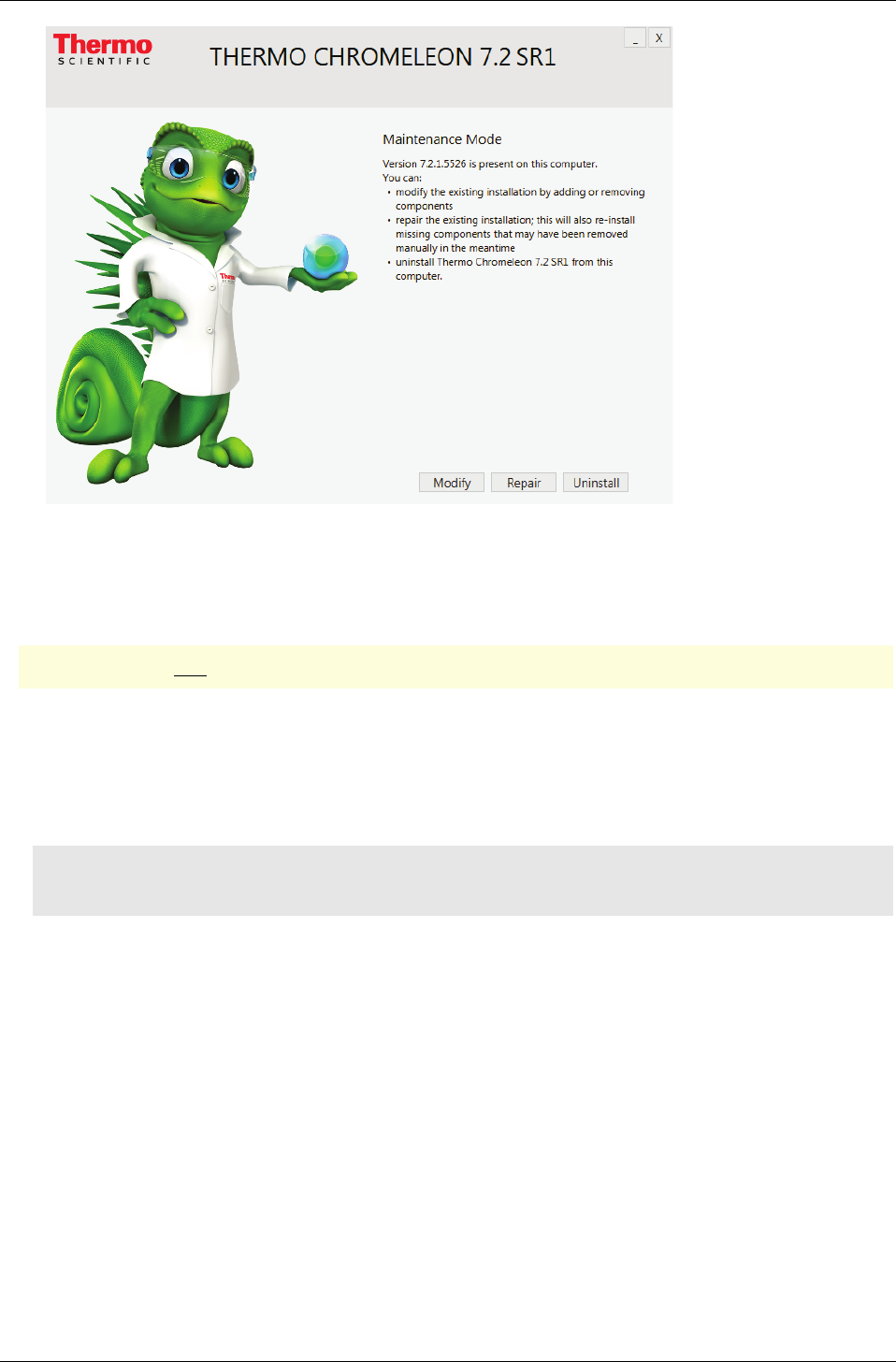
2. Click Run Setup.exe. The setup window opens in Maintenance Mode (Figure 5):
Page 12 MS Software Installation Guide
Chromeleon 7.2 SR1
Figure 4: Chromeleon Setup window in Maintenance Mode
3. Click Modify.
4. Under Mass spectrometry drivers, select the required MS instrument driver.
Important: Only one Mass Spectrometry driver can be installed per computer.
5. Click Install to start installation of the selected MS driver.
6. Follow the on-screen instructions, and reboot if requested.
7. After the installation is completed, you can proceed to configure the instrument in the
Chromeleon Instrument Configuration Manager program.
Note: If you want to change your MS instrument configuration later, the driver must be uninstalled
manually.
5.3.2 Replacing an MS instrument driver
To replace an installed MS instrument driver by another driver, proceed as follows:
1. Manually uninstall the MS instrument driver ( section 8 Uninstalling MS Software
Components).
2. After you have removed the previous driver, add the new driver by following the steps described
in section 5.3.1 Adding an MS instrument driver.
5.3.3 NIST Mass Spectral Search Program
A demo version of the NIST Mass Spectral Search program is installed automatically with Chromeleon 7.2
SR1. For manual installation, the demo program is provided on the Chromeleon installation disk in the
Packages\NIST Mass Spectral Search Program folder.
MS Software Installation Guide Page 13

Chromeleon 7.2 SR1
5.4 Installing an MSQ Plus Instrument Driver
Chromeleon version 7.2 SR1 or later is required for operating an MSQ Plus Mass Spectrometer. The
software components required for controlling the instrument are not part of the Chromeleon setup
package; they have to be installed in a separate step.
In addition, the software components listed below are required to control the MS instrument. The
components are provided on the Chromeleon 7.2 SR1 installation disk.
Driver / Software Package Location on Chromeleon Installation Disk
Thermo Foundation™, version
3.0 SP2 or later
\Packages\Thermo Foundation\ThermoPlatform.exe
Thermo Scientific MSQ Plus
instrument driver
\Drivers\Thermo MSQ Plus\Setup.exe
Note: You will need access to the Chromeleon installation media to add the instrument driver.
Note: Also make sure that the user who starts the setup has local administrator privileges.
To install the driver proceed as follows:
Install Thermo Foundation
1. Insert the Chromeleon installation disk.
2. Navigate to the \Packages\Thermo Foundation folder and run ThermoPlatform.exe.
3. Follow the on-screen instructions, and reboot if requested.
Install the MSQ Plus driver
1. Insert the Chromeleon installation disk.
2. Navigate to the Drivers\Thermo MSQ Plus folder.
3. Double-click the Setup.exe application to start installation of the MS driver.
4. Follow the on-screen instructions, and reboot if requested.
After you have installed the above MS components, you can proceed to the Chromeleon Instrument
Configuration Manager where you can install the corresponding Chromeleon driver and configure the
instrument. For details, see the Chromeleon Instrument Configuration Manager Help.
5.5 Installing a TSQ Quantiva or TSQ Endura Driver
Chromeleon version 7.2 SR1 MUa or later is required for operating a TSQ Quantiva and TSQ Endura Mass
Spectrometer.
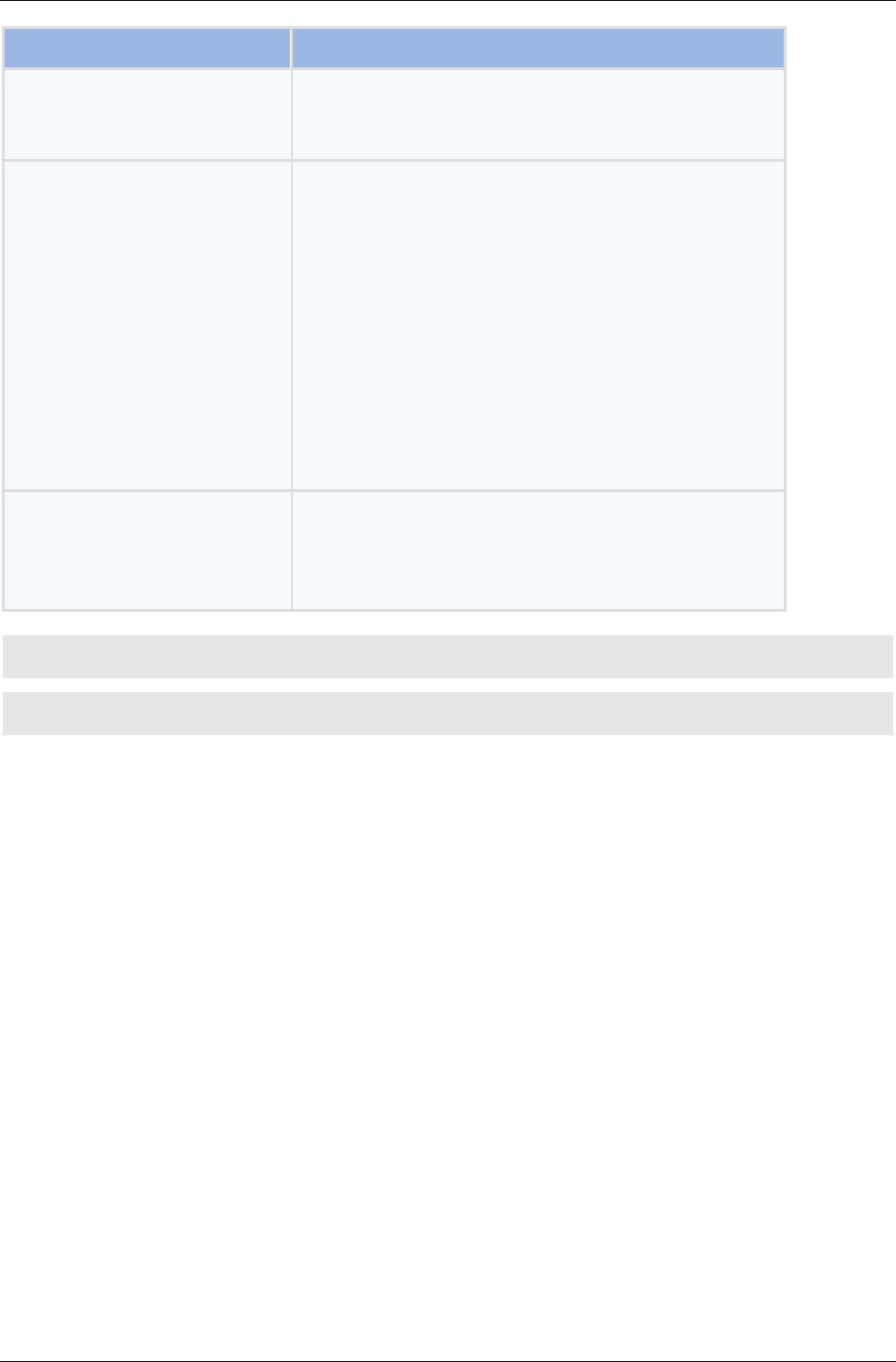
In addition, the software components listed below are required. The components are provided on the
Chromeleon 7.2 SR1 and Chromeleon 7.2 SR1 MUa installation disk, respectively.
Page 14 MS Software Installation Guide
Chromeleon 7.2 SR1
Driver / Software Package Location on Chromeleon Installation Disk
Thermo Foundation™, version
3.0 SP2 or later
Chromeleon 7.2 SR1 installation disk:
\Packages\Thermo Foundation\ThermoPlatform.exe
Thermo Scientific TSQ
Endura/Quantiva instrument
driver
Chromeleon 7.2 SR1 MUa installation disk:
For full instrument control use the “Full” driver:
\Drivers\Thermo TSQ Endura
Quantiva\Full\TSQEnduraQuantiva.exe
– Or –
For viewing and editing methods only use the “Client”
driver:
\Drivers\Thermo TSQ Endura
Quantiva\Client\MSCMClient-Release.exe
Microsoft SQL Server 2008 R2
SP2 Express with Advanced
Services
Chromeleon 7.2 SR1 MUa installation disk:
Drivers\Thermo TSQ Endura Quantiva\Microsoft SQL
Server 2008 R2 SP2 Express\InstallSQLServerR2.bat
Note: You will need access to the Chromeleon installation media to add the instrument driver.
Note: Also make sure that the user who starts the setup has local administrator privileges.
To install the components proceed as follows:
Install Thermo Foundation 3.0 SP2 or later
1. Insert the Chromeleon 7.2 SR1 installation disk.
2. Navigate to the \Packages\Thermo Foundation folder and run ThermoPlatform.exe.
3. Follow the on-screen instructions, and reboot if requested.
Install Microsoft SQL Server 2008 R2 SP2 Express with Advanced Services
1. Insert the Chromeleon 7.2 SR1 MUa Distribution DVD.
2. On the Startup screen, double-click Open folder to view files.
3. Navigate to the Drivers\Thermo TSQ Endura Quantiva\Microsoft SQL Server 2008 R2 SP2 Express
folder and double-click InstallSQLServerR2.bat.
MS Software Installation Guide Page 15

Chromeleon 7.2 SR1
Install the MS instrument driver
1. Insert the Chromeleon 7.2 SR1 MUa installation disk.
2. Install one of the following drivers:
• If you want to install the driver with full instrument control, navigate to the \Drivers\Thermo
TSQ Endura Quantiva\Full folder. Double-click the TSQEnduraQuantiva.exe application to start
the installation of the driver.
–OR–
• If you want a driver for viewing and editing methods only, navigate to the \Drivers\Thermo
TSQ Endura Quantiva\Client folder. Double-click the MSCMClient-Release.exe application to
start the installation.
3. Follow the on-screen instructions, and reboot if requested.
After you have installed the above MS components, you can proceed to the Chromeleon Instrument
Configuration Manager where you can install the corresponding Chromeleon driver and configure the
instrument. For details, see the Chromeleon Instrument Configuration Manager Help.
Note: Only one MS instrument driver per computer is allowed.
Existing TSQ Quantiva / Endura Instrument Driver Installations (Driver Version 1.0)
If an instrument driver version 1.0 is already installed on the computer, both the instrument driver for the
TSQ Quantiva / Endura, any incompatible Foundation version, and Microsoft SQL Server have to be
uninstalled before you can start installing the required software packages for the TSQ Quantiva / Endura.
Make sure to observe the correct order of steps when uninstalling the individual software components.
For details, refer to the Foundation Installation Guide and the Installation Manual for the MS instrument.
Warning: TSQ Quantiva or Endura running driver version 1.0 may require hardware upgrades to be
compatible with version 1.1. Please consult with your local MS field service engineer prior to
attempting an upgrade!
Note: The below instruction apply only to the “Full” driver version of the TSQ Quantiva / Endura.
Uninstall TSQ Quantiva / Endura instrument driver version 1.0
To uninstall the instrument driver proceed as follows:
1. Click Start -> Control Panel -> Programs and Features.
2. Select the instrument driver and then click Uninstall.
3. Follow the on-screen instructions, reboot if requested.
Uninstall existing Foundation version prior to Foundation 3.0 SP2
1. Click Start -> Control Panel -> Programs and Features.
2. Select the Foundation application and then click Uninstall.
3. Follow the on-screen instructions, reboot if requested.
Page 16 MS Software Installation Guide

Chromeleon 7.2 SR1
Uninstall Microsoft SQL Server
For instructions about uninstalling an instance of Microsoft SQL Server, refer to the Microsoft support
website at:
http://support.microsoft.com/kb/955499/en-us.
After the obsolete instrument driver, Foundation and Microsoft SQL Server versions have been removed,
install the latest versions of the components by observing the following sequence of steps:
1. Install Chromeleon 7.2 SR1
2. Install Foundation 3.0 SP2
3. Install Chromeleon 7.2 SR1 MUa
4. Install SQL Server 2008 R2 SP2 Express with Advanced Services.
5. Install the TSQ Quantiva / Endura instrument driver
5.6 Installing a TSQ 8000 Classic, TSQ 8000 Evo or TSQ Duo
Chromeleon version 7.2 SR1 MUa or later is required for operating a TSQ 8000 Classic, TSQ 8000 Evo and
TSQ Duo Mass Spectrometer.
In addition, the software components listed below are required to control the MS instrument. They are
provided on the Chromeleon 7.2 SR1 and Chromeleon 7.2 SR1 MUa installation disk, respectively. The
software components are not part of the Chromeleon setup package; they have to be installed in a
separate step.
Driver / Software Package Location on Chromeleon Installation Disk
Thermo Scientific TSQ 8000
Evo/Duo instrument driver
Chromeleon 7.2 SR1 MUa installation disk:
\Drivers\Thermo TSQ Series 3.1\Full\setup.exe
–Or–
\Drivers\Thermo TSQ Series 3.1\Client\setup.exe
Note: You will need access to the Chromeleon installation media to add the instrument driver.
Note: Also make sure that the user who starts the setup has local administrator privileges.
To install the driver proceed as follows:
Install Thermo Foundation
1. Insert the Chromeleon 7.2 SR1 installation disk.
2. Navigate to the \Packages\Thermo Foundation folder and run ThermoPlatform.exe.
3. Follow the on-screen instructions, and reboot if requested.
Note: Thermo Foundation is not required for the "Client" driver version.
MS Software Installation Guide Page 17

Chromeleon 7.2 SR1
Install the instrument driver
1. Insert the Chromeleon 7.2 SR1 MUa installation disk.
2. Install one of the following drivers:
• If you want to install the driver with full instrument control, navigate to the Drivers\Thermo TSQ
Series 3.1\Full folder. Double-click the setup.exe application to start the installation of the driver.
–OR–
• If you want a driver for viewing and editing methods only, navigate to the \Drivers\Thermo TSQ
Series 3.1\Client folder. Double-click the setup.exe application to start the installation.
3. Follow the on-screen instructions, and reboot if requested.
After you have installed the above MS components, you can proceed to the Chromeleon Instrument
Configuration Manager where you can install the corresponding Chromeleon driver and configure the
instrument. For details, see the Chromeleon Instrument Configuration Manager Help.
Note: Only one MS instrument driver per computer is allowed.
Note: If an earlier version of the instrument driver is already installed, it must be removed before
installing a more recent driver version.
5.7 Configuring an MS instrument in Chromeleon
After Chromeleon and the MS instrument driver have successfully been installed, the MS system has to be
configured in the Chromeleon Instrument Configuration Manager.
The basic steps to configure an instrument in Chromeleon are described below.
Start the Chromeleon Instrument Controller service:
1. Right-click the Chromeleon tray icon in the notification area of the Windows task bar.
2. Click Start Chromeleon Instrument Controller.
Tip: If the Chromeleon tray icon is not visible on the task bar, click Start, point to Programs and
Chromeleon 7, and then click Services Manager.
Start the Instrument Configuration Manager:
• In the Chromeleon Services Manager, click Configure Instruments (only available if Instrument
Controller Service is running.)
–OR–
• Click Start, point to Programs -> Thermo Chromeleon 7, and then click Instrument Configuration
Manager.
Page 18 MS Software Installation Guide
Chromeleon 7.2 SR1
Configure the instrument:
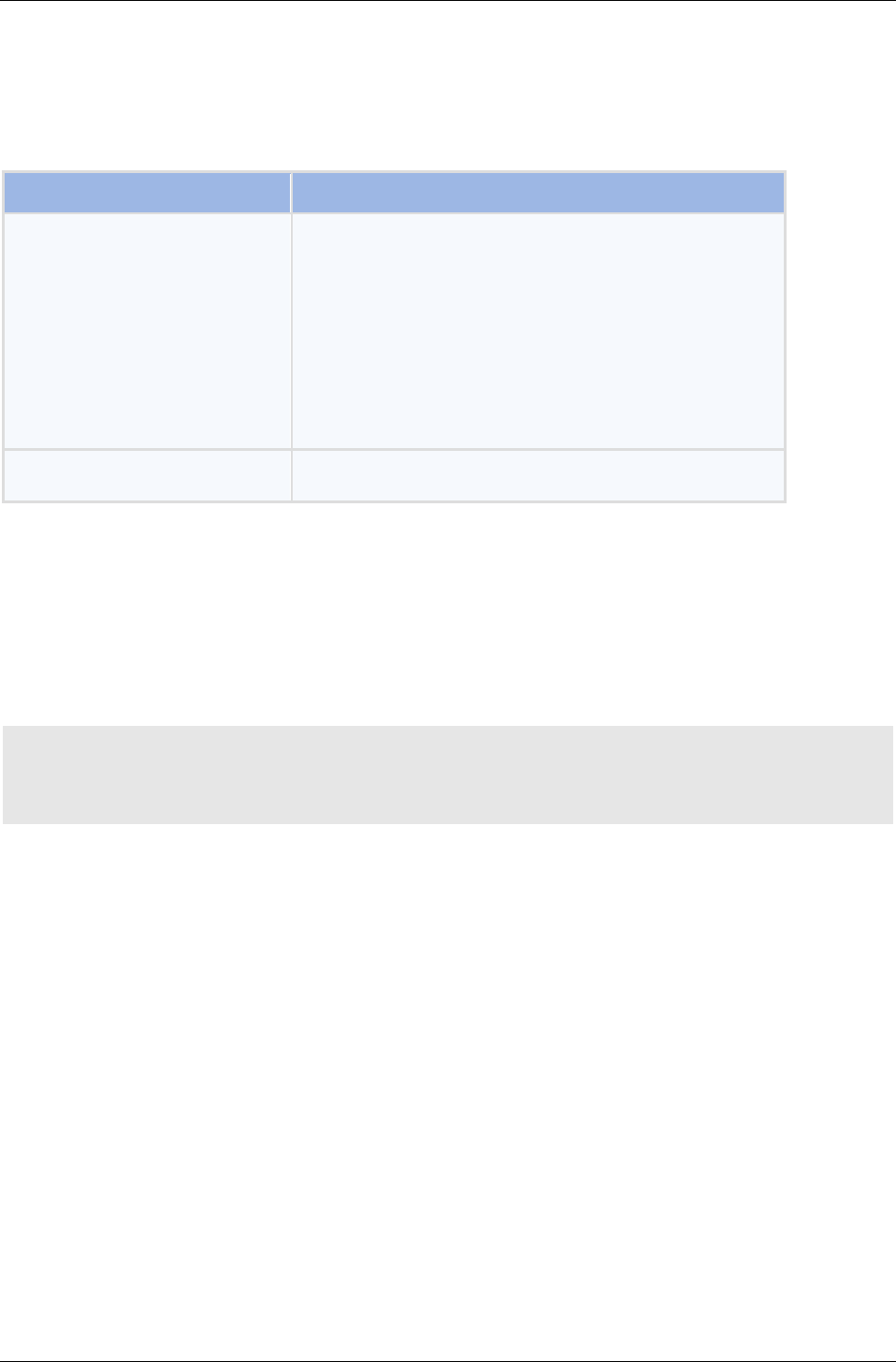
To control the MS instrument with Chromeleon, the Chromeleon Mass Spectrometer driver must be
added in the Instrument Configuration Manager. The table below shows the supported MS instruments
and their corresponding Chromeleon drivers:
Chromeleon Driver Name Controlled MS Instrument
Mass Spectrometer • ISQ Series (including ISQ Classic, ISQ-QD and ISQ-LT)
• Exactive Series
• TSQ Series 3.1 (TSQ 8000 Classic, TSQ 8000 Evo, TSQ
Duo)
• TSQ Quantiva
• TSQ Endura
Legacy Mass Spectrometer • MSQ Plus
• Create an instrument and then add the Mass Spectrometer Driver to the instrument to configure an
Exactive, ISQ or TSQ Series system. For information on how to create an instrument and add modules
in Chromeleon, see the Chromeleon Instrument Configuration Manager Help, chapter Add,
Configure, or Delete Instruments and Modules.
• After you have added the driver, the Configuration dialog box for the Mass Spectrometer opens
automatically where you can specify the settings for the MS system.
Important: Chromeleon cannot control the MS system, if it is configured under Foundation Instrument
Configuration and Chromeleon at the same time. Make sure the instrument is configured only in one
application.
For detailed information on installing and configuring the Mass Spectrometry and Legacy Mass
Spectrometer drivers in Chromeleon refer to the Chromeleon Instrument Configuration Manager Help.
MS Software Installation Guide Page 19
Chromeleon 7.2 SR1
6 Installation on a PC with Xcalibur / TraceFinder installed
Chromeleon 7.2 SR1 installs and runs Thermo Foundation 3.0 SP2. If your current Xcalibur or TraceFinder
installation includes a different Foundation version than 3.0 SP2, this may result in operating errors in
Xcalibur /TraceFinder and Chromeleon.
If a Foundation version prior to 3.0 SP2 is present on your computer, Foundation will be updated
by installing the Chromeleon MS software components ( section 5 Installing the MS Software
Components).
If a Foundation version later than 3.0 SP2 is present on your computer, remove Foundation from
your computer ( section 8 Uninstalling MS Software Components.
6.1 Client / Server Installations
Caution: Client / Server installations should only be performed by Chromeleon specialist. Also refer
to the Chromeleon Enterprise Installation Guide.
Installation of Chromeleon 7.2 SR1 in a Client/Server environment basically follows the same steps as for
installations on stand-alone workstations. Follow the steps as described in section 5 Installing the MS
Software Components.
6.2 Other Installation Considerations
Caution: Xcalibur includes services that are incompatible with Windows Terminal Server or Citrix
environments. Do not install Xcalibur on any PC used as a Windows Terminal Server or Citrix Server.
Caution: Do not use Windows Server based PCs as IPCs. The Foundation components have not been
validated on Windows Server Operating Systems.
Page 20 MS Software Installation Guide

Chromeleon 7.2 SR1
7 Using Xcalibur/TraceFinder and Chromeleon on the same PC
If you are using Xcalibur/TraceFinder and Chromeleon on the same PC, only one software package can be
connected to the hardware at any given time.
To use Chromeleon to control your LCMS or GCMS:
1. Remove the LC, GC and MS hardware drivers from the Foundation Instrument Configuration.
2. After doing so, start the Chromeleon Instrument Controller. (Right-click the Chromeleon tray icon
in the notification area of the Windows task bar and then click Start Chromeleon Instrument
Controller.)
To use Xcalibur/TraceFinder to control your LCMS or GCMS:
1. First stop the Chromeleon Instrument Controller. (Right-click the Chromeleon tray icon in the
notification area of the Windows task bar and then click Stop Chromeleon Instrument Controller.)
–OR–
Enable the Temporarily used in other application option on the General page in the Chromeleon
Instrument Configuration Manager.
2. Then add the LC, GC and MS hardware drivers to the Foundation Instrument Configuration.
MS Software Installation Guide Page 21

Chromeleon 7.2 SR1
8 Uninstalling MS Software Components
If MS software components are no longer useful to you, you have to remove them manually from the
computer.
Also observe that MS software components cannot be removed by uninstalling Chromeleon. This applies
specifically to these software components:
• Thermo Foundation
• Thermo Mass Spectrometry drivers:
ISQ Series,
Exactive Series,
TSQ Series,
• MSQ Plus Mass Spectrometer.
Note: By default, the Chromeleon setup program installs MS editor components for the Exactive, ISQ
and TSQ Series systems which allow viewing and editing of instrument methods.
To remove the software components from the computer proceed as follows:
1. Click the Start button.
2. In the Windows Control Panel, click Programs and Features.
3. Find the program you want to uninstall, then right-click and select Uninstall/Change.
4. Follow the on-screen instructions to remove the program.
5. If the wizard asks so, reboot your computer.
Tip: When uninstalling other Thermo Scientific software packages, for example, Xcalibur or
TraceFinder, make sure to uninstall components in the correct order (see section 9.2 Uninstalling
Xcalibur / TraceFinder for details).
Page 22 MS Software Installation Guide

Chromeleon 7.2 SR1
9 APPENDIX
The procedures described in this appendix should be considered advanced topics. They assume
knowledge beyond what is explicitly described in this appendix and should only be performed by qualified
individuals.
9.1 Performance Improvements on PC with Xcalibur / TraceFinder
Chromeleon 7.2 SR1 is supported on PCs that also have Xcalibur and TraceFinder installed. However,
Xcalibur includes a number of services that automatically load and run on PC startup. These services,
which are not needed by Chromeleon, consume memory and may degrade system performance.
If Chromeleon will be used exclusively on the PC, it may be desirable to disable the Xcalibur related
services. The following Xcalibur services are not used by Chromeleon and may be disabled using the
Services.msc applet:
• ThermoFisher.Foundation.AcquisitionService
• Thermo.Foundation.Acquisition.Service.Monitor
• FinniganDatabaseService
• Finnigan Security Server
• FinniganSecurityService
• Finnigan Auto Log Off
Tip: Remember that these services must be re-enabled in order to run Xcalibur.
9.2 Uninstalling Xcalibur / TraceFinder
If your current Xcalibur or TraceFinder installation includes a Thermo Foundation version other than 3.0
SP2, you may use the procedure below to remove Xcalibur and TraceFinder from your PC (also see
section 8 Uninstalling MS Software Components).
Step 1: Remove all components from the Xcalibur instrument configuration
1. Launch the Xcalibur Instrument Configuration utility.
2. Remove the MS instrument component from the Xcalibur instrument configuration.
3. Save and exit.
Step 2: Uninstall the following components in order, rebooting as prompted
1. Uninstall the Xcalibur MS drivers.
2. Uninstall the Xcalibur GC Devices.
3. Uninstall Thermo Foundation (only needed if installed version is not 3.0 SP2).
4. Uninstall TraceFinder.
5. Uninstall Xcalibur.
6. Now follow the steps described in section 5 Installing the MS Software Components to install
the MS software control components.
MS Software Installation Guide Page 23

www.thermoscientific.com
Australia +61 3 9757 4486
Austria +43 1 333 50 34 0
Belgium +32 53 73 42 41
Brazil +55 11 3731 5140
China +852 2428 3282
Denmark +45 70 23 62 60
France +33 1 60 92 48 00
Germany +49 6103 408 0
India +91 22 2764 2735
Italy +39 02 51 62 1267
Japan +81 6 6885 1213
Korea +82 2 3420 8600
Netherlands +31 76 579 55 55
Singapore +65 6289 1190
Sweden +46 8 473 3380
Switzerland +41 62 205 9966
Taiwan +886 2 8751 6655
UK/Ireland +44 1442 233555
USA and Canada +847 295 7500
