PPxMG Power Plant X 1.0 Migration Guide
User Manual: Pdf
Open the PDF directly: View PDF  .
.
Page Count: 84
- Introduction
- Identifying Migration Tasks
- Migrating from the Classic API to the Carbon API
- Migrating from PEF to the Mach-O Executable Format
- Migrating to Unicode
- Using the QuickDraw API with PowerPlant™ X
- Migrating Custom LPanes
- Migrating a User Interface to PowerPlant™ X
- Using PowerPlant™ X Windows
- Migrating Programs that Manipulate PPob Files
- Migrating Grayscale Appearance Controls
- Migrating from Polling to Carbon Event Dispatch
- Migrating from Periodicals to Timers and IdleTimers
- Migrating from LCommanders to Carbon Event Handlers
- Migrating from Broadcast/ Listen to Carbon Events
- Migrating from Cooperative to Preemptive Threading
- Using PowerPlant™ X Exception Handling
- Converting a PPob to XML
- Index

PowerPlant X 1.0
Migration Guide
Revised 2003/08/14

Metrowerks and the Metrowerks logo are registered trademarks of Metrowerks Corp. in the US. CodeWarrior is a
trademark or registered trademark of Metrowerks Corp. in the US and/or other countries. All other tradenames and
trademarks are the property of their respective owners.
Copyright © Metrowerks Corporation. 2003. ALL RIGHTS RESERVED.
The reproduction and use of this document and related materials are governed by a license agreement media,
it may be printed for non-commercial personal use only, in accordance with the license agreement related to the
product associated with the documentation. Consult that license agreement before use or reproduction of any
portion of this document. If you do not have a copy of the license agreement, contact your Metrowerks repre-
sentative or call 800-377-5416 (if outside the US call +1-512-996-5300). Subject to the foregoing non-commercial
personal use, no portion of this documentation may be reproduced or transmitted in any form or by any means,
electronic or mechanical, without prior written permission from Metrowerks.
Metrowerks reserves the right to make changes to any product described or referred to in this document without further
notice. Metrowerks makes no warranty, representation or guarantee regarding the merchantability or fitness of its prod-
ucts for any particular purpose, nor does Metrowerks assume any liability arising out of the application or use of any
product described herein and specifically disclaims any and all liability. Metrowerks software is not authorized for
and has not been designed, tested, manufactured, or intended for use in developing applications where the fail-
ure, malfunction, or any inaccuracy of the application carries a risk of death, serious bodily injury, or damage
to tangible property, including, but not limited to, use in factory control systems, medical devices or facilities,
nuclear facilities, aircraft navigation or communication, emergency systems, or other applications with a simi-
lar degree of potential hazard.
USE OF ALL SOFTWARE, DOCUMENTATION AND RELATED MATERIALS ARE SUBJECT TO THE
METROWERKS END USER LICENSE AGREEMENT FOR SUCH PRODUCT.
How to Contact Metrowerks
Corporate Headquarters Metrowerks Corporation
7700 West Parmer Lane
Austin, TX 78729
U.S.A.
World Wide Web http://www.metrowerks.com
Sales Voice: 800-377-5416
Fax: 512-996-4910
Email: sales@metrowerks.com
Technical Support Voice: 800-377-5416
Email: support@metrowerks.com

PPxMG–3
PowerPlant™ X Framework Migration Guide
Table of Contents
1 Introduction 7
Before You Begin . . . . . . . . . . . . . . . . . . . . . . . . . . . 7
Can You Migrate to PowerPlant™ X? . . . . . . . . . . . . . . . . . 7
Should You Migrate to PowerPlant™ X? . . . . . . . . . . . . . . . . 8
How to Use this Manual . . . . . . . . . . . . . . . . . . . . . . . . 9
Related Documentation. . . . . . . . . . . . . . . . . . . . . . . . . 9
2 Identifying Migration Tasks 11
Required Task Identification Questions . . . . . . . . . . . . . . . . . 11
Optional Task Identification Questions. . . . . . . . . . . . . . . . . . 12
3 Migrating from the Classic API to the Carbon API 15
Why Carbonize? . . . . . . . . . . . . . . . . . . . . . . . . . . 15
Carbonizing Your Program . . . . . . . . . . . . . . . . . . . . . . 16
4 Migrating from PEF to the Mach-O Executable Format 17
Mach-O Migration Issues . . . . . . . . . . . . . . . . . . . . . . . 17
Converting a PEF Project to a Mach-O Project . . . . . . . . . . . . . . 18
5 Migrating to Unicode 23
Unicode Migration Issues . . . . . . . . . . . . . . . . . . . . . . . 23
Example Code . . . . . . . . . . . . . . . . . . . . . . . . . . . 23
6 Using the QuickDraw API with PowerPlant™ X 25
QuickDraw vs. CoreGraphics . . . . . . . . . . . . . . . . . . . . . 25
Example Code . . . . . . . . . . . . . . . . . . . . . . . . . . . 26
7 Migrating Custom LPanes 29
Custom Pane Migration Issues . . . . . . . . . . . . . . . . . . . . . 29
Example Code . . . . . . . . . . . . . . . . . . . . . . . . . . . 30

Table of Contents
PPxMG–4
PowerPlant™ X Framework Migration Guide
8 Migrating a User Interface to PowerPlant™ X 35
User Interface Migration Issues . . . . . . . . . . . . . . . . . . . . 35
Example Code . . . . . . . . . . . . . . . . . . . . . . . . . . . 37
9 Using PowerPlant™ X Windows 41
Manipulating PowerPlant™ X Windows . . . . . . . . . . . . . . . . . 41
Example Code . . . . . . . . . . . . . . . . . . . . . . . . . . . 42
10 Migrating Programs that Manipulate PPob Files 43
XML Resource File Manipulation . . . . . . . . . . . . . . . . . . . 43
11 Migrating Grayscale Appearance Controls 45
GA Controls vs. the Aqua Look and Feel. . . . . . . . . . . . . . . . . 45
Migration Options. . . . . . . . . . . . . . . . . . . . . . . . . . 46
Objective 1 . . . . . . . . . . . . . . . . . . . . . . . . . . . 46
Objective 2 . . . . . . . . . . . . . . . . . . . . . . . . . . . 46
Objective 3 . . . . . . . . . . . . . . . . . . . . . . . . . . . 47
Objective 4 . . . . . . . . . . . . . . . . . . . . . . . . . . . 47
12 Migrating from Polling to Carbon Event Dispatch 49
Polling vs. Carbon Event Dispatch . . . . . . . . . . . . . . . . . . . 49
Example Code . . . . . . . . . . . . . . . . . . . . . . . . . . . 51
13 Migrating from Periodicals to Timers and IdleTimers 53
LPeriodical Migration Issues . . . . . . . . . . . . . . . . . . . . . 53
Example Code . . . . . . . . . . . . . . . . . . . . . . . . . . . 55
14 Migrating from LCommanders to Carbon Event Handlers 61
Commanders vs. Carbon Event Handlers . . . . . . . . . . . . . . . . . 61
Example Code . . . . . . . . . . . . . . . . . . . . . . . . . . . 63
15 Migrating from Broadcast/Listen to Carbon Events 69
Broadcast/Listen Migration Issues . . . . . . . . . . . . . . . . . . . 69
Example Code . . . . . . . . . . . . . . . . . . . . . . . . . . . 70

Table of Contents
PPxMG–5
PowerPlant™ X Framework Migration Guide
16 Migrating from Cooperative to Preemptive Threading 73
Threading Migration Issues . . . . . . . . . . . . . . . . . . . . . . 73
Cooperative vs. Preemptive Threading . . . . . . . . . . . . . . . . . . 74
17 Using PowerPlant™ X Exception Handling 75
Exception Handling Migration Issues . . . . . . . . . . . . . . . . . . 75
Example Code . . . . . . . . . . . . . . . . . . . . . . . . . . . 76
A Converting a PPob to XML 77
Index 81

Table of Contents
PPxMG–6
PowerPlant™ X Framework Migration Guide

PPxMG–7
PowerPlant™ X Framework Migration Guide
1
Introduction
PowerPlant™ X is the latest edition of PowerPlant, Metrowerks’ application
framework for developing software for Apple® Macintosh® computers. As its name
suggests, PowerPlant X helps you create applications for the Mac OS X operating
system.
PowerPlant X lets you take advantage of Mac OS X capabilities that Original
PowerPlant does not. However, moving to PowerPlant X is not without cost. For
example, the PowerPlant X version of your program will not run on any Mac OS
version prior to Mac OS X 10.2. Further, migration to PowerPlant X entails significant
changes to your current application.
The PowerPlant X 1.0 Migration Guide helps you decide whether to migrate your
program to PowerPlant X. In addition, the manual explains how to perform the most
common migration tasks.
This chapter contains these topics:
•Before You Begin
•How to Use this Manual
•Related Documentation
Before You Begin
Before you migrate to PowerPlant X, you must first decide whether you can migrate to
PowerPlant X. If you can migrate your program, you must next decide whether you
should.
Can You Migrate to PowerPlant™ X?
If your application must run on a version of Mac OS prior to Mac OS X 10.2, you
cannot use PowerPlant X. This restriction stems from the fact that PowerPlant X uses
features introduced in version 10.2 of Mac OS X, most notably, HIViews.

Introduction
Before You Begin
PPxMG–8
PowerPlant™ X Framework Migration Guide
Should You Migrate to PowerPlant™ X?
You may not have to change your Original PowerPlant program at all for it to run on
Mac OS X, 10.2. If your program is carbonized, it will run natively on Mac OS X
without modification.
That said, if you can migrate to PowerPlant X, you probably should because the new
framework lets your program take advantage of many powerful features introduced by
Mac OS X, 10.2. Here are just two examples:
• Carbon Event support
PowerPlant X includes a class for every Carbon Event along with a mechanism
that lets you attach a custom handler for any or all of these events to any pane and
view in your program.
Original PowerPlant let you customize behavior using attachments. However,
because attachments let you augment or replace default behavior in just a few
places (for example, just before default click behavior), they are much less
powerful than PowerPlant X’s Carbon Event classes.
See the PowerPlant™ X 1.0 Developer’s Guide for instructions that explain how
to use PowerPlant X’s Carbon Event support.
• Preemptive threads
Original PowerPlant programs are executed by cooperative threads. In this
system, a thread repeatedly polls the OS for events and “cooperates” by yielding
the processor when the thread has no work to do. This approach wastes processor
cycles and interferes with the execution of other programs, thereby degrading the
performance of the overall system.
PowerPlant X programs are executed by preemptive threads. Mac OS X suspends
execution of an application’s preemptive thread until an event occurs to which
the application must respond. When such an event occurs, Mac OS X lets the
program’s thread process the event and then preempts the thread again. This
approach uses system resources more economically.
Fortunately, migration to PowerPlant X is not an all or nothing proposition. You can
migrate an Original PowerPlant program in phases, taking advantage of the most
beneficial PowerPlant X features first and adding other features as time permits.

Introduction
How to Use this Manual
PPxMG–9
PowerPlant™ X Framework Migration Guide
How to Use this Manual
The first step in migrating your Original PowerPlant program to PowerPlant X is to
compile a list of migration tasks you want to perform.
To build this list, read “Identifying Migration Tasks”. This chapter contains a series of
“migration questions.” Each question helps you decide whether to perform a particular
migration task and points to the chapter that explains how to accomplish this task. For
each question to which you answer yes, add its migration task to your task list.
Once you have completed your task list, you have defined what you must do. The next
step is to read the chapter associated with each task in your list and perform the code
changes described in each chapter.
Related Documentation
While this manual provides most of the information you need to migrate your Original
PowerPlant programs to the PowerPlant X framework, it does not contain all the
answers. In particular, you may find the Metrowerks manuals listed below helpful.
NOTE Each of these documents is in this folder:
InstallDir
/CodeWarrior Manuals/PDF
where
InstallDir
is a placeholder for the folder in which you
installed the CodeWarrior IDE.
•PowerPlant™ X 1.0 Developer’s Guide
This manual explains how to create a Mac OS X 10.2 application using the
PowerPlant X framework.
•PowerPlant™ X 1.0 API Reference
This manual documents the methods and data members of each class in the
PowerPlant X framework.
•The PowerPlant™ Book
This manual explains how to create an Classic Mac OS program using the
Original PowerPlant framework.
•PowerPlant™ Advanced Topics
This manual explains how to use advanced features of the Original PowerPlant
framework, such as networking, drag and drop, and profiling.

Introduction
Related Documentation
PPxMG–10
PowerPlant™ X Framework Migration Guide
•PowerPlant™ Framework API Reference
This manual documents the methods and data members of each class in the
Original PowerPlant framework.
•PowerPlant™ Carbon Porting Guide
This manual explains how to carbonize an Original PowerPlant program.
•IDE 5.5 User's Guide
This manual explains how to use the CodeWarrior IDE.

PPxMG–11
PowerPlant™ X Framework Migration Guide
2
Identifying Migration Tasks
This chapter contains a set of migration task identification questions. Answer these
questions to identify the programming tasks you will perform to migrate your Original
PowerPlant program to PowerPlant X.
This chapter contains these sections:
•Required Task Identification Questions
•Optional Task Identification Questions
Required Task Identification Questions
For each of these questions to which you answer yes, you must perform the related
migration task. Until you do, you cannot build and run the PowerPlant X version of
your program.
1. Does your Original PowerPlant program use any Classic Mac OS API functions?
If yes, you must convert each Classic function call to its equivalent Carbon call.
Until you carbonize your program, you cannot use PowerPlant X. Refer to
“Migrating from the Classic API to the Carbon API” for instructions.
2. Does your Original PowerPlant program use the Code Fragment Manager API?
If yes, you must re-code your program to use the Mach-O executable format.
Until convert to Mach-O, you cannot use PowerPlant X. Refer to “Migrating
from PEF to the Mach-O Executable Format” for instructions.
3. Does your Original PowerPlant program use character data encoded in ASCII?
If yes, you must re-code your program to use the PowerPlant X Unicode string
class.
This modification is required because PowerPlant X does not support ASCII
characters. Refer to “Migrating to Unicode” for instructions.

Identifying Migration Tasks
Optional Task Identification Questions
PPxMG–12
PowerPlant™ X Framework Migration Guide
4. Do you want to migrate your custom LPane subclasses to PowerPlant X but
continue to draw them using QuickDraw?
If yes, you must add coordinate conversion code before each QuickDraw call.
If you migrate a custom pane and want to continue to use QuickDraw, you must
make these modifications. Refer to “Using the QuickDraw API with
PowerPlant™ X” for instructions.
Optional Task Identification Questions
For each of these questions to which you answer yes, you have the option to perform
the related migration task. If you perform an optional task, your program will run
better on Mac OS X 10.2 than if you do not complete the task.
1. Does your program include custom LPane subclasses that you want to migrate to
PowerPlant X?
If yes, you must reimplement these classes such that their custom behavior is
provided by means of mixin and attachable Carbon Event handlers.
This task is optional. If you choose to migrate a custom pane, refer to “Migrating
Custom LPanes” for instructions.
2. Do you want to convert some or all of your program’s LWindow objects to a
PowerPlant X windows?
If yes, for each window you choose to convert, you must also convert each pane
within this window. Further, you must convert the window’s layout information
from PPob (PowerPlant object) to XML format.
This task is optional. If you choose to migrate a window, refer to “Migrating a
User Interface to PowerPlant™ X” for instructions.
3. Does your Original PowerPlant program contain code that assumes an LWindow
is a type of LView?
If yes, and you have changed this window to a PowerPlant X window, you must
remove this assumption from your code.
This task is optional. You must make this change only for windows that you
migrate to PowerPlant X and for which your code assumes the window is a type
of view. Refer to “Using PowerPlant™ X Windows” for instructions.

Identifying Migration Tasks
Optional Task Identification Questions
PPxMG–13
PowerPlant™ X Framework Migration Guide
4. Do you have a program that directly reads/writes a PPob file?
If yes, and you have converted the PPob file to XML, you must modify the
program to manipulate PowerPlant X XML files.
This task is optional. You must perform this task only if you have a program that
operates directly on a PPob file and have converted the PPob to XML. Refer to
“Migrating Programs that Manipulate PPob Files” for instructions.
5. Does your program use Original PowerPlant’s grayscale appearance (GA)
controls?
If yes, and you have changed the containing window to PowerPlant X and/or you
want the GA controls to look Aqua, you must change your code as described in
“Migrating Grayscale Appearance Controls”.
This task is optional. The GA controls work without change as long as they are in
an Original PowerPlant window.
6. Does your Original PowerPlant program rely on the event loop architecture?
If yes, and you want to take advantage of Mac OS X’s preemptive scheduler, you
must recode your program such that it waits for system-dispatched Carbon
Events instead of polling for and dispatching events itself.
This task is optional. You must make this change only if your program’s
performance on Mac OS X is unacceptable. Refer to “Migrating from Polling to
Carbon Event Dispatch” for instructions.
7. Does your Original PowerPlant program use LPeriodical subclasses?
If yes, and you have removed your program’s event loop, you must recode your
program such that its periodic behavior is implemented by PowerPlant X Timers
and IdleTimers.
This task is optional. You must make these changes only if you have removed
your program’s WaitNextEvent loop. Refer to “Migrating from Periodicals to
Timers and IdleTimers” for instructions.

Identifying Migration Tasks
Optional Task Identification Questions
PPxMG–14
PowerPlant™ X Framework Migration Guide
8. Does your Original PowerPlant program use LCommander subclasses?
If yes, and you want to take advantage of the PowerPlant X’s more powerful and
efficient command dispatch mechanism, you must replace your LCommander
subclasses with equivalent Carbon Event handlers.
This task is optional. You must make these changes only if you have removed
your program’s WaitNextEvent loop. Refer to “Migrating from LCommanders
to Carbon Event Handlers” for instructions.
9. Does your Original PowerPlant program use the broadcast/listen mechanism?
If yes, and you want to take advantage of the PowerPlant X’s more powerful and
efficient inter-object messaging mechanism, you must replace your broadcast/
listen code with equivalent Carbon Event handlers.
This task is optional. You must make these changes only if you have removed
your program’s WaitNextEvent loop. Refer to “Migrating from Broadcast/Listen
to Carbon Events” for instructions.
10. Does your program use the Original PowerPlant threading classes?
If yes, and you want to take advantage of Mac OS X’s preemptive scheduler, you
must recode your program to use the threading classes in the MSL C++ library.
This task is optional. You must make these changes only if you want to take
advantage of the preemptive scheduler. Refer to “Migrating from Cooperative to
Preemptive Threading” for instructions.
11. Does your Original PowerPlant program throw LException instances?
If yes, and you want to take advantage of the PowerPlant X’s more powerful
exception classes, you must change the type of the exception object thrown to
your catch blocks to the appropriate PowerPlant X exception class.
This task is optional. You must make these changes only if you want to take
advantage of PowerPlant X’s richer exception handling capabilities. Refer to
“Using PowerPlant™ X Exception Handling” for instructions.

PPxMG–15
PowerPlant™ X Framework Migration Guide
3
Migrating from the Classic
API to the Carbon API
This chapter explains why you must carbonize your Original PowerPlant program
before using PowerPlant™ X. In addition, the chapter lists the benefits a carbonized
program gains when run on Mac OS X.
This chapter contains these sections:
•Why Carbonize?
•Carbonizing Your Program
Why Carbonize?
While Original PowerPlant supports both Classic and Carbon APIs, PowerPlant X
supports Carbon exclusively. If your Original PowerPlant program uses any Classic
APIs, you must convert them to their Carbon equivalents before you can use
PowerPlant X.
Further, if your program relies on an OS feature not in Carbon, such as Standard File
dialogs or the Classic printing architecture, you must switch to this feature’s Carbon
equivalent (for example, Navigation Services and Carbon session printing).
NOTE Despite the fact that they are Carbon applications, PowerPlant X
programs will not run on Classic Mac OS (Mac OS 8.1/9) or on
releases of Mac OS X before 10.2. This is because PowerPlant X
uses features unavailable before Mac OS X 10.2.
A Carbon application running on Mac OS X gains these benefits:
• Greater stability
Mac OS X protects each native application’s address space. This helps prevent an
errant application from crashing the system or other applications.

Migrating from the Classic API to the Carbon API
Carbonizing Your Program
PPxMG–16
PowerPlant™ X Framework Migration Guide
• Improved responsiveness
Mac OS X schedules a native application’s threads preemptively. Further,
Mac OS X does not place a Carbon thread in the run queue unless the thread has
work to do. This makes the overall system more responsive.
• Efficient use of system resources
A native Mac OS X application can dynamically allocate memory and other
shared resources. Thus, a Carbon application can allocate resources based on
actual need rather than on predetermined values.
• Aqua look and feel
A carbonized application runs natively on Mac OS X. Only native Mac OS
applications have the Aqua look and feel.
Carbonizing Your Program
For instructions that explain how to carbonize an Original PowerPlant program, read
the PowerPlant™ Carbon Porting Guide. The path to this document is:
InstallDir
/CodeWarrior Manuals/PDF/PP_Carbon_Porting_Guide.pdf
where
InstallDir
is a placeholder for the folder in which you installed your
CodeWarrior product.
In addition, you can find Apple Carbon porting tools and information at this URL:
http://developer.apple.com/techpubs/macosx/Carbon/CarbonPortingTools/
carbonportingtools.html

PPxMG–17
PowerPlant™ X Framework Migration Guide
4
Migrating from PEF to the
Mach-O Executable Format
This chapter explains how to modify an Original PowerPlant™ CodeWarrior project
such that it generates a Mach-O executable instead of a Preferred Executable Format
(PEF) executable.
This chapter contains these sections:
•Mach-O Migration Issues
•Converting a PEF Project to a Mach-O Project
Mach-O Migration Issues
PowerPlant X supports just the Mach-O executable format and the dynamic link
editor; the new framework does not support the Preferred Executable Format (PEF)
and Code Fragment Manager (CFM). Why?
Many of the new APIs introduced by Apple in Mac OS X 10.2 do not include CFM
libraries. Because PowerPlant X uses these APIs, it cannot support PEF/CFM.
Consequently, if your Original PowerPlant project generates PEF output, you must
modify the files and target settings of each build target in your project such that each
generates a Mach-O executable.
Further, if your program uses the CFM API to manipulate a PEF file, you must replace
this code with equivalent dynamic link editor calls. For instructions that explain how
to make these changes, click this link (or enter it in your browser):
http://developer.apple.com/documentation/DeveloperTools/Conceptual/
MachORuntime/5rt_api_reference/index.html

Migrating from PEF to the Mach-O Executable Format
Converting a PEF Project to a Mach-O Project
PPxMG–18
PowerPlant™ X Framework Migration Guide
Converting a PEF Project to a Mach-O
Project
To convert a project that outputs PEF to one that generates Mach-O, you must change
some of the project’s target settings and add the correct libraries. Use the following
procedure to accomplish the conversion.
Modifying a PEF Project Such That It Generates Mach-O Output
To modify a PEF project such that it generates Mach-O, follow these steps:
1. Copy the file CommonMach-OPrefix.h
from
Compiler
/(Project Stationery)/
Mac OS PowerPlant/Mac OS X Mach-O/Basic/Source/Prefix
to your project’s prefix folder.
2. Start the CodeWarrior IDE.
3. Open the Original PowerPlant project to be modified.
4. For each build target in the project:
a. Remove all libraries.
b. Remove the console stub file (if present).
c. Open the Target Settings window.
d. Display the Target Settings panel of the Target Settings window.
e. Use the Linker popup menu to change the linker
from Macintosh PowerPC
to Mac OS X PowerPC Mach-O
f. Click Save
g. A warning dialog box appears.
h. Click OK
A tab labeled Frameworks appears in the project window.
i. Display the File Mappings panel.
Migrating from PEF to the Mach-O Executable Format
Converting a PEF Project to a Mach-O Project
PPxMG–19
PowerPlant™ X Framework Migration Guide
j. Click Factory Settings
The IDE selects file mappings appropriate for the Mach-O linker.
k. Click Save
l. Display the Access Paths settings panel.
m. Remove these system access paths:
{Compiler}MacOS Support
{Compiler}MSL
n. Add these system access paths:
{Compiler}MSL/MSL_C
{Compiler}MSL/MSL_C++
{Compiler}MacOS X Support
{OS X Volume}usr/include (non-recursive)
{OS X Volume}usr/bin (non-recursive)
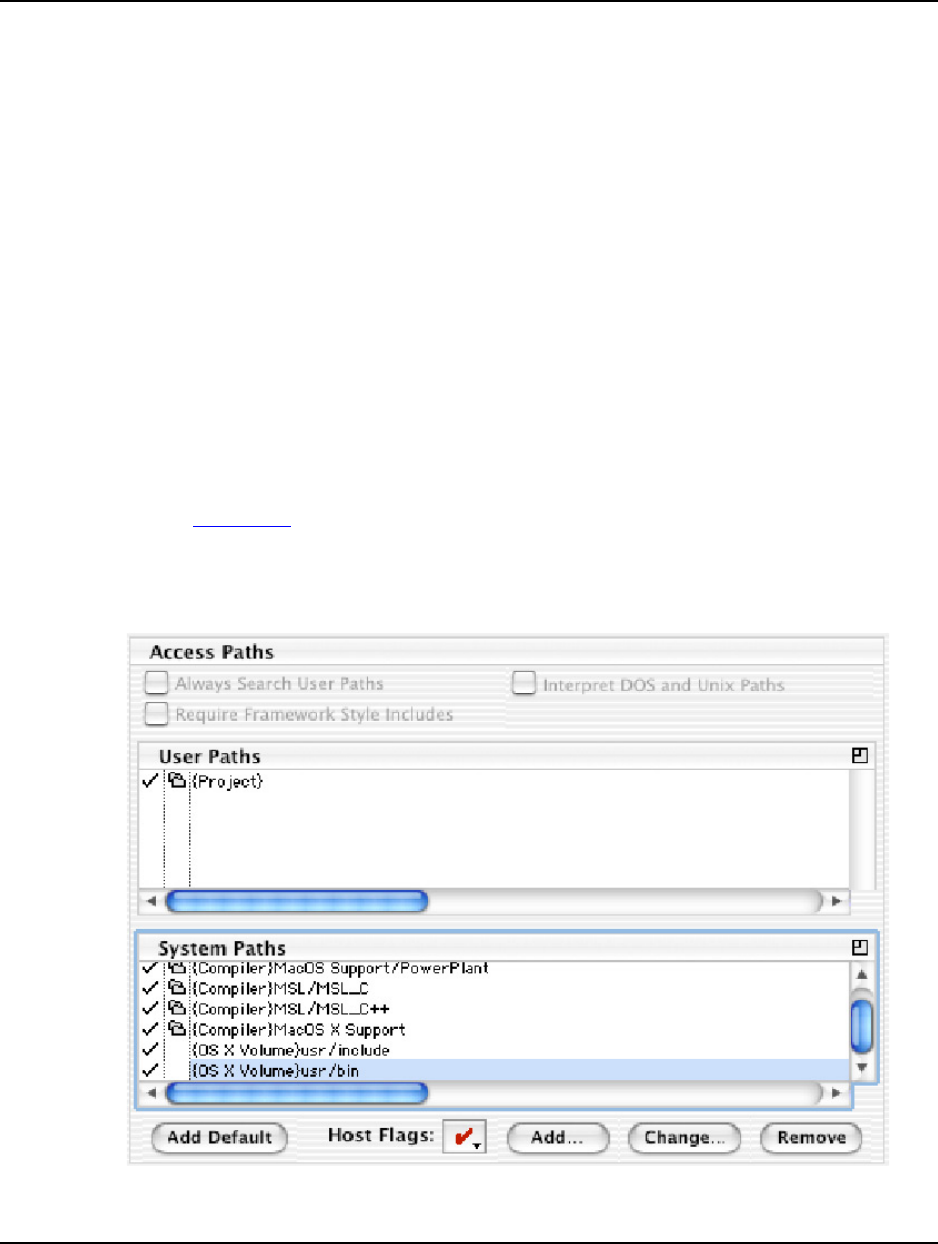
Figure 4.1 shows the Access Paths target settings panel with the system
access paths defined as required.
Figure 4.1 System Access Paths Set as Required for a Mach-O Project
o. Click Save

Migrating from PEF to the Mach-O Executable Format
Converting a PEF Project to a Mach-O Project
PPxMG–20
PowerPlant™ X Framework Migration Guide
p. Display the PPC Mac OS X Linker settings panel.
q. Type start in the Main Entry Point text box.
r. Click Save
s. Close the target settings window.
t. Add the file crt1.o
This file is here:
OS X Volume
/usr/lib
where
OS X Volume
is a placeholder for the drive on which you installed
Mac OS X.
u. If the build target is a debug target, add the file MSL_All_Mach-O_D.lib
This file is here:
Compiler
/MacOS X Support/Libraries/Runtime/Libs
where
Compiler
is a placeholder for the folder in which you installed the
CodeWarrior IDE.
v. If the build target is a release target, add the file MSL_All_Mach-O.lib
This file is here:
Compiler
/MacOS X Support/Libraries/Runtime/Libs
w. Add these frameworks to the Frameworks tab of the project window.
Carbon.framework
System.framework
These frameworks are here:
OS X Volume
/System/Library/Frameworks
x. Open the build target’s prefix file in a CodeWarrior editor window.
y. Modify the prefix file as show in Listing 4.1.

Migrating from PEF to the Mach-O Executable Format
Converting a PEF Project to a Mach-O Project
PPxMG–21
PowerPlant™ X Framework Migration Guide
Listing 4.1 Changes to Build Target Prefix Files
... // leave preceeding statements unchanged
// ----------------------------------------------------
// Common Settings
//#include “CommonCarbonPrefix.h” //<-- comment out this statement
#include “CommonMach-OPrefix.h” //<-- add this statement
... // leave statements that follow unchanged
z. Close and save the prefix file.
aa. Select Project > Make
The CodeWarrior IDE makes the current build target and outputs a Mach-O
executable.
ab. Select Project > Run
The IDE runs the generated executable.
Your have now modified your Original PowerPlant project such that each of its build
targets generates a Mach-O executable.

Migrating from PEF to the Mach-O Executable Format
Converting a PEF Project to a Mach-O Project
PPxMG–22
PowerPlant™ X Framework Migration Guide
PPxMG–23
PowerPlant™ X Framework Migration Guide
5
Migrating to Unicode
This chapter shows you how to modify your Original PowerPlant™ code such that it
uses Unicode for its character data.
This chapter contains these sections:
•Unicode Migration Issues
•Example Code
Unicode Migration Issues
PowerPlant X’s native string class is based on the CoreFoundation class CFString.
Class CFString encapsulate Unicode characters. As a result, you must convert all
ASCII character data in your Original PowerPlant program to use class CFString.
Important points:
•Use the PPx::CFString in place of Original PowerPlant’s custom string classes
(for example, LString and LStr255).
• Use Apple's CFSTR macro to create Unicode string literals from C string literals.
Listing 5.1 shows Original PowerPlant string handling code. Listing 5.2 shows
equivalent PowerPlant X string handling code.
Example Code
Listing 5.1 Original PowerPlant™ String Handling Code
LStr255 myString("Here is my text"); // Create a string object
LWindow* myWindow;
// Code to get window pointer
myWindow->SetTitle("\pWindow Title"); // Set title of window

Migrating to Unicode
Example Code
PPxMG–24
PowerPlant™ X Framework Migration Guide
Listing 5.2 PowerPlant™ X String Handling Code
PPx::CFString myString("Here is my text"); // Create a string object
PPx::Window* myWindow;
// Code to get window pointer
myWindow->SetTitle(CFSTR("Window Title"); // Set title of window

PPxMG–25
PowerPlant™ X Framework Migration Guide
6
Using the QuickDraw API
with PowerPlant™ X
This chapter explains how to migrate custom LPane subclasses to PowerPlant™ X,
while continuing to use the QuickDraw API to render these panes.
This chapter contains these sections:
•QuickDraw vs. CoreGraphics
•Example Code
QuickDraw vs. CoreGraphics
If your Original PowerPlant program includes custom LPane subclasses, the code that
draws these panes includes QuickDraw calls. As long the window that contains such
subclasses is an LWindow, your custom drawing code (including all QuickDraw calls)
will work in the PowerPlant X version of your program.
However, if you switch the window that contains custom panes to a PPx::Window,
you must also switch each contained custom pane to a PPx::View. This change
makes each custom pane a HIView. Because points in the HIView coordinate space
are type float while QuickDraw functions require SInt16 coordinates, you must
make one of these changes to your drawing code:
1. Convert float coordinates to SInt16 coordinates before each QuickDraw call.
Typically, this option requires that you convert a HIPoint to a Point or a
HIRect to a Rect and pass the Point or Rect to subsequent QuickDraw calls.
2. Replace each QuickDraw call with the corresponding CoreGraphics call.
This choice is preferred because Mac OS X and all built-in PowerPlant X
SystemViews use the CoreGraphics API.

Using the QuickDraw API with PowerPlant™ X
Example Code
PPxMG–26
PowerPlant™ X Framework Migration Guide
Costs and benefits of using QuickDraw in PowerPlant X windows:
•Costs:
– Coordinate conversion statements waste memory and processor cycles.
– Coordinate conversion statements makes your source code harder to read and
maintain.
– Text drawn using QuickDraw looks different from text drawn by the system
and by PowerPlant X’s built in panes.
This difference results from the fact that CoreGraphics uses a different anti-
aliasing algorithm than does QuickDraw.
• Benefits:
– You do not have to learn how to use the CoreGraphics API.
– You do not have to write-test-debug as much new code.
Example Code
Listing 6.1 Using the QuickDraw API in PowerPlant™ X Code
// HI2QDRect is a view utility function.
// It converts the float coordinates of a HIRect to SInt16 values
// and returns the result in an out parameter of type Rect
void
ViewUtils::HIToQDRect(
const HIRect& inHIRect,
Rect& outQDRect)
{
// Truncate the HIPoint coordinates
// passed in from 32 to 16 bits and return in out parameter
outQDRect.left = inHIRect.origin.x;
outQDRect.top = inHIRect.origin.y;
outQDRect.right = inHIRect.origin.x +
inHIRect.size.width;
outQDRect.bottom = inHIRect.origin.y +
inHIRect.size.height;
}

Using the QuickDraw API with PowerPlant™ X
Example Code
PPxMG–27
PowerPlant™ X Framework Migration Guide
// Draw a PowerPlant X pane using a function in the QuickDraw API
OSStatus
MyFrameView::DoControlDraw(
ControlRef /* inControl */,
ControlPartCode /* inPartCode */,
RgnHandle /* inClipRgn */,
CGContextRef /* inContext */) // Don't need CGContext
{
// Create a HIRect.
// Set its coordinates to the frame of this MyFrameView instance.
// Because a MyFrameView is a HIView, the returned coords are floats.
HIRect frame;
GetLocalFrame(frame); // frame contains float coords
// Upon return from HI2QDRect, qdFrame contains
// SInt16 equivalents of the float coordinates passed in frame
Rect qdFrame;
PPx::ViewUtils::HI2QDRect(frame, qdFrame);
// Finally, pass qdFrame to the QuickDraw function FrameRect
::FrameRect(&qdFrame);
return noErr;
}
Listing 6.2 Using the CoreGraphics API in PowerPlant™ X Code
// Draw a control using a CoreGraphics function
OSStatus
MyFrameView::DoControlDraw(
ControlRef /* inControl */,
ControlPartCode /* inPartCode */,
RgnHandle /* inClipRgn */,
CGContextRef inContext)
{
HIRect frame;
GetLocalFrame(frame);
// NOTE: no coordinate data type conversion required
::CGContextStrokeRect(inContext, frame); // make CoreGraphics call
return noErr;
}

Using the QuickDraw API with PowerPlant™ X
Example Code
PPxMG–28
PowerPlant™ X Framework Migration Guide

PPxMG–29
PowerPlant™ X Framework Migration Guide
7
Migrating Custom LPanes
This chapter explains how to migrate a custom LPane subclass to a PowerPlant X
SystemView.
NOTE You do not have to make the changes discussed in this chapter
because your custom LPane classes will work in the PowerPlant X
version of your project.
However, until you migrate your interface code to PowerPlant X,
your program must keep its WaitNextEvent loop. On Mac OS X,
such a loop is unnecessary and harms system performance.
This chapter contains these sections:
•Custom Pane Migration Issues
•Example Code
Custom Pane Migration Issues
Original PowerPlant includes the LPane and LView classes. These classes have “fat”
interfaces that include many virtual functions.
In Original PowerPlant, you create a custom pane by subclassing LPane or LView. To
add custom behavior, you override the appropriate virtual functions inherited from
LPane or LView.
In PowerPlant X, you create a custom view by subclassing class PPx::BaseView.
However, PPx::BaseView does not include lots of virtual functions that you can
override to implement custom behavior. Instead, in PowerPlant X, you endow a view
with custom behavior in one of two ways:
• Include the desired Carbon “event doer” classes in your PPx::BaseView
subclass.
• Add (and remove) event-handling attachments to a PPx::BaseView object at
runtime.

Migrating Custom LPanes
Example Code
PPxMG–30
PowerPlant™ X Framework Migration Guide
To add custom behavior using the mixin approach, include the desired PowerPlant X
event doer classes in your PPx::BaseView subclass using multiple inheritance. Next,
implement the required custom behavior in each pure virtual “DoXYZEvent” method
inherited from an event doer base class. (XYZ is a placeholder for the name of a
specific Carbon Event).
To use the attachment approach, create a subclass of PPx::TargetAttachment that
mixes in the desired event doer classes. Again, implement the desired custom behavior
in each pure virtual “DoXYZEvent” method inherited from an event doer base class.
Finally, instantiate the attachment subclass and attach it to your custom view by
calling the view’s AddAttachment() method.
The attachment approach is a very powerful because it lets you attach Carbon Event
handlers to “stock” PowerPlant X views as well as to custom views. Further, because
PowerPlant X includes so many event doer classes, you can easily add exactly the
behavior you require to an existing PowerPlant X view using an attachment. As a
result, when programming with PowerPlant X, you do not have to create custom views
very often.
The LAttachment class of Original PowerPlant also lets you customize pane
behavior at runtime. However, an LAttachment subclass lets you override just a few
behaviors (such as clicking and drawing). PowerPlant X attachments let you associate
custom behavior with any Carbon Event.
The code example in Listing 7.1 shows the Original PowerPlant technique for
implementing custom pane behavior. Listing 7.2 shows how to achieve the same result
using the PowerPlant X mixin approach.
Example Code
Listing 7.1 Original PowerPlant™ Custom Panes—Override Base Class Virtuals
// Custom pane class declaration
class MyPane : public LPane {
public:
enum { class_ID = FOUR_CHAR_CODE('MyPn') };
MyPane();
MyPane( LStream* inStream );
// Override LPane’s versions of DrawSelf() and ClickSelf()
virtual void DrawSelf();
virtual void ClickSelf( const SMouseDownEvent& inMouseDown );

Migrating Custom LPanes
Example Code
PPxMG–31
PowerPlant™ X Framework Migration Guide
private:
SInt16 mLineThickness;
};// end declaration of class MyPane
// Custom pane class implementation
// Default ctor
MyPane::MyPane()
{
mLineThickness = 1;
}
// Stream ctor
MyPane::MyPane(
LStream* inStream)
: LPane(inStream)
{
*inStream >> mLineWidth; // Read line thickness option
}
// Implementation of DrawSelf() override
// Defines how each MyPane instance appears on the screen
void
MyPane::DrawSelf()
{
// Draw box using line thickness
Rect frame;
CalcLocalFrameRect( frame );
::PenNormal();
::PenSize( mLineThickness, mLineThickness );
::FrameRect(&frame);
}
// Implementation of ClickSelf() override
// Defines how each MyPane instance behaves when clicked
void
MyPane::ClickSelf(
const SMouseDownEvent& /* inMouseDown */)
{
::SysBeep(1); // Beep when clicked
}

Migrating Custom LPanes
Example Code
PPxMG–32
PowerPlant™ X Framework Migration Guide
Listing 7.2 PowerPlant™ X Custom Views—Override Event Doer Virtual Functions
// Custom view class declaration
class MyView : public PPx::BaseView,
public PPx::ControlDrawDoer, // mixin two event doers
public PPx::ControlClickDoer {
public:
MyView();
protected:
// override PPx::ControlDrawDoer’s version of DoControlDraw
virtual OSStatus DoControlDraw(
PPx::SysCarbonEvent& ioEvent,
ControlRef inControl,
ControlPartCode inPartCode,
RgnHandle inClipRgn,
CGContextRef inContext);
// override PPx::ControlClickDoer’s version of DoControlClick
virtual OSStatus DoControlClick(
PPx::SysCarbonEvent& ioEvent,
ControlRef inControl,
const HIPoint& inMouseLocation);
private:
// Override these PPx::BaseView virtual functions
virtual void FinishInit();
virtual CFStringRef ClassName() const;
virtual void InitState( const PPx::DataReader& inReader );
virtual void WriteState( PPx::DataWriter& ioWriter ) const;
private:
SInt16 mLineThickness;
};// end declaration of class MyView
//
// Custom view implementation
//
const CFStringRef key_Thickness = CFSTR("Thickness");
// default ctor
MyView::MyView()
{
mLineThickness = 1;
}

Migrating Custom LPanes
Example Code
PPxMG–33
PowerPlant™ X Framework Migration Guide
void
MyView::FinishInit()
{ // Install event handlers
EventTargetRef targetRef = GetSysEventTarget();
PPx::ControlDrawDoer::Install(targetRef);
PPx::ControlClickDoer::Install(targetRef);
}
// Implementation of ClassName() override
CFStringRef
MyView::ClassName() const
{
// Instead of a four char code class_ID,
// PPx classes are identified by the class name as a CFString
return CFSTR("MyView");
}
// Implementation of InitState() override
void
MyView::InitState(
const PPx::DataReader& inReader)
{
// Data values are obtained from
// a DataReader object instead of from an an LStream
inReader.ReadOptional( key_Thickness, mLineThickness )
}
// Implementation of WriteState() override
void
MyView::WriteState(
PPx::DataWriter& ioWriter ) const
{
// Unlike Original PowerPlant, PPx views can write their state
ioWriter.WriteValue(key_Thickness, mLineThickness);
}
// Implementation of DoControlDraw() override
// Defines how each MyView instance appears on the screen
OSStatus
MyView::DoControlDraw(
PPx::SysCarbonEvent& /* ioEvent */,
ControlRef /* inControl */,
ControlPartCode /* inPartCode */,
RgnHandle /* inClipRgn */,
CGContextRef inContext)

Migrating Custom LPanes
Example Code
PPxMG–34
PowerPlant™ X Framework Migration Guide
{
HIRect frame; // Draw box using line thickness
GetLocalFrame(frame);
::CGContextStrokeRectWithWidth(inContext, frame, mLineThickness);
return noErr;
}
// Implementation of DoControlClick() override
// Defines how each MyView instance behaves when clicked
OSStatus
MyView::DoControlClick(
PPx::SysCarbonEvent& /* ioEvent */,
ControlRef /* inControl */,
const HIPoint& /* inMouseLocation */)
{
::SysBeep(1); // Beep when clicked
return noErr;
}

PPxMG–35
PowerPlant™ X Framework Migration Guide
8
Migrating a User Interface
to PowerPlant™ X
This chapter explains how to migrate your Original PowerPlant™ program’s user
interface to PowerPlant X.
NOTE You do not have to make the changes discussed in this chapter
because your Original PowerPlant user interface code will work in
the PowerPlant X version of your program.
That said, until you migrate all your interface code to PowerPlant X,
your program must keep its WaitNextEvent loop. On Mac OS X,
such a loop is unnecessary and harms system performance.
This chapter contains these sections:
•User Interface Migration Issues
•Example Code
User Interface Migration Issues
As mentioned above, you do not have to migrate your Original PowerPlant program’s
user interface to PowerPlant X. Your existing user interface and related event handling
code will work in the PowerPlant X version of your project.
So, why change code that already works? Because a PowerPlant X user interface runs
more efficiently on Mac OS X than does an Original PowerPlant interface.
Once you have migrated all your interface code to PowerPlant X and switched to
Carbon Events for handling user interaction with this interface, you can remove your
program’s event loop. Removing this loop reduces the load your program places on
the system because it lets Mac OS X preempt your program’s execution until an event
occurs to which your program must respond.

Migrating a User Interface to PowerPlant™ X
User Interface Migration Issues
PPxMG–36
PowerPlant™ X Framework Migration Guide
Leaving the WaitNextEvent loop in your program places a heavy load on the system
because the thread that executes this loop must run continuously to check for queued
events. Because the event queue is usually empty, this approach is very wasteful.
That said, as long as you are willing to accept the performance penalty, you do not
have to migrate your user interface to PowerPlant X. You can leave all or part of your
interface code as is.
TIP A single PowerPlant X program can include both Original
PowerPlant and PowerPlant X UI resources. The only restriction is
that code for a given resource must be entirely Original PowerPlant
or entirely PowerPlant X.
As a result, if you do not have time to migrate your entire interface,
you can just update as many UI resources as time permits.
To convert an Original PowerPlant user interface resource to PowerPlant X, follow
these steps:
1. Use the PPobToXML utility to convert the resource’s PPob to XML.
Refer to “Converting a PPob to XML” for instructions.
2. Add each XML file produced by the conversion utility to the Package tab of your
PowerPlant X project.
3. For each Original PowerPlant class that implements a converted resource, write a
replacement PowerPlant X class.
4. Throughout your project’s source code, replace each reference to an Original
PowerPlant class that implements a converted resource with its replacement
PowerPlant X class.
NOTE For resources that contain other resources, such as views and
windows, you must replace code for both the top-level resource and
for all resources it contains.
5. Create event doer subclasses for each custom behavior currently implemented
using LCommander, LBroadcaster and LListener, and LAttachment.

Migrating a User Interface to PowerPlant™ X
Example Code
PPxMG–37
PowerPlant™ X Framework Migration Guide
6. Attach these Carbon Event handlers to your new PowerPlant X interface
elements.
7. Remove your commander, broadcast/listener, and attachment code.
8. Optionally, in your custom pane subclasses, replace QuickDraw calls with
equivalent CoreGraphics calls.
Refer to “Using the QuickDraw API with PowerPlant™ X” for more
information.
The code example in Listing 8.1 shows typical Original PowerPlant user interface
code. Listing 8.2 shows the PowerPlant X code that achieves the same result.
Example Code
Listing 8.1 Original PowerPlant™ User Interface Code
// header file
#include <LView.h>
class MyView : public LView {
protected:
// Override LView’s DrawSelf method
virtual void DrawSelf();
// ... rest of class declaration
};
// source file ...
// Implementation of DrawSelf override
void
MyView::DrawSelf()
{
// Get frame of view
Rect frame;
CalcLocalFrameRect(frame);
// Create new color context
RGBColor color = { 50, 220, 50 };
::RGBForeColor(&color);

Migrating a User Interface to PowerPlant™ X
Example Code
PPxMG–38
PowerPlant™ X Framework Migration Guide
// Fill in view with color
::PaintRect(&frame);
}
Listing 8.2 Equivalent PowerPlant™ X User Interface Code
// header file
#include <PPxBaseView.h>
#include <PPxViewEvents.h>
class MyPPxView : public PPx::BaseView,
public PPx::ControlDrawDoer {
// ... other base classes
{
public:
// ... other public methods
// Override PPx::View’s FinishSelf method
virtual void FinishSelf();
// Override PPx::ControlDrawDoer’s DoControlDraw method
virtual OSStatus DoControlDraw(
PPx::SysCarbonEvent& ioEvent,
ControlRef inControl,
ControlPartCode inPartCode,
RgnHandle inClipRgn,
CGContextRef inContext);
// rest of class declaration ...
};
// Implementation of FinishSelf override
void
MyPPxView::FinishSelf()
{
// Get SysEvent target and install event handler
EventTargetRef targetRef = GetSysEventTarget();
PPx::ControlDrawDoer::Install(targetRef);
// rest of FinishSelf function ...
}

Migrating a User Interface to PowerPlant™ X
Example Code
PPxMG–39
PowerPlant™ X Framework Migration Guide
// Implementation of DoControlDraw override
OSStatus
MyPPxView::DoControlDraw(
PPx::SysCarbonEvent& /* ioEvent */,
ControlRef /* inControl */,
ControlPartCode /* inPartCode */,
RgnHandle /* inClipRgn */,
CGContextRef inContext)
{
// Get frame of view
HIRect frame;
GetLocalFrame(frame);
// Use the CoreGraphics API to draw b/c PPx views are HIViews
// Create new color context
::CGContextSetRGBFillColor( inContext,
0.3, // Red
0.75, // Green
0.3, // Blue
0.5); // Alpha
// Fill in view with color
::CGContextFillRect(inContext, frame);
return noErr;
}

Migrating a User Interface to PowerPlant™ X
Example Code
PPxMG–40
PowerPlant™ X Framework Migration Guide

PPxMG–41
PowerPlant™ X Framework Migration Guide
9
Using PowerPlant™ X
Windows
This chapter shows you how to modify code in your Original PowerPlant™ program
that assumes that a window is a type of view.
NOTE You must change only code associated with a window that you have
migrated to PowerPlant X. Code associated with Original PowerPlant
windows works in a PowerPlant X program without change.
This chapter contains these sections:
•Manipulating PowerPlant™ X Windows
•Example Code
Manipulating PowerPlant™ X Windows
In the Original PowerPlant framework, class LWindow is a subclass of LView.
In PowerPlant X, however, class PPx::Window is not a subclass of PPx::View.
Instead, PPx::Window has a content view that occupies a window's content area and
contains subviews.
This arrangement matches the HIView architecture of Mac OS X, 10.2: a window
contains a root view that contains subviews.
For each Original PowerPlant window that you migrate to PowerPlant X, you must
modify any code that traverses the window’s view hierarchy. Specifically, you must
change such code to handle the fact that a PowerPlant X window is not a type of view.
The code example in Listing 9.1 shows Original PowerPlant code that traverses a view
hierarchy. Listing 9.2 shows the PowerPlant X way to achieve the same result.

Using PowerPlant™ X Windows
Example Code
PPxMG–42
PowerPlant™ X Framework Migration Guide
Example Code
Listing 9.1 Original PowerPlant™ Code that Traverses a View Hierarchy
// The Original PowerPlant code shown below works
// even if theView is eventually assigned a pointer to an LWindow
// ... preceeding code
LView* theView = this;
do {
theView = theView->GetSuperView();
} while (theView != nil);
// subsequent code ...
Listing 9.2 PowerPlant™ X Code that Traverses a View Hierarchy
// In Original PowerPlant, a window is also a view,
// so you can call FindPaneByID or FindViewByID directly on a window.
// However, to traverse into a window in
// PowerPlant X, you must use code like that shown below
// ... preceeding code
WindowRef theWindow = GetSysWindow();
PPx::Window theWindow = PPx::Window::GetWindowObject(theWindowRef);
PPx::View theView = theWindow->GetContentView();
// 'View' is the FOUR_CHAR_CODE of the view to find
theView = theView->FindViewByID('View');
// subsequent code ...
PPxMG–43
PowerPlant™ X Framework Migration Guide
10
Migrating Programs that
Manipulate PPob Files
This chapter explains how to modify a program that directly manipulates a PPob file
so the program works with the XML version of this PPob.
NOTE You must make the changes described in this chapter only if you
have written a program that directly manipulates a PPob, and you
have translated this PPob to XML.
XML Resource File Manipulation
Original PowerPlant uses PPob resources to store object descriptions. PowerPlant X
uses text-based XML files to store this information.
The PowerPlant X framework includes a utility that converts a PPob to XML format.
See “Converting a PPob to XML” for instructions that explain how to use this utility.
If you have a program that operates directly on a PPob file, once you convert the PPob
to XML, your program is broken. How to handle this problem depends upon the nature
of the original program. Consider these options:
• Replace the program with a script and/or command line text processing utility
(like grep).
This option is viable because XML files are text files. As a result, manipulating
these files with scripts or with grep might suffice, particularly if the required
processing is not complex.
• Modify the existing program to manipulate the XML file.
How you accomplish this depends on the development tools used to create the
original program. Because XML files are text files, you can use the text file I/O
and string parsing routines/classes included with your development tools.

Migrating Programs that Manipulate PPob Files
XML Resource File Manipulation
PPxMG–44
PowerPlant™ X Framework Migration Guide
PPxMG–45
PowerPlant™ X Framework Migration Guide
11
Migrating Grayscale
Appearance Controls
This chapter presents options for modifying an Original PowerPlant™ program that
uses Grayscale Appearance (GA) controls so these controls look the way you want in
the PowerPlant X version of the program.
NOTE Unless you change the window that contains a GA control from an
Original PowerPlant window to a PowerPlant X window, you do not
have to make the changes discussed in this chapter.
This chapter contains these sections:
•GA Controls vs. the Aqua Look and Feel
•Migration Options
GA Controls vs. the Aqua Look and Feel
Original PowerPlant includes Grayscale Appearance (GA) implementation classes.
These classes implement Appearance Manager controls that have a grayscale
appearance.
The GA controls look fine in a Classic Mac OS program because on this OS, genuine
Appearance Manager controls are also grayscale. In a Mac OS X program, however,
GA controls may look unattractive because any Appearance Manager controls in the
interface take on the Aqua look and feel while all GA controls remain grayscale.

Migrating Grayscale Appearance Controls
Migration Options
PPxMG–46
PowerPlant™ X Framework Migration Guide
Migration Options
The changes you must make to your GA controls so they work as desired in the
PowerPlant X version of your program depends on your objectives.
Objective 1
Maintain the grayscale look of the GA controls;
Leave the containing window as an Original PowerPlant window.
• Required changes:
– None
• Benefit:
– Time savings. This choice requires no work, so it takes no time.
•Cost:
– Inefficiency. Because your program still contains at least one Original
PowerPlant window, you cannot remove the program’s WaitNextEvent
loop. This loop harms the performance of a Mac OS X system.
Objective 2
Switch the grayscale look of the GA controls to Aqua;
Leave the containing window as an Original PowerPlant window.
• Required changes:
– Replace each GA implementation object with the corresponding Appearance
Manager implementation object.
• Benefit:
– Pleasing user interface. All controls within the window share the Aqua look
and feel.
•Cost:
– Inefficiency. Because your program still contains at least one Original
PowerPlant window, you cannot remove the program’s WaitNextEvent
loop. This loop harms the performance of a Mac OS X system.

Migrating Grayscale Appearance Controls
Migration Options
PPxMG–47
PowerPlant™ X Framework Migration Guide
Objective 3
Maintain the grayscale look of the GA controls;
Change the containing window to a PowerPlant X window.
• Required changes:
– Change the type of the window that contains the GA controls from LWindow
to PPx::Window.
– Convert the window’s PPob to XML. Refer to “Converting a PPob to XML”
for instructions.
– For each GA control, create a custom PowerPlant X SystemView class that
renders the desired grayscale look.
• Benefit:
– Efficiency. Because you removed the Original PowerPlant window, you can
remove the program’s WaitNextEvent loop (provided you have removed all
LPeriodicals, LCommanders, LAttachments, and other LWindows).
•Cost:
– Time consumption. Code that renders a convincing grayscale appearance is
complex and therefore takes time to write. To speed this effort, you might use
the drawing code in Original PowerPlant’s GA implementation classes as a
starting point.
Objective 4
Switch the grayscale look of the GA controls to Aqua;
Change the containing window to a PowerPlant X window.
• Required changes:
– Change the type of the window that contains the GA controls from LWindow
to PPx::Window.
– Convert the window’s PPob to XML. Refer to “Converting a PPob to XML”
for instructions.
– Replace each GA control with its corresponding PowerPlant X SystemView.
• Benefit:
– Efficiency. Because you removed the Original PowerPlant window, you can
remove the program’s WaitNextEvent loop (provided you have removed all
LPeriodicals, LCommanders, LAttachments, and other LWindows).
•Cost:
– Time consumption. You must write, test, and debug a lot of new code.

Migrating Grayscale Appearance Controls
Migration Options
PPxMG–48
PowerPlant™ X Framework Migration Guide

PPxMG–49
PowerPlant™ X Framework Migration Guide
12
Migrating from Polling to
Carbon Event Dispatch
This chapter discusses the changes you must make to your Original PowerPlant
program so you can remove its event dispatch loop.
NOTE You do not have to make the changes discussed in this chapter
because your Original PowerPlant program’s polling loop and the
features that rely upon it will work in the PowerPlant X version of
your program.
That said, it is recommended that you remove your program’s polling
loop because, on Mac OS X, such a loop is unnecessary and harms
system performance.
This chapter contains these sections:
•Polling vs. Carbon Event Dispatch
•Example Code
Polling vs. Carbon Event Dispatch
An Original PowerPlant program includes a polling loop. This loop retrieves events
from a queue and dispatches them to the appropriate target for handling. In addition,
the loop performs pre- and post- event dispatch tasks, such as displaying the
appropriate mouse cursor and executing periodicals.
A PowerPlant X program, in contrast, has no polling loop. Instead, a PowerPlant X
program waits for Mac OS X to “wake it up” when an event occurs to which the
program must respond.
The system described above is called the Carbon Event model (see Figure 12.1). Each
event that can appear in the queue is called a Carbon Event. A “carbonized” program
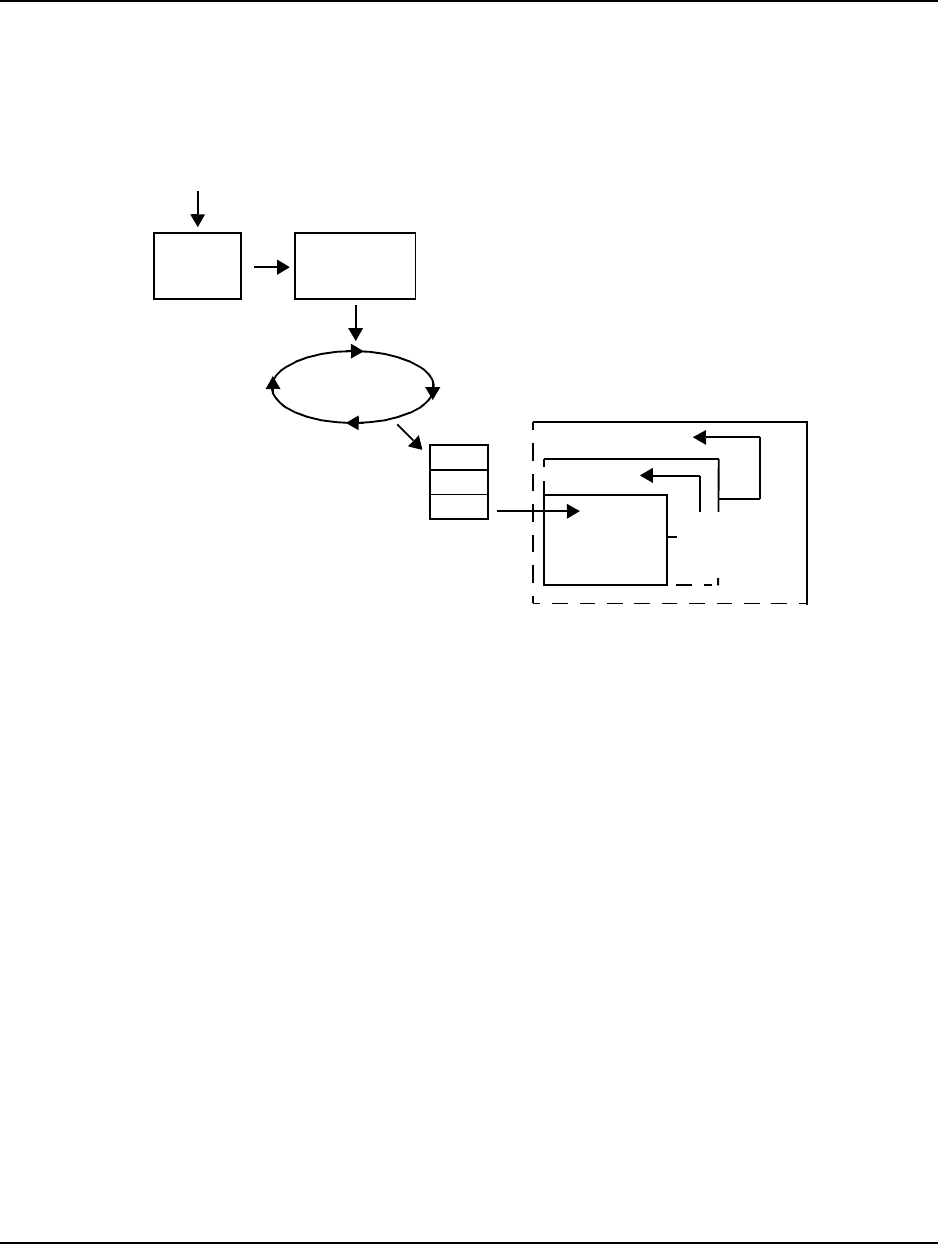
Migrating from Polling to Carbon Event Dispatch
Polling vs. Carbon Event Dispatch
PPxMG–50
PowerPlant™ X Framework Migration Guide
consists in large part of callback routines. A particular callback is invoked when the
Carbon Event associated with that callback appears in the event queue.
Figure 12.1 The Carbon Event Model
A program that uses the Carbon Event model is more efficient than one that uses a
polling loop. Polling is wasteful because the thread that executes the loop runs
continuously in order to check for queued events. Because the event queue is usually
empty, this thread wastes lots of processor cycles. A carbon program’s thread, on the
other hand, is preempted by Mac OS X until there is work for the thread to do.
Consequently, for efficiency’s sake, you should remove your Original PowerPlant
program’s polling loop. Before you can do this, however, you must replace all parts of
your program that rely on Original PowerPlant's polling loop and event dispatching
mechanism. These classes are:
• LCommander
•LAttachment
•LPeriodical (both repeater and idler periodicals)
• All classes that receive and respond to events
There is a downside, however, to the absence of a polling loop in PowerPlant X: There
is no easy way to implement custom pre- and post- event dispatch behavior. If your
PowerPlant X program requires such behavior, try using a PowerPlant X Timer or
sending Carbon Events to yourself.
Events
Kernel Window
Server
Event
Loop
1
2
3
Event
Queue
Event
Target
Application
Propagate event
up hierarchy
if necessary
Pull Event
and Dispatch

Migrating from Polling to Carbon Event Dispatch
Example Code
PPxMG–51
PowerPlant™ X Framework Migration Guide
Listing 12.1 shows the Original PowerPlant’s ProcessNextEvent method. This
method is called once per iteration of an application’s polling loop. The method
contains the code upon which commanders, attachments, periodicals, and event
handlers rely.
Listing 12.2 shows the “main loop” of a PowerPlant X program. Mac OS X preempts
the thread that runs this loop until there is a Carbon Event for the thread to process.
Example Code
Listing 12.1 Original PowerPlant’s ProcessNextEvent Method
// Original PowerPlant’s LApplication::Run() method contains a loop.
// This loop calls LApplication::ProcessNextEvent once per interation.
void
LApplication::ProcessNextEvent()
{
EventRecord macEvent;
// When on duty (application is in the foreground), adjust the
// cursor shape before waiting for the next event.
if (IsOnDuty()) {
UEventMgr::GetMouseAndModifiers(macEvent);
AdjustCursor(macEvent);
}
// Retrieve the next event. A context switch could occur here.
SetUpdateCommandStatus(false);
Boolean gotEvent = ::WaitNextEvent(everyEvent, &macEvent,
mSleepTime, mMouseRgn);
// Let Attachments process the event. Continue with normal
// event dispatching unless suppressed by an Attachment.
if (LAttachable::ExecuteAttachments(msg_Event, &macEvent)) {
if (gotEvent) {
DispatchEvent(macEvent);
} else {
UseIdleTime(macEvent);
}
}
// Repeaters get time after every event
LPeriodical::DevoteTimeToRepeaters(macEvent);

Migrating from Polling to Carbon Event Dispatch
Example Code
PPxMG–52
PowerPlant™ X Framework Migration Guide
// Update status of menu items
if (IsOnDuty() && GetUpdateCommandStatus()) {
UpdateMenus();
}
}
Listing 12.2 PowerPlant™ X’s Run Method
// The PowerPlant X Run() method simply calls the Carbon Execution
// Environment function ::RunApplicationEventLoop().
// This function does not return until the application terminates.
void
PPx::Application::Run() {
::RunApplicationEventLoop();
}

PPxMG–53
PowerPlant™ X Framework Migration Guide
13
Migrating from Periodicals
to Timers and IdleTimers
This chapter explains how to modify your Original PowerPlant™ program such that it
uses PowerPlant X timers for periodic and idle time tasks instead of Original
PowerPlant’s LPeriodical class.
NOTE You do not have to make the changes discussed in this chapter
because your Original PowerPlant periodicals will work in the
PowerPlant X version of your project.
That said, until you migrate your periodical code to PowerPlant X,
your program must keep its WaitNextEvent loop. On Mac OS X,
such a loop is unnecessary and wastes CPU cycles.
This chapter contains these sections:
•LPeriodical Migration Issues
•Example Code
LPeriodical Migration Issues
Most of Original PowerPlant and of PowerPlant X is devoted to helping you write
code that displays a graphical user interface and that responds as required to user
interaction with this interface.
That said, another thing each framework lets you do is write code that is invoked at
regular intervals and/or only when there is nothing of higher priority to do.
In Original PowerPlant, you use the LPeriodical class to implement such behavior.
In more detail, you subclass LPeriodical, override its SpendTime() method to
implement the required periodic behavior, instantiate the subclass, and add it to your
program’s repeater queue, its idler queue, or both.

Migrating from Periodicals to Timers and IdleTimers
LPeriodical Migration Issues
PPxMG–54
PowerPlant™ X Framework Migration Guide
Once added to a queue, your Original PowerPlant program’s WaitNextEvent loop
checks the periodical’s “fire interval” once per iteration. If it is time to fire the
periodical, the loop calls the periodical’s SpendTime() function.
However, a WaitNextEvent loop is not necessary on Mac OS X because this OS can
dispatch events directly to your program. In fact, a WaitNextEvent loop actually
impairs Mac OS X’s responsiveness. This is so because, on Mac OS X, the thread that
executes a WaitNextEvent loop is always ready to run and so competes with other
threads for CPU time.
Of course, there is nothing wrong with a thread using the CPU to do work. However,
when a WaitNextEvent loop gets the CPU, it just checks its queue for events and
checks its periodicals to see if its time to execute them. Because its queue is usually
empty and it is usually not time to execute its periodicals, most of the cycles allocated
to this loop are wasted.
So, even though a WaitNextEvent loop works in a PowerPlant X program, you want to
eliminate it so your program does not degrade system performance. However, once
this loop is gone, so is the mechanism that executes your periodicals.
Fortunately, PowerPlant X provides an alternate way to implement periodic behavior:
Timers and IdleTimers. Mac OS X automatically executes the handler associated with
a PowerPlant X timer at the specified interval. To initiate this functionality, all you
must do is register the timer with the OS.
In addition, unlike periodicals, PowerPlant X timers execute “at the same time” that
other things are happening. For example, a PowerPlant X timer can execute while the
user holds down the mouse while navigating a menu. In contrast, execution of an
Original PowerPlant periodical is blocked until the user releases the mouse.
To migrate LPeriodical subclasses to PowerPlant X timers, follow these steps:
1. For each repeater LPeriodical in your program, implement an empty
PowerPlant X Timer following the instructions in the PowerPlant™ X 1.0
Developer’s Guide.
2. For each idler LPeriodical in your program, implement an empty PowerPlant
X IdleTimer following the instructions in the PowerPlant™ X 1.0 Developer’s
Guide.
3. Copy the code from each LPeriodical subclass’s SpendTime() method to the
callback function of the corresponding empty PowerPlant X Timer or IdleTimer.
4. Remove all LPeriodical code from your CodeWarrior project.

Migrating from Periodicals to Timers and IdleTimers
Example Code
PPxMG–55
PowerPlant™ X Framework Migration Guide
5. Add code that instantiates and installs each of your PowerPlant X Timers and
IdleTimers to the appropriate place in your program’s logic.
NOTE You may need to adjust your program’s architecture to account for
differences in how and when PowerPlant X Timers are called vs.
Original PowerPlant periodicals.
In a PowerPlant X program, Timers execute upon return from an
event handler (and program control is within ReceiveNextEvent)
or when tracking the mouse (and program control is within
TrackMouseLocation).
In an Original PowerPlant program, the “fire interval” of a repeater
periodical is checked once per iteration of the WaitNextEvent
loop. If the loop retrieves an event, however, a repeater periodical is
not checked (much less executed) until after event processing
completes.
The code example in Listing 13.1 shows the Original PowerPlant’s LPeriodical
class used to implement a repeated behavior, that is, a behavior that occurs once per
event.
Listing 13.2 shows the PowerPlant X way to achieve a similar result. Note that a
PowerPlant X Timer is not executed once per event, so the result produced by this
technique is not identical to the result produced by the Original PowerPlant approach.
Example Code
Listing 13.1 Example of an Original PowerPlant™ Repeater Periodical
// Declaration of class MyRepeater
class MyRepeater : public LPeriodical { // mixin LPeriodical
public:
MyRepeater();
// Override LPeriodical’s version of the SpendTime method
virtual void SpendTime( const EventRecord& inMacEvent );
private:
UInt32 mLastActionTime;
};// end class declaration

Migrating from Periodicals to Timers and IdleTimers
Example Code
PPxMG–56
PowerPlant™ X Framework Migration Guide
// Implementation of class MyRepeater
// default ctor
MyRepeater::MyRepeater()
{
mLastActionTime = 0;
}
// Implementation of SpendTime override
void
MyRepeater::SpendTime(const EventRecord& /* inMacEvent */)
{
UInt32 currentTime = ::TickCount();
if (currentTime >= mLastActionTime + 300) {
mLastActionTime = currentTime;
// ... Do something every 300 ticks (5 seconds)
}
}
int main() {
// Initialization code ...
// Create a MyRepeater instance
MyRepeater* repeater = new MyRepeater;
// Start the repeater, that is, add it to the repeater queue
repeater->StartRepeating();
// rest of main() ...
}
Listing 13.2 Example of a PowerPlant™ X Timer
// Declaration of class MyTimer
class MyTimer : public PPx::Timer { // mixin PPx::Timer
private:
// Override PPx::Timer’s pure virtual declartion of this method
virtual void DoTimer();
};

Migrating from Periodicals to Timers and IdleTimers
Example Code
PPxMG–57
PowerPlant™ X Framework Migration Guide
// Implementation of DoTimer override
void
MyTimer::DoTimer()
{
// ... Do something
}
int main() {
// Initialization code ...
// Create a MyTimer instance
MyTimer* timer = new MyTimer;
// Install MyTimer instance. Set it up so it fires every 5 seconds
timer.Install(::GetMainEventLoop(), 0, 5);
// rest of main() ...
}
Figure 13.1 Example of an Original PowerPlant™ Idler Periodical
// A Pane which does something (for example,
// some kind of animation) during idle time when the pane is active
// Declaration of class MyPane
class MyPane : public LPane,
public LPeriodical { // mixin class LPeriodical
public:
// Override these LPane methods
virtual void ActivateSelf();
virtual void DeactivateSelf();
// Override LPeriodical’s SpendTime method
virtual void SpendTime( const EventRecord& inMacEvent );
};
// Implementation of ActivateSelf() override
void
MyPane::ActivateSelf()
{
// Start idling, i.e., add this MyPane instance to the idler queue
StartIdling();
}

Migrating from Periodicals to Timers and IdleTimers
Example Code
PPxMG–58
PowerPlant™ X Framework Migration Guide
// Implementation of DeactivateSelf() override
void
MyPane::DeactivateSelf()
{
// Stop idling, i.e., remove this MyPane instance from the idler queue
StopIdling();
}
// Implementation of SpendTime() override
void
MyPane::SpendTime(const EventRecord& /* inMacEvent */)
{
// ... Do something at idle time
// ... For example, animate a graphic in the MyPane instance
}
Listing 13.3 Example of a PowerPlant™ X IdleTimer
// Declaration of class MyPane
class MyPane : public PPx::BaseView,
public PPx::ControlActivateDoer,
public PPx::ControlDeactivateDoer {
private:
// ... other methods
// Override PPx::View’s FinishSelf method
virtual void FinishSelf();
// Override these Carbon Event “doer” methods
virtual OSStatus DoControlActivate(
PPx::SysCarbonEvent& ioEvent,
ControlRef inControl);
virtual OSStatus DoControlDeactivate(
PPx::SysCarbonEvent& ioEvent,
ControlRef inControl);
// This method is called each time the IdleTimer fires
void SpendIdleTime( EventLoopIdleTimerMessage inMessage );
private:
PPx::IdleTimerCallback<MyPane> mIdleTimer;
};

Migrating from Periodicals to Timers and IdleTimers
Example Code
PPxMG–59
PowerPlant™ X Framework Migration Guide
// Implementation of FinishSelf() override
void
MyPane::FinishSelf()
{
// Install event handlers
EventTargetRef targetRef = GetSysEventTarget();
PPx::ControlActivateDoer::Install(targetRef);
PPx::ControlDeactivateDoer::Install(targetRef);
}
// Implementation of DoControlActivate() override
OSStatus
MyPane::DoControlActivate(PPx::SysCarbonEvent& /* ioEvent */,
ControlRef /* inControl */)
{
mIdleTimer.Install(this,
&SpendIdleTime, ::GetCurrentEventLoop(), 0.1, 0.1);
}
// Implementation of DoControlDeactivate() override
OSStatus
MyPane::DoControlDeactivate(PPx::SysCarbonEvent& /* ioEvent */,
ControlRef /* inControl */)
{
mIdleTimer.Remove();
}
// Implementation of SpendIdleTime
// Called each time the IdleTimer mIdleTimer fires
// Defines the idle time behavior of a MyPane instance
void
MyPane::SpendIdleTime(EventLoopIdleTimerMessage /* inMessage */)
{
// Do something at idle time ...
// For example, animate a graphic in the MyPane instance ...
}

Migrating from Periodicals to Timers and IdleTimers
Example Code
PPxMG–60
PowerPlant™ X Framework Migration Guide
PPxMG–61
PowerPlant™ X Framework Migration Guide
14
Migrating from
LCommanders to Carbon
Event Handlers
This chapter explains how to modify your Original PowerPlant™ program such that it
uses PowerPlant X Carbon Event handler classes to process commands instead of
subclasses of the Original PowerPlant LCommander class.
NOTE You do not have to make the changes discussed in this chapter
because your Original PowerPlant commanders will work in the
PowerPlant X version of your project.
That said, until you migrate your command handling code to
PowerPlant X, your program must keep its WaitNextEvent loop. On
Mac OS X, such a loop is unnecessary and harms system
performance.
This chapter contains these sections:
•Commanders vs. Carbon Event Handlers
•Example Code
Commanders vs. Carbon Event Handlers
In Original PowerPlant, you handle commands and keyboard input by creating a
custom class that mixes in the LCommander class. You then override the
ObeyCommand() method to implement custom “on command selected” and “on key
pressed” behavior.

Migrating from LCommanders to Carbon Event Handlers
Commanders vs. Carbon Event Handlers
PPxMG–62
PowerPlant™ X Framework Migration Guide
Each time your WaitNextEvent loop retrieves a menu or keyboard event, it dispatches
it to the commander “on duty.” This commander either handles the event or passes it to
it up the chain to its supercommander.
This processing depends on the presence of a WaitNextEvent loop. As discussed in
previous chapters, such a loop is unnecessary and wasteful on Mac OS X.
Consequently, you should remove each of your LCommander subclasses so you can
eliminate your program’s WaitNextEvent loop.
PowerPlant X uses Carbon Event handlers for command handling. Carbon Event
handlers have a chain that is similar to Original PowerPlant’s commander chain.
Events propagate from the element with user focus up the event handler chain.
To replace your program’s LCommander subclasses with PowerPlant X Carbon Event
handlers, follow these steps:
1. For each LCommander subclass in your program, create a corresponding
PowerPlant X class that mixes in the appropriate command “event doer” class
(often class PPx::CommandHander<Command_ID>).
Refer to the PowerPlant™ X 1.0 Developer’s Guide for instructions that explain
how to implement a PowerPlant X command handler.
2. In each PowerPlant X command handler subclass, override the required methods
of the mixed-in event doer class (at a minimum DoSpecificCommand()).
3. Copy the code from each LCommander subclass’s ObeyCommand() method to
the DoSpecificCommand() method of the corresponding event doer subclass.
4. Delete all your LCommander code.
5. Add code that instantiates and activates each of your command event doer
subclasses to the appropriate place in your program’s logic.
NOTE Once you have removed all LCommanders, LAttachments, and
LPeriodicals and recoded your user interface to use PowerPlant X
views, you can remove your program’s WaitNextEvent loop.
The code example in Listing 14.1 shows Original PowerPlant command handling
code. Listing 14.2 shows the PowerPlant X way to achieve the same result.

Migrating from LCommanders to Carbon Event Handlers
Example Code
PPxMG–63
PowerPlant™ X Framework Migration Guide
Example Code
Listing 14.1 Original PowerPlant™ Command Handling Code
// Delcaration of class MyApplication
class MyApplication : public LApplication {
public:
// ... Other methods
// Override of LCommander’s ObeyCommand method
virtual Boolean ObeyCommand(
CommandT inCommand,
void* ioParam);
// Override of LCommander’s FindCommandStatus method
virtual void FindCommandStatus(
CommandT inCommand,
Boolean& outEnabled,
Boolean& outUsesMark,
UInt16& outMark,
Str255 outName);
private:
void DoCommandNew();
void DoCommandFirst();
void DoCommandSecond();
};
// Implementation of ObeyCommand override
Boolean
MyApplication::ObeyCommand(
CommandT inCommand,
void* ioParam)
{
Boolean cmdHandled = true;
switch (inCommand) {
case cmd_New:
DoCommandNew();
break;
case Cmd_First:
DoCommandFirst();
break;

Migrating from LCommanders to Carbon Event Handlers
Example Code
PPxMG–64
PowerPlant™ X Framework Migration Guide
case Cmd_Second:
DoCommandSecond();
break;
default:
cmdHandled = LApplication::ObeyCommand(inCommand, ioParam);
break;
}// end switch
return cmdHandled;
}
// Implementation of FindCommandStatus override
void
MyApplication::FindCommandStatus(
CommandT inCommand,
Boolean& outEnabled,
Boolean& outUsesMark,
UInt16& outMark,
Str255 outName)
{
switch (inCommand) {
case cmd_New:
outEnabled = true;
break;
case Cmd_First:
outEnabled = ::FrontWindow() != nil;
break;
case Cmd_Second:
outEnabled = ::FrontWindow() == nil;
break;
default:
LApplication::FindCommandStatus(inCommand, outEnabled,
outUsesMark, outMark, outName);
break;
}// end switch
}

Migrating from LCommanders to Carbon Event Handlers
Example Code
PPxMG–65
PowerPlant™ X Framework Migration Guide
// Implementation of “on new command selected” behavior
void
MyApplication::DoCommandNew()
{
// Code that performs "New" command
}
// Implementation of “on first command selected” behavior
void
MyApplication::DoCommandFirst()
{
// Code that performs "First" command
}
// Implementation of “on second command selected” behavior
void
MyApplication::DoCommandSecond()
{
// Code to perform "Second" command
}
Listing 14.2 PowerPlant™ X Carbon Event Command Handling Code
// Declaration fo class MyApplication
class MyApplication :
public PPx::Application,
public PPx::SpecificMenuCommandDoer<kHICommandNew>,
public PPx::CommandHandler<Cmd_First>,
public PPx::CommandHandler<Cmd_Second> {
// ... Other functions
private:
// Override of class SpecificMenuCommandDoer<kHICommandNew>’s
// DoSpecificCommand method
virtual OSStatus DoSpecificCommand(
PPx::CommandIDType<kHICommandNew>,
PPx::SysCarbonEvent& ioEvent);
// Override of class CommandHandler<Cmd_First>’s
// DoSpecificCommand method
virtual OSStatus DoSpecificCommand(
PPx::CommandIDType<Cmd_First>,
PPx::SysCarbonEvent& ioEvent);

Migrating from LCommanders to Carbon Event Handlers
Example Code
PPxMG–66
PowerPlant™ X Framework Migration Guide
// Override of class CommandHandler<Cmd_First>’s
// DoSpecificCommandStatus method
virtual OSStatus DoSpecificCommandStatus(
PPx::CommandIDType<Cmd_First>,
PPx::SysCarbonEvent& ioEvent);
// Override of class CommandHandler<Cmd_Second>’s
// DoSpecificCommand method
virtual OSStatus DoSpecificCommand(
PPx::CommandIDType<Cmd_Second>,
PPx::SysCarbonEvent& ioEvent);
// Override of class CommandHandler<Cmd_Second>’s
// DoSpecificCommandStatus method
virtual OSStatus DoSpecificCommandStatus(
PPx::CommandIDType<Cmd_Second>,
PPx::SysCarbonEvent& ioEvent);
};//end class declaration
// Sets status of Cmd_First menu item
OSStatus
MyApplication::DoSpecificCommandStatus(
PPx::CommandIDType<Cmd_First>,
PPx::SysCarbonEvent& /* ioEvent */)
{
PPx::EventUtils::SetMenuCommandStatus( Cmd_First,
(::FrontWindow() != nil) );
return noErr;
}
// Sets status of Cmd_Second menu item
OSStatus
MyApplication::DoSpecificCommandStatus(
PPx::CommandIDType<Cmd_Second>,
PPx::SysCarbonEvent& /* ioEvent */)
{
PPx::EventUtils::SetMenuCommandStatus( Cmd_Second,
(::FrontWindow() == nil) );
return noErr;
}

Migrating from LCommanders to Carbon Event Handlers
Example Code
PPxMG–67
PowerPlant™ X Framework Migration Guide
// Implements “on new menu item selected” behavior
OSStatus
MyApplication::DoSpecificCommand(
PPx::ComandIDType<kHICommandNew>,
PPx::SysCarbonEvent& ioEvent)
{
// Code that performs the "New" command
return noErr;
}
// Implements “on first menu item selected” behavior
OSStatus
MyApplication::DoSpecificCommand(
PPx::ComandIDType<Cmd_First>,
PPx::SysCarbonEvent& ioEvent)
{
// Code that performs the "First" command
return noErr;
}
/ Implements “on second menu item selected” behavior
OSStatus
MyApplication::DoSpecificCommand(
PPx::ComandIDType<Cmd_Second>,
PPx::SysCarbonEvent& ioEvent)
{
// Code that performs the "Second" command
return noErr;
}

Migrating from LCommanders to Carbon Event Handlers
Example Code
PPxMG–68
PowerPlant™ X Framework Migration Guide
PPxMG–69
PowerPlant™ X Framework Migration Guide
15
Migrating from Broadcast/
Listen to Carbon Events
This chapter explains how to modify your Original PowerPlant program such that it
uses PowerPlant X Carbon Event handlers to notify program objects that an event has
occurred.
NOTE You do not have to make the changes discussed in this chapter
because your Original PowerPlant broadcasters and listeners will
work in the PowerPlant X version of your project.
This chapter contains these sections:
•Broadcast/Listen Migration Issues
•Example Code
Broadcast/Listen Migration Issues
In Original PowerPlant programs, you use the LBroadcaster mixin class to create
subclasses that can send messages. Similarly, you use the LListener mixin class to
create subclasses that can receive and respond to messages sent by broadcasters.
The PowerPlant X framework, in contrast, does not include broadcaster and listener
classes. Instead, PowerPlant X uses Carbon Events for messaging. PowerPlant X
listeners are derived from PPx::EventTarget.
In PowerPlant X, you implement inter-object communication by attaching a Carbon
Event handler that “listens” for the object to which it is attached to receive a particular
Carbon Event. When the object receives this event, the attached handler sends a
notification Carbon Event to other “listener” objects in your program.

Migrating from Broadcast/Listen to Carbon Events
Example Code
PPxMG–70
PowerPlant™ X Framework Migration Guide
The PowerPlant X broadcast mechanism has advantages over its Original PowerPlant
counterpart:
• PowerPlant X messaging and command handling is more flexible.
Original PowerPlant messages are single 32-bit values. A PowerPlant X message
is a Carbon Event. A Carbon Event can contain multiple parameters.
• In PowerPlant X, all views can receive messages by installing a Carbon Event
handler that is invoked by the OS on the specified event types.
The code example in Listing 15.1 shows code that uses Original PowerPlant’s
broadcast/listen inter-object messaging mechanism. Listing 15.2 shows the
PowerPlant X way to achieve the same result.
Example Code
Listing 15.1 Original PowerPlant™ Broadcast/Listen Code
// Declaration of application class. Object of this class can listen
class MyApp : public LApplication,
public LListener { // mixin LListener
public:
MyApp();
virtual ~MyApp();
// Override LListener’s ListenToMessage method
virtual void ListenToMessage();
private:
LWindow* mMainWin;
};
// Implemenation of MyApp
// ctor
MyApp::MyApp() {
// Create app object’s window from a PPob. The window contains a check
// box. Check boxes are LControls. LControl mixes in LBroadcaster
mMainWin = LWindow::CreateWindow(rPPob_MainWindow, this);
// Find the check box and set up the app object listen to it
LStdCheckBox* cb1;
cb1 = dynamic_cast<LStdCheckBox*>(mMainWin->FindPaneByID(kCB_1));
cb1->AddListener( this );
}

Migrating from Broadcast/Listen to Carbon Events
Example Code
PPxMG–71
PowerPlant™ X Framework Migration Guide
// METHOD MyApp::ListenToMessage:
//
// The check box broadcasts a message each time it’s checked/unchecked
// ListenToMessage is called each time the check box’s state changes b/c
// the app object is listening to the check box
void MyApp::ListenToMessage(
MessageT inMessage,
void* ioParam)
{
if (inMessage == msg_CheckBoxClicked) {
SInt32 checkBoxValue = * (SInt32*)(ioParam);
if (checkBox Value == 1) {
DoCheckedProcessing();
} else {
DoUncheckedProcessing();
}
}
}
Listing 15.2 PowerPlant™ X Carbon Event Handler Used for Messaging
// class declaration in header file
class MyApp : public PPx::Application
public PPx::ControlValueFieldChangedDoer
// ... other base classes {
public:
MyApp();
// Override class PPx::ControlValueFieldChangedDoer’s Do
XYZ
method
virtual OSStatus DoControlValueFieldChanged(
PPx::SysCarbonEvent& ioEvent,
ControlRef inControl);
// rest of class declaration ...
};
// In a source file ...
// ctor
MyApp::MyApp()
{
PPx::Window* myWind =
PPx::XMLSerializer::ResourceToObjects<PPx::Window>(pobj_MyWindow);

Migrating from Broadcast/Listen to Carbon Events
Example Code
PPxMG–72
PowerPlant™ X Framework Migration Guide
EventTargetRef controlTarget =
myWind->GetControlView()->FindViewByID(kCB_1)->GetSysEventTarget();
PPx::ControlValueFieldChangedDoer::Install(controlTarget);
}
// Implementation of DoControlValueFieldChanged
// Each time the check box’s state changes, this method is called.
// The method notifies the app object of the state change. In a sense,
// the app object is listening for changes to the check box’s state
OSStatus
MyApp::DoControlValueFieldChanged(
PPx::SysCarbonEvent& /* ioEvent*/,
ControlRef inControl)
{
if (::GetControlValue(inControl) == PPx::value_On) {
DoCheckedProcessing();
} else {
DoUncheckedProcessing();
}
}
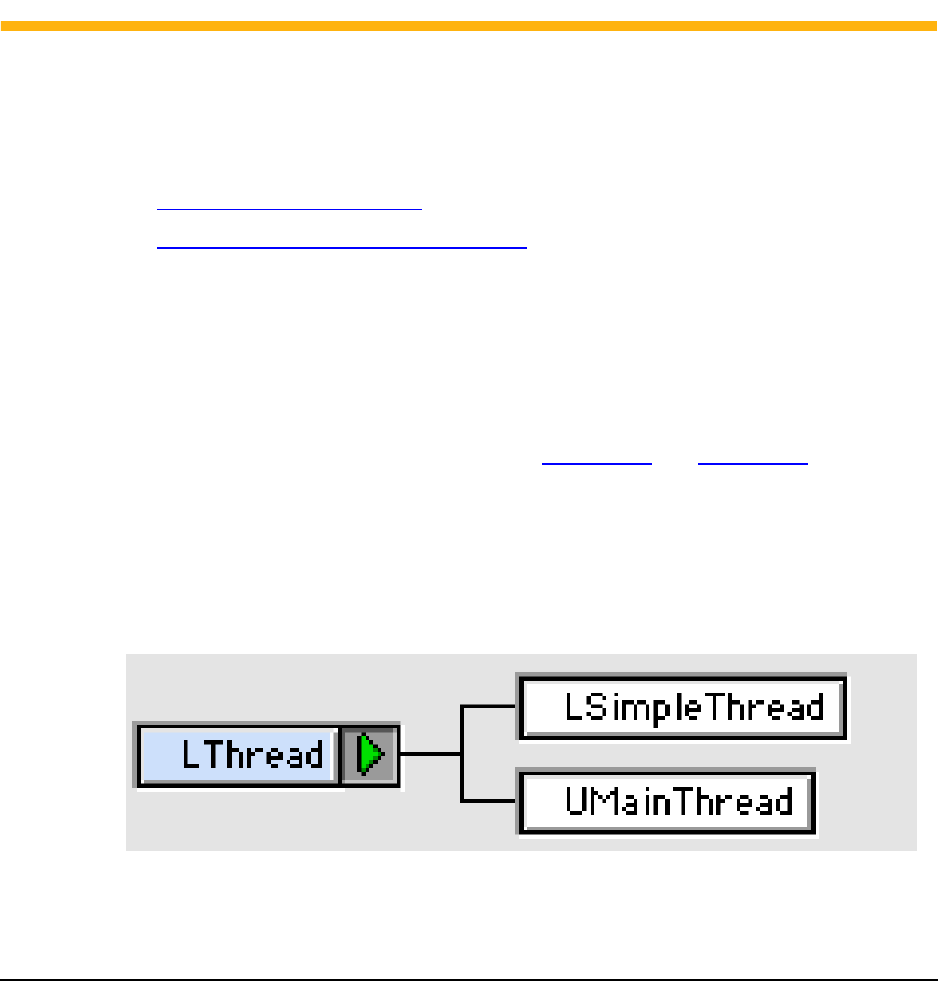
PPxMG–73
PowerPlant™ X Framework Migration Guide
16
Migrating from Cooperative
to Preemptive Threading
This chapter explains how to migrate from Original PowerPlant threading classes to
the Metrowerks Standard Library (MSL) threading classes.
This chapter contains these sections:
•Threading Migration Issues
•Cooperative vs. Preemptive Threading
Threading Migration Issues
Threads provide a way for you to divide your program’s work into discrete,
independent subtasks.
Original PowerPlant’s threading classes (see Figure 16.1 and Figure 16.2) are built on
the Thread Manager. These classes implement cooperative threads. In this kind of
threading system, each thread must “cooperate” by yielding control of the processor
regularly so that other threads can run. If a thread fails to regularly call Yield()
during a lengthy computation, other threads with work to do are blocked.
Figure 16.1 Original PowerPlant™ Threading Classes
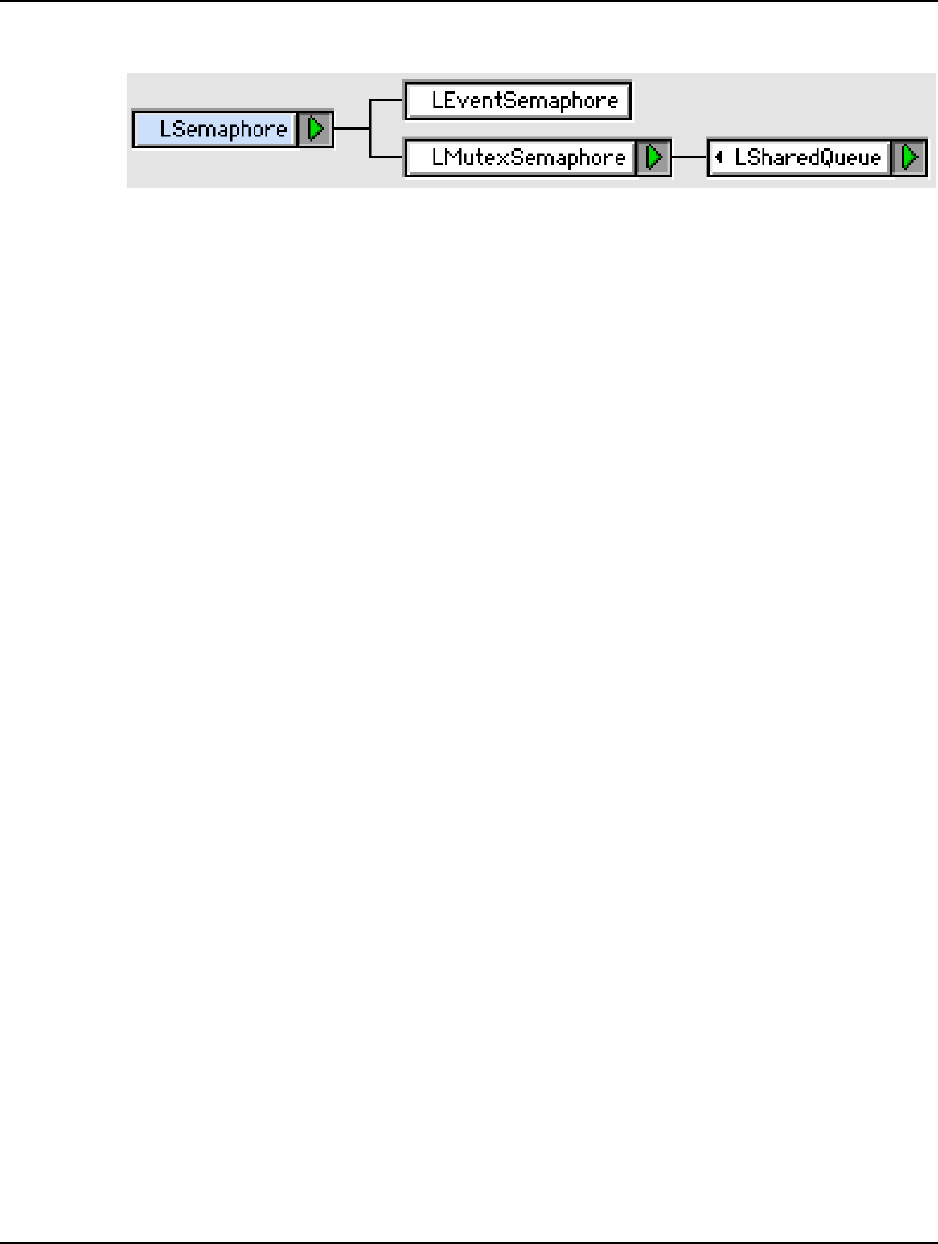
Migrating from Cooperative to Preemptive Threading
Cooperative vs. Preemptive Threading
PPxMG–74
PowerPlant™ X Framework Migration Guide
Figure 16.2 Original PowerPlant™ Semaphore Classes
Unlike Original PowerPlant, the PowerPlant X framework does not include its own
threading classes. because MSL (Metrowerks Standard Libraries) now includes
powerful threading classes. Including threading classes in PowerPlant X would
therefore be redundant.
To migrate to PowerPlant X, use MSL’s threading classes in place of the Original
PowerPlant threading classes. Refer to the MSL C++ Reference manual for
instructions.
Cooperative vs. Preemptive Threading
MSL’s threading classes implement preemptive threads. In a preemptive system, the
operating system controls access to the processor. As a result, a poorly written
program cannot bring the overall system to a halt.
In one way, preemptive threading simplifies your programming task because you do
not have to write code that explicitly yields control of the CPU. Instead, Mac OS X
preempts the thread that is currently executing when its time slice expires and awards
the processor to the next thread in the run queue.
In other ways, preemptive threading increases your burden. For example, in a
preemptive environment, you must take greater care to ensure that you synchronize the
access of your threads to shared data.
Of course, you must synchronize cooperative threads too, but preventing simultaneous
access is easier in a cooperative system because a cooperative thread controls when its
yields. In contrast, a preemptive thread loses control of the processor when that
thread’s time slice expires, no matter what the thread is doing at the time.

PPxMG–75
PowerPlant™ X Framework Migration Guide
17
Using PowerPlant™ X
Exception Handling
This chapter explains how to use the PowerPlant™ X framework’s exception handling
classes and macros.
NOTE You do not have use the PowerPlant X exception handling classes:
Original PowerPlant exception handling code will work in the
PowerPlant X version of your project.
That said, it is recommended that you migrate to PowerPlant X
exception handling because it is more powerful.
This chapter contains these sections:
•Exception Handling Migration Issues
•Example Code
Exception Handling Migration Issues
Original PowerPlant has a single exception handling class, LException. This class is
derived from std::exception.
PowerPlant X includes a small hierarchy of exception handling classes. These classes
are not are not derived from std::exception. See Figure 17.1.
Each PowerPlant X exception class is designed to handle a particular class of errors,
such as logic errors or runtime errors. This finer granularity makes it easier to diagnose
the cause of a problem.
Further, PowerPlant X’s exception throwing macros let you include a debug string. A
catch block that receives an instance of a PowerPlant X exception class has access to
this string. You can use this information to help debug your program.
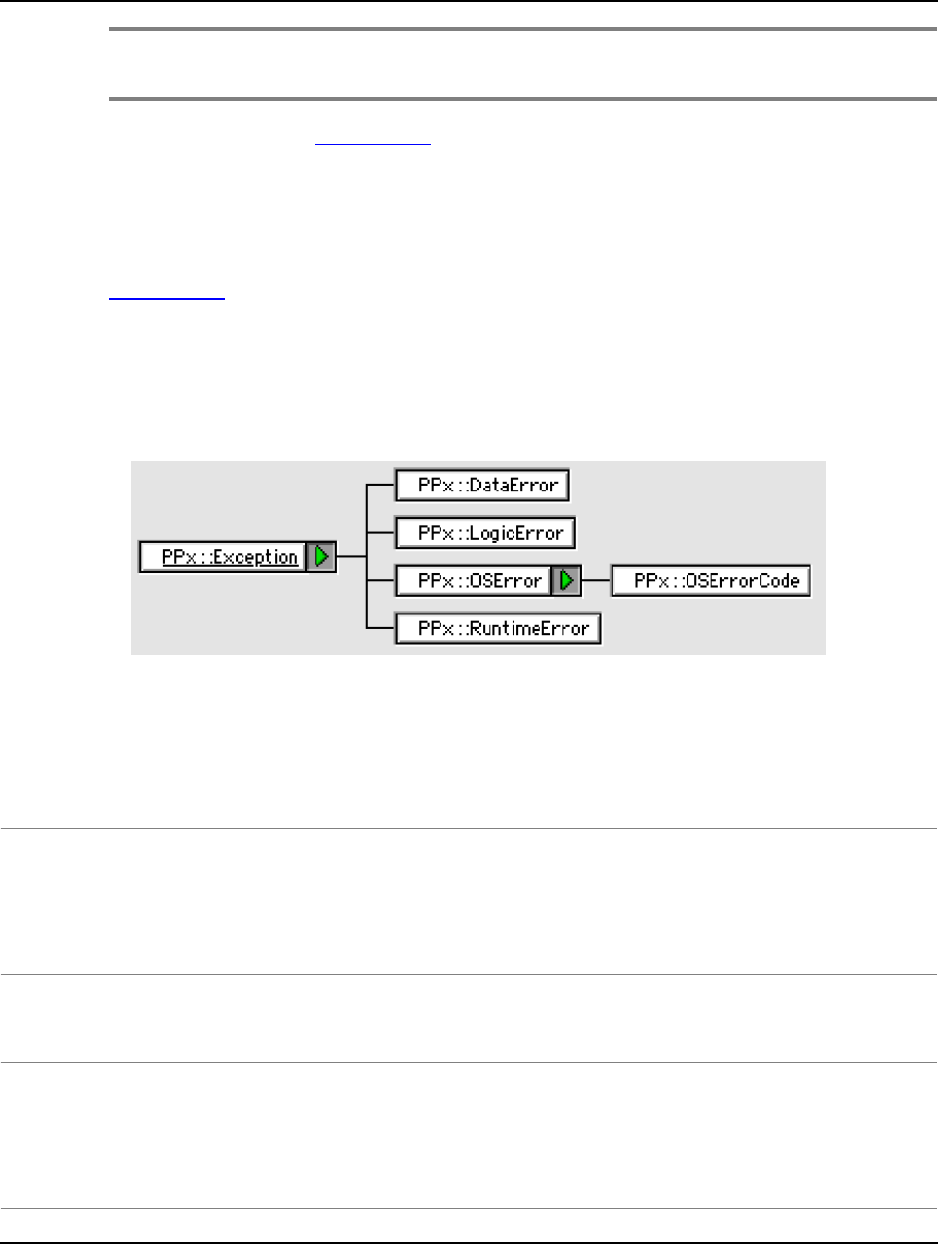
Using PowerPlant™ X Exception Handling
Example Code
PPxMG–76
PowerPlant™ X Framework Migration Guide
NOTE The preprocessor removes the debug string from each “throw macro”
if the constant PPX_Debug_Exceptions is turned off.
The code example in Listing 17.1 shows typical Original PowerPlant exception
handling code. In this example, the try block contains a PowerPlant macro that
throws an LException instance if there is an error. The catch block catches a
reference to an LException instance when a routine “below” it on the stack throws
one.
Listing 17.2 shows typical PowerPlant X exception handling. The try block contains
a debug macro that not only throws an instance of PPx::OSError, but also includes a
debug string that is available within the catch block. Code in the catch block can
retrieve the debug string from the caught exception object.
Figure 17.1 PowerPlant™ X Exception Handling Class Hierarchy
Example Code
Listing 17.1 Original PowerPlant™ Exception Handling Code
try {
ThrowIfOSErr_(err);
} catch (const LException& inErr) {
// exception handling code goes here...
}
Listing 17.2 PowerPlant™ X Exception Handling Code
try {
PPX_ThrowIfOSErr_(err, “Debugging error message here”);
} catch (const PPx::OSError& inErr) {
// exception handling code goes here...
}

PPxMG–77
PowerPlant™ X Framework Migration Guide
A
Converting a PPob to XML
Original PowerPlant™ stores resource information in PPob files. PowerPlant X stores
this information in text files marked up with XML tags.
Before you can use an Original PowerPlant resource in a PowerPlant X program, you
must convert the resource’s PPob to XML with a utility named PPobToXML. Then you
must change your source code to use the XML resource information.
The PPobToXML utility is in this folder:
InstallDir
/Metrowerks CodeWarrior/Mac OS X Support
where
InstallDir
stands for the folder in which you installed your CodeWarrior
product.
NOTE PPobToXML cannot convert every resource it finds in a PPob file.
In particular, the utility cannot handle Original PowerPlant views that
have no PowerPlant X equivalent. Nor can it handle views that have
custom data.
For each view the utility does not recognize, it gets the view’s bounds
and creates a PPx::GrayBox in place of the unrecognized view.
Use the following procedure to convert a PPob file to XML.
Using the PPobToXML Utility to Convert a PPob to XML
To convert a PPob (or PPob’s) to XML, follow these steps:
1. Drag the PPob file(s) onto the PPobToXML utility’s icon.
The PPobToXML utility creates a folder for each PPob file in the same directory
as the PPob file itself. For each window processed, the utility briefly displays the
window.
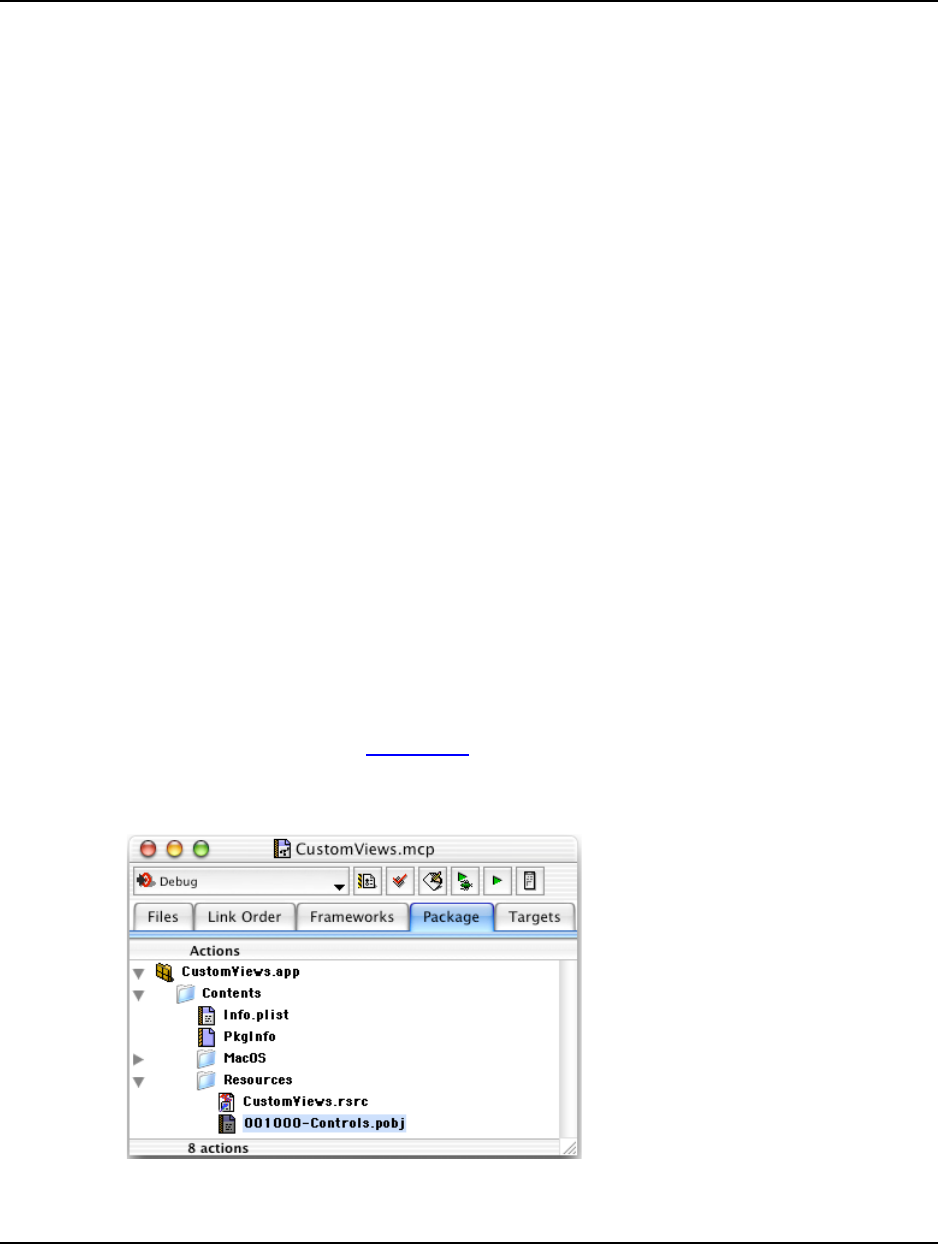
Converting a PPob to XML
PPxMG–78
PowerPlant™ X Framework Migration Guide
The name of each folder created begins with the name of its source PPob file and
ends with the string “ Views”.
Each folder contains a separate XML file for each PPob resource in the folder’s
PPob file. Each file name begins with a PPob resource ID number, followed by
the PPob resource name (if any), followed by the extension .pobj.
For example, consider a file named MyProgram.ppob that contains two PPob
resources. The first resource is named “Main Window” and has the ID 128. The
second resource is named “Prefs Dialog” and has the ID 129.
PPobToXML generates this output for the file MyProgram.ppob:
MyProgram.ppob Views
000128-Main Window.pobj
000129-Prefs Dialog.pobj
2. Rename each XML file, if desired.
3. Start the CodeWarrior IDE.
4. Open the project in which you want to use an XML resource.
5. Click the Package tab of the project window.
6. Add the .pobj file for each resource you want to use to the Resources folder of
the Package tab. See Figure A.1.
Figure A.1 A .pobj File Displayed in the Packages Tab of a PowerPlant™ X Project

Converting a PPob to XML
PPxMG–79
PowerPlant™ X Framework Migration Guide
7. Select Project > Make
The IDE builds your project and copies each .pobj file listed in the Package tab
into your program’s package.
8. For items that are windows, add code to your project that creates a PowerPlant X
window from the window’s .pobj file.
To do this, follow these steps:
a. Open the source file in which you want to create a window.
b. Add code like the following to the appropriate place in your program logic:
PPx::Window* myWindow =
PPx::XMLSerializer::ResourceToObjects<PPx::Window>
(CFSTR("
FileName
");
where
FileName
is the name of the XML file excluding the .pobj
extension.
c. Register the classes for all views used in the window.
In Original PowerPlant, you use:
RegisterClass_(LWindow);
In PowerPlant X, you use:
PPx_RegisterPersistent_(PPx::Window);

Converting a PPob to XML
PPxMG–80
PowerPlant™ X Framework Migration Guide

PPxMG–81
PowerPlant™ X Framework Migration Guide
Index
Symbols
.pobj files
PPob to XML conversion utility and 77
project window package tab and 78
A
advantages of PowerPlant X 7
attachments
advantages of 30
using to implement custom behavior 30
B
benefits of carbonizing 15
C
carbon event classes
compared to LAttachments 30
used for command handling 62
using with custom views 30
Carbon Event model
explained 49
figure of 50
carbonizing
benefits of 15
instructions for 16
reasons for 15
CFString 23
cooperative threads, compared to preemptive threads 74
CoreGraphics
benefits of converting to 26
example code 27
versus QuickDraw 25–26
costs of migrating to PowerPlant X 7
custom LPanes, migrating 29–34
D
documentation set
list 9
location of 9
DoSpecificCommand method 62
E
example code
customizing a pane using carbon events 32
customizing pane behavior by subclassing
LPane 30
idle timer implementation 58
LApplication::ProcessNextEvent 51
LBroadcaster and LListener implementations 70
LCommander implementation 63
LPeriodical idler implementation 57
LPeriodical repeater implementation 55
Original PowerPlant string handling code 23
Original PowerPlant user interface code 37
PowerPlant X string handling code 24
PowerPlant X user interface code 38
PPx::Timer implementation 56
Run method of PowerPlant X 52
traversing a view hierarchy 42
using a PowerPlant X exception class 76
using carbon events for command handling 65
using carbon events for messaging 71
using CoreGraphics with PowerPlant X 27
using LException 76
using QuickDraw with PowerPlant X 26
G
GA controls, migrating 45–47
H
HIView 7, 25, 41
how to migrate a UI resource 36–37
how to migrate a user interface 35–39
how to migrate broadcast listen code 69–72
how to migrate code that manipulates a window 41–42
how to migrate custom LPanes 29–34
how to migrate from ASCII to Unicode 23–24
how to migrate from PEF to Mach-O 17–21
how to migrate from the classic API to carbon 15–16
how to migrate GA controls 45–47
how to migrate LCommanders 62
how to migrate LPeriodcals 54–55
how to migrate programs that operate on PPobs 43
how to migrate to carbon event dispatch 49–52
how to modify a project to generate Mach-O 18–21

PPxMG–82
PowerPlant™ X Framework Migration Guide
how to use QuickDraw with PowerPlant X 25–27
how to use the PowerPlant X Migration Guide 9
I
inefficiency of WaitNextEvent loop 36
instructions for carbonizing 16
L
LException 75
LPeriodical 54
M
Mach-O
how to convert a project to 18–21
versus PEF 17
why conversion required 17
migrating a UI resource 36–37
migrating a user interface 35–39
migrating broadcast/listen code 69–72
migrating code that manipulates a window 41–42
migrating custom LPanes 29–34
migrating from ASCII to Unicode 23–24
migrating from LCommanders 61–67
migrating from LPeriodicals 53–59
migrating from PEF to Mach-O 17–21
migrating from the classic API to carbon 15–16
migrating GA controls 45–47
migrating programs that operate on PPobs 43
migrating to carbon event dispatch 49–52
migrating to PowerPlant X exception handling 75–76
migrating to PowerPlant X, costs of 7
migrating to preemptive threading 73–74
migration questions
optional tasks 12–14
purpose of 11
required tasks 11–12
MSL threading classes 74
O
ObeyCommand method 62
Original PowerPlant
creating custom panes 29
LAttachments versus carbon event handlers 30
WaitNextEvent loop, inefficiency of 36
P
PowerPlant X
advantages of 7
carbon event classes
using with custom views 30
creating custom panes 29
documentation set
list 9
location of 9
migrating a UI resource to 36–37
migration costs 7
Migration Guide
how to use 9
purpose of 7
PPob to XML conversion utility 36, 77–79
PPob to XML conversion utility 36, 43, 77–79
how to use 77
location of 77
output produced by 77
project window package tab and 78
PPX_Debug_Exceptions 76
preemptive threading
advantages of 74
compared to cooperative threading 74
shared data and 74
project window package tab
.ppoj files and 78
PPob to XML conversion utility and 78
purpose of PowerPlant X 7
purpose of PowerPlant X Migration Guide 7
Q
QuickDraw
benefits of converting to CoreGraphics 26
example code 26
migration instructions 25
using with PowerPlant X 25–27
versus CoreGraphics 25–26
R
reasons for carbonizing 15
related documentation
list 9
location of 9
S
SpendTime method 54

PPxMG–83
PowerPlant™ X Framework Migration Guide
U
Unicode
example code 24
migration instructions 23
why conversion required 23
user interface, migrating 35–39
using QuickDraw with PowerPlant X 25–27
W
WaitNextEvent loop
inefficiency of 36, 50
prerequisites for removing 50
windows, Original PowerPlant versus PowerPlant X 41
Y
Yield method 73

PPxMG–84
PowerPlant™ X Framework Migration Guide
