Simmons SD550 Owners Manual
User Manual: Pdf Simmons-SD550-Owners-Manual
Open the PDF directly: View PDF  .
.
Page Count: 36
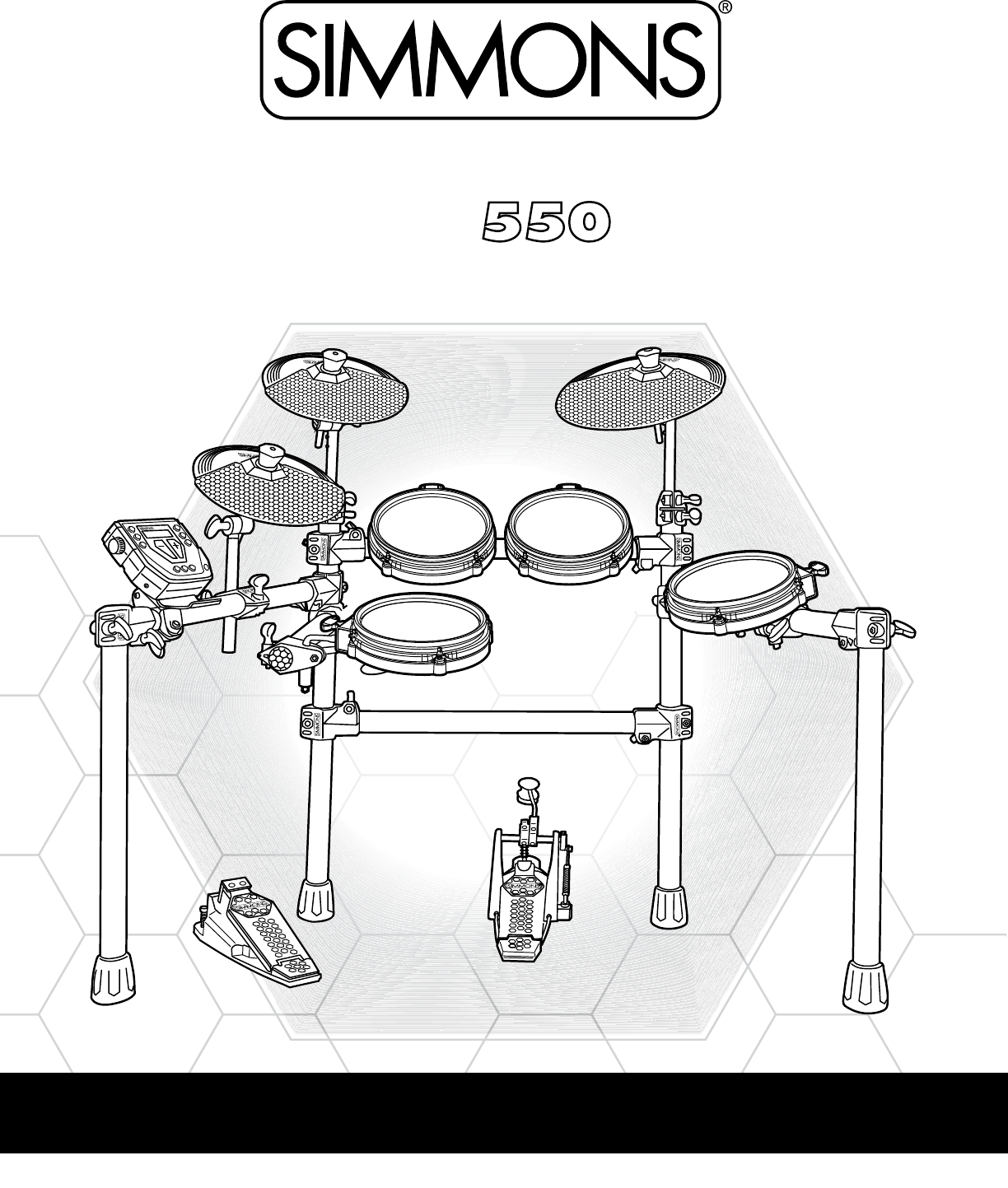
OWNER’S MANUAL
The first name in electronic drums.
www.simmonsdrums.net
SD
ELECTRONIC DRUM KIT
www.SimmonsDrums.net
SD
OWNER’S MANUAL
2
The first name in electronic drums.
17201350 Simmons SD550 Owner's Manual.indd 02_23_18 1109AM
safety instructions
1) Read these instructions.
2) Keep these instructions.
3) Heed all warnings.
4) Follow all instructions.
5) Do not use this apparatus near water.
6) Clean only with dry cloth.
7) Do not block any ventilation openings. Install in accordance
with the manufacturer’s instructions.
8) Do not install near the heat sources such as radiators, heat
registers, stoves, or other apparatus (including amplifiers) that
produce heat.
9) Do not defeat the safety purpose of the polarized or grounding-
type plug. A polarized plug has two blades with one wider
than the other. A grounding type plug has two blades and a
third grounding prong. The wide blade or the third prong are
provided for your safety, if the provided plug does not fit into
your outlet, consult an electrician for replacement of the obsolete
outlet.
10) Protect the power cord from being walked on or pinched
particularly at plugs convenience receptacles, and the point
where they exit from the apparatus.
11) Only use attachments/accessories specified by the manufacturer.
12) Use only with the cart, stand, tripod,
bracket, or table specified by the
manufacturer, or sold with the
apparatus. When a cart is used,
use caution when moving the cart/
apparatus combination to avoid injury
from tip-over (Figure1).
13) Unplug this apparatus during lightning storms or when unused
for a long periods of time.
14) Refer all servicing to qualified service personnel. Servicing
is required when the apparatus has been damaged in any
way, such as power-supply cord or plug is damaged, liquid
has been spilled or objects have fallen into the apparatus,
the apparatus has been exposed to rain or moisture, does not
operate normally, or has been dropped.
WARNING: To reduce the risk of fire or electric shock, do not
expose this apparatus to rain or moisture. CAUTION: Apparatus
shall not be exposed to dripping or splashing and no objects filled
with liquids, such as vases, shall be placed on the apparatus.
CAUTION: Apparatus shall not be exposed to dripping or
splashing and no objects filled with liquids, such as vases, shall be
placed on the apparatus.
THE LIGHTNING FLASH WITH ARROWHEAD SYMBOL WITHIN AN EQUILATERAL TRIANGLE IS INTENDED TO ALERT THE USER TO THE
PRESENCE OF UNINSULATED DANGEROUS VOLTAGE WITHIN THE PRODUCT S ENCLOSURE THAT MAY BE OF SUFFICIENT MAGNITUDE
TO CONSTITUTE A RISK OF ELECTRIC SHOCK TO PERSONS.
APPARATUS SHALL NOT BE EXPOSED TO DRIPPING OR SPLASHING AND THAT NO OBJECTS FILLED WITH LIQUIDS, SUCH AS VASES, SHALL
BE PLACED ON THE APPARATUS.
THE EXCLAMATION POINT WITHIN AN EQUILATERAL TRIANGLE IS INTENDED TO ALERT THE USER TO THE PRESENCE
OF IMPORTANT OPERATING AND MAINTENANCE(SERVICING) INSTRUCTIONS IN THE LITERATURE ACCOMPANYING
THE PRODUCT.
Figure 1

www.simmonsdrums.net
3
The first name in electronic drums.
…on your purchase of this Simmons SD550 Electronic Drum Kit. To get the most enjoyment from this kit,
we recommend that you skim through this manual at least once, then refer back to it to learn more about
specific functions.
Caring for Your SD550 Electronic Drum Set
Location
• Keep the drum kit away from direct sunlight, high temperature sources, and excessive
humidity to prevent deformation, discoloration, or more serious damage.
Power Supply
• Turn the power switch OFF when the SD550 is not in use.
• The AC adapter should be unplugged from the AC outlet if the SD550 is not to be used for
an extended period of time.
• Avoid plugging the AC adapter into an AC outlet that is also powering high-consumption
appliances such as electric heaters or televisions. Also avoid using multi-plug adapters,
since these can reduce sound quality, cause operation errors, and result in possible damage.
• To avoid damaging the unit, turn the SD550 and all related devices OFF prior to connecting
or disconnecting cables.
Handling and Transport
• Never apply excessive force to controls, connectors, and other parts.
• Unplug cables by gripping the plug firmly. Do not pull on the cable.
• Disconnect all cables before moving the module.
• Physical shocks caused by dropping, bumping, or placing heavy objects on the module can
result in scratches and more serious damage.
Cleaning
• Clean the module with a dry, soft cloth.
• A slightly damp cloth may be used to remove stubborn grime and dirt.
• Never use cleaners such as alcohol or thinner.
• To avoid discoloration, do not place vinyl objects on top of module.
Electrical Interference
• The module contains digital circuitry and may cause interference if placed too close to
radio or television receivers. If this occurs, move the SD550 further away from the affected
equipment.
Service and Modification
• There are no user serviceable parts in the drum module.
• Do not attempt to open the sound module or make any change in the circuits or parts of the
unit. This would void the warranty.
Congratulations!
SD
OWNER’S MANUAL
4
The first name in electronic drums.
17201350 Simmons SD550 Owner's Manual.indd 02_23_18 1109AM
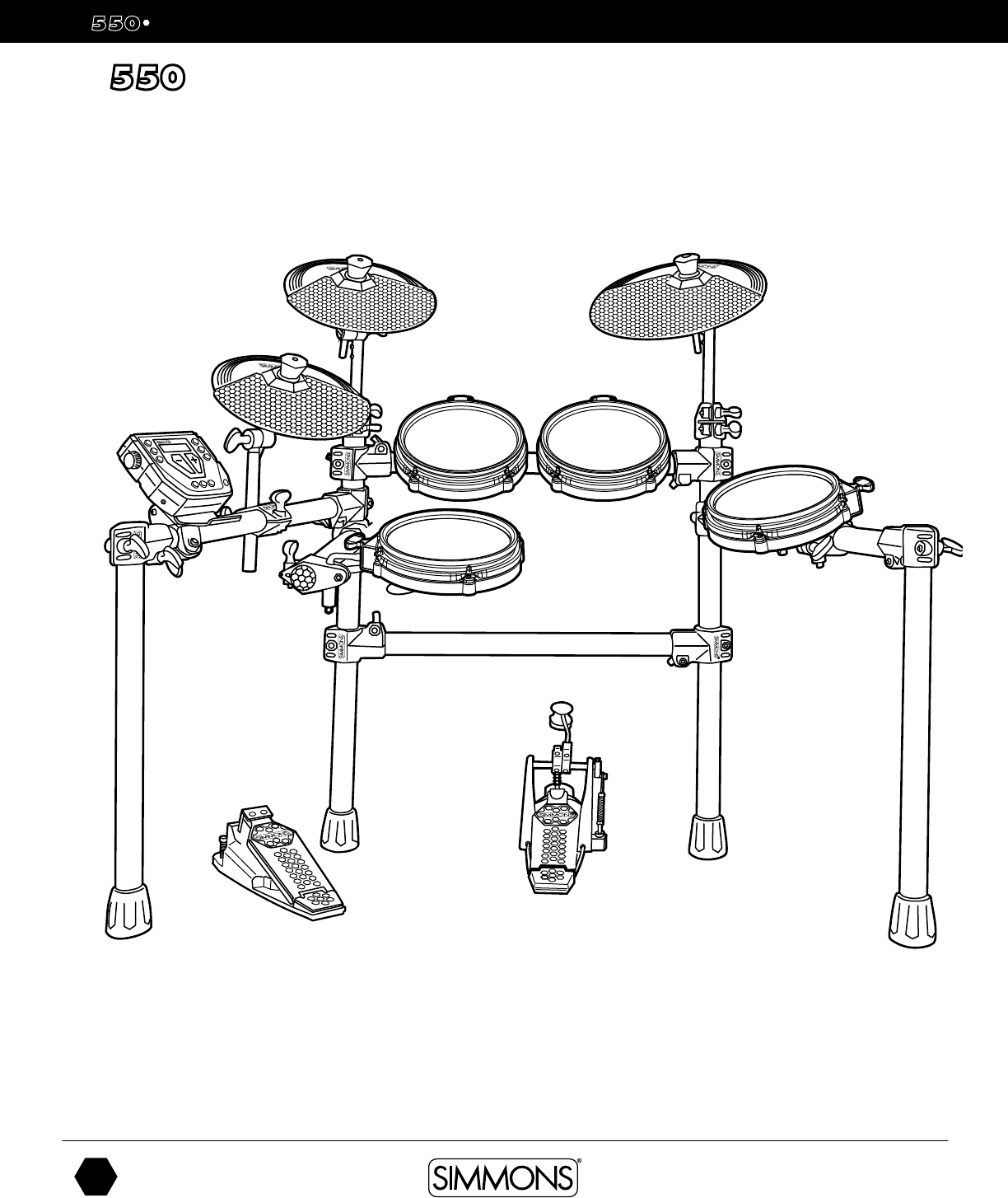
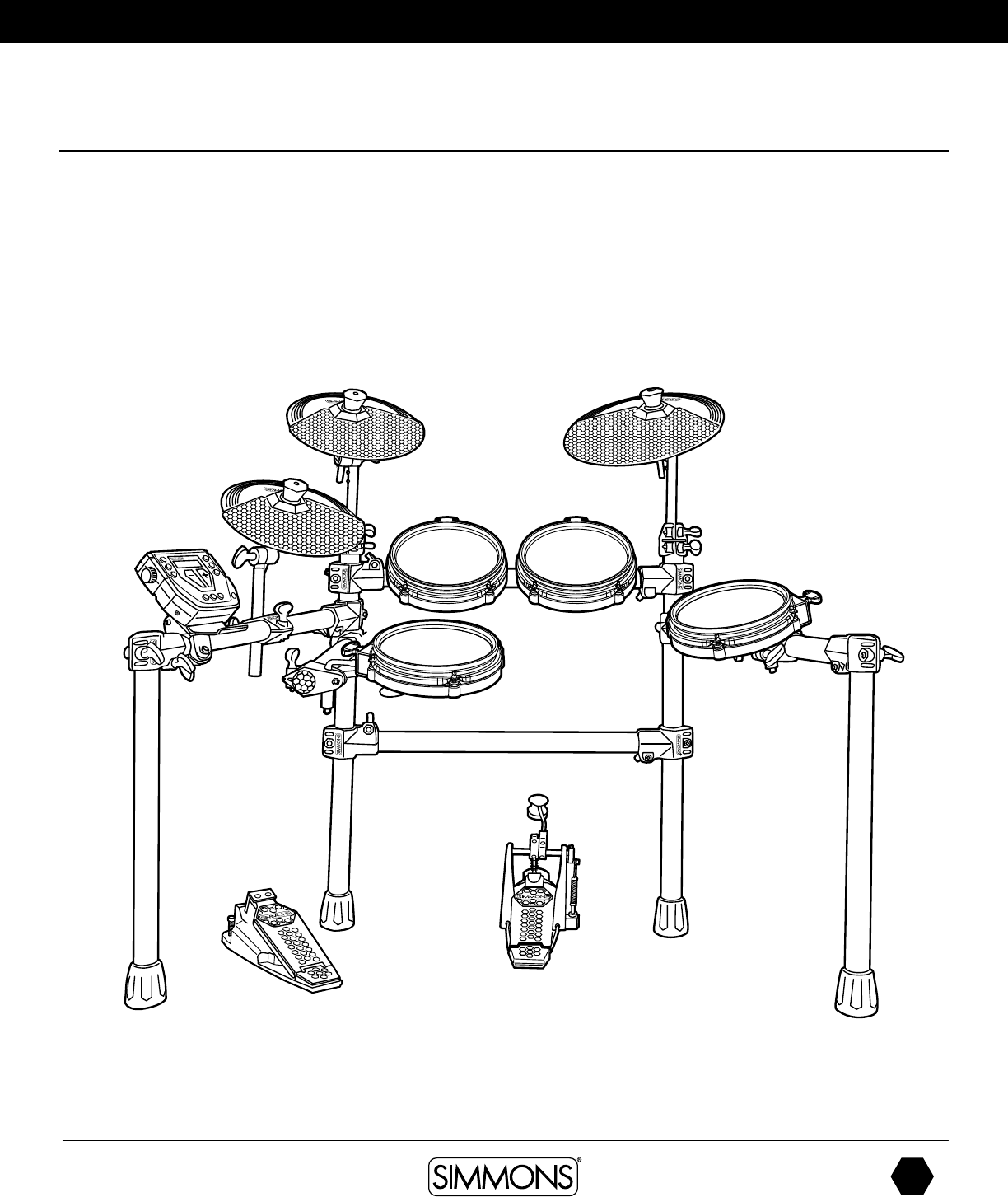
SD ASSEMBLED KIT

www.simmonsdrums.net
5
The first name in electronic drums.
Table of Contents
SAFETY INSTRUCTIONS ................................................ 2
CONGRATULATIONS .................................................... 3
ASSEMBLED KIT ........................................................... 4
FEATURES ................................................................... 6
Simmons Basic App ..................................................... 6
CONNECTIONS ........................................................... 7
ASSEMBLING YOUR KIT ............................................... 8
CONNECTIONS
Connecting the Module and Pads .................................. 12
AC Adapter .............................................................. 12
Connecting Audio Equipment ....................................... 13
Connecting MIDI Devices and Computers ....................... 14
SD550 DRUM MODULE OPERATION
Top Panel ................................................................ 15
Bottom Panel ............................................................. 16
Back Panel ............................................................... 16
Side Panel ................................................................ 16
QUICK START OPERATIONS
Turning the Power On .................................................. 17
Basic Operations ....................................................... 17
Listening to the Demo Songs ......................................... 18
Selecting a Kit .......................................................... 18
Selecting a Song ....................................................... 18
Playing a Song ......................................................... 18
Muting the Drum Part ................................................. 18
KIT MODE - ADVANCED
Editing a Kit ............................................................. 19
Rename a Kit ............................................................20
Saving a Kit .............................................................20
Kit Reset ..................................................................20
SONG MODE
Playing a Song ......................................................... 21
Muting the Drum Part .................................................. 21
Editing a Song ........................................................... 21
RECORDING A SONG
Recording Settings .....................................................22
Clicking Settings ........................................................23
UTILITY MODE
Utility Mode Settings ................................................. 24
Effects .................................................................... 25
MIDI Settings ........................................................... 25
Pad MIDI Note Assignments ........................................ 26
Auto Power Mode ..................................................... 26
Factory Reset ........................................................... 27
Tempo .................................................................... 27
APPENDIX
Voice List ................................................................ 28
Kit List .................................................................... 33
Key Map ................................................................ 34
Patterns .................................................................. 35
MIDI Implementation Charts ....................................... 36
Simmons
P.O. Box 5111
Thousand Oaks, CA 91359-5111
All trademarks and registered trademarks mentioned herein
are recognized as the property of their respective holders.
Made in China 1802-17201350
SD
OWNER’S MANUAL
6
The first name in electronic drums.
17201350 Simmons SD550 Owner's Manual.indd 02_23_18 1109AM
features
Polyphony
Voices - 64
Sounds
Drum Voices - 328
Keyboard Voice-43
Drum Kits - 25 Preset / 10 User
Songs - 50 Preset / 10 User
Effects
Reverb - Hall1, Hall2, Room1, Room2, Room3, Stage1, Stage2,
Plate, Delay, Echo, Off.
Chorus - Chorus1, Chorus2, Chorus3, Chorus4, Feedback,
Flanger, Short Delay, Flanger2, Flanger3, Celeste1, Celeste2,
Celeste3, Off.
Trigger Inputs
1 x Kick, Single Zone
1 x Snare, Dual Zone
9” Dual zone Snare pad
8” Single zone Tom pads
10” Single zone Hi Hat pad
10” Single zone Crash Cymbal pad with Choke
12” Single zone Ride Cymbal pad
1 x Hi-Hat pedal
Hardware
Drum Rack and mounts
Kick pedal / Trigger module
10” Dual zone Snare mesh drum
8” Single zone Tom mesh drums
10” Single zone Hi Hat pad
10” Single zone Crash Cymbal pad with Choke
12” Single zone Ride Cymbal pad
1 x Hi-Hat pedal
External Connections
1/8” Headphone Output
2 ¼” Master Outputs
1/8” TRS Aux input
USB Connection for MIDI via computer
Sequencer
Preset Songs - 25
User Songs - 10
Tempo- 20-280 BPM
Click/Metronome- Click voice, Time Signature, Tempo,
Interval, Volume
Power: 9v, 600ma
Weight: 37.04 lbs / 16.8 kg
• Custom Sound Library. Completely new sample set based on the most popular classic and modern kits.
• Variable Attack Response. Significantly improved playback with dynamic response according to hit velocity,
combined with alternating sample playback by velocity zone.
• S500 Series Pads with increased sensitivity and greater isolation for multi-zone snare pad.
SD550 Sound Module General Features
New Features of the SD550
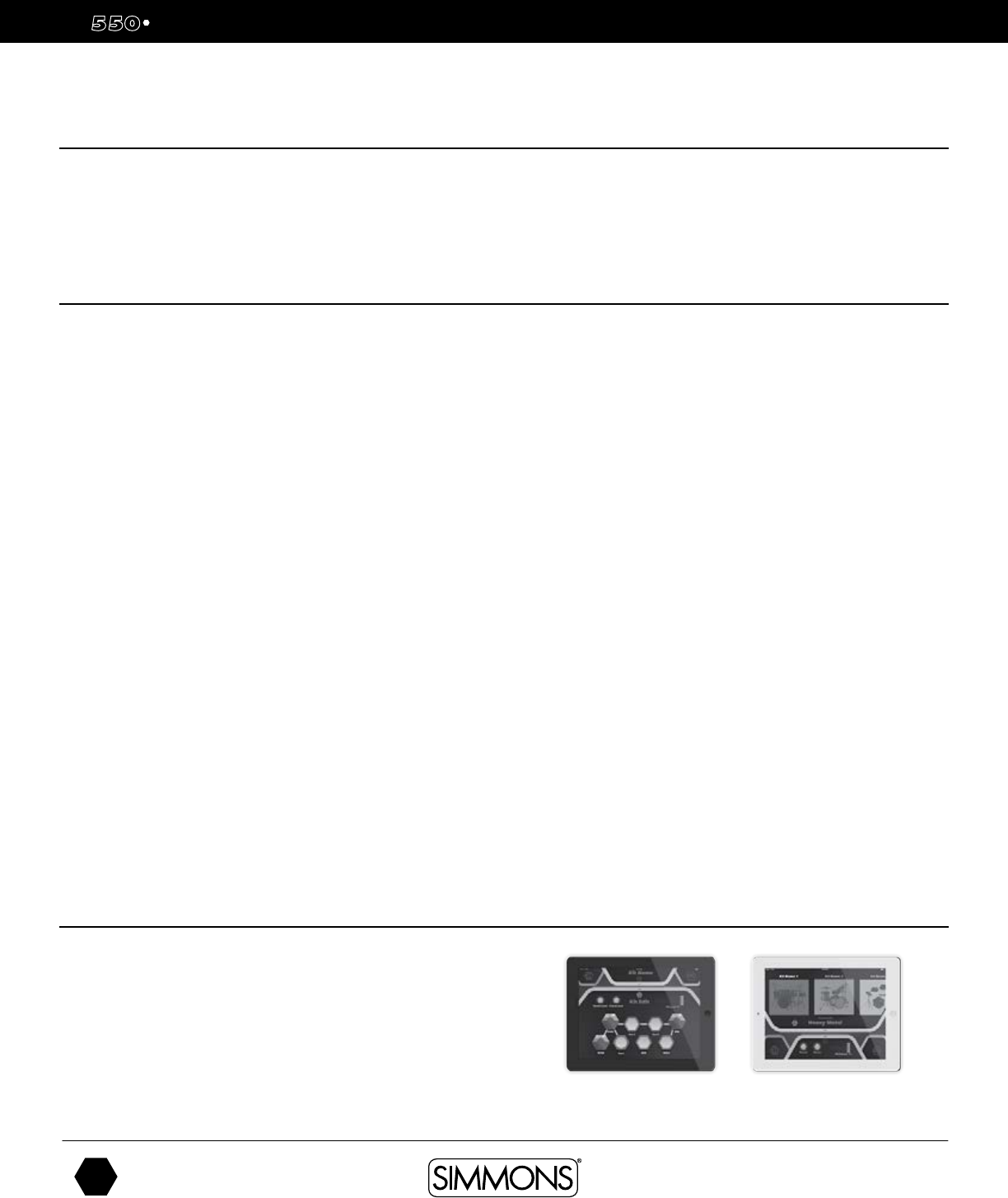
Simmons Basic App
Download the Simmons Basic app from the iOS app store. To connect
your iPhone or iPad to your SD550, attach an Apple Lightning to USB
Camera Adapter. Plug a USB cable from the SD550 module to the
adapter, then plug the adapter into your Apple device.
www.simmonsdrums.net
7
The first name in electronic drums.
Connections
Connecting the Sound Module and Pads
CAUTION!
To prevent electric shock and damage to the device, make sure the power is switched
OFF on the sound module and all related devices before making any connection.
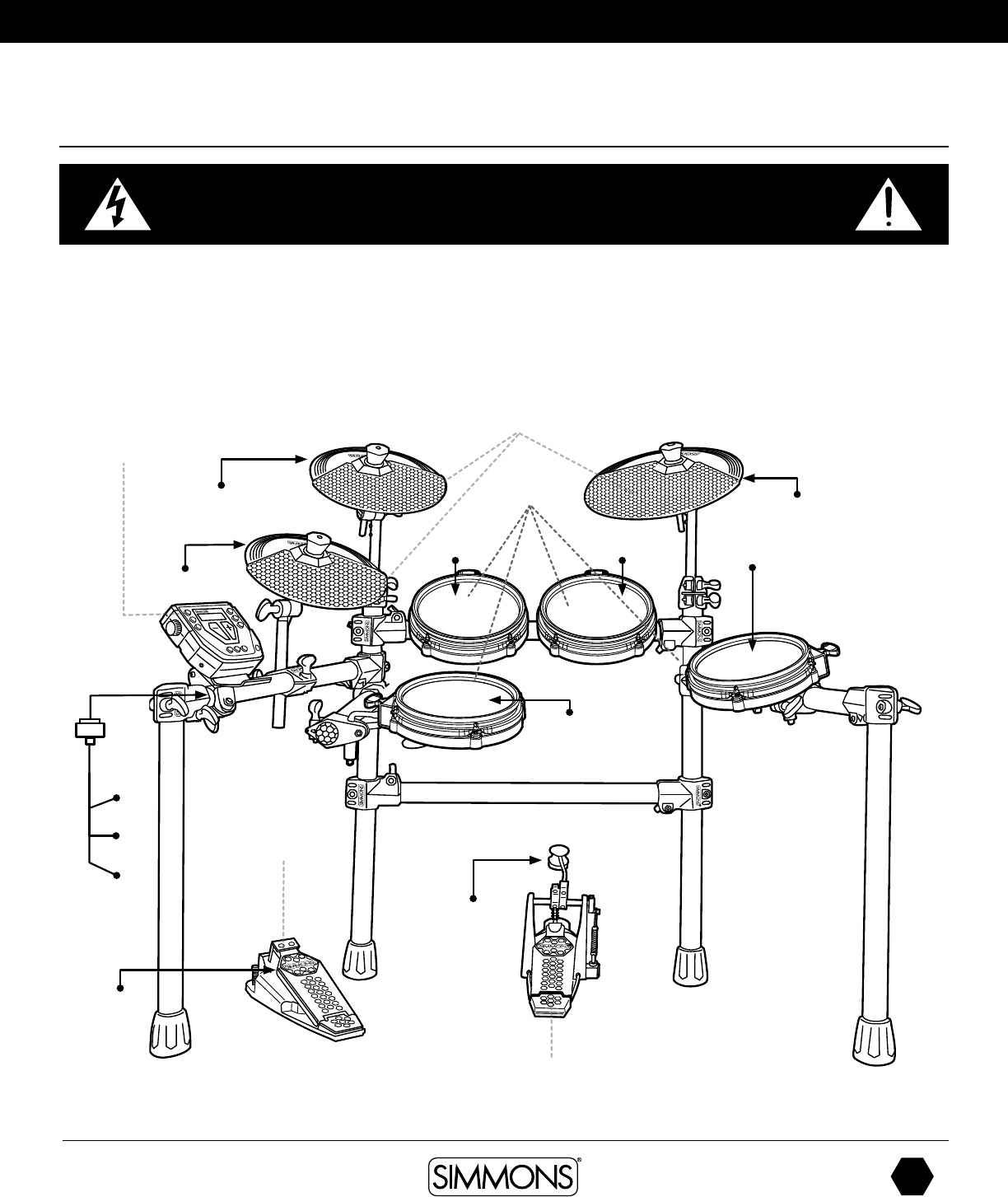
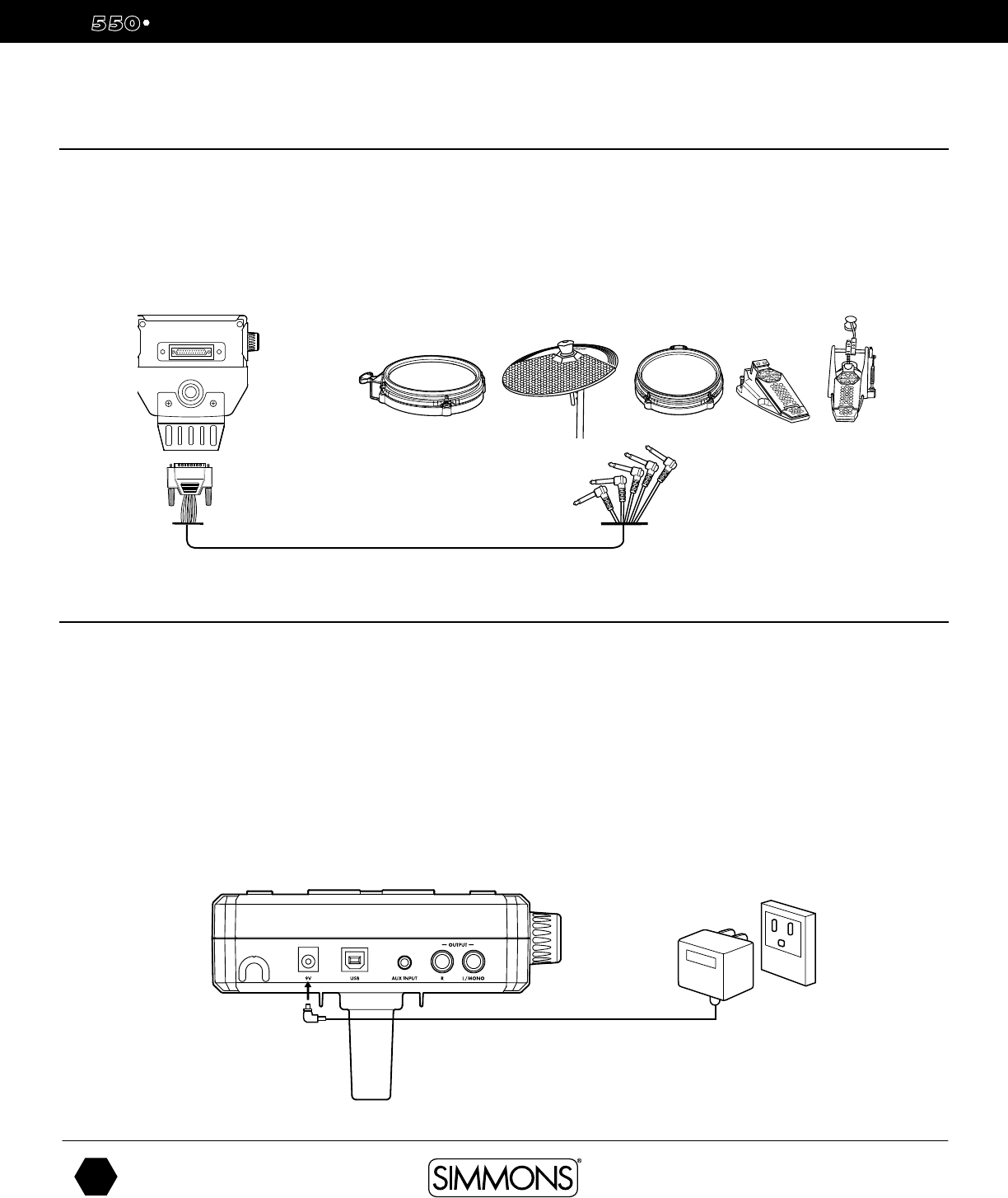
Using the provided cables, connect the 1/4” jacks to the
corresponding drum pads, cymbal pads and kick pad. The pin
connection will attach to the multi-pin connector serial port on
the bottom of the sound module. (See illustration below.)
The voice of the hi-hat pad is controlled by the hi-hat pedal.
Plug into the Hi-Hat pedal the plug that is labelled “HHC”.
Similar to a real drum kit, the hi-hat pad functions as an ‘open
hi-hat’ when the pedal is released. When the pedal is pressed
down, it functions as a ‘closed hi-hat’.
*See Appendix for Pad, Triggers, Name and MIDI chart.
Cymbal Pads
To Hi-Hat
To Ride
Drum Pads
To Hi-Hat
Control
Hi-Hat Pedal
Kick Pad
To Kick
To Snare
To Crash
Sound Module
From
Sound
Module
to 7 Pads
To Tom 3
To Tom 1 To Tom 2
SD
OWNER’S MANUAL
8
The first name in electronic drums.
17201350 Simmons SD550 Owner's Manual.indd 02_23_18 1109AM
Assembling your Kit
Inside this package
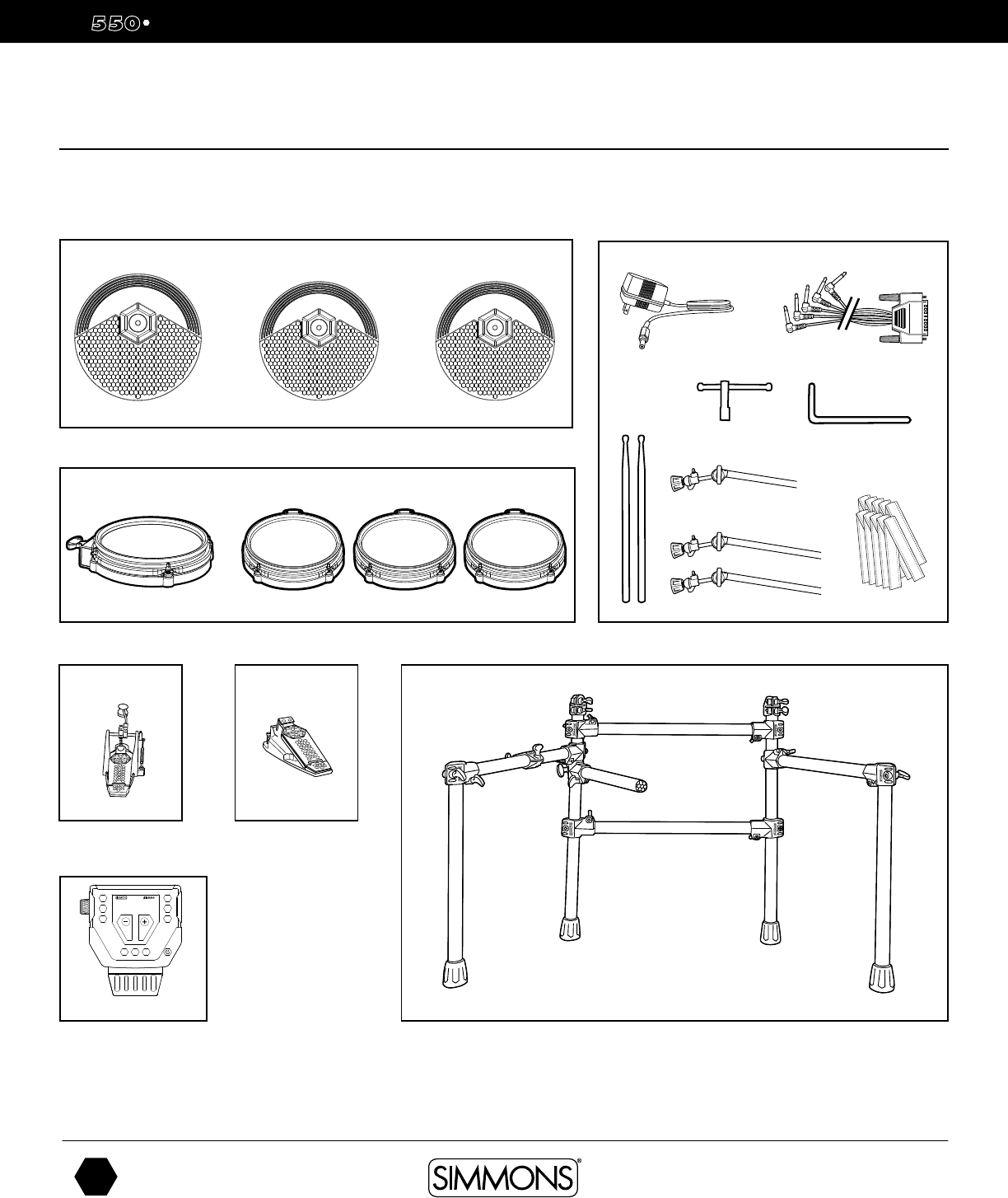
Before assembly, please make sure that all the items listed below are present.
Drum Pads
Drum Rack
Kick Pad Hi-Hat Pedal
Hi-Hat Arm (Short)
2 Cymbal Arms (Long)
Drum Module
Multi-pin Cable Harness
1 Pair
Drumsticks
AC Adaptor
Cymbals Accessories
(SD550MESHDRUM10D) (SD350MESHDRUM8S)
Dual Zone 10” Snare
Mesh Drum
Single Zone 12” Cymbal Pad
Single Zone 8” Tom Mesh Drums
Single Zone with Choke 10”
Cymbal Pad
Single Zone 10”
Hi-hat Cymbal Pad
4 L–Rods for Pads
10–Velcro
Cable Strips
SONG
START
MUTE
TEMPO/TAP
CLICK
UTIL
KIT VOICE REC/PLAY
Foot ControllerBass Drum Pedal /
Trigger module
(S500HHC1)
(SD550)
(S500KPD1)
Drum Key
(S500CYM12S) (S500CYM10SC) (S500CYM10S)
www.simmonsdrums.net
9
The first name in electronic drums.
Assembling your Kit
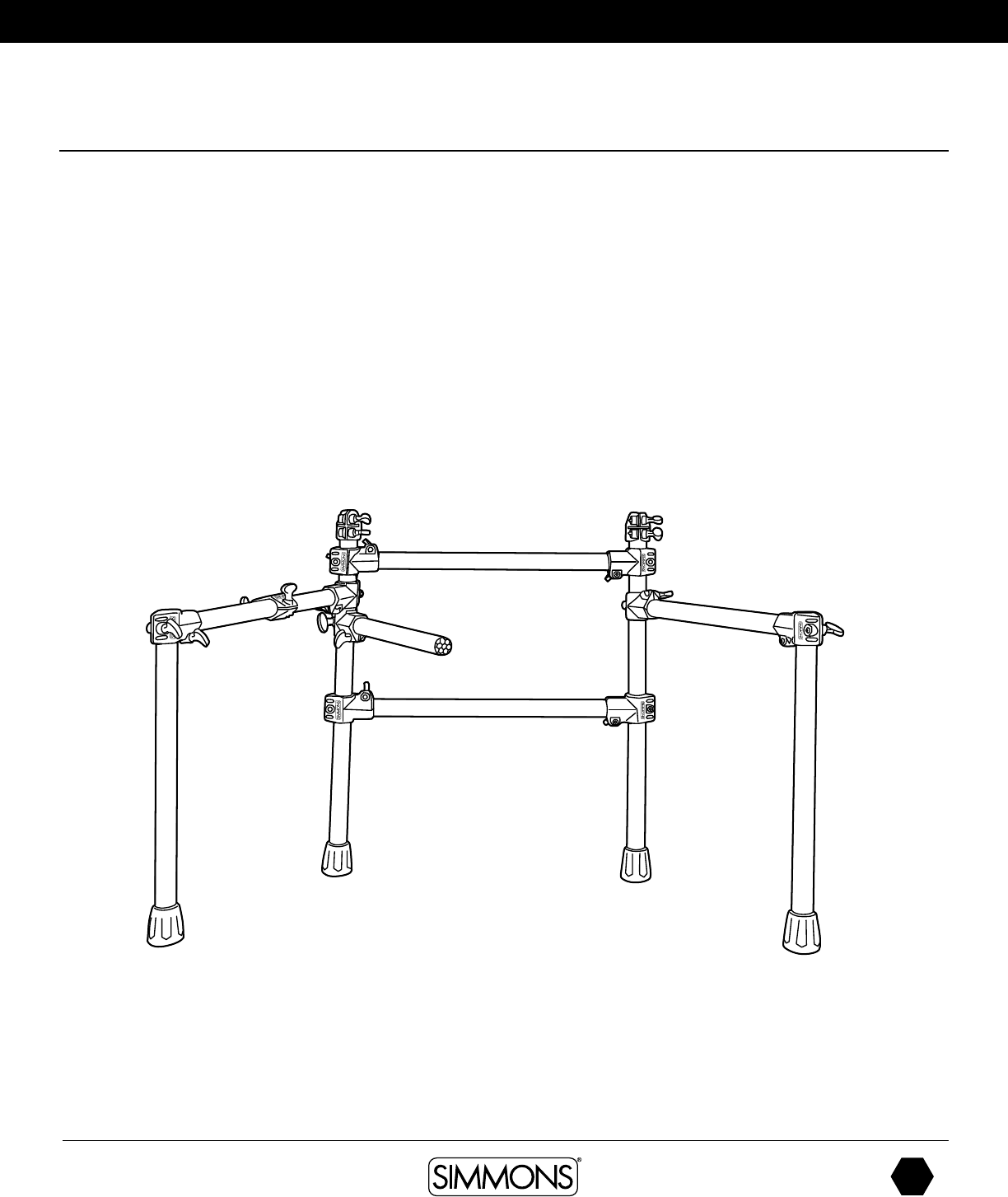
The SD550 Drum Rack comes preassembled with all clamps already in place.
1. Pull rack out of box.
2. Loosen wing nuts on side arms and snare clamps so you can rotate bars.
3. Pull the side arms and snare arm out into their playing positions.
4. Tighten wing nuts on side arm clamps.
5. Loosen L-rod wing nuts on tom clamps. Insert textured plastic of L-rod into tom clamps and tighten wing nuts.
6. Loosen wing nuts on pads.
7. Attach pads to L-rods and tighten wing nut on Tom Pads.
SD
OWNER’S MANUAL
10
The first name in electronic drums.
17201350 Simmons SD550 Owner's Manual.indd 02_23_18 1109AM
Assembling your Kit
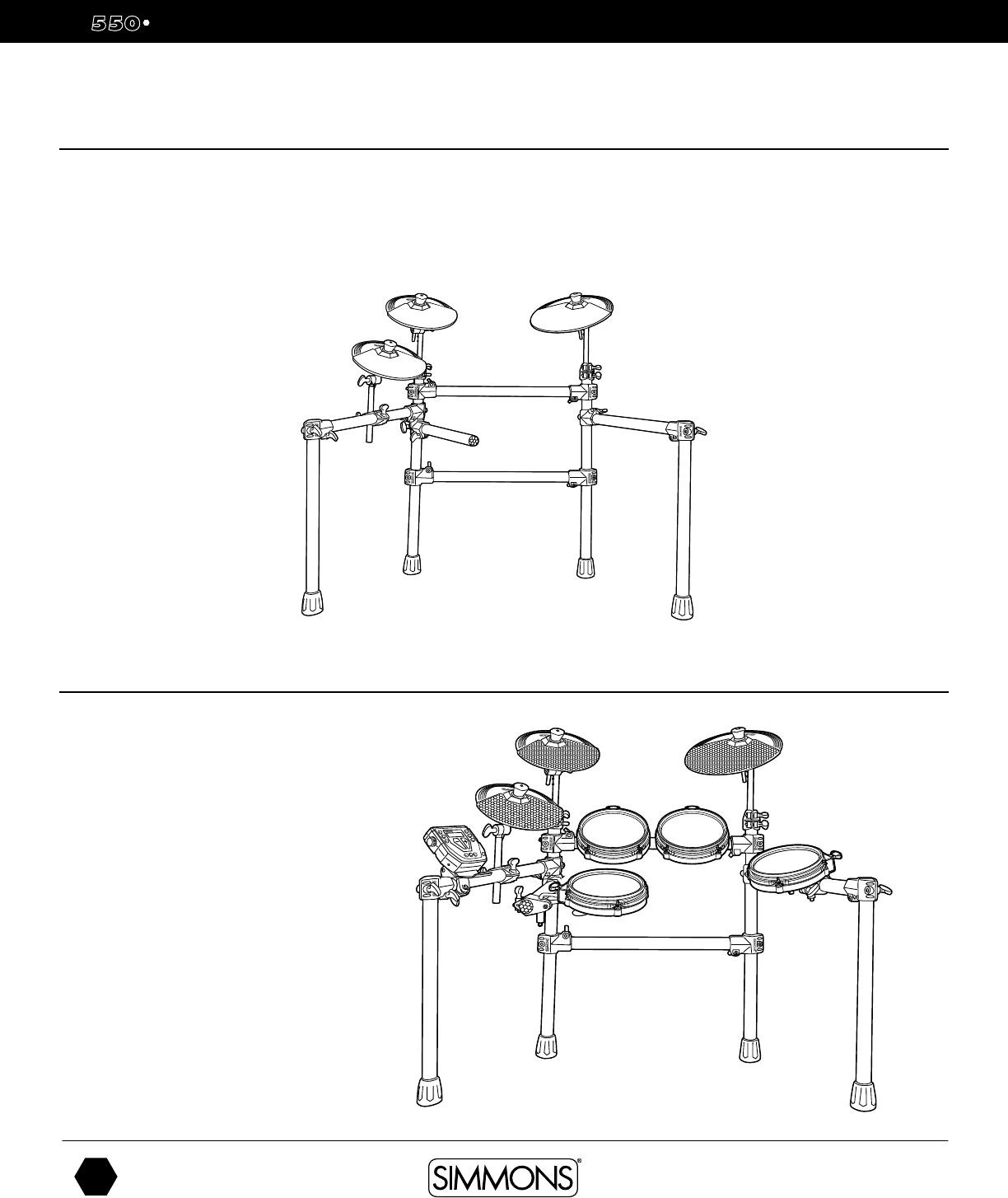
Attaching the Cymbal Pads
1. Insert each cymbal arm into the rack clamp.
2. Insert short hi-hat arm on the left-side arm’s cymbal clamp.
3. Remove wing nut from cymbal tilter. Place cymbal pad on tilter assembly.
4. Re-attach washer and wing nut. Tighten wing nut.
Attaching the Drum Module and Drums
1. Loosen wing screw on drum rack.
2. Place drum module into drum clamp.
3. Tighten wing screw to secure module.
4. Place drums onto mounting rods and tighten
with wing screws.
www.simmonsdrums.net
11
The first name in electronic drums.
Assembling your Kit
Bass Drum, Hi-hat Pedal and Pad Connections
1. Place the hi-hat pedal on the floor and to the left, as illustrated below.
2. Connect the marked cables from the pads to their corresponding inputs on the drum module
3. Place the bass pedal on the floor in the center of the rack as illustrated.
SD
OWNER’S MANUAL
12
The first name in electronic drums.
17201350 Simmons SD550 Owner's Manual.indd 02_23_18 1109AM
Connections
Connecting the Module and Pads
Using the provided cables, connect the 1/4” jacks to the corresponding drum pads, cymbal pads
and kick pad. The pin connection will attach to the serial port of the sound module. (See illustration.)
NOTE: The voice of the hi-hat pad is controlled by the hi-hat pedal. Similar to a real drum kit, the
hi-hat pad functions as an ‘open hi-hat’ when the pedal is released. When the pedal is pressed
down, it functions as a ‘closed hi-hat’. Use cable strips to retain cable to rack.
AC Adapter
The SD550 module uses an external power supply called an AC Adapter. This plugs into the
back of the module.
Make sure the power is switched OFF on the module and connect the power adaptor with the
DC IN jack on the rear panel.
NOTE: To protect the speakers, amplifier and the drum module from damage, lower the volume
to the minimum level before switching the power ON.
Make sure the power is switched OFF when connecting the drum module with external devices.
www.simmonsdrums.net
13
The first name in electronic drums.
Connections
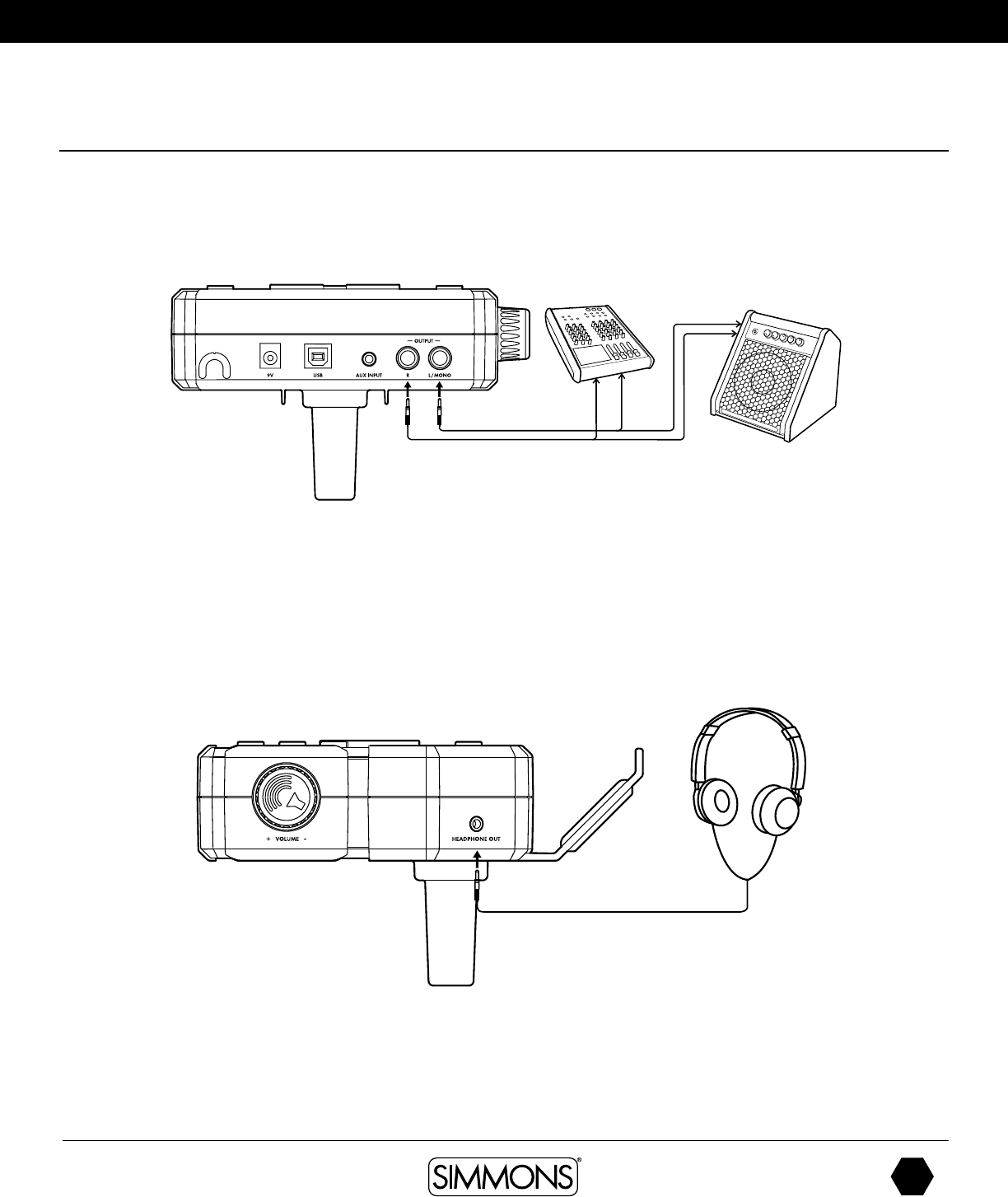
You can connect a standard pair of headphones the SD550 module to listen to your electronic
drum set without disturbing others. Connect the headphones to the headphone jack located on
the side panel of the drum module. Adjust the volume to a comfortable level to avoid damaging
your hearing. The Headphone output is separate from the Master Volume output control knob.
Connecting Audio Equipment
Mixers and Amplifiers
1. When you want to listen to the voices send the drum to a mixer or amplifier. Connect using the
Output L/MONO and R jacks on the rear panel (for monaural playback, use the L/MONO
jack; for stereo playback, connect both L/MONO and R jacks.)
2. The volume from the module is adjusted with the VOLUME knob.
SD
OWNER’S MANUAL
14
The first name in electronic drums.
17201350 Simmons SD550 Owner's Manual.indd 02_23_18 1109AM
Connections
AUX Input
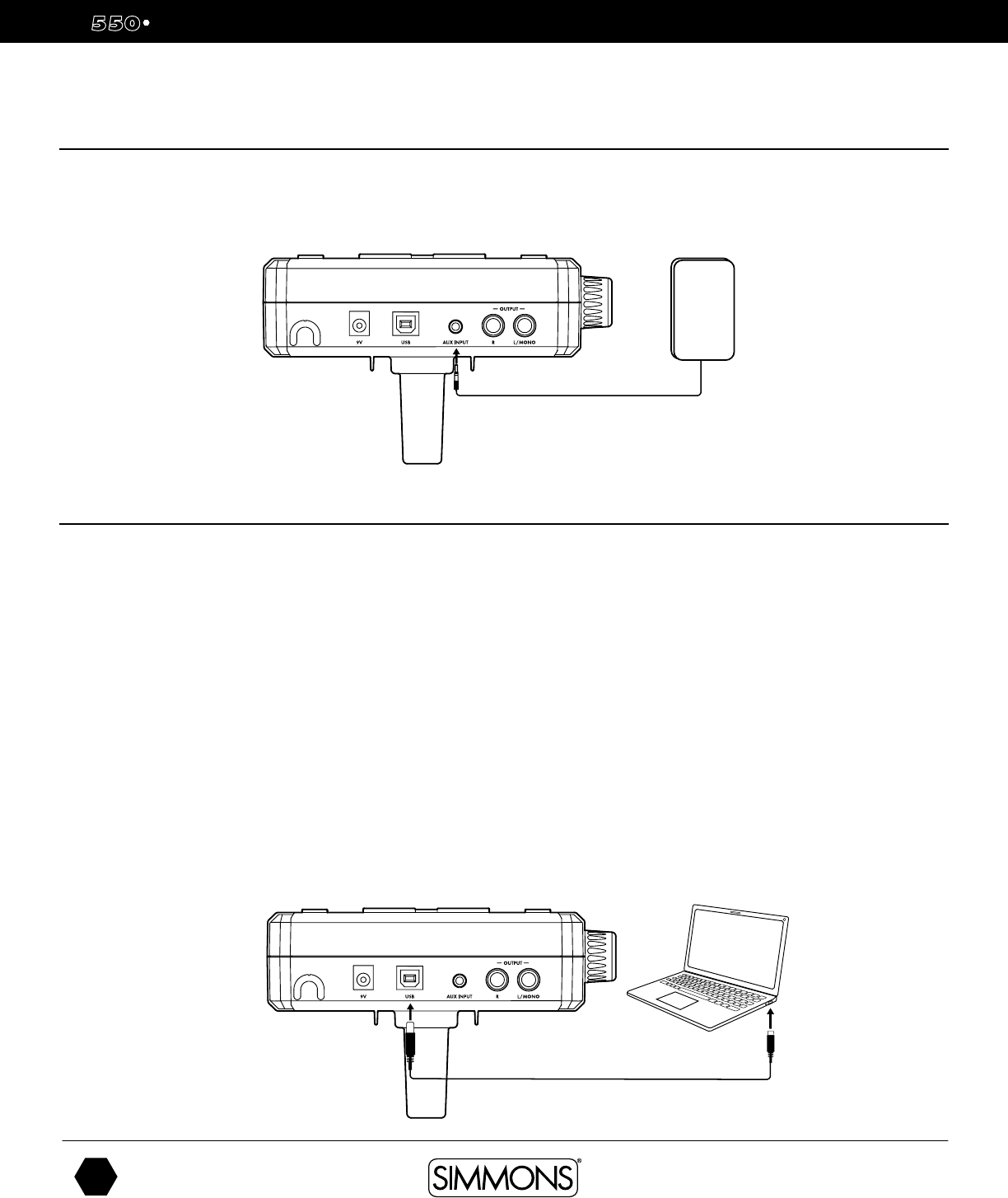
This input allows you to mix the input from the external audio along with the SD550 module’s internal sounds.
1. Plug the audio output of MP3 player, or other audio source into the AUX IN jack on the back panel.
Connecting MIDI Devices and Computers
MIDI stands for Musical Instrument Digital Interface, which is a world-wide standard communication
interface that enables electronic musical instruments and computers (of all brands) to communicate with
each other. MIDI sends note and other communication between devices. This exchange of information
makes it possible to create a system of MIDI instruments and devices that offer greater versatility and
control than is available with isolated instruments. Whether you interface with computers, sequencers,
expanders or other controllers, your musical horizons will be greatly enhanced.
MIDI USB connection
The USB connector allows you to connect the module directly to your computer. It can be connected
without driver installation under the Windows & MAC OSX environment. The module will be
recognized to receive and transmit MIDI messages through a single USB cable, USB is used only
for MIDI messages (MIDI via USB). The SD550 module will appear as “SD550” in the USB device
options of your software.
NOTE: When the USB is connected to a computer, all MIDI messages will be received and transmitted
via USB.
MP3
PLAYER
www.simmonsdrums.net
15
The first name in electronic drums.
SD550 Drum Module Operation
Top Panel
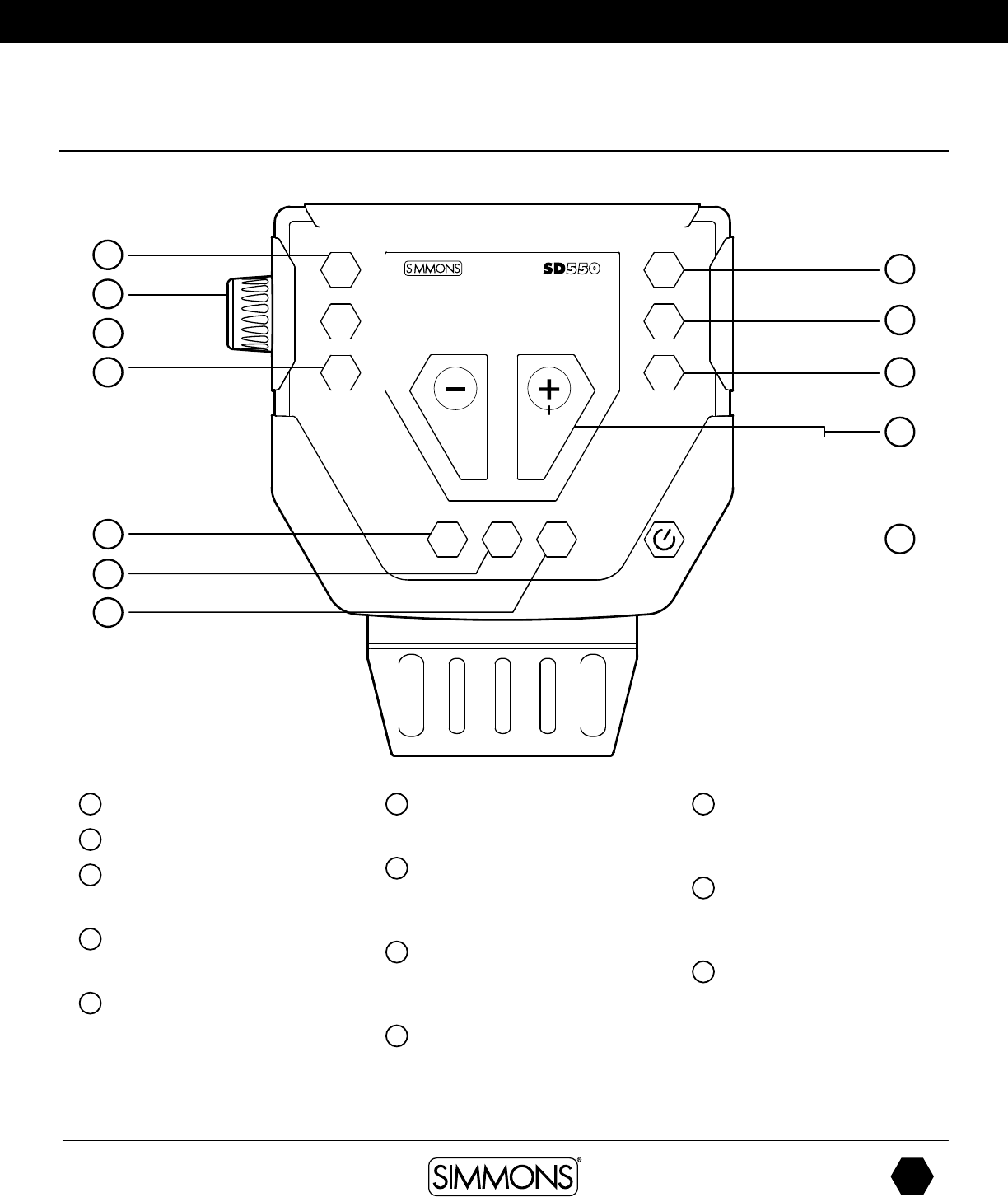
1 Kit Knob
2 Volume Button
3 Song Button
Access Song Mode
4 Utility Button
Access Utility Functions
5 Play/Stop Button
Starts or Stops the playback
of a Song
6 Record Buttons
Used to enter the Record mode
7 Click
Turns the Click/Metronome
function on/off
8 Page Button
Move through the Editing pages
after each button push
9 Tempo
Adjusts tempo
10 Save
Enters the Save menu when
it is available
11 +/- Buttons
Adjust the current parameter
on the screen
12 Power Switch
This is a soft switch. To turn off, press
and hold the button for 5 secs.
1
2
3
4
5
6
7
SONG
START
MUTE
TEMPO/TAP
CLICK
UTIL
KIT VOICE REC/PLAY
8
9
10
12
11
SD
OWNER’S MANUAL
16
The first name in electronic drums.
17201350 Simmons SD550 Owner's Manual.indd 02_23_18 1109AM
SD550 Drum Module Operation
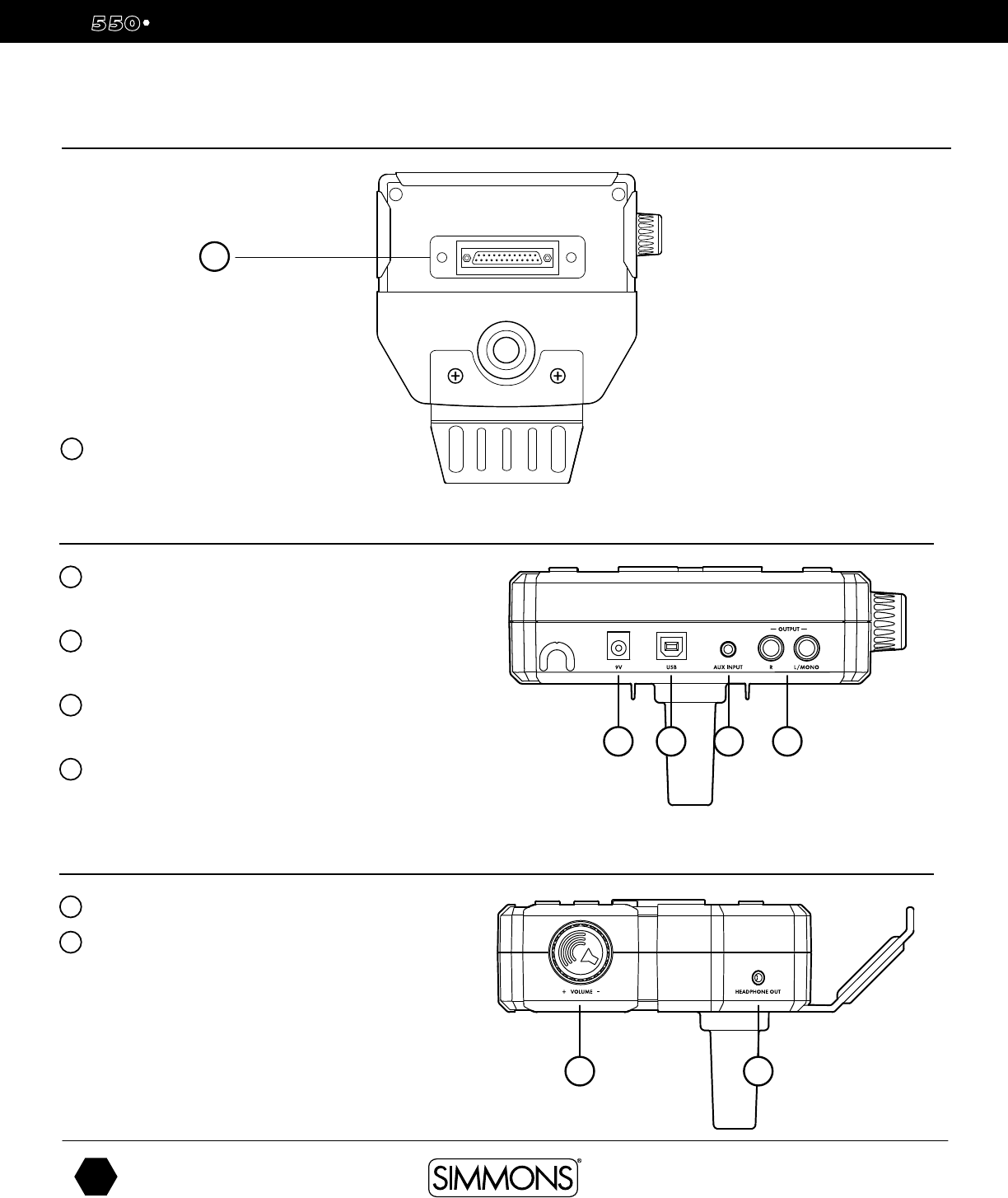
Bottom Panel
Back Panel
1 AC Adapter Input
Connection for the 9V DC power adapter
2 USB Port
Used for connecting the SD550 module to a computer.
3 AUX Input
Stereo 1/8” jack to connect CD or MP3 players to the module.
4 Output
Stereo audio outputs to connect to external audio sources
Side Panel
1 Volume knob
2 1/8” TRS headphone jack
1
1
2 3 4
2
1
1 Serial Connection Jack for the
pad trigger cables
www.simmonsdrums.net
17
The first name in electronic drums.
Quick start operations
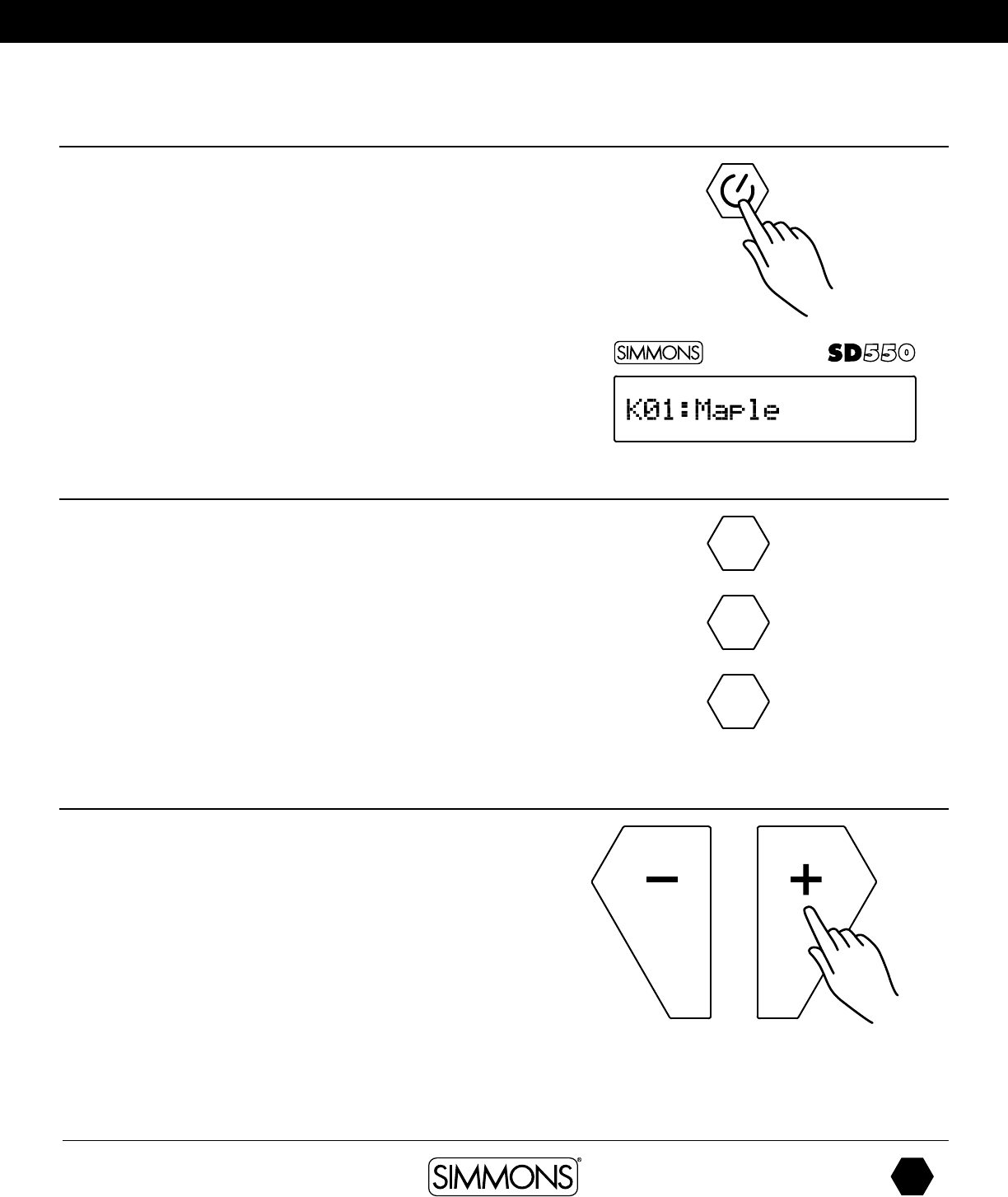
Turning the Power on the Module
1. Connect the AC Adapter to the drum module.
2. Press the power switch on the top panel to turn on the module.
NOTE: There is an automatic power off function that turns off the module
when the kit is not being used for a certain period of time. The default setting
is off. If this gets changed you can reset this in the Utility mode.
Basic Operation and Navigation
Selecting Modes
There are 3 main modes for the module: KIT, SONG and UTILITY. To enter
these modes press the corresponding buttons on the top panel of the module.
Adjusting Values
1. Select the parameter to be adjusted.
2. Adjust the value using + / - buttons.
KIT
SONG
UTIL
PAGE
TEMPO
SAVE
PLAY / STOP RECORD
MUTE
CLICK
KIT
SONG
UTIL
PAGE
TEMPO
SAVE
PLAY / STOP RECORD
MUTE
CLICK
SD
OWNER’S MANUAL
18
The first name in electronic drums.
17201350 Simmons SD550 Owner's Manual.indd 02_23_18 1109AM
Quick start operations
Listening to the Demo Songs
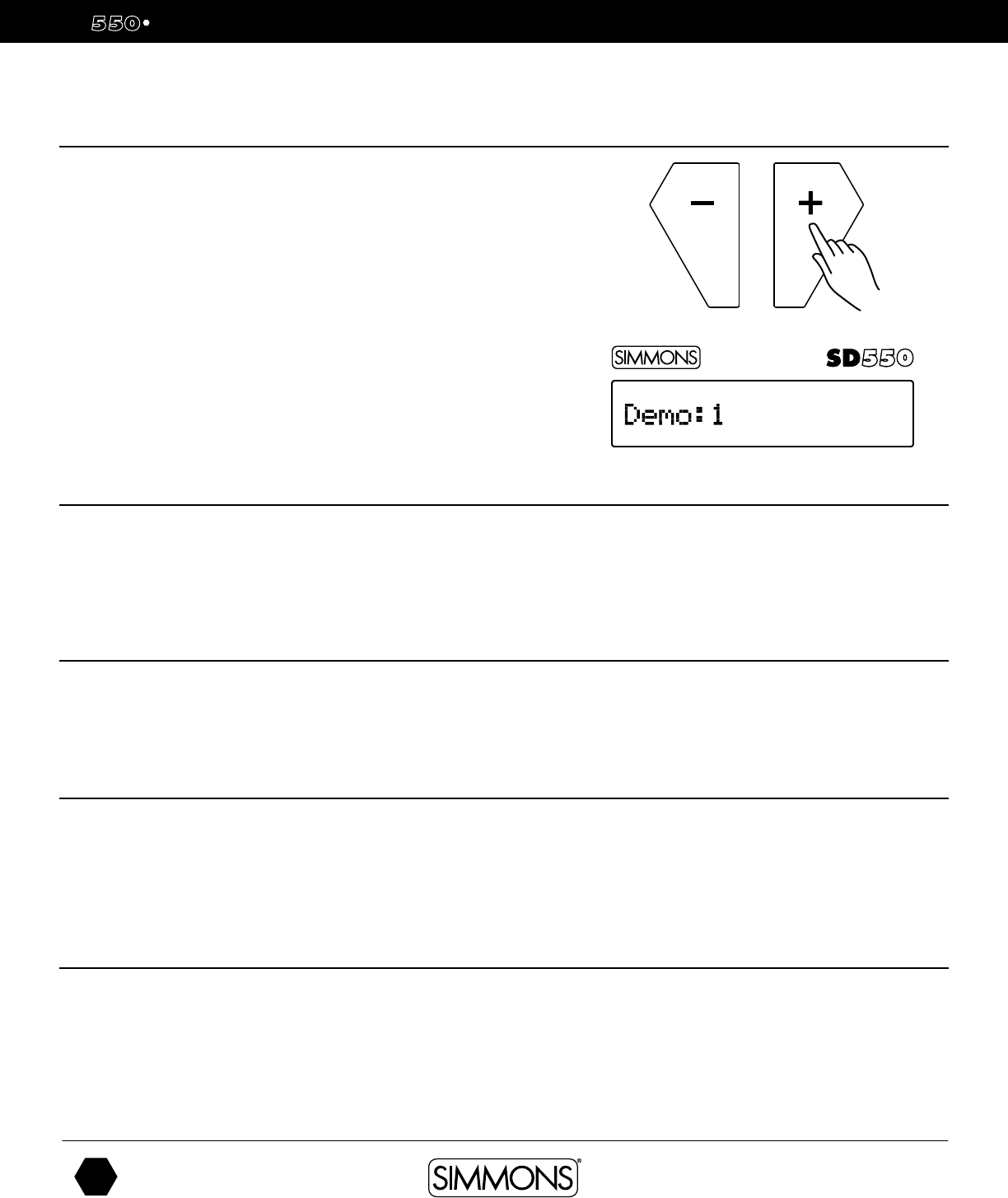
The demo songs help to show you the capabilities and sounds of the SD550
module. There are two demos in the module. The first demo song is an
extended drum solo that switches between various kits in the module. The
second demo sound plays a long song that has several patterns combined to
show the different genres of music that module can play.
1. Press KIT and SONG button simultaneously to enter Demo Mode. The first
song demo will start playing.
2. Press the PLAY/STOP button to stop the demo.
3. Press the + or - buttons to select a Demo to play; use Play button to play
the demos
4. After pressing STOP, press any of the Mode buttons (KIT, SONG or
UTILITY) to exit the Demo Mode
Selecting a Kit
Entering KIT Mode
1. Press the KIT button. The LCD displays the current Kit number and Kit name.
2. Press the – /+ buttons (Preset or User Kits).
Selecting a Song
1. Press the SONG button and the SONG screen appears with Song
Number and Name.
2. Press the –/+ buttons to select the song you want to play.
Playing Song
1. Press PLAY/STOP to play a song.
2. Press the PLAY/STOP button to stop playback of the song.
NOTE: You can temporarily change the tempo of a song while playback is in
progress. The song returns to its preset tempo when a different song is selected.
Muting the Drum Part
1. While a Song is playing press the PLAY/STOP and CLICK Button at the same time.
This will mute the drum sound. The screen will show the mute status “Mute On” or
“Mute Off”
2. To unmute the Drums press the PLAY/STOP and CLICK Buttons at the same time again.
3. The default setting is to mute the drum sound. It also mutes the accompaniments
track. See P.21 “Mute Select”.
www.simmonsdrums.net
19
The first name in electronic drums.
Kit Mode - Advanced
Editing a Kit
1. Press the KIT button.
2. Press the PAGE button to see the screen for the current sound
3. Strike a drum pad to view the Voice currently assigned
4. Press the PAGE button to move to the first parameter to be changed on the
current sound. Press the PAGE button repeatedly to step through all the
available parameters that can be changed on the voice.
5. Press the -/+ buttons to change the parameter
6. Press the SAVE/ENTER button to save the assignment to a User Kit.
(See Saving a kit)
Parameter Definition Parameter Range[-/+]
voice Voice index 0-328
volume volume 0-32
Pitch Pitch -8 ~ +8
Decay Decay 0 ~ -5
Pan Pan L8 ~ R8/ Center
R.LVL Reverb Level 0 ~ 32
C.LVL Chorus Level 0 ~ 32
SD
OWNER’S MANUAL
20
The first name in electronic drums.
17201350 Simmons SD550 Owner's Manual.indd 02_23_18 1109AM
Kit Mode - Advanced
Saving a Kit
1. Press the SAVE/ENTER button to save the assignment to a User Kit.
2. Press the -/+ buttons to choose the User kit for save.
3. Press the SAVE/ENTER button to rename the User Kit.
4. Press the PAGE button to move the cursor
5. Press [+/-] to change the character
6. Press the SAVE/ENTER confirmation
Renaming a Kit
1. Select a User Kit.( Preset Kits cannot not be renamed)
2. Press the -/+ buttons to choose the User kit for save.
3. Press the SAVE/ENTER button to rename the User Kit.
4. Press the PAGE button to move the cursor
5. Press [+/-] to change the character
6. Press the SAVE/ENTER confirmation
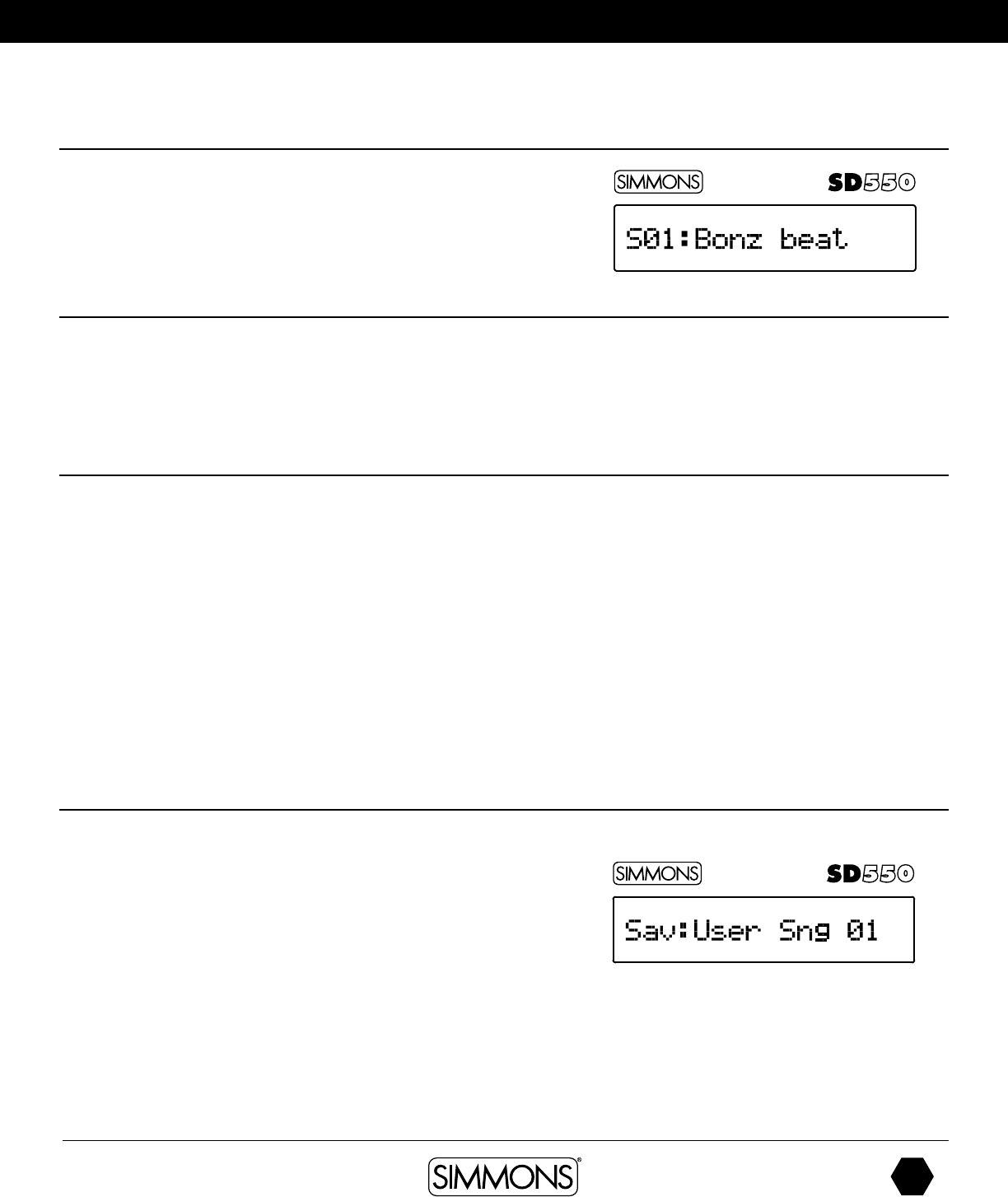
Kit Reset
1. Select a Kit
2. Press the Page Button until you see Factory Reset.
3. Press the Save Button. The screen will show “Current Kit”
4. Press Save to reset just the one kit. If you want to reset all the kits go to the
next step.
5. Press the + button. The screen will show “All Kits”.
6. Press Save.
www.simmonsdrums.net
21
The first name in electronic drums.
Song mode
Playing a Song
1. Press PLAY/STOP to play a song.
2. Press the PLAY/STOP button to stop playback of the song.
NOTE: You can temporarily change the tempo of a song while playback is in
progress. The song returns to its preset tempo when a different song is selected.
Muting the Drum Part
1. While a Song is playing press the PLAY/STOP and CLICK Button at the
same time. This will mute the drum sound.
2. To unmute the Drums press the PLAY/STOP and CLICK Buttons at the same
time again.
Copy Song
You can copy Preset song to user song, then erase Drums or
Accompaniment track, Re-Recording.
1. Select a Song.
2. Press the SAVE/ENTER button to save the to a User song
3. Press the -/+ buttons to choose the User song for save
4. Press the SAVE/ENTER button to rename the User song.
5. Press the PAGE button to move the cursor
6. Press [+/-] to change the character
7. Press the SAVE/ENTER confirmation
If you want to rename user song, song save to the original position, then
use the rename instructions.
Editing a Song
1. Press the SONG Button. The current song will be displayed.
2. If you wish to change to another song press the -/+ buttons until you get to
the Song you want to edit.
3. From the Song you have selected press the PAGE button. The first selection is
the Accompaniment Volume (Acc Vol).
4. Press the -/+ buttons to set the value for the volume. To move to the next
parameter press the PAGE button. Each time you press the PAGE button you
will come to the next parameter. See the list below of the parameters for Songs.
• Acc Volume
• Drum Volume
• Mute Select: Part Mute - Drums or Accompaniment
• Kit Link: Kit follows the song changes
• Erase Track - Erase Drums or Accompaniment track
(only user song)
SD
OWNER’S MANUAL
22
The first name in electronic drums.
17201350 Simmons SD550 Owner's Manual.indd 02_23_18 1109AM
Recording a Song
Recording Settings
There are several settings for the Record mode. To enter the setup mode press
the RECORD and PAGE buttons.
1. The first page is the Track you wish to record to. The default is Drum.
The other setting is Acc (accompaniment).
To change between these Press the -/+ buttons.
To record an accompaniment track you must use an external MIDI
device such as MIDI keyboard that is connected to your computer to
the USB input.
Accompaniment track: To record these parts you will need an external
MIDI keyboard or MIDI device that can output MIDI notes on MIDI
channels 11-16.
Channel 11: Percussion Part
Channel 12-16: Accompaniment Part
2. The next Page is Together.
If on, other track will play together with recording.
3. The next Page is Syn Start.
This determines if you want the recorder to start recording when you first
play a note, rather than waiting for a count-in. When you press the
Record button the metronome will play and the recorder will not start
until you play.
4. The next page is Pre Count.
This determines the amount of measures you want to wait before
recording. If Syn Start is on. This will be ignored. Press the -/+ buttons to
change the parameter setting between 0-2 bars
www.simmonsdrums.net
23
The first name in electronic drums.
RECORDING A Song
To Record
1. Press the Song Button
2. Select a User Song
3. Press the Record button.
You will hear the Click metronome sound count in. Begin playing
the song after the count off.
4. After you record your song you can also rename the song,
Press SAVE/ENTER button to save and rename.
Click Settings
The CLICK is the metronome sound that is played when you are listening to
beat to play along with.
Press CLICK button on/off metronome.
1. To edit the Click settings press and hold the CLICK button for 2 seconds,
then press the PAGE button.
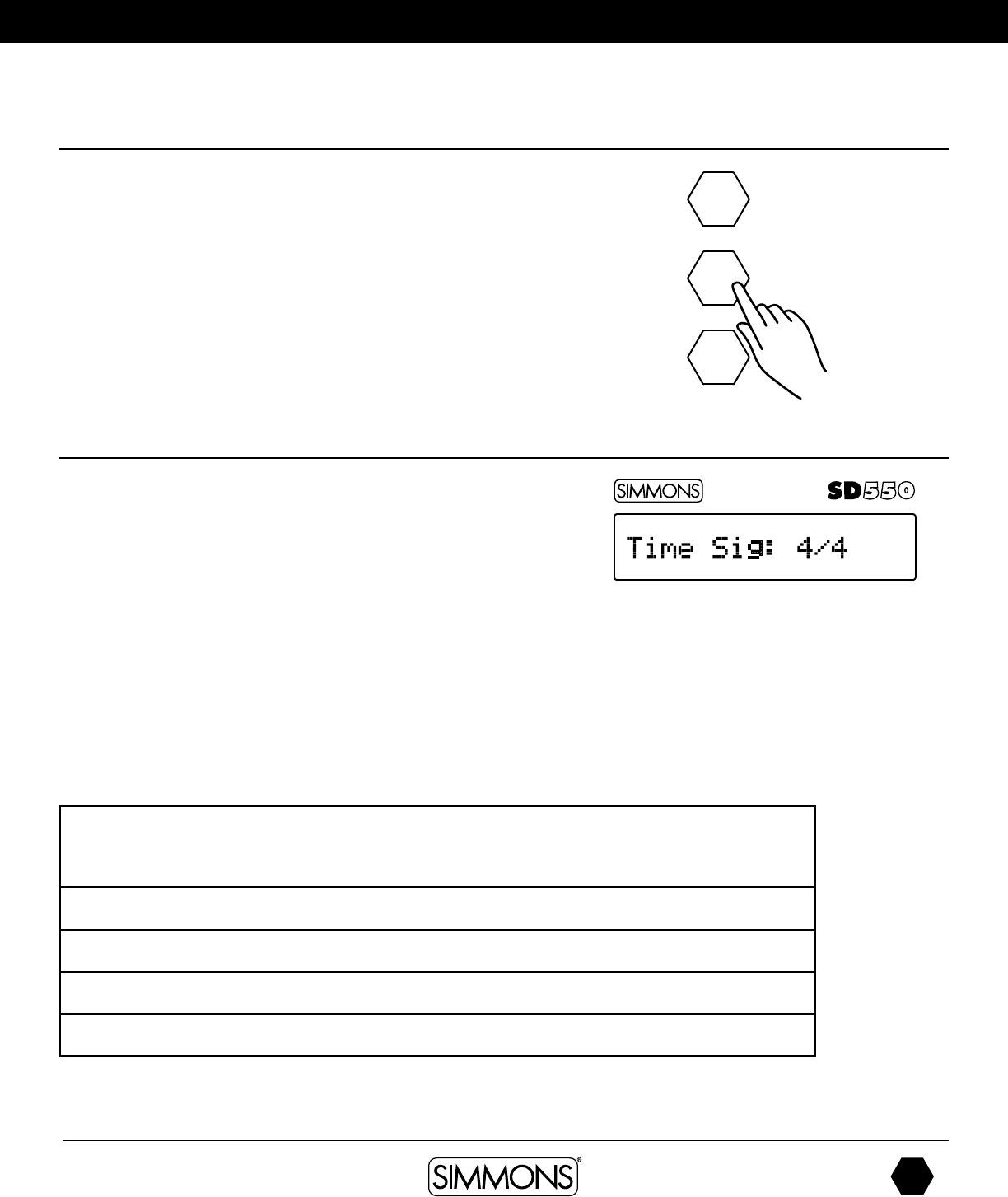
The first parameter is the time signature- “T Sig”.
3. Press the -/+ buttons to select the time signature that you want.
4. To get to the next parameter press the PAGE button. See the list below of
the parameters for the Click.
Definitions
KIT
SONG
UTIL
Time Signature — Time Signature / T-Sig- For the preset songs, this parameter shows the current song’s default
value. For the user songs that have material already recording on them the default value is 4/4 and cannot be
changed.
Interval — The refers to the note value interval for the click. Ex quarter note, eight note etc.
Click Voice — This refers to the sound for the Click
Click Vol — Click Volume
Reset — Resets the Click to the factory setup
SD
OWNER’S MANUAL
24
The first name in electronic drums.
17201350 Simmons SD550 Owner's Manual.indd 02_23_18 1109AM
Utility Mode
Utility Mode Settings
The Utility mode is for the main functions of the module such as trigger setup for
the pads, effects, MIDI setup and saving global settings.
Trigger Settings
You can set the parameters of each drum and cymbals pad in the Trigger menu.
While editing the settings, you can select each trigger by hitting the corresponding
trigger pad.
1. Press the UTILITY button.
2. Press the PAGE button to see the screen for the current trigger pad- The default
is the Snare pad center Sensitivity.
3. Strike the drum pad you want to edit to view the setting currently assigned
4. Press the -/+ buttons to change the parameter setting.
5. To get to the next parameter press the PAGE button. See the list below for the
other parameters and explanations.
Parameter definitions
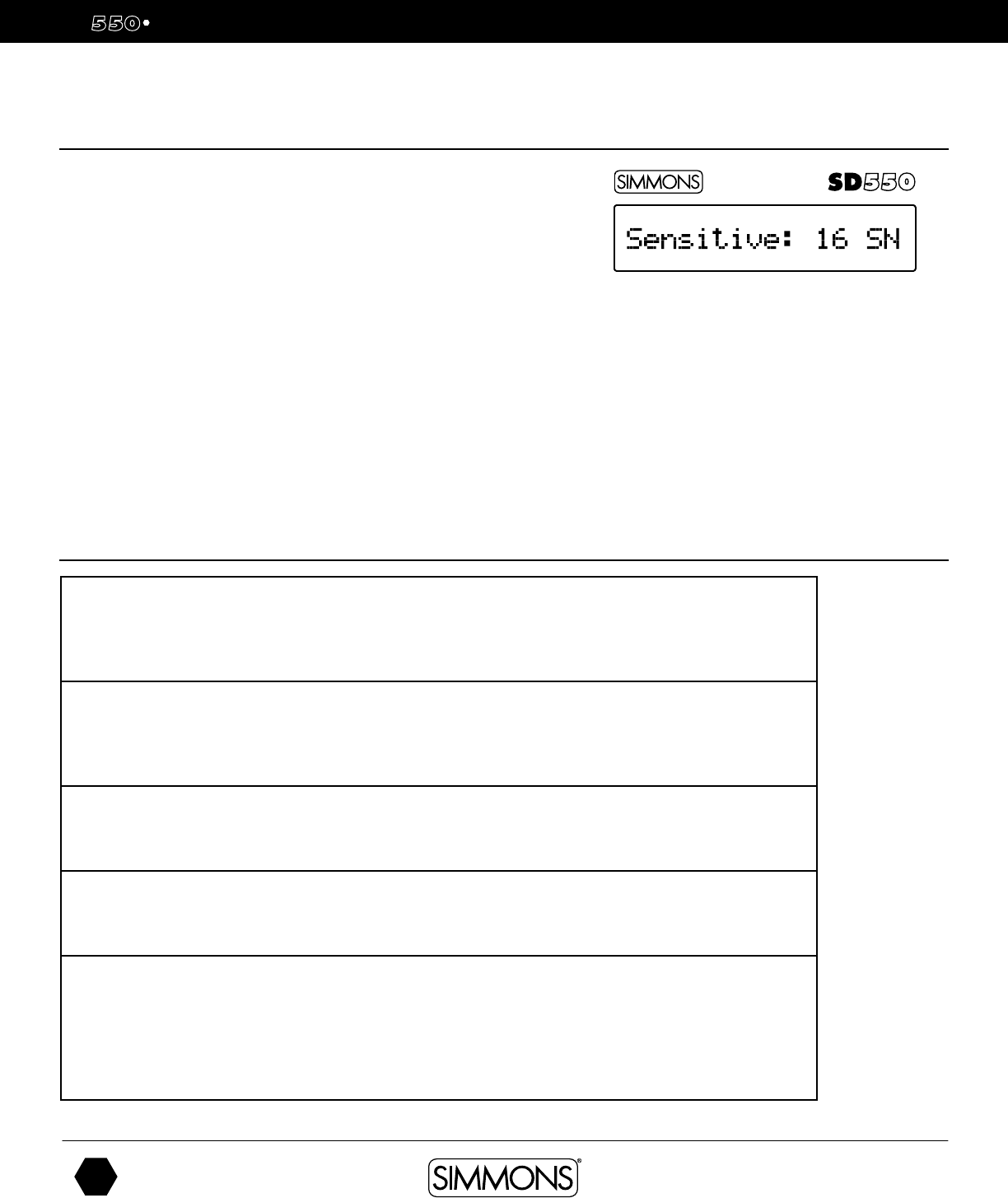
Sensitivity
This adjusts the sensitivity of the pad trigger to control the pad response. Higher settings result in higher sensitivity,
so that the pad will produce a loud volume even when struck softly. Having the sensitivity set too high can affect the
dynamics of the pad.
Retrig-C (Retrigger cancel)
Retrigger Cancel prevents retriggering from occurring. Although setting this to a high value prevents retriggering,
it then becomes easy for sounds to be omitted when the drums played fast (roll etc.). Set this to the lowest value
possible while still ensuring that there is no retriggering.
Threshold
This setting allows a trigger signal to be received only when the pad is struck harder than a specified force. This can
be used to prevent a pad from sounding in response to peripheral vibrations from another pad.
Curve (Trigger curve)
This setting allows you to control the relation between the velocity (striking force) and changes in volume (the
dynamic curve.) Adjust this curve until the response feels as natural as possible.
X- Talk (Pad Crosstalk)
When two pads are mounted on the same stand, the vibration produced by hitting one pad may trigger the sound
from another pad unintentionally (This is called crosstalk.) You can avoid this problem by adjusting Crosstalk Cancel
on the pad that is sounding inadvertently. If the value is set too high, then when two pads are played simultaneously,
the one that is struck less forcefully will not sound. Be careful when setting this parameter to the minimum value required
to prevent crosstalk.
www.simmonsdrums.net
25
The first name in electronic drums.
Utility Mode
Effects
The SD550 module has built-in Reverb and Chorus which are adjustable in the
Utility Effects setup.
1. Press the UTILITY button. The first parameter is for the trigger settings.
2. Press the PAGE button until you see the screen for Reverb type
3. Press the -/+ buttons to change the parameter setting.
4. Press the PAGE button again to go to the screen for the Chorus type
5. Press the -/+ buttons to change the parameter setting.
The available parameters are available below:
Reverb
Hall1, Hall2, Room1, Room2, Room3, Stage1, Stage2, Plate, Delay, Echo, Off.
Chorus
Chorus1, Chorus2, Chorus3, Chorus4, Feedback, Flanger, Short Delay,
Flanger2, Flanger3, Celeste1, Celeste2, Celeste3, Off.
MIDI Settings
The SD550 module is a USB MIDI compatible device. There are no special
drivers required to use the module with your computer.
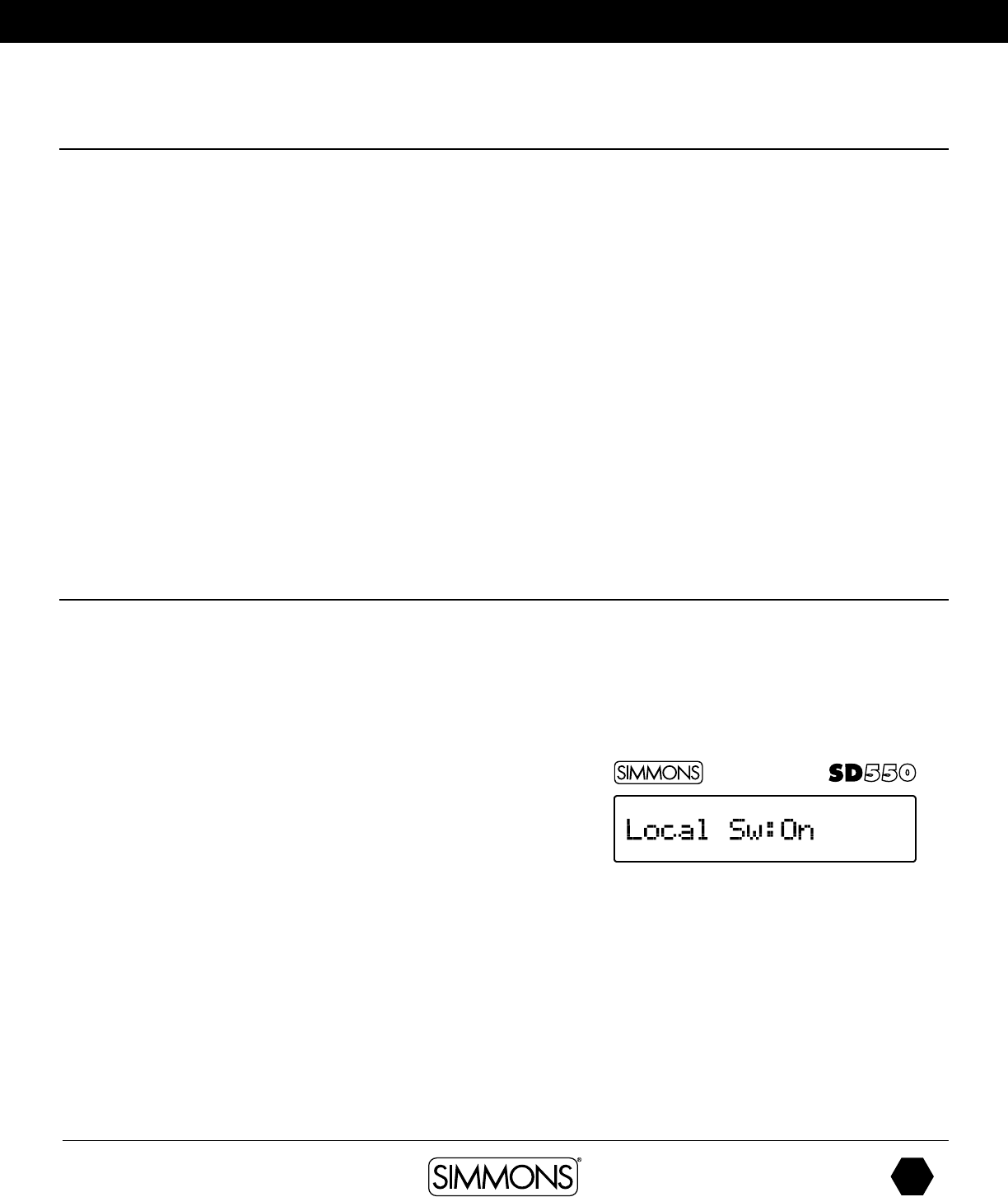
Local - When local is on the front panel buttons and the external MIDI device
sends MIDI data. In some cases you may want to turn off the front and remotely
send MIDI commands. In this case set the Local to Off. The default setting is set
to ON.
To change the Local On/Off.
1. Press the UTILITY button.
2. Press the PAGE button until you see the screen for MIDI Local “On”
3. Press the -/+ buttons to change the parameter setting.
SD
OWNER’S MANUAL
26
The first name in electronic drums.
17201350 Simmons SD550 Owner's Manual.indd 02_23_18 1109AM
Utility Mode
Pad MIDI Note assignments
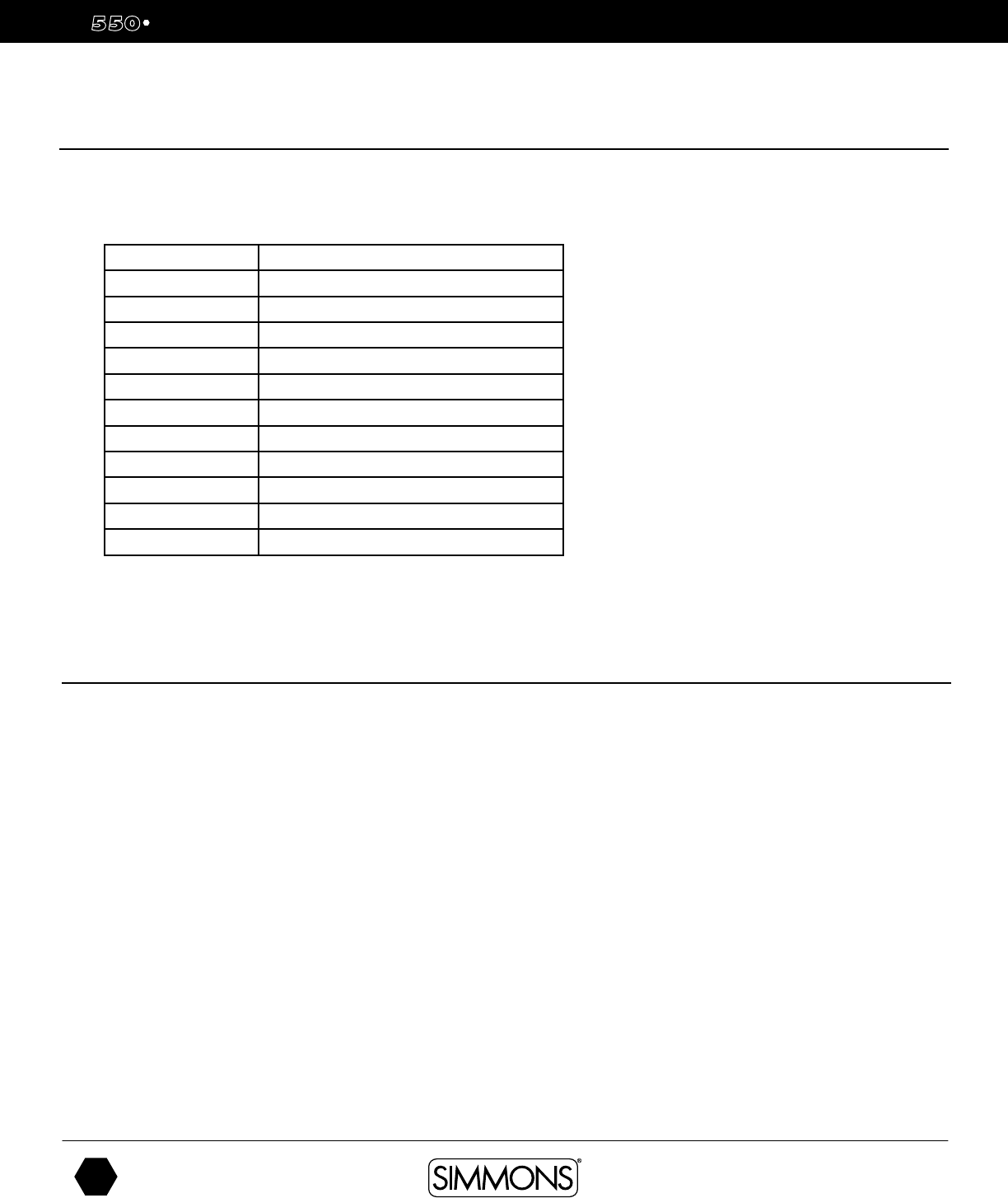
The MIDI output notes from the SD550 are preset in the Module. The following
list has the MIDI notes that are sent from the module when the drum pads and
pedals are played.
Auto Power Mode
Auto Close
On: If you don’t use SD550 exceeding 30 min. It will Automatically shutdown
the module.
Off: The module will not shutdown Automatically. (default setting)
For more details on MIDI functionality please see the MIDI Implementation Chart
in the Appendix section of the manual.
MIDI Note Pad
36 Kick
38 Snare – Center
40 Snare – Rim
48 Tom 1
45 Tom 2
43 Tom 3
46 Hi Hat- Open
42 Hi Hat – Closed
44 Hi Hat - Pedal
49 Crash
51 Ride
www.simmonsdrums.net
27
The first name in electronic drums.
Utility mode
Factory Reset
There may be occasions where you want the module to return to the factory
settings. This function will return the module back to factory setup.
To Reset the Module to Factory Setup
1. Press the UTILITY button.
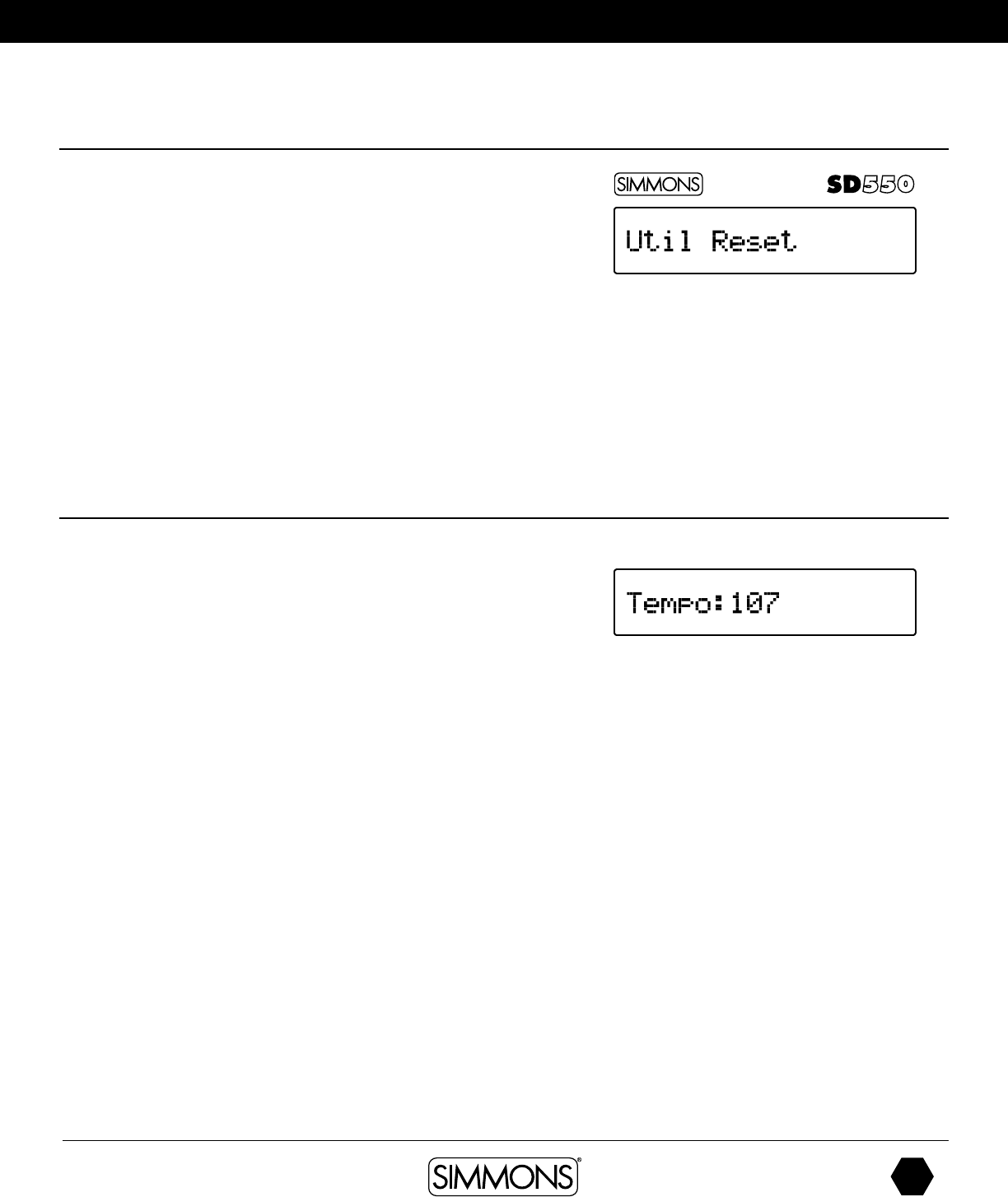
2. Press the PAGE button until you see the screen for “Util Reset”*
3. Press the SAVE button to reset the module.
The module will go through the reset procedure and afterwards return to
the Kit mode screen.
* There are two types of resets. Utility reset just resets the module settings.
Reset All will reset all the sounds as well as the module settings.
(Press PAGE button again to Reset All.)
Tempo
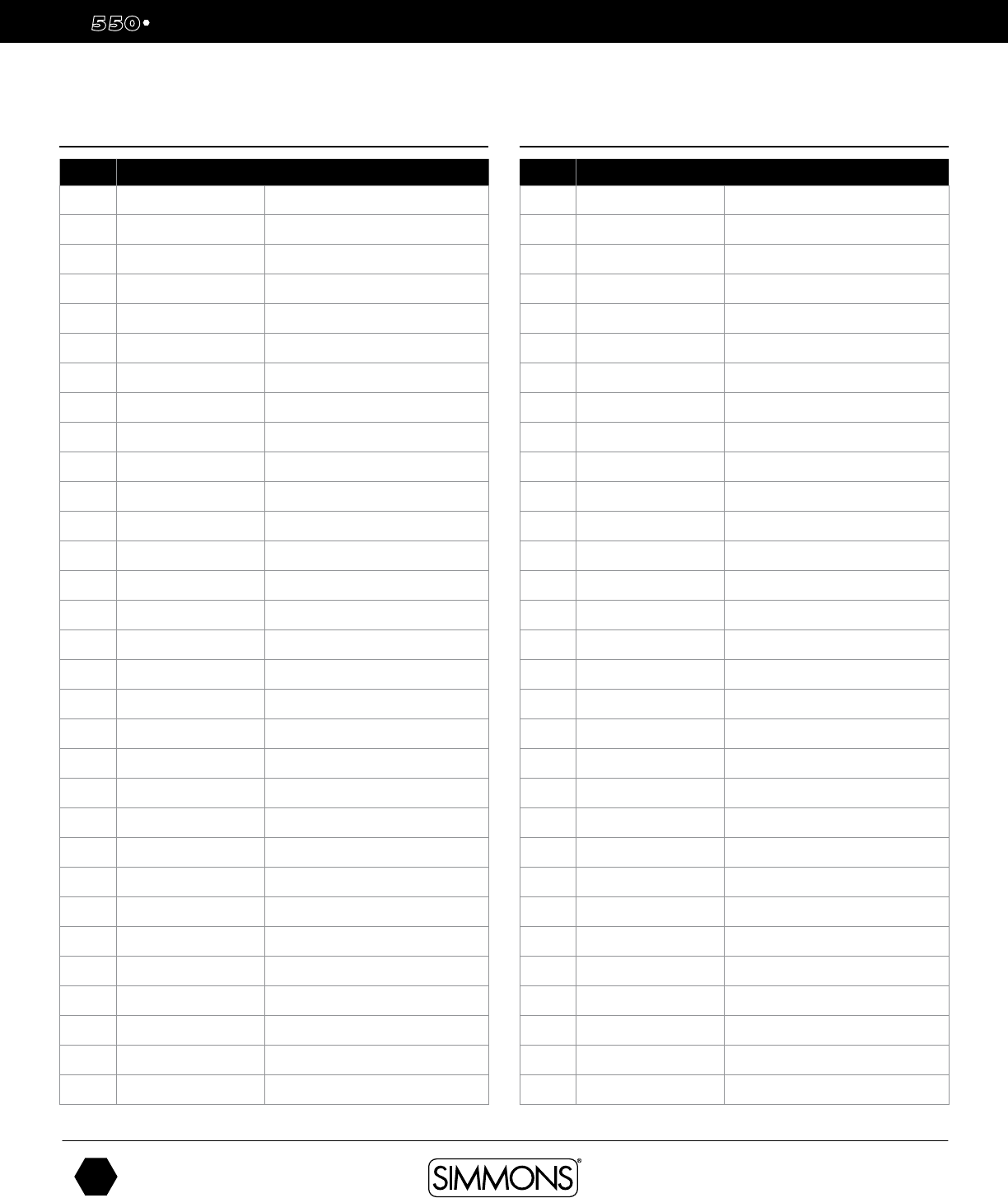
To adjust tempo press the TEMPO button. The current tempo will be displayed.
You can adjust the tempo with the -/+ buttons. You can also change the
tempo by tapping on the drum pads. To do this press the SAVE/ENTER
button. The screen will show “Tap..” to indicate the module can accept your
tempo input from the drum pads.
SD
OWNER’S MANUAL
28
The first name in electronic drums.
17201350 Simmons SD550 Owner's Manual.indd 02_23_18 1109AM
appendix
# Type Voices
1Bass Drum BD-Gated
2Bass Drum BD-ClassRok
3Bass Drum BD-EltroFnk
4Bass Drum BD-Funk 1
5Bass Drum BD-Funk 2
6Bass Drum BD-GTRKick
7Bass Drum BD-HvyMtl
8Bass Drum BD-Jazz
9Bass Drum BD-LAFunk
10 Bass Drum BD-PhatFunk
11 Bass Drum BD-Maple
12 Bass Drum BD-Metal
13 Bass Drum BD-Studio
14 Bass Drum BD-Old Funk
15 Bass Drum BD-Vintage
16 Snare SD-Gated
17 Snare SD-GatedCS
18 Snare SD-GatedRS
19 Snare SD-Aluminum
20 Snare SD-AlummCS
21 Snare SD-AlummRS
22 Snare SD-BellBrass
23 Snare SD-BllBrsCS
24 Snare SD-BllBrsRS
25 Snare SD-Brush
26 Snare SD-BrushRS
27 Snare SD-Bubinga
28 Snare SD-BubngaCS
29 Snare SD-BubngaRS
30 Snare SD-ClassRok
31 Snare SD-ClssRkCS
# Type Voices
32 Snare SD-ClssRkRS
33 Snare SD-DepBrass
34 Snare SD-DpBrssCS
35 Snare SD-DpBrssRS
36 Snare SD-ElctFkRS
37 Snare SD-ElctrFnk
38 Snare SD-Funk1
39 Snare SD-Funk1CS
40 Snare SD-Funk1RS
41 Snare SD-Funk2CS
42 Snare SD-Funk2RS
43 Snare SD-HeavyMetal
44 Snare SD-HvyMtlCS
45 Snare SD-HvyMtlRS
46 Snare SD-LAFnkRok
47 Snare SD-LAFkRkCS
48 Snare SD-LAFkRkRS
49 Snare SD- Maple
50 Snare SD-MapleCS
51 Snare SD-MapleRS
52 Snare SD-Metal
53 Snare SD-MetalCS
54 Snare SD-MetalRS
55 Snare SD-Reggae
56 Snare SD-ReggaeCS
57 Snare SD-ReggaeRS
58 Snare SD-ShllwBrs
59 Snare SD-ShBrsCS
60 Snare SD-ShBrsRS
61 Snare SD-ShalWood
62 Snare SD-ShWdCS
Voice List Voice List
www.simmonsdrums.net
29
The first name in electronic drums.
# Type Voices
63 Snare SD-ShWdRS
64 Snare SD-Steel1
65 Snare SD-Steel1CS
66 Snare SD-Steel1RS
67 Snare SD-Steel 2
68 Snare SD-Steel2CS
69 Snare SD-Steel2RS
70 Snare SD-Studio
71 Snare SD-StudioCS
72 Snare SD-StudioRS
73 Snare SD-Vintage
74 Snare SD-VintagCS
75 Snare SD-VintagRS
76 Snare SD-OldFunk
77 Tom TM-GatedHi
78 Tom TM-GatedLo
79 Tom TM-GatedMd
80 Tom TM-BrushHi
81 Tom TM-BrushLo
82 Tom TM-BrushMd
83 Tom TM-ClssRKHi
84 Tom TM-ClssRKLo
85 Tom TM-ClssRKMd
86 Tom TM-FunkHi
87 Tom TM-FunkLo
88 Tom TM-FunkMd
89 Tom TM-HvyMtlHi
90 Tom TM-HvyMtlLo
91 Tom TM-HvyMtlMd
92 Tom TM-LA Funk Hi
93 Tom TM-LA Funk Lo
# Type Voices
94 Tom TM-LA Funk Md
95 Tom TM-PhtFnkHi
96 Tom TM-MapleHi
97 Tom TM-PhtFnkLo
98 Tom TM-MapleLo
99 Tom TM-PhtFnkMd
100 Tom TM-MapleMd
101 Tom TM-MetalHi
102 Tom TM-MetalLo
103 Tom TM-MetalMid
104 Tom TM-StudioHi
105 Tom TM-StudioLo
106 Tom TM-StudioMd
107 Tom TM-OldFnkHi
108 Tom TM-VintagHi
109 Tom TM-OldFnkLo
110 Tom TM-VintagLo
111 Tom TM-OldFnkMd
112 Tom TM-VintagMd
113 Hi Hat HH-1Closed
114 Hi Hat HH-2Closed
115 Hi Hat HH-1Foot
116 Hi Hat HH-2Foot
117 Hi Hat HH-1Open
118 Hi Hat HH-2Open
119 Hi Hat HH-3Closed
120 Hi Hat HH-3Foot
121 Hi Hat HH-3Open
122 Hi Hat HH-4Closed
123 Hi Hat HH-4Foot
124 Hi Hat HH-4Open
appendix
Voice List Voice List
SD
OWNER’S MANUAL
30
The first name in electronic drums.
17201350 Simmons SD550 Owner's Manual.indd 02_23_18 1109AM
appendix
# Type Voices
125 Ride RD-Ping
126 Ride RD-Bell1
127 Ride RD-Bell2
128 Ride RD-Bow1
129 Ride RD-Bow2
130 Ride RD-RideEdg1
131 Ride RD-Bell3
132 Ride RD-Bow3
133 Ride RD-RideEdg2
134 Crash CY-China
135 Crash CY-Crash1
136 Crash CY-Crash2
137 Crash CY-Crash3
138 Percussion PR-AgogoLrg
139 Percussion PR-AgogoSm
140 Percussion PR-Bell
141 Percussion PR-BongoLrg
142 Percussion PR-BongoSm
143 Percussion PR-CabasaLg
144 Percussion PR-Cabasa
145 Percussion PR-Clave
146 Percussion PR-CongaSlp
147 Percussion PR-Conga
148 Percussion PR-CowbllOp
149 Percussion PR-CowbllMt
150 Percussion PR-CowblM2O
151 Percussion PR-Guiro
152 Percussion PR-Marcas
153 Percussion PR-PandroOp
154 Percussion PR-PandroRk
155 Percussion PR-PandrSlp
# Type Voices
156 Percussion PR-QuicaDwn
157 Percussion PR-QuicaHi
158 Percussion PR-Shaker
159 Percussion PR-Sleghbel
160 Percussion PR-Surdo
161 Percussion PR-TmbrnSlp
162 Percussion PR-Tambourn
163 Percussion PR-TimbleHi
164 Percussion PR-TimbleLo
165 Percussion PR-TimbleRm
166 Percussion PR-TimbleSm
167 Percussion PR-Timbale
168 Percussion PR-Timpani
169 Percussion PR-TriangMt
170 Percussion PR-TrangM2O
171 Percussion PR-TrangOpn
172 Percussion PR-TmbOpnSp
173 Percussion PR-TumbaSlp
174 Percussion PR-Tumba
175 Percussion PR-Vibraslp
176 Percussion PR-WhstlLng
177 Percussion PR-Whstlsht
178 Percussion PR-WdblokLo
179 Percussion PR-WdblokHi
180 Electronic Kick EK-808Kick
181 Electronic Kick EK-TekSynK
182 Electronic Kick EK-Hip Hop1
183 Electronic Kick EK-Hip Hop2
184 Electronic Kick EK-Hip Hop3
185 Electronic Kick EK-Techno1
186 Electronic Kick EK-Techno2
Voice List Voice List
www.simmonsdrums.net
31
The first name in electronic drums.
# Type Voices
187 Electronic Kick EK-Techno3
188 Electronic Kick EK-Techno4
189 Electronic Kick EK-Techno5
190 Electronic Kick EK-Techno6
191 Electronic Kick EK-Techno7
192 Electronic Kick EK-Techno8
193 Electronic Kick EK-Techno9
194 Electronic Kick EK-Techno10
195 Electronic Kick EK-Techno11
196 Electronic Kick EK-Techno12
197 Electronic Kick EK-Techno13
198 Electronic Kick EK-Techno14
199 Electronic Kick EK-Techno15
200 Electronic Kick EK-Techno16
201 Electronic Kick EK-Techno17
202 Electronic Kick EK-Techno18
203 Electronic Kick EK-Techno19
204 Electronic Kick EK-Techno20
205 Electronic Kick EK-Techno21
206 Electronic Kick EK-Techno22
207 Electronic Kick EK-Simmons1
208 Electronic Kick EK-Simmons2
209 Electronic Snare ES-Electro!
210 Electronic Snare ES-Tech1
211 Electronic Snare ES-Tech2
212 Electronic Snare ES-Tech3
213 Electronic Snare ES-Tech4
214 Electronic Snare ES-Tech5
215 Electronic Snare ES-Tech6
216 Electronic Snare ES-Tech7
217 Electronic Snare ES-Tech8
# Type Voices
218 Electronic Snare ES-Tech9
219 Electronic Snare ES-Tech10
220 Electronic Snare ES-Tech11
221 Electronic Snare ES-HouseSnr
222 Electronic Snare ES-Kling
223 Electronic Snare ES-TekCrazy
224 Electronic Snare ES-TekCrzy2
225 Electronic Snare ES-Hip Hop1
226 Electronic Snare ES-Hip Hop2
227 Electronic Snare ES-Hip Hop3
228 Electronic Snare ES-Hip Hop4
229 Electronic Snare ES-Techno1
230 Electronic Snare ES-Techno2
231 Electronic Snare ES-Techno3
232 Electronic Snare ES-Hip Hop5
233 Electronic Snare ES-Simmons1
234 Electronic Snare ES-Simmons2
235 Electronic Snare ES-Simmons3
236 Electronic Snare ES-Simmons4
237 Electronic Snare ES-Simmons5
238 Electronic Snare ES-Simmons6
239 Electronic Snare ES-Simmons7
240 Electronic Snare ES-Simmons8
241 Electronic Snare ES-Simmons9
242 Electronic Snare ES-Simmns10
243 Electronic Snare ES-Simmns11
244 Electronic Snare ES-808
245 Electronic Snare ES-DRAS
246 Electronic Snare EP-808Snare
247 Electronic Tom ET-Electro1
248 Electronic Tom ET-Electro2
appendix
Voice List Voice List
SD
OWNER’S MANUAL
32
The first name in electronic drums.
17201350 Simmons SD550 Owner's Manual.indd 02_23_18 1109AM
appendix
Voice List Voice List
# Type Voices
249 Electronic Tom ET- Simmns1
250 Electronic Tom ET- Simmns2
251 Electronic Tom ET- Simmns3
252 Electronic Tom ET- Simmns4
253 Electronic Tom ET- Simmns5
254 Electronic Tom ET- Simmns6
255 Electronic Tom ET- Simmns7
256 Electronic Tom ET- Simmns8
257 Electronic Tom ET-Techno1
258 Electronic Tom ET-Techno2
259 Electronic Tom ET-Techno3
260 Electronic Tom ET-Techno4
261 Electronic Tom ET-Techno5
262 Electronic Tom ET-909
263 Electronic Percussion EC-606Clsd1
264 Electronic Percussion EC-606Clsd2
265 Electronic Percussion EC-606Open
266 Electronic Percussion EC-808
267 Electronic Percussion EC-808Clsd
268 Electronic Percussion EC-808Open
269 Electronic Percussion EC-909Crash
270 Electronic Percussion EC-909Open
271 Electronic Percussion EC-ClosdHat
272 Electronic Percussion EC-Crash1
273 Electronic Percussion EC-Crash2
274 Electronic Percussion EC-Crash3
275 Electronic Percussion EC-HHfoot
276 Electronic Percussion EC-ClsdHat1
277 Electronic Percussion EC-ClsdHat2
278 Electronic Percussion EC-ClsdHat3
279 Electronic Percussion EC-ClsdHat4
# Type Voices
280 Electronic Percussion EC-ClsdHat5
281 Electronic Percussion EC-ClsdHat6
282 Electronic Percussion EC-OpenHat1
283 Electronic Percussion EC-OpenHat2
284 Electronic Percussion EC-OpenHat3
285 Electronic Percussion EC-OpenHat4
286 Electronic Percussion EC-OpenHat5
287 Electronic Percussion EC-OpenHat6
288 Electronic Percussion EC-HpHpClH1
289 Electronic Percussion EC-HpHpClH2
290 Electronic Percussion EC-HpHpOpH1
291 Electronic Percussion EC-HpHpOpH2
292 Electronic Percussion EC-HpHpOpH3
293 Electronic Percussion EC-SimmnsRd
294 Electronic Percussion EC-SimmnsCr
295 Electronic Percussion EC-SimnsCH1
296 Electronic Percussion EC-SimnsOH1
297 Electronic Percussion EC-SimnsOH2
298 Electronic Percussion EC-SimnsOH3
299 Electronic Percussion EC-TechHHCl
300 Electronic Percussion EC-TechCrsh
301 Electronic Percussion EC-TechChna
302 Electronic Percussion EC-TechOHH1
303 Electronic Percussion EC-TechOHH2
304 Electronic Percussion EC-TechRd1
305 Electronic Percussion EC-TechRd2
306 Electronic Percussion EC-TechCrFX
307 Electronic Percussion EP-NoiseClp
308 Electronic Percussion EP-Sinetick
309 Electronic Percussion EP-808Bleep
310 Electronic Percussion EP-808Clap
www.simmonsdrums.net
33
The first name in electronic drums.
# Type Voices
311 Electronic Percussion EP-808Clap2
312 Electronic Percussion EP-808Clave
313 Electronic Percussion EP-808Conga
314 Electronic Percussion EP-808Cowbl
315 Electronic Percussion EP-808Marca
316 Electronic Percussion EP-808Rim
317 Electronic Percussion EP-Blip
318 Electronic Percussion EP-Crack
319 Electronic Percussion EP-ElctrClp
320 Electronic Percussion EP-FiltrSnp
321 Electronic Percussion EP-Kling
322 Electronic Percussion EP-Ping
323 Electronic Percussion EP-Punch
324 Electronic Percussion EP-Sboing
325 Electronic Percussion EP-Sinetick
326 Electronic Percussion SlpBasPhrse1
327 Electronic Percussion SlpBasPhrse3
328 Electronic Percussion GitarPhrse2
appendix
Voice List
# No. Display Name
1K01: Maple
2K02: LA Funk Rok
3K03: Funk 1
4K04: Vintage
5K05: Metal
6K06: Bubinga Kit
7K07: Classic Rock
8K08: Funk 2
9K09: Heavy Metal
10 K10: Techno 1
11 K11: Country
12 K12: Hip Hop 1
13 K13: Simmons
14 K14: Latin Perc
15 K15: Studio
16 K16: ElectroFunk
17 K17: Jazz
18 K18: Brushes
19 K19: Reggae
20 K20: 80's Gated
21 K21: Mental
22 K22: Breakbeat
23 K23: Funk 3
24 K24: Crazy!
25 K25: Hip Hop 2
Kit List
SD
OWNER’S MANUAL
34
The first name in electronic drums.
17201350 Simmons SD550 Owner's Manual.indd 02_23_18 1109AM
appendix
# PG# Manual Name
10Acoustic Piano
24Electric Piano
37Clavinet
416 Drawbar Organ
517 Percussion Organ
624 Nylon Guitar
725 Steel Guitar
827 Tweed Guitar
928 Muted Guitar
10 29 Distorted Guitar 1
11 30 Distorted Guitar 2
12 32 Acoustic Bass
13 38 Acoustic Bass Slap
14 39 Acoustic Bass Slide
15 33 Fingered Bass
16 40 Slap bass hardthumb
17 37 Muted Bass
18 34 Pick Bass
19 35 Rock Bass
20 36 Slap Bass
21 41 Slap Bass Softthumb
22 42 Slap Bass Phrase 1
23 43 Slap Bass Phrase 2
24 44 Slap Bass Phrase 3
25 45 Funk Guitar Phrase 1
26 46 Funk Guitar Phrase 2
27 47 Funk Guitar Phrase 3
28 48 Funk Guitar Phrase 4
29 49 Funk Guitar Phrase 5
30 50 Funk Guitar Phrase 6
31 61 Horn Section
# PG# Manual Name
32 80 Synth 1
33 81 Synth 2
34 82 Synth 3
35 83 Synth 4
36 84 Synth 5
37 85 Synth 6
38 86 Synth 7
39 87 Synth 8
40 88 Synth 9
41 89 Synth 10
42 90 Synth 11
43 91 Synth 12
Key Map Key Map
www.simmonsdrums.net
35
The first name in electronic drums.
appendix
Display Name
S01: Bonz beat
S:02 Funky D
S:03 Blues Beat
S:04 HeadBanger
S:05 Black Magic
S:06 Funky Fly
S:07 Metalhead
S:08 MoreCowbell
S:09 RockShuffle
S:10 Hip Hoppin'
S:11 Tech Step
S:12 Surf's Up
S:13 Fusion Gruv
S:14 Alt Rock
S:15 Salsa
S:16 Funky Strut
S:17 Texas Blues
S:18 Big 70's
S:19 ItsGt2BFnky
S:20 80's Rock
S:21 East Coast
S:22 Freakiness
S:23 SearchLite
S:24 Jazz Walk
S:25 B' Good
S:26 BreakDown
S:27 Train Groove
S:28 HVY Groove
S:29 PhatCheck
S:30 Rock Blues
S:31 LA Funk
Display Name
S:32 Ballad Rock
S:33 Rockin'Out
S:34 UpBeat
S:35 Stage Funk
S:36 Samba
S:37 NightClub
S:38 70's Rock
S:39 New Reggae
S:40 Last Dance
S:41 Big Rock
S:42 Steady 8's
S:43 Funky Pop
S:44 R&B
S:45 B Invasion
S:46 80's Pop
S:47 Freaky
S:48 Hard Trance
S:49 Maracas
S:50 Texas2Stp
Patterns Patterns
SD
OWNER’S MANUAL
36
The first name in electronic drums.
17201350 Simmons SD550 Owner's Manual.indd 02_23_18 1109AM
appendix
MIDI Implementation Chart
Function Transmitted Recognized Remarks
Basic Default
Channel Changed
10 CH Only
X
1-16 CH
1-16CH
Mode Default
Messages
Altered
Mode 3
X
**********
Mode 3
X
X
Note
Number: True voice
0~127
**********
0~127
0~127
Velocity Note ON
Note OFF
O 9nH,v=1-127
O 8nH,v=0
O 9nH,v=1-127
O 9nH,v=0 or 8nh
Affter Key’s X X
Pitch Bender X O
Control Change 0,32
1
6
7
10
11
64
66
67
80, 81
84
91,93
100,101
121
X
X
X
X
X
X
X
X
X
X
X
X
X
X
O
O
O
O
O
O
O
O
O
O
O
O
O (*1)
O
Bank Select
Modulation
Data Entry
Volume
Pan
Expression
Sustain
Sostenuto
Soft pedal
DSP TYPE
Portamento
DSP DEPTH
RPN LSB,MSB
Reset all Controllers
Program
Change : True
O 0-127
0-127
O 0-127
0-127
System Exclusive X O
System: Song Position
Song Select
Common: Tune
X
X
X
X
X
X
Aux: Local on/off
All Notes Off
Messages: Active Sense
Reset
X
X
X
X
O
O
X
X
Mode1: OMNI ON, POLY
Mode2: OMNI ON, MONO
Mode3: OMNI OFF, POLY
Mode4: OMNI OFF, MONO
*1: Registered parameter number:
#0: Pitch sensivity
#1: Fine tuning in cents
#2: Coarse tuning in half-tones
O: Yes
X: NO
