Twitter Manual
User Manual: Pdf
Open the PDF directly: View PDF  .
.
Page Count: 5

1. Submit Subpage:
In Submit subpage the user can submit the task for collecting tweets on the fly. There are four fields: key
words, start Date, End Date and Location are supported. Start Date and End Date are required, the start
date should be in the future, the initial value is 10 minutes after your load this page, meanwhile, the
date range is supported maximum 30 days. Key words and Location fields are optional. PLEASE READ
SECITON 1.1 AND 1.2 before you use these two fields:
1.1. Keywords field:
A comma-separated list of phrases which will be used to determine what Tweets will be delivered on
the stream. A phrase may be one or more terms separated by spaces, and a phrase will match if all of
the terms in the phrase are present in the Tweet, regardless of order and ignoring case. By this model,
you can think of commas as logical ORs, while spaces are equivalent to logical ANDs (e.g. ‘the twitter’
is the AND twitter, and ‘the, twitter’ is the OR twitter).
1.2. Location field:
A USA place name is specified to filter tweets by. Please use the typeahead list shown names to do this.
Only geolocated Tweets falling within the requested location bounding boxes will be included. For
example, keyword=twitter & location=San Francisco, would match any tweets containing the term
Twitter AND the user is coming from the San Francisco area.
2. Search Subpage:
By default, this page shows the most recent 1000 tweets from last finished task, the newest tweet
comes first. You can select the finished task from the task dropdown list. In the optional field, there are
four fields: keywords, from date, to date and location. These four fields are used for secondary search
among the tweets collected by this task. By default, the from date and to date are the start date and end
date from the task, you can change it if you want. The keywords field has the same functionary as the
one in submit subpage.
Searching the whole databases:
The first row allows user searching the databases.
Keywords: Multiple Keywords should be separated by comma
From Date: Start date. For example, 07/01/2016.
To Date: End data. For example, 07/30/2016.
Location: location filter.
Maximum search tweets limits: Truncated number of returned tweets. There is high probability that the
submitted search query returns a large tweets back. It might slow down the client computer or crash the
browser and takes long time to wait the server send it back.
Search Tweets button: click this button will submit the search query.
# of Tweets Returned: shows the number of returned tweets matched the query.
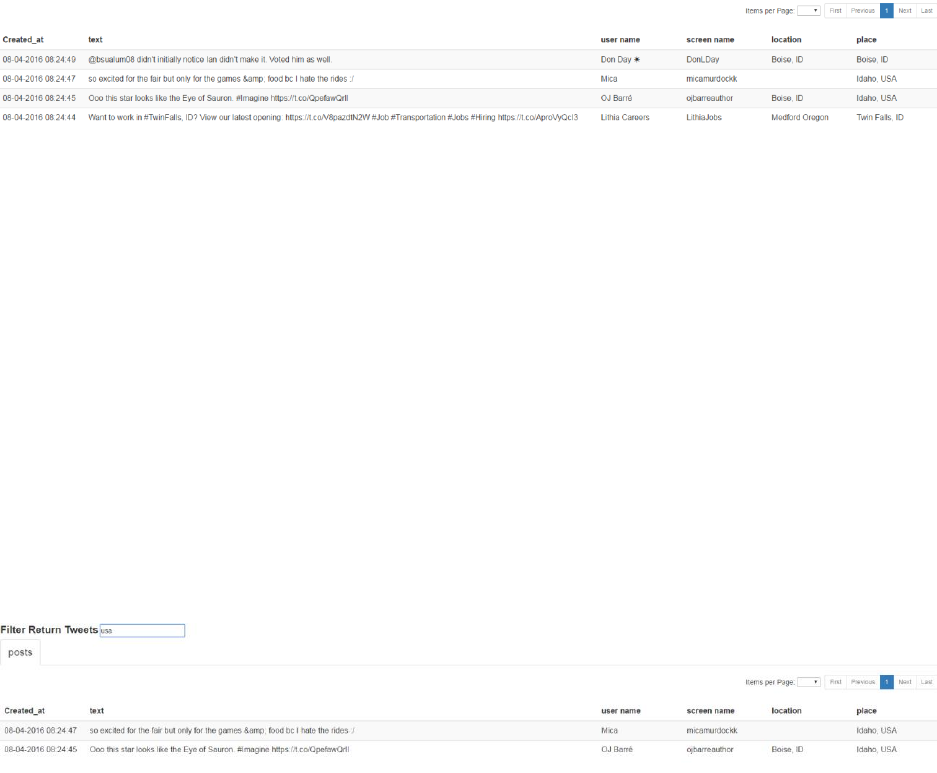
2.1 Column meanings:
In this page, you will see tweets like this:
Created_at: the time this tweet posts.
Text: the content of this tweet.
User name: twitter user name.
Screen name: user’s screen name.
Location: user’s location.
Place: user’s place.
Tweet data has Place and Location two attributes store user’s location, either one might be used.
2.2 Filter Return Tweets
You can use the Filter Return Tweets box in search subpage match any substring in the tweets. It’s case
non-sensitive. For example, search the word “USA” in search box brings back these:
The search box filters out the tweets that the text values of Create_at, text, user name, screen name or
location contains “USA”.
2.3 Multi-column Sorting
Each column has three states: sorted from low to high, sorted from high to low, unsorted. The initial
state is unsorted. If you click the column name, the state changes in this order: unsorted, sorted from
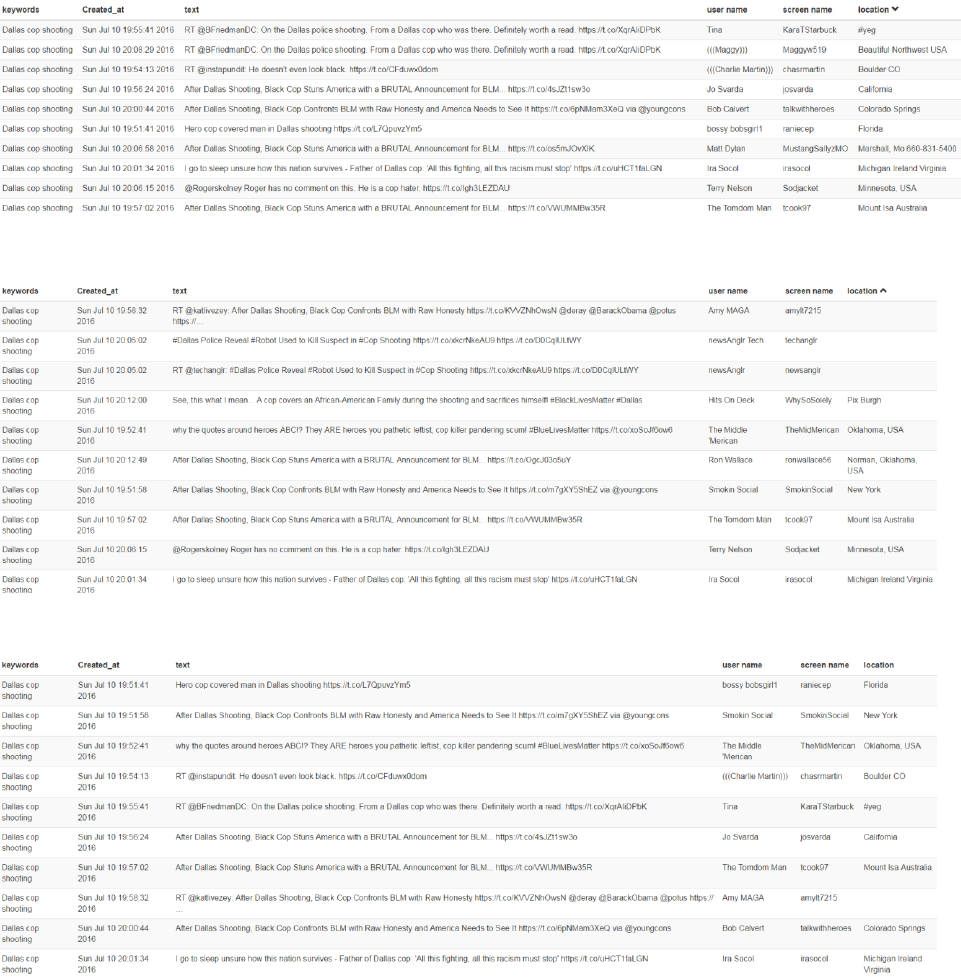
low to high, sorted from high to low. For example, click location column name sorts location from low to
high:
Click location column name to sort from high to low:
Click location column name the table resorts to the initial state:
If you want to sort location from low to high and also screen name from low to high, just click location
column name then click the screen name:
3 Chart subpage
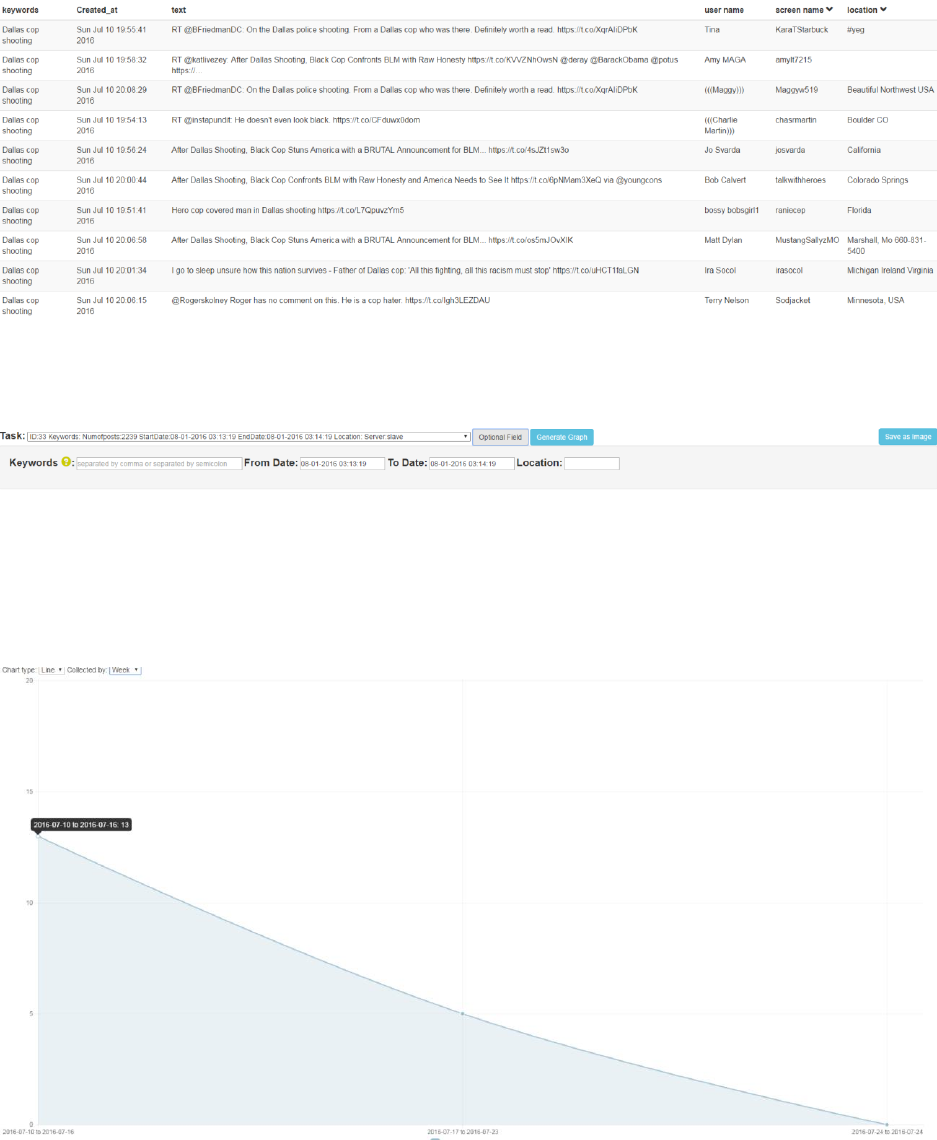
The first row of Chart subpage contains the query interface:
This works like the interface in search subpage. There any difference is no limit field in this page.
The meaning of each field is the same as in Search subpage. For example, if we click the generate graph
button:
It returns the total number of the tweets in each week.
You can change the chart by select collected by hour, day, week or month. It shows the number of
tweets in hours, days, weeks or months.
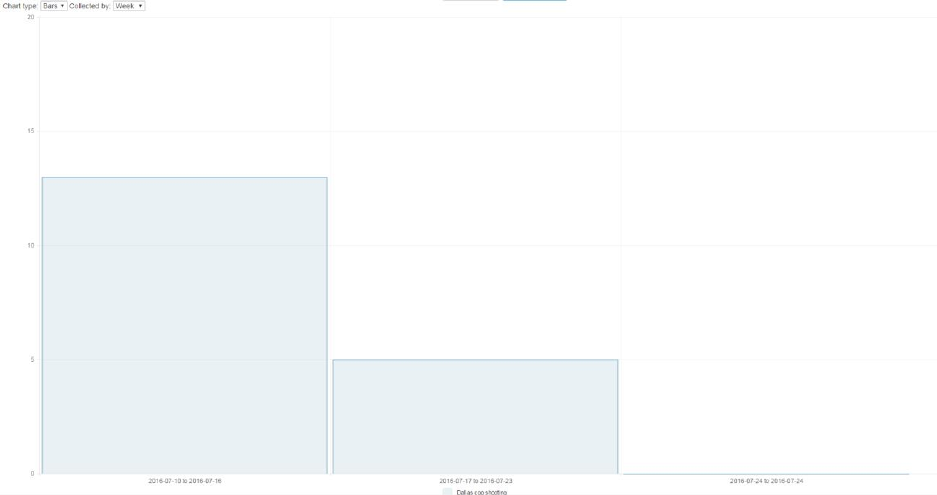
Currently the graph system support line graph and Bar graph.
There is a Save as Image button on the top right saves the chart as a pdf file.
