Awx User Guide 1.4.0
User Manual: Pdf
Open the PDF directly: View PDF  .
.
Page Count: 99

Copyright 2013 AnsibleWorks, Inc. 1
!
!
AnsibleWorks,AWX,User,Guide!
!
!
Version!1.4.0!
November!20,!2013!
awx@ansibleworks.com!
!

Copyright 2013 AnsibleWorks, Inc. 2
!
"#$%&!'(!)'*+&*+,!
"#$%&!'(!)'*+&*+,!-------------------------------------------------------------------------------------------------------------------!.!
/0&102&3!--------------------------------------------------------------------------------------------------------------------------------!4!
Licensing!........................................................................................................................................................................................!4!
Updates!and!Support!................................................................................................................................................................!4!
Requirements!..............................................................................................................................................................................!4!
Release!Notes!...............................................................................................................................................................................!5!
Known!Issues!...............................................................................................................................................................................!6!
Release!History!...........................................................................................................................................................................!6!
5&++2*6!7+#1+&8!-----------------------------------------------------------------------------------------------------------------------!9!
Installation!and!Setup!..............................................................................................................................................................!7!
Upgrade!an!Existing!AWX!Installation!..............................................................................................................................!9!
Quick!Start!.................................................................................................................................................................................!10!
:,&1!5;28&!----------------------------------------------------------------------------------------------------------------------------!4<!
Logging!In!...................................................................................................................................................................................!38!
Home!............................................................................................................................................................................................!38!
Organizations!............................................................................................................................................................................!39!
Users!.............................................................................................................................................................................................!45!
Teams!...........................................................................................................................................................................................!52!
Permissions!...............................................................................................................................................................................!60!
Credentials!.................................................................................................................................................................................!61!
Projects!........................................................................................................................................................................................!64!
Inventories!.................................................................................................................................................................................!68!
Job!Templates!...........................................................................................................................................................................!79!
Jobs!................................................................................................................................................................................................!83!
Best!Practices!............................................................................................................................................................................!89!
Security!........................................................................................................................................................................................!89!
Troubleshooting!......................................................................................................................................................................!90!
5%',,#1=!--------------------------------------------------------------------------------------------------------------------------------!>?!
:,2*6!@ABC!32+D!BEF!-----------------------------------------------------------------------------------------------------------!>.!
B8G2*2,+1#+2'*!'(!BEF!---------------------------------------------------------------------------------------------------------!>.!
BCH!----------------------------------------------------------------------------------------------------------------------------------------!>I!
!

Copyright 2013 AnsibleWorks, Inc. 3
!
/0&102&3!
BEF!
AnsibleWorks AWX is a web-based user interface and REST API endpoint for Ansible, the open
source IT orchestration engine. Whether sharing operations tasks with your team or integrating
with Ansible through the API, AWX provides many powerful tools to make your automation life
easier.
"1;&!JC;,D!K;++'*L!B;+'G#+2'*!
Access your favorite projects and re-trigger execution from the web interface with a minimum of
clicking. AWX will let you supply input variables, let you pick your credentials, will kick off and
monitor the job, and allow you many great views into the results and the history of your hosts
over time.
M'%&!K#,&8!BNN&,,!)'*+1'%!
AnsibleWorks AWX allows you to delegate specific authority to different teams or explicit users.
Keep some projects private. Allow some users to edit inventory and others to run playbooks
against only certain systems—either in dry run or live mode.
)%';8!O!B;+',N#%2*6!P%&Q2$2%2+=!
AWX features a powerful callback feature that allows nodes to request configuration on demand.
While optional, this is an ideal solution for an auto-scaling scenario, integrating with provisioning
servers like Cobbler, or when dealing with cloud nodes with unpredictable uptimes. Requiring no
software to be installed on remote nodes, the callback solution can be triggered via a simple call
to ‘curl’ or ‘wget’, and is easily embeddable in init scripts, kickstarts, or preseeds.
"D&!H8&#%!MR7"(;%!BCH!
The AWX REST API is the ideal RESTful API for a systems management application, with all
resources fully discoverable, paginated, searchable, and well modeled. A styled API browser
allows API exploration from the API root (http://servername/api), showing off every resource and
relation. Everything that can be done in the user interface can be done in the API—and more.

Copyright 2013 AnsibleWorks, Inc. 4
@2N&*,2*6!
AWX is a proprietary software product and is licensed on an annual subscription basis. There is
no license fee for managing up to 10 hosts. Should you wish to acquire a license for additional
servers or get support for the ones you have, please visit http://ansibleworks.com/ansibleworks-
awx for details, https://store.ansibleworks.com to manage licenses, or contact
awx@ansibleworks.com for assistance.
Ansible is an open source software project and is licensed under the GNU General Public
License version 3, as detailed in the Ansible source code:
https://github.com/ansible/ansible/blob/devel/COPYING
This document is Copyright © 2013 AnsibleWorks, Inc. All rights reserved.
!
:S8#+&,!#*8!7;SS'1+!
AWX is licensed as an annual subscription, which includes:
● Standard or Premium (24x7) Support via web, email, and telephone with SLA
● All regular updates and releases of AWX and Ansible
For more information, please contact AnsibleWorks at awx@ansibleworks.com or at
http://www.ansibleworks.com/ansible-subscriptions/.
M&T;21&G&*+,!
AnsibleWorks AWX has the following minimum requirements:
● Supported Operating Systems:
○ Red Hat Enterprise Linux 6
○ CentOS 6
○ Ubuntu 12.04 LTS
● Ansible 1.2.2
● 2 GB RAM
● 20 GB hard disk
While other operating systems may technically function, currently only this list are supported by
AnsibleWorks. If you have a firm requirement to run the AWX server on an unsupported
operating system, please contact awx@ansibleworks.com for further information.
NOTE: For users of Red Hat Enterprise Linux or CentOS systems, SELinux can be set to

Copyright 2013 AnsibleWorks, Inc. 5
disabled, permissive, or enforcing, but is only supported in “targeted” mode.
NOTE: Although AWX and Ansible are written in Python, they are full applications and not a
simple Python library. Therefore AWX cannot be installed in a Python virtualenv or similar;
you must install it as described in the installation instructions below.
NOTE: It is recommended to use Ansible version 1.4 or greater, for improved performance.
However, Ansible version 1.2 is supported for AWX 1.4.
The requirements for systems managed by AWX are the same as for Ansible at:
http://www.ansibleworks.com/docs/gettingstarted.html
M&%&#,&!U'+&,!
• Changes from 1.3.1
o Added new Home tab with dashboard view of job and host status
o Added user interface for inventory synchronization with Amazon Web Services
and Rackspace Cloud Servers. Configure this in the groups editor of the
Inventories tab.
o Moved all credentials to the Credentials tab, including SSH, SCM, and cloud
management. You can now create and manage all credentials from the
Credentials tab. Previously, credentials were owned by a project, not a particular
user. Any existing SCM synchronization jobs will be migrated such that the
credentials will be owned by the admin user. If you find you can no longer
synchronize SCM-based projects, please review the credentials assigned to the
admin user and change their ownership to the appropriate team.
o SCM integration dialogs are simplified
o The hosts and groups pages have a more unified the look and feel
o Various pages have new red and green light icons to indicate status
o Added the Activity Stream as a beta feature available only to admin users in this
release. The activity stream is accessed by an icon in the top right of most
screens and shows what actions have been performed and by which users.
• Changes from 1.2.2
o Added integration with Source Code Management systems for importing and
managing AWX project playbooks
o Added integration with LDAP and Active Directory for AWX user management.
Please, see the section Using LDAP with AWX for more information.
o The inventory display has been revised to improve the user experience

Copyright 2013 AnsibleWorks, Inc. 6
V*'3*!H,,;&,!
1. AnsibleWorks AWX implements a role based access control system. You may appear to
be able to edit objects that do not belong to you (like being able to pull up an edit dialog
on your team mates whom you already have permission to view). Don’t worry, when you
try to edit something, you’ll get a 403 error, and you can’t see any information you
shouldn’t already have access to as defined in the system.
2. This version of AWX does not support scheduling jobs from the UI, only triggering them.
You may schedule jobs via a cron script via the AWX API, or using the AWX cli found at
github.com/ansible/awx-cli.
M&%&#,&!W2,+'1=!
The release history for this documentation is as follows:
Version
Date
Changes
1.4.0
November 21, 2013
Updated for release of AWX
1.4
1.3.0
September 13, 2013
Updated for release of AWX
1.3
1.2.2
July 31, 2013
Initial Release
!

Copyright 2013 AnsibleWorks, Inc. 7
!
5&++2*6!7+#1+&8!
Welcome to AnsibleWorks AWX!
To get started, first follow the installation instructions in the section entitled Installation and
Setup. Then, either walk through the quick start below to quickly get up and running with AWX
or browse through the documentation and design an implementation plan that works for you.
We value your feedback. Please contact us at awx@ansbileworks.com and let us know what
you think and your ideas for future features!
H*,+#%%#+2'*!#*8!7&+;S!
You can expect the installation of AWX to take less than fifteen minutes, depending on the
speed of your network connection. (This installation will require that the AWX server be able to
access the Internet.)
At the end of the installation, you will use your web browser to access AWX and utilize all of its
capabilities.
NOTE: Although AWX and Ansible are written in Python, they are full applications and not a
simple Python library. Therefore AWX cannot be installed in a Python virtualenv or similar;
you must install it as described in the installation instructions below.
1. Install Ansible 1.3.x or later as detailed in the Ansible documentation at:
http://www.ansibleworks.com/docs/gettingstarted.html#id3.
For convenience, we’ll summarize those installation instructions here:
a. For Red Hat Enterprise Linux 6 and CentOS 6:
i. Configure the EPEL repository
[root@localhost ~]# yum install http://mirror.oss.ou.edu/epel/6/x86_64/epel-release-6-
8.noarch.rpm
i. Install Ansible

Copyright 2013 AnsibleWorks, Inc. 8
[root@localhost ~]# yum install ansible
b. For Ubuntu 12.04:
i. Install Ansible dependencies
[root@localhost ~]# apt-get install python-yaml python-paramiko python-jinja2 python-pip
ii. Install Ansible
[root@localhost ~]# pip install ansible
2. Download the AWX installer tarball from:
http://ansibleworks.com/releases/awx/setup/awx-setup-latest.tar.gz
3. Extract the tarball and cd into the setup directory. Replace the string “VERSION” in the
commands below with the version of AWX that you are installing e.g., “1.4.0”.
[root@localhost ~]# tar xvzf awx-setup-latest.tar.gz
[root@localhost ~]# cd awx-setup-VERSION
4. Edit the file “group_vars/all”. Modify the variable “pg_password” to change the default
database password.
NOTE: The password should not contain quotes.
5. If you wish to setup LDAP / Active Directory authentication for AWX, please review the
section Using LDAP with AWX.
6. From the awx-setup-VERSION directory, run setup.sh
NOTE: For users of Red Hat Enterprise Linux or CentOS, PackageKit can frequently interfere
with the update mechanism. Consider disabling or removing PackageKit if installed prior to
running the setup process.
[root@localhost ~]# ./setup.sh
Copyright 2013 AnsibleWorks, Inc. 9
a. Setup will install AWX from RPM or Deb packages using repos hosted on
AnsibleWorks.com.
When setup completes successfully, you should be able to point your web browser to the AWX
server and see the AWX login screen.
If the installation of AWX fails or if you need assistance, please contact us at
awx@ansibleworks.com. AnsibleWorks subscription customers will receive a faster response by
filing a support issue.
:S61#8&!#*!RQ2,+2*6!BEF!H*,+#%%#+2'*!
You can upgrade your existing AWX installation the latest version by running the setup playbook
for the new version of AWX. All data will be preserved. However, it is important that if you
changed any of the parameters in the file “group_vars/all” (e.g. “pg_password”) that you make
the same changes to the new “group_vars/all” file.
You can expect the upgrade of AWX to take less than fifteen minutes, depending on the speed
of your network connection. (This installation will require that the AWX server be able to access
the Internet.)
At the end of the upgrade, you will use your web browser to access the AWX server and utilize
all of its capabilities.
This upgrade procedure assumes that you have a working installation of Ansible and AWX.
1. Backup the existing AWX database.

Copyright 2013 AnsibleWorks, Inc. 10
[root@localhost ~]# awx-manage dumpdata > backup.json
2. Download the AWX installer tarball from:
http://ansibleworks.com/releases/awx/setup/awx-setup-latest.tar.gz
3. Extract the tarball and cd into the setup directory. Replace “VERSION” with the version
of AWX you are installing e.g., “1.4.0”.
[root@localhost ~]# tar xvzf awx-setup-latest.tar.gz
[root@localhost ~]# cd awx-setup-VERSION
4. Edit the file “group_vars/all”. Modify the variable “pg_password” to change the default
database password.
5. If you wish to setup LDAP / Active Directory authentication for AWX, please review the
section Using LDAP with AWX.
6. From the awx-setup-VERSION. directory, run setup.sh
NOTE: For users of Red Hat Enterprise Linux or CentOS, PackageKit can frequently interfere
with the update mechanism. Consider disabling or removing PackageKit if installed prior to
running the setup process.
[root@localhost ~]# ./setup.sh
a. Setup will install AWX from RPM or Deb packages using repos hosted on
AnsibleWorks.com.
When setup completes successfully, you should be able to point your web browser to the AWX
server and see the AWX login screen.
If the upgrade of AWX fails or if you need assistance, please contact us at
awx@ansibleworks.com. AnsibleWorks subscription customers will receive a faster response by
filing a support issue.
X;2NY!7+#1+!!

Copyright 2013 AnsibleWorks, Inc. 11
After the installation of AWX is complete, we’ll complete the following tasks to quickly set up and
launch our first Ansible playbook using AWX. This first playbook launch will execute simple
Ansible tasks to teach you how to use AWX and also ensure AWX is setup properly.
Here’s a summary of the tasks we’ll need to accomplish:
1. Login as Super User
2. Create an Organization
3. Add a new User to the organization
4. Add an Inventory to the organization
5. Create a set of Credentials
6. Create a Project
7. Create a new Job Template using an Ansible example playbook
8. Launch it!
You can expect the Quick Start to take less than thirty minutes, from beginning to end. At the
end of the Quick Start, you’ll have a functioning AWX that you can use to launch more
sophisticated playbooks.
For the Quick Start, you will need to have completed the AWX installation and you will also need
a target system to deploy the playbook to. This can be any sort of system that can be managed
by Ansible.
NOTE: The requirements for a system to be managed by Ansible are at
http://www.ansibleworks.com/docs/gettingstarted.html.
Ready? Let’s go!
1. @'62*!#,!7;S&1!:,&1!
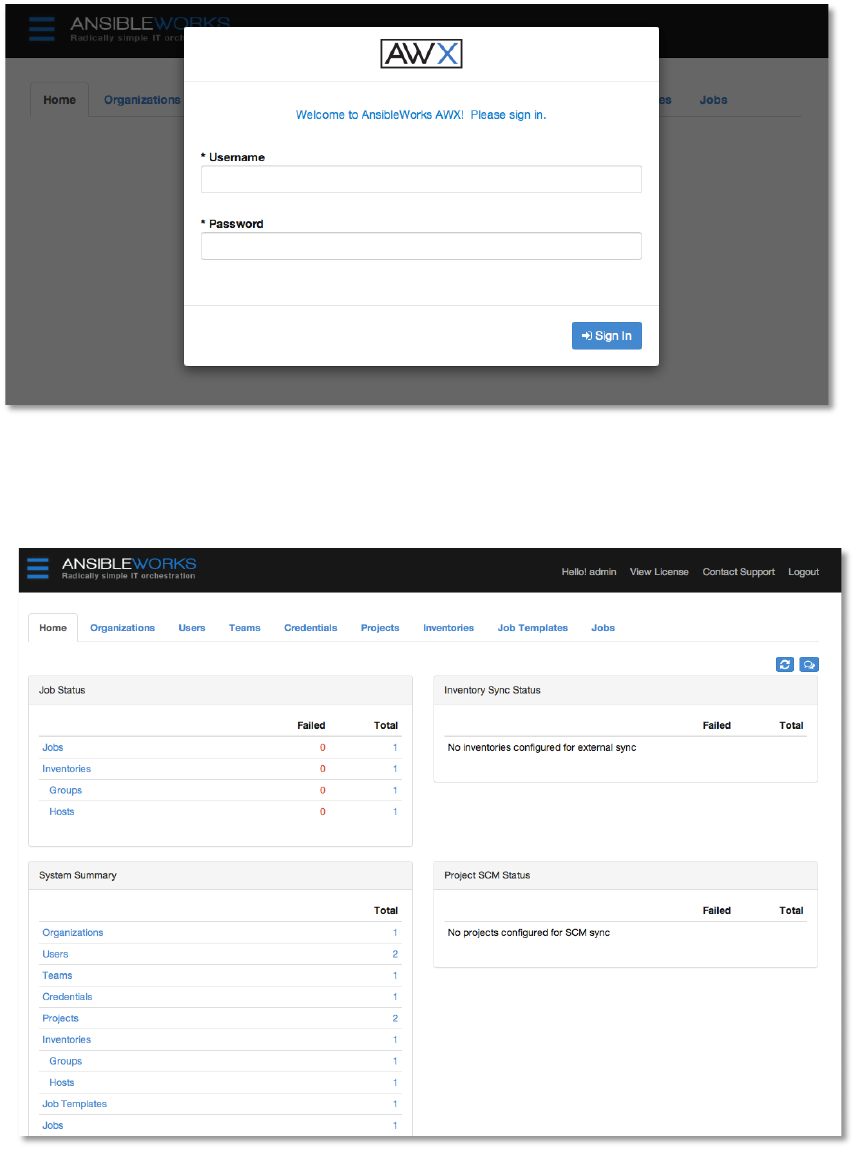
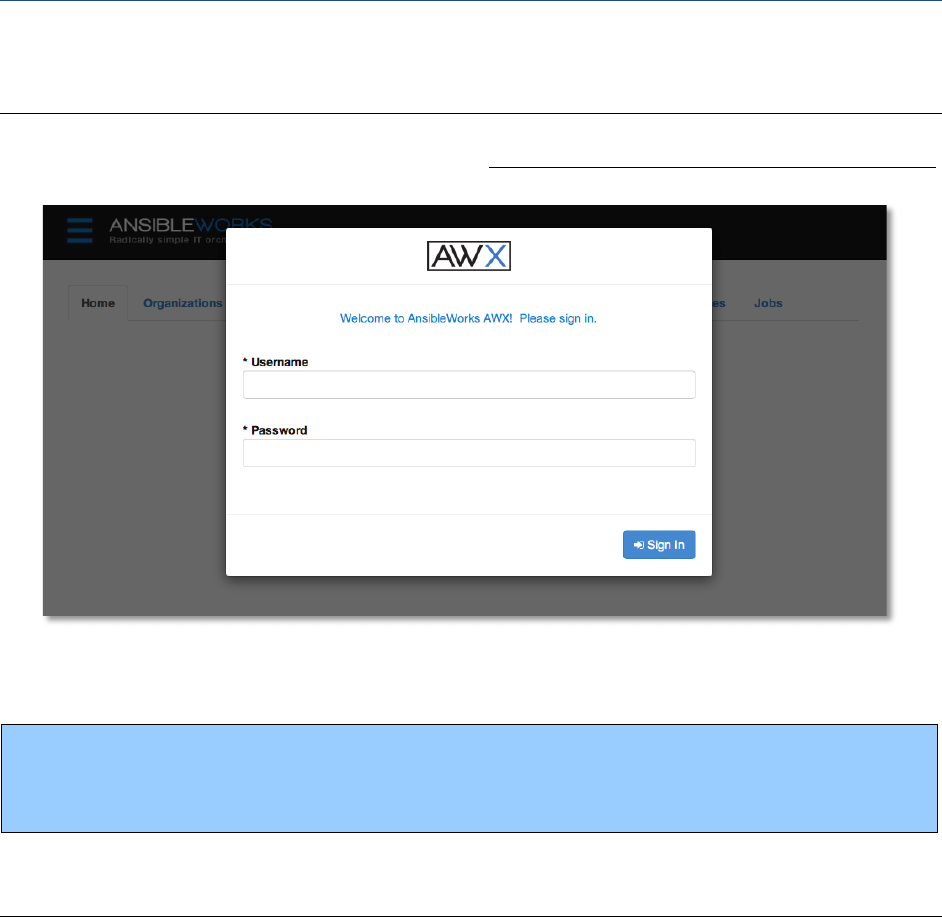
First, log in to AWX by browsing to the AWX server URL at http://<AWX server name>/
Log in using the username and password set during the installation process. By default, this will
be username: “admin” and password: “password”. You can change this by clicking on the
“admin” account on the users tab.
NOTE: We’ll get into the details of the differences between a normal user, superuser, and
organization administrator in the section Users.
Copyright 2013 AnsibleWorks, Inc. 12
From this main interface, we can access all aspects of AWX, including Organizations, Users,
Teams, Projects, Inventories, Credentials, Job Templates, and Jobs.

Copyright 2013 AnsibleWorks, Inc. 13
Keep in mind that the goal of this Quick Start is to launch a simple playbook. In order to do so,
we’ll need to set up a number of configuration options, but doing so now will ensure AWX is
configured properly and allow us to easily execute more involved playbooks later while taking
advantage of all the flexible role-based access control that AWX provides. You’ll also get to
know more about AWX along the way.
AWX provides multiple levels of role-based access, providing delegation of responsibility, but
with fine-grained control over who can do what. We’ll talk about that in more detail later in this
document. For now, here’s a simplified outline that shows the hierarchy of AWX’s role based
access control and the relationship between each element.
AWX!Hierarchy!
● Organizations
○ Inventories
■ Groups
● Hosts
○ Teams
■ Credentials
■ Permissions
■ Users
● Credentials
● Permissions
● Projects
○ Playbooks
○ Job Templates
● Jobs
Now, let’s create a new organization within which we can create our first user, detail our
inventory of hosts, and store SSH credentials for those hosts.
2. )1&#+&!#*!/16#*2Z#+2'*!
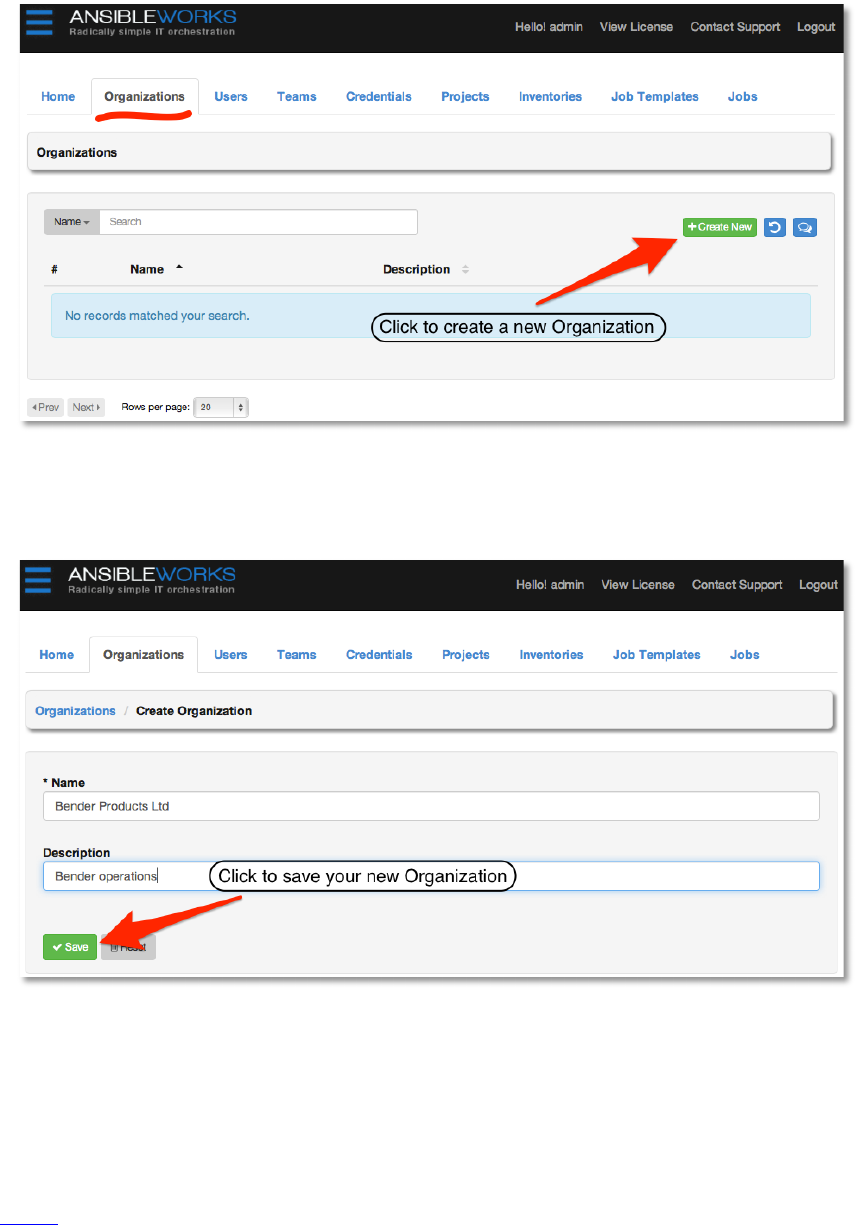
Click on the Organizations tab. An Organization is a logical collection of Users, Teams,
Projects, and Inventories. It is the highest level object in the AWX object hierarchy.
and then click +Create new.
Copyright 2013 AnsibleWorks, Inc. 14
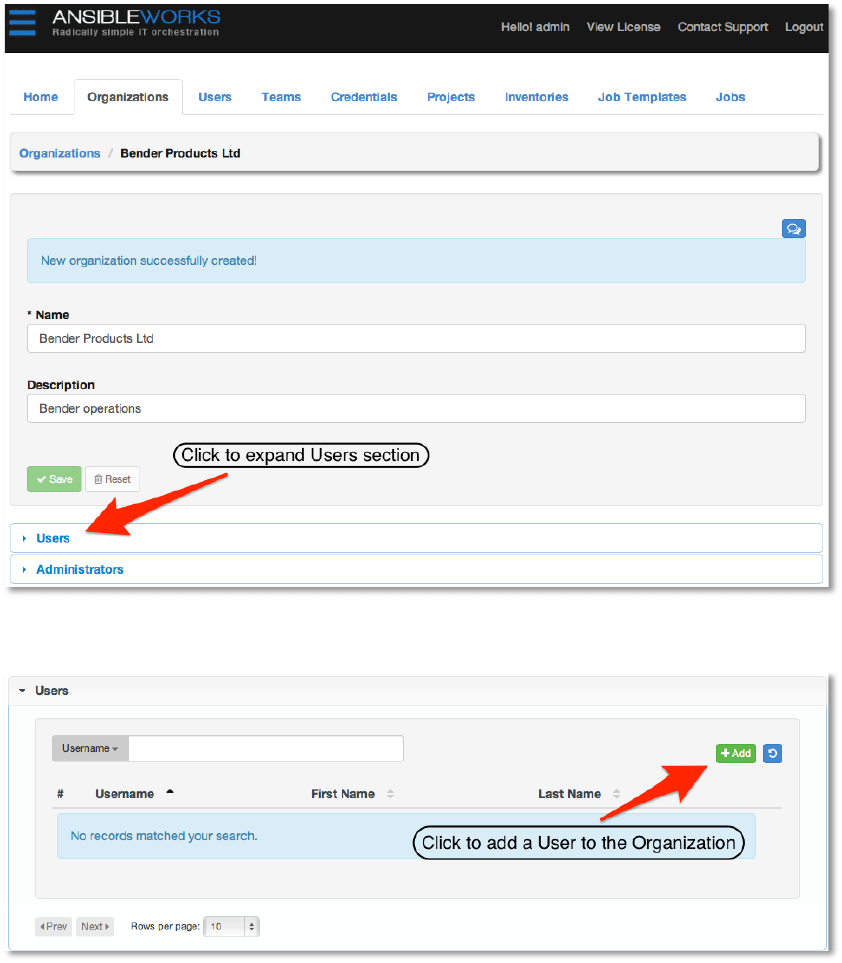
Enter a simple name and description for the organization. You can edit both of these fields later,
so the values aren’t critical. For our example, we will create an organization for a fictitious
company called Bender Products Ltd.
Organizations have both normal users and organization administrators. Organization
Administrators are able to modify the membership and other properties of the organization,
whereas normal users cannot. They are essentially super users but only within the scope of that
organization. For more about the differences between users and administrators, see the section
on Users.
Copyright 2013 AnsibleWorks, Inc. 15
The “admin” user is a Super User account -- a de-facto administrator for all organizations, so
let’s use our admin powers to create a new user and add it to our new organization. When
creating a new user, the checkbox Superuser? corresponds to this level of access. Only Super
Users can create other Super Users or promote existing users to this level.
3. )1&#+&!#!*&3!;,&1!#*8!#88!+D&!;,&1!+'!+D&!'16#*2Z#+2'*!
Expand the Users section (not the Users tab!) as shown here:
Add a user by clicking the +Add button.
Copyright 2013 AnsibleWorks, Inc. 16
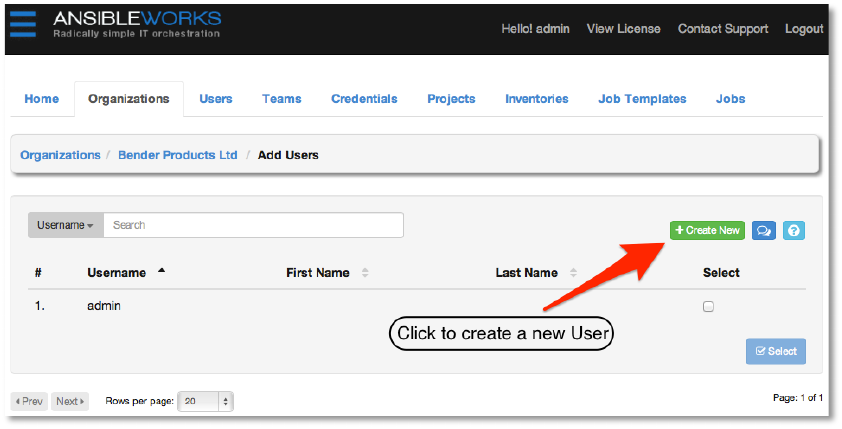
A list of all existing users will be presented. Since we have not created any users, the only user
listed is “admin”. Click the +Create New button to create a brand new user.
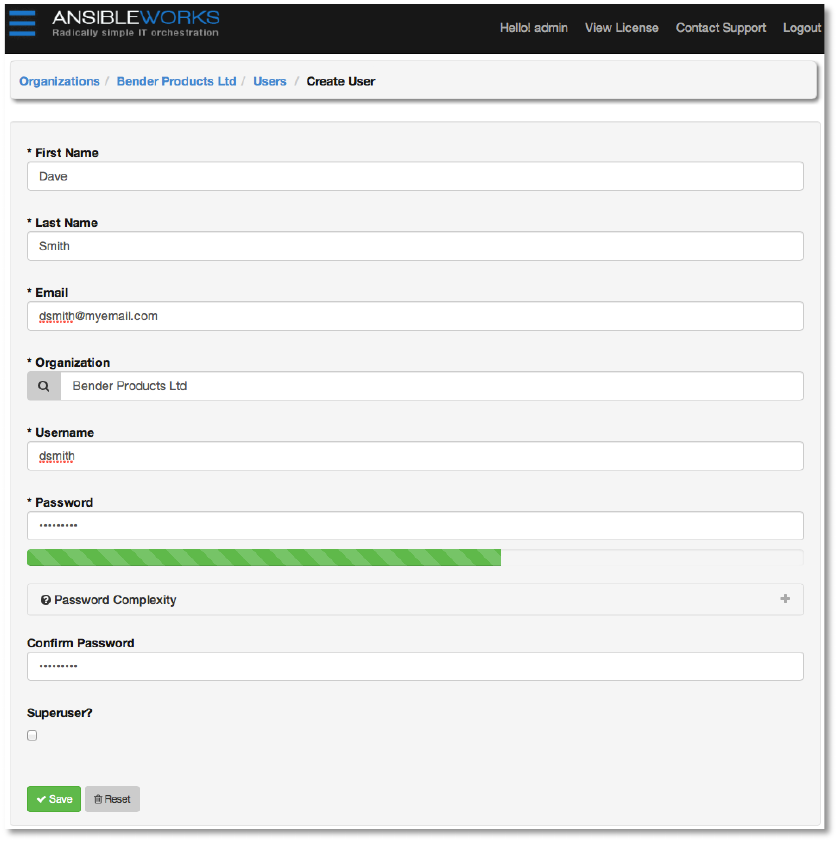
Enter the user’s details.
Copyright 2013 AnsibleWorks, Inc. 17
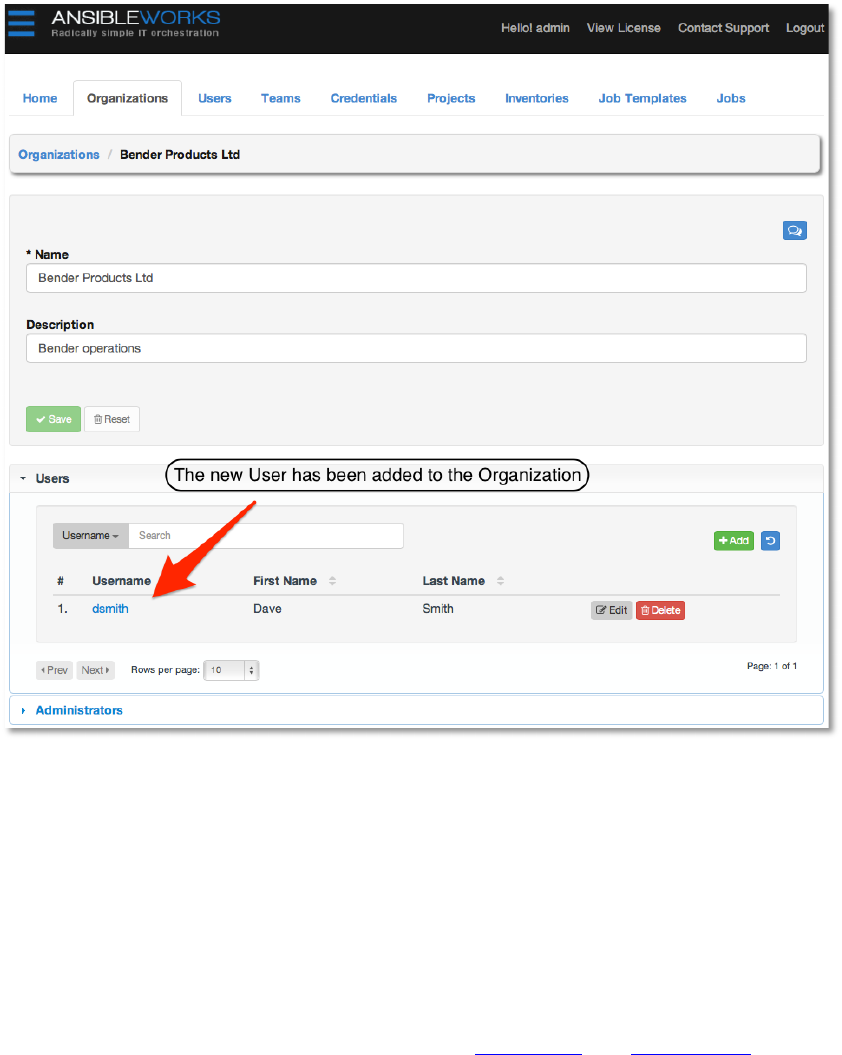
Click the Save button to save the user. You will be taken back to the organization details, where
the new user we just created now appears on the list.
Copyright 2013 AnsibleWorks, Inc. 18
Now, we have an organization and a user. Let’s add an inventory of hosts we’ll be managing for
Bender Products.
4. )1&#+&!#!*&3!2*0&*+'1=!#*8!#88!2+!+'!+D&!'16#*2Z#+2'*!
An inventory is a collection of hosts that can be managed with AWX. Inventories are assigned to
organizations and permission to launch playbooks against inventories is controlled at the user
and team level. More information can be found in the Inventories and Permissions sections.
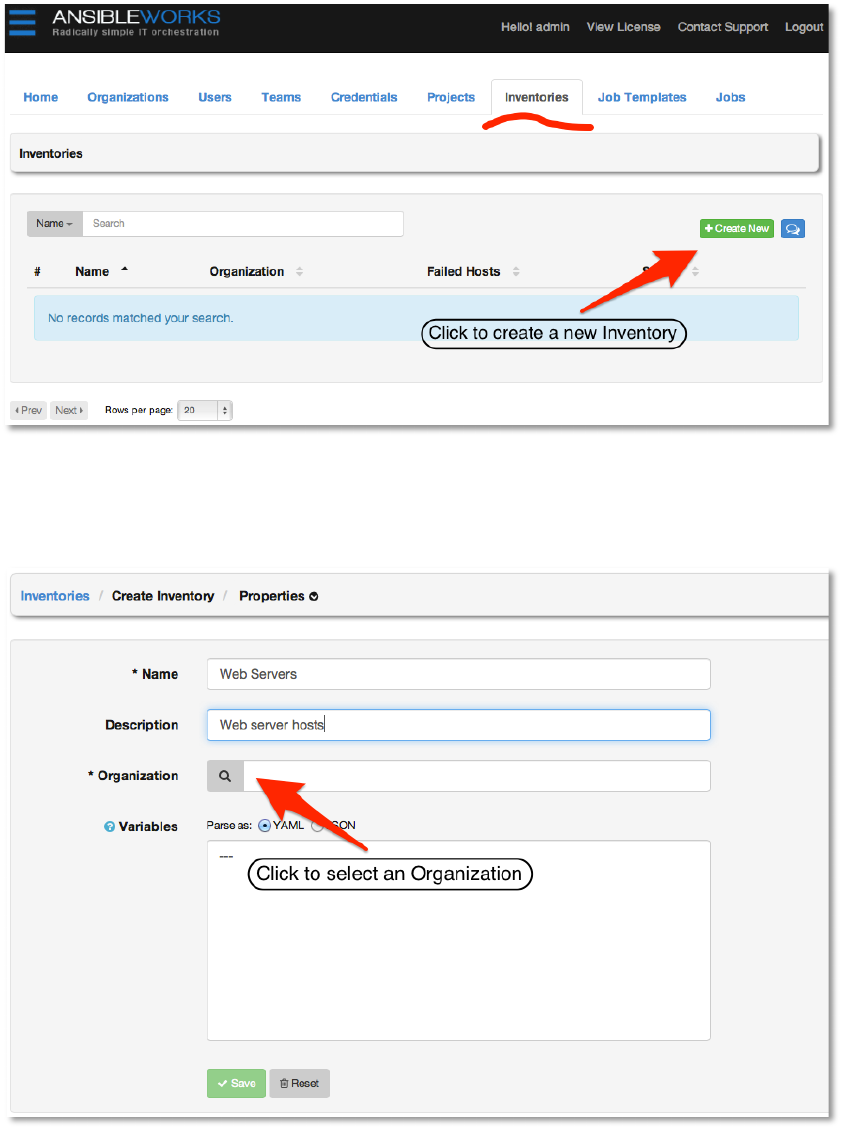
Create a new inventory by browsing to the Inventories tab and clicking +Create New.
Copyright 2013 AnsibleWorks, Inc. 19
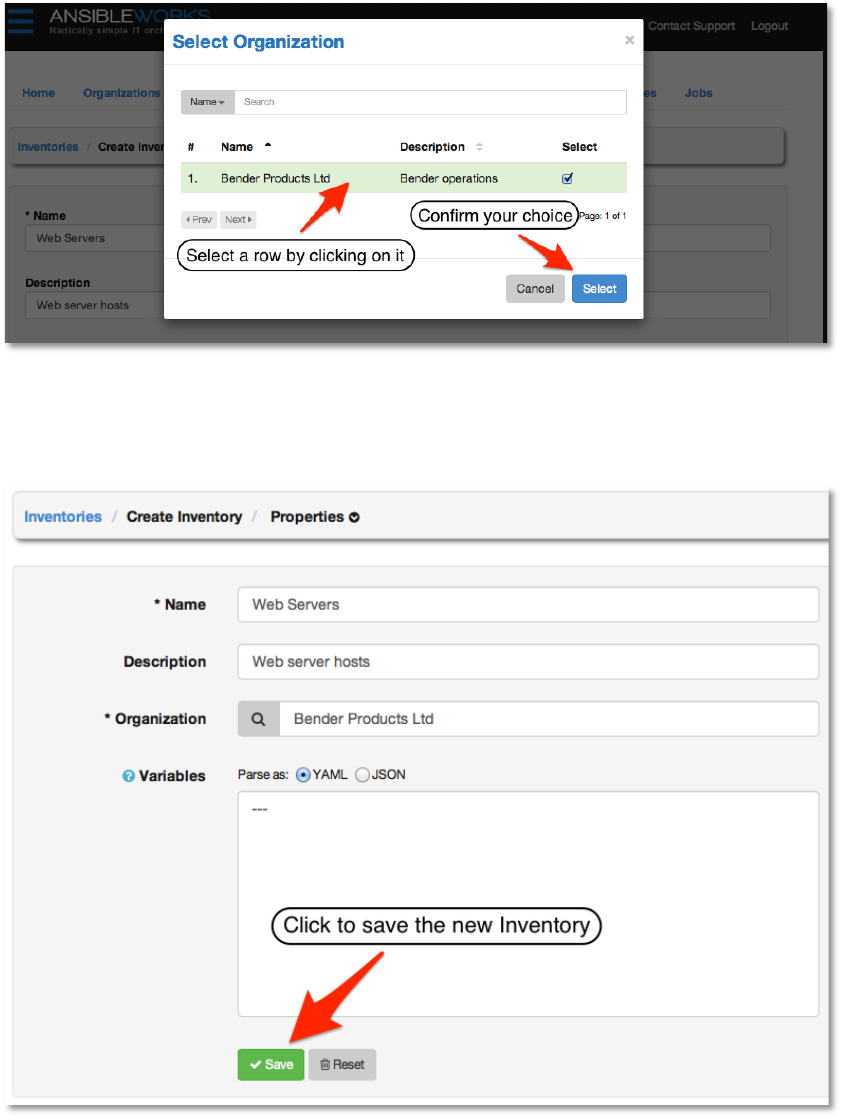
Enter the values for Name and Description, and then click the look-up button to the left of the
Organization field to select a value. For this example, the name of our inventory will be Web
Servers.
An Inventory is assigned to an organization. For our example we’ll use the organization we
created earlier. Select the row from the list by clicking on it. The selected row will be highlighted
with a pastel green and a checkbox in the Select column. Click the Select button to confirm
your choice.
Copyright 2013 AnsibleWorks, Inc. 20
For now we will defer a discussion of variables until later and leave the Variables field alone.
Click the Save button at the bottom of the page to create the inventory.
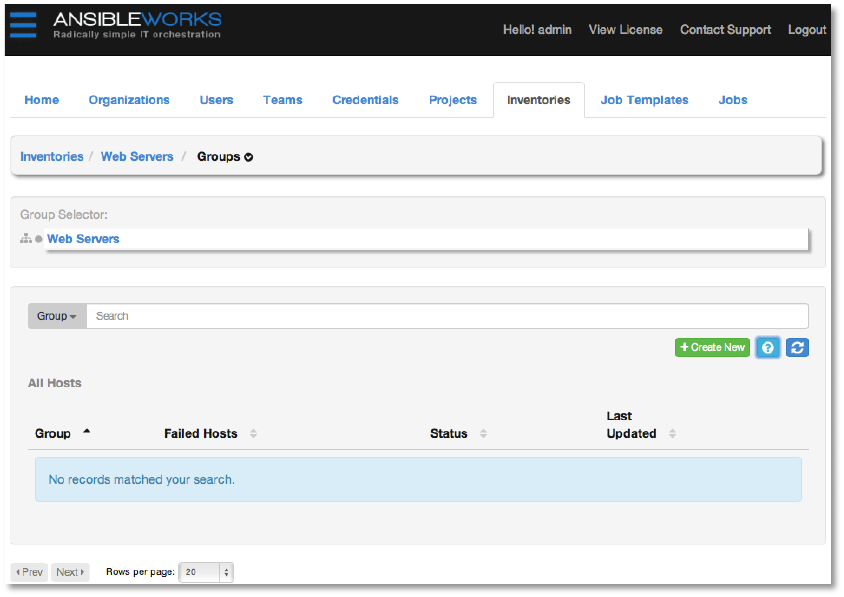
After clicking Save, you will be taken to a screen allowing you to add groups to the new
inventory. A tree on the left side of the page represents the Web Servers inventory. The
inventory is empty at this point, so the tree consists only of a root node.
Copyright 2013 AnsibleWorks, Inc. 21
Inventories are divided into groups. A group might represent a particular environment (e.g.
“Datacenter 1” or “Stage Testing”), a type of server (e.g. “Application Servers” or “DB Servers”),
or any representation of your physical environment.
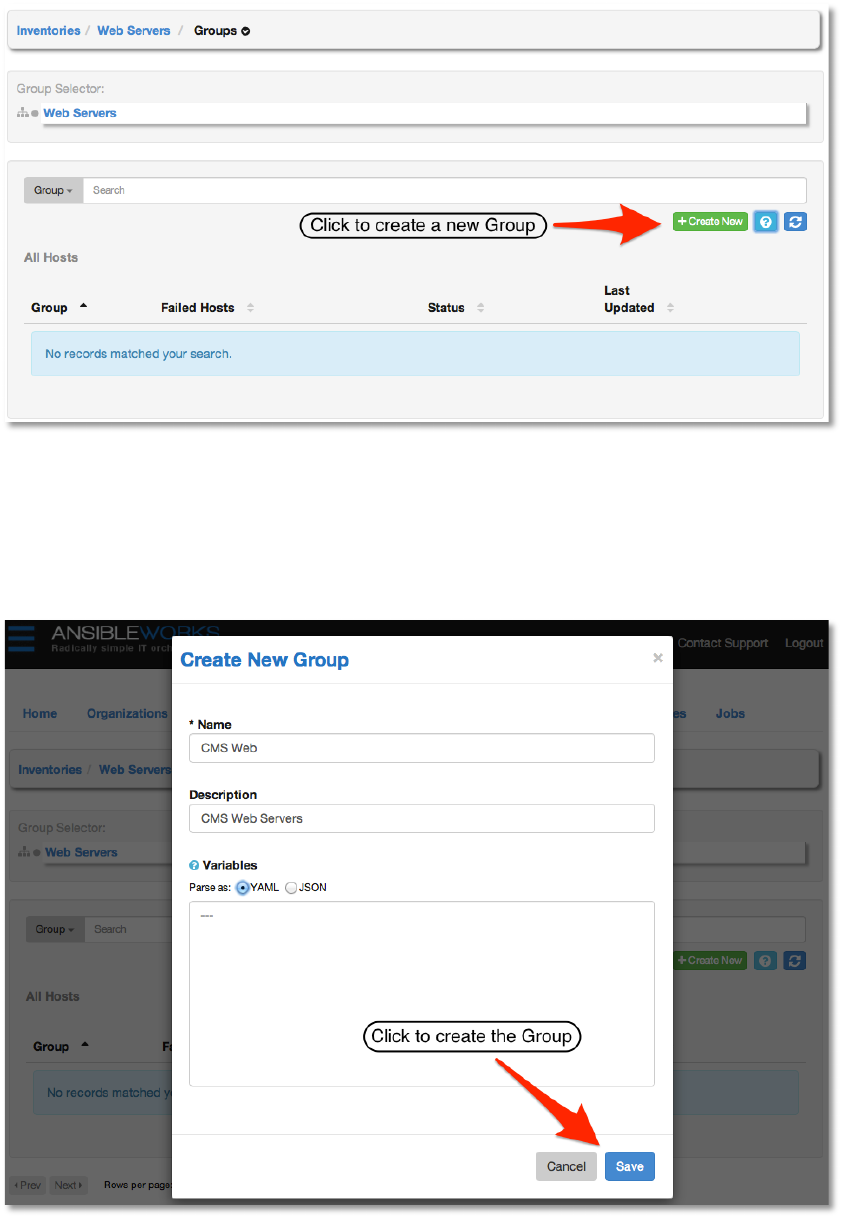
Hosts are added to groups. They cannot be added directly to the inventory root. So to begin
adding hosts to the Web Servers inventory, we first need to add a group. Click the +Create
New button.
Copyright 2013 AnsibleWorks, Inc. 22
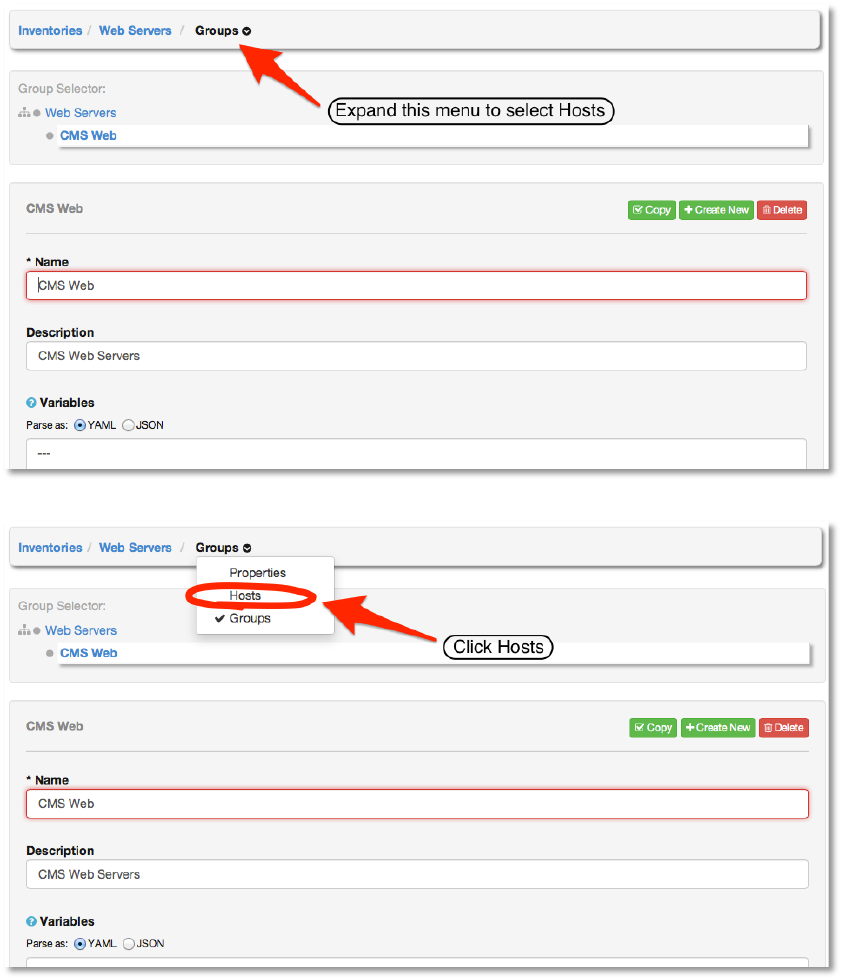
Bender Products has a group of web server hosts supporting the corporate CMS application. To
add these hosts to the Web Servers inventory we’ll create a “CMS Web” group. Again, we will
defer a discussion of variables for later. Click the Save button to create the group.
Copyright 2013 AnsibleWorks, Inc. 23
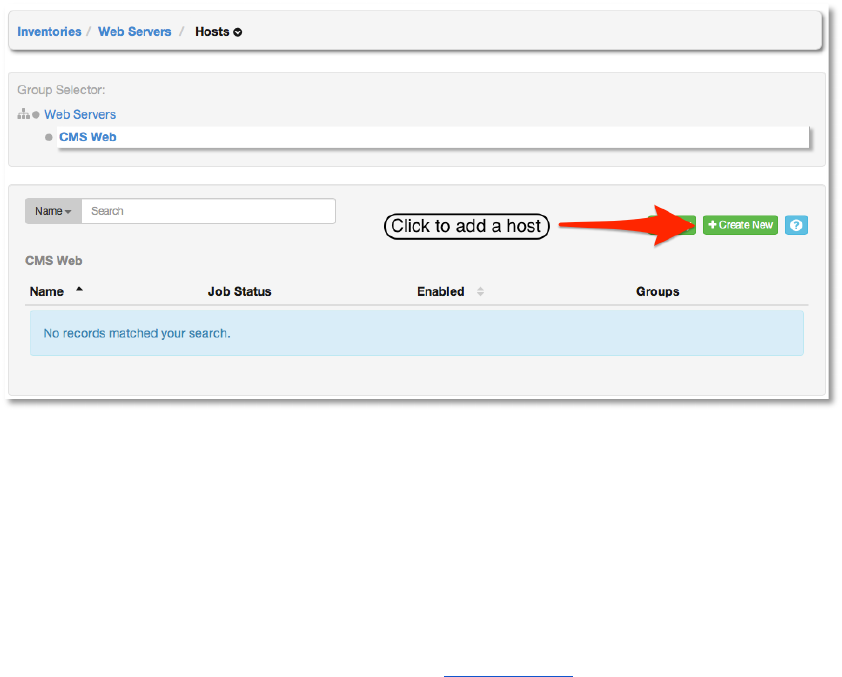
Finally, we’ll add a host to the group. First, expand the menu to select Hosts.
Select +Create New to create the new host and add it to the group.
Copyright 2013 AnsibleWorks, Inc. 24
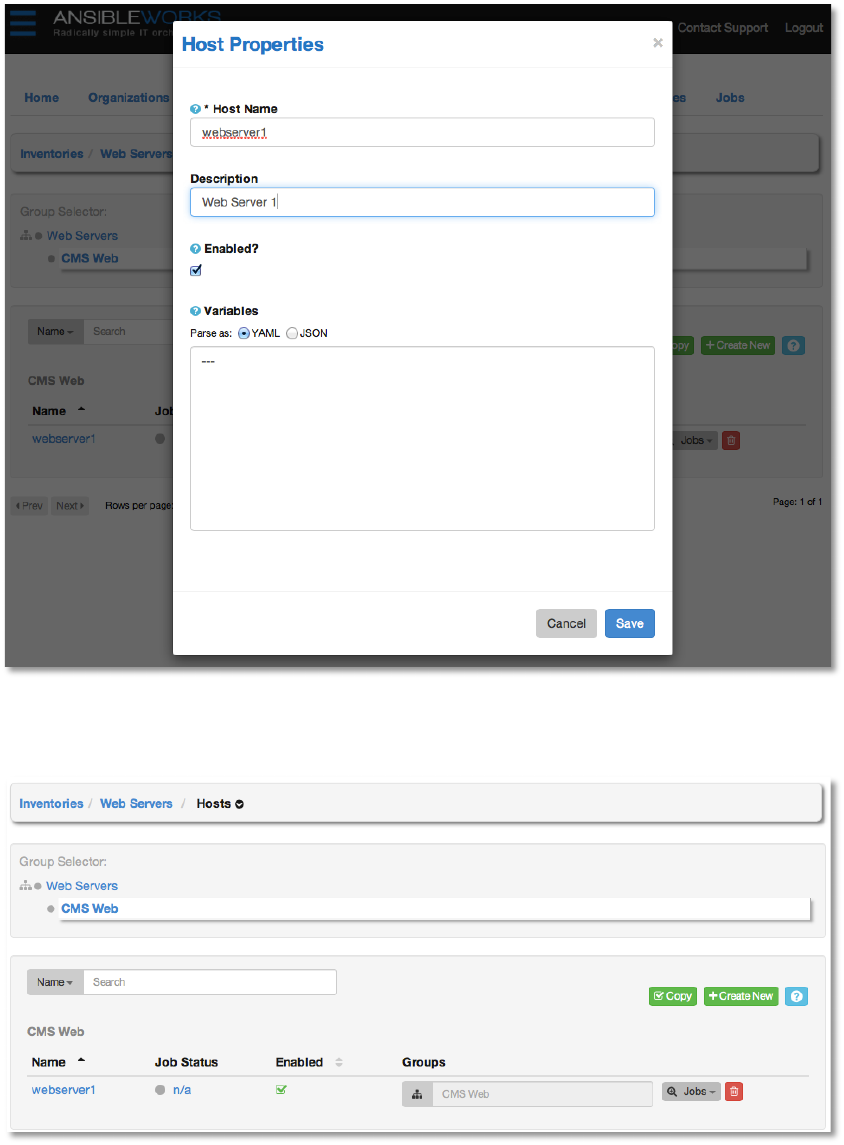
Enter the Host Name, which should either be the DNS resolvable name of the host or its IP
address. This is how AWX will contact the host, so the host must be reachable using this
hostname or IP address for AWX to function properly. The Description is arbitrary, as usual.
(Note, experienced Ansible users will know they could also set the ansible_ssh_host
environment variable to use an alias, but that is not going to be covered here).
For the purposes of this Quick Start, add a host that you can actually reach via SSH and
manage using Ansible (i.e. that meets the Ansible requirements). We will launch a simple
Ansible playbook that will not harm or modify the target in any way. Using a real target host
allows us to ensure that AWX is setup properly.
Copyright 2013 AnsibleWorks, Inc. 25
Click Save to finish adding the host.
Next, we’ll add credentials to our new user that AWX can use to access and launch Ansible
playbooks for the host in our inventory.
Copyright 2013 AnsibleWorks, Inc. 26
5. !)1&#+&!#!*&3!,&+!'(!N1&8&*+2#%,!
Credentials are used to authenticate the AWX user to launch Ansible playbooks against
inventory hosts and can include passwords and SSH keys. You can also require the AWX user
to enter a password or key phrase when a playbook is launched using the credentials feature of
AWX.
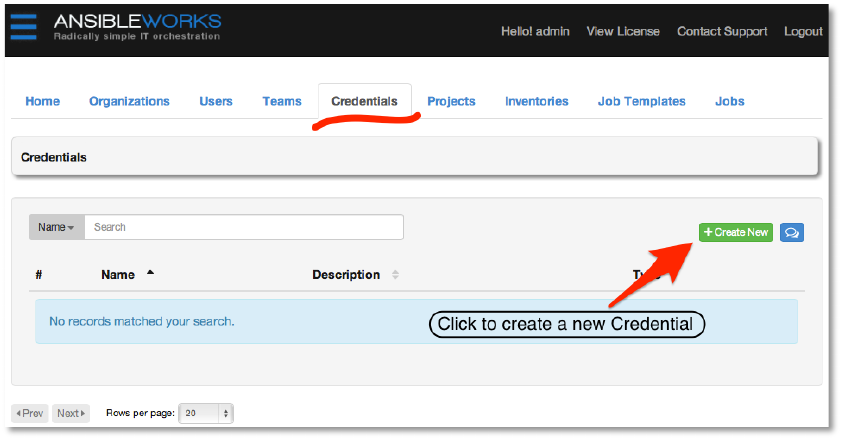
Create a new credential by browsing to the Credentials tab. Click +Create New to create a
new credential.
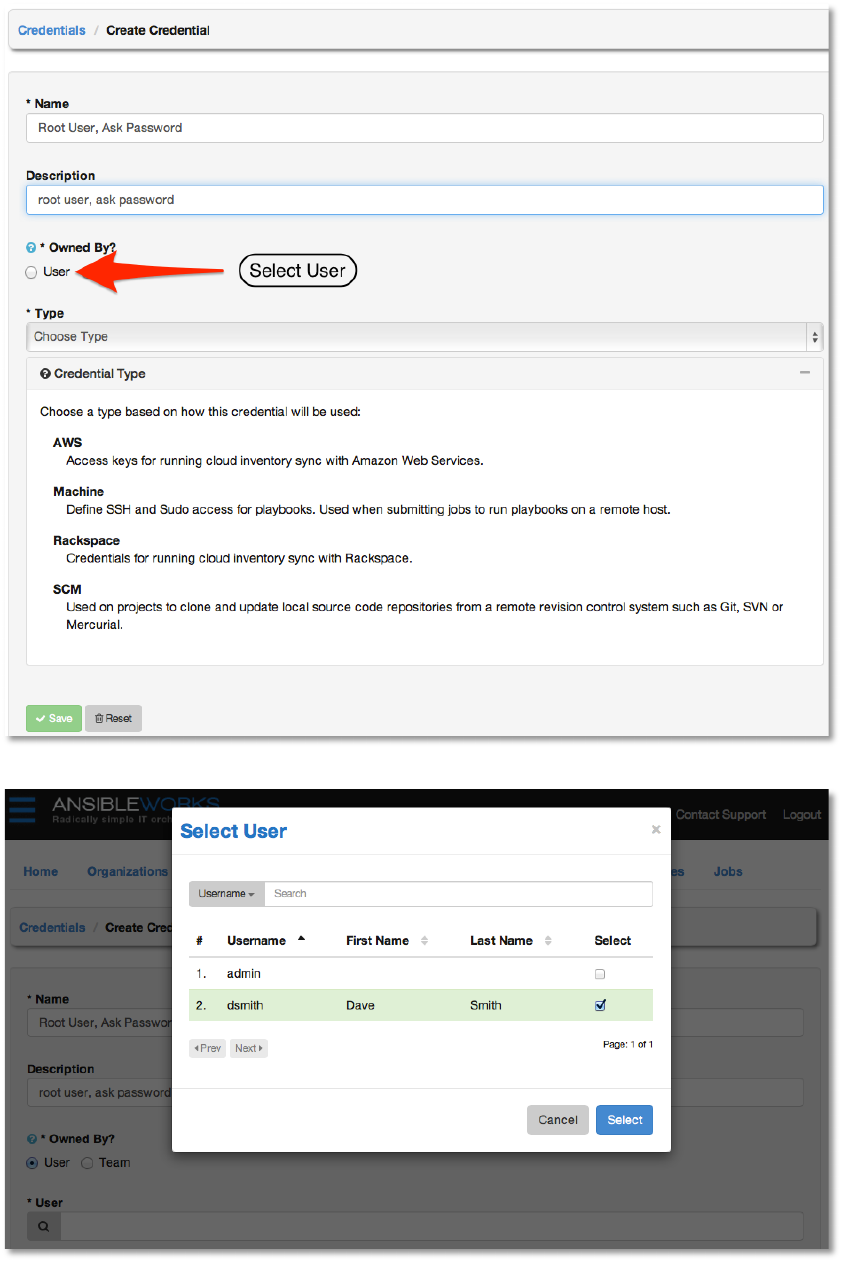
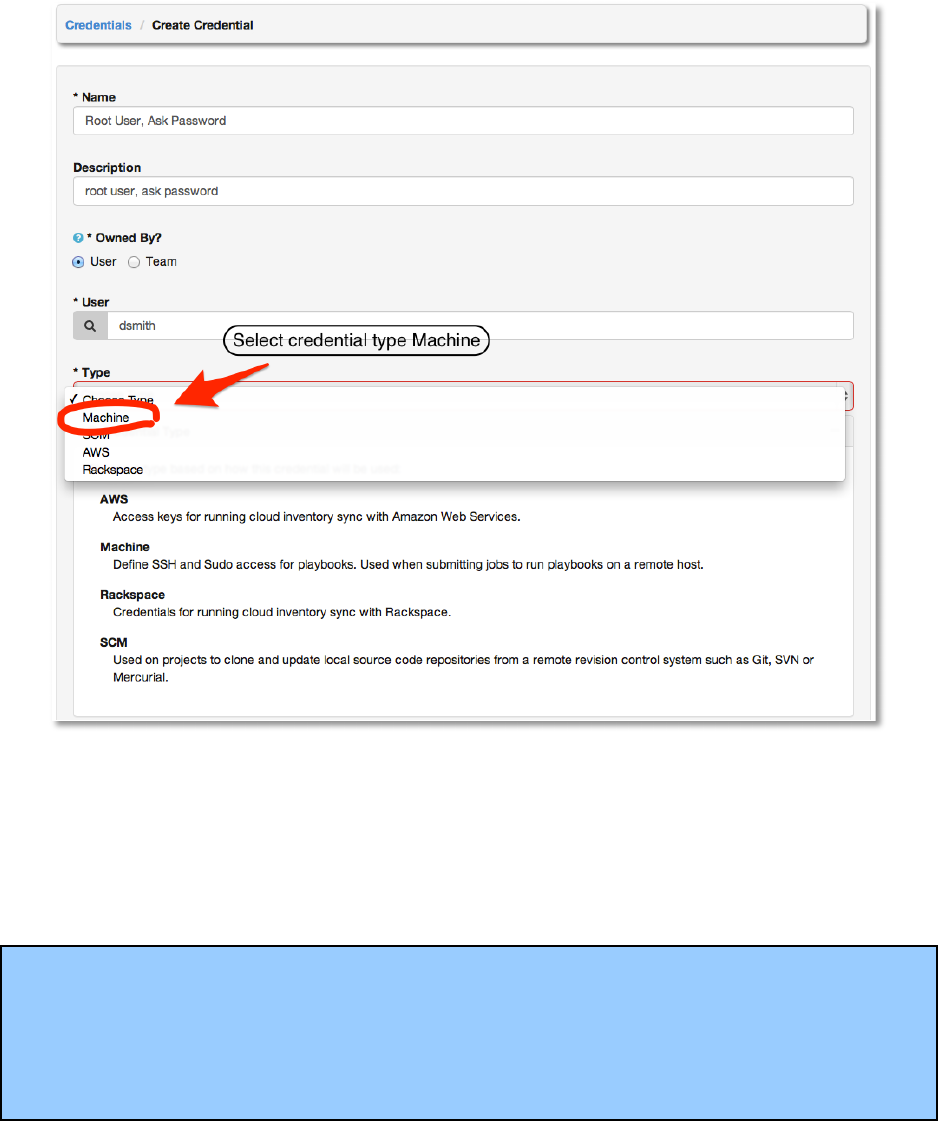
Enter an arbitrary Name and Description for this credential. Either an individual user or a team
may own credentials. Let’s associate this credential with the user we created in step #3.
Copyright 2013 AnsibleWorks, Inc. 27
Next, select credential type Machine.
Copyright 2013 AnsibleWorks, Inc. 28
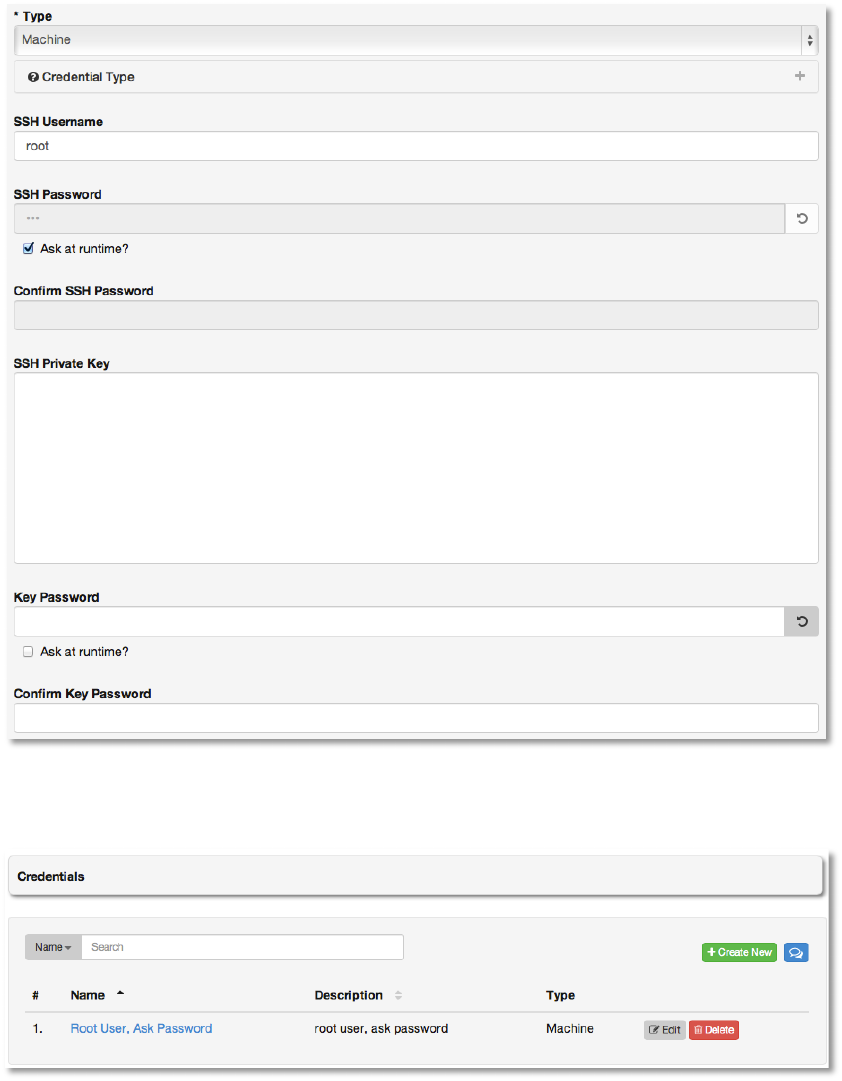
Now, we’ll enter the details of the appropriate authentication mechanism to use for the host we
added to AWX in step #3. Use the actual credentials for the real host. To keep things simple,
we’ll use an SSH password, but ask for it at runtime. So, rather than enter the password here,
we’ll enter it later when we launch a playbook using these credentials. To do so, check the box
Ask at runtime for SSH Password, as shown here.
NOTE: AWX supports various different options for what you want to store for credentials in
this box. Uploading a locked SSH key is recommended, and AWX can prompt you for the
SSH unlock password for use with ssh-agent when launching the job.
AWX encrypts passwords and key information in the AWX database and never makes secret
information visible via the API.
Copyright 2013 AnsibleWorks, Inc. 29
Click Save.
Now, we’ll create a new project and a job template with which to launch a simple playbook.
6. )1&#+&!#!*&3!C1'[&N+!#*8!,&%&N+!)1&#+&!U&3-!

Copyright 2013 AnsibleWorks, Inc. 30
Before we create this project, we’ll need to create a subdirectory for it on the AWX server
filesystem, where we will store the Ansible playbooks for this project.
NOTE: This will require you to log into the AWX server on the command line console. In a
future version of AWX, this will be done without leaving the Web interface.
Create a new project directory by creating a directory on the AWX filesystem underneath the
Project Base Path, by default “/var/lib/awx/projects”.
[root@localhost ~]# cd /var/lib/awx/projects
[root@localhost ~]# mkdir helloworld
While we’re here, let’s go ahead and create a simple Ansible playbook. Use your favorite editor
to create a file called “helloworld.yml” inside the directory we just created, “/var/lib/awx/projects”.
[root@localhost ~]# cd helloworld
[root@localhost ~]# vi helloworld.yml
The contents of the file are below:
---
- name: Hello World!
hosts: all
user: root
tasks:
- name: Hello World!
shell: echo "Hi! AWX is working"
Save this playbook file and we’ll use it to test AWX running a playbook against the host in our
inventory.
NOTE: Ansible playbooks utilize the YAML language. More information about Ansible
playbooks may be found at: http://www.ansibleworks.com/docs/playbooks.html. More
information on YAML can be found at: http://yaml.org/.
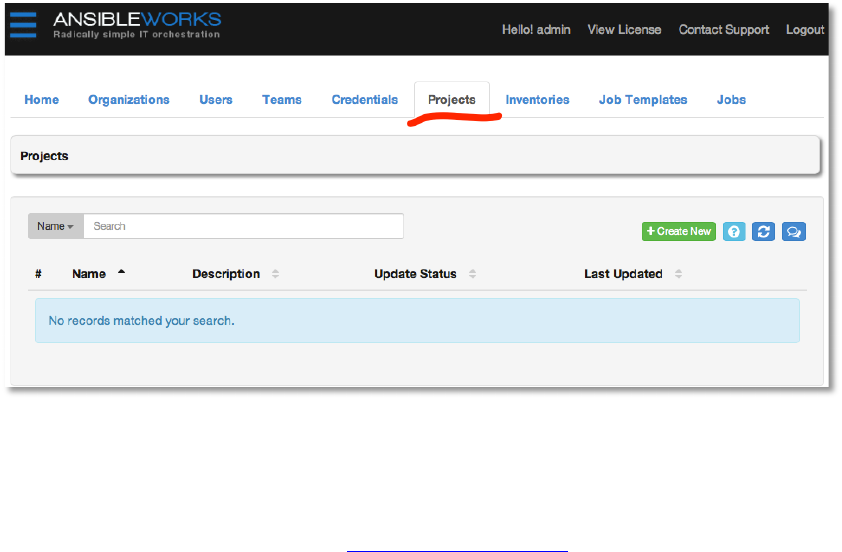
Now, create the new project by browsing to the Projects tab. Click +Create New.
Copyright 2013 AnsibleWorks, Inc. 31
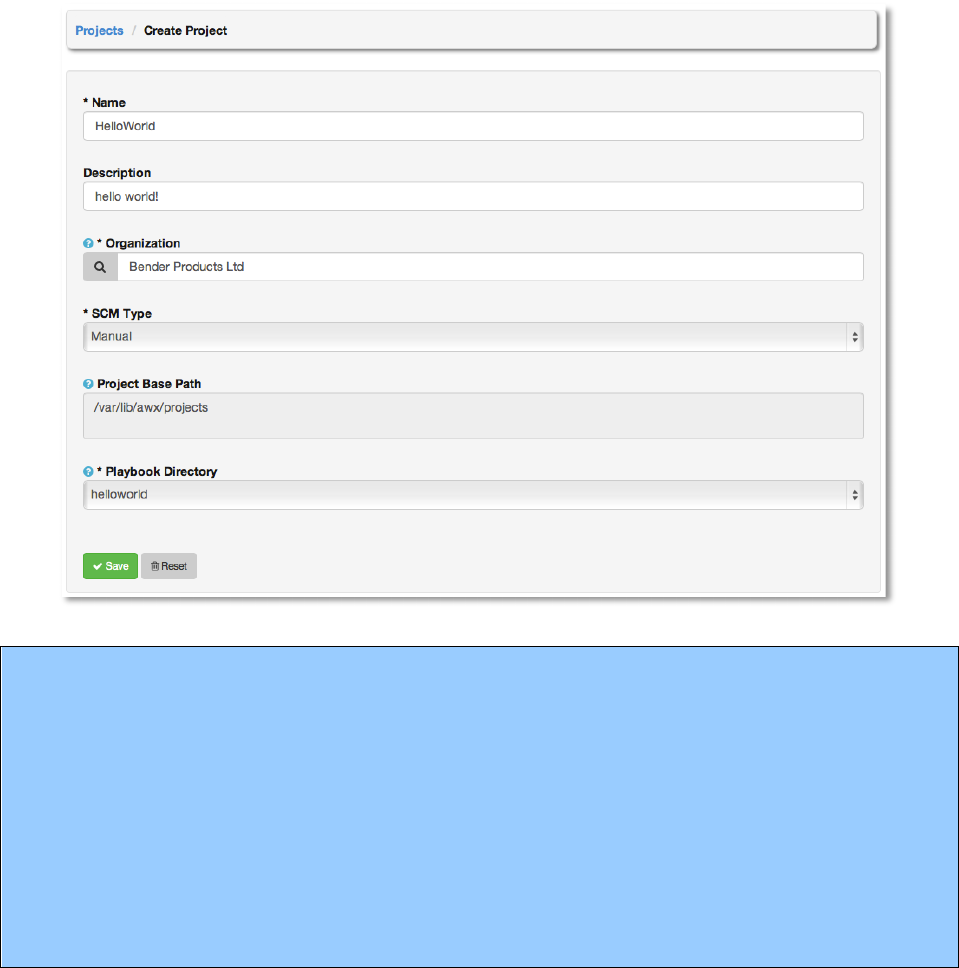
Enter a Name and Description for the project.
The Project Base Path will display the value entered when AWX was installed and cannot be
edited from this dialog. (See the section Administration of AWX for more information on how to
modify this value.)
Leave SCM Type set to Manual, for now.
For the Playbook Directory, we will select a value that corresponds to the subdirectory we just
created.
Copyright 2013 AnsibleWorks, Inc. 32
Note: If you see the following warning, double check that the helloworld project directory and file
were created correctly and that the permissions are correct. Use “chown –R awx” on the project
directory if necessary. If SE Linux is enabled, check the directory and file context.
“WARNING: There are no unassigned playbook directories in the base project path
/var/lib/awx/projects. Either the projects directory is empty, or all of the contents are already
assigned to other projects. New projects can be checked out from source control by changing
the SCM type option rather than specifying checkout paths manually. To continue with manual
setup, log into the AWX server and ensure content is present in a subdirectory under
/var/lib/awx/projects. Run "chown -R awx" on the content directory to ensure awx can read the
playbooks.”
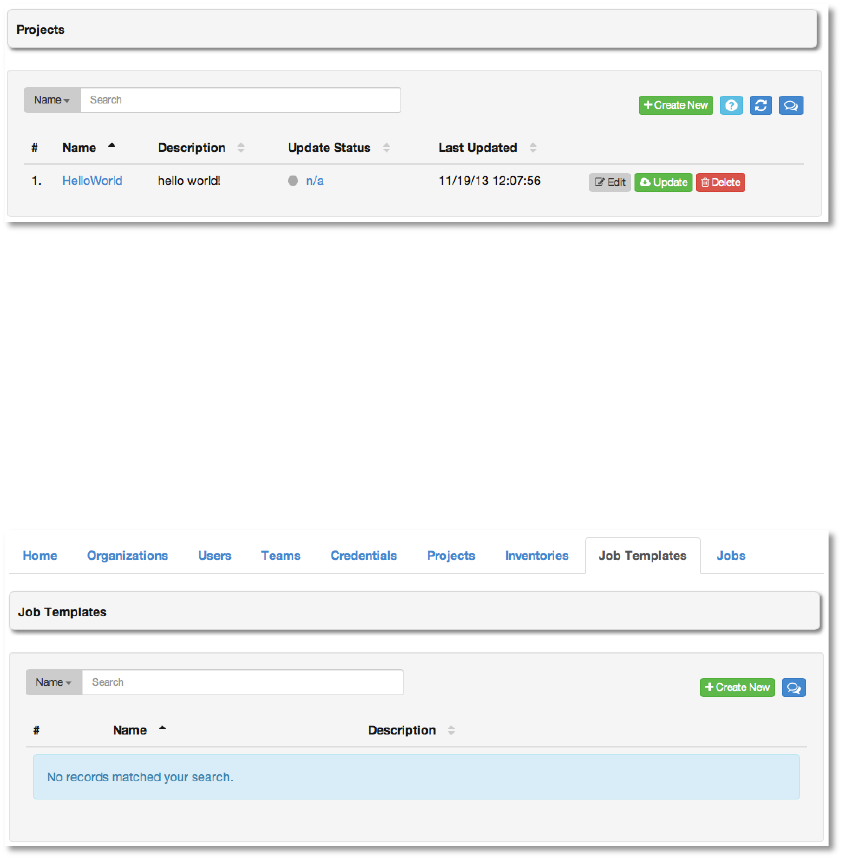
Select Save and the new project will be displayed.
Copyright 2013 AnsibleWorks, Inc. 33
Finally, let’s create a job template for this new playbook and launch it.
7. )1&#+&!#!*&3!\'$!"&GS%#+&!;,2*6!#*!B*,2$%&!&Q#GS%&!S%#=$''Y!
A job template combines an Ansible playbook from a project and the settings required to launch
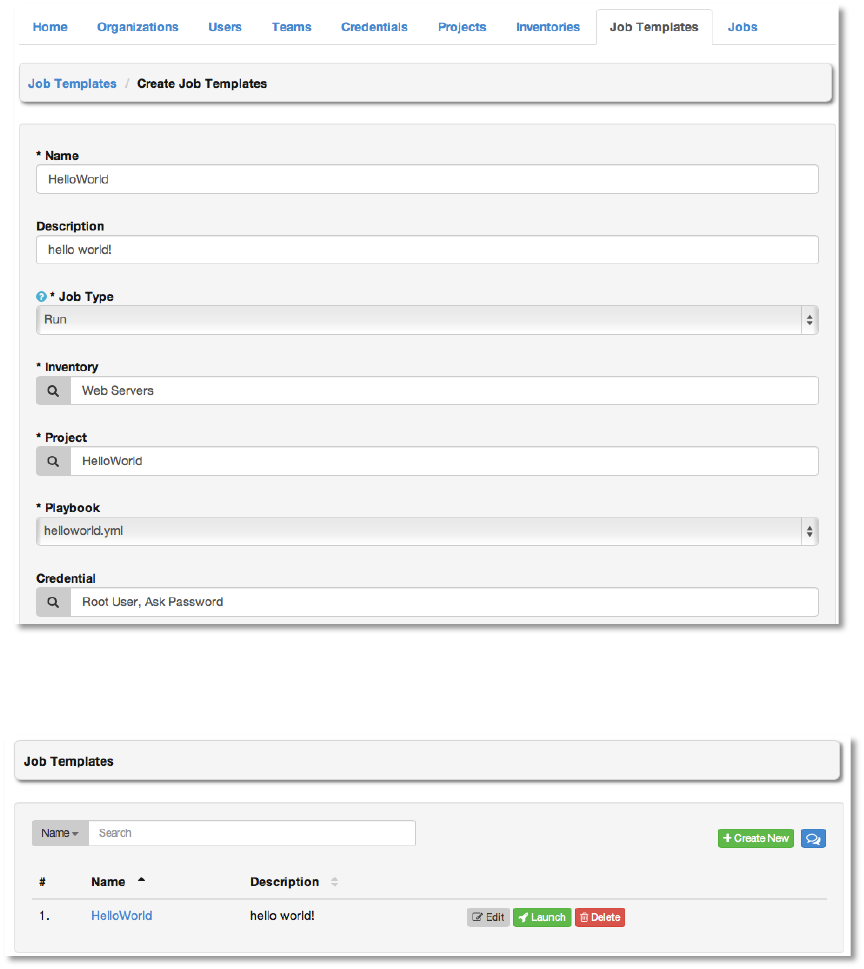
it. Create a new job template by browsing to the Job Templates tab and clicking +Create
New.
Enter values for the Name and Description. Jobs can be of type Run or Check. Select Run
for this Quick Start (check corresponds to “dry run” mode.) Choose the Inventory, Project,
and Credential from those we have created during this exercise.
The playbook drop-down menu will automatically populate from the project path and playbook
we created in step #5. Choose the “helloworld” playbook.
Copyright 2013 AnsibleWorks, Inc. 34
Click Save.
Now, let’s launch the playbook and watch it all come together.
9. @#;*ND!2+]!
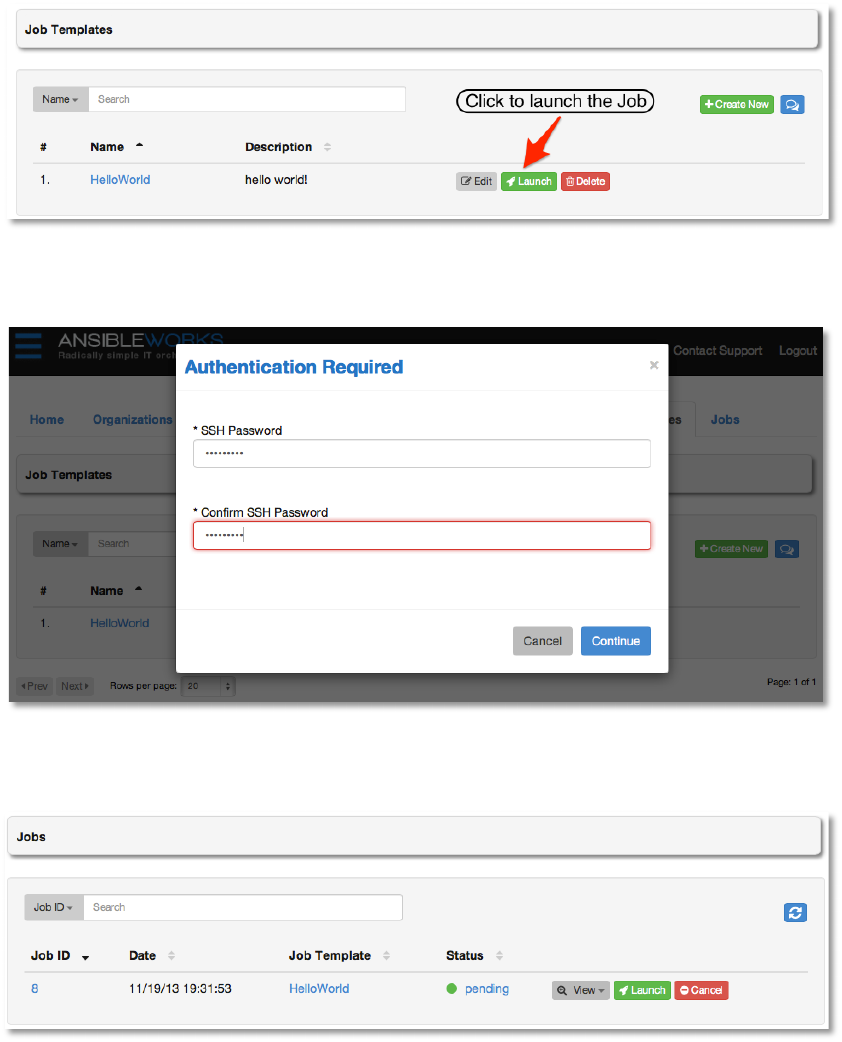
To launch the playbook, browse to the Job Templates tab and click Launch on the template.
Copyright 2013 AnsibleWorks, Inc. 35
AWX will ask you for the SSH password, as we configured the credential.
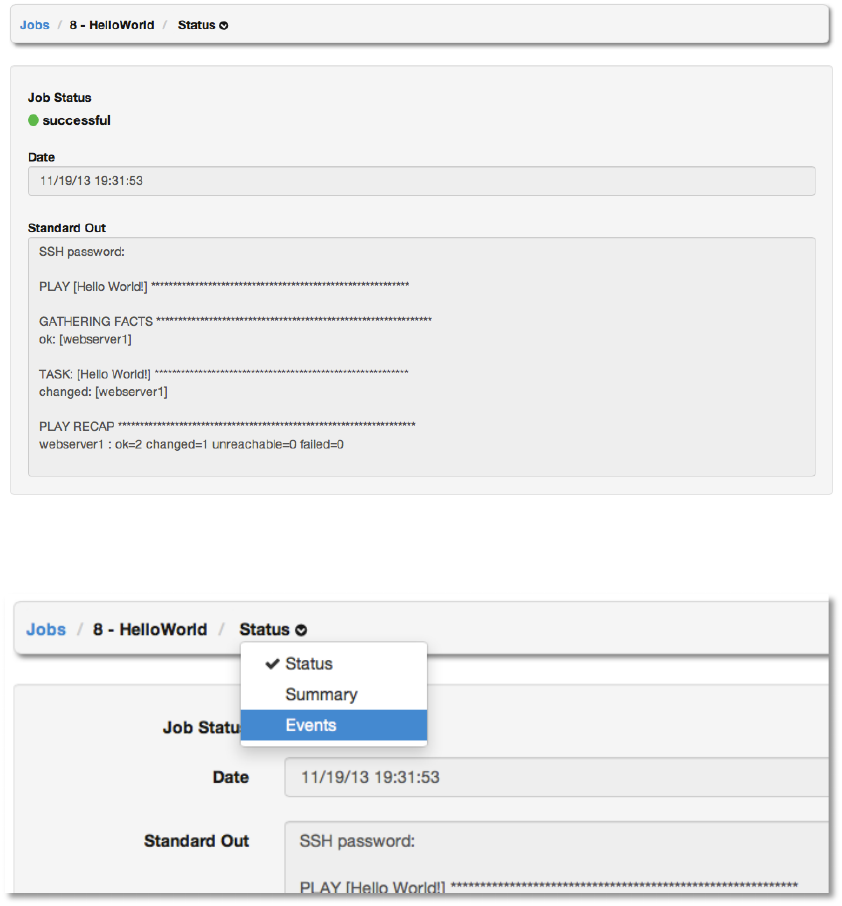
AWX will then redirect the browser to the Jobs tab, where you can see the list of all jobs.
Select the Job ID or click View and then Status to see the details of the job. When the job is
complete, you should see output similar to the following.
Copyright 2013 AnsibleWorks, Inc. 36
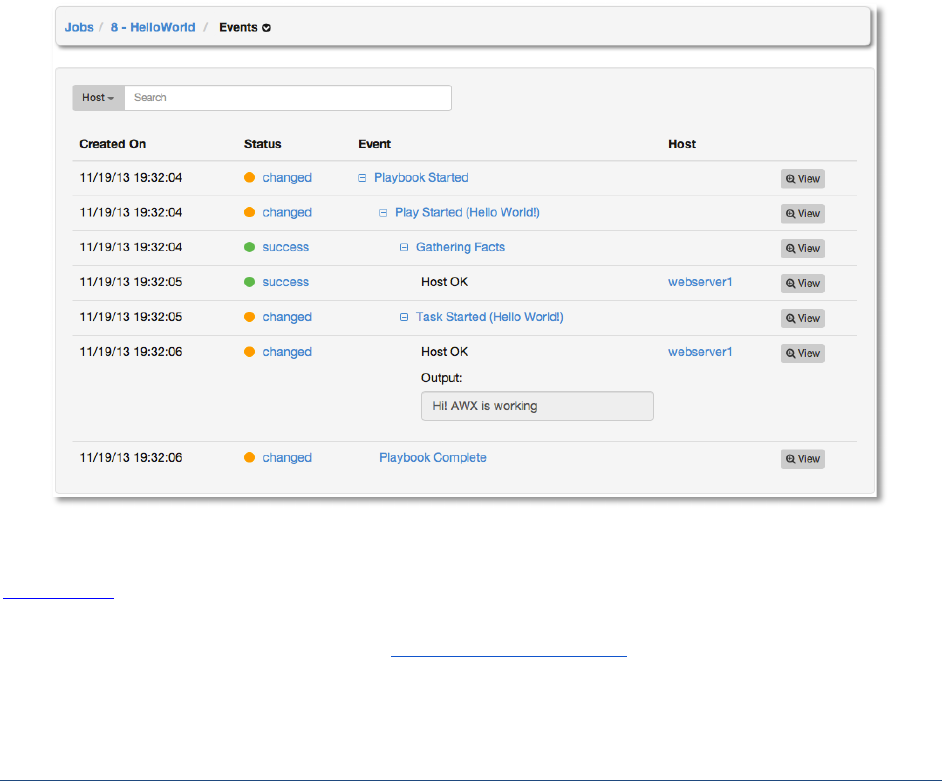
Click Events from the drop-down menu:
The display will change to show the standard output from the host and the result of running our
playbook.
Copyright 2013 AnsibleWorks, Inc. 37
Great work! Your AWX installation is up and running properly. Now, you can browse through the
User Guide and learn about all of these features of AWX in more detail.
Don’t hesitate to send your feedback to awx@ansibleworks.com. We appreciate your support!
!
Copyright 2013 AnsibleWorks, Inc. 38
!
:,&1!5;28&!
This section of the documentation will detail all of the functionality of AWX.
@'662*6!H*!
To log in to AWX, browse to the AWX interface at http://<AWX server hostname or IP Address>/
Log in using a valid AWX username and password.
NOTE: The default username and password set during installation are “admin” and
“password”, but the AWX administrator may have changed these settings during installation. If
the default settings have not been changed, you can do from the Users tab.
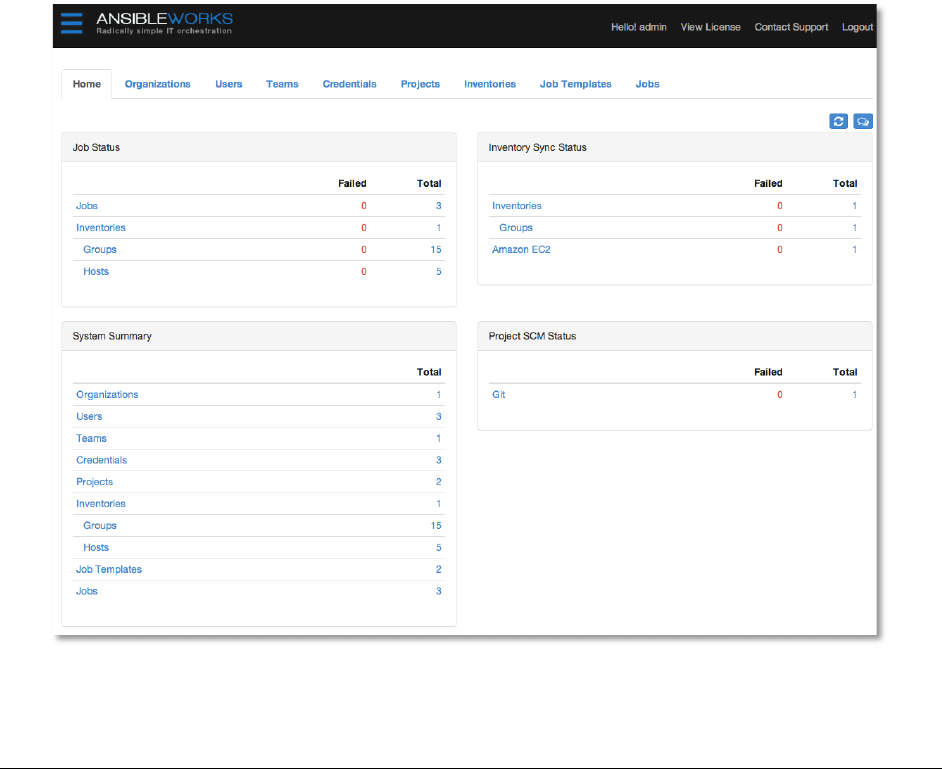
W'G&!
The central interface to AWX is the Home dashboard. This screen displays the status of AWX
jobs, synchronization with inventory sources and source code management systems, and a
summary of configured AWX objects.
Copyright 2013 AnsibleWorks, Inc. 39
All of the list items displayed on the Home dashboard are linked to their respective AWX objects
for convenient access.
/16#*2Z#+2'*,!
An organization is a logical collection of Users, Teams, Projects, and Inventories and is the
highest level in the AWX object hierarchy.
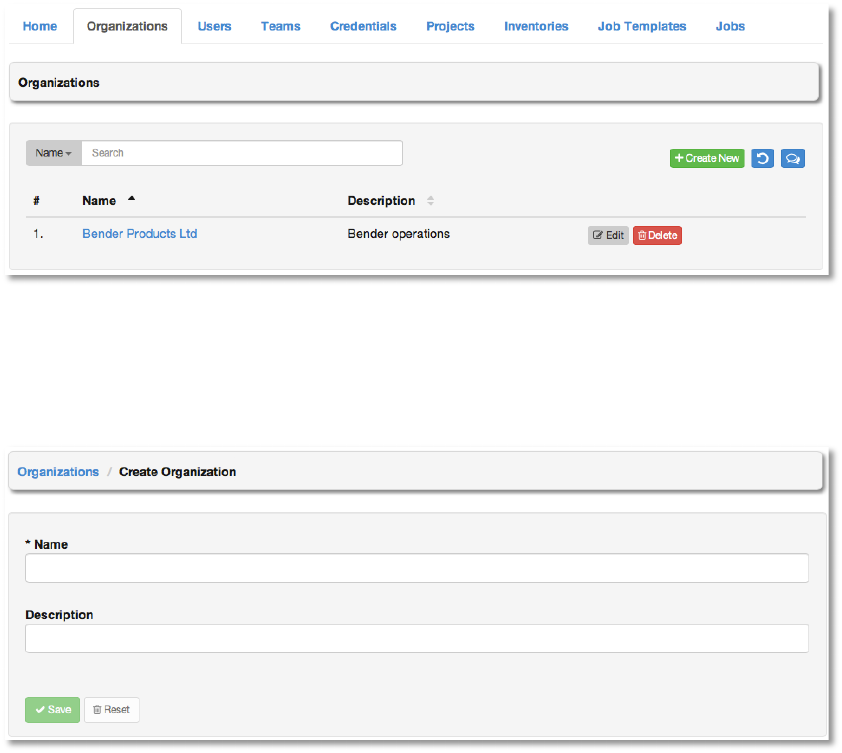
The Organizations tab displays all of the existing organizations for your installation of AWX.
Organizations can be searched by Name or Description. Modify and remove organizations
using the Edit and Delete buttons.
Copyright 2013 AnsibleWorks, Inc. 40
Create a new organization by selecting +Create New.
1. Enter the Name for your organization.
2. Optionally, enter a Description for the organization.
Click Save to finish creating the organization.
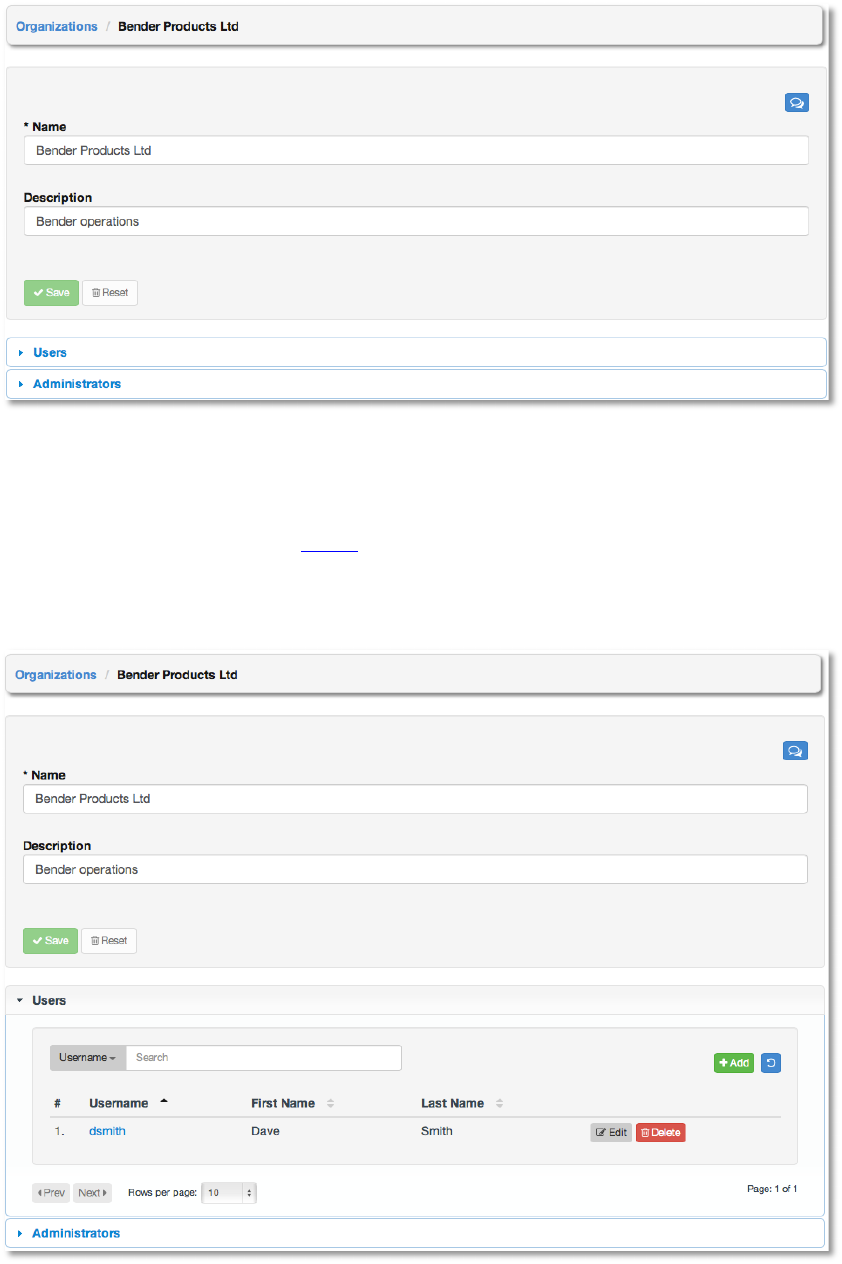
Once created, AWX will display the organization details, including two accordion-style menus
below the organization name and description details that provide for managing users and
administrators for the organization.
Copyright 2013 AnsibleWorks, Inc. 41
:,&1,!
A user is someone with access to AWX with associated permissions and credentials. For more
information, please see the section Users.
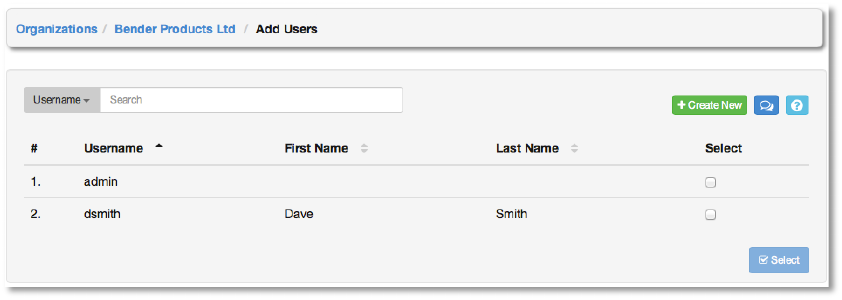
Expand the users menu by selecting Users.
Copyright 2013 AnsibleWorks, Inc. 42
This menu allows you to manage the user membership for this organization. (User membership
may also be managed on a per-user basis via the Users tab.) The user list may be sorted and
searched by Username, First Name, or Last Name. Existing users may also be modified and
removed using the Edit and Delete buttons.
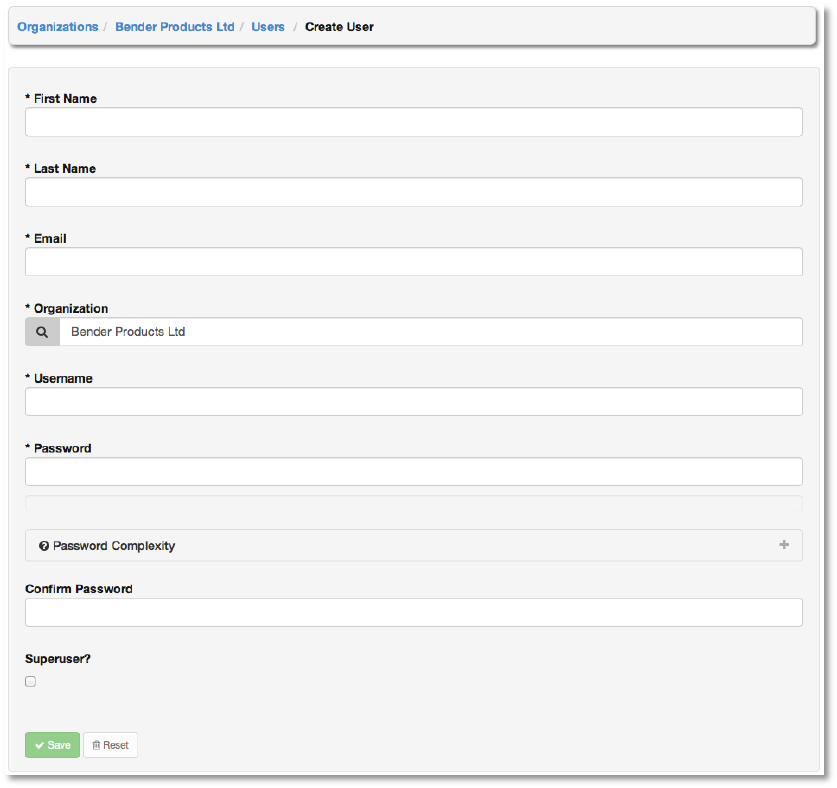
To add users to the organization, click the +Add button. Then, select one or more users from
the list of available users by clicking the Select checkbox or clicking anywhere on the user row.
Click the Select button when done.
To add a new user to AWX and to the organization, click the +Create New button, which takes
us to the new user dialog.
Copyright 2013 AnsibleWorks, Inc. 43
Enter the appropriate details into the following fields:
● Username
● First Name
● Last Name
● Email
● Organization
● Password
● Confirm Password
● Superuser? (Give this user Super User privileges for AWX. Caution!)
All of these fields are required. Select Save when finished and the user will be added to the
organization.
/16#*2Z#+2'*!B8G2*2,+1#+'1,!
Copyright 2013 AnsibleWorks, Inc. 44
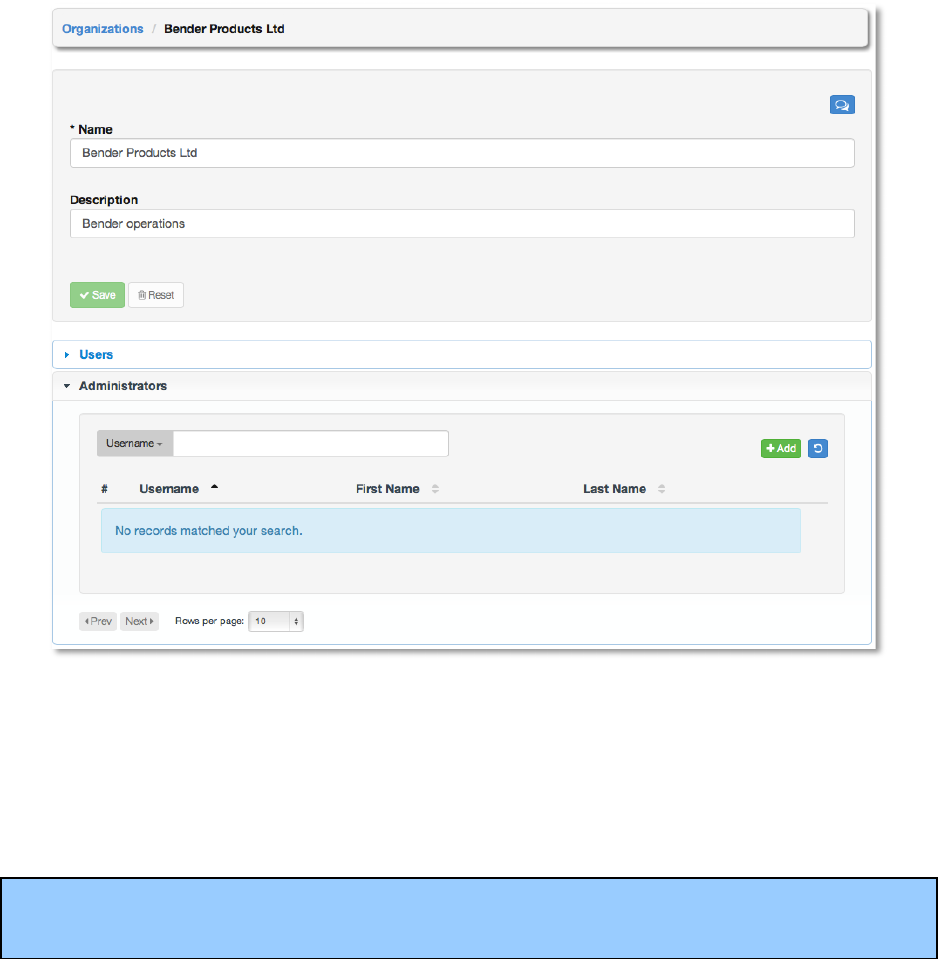
An organization administrator is a type of user that has the rights to create, modify, or delete
objects in the organization, including projects, teams, and users in that organization. Expand the
Administrators menu by selecting Administrators.
This menu displays a list of the users that are currently an organization administrator of the
organization. The administrator list may be sorted and searched by Username, First Name, or
Last Name.
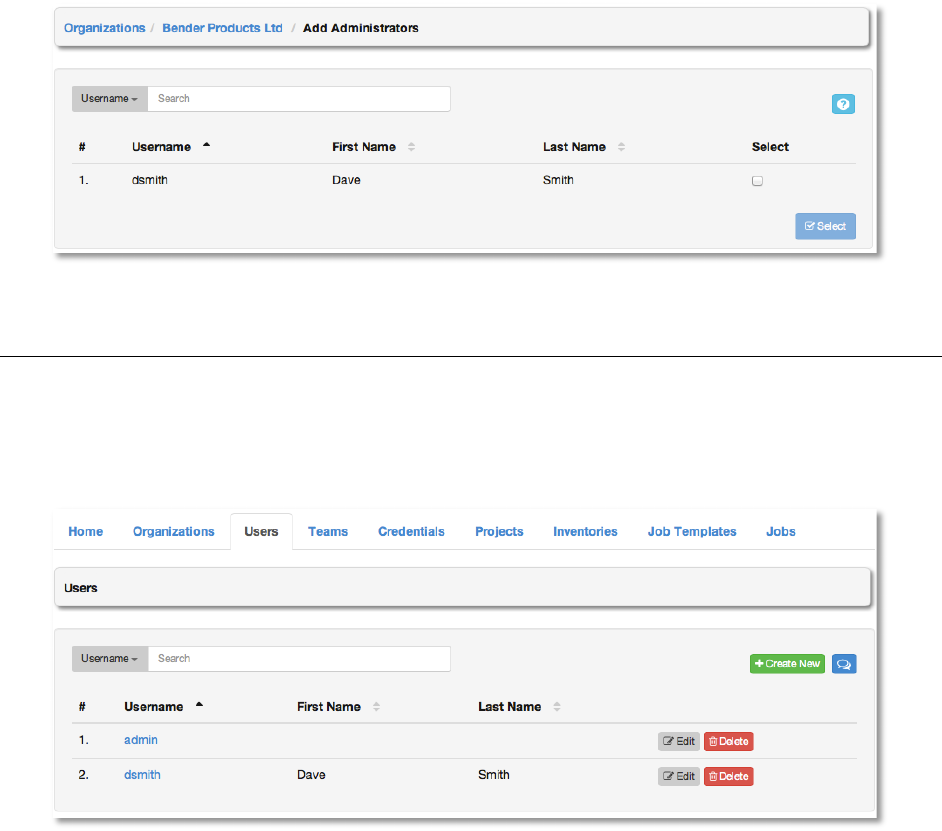
To add an administrator to the organization, click the +Add button.
NOTE: A user must first be added to the Organization before it can be added to the list of
Administrators for that Organization.
Then, select one or more users from the list of available users by clicking the Select checkbox
or clicking anywhere on the user row. Click the Select button when done.
Copyright 2013 AnsibleWorks, Inc. 45
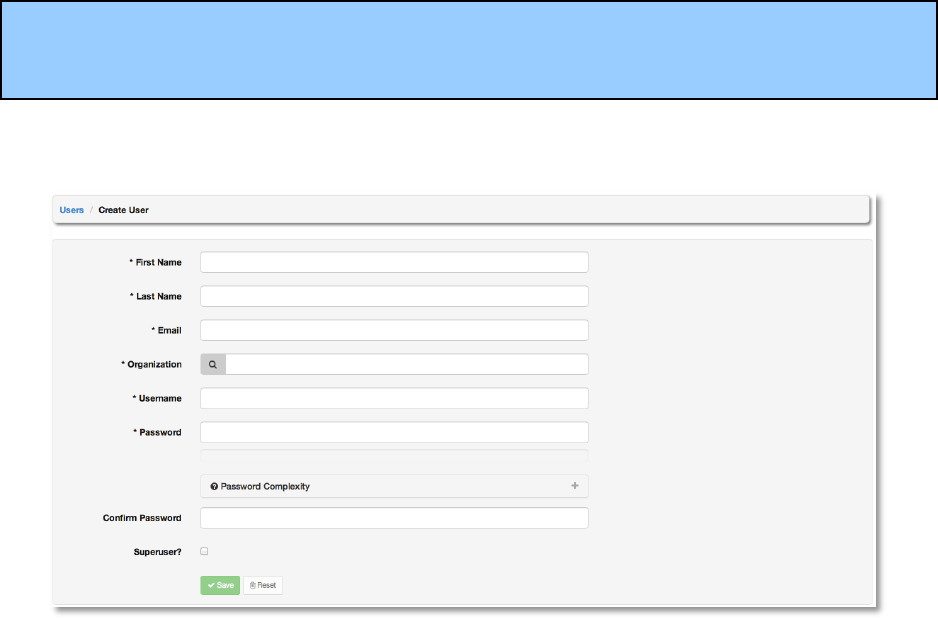
:,&1,!
A user is someone who has access to AWX with associated permissions and credentials. The
Users tab allows you to manage the all AWX users. The user list may be sorted and searched
by Username, First Name, or Last Name.
There are three types of AWX Users:
1. Normal User: read and write access is limited to the inventory and projects that the user
has been granted the appropriate rights to via AWX Permissions.
2. Organization Administrator: the administrator of an organization has all of the rights of
a normal user, as well as admin, read, and write permission over the entire organization
and all of its inventories and projects, but does not have those levels of access on
content belonging to other organizations. This level of user can create more users.
3. Super User: an AWX super user has admin, read, and write permissions over the entire
AWX installation. A Super User is typically a systems administrator responsible for
managing AWX, and would then delegate responsibilities for day-to-day work to various
Organization Administrators.
Copyright 2013 AnsibleWorks, Inc. 46
NOTE: The initial user (usually “admin”) created by the AWX installation process is a Super
User. One Super User must always exist, so if you wish to delete “admin”, first create another
Super User account.
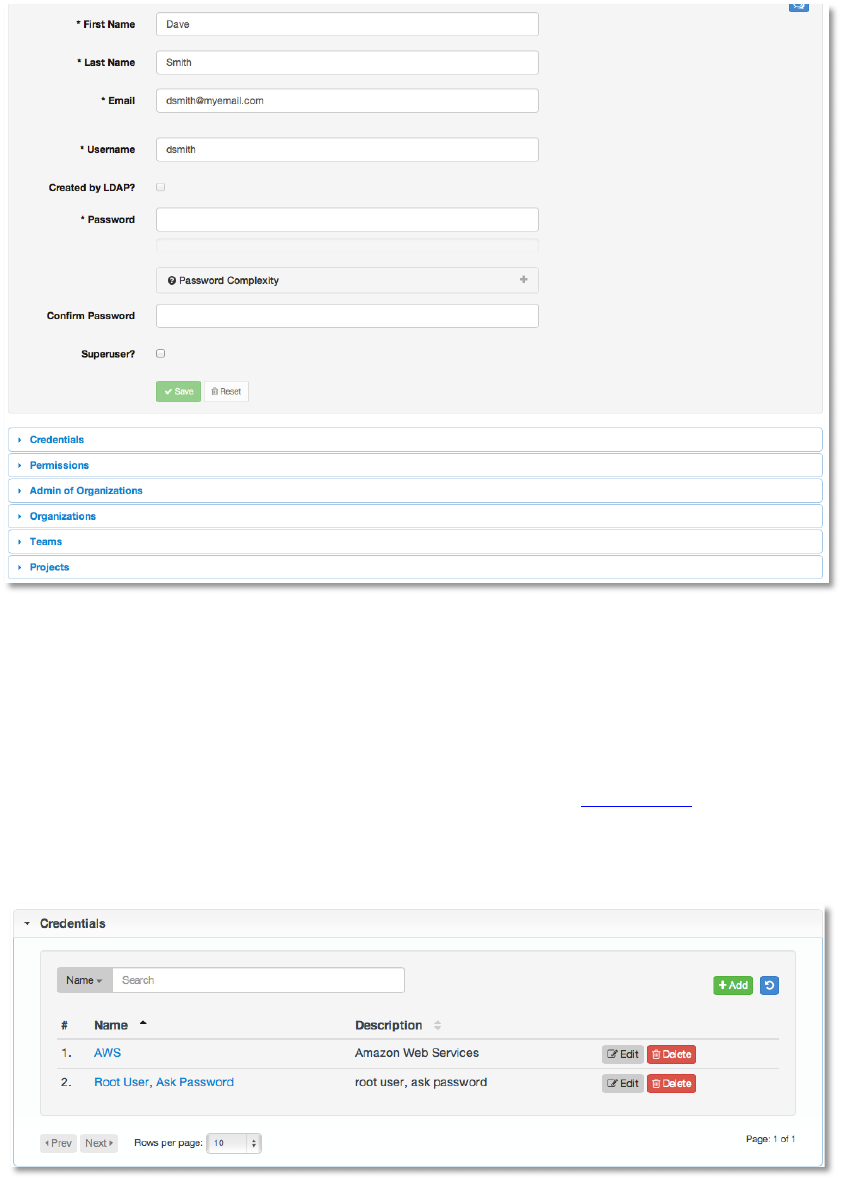
To create a new user click the +Create New button, which takes us to the new user dialog.
Enter the appropriate details into the following fields:
● Username
● First Name
● Last Name
● Email
● Organization (Choose from an existing organization)
● Password
● Confirm Password
● Superuser? (Gives this user admin privileges for AWX. Caution!)
All of these fields are required. Select Save when finished.
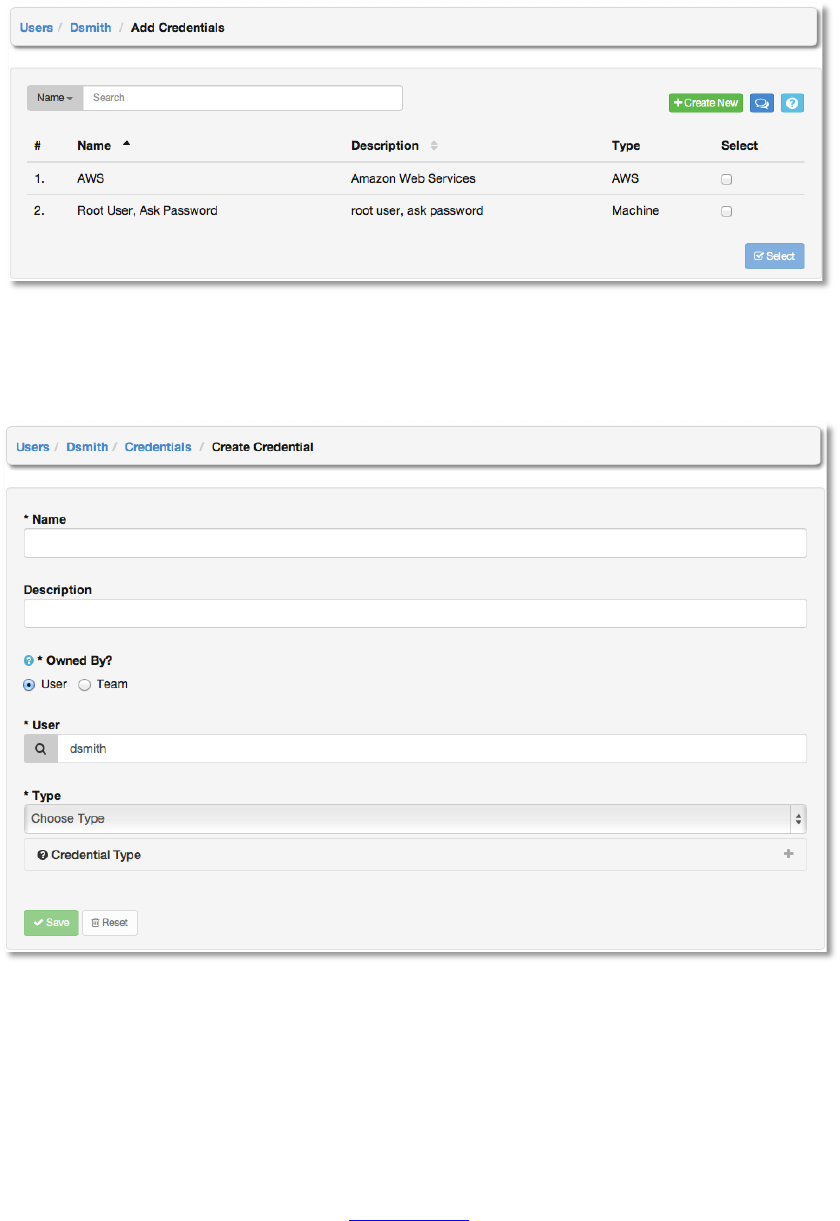
Once the user is successfully created, AWX will open the Edit User dialog. This is the same
menu that is opened if the Edit button is clicked from the Users tab. Here, User Setting,
Credentials, Permissions, and other user membership details may be reviewed and modified.
Copyright 2013 AnsibleWorks, Inc. 47
!
!
)1&8&*+2#%,!
Credentials are utilized by AWX for authenticating when launching jobs against machines, to
synchronize with inventory sources, and to import project content from a version control system.
For details about how to use credentials, please see the section Credentials.
To add credentials to user, expand the credentials menu and click the +Add button.
Then, select one or more credentials from the list of available credentials by clicking the Select
checkbox. Click the Select button when done.
Copyright 2013 AnsibleWorks, Inc. 48
To add new credentials to the user click the +Create New button, which takes us to the
Create Credential dialog.
Enter the appropriate details depending on the type of credential and select Save.
C&1G2,,2'*,!
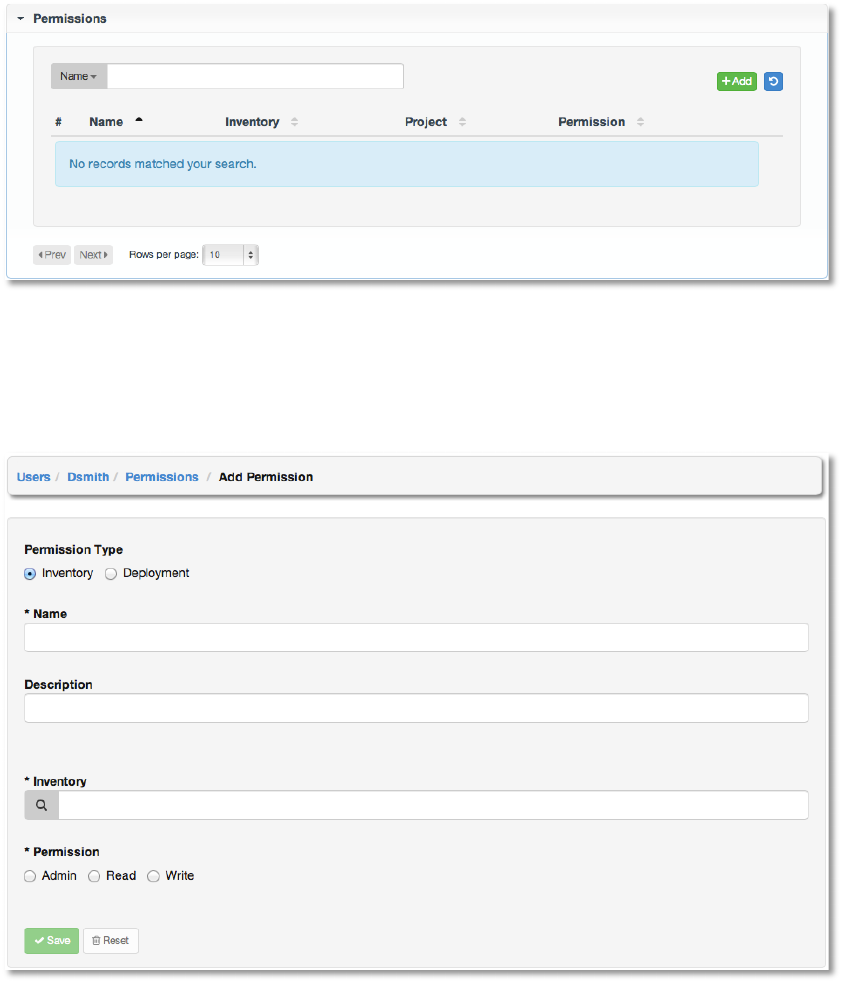
Permissions are the set of privileges assigned to users and teams that provide the ability to read,
modify, and administer projects, inventories, and other AWX elements. For details about how to
use permissions, please see the section Permissions.
Copyright 2013 AnsibleWorks, Inc. 49
This menu displays a list of the permissions that are currently available. The permissions list
may be sorted and searched by Name, Inventory, Project or Permission type.
To add new permissions to the user, click the +Add button, which takes us to the Add
Permission dialog.
Enter the appropriate details into the following fields:
● Permission Type
○ Inventory
○ Deployment
● Name
● Description
Copyright 2013 AnsibleWorks, Inc. 50
Selecting a Permission Type of either Inventory or Deployment will change the appearance
of the Add Permission dialog to present appropriate options for each type of permission.
For a permission of type Inventory, enter the following details:
● Inventory (Select from the available inventories)
● Permission
○ Admin
○ Read
○ Write
For a permission of type Deployment, enter the following details:
● Project (Select from the available projects)
● Inventory (Select from the available inventories)
● Permission
○ Run
○ Check
Select Save.
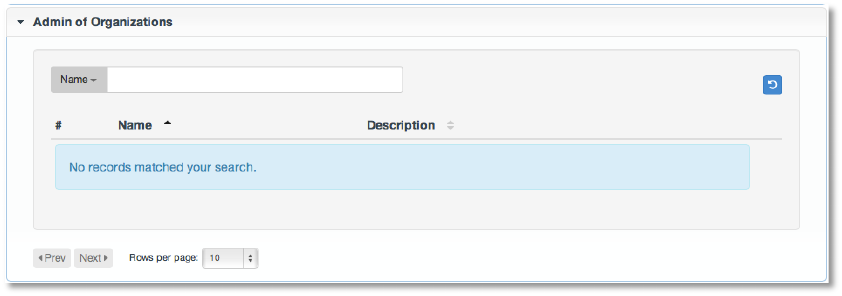
B8G2*!'(!/16#*2Z#+2'*,!
This displays the list of organizations that this user is an administrator of. This list may be
searched by Organization Name or Description. A user cannot be made an organization
administrator from this interface panel.
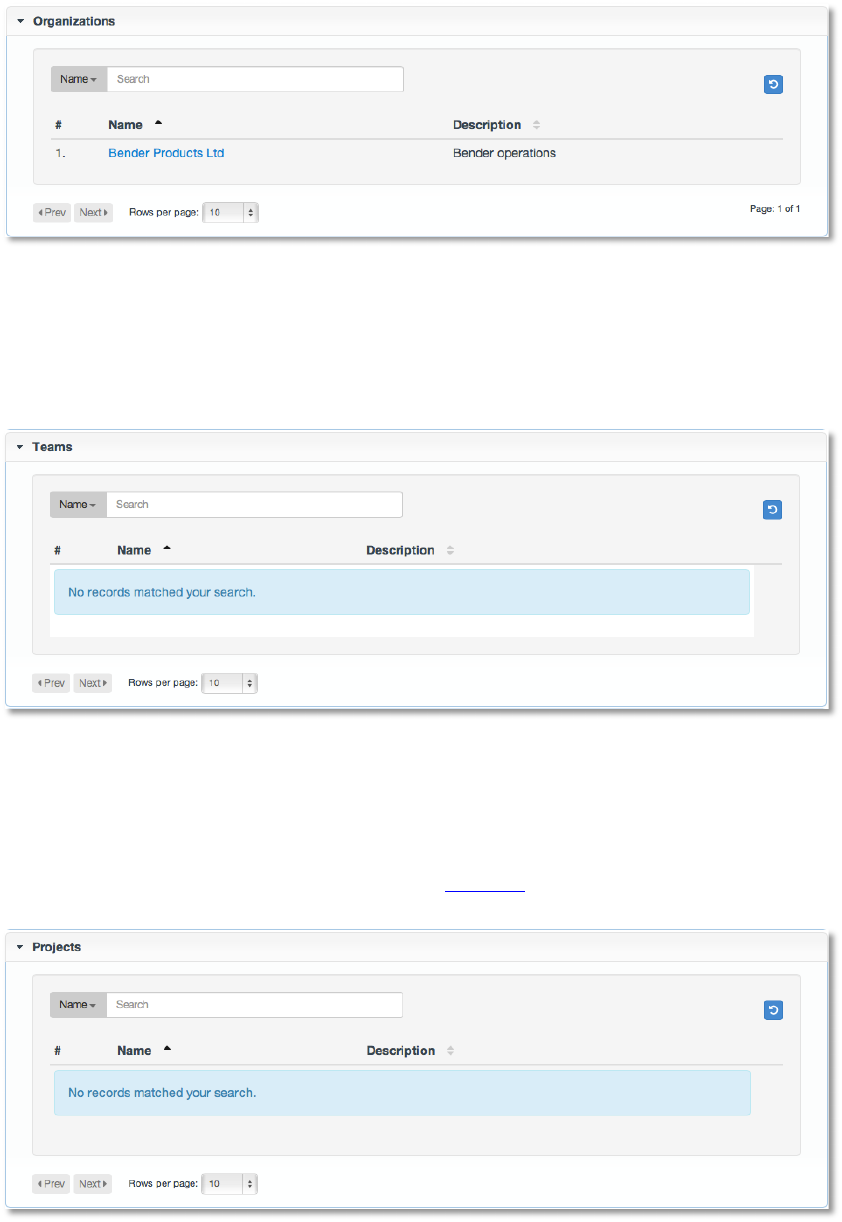
/16#*2Z#+2'*,!
This displays the list of organizations that this user is a member of. This list may be searched by
Organization Name or Description. Organization membership cannot be modified from this
display panel.
Copyright 2013 AnsibleWorks, Inc. 51
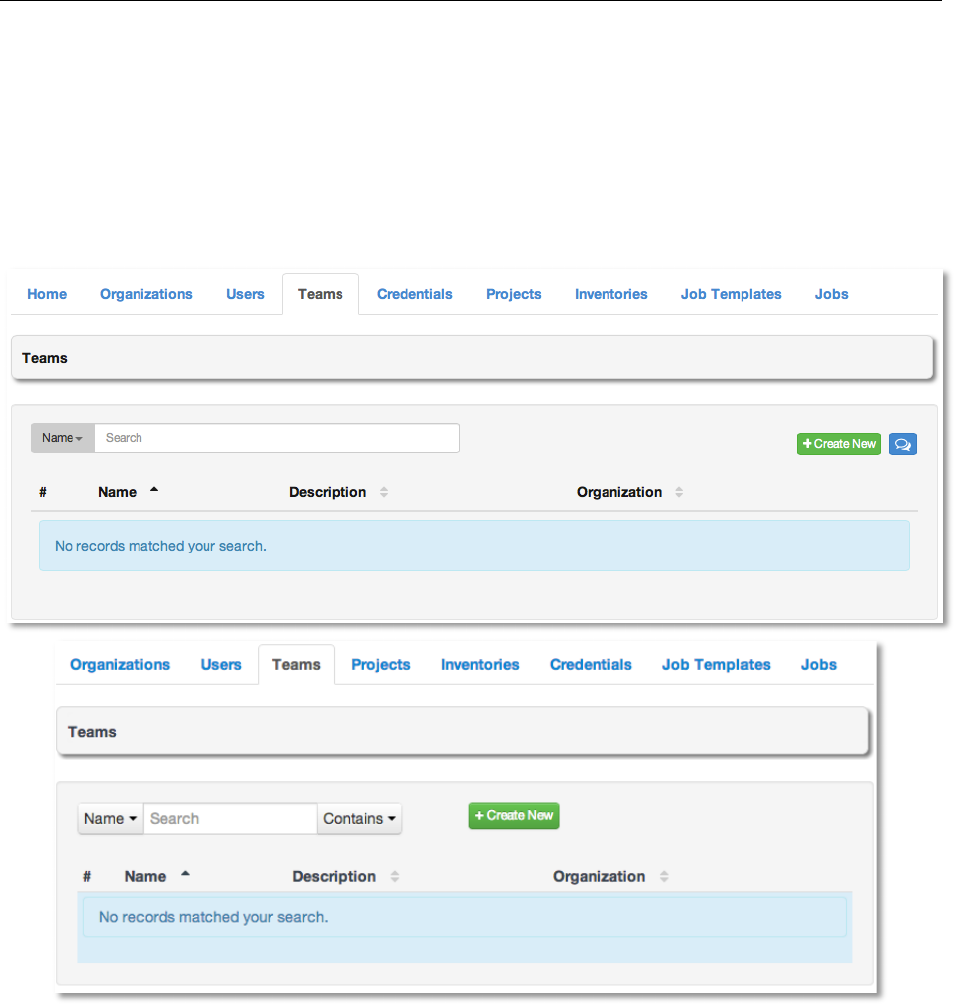
"&#G,!
This displays the list of teams that this user is a member of. This list may be searched by Team
Name or Description. Team membership cannot be modified from this display panel.
C1'[&N+,!
This displays the list of projects that this user has access to. This list may be searched by
Project Name or Description. Project access cannot be modified from this display. For more
information about projects, please see the section Projects.
Copyright 2013 AnsibleWorks, Inc. 52
"&#G,!
A team is a subdivision of an organization with associated users, projects, credentials, and
permissions. Teams provide a means to implement role-based access control schemes and
delegate responsibilities across organizations. For instance, permissions may be granted to a
whole team rather than each user on the team.
This tab allows you to manage the teams for AWX. The user list may be sorted and searched by
Username, Description, or Organization.
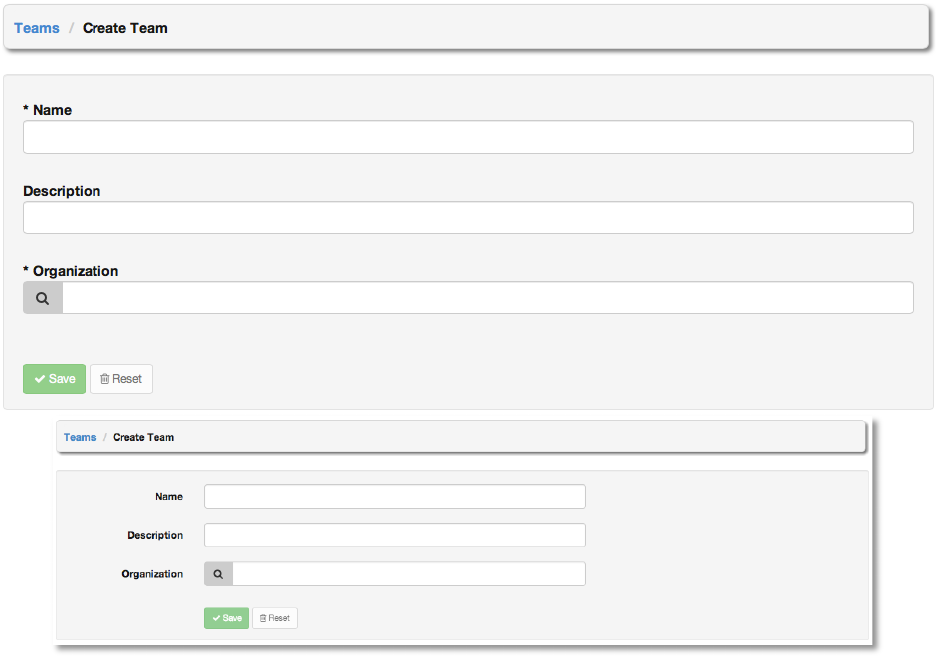
To create a new team, click the +Create New button, which takes us to the Create Team
dialog.
Copyright 2013 AnsibleWorks, Inc. 53
Enter the appropriate details into the following fields:
● Name
● Description
● Organization (Choose from an existing organization)
All fields are required. Select Save.
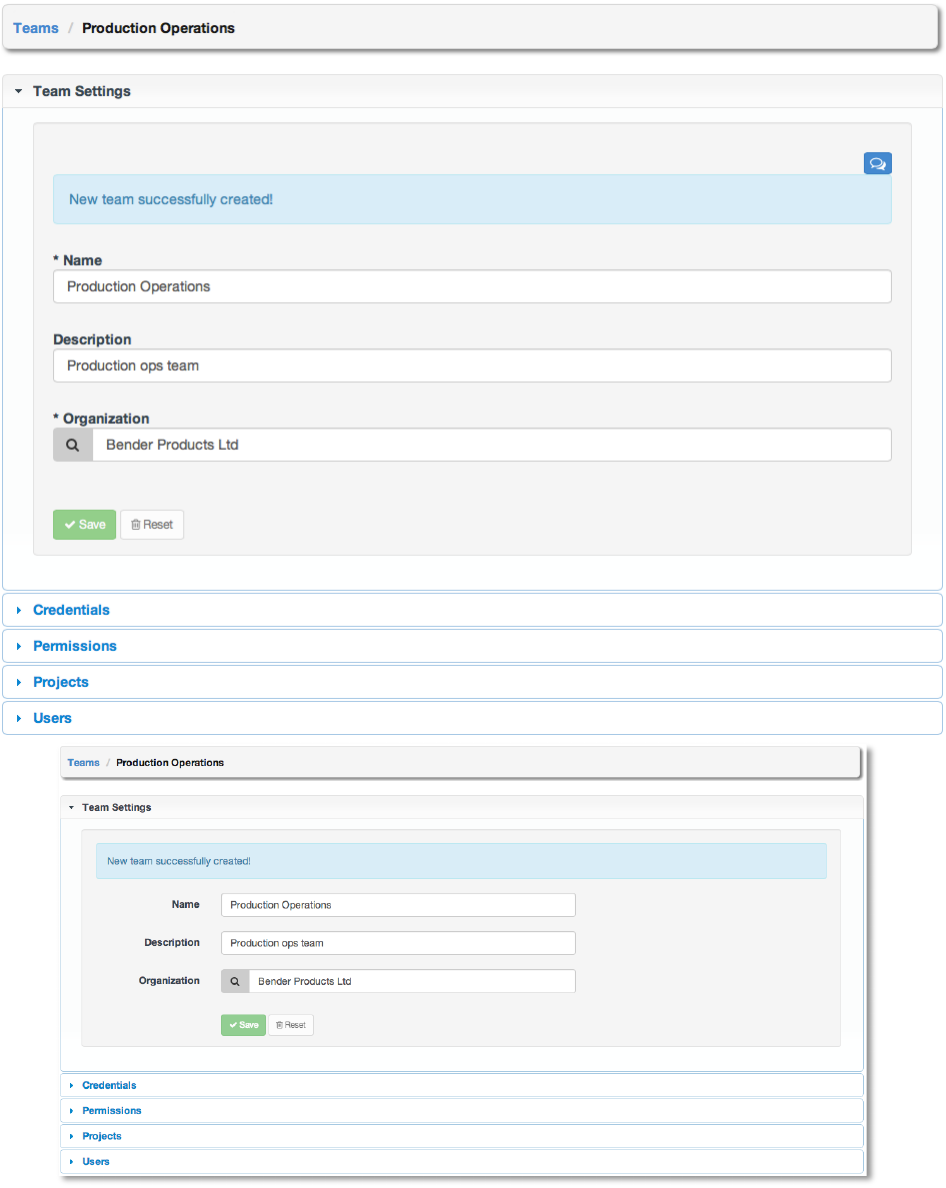
Once the team is successfully created, AWX will open the Edit Team dialog. This is the same
menu that is opened if the Edit button is clicked from the Teams tab. Here, Team Settings,
Credentials, Permissions, Projects, and Users associated with this team may be reviewed and
modified.
Copyright 2013 AnsibleWorks, Inc. 54
Copyright 2013 AnsibleWorks, Inc. 55
)1&8&*+2#%,!
Credentials are utilized by AWX for authenticating when launching jobs against machines, to
synchronize with inventory sources, and to import project content from a version control system.
For details about how to use credentials, please see the section Credentials.
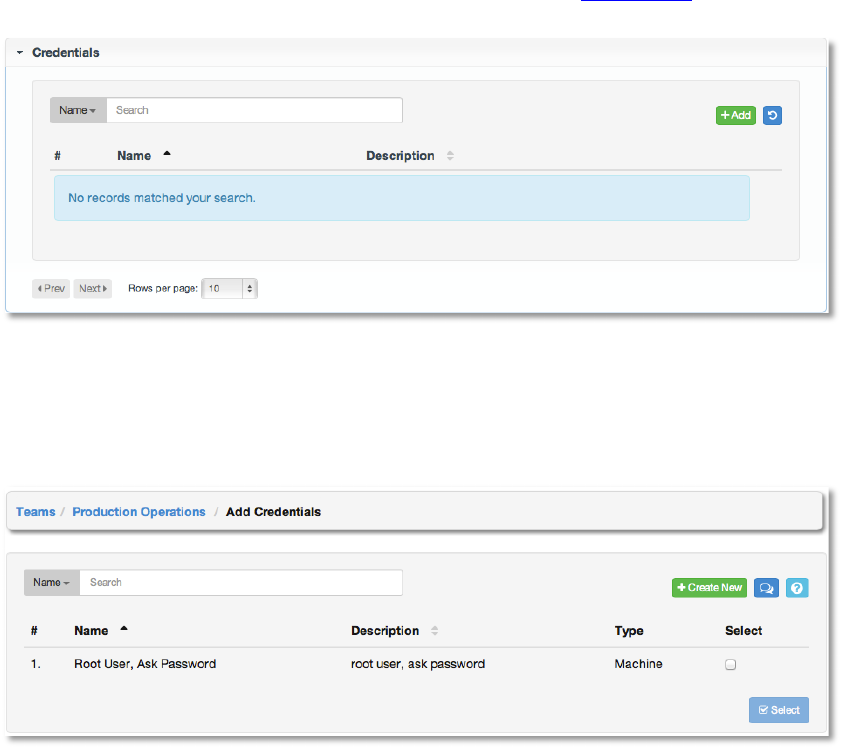
To add credentials to the team, click the +Add button. Then, select one or more credentials
from the list of available credentials by clicking the Select checkbox. Click the Select button
when done.
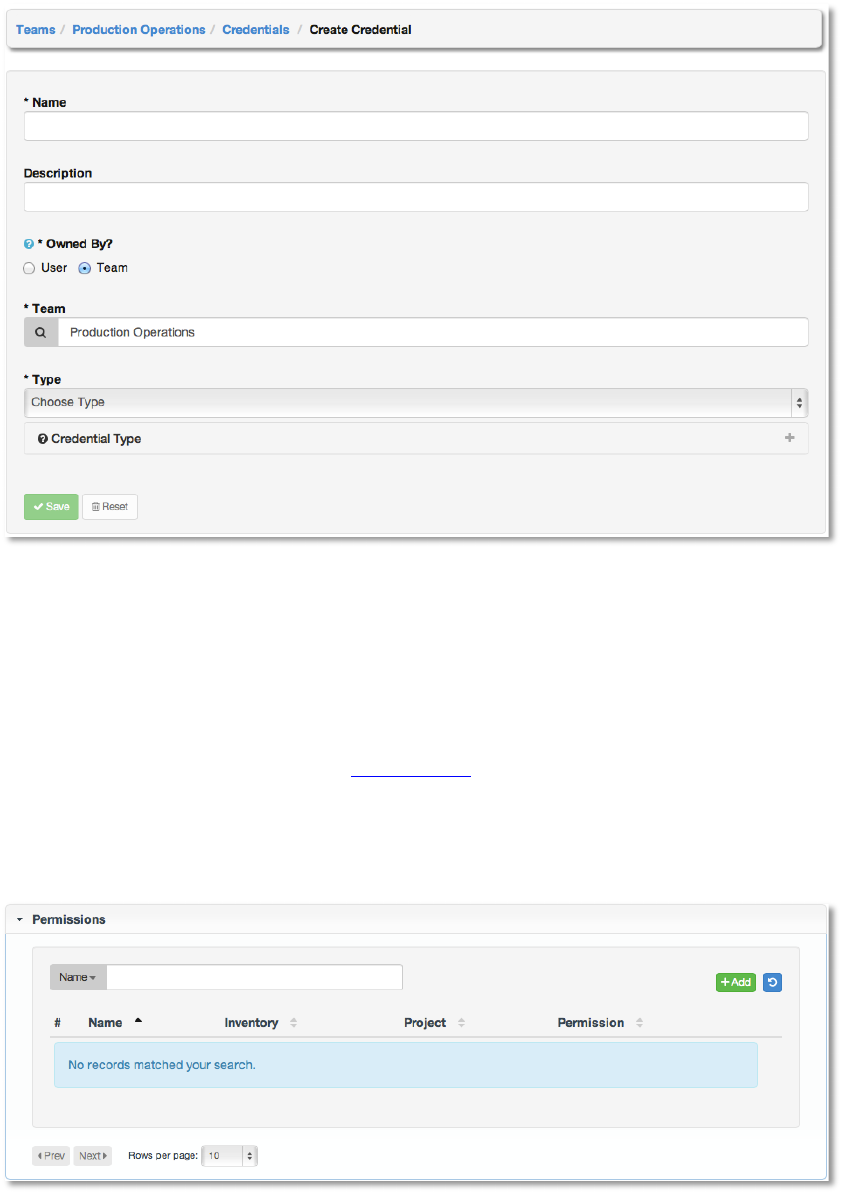
To create new credentials and add them to the team, click the +Create New button, which
takes us to the Create Credential dialog.
Copyright 2013 AnsibleWorks, Inc. 56
Enter the appropriate details depending on the type of credential and select Save.
C&1G2,,2'*,!
Permissions are the set of privileges assigned to users and teams that provide the ability to read,
modify, and administer projects, inventories, and other AWX elements. For details about how to
use permissions, please see the section Permissions.
This menu displays a list of the permissions that are currently available. The permissions list
may be sorted and searched by Name, Inventory, Project or Permission type.
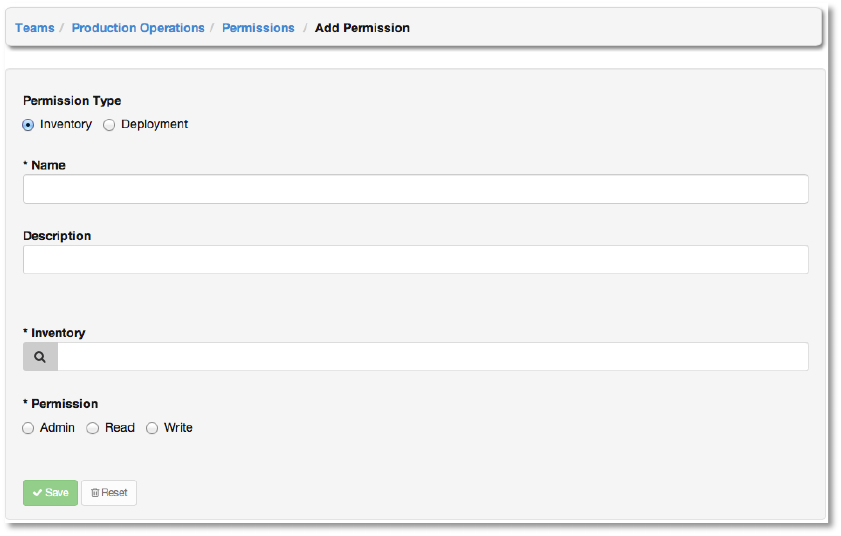
To add new permissions to the team, click the +Add button, which takes us to the Add
Permission dialog.
Copyright 2013 AnsibleWorks, Inc. 57
Enter the appropriate details into the following fields:
● Permission Type
○ Inventory
○ Deployment
● Name
● Description
Selecting a Permission Type of either Inventory or Deployment will change the appearance
of the Add Permission dialog to present appropriate options for each type of permission.
For a permission of type Inventory, enter the following details:
● Inventory (Select from the available inventories)
● Permission
○ Admin
○ Read
○ Write
For a permission of type Deployment, enter the following details:
● Project (Select from the available projects)
● Inventory (Select from the available inventories)
● Permission
○ Run
○ Check
Copyright 2013 AnsibleWorks, Inc. 58
Select Save.
C1'[&N+,!
This displays the list of projects that this team has access to. This list may be searched by
Project Name or Description. For more information about projects, please see the section
Projects.
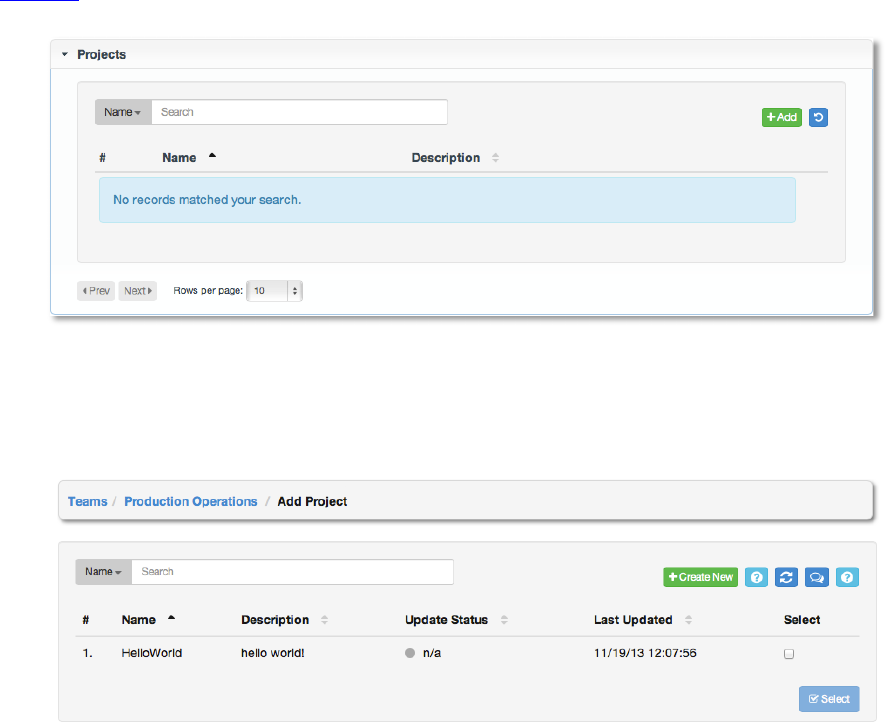
To add a project to the team, click the “+Add” button. Then select one or more projects from the
list of available credentials by clicking the Select checkbox or clicking anywhere on the user row.
Click Finished when done.
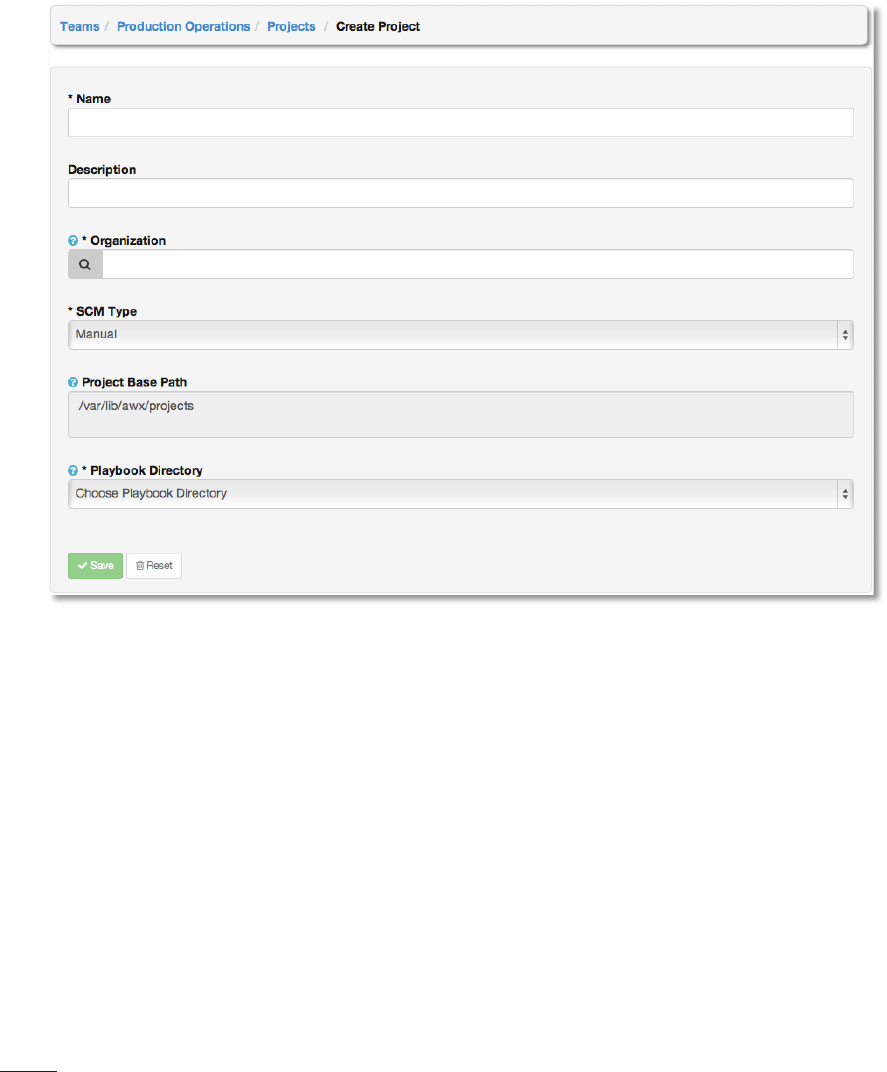
To create a new project and it to the team, +Create New, which takes us to the Create
Project dialog.
Copyright 2013 AnsibleWorks, Inc. 59
Enter the appropriate details into the following fields:
● Name
● Description
● Organization
● SCM Type
● Project Base Path
● Project Path
All fields are required. Select Save.
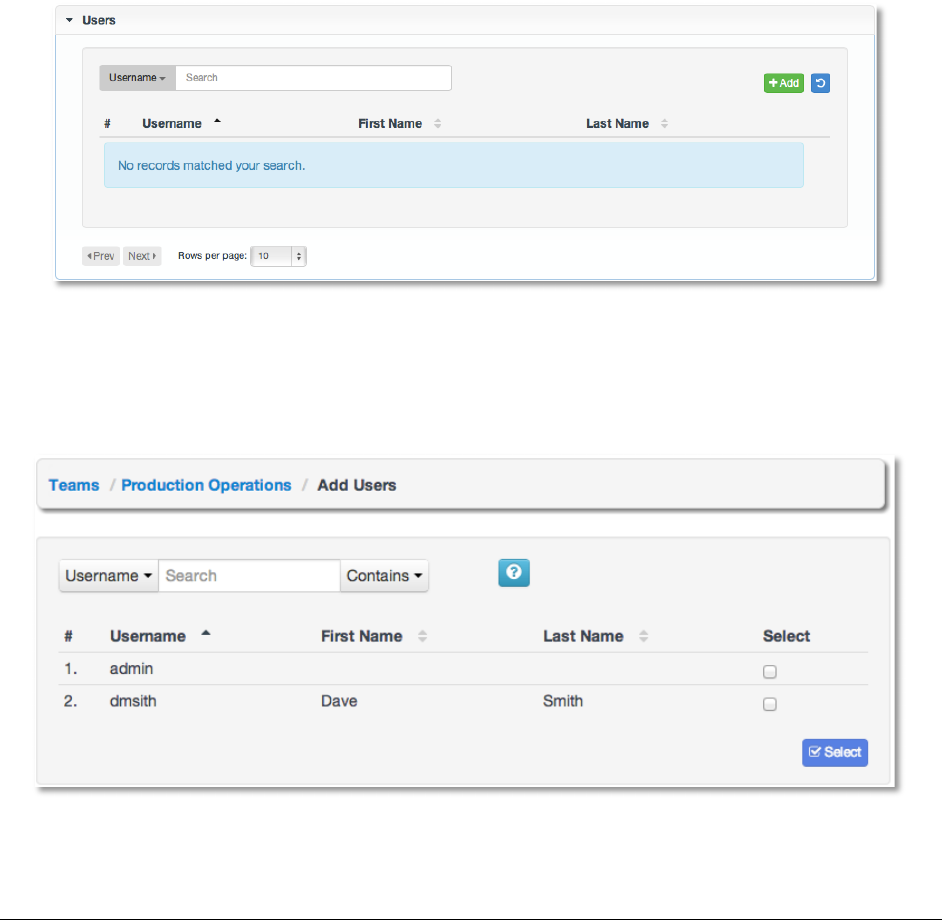
:,&1,!
This menu displays the list of users that are members of this team. This list may be searched by
Username, First Name, or Last Name. For more information on users, please see the section
Users.
Copyright 2013 AnsibleWorks, Inc. 60
To add users to the team, click the +Add button. Then, select one or more users from the list of
available users by clicking the Select checkbox or clicking anywhere on the user row. Click the
Select button when done.
C&1G2,,2'*,!
Permissions are rights given to users to perform actions, including manage inventory and invoke
Ansible playbooks / roles.
There are two permission types available to be assigned to users and teams, each with its own
set of permissions available to be assigned:
● Inventory: grants permission to act on inventories, groups, and hosts
○ Admin: modify the settings for the specified inventory. This permission also
grants Read and Write permissions.
○ Read: view groups and hosts within a specified inventory
Copyright 2013 AnsibleWorks, Inc. 61
○ Write: create, modify, and remove groups, and hosts within a specified inventory.
Does not give permission to modify the inventory settings. This permission also
grants the Read permission.
● Deployment: grants permission to launch jobs from the specified project against the
specified inventory
○ Run: launch jobs of type Run. This permission also grants the Check permission.
○ Check: launch jobs of type Check.
Permissions do not have their own tab, but may be managed from either or both of the Users
and Teams tabs. See those sections for information on how to modify, add, and delete
permissions.
)1&8&*+2#%,!
Credentials are utilized by AWX for authenticating when launching jobs against machines, to
synchronize with inventory sources, and to import project content from a version control system.
NOTE: AWX encrypts passwords and key information in the AWX database and never makes
secret information visible via the API.
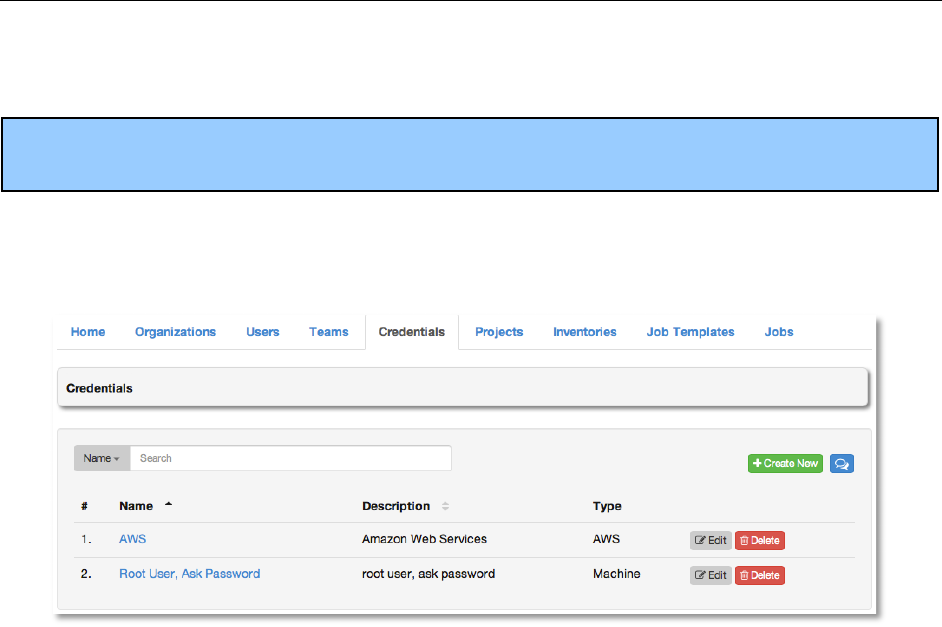
The Credentials tab displays a list of the credentials that are currently available. The
credentials list may be sorted and searched by Name, Description, or Type.
Credentials may be managed from either the Teams tab or the Users tab. The Credentials tab
simply provides a searchable and sortable list of credentials for your convenience.
To manage credentials for teams, please browse to the Teams tab and edit the appropriate
team. Likewise, to manage credentials for a user, browse to the Users tab and edit the
appropriate user.
Copyright 2013 AnsibleWorks, Inc. 62
Credentials added to a Team will be available to all members of the team, whereas credentials
added to a user are only available to that user, by default.
There are four types of Credentials:
^#ND2*&!
Define SSH and Sudo access for playbooks. Used when submitting jobs to run playbooks on a
remote host.
Machine credentials have several attributes that may be configured:
● SSH Password
The actual password to be used to authenticate the user via SSH. This password
may be stored encrypted in the AWX database, if entered. Alternatively, you may
configure AWX to ask the user for the password when a job that uses this credential
is launched by selecting Ask at runtime. In that case, a dialog will open when the job
is launched where the user may enter the password and password confirmation.
● SSH Private Key
The actual SSH Private Key to be used to authenticate the user via SSH. This key is
stored encrypted in the AWX database.
● SSH Private Key with Key Password
In addition to using an SSH private key, you may configure a Key Password
associated with the private key. This password may be stored encrypted in the AWX
database, if entered. Alternatively, you may configure AWX to ask the user for the
password when a job that uses this credential is launched by selecting Ask at
runtime. In that case, a dialog will open when the job is launched where the user may
enter the password and password confirmation.
● Sudo Password
The actual password to be used to authenticate the user via sudo. This password
may be stored encrypted in the AWX database, if entered. Alternatively, you may
configure AWX to ask the user for the password when a job that uses this credential
is launched by selecting Ask at runtime. In that case, a dialog will open when the job
is launched where the user may enter the password and password confirmation.
Copyright 2013 AnsibleWorks, Inc. 63
Sudo Password must be used in combination with one of the other methods, since
AWX must first establish an authenticated SSH connection with the host prior to
invoking sudo to change to the sudo user.
BE7!
Enables synchronization of cloud inventory with Amazon Web Services. Requires the AWS
Access Key and Secret Key.
M#NY,S#N&!
Enables synchronization of cloud inventory with Rackspace. Requires the Rackspace
Username and API Key.
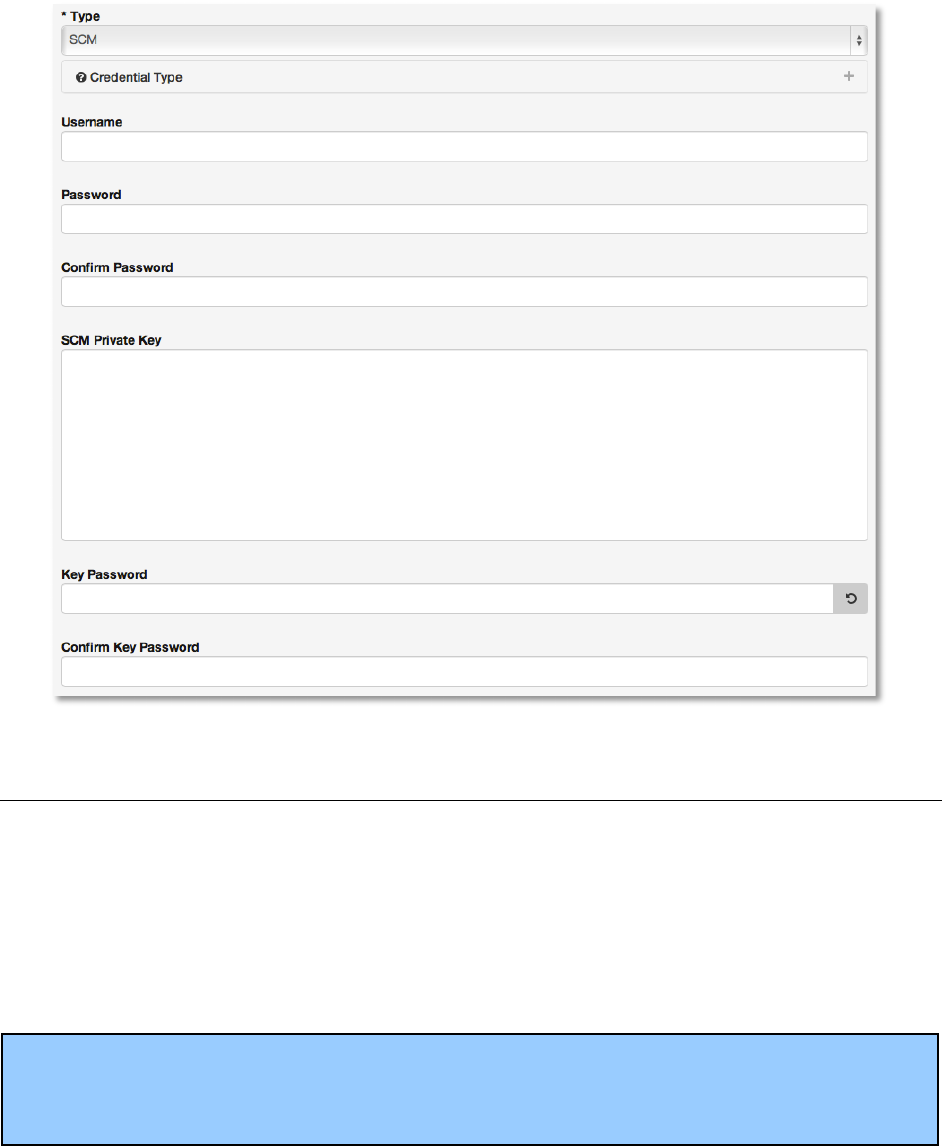
7)^!
Used on projects to clone and update local source code repositories from a remote revision
control system such as Git, SVN or Mercurial.
Copyright 2013 AnsibleWorks, Inc. 64
C1'[&N+,!
A Project is a logical collection of Ansible playbooks, represented in AWX.
Add your Ansible projects to the filesystem of your AWX installation under the project base path.
You can do this by either managing playbooks and playbook directories manually or by using a
source code management (SCM) system supported by AWX, including Git, Subversion, and
Mercurial.
NOTE: By default, the Base Project Path is /var/lib/awx/projects, but this may have been
modified by the AWX administrator. It is configured in /etc/ansibleworks/settings.py. Use
caution when editing this file, as it is possible to disable your installation.
This menu displays a list of the projects that are currently available. The list of projects may be
sorted and searched by Project Name, Description, by the time the project was Last
Updated, or by Status. From the Projects tab, you can also modify and remove existing
projects, using the Edit and Delete buttons.

Copyright 2013 AnsibleWorks, Inc. 65
For projects managed via Source Code Management (SCM), the Status button will display the
update status for the project and Update will invoke an immediate SCM update for the project.
Status may be one of the following:
• Updating - an update is in progress
• Never updated - project has never been updated
• Failed - last update failed
• Successful - last updated succeeded
• Missing - project has a last update, but the project directory is missing, or project doesn't
use SCM and the directory is missing
• Ok - project doesn't use SCM, and the directory is present
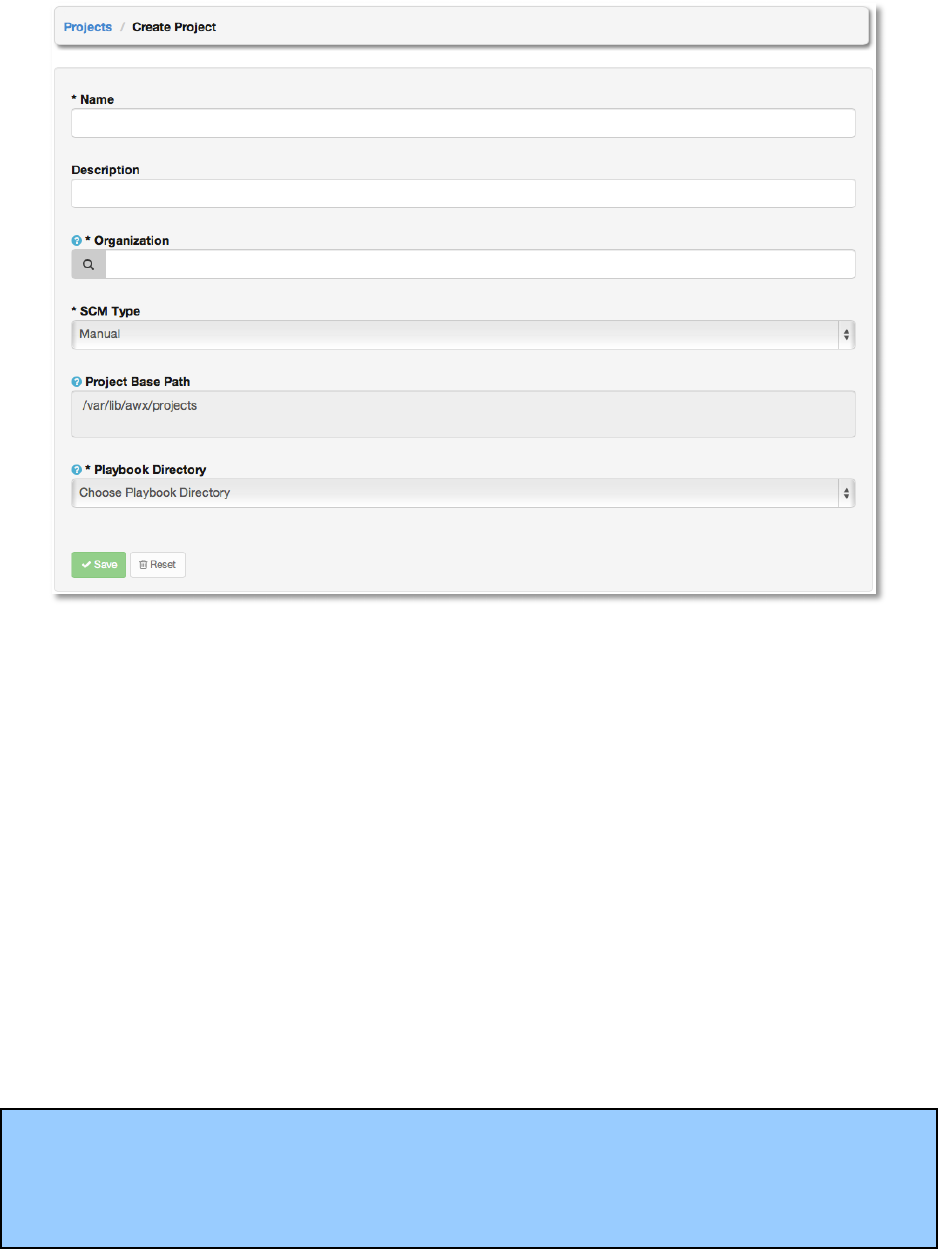
Refresh the list of projects with the Refresh button. To create a new project, click the +Create
New button, which takes us to the Create Project dialog.
NOTE: If you have not added any Ansible playbook directories to the base project path, then
you will receive the following message from AWX:
WARNING: There are no unassigned playbook directories in the base project path
/var/lib/awx/projects. Either the projects directory is empty, or all of the contents are already
assigned to other projects. New projects can be checked out from source control by changing
the SCM type option rather than specifying checkout paths manually. To continue with manual
setup, log into the AWX server and ensure content is present in a subdirectory under
/var/lib/awx/projects. Run "chown -R awx" on the content directory to ensure awx can read the
playbooks.
Correct this issue by creating the appropriate playbook directories and checking out
playbooks from your SCM or otherwise copying playbooks into the appropriate playbook
directories.
Copyright 2013 AnsibleWorks, Inc. 66
Enter the appropriate details into the following fields:
● Name
● Description
● Organization
A project must have at least one organization. Pick one organization now to create the
project, and then after the project is created you can add additional organizations.
● SCM Type
Select one of Manual, Git, SVN, or Mercurial. (See the appropriate section below for
more detail.)
● Project Base Path (Shown here as a convenience. A future release may make this user-
editable.)
● Project Path (The project paths show here are automatically read from the directory tree
with a root of the project base path.)
All fields are required. Select Save.
Note: Each project path can only be assigned to one project. If you receive the following
message, ensure that you have not already assigned the project path to an existing project.
All of the project paths have been assigned to existing projects, or there are no directories
Copyright 2013 AnsibleWorks, Inc. 67
found in the base path. You will need to add a project path before creating a new project.
To manage playbooks manually:
1. Create one or more directories to store playbooks under the Project Base Path
(e.g. “/var/lib/awx/projects/”)
2. Create or copy playbook files into the playbook directory(s).
3. Ensure that the playbook directory(s) and files are owned by the same UNIX user
and group that the AWX service runs as.
4. Ensure that the permissions are appropriate for the playbook directory(s) and
files.
If you have trouble adding a project path, check the permissions and SE Linux context settings
for the project directory and files.
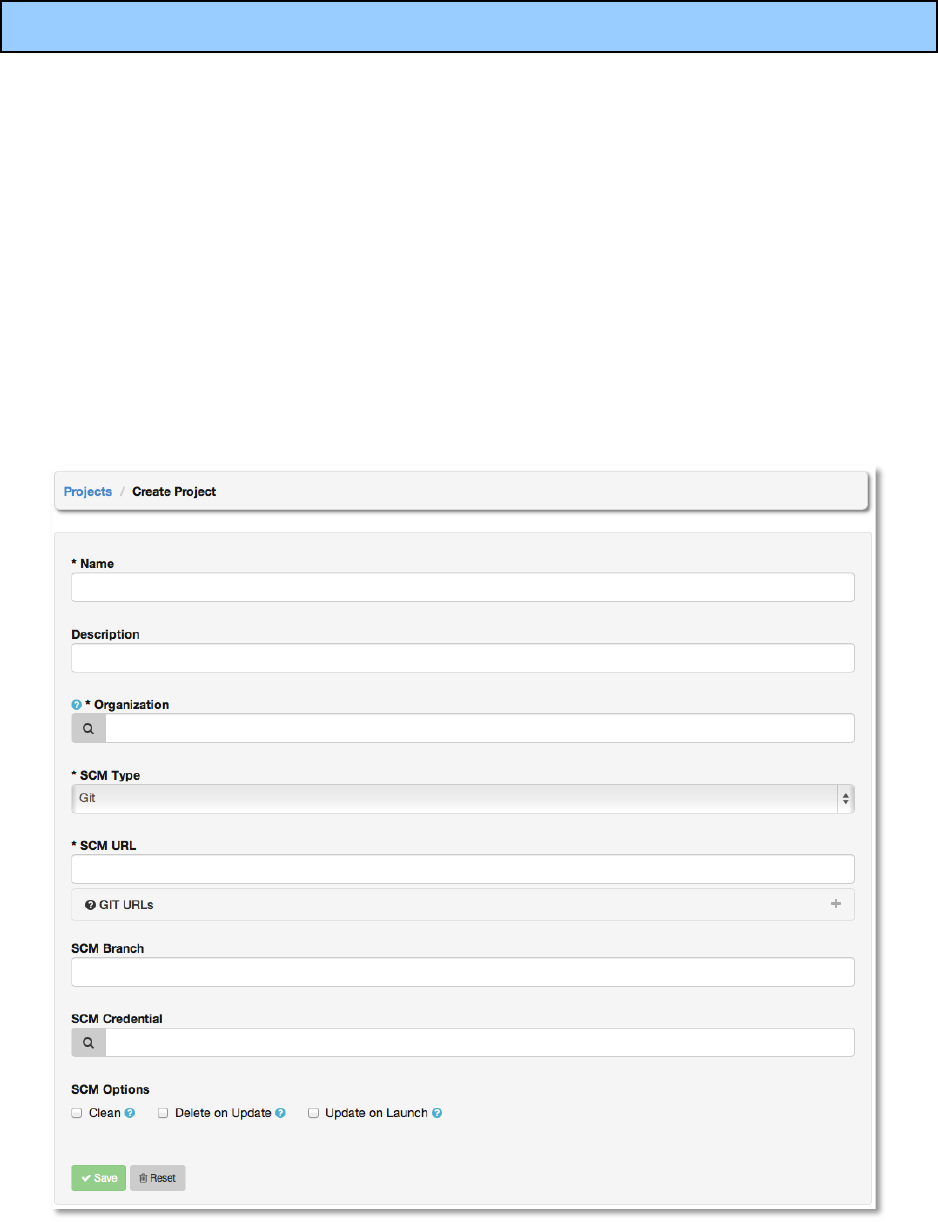
To manage playbooks using SCM, select the appropriate SCM Type.
Enter the appropriate details into the following fields:

Copyright 2013 AnsibleWorks, Inc. 68
● SCM URL
● SCM Branch
Optionally enter the SCM branch for Git or Mercurial
● Revision # (SVN only)
Optionally enter the Revision # for Subversion
● If authentication is required, select the appropriate SCM credentials.
● Clean
Remove any local modifications prior to performing an update.
● Delete on Update
Delete the local repository in its entirety prior to performing an update. Depending on the
size of the repository this may significantly increase the amount of time required to
complete an update.
● Update on Launch
Each time a job runs using this project, perform an update to the local repository prior to
starting the job.
H*0&*+'12&,!
An inventory is a collection of hosts against which jobs may be launched. Inventories are
divided into groups and these groups contain the actual hosts. Groups may be sourced
manually, by entering host names into AWX, or from cloud providers, including Amazon Web
Services EC2 and Rackspace Cloud Servers.
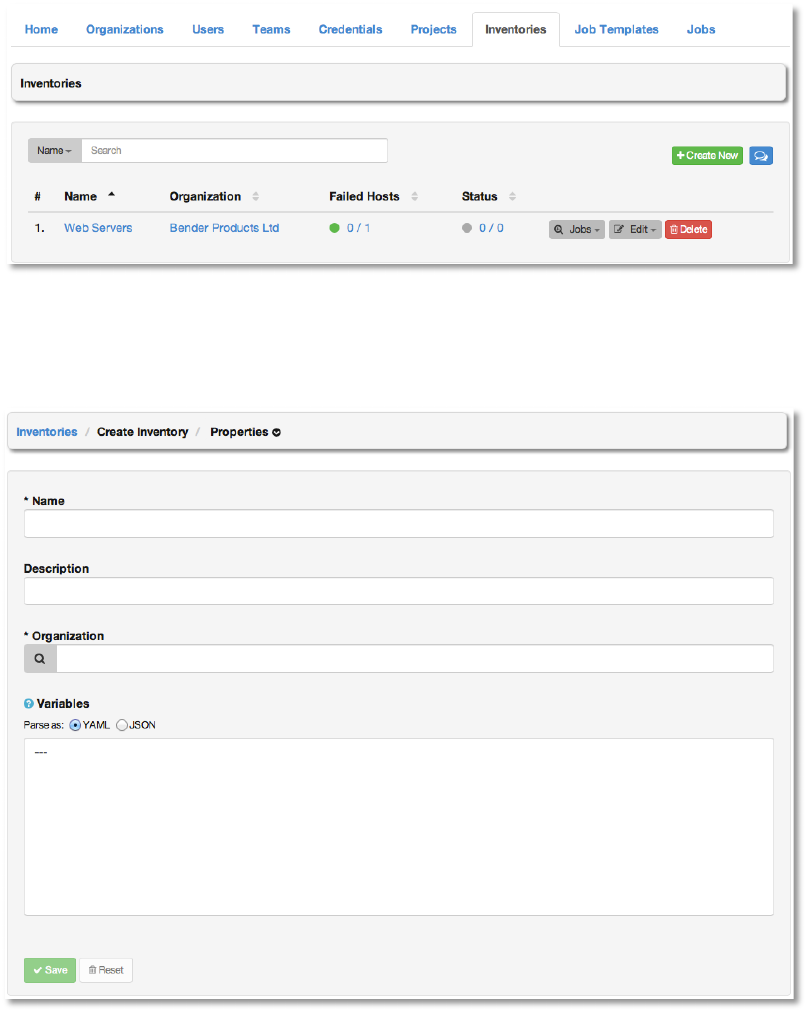
This tab displays a list of the inventories that are currently available. The inventory list may be
sorted and searched by Name or Organization and filtered by inventories with external source,
by hosts with failed jobs, and inventories that have failed to update with an external source.
Copyright 2013 AnsibleWorks, Inc. 69
To create a new inventory click the +Create New button, which takes us to the Create
Inventory dialog.
Enter the appropriate details into the following fields and select Save:
● Name (required)
● Description
● Organization (Select from the available organizations)
● Variables
Enter variables using either JSON or YAML syntax. Use the radio button to toggle
between the two.
Copyright 2013 AnsibleWorks, Inc. 70
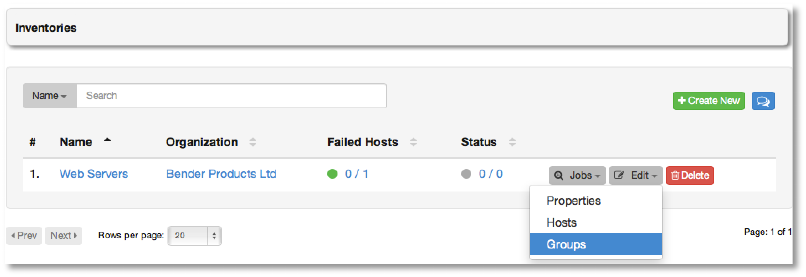
Existing inventories may be managed from the Inventories tab using the following actions:
• Jobs
o All: Show all jobs launched against the selected inventory
o Failed: Show failed jobs launched against the selected inventory
• Edit
o Properties: Edit the properties of the selected inventory
o Hosts: Manage the hosts belonging to the selected inventory
o Groups: Manage the groups belonging to the selected inventory
• Delete: Delete the selected inventory. This operation cannot be reversed!
Inventories are divided into groups, which may contain hosts and other groups. An inventory
must contain at least one group.
51';S,!
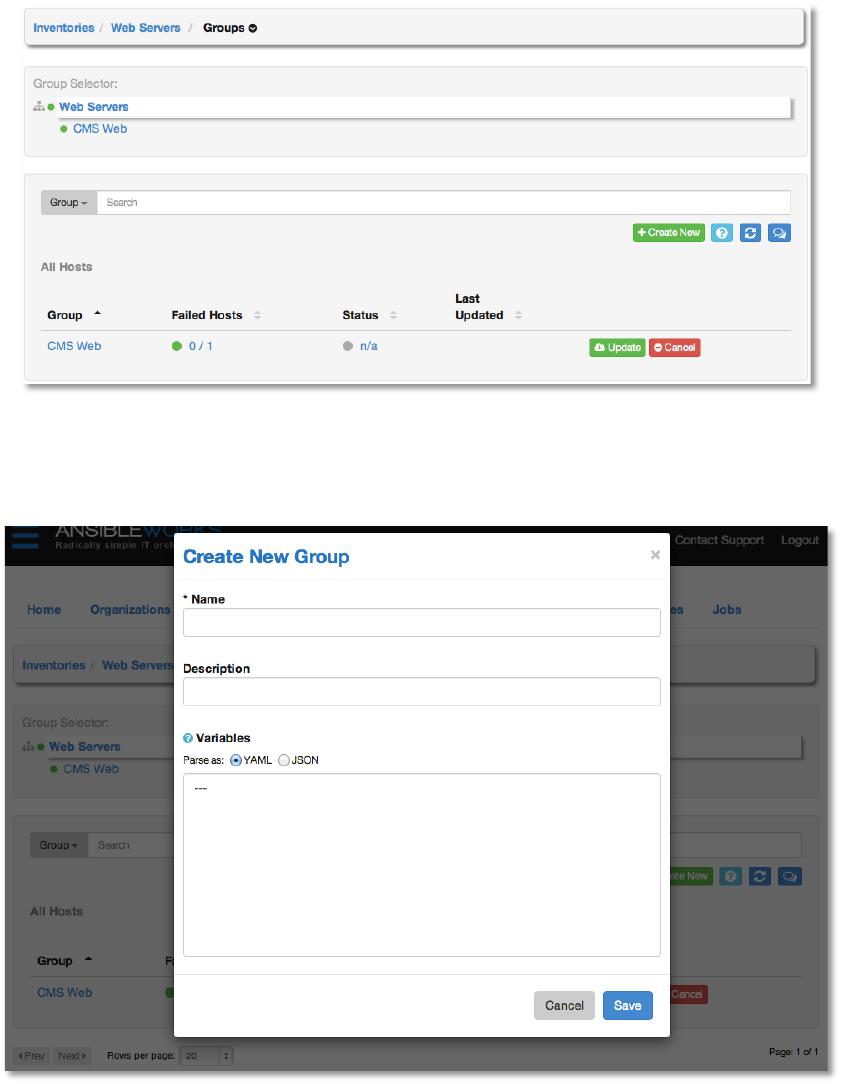
To add a group to an inventory or to manage an existing group, select Groups from the Edit
menu for the selected inventory.
This screen displays a list of the groups that are currently available. The group list may be
sorted and searched by Group Name, Status, or Source and filtered by groups with external
source, by hosts with failed jobs, and groups that have failed to update with an external source.
To edit the group properties, click the group name. Additional actions may be performed on the
group by selecting the buttons to the right.
• Update – Perform an update on the selected group from its source
• Cancel – Cancel any group update in progress
Copyright 2013 AnsibleWorks, Inc. 71
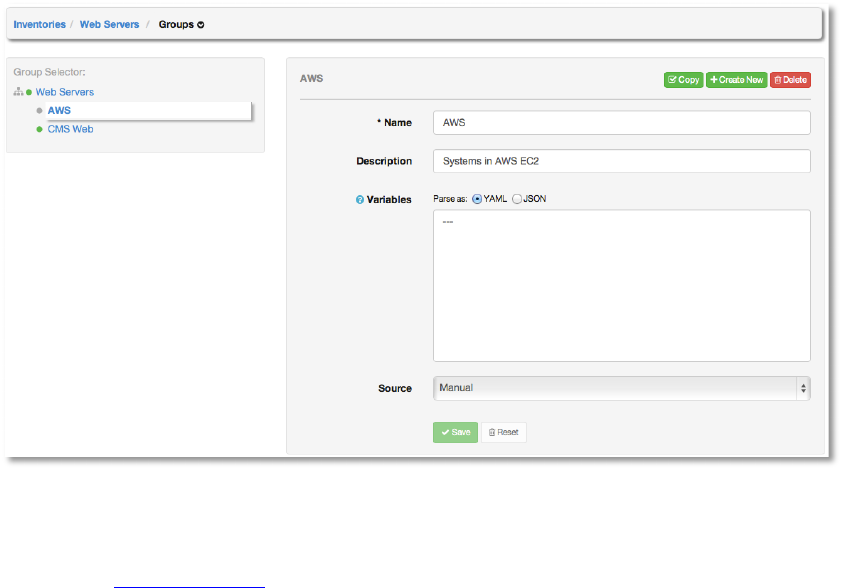
Create a new group by clicking the +Create New button, which opens the Create Group
dialog.
Enter the appropriate details into the following fields and click Save.
:
● Name (required)
● Description
● Variables
Copyright 2013 AnsibleWorks, Inc. 72
Enter variables using either JSON or YAML syntax. Use the radio button to toggle
between the two.
Upon saving the group, the group properties are displayed and may be modified.
By default, the group Source is manual, which means that the hosts must be entered into AWX
manually. (See Add a new host for more information on managing hosts individually.)
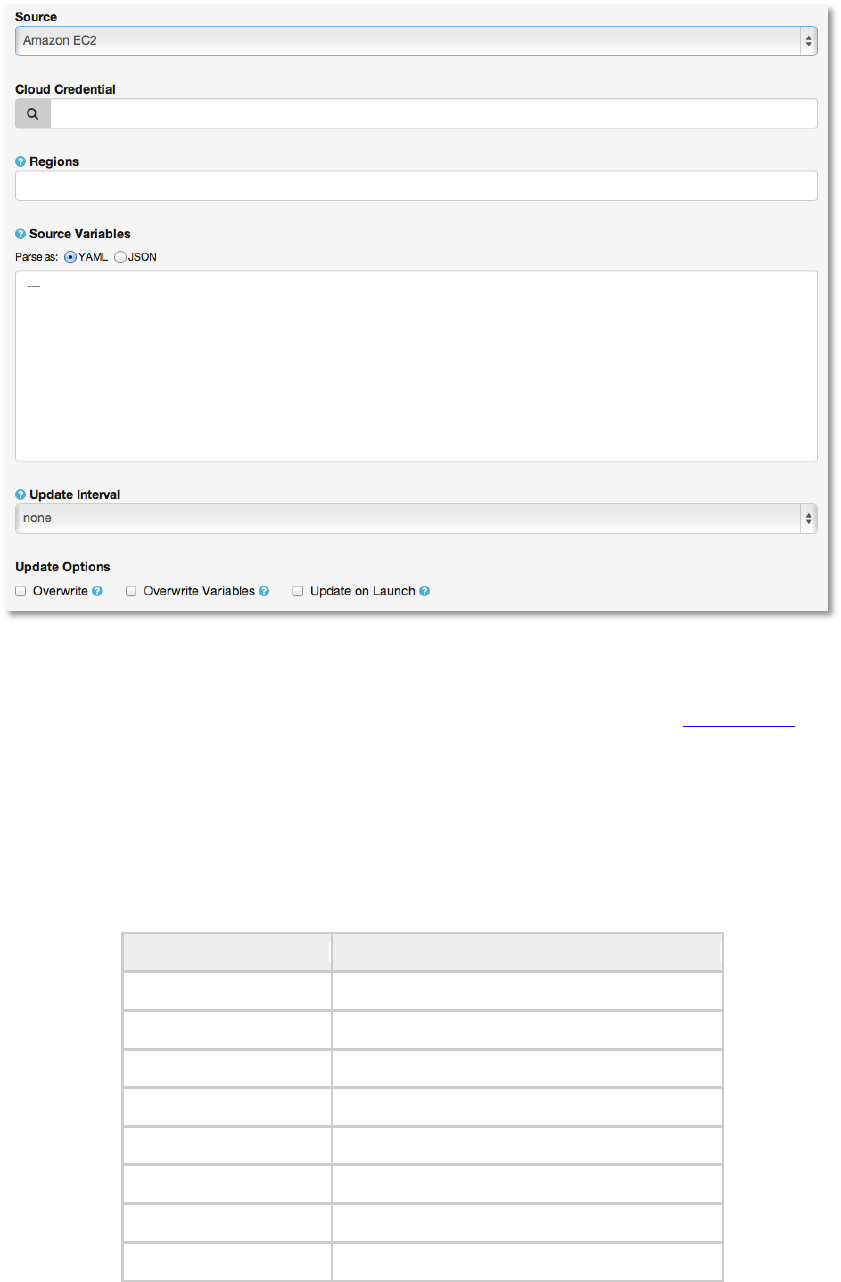
To synchronize the inventory group from a cloud source, select the cloud from the Source
menu. AWX 1.4 supports Amazon Web Services EC2 and Rackspace Cloud Servers.
Amazon'Web'Services'EC2'
!
To configure a group for AWS, select Amazon EC2 and enter the following details:
!
Copyright 2013 AnsibleWorks, Inc. 73
!
• Cloud Credential
Choose from an existing Credential. For more information, see the Credentials section.
• Regions
A comma-separated list of regions matching the regions used at AWS. Only hosts
associated with the list of regions will be included in the update process.
As of AWX 1.4, the available AWS regions include:
Region
Name
ap-northeast-1
Asia Pacific (Tokyo) Region
ap-southeast-1
Asia Pacific (Singapore) Region
ap-southeast-2
Asia Pacific (Sydney) Region
eu-west-1
EU (Ireland) Region
sa-east-1
South America (Sao Paulo) Region
us-east-1
US East (Northern Virginia) Region
us-west-1
US West (Northern California) Region
us-west-2
US West (Oregon) Region

Copyright 2013 AnsibleWorks, Inc. 74
• Source Variables
Override variables found in ec2.ini and used by the inventory update script. For a
detailed description of these variables view ec2.ini in the Ansible github repo.
Enter variables using either JSON or YAML syntax. Use the radio button to toggle
between the two.
• Update Interval
Instruct the AWX server to automatically run the inventory update process the selected
number of minutes from the last run.
With a value set, task manager will periodically compare the amount of elapsed time
from the last run. If enough time has elapsed, it will go ahead and start an inventory
update process.
• Update Options
o Overwrite
When checked all child groups and hosts not found on the remote source will be
deleted from the local inventory.
Unchecked any local child hosts and groups not found on the external source will
remain untouched by the inventory update process.
!
o Overwrite Variables
If checked, all variables for child groups and hosts will be removed and replaced
by those found on the external source.
When not checked a merge will be performed, combining local variables with
those found on the external source.
o Update on Launch
Each time a job runs using this inventory, refresh the inventory from the selected
source before executing job tasks.!
!
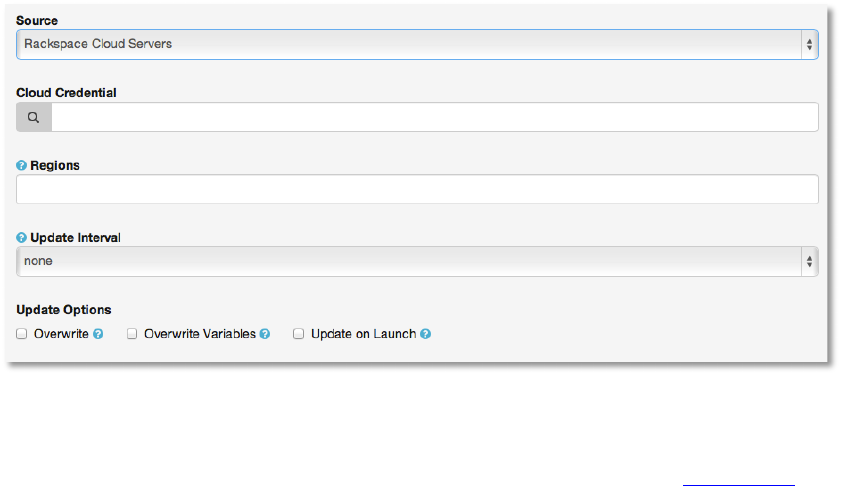
Rackspace'Cloud'Servers'
!
To configure a group for Rackspace, select Rackspace Cloud Servers and enter the following
details:
Copyright 2013 AnsibleWorks, Inc. 75
• Cloud Credential
Choose from an existing Credential. For more information, see the Credentials section.
• Regions
A comma-separated list of regions matching the regions used at AWS. Only hosts
associated with the list of regions will be included in the update process.
!
• Update Interval
Instruct the AWX server to automatically run the inventory update process the selected
number of minutes from the last run.
With a value set, task manager will periodically compare the amount of elapsed time
from the last run. If enough time has elapsed, it will go ahead and start an inventory
update process.
• Update Options
o Overwrite
When checked all child groups and hosts not found on the remote source will be
deleted from the local inventory.
Unchecked any local child hosts and groups not found on the external source will
remain untouched by the inventory update process.
!
o Overwrite Variables
If checked, all variables for child groups and hosts will be removed and replaced
by those found on the external source.
Copyright 2013 AnsibleWorks, Inc. 76
When not checked a merge will be performed, combining local variables with
those found on the external source.
o Update on Launch
Each time a job runs using this inventory, refresh the inventory from the selected
source before executing job tasks.
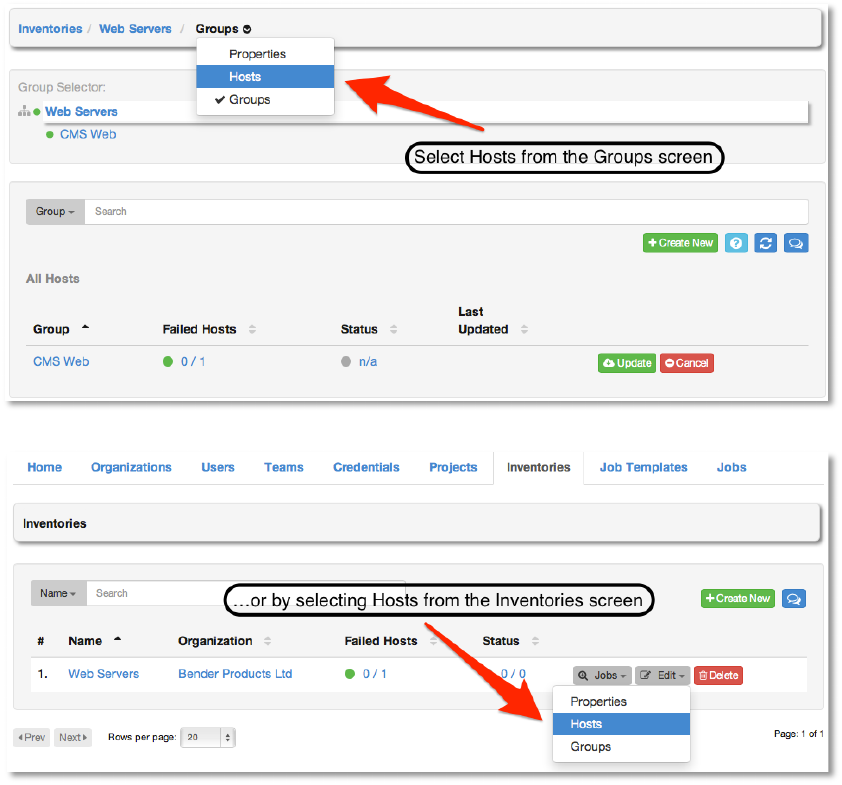
W',+,!
Hosts are managed by first selecting Hosts from the menu and then by selecting the desired
group or by selecting Hosts from the Edit menu from the Inventory tab.
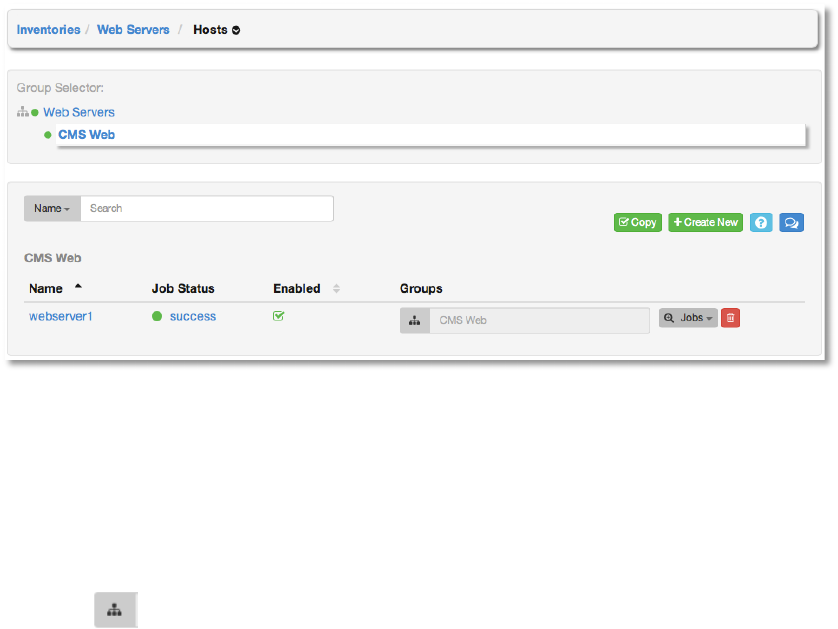
The host list may be sorted and searched by Name or Groups and filtered by hosts that are
disabled, by hosts with failed jobs, and hosts synchronized with an external source.
Copyright 2013 AnsibleWorks, Inc. 77
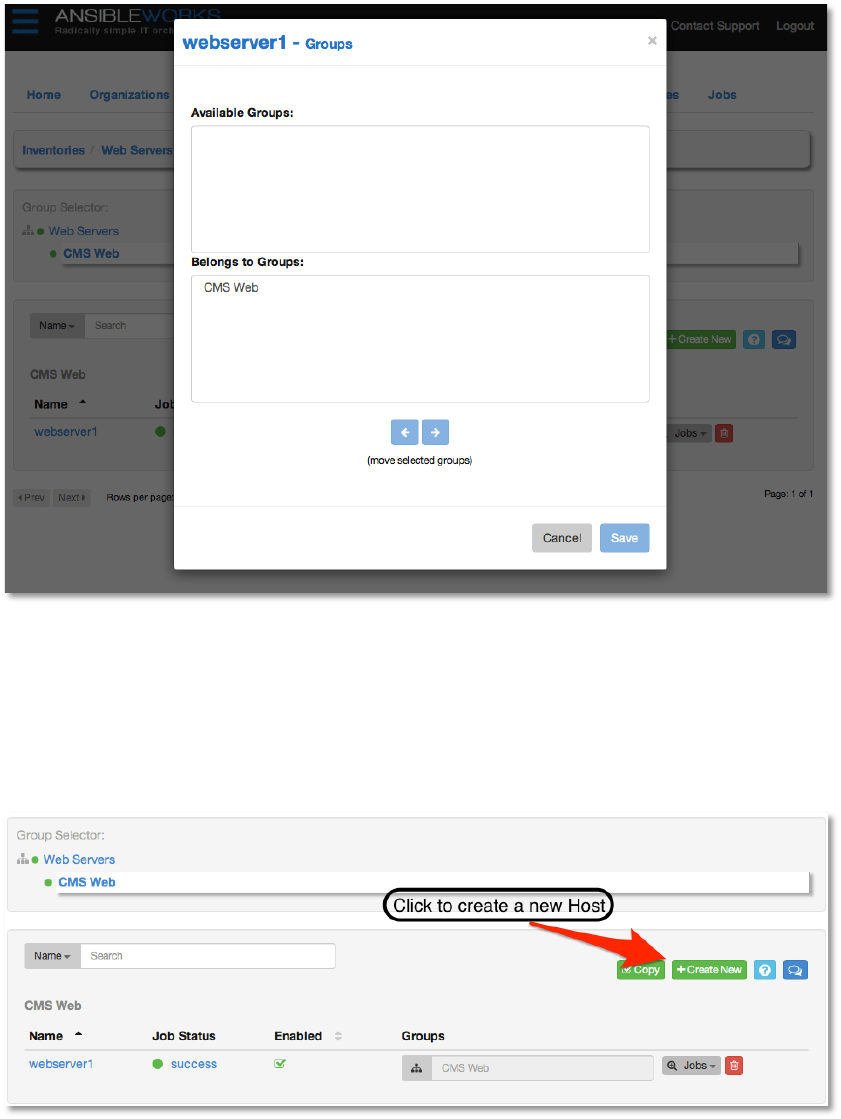
This list displays information about each host and provides for several actions:
• Name – Opens the Host Properties dialog
• Job Status – Can be any of pending, running, successful, or failed.
• Enabled – A toggle indicating whether the host is enabled to receive jobs from AWX.
Click to toggle this setting.
• Groups – The list of groups that this host is a member of. Select the group editor
button to modify group membership for this host.
• Jobs – The Jobs menu navigates to the following Jobs views for the selected host:
o All jobs
o All host summaries
o Latest job
o Latest job events
o Latest host summary
• Delete – Removed the host from AWX. This operation is not reversible!
Copyright 2013 AnsibleWorks, Inc. 78
Add'a'new'host'
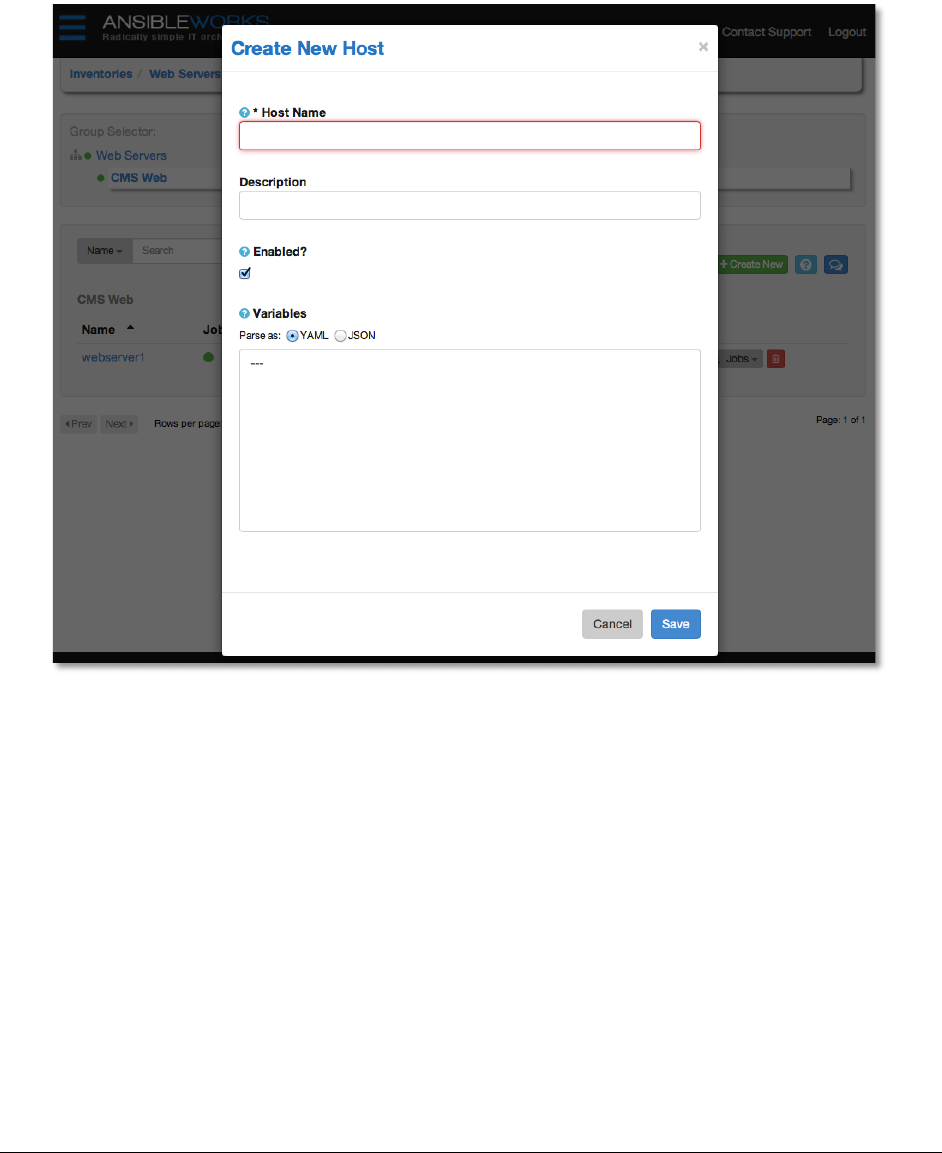
To create a new host and add it to an existing group, first select the group, and then click
+Create New.
This will open to the Create Host dialog.
Copyright 2013 AnsibleWorks, Inc. 79
Enter the appropriate details into the following fields and click Save:
● Host Name - The hostname or IP address of the host
● Description
● Variables
Variable definitions and values to be applied to the selected host. Enter variables using
either JSON or YAML syntax, using the radio button to toggle between JSON or YAML.
\'$!"&GS%#+&,!
A job template is a definition and set of parameters for running an Ansible job. Job templates
are useful to execute the same job many times. While the REST API allows executing jobs
directly, the AWX User Interface requires first creating a job template.
Copyright 2013 AnsibleWorks, Inc. 80
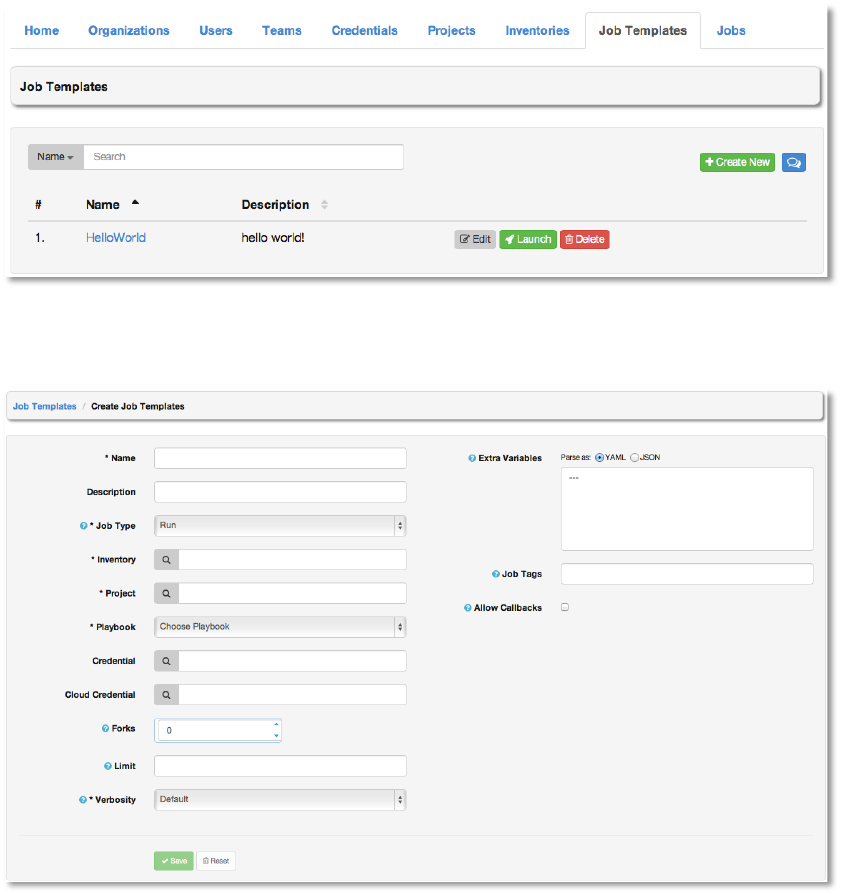
This menu opens a list of the job templates that are currently available. The job template list
may be sorted and searched by Name or Description. The Job Templates tab also enables
the user to modify, launch, and remove a job template.
To create a new job template click the +Create New button.
Enter the appropriate details into the following fields:
● Name (required)
● Description
● Job Type: Jobs may be of type Run or Check:

Copyright 2013 AnsibleWorks, Inc. 81
● Run: Execute the playbook when launched, running Ansible tasks on the
selected hosts.
● Check: Execute the playbook in dry-run mode, reporting “changed” when an item
would be changed, but not actually making changes.
More documentation on job types may be found in the Advanced Playbook
section of the Ansible documentation.
● Inventory: Choose the inventory to be used with this job template from the inventories
available to the currently logged in AWX user.
● Playbook: Choose the playbook to be launched with this job template from the available
playbooks. This menu is automatically populated with the names of the playbooks found
in the project base path. For example, a playbook named “jboss.yml” in the project path
will appear in the menu as “jboss”.
● Credential: Choose the credential to be used with this job template from the credentials
available to the currently logged in AWX user.
● Cloud Credential: Choose the credential to be used with this job template from the
credentials available to the currently logged in AWX user.
● Forks: The number of parallel or simultaneous processes to use while executing the
playbook. A value of zero will use the Ansible default setting, which is 5 parallel
processes unless overridden in /etc/ansible/ansible.cfg.
● Limit: A host pattern to further constrain the list of hosts that will be managed or affected
by the playbook. Multiple patterns can be separated by colons (“:”). As with core Ansible,
“a:b” means “in group a or b”, “a:b:&c” means “in a or b but must be in c”, and “a:!b”
means “in a, and definitely not in b”.
For more information and examples see the “Selecting Targets” section under Inventory
and Patterns in the Ansible documentation.
● Verbosity: Control the level of output Ansible will produce as the playbook executes.
Set the verbosity to any of Default, Verbose, or Debug. This only appears in the “details”
report view. Verbose logging will include the output of all commands. Debug logging is
exceedingly verbose and will include information on SSH operations that can be useful
in certain support instances. Most users will not need to see debug mode output.
● Extra Variables: Pass extra command line variables to the playbook. This is the “-e” or
“--extra-vars” command line parameter for ansible-playbook that is documented in the
Ansible documentation at Passing Variables on the Command Line. Provide key/value

Copyright 2013 AnsibleWorks, Inc. 82
pairs using either YAML or JSON. These variables have a maximum value of
precedence and will override other variables specified elsewhere. An example value
might be:
---
git_branch: production
release_version: 1.5
● Job Tags: Provide a comma-separated list of playbook tags with which to filter this job
template. More documentation on tags may be found in the Advanced Playbook section
of the Ansible documentation.
● Allow Callbacks: Enable a host to call back to AWX via the AWX API and invoke the
launch of a job from this job template.
Callbacks are an important feature of AWX that allow a host to initiate a job launch,
rather than waiting for a user to launch a job to manage the host. This provides for
automatically configuring a system after it has been provisioned by another system
(such as AWS auto-scaling, or a OS provisioning system like kickstart or preseed) or for
launching a job programmatically without invoking the AWX API directly.
To enable callbacks, check the Allow Callbacks checkbox. A unique host key will be
displayed that corresponds to this job template. The host key may be reused across
multiple hosts to apply this job template against multiple hosts.
The URL will look like the following:
http://your.server.com:999/api/v1/job_templates/1/callback/
The request from the host must be a POST. Here is an example using curl (all on a
single line):
[root@localhost ~]# curl --data "host_config_key=5a8ec154832b780b9bdef1061764ae5a"
http://your.server.com:999/api/v1/job_templates/1/callback/
The requesting host must be defined in your inventory. If AWX fails to locate the host
either by name or IP address in one of your defined inventories, the request will be
denied.
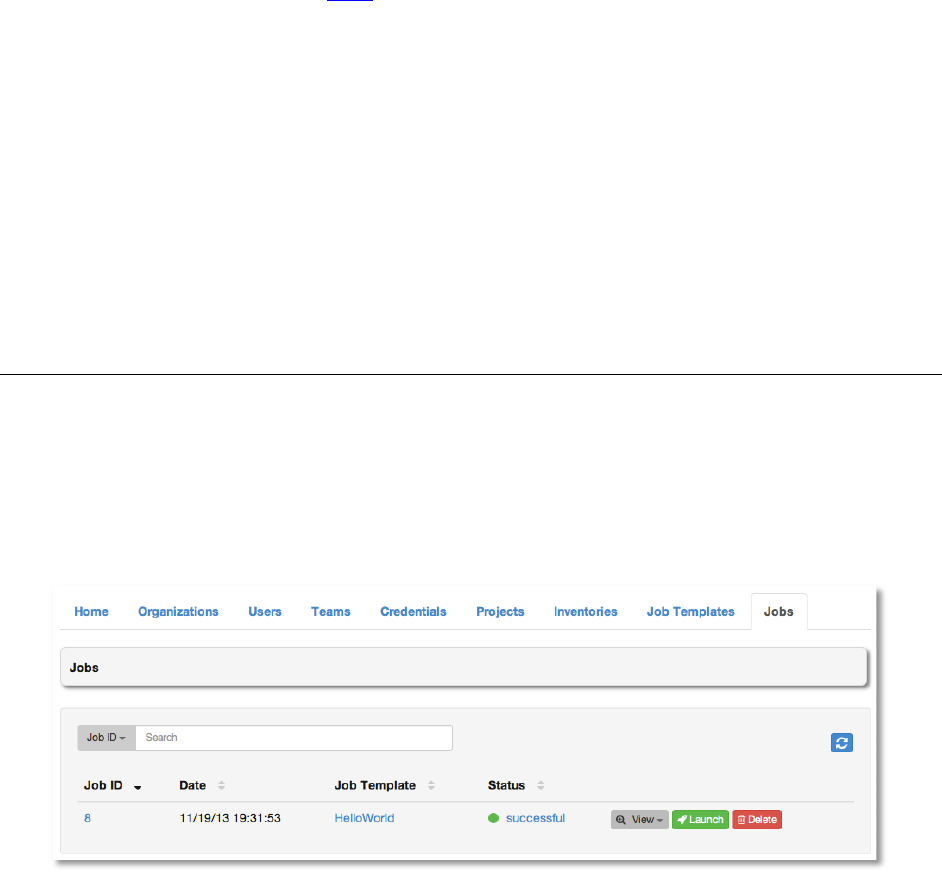
Successful requests will result in an entry on the Jobs tab, where the results and history
can be viewed.
Copyright 2013 AnsibleWorks, Inc. 83
Should you wish to control what hosts are able to request configuration, the key may be
changed at any time.
When you have completed configuring the job template, select Save.
When editing an existing job template, by clicking the job template name or the Edit button, the
bottom of the screen will display a list of all of the jobs that have been launched from this
template. Please see the section Jobs for more information about this interface.
@#;*ND2*6!\'$,!!
To launch a job template, click Launch.
If credentials require the user to enter additional information, such as a password or passphrase,
a dialog will request this information.
Upon launch, AWX will automatically redirect the web browser to the Jobs tab.
\'$,!
A job is an instance of AWX launching an Ansible playbook against an inventory of hosts.
The Jobs tab displays a list of jobs, both those currently running as well as a history of all jobs
that have ever been launched. The list of jobs may be sorted and searched by Job ID, Name or
Status.
● The Job ID and Date values are automatically generated by AWX.
● Job ID: A unique integer that identifies a specific job.
Copyright 2013 AnsibleWorks, Inc. 84
● Date: The time when the job was initiated.
● Job Template: The Job Template from which this job was launched.
● Status: Can be any of pending, running, successful, or failed.
The Jobs tab does not automatically refresh to show the current status of any pending jobs. To
refresh the job queue click the Refresh button.
There are several actions available for each job, all of which are detailed below:
● View
● Launch
● Delete
7;GG#1=!
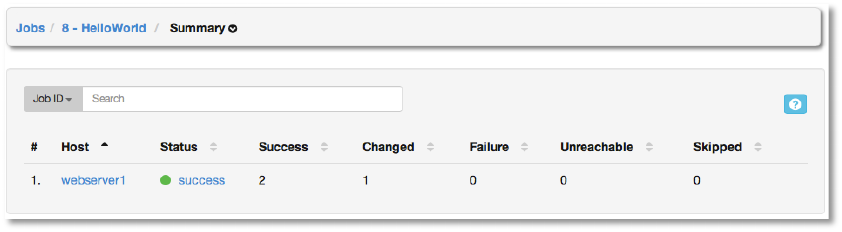
Selecting Summary will display a list of all of the hosts that this job was launched against, as
well as useful summary information about each Ansible playbook task that was executed.
This information includes:
● Host: the host that the playbook was launched against. The host Name is a hotlink to
the Events for this job and host. Events are described below.
● Status: Can be any of pending, running, successful, or failed.
The summary also display the number of playbook tasks that completed with an outcome of:
● Success: the playbook task returned “Ok”.
● Changed: the playbook task actually executed. Since Ansible tasks should be written to
be idempotent, tasks may exit successfully without executing anything on the host. In
these cases, the task would return Ok, but not Changed.
● Failure: the task failed. Further playbook execution was stopped for this host.
● Unreachable: the host was unreachable from the network or had another fatal error
associated with it.
Copyright 2013 AnsibleWorks, Inc. 85
● Skipped: the playbook task was skipped because no change was necessary for the
host to reach the target state.
R0&*+,!
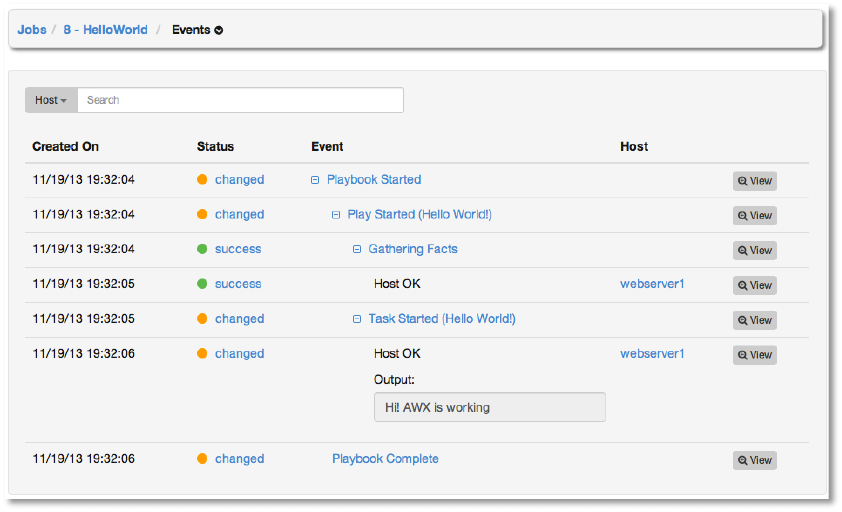
Selecting Events will display details about each of the AWX events that comprised the job,
including specific details on each playbook task.
This information includes:
● Date: the timestamp of when this job was initiated.
● Status: Can be any of changed, success, skipped, or failed.
● Event: the name of the event, including the playbook task name, if appropriate. Clicking
the event name expands and collapses the tree of events and sub-events.
● Host: the host targeted by the event.
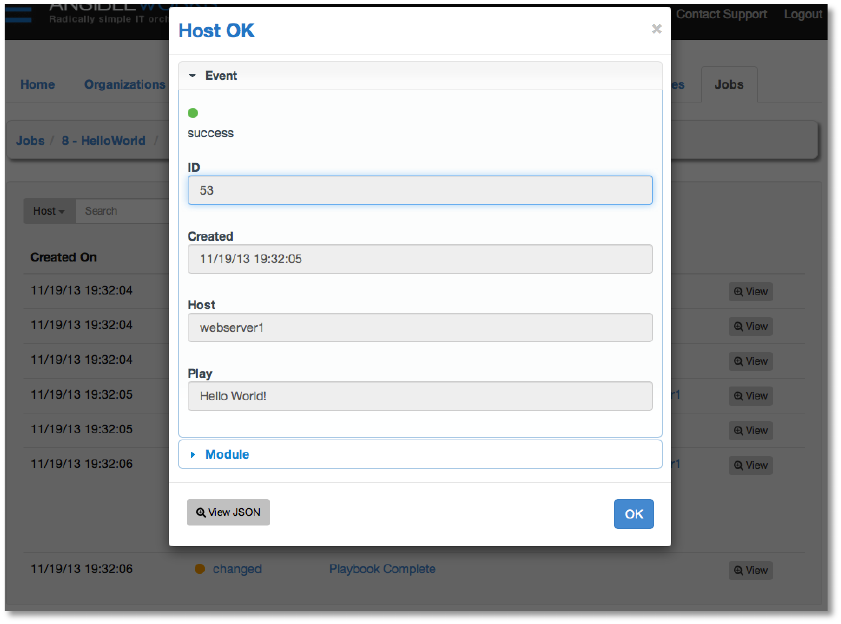
● View: Clicking the View button on any event will display additional information about the
event.
Copyright 2013 AnsibleWorks, Inc. 86
This information includes:
● Status: can be any of changed, success, skipped, or failed
● ID: the Job ID
● Created: the timestamp of when this job was initiated
● Host: the host targeted by the event
● Play: The name of the play
● Module: the name of the module invoked by the play
View: Clicking the View button on any event will display additional information about the event.
7+#+;,!
Selecting the Status option from the View menu will display the job status. You can also view
the same information by clicking the any of the Job ID or Status fields for the job.
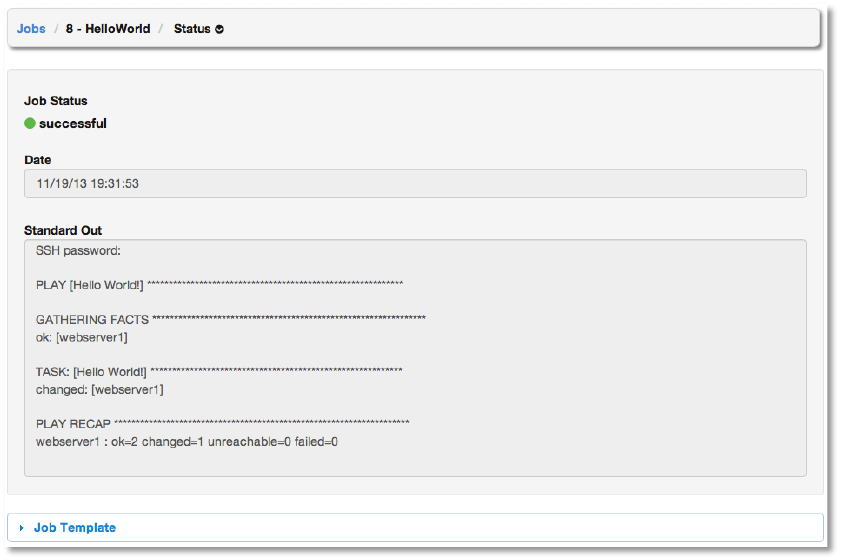
Copyright 2013 AnsibleWorks, Inc. 87
These details will include:
● Job Status: can be any of pending, running, successful, or failed
● Date: the timestamp of when the job was initiated by AWX
● Standard Out: displays the results of running the playbook from the standard out of the
AWX server. This shows the same information you would see if you ran the Ansible
playbook using Ansible from the command line.
The details of the job template that the job was launched with are shown at the bottom of this
screen. This is especially useful in cases where the job template has been modified or removed
since the job was executed. AWX retains this complete history of the job forever.
At the top of this screen is a menu that provides another path to navigate to the Summary and
Events details for this job. Clicking Summary will display the job host summary, as described
above. Clicking Events will display the events list for the job, as described above.
@#;*ND!
This button launches this job again, with the same parameters as it originally ran with. Any
modification to the job template after job was launched will not be used during this re-launch.

Copyright 2013 AnsibleWorks, Inc. 88
A&%&+&!\'$!
This button deletes the job from AWX.
WARNING: this action cannot be undone.
!
!

Copyright 2013 AnsibleWorks, Inc. 89
K&,+!C1#N+2N&,! !
B*,2$%&!(2%&!#*8!821&N+'1=!,+1;N+;1&!
Please review the Ansible best practices from the Ansible documentation at
http://www.ansibleworks.com/docs/bestpractices.html.
Playbooks should not use the “vars_prompt” feature, as AWX does not interactively allow Q&A
for “vars_prompt” questions at this time.
H*0&*+'1=!^#*#6&G&*+!
Keeping variable data along with the objects in AWX (see the inventory editor) is encouraged,
rather than using “group_vars/” and “host_vars/”. If you use the “awx-manage inventory_import”
command on an inventory source, it can sync such variables with the database.
7N#%2*6!
Using the “callback” feature to allow newly booting instances to request configuration is very
useful for auto-scaling scenarios or provisioning integration.
Consider setting “forks” on a job template to larger values to increase parallelism of execution
runs.
)H!2*+&61#+2'*!_!)'*+2*;';,!A&S%'=G&*+!
For a Continuous Integration system, such as Jenkins, to spawn an AWX job, it should make a
curl request to a job template. The credentials to the job template should not require prompting
for any particular passwords. Using the API to spawn jobs is covered in the API section.
7&N;12+=!
The multi-tenancy features of AWX are sufficient to control who can run certain projects on what
systems, but are not intended to hide project content from other teams. For instance, you could
easily control that engineering could not push to production.
All playbooks are executed via the “awx” filesystem user. Users who have access to edit
playbooks need to be trusted as playbooks do have access to the filesystem and all that implies.
Users concerned about credential security may choose to upload locked SSH keys and set the
unlock password to “ask”, or choose to have the system prompt them for SSH credentials or
sudo passwords rather than having the system store them in the database.

Copyright 2013 AnsibleWorks, Inc. 90
"1';$%&,D''+2*6!
AWX server errors are logged to syslog. Apache web server errors are logged to the httpd error
log.
Client-side issues may be explored using the JavaScript console built into most browsers and
should be reported to awx@ansibleworks.com.
If requested by support, super users may also edit the “Django Admin” browser at http://<AWX
server name>/admin using a super user login. Do not do this unless requested by AnsibleWorks
support as you may remove objects and bypass the business logic of the application. After
logging in to the admin view, users may need to clear their cookies to successfully log back into
the main application.
!

Copyright 2013 AnsibleWorks, Inc. 91
5%',,#1=!
Organization: A logical collection of Users, Teams, Projects, and Inventories. The highest level
in the AWX object hierarchy. See this description of the AWX hierarchy.
User: An AWX operator with associated permissions and credentials.
Organization Administrator: An AWX user with the rights to modify the Organization’s
membership and settings, including making new users and projects within that organization. An
organization admin can also grant permissions to other users within the organization.
Team: A sub-division of an Organization with associated Users, Projects, Credentials, and
Permissions. Teams provide a means to implement role-based access control schemes and
delegate responsibilities across Organizations.
Project: A logical collection of Ansible playbooks, represented in AWX.
Inventory: A collection of hosts against which Jobs may be launched.
Credentials: Authentication details that may be utilized by AWX to launch jobs against machines,
to synchronize with inventory sources, and to import project content from a version control
system.
Job Template: The combination of an Ansible playbook and the set of parameters required to
launch it, designed to be reusable across hosts.
Job: The instantiation of a Job Template; the launch of an Ansible playbook.
Permissions: The set of privileges assigned to Users and Teams that provide the ability to read,
modify, and administer Projects, Inventories, and other AWX objects.
Host: A system managed by AWX, which may include a physical, virtual, or cloud-based server,
a network router, switch, or firewall, a storage device, or any unique system managed by AWX.
Typically an operating system instance.
Playbook: An Ansible playbook.
Super User: An admin of the AWX server who has permission to edit any object in the system,
whether associated to any organization. Super users can create organizations and other super
users.
!

Copyright 2013 AnsibleWorks, Inc. 92
:,2*6!@ABC!32+D!BEF!
As of the 1.3 release of AWX, administrators may utilize LDAP as a source for authentication
information for AWX users. At this time, only user authentication is provided and not
synchronization of user permissions, credentials, or team membership, however organization
membership (and who is an organization admin) can be synchronized.
When so configured, a user who logs in with an LDAP username and password will
automatically get an AWX account created for them and they can be automatically placed into
multiple organizations as either regular users or organization administrators.
By default, if users are created via an LDAP login, by default they cannot change their
username, firstname, lastname, or set a local password for themselves. This is also tunable to
restrict editing of other field names.
Currently, LDAP integration for AWX is configured in the file “/etc/awx/settings.py.” No
configuration is accessible via the AWX user interface. Please, review the comments in that file
for information on LDAP configuration and let us know at awx@ansibleworks.com if you need
assistance.
B8G2*2,+1#+2'*!'(!BEF!
Certain command line commands are available for management of AWX. In the future, some of
these may be made available via GUI tools as well, and they may be augmented with other
commands. Here is a useful subset. Do not run other awx-manage commands unless
instructed by AnsibleWorks Support.
NOTE: These commands should be run as the ‘awx’ user.
awx-manage inventory_import [--help]
The inventory_import command is used to synchronize an AWX inventory object with a text-
based inventory file, dynamic inventory script, or a directory of one or more of the above as
supported by core Ansible.
When running this command, specify either an --inventory-id or --inventory-name, and the path
to the Ansible inventory source is given by --source.
By default, inventory data already stored in AWX will be blended with data from the external
source. To use only the external data, specify --overwrite. To specify that any existing hosts get
variable data exclusively from the --source, specify --overwrite-vars. The default behavior will
Copyright 2013 AnsibleWorks, Inc. 93
add any new variables from the external source, overwriting keys that do not already exist, but
preserving any variables that were not sourced from the external data source.
awx-manage cleanup_deleted [--help]
When objects in AWX are deleted, they are not actually removed from the database. This is to
ensure audit log history and referential integrity. To restore space in the database, run the
‘cleanup_deleted’ command with the --days=N flag specifying to remove objects flagged as
deleted that are older than N days. You may use the --dry-run flag to list what would be deleted
prior to running the command in “real” mode. You may wish to run this command nightly on cron
with a value of --days=30.
!

Copyright 2013 AnsibleWorks, Inc. 94
BCH!
P21&$;6`!)D1'G&`!#*8!)D#1%&,!C1'Q=!
This document gives a basic understanding of the API, though you may wish to see what API
calls AWX makes in sequence. To do this, using the UI from Firebug or Chrome with developer
plugins is useful, though Charles Proxy (http://www.charlesproxy.com/) is also an outstanding
visualizer that you may wish to investigate. It is commercial software but can insert itself as, for
instance, an OS X proxy and intercept both requests from web browsers but also curl and other
API consumers.
K1'3,&#$%&!BCH!
AWX features a browseable API feature.
You can visit the API in a browser at http://<AWX server name>/api and then click on various
links in the API to explore related resources.
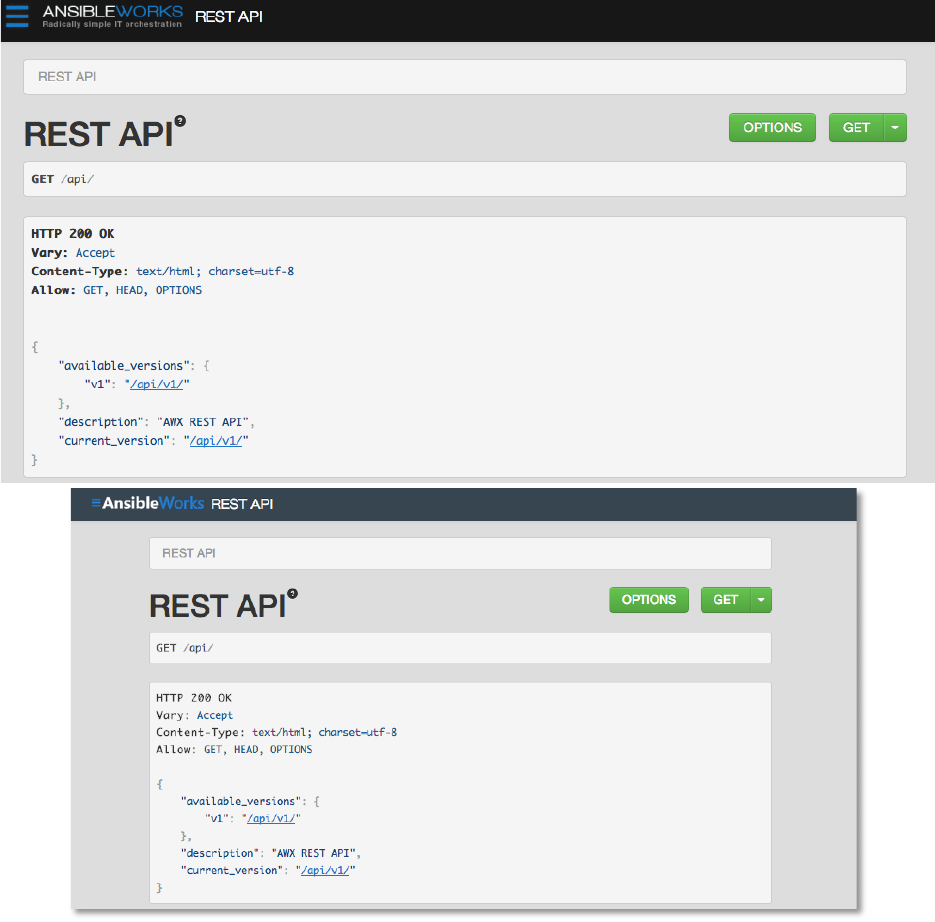
Copyright 2013 AnsibleWorks, Inc. 95
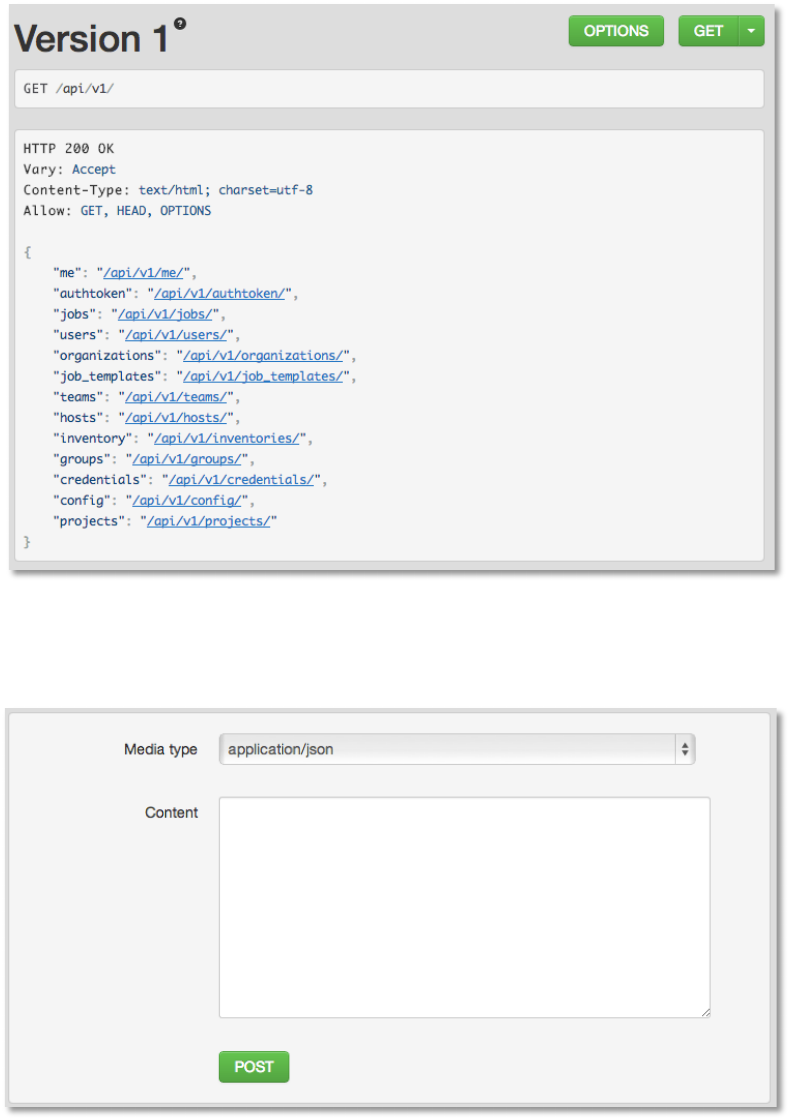
Copyright 2013 AnsibleWorks, Inc. 96
You can also PUT and POST on the specific API pages if you so desire by formatting JSON in
the various text fields.
)'*0&*+2'*,!
With all of the basics about how to explore the API and database objects out of the way, it's now
time for some general API info.
Copyright 2013 AnsibleWorks, Inc. 97
AWX uses a standard REST API, rooted at /api/ on the server. The API is versioned for
compatibility reasons but only /api/v1/ is presently available. By querying /api you can see
information about what API versions are available.
All data is JSON by default. You may have to specify the content/type on POST or PUT
requests accordingly.
All URIs should end in "/" or you will get a 301 redirect.
7'1+2*6!
Assume the following URL, http:// <AWX server name>/api/v1/groups/
In order to sort the groups by name, access the following URL variation:
http://<AWX server name>/api/v1/groups/?order_by=name
You can order by any field in the object.
P2%+&12*6!
Any collection is what the system calls a "queryset" and can be filtered via various operators.
For example, to find the groups that contain the name "foo":
http://<AWX server name>/api/v1/groups/?name__contains=foo
To do an exact match:
http://<AWX server name>/api/v1/groups/?name=foo
If a resource is of an integer type, you must add "__int" to the end to cast your string input value
to an integer, like so:
http://<AWX server name>/api/v1/arbitrary_resource/?x__int=5
Related resources can also be queried, like so:
http://<AWX server name>/api/v1/groups/?user__firstname__icontains=john
This will return all groups with users with names that include the string "John" in them.

Copyright 2013 AnsibleWorks, Inc. 98
You can also filter against more than one field at once:
http://<AWX server name>/api/v1/groups/?user__firstname__icontains=john&group__name__icontains__foo
This will find all groups containing a user whose name contains John where the group contains
the string foo.
For more about what types of operators are available, see:
https://docs.djangoproject.com/en/dev/ref/models/querysets/
You may also wish to watch the API as the UI is being used to see how it is filtering on various
criteria.
C#62*#+2'*!
Responses for collections in the API are paginated. This means that while a collection may
contain tens or hundreds of thousands of objects, in each web request, only a limited number of
results are returned for API performance reasons.
When you get back the result for a collection you will see something like:
{'count': 25, 'next': 'http://testserver/api/v1/some_resource?page=2', 'previous': None, 'results':
[ ... ] }
Where to get the next page, simply request the page given by the 'next' URL.
To request more items per page, pass the page size query string:
http://<AWX server name>/api/v1/some_resource?page_size=50
The serializer is quite efficient, but you should probably not request page sizes beyond a couple
of hundred.
The user interface uses smaller values to avoid the user having to do a lot of scrolling.
M!/*%=!P2&%8,!
Certain fields in the REST API are marked read only. These usually include the URL of a
resource, the ID, and occasionally some internal fields. For instance, the 'created_by' attribute
of each object indicates which user created the resource, and cannot be edited.
If you post some values and notice they are not changing, these fields may be read only.

Copyright 2013 AnsibleWorks, Inc. 99
API Example of Triggering A Job
For an example of how to launch an existing job template from a script, for integration with a
Continuous Integration system or other program, please review the awx-cli project at
https://github.com/ansible/awx-cli.
The awx-cli program is a command line utility used to send commands to the AWX API.
