Eye Reader User Manual PDF
User Manual: Pdf
Open the PDF directly: View PDF  .
.
Page Count: 25
- What is eyeReader?
- Starting the eyeReader App:
- Welcome Screen
- Signup Screen
- Signup Screen - Gender Selection
- Signup Screen - Journalist
- Signup Screen – Successful Account Registration
- Add New Articles
- Reading your articles
- Deleting an article
- Saved Articles Page
- Viewing Saved Articles
- Display - Cache News
- Display - Font Size Adjustment
- Filtering - Hide Toxic
- Profile Information
- Selecting Your Sources
- Searching Articles
- User Tutorial
- Watching the Tutorial again
- The Statistics View – Graphs
- The Statistics View – Graphs – All Sources
- The Statistics View – All Sources – List Of Statistics
- The Statistics View – Source Selection
- The Statistics View – Specific Source View
- Sentiment Results – The Emoticon
- Viewing Articles – Sentimental Grade
- Viewing Articles – Save, Delete, Report
- Viewing Articles – Comments Section
- Logout Confirmation Message

eyeReader – Mobile News Feeder – User Manual
eyeReader – Mobile News Feeder
eyeReader App User Guide
Version:
V6.2 (Android)

2
eyeReader
eyeReader – User App Manual
Table of Contents
What is eyeReader? ........................................................................................................................................... 4
Starting the eyeReader App: ..................................................................................................................................... 5
Welcome Screen ........................................................................................................................................................ 5
Login Screen .............................................................................................................................................................. 5
Signup Screen ............................................................................................................................................................ 6
Signup Screen - Gender Selection .............................................................................................................................. 6
Signup Screen - Journalist .......................................................................................................................................... 7
Signup Screen – Successful Account Registration ...................................................................................................... 7
Login Screen – Credentials ......................................................................................................................................... 8
Articles Feed – Adding the articles ............................................................................................................................ 8
Add New Articles ....................................................................................................................................................... 9
Reading your articles ................................................................................................................................................. 9
Deleting an article ................................................................................................................................................... 10
Reporting an article ................................................................................................................................................. 11
Saved Articles Page ................................................................................................................................................. 11
Viewing Saved Articles ............................................................................................................................................ 12
How to unsave a saved article ................................................................................................................................. 12
The Settings Page .................................................................................................................................................... 13
Display - NightMode ................................................................................................................................................ 13
Display - Cache News .............................................................................................................................................. 14
Display - Font Size Adjustment ................................................................................................................................ 14
Filtering - Markup Toxic Content ............................................................................................................................. 15
Filtering - Hide Toxic ................................................................................................................................................ 15
Tolerance Adjustment ............................................................................................................................................. 16
Viewing your Profile ................................................................................................................................................ 16
Profile Information .................................................................................................................................................. 17
Editing your profile .................................................................................................................................................. 17
Selecting Your Sources ............................................................................................................................................. 18
................................................................................................................................................................................. 18
Searching Articles .................................................................................................................................................... 18
User Tutorial ............................................................................................................................................................ 19
Watching the Tutorial again ................................................................................................................................... 19

3
eyeReader
eyeReader – User App Manual
The Statistics View – Graphs ................................................................................................................................... 20
The Statistics View – Graphs – All Sources .............................................................................................................. 20
The Statistics View – All Sources – List Of Statistics ................................................................................................ 21
The Statistics View – Source Selection ..................................................................................................................... 21
The Statistics View – Specific Source View .............................................................................................................. 22
Sentiment Results – The Emoticon .......................................................................................................................... 22
1) Green Smiley: Positive Impact ........................................................................................................................ 22
2) Orange Smiley: Neutral Impact ...................................................................................................................... 22
3) Red Smiley: Negative Impact .......................................................................................................................... 22
Viewing Articles – Sentimental Grade ..................................................................................................................... 23
Viewing Articles – Save, Delete, Report ................................................................................................................... 23
Viewing Articles – Comments Section ..................................................................................................................... 24
Logout of your account ........................................................................................................................................... 24
Logout Confirmation Message ................................................................................................................................ 25

4
eyeReader
eyeReader – User App Manual
What is eyeReader?
eyeReader is a mobile news reader which collects news articles from a plethora of internet sites based on
your topic preferences and enhances your experience by offering specific filtering functionalities in
regards to hate speech, toxic content and sentimental analysis.
The app is aimed towards both casual and professional (Journalists) users who enjoy reading articles from
their favorite sources and stay up-to-date with the latest and greatest content provided by our app.
The app is divided into two parts which offer different capabilities based on the type of the user. The two
types of users available within the app are the Normal User and the Journalist. Information regarding the
different capabilities offered for each type of user will be described below.
Reading Features:
- Realtime Article Fetching
- Article Search Bar
- Bookmark / Save Articles
- Delete Articles
- Report Articles
- Add Sources – Add your preferred sites to fetch articles from
- Statistics – Toxic content and Sentimental Analysis with Graphs
- Take personal notes on your preferred article (Journalist feature)
- Night Mode – Turns the entire app layout to gray to aid during night time reading
- Cache News
- Font Size Adjustment
Filtering Features:
- Markup Toxic – Highlights toxic content
- Hide Toxic – Completely hides toxic content from an article
- Toxic Content Tolerance adjustment
Hardware Device Compatibility:
The eyeReader App will ONLY work on the following devices:
• Android Devices with the Android 6.2 (Marshmallow) operating system or higher.
5
eyeReader
eyeReader – User App Manual
Starting the eyeReader App:
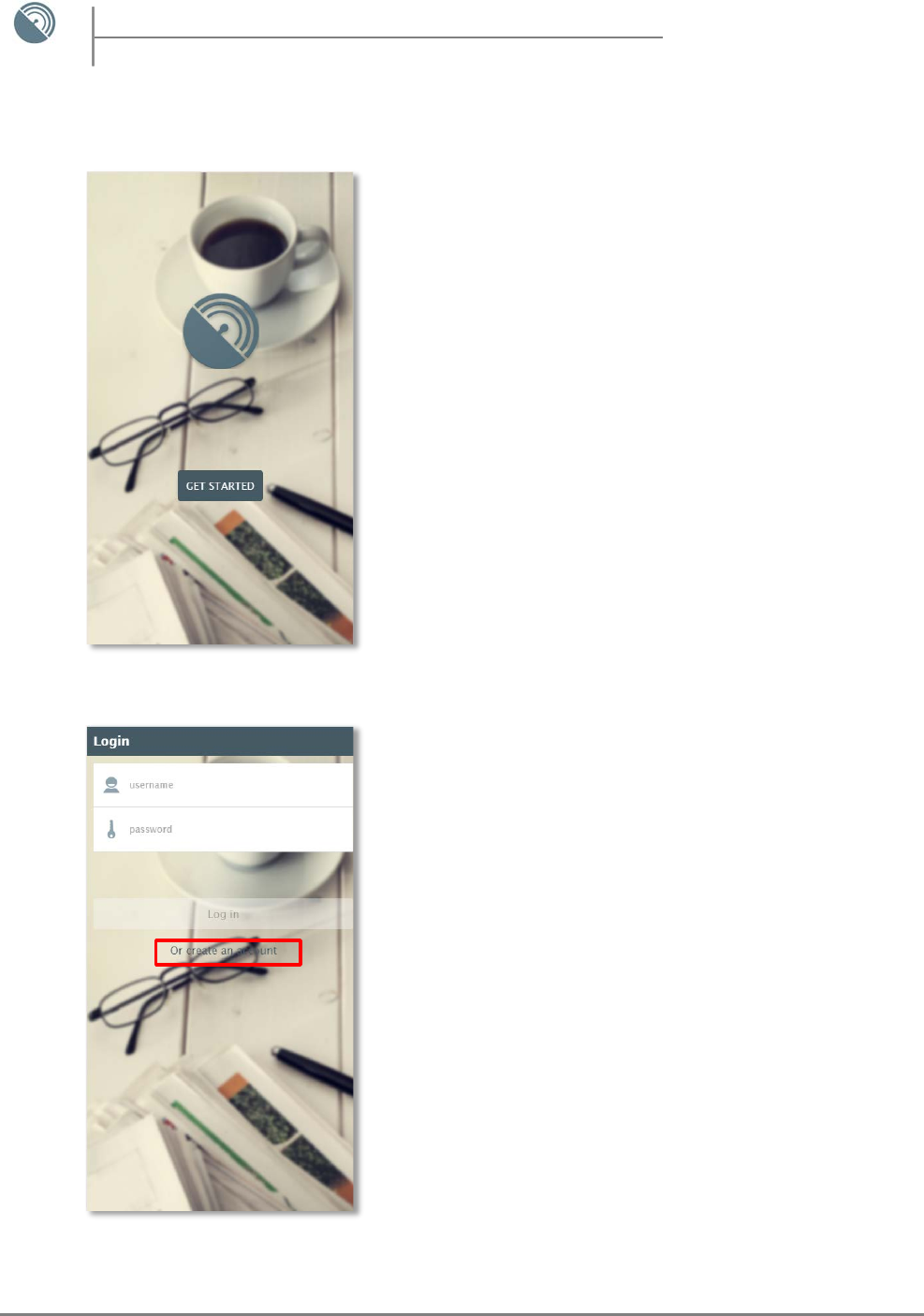
Welcome Screen
- Upon launching the eyeReader app you will be presented with
the Welcome Screen.
- Click the “GET STARTED” Button to move to the Login Screen as
indicated in Figure 1.
Login Screen
- When the Login Screen appears you will be presented with the
username and password fields in which you can enter your login
credentials.
- If this is your first time using the app, create an account by
clicking the “Or create an account” option located below the
“Log In” button as indicated in Figure 2.
Figure 1
Figure 2
6
eyeReader
eyeReader – User App Manual
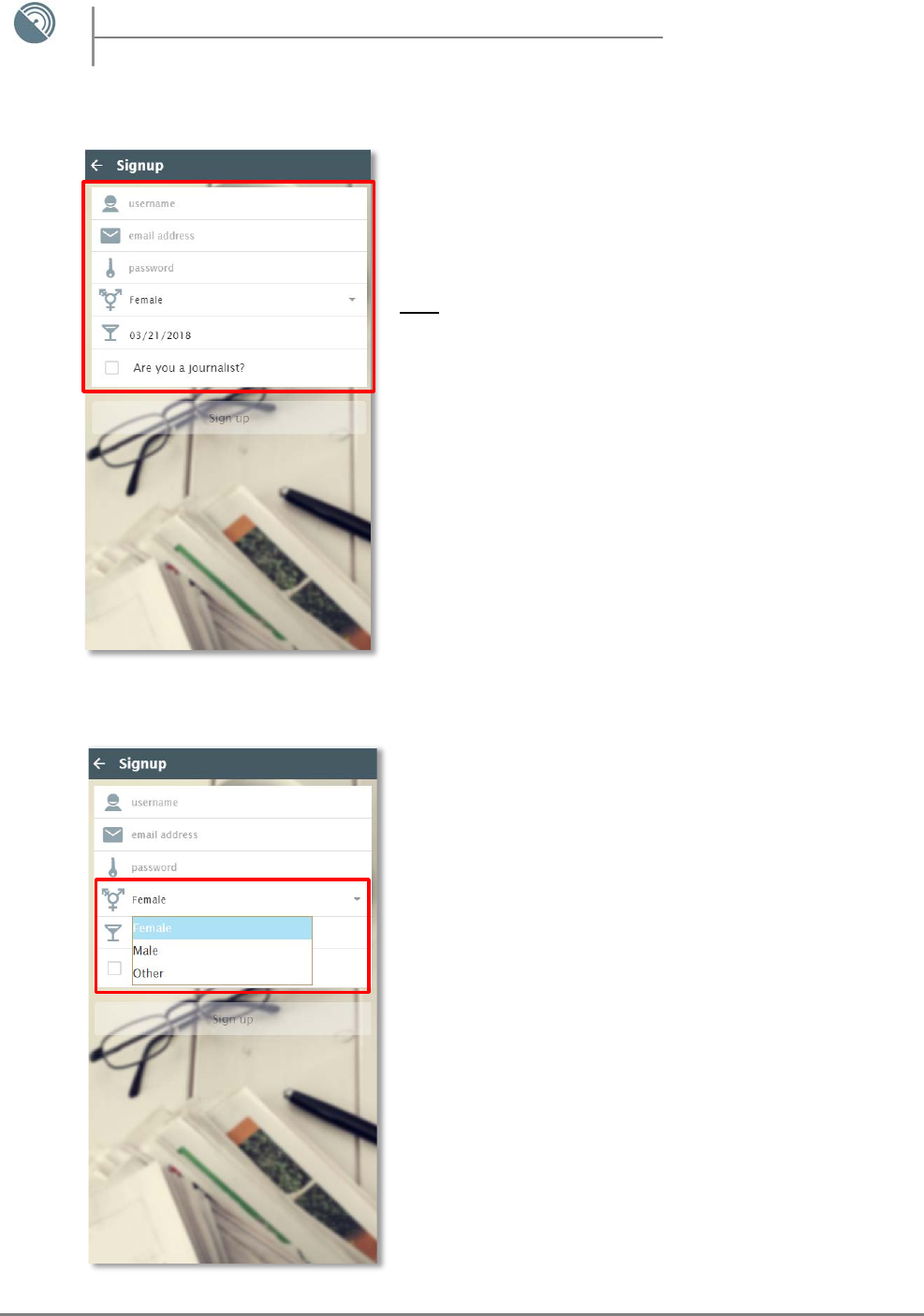
Signup Screen
- At the Signup Screen you will be presented with all the
required fields you will have to fill in order to create your
account as indicated in Figure 3.
Note: The account is stored locally to your mobile device’s storage and is in
no way accessed by any third party software online for your own security.
This is solely done for your own convenience so that everytime you open the
app your preferences and articles are stored.
Signup Screen - Gender Selection
- In the gender section you can choose your gender between
Female, Male and Other through a dropdown list as indicated
in Figure 4.
Figure 3
Figure 4
7
eyeReader
eyeReader – User App Manual
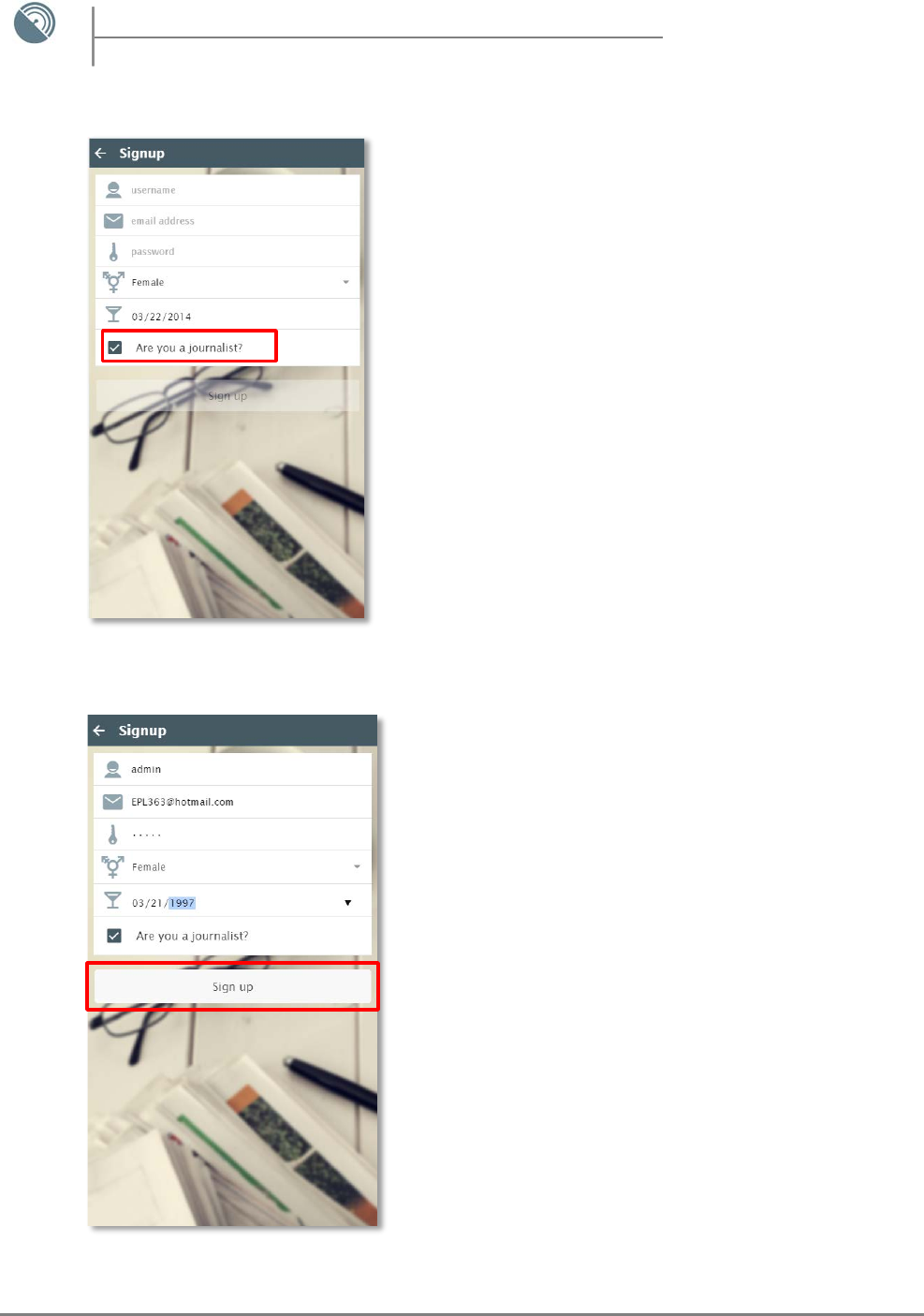
Signup Screen - Journalist
- By ticking the option “Are you a journalist?” the note-taking
feature that is only available to professional users (Journalists)
of the app will be available to you as shown in Figure 5.
- The Note Taking feature offers you the ability to create
personal notes for every article you read. Afterwards, the notes
are stored on your device’s local memory for your future
reference.
Signup Screen – Successful Account Registration
- By completing all the required fields and clicking the Signup
button as indicated in Figure 6, your account registration will
be completed.
Figure 5
Figure 6
8
eyeReader
eyeReader – User App Manual
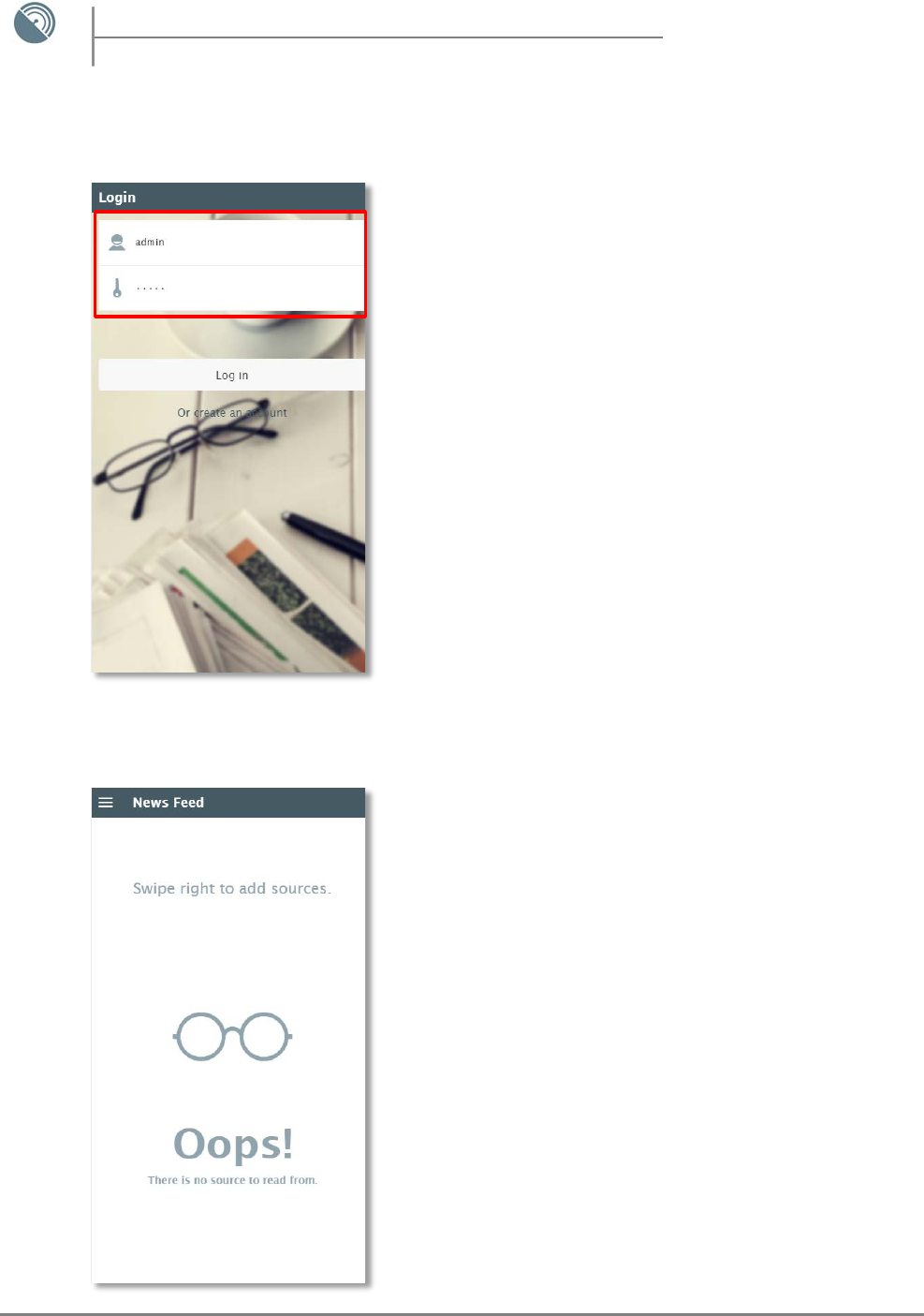
Login Screen – Credentials
- Upon reaching the Login Screen enter your new login
credentials as shown in Figure 7 to login to your account and
launch the app for the first time.
Articles Feed – Adding the articles
- As soon as you open the app you will be greeted with the
message that you have no articles available for viewing as
shown in Figure 8.
Figure 7
Figure 8
9
eyeReader
eyeReader – User App Manual
Add New Articles
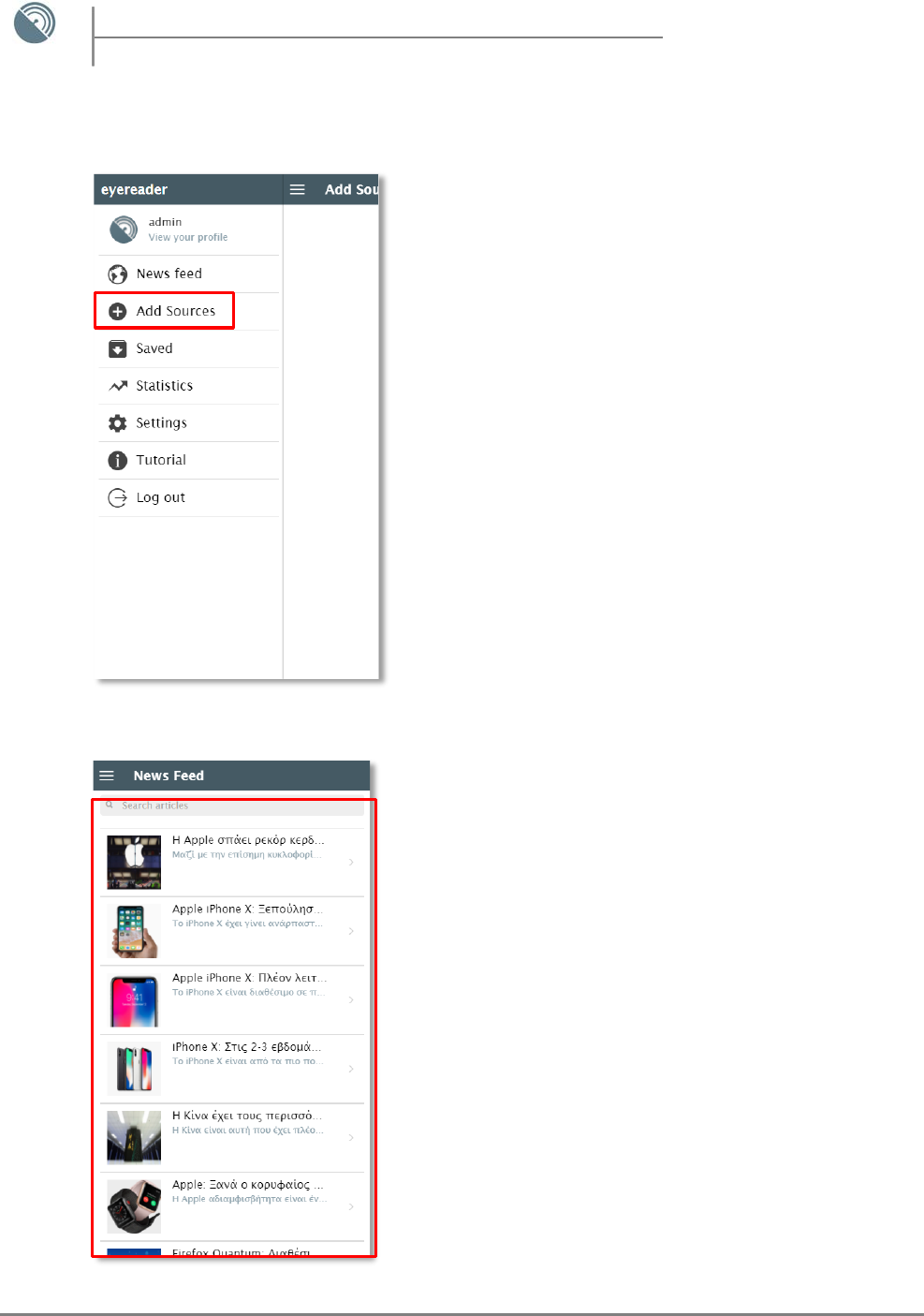
- To add your preferred sources, swipe to the right to access
the side menu and click on the “Add Sources” button as
shown in Figure 9.
- Afterwards, select the sources you would like to receive
articles for and return back to your news feed to start reading
the articles that have been fetched.
Reading your articles
- When you return to your News Feed, the articles from the
sources you had previously chosen will be instantly
downloaded and ready for your reading pleasure.
- Every article is presented in a list view along with a relative
thumbnail regarding its main subject and its title as shown in
Figure 10.
Figure 9
Figure 10
10
eyeReader
eyeReader – User App Manual
Saving / Bookmarking an article
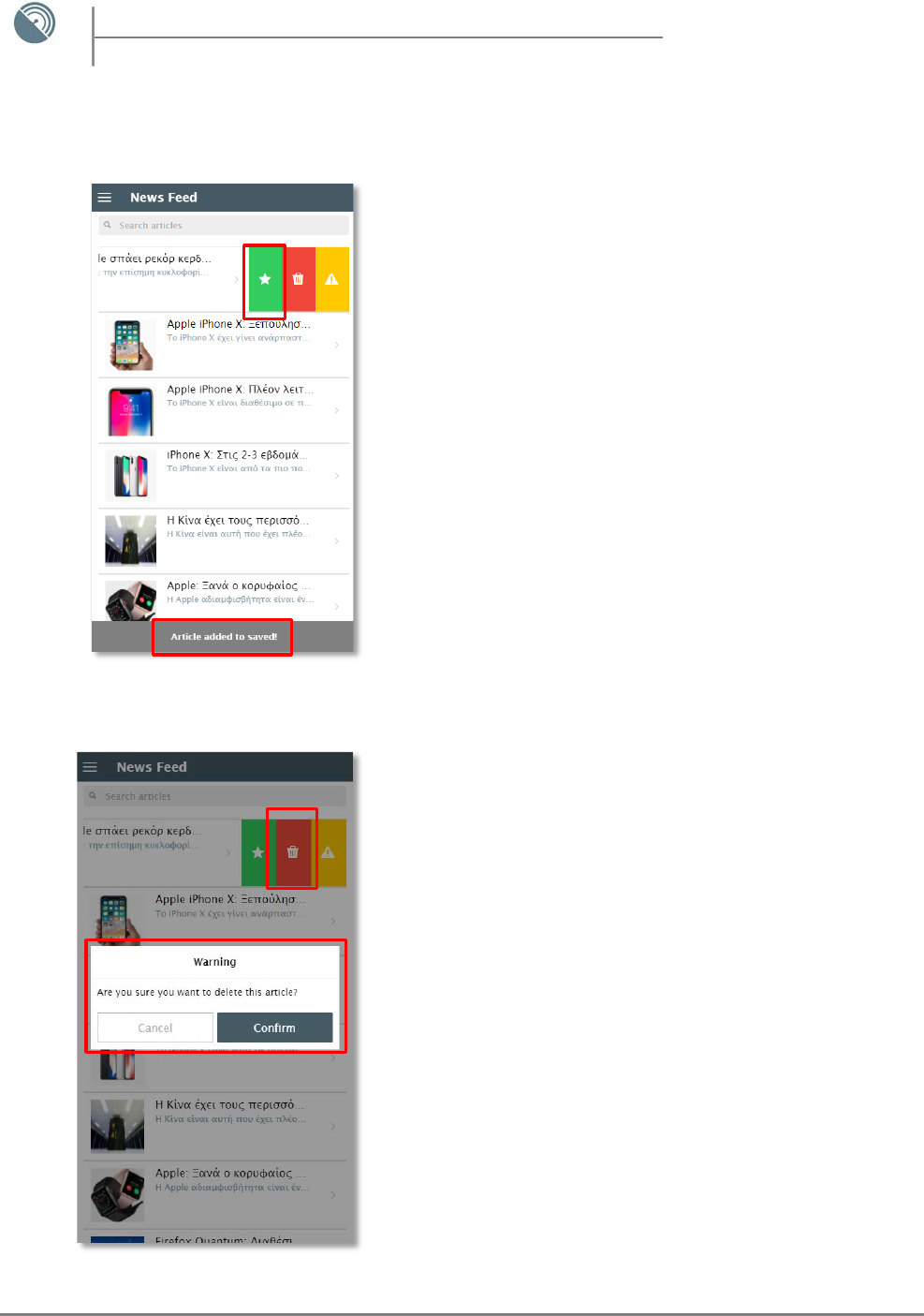
- By swiping an article to the left three new options appear:
a) Save/Bookmark Article
b) Delete Article
c) Report Article
- By tapping on the green star button you can save any article
you desire and the accompanying message will appear at the
bottom of y our screen as shown in Figure 11.
- By saving an article you can view it anytime you desire offline or
online in the “Saved” option of the side panel menu.
Deleting an article
- By tapping on the red bin button you can delete any article you
desire. The confirmation message about deleting the
corresponding article will appear on your screen, requesting the
approval of your deletion as shown in Figure 12.
Figure 11
Figure 12
11
eyeReader
eyeReader – User App Manual
Reporting an article
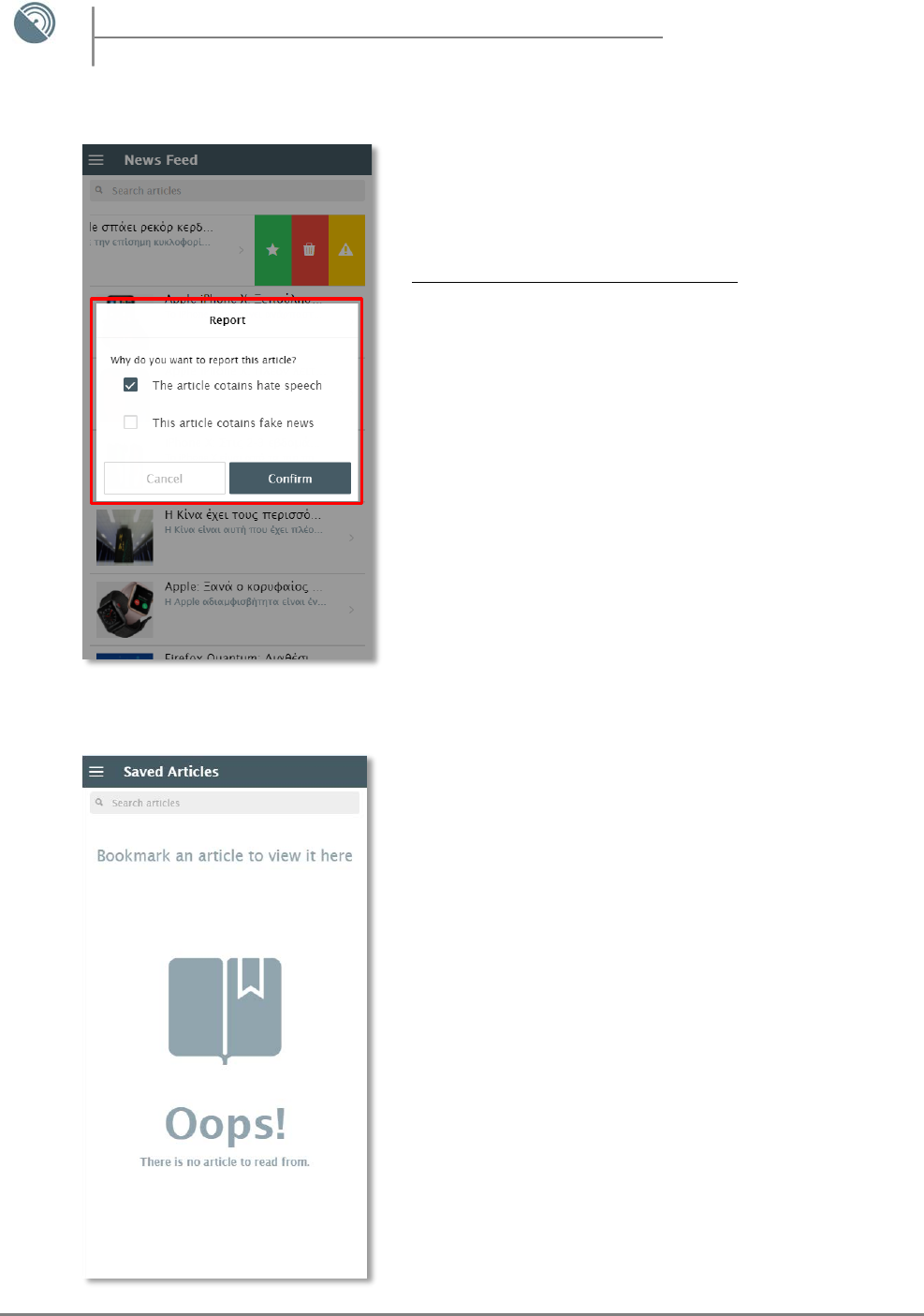
- By tapping on the yellow triangle button you can report an
article based on the type of toxic content it consists of.
- You have two options to choose from:
a) Hate Speech
b) Fake News
- Select the type of toxic content you want to report the article
for and then confirm your selection by tapping on the
“Confirm” button as shown in Figure 13.
Saved Articles Page
- In the Saved Articles Page which is accessible via the side
panel menu (Swipe right -> Saved) you can view your saved
articles.
- In case you do not have any saved articles the accompanying
message will appear indicating the lack of saved articles as
shown in Figure 14.
Figure 13
Figure 14

12
eyeReader
eyeReader – User App Manual
Viewing Saved Articles
- When an article has been previously saved you will be able to
view it through the Saved Articles page as shown in Figure 15.
- Articles saved in this page can be available for reading even if
you have no internet connection.
How to unsave a saved article
- In order to unsave / delete an article you have previously
saved simply swipe the article to the left to make the
additional article options visible and tap the green star button
to unsave. The article will immediately disappear from your
Saved Articles list as shown in Figure 16.
Figure 15
Figure 16
13
eyeReader
eyeReader – User App Manual
The Settings Page
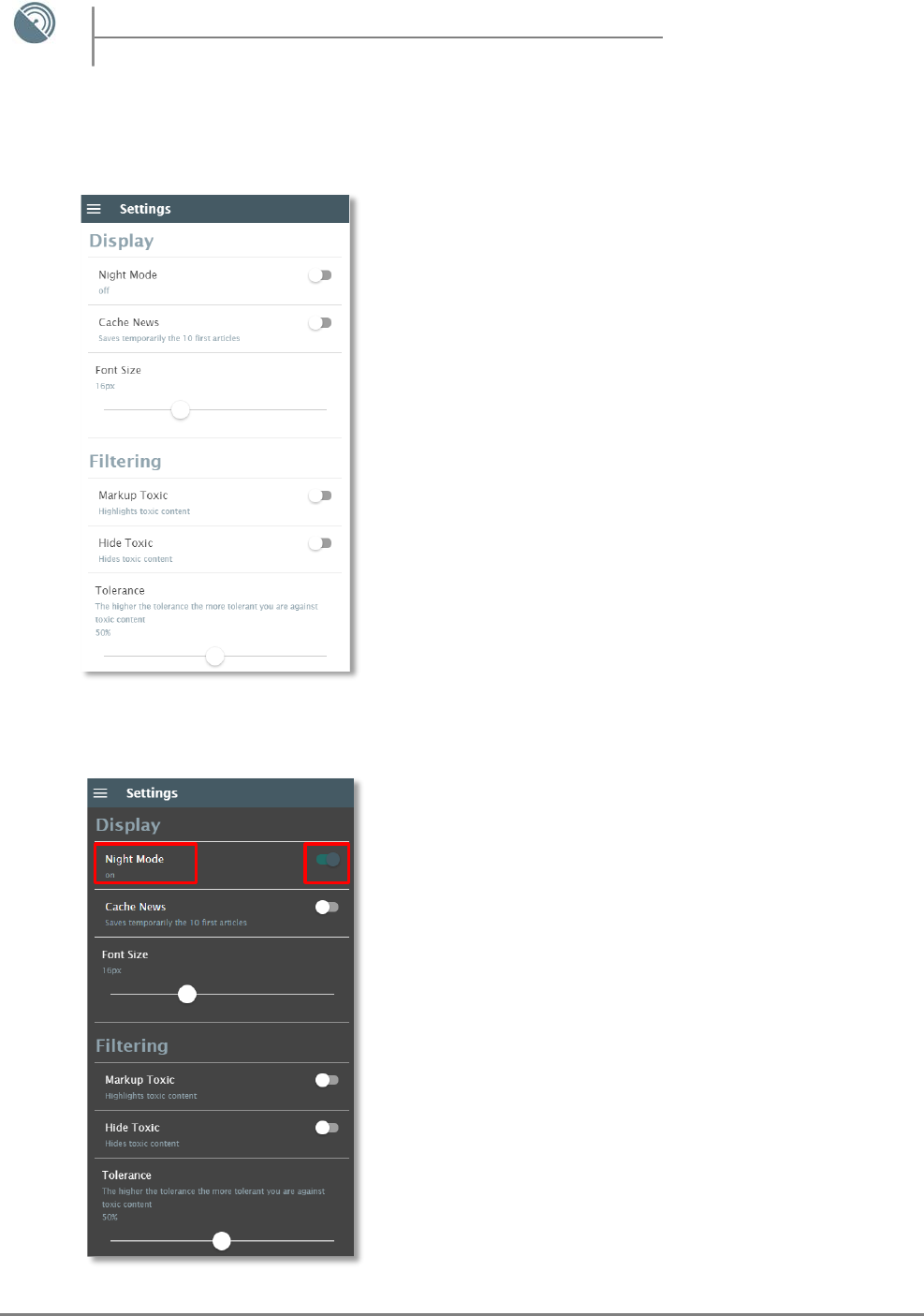
- To access the Settings Page swipe to the right anywhere within
the app and tap on the “Settings” option.
The Settings Page will be presented to you as shown in Figure 17
where you can adjust various settings to enhance your viewing
and reading experience.
It is divided into two parts, The Display and Filtering settings.
Each setting will be specifically described in the following sections
of this manual.
Display - NightMode
- To enable Nightmode simply toggle the button located at the
right side of NightMode as shown in Figure 18.
- By toggling Nightmode the entire app layout turns to a light
grey background in order to aid you during night hour reading.
Figure 17
Figure 18

14
eyeReader
eyeReader – User App Manual
Display - Cache News
- In order to enable the Caching functionality simply toggle
the button which is indicated to the right of the Cache News
option as shown in Figure 19.
- The Cache News setting offers caching of up to 10 articles.
When enabled the 10 most recent articles within your News
Feed will be cached to your device’s local storage in order to
access them when there is no internet connection available.
Display - Font Size Adjustment
- To adjust the Font Size of the app you can use the slider as
indicated in Figure 20 to adjust your desired font size in pixels.
- The font size changes dynamically as the slider adjustment
happens.
Figure 19
Figure 20
15
eyeReader
eyeReader – User App Manual
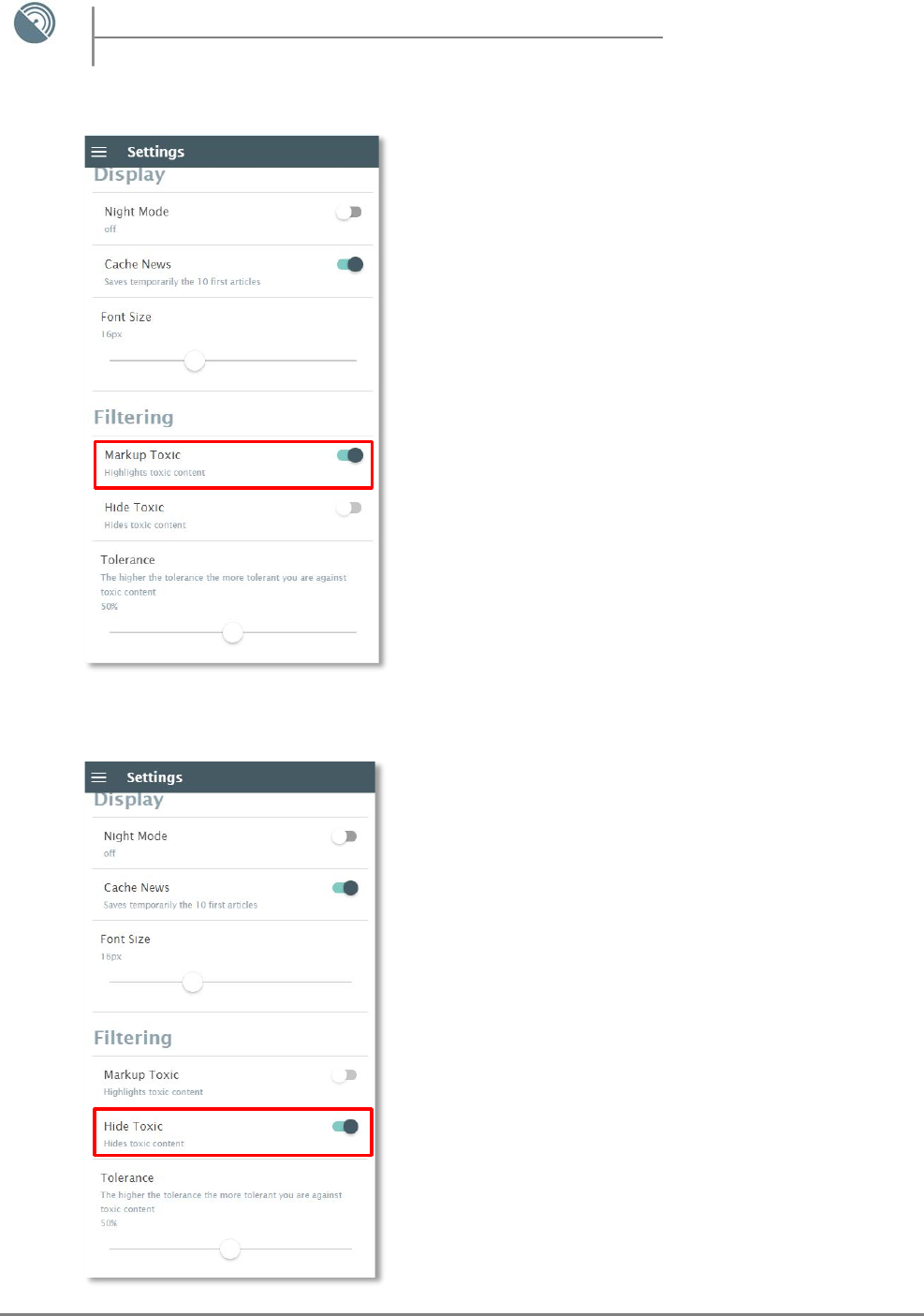
Filtering - Markup Toxic Content
- You can filter an article’s content in various ways. One of
them is by Marking Up toxic content.
- You can enable the Markup Toxic setting by toggling the
button indicated at the right side of the setting as shown in
Figure 21.
- By enabling the Markup Toxic setting any toxic content
within an article will be highlighted in yellow color.
Filtering - Hide Toxic
- You can hide the toxic content of an article by enabling the
Hide Toxic option.
- You can enable the Hide Toxic setting by toggling the button
indicated at the right side of the setting as shown in Figure 22.
Figure 21
Figure 22
16
eyeReader
eyeReader – User App Manual
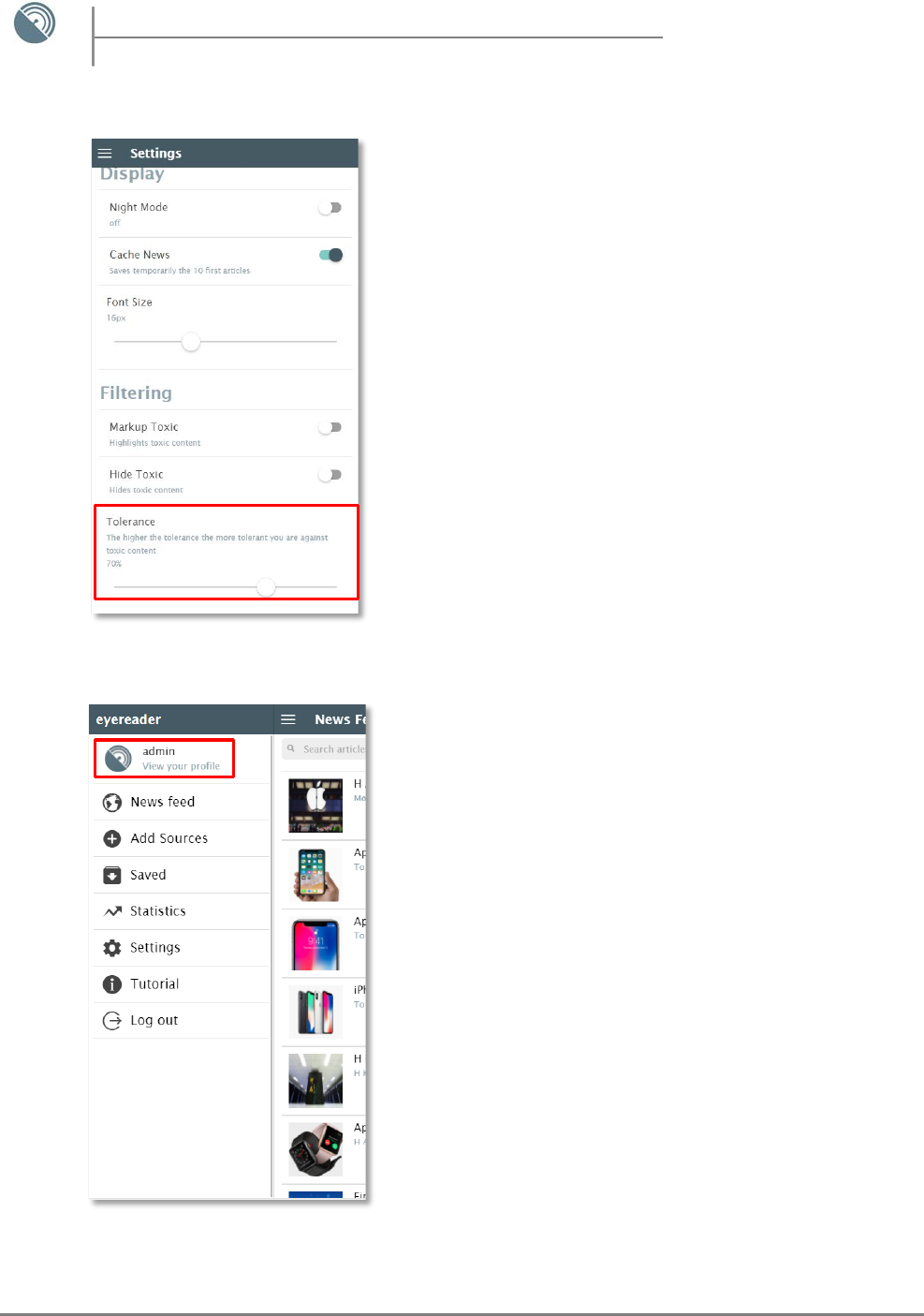
Tolerance Adjustment
- You can control the tolerance of the toxic content of your
articles by adjusting the Toxic Content Tolerance slider as
indicated in Figure 23.
- Based on the tolerance you have chosen a certain percentage
of the discovered content will be filtered. The higher the
tolerance the more aggressive the filtering is.
Viewing your Profile
- By accessing the side panel menu you also have the ability to
view your user profile and modify your information.
- To access your profile simply swipe to the right anywhere
within the app and tap on the app’s Logo as shown in Figure 24.
Figure 23
Figure 24

17
eyeReader
eyeReader – User App Manual
Profile Information
- Upon clicking the “View your profile” option in the side panel
menu you will be presented with your Profile where some of
your basic info will be displayed on your screen.
- You can edit your profile information by tapping on the “Edit
Profile” option indicated below your username as shown in
Figure 25.
Editing your profile
- In the Edit Profile screen you can see all the information
regarding your account.
- You can edit any field simply by tapping on the specific field
you want to change and alter its information.
- Click the “Save Changes” option at the bottom of the screen
to apply and save the changes you have made as shown in
Figure 26.
Figure 25
Figure 26
18
eyeReader
eyeReader – User App Manual
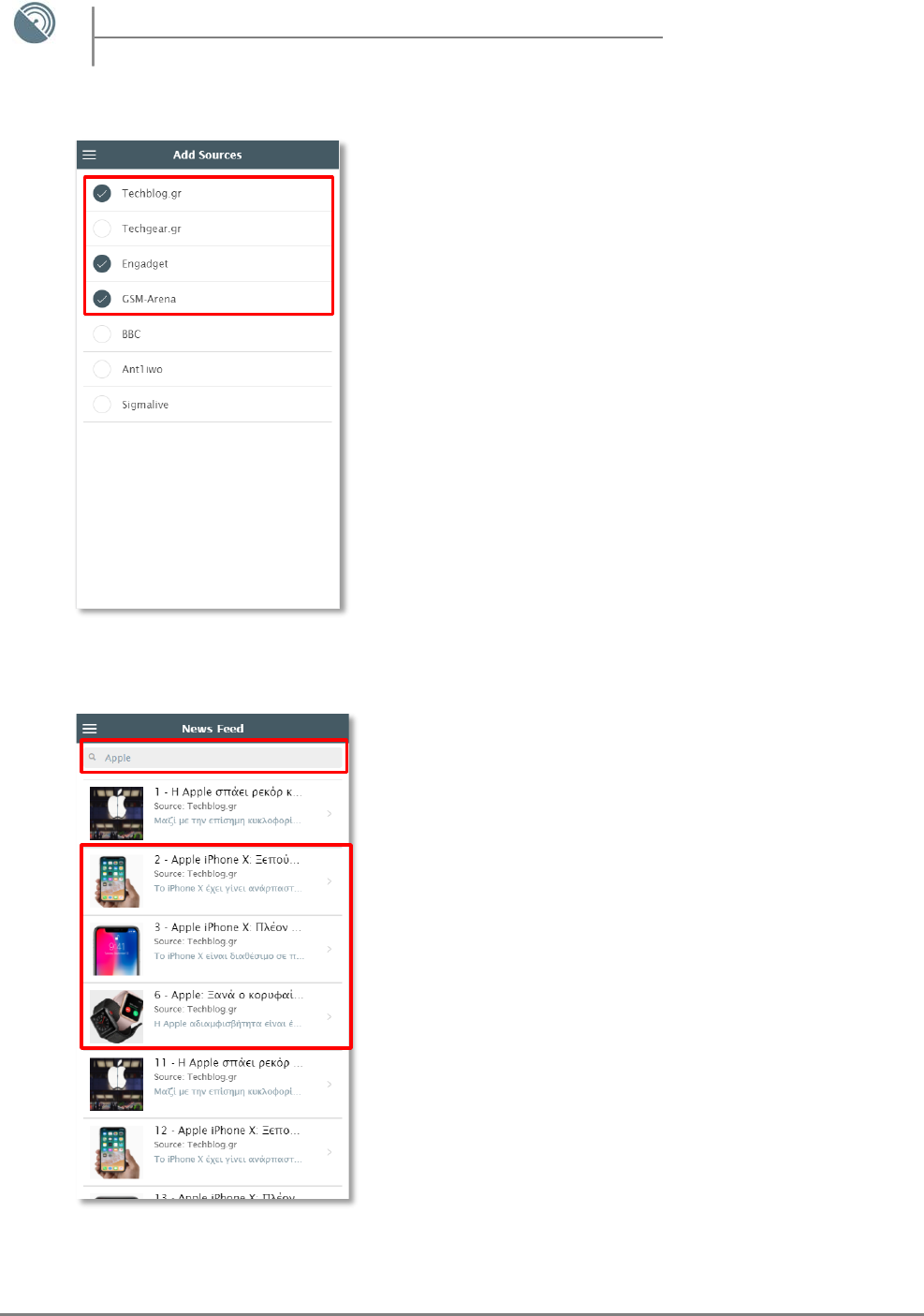
Selecting Your Sources
- When you tap the Add Sources button you will be presented with
all the currently available list of sources within the app. Simply tap
on the sources you would like to retrieve articles from.
- The selected articles will be marked with a tick next to them as
shown Figure 27.
- When you have finished selecting your sources, simply swipe
back to the News Feed window and the sources will be
automatically fetched for you.
Searching Articles
- You can also search through the available articles presented in
your News Feed by typing in the search bar located at the top of
the News Feed specific keywords as shown in Figure 28.
- The keywords can include any words that correspond to an
article’s title. As soon as you start typing your keywords, the
articles will be filtered live within your News Feed based on the
keywords you have typed as shown in Figure 29.
Figure 28
Figure 27

19
eyeReader
eyeReader – User App Manual
User Tutorial
- Upon opening the app you will be presented with the user
tutorial which guides you through the app’s features along with
its available functions and configurations as shown in Figure 29.
You can also swipe to the left to move to the next tutorial screen.
If you wish to skip the tutorial, simply click on the X button
located at the top right of the tutorial window as shown in Figure
29.
Watching the Tutorial again
- You can also watch the tutorial again if you wish so by swiping to
the right to open up the Side Menu and clicking on the “Tutorial”
button as indicated in Figure 30.
Figure 29
Figure 30
20
eyeReader
eyeReader – User App Manual
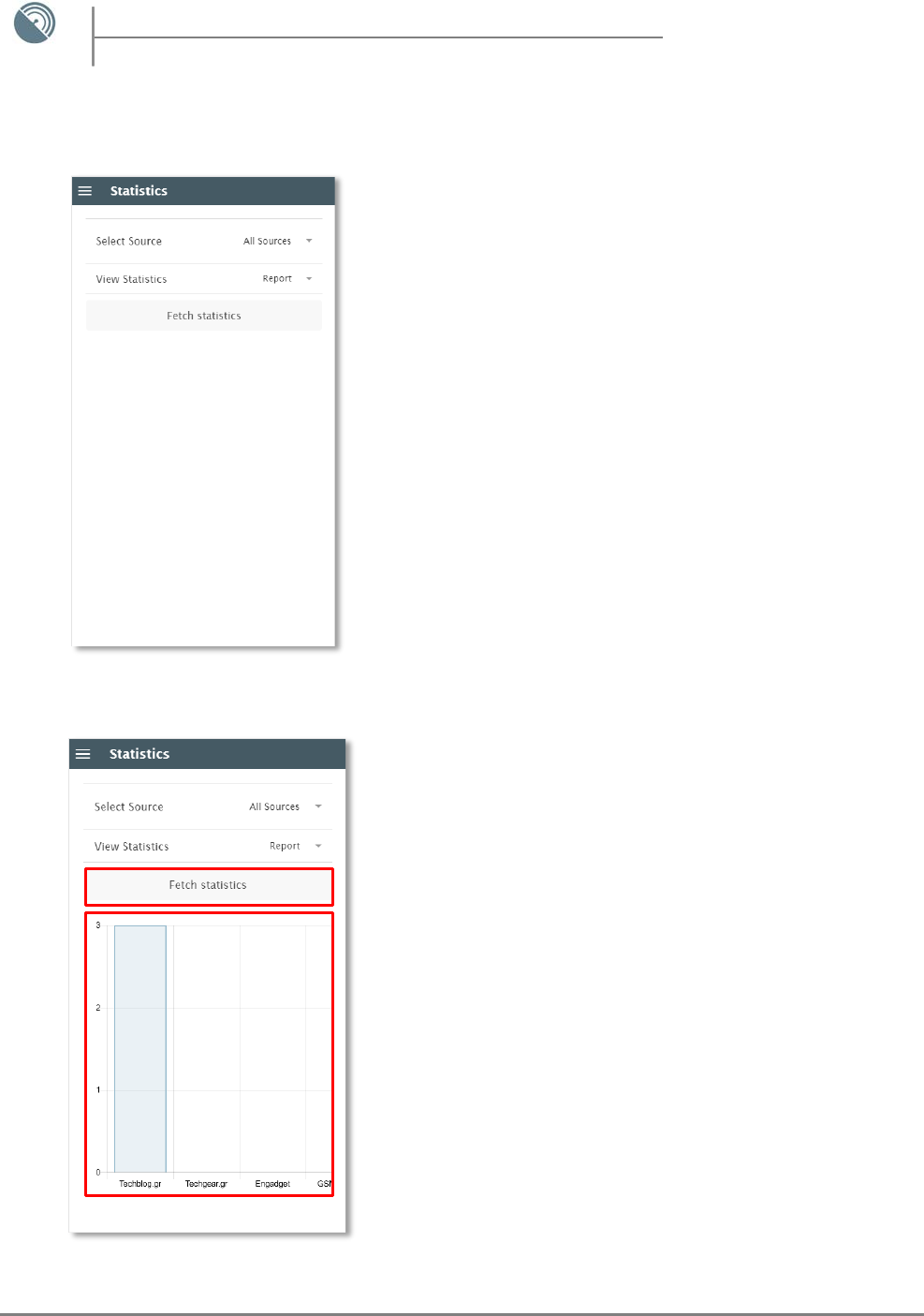
The Statistics View – Graphs
Through the Side Menu, when you click on the button “Statistics”
you will be presented with the following Statistics view as shown in
Figure 31.
In this window you can view certain statistics regarding the entirety
of the sources or specific sources of your choice.
The statistics are presented in a graphical form.
The Statistics View – Graphs – All Sources
Upon pressing “Fetch statistics” the corresponding data of the
current selected source will be fetched through the app’s server
and presented to you in a bar chart form.
The bar chart, depending on which statistic you have chosen in
the “View Statistics” field will present the data for that specific
statistic for all the sources available within the app.
In the example shown in Figure 32, we have selected the “Report”
statistic and therefore the graph corresponds to the amount of
articles reported regarding all the sources available within the
app.
The amount of the specific statistic is always present on the Y axis
of the graph, whereas on the X axis the specific source that the
data correlates to is present.
Figure 31
Figure 32
21
eyeReader
eyeReader – User App Manual
The Statistics View – All Sources – List Of Statistics
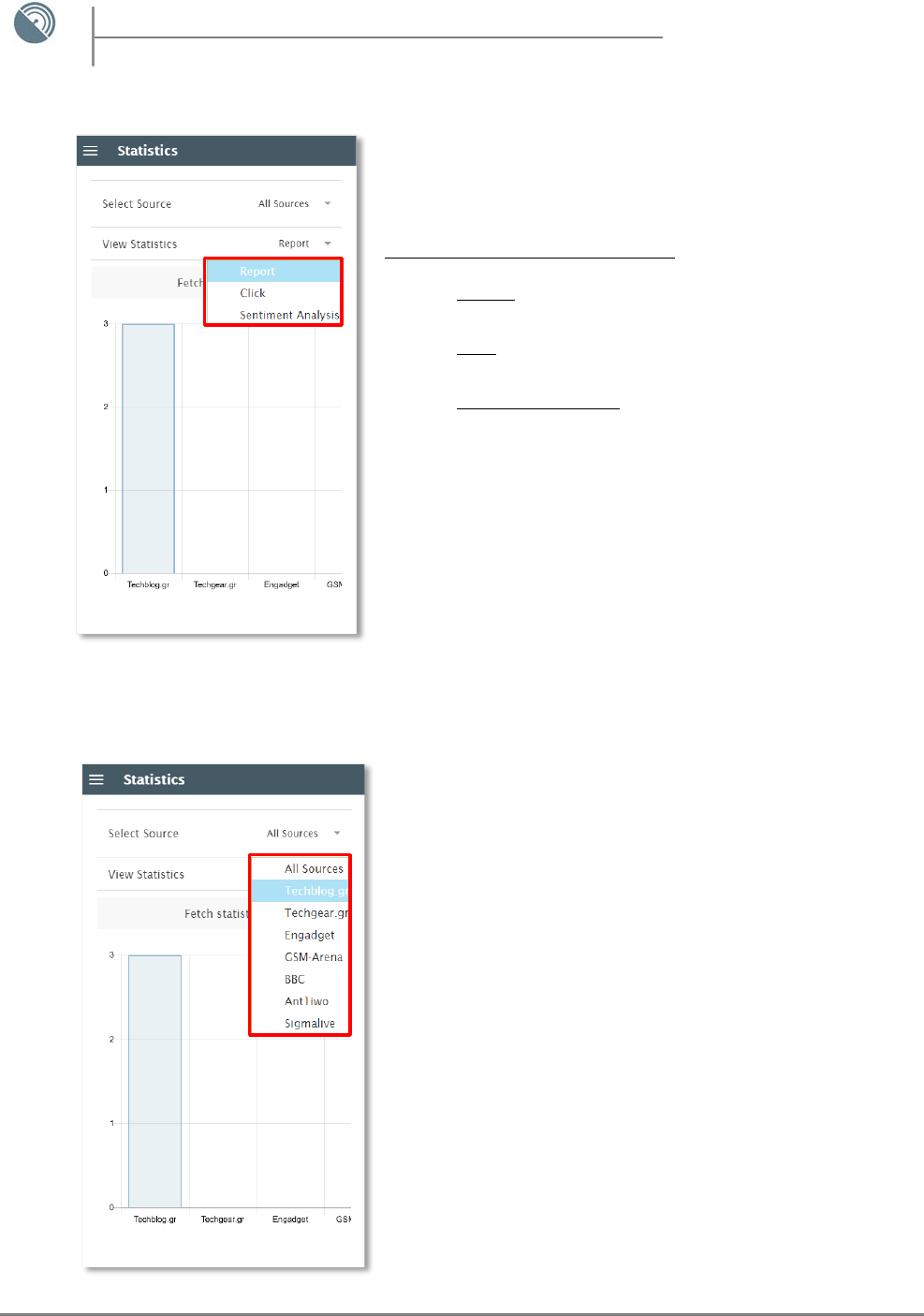
For the statistics of All Sources you can choose between 3
different statistics as shown in Figure 33.
The three statistics are as follows:
1) Report: The amount of articles reported for every
source
2) Click: The amount of times a source’s articles have been
clicked (opened).
3) Sentiment Analysis: The total sentimental grade of a
source’s articles
The Statistics View – Source Selection
In the statistics view, you also have the option to view specific
statistics for a specific source of your choice. This is possible by
clicking on the Select Source field and choosing the source of
your liking as shown in Figure 34.
Figure 33
Figure 34
22
eyeReader
eyeReader – User App Manual
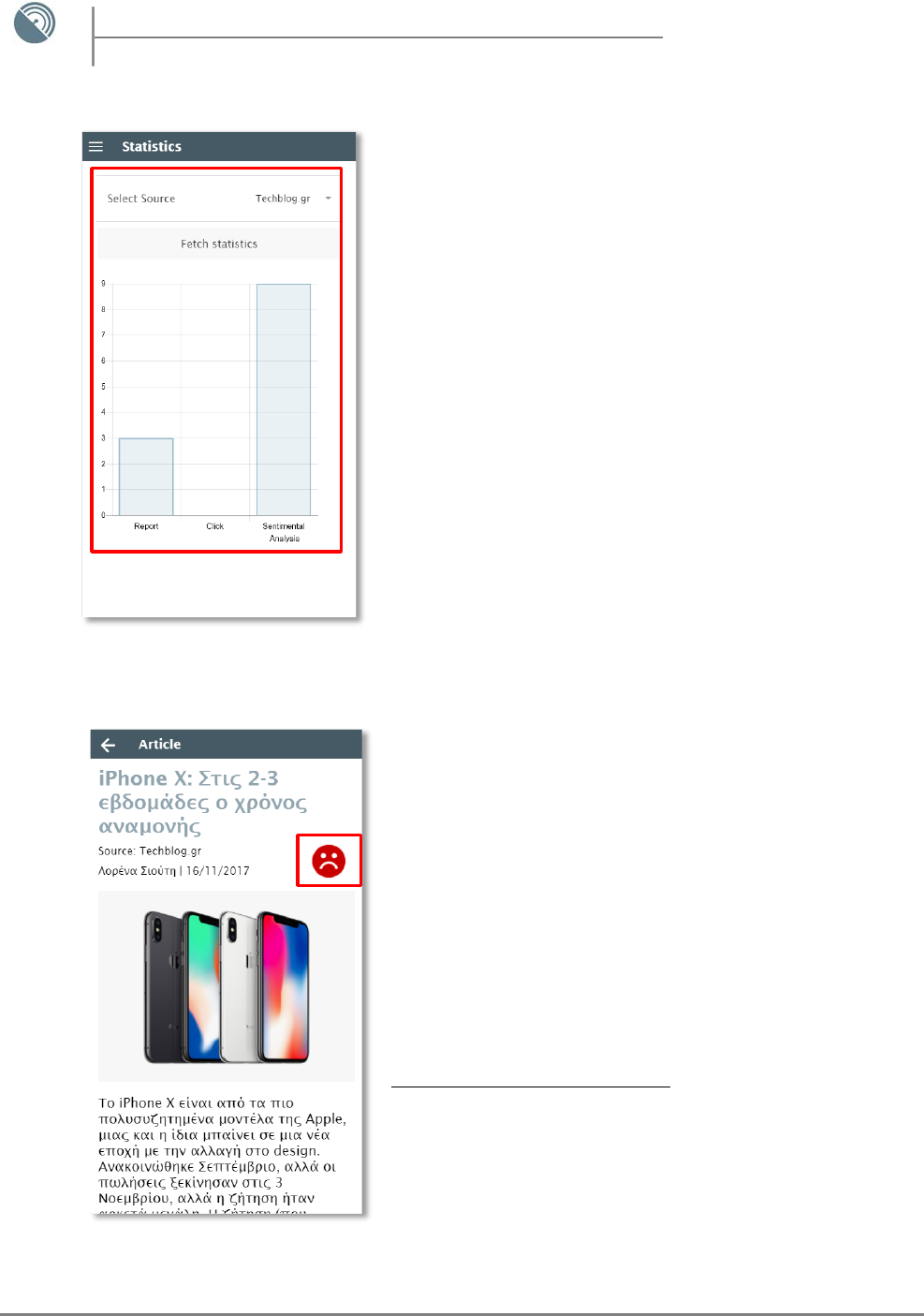
The Statistics View – Specific Source View
- By selecting a specific source and clicking the “Fetch statistics”
button the corresponding data regarding the source’s articles
will be presented to your screen through the bar chart form.
For specific sources, all three statistics are shown simultaneously
in the bar chart.
The amount of the specific statistic is always present on the Y
axis of the graph, whereas on the X axis the specific statistic that
the data correlates to is present.
In the example shown in Figure 35 we can see the amount of
reports and sentimental grade the Source “Techblog.gr” has.
Sentiment Results – The Emoticon
- When viewing an article, at the top right of the article you will
notice an emoticon as shown in Figure 36.
The emoticon corresponds to the result of the sentimental
analysis on that specific article.
In simple terms the sentimental analysis scans the entirety of
the article and predicts the impact it has on the audience that is
reading the current article.
Therefore the “reaction” of the audience is reflected through
this emoticon.
The emoticon can vary between:
1) Green Smiley: Positive Impact
2) Orange Smiley: Neutral Impact
3) Red Smiley: Negative Impact
Figure 35
Figure 36

23
eyeReader
eyeReader – User App Manual
Viewing Articles – Sentimental Grade
- Following up the previous example, when you click on the
Sentiment Icon (The Smiley) the corresponding sentimental
grade of the specific article will be shown as shown in Figure
37.
The grade resembles the amount of the specific impact the
article had to the audience that read it.
Viewing Articles – Save, Delete, Report
- When you are done reading a specific article you have the option
to either Save, Delete or Report that specific article as shown in
Figure 38.
Figure 37
Figure 38
24
eyeReader
eyeReader – User App Manual
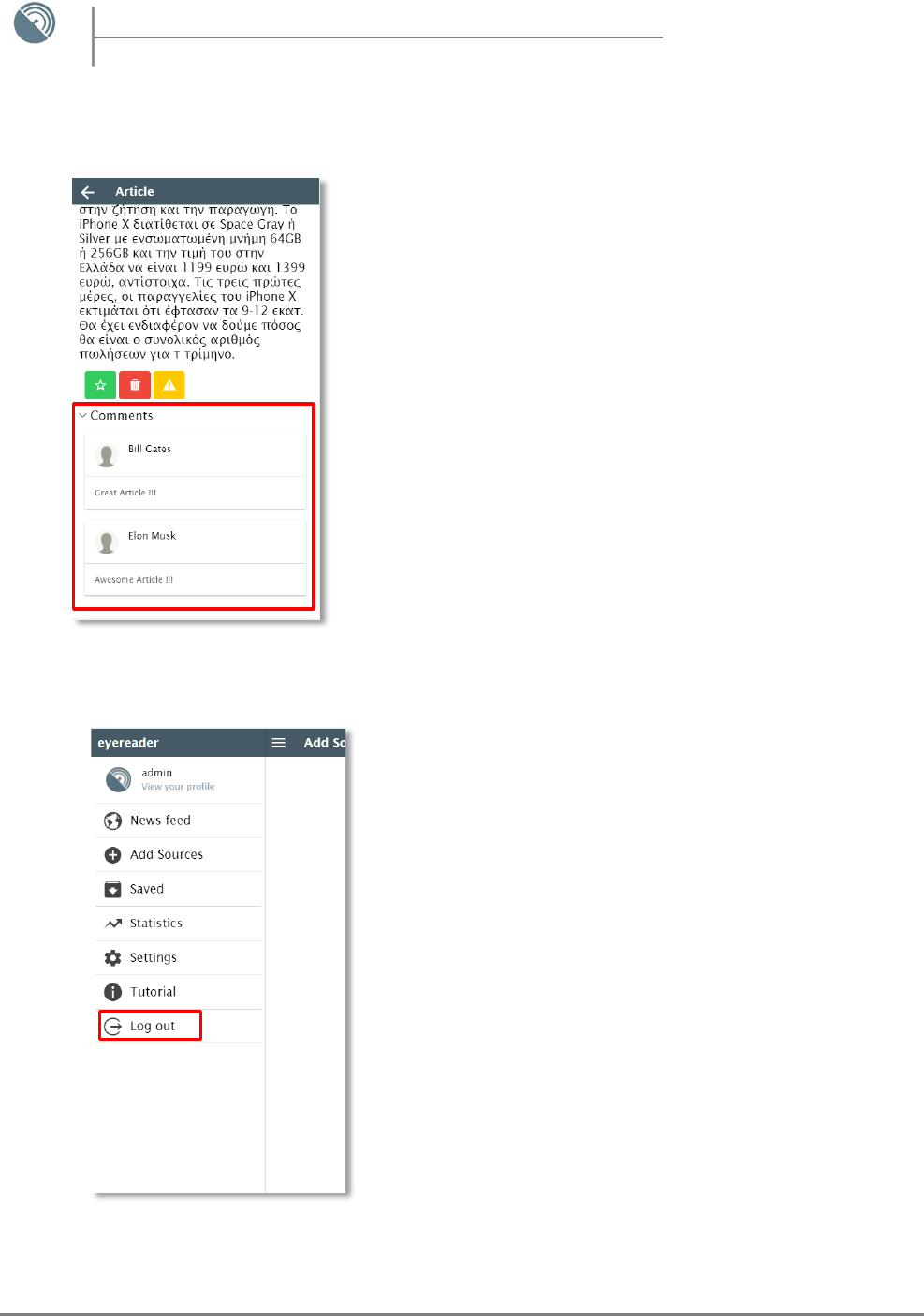
Viewing Articles – Comments Section
- When viewing a specific article, you can also see the comments
included within that article at the bottom of the article view as
shown in Figure 39.
Logout of your account
- To logout of your account simply swipe to the right anywhere
within the app to access the side panel menu and click the “Log
Out” option as shown in Figure 40.
Figure 40
Figure 39
25
eyeReader
eyeReader – User App Manual
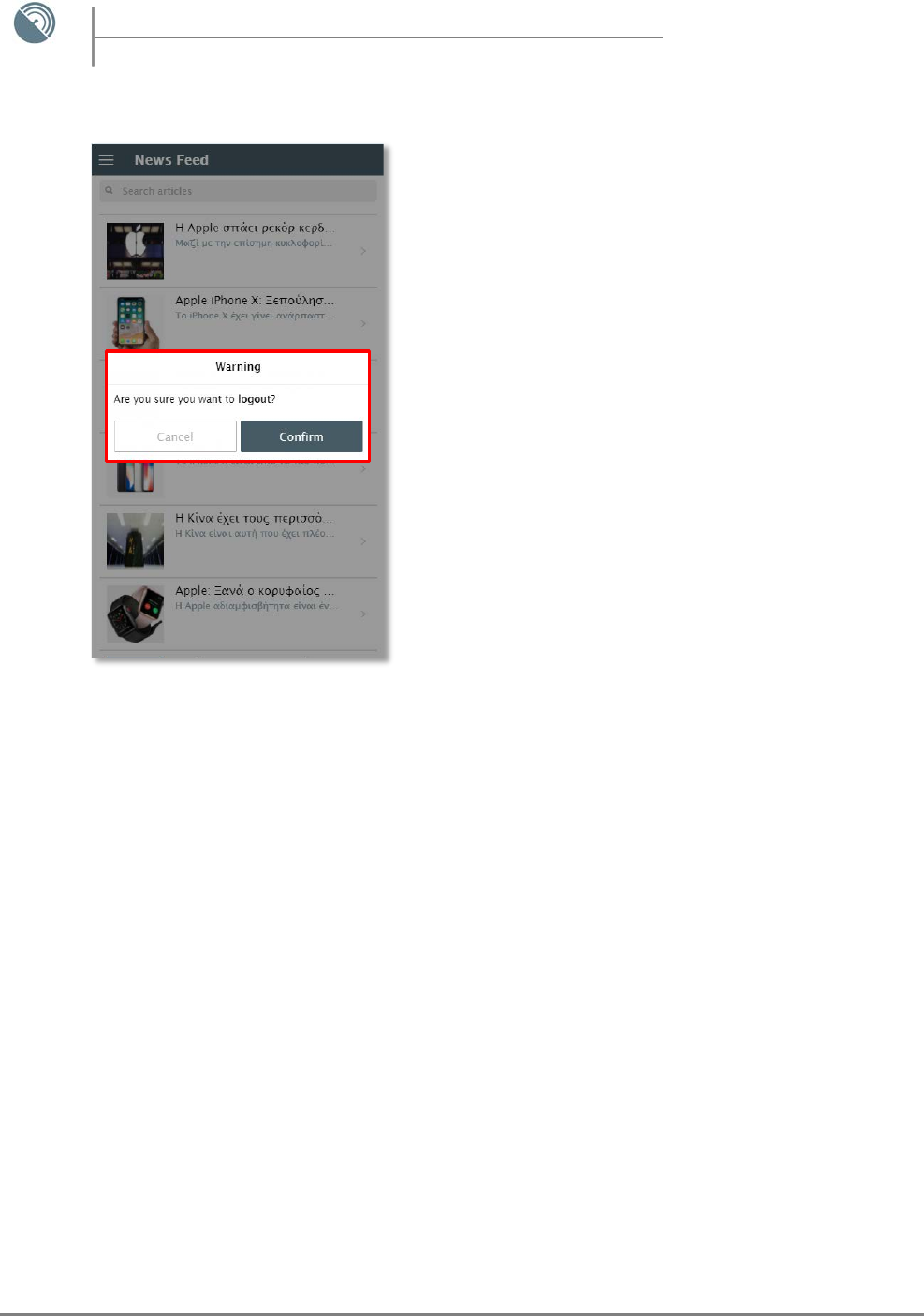
Logout Confirmation Message
- To logout of your session, tap “Confirm” on the
confirmation message which appears as shown in Figure 41.
Figure 41
