Figma Instructions
User Manual: Pdf
Open the PDF directly: View PDF  .
.
Page Count: 11

Figma Tips!

Starting a project
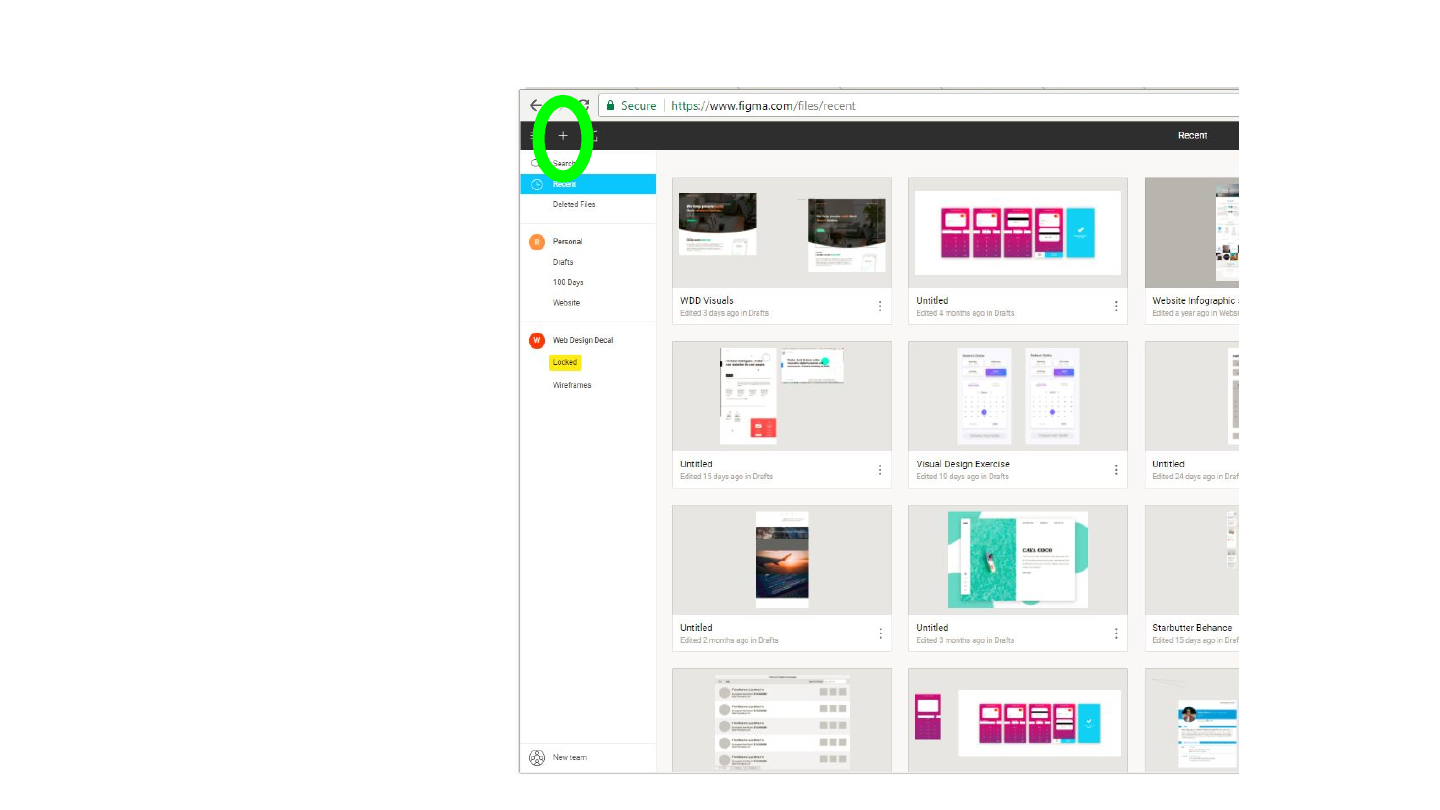
Creating a project
Click the plus icon in the top left to
create a new project
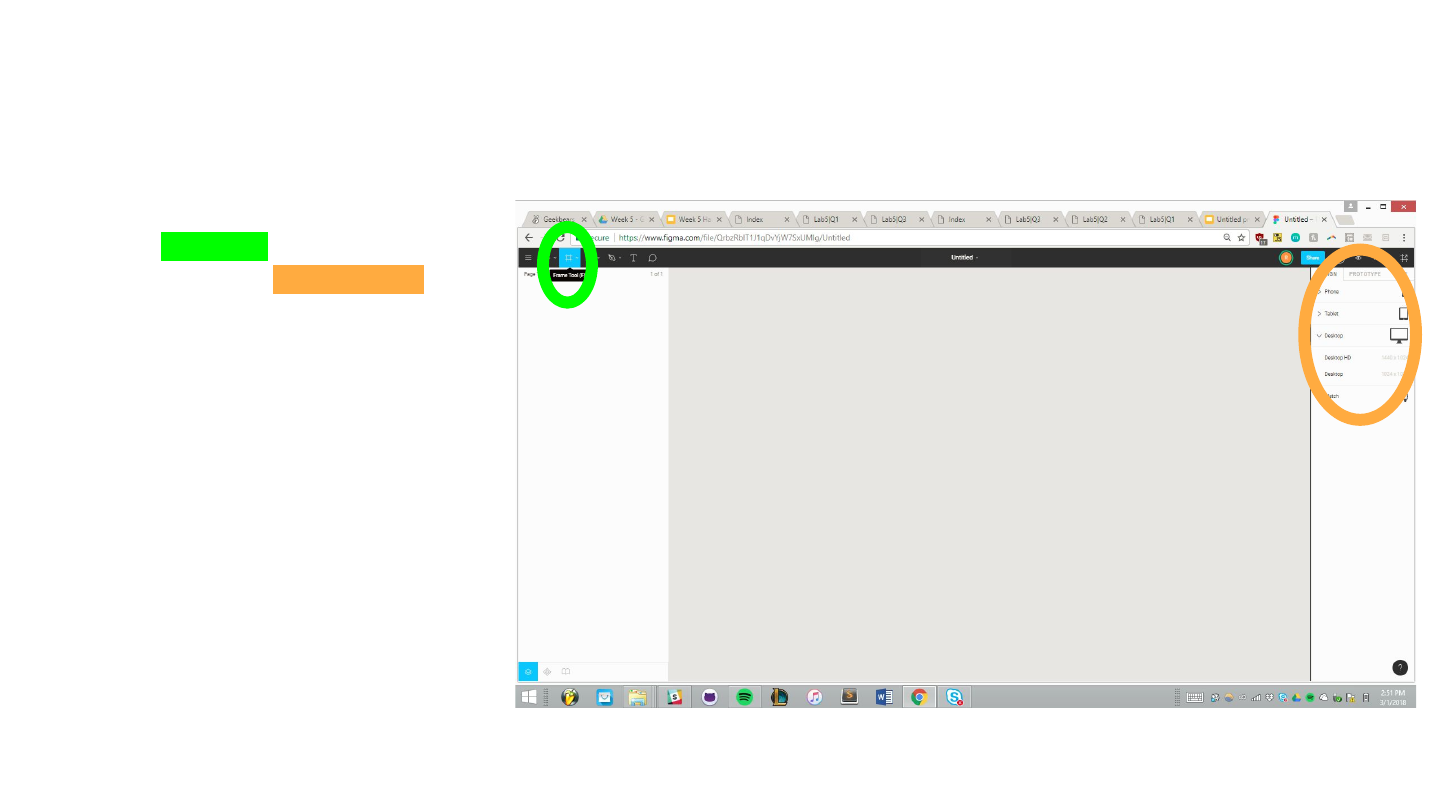
Setting up an
artboard
Click the frame tool on the top left tool
bar, then select the type of screen you
want from the right

Adding Objects
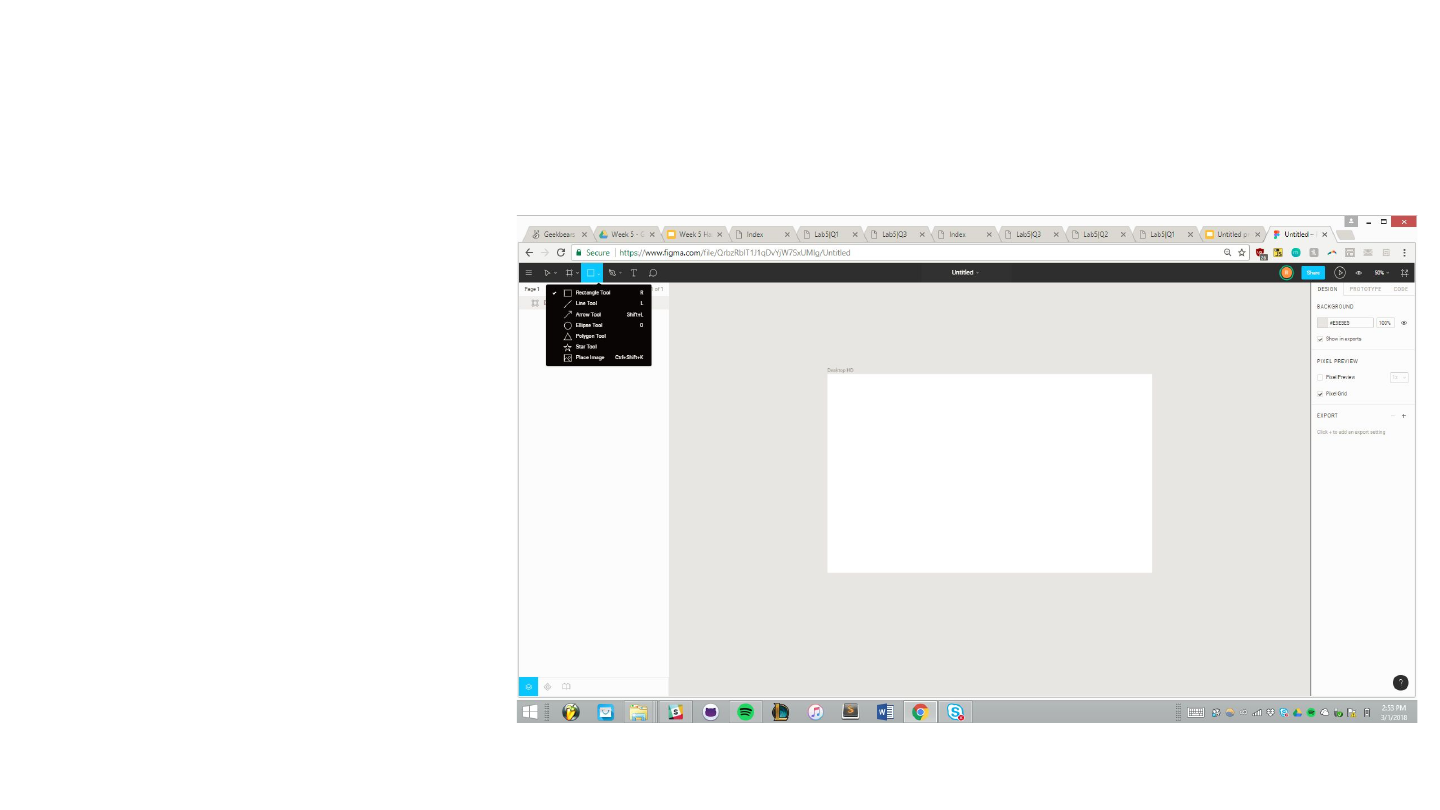
Creating shapes
To create a shape, click the shape
tool, select a shape, and then drag
your mouse on the artboard to create
that shape.
To edit the size of a shape, select that
shape and edit its height / width in the
top right of the screen.
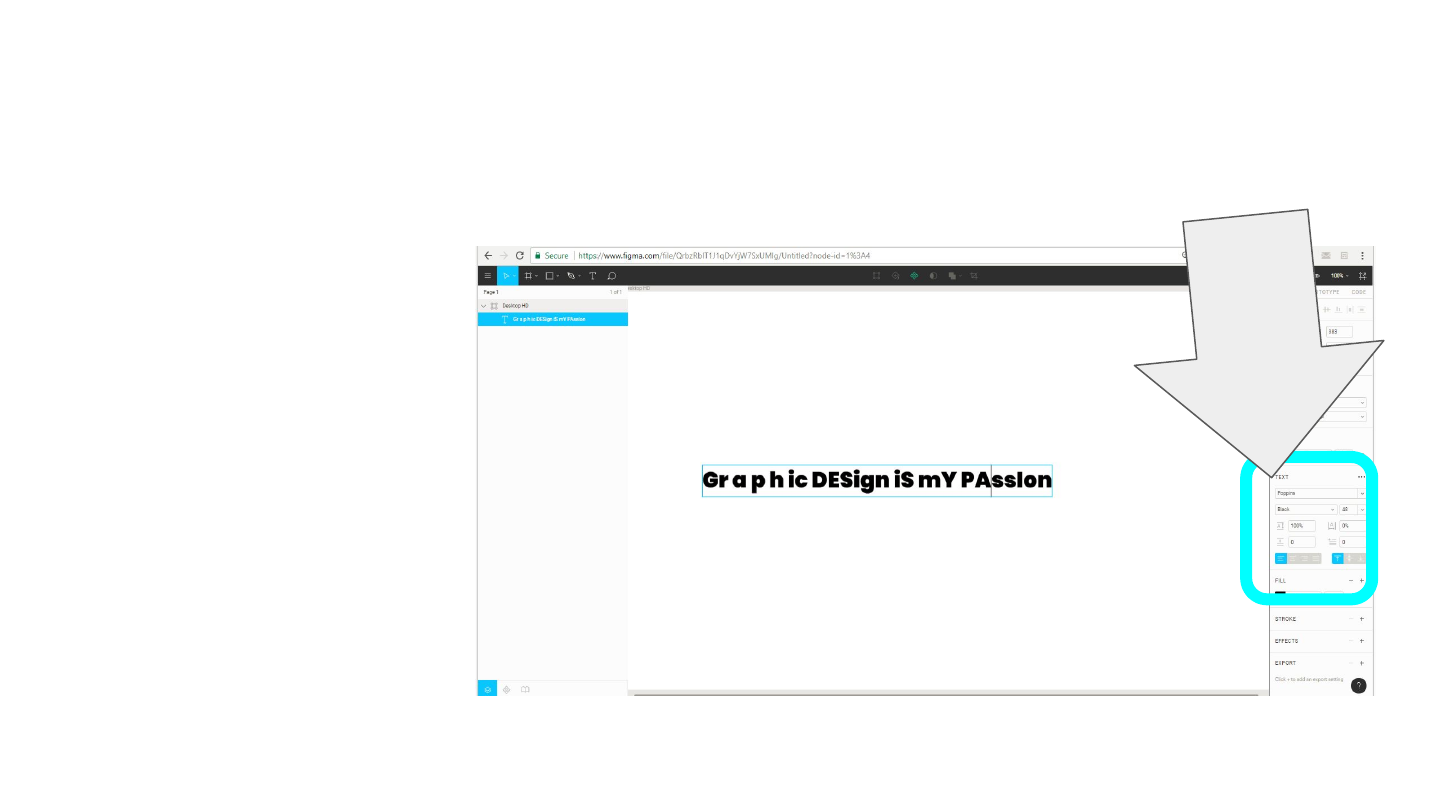
Typing
Select the type tool. Click where you
want to type and just start typing. No
need to drag out ur textbox.
To change font properties, look to the
right of the screen. Figma has every
google font! :D
Font properties

Editing / Moving Adjusting Objects
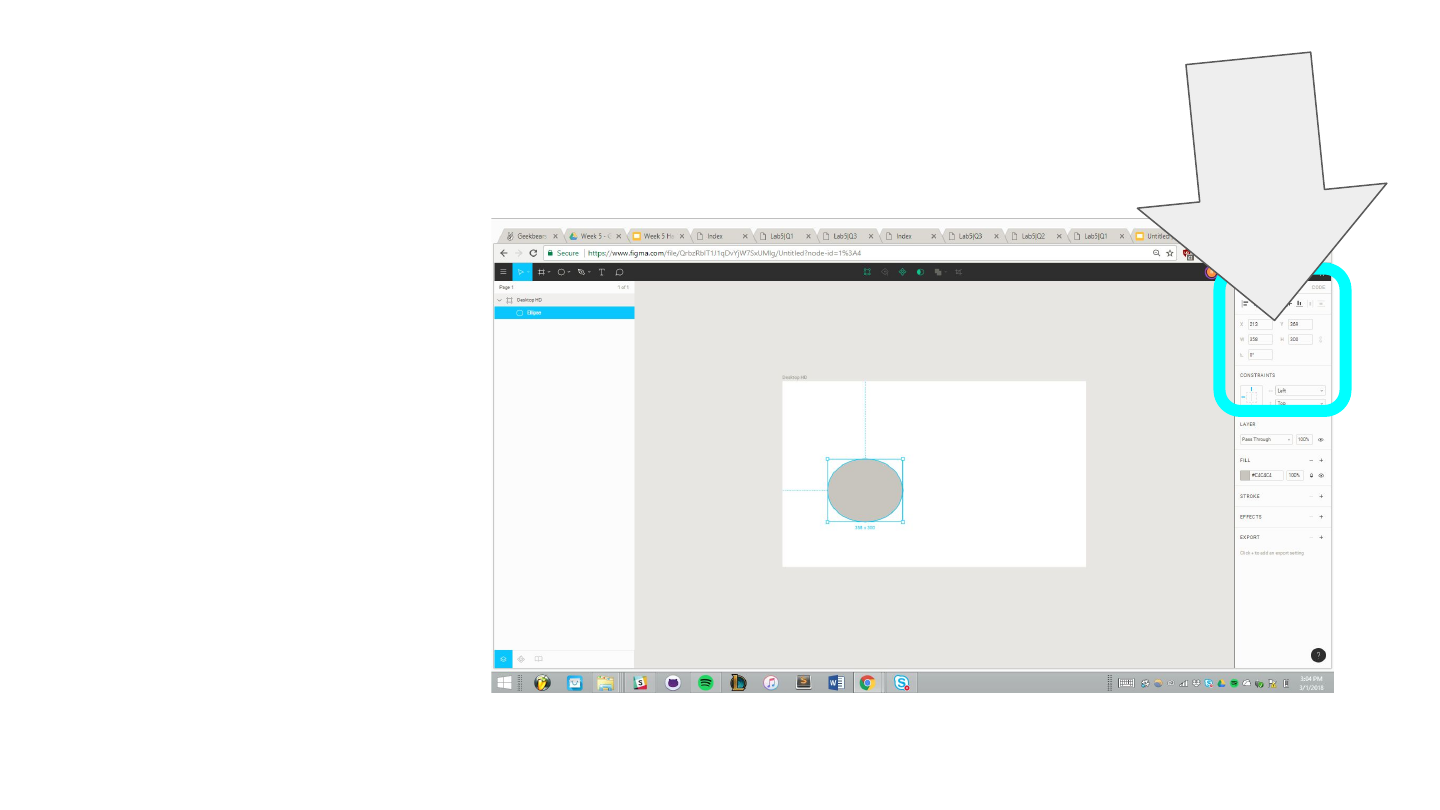
Changing the size
of a shape
Select your shape. There’s 2 ways to
change its size
1: Select a corner and drag. Hold shift
to maintain the current height/width
ratio
2: Edit the height and width directly in
the top left of the screen. Click the
paper clip lookin icon to maintain the
height width ratio
Height & Width
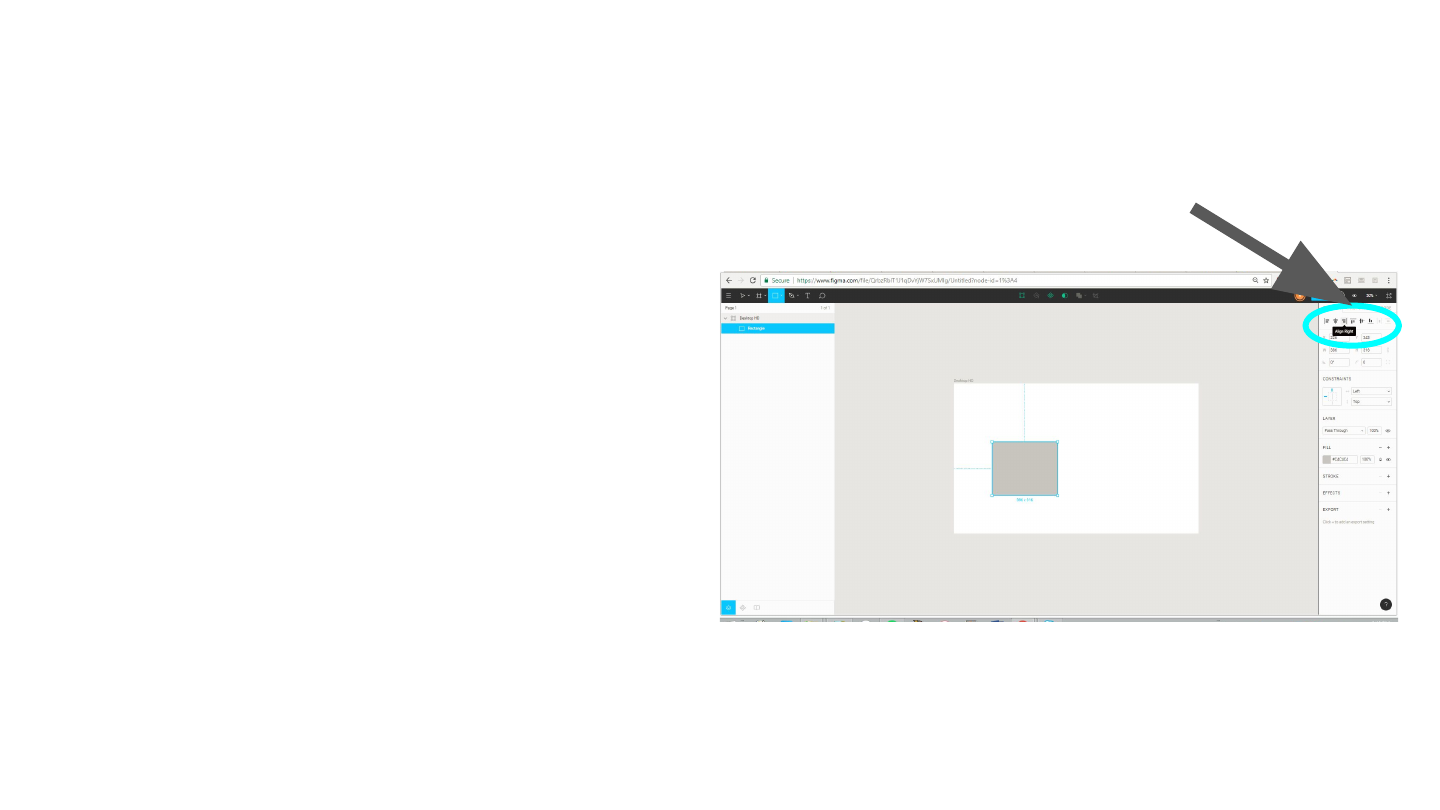
Moving Shapes
Theres 3 good ways to move a shape. First select it
1: Once you’ve selected the shape, click the middle of it
and drag it to where you want.
2. Select a shape. Use the up, left , down, right keys to
move it by pixel. Hold shift and do this to move it 10 px
at a time.
3. You can also move shapes relative to other shapes /
items. First select the shape you want to move. Second,
hold shift to also select the shape u want to move relative
to. Then use one of the options in the top right of the screen
to move the first selected shape either to the top, center,
left, or right of the second shape you selected. Doing this
without selecting a second shape will result in moving
relative to the artboard
Moving relative to other
shapes

If you have a question not
covered here, feel free to grab
a TA or instructor! :D
