VMware Horizon Client For Mac Installation And Setup Guide 4.6 OS X Instruction Manual 46 Install
User Manual: Pdf Horizon Client 4.6 for Mac OS X - Instruction Manual User Guide for VMware Horizon Software, Free Instruction Manual
Open the PDF directly: View PDF  .
.
Page Count: 70
- VMware Horizon Client for Mac Installation and Setup Guide
- Contents
- VMware Horizon Client for Mac Installation and Setup Guide
- Setup and Installation
- System Requirements for Mac Clients
- System Requirements for Real-Time Audio-Video
- Smart Card Authentication Requirements
- Touch ID Authentication Requirements
- Requirements for Using URL Content Redirection
- Supported Desktop Operating Systems
- Preparing Connection Server for Horizon Client
- Install Horizon Client on Mac
- Upgrade Horizon Client Online
- Add Horizon Client to the Dock
- Setting the Certificate Checking Mode in Horizon Client
- Configure Advanced TLS/SSL Options
- Configuring Log File Collection Values
- Configure VMware Blast Options
- Horizon Client Data Collected by VMware
- Using URIs to Configure Horizon Client
- Managing Remote Desktop and Application Connections
- Configure Horizon Client to Select a Smart Card Certificate
- Connect to a Remote Desktop or Application
- Share Access to Local Folders and Drives with Client Drive Redirection
- Clicking URL Links That Open Outside of Horizon Client
- Open a Recent Remote Desktop or Application
- Connecting to a Server When Horizon Client Starts
- Configure Horizon Client to Forget the Server User Name and Domain
- Hide the VMware Horizon Client Window
- Create Keyboard Shortcut Mappings
- Modify the Horizon Client Mouse Shortcut Mappings
- Modify the Horizon Client Shortcuts for Windows Actions
- Searching for Desktops or Applications
- Select a Favorite Remote Desktop or Application
- Switch Desktops or Applications
- Log Off or Disconnect
- Using a Touch Bar with Horizon Client
- Autoconnect to a Remote Desktop
- Configure Reconnect Behavior for Remote Applications
- Removing a Server Shortcut From the Home Window
- Reordering Shortcuts
- Using a Microsoft Windows Desktop or Application on a Mac
- Feature Support Matrix for Mac
- Internationalization
- Monitors and Screen Resolution
- Using Exclusive Mode
- Connect USB Devices with USB Redirection
- Using the Real-Time Audio-Video Feature for Webcams and Microphones
- Copying and Pasting Text and Images
- Using Remote Applications
- Saving Documents in a Remote Application
- Printing from a Remote Desktop or Application
- PCoIP Client-Side Image Cache
- Troubleshooting Horizon Client
- Index

VMware Horizon Client for Mac
Installation and Setup Guide
Modified on 21 SEP 2017
VMware Horizon Client for Mac 4.6
VMware Horizon Client for Mac Installation and Setup Guide
2 VMware, Inc.
You can find the most up-to-date technical documentation on the VMware Web site at:
hps://docs.vmware.com/
The VMware Web site also provides the latest product updates.
If you have comments about this documentation, submit your feedback to:
docfeedback@vmware.com
Copyright © 2010–2017 VMware, Inc. All rights reserved. Copyright and trademark information.
VMware, Inc.
3401 Hillview Ave.
Palo Alto, CA 94304
www.vmware.com
Contents
VMware Horizon Client for Mac Installation and Setup Guide 5
1Setup and Installation 7
System Requirements for Mac Clients 7
System Requirements for Real-Time Audio-Video 8
Smart Card Authentication Requirements 8
Touch ID Authentication Requirements 10
Requirements for Using URL Content Redirection 10
Supported Desktop Operating Systems 11
Preparing Connection Server for Horizon Client 11
Install Horizon Client on Mac 12
Upgrade Horizon Client Online 13
Add Horizon Client to the Dock 13
Seing the Certicate Checking Mode in Horizon Client 13
Conguring Certicate Checking for End Users 14
Congure Advanced TLS/SSL Options 15
Conguring Log File Collection Values 15
Congure VMware Blast Options 16
Horizon Client Data Collected by VMware 17
2Using URIs to Congure Horizon Client 21
Syntax for Creating vmware-view URIs 21
Examples of vmware-view URIs 24
3Managing Remote Desktop and Application Connections 27
Congure Horizon Client to Select a Smart Card Certicate 28
Connect to a Remote Desktop or Application 28
Share Access to Local Folders and Drives with Client Drive Redirection 31
Clicking URL Links That Open Outside of Horizon Client 33
Open a Recent Remote Desktop or Application 33
Connecting to a Server When Horizon Client Starts 34
Congure Horizon Client to Forget the Server User Name and Domain 34
Hide the VMware Horizon Client Window 34
Create Keyboard Shortcut Mappings 35
Considerations for Mapping Operating System Keyboard Shortcuts 36
Modify the Horizon Client Mouse Shortcut Mappings 36
Modify the Horizon Client Shortcuts for Windows Actions 37
Searching for Desktops or Applications 37
Select a Favorite Remote Desktop or Application 38
Switch Desktops or Applications 39
Log O or Disconnect 39
VMware, Inc. 3
Using a Touch Bar with Horizon Client 41
Autoconnect to a Remote Desktop 41
Congure Reconnect Behavior for Remote Applications 41
Removing a Server Shortcut From the Home Window 42
Reordering Shortcuts 42
4Using a Microsoft Windows Desktop or Application on a Mac 43
Feature Support Matrix for Mac 43
Internationalization 46
Monitors and Screen Resolution 46
Select Specic Monitors in a Multiple-Monitor Setup 47
Using Exclusive Mode 47
Connect USB Devices with USB Redirection 48
Conguring USB Redirection on a Mac Client 51
USB Redirection Properties 53
USB Device Families 55
Turn On Logging for USB Redirection 55
Using the Real-Time Audio-Video Feature for Webcams and Microphones 56
When You Can Use a Webcam 56
Select a Default Microphone on a Mac Client System 56
Conguring Real-Time Audio-Video on a Mac Client 57
Congure a Preferred Webcam or Microphone on a Mac Client System 58
Copying and Pasting Text and Images 60
Conguring the Client Clipboard Memory Size 60
Using Remote Applications 60
Use a Local IME with Remote Applications 61
Saving Documents in a Remote Application 62
Printing from a Remote Desktop or Application 62
Enabling Virtual Printing in Horizon Client 62
Set Printing Preferences for a Virtual Printer Feature on a Remote Desktop 63
Using USB Printers 64
PCoIP Client-Side Image Cache 64
5Troubleshooting Horizon Client 65
Restart a Remote Desktop 65
Reset a Remote Desktop or Remote Applications 66
Uninstalling Horizon Client 66
Connecting to a Server in Workspace ONE Mode 67
Index 69
VMware Horizon Client for Mac Installation and Setup Guide
4 VMware, Inc.

VMware Horizon Client for Mac Installation and
Setup Guide
This document, VMware Horizon Client for Mac Installation and Setup Guide, provides information about
installing, conguring, and using VMware Horizon® Client™ software on a Mac.
This information is intended for administrators who need to set up a Horizon deployment that includes Mac
client devices. The information is wrien for experienced system administrators who are familiar with
virtual machine technology and datacenter operations.
VMware, Inc. 5
VMware Horizon Client for Mac Installation and Setup Guide
6 VMware, Inc.

Setup and Installation 1
Seing up a Horizon deployment for Mac clients involves using certain Connection Server conguration
seings, meeting the client and server system requirements, and downloading and installing Horizon Client
for Mac from the VMware Web site.
This chapter includes the following topics:
n“System Requirements for Mac Clients,” on page 7
n“System Requirements for Real-Time Audio-Video,” on page 8
n“Smart Card Authentication Requirements,” on page 8
n“Touch ID Authentication Requirements,” on page 10
n“Requirements for Using URL Content Redirection,” on page 10
n“Supported Desktop Operating Systems,” on page 11
n“Preparing Connection Server for Horizon Client,” on page 11
n“Install Horizon Client on Mac,” on page 12
n“Upgrade Horizon Client Online,” on page 13
n“Add Horizon Client to the Dock,” on page 13
n“Seing the Certicate Checking Mode in Horizon Client,” on page 13
n“Congure Advanced TLS/SSL Options,” on page 15
n“Conguring Log File Collection Values,” on page 15
n“Congure VMware Blast Options,” on page 16
n“Horizon Client Data Collected by VMware,” on page 17
System Requirements for Mac Clients
The Mac on which you install Horizon Client, and the peripherals it uses, must meet certain system
requirements.
Mac models Any 64-bit Intel-based Mac
Memory At least 2GB of RAM
Operating systems nMac OS X Yosemite (10.10.x)
nMac OS X El Capitan (10.11)
VMware, Inc. 7

nmacOS Sierra (10.12)
nmacOS High Sierra (10.13)
Smart card
authentication
See “Smart Card Authentication Requirements,” on page 8.
Touch ID authentication See “Touch ID Authentication Requirements,” on page 10.
Connection Server,
security server, and
View Agent or
Horizon Agent
Latest maintenance release of Horizon 6 version 6.x and later releases.
If client systems connect from outside the corporate rewall, VMware
recommends that you use a security server or Unied Access Gateway
appliance so that client systems do not require a VPN connection.
Display protocols nPCoIP
nRDP
nVMware Blast (requires Horizon Agent 7.0 or later)
Software requirements
for RDP
Remote Desktop Connection Client for Mac from Microsoft, versions 2.0
through 2.1.1. You can download this client from the Microsoft Web site.
N Horizon Client for Mac does not work with Microsoft Remote
Desktop 8.0 and later releases.
System Requirements for Real-Time Audio-Video
Real-Time Audio-Video works with standard webcam, USB audio, and analog audio devices, and with
standard conferencing applications like Skype, WebEx, and Google Hangouts. To support Real-Time Audio-
Video, your Horizon deployment must meet certain software and hardware requirements.
Remote desktops The desktops must have View Agent 6.0 or Horizon Agent 7.0 or later
installed. To use Real-Time Audio-Video with published desktops and
applications, Horizon Agent 7.0.2 or later must be installed.
Horizon Client computer
or client access device
nThe webcam and audio device drivers must be installed, and the
webcam and audio device must be operable, on the client computer.
nTo support Real-Time Audio-Video, you do not need to install the device
drivers on the remote desktop operating system where the agent is
installed.
Display protocols nPCoIP
nVMware Blast (requires Horizon Agent 7.0 or later)
Smart Card Authentication Requirements
Client systems that use a smart card for user authentication must meet certain requirements.
Client Hardware and Software Requirements
Each client system that uses a smart card for user authentication must have the following hardware and
software:
nHorizon Client
VMware Horizon Client for Mac Installation and Setup Guide
8 VMware, Inc.

nA compatible smart card reader
VMware tested the U.S. Department of Defense Common Access Card (CAC) and U.S. Federal
Government Personal Identity Verication (PIV), also called FIPS-201 smart cards.
nProduct-specic application drivers
Users who authenticate with smart cards must have a smart card and each smart card must contain a user
certicate.
Remote Desktop and Application Software Requirements
A Horizon administrator must install product-specic application drivers on the remote desktops or RDS
host. For Windows 7 remote desktops, the operating system installs the related driver when you insert a
smart card reader and PIV card. For Windows XP and Windows Vista remote desktops, you can install the
related driver by using ActivIdentify ActivClient.
Enabling the Username Hint Field in Horizon Client
In some environments, smart card users can use a single smart card certicate to authenticate to multiple
user accounts. Users enter their user name in the Username hint eld during smart card sign-in.
To make the Username hint eld appear on the Horizon Client login dialog box, you must enable the smart
card user name hints feature for the Connection Server instance in Horizon Administrator. The smart card
user name hints feature is supported only with Horizon 7 version 7.0.2 and later servers and agents. For
information about enabling the smart card user name hints feature, see the View Administration document.
If your environment uses an Unied Access Gateway appliance rather than a security server for secure
external access, you must congure the Unied Access Gateway appliance to support the smart card user
name hints feature. The smart card user name hints feature is supported only with Unied Access Gateway
2.7.2 and later. For information about enabling the smart card user name hints feature in
Unied Access Gateway, see the Deploying and Conguring Unied Access Gateway document.
N Horizon Client still supports single-account smart card certicates when the smart card user name
hints feature is enabled.
Additional Smart Card Authentication Requirements
In addition to meeting the smart card requirements for Horizon Client systems, other Horizon components
must meet certain conguration requirements to support smart cards.
Connection Server and
security server hosts
An administrator must add all applicable Certicate Authority (CA)
certicates for all trusted user certicates to a server truststore le on the
Connection Server host or security server host. These certicates include root
certicates and must include intermediate certicates if the user's smart card
certicate was issued by an intermediate certicate authority.
When you generate a certicate for a blank PIV card, enter the path to the
server truststore le on the Connection Server or security server host on the
Crypto Provider tab in the PIV Data Generator tool.
For information about conguring Connection Server to support smart card
use, see the View Administration document.
Active Directory For information about tasks that an administrator might need to perform in
Active Directory to implement smart card authentication, see the View
Administration document.
Chapter 1 Setup and Installation
VMware, Inc. 9

Touch ID Authentication Requirements
To use Touch ID for user authentication in Horizon Client, you must meet certain requirements.
Mac models Any Mac model that supports Touch ID, for example, MacBook Pro.
Operating system
requirements
Add at least one ngerprint in the Touch ID seing.
Connection Server
requirements
nHorizon 6 version 6.2 or a later release.
nEnable biometric authentication in Connection Server. For information,
see the View Administration document.
nThe Connection Server instance must present a valid root-signed
certicate to Horizon Client.
Horizon Client
requirements
nSet the certicate checking mode to Never connect to untrusted servers
or Warn before connecting to untrusted servers. For information about
seing the certicate checking mode, see “Seing the Certicate
Checking Mode in Horizon Client,” on page 13.
nEnable Touch ID when you connect to the server. After you successfully
log in, your Active Directory credentials are stored securely on the Mac
client system. The Touch ID option is shown the rst time you log in and
does not appear after Touch ID is enabled.
You can use Touch ID with smart card authentication and as part of two-factor authentication with RSA
SecurID and RADIUS authentication. If you use Touch ID with smart card authentication, Horizon Client
connects to the server after you enter your PIN and the Touch ID login screen does not appear.
Requirements for Using URL Content Redirection
With the URL Content Redirection feature, URL content can be redirected from the client machine to a
remote desktop or application (client-to-agent redirection), or from a remote desktop or application to the
client machine (agent-to-client redirection).
For example, an end user can click a link in the native Microsoft Word application on the client and the link
opens in the remote Internet Explorer application, or an end user can click a link in the remote Internet
Explorer application and the link opens in a native browser on the client machine. Any number of protocols
can be congured for redirection, including HTTP, mailto, and callto.
The supported browsers on the agent machine in which you can type or click a URL and have that URL
redirected are Internet Explorer 9, 10, and 11.
N This feature does not work for links clicked from inside Windows 10 universal apps, including the
Microsoft Edge Browser.
To use agent-to-client redirection, a Horizon administrator must enable URL Content Redirection during
Horizon Agent installation. For information, see the Seing Up Virtual Desktops in Horizon 7 or Seing Up
Published Desktops and Applications in Horizon 7 documents.
A Horizon administrator must also congure seings that specify how Horizon Client redirects URL
content from the client system to a remote desktop or application, or how Horizon Agent redirects URL
content from a remote desktop or application to the client machine. For conguration information, see the
Conguring Remote Desktop Features in Horizon 7 document.
VMware Horizon Client for Mac Installation and Setup Guide
10 VMware, Inc.

Supported Desktop Operating Systems
A Horizon administrator creates virtual machines that have a guest operating system and installs agent
software in the guest operating system. End users can log in to these virtual machines from a client device.
For a list of the supported Windows guest operating systems, see the View Installation document.
Some Linux guest operating systems are also supported if you have View Agent 6.1.1 or later, or
Horizon Agent 7.0 or later. For information about system requirements, conguring Linux virtual machines
for use in Horizon, and a list of supported features, see Seing Up Horizon 6 for Linux Desktops or Seing Up
Horizon 7 for Linux Desktops.
Preparing Connection Server for Horizon Client
A Horizon administrator must perform specic tasks to enable end users to connect to remote desktops and
applications.
Before end users can connect to a Connection Server instance or a security server and access a remote
desktop or application, a Horizon administrator must congure certain pool seings and security seings:
nIf you plan to use Unied Access Gateway, congure Connection Server to work with
Unied Access Gateway. See the Deploying and Conguring Unied Access Gateway document.
Unied Access Gateway appliances fulll the same role that was previously played by only security
servers.
nIf you are using a security server, verify that you are using the latest maintenance releases of
Connection Server 6.x and Security Server 6.x or later releases. For more information, see the View
Installation document.
nIf you plan to use a secure tunnel connection for client devices and if the secure connection is
congured with a DNS host name for Connection Server or a security server, verify that the client
device can resolve this DNS name.
To enable or disable the secure tunnel, in Horizon Administrator, go to the Edit Horizon Connection
Server Seings dialog box and use the check box called Use secure tunnel connection to desktop.
nVerify that a desktop or application pool has been created and that the user account that you plan to use
is entitled to access the pool. For information, see the Seing Up Virtual Desktops in Horizon 7 or Seing
Up Published Desktops and Applications in Horizon 7 document.
I If end users have a high-resolution display and will use the High Resolution Mode client
seing while viewing their remote desktops in full screen mode, you must allocate sucient VRAM for
each Windows 7 or later remote desktop. The amount of vRAM depends on the number of monitors
congured for end users and on the display resolution. To estimate the amount of vRAM you need, see
the View Architecture Planning document.
nTo use two-factor authentication with Horizon Client, such as RSA SecurID or RADIUS authentication,
you must enable this feature on Connection Server. For more information, see the topics about two-
factor authentication in the View Administration document.
nTo hide security information in Horizon Client, including server URL information and the Domain
drop-down menu, enable the Hide server information in client user interface and Hide domain list in
client user interface seings in Horizon Administrator. These global seings are available in Horizon 7
version 7.1 and later. For information about conguring global seings, see the View Administration
document.
Chapter 1 Setup and Installation
VMware, Inc. 11

To authenticate when the Domain drop-down menu is hidden, users must provide domain information
by entering their user name in the format domain\username or username@domain in the User name text
box.
I If you enable the Hide server information in client user interface and Hide domain list
in client user interface seings and select two-factor authentication (RSA SecureID or RADIUS) for the
Connection Server instance, do not enforce Windows user name matching. Enforcing Windows user
name matching will prevent users from being able to enter domain information in the user name text
box and login will always fail. For more information, see the topics about two-factor authentication in
the View Administration document.
nTo enable end users to save their passwords with Horizon Client, so that they do not always need to
supply credentials when connecting to a Connection Server instance, congure Horizon LDAP for this
feature on the Connection Server host.
Users can save their passwords if Horizon LDAP is congured to allow it, if the Horizon Client
certicate verication mode is set to Warn before connecting to untrusted servers or Never connect to
untrusted servers, and if Horizon Client can fully verify the server certicate that Connection Server
presents. For instructions, see the View Administration document.
Install Horizon Client on Mac
You install Horizon Client on Mac client systems from a disk image le.
Prerequisites
nVerify that the client system uses a supported operating system. See “System Requirements for Mac
Clients,” on page 7.
nVerify that you can log in as an administrator on the client system.
nIf you plan to use the RDP display protocol to connect to a remote desktop, verify that the Mac client
system has Remote Desktop Connection Client for Mac from Microsoft, version 2.0 or later installed.
nVerify that you have the URL for a download page that contains the Horizon Client installer. This URL
might be the VMware Downloads page at hp://www.vmware.com/go/viewclients, or it might be the
URL for a Connection Server instance.
Procedure
1 On the Mac, browse to the URL for downloading the Horizon Client installer le.
The le name format is VMware-Horizon-Client-y.y.y-xxxxxx.dmg. xxxxxx is the build number and y.y.y
is the version number.
2 Double-click the .dmg le to open it and click Agree.
The contents of the disk image appear in a Horizon Client Finder window.
3 In the Finder window, drag the VMware Horizon Client icon to the Applications folder icon.
If you are not logged in as an administrator user, you are prompted for an administrator user name and
password.
What to do next
Start Horizon Client and verify that you can connect to a remote desktop or application. See “Connect to a
Remote Desktop or Application,” on page 28.
VMware Horizon Client for Mac Installation and Setup Guide
12 VMware, Inc.
Upgrade Horizon Client Online
You can congure Horizon Client to check for and install updates automatically each time it starts. You can
also check for and install updates manually.
If Horizon Client detects a new version, you can choose to download and install the new version, have
Horizon Client remind you to install the new version the next time it starts, or skip the new version. If you
skip a new version when checking for updates manually, the automatic update checking process also skips
that version.
Procedure
nTo congure Horizon Client to check for and install updates each time it starts, select VMware Horizon
Client > Preferences and select the Automatically check for updates check box.
The Automatically check for updates check box is selected by default.
nTo manually check for and install an update, select VMware Horizon Client > Check for Updates.
Add Horizon Client to the Dock
You can add Horizon Client to the Dock.
Procedure
1 In the Applications folder, select VMware Horizon Client.
2 Drag the VMware Horizon Client icon to the Dock.
3 To congure the Dock icon to open Horizon Client at login or to show the icon in the Finder, right-click
the icon on the Dock, select Options, and select the appropriate command from the context menu.
When you quit Horizon Client, the application shortcut remains in the Dock.
Setting the Certificate Checking Mode in Horizon Client
You can determine whether client connections are rejected if any or some server certicate checks fail by
conguring a seing in Horizon Client.
You can congure the default certicate verication mode and prevent end users from changing it in
Horizon Client. For more information, see “Conguring Certicate Checking for End Users,” on page 14.
Certicate checking occurs for SSL connections between the server and Horizon Client. Certicate
verication includes the following checks:
nIs the certicate intended for a purpose other than verifying the identity of the sender and encrypting
server communications? That is, is it the correct type of certicate?
nHas the certicate expired, or is it valid only in the future? That is, is the certicate valid according to
the computer clock?
nDoes the common name on the certicate match the host name of the server that sends it? A mismatch
can occur if a load balancer redirects Horizon Client to a server that has a certicate that does not match
the host name entered in Horizon Client. Another reason a mismatch can occur is if you enter an IP
address rather than a host name in the client.
Chapter 1 Setup and Installation
VMware, Inc. 13

nIs the certicate signed by an unknown or untrusted certicate authority (CA)? Self-signed certicates
are one type of untrusted CA.
To pass this check, the certicate's chain of trust must be rooted in the device's local certicate store.
N For information about distributing a self-signed root certicate and installing it on Mac client
systems, see the Advanced Server Administration document for the Mac Server that you are using, which is
available from the Apple Web site.
In addition to presenting a server certicate, the server also sends a certicate thumbprint to Horizon Client.
The thumbprint is a hash of the certicate public key and is used as an abbreviation of the public key. If the
server does not send a thumbprint, you see a warning that the connection is untrusted.
To set the certicate checking mode, start Horizon Client and select VMware Horizon Client > Preferences
from the menu bar. You have three choices:
nNever connect to untrusted servers. If any of the certicate checks fails, the client cannot connect to the
server. An error message lists the checks that failed.
nWarn before connecting to untrusted servers. If a certicate check fails because the server uses a self-
signed certicate, you can click Continue to ignore the warning. For self-signed certicates, the
certicate name is not required to match the server name you entered in Horizon Client.
nDo not verify server identity . This seing means that no certicate checking occurs.
If the certicate checking mode is set to Warn, you can still connect to a server that uses a self-signed
certicate.
If an administrator later installs a security certicate from a trusted certicate authority, so that all certicate
checks pass when you connect, this trusted connection is remembered for that specic server. In the future,
if that server ever presents a self-signed certicate again, the connection fails. After a particular server
presents a fully veriable certicate, it must always do so.
Configuring Certificate Checking for End Users
You can congure the certicate verication mode so that, for example, full verication is always performed.
Certicate checking occurs for SSL connections between Connection Server and Horizon Client. You can
congure the verication mode to use one of the following strategies:
nEnd users are allowed to choose the verication mode. The rest of this list describes the three
verication modes.
n(No verication) No certicate checks are performed.
n(Warn) End users are warned if a self-signed certicate is being presented by the server. Users can
choose whether or not to allow this type of connection.
n(Full security) Full verication is performed and connections that do not pass full verication are
rejected.
For more information about the types of verication checks performed, see “Seing the Certicate Checking
Mode in Horizon Client,” on page 13.
You can set the verication mode so that end users cannot change it. Set the "Security Mode" key in
the /Library/Preferences/com.vmware.horizon.plist le on Mac clients to one of the following values:
n1 implements Never connect to untrusted servers.
n2 implements Warn before connecting to untrusted servers.
n3 implements Do not verify server identity certificates.
VMware Horizon Client for Mac Installation and Setup Guide
14 VMware, Inc.
Configure Advanced TLS/SSL Options
You can select the security protocols and cryptographic algorithms that are used to encrypt communications
between Horizon Client and Horizon servers and between Horizon Client and the agent in the remote
desktop.
These security options are also used to encrypt the USB channel (communication between the USB plugin
and the agent on the remote desktop).
By default, TLSv1.0, TLSv1.1, and TLSv1.2 are enabled. SSL v2.0 and 3.0 are not supported. The default
cipher control string is "!aNULL:kECDH+AESGCM:ECDH+AESGCM:RSA+AESGCM:kECDH+AES:ECDH
+AES:RSA+AES".
N If TLSv1.0 and RC4 are disabled, USB redirection does not work when users are connected to
Windows XP remote desktops. Be aware of the security risk if you choose to make this feature work by
enabling TLSv1.0 and RC4.
If you congure a security protocol for Horizon Client that is not enabled on the Horizon server to which the
client connects, a TLS/SSL error occurs and the connection fails.
I At least one of the protocol versions that you enable in Horizon Client must also be enabled on
the remote desktop. Otherwise, USB devices cannot be redirected to the remote desktop.
For information about conguring the security protocols that are accepted by Connection Server instances,
see the View Security document.
Procedure
1 Select VMware Horizon Client > Preferences from the menu bar, click Security, and click Advanced.
2 To enable or disable a security protocol, select the check box next to the security protocol name.
3 To change the cipher control string, replace the default string.
4 (Optional) If you need to revert to the default seings, click Restore Defaults.
5 Click to save your changes.
Your changes take eect the next time you connect to the server.
Configuring Log File Collection Values
Horizon Client generates log les in the ~/Library/Logs/VMware Horizon Client directory on the Mac client.
Administrators can congure the maximum number of log les and the maximum number of days to keep
log les by seing keys in the /Library/Preferences/com.vmware.horizon.plist le on a Mac client.
Table 1‑1. plist Keys for Log File Collection
Key Description
MaxDebugLogs Maximum number of log les. The maximum value is 100.
MaxDaysToKeepLogs Maximum number of days to keep log les. This value has no limit.
Files that do not match these criteria are deleted when you start Horizon Client.
If the MaxDebugLogs or MaxDaysToKeepLogs keys are not set in the com.vmware.horizon.plist le, the
default number of log les is 5 and the default number of days to keep log les is 7.
Chapter 1 Setup and Installation
VMware, Inc. 15

Configure VMware Blast Options
You can congure H.264 decoding and network condition options for remote desktop and application
sessions that use the VMware Blast display protocol.
You can congure H.264 decoding before or after you connect to a server.
You can change the network condition to any type before you connect to a server. After you connect to a
server, you can switch the network condition between Typical and Excellent. You cannot change the network
condition from Poor to another type, or from another type to Poor, after you connect to a server.
Prerequisites
To use this feature, Horizon Agent 7.0 or later must be installed.
Procedure
1 Select VMware Horizon Client > Preferences from the menu bar and click VMware Blast.
2Congure the decoding and network condition options.
Option Action
Allow H.264 decoding Congure this option to allow H.264 decoding in Horizon Client.
When this option is selected (the default seing), Horizon Client uses H.
264 decoding if the agent supports H.264 software or hardware encoding.
If the agent does not support H.264 software or hardware encoding,
Horizon Client uses JPG/PNG decoding.
Deselect this option to use JPG/PNG decoding.
Select your network condition for
the best experience
Select one of the following network condition options:
nExcellent - Horizon Client uses only TCP networking. This option is
ideal for a LAN environment.
nTypical (default) - Horizon Client works in mixed mode. In mixed
mode, Horizon Client uses TCP networking when connecting to the
server and uses Blast Extreme Adaptive Transport (BEAT) if the agent
and Blast Security Gateway (if enabled) support BEAT connectivity.
This option is the default seing.
nPoor - Horizon Client uses only BEAT networking if the BEAT Tunnel
Server is enabled on the server, otherwise it switches to mixed mode.
N In Horizon 7 version 7.1 and earlier, Connection Server and
Security Server instances do not support the BEAT Tunnel Server.
Unied Access Gateway 2.9 and later supports the BEAT Tunnel Server.
Blast Security Gateway for Connection Server and Security Server
instances do not support BEAT networking.
3 Close the Preferences dialog box.
Changes take eect the next time a user connects to a remote desktop or application and selects the VMware
Blast display protocol. Your changes do not aect existing VMware Blast sessions.
VMware Horizon Client for Mac Installation and Setup Guide
16 VMware, Inc.

Horizon Client Data Collected by VMware
If your company participates in the customer experience improvement program, VMware collects data from
certain Horizon Client elds. Fields that contain sensitive information are anonymous.
VMware collects data on client systems to prioritize hardware and software compatibility. If your company's
administrator has opted to participate in the customer experience improvement program, VMware collects
anonymous data about your deployment to respond beer to customer requirements. VMware does not
collect data that identies your organization. Horizon Client information is sent rst to the Connection
Server instance and then to VMware, with data from Connection Server, desktop pools, and remote
desktops.
Although the information is encrypted while in transit to the Connection Server instance, the information on
the client system is logged unencrypted in a user-specic directory. The logs do not contain any personally
identiable information.
The administrator who installs Connection Server can select whether to participate in the VMware customer
experience improvement program while running the Connection Server installation wizard, or an
administrator can set an option in Horizon Administrator after the installation.
Table 1‑2. Data Collected from Horizon Clients for the Customer Experience Improvement Program
Description
Is This Field
Made
Anonymous
? Example Value
Company that produced the
Horizon Client application
No VMware
Product name No VMware Horizon Client
Client product version No (The format is x.x.x-yyyyyy, where x.x.x is the client version
number and yyyyyy is the build number.)
Client binary architecture No Examples include the following:
ni386
nx86_64
narm
Client build name No Examples include the following:
nVMware-Horizon-Client-Win32-Windows
nVMware-Horizon-Client-Linux
nVMware-Horizon-Client-iOS
nVMware-Horizon-Client-Mac
nVMware-Horizon-Client-Android
nVMware-Horizon-Client-WinStore
Host operating system No Examples include the following:
nWindows 8.1
nWindows 7, 64-bit Service Pack 1 (Build 7601 )
niPhone OS 5.1.1 (9B206)
nUbuntu 12.04.4 LTS
nMac OS X 10.8.5 (12F45)
Chapter 1 Setup and Installation
VMware, Inc. 17

Table 1‑2. Data Collected from Horizon Clients for the Customer Experience Improvement Program
(Continued)
Description
Is This Field
Made
Anonymous
? Example Value
Host operating system kernel No Examples include the following:
nWindows 6.1.7601 SP1
nDarwin Kernel Version 11.0.0: Sun Apr 8 21:52:26 PDT
2012; root:xnu-1878.11.10~1/RELEASE_ARM_S5L8945X
nDarwin 11.4.2
nLinux 2.6.32-44-generic #98-Ubuntu SMP Mon Sep 24
17:27:10 UTC 2012
nunknown (for Windows Store)
Host operating system architecture No Examples include the following:
nx86_64
ni386
narmv71
nARM
Host system model No Examples include the following:
nDell Inc. OptiPlex 960
niPad3,3
nMacBookPro8,2
nDell Inc. Precision WorkStation T3400 (A04 03/21/2008)
Host system CPU No Examples include the following:
nIntel(R) Core(TM)2 Duo CPU E8400 @ 3.00GH
nIntel(R) Core(TM)2 Quad CPU Q6600 @ 2.40GH
nunknown (for iPad)
Number of cores in the host system's
processor
No For example: 4
MB of memory on the host system No Examples include the following:
n4096
nunknown (for Windows Store)
Number of USB devices connected No 2 (USB device redirection is supported only for Linux,
Windows, and Mac clients.)
Maximum concurrent USB device
connections
No 2
USB device vendor ID No Examples include the following:
nKingston
nNEC
nNokia
nWacom
USB device product ID No Examples include the following:
nDataTraveler
nGamepad
nStorage Drive
nWireless Mouse
VMware Horizon Client for Mac Installation and Setup Guide
18 VMware, Inc.

Table 1‑2. Data Collected from Horizon Clients for the Customer Experience Improvement Program
(Continued)
Description
Is This Field
Made
Anonymous
? Example Value
USB device family No Examples include the following:
nSecurity
nHuman Interface Device
nImaging
USB device usage count No (Number of times the device was shared)
Chapter 1 Setup and Installation
VMware, Inc. 19
VMware Horizon Client for Mac Installation and Setup Guide
20 VMware, Inc.

Using URIs to Configure
Horizon Client 2
Using uniform resource identiers (URIs), you can create a Web page or an email with links that end users
click to start Horizon Client, connect to a server, and open a specic desktop or application with specic
conguration options.
You can simplify the process of connecting to a remote desktop or application by creating Web or email links
for end users. You create these links by constructing URIs that provide some or all the following
information, so that your end users do not need to supply it:
nConnection Server address
nPort number for Connection Server
nActive Directory user name
nDomain name
nDesktop or application display name
nWindow size
nActions including reset, log out, and start session
nDisplay protocol
nOptions for redirecting USB devices
To construct a URI, you use the vmware-view URI scheme with Horizon Client specic path and query parts.
N You can use URIs to start Horizon Client only if the client software is already installed on client
computers.
This chapter includes the following topics:
n“Syntax for Creating vmware-view URIs,” on page 21
n“Examples of vmware-view URIs,” on page 24
Syntax for Creating vmware-view URIs
Syntax includes the vmware-view URI scheme, a path part to specify the desktop or application, and,
optionally, a query to specify desktop or application actions or conguration options.
URI Specification
Use the following syntax to create URIs to start Horizon Client:
vmware-view://[authority-part][/path-part][?query-part]
VMware, Inc. 21

The only required element is the URI scheme, vmware-view. For some versions of some client operating
systems, the scheme name is case-sensitive. Therefore, use vmware-view.
I In all parts, non-ASCII characters must rst be encoded according to UTF-8 [STD63], and then
each octet of the corresponding UTF-8 sequence must be percent-encoded to be represented as URI
characters.
For information about encoding for ASCII characters, see the URL encoding reference at
hp://www.utf8-chartable.de/.
authority-part Species the server address and, optionally, a user name, a non-default port
number, or both. Underscores (_) are not supported in server names. Server
names must conform to DNS syntax.
To specify a user name, use the following syntax:
user1@server-address
You cannot specify a UPN address, which includes the domain. To specify
the domain, you can use the domainName query part in the URI.
To specify a port number, use the following syntax:
server-address:port-number
path-part Species the desktop or application. Use the desktop display name or
application display name. This name is the one specied in Horizon
Administrator when the desktop or application pool was created. If the
display name has a space in it, use the %20 encoding mechanism to represent
the space.
query-part Species the conguration options to use or the desktop or application
actions to perform. Queries are not case-sensitive. To use multiple queries,
use an ampersand (&) between the queries. If queries conict with each
other, the last query in the list is used. Use the following syntax:
query1=value1[&query2=value2...]
Supported Queries
This topic lists the queries that are supported for this type of Horizon Client. If you are creating URIs for
multiple types of clients, such as desktop clients and mobile clients, see the Using VMware Horizon Client
guide for each type of client system.
action Table 2‑1. Values That Can Be Used With the action Query
Value Description
browse Displays a list of available desktops and applications hosted on the
specied server. You are not required to specify a desktop or
application when using this action.
If you use the browse action and specify a desktop or application,
the desktop or application is highlighted in the list of available
items.
start-session Opens the specied desktop or application. If no action query is
provided and the desktop or application name is provided,
start-session is the default action.
reset Shuts down and restarts the specied desktop or remote
application. Unsaved data is lost. Reseing a remote desktop is the
equivalent of pressing the Reset buon on a physical PC.
VMware Horizon Client for Mac Installation and Setup Guide
22 VMware, Inc.
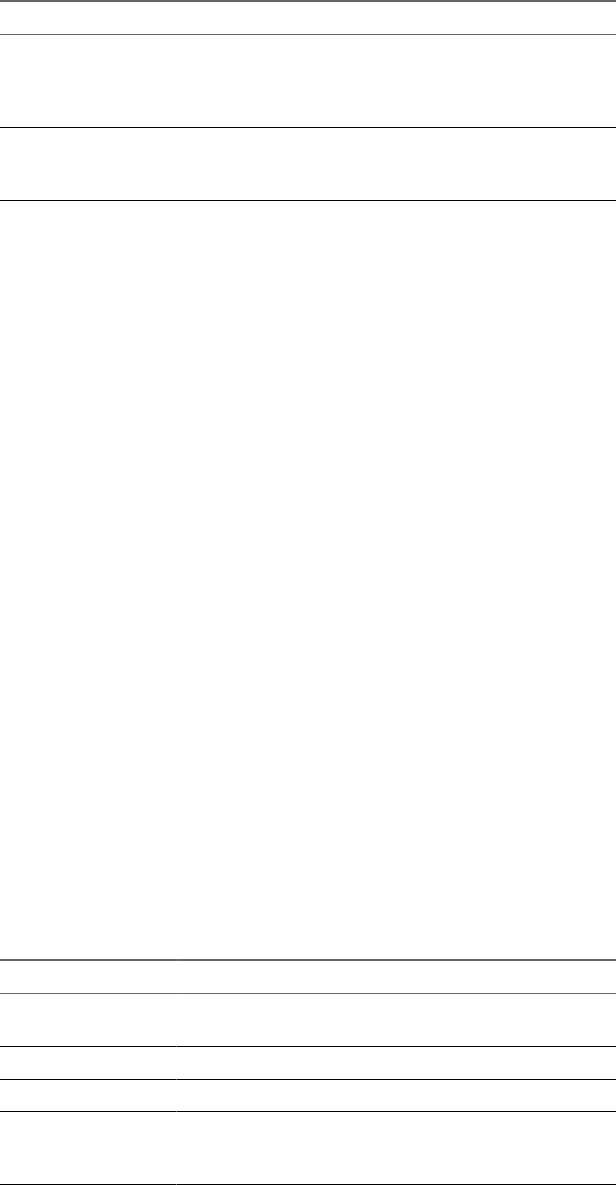
Table 2‑1. Values That Can Be Used With the action Query (Continued)
Value Description
restart Shuts down and restarts the specied desktop. Restarting a remote
desktop is the equivalent of the Windows operating system restart
command. The operating system usually prompts the user to save
any unsaved data before it restarts.
logoff Logs the user out of the guest operating system in the remote
desktop. If you specify an application, the action is ignored or the
end user sees the warning message "Invalid URI action."
args Species command-line arguments to add to remote application launch. Use
the syntax args=value, where value is a string. Use percent encoding for the
following characters:
nFor a colon (:), use %3A
nFor a back slash (\), use %5C
nFor a space ( ), use %20
nFor a double quotation mark ("), use %22
For example, to specify the lename "My new file.txt" for the Notepad++
application, use %22My%20new%20file.txt%22.
appProtocol For remote applications, valid values are PCOIP and BLAST. For example, to
specify PCoIP, use the syntax appProtocol=PCOIP.
connectUSBOnInsert Connects a USB device to the foreground virtual desktop when you plug in
the device. This query is implicitly set if you specify the unattended query. To
use this query, you must set the action query to start-session or else not
have an action query. Valid values are true and false. An example of the
syntax is connectUSBOnInsert=true.
connectUSBOnStartup Redirects all USB devices that are currently connected to the client system to
the desktop. This query is implicitly set if you specify the unattended query.
To use this query, you must set the action query to start-session or else not
have an action query. Valid values are true and false. An example of the
syntax is connectUSBOnStartup=true.
desktopLayout Sets the size of the window that displays a remote desktop. To use this query,
you must set the action query to start-session or else not have an action
query.
Table 2‑2. Valid Values for the desktopLayout Query
Value Description
fullscreen Full screen on all connected external monitors. This value is
the default.
windowLarge Large window.
windowSmall Small window.
WxHCustom resolution, where you specify the width by height,
in pixels. An example of the syntax is
desktopLayout=1280x800.
desktopProtocol For remote desktops, valid values are RDP, PCOIP, and BLAST. For example, to
specify PCoIP, use the syntax desktopProtocol=PCOIP.
Chapter 2 Using URIs to Configure Horizon Client
VMware, Inc. 23

domainName The NETBIOS domain name associated with the user who is connecting to
the remote desktop or application. For example, you might use mycompany
rather than mycompany.com.
filePath Species the path to the le on the local system that you want to open with
the remote application. You can use the full path or relative path, for
example, ~/username/test%20file.txt. Use percent encoding for the
following characters:
nFor a colon (:), use %3A
nFor a back slash (\), use %5C
nFor a space ( ), use %20
For example, to represent le path /Users/username/test file.txt,
use /User/username/test%20file.txt.
Examples of vmware-view URIs
You can create hypertext links or buons with the vmware-view URI scheme and include these links in email
or on a Web page. Your end users can click these links to, for example, open a particular remote desktop
with the startup options you specify.
URI Syntax Examples
Each URI example is followed by a description of what the end user sees after clicking the URI link.
1vmware-view://view.mycompany.com/Primary%20Desktop?action=start-session
Horizon Client starts and connects to the view.mycompany.com server. The login box prompts the user for
a user name, domain name, and password. After a successful login, the client connects to the desktop
whose display name is displayed as Primary Desktop, and the user is logged in to the guest operating
system.
N The default display protocol and window size are used. The default display protocol is PCoIP.
The default window size is full screen.
2vmware-view://view.mycompany.com:7555/Primary%20Desktop
This URI has the same eect as the previous example, except that it uses the nondefault port of 7555 for
Connection Server. (The default port is 443.) Because a desktop identier is provided, the desktop opens
even though the start-session action is not included in the URI.
3vmware-view://fred@view.mycompany.com/Finance%20Desktop?desktopProtocol=PCOIP
Horizon Client starts and connects to the view.mycompany.com server. In the login box, the User name
text box is populated with the name fred. The user must supply the domain name and password. After
a successful login, the client connects to the desktop whose display name is displayed as Finance
Desktop, and the user is logged in to the guest operating system. The connection uses the PCoIP
display protocol.
4vmware-view://view.mycompany.com/Calculator?action=start-session&appProtocol=BLAST
Horizon Client starts and connects to the view.mycompany.com server. In the login box, the user must
supply the user name, domain name, and password. After a successful login, the client connects to the
application whose display name is displayed as Calculator. The connection uses the VMware Blast
display protocol.
5vmware-view://fred@view.mycompany.com/Finance%20Desktop?domainName=mycompany
VMware Horizon Client for Mac Installation and Setup Guide
24 VMware, Inc.

Horizon Client starts and connects to the view.mycompany.com server. In the login box, the User name
text box is populated with the name fred, and the Domain text box is populated with mycompany. The
user must supply only a password. After a successful login, the client connects to the desktop whose
display name is displayed as Finance Desktop, and the user is logged in to the guest operating system.
6vmware-view://view.mycompany.com/
Horizon Client starts and the user is taken to the login prompt for connecting to the
view.mycompany.com server.
7vmware-view://view.mycompany.com/Primary%20Desktop?action=reset
Horizon Client starts and connects to the view.mycompany.com server. The login box prompts the user for
a user name, domain name, and password. After a successful login, Horizon Client displays a dialog
box that prompts the user to conrm the reset operation for Primary Desktop.
N This action is available only if a Horizon administrator has enabled the desktop reset feature for
the desktop.
8vmware-view://view.mycompany.com/Primary%20Desktop?action=restart
Horizon Client starts and connects to the view.mycompany.com server. The login box prompts the user for
a user name, domain name, and password. After a successful login, Horizon Client displays a dialog
box that prompts the user to conrm the restart operation for Primary Desktop.
N This action is available only if a Horizon administrator has enabled the desktop restart feature
for the desktop.
9vmware-view://
Horizon Client starts and the user is taken to the page for entering the address of a server.
10 vmware-view://10.10.10.10/My%20Notepad++?args=%22My%20new%20file.txt%22
Launches My Notepad++ on server 10.10.10.10 and passes the argument My new file.txt in the
application launch command. The lename is enclosed in double quotes because it contains spaces.
11 vmware-view://10.10.10.10/Notepad++%2012?args=a.txt%20b.txt
Launches Notepad++ 12 on server 10.10.10.10 and passes the argument a.text b.txt in the application
launch command. Because the argument is not enclosed in quotes, a space separates the lenames and
the two les are opened separately in Notepad++.
N Applications can dier in the way they use command line arguments. For example, if you pass
the argument a.txt b.txt to Wordpad, Wordpad will open only one le, a.txt.
HTML Code Examples
You can use URIs to make hypertext links and buons to include in emails or on Web pages. The following
examples show how to use the URI from the rst URI example to code a hypertext link that says, Test Link,
and a buon that says, .
<html>
<body>
<a href="vmware-view://view.mycompany.com/Primary%20Desktop?action=start-session">Test
Link</a><br>
<form><input type="button" value="TestButton" onClick="window.location.href=
Chapter 2 Using URIs to Configure Horizon Client
VMware, Inc. 25
'vmware-view://view.mycompany.com/Primary%20Desktop?action=start-session'"></form> <br>
</body>
</html>
VMware Horizon Client for Mac Installation and Setup Guide
26 VMware, Inc.

Managing Remote Desktop and
Application Connections 3
End users can use Horizon Client to connect to a server, log in to or o of remote desktops, and use remote
applications. For troubleshooting purposes, end users can also restart and reset remote desktops and reset
remote applications.
Depending on how you congure policies for remote desktops, end users might be able to perform many
operations on their remote desktops.
This chapter includes the following topics:
n“Congure Horizon Client to Select a Smart Card Certicate,” on page 28
n“Connect to a Remote Desktop or Application,” on page 28
n“Share Access to Local Folders and Drives with Client Drive Redirection,” on page 31
n“Clicking URL Links That Open Outside of Horizon Client,” on page 33
n“Open a Recent Remote Desktop or Application,” on page 33
n“Connecting to a Server When Horizon Client Starts,” on page 34
n“Congure Horizon Client to Forget the Server User Name and Domain,” on page 34
n“Hide the VMware Horizon Client Window,” on page 34
n“Create Keyboard Shortcut Mappings,” on page 35
n“Modify the Horizon Client Mouse Shortcut Mappings,” on page 36
n“Modify the Horizon Client Shortcuts for Windows Actions,” on page 37
n“Searching for Desktops or Applications,” on page 37
n“Select a Favorite Remote Desktop or Application,” on page 38
n“Switch Desktops or Applications,” on page 39
n“Log O or Disconnect,” on page 39
n“Using a Touch Bar with Horizon Client,” on page 41
n“Autoconnect to a Remote Desktop,” on page 41
n“Congure Reconnect Behavior for Remote Applications,” on page 41
n“Removing a Server Shortcut From the Home Window,” on page 42
n“Reordering Shortcuts,” on page 42
VMware, Inc. 27
Configure Horizon Client to Select a Smart Card Certificate
You can congure Horizon Client to select a local certicate or the certicate on a smart card when you
authenticate to a server by seing a preference. If this preference is not set (the default), you must manually
select a certicate.
Prerequisites
For this seing to take eect, smart card authentication must be congured on the server and only one
certicate must be available on your client system or smart card. If you have multiple certicates,
Horizon Client always prompts you to select a certicate, regardless of how this preference is set.
Procedure
1 Before you connect to a server, select VMware Horizon Client > Preferences from the menu bar.
2 Click General in the Preferences dialog box.
3 Select Automatically select .
4 Close the Preferences dialog box.
Your changes take eect when the dialog box is closed.
Connect to a Remote Desktop or Application
To connect a remote desktop or application, you must provide the name of a server and supply credentials
for your user account.
Before you have end users access remote desktops and applications, test that you can connect to a remote
desktop or application from the client system.
Prerequisites
nObtain login credentials, such as a user name and password, RSA SecurID user name and passcode,
RADIUS authentication user name and passcode, or smart card personal identication number (PIN).
nObtain the NETBIOS domain name for logging in. For example, you might use mycompany rather than
mycompany.com.
nPerform the administrative tasks described in “Preparing Connection Server for Horizon Client,” on
page 11.
nIf you are outside the corporate network and require a VPN connection to access remote desktops and
applications, verify that the client device is set up to use a VPN connection and turn on that connection.
nVerify that you have the fully qualied domain name (FQDN) of the server that provides access to the
remote desktop or application. Underscores (_) are not supported in server names. If the port is not 443,
you also need the port number.
nIf you plan to use the RDP display protocol to connect to a remote desktop, verify that the
AllowDirectRDP agent group policy seing is enabled.
nCongure the certicate checking mode for the SSL certicate that the server presents. See “Seing the
Certicate Checking Mode in Horizon Client,” on page 13.
nIf you are using smart card authentication, congure Horizon Client to automatically use a local
certicate or the certicate on your smart card. See “Congure Horizon Client to Select a Smart Card
Certicate,” on page 28.
nIf end users are allowed to use the Microsoft RDP display protocol, verify that the client system has
Remote Desktop Connection Client for Mac from Microsoft, version 2.0 or later. You can download this
client from the Microsoft Web site.
VMware Horizon Client for Mac Installation and Setup Guide
28 VMware, Inc.

nIf you plan to use Touch ID to authenticate, add at least one ngerprint in the Touch seing on your
Mac. Touch ID authentication is available only if biometric authentication is enabled on the server. For
complete Touch ID authentication requirements, see “Touch ID Authentication Requirements,” on
page 10.
Procedure
1 If a VPN connection is required, turn on the VPN.
2 In the Applications folder, double-click VMware Horizon Client.
3 Click Continue to start remote desktop USB and printing services, or click Cancel to use Horizon Client
without remote desktop USB and printing services.
If you click Continue, you must provide system credentials. If you click Cancel, you can enable remote
desktop USB and printing services later.
N The prompt to start remote desktop USB and printing services appears the rst time you start
Horizon Client. It does not appear again, regardless of whether you click Cancel or Continue.
4 Connect to a server.
Option Description
Connect to a new server Click the New Server icon on the Horizon Client Home window, enter the
server name and port number (if necessary), and click Connect. An
example using a non-default port is view.company.com:1443.
Connect to an existing server Double-click the server shortcut on the Horizon Client Home window.
5 If you are prompted for RSA SecurID credentials or RADIUS authentication credentials, type the user
name and passcode and click Login.
6 If you are prompted for a user name and password, supply Active Directory credentials.
a Type the user name and password of a user who is entitled to use at least one desktop or
application pool.
b Select a domain.
If the Domain drop-down menu is hidden, you must type the user name as username@domain or
domain\username.
c (Optional) Select the Remember this password check box if your administrator has enabled this
feature and if the server certicate can be fully veried.
d (Optional) Select the Enable Touch ID check box to enable Touch ID authentication.
If Touch ID is enabled and you are logging in for the rst time, your Active Directory credentials
are stored securely on your Mac for future use.
e Click Login.
You might see a message that you must conrm before the login dialog box appears.
7 If the desktop security indicator turns red and a warning message appears, respond to the prompt.
Usually, this warning means that Connection Server did not send a certicate thumbprint to the client.
The thumbprint is a hash of the certicate public key and is used as an abbreviation of the public key.
8 If you are prompted for Touch ID authentication, place your nger on the Touch ID sensor.
Chapter 3 Managing Remote Desktop and Application Connections
VMware, Inc. 29

9 (Optional) If multiple display protocols are congured for a remote desktop or application, select the
protocol to use.
VMware Blast provides beer baery life and is the best protocol for high-end 3D and mobile device
users.
Option Description
Select a display protocol for a
remote desktop
Select the remote desktop name, press Control-click, and select the display
protocol from the context menu.
Alternatively, you can select from the context menu and select the
display protocol from the Connect Via drop-down menu in the Seings
dialog box.
Select a display protocol for a
remote application
Select the remote application name, press Control-click, select
from the context menu, and select the display protocol from the Preferred
protocol drop-down menu in the Seings dialog box.
10 Double-click a remote desktop or application to connect.
If you are connecting to a session-based remote desktop, which is hosted on a Microsoft RDS host, and
if the desktop is already set to use a dierent display protocol, you cannot connect immediately. You are
prompted to either use the protocol that is set or have the system log you o the remote operating
system so that a connection can be made with the protocol you selected.
N If you are entitled to only one remote desktop on the server, Horizon Client automatically
connects you to that desktop.
After you are connected, the client window appears.
If a Horizon administrator has enabled the client drive redirection feature, the Sharing dialog box might
appear. From the Sharing dialog box, you can allow or deny access to les on your local system. For more
information, see “Share Access to Local Folders and Drives with Client Drive Redirection,” on page 31.
If a Horizon administrator has congured the URL Content Redirection feature on the server, you might
need to respond to certain prompts. For more information, see “Clicking URL Links That Open Outside of
Horizon Client,” on page 33.
If Horizon Client cannot connect to the remote desktop or application, perform the following tasks:
nDetermine whether Connection Server is congured not to use SSL. Horizon Client requires SSL
connections. Check whether the global seing in Horizon Administrator for the Use SSL for client
connections check box is deselected. If so, you must either select the check box, so that SSL is used, or
set up your environment so that clients can connect to an HTTPS enabled load balancer or other
intermediate device that is congured to make an HTTP connection to Connection Server.
nVerify that the security certicate for Connection Server is working properly. If it is not, in Horizon
Administrator, you might also see that View Agent or Horizon Agent on desktops is unreachable.
nVerify that the tags set on the Connection Server instance allow connections from this user. See the View
Administration document.
nVerify that the user is entitled to access the desktop or application. See the Seing Up Virtual Desktops in
Horizon 7 or Seing Up Published Desktops and Applications in Horizon 7 document.
nIf you are using the RDP display protocol to connect to a remote desktop, verify that the client
computer allows remote desktop connections.
VMware Horizon Client for Mac Installation and Setup Guide
30 VMware, Inc.

Share Access to Local Folders and Drives with Client Drive
Redirection
You can use Horizon Client to share folders and drives on the local client system with remote desktops and
applications. This feature is called client drive redirection.
Drives can include mapped drives and USB storage devices.
In a Windows remote desktop, shared folders and drives appear in the This PC folder or in the Computer
folder, depending on the Windows operating system version. In a remote application, such as Notepad, you
can browse to and open a le in a shared folder or drive.
You do not need to be connected to a remote desktop or application to congure client drive redirection
seings. The seings apply to all remote desktops and applications. That is, you cannot congure the
seings so that local client folders are shared with one remote desktop or application, but not with other
remote desktops or applications.
You can turn on the ability to open local les with remote applications directly from your local le system. If
you select a local le and press Control-click, the Open With menu lists the available remote applications.
You can also open a local le by dragging and dropping it to the remote application window or Dock icon. If
you set a remote application as the default application for les that have a certain le extension, all les on
your local le system that have that le extension are registered with the server to which you are logged in.
You can also turn on the ability to run remote applications from the Applications folder.
N You cannot open a le with a remote application if the lename contains characters that are invalid in
the Windows le system. For example, you cannot open Notepad and open a le named test2<.txt.
Prerequisites
To share folders and drives with a remote desktop or application, a Horizon administrator must enable the
client drive redirection feature. This task includes installing View Agent 6.1.1 or later, or Horizon Agent 7.0
or later, and enabling the agent Client Drive Redirection option. It can also include seing policies to
control client drive redirection behavior. For more information, see the Conguring Remote Desktop Features in
Horizon 7 document.
Conguring the browser on the client system to use a proxy server can cause poor client drive redirection
performance if the secure tunnel is enabled on the Connection Server instance. For the best client drive
redirection performance, congure the browser not to use a proxy server or automatically detect LAN
seings.
Procedure
1 Open the Preferences dialog box with the Sharing panel displayed.
Option Description
From the desktop and application
selection window
Select VMware Horizon Client > Preferences and click Sharing.
From the Sharing dialog box that
appears when you connect to a
desktop or application
Click the Preferences > Sharing link in the dialog box.
From within a desktop OS Select VMware Horizon Client > Preferences from the menu bar and click
Sharing.
Chapter 3 Managing Remote Desktop and Application Connections
VMware, Inc. 31
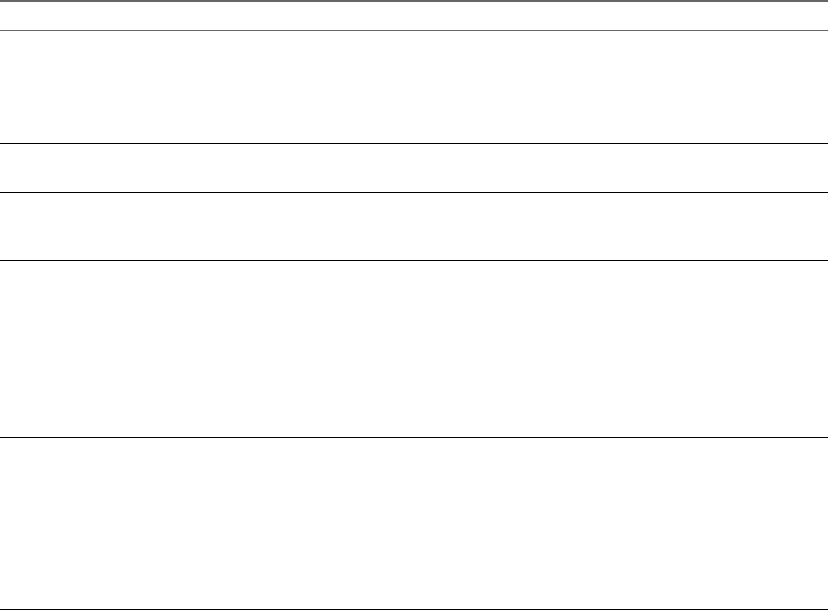
2Congure the client drive redirection seings.
Option Action
Share a specific folder or drive with
remote desktops and applications
Click the plus (+) buon, browse to and select the folder or drive to share,
and click Add.
N You cannot share a folder on a USB device if the device is already
connected to a remote desktop or application with the USB redirection
feature.
Stop sharing a specific folder or
drive
Select the folder or drive in the Folder list and click the minus (-) buon.
Allow remote desktops and
applications access to files in your
home directory
Select the Allow access to home-directory check box.
Share USB storage devices with
remote desktops and applications
Select the Allow access to removable storage check box. The client drive
redirection feature automatically shares all USB storage devices inserted in
your client system and all FireWire and Thunderbolt-connected external
drives. You do not need to select a specic device to share.
N USB storage devices already connected to a remote desktop or
application with the USB redirection feature are not shared.
If this check box is deselected, you can use the USB redirection feature to
connect USB storage devices to remote desktops and applications.
Do not show the Sharing dialog box
when you connect to a remote
desktop or application
Select the Do not show dialog when connecting to a desktop or
application check box.
If this check box is deselected, the Sharing dialog box appears the rst time
you connect to a desktop or application after you connect to a server. For
example, if you log in to a server and connect to a desktop, you see the
Sharing dialog box. If you then connect to another desktop or application,
you do not see the dialog box again. To see the dialog box again, you must
disconnect from the server and then log in again.
3Congure seings for remote applications.
a Click the buon (gear icon) in the upper right corner of the desktop and application
selection window and select Applications in the left pane.
b Select Open local in hosted applications to turn on the ability to open local les with remote
applications from the local le system.
c Select Run hosted applications from your local Applications folder to turn on the ability to run
remote applications from the Applications folder on the client system.
What to do next
Verify that you can see the shared folders from within the remote desktop or application:
nFrom within a Windows remote desktop, open File Explorer and look in the This PC folder, or open
Windows Explorer and look in the Computer folder, depending on the Windows operating system
version.
nFrom within a remote application, if applicable, select File > Open or File > Save As and navigate to the
folder or drive.
The folders and drives that you selected for sharing might use one or more of the following naming
conventions:
nname on MACHINE-NAME. For example, jsmith on JSMITH-W03.
nN on MACHINE-NAME. For example, Z on JSMITH-W03.
nname (N:). For example, jsmith (Z:).
VMware Horizon Client for Mac Installation and Setup Guide
32 VMware, Inc.
A redirected folder can have two entrances, such as Z on JSMITH-W03 and jsmith (Z:), and both entrances
can appear at the same time. If all the volume labels (from A: through Z:) are already in use, the redirected
folder has only one entrance, such as Z on JSMITH-W03.
Clicking URL Links That Open Outside of Horizon Client
A Horizon administrator can congure URL links that you click inside a remote desktop or application to
open in the default browser on the local client system. A link might be to a Web page, a phone number, an
email address, or other type of link. This feature is called URL Content Redirection.
A Horizon administrator can also congure URL links that you click inside a browser or application on the
local client system to open in a remote desktop or application. In this scenario, if Horizon Client is not
already open, it starts and prompts you to log in.
A Horizon administrator might set up the URL Content Redirection feature for security purposes. For
example, if you are inside your company network and click a link that points to a URL that is outside the
network, the link might be more safely opened in a remote application. An administrator can congure
which application opens the link.
The rst time you start Horizon Client and connect to a server on which the URL Content Redirection
feature is congured, Horizon Client prompts you to open the VMware Horizon URL Filter application
when you click a link for redirection. Click Open to allow URL content redirection.
Depending on how the URL Content Redirection feature is congured, Horizon Client might display an
alert message that asks you to change your default Web browser to VMware Horizon URL Filter. If you see
this prompt, click the Use "VMware Horizon URL Filter" buon to allow VMware Horizon URL Filter to
become the default browser. This prompt appears only once unless you change your default browser after
clicking Use "VMware Horizon URL Filter".
Horizon Client might also display an alert message that asks you to select an application when you click a
URL. If you see this prompt, you can click Choose Application to search for an application on the local
client system, or click Search App Store to search for and install a new application. If you click Cancel, the
URL is not opened.
Open a Recent Remote Desktop or Application
You can open recent remote desktops and applications in Horizon Client.
Recent remote desktops and applications appear in the order in which they were opened. If you are not
already connected to the server when you open a recent remote desktop or application, the server login
screen appears and you must provide your credentials.
Prerequisites
To use this feature, you must have previously opened a remote desktop or application. If you plan to open a
recent desktop or application from the Dock, VMware Horizon Client must be in the Dock. See “Add
Horizon Client to the Dock,” on page 13.
Procedure
nTo open a remote desktop or application from the Dock, Ctrl-click VMware Horizon Client in the Dock
and select the remote desktop or application from the menu.
nTo open a remote desktop or application from the File menu, start Horizon Client, select File > Open
Recent, and select the remote desktop or application from the menu.
Chapter 3 Managing Remote Desktop and Application Connections
VMware, Inc. 33
Connecting to a Server When Horizon Client Starts
The Always connect at launch seing is enabled by default for the rst server that you connect to with
Horizon Client. When this seing is enabled for a server, Horizon Client always connects to that server
when you start Horizon Client.
To disable this behavior for a server, select the server shortcut on the Horizon Client Home window, press
Control-click on the Apple keyboard, and deselect the Always connect at launch seing. If you have other
server shortcuts on your Horizon Client Home window, you can enable the Always connect at launch
seing for a dierent server.
You can enable the Always connect at launch seing for only one server at a time.
Configure Horizon Client to Forget the Server User Name and Domain
By default, Horizon Client stores the user name and domain that you enter when you log in to a server to
connect to a remote desktop or application. For increased security, you can congure Horizon Client to
never remember the server user name and domain.
Procedure
1 Select VMware Horizon Client > Preferences from the menu bar.
2 Click General in the Preferences dialog box.
3 Deselect Remember username and domain.
4 Close the Preferences dialog box.
Your changes take eect when the dialog box is closed.
Hide the VMware Horizon Client Window
You can hide the VMware Horizon Client window after you open a remote desktop or application.
You can also set a preference that always hides the VMware Horizon Client window after a remote desktop
or application opens.
Procedure
nTo hide the VMware Horizon Client window after you open a remote desktop or application, click the
Close buon in the corner of the VMware Horizon Client window.
The VMware Horizon Client icon remains in the Dock.
nTo set a preference that always hides the VMware Horizon Client window after a remote desktop or
application opens, perform these steps before you connect to a server.
a Select VMware Horizon Client > Preferences from the menu bar and click General in the
Preferences dialog box.
b Select Hide client window after desktop/application launched.
c Close the Preferences dialog box.
Your changes take eect when the dialog box is closed.
nTo show the VMware Horizon Client window after it has been hidden, select Window > Open
Selection Window from the menu bar, or right-click the VMware Horizon Client icon in the Dock and
select Show All Windows.
VMware Horizon Client for Mac Installation and Setup Guide
34 VMware, Inc.

Create Keyboard Shortcut Mappings
You can customize how remote desktops and applications interpret Apple keyboard shortcuts by creating
keyboard shortcut mappings.
When you create a keyboard shortcut mapping, you map an Apple keyboard shortcut to a Windows
keyboard shortcut. A keyboard shortcut consists of one or more key modiers, such as Control and Shift,
and a key code. A key code can be any key on your keyboard, except for a modier key. When you press a
mapped keyboard shortcut on your Apple keyboard, the corresponding Windows keyboard shortcut or
action occurs in the remote desktop or application.
Prerequisites
If you plan to map an operating system keyboard shortcut, see “Considerations for Mapping Operating
System Keyboard Shortcuts,” on page 36.
Procedure
1 Select VMware Horizon Client > Preferences and click Keyboard & Mouse.
2 Select the Key Mappings tab.
3Congure the keyboard shortcut mappings.
Option Action
Delete a keyboard shortcut
mapping
Select the mapping to delete and click the minus (-) buon.
Add a keyboard shortcut mapping a Click the plus (+) buon.
b Specify the Apple keyboard shortcut sequence by clicking one or more
keyboard modiers and typing a key code in the text box. You can also
select a key from the drop-down menu. The From: eld shows the
keyboard shortcut that you created.
c Specify the corresponding Windows keyboard shortcut sequence by
clicking one or more keyboard modiers and typing a key code in the
text box. You can also select a key from the drop-down menu. The To:
eld shows the keyboard shortcut that you created.
d Click OK to save your changes.
The keyboard shortcut mapping is enabled by default (the On check box
next to the keyboard shortcut mapping is selected).
Modify a keyboard shortcut
mapping
Double-click the mapping and make your changes.
nTo modify the Apple keyboard shortcut sequence, click one or more
keyboard modiers and type a key code in the text box. You can also
select a key from the drop-down menu.
nTo modify the corresponding Windows keyboard shortcut sequence,
click one or more keyboard modiers and type a key code in the text
box. You can also select a key from the drop-down menu.
Click OK to save your changes.
Disable a keyboard shortcut
mapping
Deselect the On check box next to the keyboard shortcut mapping. When
you disable a keyboard shortcut mapping, Horizon Client does not send
the Apple keyboard shortcut to the remote desktop or application.
Enable or disable language-specific
key mappings
Select or deselect the Enable Language Key Mappings check box.
The check box is selected by default.
Restore the default mappings Click Restore Defaults. Any changes that you made to the default
keyboard shortcut mappings are deleted and the default mappings are
restored.
Chapter 3 Managing Remote Desktop and Application Connections
VMware, Inc. 35

4 Close the Preferences dialog box.
Your keyboard shortcut mapping changes take eect immediately. You do not need to restart open
remote desktops or applications to see the changes take eect.
Considerations for Mapping Operating System Keyboard Shortcuts
Mac and Windows both include default keyboard shortcuts. For example, Command-Tab and Command-
Space bar are common keyboard shortcuts on Mac systems and Ctrl+Esc and Alt+Enter are common
keyboard shortcuts on Windows systems. If you aempt to map one of these operating system keyboard
shortcuts in Horizon Client, the behavior of the shortcut on your Mac client system and in the remote
desktop or application can be unpredictable.
nIf you map a keyboard shortcut, how the shortcut behaves on your Mac client system depends on how
the operating system manages the shortcut. For example, the keyboard shortcut might trigger an action
in the operating system and Horizon Client might not respond to the shortcut. Alternatively, the
keyboard shortcut might trigger an action in both the operating system and Horizon Client.
nBefore you map a Mac keyboard shortcut in Horizon Client, you must disable the shortcut in System
Preferences on your Mac client system. Not all Mac keyboard shortcuts can be disabled.
nIf you map a Windows keyboard shortcut in Horizon Client, the mapped action occurs when you use
the shortcut in the remote desktop or application.
nFor remote applications, Windows shortcuts that include the Windows key are disabled by default and
do not appear on the Horizon Client Keyboard Preferences dialog box. If you create a mapping for one
of these disabled keyboard shortcuts, the shortcut appears in the Keyboard Preferences dialog box.
For a list of the default Mac keyboard shortcuts, go to the Apple support website (hp://support.apple.com).
For a list of the default Windows shortcuts, go to the Microsoft Windows website
(hp://windows.microsoft.com).
Modify the Horizon Client Mouse Shortcut Mappings
You can congure a single-buon Apple mouse to send a right-click and a middle-click to remote desktops
and applications. You can modify, enable, or disable the default mouse shortcut mappings. You cannot
create new mouse shortcut mappings or delete the default mouse shortcut mappings.
Procedure
1 Select VMware Horizon Client > Preferences and click Keyboard & Mouse.
2 Select the Mouse Shortcuts tab.
3 Modify the mouse shortcut mappings.
Option Action
Modify a mouse shortcut mapping Double-click the mapping and make your changes. Click OK to save your
changes.
Disable a mouse shortcut mapping Deselect the On check box next to the mouse shortcut mapping. When you
disable a mouse shortcut mapping, Horizon Client does not send the
mouse shortcut to the remote desktop or application.
Enable a mouse shortcut mapping Select the On check box next to the mouse shortcut mapping. When you
enable a mouse shortcut mapping, Horizon Client sends the mouse
shortcut to the remote desktop or application.
Restore the default settings Click Restore Defaults. Any changes that you made to the default mouse
shortcut mappings are deleted and the default mappings are restored.
VMware Horizon Client for Mac Installation and Setup Guide
36 VMware, Inc.

4 Close the Preferences dialog box.
Your mouse shortcut mapping changes take eect immediately. You do not need to restart open remote
desktops or applications to see the changes take eect.
Modify the Horizon Client Shortcuts for Windows Actions
Horizon Client includes precongured shortcut mappings for common Windows actions, including Toggle
Full Screen, Quit, Hide Application, Cycle Through Windows, and Cycle Through Windows in Reverse. It
also includes a precongured shortcut mapping for Toggle Exclusive Mode. You can enable or disable the
default shortcuts. You cannot create new shortcuts or delete the default shortcuts.
Procedure
1 Select VMware Horizon Client > Preferences and click Keyboard & Mouse.
2 Select the Horizon Shortcuts tab.
3 Modify the default shortcuts.
Option Action
Enable a shortcut Select the On check box next to the shortcut. When you enable a shortcut,
Horizon Client does not send the shortcut to the remote desktop or
application.
Disable a shortcut Deselect the On check box next to the shortcut. When you disable a
shortcut, Horizon Client sends the shortcut to the remote desktop or
application.
N The behavior of the shortcut on the remote desktop or application
can be unpredictable.
Restore the default settings Click Restore Defaults. Any changes that you made are deleted and the
default seings are restored.
4 Close the Preferences dialog box.
Your changes take eect immediately. You do not need to restart open remote desktops or applications
to see the changes take eect.
Searching for Desktops or Applications
After you connect to a server, the available desktops and applications on that server appear on the desktop
and application selection window. You can search for a particular desktop or application by typing in the
window.
When you begin to type, Horizon Client highlights the rst matching desktop or application name. To
connect to a highlighted desktop or application, press the Enter key. If you continue to type after the rst
match is found, Horizon Client continues to search for matching desktops and applications. If
Horizon Client nds multiple matching desktops or applications, you can press the Tab key to switch to the
next match. If you stop typing for two seconds and then begin to type again, Horizon Client assumes that
you are starting a new search.
Chapter 3 Managing Remote Desktop and Application Connections
VMware, Inc. 37
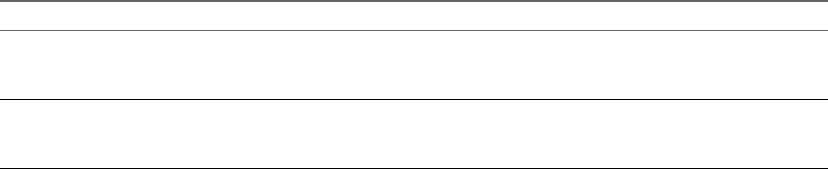
Select a Favorite Remote Desktop or Application
You can select remote desktops and applications as favorites. Favorites are identied by a star. The star helps
you quickly nd your favorite desktops and applications. Your favorite selections are saved, even after you
log o from the server.
Prerequisites
Obtain the credentials you need to connect to the server, such as a user name and password or RSA SecurID
and passcode.
Procedure
1 On the Horizon Client Home window, double-click the server icon.
2 If prompted, supply your RSA user name and passcode, your Active Directory user name and
password, or both.
3 Perform these steps to select or deselect a desktop or application as a favorite.
Option Description
Select a favorite Select the desktop or application shortcut, press Control-click, and select
Mark as Favorite from the context menu. A star appears in the upper right
corner of the desktop or application shortcut.
Deselect a favorite Select the desktop or application shortcut, press Control-click, and deselect
Mark as Favorite from the context menu. A star no longer appears in the
upper right corner of the desktop or application shortcut.
4 (Optional) To display only favorite desktops or applications, click the Favorites buon (star icon) in the
upper right corner of the desktop and application selection window.
You can click the Favorites buon again to display all the available desktops and applications.
VMware Horizon Client for Mac Installation and Setup Guide
38 VMware, Inc.

Switch Desktops or Applications
If you are connected to a remote desktop, you can switch to another desktop. You can also connect to remote
applications while you are connected to a remote desktop.
Procedure
uSelect a remote desktop or application from the same server or a dierent server.
Option Action
Choose a different desktop or
application on the same server
Perform one of the following actions:
nTo keep the current desktop and also connect to another remote
desktop, select Window > VMware Horizon Client from the menu bar
and double-click the shortcut for the other desktop. That desktop
opens in a new window so that you have multiple desktops open. You
can switch between desktops from the Window menu on the menu
bar.
nTo close the current desktop and connect to another desktop, select
Connection > Disconnect from the menu bar and double-click the
shortcut for the other desktop.
nTo open another application, double-click the shortcut for the other
application. That application opens in a new window. You can have
multiple applications open and you can switch between them by
clicking in an application window.
Choose a different desktop or
application on a different server
If you are entitled to multiple desktops or applications, so that the desktop
and application selection window is open, click the Disconnect from
Server buon in the left side of the toolbar in the desktop and application
selection window and disconnect from the server. If you are entitled to
only one desktop or application, and the desktop and application selection
window is not open, you can select File > Disconnect from Server from
the menu bar and then connect to a dierent server.
Log Off or Disconnect
With some congurations, if you disconnect from a remote desktop without logging o, applications in the
desktop can remain open. You can also disconnect from a server and leave remote applications running.
Even if you do not have a remote desktop open, you can log o of the remote desktop operating system.
Using this feature has the same result as sending Ctrl+Alt+Del to the desktop and then clicking Log .
N The Windows key combination Ctrl+Alt+Del is not supported in remote desktops. To use the
equivalent of pressing Ctrl+Alt+Del, select Connection > Send Ctrl-Alt-Del from the menu bar.
Alternatively, you can press Fn-Control-Option-Delete on an Apple keyboard.
Chapter 3 Managing Remote Desktop and Application Connections
VMware, Inc. 39

Procedure
nDisconnect from a remote desktop without logging o.
Option Action
Disconnect and quit Horizon Client a Click the Close buon in the corner of the window or select File >
Close from the menu bar.
b Select VMware Horizon Client > Quit VMware Horizon Client from
the menu bar.
Disconnect and remain in
Horizon Client
Click the Disconnect buon in the toolbar or select Connection >
Disconnect from the menu bar.
N A Horizon administrator can congure remote desktops to automatically log o when they are
disconnected. In that case, any open applications in the remote desktop are stopped.
nLog o and disconnect from a remote desktop.
Option Action
From within the desktop OS Use the Windows Start menu to log o.
From the menu bar Select Connection > Log from the menu bar.
If you use this procedure, les that are open on the remote desktop will be
closed without being saved rst.
nDisconnect from a remote application.
Option Action
Disconnect from the server and
leave the application running
Perform one of the following actions:
nClick the Disconnect from Server buon in the left side of the toolbar
in the desktop and application selection window.
nSelect File > Disconnect from Server from the menu bar.
Close the application and
disconnect from the server
a Quit the application in the usual manner, for example, click the Close
buon in the corner of the application window.
b Click the Disconnect from Server buon in the left side of the toolbar
in the desktop and application selection window or select File >
Disconnect from Server from the menu bar.
nLog o when you do not have a remote desktop open.
If you use this procedure, les that are open on the remote desktop are closed without rst being saved.
Option Action
From the Home window a Double-click the server shortcut and supply credentials.
These credentials might include RSA SecurID credentials and
credentials for logging in to the desktop.
b Select the desktop and select Connection > Log from the menu bar.
From the desktop and application
selection window
Select the desktop and select Connection > Log from the menu bar.
VMware Horizon Client for Mac Installation and Setup Guide
40 VMware, Inc.

Using a Touch Bar with Horizon Client
If the Mac has a Touch Bar, you can use the Touch Bar to interact with Horizon Client.
You can use the Touch bar to add a new server and disconnect from a server. After you are connected to a
remote desktop, you can use the Touch Bar to disconnect, log o, restart, and reset the desktop, send Ctrl
+Alt+Delete to the desktop, enter and exit full-screen mode, and bring the desktop and application selection
window to the foreground. The logo, reset, and restart features are available only if an administrator
enables them.
The Touch Bar feature does not support remote application windows. You cannot use the Touch bar to enter
and exit full-screen mode or bring the desktop and application selection window to the foreground if the
remote desktop is in exclusive mode.
Autoconnect to a Remote Desktop
You can congure a server to automatically open a remote desktop when you connect to the server.
If you are entitled to only one remote desktop on a server, Horizon Client opens that desktop when you
connect to the server.
N You cannot congure a server to automatically open a remote application.
Prerequisites
Obtain credentials to connect to the server, such as a user name and password, RSA SecurID user name and
passcode, RADIUS authentication user name and passcode, or smart card personal identication number
(PIN).
Procedure
1 On the Horizon Client Home window, double-click the server icon.
2 If prompted, supply your credentials.
3 Click the buon (gear icon) in the upper right corner of the desktop and application selection
window.
4 Select a desktop pool in the left pane of the Seings dialog box.
5 Select Autoconnect to this desktop.
6 Close the Seings dialog box to save your changes.
The next time you connect to the server, Horizon Client automatically opens the remote desktop.
Configure Reconnect Behavior for Remote Applications
If a user disconnects from a server without closing a remote application, Horizon Client prompts the user to
reopen that application the next time the user connects to the server. You can change this behavior by
modifying the Reconnect Behavior seing in Horizon Client.
Prerequisites
Obtain the credentials that you need to connect to the server, such as a user name and password or RSA
SecurID user name and passcode.
Procedure
1 On the Horizon Client Home window, double-click the server icon.
Chapter 3 Managing Remote Desktop and Application Connections
VMware, Inc. 41

2 If prompted, supply your credentials.
3 Click the buon (gear icon) in the upper right corner of the desktop and application selection
window.
4 Select Applications in the left pane of the Seings dialog box.
5 Select an application reconnect behavior option.
These options determine how Horizon Client behaves when a user connects to the server and remote
applications are still running.
Option Description
Ask to reconnect to open
applications
Horizon Client shows the message You have one or more remote
applications running. Would you like to open them now? . Users can
respond by clicking Reconnect to Applications or Not Now. Users can
also select the Don't show this message again. check box to suppress the
message in the future. This seing is enabled by default.
Reconnect automatically to open
applications
Horizon Client immediately reopens any running applications.
Do not ask to reconnect and do not
automatically reconnect
Horizon Client does not prompt users to reopen running applications, nor
does it reopen running applications. This seing has the same eect as the
Don't show this message again. check box.
The new seing takes eect the next time you connect to the server.
Removing a Server Shortcut From the Home Window
After you connect to a server, a server shortcut is saved to the Horizon Client Home window.
You can remove a server shortcut by selecting the shortcut and pressing the Delete key or by Control-
clicking or right-clicking the shortcut on the Home window and selecting Delete.
You cannot remove remote desktop or application shortcuts that appear after you connect to a server.
Reordering Shortcuts
You can reorder server, remote desktop, and remote application shortcuts.
Each time you connect to a server, Horizon Client saves a server shortcut to the Home window. You can
reorder these server shortcuts by selecting a shortcut and dragging it to a new position on the Home
window.
After you connect to a server, the available desktops and applications on that server appear in the desktop
and application selection window. Desktop shortcuts appear rst, followed by application shortcuts.
Desktop shortcuts and application shortcuts are arranged alphabetically and cannot be rearranged. When
you are in Favorites view (you clicked the Favorites buon in the upper right corner of the desktop and
application selection window), you can reorder desktop and application shortcuts by selecting a shortcut
and dragging it to a new position on the window.
VMware Horizon Client for Mac Installation and Setup Guide
42 VMware, Inc.

Using a Microsoft Windows Desktop
or Application on a Mac 4
Horizon Client for Mac provides a familiar, personalized desktop and application environment. End users
can access USB and other devices connected to their local computer, send documents to any printer that
their local computer can detect, authenticate with smart cards, and use multiple display monitors.
This chapter includes the following topics:
n“Feature Support Matrix for Mac,” on page 43
n“Internationalization,” on page 46
n“Monitors and Screen Resolution,” on page 46
n“Using Exclusive Mode,” on page 47
n“Connect USB Devices with USB Redirection,” on page 48
n“Using the Real-Time Audio-Video Feature for Webcams and Microphones,” on page 56
n“Copying and Pasting Text and Images,” on page 60
n“Using Remote Applications,” on page 60
n“Saving Documents in a Remote Application,” on page 62
n“Printing from a Remote Desktop or Application,” on page 62
n“PCoIP Client-Side Image Cache,” on page 64
Feature Support Matrix for Mac
Some features are supported on one type of Horizon Client but not on another.
Table 4‑1. Features Supported on Windows Desktops for Mac Clients
Feature
Windows
10
Desktop
Windows
8.x Desktop
Windows 7
Desktop
Windows
Vista
Desktop
Windows
XP
Desktop
Windows
Server
2008/2012 R2 or
Windows
Server 2016
Desktop
RSA SecurID or
RADIUS
X X X Limited Limited X
Single sign-on X X X Limited Limited X
PCoIP display protocol X X X Limited Limited X
RDP display protocol X X X Limited Limited X
VMware Blast display
protocol
X X X X
VMware, Inc. 43

Table 4‑1. Features Supported on Windows Desktops for Mac Clients (Continued)
Feature
Windows
10
Desktop
Windows
8.x Desktop
Windows 7
Desktop
Windows
Vista
Desktop
Windows
XP
Desktop
Windows
Server
2008/2012 R2 or
Windows
Server 2016
Desktop
USB redirection X X X Limited Limited X
Client drive redirection X X X X
Real-Time Audio-
Video (RTAV)
X X X Limited Limited X
Wyse MMR
Windows 7 MMR
Virtual printing X X X Limited Limited X
Location-based
printing
X X X Limited Limited X
Smart cards X X X Limited Limited X
Multiple monitors X X X Limited Limited X
Windows 10 desktops require View Agent 6.2 or later or Horizon Agent 7.0 or later. Windows Server 2012
R2 desktops require View Agent 6.1 or later or Horizon Agent 7.0 or later. Windows Server 2016 desktops
require Horizon Agent 7.0.2 or later.
I View Agent 6.1 and later and Horizon Agent 7.0 and later releases do not support Windows XP
and Windows Vista desktops. View Agent 6.0.2 is the last release that supports these guest operating
systems. Customers who have an extended support agreement with Microsoft for Windows XP and Vista,
and an extended support agreement with VMware for these guest operating systems, can deploy the View
Agent 6.0.2 version of their Windows XP and Vista desktops with Connection Server 6.1.
For descriptions of these features, see the View Architecture Planning document.
Feature Support for Published Desktops on RDS Hosts
RDS hosts are server computers that have Windows Remote Desktop Services and View Agent or
Horizon Agent installed. Multiple users can have desktop sessions on an RDS host simultaneously. An RDS
host can be either a physical machine or a virtual machine.
N The following table contains rows only for the features that are supported. Where the text species a
minimum version of View Agent, the text "and later" is meant to include Horizon Agent 7.0.x and later.
Table 4‑2. Features Supported for RDS Hosts with View Agent 6.0.x or Later, or Horizon Agent 7.0.x or
Later, Installed
Feature
Windows Server 2008 R2
RDS Host
Windows Server 2012
RDS Host
Windows Server 2016 RDS
Host
RSA SecurID or RADIUS X X Horizon Agent 7.0.2 and later
Smart card View Agent 6.1 and later View Agent 6.1 and later Horizon Agent 7.0.2 and later
Single sign-on X X Horizon Agent 7.0.2 and later
PCoIP display protocol X X Horizon Agent 7.0.2 and later
VMware Blast display
protocol
Horizon Agent 7.0 and later Horizon Agent 7.0 and
later
Horizon Agent 7.0.2 and later
VMware Horizon Client for Mac Installation and Setup Guide
44 VMware, Inc.

Table 4‑2. Features Supported for RDS Hosts with View Agent 6.0.x or Later, or Horizon Agent 7.0.x or
Later, Installed (Continued)
Feature
Windows Server 2008 R2
RDS Host
Windows Server 2012
RDS Host
Windows Server 2016 RDS
Host
HTML Access View Agent 6.0.2 and later
(virtual machine only)
View Agent 6.0.2 and
later (virtual machine
only)
Horizon Agent 7.0.2 and later
USB redirection (USB
storage devices only)
View Agent 6.1 and later Horizon Agent 7.0.2 and later
Client drive redirection View Agent 6.1.1 and later View Agent 6.1.1 and
later
Horizon Agent 7.0.2 and later
Virtual printing (for desktop
clients)
View Agent 6.0.1 and later
(virtual machine only)
View Agent 6.0.1 and
later (virtual machine
only)
Horizon Agent 7.0.2 and later
(virtual machine only)
Location-based printing View Agent 6.0.1 and later
(virtual machine only)
View Agent 6.0.1 and
later (virtual machine
only)
Horizon Agent 7.0.2 and later
(virtual machine only)
Multiple monitors (for
desktop clients)
X X Horizon Agent 7.0.2 and later
Unity Touch (for mobile and
Chrome OS clients)
X X Horizon Agent 7.0.2 and later
Real-Time Audio-Video
(RTAV)
Horizon Agent 7.0.2 and
later
Horizon Agent 7.0.2 and
later
Horizon Agent 7.0.3 and later
For information about which editions of each guest operating system are supported, see the View Installation
document.
Limitations for Specific Features
Specic features that are supported on Windows desktops for Horizon Client for Mac have certain
restrictions.
Table 4‑3. Requirements for Specific Features
Feature Requirements
RDP connection with a Windows 8.1 or later desktop See the VMware KB article at
hp://kb.vmware.com/kb/2059786.
Real-Time Audio-Video See “System Requirements for Real-Time Audio-Video,” on
page 8.
Virtual printing and location-based printing for Windows
Server 2008 R2 desktops, published desktops (on virtual
machine RDS hosts), and published applications
Horizon 6.0.1 with View and later servers.
Smart cards For session-based desktops on RDS hosts, View Agent 6.1
and later.
Client drive redirection View Agent 6.1.1 and later or Horizon Agent 7.0 and later.
Feature Support for Linux Desktops
Some Linux guest operating systems are supported if you have View Agent 6.1.1 or later or Horizon Agent
7.0 or later. For a list of supported Linux operating systems and information about supported features, see
Seing Up Horizon 6 for Linux Desktops or Seing Up Horizon 7 for Linux Desktops.
Chapter 4 Using a Microsoft Windows Desktop or Application on a Mac
VMware, Inc. 45

Internationalization
The user interface and documentation are available in English, Japanese, French, German, Simplied
Chinese, Traditional Chinese, Korean, and Spanish.
Monitors and Screen Resolution
When you use the VMware Blast display protocol or the PCoIP display protocol, you can extend a remote
desktop to multiple monitors. If you have a Mac with Retina Display, you can see the remote desktop in full
resolution.
Using Multiple Monitors
With the VMware Blast display protocol or the PCoIP display protocol, a remote desktop screen resolution
of 4K (3840 x 2160) is supported. The number of 4K displays that are supported depends on the hardware
version of the desktop virtual machine and the Windows version.
Hardware Version Windows Version
Number of 4K Displays
Supported
10 (ESXi 5.5.x compatible) 7, 8, 8.x, 10 1
11 (ESXi 6.0 compatible) 7 (3D rendering feature disabled and Windows Aero
disabled)
3
11 7 (3D rendering feature enabled) 1
11 8, 8.x, 10 1
The remote desktop must have View Agent 6.2 or later, or Horizon Agent 7.0 or later, installed. For best
performance, the virtual machine should have at least 2 GB of RAM and 2 vCPUs. This feature might
require good network conditions, such as a bandwidth of 1000 Mbps with low network latency and a low
package loss rate.
Using Full-Screen Mode With Multiple Monitors
When a remote desktop window is open, you can use the Window > Enter Full Screen menu item or the
expander arrows in the upper-right corner of the desktop window to extend the remote desktop across
multiple monitors. You can select the Window > Use Single Display in Full Screen menu item to make the
remote desktop ll only one monitor. With this option, the monitors do not have to be in the same mode. For
example, if you are using a laptop connected to an external monitor, the external monitor can be in portrait
mode or landscape mode.
You can select a full-screen option from the Seings dialog box after you connect to a server and before you
open a remote desktop. Click the buon (gear icon) in the upper right corner of the desktop and
application selection window, select the remote desktop, and select a full-screen option from the Full Screen
drop-down menu.
You can use the selective multiple-monitor feature to display a remote desktop window on a subset of your
monitors. For more information, see “Select Specic Monitors in a Multiple-Monitor Setup,” on page 47.
Using Remote Desktops With Split View
With Split View, which is supported in El Capitan (10.11) and later operating systems, you can ll your Mac
screen with two applications without manually moving and resizing windows. You can use Split View with
remote desktops in full-screen mode (Full Screen or Use Single Display in Full Screen option).
VMware Horizon Client for Mac Installation and Setup Guide
46 VMware, Inc.

Using a High-Resolution Mac With Retina Display
When you use the VMware Blast display protocol or the PCoIP display protocol, Horizon Client also
supports very high resolutions for those client systems with Retina Display. After you connect to a remote
desktop, you can select the Connection > Resolution > Full Resolution menu item. This menu item appears
only if the client system supports Retina Display.
If you use Full Resolution, the icons on the remote desktop are smaller but the display is sharper.
Select Specific Monitors in a Multiple-Monitor Setup
You can use the selective multiple-monitor feature to select the monitors on which to display a remote
desktop window. For example, if you have three monitors, you can specify that the remote desktop window
appears on only two of those monitors. By default, a remote desktop window appears on all monitors in a
multiple-monitor setup.
You can select up to four adjacent monitors.
This feature is not supported for remote applications.
Procedure
1 Start Horizon Client and log in to a server.
2 In the desktop and application selection window, right-click the remote desktop and select .
3 Select PCoIP or VMware Blast from the Connect Via drop-down menu.
4 Select Use Selective Displays from the Full Screen drop-down menu.
Thumbnails of the monitors that are currently connected to the client system appear under Display
Arrangement. The display topology matches the display seings on the client system.
5 Click a thumbnail to select or deselect a monitor on which to display the remote desktop window.
When you select a monitor, its thumbnail changes color. A warning message appears if you violate a
display selection rule.
6 Connect to the remote desktop.
Your changes are applied immediately when you connect to the remote desktop. The remote desktop
enters full-screen mode on the displays that you selected.
Using Exclusive Mode
Exclusive mode is similar to full-screen mode in that the remote desktop lls the screen. Unlike full-screen
mode, with exclusive mode the VMware Horizon Client menu bar and Dock do not appear when you move
your cursor to the edges of the screen.
To enter exclusive mode, open a remote desktop in windowed mode, press and hold down the Option key,
and select Window > Enter Exclusive Mode.
When a remote desktop is in windowed mode, you can also press Command-Control-Option-F to enter
exclusive mode. To exit exclusive mode, press Command-Control-Option-F again.
N If you do not press and hold down the Option key, the Enter Full Screen menu item appears instead
of the Enter Exclusive Mode menu item. You cannot select the Enter Excusive Mode menu item if the
remote desktop is in full-screen mode.
Chapter 4 Using a Microsoft Windows Desktop or Application on a Mac
VMware, Inc. 47
Using Exclusive Mode with Multiple Monitors
To use exclusive mode with two monitors, before you open the remote desktop, select Use All Displays
from the Seings dialog box, and then open the desktop and enter exclusive mode. To use exclusive mode
with a single monitor, before you open the remote desktop, select Use Single Display from the Seings
dialog box, and then connect to the desktop and enter exclusive mode.
To open the Seings dialog box, click the buon (gear icon) in the upper right corner of the desktop
and application window, select the remote desktop, and select an option from the Full Screen drop-down
menu.
Connect USB Devices with USB Redirection
You can use locally aached USB devices, such as thumb ash drives, cameras, and printers, from a remote
desktop. This feature is called USB redirection.
When you use this feature, most USB devices that are aached to the local client system become available
from a menu in Horizon Client. You use the menu to connect and disconnect the devices.
With View Agent 6.1 or later, or Horizon Agent 7.0 or later, you can also redirect locally connected USB
thumb ash drives and hard disks for use in published desktops and applications. Other types of USB
devices, including other types of storage devices, such as security storage drives and USB CD-ROM, are not
supported in published desktops and applications. The server that hosts the published desktop or
application must be running Windows Server 2012 or later.
If you use the client drive redirection feature to share a USB storage device or a folder on a USB storage
device, you cannot use the USB redirection feature to redirect the device to a remote desktop or application
because the device is already shared.
Using USB devices with remote desktops has the following limitations:
nWhen you access a USB device from a menu in Horizon Client and use the device in a remote desktop,
you cannot access the device on the local computer.
nUSB devices that do not appear in the menu, but are available in a remote desktop, include human
interface devices such as keyboards and pointing devices. The remote desktop and the local computer
use these devices at the same time. Interaction with these devices can sometimes be slow because of
network latency.
nLarge USB disk drives can take several minutes to appear in the desktop.
nSome USB devices require specic drivers. If a required driver is not already installed on a remote
desktop, you might be prompted to install it when you connect the USB device to the remote desktop.
nIf you plan to aach USB devices that use MTP drivers, such as Android-based Samsung smart phones
and tablets, congure Horizon Client so that it automatically connects USB devices to your remote
desktop. Otherwise, if you try to manually redirect the USB device by using a menu item, the device is
not redirected unless you unplug the device and then plug it in again.
nWebcams are not supported for USB redirection.
nThe redirection of USB audio devices depends on the state of the network and is not reliable. Some
devices require a high data throughput even when they are idle. Audio input and output devices work
well with the Real-Time Audio-Video feature. You do not need to use USB redirection for those devices.
nYou cannot format a redirected USB drive in a published desktop on an RDS host unless you connect to
the remote desktop as an administrator user.
VMware Horizon Client for Mac Installation and Setup Guide
48 VMware, Inc.

You can connect USB devices to a remote desktop either manually or automatically.
N Do not redirect USB Ethernet connections to the remote desktop. Your remote desktop can connect to
your network if your local system is connected. If you have set your remote desktop to autoconnect USB
devices, you can add an exception to exclude your Ethernet connection. See “Conguring USB Redirection
on a Mac Client,” on page 51 .
Prerequisites
nTo use USB devices with a remote desktop, a Horizon administrator must enable the USB feature for the
remote desktop.
This task includes installing the USB Redirection component of the agent, and can include seing
policies regarding USB redirection. For more information, see the Conguring Remote Desktop Features in
Horizon 7 document.
nThe rst time you aempt to connect a USB device, you must provide the Administrator password.
Horizon Client prompts you for the password.
Some components required for USB redirection that Horizon Client installs must be congured, and
conguration of these components requires Administrator privileges.
Procedure
nManually connect the USB device to a remote desktop.
a The rst time you use the USB feature, from the VMware Horizon Client menu bar, click
Connection > USB > Start remote USB services and provide the Administrator password when
prompted.
b Connect the USB device to your local client system.
c From the VMware Horizon Client menu bar, click Connection > USB > Connect to a desktop to list
USB devices.
d Connect to a remote desktop to list the connected USB devices and select a USB device.
The device is manually redirected from the local system to the remote desktop.
nConnect the USB device to a remote hosted application.
a The rst time you use the USB feature, from the VMware Horizon Client menu bar, click
Connection > USB > Start remote USB services and provide the Administrator password when
prompted.
b Plug in the USB device.
c Open the remote application.
d Click the buon (gear icon) in the upper right corner of the desktop and application
selection window.
e Select Applications in the left pane of the Seings dialog box.
f Click USB at the top of the right pane of the Seings dialog box.
The available USB devices appear in the left pane.
g Select a USB device and click Connect Device.
If a USB device is already connected to a remote desktop or application, you must disconnect the
device from the desktop or application before you can select it.
Chapter 4 Using a Microsoft Windows Desktop or Application on a Mac
VMware, Inc. 49
h Select a remote application and click Continue.
You can select any running application on the RDS host. After you select a remote application, you
can use the USB device with the remote application.
i After you nish using the remote application, open the Seings dialog box again, select USB, and
select Disconnect to release the USB device from the remote application.
You can now use the USB device with your local client system, a remote desktop, or another remote
application.
nCongure Horizon Client to connect USB devices automatically to the remote desktop when you plug
them in to the local system.
Use the autoconnect feature if you plan to connect devices that use MTP drivers, such as Android-based
Samsung smart phones and tablets.
a Before you plug in the USB device, start Horizon Client and connect to a remote desktop.
b The rst time you use the USB feature, from the VMware Horizon Client menu bar, click
Connection > USB > Start remote USB services and provide the Administrator password when
prompted.
c From the VMware Horizon Client menu bar, click Connection > USB > Automatically connect
when inserted.
d Plug in the USB device.
USB devices that you connect to your local system after you start Horizon Client are redirected to the
remote desktop.
nCongure Horizon Client to connect USB devices automatically to the remote desktop when
Horizon Client starts.
a The rst time you use the USB feature, from the VMware Horizon Client menu bar, click
Connection > USB > Start remote USB services and provide the Administrator password when
prompted.
b From the VMware Horizon Client menu bar, click Connection > USB > Automatically connect at
startup.
c Plug in the USB device and restart Horizon Client.
USB devices that are connected to the local system when you start Horizon Client are redirected to the
remote desktop.
The USB device appears in the desktop. A USB device might take up to 20 seconds to appear in the desktop.
The rst time you connect the device to the desktop you might be prompted to install drivers.
If the USB device does not appear in the desktop after several minutes, disconnect and reconnect the device
to the client computer.
What to do next
If you have problems with USB redirection, see the topic about troubleshooting USB redirection problems in
the Conguring Remote Desktop Features in Horizon 7 document.
VMware Horizon Client for Mac Installation and Setup Guide
50 VMware, Inc.
Configuring USB Redirection on a Mac Client
Administrators can congure the client system to specify which USB devices can be redirected to a remote
desktop.
You can congure USB policies for both View Agent or Horizon Agent, on the remote desktop, and
Horizon Client, on the local system, to achieve the following goals:
nRestrict the types of USB devices that Horizon Client makes available for redirection.
nMake View Agent or Horizon Agent prevent certain USB devices from being forwarded from a client
computer.
nSpecify whether Horizon Client should split composite USB devices into separate components for
redirection.
Composite USB devices consist of a combination of two or more devices, such as a video input device
and a storage device.
Conguration seings on the client might be merged with or overridden by corresponding policies set for
View Agent or Horizon Agent on the remote desktop. For information about how USB seings on the client
work in conjunction with View Agent or Horizon Agent USB policies, see the topics about using policies to
control USB redirection, in the Conguring Remote Desktop Features in Horizon 7 document.
Using Rules From a Previous Horizon Client Release
In previous Horizon Client releases, you had to use sudo to congure USB ltering and spliing rules. You
can use the following procedure to move rules that use sudo to new rules that do not use sudo.
1 On the Mac client, open Terminal (/Applications/Utilities/Terminal.app) and run the following
command:
sudo defaults export com.vmware.viewusb /tmp/usb.plist
2 Open a Terminal window (press command+N) and run the following command:
defaults import com.vmware.viewusb /tmp/usb.plist
3 In the rst Terminal window, run the following command:
sudo rm -rf /tmp/usb.plist
4 Close both Terminal windows.
You can now use defaults write com.vmware.viewusb property value to update the rules.
Syntax for Configuring USB Redirection
You can congure ltering and spliing rules to exclude or include USB devices from being redirected to a
remote desktop. On a Mac client, you congure USB functionality by using Terminal
(/Applications/Utilities/Terminal.app) and running a command as root.
nTo list the rules:
# defaults read domain
For example:
# defaults read com.vmware.viewusb
nTo remove a rule:
# defaults delete domain property
Chapter 4 Using a Microsoft Windows Desktop or Application on a Mac
VMware, Inc. 51

For example:
# defaults delete com.vmware.viewusb ExcludeVidPid
nTo set or replace a lter rule:
# defaults write domain property value
For example:
# defaults write com.vmware.viewusb ExcludeVidPid vid-1234_pid-5678
I Some conguration parameters require the VID (vendor ID) and PID (product ID) for a
USB device. To nd the VID and PID, you can search on the Internet for the product name combined
with vid and pid. Alternatively, you can look in the USB Log le after you plug in the USB device to the
local system when Horizon Client is running. For more information, see “Turn On Logging for USB
Redirection,” on page 55.
nTo set or replace a spliing rule for a composite device:
# defaults write domain property value
For example:
# defaults write com.vmware.viewusb AllowAutoDeviceSplitting true
# defaults write com.vmware.viewusb SplitExcludeVidPid vid-03f0_Pid-2a12
# defaults write com.vmware.viewusb SplitVidPid "'vid-0911_Pid-149a(exintf:03)'"
# defaults write com.vmware.viewusb IncludeVidPid vid-0911_Pid-149a
Composite USB devices consist of a combination of two or more devices, such as a video input device
and a storage device. The rst line in this example turns on automatic spliing of composite devices.
The second line excludes the specied composite USB device (Vid-03f0_Pid-2a12) from spliing.
The third line tells Horizon Client to treat the components of a dierent composite device
(Vid-0911_Pid-149a) as separate devices but to exclude the following component from being redirected:
the component whose interface number is 03. This component is kept local.
Because this composite device includes a component that is ordinarily excluded by default, such as a
mouse or keyboard, the fourth line is necessary so that the other components of the composite device
Vid-0911_Pid-149a can be redirected to the remote desktop.
The rst three properties are spliing properties. The last property is a ltering property. Filtering
properties are processed before spliing properties.
Example: Excluding a USB Ethernet Device
One example of a USB device you might want to exclude from redirection is a USB Ethernet device. Suppose
that your Mac is using a USB Ethernet device to connect the network for the Mac client system to a remote
desktop. If you redirect the USB Ethernet device, your local client system will lose its connection to the
network and the remote desktop.
If you want to permanently hide this device from the USB connection menu, or if you have set your remote
desktop to autoconnect USB devices, you can add an exception to exclude your Ethernet connection.
defaults write com.vmware.viewusb ExcludeVidPid vid-xxxx_pid-yyyy
In this example, xxxx is the vendor ID and yyyy is the product ID of the USB Ethernet adapter.
VMware Horizon Client for Mac Installation and Setup Guide
52 VMware, Inc.

USB Redirection Properties
When creating ltering rules, you can use the USB redirection properties.
Table 4‑4. Configuration Properties for USB Redirection
Policy Name and Property Description
Allow Auto Device Spliing
Property:
AllowAutoDeviceSplitting
Allow the automatic spliing of composite USB devices.
The default value is undened, which equates to false.
Exclude Vid/Pid Device From Split
Property:
SplitExcludeVidPid
Excludes a composite USB device specied by vendor and product IDs from
spliing. The format of the seing is vid-xxx1_pid-yyy1[;vid-xxx2_pid-yyy2]...
You must specify ID numbers in hexadecimal. You can use the wildcard character
(*) in place of individual digits in an ID.
For example: vid-0781_pid-55**
The default value is undened.
Split Vid/Pid Device
Property:
SplitVidPid
Treats the components of a composite USB device specied by vendor and product
IDs as separate devices. The format of the seing is
vid-xxxx_pid-yyyy([exintf:zz[;exintf:ww ]])[;...]
You can use the exintf keyword to exclude components from redirection by
specifying their interface number. You must specify ID numbers in hexadecimal,
and interface numbers in decimal including any leading zero. You can use the
wildcard character (*) in place of individual digits in an ID.
For example: vid-0781_pid-554c(exintf:01;exintf:02)
N If the composite device includes components that are automatically
excluded, such as mouse and keyboard components, then Horizon does not
automatically include the components that you have not explicitly excluded. You
must specify a lter policy such as Include Vid/Pid Device to include those
components.
The default value is undened.
Allow Audio Input Devices
Property:
AllowAudioIn
Allows audio input devices to be redirected.
The default value is undened, which equates to true.
Allow Audio Output Devices
Property:
AllowAudioOut
Allows audio output devices to be redirected.
The default value is undened, which equates to false.
Allow HID
Property:
AllowHID
Allows input devices other than keyboards or mice to be redirected.
The default value is undened, which equates to true.
Allow HIDBootable
Property:
AllowHIDBootable
Allows input devices other than keyboards or mice that are available at boot time
(also known as hid-bootable devices) to be redirected.
The default value is undened, which equates to true.
Allow Device Descriptor Failsafe
Property:
AllowDevDescFailsafe
Allows devices to be redirected even if the Horizon Client fails to get the
cong/device descriptors.
To allow a device even if it fails the cong/desc, include it in the Include lters, such
IncludeVidPid or IncludePath.
The default value is undened, which equates to false.
Allow Keyboard and Mouse Devices
Property:
AllowKeyboardMouse
Allows keyboards with integrated pointing devices (such as a mouse, trackball, or
touch pad) to be redirected.
The default value is undened, which equates to false.
Allow Smart Cards
Property:
AllowSmartcard
Allows smart-card devices to be redirected.
The default value is undened, which equates to false.
Chapter 4 Using a Microsoft Windows Desktop or Application on a Mac
VMware, Inc. 53

Table 4‑4. Configuration Properties for USB Redirection (Continued)
Policy Name and Property Description
Allow Video Devices
Property:
AllowVideo
Allows video devices to be redirected.
The default value is undened, which equates to true.
Disable Remote Conguration Download
Property:
DisableRemoteConfig
Disables the use of View Agent or Horizon Agent seings when performing USB
device ltering.
The default value is undened, which equates to false.
Exclude All Devices
Property:
ExcludeAllDevices
Excludes all USB devices from being redirected. If set to true, you can use other
policy seings to allow specic devices or families of devices to be redirected. If set
to false, you can use other policy seings to prevent specic devices or families of
devices from being redirected.
If you set the value of Exclude All Devices to true on View Agent or
Horizon Agent, and this seing is passed to Horizon Client, the View Agent or
Horizon Agent seing overrides the Horizon Client seing.
The default value is undened, which equates to false.
Exclude Device Family
Property:
ExcludeFamily
Excludes families of devices from being redirected. The format of the seing is
family_name_1[;family_name_2]...
For example: bluetooth;smart-card
The default value is undened.
N If you have enabled automatic device spliing, Horizon examines the device
family of each interface of a composite USB device to decide which interfaces
should be excluded. If you have disabled automatic device spliing, Horizon
examines the device family of the whole composite USB device.
Exclude Vid/Pid Device
Property:
ExcludeVidPid
Excludes devices with specied vendor and product IDs from being redirected. The
format of the seing is vid-xxx1_pid-yyy2[;vid-xxx2_pid-yyy2]...
You must specify ID numbers in hexadecimal. You can use the wildcard character
(*) in place of individual digits in an ID.
For example: vid-0781_pid-****;vid-0561_pid-554c
The default value is undened.
Exclude Path
Property:
ExcludePath
Exclude devices at specied hub or port paths from being redirected. The format of
the seing is bus-x1[/y1]..._port-z1[;bus-x2[/y2]..._port-z2]...
You must specify bus and port numbers in hexadecimal. You cannot use the
wildcard character in paths.
For example: bus-1/2/3_port-02;bus-1/1/1/4_port-ff
The default value is undened.
Include Device Family
Property:
IncludeFamily
Includes families of devices that can be redirected. The format of the seing is
family_name_1[;family_name_2]...
For example: storage
The default value is undened.
Include Path
Property:
IncludePath
Include devices at a specied hub or port paths that can be redirected. The format of
the seing is bus-x1[/y1]..._port-z1[;bus-x2[/y2]..._port-z2]...
You must specify bus and port numbers in hexadecimal. You cannot use the
wildcard character in paths.
For example: bus-1/2_port-02;bus-1/7/1/4_port-0f
The default value is undened.
Include Vid/Pid Device
Property:
IncludeVidPid
Includes devices with specied vendor and product IDs that can be redirected. The
format of the seing is vid-xxx1_pid-yyy2[;vid-xxx2_pid-yyy2]...
You must specify ID numbers in hexadecimal. You can use the wildcard character
(*) in place of individual digits in an ID.
For example: vid-0561_pid-554c
The default value is undened.
VMware Horizon Client for Mac Installation and Setup Guide
54 VMware, Inc.

USB Device Families
You can specify a family when you are creating USB ltering rules for Horizon Client, or View Agent or
Horizon Agent.
N Some devices do not report a device family.
Table 4‑5. USB Device Families
Device Family
Name Description
audio Any audio-input or audio-output device.
audio-in Audio-input devices such as microphones.
audio-out Audio-output devices such as loudspeakers and headphones.
bluetooth Bluetooth-connected devices.
comm Communications devices such as modems and wired networking adapters.
hid Human interface devices excluding keyboards and pointing devices.
hid-bootable Human interface devices that are available at boot time excluding keyboards and pointing devices.
imaging Imaging devices such as scanners.
keyboard Keyboard device.
mouse Pointing device such as a mouse.
other Family not specied.
pda Personal digital assistants.
physical Force feedback devices such as force feedback joysticks.
printer Printing devices.
security Security devices such as ngerprint readers.
smart-card Smart-card devices.
storage Mass storage devices such as ash drives and external hard disk drives.
unknown Family not known.
vendor Devices with vendor-specic functions.
video Video-input devices.
wireless Wireless networking adapters.
wusb Wireless USB devices.
Turn On Logging for USB Redirection
You can use USB logs to troubleshoot and to determine the product ID and vendor ID of various devices you
plug in to the client system.
Procedure
1 In a text editor, open the config le in the ~/Library/Preferences/VMware Fusion/ directory on your
Mac client system.
Chapter 4 Using a Microsoft Windows Desktop or Application on a Mac
VMware, Inc. 55

2 To set the log level for USB redirection, add the view-usbd.logLevel parameter to the config le.
For example:
#[or info, debug, error]. Info level by default.
view-usbd.logLevel=trace
Using the Real-Time Audio-Video Feature for Webcams and
Microphones
With the Real-Time Audio-Video feature, you can use the local client system's webcam or microphone on a
remote desktop. Real-Time Audio-Video is compatible with standard conferencing applications and
browser-based video applications, and supports standard webcams, audio USB devices, and analog audio
input.
For information about seing up the Real-Time Audio-Video feature and conguring the frame rate and
image resolution in a remote desktop, see the Conguring Remote Desktop Features in Horizon 7 document. For
information about conguring these seings on client systems, see the VMware knowledge base article
Seing Frame Rates and Resolution for Real-Time Audio-Video on Horizon View Clients, at
hp://kb.vmware.com/kb/2053644.
To download a test application that veries the correct installation and operation of the Real-Time Audio-
Video functionality, go to hp://labs.vmware.com/ings/real-time-audio-video-test-application. This test
application is available as a VMware ing, and therefore no technical support is available for it.
When You Can Use a Webcam
If a Horizon administrator has congured the Real-Time Audio-Video feature, and if you use the VMware
Blast display protocol or the PCoIP display protocol, a webcam that is built-in or connected to the local
client computer can be used on a remote desktop. You can use the webcam in conferencing applications
such as Skype, Webex, or Google Hangouts.
During the setup of an application such as Skype, Webex, or Google Hangouts on the remote desktop, you
can choose input and output devices from menus in the application. For virtual machine desktops, you can
choose VMware Virtual Microphone and VMware Virtual Webcam. For published desktops, you can choose
Remote Audio Device and VMware Virtual Webcam.
With many applications, however, this feature will just work, and selecting an input device is not necessary.
If the webcam is currently being used by the local client computer, it can be used by the remote desktop
simultaneously. Also, if the webcam is being used by the remote desktop, it can be used by the local client
computer at the same time.
N If you are using a USB webcam, do not connect it from the Connection > USB menu in
Horizon Client. To do so routes the device through USB redirection and the performance will be unusable
for video chat.
If more than one webcam is connected to the local client computer, you can congure a preferred webcam to
use on remote desktops.
Select a Default Microphone on a Mac Client System
If you have multiple microphones on the client system, only one microphone is used on the remote desktop.
You can use System Preferences on the client system to specify which microphone is the default microphone
on the remote desktop.
With the Real-Time Audio-Video feature, audio input devices and audio output devices work without
requiring the use of USB redirection, and the amount of network bandwidth required is greatly reduced.
Analog audio input devices are also supported.
VMware Horizon Client for Mac Installation and Setup Guide
56 VMware, Inc.

This procedure describes how to choose a microphone from the user interface of the client system.
Administrators can also congure a preferred microphone by using the Mac defaults system. See “Congure
a Preferred Webcam or Microphone on a Mac Client System,” on page 58.
I If you are using a USB microphone, do not connect it from the Connection > USB menu in
Horizon Client. To do so routes the device through USB redirection and the device cannot use the Real-Time
Audio-Video feature.
Prerequisites
nVerify that you have a USB microphone or another type of microphone installed and operational on the
client system.
nVerify that you are using the VMware Blast display protocol or the PCoIP display protocol for the
remote desktop.
Procedure
1 On the client system, select Apple menu > System Preferences and click Sound.
2 Open the Input pane of Sound preferences.
3 Select the microphone that you prefer to use.
The next time that you connect to a remote desktop and start a call, the desktop uses the default microphone
that you selected on the client system.
Configuring Real-Time Audio-Video on a Mac Client
You can congure Real-Time Audio-Video seings at the command line by using the Mac defaults system.
With the defaults system, you can read, write, and delete Mac user defaults by using Terminal
(/Applications/Utilities/Terminal.app).
Mac defaults belong to domains. Domains typically correspond to individual applications. The domain for
the Real-Time Audio-Video feature is com.vmware.rtav.
Syntax for Configuring Real-Time Audio-Video
You can use the following commands to congure the Real-Time Audio-Video feature.
Table 4‑6. Command Syntax for Real-Time Audio-Video Configuration
Command Description
defaults write com.vmware.rtav scrWCamId "webcam-
userid"
Sets the preferred webcam to use on remote desktops. When this
value is not set, the webcam is selected automatically by system
enumeration. You can specify any webcam connected to (or built
into) the client system.
defaults write com.vmware.rtav srcAudioInId "audio-
device-userid"
Sets the preferred microphone (audio-in device) to use on remote
desktops. When this value is not set, remote desktops use the
default recording device set on the client system. You can specify
any microphone connected to (or built into) the client system.
defaults write com.vmware.rtav srcWCamFrameWidth
pixels
Sets the image width. The value defaults to a hardcoded value of
320 pixels. You can change the image width to any pixel value.
defaults write com.vmware.rtav srcWCamFrameHeight
pixels
Sets the image height. The value defaults to a hardcoded value of
240 pixels. You can change the image height to any pixel value.
defaults write com.vmware.rtav srcWCamFrameRate fps Sets the frame rate. The value defaults to 15 fps. You can change
the frame rate to any value.
defaults write com.vmware.rtav LogLevel "level"Sets the logging level for the Real-Time Audio-Video log le
(~/Library/Logs/VMware/vmware-RTAV-pid.log). You can set
the logging level to trace or debug.
Chapter 4 Using a Microsoft Windows Desktop or Application on a Mac
VMware, Inc. 57

Table 4‑6. Command Syntax for Real-Time Audio-Video Configuration (Continued)
Command Description
defaults write com.vmware.rtav IsDisabled value Determines whether Real-Time Audio-Video is enabled or
disabled. Real-Time Audio-Video is enabled by default. (This
value is not in eect.) To disable Real-Time Audio-Video on the
client, set the value to true.
defaults read com.vmware.rtav Displays Real-Time Audio-Video conguration seings.
defaults delete com.vmware.rtav seing Deletes a Real-Time Audio-Video conguration seing, for
example: defaults delete com.vmware.rtav
srcWCamFrameWidth
N You can adjust frame rates from 1 fps up to a maximum of 25 fps and resolution up to a maximum of
1920x1080. A high resolution at a fast frame rate might not be supported on all devices or in all
environments.
Configure a Preferred Webcam or Microphone on a Mac Client System
With the Real-Time Audio-Video feature, if you have multiple webcams or microphones on the client
system, only one webcam and one microphone can be used on the remote desktop. You specify which
webcam and microphone are preferred at the command line by using the Mac defaults system.
With the Real-Time Audio-Video feature, webcams, audio input devices, and audio output devices work
without requiring USB redirection, and the amount of network bandwidth required is greatly reduced.
Analog audio input devices are also supported.
In most environments, there is no need to congure a preferred microphone or webcam. If you do not set a
preferred microphone, remote desktops use the default audio device set in the client system's System
Preferences. See “Select a Default Microphone on a Mac Client System,” on page 56. If you do not congure
a preferred webcam, the remote desktop selects the webcam by enumeration.
Prerequisites
nIf you are conguring a preferred USB webcam, verify that the webcam is installed and operational on
the client system.
nIf you are conguring a preferred USB microphone or other type of microphone, verify that the
microphone is installed and operational on the client system.
nVerify that you are using the VMware Blast display protocol or the PCoIP display protocol for the
remote desktop.
Procedure
1 On the Mac client system, start a webcam or microphone application to trigger an enumeration of
camera devices or audio devices to the Real-Time Audio-Video log le.
aAach the webcam or audio device.
b In the Applications folder, double-click VMware Horizon Client to start Horizon Client.
c Start a call and then stop the call.
VMware Horizon Client for Mac Installation and Setup Guide
58 VMware, Inc.

2 Find log entries for the webcam or microphone in the Real-Time Audio-Video log le.
a In a text editor, open the Real-Time Audio-Video log le.
The Real-Time Audio-Video log le is named ~/Library/Logs/VMware/vmware-RTAV-pid.log, where
pid is the process ID of the current session.
b Search the Real-Time Audio-Video log le for entries that identify the aached webcams or
microphones.
The following example shows how webcam entries might appear in the Real-Time Audio-Video log le:
2013-12-16T12:18:17.404Z| vthread-3| I120: RTAV: static void VideoInputBase::LogDevEnum() -
1 Device(s) found
2013-12-16T12:18:17.404Z| vthread-3| I120: RTAV: static void VideoInputBase::LogDevEnum() -
Name=FaceTime HD Camera (Built-in) UserId=FaceTime HD Camera (Built-
in)#0xfa20000005ac8509 SystemId=0xfa20000005ac8509
The following example shows how microphone entries might appear in the Real-Time Audio-Video log
le:
2013-12-16T12:18:17.404Z| vthread-3| I120: RTAV: int
AVCaptureEnumerateAudioDevices(MMDev::DeviceList&) -
2013-12-16T12:18:17.404Z| vthread-3| I120: RTAV: static void AudioCaptureBase::LogDevEnum()
- 2 Device(s) found
2013-12-16T12:18:17.404Z| vthread-3| I120: RTAV: static void AudioCaptureBase::LogDevEnum()
- Index=255 Name=Built-in Microphone UserId=Built-in Microphone#AppleHDAEngineInput:1B,
0,1,0:1 SystemId=AppleHDAEngineInput:1B,0,1,0:1
2013-12-16T12:18:17.404Z| vthread-3| I120: RTAV: static void AudioCaptureBase::LogDevEnum()
- Index=255 Name=Built-in Input UserId=Built-in Input#AppleHDAEngineInput:1B,0,1,1:2
SystemId=AppleHDAEngineInput:1B,0,1,1:2
3 Find the webcam or microphone that you prefer in the Real-Time Audio-Video log le and make a note
of its user ID.
The user ID appears after the string UserId= in the log le. For example, the user ID of the internal face
time camera is FaceTime HD Camera (Built-in) and the user ID of the internal microphone is Built-in
Microphone.
4 In Terminal (/Applications/Utilities/Terminal.app), use the defaults write command to set the
preferred webcam or microphone.
Option Action
Set the preferred webcam Type
defaults write com.vmware.rtav srcWCamId "webcam-userid",
where webcam-userid is the user ID of the preferred webcam, which you
obtained from the Real-Time Audio-Video log le. For example:
defaults write com.vmware.rtav srcWCamId "HD Webcam C525”
Set the preferred microphone Type
defaults write com.vmware.rtav srcAudioInId "audio-device-
userid", where audio-device-userid is the user ID of the preferred
microphone, which you obtained from the Real-Time Audio-Video log le.
For example:
defaults write com.vmware.rtav srcAudioInId "Built-in
Microphone"
5 (Optional) Use the defaults read command to verify your changes to the Real-Time Audio-Video
feature.
For example: defaults read com.vmware.rtav
The command lists all of the Real-Time Audio-Video seings.
Chapter 4 Using a Microsoft Windows Desktop or Application on a Mac
VMware, Inc. 59
The next time you connect to a remote desktop and start a new call, the desktop uses the preferred webcam
or microphone that you congured, if it is available. If the preferred webcam or microphone is not available,
the remote desktop can use another available webcam or microphone.
Copying and Pasting Text and Images
By default, you can copy and paste text from the local client system to a remote desktop or application. If a
Horizon administrator enables the feature, you can also copy and paste text from a remote desktop or
application to the client system or between two remote desktops or applications.
Supported le formats include text, images, and RTF (Rich Text Format). Some restrictions apply.
A Horizon administrator can congure the ability to copy and paste by conguring group policy seings
that pertain to Horizon Agent. Depending on the Horizon server and agent version, an administrator might
also be able to use group policies to restrict clipboard formats during copy and paste operations or use
Smart Policies to control the copy and paste behavior in remote desktops. For more information, see the
Conguring Remote Desktop Features in Horizon 7 document.
If you are copying formaed text, some of the data is text and some of the data is formaing information. If
you copy a large amount of formaed text or text and an image, when you aempt to paste the text and
image, you might see some or all the plain text but no formaing or image. The reason is that the three types
of data is sometimes stored separately. For example, depending on the type of document you are copying
from, images might be stored as images or as RTF data.
If the text and RTF data together use less than maximum clipboard size, the formaed text is pasted. Often
the RTF data cannot be truncated, so that if the text and formaing use more than the maximum clipboard
size amount, the RTF data is discarded, and plain text is pasted.
If you are unable to paste all the formaed text and images you selected in one operation, you might need to
copy and paste smaller amounts in each operation.
You cannot copy and paste les between a remote desktop and the le system on the local client computer.
Configuring the Client Clipboard Memory Size
You can congure the client clipboard memory size by creating a le named config in the %HomeDir
%/Library/Preferences/VMware Horizon View/ directory on the Mac client system.
To set the client clipboard memory size, add the following parameter to the config le.
mksvchan.clipboardSize=value
value is the client clipboard memory size in kilobytes. You can specify a minimum value of 512 kilobytes and
a maximum value of 16384 kilobytes. If you specify 0 or do not specify a value, the default client clipboard
memory size is 8192 kilobytes (8 MB).
A large clipboard memory size can negatively aect performance, depending on your network. VMware
recommends that you do not set the clipboard memory size to a value greater than 16 MB.
Using Remote Applications
You can use many Mac functions with remote applications.
nWhen you run a remote application, its icon appears in the Dock. You can maximize a minimized
remote application by clicking its icon in the Dock.
nYou can keep, open, and quit a remote application from its context menu in the Dock. If you select Keep
in Dock, the remote application icon remains in the Dock, even after you close all application windows.
nYou can open a remote application by clicking its icon in the Dock.
VMware Horizon Client for Mac Installation and Setup Guide
60 VMware, Inc.

nYou can open local les in remote applications and run remote applications from the Applications
folder on your client system. To enable these features, see “Share Access to Local Folders and Drives
with Client Drive Redirection,” on page 31.
nFlashing Windows taskbar items are forwarded to Horizon Client. For example, if the remote
application is an IM client and you receive a new message, a ashing red dot appears on the IM client
icon in the Dock.
nYou can start voice dictation, minimize, and zoom a remote application from the menu bar.
nYou can use the Exposé feature to see open remote applications, and you can press Command-Tab to
switch between open remote applications.
nYou can use standard Mac keyboard shortcuts to interact with remote applications. For example, you
can press Command-W to close an individual application window and Command-S to save the current
le. You can also use standard Mac keyboard shortcuts to copy, cut, and paste text between your Mac
applications and remote applications. You can customize keyboard shortcut mappings. See “Create
Keyboard Shortcut Mappings,” on page 35.
nIf a remote application creates a Windows System Tray item, that item appears in the notication area
on the menu bar on your Mac client system. You can interact with this item from the notication area on
your Mac in the same way that you interact with it from the System Tray on a Windows system.
N When you reclick a redirected System Tray item in the notication area on your Mac, the context
menu does not disappear.
Use a Local IME with Remote Applications
When using non-English keyboards and locales, you can use an IME (input method editor) installed in the
local client system to send non-English characters to a remote application.
You can also use the Input menu in the menu bar on the Mac or keyboard shortcuts to switch to a dierent
IME. No IME is required to be installed in the server that hosts the remote application.
N On a Mac, an IME is referred to as an input source.
When this feature is turned on, the local IME is used. If an IME is installed and congured on the server that
hosts the remote application, that remote IME is ignored.
Prerequisites
nVerify that one or more IMEs are installed in the client system.
nVerify that View Agent 6.1.1 or later, or Horizon Agent 7.0 or later, is installed on the RDS host.
Procedure
1 In the desktop and application selection window of Horizon Client, Control-click a remote application
and select .
2 In the Remote Applications pane that appears, select the Extend the local IME to hosted applications
check box.
3 Use the local IME as you would with any locally installed applications.
The Input menu appears in the menu bar on your Mac client system. When you are using a remote
application, you can switch to a dierent language or IME by using the Input menu or keyboard shortcuts.
Key combinations that perform certain actions, such as Command-C to copy and Command-V to paste, will
still work correctly.
Chapter 4 Using a Microsoft Windows Desktop or Application on a Mac
VMware, Inc. 61

Saving Documents in a Remote Application
With certain remote applications, such as Microsoft Word or WordPad, you can create and save documents.
Where these documents are saved depends on your company's network environment. For example, your
documents might be saved to a home share mounted on your local computer.
A Horizon administrator can use the RDS Proles group policy seing called Set Remote Desktop Services
User Home Directory to specify where documents are saved. For more information, see the Conguring
Remote Desktop Features in Horizon 7 document.
Printing from a Remote Desktop or Application
You can print to a virtual printer or to a USB printer that is aached to the local client computer from a
remote desktop or application. Virtual printing and USB printing work together without conict.
For information about the types of remote desktops that support virtual printing, see “Feature Support
Matrix for Mac,” on page 43.
Enabling Virtual Printing in Horizon Client
When you use the VMware Blast display protocol or the PCoIP display protocol, you can use printers
congured for the local computer from a remote desktop or application. You do not need to install printer
drivers on the remote desktop to use the virtual printing feature.
You can enable virtual printing the rst time you start Horizon Client. Click Continue when Horizon Client
prompts you to start remote desktop USB and printing services and type your system credentials.
If you do not enable virtual printing the rst time you start Horizon Client, you can use the Connection
menu to enable virtual printing.
nTo enable virtual printing before you connect to a remote desktop or application, select Connection >
Start Printing Services from the VMware Horizon Client menu. Click Continue and type your system
credentials.
nTo enable virtual printing after you connect to a desktop, select Connection > Start Printing Services
from the VMware Horizon Client menu. Click Continue, type your system credentials, and reconnect
to the desktop or application. If you cancel the reconnection, you can select Connection > Enable
Printing and Horizon Client prompts you to reconnect again.
When the virtual printing feature is enabled, the Connection menu displays Printing Enabled.
N If you install Horizon Client on a Mac on which VMware Fusion was previously started, printing
services are already enabled when you start Horizon Client. This behavior occurs because VMware Fusion
and Horizon Client use some of the same les to implement virtual printing.
VMware Horizon Client for Mac Installation and Setup Guide
62 VMware, Inc.

Set Printing Preferences for a Virtual Printer Feature on a Remote Desktop
With the virtual printing feature, you can use local or network printers from a remote desktop without
having to install additional print drivers in the remote desktop. For each printer available through this
feature, you can set preferences for data compression, print quality, double-sided printing, color, and other
seings.
After a printer is added on the local client computer, Horizon Client adds that printer to the list of available
printers on the remote desktop. No further conguration is required. If you have administrator privileges,
you can still install printer drivers on the remote desktop without creating a conict with the virtual printer
component.
I This feature is not available for the following types of printers:
nUSB printers that are using the USB redirection feature to connect to a virtual USB port in the remote
desktop.
You must disconnect the USB printer from the remote desktop in order to use the virtual printing
feature with it.
nThe Windows feature for printing to a le.
Selecting the Print to check box in a Print dialog box does not work. Using a printer driver that
creates a le does work. For example, you can use a PDF writer to print to a PDF le.
This procedure applies to remote desktops that have a Windows 7 or Windows 8.x (desktop) operating
system. The procedure is similar, but not exactly the same, for Windows Server 2008 and Windows Server
2012.
Prerequisites
Verify that the Virtual Printing component of the agent is installed on the remote desktop. In the remote
desktop le system, verify that the following folder exists: C:\Program Files\Common Files\ThinPrint.
To use virtual printing, a Horizon administrator must enable the virtual printing feature for the remote
desktop. This task includes enabling the Virtual Printing setup option in the agent installer, and can include
seing policies regarding virtual printing behavior. For more information, see the Seing Up Virtual Desktops
in Horizon 7 or Seing Up Published Desktops and Applications in Horizon 7 document.
Procedure
1 In the Windows 7 or Windows 8.x remote desktop, click Start > Devices and Printers.
2 In the Devices and Printers window, right-click the default printer, select Printer Properties from the
context menu, and select the printer.
Virtual printers appear as <printer_name> in single-user virtual machine desktops and as
<printer_name>(s<session_ID>) in published desktops on RDS hosts if View Agent 6.2 or later, or
Horizon Agent 7.0 or later, is installed. If View Agent 6.1 or earlier is installed in the remote desktop,
virtual printers appear as <printer_name>#:<number>.
3 In the Printer Properties window, click the Device Setup tab and specify which seings to use.
4 On the General tab, click Preferences and specify which seings to use.
5 In the Printing Preferences dialog box, select the dierent tabs and specify which seings to use.
For the Page Adjustment advanced seing, VMware recommends that you retain the default seings.
6 Click OK.
Chapter 4 Using a Microsoft Windows Desktop or Application on a Mac
VMware, Inc. 63
Using USB Printers
A USB printer is a printer that is aached to a USB port on the local client system. To send print jobs to a
USB printer, you can use the USB redirection feature, or use the virtual printing feature. USB printing can
sometimes be faster than virtual printing, depending on network conditions.
Virtual printers and redirected USB printers can work together without conict.
nYou can use the USB redirection feature to aach a USB printer to a virtual USB port in the remote
desktop as long as the required drivers are also installed on the remote desktop.
If you use this redirection feature the printer is no longer logically aached to the physical USB port on
the client and this is why the USB printer does not appear in the list of local printers on the local client
machine. This also means that you can print to the USB printer from the remote desktop but not from
the local client machine.
In the remote desktop, redirected USB printers appear as <printer_name>.
For information about how to connect a USB printer, see “Connect USB Devices with USB Redirection,”
on page 48.
nOn some clients, you can alternatively use the virtual printing feature to send print jobs to a USB
printer. If you use the virtual printing feature you can print to the USB printer from both the remote
desktop and the local client, and you do not need to install print drivers on the remote desktop.
PCoIP Client-Side Image Cache
PCoIP client-side image caching stores image content on the client to avoid retransmission. This feature
reduces bandwidth usage.
The PCoIP image cache captures spatial, as well as temporal, redundancy. For example, when you scroll
down through a PDF document, new content appears from the boom of the window and the oldest content
disappears from the top of the window. All the other content remains constant and moves upward. The
PCoIP image cache is capable of detecting this spatial and temporal redundancy.
Because during scrolling, the display information sent to the client device is primarily a sequence of cache
indices, using the image cache saves a signicant amount of bandwidth. This ecient scrolling has benets
both on the LAN and over the WAN.
nOn the LAN, where bandwidth is relatively unconstrained, using client-side image caching delivers
signicant bandwidth savings.
nOver the WAN, to stay within the available bandwidth constraints, scrolling performance would be
degraded without client-side caching. Over the WAN, client-side caching saves bandwidth and ensure a
smooth, highly responsive scrolling experience.
With client-side caching, the client stores portions of the display that were previously transmied. The cache
size is 250 MB.
VMware Horizon Client for Mac Installation and Setup Guide
64 VMware, Inc.

Troubleshooting Horizon Client 5
You can solve most problems with Horizon Client by restarting or reseing the desktop, or by reinstalling
the VMware Horizon Client application.
This chapter includes the following topics:
n“Restart a Remote Desktop,” on page 65
n“Reset a Remote Desktop or Remote Applications,” on page 66
n“Uninstalling Horizon Client,” on page 66
n“Connecting to a Server in Workspace ONE Mode,” on page 67
Restart a Remote Desktop
You might need to restart a remote desktop if the desktop operating system stops responding. Restarting a
remote desktop is the equivalent of the Windows operating system restart command. The desktop operating
system usually prompts you to save any unsaved data before it restarts.
You can restart a remote desktop only if a Horizon administrator has enabled the desktop restart feature for
the desktop.
For information about enabling the desktop restart feature, see the Seing Up Virtual Desktops in Horizon 7 or
Seing Up Published Desktops and Applications in Horizon 7 document.
Procedure
uIn the desktop and application selection window, select the remote desktop name, press Control-click,
and select Restart from the context menu.
The operating system in the remote desktop reboots and Horizon Client disconnects and logs o from the
desktop.
What to do next
Wait an appropriate amount of time for system startup before you aempt to reconnect to the remote
desktop.
If restarting the remote desktop does not solve the problem, you might need to reset the remote desktop. See
“Reset a Remote Desktop or Remote Applications,” on page 66.
VMware, Inc. 65
Reset a Remote Desktop or Remote Applications
You might need to reset a remote desktop if the desktop operating system stops responding and restarting
the remote desktop does not solve the problem. Reseing remote applications quits all open applications.
Reseing a remote desktop is the equivalent of pressing the Reset buon on a physical PC to force the PC to
restart. Any les that are open on the remote desktop are closed and are not saved.
Reseing remote applications is the equivalent of quiing the applications without saving any unsaved
data. All open remote applications are closed, even applications that come from dierent RDS server farms.
You can reset a remote desktop only if a Horizon administrator has enabled the desktop reset feature for the
desktop.
For information about enabling the desktop reset feature, see the Seing Up Virtual Desktops in Horizon 7 or
Seing Up Published Desktops and Applications in Horizon 7 document.
Procedure
uUse the Reset command.
Option Action
Reset a remote desktop from the
desktop and application selection
window
Select the remote desktop name, press Control-click, and select Reset from
the context menu.
Reset remote applications from the
desktop and application selection
window
Click the buon (gear icon) in the upper right corner of the
window, select Applications in the left pane, click Reset, and click
Continue.
When you reset a remote desktop, the operating system in the remote desktop reboots and Horizon Client
disconnects and logs o from the desktop. When you reset remote applications, the applications quit.
What to do next
Wait an appropriate amount of time for system startup before aempting to reconnect to the remote desktop
or application.
Uninstalling Horizon Client
You can sometimes resolve problems with Horizon Client by uninstalling and reinstalling the
Horizon Client application.
You uninstall Horizon Client by using the same method that you usually use to uninstall any other
application.
Drag the VMware Horizon Client application from the Applications folder to the Trash and empty the
trash.
After uninstalling is complete, you can reinstall the application.
See “Install Horizon Client on Mac,” on page 12.
VMware Horizon Client for Mac Installation and Setup Guide
66 VMware, Inc.
Connecting to a Server in Workspace ONE Mode
If you cannot connect to a server directly through Horizon Client, or if your desktop and application
entitlements are not visible in Horizon Client, Workspace ONE mode might be enabled on the server.
Problem
nWhen you try to connect to the server directly through Horizon Client, Horizon Client redirects you to
the Workspace ONE portal.
nWhen you open a desktop or application through a URI or shortcut, or when you open a local le
through le association, the request redirects you to the Workspace ONE portal for authentication.
nAfter you open a desktop or application through Workspace ONE and Horizon Client starts, you cannot
see or open other entitled remote desktops or applications in Horizon Client.
Cause
Beginning with Horizon 7 version 7.2, a Horizon administrator can enable Workspace ONE mode on a
Connection Server instance. This behavior is normal when Workspace ONE mode is enabled on a
Connection Server instance.
Solution
Use Workspace ONE to connect to a Workspace ONE enabled server and access your remote desktops and
applications.
Chapter 5 Troubleshooting Horizon Client
VMware, Inc. 67
VMware Horizon Client for Mac Installation and Setup Guide
68 VMware, Inc.
Index
A
agent, installation requirements 11
always connect at launch setting 34
autoconnect to a remote desktop 41
autoconnect USB devices 48
C
caching, client-side image 64
certificates, ignoring problems 13, 14
client image cache 64
client drive redirection 31
clipboard memory size 60
connect
to a desktop 28
to Connection Server 28
USB devices 48
Connection Server
connect to 28
shortcuts for 42
copying text and images 60
customer experience program, desktop pool
data 17
D
desktop
connect to 28
display options 28
display protocol 28
log off from 39
reset 66
switch 39
device families 55
devices
connecting USB 48
USB 51, 55
disconnecting from a remote desktop 39
display options, desktop 28
display protocol, desktop 28
Dock 13
domain 28
E
Exclusive Mode 47
F
favorites 38
feature support matrix, for Mac 43
folder sharing 31
forget user name and domain 34
forwarding USB devices 51
H
hardware requirements
Mac 7
smart card authentication 8
hiding the Horizon Client window 34
Horizon Client
disconnect from a desktop 39
installing on Mac 12
setup for Mac clients 7
system requirements for Mac 7
troubleshooting 65
Horizon Client shortcuts 37
I
image cache, client 64
images, copying 60
IME (input method editor) 61
K
keyboard shortcuts 35
L
log files 15
log in, Connection Server 28
log off 39
logging, for USB devices 55
M
Mac
installing Horizon Client 12
installing Horizon Client on 7
microphone 56
mouse shortcut mappings 36
multiple monitors 46, 47
O
operating system keyboard shortcuts 36
operating systems, supported on the agent 11
VMware, Inc. 69
options
display protocol 28
screen layout 28
P
pasting text and images 60
PCoIP client image cache 64
preferences, desktop 28
prerequisites for client devices 11
print from a desktop 62
printers, setting up 63
R
Real-Time Audio-Video, system requirements 8
recent desktops and applications 33
reconnect to a remote application 41
redirection
properties for USB devices 53
USB 51, 55
remote applications 60
reordering shortcuts 42
reset desktop 66
restart desktop 65
Retina Display 46
S
saving documents in a remote application 62
screen layout 28
searching for remote desktops 37
security servers 11
server connections 27
server certificate verification 14
server shortcuts 42
sharing files and folders from the client
system 31
shortcut for Connection Server 42
smart card authentication, requirements 8
smart card certificates 28
SSL certificates, verifying 14
SSL options 15
switch desktops 39
system requirements, for Mac 7
T
text, copying 60
ThinPrint setup 63
Touch Bar 41
Touch ID authentication 10
U
uninstalling Horizon Client 66
upgrade Horizon Client online 13
URI examples 24
URI syntax for Horizon Clients 21
URIs (uniform resource identifiers) 21
URL Content Redirection 10, 33
USB redirection 51, 55
USB device families 55
USB devices 48
USB printers 62, 64
V
verification modes for certificate checking 14
virtual printers 62
virtual printing 62
virtual printing feature 63
VMware Blast 16
W
webcam 56, 58
Workspace ONE 67
VMware Horizon Client for Mac Installation and Setup Guide
70 VMware, Inc.
