User Guide Operation To Huawei Matebook Bios 1.51 And Intel Me Driver Update
User Manual: Pdf User guide HUAWEI - matebook x - WT-W19 | YOOZ Guide
Open the PDF directly: View PDF  .
.
Page Count: 12
Huawei fan club title: Operation Guide to HUAWEI MateBook BIOS 1.51 and Intel ME Driver Update
Huawei website title: Operation Guide to HUAWEI MateBook BIOS 1.51 and Intel ME Driver Update
(Keywords: BIOS 1.51; Intel ME driver; Operation guide)
1 Update reason
This update is aimed to fix ME and Intel CPU security vulnerabilities.
2 Steps
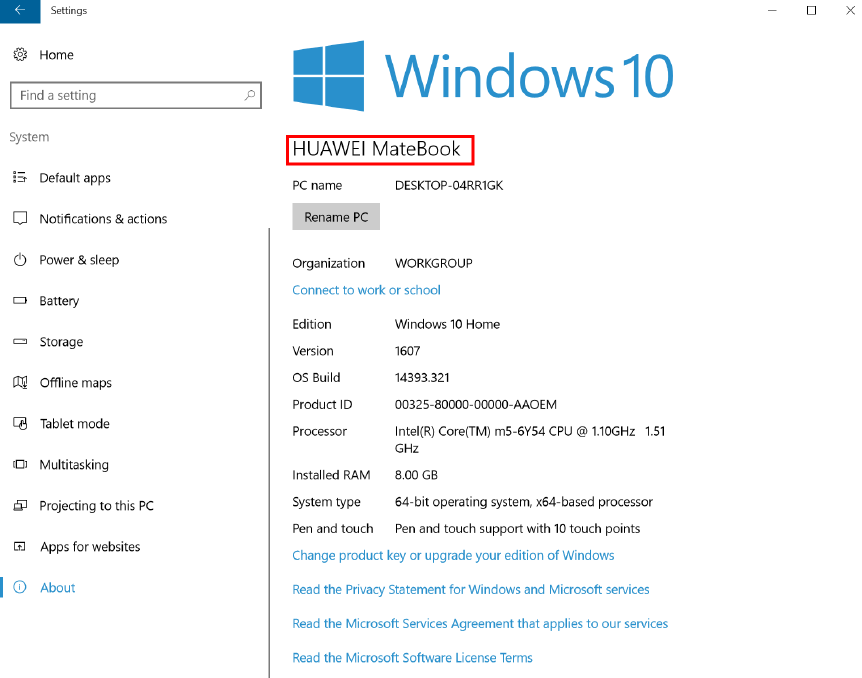
2.1 Step 1: Check your computer model
Go to Settings > System > About. Check that your computer is a HUAWEI MateBook as shown in the
following figure.
2.2 Step 2: Check the version number
2.2.1 Check BIOS version.
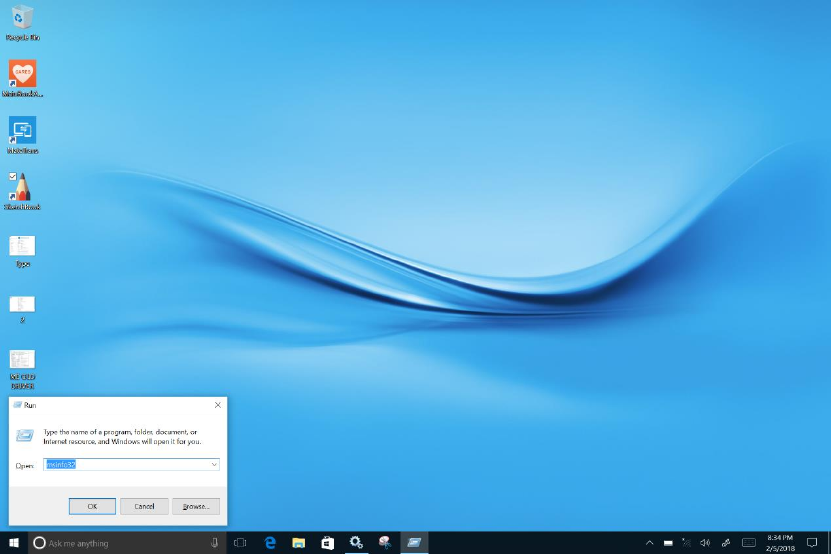
Press Windows+R on the keyboard. Enter msinfo32 in the box that pops up to view your BIOS version, as
shown in the following figure.
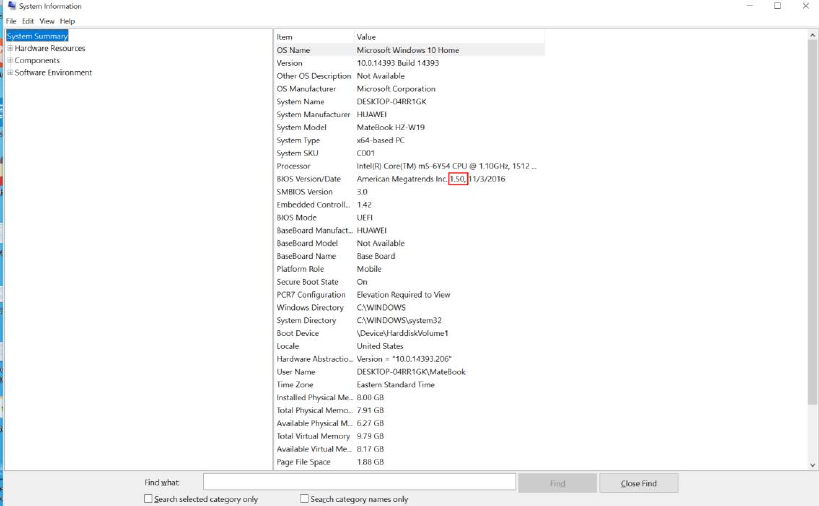
1. If your BIOS version is 1.51, you do not need to update it.
2. If your BIOS version is earlier than 1.51 (for example, 1.50), refer to section 2.3.1 "BIOS (version
1.51) update installation" to update your BIOS.
2.2.2 Check the Intel ME driver version.
Press Windows+R on the keyboard. Enter devmgmt.msc in the box that pops up to open Device Manager.
Click the drop-down arrow in front of System devices and double-click Intel(R) Management Engine
Interface. Check the version number of Intel(R) Management Engine Interface driver.
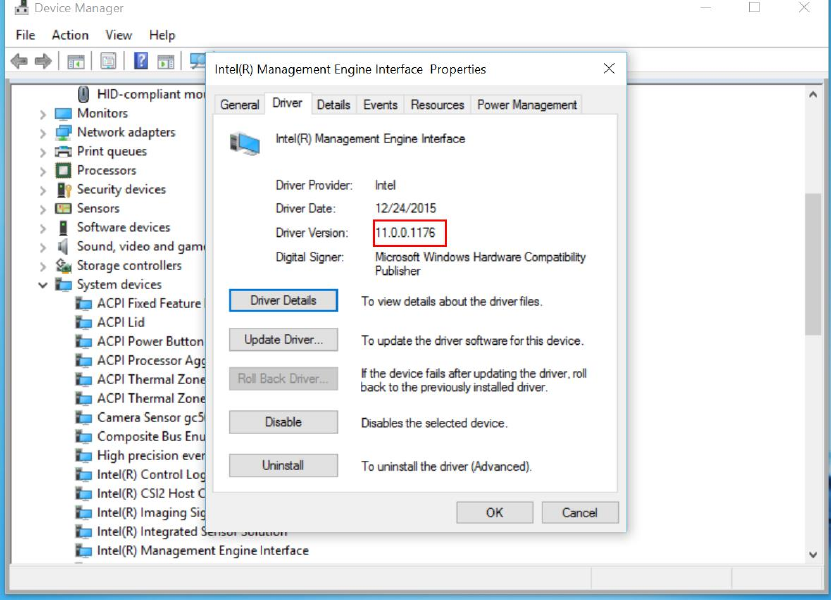
1. If the current driver version number is earlier than 11.7.0.1040 (for example, 11.0.0.1176), refer to
section 2.3.2 Intel ME update installation to update your Intel ME driver.
2. If the current driver version number is 11.7.0.1040 or later, you do not need to update it.
2.3 Install the update
2.3.1 BIOS (version 1.51) update installation
2.3.1.1 Download address
http://consumer.huawei.com/en/support/tablets/matebook/
Download and decompress the file to obtain the installation file.
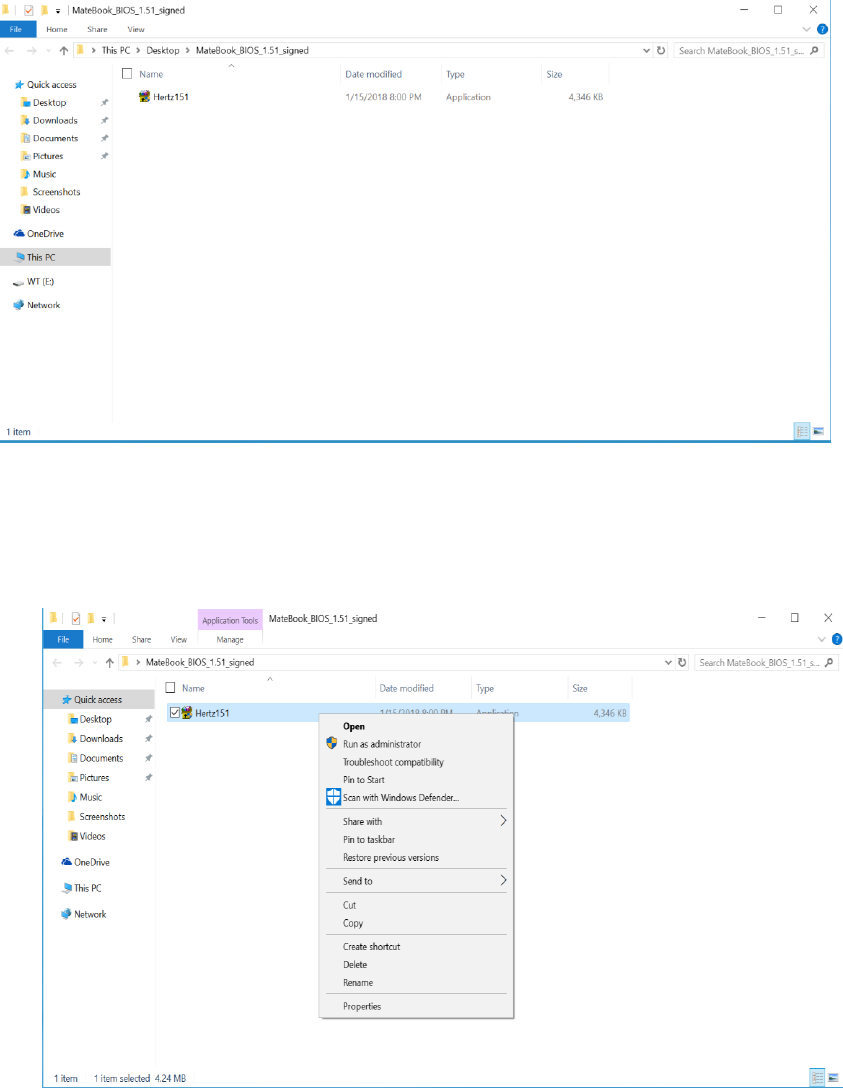
2.3.1.2 BIOS version 1.51 installation procedure
1. Connect your computer to a charger and ensure that you have at least 30% battery power remaining.
Right-click Hertz151.exe and select Run as administrator.
2. A User Account Control dialog box is displayed due to the Windows 10 security mechanism, as
shown in the following figure.
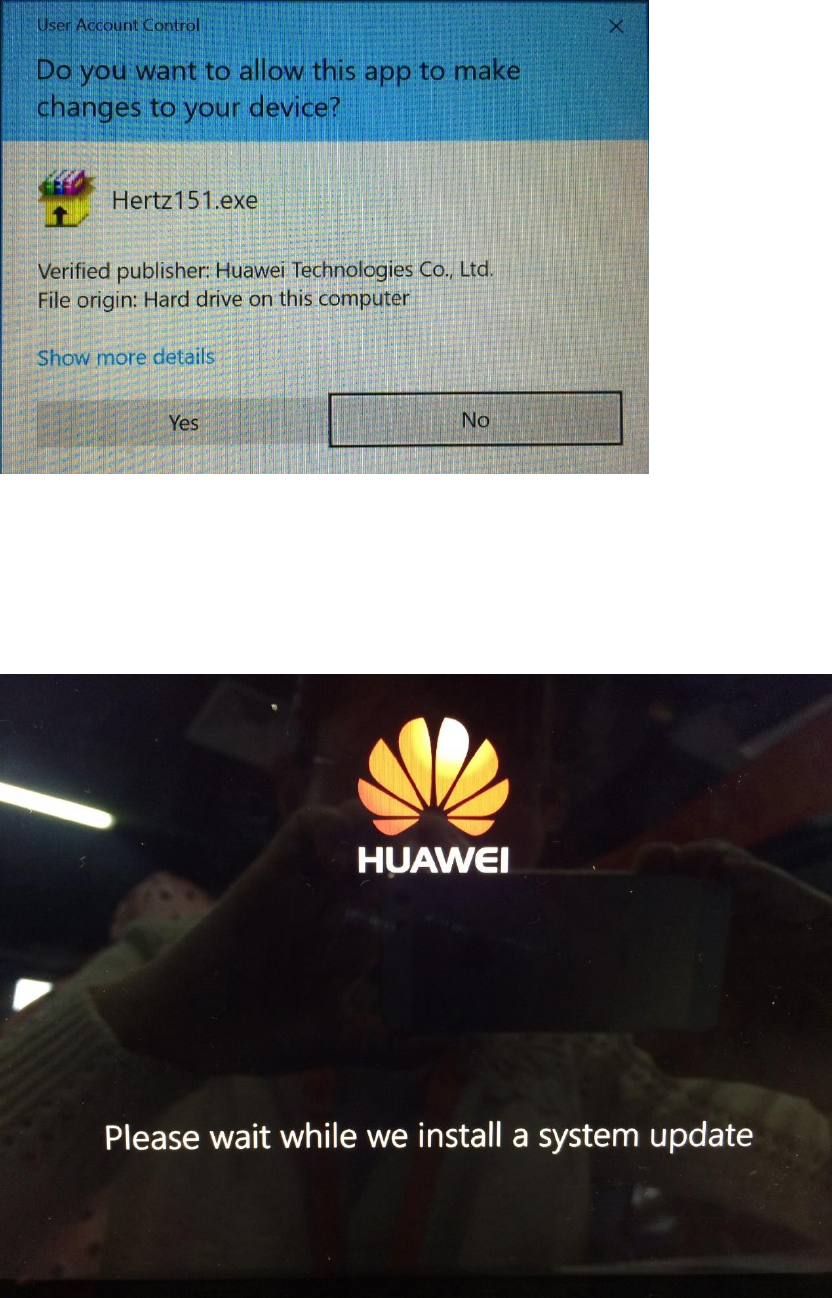
Check that no other processes are running. During the installation, do not set the computer to standby
mode. Ensure that the computer is powered on and the screen is turned on. Do not insert any USB
flash drives, IEEE 1394 devices, or other drives. Then click Yes.
3. Restart your computer and enter the POST update page. A message "Please wait while we install a
system update" will display. While this is happening, do not disconnect the power supply or turn off
your computer.
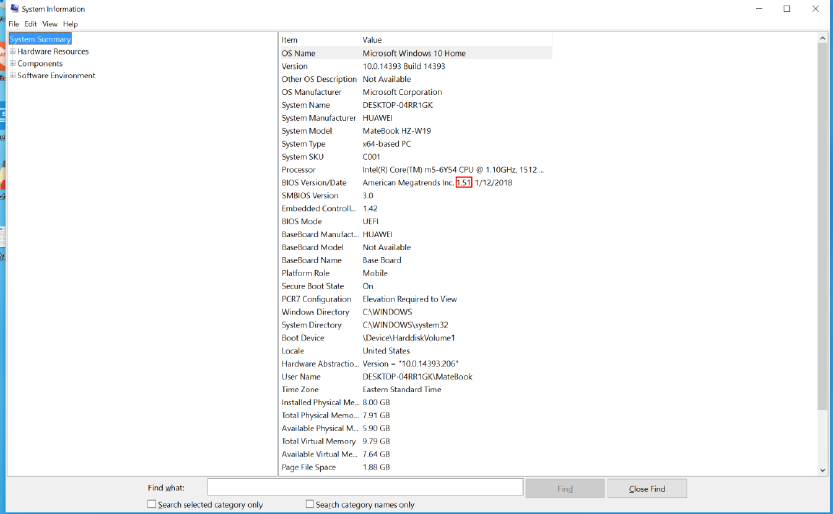
Wait for the installation to complete and your computer to start up. Press Windows+R on the
keyboard. Enter msinfo32 in the box that pops up to view your BIOS version, as shown in the
following figure. Check whether your BIOS has been successfully updated to version 1.51.
2.3.2 Intel ME update installation
2.3.2.1 Download address
Download the Intel ME driver version 11.7.0.1040 from the following URL:
http://consumer.huawei.com/en/support/tablets/matebook/
2.3.2.2 Installation procedures
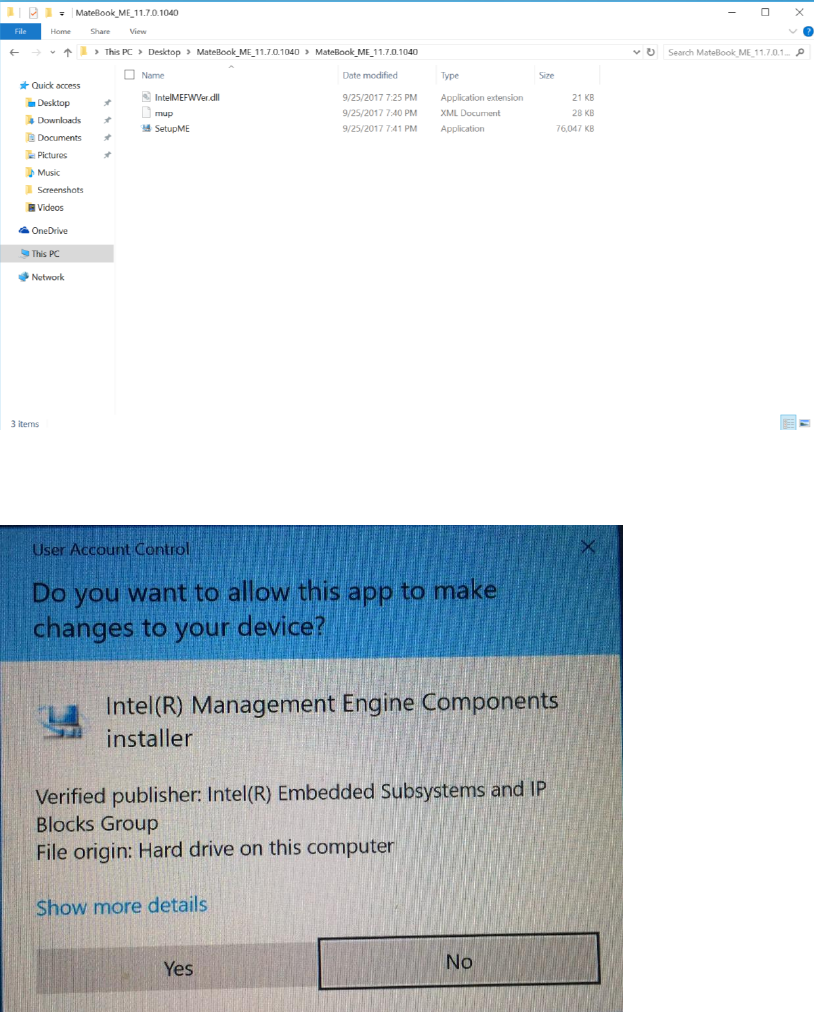
1. Download and decompress the installation file.
2. Double-click SetupME.exe. A dialog box will pop out due to the designed Windows 10 security
mechanism, as shown in the following screenshot.
Click Yes to proceed.
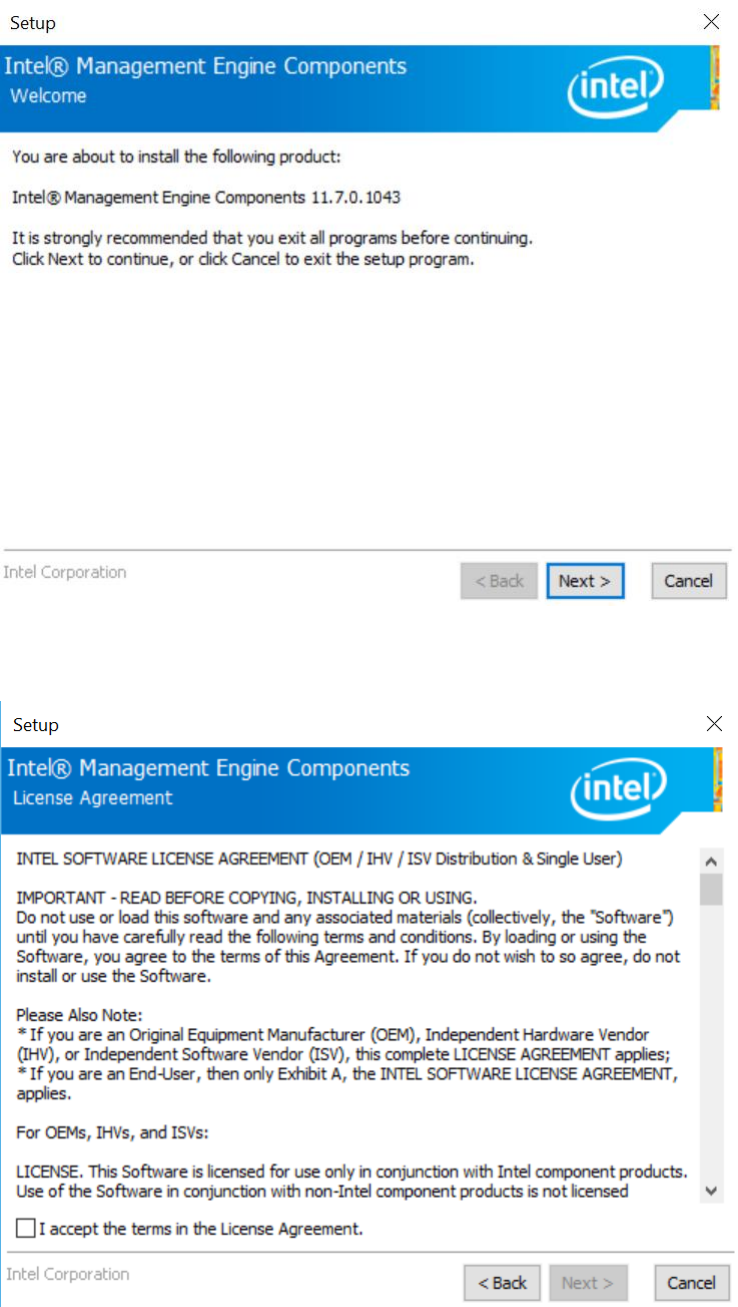
3. Click Next in the setup screen.
4. From the INTEL SOFTWARE LICENSE AGREEMENT page, select I accept the terms in the
License Agreement, and then click Next.
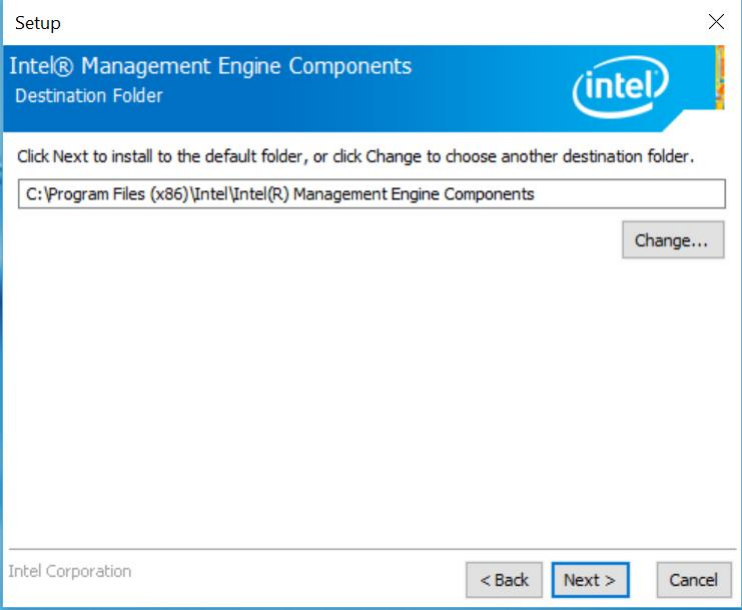
5. Select an installation folder or use the default folder and click Next.
6. After the installation is complete, select Yes, I want to restart this computer now and click Finish.
Your computer will now restart.
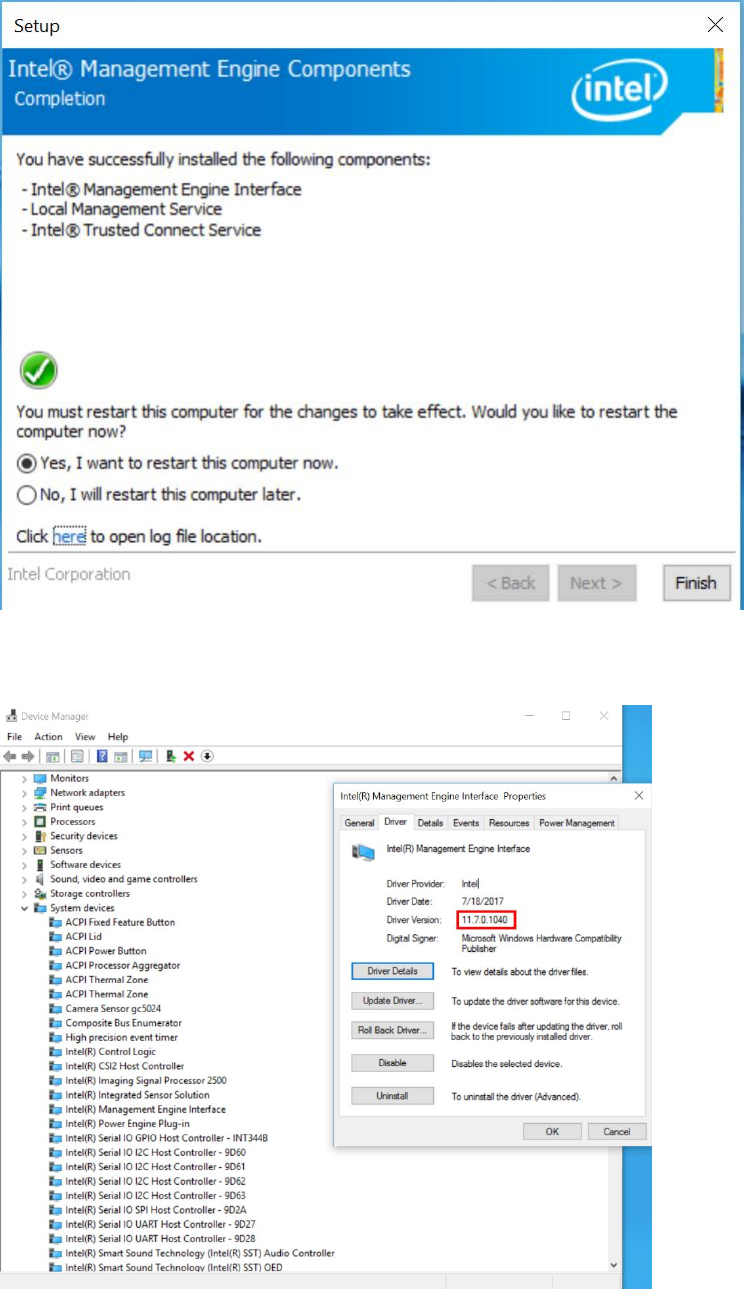
7. After your computer restarts, open Device Manager and check the version number of Intel(R)
Management Engine Interface.
If the version number is 11.7.0.1040, you have successfully updated your Intel ME driver.
