Lexicon PCM96 Surround Owner's Manual English Pcm96s 5047786 B Original
Lexicon PCM96 Surround Owner's Manual English PCM96S_Manual_5047786-B_original Lexicon - PCM96 Surround - Owner's Manual English
Lexicon PCM96 Surround (digital) Owner's Manual English PCM96S_Manual_5047786-B_original Lexicon - PCM96 Surround (digital) - Owner's Manual English
Lexicon PCM96 Surround (digital) Owner's Manual English pcm96s_manual_5047786-b_original Lexicon - PCM96 Surround (digital) - Owner's Manual English
User Manual: Pdf Lexicon PCM96 Surround Owner's Manual English Lexicon - PCM96 Surround - Owner's Manual English
Open the PDF directly: View PDF  .
.
Page Count: 54
- Introduction
- The Front Panel
- The Rear Panel - Digital Model
- The Rear Panel - Digital and Analog Model
- Using the PCM96 Surround
- DSP Configurations
- Preset Availability Within the Various Surround Configurations
- Signal Distribution Inside the Algorithm
- Single Stereo (Mono In)
- Single Stereo
- Dual Stereo (Mono In)
- Dual Stereo
- Cascade Stereo
- Dual Mono
- Quad Mono
- Cascade Mono
- Dual Mono + Single Stereo
- Cascade Mono To Stereo
- Single Two In Four Out
- Single Four In Four Out
- Single Two In Five Out
- Single Five In Five Out
- Single Six In Six Out
- Networking
- System Menu
- Machine Menu
- Using MIDI
- The Algorithms
- Chamber (Surround, Stereo and Mono)
- Random Delay (Surround, Stereo and Mono)
- Hall (Surround, Stereo and Mono)
- Random Hall (Surround, Stereo and Mono)
- Plate (Surround, Stereo and Mono)
- Dual Delay (Surround, Stereo and Mono)
- Resonant Chords (Surround, Stereo and Mono)
- Chorus/Flange (Surround, Stereo and Mono)
- Concert Hall (Surround, Stereo and Mono)
- Room (Surround, Stereo and Mono)
- Pitch Shift - Multivoice
- Pitch Shift - Standard VSO
- Pitch Shift - Multi Mono VSO
- Pitch Shift - Post VSO
- Signal Generator
- The Parameters
- Analog DB25 Cable Diagrams
- Digital DB25 Cable Diagram
- Specifications
- MIDI Implementation Chart
Surround
Professional Audio Equipment
WARRANTY
This warranty is valid only for the original purchaser and only in the United States. If outside the United States
please contact the local Lexicon® distributor.
1. Please register your product online at lexiconpro.com. Proof-of-purchase is considered to be the responsibility of
the consumer. A copy of the original purchase receipt must be provided for any warranty service.
2. Lexicon Professional warrants this product, when purchased new from an authorized U.S. Lexicon Professional
dealer and used solely within the U.S., to be free from defects in materials and workmanship under normal use
and service. This warranty is valid to the original purchaser only and is non-transferable.
3. Lexicon Professional’s liability under this warranty is limited to repairing or, at our discretion, replacing defective
materials that show evidence of defect, provided the product is returned to Lexicon Professional WITH RETURN
AUTHORIZATION from the factory, where all parts and labor will be covered up to a period of 1 year. A Return
Authorization Number must first be obtained from Lexicon Professional. The company shall not be liable for any
consequential damage as a result of the product’s use in any circuit or assembly.
4. Lexicon Professional reserves the right to make changes in design or make additions to or improvements upon this
product without incurring any obligation to install the same additions or improvements on products previously
manufactured.
5. The foregoing is in lieu of all other warranties, expressed or implied, and Lexicon Professional neither assumes nor
authorizes any person to assume on its behalf any obligation or liability in connection with the sale of this product.
In no event shall Lexicon Professional or its dealers be liable for special or consequential damages or from any
delay in the performance of this warranty due to causes beyond their control.
TECHNICAL SUPPORT & SERVICE
If you require technical support, contact Lexicon Professional Technical Support. Be prepared to accurately describe
the problem. Know the serial number of your device – this is printed on a sticker attached to the chassis.
Before you return a product to the factory for service, we recommend you refer to this manual. Make sure you
have correctly followed installation steps and operating procedures. For further technical assistance or service, please
contact our Technical Support Department at (801) 566-8800 or visit lexiconpro.com. If you need to return a
product to the factory for service, you MUST first contact Technical Support to obtain a Return Authorization
Number.
NO RETURNED PRODUCTS WILL BE ACCEPTED AT THE FACTORY WITHOUT A RETURN
AUTHORIZATION NUMBER.
Please refer to the Warranty information, which extends to the first end-user. After expiration of the warranty, a
reasonable charge will be made for parts, labor, and packing if you choose to use the factory service facility. In all
cases, you are responsible for transportation charges to the factory. If the product is still under warranty, Lexicon
Professional will pay the return shipping.
Use the original packing material if it is available. Mark the package with the name of the shipper and with these
words in red: DELICATE INSTRUMENT, FRAGILE! Insure the package properly. Ship prepaid, not collect. Do
not ship parcel post.
TABLE OF CONTENTS
INTRODUCTION ���������������������������������������������������������������������������������������������� 1
THE FRONT PANEL ����������������������������������������������������������������������������������������� 2
THE REAR PANEL - DIGITAL MODEL �����������������������������������������������������������������4
THE REAR PANEL - DIGITAL AND ANALOG MODEL ������������������������������������������5
USING THE PCM96 SURROUND ���������������������������������������������������������������������6
Powering Up the PCM96 Surround .........................................................6
The Preset Screen .....................................................................................6
Selecting Your Audio Source and Clock Source ........................................7
Loading a Preset .......................................................................................7
Changing Categories ................................................................................7
System Presets and Machine Presets .........................................................8
The Configuration Icon ...........................................................................9
Editing a Preset ......................................................................................10
Storing a Preset .......................................................................................11
Initializing/Formatting a Compact Flash Card .......................................12
Creating a New System Preset ................................................................12
DSP CONFIGURATIONS ���������������������������������������������������������������������������������13
Preset Availability Within the Various Surround Configurations ............13
Signal Distribution Inside the Algorithm ...............................................13
Single Stereo (Mono In) .........................................................................14
Single Stereo ...........................................................................................14
Dual Stereo (Mono In) ...........................................................................14
Dual Stereo ............................................................................................14
Cascade Stereo ........................................................................................15
Dual Mono ............................................................................................15
Quad Mono ...........................................................................................15
Cascade Mono ........................................................................................15
Dual Mono + Single Stereo ....................................................................15
Cascade Mono To Stereo ........................................................................15
Single Two In Four Out .........................................................................15
Single Four In Four Out ........................................................................16
Single Two In Five Out ..........................................................................16
Single Five In Five Out ..........................................................................16
Single Six In Six Out ..............................................................................16
NETWORKING ���������������������������������������������������������������������������������������������� 17
Overview of TCP/IP Basics ....................................................................17
Connecting the Computer Directly to the PCM96 Surround ................18
Setup of a Simple Isolated Ethernet Network Using DHCP .................18
Virtual Private Networks (VPN) ............................................................19
Network Considerations and Limitations ...............................................19
Network Troubleshooting .......................................................................19
SYSTEM MENU ���������������������������������������������������������������������������������������������21
Audio Setup ...........................................................................................21
Machine Config .....................................................................................22
MIDI Control ........................................................................................22
Tempo Control.......................................................................................23
Card Config ...........................................................................................23
Network Config .....................................................................................23
HiQnet Config .......................................................................................23
Restore Factory Defaults .........................................................................23
MACHINE MENU �������������������������������������������������������������������������������������������24
Soft Row Setup ......................................................................................24
I/O Settings ............................................................................................24
Various Parameters .................................................................................24
USING MIDI �������������������������������������������������������������������������������������������������24
Setup Definitions ...................................................................................25
Preset Loading ........................................................................................25
How to Assign a Base Channel to the PCM96 Surround .......................25
Channel Map (how channels map to machines) .....................................26
Bank Dump ...........................................................................................26
Reverse Bank Dump (Bank “Load”) .......................................................26
Continuous Controllers ..........................................................................26
Soft Row Parameter/MIDI CC Map ......................................................27
Bank/Preset Map ....................................................................................27
MIDI SysEx Implementation .................................................................28
THE ALGORITHMS �����������������������������������������������������������������������������������������30
Chamber (Surround, Stereo and Mono) .................................................30
Random Delay (Surround, Stereo and Mono) ........................................30
Hall (Surround, Stereo and Mono) .........................................................31
Random Hall (Surround, Stereo and Mono) ..........................................32
Plate (Surround, Stereo and Mono) ........................................................32
Dual Delay (Surround, Stereo and Mono) .............................................32
Resonant Chords (Surround, Stereo and Mono) ....................................33
Chorus/Flange (Surround, Stereo and Mono) ........................................34
Concert Hall (Surround, Stereo and Mono) ...........................................34
Room (Surround, Stereo and Mono) ......................................................34
Pitch Shift - Multivoice ..........................................................................34
Pitch Shift - Standard VSO ....................................................................35
Pitch Shift - Multi Mono VSO ..............................................................35
Pitch Shift - Post VSO ...........................................................................35
Signal Generator ...................................................................................35
THE PARAMETERS �����������������������������������������������������������������������������������������36
ANALOG DB25 CABLE DIAGRAMS ���������������������������������������������������������������44
DIGITAL DB25 CABLE DIAGRAM ��������������������������������������������������������������������45
SPECIFICATIONS �������������������������������������������������������������������������������������������46
MIDI IMPLEMENTATION CHART ���������������������������������������������������������������������49
1
INTRODUCTION
Congratulations and thank you for purchasing the PCM96 Surround
Reverb/Multi Effects Processor! Building on the success of the PCM96, the
new PCM96 Surround offers more presets, more configuration options, and
more inputs and outputs. The PCM96 Surround gives you industry standard
reverbs and effects, with tremendous flexibility.
The PCM96 Surround is available with either 6 channels of XLR/AES
inputs and outputs, or 2 DB25 6-channel analog I/O and 1 DB25 6-chan-
nel digital I/O. Both versions also feature MIDI, Wordclock, and Ethernet.

2
THE FRONT PANEL
FLASH BUSY
SELECT
TAP/TEMPO
LOAD
BACK
MACHINE STORE
COMPARE
123456
1 2
131211
987654
3
10
1. Gain LEDs
Each row of Gain LEDs indicates input signal strength of each of the
PCM96 Surround’s inputs. If the Audio Source is set to Analog (in the
Audio Setup menu), they show analog levels. If Audio Source is set to
Digital, they show digital levels. Range is from -18dB, -12dB, -6dB, -3dB,
and 0dB.
2. MACHINE Button
The PCM96 Surround can be configured as a single system or as 1-4
“machines”, each of which can run its own preset. The Machine button
cycles the selected preset through its system and machine configurations.
3. SELECT Knob
Turn the Select knob to scroll through presets and menu options. Press the
Select knob to select the current preset or menu option. Once you’ve selected
a menu option, you can turn the Select knob to adjust the menu option’s
value (Press the Back button to accept the change.)
4. A, B, and C Knobs
These knobs adjust parameters shown in the Display. Turn Knob A to adjust
the parameter in the top row, Knob B to adjust the parameter in the second
row, and Knob C to adjust the parameter in the third row. Press Knob A to
access additional pages of parameters when in the Soft Row. Press Knob C
to view the current preset’s Algorithm, Bank number, Program number, and
MIDI channel. These knob also have additional context-sensitive functions
when pressed.
5. TAP/TEMPO Button
Press two or more times to set tempo for delays and modulated effects. Look
for presets with (T) in the name for effects that react to tempo.
6. STORE Button
Press to store a preset. When pressed, a menu appears in the Display where
you can enter a new name for the preset.
7. Compact Flash Card Slot
Insert Compact Flash card here.
8. FLASH BUSY LED
This LED lights when the Compact Flash card is being read or written to.
Do not remove the Compact Flash card when this LED is lit.
3
9. Power Button
Press to turn the PCM96 Surround on or off.
10. Display
This high resolution, high contrast, and high viewing angle OLED (Organic
LED) display shows menu and box configuration and status information.
11. BACK
Pressing this button moves you up one level in the menu tree. Note that
when a System preset is loaded, this button takes you to the System Mode
Category Selection menu. When a Machine preset is loaded, the Back but-
ton takes you to the Machine Mode Category Selection menu.
12. LOAD
Press this button to load the selected preset. You can also press the Select
knob to load a preset.
13. COMPARE
This button is used to compare an edited preset against its unedited self.
When a preset is loaded, this button’s LED is off. As soon as the preset is
edited in any fashion, the LED lights. If the button is pressed, the edited
state is temporarily stored and the preset is reloaded from the file system.
During this period of time, editing is disallowed and the button LED blinks
rapidly. When the Compare button is pressed a second time, the edited state
is restored, editing is allowed again, and the LED is illuminated.

4
THE REAR PANEL - DIGITAL MODEL
OUT 5-6 OUT 3-4 OUT 1-2 IN 5-6 IN 3-4 IN 1-2
1 2
5
43
1. POWER JACK
Standard 3-pin IEC power connector. 100-240V, 50-60Hz automatic
switching to correct voltage range.
2. ETHERNET INPUTS
These RJ-45 connections are used to network PCM96 Surround devices and
control them via Ethernet.
3. MIDI IN
Receives MIDI information from other MIDI equipment such as master
keyboard controllers, MIDI foot controllers, sequencers and synthesizers.
MIDI THRU
Passes any MIDI data received without change.
MIDI OUT
Transmits MIDI data to other equipment.
4. AES/EBU In/Out
AES/EBU format digital connectors conform to AES professional standards.
5. WORD CLOCK INPUT
This connection allows the PCM96 Surround to lock to a master system
clock. It is not terminated. For best results we recommend using “T” con-
nectors when setting up a BNC Word Clock network and terminating the
end of of this network with a 75 ohm BNC terminator.

5
THE REAR PANEL - DIGITAL AND ANALOG
MODEL
ANALOG I/O
1 3
6
54
2
1. POWER JACK
Standard 3-pin IEC power connector. 100-240V, 50-60Hz automatic
switching to correct voltage range.
2. DB25 6-CHANNEL DIGITAL AES I/O
This D25 connector carries six analog inputs and outputs.
3. ETHERNET INPUTS
These RJ-45 connections are used to network PCM96 Surround devices and
control them via Ethernet.
4. MIDI IN
Receives MIDI information from other MIDI equipment such as master
keyboard controllers, MIDI foot controllers, sequencers and synthesizers.
MIDI THRU
Passes any MIDI data received without change.
MIDI OUT
Transmits MIDI data to other equipment.
5. DB25 6-CHANNEL ANALOG IN/OUT
These D25 connectors each carry six analog inputs and outputs.
6. WORD CLOCK INPUT
This connection allows the PCM96 Surround to lock to a master system
clock. It is not terminated. For best results we recommend using “T” con-
nectors when setting up a BNC Word Clock network and terminating the
end of of this network with a 75 ohm BNC terminator.

6
USING THE PCM96 SURROUND
POWERING UP THE PCM96 SURROUND
1. Plug in the power cord.
2. Press the Power button.
3. The Lexicon® logo appears, and remains until the boot process is com-
plete. Next, the Preset screen appears, showing the currently loaded pre-
set.
THE PRESET SCREEN
The Preset screen is the starting point for many of the instructions in this
manual, so it’s a good idea to know how to get to the Preset screen. In most
cases, pressing the Back button one or more times will take you back to the
Preset screen. If you press the Back button while viewing the Preset screen,
you’ll arrive at the Machine or System Category Selection screen. In this
case, just turn the Select knob to select a category (the current category is
marked with an asterisk), and press the Select knob to load it. You will then
be taken to the Preset screen.
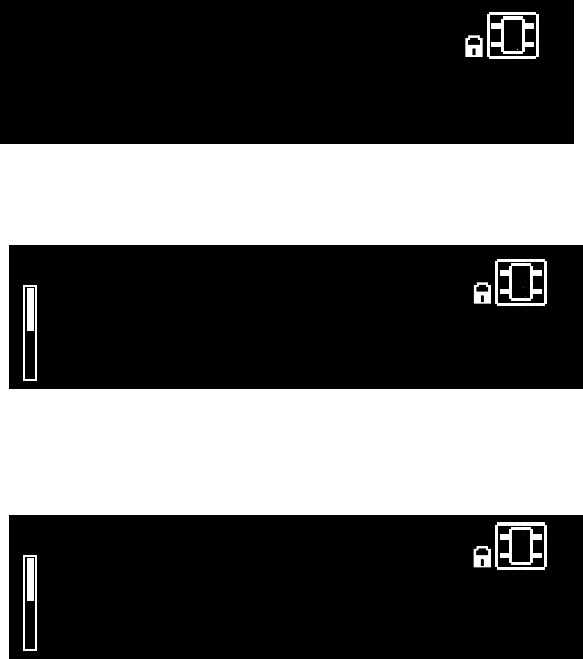
The Preset screen shows the current preset and configuration. Note that the
Preset screen has two “views”: System view (for System Presets) and Machine
view (for Machine Presets). For more information see “System Presets and
Machine Presets” on page 8.
SYSTEM VIEW
1:Single Stereo Config
(System View)
48
Current Preset Clock Sync icon
Configuration Icon
Clock Rate
MACHINE VIEW
0:Large Hall
1:PreDelay :20ms
2:ReverbTime :2.79s
3:RvbOutFreq :6500.0Hz
48
Current Preset
Configuration Icon
Soft Row Parameters
Clock Sync icon
Clock Rate
7
SELECTING YOUR AUDIO SOURCE AND CLOCK SOURCE
1. Press the Machine button until the words “System View” appear in the
Display.
1:ConcertHall->Flange
(System View)
96
1:Single Stereo Config
(System View)
48
2. Press the Select knob. The System Menu appears.
System Menu Version 1.0
+Audio Setup
+Machine Config
+MIDI Control
48
3. With Audio Setup highlighted, press the Select knob. The Audio Setup
menu appears.
|:Audio Setup
Audio Source: ANALOG A
Clock Source: INTERNAL B
Clock Rate: 48KHz (Lock) C
48
4. Turn Knob A to select your audio source (Analog or AES).
5. Turn Knob B to select your wordclock source (Internal, AES, or BNC).
6. Press the Back button twice to save your changes and return to the
Preset screen.
LOADING A PRESET
1. From the Preset screen, turn the Select knob to scroll through the avail-
able presets in the current category. (Presets are arranged in categories
within the PCM96 Surround; see Changing Categories below for more
information.) The preset name blinks after you turn the Select knob,
indicating that you are in preset selection mode.
2. Press the Select knob to load the preset you’ve selected. The display
briefly reads Loading Preset, and the preset name appears. It is no longer
blinking.
CHANGING CATEGORIES
Presets are grouped into categories in the PCM96 Surround. Each category
has its own set of presets. When you turn the Select knob while viewing a
preset, you only see presets available in the current category.
System Presets and Machine Presets each have their own set of catego-
ries. System Preset categories are based on DSP configurations (see “DSP
Configurations” on page 13), and Machine Preset categories are based on
algorithms (see “The Algorithms” on page 30).
8
System Presets and Machine Presets also have User and Card categories,
where you can access user-edited presets. Presets in the User category are
stored on the PCM96 Surround, and presets in the Card category are stored
on a Compact Flash card.
To select a different category
1. From the Preset screen, press the Back button. The Category Selection
screen appears. Note that there are different Category Selection screens
for System Presets and Machine Presets:
Category Selection Screen - System Presets
Preset Category Selection
Default Configurations *
Combined Mono Reverbs
Combined Mono Effects
96
Category Selection Screen - Machine Presets
Preset Category Selection
Halls (Small) *
Halls (Medium)
Halls (Large)
96
2. Turn the Select knob to scroll through the available categories. (An aster-
isk appears next to the currently selected category.)
3. Press the Select knob to load the highlighted category. A flashing preset
name appears (if it is not the currently selected preset).
4. Select a preset with the Select knob, and press the Select knob to load it.
SYSTEM PRESETS AND MACHINE PRESETS
The PCM96 Surround features a single powerful processor, which can be
used as up to four virtual machines. For example, you could send the left
input signal through a mono reverb in one virtual machine and send the
right input signal through a mono delay in another virtual machine. You
could then send both signals through a chorus effect on a third virtual
machine. You could then save this configuration as a System Preset. It’s a
preset that includes a system of virtual machines.
System Presets can be extremely complex and are generally tailored especially
for the mix you’re working on. Lexicon® has provided a number of these
presets, just to give you an idea about what you might do. Who knows? You
might like them just the way they are. Feel free to make modified versions
of the factory presets, or create your own from scratch. The possibilities are
nearly endless, so have fun.
When a preset only includes a single virtual machine, it’s called a Machine
Preset.
Note that pressing the Back button or the Select knob have different results
9
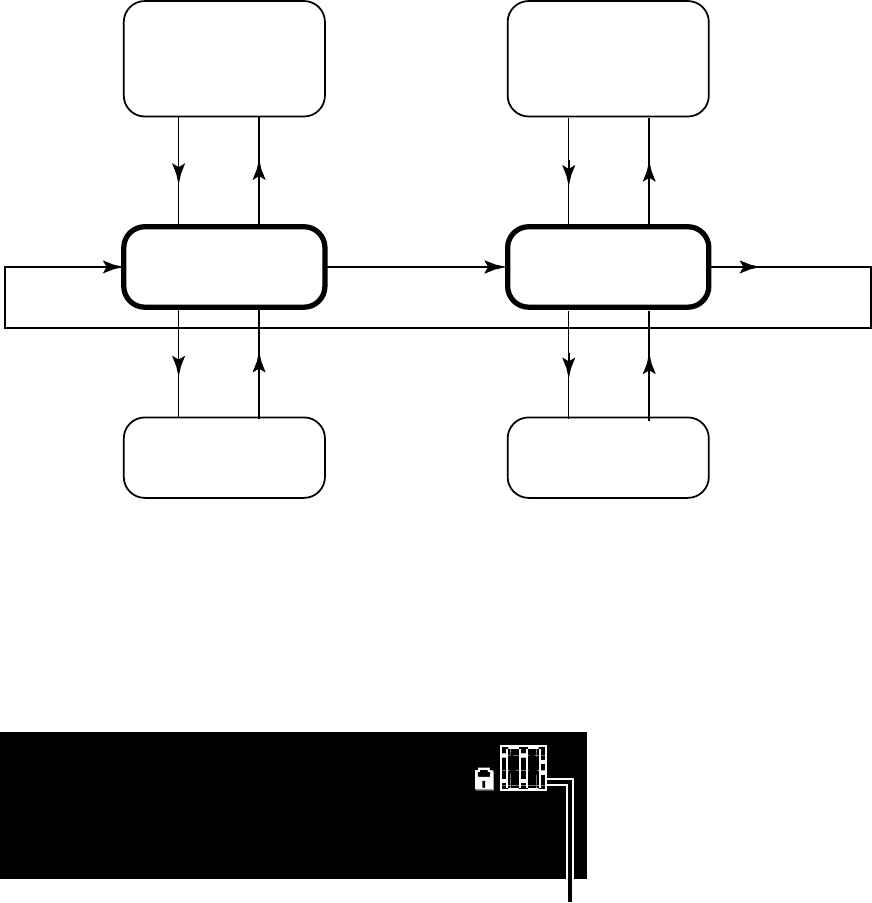
depending on what kind of preset is loaded. The following diagram shows
what happens when you press the Select knob, Back button, and Machine
button in both System View and Machine View.
Preset Category
Selection View
(System)
Preset Screen
(System)
System Menu
Preset Category
Selection View
(Machine)
Preset Screen
(Machines 1-4)
Machine Menu
Press Machine
Button
Press Machine
Button
Press
Back
Press
Select
Press
Back
Press
Select
Press
Back
Press
Select
Press
Back
Press
Select
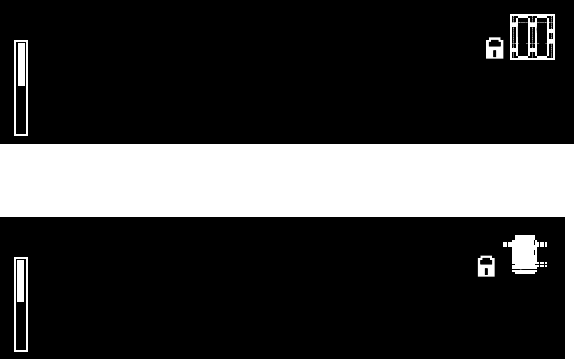
THE CONFIGURATION ICON
The Configuration icon appears at the upper right corner of the Display. It
tells you if a System Preset or a Machine Preset is loaded.
When a System Preset is loaded, a border appears around the Configuration
icon and the words System View appear in the Display, below the preset’s
name.
1:ConcertHall->Flange
System View
-Press Machine Btn To View Engines
1:ConcertHall->Flange
(System View)
48
Configuration Icon
(System Preset)
48
When a Machine Preset is loaded, the selected machine is highlighted in the
Configuration icon, and three of the loaded preset’s parameters appear at the
bottom of the Display.

10
0:Med Hall
1:PreDelay :14ms
2:MidRT :1.59s
3:RvbOutFreq :4750.0Hz
0:Med Hall
1:PreDelay :14ms
2:ReverbTime :1.59s
3:RvbOutFreq :4750.0Hz
48
Configuration Icon
(Machine Preset)
Press the Machine button repeatedly to cycle through the virtual machines in
a System Preset, and eventually back to the System Preset.
EDITING A PRESET
To edit a System Preset, you must edit the virtual machines within it. Press
the Machine button to cycle through the virtual machines within a System
Preset.
Each virtual machine contains a set of parameters that you can edit and
adjust. When a virtual machine is selected, three of its parameters appear at
the bottom of the Display. Adjust the first parameter with Knob A, the sec-
ond parameter with Knob B, and the third parameter with Knob C. To see
the next set of parameters you can adjust, press Knob A.
0:Med Hall
1:PreDelay :14ms
2:MidRT :1.59s
3:RvbOutFreq :4750.0Hz
48
Soft Row Parameters
Each virtual machine has 8 parameters you can adjust this way. All presets
have more than 8 parameters, but only 8 can be edited via the A, B, and C
knobs in this fashion. You can choose which parameters are in the list by
using the Soft Row Setup menu located in the Machine menu (see “Machine
Menu” on page 24 for more information).

11
STORING A PRESET
Once you’ve edited a preset, you can store it on the PCM96 Surround (in
the User category) or on a Compact Flash card (in the Card category).
Note: When you first insert a Compact Flash card, you may receive
the message “Card Needs Initializing.” See “Initializing/Formatting a
Compact Flash Card” on page 12 for instructions on how to initial-
ize a Compact Flash card.
1. From the Preset screen, press the Store button. The Save As screen
appears.
Select Knob -> Change Position
ʻAʼ Knob -> Change Letter
Save As: Single Stereo Config
2. Turn the Select knob to select a letter to change.
3. Turn Knob A to change the selected letter.
Press Knob A to toggle between uppercase, lowercase, special characters
and numbers.
Press Knob B to enter a space.
Press Knob C to backspace.
4. Repeat steps 2 and 3 until you’ve changed all the letters you want to
change.
5. Press the Select knob to continue. If a Flash card is inserted, the
Location menu appears. (If no Flash card is inserted, skip to step 8.)
User
Card
6. Turn the Select knob to select a location. “User” is the PCM96
Surround built-in memory; “Flash” is the inserted Compact Flash card
(if one is present).
7. Press the Select knob to continue. The numbered list appears.
0:- Empty -
1:- Empty -
2:- Empty -
3:- Empty -
4:- Empty -
8. Turn the Select knob to select a slot in the numbered list. The preset’s
name automatically appears in the selected slot.
9. Press the Select knob to save the preset to the selected slot. “Storing
Preset” appears briefly in the Display and you are returned to the Preset
screen.
12
INITIALIZING/FORMATTING A COMPACT FLASH CARD
To initialize or format a Compact Flash card:
1. Press the Back button until the Preset screen appears.
2. Press the Machine button until System View is displayed.
3. Press the Select knob to enter the System Menu.
4. Turn the Select knob until Card Config is highlighted.
5. Press the Select knob to access the Compact Flash Menu.
6. Press Knob B to Format the card OR press Knob C to initialize the card.
CREATING A NEW SYSTEM PRESET
One way to create a new System Preset is to edit an existing System Preset
and save it to the User or Card category. Another way is to start from
scratch, as described below.
1. With any System Preset loaded, press the Select knob. The System menu
appears.
2. Highlight Machine Config with the Select knob, and press the Select
knob. The available DSP configurations appear.
3. Turn the Select knob to highlight a configuration and press the Select
knob to choose it. You return to the Preset Screen. The preset’s name
indicates the configuration you just selected (for example, if you selected
the Cascade Stereo configuration, the preset’s name is Cascade Stereo
Config).
4. Press the Machine button to select a Machine Preset within your System
Preset.
5. Press the Back button to access the Preset Category menu.
6. Turn the Select knob to highlight a category and press the Select knob to
choose it. A flashing Machine Preset name appears.
7. Turn the Select knob to choose a Machine Preset and press the Select
knob to load it.
8. Press the Machine Button to choose the next Machine Preset (if there is
one) and repeat steps 5 through 7.
9. Repeat step 8 for each virtual machine in your System Preset.
10. Press the Machine Button until your System Preset is selected.
11. Store the System Preset. For more information on storing presets, see
“Storing a Preset” on page 11.
13
DSP CONFIGURATIONS
The PCM96 Surround processor can be divided in up to four virtual
machines, each of which can run its own algorithm. This lets you route sig-
nals from each input through a variety of algorithm combinations.
The PCM96 Surround can use up to six physical inputs and six physical
outputs at a time; configurations for the physical inputs and outputs are
described below.
When using the PCM96 Surround in one of its surround modes, it is critical
to know how audio is routed to the algorithm. This applies both to the way
IO connects with the outside world and the way the signals are distributed
within the algorithm.
The inputs and outputs relate to the following cables:
Analog AES
Stereo Machine 1 Left Cable 1 Cable 1 (L)
Stereo Machine 1 Right Cable 2 Cable 1 (R)
Stereo Machine 2 Left Cable 3 Cable 2 (L)
Stereo Machine 2 Right Cable 4 Cable 2 (R)
Or
Analog AES
Multichannel Left Cable 1 Cable 1 (L)
Multichannel Right Cable 2 Cable 1 (R)
Multichannel Left Surround Cable 3 Cable 2 (L)
Multichannel Right Surround Cable 4 Cable 2 (R)
Multichannel Center Cable 5 Cable 3 (L)
Multichannel LFE Cable 6 Cable 3 (R)
PRESET AVAILABILITY WITHIN THE VARIOUS SURROUND
CONFIGURATIONS
In almost all cases, a surround preset is usable in any surround configuration,
whether four or five-channel, 2-in or multi-in. Parameters which are not
available in a given configuration (for example center levels in a four-channel
config) are hidden. Factory presets have been written in such a way as to
work satisfactorily in all configurations. When creating user presets, it’s rec-
ommended that the preset be auditioned in all configurations.
SIGNAL DISTRIBUTION INSIDE THE ALGORITHM
There are two versions of the 4-channel machine: 2-in/4-out and 4-in/4-out.
By the same token, there are two versions of the 5-channel machine: 2-in/5-
out and 5-in/5-out.

14
When dealing with true surround source material, the choice of configu-
ration is simple--choose the 4-in or 5-in version. The algorithms are all
designed to treat the inputs uniquely. If the algorithm is a reverberator or
room, then each input will propagate into the space from the direction of its
virtual source. If the algorithm is a delay or effect, each input will be treated
by itself, and then possibly propagated into shared feedback paths.
But when dealing with stereo source material (the more typical case), some
thought must be given to the choice of configuration. The 4-in or 5-in con-
figuration may still be used of course, and the source material will be more
obviously placed in the front of the virtual space. In the case of a delay or
effects algorithm, not all voices will be activated. When the 2-in/multi-out
configuration is chosen, the input signals are also propagated to the surround
inputs (post level, post pan). This will sound different. A reverb may sound
more full. It will still be surround of course, but will not maintain the same
frontward localization. Delay and effects algorithms will now have all voices
activated and may be considerably more complex. There may be a small dif-
ference in gain for the same presets in the 2-in or multi-in configuration.
There’s no right or wrong in this choice. It’s up to the user which of these
configurations to use. But it is important to know how the sound will
change based on this choice.
All the DSP configurations are described below.
SINGLE STEREO (MONO IN)
A mono signal is split into a stereo signal.
SINGLE STEREO
The left and right inputs are sent through a single virtual
machine.
DUAL STEREO (MONO IN)
The left signal travels through one virtual machine, and
the right signal travels through a separate second virtual
machine.
DUAL STEREO
Two stereo signals are processed independently by two vir-
tual machines.

15
CASCADE STEREO
The left and right signals are processed together in one
virtual machine, and the resulting signal is sent to a second
virtual machine, where they are again processed together.
DUAL MONO
The left signal travels through one virtual machine, and
the right signal travels through a separate second virtual
machine.
QUAD MONO
Four mono signals are processed independently by four vir-
tual machines.
CASCADE MONO
The left signal is sent through two virtual machines in
sequence, while the right signal is sent through two addi-
tional virtual machines in sequence. The left and right sig-
nals are processed independent from each other.
DUAL MONO + SINGLE STEREO
Two mono signals are processed independently by two vir-
tual machines, while a stereo signal is processed by a third
virtual machine.
CASCADE MONO TO STEREO
The left and right signals are processed independently in
two separate virtual machines, and their resulting signals
are processed together in a third virtual machine. The final
result is output as stereo.
SINGLE TWO IN FOUR OUT
Two signals are processed by one virtual machine, and out-
put as four signals.

16
SINGLE FOUR IN FOUR OUT
Four signals are processed by one virtual machine, and out-
put as four signals.
SINGLE TWO IN FIVE OUT
Two signals are processed by one virtual machine, and out-
put as five signals.
SINGLE FIVE IN FIVE OUT
Five signals are processed by one virtual machine, and out-
put as five signals.
SINGLE SIX IN SIX OUT
Six signals are processed by one virtual machine, and out-
put as six signals.
17
NETWORKING
This section provides a step-by-step guide on how to properly connect the
PCM96 Surround to a Local Area Network (LAN) for several different net-
work architectures. The first topology is a simple direct connection using the
provided Ethernet cable. The second method describes how to connect and
configure several PCM96 Surround units to create an isolated network using
an Ethernet switch with static IP addresses or with DHCP. This section
concludes with some further networking considerations and troubleshooting
tips that will help with connecting to your PCM96 Surround via Ethernet. If
your application is more than these simple examples we recommend that you
involve a trained Ethernet network administrator in the design and commis-
sioning of your system.
Careful planning needs be made before placing a PCM96 Surround on a
network that provides any access to the public. Some examples of public
access are direct access to the unit from the Internet, an unsecured or weakly
secured wireless network, a network jack in a public area that provides net-
work access to the PCM96 Surround, or having a computer on the LAN
that is not secured so that someone could use it to reconfigure the PCM96
Surround. It is highly recommended that the equipment be placed on a pro-
tected, isolated network that does not have any connection to the public to
prevent unauthorized users from reconfiguring the unit. Please refer to the
VPN portion of this section for more information. Factory defaults for the
Internet Protocol (IP) settings for the PCM96 Surround are as follows:
Auto-IP/DHCP Address: 169.254.x.x (where “x.x” is determined by
the PCM96 Surround box numbers)
Subnet Mask: 255.255.0.0
Gateway: 0.0.0.0
DHCP Support: Enabled
OVERVIEW OF TCP/IP BASICS
IP ADDRESS
An identifier for a computer or device on a TCP/IP network. Each device
in a network has its own IP address to identify it. Example: 126.126.17.42.
Networks using the TCP/IP protocol route messages based on the IP address
of the destination. An IP address is made of four numbers separated by peri-
ods. Each number can be zero to 255. The last number should not be a zero
or 255. For example, 126.126.17.1 could be an IP address. 126.126.17.0
would not be a valid IP address. A TCP/ IP or IP address has two parts:
the NETWORK ID and the HOST ID. The NETWORK ID identifies
the network, and the HOST ID identifies either the subnet and device, or
just the device if there is no subnet. The subnet mask is a code that indi-
cates which part of the TCP/IP address is the NETWORK ID and which
part is the HOST ID. In subnet-mask code, 255 means “This part of the
address is the NETWORK ID”. Example: Suppose the IP ADDRESS of
a device is 192.168.xx.yy and the SUBNET MASK is 255.255.x.y. That
means, (192.168) is the NETWORK ID. The remaining set of numbers (xx.
yy) is the HOST ID. If your network stands alone (it is not part of a larger
network) then the HOST ID identifies each device in the network. If your
network is part of a venue’s larger network, your network is actually a sub-
network or subnet.
18
SUBNET
A small network within a larger network. For example, a TCP/IP network
might be a subnet of a venue’s network, which could include computers
throughout the building, or a network might be divided into subnets. For
example, in a large installation, there may be one subnet per rack or room.
DHCP (DYNAMIC HOST CONFIGURATION PROTOCOL)
This is a protocol for automatically assigning IP addresses to devices on a
network. With dynamic (DHCP) addressing, a device might have a different
IP address every time it connects to the network. DHCP relies on a DHCP
server to assign and manage IP addresses.
AUTO IP
If DHCP fails, the PCM96 Surround selects a number and looks for colli-
sions. If no collisions are found, the PCM96 Surround accepts that number.
If collisions are found, the PCM96 Surround randomly selects another num-
ber and tries again.
CONNECTING THE COMPUTER DIRECTLY TO THE PCM96
SURROUND
Assumptions:
• Computer has a working Ethernet network adapter.
• You have administrative rights so that network settings can be changed if
necessary.
1. Connect the included Ethernet cable to both the PCM96 Surround and
the computer.
2. Apply power to the PCM96 Surround and wait for it to boot.
3. Open the control software application. The PCM96 Surround should
automatically appear in the main application window. If it does not, the
control software settings may have to be configured to connect to the
PMC96 Surround. See the control software’s help for more information.
SETUP OF A SIMPLE ISOLATED ETHERNET NETWORK USING
DHCP
Assumptions:
• Computer has a working Ethernet network adapter.
• You have an Ethernet switch/router with DHCP capability and Ethernet
cables for each connection needed.
• You have administrative rights so that network settings can be changed if
needed.
1. Connect the computer and any PCM96 Surround processors to the
switch hub using straight-through Ethernet cables.
2. Apply power to all PCM96 Surround processors and wait for them to
boot.
3. With DHCP enabled, the Ethernet switch/router should assign an IP
address to each of the devices including your computer.
4. Open the control software application. The PCM96 Surround should
automatically appear in the main application window. If it does not, the
control software settings may have to be configured to connect to the
PMC96 Surround. See the control software’s help for more information.
19
VIRTUAL PRIVATE NETWORKS (VPN)
Virtual private networks (VPN) provide an encrypted connection (or tunnel)
between networks or between a network and a user over a public network
(such as the Internet). Instead of using a dedicated, real-world connection
such as a leased line, a VPN uses virtual connections through the public
network. The advantage to a VPN is that your computer can be virtually
connected to a local network even though it is physically anywhere in the
world where you have an internet connection. This can also be done in a safe
manner not compromising your local network’s security. If you would like
to manage your PCM96 Surround units remotely you should create a secure
VPN connection.
There are many solutions on the market today that provide VPN access.
These products offer different features, methods of VPN, complexity of
setup and maintenance, as well as varying levels of security. It is beyond the
scope of this manual to recommend a VPN solution that will best suit the
needs of your network, although you will need a VPN that is capable of
passing UDP and TCP traffic (most do). The PCM96 Surround has been
tested against several solutions and should work with all VPNs that meet
these criteria. Please work with your system administrator and Internet
service provider to find a VPN that will best fit your network. The 3Com
OfficeConnect Secure Router (model # 3CR860-95) is one solution that has
been tested, and is both inexpensive and simple to set up. It provides up to
two concurrent VPN connections.
NETWORK CONSIDERATIONS AND LIMITATIONS
• Without a VPN, there can be no access from the outside world to any
PCM96 Surround that is behind a Network Address Translation (NAT)
router. (One-to-One NAT and port forwarding will not work.)
• Firewall Considerations: The PCM96 Surround uses port 3804 (udp
and tcp) to communicate with the control software. Make sure that you
configure your firewalls correctly so that data sent to and from this port
number can traverse your network.
NETWORK TROUBLESHOOTING
If you are having difficulty getting your PCM96 Surround to show up in the
control software, here are some things that you can try to resolve the prob-
lem.
SOFTWARE FIREWALL
If the PC that you have installed the control software on has a built-in fire-
wall you need to make sure that you allow the software the ability to talk on
your network. Try disabling your firewall and then going offline and back
online in the control software. If this fixes the problem, refer to your firewall
manufacturer’s documentation on how to reconfigure your firewall to allow
the control software and/or port 3804 tcp and udp to pass through the fire-
wall.
20
ETHERNET LINK
Make sure that you have a valid Ethernet connection by looking at the link
status lights. Most Ethernet devices will have some kind of indicator that
shows the link is present. Check the following connections:
• PCM96 Surround device – If there is a valid connection on the PCM96
Surround you will see a solid green LED.
• PC running the control software
• Hub / Switch (if used)
If you fail to see a link light try removing and reinserting the cable or trying
a different, known good, cable. Also, make sure that you are using the cor-
rect cable.
PING
There is a simple utility built into OS-X that tests the network connection
between two devices. The following steps outline how to use this utility.
1. In the Applications folder, double click the Terminal icon.
2. At the prompt enter ping -c 4 <IP address of your PCM96 Surround>
and press Enter. The data should appear something like this:
PING <IP address of your PCM96 Surround>: 56 data bytes
64 bytes from <IP address of your PCM96 Surround>: icmp_seq=0 ttl=62
time=1.118 ms
64 bytes from <IP address of your PCM96 Surround>: icmp_seq=1 ttl=62
time=1.093 ms
64 bytes from <IP address of your PCM96 Surround>: icmp_seq=2 ttl=62
time=1.067ms
64 bytes from <IP address of your PCM96 Surround>: icmp_seq=3 ttl=62
time=1.042ms
--- <IP address of your PCM96 Surround> ping statistics ---
4 packets transmitted, 4 packets received, 0% packet loss
round-trip min/avg/max = 1.042/1.08/1.118 ms
If you get a “Reply from” response from the IP address that you were ping-
ing in a timely manner, it means that you have a valid network connection
between the two devices.
If you receive a “No route to host” or “0 packets received” message, this indi-
cates that your computer is not communicating with the device.
21
SYSTEM MENU
The System Menu lets you adjust several settings in the PCM96 Surround.
To access the System Menu, press the Select knob while a System Preset is
loaded.
The System Menu contains sub-menus and options. Sub-menus contain
options and/or more sub-menus. To enter a sub-menu, highlight it with the
Select knob and press the Select knob. Options contain values that you can
adjust (indicated by a colon followed by a value, for example, “Audio Source:
ANALOG”). To adjust an option’s value, turn the corresponding knob:
Knob A for an option on the first line, Knob B for an option on the second
line, and Knob C for an option on the third line. Press the Back button at
any time to save your changes and move one level up through the menus
and sub-menus.
AUDIO SETUP
The Audio Setup sub-menu contains the following options:
Audio Source
This is a global setting that configures the PCM96 Surround to accept
ANALOG or AES input.
Clock Source
Select your clock source here. Choose from INTERNAL, AES, and BNC.
Clock Rate
Select your clock rate here, when the wordclock source is set to
INTERNAL. Choose from 44.1HKz, 48KHz, 88.2KHz, or 96KHz.
Analog Setup
The Analog Setup sub-menu lets you adjust the following parameters:
Analog Input Level - Increases or decreases the incoming analog signal
before it reaches the processor(s). Set to +4dBU or –10dBU.
Analog Output Level - Increases or decreases the outgoing analog signal
after it leaves the processor(s). Set to +4dBU or –10dBU.
Global Mute - Mutes all signals from the PCM96 Surround. Set to
Muted or Unmuted.
AES Setup
The AES Setup sub-menu gives you the status of the following AES infor-
mation:
Data Validity - “Valid” indicates the data is OK. “Invalid” indicates that
the Validity bit was set in a frame of incoming data and that the data
attached to it may be corrupted. This bit may also be sent when the
transmitting device is paused.
Mode - This parameter can not be edited. The PCM96 Surround
always transmits professional AES signal out of the AES connector.
22
Confidence Error - “0” indicates no problem. “1” indicates the PCM96
Surround is detecting excessive jitter or noise on the digital audio line.
No data has been corrupted, but corrective action should be taken.
Sample Slip - An unchanging number indicates you are not slipping
samples. An increasing number indicates samples are misaligned with
the window defined by the Input Source. This may occur when an
external master changes sample rate, or when it is just powering up, but
should not occur in normal operation.
Bi-Phase Error - “0” indicates no problem. “1” indicates that at least
one bit (and therefore at least one audio sample) was corrupted.
CRC Error - “0” indicates no problem. “1” indicates a Cyclic
Redundancy Check error in the incoming data.
Parity Error - “0” indicates no problem. “1” indicates that at least one
bit (and therefore at least one audio sample) was corrupted.
MACHINE CONFIG
The Machine Config menu lets you configure the PCM96 Surround proces-
sor as one, two, three, or four virtual machines in a new preset. Note that
once you’ve selected a configuration, you must then populate each virtual
machine with a Machine Preset (see “System Presets and Machine Presets”
on page 8 for more information).
Choices include:
Single Stereo (MonoIn)
Single Stereo
Dual Stereo (MonoIn)
Dual Stereo
Cascade Stereo
Dual Mono
Quad Mono
Cascade Mono
Dual Mono + Single Stereo
Cascade Mono to Stereo
Single Two In Four Out
Single Four In Four Out
Single Two In Five Out
Single Five In Five Out
Single Six In Six Out
See “DSP Configurations” on page 13 for more detailed descriptions of
each configuration.
MIDI CONTROL
The MIDI Control sub-menu lets you adjust the following MIDI-related
options:
MIDI
Turns MIDI processing on or off.
23
Device ID
Select the connected MIDI device’s ID here. Choose from 0-126.
Base Channel
Select the connected MIDI device’s base channel here. Choose from 0-15.
Bank Dump
Lets you copy an entire bank of presets from the PCM96 Surround to
another device via MIDI. (For a map of banks and presets, see “Bank/
Preset Map” on page 27; to see the current preset’s bank number, press
Knob C while viewing the Preset screen.) When Bank Dump is highlight-
ed, turn the corresponding B or C Knob to select a bank. Press the corre-
sponding B or C Knob to send the bank to the connected device.
TEMPO CONTROL
The Tempo Control sub-menu contains the following options:
Tempo Value
Set the current preset’s tempo here by turning Knob A, or by pressing the
Tap Tempo button at least two times.
Tempo Beat
Tempo is expressed in BPM. This control allows you to specify the value
of the beat. Eighth, quarter, and half note values are available. If, for exam-
ple, the rate is 120 BPM, and you select eighth-note here, the tempo will
be 120 eighth-notes per minute. If you select quarter-note here, the tempo
will be 120 quarter-notes per minute. (The factory default is quarter-note.)
Tempo Source
Select INTERNAL to determine the tempo using parameters within the
PCM96 Surround, or MIDI to set the tempo using MIDI beat clock.
Refer to your DAW’s manual to learn how to transmit this value.
CARD CONFIG
The Compact Flash Setup sub-menu indicates whether a Compact Flash card
is INSERTED or NOT INSERTED, and gives you the options to Format
(erase) the inserted card by pressing Knob B, or initializing the inserted card
by pressing Knob C.
NETWORK CONFIG
Here you can set the PCM96 Surround Subnet Mask, IP Address, Gateway,
and DHCP information. Turn the Select knob to select a three-digit num-
ber (of the DHCP value) and turn Knob A to change the number (or the
DHCP value). See “Networking” on page 17 for more details.
HIQNET CONFIG
Set the HiQnet Negotiation Mode (Static, Random, or Sequential) and
Node Address here. Turn the Select knob to underscore a value and turn
Knob A to change the value.
RESTORE FACTORY DEFAULTS
Returns the PCM96 Surround to its original state as shipped from the fac-
tory.
24
MACHINE MENU
The Machine menu lets you adjust settings for a single virtual machine. To
access the Machine menu, press the Select knob while a Machine Preset is
loaded.
The sub-menus vary depending on what algorithm is active.
SOFT ROW SETUP
This sub-menu lets you assign parameters to a Machine Preset’s soft row. The
soft row is the list of parameters that appears below a Machine Preset’s name
in the Preset screen. You can easily adjust these parameters with the A, B,
and C knobs (press Knob A to see more parameters in the soft row).
I/O SETTINGS
Here you can adjust the following settings (depending on the selected pre-
set):
Wet Dry Mix
Adjusts the proportion of wet (processed) signal to dry (unprocessed) signal.
Ranges from 0% (all dry) to 100% (all wet). In almost all cases you will
leave this at 100%, and control levels on your mixer.
Input Level
Controls the amount of signal admitted into the process from the input.
Ranges from 0.0dB INV to –90.0dB INV or OFF INV, and from –90.0dB
or OFF to 0.0dB.
Output Level
Controls the amount of post-mix signal emitted onto the output. Ranges
from –90.0dB or OFF to 0.0dB.
VARIOUS PARAMETERS
The sub-menus that appear below the I/O Settings sub-menu depend on the
active algorithm. See “The Parameters” on page 36 for more information.
USING MIDI
The MIDI Control menu is where all MIDI related control is changed. See
“MIDI Control” on page 22 for information about the MIDI Control
menu.
MIDI in the PCM Device series can be setup in two basic configurations.
Setup #1 – More Devices
This setup is designed for the user who will:
• Use the PCM System Presets (User or Default) only for either a live or
studio setup
• Control more than 3 PCM Devices on the same MIDI Port
Setup #2 – More Control
This setup is designed for the user who:
• Wants to be able to control every aspect of MIDI on the PCM Device
25
• Only has 1 to 3 PCM Devices
SETUP DEFINITIONS
Setup #1 – More Devices: This setup would be used in situations where you
want to control more than 3 PCM Devices on the same MIDI port. This
setup will control up to 16 PCM Devices. In this particular setup configura-
tion, you cannot make specific patch changes on individual machines via
MIDI; you can only change the System Presets.
You would arrange the MIDI Control Menu in this way:
MIDI: ON
Sysex Device ID: 0
System MIDI Ch: 0
(Each subsequent PCM Device would be the next number… 0 – 15.)
Machine 1 MIDI Ch: OFF
Machine 2 MIDI Ch: OFF
Machine 3 MIDI Ch: OFF
Machine 4 MIDI Ch: OFF
Setup #2 – More Control: This setup allows the user to control all the
aspects of the PCM Device that can be controlled via MIDI. However, the
user is limited to a maximum of 3 PCM Devices with this setup. The user
can define the Machine Configuration on one MIDI channel, then define
what preset will be loaded in each Machine using different MIDI channels.
This setup also allows each Soft Row parameter on each Machine to be con-
trolled with MIDI Continuous Controllers.
You would arrange the MIDI Control Menu in this way:
MIDI: ON
Sysex Device ID: 0
System MIDI Ch: 0
(Each subsequent PCM Device would then start on MIDI channel 5, with
each machine as Channel +1.)
Machine 1 MIDI Ch: 1
Machine 2 MIDI Ch: 2
Machine 3 MIDI Ch: 3
Machine 4 MIDI Ch: 4
PRESET LOADING
Because of the large number of potential presets in the PCM96 Surround,
Preset Change messages are used along with the Bank Select extension to
provide MIDI preset selection. Controller 32 is used to select the current
preset bank. Controller 32 is sent to the system (to select the desired bank),
followed by a Preset Change message to select a preset. The Bank values are
“sticky,” meaning the PCM96 Surround will remember the Bank values for
each MIDI channel. It is not necessary to send a Bank change with each
Preset Change unless the Bank has indeed changed.
HOW TO ASSIGN A BASE CHANNEL TO THE PCM96
SURROUND
The base channel identifies a PCM96 Surround unit to a MIDI device. Add
1, 2, 3, or 4 to the unit’s base channel to identify virtual machines within

26
the unit. You can connect up to three PCM96 Surround units to a single
MIDI device.
To assign a base channel to the PCM96 Surround:
Press the Back button until the Preset screen appears.
Press the Machine button until System View is displayed.
Press the Select knob to enter the System Menu.
Turn the Select knob until Midi Control is highlighted.
Press the Select knob to access the Midi Control Menu.
Turn the Select knob until Base Channel is highlighted.
Turn Knob B to select the base channel (0-15).
Press the Back button twice to return to the Preset screen.
Now the PCM96 Surround unit is identified by the selected base channel,
and virtual machines 1, 2, 3, and 4 within the PCM96 Surround are identi-
fied by the base channel plus 1, 2, 3, and 4, respectively.
CHANNEL MAP (HOW CHANNELS MAP TO MACHINES)
Channel Usage Description
Base Channel System Level Use for loading System presets. This is the PCM96 unit’s base channel. The
next four channels apply to this PCM96 unit’s virtual machines.
Base + 1 Virtual machine 1 Changes parameters in one virtual machine in a System preset on the PCM96
unit with base channel 0. Use for loading machine presets and changing
parameters for machine #1.
Base + 2 Virtual machine 2 Changes parameters in one virtual machine in a System preset on the PCM96
unit with base channel 0. Use for loading machine presets and changing
parameters for machine #2.
Base + 3 Virtual machine 3 Changes parameters in one virtual machine in a System preset on the PCM96
unit with base channel 0. Use for loading machine presets and changing
parameters for machine #3.
Base + 4 Virtual machine 4 Changes parameters in one virtual machine in a System preset on the PCM96
unit with base channel 0. Use for loading machine presets and changing
parameters for machine #4.
BANK DUMP
The Bank Dump feature lets you copy all the presets in a User bank from
one PCM96 Surround to another (or to another MIDI device). See “MIDI
Control” on page 22 for information about Bank Dump.
REVERSE BANK DUMP (BANK “LOAD”)
You can perform a “reverse bank dump” by recording a bank dump to your
MIDI sequencer, then playing that sysex back to the PCM96 Surround to
restore the bank.
CONTINUOUS CONTROLLERS
All PCM96 Surround soft row parameters can be controlled with single,
7-bit controllers. Each parameter is controlled with the full controller range,
regardless of the parameter range. For example, if the controller is at the
midpoint of its range (64), the parameter will also be at the midpoint of its
range no matter what the actual number.
27
Continuous Controllers range from 0 to 127. If the parameter range is less
than 127, then a small controller change might not result in a parameter
update. But the entire range of the parameter can still be accurately con-
trolled. In addition, if the actual range of the parameter is greater than 127,
MIDI control might be somewhat coarse. This is most noticeable with large
delays.
When MIDI is enabled, the PCM96 Surround automatically sends MIDI
messages through the MIDI Out port for soft row parameters and preset
loads whenever those actions are performed via the front panel controls.
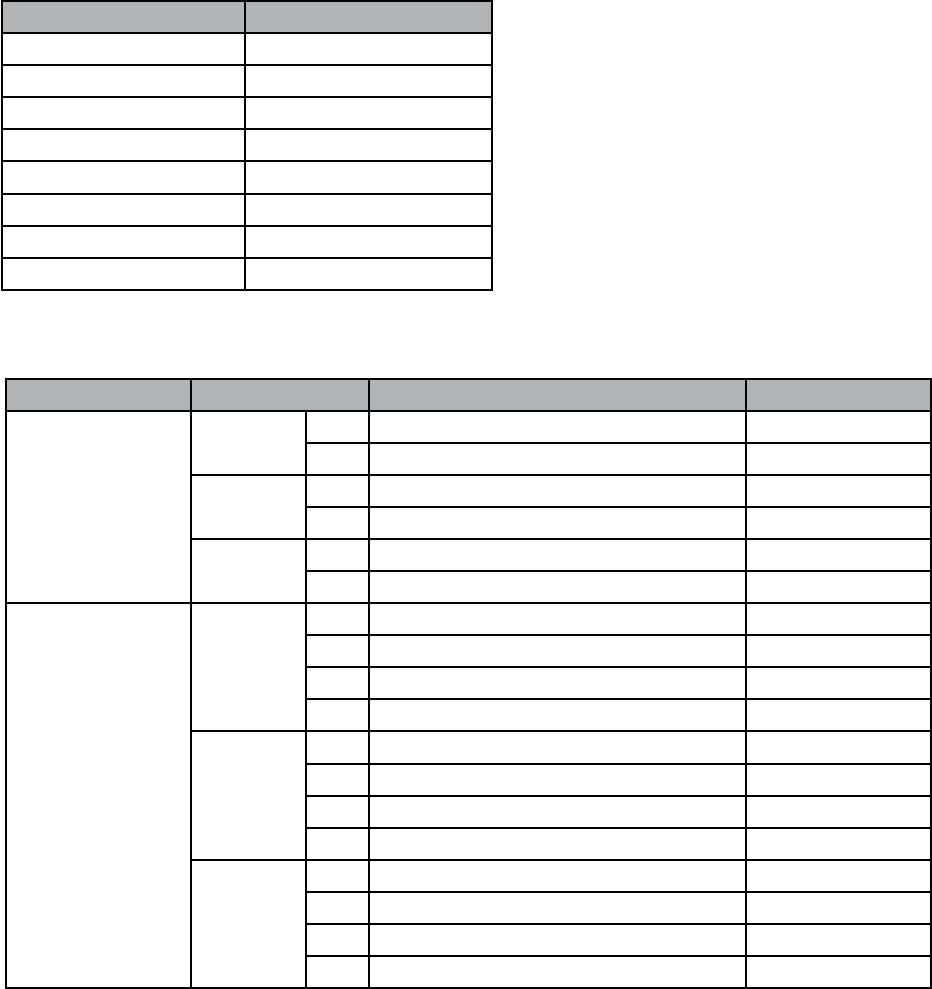
SOFT ROW PARAMETER/MIDI CC MAP
Soft Row Parameter MIDI CC
Parameter #1 CC 48
Parameter #2 CC 49
Parameter #3 CC 50
Parameter #4 CC 51
Parameter #5 CC 52
Parameter #6 CC 53
Parameter #7 CC 54
Parameter #8 CC 55
BANK/PRESET MAP
User Bank Type Presets MIDI Bank #
Internal
Mono 1Mono User Presets 0-127 72
2Mono User Presets 128-255 73
Stereo 1Stereo User Presets 0-127 74
2Stereo User Presets 128-255 75
System 1System User Presets 0-127 76
2System User Presets 128-255 77
Flash Card
(PCM96 and
PCM96 Surround
Only)
Mono
1Mono User Presets 0-127 100
2Mono User Presets 128-255 101
3Mono User Presets 256-383 102
4Mono User Presets 384-511 103
Stereo
1Stereo User Presets 0-127 104
2Stereo User Presets 128-255 105
3Stereo User Presets 256-383 106
4Stereo User Presets 384-511 107
System
1System User Presets 0-127 108
2System User Presets 128-255 109
3System User Presets 256-383 110
4System User Presets 384-511 111
28
MIDI SYSEX IMPLEMENTATION
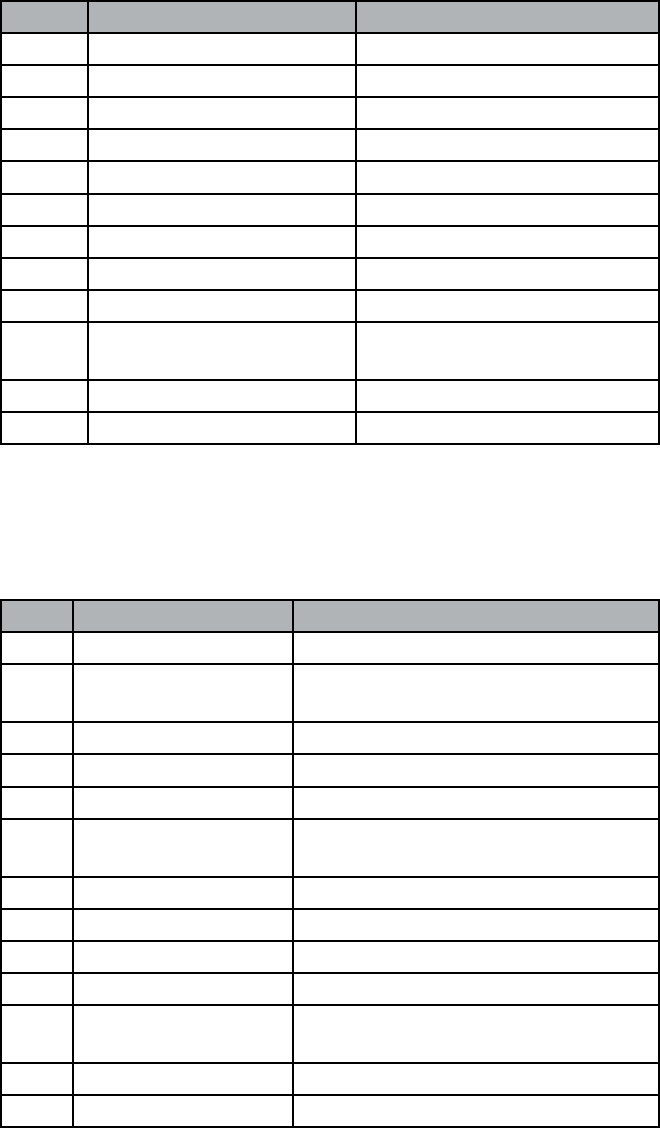
COMMAND 0: REQUEST PRESET DUMP
When this command is received by the PCM96 Surround, it will respond
with a preset dump of the requested preset. If the preset does not exist, the
PCM96 Surround will not respond. Only presets from User banks may be
requested. Factory banks will not be transmitted.
Byte Definition Comments
0xF0 Sysex message
0x06 Lexicon® Manufacturer ID
0x__ Product ID
0x__ Device ID
0x00 Command Request Preset Dump
0x02 Size LSB
0x00 Size cont
0x00 Size cont
0x00 Size MSB
0x__ Bank Bank in which requested preset
lives.
0x__ Preset Preset ID
0xF7 EOX
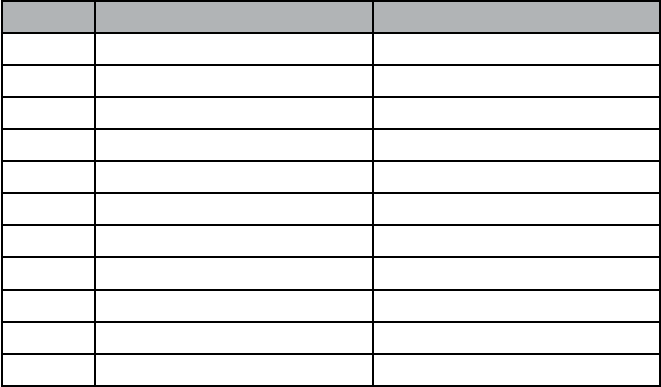
COMMAND 1: PRESET DUMP
This sysex is transmitted by a MIDI sequencer or by PCM96 Surround. The
PCM96 Surround may transmit this dump in response to a request or by
means of a front-panel action. The PCM96 Surround receiving this dump
will store the encapsulated preset data in the designated location.
Byte Definition Comments
0xF0 Sysex message
0x06 Lexicon Manufacturer
ID
0x__ Product ID
0x__ Device ID
0x01 Command Preset Dump
0x__ Size LSB. Size is variable and is not shown in
this example
0x__ Size cont
0x__ Size cont
0x__ Size MSB
0x__ Bank Bank in which the preset is to be placed.
0x__ Preset Location in the bank where the preset is
to be placed.
... Preset data Nibbleized preset data.
0xF7 EOX
29
COMMAND 2: REQUEST PRESET BANK DUMP
When this command is received by the PCM96 Surround, it will respond
with a series of preset dumps for all presets in the bank. Blank presets will be
transmitted in a special form. Only presets from User banks may be request-
ed. Factory banks will not be transmitted.
Byte Definition Comments
0xF0 Sysex message
0x06 Lexicon® Manufacturer ID
0x__ Product ID
0x__ Device ID
0x02 Command Request Preset Bank Dump
0x01 Size LSB
0x00 Size cont
0x00 Size cont
0x00 Size MSB
0x__ Bank Bank to fetch
0xF7 EOX
30
THE ALGORITHMS
CHAMBER (SURROUND, STEREO AND MONO)
Chamber is a complex miniature-space effect resembling an echo chamber
at its smaller settings and, at its larger ones, a small performance space with
a more rapid build-up of reflection density than a hall. Reverberant tails are
randomized.
RANDOM DELAY (SURROUND, STEREO AND MONO)
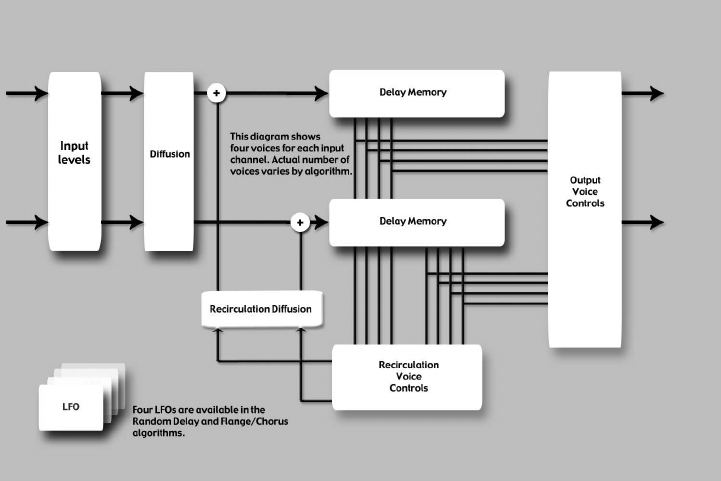
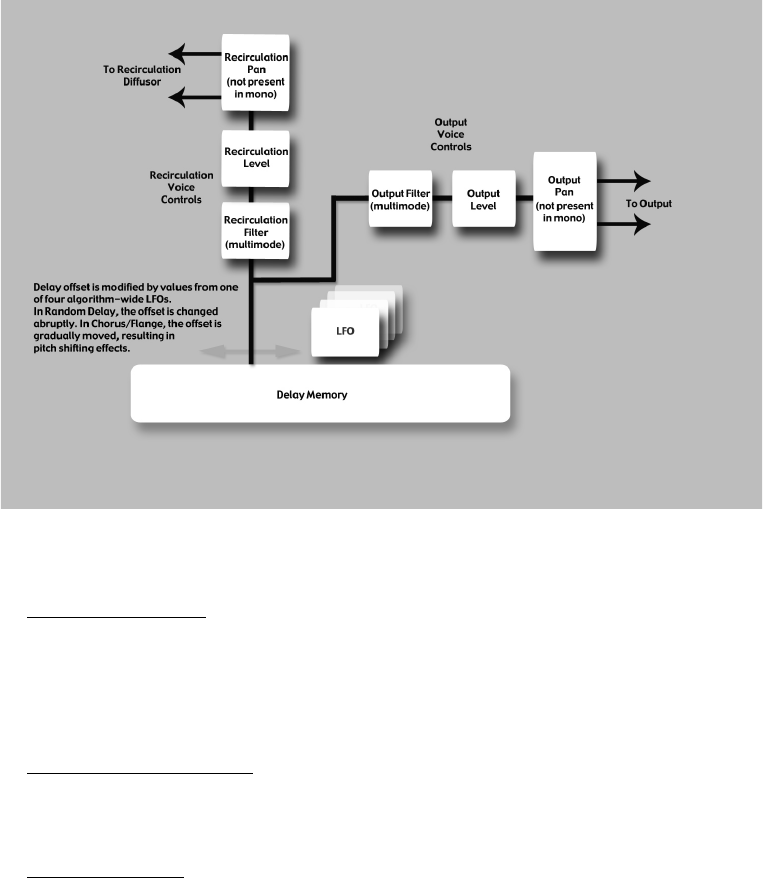
Random Delays provide no-holds-barred control over delays. These algo-
rithms feature one delay line per input channel. Each delay line has two out-
puts, called “voices.” Each voice has independent delay time (up to and over
9 seconds, plus an additional second provided by the randomizers described
in the next paragraph), output level, feedback control, filtering (independent
filters for feedback and output), and panning. Random Delays have the same
diffusion controls as Dual Delays.
In addition to this basic voice architecture, Random Delays feature four
randomizers that provide up to one second of additional delay time for each
voice. Voices can be assigned to either randomizer, or to no randomizer at
all.
31
Random Delays are similar to Simple Delays, but are especially useful for:
• Multitap Tape Loops
Feedback can be used to recirculate delays. Appropriate use of highpass
and lowpass filters emulates the bandpass effects of multi-generational tape
loops (hiss not included). Feedback diffusion allows emulation of azimuth
misalignment – a hallmark of the sound.
• Early Reflection Modeling
Although different in scope from Lexicon® Ambience algorithms, Random
Delays can be used to place early reflections in stereo or surround fields.
• Modulated Delays
Delay times may be modulated by signal level, LFO or random values.
HALL (SURROUND, STEREO AND MONO)
A hall is the principal venue for classical ensembles, but has proven to be
useful for all types of music. A hall is comparatively large, with wall-to-wall
distances that are typically several tens of meters. Smaller halls may be used
for smaller ensembles. The characteristic sound of a hall includes very low
initial reflection density, with little reflection energy before 60-100 mil-
liseconds. Density buildup is more gradual, because of the larger distances
between reflecting surfaces. Reverberation time is somewhat longer as well.
Finally, in most halls lower frequencies reverberate longer than higher fre-
quencies.
This new hall algorithm shares these basic characteristics with Random Hall
and Concert Hall, but is smoother with a more even decay. Its initial density
is also lower than Random Hall so it may be a better choice when the rever-
beration needs to be unobtrusive.
32
RANDOM HALL (SURROUND, STEREO AND MONO)
Random Hall is a hall effect with gradual build-up, well suited to complex
sounds like orchestral music. Its reverberators change over time in controlled
random ways to avoid the buildup of tinny, grainy, metallic, or other color-
ations. The modulation can be noticeable and is often a desirable effect.
The early reflections are user adjustable in amplitude and delay. Some skill is
needed to set useful reflection patterns. The pattern can be expanded or con-
tracted in time using the “Delay Master” control, and the overall level of the
pattern can be set with the “Early Level” control.
A hall is the principal venue for classical ensembles, but has proven to be
useful for all types of music. A hall is comparatively large, with wall-to-wall
distances that are typically several tens of meters. Smaller halls may be used
for smaller ensembles. The characteristic sound of a hall includes very low
initial reflection density, with little reflection energy before 60-100 mil-
liseconds. Density buildup is more gradual, because of the larger distances
between reflecting surfaces. Reverberation time is somewhat longer as well.
Finally, in most halls lower frequencies reverberate longer than higher fre-
quencies.
One of its charms is a bit of irregularity in the decay. In some cases (very
small rooms with precisely-pitched instruments), this modulation may not
be the best choice. But in general, this is a time-tested reverberator.
PLATE (SURROUND, STEREO AND MONO)
The Plate programs mimic the sounds of metal plates, with high initial dif-
fusion and a relatively bright, colored sound. For this reason, they are good
choices for percussion. They are designed to be heard as part of the music,
mellowing and thickening the initial sound itself. The Plate sound is what
many people associate with the word reverb, and it is useful for all popular
music.
DUAL DELAY (SURROUND, STEREO AND MONO)
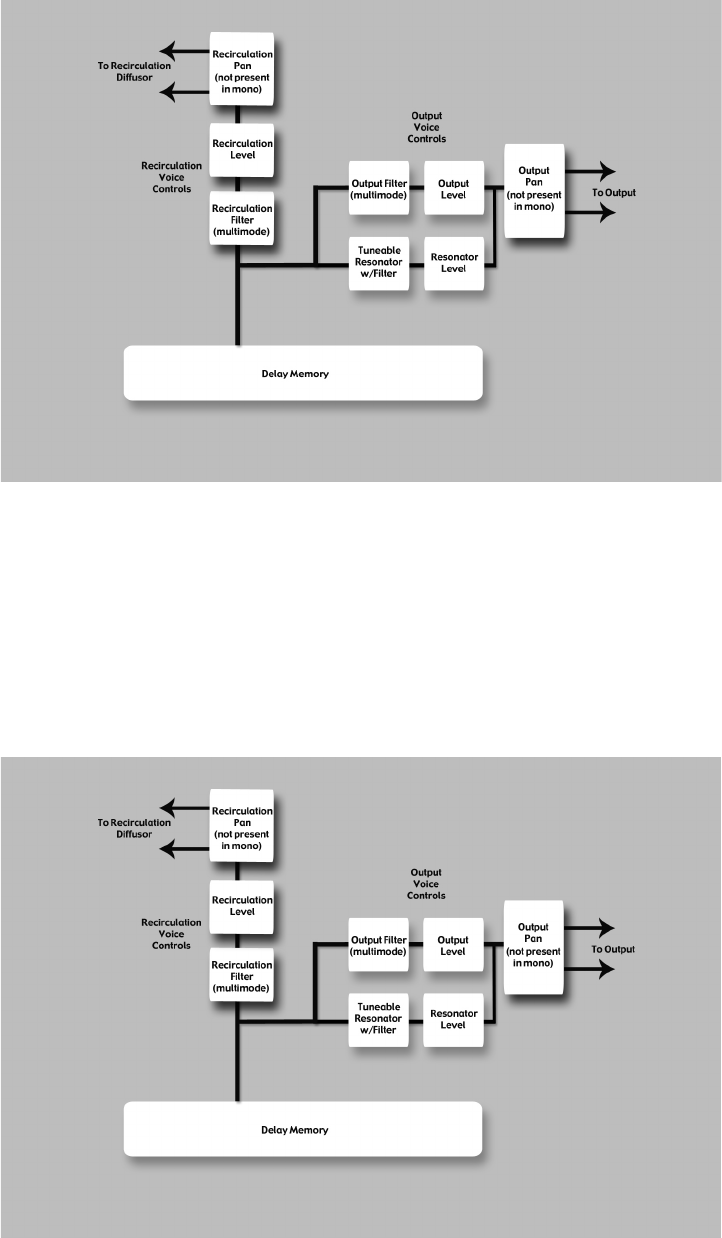
Dual Delay feature two delay lines for each input channel. Each delay line
has a single output or “voice.” Each voice has independent delay time (up to
2 seconds), output level, feedback control, filtering, and panning.
The feedback path includes highpass and lowpass filters. In addition to this
basic voice architecture, Dual Delays feature parameters that provide expand-
ed diffusion controls.
33
RESONANT CHORDS (SURROUND, STEREO AND MONO)
The Resonant Chord algorithm uses impulsive energy at the inputs to excite
six resonant voices (notes). The level, pitch, duration, and high-frequency
cutoff of the overtones for each voice are separately controllable. Each voice
can be panned independently. The voices resonate to some degree with any
input, but the most effective excitation contains all frequencies, like percus-
sion. Other instruments may give a quality of tonal ambience in which cer-
tain notes rise ethereally from the background. The output of the resonator
is then fed into a stereo plate reverb effect.
The two algorithms differ in the way pitches are assigned to the resona-
tors. In Res1>Plate, pitches are assigned to the six voices chromatically, in a
round-robin. For example, if MIDI note numbers are used to assign pitch,
the resonators will constantly be re-tuned to the pitches of the last six MIDI
notes received. (This can produce an effect similar to playing a piano with
34
the sustain pedal depressed.) In Res2>Plate, pitches are assigned to the six
resonators diatonically, harmonized with the key, scale, and root of your
choice. If MIDI note numbers are used to assign pitch, the resonators will
constantly be re-tuned to harmonize with the incoming notes.
CHORUS/FLANGE (SURROUND, STEREO AND MONO)
Chorus/Flange is quite similar to other delay algorithms in the PCM96. It
has four delay voices per channel, each delay voice having over 9 seconds of
delay. The delays may be independently panned and filtered. The difference
is in the modulation aspect. The same LFO modulators are available as in
Random Delay, but the voices react differently. In Random Delay, the voices
move abruptly. In Chorus/Flange, they move very gradually, with noticeable
(and desirable) pitch effects as they move. For the chorus effect, the voices
move somewhat independently, yielding a thickening effect without too
much filtering. For the flange effect, voices are generally paired at close inter-
vals. As they move, a noticeable comb-filtering takes place due to cancella-
tion. The voices are often fed back, nearly to the point of instability.
CONCERT HALL (SURROUND, STEREO AND MONO)
This is a recreation of one of Lexicon®’s oldest algorithms. It was an essential
part of many of the mixes of the late seventies and eighties. It is a less-dense
reverb, allowing it to add lushness to a mix without stepping on the dry
source material. It also has quite noticeable modulation, causing strong pitch
effects at higher settings. The reverb tail has a life of its own, desirable in pop
music, less so in jazz or classical applications.
ROOM (SURROUND, STEREO AND MONO)
A room is similar to a reverb in that it is used to create the illusion of space.
However it differs in important ways. A room is comprised of a selectable
early impulse taken from actual room measurements. There are several cat-
egories of responses, including small rooms, large rooms and odd rooms
(impulses from unconventional sources). There are parameters to allow
adjustments to this response, including scaling and reversing the response.
In many cases this is sufficient. A reverb tail can be added to the room by
means of an included small reverb algorithm.
Lexicon reverbs are renowned for smooth tails and controlled frequency
response. However, in many cases the earlier components are more impor-
tant. This may be true for some forms of popular music and is even more
true for post-production. In these cases, specific types of spaces need to be
invoked for convincing dialog and effects.
PITCH SHIFT - MULTIVOICE
This pitch shifter shares the attributes of all other delay algorithms – mul-
tiple voices with independent panning and EQ – and adds the ability to shift
each voice by as much as an octave up or down. It may be used for chords,
voice fatteners, rising/falling echos or many other effects.
The number of voices that appear in this algorithm is dependent on the type
of machine it’s loaded into. In the case of Quad, there will be twelve voices
(3 per channel). In the case of Five Channel, there will be fifteen. The pre-
sets themselves may be loaded into either type of machine, with the appro-
priate number of voices appearing. Every effort is made to make the factory
presets sound alike in both formats, but it is possible to may presets that
35
work very differently, based on machine type.
PITCH SHIFT - STANDARD VSO
This simple pitch shifter provides high-quality shifting by semitones and
cents. In stereo or surround, this is the best choice for full music mixes or
for any multichannel submixes. Shifting on all channels is linked, so that the
resultant soundstage remains stable.
PITCH SHIFT - MULTI MONO VSO
This shifter shifts all channels independently, making no effort to maintain
multichannel coherence. It is intended for multichannel material in which
the channels do not share material. It may be used in 4, 5, and 6-channel
machines.
PITCH SHIFT - POST VSO
This shifter shifts stereo groups independently, keeping channels within the
groups coherent, but making no effort to maintain coherence between stereo
groups. It is of most value in audio post, where L/R, LS/RS are perceived as
stereo pairs. Center and LFE are uncorrelated.
In this algorithm, center and LFE channels (if present) are treated inde-
pendently. The lowest frequency parameter does not affect shifting in these
channels.
SIGNAL GENERATOR
This algorithm is used to generate test signals. These signals may be used
both for building presets and for testing aspects of recording studio function-
ality. The sweep tone generator is good both for locating bad speaker drivers
and for scaring your cat.
36
THE PARAMETERS
The PCM96 contains hundreds of presets, covering just about every possible
need. But you can refine and customize any preset by adjusting its param-
eters. Parameters are the building blocks within each preset that determine
how it sounds and behaves.
Each algorithm contains a set of parameters, and a variety of those param-
eters (sometimes from more than one algorithm) are combined to create
a preset. You can edit a machine preset’s parameters via the A, B, and C
knobs (which control the Soft Row; see “Editing a Preset” on page 10 for
more information), or you can access parameters located in sub-menus via
the Machine menu (see “Machine Menu” on page 24 for more informa-
tion about the Machine menu). You can edit a system preset’s parameters by
accessing them via the preset’s sub-menus, or you can edit the parameters in
the individual machine presets contained within the machine preset.
Below are all the algorithm parameters you can edit in the PCM96. Note
that sometimes parameter names are abbreviated when they appear onscreen
(for example, Delay Level Master may appear as DlyLvlMaster), and they
may have prefixes indicating what channel they control (for example, Level
may appear as RightInLvl, or OutLvl).
Bandwidth
This parameter lets you set the bandwidth of a multimode filter. Bandwidth
is specified in octaves or fractions thereof.
Bass Boost (Room)
This parameter is closely tied to the Bass Crossover parameter. It controls the
boost (or cut) of signal below that crossover.
Depending on the type of impulse response selected, the listener may
become aware of an excess or insufficiency of low frequency output. This
parameter may be used to correct the frequency response.
Bass Crossover (BassXOver)
The Bass Crossover parameter is closely tied to the BassRT parameter. It rep-
resents the frequency below which BassRT has an effect. Note that there are
two of these parameters in the Room algorithm. One is tied to BassRT, the
other is found in the Pattern settings menu and affects the BassBoost.
BassRT
This parameter controls bass reverb time. It is closely associated with the
Bass Crossover and MidRT parameters. BassRT is a multiple of MidRT that
applies to signal below the frequency described by Bass Crossover. If BassRT
is less than 1.0, then the low frequency part of the reverb tail will be shorter
than the midrange part. If BassRT is greater than 1.0, then the low frequen-
cy part of the tail is longer.
Category (Room)
This parameter lets you select a specific category from which a room
response may be chosen. Changes here have a direct effect on the Pattern
Selector parameter.
37
Chorus Depth (Concert Hall)
This parameter controls the amount of randomization of the chorus tap.
Higher values are generally preferred in order to minimize reverb coloration.
Pitch effects may result and are closely tied to the Reverb Chorus Rate
parameter.
Chorus Rate (Concert Hall)
This parameter controls the rate at which the reverb chorus is run. Low
values may cause a barely-noticeable undulation. Higher values will cause
noticeable wobble in fixed-pitch instruments such as piano. It is closely tied
to the Reverb Chorus Depth parameter.
Cross Fade Time
This is used to control the crossfade time of the splice. In general a short
crossfade is desirable, but more complex material may need longer crossfade
times.
Definition
Definition controls the density of some reverbs. Higher values result in lower
density.
Delay Feedback Master
Controls all delays in the algorithm. Each voice has its nominal feedback
gain adjusted by this percentage.
Delay Level Master
Controls all delays in the algorithm. Each voice has its nominal gain value
adjusted by this percentage.
Delay Time (Echo Delay)
Delay time defines the time offset of a delay voice in milliseconds or
in fractions of tempo (quarter note, eighth note), which is defined by
the tap tempo or by midi tempo. It is used in many of the algorithms,
not just the delays. In all cases, it does the same thing.
Delay Time Master
Controls all delays in the algorithm. Each voice has its nominal delay time
adjusted by this percentage.
Delay Wander
This parameter determines the amount of additional delay that the LFO
process can add to a voice’s offset.
Diffusion
Input diffusion is the first part of processing for any signal entering a reverb
or delay. It can be described as a smearing or softening of the signal and is
typically used to lessen the impact of strong transients.
Bass Crossover (Bass XOver) (Room)
Thus parameter is closely tied to the Early Bass Boost parameter. It repre-
sents the frequency below which early bass boost has an effect.
38
Feedback
This controls the amount of echo output that is fed back to the input of the
echo buffer.
The actual feedback level is modified by the Master Echo Feedback param-
eter, if present. The master value is a percentage (0-100%) that is applied to
the Echo Feedback level.
Feedback Diffusion
Feedback Diffusion is similar to Input Diffusion, except that it is applied to
a delayed signal that is being added back into the input.
Feedback Level
This parameter determines the feedback level for a particular voice. It is con-
trolled independently of the voice’s output level.
Feedback Pan
Routes the post-filter delay voice back to the inputs of the delay lines.
Frequency
This parameter lets you set the cutoff frequency of the multimode filter. The
audible effect of this is determined by the Type parameter.
Front Early Level
This parameter acts as a master control for any early signals going to the out-
put channels. Early signals include echoes, reflections, and the room reflec-
tion patterns.
Infinite
This parameter captures the reverb tail as an infinite loop. This may be use-
ful in music, where a note or chord can be extended. It is also useful in post-
production for creating ambience backgrounds.
Input Level
Input Level controls the amount of signal admitted into the process from a
single input channel.
Input Pan
Routes the signal from an input channel into the algorithm in such a man-
ner as to alter its apparent location.
Level
This parameter acts as a master control for reverb signals going to the output
channels. It is used for all reverbs.
LFO Rate
Set the speed of an LFO in Hz.
LFO Waveform Type
Set the shape of the wave the LFO will follow.
39
Lowest Shift Freq
This tells the shifter the lowest frequency that it may be required to shift. As
a general rule of thumb, this should be set in the higher part of the range in
order to preserve detail in the shifted material. It should be lowered if arti-
facts appear in the low frequencies.
Master Echo Delay
Controls all echo voices in the algorithm. Each echo delay has its nominal
time adjusted by this percentage.
Master Echo Feedback
Controls all echo voices in the algorithm. Each echo feedback has its nomi-
nal gain adjusted by this percentage.
Master Reflection Delay (Reflection Time Master)
Controls all reflection delays in the algorithm. Each reflection delay voice
has its nominal delay time adjusted by this percentage.
MidRT
MidRT is the mid frequency reverb time. As such, it is one of the primary
controls affecting the length of the reverb tail. At low values, it models a
space with absorbent walls—a signal won’t bounce many times before it dis-
sipates. At high values, the walls are flat and extremely reflective. A signal
lives a long time before dying away.
The parameter most closely associated with MidRT is Size. A large room size
with a small MidRT can easily have the same decay time as a small room
with a large MidRT. The value that is actually displayed is an approximate
reverb time based on both of those values.
Mix (Wet Dry Mix)
Mix is the proportion of wet (processed) signal to dry (unprocessed) signal.
Output Level
Output Level controls the amount of post-mix signal emitted onto a channel
of output.
Pan
Routes the post-filter delay voice across the left-right soundstage.
Pattern
Selects a space available in the selected Category (see Category parameter).
Pitch Shift
This parameter determines the amount of positive or negative pitch shift for
the shift. Expressed as a percentage.
Pitch Trim
This parameter detunes the pitch shift established by the Shift Semi or Pitch
Shift parameters. Expressed as a percentage.
40
Reflection Delay (Delay Time)
A reflection delay is a delay tap taken from one of the inputs and sent to one
of the outputs. It is often called a delay voice. Depending on the algorithm,
there may be one or more reflection delays for each input channel. Some of
the delays may mix their outputs to the same channel (left to left) and some
may go cross-channel (left to right).
Reflection Gain (Level)
Each Reflection Delay voice also has a gain value. This gain is controlled by
the Reflection Gain parameter.
Resonance
This parameter determines at which frequency the delay voice resonates.
Resonance Detune Master
Controls detuning of all voices in the algorithm. Each voice has its nominal
detune. adjusted by this percentage. Includes a built-in ducker that attenu-
ates the delay output whenever signal is present at the input. This can be
used to keep the original signal from being muddied up by delay repeats.
Resonance Filter Master
Controls all voices in the algorithm. Each voice’s resonator has its nominal
cutoff frequency adjusted by this percentage.
Resonance Master
Controls all voices in the algorithm. Each voice has its nominal resonance
adjusted by this percentage.
Resonance Tuning Master
Affects all voices in the algorithm. Each voice has its nominal resonance
adjusted by this value. In the musical world, the tuning reference is A=440.
This means that the note A (above middle C) is equivalent to 440 Hz.
Changing the master tuning causes all notes to be sharp or flat.
Resonator Detune
This parameter acts as an adjustment to the specified frequency for the
voice’s resonator. The calculation of cents yields a ratio which is used to
modify the specified frequency of the voice. This parameter is modified by
the Master Detune parameter.
Resonator Filter Freq
This parameter controls a lowpass filter inside the resonator.
Resonator Frequency
This parameter determines at which frequency the delay voice resonates. The
action of this parameter is determined by the state of the Resonance Mode
parameter. When a frequency is calculated for this parameter, it must then
be affected by the value of the Master Tuning parameter.
Reverb PreDelay (Predelay)
This is a delay that’s added to the diffused signal before it enters the main
part of the reverb. For all intents, it may be considered as delay that is added
to the reverberated signal. It is used to temporally separate the reverb from
the dry signal.
41
Reverb Spin (Spin)
This is usually simply called spin. It controls the speed of the reverb random-
izer. Spin is also connected with the Reverb Wander parameter
Reverb Time Hi Cut
This parameter, also known as Hicut or RTHC is a low-pass filter in the
recirculating part of the reverb. It represents a frequency above which the tail
dies away more quickly. In some ways, it represents the opposite end of the
scale from BassRT, and may be considered an analog of air absorption. It is
also closely tied to the Hi Cut Damping parameter.
Reverb Wander
This parameter (also known as just Wander), along with Reverb Spin, is used
to control the reverb randomizer. It controls the maximum size of random-
izer steps, and is expressed in a time value (typically milliseconds).
Room Size
Room Size corresponds roughly to the length of the longest wall of a rect-
angular room. In a more general sense, it corresponds to the overall dimen-
sion of some mythical space. This space has a geometry that causes sound
to bounce around. When the room size is small, the “walls” of this space are
closer together and the resultant reflection density increases. When the room
size is large, that density decreases. The most natural reverbs use room sizes
that vary from about 24 meters to 45 meters or so, but there are many useful
reverbs that are outside of this range.
There is a relationship between this parameter and the MidRT parameter.
Please see the MidRT parameter for clarification.
RtHC Damping
The damping parameter is closely tied to the RTHC parameter. It controls
the strength of the hi frequency absorption and has three values: Light,
Normal, and Heavy. The normal value gives filter response identical to previ-
ous Lexicon® reverbs. The other values should be self-descriptive.
Scale
This parameter is used to modify the overall time of the selected early
impulse. It is a multiplier that goes from 0.5x to 2.0x. The actual time of the
responses varies from response to response. The Early Scale parameter simply
scales that amount of time. It’s fair to describe this a “rubber-banding” the
impulse response.
Selected LFO
This parameter determines which of the available LFOs may be used to con-
trol a voice. The voice may use the LFO output or the inverted LFO output.
Shape (Early Shape)
The Shape parameter is closely tied to the Spread parameter. Shape controls
how energy is injected into the reverberator. A low value means that sound
enters the reverb at the beginning of the spread window. A high value means
that most sound moves into the reverb at the end of the spread window. A
value somewhere in the middle means that sound enters the reverb evenly
across the spread window.
42
Tip: Shape will not have this effect if spread is at its minimum value. But
even then, it can make a difference. In this case, it affects reverb tim-
bre and density. Higher values of shape will be both darker and denser,
although the effect is subtle.
Shelf
This parameter effects all filter types. It allows a certain amount of unfiltered
audio to be combined with the filtered audio. This effectively lowers the
effect of the filter. Another way of looking at it is that it lessens the normal
filter slope of 12 dB per octave. Unlike the traditional biquad filter, the shelf
is effective for all filter forms.
Shift Semi
This parameter determines the amount of positive or negative pitch shift for
the shift. Expressed in semitones.
Signal Event Freq
Changes the rate of discreet signals from the signal generator. This only has
an effect when the signal type is set to sweep tones or pink click.
Signal Frequency
Changes the frequency of the signal generator sine wave. This only has an
effect when the signal type is set to sine wave.
Signal Type
Selects the type of signal to be created by the signal generator. The types of
signal are:
• Sine Wave — When this is selected the signal frequency parameter is
used to control frequency.
• Sweep Up — 20Hz to 20KHz sweep. When this is selected the signal
rate parameter is used to control rate.
• Sweep Down — 20Khz to 20Hz sweep. When this is selected the signal
rate parameter is used to control rate.
• Pink Click — Broadband impulse. When this is selected the signal rate
parameter is used to control rate.
• White Noise (correlated) — sends identical white noise to all outputs
• White Noise (decorrelated) — sends decorrelated white noise to all out-
puts.
• Pink Noise (correlated) — sends identical pink noise to all outputs
• Pink Noise (decorrelated) — sends decorrelated pink noise to all out-
puts.
Smart Shift
This tells the shifter to use smart (content-based) pitch shift or blind shift.
In most cases, ‘smart’ is the better choice.
Spread (Early Spread)
The spread parameter is closely tied to the Shape parameter. Spread is a win-
dow of time during which a signal is injected into the reverb. Shape controls
just how the signal is injected during this window.
43
Tail Width
This parameter is present in all stereo reverbs and rooms. The reverb tail (all
components of the reverb except for early reflections, etc.) is passed through
a simple 2x2 matrix. This provides an encoding of the tail that dramatically
changes its spatial characteristics. The tail can be changed to feel narrower
(even down to mono) or wider than normal stereo. There are values for the
parameter to encode the tail in such a way that it decodes into surround
channels.
The parameter operates in the range of 0 to 360 degrees, with an incremen-
tal change of 1 degree. The matrix uses Sine/Cosine rules so that power dis-
tribution remains constant. This may be acceptible—even highly desirable—
but the mix engineer must fully understand the process and its implications.
This is a powerful tool for audio whose release format is two-channel. It is
not useful in any other format. Formats include compact disc and radio/tele-
vision broadcast. Some of these effects are clear and noticeable without any
sort of decoder. Many are even more dramatic when a decoder is in place,
such as in a home theater.
Tap Slope
This is an extremely subtle parameter and is useful in only a couple of cases:
• For halls and reverbs with relatively long reverb times, the slope should
be slightly positive (0.2 or so). For rooms with very short reverb times,
the slope should be slightly negative (-0.2 or so).
• Using a reverb to create a gate effect or to create a pseudo-room sound.
MidRT should be at 0. Spread should be fairly high. Shape should be
fairly high. Size should be fairly high. TapSlope should be in the range of
(0.5 to 1.0). Play with spread, shape and size to vary the effect.
Type
This parameter lets you configure a filter as any of 4 basic types, in order:
• Lowpass
• Highpass
• Bandpass
• Notch (Band-reject)
The filter provides a subset of filter types available to a Biquad filter.
Wet Dry Mix
Wet Dry Mix is the proportion of wet (processed) signal to dry (unpro-
cessed) signal.
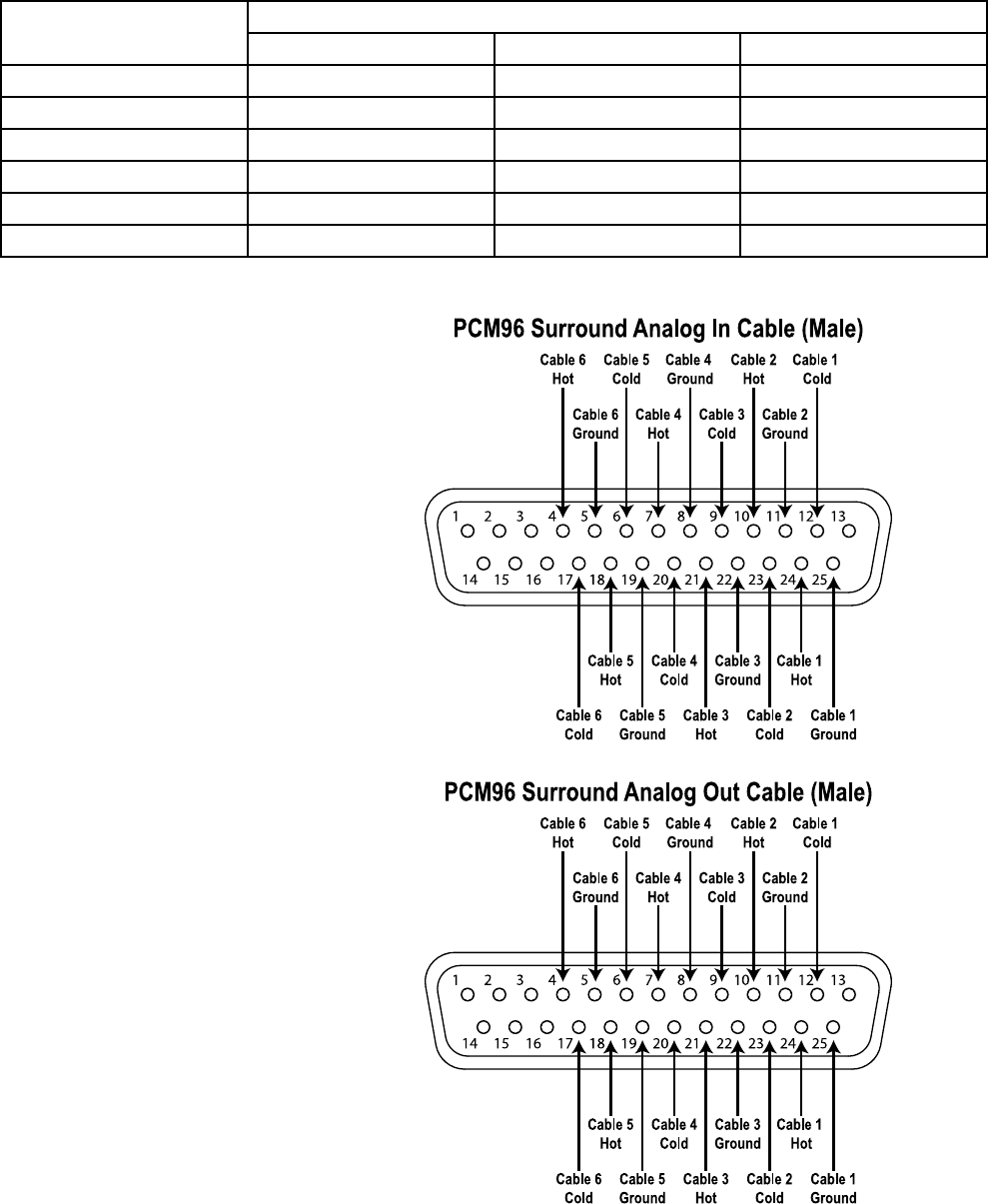
44
ANALOG DB25 CABLE DIAGRAMS
(INPUT/OUTPUT)
Cable/Channel Number DB25 Pin Number
Hot Cold Ground
1 24 12 25
2 10 23 11
3 21 9 22
4 7 20 8
5 18 6 19
6 4 17 5
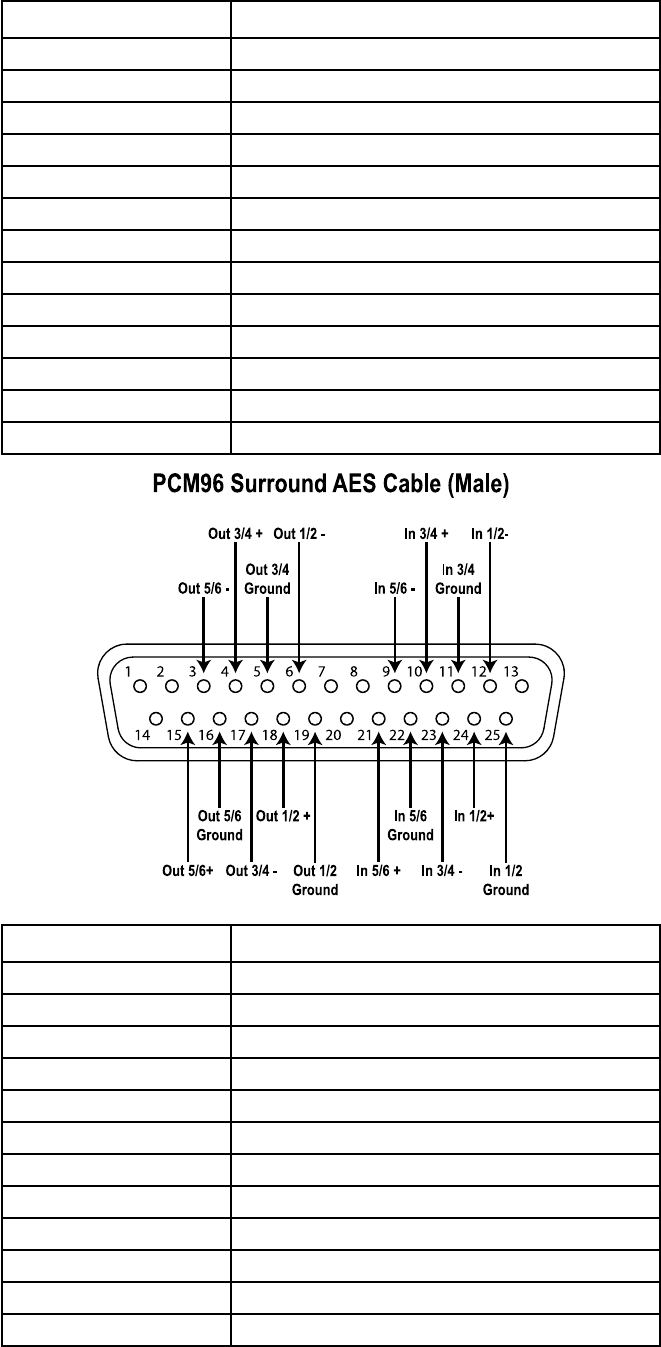
45
DIGITAL DB25 CABLE DIAGRAM
DB25 Pin PCM96 Surround Channel
1Not Used
2Not Used
3Digital Out 5/6-
4Digital Out 3/4+
5Digital Out 3/4 Ground
6Digital Out 1/2-
7Not Used
8Not Used
9Digital In 5/6-
10 Digital In 3/4+
11 Digital In 3/4 Ground
12 Digital In 1/2-
13 Not Used
DB25 Pin PCM96 Surround Channel
14 Not Used
15 Digital Out 5/6+
16 Digital Out 5/6 Ground
17 Digital Out 3/4-
18 Digital Out 1/2+
19 Digital Out 1/2 Ground
20 Not Used
21 Digital In 5/6+
22 Digital In 5/6 Ground
23 Digital In 3/4-
24 Digital In 1/2+
25 Digital In 1/2 Ground

46
SPECIFICATIONS
ANALOG INPUTS
Connectors One 25-pin Dsub female connector
Impedance 20K Ohm, balanced
Level (for 0dBFS) +4dBu mode: +20dBu
–10dBV mode: 8.2dBu
Freq Response @96K 20Hz - 22kHz, ±.15dB
20Hz - 46kHz ±.5dB
A/D Conversion 24 bits
A/D Dyn Range 112dB unweighted, 115dB A-weighted
THD <0.002% 20 → 20kHz @ +4dBu
Crosstalk @ 1Khz <–75dB at 20 → 20k with a +20dBu
input signal
ANALOG OUTPUT
Connectors One 25-pin Dsub female connector
Impedance 30 Ohm, electronically balanced
Level (at 0dBFS) +4dBu mode: +20dBu
–10dBV mode: 8.2dBu
Freq Response @96K 20Hz - 22kHz, ±.15dB
20Hz - 46kHz ±.5dB
D/A Conversion 24 bits
D/A Dyn Range 112dB unweighted, 115dB A-weighted
THD <0.002% 20Hz - 20kHz at +4dBu
Crosstalk @ 1kHz <–75dB at 20Hz - 20kHz with a
+20dBu input signal
DIGITAL AUDIO IO
Connectors One 25-pin Dsub female connector
Format AES/EBU
Word Size 24 bits
SAMPLE RATES
Internal 44.1kHz/48kHz/88.2kHz/96kHz
Accuracy within ±50ppm
External 44.1kHz/48kHz/88.2kHz/96kHz
Lock Range ±2% of nominal
PROPAGATION DELAYS (MILLISECONDS)
44.1 kHz 48 kHz 88.2 kHz 96 kHz
A/A 1.64 1.51 1.28 1.18
D/D 1.23 1.12 1.15 1.07
SYNCHRONIZATION
TTL Word Clock Input * 75 Ohm, BNC, externally terminated
to allow cascade
*Falling edge marks start of frame
47
CLOCK JITTER
Intrinsic Exceeds AES3 Amendment 1
Jitter Gain Exceeds AES3 Amendment 1
CONTROL INTERFACES
MIDI ** In/Out/Thru
**supports program change
ALGORITHMS
Chamber Surround, Stereo and Mono
Random Delay Surround, Stereo and Mono
Random Hall Surround, Stereo and Mono
Plate Surround, Stereo and Mono
Dual Delay Surround, Stereo and Mono
Resonant Chords Surround, Stereo and Mono
Chorus/Flange Surround, Stereo and Mono
Concert Hall Surround, Stereo and Mono
Room Surround, Stereo and Mono
Hall Surround, Stereo and Mono
Pitch Shift
Signal Generator
Storage Media Type I Compact Flash
Can hold up to 2048 user presets
MACHINE CONFIGURATIONS
44.1K → 96K
Single Stereo (Mono In)
Single Stereo
Dual Stereo (Mono In)
Dual Stereo
Cascade Stereo
Dual Mono
Quad Mono
Cascade Mono
Dual Mono + Single Stereo
Cascade Mono to Stereo
Single Two In Four Out
Single Four In Four Out
Single Two In Five Out
Single Five In Five Out
Single Six In Six Out
INTERNAL STORAGE
Internal non-volatile Flash. Can hold 1024 user presets.
POWER
Requirements 100-120 / 220-240 VAC
50-60Hz, 26W max
Connector 3-pin IEC
48
DIMENSIONS/WEIGHT
Rack Units 1U
Size 19.0” W x 1.75” H x 16” D
(483mm x 44.5mm x 317.5mm)
Weight 14.25 lbs
REGULATORY APPROVALS
FCC Class A
CE EN55103-1, EN55103-2
UL UL1419
cUL C22.2
TUV EN60065
ENVIRONMENT
Operating 15° to 35° C
Storage –30 to 70 °C
Humidity 75% relative humidity max
RECOMMENDED CABLES
dB25 Analog Input Hosa: DTF-803
dB25 Analog Output Hosa: DTM-803
dB25 AES I/O Digidesign: DigiSnake Cable
DB25 – XLR MtF AES/EBU snake, DB25 to 4 XLRM
(output) and 4 XLRF (input), Model # MH097
P/N DB-XMtF-4-ROHS

49
MIDI IMPLEMENTATION CHART
Function Transmitted Recognized Remarks
Basic
Channel
Default
Changed
X
X
1-16
X
Mode Default
Messages
Altered
X
X
X
N/A
X
X
Note
Number True Voice X X
Velocity Note ON
Note OFF
X
X
X
X
After
Touch
Keys
Channel
X
X
X
X
Pitch
Bend
X X
Control
Change
OX 32
OX 48-55
OX 32
OX 48-55
Bank Change
Program
Change
OX 1-127 OX 0-127
Bank
Select
O O
System
Exclusive
Device ID Device
Inquiry
Device ID
System
Common
Song Position
Song Select
Tune Request
X
X
X
X
X
X
System
Real Time
Clock
Commands
X
X
X
X
Aux
Messages
Local ON/OFF
All Notes OFF
Active Sensing
System Reset
X
X
X
X
X
X
X
X
Notes
Mode 1: OMNI ON, POLY Mode 2: OMNI ON, MONO O : Yes OX : Selectable
Mode 3: OMNI OFF, POLY Mode 4: OMNI OFF, MONO X : No

Copyright 2016 Lexicon Professional®Part# 5047786-B
10653 South River Front Parkway, Suite 300
South Jordan, UT 84095, USA
Phone: (801) 566-8800
PCM96 Surround
Questions or comments?
Email us at: customer@lexiconpro.com
or visit us online at www.lexiconpro.com
