PlanetPress Connect REST API Cookbook With Working Examples Planet Press 1.5 15 EN
User Manual: Pdf PlanetPress Connect - 1.5 - REST API Cookbook with Working Examples User Guide for Objectif Lune PlanetPress Software, Free Instruction Manual
Open the PDF directly: View PDF  .
.
Page Count: 402 [warning: Documents this large are best viewed by clicking the View PDF Link!]
- Table of Contents
- Welcome to the PlanetPress Connect REST API Cookbook
- Technical Overview
- Working Examples
- REST API Reference
- Authentication Service
- Content Creation Service
- Content Item Entity Service
- Content Set Entity Service
- Data Record Entity Service
- Data Set Entity Service
- Data Mapping Service
- Content Creation (Email) Service
- File Store Service
- Content Creation (HTML) Service
- Job Creation Service
- Job Entity Service
- Job Set Entity Service
- Output Creation Service
- All-In-One Service
- Copyright Information
- Legal Notices and Acknowledgments

REST API Cookbook with
Working Examples
Version:1.5

© Objectif Lune, Inc. 1994-2017. All rights reserved. No part of this documentation may be
reproduced, transmitted or distributed outside of Objectif Lune Inc. by any means whatsoever
without the express written permission of Objectif Lune Inc. Objectif Lune Inc. disclaims
responsibility for any errors and omissions in this documentation and accepts no responsibility
for damages arising from such inconsistencies or their further consequences of any kind.
Objectif Lune Inc. reserves the right to alter the information contained in this documentation
without notice.
Page 4

Table of Contents
Table of Contents 5
Welcome to the PlanetPress Connect REST API Cookbook 7
Technical Overview 8
Workflow & Workflow Processes 9
Workflow Components 16
Workflow Operations 20
JSON Structures 21
Working Examples 33
Getting Started 34
Server Security & Authentication 43
Working with the File Store 48
Working with the Entity Services 78
Working with the Workflow Services 99
REST API Reference 211
Authentication Service 215
Content Creation Service 220
Content Item Entity Service 232
Page 5

Content Set Entity Service 243
Data Record Entity Service 256
Data Set Entity Service 271
Data Mapping Service 281
Content Creation (Email) Service 297
File Store Service 308
Content Creation (HTML) Service 329
Job Creation Service 338
Job Entity Service 352
Job Set Entity Service 362
Output Creation Service 372
All-In-One Service 388
Copyright Information 400
Legal Notices and Acknowledgments 401
Page 6

Welcome to the PlanetPress Connect
REST API Cookbook
This guide is aimed at technically experienced users who wish to learn and use the REST API
available in PlanetPress Connect version 1.5.
The PlanetPress Connect REST API consists of many services that expose access to a
number of areas including workflow, data entity management and file store operations.
These services can be used to perform various interactions with the PlanetPress Connect
server such as:
lUpload & Manage Data Files, Data Mapping Configurations & Design Templates in File
Store
lCreate, Manage & Find Data Entities internal to the PlanetPress Connect Server
lCreate & Monitor Processing Operations within the Workflow
The REST API also supports added security to restrict unauthorized access to the services.
This guide is broken down into three sections:
lTechnical Overview - Overview of the concepts and structures used in PlanetPress
Connect and the REST API
lWorking Examples - Working examples of the PlanetPress Connect REST API in action
(HTML5 & JavaScript/jQuery)
lREST API Reference - A complete reference to the PlanetPress Connect REST API &
Services
It is recommended that the technical overview section be read first, followed by the working
examples, using the REST API reference for greater detail on implementing any specific
example.
Page 7
Workflow & Workflow Processes
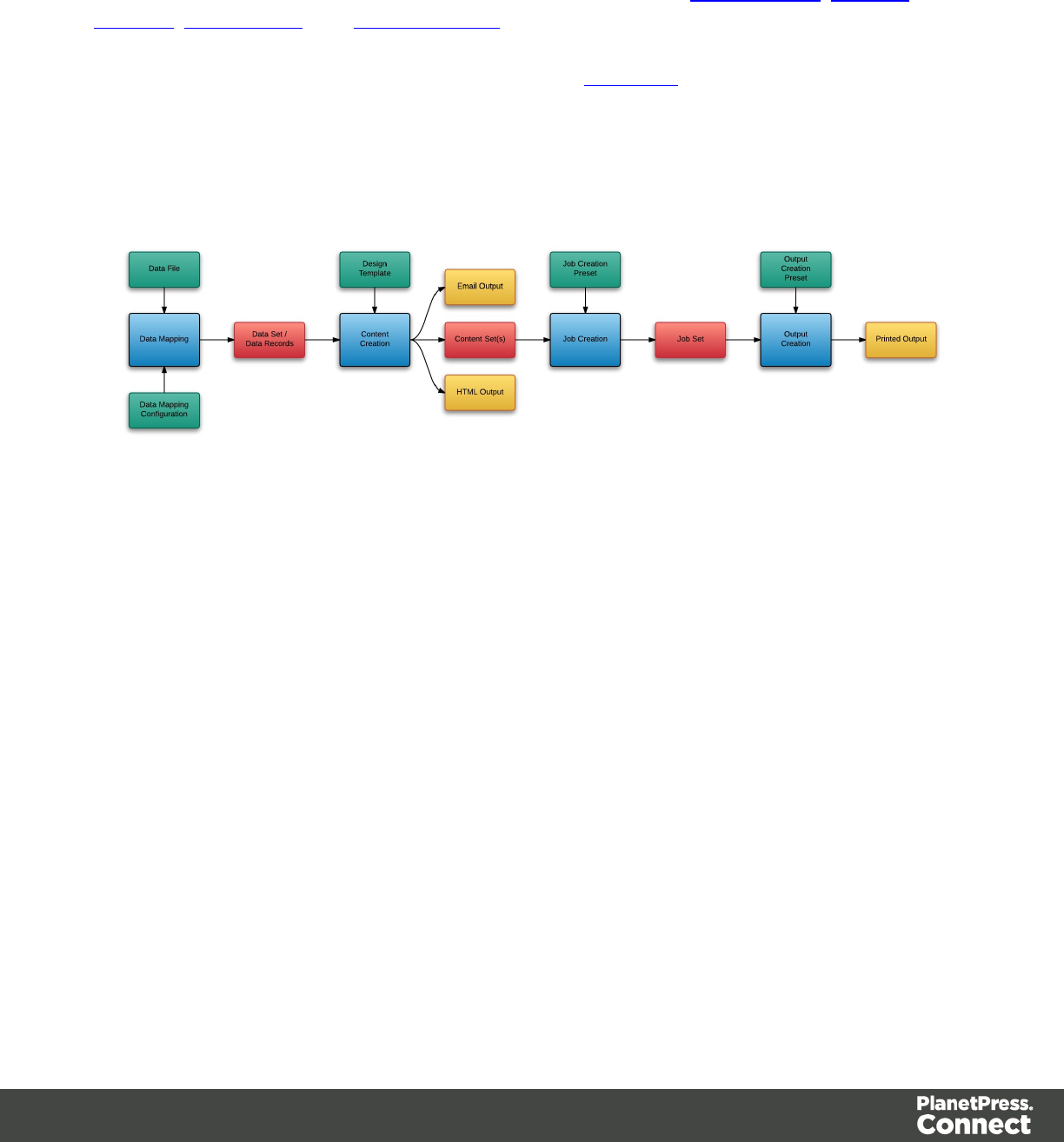
In PlanetPress Connect there are four main workflow processes: Data Mapping,Content
Creation,Job Creation, and Output Creation.
There is also an additional workflow process, named All-In-One, which embodies all four other
workflow processes in a singular process.
The following flowchart illustrates the primary workflow in PlanetPress Connect:
Page 9
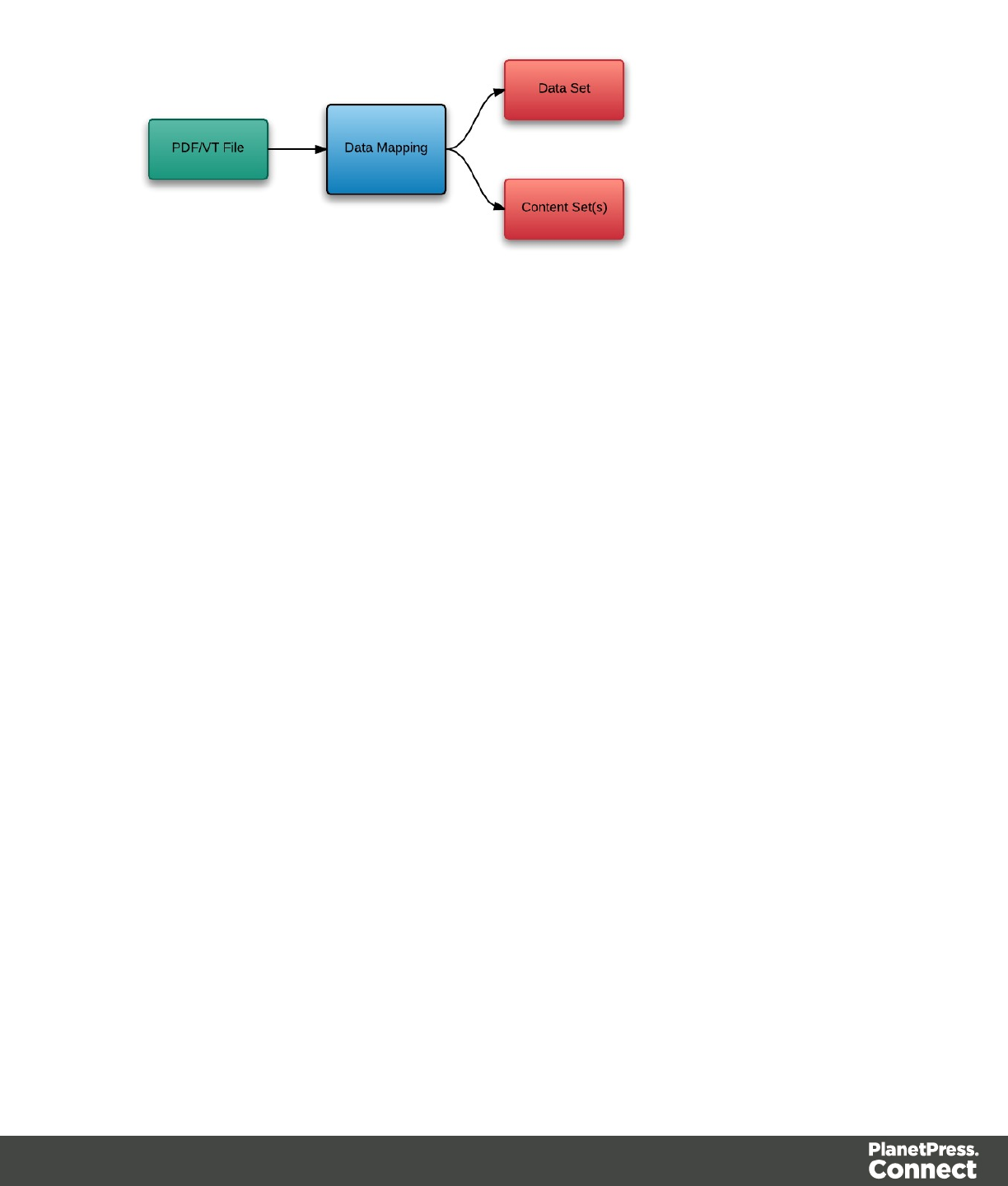
Data Mapping
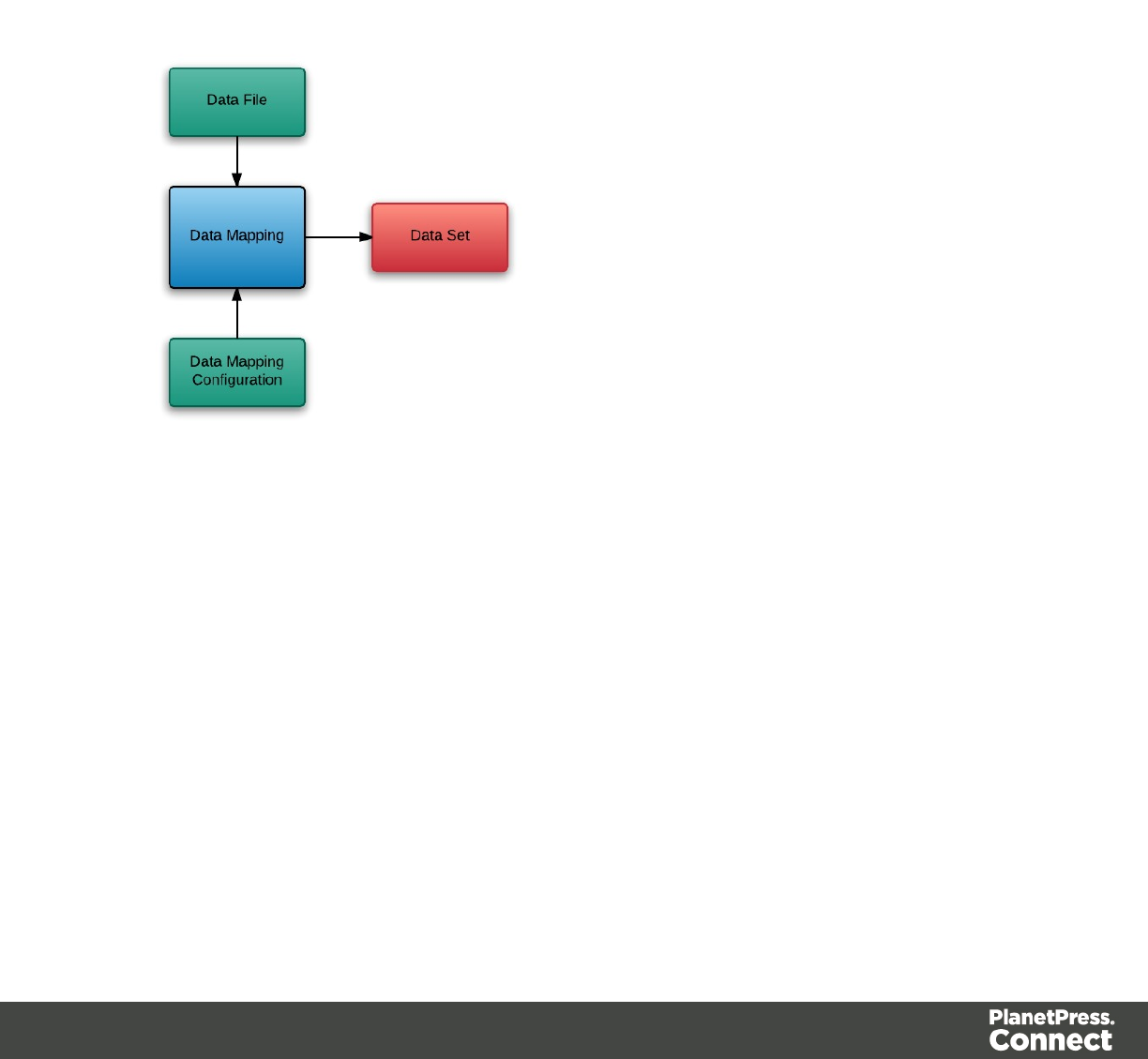
The Data Mapping process involves taking a data file or source, applying a data mapping
configuration to it, and producing a structured set of data or data records (a Data Set). This
process can also produce a data set from a PDF/VTfile using its internal meta data instead of a
data mapping configuration.
The following flowchart illustrates the standard workflow for the Data Mapping process:
The following flowchart illustrates the alternative workflow for the Data Mapping process when
using PDF/VT data files specifically:
Page 10
Page 11
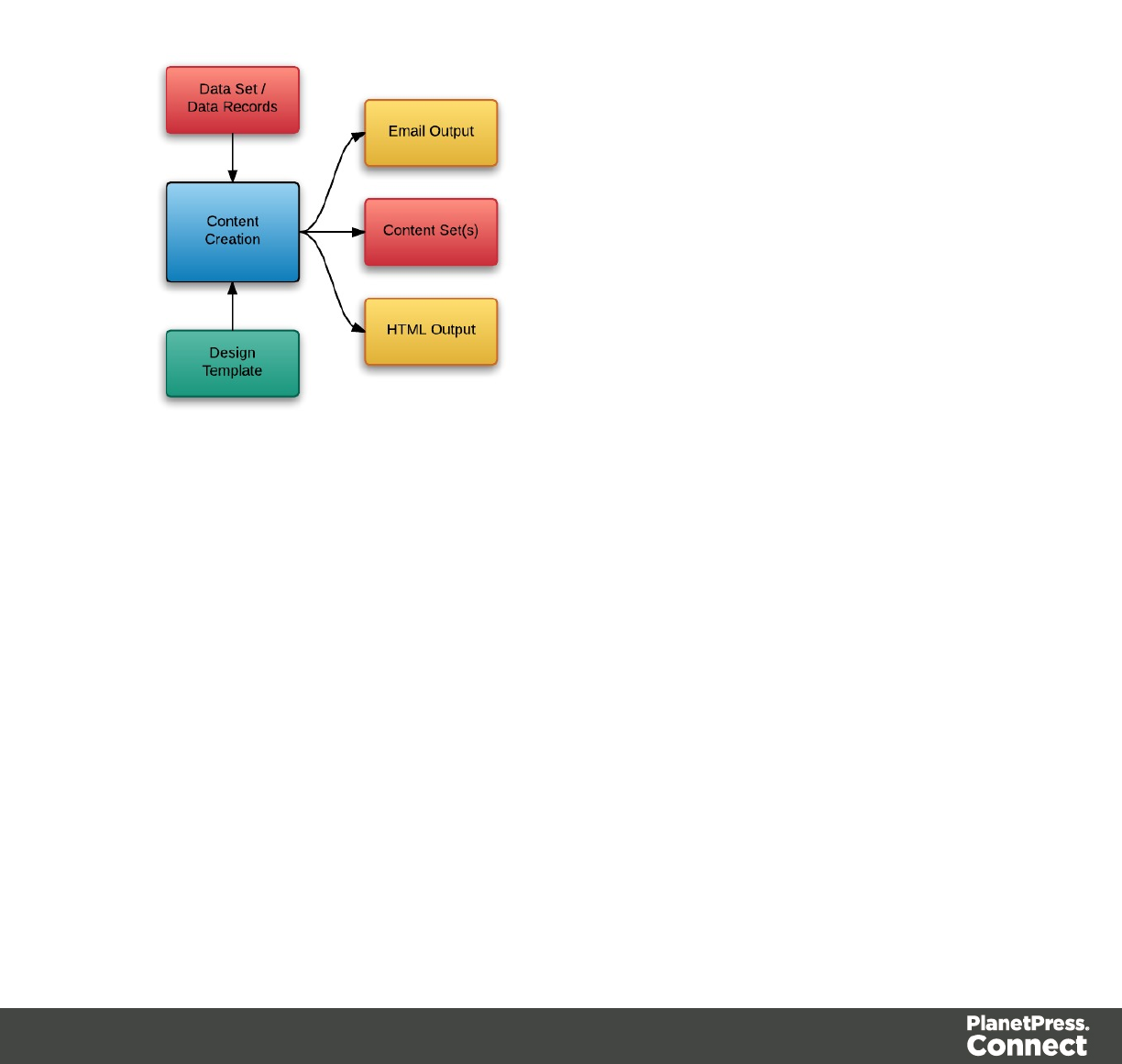
Content Creation
The Content Creation process involves taking a number of data records (from a Data Set)
combining it with a suitable design template, and producing a set or sets of content (Content
Sets). If the content is for the email or web context then output can be published at this stage.
The following flowchart illustrates the standard workflow for the Content Creation process:
Page 12
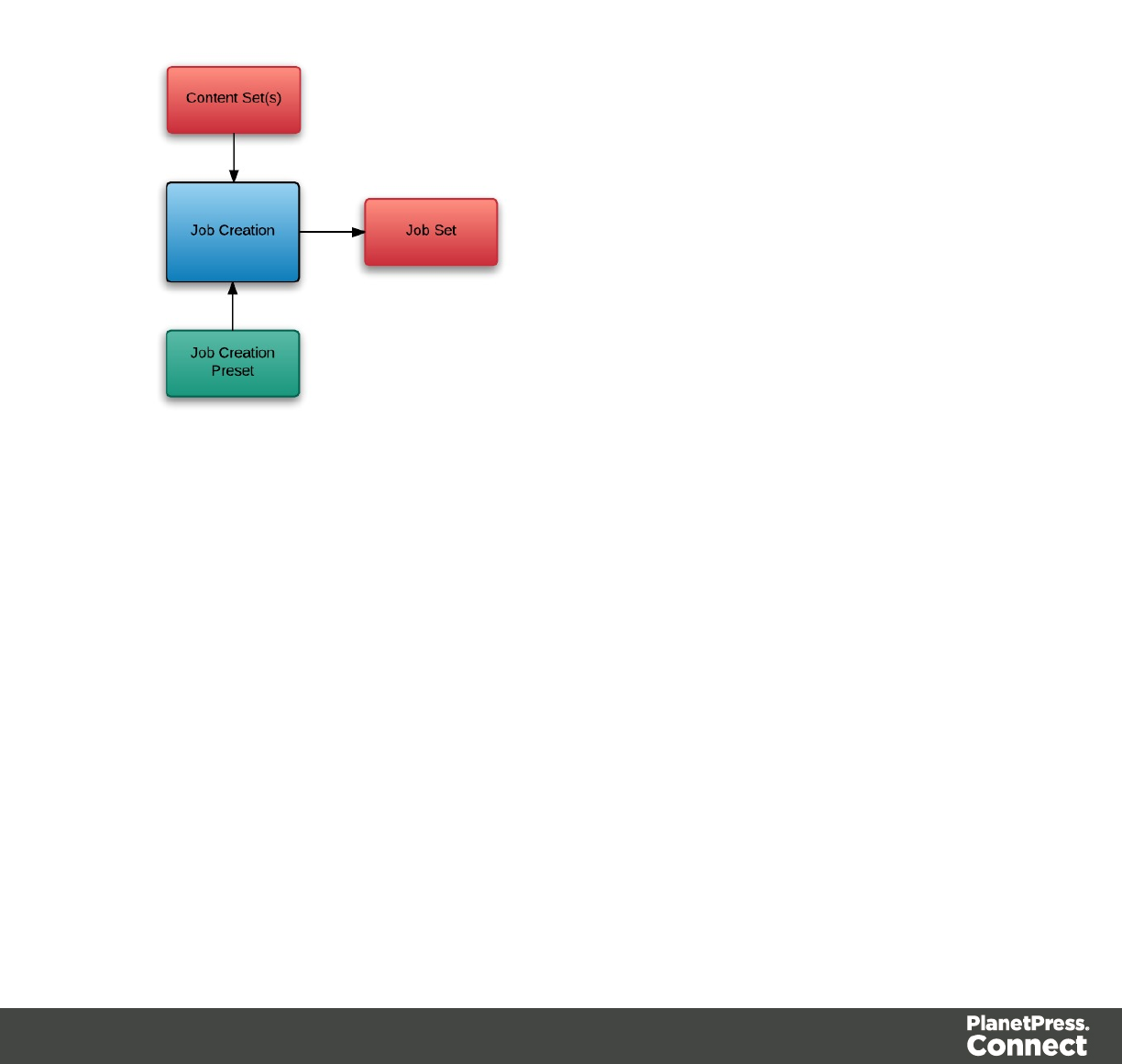
Job Creation
The Job Creation process involves taking one or more content sets and applying a preset for
organising/sorting/grouping them into sets of logical jobs (a Job Set). This includes data
filtering and finishing options.
The following flowchart illustrates the standard workflow for the Job Creation process:
Page 13
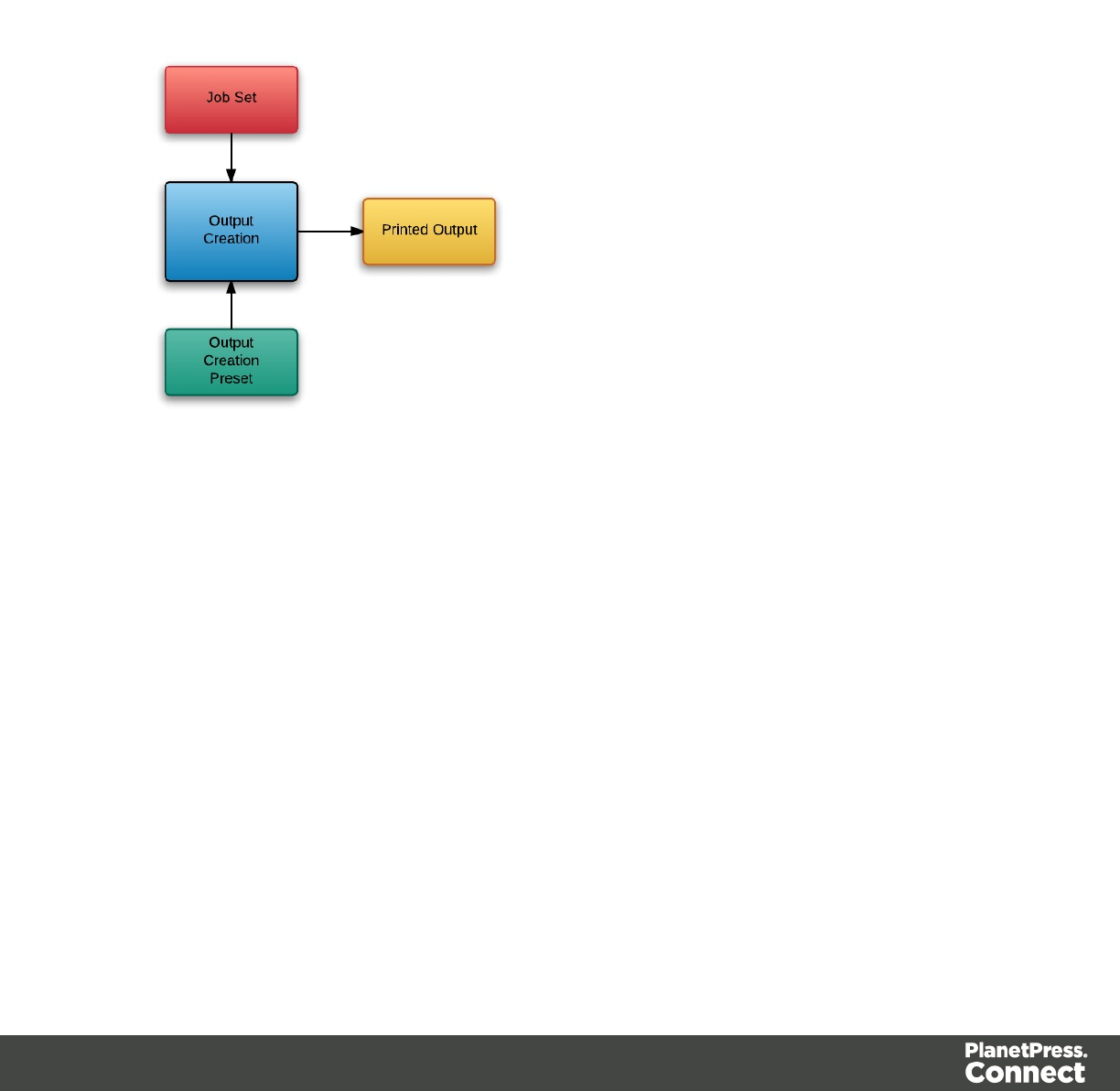
Output Creation
The Output Creation process involves taking a set of jobs, applying a preset and generating the
printed output.
The following flowchart illustrates the standard workflow for the Output Creation process:
Page 14
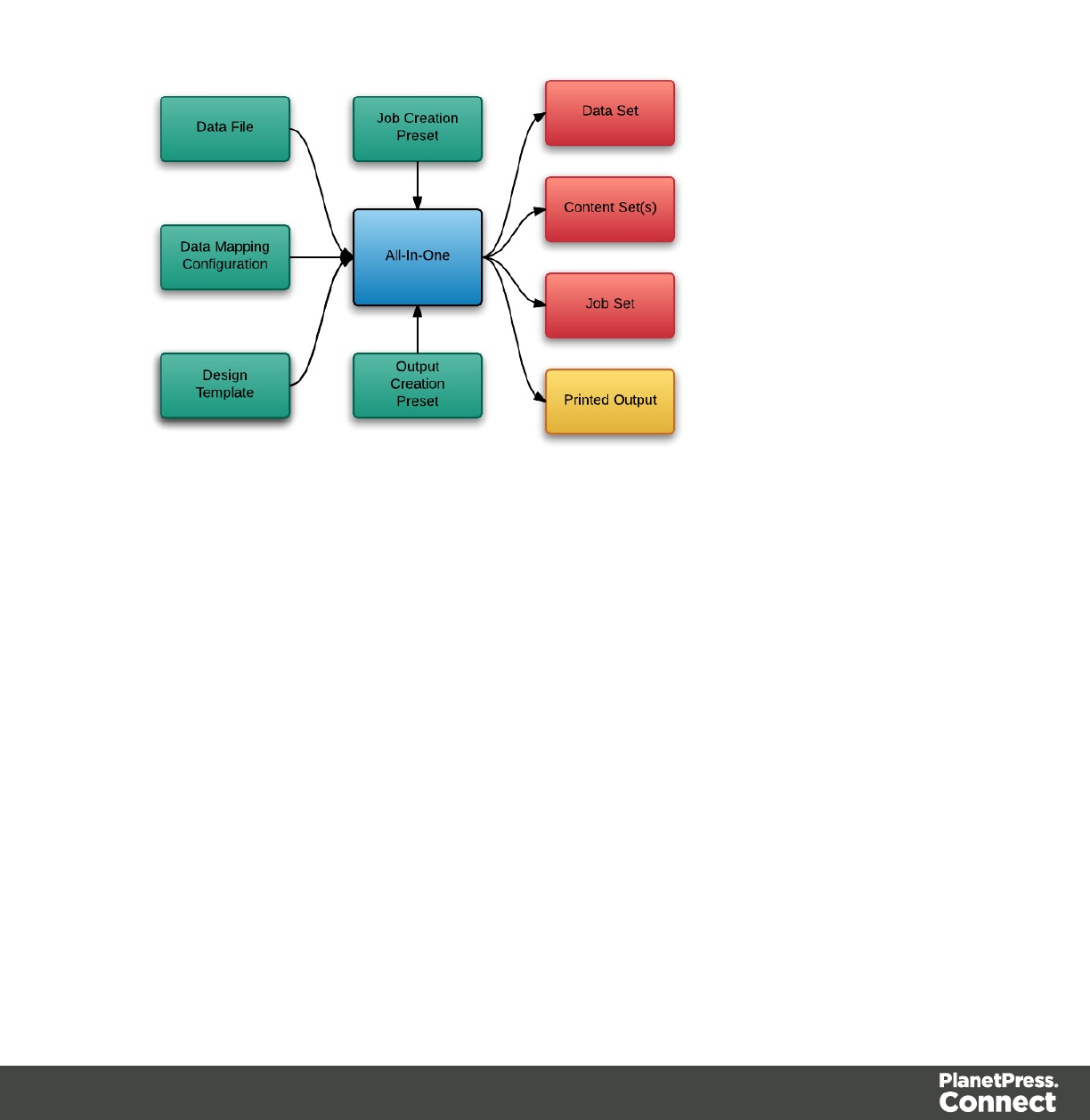
All-In-One
The following flowchart illustrates the potential inputs, outputs and workflows for the All-In-One
process:
Page 15


Input Components
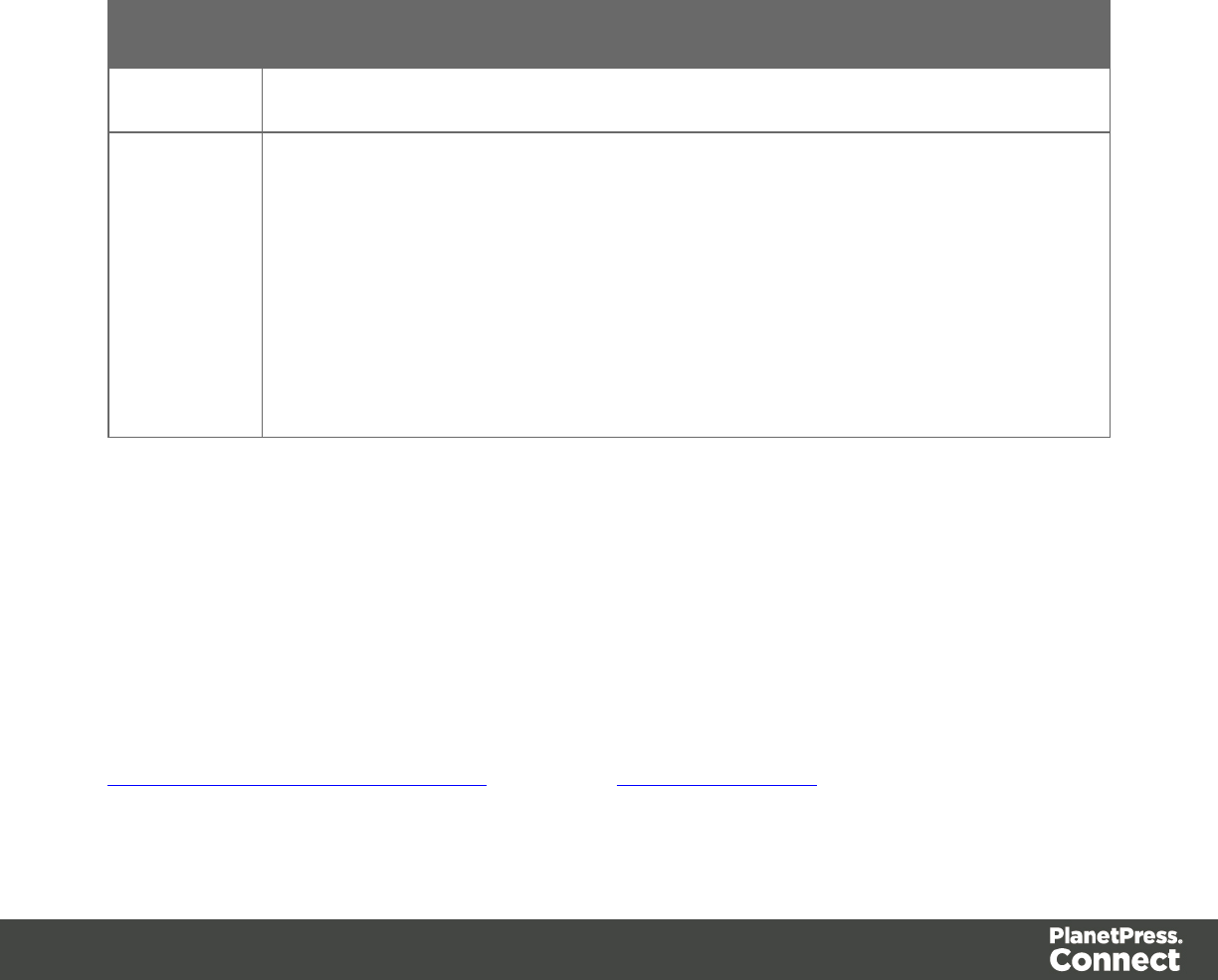
Input components are used as input to a specific workflow process. The following table lists the
types of input components used in the PlanetPress Connect workflow:
Name Relevant Workflow
Process
File Name Examples
Data File Data Mapping lPromo-EN-10.csv
lPromo-EN-10000.csv
lPDFVT-Data.pdf
Data Mapping
Configuration
Data Mapping lPromo-EN.OL-datamapper
lTransact-EN.OL-
datamapper
Design Template Content Creation lletter-ol.OL-template
linvoice-ol-transpromo.OL-
template
Job Creation Preset Job Creation lPromo-EN-JC-Config.OL-
jobpreset
Output Creation Preset Output Creation lFX4112_Hold_Config.OL-
outputpreset
lPromo-EN-OC-Config.OL-
outputpreset
Page 17

Data Entities
There are many data entity types used by PlanetPress Connect, but not all entities can be
accessed through the REST API. The main types to be aware of when working with the API are
Data Sets, Data Records, Content Sets, Content Items, Jobs Sets and Jobs. The following table
lists these entity types in greater detail:
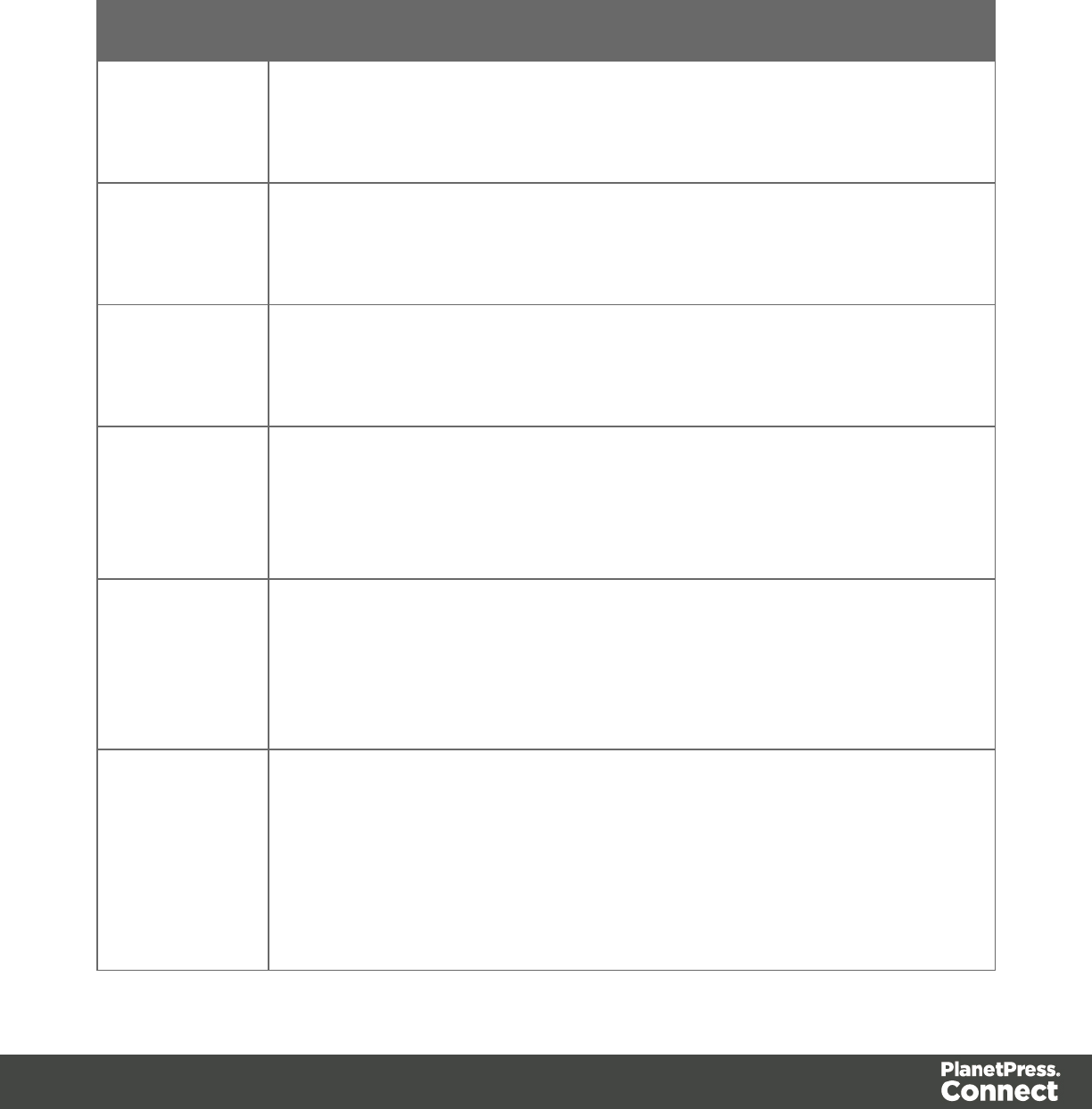
Entity Description
Data
Set &
Data
Records
The data set is the artefact produced by a data mapping operation. It holds the
data that was mapped out of the input data file. A data mapping operation
produces a single data set, which contains as many data records as there are
documents. Each data record contains a collection of data values. The data
records in the data set form the master record, or document record, which
typically contains document recipient information. The master record can also
contain a collection of data tables, which form the detail records that hold data
such as invoice line items. Each data table contains a collection of data records,
where each data record contains a collection of data values and a collection of
data tables, and so on.
Content
Sets &
Content
Items
The content set is the artefact produced by a content creation operation. It holds
all the pages that were produced by the operation. A content creation operation
produces one or more content sets, which contain as many content items as
there were data records given at the start of the operation. Because the data
records used may have different data set owners, a content set cannot be linked
to a single data set, but rather content items are linked to data records. A content
item is further divided in content sections and content pages.
Job Set
& Jobs
The job set is the artefact produced by a job creation operation. It consists in a
hierarchical structure that divides documents is various structures and basically
decides which documents are to be printed and in which order. A job creation
operation creates a single job set with contains a series of containers where
every level contains one or more of the next level down: jobs, job segments,
document sets, documents and document pages. The last level in the chain, the
document pages, contains a single content item. Hence, at the job creation
level, a document may consist of one or more content items.
Page 18

Data entities can be produced as output from a workflow process and can then be used as
input to another workflow process.
Page 19
Workflow Operations
Each individual process in the overall workflow process can potentially be a long running
operation.
Accordingly, an initial HTTP request is submitted to initiate the workflow operation, then
additional requests are required to monitor progress and retrieve the final result. All the required
detail is included in the HTTP response headers of the initial request, including the URIs that
should be used for further processing
A successful request will return a response that will include the headers listed in the following
table:
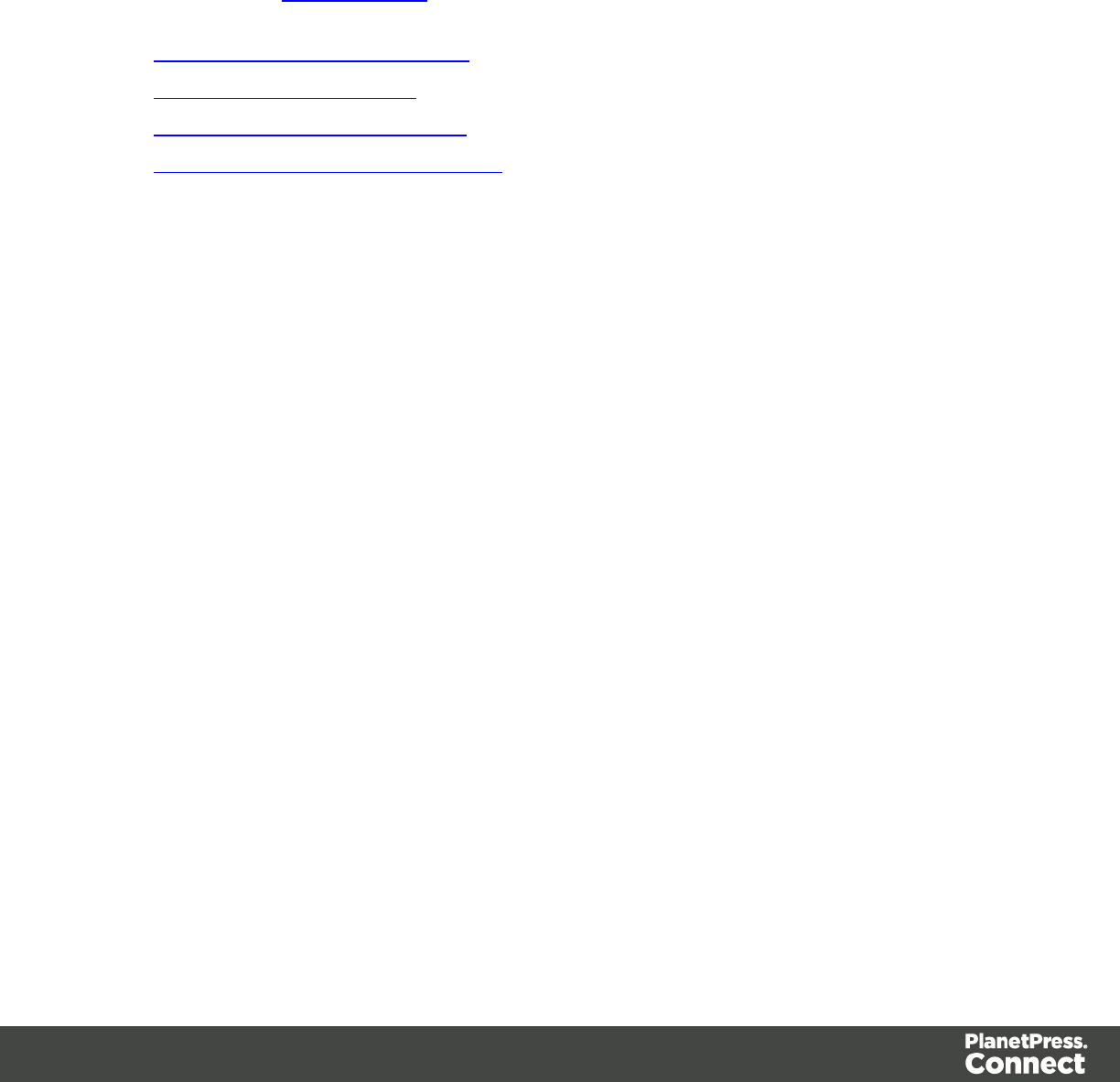
Header Description
operationId The unique id of the operation being processed
Link Contains multiple link headers which provide details on which URI to use to
retrieve further information on the operation:
lHeader with rel="progress" - The URL to use to check the progress of
the operation
lHeader with rel="result" - The URL to use to retrieve the result of the
operation
lHeader with rel="cancel" - The URL to use to cancel the operation
A request made to the progress URI during processing will return a progress percentage value
of 0 to 100, and finally the value of ‘done’ once the operation has completed.
A request made to the cancel URI during processing will immediately cancel the operation.
A request made to the result URI after processing has completed will return the final result of
the operation.
This approach is replicated across most workflow based services as demonstrated in the
Working with the Workflow Services page of the Working Examples section.
Page 20
JSON Structures
The following table lists the various JSON structures used by the PlanetPress Connect REST
API:
Name Example
JSON
Identifier
{
"identifier": 12345
}
JSON
Identifier
(Named)
{
"identifier": "Promo-EN-1000.csv"
}
JSON
Identifier List
{
"identifiers": [ 12345, 23456, 34567 ]
}
JSON
Identifier (with
createOnly
flag)
{
"identifier": 12345,
"createOnly": true
}
JSON
Identifier List
(with
createOnly
flag)
{
"identifiers": [ 12345, 23456, 34567 ],
"createOnly": true
}
JSON
Name/Value
List
(Properties
Only)
[
{
"name": "start",
"value": "2015-01-01 00:00:00T-0500"
},
{
Page 21

Name Example
"name": "end",
"value": "2015-12-31 23:59:59T-0500"
}
]
JSON
Name/Value
List
{
"id": 12345,
"properties": [
{
"name": "start",
"value": "2015-01-01 00:00:00T-0500"
},
{
"name": "end",
"value": "2015-12-31 23:59:59T-0500"
},
]
}
JSON
Name/Value
Lists
[
{
"id": 12345,
"properties": [
{
"name": "start",
"value": "2015-01-01 00:00:00T-0500"
},
{
"name": "end",
"value": "2015-12-31 23:59:59T-0500"
},
]
},
Page 22

Name Example
{
"id": 23456,
"properties": [
{
"name": "start",
"value": "2015-01-01 00:00:00T-0500"
},
{
"name": "end",
"value": "2015-12-31 23:59:59T-0500"
},
]
}
]
JSON Record
Content List
{
"id": 12345,
"table": "record",
"fields":[
{
"name": "ID",
"value": "CU00048376"
},
{
"name": "Gender",
"value": "M."
},
{
"name": "FirstName",
"value": "Benjamin"
},
{
"name": "LastName",
"value": "Verret"
Page 23

Name Example
}
]
}
JSON Record
Content Lists
[
{
"id": 12345,
"table": "record",
"fields":[
{
"name": "ID",
"value": "CU00048376"
},
{
"name": "Gender",
"value": "M."
},
{
"name": "FirstName",
"value": "Benjamin"
},
{
"name": "LastName",
"value": "Verret"
}
]
},
{
"id": 23456,
"table": "record",
"fields":[
{
"name": "ID",
"value": "CU01499303"
Page 24

Name Example
},
{
"name": "Gender",
"value": "Miss"
},
{
"name": "FirstName",
"value": "Dianne"
},
{
"name": "LastName",
"value": "Straka"
}
]
}
]
JSON Content
Item Identifier
List
{
"identifiers": [
{
"item": 12345,
"record": 54321
},
{
"item": 23456,
"record": 65432
},
{
"item": 34567,
"record": 76543
}
]
}
Page 25

Name Example
JSON Data
Record
Identifier
{
"record": 12345
}
JSON
Identifier List
(with Email
Parameters)
{
"identifiers": [
12345,
23456
],
"host": "mail.company.com",
"user": "johns",
"password": "password5",
"sender": "john.smith@company.com",
"useAuth": true,
"useStartTLS": false,
"useSender": true,
"attachWebPage": true,
"attachPdfPage": true
}
JSON Job Set
Structure
{
"jobs": [
{
// First Job in JobSet
"segments": [
{
// First JobSegment in first Job
"documentsets": [
{
// First DocumentSet in
first JobSegment in first Job
Page 26

Name Example
"documents": [
{
// First
Document in first DocumentSet in first JobSegment in
first Job
"documentpages":
[
{
// First
DocumentPages in first Document in first DocumentSet
in first JobSegment in first Job
"contentitem": 111
},
{
//
Second DocumentPages in first Document in first
DocumentSet in first JobSegment in first Job
"contentitem": 222
}
]
},
{
// Second
Document in first DocumentSet in first JobSegment in
first Job
"documentpages":
[
{
// First
DocumentPages in second Document in first
Page 27

Name Example
}
]
},
{
// Second Job in JobSet
"segments": [
{
// First JobSegment in second
Job
"documentsets": [
{
// First DocumentSet in
first JobSegment in second Job
"documents": [
{
// First
Document in first DocumentSet in first JobSegment in
second Job
"documentpages":
[
{
// First
DocumentPages in first Document in first DocumentSet
in first JobSegment in second Job
"contentitem": 789
}
]
}
]
}
]
}
]
Page 28

Name Example
JSON HTML
Parameters
List
{
"section": "Section 1",
"inline": "ALL"
}
JSON All-In-
One
Configuration
{
"datamining":
{
"identifier": "Promo-EN-1000.csv",
"config": "Promo-EN.OL-datamapper"
},
"contentcreation":
{
"config": "letter-ol.OL-template"
},
"jobcreation":
{
"config": "4567"
},
"outputcreation":
{
"config": "5678",
"createOnly": true
},
"printRange":
{
"printRange": "1-3, 6, 10"
}
}
JSON Page
Details
Summary
{
Page 29

Name Example
"pages": [
{
"count": 200,
"media": {
"name": "Plain A4 Paper",
"size": "A4",
"width": "210mm",
"height": "297mm"
}
},
{
"count": 108,
"media": {
"name": "Plain Letter Paper",
"size": "Letter",
"width": "8.5in",
"height": "11in"
}
}
]
}
JSON Page
Details List
[
{
"id": 12345,
"pages": [
{
"count": 2,
"media": {
"name": "Plain A4 Paper",
"size": "A4",
"width": "210mm",
"height": "297mm"
Page 30

Name Example
}
},
{
"count": 1,
"media": {
"name": "Plain Letter Paper",
"size": "Letter",
"width": "8.5in",
"height": "11in"
}
}
]
},
{
"id": 23456,
"pages": [
{
"count": 2,
"media": {
"name": "Plain A4 Paper",
"size": "A4",
"width": "210mm",
"height": "297mm"
}
},
{
"count": 2,
"media": {
"name": "Plain Letter Paper",
"size": "Letter",
"width": "8.5in",
"height": "11in"
}
}
Page 31

Name Example
Page 32
Working Examples
This section provides a number of working examples that demonstrate the use of the various
resources and methods available in the PlanetPress Connect REST API.
For help on getting started with the PlanetPress Connect REST API Cookbook and the working
examples, see the Getting Started page.
lServer Security & Authentication
lWorking with the File Store
lWorking with the Entity Services
lWorking with the Workflow Services
Page 33

Getting Started
This guide provides many working examples to help illustrate the correct use of a given
API/method. To achieve this, the guide uses HTML5 & JavaScript/jQuery syntax, and thus,
some basic experience and knowledge of these technologies is assumed.
HTML5: http://www.w3schools.com/html/
jQuery: https://jquery.com/
Help on installing and getting started with the working examples can be found on the
Requirements & Installation and Structure of the Working Examples pages.
Important notes on general use of the working examples can be found in the HTML Input
Placeholders & Multiple Value Fields and Display of Working Example Results pages.
If you have server security settings enabled on your PlanetPress Connect server then the Using
the Working Examples with Server Security page should be read also.
Page 34

Requirements & Installation
Requirements
To use the PlanetPress Connect REST API Cookbook with Working Examples source you will
require the following:
1. A working installation of PlanetPress Connect
2. Any modern web browser able to display HTML51
Warning
If using Internet Explorer, you may find issues when using the working examples with
PlanetPress Connect's Server Security Settings set to enabled.
The working examples use HTML5 Local Storage to facilitate authentication and certain
simplicity / ease-of-use (across browser tabs). Depending on how your Internet Explorer
security settings are configured, you may experience issues if the security level of your
zone is set too high.
Essentially, the security zone needs to have the security option Userdata persistence
(under Miscellaneous) set to enabled. Without this option enabled, the working
examples will not function correctly when using them with PlanetPress Connect's Server
SecuritySettings set to enabled.
After running the Authenticate/Login to Server working example to re-authenticate, you
should only need to refresh existing pages in order for the authentication credentials
(token) to be picked up. In the case of Internet Explorer, you may need to restart the
browser for the changes to be picked up.
If all else fails, disabling of the Sever Security Settings in the PlanetPress Connect
Server Preferences should avoid issues with running the various examples on Internet
Explorer.
It is recommended that you use a modern web-browser other than Internet Explorer
when running the working examples.
1Any recent version of Mozilla Firefox, Google Chrome, or Opera with support for HTML5 should be
suitable for running the working examples contained in this guide. Versions of Internet Explorer 10+ may
also be suitable in some cases.
Page 35
Installation
The working examples source comes pre-installed with PlanetPress Connect and can be
located in a sub-directory of your existing PlanetPress Connect installation directory.
To locate the source on Windows:
1. Open up Windows Explorer and navigate to the PlanetPress Connect installation
directory followed by its plugins sub-directory.
2. Find the com.objectiflune.serverengine.rest.gui directory and navigate to its www sub-
directory
3. You should now be exploring the following or similar location:
C:\Program Files\Objectif Lune\OL
Connect\plugins\com.objectiflune.serverengine.rest.gui_1.X.XXXXX.XXXXXXXX-
XXXX\www
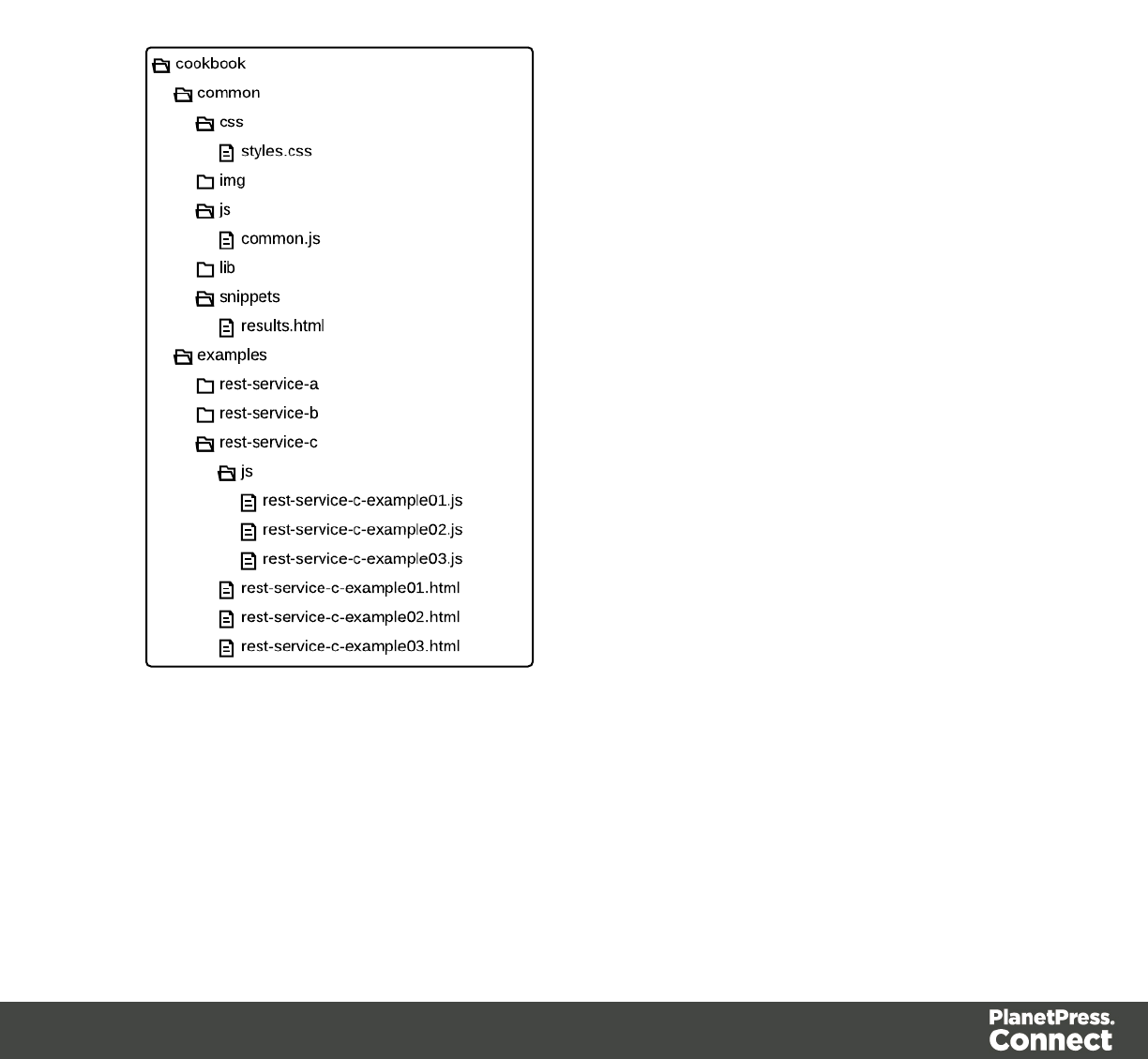
4. The www directory contains a cookbook sub-directory, which contains all of the working
examples source. You should find a directory structure matching that shown on the
Structure of the Working Examples page.
Note
You can access the PlanetPress Connect REST API Cookbook with Working Examples
source locally by entering the following URL in your web browser:
http://localhost:9340/serverengine/html/cookbook/index.html
Page 36
Structure of the Working Examples
The working examples are designed to be complete examples, and will generally consists of
one HTML5 file paired with a JavaScript/jQuery module which can be found in the
examples/<service-name>/js/ sub-directory.
Where any frequent or boilerplate functionality is commonly used across the examples, this has
been moved to the common/js/common.js JavaScript/jQuery module.
The examples make use of this module for functionality such as setting up the example, and
displaying output results.
Page 37

The examples also make use of some simple CSS classes as defined in
common/css/styles.css and HTML snippets for the presentation of output results.
Page 38
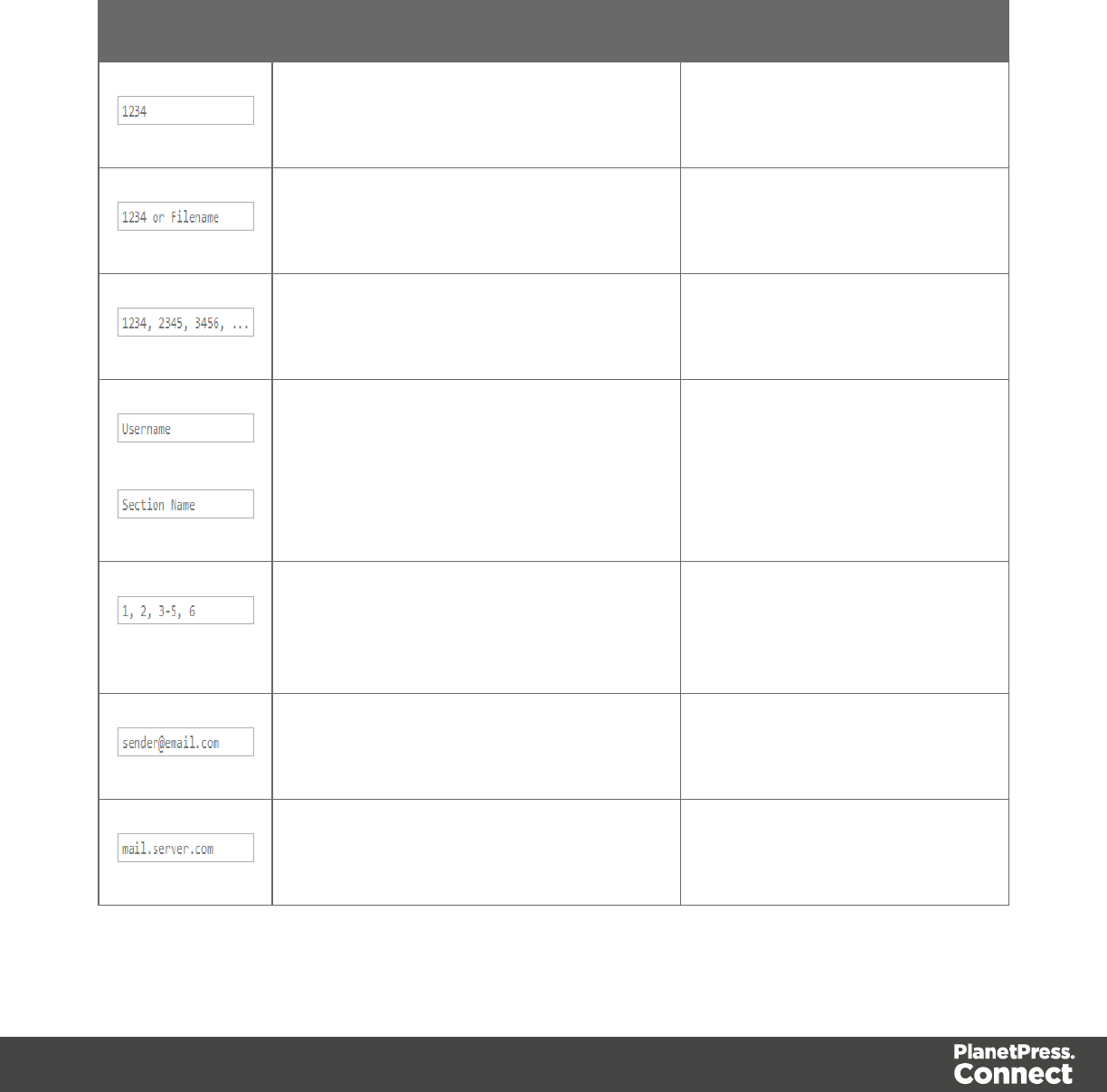
HTML Input Placeholders & Multiple Value Fields
In the working examples, HTML input elements make use of the placeholder attribute to help
provide some indication of the type and format of the value expected to be entered / specified.
The following table lists examples of placeholders commonly used in the working examples:
HTML Expected Type Example Values
Single ID Value l2341
l3
Single ID or Name Value (File Name) l2341
lPromo-EN-1000.csv
One or More ID Values (comma
separated)
l2341, 2342
l3456
Name (Text) Value lol-admin
lSection 2
Numerical Range l1, 2, 3
l1-5
l1, 2, 3-5, 6
Email Address Value ljohn.smith@contoso.com
Server Hostname Value lmailbox.contoso.com
Page 39
Display of Working Example Results
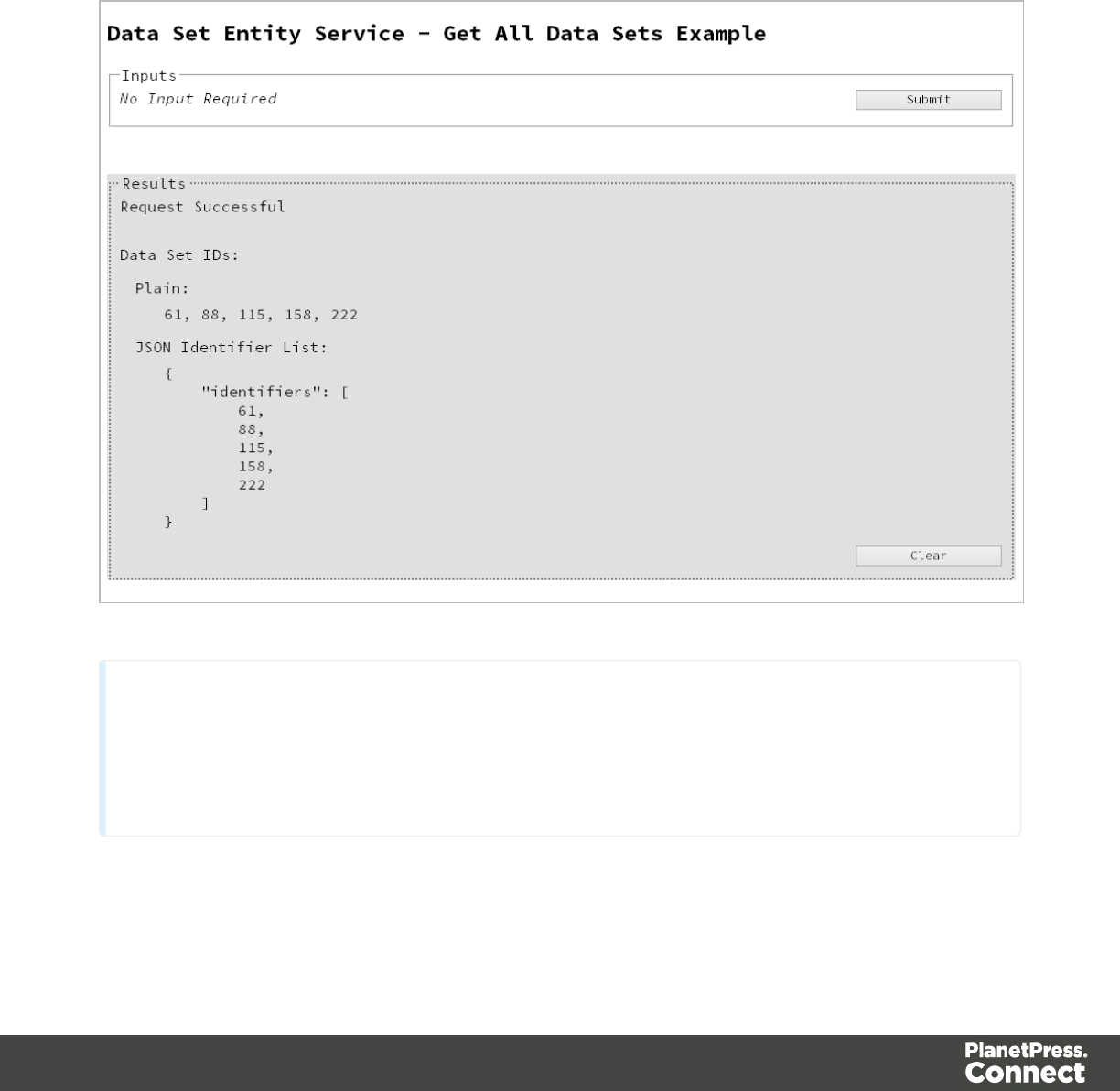
When a working example is run, any results will be displayed in a Results area that will appear
below the working example existing HTML interface.
For example:
Note
In some examples the same result will displayed in both plain and JSON structure based
formats. This is to assist ease-of-use when working with outputs of one example that will
be needed as an input to another example.
Page 40

A working example can be run multiple times, and each time the results will be appended
below allowing you to compare the output of varying inputs. The Clear button can be selected
at any time to clear all existing results.
Page 41
Using the Working Examples with Server Security
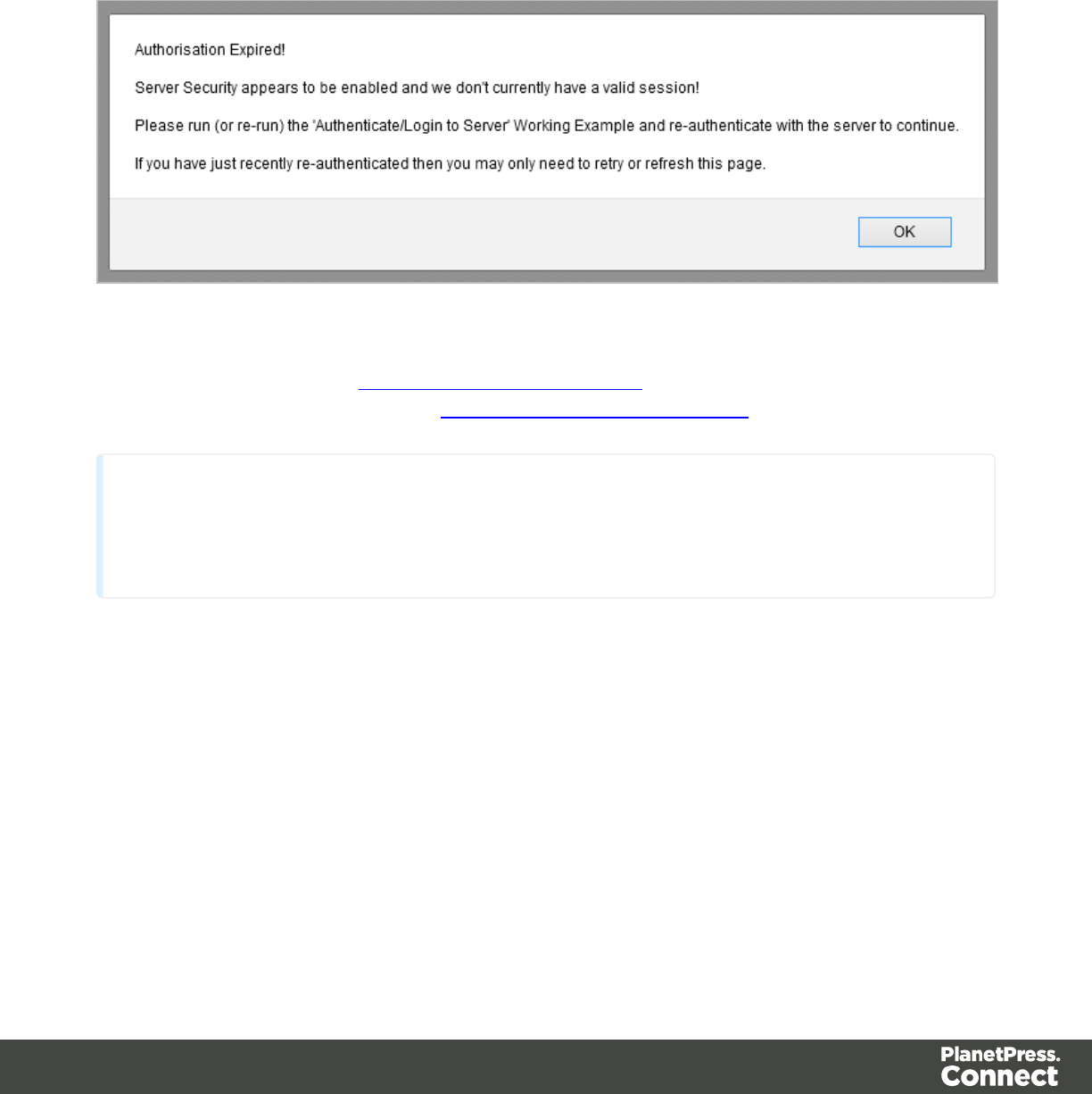
If you have the Server Security Settings set to enabled in your PlanetPress Connect Server
Preferences, then you may see the following dialog box initially display when working with the
examples:
In the event of this dialog box, just follow the instructions and either refresh the page or re-
authenticate by running the Authenticating with the Server (Authenticate/Login to Server)
working example covered under the Server Security & Authentication section.
Note
Once re-authenticated, you shouldn’t see this dialog box again for as long as your
session remains active.
Page 42

Server Security & Authentication
This section consists of a number of pages covering various useful working examples:
1. Authenticating with the Server
See the Authentication Service page of the REST API Reference section for further detail.
Note
A complete listing including these examples can be found in the index.html file located
at the root of the working example source code which contains links to all working
examples.
Page 43
Authenticating with the Server
Problem
Your PlanetPress Connect Server is configured to use server security, and you want to
authenticate with the server to obtain the correct access to make future requests.
Solution
The solution is to create a request using the following URI and method type to authenticate with
the server via the Authentication REST service:
Authenticate/Login to Server /rest/serverengine/authentication/login POST
Example
HTML5
auth-login-server.html
<!DOCTYPE html>
<html>
<head>
<meta charset="utf-8">
<title>Authenticate/Login to Server Example</title>
<script src="../../common/lib/js/jquery-
1.11.3.min.js"></script>
<script src="../../common/js/common.js"></script>
<script src="js/auth-login-server.js"></script>
<link rel="stylesheet" href="../../common/css/styles.css">
</head>
<body>
<h2>Authentication Service - Authenticate/Login to Server
Example</h2>
<form>
<fieldset>
<legend>Inputs</legend>
<div>
<label for="username">Username:</label>
<input id="username" type="text"
placeholder="Username" required>
</div>
Page 44

<div>
<label for="password">Password:</label>
<input id="password" type="password"
placeholder="Password" required>
</div>
<div>
<input id="submit" type="submit"
value="Submit">
</div>
</fieldset>
</form>
</body>
</html>
JavaScript/jQuery
auth-login-server.js
/* Authentication Service - Authenticate/Login to Server Example */
(function ($) {
"use strict";
$(document).ready(function () {
setupExample();
$("form").on("submit", function (event) {
event.preventDefault();
var username = $("#username").val(),
password = $("#password").val();
$.ajax({
beforeSend: function (xhr) {
var base64 = "Basic " + btoa(username + ":"
+ password);
xhr.setRequestHeader("Authorization", base64);
},
type: "POST",
url: "/rest/serverengine/authentication/login"
}).done(function (response) {
displayStatus("User '" + username + "'
Page 45
Authenticated Successfully");
displayResult("Authorization Token", response);
setSessionToken(response);
}).fail(function (xhr, status, error) {
displayStatus("Authentication of User '" + username
+ "' failed!");
displayResult("Status", xhr.status + " " + error);
displayResult("Error", xhr.responseText);
setSessionToken(null);
});
});
});
}(jQuery));
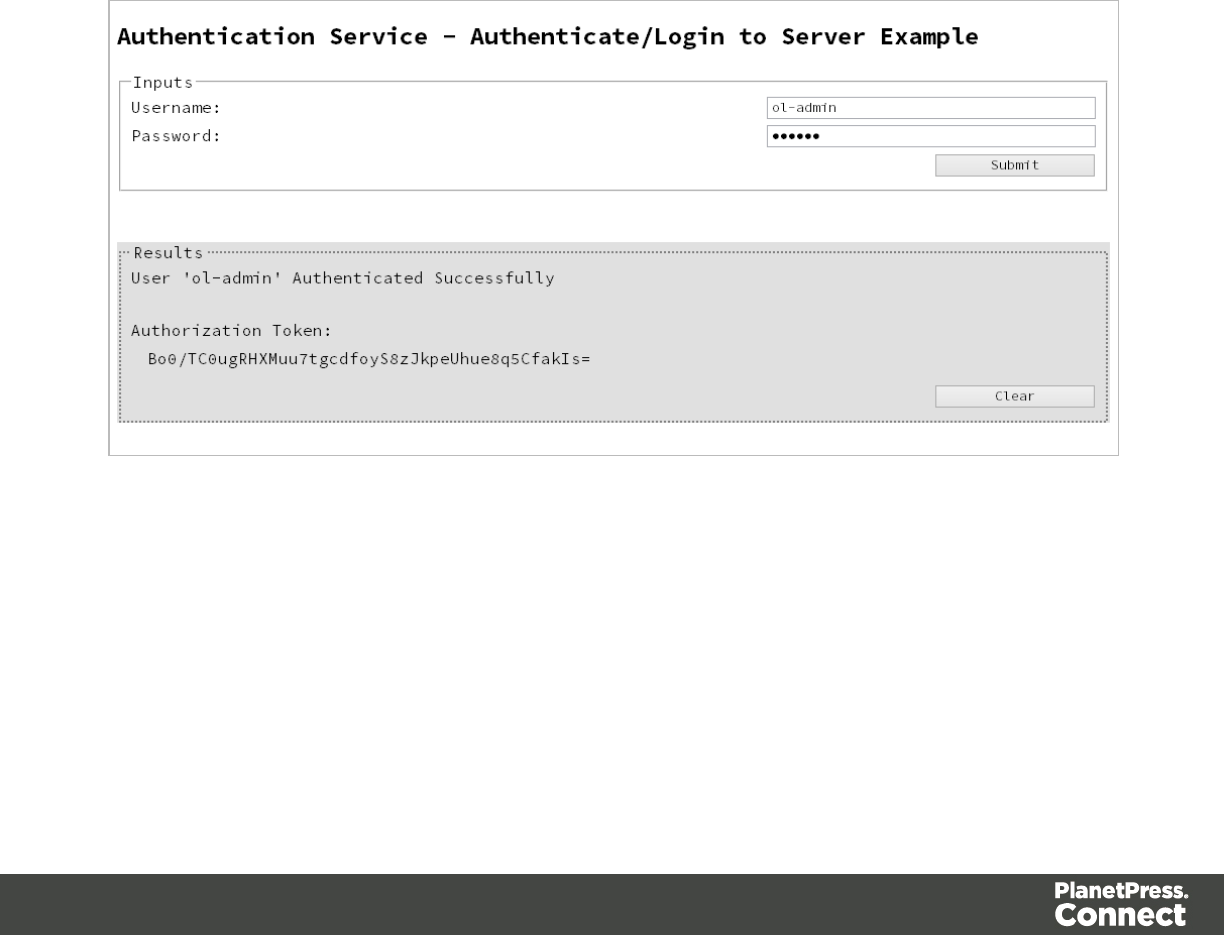
Screenshot & Output
Usage
To run the example simply enter your credentials into the Username and Password fields and
select the Submit button.
Once selected, a request containing the credentials will be sent to the server and the result will
be returned and displayed to the Results area.
Page 46

If authentication was successful then the response will contain an Authorization Token that
can be then used in the submission of future requests to the server.
Discussion
Firstly, we define an event handler that will run in response to the submission of the HTML form
via the selection of the Submit button.
When our event hander function is called, we then obtain the value of the Username and
Password fields. We define two variables, username to hold the value of the Username text
field and password to hold the value of the Password text field.
Next we construct an jQuery AJAX request which will be sent to the Authentication REST
service:
Method type and url arguments are specified as shown earlier.
We specify a beforeSend argument containing a function that will add an additional
Authorization header to the request to facilitate Basic HTTP Authentication. The value of
the Authorization request header is a Base64 digest of the username and password
variables.
When the request is successful or done, a request response is received and the content of that
response is passed as the function parameter response. In the example, we then display the
value of this parameter which should be the new Authorization Token which can then be used
in the submission of future requests to the server.
This is achieved by placing the value of the Authorization Token in the auth_token request
header of a future request. In the example the common function setSessionToken is used to
facilitate this function for all future working example requests.
Further Reading
See the Authentication Service page of the REST API Reference section for further detail.
Page 47

Working with the File Store
This section consists of a number of pages covering various useful working examples:
1. Uploading a Data File to the File Store
2. Uploading a Data Mapping Configuration to the File Store
3. Uploading a Design Template to the File Store
4. Uploading a Job Creation Preset to the File Store
5. Uploading an Output Creation Preset to the File Store
See the File Store Service page of the REST API Reference section for further detail.
Note
A complete listing including these examples can be found in the index.html file located
at the root of the working example source code which contains links to all working
examples.
Page 48
Uploading a Data File to the File Store
Problem
You want to upload a data file to the File Store so that it can be used as part of a Data Mapping
operation.
Solution
The solution is to create a request using the following URI and method type to submit the data
file to the server via the File Store REST service:
Upload Data File /rest/serverengine/filestore/DataFile POST
Example
HTML5
fs-datafile-upload.html
<!DOCTYPE html>
<html>
<head>
<meta charset="utf-8">
<title>Upload Data File Example</title>
<script src="../../common/lib/js/jquery-
1.11.3.min.js"></script>
<script src="../../common/js/common.js"></script>
<script src="js/fs-datafile-upload.js"></script>
<link rel="stylesheet" href="../../common/css/styles.css">
</head>
<body>
<h2>File Store Service - Upload Data File Example</h2>
<form>
<fieldset>
<legend>Inputs</legend>
<div>
<label for="datafile">Data File:</label>
<input id="datafile" type="file" required>
</div>
</fieldset>
<fieldset>
Page 49

<legend>Options</legend>
<div>
<label for="named">Named:</label>
<input id="named" type="checkbox">
</div>
<div>
<label for="persistent">Persistent:</label>
<input id="persistent" type="checkbox">
</div>
</fieldset>
<fieldset>
<legend>Actions</legend>
<div>
<input id="submit" type="submit"
value="Submit">
</div>
</fieldset>
</form>
</body>
</html>
JavaScript/jQuery
fs-datafile-upload.js
/* File Store Service - Upload Data File Example */
(function ($) {
"use strict";
$(document).ready(function () {
setupExample();
$("form").on("submit", function (event) {
event.preventDefault();
if (!checkSessionValid()) { return; }
var file = $("#datafile")[0].files[0],
named = $("#named").is(":checked"),
persistent = $("#persistent").is(":checked");
var settings = {
Page 50
type: "POST",
url:
"/rest/serverengine/filestore/DataFile?persistent=" + persistent,
data: file,
processData: false,
contentType: "application/octet-stream"
};
if (named) { settings.url += "&filename=" + file.name;
}
$.ajax(settings).done(function (response) {
displayStatus("Request Successful");
displayInfo("Data File '" + file.name + "' Uploaded
Successfully");
displayResult("Managed File ID", response);
}).fail(displayDefaultFailure);
});
});
}(jQuery));
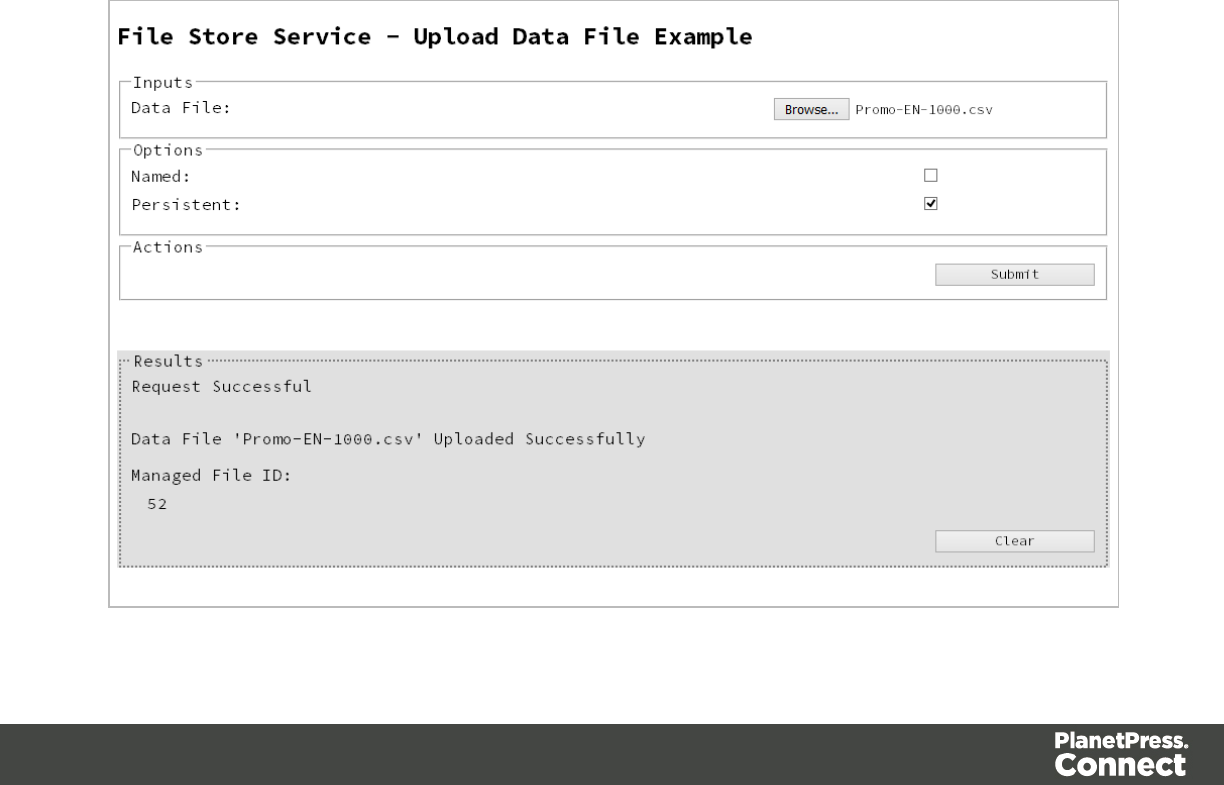
Screenshot & Output
Page 51

Usage
To run the example simply select the Browse button and then select the data file you wish to
upload using the selection dialog box.
Next you can specify the following options to use with the upload of the data file:
lNamed - allow this file to be identified/referenced by its Managed File Name as well as its
Managed File ID
lPersistent - make this file persistent in the file store
Note
Only one Managed File in the file store can be associated with a specific name. If two
files are uploaded to the file store under the same name, then only the most recently
uploaded file will be associated with (or can be referenced using) that name.
Once the file and options are selected, simply select the Submit button to upload the file to the
server's file store and the resulting Managed File ID for the data file will be returned and
displayed to the Results area.
Discussion
Firstly, we define an event handler that will run in response to the submission of the HTML form
via the selection of the Submit button.
When our event handler function is called, we then obtain a reference to the local data file
previously selected. This is achieved by getting the first value of the files attribute of the HTML
element with the ID of datafile (in this case a file type input HTML element) and storing it in a
variable file.
We also obtain boolean values for the Named and Persistent options (both checkbox type
input HTML elements) and store them in the named and persistent variables respectively.
Next we construct a jQuery AJAX request which will be sent to the File Store REST service.
We use an object called settings to hold the arguments for our request:
Method type and url arguments are specified as shown earlier, with the addition of a
Page 52

persistent query parameter which specifies whether the file is to be persistent in the file
store when uploaded.
We specify the variable file as the data or contents of the request, a contentType argument
of "application/octet-stream", and because we are sending file data we also specify a
processData argument set to false.
If the Named option is checked in our form, and the named variable is true, then a filename
query parameter is also added which contains the file name of the file selected (file.name).
Lastly, the settings object is passed as an argument to the jQuery AJAX function ajax and the
request is executed.
When the request is successful or done, a request response is received and the content of that
response is passed as the function parameter response. In the example, we then display the
value of this parameter which should be the new Managed File ID of the data file in the file
store.
Further Reading
See the File Store Service page of the REST API Reference section for further detail.
Page 53
Uploading a Data Mapping Configuration to the File Store
Problem
You want to upload a data mapping configuration to the File Store so that it can be used as part
of a Data Mapping operation.
Solution
The solution is to create a request using the following URI and method type to submit the data
mapping configuration to the server via the File Store REST service:
Upload Data Mapping
Configuration
/rest/serverengine/filestore/DataMiningConfig POST
Example
HTML5
fs-datamapper-upload.html
<!DOCTYPE html>
<html>
<head>
<meta charset="utf-8">
<title>Upload Data Mapping Configuration Example</title>
<script src="../../common/lib/js/jquery-
1.11.3.min.js"></script>
<script src="../../common/js/common.js"></script>
<script src="js/fs-datamapper-upload.js"></script>
<link rel="stylesheet" href="../../common/css/styles.css">
</head>
<body>
<h2>File Store Service - Upload Data Mapping Configuration
Example</h2>
<form>
<fieldset>
<legend>Inputs</legend>
<div>
<label for="datamapper">Data Mapping
Configuration:</label>
<input id="datamapper" type="file" required>
Page 54

</div>
</fieldset>
<fieldset>
<legend>Options</legend>
<div>
<label for="named">Named:</label>
<input id="named" type="checkbox">
</div>
<div>
<label for="persistent">Persistent:</label>
<input id="persistent" type="checkbox">
</div>
</fieldset>
<fieldset>
<legend>Actions</legend>
<div>
<input id="submit" type="submit"
value="Submit">
</div>
</fieldset>
</form>
</body>
</html>
JavaScript/jQuery
fs-datamapper-upload.js
/* File Store Service - Upload Data Mapping Configuration Example
*/
(function ($) {
"use strict";
$(document).ready(function () {
setupExample();
$("form").on("submit", function (event) {
event.preventDefault();
if (!checkSessionValid()) { return; }
var file = $("#datamapper")[0].files[0],
Page 55

named = $("#named").is(":checked"),
persistent = $("#persistent").is(":checked");
var settings = {
type: "POST",
url:
"/rest/serverengine/filestore/DataMiningConfig?persistent=" +
persistent,
data: file,
processData: false,
contentType: "application/octet-stream"
};
if (named) { settings.url += "&filename=" + file.name;
}
$.ajax(settings).done(function (response) {
displayStatus("Request Successful");
displayInfo("Data Mapping Configuration '" +
file.name + "' Uploaded Successfully");
displayResult("Managed File ID", response);
}).fail(displayDefaultFailure);
});
});
}(jQuery));
Page 56
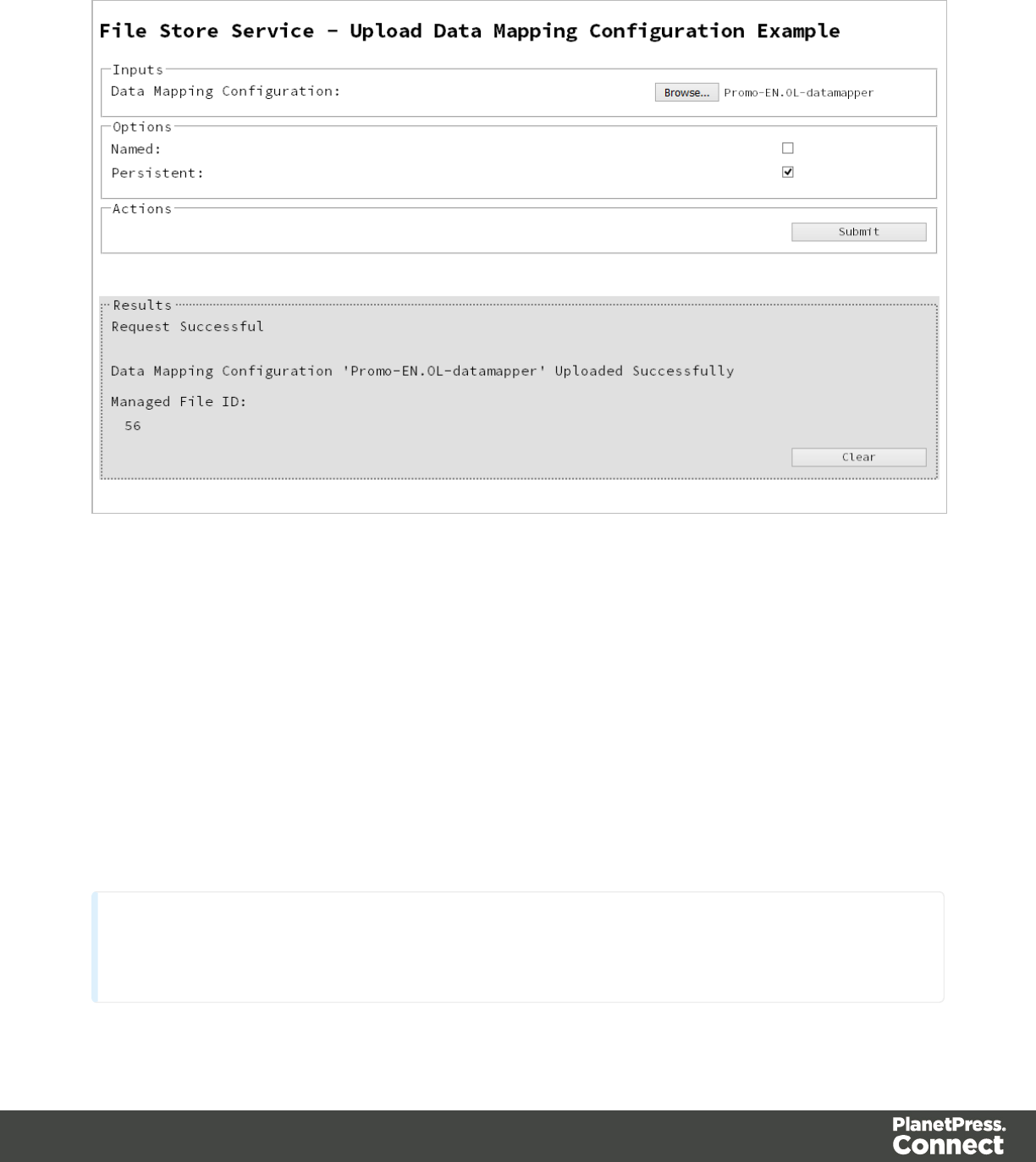
Screenshot & Output
Usage
To run the example simply select the Browse button and then select the data mapping
configuration you wish to upload using the selection dialog box.
Next you can specify the following options to use with the upload of the data mapping
configuration:
lNamed - allow this configuration to be identified/referenced by its Managed File Name as
well as its Managed File ID
lPersistent - make this configuration persistent in the file store
Note
Only one Managed File in the file store can be associated with a specific name. If two
Page 57

files are uploaded to the file store under the same name, then only the most recently
uploaded file will be associated with (or can be referenced using) that name.
Once the configuration and options are selected, simply select the Submit button to upload the
configuration to the server's file store and the resulting Managed File ID for the data mapping
configuration will be returned and displayed to the Results area.
Discussion
Firstly, we define an event handler that will run in response to the submission of the HTML form
via the selection of the Submit button.
When our event handler function is called, we then obtain a reference to the local data mapping
configuration previously selected. This is achieved by getting the first value of the files
attribute of the HTML element with the ID of datamapper (in this case a file type input HTML
element) and storing it in a variable file.
We also obtain boolean values for the Named and Persistent options (both checkbox type
input HTML elements) and store them in the named and persistent variables respectively.
Next we construct a jQuery AJAX request which will be sent to the File Store REST service.
We use an object called settings to hold the arguments for our request:
Method type and url arguments are specified as shown earlier, with the addition of a
persistent query parameter which specifies whether the configuration is to be persistent in
the file store when uploaded.
We specify the variable file as the data or contents of the request, a contentType argument
of "application/octet-stream", and because we are sending file data we also specify a
processData argument set to false.
If the Named option is checked in our form, and the named variable is true, then a filename
query parameter is also added which contains the file name of the configuration selected
(file.name).
Page 58

Lastly, the settings object is passed as an argument to the jQuery AJAX function ajax and the
request is executed.
When the request is successful or done, a request response is received and the content of that
response is passed as the function parameter response. In the example, we then display the
value of this parameter which should be the new Managed File ID of the data mapping
configuration in the file store.
Further Reading
See the File Store Service page of the REST API Reference section for further detail.
Page 59
Uploading a Design Template to the File Store
Problem
You want to upload a design template to the File Store so that it can be used as part of a
Content Creation operation.
Solution
The solution is to create a request using the following URI and method type to submit the
design template to the server via the File Store REST service:
Upload Design Template /rest/serverengine/filestore/template POST
Example
HTML5
fs-designtemplate-upload.html
<!DOCTYPE html>
<html>
<head>
<meta charset="utf-8">
<title>Upload Design Template Example</title>
<script src="../../common/lib/js/jquery-
1.11.3.min.js"></script>
<script src="../../common/js/common.js"></script>
<script src="js/fs-designtemplate-upload.js"></script>
<link rel="stylesheet" href="../../common/css/styles.css">
</head>
<body>
<h2>File Store Service - Upload Design Template
Example</h2>
<form>
<fieldset>
<legend>Inputs</legend>
<div>
<label for="designtemplate">Design
Template:</label>
<input id="designtemplate" type="file"
required>
Page 60

</div>
</fieldset>
<fieldset>
<legend>Options</legend>
<div>
<label for="named">Named:</label>
<input id="named" type="checkbox" checked>
</div>
<div>
<label for="persistent">Persistent:</label>
<input id="persistent" type="checkbox">
</div>
</fieldset>
<fieldset>
<legend>Actions</legend>
<div>
<input id="submit" type="submit"
value="Submit">
</div>
</fieldset>
</form>
</body>
</html>
JavaScript/jQuery
fs-designtemplate-upload.js
/* File Store Service - Upload Design Template Example */
(function ($) {
"use strict";
$(document).ready(function () {
setupExample();
$("form").on("submit", function (event) {
event.preventDefault();
if (!checkSessionValid()) { return; }
var file = $("#designtemplate")[0].files[0],
named = $("#named").is(":checked"),
Page 61

persistent = $("#persistent").is(":checked");
var settings = {
type: "POST",
url:
"/rest/serverengine/filestore/template?persistent=" + persistent,
data: file,
processData: false,
contentType: "application/zip"
};
if (named) { settings.url += "&filename=" + file.name;
}
$.ajax(settings).done(function (response) {
displayStatus("Request Successful");
displayInfo("Design Template '" + file.name + "'
Uploaded Successfully");
displayResult("Managed File ID", response);
}).fail(displayDefaultFailure);
});
});
}(jQuery));
Page 62
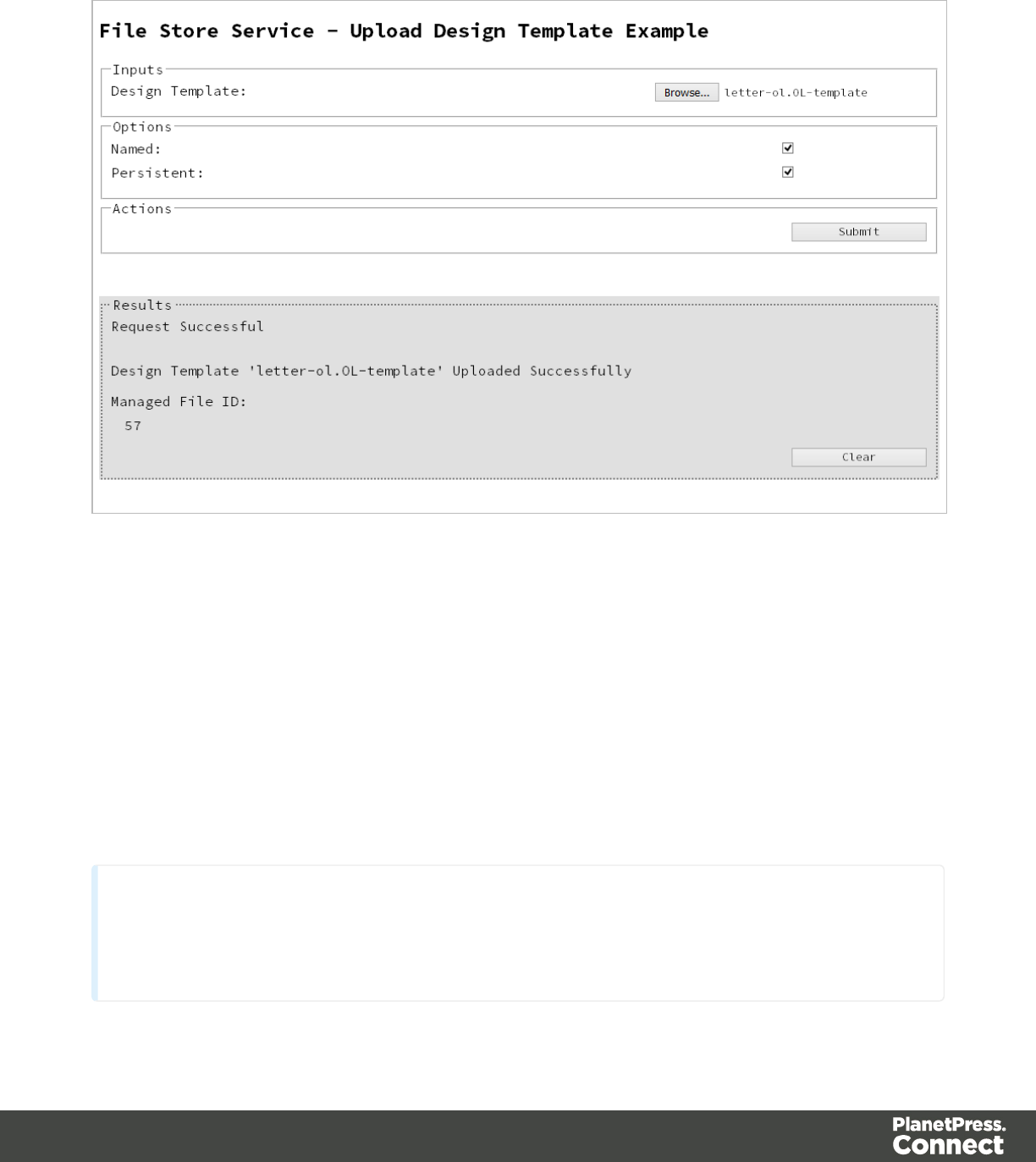
Screenshot & Output
Usage
To run the example simply select the Browse button and then select the design template you
wish to upload using the selection dialog box.
Next you can specify the following options to use with the upload of the design template:
lNamed - allow this template to be identified/referenced by its Managed File Name as well
as its Managed File ID
lPersistent - make this template persistent in the file store
Note
Only one Managed File in the file store can be associated with a specific name. If two
files are uploaded to the file store under the same name, then only the most recently
Page 63

uploaded file will be associated with (or can be referenced using) that name.
Once the template and options are selected, simply select the Submit button to upload the
template to the server's file store and the resulting Managed File ID for the design template will
be returned and displayed to the Results area.
Discussion
Firstly, we define an event handler that will run in response to the submission of the HTML form
via the selection of the Submit button.
When our event handler function is called, we then obtain a reference to the local design
template previously selected. This is achieved by getting the first value of the files attribute of
the HTML element with the ID of designtemplate (in this case a file type input HTML element)
and storing it in a variable file.
We also obtain boolean values for the Named and Persistent options (both checkbox type
input HTML elements) and store them in the named and persistent variables respectively.
Next we construct a jQuery AJAX request which will be sent to the File Store REST service.
We use an object called settings to hold the arguments for our request:
Method type and url arguments are specified as shown earlier, with the addition of a
persistent query parameter which specifies whether the template is to be persistent in the
file store when uploaded.
We specify the variable file as the data or contents of the request, a contentType argument
of "application/zip", and because we are sending file data we also specify a processData
argument set to false.
If the Named option is checked in our form, and the named variable is true, then a filename
query parameter is also added which contains the file name of the template selected
(file.name).
Lastly, the settings object is passed as an argument to the jQuery AJAX function ajax and the
request is executed.
Page 64

When the request is successful or done, a request response is received and the content of that
response is passed as the function parameter response. In the example, we then display the
value of this parameter which should be the new Managed File ID of the design template in the
file store.
Further Reading
See the File Store Service page of the REST API Reference section for further detail.
Page 65
Uploading a Job Creation Preset to the File Store
Problem
You want to upload a job creation preset to the File Store so that it can be used as part of a Job
Creation operation.
Solution
The solution is to create a request using the following URI and method type to submit the job
creation preset to the server via the File Store REST service:
Upload Job Creation
Preset
/rest/serverengine/filestore/JobCreationConfig POST
Example
HTML5
fs-jcpreset-upload.html
<!DOCTYPE html>
<html>
<head>
<meta charset="utf-8">
<title>Upload Job Creation Preset Example</title>
<script src="../../common/lib/js/jquery-
1.11.3.min.js"></script>
<script src="../../common/js/common.js"></script>
<script src="js/fs-jcpreset-upload.js"></script>
<link rel="stylesheet" href="../../common/css/styles.css">
</head>
<body>
<h2>File Store Service - Upload Job Creation Preset
Example</h2>
<form>
<fieldset>
<legend>Inputs</legend>
<div>
<label for="jcpreset">Job Creation
Preset:</label>
<input id="jcpreset" type="file" required>
Page 66

</div>
</fieldset>
<fieldset>
<legend>Options</legend>
<div>
<label for="named">Named:</label>
<input id="named" type="checkbox">
</div>
<div>
<label for="persistent">Persistent:</label>
<input id="persistent" type="checkbox">
</div>
</fieldset>
<fieldset>
<legend>Actions</legend>
<div>
<input id="submit" type="submit"
value="Submit">
</div>
</fieldset>
</form>
</body>
</html>
JavaScript/jQuery
fs-jcpreset-upload.js
/* File Store Service - Upload Job Creation Preset Example */
(function ($) {
"use strict";
$(document).ready(function () {
setupExample();
$("form").on("submit", function (event) {
event.preventDefault();
if (!checkSessionValid()) { return; }
var file = $("#jcpreset")[0].files[0],
named = $("#named").is(":checked"),
Page 67

persistent = $("#persistent").is(":checked");
var settings = {
type: "POST",
url:
"/rest/serverengine/filestore/JobCreationConfig?persistent=" +
persistent,
data: file,
processData: false,
contentType: "application/xml"
};
if (named) { settings.url += "&filename=" + file.name;
}
$.ajax(settings).done(function (response) {
displayStatus("Request Successful");
displayInfo("Job Creation Preset '" + file.name +
"' Uploaded Successfully");
displayResult("Managed File ID", response);
}).fail(displayDefaultFailure);
});
});
}(jQuery));
Page 68
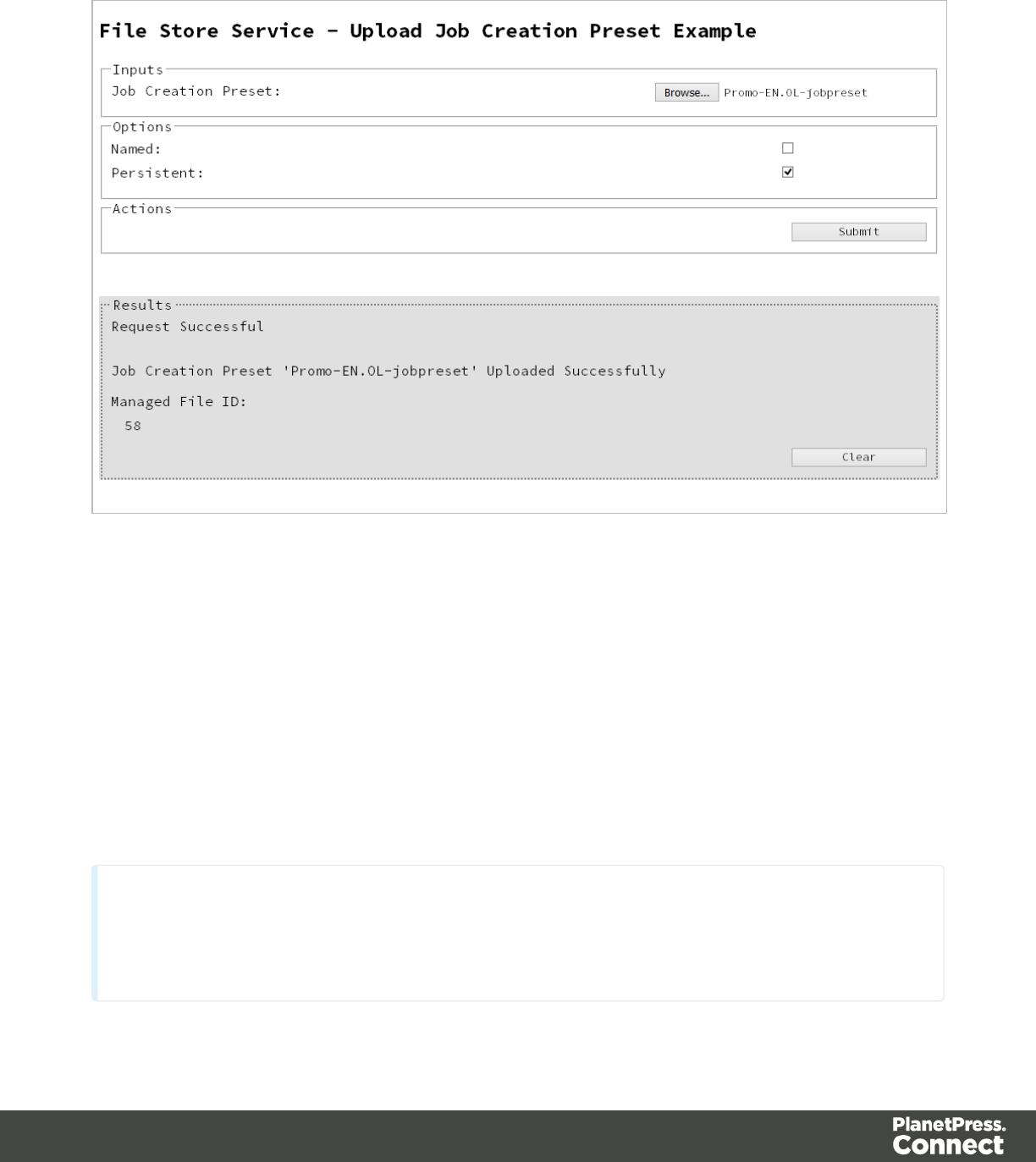
Screenshot & Output
Usage
To run the example simply select the Browse button and then select the job creation preset you
wish to upload using the selection dialog box.
Next you can specify the following options to use with the upload of the job creation preset:
lNamed - allow this preset to be identified/referenced by its Managed File Name as well
as its Managed File ID
lPersistent - make this preset persistent in the file store
Note
Only one Managed File in the file store can be associated with a specific name. If two
files are uploaded to the file store under the same name, then only the most recently
Page 69

uploaded file will be associated with (or can be referenced using) that name.
Once the preset and options are selected, simply select the Submit button to upload the preset
to the server's file store and the resulting Managed File ID for the job creation preset will be
returned and displayed to the Results area.
Discussion
Firstly, we define an event handler that will run in response to the submission of the HTML form
via the selection of the Submit button.
When our event handler function is called, we then obtain a reference to the local job creation
preset previously selected. This is achieved by getting the first value of the files attribute of the
HTML element with the ID of jcpreset (in this case a file type input HTML element) and storing
it in a variable file.
We also obtain boolean values for the Named and Persistent options (both checkbox type
input HTML elements) and store them in the named and persistent variables respectively.
Next we construct a jQuery AJAX request which will be sent to the File Store REST service.
We use an object called settings to hold the arguments for our request:
Method type and url arguments are specified as shown earlier, with the addition of a
persistent query parameter which specifies whether the preset is to be persistent in the file
store when uploaded.
We specify the variable file as the data or contents of the request, a contentType argument
of "application/xml", and because we are sending file data we also specify a processData
argument set to false.
If the Named option is checked in our form, and the named variable is true, then a filename
query parameter is also added which contains the file name of the preset selected
(file.name).
Lastly, the settings object is passed as an argument to the jQuery AJAX function ajax and the
request is executed.
Page 70

When the request is successful or done, a request response is received and the content of that
response is passed as the function parameter response. In the example, we then display the
value of this parameter which should be the new Managed File ID of the job creation preset in
the file store.
Further Reading
See the File Store Service page of the REST API Reference section for further detail.
Page 71
Uploading an Output Creation Preset to the File Store
Problem
You want to upload an output creation preset to the File Store so that it can be used as part of a
Output Creation operation.
Solution
The solution is to create a request using the following URI and method type to submit the output
creation preset to the server via the File Store REST service:
Upload Output Creation
Preset
/rest/serverengine/filestore/OutputCreationConfig POST
Example
HTML5
fs-ocpreset-upload.html
<!DOCTYPE html>
<html>
<head>
<meta charset="utf-8">
<title>Upload Output Creation Preset Example</title>
<script src="../../common/lib/js/jquery-
1.11.3.min.js"></script>
<script src="../../common/js/common.js"></script>
<script src="js/fs-ocpreset-upload.js"></script>
<link rel="stylesheet" href="../../common/css/styles.css">
</head>
<body>
<h2>File Store Service - Upload Output Creation Preset
Example</h2>
<form>
<fieldset>
<legend>Inputs</legend>
<div>
<label for="ocpreset">Output Creation
Preset:</label>
<input id="ocpreset" type="file" required>
Page 72

</div>
</fieldset>
<fieldset>
<legend>Options</legend>
<div>
<label for="named">Named:</label>
<input id="named" type="checkbox">
</div>
<div>
<label for="persistent">Persistent:</label>
<input id="persistent" type="checkbox">
</div>
</fieldset>
<fieldset>
<legend>Actions</legend>
<div>
<input id="submit" type="submit"
value="Submit">
</div>
</fieldset>
</form>
</body>
</html>
JavaScript/jQuery
fs-ocpreset-upload.js
/* File Store Service - Upload Output Creation Preset Example */
(function ($) {
"use strict";
$(document).ready(function () {
setupExample();
$("form").on("submit", function (event) {
event.preventDefault();
if (!checkSessionValid()) { return; }
var file = $("#ocpreset")[0].files[0],
named = $("#named").is(":checked"),
Page 73

persistent = $("#persistent").is(":checked");
var settings = {
type: "POST",
url:
"/rest/serverengine/filestore/OutputCreationConfig?persistent=" +
persistent,
data: file,
processData: false,
contentType: "application/xml"
};
if (named) { settings.url += "&filename=" + file.name;
}
$.ajax(settings).done(function (response) {
displayStatus("Request Successful");
displayInfo("Output Creation Preset '" + file.name
+ "' Uploaded Successfully");
displayResult("Managed File ID", response);
}).fail(displayDefaultFailure);
});
});
}(jQuery));
Page 74
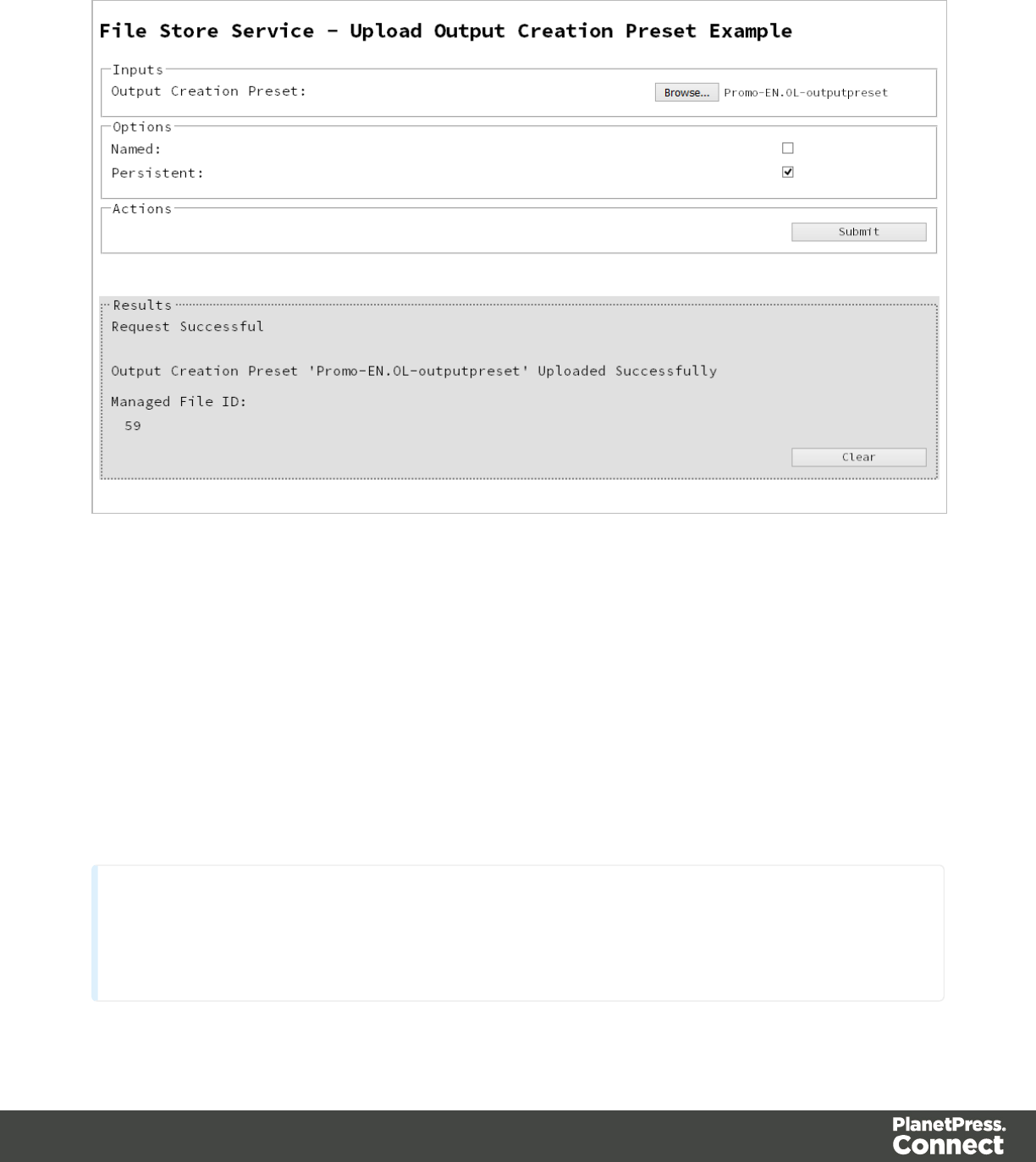
Screenshot & Output
Usage
To run the example simply select the Browse button and then select the output creation preset
you wish to upload using the selection dialog box.
Next you can specify the following options to use with the upload of the output creation preset:
lNamed - allow this preset to be identified/referenced by its Managed File Name as well
as its Managed File ID
lPersistent - make this preset persistent in the file store
Note
Only one Managed File in the file store can be associated with a specific name. If two
files are uploaded to the file store under the same name, then only the most recently
Page 75

uploaded file will be associated with (or can be referenced using) that name.
Once the preset and options are selected, simply select the Submit button to upload the preset
to the server's file store and the resulting Managed File ID for the output creation preset will be
returned and displayed to the Results area.
Discussion
Firstly, we define an event handler that will run in response to the submission of the HTML form
via the selection of the Submit button.
When our event handler function is called, we then obtain a reference to the local output
creation preset previously selected. This is achieved by getting the first value of the files
attribute of the HTML element with the ID of ocpreset (in this case a file type input HTML
element) and storing it in a variable file.
We also obtain boolean values for the Named and Persistent options (both checkbox type
input HTML elements) and store them in the named and persistent variables respectively.
Next we construct a jQuery AJAX request which will be sent to the File Store REST service.
We use an object called settings to hold the arguments for our request:
Method type and url arguments are specified as shown earlier, with the addition of a
persistent query parameter which specifies whether the preset is to be persistent in the file
store when uploaded.
We specify the variable file as the data or contents of the request, a contentType argument
of "application/xml", and because we are sending file data we also specify a processData
argument set to false.
If the Named option is checked in our form, and the named variable is true, then a filename
query parameter is also added which contains the file name of the preset selected
(file.name).
Lastly, the settings object is passed as an argument to the jQuery AJAX function ajax and the
request is executed.
Page 76

When the request is successful or done, a request response is received and the content of that
response is passed as the function parameter response. In the example, we then display the
value of this parameter which should be the new Managed File ID of the output creation preset
in the file store.
Further Reading
See the File Store Service page of the REST API Reference section for further detail.
Page 77
Working with the Entity Services
This section consists of a number of pages covering various useful working examples:
1. Finding all the Data Sets in the Server
2. Finding the Data Records in a Data Set
3. Finding all the Content Sets in the Server
4. Finding the Content Items in a Content Set
5. Finding all the Job Sets in the Server
6. Finding the Jobs in a Job Set
See the Data Set Entity Service,Content Set Entity Service and Job Set Entity Service pages
of the REST API Reference section for further detail.
Note
A complete listing including these examples can be found in the index.html file located
at the root of the working example source code which contains links to all working
examples.
Page 78
Finding all the Data Sets in the Server
Problem
You want to obtain a list of all the previously generated Data Sets contained in the PlanetPress
Connect Server potentially for use in a Content Creation operation.
Solution
The solution is to create a request using the following URI and method type and submit it to the
server via the Data Set Entity REST service:
Get All Data Set Entities /rest/serverengine/entity/datasets GET
Example
HTML5
dse-get-all-datasets.html
<!DOCTYPE html>
<html>
<head>
<meta charset="utf-8">
<title>Get All Data Sets Example</title>
<script src="../../common/lib/js/jquery-
1.11.3.min.js"></script>
<script src="../../common/js/common.js"></script>
<script src="js/dse-get-all-datasets.js"></script>
<link rel="stylesheet" href="../../common/css/styles.css">
</head>
<body>
<h2>Data Set Entity Service - Get All Data Sets
Example</h2>
<form>
<fieldset>
<legend>Inputs</legend>
<div>
<label for="submit">No Input Required</label>
<input id="submit" type="submit"
value="Submit">
</div>
Page 79

</fieldset>
</form>
</body>
</html>
JavaScript/jQuery
dse-get-all-datasets.js
/* Data Set Entity Service - Get All Data Sets Example */
(function ($) {
"use strict";
$(document).ready(function () {
setupExample();
$("form").on("submit", function (event) {
event.preventDefault();
if (!checkSessionValid()) { return; }
$.ajax({
type: "GET",
url: "/rest/serverengine/entity/datasets"
}).done(function (response) {
displayStatus("Request Successful");
displayHeading("Data Set IDs");
displaySubResult("Plain", jsonIDListToPlain
(response));
displaySubResult("JSON Identifier List",
jsonPrettyPrint(response));
}).fail(displayDefaultFailure);
});
});
}(jQuery));
Page 80
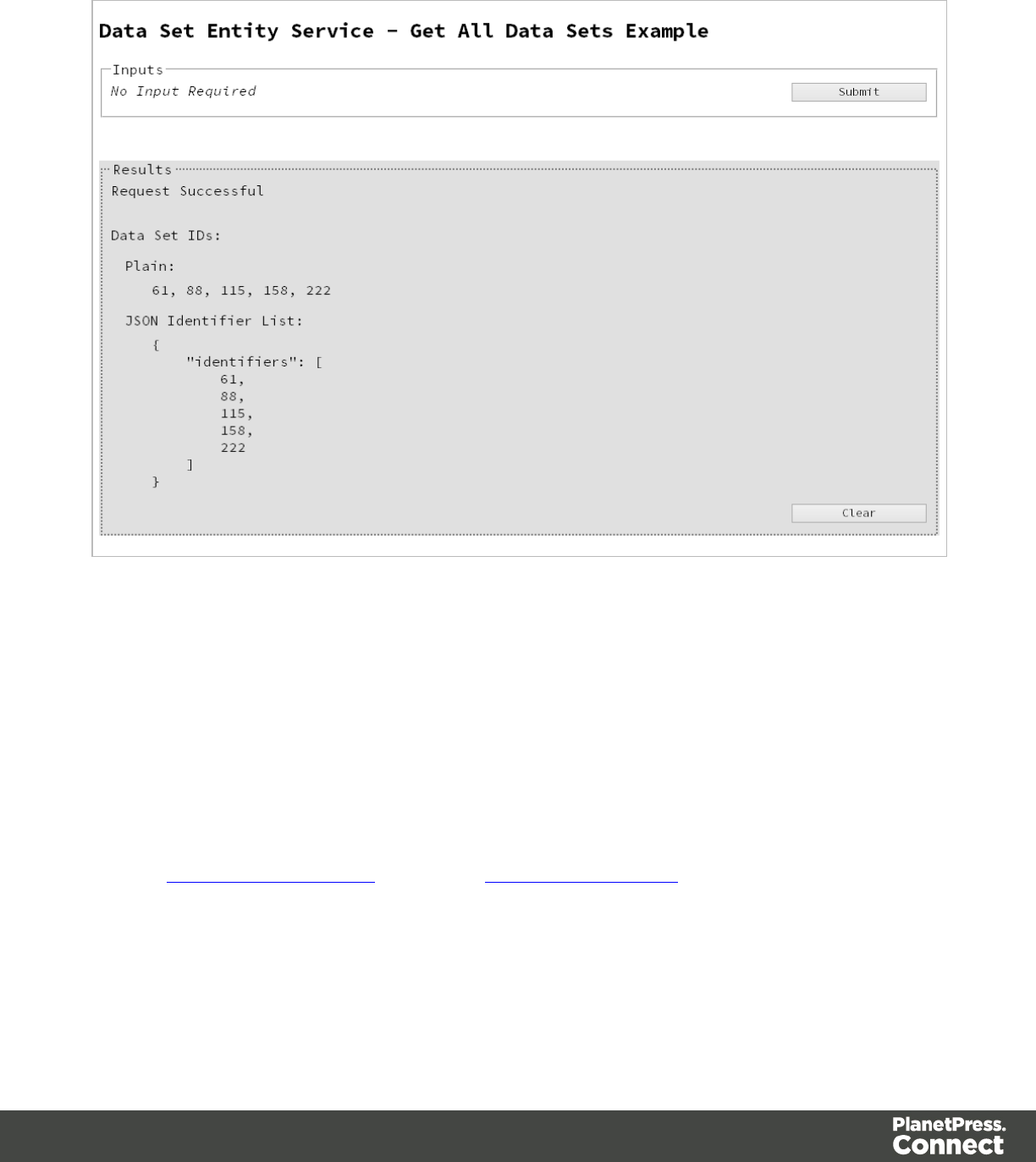
Screenshot & Output
Usage
To run the example simply select the Submit button to request a list of the all the data sets
currently contained within the server.
The resulting list will then be returned and displayed to the Results area in both Plain list and
JSON Identifier List formats.
Further Reading
See the Data Set Entity Service page of the REST API Reference section for further detail.
Page 81
Finding the Data Records in a Data Set
Problem
You want to obtain a list of all the previously generated Data Records contained within a
specific Data Set potentially for use in a Content Creation operation.
Solution
The solution is to create a request using the following URI and method type and submit it to the
server via the Data Set Entity REST service:
Get Data Records for Data
Set
/rest/serverengine/entity/datasets/{dataSetId} GET
Example
HTML5
dse-get-datarecords.html
<!DOCTYPE html>
<html>
<head>
<meta charset="utf-8">
<title>Get Data Records for Data Set Example</title>
<script src="../../common/lib/js/jquery-
1.11.3.min.js"></script>
<script src="../../common/js/common.js"></script>
<script src="js/dse-get-datarecords.js"></script>
<link rel="stylesheet" href="../../common/css/styles.css">
</head>
<body>
<h2>Data Set Entity Service - Get Data Records for Data Set
Example</h2>
<form>
<fieldset>
<legend>Inputs</legend>
<div>
<label for="dataset">Data Set ID:</label>
<input id="dataset" type="text"
placeholder="1234" required>
Page 82

</div>
<div>
<input id="submit" type="submit"
value="Submit">
</div>
</fieldset>
</form>
</body>
</html>
JavaScript/jQuery
dse-get-datarecords.js
/* Data Set Entity Service - Get Data Records for Data Set Example
*/
(function ($) {
"use strict";
$(document).ready(function () {
setupExample();
$("form").on("submit", function (event) {
event.preventDefault();
if (!checkSessionValid()) { return; }
var dataSetId = $("#dataset").val();
$.ajax({
type: "GET",
url: "/rest/serverengine/entity/datasets/" +
dataSetId
}).done(function (response) {
displayStatus("Request Successful");
displayHeading("Data Record IDs for Data Set '" +
dataSetId + "'");
displaySubResult("Plain", jsonIDListToPlain
(response));
displaySubResult("JSON Identifier List",
jsonPrettyPrint(response));
}).fail(displayDefaultFailure);
Page 83
});
});
}(jQuery));
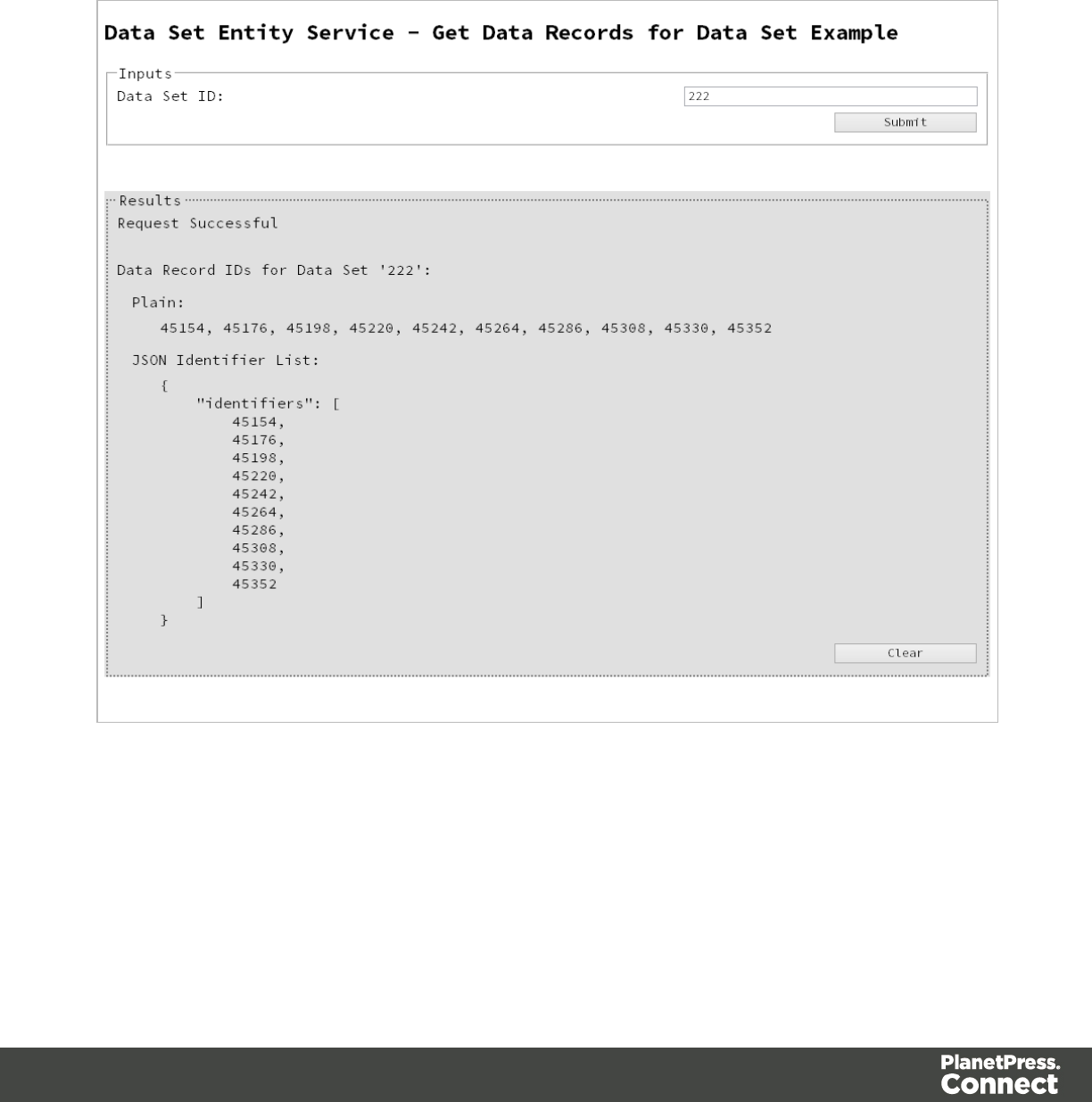
Screenshot & Output
Usage
To run the example simply enter the Data Set ID and select the Submit button to request a list
of the all the data records contained within the specific data set in the server.
Page 84

Finding all the Content Sets in the Server
Problem
You want to obtain a list of all the previously generated Content Sets contained in the
PlanetPress Connect Server potentially for use in a Job Creation operation.
Solution
The solution is to create a request using the following URI and method type and submit it to the
server via the Content Set Entity REST service:
Get All Content Set Entities /rest/serverengine/entity/contentsets GET
Example
HTML5
cse-get-all-contentsets.html
<!DOCTYPE html>
<html>
<head>
<meta charset="utf-8">
<title>Get All Content Sets Example</title>
<script src="../../common/lib/js/jquery-
1.11.3.min.js"></script>
<script src="../../common/js/common.js"></script>
<script src="js/cse-get-all-contentsets.js"></script>
<link rel="stylesheet" href="../../common/css/styles.css">
</head>
<body>
<h2>Content Set Entity Service - Get All Content Sets
Example</h2>
<form>
<fieldset>
<legend>Inputs</legend>
<div>
<label for="submit">No Input Required</label>
<input id="submit" type="submit"
value="Submit">
</div>
Page 86

</fieldset>
</form>
</body>
</html>
JavaScript/jQuery
cse-get-all-contentsets.js
/* Content Set Entity Service - Get All Content Sets Example */
(function ($) {
"use strict";
$(document).ready(function () {
setupExample();
$("form").on("submit", function (event) {
event.preventDefault();
if (!checkSessionValid()) { return; }
$.ajax({
type: "GET",
url: "/rest/serverengine/entity/contentsets"
}).done(function (response) {
displayStatus("Request Successful");
displayHeading("Content Set IDs");
displaySubResult("Plain", jsonIDListToPlain
(response));
displaySubResult("JSON Identifier List",
jsonPrettyPrint(response));
}).fail(displayDefaultFailure);
});
});
}(jQuery));
Page 87
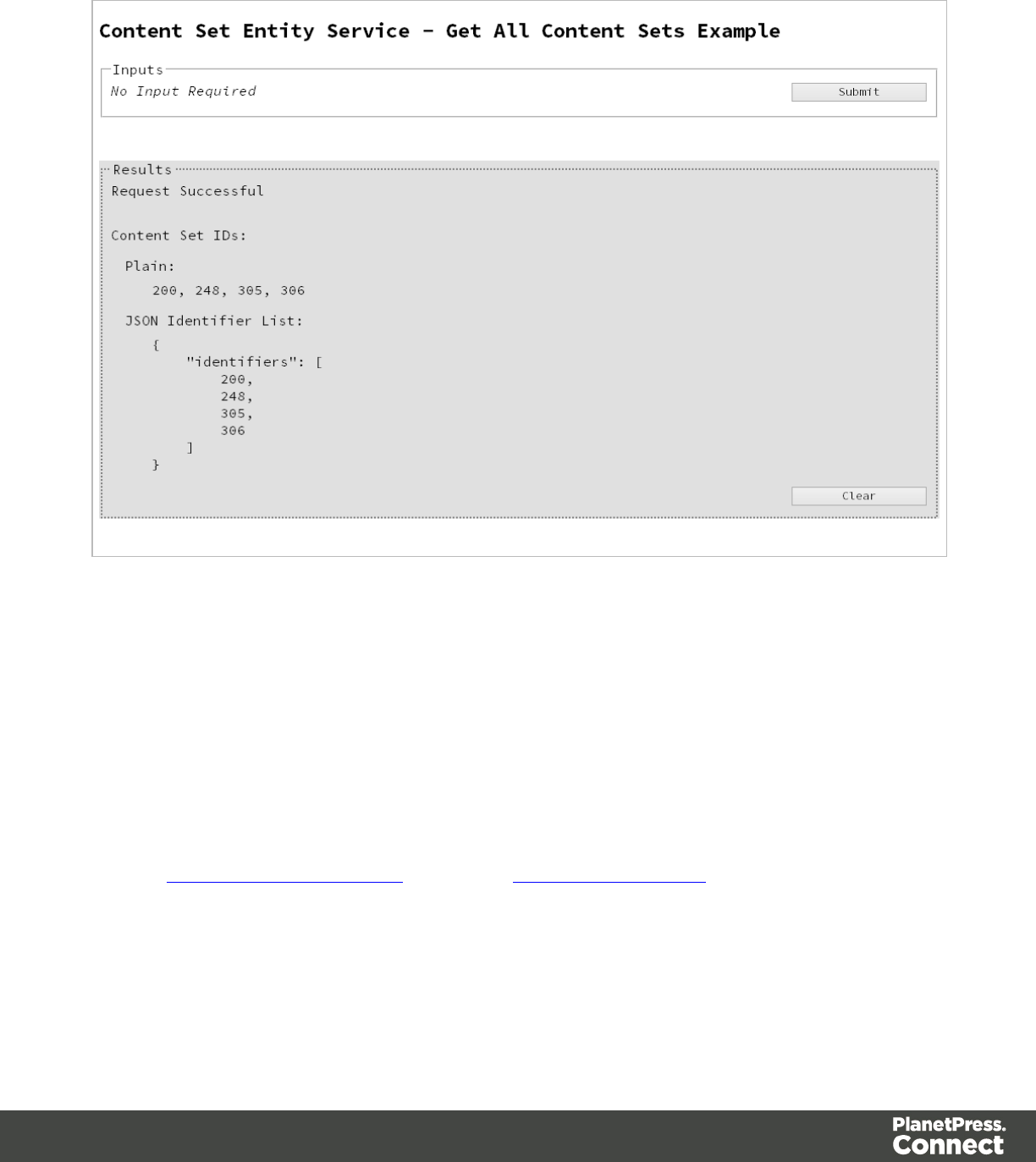
Screenshot & Output
Usage
To run the example simply select the Submit button to request a list of the all the content sets
currently contained within the server.
The resulting list will then be returned and displayed to the Results area in both Plain list and
JSON Identifier List formats.
Further Reading
See the Content Set Entity Service page of the REST API Reference section for further detail.
Page 88
Finding the Content Items in a Content Set
Problem
You want to obtain a list of all the previously generated Content Items contained within a
specific Content Set potentially for use in a Job Creation operation.
Solution
The solution is to create a request using the following URI and method type and submit it to the
server via the Content Set Entity REST service:
Get Content Items for
Content Set
/rest/serverengine/entity/contentsets/{contentSetId} GET
Example
HTML5
cse-get-contentitems.html
<!DOCTYPE html>
<html>
<head>
<meta charset="utf-8">
<title>Get Content Items for Content Set Example</title>
<script src="../../common/lib/js/jquery-
1.11.3.min.js"></script>
<script src="../../common/js/common.js"></script>
<script src="js/cse-get-contentitems.js"></script>
<link rel="stylesheet" href="../../common/css/styles.css">
</head>
<body>
<h2>Content Set Entity Service - Get Content Items for
Content Set Example</h2>
<form>
<fieldset>
<legend>Inputs</legend>
<div>
<label for="contentset">Content Set ID:</label>
<input id="contentset" type="text"
placeholder="1234" required>
Page 89

</div>
<div>
<input id="submit" type="submit"
value="Submit">
</div>
</fieldset>
</form>
</body>
</html>
JavaScript/jQuery
cse-get-contentitems.js
/* Content Set Entity Service - Get Content Items for Content Set
Example */
(function ($) {
"use strict";
$(document).ready(function () {
setupExample();
$("form").on("submit", function (event) {
event.preventDefault();
if (!checkSessionValid()) { return; }
var contentSetId = $("#contentset").val();
$.ajax({
type: "GET",
url: "/rest/serverengine/entity/contentsets/" +
contentSetId
}).done(function (response) {
displayStatus("Request Successful");
displayHeading("Content Item IDs for Content Set '"
+ contentSetId + "'");
displaySubResult("Plain",
jsonContentItemIDListToTable(response));
displaySubResult("JSON Content Item Identifier
List", jsonPrettyPrint(response));
}).fail(displayDefaultFailure);
Page 90
});
});
}(jQuery));
Screenshot & Output
Page 91

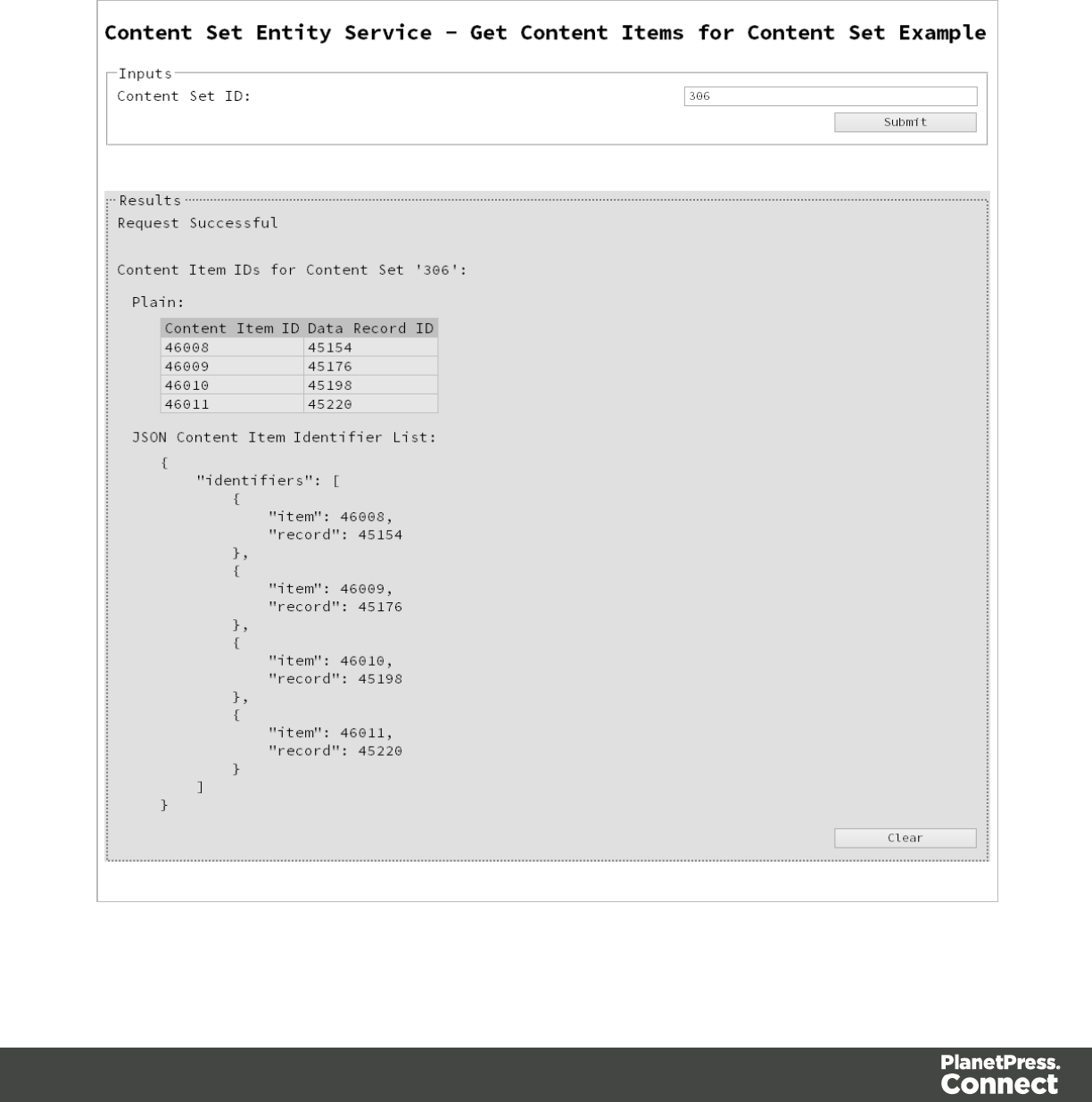
Usage
To run the example simply enter the Content Set ID and select the Submit button to request a
list of the all the content items contained within the specific content set in the server.
The resulting list will then be returned as a list of Content Item and Data Record ID pairs which
will be displayed to the Results area in both Plain table and JSON Content Item Identifier List
formats.
Further Reading
See the Content Set Entity Service page of the REST API Reference section for further detail.
Page 92
Finding all the Job Sets in the Server
Problem
You want to obtain a list of all the previously generated Job Sets contained in the PlanetPress
Connect Server potentially for use in a Output Creation operation.
Solution
The solution is to create a request using the following URI and method type and submit it to the
server via the Job Set Entity REST service:
Get All Job Set Entities /rest/serverengine/entity/jobsets GET
Example
HTML5
jse-get-all-jobsets.html
<!DOCTYPE html>
<html>
<head>
<meta charset="utf-8">
<title>Get All Job Sets Example</title>
<script src="../../common/lib/js/jquery-
1.11.3.min.js"></script>
<script src="../../common/js/common.js"></script>
<script src="js/jse-get-all-jobsets.js"></script>
<link rel="stylesheet" href="../../common/css/styles.css">
</head>
<body>
<h2>Job Set Entity Service - Get All Job Sets Example</h2>
<form>
<fieldset>
<legend>Inputs</legend>
<div>
<label for="submit">No Input Required</label>
<input id="submit" type="submit"
value="Submit">
</div>
</fieldset>
Page 93

</form>
</body>
</html>
JavaScript/jQuery
jse-get-all-jobsets.js
/* Job Set Entity Service - Get All Job Sets Example */
(function ($) {
"use strict";
$(document).ready(function () {
setupExample();
$("form").on("submit", function (event) {
event.preventDefault();
if (!checkSessionValid()) { return; }
$.ajax({
type: "GET",
url: "/rest/serverengine/entity/jobsets"
}).done(function (response) {
displayStatus("Request Successful");
displayHeading("Job Set IDs");
displaySubResult("Plain", jsonIDListToPlain
(response));
displaySubResult("JSON Identifier List",
jsonPrettyPrint(response));
}).fail(displayDefaultFailure);
});
});
}(jQuery));
Page 94
Screenshot & Output
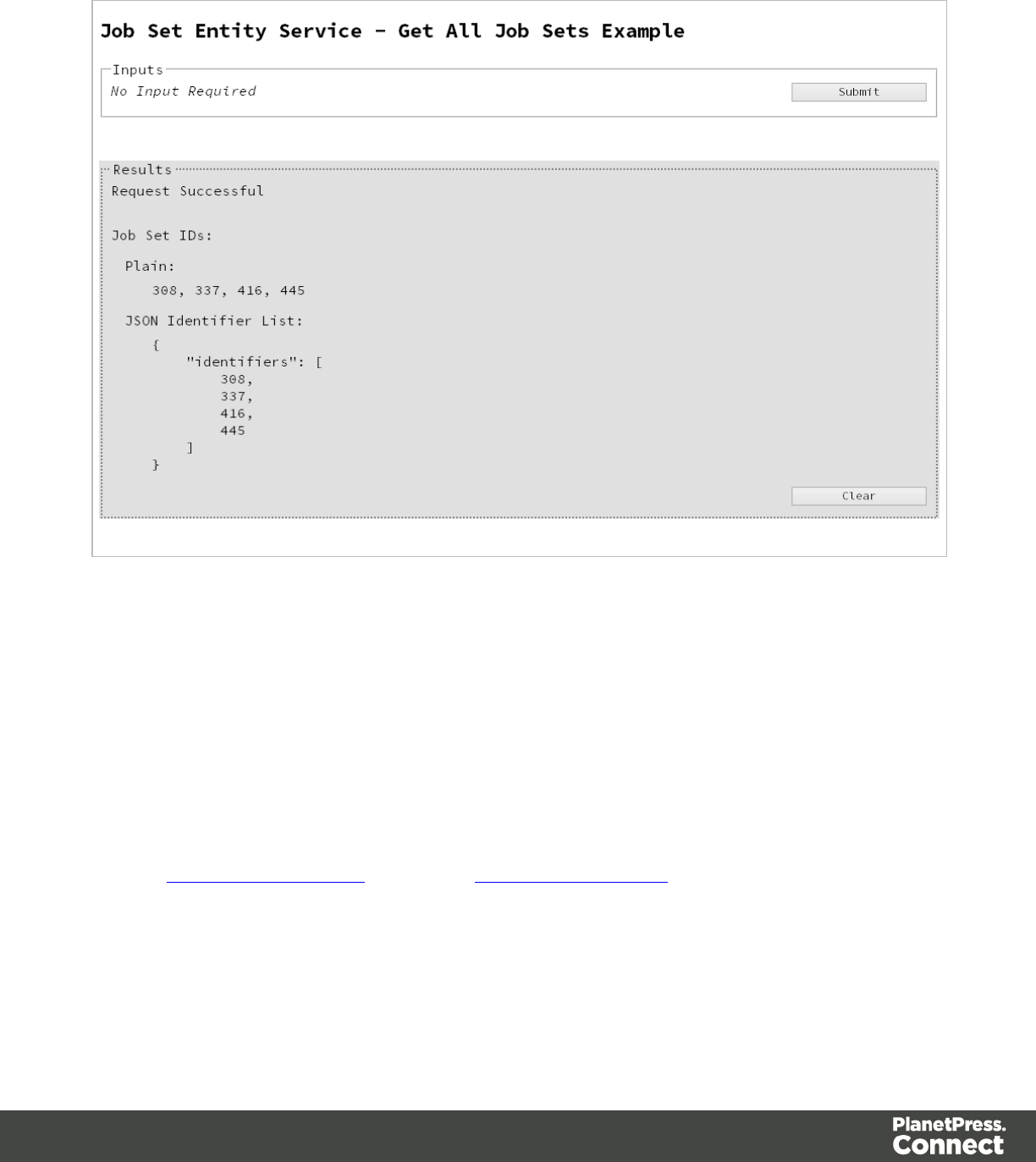
Usage
To run the example simply select the Submit button to request a list of the all the job sets
currently contained within the server.
The resulting list will then be returned and displayed to the Results area in both Plain list and
JSON Identifier List formats.
Further Reading
See the Job Set Entity Service page of the REST API Reference section for further detail.
Page 95
Finding the Jobs in a Job Set
Problem
You want to obtain a list of all the previously generated Jobs contained within a specific Job
Set potentially for use in a Output Creation operation.
Solution
The solution is to create a request using the following URI and method type and submit it to the
server via the Job Set Entity REST service:
Get Jobs for Job Set /rest/serverengine/entity/jobsets/{jobSetId} GET
Example
HTML5
jse-get-jobs.html
<!DOCTYPE html>
<html>
<head>
<meta charset="utf-8">
<title>Get Jobs for Job Set Example</title>
<script src="../../common/lib/js/jquery-
1.11.3.min.js"></script>
<script src="../../common/js/common.js"></script>
<script src="js/jse-get-jobs.js"></script>
<link rel="stylesheet" href="../../common/css/styles.css">
</head>
<body>
<h2>Job Set Entity Service - Get Jobs for Job Set
Example</h2>
<form>
<fieldset>
<legend>Inputs</legend>
<div>
<label for="jobset">Job Set ID:</label>
<input id="jobset" type="text"
placeholder="1234" required>
</div>
Page 96

<div>
<input id="submit" type="submit"
value="Submit">
</div>
</fieldset>
</form>
</body>
</html>
JavaScript/jQuery
jse-get-jobs.js
/* Job Set Entity Service - Get Jobs for Job Set Example */
(function ($) {
"use strict";
$(document).ready(function () {
setupExample();
$("form").on("submit", function (event) {
event.preventDefault();
if (!checkSessionValid()) { return; }
var jobSetId = $("#jobset").val();
$.ajax({
type: "GET",
url: "/rest/serverengine/entity/jobsets/" +
jobSetId
}).done(function (response) {
displayStatus("Request Successful");
displayHeading("Job IDs for Job Set '" + jobSetId +
"'");
displaySubResult("Plain", jsonIDListToPlain
(response));
displaySubResult("JSON Identifier List",
jsonPrettyPrint(response));
}).fail(displayDefaultFailure);
});
});
Page 97
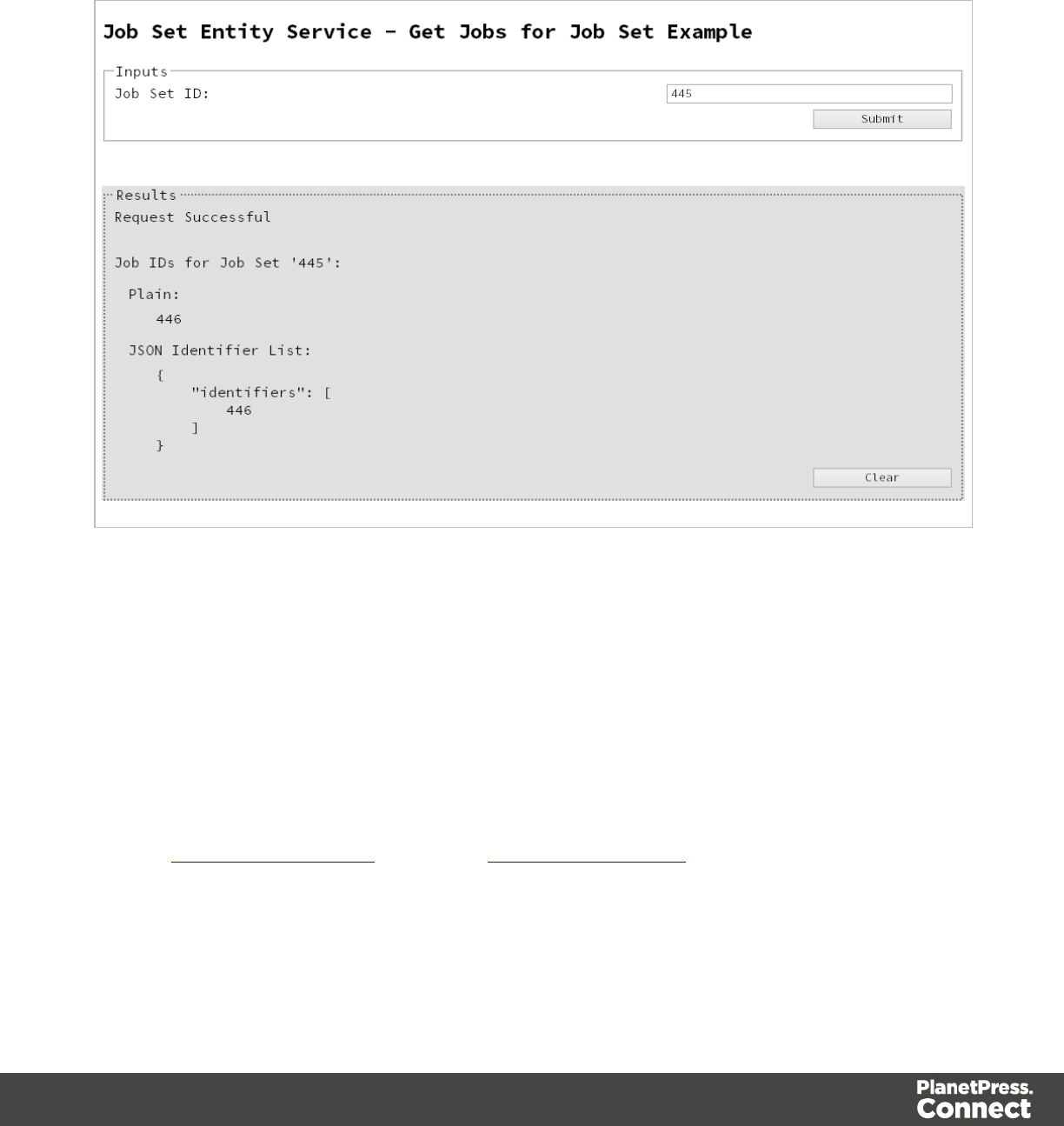
}(jQuery));
Screenshot & Output
Usage
To run the example simply enter the Job Set ID and select the Submit button to request a list of
the all the jobs contained within the specific job set in the server.
The resulting list will then be returned and displayed to the Results area in both Plain list and
JSON Identifier List formats.
Further Reading
See the Job Set Entity Service page of the REST API Reference section for further detail.
Page 98

Working with the Workflow Services
This section consists of a number of pages covering various useful working examples:
1. Running a Data Mapping Operation
2. Running a Data Mapping Operation (Using JSON)
3. Running a Data Mapping Operation for PDF/VT File (to Data Set)
4. Running a Data Mapping Operation for PDF/VT File (to Content Set)
5. Running a Content Creation Operation for Print
6. Running a Content Creation Operation for Print By Data Record (Using JSON)
7. Running a Content Creation Operation for Email By Data Record (Using JSON)
8. Creating Content for Web By Data Record
9. Creating Content for Web By Data Record (Using JSON)
10. Running a Job Creation Operation (Using JSON)
11. Running an Output Creation Operation
12. Running an Output Creation Operation (Using JSON)
13. Running an Output Creation Operation By Job (Using JSON)
14. Running an All-In-One Operation (Using JSON)
See the Data Mapping Service,Content Creation Service,Content Creation (Email) Service,
Content Creation (HTML) Service,Job Creation Service,Output Creation Service and All-In-
One Service pages of the REST API Reference section for further detail.
Note
A complete listing including these examples can be found in the index.html file located
at the root of the working example source code which contains links to all working
examples.
Page 99
Running a Data Mapping Operation
Problem
You want to run a data mapping operation to generate a Data Set using a data file and a data
mapping configuration as inputs.
Solution
The solution is to make a series of requests using the following URIs and method types to
submit, monitor progress and ultimately retrieve the result of the data mapping operation. There
is also the option of cancelling an operation during processing if required. These requests can
be submitted via the Data Mapping REST service:
Process Data Mapping /rest/serverengine/workflow/datamining/{configId}/
{dataFileId}
POST
Get Progress of
Operation
/rest/serverengine/workflow/datamining/getProgress/
{operationId}
GET
Get Result of Operation /rest/serverengine/workflow/datamining/getResult/
{operationId}
POST
Cancel an Operation /rest/serverengine/workflow/datamining/cancel/
{operationId}
POST
Example
HTML5
dm-process.html
<!DOCTYPE html>
<html>
<head>
<meta charset="utf-8">
<title>Process Data Mapping Example</title>
<script src="../../common/lib/js/jquery-
1.11.3.min.js"></script>
<script src="../../common/js/common.js"></script>
<script src="js/dm-process.js"></script>
Page 100

<link rel="stylesheet" href="../../common/css/styles.css">
</head>
<body>
<h2>Data Mapping Service - Process Data Mapping
Example</h2>
<form>
<fieldset>
<legend>Inputs</legend>
<div>
<label for="datafile">Data File
ID/Name:</label>
<input id="datafile" type="text"
placeholder="1234 or Filename" required>
</div>
<div>
<label for="datamapper">Data Mapping
Configuration ID/Name:</label>
<input id="datamapper" type="text"
placeholder="1234 or Filename" required>
</div>
</fieldset>
<fieldset>
<legend>Progress & Actions</legend>
<div>
<progress value="0" max="100"></progress>
</div>
<div>
<input id="cancel" type="button" value="Cancel"
disabled>
<input id="submit" type="submit"
value="Submit">
</div>
</fieldset>
</form>
</body>
</html>
JavaScript/jQuery
dm-process.js
Page 101

/* Data Mapping Service - Process Data Mapping Example */
(function ($) {
"use strict";
$(document).ready(function () {
setupExample();
var $submitButton = $("#submit"),
$cancelButton = $("#cancel"),
$progressBar = $("progress"),
operationId = null;
$cancelButton.on("click", function () {
if (operationId !== null) {
/* Cancel an Operation */
$.ajax({
type: "POST",
url:
"/rest/serverengine/workflow/datamining/cancel/" + operationId
}).done(function (response) {
displayInfo("Operation Cancelled!");
operationId = null;
setTimeout(function () {
$progressBar.attr("value", 0);
$submitButton.removeAttr("disabled");
$cancelButton.attr("disabled", "disabled");
}, 100);
}).fail(displayDefaultFailure);
}
});
$("form").on("submit", function (event) {
event.preventDefault();
if (!checkSessionValid()) { return; }
var configId = $("#datamapper").val(),
dataFileId = $("#datafile").val();
var getFinalResult = function () {
/* Get Result of Operation */
Page 102

$.ajax({
type: "POST",
url:
"/rest/serverengine/workflow/datamining/getResult/" + operationId
}).done(function (response, status, request) {
displayHeading("Operation Result");
displaySubResult("Data Set ID", response);
}).fail(displayDefaultFailure);
};
/* Process Data Mapping */
$.ajax({
type: "POST",
url: "/rest/serverengine/workflow/datamining/" +
configId + "/" + dataFileId
}).done(function (response, status, request) {
var progress = null;
operationId = request.getResponseHeader
("operationId");
$submitButton.attr("disabled", "disabled");
$cancelButton.removeAttr("disabled");
displayStatus("Data Mapping Operation Successfully
Submitted");
displayResult("Operation ID", operationId);
var getProgress = function () {
if (operationId !== null) {
/* Get Progress of Operation */
$.ajax({
type: "GET",
cache: false,
url:
"/rest/serverengine/workflow/datamining/getProgress/" + operationId
}).done(function (response, status,
request) {
if (response !== "done") {
if (response !== progress) {
progress = response;
Page 103

$progressBar.attr("value",
progress);
}
setTimeout(getProgress, 1000);
} else {
$progressBar.attr("value",
(progress = 100));
displayInfo("Operation Completed");
getFinalResult();
operationId = null;
setTimeout(function () {
$progressBar.attr("value", 0);
$submitButton.removeAttr
("disabled");
$cancelButton.attr("disabled",
"disabled");
}, 100);
}
}).fail(displayDefaultFailure);
}
};
getProgress();
}).fail(displayDefaultFailure);
});
});
}(jQuery));
Page 104
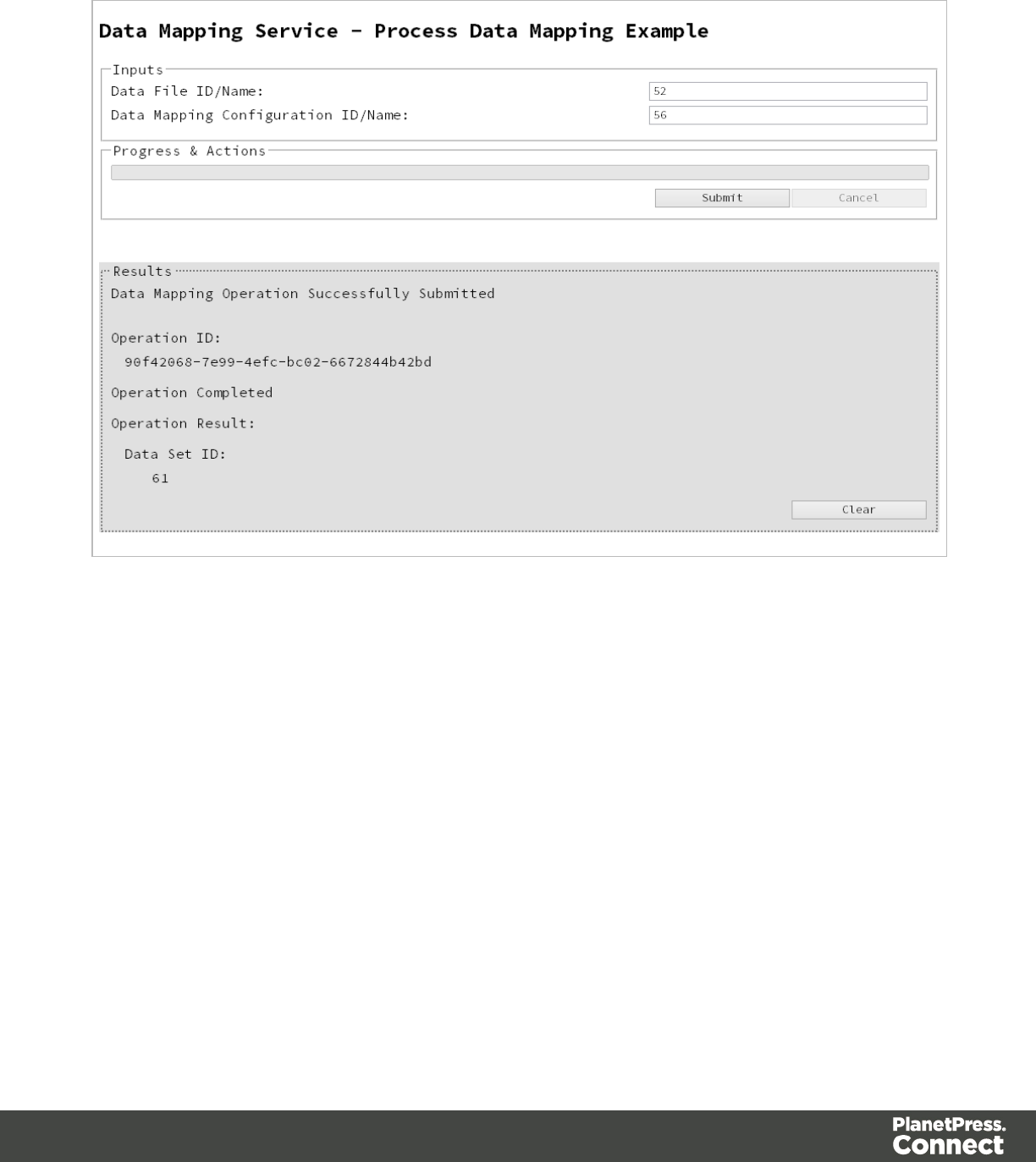
Screenshot & Output
Usage
To run the example simply enter the Managed File ID or Name for your data file and your data
mapping configuration (previously uploaded to the file store) into the appropriate text fields, and
then select the Submit button to start the data mapping operation.
Once the operation has started processing, the Operation ID will be displayed in the Results
area and the Cancel button will become enabled, giving you the option to cancel the running
operation.
The progress of the operation will be displayed in the progress bar, and once the data mapping
operation has completed, the ID of the generated Data Set will be returned and displayed to the
Results area.
Page 105

Running a Data Mapping Operation (Using JSON)
Problem
You want to run a data mapping operation to generate a Data Set using a data file and a data
mapping configuration as inputs.
Solution
The solution is to make a series of requests using the following URIs and method types to
submit, monitor progress and ultimately retrieve the result of the data mapping operation. There
is also the option of cancelling an operation during processing if required. These requests can
be submitted via the Data Mapping REST service:
Process Data Mapping
(JSON)
/rest/serverengine/workflow/datamining/{configId} POST
Get Progress of
Operation
/rest/serverengine/workflow/datamining/getProgress/
{operationId}
GET
Get Result of Operation /rest/serverengine/workflow/datamining/getResult/
{operationId}
POST
Cancel an Operation /rest/serverengine/workflow/datamining/cancel/
{operationId}
POST
Example
HTML5
dm-process-json.html
<!DOCTYPE html>
<html>
<head>
<meta charset="utf-8">
<title>Process Data Mapping (JSON) Example</title>
<script src="../../common/lib/js/jquery-
1.11.3.min.js"></script>
<script src="../../common/js/common.js"></script>
<script src="js/dm-process-json.js"></script>
Page 107

<link rel="stylesheet" href="../../common/css/styles.css">
</head>
<body>
<h2>Data Mapping Service - Process Data Mapping (JSON)
Example</h2>
<form>
<fieldset>
<legend>Inputs</legend>
<div>
<label for="datafile">Data File
ID/Name:</label>
<input id="datafile" type="text"
placeholder="1234 or Filename" required>
</div>
<div>
<label for="datamapper">Data Mapping
Configuration ID/Name:</label>
<input id="datamapper" type="text"
placeholder="1234 or Filename" required>
</div>
</fieldset>
<fieldset>
<legend>Progress & Actions</legend>
<div>
<progress value="0" max="100"></progress>
</div>
<div>
<input id="cancel" type="button" value="Cancel"
disabled>
<input id="submit" type="submit"
value="Submit">
</div>
</fieldset>
</form>
</body>
</html>
JavaScript/jQuery
dm-process-json.js
Page 108

/* Data Mapping Service - Process Data Mapping (JSON) Example */
(function ($) {
"use strict";
$(document).ready(function () {
setupExample();
var $submitButton = $("#submit"),
$cancelButton = $("#cancel"),
$progressBar = $("progress"),
operationId = null;
$cancelButton.on("click", function () {
if (operationId !== null) {
/* Cancel an Operation */
$.ajax({
type: "POST",
url:
"/rest/serverengine/workflow/datamining/cancel/" + operationId
}).done(function (response) {
displayInfo("Operation Cancelled!");
operationId = null;
setTimeout(function () {
$progressBar.attr("value", 0);
$submitButton.removeAttr("disabled");
$cancelButton.attr("disabled", "disabled");
}, 100);
}).fail(displayDefaultFailure);
}
});
$("form").on("submit", function (event) {
event.preventDefault();
if (!checkSessionValid()) { return; }
var configId = $("#datamapper").val(),
dataFileId = $("#datafile").val();
var getFinalResult = function () {
/* Get Result of Operation */
Page 109

$.ajax({
type: "POST",
url:
"/rest/serverengine/workflow/datamining/getResult/" + operationId
}).done(function (response, status, request) {
displayHeading("Operation Result");
displaySubResult("Data Set ID", response);
}).fail(displayDefaultFailure);
};
/* Process Data Mapping (JSON) */
$.ajax({
type: "POST",
url:
"/rest/serverengine/workflow/datamining/" + configId,
data: JSON.stringify(plainIDToJson
(dataFileId)),
contentType: "application/json"
}).done(function (response, status, request) {
var progress = null;
operationId = request.getResponseHeader
("operationId");
$submitButton.attr("disabled", "disabled");
$cancelButton.removeAttr("disabled");
displayStatus("Data Mapping Operation Successfully
Submitted");
displayResult("Operation ID", operationId);
var getProgress = function () {
if (operationId !== null) {
/* Get Progress of Operation */
$.ajax({
type: "GET",
cache: false,
url:
"/rest/serverengine/workflow/datamining/getProgress/" + operationId
}).done(function (response, status,
request) {
Page 110

if (response !== "done") {
if (response !== progress) {
progress = response;
$progressBar.attr("value",
progress);
}
setTimeout(getProgress, 1000);
} else {
$progressBar.attr("value",
(progress = 100));
displayInfo("Operation Completed");
getFinalResult();
operationId = null;
setTimeout(function () {
$progressBar.attr("value", 0);
$submitButton.removeAttr
("disabled");
$cancelButton.attr("disabled",
"disabled");
}, 100);
}
}).fail(displayDefaultFailure);
}
};
getProgress();
}).fail(displayDefaultFailure);
});
});
}(jQuery));
Page 111
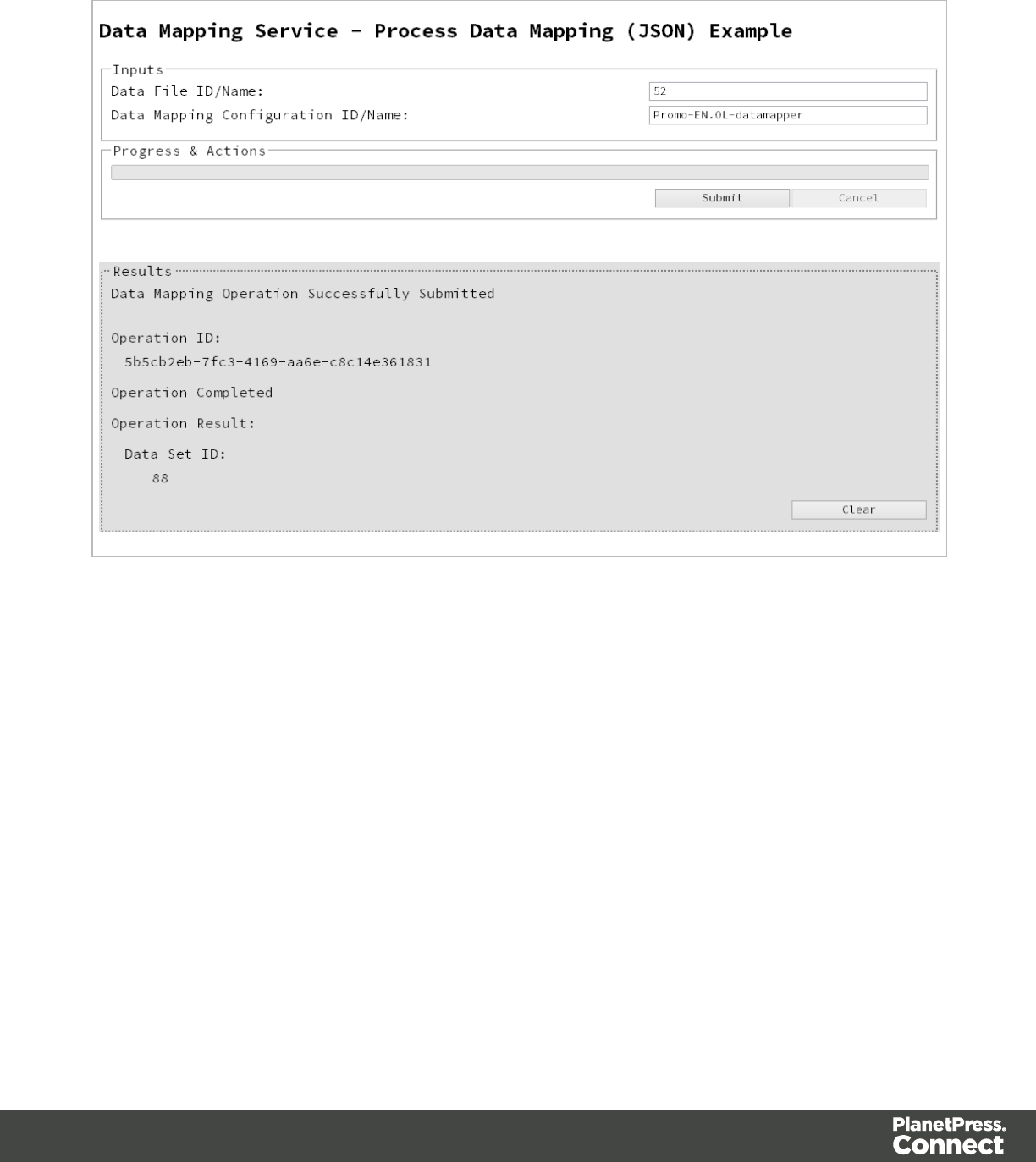
Screenshot & Output
Usage
To run the example simply enter the Managed File ID or Name for your data file and your data
mapping configuration (previously uploaded to the file store) into the appropriate text fields, and
then select the Submit button to start the data mapping operation.
Once the operation has started processing, the Operation ID will be displayed in the Results
area and the Cancel button will become enabled, giving you the option to cancel the running
operation.
The progress of the operation will be displayed in the progress bar, and once the data mapping
operation has completed, the ID of the generated Data Set will be returned and displayed to the
Results area.
Page 112

Running a Data Mapping Operation for PDF/VT File (to
Data Set)
Problem
You want to run a data mapping operation to generate a Data Set using only a PDF/VT file as
input.
Solution
The solution is to make a series of requests using the following URIs and method types to
submit, monitor progress and ultimately retrieve the result of the data mapping operation. There
is also the option of cancelling an operation during processing if required. These requests can
be submitted via the Data Mapping REST service:
Process Data Mapping
(PDF/VT to Data Set)
/rest/serverengine/workflow/datamining/pdfvtds/
{dataFileId}
POST
Get Progress of
Operation
/rest/serverengine/workflow/datamining/getProgress/
{operationId}
GET
Get Result of Operation /rest/serverengine/workflow/datamining/getResult/
{operationId}
POST
Cancel an Operation /rest/serverengine/workflow/datamining/cancel/
{operationId}
POST
Example
HTML5
dm-process-pdfvt-ds.html
<!DOCTYPE html>
<html>
<head>
<meta charset="utf-8">
<title>Process Data Mapping (PDF/VT to Data Set)
Example</title>
<script src="../../common/lib/js/jquery-
Page 114

1.11.3.min.js"></script>
<script src="../../common/js/common.js"></script>
<script src="js/dm-process-pdfvt-ds.js"></script>
<link rel="stylesheet" href="../../common/css/styles.css">
</head>
<body>
<h2>Data Mapping Service - Process Data Mapping (PDF/VT to
Data Set) Example</h2>
<form>
<fieldset>
<legend>Inputs</legend>
<div>
<label for="datafile">Data File
ID/Name:</label>
<input id="datafile" type="text"
placeholder="1234 or Filename" required>
</div>
</fieldset>
<fieldset>
<legend>Progress & Actions</legend>
<div>
<progress value="0" max="100"></progress>
</div>
<div>
<input id="cancel" type="button" value="Cancel"
disabled>
<input id="submit" type="submit"
value="Submit">
</div>
</fieldset>
</form>
</body>
</html>
JavaScript/jQuery
dm-process-pdfvt-ds.js
/* Data Mapping Service - Process Data Mapping (PDF/VT to Data Set)
Example */
(function ($) {
Page 115

"use strict";
$(document).ready(function () {
setupExample();
var $submitButton = $("#submit"),
$cancelButton = $("#cancel"),
$progressBar = $("progress"),
operationId = null;
$cancelButton.on("click", function () {
if (operationId !== null) {
/* Cancel an Operation */
$.ajax({
type: "POST",
url:
"/rest/serverengine/workflow/datamining/cancel/" + operationId
}).done(function (response) {
displayInfo("Operation Cancelled!");
operationId = null;
setTimeout(function () {
$progressBar.attr("value", 0);
$submitButton.removeAttr("disabled");
$cancelButton.attr("disabled", "disabled");
}, 100);
}).fail(displayDefaultFailure);
}
});
$("form").on("submit", function (event) {
event.preventDefault();
if (!checkSessionValid()) { return; }
var dataFileId = $("#datafile").val();
var getFinalResult = function () {
/* Get Result of Operation */
$.ajax({
type: "POST",
url:
Page 116

"/rest/serverengine/workflow/datamining/getResult/" + operationId
}).done(function (response, status, request) {
displayHeading("Operation Result");
displaySubResult("Data Set ID", response);
}).fail(displayDefaultFailure);
};
/* Process Data Mapping (PDF/VT to Data Set) */
$.ajax({
type: "POST",
url:
"/rest/serverengine/workflow/datamining/pdfvtds/" + dataFileId
}).done(function (response, status, request) {
var progress = null;
operationId = request.getResponseHeader
("operationId");
$submitButton.attr("disabled", "disabled");
$cancelButton.removeAttr("disabled");
displayStatus("Data Mapping Operation Successfully
Submitted");
displayResult("Operation ID", operationId);
var getProgress = function () {
if (operationId !== null) {
/* Get Progress of Operation */
$.ajax({
type: "GET",
cache: false,
url:
"/rest/serverengine/workflow/datamining/getProgress/" + operationId
}).done(function (response, status,
request) {
if (response !== "done") {
if (response !== progress) {
progress = response;
$progressBar.attr("value",
progress);
}
Page 117

setTimeout(getProgress, 1000);
} else {
$progressBar.attr("value",
(progress = 100));
displayInfo("Operation Completed");
getFinalResult();
operationId = null;
setTimeout(function () {
$progressBar.attr("value", 0);
$submitButton.removeAttr
("disabled");
$cancelButton.attr("disabled",
"disabled");
}, 100);
}
}).fail(displayDefaultFailure);
}
};
getProgress();
}).fail(displayDefaultFailure);
});
});
}(jQuery));
Page 118
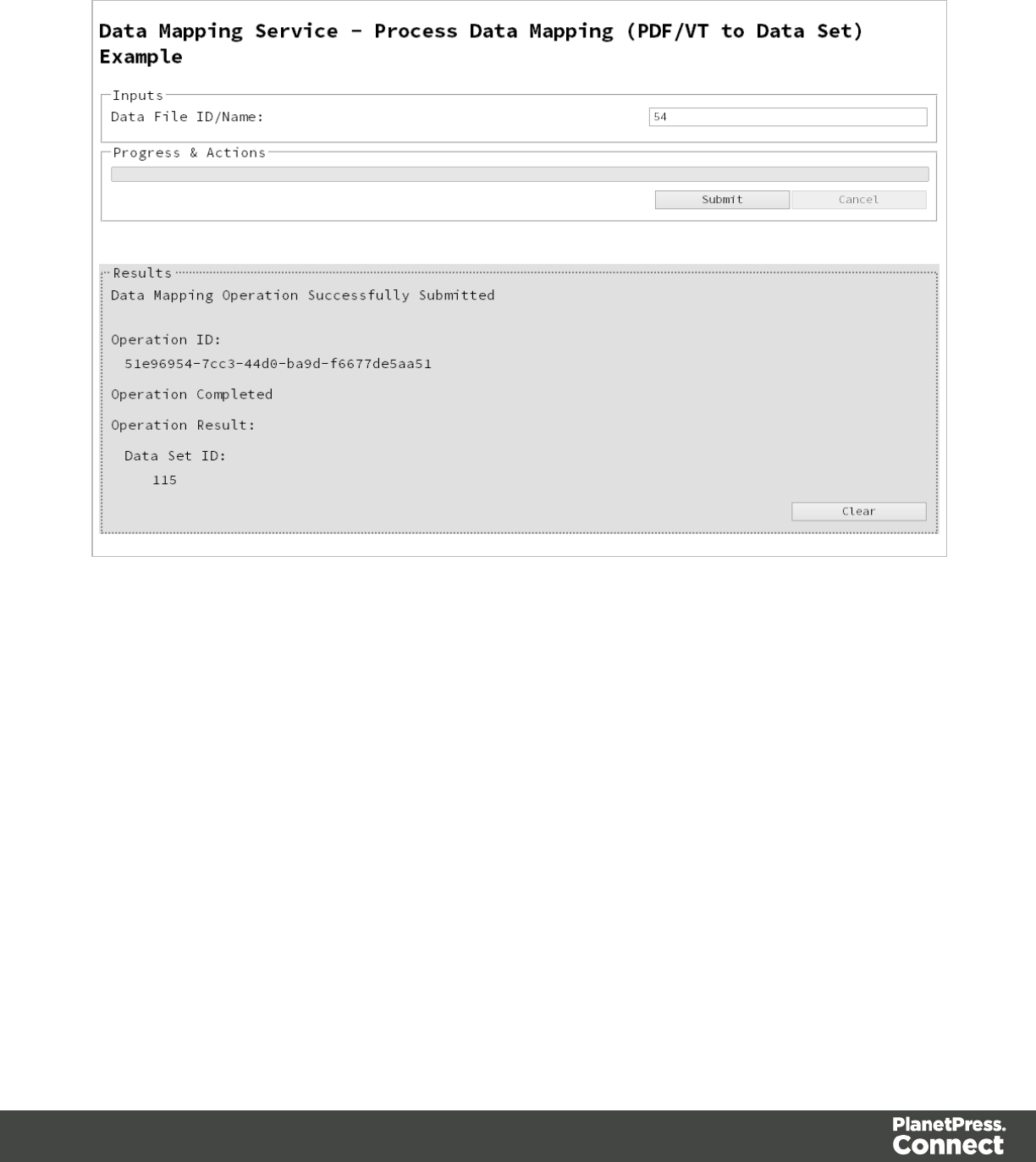
Screenshot & Output
Usage
To run the example simply enter the Managed File ID or Name for your PDF/VT file (previously
uploaded to the file store) into the appropriate text field, and then select the Submit button to
start the data mapping operation.
Once the operation has started processing, the Operation ID will be displayed in the Results
area and the Cancel button will become enabled, giving you the option to cancel the running
operation.
The progress of the operation will be displayed in the progress bar, and once the data mapping
operation has completed, the ID of the generated Data Set will be returned and displayed to the
Results area.
Page 119

Running a Data Mapping Operation for PDF/VT File (to
Content Set)
Problem
You want to run a data mapping operation to generate a Content Set using only a PDF/VT file
as input.
Solution
The solution is to make a series of requests using the following URIs and method types to
submit, monitor progress and ultimately retrieve the result of the data mapping operation. There
is also the option of cancelling an operation during processing if required. These requests can
be submitted via the Data Mapping REST service:
Process Data Mapping
(PDF/VT to Content Set)
/rest/serverengine/workflow/datamining/pdfvtcs/
{dataFileId}
POST
Get Progress of
Operation
/rest/serverengine/workflow/datamining/getProgress/
{operationId}
GET
Get Result of Operation /rest/serverengine/workflow/datamining/getResult/
{operationId}
POST
Cancel an Operation /rest/serverengine/workflow/datamining/cancel/
{operationId}
POST
Example
HTML5
dm-process-pdfvt-cs.html
<!DOCTYPE html>
<html>
<head>
<meta charset="utf-8">
<title>Process Data Mapping (PDF/VT to Content Set)
Example</title>
<script src="../../common/lib/js/jquery-
Page 121

1.11.3.min.js"></script>
<script src="../../common/js/common.js"></script>
<script src="js/dm-process-pdfvt-cs.js"></script>
<link rel="stylesheet" href="../../common/css/styles.css">
</head>
<body>
<h2>Data Mapping Service - Process Data Mapping (PDF/VT to
Content Set) Example</h2>
<form>
<fieldset>
<legend>Inputs</legend>
<div>
<label for="datafile">Data File
ID/Name:</label>
<input id="datafile" type="text"
placeholder="1234 or Filename" required>
</div>
</fieldset>
<fieldset>
<legend>Progress & Actions</legend>
<div>
<progress value="0" max="100"></progress>
</div>
<div>
<input id="cancel" type="button" value="Cancel"
disabled>
<input id="submit" type="submit"
value="Submit">
</div>
</fieldset>
</form>
</body>
</html>
JavaScript/jQuery
dm-process-pdfvt-cs.js
/* Data Mapping Service - Process Data Mapping (PDF/VT to Content
Set) Example */
(function ($) {
"use strict";
Page 122

$(document).ready(function () {
setupExample();
var $submitButton = $("#submit"),
$cancelButton = $("#cancel"),
$progressBar = $("progress"),
operationId = null;
$cancelButton.on("click", function () {
if (operationId !== null) {
/* Cancel an Operation */
$.ajax({
type: "POST",
url:
"/rest/serverengine/workflow/datamining/cancel/" + operationId
}).done(function (response) {
displayInfo("Operation Cancelled!");
operationId = null;
setTimeout(function () {
$progressBar.attr("value", 0);
$submitButton.removeAttr("disabled");
$cancelButton.attr("disabled", "disabled");
}, 100);
}).fail(displayDefaultFailure);
}
});
$("form").on("submit", function (event) {
event.preventDefault();
if (!checkSessionValid()) { return; }
var dataFileId = $("#datafile").val();
var getFinalResult = function () {
/* Get Result of Operation */
$.ajax({
type: "POST",
url:
"/rest/serverengine/workflow/datamining/getResult/" + operationId
Page 123

}).done(function (response, status, request) {
displayHeading("Operation Result");
displaySubResult("Content Set ID", response);
}).fail(displayDefaultFailure);
};
/* Process Data Mapping (PDF/VT to Content Set) */
$.ajax({
type: "POST",
url:
"/rest/serverengine/workflow/datamining/pdfvtcs/" + dataFileId
}).done(function (response, status, request) {
var progress = null;
operationId = request.getResponseHeader
("operationId");
$submitButton.attr("disabled", "disabled");
$cancelButton.removeAttr("disabled");
displayStatus("Data Mapping Operation Successfully
Submitted");
displayResult("Operation ID", operationId);
var getProgress = function () {
if (operationId !== null) {
/* Get Progress of Operation */
$.ajax({
type: "GET",
cache: false,
url:
"/rest/serverengine/workflow/datamining/getProgress/" + operationId
}).done(function (response, status,
request) {
if (response !== "done") {
if (response !== progress) {
progress = response;
$progressBar.attr("value",
progress);
}
setTimeout(getProgress, 1000);
Page 124

} else {
$progressBar.attr("value",
(progress = 100));
displayInfo("Operation Completed");
getFinalResult();
operationId = null;
setTimeout(function () {
$progressBar.attr("value", 0);
$submitButton.removeAttr
("disabled");
$cancelButton.attr("disabled",
"disabled");
}, 100);
}
}).fail(displayDefaultFailure);
}
};
getProgress();
}).fail(displayDefaultFailure);
});
});
}(jQuery));
Page 125
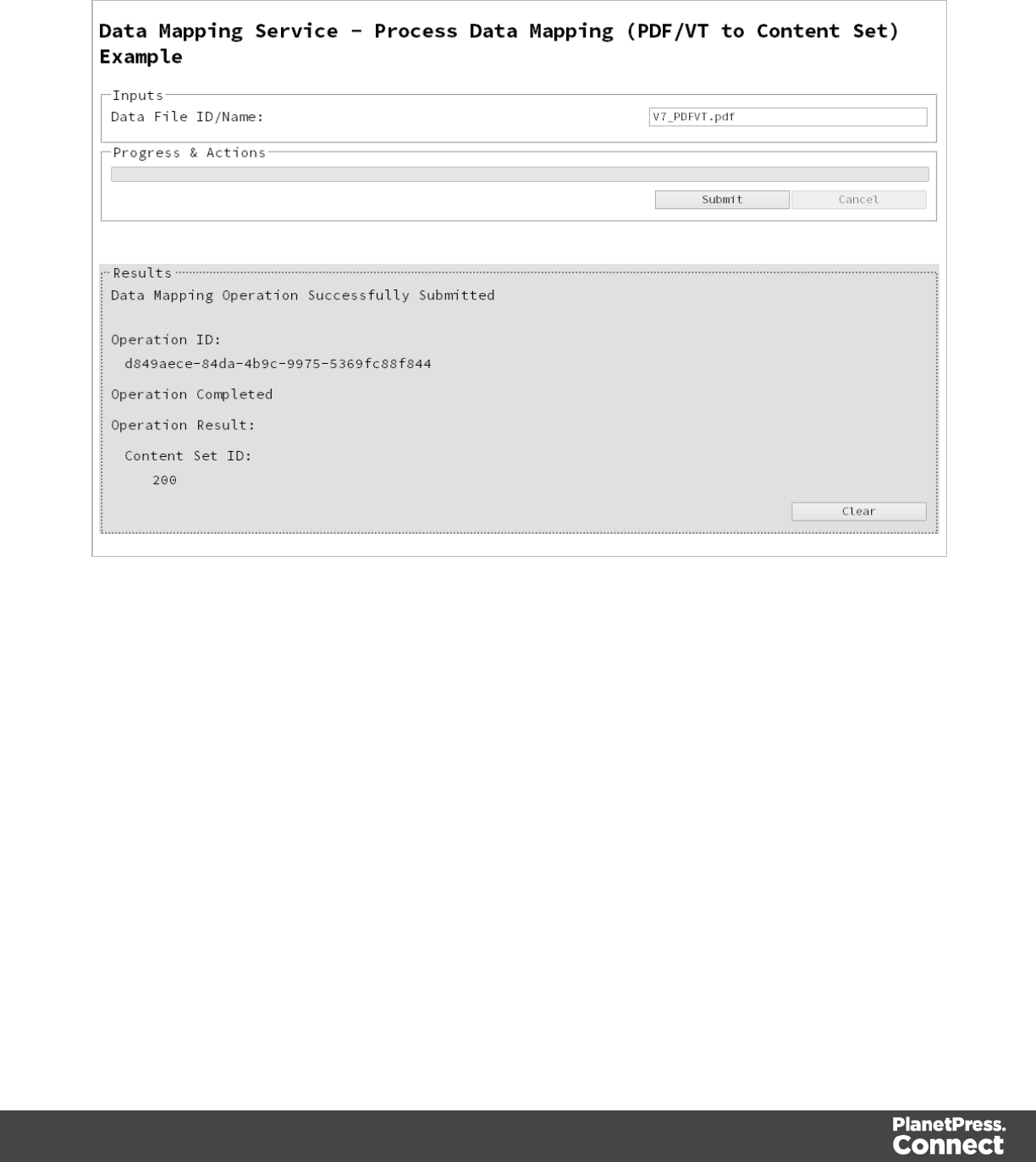
Screenshot & Output
Usage
To run the example simply enter the Managed File ID or Name for your PDF/VT file (previously
uploaded to the file store) into the appropriate text field, and then select the Submit button to
start the data mapping operation.
Once the operation has started processing, the Operation ID will be displayed in the Results
area and the Cancel button will become enabled, giving you the option to cancel the running
operation.
The progress of the operation will be displayed in the progress bar, and once the data mapping
operation has completed, the ID of the generated Content Set will be returned and displayed to
the Results area.
Page 126

Running a Content Creation Operation for Print
Problem
You want to run a content creation operation to generate a Content Set using a design template
and an existing set of Data Records as inputs.
Solution
The solution is to make a series of requests using the following URIs and method types to
submit, monitor progress and ultimately retrieve the result of the content creation operation.
There is also the option of cancelling an operation during processing if required. These
requests can be submitted via the Content Creation REST service:
Process Content
Creation
/rest/serverengine/workflow/contentcreation/{templateId}/
{dataSetId}
POST
Get Progress of
Operation
/rest/serverengine/workflow/contentcreation/getProgress/
{operationId}
GET
Get Result of
Operation
/rest/serverengine/workflow/contentcreation/getResult/
{operationId}
POST
Cancel an Operation /rest/serverengine/workflow/contentcreation/cancel/
{operationId}
POST
Example
HTML5
cc-process.html
<!DOCTYPE html>
<html>
<head>
<meta charset="utf-8">
<title>Process Content Creation Example</title>
<script src="../../common/lib/js/jquery-
1.11.3.min.js"></script>
<script src="../../common/js/common.js"></script>
<script src="js/cc-process.js"></script>
Page 128

<link rel="stylesheet" href="../../common/css/styles.css">
</head>
<body>
<h2>Content Creation Service - Process Content Creation
Example</h2>
<form>
<fieldset>
<legend>Inputs</legend>
<div>
<label for="dataset">Data Set ID:</label>
<input id="dataset" type="text"
placeholder="1234" required>
</div>
<div>
<label for="designtemplate">Design Template
ID/Name:</label>
<input id="designtemplate" type="text"
placeholder="1234 or Filename" required>
</div>
</fieldset>
<fieldset>
<legend>Progress & Actions</legend>
<div>
<progress value="0" max="100"></progress>
</div>
<div>
<input id="cancel" type="button" value="Cancel"
disabled>
<input id="submit" type="submit"
value="Submit">
</div>
</fieldset>
</form>
</body>
</html>
JavaScript/jQuery
cc-process.js
/* Content Creation Service - Process Content Creation Example */
(function ($) {
Page 129

"use strict";
$(document).ready(function () {
setupExample();
var $submitButton = $("#submit"),
$cancelButton = $("#cancel"),
$progressBar = $("progress"),
operationId = null;
$cancelButton.on("click", function () {
if (operationId !== null) {
/* Cancel an Operation */
$.ajax({
type: "POST",
url:
"/rest/serverengine/workflow/contentcreation/cancel/" + operationId
}).done(function (response) {
displayInfo("Operation Cancelled!");
operationId = null;
setTimeout(function () {
$progressBar.attr("value", 0);
$submitButton.removeAttr("disabled");
$cancelButton.attr("disabled", "disabled");
}, 100);
}).fail(displayDefaultFailure);
}
});
$("form").on("submit", function (event) {
event.preventDefault();
if (!checkSessionValid()) { return; }
var dataSetId = $("#dataset").val(),
templateId = $("#designtemplate").val();
var getFinalResult = function () {
/* Get Result of Operation */
$.ajax({
type: "POST",
Page 130

url:
"/rest/serverengine/workflow/contentcreation/getResult/" +
operationId
}).done(function (response, status, request) {
displayHeading("Operation Result");
displaySubResult("Content Set IDs", response);
}).fail(displayDefaultFailure);
};
/* Process Content Creation */
$.ajax({
type: "POST",
url:
"/rest/serverengine/workflow/contentcreation/" + templateId + "/" +
dataSetId
}).done(function (response, status, request) {
var progress = null;
operationId = request.getResponseHeader
("operationId");
$submitButton.attr("disabled", "disabled");
$cancelButton.removeAttr("disabled");
displayStatus("Content Creation Operation
Successfully Submitted");
displayResult("Operation ID", operationId);
var getProgress = function () {
if (operationId !== null) {
/* Get Progress of Operation */
$.ajax({
type: "GET",
cache: false,
url:
"/rest/serverengine/workflow/contentcreation/getProgress/" +
operationId
}).done(function (response, status,
request) {
if (response !== "done") {
if (response !== progress) {
Page 131

progress = response;
$progressBar.attr("value",
progress);
}
setTimeout(getProgress, 1000);
} else {
$progressBar.attr("value",
(progress = 100));
displayInfo("Operation Completed");
getFinalResult();
operationId = null;
setTimeout(function () {
$progressBar.attr("value", 0);
$submitButton.removeAttr
("disabled");
$cancelButton.attr("disabled",
"disabled");
}, 100);
}
}).fail(displayDefaultFailure);
}
};
getProgress();
}).fail(displayDefaultFailure);
});
});
}(jQuery));
Page 132
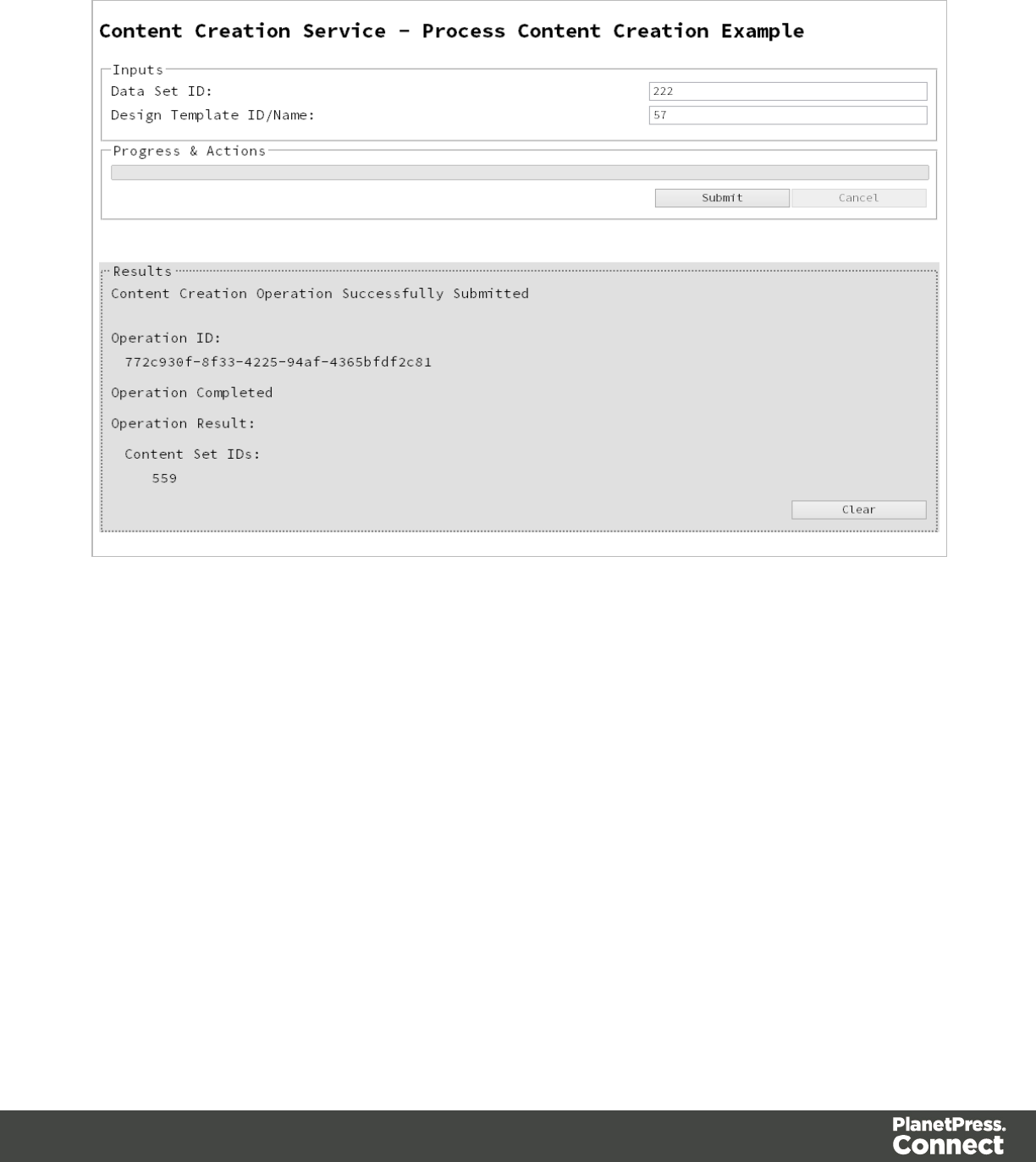
Screenshot & Output
Usage
To run the example simply enter the Data Set ID and the Managed File ID or Name of your
design template (previously uploaded to the file store) into the appropriate text fields, and then
select the Submit button to start the content creation operation.
Once the operation has started processing, the Operation ID will be displayed in the Results
area and the Cancel button will become enabled, giving you the option to cancel the running
operation.
The progress of the operation will be displayed in the progress bar, and once the content
creation operation has completed, the IDs of the generated Content Sets will be returned and
displayed to the Results area.
Page 133

Running a Content Creation Operation for Print By Data
Record (Using JSON)
Problem
You want to run a content creation operation to generate a Content Set using a design template
and an existing set of Data Records as inputs.
Solution
The solution is to make a series of requests using the following URIs and method types to
submit, monitor progress and ultimately retrieve the result of the content creation operation.
There is also the option of cancelling an operation during processing if required. These
requests can be submitted via the Content Creation REST service:
Process Content
Creation (By Data
Record) (JSON)
/rest/serverengine/workflow/contentcreation/{templateId} POST
Get Progress of
Operation
/rest/serverengine/workflow/contentcreation/getProgress/
{operationId}
GET
Get Result of
Operation
/rest/serverengine/workflow/contentcreation/getResult/
{operationId}
POST
Cancel an Operation /rest/serverengine/workflow/contentcreation/cancel/
{operationId}
POST
Example
HTML5
cc-process-by-dre-json.html
<!DOCTYPE html>
<html>
<head>
<meta charset="utf-8">
<title>Process Content Creation (By Data Record) (JSON)
Example</title>
Page 135

<script src="../../common/lib/js/jquery-
1.11.3.min.js"></script>
<script src="../../common/js/common.js"></script>
<script src="js/cc-process-by-dre-json.js"></script>
<link rel="stylesheet" href="../../common/css/styles.css">
</head>
<body>
<h2>Content Creation Service - Process Content Creation (By
Data Record) (JSON) Example</h2>
<form>
<fieldset>
<legend>Inputs</legend>
<div>
<label for="datarecords">Data Record ID
(s):</label>
<input id="datarecords" type="text"
placeholder="1234, 2345, 3456, ..." required>
</div>
<div>
<label for="designtemplate">Design Template
ID/Name:</label>
<input id="designtemplate" type="text"
placeholder="1234 or Filename" required>
</div>
</fieldset>
<fieldset>
<legend>Progress & Actions</legend>
<div>
<progress value="0" max="100"></progress>
</div>
<div>
<input id="cancel" type="button" value="Cancel"
disabled>
<input id="submit" type="submit"
value="Submit">
</div>
</fieldset>
</form>
</body>
</html>
Page 136

JavaScript/jQuery
cc-process-by-dre-json.js
/* Content Creation Service - Process Content Creation (By Data
Record) (JSON) Example */
(function ($) {
"use strict";
$(document).ready(function () {
setupExample();
var $submitButton = $("#submit"),
$cancelButton = $("#cancel"),
$progressBar = $("progress"),
operationId = null;
$cancelButton.on("click", function () {
if (operationId !== null) {
/* Cancel an Operation */
$.ajax({
type: "POST",
url:
"/rest/serverengine/workflow/contentcreation/cancel/" + operationId
}).done(function (response) {
displayInfo("Operation Cancelled!");
operationId = null;
setTimeout(function () {
$progressBar.attr("value", 0);
$submitButton.removeAttr("disabled");
$cancelButton.attr("disabled", "disabled");
}, 100);
}).fail(displayDefaultFailure);
}
});
$("form").on("submit", function (event) {
event.preventDefault();
if (!checkSessionValid()) { return; }
var dataRecordIds = $("#datarecords").val(),
Page 137

templateId = $("#designtemplate").val();
var getFinalResult = function () {
/* Get Result of Operation */
$.ajax({
type: "POST",
url:
"/rest/serverengine/workflow/contentcreation/getResult/" +
operationId
}).done(function (response, status, request) {
displayHeading("Operation Result");
displaySubResult("Content Set IDs", response);
}).fail(displayDefaultFailure);
};
/* Process Content Creation (By Data Record) (JSON) */
$.ajax({
type: "POST",
url:
"/rest/serverengine/workflow/contentcreation/" + templateId,
data: JSON.stringify(plainIDListToJson
(dataRecordIds)),
contentType: "application/json"
}).done(function (response, status, request) {
var progress = null;
operationId = request.getResponseHeader
("operationId");
$submitButton.attr("disabled", "disabled");
$cancelButton.removeAttr("disabled");
displayStatus("Content Creation Operation
Successfully Submitted");
displayResult("Operation ID", operationId);
var getProgress = function () {
if (operationId !== null) {
/* Get Progress of Operation */
$.ajax({
type: "GET",
Page 138

cache: false,
url:
"/rest/serverengine/workflow/contentcreation/getProgress/" +
operationId
}).done(function (response, status,
request) {
if (response !== "done") {
if (response !== progress) {
progress = response;
$progressBar.attr("value",
progress);
}
setTimeout(getProgress, 1000);
} else {
$progressBar.attr("value",
(progress = 100));
displayInfo("Operation Completed");
getFinalResult();
operationId = null;
setTimeout(function () {
$progressBar.attr("value", 0);
$submitButton.removeAttr
("disabled");
$cancelButton.attr("disabled",
"disabled");
}, 100);
}
}).fail(displayDefaultFailure);
}
};
getProgress();
}).fail(displayDefaultFailure);
});
});
}(jQuery));
Page 139
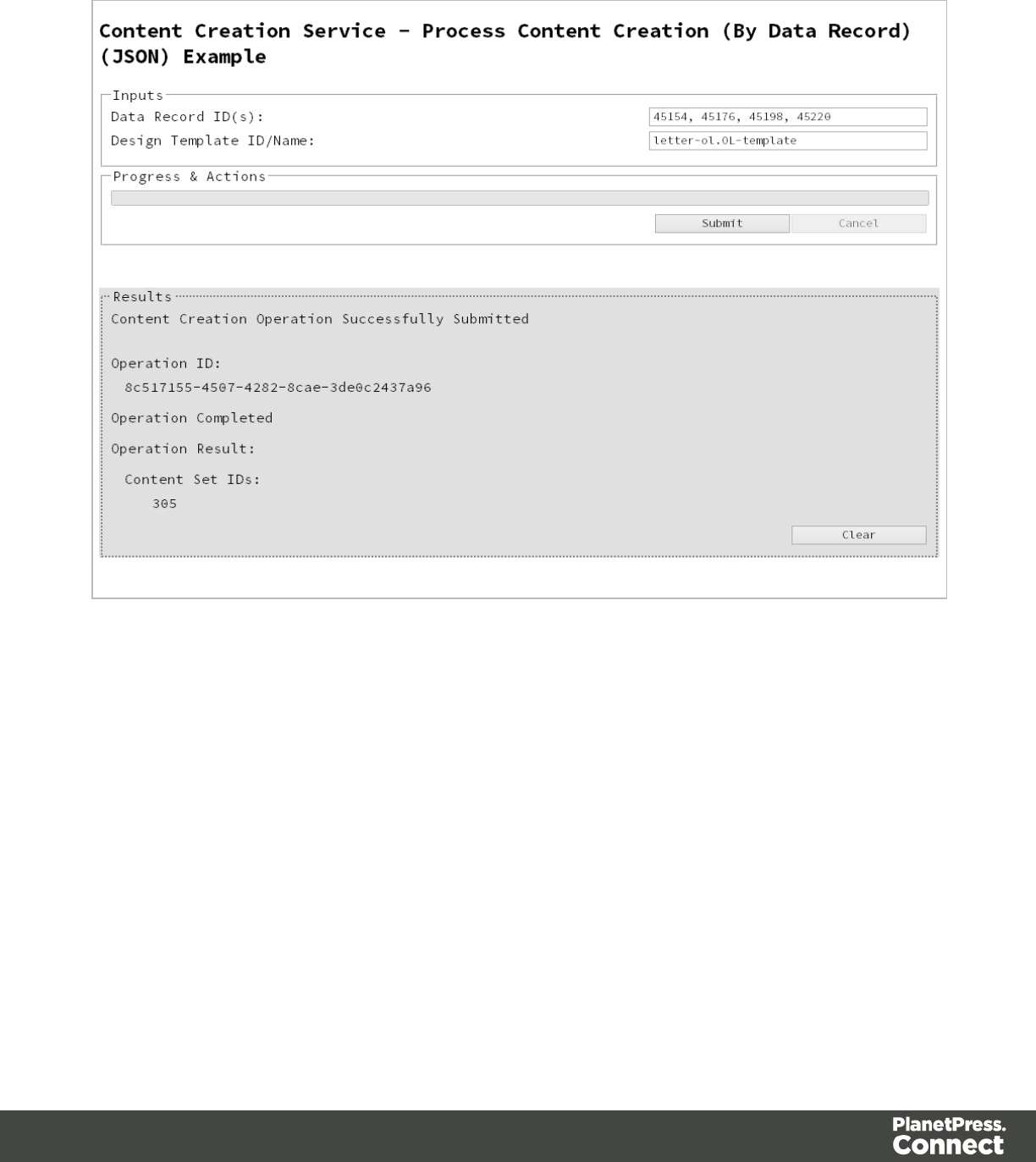
Screenshot & Output
Usage
To run the example simply enter a comma delimited list of your Data Record IDs and the
Managed File ID or Name of your design template (previously uploaded to the file store) into
the appropriate text fields, and then select the Submit button to start the content creation
operation.
Once the operation has started processing, the Operation ID will be displayed in the Results
area and the Cancel button will become enabled, giving you the option to cancel the running
operation.
The progress of the operation will be displayed in the progress bar, and once the content
creation operation has completed, the IDs of the generated Content Sets will be returned and
displayed to the Results area.
Page 140

Running a Content Creation Operation for Email By Data
Record (Using JSON)
Problem
You want to run a content creation operation to generate and send email content using a
design template and an existing set of Data Records as inputs.
Solution
The solution is to make a series of requests using the following URIs and method types to
submit, monitor progress and ultimately retrieve the result of the content creation operation.
There is also the option of cancelling an operation during processing if required. These
requests can be submitted via the Content Creation (Email) REST service:
Process
Content
Creation (By
Data Record)
(JSON)
/rest/serverengine/workflow/contentcreation/email/{templateId} POST
Get Progress of
Operation
/rest/serverengine/workflow/contentcreation/email/getProgress/
{operationId}
GET
Get Result of
Operation
/rest/serverengine/workflow/contentcreation/email/getResult/
{operationId}
POST
Cancel an
Operation
/rest/serverengine/workflow/contentcreation/email/cancel/
{operationId}
POST
Example
HTML5
cce-process-by-dre-json.html
<!DOCTYPE html>
<html>
<head>
<meta charset="utf-8">
Page 142

<title>Process Content Creation (By Data Record) (JSON)
Example</title>
<script src="../../common/lib/js/jquery-
1.11.3.min.js"></script>
<script src="../../common/js/common.js"></script>
<script src="js/cce-process-by-dre-json.js"></script>
<link rel="stylesheet" href="../../common/css/styles.css">
</head>
<body>
<h2>Content Creation (Email) Service - Process Content
Creation (By Data Record) (JSON) Example</h2>
<form>
<fieldset>
<legend>Inputs</legend>
<div>
<label for="datarecords">Data Record ID
(s):</label>
<input id="datarecords" type="text"
placeholder="1234, 2345, 3456, ..." required>
</div>
<div>
<label for="designtemplate">Design Template
ID/Name:</label>
<input id="designtemplate" type="text"
placeholder="1234 or Filename" required>
</div>
</fieldset>
<fieldset>
<legend>Email Parameters</legend>
<div>
<label for="section">Section:</label>
<input id="section" type="text"
placeholder="Section Name">
</div>
<div>
<label for="sender">From:</label>
<input id="sender" type="text"
placeholder="sender@email.com" required>
</div>
<div>
<label for="host">Host:</label>
<input id="host" type="text"
placeholder="mail.server.com" required>
Page 143

</div>
<div>
<label for="usesender">Use From as To Email
Address:</label>
<input id="usesender" type="checkbox" checked>
</div>
<div>
<label for="attachpdf">Attach PDF Page to
Email:</label>
<input id="attachpdf" type="checkbox">
</div>
<div>
<label for="attachweb">Attach Web Page to
Email:</label>
<input id="attachweb" type="checkbox">
</div>
</fieldset>
<fieldset>
<legend>Email Security</legend>
<div>
<label for="useauth">Use
Authentication:</label>
<input id="useauth" type="checkbox" checked>
</div>
<div>
<label for="starttls">Start TLS:</label>
<input id="starttls" type="checkbox">
</div>
<div>
<label for="username">Username:</label>
<input id="username" type="text"
placeholder="Username">
</div>
<div>
<label for="password">Password:</label>
<input id="password" type="password"
placeholder="Password">
</div>
</fieldset>
<fieldset>
<legend>Progress & Actions</legend>
<div>
<progress value="0" max="100"></progress>
Page 144

</div>
<div>
<input id="cancel" type="button" value="Cancel"
disabled>
<input id="submit" type="submit"
value="Submit">
</div>
</fieldset>
</form>
</body>
</html>
JavaScript/jQuery
cce-process-by-dre-json.js
/* Content Creation (Email) Service - Process Content Creation (By
Data Record) (JSON) Example */
(function ($) {
"use strict";
$(document).ready(function () {
setupExample();
var $useAuth = $("#useauth"),
$startTLS = $("#starttls"),
$username = $("#username"),
$password = $("#password"),
$submitButton = $("#submit"),
$cancelButton = $("#cancel"),
$progressBar = $("progress"),
operationId = null;
$cancelButton.on("click", function () {
if (operationId !== null) {
/* Cancel an Operation */
$.ajax({
type: "POST",
url:
"/rest/serverengine/workflow/contentcreation/email/cancel/" +
operationId
Page 145

}).done(function (response) {
displayInfo("Operation Cancelled!");
operationId = null;
setTimeout(function () {
$progressBar.attr("value", 0);
$submitButton.removeAttr("disabled");
$cancelButton.attr("disabled", "disabled");
}, 100);
}).fail(displayDefaultFailure);
}
});
$useAuth.on("click", function (event) {
if (event.target.checked) {
$startTLS.removeAttr("disabled");
$username.removeAttr("disabled");
$password.removeAttr("disabled");
} else {
$startTLS.attr("disabled", "disabled");
$username.attr("disabled", "disabled");
$password.attr("disabled", "disabled");
}
});
$("form").on("submit", function (event) {
event.preventDefault();
if (!checkSessionValid()) { return; }
var dataRecordIds = $("#datarecords").val(),
templateId = $("#designtemplate").val(),
section = $("#section").val().trim();
var getFinalResult = function () {
/* Get Result of Operation */
$.ajax({
type: "POST",
url:
"/rest/serverengine/workflow/contentcreation/email/getResult/" +
operationId
}).done(function (response, status, request) {
displayHeading("Operation Result");
displaySubResult("Email Report", response);
Page 146

}).fail(displayDefaultFailure);
};
/* Construct JSON Identifier List (with Email
Parameters) */
var config = {
"sender": $("#sender").val(),
"host": $("#host").val(),
"useAuth" : $useAuth.is(":checked"),
"useSender": $("#usesender").is(":checked"),
"attachWebPage": $("#attachweb").is
(":checked"),
"attachPdfPage": $("#attachpdf").is
(":checked")
},
drids = plainIDListToJson(dataRecordIds);
if (config.useAuth) {
config.useStartTLS = $startTLS.is(":checked");
config.user = $username.val();
config.password = $password.val();
} else {
config.user = "";
}
config.identifiers = drids.identifiers;
/* Process Content Creation (By Data Record) (JSON) */
var settings = {
type: "POST",
url:
"/rest/serverengine/workflow/contentcreation/email/" + templateId,
data: JSON.stringify(config),
contentType: "application/json; charset=utf-8"
};
if (section.length) { settings.url += "?section=" +
section; }
$.ajax(settings).done(function (response, status,
request) {
var progress = null;
operationId = request.getResponseHeader
("operationId");
Page 147

$submitButton.attr("disabled", "disabled");
$cancelButton.removeAttr("disabled");
displayStatus("Content Creation Operation
Successfully Submitted");
displayResult("Operation ID", operationId);
var getProgress = function () {
if (operationId !== null) {
/* Get Progress of Operation */
$.ajax({
type: "GET",
cache: false,
url:
"/rest/serverengine/workflow/contentcreation/email/getProgress/" +
operationId
}).done(function (response, status,
request) {
if (response !== "done") {
if (response !== progress) {
progress = response;
$progressBar.attr("value",
progress);
}
setTimeout(getProgress, 1000);
} else {
$progressBar.attr("value",
(progress = 100));
displayInfo("Operation Completed");
getFinalResult();
operationId = null;
setTimeout(function () {
$progressBar.attr("value", 0);
$submitButton.removeAttr
("disabled");
$cancelButton.attr("disabled",
"disabled");
}, 100);
}
}).fail(displayDefaultFailure);
}
Page 148

};
getProgress();
}).fail(displayDefaultFailure);
});
});
}(jQuery));
Page 149
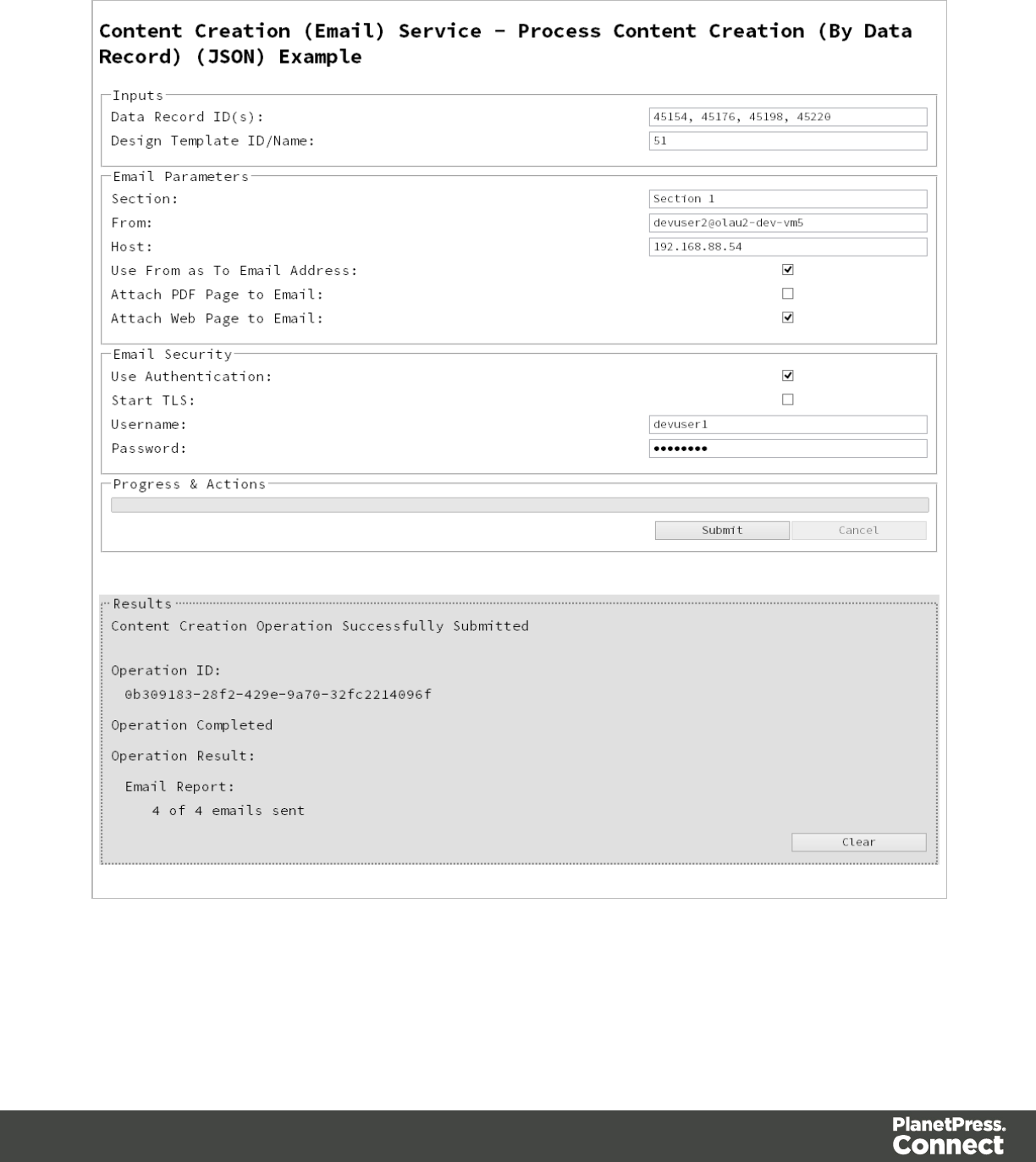
Screenshot & Output
Page 150

Usage
To run the example you first need to enter a comma delimited list of your Data Record IDs and
the Managed File ID or Name of your design template (previously uploaded to the file store)
into the appropriate text fields as your inputs.
Next you need to specify the email parameters to use with the content creation operation:
lSection - the section within the email context of the template to use
lFrom - the email address to be shown as the sender in the email output
lHost - the network address or name of your SMTP mail server through which the emails
will be sent
lUse From as To Address - use the sender address as the receiver address for all emails
in the output
lAttach PDF Page to Email - if a Print Context exists in the template, generate it's output
as a PDF and attach it to the email output
lAttach Web Page to Email - if a Web Context exists in the template, generate it's output
as a single HTML (with embedded resources) and attach it to email output
Then you need to specify how email security is to be used with the content creation operation:
lUse Authentication - if authentication is to be used with the mail server
lStart TLS - if Transport Layer Security (TLS) is to be used when sending emails
lUsername - the username to authenticate/login with
lPassword - the password to authenticate/login with
Lastly, select the Submit button to start the content creation operation.
Once the operation has started processing, the Operation ID will be displayed in the Results
area and the Cancel button will become enabled, giving you the option to cancel the running
operation.
The progress of the operation will be displayed in the progress bar, and once the content
creation operation has completed, a report of the emails successfully sent will be returned and
displayed to the Results area.
Page 151

Creating Content for Web By Data Record
Problem
You want to create and retrieve web content using a design template and an existing Data
Record as inputs.
Solution
The solution is to create a request using the following URI and method type and submit it to the
server via the Content Creation (HTML) REST service:
Process Content
Creation (By Data
Record)
/rest/serverengine/workflow/contentcreation/html/
{templateId}/{dataRecordId: [0-9]+}
GET
Example
HTML5
cch-process-by-dre.html
<!DOCTYPE html>
<html>
<head>
<meta charset="utf-8">
<title>Process Content Creation (By Data Record)
Example</title>
<script src="../../common/lib/js/jquery-
1.11.3.min.js"></script>
<script src="../../common/js/common.js"></script>
<script src="js/cch-process-by-dre.js"></script>
<link rel="stylesheet" href="../../common/css/styles.css">
</head>
<body>
<h2>Content Creation (HTML) Service - Process Content
Creation (By Data Record) Example</h2>
<form>
<fieldset>
<legend>Inputs</legend>
<div>
<label for="datarecord">Data Record ID:</label>
Page 153

<input id="datarecord" type="text"
placeholder="1234" required>
</div>
<div>
<label for="designtemplate">Design Template
ID/Name:</label>
<input id="designtemplate" type="text"
placeholder="1234 or Filename" required>
</div>
</fieldset>
<fieldset>
<legend>HTML Parameters</legend>
<div>
<label for="section">Section:</label>
<input id="section" type="text"
placeholder="Section Name">
</div>
<div>
<label for="inline">Inline Mode:</label>
<select id="inline">
<option value="NONE">None</option>
<option value="CSS">CSS</option>
<option value="ALL">All</option>
</select>
</div>
<div>
<input id="submit" type="submit"
value="Submit">
</div>
</fieldset>
</form>
</body>
</html>
JavaScript/jQuery
cch-process-by-dre.js
/* Content Creation (HTML) Service - Process Content Creation (By
Data Record) Example */
(function ($) {
"use strict";
Page 154

$(document).ready(function () {
setupExample();
$("form").on("submit", function (event) {
event.preventDefault();
if (!checkSessionValid()) { return; }
var dataRecordId = $("#datarecord").val(),
templateId = $("#designtemplate").val(),
section = $("#section").val().trim(),
params = {
inline: $("#inline").val()
};
if (section.length) { params.section = section; }
/* Process Content Creation (By Data Record) */
$.ajax({
type: "GET",
url:
"/rest/serverengine/workflow/contentcreation/html/" +
templateId + "/" + dataRecordId,
data: params
}).done(function (response, status, request) {
displayHeading("Result");
displaySubResult("Response", htmlToLinkWindow
(response, "Result Link"), false);
}).fail(displayDefaultFailure);
});
});
}(jQuery));
Page 155
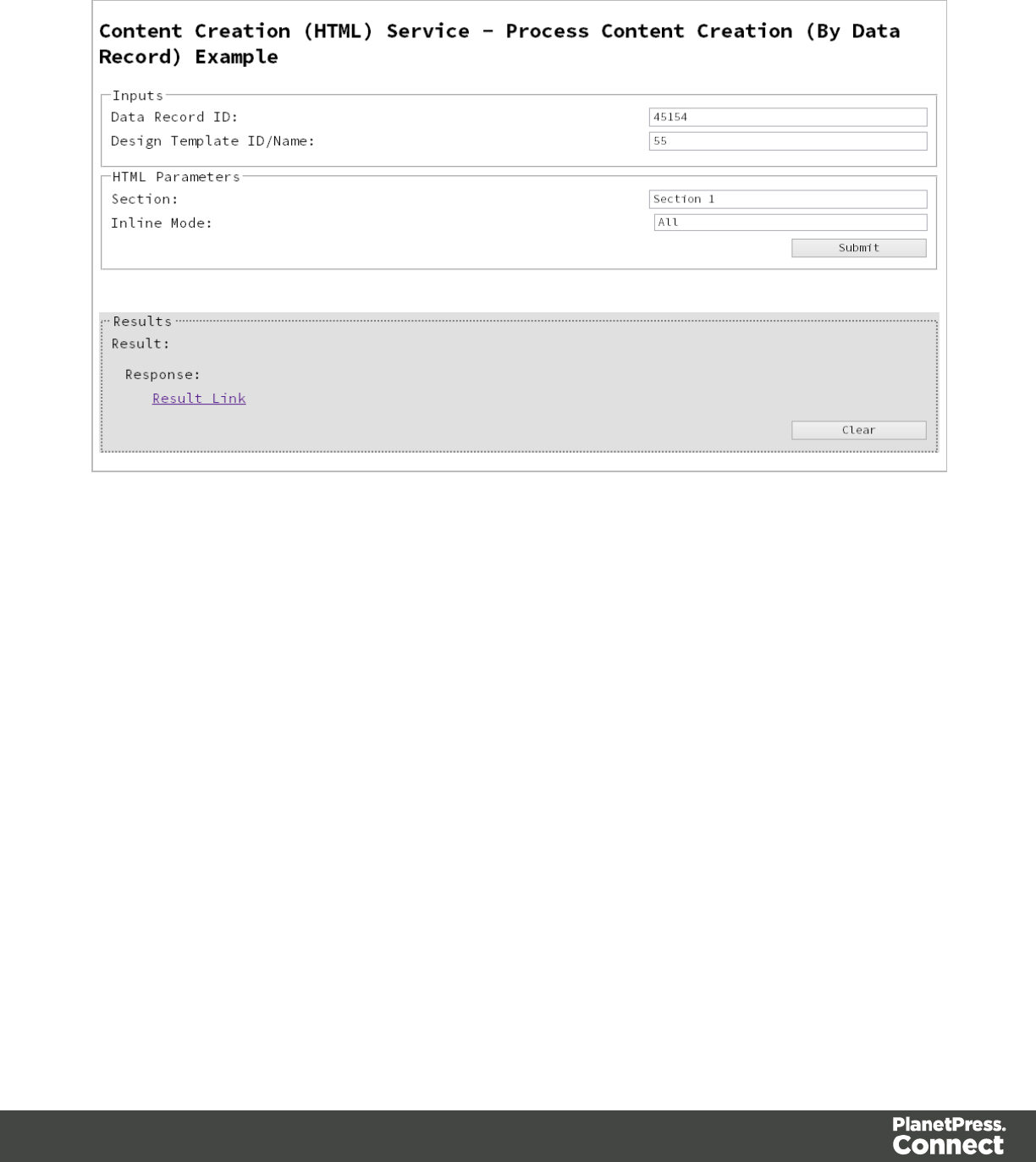
Screenshot & Output
Page 156
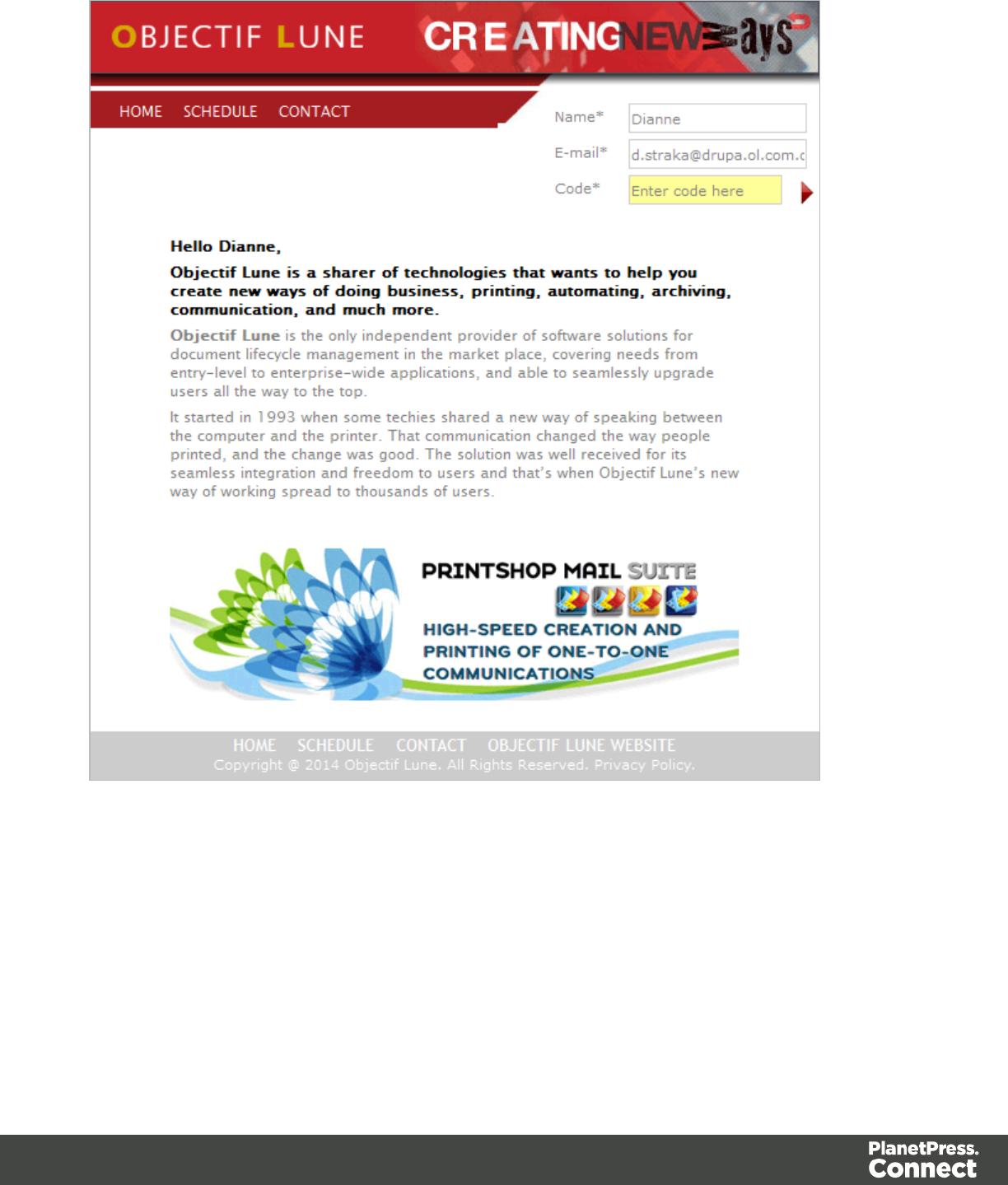
Usage
To run the example you first need to enter your Data Record ID and the Managed File ID or
Name of your design template (previously uploaded to the file store) into the appropriate text
fields as your inputs.
Next you need to specify the HTML parameters to use when creating the web content:
Page 157

lSection - the section within the web context of the template to use
lInline Mode - the inline mode to be used in the creation of content
Lastly, select the Submit button to create and retrieve the web content. When the response
returns a Results Link will be displayed in the Results area. This link can be selected to view
the resulting web content that was created.
Further Reading
See the Content Creation (HTML) Service page of the REST API Reference section for further
detail.
Page 158
Creating Content for Web By Data Record (Using JSON)
Problem
You want to create and retrieve web content using a design template and an existing Data
Record as inputs.
Solution
The solution is to create a request using the following URI and method type and submit it to the
server via the Content Creation (HTML) REST service:
Process Content Creation
(By Data Record) (JSON)
/rest/serverengine/workflow/contentcreation/html/
{templateId}/{dataRecordId: [0-9]+}
POST
Example
HTML5
cch-process-by-dre-json.html
<!DOCTYPE html>
<html>
<head>
<meta charset="utf-8">
<title>Process Content Creation (By Data Record) (JSON)
Example</title>
<script src="../../common/lib/js/jquery-
1.11.3.min.js"></script>
<script src="../../common/js/common.js"></script>
<script src="js/cch-process-by-dre-json.js"></script>
<link rel="stylesheet" href="../../common/css/styles.css">
</head>
<body>
<h2>Content Creation (HTML) Service - Process Content
Creation (By Data Record) (JSON) Example</h2>
<form>
<fieldset>
<legend>Inputs</legend>
<div>
<label for="datarecord">Data Record ID:</label>
<input id="datarecord" type="text"
Page 159

placeholder="1234" required>
</div>
<div>
<label for="designtemplate">Design Template
ID/Name:</label>
<input id="designtemplate" type="text"
placeholder="1234 or Filename" required>
</div>
</fieldset>
<fieldset>
<legend>HTML Parameters</legend>
<div>
<label for="section">Section:</label>
<input id="section" type="text"
placeholder="Section Name">
</div>
<div>
<label for="inline">Inline Mode:</label>
<select id="inline">
<option value="NONE">None</option>
<option value="CSS">CSS</option>
<option value="ALL">All</option>
</select>
</div>
<div>
<input id="submit" type="submit"
value="Submit">
</div>
</fieldset>
</form>
</body>
</html>
JavaScript/jQuery
cch-process-by-dre-json.js
/* Content Creation (HTML) Service - Process Content Creation (By
Data Record) (JSON) Example */
(function ($) {
"use strict";
$(document).ready(function () {
Page 160

setupExample();
$("form").on("submit", function (event) {
event.preventDefault();
if (!checkSessionValid()) { return; }
var dataRecordId = $("#datarecord").val(),
templateId = $("#designtemplate").val(),
section = $("#section").val().trim(),
params = {
inline: $("#inline").val()
};
if (section.length) { params.section = section; }
/* Process Content Creation (By Data Record) (JSON) */
$.ajax({
type: "POST",
url:
"/rest/serverengine/workflow/contentcreation/html/" +
templateId + "/" +
dataRecordId,
data: JSON.stringify(params),
contentType: "application/json; charset=utf-8"
}).done(function (response, status, request) {
displayHeading("Result");
displaySubResult("Response", htmlToLinkWindow
(response, "Result Link"), false);
}).fail(displayDefaultFailure);
});
});
}(jQuery));
Page 161
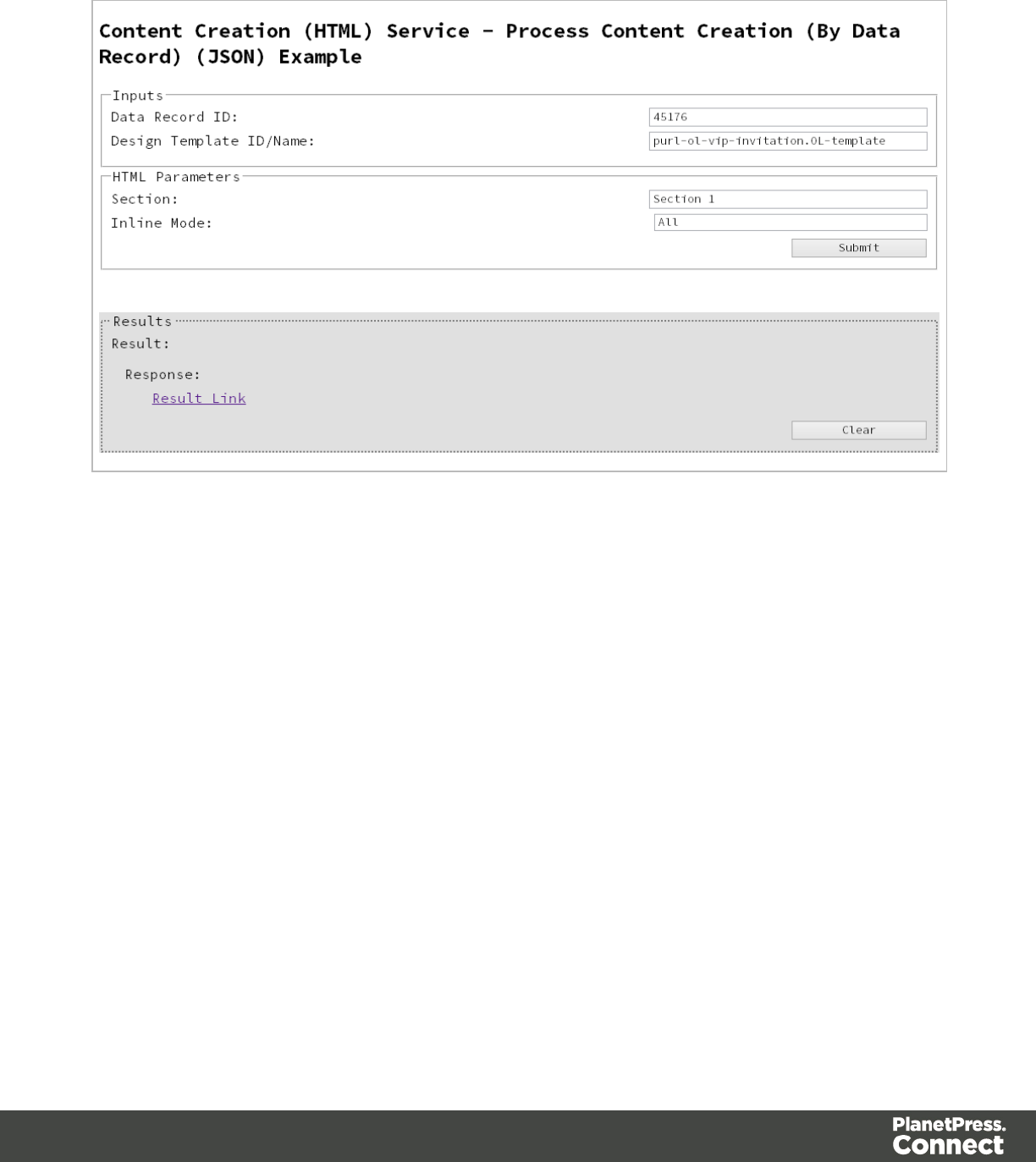
Screenshot & Output
Page 162
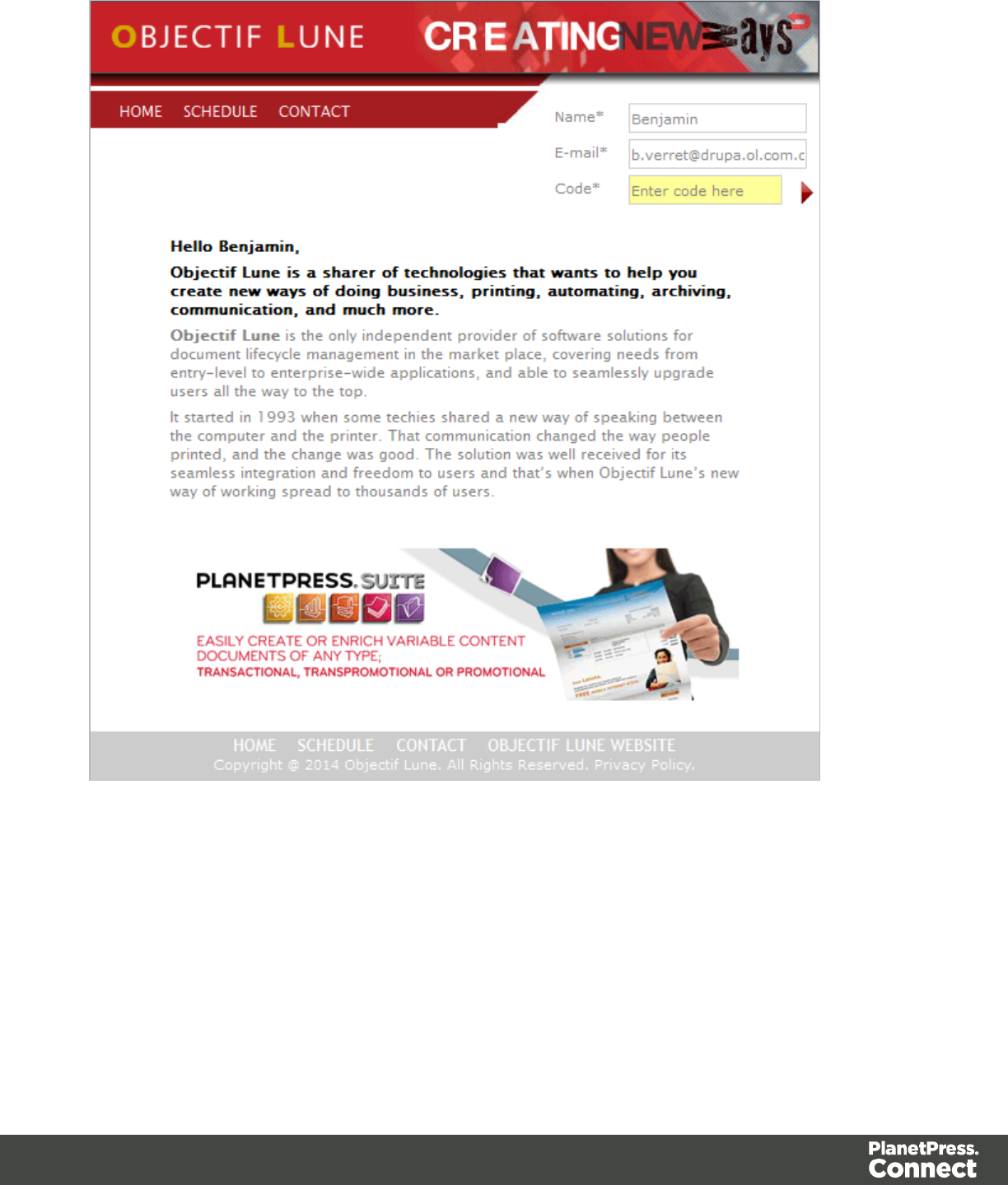
Usage
To run the example you first need to enter your Data Record ID and the Managed File ID or
Name of your design template (previously uploaded to the file store) into the appropriate text
fields as your inputs.
Next you need to specify the HTML parameters to use when creating the web content:
Page 163

lSection - the section within the web context of the template to use
lInline Mode - the inline mode to be used in the creation of content
Lastly, select the Submit button to create and retrieve the web content. When the response
returns a Results Link will be displayed in the Results area. This link can be selected to view
the resulting web content that was created.
Further Reading
See the Content Creation (HTML) Service page of the REST API Reference section for further
detail.
Page 164
Running a Job Creation Operation (Using JSON)
Problem
You want to run a job creation operation to generate a Job Set using a job creation preset and
an existing set of Content Sets as inputs.
Solution
The solution is to make a series of requests using the following URIs and method types to
submit, monitor progress and ultimately retrieve the result of the job creation operation. There is
also the option of cancelling an operation during processing if required. These requests can be
submitted via the Job Creation REST service:
Process Job Creation
(JSON)
/rest/serverengine/workflow/jobcreation/{configId} POST
Get Progress of
Operation
/rest/serverengine/workflow/jobcreation/getProgress/
{operationId}
GET
Get Result of Operation /rest/serverengine/workflow/jobcreation/getResult/
{operationId}
POST
Cancel an Operation /rest/serverengine/workflow/jobcreation/cancel/
{operationId}
POST
Example
HTML5
jc-process-json.html
<!DOCTYPE html>
<html>
<head>
<meta charset="utf-8">
<title>Process Job Creation (JSON) Example</title>
<script src="../../common/lib/js/jquery-
1.11.3.min.js"></script>
<script src="../../common/js/common.js"></script>
<script src="js/jc-process-json.js"></script>
Page 165

<link rel="stylesheet" href="../../common/css/styles.css">
</head>
<body>
<h2>Job Creation Service - Process Job Creation (JSON)
Example</h2>
<form>
<fieldset>
<legend>Inputs</legend>
<div>
<label for="contentsets">Content Set ID
(s):</label>
<input id="contentsets" type="text"
placeholder="1234, 2345, 3456, ..." required>
</div>
<div>
<label for="jcpreset">Job Creation Preset
ID/Name:</label>
<input id="jcpreset" type="text"
placeholder="1234 or Filename" required>
</div>
</fieldset>
<fieldset>
<legend>Progress & Actions</legend>
<div>
<progress value="0" max="100"></progress>
</div>
<div>
<input id="cancel" type="button" value="Cancel"
disabled>
<input id="submit" type="submit"
value="Submit">
</div>
</fieldset>
</form>
</body>
</html>
JavaScript/jQuery
jc-process-json.js
Page 166

/* Job Creation Service - Process Job Creation (JSON) Example */
(function ($) {
"use strict";
$(document).ready(function () {
setupExample();
var $submitButton = $("#submit"),
$cancelButton = $("#cancel"),
$progressBar = $("progress"),
operationId = null;
$cancelButton.on("click", function () {
if (operationId !== null) {
/* Cancel an Operation */
$.ajax({
type: "POST",
url:
"/rest/serverengine/workflow/jobcreation/cancel/" + operationId
}).done(function (response) {
displayInfo("Operation Cancelled!");
operationId = null;
setTimeout(function () {
$progressBar.attr("value", 0);
$submitButton.removeAttr("disabled");
$cancelButton.attr("disabled", "disabled");
}, 100);
}).fail(displayDefaultFailure);
}
});
$("form").on("submit", function (event) {
event.preventDefault();
if (!checkSessionValid()) { return; }
var contentSetIds = $("#contentsets").val(),
configId = $("#jcpreset").val();
var getFinalResult = function () {
/* Get Result of Operation */
Page 167

$.ajax({
type: "POST",
url:
"/rest/serverengine/workflow/jobcreation/getResult/" + operationId
}).done(function (response, status, request) {
displayHeading("Operation Result");
displaySubResult("Job Set ID", response);
}).fail(displayDefaultFailure);
};
/* Process Job Creation (JSON) */
$.ajax({
type: "POST",
url:
"/rest/serverengine/workflow/jobcreation/" + configId,
data: JSON.stringify(plainIDListToJson
(contentSetIds)),
contentType: "application/json"
}).done(function (response, status, request) {
var progress = null;
operationId = request.getResponseHeader
("operationId");
$submitButton.attr("disabled", "disabled");
$cancelButton.removeAttr("disabled");
displayStatus("Job Creation Operation Successfully
Submitted");
displayResult("Operation ID", operationId);
var getProgress = function () {
if (operationId !== null) {
/* Get Progress of Operation */
$.ajax({
type: "GET",
cache: false,
url:
"/rest/serverengine/workflow/jobcreation/getProgress/" +
operationId
}).done(function (response, status,
request) {
Page 168

if (response !== "done") {
if (response !== progress) {
progress = response;
$progressBar.attr("value",
progress);
}
setTimeout(getProgress, 1000);
} else {
$progressBar.attr("value",
(progress = 100));
displayInfo("Operation Completed");
getFinalResult();
operationId = null;
setTimeout(function () {
$progressBar.attr("value", 0);
$submitButton.removeAttr
("disabled");
$cancelButton.attr("disabled",
"disabled");
}, 100);
}
}).fail(displayDefaultFailure);
}
};
getProgress();
}).fail(displayDefaultFailure);
});
});
}(jQuery));
Page 169
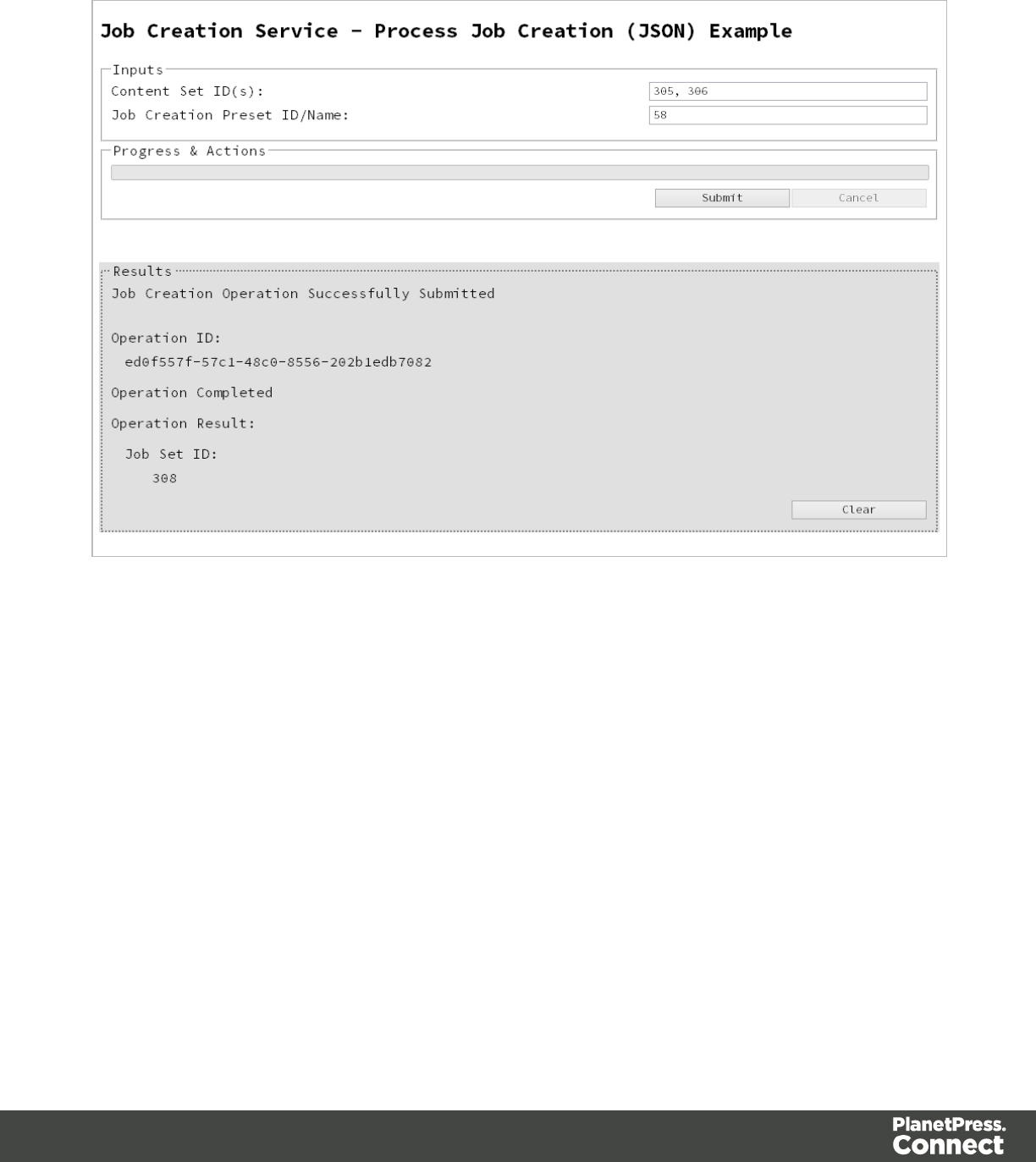
Screenshot & Output
Usage
To run the example simply enter a comma delimited list of your Content Set IDs and the
Managed File ID or Name of your job creation preset (previously uploaded to the file store) into
the appropriate text fields, and then select the Submit button to start the job creation operation.
Once the operation has started processing, the Operation ID will be displayed in the Results
area and the Cancel button will become enabled, giving you the option to cancel the running
operation.
The progress of the operation will be displayed in the progress bar, and once the job creation
operation has completed, the ID of the generated Job Set will be returned and displayed to the
Results area.
Page 170

Running an Output Creation Operation
Problem
You want to run an output creation operation to generate print output using an output creation
preset and an existing Job Set as inputs.
Solution
The solution is to make a series of requests using the following URIs and method types to
submit, monitor progress and ultimately retrieve the result of the output creation operation.
There is also the option of cancelling an operation during processing if required. These
requests can be submitted via the Output Creation REST service:
Process Output
Creation
/rest/serverengine/workflow/outputcreation/{configId}/
{jobSetId}
POST
Get Progress of
Operation
/rest/serverengine/workflow/outputcreation/getProgress/
{operationId}
GET
Get Result of
Operation
/rest/serverengine/workflow/outputcreation/getResult/
{operationId}
POST
Get Result of
Operation (as Text)
/rest/serverengine/workflow/outputcreation/getResultTxt/
{operationId}
POST
Cancel an Operation /rest/serverengine/workflow/outputcreation/cancel/
{operationId}
POST
Example
HTML5
oc-process.html
<!DOCTYPE html>
<html>
<head>
<meta charset="utf-8">
<title>Process Output Creation Example</title>
Page 172

<script src="../../common/lib/js/jquery-
1.11.3.min.js"></script>
<script src="../../common/js/common.js"></script>
<script src="js/oc-process.js"></script>
<link rel="stylesheet" href="../../common/css/styles.css">
</head>
<body>
<h2>Output Creation Service - Process Output Creation
Example</h2>
<form>
<fieldset>
<legend>Inputs</legend>
<div>
<label for="jobset">Job Set ID:</label>
<input id="jobset" type="text"
placeholder="1234" required>
</div>
<div>
<label for="ocpreset">Output Creation Preset
ID/Name:</label>
<input id="ocpreset" type="text"
placeholder="1234 or Filename" required>
</div>
</fieldset>
<fieldset>
<legend>Options</legend>
<div>
<label for="resultstxt">Get Results as
Text:</label>
<input id="resultstxt" type="checkbox">
</div>
</fieldset>
<fieldset>
<legend>Progress & Actions</legend>
<div>
<progress value="0" max="100"></progress>
</div>
<div>
<input id="cancel" type="button" value="Cancel"
disabled>
<input id="submit" type="submit"
value="Submit">
</div>
Page 173

</fieldset>
</form>
</body>
</html>
JavaScript/jQuery
oc-process.js
/* Output Creation Service - Process Output Creation Example */
(function ($) {
"use strict";
$(document).ready(function () {
setupExample();
var $submitButton = $("#submit"),
$cancelButton = $("#cancel"),
$progressBar = $("progress"),
operationId = null;
$cancelButton.on("click", function () {
if (operationId !== null) {
/* Cancel an Operation */
$.ajax({
type: "POST",
url:
"/rest/serverengine/workflow/outputcreation/cancel/" + operationId
}).done(function (response) {
displayInfo("Operation Cancelled!");
operationId = null;
setTimeout(function () {
$progressBar.attr("value", 0);
$submitButton.removeAttr("disabled");
$cancelButton.attr("disabled", "disabled");
}, 100);
}).fail(displayDefaultFailure);
}
});
$("form").on("submit", function (event) {
Page 174

event.preventDefault();
if (!checkSessionValid()) { return; }
var jobSetId = $("#jobset").val(),
configId = $("#ocpreset").val();
var getFinalResult = function () {
var results = ($("#resultstxt").is(":checked")) ?
"getResultTxt" : "getResult";
/* Get Result of Operation */
$.ajax({
type: "POST",
url:
"/rest/serverengine/workflow/outputcreation/" + results + "/" +
operationId
}).done(function (response, status, request) {
if (request.getResponseHeader("Content-Type")
=== "application/octet-stream") {
response = "<<OCTET-STREAM FILE
DATA>>";
}
displayHeading("Operation Result");
displaySubResult("Output", response);
}).fail(displayDefaultFailure);
};
/* Process Output Creation */
$.ajax({
type: "POST",
url:
"/rest/serverengine/workflow/outputcreation/" + configId + "/" +
jobSetId
}).done(function (response, status, request) {
var progress = null;
operationId = request.getResponseHeader
("operationId");
$submitButton.attr("disabled", "disabled");
$cancelButton.removeAttr("disabled");
Page 175

displayStatus("Output Creation Operation
Successfully Submitted");
displayResult("Operation ID", operationId);
var getProgress = function () {
if (operationId !== null) {
/* Get Progress of Operation */
$.ajax({
type: "GET",
cache: false,
url:
"/rest/serverengine/workflow/outputcreation/getProgress/" +
operationId
}).done(function (response, status,
request) {
if (response !== "done") {
if (response !== progress) {
progress = response;
$progressBar.attr("value",
progress);
}
setTimeout(getProgress, 1000);
} else {
$progressBar.attr("value",
(progress = 100));
displayInfo("Operation Completed");
getFinalResult();
operationId = null;
setTimeout(function () {
$progressBar.attr("value", 0);
$submitButton.removeAttr
("disabled");
$cancelButton.attr("disabled",
"disabled");
}, 100);
}
}).fail(displayDefaultFailure);
}
};
getProgress();
Page 176
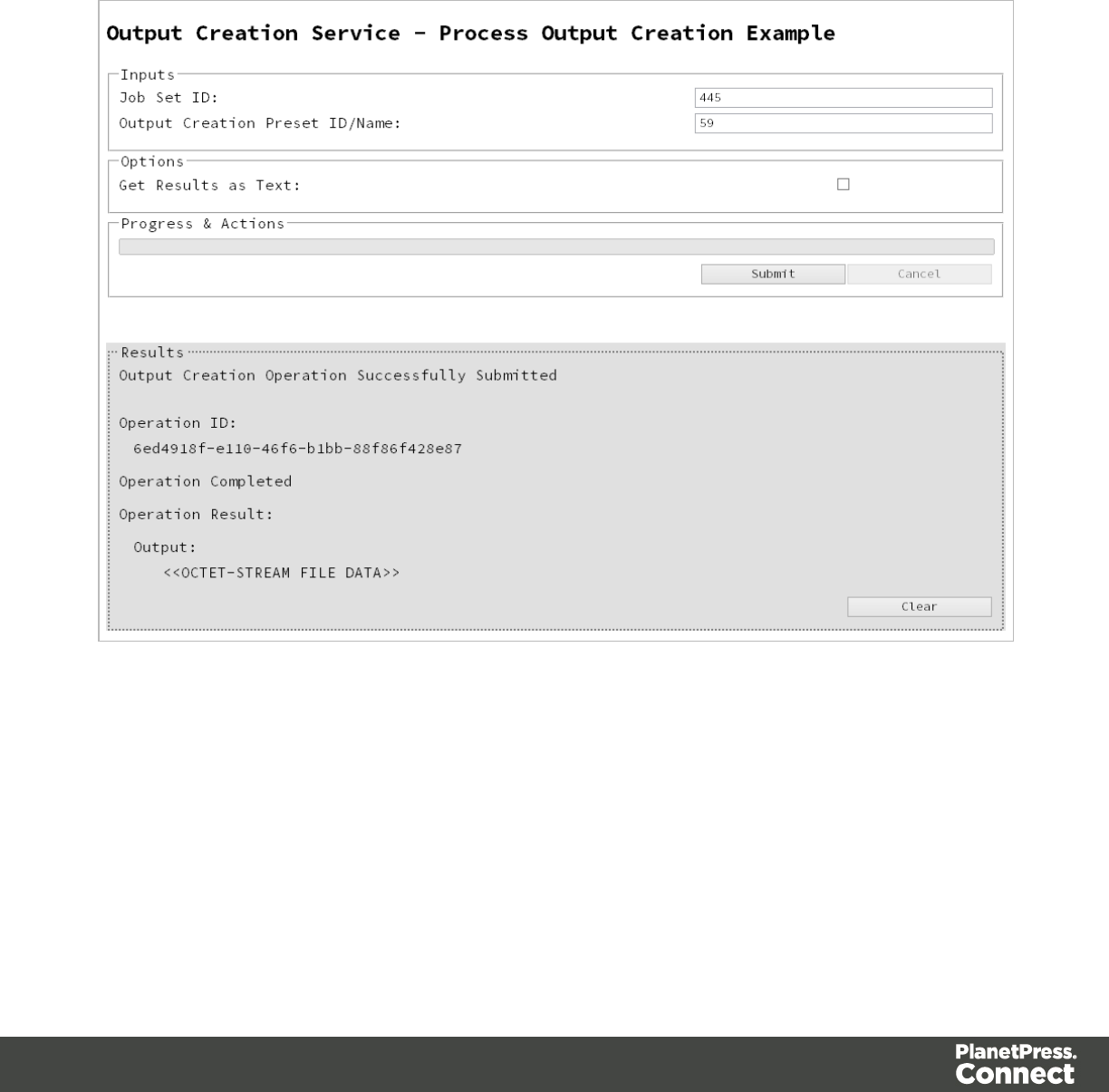
}).fail(displayDefaultFailure);
});
});
}(jQuery));
Screenshot & Output
Usage
To run the example simply enter the Job Set ID and the Managed File ID or Name of your
output creation preset (previously uploaded to the file store) into the appropriate text fields, and
then check any options that you may require:
lGet Results as Text - Return the result as text specifically. In this example this would
return the absolute path to the output file(s).
Page 177
Lastly, select the Submit button to start the Output creation operation.
Once the operation has started processing, the Operation ID will be displayed in the Results
area and the Cancel button will become enabled, giving you the option to cancel the running
operation.
The progress of the operation will be displayed in the progress bar, and once the output
creation operation has completed, the output result will be returned and displayed to the
Results area.
Note
If the result returned is expected to be file data, then the value <<OCTET-STREAM FILE
DATA>> will be displayed.
Further Reading
See the Output Creation Service page of the REST API Reference section for further detail.
Page 178
Running an Output Creation Operation (Using JSON)
Problem
You want to run an output creation operation to generate print output using an output creation
preset and an existing Job Set as inputs.
Solution
The solution is to make a series of requests using the following URIs and method types to
submit, monitor progress and ultimately retrieve the result of the output creation operation.
There is also the option of cancelling an operation during processing if required. These
requests can be submitted via the Output Creation REST service:
Process Output
Creation (JSON)
/rest/serverengine/workflow/outputcreation/{configId} POST
Get Progress of
Operation
/rest/serverengine/workflow/outputcreation/getProgress/
{operationId}
GET
Get Result of
Operation
/rest/serverengine/workflow/outputcreation/getResult/
{operationId}
POST
Get Result of
Operation (as Text)
/rest/serverengine/workflow/outputcreation/getResultTxt/
{operationId}
POST
Cancel an Operation /rest/serverengine/workflow/outputcreation/cancel/
{operationId}
POST
Example
HTML5
oc-process-json.html
<!DOCTYPE html>
<html>
<head>
<meta charset="utf-8">
<title>Process Output Creation (JSON) Example</title>
Page 179

<script src="../../common/lib/js/jquery-
1.11.3.min.js"></script>
<script src="../../common/js/common.js"></script>
<script src="js/oc-process-json.js"></script>
<link rel="stylesheet" href="../../common/css/styles.css">
</head>
<body>
<h2>Output Creation Service - Process Output Creation
(JSON) Example</h2>
<form>
<fieldset>
<legend>Inputs</legend>
<div>
<label for="jobset">Job Set ID:</label>
<input id="jobset" type="text"
placeholder="1234" required>
</div>
<div>
<label for="ocpreset">Output Creation Preset
ID/Name:</label>
<input id="ocpreset" type="text"
placeholder="1234 or Filename" required>
</div>
</fieldset>
<fieldset>
<legend>Options</legend>
<div>
<label for="createonly">Create Only:</label>
<input id="createonly" type="checkbox">
</div>
<div>
<label for="resultstxt">Get Results as
Text:</label>
<input id="resultstxt" type="checkbox">
</div>
</fieldset>
<fieldset>
<legend>Progress & Actions</legend>
<div>
<progress value="0" max="100"></progress>
</div>
<div>
<input id="cancel" type="button" value="Cancel"
Page 180

disabled>
<input id="submit" type="submit"
value="Submit">
</div>
</fieldset>
</form>
</body>
</html>
JavaScript/jQuery
oc-process-json.js
/* Output Creation Service - Process Output Creation (JSON) Example
*/
(function ($) {
"use strict";
$(document).ready(function () {
setupExample();
var $submitButton = $("#submit"),
$cancelButton = $("#cancel"),
$progressBar = $("progress"),
operationId = null;
$cancelButton.on("click", function () {
if (operationId !== null) {
/* Cancel an Operation */
$.ajax({
type: "POST",
url:
"/rest/serverengine/workflow/outputcreation/cancel/" + operationId
}).done(function (response) {
displayInfo("Operation Cancelled!");
operationId = null;
setTimeout(function () {
$progressBar.attr("value", 0);
$submitButton.removeAttr("disabled");
$cancelButton.attr("disabled", "disabled");
}, 100);
Page 181

}).fail(displayDefaultFailure);
}
});
$("form").on("submit", function (event) {
event.preventDefault();
if (!checkSessionValid()) { return; }
var jobSetId = $("#jobset").val(),
configId = $("#ocpreset").val(),
createOnly = $("#createonly").is(":checked");
var getFinalResult = function () {
var results = ($("#resultstxt").is(":checked")) ?
"getResultTxt" : "getResult";
/* Get Result of Operation */
$.ajax({
type: "POST",
url:
"/rest/serverengine/workflow/outputcreation/" + results + "/" +
operationId
}).done(function (response, status, request) {
if (request.getResponseHeader("Content-Type")
=== "application/octet-stream") {
response = "<<OCTET-STREAM FILE
DATA>>";
}
displayHeading("Operation Result");
displaySubResult("Output", response);
}).fail(displayDefaultFailure);
};
/* Process Output Creation (JSON) */
$.ajax({
type: "POST",
url:
"/rest/serverengine/workflow/outputcreation/" + configId,
data: JSON.stringify(plainIDToJson
(jobSetId, createOnly)),
contentType: "application/json"
Page 182

}).done(function (response, status, request) {
var progress = null;
operationId = request.getResponseHeader
("operationId");
$submitButton.attr("disabled", "disabled");
$cancelButton.removeAttr("disabled");
displayStatus("Output Creation Operation
Successfully Submitted");
displayResult("Operation ID", operationId);
var getProgress = function () {
if (operationId !== null) {
/* Get Progress of Operation */
$.ajax({
type: "GET",
cache: false,
url:
"/rest/serverengine/workflow/outputcreation/getProgress/" +
operationId
}).done(function (response, status,
request) {
if (response !== "done") {
if (response !== progress) {
progress = response;
$progressBar.attr("value",
progress);
}
setTimeout(getProgress, 1000);
} else {
$progressBar.attr("value",
(progress = 100));
displayInfo("Operation Completed");
getFinalResult();
operationId = null;
setTimeout(function () {
$progressBar.attr("value", 0);
$submitButton.removeAttr
("disabled");
Page 183
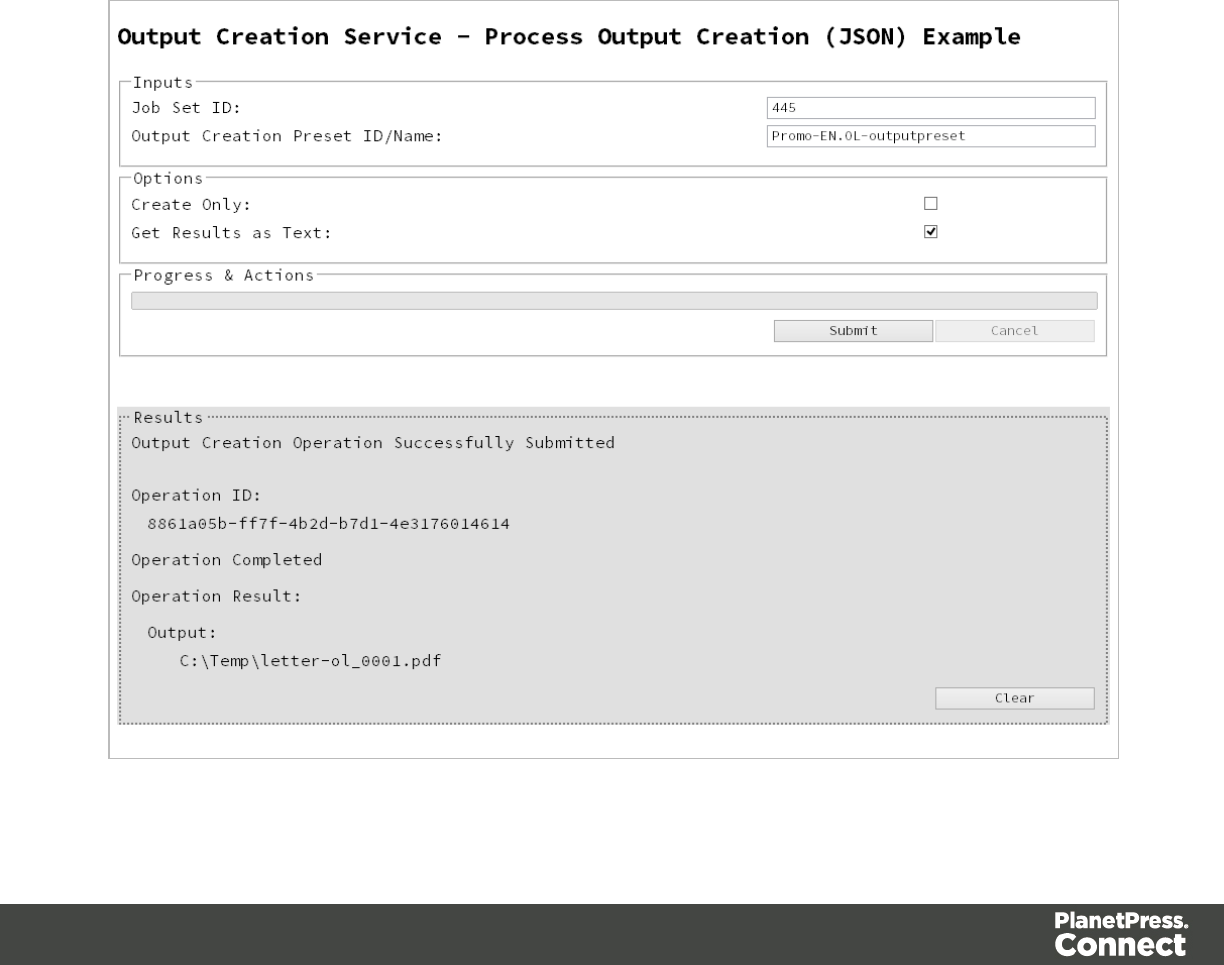
$cancelButton.attr("disabled",
"disabled");
}, 100);
}
}).fail(displayDefaultFailure);
}
};
getProgress();
}).fail(displayDefaultFailure);
});
});
}(jQuery));
Screenshot & Output
Page 184

Usage
To run the example simply enter the Job Set ID and the Managed File ID or Name of your
output creation preset (previously uploaded to the file store) into the appropriate text fields, and
then check any options that you may require:
lCreate Only - Create the output in server but do not send spool file to its final destination.
In this example this would mean that the output files(s) would not be sent to the output
directory specified in the output creation preset.
lGet Results as Text - Return the result as text specifically. In this example this would
return the absolute path to the output file(s).
Lastly, select the Submit button to start the Output creation operation.
Once the operation has started processing, the Operation ID will be displayed in the Results
area and the Cancel button will become enabled, giving you the option to cancel the running
operation.
The progress of the operation will be displayed in the progress bar, and once the output
creation operation has completed, the output result will be returned and displayed to the
Results area.
Note
If the result returned is expected to be file data, then the value <<OCTET-STREAM FILE
DATA>> will be displayed.
Further Reading
See the Output Creation Service page of the REST API Reference section for further detail.
Page 185
Running an Output Creation Operation By Job (Using
JSON)
Problem
You want to run an output creation operation to generate print output using an output creation
preset and a list of existing Jobs as inputs.
Solution
The solution is to make a series of requests using the following URIs and method types to
submit, monitor progress and ultimately retrieve the result of the output creation operation.
There is also the option of cancelling an operation during processing if required. These
requests can be submitted via the Output Creation REST service:
Process Output
Creation (By Job)
(JSON)
/rest/serverengine/workflow/outputcreation/
{configId}/jobs
POST
Get Progress of
Operation
/rest/serverengine/workflow/outputcreation/getProgress/
{operationId}
GET
Get Result of
Operation
/rest/serverengine/workflow/outputcreation/getResult/
{operationId}
POST
Get Result of
Operation (as Text)
/rest/serverengine/workflow/outputcreation/getResultTxt/
{operationId}
POST
Cancel an Operation /rest/serverengine/workflow/outputcreation/cancel/
{operationId}
POST
Example
HTML5
oc-process-by-je-json.html
<!DOCTYPE html>
<html>
<head>
Page 186

<meta charset="utf-8">
<title>Process Output Creation (By Job) (JSON)
Example</title>
<script src="../../common/lib/js/jquery-
1.11.3.min.js"></script>
<script src="../../common/js/common.js"></script>
<script src="js/oc-process-by-je-json.js"></script>
<link rel="stylesheet" href="../../common/css/styles.css">
</head>
<body>
<h2>Output Creation Service - Process Output Creation (By
Job) (JSON) Example</h2>
<form>
<fieldset>
<legend>Inputs</legend>
<div>
<label for="jobs">Job ID(s):</label>
<input id="jobs" type="text" placeholder="1234,
2345, 3456, ..." required>
</div>
<div>
<label for="ocpreset">Output Creation Preset
ID/Name:</label>
<input id="ocpreset" type="text"
placeholder="1234 or Filename" required>
</div>
</fieldset>
<fieldset>
<legend>Options</legend>
<div>
<label for="createonly">Create Only:</label>
<input id="createonly" type="checkbox">
</div>
<div>
<label for="resultstxt">Get Results as
Text:</label>
<input id="resultstxt" type="checkbox">
</div>
</fieldset>
<fieldset>
<legend>Progress & Actions</legend>
<div>
<progress value="0" max="100"></progress>
Page 187

</div>
<div>
<input id="cancel" type="button" value="Cancel"
disabled>
<input id="submit" type="submit"
value="Submit">
</div>
</fieldset>
</form>
</body>
</html>
JavaScript/jQuery
oc-process-by-je-json.js
/* Output Creation Service - Process Output Creation (By Job)
(JSON) Example */
(function ($) {
"use strict";
$(document).ready(function () {
setupExample();
var $submitButton = $("#submit"),
$cancelButton = $("#cancel"),
$progressBar = $("progress"),
operationId = null;
$cancelButton.on("click", function () {
if (operationId !== null) {
/* Cancel an Operation */
$.ajax({
type: "POST",
url:
"/rest/serverengine/workflow/outputcreation/cancel/" + operationId
}).done(function (response) {
displayInfo("Operation Cancelled!");
operationId = null;
setTimeout(function () {
$progressBar.attr("value", 0);
Page 188

$submitButton.removeAttr("disabled");
$cancelButton.attr("disabled", "disabled");
}, 100);
}).fail(displayDefaultFailure);
}
});
$("form").on("submit", function (event) {
event.preventDefault();
if (!checkSessionValid()) { return; }
var jobIds = $("#jobs").val(),
configId = $("#ocpreset").val(),
createOnly = $("#createonly").is(":checked");
var getFinalResult = function () {
var results = ($("#resultstxt").is(":checked")) ?
"getResultTxt" : "getResult";
/* Get Result of Operation */
$.ajax({
type: "POST",
url:
"/rest/serverengine/workflow/outputcreation/" + results + "/" +
operationId
}).done(function (response, status, request) {
if (request.getResponseHeader("Content-Type")
=== "application/octet-stream") {
response = "<<OCTET-STREAM FILE
DATA>>";
}
displayHeading("Operation Result");
displaySubResult("Output", response);
}).fail(displayDefaultFailure);
};
/* Process Output Creation (By Job) (JSON) */
$.ajax({
type: "POST",
url:
"/rest/serverengine/workflow/outputcreation/" + configId + "/jobs",
Page 189

data: JSON.stringify(plainIDListToJson
(jobIds, createOnly)),
contentType: "application/json"
}).done(function (response, status, request) {
var progress = null;
operationId = request.getResponseHeader
("operationId");
$submitButton.attr("disabled", "disabled");
$cancelButton.removeAttr("disabled");
displayStatus("Output Creation Operation
Successfully Submitted");
displayResult("Operation ID", operationId);
var getProgress = function () {
if (operationId !== null) {
/* Get Progress of Operation */
$.ajax({
type: "GET",
cache: false,
url:
"/rest/serverengine/workflow/outputcreation/getProgress/" +
operationId
}).done(function (response, status,
request) {
if (response !== "done") {
if (response !== progress) {
progress = response;
$progressBar.attr("value",
progress);
}
setTimeout(getProgress, 1000);
} else {
$progressBar.attr("value",
(progress = 100));
displayInfo("Operation Completed");
getFinalResult();
operationId = null;
setTimeout(function () {
Page 190

$progressBar.attr("value", 0);
$submitButton.removeAttr
("disabled");
$cancelButton.attr("disabled",
"disabled");
}, 100);
}
}).fail(displayDefaultFailure);
}
};
getProgress();
}).fail(displayDefaultFailure);
});
});
}(jQuery));
Page 191
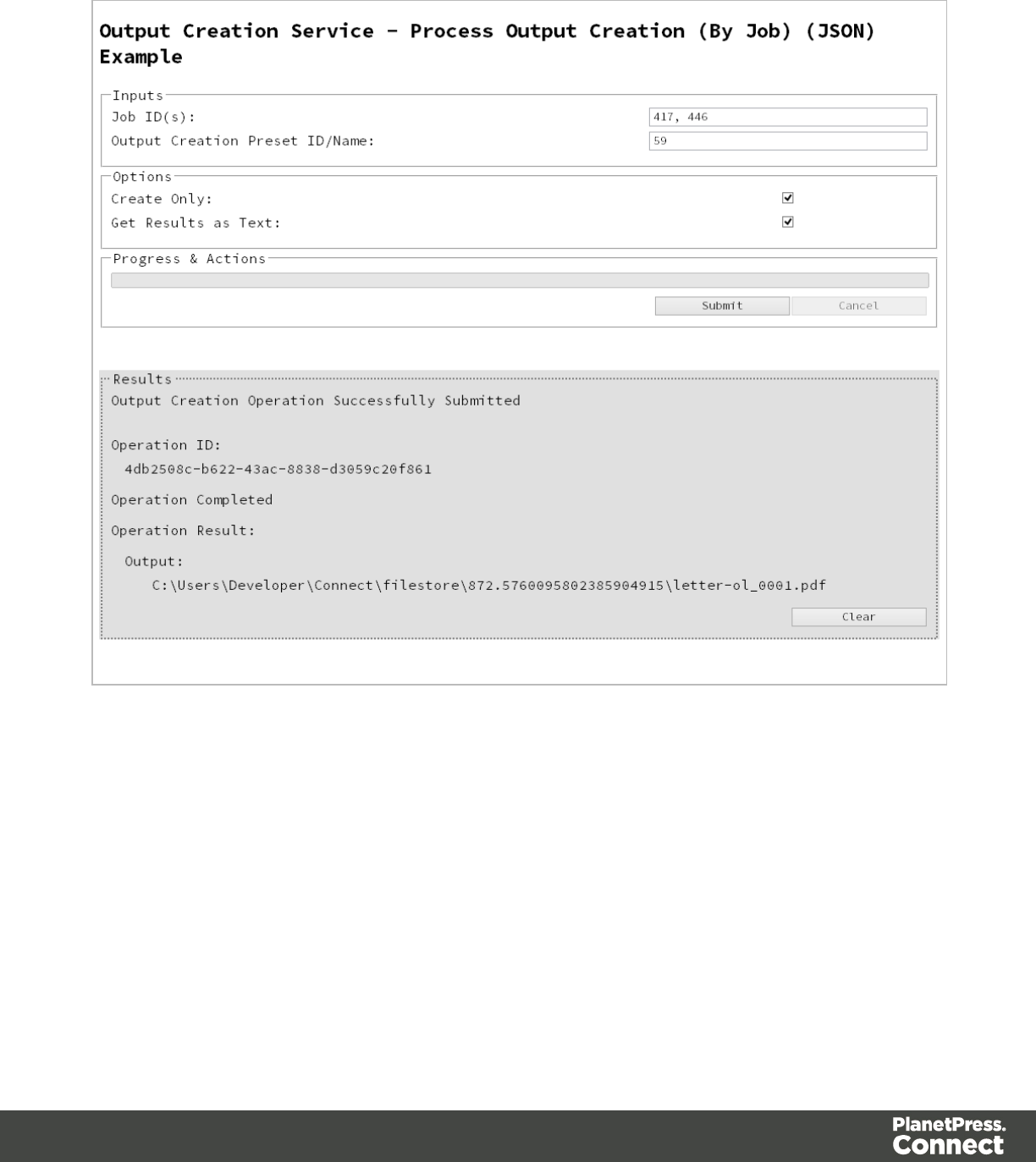
Screenshot & Output
Usage
To run the example simply enter a comma delimited list of your Job IDs and the Managed File
ID or Name of your output creation preset (previously uploaded to the file store) into the
appropriate text fields, and then check any options that you may require:
lCreate Only - Create the output in server but do not send spool file to its final destination.
In this example this would mean that the output files(s) would not be sent to the output
directory specified in the output creation preset.
Page 192
lGet Results as Text - Return the result as text specifically. In this example this would
return the absolute path to the output file(s).
Lastly, select the Submit button to start the Output creation operation.
Once the operation has started processing, the Operation ID will be displayed in the Results
area and the Cancel button will become enabled, giving you the option to cancel the running
operation.
The progress of the operation will be displayed in the progress bar, and once the output
creation operation has completed, the output result will be returned and displayed to the
Results area.
Note
If the result returned is expected to be file data, then the value <<OCTET-STREAM FILE
DATA>> will be displayed.
Further Reading
See the Output Creation Service page of the REST API Reference section for further detail.
Page 193

Running an All-In-One Operation (Using JSON)
Problem
You want to run an All-In-One operation to generate either a data set, content set or printed
output using one the following input combinations:
Process Steps Input Combination Expected
Output
Data Mapping Only Data File + Data Mapping Configuration Data Set
Data Mapping +
Content Creation
Data File + Data Mapping Configuration +
Design Template
Content Set(s)
Content Creation Only Data Records + Design Template Content Set(s)
Data Mapping +
Content Creation + Job
Creation
Data File + Data Mapping Configuration +
Design Template
Job Set
Content Creation + Job
Creation
Data Records + Design Template Job Set
Content Creation + Job
Creation + Output
Creation
Data Records + Design Template + Output
Creation Preset
Printed Output
Output Creation Only Jobs + Output Creation Preset Printed Output
Data Mapping +
Content Creation + Job
Creation + Output
Creation
Data File + Data Mapping Configuration +
Design Template + Output Creation Preset
Printed Output
Data Mapping +
Content Creation + Job
Data File + Data Mapping Configuration +
Design Template + Job Creation Preset +
Printed Output
Page 194
Process Steps Input Combination Expected
Output
Creation + Output
Creation
Output Creation Preset
Solution
The solution is to make a series of requests using the following URIs and method types to
submit, monitor progress and ultimately retrieve the result of the All-In-One operation. There is
also the option of cancelling an operation during processing if required. These requests can be
submitted via the All-In-One REST service:
Process All-In-One
(JSON)
/rest/serverengine/workflow/print/submit POST
Get Progress of Operation /rest/serverengine/workflow/print/getProgress/
{operationId}
GET
Get Result of Operation /rest/serverengine/workflow/print/getResult/
{operationId}
POST
Get Result of Operation
(as Text)
/rest/serverengine/workflow/print/getResultTxt/
{operationId}
POST
Cancel an Operation /rest/serverengine/workflow/print/cancel/
{operationId}
POST
Example
HTML5
aio-process-json.html
<!DOCTYPE html>
<html>
<head>
<meta charset="utf-8">
<title>Process All-In-One (JSON) Example</title>
<script src="../../common/lib/js/jquery-
Page 195

1.11.3.min.js"></script>
<script src="../../common/js/common.js"></script>
<script src="js/aio-process-json.js"></script>
<link rel="stylesheet" href="../../common/css/styles.css">
</head>
<body>
<h2>All-In-One Service - Process All-In-One (JSON)
Example</h2>
<form>
<fieldset id="inputs">
<legend>Inputs</legend>
<div>
<label for="datamining">Data Mapping:</label>
<input id="datamining" type="checkbox">
</div>
<div>
<label for="contentcreation">Content
Creation:</label>
<input id="contentcreation" type="checkbox">
</div>
<div>
<label for="jobcreation">Job Creation:</label>
<input id="jobcreation" type="checkbox">
</div>
<div>
<label for="outputcreation">Output
Creation:</label>
<input id="outputcreation" type="checkbox">
</div>
</fieldset>
<fieldset id="datamining-inputs" disabled>
<legend>Data Mapping</legend>
<div>
<label for="datafile">Data File
ID/Name:</label>
<input id="datafile" type="text"
placeholder="1234 or Filename" required>
</div>
<div>
<label for="datamapper">Data Mapping
Configuration ID/Name:</label>
<input id="datamapper" type="text"
placeholder="1234 or Filename" required>
Page 196

</div>
</fieldset>
<fieldset id="contentcreation-inputs" disabled>
<legend>Content Creation</legend>
<div>
<label for="datarecords">Data Record ID
(s):</label>
<input id="datarecords" type="text"
placeholder="1234, 2345, 3456, ..." required>
</div>
<div>
<label for="designtemplate">Design Template
ID/Name:</label>
<input id="designtemplate" type="text"
placeholder="1234 or Filename" required>
</div>
</fieldset>
<fieldset id="jobcreation-inputs" disabled>
<legend>Job Creation</legend>
<div>
<label for="jcpreset">Job Creation Preset
ID/Name:</label>
<input id="jcpreset" type="text"
placeholder="1234 or Filename" disabled>
</div>
</fieldset>
<fieldset id="outputcreation-inputs" disabled>
<legend>Output Creation</legend>
<div>
<label for="jobs">Job ID(s):</label>
<input id="jobs" type="text" placeholder="1234,
2345, 3456, ..." required>
</div>
<div>
<label for="ocpreset">Output Creation Preset
ID/Name:</label>
<input id="ocpreset" type="text"
placeholder="1234 or Filename" required>
</div>
</fieldset>
<fieldset>
<legend>Options</legend>
<div>
Page 197

<label for="createonly">Create Only:</label>
<input id="createonly" type="checkbox"
disabled>
</div>
<div>
<label for="resultstxt">Get Results as
Text:</label>
<input id="resultstxt" type="checkbox"
disabled>
</div>
<div>
<label for="printrange">Print Range:</label>
<input id="printrange" type="text"
placeholder="1, 2, 3-5, 6" disabled>
</div>
</fieldset>
<fieldset>
<legend>Progress & Actions</legend>
<div>
<progress value="0" max="100"></progress>
</div>
<div>
<input id="cancel" type="button" value="Cancel"
disabled>
<input id="submit" type="submit"
value="Submit">
</div>
</fieldset>
</form>
</body>
</html>
JavaScript/jQuery
aio-process-json.js
/* All-In-One Service - Process All-In-One (JSON) Example */
(function ($) {
"use strict";
$(document).ready(function () {
setupExample();
Page 198

var $form = $("form"),
$inputs = $("#inputs input"),
$datafile = $("#datafile"),
$datamapper = $("#datamapper"),
$datarecords = $("#datarecords"),
$template = $("#designtemplate"),
$jcpreset = $("#jcpreset"),
$jobs = $("#jobs"),
$ocpreset = $("#ocpreset"),
$createonly = $("#createonly"),
$resultstxt = $("#resultstxt"),
$printrange = $("#printrange"),
AIOConfig = null,
outputDesc = null,
operationId = null,
$submitButton = $("#submit"),
$cancelButton = $("#cancel"),
$progressBar = $("progress");
$cancelButton.on("click", function () {
if (operationId !== null) {
/* Cancel an Operation */
$.ajax({
type: "POST",
url:
"/rest/serverengine/workflow/print/cancel/" + operationId
}).done(function (response) {
displayInfo("Operation Cancelled!");
operationId = null;
setTimeout(function () {
$progressBar.attr("value", 0);
$submitButton.removeAttr("disabled");
$cancelButton.attr("disabled", "disabled");
}, 100);
}).fail(displayDefaultFailure);
}
});
Page 199

/**
* @function generateAIOConfig
* @description Validates the workflow selected by the user
* and constructs and an All-In-One Configuration using the
relevant
* input fields in the HTML Form.
* Any invalid inputs or workflow selections will be red-
flagged in
* the HTML Form. Null can also be returned if no workflow
selections
* are made or if the workflow selections made are of an
invalid sequence.
* @private
* @returns {Object} The All-In-One Configuration Object or
Null
*/
function generateAIOConfig() {
var config = {},
required = [],
i = null,
/* Parse Input Value to JSON Identifier List
(Helper Function) */
jsonIDListValue = function ($input) {
return (plainIDListToJson($input.val
())).identifiers;
},
/* Parse Input Value to Boolean (Helper Function)
*/
booleanValue = function ($input) {
return $input.is(":checked");
};
/* Get Input Value and add it to the Configuration
(Helper Function) */
function getInputValue($input, process, field, parser)
{
var value = $input.val();
if (value !== "") {
if (parser) {
value = parser($input);
Page 200

}
if (config[process] === undefined) {
config[process] = {};
}
config[process][field] = value;
}
}
/* Get Required & Actual Workflow Selections */
$inputs.each(function () {
if ($(this).prop("checked")) {
config[this.id] = {};
}
$(this).removeAttr("required");
required.push(this.id);
});
var selections = (Object.keys(config)).length;
/* Verify the Workflow Selections and note any
omissions */
var matches = 0,
missing = [];
for (i = 0; i < required.length; i += 1) {
var step = required[i];
if (config[step]) {
if (!matches && step === "jobcreation") {
missing.push("contentcreation");
}
matches += 1;
} else {
if (matches !== 0) {
missing.push(step);
}
}
if (matches === selections) {
break;
}
}
/* Add the inputs to the Workflow Selections to Create
the All-In-One Configuration */
if (config.datamining) {
getInputValue($datafile, "datamining",
Page 201

"identifier");
getInputValue($datamapper, "datamining", "config");
outputDesc = "Data Set ID";
}
if (config.contentcreation) {
getInputValue($template, "contentcreation",
"config");
if (!config.datamining) {
getInputValue($datarecords, "contentcreation",
"identifiers", jsonIDListValue);
$datarecords.removeAttr("disabled");
} else {
$datarecords.attr("disabled", "disabled");
}
outputDesc = "Content Set ID(s)";
}
if (config.jobcreation) {
outputDesc = "Job Set ID";
}
if (config.outputcreation) {
getInputValue($ocpreset, "outputcreation",
"config");
getInputValue($createonly, "outputcreation",
"createOnly", booleanValue);
if (!config.contentcreation) {
getInputValue($jobs, "outputcreation",
"identifiers", jsonIDListValue);
$jobs.removeAttr("disabled");
} else {
$jobs.attr("disabled", "disabled");
}
$createonly.removeAttr("disabled");
$resultstxt.removeAttr("disabled");
outputDesc = "Output";
} else {
$createonly.attr("disabled", "disabled");
$resultstxt.attr("disabled", "disabled");
if (!$resultstxt.is(":checked")) { $resultstxt.prop
("checked", true); }
}
if (config.datamining && config.contentcreation &&
Page 202

config.jobcreation && config.outputcreation) {
getInputValue($jcpreset, "jobcreation", "config");
getInputValue($printrange, "printRange",
"printRange");
$jcpreset.removeAttr("disabled");
$printrange.removeAttr("disabled");
} else {
$jcpreset.attr("disabled", "disabled");
$printrange.attr("disabled", "disabled");
}
/* Red-flag any omissions in Workflow Selections */
if (!selections || missing.length) {
for (i = 0; i < missing.length; i += 1) {
$("#" + missing[i]).attr("required",
"required");
}
return null;
}
return config;
}
$inputs.on("change", function (event) {
var input = event.target;
var process = $("#" + input.id + "-inputs");
if ($(input).prop("checked")) {
process.removeAttr("disabled");
} else {
process.attr("disabled", "disabled");
}
}).trigger("change");
$form.on("change", function (event) {
AIOConfig = generateAIOConfig();
}).trigger("change");
$form.on("submit", function (event) {
event.preventDefault();
if (!checkSessionValid()) { return; }
if (!AIOConfig) {
Page 203

alert("Invalid All-In-One Configuration!\n\nPlease
enter a valid " +
"combination of input fields, and try again.");
return;
}
var getFinalResult = function () {
var results = ($resultstxt.is(":checked")) ?
"getResultTxt" : "getResult";
/* Get Result of Operation */
$.ajax({
type: "POST",
url: "/rest/serverengine/workflow/print/" +
results + "/" + operationId
}).done(function (response, status, request) {
if (request.getResponseHeader("Content-Type")
=== "application/octet-stream") {
response = "<<OCTET-STREAM FILE
DATA>>";
}
displayHeading("Operation Result");
displaySubResult(outputDesc, response);
}).fail(displayDefaultFailure);
};
/* Process All-In-One (JSON) */
$.ajax({
type: "POST",
url:
"/rest/serverengine/workflow/print/submit",
data: JSON.stringify(AIOConfig),
contentType: "application/json"
}).done(function (response, status, request) {
var progress = null;
operationId = request.getResponseHeader
("operationId");
$submitButton.attr("disabled", "disabled");
$cancelButton.removeAttr("disabled");
Page 204

displayStatus("All-In-One Operation Successfully
Submitted");
displayHeading("Input Configuration");
displaySubResult("JSON All-In-One Configuration",
jsonPrettyPrint(AIOConfig));
displayResult("Operation ID", operationId);
var getProgress = function () {
if (operationId !== null) {
/* Get Progress of Operation */
$.ajax({
type: "GET",
cache: false,
url:
"/rest/serverengine/workflow/print/getProgress/" + operationId
}).done(function (response, status,
request) {
if (response !== "done") {
if (response !== progress) {
progress = response;
$progressBar.attr("value",
progress);
}
setTimeout(getProgress, 1000);
} else {
$progressBar.attr("value",
(progress = 100));
displayInfo("Operation Completed");
getFinalResult();
operationId = null;
setTimeout(function () {
$progressBar.attr("value", 0);
$submitButton.removeAttr
("disabled");
$cancelButton.attr("disabled",
"disabled");
}, 100);
}
}).fail(displayDefaultFailure);
}
};
Page 205

getProgress();
}).fail(displayDefaultFailure);
});
});
}(jQuery));
Page 206

Screenshot & Output
Page 207
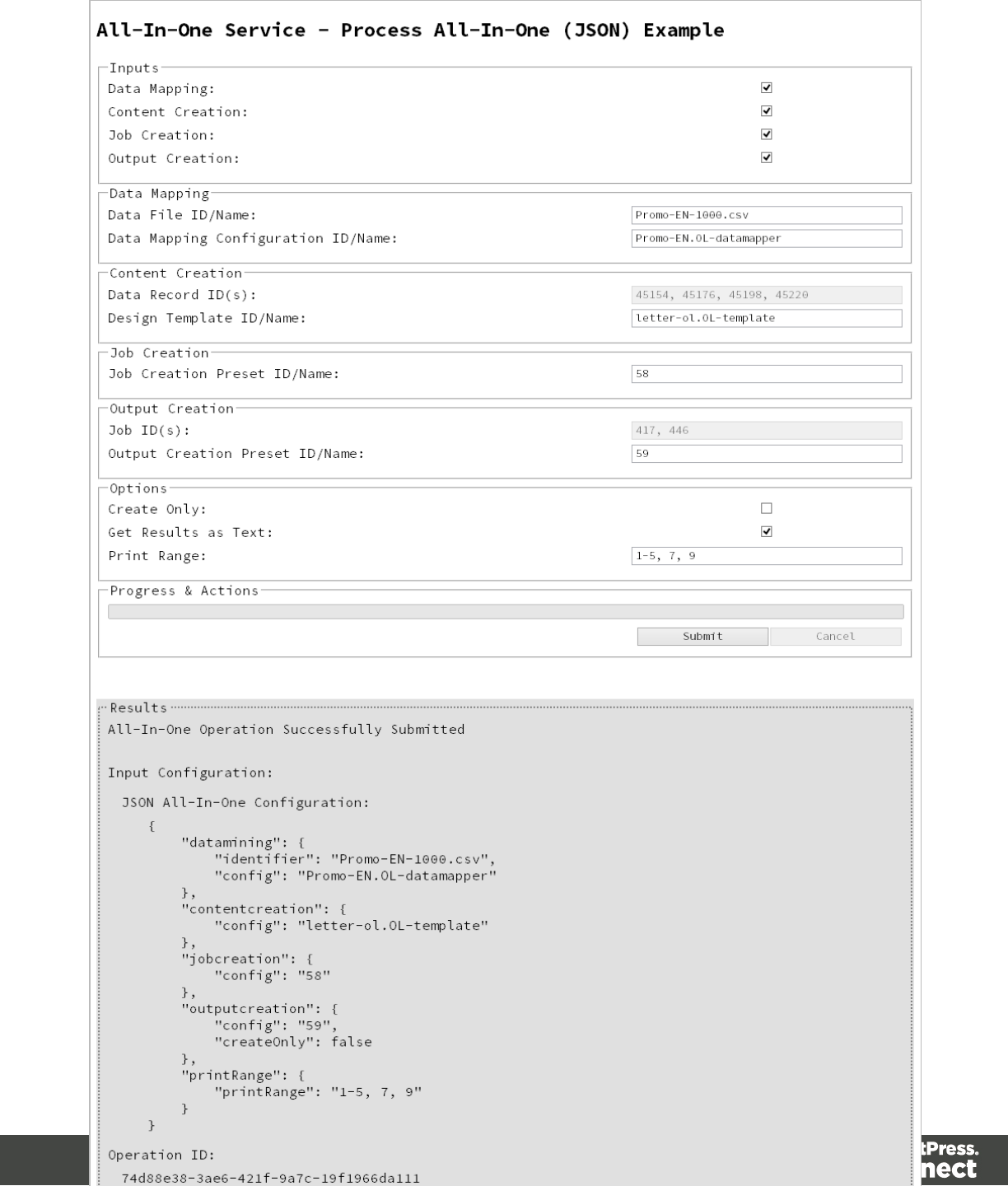
Page 208

Usage
To run the example simply select the input combination of your choosing, populate the
appropriate input fields and then check any options that you may require.
The following file based input fields can be referenced by Managed File ID or Name:
lData file
lData Mapping configuration
lDesign template
lJob Creation preset
lOutput Creation preset
The following options are only available if the input combination includes an output creation
step:
lCreate Only - Create the output in server but do not send spool file to its final destination.
In this example this would mean that the output files(s) would not be sent to the output
directory specified in the output creation preset.
lGet Results as Text - Return the result as text specifically. If our All-In-One Configuration
includes an output creation step, then in this example this would return the absolute path
to the output file(s).
lPrint Range - Restrict the printed output to a specific range of records in the input data,
not a specific range of pages (requires combination with all workflow steps).
Lastly, select the Submit button to start the All-In-One operation.
Once the operation has started processing, the JSON All-In-One Configuration along with the
Operation ID will be displayed in the Results area and the Cancel button will become enabled,
giving you the option to cancel the running operation.
The progress of the operation will be displayed in the progress bar, and once the All-in-One
operation has completed, the result will be returned and displayed to the Results area.
If the All-In-One configuration includes a output creation step, then the result returned will be
the output files (either their absolute path(s) or the output file itself). If the configuration does not
include an output creation step, then the result returned will be either a Data Set ID, Content
Set IDs or Job Set ID.
Page 209

REST API Reference
The PlanetPress Connect REST API defines a number of RESTful services that facilitate
various functionality within the server during workflow processing.
The following table is a summary of the services available in the PlanetPress Connect REST
API:
Service
Name
Internal Name Description
Authentication
Service
AuthenticationRestService Exposes methods for authenticated
access (login & password) to the
PlanetPress Connect REST API. Uses a
combination of basic and token based
authorisation.
Content
Creation
Service
ContentCreationRestService Exposes methods for the manual
creation, monitoring & cancellation of
new print context based content creation
operations within the workflow, including
a method for accessing the result of a
successful operation.
Content Item
Entity Service
ContentItemEntityRestService Exposes methods specific to the
Content Item entity type including
property value accessor methods and an
associated data record lookup method.
Content Set
Entity Service
ContentSetEntityRestService Exposes methods specific to the
Content Set entity type including
property value accessor methods,
methods to access all content sets and
delete specific content sets, and a
method to access the content item IDs
contained within a specific content set.
Page 211

Service
Name
Internal Name Description
Data Record
Entity Service
DataRecordEntityRestService Exposes methods specific to the Data
Record entity type including accessor
methods for data records and the value
& property values for a specific data
record.
Data Set
Entity Service
DataSetEntityRestService Exposes methods specific to the Data
Set entity type including property value
accessor methods, methods to access
all data sets and delete specific data
sets, and a method to access the data
record IDs contained within a specific
data set.
Data Mapping
Service
DataminingRestService Exposes methods for the manual
creation, monitoring & cancellation of
data mapping operations within the
workflow, including a method for
accessing the result of a successful
operation. Also exposes methods for
basic data mapping pass-throughs
specific to PDF VT data files.
Content
Creation
(Email)
Service
EmailExportRestService Exposes methods for the manual
creation, monitoring & cancellation of
new email context based content
creation operations within the workflow,
including a method for accessing the
result of a successful operation.
File Store
Service
FilestoreRestService Exposes methods specific to file store
operations in PlanetPress Connect
including the upload of data files, data
mapping configurations, design
templates, job creation presets & output
creation presets. Also includes generic
Page 212
Service
Name
Internal Name Description
methods for the upload of directories
and files to the file store, and the
download & deletion of managed files
already contained within the file store.
Content
Creation
(HTML)
Service
HTMLMergeRestService Exposes methods for the manual
creation of new web context based
content. Also exposes additional method
to access the generated HTML
content/resources.
Job Creation
Service
JobCreationRestService Exposes methods for the manual
creation, monitoring & cancellation of
job creation operations within the
workflow, including a method for
accessing the result of a successful
operation.
Job Entity
Service
JobEntityRestService Exposes methods specific to the Job
entity type including property value
accessor methods and get job contents
method.
Job Set Entity
Service
JobSetEntityRestService Exposes methods specific to the Job Set
entity type including property value
accessor methods, methods to access
all jobs sets and delete specific data
sets, and a method to access the job IDs
contained within a specific job set.
Output
Creation
Service
OutputCreationRestService Exposes methods for the manual
creation, monitoring & cancellation of
output creation operations within the
workflow, including methods for
accessing the result of a successful
operation.
Page 213
Service
Name
Internal Name Description
All-In-One
Service
PrintRestService Exposes methods for the manual
creation, monitoring & cancellation of
"All-In-One" operations within the
workflow, including methods for
accessing the result of a successful
operation. Also includes a test output
destination method.
Page 214
Authentication Service
The following table is a summary of the resources and methods available in the Authentication
service:
Method Name Uniform Resource Identifier (URI) Method Type
Service Handshake /authentication GET
Authenticate/Login to Server /authentication/login POST
Service Version /authentication/version GET
Page 215
Service Handshake
Queries the availability of the Authentication service.
Type: GET
URI: /rest/serverengine/authentication
Parameters: -
Request: Add.
Headers:
auth_token – Authorization Token (if server security
settings enabled)
Content: -
Content
Type:
-
Response: Add.
Headers:
-
Content: Handshake message:
Server Engine REST Service available:
AuthenticationRestService
Content
Type:
text/plain
Status: l200 OK – REST Service available
l401 Unauthorized – Server authentication required
l403 Forbidden – Server authentication has failed
or expired
Page 216
Authenticate/Login to Server
Submits an authentication request (using credentials) to the PlanetPress Connect server and if
successful provides access to the various other REST API services available.
Request takes no content, but requires an additional Authorization header which contains a
base64 encoded set of credentials (basic user name & password). On success, the response
with return an authorization token which can then be used as an additional auth_token header
in any future requests made to the REST API services.
Warning
If server security settings are enabled and a request is made to any resource of any
service in the REST API, if that request contains no authorization token and no
Authorization header, then the response will come back as Unauthorized and will contain
an additional WWW-Authenticate response header.
Type: POST
URI: /rest/serverengine/authentication/login
Parameters: -
Request: Add.
Headers:
Authorization – Basic User name & Password
credentials (Base64 encoded)
Content: -
Content
Type:
-
Response: Add.
Headers:
WWW-Authenticate – BASIC (Prompt for Basic
Authorization Credentials when no Authorization header
specified)
Page 217
Content: Authorization Token
Content
Type:
text/plain
Status: l200 OK – Server authentication successful, new
token generated
l401 Unauthorized – Server authentication has failed
or no credentials have been provided/specified in
request header
Page 218
Service Version
Returns the version of the Authentication service.
Type: GET
URI: /rest/serverengine/authentication/version
Parameters: -
Request: Add.
Headers:
auth_token – Authorization Token (if server security
settings enabled)
Content: -
Content
Type:
-
Response: Add.
Headers:
-
Content: Version of Service
Content
Type:
text/plain
Status: l200 OK – Version of REST Service retrieved
l401 Unauthorized – Server authentication required
l403 Forbidden – Server authentication has failed
or expired
Page 219
Content Creation Service
The following table is a summary of the resources and methods available in the Content
Creation service:
Method Name Uniform Resource Identifier (URI) Method
Type
Service Handshake /workflow/contentcreation GET
Process Content Creation /workflow/contentcreation/{templateId}/
{dataSetId}
POST
Process Content Creation (By Data
Record) (JSON)
/workflow/contentcreation/{templateId} POST
Get Progress of Operation /workflow/contentcreation/getProgress/
{operationId}
GET
Get Result of Operation /workflow/contentcreation/getResult/
{operationId}
POST
Cancel an Operation /workflow/contentcreation/cancel/
{operationId}
POST
Service Version /workflow/contentcreation/version GET
Page 220
Service Handshake
Queries the availability of the Content Creation service.
Type: GET
URI: /rest/serverengine/workflow/contentcreation
Parameters: -
Request: Add.
Headers:
auth_token – Authorization Token (if server security
settings enabled)
Content: -
Content
Type:
-
Response: Add.
Headers:
-
Content: Handshake message:
Server Engine REST Service available:
ContentCreationRestService
Content
Type:
text/plain
Status: l200 OK – REST Service available
l401 Unauthorized – Server authentication required
l403 Forbidden – Server authentication has failed
or expired
Page 221
Process Content Creation
Submits a request to initiate a new Content Creation operation.
Request takes no content, and on success returns a response containing additional headers
that specify the ID of the new operation as well as link URLs that can be used to retrieve further
information/cancel the operation.
Type: POST
URI: /rest/serverengine/workflow/contentcreation/{templateId}/{dataSetId}
Parameters: Path:
ltemplateId – the Managed File ID (or Name) of the design template in
File Store
ldataSetId – the ID of the Data Set entity in Server
Request: Add.
Headers:
auth_token – Authorization Token (if server security
settings enabled)
Content: -
Content
Type:
-
Response: Add.
Headers:
loperationId – Operation ID of new Content
Creation operation
lLink – Contains multiple link URLs that can be
used to retrieve further information/cancel the
operation.
Content: -
Content -
Page 222

Type:
Status: l202 Accepted – Creation of new operation
successful
l400 Bad Request – Design template or Data Set
entity not found in File Store/Server
l401 Unauthorized – Server authentication required
l403 Forbidden – Server authentication has failed or
expired
Page 223
Process Content Creation (By Data Record) (JSON)
Submits a request to initiate a new Content Creation operation.
Request takes a JSON Identifier List of Data Record IDs as content, and on success returns a
response containing additional headers that specify the ID of the new operation as well as link
URLs that can be used to retrieve further information/cancel the operation.
Type: POST
URI: /rest/serverengine/workflow/contentcreation/{templateId}
Parameters: Path:
ltemplateId – the Managed File ID (or Name) of the design template in
File Store
Request: Add.
Headers:
auth_token – Authorization Token (if server security
settings enabled)
Content: JSON Identifier List specifying a list of Data Record entity
IDs
Content
Type:
application/json
Response: Add.
Headers:
loperationId – Operation ID of new Content
Creation operation
lLink – Contains multiple link URLs that can be
used to retrieve further information/cancel the
operation.
Content: -
Content -
Page 224

Type:
Status: l202 Accepted – Creation of new operation
successful
l400 Bad Request – Design template or Data
Record entity not found in File Store/Server
l401 Unauthorized – Server authentication required
l403 Forbidden – Server authentication has failed or
expired
Page 225
Get Progress of Operation
Retrieves the progress of a running Content Creation operation of a specific operation ID.
Request takes no content, and on success returns a response containing the current value of
operation progress (values ranging from 0 – 100, followed by the value of 'done' on
completion).
Type: GET
URI: /rest/serverengine/workflow/contentcreation/getProgress/{operationId}
Parameters: Path:
loperationId – Operation ID of Content Creation operation
Request: Add.
Headers:
auth_token – Authorization Token (if server security
settings enabled)
Content: -
Content
Type:
-
Response: Add.
Headers:
-
Content: Progress value of Content Creation operation
Content
Type:
text/plain
Status: l200 OK – Progress of operation successfully
retrieved
l401 Unauthorized – Server authentication required
Page 226

l403 Forbidden – Server authentication has failed
or expired
Page 227
Get Result of Operation
Retrieves the final result of a completed Content Creation operation of a specific operation ID.
Request takes no content, and on success returns a response containing the IDs of the
generated Content Sets.
Type: POST
URI: /rest/serverengine/workflow/contentcreation/getResult/{operationId}
Parameters: Path:
loperationId – Operation ID of Content Creation operation
Request: Add.
Headers:
auth_token – Authorization Token (if server security
settings enabled)
Content: -
Content
Type:
-
Response: Add.
Headers:
-
Content: Content Set IDs
Content
Type:
text/plain
Status: l200 OK – Result of completed operation
successfully retrieved
l401 Unauthorized – Server authentication required
Page 228

l403 Forbidden – Server authentication has failed
or expired
Page 229
Cancel an Operation
Requests the cancellation of a running Content Creation operation of a specific operation ID.
Request takes no content, and on success returns a response with no content.
Type: POST
URI: /rest/serverengine/workflow/contentcreation/cancel/{operationId}
Parameters: Path:
loperationId – Operation ID of Content Creation operation
Request: Add.
Headers:
auth_token – Authorization Token (if server security
settings enabled)
Content: -
Content
Type:
-
Response: Add.
Headers:
-
Content: -
Content
Type:
-
Status: l204 No Content – Operation cancellation
requested
l401 Unauthorized – Server authentication required
l403 Forbidden – Server authentication has failed
or expired
Page 230
Service Version
Returns the version of the Content Creation service.
Type: GET
URI: /rest/serverengine/workflow/contentcreation/version
Parameters: -
Request: Add.
Headers:
auth_token – Authorization Token (if server security
settings enabled)
Content: -
Content
Type:
-
Response: Add.
Headers:
-
Content: Version of Service
Content
Type:
text/plain
Status: l200 OK – Version of REST Service retrieved
l401 Unauthorized – Server authentication required
l403 Forbidden – Server authentication has failed
or expired
Page 231
Content Item Entity Service
The following table is a summary of the resources and methods available in the Content Item
Entity service:
Method Name Uniform Resource Identifier (URI) Method
Type
Service Handshake /entity/contentitems GET
Get Data Record for Content Item /entity/contentitems/
{contentItemId}/datarecord
GET
Get Content Item Properties /entity/contentitems/
{contentItemId}/properties
GET
Update Content Item Properties /entity/contentitems/
{contentItemId}/properties
PUT
Update Multiple Content Item
Properties
/entity/contentitems/properties PUT
Service Version /entity/contentitems/version GET
Page 232
Service Handshake
Queries the availability of the Content Item Entity service.
Type: GET
URI: /rest/serverengine/entity/contentitems
Parameters: -
Request: Add.
Headers:
auth_token – Authorization Token (if server security
settings enabled)
Content: -
Content
Type:
-
Response: Add.
Headers:
-
Content: Handshake message:
Server Engine REST Service available:
ContentItemEntityRestService
Content
Type:
text/plain
Status: l200 OK – REST Service available
l401 Unauthorized – Server authentication required
l403 Forbidden – Server authentication has failed or
expired
Page 233
Get Data Record for Content Item
Returns the ID of the corresponding Data Record for a specific Content Item entity.
Request takes no content, and on success returns a response containing a JSON Data Record
Identifier for the Data Record of the Content Item.
Type: GET
URI: /rest/serverengine/entity/contentitems/{contentItemId}/datarecord
Parameters: Path:
lcontentItemId – the ID of the Content Item entity in Server
Request: Add.
Headers:
auth_token – Authorization Token (if server security
settings enabled)
Content: -
Content
Type:
-
Response: Add.
Headers:
-
Content: JSON Data Record Identifier for the Data Record of
Content Item
Content
Type:
application/json
Status: l200 OK – Data Record Identifier returned
l401 Unauthorized – Server authentication required
Page 234

l403 Forbidden – Server authentication has failed
or expired
Page 235
Get Content Item Properties
Returns a list of the properties for a specific Content Item entity.
Request takes no content, and on success returns a response containing a JSON Name/Value
List (Properties Only) of all the properties for the Content Item.
Type: GET
URI: /rest/serverengine/entity/contentitems/{contentItemId}/properties
Parameters: Path:
lcontentItemId – the ID of the Content Item entity in Server
Request: Add.
Headers:
auth_token – Authorization Token (if server security
settings enabled)
Content: -
Content
Type:
-
Response: Add.
Headers:
-
Content: JSON Name/Value List (Properties Only) of properties for
Content Item
Content
Type:
application/json
Status: l200 OK – Content Item entity properties
successfully retrieved
l401 Unauthorized – Server authentication required
Page 236

l403 Forbidden – Server authentication has failed or
expired
Page 237
Update Content Item Properties
Submits a request to update (and replace) the properties for a specific Content Item entity in the
Server.
Request takes a JSON Name/Value List as content (the Content Item ID and the new
properties), and on success returns a response containing the result of the request for
update/replacement (“true”).
Type: PUT
URI: /rest/serverengine/entity/contentitems/{contentItemId}/properties
Parameters: Path:
lcontentItemId – the ID of the Content Item entity in Server
Request: Add.
Headers:
auth_token – Authorization Token (if server security
settings enabled)
Content: JSON Name/Value List of properties for Content Item
Content
Type:
application/json
Response: Add.
Headers:
-
Content: Result of request to update Content Item
Content
Type:
text/plain
Status: l200 OK – Update of Content Item properties
successfully requested (response of “true” for
Page 238

success)
l401 Unauthorized – Server authentication required
l403 Forbidden – Server authentication has failed or
expired
l500 Server Error – Internal Server Error or Content
Item ID mismatch in JSON
Page 239
Update Multiple Content Item Properties
Submits a request to update one or more properties for one or more Content Item entities in the
Server.
Request takes multiple JSON Name/Value Lists as content (each with the Content Item ID and
the new properties), and on success returns a response containing no content.
Type: PUT
URI: /rest/serverengine/entity/contentitems/properties
Parameters: -
Request: Add.
Headers:
auth_token – Authorization Token (if server security
settings enabled)
Content: JSON Name/Value Lists of the properties of the Content
Items
Content
Type:
application/json
Response: Add.
Headers:
-
Content: -
Content
Type:
-
Status: l200 OK – Properties of Content Item entities
successfully updated
l401 Unauthorized – Server authentication required
Page 240

l403 Forbidden – Server authentication has failed
or expired
Page 241
Service Version
Returns the version of the Content Item Entity service.
Type: GET
URI: /rest/serverengine/entity/contentitems/version
Parameters: -
Request: Add.
Headers:
auth_token – Authorization Token (if server security
settings enabled)
Content: -
Content
Type:
-
Response: Add.
Headers:
-
Content: Version of Service
Content
Type:
text/plain
Status: l200 OK – Version of REST Service retrieved
l401 Unauthorized – Server authentication required
l403 Forbidden – Server authentication has failed
or expired
Page 242
Content Set Entity Service
The following table is a summary of the resources and methods available in the Content Set
Entity service:
Method Name Uniform Resource Identifier (URI) Method
Type
Get All Content Set Entities /entity/contentsets GET
Get Content Items for Content
Set
/entity/contentsets/{contentSetId} GET
Get Page Details for Content
Set
/entity/contentsets/{contentSetId}/pages GET
Delete Content Set Entity /entity/contentsets/{contentSetId}/delete POST
Get Content Set Properties /entity/contentsets/
{contentSetId}/properties
GET
Update Content Set Properties /entity/contentsets/
{contentSetId}/properties
PUT
Service Version /entity/contentsets/version GET
Page 243
Get All Content Set Entities
Returns a list of all the Content Set entities currently contained within the Server.
Request takes no content, and on success returns a response containing a JSON Identifier List
of all the Content Sets.
Type: GET
URI: /rest/serverengine/entity/contentsets
Parameters: -
Request: Add.
Headers:
auth_token – Authorization Token (if server security
settings enabled)
Content: -
Content
Type:
-
Response: Add.
Headers:
-
Content: JSON Identifier List of all the Content Sets in Server
Content
Type:
application/json
Status: l200 OK – Identifier List of Content Sets returned
l401 Unauthorized – Server authentication required
l403 Forbidden – Server authentication has failed
or expired
Page 244
Get Content Items for Content Set
Returns a list of all the Content Item entities (and their corresponding Data Record entities)
contained within a specific Content Set entity.
Request takes no content, and on success returns a response containing a JSON Content Item
Identifier List of all the Content Items in the Content Set.
Type: GET
URI: /rest/serverengine/entity/contentsets/{contentSetId}
Parameters: Path:
lcontentSetId – the ID of the Content Set entity in Server
Request: Add.
Headers:
auth_token – Authorization Token (if server security
settings enabled)
Content: -
Content
Type:
-
Response: Add.
Headers:
-
Content: JSON Content Item Identifier List of all the Content Items
in Content Set
Content
Type:
application/json
Status: l200 OK – Content Item Identifier List returned
l401 Unauthorized – Server authentication required
Page 245

l403 Forbidden – Server authentication has failed or
expired
Page 246
Get Page Details for Content Set
Returns a list of the page details for a specific Content Set entity.
Request takes no content, and on success returns a response containing either:
la JSON Page Details Summary, or
la JSON Page Details List (page details broken down by Content Items)
Type: GET
URI: /rest/serverengine/entity/contentsets/{contentSetId}/pages
Parameters: Path:
lcontentSetId – the ID of the Content Set entity in Server
Query:
ldetail – Return a full list of details instead of a summary (Possible
values: true or false. Default Value: false)
Request: Add.
Headers:
auth_token – Authorization Token (if server security
settings enabled)
Content: -
Content
Type:
-
Response: Add.
Headers:
-
Content: JSON Page Details Summary or Page Details List
containing page details for Content Set
Page 247

Content
Type:
application/json
Status: l200 OK – Content Set entity page details
successfully retrieved
l401 Unauthorized – Server authentication required
l403 Forbidden – Server authentication has failed or
expired
Page 248
Delete Content Set Entity
Submits a request for a specific Content Set entity to be marked for deletion from the Server.
Request takes no content, and on success returns a response containing the result of the
request for deletion (“true” or “false”).
Type: POST
URI: /rest/serverengine/entity/contentsets/{contentSetId}/delete
Parameters: Path:
lcontentSetId – the ID of the Content Set entity in Server
Request: Add.
Headers:
auth_token – Authorization Token (if server security
settings enabled)
Content: -
Content
Type:
-
Response: Add.
Headers:
-
Content: Result of request for Content Set removal
Content
Type:
text/plain
Status: l200 OK – Deletion of Content Set successfully
requested from Server (response of “true” for
success or “false” for failure)
l401 Unauthorized – Server authentication required
Page 249

l403 Forbidden – Server authentication has failed or
expired
Page 250
Get Content Set Properties
Returns a list of the properties for a specific Content Set entity.
Request takes no content, and on success returns a response containing a JSON Name/Value
List (Properties Only) of all the properties for the Content Set.
Type: GET
URI: /rest/serverengine/entity/contentsets/{contentSetId}/properties
Parameters: Path:
lcontentSetId – the ID of the Content Set entity in Server
Request: Add.
Headers:
auth_token – Authorization Token (if server security
settings enabled)
Content: -
Content
Type:
-
Response: Add.
Headers:
-
Content: JSON Name/Value List (Properties Only) of properties
for Content Set
Content
Type:
application/json
Status: l200 OK – Content Set entity properties
successfully retrieved
l401 Unauthorized – Server authentication required
Page 251

l403 Forbidden – Server authentication has failed
or expired
Page 252
Update Content Set Properties
Submits a request to update (and replace) the properties for a specific Content Set entity in the
Server.
Request takes a JSON Name/Value List as content (the Content Set ID and the new
properties), and on success returns a response containing the result of the request for
update/replacement (“true”).
Type: PUT
URI: /rest/serverengine/entity/contentsets/{contentSetId}/properties
Parameters: Path:
lcontentSetId – the ID of the Content Set entity in Server
Request: Add.
Headers:
auth_token – Authorization Token (if server security
settings enabled)
Content: JSON Name/Value List of properties for Content Set
Content
Type:
application/json
Response: Add.
Headers:
-
Content: Result of request to update Content Set
Content
Type:
text/plain
Status: l200 OK – Update of Content Set properties
successfully requested (response of “true” for
Page 253

success)
l401 Unauthorized – Server authentication required
l403 Forbidden – Server authentication has failed or
expired
l500 Server Error – Internal Server Error or Content
Set ID mismatch in JSON
Page 254
Service Version
Returns the version of the Content Set Entity service.
Type: GET
URI: /rest/serverengine/entity/contentsets/version
Parameters: -
Request: Add.
Headers:
auth_token – Authorization Token (if server security
settings enabled)
Content: -
Content
Type:
-
Response: Add.
Headers:
-
Content: Version of Service
Content
Type:
text/plain
Status: l200 OK – Version of REST Service retrieved
l401 Unauthorized – Server authentication required
l403 Forbidden – Server authentication has failed
or expired
Page 255
Data Record Entity Service
The following table is a summary of the resources and methods available in the Data Record
Entity service:
Method Name Uniform Resource Identifier (URI) Method
Type
Service Handshake /entity/datarecords GET
Get Data Record Values /entity/datarecords/
{dataRecordId}/values
GET
Update Data Record Values /entity/datarecords/
{dataRecordId}/values
PUT
Get Data Record Properties /entity/datarecords/
{dataRecordId}/properties
GET
Update Data Record Properties /entity/datarecords/
{dataRecordId}/properties
PUT
Update Multiple Data Record
Values
/entity/datarecords PUT
Update Multiple Data Record
Properties
/entity/datarecords/properties PUT
Service Version /entity/datarecords/version GET
Page 256
Service Handshake
Queries the availability of the Data Record Entity service.
Type: GET
URI: /rest/serverengine/entity/datarecords
Parameters: -
Request: Add.
Headers:
auth_token – Authorization Token (if server security
settings enabled)
Content: -
Content
Type:
-
Response: Add.
Headers:
-
Content: Handshake message:
Server Engine REST Service available:
DataRecordEntityRestService
Content
Type:
text/plain
Status: l200 OK – REST Service available
l401 Unauthorized – Server authentication required
l403 Forbidden – Server authentication has failed or
expired
Page 257
Get Data Record Values
Returns a list of the values for a specific Data Record entity.
Request takes no content, and on success returns a response containing a JSON Record
Content List of all the values in the Data Record.
Type: GET
URI: /rest/serverengine/entity/datarecords/{dataRecordId}/values
Parameters: Path:
ldataRecordId – the ID of the Data Record entity in Server
Query:
lrecursive – recurse all Data Tables within the Data Record and
retrieve the values of any nested Data Records also (Default Value:
"false")
Request: Add.
Headers:
auth_token – Authorization Token (if server security
settings enabled)
Content: -
Content
Type:
-
Response: Add.
Headers:
-
Content: JSON Record Content List of the values in Data Record
Content application/json
Page 258
Type:
Status: l200 OK – Data Record entity values successfully
retrieved
l401 Unauthorized – Server authentication required
l403 Forbidden – Server authentication has failed
or expired
Page 259
Update Data Record Values
Submits a request to update one or more values for a specific Data Record entity in the Server.
Request takes a JSON Record Content List as content (the Data Record ID and the new
values), and on success returns a response containing no content.
Type: PUT
URI: /rest/serverengine/entity/datarecords/{dataRecordId}/values
Parameters: Path:
ldataRecordId – the ID of the Data Record entity in Server
Request: Add.
Headers:
auth_token – Authorization Token (if server security
settings enabled)
Content: JSON Record Content List of the values for Data Record
Content
Type:
application/json
Response: Add.
Headers:
-
Content: -
Content
Type:
-
Status: l200 OK – Data Record entity values successfully
updated
l401 Unauthorized – Server authentication required
Page 260

l403 Forbidden – Server authentication has failed or
expired
l500 Server Error – Internal Server Error or Data
Record ID mismatch in JSON
Page 261
Get Data Record Properties
Returns a list of the properties for a specific Data Record entity.
Request takes no content, and on success returns a response containing a JSON Name/Value
List (Properties Only) of all the properties for the Data Record.
Type: GET
URI: /rest/serverengine/entity/datarecords/{dataRecordId}/properties
Parameters: Path:
ldataRecordId – the ID of the Data Record entity in Server
Request: Add.
Headers:
auth_token – Authorization Token (if server security
settings enabled)
Content: -
Content
Type:
-
Response: Add.
Headers:
-
Content: JSON Name/Value List (Properties Only) of properties for
Data Record
Content
Type:
application/json
Status: l200 OK – Data Record entity properties
successfully retrieved
l401 Unauthorized – Server authentication required
Page 262

l403 Forbidden – Server authentication has failed or
expired
Page 263
Update Data Record Properties
Submits a request to update (and replace) the properties for a specific Data Record entity in the
Server.
Request takes a JSON Name/Value List as content (the Data Record ID and the new
properties), and on success returns a response containing the result of the request for
update/replacement (“true”).
Type: PUT
URI: /rest/serverengine/entity/datarecords/{dataRecordId}/properties
Parameters: Path:
ldataRecordId – the ID of the Data Record entity in Server
Request: Add.
Headers:
auth_token – Authorization Token (if server security
settings enabled)
Content: JSON Name/Value List of properties for Data Record
Content
Type:
application/json
Response: Add.
Headers:
-
Content: Result of request to update Data Record
Content
Type:
text/plain
Status: l200 OK – Update of Data Record properties
successfully requested (response of “true” for
Page 264

success)
l401 Unauthorized – Server authentication required
l403 Forbidden – Server authentication has failed or
expired
l500 Server Error – Internal Server Error or Data
Record ID mismatch in JSON
Page 265
Update Multiple Data Record Values
Submits a request to update one or more values for one or more Data Record entities in the
Server.
Request takes multiple JSON Record Content Lists as content (each with the Data Record ID
and the new values), and on success returns a response containing no content.
Type: PUT
URI: /rest/serverengine/entity/datarecords
Parameters: -
Request: Add.
Headers:
auth_token – Authorization Token (if server security
settings enabled)
Content: JSON Record Content Lists of the values for the Data
Records
Content
Type:
application/json
Response: Add.
Headers:
-
Content: -
Content
Type:
-
Status: l200 OK – Values of Data Record entities
successfully updated
l401 Unauthorized – Server authentication required
Page 266

l403 Forbidden – Server authentication has failed
or expired
Page 267
Update Multiple Data Record Properties
Submits a request to update one or more properties for one or more Data Record entities in the
Server.
Request takes multiple JSON Name/Value Lists as content (each with the Data Record ID and
the new properties), and on success returns a response containing no content.
Type: PUT
URI: /rest/serverengine/entity/datarecords/properties
Parameters: -
Request: Add.
Headers:
auth_token – Authorization Token (if server security
settings enabled)
Content: JSON Name/Value Lists of the properties of the Data
Records
Content
Type:
application/json
Response: Add.
Headers:
-
Content: -
Content
Type:
-
Status: l200 OK – Properties of Data Record entities
successfully updated
l401 Unauthorized – Server authentication required
Page 268

l403 Forbidden – Server authentication has failed
or expired
Page 269
Service Version
Returns the version of the Data Record Entity service.
Type: GET
URI: /rest/serverengine/entity/datarecords/version
Parameters: -
Request: Add.
Headers:
auth_token – Authorization Token (if server security
settings enabled)
Content: -
Content
Type:
-
Response: Add.
Headers:
-
Content: Version of Service
Content
Type:
text/plain
Status: l200 OK – Version of REST Service retrieved
l401 Unauthorized – Server authentication required
l403 Forbidden – Server authentication has failed
or expired
Page 270
Data Set Entity Service
The following table is a summary of the resources and methods available in the Data Set Entity
service:
Method Name Uniform Resource Identifier (URI) Method Type
Get All Data Set Entities /entity/datasets GET
Get Data Records for Data Set /entity/datasets/{dataSetId} GET
Delete Data Set Entity /entity/datasets/{dataSetId}/delete POST
Get Data Set Properties /entity/datasets/{dataSetId}/properties GET
Update Data Set Properties /entity/datasets/{dataSetId}/properties PUT
Service Version /entity/datasets/version GET
Page 271
Get All Data Set Entities
Returns a list of all the Data Set entities currently contained within the Server.
Request takes no content, and on success returns a response containing a JSON Identifier List
of all the Data Sets.
Type: GET
URI: /rest/serverengine/entity/datasets
Parameters: -
Request: Add.
Headers:
auth_token – Authorization Token (if server security
settings enabled)
Content: -
Content
Type:
-
Response: Add.
Headers:
-
Content: JSON Identifier List of all the Data Sets in Server
Content
Type:
application/json
Status: l200 OK – Identifier List of Data Sets returned
l401 Unauthorized – Server authentication required
l403 Forbidden – Server authentication has failed
or expired
Page 272
Get Data Records for Data Set
Returns a list of all the Data Records entities contained within a specific Data Set entity.
Request takes no content, and on success returns a response containing a JSON Identifier List
of all the Data Records in the Data Set.
Type: GET
URI: /rest/serverengine/entity/datasets/{dataSetId}
Parameters: Path:
ldataSetId – the ID of the Data Set entity in Server
Request: Add.
Headers:
auth_token – Authorization Token (if server security
settings enabled)
Content: -
Content
Type:
-
Response: Add.
Headers:
-
Content: JSON Identifier List of all the Data Records in Data Set
Content
Type:
application/json
Status: l200 OK – Identifier List of Data Records returned
l401 Unauthorized – Server authentication required
l403 Forbidden – Server authentication has failed
or expired
Page 273
Delete Data Set Entity
Submits a request for a specific Data Set entity to be marked for deletion from the Server.
Request takes no content, and on success returns a response containing the result of the
request for deletion (“true” or “false”).
Type: POST
URI: /rest/serverengine/entity/datasets/{dataSetId}/delete
Parameters: Path:
ldataSetId – the ID of the Data Set entity in Server
Request: Add.
Headers:
auth_token – Authorization Token (if server security
settings enabled)
Content: -
Content
Type:
-
Response: Add.
Headers:
-
Content: Result of request for Data Set removal
Content
Type:
text/plain
Status: l200 OK – Deletion of Data Set successfully
requested from Server (response of “true” for
success or “false” for failure)
l401 Unauthorized – Server authentication required
Page 274

l403 Forbidden – Server authentication has failed or
expired
Page 275
Get Data Set Properties
Returns a list of the properties for a specific Data Set entity.
Request takes no content, and on success returns a response containing a JSON Name/Value
List (Properties Only) of all the properties for the Data Set.
Type: GET
URI: /rest/serverengine/entity/datasets/{dataSetId}/properties
Parameters: Path:
ldataSetId – the ID of the Data Set entity in Server
Request: Add.
Headers:
auth_token – Authorization Token (if server security
settings enabled)
Content: -
Content
Type:
-
Response: Add.
Headers:
-
Content: JSON Name/Value List (Properties Only) of properties
for Data Set
Content
Type:
application/json
Status: l200 OK – Data Set entity properties successfully
retrieved
l401 Unauthorized – Server authentication required
Page 276

l403 Forbidden – Server authentication has failed
or expired
Page 277
Update Data Set Properties
Submits a request to update (and replace) the properties for a specific Data Set entity in the
Server.
Request takes a JSON Name/Value List as content (the Data Set ID and the new properties),
and on success returns a response containing the result of the request for update/replacement
(“true”).
Type: PUT
URI: /rest/serverengine/entity/datasets/{dataSetId}/properties
Parameters: Path:
ldataSetId – the ID of the Data Set entity in Server
Request: Add.
Headers:
auth_token – Authorization Token (if server security
settings enabled)
Content: JSON Name/Value List of properties for Data Set
Content
Type:
application/json
Response: Add.
Headers:
-
Content: Result of request to update Data Set
Content
Type:
text/plain
Status: l200 OK – Update of Data Set properties
successfully requested (response of “true” for
Page 278

success)
l401 Unauthorized – Server authentication required
l403 Forbidden – Server authentication has failed or
expired
l500 Server Error – Internal Server Error or Data Set
ID mismatch in JSON
Page 279
Service Version
Returns the version of the Data Set Entity service.
Type: GET
URI: /rest/serverengine/entity/datasets/version
Parameters: -
Request: Add.
Headers:
auth_token – Authorization Token (if server security
settings enabled)
Content: -
Content
Type:
-
Response: Add.
Headers:
-
Content: Version of Service
Content
Type:
text/plain
Status: l200 OK – Version of REST Service retrieved
l401 Unauthorized – Server authentication required
l403 Forbidden – Server authentication has failed
or expired
Page 280
Data Mapping Service
The following table is a summary of the resources and methods available in the Data Mapping
service:
Method Name Uniform Resource Identifier (URI) Method
Type
Service Handshake /workflow/datamining GET
Process Data Mapping /workflow/datamining/{configId}/
{dataFileId}
POST
Process Data Mapping (JSON) /workflow/datamining/{configId} POST
Process Data Mapping (PDF/VT to
Data Set)
/workflow/datamining/pdfvtds/
{dataFileId}
POST
Process Data Mapping (PDF/VT to
Content Set)
/workflow/datamining/pdfvtcs/
{dataFileId}
POST
Get Progress of Operation /workflow/datamining/getProgress/
{operationId}
GET
Get Result of Operation /workflow/datamining/getResult/
{operationId}
POST
Cancel an Operation /workflow/datamining/cancel/
{operationId}
POST
Service Version /workflow/datamining/version GET
Page 281
Service Handshake
Queries the availability of the Data Mapping service.
Type: GET
URI: /rest/serverengine/workflow/datamining
Parameters: -
Request: Add.
Headers:
auth_token – Authorization Token (if server security
settings enabled)
Content: -
Content
Type:
-
Response: Add.
Headers:
-
Content: Handshake message:
Server Engine REST Service available:
DataMiningRestService
Content
Type:
text/plain
Status: l200 OK – REST Service available
l401 Unauthorized – Server authentication required
l403 Forbidden – Server authentication has failed
or expired
Page 282
Process Data Mapping
Submits a request to initiate a new Data Mapping operation.
Request takes no content, and on success returns a response containing additional headers
that specify the ID of the new operation as well as link URLs that can be used to retrieve further
information/cancel the operation.
Type: POST
URI: /rest/serverengine/workflow/datamining/{configId}/{dataFileId}
Parameters: Path:
lconfigId – the Managed File ID (or Name) of the Data Mapping
configuration in File Store
ldataFileId – the Managed File ID (or Name) of the data file in File
Store
Request: Add.
Headers:
auth_token – Authorization Token (if server security
settings enabled)
Content: -
Content
Type:
-
Response: Add.
Headers:
loperationId – Operation ID of new Data Mapping
operation
lLink – Contains multiple link URLs that can be
used to retrieve further information/cancel the
operation.
Content: -
Page 283

Content
Type:
-
Status: l202 Accepted – Creation of new operation
successful
l400 Bad Request – Data file or Data Mapping
Configuration not found in File Store
l401 Unauthorized – Server authentication required
l403 Forbidden – Server authentication has failed or
expired
Page 284
Process Data Mapping (JSON)
Submits a request to initiate a new Data Mapping operation.
As content the request takes one of either:
la JSON Identifier of the data file’s Managed File ID, or
la JSON Identifier (Named) of the data file’s Managed File Name
On success, it returns a response containing additional headers that specify the ID of the new
operation as well as link URLs that can be used to retrieve further information/cancel the
operation.
Type: POST
URI: /rest/serverengine/workflow/datamining/{configId}
Parameters: Path:
lconfigId – the Managed File ID (or Name) of the Data Mapping
configuration in File Store
Request: Add.
Headers:
auth_token – Authorization Token (if server security
settings enabled)
Content: JSON Identifier specifying Managed File ID or JSON
Identifier (Named) specifying Managed File Name in File
Store
Content
Type:
application/json
Response: Add.
Headers:
loperationId – Operation ID of new Data Mapping
operation
lLink – Contains multiple link URLs that can be
Page 285
used to retrieve further information/cancel the
operation.
Content: -
Content
Type:
-
Status: l202 Accepted – Creation of new operation
successful
l400 Bad Request – Data file or Data Mapping
Configuration not found in File Store
l401 Unauthorized – Server authentication required
l403 Forbidden – Server authentication has failed or
expired
l500 Internal Server Error – JSON Identifier bad or
missing
Page 286
Process Data Mapping (PDF/VT to Data Set)
Submits a request to initiate a new Data Mapping operation using a PDF/VT data file
specifically.
No Data Mapping configuration is specified, and a Data Set will be generated based on the
default properties extracted from the metadata of the PDF/VT data file.
Request takes no content, and on success returns a response containing additional headers
that specify the ID of the new operation as well as link URLs that can be used to retrieve further
information/cancel the operation.
Type: POST
URI: /rest/serverengine/workflow/datamining/pdfvtds/{dataFileId}
Parameters: Path:
ldataFileId – the Managed File ID (or Name) of the PDF/VT data file in
File Store
Request: Add.
Headers:
auth_token – Authorization Token (if server security
settings enabled)
Content: -
Content
Type:
-
Response: Add.
Headers:
loperationId – Operation ID of new Data Mapping
operation
lLink – Contains multiple link URLs that can be
used to retrieve further information/cancel the
operation.
Page 287

Content: -
Content
Type:
-
Status: l202 Accepted – Creation of new operation
successful
l400 Bad Request – PDF/VT data file not found in
File Store
l401 Unauthorized – Server authentication required
l403 Forbidden – Server authentication has failed or
expired
Page 288
Process Data Mapping (PDF/VT to Content Set)
Submits a request to initiate a new Data Mapping operation using a PDF/VT data file
specifically.
No Data Mapping configuration or design template are specified, and a Content Set will be
generated based on the default properties extracted from the metadata of the PDF/VT data file.
Request takes no content, and on success returns a response containing additional headers
that specify the ID of the new operation as well as link URLs that can be used to retrieve further
information/cancel the operation.
Type: POST
URI: /rest/serverengine/workflow/datamining/pdfvtcs/{dataFileId}
Parameters: Path:
ldataFileId – the Managed File ID (or Name) of the PDF/VT data file in
File Store
Request: Add.
Headers:
auth_token – Authorization Token (if server security
settings enabled)
Content: -
Content
Type:
-
Response: Add.
Headers:
loperationId – Operation ID of new Data Mapping
operation
lLink – Contains multiple link URLs that can be
used to retrieve further information/cancel the
operation.
Page 289

Content: -
Content
Type:
-
Status: l202 Accepted – Creation of new operation
successful
l400 Bad Request – PDF/VT data file not found in
File Store
l401 Unauthorized – Server authentication required
l403 Forbidden – Server authentication has failed or
expired
Page 290
Get Progress of Operation
Retrieves the progress of a running Data Mapping operation of a specific operation ID.
Request takes no content, and on success returns a response containing the current value of
operation progress (values ranging from 0 – 100, followed by the value of 'done' on
completion).
Type: GET
URI: /rest/serverengine/workflow/datamining/getProgress/{operationId}
Parameters: Path:
loperationId – Operation ID of Data Mapping operation
Request: Add.
Headers:
auth_token – Authorization Token (if server security
settings enabled)
Content: -
Content
Type:
-
Response: Add.
Headers:
-
Content: Progress value of Data Mapping operation
Content
Type:
text/plain
Status: l200 OK – Progress of operation successfully
retrieved
l401 Unauthorized – Server authentication required
Page 291

l403 Forbidden – Server authentication has failed
or expired
Page 292
Get Result of Operation
Retrieves the final result of a completed Data Mapping operation of a specific operation ID.
Request takes no content, and on success returns a response containing the ID of the
generated Data Set (or Content Set for a PDF/VT to Content Set specific data mapping
operation).
Type: POST
URI: /rest/serverengine/workflow/datamining/getResult/{operationId}
Parameters: Path:
loperationId – Operation ID of Data Mapping operation
Request: Add.
Headers:
auth_token – Authorization Token (if server security
settings enabled)
Content: -
Content
Type:
-
Response: Add.
Headers:
-
Content: Data Set ID (or Content Set ID)
Content
Type:
text/plain
Status: l200 OK – Result of completed operation
successfully retrieved
l401 Unauthorized – Server authentication required
Page 293

l403 Forbidden – Server authentication has failed
or expired
Page 294
Cancel an Operation
Requests the cancellation of a running Data Mapping operation of a specific operation ID.
Request takes no content, and on success returns a response with no content.
Type: POST
URI: /rest/serverengine/workflow/datamining/cancel/{operationId}
Parameters: Path:
loperationId – Operation ID of Data Mapping operation
Request: Add.
Headers:
auth_token – Authorization Token (if server security
settings enabled)
Content: -
Content
Type:
-
Response: Add.
Headers:
-
Content: -
Content
Type:
-
Status: l204 No Content – Operation cancellation
requested
l401 Unauthorized – Server authentication required
l403 Forbidden – Server authentication has failed
or expired
Page 295
Service Version
Returns the version of the Data Mapping service.
Type: GET
URI: /rest/serverengine/workflow/datamining/version
Parameters: -
Request: Add.
Headers:
auth_token – Authorization Token (if server security
settings enabled)
Content: -
Content
Type:
-
Response: Add.
Headers:
-
Content: Version of Service
Content
Type:
text/plain
Status: l200 OK – Version of REST Service retrieved
l401 Unauthorized – Server authentication required
l403 Forbidden – Server authentication has failed
or expired
Page 296
Content Creation (Email) Service
The following table is a summary of the resources and methods available in the Content
Creation (Email) service:
Method Name Uniform Resource Identifier (URI) Method
Type
Service Handshake /workflow/contentcreation/email GET
Process Content Creation (By
Data Record) (JSON)
/workflow/contentcreation/email/{templateId} POST
Get Progress of Operation /workflow/contentcreation/email/getProgress/
{operationId}
GET
Get Result of Operation /workflow/contentcreation/email/getResult/
{operationId}
POST
Cancel an Operation /workflow/contentcreation/email/cancel/
{operationId}
POST
Service Version /workflow/contentcreation/email/version GET
Page 297
Service Handshake
Queries the availability of the Content Creation (Email) service.
Type: GET
URI: /rest/serverengine/workflow/contentcreation/email
Parameters: -
Request: Add.
Headers:
auth_token – Authorization Token (if server security
settings enabled)
Content: -
Content
Type:
-
Response: Add.
Headers:
-
Content: Handshake message:
/workflow/contentcreation/email is available
Content
Type:
text/plain
Status: l200 OK – REST Service available
l401 Unauthorized – Server authentication required
l403 Forbidden – Server authentication has failed
or expired
Page 298
Process Content Creation (By Data Record) (JSON)
Submits a request to initiate a new Content Creation (Email) operation.
Request takes a JSON Identifier List (with Email Parameters) of Data Record IDs as content,
and on success returns a response containing additional headers that specify the ID of the new
operation as well as link URLs that can be used to retrieve further information/cancel the
operation.
Type: POST
URI: /rest/serverengine/workflow/contentcreation/email/{templateId}
Parameters: Path:
ltemplateId – the Managed File ID (or Name) of the design template in
File Store
Query:
lsection – the Section of the Email Context to export (No Default
Value)
Request: Add.
Headers:
auth_token – Authorization Token (if server security
settings enabled)
Content: JSON Identifier List (with Email Parameters) of Data
Record IDs specifying a list of Data Record entity IDs and
parameters to be used for content creation.
Content
Type:
application/json
Response: Add.
Headers:
loperationId – Operation ID of new Content
Creation (Email) operation
Page 299

lLink – Contains multiple link URLs that can be
used to retrieve further information/cancel the
operation.
Content: -
Content
Type:
-
Status: l202 Accepted – Creation of new operation
successful
l401 Unauthorized – Server authentication required
l403 Forbidden – Server authentication has failed or
expired
l404 Not Found – Design template or Data Record
entity not found in File Store/Server
Page 300
Get Progress of Operation
Retrieves the progress of a running Content Creation (Email) operation of a specific operation
ID.
Request takes no content, and on success returns a response containing the current value of
operation progress (values ranging from 0 – 100, followed by the value of 'done' on
completion).
Type: GET
URI: /rest/serverengine/workflow/contentcreation/email/getProgress/
{operationId}
Parameters: Path:
loperationId – Operation ID of Content Creation (Email) operation
Request: Add.
Headers:
auth_token – Authorization Token (if server security
settings enabled)
Content: -
Content
Type:
-
Response: Add.
Headers:
-
Content: Progress value of Content Creation (Email) operation
Content
Type:
text/plain
Status: l200 OK – Progress of operation successfully
Page 301

retrieved
l401 Unauthorized – Server authentication required
l403 Forbidden – Server authentication has failed
or expired
Page 302
Get Result of Operation
Retrieves the final result of a completed Content Creation (Email) operation of a specific
operation ID.
Request takes no content, and on success returns a response containing a report on the
number of emails that were successfully sent.
Type: POST
URI: /rest/serverengine/workflow/contentcreation/email/getResult/{operationId}
Parameters: Path:
loperationId – Operation ID of Content Creation (Email) operation
Request: Add.
Headers:
auth_token – Authorization Token (if server security
settings enabled)
Content: -
Content
Type:
-
Response: Add.
Headers:
-
Content: Result of Content Creation (Email) Operation (with
successful email count) (e.g. "3 of 3 emails sent")
Content
Type:
text/plain
Status: l200 OK – Result of completed operation
successfully retrieved
Page 303

l401 Unauthorized – Server authentication required
l403 Forbidden – Server authentication has failed or
expired
Page 304
Cancel an Operation
Requests the cancellation of a running Content Creation (Email) operation of a specific
operation ID.
Request takes no content, and on success returns a response with no content.
Type: POST
URI: /rest/serverengine/workflow/contentcreation/email/cancel/{operationId}
Parameters: Path:
loperationId – Operation ID of Content Creation (Email) operation
Request: Add.
Headers:
auth_token – Authorization Token (if server security
settings enabled)
Content: -
Content
Type:
-
Response: Add.
Headers:
-
Content: -
Content
Type:
-
Status: l204 No Content – Operation cancellation
requested
l401 Unauthorized – Server authentication required
Page 305

l403 Forbidden – Server authentication has failed
or expired
Page 306
Service Version
Returns the version of the Content Creation (Email) service.
Type: GET
URI: /rest/serverengine/workflow/contentcreation/email/version
Parameters: -
Request: Add.
Headers:
auth_token – Authorization Token (if server security
settings enabled)
Content: -
Content
Type:
-
Response: Add.
Headers:
-
Content: Version of Service
Content
Type:
text/plain
Status: l200 OK – Version of REST Service retrieved
l401 Unauthorized – Server authentication required
l403 Forbidden – Server authentication has failed
or expired
Page 307
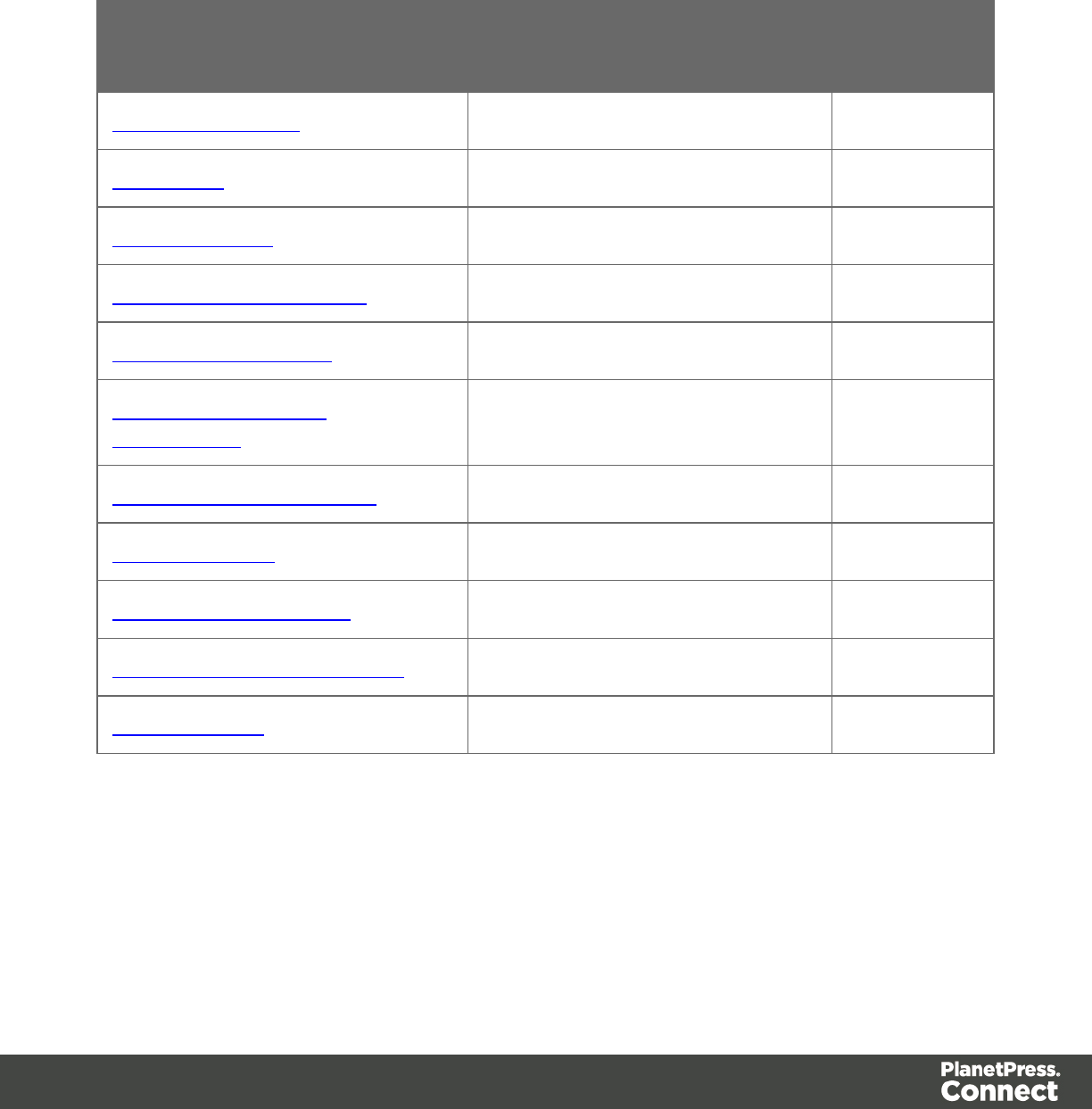
File Store Service
The following table is a summary of the resources and methods available in the File Store
service:
Method Name Uniform Resource Identifier
(URI)
Method
Type
Service Handshake /filestore GET
Upload File /filestore/file/{fileId} POST
Upload Directory /filestore/dir/{fileId} POST
Download File or Directory /filestore/file/{fileId} GET
Delete File or Directory /filestore/delete/{fileId} GET
Upload Data Mapping
Configuration
/filestore/DataMiningConfig POST
Upload Job Creation Preset /filestore/JobCreationConfig POST
Upload Data File /filestore/DataFile POST
Upload Design Template /filestore/template POST
Upload Output Creation Preset /filestore/OutputCreationConfig POST
Service Version /filestore/version GET
Page 308
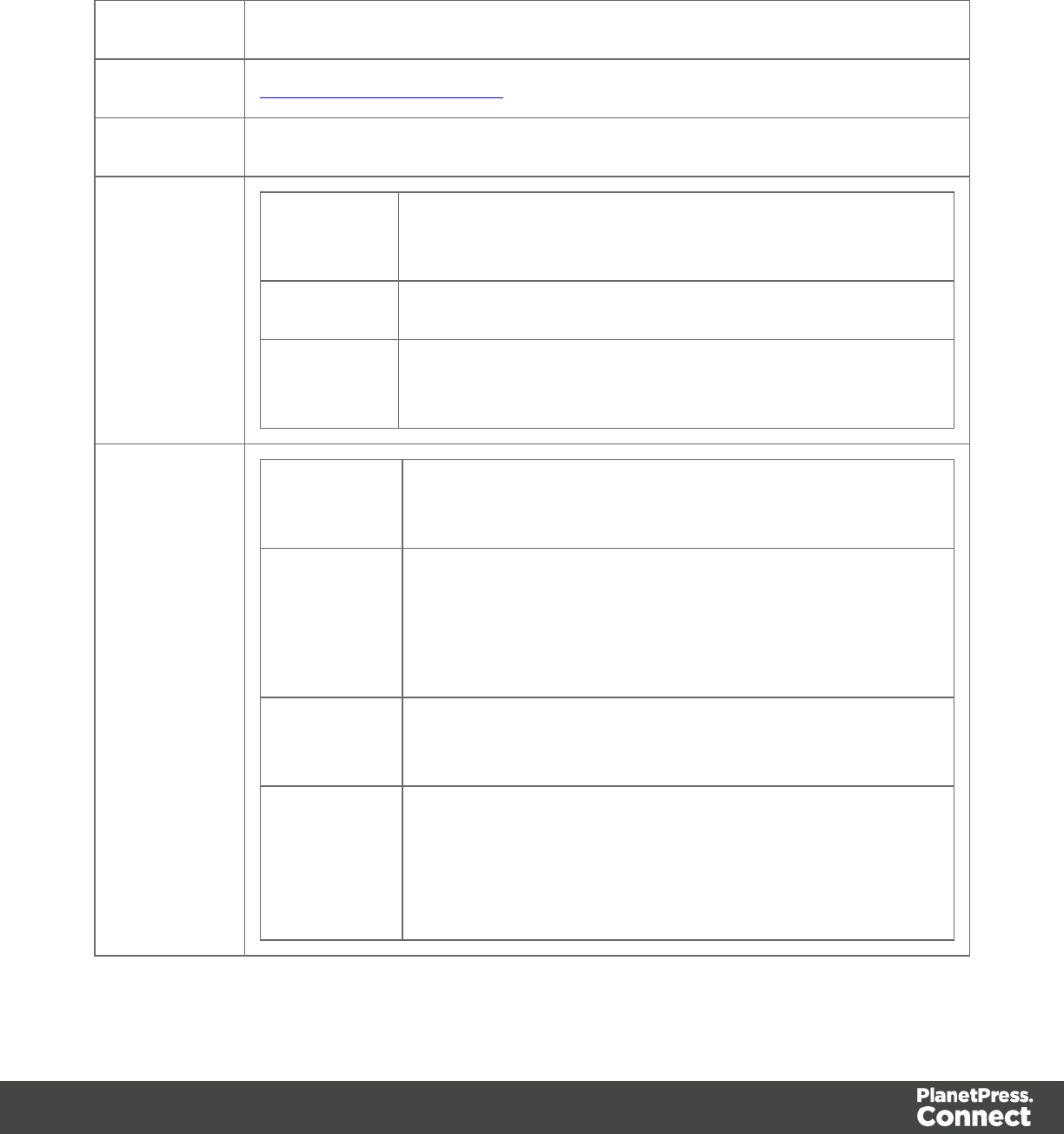
Service Handshake
Queries the availability of the File Store service.
Type: GET
URI: /rest/serverengine/filestore
Parameters: -
Request: Add.
Headers:
auth_token – Authorization Token (if server security
settings enabled)
Content: -
Content
Type:
-
Response: Add.
Headers:
-
Content: Handshake message:
Server Engine REST Service available:
FilestoreRestService
Content
Type:
text/plain
Status: l200 OK – REST Service available
l401 Unauthorized – Server authentication required
l403 Forbidden – Server authentication has failed
or expired
Page 309
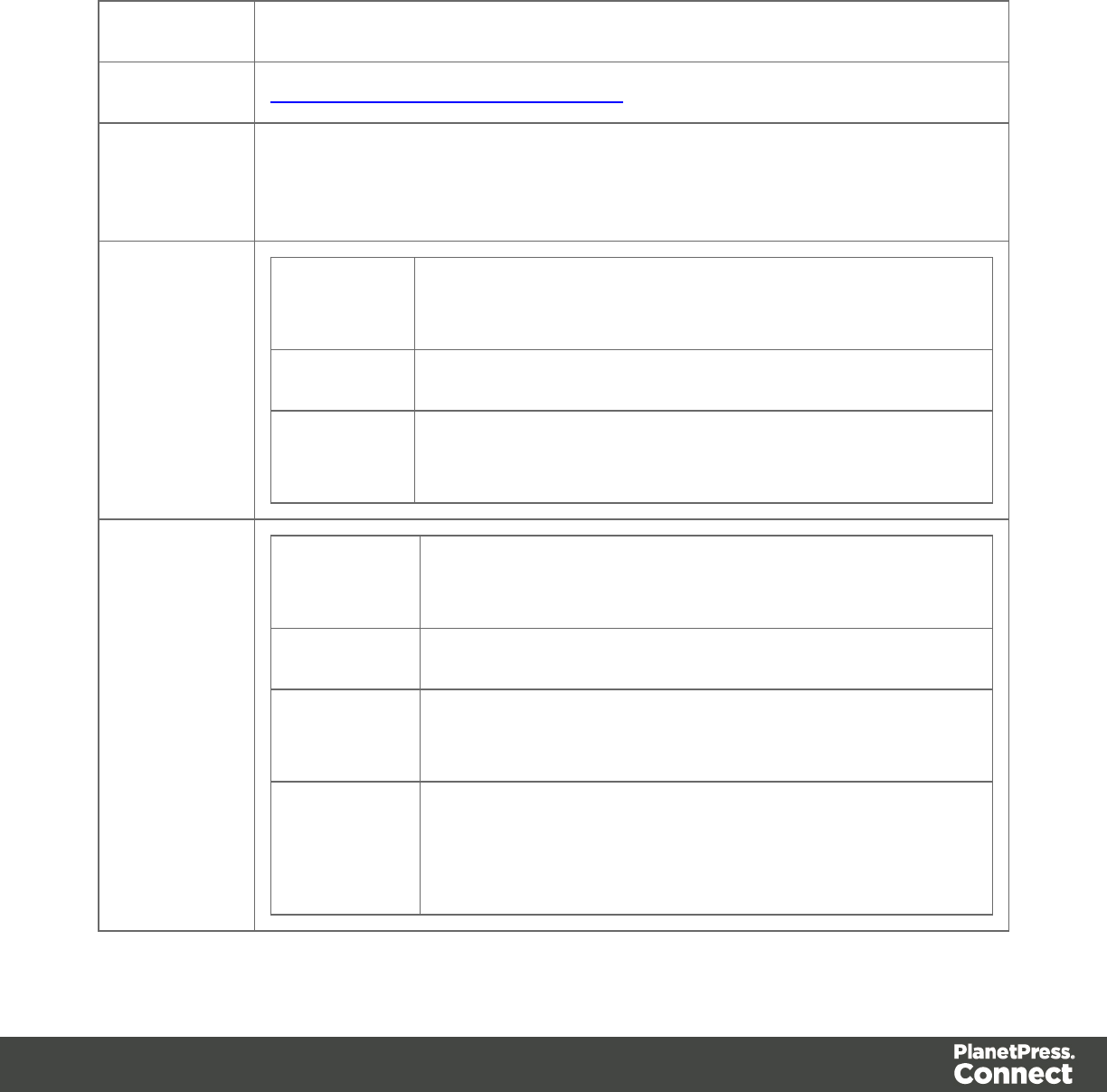
Upload File
Submits a file to the File Store using a specific Managed File ID (or Name).
Request takes binary file data as content, and on success returns a response containing the
Managed File ID (or Name) used for the file.
Type: POST
URI: /rest/serverengine/filestore/file/{fileId}
Parameters: Path:
lfileId – the Managed File ID (or Name) for file in File Store
Request: Add.
Headers:
auth_token – Authorization Token (if server security
settings enabled)
Content: File
Content
Type:
application/octet-stream
Response: Add.
Headers:
-
Content: Managed File ID (or Name)
Content
Type:
text/plain
Status: l200 OK – File successfully uploaded to File Store
l401 Unauthorized – Server authentication required
l403 Forbidden – Server authentication has failed
Page 310

or expired
l405 Not Allowed – File already exists in File Store
Page 311
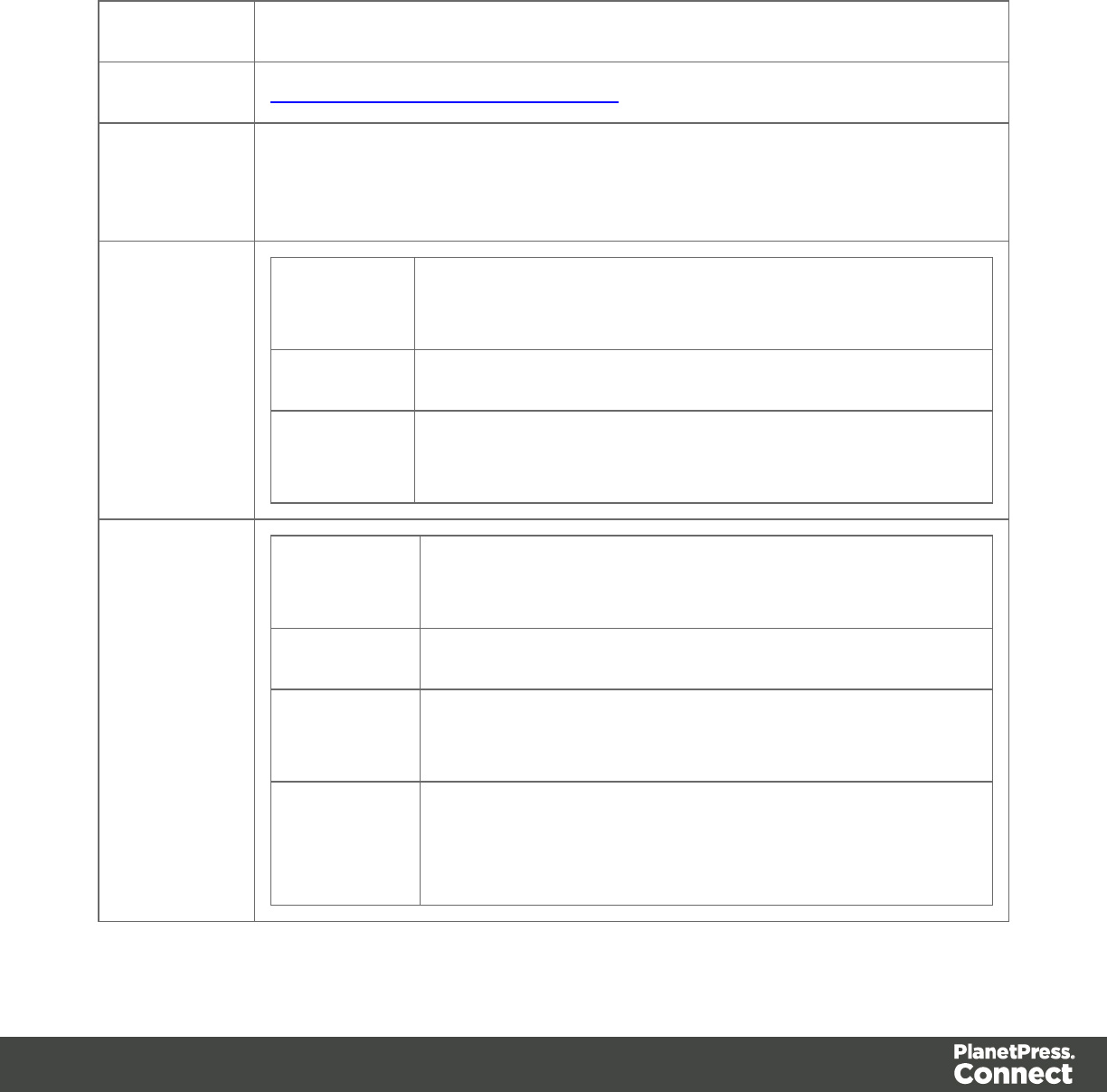
Upload Directory
Submits a zipped directory to the File Store using a specific Managed File ID (or Name).
Request takes zipped file data as content, and on success returns a response containing the
Managed File ID (or Name) used for the directory.
Type: POST
URI: /rest/serverengine/filestore/dir/{fileId}
Parameters: Path:
lfileId – the Managed File ID (or Name) for directory in File Store
Request: Add.
Headers:
auth_token – Authorization Token (if server security
settings enabled)
Content: Directory (as zipped file)
Content
Type:
application/octet-stream
Response: Add.
Headers:
-
Content: Managed File ID (or Name)
Content
Type:
text/plain
Status: l200 OK – Directory successfully uploaded to File
Store
l401 Unauthorized – Server authentication required
Page 312

l403 Forbidden – Server authentication has failed
or expired
l405 Not Allowed – Directory already exists in File
Store
Page 313
Download File or Directory
Obtains a file or directory of a specific Managed File ID (or Name) from the File Store.
Request takes no content, and on success returns a response containing the file or directory
data (as zipped file).
Type: GET
URI: /rest/serverengine/filestore/file/{fileId}
Parameters: Path:
lfileId – the Managed File ID (or Name) of the file or directory in File
Store
Request: Add.
Headers:
auth_token – Authorization Token (if server security
settings enabled)
Content: -
Content
Type:
-
Response: Add.
Headers:
Content-Disposition
lFile - "attachment; filename={OrigFileName}"
lDirectory - "attachment; filename=
{OrigDirName}.zip"
Content: File or Directory (zipped as file)
Content
Type:
lFile - application/octet-stream
lDirectory - application/zip
Page 314

Status: l200 OK – File or directory successfully
downloaded from file store
l401 Unauthorized – Server authentication required
l403 Forbidden – Server authentication has failed
or expired
Page 315
Delete File or Directory
Removes a file or directory of a specific Managed File ID (or Name) from the File Store.
Request takes no content, and on success returns a response containing the result of the
request for removal (“true” or “false”).
Type: GET
URI: /rest/serverengine/filestore/delete/{fileId}
Parameters: Path:
lfileId – the Managed File ID (or Name) of the file or directory in File
Store
Request: Add.
Headers:
auth_token – Authorization Token (if server security
settings enabled)
Content: -
Content
Type:
-
Response: Add.
Headers:
-
Content: Result of request for removal
Content
Type:
text/plain
Status: l200 OK – Removal of file or directory successfully
requested from File Store (response of “true” for
success or “false” for failure)
Page 316

l401 Unauthorized – Server authentication required
l403 Forbidden – Server authentication has failed or
expired
Page 317
Upload Data Mapping Configuration
Submits a Data Mapping configuration to the File Store.
Request takes binary file data as content, and on success returns a response containing the
new Managed File ID for the configuration.
Type: POST
URI: /rest/serverengine/filestore/DataMiningConfig
Parameters: Query:
lfilename – the file name of the configuration to be uploaded (No
Default Value)
lpersistent – whether the configuration to be uploaded will be
persistent in File Store (Default Value: false)
Request: Add.
Headers:
auth_token – Authorization Token (if server security
settings enabled)
Content: Data Mapping Configuration (File)
Content
Type:
application/octet-stream
Response: Add.
Headers:
-
Content: Managed File ID
Content
Type:
text/plain
Status: l200 OK – Configuration successfully uploaded to
Page 318

File Store
l401 Unauthorized – Server authentication required
l403 Forbidden – Server authentication has failed
or expired
Page 319
Upload Job Creation Preset
Submits a Job Creation preset to the File Store.
Request takes XML file data as content, and on success returns a response containing the new
Managed File ID for the preset.
Type: POST
URI: /rest/serverengine/filestore/JobCreationConfig
Parameters: Query:
lfilename – the file name of the preset to be uploaded (No Default
Value)
lpersistent – whether the preset to be uploaded will be persistent in
File Store (Default Value: false)
Request: Add.
Headers:
auth_token – Authorization Token (if server security
settings enabled)
Content: Job Creation Preset (File)
Content
Type:
application/xml
Response: Add.
Headers:
-
Content: Managed File ID
Content
Type:
text/plain
Status: l200 OK – Preset successfully uploaded to File
Page 320

Store
l401 Unauthorized – Server authentication required
l403 Forbidden – Server authentication has failed
or expired
Page 321
Upload Data File
Submits a data file to the File Store.
Request takes binary file data as content, and on success returns a response containing the
new Managed File ID for the data file.
Type: POST
URI: /rest/serverengine/filestore/DataFile
Parameters: Query:
lfilename – the file name of the data file to be uploaded (No Default
Value)
lpersistent – whether the data file to be uploaded will be persistent in
File Store (Default Value: false)
Request: Add.
Headers:
auth_token – Authorization Token (if server security
settings enabled)
Content: Data File (File)
Content
Type:
application/octet-stream
Response: Add.
Headers:
-
Content: Managed File ID
Content
Type:
text/plain
Status: l200 OK – Data file successfully uploaded to File
Page 322

Store
l401 Unauthorized – Server authentication required
l403 Forbidden – Server authentication has failed
or expired
Page 323
Upload Design Template
Submits a design template to the File Store.
Request takes zipped file data as content, and on success returns a response containing the
new Managed File ID for the design template.
Type: POST
URI: /rest/serverengine/filestore/template
Parameters: Query:
lfilename – the file name of the design template to be uploaded (No
Default Value)
lpersistent – whether the design template to be uploaded will be
persistent in File Store (Default Value: false)
Request: Add.
Headers:
auth_token – Authorization Token (if server security
settings enabled)
Content: Design Template (File)
Content
Type:
application/zip
Response: Add.
Headers:
-
Content: Managed File ID
Content
Type:
text/plain
Status: l200 OK – Template successfully uploaded to File
Page 324

Store
l401 Unauthorized – Server authentication required
l403 Forbidden – Server authentication has failed
or expired
Page 325
Upload Output Creation Preset
Submits an Output Creation preset to the File Store.
Request takes XML file data as content, and on success returns a response containing the new
Managed File ID for the preset.
Type: POST
URI: /rest/serverengine/filestore/OutputCreationConfig
Parameters: Query:
lfilename – the file name of the preset to be uploaded (No Default
Value)
lpersistent – whether the preset to be uploaded will be persistent in
File Store (Default Value: false)
Request: Add.
Headers:
auth_token – Authorization Token (if server security
settings enabled)
Content: Output Creation Preset (File)
Content
Type:
application/xml
Response: Add.
Headers:
-
Content: Managed File ID
Content
Type:
text/plain
Status: l200 OK – Preset successfully uploaded to File
Page 326

Store
l401 Unauthorized – Server authentication required
l403 Forbidden – Server authentication has failed
or expired
Page 327
Service Version
Returns the version of the File Store service.
Type: GET
URI: /rest/serverengine/filestore/version
Parameters: -
Request: Add.
Headers:
auth_token – Authorization Token (if server security
settings enabled)
Content: -
Content
Type:
-
Response: Add.
Headers:
-
Content: Version of Service
Content
Type:
text/plain
Status: l200 OK – Version of REST Service retrieved
l401 Unauthorized – Server authentication required
l403 Forbidden – Server authentication has failed
or expired
Page 328
Content Creation (HTML) Service
The following table is a summary of the resources and methods available in the Content
Creation (HTML) service:
Method Name Uniform Resource Identifier (URI) Method
Type
Service Handshake /workflow/contentcreation/html GET
Process Content Creation (By
Data Record)
/workflow/contentcreation/html/
{templateId}/{dataRecordId: [0-9]+}
GET
Process Content Creation (By
Data Record) (JSON)
/workflow/contentcreation/html/
{templateId}/{dataRecordId: [0-9]+}
POST
Get Template Resource /workflow/contentcreation/html/
{templateId}/{relPath: .+}
GET
Service Version /workflow/contentcreation/html/version GET
Page 329
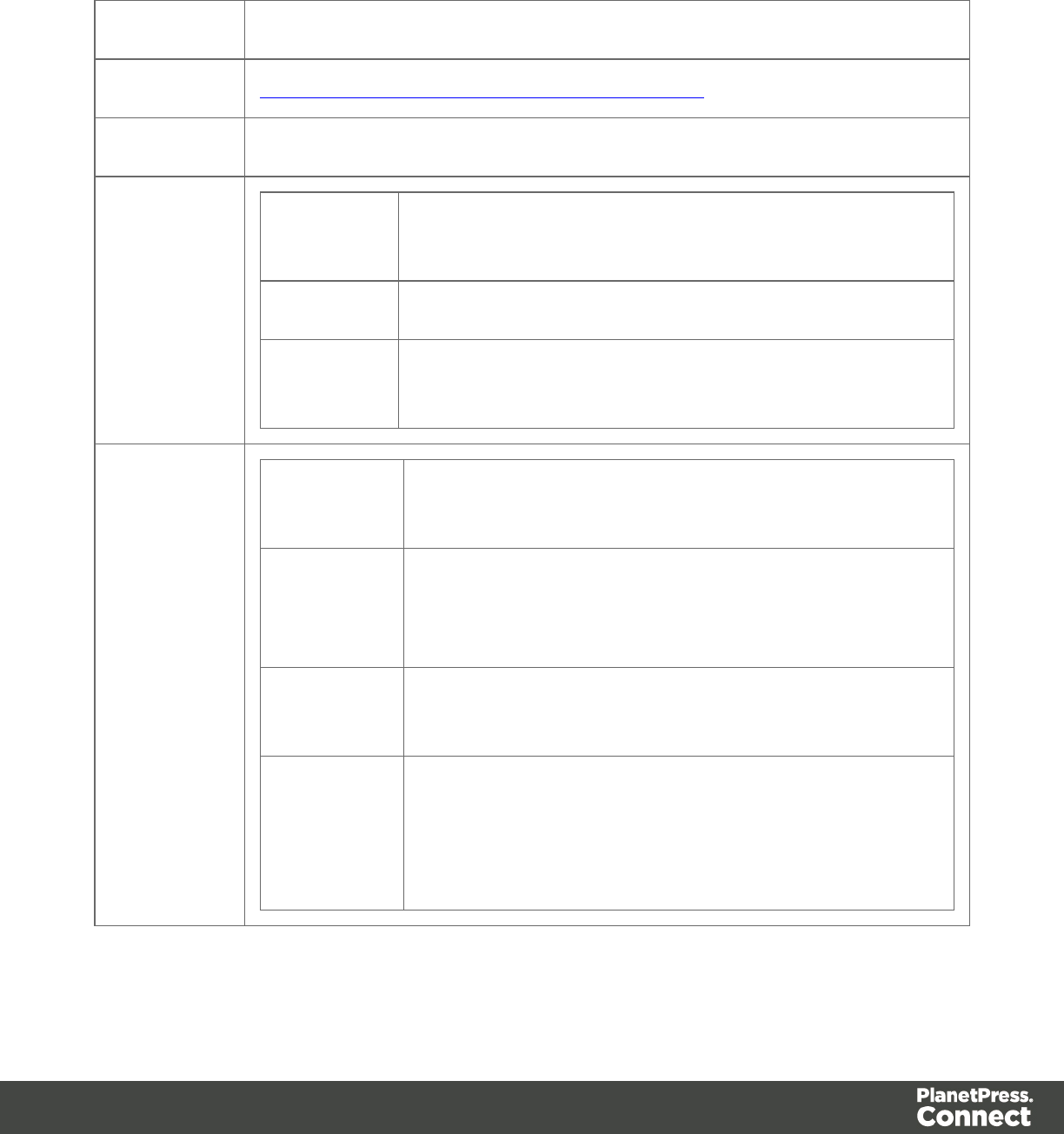
Service Handshake
Queries the availability of the Content Creation (HTML) service.
Type: GET
URI: /rest/serverengine/workflow/contentcreation/html
Parameters: -
Request: Add.
Headers:
auth_token – Authorization Token (if server security
settings enabled)
Content: -
Content
Type:
-
Response: Add.
Headers:
-
Content: Handshake message:
Merge engine available
Content
Type:
text/plain
Status: l200 OK – REST Service available
l401 Unauthorized – Server authentication required
l403 Forbidden – Server authentication has failed
or expired
Page 330
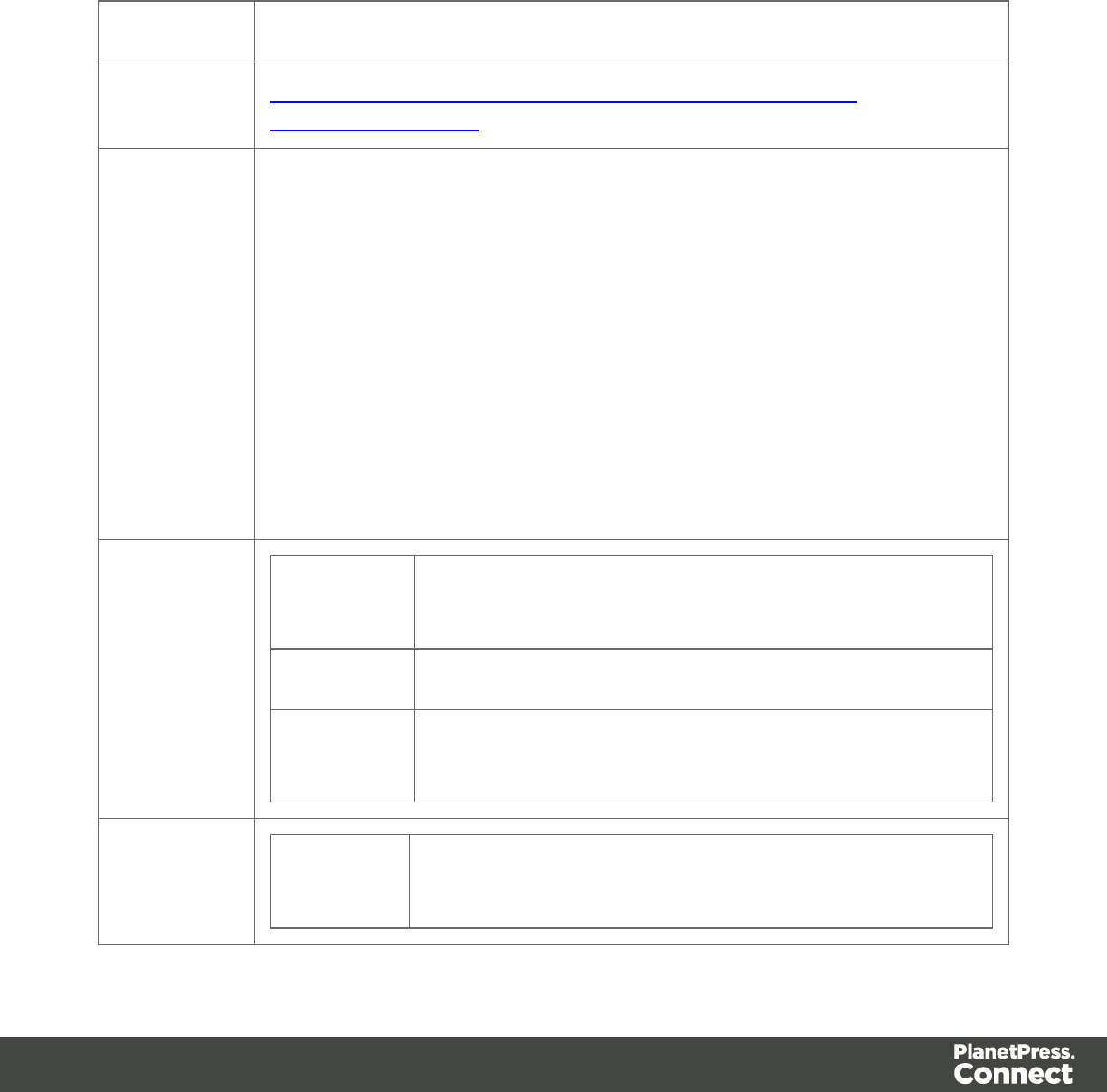
Process Content Creation (By Data Record)
Submits a request to create new HTML content for the Web Context.
Request takes no content, and on success returns a response containing the generated HTML
specific to the Data Record ID and section specified.
Type: GET
URI: /rest/serverengine/workflow/contentcreation/html/{templateId}/
{dataRecordId: [0-9]+}
Parameters: Path:
ltemplateId – the Managed File ID (or Name) of the design template in
File Store
ldataRecordId – the ID of the Data Record entity in Server
Query:
lsection – the section within the Web Context to create (No Default
Value)
linline – the inline mode to be used in the creation of content (Possible
values: NONE, CSS or ALL. No Default Value)
Request: Add.
Headers:
auth_token – Authorization Token (if server security
settings enabled)
Content: -
Content
Type:
-
Response: Add.
Headers:
-
Page 331

Content: The generated HTML output for the Data Record ID
Content
Type:
text/html
Status: l200 OK – Output generated successfully
l401 Unauthorized – Server authentication required
l403 Forbidden – Server authentication has failed or
expired
l404 Not Found – Design template or Data Record
entity not found in File Store/Server
l500 Server Error – Content Creation Error: Data
Record Not Found / Web Context in Template Not
found
Page 332
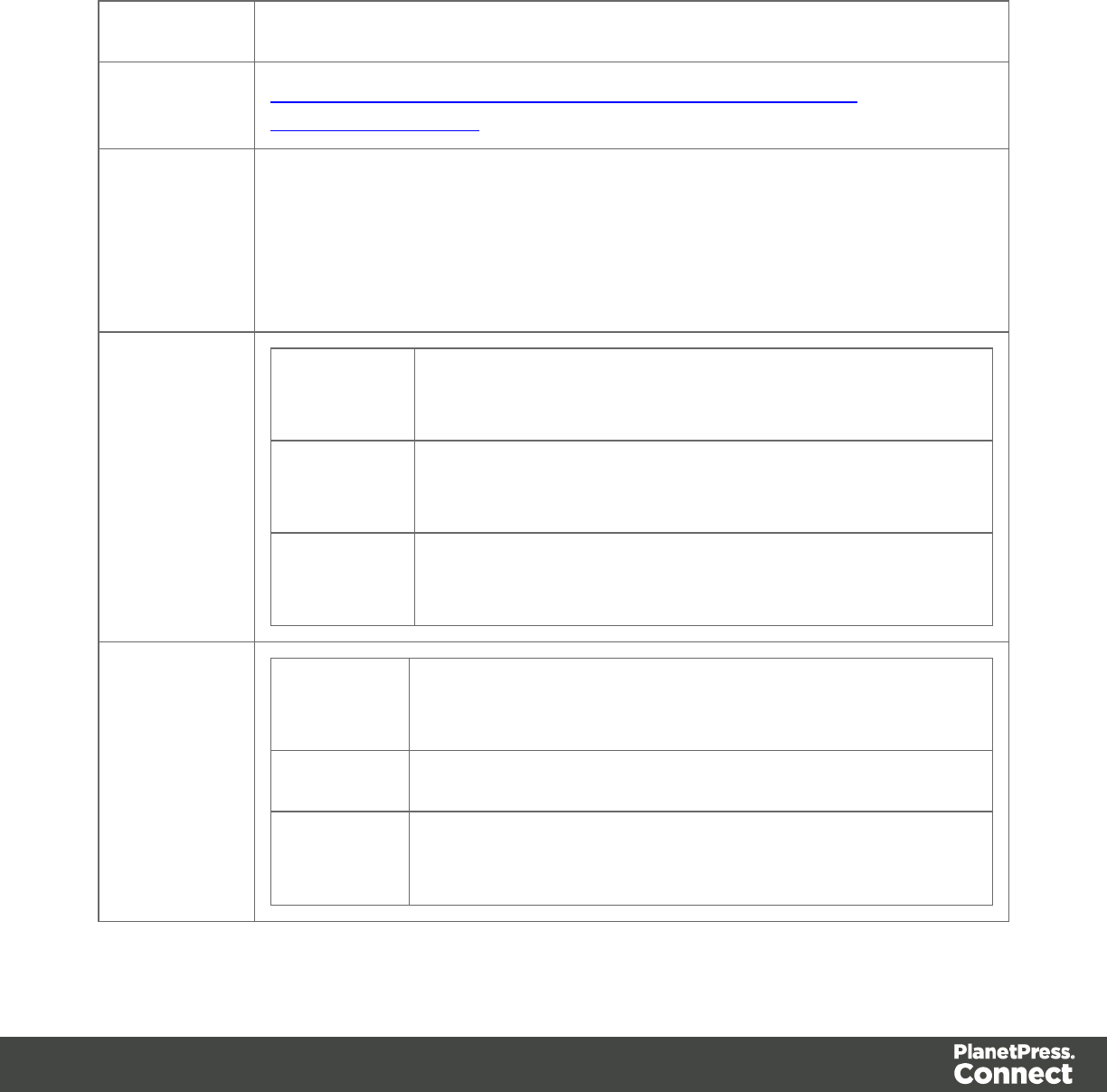
Process Content Creation (By Data Record) (JSON)
Submits a request to create new HTML content for the Web Context.
Request takes a JSON HTML Parameters List as content, and on success returns a response
containing the generated HTML output specific to the Data Record ID specified.
Type: POST
URI: /rest/serverengine/workflow/contentcreation/html/{templateId}/
{dataRecordId: [0-9]+}
Parameters: Path:
ltemplateId – the Managed File ID (or Name) of the design template in
File Store
ldataRecordId – the ID of the Data Record entity in Server
Request: Add.
Headers:
auth_token – Authorization Token (if server security
settings enabled)
Content: JSON HTML Parameters List listing section and inline
mode.
Content
Type:
application/json
Response: Add.
Headers:
-
Content: The generated HTML output for the Data Record ID
Content
Type:
text/html
Page 333

Status: l200 OK – Output generated successfully
l401 Unauthorized – Server authentication required
l403 Forbidden – Server authentication has failed or
expired
l404 Not Found – Design template or Data Record
entity not found in File Store/Server
l500 Server Error – Content Creation Error: Data
Record Not Found / Web Context in Template Not
found
Page 334
Get Template Resource
Submits a request to retrieve a resource from a design template stored in the File Store.
Request takes no content, and on success returns a response containing the resource from the
design template.
Type: GET
URI: /rest/serverengine/workflow/contentcreation/html/{templateId}/{relPath: .+}
Parameters: Path:
ltemplateId – the Managed File ID (or Name) of the design template in
File Store
lrelPath – the relative path to the resource within template
Request: Add.
Headers:
auth_token – Authorization Token (if server security
settings enabled)
Content: -
Content
Type:
-
Response: Add.
Headers:
-
Content: The resource located at the relative path within the
template
Content
Type:
(Depends on Resource requested)
Status: l200 OK – Resource successfully retrieved
Page 335

l400 Bad Request - Unable to open resource within
template or resource doesn’t exist
l401 Unauthorized – Server authentication required
l403 Forbidden – Server authentication has failed or
expired
l404 Not Found – Design template or Data Record
entity not found in File Store/Server
l500 Server Error - Unable to open template or
template doesn’t exist
Page 336
Service Version
Returns the version of the Content Creation (HTML) service.
Type: GET
URI: /rest/serverengine/workflow/contentcreation/html/version
Parameters: -
Request: Add.
Headers:
auth_token – Authorization Token (if server security
settings enabled)
Content: -
Content
Type:
-
Response: Add.
Headers:
-
Content: Version of Service
Content
Type:
text/plain
Status: l200 OK – Version of REST Service retrieved
l401 Unauthorized – Server authentication required
l403 Forbidden – Server authentication has failed
or expired
Page 337
Job Creation Service
The following table is a summary of the resources and methods available in the Job Creation
service:
Method Name Uniform Resource Identifier (URI) Method
Type
Service Handshake /workflow/jobcreation GET
Process Job Creation /workflow/jobcreation/{configId} POST
Process Job Creation (JSON) /workflow/jobcreation/{configId} POST
Process Job Creation (JSON Job Set
Structure)
/workflow/jobcreation POST
Get Progress of Operation /workflow/jobcreation/getProgress/
{operationId}
GET
Get Result of Operation /workflow/jobcreation/getResult/
{operationId}
POST
Cancel an Operation /workflow/jobcreation/cancel/
{operationId}
POST
Service Version /workflow/jobcreation/version GET
Page 338
Service Handshake
Queries the availability of the Job Creation service.
Type: GET
URI: /rest/serverengine/workflow/jobcreation
Parameters: -
Request: Add.
Headers:
auth_token – Authorization Token (if server security
settings enabled)
Content: -
Content
Type:
-
Response: Add.
Headers:
-
Content: Handshake message:
Server Engine REST Service available:
JobCreationRestService
Content
Type:
text/plain
Status: l200 OK – REST Service available
l401 Unauthorized – Server authentication required
l403 Forbidden – Server authentication has failed
or expired
Page 339
Process Job Creation
Submits a request to initiate a new Job Creation operation.
Request takes no content, and on success returns a response containing additional headers
that specify the ID of the new operation as well as link URLs that can be used to retrieve further
information/cancel the operation.
Type: POST
URI: /rest/serverengine/workflow/jobcreation/{configId}
Parameters: Path:
lconfigId – the Managed File ID (or Name) of the Job Creation Preset
in File Store
Request: Add.
Headers:
auth_token – Authorization Token (if server security
settings enabled)
Content: -
Content
Type:
-
Response: Add.
Headers:
loperationId – Operation ID of new Job Creation
operation
lLink – Contains multiple link URLs that can be
used to retrieve further information/cancel the
operation.
Content: -
Content
Type:
-
Page 340

Status: l202 Accepted – Creation of new operation
successful
l401 Unauthorized – Server authentication required
l403 Forbidden – Server authentication has failed or
expired
l404 Not Found – Job Creation Preset not found in
File Store
Page 341
Process Job Creation (JSON)
Submits a request to initiate a new Job Creation operation.
Request takes a JSON Identifier List of Content Set IDs as content, and on success returns a
response containing additional headers that specify the ID of the new operation as well as link
URLs that can be used to retrieve further information/cancel the operation.
Type: POST
URI: /rest/serverengine/workflow/jobcreation/{configId}
Parameters: Path:
lconfigId – the Managed File ID (or Name) of the Job Creation Preset
in File Store
Request: Add.
Headers:
auth_token – Authorization Token (if server security
settings enabled)
Content: JSON Identifier List specifying a list of Content Set entity
IDs
Content
Type:
application/json
Response: Add.
Headers:
loperationId – Operation ID of new Job Creation
operation
lLink – Contains multiple link URLs that can be
used to retrieve further information/cancel the
operation.
Content: -
Content -
Page 342

Type:
Status: l202 Accepted – Creation of new operation
successful
l401 Unauthorized – Server authentication required
l403 Forbidden – Server authentication has failed or
expired
l404 Not Found – Job Creation Preset or Content
Set entity not found in File Store/Server
Page 343
Process Job Creation (JSON Job Set Structure)
Submits a request to initiate a new Job Creation operation.
Request takes a JSON Job Set Structure containing a list of Content Items as content, and on
success returns a response containing additional headers that specify the ID of the new
operation as well as link URLs that can be used to retrieve further information/cancel the
operation.
Type: POST
URI: /rest/serverengine/workflow/jobcreation
Parameters: -
Request: Add.
Headers:
auth_token – Authorization Token (if server security
settings enabled)
Content: JSON Job Set Structure describing Job Set (and Content
Items)
Content
Type:
application/json
Response: Add.
Headers:
loperationId – Operation ID of new Job Creation
operation
lLink – Contains multiple link URLs that can be
used to retrieve further information/cancel the
operation.
Content: -
Content
Type:
-
Page 344

Status: l202 Accepted – Creation of new operation
successful
l401 Unauthorized – Server authentication required
l403 Forbidden – Server authentication has failed or
expired
Page 345
Get Progress of Operation
Retrieves the progress of a running Job Creation operation of a specific operation ID.
Request takes no content, and on success returns a response containing the current value of
operation progress (values ranging from 0 – 100, followed by the value of 'done' on
completion).
Type: GET
URI: /rest/serverengine/workflow/jobcreation/getProgress/{operationId}
Parameters: Path:
loperationId – Operation ID of Job Creation operation
Request: Add.
Headers:
auth_token – Authorization Token (if server security
settings enabled)
Content: -
Content
Type:
-
Response: Add.
Headers:
-
Content: Progress value of Job Creation operation
Content
Type:
text/plain
Status: l200 OK – Progress of operation successfully
retrieved
l401 Unauthorized – Server authentication required
Page 346

l403 Forbidden – Server authentication has failed
or expired
Page 347
Get Result of Operation
Retrieves the final result of a completed Job Creation operation of a specific operation ID.
Request takes no content, and on success returns a response containing the IDs of the
generated Job Set.
Type: POST
URI: /rest/serverengine/workflow/jobcreation/getResult/{operationId}
Parameters: Path:
loperationId – Operation ID of Job Creation operation
Request: Add.
Headers:
auth_token – Authorization Token (if server security
settings enabled)
Content: -
Content
Type:
-
Response: Add.
Headers:
-
Content: Job Set ID
Content
Type:
text/plain
Status: l200 OK – Result of completed operation
successfully retrieved
l401 Unauthorized – Server authentication required
Page 348

l403 Forbidden – Server authentication has failed
or expired
Page 349
Cancel an Operation
Requests the cancellation of a running Job Creation operation of a specific operation ID.
Request takes no content, and on success returns a response with no content.
Type: POST
URI: /rest/serverengine/workflow/jobcreation/cancel/{operationId}
Parameters: Path:
loperationId – Operation ID of Job Creation operation
Request: Add.
Headers:
auth_token – Authorization Token (if server security
settings enabled)
Content: -
Content
Type:
-
Response: Add.
Headers:
-
Content: -
Content
Type:
-
Status: l204 No Content – Operation cancellation
requested
l401 Unauthorized – Server authentication required
l403 Forbidden – Server authentication has failed
or expired
Page 350
Service Version
Returns the version of the Job Creation service.
Type: GET
URI: /rest/serverengine/workflow/jobcreation/version
Parameters: -
Request: Add.
Headers:
auth_token – Authorization Token (if server security
settings enabled)
Content: -
Content
Type:
-
Response: Add.
Headers:
-
Content: Version of Service
Content
Type:
text/plain
Status: l200 OK – Version of REST Service retrieved
l401 Unauthorized – Server authentication required
l403 Forbidden – Server authentication has failed
or expired
Page 351
Job Entity Service
The following table is a summary of the resources and methods available in the Job Entity
service:
Method Name Uniform Resource Identifier (URI) Method Type
Service Handshake /entity/jobs GET
Get Content Items for Job /entity/jobs/{jobId}/contents GET
Get Job Properties /entity/jobs/{jobId}/properties GET
Update Job Properties /entity/jobs/{jobId}/properties PUT
Update Multiple Job Properties /entity/jobs/properties PUT
Service Version /entity/jobs/version GET
Page 352
Service Handshake
Queries the availability of the Job Entity service.
Type: GET
URI: /rest/serverengine/entity/jobs
Parameters: -
Request: Add.
Headers:
auth_token – Authorization Token (if server security
settings enabled)
Content: -
Content
Type:
-
Response: Add.
Headers:
-
Content: Handshake message:
Server Engine REST Service available:
JobEntityRestService
Content
Type:
text/plain
Status: l200 OK – REST Service available
l401 Unauthorized – Server authentication required
l403 Forbidden – Server authentication has failed
or expired
Page 353
Get Content Items for Job
Returns a list of all the Content Item entities (and their corresponding Data Record entities)
contained within a specific Job entity.
Request takes no content, and on success returns a response containing a JSON Content Item
Identifier List of all the Content Items for the Job.
Type: GET
URI: /rest/serverengine/entity/jobs/{jobId}/contents
Parameters: Path:
ljobId – the ID of the Job entity in Server
Request: Add.
Headers:
auth_token – Authorization Token (if server security
settings enabled)
Content: -
Content
Type:
-
Response: Add.
Headers:
-
Content: JSON Content Item Identifier List of all the Content Items
in Job
Content
Type:
application/json
Status: l200 OK – Content Item Identifier List returned
l401 Unauthorized – Server authentication required
Page 354

l403 Forbidden – Server authentication has failed
or expired
Page 355
Get Job Properties
Returns a list of the properties for a specific Job entity.
Request takes no content, and on success returns a response containing a JSON Name/Value
List (Properties Only) of all the properties for the Job.
Type: GET
URI: /rest/serverengine/entity/jobs/{jobId}/properties
Parameters: Path:
ljobId – the ID of the Job entity in Server
Request: Add.
Headers:
auth_token – Authorization Token (if server security
settings enabled)
Content: -
Content
Type:
-
Response: Add.
Headers:
-
Content: JSON Name/Value List (Properties Only) of properties
for Job
Content
Type:
application/json
Status: l200 OK – Job entity properties successfully
retrieved
l401 Unauthorized – Server authentication required
Page 356

l403 Forbidden – Server authentication has failed
or expired
Page 357
Update Job Properties
Submits a request to update (and replace) the properties for a specific Job entity in the Server.
Request takes a JSON Name/Value List as content (the Job ID and the new properties), and on
success returns a response containing the result of the request for update/replacement (“true”).
Type: PUT
URI: /rest/serverengine/entity/jobs/{jobId}/properties
Parameters: Path:
ljobId – the ID of the Job entity in Server
Request: Add.
Headers:
auth_token – Authorization Token (if server security
settings enabled)
Content: JSON Name/Value List of properties for Job
Content
Type:
application/json
Response: Add.
Headers:
-
Content: Result of request to update Job
Content
Type:
text/plain
Status: l200 OK – Update of Job properties successfully
requested (response of “true” for success)
l401 Unauthorized – Server authentication required
Page 358

l403 Forbidden – Server authentication has failed or
expired
l500 Server Error – Internal Server Error or Job ID
mismatch in JSON
Page 359
Update Multiple Job Properties
Submits a request to update one or more properties for one or more Job entities in the Server.
Request takes multiple JSON Name/Value Lists as content (each with the Job ID and the new
properties), and on success returns a response containing no content.
Type: PUT
URI: /rest/serverengine/entity/jobs/properties
Parameters: -
Request: Add.
Headers:
auth_token – Authorization Token (if server security
settings enabled)
Content: JSON Name/Value Lists of the properties of the Jobs
Content
Type:
application/json
Response: Add.
Headers:
-
Content: -
Content
Type:
-
Status: l200 OK – Properties of Job entities successfully
updated
l401 Unauthorized – Server authentication required
l403 Forbidden – Server authentication has failed
or expired
Page 360
Service Version
Returns the version of the Job Entity service.
Type: GET
URI: /rest/serverengine/entity/jobs/version
Parameters: -
Request: Add.
Headers:
auth_token – Authorization Token (if server security
settings enabled)
Content: -
Content
Type:
-
Response: Add.
Headers:
-
Content: Version of Service
Content
Type:
text/plain
Status: l200 OK – Version of REST Service retrieved
l401 Unauthorized – Server authentication required
l403 Forbidden – Server authentication has failed
or expired
Page 361
Job Set Entity Service
The following table is a summary of the resources and methods available in the Job Set Entity
service:
Method Name Uniform Resource Identifier (URI) Method Type
Get All Job Set Entities /entity/jobsets GET
Get Jobs for Job Set /entity/jobsets/{jobSetId} GET
Delete Job Set Entity /entity/jobsets/{jobSetId}/delete POST
Get Job Set Properties /entity/jobsets/{jobSetId}/properties GET
Update Job Set Properties /entity/jobsets/{jobSetId}/properties PUT
Service Version /entity/jobsets/version GET
Page 362
Get All Job Set Entities
Returns a list of all the Job Set entities currently contained within the Server.
Request takes no content, and on success returns a response containing a JSON Identifier List
of all the Job Sets.
Type: GET
URI: /rest/serverengine/entity/jobsets
Parameters: -
Request: Add.
Headers:
auth_token – Authorization Token (if server security
settings enabled)
Content: -
Content
Type:
-
Response: Add.
Headers:
-
Content: JSON Identifier List of all the Job Sets in Server
Content
Type:
application/json
Status: l200 OK – Identifier List of Job Sets returned
l401 Unauthorized – Server authentication required
l403 Forbidden – Server authentication has failed
or expired
Page 363
Get Jobs for Job Set
Returns a list of all the Job entities contained within a specific Job Set entity.
Request takes no content, and on success returns a response containing a JSON Identifier List
of all the Jobs in the Job Set.
Type: GET
URI: /rest/serverengine/entity/jobsets/{jobSetId}
Parameters: Path:
ljobSetId – the ID of the Job Set entity in Server
Request: Add.
Headers:
auth_token – Authorization Token (if server security
settings enabled)
Content: -
Content
Type:
-
Response: Add.
Headers:
-
Content: JSON Identifier List of all the Jobs in Job Set
Content
Type:
application/json
Status: l200 OK – Identifier List of Jobs returned
l401 Unauthorized – Server authentication required
l403 Forbidden – Server authentication has failed
or expired
Page 364
Delete Job Set Entity
Submits a request for a specific Job Set entity to be marked for deletion from the Server.
Request takes no content, and on success returns a response containing the result of the
request for deletion (“true” or “false”).
Type: POST
URI: /rest/serverengine/entity/jobsets/{jobSetId}/delete
Parameters: Path:
ljobSetId – the ID of the Job Set entity in Server
Request: Add.
Headers:
auth_token – Authorization Token (if server security
settings enabled)
Content: -
Content
Type:
-
Response: Add.
Headers:
-
Content: Result of request for Job Set removal
Content
Type:
text/plain
Status: l200 OK – Deletion of Job Set successfully
requested from Server (response of “true” for
success or “false” for failure)
l401 Unauthorized – Server authentication required
Page 365

l403 Forbidden – Server authentication has failed or
expired
Page 366
Get Job Set Properties
Returns a list of the properties for a specific Job Set entity.
Request takes no content, and on success returns a response containing a JSON Name/Value
List (Properties Only) of all the properties for the Job Set.
Type: GET
URI: /rest/serverengine/entity/jobsets/{jobSetId}/properties
Parameters: Path:
ljobSetId – the ID of the Job Set entity in Server
Request: Add.
Headers:
auth_token – Authorization Token (if server security
settings enabled)
Content: -
Content
Type:
-
Response: Add.
Headers:
-
Content: JSON Name/Value List (Properties Only) of properties
for Job Set
Content
Type:
application/json
Status: l200 OK – Job Set entity properties successfully
retrieved
l401 Unauthorized – Server authentication required
Page 367

l403 Forbidden – Server authentication has failed
or expired
Page 368
Update Job Set Properties
Submits a request to update (and replace) the properties for a specific Job Set entity in the
Server.
Request takes a JSON Name/Value List as content (the Job Set ID and the new properties),
and on success returns a response containing the result of the request for update/replacement
(“true”).
Type: PUT
URI: /rest/serverengine/entity/jobsets/{jobSetId}/properties
Parameters: Path:
ljobSetId – the ID of the Job Set entity in Server
Request: Add.
Headers:
auth_token – Authorization Token (if server security
settings enabled)
Content: JSON Name/Value List of properties for Job Set
Content
Type:
application/json
Response: Add.
Headers:
-
Content: Result of request to update Job Set
Content
Type:
text/plain
Status: l200 OK – Update of Job Set properties successfully
requested (response of “true” for success)
Page 369
l401 Unauthorized – Server authentication required
l403 Forbidden – Server authentication has failed or
expired
l500 Server Error – Internal Server Error or Job Set
ID mismatch in JSON
Page 370
Service Version
Returns the version of the Job Set Entity service.
Type: GET
URI: /rest/serverengine/entity/jobsets/version
Parameters: -
Request: Add.
Headers:
auth_token – Authorization Token (if server security
settings enabled)
Content: -
Content
Type:
-
Response: Add.
Headers:
-
Content: Version of Service
Content
Type:
text/plain
Status: l200 OK – Version of REST Service retrieved
l401 Unauthorized – Server authentication required
l403 Forbidden – Server authentication has failed
or expired
Page 371
Output Creation Service
The following table is a summary of the resources and methods available in the Output
Creation service:
Method Name Uniform Resource Identifier (URI) Method
Type
Service Handshake /workflow/outputcreation GET
Process Output Creation /workflow/outputcreation/{configId}/
{jobSetId}
POST
Process Output Creation (JSON) /workflow/outputcreation/{configId} POST
Process Output Creation (By
Job) (JSON)
/workflow/outputcreation/{configId}/jobs POST
Get Progress of Operation /workflow/outputcreation/getProgress/
{operationId}
GET
Get Result of Operation /workflow/outputcreation/getResult/
{operationId}
POST
Get Result of Operation (as Text) /workflow/outputcreation/getResultTxt/
{operationId}
POST
Cancel an Operation /workflow/outputcreation/cancel/
{operationId}
POST
Service Version /workflow/outputcreation/version GET
Page 372
Service Handshake
Queries the availability of the Output Creation service.
Type: GET
URI: /rest/serverengine/workflow/outputcreation
Parameters: -
Request: Add.
Headers:
auth_token – Authorization Token (if server security
settings enabled)
Content: -
Content
Type:
-
Response: Add.
Headers:
-
Content: Handshake message:
Server Engine REST Service available:
OutputCreationRestService
Content
Type:
text/plain
Status: l200 OK – REST Service available
l401 Unauthorized – Server authentication required
l403 Forbidden – Server authentication has failed
or expired
Page 373
Process Output Creation
Submits a request to initiate a new Output Creation operation.
Request takes no content, and on success returns a response containing additional headers
that specify the ID of the new operation as well as link URLs that can be used to retrieve further
information/cancel the operation.
Type: POST
URI: /rest/serverengine/workflow/outputcreation/{configId}/{jobSetId}
Parameters: Path:
lconfigId – the Managed File ID (or Name) of the Output Creation
Preset in File Store
ljobSetId – the ID of the Job Set entity in Server
Request: Add.
Headers:
auth_token – Authorization Token (if server security
settings enabled)
Content: -
Content
Type:
-
Response: Add.
Headers:
loperationId – Operation ID of new Output Creation
operation
lLink – Contains multiple link URLs that can be
used to retrieve further information/cancel the
operation.
Content: -
Content -
Page 374

Type:
Status: l202 Accepted – Creation of new operation
successful
l401 Unauthorized – Server authentication required
l403 Forbidden – Server authentication has failed or
expired
l404 Not Found – Output Creation Preset or Job Set
entity not found in File Store/Server
Page 375
Process Output Creation (JSON)
Submits a request to initiate a new Output Creation operation.
Request takes a JSON Identifier of the Job Set ID (with a createOnly flag) as content, and on
success returns a response containing additional headers that specify the ID of the new
operation as well as link URLs that can be used to retrieve further information/cancel the
operation.
Type: POST
URI: /rest/serverengine/workflow/outputcreation/{configId}
Parameters: Path:
lconfigId – the Managed File ID (or Name) of the Output Creation
Preset in File Store
Request: Add.
Headers:
auth_token – Authorization Token (if server security
settings enabled)
Content: JSON Identifier (with createOnly flag) specifying the Job
Set entity's ID
Content
Type:
application/json
Response: Add.
Headers:
loperationId – Operation ID of new Output Creation
operation
lLink – Contains multiple link URLs that can be
used to retrieve further information/cancel the
operation.
Content: -
Page 376

Content
Type:
-
Status: l202 Accepted – Creation of new operation
successful
l401 Unauthorized – Server authentication required
l403 Forbidden – Server authentication has failed or
expired
l404 Not Found – Output Creation Preset or Job Set
entity not found in File Store/Server
l500 Internal Server Error – JSON Identifier invalid
or missing required structure
Page 377
Process Output Creation (By Job) (JSON)
Submits a request to initiate a new Output Creation operation.
Request takes a JSON Identifier List of the Job IDs (with a createOnly flag) as content, and on
success returns a response containing additional headers that specify the ID of the new
operation as well as link URLs that can be used to retrieve further information/cancel the
operation.
Type: POST
URI: /rest/serverengine/workflow/outputcreation/{configId}/jobs
Parameters: Path:
lconfigId – the Managed File ID (or Name) of the Output Creation
Preset in File Store
Request: Add.
Headers:
auth_token – Authorization Token (if server security
settings enabled)
Content: JSON Identifier List (with createOnly flag) specifying the
Job entity IDs
Content
Type:
application/json
Response: Add.
Headers:
loperationId – Operation ID of new Output Creation
operation
lLink – Contains multiple link URLs that can be
used to retrieve further information/cancel the
operation.
Content: -
Page 378

Content
Type:
-
Status: l202 Accepted – Creation of new operation
successful
l401 Unauthorized – Server authentication required
l403 Forbidden – Server authentication has failed or
expired
l404 Not Found – Output Creation Preset or Job
entity not found in File Store/Server
l500 Internal Server Error – JSON Identifier List
invalid or missing required structure
Page 379
Get Progress of Operation
Retrieves the progress of a running Output Creation operation of a specific operation ID.
Request takes no content, and on success returns a response containing the current value of
operation progress (values ranging from 0 – 100, followed by the value of 'done' on
completion).
Type: GET
URI: /rest/serverengine/workflow/outputcreation/getProgress/{operationId}
Parameters: Path:
loperationId – Operation ID of Output Creation operation
Request: Add.
Headers:
auth_token – Authorization Token (if server security
settings enabled)
Content: -
Content
Type:
-
Response: Add.
Headers:
-
Content: Progress value of Output Creation operation
Content
Type:
text/plain
Status: l200 OK – Progress of operation successfully
retrieved
l401 Unauthorized – Server authentication required
Page 380

l403 Forbidden – Server authentication has failed
or expired
Page 381
Get Result of Operation
Retrieves the final result of a completed Output Creation operation of a specific operation ID.
Request takes no content, and on success returns a response containing either the absolute
paths of the final generated output files (multiple spool files) or the content of a final generated
output file (single spool file).
Type: POST
URI: /rest/serverengine/workflow/outputcreation/getResult/{operationId}
Parameters: Path:
loperationId – Operation ID of Output Creation operation
Request: Add.
Headers:
auth_token – Authorization Token (if server security
settings enabled)
Content: -
Content
Type:
-
Response: Add.
Headers:
-
Content: Absolute Paths of the Output Files or the Output File
itself
Content
Type:
application/octet-stream
Status: l200 OK – Result of completed operation
successfully retrieved
Page 382

l401 Unauthorized – Server authentication required
l403 Forbidden – Server authentication has failed
or expired
Page 383
Get Result of Operation (as Text)
Retrieves the final result of a completed Output Creation operation of a specific operation ID.
Request takes no content, and on success returns a response containing the absolute path or
paths of the final generated output file or files (single or multiple spool files respectively).
Type: POST
URI: /rest/serverengine/workflow/outputcreation/getResultTxt/{operationId}
Parameters: Path:
loperationId – Operation ID of Output Creation operation
Request: Add.
Headers:
auth_token – Authorization Token (if server security
settings enabled)
Content: -
Content
Type:
-
Response: Add.
Headers:
-
Content: Absolute Path(s) of the Output File(s)
Content
Type:
text/plain
Status: l200 OK – Result of completed operation
successfully retrieved
l401 Unauthorized – Server authentication required
Page 384

l403 Forbidden – Server authentication has failed
or expired
Page 385
Cancel an Operation
Requests the cancellation of a running Output Creation operation of a specific operation ID.
Request takes no content, and on success returns a response with no content.
Type: POST
URI: /rest/serverengine/workflow/outputcreation/cancel/{operationId}
Parameters: Path:
loperationId – Operation ID of Output Creation operation
Request: Add.
Headers:
auth_token – Authorization Token (if server security
settings enabled)
Content: -
Content
Type:
-
Response: Add.
Headers:
-
Content: -
Content
Type:
-
Status: l204 No Content – Operation cancellation
requested
l401 Unauthorized – Server authentication required
l403 Forbidden – Server authentication has failed
or expired
Page 386
Service Version
Returns the version of the Output Creation service.
Type: GET
URI: /rest/serverengine/workflow/outputcreation/version
Parameters: -
Request: Add.
Headers:
auth_token – Authorization Token (if server security
settings enabled)
Content: -
Content
Type:
-
Response: Add.
Headers:
-
Content: Version of Service
Content
Type:
text/plain
Status: l200 OK – Version of REST Service retrieved
l401 Unauthorized – Server authentication required
l403 Forbidden – Server authentication has failed
or expired
Page 387
All-In-One Service
The following table is a summary of the resources and methods available in the All-In-One
service:
Method Name Uniform Resource Identifier (URI) Method
Type
Service Handshake /workflow/print GET
Process All-In-One (JSON) /workflow/print/submit POST
Get Progress of Operation /workflow/print/getProgress/
{operationId}
GET
Get Result of Operation /workflow/print/getResult/{operationId} POST
Get Result of Operation (as
Text)
/workflow/print/getResultTxt/
{operationId}
POST
Cancel an Operation /workflow/print/cancel/{operationId} POST
Service Version /workflow/print/version GET
Page 388
Service Handshake
Queries the availability of the All-In-One service.
Type: GET
URI: /rest/serverengine/workflow/print
Parameters: -
Request: Add.
Headers:
auth_token – Authorization Token (if server security
settings enabled)
Content: -
Content
Type:
-
Response: Add.
Headers:
-
Content: Handshake message:
Server Engine REST Service available:
PrintRestService
Content
Type:
text/plain
Status: l200 OK – REST Service available
l401 Unauthorized – Server authentication required
l403 Forbidden – Server authentication has failed
or expired
Page 389
Process All-In-One (JSON)
Submits a request to initiate a new All-In-One operation.
Request takes a JSON All-In-One Configuration as content, and on success returns a response
containing additional headers that specify the ID of the new operation as well as link URLs that
can be used to retrieve further information/cancel the operation.
Type: POST
URI: /rest/serverengine/workflow/print/submit
Parameters: -
Request: Add.
Headers:
auth_token – Authorization Token (if server security
settings enabled)
Content: JSON All-In-One Configuration containing workflow
process steps/properties
Content
Type:
application/json
Response: Add.
Headers:
loperationId – Operation ID of new All-In-One
operation
lLink – Contains multiple link URLs that can be
used to retrieve further information/cancel the
operation.
Content: -
Content
Type:
-
Status: l202 Accepted – Creation of new operation
Page 390

successful
l400 Bad Request – Required Input resource/file not
found in File Store
l401 Unauthorized – Server authentication required
l403 Forbidden – Server authentication has failed or
expired
l500 Internal Server Error – General error with
running the All-In-One Process or a Specific error
relating to a process step (see error description)
Page 391
Get Progress of Operation
Retrieves the progress of a running All-In-One operation of a specific operation ID.
Request takes no content, and on success returns a response containing the current value of
operation progress (values ranging from 0 – 100, followed by the value of 'done' on
completion).
Type: GET
URI: /rest/serverengine/workflow/print/getProgress/{operationId}
Parameters: Path:
loperationId – Operation ID of All-In-One operation
Request: Add.
Headers:
auth_token – Authorization Token (if server security
settings enabled)
Content: -
Content
Type:
-
Response: Add.
Headers:
-
Content: Progress value of All-In-One operation
Content
Type:
text/plain
Status: l200 OK – Progress of operation successfully
retrieved
l401 Unauthorized – Server authentication required
Page 392

l403 Forbidden – Server authentication has failed
or expired
Page 393
Get Result of Operation
Retrieves the final result of a completed All-In-One operation of a specific operation ID.
Request takes no content, and on success returns a response (depending on the All-In-One
configuration) containing either:
lthe ID of the Data Set, Content Set or Job Set entity generated, or
lthe absolute paths of the final generated output files (multiple spool files) or the content of
a final generated output file (single spool file).
Type: POST
URI: /rest/serverengine/workflow/print/getResult/{operationId}
Parameters: Path:
loperationId – Operation ID of All-In-One operation
Request: Add.
Headers:
auth_token – Authorization Token (if server security
settings enabled)
Content: -
Content
Type:
-
Response: Add.
Headers:
-
Content: Either:
lthe ID of the Data Set, Content Set or Job Set, or
lthe Absolute Paths of the Output Files or the
Output File itself
Page 394

Content
Type:
application/octet-stream
Status: l200 OK – Result of completed operation
successfully retrieved
l401 Unauthorized – Server authentication required
l403 Forbidden – Server authentication has failed
or expired
Page 395
Get Result of Operation (as Text)
Retrieves the final result of a completed All-In-One operation of a specific operation ID.
Request takes no content, and on success returns a response (depending on the All-In-One
configuration) containing either:
lthe ID of the Data Set, Content Set or Job Set entity generated, or
lthe absolute path or paths of the final generated output file or files (single or multiple
spool files respectively).
Type: POST
URI: /rest/serverengine/workflow/print/getResultTxt/{operationId}
Parameters: Path:
loperationId – Operation ID of All-In-One operation
Request: Add.
Headers:
auth_token – Authorization Token (if server security
settings enabled)
Content: -
Content
Type:
-
Response: Add.
Headers:
-
Content: Either:
lthe ID of the Data Set, Content Set or Job Set, or
lthe Absolute Path(s) of the Output File(s)
Page 396

Content
Type:
text/plain
Status: l200 OK – Result of completed operation
successfully retrieved
l401 Unauthorized – Server authentication required
l403 Forbidden – Server authentication has failed
or expired
Page 397
Cancel an Operation
Requests the cancellation of a running All-In-One operation of a specific operation ID.
Request takes no content, and on success returns a response with no content.
Type: POST
URI: /rest/serverengine/workflow/print/cancel/{operationId}
Parameters: Path:
loperationId – Operation ID of All-In-One operation
Request: Add.
Headers:
auth_token – Authorization Token (if server security
settings enabled)
Content: -
Content
Type:
-
Response: Add.
Headers:
-
Content: -
Content
Type:
-
Status: l204 No Content – Operation cancellation
requested
l401 Unauthorized – Server authentication required
l403 Forbidden – Server authentication has failed
or expired
Page 398
Service Version
Returns the version of the All-In-One service.
Type: GET
URI: /rest/serverengine/workflow/print/version
Parameters: -
Request: Add.
Headers:
auth_token – Authorization Token (if server security
settings enabled)
Content: -
Content
Type:
-
Response: Add.
Headers:
-
Content: Version of Service
Content
Type:
text/plain
Status: l200 OK – Version of REST Service retrieved
l401 Unauthorized – Server authentication required
l403 Forbidden – Server authentication has failed
or expired
Page 399

Copyright Information
Copyright © 1994-2017 Objectif Lune Inc. All Rights Reserved.
No part of this publication may be reproduced, transmitted, transcribed, stored in a retrieval
system, or translated into any other language or computer language in whole or in part, in any
form or by any means, whether it be electronic, mechanical, magnetic, optical, manual or
otherwise, without prior written consent of Objectif Lune Inc.
Objectif Lune Inc. disclaims all warranties as to this software, whether expressed or implied,
including without limitation any implied warranties of merchantability, fitness for a particular
purpose, functionality, data integrity or protection.
PlanetPress and PReS are registered trademarks of Objectif Lune Inc.
Page 400

Legal Notices and Acknowledgments
PlanetPress Connect, Copyright © 2017, Objectif Lune Inc. All rights reserved.
This guide uses the following third party components:
ljQuery Library Copyright © 2005 - 2014, jQuery Foundation, Inc. and other contributors.
This is distributed under the terms of the Massachusetts Institute of Technology (MIT)
license.
lQUnit Library Copyright © jQuery Foundation, Inc. and other contributors. This is
distributed under the terms of the Massachusetts Institute of Technology (MIT) license.
Page 401
