PetaLinux Tools Ation: Command Line Reference Guide (UG1157) Ug1157
User Manual: Pdf
Open the PDF directly: View PDF  .
.
Page Count: 35

PetaLinux Tools
Documentation
PetaLinux Command Line
Reference
UG1157 (v2017.3) October 4, 2017
UG1157 (v2017.4) December 20, 2017
PetaLinux Command Line Reference 2
UG1157 (v2017.3) October 4, 2017 www.xilinx.com
Revision History
The following table shows the revision history for this document.
Date Version Revision
10/04/2017 2017.3 Updated for PetaLinux Tools 2017.3 release
UG1157 (v2017.4) December 20, 2017
12/20/2017: Released with Vivado® Design Suite 2017.4 without changes from 2017.3.

PetaLinux Command Line Reference 3
UG1157 (v2017.3) October 4, 2017 www.xilinx.com
Table of Contents
Revision History . . . . . . . . . . . . . . . . . . . . . . . . . . . . . . . . . . . . . . . . . . . . . . . . . . . . . . . . . . . . . . . . . . . . 2
Chapter 1: PetaLinux Tools
Introduction . . . . . . . . . . . . . . . . . . . . . . . . . . . . . . . . . . . . . . . . . . . . . . . . . . . . . . . . . . . . . . . . . . . . . . 4
petalinux-create. . . . . . . . . . . . . . . . . . . . . . . . . . . . . . . . . . . . . . . . . . . . . . . . . . . . . . . . . . . . . . . . . . . 6
petalinux-config . . . . . . . . . . . . . . . . . . . . . . . . . . . . . . . . . . . . . . . . . . . . . . . . . . . . . . . . . . . . . . . . . . . 9
petalinux-build . . . . . . . . . . . . . . . . . . . . . . . . . . . . . . . . . . . . . . . . . . . . . . . . . . . . . . . . . . . . . . . . . . . 12
petalinux-boot . . . . . . . . . . . . . . . . . . . . . . . . . . . . . . . . . . . . . . . . . . . . . . . . . . . . . . . . . . . . . . . . . . . 16
petalinux-package . . . . . . . . . . . . . . . . . . . . . . . . . . . . . . . . . . . . . . . . . . . . . . . . . . . . . . . . . . . . . . . . 22
petalinux-util . . . . . . . . . . . . . . . . . . . . . . . . . . . . . . . . . . . . . . . . . . . . . . . . . . . . . . . . . . . . . . . . . . . . 30
Appendix A: Additional Resources and Legal Notices
Xilinx Resources . . . . . . . . . . . . . . . . . . . . . . . . . . . . . . . . . . . . . . . . . . . . . . . . . . . . . . . . . . . . . . . . . . 34
Solution Centers. . . . . . . . . . . . . . . . . . . . . . . . . . . . . . . . . . . . . . . . . . . . . . . . . . . . . . . . . . . . . . . . . . 34
References . . . . . . . . . . . . . . . . . . . . . . . . . . . . . . . . . . . . . . . . . . . . . . . . . . . . . . . . . . . . . . . . . . . . . . 34
Please Read: Important Legal Notices . . . . . . . . . . . . . . . . . . . . . . . . . . . . . . . . . . . . . . . . . . . . . . . . 35
UG1157 (v2017.4) December 20, 2017

PetaLinux Command Line Reference 4
UG1157 (v2017.3) October 4, 2017 www.xilinx.com
Chapter 1
PetaLinux Tools
Introduction
PetaLinux is a development and build environment which automates many of the tasks
required to boot embedded Linux on Xilinx AP SoC’s and FPGA’s. It uses Yocto Project
underneath for configuring and building various components. This document contains
detailed information about the various tools that comprise the PetaLinux environment.
There are six independent tools that make up the PetaLinux design flow. They are:
• petalinux-create
• petalinux-config
• petalinux-build
• petalinux-boot
• petalinux-package
• petalinux-util
In most cases, the individual PetaLinux tools are flexible such that the specific options
passed to the tools present you with a unique usage model, compared to other options for
the same tool.
For the purposes of this document, command line arguments that behave as a modifier for
a workflow are referred to as "options”. When options can accept user-specified values,
these values are shown in italics. In some cases, omitting the user-specified value may result
in a built-in default behavior. See the "Default Value" column in the tables for details about
relevant default values.
UG1157 (v2017.4) December 20, 2017
PetaLinux Command Line Reference 5
UG1157 (v2017.3) October 4, 2017 www.xilinx.com
Chapter 1: PetaLinux Tools
Design Flow Overview
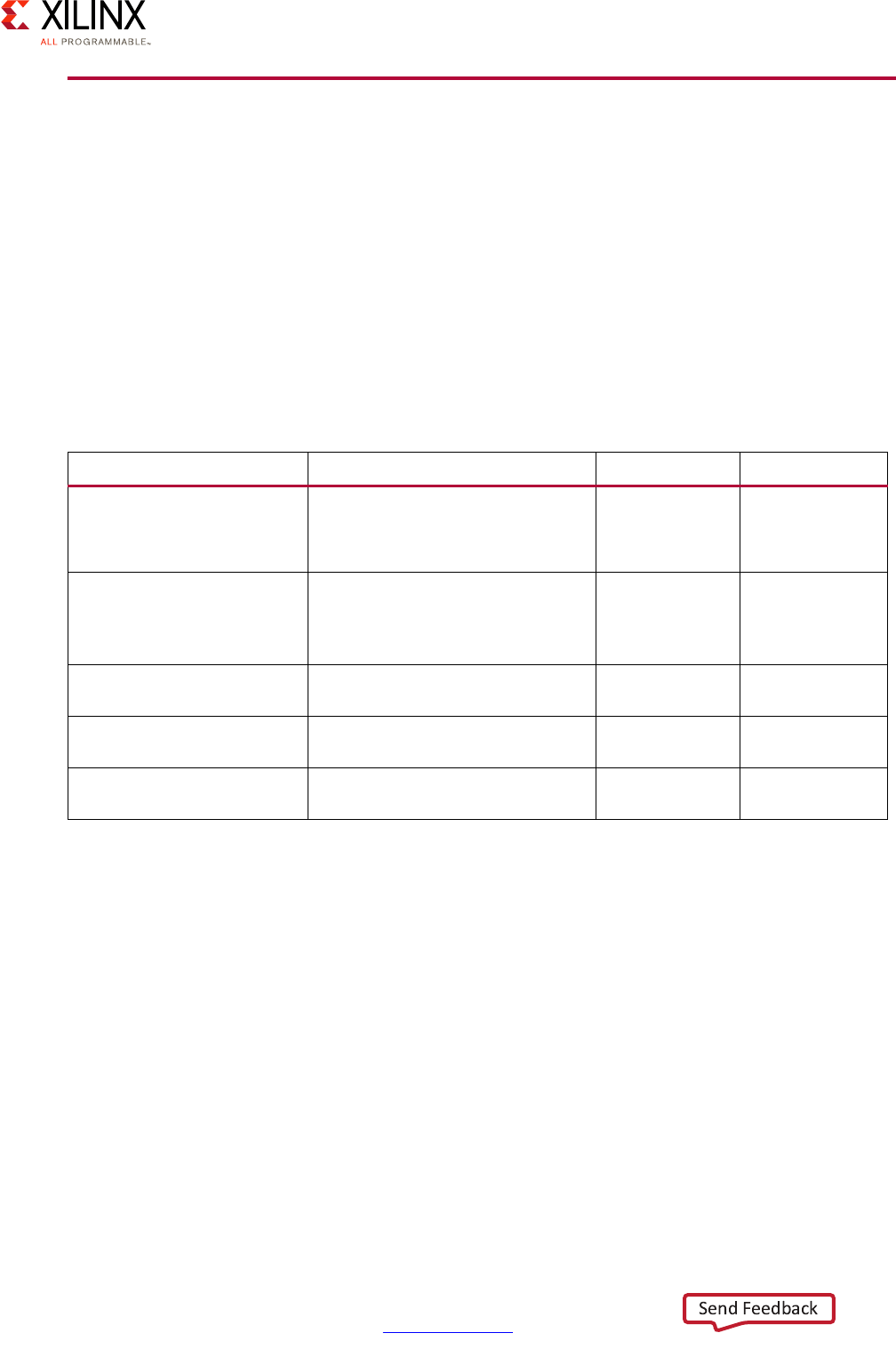
In general, the PetaLinux tools follow a sequential workflow model. The table below
provides an example design workflow, demonstrating the order in which the tasks should
be completed and the corresponding tool or workflow for that task.
Table 1-1: Design Flow Overview
Design Flow Step Tool / Workflow
Hardware Platform Creation Vivado
Create PetaLinux Project petalinux-create -t project
Initialize PetaLinux Project petalinux-config --get-hw-description
Configure System-Level Options petalinux-config
Create User Components petalinux-create -t COMPONENT
Configure the Linux Kernel petalinux-config -c kernel
Configure the Root Filesystem petalinux-config -c rootfs
Build the System petalinux-build
Test the System on qemu petalinux-boot --qemu
Deploy the System petalinux-package --boot
UG1157 (v2017.4) December 20, 2017
PetaLinux Command Line Reference 6
UG1157 (v2017.3) October 4, 2017 www.xilinx.com
Chapter 1: PetaLinux Tools
petalinux-create
The petalinux-create tool creates objects that are part of a PetaLinux project. This tool
provides two separate workflows. In the petalinux-create -t project workflow, the
tool creates a new PetaLinux project directory structure. In the petalinux-create -t
COMPONENT workflow, the tool creates a component within the specified project.
These workflows are executed with petalinux-create -t project or
petalinux-create -t COMPONENT, respectively.
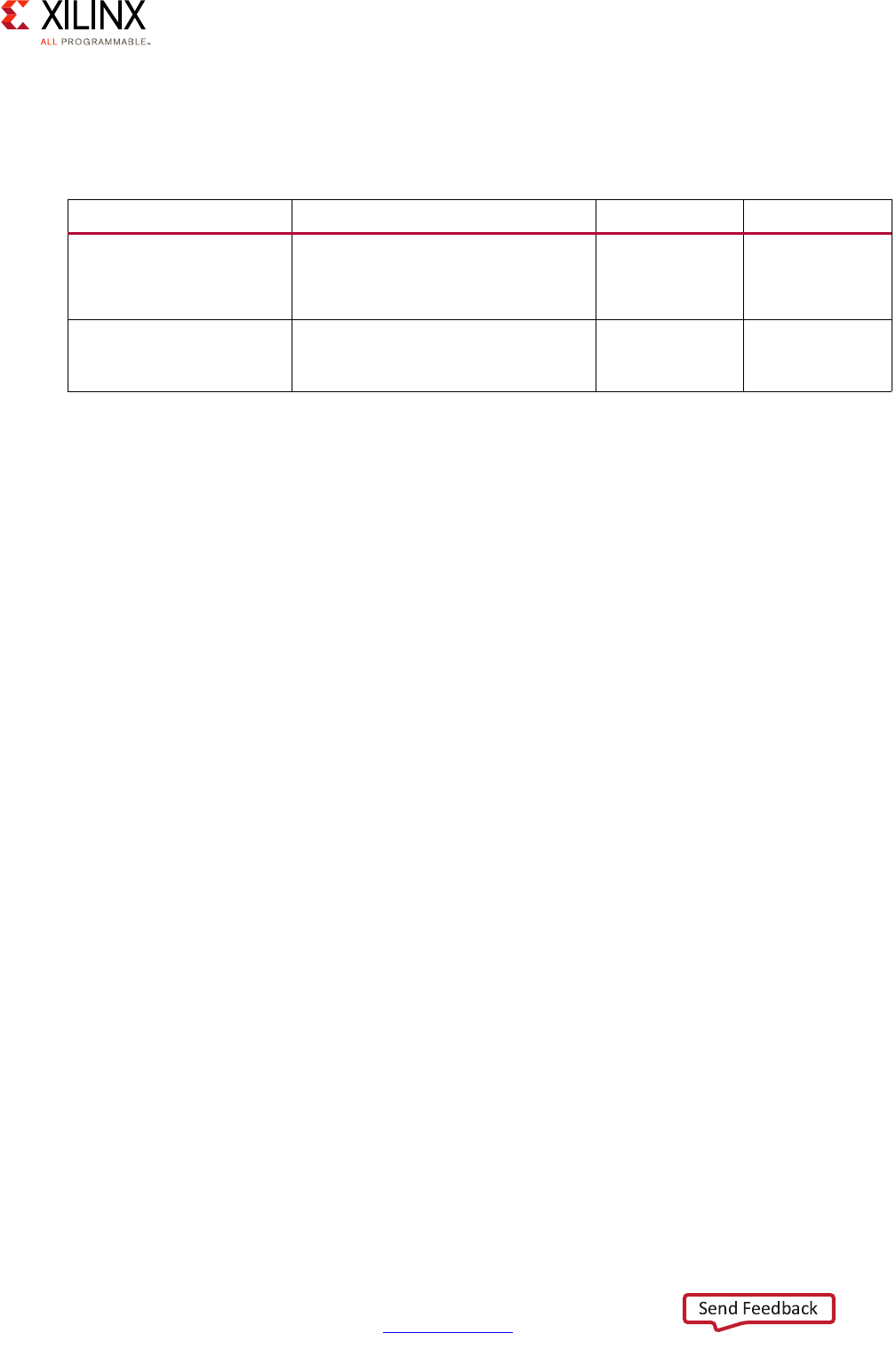
Table 1-2 details the command line options that are common to all petalinux-create
workflows.
petalinux-create -t project
The petalinux-create -t project command creates a new PetaLinux project at the
specified location with a specified name. If the specified location is on the Network File
System (NFS), it changes the TMPDIR automatically to /tmp/<projname_timestamp>. If
/tmp/<projname_timestamp> is also on NFS, then it throws an error. You can change
the TMPDIR through petalinux-config. Do not configure the same location as TMPDIR
for two different PetaLinux projects, this may cause build errors. By default, the directory
structure created by this command with template is minimal, and is not useful for building
a complete system until initialized using the petalinux-config
--get-hw-description command. Projects created using a BSP file as their source are
suitable for building immediately.
Table 1-2: petalinux-create Command Line Options
Option Functional Description Value Range Default Value
-t,--type TYPE Specify the TYPE of object to
create. This is required.
•project
• apps
•modules
None
-n,--name NAME Create object with the specified
NAME. This is optional when
creating a project from a BSP
source. Otherwise, this is required.
User-specified None
-p,--project PROJECT PetaLinux project directory path.
This is optional.
User-specified Current
Directory
--force Overwrite existing files on disk.
This is optional.
None None
-h,--help Display usage information. This is
optional.
None None
UG1157 (v2017.4) December 20, 2017
PetaLinux Command Line Reference 7
UG1157 (v2017.3) October 4, 2017 www.xilinx.com
Chapter 1: PetaLinux Tools
Options
Table 1-3 details options used specifically when creating a project.
Examples
The following examples demonstrate proper usage of the petalinux-create -t
project command.
• Create a new project from a reference BSP file.
$ petalinux-create -t project -s <PATH-TO-BSP>
• Create a new project based on the MicroBlaze™ template.
$ petalinux-create -t project -n <NAME> --template microblaze
petalinux-create -t COMPONENT
The petalinux-create -t COMPONENT command allows you to create various
components within the specified PetaLinux project. These components can then be
selectively included or excluded from the final system by toggling them using the
petalinux-config -c rootfs workflow. There are no component-specific options for
the petalinux-create -t modules workflows.
Table 1-3: petalinux-create -t project Options
Option Functional Description Value Range Default Value
--template TEMPLATE Assumes the specified CPU
architecture, and is only required
when --source is not provided.
•microblaze
•zynq
•zynqMP
None
-s,--source SOURCE Create project based on specified
BSP file. SOURCE is the full path on
disk to the BSP file. This is optional.
User-specified None
UG1157 (v2017.4) December 20, 2017

PetaLinux Command Line Reference 8
UG1157 (v2017.3) October 4, 2017 www.xilinx.com
Chapter 1: PetaLinux Tools
Options
The petalinux-create -t apps command allows you to customize how application
components are initialized during creation. Table 1-4 details options that are common when
creating applications within a PetaLinux project.
Examples
The following examples demonstrate proper usage of the petalinux-create -t
COMPONENT command.
• Create an application component that is enabled in the root filesystem.
$ petalinux-create -t apps -n <NAME> --enable
• Create a new install-only application component. In this flow, nothing is compiled.
$ petalinux-create -t apps -n <NAME> --template install
Table 1-4: petalinux-create -t apps Options
Option Functional Description Value Range Default Value
-s,--source SOURCE Create the component from
pre-existing content on disk. Valid
formats are .tar.gz, .tar.bz2, .tar, .zip,
and source directory
(uncompressed). This is optional.
User-specified None
--template TEMPLATE Create the component using a
pre-defined application template.
This is optional.
•c
•c++
•autoconf, for
GNU
autoconfig
• install, for
application
which has
prebuilt
binary only.
c
--enable Upon creating the component,
automatically enable it in the
projects’ root filesystem. Else, enable
using the petalinux-config -c
rootfs. This is optional.
None Disabled
UG1157 (v2017.4) December 20, 2017

PetaLinux Command Line Reference 9
UG1157 (v2017.3) October 4, 2017 www.xilinx.com
Chapter 1: PetaLinux Tools
petalinux-config
The petalinux-config tool allows you to customize the specified project. This tool
provides two separate workflows. In the petalinux-config --get-hw-description
workflow, a project is initialized or updated to reflect the specified hardware configuration.
In the petalinux-config -c COMPONENT workflow, the specified component is
customized using a menuconfig interface.
Table 1-5 details the available options for the petalinux-config tool.
Table 1-5: petalinux-config Command Line Options
Option Functional Description Value Range Default Value
--get-hw-description
PATH
Initializes or updates the hardware
configuration for the PetaLinux
project. Mutually exclusive with -c.
This is required.
User-specified None
-c,--component
COMPONENT
Configures the specified system
component. Mutually exclusive
with --get-hw-description.
This is required.
•kernel
•rootfs
•u-boot
•bootloader
• pmufw, for
ZynqMP only
• device-tree
None
--defconfig DEFCONFIG Valid for Linux kernel and u-boot.
Use the specified defconfig file to
initialize the Linux kernel/u-boot
configuration. This is optional.
User-specified.
For example, for
Linux kernel, the
file name of a file
in <kernel_
source>/arch/
<ARCH>/config
s/ XXX_
defconfig.
For
u-boot, the file
name of a file in
<uboot_
source>
/configs.
None
--oldconfig Parse the config file on Kconfig
and generate a new config file.
The idea of it is to pull in
dependencies if there are any.
None None
-v,--verbose Displays additional output
messages. This is optional.
None None
-h,--help Displays tool usage information.
This is optional.
None None
UG1157 (v2017.4) December 20, 2017

PetaLinux Command Line Reference 10
UG1157 (v2017.3) October 4, 2017 www.xilinx.com
Chapter 1: PetaLinux Tools
Note: Previously, petalinux-config generated the source code for all the embedded software
applications such as fsbl, device-tree, pmufw and fs-boot. Currently, the source code has to be
generated explicitly with -c option, if required. Otherwise, it is automatically generated with the
petalinux-build.
petalinux-config --get-hw-description
The petalinux-config --get-hw-description command allows you to initialize or
update a PetaLinux project with hardware-specific information from the specified Vivado
hardware project. The components affected by this process may include FSBL configuration,
U-Boot options, Linux kernel options, and the Linux device tree configuration. This
workflow should be used carefully to prevent accidental and/or unintended changes to the
hardware configuration for the PetaLinux project. The path used with this workflow is the
directory that contains the HDF file rather than the full path to the HDF file itself. This entire
option can be omitted if run from the directory that contains the HDF file.
Examples:
The following examples demonstrate proper usage of the petalinux-config
--get-hw-description command.
• Initialize a PetaLinux project within the project directory with an external HDF.
$ petalinux-config --get-hw-description=<PATH-TO-HDF-DIRECTORY>
• Initialize a PetaLinux project from within the directory containing an HDF.
$ petalinux-config --get-hw-description -p <PATH-TO-PETALINUX-PROJECT>
• Initialize a PetaLinux project from a neutral location.
$ petalinux-config --get-hw-description <PATH-TO-HDF> -p <PATH-TO-PETALINUX-PROJECT>
petalinux-config -c COMPONENT
The petalinux-config -c COMPONENT command allows you to use a standard
menuconfig interface to control how the embedded Linux system is built, and also
generates the source code for embeddedSW apps. When petalinux-config
is executed
with no other options, it launches the system-level or "generic" menuconfig. This interface
allows you to specify information such as the desired boot device or metadata about the
system such as default hostname. The petalinux-config -c kernel,
petalinux-config -c u-boot and petalinux-config -c rootfs workflows
launch the menuconfig interfaces for customizing the Linux kernel, u-boot and the root
filesystem, respectively.
The --oldconfig option allows you to parse the edited config file onto Kconfig, so that
it can pull the dependencies.
Note: The Xilinx-specific options and/or customizations in the Linux kernel, other than general
Linux kernel configuration, is supported by the Xilinx technical support.
UG1157 (v2017.4) December 20, 2017

PetaLinux Command Line Reference 11
UG1157 (v2017.3) October 4, 2017 www.xilinx.com
Chapter 1: PetaLinux Tools
Examples
The following examples demonstrate proper usage of the petalinux-config -c
COMPONENT command:
• Start the menuconfig for the system-level configuration:
$ petalinux-config
• Parse the configuration onto Kconfig without opening the GUI, for the root filesystem:
$ petalinux-config -c rootfs --oldconfig
• Load the Linux kernel configuration with a specific default configuration:
$ petalinux-config -c kernel --defconfig xilinx_zynq_base_trd_defconfig
• Load the u-boot configuration with a specific default configuration:
$ petalinux-config -c u-boot --defconfig xilinx_zynqmp_zcu102_defconfig
• Generate the source code for fsbl/fs-boot:
petalinux-config -c bootloader
UG1157 (v2017.4) December 20, 2017

PetaLinux Command Line Reference 12
UG1157 (v2017.3) October 4, 2017 www.xilinx.com
Chapter 1: PetaLinux Tools
petalinux-build
The petalinux-build tool builds either the entire embedded Linux system or a
specified component of the Linux system. This tool uses the Yocto Project underneath.
Whenever petalinux-build is invoked, it internally calls bitbake. While the tool
provides a single workflow, the specifics of its operation can be dictated via the
petalinux-build -c and petalinux-build -x options.
Table 1-6 outlines the valid options for the petalinux-build tool.
Table 1-6: petalinux-build Command Line Options
Option Functional Description Value Range Default Value
-p,--project
PROJECT
PetaLinux project directory path. This
is optional.
User-specified None
-c, --component
COMPONENT
Build specified component. These are
the default values which are
supported. You can build against your
own target. This is optional.
•bootloader
•kernel
•u-boot
•rootfs
• pmufw, only for
ZynqMP
• arm-trusted-firmw
are, only for
ZynqMP
• device-tree
None
-x, --execute
STEP
Execute specified build step. All yocto
tasks can be passed through this
option. To get all tasks of a component
use “listtasks”. This is optional.
• build
•clean
•cleanall
• cleansstate
• distclean
•install
• listtasks
• populate_sysroot
•package
•mrproper
None
-v,--verbose Displays additional output messages.
This is optional.
None None
-f, --force Force runs a specific task against a
component, or a single task in the
component, ignoring the stamps. This
is optional.
None None
-h,--help Displays tool usage information. This is
optional.
None None
UG1157 (v2017.4) December 20, 2017
PetaLinux Command Line Reference 13
UG1157 (v2017.3) October 4, 2017 www.xilinx.com
Chapter 1: PetaLinux Tools
petalinux-build --component
The petalinux-build -c option builds the specified component of the embedded
system. When no components are specified, the petalinux-build tool operates on the
project as a whole. User-created components for the root filesystem can be built by
targeting those components by name (For example, with -c <APP-NAME>). This is
equivalent to bitbake <COMPONENT>.
Options
Table 1-7 summarizes the available components that can be targeted with this command.
Table 1-7: petalinux-build -c Components
Component
Equivalent
Bitbake
Commands
Description
bootloader bitbake
virtual/fsb
l
Build only the bootloader elf image and copy it into
<plnx-proj-root>/images/linux/. For Zynq®
and Zynq UltraScale+™ MPSoC devices it is FSBL and
for MicroBlaze CPUs it is FS-BOOT.
device-tree bitbake
virtual/dtb
Build only the device-tree DTB file and copy it into
<plnx-proj-root>/images/linux/.
The device tree source is in
<plnx-proj-root>/components/plnx_workspa
ce/device-tree/device-tree-generation/
arm-trusted
-firmware
bitbake
virtual/arm
-trusted-fi
rmware
Build only the ATF image and copy it into
<plnx-proj-root>/images/linux
pmufw bitbake
virtual/pmu
fw
Build only the pmu-firmware image and copy it into
<plnx-proj-root>/images/linux
kernel bitbake
virtual/ker
nel
Build only the Linux kernel image and copy it into
<plnx-proj-root>/images/linux
rootfs bitbake
petalinux-u
ser-image
-c
do_image_co
mplete
Build only the root filesystem. It generates the target
rootfs in
${TMPDIR}/work/${MACHINE}/petalinux-user
-image/1.0-r0/rootfs/ and the sysroot in
${TMPDIR}/tmp/sysroots/${MACHINE}
u-boot bitbake
virtual/boo
tloader
Build only the U-Boot elf image and copy it into
<plnx-proj-root>/images/linux
UG1157 (v2017.4) December 20, 2017
PetaLinux Command Line Reference 14
UG1157 (v2017.3) October 4, 2017 www.xilinx.com
Chapter 1: PetaLinux Tools
The petalinux-build command runs bitbake petalinux-user-image internally.
The default image target is petalinux-user-image. There is no restriction on the
components, you can build your own packages. For the names of the packages, please
search in petalinux-config -c rootfs.
Example to build base-files:
petalinux-build -c base-files
petalinux-build --execute
The petalinux-build -x option allows you to specify a build step to the
petalinux-build tool to control how the specified components are manipulated.
Options
Table 1-8 summarizes the available Makefile commands that can be used with this option.
Table 1-8: petalinux-build -x Components
Component Description
clean Cleans build data for the target component.
cleansstate This removes the sstate cache of the corresponding component.
distclean This removes the sstate cache of the corresponding component.
cleanall This removes the downloads, sstate cache and cleans the work
directory of a component.
mrproper Cleans the build area. This removes the
<plnx-proj-root>/build/, <TMPDIR> and
<plnx-proj-root>/images/ directories.
This the recommended way of cleaning the entire project.
build Build the target component.
install Install the target component. For bootloader, ATF, Linux kernel,
u-boot and device tree, it copies the generated binary into
<plnx-proj-root>/images/linux/. For rootfs and rootfs
component, it copies the generated binary to target rootfs host
copy
${TMPDIR}/work/${MACHINE}/petalinux-user-image/1.
0-r0/rootfs/.
package Valid for -c all or no component is specified only. Generate FIT
image image.ub from build area and copy into
<plnx-proj-root>/images/linux/.
UG1157 (v2017.4) December 20, 2017

PetaLinux Command Line Reference 15
UG1157 (v2017.3) October 4, 2017 www.xilinx.com
Chapter 1: PetaLinux Tools
Examples
The following examples demonstrate proper usage of the petalinux-build command.
• Clear the build area of the PetaLinux project for archiving as a BSP or for revision
control. This example retains the images directory of the project.
$ petalinux-build -x distclean
• Clean all build collaterals from the U-Boot component of the PetaLinux project.
$ petalinux-build -c u-boot -x cleansstate
• Clean all build collaterals. It removes build/, ${TMPDIR} and images. This will bring the
project to its initial state.
$ petalinux-build -x mrproper
• Create an updated FIT image from the current contents of the deploy area.
$ petalinux-build -x package
• Build the entire PetaLinux project.
$ petalinux-build
• Build the kernel forcefully
$ petalinux-build -c kernel -f
• Compile a kernel forcefully
$ petalinux-build -c kernel -x compile -f
UG1157 (v2017.4) December 20, 2017

PetaLinux Command Line Reference 16
UG1157 (v2017.3) October 4, 2017 www.xilinx.com
Chapter 1: PetaLinux Tools
petalinux-boot
The petalinux-boot tool boots the specified Linux system image files. This tool provides
two distinct workflows. In the petalinux-boot --jtag workflow, the system image files
are downloaded and booted on a physical board via a JTAG cable connection. In the
petalinux-boot --qemu workflow, the system image files are loaded and booted via
the QEMU software emulator. Either the --jtag or the --qemu is mandatory for the
petalinux-boot tool.
By default, the petalinux-boot tool loads files from the <plnx-proj-root>/images/
linux/ directory.
Table 1-9 details the command line options that are common to all petalinux-boot
workflows.
Table 1-9: petalinux-boot Command Line Options
Option Functional Description Value Range Default Value
--jtag Use the JTAG workflow. Mutually
exclusive with the QEMU workflow.
This is required.
None None
--qemu Use the QEMU workflow. Mutually
exclusive with the JTAG workflow.
This is required.
None None
--prebuilt Boot a prebuilt image. This is
optional.
•1 (bitstream
/FSBL)(1)
•2 (U-Boot)
•3 (Linux
Kernel)
None
--boot-addr,
BOOT_ADDR
Boot address. This is optional. None None
-i,--image
IMAGEPATH
Image to boot. This is optional. User-specified None
--u-boot Specify U-Boot elf binary. This is
optional.
User-specified <plnx-projroo
t>/images/
linux/uboot.
elf
UG1157 (v2017.4) December 20, 2017
PetaLinux Command Line Reference 17
UG1157 (v2017.3) October 4, 2017 www.xilinx.com
Chapter 1: PetaLinux Tools
petalinux-boot --jtag
The petalinux-boot --jtag command boots the MicroBlaze or Zynq®-7000 or Zynq
UltraScale+ MPSoC system with a PetaLinux image via a JTAG connection.
Note: The petalinux-boot --jtag command may not work as expected when executed within
a virtual machine, since virtual machines often have problems with jtag cable drivers.
Options
Table 1-10 contains details of options specific to the JTAG boot workflow.
--kernel Specify Linux kernel binary. This is
optional.
User-specified • zImage for
Zynq-7000
•Image for Zynq
UltraScale+
MPSoC
•image.elf for
MicroBlaze.
The default image
is in <plnx-
projroot>/
images/linux.
-v,--verbose Displays additional output
messages. This is optional.
None None
-h,--help Displays tool usage information.
This is optional.
None None
Notes:
1. --prebuilt 1 is not a valid option for the QEMU workflow.
Table 1-10: petalinux-boot --jtag Options
Option Functional Description Value Range Default Value
--xsdb-conn COMMAND Customised XSDB connection
command to run prior to boot. This
is optional.
User-specified None
--hw_server-url URL URL of the hw_server to connect
to. This is optional.
User-specified None
--tcl OUTPUTFILE Log JTAG Tcl commands used for
boot. This is optional.
User-specified None
Table 1-9: petalinux-boot Command Line Options (Cont’d)
Option Functional Description Value Range Default Value
UG1157 (v2017.4) December 20, 2017

PetaLinux Command Line Reference 18
UG1157 (v2017.3) October 4, 2017 www.xilinx.com
Chapter 1: PetaLinux Tools
--fpga(1) Program FPGA bitstream. This is
optional.
User-specified If no bitstream
is specified with
the
--bitstream
option, it uses
the bitstream
found in
<plnxproj-
root>/images
/linux
directory.
--bitstream
BITSTREAM
Specify a bitstream. This is optional. User-specified None
--pmufw PMUFW-ELF PMU Firmware image. This is
optional and applicable for ZynqMP.
PMU Firmware image is loaded by
default, unless it is specified
otherwise. To skip loading pmufw
use “--pmufw no”.
None <plnx-projro
ot>/images/l
inux/pmufw.e
lf
before-connect
<CMD>
Extra command to run before XSDB
connect command. This is optional
and can be used multiple times.
None None
after-connect <CMD> Extra commands to run after XSDB
connect command. This is optional
and can be used multiple times.
None None
Notes:
1. The --fpga
option looks for download.bit in <plnx-proj-root>/pre-built/linux/implementation
by default.
Table 1-10: petalinux-boot --jtag Options (Cont’d)
Option Functional Description Value Range Default Value
UG1157 (v2017.4) December 20, 2017

PetaLinux Command Line Reference 19
UG1157 (v2017.3) October 4, 2017 www.xilinx.com
Chapter 1: PetaLinux Tools
Examples
The following examples demonstrate proper usage of the petalinux-boot --jtag
command.
• Download and boot a pre-built bitstream (and FSBL for Zynq-7000 or Zynq UltraScale+
MPSoC) via JTAG to a physical board.
$ petalinux-boot --jtag --prebuilt 1
• Download and boot a pre-built U-Boot elf via JTAG to a physical board.
$ petalinux-boot --jtag --prebuilt 2
°For MicroBlaze, it downloads
-bitstream pre-built/linux/implementation/download.bit
-u-boot pre-built/linux/images/u-boot.elf
°For Zynq-7000, it downloads:
-bitstream pre-built/linux/implementation/download.bit
-fsbl pre-built/linux/images/zynq_fsbl.elf
-u-boot pre-built/linux/images/u-boot.elf
°For Zynq UltraScale+ MPSoC, it downloads:
-bitstream pre-built/linux/implementation/download.bit
-fsbl pre-built/linux/images/zynqmp_fsbl.elf
-ATF pre-built/linux/images/bl31.elf
-u-boot pre-built/linux/images/u-boot.elf
-pmufw pre-built/linux/images/pmufw.elf
• Download and boot a pre-built kernel image via JTAG to a physical board.
$ petalinux-boot --jtag --prebuilt 3
°For MicroBlaze, it downloads:
-bitstream pre-built/linux/implementation/download.bit
-kernel pre-built/linux/images/image.elf
°For Zynq-7000, it downloads:
-bitstream pre-built/linux/implementation/download.bit
-fsbl pre-built/linux/images/zynq_fsbl.elf
-DTB pre-built/linux/images/system.dtb
-kernel pre-built/linux/images/zImage
UG1157 (v2017.4) December 20, 2017

PetaLinux Command Line Reference 20
UG1157 (v2017.3) October 4, 2017 www.xilinx.com
Chapter 1: PetaLinux Tools
°For Zynq UltraScale+ MPSoC, it downloads:
-bitstream pre-built/linux/implementation/download.bit
-fsbl pre-built/linux/images/zynqmp_fsbl.elf
-kernel pre-built/linux/images/Image
-DTB pre-built/linux/images/system.dtb
-ATF pre-built/linux/images/bl31.elf
-pmufw pre-built/linux/images/pmufw.elf
• Download and boot a built U-Boot image via JTAG to a physical board.
$ petalinux-boot --jtag --u-boot
°For MicroBlaze, it downloads images/linux/u-boot.elf
°For Zynq-7000, it downloads:
-fsbl images/linux/zynq_fsbl.elf
-U-Boot images/linux/u-boot.elf.
°For Zynq UltraScale+ MPSoC, it downloads:
-fsbl images/linux/zynqmp_fsbl.elf
-U-Boot images/linux/u-boot.elf
-ATF images/linux/bl31.elf
-pmufw images/linux/pmufw.elf
• Download and boot a built kernel image via JTAG to a physical board.
$ petalinux-boot --jtag --kernel
°For MicroBlaze, it downloads images/linux/image.elf
°For Zynq-7000, it boots:
-fsbl images/linux/zynq_fsbl.elf
-DTB images/linux/system.dtb
-kernel images/linux/zImage
°For Zynq UltraScale+ MPSoC, it boots:
-fsbl images/linux/zynqmp_fsbl.elf
-kernel images/linux/Image
-DTB images/linux/system.dtb
-ATF images/linux/bl31.elf
-pmufw images/linux/pmufw.elf
UG1157 (v2017.4) December 20, 2017
PetaLinux Command Line Reference 21
UG1157 (v2017.3) October 4, 2017 www.xilinx.com
Chapter 1: PetaLinux Tools
petalinux-boot --qemu
The petalinux-boot --qemu command boots the MicroBlaze or Zynq-7000 or Zynq
UltraScale+ MPSoC system with a PetaLinux image via the QEMU emulator. Many QEMU
options require superuser (root) access to operate properly. The --root option enables
ROOT MODE and prompts you for sudo credentials.
Options
Table 1-11 contains details of options specific to the QEMU boot workflow.
Examples
The following examples demonstrate proper usage of the petalinux-boot --qemu
command.
• Load and boot a pre-built U-Boot elf via QEMU.
$ petalinux-boot --qemu --prebuilt 2
• Load and boot a pre-built U-Boot elf via QEMU in root mode.
$ petalinux-boot --qemu --root --prebuilt 2
Table 1-11: petalinux-boot --qemu Options
Option Functional Description Value Range Default Value
--dtb DTBFILE Use a specified device tree file. This is
optional.
User-specified system.dtb
UG1157 (v2017.4) December 20, 2017
PetaLinux Command Line Reference 22
UG1157 (v2017.3) October 4, 2017 www.xilinx.com
Chapter 1: PetaLinux Tools
petalinux-package
The petalinux-package tool packages a PetaLinux project into a format suitable for
deployment. The tool provides several workflows whose operation varies depending on the
target package format. The supported formats/workflows are boot, bsp and pre-built.
The petalinux-package tool is executed using the package type name to specify a
specific workflow in the format petalinux-package --PACKAGETYPE.
•The
boot package type creates a file (.BIN or .MCS) that allows the target device to
boot.
•The
bsp package type creates a .bsp file which includes the entire contents of the
target PetaLinux project.
•The
pre-built package type creates a new directory within the target PetaLinux
project called "pre-built" and contains pre-built content that is useful for booting
directly on a physical board. This package type is commonly used as a precursor for
creating a bsp package type.
By default, the petalinux-package tool loads default files from the
<plnx-proj-root>/images/linux/ directory.
Table 1-12 details the command line options that are common to all of the
petalinux-package workflows.
Petalinux-package --boot
The petalinux-package --boot command generates a bootable image that can be
used directly with a Zynq family device (including both Zynq-7000 and Zynq UltraScale+
MPSoC) or MicroBlaze-based FPGA design. For Zynq family devices, bootable format is
BOOT.BIN which can be booted from an SD card. For MicroBlaze-based designs, the
default format is an MCS PROM file suitable for programming via Vivado or other PROM
programmer.
For Zynq family devices, this workflow is a wrapper around the bootgen utility provided
with Xilinx SDK. For MicroBlaze-based FPGA designs, this workflow is a wrapper around the
corresponding Vivado Tcl commands and generates an MCS formatted programming file.
This MCS file can be programmed directly to a target board and then booted.
Table 1-12: petalinux-package Command Line Options
Option Functional Description Value Range Default Value
-p, --project PROJECT PetaLinux project directory path.
This is optional.
User-specified Current Directory
-h, --help Display usage information. This
is optional.
None None
UG1157 (v2017.4) December 20, 2017

PetaLinux Command Line Reference 23
UG1157 (v2017.3) October 4, 2017 www.xilinx.com
Chapter 1: PetaLinux Tools
Options
Table 1-13 details the options that are valid when creating a bootable image with the
petalinux-package --boot command.
Table 1-13: petalinux-package --boot Command Options
Option Functional Description Value Range Default Value
--format FORMAT Image file format to
generate. This is optional.
•BIN
•MCS
BIN
--fsbl FSBL Path on disk to FSBL elf
binary. This is required.
User-specified • zynqmp_fsbl.elf for
Zynq UltraScale+
MPSoC
•zynq_fsbl.elf for
Zynq-7000
•fs-boot.elf for
MicroBlaze.
The default image is in
<plnx-proj
-root>/images/linux
.
--force Overwrite existing files on
disk. This is optional.
None None
--fpga BITSTREAM Path on disk to bitstream
file. This is optional.
User-specified None
--atf ATF-IMG Path on disk to ARM trusted
firmware elf binary. This is
optional.
User-specified <plnx-projroot>/ima
ges/linux/bl31.elf
--u-boot
UBOOT-IMG
Path on disk to U-Boot
binary. It is U-Boot ELF for
Zynq family device and
u-boot-s.bin for
MicroBlaze. This is optional.
User-specified • u-boot.elf for Zynq
family device
•u-boot-s.bin for
MicroBlaze.
The default image is in
<plnx-proj-
root>/images/linux
--kernel
KERNEL-IMG
Path on disk to Linux Kernel
image. This is optional.
User-specified <plnx-projroot>/ima
ges/linux/image.ub
--pmufw
PMUFW-ELF
Optional and applicable
only for Zynq UltraScale+
MPSoC. By default, pre-built
pmufw image is packed. Use
this option to either specify
a path for pmufw image or
to skip packing of pmufw. To
skip packing pmufw use
“--pmufw no”.
User-specified <plnx-proj-root>/im
ages/linux/pmufw.el
f
UG1157 (v2017.4) December 20, 2017

PetaLinux Command Line Reference 24
UG1157 (v2017.3) October 4, 2017 www.xilinx.com
Chapter 1: PetaLinux Tools
--add DATAFILE Path on disk to arbitrary
data to include. This is
optional.
User-specified None
--offset OFFSET Offset at which to load the
prior data file. Only the ELF
files are parsed. This is
optional.
User-specified None
--bmm BMMFILE Valid for MicroBlaze only.
This is optional.
User-specified BMM in directory with
FPGA bitstream
--flash-size
SIZE
Flash size in MB. Must be a
power-of-2. Valid for
MicroBlaze only. Not needed
for parallel flash types.
Ensure you just pass digit
value to this option. Please
do not include MB in the
value. This is optional.
User-specified 16
--flash-intf
INTERFACE
Valid for MicroBlaze only.
This is optional.
•SERIALx1
•SPIx1
•SPIx2
•SPIx4
•BPIx8
•BPIx16
•SMAPx8
•SMAPx16
•SMAPx32
Auto-detect
-o, --output
OUTPUTFILE
Path on disk to write output
image. This is optional.
User-specified Current Directory
--cpu
DESTINATION CPU
Zynq UltraScale+ MPSoC
only. The destination CPU of
the data file. This is optional.
a53-0
a53-1
a53-2
a53-3
None
--file-attribute
DATA File ATTR
Zynq-7000 or Zynq
UltraScale+ MPSoC only.
Data file file-attribute. This
is optional.
User-specified None
--bif-attribute-
value VALUE
Zynq-7000 or Zynq
UltraScale+ MPSoC only.
The value of the attribute
specified by
--file-attribute
argument. This is optional.
User-specified None
Table 1-13: petalinux-package --boot Command Options (Cont’d)
Option Functional Description Value Range Default Value
UG1157 (v2017.4) December 20, 2017
PetaLinux Command Line Reference 25
UG1157 (v2017.3) October 4, 2017 www.xilinx.com
Chapter 1: PetaLinux Tools
Examples
The following examples demonstrate proper usage of the petalinux-package --boot
command.
•Create a BOOT.BIN file for a Zynq family device (including Zynq-7000 and Zynq
UltraScale+ MPSoC).
$ petalinux-package --boot --format BIN --fsbl <PATH-TO-FSBL> --u-boot -o
<PATH-TO-OUTPUT-WITH-FILE-NAME>
•Create a BOOT.BIN file for a Zynq family device that includes a PL bitstream and FIT
image.
$ petalinux-package --boot --format BIN --fsbl <PATH-TO-FSBL> --u-boot --fpga
<PATH-TO-BITSTREAM> --kernel -o <PATH-TO-OUTPUT>
•Create a x8 SMAP PROM MCS file for a MicroBlaze design.
$ petalinux-package --boot --format MCS --fsbl <PATH-TO-FSBL> --u-boot --fpga
<PATH-TO-BITSTREAM> --flash-size <SIZE> --flash-intf SMAPx8 -o
<PATH-TO-OUTPUT-WITH-FILE-NAME>
•Create a BOOT.BIN file for a Zynq UltraScale+ MPSoC device that includes a PMU
firmware.
$ petalinux-package --boot --u-boot --kernel --pmufw <PATH_TO_PMUFW>
--bif BIF FILE Zynq-7000 or Zynq
UltraScale+ MPSoC only. BIF
file. It overrides all other
settings:
•–fsbl,
•–fpga,
•–u-boot,
• –add,
•–fsblconfig,
• –file-attribute,
•–bif-attribute,
• –bif-attribute-value.
This is optional.
User-specified None
--boot-device
BOOT-DEV
Zynq-7000 or Zynq
UltraScale+ MPSoC only.
This is optional.
User-specified Default value is the one
selected from the system
select menu of boot
image settings.
Table 1-13: petalinux-package --boot Command Options (Cont’d)
Option Functional Description Value Range Default Value
UG1157 (v2017.4) December 20, 2017
PetaLinux Command Line Reference 26
UG1157 (v2017.3) October 4, 2017 www.xilinx.com
Chapter 1: PetaLinux Tools
petalinux-package --bsp
The petalinux-package --bsp command compiles all contents of the specified
PetaLinux project directory into a BSP file with the provided file name. This .bsp file can be
distributed and later used as a source for creating a new PetaLinux project. This command
is generally used as the last step in producing a project image that can be distributed to
other users. All Xilinx reference BSP’s for PetaLinux are packaged using this workflow.
Options
Table 1-14 details the options that are valid when packaging a PetaLinux BSP file with the
petalinux-package --bsp command.
Table 1-14: petalinux-package --bsp Command Options
Option Functional Description Value Range Default Value
-o, --output BSPNAME Path on disk to store the BSP file.
File name is of the form
BSPNAME.bsp. This is required.
User-specified Current Directory
-p,--project
PROJECT
PetaLinux project directory path. In
the BSP context, multiple project
areas can be referenced and
included in the output BSP file.
This is optional.
User-specified Current Directory
--force Overwrite existing files on disk.
This is optional.
None None
--clean Clean the hardware
implementation results to reduce
package size. This is optional.
None None
--hwsource
HWPROJECT
Path to a Vivado project to include
in the BSP file. This is optional.
None None
UG1157 (v2017.4) December 20, 2017
PetaLinux Command Line Reference 27
UG1157 (v2017.3) October 4, 2017 www.xilinx.com
Chapter 1: PetaLinux Tools
Examples
The following examples demonstrate proper usage of the petalinux-package --bsp
command.
• Clean the project and then generate the BSP installation image (.BSP file)
$ petalinux-package --bsp --clean -o <PATH-TO-BSP> -p <PATH-TO-PROJECT>
• Generate the BSP installation image that includes a reference hardware definition
$ petalinux-package --bsp --hwsource <PATH-TO-HW-EXPORT> -o <PATH-TO-BSP> -p
<PATH-TO-PROJECT>
• Generate the BSP installation image from a neutral location
$ petalinux-package --bsp -p <PATH-TO-PROJECT> -o <PATH-TO-BSP>
petalinux-package --image
The petalinux-package --image command packages an image for a component. You
can use it to generate uImage for kernel.
Options
Table 1-15 details the options that are valid when packaging an image with the
petalinux-package -- image workflow.
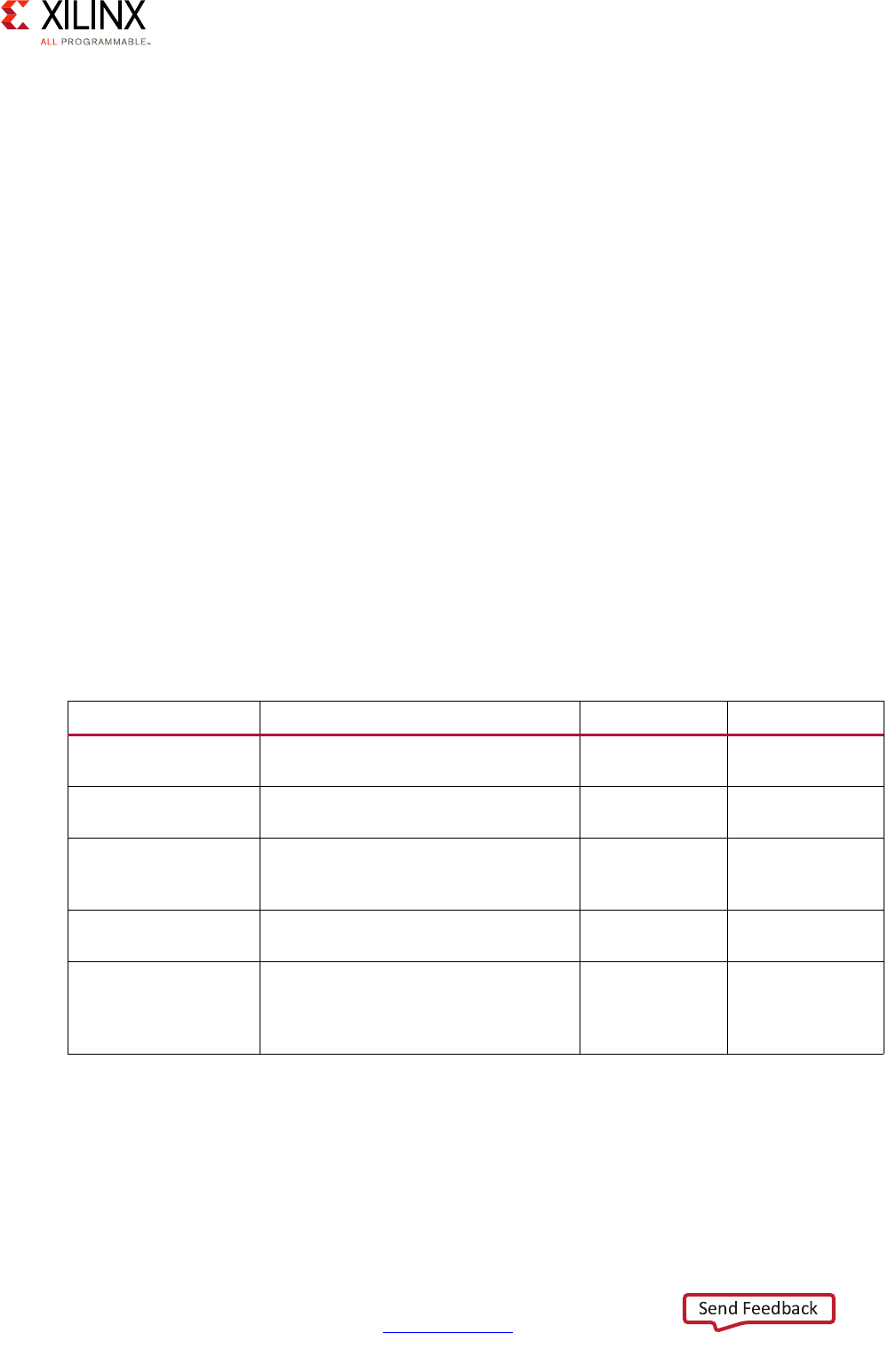
Table 1-15: PetaLinux-package --image Command Options
Option Functional Description Value Range Default Value
-p,--project PROJECT PetaLinux project directory path.
This is optional.
User-specified Current
Directory
-c,--component
COMPONENT
PetaLinux project component.
This is optional.
User-specified • kernel
--format FORMAT Image format. It relies on the
component. This is optional.
User-specified kernel:
•uImage
•Image for
Zynq
UltraScale+
MPSoC
•zImage for
Zynq-7000
UG1157 (v2017.4) December 20, 2017
PetaLinux Command Line Reference 28
UG1157 (v2017.3) October 4, 2017 www.xilinx.com
Chapter 1: PetaLinux Tools
Example
The following example demonstrate proper usage of the petalinux-package --image
command.
• Generate uImage.
$ petalinux-package --image -c kernel --format uImage
The uImage is in <plnx-proj-root>/images/linux directory.
petalinux-package --prebuilt
The petalinux-package --prebuilt command creates a new directory named
“pre-built” inside the directory hierarchy of the specified PetaLinux project. This directory
contains the required files to facilitate booting a board immediately without completely
rebuilding the project. This workflow is intended for those who will later create a PetaLinux
BSP file for distribution using the petalinux-package --bsp workflow. All Xilinx
reference PetaLinux BSP’s contain a pre-built directory.
Options
Table 1-16 details the options that are valid when including pre-built data in the project
with the petalinux-package --prebuilt workflow.
Table 1-16: petalinux-package --prebuilt Command Options
Options Functional Description Value Range Default Value
-p,--project
PROJECT
PetaLinux project directory path. This
is optional.
User-specified Current Directory
--force Overwrite existing files on disk. This is
optional.
None None
--clean Remove all files from the
<plnx-proj-root>/prebuilt
directory. This is optional.
None None
--fpga BITSTREAM Include the BITSTREAM file in the
prebuilt directory. This is optional.
User-specified None
-a,--add
src:dest
Add the file/directory specified by src
to the directory specified by dest in
the pre-built directory. This is optional
and can be used multiple times.
User-specified None
UG1157 (v2017.4) December 20, 2017

PetaLinux Command Line Reference 29
UG1157 (v2017.3) October 4, 2017 www.xilinx.com
Chapter 1: PetaLinux Tools
Examples
The following examples demonstrate proper usage of the petalinux-package
--prebuilt command.
• Include a specific bitstream in the pre-built area.
$ petalinux-package --prebuilt --fpga <BITSTREAM>
• Include a specific data file in the pre-built area.
$ petalinux-package --prebuilt -a <APP>:images/<APP>
UG1157 (v2017.4) December 20, 2017

PetaLinux Command Line Reference 30
UG1157 (v2017.3) October 4, 2017 www.xilinx.com
Chapter 1: PetaLinux Tools
petalinux-util
The petalinux-util tool provides various support services to the other PetaLinux
workflows. The tool itself provides several workflows depending on the support function
needed.
petalinux-util --gdb
The petalinux-util --gdb command is a wrapper around the standard GNU GDB
debugger and simply launches the GDB debugger in the current terminal. Executing
petalinux-util --gdb --help at the terminal prompt provides verbose GDB options
that can be used.
For more information regarding GDB, see Using Xilinx SDK.
Example
The following example demonstrates proper usage of the petalinux-util --gdb
command.
• Launch the GNU GDB debugger.
$ petalinux-util --gdb
petalinux-util --dfu-util
The petalinux-util --dfu-util command is a wrapper around the standard
dfu-util, and simply launches the dfu-util in the current terminal. Executing
petalinux-util --dfu-util --help at the terminal prompt, provides verbose
dfu-util options that can be used.
Example
The following example demonstrates proper usage of the petalinux-util --dfu-util
command.
• Launch the dfu-util
$ petalinux-util --dfu-util
petalinux-util --xsdb-connect
The petalinux-util --xsdb-connect command provides XSDB connection to QEMU,
this is for Zynq-7000 and Zynq UltraScale+ MPSoC only.
For more information regarding XSDB, see Using Xilinx SDK.
UG1157 (v2017.4) December 20, 2017
PetaLinux Command Line Reference 31
UG1157 (v2017.3) October 4, 2017 www.xilinx.com
Chapter 1: PetaLinux Tools
Options
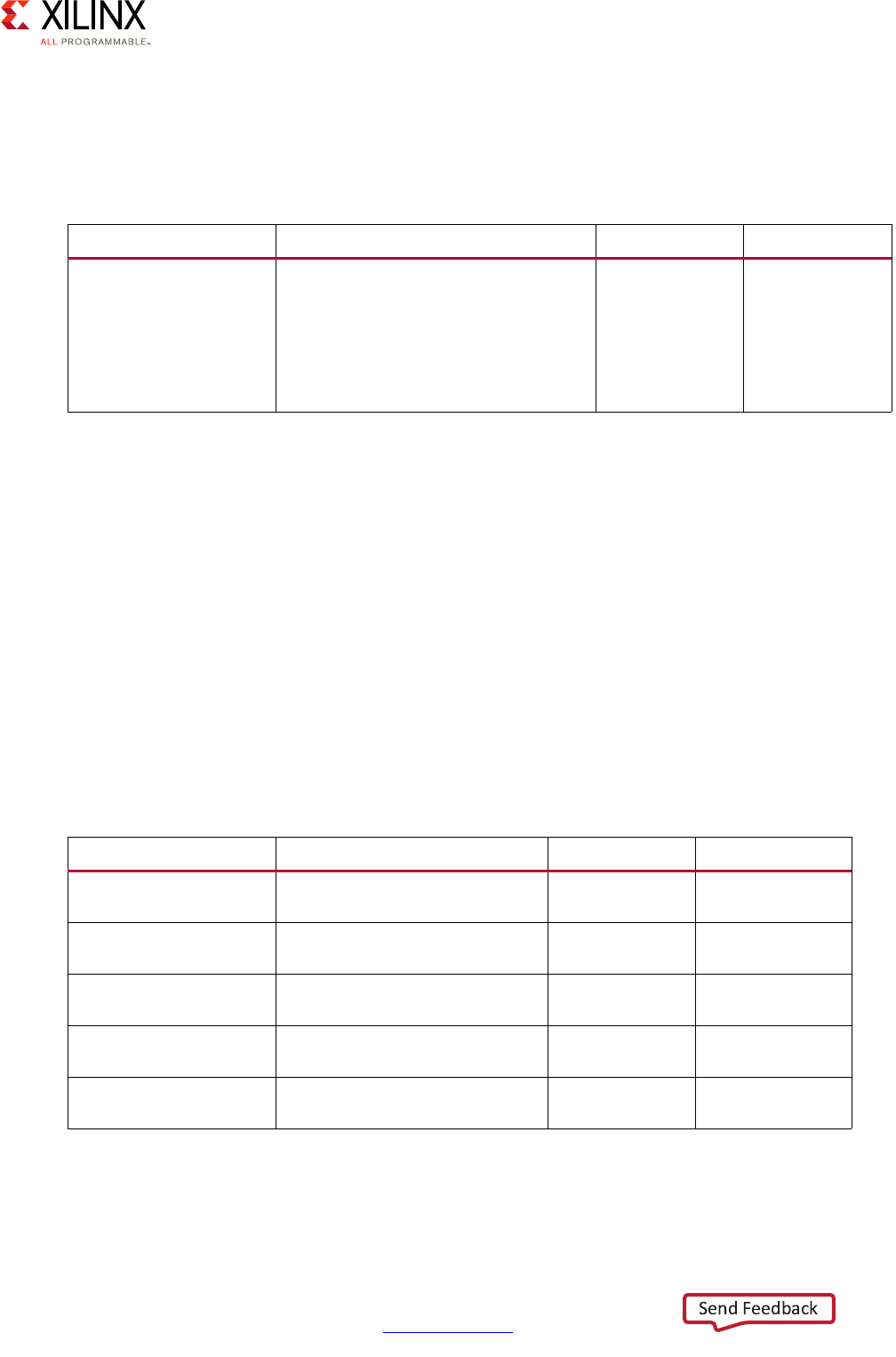
Table 1-17 details the options that are valid when using the petalinux-util
--xsdb-connect command.
petalinux-util --jtag-logbuf
The petalinux-util --jtag-logbuf command logs the Linux kernel printk output
buffer that occurs when booting a Linux kernel image via JTAG. This workflow is intended for
debugging the Linux kernel for review and debug. This workflow may be useful for users
when the Linux kernel is not producing output via a serial terminal. For details on how to
boot a system via JTAG, see the petalinux-boot --jtag command. For MicroBlaze, the image
is <plnx-proj-root>/image/linux/image.elf. For ARM, the image is
<plnx-proj-root>/image/linux/vmlinux.
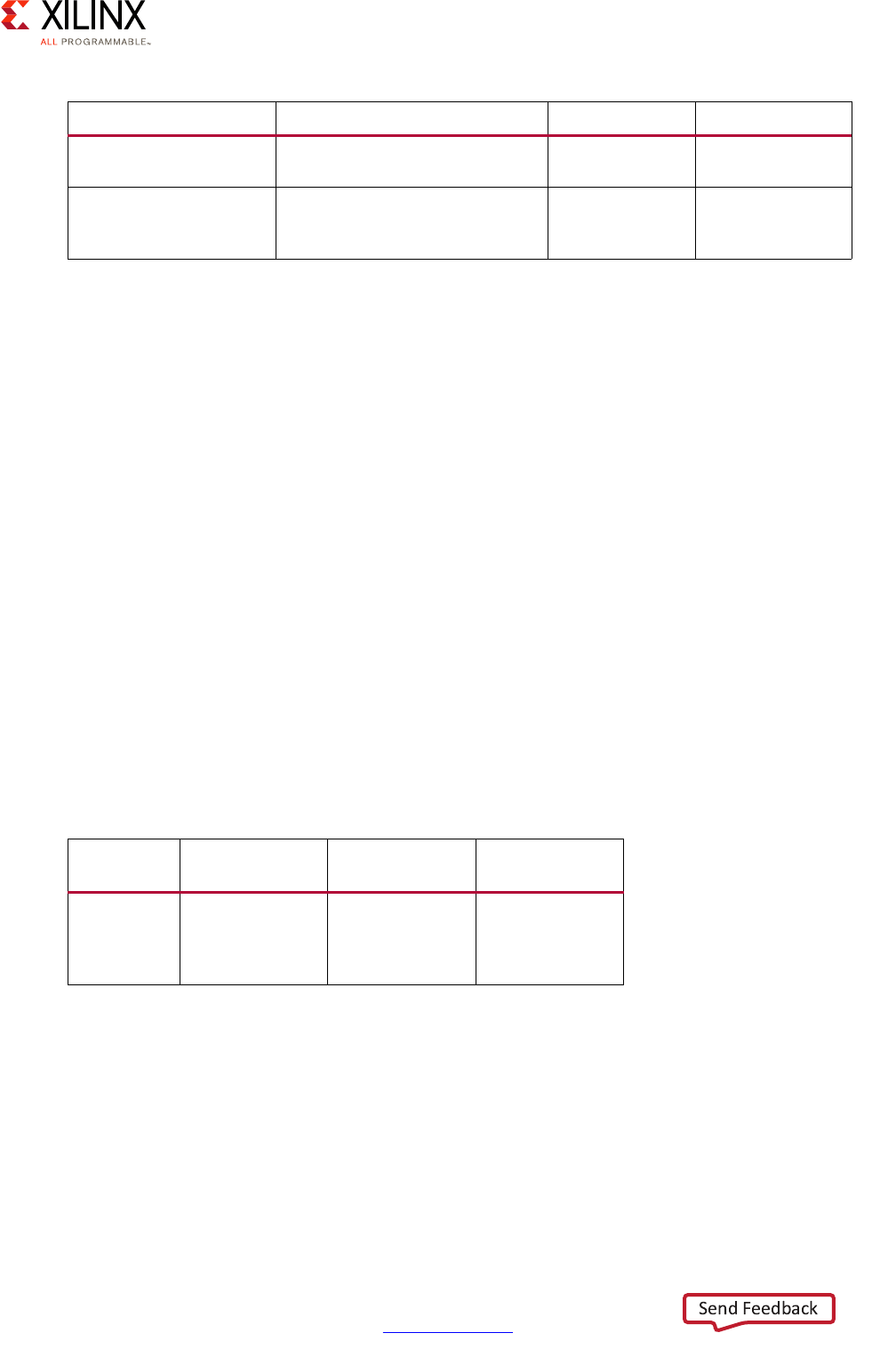
Options
Table 1-18 details the options that are valid when using the petalinux-util
--jtag-logbuf command.
Table 1-17: petalinux-util --xsdb-connect Options
Option Functional Description Value Range Default Value
--xsdb-connect
HOST:PORT
Host and the port XSDB should
connect to. This should be the host
and port that QEMU has opened for
GDB connections. It can be found in
the QEMU command line arguments
from: --gdb tcp: <QEMU_HOST>:
<QEMU_PORT>. This is required.
User-specified None
Table 1-18: petalinux-util --jtag-logbuf Options
Option Functional Description Value Range Default Value
-i,--image
IMAGEPATH
Linux kernel ELF image. This is
required.
User-specified None
--hw_server-url
URL
URL of the hw_server to connect
to. This is optional.
User-specified None
-p,--project
PROJECT
PetaLinux project directory path.
This is optional.
User-specified Current Directory
--noless Do not pipe output to the less
command. This is optional.
None None
-v,--verbose Displays additional output
messages. This is optional.
None None
UG1157 (v2017.4) December 20, 2017
PetaLinux Command Line Reference 32
UG1157 (v2017.3) October 4, 2017 www.xilinx.com
Chapter 1: PetaLinux Tools
Examples
The following examples demonstrate proper usage of the petalinux-util
--jtag-logbuf command.
• Launch a specific Linux kernel image.
$ petalinux-util --jtag-logbuf -i <PATH-TO-IMAGE>
• Launch the JTAG logger from a neutral location. This workflow is for Zynq-7000 devices
only.
$ petalinux-util --jtag-logbuf -i <PATH-TO-IMAGE> -p <PATH-TO-PROJECT>
petalinux-util --find-hdf-bitstream
The petalinux-util --find-hdf-bitstream extracts bitstream from hdf.
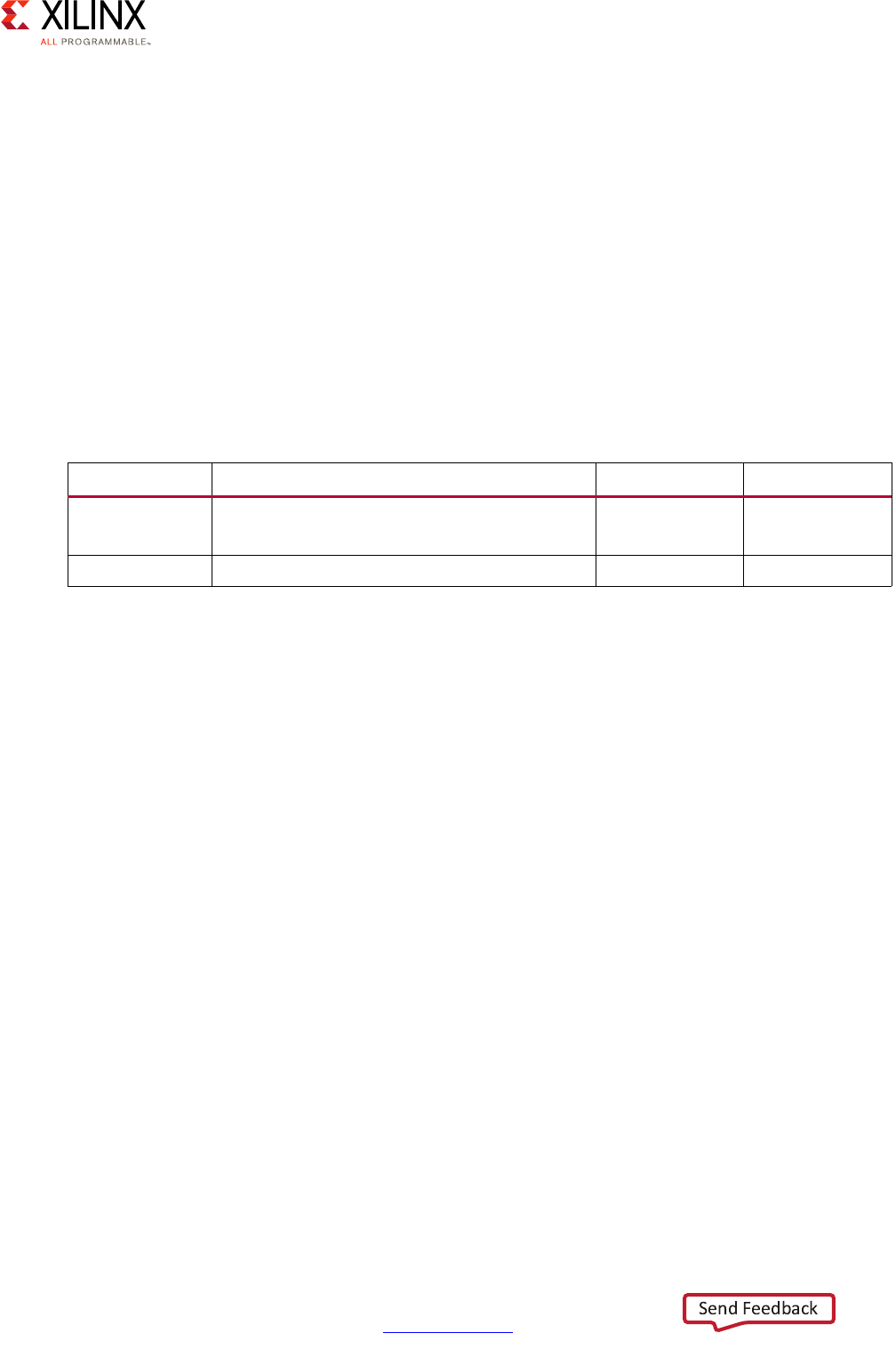
Options
Table 1-19 details the options that are valid when using the petalinux-util
--find-hdf-bitstream command.
Example
The following examples demonstrate proper usage of the petalinux-util
--find-hdf-bitstream command:
• To find the default bitstream of a project:
petalinux-util --find-hdf-bitstream
-h,--help Displays tool usage information.
This is optional.
None None
--dryrun Prints the commands required to
extract the kernel log buffer, but
do not run them.
None None
Table 1-19: petalinux-util --find-hdf-bitstream Options
Option Functional
Description Value Range Default Value
--hdf-file
<HDF>
Argument to
specify the HDF
file to use. This
is optional.
None system.hdf file
in the subsystem
directory.
Table 1-18: petalinux-util --jtag-logbuf Options (Cont’d)
Option Functional Description Value Range Default Value
UG1157 (v2017.4) December 20, 2017
PetaLinux Command Line Reference 33
UG1157 (v2017.3) October 4, 2017 www.xilinx.com
Chapter 1: PetaLinux Tools
• To find the bitstream of a hdf:
petalinux-util --find-hdf-bitstream --hdf-file <path to hdf file>
petalinux-util --webtalk
The petalinux-util --webtalk command toggles the Xilinx WebTalk feature ON or
OFF. Xilinx WebTalk provides anonymous usage data about the various PetaLinux tools to
Xilinx. A working Internet connection is required for this feature.
Options
Table 1-20 details the options that are valid when using the petalinux-util
--webtalk command.
Examples
The following examples demonstrate proper usage of the petalinux-util --webtalk
command.
• Toggle the WebTalk feature off.
$ petalinux-util --webtalk off
• Toggle the WebTalk feature on.
$ petalinux-util --webtalk on
Table 1-20: petalinux-util --webtalk Options
Option Functional Description Value Range Default Value
--webtalk Toggle WebTalk. This is required. • On
•Off
On
-h,--help Display usage information. This is optional. None None
UG1157 (v2017.4) December 20, 2017

PetaLinux Command Line Reference 34
UG1157 (v2017.3) October 4, 2017 www.xilinx.com
Appendix A
Additional Resources and Legal Notices
Xilinx Resources
For support resources such as Answers, Documentation, Downloads, and Forums, see Xilinx
Support.
Solution Centers
See the Xilinx Solution Centers for support on devices, software tools, and intellectual
property at all stages of the design cycle. Topics include design assistance, advisories, and
troubleshooting tips.
References
1. PetaLinux Tools Documentation (UG1144).
2. Xilinx Answer Record 55776
UG1157 (v2017.4) December 20, 2017

PetaLinux Command Line Reference 35
UG1157 (v2017.3) October 4, 2017 www.xilinx.com
Appendix A: Additional Resources and Legal Notices
Please Read: Important Legal Notices
The information disclosed to you hereunder (the “Materials”) is provided solely for the selection and use of Xilinx products. To the
maximum extent permitted by applicable law: (1) Materials are made available "AS IS" and with all faults, Xilinx hereby DISCLAIMS
ALL WARRANTIES AND CONDITIONS, EXPRESS, IMPLIED, OR STATUTORY, INCLUDING BUT NOT LIMITED TO WARRANTIES OF
MERCHANTABILITY, NON-INFRINGEMENT, OR FITNESS FOR ANY PARTICULAR PURPOSE; and (2) Xilinx shall not be liable (whether
in contract or tort, including negligence, or under any other theory of liability) for any loss or damage of any kind or nature related
to, arising under, or in connection with, the Materials (including your use of the Materials), including for any direct, indirect,
special, incidental, or consequential loss or damage (including loss of data, profits, goodwill, or any type of loss or damage
suffered as a result of any action brought by a third party) even if such damage or loss was reasonably foreseeable or Xilinx had
been advised of the possibility of the same. Xilinx assumes no obligation to correct any errors contained in the Materials or to
notify you of updates to the Materials or to product specifications. You may not reproduce, modify, distribute, or publicly display
the Materials without prior written consent. Certain products are subject to the terms and conditions of Xilinx’s limited warranty,
please refer to Xilinx’s Terms of Sale which can be viewed at http://www.xilinx.com/legal.htm#tos; IP cores may be subject to
warranty and support terms contained in a license issued to you by Xilinx. Xilinx products are not designed or intended to be
fail-safe or for use in any application requiring fail-safe performance; you assume sole risk and liability for use of Xilinx products
in such critical applications, please refer to Xilinx’s Terms of Sale which can be viewed at http://www.xilinx.com/legal.htm#tos.
AUTOMOTIVE APPLICATIONS DISCLAIMER
AUTOMOTIVE PRODUCTS (IDENTIFIED AS "XA" IN THE PART NUMBER) ARE NOT WARRANTED FOR USE IN THE DEPLOYMENT OF
AIRBAGS OR FOR USE IN APPLICATIONS THAT AFFECT CONTROL OF A VEHICLE ("SAFETY APPLICATION") UNLESS THERE IS A
SAFETY CONCEPT OR REDUNDANCY FEATURE CONSISTENT WITH THE ISO 26262 AUTOMOTIVE SAFETY STANDARD (“SAFETY
DESIGN”). CUSTOMER SHALL, PRIOR TO USING OR DISTRIBUTING ANY SYSTEMS THAT INCORPORATE PRODUCTS, THOROUGHLY
TEST SUCH SYSTEMS FOR SAFETY PURPOSES. USE OF PRODUCTS IN A SAFETY APPLICATION WITHOUT A SAFETY DESIGN IS
FULLY AT THE RISK OF CUSTOMER, SUBJECT ONLY TO APPLICABLE LAWS AND REGULATIONS GOVERNING LIMITATIONS ON
PRODUCT LIABILITY.
© Copyright 2014-2017 Xilinx, Inc. Xilinx, the Xilinx logo, Artix, ISE, Kintex, Spartan, Virtex, Vivado, Zynq, and other designated
brands included herein are trademarks of Xilinx in the United States and other countries. All other trademarks are the property of
their respective owners.
UG1157 (v2017.4) December 20, 2017
