Life Cycle Extensibility VRealize Automation 7.2 V Realize 72
User Manual: Pdf vRealize Automation - 7.2 - Life Cycle Extensibility User Guide for VMware vRealize Software, Free Instruction Manual
Open the PDF directly: View PDF  .
.
Page Count: 103 [warning: Documents this large are best viewed by clicking the View PDF Link!]
- Life Cycle Extensibility
- Contents
- Life Cycle Extensibility
- Machine Extensibility Overview
- Extending Machine Lifecycles By Using vRealize Orchestrator
- Configuring Workflow Subscriptions to Extend vRealize Automation
- Event Topics Provided With vRealize Automation
- Workflow Subscriptions and Event Broker Terminology
- Blockable and Replyable Event Topics
- Best Practices for Creating vRealize Orchestrator Workflows for Workflow Subscriptions
- Workflow Subscription Settings
- Working with Provisioning and Life Cycle Workflow Subscriptions
- Configuring vRealize Orchestrator Workflows for Provisioning and Life Cycle Workflows
- Workflow Subscription Life Cycle State Definitions
- Configuring the Timeout Values for States and Events
- Configuring the Error Behavior for States and Events
- Scenario: Take a Post-Provisioning Snapshot of a Virtual Machine
- Working with Approval Workflow Subscriptions
- Troubleshooting Workflow Subscriptions
- Troubleshooting vRealize Orchestrator Workflows That Do Not Start
- Troubleshooting Provisioning Requests That Take Too Much Time
- Troubleshooting a vRealize Orchestrator Workflow That Does Not Run for an Approval Request
- Troubleshooting a Rejected Approval Request That Should Be Approved
- Troubleshooting a Rejected Approval Request
- Extending Machine Life Cycles By Using vRealize Automation Designer
- Extending Machine Life Cycles By Using vRealize Automation Designer Checklist
- Installing and Configuring vRealize Automation Designer
- Customizing IaaS Workflows By Using vRealize Automation Designer
- Workflows and Distributed Execution Management
- CloudUtil Command Reference
- vRealize Automation Workflow Activity Reference

Life Cycle Extensibility
vRealize Automation 7.2
Life Cycle Extensibility
VMware, Inc. 2
You can find the most up-to-date technical documentation on the VMware website at:
https://docs.vmware.com/
If you have comments about this documentation, submit your feedback to
docfeedback@vmware.com
Copyright © 2008–2017 VMware, Inc. All rights reserved. Copyright and trademark information.
VMware, Inc.
3401 Hillview Ave.
Palo Alto, CA 94304
www.vmware.com
Contents
1Life Cycle Extensibility 7
2Machine Extensibility Overview 8
Machine Life Cycle Extensibility 8
Choosing a Life Cycle Extensibility Scenario 9
3Extending Machine Lifecycles By Using vRealize Orchestrator 11
Extending Machine Lifecycles by Using vRealize Orchestrator Checklist 11
Configuring the vRealize Automation Plug-in for Machine Extensibility 12
Add a vRealize Automation Host 12
Add an IaaS Host 13
Install vRealize Orchestrator Customization 14
Create a vRealize Orchestrator Endpoint 15
Customizing IaaS Workflows By Using vRealize Orchestrator 16
Assign a State Change Workflow to a Blueprint and Its Virtual Machines 16
4Configuring Workflow Subscriptions to Extend vRealize Automation 18
Event Topics Provided With vRealize Automation 18
Workflow Subscriptions and Event Broker Terminology 20
Blockable and Replyable Event Topics 21
Best Practices for Creating vRealize Orchestrator Workflows for Workflow Subscriptions 22
Workflow Subscription Settings 23
Workflow Subscription Event Topic Tab Settings 24
Workflow Subscription Conditions Tab Settings 24
Workflow Subscription Workflow Tab Settings 25
Workflow Subscription Details Tab Settings 26
Working with Provisioning and Life Cycle Workflow Subscriptions 27
Configuring vRealize Orchestrator Workflows for Provisioning and Life Cycle Workflows 28
Workflow Subscription Life Cycle State Definitions 30
Configuring the Timeout Values for States and Events 42
Configuring the Error Behavior for States and Events 43
Scenario: Take a Post-Provisioning Snapshot of a Virtual Machine 44
Working with Approval Workflow Subscriptions 46
Configuring vRealize Orchestrator Workflows for Approval Event Topics 47
Scenario: Send Software Requests to an External System for Approval 48
Troubleshooting Workflow Subscriptions 52
Troubleshooting vRealize Orchestrator Workflows That Do Not Start 52
Troubleshooting Provisioning Requests That Take Too Much Time 53
VMware, Inc. 3
Troubleshooting a vRealize Orchestrator Workflow That Does Not Run for an Approval
Request 53
Troubleshooting a Rejected Approval Request That Should Be Approved 54
Troubleshooting a Rejected Approval Request 54
5Extending Machine Life Cycles By Using vRealize Automation Designer 56
Extending Machine Life Cycles By Using vRealize Automation Designer Checklist 56
Installing and Configuring vRealize Automation Designer 57
Installing vRealize Automation Designer 57
Configuring vRealize Orchestrator Endpoints 59
Customizing IaaS Workflows By Using vRealize Automation Designer 61
The vRealize Automation Designer Console 61
IaaS Workflow Types 63
Customize an IaaS Workflow 65
Using vRealize Orchestrator Workflow Activities 66
Configure a Blueprint to Call a State Change Workflow 71
Configuring a Menu Operation Workflow 72
Revert to a Previous Revision of a Workflow 76
6Workflows and Distributed Execution Management 77
Associate Workflows and DEM Workers by Using Skills 77
Remove Associations between Skills and DEM Workers 78
Remove Associations between Skills and Workflows 78
Remove a Skill 79
7CloudUtil Command Reference 80
DEM Commands 80
DEM-Add-Skills 80
DEM-List 81
DEM-Remove-Skills 81
File Commands 82
File-Export 82
File-Import 82
File-List 83
File-Remove-All 83
File-Remove-Rev 84
File-Rollback 84
File-Update 85
Operation Commands 85
Operation-Create 85
Operation-Delete 86
Operation-List 86
Life Cycle Extensibility
VMware, Inc. 4
Skill Commands 86
Skill-Install 86
Skill-List 87
Skill-Uninstall 87
Workflow Commands 88
Workflow-Add-Skills 88
Workflow-List 88
Workflow-Remove-Skills 89
Workflow-Rollback 89
Workflow-Update 90
Import Commands 90
Machine-BulkRegisterExport 90
Machine-BulkRegisterImport 91
8vRealize Automation Workflow Activity Reference 93
DynamicOps.Repository.Activities 93
AddLink 93
AddObject 94
AttachTo 94
CreateRepositoryServiceContext<T> 94
DeleteLink 95
DeleteObject 95
InvokeRepositoryWorkflow 95
LoadProperty 95
SaveChanges 96
SetLink 96
UpdateObject 96
DynamicOps.Cdk.Activities 97
ExecutePowerShellScript 97
ExecuteSshScript 97
GetMachineName 98
GetMachineOwner 98
GetMachineProperties 99
GetMachineProperty 99
GetScriptFromName 99
InvokePowerShell 100
InvokeSshCommand 101
LogMachineEvent 101
LogMessage 101
RunProcess 102
SendEmail 102
SetMachineProperty 103
Life Cycle Extensibility
VMware, Inc. 5
Life Cycle Extensibility 1
Using vRealize Orchestrator with vRealize Automation, you can extend how you the manage the life cycle
of IaaS machines.
Extending vRealize Automation requires you to use provided vRealize Orchestrator workflows and to
create custom workflows.
VMware, Inc. 7

Machine Extensibility Overview 2
Provisioning or decommissioning a new machine, especially for mission-critical systems, typically requires
interacting with a number of different management systems, including DNS servers, load balancers,
CMDBs, IP Address Management and other systems.
This chapter includes the following topics:
nMachine Life Cycle Extensibility
nChoosing a Life Cycle Extensibility Scenario
Machine Life Cycle Extensibility
You can inject custom logic at various predetermined IaaS life cycle stages by leveraging IaaS state
change workflows, known as workflow stubs. You can use the workflow stubs to call out to
vRealize Orchestrator for bi-directional integration with external management systems.
Note The workflow stubs are replaced by the event broker workflow subscriptions. They are still
available, supported, and they can be used, but expect them to be removed in a future version of
vRealize Automation. To ensure future product compatibility, you should use the workflow subscriptions to
run custom workflows based on state changes. See Chapter 4 Configuring Workflow Subscriptions to
Extend vRealize Automation.
Creating a state change workflow enables you to trigger the execution of a workflow before the IaaS
master workflow enters a specific state. For example, you can create custom workflows to integrate with
an external database and record information at different stages of the machine life cycle.
nCreate a custom workflow that runs before the master workflow enters the MachineProvisioned state
to record such information as machine owner, approvers, and so on.
nCreate a custom workflow that runs before a machine enters the MachineDisposing state to record
the time at which the machine was destroyed and data such as its resource utilization at last data
collection, last logon, and so on.
The master workflow illustrations show the main states of the master workflow, highlighting in yellow the
states you can customize by using IaaS workflow stubs. The Customizable State Change Workflows table
lists the workflow stubs available, their corresponding place in the master workflow state, and examples
of custom logic you could use at each state to extend the machine life cycle.
VMware, Inc. 8
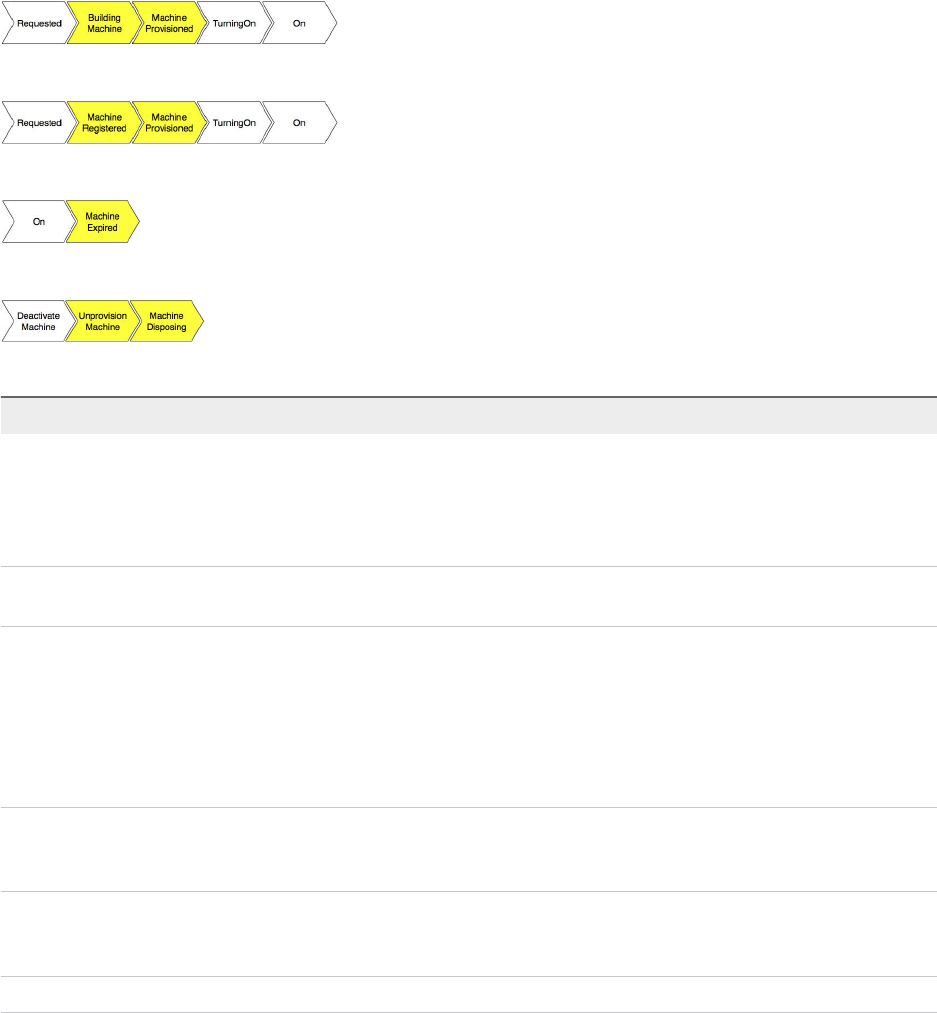
Figure 2‑1. Master workflow states for provisioning machines
Figure 2‑2. Master workflow states for importing machines
Figure 2‑3. Master workflow states for machine lease expiration
Figure 2‑4. Master workflow states for disposing a machine
Table 2‑1. Customizable State Change Workflows
Master Workflow State Customizable Workflow Name Extensibility Examples
BuildingMachine WFStubBuildingMachine Prepare for the machine to be created on the hypervisor.Create a
configuration management database (CMDB) record, call out to
an external system to assign an IP address to a machine, and
then during machine disposal, use WFStubMachineDisposing to
return the IP address to the pool.
RegisterMachine WFStubMachineRegistered Add an imported machine to an application provisioning tool to
receive updates and undergo compliance checks.
MachineProvisioned WFStubMachineProvisioned The machine exists on the hypervisor, and any additional
customizations are completed at this point, for example guest
agent customizations. Use this workflow stub to update a
configuration management database (CMDB) record with DCHP
IP address and storage information. Customizations made by
using the WFStubMachineProvisioned are typically reversed by
using WFStubUnprovisionMachine.
Expired WFStubMachineExpired Move an expired machine to low cost storage to reduce archival
costs and update the CMDB record and billing system to reflect
storage and cost changes.
UnprovisionMachine WFStubUnprovisionMachine Remove machines from active directory accounts.
Customizations made by using the WFStubMachineProvisioned
are typically reversed by using WFStubUnprovisionMachine.
Disposing WFStubMachineDisposing Return IP addresses to the pool.
Choosing a Life Cycle Extensibility Scenario
You can use vRealize Orchestrator or vRealize Automation Designer to extend machine lifecycles.
Life Cycle Extensibility
VMware, Inc. 9
You can extend machine lifecycles by using vRealize Automation Designer to call out to
vRealize Orchestrator, or by using vRealize Orchestrator directly. Both approaches allow you to inject
custom logic into predetermined stages of the IaaS machine lifecycle by creating custom
vRealize Orchestrator workflows and then insert the custom workflows into the state change workflow
stubs. However, you can only restrict custom state change logics to particular blueprints if you are using
vRealize Orchestrator directly, and you can only restrict the execution of workflows to specific Distributed
Execution Managers by vRealize Automation Designer.
Note The workflow stubs are replaced by the event broker workflow subscriptions. They are still
available, supported, and they can be used, but expect them to be removed in a future version of
vRealize Automation. To ensure future product compatibility, you should use the workflow subscriptions to
run custom workflows based on state changes. See Chapter 4 Configuring Workflow Subscriptions to
Extend vRealize Automation.
Table 2‑2. Choosing a Lifecycle Extensibility Scenario
Scenario Procedure
Inject custom logic into predetermined stages of the IaaS
machine lifecycle and apply that custom logic to specific
blueprints.
Extending Machine Lifecycles by Using vRealize Orchestrator
Checklist
Inject custom logic into predetermined stages of the IaaS
machine lifecycle and apply that custom logic globally to all of
your blueprints.
Extending Machine Life Cycles By Using vRealize Automation
Designer Checklist
Restrict execution of workflows to specific Distributed Execution
Managers by using skills in vRealize Automation Designer. Skills
are similar to a tag that you can apply to both workflows and
DEM Worker instances.
For example, you might want to restrict cloud provisioning
workflows to a specific DEM running on a host with the required
network access to Amazon URLs.
Associate Workflows and DEM Workers by Using Skills
Life Cycle Extensibility
VMware, Inc. 10
Extending Machine Lifecycles
By Using vRealize Orchestrator 3
You can inject custom logic into predetermined stages of the IaaS machine lifecycle by creating custom
vRealize Orchestrator workflows and then using vRealize Orchestrator to insert the custom workflows into
the lifecycle of machines built from specific blueprints.
This chapter includes the following topics:
nExtending Machine Lifecycles by Using vRealize Orchestrator Checklist
nConfiguring the vRealize Automation Plug-in for Machine Extensibility
nCustomizing IaaS Workflows By Using vRealize Orchestrator
Extending Machine Lifecycles by Using
vRealize Orchestrator Checklist
The extending machine lifecycles by using vRealize Orchestrator checklist provides a high-level overview
of the steps required to install and configure vRealize Orchestrator to customize IaaS machine lifecycles.
Table 3‑1. Extending Machine Lifecycles by Using vRealize Orchestrator Checklist
Task Details
Configure a vRealize Automation host for your
vRealize Orchestrator.
Add a vRealize Automation Host
Configure an IaaS host for your
vRealize Orchestrator.
Add an IaaS Host
Install the vRealize Orchestrator customizations for
extending IaaS machine lifecycles.
Install vRealize Orchestrator Customization
Create a vRealize Automation endpoint for your
vRealize Orchestrator instance.
Create a vRealize Orchestrator Endpoint
VMware, Inc. 11
Table 3‑1. Extending Machine Lifecycles by Using vRealize Orchestrator Checklist
(Continued)
Task Details
Use the workflow template provided in the
Extensibility subdirectory of the vRealize Automation
plug-in library to create a custom
vRealize Orchestrator workflow to run during the
machine lifecycle. You can run multiple workflows in
the same state for the same blueprint as long as you
nest them under a single wrapper workflow.
For information about developing workflows with vRealize Orchestrator,
see the vRealize Orchestrator documentation. For training in
vRealize Orchestrator development for vRealize Automation integrations,
see the training courses available from VMware Education and the
instructional material provided by VMware Learning.
Run the provided workflow that inserts your custom
workflow into an IaaS workflow stub and configures a
blueprint to call the IaaS workflow stub.
Note The workflow stubs are replaced by the event
broker workflow subscriptions. They are still available,
supported, and they can be used, but expect them to
be removed in a future version of
vRealize Automation. To ensure future product
compatibility, you should use the workflow
subscriptions to run custom workflows based on state
changes. See Chapter 4 Configuring Workflow
Subscriptions to Extend vRealize Automation.
Assign a State Change Workflow to a Blueprint and Its Virtual Machines
Configuring the vRealize Automation Plug-in for Machine
Extensibility
You configure your vRealize Automation and IaaS hosts, install the customizations for machine
extensibility, and create a vRealize Automation endpoint for your vRealize Orchestrator instance.
Add a vRealize Automation Host
You can run a workflow to add a vRealize Automation host and configure the host connection parameters.
Procedure
1From the drop-down menu in the Orchestrator client, select Run or Design.
2Click the Workflows view.
3Expand Library > vRealize Automation > Configuration.
4Right-click the Add a vRA host workflow and select Start workflow.
5Enter a unique name for the host in the Host Name text box.
6Enter the URL address of the host in the Host URL text box.
For example: https://hostname.
Life Cycle Extensibility
VMware, Inc. 12
7Enter the name of the tenant in the Tenant text box.
To use the full functionality of the plug-in for a tenant, create a dedicated vRealize Automation host for
each tenant.
8Select whether to install the SSL certificates automatically without user confirmation.
9(Optional) To configure the length of time vRealize Orchestrator waits for a connection or response
from vRealize Automation, enter timeout intervals in the Connection timeout (seconds) and
Operation timeout (seconds) text boxes.
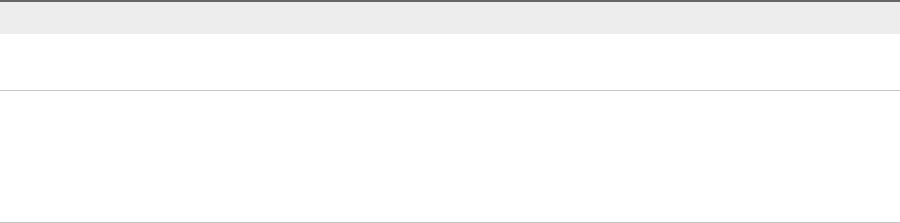
10 Select the type of connection to the host from the Session mode drop-down menu.
Option Actions
Shared Session Enter the credentials for a vRealize Automation user in the Authentication
username and Authentication password text boxes.
Per User Session Connect using the credentials of the user that is currently logged in. You must be
logged in to the Orchestrator client with the credentials of the
vRealize Automation system administrator.
To use this option with an external vRealize Orchestrator server, you must register
the Orchestrator server in the vRealize Automation component registry.
11 Click Submit.
What to do next
Add a vRealize Automation Infrastructure Administration host.
Add an IaaS Host
You can run a workflow to add the IaaS host of a vRealize Automation host and configure the connection
parameters.
Procedure
1From the drop-down menu in the Orchestrator client, select Run or Design.
2Click the Workflows view.
3Expand Library > vRealize Automation > Infrastructure Administration > Configuration.
4Right-click Add an IaaS host and select Start workflow.
5Select the vRealize Automation host for which you want to configure an IaaS host from the vCAC
host drop-down menu.
6Enter a unique name for the host in the Host Name text box.
7Enter the URL of the machine on which your Model Manager is installed.
For example: https://model_manager_machine.com.
8To install the SSL certificates, select Yes.
Life Cycle Extensibility
VMware, Inc. 13

9To use a proxy to access your model manager machine, select Yes.
If you select this option, you must provide the proxy host and the proxy port on the following page.
10 Click Next.
11 If you are configuring an explicit proxy, provide the proxy host URL and the port.
12 Click Next.
13 To configure your own timeout values, click No.
14 (Optional) To configure the length of time vRealize Orchestrator waits for a connection or response
from vRealize Automation, enter timeout intervals in the Connection timeout (seconds) and
Operation timeout (seconds) text boxes.
15 Click Next.
16 Select the host's authentication type.
Option Description
SSO Select this to use vCenter Single Sign-On.
NTLM Select this to enable NT LAN Manager (NTLM) protocol-based authentication only
if your Active Directory infrastructure relies on NTLM authentication.
If you select this option, you must the additional NTLM credentials and
authentication options.
17 If you selected NTLM, click Next and enter the name of the Workstation machine and the NetBIOS
domain name.
18 Click Submit.
Install vRealize Orchestrator Customization
You can run a workflow to install the customized state change workflow stubs and Orchestrator menu
operation workflows.
Note The workflow stubs are replaced by the event broker workflow subscriptions. They are still
available, supported, and they can be used, but expect them to be removed in a future version of
vRealize Automation. To ensure future product compatibility, you should use the workflow subscriptions to
run custom workflows based on state changes. See Chapter 4 Configuring Workflow Subscriptions to
Extend vRealize Automation.
Procedure
1From the drop-down menu in the Orchestrator client, select Run or Design.
2Click the Workflows view.
3Select Library > vCloud Automation Center > Infrastructure Administration > Extensibility >
Installation.
4Right-click the Install vCO customization workflow and select Start workflow.
Life Cycle Extensibility
VMware, Inc. 14

5Select an IaaS host.
6Click Next.
7Choose the lifecycle stages to which you want to add custom logic by selecting one or more state
change workflow stubs to install.
8Click Submit.
Create a vRealize Orchestrator Endpoint
You can configure multiple endpoints to connect to different vRealize Orchestrator servers, but you must
configure a priority for each endpoint.
When executing vRealize Orchestrator workflows, vRealize Automation tries the highest priority
vRealize Orchestrator endpoint first. If that endpoint is not reachable, then it proceeds to try the next
highest priority endpoint until a vRealize Orchestrator server is available to run the workflow.
Prerequisites
nLog in to the vRealize Automation console as an IaaS administrator.
nStore User Credentials.
Procedure
1Select Infrastructure > Endpoints > Endpoints.
2Select New > Orchestration > vCenter Orchestrator.
3Enter a name and, optionally, a description.
4Enter a URL with the fully qualified name or IP address of the vRealize Orchestrator server and the
vRealize Orchestrator port number.
The transport protocol must be HTTPS. If no port is specified, the default port 443 is used.
To use the default vRealize Orchestrator instance embedded in the vRealize Automation appliance,
type https://vrealize-automation-appliance-hostname:443/vco.
5Specify the endpoint priority.
a Click New Property.
b Enter VMware.VCenterOrchestrator.Priority in the Name text box.
The property name is case sensitive.
c Enter an integer greater than or equal to 1 in the Value text box.
Lower value means higher priority.
dClick the Save icon ( ).
6Click OK.
Life Cycle Extensibility
VMware, Inc. 15

Customizing IaaS Workflows By Using
vRealize Orchestrator
You use a single workflow in vRealize Orchestrator to inject your custom logic into the IaaS workflow
stubs and assign your customized life cycles to machine blueprints.
Note The workflow stubs are replaced by the event broker workflow subscriptions. They are still
available, supported, and they can be used, but expect them to be removed in a future version of
vRealize Automation. To ensure future product compatibility, you should use the workflow subscriptions to
run custom workflows based on state changes. See Chapter 4 Configuring Workflow Subscriptions to
Extend vRealize Automation.
You must design your custom vRealize Orchestrator workflows to accept string inputs. If your custom
workflow expects a complex data type, create a wrapper workflow that looks up this complex value and
translates it to a string. For an example wrapping workflow, see the sample Workflow template, provided
in Library > vRealize Automation > Infrastructure > Extensibility.
Assign a State Change Workflow to a Blueprint and Its Virtual
Machines
You configure custom vRealize Orchestrator workflows to run at specific stages in the master machine
workflow by associating your custom workflow with a state change workflow stub and assigning the
workflows to a blueprint.
Note The workflow stubs are replaced by the event broker workflow subscriptions. They are still
available, supported, and they can be used, but expect them to be removed in a future version of
vRealize Automation. To ensure future product compatibility, you should use the workflow subscriptions to
run custom workflows based on state changes. See Chapter 4 Configuring Workflow Subscriptions to
Extend vRealize Automation.
Prerequisites
Use the workflow template provided in the Extensibility subdirectory of the vRealize Automation plugin
library to create a custom workflow to run during the machine lifecycle.
Procedure
1From the drop-down menu in the Orchestrator client, select Run or Design.
2Click the Workflows view.
3Select Library > vRealize Automation > Infrastructure > Extensibility.
4Right-click the Assign a state change workflow to a blueprint and its virtual machines workflow
and select Start workflow.
5Choose the lifecycle stage at which to run the workflow by selecting a stub from the vCAC workflow
stub to enable drop-down menu.
Life Cycle Extensibility
VMware, Inc. 16
6Select an IaaS host.
7Click Next.
8Select the blueprint to which you want to assign the workflow.
9Choose whether or not to apply these workflows to existing machines provisioned by using this
blueprint.
10 Select the workflow you want to run during the machine lifecycle.
11 Configure which workflow input values are added as custom properties to the machine.
a Add vCO workflow inputs as blueprint properties.
b Add last vCO workflow run input values as blueprint properties.
12 Click Submit.
Life Cycle Extensibility
VMware, Inc. 17
Configuring Workflow
Subscriptions to Extend
vRealize Automation 4
You create workflow subscriptions that use the event broker service to monitor the registered services for
event messages in vRealize Automation, and then run a specified vRealize Orchestrator workflow when
the conditions in the subscription are met. To configure the subscription you specify the event topic, the
triggering conditions, and the workflow that runs when triggered.
Tenant administrators can create and manage the workflow subscriptions that are specific to their tenant.
The system administrator can create and manage system workflow subscriptions. The created system
workflow subscriptions are active for events in any tenant and for system events.
This chapter includes the following topics:
nEvent Topics Provided With vRealize Automation
nWorkflow Subscriptions and Event Broker Terminology
nBlockable and Replyable Event Topics
nBest Practices for Creating vRealize Orchestrator Workflows for Workflow Subscriptions
nWorkflow Subscription Settings
nWorking with Provisioning and Life Cycle Workflow Subscriptions
nWorking with Approval Workflow Subscriptions
nTroubleshooting Workflow Subscriptions
Event Topics Provided With vRealize Automation
Event topics describe the type of event message that is sent to the event broker service by the other
services. You select an event topic and configure the workflow subscription based on the topic.
VMware, Inc. 18

Table 4‑1. Event Topics
Event Topic Name Description Service
Blueprint component completed A blueprint component that is part of a
composite blueprint finishes provisioning.
The component is any blueprint that is
part of a composite blueprint.
composition-service
Blueprint component requested A blueprint component that is part of a
composite blueprint is requested. The
component is any blueprint that is part of
a composite blueprint.
composition-service
Blueprint configuration A blueprint is created, updated, or
deleted.
composition-service
Business group configuration A business group is created, updated, or
deleted.
identity
Catalog item request completed A composite blueprint finished
provisioning. This event topic includes all
blueprint components. It does not include
standalone XaaS blueprints.
composition-service
Catalog item requested A composite blueprint is requested. This
event topic does not include
XaaSblueprints.
composition-service
Component action completed An action ran on a deployed blueprint
component when a deployment action
was requested.
composition-service
Component action requested An action to run on a deployed blueprint
component is requested when a
deployment action was requested.
composition-service
Deployment action completed An action on a deployed blueprint
finished running, including running all the
component actions.
composition-service
Deployment action requested An action on a deployed blueprint is
requested.
composition-service
EventLog default event A standard entry is added to the event
log.
The log entry is not distributed to
subscribers.
eventlog-service
IPAM IP lifecycle event completion An IP allocation or deallocation request
is finished.
ipam-service
Machine lifecycle A provided IaaS action is run on a
provisioned machine.
iaas-service
Machine provisioning An IaaS machine is in the process of
being provisioned.
iaas-service
Orchestration server configuration A vRealize Orchestrator server
configuration is created, updated,
deleted, or modified to use a different
default instance.
o11n-gateway-service
Life Cycle Extensibility
VMware, Inc. 19
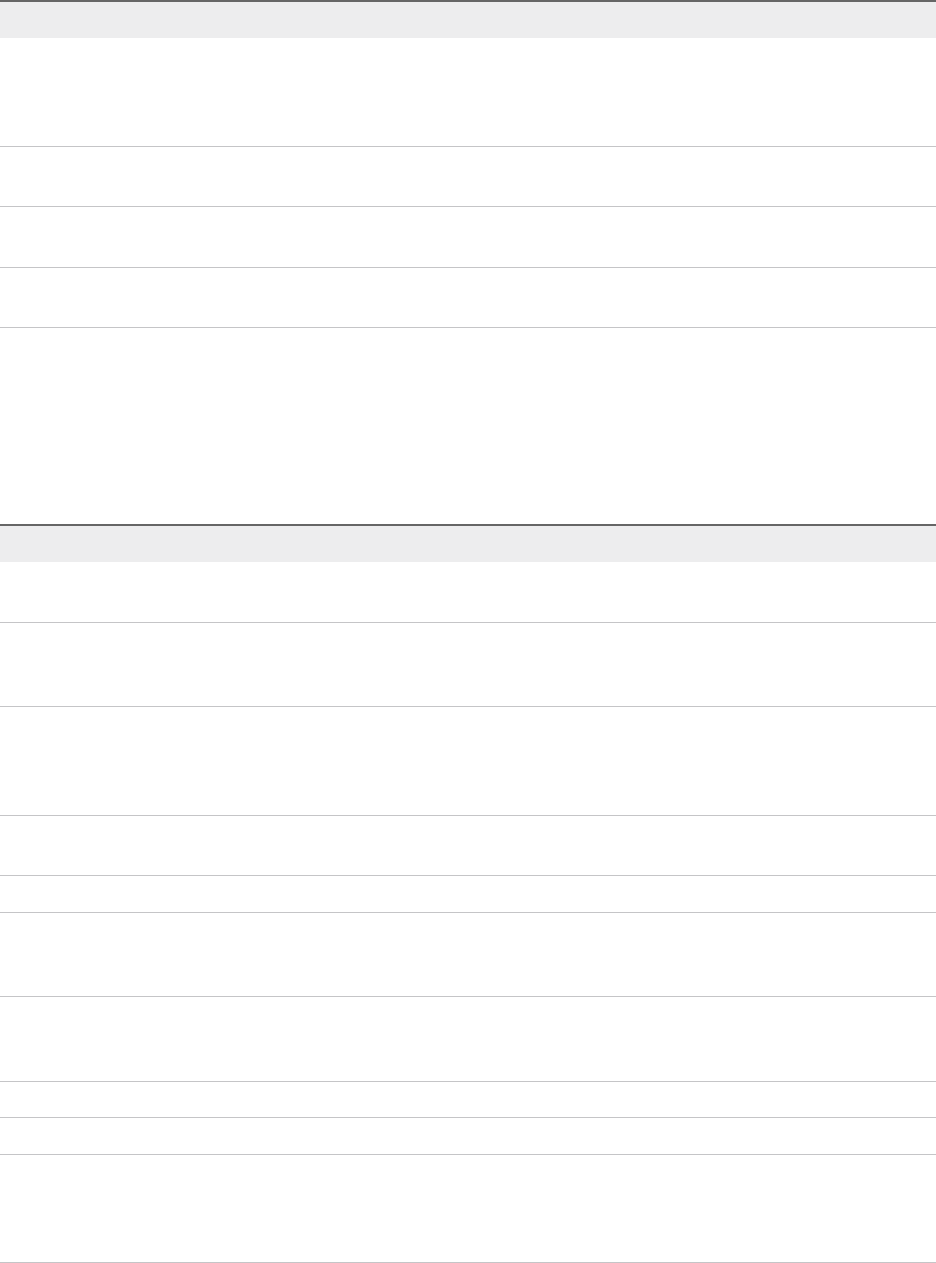
Table 4‑1. Event Topics (Continued)
Event Topic Name Description Service
Orchestration server configuration (XaaS)
- Obsolete
A vRealize Orchestrator server
configuration is created, updated,
deleted, or modified to use a different
default instance.
advanced-designer-service
Post Approval A post-approval policy level is configured
to use the event subscription option.
approval-service
Pre Approval A pre-approval policy level is configured
to use the event subscription option.
approval-service
Resource reclamation completion event A resource lease expired and the
resources are reclaimed.
management-service
Workflow Subscriptions and Event Broker Terminology
As you work with the workflow subscriptions and the event broker service, you might encounter some
terminology that is specific to the subscriptions and event broker service.
Table 4‑2. Workflow Subscription and Event Broker Terminology
Term Description
Event Topic Describes a set of events that have same logical intent and the
same structure. Every event is an instance of an event topic.
Event Indicates a change in the state in the producer or any of the
entities managed by it. The event is the entity that records
information about the event occurrence.
Message Transports information about the event between the various
services and components. For example, from the producer to
the event broker service, or from the event broker service to the
subscribers.
Event Broker Service The service that dispatches messages that are published by a
producer to the subscribed consumers.
Payload The event data.
Subscription Indicates that a subscriber is interested in being notified about
an event by subscribing to an event topic and defining the
criteria that triggers the notification.
Subscriber Consumes the events published to the event broker service
based on the subscription definition. The subscriber might also
be referred to as the consumer.
Provider Registers event topics in the event broker service.
Producer Publishes events to the event broker service.
System Administrator A user with privileges to create, read, update, and delete tenant
workflow subscriptions and system workflow subscriptions using
the API or vRealize Automation plug-in. vRealize Automation
does not include a user interface for the system administrator.
Life Cycle Extensibility
VMware, Inc. 20
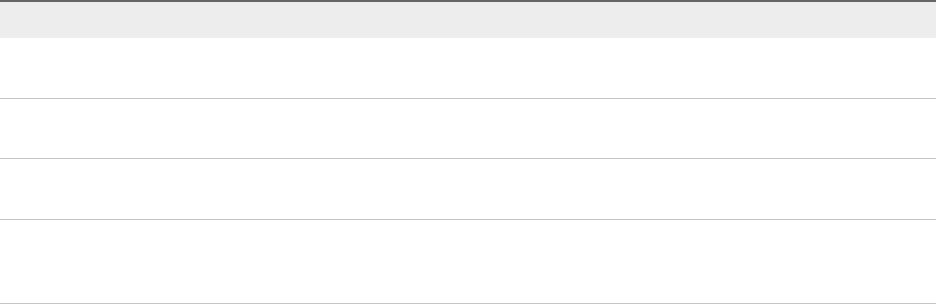
Table 4‑2. Workflow Subscription and Event Broker Terminology (Continued)
Term Description
Tenant Administrator The user with privileges to create, read, update, and delete
tenant workflow subscriptions for their tenant.
Workflow Subscription Specifies the event topic and conditions that trigger a
vRealize Orchestrator workflow.
System Workflow Subscription A specialized workflow subscription that reacts to system events
and to events in all the tenants.
Tenant Workflow Subscription A specialized workflow subscription that specifies which
conditions trigger a vRealize Orchestrator workflow for events in
the same tenant.
Blockable and Replyable Event Topics
Event topics might support blockable and replyable events. The behavior of a workflow subscription
depends on whether the topic supports these event types and how you configure the workflow
subscription.
Non-Blockable Event Topics
Non-blockable event topics only allow you to create non-blocking subscriptions. Non-blocking
subscriptions are triggered asynchronously and you can not rely on the order that the subscriptions are
triggered or that the vRealize Orchestrator workflows run. Non-blocking subscriptions only return a
response if the topic is replyable.
Blockable Event Topics
Some event topics support blocking. If a workflow subscription is marked as blocking, then all messages
that meet the configured conditions are not received by any other workflow subscriptions with matching
conditions until the first workflow is finished. If you have multiple blocking workflow subscriptions for the
same event topic, you prioritize the subscriptions.
Blocking subscriptions run in priority order. The highest priority value is 0 (zero). If you have more than
one blocking subscription for the same event topic with the same priority level, the subscriptions run in
alphabetical order based on the name. After all blocking subscriptions are processed, the message is
sent to all the nonblocking subscriptions at the same time. Because the blocking workflow subscriptions
run synchronously, the changed event payload includes the updated event when the subsequent workflow
subscriptions are notified.
You apply blocking to one or more workflow subscriptions depending on the selected workflow and your
goals.
For example, you have two provisioning workflow subscriptions where the second workflow depends on
the results of the first. The first one changes a property during provisioning, and a second records the
new property, perhaps a machine name, in a file system. The ChangeProperty subscription is prioritized
as 0 and the RecordProperty is prioritized as 1 because it uses the results of the ChangeProperty
Life Cycle Extensibility
VMware, Inc. 21
subscription. When a machine is provisioned, the ChangeProperty subscription begins running. Because
the RecordProperty subscription conditions are based on a post-provisioning conditions, a message
triggers the RecordProperty subscription. However, because the ChangeProperty workflow is a blocking
workflow, the message is not received until it is finished. When the name is changed and the first
workflow is finished, the second workflow runs, recording the name in the file system.
Even if an event topics that support blocking, you can create a non-blocking workflow subscription if the
workflow subscription does not have any dependant subsequent workflows. The workflow subscription is
triggered and runs the vRealize Orchestrator workflow without further interaction from
vRealize Automation or the outside system.
Replyable Event Topics
Some event topics support replies from the subscribed service. The service that registered the replyable
event topic can accept a reply event that provides the workflow output, usually as a result of an
interaction with a system or user. The reply output parameters must meet the criteria defined in the reply
schema so that the vRealize Automation service that published the original replyable event can process
it. For example, pre-approval and post-approval workflow subscriptions are replyable. If you create a
workflow that sends an approval request to an external system, the reply, approved or rejected, is
processed by vRealize Automation and the catalog item is provisioned or the user is notified that the
request was rejected.
The reply can be the output from the vRealize Orchestrator workflow or it can be a failure if the workflow
times out or fails. If the reply is from the workflow output parameters, the reply must be in the correct reply
schema format.
Best Practices for Creating vRealize Orchestrator
Workflows for Workflow Subscriptions
A workflow subscription is based on a specific topic schema. To ensure that the subscriptions can start
the vRealize Orchestrator workflows, you must configure them with the correct input parameters so that
they work with the event data.
Workflow Input Parameters
The custom workflow that you create can include all the parameters or a single parameter that consumes
all the data in the payload.
nTo include individual parameters, configure one or more parameters. Ensure that the name and type
match the name and type specified in the schema.
nTo use a single parameter, configure one parameter with a type of Properties. You can provide any
useful name. For example, you can use payload as the parameter name.
Life Cycle Extensibility
VMware, Inc. 22
Workflow Output Parameters
The custom workflow that you create can include output parameters that are relevant to subsequent
events necessary for a reply event topic type.
If an event topic expects a reply, the workflow output parameters must match the reply schema.
Workflow Subscription Settings
The subscription options determine when a workflow runs based on event messages in
vRealize Automation. Use the options to manage your subscriptions.
A subscription represents a user's intent to subscribe to events for a given event topic and to run a
workflow when an event for the topic is received that matches defined conditions.
You must be a tenant administrator to create a workflow subscription. All workflow subscriptions are
specific to your tenant.
To manage your workflow subscriptions, select Administration > Events > Subscriptions.
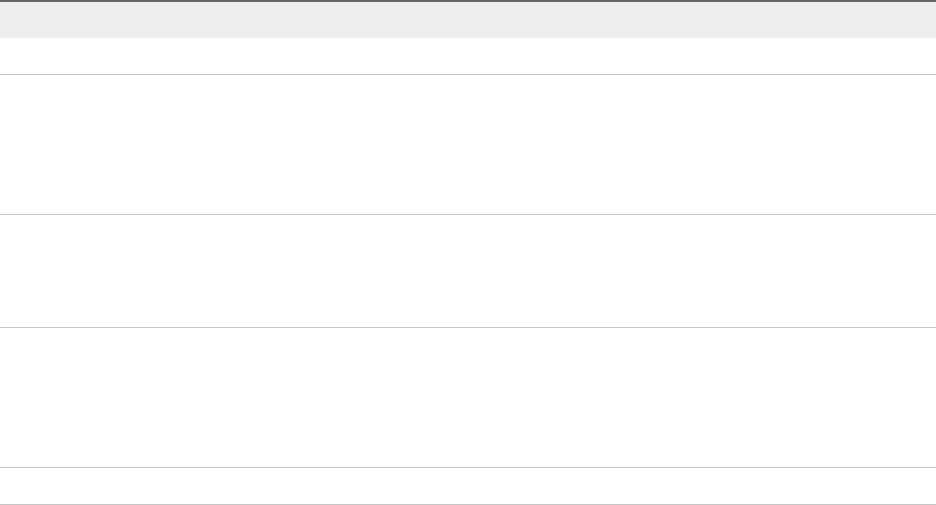
Table 4‑3. Workflow Subscription options
Option Description
New Create a new subscription.
Edit Modify the selected subscription.
If the subscription is published, the saved changes are
immediately active.
You cannot edit the event topic or modify the blocking option for
a published or unpublished subscription.
Publish Make the subscription active.
The events from the event broker service are processed and the
subscription conditions are evaluated. If a configured condition
is true, the workflow is triggered.
Unpublish Return a subscription to a draft state.
The subscription is no longer active in your environment and no
longer receives events.
If you republish a subscription, the subscription starts to receive
new events. Past events are not received.
Delete Delete the selected subscription.
nWorkflow Subscription Event Topic Tab Settings
Event topics are classes of events provided in vRealize Automation. You select the event topic on
which to define the subscription.
nWorkflow Subscription Conditions Tab Settings
The conditions you configure for the subscription determine if the workflow is triggered to run based
on the event data.
Life Cycle Extensibility
VMware, Inc. 23
nWorkflow Subscription Workflow Tab Settings
The vRealize Orchestrator workflow that you select runs when the subscription conditions are
evaluated as true.
nWorkflow Subscription Details Tab Settings
The subscription details determine how the subscription is processed.
Workflow Subscription Event Topic Tab Settings
Event topics are classes of events provided in vRealize Automation. You select the event topic on which
to define the subscription.
This page is informational. You are not required to provide any values.
To select an event topic for your workflow subscriptions, select Administration > Events >
Subscriptions. Click New and select an event topic.
Table 4‑4. Event Topic Options
Option Description
Topic ID Event topic identifier.
Name Name of the event topic.
Description Description of the event topic.
Publisher Name of the service for which this event topic is registered.
Blockable Indicates whether you can create a blocking subscription for this
event topic.
Blocking subscriptions are used to change the event's payload
or to synchonously run your custom logic when the results of a
second workflow for the same event depend on the results of
the first workflow.
Replyable Indicates whether an event topic subscription can publish a reply
event to the service that originally produced the event. If the
value is yes, a reply is sent to the service that published the
original event when the workflow finishes. The reply contains the
output of the vRealize Orchestrator workflow and any error
details.
Schema Describes the structure of the event's payload.
You can use the schema to create workflows that can use the
payload information.
Workflow Subscription Conditions Tab Settings
The conditions you configure for the subscription determine if the workflow is triggered to run based on
the event data.
Life Cycle Extensibility
VMware, Inc. 24
If you select Run based on conditions, the available options can include
nData. Information in the event message that is specific to the selected event topic. For example, if you
create a condition for the machine life cycle event topic, the data fields are related to blueprints and
machines compared to a pre-approval event topic where the data fields are related to approval
policies.
You can also add conditions for fields that are not included in the schema by entering the path in the
text box above the tree. Use the format ${PATH}. PATH is the path in the schema. Separate the
nodes using ~. For example, ${data~machine~properties~SomeCustomProperty}.
nCore event message values. General information about the event message. For example, the event
type, time stamp, or user name.
To select an event topic for your workflow subscriptions, select Administration > Events >
Subscriptions. Click New.
Table 4‑5. Conditions Tab Options
Option Description
Run for all events The selected workflow runs when the message for this event
topic is received.
Run based on conditions The selected workflow runs when the event message is
detected and the event meets the configured conditions.
If you select this option, you must specify conditions based on
the event data to trigger the selected workflow for this
subscription.
nSingle condition. The workflow is triggered when the
configured clause is true.
nAll of the following. The workflow is triggered when all the
clauses are true and you provided at least two conditions.
nAny of the following. The workflow is triggered when at least
one of the clauses is true and you provided at least two
conditions.
nNot the following. The workflow is triggered when none of
the clauses are true.
Workflow Subscription Workflow Tab Settings
The vRealize Orchestrator workflow that you select runs when the subscription conditions are evaluated
as true.
The workflow that you want to run must already exist in vRealize Orchestrator specified in
Administration > vRO Configuration > Server Configuration.
To select a workflow for your workflow subscriptions, select Administration > Events > Subscriptions.
Click New.
Life Cycle Extensibility
VMware, Inc. 25
Table 4‑6. Workflow Tab Options
Option Description
Select a Workflow Navigate to the workflow.
Selected Workflow Displays information about the workflow, including input and
output parameters, so that you can verify it is the one that you
want to run.
Workflow Subscription Details Tab Settings
The subscription details determine how the subscription is processed.
To manage your workflow subscriptions, select Administration > Events > Subscriptions. Click New.
The options vary depending on the type of event topic.
Table 4‑7. Details Tab Options
Options Descriptions
Name By default, the displayed name is the name of the selected
workflow.
This name is displayed in the subscription list. The name must
be unique in the tenant.
Priority The order in which the blocking subscriptions run.
Zero is the highest priority. If an event topic has multiple blocking
workflow subscriptions with the same priority, the subscriptions
are then processed in alphabetical order based on the
subscription name.
This option is only available for blocking workflow subscriptions.
Timeout (min) Specify the number of minutes the workflow has to finish before
it is considered failed.
If the workflow fails to finish in the specified amount of time, the
workflow is canceled and the message is sent to the next
subscription in the priority list.
If you do not provide a value, the timeout is unlimited.
Services that expect a reply, to blocking or replyable events,
might have their own default timeout values. For example, IaaS
provisioning and life cycle event topics time out at 30 minutes.
This value is configured on the IaaS server. Approval topics
have a 24 hour default value. This value is configured on the
system.
Life Cycle Extensibility
VMware, Inc. 26
Table 4‑7. Details Tab Options (Continued)
Options Descriptions
Description By default, the displayed description is the workflow description.
Blocking Determines if the workflow can block subsequent workflows for
the same event topic from receiving an event message while
waiting for a reply.
Subscriptions with blocking enabled receive messages before
subscriptions that are not configured as blocking for the same
event topic, based on priority order. When the workflow is
finished, a message is sent to the next prioritized blocking
subscription. After all blocking subscriptions have processed,
the message is sent to all non-blocking subscriptions
simultaneously.
The blocking option is available only if the event topic is
blockable. This information is provided on the Event Topic tab.
The blocking eligibility is indicated on the Event Topic tab.
nIf you do not select the check box, the event broker does not
block subsequent workflows.
nIf you select check box, the event broker calculates which
workflow subscriptions are eligible for this event based on
the configured conditions and runs the workflows in priority
order. The event broker waits for a response from each
workflow before running the next one. All the changed
parameters from the running of the current workflow are
passed to the next one in the queue.
While waiting for a response, no other workflows are notified
of the event until the consuming system responds.
You cannot modify this option after the workflow subscription is
published.
Working with Provisioning and Life Cycle Workflow
Subscriptions
You create provisioning and life cycle workflow subscriptions so that you can use vRealize Orchestrator to
extend your management of IaaS machines. The provisioning subscriptions extend what you can do
during the provisioning process. The life cycle subscriptions extend what you can do when the user is
managing the provisioned items.
IaaS Service Integration
You create a workflow subscription based on a provisioning or life cycle event topic that runs a custom
vRealize Orchestrator workflow based on a message generated by the IaaS service. vRealize Automation
includes two event topics that you can use for IaaS integration.
nMachine provisioning. Create workflow subscriptions that run workflows during the provisioning and
disposal of IaaS machines.
Life Cycle Extensibility
VMware, Inc. 27

nMachine lifecycle. Create workflow subscriptions that run workflows related to management actions
that an owning user runs on the provisioned machine.
Configuring vRealize Orchestrator Workflows for Provisioning and
Life Cycle Workflows
You must configure your vRealize Orchestrator workflows to support the IaaS service message.
Provisioning and Life Cycle Event Topic Schema
The machine provisioning and machine life cycle event topics use the same life cycle schema. The
differences are in the triggering states. Machine provisioning receives messages based on provisioning
states and events, and machine life cycle receives messages based on active states and events. Some
provisioning states include BuildingMachine and Disposing. Some life cycle states include InstallTools
and Off.
The event message is the event data payload. The following is the structure of the event data payload.
{
machine : {
id : STRING, /* IaaS machine ID */
name : STRING, /* machine name */
externalReference : STRING, /* machine ID on the hypervisor */
owner : STRING, /* machine owner */
type : INTEGER, /* machine type: 0 - virtual machine; 1 - physical machine; 2 -
cloud machine */
properties : Properties /* machine properties, see notes below how to expose virtual
machine properties */
},
blueprintName : STRING, /* blueprint name */
componentId : STRING, /* component id */
componentTypeId : STRING, /* component type id */
endpointId : STRING, /* endpoint id */
requestId : STRING, /* request id */
lifecycleState : { /* see Life Cycle State
Definitions*/
state : STRING,
phase : STRING,
event : STRING
},
virtualMachineEvent : STRING, /* fire an event on that machine - only processed
by Manager Service as consumer */
workflowNextState : STRING, /* force the workflow to a specific state - only
processed by Manager Service as consumer */
virtualMachineAddOrUpdateProperties : Properties, /* properties on the machine to add/update - only
processed by Manager Service as consumer */
virtualMachineDeleteProperties : Properties /* properties to remove from the machine - only
processed by Manager Service as consumer */
}
The vRealize Orchestrator parameters are mapped to the event's payload by name and type.
Life Cycle Extensibility
VMware, Inc. 28
When you use virtualMachineEvent and workflowNextState as output parameters, the values that
you provide must represent a state or event from the workflow that triggered the event and started the
current vRealize Orchestrator workflow. To review the possible life cycle states and events, see VMPS
Master Workflow Life Cycle States and Provisioning Life Cycle States by Machine Type.
Working with Extensibility Custom Properties
The virtual machine custom properties are not included in the event payload unless they are specified as
an extensibility custom property for the life cycle state. You can add these properties to IaaS endpoints,
reservations, blueprints, requests, and other objects that support custom properties.
The format of the custom property that you add to an object is
Extensibility.Lifecycle.Properties.{workflowName}.{stateName}.
For example, if you want to include hidden properties and all properties starting with "Virtual" when the
virtual machine state is BuildingMachine, you add the custom properties to the machine in the blueprint.
The custom property name for this example is
Extensibility.Lifecycle.Properties.VMPSMasterWorkflow32.BuildingMachine, and the values
are __* and Virtual*, separated by a comma.
The double underscore (__*) includes the hidden properties. The Virtual* value includes all properties
that begin with virtual. The asterisk (*) is a wildcard and can be used as the only value, but using the
wildcard this way results in the transfer of large amounts of data.
If you have multiple, subsequently triggered workflow subscriptions that include custom properties, you
must include the appropriate entries in the workflows to ensure that the payload check retains the custom
properties.
Table 4‑8. Task Entries to Preserve Custom Properties
State Task Entries
Added or updated custom properties virtualMachineAddOrUpdateProperties =
payload.virtualMachineAddOrUpdateProperties ||
new Properties();
Deleted custom properties virtualMachineDeleteProperties =
payload.virtualMachineDeleteProperties || new
Properties();
Creating a vRealize Orchestrator Workflow Based on the Life Cycle or
Provisioning Schema
The custom workflow that you create must have an input parameter that is payload with the type
Properties. The provisioning or life cycle event data payload is put in this parameter when the workflow
runs in vRealize Orchestrator. You can also include separate input parameters that match the name and
the type of the fields in the event's payload.
Life Cycle Extensibility
VMware, Inc. 29
Workflow Subscription Life Cycle State Definitions
If you configure workflow subscription conditions based on life cycle states, the following definitions might
help you identify the values.
Each message contains a lifecycleState element that is based on the IaaS machine state changes.
The element has the following structure in the message.
lifecycleState : {
state : STRING,
phase : STRING,
event : STRING
}
Table 4‑9. LifecycleState Elements
Property Description Format and Values Examples
state Contains workflow
name and state name.
{workflowName}.{stateName} nVMPSMasterWorkflow32.Requested
nVMPSMasterWorkflow32.MachineActivated
nBasicVmWorkflow.BuildComplete
phase Contains the phase that
triggered a message.
PRE, POST, EVENT nPRE. An event is published when entering
this state.
nPOST. An event is published when exiting
this state.
nEVENT. An event is published when an
IaaS event is received in this state..
event Contains the event.
This property is optional
and exists only when
the phase is EVENT.
{workflowName}.{stateName}.EVENT.
{eventName}
nVMPSMasterWorkflow32.Requested.EVEN
T.OnProvisionMachine
nVMPSMasterWorkflow32.VMPSMasterWor
kflow32.EVENT.OnBuildSuccess
nBasicVmWorkflow.CreatingMachine.EVENT
.OnCreatingMachineComplete
VMPS Master Workflow Life Cycle States
The VMPS master workflow life cycle states represent an IaaS virtual machine life cycle, from request to
destruction .You can use the VMPS master workflow states and events when you create triggering
conditions based on life cycle state events and life cycle state names.
Each virtual machine goes through four basic stages.
nRequest. Includes approvals.
nProvision. Includes different provisioning types, such as create, clone, kickstart, or WIM.
nManage. Includes actions, such as power on, power off, or snapshot.
nDestroy. Includes deactivating, unprovisioning, and disposing of the machine.
Life Cycle Extensibility
VMware, Inc. 30
These basic stages are included in the master workflow. You can use the VMPSMasterWorkflow32 states
when you create conditions for the following event topics:
nMachine life cycle
nMachine provisioning
The global event states are messages sent to the event broker by the VMPS Master Workflow. Global
events can be triggered at any time.
Table 4‑10. Global Events
State(Topic) Events [Triggering String] (Topic)
Global nonBuildFailure [BuildFailure] (Provision)
nOnBuildSuccess [BuildSuccess] (Provision)
nOnFinalizeMachine [Destroy] (Provision)
nOnForceUnregisterEvent [ForceUnregister] (Provision)
nReconfigureVM.Pending [ReconfigureVM.Pending] (Active)
nReconfigureVM.ExecutionUpdated
[ReconfigureVM.ExecutionUpdated] (Active)
nReconfigureVM.RetryRequestMade
[ReconfigureVM.RetryRequestMade] (Active)
nReconfigureVM.Failed [ReconfigureVM.Failed] (Active)
nReconfigureVM.Successful [ReconfigureVM.Successful]
(Active)
nReconfigureVM.Complete [ReconfigureVM.Complete]
(Active)
nReconfigureVM.Canceled [ReconfigureVM.Canceled]
(Active)
The active global states are actions that you can run on provisioned machines.
Table 4‑11. Active Events
State Events [Triggering String] (Topic)
Active nOnExpireLease [Expire] (Active)
nOnForceExpire [ForceExpire] (Active)
nonReprovision [Reprovision] (Active)
nonResetBuildSuccess [ResetBuildSuccess] (Active)
In the master workflow, provision events occur during the machine provisioning life cycle. Active events
are actions you can run on provisioned machines. For an illustration of the master workflow, see Example
of VMPS Master Workflow.
Each machine type has its own provisioning workflow. For information about individual machine types,
see Provisioning Life Cycle States by Machine Type.
Life Cycle Extensibility
VMware, Inc. 31

Table 4‑12. VMPSMasterWorkflow32 States and Events
State(Topic) Events [Triggering String] (Topic)
BuildingMachine
nPre(Provision)
nPost(Provision)
DeactivateMachine
nPre(Provision)
nPost(Provision)
Disposing
nPre(Provision)
nPost(Provision)
nOnDisposeComplete(Provision)
nOnDisposeTimeout(Provision)
nOnUnregisterMachine [Unregister] (Provision)
Expired
nPre(Active)
nPost(Active)
nOnActiveExpiredMachine [ActivateExpiredMachine] (Active)
nTurnOffFromExpired [TurnOffExpiredMachine] (Active)
InstallTools
nPre(Active)
nPost(Active)
nInstallToolsComplete(Active)
nTimeoutInstallTools(Active)
Leased nOnChangeLease [Change Lease] (Active)
nOnUpdateDescription [UpdateDescription] (Active)
nOnUpdateOwner [UpdateOwner] (Active)
MachineActivated
nPre(Provision)
nPost(Provision)
nOnCatalogRegistrationComplete
[CatalogRegistrationComplete] (Provision)
MachineProvisioned
nPre(Provision)
nPost(Provision)
Off
nPre(Active)
nPost(Active)
nOnForceOn [ForceOn] (Active)
nOnResetOff [Turn Off] (Active)
nOnTurnOn [Turn On] (Active)
On
nPre(Active)
nPost(Active)
nOnForceOff [ForceOff] (Active)
nonInstallTools [InstallTools] (Active)
nOnReboot [Reboot] (Active)
nOnReset [Reset] (Active)
nOnResetOn [Turn On] (Active)
nOnShutdown [Shutdown] (Active)
nOnSuspend [Suspend] (Active)
nOnTurnOff [Turn Off] (Active)
Rebooting
nPre(Active)
nPost(Active)
nOnRebootComplete(Active)
nTimoutFromReboot(Active)
RegisterMachine
nPre(Provision)
nPost(Provision)
nonRegisterComplete(Provision)
nRegisterTimeout(Provision)
Life Cycle Extensibility
VMware, Inc. 32

Table 4‑12. VMPSMasterWorkflow32 States and Events (Continued)
State(Topic) Events [Triggering String] (Topic)
Requested
nPre(Provision)
nPost(Provision)
nOnProvisionMachine [Provision] (Provision)
Resetting
nPre(Active)
nPost(Active)
nOnResetComplete(Active)
nTimoutFromReset(Active)
ShuttingDown
nPre(Active)
nPost(Active)
nOnShutdownComplete(Active)
nTimoutFromShutdown(Active)
Suspending
nPre(Active)
nPost(Active)
nOnSuspendComplete(Active)
nTimoutFromSuspend(Active)
TurningOff
nPre(Active)
nPost(Active)
nOnTurningOffComplete(Active)
nTimoutFromPowerOff(Active)
TurningOn
nPre(Active)
nPost(Active)
nOnTurningOnComplete(Active)
nTimeoutPowerOn(Active)
UnprovisionMachine
nPre(Provision)
nPost(Provision)
WaitingToBuild
nPre(Provision)
nPost(Provision)
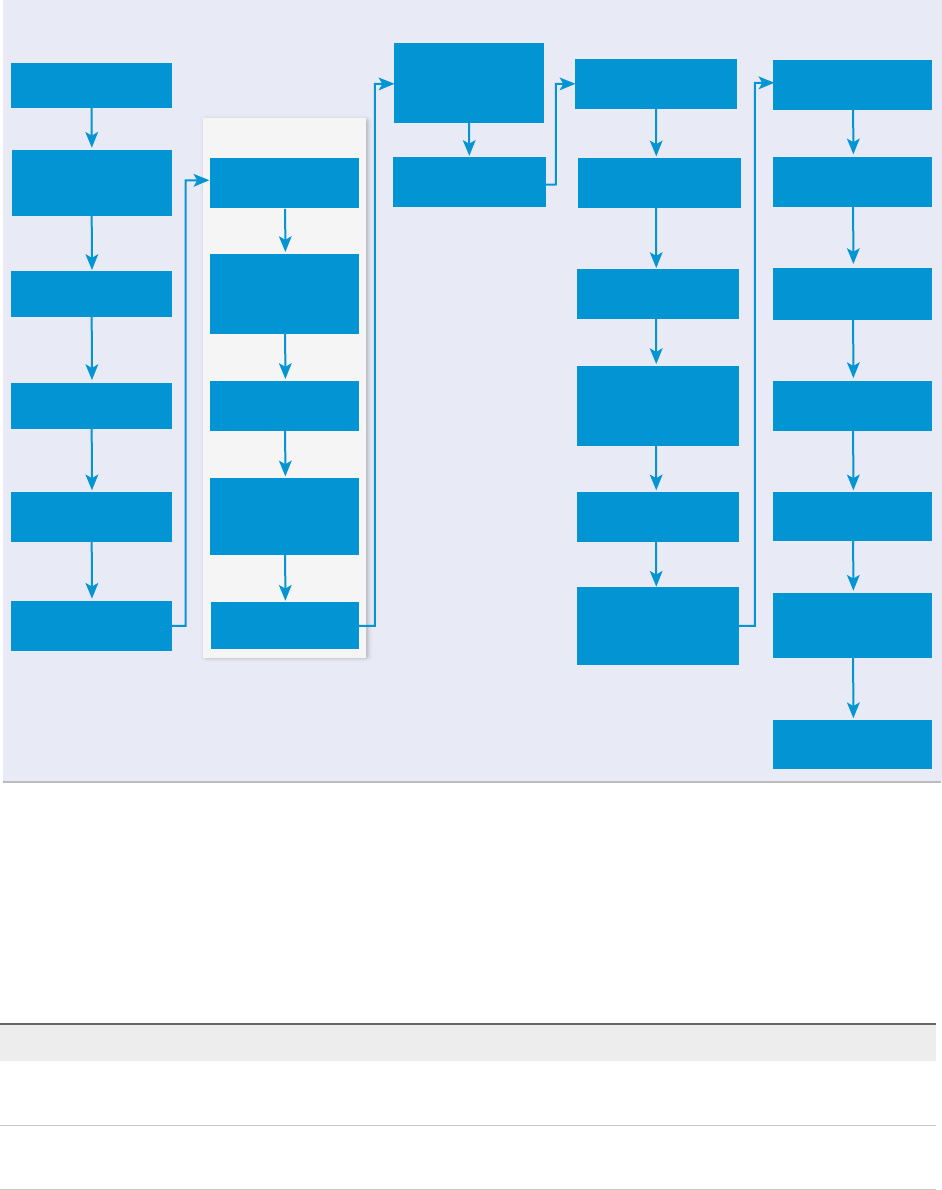
Example of VMPS Master Workflow
The VMPS workflow is the master in which the other provisioning workflows are embedded. This example
includes the Basic VM Workflow to illustrate the life cycle of a virtual machine. It does not represent a
specific workflow in your environment.
Life Cycle Extensibility
VMware, Inc. 33
VMPS Master Workflow 32
BasicVmWorkflow
Requested
PRE
BuildingMachine
POST
MachineProvisioned
PRE DeactivateMachine
PRE
WaitingToBuild
PRE
AddingDisks
PRE
MachineActivated
EVENT
OnCatalog
RegistrationComplete
UnprovisionMachine
POST
Requested
POST
MachineActivated
PRE
UnprovisionMachine
PRE
CreatingMachine
EVENT
OnCreating
MachineComplete
AddingDisks
EVENT
OnAdding
DisksComplete
WaitingToBuild
POST
MachineActivated
POST
Disposing
PRE
Requested
EVENT
OnProvisionMachine
VMPSMaster
Workflow32
EVENT
OnBuildSuccess
MachineProvisioned
POST
DeactivateMachine
POST
CreatingMachine
PRE
BuildComplete
PRE
BuildingMachine
PRE
VMPSMaster
Workflow32
EVENT
OnFinalizeMachine
Disposing
EVENT
OnDisposeComplete
Disposing
POST
Provisioning Life Cycle States by Machine Type
The life cycle states by machine type are specific to certain virtual machine types. In addition to the
master workflow, you can use the provisioning workflow states and events when you create triggering
conditions for workflow subscriptions.
Blade Logic Bare Metal
State (Topic) Events (Topic)
BuildFinished
nPre(Provision)
CreatingMachine
nPre(Provision)
Life Cycle Extensibility
VMware, Inc. 34
Opsware Bare Metal
State (Topic) Events (Topic)
BuildFinished
nPre(Provision)
OpswareRegister
nPre(Provision)
nOnOpswareRegister(Provision)
Cloud Provisioning Workflow
State (Topic) Events (Topic)
BuildComplete
nPre(Provision)
CloudProvisioning
nPre(Provision)
nOnCloudProvisioningTimeout(Provision)
FailedProvisioning
nPre(Provision)
App Service Provisioning Workflow
State (Topic) Events (Topic)
AppServiceProvisioning
nPre(Provision)
nOnAppServiceProvisioningTimeout(Provision)
BuildComplete
nPre(Provision)
FailedProvisioning
nPre(Provision)
Basic VM Workflow
State (Topic) Events (Topic)
AddingDisks
nPre(Provision)
nOnAddingDisksComplete(Provision)
nOnAddingDisksTimeout(Provision)
BuildComplete
nPre(Provision)
CreatingMachine
nPre(Provision)
nOnCreatingMachineComplete(Provision)
nOnCreatingMachineTimeout(Provision)
FailedProvisioning
nPre(Provision)
Life Cycle Extensibility
VMware, Inc. 35
Opsware Virtual
State (Topic) Events (Topic)
AddingDisks
nPre(Provision)
nOnAddingDisksComplete(Provision)
nOnAddingDisksTimeout(Provision)
BuildFinished
nPre(Provision)
CreatingVM
nPre(Provision)
nOnCreateVMComplete(Provision)
nOnCreateVMTimeout(Provision)
InitialPowerOn
nPre(Provision)
nOnInitialPowerOnComplete(Provision)
nOnInitialPowerOnTimeout(Provision)
OpswareRegister
nPre(Provision)
nOnOpswareRegister(Provision)
Cloud Linux Kickstart Workflow
State (Topic) Events (Topic)
BuildComplete
nPre(Provision)
CreatingMachine
nPre(Provision)
nOnCreatingMachineComplete(Provision)
nOnCreatingMachineTimeout(Provision)
CustomizeOS
nPre(Provision)
nOnCustomizeOSComplete(Provision)
nOnCustomizeOSTimeout(Provision)
FailedProvisioning
nPre(Provision)
InitialPowerOn
nPre(Provision)
nOnInitialPowerOnComplete(Provision)
nOnInitialPowerOnTimeout(Provision)
InstallingOS
nPre(Provision)
nOnInstallingOSComplete(Provision)
nOnInstallingOSTimeout(Provision)
Clone Workflow
State (Topic) Events (Topic)
BuildComplete
nPre(Provision)
CloneMachine
nPre(Provision)
nOnCloneMachineComplete(Provision)
nOnCloneMachineTimeout(Provision)
CustomizeMachine
nPre(Provision)
nOnCustomizeMachineComplete(Provision)
nOnCustomizeMachineTimeout(Provision)
CustomizeOS nOnCustomizeOS(Provision)
nOnCustomizeOSComplete(Provision)
nOnCustomizeOSTimeout(Provision)
Life Cycle Extensibility
VMware, Inc. 36
State (Topic) Events (Topic)
EjectCD
nPre(Provision)
nOnEjectCDComplete(Provision)
nOnEjectCDTimeout(Provision)
FailedProvisioning
nPre(Provision)
FinalizeProvisioning
nPre(Provision)
nOnFinalizeComplete(Provision)
nOnFinalizeTimeout(Provision)
InitialPowerOn
nPre(Provision)
nOnInitialPowerOnComplete(Provision)
nOnInitialPowerOnTimeout(Provision)
InstallSoftware
nPre(Provision)
nOnInstallSoftwareComplete(Provision)
nOnInstallSoftwareTimeout(Provision)
MountCD
nPre(Provision)
nOnMountCDComplete(Provision)
nOnMountCDTimeout(Provision)
PostInstallSoftwareChecks
nPre(Provision)
PrepareInstallSoftware
nPre(Provision)
Cloud WIM Image Workflow
State (Topic) Events (Topic)
BuildComplete
nPre(Provision)
CreatingMachine
nPre(Provision)
nOnCreatingMachineComplete(Provision)
nOnCreatingMachineTimeout(Provision)
FailedProvisioning
nPre(Provision)
InitialPowerOn
nPre(Provision)
nOnInitialPowerOnComplete(Provision)
nOnInitialPowerOnTimeout(Provision)
InstallOS
nPre(Provision)
nonInstallOSComplete(Provision)
nOnInstallOSTimeout(Provision)
Reboot
nPre(Provision)
nOnRebootComplete(Provision)
nOnRebootTimeout(Provision)
SetupOS
nPre(Provision)
nOnSetupOSComplete(Provision)
nOnSetupOSTimeout(Provision)
Life Cycle Extensibility
VMware, Inc. 37
External Provisioning Workflow
State (Topic) Events (Topic)
AddingDisks
nPre(Provision)
nOnAddingDisksComplete(Provision)
nOnAddingDisksTimeout(Provision)
BuildComplete
nPre(Provision)
CreatingMachine
nPre(Provision)
nOnCreatingMachineComplete(Provision)
nOnCreatingMachineTimeout(Provision)
EpiRegister
nPre(Provision)
nOnEpiRegisterComplete(Provision)
FailedProvisioning
nPre(Provision)
InitialPowerOn
nPre(Provision)
nOnInitialPowerOnComplete(Provision)
nOnInitialPowerOnTimeout(Provision)
Linux Kickstart Workflow
State (Topic) Events (Topic)
AddingDisks
nPre(Provision)
nOnAddingDisksComplete(Provision)
nOnAddingDisksTimeout(Provision)
BuildComplete
nPre(Provision)
CreatingMachine
nPre(Provision)
nOnCreatingMachineComplete(Provision)
nOnCreatingMachineTimeout(Provision)
CustomizeOS
nPre(Provision)
nOnCustomizeOSComplete(Provision)
nOnCustomizeOSTimeout(Provision)
EjectingCD
nPre(Provision)
nOnEjectingCDComplete(Provision)
nOnEjectingCDTimeout(Provision)
FailedProvisioning
nPre(Provision)
InitialPowerOn
nPre(Provision)
nOnInitialPowerOnComplete(Provision)
nOnInitialPowerOnTimeout(Provision)
InstallingOS
nPre(Provision)
nOnInstallingOSComplete(Provision)
nOnInstallingOSTimeout(Provision)
Life Cycle Extensibility
VMware, Inc. 38
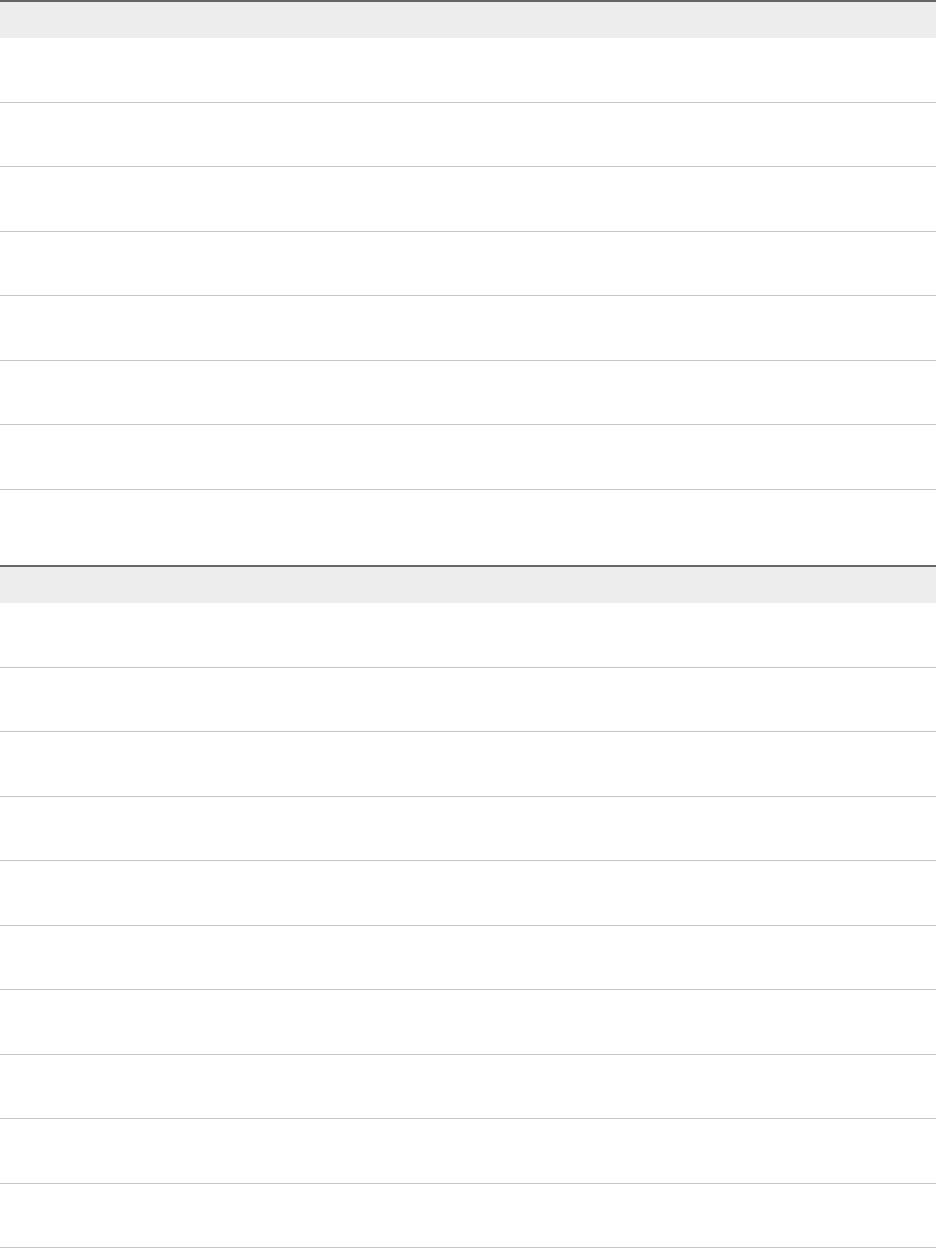
Physical Provisioning Workflow
State (Topic) Events (Topic)
FailedProvisioning
nPre(Provision)
FinalizeProvisioning
nPre(Provision)
nOnFinalizeProvisioningTimeout(Provision)
InitializeProvisioning
nPre(Provision)
nOnInitializeProvisioningTimeout(Provision)
InitialPowerOn
nPre(Provision)
nOnInitialPowerOnTimeout(Provision)
InstallOS
nPre(Provision)
nOnInstallOSComplete(Provision)
nOnInstallOSTimeout(Provision)
Reboot
nPre(Provision)
nOnRebootComplete(Provision)
nOnRebootTimeout(Provision)
SetupOS
nPre(Provision)
nOnSetupOSComplete(Provision)
nOnSetupOSTimeout(Provision)
Physical PXE Provisioning Workflow
State (Topic) Events (Topic)
CheckHardwareType
nPre(Provision)
CleanPxe
nPre(Provision)
nOnCleanPxeTimeout(Provision)
FailedProvisioning
nPre(Provision)
FinalizeProvisioning
nPre(Provision)
nOnFinalizeProvisioningTimeout(Provision)
InitializeProvisioning
nPre(Provision)
nOnInitializeProvisioningTimeout(Provision)
InitialPowerOn
nPre(Provision)
nOnInitialPowerOnTimeout(Provision)
InstallOS
nPre(Provision)
nOnInstallOSComplete(Provision)
nOnInstallOSTimeout(Provision)
Reboot
nPre(Provision)
nOnRebootComplete(Provision)
nOnRebootTimeout(Provision)
SetupOS
nPre(Provision)
nOnSetupOSComplete(Provision)
nOnSetupOSTimeout(Provision)
SetupPxe
nPre(Provision)
nOnSetupPxeTimeout(Provision)
Life Cycle Extensibility
VMware, Inc. 39
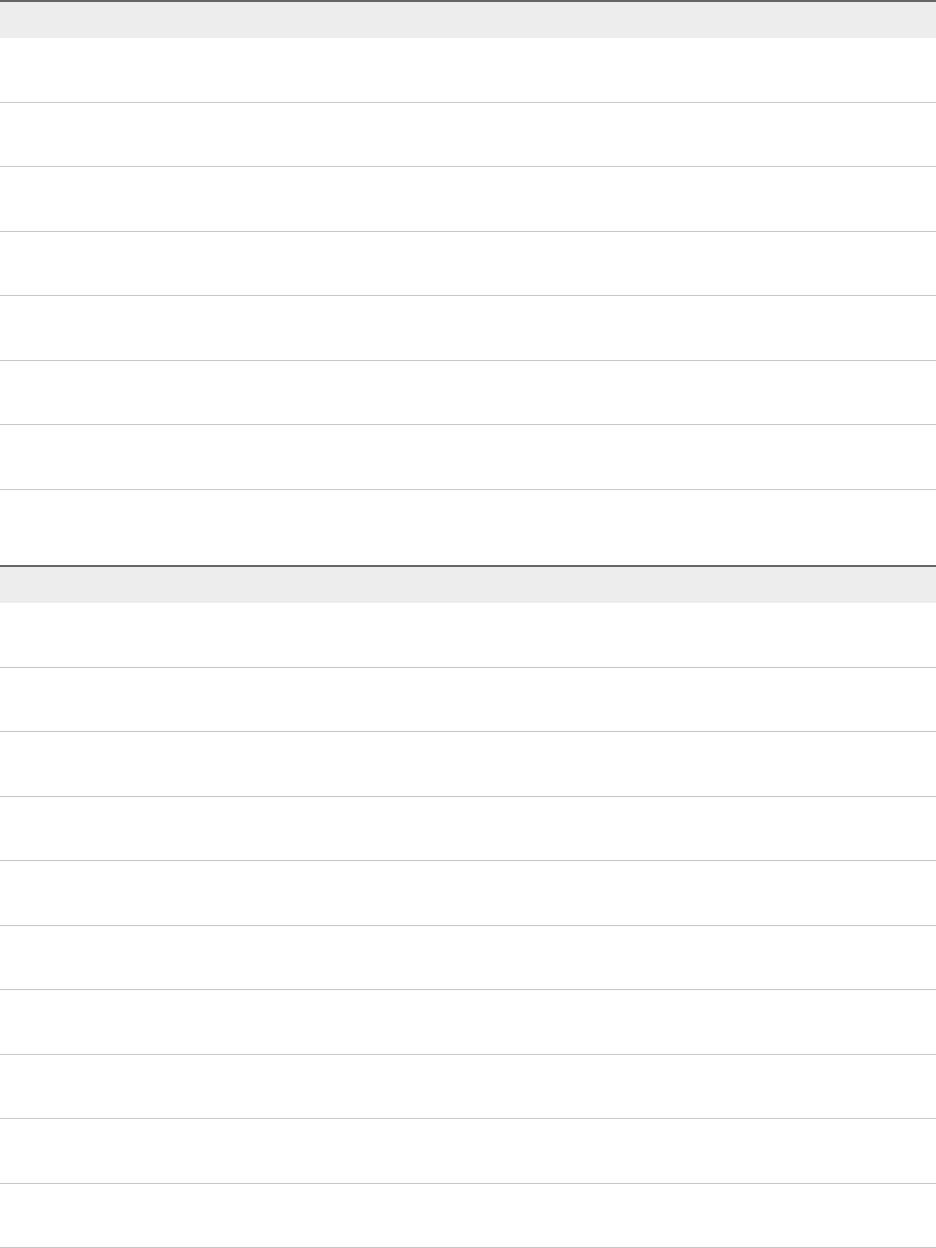
Physical SCCM Provisioning Workflow
State (Topic) Events (Topic)
CheckHardwareType
nPre(Provision)
Complete
nPre(Provision)
nOnCompleteProvisioningComplete(Provision)
nOnCompleteProvisioningTimeout(Provision)
FailedProvisioning
nPre(Provision)
nOnFailedProvisioningTimeout(Provision)
FinalizeProvisioning
nPre(Provision)
nOnFinalizeProvisioningTimeout(Provision)
InitializeProvisioning
nPre(Provision)
nOnInitializeProvisioningTimeout(Provision)
InitialPowerOn
nPre(Provision)
nOnInitialPowerOnTimeout(Provision)
SccmRegistration
nPre(Provision)
nOnSccmRegistrationTimeout(Provision)
Physical SCCM PXE Provisioning Workflow
State (Topic) Events (Topic)
CheckHardwareType
nPre(Provision)
CleanPxe
nPre(Provision)
nOnCleanPxeTimeout(Provision)
Complete
nPre(Provision)
nOnCompleteProvisioningComplete(Provision)
nOnCompleteProvisioningTimeout(Provision)
Disposing
nPre(Provision)
FailedProvisioning
nPre(Provision)
nOnFailedProvisioningTimeout(Provision)
FinalizeProvisioning
nPre(Provision)
nOnFinalizeProvisioningTimeout(Provision)
InitializeProvisioning
nPre(Provision)
nOnInitializeProvisioningTimeout(Provision)
InitialPowerOn
nPre(Provision)
nOnInitialPowerOnTimeout(Provision)
SccmRegistration
nPre(Provision)
nOnSccmRegistrationTimeout(Provision)
SetupPxe
nPre(Provision)
nOnSetupPxeTimeout(Provision)
Life Cycle Extensibility
VMware, Inc. 40
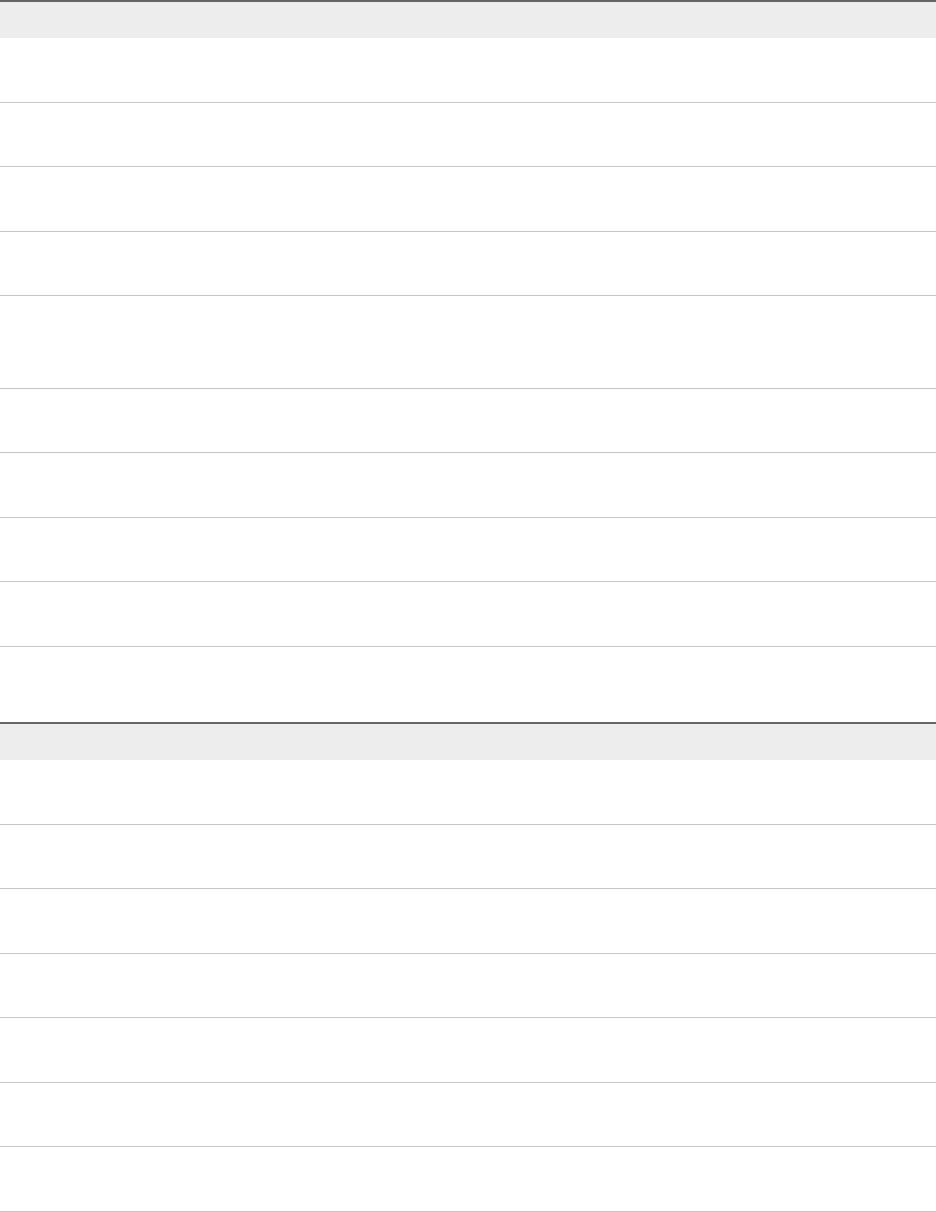
vApp Clone Workflow
State (Topic) Events [Triggering String] (Topic)
Global nOnFailProvisioning [FailProvisioning] (Provision)
nOnMasterProvisioned [MasterProvisioned] (Provision)
BuildComplete
nPre(Provision)
CloneMachine
nPre(Provision)
nOnCloneMachineComplete(Provision)
nOnCloneMachineTimeout(Provision)
CustomizeMachine
nPre(Provision)
nOnCustomizeMachineComplete(Provision)
nOnCustomizeMachineTimeout(Provision)
CustomizeOS nOnCustomizeOS(Provision)
nOnCustomizeOSComplete(Provision)
nOnCustomizeOSTimeout(Provision)
FailedProvisioning
nPre(Provision)
FinalizeProvisioning
nPre(Provision)
nOnFinalizeComplete(Provision)
nOnFinalizeTimeout(Provision)
InitialPowerOn
nPre(Provision)
nOnInitialPowerOnComplete(Provision)
nOnInitialPowerOnTimeout(Provision)
WaitingForMaster
nPre(Provision)
nOnWaitingForMasterTimeout(Provision)
Virtual SCCM Provisioning Workflow
State (Topic) Events (Topic)
AddingDisks
nPre(Provision)
nOnAddingDisksComplete(Provision)
nOnAddingDisksTimeout(Provision)
BuildComplete
nPre(Provision)
CreatingMachine
nPre(Provision)
nCreatingMachineComplete(Provision)
nOnCreatingMachineTimeout(Provision)
Disposing
nPre(Provision)
EjectingCD
nPre(Provision)
nOnEjectingCDComplete(Provision)
nOnEjectingCDTimeout(Provision)
FailedProvisioning
nPre(Provision)
InitialPowerOn
nPre(Provision)
nOnInitialPowerOnComplete(Provision)
nOnPowerOnTimeout(Provision)
Life Cycle Extensibility
VMware, Inc. 41

State (Topic) Events (Topic)
InstallingOS
nPre(Provision)
nOnInstallingOSComplete(Provision)
nOnInstallingOSTimeout(Provision)
SccmRegistration
nPre(Provision)
nOnSccmRegistrationTimeout(Provision)
WIM Image Workflow
State (Topic) Events (Topic)
AddingDisks
nPre(Provision)
nOnAddingDisksComplete(Provision)
nOnAddingDisksTimeout(Provision)
BuildComplete
nPre(Provision)
CreatingMachine
nPre(Provision)
nOnCreatingMachineComplete(Provision)
nOnCreatingMachineTimeout(Provision)
EjectingCD
nPre(Provision)
nOnEjectingCDComplete(Provision)
nOnEjectingCDTimeout(Provision)
FailedProvisioning
nPre(Provision)
InitialPowerOn
nPre(Provision)
nOnInitialPowerOnComplete(Provision)
nOnInitialPowerOnTimeout(Provision)
InstallOS
nPre(Provision)
nonInstallOSComplete(Provision)
nOnInstallOSTimeout(Provision)
Reboot
nPre(Provision)
nOnRebootComplete(Provision)
nOnRebootTimeout(Provision)
SetupOS
nPre(Provision)
nOnSetupOSComplete(Provision)
nOnSetupOSTimeout(Provision)
Configuring the Timeout Values for States and Events
The default timeout value for all states and events is 30 minutes and is configured in the
vRealize Automation global settings. Some workflows might take more time to run successfully. To
accommodate different workflows in your environment, you can add timeout override values for individual
workflows or states.
To modify the default timeout value, select Infrastructure > Administration > Global Settings and edit
the value for Extensibility lifecycle message timeout. If you make changes to the global setting, you
must restart the manager service.
Life Cycle Extensibility
VMware, Inc. 42

To configure individual timeout values, add the workflow or event property to the appSetting section of
the ManagerService.exe.config file, located on the IaaS server. The file is typically located in the
%System-Drive%\Program Files x86\VMware\vCAC\Server directory. You should always make a
copy of the file before editing it. If you make changes to the individual settings, you must restart the
manager service.
The basic format for the keys is similar to the following examples.
nFor a workflow. Extensibility.{workflow}.Timeout
nFor events. Extensibility.{workflow}.{state}.EVENT.{event}.Timeout
nFor states. Extensibility.{workflow}.{state}.(PRE/POST).Timeout
Use the following as examples when adding keys to the appSetting section. The timeout value format is
D.HH:mm:ss.ms. D is day and ms is milliseconds. Day and milliseconds are optional. Hours, minutes, and
seconds are required.
nTo set the timeout for the entire BasicVmWorkflow workflow to 30 minutes, add <add
key="Extensibility.BasicVmWorkflow.Timeout" value="00:30:00"/>.
nTo set the timeout for the OnFinalizeMachine global event in the VMPSMasterWorkflow32 to two
hours, add <add
key="Extensibility.VMPSMasterWorkflow32.VMPSMasterWorkflow32.EVENT.OnFinalizeMach
ine.Timeout" value="02:00:00"/>.
nTo set the timeout for the pre-request state of the VMPSMasterWorkflow32 to 2 days, add <add
key="Extensibility.VMPSMasterWorkflow32.Requested.PRE.Timeout"
value="2.00:00:00"/>.
Configuring the Error Behavior for States and Events
The workflow subscription timeout and error handling has default behavior. You can custom the behavior
for machines in your environment.
IaaS handles event timeout and error proccessing from the Event Broker Service.
At each state transition, SendEBSMessage sends an event to the Event Broker Service and waits for a
reply. By default, if a timeout or an error is reported by the Event Broker Service, might occur, it is logged
and the workflow resumes.
If a timeout or an error occurs during the following states in the master workflow, the workflow is forced
into the error state rather than resuming the workflow.
Table 4‑13. Exceptions Where Workflows Do Not Resume
State Where Error Occurs Error State
PRE MachineProvisioned UnprovisionMachine
PRE BuildingMachine Disposing
PRE RegisterMachine Finalized
Life Cycle Extensibility
VMware, Inc. 43
To customize the timeout or error behavior, you can add custom properties to the machine for any events
or states where you want to trigger an event or force a state change. Use the following examples to
configure the custom properties.
nExtensibility.Lifecycle.Error.Event.{Workflow}.{State}. The value of the property is the
name of the event to be triggered on in the workflow in case of timeout or error.
nExtensibility.Lifecycle.Error.State.{Workflow}.{State}. The value of the property is the
name of the state in which the workflow will forcibly transition to in case of timeout or error.
Scenario: Take a Post-Provisioning Snapshot of a Virtual Machine
As a tenant administrator, you want your service catalog users to have a post-provisioning snapshot of
their virtual machines so that they can revert to the fresh machine rather than requesting a new one.
Procedure
1Scenario: Create a vRealize Orchestrator Workflow for a Post-Provisioning Snapshot Action
You create a vRealize Orchestrator workflow that accepts the required input parameter. You design
the workflow to accomplish your post-provisioning goal.
2Scenario: Create a Post-Provisioning Snapshot Workflow Subscription
As a tenant administrator, you want to create a snapshot of each virtual machine after it is created.
You configure a workflow subscription based on the machine provisioning event topic, and publish it
to make it active.
Scenario: Create a vRealize Orchestrator Workflow for a Post-Provisioning
Snapshot Action
You create a vRealize Orchestrator workflow that accepts the required input parameter. You design the
workflow to accomplish your post-provisioning goal.
For information about creating vRealize Orchestrator folders and workflows, see Developing with VMware
vRealize Orchestrator.
Prerequisites
Log in to the vRealize Orchestrator that is the instance configured for vRealize Automation with privileges
that allow you to create a workflow.
Procedure
1Create a folder for your workflow subscription workflows in the workflow library.
2Create a new workflow.
For this scenario, name the workflow Automation Post-Provisioning Snapshot.
3Add the following input parameter.
Name Type
payload Properties
Life Cycle Extensibility
VMware, Inc. 44

4Add a scriptable task that accepts the input parameter and creates a virtual machine snapshot.
5Save the workflow.
What to do next
You create a workflow subscription that runs your Automation Post-Provisioning Snapshot workflow.
Scenario: Create a Post-Provisioning Snapshot Workflow Subscription.
Scenario: Create a Post-Provisioning Snapshot Workflow Subscription
As a tenant administrator, you want to create a snapshot of each virtual machine after it is created. You
configure a workflow subscription based on the machine provisioning event topic, and publish it to make it
active.
You configure the workflow subscription to run a create snapshot workflow when a virtual machine is
provisioned and the detected event message is in the activated state.
Prerequisites
nLog in to the vRealize Automation console as a tenant administrator.
nConfigure a vCenter Server plug-in as a vRealize Orchestrator endpoint. See Configure the vCenter
Server Plug-In as an Endpoint.
nVerify that you have a vSphere virtual machine blueprint.
nVerify that you have a vRealize Orchestrator workflow that creates a snapshot of a virtual machine.
You cannot use the Create a snapshot workflow provided by the vRealize Automation plug-in. The
provided snapshot workflow is specific to XaaS integration. See Configuring vRealize Orchestrator
Workflows for Provisioning and Life Cycle Workflows.
Procedure
1Select Administration > Events > Subscriptions
2Click the New icon ( ).
3Select Machine provisioning.
4Click Next.
5On the Conditions tab, configure the triggering conditions.
a Select Run based on conditions.
b From the Clause drop-down menu, select All of the following.
Life Cycle Extensibility
VMware, Inc. 45

c Configure the following conditions:
Property Operator Value
Data > Machine > Machine type Equals Constant > Virtual Machine
Data > Lifecycle state > Lifecycle state name Equals Constant > VMPSMasterWorkflow32.MachineActivated
Data > Lifecycle state > State phase Equals Constant > POST
d Click Next.
6On the Workflow tab, browse the Orchestrator tree and select your Automation Post-Provisioning
Snapshot workflow.
7Click Next.
8On the Details tab, enter the Name and Description.
In this scenario, enter Post-Provisioning Virtual Machine Snapshot as the name and
Create a snapshot when new virtual machine is provisioned and activated as the
description.
9Click Finish.
10 Select the Post-Provisioning Virtual Machine Snapshot row and click Publish.
The workflow subscription is active and will trigger your snapshot workflow when an event message
indicates that a requested virtual machine is provisioned and activated.
What to do next
To test the workflow subscription, request a virtual machine in the service catalog. After the request
indicates successful provisioning, verify that the snapshot was created.
Working with Approval Workflow Subscriptions
You create pre-approval and post-approval workflow subscriptions so that you can send an approval
request to an external system for processing. The response, approved or rejected, is then processed by
vRealize Automation.
Approval Service Integration
You create a pre-approval or post-approval workflow subscription that runs a custom
vRealize Orchestrator workflow that processes the approval request in a system outside of
vRealize Automation.
In an approval policy approval level, you can select Use event subscription as the approver. This level
can be one of several in an approval policy. When a service catalog user requests an item to which an
approval policy is applied that includes the Use event subscription approver, the approval service sends
a message to the event broker service with the following results.
nIf you have a published workflow subscription with matching criteria, vRealize Orchestrator runs your
approve or reject workflow.
Life Cycle Extensibility
VMware, Inc. 46

nIf you have a published workflow subscription, but the criteria do not match, you unpublished the
workflow subscription, or you do not have a published subscription, the approval level is approved
and the approval process goes to the next approval level.
The approval workflow subscription receives messages from the approval service and compares the
messages to the configured criteria for approval subscriptions. When it finds a message that matches the
criteria, the selected vRealize Orchestrator workflow starts to run. The published event data is passed to
the workflow as input and processed in the method specified in the workflow. The results of the workflow
are returned to vRealize Automation and the request is processed. If approved, the next approval level is
evaluated. If rejected, the request is rejected. If the approval service does not receive a reply within 24
hours, the default timeout for the approval service, the request is processed as rejected.
Configuring vRealize Orchestrator Workflows for Approval Event
Topics
You must configure your custom vRealize Orchestrator workflow to support the approval message and to
reply with correctly formatted information that vRealize Automation can process.
Approval Event Topic Schema
The pre-approval and post-approval event message schema includes the field names and values, the
information included in the request, and information about the source of the request.
The following is the structure of the event data payload.
{
fieldNames : Properties, // Property names
fieldValues : Properties, // Property values
// Information about the request
requestInfo : {
requestRef : STRING, // Identifier for the source request
itemName : STRING, // Name of the requested item
itemDescription : STRING, // Description of the requested item
reason : STRING, // Justification provided by the user specifying why the
request is required
description : STRING, // Description entered by the user specifying the purpose of
the request
approvalLevel:ExternalReference,// Approval level ID. This is a searchable field
approvalLevelName : STRING, // Approval level name
createDate : DATE_TIME, // Time the approval request is created
requestedFor : STRING, // Principal id of the user for whom the source request is
initiated
subtenantId : STRING, // Business group id
requestedBy : STRING // Principal id of the user who actually submits the request
},
// Information about the source of the request
sourceInfo : {
externalInstanceId : STRING, // Identifier of the source object, as defined by the intiator
service
Life Cycle Extensibility
VMware, Inc. 47
serviceId : STRING, // Identifier of the service which initiated the approval
externalClassId : STRING // Identifier of the class to which the source object belongs
}
}
Property names and property values can be the custom properties or system properties that you
configure in the approval policy level. These properties are configured in the approval policy to allow the
approver to change the values during an approval process. For example, if CPU is included, the approver
can decrease the number of CPUs in the approval request form.
The reply event data payload is the information that it returned to vRealize Automation by the workflow.
The contents of the reply payload determines whether the request is approved or rejected.
{
approved : BOOLEAN,
// Property values
fieldValues : Properties
}
The approved parameter in the reply event payload is either true, for approved, or false, for rejected
requests. The property values are the custom or system properties that were modified by the
vRealize Orchestrator workflow and returned to vRealize Automation and included in the approval
process.
As a best practice, you should configure the vRealize Orchestrator workflow with an output parameter for
businessJustification. You can use this parameter to pass comments provided by the approver in
the outside system to the vRealize Automation approval process. These comments can be for approvals
or rejections.
Creating a vRealize Orchestrator Workflow Based on the Approval Schema
The custom approval workflow that you create must have an input parameter, with any useful name, that
is configured with the type Properties. The approval event data payload is put into this parameter when
the workflow subscription is triggered to run.
The output parameters of the workflow that are sent back to vRealize Automation are approved :
Boolean and fieldValues : Properties. The returned approved : Boolean parameter determines
if the approval level is approved or rejected. The fieldValues : Properties parameter contains the
values that were modified in the external system.
Scenario: Send Software Requests to an External System for
Approval
As a tenant administrator, you want users outside vRealize Automation to approve a software component
when a service catalog user requests a machine that includes software. You configure an approval policy
that requires approval for all software provisioning and a workflow subscription that is configured to run
when it receives pre-approval messages that match your defined conditions.
Life Cycle Extensibility
VMware, Inc. 48
Procedure
1Scenario: Create a vRealize Orchestrator Workflow for Approval Workflow Subscriptions
You create a vRealize Orchestrator workflow that accepts the required approval input parameters
from vRealize Automation and returns the necessary output parameters to complete the approval
process.
2Scenario: Create an Approval Policy for External Approval
As a tenant administrator, you create an approval policy that generates an event message that is
published by the approval service. If you configured a workflow subscription with criteria that match
the event message, vRealize Orchestrator runs the selected workflow.
3Scenario: Create a Pre-Approval Workflow Subscription
As a tenant administrator, you create a pre-approval workflow subscription that runs a
vRealize Orchestrator workflow when a service catalog request generates an approval request that
matches the configured conditions.
Scenario: Create a vRealize Orchestrator Workflow for Approval Workflow
Subscriptions
You create a vRealize Orchestrator workflow that accepts the required approval input parameters from
vRealize Automation and returns the necessary output parameters to complete the approval process.
You must design the workflow to accomplish your approval goal. For information about creating
vRealize Orchestrator folders and workflows, see Developing with VMware vRealize Orchestrator.
Prerequisites
Log in to the vRealize Orchestrator that is the instance configured for vRealize Automation with privileges
that allow you to create a workflow.
Procedure
1Create a folder for your workflow subscription workflows in the workflow library.
2Create a new workflow.
For this scenario, name the workflow Automation Approval Request.
a Add the following input parameter.
Name Type
input Properties
b Add the following output parameters.
Name Type
approved boolean
fieldValues Properties
3Create a scriptable task that processes the input and output parameters.
Life Cycle Extensibility
VMware, Inc. 49
4Save the workflow.
What to do next
You create an approval policy that uses the workflow subscription as an approver. Scenario: Create an
Approval Policy for External Approval
Scenario: Create an Approval Policy for External Approval
As a tenant administrator, you create an approval policy that generates an event message that is
published by the approval service. If you configured a workflow subscription with criteria that match the
event message, vRealize Orchestrator runs the selected workflow.
Prerequisites
nLog in to the vRealize Automation console as a tenant administrator or approval administrator.
Procedure
1Select Administration > Approval Policies.
2Create an approval policy for your software components.
aClick the New icon ( ).
b Select Select an approval policy type.
c In the list, select Service Catalog - Catalog Item Request - Software Component.
d Click OK.
e Configure the following options:
Option Configuration
Name Enter Software external approval.
Description Enter Approval request sent to external approval system.
Status Select Active.
3On the Pre Approval tab, click the Add icon ( ).
4Configure the Level Information tab with the triggering criteria and the approval actions.
a In the Name text box, enter External level for software.
b In the Description text box, enter
Software approval request sent to external approval system.
c Select Always required.
d Select Use event subscription.
5Click OK.
Life Cycle Extensibility
VMware, Inc. 50
What to do next
nCreate a pre-approval workflow subscription that receives event messages based on the configured
approval level. See Scenario: Create a Pre-Approval Workflow Subscription.
nApply the approval policy to a software component in an entitlement. See Entitle Users to Services,
Catalog Items, and Actions.
Scenario: Create a Pre-Approval Workflow Subscription
As a tenant administrator, you create a pre-approval workflow subscription that runs a
vRealize Orchestrator workflow when a service catalog request generates an approval request that
matches the configured conditions.
Prerequisites
nLog in to the vRealize Automation console as a tenant administrator.
nConfigure an approval policy level named External level for software. See Scenario: Create an
Approval Policy for External Approval.
nCreate a custom vRealize Orchestrator workflow that sends the request to your external system. In
this scenario, use the Automation Approval Request workflow.
Procedure
1Select Administration > Events > Subscriptions
2Click the New icon ( ).
3Click Pre Approval.
4Click Next.
5On the Conditions tab, configure the triggering conditions.
a Select Run based on conditions.
b From the Clause drop-down menu, configure the following condition:
Property Operator Value
Data > Information about the request > Approval level name Equals External level for software
c Click Next.
6On the Workflow tab, browse the Orchestrator tree and select your Automation Approval Request
workflow.
7Click Next.
8On the Details tab, enter the name and description.
In this scenario, enter Software External as the name and Sends approval request to external
system as the description.
Life Cycle Extensibility
VMware, Inc. 51
9In the Timeout (min) text box, enter 120.
The amount of time you specify until the subscription workflow times out depends on the target
system. If vRealize Automation does not process a reply from the target system in the specified
number of minutes, the request is automatically rejected.
If you do not provide a value, the default timeout is 24 hours.
10 Click Finish.
11 Select the Software External row and click Publish.
The Software External pre-approval event subscription now receives pre-approval event messages.
What to do next
nIf you applied the approval policy to a software component in an active entitlement, request the item
in the service catalog and verify that your approval policy and workflow subscription work as
designed.
Troubleshooting Workflow Subscriptions
Troubleshooting workflow subscriptions includes some common problems. You might also need to
examine various logs.
nTroubleshooting vRealize Orchestrator Workflows That Do Not Start
You configure a workflow subscription to run a custom workflow when the event message is
received, but the workflow does not run.
nTroubleshooting Provisioning Requests That Take Too Much Time
An IaaS machine take ten or more hours to provision.
nTroubleshooting a vRealize Orchestrator Workflow That Does Not Run for an Approval Request
You configured a pre-approval or post-approval workflow subscription to run a vRealize Orchestrator
workflow. The workflow does not run when a machine that matches the defined criteria is requested
in the service catalog.
nTroubleshooting a Rejected Approval Request That Should Be Approved
You configure a pre-approval or post-approval workflow subscription that runs the specified
vRealize Orchestrator workflow, but the request is rejected when you know that it was approved.
nTroubleshooting a Rejected Approval Request
You configure a pre-approval or post-approval workflow subscription that runs the specified
vRealize Orchestrator workflow, but the request is unexpectedly rejected.
Troubleshooting vRealize Orchestrator Workflows That Do Not
Start
You configure a workflow subscription to run a custom workflow when the event message is received, but
the workflow does not run.
Life Cycle Extensibility
VMware, Inc. 52

Solution
1Verify that you published the workflow subscription.
2Verify that the workflow subscription conditions are configured correctly.
3Verify that the vRealize Orchestrator server has the specified workflow.
Troubleshooting Provisioning Requests That Take Too Much Time
An IaaS machine take ten or more hours to provision.
Cause
If you configured a workflow subscription to trigger on a provisioning state, you might have two instances
of the manager service running in your environment.
Solution
uVerify that you have only one instance of the manager services is active. If both are on you will also
see errors like this in the logs.
If you have more than one, an error similar to the following error message appears in the manager
services logs.
[EventBrokerService] Failed resuming workflow b6e9276a-f20f-40f1-99ad-6d9524560cc2 on queue
3679fa71-ac2a-42d5-8626-f98ea096f0d3.
System.Workflow.Runtime.QueueException: Event Queue operation failed with MessageQueueErrorCode
QueueNotFound for queue '3679fa71-ac2a-42d5-8626-f98ea096f0d3'.
at System.Workflow.Runtime.WorkflowQueuingService.EnqueueEvent(IComparable queueName, Object
item)
at System.Workflow.Runtime.WorkflowExecutor.EnqueueItem(IComparable queueName, Object item,
IPendingWork pendingWork, Object workItem)
at System.Workflow.Runtime.WorkflowInstance.EnqueueItem(IComparable queueName, Object item,
IPendingWork pendingWork, Object workItem)
at DynamicOps.VMPS.Service.Workflow.Services.EventBrokerService.OnMessage(EventObject obj)
[UTC:2015-11-14 07:14:25 Local:2015-11-13 23:14:25] [Error]: Thread-Id="15" - context="HKBsp6Tt"
token="JeuTG7ru" [EventBrokerClient] Invoking subscription callback failed: Event Queue operation
failed with MessageQueueErrorCode QueueNotFound for queue '3679fa71-ac2a-42d5-8626-f98ea096f0d3'.
Troubleshooting a vRealize Orchestrator Workflow That Does Not
Run for an Approval Request
You configured a pre-approval or post-approval workflow subscription to run a vRealize Orchestrator
workflow. The workflow does not run when a machine that matches the defined criteria is requested in the
service catalog.
Cause
To successfully run a workflow subscription for an approval, you must ensure that all the components are
configured correctly.
Life Cycle Extensibility
VMware, Inc. 53
Solution
1Verify that the approval policy is active and that you selected Use event subscription for an approval
level in the policy.
2Verify that the approval policy is correctly applied in your entitlement.
3Verify that your workflow subscription is correctly configured and published.
4Review the event logs for messages related to approvals.
Troubleshooting a Rejected Approval Request That Should Be
Approved
You configure a pre-approval or post-approval workflow subscription that runs the specified
vRealize Orchestrator workflow, but the request is rejected when you know that it was approved.
Solution
1Review the workflow in vRealize Orchestrator.
a Log in to vRealize Orchestrator as with administrator privileges.
b Verify that the workflow ran without errors.
c Verify that the expected values were returned for the approval and fieldValues parameters.
2Review the request in vRealize Automation.
a Log in to vRealize Automation as the user who requested the rejected item.
b Click the Requests tab.
c Open the rejected request.
d Click Approval Status and review the Justification column for more information.
If an error occurred, information about the error is displayed as Justification data.
Troubleshooting a Rejected Approval Request
You configure a pre-approval or post-approval workflow subscription that runs the specified
vRealize Orchestrator workflow, but the request is unexpectedly rejected.
Problem
All the approval levels prior to this external approval level were approved, and this level should have been
approved, but was processed as rejected.
Cause
One possible cause is an internal error when vRealize Orchestrator tried to run the workflow. For
example, the workflow is missing or the vRealize Orchestrator server is not running.
Solution
1Select Administration > Events > Event Logs.
Life Cycle Extensibility
VMware, Inc. 54
2Review the logs for messages related to approvals.
Life Cycle Extensibility
VMware, Inc. 55
Extending Machine Life Cycles
By Using vRealize Automation
Designer 5
You can inject custom logic into predetermined stages of the IaaS machine life cycle by using vRealize
Automation Designer to directly edit the state change workflow stubs and, optionally, call out to custom
vRealize Orchestrator workflows.
Note The workflow stubs are replaced by the event broker workflow subscriptions. They are still
available, supported, and they can be used, but expect them to be removed in a future version of
vRealize Automation. To ensure future product compatibility, you should use the workflow subscriptions to
run custom workflows based on state changes. See Chapter 4 Configuring Workflow Subscriptions to
Extend vRealize Automation.
This chapter includes the following topics:
nExtending Machine Life Cycles By Using vRealize Automation Designer Checklist
nInstalling and Configuring vRealize Automation Designer
nCustomizing IaaS Workflows By Using vRealize Automation Designer
Extending Machine Life Cycles By Using vRealize
Automation Designer Checklist
The Extending Machine Life Cycles By Using vRealize Automation Designer Checklist provides a high-
level overview of the steps required to install and configure vRealize Automation Designer to customize
IaaS machine life cycles.
Table 5‑1. Extending Machine Lifecycles By Using vRealize Automation Designer Checklist
Task Details
Download and install vRealize Automation
Designer.
Installing vRealize Automation Designer
Create a vRealize Automation endpoint for your
vRealize Orchestrator instance.
Create a vRealize Orchestrator Endpoint
Associate your vRealize Orchestrator endpoint with
a machine blueprint.
Associate a vRealize Orchestrator Endpoint with a Blueprint
VMware, Inc. 56
Table 5‑1. Extending Machine Lifecycles By Using vRealize Automation Designer Checklist
(Continued)
Task Details
Using vRealize Automation Designer activities,
customize an IaaS Workflow stub.
Note The workflow stubs are replaced by the event
broker workflow subscriptions. They are still available,
supported, and they can be used, but expect them to
be removed in a future version of
vRealize Automation. To ensure future product
compatibility, you should use the workflow
subscriptions to run custom workflows based on state
changes. See Chapter 4 Configuring Workflow
Subscriptions to Extend vRealize Automation.
Optionally, you can use vRealize Orchestrator
workflow activities to call out to custom
vRealize Orchestrator workflows.
Customize an IaaS Workflow
After you create a custom state change workflow, a
tenant administrator or business group manager must
enable it for specific blueprints by adding a custom
property.
Configure a Blueprint to Call a State Change Workflow
Installing and Configuring vRealize Automation Designer
You can install vRealize Automation Designer on a Windows machine and configure it to communicate
with a remote Model Manager instance. If you are using IaaS workflows to call vRealize Orchestrator
workflows, you must also configure the vRealize Orchestrator instance in IaaS.
Installing vRealize Automation Designer
You can install vRealize Automation Designer on a Windows machine and configure it to communicate
with a remote Model Manager instance.
vRealize Automation Designer Prerequisites
vRealize Automation Designer is typically installed on a development machine rather than a server.
Supported Operating Systems
Supported operating systems for vRealize Automation Designer are listed in the vRealize Automation
Support Matrix on the VMware vRealize Automation Documentation page.
System Configuration Requirements
See the vRealize Automation Support Matrix for your vRealize Automation version for potential updates to
this information.
n.NET Framework 4.5 must be installed.
Life Cycle Extensibility
VMware, Inc. 57
nThe vRealize Automation Designer host must have network access to the IaaS Website components
(specifically, the Model Manager Web component).
nIf the Model Manager is installed remotely, the certificate used for the Model Manager Web
component must be trusted on the vRealize Automation Designer host.
Download the vRealize Automation Designer Installer
You can download the vRealize Automation Designer installer from the vRealize Automation appliance.
Prerequisites
nLog in to the Windows machine as a local administrator.
nIf you are using Internet Explorer, verify that Enhanced Security Configuration is not enabled. See
res://iesetup.dll/SoftAdmin.htm.
Procedure
1Open a browser.
2Navigate to the Windows installer download page by using the host name of the (https://vra-va-
hostname.domain.name:5480/installer/).
3Click vRealize Automation Designer.
4When prompted, save the installer.
What to do next
Install vRealize Automation Designer.
Install vRealize Automation Designer
The vRealize Automation Designer installer is packaged as Windows installation wizard.
Prerequisites
Download the vRealize Automation Designer Installer.
Procedure
1Navigate to the directory where you downloaded the installer.
2Right-click DesignCenter-Setup.exe and select Run as administrator.
3On the Welcome page, click Next.
4Read the License Agreement, select I accept the terms in the License Agreement, and click Next.
5On the Custom Setup page, click Next.
6Specify the fully qualified domain name and port of the Model Manager Web instance in
hostname:port format.
The default port is 443.
Life Cycle Extensibility
VMware, Inc. 58
7Specify the Model Manager service user credentials.
8Click Next.
The installer validates the combination of Model Manager host and credentials by attempting to
access to the Model Manager. If an error is returned, you must provide the correct combination of
Model Manager host and credentials before proceeding.
9Click Install.
10 Click Finish.
What to do next
You can launch the vRealize Automation Designer from the Windows Start menu by navigating to the
installation directory.
Configuring vRealize Orchestrator Endpoints
If you are using vRealize Automation workflows to call vRealize Orchestrator workflows, you must
configure the vRealize Orchestrator instance or server as an endpoint.
You can associate a vRealize Orchestrator endpoint with a machine blueprint to make sure that all of the
vRealize Orchestrator workflows for machines provisioned from that blueprint are run using that endpoint.
vRealize Automation by default includes an embedded vRealize Orchestrator instance. It is
recommended that you use this as your vRealize Orchestrator endpoint for running vRealize Automation
workflows in a test environment or creating a proof of concept.
You can also install a plug-in on an external vRealize Orchestrator server.
vCenter Orchestrator Integration Prerequisites
If you are using vRealize Automation workflows to execute vRealize Orchestrator workflows that have
input or output parameters of type VC:VirtualMachine, verify that you have the vRealize Orchestrator
workflows for converting virtual machine types between vRealize Orchestrator and IaaS.
The required workflows are included by default in vRealize Orchestrator 5.5 and later as part of the
vCenter plug-in.
If you are using vRealize Orchestrator 5.1, install the vRealize Automation integration package for
vRealize Orchestrator. Download the package com.vmware.library.vcenter.vcac-
integration.package from thevRealize Orchestrator community site at
http://communities.vmware.com/community/vmtn/server/vcenter/orchestrator. Import the package on each
vRealize Orchestrator server that you set up as an endpoint in IaaS.
For information about importing packages to vRealize Orchestrator, refer to the vRealize Orchestrator
documentation.
Create a vRealize Orchestrator Endpoint
You can configure multiple endpoints to connect to different vRealize Orchestrator servers, but you must
configure a priority for each endpoint.
Life Cycle Extensibility
VMware, Inc. 59

When executing vRealize Orchestrator workflows, vRealize Automation tries the highest priority
vRealize Orchestrator endpoint first. If that endpoint is not reachable, then it proceeds to try the next
highest priority endpoint until a vRealize Orchestrator server is available to run the workflow.
Prerequisites
nLog in to the vRealize Automation console as an IaaS administrator.
nStore User Credentials.
Procedure
1Select Infrastructure > Endpoints > Endpoints.
2Select New > Orchestration > vCenter Orchestrator.
3Enter a name and, optionally, a description.
4Enter a URL with the fully qualified name or IP address of the vRealize Orchestrator server and the
vRealize Orchestrator port number.
The transport protocol must be HTTPS. If no port is specified, the default port 443 is used.
To use the default vRealize Orchestrator instance embedded in the vRealize Automation appliance,
type https://vrealize-automation-appliance-hostname:443/vco.
5Specify the endpoint priority.
a Click New Property.
b Enter VMware.VCenterOrchestrator.Priority in the Name text box.
The property name is case sensitive.
c Enter an integer greater than or equal to 1 in the Value text box.
Lower value means higher priority.
dClick the Save icon ( ).
6Click OK.
Associate a vRealize Orchestrator Endpoint with a Blueprint
You can specify a particular vRealize Orchestrator endpoint to use with a blueprint.
When IaaS runs a vRealize Orchestrator workflow for any machine provisioned from this blueprint, it
always uses the associated endpoint. If the endpoint is not reachable, the workflow fails.
Prerequisites
Log in to the vRealize Automation console as an infrastructure architect.
Procedure
1Select Design > Blueprints.
Life Cycle Extensibility
VMware, Inc. 60

2Create a new blueprint or edit an existing blueprint.
If you are editing an existing blueprint, the vRealize Orchestrator endpoint you specify only applies to
new machines provisioned from the updated blueprint. Existing machines provisioned from the
blueprint continue to use the highest priority endpoint unless you manually add this property to the
machine.
3Click the Properties tab.
a Click New Property.
b Type VMware.VCenterOrchestrator.EndpointName in the Name text box.
The property name is case sensitive.
c Type the name of a vRealize Orchestrator endpoint in the Value text box.
dClick the Save icon ( ).
4Click OK.
Customizing IaaS Workflows By Using vRealize
Automation Designer
VMware provides a number of workflows that you can customize using the vRealize Automation
Designer. These include state change workflows and menu operation workflows.
IaaS workflows are created using Microsoft Windows Workflow Foundation 4, part of .NET Framework 4.
For information on Windows Workflow Foundation and workflow creation, refer to the Microsoft
documentation. vRealize Automation also provides several vRealize Automation Designer activities for
running and monitoring vRealize Orchestrator workflows.
The customizable workflow templates provided by VMware demonstrate best practices for structuring
workflows with separate sequences for initialization, custom logic, and finalization. The entire workflow is
wrapped in a TryCatch block for error handling. Any uncaught or rethrown exceptions are logged by the
Distributed Execution Manager that executes the workflow.
After you create a custom IaaS workflow, a blueprint author must enable the workflow on specific
blueprints.
The vRealize Automation Designer Console
The vRealize Automation Designer console provides a visual workflow editor for customizing IaaS
workflows.
You must have local administrator rights on the vRealize Automation Designer host (typically a
development machine) in order to launch the vRealize Automation Designer console.
Life Cycle Extensibility
VMware, Inc. 61
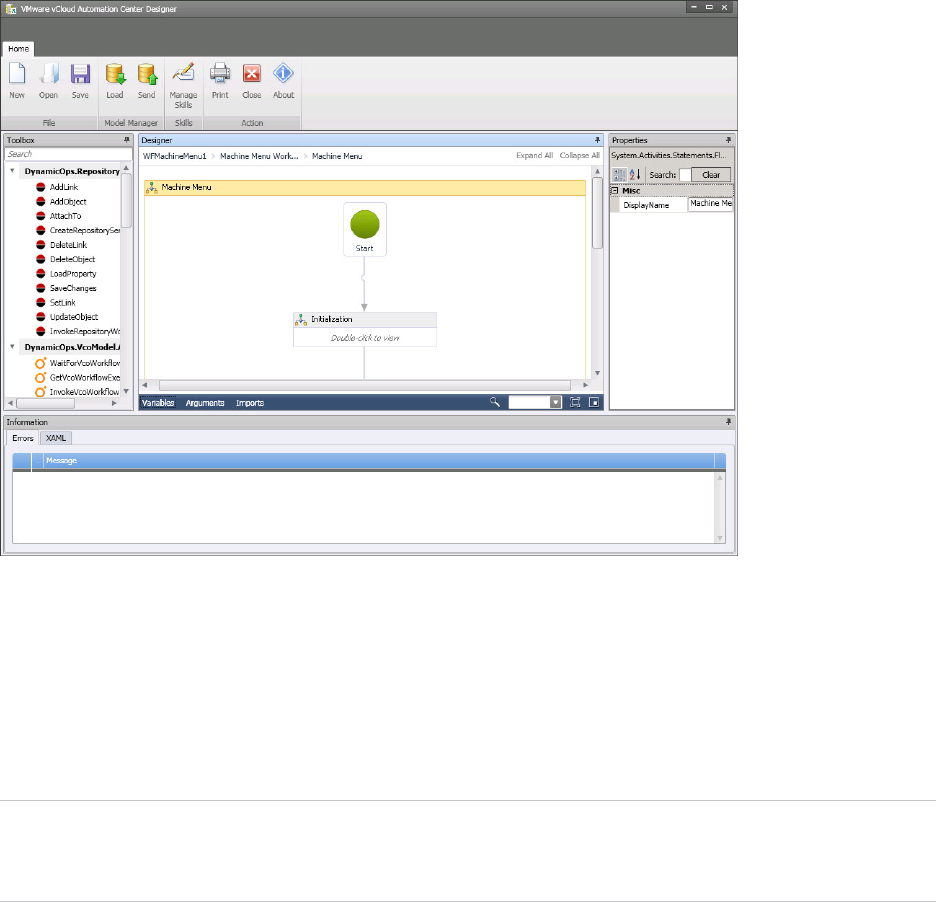
The Toolbox pane on the left provides access to the vRealize Automation workflow activity library. You
can drag activities from the toolbox onto the Designer pane to add them to a workflow. The Properties
pane displays the configurable properties of the currently selected activity on the Designer pane. This
interface is very similar to the workflow designer in Visual Studio.
The detail tabs at the bottom of the Designer pane enable you to display and edit variables within the
scope of the selected activity or arguments to the selected activity.
Note Variables and arguments are both specified as Visual Basic expressions. However, variable names
are not case sensitive while argument names are case sensitive. For information about valid arguments
for the IaaS workflow activities, see Chapter 8 vRealize Automation Workflow Activity Reference.
Life Cycle Extensibility
VMware, Inc. 62
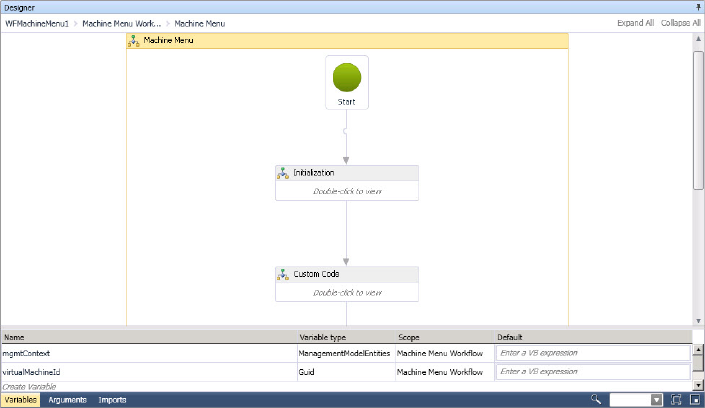
The Imports tab displays imported namespaces from which you can select entity types to add to the
workflow.
The collapsible Information pane at the bottom of the console displays any errors in configuring activities
and provides access to the XAML representation of the workflow.
IaaS Workflow Types
You can customize two types of workflows by using vRealize Automation Designer: state change
workflows and menu operation workflows.
nA state change workflow is executed when the master workflow transitions between states, for
example at a particular stage during the process of provisioning a new machine.
nA menu operation workflow is executed when a user selects an option from the Action menu in the
service catalog or from the machine menu in the Infrastructure tab.
State Change Workflows
Creating a state change workflow enables you to trigger the execution of a workflow before the IaaS
master workflow enters a specific state.
For example, you can create custom workflows to integrate with an external database and record
information at different stages of the machine life cycle:
nCreate a custom workflow that runs before the master workflow enters the MachineProvisioned state
to record such information as machine owner, approvers and so on.
nCreate a custom workflow that runs before a machine enters the MachineDisposing state to record
the time at which the machine was destroyed and data such as its resource utilization at last data
collection, last logon, and so on.
The following illustrations show the main states of the master workflow.
Life Cycle Extensibility
VMware, Inc. 63
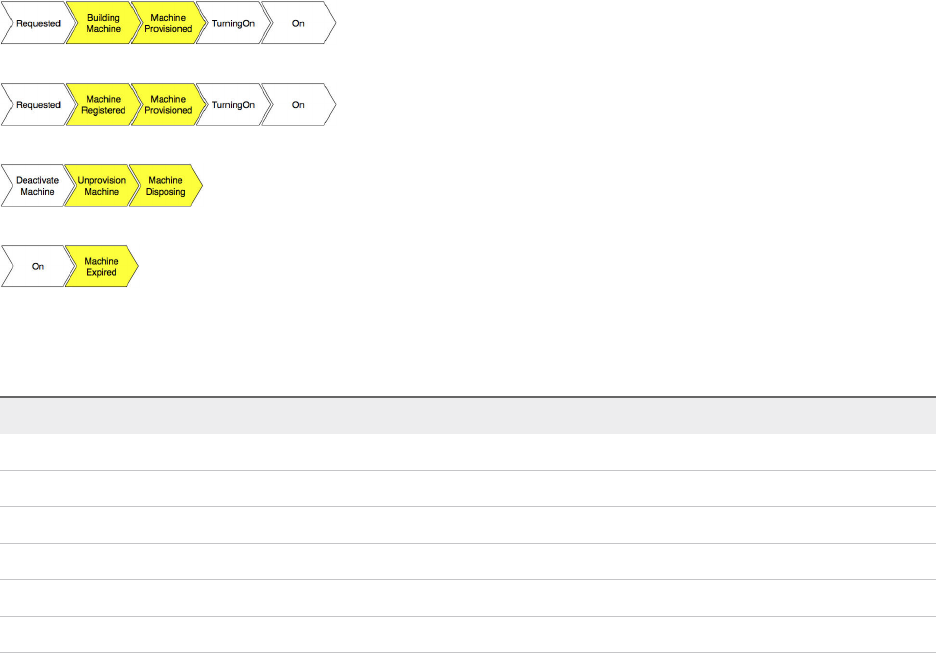
vRealize Automation Designer provides a customizable workflow for each of these states.
Table 5‑2. Customizable State Change Workflows
Master Workflow State Customizable Workflow Name
BuildingMachine WFStubBuildingMachine
Disposing WFStubMachineDisposing
Expired WFStubMachineExpired
MachineProvisioned WFStubMachineProvisioned
RegisterMachine WFStubMachineRegistered
UnprovisionMachine WFStubUnprovisionMachine
Configuring a State Change Workflow Overview
You can customize a state change workflow by using vRealize Automation Designer. A blueprint author
can then enable it for specific blueprints.
The following is a high-level overview of the steps required to enable state change workflows:
1 A workflow developer customizes one of the state change workflow templates by using vRealize
Automation Designer. See Customize an IaaS Workflow.
Any IaaS workflow can call a vRealize Orchestrator workflow. For more information, see Using
vRealize Orchestrator Workflow Activities.
2 A tenant administrator or business group manager configures a blueprint to call the customized
workflow for machines provisioned from that blueprint. See Configure a Blueprint to Call a State
Change Workflow.
Menu Operation Workflows
A menu operation workflow is executed when a user selects an option from the Actions menu in the
service catalog or the machine menu in the Infrastructure tab.
For example, you can create a custom workflow that enables a user to create a support ticket related to a
machine by selecting Raise Support Issue from the machine menu.
vRealize Automation Designer provides templates for customizing menu operation workflows.
Life Cycle Extensibility
VMware, Inc. 64

In addition to the workflow definition, a menu operation workflow depends on an operation configuration
file, which defines the aspects of the custom menu option such as the display text, which roles have
access to it, and the machine states for which the operation is available.
Note An XaaS architect can define custom actions for any catalog item by using the XaaS. Creating
custom actions for IaaS machines other than those provisioned by using vSphere or vCloud Director
requires vRealize Automation 6.1 or later.
Configuring a Menu Operation Workflow Overview
You can customize a menu operation workflow by using vRealize Automation Designer and the CloudUtil
command-line utility. A blueprint author can then enable it for specific blueprints.
The following is a high-level overview of the steps required to enable menu operation workflows:
1 A workflow developer customizes one of the menu operation workflow templates by using vRealize
Automation Designer. See Customize an IaaS Workflow.
Any IaaS workflow can call a vRealize Orchestrator workflow. For more information, see Using
vRealize Orchestrator Workflow Activities.
2 A workflow developer configures the menu operation in the Model Manager. See Configure a Menu
Operation.
3 A workflow developer registers the new menu operation with the service catalog. See Register New
Menu Operations with the Service Catalog.
4 A tenant administrator or business group manager configures a blueprint to enable the menu
operation for machines provisioned from that blueprint. See Configure a Blueprint to Enable a Menu
Operation Workflow.
If the menu operation is intended to be used in the service catalog, it must also be entitled to users. For
more information, see Tenant Administration.
Customize an IaaS Workflow
vRealize Automation Designer enables you to edit the customizable workflows and update workflows in
the Model Manager.
Prerequisites
Launch the vRealize Automation Designer.
Procedure
1Click Load.
Life Cycle Extensibility
VMware, Inc. 65
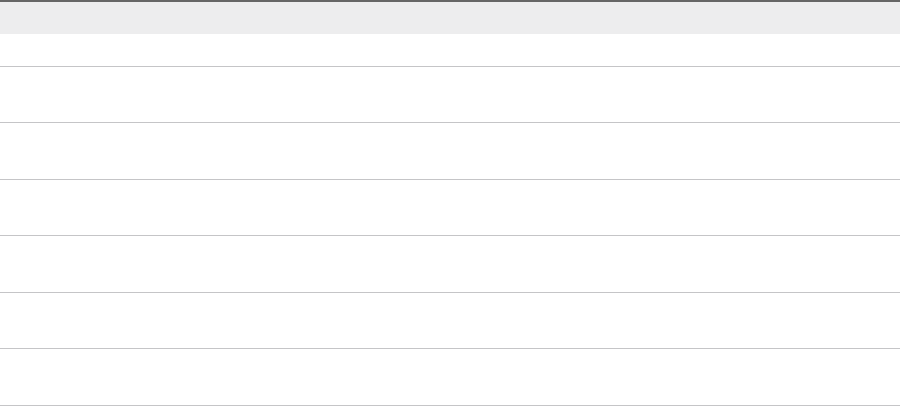
2Select the workflow that you want to customize.
Option Description
WFMachineMenuNCustomizable menu operation workflow
WFStubBuildingMachine Customizable state change workflow that executes before a machine enters the
BuildingMachine state
WFStubMachineDisposing Customizable state change workflow that executes before a machine enters the
Disposing state
WFStubMachineExpired Customizable state change workflow that executes before a machine enters the
Expired state
WFStubMachineProvisioned Customizable state change workflow that executes before a machine enters the
MachineProvisioned state
WFStubMachineRegistered Customizable state change workflow that executes before a machine enters the
RegisterMachine state
WFStubUnprovisionMachine Customizable state change workflow that executes before a machine enters the
UnprovisionMachine state
3Click OK.
The workflow displays in the Designer pane.
4Customize the workflow by dragging activities from the Toolbox to the Designer pane and configuring
their arguments.
5When you are finished editing the workflow, update the workflow in the Model Manager by clicking
Send.
The workflow is saved and appears as a new revision in the list the next time you load a workflow.
You can access an earlier version of a workflow at any time. See Revert to a Previous Revision of a
Workflow.
Using vRealize Orchestrator Workflow Activities
You can use vRealize Automation Designer activities to call vRealize Orchestrator workflows either
synchronously or asynchronously.
A vRealize Orchestrator endpoint is specified in one of the following ways:
nVirtualMachineId is the name of the variable representing the virtual machine ID. A virtual machine
with this ID is selected and the value that is retrieved from the
VMware.VCenterOrchestrator.EndpointName custom property for a virtual machine is used as the
vRealize Orchestrator endpoint name.
nGetVcoEndpointByManagementEndpoint returns the value of a custom property on a specified
ManagementEndpoint object. If the CustomPropertyName is not specified, the value of the
VMware.VCenterOrchestrator.EndpointName property is used.
nGetVcoEndpointByHost returns the value of a custom property on a specified host. If the
CustomPropertyName is not specified, the value of the
VMware.VCenterOrchestrator.EndpointName property is used.
Life Cycle Extensibility
VMware, Inc. 66
Synchronous Execution
The InvokeVcoWorkflow activity calls a vRealize Orchestrator workflow and blocks further execution of
its parent IaaS workflow until the vRealize Orchestrator workflow completes. The activity returns the
output parameters for the vRealize Orchestrator workflow.
In addition, the synchronous execution supports the following property:
nWorkflowTimeout is a timeout value in seconds. If the vRealize Orchestrator workflow does not
finish in the specified time, an exception is generated rather than blocking the workflow until a
response is returned. If no value is defined or a value of zero is supplied, the timeout is not activated.
The workflow status is checked every 10 seconds during that period unless the polling time is
modified for the endpoint by specifying a value in the
VMware.VCenterOrchestrator.PollingInterval custom property.
Asynchronous Execution
The InvokeVcoWorkflowAsync activity is a “fire and forget” activity that calls a vRealize Orchestrator
workflow and continues to execute activities in the IaaS workflow without waiting for the
vRealize Orchestrator workflow to complete.
The activity returns either a unique workflow execution token that can be used to monitor the workflow or
an error if the REST API call to the vRealize Orchestrator server failed (for example, if the server could
not be reached).
Two additional activities are available for use with this activity:
nGetVcoWorkflowExecutionStatus enables you to poll the vRealize Orchestrator workflow for its
status.
nWaitForVcoWorkflowCompletion enables you to block further execution of the IaaS workflow until
the vRealize Orchestrator workflow has completed or timed out. You can use this activity to retrieve
the results of a vRealize Orchestrator workflow that you execute asynchronously.
Call a vRealize Orchestrator Workflow
You can use either the InvokeVcoWorkflow or the InvokeVcoWorkflowAsync activity to call a
vRealize Orchestrator workflow from an IaaS workflow.
Some vRealize Orchestrator workflows require user interaction during execution. For these workflows, the
user prompt appears in the vRealize Orchestrator client rather than in the vRealize Automation console,
so it is not apparent to the end user in vRealize Automation that a workflow is waiting for input.
To avoid workflows that block on user input, do not call vRealize Orchestrator workflows that require user
interaction from IaaS workflows.
Procedure
1In vRealize Automation Designer, open a workflow and navigate to the context where you want to call
a vRealize Orchestrator workflow.
Life Cycle Extensibility
VMware, Inc. 67
2Drag the InvokeVcoWorkflow or the InvokeVcoWorkflowAsync activity into the Designer pane.
3Select the vCenter Orchestrator workflow to execute.
a Under General, click the ellipsis next to Workflow.
b In the Browse for vCO workflow dialog box, select a workflow.
c Click OK.
The Inputs and Outputs sections display the input and output parameters of the selected workflow.
4In the Properties pane, specify one of the following target parameters.
nVirtualMachineId is the name of the variable representing the virtual machine ID. A virtual
machine with this ID is selected and the value that is retrieved from the
VMware.VCenterOrchestrator.EndpointName custom property for a virtual machine is used as
the vRealize Orchestrator endpoint name.
nVcoEndpointName is the endpoint name that is used to run the workflow. If specified, this value
overrides the VirtualMachineId value when selecting the vRealize Orchestrator endpoint.
nWorkflowTimeout is a timeout value in seconds. If the vRealize Orchestrator workflow does not
finish in the specified time, an exception is generated rather than blocking the workflow until a
response is returned. If no value is defined or a value of zero is supplied, the timeout is not
activated. The workflow status is checked every 10 seconds during that period unless the polling
time is modified for the endpoint by specifying a value in the
VMware.VCenterOrchestrator.PollingInterval custom property.
5Specify the parameters for the vRealize Orchestrator workflow.
nEnter the values in the activity in the Designer pane.
nIn the Properties pane, click the ellipsis next to InputParameters or OutputParameters to open
the Parameters dialog box. This dialog box displays the IaaS type of each parameter. If the
parameter type appears in bold, the parameter is required.
Point to the text box for any parameter to view a tooltip indicating the vRealize Orchestrator type.
If you are using the InvokeVcoWorkflowAsync activity, the output parameters of the
vRealize Orchestrator workflow are displayed with their corresponding types for informational
purposes, but you cannot specify an expression for the parameter in this activity.
What to do next
To retrieve the results of a workflow that you execute asynchronously, use the
WaitForVcoWorkflowCompletion activity.
Get the Status of a vRealize Orchestrator Workflow
You can check the status of a vRealize Orchestrator workflow that was called with the
InvokeVcoWorkflowAsync activity using the GetVcoWorkflowExecutionStatus activity.
Life Cycle Extensibility
VMware, Inc. 68
Prerequisites
Call a vRealize Orchestrator Workflow using the InvokeVcoWorkflowAsync activity.
Procedure
1In vRealize Automation Designer, open a workflow where you have used the
InvokeVcoWorkflowAsync activity.
2Navigate to the context where you want to check the status of the vRealize Orchestrator workflow.
3Drag the GetVcoWorkflowExecutionStatus activity into the Designer pane.
4In the Properties pane, specify the name of the variable representing the virtual machine ID in
VirtualMachineId.
The customizable workflows contain a variable by default named virtualMachineId that is set
during initialization.
5Create a variable of type DynamicOps.VcoModel.Common.VcoWorkflowExecutionToken.
6Specify the name of the token variable as the executionToken output parameter on the
InvokeVcoWorkflowAsync activity.
7Specify the same variable name as the WorkflowExecutionToken property of the
GetVcoWorkflowExecutionStatus activity.
8Create a variable of type string.
9Specify the name of the string variable as the VcoWorkflowExecutionStatus property of the
GetVcoWorkflowExecutionStatus activity.
When the workflow runs, the value of the VcoWorkflowExecutionStatus variable is set to the status of
the vRealize Orchestrator workflow.
Get the Results of a vRealize Orchestrator Workflow
If you want to call a vRealize Orchestrator workflow asynchronously and then retrieve the results of the
completed workflow at a later point, you can use the WaitForVcoWorkflowCompletion activity.
The WaitForVcoWorkflowCompletion activity blocks execution of the IaaS workflow until the
vRealize Orchestrator workflow has completed or a timeout is reached. The activity returns the results of
the vRealize Orchestrator workflow if it completes successfully, an error if the workflow fails, or null if the
workflow times out.
Prerequisites
Call a vRealize Orchestrator Workflow using the InvokeVcoWorkflowAsync activity.
Procedure
1In vRealize Automation Designer, open a workflow where you have used the
InvokeVcoWorkflowAsync activity.
2Navigate to the context where you want to retrieve the results of the vRealize Orchestrator workflow.
Life Cycle Extensibility
VMware, Inc. 69
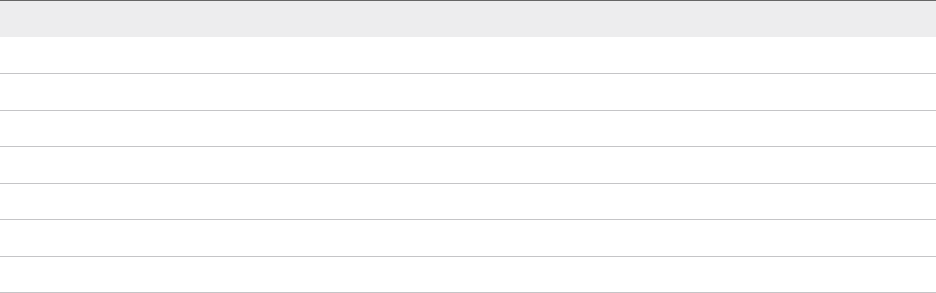
3Drag the WaitForVcoWorkflowCompletion activity into the Designer pane.
4In the Properties pane, specify the name of the variable representing the virtual machine ID in
VirtualMachineId.
The customizable workflows contain a variable by default named virtualMachineId that is set
during initialization.
5Create a variable of type DynamicOps.VcoModel.Common.VcoWorkflowExecutionToken.
6Create a variable of type DynamicOps.VcoModel.Common.VcoWorkflowExecutionToken.
7Specify the name of the token variable as the executionToken output parameter on the
InvokeVcoWorkflowAsync activity.
8Specify the same variable name as the WorkflowExecutionToken property of the
WaitForVcoWorkflowCompletion activity.
9Retrieve the output of the vRealize Orchestrator workflow.
a Create a variable of type DynamicOps.VcoModel.Common.VcoWorkflowExecutionResult.
b Specify the name of the results variable as the WorkflowOutput property of the
WaitForVcoWorkflowCompletion activity.
When the workflow runs, the value of the variable is set to the results of the vRealize Orchestrator
workflow, if any.
vRealize Orchestrator and IaaS Object Types
When you use either the InvokeVcoWorkflow or the InvokeVcoWorkflowAsync activity in vRealize
Automation Designer, input and output properties for the activity are automatically populated based on
the parameters of the vRealize Orchestrator workflow that you select.
vRealize Orchestrator primitive types are converted into the following IaaS types:
Table 5‑3. vRealize Orchestrator and IaaS Object Types
vRealize Orchestrator Type IaaS Type
string string
boolean bool
number decimal
SecureString string
Text string
Array/T Array<T>
Properties Dictionary<string,object>
Life Cycle Extensibility
VMware, Inc. 70
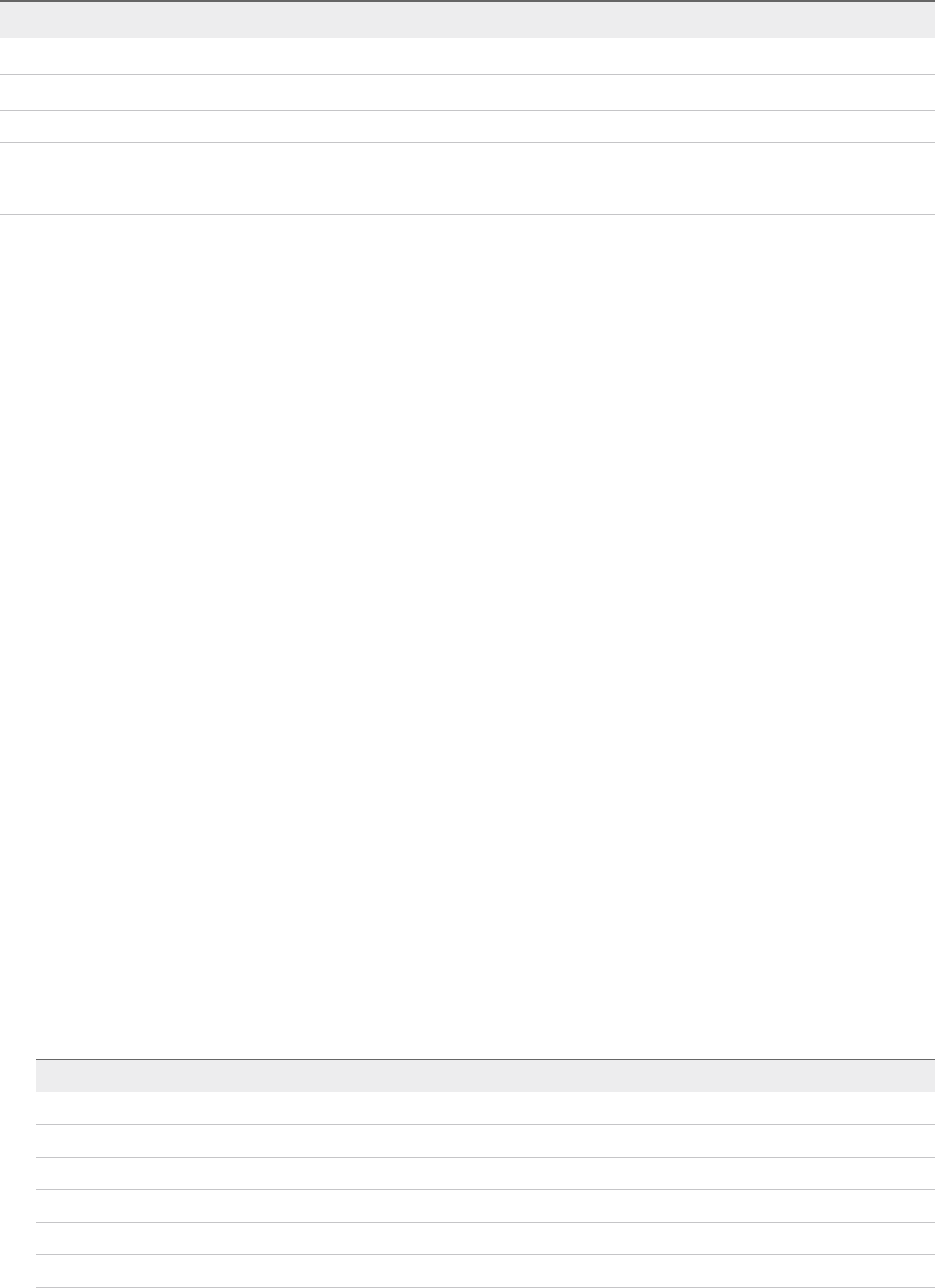
Table 5‑3. vRealize Orchestrator and IaaS Object Types (Continued)
vRealize Orchestrator Type IaaS Type
Date DateTime
VC:VirtualMachine VirtualMachine
Note If you are using vRealize Orchestrator 5.1, you must have installed the vRealize Automation
integration package to enable the conversion of VC:VirtualMachine object types to VirtualMachine.
All other vRealize Orchestrator types are converted to the IaaS type VcoSdkObject.
Configure a Blueprint to Call a State Change Workflow
After you create a custom state change workflow, a tenant administrator or business group manager must
enable it for specific blueprints by adding a custom property.
Each state change workflow is associated with a specific custom property. When a machine is entering a
state with a corresponding state change workflow, IaaS checks to see if the machine has the
corresponding custom property; if so, the associated workflow is executed. For example, if a machine has
the custom property ExternalWFStubs.MachineProvisioned, the WFStubMachineProvisioned
workflow is executed before the master workflow enters the MachineProvisioned state.
While custom properties can be applied to a machine from a number of sources, typically the property for
a state change workflow is specified in a blueprint, enabling the workflow for all machines provisioned
from that blueprint.
Prerequisites
Log in to the vRealize Automation console as a tenant administrator or business group manager.
Procedure
1Select Design > Blueprints.
2Point to the name of a blueprint and click Edit.
3Click the Properties tab.
4Click New Property.
5Type the name of the custom property associated with the workflow you want to enable in the Name
text box.
Customizable Workflow Name Associated Property Name
WFStubMachineProvisioned ExternalWFStubs.MachineProvisioned
WFStubBuildingMachine ExternalWFStubs.BuildingMachine
WFStubMachineDisposing ExternalWFStubs.MachineDisposing
WFStubUnprovisionMachine ExternalWFStubs.UnprovisionMachine
WFStubMachineRegistered ExternalWFStubs.MachineRegistered
WFStubMachineExpired ExternalWFStubs.MachineExpired
Life Cycle Extensibility
VMware, Inc. 71

6Leave the Value text box blank.
The workflow depends on the presence of the property, not on any particular value.
7Click the Save icon ( ).
8Click OK.
The workflow is now enabled for new machines that are provisioned from this blueprint.
Configuring a Menu Operation Workflow
After you customize a menu operation workflow, additional configuration is required before it is available
to users in the vRealize Automation console.
Configure a Menu Operation
To configure a menu operation, you create an operation configuration file and install it in the Model
Manager.
Procedure
1Create an Operation Configuration File
The operation configuration file is required for menu operation workflows. It specifies the aspects of
the custom menu option in the vRealize Automation console such as the display text, which roles
have access to the option, and the machine states for which the option is available.
2Install an Operation in the Model Manager
You install an operation in the Model Manager by using the CloudUtil command-line utility.
What to do next
If the menu operation is intended to be used in the service catalog, it must be registered with the service
catalog so that it can be entitled to users. Register New Menu Operations with the Service Catalog.
Create an Operation Configuration File
The operation configuration file is required for menu operation workflows. It specifies the aspects of the
custom menu option in the vRealize Automation console such as the display text, which roles have
access to the option, and the machine states for which the option is available.
Procedure
1Create a new XML file.
<?xml version="1.0" encoding="utf-8"?>
Life Cycle Extensibility
VMware, Inc. 72
2Create the root element customOperations.
<customOperations xmlns="http://www.dynamicops.com/schemas/2009/OperationConfig/">
</customOperations>
The element must specify the XML namespace
http://www.dynamicops.com/schemas/2009/OperationConfig/.
3For each operation you want to define, add an operation element within customOperations.
<operation name="WFMachineMenu1" displayName="Execute Machine Menu task">
</operation>
The operation element takes the following attributes:
Attribute Description
name The name of the workflow that this operation executes.
displayName A descriptive label for the option in the machine menu.
4Specify the roles to grant access to the menu operation.
a Add the authorizedTasks element.
<operation name="WFMachineMenu1" displayName="Execute Machine Menu task">
<authorizedTasks>
</authorizedTasks>
</operation>
b For each role that you want to grant access to the operation, add a task element, for example:
<authorizedTasks>
<task>VRM User Custom Event</task>
<task>VRM Support Custom Event</task>
<task>Group Administrator Custom Event</task>
<task>Enterprise Administrator Custom Event</task>
<task>VRM Administrator Custom Event</task>
</authorizedTasks>
The valid contents of the task element are as follows:
Element content Description
VRM User Custom Event Grants access to the operation for all users.
VRM Support Custom Event Grants access to the operation for support users.
Group Administrator Custom Event Grants access to the operation for business group managers.
Enterprise Administrator Custom
Event
Grants access to the operation for fabric administrators.
VRM Administrator Custom Event Grants access to the operation for IaaS administrators only.
Life Cycle Extensibility
VMware, Inc. 73
5(Optional) Specify the machine states for which the operation is available.
a Add the machineStates element.
<operation name="WFMachineMenu1" displayName="Execute Machine Menu task">
<machineStates>
</machineStates>
</operation>
b For each state in which the operation should be available, add a state element.
<machineStates>
<state>On</state>
<state>Off</state>
</machineStates>
The value may be any of the possible machine states. For a full list of machine states, see IaaS
Configuration for Virtual Platforms, IaaS Configuration for Physical Machines, or IaaS
Configuration for Cloud Platforms.
If the element is omitted, the operation is available for all machine states.
The following is an example of a complete operation configuration file:
<?xml version="1.0" encoding="utf-8" ?>
<customOperations xmlns="http://www.dynamicops.com/schemas/2009/OperationConfig/">
<operation name="WFMachineMenu1" displayName="Execute Machine Menu task">
<authorizedTasks>
<task>VRM User Custom Event</task>
<task>VRM Support Custom Event</task>
<task>Group Administrator Custom Event</task>
<task>Enterprise Administrator Custom Event</task>
<task>VRM Administrator Custom Event</task>
</authorizedTasks>
<machineStates>
<state>On</state>
<state>Off</state>
</machineStates>
</operation>
</customOperations>
Install an Operation in the Model Manager
You install an operation in the Model Manager by using the CloudUtil command-line utility.
Prerequisites
Create an Operation Configuration File.
Procedure
1Open an elevated command prompt.
Life Cycle Extensibility
VMware, Inc. 74
2Run the CloudUtil.exe command with the following arguments.
nCloudUtil.exe Operation-Create -c <path to operation definition file>
nOptionally, you can specify a Model Manager host and request a stack trace in case of error.
CloudUtil.exe Operation-Create -c <path to operation definition file>
--repository <Model Manager Root URI> -v
What to do next
If the menu operation is intended to be used in the service catalog, it must be registered with the service
catalog so that it can be entitled to users. Register New Menu Operations with the Service Catalog.
Register New Menu Operations with the Service Catalog
After installing new menu operations, the workflow developer must register them with the service catalog
so they can be entitled to users.
Prerequisites
nConfigure a Menu Operation.
nLog in to the IaaS Model Manager host as a local user with administrator privileges.
Procedure
1Open an elevated command prompt.
2Navigate to the IaaS root installation directory.
In a typical installation, this is C:\Program Files (x86)\VMware\vCAC.
3Navigate to Server\Model Manager Data\Cafe.
4Execute the following command:
Vcac-Config.exe RegisterCatalogTypes -v
What to do next
A tenant administrator or business group manager must entitle the new action before it is available to
users in the service catalog. For more information, see Tenant Administration.
Configure a Blueprint to Enable a Menu Operation Workflow
You enable a menu operation workflow for machines provisioned from a specific blueprint by updating the
security configuration for the blueprint.
Prerequisites
Log in to the vRealize Automation console as a tenant administrator or business group manager.
Life Cycle Extensibility
VMware, Inc. 75
Procedure
1Select Design > Blueprints.
2Point to the name of a blueprint and click Edit.
3Click the Actions tab.
4Select the checkbox that corresponds to the operation that you want to enable.
5Click OK.
The menu operation is now enabled for machines provisioned from this blueprint and available to all user
roles specified in the operation configuration file.
What to do next
If the menu operation is intended to be used in the service catalog, it must also be entitled to users. For
more information, see Tenant Administration.
Revert to a Previous Revision of a Workflow
The Load Workflow dialog displays all revisions of a workflow in the Model Manager so that you have
access to the full version history of the workflows.
Each time you send a workflow to the Model Manager, the Revision and Time Stamp are updated.
Prerequisites
Launch the vRealize Automation Designer console.
Procedure
1Click Load.
2Select the revision of the workflow that you want to revert to.
The original workflows provided by VMware are revision 0 (zero).
3Click OK.
4Update the workflow in the Model Manager by clicking Send.
The earlier revision becomes the latest revision in the Model Manager. For example, if you have created
revisions 1 and 2 of a workflow, then load and save revision 0, revisions 0 and 3 are now identical and
you have returned the workflow to the version provided by VMware.
Life Cycle Extensibility
VMware, Inc. 76
Workflows and Distributed
Execution Management 6
You can use skills to restrict execution of workflows to specific Distributed Execution Managers.
A skill is similar to a tag that you can apply to both workflows and DEM Worker instances. If a workflow is
not associated with any skills, any DEM Worker can execute it. If a workflow is associated with one or
more skills, then only DEM Workers that are associated with all of the same skills can execute it.
Skills are useful when a particular workflow requires a DEM installed on a host with specific prerequisites.
For example, you may want to restrict cloud provisioning workflows to a specific DEM running on a host
with the required network access to Amazon URLs.
Skills can also be used to associate workflows with a particular data center location. For example, you
might install one DEM in your Boston data center and another in your London data center, and use skills
to direct certain operations to one data center or the other.
This chapter includes the following topics:
nAssociate Workflows and DEM Workers by Using Skills
nRemove Associations between Skills and DEM Workers
nRemove Associations between Skills and Workflows
nRemove a Skill
Associate Workflows and DEM Workers by Using Skills
You associate workflows with a specific DEM Worker or set of Worker instances by adding a skill to the
Model Manager and then associating the skill with one or more workflows and DEM Workers.
Prerequisites
Launch the vRealize Automation Designer console.
Procedure
1On the ribbon, click Manage Skills.
2In the text field at the upper left of the Manage Skills dialog, type the name of a new skill and click
the Add button.
The skill name must be unique. If the name of the new skill matches the name of an existing skill, the
Add button is unavailable.
VMware, Inc. 77

3Select the name of the skill in the list on the left.
4Associate the skill with one or more DEM Workers.
aClick the Add icon ( ) next to Distributed Execution Managers.
b In the Select DEMs dialog, select one or more DEM Worker instances.
c Click OK.
5Associate the skill with one or more Workflows.
aClick the Add icon ( ) next to Workflows.
b In the Select Workflows dialog, select one or more workflows.
c Click OK.
The workflows associated with this skill can only be executed by the DEM Workers that are
associated with this skill.
6When you are done adding skills and associating them with DEM workers and workflows, click OK to
close the Manage Skills dialog and save your changes to the Model Manager.
Remove Associations between Skills and DEM Workers
When you remove the association between a skill and a DEM Worker, that Worker instance can no longer
execute the workflows associated with the skill.
Prerequisites
Launch the vRealize Automation Designer console.
Procedure
1On the ribbon, click Manage Skills.
2In the Manage Skills dialog, select the name of the skill in the list on the left.
3Select the name of one or more DEM Worker instances from the Distributed Execution Managers list
and click the Remove icon ( ).
4Click OK to close the Manage Skills dialog and save your changes to the Model Manager.
Remove Associations between Skills and Workflows
When you remove the association between a skill and a workflow, that workflow is no longer restricted to
the DEM Workers that are associated with the same skill.
Prerequisites
Launch the vRealize Automation Designer console.
Procedure
1On the ribbon, click Manage Skills.
Life Cycle Extensibility
VMware, Inc. 78

2In the Manage Skills dialog, select the name of the skill in the list on the left.
3Select the name of one or more workflows from the Workflows list and click the Remove icon ( ).
4Click OK to close the Manage Skills dialog and save your changes to the Model Manager.
Remove a Skill
Removing a skill also removes its associations to any DEM Workers and workflows.
Prerequisites
Launch the vRealize Automation Designer console.
Procedure
1On the ribbon, click Manage Skills.
2In the Manage Skills dialog, select the name of the skill in the list on the left.
3Click the Remove icon ( ) at the top of the list of skills.
After you confirm that you want to delete the skill, its name appears dimmed to indicate that it is
marked for deletion.
4Click OK to close the Manage Skills dialog and save your changes to the Model Manager or Cancel
if you do not want to delete the skill and its associations with DEMs and workflows.
Life Cycle Extensibility
VMware, Inc. 79

CloudUtil Command Reference 7
This section provides a reference to the commands in the CloudUtil command line interface.
CloudUtil is the command line interface for the vRealize Automation Designer. You run the commands on
the Windows machine on which you are running the designer. The default installation location on the
Windows machine is C:\Program Files (x86)\VMware\vCAC\Design Center.
Note In the CloudUtil commands, the Model Manager is referred to as the repository and a Distributed
Execution Manager (DEM) is referred to as an agent.
This chapter includes the following topics:
nDEM Commands
nFile Commands
nOperation Commands
nSkill Commands
nWorkflow Commands
nImport Commands
DEM Commands
The DEM commands enable you to view a list of Distributed Execution Managers registered with the
Model Manager and add or remove associations between skills and DEMs.
DEM-Add-Skills
Associates skills with a registered Distributed Execution Manager.
Synopsis
CloudUtil.exe DEM-Add-Skills -n|--name <Name> -s|--skills <Skills> [--repository <Model Manager Root
URI>] [-v|--verbose]
VMware, Inc. 80
DEM-Add-Skills Arguments
Argument Description
-n | - -name Name of a registered Distributed Execution Manager.
- -repository (Optional) The root URI of the Model Manager, for example, http://hostname/repository. Default is
specified in the CloudUtil config file in the repositoryAddress key under the <appSettings>
section.
-s | - -skills Comma-delimited list of skills to associate with this Distributed Execution Manager.
-v | - -verbose (Optional) If an error occurs, outputs a stack trace instead of just the exception message.
Note The skills must already exist in the Model Manager. See Skill-Install.
DEM-List
Lists all Distributed Execution Managers registered with the Model Manager and their associated skills.
Synopsis
CloudUtil.exe DEM-List [--repository <Model Manager Root URI>] [-v|--verbose]
DEM-List Arguments
Argument Description
- -repository (Optional) The root URI of the Model Manager, for example, http://hostname/repository. Default is
specified in the CloudUtil config file in the repositoryAddress key under the <appSettings>
section.
-v | - -verbose (Optional) If an error occurs, outputs a stack trace instead of just the exception message.
DEM-Remove-Skills
Removes association between skills and a Distributed Execution Manager.
Synopsis
CloudUtil.exe DEM-Remove-Skills -n|--name <Name> -s|--skills <Skills> [--repository <Model Manager
Root URI>] [-v|--verbose]
DEM-Remove-Skills Arguments
Argument Description
-n | - -name Name of a registered Distributed Execution Manager.
- -repository (Optional) The root URI of the Model Manager, for example, http://hostname/repository. Default is
specified in the CloudUtil config file in the repositoryAddress key under the <appSettings>
section.
Life Cycle Extensibility
VMware, Inc. 81
Argument Description
-s | - -skills Comma-delimited list of skills to remove from this Distributed Execution Manager.
-v | - -verbose (Optional) If an error occurs, outputs a stack trace instead of just the exception message.
File Commands
The File commands enable you to store and manage files (typically scripts) in the Model Manager.
File-Export
Exports a file from the Model Manager.
Synopsis
CloudUtil.exe File-Export -n|--name <Name> -o|--output <Output File> [-i|--iteration <Iteration>] [--
repository <Model Manager Root URI>] [-v|--verbose]
File-Export Arguments
Argument Description
-i | - -iteration (Optional) Version string of the file in the Model Manager. Default is 0.0.
-n | - -name Friendly name of the file in the Model Manager.
-o | - -output Path for file output.
- -repository (Optional) The root URI of the Model Manager, for example, http://hostname/repository. Default is
specified in the CloudUtil config file in the repositoryAddress key under the <appSettings>
section.
-v | - -verbose (Optional) If an error occurs, outputs a stack trace instead of just the exception message.
File-Import
Imports a file into the Model Manager.
Synopsis
CloudUtil.exe File-Import -n|--name <Name> -f|--filename <File Name> [-d|--description <Description>]
[-i|--iteration <Iteration>] [--repository <Model Manager Root URI>] [-v|--verbose]
File-Import Arguments
Argument Description
-d | - -description (Optional) Description of the file.
-f | - -filename Path to a file to import into the Model Manager.
-i | - -iteration (Optional) Version string of the file in the Model Manager. Default is 0.0.
Life Cycle Extensibility
VMware, Inc. 82
Argument Description
-n | - -name Friendly name to assign to the file in the Model Manager.
- -repository (Optional) The root URI of the Model Manager, for example, http://hostname/repository. Default is
specified in the CloudUtil config file in the repositoryAddress key under the <appSettings>
section.
-v | - -verbose (Optional) If an error occurs, outputs a stack trace instead of just the exception message.
File-List
Lists all files imported into the Model Manager.
Synopsis
CloudUtil.exe File-List [--repository <Model Manager Root URI>] [-v|--verbose]
File-List Arguments
Argument Description
- -repository (Optional) The root URI of the Model Manager, for example, http://hostname/repository. Default is
specified in the CloudUtil config file in the repositoryAddress key under the <appSettings>
section.
-v | - -verbose (Optional) If an error occurs, outputs a stack trace instead of just the exception message.
File-Remove-All
Removes all revisions for a given version of a file from the Model Manager.
Synopsis
CloudUtil.exe File-Remove-All -n|--name <Name> [-i|--iteration <Iteration>]
[--repository <Model Manager Root URI>] [-v|--verbose]
File-Remove-All Arguments
Table 7‑1.
Argument Description
-i | - -iteration (Optional) Version string of the file in the Model Manager. Default is 0.0.
-n | - -name Friendly name of the file in the Model Manager.
- -repository (Optional) The root URI of the Model Manager, for example, http://hostname/repository. Default is
specified in the CloudUtil config file in the repositoryAddress key under the <appSettings>
section.
-v | - -verbose (Optional) If an error occurs, outputs a stack trace instead of just the exception message.
Life Cycle Extensibility
VMware, Inc. 83
File-Remove-Rev
Removes a specific revision of a file from the Model Manager.
Synopsis
CloudUtil.exe File-Remove-Rev -n|--name <Name> -r|--revision <Revision> [-i|--iteration <Iteration>]
[--repository <Model Manager Root URI>] [-v|--verbose]
File-Export Arguments
Argument Description
-i | - -iteration (Optional) Version string of the file in the Model Manager. Default is 0.0.
-n | - -name Friendly name of the file in the Model Manager.
-r | - -revision Revision of the file to remove.
- -repository (Optional) The root URI of the Model Manager, for example, http://hostname/repository. Default is
specified in the CloudUtil config file in the repositoryAddress key under the <appSettings>
section.
-v | - -verbose (Optional) If an error occurs, outputs a stack trace instead of just the exception message.
File-Rollback
Reverts a file in the Model Manager to a specified revision.
Synopsis
CloudUtil.exe File-Rollback -n|--name <Name> -r|--revision <Revision> [-i|--iteration <Iteration>] [--
repository <Model Manager Root URI>] [-v|--verbose]
File-Rollback Arguments
Table 7‑2.
Argument Description
-i | - -iteration (Optional) Version string of the file in the Model Manager. Default is 0.0.
-n | - -name Friendly name of the file in the Model Manager.
-r | - -revision Revision of the file to revert to.
- -repository (Optional) The root URI of the Model Manager, for example, http://hostname/repository. Default is
specified in the CloudUtil config file in the repositoryAddress key under the <appSettings>
section.
-v | - -verbose (Optional) If an error occurs, outputs a stack trace instead of just the exception message.
Life Cycle Extensibility
VMware, Inc. 84
File-Update
Updates a previously imported file in the Model Manager with a new revision.
Synopsis
CloudUtil.exe File-Update -n|--name <Name> -f|--filename <File Name> [-i|--iteration <Iteration>] [--
repository <Model Manager Root URI>] [-v|--verbose]
File-Update Arguments
Argument Description
-f | - -filename Path to the updated file.
-i | - -iteration (Optional) Version string of the file in the Model Manager. Default is 0.0.
-n | - -name Friendly name of the file in the Model Manager.
- -repository (Optional) The root URI of the Model Manager, for example, http://hostname/repository. Default is
specified in the CloudUtil config file in the repositoryAddress key under the <appSettings>
section.
-v | - -verbose (Optional) If an error occurs, outputs a stack trace instead of just the exception message.
Operation Commands
The Operation commands enable you to manage custom operations in the Model Manager.
Operation-Create
Creates a custom operation or set of operations that can be performed on a machine based on an
operation definition file.
Synopsis
CloudUtil.exe Operation-Create -c|--operationConfig <Operation Definition File> [--repository <Model
Manager Root URI>] [-v|--verbose]
Operation-Create Arguments
Argument Description
-c | - -operationConfig Path to an operation definition file (XML).
- -repository (Optional) The root URI of the Model Manager, for example, http://hostname/repository. Default is
specified in the CloudUtil config file in the repositoryAddress key under the <appSettings>
section.
-v | - -verbose (Optional) If an error occurs, outputs a stack trace instead of just the exception message.
Life Cycle Extensibility
VMware, Inc. 85
Operation-Delete
Deletes a custom operation from the Model Manager.
Synopsis
CloudUtil.exe Operation-Delete -n|--name <Name> [--force] [--repository <Model Manager
Root URI>] [-v|--verbose]
Operation-Delete Arguments
Argument Description
- -force (Optional) Force deletion of the operation.
-n | - -name Name of the custom operation in the Model Manager.
- -repository (Optional) The root URI of the Model Manager, for example, http://hostname/repository. Default is
specified in the CloudUtil config file in the repositoryAddress key under the <appSettings>
section.
-v | - -verbose (Optional) If an error occurs, outputs a stack trace instead of just the exception message.
Operation-List
Lists all custom operations in the Model Manager.
Synopsis
CloudUtil.exe Operation-List [--repository <Model Manager Root URI>] [-v|--verbose]
Operation-List Arguments
Argument Description
- -repository (Optional) The root URI of the Model Manager, for example, http://hostname/repository. Default is
specified in the CloudUtil config file in the repositoryAddress key under the <appSettings>
section.
-v | - -verbose (Optional) If an error occurs, outputs a stack trace instead of just the exception message.
Skill Commands
The Skill commands enable you to manage the skills associated with Distributed Execution Managers
and workflows.
Skill-Install
Installs a skill in the Model Manager.
Life Cycle Extensibility
VMware, Inc. 86
Synopsis
CloudUtil.exe Skill-Install -n|--name <Name> [--repository <Model Manager Root URI>] [-v|--verbose]
Skill-Install Arguments
Argument Description
-n | - -name Name for the skill in the Model Manager.
- -repository (Optional) The root URI of the Model Manager, for example, http://hostname/repository. Default is
specified in the CloudUtil config file in the repositoryAddress key under the <appSettings>
section.
-v | - -verbose (Optional) If an error occurs, outputs a stack trace instead of just the exception message.
Skill-List
List all skills installed in the Model Manager.
Synopsis
CloudUtil.exe Skill-List [--repository <Model Manager Root URI>] [-v|--verbose]
Skill-List Arguments
Argument Description
- -repository (Optional) The root URI of the Model Manager, for example, http://hostname/repository. Default is
specified in the CloudUtil config file in the repositoryAddress key under the <appSettings>
section.
-v | - -verbose (Optional) If an error occurs, outputs a stack trace instead of just the exception message.
Skill-Uninstall
Uninstall a skill from the Model Manager.
Synopsis
CloudUtil.exe Skill-Uninstall -n|--name <Name> [--repository <Model Manager Root URI>]
[-v|--verbose]
Life Cycle Extensibility
VMware, Inc. 87
Skill-Uninstall Arguments
Argument Description
-n | - -name Name of the skill to uninstall from the Model Manager.
- -repository (Optional) The root URI of the Model Manager, for example, http://hostname/repository. Default is
specified in the CloudUtil config file in the repositoryAddress key under the <appSettings>
section.
-v | - -verbose (Optional) If an error occurs, outputs a stack trace instead of just the exception message.
Note A skill cannot be uninstalled if it is associated with either a Distributed Execution Manager or a
workflow. See DEM-Remove-Skills or Workflow-Remove-Skills.
Workflow Commands
The Workflow commands enable you to manage customizable IaaS workflows in the Model Manager, as
well as the skills associated with any workflows.
Workflow-Add-Skills
Associate skills with a workflow in the Model Manager.
CloudUtil.exe Workflow-Add-Skills -n|--name <Name> -s|--skills <Skills> [--repository <Model Manager
Root URI>] [-v|--verbose]
Table 7‑3. Workflow-Add-Skills Arguments
Argument Description
Name Name of a workflow in the Model Manager.
Skills Comma-delimited list of skills to associate with this workflow.
- -repository (Optional) The root URI of the Model Manager, for example, http://hostname/repository. Default is
specified in the CloudUtil config file in the repositoryAddress key under the <appSettings>
section.
-v | - -verbose (Optional) If an error occurs, outputs a stack trace instead of just the exception message.
Note The skills must already exist in the Model Manager. See Skill-Install.
Workflow-List
List all workflows installed in the Model Manager and their associated skills.
CloudUtil.exe Workflow-List [--repository <Model Manager Root URI>] [-v|--verbose]
Life Cycle Extensibility
VMware, Inc. 88
Table 7‑4. Workflow-List Arguments
Argument Description
- -repository (Optional) The root URI of the Model Manager, for example, http://hostname/repository. Default is
specified in the CloudUtil config file in the repositoryAddress key under the <appSettings>
section.
-v | - -verbose (Optional) If an error occurs, outputs a stack trace instead of just the exception message.
Workflow-Remove-Skills
Removes association between skills and a workflow in the Model Manager.
Synopsis
CloudUtil.exe Workflow-Remove-Skills -n|--name <Name> -s|--skills <Skills> [--repository
<Model Manager Root URI>] [-v|--verbose]
Workflow-Remove-Skills Arguments
Argument Description
-n | - -name Name of a workflow in the Model Manager.
- -repository (Optional) The root URI of the Model Manager, for example, http://hostname/repository. Default is
specified in the CloudUtil config file in the repositoryAddress key under the <appSettings>
section.
-s | - -skills Comma-delimited list of skills to remove from this workflow.
-v | - -verbose (Optional) If an error occurs, outputs a stack trace instead of just the exception message.
Workflow-Rollback
Reverts a workflow to a given revision.
Synopsis
CloudUtil.exe Workflow-Rollback -n|--name <Name> -r|--revision <Revision> [--repository <Model Manager
Root URI>] [-v|--verbose]
Workflow-Rollback Arguments
Argument Description
-n | - -name Name of the workflow in the Model Manager.
- -repository (Optional) The root URI of the Model Manager, for example, http://hostname/repository. Default is
specified in the CloudUtil config file in the repositoryAddress key under the <appSettings>
section.
Life Cycle Extensibility
VMware, Inc. 89
Argument Description
-r | - -revision Revision of the workflow to revert to.
-v | - -verbose (Optional) If an error occurs, outputs a stack trace instead of just the exception message.
Workflow-Update
Update a customizable workflow with a new revision.
CloudUtil.exe Workflow-Update -f|--filename <File Name> -n|--name <Name> [-d|--description
<Description>] [--repository <Model Manager Root URI>] [-v|--verbose]
Table 7‑5. Workflow-Update Arguments
Argument Description
File Name Path to a file (XAML) containing the updated workflow.
Name Name of the workflow to update.
Description (Optional) Description of workflow.
- -repository (Optional) The root URI of the Model Manager, for example, http://hostname/repository. Default is
specified in the CloudUtil config file in the repositoryAddress key under the <appSettings>
section.
-v | - -verbose (Optional) If an error occurs, outputs a stack trace instead of just the exception message.
Import Commands
The import commands enable you to import one or more virtual machines into a vRealize Automation
deployment.
Machine-BulkRegisterExport
Creates a CSV data file that is used to import virtual machines to a vRealize Automation deployment.
Synopsis
CloudUtil.exe Machine-BulkRegisterExport [-b|--blueprint] [-m|--managed] [-e|--exportNames] [-p|--
properties] -f|--filename <Value> [-g|--group <Value>] [-i|--ignore] [-o|--owner <Value>] [-t|--
machinetype <Value>] [-n|--resourceName <Value>] [-r|--resourceType <Value>] [--repository <Value>] [-
sn|--sourcename <Value>] [-st|--sourcetype <Value>] -u|--user <value> [-v|--verbose]
Machine-BulkRegisterExport Arguments
Table 7‑6.
Argument Description
-b | - -blueprint (Optional) Include blueprint name.
-e | - -exportNames (Optional) Export names instead of GUIDs.
Life Cycle Extensibility
VMware, Inc. 90
Table 7‑6. (Continued)
Argument Description
-f | - -filename Specify the name of the CSV data file containing a list of
machine names, for example, filename.csv. File is saved in
the current path by default. You can also specify the complete
path to a preferred directory.
-g | - -group (Optional) Specify business group name, for example,
Engineering.
-i | - -ignore (Optional) Ignore invalid arguments.
-m | - -managed (Optional) Export managed virtual machines. The default is
export unmanaged virtual machines.
-n | - -resourceName (Optional) To filter by resource name, specify the name of the
Compute Resource or Endpoint.
-o | - -owner (Optional) Specify owner of imported virtual machine, for
example, jsmith.
-p | - -properties (Optional) Export properties for managed virtual machines.
-r | - -resourceType (Optional) To filter by resource type, specify 1 for Compute
Resource or 2 for Endpoint .
- -repository (Optional) The root URI of the Model Manager, for example,
http://hostname/repository. Default is specified in the CloudUtil
config file in the repositoryAddress key under the <appSettings>
section.
-sn | - -sourcename (Optional) Specify the name of the cluster or endpoint.
-st | - -sourcetype (Optional) Specify the source type as Cluster or Endpoint.
-t | - -machinetype (Optional) Specify machine type to be exported, for example,
Virtual, Physical, Cloud, AppService, vApp.
-u | - -user Specify the Fabric Administrator who performs the bulk
registration.
-v | - -verbose (Optional) If an error occurs, outputs a stack trace instead of just
the exception message.
Machine-BulkRegisterImport
Imports one or more virtual machines to a target vRealize Automation deployment.
Synopsis
CloudUtil.exe Machine-BulkRegisterImport [-b|--batch][-d|--delay <value>] -f|--filename <value> [-i|--
ignore] [-h|--humanreadable] -n|--name <value> [--repository <value>] [-s|--skipUser] -t|--time
<value> -u|--user <value> [-v|--verbose] [-w|--whatIf]
Life Cycle Extensibility
VMware, Inc. 91

Machine-BulkRegisterImport Arguments
Table 7‑7.
Argument Description
-b | - -batch (Optional) Batch size.
-d | - -delay (Optional) Specify processing delay time in this format:
hh:mm:ss, for example, 02:20:10.
-f | - -filename Specify the CSV data file name containing the list of machine
names. For example, filename.csv.
-h | --humanreadable (Optional) Input file contains the virtual machine names and not
the GUIDs.
-i | - -ignore (Optional) Ignore registered or managed virtual machines.
-n | - -name Specify the name of the work queue to perform the import to the
target vRealize Automation.
- -repository (Optional) The root URI of the Model Manager, for example,
http://hostname/repository. Default is specified in the CloudUtil
config file in the repositoryAddress key under the <appSettings>
section.
-s | - -skipUser (Optional) Sets a machine's owner to the value listed in the
Owner column of the CSV data file without verifying that the
user exists. Selecting this option can decrease the time required
for import.
-t | - -time Specify the workflow start time in the format MM/DD/YYYY
hh:mm GMT, for example, 04/18/2014 10:01 GMT. The specified
start time is assumed to be the server's local time and not the
local time of the user's workstation.
-u | - -user Specify the Fabric Administrator who performs the bulk
registration.
-v | - -verbose (Optional) If an error occurs, outputs a stack trace instead of just
the exception message.
whatif (Optional) Set to validate the CSV file but do not import any
virtual machines.
Life Cycle Extensibility
VMware, Inc. 92

vRealize Automation Workflow
Activity Reference 8
VMware provides a library of workflow activities with vRealize Automation Designer for use in customizing
workflows.
Note The CDK is deprecated beginning with vRealize Automation 7.0. You can use the
vRealize Orchestrator workflows to address use cases that you previously addressed with CDK.
Five categories of Windows Workflow Foundation activities are also included in vRealize Automation
Designer, including Control Flow, Flowchart, Primitives, Collection and Error Handling.
This section provides a reference to the IaaS workflow activities included with vRealize Automation
Designer in the DynamicOps.Repository.Activities and DynamicOps.Cdk.Activities
namespaces. Activities related to calling vRealize Orchestrator workflows are described in Using vRealize
Orchestrator Workflow Activities.
Note In the IaaS activity library, the Model Manager is referred to as the repository.
This chapter includes the following topics:
nDynamicOps.Repository.Activities
nDynamicOps.Cdk.Activities
DynamicOps.Repository.Activities
The DynamicOps.Repository.Activities namespace contains basic workflow activities for IaaS
workflows.
Note The CDK is deprecated beginning with vRealize Automation 7.0. You can use the
vRealize Orchestrator workflows to address use cases that you previously addressed with CDK.
AddLink
Adds the specified link to the set of objects the DataServiceContext is tracking.
VMware, Inc. 93
Table 8‑1. AddLink Activity Input Parameters
Argument Type Description
DataServiceContext RepositoryServiceContext The DataServiceContext to which to add the link.
Source Object The source object for the new link.
SourceProperty String The name of the navigation property on the source object that
returns the related object.
Target Object The object related to the source object by the new link.
AddObject
Adds the specified object to the set of objects the DataServiceContext is tracking.
Table 8‑2. AddObject Activity Input Parameters
Argument Type Description
DataServiceContext RepositoryServiceContext The DataServiceContext to which to add the object.
Instance Object The object to be tracked by the DataServiceContext.
AttachTo
Notifies the DataServiceContext to start tracking the specified resource.
Table 8‑3. AttachTo Activity Input Parameters
Argument Type Description
DataServiceContext RepositoryServiceContext The DataServiceContext that should track the resource.
Instance Object The resource to be tracked by the DataServiceContext. The
resource is attached in the Unchanged state.
CreateRepositoryServiceContext<T>
Creates a context for a model loaded into the Model Manager.
When you add this activity to a workflow in vRealize Automation Designer, you must select a class that
inherits from the RepositoryServiceContext class.
Table 8‑4. CreateRepositoryServiceContext<T> Activity Input Parameters
Argument Type Description
Uri URI (Optional) Root URI to use in connecting to the model.
Username String (Optional) Username to use in connecting to the context.
Table 8‑5. CreateRepositoryServiceContext<T> Activity Output Parameters
Argument Type Description
Result RepositoryServiceContext The specific type returned is an instance of the class selected
when the activity was added to the workflow.
Life Cycle Extensibility
VMware, Inc. 94
DeleteLink
Changes the state of the link to deleted in the list of links being tracked by the DataServiceContext.
Table 8‑6. DeleteLink Activity Input Parameters
Argument Type Description
DataServiceContext RepositoryServiceContext The DataServiceContext from which to delete the link.
Source Object The source object in the link to be marked for deletion.
SourceProperty String The name of the navigation property on the source object that is
used to access the target object.
Target Object The target object involved in the link that is bound to the source
object. The target object must be of the type identified by the
source property or a subtype.
DeleteObject
Changes the state of the specified object to be deleted in the DataServiceContext.
Table 8‑7. DeleteObject Activity Input Parameters
Argument Type Description
DataServiceContext RepositoryServiceContext The DataServiceContext from which to delete the resource.
Instance Object The tracked entity to be changed to the deleted state.
InvokeRepositoryWorkflow
Executes a workflow installed in the Model Manager.
Table 8‑8. InvokeRepositoryWorkflow Activity Input Parameters
Argument Type Description
WorkflowType WorkflowDefinition entity The workflow to execute.
WorkflowInputs Dictionary<string, object> (Optional) Inputs to the workflow.
CallingInstance WorkflowInstance entity (Optional) The workflow that calls the executed workflow and to
which it will return.
LoadProperty
Loads deferred content for a specified property from the data service.
Life Cycle Extensibility
VMware, Inc. 95
Table 8‑9. LoadProperty Activity Input Parameters
Argument Type Description
DataServiceContext RepositoryServiceContext The DataServiceContext from which to load the property.
Instance Object The entity that contains the property to load.
InstanceProperty String The name of the property of the specified entity to load.
SaveChanges
Saves the changes that the DataServiceContext is tracking to storage.
Table 8‑10. SaveChanges Activity Input Parameters
Argument Type Description
DataServiceContext RepositoryServiceContext The DataServiceContext that is tracking the changes to save.
SetLink
Notifies the DataServiceContext that a new link exists between the objects specified and that the link is
represented by the property specified in the SourceProperty argument.
Table 8‑11. SetLink Activity Input Parameters
Argument Type Description
DataServiceContext RepositoryServiceContext The DataServiceContext to notify of the link.
Source Object The source object for the new link.
SourceProperty String The property on the source object that identifies the target object
of the new link.
Target Object The child object involved in the new link to initialize by calling
this method. The target object must be a subtype of the type
identified by SourceProperty. If Target is set to null, the call
represents a delete link operation.
UpdateObject
Changes the state of the specified object in the DataServiceContext to Modified.
Table 8‑12. UpdateObject Activity Input Parameters
Argument Type Description
DataServiceContext RepositoryServiceContext The DataServiceContext tracking the entity to update.
Instance Object The tracked entity to be assigned to the Modified state.
Life Cycle Extensibility
VMware, Inc. 96
DynamicOps.Cdk.Activities
The DynamicOps.Cdk.Activities namespace contains advanced activities for IaaS workflows.
Note The CDK is deprecated beginning with vRealize Automation 7.0. You can use the
vRealize Orchestrator workflows to address use cases that you previously addressed with CDK.
ExecutePowerShellScript
Executes a PowerShell script stored in the Model Manager under the specified name.
Before you use the ExecutePowerShellScript activity, you must first load the script that you want to
execute into the Model Manager using the CloudUtil File-Import command.
Table 8‑13. ExecutePowerShellScript Activity Input Parameters
Argument Type Description
ScriptName String Name in the Model Manager of the script to execute.
ScriptVersion Object (Optional) Version in the Model Manager of the script to execute.
Default is 0.0.
MachineId Guid (Optional) If specified, the machine is loaded and all its
properties are passed to the script.
Arguments Dictionary<string,string> Additional arguments to pass to the script. If MachineId is
specified and there is a machine property with the same name
as an argument (case-insensitive), the value of the machine
property overrides the value of the argument.
PSModules IEnumerable<string> (Optional) Modules loaded into the PowerShell runtime during
command execution.
This option is only available in the Properties pane and not in
the Designer pane.
Table 8‑14. ExecutePowerShellScript Activity Output Parameters
Argument Type Description
Output Collection<PSObject> Output of script if any. Throws exception on error.
If you receive the error message Type PSObject is not defined in the vRealize Automation Designer
console when you are dealing with the output of ExecutePowerShellScript, perform the following
steps:
1 Click Imports in the lower left corner of the Designer pane.
2 Select the System.Management.Automation assembly.
ExecuteSshScript
Executes an SSH script stored in the model manager under the specified name.
Life Cycle Extensibility
VMware, Inc. 97
Before you use the ExecuteSshScript activity, you must first load the script that you want to execute
into the Model Manager using the CloudUtil File-Import command.
Table 8‑15. ExecuteSshScript Activity Input Parameters
Argument Type Description
ScriptName String Name in the Model Manager of the script to execute.
Host String Server name against which to execute the script.
Username String Username to use in connecting to the host.
Password String Password to use in connecting to the host.
ScriptVersion Object (Optional) Version in the Model Manager of the script to execute.
Default is 0.0.
Timeout TimeSpan (Optional) Period of time after which execution of the script times
out. Default is 30 minutes.
Table 8‑16. ExecuteSshScript Activity Output Parameters
Argument Type Description
EnvironmentVariables Dictionary<string, string> Script execution result if any.
GetMachineName
Gets a machine’s name.
Table 8‑17. GetMachineName Activity Input Parameters
Argument Type Description
MachineId Guid The machine whose name to retrieve.
Table 8‑18. GetMachineName Activity Output Parameters
Argument Type Description
MachineName String Name of the machine identifed by MachineId.
GetMachineOwner
Gets the username of a machine’s owner.
Table 8‑19. GetMachineOwner Activity Input Parameters
Argument Type Description
MachineId Guid The machine whose owner to retrieve.
Table 8‑20. GetMachineOwner Activity Output Parameters
Argument Type Description
Owner String Owner of the machine identified by MachineId, or null if there is
no owner.
Life Cycle Extensibility
VMware, Inc. 98
GetMachineProperties
Gets the list of custom properties associated with a machine.
Table 8‑21. GetMachineProperties Activity Input Parameters
Argument Type Description
MachineId Guid The machine whose properties to retrieve.
Table 8‑22. GetMachineProperties Activity Output Parameters
Argument Type Description
Properties Dictionary<string, string> List of the machine’s properties. Values are returned decrypted if
they were stored encrypted.
GetMachineProperty
Gets the value of the specified property for a machine.
Table 8‑23. GetMachineProperty Activity Input Parameters
Argument Type Description
MachineId Guid The machine from which to retrieve a property.
PropertyName String Name of the property whose value to return.
IsRequired bool If the property is required and is not found the activity throws an
exception, otherwise returns null.
Table 8‑24. GetMachineProperty Activity Output Parameters
Argument Type Description
PropertyValue String Value of the property specified by PropertyName. The value is
returned decrypted if it was stored encrypted.
GetScriptFromName
Gets the contents of the script stored in the Model Manager under the specified name.
Table 8‑25. GetScriptFromName Activity Input Parameters
Argument Type Description
ScriptName String Name in the Model Manager of the script to retrieve.
ScriptVersion Object (Optional) Version in the Model Manager of the script to retrieve.
Default is 0.0.
Table 8‑26. GetScriptFromName Activity Output Parameters
Argument Type Description
ScriptContent String Contents of the script identified by ScriptName.
Life Cycle Extensibility
VMware, Inc. 99
InvokePowerShell
Executes a PowerShell command.
Table 8‑27. InvokePowerShell Activity Input Parameters
Argument Type Description
CommandText String Command to execute.
Arguments IEnumerable<string> (Optional) Arguments to the command.
Input IEnumerable (Optional) The input pipeline.
IsScript bool (Optional) Indicates whether CommandText is a script. Default is
False.
This option is only available in the Properties pane and not in
the Designer pane.
Parameters Collection (Optional) Collection of name-value pairs passed as parameters
to the PowerShell script.
This option is only available in the Properties pane and not in
the Designer pane.
PowerShellVariables Collection (Optional) Variables copied into the PowerShell runtime.
This option is only available in the Properties pane and not in
the Designer pane.
PSModules IEnumerable<string> (Optional) Modules loaded into the PowerShell runtime during
command execution.
This option is only available in the Properties pane and not in
the Designer pane.
Runspace Runspace (Optional) Creating a PowerShell runspace and supplying it to
this argument enables you to reuse the same runspace in
multiple PowerShell invocations, which may result in
performance improvements.
This option is only available in the Properties pane and not in
the Designer pane.
Table 8‑28. InvokePowerShell Activity Output Parameters
Argument Type Description
Output Collection<PSObject> Output of command if any. Throws exception on error.
Errors Collection<ErrorRecord> Errors resulting from execution if any.
If you receive the error message Type PSObject is not defined in the vRealize Automation Designer
console when you are dealing with the output of ExecutePowerShellScript, perform the following
steps:
1 Click Imports in the lower left corner of the Designer pane.
2 Select the System.Management.Automation assembly.
Life Cycle Extensibility
VMware, Inc. 100
InvokeSshCommand
Executes an SSH command.
Table 8‑29. InvokeSshCommand Activity Input Parameters
Argument Type Description
CommandText String Command to execute.
Host String Server name against which to execute the command.
Username String Username to use in connecting to the host.
Password String Password to use in connecting to the host.
Timeout TimeSpan (Optional) Period of time after which execution of the command
times out. Default is 30 minutes.
Table 8‑30. InvokeSshCommand Activity Output Parameters
Argument Type Description
EnvironmentVariables Dictionary<string, string> Output of command if any. Throws exception on error.
LogMachineEvent
Logs a machine event to the user log that is visible to the machine owner.
Table 8‑31. LogMachineEvent Activity Input Parameters
Argument Type Description
MachineId Guid Machine generating the event to log.
Message String Message to write to the user log.
Type String Select a message type from the drop-down list (Info, Warn,
Error)
LogMessage
Logs to the Distributed Execution Manager log.
Table 8‑32. LogMessage Activity Input Parameters
Argument Type Description
Message String Message to write to the DEM log.
MessageCategory String Select a category from the drop-down menu (Debug, Error,
Info, Trace) or enter a custom category.
MessageSeverity String Select a severity from the drop-down menu; bound to the list of
Severities supplied in System.Diagnostics.TraceEventType.
Life Cycle Extensibility
VMware, Inc. 101
RunProcess
Executes a process on the same machine as the DEM that executes this activity.
Note vRealize Automation cannot present the UI from processes launched by the RunProcess activity to
the user, therefore these process must be non-interactive. In order to avoid leaving orphaned processes
on the DEM machine, the processes must also be self-terminating.
Table 8‑33. RunProcess Activity Input Parameters
Argument Type Description
Command String Path to the executable to run on the DEM machine.
WorkingDirectory String (Optional) The working directory under which the process should
run.
Arguments String (Optional) The list of command-line arguments to pass to the
command.
WaitForExit bool (Optional) If true, the workflow waits for the process to complete
before continuing with the workflow. Default is false.
This option is only available in the Properties pane and not in
the Designer pane.
SendEmail
Sends an email to the given set of addresses.
Table 8‑34. SendEmail Activity Input Parameters
Argument Type Description
To IEnumerable<string> The list of addresses to which to send the email.
From String The address with which to populate the “From” field of the email.
Subject String The subject line for the email.
Body String The body text of the email.
Host String The host name or IP address of the outgoing SMTP server.
Port Integer The SMTP port on the server specified in Host.
This option is only available in the Properties pane and not in
the Designer pane.
CC IEnumerable<string> (Optional) The address or list of addresses to copy on the email.
This option is only available in the Properties pane and not in
the Designer pane.
Bcc IEnumerable<string> (Optional) The address or list of addresses to blind copy on the
email.
This option is only available in the Properties pane and not in
the Designer pane.
Life Cycle Extensibility
VMware, Inc. 102
Table 8‑34. SendEmail Activity Input Parameters (Continued)
Argument Type Description
EnableSsl bool (Optional) Indicates whether to use SSL.
This option is only available in the Properties pane and not in
the Designer pane.
UserName String The user name with which to authenticate with the SMTP server
specified in Host .
This option is only available in the Properties pane and not in
the Designer pane.
Password String The password of the user specified in UserName.
This option is only available in the Properties pane and not in
the Designer pane.
SetMachineProperty
Creates or updates a custom property on a machine.
Table 8‑35. SetMachineProperty Activity Input Parameters
Argument Type Description
MachineId Guid Machine on which to create or update the custom property.
PropertyName String Name of property to create or update.
PropertyValue String Value with which to create or update the property.
IsEncrypted bool (Optional) Indicates whether the value of the property is
encrypted.
IsHidden bool (Optional) Indicates whether the property is a hidden property.
IsRuntime bool (Optional) Indicates whether the requesting user provides the
property value at request time (equivalent to being marked
Prompt User in the vRealize Automation console).
SetWorkflowResult
Sets an external workflow’s state to either Complete or Failed to be honored by ExternalWF.xml
settings.
Table 8‑36. SetWorkflowResult Activity Input Parameters
Argument Type Description
WorkflowId Guid The workflow for which to set the state.
Next State WorkflowState Select Complete or Failed from the drop-down menu.
Life Cycle Extensibility
VMware, Inc. 103
