Pelco CM6800 32X6 Matrix Switcher_manual User Manual To The Af14ea25 0ebb 4b82 Ac68 7bdd5f9579c4
User Manual: Pelco CM6800-32X6 to the manual
Open the PDF directly: View PDF  .
.
Page Count: 80
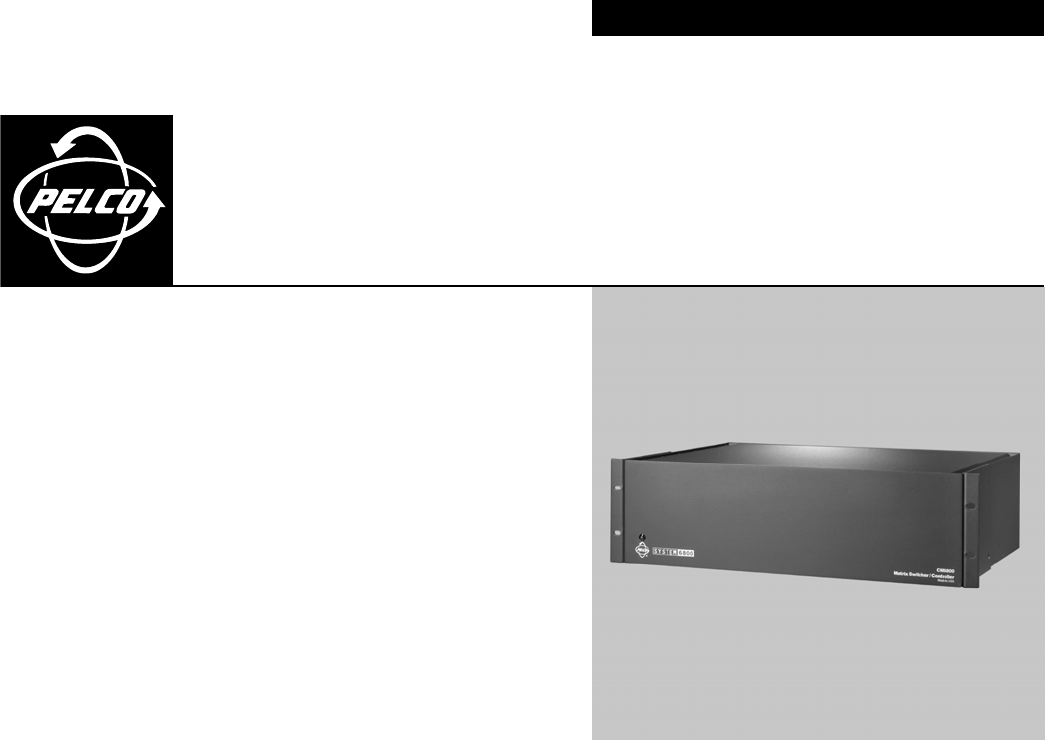
CM6800-32X6
Matrix Switcher
C1522M-C (2/05)
®
INSTALLATION/OPERATION

2C1522M-C (2/05)
CONTENTS
Section Page
IMPORTANT SAFEGUARDS AND WARNINGS .................................................................................................................................................................. 6
DESCRIPTION ..................................................................................................................................................................................................................... 7
MODELS ................................................................................................................................................................................................................... 10
ASSOCIATED EQUIPMENT .............................................................................................................................................................................. 10
COMPATIBLE PRODUCTS ......................................................................................................................................................................................... 10
ADDITIONAL RESOURCES ........................................................................................................................................................................................ 10
INSTALLATION ................................................................................................................................................................................................................... 11
MOUNTING .............................................................................................................................................................................................................. 11
VIDEO SOURCES ....................................................................................................................................................................................................... 12
CONTROL LINES ....................................................................................................................................................................................................... 14
MONITORS ............................................................................................................................................................................................................... 15
ALARMS ................................................................................................................................................................................................................... 16
CONNECTING DEVICES THROUGH THE COMMUNICATION PORTS ....................................................................................................................... 17
KBD100, KBD200A, AND KBD300A SERIES KEYBOARDS.............................................................................................................................. 19
KBD100, KBD200A, AND KBD300A: DIRECT-POWERED KEYBOARD ............................................................................................................. 19
KBD100, KBD200A, AND KBD300A: REMOTE KEYBOARDS .......................................................................................................................... 21
M DEVICES ...................................................................................................................................................................................................... 22
CONNECTING A PC ......................................................................................................................................................................................... 27
CONNECTING GENEX MULTIPLEXERS ............................................................................................................................................................ 28
LOCAL AUXILIARIES ................................................................................................................................................................................................. 29
SYSTEM START-UP............................................................................................................................................................................................................ 31
POWER-UP THE SYSTEM ......................................................................................................................................................................................... 31
INITIALIZE KEYBOARDS ........................................................................................................................................................................................... 31
CONFIGURE THE SYSTEM ........................................................................................................................................................................................ 31
COMMUNICATION PORTS .............................................................................................................................................................................. 32
KBD960/KBR960 KEYBOARD .......................................................................................................................................................................... 32
GENEX MULTIPLEXER ...................................................................................................................................................................................... 32
MONITOR COLOR ADJUSTMENT:................................................................................................................................................................... 33
PROGRAM PRESETS ........................................................................................................................................................................................ 33
ADDITIONAL PROGRAMMING........................................................................................................................................................................ 33
PROGRAMMING THE CM6800 ......................................................................................................................................................................................... 34
CM6800 PROGRAMMING MODE ............................................................................................................................................................................ 35
NAVIGATE AND SELECT OPTIONS/FIELD ENTRIES IN PROGRAMMING MODE............................................................................................ 36
ACCESS .................................................................................................................................................................................................................... 38
ALARM PROGRAMMING ......................................................................................................................................................................................... 39
PROGRAM ALARM GROUPS ........................................................................................................................................................................... 39
INTERNAL AND EXTERNAL ALARMS ............................................................................................................................................................. 40
PROGRAM A VIDEO LOSS ALARM ................................................................................................................................................................. 41
AUXILIARY OUTPUTS ............................................................................................................................................................................................... 42
CAMERA PROGRAMMING ....................................................................................................................................................................................... 43
PROGRAM LOGICAL NUMBERS...................................................................................................................................................................... 43
PROGRAM CAMERAS ..................................................................................................................................................................................... 44
EVENT TIMERS ......................................................................................................................................................................................................... 46
MACRO ..................................................................................................................................................................................................................... 47
MACRO STATUS VIEW SCREEN ..................................................................................................................................................................... 47
MONITOR DISPLAY .................................................................................................................................................................................................. 48
PASSWORD .............................................................................................................................................................................................................. 50
PORTS (SERIAL/COM PORTS) .................................................................................................................................................................................. 51
PRIORITY ................................................................................................................................................................................................................... 52
SEQUENCE ................................................................................................................................................................................................................ 52
TIME AND DATE ....................................................................................................................................................................................................... 54
PATTERNS, PRESETS, AND ZONES.......................................................................................................................................................................... 54
C1522M-C (2/05) 3
OPERATION ........................................................................................................................................................................................................................ 55
OVERVIEW ................................................................................................................................................................................................................ 55
OPERATING THE CM6800......................................................................................................................................................................................... 55
SWITCH MONITORS ....................................................................................................................................................................................... 55
SELECT CAMERAS .......................................................................................................................................................................................... 56
CONTROL RECEIVERS ...................................................................................................................................................................................... 56
OPERATE SEQUENCES..................................................................................................................................................................................... 57
RUN A MACRO ................................................................................................................................................................................................ 58
ACKNOWLEDGE AN ALARM .......................................................................................................................................................................... 58
CALL A PRESET ................................................................................................................................................................................................ 59
CREATE AND RUN A PATTERN ....................................................................................................................................................................... 59
OPERATE AUXILIARIES/RELAYS ...................................................................................................................................................................... 60
CONTROL GENEX MULTIPLEXER AND GENEX MULTIPLEXER DISPLAYS ....................................................................................................... 61
OPERATE SCANNING FUNCTIONS ................................................................................................................................................................. 61
DETECT VIDEO LOSS ....................................................................................................................................................................................... 61
DEFINE ZONES ................................................................................................................................................................................................ 61
APPENDIX .......................................................................................................................................................................................................................... 62
CM6800 DIP SWITCHES ........................................................................................................................................................................................... 62
ALARM GROUP DISPLAY OPTIONS................................................................................................................................................................. 63
MACRO COMMANDS .............................................................................................................................................................................................. 65
ASCII OPERATING COMMANDS .............................................................................................................................................................................. 67
TROUBLESHOOTING ................................................................................................................................................................................................. 70
GAINING INITIAL CONTROL ............................................................................................................................................................................ 70
SOFTWARE RESET ........................................................................................................................................................................................... 70
SOLUTIONS TO COMMON PROBLEMS .......................................................................................................................................................... 71
KBD960/KBR960 ICON/BUTTON LEGEND ............................................................................................................................................................... 72
GLOSSARY ......................................................................................................................................................................................................................... 73
INDEX ................................................................................................................................................................................................................................ 76
SPECIFICATIONS ................................................................................................................................................................................................................ 78
REGULATORY NOTICES ..................................................................................................................................................................................................... 79
WARRANTY AND RETURN INFORMATION ...................................................................................................................................................................... 79

4C1522M-C (2/05)
LIST OF ILLUSTRATIONS
Figure Page
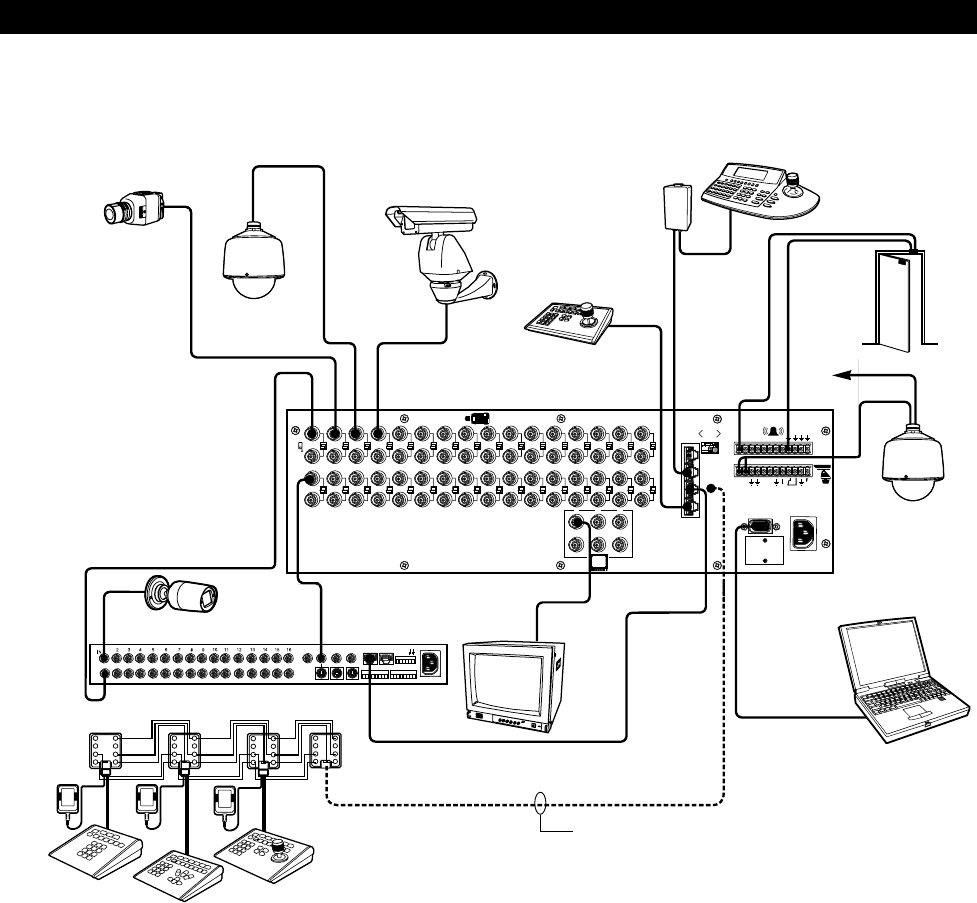
1Sample CM6800-32X6 System ........................................................................................................................................................................ 7
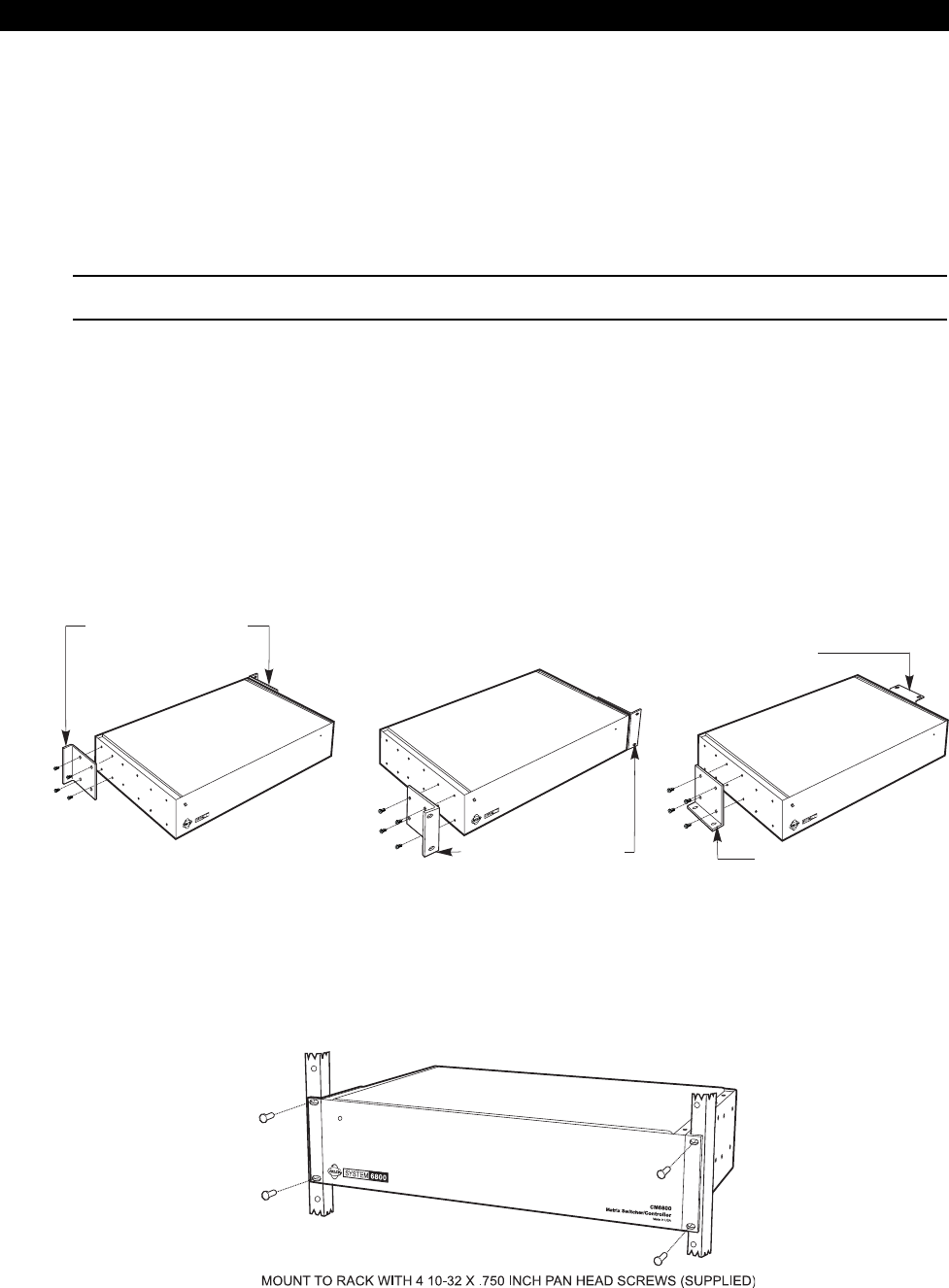
2Installing Rack Ears ......................................................................................................................................................................................... 11
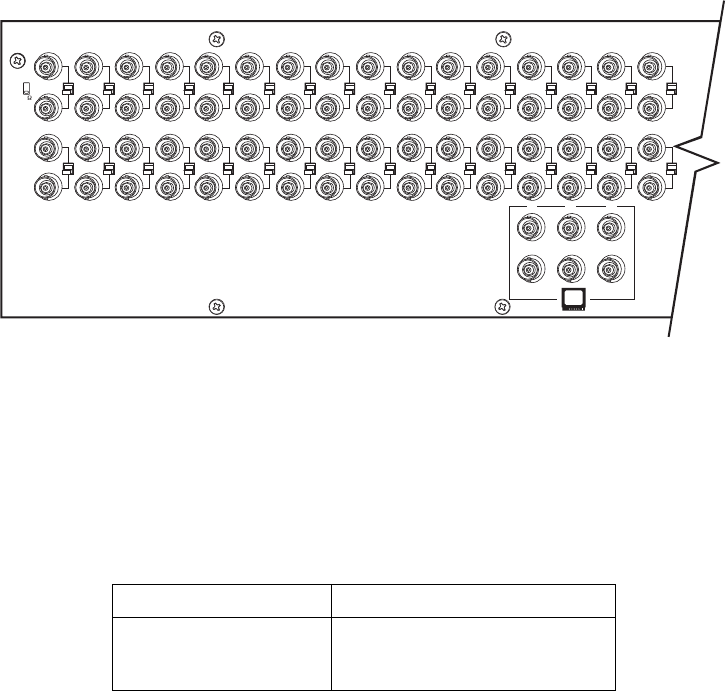
3Mounting the CM6800 Matrix Switcher/Controller ....................................................................................................................................... 11
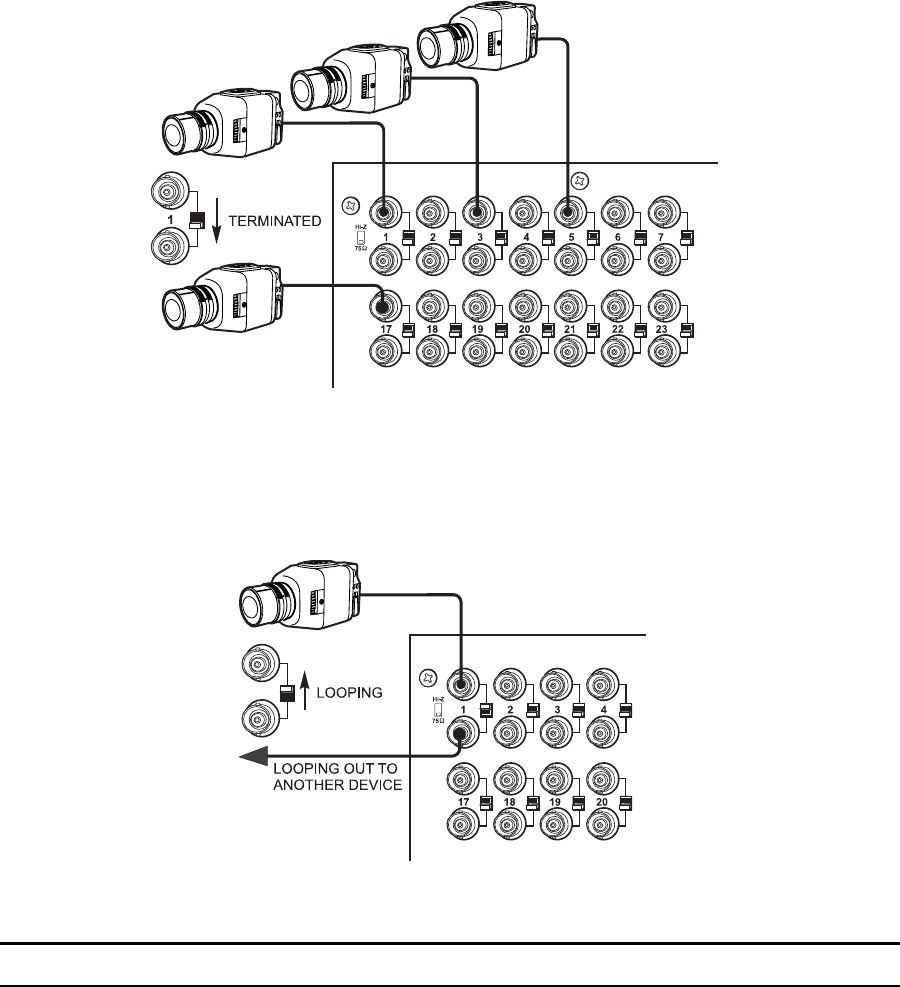
4CM6800-32X6 Video Inputs............................................................................................................................................................................. 12
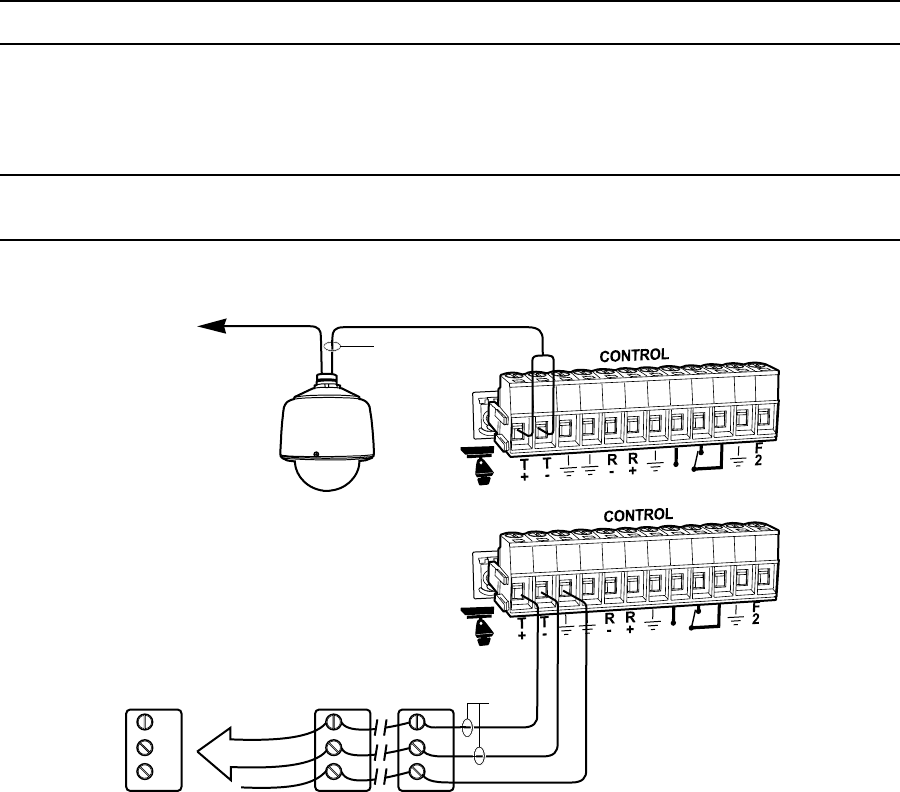
5Connecting Terminated Video Sources ........................................................................................................................................................... 13
6Connecting Looping Video Sources ................................................................................................................................................................. 13
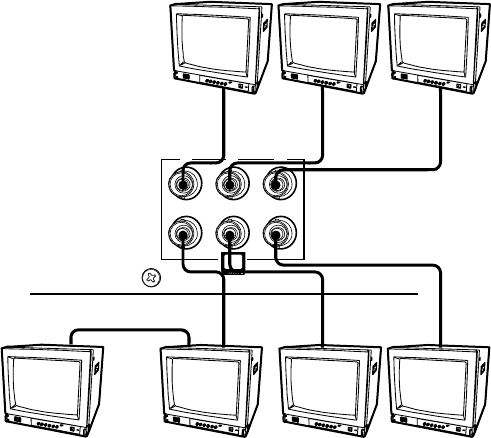
7PTZ Control Connections ................................................................................................................................................................................. 14
8Connecting Monitors ....................................................................................................................................................................................... 15
9Connecting Alarms .......................................................................................................................................................................................... 16
10 Communication Port Inputs ............................................................................................................................................................................. 17
11 CM6800-32X6 Communication Port Connections and Options ...................................................................................................................... 18
12 Data Cable Plugged into Local Keyboard ........................................................................................................................................................ 19
13 Data Cable Plugged into COM 5 ..................................................................................................................................................................... 19
14 Remote Keyboards .......................................................................................................................................................................................... 21
15 RJ-45 Cable Types ........................................................................................................................................................................................... 22
16 Connecting a KBD960/KBR960 to the CM6800-32X6..................................................................................................................................... 23
17 Connecting a Single ALM2064 Alarm Interface Unit ...................................................................................................................................... 24
18 Connecting a Single REL2064 Relay Interface Unit ........................................................................................................................................ 24
19 Connecting Multiple M Devices – Local Connection ...................................................................................................................................... 25
20 Connecting Multiple M Devices – Remote Connection.................................................................................................................................. 26
21 PC Connection to DB9 Port .............................................................................................................................................................................. 27
22 Connecting Genex Multiplexers ...................................................................................................................................................................... 28
23 Wiring the AUX 1 (Relay) Output .................................................................................................................................................................... 29
24 Wiring the F2 (TTL) Output .............................................................................................................................................................................. 30
25 CM6800 Time/Date Stamp on Monitor ........................................................................................................................................................... 31
26 CM6800 Color Bars ......................................................................................................................................................................................... 33
27 CM6800 Password Screen .............................................................................................................................................................................. 35
28 CM6800 Programming Main Menu ................................................................................................................................................................. 35
29 Sample Access Screen .................................................................................................................................................................................... 38
30 Program Alarm Groups .................................................................................................................................................................................... 39
31 Program an Internal or External Alarm Screen ............................................................................................................................................... 40
32 Program Video Loss Alarms............................................................................................................................................................................. 41
33 Program Auxiliary Outputs .............................................................................................................................................................................. 42
34 Program Logical Camera Numbers.................................................................................................................................................................. 43
35 Program Cameras ............................................................................................................................................................................................ 44
36 Sample Event Timer Programming .................................................................................................................................................................. 46
37 Access the Macro Screen ............................................................................................................................................................................... 47
38 Macro Status View Screen.............................................................................................................................................................................. 47
39 Access the Monitor Screen ............................................................................................................................................................................. 48
40 Access the Set Password Screen .................................................................................................................................................................... 50
41 Access the Port Screen ................................................................................................................................................................................... 51
42 Access the Priority Screen .............................................................................................................................................................................. 52
43 Sequence Screen ............................................................................................................................................................................................. 52
44 Scratchpad Sequence Screen ......................................................................................................................................................................... 53
45 Access the Time and Date Screen .................................................................................................................................................................. 54
46 CM6800 DIP Switches – Factory Default Settings ......................................................................................................................................... 62
47 Dip Switch Cover Plate .................................................................................................................................................................................... 70
48 CM6800 DIP Switch 7 ..................................................................................................................................................................................... 70
49 Icon/Button Legend ......................................................................................................................................................................................... 72

C1522M-C (2/05) 5
LIST OF TABLES
Table Page
AVideo Coaxial Cable Requirements ................................................................................................................................................................. 12
BCommunication Port Devices and Wiring ....................................................................................................................................................... 17
CDefault Port Settings ....................................................................................................................................................................................... 18
DKeyboard Addresses: KBD100/200A/300A Series Keyboards ....................................................................................................................... 20
ESwitch Settings – KBD200A/300A Keyboards Only ....................................................................................................................................... 20
FDefault Port Settings ....................................................................................................................................................................................... 32
GCM6800 DIP Switch Settings .......................................................................................................................................................................... 62
HMacro Commands ........................................................................................................................................................................................... 65
I Examples of ASCII Commands ........................................................................................................................................................................ 67
JASCII Commands ............................................................................................................................................................................................. 68
KSolutions To Common Problems ...................................................................................................................................................................... 71
6C1522M-C (2/05)
This symbol indicates that dangerous voltage constituting a risk of
electric shock is present within this unit.
This symbol indicates that there are important operating and mainte-
nance instructions in the literature accompanying this unit.
CAUTION:
RISK OF ELECTRIC SHOCK.
DO NOT OPEN.
IMPORTANT SAFEGUARDS AND WARNINGS
1. Read, keep, and follow these instructions.
2. Heed all warnings.
3. There are no user-serviceable parts inside this unit. Only authorized service personnel may open the unit.
4. Installation and servicing should only be done by qualified service personnel and conform to all local codes.
5. WARNING: To reduce the risk of fire or electric shock, do not expose this unit to rain or moisture if this unit is designed for indoor
use only.
6. Unless this unit is specifically marked as a NEMA Type 3, 3R, 3S, 4, 4X, 6 or 6P enclosure, it is designed for indoor use only and it
must not be installed where exposed to rain or moisture.
7. Do not expose this unit to dripping or splashing. Do not place objects filled with liquids, such as vases, on this unit.
8. Do not block any ventilation openings. Install in accordance with the manufacturer’s instructions.
9. The installation method and materials should be capable of supporting four times the weight of the unit and equipment.
10. Do not install near any heat source.
11. Only use attachments/accessories specified by the manufacturer.
12. Clean only with dry cloth.
13. Do not defeat the safety purpose of the polarized or grounding-type plug.
14. Protect the power cord from being walked on or pinched, particularly at plugs, convenience receptacles, and the point where they
exit from the unit.
15. Unplug this unit during lightning storms or when unused for long periods of time.
The product and/or manual may bear the following marks:
Please thoroughly familiarize yourself with the information in this manual prior to installation and operation.
FOR QUALIFIED SERVICE PERSONNEL ONLY
1. Only use replacement parts recommended by Pelco.
2. After replacement/repair of this unit’s electrical components, conduct a resistance measurement between line and exposed parts to
verify the exposed parts have not been connected to line circuitry.
3. CAUTION: Danger of explosion if battery is incorrectly replaced. Replace only with the same or equivalent type. Dispose of used
batteries according to the instructions provided by the battery manufacturer.
C1522M-C (2/05) 7
DESCRIPTION
Pelco’s CM6800 Matrix Switcher/Controller is a cross-point video matrix switcher. The CM6800-32X6 provides switching and control for
32 video inputs and six monitor outputs from any one of up to 10 keyboards, PCs, and other devices. All 32 video inputs can be used to
control other devices, such as multiplexers, and allow for looping to other devices.
Figure 1. Sample CM6800-32X6 System
COM 1
2
3
4
5
16
1514131211109
8
7
6
54321
654
3231302928272625
24
23222120191817
321
120/230V~
50/60 HZ
25 WATTS
12 3 45 6 7 8
CONTRO L
T
+
T
-
R
+
R
-
HZ
75
2
VCR
AUX
MAIN SPOT
SVHS
OUT IN
SVHS
IN COM OUT N N H
O C C S
ALARMS
1 2 3 4 5 6 7 8 9 10 11 14 15 16 12 13
110-240V 50/60 Hz
CM9505UPS
GENEX MULTIPLEXER
®
WALL
BLOCK
ESPRIT
SPECTRA®
CAMCLOSURE
MONITOR
KBD960
PC
KBD300A
SPECTRA®
CC3500H-2
VIDEO TO
SWITCHER
12V
TRANSFORMER
2
3
4 5
6
7
1 8
2
3
4 5
6
7
1 8
2
3
4 5
6
7
1 8
KBD100
KBD200A
KBD300A
2
3
4 5
6
7
1 8
ALTERNATE COM 4
CONNECTION
OR
20005
010101
®
®

8C1522M-C (2/05)
Programming
The CM6800 features easy programming through on-screen menus or the Windows®-based CM6800-MGR software package. All
programming is password-protected. Programming menus are provided in English, French, German, Italian, Polish, Portuguese,
Russian, and Spanish.
Keyboards
Up to eight keyboards from the KBD100/200A/300A Series and two keyboards from the KBD960/KBR960 Series can be connected to the
CM6800-32X6. Camera positioning can be programmed and controlled from the KBD200A/300A and KBD960/KBR960 Series keyboards.
Refer to
Associated Equipment
for keyboard descriptions.
NOTE: You can program the CM6800 with the KBD200A/300A keyboard while in “CM6800 Mode” only (if you use “CM6800 ASCII
Mode,” you can control the CM6800 switcher, but you cannot program it).
Sequences, Macros, Presets, Patterns, and Zones
The CM6800 features the following programmed operations:
A sequence allows operators to see a routine of 72 camera views on any system monitor over and over again. The sequence can be
operated automatically or manually.
A scratchpad sequence allows an operator to run a sequence from an individual monitor without entering the password-protected
programming menus.
A macro is a sequence of commands or steps. When a macro is run, the steps programmed into that macro are performed. Macros can be
operated automatically or manually. Automatic operation can be based on specific times or dates. Macros can also be triggered by alarms.
The following operations are available only with positionable cameras controlled by KBD200A/KBD300A or KBD960/KBR960 keyboards:
A preset allows operators to direct a PTZ (camera positioning system) to move to a predetermined scene on keyboard command or
as a result of an alarm. In addition, a preset can place a descriptive title on the monitor screen. The number of presets available is
determined by the camera positioning system.
With a pattern operators can program a camera positioning system to move around its viewing area in a repeating pattern. The
number and time length of patterns varies with different positioning systems.
A zone is a user-defined, physical location to which (1) a label is attached and (2) a camera is associated. When the associated
camera is panned through or remains within this defined zone, the zone label appears on the monitor.
Interface Control
The CM6800 interfaces with the following:
• Coaxitron® standard mode (15-bit) and extended mode (32-bit) protocol receivers
•Pelco’s D and P protocol receivers (RS-422)
• Pelco’s M protocol devices (RS-485)
C1522M-C (2/05) 9
System Access and Priority
The CM6800 provides the following ways to restrict system access:
•Camera to Monitor: Cameras can be assigned to specific monitors for viewing.
•Keyboard to Monitor: Keyboards can be assigned to control specific monitors.
•Camera to Keyboard:
-Viewing: Keyboards can be assigned view-only access to specific cameras (no PTZ control).
-Control: Keyboards can be assigned full access (both PTZ control and viewing) to specific cameras.
The CM6800 provides eight levels of priority control. Each level defines the ability of a keyboard to control a camera positioning system
(KBD200A/KBD300A or KBD960/KBR960 only) and to access programming screens.
Alarm Inputs
Eight internal alarm inputs are provided on the rear panel of the matrix switcher/controller. These internal alarm inputs are programmable
to associate any camera to any input.
Up to two ALM2064 Alarm Interface Units can be connected to the CM6800. Each alarm interface unit can handle up to 64 alarms, for a
total of 128 external alarms.
Auxiliary Outputs
Two internal auxiliary outputs are provided on the back of the CM6800-32X6. One is a relay output, and one is an open collector (TTL)
output. You can also connect up to two REL2064 Relay Interface Units.
Power, Mounting Methods
The CM6800 operates on 120V or 230V, 50/60 Hz. The case mounts in three rack units (5.25 inches or 13.34 cm) of vertical space in a
universal mount, such as a 19-inch (48.26 cm) equipment bay, or to a wall or tabletop.
Continuous Operating Device
The CM6800 is a self-contained video surveillance system designed for continuous duty operation. Once installed, there are no user or
service technician items that require intervention which would require the system to go off-line or have the power turned off under normal
operation. There are two methods for system programming: direct menu control and indirect control, using a Windows®-based setup
program supplied by Pelco. Both of these methods are noninvasive and do not require the cycling of power in order for storage or
execution of new software settings. The communication ports use standard low voltage interfaces such as RS-232, RS-422 and RS-485,
and all connections and disconnections do not require rebooting or power cycling. Video connections or changes of termination state do
not require rebooting or power cycling.
10 C1522M-C (2/05)
MODELS
CM6800-32X6 Matrix switcher/controller with 32 video inputs and 6 monitor outputs, NTSC configured 120/230 V, 50/60 Hz,
autoranging
CM6800-32X6-X Matrix switcher/controller with 32 video inputs and 6 monitor outputs, PAL configured 120/230 V, 50/60 Hz,
autoranging
ASSOCIATED EQUIPMENT
KBD100 Desktop keyboard with full switching and programming capabilities, +12 VDC or 12 V 50/60 Hz
KBD200A Desktop keyboard with full switching and programming capabilities, plus push-button control of PTZ functions,
+12 VDC or 12V 50/60 Hz
KBD300A Desktop keyboard with full switching and programming capabilities, plus joystick control of PTZ functions, +12 VDC
or 12 V 50/60 Hz
KBD960 Full-function desktop variable speed keyboard; 120 V, 50/60 Hz
KBD960-X Same as KBD960, PAL configured for 230 V, 50/60 Hz operation
KBR960 Full-function rack mount variable speed keyboard; 120 V, 50/60 Hz
KBR960-X Same as KBR960, PAL configured for 230 V, 50/60 Hz operation
KBDKIT Wiring kit for connecting KBD100, KBD200A, and KBD300A keyboards to remote keyboard port; includes two RJ-45
wall blocks and a transformer to convert 120 V, 60 Hz to 12 V, 60 Hz for keyboard power
KBDKIT-X Wiring kit for connecting KBD100, KBD200A, and KBD300A keyboards to remote keyboard port; includes two RJ-45
wall blocks and a transformer to convert 230 V, 50 Hz to 12 V, 50 Hz for keyboard power
CM9505UPS Universal Power Supply for KBD960/KBR960 keyboards
MX4000 Genex Series Multiplexer; available in color or monochrome duplex, and in color or monochrome simplex.
CM9760-CDU-T Code distribution unit; 16-channel RS-422 transmit only (transmit wire and ground) distributor; primarily used for
connecting up to 16 PTZ receivers in a “star” or “home run” configuration
ALM2064 Alarm interface unit, provides alarm monitoring capabilities for up to 64 alarm inputs, 100-240 V, 50/60 Hz
REL2064 Relay interface unit, provides 64 relays for operating peripheral equipment, 100-240 V, 50/60 Hz
CM9760-MDA Master distribution amplifier with time, date, and title, 120 V, 60 Hz
COMPATIBLE PRODUCTS
Switchers CM9740, CM9760, CM9770, CM9780
PelcoNet Transmission Systems NET300 Series, NET350 Series, NET4001A
Video Management Systems VMX200, VMX300, VMX300-E
ADDITIONAL RESOURCES
• CM6800-32X6 Quick Start Guide
• CM6800-MGR Installation/Operation Manual
• Pelco Technical Tips available on Pelco.com or from a Technical Support representative (1-800-289-9100)
C1522M-C (2/05) 11
INSTALLATION
Unpack and inspect all parts carefully. The following parts are supplied:
1CM6800 Switcher/Controller
410-32 x .750-inch pan head screws
4 .500” OD nylon washers
1Power cord
2 6-foot (1.8 m) straight data cables with RJ-45 connectors
1 6-foot (1.8 m) reversed data cable with RJ-45 connectors
2RJ-45 wall block terminals
NOTE: There are no user-serviceable parts inside this unit. Only authorized service personnel may open the unit.
MOUNTING
1. Select a suitable location for the CM6800. It occupies 5.25 inches (13.34 cm) of vertical space, or three rack units (RUs), in a
universal mount. The CM6800 must be within 6 feet (1.8 m) of a suitable electrical outlet.
Follow proper installation practices and leave 1 RU above and below the CM6800 for ventilation.
Do not connect the power until the installation is complete. Refer to the
System Start-Up
section.
2. The CM6800 is shipped with the rack ears installed at the front. Reposition as needed for your application. If the ears are not
required, remove them.
Figure 2. Installing Rack Ears
3. Use supplied pan head screws and washers to mount the CM6800 in a standard 19-inch (48.26 cm) equipment rack or wood or sheet
metal screws to mount against a flat surface, according to your installation requirements.
Figure 3. Mounting the CM6800 Matrix Switcher/Controller
POSITION BRACKETS FOR
RACK MOUNTING (FRONT) POSITION BRACKETS FOR
FLUSH MOUNTING
(
WALL AND TABLE TOP
)
POSITION BRACKETS FOR
RACK MOUNTING (REAR)
NOTE: EACH CM6800 COMES
WITH 2 RACK EARS
POSITION BRACKETS FOR
UNDER-TABLE MOUNTING
00624
00615
12 C1522M-C (2/05)
VIDEO SOURCES
The CM6800-32X6 offers 32 full-function video inputs which support Coaxitron PTZ control and video loss detection. The video inputs can
be used for looping video connections with terminating and unterminating switches on the back panel. They also provide the ability to
view and interface with other devices, such as Genex multiplexers. If control of the device connected to the video input is required,
connect a data cable between the multiplexer and the CM6800. Refer to the
Connecting Genex Multiplexers
section for instructions on
connecting and controlling video from a multiplexer.
Figure 4. CM6800-32X6 Video Inputs
1. Connect video cables at the appropriate video input BNC receptacles on the back of the CM6800. For best results, use crimp-on
BNCs only. Do not use screw-on BNCs; these typically do not provide adequate ground and signal connections.
Refer to Table A for video coaxial wiring requirements.
Table A. Video Coaxial Cable Requirements
161514131211109
8
7
6
54321
654
3231302928272625
24
23222120191817
321
HZ
75
20021
Cable Type* Maximum Distance
RG59/U 750 ft (229 m)
RG6/U 1,000 ft (305 m)
RG11/U 1,500 ft (457 m)
*Minimum cable requirements:
75 ohms impedance
All-copper center conductor
All-copper braided shield with 95% braid coverage
C1522M-C (2/05) 13
2. Set the terminating switches according to your system requirements.
Terminating switches are used to terminate or unterminate the video input. The factory default has the switches set in the
terminated (75-ohm) position.
If you are connecting only a camera to an input, leave the switch in the terminated position.
Figure 5. Connecting Terminated Video Sources
If you are looping the input to another device, set the rear panel switch in the unterminated (Hi-Z) position. Terminate at the final
device.
Figure 6. Connecting Looping Video Sources
NOTE: The end point of any video cable run must be terminated in 75 ohms.
00626
00627
14 C1522M-C (2/05)
CONTROL LINES
You cannot connect a Coaxitron camera to the PTZ port. If your video sources are all controlled by Coaxitron, skip this section.
Connect camera control lines to receivers. If any of your video sources are using D or P protocol via RS-422 communications, they will
connect at the PTZ connector on the back of the CM6800-32X6.
NOTE: D and P protocol receivers cannot be mixed on the same communication port but you can use D on one port and P on the other.
Daisy-chaining (going from one receiver to another) is recommended but not always possible. A maximum of 16 receivers can be daisy-
chained from the PTZ port. If more than 16 receivers are required for your system, or if you do not want to daisy-chain the receiver
connections, use the CM9760-CDU-T. You can connect up to two CM9760-CDU-T units to the CM6800-32X6.
NOTE: After completing system installation and power-up, you must configure the CM6800 and the camera/receiver. Refer to the System
Start-Up section.
Figure 7. PTZ Control Connections
RS-422
RECEIVER 2 RECEIVER 1
R+
R-
GND
RECEIVER 16
R+
R-
GND
R+
R-
GND
VIDEO TO
SWITCHER
SHIELDED
TWISTED
PAIR
OR
C1522M-C (2/05) 15
MONITORS
The CM6800-32X6 supports six monitors.
1. Install monitors according to the instructions provided with them.
2. Connect the monitor cables at the appropriate video output BNC receptacles on the back of the CM6800.
3. Terminate cables at the monitors. If you are looping to other devices, unterminate all but the last device.
Figure 8. Connecting Monitors
65
4
321
LOOPING
MONITOR
5
MONITOR
4A
MONITOR
6
MONITOR
4B
MONITOR
2
MONITOR
1
MONITOR
3
16 C1522M-C (2/05)
ALARMS
The CM6800 provides numerous alarm handling options. Refer to the
Programming
section for a detailed description.
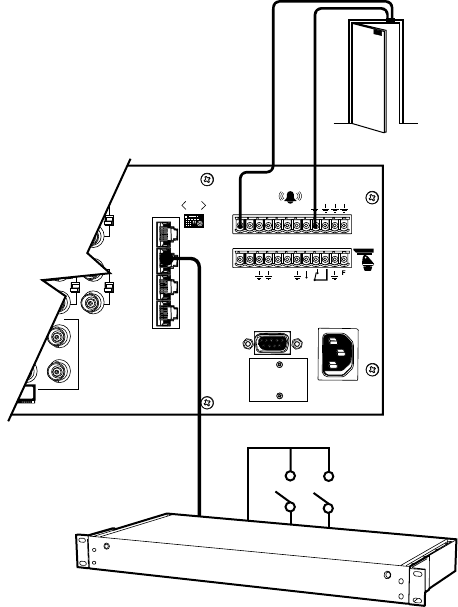
1. Connect wires from the sensors to the respective alarm input points on the connectors at the back of the CM6800. Each sensor
requires two wires – one wire to the alarm input terminal and a return wire to one of the ground terminals on the connector. The
CM6800 supports eight internal alarms.
Alarm sensors can be either N.O. (normally open) or N.C. (normally closed) contacts. The CM6800 is set to N.O. as a factory default.
2. If your system requires more than eight alarms, connect an ALM2064 unit to the system. Refer to the
M Devices
section.
Figure 9. Connecting Alarms
COM 1
2
3
4
5
16
6
3231
3
120/230V~
50/60 HZ
25 WATTS
12 3 45 6 7 8
CONTROL
T
+
T
-R
+
R
-2
CM6800-32X6
ALM2064
010101
C1522M-C (2/05) 17
CONNECTING DEVICES THROUGH THE COMMUNICATION PORTS
The CM6800-32X6 Matrix Switcher/Controller provides five communication ports on the rear panel for connecting peripheral components.
Instructions are provided in this section for the most commonly used connections.
NOTE: Connection instructions for other periperal devices, such as the CM9760-MDA or CM9760-CDU-T, are provided as Pelco Technical
Tips. Connection instructions for compatible products, such as PelcoNet transmission systems and the VMX300 are provided in the
appropriate product installation manual.
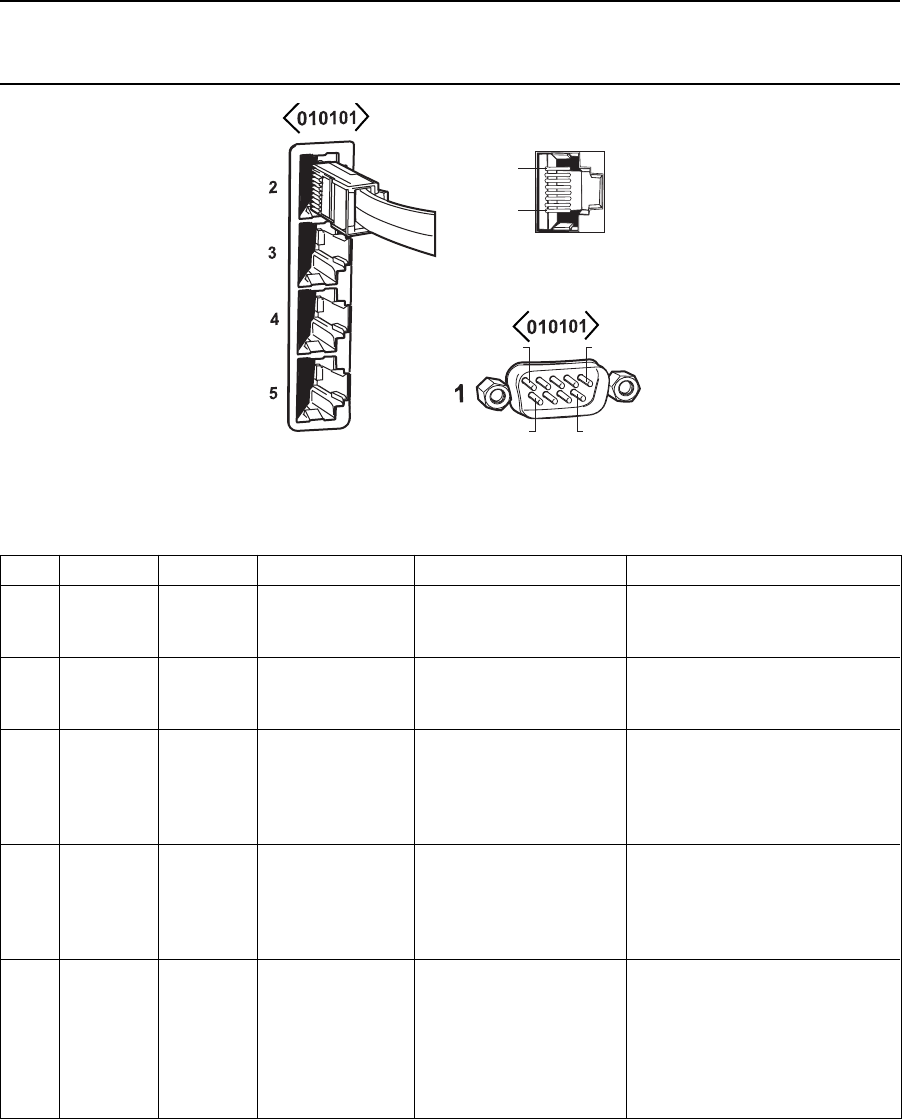
Figure 10. Communication Port Inputs
Table B. Communication Port Devices and Wiring
Port Input Type Wiring Pin-Outs Default Device Programmable to Other Device(s)
1DB9 RS-232 2 Rx PC Setup – CM6800MGR ASCII device
3Tx program
5Ground
2RJ-45 RS-232 1 Rx ASCII device No
5Ground
8Tx
3RJ-45 RS-485 1 Rx+ M devices – ALM2064, No
2Rx- REL2064, KBD960
5Ground
7Tx-
8Tx+
4RJ-45 RS-485 1 Rx+ Genex multiplexer CM9760-MDA, ASCII, keyboards
2Rx- (KBD100, 200A, & 300A)
5Ground
7Tx-
8Tx+
5RJ-45 RS-485 1 Rx+ Keyboard (direct powered) – No
plus power 2 Rx- KBD100, 200, & 300
3KBD power (12V)
4KBD Ground
5Ground
7Tx-
8Tx+
PIN 1
PIN 8
PIN 5PIN 1
PIN 6 PIN 9
18 C1522M-C (2/05)
Table C. Default Port Settings
Port Default Settings
COM 1 MGR, RS-232, 56000 baud, no parity, 8 data bits, 1 stop bit
COM 2 ASCII, RS-232, 9600 baud, no parity, 8 data bits, 1 stop bit
COM 3 M, RS-485, 19200 baud, no parity, 8 data bits, 1 stop bit
COM 4 MUX-GENEX, RS-485, 9600 baud, odd parity, 8 data bits, 1 stop bit
COM 5 KBD-300A, RS-485, 9600 baud, odd parity, 8 data bits, 1 stop bit
NOTE: Refer to the
Programming
section for instructions on changing Port settings.
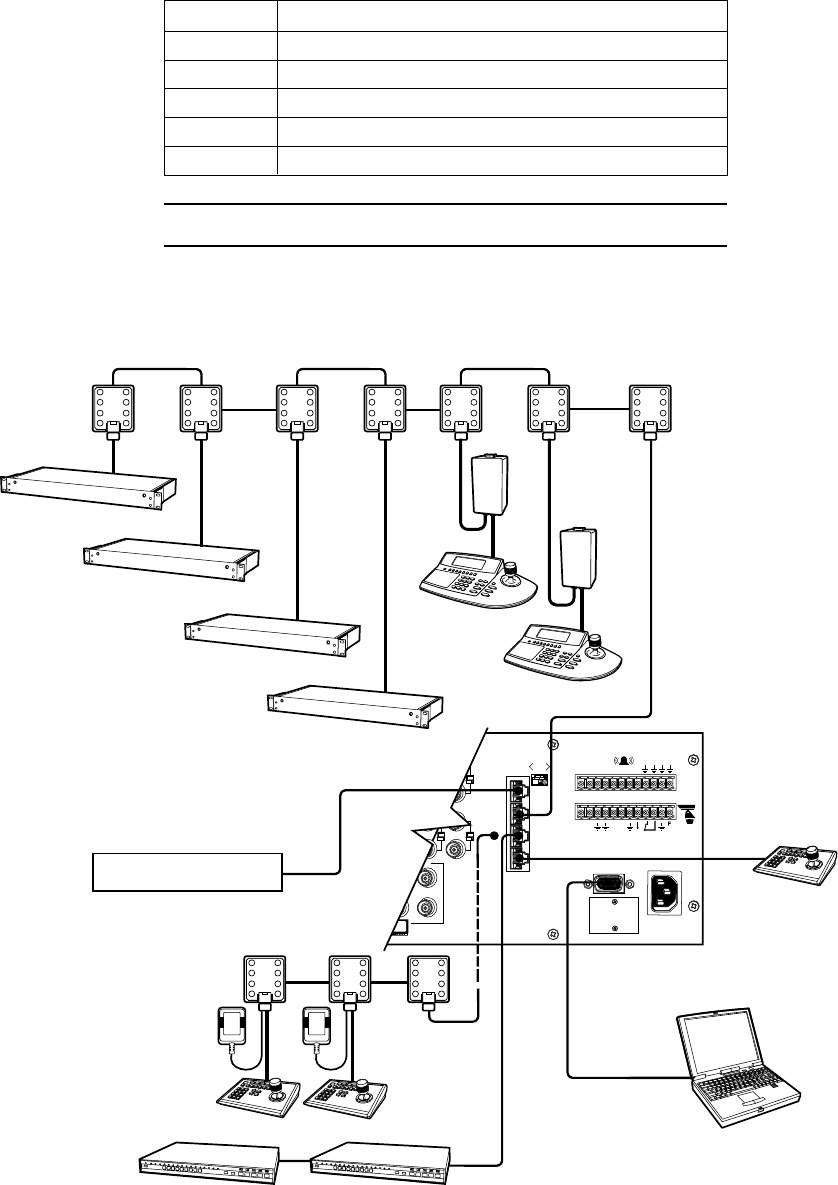
Figure 11. CM6800-32X6 Communication Port Connections and Options
COM 1
2
3
4
5
16
6
3231
3
VIDEO
120/230V~
50/60 HZ
25 WATTS
123 45 6 7 8
CONTROL
T
+
T
-R
+
R
-2
KBD960
2
3
4 5
6
7
1 8
2
3
4 5
6
7
1 8
2
3
4 5
6
7
1 8
2
3
4 5
6
7
1 8
2
3
4 5
6
7
1 8
2
3
4 5
6
7
1 8
2
3
4 5
6
7
1 8
NOTE: TOTAL NUMBER OF
KBD100/200A/300A SERIES
KEYBOARDS CONNECTED
TO THE CM6800-32X6 CANNOT
EXCEED 8
COM 4
GENEX (RS-485)
ALSO PROGRAMMABLE FOR KBD 100/200/300 SERIES,
CM9760-MDA, OR ASCII. MAX # OF DEVICES = 8
CM9505UPS
POWER
SUPPLY
ALM2064
NUMBER SUPPORTED = 2
64 ALARMS X 2 = 128 ALARMS
REL2064
NUMBER SUPPORTED = 2
64 RELAYS X 2 = 128
STRAIGHT
CABLES
KBD960
NUMBER SUPPORTED = 2
COM 5
LOCAL KEYBOARDS (RS-485)
KBD100/200A/300A SERIES
MAX # OF DEVICES = 8
RS-232 NULL
MODEM CABLE
COM 1
PC SETUP
(RS-232)
COM 3
M DEVICES (RS-485)
MAX # OF DEVICES = 6
MAXIMUM DISTANCE FROM CM6800 = 3,940 FT (1,200 M)
USING 24 AWG COPPER, UNSHIELDED TWISTED PAIR; 16 pF PER FT (pF =PICOFARADS)
2
3
4 5
6
7
1 8
2
3
4 5
6
7
1 8
12 V 50 Hz
TRANSFORMER
2
3
4 5
6
7
1 8
COM 4
ALTERNATE
OPTION
COM 2
(RS232)
ASCII CONTROL ONLY
ALTERNATE EQUIPMENT
010101
C1522M-C (2/05) 19
KBD100, KBD200A, AND KBD300A SERIES KEYBOARDS
You can connect up to eight KBD100/200A/300A Series keyboards to either of the following ports:
•COM 4 (up to 8 remotely connected keyboards)
• COM 5 (1 direct-powered keyboard or up to 8 remotely connected keyboards)
The total number of KBD100/200A/300A Series keyboards connected to the CM6800-32X6 cannot exceed eight.
KBD100, KBD200A, AND KBD300A: DIRECT-POWERED KEYBOARD
Use COM 5 (Serial Port 5) for a direct-powered local keyboard. COM 5 can power one KBD100/200A/300A Series keyboard.
If you are connecting more than one keyboard to COM 5, a KBDKIT(-X) is required for each keyboard. Refer to the
KBD100, KBD200A, and
KBD300A: Remote Keyboards
section.
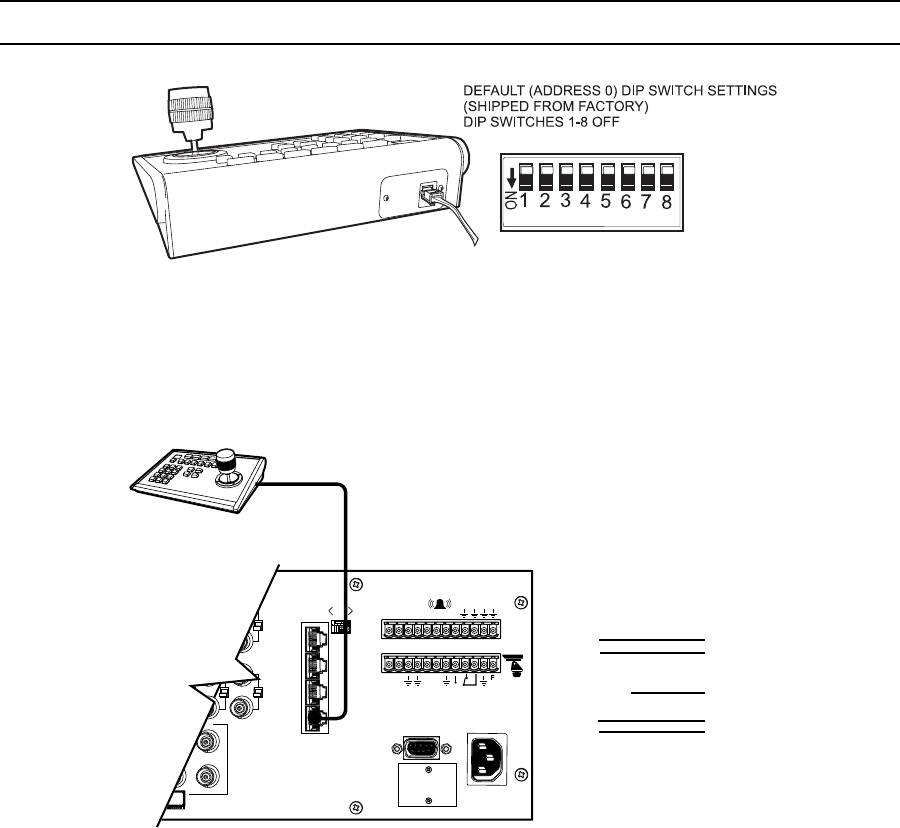
1. Using the 25-foot (7.62 m) straight data cable supplied with the keyboard, plug one end into the RJ-45 connector on the rear of the
keyboard.
NOTE: If distance between CM6800 and keyboard exceeds 25 feet, use KBDKIT(-X).
Figure 12. Data Cable Plugged into Local Keyboard
2. Plug the other end of the data cable into COM 5 on the CM6800-32X6.
KBD300A
Figure 13. Data Cable Plugged into COM 5
COM 1
2
3
4
5
16
6
3231
3
VIDEO
120/230V~
50/60 HZ
25 WATTS
12 3 456 7 8
CONTROL
T
+
T
-R
+
R
-2
KBD100, 200A, 300A
RJ-45 PIN-OUTS
1 Tx+
2 Tx-
3 12V
4 12V
5 GROUND
6 NC
7 Rx-
8 Rx+
CM6800-32X6 COM 5
RJ-45 PIN-OUTS
1 Rx+
2 Rx-
3 KBD 12V
4 KBD GROUND
5 GROUND
6 NC
7 Tx-
8 Tx+
KBD100, KBD200A, KBD300A
THE CM6800-32X6 CAN POWER ONE KBD 100/200A/300A SERIES KEYBOARD ON COM 5.
010101
20 C1522M-C (2/05)
3. Set the keyboard DIP switches for the desired address for the local keyboard (refer to Figure 12 and Table D).
Table D. Keyboard Addresses: KBD100/200A/300A Series Keyboards
Switch Settings
Keyboard Address 1 2 3 4
10OFF OFF OFF OFF
21ONOFF OFF OFF
32OFF ON OFF OFF
43ONON OFF OFF
54OFF OFF ON OFF
65ONOFF ON OFF
76OFF ON ON OFF
87ONON ON OFF
Table E. Switch Settings – KBD200A/300A Keyboards Only
Switch
Keyboard 5 6 7 8
KBD200A OFF OFF OFF (NOT USED) OFF
KBD300A OFF ON or OFF* OFF (NOT USED) OFF
* Switch 6 enables/disables turbo pan (can be switched while keyboard is on).
C1522M-C (2/05) 21
KBD100, KBD200A, AND KBD300A: REMOTE KEYBOARDS
Use COM 4 or 5 for remote keyboard connections. Each port can support up to eight KBD100/200A/300A Series keyboards. Do not exceed
a total capacity of eight keyboards connected to the CM6800-32X6.
NOTE: A KBDKIT or KBDKIT-X is required to connect remote keyboards. The KBDKIT(-X) consists of two RJ-45 wall blocks and one
transformer. Use one wall block for each keyboard.
If using COM 4, you will need to change the settings (the default setting is for a Genex Multiplexer). Refer to the
Programming
section for
instructions.
1. Select a suitable location for each keyboard and wall block. Wall blocks must be within 6 feet (1.8 m) of a suitable electrical outlet.
Do not mount the wall blocks yet.
2. Connect each keyboard to a wall block, using the data cable supplied with the keyboard.
3. Remove the wall block covers and wire the connections between each wall block. Connect to a final wall block (which will be
connected to the CM6800).
Communication to the keyboards is RS-485. Pelco recommends using shielded twisted pairs cable that meets or exceeds the basic
requirements for EIA RS-485 applications.
4. At each wall block, wire the KBDKIT(-X) transformer to pins 3 and 4. Polarity is unimportant.
5. Replace the cover on the wall block. Secure the wall block to a suitable surface. A double-sided sticky pad is provided to mount the
wall block.
6. Set the address switches for each keyboard according to Table D.
7. Connect the final wall block to COM 4 or 5 on the CM6800-32X6, using a straight data cable (supplied with the CM6800).
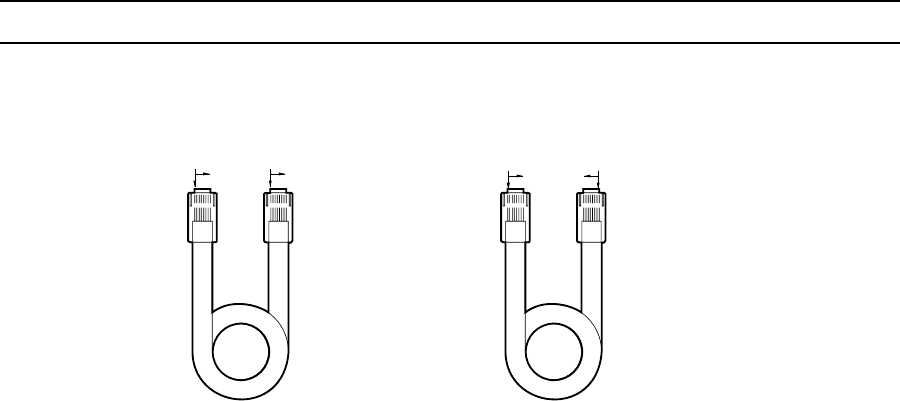
Figure 14. Remote Keyboards
CO M 1
2
3
4
5
16
6
3231
3
120/230 V~
50/60 HZ
25 WATT S
12 3 45 6 7 8
CO NT RO L
T
+
T
-
R
+
R
-2
PT Z
KBD100, 200A, 300
A
RJ-45 PIN-OUTS
1 Tx+
2 Tx-
3NC
4NC
5 GROUND
6NC
7Rx-
8Rx+
CM6800-32X6 COM 5
RJ-45 PIN-OUTS
1Rx+
2Rx-
3 KBD 12V
4 KBD GROUND
5 GROUND
6NC
7 Tx-
8 Tx+
010101
3
4
2
1
5
6
7
8
3
4
2
1
5
6
8
7
8
6
7
4
1
3
2
3
4
1
2
8
6
7
55
KBD100
KBD200A
KBD300A
REMOTE KEYBOARDS
KBDKIT(-X)
WALL BLOCK
22 C1522M-C (2/05)
M DEVICES
M protocol devices (KBD960/KBR960 keyboards, ALM2064 Alarm Interface Units, and REL2064 Relay Interface Units) can be connected to
COM 3 on the CM6800-32X6.
If only one device is to be connected to COM 3, use the instructions for that device in the following sections.
If more than one device is to be connected to COM 3, refer to the
Multiple M Devices
section.
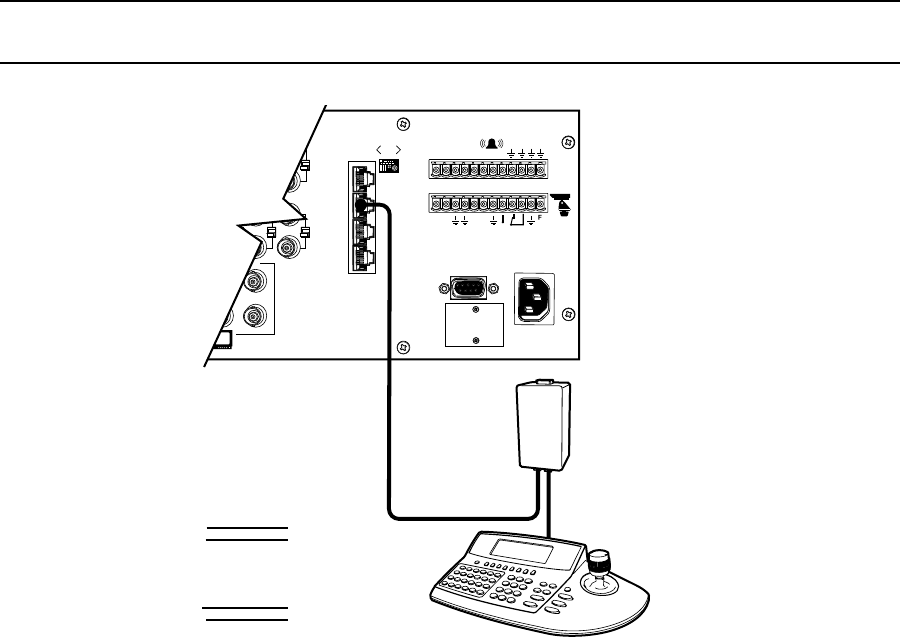
Connect M devices to the CM6800 with straight cables. Two straight cables and one reversed cable are supplied with the CM6800 (save
the reversed cable for connecting a Genex Multiplexer, if applicable).
M Devices Addressing
Each M device connected to the CM6800 must have a unique local address within a range of 1-16. Use the hardware DIP switches to set
the appropriate ALM2064 and REL2064 local addresses. Specify the appropriate KBD960/KBR960 local address through the keyboard
Setup Mode after you complete the system installation (refer to the
System Start-Up
section).
For use with the CM6800, Pelco recommends numbering M devices in a sequential order. In a sample application, with two of each M
device, you might assign local addresses as follows:
M device local addresses: Default Recommended for CM6800
KBD960/KBR960: 1 1, 2
REL2064: 1 3, 4
ALM2064: 1 5, 6
NOTE: To use the CM6800 system access or keyboard priority features, you must address KBD960/KBR960 keyboards within a
range of 1-8.
Figure 15. RJ-45 Cable Types
COMPARED "COLOR RUN"
IS IN SAME DIRECTION
COMPARED "COLOR RUN"
IS IN OPPOSITE DIRECTION
BROWN BROWN
STRAIGHT CABLE
BROWN BROWN
REVERSED CABLE
C1522M-C (2/05) 23
Connecting a Single KBD960/KBR960 Keyboard
To connect a single KBD960/KBR960 Keyboard to the CM6800:
1. Connect the keyboard to the CM9505UPS using the straight cable supplied with the keyboard.
2. Connect the CM9505UPS to COM 3 on the CM6800-32X6 using the 6-foot (1.8 m) straight data cable supplied with the CM6800.
NOTE: After completing system installation and power-up, you must configure the KBD960/KBR960 settings. Refer to the System Start-Up
section.
Figure 16. Connecting a KBD960/KBR960 to the CM6800-32X6
COM 1
2
3
4
5
16
6
3231
3
VIDEO
120/230V~
50/60 HZ
25 WATTS
123 45 6 7 8
CONTROL
T
+
T
-R
+
R
-2
COM 3 DEFAULT SETTINGS:
M, RS-485, 19200 BAUD,
1 STOP BIT
NO PARITY, 8 DATA BITS,
KBD960
CABLE CAN BE
STRAIGHT (SUPPLIED)
OR REVERSED
STRAIGHT CABLE
(SUPPLIED)
KBD960
RJ-45 PIN-OUTS
1 Tx+
2 Tx-
3
4
5
6
7 Rx-
8 Rx+
CM6800-32X6 COM 3
RJ-45 PIN-OUTS
1 Rx+
2 Rx-
3 NC
4 NC
5 GROUND
6 NC
7 Tx-
8 Tx+
CM9505UPS
RS-485
010101
24 C1522M-C (2/05)
Connecting a Single ALM2064 Alarm Interface Unit
To connect a single ALM2064 Alarm Interface Unit:
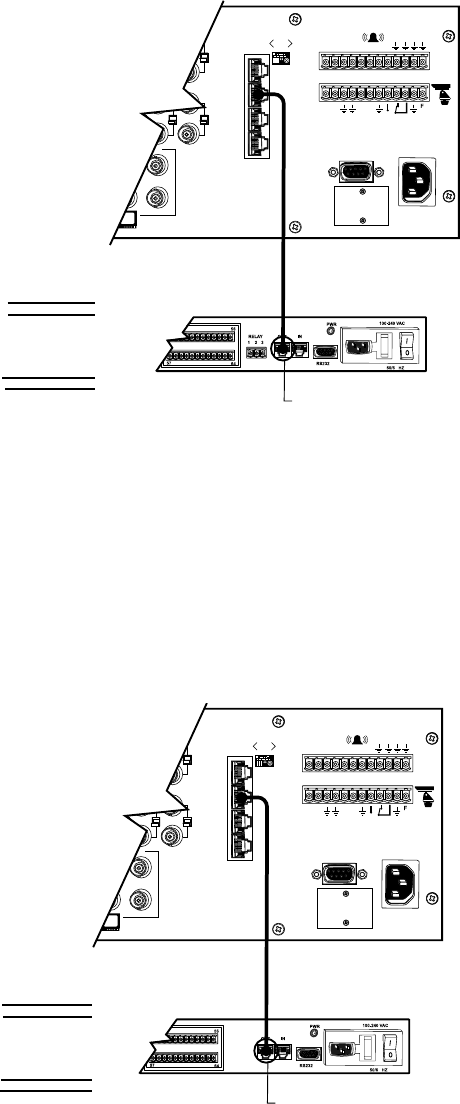
1. Connect the ALM2064 OUT port to COM 3 on the CM6800-32X6 using the 6-foot (1.8 m) straight data cable supplied with the CM6800.
2. Set SW2, DIP switches 1-8 to the appropriate positions for the local address (default address setting is 1). Refer to the ALM2064
Alarm Interface Unit Installation/Operation Manual for instructions.
COM 1
2
3
4
5
16
6
3231
3
VIDEO
120/230V~
50/60 HZ
25 WATTS
123 45 678
CONTROL
T
+
T
-R
+
R
-2
ALM2064
CONNECT THROUGH
THE "OUT" PORT
COM 3 DEFAULT SETTINGS:
M, RS-485, 19200 BAUD,
1 STOP BIT
NO PARITY, 8 DATA BITS,
STRAIGHT CABLE
(SUPPLIED)
ALM2064
RJ-45 PIN-OUTS
1 Tx+
2 Tx-
3
4
5
6
7 Rx-
8 Rx+
CM6800 -32X6 COM 3
RJ-45 PIN-OUTS
1 Rx+
2 Rx-
3 NC
4 NC
5 GROUND
6 NC
7 Tx-
8 Tx+
RS-485
010101
Figure 17. Connecting a Single ALM2064 Alarm Interface Unit
Connecting a Single REL2064 Relay Interface Unit
To connect a single REL2064 Relay Interface Unit:
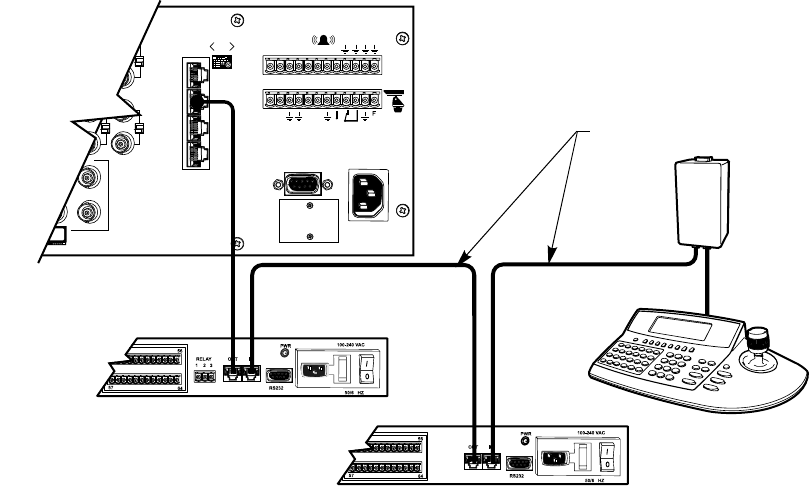
1. Connect the REL2064 OUT port to COM 3 on the CM6800-32X6 using the 6-foot (1.8 m) straight data cable supplied with the CM6800.
2. Set SW2, DIP switches 1-8 to the appropriate positions for the local address (default address setting is 1). Refer to the REL2064
Relay Interface Unit Installation/Operation Manual for instructions.
COM 1
2
3
4
5
16
6
3231
3
VIDEO
120/230V~
50/60 HZ
25 WATTS
123 45 678
CONTROL
T
+
T
-R
+
R
-2
REL2064
CONNECT THROUGH
THE "OUT" PORT
STRAIGHT CABLE
(SUPPLIED)
REL2064
RJ-45 PIN-OUTS
1 Tx+
2 Tx-
3
4
5
6
7 Rx-
8 Rx+
CM6800-32X6 COM 3
RJ-45 PIN-OUTS
1 Rx+
2 Rx-
3 NC
4 NC
5 GROUND
6 NC
7 Tx-
8 Tx+
COM 3 DEFAULT SETTINGS:
M, RS-485, 19200 BAUD,
1 STOP BIT
NO PARITY, 8 DATA BITS,
010101
Figure 18. Connecting a Single REL2064 Relay Interface Unit
C1522M-C (2/05) 25
Multiple M Devices
Multiple M devices (KBD960/KBR960, ALM2064, and REL2064) can be connected to COM 3 on the CM6800-32X6, either as local devices
or remote devices (when connecting two KBD960/KBR960 keyboards to the CM6800, you must use a remote connection).
Multiple M Devices: Local Connection
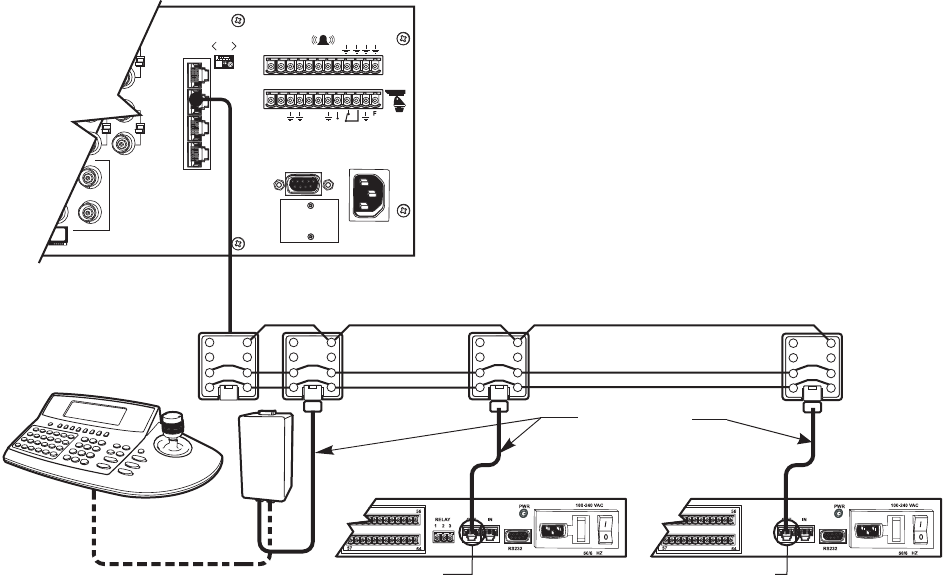
1. If you are connecting a KBD960/KBR960, connect it to the CM9505UPS with the straight cable supplied with the keyboard. Then
connect the CM9505UPS to the IN port on the next unit (either the ALM2064 or the REL2064) with a 6-foot (1.8 m) straight cable
(supplied with the CM6800).
2. Connect each ALM2064 and REL2064 unit to the next unit with a 6-foot (1.8 m) straight cable (supplied with the CM6800) from the
OUT port to the IN port on the next unit. You can connect a maximum of two ALM2064 units and two REL2064 units to the CM6800.
3. Connect the last unit to the CM6800 with a 6-foot (1.8 m) straight cable (supplied with the CM6800) from the OUT port to COM 3 on
the CM6800-32X6.
Figure 19. Connecting Multiple M Devices – Local Connection
COM 1
2
3
4
5
16
6
3231
3
VIDEO
120/230V~
50/60 HZ
25 WATTS
12345678
CONTROL
T
+
T
-R
+
R
-2
REL2064
ALM2064
KBD960
RS-485
STRAIGHT CABLE
(SUPPLIED)
STRAIGHT CABLES
(SUPPLIED)
KBD960
RJ-45 PIN-OUTS
1 Tx+
2 Tx-
3
4
5
6
7 Rx-
8 Rx+
ALM2064
RJ-45 PIN-OUTS
1 Tx+
2 Tx-
3
4
5
6
7 Rx-
8 Rx+
REL2064
RJ-45 PIN-OUTS
1 Tx+
2 Tx-
3
4
5
6
7 Rx-
8 Rx+
CM6800-32X6
RJ-45 PIN-OUTS
1 Rx+
2 Rx-
3
4
5 GND
6
7 Tx-
8 Tx+ CM9505UPS
STRAIGHT CABLE
(SUPPLIED)
COM 3
DEFAULT SETTINGS: M, RS-485, 19200 BAUD, NO PARITY, 8 DATA BITS, 1 STOP BIT
MAX # OF DEVICES = 6
MAXIMUM DISTANCE FROM CM6800 = 3,940 FT (1,200 M)
USING 24 AWG COPPER, UNSHIELDED TWISTED PAIR; 16pF PER FT (pF = PICOFARADS)
010101
26 C1522M-C (2/05)
Multiple M Devices: Remote Connection
Use a remote connection when the distance from the CM6800 is greater than 6-feet (1.8 m).
1. Connect each ALM2064 and REL2064 unit to a wall block with a 6-foot (1.8 m) straight cable (supplied with the CM6800). You can
connect a maximum of two ALM2064 units and two REL2064 units to the CM6800.
2. If you are connecting a KBD960, connect it to the CM9505UPS with the straight cable supplied with the keyboard. Then connect the
CM9505UPS to a wall block with a 6-foot (1.8 m) straight cable (supplied with the CM6800). You can connect a maximum of two
KBD960 keyboards to the CM6800.
3. Connect the wall blocks to a final wall block. If additional wall blocks are needed, order part number CON12J008Z03G0Z.
4. Connect the terminal wall block to COM 3 on the CM6800-32X6 using a 6-foot (1.8 m) straight cable (supplied with the CM6800).
Figure 20. Connecting Multiple M Devices – Remote Connection
COM 1
2
3
4
5
16
6
3231
3
120/230V~
50/60 HZ
25 WATTS
123 45 678
CONTROL
T
+
T
-R
+
R
-2
RS-485 STRAIGHT CABLE (SUPPLIED)
CM6800-32X6 COM 3
RJ-45 PIN-OUTS
1 Rx+
2 Rx-
3
4
5 GND
6
7 Tx-
8 Tx+
COM 3
DEFAULT SETTINGS: M, RS-485, 19200 BAUD, NO PARITY, 8 DATA BITS, 1 STOP BIT
MAX # OF DEVICES = 6
MAXIMUM DISTANCE FROM CM6800 = 3,940 FT (1,200 M)
USING 24 AWG COPPER, UNSHIELDED TWISTED PAIR; 16pF PER FT (pF = PICOFARADS)
3
4 5
6 3
4
6 3
4 5
6
3
4 5
6
ALM2064 REL2064
KBD960
STRAIGHT CABLE
TO CM9505UPS
(SUPPLIED)
STRAIGHT CABLE
(SUPPLIED)
CONNECT THROUGH
THE "OUT" PORT
2 7
1 8
2 7
1 8
2 7
1 8
5
2 7
1 8
KBD960
RJ-45 PIN-OUTS
1 Tx+
2 Tx-
3
4
5
6
7 Rx-
8 Rx+
ALM2064
RJ-45 PIN-OUTS
1 Tx+
2 Tx-
3
4
5
6
7 Rx-
8 Rx+
REL2064
RJ-45 PIN-OUTS
1 Tx+
2 Tx-
3
4
5
6
7 Rx-
8 Rx+
CONNECT THROUGH
THE "OUT" PORT
010101
C1522M-C (2/05) 27
CONNECTING A PC
The CM6800 provides PC-based setup and programming software that facilitates complete switcher programming and configuration.
Refer to the CM6800-MGR Quick Start Guide for instructions on using the software.
Connect a PC to the CM6800 to access the CM6800-MGR software or to download upgrades to the software.
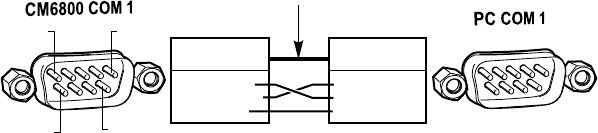
1. Using a null modem cable (user-supplied), plug one end into the DB9 COM 1 port on the PC. (To use a PC port other than COM 1,
refer to the CM6800-MGR Installation/Operation Manual.)
2. Plug the other end of the cable into the DB9 COM 1 port of the CM6800.
Figure 21. PC Connection to DB9 Port
NULL MODEM CABLE
CM6800 COM 1
DB9 PIN-OUTS
PIN 2 = RX IN
PIN 3 = TX OUT
PIN 5 = GND
PIN 5PIN 1
PIN 6 PIN 9
PC COM 1
DB9 PIN-OUTS
PIN 2 = RX IN
PIN 3 = TX OUT
PIN 5 = GND
20015
28 C1522M-C (2/05)
CONNECTING GENEX MULTIPLEXERS
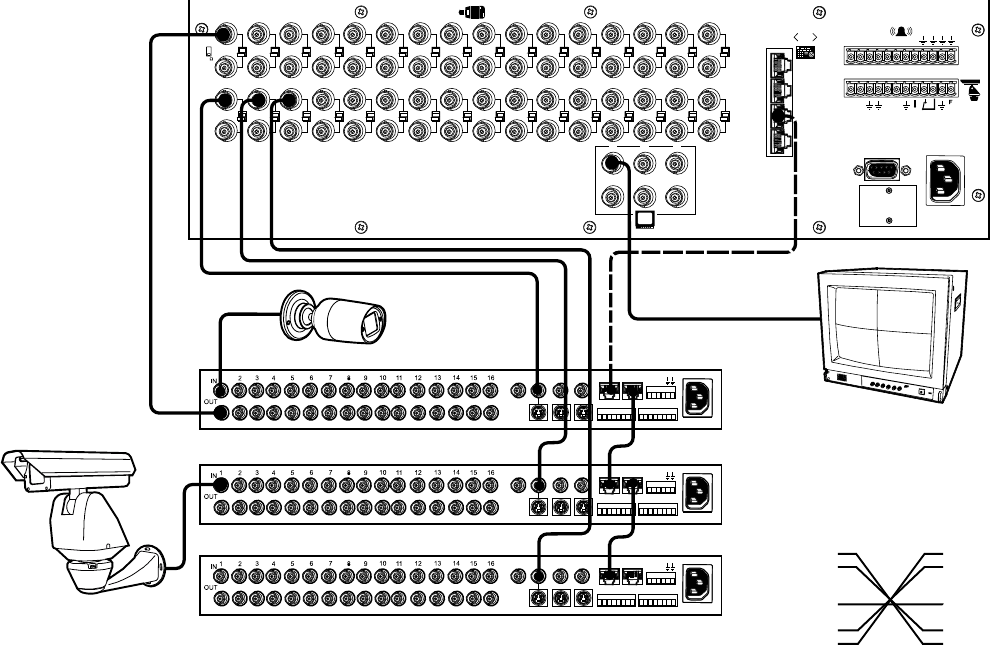
Use COM 4 to connect up to eight Genex Multiplexers to the CM6800-32X6.
1. Connect the COM IN port of the multiplexer to COM 4 on the CM6800-32X6, using the 6-foot (1.8 m) reversed data cable supplied
with the CM6800.
One reversed cable and two straight cables are supplied with the CM6800 (save the reversed cable for connecting a Genex
multiplexer, if applicable).
A straight data cable is supplied with the Genex multiplexer. Use this cable for connecting a second Genex multiplexer to the first
multiplexer, if necessary.
2. Connect the MAIN monitor output from the multiplexer to any of the camera inputs on the CM6800-32X6.
3. Connect cameras to the multiplexer and then loop them to the CM6800. Refer to the MX4000 Genex Series Simplex and Duplex
Multiplexers Installation/Operation Manual for detailed camera connection instructions. Terminate the video loop at the CM6800.
4. If required, you can connect a total of eight Genex multiplexers through COM 4. Daisy-chain the multiplexers by connecting a
straight data cable from the COM OUT port on the first multiplexer to the COM IN port on the second multiplexer; connect the COM
OUT port on the second multiplexer to the COM IN port on the third multiplexer. Continue to the eighth multiplexer, if necessary.
Refer to the
System Start-Up
section for additional configuration steps required when using a Genex Multiplexer.
Figure 22. Connecting Genex Multiplexers
COM 1
2
3
4
5
16
1514131211109
8
7654321
654
3231302928272625
24
23
22
2120191817
321
120/230V~
50/60 HZ
25 WATTS
123 45 6 7 8
CONTROL
T
+
T
-R
+
R
-
HZ
75
2
VCR
AUX
MAIN
SPOT
SVHS
OUT IN
SVHS
IN COM OUT N N
H
O C C S
ALARMS
1 2 3 4 5 6 7 8 9 10 11 14 15 16 12 13 110-240V 50/60 Hz
VCR
AUX
MAIN SPOT
SVHS
OUT IN
SVHS
IN COM OUT N N
H
O C C S
ALARMS
1 2 3 4 5 6 7 8 9 10 11 14 15 16 12 13 110-240V 50/60 Hz
VCR
AUX
MAIN SPOT
SVHS
OUT IN
SVHS
IN COM OUT N N
H
O C C S
ALARMS
1 2 3 4 5 6 7 8 9 10 11 14 15 16 12 13 110-240V 50/60 Hz
GENEX MULTIPLEXER
RJ-45 PIN-OUTS
Rx+
Rx-
NC
NC
GROUND
NC
Tx-
Tx+
CM6800-32X6 COM 4
RJ-45 PIN-OUTS
GENEX MULTIPLEXERS-8 MAXIMUM
GENEX MULTIPLEXER
GENEX MULTIPLEXER
GENEX MULTIPLEXER
1
2
3
4
5
6
7
8
REVERSED CABLE
MONITOR SIGNAL OUT
1
2
3
4
5
6
7
8
Rx+
Rx-
12VAC (OUT)
12VAC
GROUND
NC
Tx-
Tx+
(OUT)
STRAIGHT CABLE
STRAIGHT CABLE
010101
C1522M-C (2/05) 29
LOCAL AUXILIARIES
The CM6800-32X6 provides two local auxiliary (AUX) outputs on the rear panel for controlling VCRs, printers, and other devices. These
outputs can be activated directly from a keyboard by using the F1 and F2 function keys, or they can be activated by an alarm (determined
by programming). Both relay contacts and TTL outputs are used.
In addition, you can connect up to two REL2064 Relay Interface Units to the CM6800. Note that since operation of the two internal
auxiliary relays on the CM6800-32X6 will also operate the first two relays on the external unit, the maximum capacity of the system may
be limited to 128 auxiliaries (depending on how you number the external relays). Refer to the
Connecting a Single REL2064 Relay Interface
Unit
section for connection instructions.
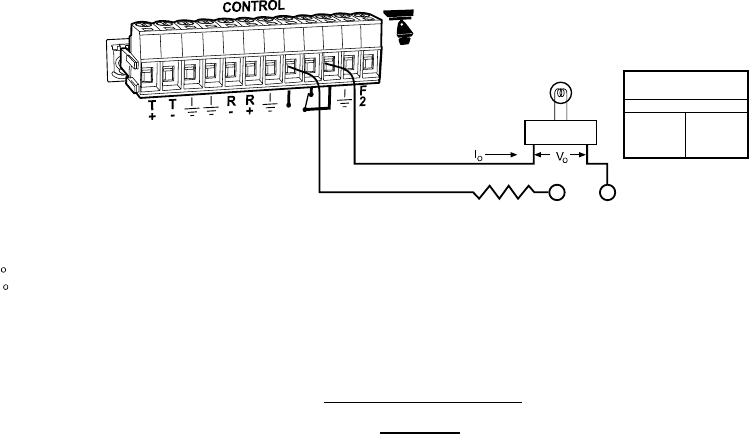
Connecting Relay Contacts – AUX 1
AUX 1 is a dry contact relay output. Terminal connections are provided for both normally open (N.O.) and normally closed (N.C.) contacts.
Refer to Figure 23 for wiring details. Note that this figure shows the wiring for a normally open contact. For a normally closed contact,
move the wire from the N.O. terminal to the the N.C. terminal.
Do not exceed the voltage and current ratings for the relay contacts.
You will need to provide an external power source to operate your device. In most cases you will also need an external current limiting
resistor. The formula for calculating the resistor value is given in Figure 23.
12-PIN PLUG-IN
CONNECTOR
FORMULAS FOR R VALUES
R (OHMS) = VPS - V
O
I
O
P (WATTS) = (I ) X R
2
O
= OPERATING CURRENT OF THE EXTERNAL DEVICE (MUST NOT EXCEED AUX 1 CURRENT RATING.)
= RATED OPERATING VOLTAGE OF THE EXTERNAL DEVICE.
= CURRENT LIMITING RESISTOR.
= VOLTAGE OF THE EXTERNAL POWER SOURCE (MUST NOT EXCEED VOLTAGE RATING FOR THE
ASSOCIATED CURRENT). VPS CAN BE AC OR DC.
= NEGATIVE, COMMON OR GROUND TERMINAL OF EXTERNAL POWER SOURCE (AC OR DC).
I
V
R
+VPS
-VPS
AUX 1 RELAY
CONTACT RATINGS
CURRENT @ VOLTAGE
1A
0.3A
0.5A
30 VDC
110 VDC
125 VDC
EXTERNAL
DEVICE
-VPS
+VPS
R
Figure 23. Wiring the AUX 1 (Relay) Output
30 C1522M-C (2/05)
Connecting the Open Collector output – F2 (TTL)
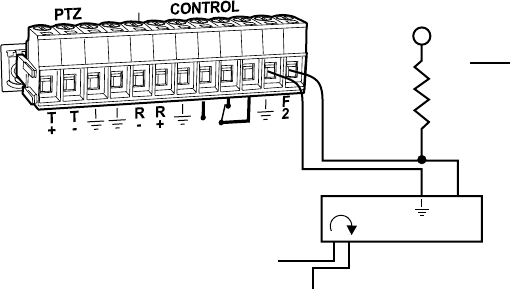
F2 is a TTL open collector output. This output provides a path to ground to control the low voltage trigger input on many devices. It can
control higher voltage control inputs via isolation relays. Refer to Figure 24 for wiring details.
Do not exceed the voltage and current ratings for the TTL output.
An external pull-up resistor is usually necessary. The formula for calculating the resistor value is given in Figure 24.
Figure 24. Wiring the F2 (TTL) Output
12-PIN PLUG-IN
CONNECTOR
INPUT
FROM VIDEO OUTPUT
LOOPED TO MONITOR
+VDC = VOLTAGE OF THE EXTERNAL POWER SOURCE.
+VDC
R
R = +VDC
25 mA
NOTE: +VDC SHOULD BE 5V OR GREATER, BUT NOT
EXCEED 15V OR THE MAXIMUM RATED OUTPUT
VOLTAGE FOR THE DEVICE INPUT. +VDC CAN
ONLY BE DC.
DEVICE EXAMPLE: VIDEO PRINTER
20018
C1522M-C (2/05) 31
00620
Figure 25. CM6800 Time/Date Stamp on Monitor
The time stamp will be advancing in one-second increments. Wait five seconds before proceeding.
INITIALIZE KEYBOARDS
Specify a monitor for each keyboard after your first power-up or any time power is cycled to the keyboard or the CM6800.
Always allow five seconds to elapse before specifying a monitor.
1. Enter a number corresponding to the monitor output that is feeding the monitor you are viewing.
2. Press the MON key. The keyboard LED displays the number you entered. This also confirms successful communication between the
keyboard and the CM6800. If the keyboard LED does not display the monitor number, repeat 1 and 2.
CONFIGURE THE SYSTEM
The CM6800 is shipped from the factory with default programming settings. If the defaults are acceptable, the CM6800 can be operated
without any user programming. However, you may want to program the following basic system settings:
•Time and date.
•Camera titles: by default, each camera is titled “CAM #” (# = camera number).
• Camera video source: Extended Coaxitron protocol receivers can be operated without any programming changes. For other receiver
control protocols, access the Camera programming screen to select the control type for the device connected to each video input.
•Alarms: The CM6800 is shipped from the factory with the alarm contact enable field set to OFF. To use the alarm features, access
the Alarm programming screens to enable the alarm contact.
In addition, some or all of the following configuration steps may be necessary, depending on your system. Configure the CM6800 through
Programming mode. Refer to the
Programming
section for detailed instructions.
SYSTEM START-UP
After completing the system installation, follow the procedure below to start proper system operation. Skip any “system-specific” steps
that do not apply to your system setup.
POWER-UP THE SYSTEM
Plug the CM6800 power cord into a 120/230V, 50/60 Hz power source. Plug in and turn on all devices connected to the CM6800.
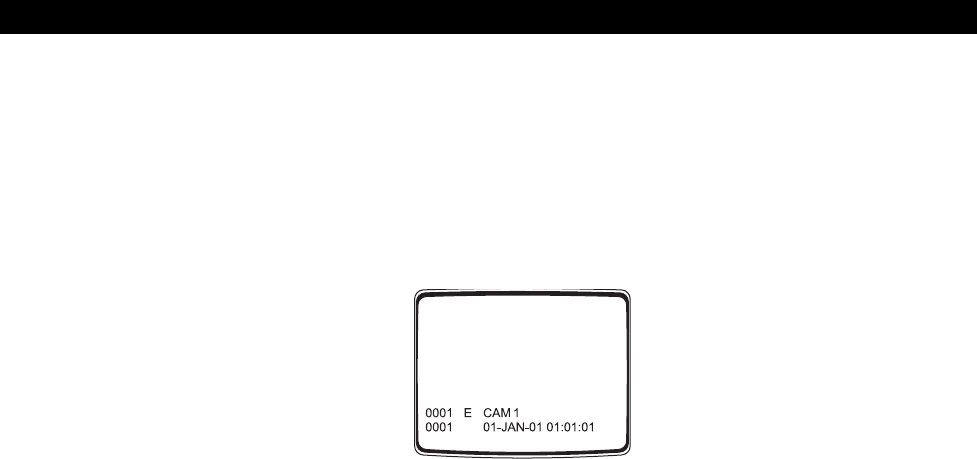
Once the system is powered-up you will see video from camera 1 and the following time/date stamp on all system monitors:

32 C1522M-C (2/05)
COMMUNICATION PORTS
If you are using any communication port for a device not specified by the default setting, open the Port programming screen to change the
settings.
Table F. Default Port Settings
Port Default Settings
COM 1 MGR, RS-232, 56000 baud, no parity, 8 data bits, 1 stop bit
COM 2 ASCII, RS-232, 9600 baud, no parity, 8 data bits, 1 stop bit
COM 3 M, RS-485, 19200 baud, no parity, 8 data bits, 1 stop bit
COM 4 MUX-GENEX, RS-485, 9600 baud, odd parity, 8 data bits, 1 stop bit
COM 5 KBD-300A, RS-485, 9600 baud, odd parity, 8 data bits, 1 stop bit
PTZ (Port 6) PTZ-P, RS-422, 4800 baud, no parity, 8 data bits, 1 stop bit
KBD960/KBR960 KEYBOARD
Configure the KBD960/KBR960 settings.
1. Set DIP switch 2 to the ON position.
2. Enter Setup Mode. Set the local address (1-8). (Note: the baud rate is set by default to 19200.) Each M device connected to the
CM6800 must have a unique local address. Refer to the KBD960/KBR960 Keyboard Installation/Operation Manual for detailed setup
instructions.
3. Return DIP switch 2 to the OFF position.
4. Press the EXIT icon on the keyboard LCD screen.
GENEX MULTIPLEXER
Access the Camera programming screen and specify MUX control for all cameras connected to the CM6800 through the Genex Multi-
plexer.
Access the CM6800 Camera programming screen to configure the following camera control options for each camera connected to the
CM6800 through the Genex Multiplexer:
•CONTROL: MUX
•PORT ADDRESS: assign the appropriate address. The port address must match the “Unit ID” assigned through the Genex
programming screens.
You must also configure the Genex Multiplexer. Refer to the MX4000 Genex Series Simplex and Duplex Multiplexers Installation/
Operation Manual for instructions on accessing the Advanced System Setup programming screen. Select the following options:
•SPOT MONITOR DISPLAY: TRACK MAIN
•UNIT ID (must match the port address assigned through the CM6800)
• COMM. TYPE: SLAVE (each multiplexer connected to the CM6800 must be in slave mode)
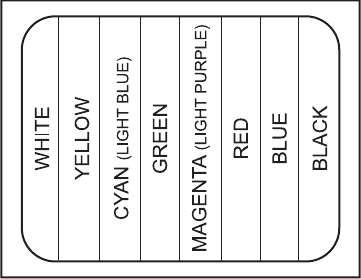
C1522M-C (2/05) 33
MONITOR COLOR ADJUSTMENT:
Once you have connected all devices and powered the system, use the CM6800 color bars as a reference tool for adjusting the color on
each monitor.
1. Enter 9999.
2. Press the CAM key. Broadcast quality color bars appear on the monitor.
3. Adjust color on each monitor as necessary until the color bars match the following color order on the monitor (for black and white
monitors you can use the color bars to adjust brightness):
Figure 26. CM6800 Color Bars
PROGRAM PRESETS
Program presets as necessary for your system. Refer to the appropriate keyboard manual for instructions.
ADDITIONAL PROGRAMMING
Refer to the
Programming
section for complete instructions on programming the CM6800.
00630
34 C1522M-C (2/05)
PROGRAMMING THE CM6800
The CM6800 is shipped from the factory with default programming settings. If the defaults are acceptable, the CM6800 can be operated
without any user programming. However, you may want to program the following basic system settings:
•Time and date
•Camera titles
•PTZ control via hardwire data connections
•Alarm contacts
Alarms must be enabled before they are functional.
•Access/Partitioning
All access is set to YES by factory default.
•Communication ports
To connect remote keyboards to COM 4 (the alternate connection shown in the Quick Start Guide), change the Port 4 settings.
Pelco provides two options for programming the CM6800 to your specifications:
•Password-protected, on-screen programming screens accessible directly from the Matrix Switcher
•PC-based CM6800-MGR software
Refer to the CM6800-MGR Quick Start Guide for instructions on accessing and using this software to program your system.
NOTE: Pelco strongly recommends uploading your programming settings to the CM6800-MGR to save settings in the event of an
accidental reset.
The CM6800 allows system programming from only one monitor at a time. If programming from the CM6800-MGR is sent to the CM6800
at the same time that you are programming from a monitor screen, the system will exit the on-screen programming function.
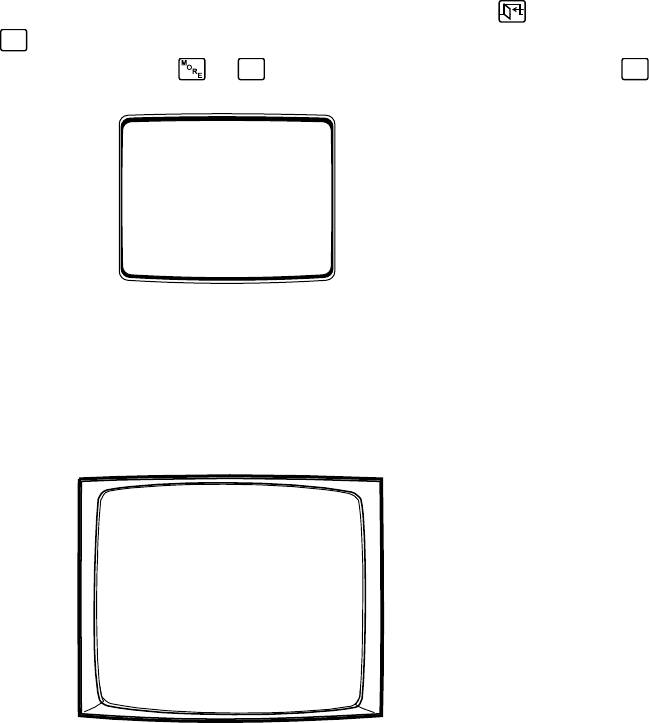
C1522M-C (2/05) 35
CM6800 PROGRAMMING MODE
1. If you have not already done so, select the monitor (KBD960/KBR960: if the Camera menu appears, press to exit).
2. Press the PGM key or select
PGM
on the KBD960/KBR960). The Password screen appears.
Note that on the KBD960/KBR960, you must first select and
DEF
. Then enter the Define PIN (Default: 1234), and select
MENU
.
Figure 27. CM6800 Password Screen
3. At the ******* prompt, enter the DEFAULT PASSWORD: 2899100
The Main Menu appears.
Figure 28. CM6800 Programming Main Menu
Select Language
If necessary, select the appropriate language.
1. Navigate to the language displayed below the menu options.
2. Scroll through the languages and select the language appropriate for your system.
3. Navigate to the RETURN field and navigate left or right to return to the Main Menu.
PELCO VIDEO SWITCHER
MODEL CM6800
PASSWORD TO MAIN MENU
*******
SCRATCHPAD SEQUENCE
RETURN
MACRO STATUS VIEW
20019
PELCO SWITCHER
MODEL CM6800
MAIN MENU
1 CAMERA
2 LOGICAL CAMERA
3 MONITOR
4 ACCESS
5 TIME & DATE
6 PORT
7 PRIORITY
8 SEQUENCE
9 MACRO
10 ALARM CONTACTS
11 EVENT TIMER
12 SET AUXILIARY
13 SET PASSWORD
14 ABOUT CM6800
ENGLISH
RETURN
00654
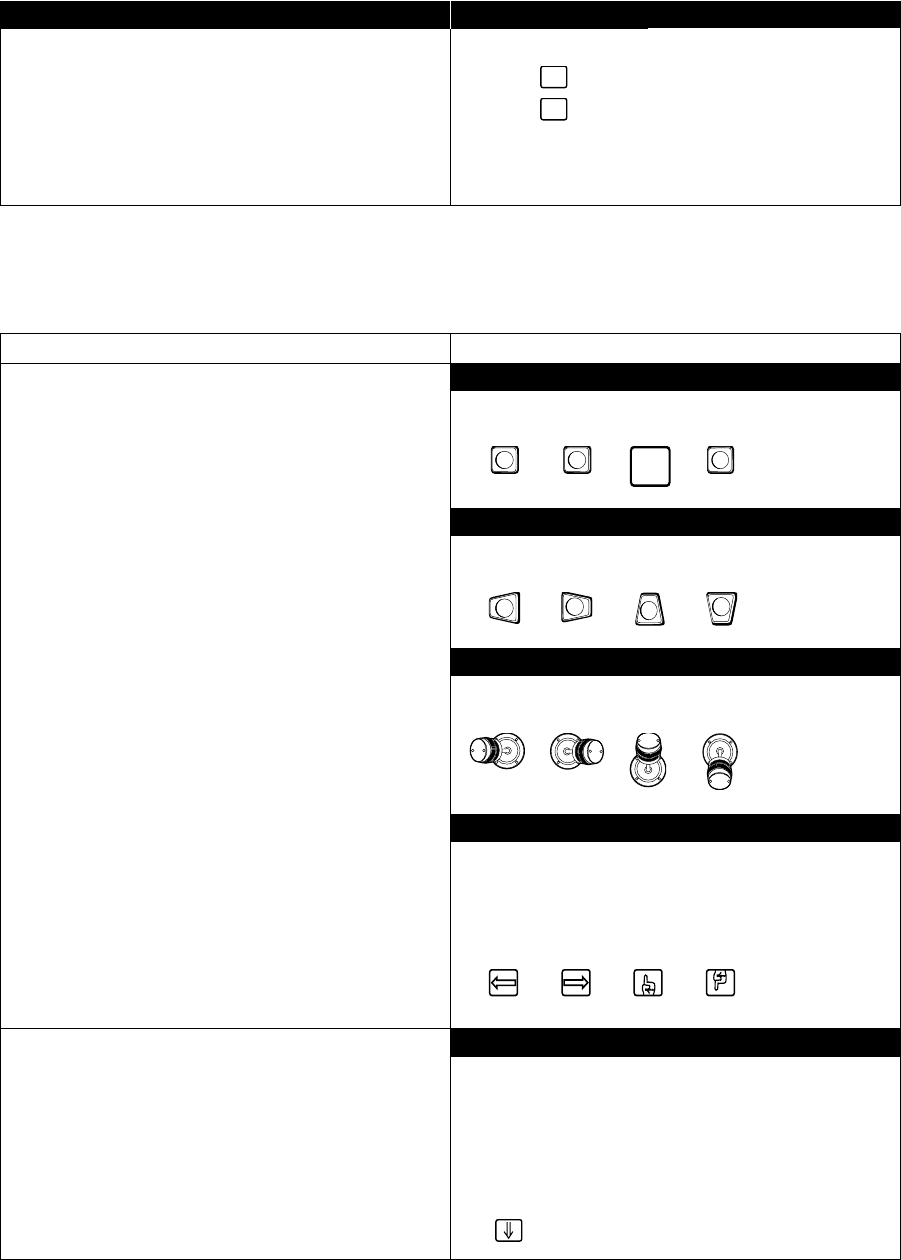
36 C1522M-C (2/05)
Exit Programming Mode
NAVIGATE AND SELECT OPTIONS/FIELD ENTRIES IN PROGRAMMING MODE
During programming, a menu appears on the monitor screen. The currently selected field blinks. Use the following keys or joystick on your
keyboard to navigate the programming screens.
Function
Navigate programming screens.
PRE
V
NEXT
MAC
HOLD
Access a screen from the Main Menu (or from a submenu).
KBD200A
Use the Pan/Tilt positioning keys.
Left Right Up Down
KBD300A
Use the joystick.
Left Right Up Down
KBD960/KBR960
Use the joystick. (See above icons)
OR
Select the appropriate icon on the KBD960/KBR960 LCD SCREEN.
Left Right Up Down
All Keyboards
1. Navigate down to the desired menu option.
2. Navigate left or right to select the menu option.
OR
1. Using the numerical keypad, enter the number of the menu
option.
2. Press F1 on the KBD100/200A/300A keyboard or select
on the KBD960/KBR960 keyboard.
KBD100/200A/300A Keyboards
To return to active video you can:
•Press the PGM key once while in the Main Menu.
•Press the PGM key twice from anywhere else in the
programming screens.
•Navigate to the RETURN field and navigate left or right to
return to the previous screen or menu.
KBD960/KBR960 Keyboards
To return to active video you can:
• Select
PGM
once while in the Main Menu.
• Select
PGM
twice from anywhere else in the programming
screens.
•Navigate to the RETURN field and navigate left or right to
return to the previous screen or menu.
Keyboard
KBD100
Use the sequence and macro keys.
Left Right Up Down
C1522M-C (2/05) 37
Function
Scroll through options in programming fields.
Select option in a programming field.
Enter a numerical value in an option
field (not available in all fields).
Access the HELP screen
(Sequences, Macros, and Alarm Group screens).
Access the NEXT or PREVIOUS page of a list (not available on
every screen).
Keyboard
KBD100/200A/300A
Use F1 and F2. Or (KBD300A only) use the joystick to navigate
left or right.
NOTE: The joystick does not scroll options in all fields.
KBD960/KBR960
Select the or icons or use the joystick to navigate left
or right.
NOTE: The joystick does not scroll options in all fields.
All keyboards
1. Scroll through the options until the appropriate entry
appears in the field.
2. Navigate to the next field or press PGM to exit.
NOTE: On the Monitor and Time & Date screens you must
apply the changes (refer to
Time & Date
or
Monitor
in this
section).
All keyboards
1. Using the numerical keypad, enter a number within the
range of valid options (example: to enter an internal alarm
contact you must enter a number between 1 and 8).
2. Press F1 on the KBD100/200A/300A keyboard or select
on the KBD960/KBR960 keyboard.
All keyboards
1. Navigate to the HELP field.
2. Press F1.
All keyboards
1. Navigate to the NEXT or PREVIOUS field.
2. Press F1.
All keyboards
1. Navigate to the RETURN field.
2. Navigate left or right.
OR
Press the PGM key to return to the previous screen or menu.
F1
F2
Exit a screen.
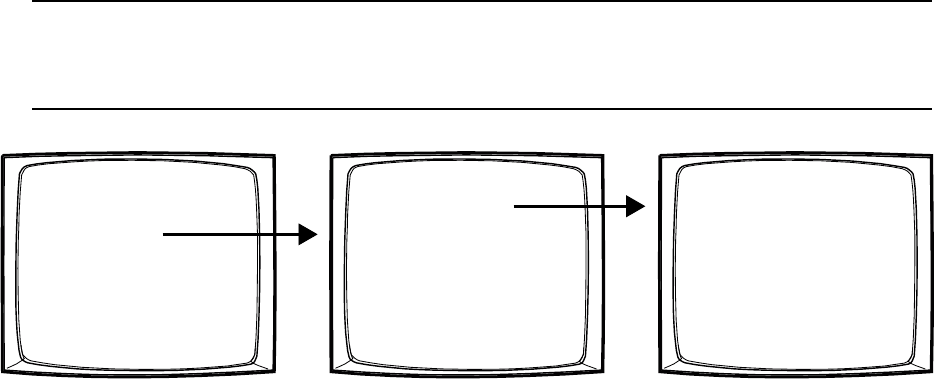
38 C1522M-C (2/05)
ACCESS
The CM6800 supports the following system partitioning to control switching system access:
Keyboard to Monitor: Restrict a keyboard from accessing selected monitors.
Camera to Keyboard: Restrict a keyboard from calling selected cameras to monitors. Or video viewing only: permit the viewing of
selected cameras while preventing pan and tilt control.
Camera to Monitor: Restrict the viewing of selected cameras on selected monitors.
All system access is set to YES by default.
NOTE: To restrict access for keyboards, all keyboard addresses must be within a range from 1-8.
NOTE: If you connect an ASCII keyboard/device to the CM6800 (COM port 1, 2, or 4), you can connect only one
keyboard to a port. Specify access in the first column only (address 1).
Figure 29. Sample Access Screen
1. Select the COM port number for which you are programming access control.
2. In the Access matix, configure the specific access allowed for each device.
Keyboard to Monitor
In each monitor row specify the access allowed for each keyboard to control each specific monitor.
Y = Yes; control is allowed
N = No; control is not allowed
Camera to Keyboard
In each camera row specify the access allowed for each keyboard to view and control the specific logical camera number.
Y = Yes; viewing and control is allowed
N = No; viewing and control is not allowed
V = View only; camera can be viewed but not controlled
Camera to Monitor
In each camera row specify the access allowed for each monitor to display the specific logical camera number.
Y = Yes; camera can be viewed
N = No; camera cannot be viewed
PELCO SWITCHER
MODEL CM6800
MAIN MENU
1 CAMERA
2 LOGICAL CAMERA
3 MONITOR
4 ACCESS
5 TIME & DATE
6 PORT
7 PRIORITY
8 SEQUENCE
9 MACRO
10 ALARM CONTACTS
11 EVENT TIMER
12 SET AUXILIARY
13 SET PASSWORD
14 ABOUT CM6800
ENGLISH
RETURN
00654
ACCESS
1KEYBOARD TO MONITOR
2CAMERA TO KEYBOARD
3CAMERA TO MONITOR 1-6
RETURN
00636
CAMERA TO KEYBOARD ACCESS
PORT 5
KEYBOARD
CAM 1 2 3 4 5678
0001 V Y Y Y Y Y Y Y
0002 V Y Y Y Y Y Y Y
0003 V Y Y Y Y Y Y Y
0004 V Y Y Y Y Y Y Y
0005 Y N Y Y Y Y Y Y
0006 Y N Y Y Y Y Y Y
0007 Y N Y Y Y Y Y Y
0008 Y N Y Y Y Y Y Y
0009 Y Y Y Y Y Y Y Y
0010 Y Y Y Y Y Y Y Y
0011 Y Y Y YYYYY
0012 Y Y Y Y Y Y Y Y
0013 Y Y Y Y Y Y Y Y
0014 Y Y Y Y Y Y Y Y
0015 Y Y Y Y Y Y Y Y
0016 Y Y Y Y Y Y Y Y
NEXT PREVIOUS
RETURN
00644
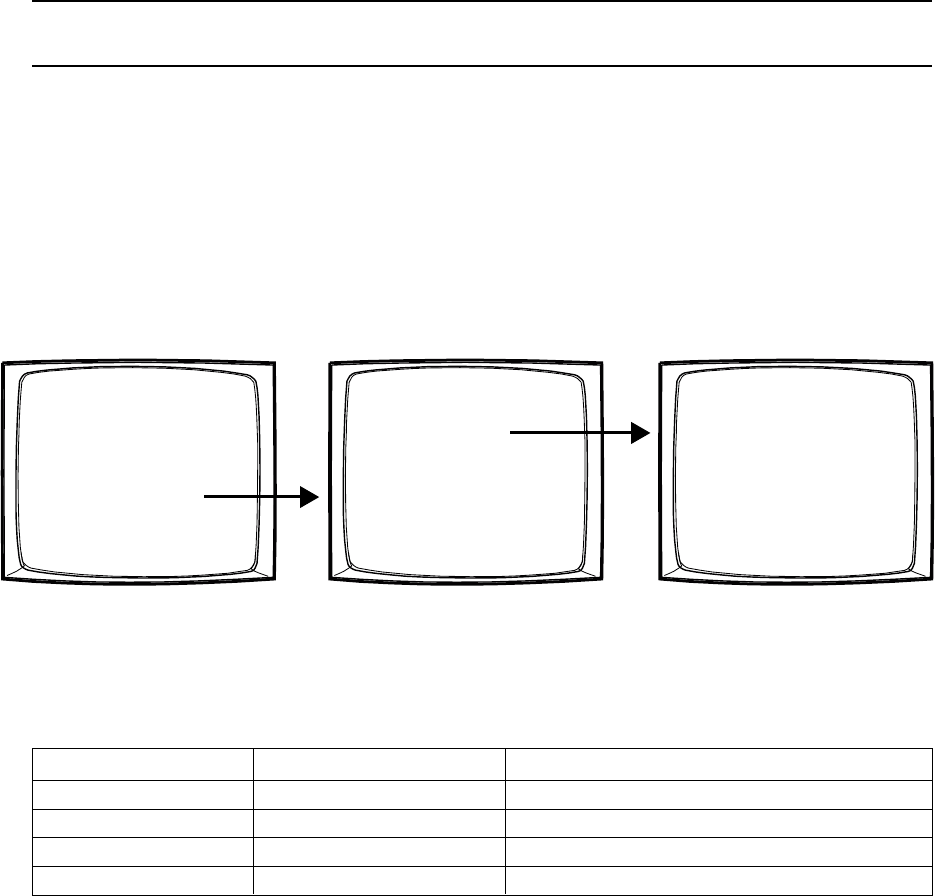
C1522M-C (2/05) 39
ALARM PROGRAMMING
Alarmed cameras can be displayed on one or several monitors as part of one or several alarm groups (each monitor can display only one
alarm group.)
Before programming alarm settings note the following precautions:
•Verify that no automated system functions are set to run, such as a macro that would arm or disarm an alarm.
• Ensure that system operators do not arm or disarm any alarms while you are programming alarm settings.
NOTE: You cannot access the Alarm Contacts screen when an alarm is active. If an alarm is triggered while you are in the CM6800
programming screens, the system will exit the on-screen programming function and display the alarm on the appropriate monitor(s).
Complete the following steps to program alarms:
1. Program the alarm display format for each alarm group. An alarm can include up to eight steps, so eight camera views could display
as a part of each alarm. Refer to
Program Alarm Groups
.
2. Program the individual alarm contact. Refer to
Program an Internal or External Alarm Contact
.
PROGRAM ALARM GROUPS
Use the Alarm Group screen to configure alarm groups to appear on system monitors. To display on a monitor, an alarm must be assigned
to an alarm group.
Figure 30. Program Alarm Groups
Specify the display option for up to six alarm groups. Refer to the on-screen Help or to the Alarm Group Display Options in the
Appendix
for a description of each display option.
Display Option Entry Display Option Type Number of Monitors Displaying Each Alarm Group
BBlock build Up to six
D and Q Chronological pair One display monitor (D), one queue monitor (Q)
M and L Reverse chronological pair One display monitor (M), one queue monitor (L)
SSalvo group From two to six
PELCO SWITCHER
MODEL CM6800
MAIN MENU
1 CAMERA
2 LOGICAL CAMERA
3 MONITOR
4 ACCESS
5 TIME & DATE
6 PORT
7 PRIORITY
8 SEQUENCE
9 MACRO
10 ALARM CONTACTS
11 EVENT TIMER
12 SET AUXILIARY
13 SET PASSWORD
14 ABOUT CM6800
ENGLISH
RETURN
00654
ALARM CONTACTS
1INTERNAL CONTACT
2EXTERNAL CONTACT
3VIDEO LOSS
4ALARM GROUP
RETURN
00642
ALARM MONITOR GROUP SETUP
MON A B C D E F
01 — — — — — S
02 — — — — — S
03 — — — — — S
04 D — — — — —
05 Q — — — — —
06 — — — — — —
HELP
RETURN
00637
40 C1522M-C (2/05)
INTERNAL AND EXTERNAL ALARMS
Use the Alarm Contact screens to configure alarm inputs. When an alarm is triggered, the alarm icon and the alarm letter (“I” for internal;
“E” for external) appear on monitors programmed through the Alarm Group screen to display the alarm.
Figure 31. Program an Internal or External Alarm
1. Select the alarm input number in the CONTACT field.
Internal Alarm screen: Configure any of the eight internal alarm inputs on the CM6800 rear panel. Internal inputs are programmable
to associate any camera to any input.
External Alarm screen: Configure any of the external alarms. A maximum of two external ALM2064 Alarm Interface Units can be
connected to the CM6800-32X6, providing up to 128 external alarm inputs.
2. Select ON in the ENABLE field.
3. In the STP matrix, configure up to eight steps to be triggered as a result of this alarm.
a. In the CAM field select a camera (use the logical camera number) to be displayed on a system monitor.
b. In the DWL field, enter the amount of time the camera view is displayed in an alarm sequence; enter a dwell time between 1
and 99 seconds.
c. Optional:
In the CMD field, select a camera operation; if you select a macro, pattern, or preset, enter a valid macro, pattern, or preset
number in the ## field:
MACRO = macro (only the first three steps can be used when selecting a macro; each step must call a macro)
PRES = preset
PATT = pattern
RSCN = random scan
FSCN = frame scan
SSCN = stop scan
PELCO SWITCHER
MODEL CM6800
MAIN MENU
1 CAMERA
2 LOGICAL CAMERA
3 MONITOR
4 ACCESS
5 TIME & DATE
6 PORT
7 PRIORITY
8 SEQUENCE
9 MACRO
10 ALARM CONTACTS
11 EVENT TIMER
12 SET AUXILIARY
13 SET PASSWORD
14 ABOUT CM6800
ENGLISH
RETURN
00654
ALARM CONTACTS
1INTERNAL CONTACT
2EXTERNAL CONTACT
3VIDEO LOSS
4ALARM GROUP
RETURN
00642
INTERNAL
ALARM MENU
CONTACT: 1 ENABLE: OFF
ACK TYPE: MANUAL TIME OUT: 10
TYPE: NO PRIORITY: 0
STP CAM DWL CMD ## AUX ##
10001 01 PRES 13
— — — —
000
20001 00
— — — —
00
— — — —
000
30001 00
— — — —
00
— — — —
000
40001 00
— — — —
00
— — — —
000
50001 00
— — — —
00
— — — —
000
60001 00
— — — —
00
— — — —
000
70001 00
— — — —
00
— — — —
000
80001 00
— — — —
00
— — — —
000
GROUP ENABLE
ABCDEFGH
YNNNNNNN
RETURN
00650
EXTERNAL ALARM MENU
CONTACT: 001 ENABLE: OFF
ACK TYPE: MANUAL TIME OUT: 10
PRIORITY: 0
STP CAM DWL CMD ## AUX ##
10001 00
— — — —
00
— — — —
000
20001 00
— — — —
00
— — — —
000
30001 00
— — — —
00
— — — —
000
40001 00
— — — —
00
— — — —
000
50001 00
— — — —
00
— — — —
000
60001 00
— — — —
00
— — — —
000
70001 00
— — — —
00
— — — —
000
80001 00
— — — —
00
— — — —
000
GROUP ENABLE
ABCDEFGH
NNNNNNNN
RETURN
00649
C1522M-C (2/05) 41
In the AUX field, select an auxiliary to be activated.
GON = turn global auxiliary on
GOFF = turn global auxiliary off
CON = turn camera auxiliary on
COFF = turn camera auxiliary off
NOTE: Activate the auxiliaries on the rear panel of the CM6800 by selecting global auxiliary numbers 1 or 2. The remaining
global auxiliary numbers control auxiliaries in up to two REL2064 Relay Interface Units.
4. In the GROUP ENABLE field, select ÒYÓ under the appropriate group letter to assign the alarm contact to one or more alarm groups.
Refer to the Program Alarm Groups section for information on alarm group display options.
NOTE: Verify that the monitor specified by the alarm group has access to the camera view(s) triggered by this alarm. If an alarm is
cued to a monitor that does not have access to the appropriate cameras, the camera views cannot be monitored.
5. Optional: The remaining alarm contact fields are configured with factory default settings; customize your system as necessary, by
changing the following settings:
ACK TYPE: The alarm clearance type is set to MANUAL by default, requiring an operator to acknowledge an alarm from a system
keyboard. If you select AUTO, the alarm will time out automatically after the interval specified in the TIME OUT field.
TYPE: Internal alarms are set by factory default as N.O. (normally open). Select N.C. for normally closed operation. Set the external
alarm input type through the ALM2064 Alarm Interface Unit.
PRIORITY: Select 1 for a priority alarm, which appears on system monitors before a non-priority (0) alarm.
PROGRAM A VIDEO LOSS ALARM
Use the Video Loss screen to program the CM6800 to detect video loss from any camera input and indicate the loss through alarm mode –
the logical alarm number, the alarm icon and a “V” (for video loss) appear on system monitors as specified by alarm group assignment.
Figure 32. Program Video Loss Alarms
1. Select the PHYSICAL INPUT number; the logical camera number associated with the physical input appears in the CAMERA field.
2. Select ON in the ENABLE field.
3. In the GROUP ENABLE field, select “Y” under the appropriate group letter to assign the alarm contact to one or more alarm groups.
Refer to the
Program Alarm Groups
section for information on alarm group display options.
4. Optional: The ACK TYPE (alarm clearance type) field is set to MANUAL by default, requiring an operator to acknowledge a video
loss alarm from a system keyboard. If you select AUTO, the alarm will time out automatically after the interval specified in the TIME
OUT field.
PELCO SWITCHER
MODEL CM6800
MAIN MENU
1 CAMERA
2 LOGICAL CAMERA
3 MONITOR
4 ACCESS
5 TIME & DATE
6 PORT
7 PRIORITY
8 SEQUENCE
9 MACRO
10 ALARM CONTACTS
11 EVENT TIMER
12 SET AUXILIARY
13 SET PASSWORD
14 ABOUT CM6800
ENGLISH
RETURN
00654
ALARM CONTACTS
1INTERNAL CONTACT
2EXTERNAL CONTACT
3VIDEO LOSS
4ALARM GROUP
RETURN
00642
VIDEO LOSS MENU
PHYSICAL INPUT:
ENABLE: OFF
ACK TYPE: MANUAL TIME OUT: 10
CAMERA 0001
GROUP ENABLE
ABCDEF
NNNNNN
RETURN
00663

42 C1522M-C (2/05)
AUXILIARY OUTPUTS
The two local auxiliary (AUX) outputs on the rear panel of the CM6800-32X6 can be operated manually from a system keyboard or
automatically in response to an alarm.
Figure 33. Program Auxiliary Outputs
Latching or Momentary Operation
In the MODE field for each auxiliary, select either LAT or MOM.
Alarm-based Operation
1. In the MODE field for each auxiliary, select ALM.
2. In the MON field, select the monitor the auxiliary will follow.
3. In the DWL field, enter the number of seconds the auxiliary will remain active after there is no longer an alarm displayed on a
system monitor. The alarm is displayed on a monitor until
•the alarm is acknowledged manually (if MANUAL is selected in the alarm contact ACK TYPE field),
•the alarm contact times out (if AUTO is selected in the alarm contact ACK TYPE field).
Refer to the ACK TYPE description in
Program an Internal or External Alarm Contact
.
PELCO SWITCHER
MODEL CM6800
MAIN MENU
1 CAMERA
2 LOGICAL CAMERA
3 MONITOR
4 ACCESS
5 TIME & DATE
6 PORT
7 PRIORITY
8 SEQUENCE
9 MACRO
10 ALARM CONTACTS
11 EVENT TIMER
12 SET AUXILIARY
13 SET PASSWORD
14 ABOUT CM6800
ENGLISH
RETURN
00654
SET AUXILIARY MENU
AUX MODE MON DWL
1ALM 01 10
2LAT ——
RETURN
00643
C1522M-C (2/05) 43
CAMERA PROGRAMMING
Extended Coaxitron protocol receivers can be operated without any programming changes, other than changing the camera title, if
necessary. For other receiver control protocols, you must select the control type for the device connected to each video input.
If necessary, first program logical camera number.
PROGRAM LOGICAL NUMBERS
Default logical numbers start at 0001 and continue sequentially to 0032. To use a different numbering scheme, program new numbers on
the Logical Camera Number screen.
Figure 34. Program Logical Camera Numbers
The numbers in the PHY columns are the physical input numbers; each represents an actual BNC input on the rear panel of the CM6800
and cannot be changed.
In the LOG field for each physical camera input, assign a valid logical number (0001-9998). A valid number is any number from 0001 to
9998 that has not already been assigned to a physical camera input.
NOTE: If you change a logical number, you cannot control the camera until you select the new logical number from the keyboard.
PELCO SWITCHER
MODEL CM6800
MAIN MENU
1 CAMERA
2 LOGICAL CAMERA
3 MONITOR
4 ACCESS
5 TIME & DATE
6 PORT
7 PRIORITY
8 SEQUENCE
9 MACRO
10 ALARM CONTACTS
11 EVENT TIMER
12 SET AUXILIARY
13 SET PASSWORD
14 ABOUT CM6800
ENGLISH
RETURN
00654
LOGICAL CAMERA NUMBER MENU
PHY LOG PHY LOG
01 0001 17 0402
02 0002 18 0403
03 0003 19 0404
04 0004 20 0405
05 0005 21 0500
06 0006 22 0501
07 0007 23 0502
08 0008 24 0503
09 0009 25 0504
10 0201 26 0505
11 0202 27 0601
12 0203 28 0602
13 0301 29 0603
14 0302 30 0604
15 0303 31 0605
16 0401 32 0032
RETURN
00652
44 C1522M-C (2/05)
PROGRAM CAMERAS
PELCO SWITCHER
MODEL CM6800
MAIN MENU
1 CAMERA
2 LOGICAL CAMERA
3 MONITOR
4 ACCESS
5 TIME & DATE
6 PORT
7 PRIORITY
8 SEQUENCE
9 MACRO
10 ALARM CONTACTS
11 EVENT TIMER
12 SET AUXILIARY
13 SET PASSWORD
14 ABOUT CM6800
ENGLISH
RETURN
00654
CAMERA 0001
VERTICAL DRIVE:
CONTROL:
PORT ADDRESS:
CAMERA TITLE
CAM 1
SELECT CHARACTER
RETURN
OFF
EXT COAX
01
Figure 35. Program Cameras
1. In the CAMERA field, select the logical camera number of the video input to be defined.
2. In the CONTROL field, select the receiver control type.
EXT COAX: Coaxitron extended mode (32-bit)
STD COAX: Coaxitron standard mode (15-bit)
MUX: Genex multiplexer
PTZ-A: RS-422 Control Port A
M-02: Reserved for future use
M-08: Reserved for future use
NOTE: If you select PTZ-A you must also program Serial Port 6 (refer to Ports in this section).
3. The PORT ADDRESS field is required for Genex or RS-422 control only.
Genex multiplexer: Select the address of the multiplexer (01-32); this address must match the unit ID specified through
multiplexer programming. Refer to the MX4000 Genex Series Simplex and Duplex Multiplexers Installation/Operation Manual.
RS-422 cameras: Select the camera/device address for RS-422 control (01-32). The port address must match the address setting
configured through the camera/receiver DIP switch settings.

C1522M-C (2/05) 45
4. Select the camera title. This title (up to 20 characters) appears on the monitor during real-time camera display.
a. Navigate to the position in the camera title that you want to change.
b. Use F1 and F2 to scroll through the camera title characters; once you reach the desired character for that position, navigate to
the next position.
The default title characters are 26 upper case letters and the numbers 0-9. You can add special characters through the Select
Characters screen (described below), or through the CM6800-MGR.
Select Character:
a. Navigate to the SELECT CHARACTER field and navigate left or right. The Select Character screen appears.
b. To select a character for the first position in the camera title, navigate to the desired character in the font table, and then press F1.
The designated character is displayed in the first position, and the POSITION field increments to position number 02.
Optional: Navigate to the POSITION field and use F1 and F2 to scroll through the camera title position numbers.
c. Navigate to the desired character in the font table for the next position, and then press F1. Continue until the camera title is
complete.
NOTE: You must also configure the camera/receiver. Refer to the appropriate camera/receiver installation manual.
Program Vertical Drive Option (Optional)
Select ON in the VERTICAL DRIVE field to provide the camera with a synchronization pulse via the coax cable.
NOTE: You can use the vertical drive option with any Pelco camera that supports the Pelco V-Sync feature.

46 C1522M-C (2/05)
EVENT TIMERS
You can automate system operation to activate sequences or macros on specific monitors. Events can be scheduled on a daily or weekly
basis, or on a specific date such as a holiday. If you set more than one timer to start at the same time, the timers will run in the following
order of precedence: weekly, special, daily.
On each event timer screen:
•Two methods are provided for selecting the event time: scrolling through time values or entering a valid hour and minute.
• Each timer can activate either a macro or a sequence. Select a value for either the MACRO field or the SEQ field.
•A macro started by an event timer runs until the last step is completed (unless you specify a loop in the macro).
•A sequence started by an event timer runs continuously until another sequence or macro begins, or until a system operator selects a
different camera.
Figure 36. Sample Event Timer Programming
1. Select the timer number.
2. Select ON in the ENABLE field.
3. Set the hour and minute at which the event is to begin (24-hour time) in the TIME field.
4. Special timers only: select the date on which the event is to begin (DD-MM-YY).
5. Select the event to be activated by the event timer.
To select a macro, select a macro number. For a weekly timer specify the macro in the column under the desired day of the week.
To select a sequence, select a sequence number to run on a specific monitor. For a weekly timer specify the sequence in the column
under the desired day of the week
PELCO SWITCHER
MODEL CM6800
MAIN MENU
1 CAMERA
2 LOGICAL CAMERA
3 MONITOR
4 ACCESS
5 TIME & DATE
6 PORT
7 PRIORITY
8 SEQUENCE
9 MACRO
10 ALARM CONTACTS
11 EVENT TIMER
12 SET AUXILIARY
13 SET PASSWORD
14 ABOUT CM6800
ENGLISH
RETURN
00654
DAILY TIMER 01
ENABLE: OFF
TIME: 12:02
MACRO 00
MON SEQ
100
200
300
400
500
600
RETURN
00647
EVENT TIMER
1DAILY TIMER
2WEEKLY TIMER
3SPECIAL TIMER
RETURN
00648
C1522M-C (2/05) 47
MACRO
Macros simplify operator control by grouping multiple functions into a single command.
Figure 37. Access the Macro Screen
MACRO: Select the macro number you want to program.
STP: Each macro can include up to 72 steps. For each step select entries for the following fields as necessary:
CMD: Select a command. In addition, enter a valid number in the specified additional field(s); for example, if you
select PATT, enter a pattern number in the Command # field, a camera number in the Camera field, and a
monitor number in the Monitor field.
Refer to Table H in the
Appendix
for a description of each command and the additional fields required for each
command.
##: If applicable, enter a valid number associated with the command selected.
CAM: If applicable, enter a logical camera number. To select logical numbers other than the default numbers (1 to 32),
you must first program the logical numbering in the Logical Camera window. Refer to the
Logical Camera
Numbers
section.
MON: If applicable, enter a monitor number.
DWL: If desired, enter a dwell time (1-99 seconds); the dwell time is the period the macro halts before continuing to
the next step. The default dwell time is two seconds.
MACRO STATUS VIEW SCREEN
The Macro Status View screen provides a status view of each system macro (1-32). For each active macro the current status (RUN or
HOLD) and the number of the next macro step is displayed. If a macro is not running, the status is IDLE and the step number is 00.
A system operator can display the Macro Status View screen without entering password- protected programming screens.
PELCO SWITCHER
MODEL CM6800
MAIN MENU
1 CAMERA
2 LOGICAL CAMERA
3 MONITOR
4 ACCESS
5 TIME & DATE
6 PORT
7 PRIORITY
8 SEQUENCE
9 MACRO
10 ALARM CONTACTS
11 EVENT TIMER
12 SET AUXILIARY
13 SET PASSWORD
14 ABOUT CM6800
ENGLISH
RETURN
00654
MACRO MENU
MACRO 01 HELP
STP CMD ## CAM MON DWL
01 SWT 000 0001 01 01
02 SWT 000 0002 02 02
03 SWT 000 0003 03 03
04 SWT 000 0004 04 04
05 PRES 001 0005 08 01
06
— — — —
000 0006 00 01
07
— — — —
000 0007 00 01
08
— — — —
000 0008 00 01
09
— — — —
000 0009 00 01
10
— — — —
000 0010 00 01
11
— — — —
000 0011 00 01
12
— — — —
000 0012 00 01
13
— — — —
000 0013 00 01
14
— — — —
000 0014 00 01
15
— — — —
000 0015 00 01
16
— — — —
000 0016 00 01
17
— — — —
000 0017 00 01
18
— — — —
000 0018 00 01
NEXT PREVIOUS
RETURN
00653
MACRO STATUS
MAC
1
2
3
4
5
6
7
8
9
10
11
12
13
14
15
16
STATUS
RUN
IDLE
HOLD
IDLE
RUN
IDLE
IDLE
IDLE
IDLE
IDLE
IDLE
IDLE
IDLE
IDLE
IDLE
IDLE
STEP
01
09
23
00
00
00
00
00
00
00
00
00
00
00
00
00
MAC
17
18
19
20
21
22
23
24
25
26
27
28
29
30
31
32
STATUS
HOLD
RUN
IDLE
IDLE
IDLE
IDLE
IDLE
IDLE
IDLE
IDLE
IDLE
IDLE
IDLE
IDLE
IDLE
IDLE
STEP
00
22
00
00
00
00
00
00
00
00
00
00
00
00
00
00
REFRESH
EXIT
20022
PELCO VIDEO SWITCHER
MODEL CM6800
PASSWORD TO MAIN MENU
*******
SCRATCHPAD SEQUENCE
RETURN
MACRO STATUS VIEW
20019
Figure 38. Macro Status View Screen
48 C1522M-C (2/05)
MONITOR DISPLAY
Use the Monitor screen to adjust monitor display settings for your system. You can adjust settings for the current monitor only (CURRENT)
or for all system monitors (ALL).
Figure 39. Access the Monitor Screen
MONITOR: Select CURRENT to program the monitor display for the monitor you are currently operating or ALL for all
monitors connected to the CM6800.
If you select ALL, you must navigate left or right in the SET ALL field to apply programming changes (refer to the
SET ALL field description).
CAMERA NUMBER: Enable (ON) or disable (OFF) on-screen display of the logical
camera number.
CAMERA TITLE: Enable (ON) or disable (OFF) on-screen display of the camera
title (maximum of 20 alphanumeric characters).
R/X TYPE: Enable (ON) or disable (OFF) on-screen display of the camera
control type. The letter displayed on the monitor reflects the
receiver control type selected in the CONTROL field on the
Camera screen.
R/X TYPE DISPLAY VALUES:
E = Coaxitron extended mode (32-bit)
S = Coaxitron standard mode (15-bit)
M = Genex multiplexer
P = PTZ-P (RS-422 through Control Port PTZ-A)
D = PTZ-D (RS-422 through Control Port PTZ-A)
MON/ALM NUMBER: Enable (ON) or disable (OFF) on-screen display of the monitor/
alarm number. During normal operation, the monitor number
appears in this field. The monitor number is a fixed number,
representing an actual BNC output on the rear panel of the
CM6800. When an alarm is active, the alarm number appears in
this field. The alarm number is either the physical alarm input
number of an internal alarm contact, or the address of an
external alarm contact as configured on the Alarm Interface Unit.
PELCO SWITCHER
MODEL CM6800
MAIN MENU
1 CAMERA
2 LOGICAL CAMERA
3 MONITOR
4 ACCESS
5 TIME & DATE
6 PORT
7 PRIORITY
8 SEQUENCE
9 MACRO
10 ALARM CONTACTS
11 EVENT TIMER
12 SET AUXILIARY
13 SET PASSWORD
14 ABOUT CM6800
ENGLISH
RETURN
00654
MONITOR CURRENT
CAMERA NUMBER: ON
CAMERA TITLE: ON
R/X TYPE: ON
MON/ALM NUMBER: ON
MON/ALM STATUS: ON
TIME: ON
DATE: ON
BRIGHTNESS 8
POSITION DISPLAY
SET ALL
RETURN
00655
0001 E CAM 1
0001 01-JAN-01 01:01:01
0001 E CAM 1
0001 01-JAN-01 01:01:01
0001 E CAM 1
0001 01-JAN-01 01:01:01
0001 E CAM 1
0001 01-JAN-01 01:01:01
C1522M-C (2/05) 49
MON/ALM STATUS: Enable (ON) or disable (OFF) on-screen display of the monitor or
alarm status.
MONITOR STATUS DISPLAY VALUES:
Blank = normal status
H = hold
S = sequence
NOTE: If an operator presses the HOLD key while an alarm
appears on the monitor, the H does not appear. The alarm icon
and alarm status value blink to indicate the HOLD status.
ALM STATUS DISPLAY VALUES:
I = internal alarm
E = external alarm
V = video loss alarm
TIME: Enable (ON) or disable (OFF) on-screen display of the time as
programmed in the system.
DATE: Enable (ON) or disable (OFF) on-screen display of the date as
programmed in the system.
BRIGHTNESS: Select the brightness level of the on-screen display (1-8; 8 = white characters, 1 = black characters; 2-7 = shades
of gray).
If you select CURRENT in the MONITOR field, you can see the brightness level change as you scroll through the
options.
If you select ALL in the MONITOR field, the changes do not take effect until you apply changes in the SET ALL
field.
POSITION DISPLAY: Navigate left or right to select the Test Positioning Menu.
The real-time camera display appears with Test Positioning Menu text
superimposed on the screen. Use the position keys or joystick to move
the text to the desired position on the screen. The text moves one line or
character position at a time.
Press the PGM key to exit the test positioning menu.
SET ALL: To apply monitor display changes to all system monitors (if you selected ALL in the MONITOR field) you must
navigate left or right in the SET ALL field; otherwise monitor display settings are not changed.
If you selected CURRENT in the MONITOR field, navigating left or right in the SET ALL field has no effect.
0001 E CAM 1
0001 01-JAN-01 01:01:01
0001 E CAM 1
0001 01-JAN-01 01:01:01
0001 E CAM 1
0001 V 01-JAN-01 01:01:01
V
00634
TEST POSITIONING MENU
PRESS PGM EXIT
- - -- - -
00633

50 C1522M-C (2/05)
PASSWORD
Use the Set Password screen to change the system password.
If you change the password and then forget the new one, you will have to reset the system to the factory defaults. All system program-
ming will be lost. Pelco recommends uploading your programming settings to the CM6800-MGR before changing the password. This
allows you to download the previous system settings, in the event of a system reset. If necessary, refer to the
Troubleshooting
section for
the system reset procedure.
Figure 40. Access the Set Password Screen
Use the numerical keypad to enter the old and new passwords. The password must be seven digits.
1. Enter the current password (Default: 2899100).
2. Enter the new password.
3. Enter the new password again as a verification check.
Once the new password is accepted, the Main Menu appears.
PELCO SWITCHER
MODEL CM6800
MAIN MENU
1 CAMERA
2 LOGICAL CAMERA
3 MONITOR
4 ACCESS
5 TIME & DATE
6 PORT
7 PRIORITY
8 SEQUENCE
9 MACRO
10 ALARM CONTACTS
11 EVENT TIMER
12 SET AUXILIARY
13 SET PASSWORD
14 ABOUT CM6800
ENGLISH
RETURN
00654
SET PASSWORD
OLD PASSWORD: *******
NEW PASSWORD: *******
VER PASSWORD: *******
RETURN
00656
C1522M-C (2/05) 51
PORTS (SERIAL/COM PORTS)
Use the Port screen to configure the settings for each device connected to a Serial/COM port on the rear panel of the CM6800.
Figure 41. Access the Port Screen
1. Select the number of the desired Serial Port/COM port (01-06). The serial port numbers correspond to the communication ports on
the CM6800-32X6 rear panel as follows:
Serial Port Input on CM6800-32X6 rear panel
01 COM 1 DB9 input
02-05 COM 2-5 RJ-45 inputs
06 PTZ control input
2. Select the device connected to the COM port; the values in the TYPE, BAUD RATE, PARITY, DATA BITS, and STOP BITS fields change
to the settings appropriate for the specific device.
NOTE: “KBD300” is used to refer to the KBD100, KBD200A, and KBD300A keyboards.
3. Optional: Some device options allow a choice of communication type, baud rate, and/or parity rate. If this is the case, select the
desired settings.
4. Optional: If you select an ASCII device you can select ON in the Report Alarm field to set the CM6800 to report alarms to that device.
The CM6800 reports the following alarm information:
Action ASCII text
An alarm is triggered #Ea
An alarm is cleared #Ia
An alarm is acknowledged #Ka
NOTE: The CM6800-32X6 reports the physcial alarm number. If you use the eight internal alarm inputs on the rear panel, do not use
the first eight inputs on any external alarm interface units (ALM2064), or you will have a numbering conflict.
PELCO SWITCHER
MODEL CM6800
MAIN MENU
1 CAMERA
2 LOGICAL CAMERA
3 MONITOR
4 ACCESS
5 TIME & DATE
6 PORT
7 PRIORITY
8 SEQUENCE
9 MACRO
10 ALARM CONTACTS
11 EVENT TIMER
12 SET AUXILIARY
13 SET PASSWORD
14 ABOUT CM6800
ENGLISH
RETURN
00654
SET SERIAL PORT 05
DEVICE: KBD300
TYPE: RS485
BAUD RATE: 9600
PARITY: ODD
DATA BITS: 8
STOP BITS: 1
REPORT ALARMS: - - -
RETURN
00657
52 C1522M-C (2/05)
PRIORITY
The CM6800 provides eight levels of priority control. Each level defines the ability of a keyboard to control a pan/tilt/zoom (camera
positioning system) and to access programming screens.
Priority level applies system wide; a keyboard assigned priority level 2 on COM port 5 has a higher priority than a keyboard assigned priority level
4 on COM port 4. A higher level keyboard takes precedence over a lower level keyboard when the keyboards are issuing control commands.
Figure 42. Access the Priority Screen
PORT: Select the COM port number for which you are programming priority control.
PRIORITY: For each keyboard connected to the specified port, assign a priority level (01-08).
OPTIONS:
Level 1 = highest priority
Level 8 = lowest priority
Levels 1 - 3 have the ability to access programming screens. Levels 4-8 cannot access programming screens. The lowest
level or keyboards located at the same level will access devices on first-come, first-served basis.
NOTE: If you connect an ASCII keyboard/device to the CM6800 (COM port 1, 2, or 4), you can connect only one keyboard to a port. For
ASCII keyboards, priority control is based on the entry for keyboard 1.
SEQUENCE
The CM6800 provides two types of sequences:
•An operator can program a scratchpad sequence from an individual monitor, without accessing password-protected programming
screens.
•System sequences are password-protected and can run on any system monitor.
PELCO SWITCHER
MODEL CM6800
MAIN MENU
1 CAMERA
2 LOGICAL CAMERA
3 MONITOR
4 ACCESS
5 TIME & DATE
6 PORT
7 PRIORITY
8 SEQUENCE
9 MACRO
10 ALARM CONTACTS
11 EVENT TIMER
12 SET AUXILIARY
13 SET PASSWORD
14 ABOUT CM6800
ENGLISH
RETURN
00654
KEYBOARD PRIORITY MENU
PORT 05
KBD PRIORITY
101
202
308
408
508
608
708
808
RETURN
00658
PELCO SWITCHER
MODEL CM6800
MAIN MENU
1 CAMERA
2 LOGICAL CAMERA
3 MONITOR
4 ACCESS
5 TIME & DATE
6 PORT
7 PRIORITY
8 SEQUENCE
9 MACRO
10 ALARM CONTACTS
11 EVENT TIMER
12 SET AUXILIARY
13 SET PASSWORD
14 ABOUT CM6800
ENGLISH
RETURN
00654
SEQUENCE 01 HELP
STP CAM DWL CMD ## AUX ##
01 0001 02
PATT
01 CON 000
02 0002 02 PRES 01 CON 000
03 0003 03 SSCN 00
— — — —
000
04 0004 02 FSCN 00
— — — —
000
05 0005 08 PRES 04 COFF 000
06 0006 02
— — — —
00
— — — —
000
07 0006 02
— — — —
00
— — — —
000
08 0006 02
— — — —
00
— — — —
000
09 0006 02
— — — —
00
— — — —
000
10 0006 02
— — — —
00
— — — —
000
11 0006 02
— — — —
00
— — — —
000
12 0006 02
— — — —
00
— — — —
000
13 0006 02
— — — —
00
— — — —
000
14 0006 02
— — — —
00
— — — —
000
15 0006 02
— — — —
00
— — — —
000
16 0006 02
— — — —
00
— — — —
000
17 0006 02
— — — —
00
— — — —
000
18 0006 02
— — — —
00
— — — —
000
NEXT PREVIOUS
RETURN
00660
Figure 43. Sequence Screen
C1522M-C (2/05) 53
SCRATCHPAD SEQUENCE MON ##
STP CAM DWL CMD ## AUX ##
01 0001 02 PATT 02 CON 001
02 0005 02 PRES 12 GOFF 101
03 0008 02 FSCN 00 CON 008
04 0012 02 RSCN 00
— — — —
000
05 0023 02 SSCN 00
— — — —
000
06 0006 02
— — — —
00
— — — —
000
07 0007 02
— — — —
00
— — — —
000
08 0008 02
— — — —
00
— — — —
000
09 0009 02
— — — —
00
— — — —
000
10 0010 02
— — — —
00
— — — —
000
11 0011 02
— — — —
00
— — — —
000
12 0012 02
— — — —
00
— — — —
000
13 0013 02
— — — —
00
— — — —
000
14 0014 02
— — — —
00
— — — —
000
15 0015 02
— — — —
00
— — — —
000
16 0016 02
— — — —
00
— — — —
000
17 0017 02
— — — —
00
— — — —
000
18 0018 02
— — — —
00
— — — —
000
HELP
NEXT PREVIOUS
RETURN
00659
PELCO VIDEO SWITCHER
MODEL CM6800
PASSWORD TO MAIN MENU
*******
SCRATCHPAD SEQUENCE
RETURN
MACRO STATUS VIEW
20019
Figure 44. Scratchpad Sequence Screen
SEQUENCE: Select the sequence number you want to program.
STP: Each sequence can include up to 72 steps. For each step select entries for the following fields as necessary:
CAM: Enter the desired camera number (logical number).
DWL: Enter the dwell time (01-99 seconds).
CMD and ##: Select a command; if you select a pattern or a preset enter a valid pattern or preset number.
OPTIONS:
PATT = pattern
PRES = preset
RSCN = random scan
FSCN = frame scan
SSCN = stop scan
AUX and ##: Select an auxiliary to be activated.
Global = internal and external auxiliaries.
OPTIONS:
GON = turn global auxiliary on
GOFF = turn global auxiliary off
CON = turn camera auxiliary on
COFF = turn camera auxiliary off
NOTE: Activate the auxiliaries on the rear panel of the CM6800 by selecting global auxiliary numbers 1 or 2. The remaining global
auxiliary numbers control REL2064 Relay Interface Unit auxiliaries.

54 C1522M-C (2/05)
TIME AND DATE
Use the Time and Date screen to set the system time and date settings. The time and date displayed on the monitor during real-time
camera display is the time set in the memory through this screen. The system time and date information is kept current in battery-backed
RAM. New time and date information will be set when you apply the changes (refer to the SET TIME & DATE field description).
Figure 45. Access the Time and Date Screen
1. Select or enter the month, day, and year of the desired system date.
2. Select or enter the hour, minute, and second of the desired system time.
3. Select the on-screen date format.
OPTIONS:
DD/MMM/YY
MMM/DD/YY
YY/MMM/DD
DD/MM/YY
MM/DD/YY
YY/MM/DD
4. Select the on-screen time format. This setting affects the on-screen time displayed on system monitors only. System functions
programmed through the event timers (refer to Event Timers in this section) are based on 24-hour time settings.
OPTIONS:
24Hr
AM/PM (12 Hr)
5. Navigate left or right in the SET TIME & DATE field to apply the changes.
PATTERNS, PRESETS, AND ZONES
Special characters added through the CM6800-MGR may not be available with your camera positioning system. Preset, pattern, and zone
labels containing special characters will appear on the monitor with blanks in place of the special characters.
Refer to the Operation section for instructions on creating patterns. Refer to your keyboard manual for instructions on programming
presets and zones.
PELCO SWITCHER
MODEL CM6800
MAIN MENU
1 CAMERA
2 LOGICAL CAMERA
3 MONITOR
4 ACCESS
5 TIME & DATE
6 PORT
7 PRIORITY
8 SEQUENCE
9 MACRO
10 ALARM CONTACTS
11 EVENT TIMER
12 SET AUXILIARY
13 SET PASSWORD
14 ABOUT CM6800
ENGLISH
RETURN
00654
SET TIME & DATE
SET
MM DD YY
DATE: 01 / 01 / 01
TIME: 01 : 01 : 01
DISPLAY AS
FORMAT: DD/MMM/YY
STYLE: 24Hr
SET TIME & DATE
RETURN
00662
C1522M-C (2/05) 55
OPERATION
OVERVIEW
A brief description of CM6800 operation is provided here. Refer to the following sections for detailed instructions and options.
Install the CM6800E and connect Refer to the
Installation
section.
all system devices.
Power-up the system. Refer to the
System Start-up
section.
Switch monitor. 1. Enter the monitor number.
2. Press the MON key.
Select camera. 1. Enter the camera number.
2. Press the CAM key.
Control PTZ receivers. Use the appropriate PTZ control keys or joystick (depending on the keyboard used).
Extended Coaxitron protocol receivers can be operated without any programming changes. Other
receiver control protocols require programming changes.
Call a preset. Program the preset through the keyboard.
1. Enter the preset number.
2. Press the PRESET key or Prst/Lock key (depending on the keyboard used).
System does not function. Refer to the Troubleshooting section.
OPERATING THE CM6800
The CM6800 can be operated with a KBD100, KBD200A, KBD300A, KBD960, or KBR960 keyboard. Operation instructions are provided
below, but you should become familiar with the detailed instructions provided in the appropriate keyboard manual.
The CM6800 can also be controlled with ASCII commands. Refer to the
ASCII Operating Commands
section.
SWITCH MONITORS
If you select a restricted monitor, the monitor does not switch; the keyboard LED displays the previously selected monitor number.
ALL KEYBOARDS
1. Enter the monitor number.
2. Press the MON key. The keyboard LED displays the selected monitor number.
56 C1522M-C (2/05)
SELECT CAMERAS
If you select a restricted camera view, the camera view does not appear on that monitor. The previously selected, unrestricted camera
view remains on the monitor.
KBD100/200A/300A KEYBOARDS KBD960/KBR960 KEYBOARDS
1. Enter the camera number. 1. Enter the camera number.
2. Press the CAM key. 2. Press the CAM key.
OR OR
Press the BWD or FWD key to scroll through the available cameras. Press the PREV or NEXT key to scroll through the available cameras.
OR
From the Camera Menu, select or to scroll through the
available cameras.
CONTROL RECEIVERS
Select a suitable camera and operate a PTZ function. A keyboard with “view-only” access can view the signal from the specified camera
but cannot control the camera.
Extended Coaxitron protocol receivers can be operated without any programming changes. Other receiver control protocols require
programming changes. Refer to the
Programming
section.
Receiver control is not available with the KBD100 keyboard.
KBD200A KEYBOARD
Pan/Tilt/Zoom
Press and hold the appropriate pan/tilt key until the camera
reaches the desired position. To change the speed of movement,
press a number (1-9) key first (1=slowest, 9=fastest). Press and
hold the appropriate zoom key until the desired effect is seen.
Lens Control: Focus, Iris
Press and hold the appropriate lens control key until the desired
effect is seen.
KBD300A KEYBOARD
Pan/Tilt/Zoom
Move the joystick until the camera reaches the desired position.
To increase the speed of movement, move the joystick farther
from center.
Twist the joystick clockwise to zoom in, counterclockwise to
zoom out.
Lens Control: Focus, Iris
Press and hold the appropriate lens control key until the desired
effect is seen.
KBD960/KBR960 KEYBOARDS
Pan/Tilt/Zoom
Move the joystick until the camera reaches the desired position.
To increase the speed of movement, move the joystick farther
from center or press the T key to pan at turbo speed.
Twist the joystick clockwise to zoom in, counterclockwise to
zoom out. Or use the IN/OUT key to zoom in or out.
Lens Control: Focus, Iris
Use the NEAR/FAR key to focus near or far.
Use the OPEN/CLS key to open or close the iris.
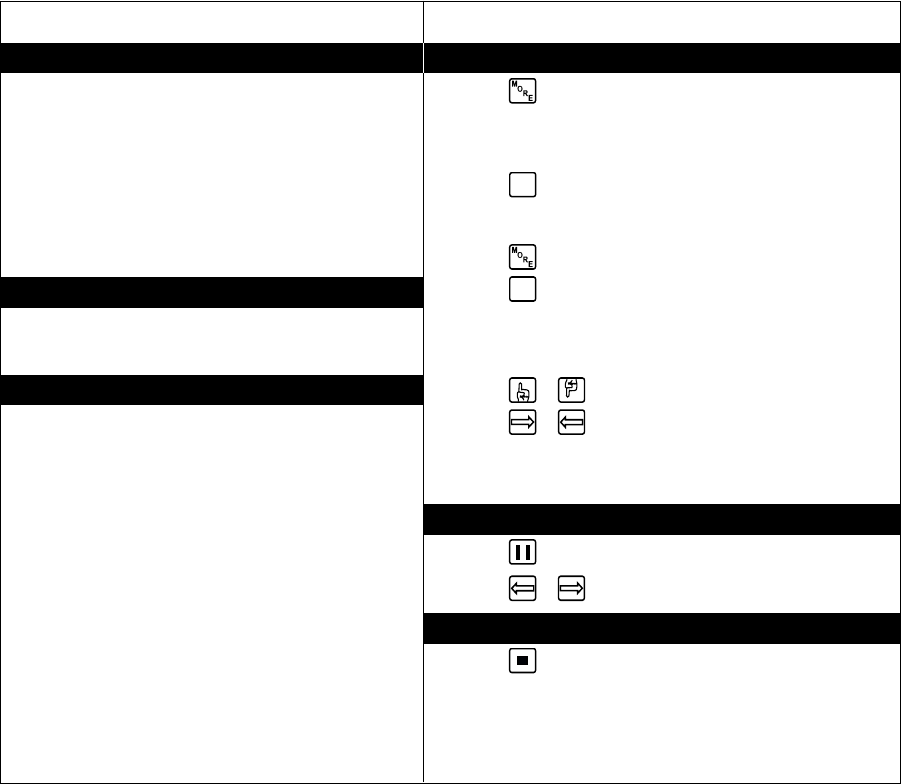
C1522M-C (2/05) 57
OPERATE SEQUENCES
You can run a scratchpad sequence from an individual monitor or a system sequence on any monitor accessible from the keyboard. When
running a sequence, any cameras not accessible to the keyboard will be bypassed.
A sequence runs continuously until a system operator selects a different camera, or an event timer starts another sequence or macro.
KBD100/200A/300A KEYBOARDS
Run a Sequence
1. Enter a sequence number (1-32). Skip this step to run a
scratchpad sequence.
2. Press and hold the NEXT or PREV key to move forward or
backward through the sequence.
To move through the sequence one camera at a time:
Press the NEXT key to move forward.
Press the PREV key to move backward.
Pause a Sequence
1. Press the HOLD key; monitor displays H.
2. Press the HOLD key to resume.
Stop a Sequence
1. Enter a camera number.
2. Press the CAM key.
KBD960/KBR960 KEYBOARDS
Run a Sequence
1. Select .
2. Enter a sequence number (1-32 for a system sequence; 0 for the
scratchpad sequence).
3. Select
SEQ
to start the sequence.
OR
1. Select .
2. Select
SEQ
to enter the Sequence Menu.
3. Enter a sequence number (1-32).
OR
Select or to scroll through available sequences.
4. Select or to start the sequence.
NOTE: You can define a function key to run a sequence. Refer to the
KBD960 Keyboard Installation/Operation Manual for instructions.
Pause a Sequence
1. Select .
2. Select or to resume.
Stop a Sequence
1. Select .
OR
1. Enter a camera number.
2. Press the CAM key.
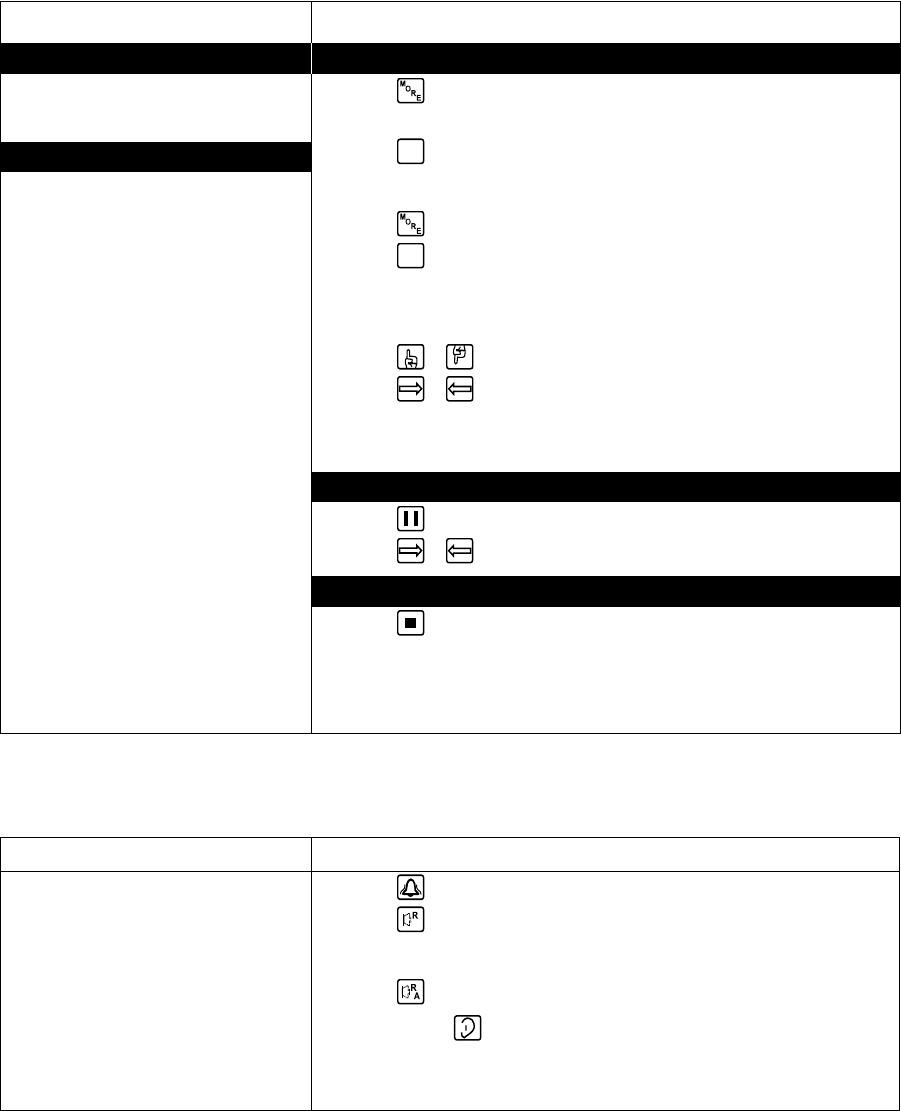
58 C1522M-C (2/05)
RUN A MACRO
A macro runs until the last step is completed (unless you specify a loop in the macro).
ACKNOWLEDGE AN ALARM
When an alarm is triggered, an alarm icon appears on the monitors programmed to show that alarm.
KBD100/200A/300A KEYBOARDS
1. Enter the monitor number.
2. Press the MON key.
3. Press the ACK key. The alarm is
removed from the selected monitor.
4. Repeat for each alarm.
KBD960/KBR960 KEYBOARDS
1. Select .
2. Select to reset the alarm on the individual monitor.
OR
Select to reset the alarm on all monitors.
You can also select to mute the alarm.
NOTE: You can define a function key to acknowledge an alarm. Refer to the KBD960
Keyboard Installation/Operation Manual for instructions.
KBD100/200A/300A KEYBOARDS
Run a Macro
1. Enter the macro number.
2. Press the MACRO key.
Stop a Macro
1. Enter the number of the running macro.
2. Press the MACRO key.
NOTE: Any macro or sequence started
by this macro will continue to run.
KBD960/KBR960 KEYBOARDS
Run a Macro
1. Select .
2. Enter a macro number.
3. Select
MAC
to start the macro.
OR
1. Select .
2. Select
MAC
to enter the Macro Menu.
3. Enter a macro number.
OR
Select or to scroll through available macros.
4. Select or to start the macro.
NOTE: You can define a function key to run a macro. Refer to the KBD960 Keyboard
Installation/Operation Manual for instructions.
Pause a Macro
1. Select .
2. Select or to resume.
Stop a Macro
1. Select .
OR
1. Enter a camera number.
2. Press the CAM key.
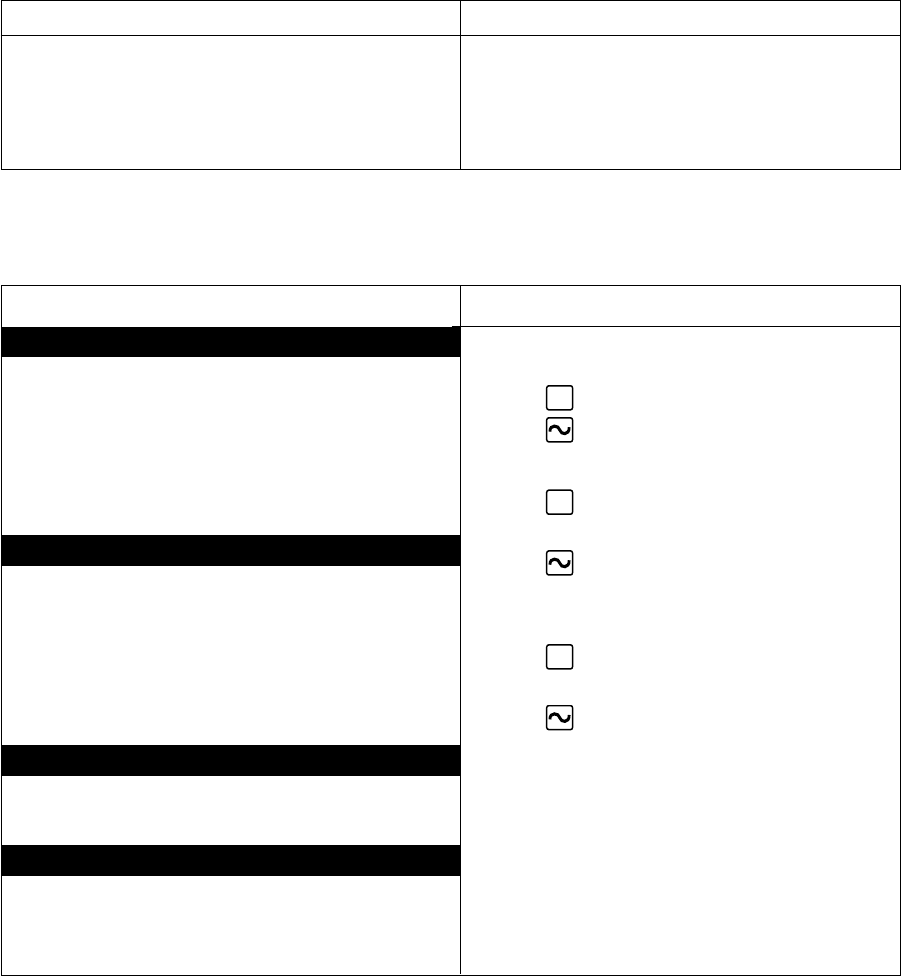
C1522M-C (2/05) 59
CALL A PRESET
Program the preset through the keyboard. Refer to the appropriate keyboard manual for instructions. Presets are not available with the
KBD100 keyboard.
KBD200A/300A KEYBOARDS
1. Enter the preset number.
2. Press the PRESET key.
KBD960/KBR960 KEYBOARDS
1. Enter the preset number.
2. Press the Prst/Lock key.
OR
Select the PRST icon.
CREATE AND RUN A PATTERN
Patterns are not available with the KBD100 keyboard.
KBD960/KBR960 KEYBOARDS
Refer to the KBD960 Keyboard Installation/Operation manual
for instructions on creating a pattern.
1. Select
PRST
to display the Preset Menu.
2. Select to start a pattern.
OR
1. Select
PRST
to display the Preset Menu.
2. Enter 1.
3. Select to run the first pattern of previously defined
half-patterns.
OR
1. Select
PRST
to display the Preset Menu.
2. Enter 2.
3. Select to run the second pattern of previously defined
half-patterns.
KBD200A/300A KEYBOARDS
Create a Long Pattern
1. Enter a camera number.
2. Enter 0.
3. Press and hold the PATTERN key for two seconds.
4. The monitor will indicate the programming function is active.
Move the camera position as desired for the pattern.
5. Press the ACK key to close the programming function.
Create a Short Pattern
1. Enter a camera number.
2. Enter the short pattern number (1 or 2).
3. Press and hold the PATTERN key for two seconds.
4. The monitor will indicate the programming function is active.
Move the camera position as desired for the pattern.
5. Press the ACK key to close the programming function.
Run a Long Pattern
1. Press the PATTERN key.
2. Move the joystick or call a preset to stop the pattern.
Run a Short Pattern
1. Enter the short pattern number (1 or 2).
2. Press the PATTERN key.
3. Move the joystick or call a preset to stop the pattern.
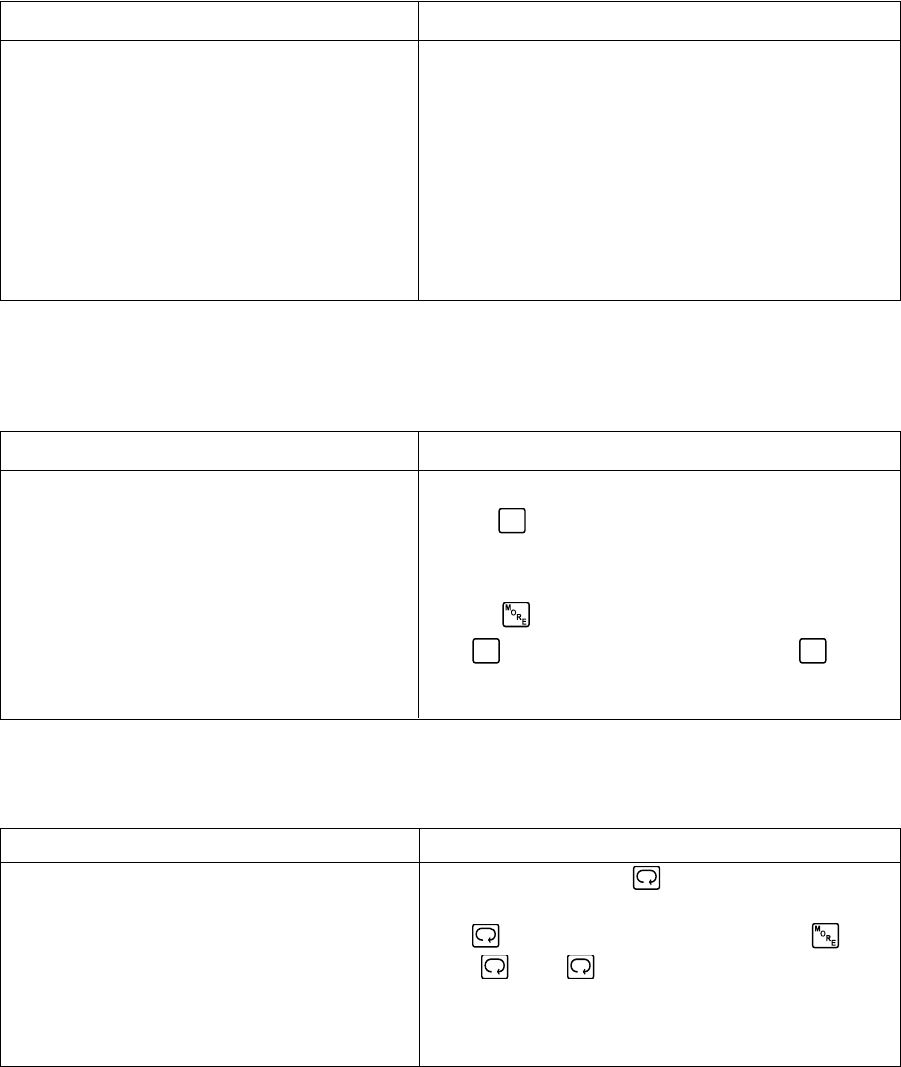
60 C1522M-C (2/05)
OPERATE AUXILIARIES/RELAYS
Local auxiliaries are the outputs on the rear panel of the CM6800. External auxiliaries are available by connecting an REL2064 Relay
Interface Unit to the CM6800 through COM port 3.
Operate a Local Auxiliary
KBD100/200A/300A KEYBOARDS KBD960/KBR960 KEYBOARDS
Auxiliary 1 relay: Press F1 to activate/deactivate. Auxiliary 1 relay: Press F12* to activate/deactivate.
Auxiliary 2 TTL output: Press F2 to activate/deactivate. Auxiliary 2 TTL output: Press F24* to activate/deactivate.
*F12 and F24 are the default auxiliary control function keys; user-
selected function keys can be defined through the Key Define
Menu. Refer to the KBD960 Keyboard Installation/Operation
Manual for instructions.
NOTE: If you connect REL2064 Relay Interface Units (up to two) to
the CM6800E, operation of the two relays on the rear panel of the
CM6800E-32X6 will also operate the first two relays on the first
external unit (unless you number the external relays starting at 64).
Operate an External Auxiliary
The CM6800 can control up to two REL2064 Relay Interface Units connected to the system. Each unit provides 64 relays. Refer to the
REL2064 Relay Interface Unit Installation/Operation Manual for detailed information. External relays cannot be operated with the KBD100.
KBD200A/300A KEYBOARDS
The KBD200A/300A keyboards (firmware version 4.2 and
later) can operate external relays.
Refer to the KBD200A Keyboard Installation/Operation
Manual or the KBD300A Keyboard Installation/Operation
Manual for instructions.
NOTE: External relays cannot be operated with KBD200A/
300A keyboard firmware versions prior to 4.2.
KBD960/KBR960 KEYBOARDS
1. Enter the GPI number for the appropriate relay output.
2. Press
GPI
.
3. Press the desired AUX number icon to activate the relay and
associated peripheral device.
(Press to access AUX 5-8.)
4. If
MTRY
is highlighted, the operation is momentary. If
MTRY
is not
highlighted, the operation is latching. Refer to the KBD960
Keyboard Installation/Operation Manual for instructions.
Operate an Auxiliary in a Receiver
Receiver auxiliary control is not available with the KBD100.
KBD200A/300A KEYBOARDS
Press AUX ON/F4 to activate.
Press AUX OFF/F5 to deactivate.
OR
To control a momentary function:
1. Enter the auxiliary number.
2. Press and hold AUX ON/F4, and then release.
KBD960/KBR960 KEYBOARDS
From the Camera Menu, press
1
, and then release to control an
AUX 1 momentary function on the selected camera.
Press
2
to control an AUX 2 momentary function. Press to
access
3
through
8
.
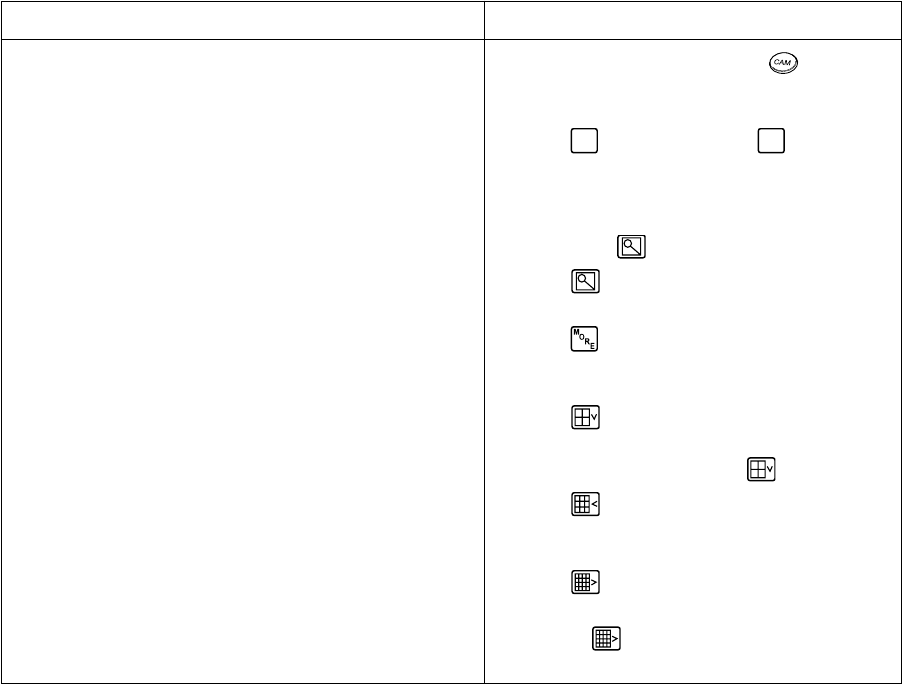
C1522M-C (2/05) 61
CONTROL GENEX MULTIPLEXER AND GENEX MULTIPLEXER DISPLAYS
Multiplexer control is not available with the KBD100.
KBD200A/300A KEYBOARDS
1. Enter the number of the multiplexer input.
2. Press the CAM key.
3. Press the SHIFT key. When the SHIFT LED is lit, the keyboard can
be used to operate the following Genex multiplexer function keys:
F1: Digital zoom
F2: PIP display
F3: Quad display
AUX ON/F4: 9-screen display
AUX OFF/F5: 16-screen display
To select a camera through the multiplexer:
a. Enter the desired camera number (1-16, based on the camera
assignments set through the multiplexer).
b. Press the CAM key.
4. Press the SHIFT key to return to normal keyboard operation.
When the SHIFT LED is off, you can control the currently selected
PTZ camera through the multiplexer.
To return to camera selection controlled by the CM6800E:
a. Select the desired camera number.
b. Press the CAM key.
c. Move the joystick as necessary.
KBD960/KBR960 KEYBOARDS
1. Enter a MUX input number and press . Each MUX
input is associated with a camera input. Figure 43
shows MUX 1 being controlled.
2. Select
MUX
. MUX Menu 1 appears.
MUX
should be
highlighted, which means you have MUX control.
3. Cycle through the 16 picture inserts (if yo have a
16-channel multiplexer) by entering the camera number
and selecting .
4. Select again to zoom into the MUX camera. You
can move the joystick to view a specific area.
5. Select to bring up MUX Menu 2. The icons for a
picture-in-picture display, 4-camera display, 9-camera
display, and 16-camera display appear.
6. Select to view four of the available 16 cameras on
one monitor. You can cycle through all 16 cameras, four
at a time, by repeatedly selecting .
7. Select to view nine of the available 16 cameras on
one monitor. Select again to see the remaining seven
cameras.
8. Select to view all 16 available cameras on one
monitor.
Note that does not work on a 9-channel
mulitplexer.
OPERATE SCANNING FUNCTIONS
Operation of the scanning functions depends on the kind of receiver or pan/tilt mechanism you have. Refer to the appropriate keyboard
manual for detailed instructions on operating scanning functions.
DETECT VIDEO LOSS
The CM6800 detects video loss from any system camera. If video is lost from a camera, the CM6800 blue screen appears on any monitor
viewing that camera. When video is restored to that camera, the camera view appears on the monitor(s) again. If the system is pro-
grammed for a video loss alarm, the alarm icon appears.
DEFINE ZONES
A zone is a user-defined, physical location to which (1) a label is attached and (2) a camera is associated. When the associated camera is
panned through or remains within this defined zone the zone label appears on the monitor.
Refer to the appropriate keyboard manual for detailed instructions on defining zones.
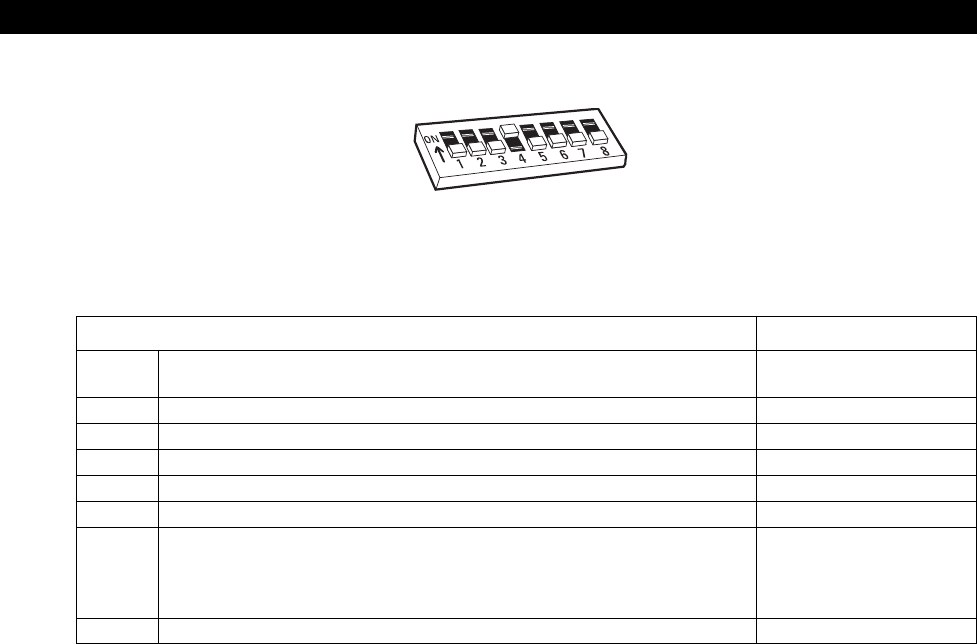
62 C1522M-C (2/05)
Figure 46. CM6800 DIP Switches – Factory Default Settings
Table G. CM6800 DIP Switch Settings
CM6800 DIP Switch Default Settings
Switch 1 OFF (0) = NTSC CM6800-32X6: OFF
ON (1) = PAL CM6800-32X6-X: ON
Switch 2 RESERVED – must be in the OFF position for proper operation OFF
Switch 3 RESERVED – must be in the OFF position for proper operation OFF
Switch 4 RESERVED – must be in the ON position for proper operation ON
Switch 5 RESERVED – must be in the OFF position for proper operation OFF
Switch 6 RESERVED – must be in the OFF position for proper operation OFF
Switch 7 USED TO RESET SOFTWARE. REFER TO THE SOFTWARE OFF
RESET SECTION
CAUTION: Resetting the software restores the system software to original
settings, programmed by Pelco. All user programming is lost.
Switch 8 RESERVED – must be in the OFF position for proper operation OFF
APPENDIX
CM6800 DIP SWITCHES
C1522M-C (2/05) 63
ALARM GROUP DISPLAY OPTIONS
To display on a monitor, an alarm must be assigned to an alarm group (A-F). Before programming alarms you may want to determine the
alarm display format for each alarm group. An alarm can include up to eight steps, so eight camera views could display as a part of each
alarm.
A priority alarm appears on system monitors before non-priority alarms, despite the order specified by the alarm group assignment. In the
following examples, all alarms are at the same priority level. Refer to the PRIORITY description in
Program Internal and External Alarms
.
Block Build
Alarmed cameras are displayed across a block of alarm monitors in a sequential order. All steps programmed for the alarm contact appear
on the designated monitor.
Example: Seven alarms set to display on monitors 02-06 will appear in the following order:
1st Display Next Display Acknowledging Next Display
Monitor Cycle Cycle Alarms 1 & 2 Cycle
02 B 1st alarm 1st and 7th Acknowledge 7th alarm
alarms cycle 1st alarm
03 B 2nd alarm 2nd and 8th Acknowledge 8th alarm
alarms cycle 2nd alarm
04 B 3rd alarm 3rd alarm 3rd alarm 3rd alarm
05 B 4th alarm 4th alarm 4th alarm 4th alarm
06 B 5th alarm 5th alarm 5th alarm 5th alarm
07 B 6th alarm 6th alarm 6th alarm 6th alarm
New alarms display on the lowest monitor number with the fewest alarms cycling.
Chronological Pair: D and Q
The oldest alarm of a specific group is displayed on one designated monitor, while all other alarms in the group are sequenced on the
second designated monitor. All steps programmed for the alarm contact appear on the designated monitor.
Example: Four alarms set to display on monitors 04 and 05 will appear in the following order:
Monitor 1 Alarm 2 Alarms 3 Alarms 4 Alarms
04 D 1st alarm 1st alarm 1st alarm 1st alarm
05 Q 2nd alarm 2nd and 3rd 2nd, 3rd, and 4th
alarms cycle alarms cycle
You must acknowledge alarms in a chronological pair from the display monitor (D).
Then the next oldest alarm moves to the display monitor and the remaining alarms
continue to cycle through the queue monitor (Q). This format requires you to acknowl-
edge each alarm in the order in which they occur.
Acknowledging alarms in this example:
Monitor 1st Cycle Next Cycle Next Cycle Next Cycle
04 D Acknowledge Acknowledge Acknowledge Acknowledge
1st alarm 2nd alarm 3rd alarm 4th alarm
05 Q 2nd, 3rd, and 4th 3rd and 4th 4th alarm
alarms cycle alarms cycle
ALARM MONITOR GROUP SETUP
MON A B C D E F G H
01 — — — — ————
02 B — — — ————
03 B — — — ————
04 B — — — ————
05 B — — — ————
06 B — — — ————
07 B — — — ————
08 — — — — ————
HELP
00638
ALARM MONITOR GROUP SETUP
MON A B C D E F G H
01 — — — — ————
02 — — — — ————
03 — — — — ————
04 — D — — ————
05 — Q — — ————
06 — — — — ————
07 — — — — ————
08 — — — — ————
HELP
00640
64 C1522M-C (2/05)
Reverse Chronological Pair: M and L
The most recent alarm of a specific group is displayed on one designated monitor, while all other alarms in the group are sequenced on
the second designated monitor. All steps programmed for the alarm contact appear on the designated monitor.
Example: Four alarms set to display on monitors 04 and 05 will appear in the following order:
Monitor 1 Alarm 2 Alarms 3 Alarms 4 Alarms
06 M 1st alarm 2nd alarm 3rd alarm 4th alarm
07 L 1st alarm 1st and 2nd 1st, 2nd, and 3rd
alarms cycle alarms cycle
You must acknowledge alarms in a reverse chronological pair from the display
monitor (M). Then the next most recent alarm moves to the display monitor and the
remaining alarms continue to cycle through the queue monitor (L). This format
requires you to acknowledge each alarm in the reverse order from which they
occurred.
Acknowledging alarms in this example:
Monitor 1st Cycle Next Cycle Next Cycle Next Cycle
06 M Acknowledge Acknowledge Acknowledge Acknowledge
Alarm 4 Alarm 3 Alarm 2 Alarm 1
07 L Alarms 1, 2, Alarms 1 Alarm 1
and 3 cycle and 2 cycle
Salvo Group
Multiple camera views within the alarm contact programming (the “steps”) are displayed simultaneously as a group across a set of
monitors. When a new alarm triggers, all monitors switch to the new alarm at the same time.
When programming a Salvo Group:
• Program the Salvo Group to display across a number of monitors equal to the number of steps in the alarm contact(s); for example if
the alarm contact has six steps, set the Salvo Group to display on six monitors. If an alarm contact contains more steps than
monitors defined for the Salvo Group, the additional steps do not appear on a monitor during the alarm.
• Each alarm contact assigned to the Salvo Group should contain the same number of steps.
• The Salvo Group switches based on the dwell time entered for the first step in the alarm contact.
Example: Two alarm contacts with three steps set to display on three monitors will appear as follows:
Monitor 1 Alarm 2 Alarms Next Display Cycle After Acknowledging 1st Alarm
06 S 1st alarm, step 1 2nd alarm, step 1 1st alarm, step 1 2nd alarm, step 1
07 S 1st alarm, step 2 2nd alarm, step 2 1st alarm, step 2 2nd alarm, step 2
08 S 1st alarm, step 3 2nd alarm, step 3 1st alarm, step 3 2nd alarm, step 3
ALARM MONITOR GROUP SETUP
MON A B C D E F G H
01 — — — — ————
02 — — — — ————
03 — — — — ————
04 — — — — ————
05 — — — — ————
06 — — M — ————
07 — — L — ————
08 — — — — ————
HELP
00641
ALARM MONITOR GROUP SETUP
MON A B C D E F G H
01 — — — — ————
02 — — — — ————
03 — — — — ————
04 — — — — ————
05 — — — — ————
06 — — — S ————
07 — — — S ————
08 — — — S ————
HELP
00639

C1522M-C (2/05) 65
MACRO COMMANDS
Table H provides a description of each macro command and the additional fields required for each command. Refer to the
Macro
section
for instructions on programming macros.
Table H. Macro Commands
Command Description Specify Field(s)
GON Activate an auxiliary. Auxiliary Command #
GOFF Turn off an auxiliary. Auxiliary Command #
Auxiliary Notes:
•“Global” includes both internal and external auxiliaries.
•Auxiliaries on the rear panel of the CM6800 Matrix Switcher are activated by global auxiliary numbers 1 and 2.
CON Activate a camera auxiliary. Camera auxiliary Command #
Camera Camera
Monitor Monitor
COFF Turn off a camera auxiliary. Camera auxiliary Command #
Camera Camera
Monitor Monitor
SEQ Start a sequence. A sequence runs continuously until a system operator selects Sequence Command #
a different camera, or an event timer starts another sequence or macro. Monitor Monitor
SWT Switch a camera to a monitor. Camera Camera
Monitor Monitor
COPY Copy a camera view to a monitor. Monitor to copy from Command #
Monitor to copy to Monitor
GO TO Go to step number specified. Step Command #
LOOP Loop a macro. 0 = loop continuously Command #
1-999 = loop the specified
number of times
?AUX Check a local auxiliary; if the auxiliary is active, the next step is executed; if Local auxiliary Command #
the auxiliary is not active, the next step is skipped.
?ALM Check an internal alarm; if the alarm is active, the next step is executed; if Alarm Command #
not, the next step is skipped.
?SW Check whether a camera is displayed on a monitor; if it is, the next step is Camera Camera
executed; if not, the next step is skipped. Monitor Monitor
STPM Stop a macro. Macro Command #
END Exit the macro; no further steps are executed. Any macro or sequence started None None
by this macro will continue to run.
DON Displays on-screen text on the specified monitor. Monitor Monitor
DOFF Removes on-screen text from the specified monitor. Monitor Monitor
MSWT Switch a camera connected through the multiplexer. Camera to switch◆Command #
Multiplexer input Camera
Monitor Monitor
PIPB Display multiplexer picture-in-picture view with the Background camera◆Command #
designated camera in the background. Multiplexer input Camera
Monitor Monitor
PIPF Display multiplexer picture-in-picture view with the Foreground camera◆Command #
designated camera in the foreground. Multiplexer input Camera
Monitor Monitor
◆For multiplexer functions, the camera number is the number of the video input on the multiplexer. The multiplexer input number is the number
of the video input on the rear panel of the CM6800.

66 C1522M-C (2/05)
Table H. Macro Commands (Continued)
Command Description Specify Field(s)
PIPO Turn off multiplexer picture-in-picture view. Multiplexer input Camera
Monitor Monitor
QUAD Display multiplexer four-camera mode. Camera group* Command #
Multiplexer input Camera
Monitor Monitor
NANO Display multiplexer nine-camera mode. Camera group* Command #
Multiplexer input Camera
Monitor Monitor
HEX Display multiplexer sixteen-camera mode. Multiplexer input Camera
Monitor Monitor
ZOOM Zoom multiplexer camera view. 1 = zoom once Command #
2 = zoom twice
Multiplexer input Camera
Monitor Monitor
AAI Arm internal alarm. Internal alarm Command #
DAI Disarm internal alarm. Internal alarm Command #
AAE Arm external alarm. External alarm Command #
DAE Disarm external alarm. External alarm Command #
AAV Arm video loss detection for a camera. Physical camera number Command #
OR
Logical camera number Camera
DAV Disarm video loss detection for a camera. Physical camera number Command #
OR
Logical camera number Camera
MACR Start a specific macro. A macro runs until the last step is completed (unless Macro Command #
you specify a loop in the macro).
PATT Start a pattern. Pattern** Command #
Camera Camera
Monitor Monitor
PRES Start a preset. Preset** Command #
Camera Camera
Monitor Monitor
RSCN Start a random scan. Camera Camera
Monitor Monitor
FSCN Start a frame scan. Camera Camera
Monitor Monitor
SSCN Stop a scan. Camera Camera
Monitor Monitor
*Refer to the MX4000 Genex Series Simplex and Duplex Multiplexers Installation/Operation Manual for information on multiple
camera displays.
** The number of patterns and presets available is determined by the camera positioning system. Refer to the appropriate camera
positioning system manual.

C1522M-C (2/05) 67
ASCII OPERATING COMMANDS
ASCII protocol uses the ASCII character set to transmit and receive commands between an ASCII device (such as a personal computer (PC)
or ASCII keyboard) and the CM6800.
The ASCII protocol communicates in a standard asynchronous, byte-oriented protocol that includes: 1 start bit, 8 data bits, 1 parity bit (odd
parity), and 1 stop bit. The default communication rate is 9600 baud.
A lowercase “a” ends each command. The ASCII translator acknowledges accepted commands and rejected commands with the following
responses:
AKa command accepted
NAa command rejected or the ASCII translator does not recognize the command
If the command requires a numeric value, enter the number first.
Table I provides examples of ASCII commands. Table J lists all of the commands.
Table I. Examples of ASCII Commands
Functional Procedure Commands Result
Select a pan and tilt device labeled “CAMERA # 16” 3Ma16#a Switch camera 16 to currently selected monitor 3.
and switch it to monitor # 3.
Manipulate the pan and tilt device. 1Ma3#a Switch camera 3 to monitor 1.
5Ma2#a3\a Go to camera 2, preset 3, on monitor 5.
47Ra33Da Pan right at speed 47, tilt down at speed 33.
sa Stop all image motion.
Switch a camera. 1Ma3#a Switch camera 3 to monitor 1.
Call a preset. 5Ma2#a3\a Go to camera 2, preset 3, on monitor 5.
Pan and tilt. 47Ra33Da Pan right at speed 47, tilt down at speed 33.

68 C1522M-C (2/05)
Table J. ASCII Commands
Number ranges are enclosed in brackets – do not enter the brackets. When you control a fixed speed pan and tilt, omit the speed information.
NOTE: In a 96 x 16 system the numbers for cameras, monitors, alarms, and relays can be doubled.
Command
[1-9999]Ma
[1-9999]#a
+a
-a
[1-99]qa
[1-99]ba
ea
[1-64]ea
[1-64]La
[1-64]Ra
~La
~Ra
[1-63]Ua
[1-63]Da
~Ua
~Da
Ta
Wa
~Ta
~Wa
Na
Fa
~Na
~Fa
Oa
Ca
~Oa
~Ca
sa
[1-99]/a
[1-99]pa
[1-99]na
[1-99]\a
la[string]!a
[1-9999]^a
[1-9999]-^a
[1-8](a
la[string]!a[1-8](a
[1-8])a
Desired Action
Select monitor
Select camera
Next camera
Previous camera
Start a sequence forward
Start a sequence backward
Hold a sequence
Hold a macro
Pan left
Pan right
Stop pan left
Stop pan right
Tilt up
Tilt down
Stop tilt up
Stop tilt down
Zoom telephoto
Zoom wide
Stop zoom telephoto
Stop zoom wide
Focus near
Focus far
Stop focus near
Stop focus far
Iris open
Iris close
Stop iris open
Stop iris close
Stop all PTZ motion
Record pattern
Execute pattern
End pattern
Go to preset position
Set preset with a label
Set preset without a label
Begin zone
Begin zone with a label
End zone
Result
Calls a monitor to use for camera operation.
Selects a camera to display on the current operating monitor. The NEXT key (+) and
PREV key (-) commands switch to the next numbered camera in the system.
Starts the selected sequence going forward (incrementing camera numbers).
Starts the selected sequence going backward (decrementing camera numbers).
Places the running sequence on hold, freezing the currently selected camera on the
monitor. It lets you control the camera or switch. The sequence is still “armed” on
the monitor, but inactive.
Places the running macro on hold.
Moves the currently selected pan and tilt device left or right at the speed
indicated. If you omit the speed, some devices move at their default speed and
others move at their slowest possible speed. Speed information has no effect on
fixed speed devices.
Moves the currently selected pan and tilt device up or down at the speed
indicated. If you omit the speed, some devices move at their default speed and
others move at their slowest possible speed. Speed information has no effect on
fixed speed devices.
Makes the currently selected camera zoom in (close up view) or zoom out (wide
view).
Changes the good focus range nearer or farther on the currently selected camera.
Opens (brighter image) or closes (darker image) the iris on the currently selected
camera.
Stops all image motion (stops pan, tilt, zoom, focus, and iris). Does not stop a
pattern.
On receivers that do patterns, these commands let you record your motions and
operations (for a limited time) and then have the system repeat them.
Recalls a stored preset position.
Sets a preset location with an embedded label, where the ASCII string must be
UPPERCASE characters.
The [string] is an alphanumeric label up to 20 characters long and [1-9999] is the
associated preset number.
NOTE: All transmitted characters must be ASCII.
Sets a preset location without an embedded label.
Begins a zone without a label.
Begins a zone with an embedded label. The ASCII string must be uppercase
characters.
Ends the zone program

C1522M-C (2/05) 69
Table J. ASCII Commands (Continued)
Desired Action
Begin random scan
Begin frame scan
Stop scan
Auxiliary on
Auxiliary off
Camera auxiliary on
Camera auxiliary off
Start macro
Stop macro
Acknowledge alarm
Arm internal alarm
Arm external alarm
Arm video loss alarm
Disarm internal alarm
Disarm external alarm
Disarm video loss alarm
Trigger an alarm
Clear an alarm
Acknowledge an alarm
An alarm is triggered
An alarm is cleared
An alarm is acknowledged
Select a MUX camera
Display picture-in-picture view
Display four-camera mode
Display nine-camera mode
Display 16-camera mode
Digital mode zoom
Digital mode pan left
Digital mode pan right
Digital mode tilt up
Digital mode tilt down
Send camera title
Version
Set date and time
Command
1@a
2@a
~@a
[1-256]xa
[1-256]~xa
[1-8]Aa
[1-8]Ba
[1-64]Sa
[1-64]Ha
[1-9999]Ia
[1-8]Jia
[1-256]Jea
[1-48]Jva
[1-8]~Jia
[1-256]~Jea
[1-48]~Jva
#Ea
#Ia
#Ka
#Ea
#Ia
#Ka
[1-9999]#m
im
um
om
xm
ym
dLm
dRm
dUm
dDm
[1-48]Ya[string]!a
va
ZaMM/DD/YY/HH:
MM:Ssa
Result
These commands start and stop scans.
Auxiliaries are relay outputs that can be controlled through the protocol. 1-2
operate the AUX 1 and F2 auxiliaries on the rear panel of the CM6800 (and the
first two auxiliaries on an external REL2064). 3-128 operate the external
auxiliaries on up to two REL2064 Relay Interface Units.
Operates auxiliaries at the camera (receiver).
Starts the selected macro.
Stops the selected macro.
Acknowledges an existing alarm.
These commands arm and disarm system alarms.
An ASCII device can send these commands through the CM6800 to control
alarms in an external alarm device, such as an ALM2064 Alarm Interface Unit.
NOTE: These commands do not affect internal alarms on the CM6800 rear
panel.
If you configure a CM6800 Port to report alarms to an ASCII device, the CM6800
reports the alarm information using these commands.
NOTE: The CM6800-32X6 reports the physical alarm number. If you use the
eight internal alarm inputs on the rear panel, do not use the first eight inputs on
any external alarm interface units (ALM2064), or you will have a numbering
conflict.
These commands control a Genex multiplexer connected to the CM6800.
Sends a camera title to the matrix switching system. You can only send one
camera title at a time.
Valid characters in the string are A-Z, a-z, space, and 0-9 in ASCII representa-
tion. Strings are limited to 20 characters.
Returns the version number of the device.
Sets the date and time. Since the date and time string could be confused with
other commands, the command Za comes first. This puts the receiving device
into a mode that can accept the specialized string.
NOTE: All transmitted characters must be ASCII.
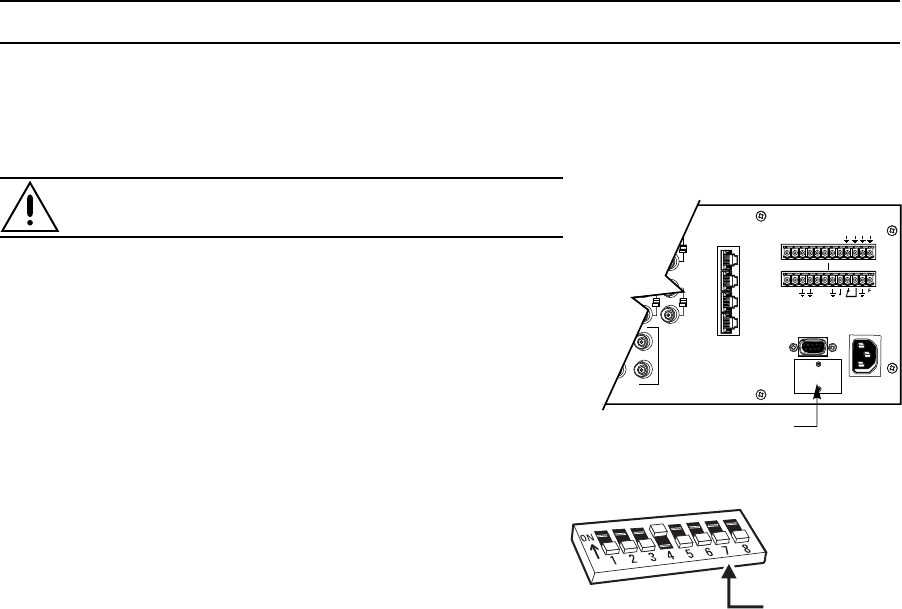
70 C1522M-C (2/05)
TROUBLESHOOTING
GAINING INITIAL CONTROL
If you are having problems gaining control of your system for the first time:
• Confirm that all system equipment is plugged in and has power.
•Confirm that each keyboard and peripheral device in your system has a unique local address. Refer to the
Switch Settings
section in
the appropriate keyboard manual.
•Be sure data cables have not been mixed up.
•Cycle the data cable to the keyboard:
1. Unplug the data cable from the rear of the keyboard.
2. Plug the data cable back into the rear of the keyboard.
3. WAIT AT LEAST FIVE SECONDS.
4. Select a monitor.
If you still cannot gain control of the system:
•Confirm the wiring is correct and the user-supplied cable between wall jacks is appropriate for the application.
•Confirm that when the keyboard data cable is cycled, the keyboard LED flashes momentarily (indicating power).
If you still cannot gain control of the system, call Pelco’s 24-hour technical support at 1-800-289-9100 or 1-559-292-1981.
NOTE: There are no userserviceable parts inside the CM6800. Only authorized service personnel may open the unit.
SOFTWARE RESET
Pelco strongly recommends uploading system settings to the CM6800-MGR before the software reset – this will allow you to restore
system settings after the software reset.
CAUTION: Resetting the software restores the system to default settings.
1. Remove the two screws and the DIP switch cover plate from the rear of the
matrix switcher.
2. Move DIP switch 7 to the ON position (to “0”).
3. Cycle power.
The switcher will go through a software clear cycle and reset to factory
defaults.
4. Move DIP switch 7 to the OFF position.
Failure to move DIP switch 7 to the OFF position could result in loss of system
settings during a power outage.
5. Re-initialize keyboards by entering the monitor number and then pressing the
MON key.
6. Download your previous system settings (revise settings as necessary) from
the CM6800-MGR.
Figure 47. Dip Switch Cover Plate
Figure 48. CM6800 DIP Switch 7
COM 1
2
3
4
5
16
6
3231
3
VIDEO OUTPUTS
120/230V~
50/60 HZ
25 WATTS
COM
ALARM
123 45 678
CONTROL
T
+
T
-R
+
R
-2
PTZ
DIP SWITCH COVER PLATE
SWITCH 7:
ON = SOFTWARE RESET
OFF = NORMAL SYSTEM
OPERATION

C1522M-C (2/05) 71
SOLUTIONS TO COMMON PROBLEMS
Refer to Table K for a list of common problems and their solutions.
Table K. Solutions To Common Problems
Problem
CM6800 does not have power.
You can see some cameras and not others
from your location.
The CM6800 does not respond to keyboard
commands.
Pressing the PGM key displays a P on the
keyboard LED, but the Password menu
does not appear on the monitor.
(KBD100/200A/300A Keyboards only)
Keyboards do not function after installa-
tion and initial power-up.
Previous system control has been lost.
The unit malfunctions and you cannot
restore it to satisfactory operation.
Remedy
Make sure the power cord is plugged in.
Confirm that the camera is properly connected and has power.
The keyboard and monitor may have been denied access to the cameras.
Confirm that the monitor the keyboard is addressing is the same as the monitor in
front of you.
Access to that monitor may be restricted from that keyboard. Select another monitor.
Confirm that the keyboard transformer is plugged in and all electrical connections are
in order.
Confirm that the monitor the keyboard is addressing is the same as the monitor in
front of you.
Confirm that all wiring is correct and that keyboards have power and are connected.
Confirm that each keyboard has been set for a unique address.
SOLUTION 1
Initialize the keyboard:
1. Enter the monitor number.
2. Press the MON key.
SOLUTION 2
1. Unplug the data cable from the rear of the keyboard.
2. Plug the data cable back into the rear of the keyboard.
3. Wait five seconds.
4. Re-initialize the keyboard.
SOLUTION 3
1. Power down the CM6800.
2. Power up the system.
3. Wait five seconds.
4. Re-initialize keyboards.
SOLUTION 4
Perform a software reset (refer to Software Reset in this section).
CAUTION: Resetting the software restores the system to default settings. All user
programming is lost.
Uploading system settings to the CM6800-MGR before the
software reset allows you to restore system settings after the software reset.
SOLUTION 5
Call Pelco’s 24-hour technical support at 1-800-289-9100 or 1-559-292-1981.
Perform a software reset (refer to Software Reset in this section).
CAUTION: Resetting the software restores the system to default settings. All user
programming is lost.
Uploading system settings to the CM6800-MGR before the
software reset allows you to restore system settings after the software reset.
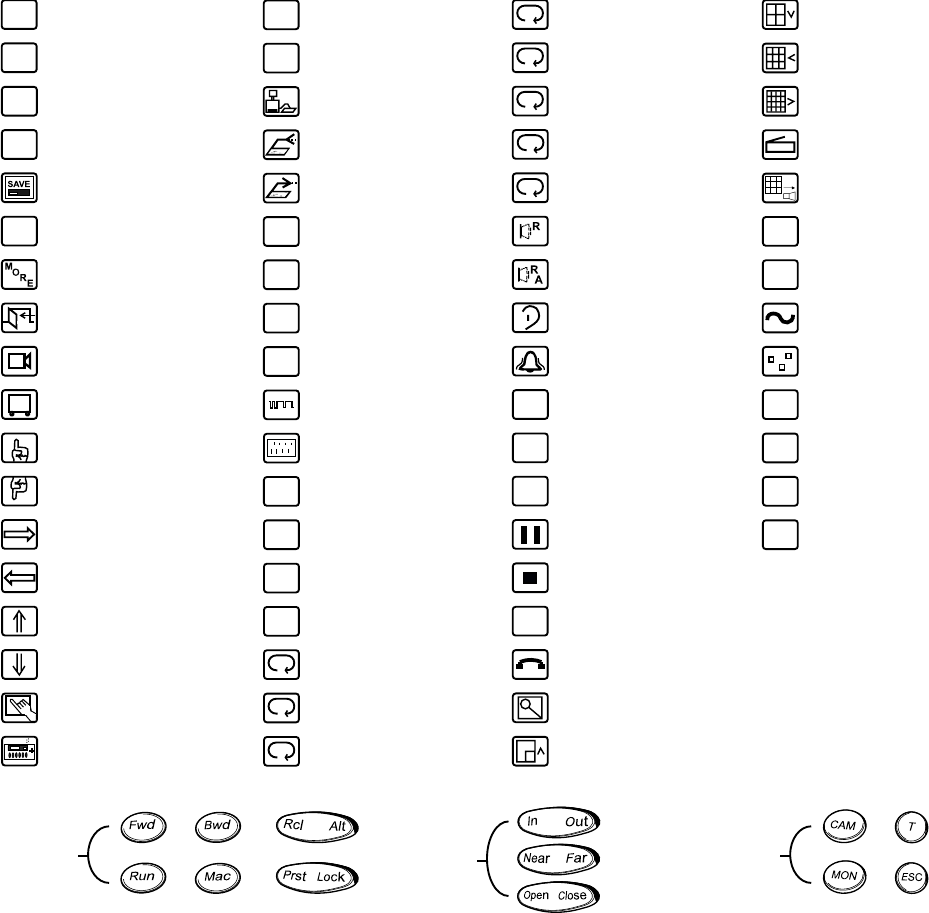
72 C1522M-C (2/05)
KBD960/KBR960 ICON/BUTTON LEGEND
Figure 49. Icon/Button Legend
MUX
CAMERA CONTROL
SEQUENCE
MENU
MUX
MENU
SEQ
MUX
FORWARD
RUN
BACKWARD
MACRO
RECALL/ALTERNATE
PRESET/LOCK
FUNCTION
CONTROLS IRIS
CONTROLS
IN/OUT
NEAR/FAR
OPEN/CLOSE
OTHER
CONTROLS
CAMERA
MONITOR
TURBO
ESCAPE
LOG
OFF
CAMERA
SELECTION
MONITOR
SELECTION
CAMERA
PRESET
AUX 1, RELAY 1
AUX 2, RELAY 2
AUX 3, RELAY 3
AUX 4, RELAY 4
AUX 5, RELAY 5
AUX 6, RELAY 6
AUX 1, RELAY 1
AUX 7, RELAY 7
AUX 8, RELAY 8
RESET
ALARM
1
2
3
4
5
6
7
8
LOG
OFF
PRST
DEVICE
PAUSE
EXIT MUTE
ALARM
JOYSTICK
ADJUST
SERIAL PORT
TEST
KEYBOARD
DOWNLOAD
TEST GRAPHIC
PAGE 0
PATTERN
ZONE
PARITY
G0
KEYBOARD
KEY TEST
MACRO
SELECT
MUX
PIC IN PIC
SETUP/DEFINE
PIN
PIN
KEYBOARD
SELECT
DISPLAY
BRIGHTNESS
STOP
SCROLL DOWN
SCROLL FIELD DOWN
SCROLL UP
SCROLL FIELD UP
RESET
ALL ALARMS
MORE
MENU
MUX
ZOOM
MUX
TAPE
MUX
QUAD
MUX
NINE
MUX
SIXTEEN
MUX
LIVE
KEYBOARD
UPLOAD
TEST GRAPHIC
PAGE 1
TEST GRAPHIC
PAGE 2
TEST TEXT
PAGE 0
DIP SWITCH
TEST
COM PORT 3
COM PORT 2
COM PORT 1
GPI
MENU
LOG OFF
YES
SAVE
SELECTION
DELETE
LOG OFF
NO
JSTK
G1
G2
T0
LCD
COM1
COM2
COM3
YES
GPI
DEL
NO
RELAY
MOMENTARY
SCROLL OPTION
UP
PROGRAM
MENU
DEFINE
NUMBER
SCROLL OPTION
DOWN
PLAY FWD
SCROLL RIGHT
PLAY BWD
SCROLL LEFT
ADVANCE
MENUS
DEFINE
MENU
MTRY
DEF
NUM
DEF
ADV
MAC
PGM
MENU
PROGRAMMING
MENU
00665

C1522M-C (2/05) 73
GLOSSARY
Term Definition
Access The CM6800 allows you to restrict system control by (1) limiting the monitors or cameras a keyboard
can access, or (2) limiting the cameras that can be viewed on a monitor.
Alarm display format The CM6800 Matrix Switcher provides four formats for displaying alarmed cameras on system
monitors: Block Build, Chronological Pair, Reverse Chronological Pair, and Salvo Group.
Alarm group To display on a monitor, an alarm must be assigned to one or more alarm groups. The CM6800-32X6
Matrix Switcher provides six alarm groups (A through F). Refer to Alarm Groups and Alarm Group
Display Options.
Alarm priority A priority alarm appears on system monitors before a non-priority alarm. Refer to the Priority
description under Internal and External Alarms.
ASCII The binary, 7-bit, 128-character set implemented as the standard in communications.
Auxiliary Output relays can be used to control external devices based on matrix switcher activities. External
devices can include VCRs, alarm devices, and triggers for audio circuits.
Baud rate In video, the greater the speed, the larger amount of information passed. In digital systems, this
capacity is given in bits per second, or baud rates.
Bit An abbreviation for “binary digit” – the smallest unit of information a computer can use. A bit is either
a 1 or a 0 (a high or low voltage state).
Byte An abbreviation for “binary term” – bytes are strings of bits, operated upon as a unit. A byte is equal to
eight bits (256 possibilities) and is large enough to hold one character (like an “A” or the number “1”.)
Camera auxiliary Some cameras contain an auxiliary output relay, which can be used to operate a device connected to
the relay.
Coaxitron This is Pelco’s “up the coax” control technology. Control signals are sent back up the coaxial cable that
the video signal travels down on.
COM port This is a communication port input on the rear panel of the matrix switcher.
Daisy-chain This is a way of providing multiple connections in a series, from one source. A daisy-chain
configuration connects multiple, linked devices from one output. When connecting PTZ cameras to a
matrix switcher, for example, one set of cables connects the matrix switcher to each receiver, and
then each receiver is connected to the next receiver.
Dwell This is the amount of time something happens in the system, such as the amount of time a camera
view displays on a monitor, or an auxiliary is on.
Event timer The matrix switcher can automatically initiate macros or sequences based on time and date.
Extended Coaxitron This is Pelco’s Coaxitron control technology that uses 32 bits to send a command.
Frame scan A three-second camera scan followed by a three-second pause.
Latching operation The auxiliary device remains on until a command is given (by a system operator or system automation)
to turn it off.
Logical camera number A user-selectable, variable number, which is associated with an actual physical camera input on the
rear panel of the matrix switcher.
Macro A sequence of commands or steps. Macros can be operated automatically or manually. Automatic
operation can be based on specific times or dates (set through the Event Timer).
74 C1522M-C (2/05)
Matrix switcher This is also known as a cross-point switcher. The cross-points are actually electronic switches that
select any video input onto any video output at any one time, preserving the video impedance
matching. One video signal can simultaneously be selected on more than one output. More than one
video input can be selected on one output, in a sequential switching between inputs (unless the input
is routed through a multiplexer, which allows more than one input to be viewed on the output monitor
at any one time).
Momentary operation The auxiliary output operation is activated briefly and then turns off.
Multiplexer (MUX) A multiplexer allows an operator to view more than one video signal (usually either four, nine or
sixteen signals) at one time on a single monitor. A multiplexer can also send these multiple images to
the video recorder, switching rapidly between image from each camera.
NTSC The American color TV standard, used in North America, Japan, and a few other countries. It specifies
525 lines/screen, and 29-30 frames/sec.
Null modem cable A null modem cable allows you to connect your PC to another nearby PC or serial device by “crossing
over” (reversing) their respective pin contacts. (A null modem cable is limited to 30 feet in length.)
PAL The color TV standard (50Hz) used by European, Asian, and some Latin American countries. It specifies
768 pixels/line, 576 lines/screen and 25 frames/sec.
Parity type The parity bit is used to identify whether the bits being moved arrived successfully. Parity bit checking
can be based on odd or even bits. No parity means that a parity bit is not transmitted or checked.
Pattern A pattern is a user-defined, viewable camera path with a definite beginning and end. The pattern can
consist of any standard pan and tilt or lens command. Once defined, the pattern is easily activated by
a system operator or through an automated event. The pattern will run continuously until it is
deactivated. The number and time length of patterns varies with different positioning systems.
Physical input A number representing an actual BNC camera input on the rear panel of the matrix switcher. This
number cannot be changed.
Preset A preset allows operators to direct a PTZ (camera positioning system) to move to a predetermined
scene on keyboard command or as a result of an alarm. In addition to moving the camera, a
descriptive title can appear on the screen. The type of camera positioning system determines the
number of presets available.
Priority control This is the level of priority a system keyboard has to control a PTZ camera positioning system and to
access CM6800 Matrix Switcher on-screen programming menus.
PTZ This is a camera positioning system with pan, tilt, and zoom capabilities.
Random scan This is a camera scan moving in a random pattern.
RJ-45 wall block This is a wall block with eight terminals for connecting RS-232, RS-422, and RS-485 communication
lines. (This is Pelco part number CON12J00820360Z.)
RS-232 This is an Electronics Industry Association (EIA) interface standard used for data communication; the
normal connection distance is 50 feet (15 m). Pelco uses this standard for communication from a
controller to a PC or RS-232 network. The Pelco three-wire connection provides one wire for transmit,
one wire for receive, and one wire for common.
C1522M-C (2/05) 75
RS-422 This is an Electronics Industry Association (EIA) interface standard. Pelco uses this standard for
communication from a controller to one or more camera receivers (on the same line); the maximum
recommended distance is 4,000 feet (1,219 m).
The four-wire connection provides two wires for transmit and two wires for receive. Pelco receiver/
driver communication uses only the two transmit wires (commands are sent from the controller to the
receiver only; the receiver does not “talk” back to the controller). Pelco keyboard communication uses
all four wires.
NOTE: The electrical communication scheme used by Pelco is a direct-coupled method, not an AC-
coupled method. Therefore, if the ground potential of the wire at its two end points is different (other
than zero volts), an additional wire is required as a ground.
RS-485 This is an Electronics Industry Association (EIA) interface standard used for communication between
multiple transmitters and receivers; the maximum recommended distance is 4,000 feet (1,219 m). The
four-wire connection provides two wires for transmit and two wires for receive.
NOTE: The electrical communication scheme used by Pelco is a direct-coupled method, not an AC-
coupled method. Therefore, if the ground potential of the wire at its two end points is different (other
than zero volts), an additional wire is required as a ground.
Scratchpad sequence A scratchpad sequence can be run on an individual system monitor, without entering the password-
protected CM6800 Matrix Switcher on-screen programming menus. You can program scratchpad
sequences from the CM6800 Matrix Switcher on-screen programming menus only, not from the
CM6800-MGR software.
Sequence Allows an operator to see a routine of 72 camera views on any system monitor, over and over again.
The sequence can be operated automatically or manually. The order in which the camera views
appear and the time each view remains can be programmed.
Standard Coaxitron This is Pelco’s Coaxitron control technology that uses 15 bits to send a command.
Star configuration This is a way of providing multiple direct connections from one source. A star configuration uses a
separate cable for each direct connection, with all of the cables connected to a central device. When
connecting PTZ cameras to a matrix switcher, for example, the central device can be a code distribution
unit, such as the CM9760-CDU-T. Each camera has a direct connection to the CM9760-CDU-T, which is
the central device.
Synchronize Since the CM6800 can be programmed from either the CM6800-MGR software or the CM6800
programming menus, the two programming sources could potentially have different settings. Pelco
recommends that you always synchronize programming changes between the CM6800-MGR and the
CM6800. Refer to
Transmit Programming Settings
in the CM6800-MGR Installation/Operation Manual.
System keyboard This is a keyboard compatible with and connected to the matrix switcher, allowing a system operator
manual control over the system.
System reset This restores the system to the default settings, as shipped from the factory.
Vertical drive/synchronization This option sends a timing pulse from the matrix switcher to a compatible camera. The camera aligns
the vertical synchronization with the timing pulse.
Zone A zone is a user-defined, physical location to which (1) a label is attached and (2) a camera is
associated. When the associated camera is panned through or remains within this defined zone, the
zone label appears on the monitor. With some camera systems, a zone can be blanked to prevent
viewing while the camera is positioned in the zone.
76 C1522M-C (2/05)
INDEX
A
Access 9
Access (partitioning) 38
Addressing
KBD100/200/300 series keyboards 20
KBD960/KBR960 series keyboards 32
M devices 22
Alarms
acknowledge 58
alarm contact programming 39
alarm groups 39, 63
alarm inputs 9, 16, 40
ALM2064 9, 16, 22, 24, 25
block build 39, 63
chronological pair 39, 63
display 39, 63
normally open/normally closed 16
priority level 63
reverse chronological pair 39, 64
salvo group 39, 64
video loss 41, 49, 61, 66
ALM2064 10
ASCII commands 67
ASCII device 67
AUX 1 relay 29
Auxiliaries
automatic activation 53
connection 9
global 53
installation 29
operation 60
programming 42
REL2064 9, 10, 22, 24, 25, 29, 60
C
Camera
access 56, 57
camera title 48
camera/receiver control 56
connection 12, 14
CM6800-MGR software 27, 34, 50, 70
CM9760-CDU-T 10, 14
CM9760-MDA 10
Coaxitron 8, 12, 48
Color bars (monitor) 33
Communication ports
connections 17, 18
port settings 18, 32
programming 51
D
D protocol 8, 14, 48
Date
display 49
programming 54
Defaults
access 38
DIP switches 62
port 18
terminating switch 13
Defaults, system 50, 70
DIP switches
ALM2064 24
KBD100/200/300 series keyboards 20
KBD960/KBR960 series keyboards 32
matrix switcher 62
REL2064 24
Dwell 47, 53
E
Event timers 46
Exit (programming) 36
F
F2 relay 30
G
Genex multiplexer
installation 28
operation 61
programming 32
Global auxiliaries 53
H
Help screens 37
I
Installation
alarms 16
auxiliaries 29
cameras 12, 14
Genex multiplexers 28
M devices 22
monitors 15
PC 27
Interface control 8
K
KBD100/200/300 series keyboards
address 20
description 10
DIP switches 20
direct-powered connection 19
remote connection 21
KBD960/KBR960 series keyboards
address 32
description 10
DIP switches 32
multiple keyboard connection 25
single keyboard connection 23
KBDKIT(-X) 10, 19, 21
Keyboard
initialize 31
L
Language, select 35
Logical camera number
display (on monitor) 48
M
M devices
addressing 22
installation 22
M protocol 8, 22
Macro
automatic activation 46
description 8
operate 58
programming 47, 65
status 47
Models 10
Monitor
alarm display 39, 63
color bars 33
installation 15
programming (display settings) 48
mounting 11
N
NTSC 62
C1522M-C (2/05) 77
O
Open collector (TTL) output 30
Operation
alarms 58
auxiliaries 60
cameras 56
Genex multiplexer 61
macros 58
monitors 55
overview 55
patterns 59
presets 59
PTZ control 56
sequences 57
P
P protocol 8, 14, 48
PAL 62
Partitioning (access) 38
Password
password screen 35
programming 50
Patterns
automatic activation 47, 53
description 8
labels 54
operation 59
PC
installation 27
Port address (camera) 32
Power (matrix) 9, 31
Presets
automatic activation 53
description 8
labels 54
operation 59
Priority control 9, 52
Problems 70, 71
Programming
access 38
alarms 39
auxiliaries 42
date 54
event timers 46
exit 36
Genex multiplexer 32
macros 47, 65
main menu 35
monitor display settings 48
navigation 36
password 50
ports 51
priority control 52
sequences 52
time 54
PTZ control 12, 14, 56
R
R/X type 48
Rack ears 11
Receiver control 56
REL2064 10, 22, 24, 25, 29, 60
Reset, matrix switcher software 70
reversed cable (identifying) 22
RS-422 14
S
Scratchpad sequence 52
Sequence
automatic activation 46
description 8
operate 57
programming 52
scratchpad 52
Software
CM6800-MGR 27, 34, 50, 70
matrix switcher 70
straight cables (identifying) 22
System defaults 50, 70
T
Terminating switch 13
Time
display 49
format 54
programming 54
Timers (event) 46
Troubleshooting 70, 71
TTL (open collector) output 30
V
Video Loss 66
Video loss
alarm 41, 49
detection 12, 61
Video sources 12
Z
Zones
description 8, 61
labels 54

78 C1522M-C (2/05)
SPECIFICATIONS
GENERAL
Memory Protection: Lithium battery, five years of data protection
Keyboards: Ten: Eight KBD100/200A/300A Series keyboards and two KBD960/KBR960 Series keyboards. (Switcher
can provide power for one KBD100/200A/300A Series keyboard. Additional keyboards will require a
remote power supply.)
Receiver/Dome Control: Coaxitron and RS-422
Alarm Inputs: Eight individually programmable for N.O. or N.C. on rear panel (plus an additional 128, via ALM2064,
Alarm Interface Units, providing a total of 136 possible)
Control Outputs on Rear Panel
AUX 1: One relay (SPDT), rated at 0.5 amp @ 125 V, 1 amp @ 30 VDC, 60 milliohms contact resistance
F2: One open collector (TTL); 15 VDC maximum, 25 mA maximum
Additional Outputs: Two REL2064, Relay Interface Units, may be connected to expand relay outputs to a maximum of 128
Communication Ports: Five data ports, one PTZ control port, flexible configuration options; one port provides power for keyboard
ELECTRICAL
Input Power: 120 V or 230 V, 50/60Hz
Power Consumption: 25 W
SWITCHER CHARACTERISTICS
Video Inputs, Looping: 32 BNC, terminating or looping (individually selectable per camera), .5 to 2.0 Vp-p composite video, video
loss detection
Video Outputs: Six outputs, BNC
Switching Type: Cross-point video matrix, NTSC and PAL compatible
Switching Method: Vertical interval switching
Switching Time: Less than 16 milliseconds (typical)
VIDEO
Bandwidth: 15 MHz
Frequency Response: Flat to 8 MHz, ±1dB to 13 MHz
Signal-to-Noise Ratio: -50 dB (peak-to-peak vs. RMS noise)
Adjacent Channel Crosstalk: -55 dB typical at 3.58 MHz
Differential Gain: 0.03% typical
Differential Phase: 0.24° typical
Gain: Unity (±1dB)
DC Output: Zero volts
CHARACTER GENERATION
Character Type: White with black outline; adjustable brightness
Camera Identification: Two lines, twenty-character title, plus camera number, monitor number, date (four formats) and time (24-
hour or AM/PM formats)
Programmable: On-screen, menu-driven
Character Set: 128 ASCII characters
ENVIRONMENTAL
Ambient Operating
Temperature: 20° to 120°F (-7° to 49°C)
Humidity: 10-90% non-condensing
MECHANICAL
Dimensions: 17.40 (W) x 5.25 (H) x 12.25 (D) inches (without rack ears) (44.20 x 13.34 x 31.12 cm)
Mounting: Factory-configured for EIA rack mount (3 RU); rack ears can be removed for versatile wall mount or
freestanding applications
Unit Weight: 12.7 lb (5.76 kg)
(Design and product specifications subject to change without notice.)

C1522M-C (2/05) 79
REVISION HISTORY
Manual # Date Comments
C1522M 10/01 Preliminary version for software version 2.00 Beta.
1/02 Original version.
2/02 Updated certifications.
C1522M-A 5/03 Updated with additional functionality (such as Macros triggered by alarms).
C1522M-B 6/04 Removed reference to use 18-gauge wire for EIA RS-485 communication. Updated
Important Safeguards and Warnings.
Revised Tables B, G, and J, and Figures 46
and 48.
C1522M-C 2/05 Added information on new feature allowing the use of macros for up to three alarm steps; revised memory protection timeframe (as a result of ECO #04-10477).
Revised Figure 14 and replaced Figure 20 with previous version from C1522M-A.
Pelco, the Pelco logo, Spectra, Genex, Legacy, Camclosure, Esprit, and Coaxitron are registered trademarks of Pelco. © Copyright 2005, Pelco. All rights reserved.
REGULATORY NOTICES
This device complies with part 15 of the FCC Rules. Operation is subject to the following two conditions: (1) this device may not cause
harmful interference, and (2) this device must accept any interference received, including interference that may cause undesired operation.
RADIO AND TELEVISION INTERFERENCE
This equipment has been tested and found to comply with the limits of a Class B digital device, pursuant to part 15 of the FCC rules. These
limits are designed to provide reasonable protection against harmful interference in a residential installation. This equipment generates,
uses, and can radiate radio frequency energy and, if not installed and used in accordance with the instructions, may cause harmful
interference to radio communications. However there is no guarantee that the interference will not occur in a particular installation. If this
equipment does cause harmful interference to radio or television reception, which can be determined by turning the equipment off and on,
the user is encouraged to try to correct the interference by one or more of the following measures:
•Reorient or relocate the receiving antenna.
•Increase the separation between the equipment and the receiver.
•Connect the equipment into an outlet on a circuit different from that to which the receiver is connected.
•Consult the dealer or an experienced radio/TV technician for help.
You may also find helpful the following booklet, prepared by the FCC: “How to Identify and Resolve Radio-TV Interference Problems.” This
booklet is available from the U.S. Government Printing Office, Washington D.C. 20402.
Changes and Modifications not expressly approved by the manufacturer or registrant of this equipment can void your authority to operate
this equipment under Federal Communications Commission’s rules.
WARRANTY AND RETURN INFORMATION
WARRANTY
Pelco will repair or replace, without charge, any merchandise proved defective in material or
workmanship for a period of one year after the date of shipment. Exceptions to this warranty
are as noted below:
•Five years on the following fixed camera models: CC3701H-2, CC3701H-2X, CC3751H-2,
CC3651H-2X, MC3651H-2, and MC3651H-2X.
•Three years on all other fixed camera models (including Camclosure® Integrated Camera
Systems) and Genex® Series (multiplexers, server, and keyboard).
•Two years on all standard motorized or fixed focal length lenses.
•Two years on Legacy®, CM6700/CM6800/CM6800E/CM8500/CM9500/CM9700 Series Matrix,
DF5 and DF8 Series Fixed Dome products.
•Two years on Spectra®, Esprit®, and PS20 Scanners, including when used in continuous motion
applications.
•Two years on Esprit® and WW5700 series window wiper (excluding wiper blades).
•Eighteen months on DX Series digital video recorders and NVR300 network video recorders.
•One year (except video heads) on video cassette recorders (VCRs). Video heads will be covered
for a period of six months.
•Six months on all pan and tilts, scanners or preset lenses used in continuous motion applica-
tions (that is, preset scan, tour and auto scan modes).
Pelco will warrant all replacement parts and repairs for 90 days from the date of Pelco shipment.
All goods requiring warranty repair shall be sent freight prepaid to Pelco, Clovis, California. Repairs
made necessary by reason of misuse, alteration, normal wear, or accident are not covered under
this warranty.
Pelco assumes no risk and shall be subject to no liability for damages or loss resulting from the
specific use or application made of the Products. Pelco’s liability for any claim, whether based on
breach of contract, negligence, infringement of any rights of any party or product liability, relating
to the Products shall not exceed the price paid by the Dealer to Pelco for such Products. In no
event will Pelco be liable for any special, incidental or consequential damages (including loss of
use, loss of profit and claims of third parties) however caused, whether by the negligence of
Pelco or otherwise.
The above warranty provides the Dealer with specific legal rights. The Dealer may also have
additional rights, which are subject to variation from state to state.
If a warranty repair is required, the Dealer must contact Pelco at (800) 289-9100 or (559) 292-1981 to
obtain a Repair Authorization number (RA), and provide the following information:
1. Model and serial number
2. Date of shipment, P.O. number, Sales Order number, or Pelco invoice number
3. Details of the defect or problem
If there is a dispute regarding the warranty of a product which does not fall under the warranty conditions
stated above, please include a written explanation with the product when returned.
Method of return shipment shall be the same or equal to the method by which the item was received by
Pelco.
RETURNS
In order to expedite parts returned to the factory for repair or credit, please call the factory at (800) 289-9100
or (559) 292-1981 to obtain an authorization number (CA number if returned for credit, and RA number if
returned for repair).
All merchandise returned for credit may be subject to a 20% restocking and refurbishing charge.
Goods returned for repair or credit should be clearly identified with the assigned CA or RA number and
freight should be prepaid. Ship to the appropriate address below.
If you are located within the continental U.S., Alaska, Hawaii or Puerto Rico send the goods to:
Service Department
Pelco
3500 Pelco Way
Clovis, CA 93612-5699
If you are located outside the continental U.S., Alaska, Hawaii or Puerto Rico and are instructed to return
goods to the USA, you may do one of the folllowing:
If the goods are to be sent by a COURIER
SERVICE, send the goods to:
Pelco
3500 Pelco Way
Clovis, CA 93612-5699 USA
If the goods are to be sent by a FREIGHT
FORWARDER, send the goods to:
Pelco c/o Expeditors
473 Eccles Avenue
South San Francisco, CA 94080 USA
Phone: 650-737-1700
Fax: 650-737-0933

Worldwide Headquarters
3500 Pelco Way
Clovis, California 93612 USA
USA & Canada
Tel: 800/289-9100
Fax: 800/289-9150
International
Tel: 1-559/292-1981
Fax: 1-559/348-1120
www.pelco.com
ISO9001
®
United States | Canada | United Kingdom | The Netherlands | Singapore | Spain | Scandinavia | France | Middle East
