Penpower Worldcard Duet Users Manual
WorldCard duet Penpower WorldCard Pro WCUPRO1EN Scanner Manual
Duet to the manual 2b33a7f6-8757-4501-9d0d-2e40446c20f9
2015-02-06
: Penpower Penpower-Worldcard-Duet-Users-Manual-517898 penpower-worldcard-duet-users-manual-517898 penpower pdf
Open the PDF directly: View PDF  .
.
Page Count: 82
PENPOWER WorldCard
User Manual
Version: 6.2
Release: October, 2008
Penpower Technology Ltd.
Software User License Agreement
You are licensed to legally use this software program (“the Software”) by Penpower
Technology Ltd (“Penpower”) under this license agreement (“The Agreement”). If you do
not agree with any of the provisions in this Agreement, please do not install, copy or use the
Software. By using the Software, you are deemed to fully understand and accept the provi-
sions of this Agreement.
1. Intellectual Property
All intellectual property rights in the Software, together with all information and docu-
ments included in the packaging for the Software (including but not limited to copy-
rights), are property of Penpower, and are protected by relevant laws and regulations.
2. License to Use
You are authorized to use the Software on one (1) single computer only. You may not use
the Software on any other machines other than the said single computer.
3. Authority to Copy
The Software and all documents included with the Software, and copyright thereof, are
property of Penpower. You are licensed to make one (1) copy of the Software for your
personal backup purposes. All other acts of copying are strictly prohibited.
You may not sell, lease, dissemble, reverse engineer, copy, translate, adapt or derive the
Software, or obtain the source code of the Software by any other means. You may not use
the Software for any purposes other than those permitted under this Agreement.
4. Business Users
If you need to install or use the Software on more than one (1) computer, please contact
Penpower or our local distributor to purchase a license for the additional use.
5. Liability
You agree to indemnify Penpower against all losses, costs, debts, settlement payments or
other expenses (including but not limited to attorneys fees) arising from your breach of
this Agreement, and you agree to compensate Penpower for all of the abovementioned
damages.
6. No Warranty
Effectiveness of a packaged software in handling information is closely related to its soft-
ware and hardware environment. The Software is published following careful develop-
ment and product testing by Penpower, but Penpower is not able to conduct tests based on
all possible combinations of software and hardware environment. Therefore, Penpower is
unable to promise nor warrant that there will be absolutely no risk of loss or damage of
information, or any other kind of loss, during installation and/or execution of the Soft-
ware. You must be fully aware of your risks in using the Software.
Penpower will provide you with the Software and support services in respect of the Soft-
ware to the maximum extent permitted by law. However, Penpower does not warrant that
the Software and information included in the package of the Software contain no defects
or errors. Penpower is not liable for any indirect, special or incidental loss arising from
the Software, including but not limited to loss of prots, damage to business reputation,
cessation of work, hardware malfunction or damage, or any other commercial damage or
loss arising from commercial use of the Software.
7. Limitation of Liability and Damages
The maximum amount of compensation payable by Penpower, in respect of any damage
incurred by you for any reason under this Agreement, is limited to the amount you have
already paid to Penpower in respect of the Software.
Under no circumstances will Penpower be held liable for the possibility of loss, notwith-
standing Penpower may be aware of the possibility of such loss.
8. Prohibition Against Sublicense
You are prohibited to assign the license in respect of the Software granted to you under
this Agreement, or to grant a sublicense to another person.
9. Jurisdiction
With regards to any disputes arising from this Agreement, Penpower and you agree that
the court having jurisdiction over the business location of Penpower will be the court in
the rst instance.
10. Miscellaneous
In the event that any provision of this Agreement is found to be invalid at law, such
invalidity will not affect the validity of any other provisions, or the legal enforceability of
such other provisions.
In the event that the Software cannot be executed under conditions of normal use, due to
any damage to the original disk/s, Penpower will replace the disk/s free of charge.

Contents
Chapter 1 Product Introduction.................................................................................1-1
Chapter 2 Getting Started..........................................................................................2-1
2.1 System Requirements.....................................................................................................2-1
2.2 Installing Penpower WorldCard......................................................................................2-1
2.2.1 Software and Driver Installation.................................................................................2-1
2.2.2 Connecting Hardware................................................................................................2-4
2.3 Preparation for Card Scan................................................................................................2-5
2.3.1 Calibration...................................................................................................................2-5
2.3.2 Start-up Wizard...........................................................................................................2-5
2.4 Online Help....................................................................................................................2-7
Chapter 3 Overview....................................................................................................3-1
3.1 User Interface.................................................................................................................3-1
3.1.1 Menu Toolbar................................................................................................................3-2
3.1.2 Alphabet.......................................................................................................................3-2
3.2 Scanning Wizard............................................................................................................3-3
3.2.1 Scanning Business Cards............................................................................................3-3
3.2.2 Batch Scanning...........................................................................................................3-4
3.3 Scan Business Card Directly............................................................................................3-4
3.4 Viewing Contacts...........................................................................................................3-5
3.4.1 List Mode View.............................................................................................................3-5
3.4.2 Label Mode View.........................................................................................................3-6
3.4.1 Image Mode View.........................................................................................................3-7
3.4.2 Dual Mode View...........................................................................................................3-8
Chapter 4 Editing Cards.............................................................................................4-1
4.1 Editing Window Overview..............................................................................................4-1
4.2 Verifying Contacts..........................................................................................................4-1
4.3 Editing Contacts.............................................................................................................4-3
4.3.1 Recognizing Partial Content of a Card Entry...............................................................4-4
4.3.2 Adjusting Separation Rate..........................................................................................4-5
4.3.3 Reframing Command.................................................................................................4-6
4.3.4 Fine Rotate...................................................................................................................4-6

4.3.5 Rotating Card ...............................................................................................................4-7
4.3.6 Rescanning Card.........................................................................................................4-7
4.3.7 Recognize Again.........................................................................................................4-8
4.3.8 Front and Back Business Card Image Exchange.........................................................4-8
4.4 Viewing Cards................................................................................................................4-9
4.4.1 Saving Card Image.......................................................................................................4-9
4.4.2 Deleting Card Image....................................................................................................4-9
Chapter 5 Managing Business Cards..........................................................................5-1
5.1 Categorizing Cards.........................................................................................................5-1
5.1.1 Categorizing from Management Page.......................................................................5-1
5.1.2 Categorizing from Editing Page..................................................................................5-2
5.1.3 Sending Email by Category..........................................................................................5-2
5.2 Merging and Separating Cards.........................................................................................5-3
5.3 Adding New Cards..........................................................................................................5-4
5.3.1 Adding an Empty Card.................................................................................................5-4
5.3.2 Adding the Same Company Card................................................................................5-4
5.4 Adding Cards from Other Resources................................................................................5-5
5.4.1 Photo File......................................................................................................................5-5
5.4.2 Twain Scanner..............................................................................................................5-5
5.5 Searching Contacts.........................................................................................................5-7
5.5.1 Text Search...................................................................................................................5-7
5.5.2 Advanced Search.........................................................................................................5-8
5.5.3 Finding Duplicate Data...............................................................................................5-9
5.6 Safeguarding your Contacts..........................................................................................5-10
5.6.1 Save .............................................................................................................................5-10
5.6.2 Save As........................................................................................................................5-10
5.6.3 File Encryption..........................................................................................................5-10
5.7 Online Map..................................................................................................................5-12
5.8 Printing Cards..............................................................................................................5-13
5.8.1 Printing Preview........................................................................................................5-13
5.8.2 Editing Print Templates.............................................................................................5-14
5.9 Exchanging Contacts....................................................................................................5-15
5.9.1 Export.........................................................................................................................5-15

5.9.2 Import.........................................................................................................................5-18
5.9.3 Sync............................................................................................................................5-20
5.10 Settings......................................................................................................................5-22
5.10.1 Export Option...........................................................................................................5-22
5.10.2 Sync Option..............................................................................................................5-23
5.10.3 Field Display.............................................................................................................5-24
5.10.4 User Dene Field......................................................................................................5-24
5.10.5 Scan Option..............................................................................................................5-25
5.10.6 Revising the Results of Chinese Card Recognition.................................................5-25
5.11 WorldCard Portable Disk............................................................................................5-26
5.11.1 Saving Card Data to a Portable Disk ..........................................................................5-26
5.11.2 Card Data Management for Portable Disk...............................................................5-27
Chapter 6 Scan Manager.............................................................................................6-1
6.1 Scanning Contacts..........................................................................................................6-1
6.2 Scan business cards .........................................................................................................6-2
6.2.1 Scan and Edit business cards........................................................................................6-2
6.2.2 View business card image...........................................................................................6-4
Chapter 7 WorldCard duet 2.......................................................................................7-1
7.1 Introduction...................................................................................................................7-1
7.1.1 Hardware Introduction................................................................................................7-1
7.2 Installation.....................................................................................................................7-2
7.3 Connecting Hardware.............................................................................................7-2
7.4 Using Hardware.............................................................................................................7-3
7.5 Capturing Business Cards...............................................................................................7-4
7.6 Capture Option.............................................................................................................7-10
FAQ


Chapter 1 Product Introduction 1-1
Chapter 1 Product Introduction
The Penpower WorldCard provides you with a total business card management solu-
tion by integrating card recognition, management, transmission, and printing functions in a
single digitizing unit. So you can nd your business cards at anytime and anywhere when
you need them.
• Easy Card Reader
Scanning or capturing your business cards has never been quicker or easier.
• Organizing Business Cards
After scanning or capturing your business cards, WorldCard software allows you to orga-
nize, sort, search, add and delete any entries. Also, you can easily edit and add comments
to any business card.
• Advanced Search
Full text search to nd your contacts easily and conveniently.
• Support multi-language
Recognize business cards in different languages, including English, French, German,
Italian, Spanish, Dutch, Swedish, Norwegian, Danish, Finnish, Russian, Polish, Turkish,
Hungarian, Traditional Chinese, Simplied Chinese, Japanese, Korean and many more to
come.
• Multiple Categories and Sub-Categories
Organize card information into categories and sub-categories in anyway you want.
• Print Templates
WorldCard provides various print templates. You can also easily create your own tem-
plates and print contact information in different formats.
• Recognize Contacts from Other Sources
Recognize business card image les taken by digital cameras or advanced mobile phones.
It can also work with the atbed scanner.
• Data Exchange
Supports synchronization/importing/exporting for Outlook, Outlook Express, Lotus
Notes, Palm, Windows Mobile, ACT! by Sage, Goldmine, Salesforce and other PIM
software.
Note: The Windows Vista version does not support the export/import/sync function for
Pocket PC and Goldmine.

1-2 WorldCard
* Unicode
Unicode makes it possible to display various languages of business cards at the same
time.

Chapter 2 Getting Started 2-1
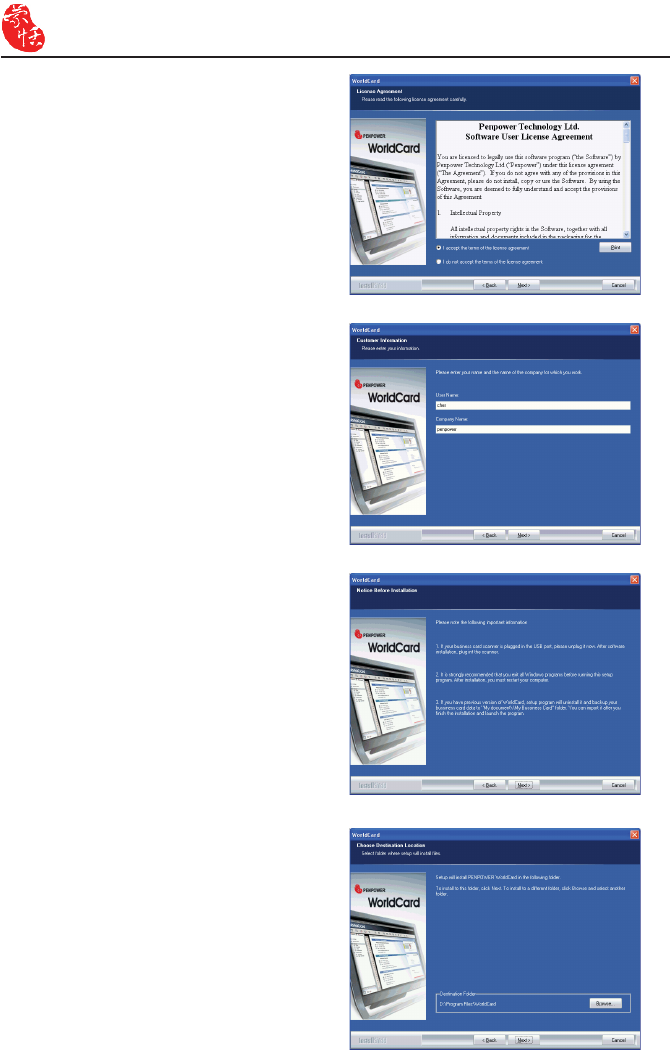
1. Click Next.
Chapter 2 Getting Started
2.1 System Requirements
• Pentium III 800 CPU or above
• 256MB of RAM
• 200MB of available hard disk space
• Windows 2000/XP/Vista
• USB Port
2.2 Installing Penpower WorldCard
To properly use your WorldCard
1. Install the software included on the CD.
2. Connect your WorldCard scanner to your PC.
3. Scan or capture your business cards and enjoy!
2.2.1 Software and Driver Installation
To save time, Penpower has combined the installation of the hardware and software into
one easy process. To start, insert the CD into your CD/DVD ROM (if the program does not
automatically start, just double-click the setup.exe le on the CD).
2-2 WorldCard
3. Please ll in your name and company
name. Click Next to continue.
2. Select I accept the terms of the license
agreement to accept the license agree-
ment. Please read licensing agreement
completely.
4. Please follow the instructions in the on-
screen notice. Click Next to continue.
5. Please select the location to install the
program. The default location is c:\Pro-
gram Files\WorldCard. Click Next to
continue.
Chapter 2 Getting Started 2-3
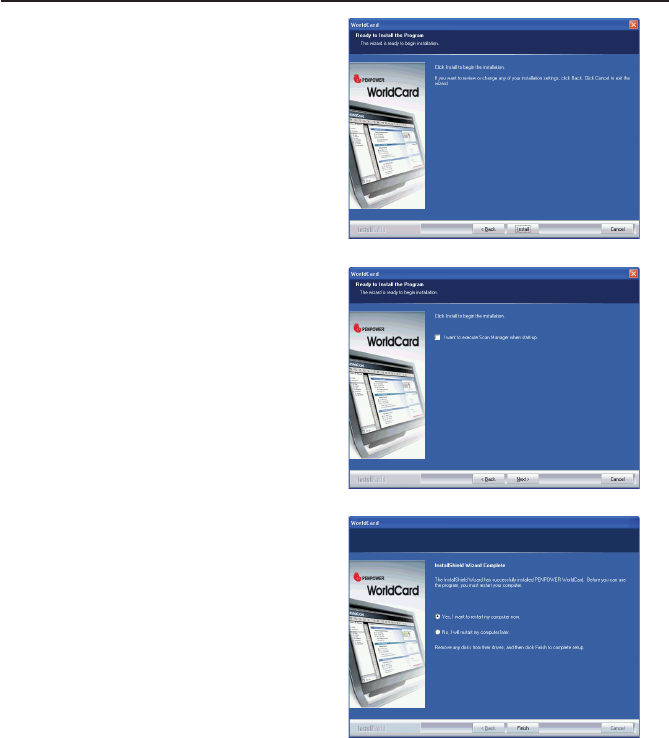
6. Click Install to begin installation.
8. Click Finish to complete installation. If
you do not want to restart now, click No,
I will restart my computer later.
7. If you want to run the Scan Manager
when starting up the computer for quick
scanning into Outlook, Outlook Express,
Windows Contacts or ACT! directly,
click I want to execute Scan Manager
when start-up, and then click Next to
continue.
2-4 WorldCard
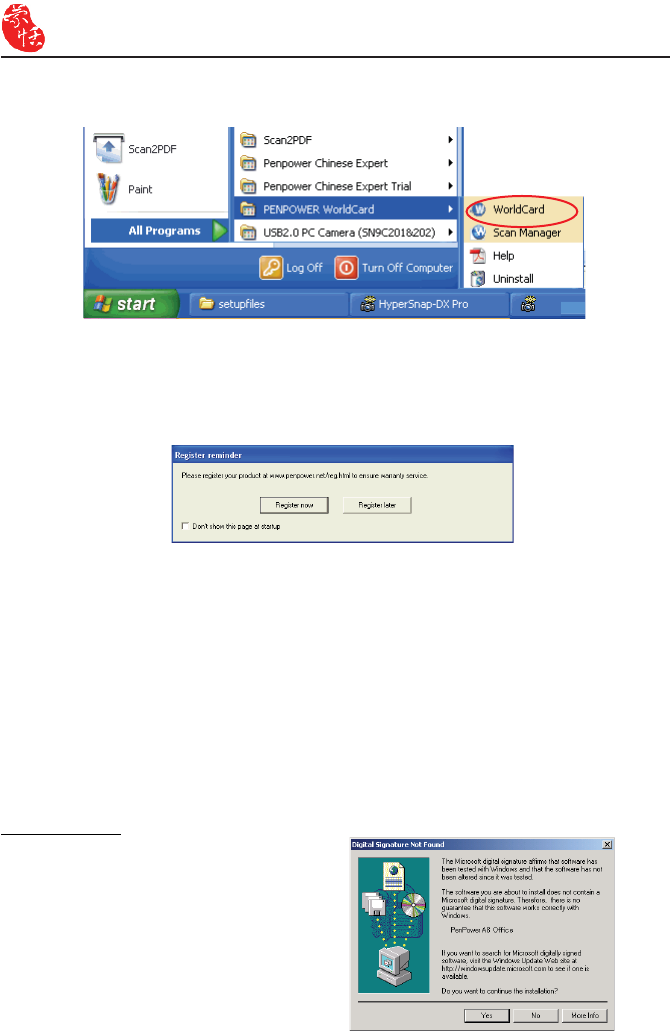
9. After installation, you can run the application software under [Start] /[All Programs]/
[PENPOWER WorldCard] / [WorldCard].
10. System will ask you to register for warranty at your rst run. Please press Register now
to start registration or press Register later to skip this procedure. You can register later
on from [Help]/[Register]. If you want to choose Register later and do not need to be
reminded again, you can check Don’t show this page at startup.
Windows 2000
After connecting your device, the Digital
Signature Not Found dialog box displays
on your computer. Click Yes to complete
the hardware installation of the card scan-
ner.
2.2.2 Connecting Hardware
After installing the software, connect the USB connection of your WorldCard scanner or
business card camera to the USB port of your computer.
Note: Some computers may shut down accidentally after connection. This is due to lack of
power to support several USB devices. To avoid this problem, connect your World-
Card scanner/business card camera and other USB devices to an extra-powered
USB hub.
Chapter 2 Getting Started 2-5
2.3 Preparation for Card Scan
2.3.1 Calibration
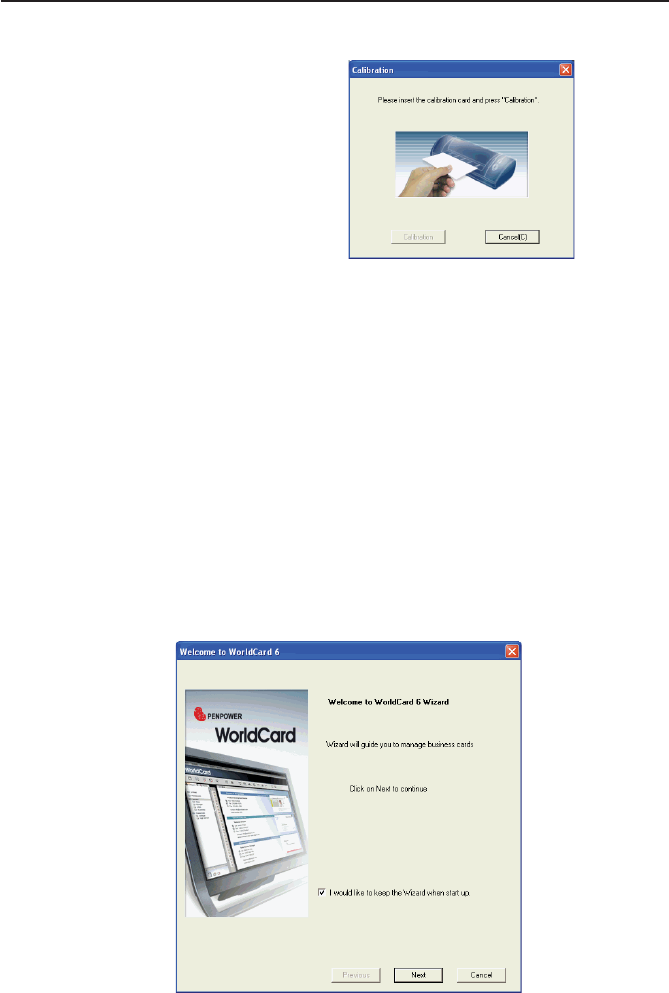
After installing the software and drivers,
your WorldCard scanner must be calibrated
in order to ensure perfect results.
Place the calibration card into the scan-
ner. Make sure the calibration card is ush
with the mark to the side.
Note: To calibrate the A6-sized Color and A8-sized gray-scale scanner, insert the blank
side of the card face down. To calibrate the A8-sized color scanner, insert the blank
side of the card face up. In case the calibration card is lost, you can use any same
size white card for calibration.
WorldCard duet 2 does not need calibration.
Tip: If there is any color indifference after scanning a card, you can calibrate the scanner
by clicking Calibration on the Tool menu.
2.3.2 Start-Up Wizard
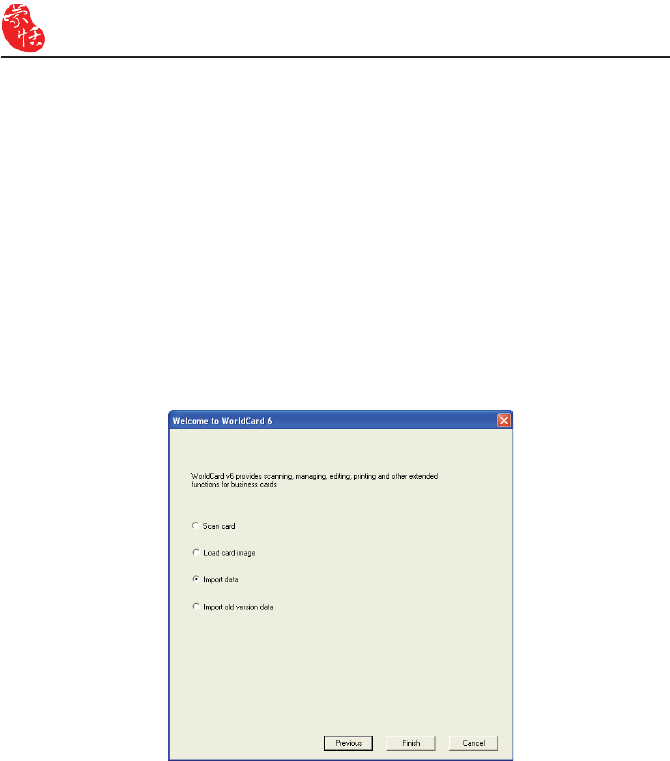
Start your WorldCard software by double-clicking the WorldCard shortcut on your desk-
top. After the WorldCard program starts, the following screen will appear.
1. To start the wizard, click Next.
2-6 WorldCard
2. The Wizard can help you quickly choose what you want to do:
Scan Card: allows you to add a card to your le.
Load Card Image: allows you to take an existing picture of a business card and add it to
your le.
Import data: allows you to import data from sources such as Lotus Notes, Microsoft Out-
look and Outlook Express, PocketPC, Palm, ACT! by Sage, Goldmine, Salesforce, etc.
Notes: The Windows Vista version does not support importing data from Windows Con-
tacts, Pocket PC and Goldmine.
Import Old Version Data: allows you to import the previous WorldCard le formats into
your new WorldCard File.
You can select a command and click Finish to continue.
Chapter 2 Getting Started 2-7
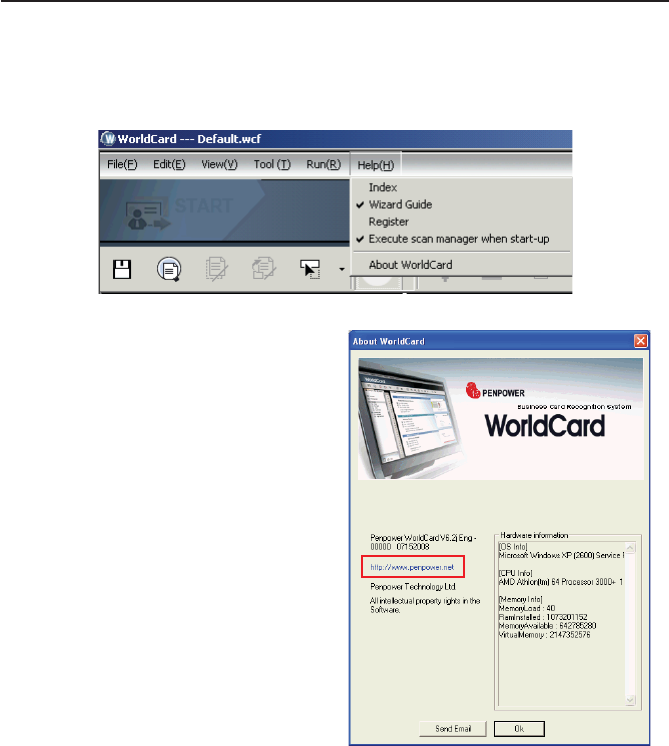
2.4 Online Help
WorldCard provides excellent online help info:
1. Click [Help]/[Index] to nd the user manual.
2. Click [About WorldCard], you can go
to Penpower Technology Inc. ofcial
website at the left side to get more
information; the hardware information is
shown at the right side.
3. Also you can send e-mail to our customer
service contact by pressing Send Email
at the bottom. Or you can open your
favorite email client, copy and paste
hardware information and email to us.

2-8 WorldCard
Chapter 3 Overview 3-1
Chapter 3 Overview
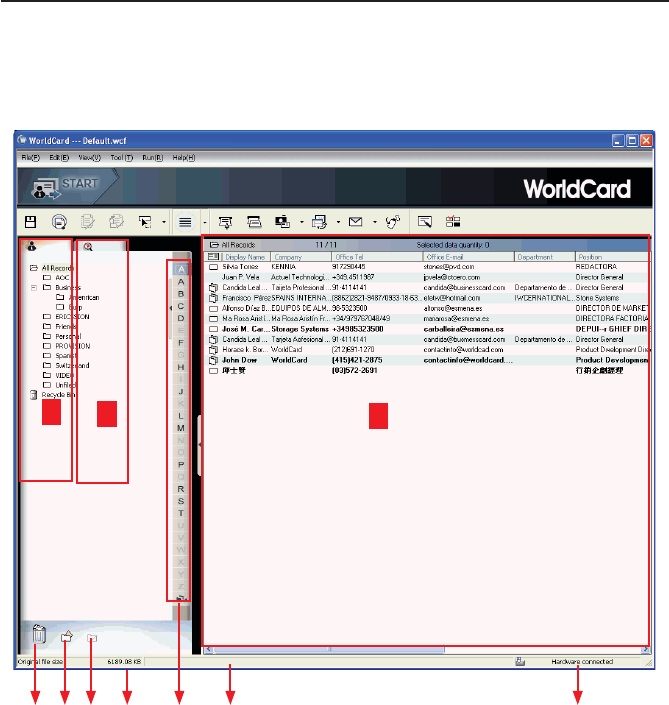
3.1 User Interface
A: Category tab
B: Search tab
C: Card Window
D: Recycle bin
E: Add Category
DE F G
A
H J
C
B
I
F: Delete Category
G: Disk space used
H: Status
I: Alphabet
J: Connection status
3-2 WorldCard
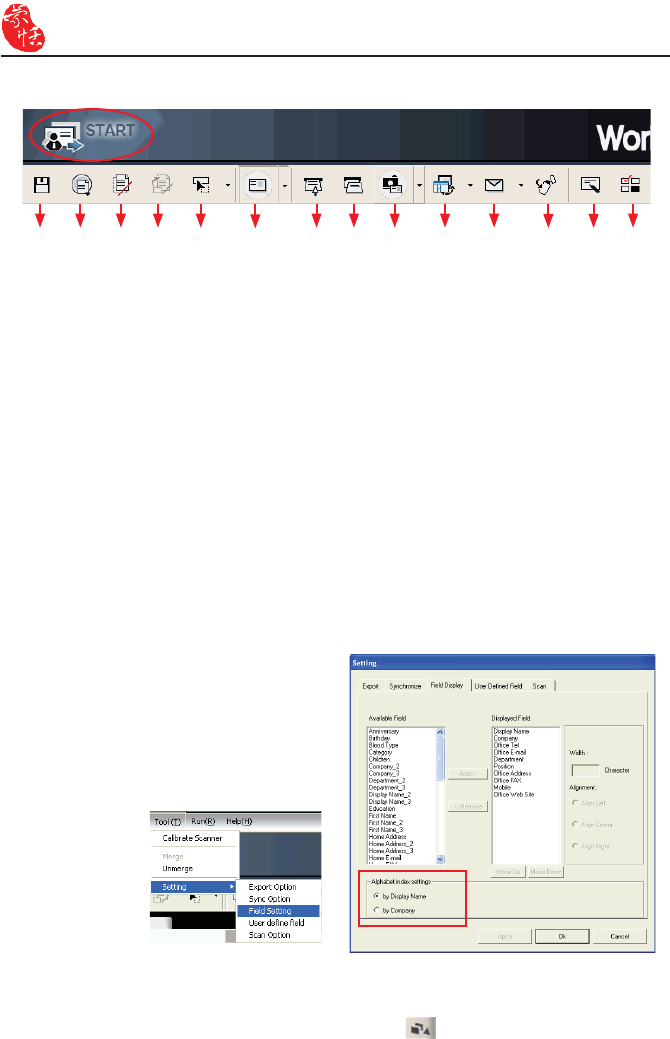
3.1.1 Menu Toolbar
A: Save your Card le
B: Print Preview
C: Delete Card
D: Delete card from Category
E: Settings
F: Mode button
G: Scan a new business card
H: Multiple scan business cards
I: Add a new card from another picture
source
A L M NIH
G
FEDCB J K
J: Synchronize with Outlook/PDA/Palm/
Lotus notes
K: Send an email to selected person
L: Export all your data and the portable
software to selected ash disk or
hard drive
M: Edit Card
N: Edit Print Template
When select by Display Name, the contacts will be indexed by display name. When
select by Company, the contacts will be indexed by company name. If the display name or
company name is not English, the contact will be put in .
3.1.2 Alphabet
When the Alphabet index has contents,
the index letter appears in black.
The Alphabet index is indexed by
Display Name and by Company. To select
it, on the Tool menu point to Setting and
click Field Setting. In the Alphabet Index
settings area you can choose by Display
Name and by Company.
Chapter 3 Overview 3-3
3.2 Scanning Wizard
3.2.1 Scanning Business Cards
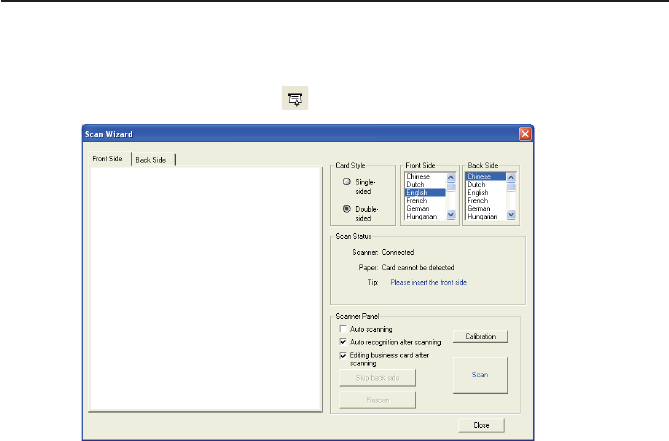
To scan business cards, select Scan . The wizard opens:
1. Under Card Style, select Single-sided or Double-sided.
2. Select the language of the card. If the card is double-sided select the language of the both
sides.
3. Insert the card into your WorldCard Scanner, placing the card edge ush with the marker.
Once inserted, the Scanner status area should say Ready.
4. In the Scanner Panel area select:
- Auto Scanning if you want the scan to automatically start when the paper is inserted.
- Auto Recognition after scanning if you want the card information to be automatical-
ly added to your le. If you want to preview the scanned card image before recogni-
tion, do not select this. If you select Double-sided, you can click Skip back side to
scan the front side only.
- Editing business card after scanning to display the Edit window when closing the
Scan Wizard.
5. After you recognize the card, the information will automatically go into the Unled
category.
Note: To scan business card, insert the business card face up into the A6-sized and
A8-sized color business card scanner. Insert the business card face down into the
A8-sized gray-scale business card scanner. A6-sized business card scanner has two
hardware buttons. The one on the top is for scanning pictures via the TWAIN inter-
face, another one is for scanning business cards.
3-4 WorldCard
3.2.2 Batch Scanning
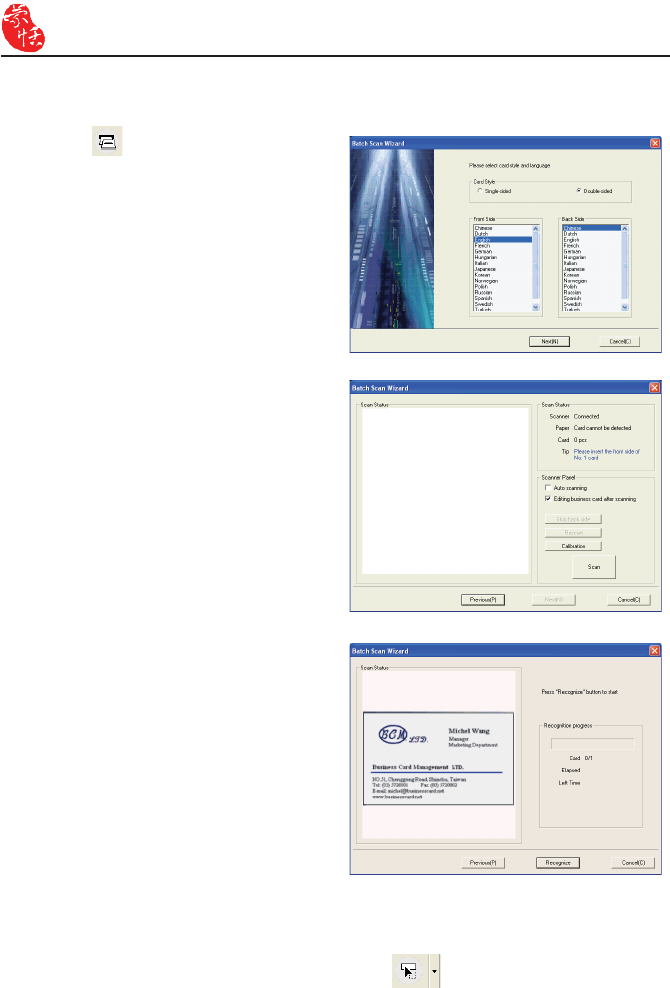
To batch-scan business cards, select
Batch Scan from the toolbar.
With this command, you can scan many
cards easily, preview them, and then add
them to your Card File.
1. Select single- or double-sided. Next,
select the languages of each side.
Note: only cards (single-sided or double
sided) that have the same languages
chosen for each card can be batch-
scanned.
2. The Scan status pane displays the status
of the scanner. Select Auto scanning if
you want to automatically feed in your
cards. If the card does not scan properly,
click Rescan to try again. If you want
to return to the previous screen, click
Previous.
3. This screen allows you to quickly rec-
ognize all the cards scanned during this
batch. When you are done, click Finish.
3.3 Scan Business Card Directly
To scan your card directly, click the Setting arrow and click Scan Option.
Under Scan Method click Scan card directly. Refer to Chapter 5.9 for more detailed
explanation.
Chapter 3 Overview 3-5
3.4 Viewing Contacts
WorldCard provides several ways to view your contacts: List mode, Label mode, Im-
age mode and Dual Mode. The default setting is List mode. To select other modes, on the
View menu click View Mode or click the Mode arrow from the toolbar.
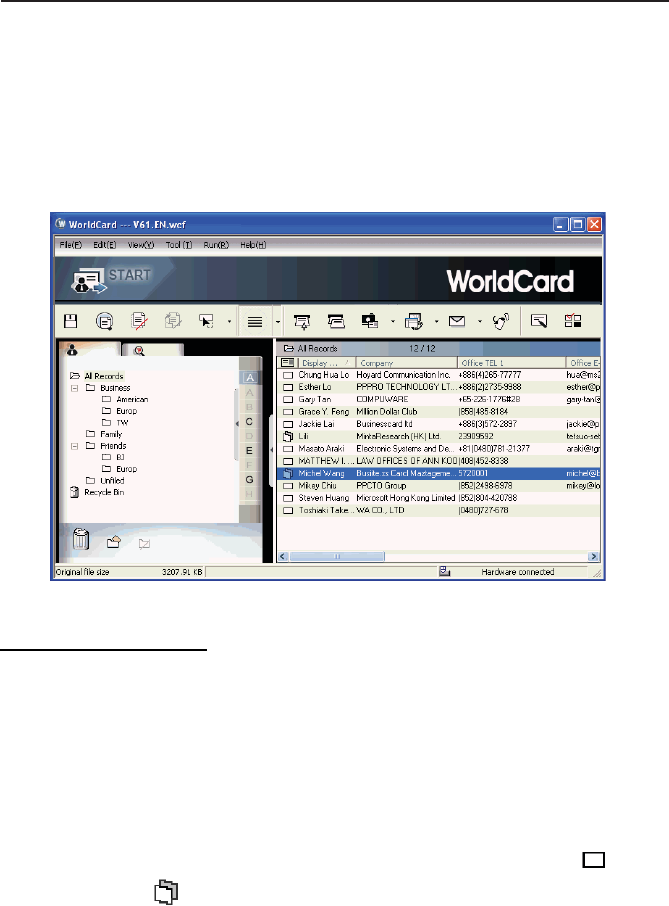
3.4.1 List Mode View
List Mode is the default mode view.
Contact Information List
After scanning business cards, you will see the scanned contact information list in the
right pane of the card window.
At the top of the pane, you can quickly see how many cards are in each category. For
easy organization, notice the dark-highlighted entries indicate cards that have not been
edited or veri ed yet.
To sort the contact information into alphabetical order, click the eld name.
Besides the contact information, you can also quickly discriminate the single and
double sided card
double sided carddouble sided card
by their different icons.
Tip: You may select the displayed fi elds from the Tool menu, point to Setting and click
Field Setting.
3-6 WorldCard
Category tab
You can manage your business cards by storing them in category groups. The Category
tab is in the left pane of the card window. You can nd the All Records category and the
Unled category as the default. WorldCard allows you to add as many user-specied catego-
ries and sub-categories to manage your business cards as you choose.
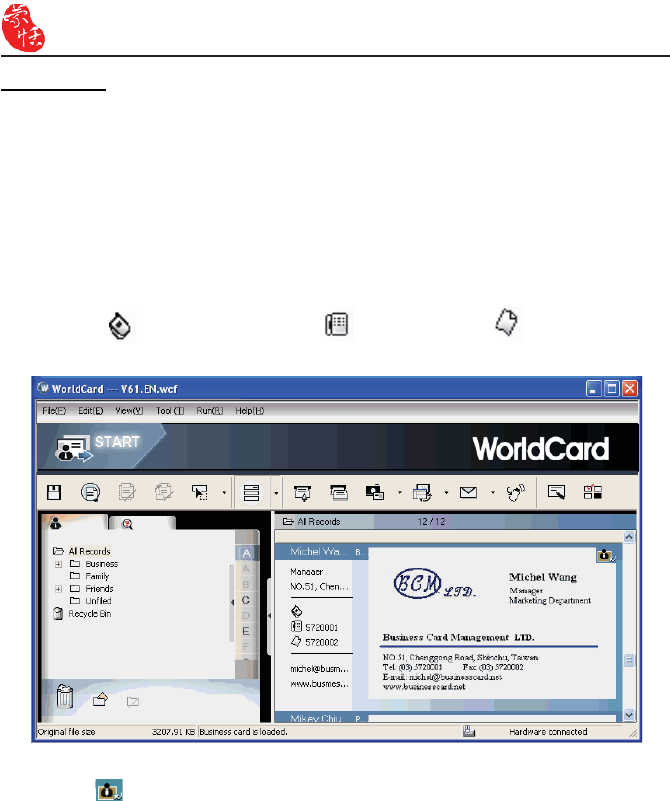
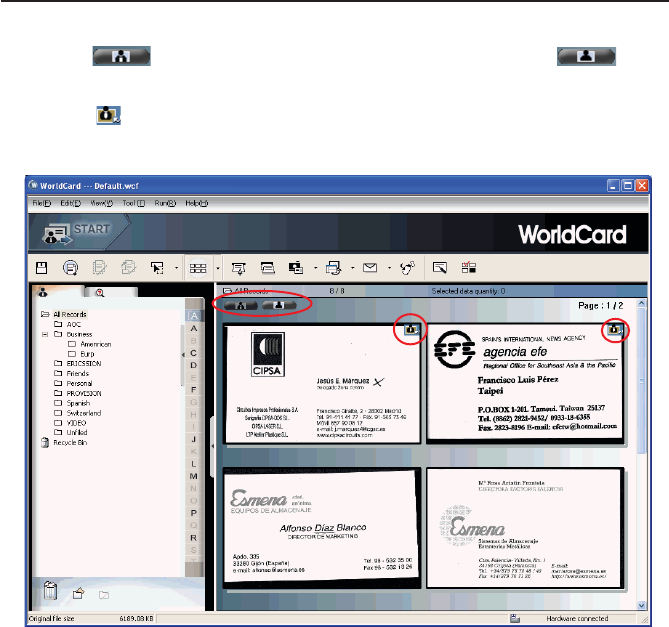
3.4.2 Label Mode View
The Label Mode view displays contact information and business card at the same time.
The contact information shows display name, company, title, ofce address, mobile
phone number , ofce telephone number , ofce fax number , Email address and
website.
This icon means the business card is double sided.
Chapter 3 Overview 3-7
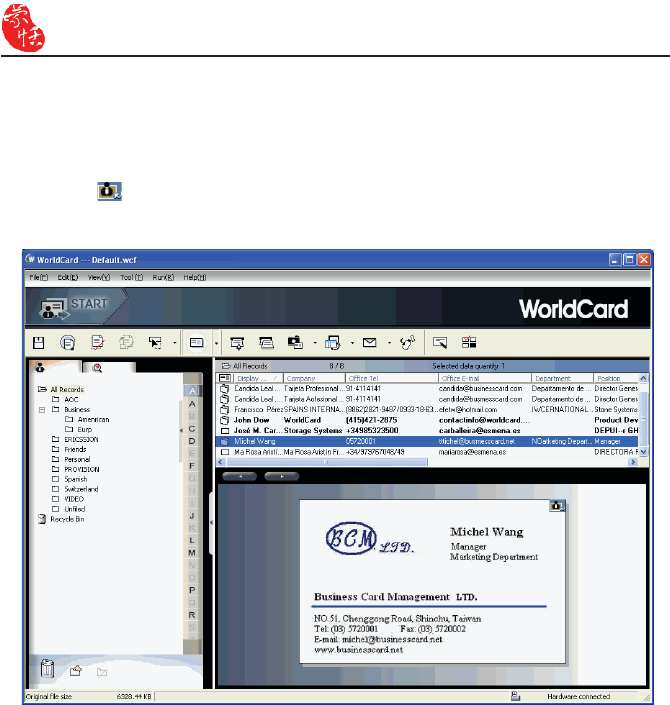
3.4.3 Image mode
Click the button to view front side of all business cards, click the button
to view the back side of all business cards.
When the icon shows in the right-top corner, it means the contact has a double-sided
business card image. You can click the icon to see the other side of business card image.
3-8 WorldCard
Tip: You can drag the business card image from the view modes (except List Mode) to
other applications such as Microsoft Word, Excel etc.
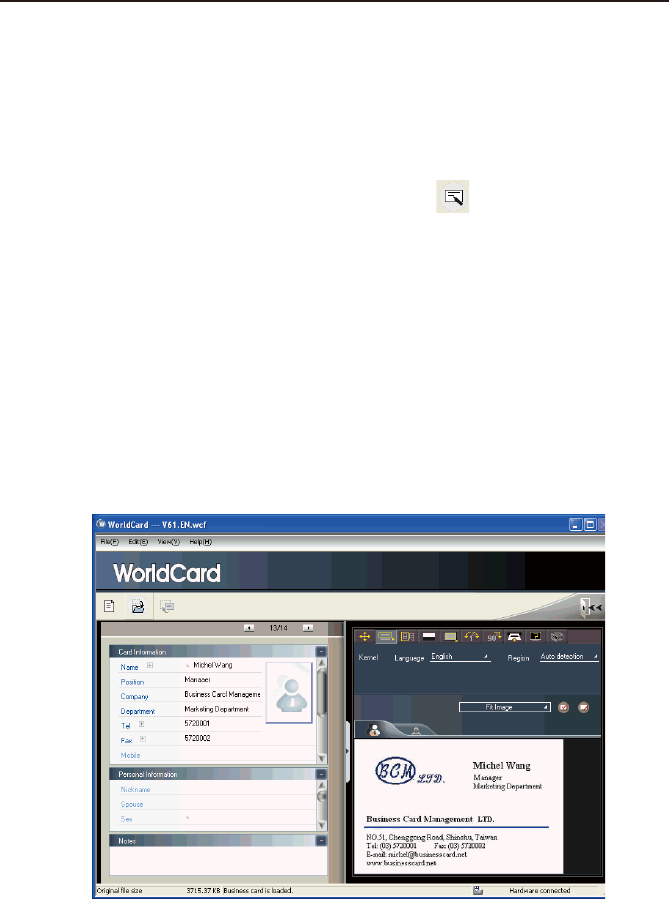
3.4.4 Dual mode
Dual mode lists the scanned contact information in the upper right management pane and
can display the front and back side image of the business card in the lower right pane. You
can click the front or back side icon of the card to magnify it.
When the icon shows in the right top corner, it means the contact has double-sided
business card image. You can click the icon to see the other side of business card image.
Chapter 4 Editing Cards 4-1
Chapter 4 Editing Cards
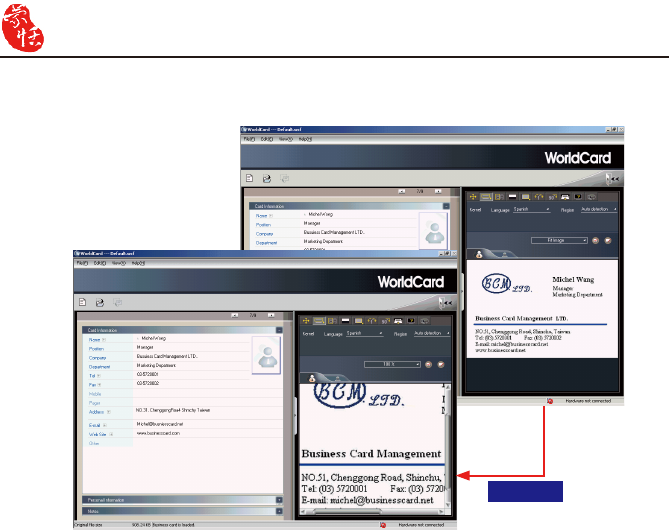
4.1 Editing Window Overview
The Editing window allows you to edit the information of individual business cards.
To select the Editing window, just double-click any card record in the list menu of the
management pane or click the Edit Selected Record button on the Editing toolbar and
edit the selected records.
You may click a record and press CTRL or SHIFT key on your keyboard, and then click
another record for multiple selection.
4.2 Verifying Contacts
The Editing window allows you to verify the individual contact information for any
specic business card. When the editing window is open for a card, the following screen will
be presented containing information relevant to the card selected from the Management
window.
The Editing window may be used to edit any information on a business card and to
correct or update information as necessary for future changes of an individual contact. The
features and functions of this window are described below
4-2 WorldCard
Note: You can double-click on the business card image to see a bigger image or back to
original view.
Enlarge
Chapter 4 Editing Cards 4-3
4.3 Editing Contacts
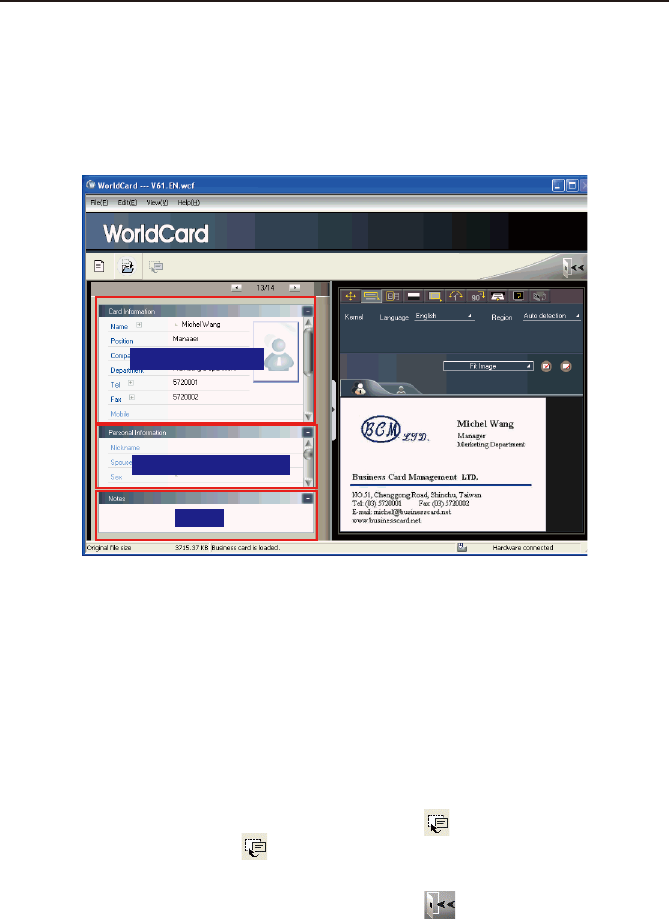
The WorldCard Editing window has three panes: the Card Information pane, the
Personal Information pane and the Notes pane. The Card Information pane displays all
relevant business card data that was retrieved from the card recognition. The Card Informa-
tion pane is shown in the following picture.
The information in the Card Information pane is categorized in elds such as Name,
Position, Company, Address, Telephone/Fax numbers, Email address and Web Site. Addi-
tional categories are also available.
The Personal Information pane displays personal information about your contact which
is not retrieved from your contacts business card.
The Notes pane stores/displays important data from your personal notes about your busi-
ness contacts.
Note: If, at any time during the editing mode, an incorrect action is selected, you can
reverse the changes by clicking the Restore button from the Editing window.
Clicking the Restore Icon will delete the last change made and restore the previ-
ous content of the business card.
To exit the Editing window, right-click the Exit button or select Exit from the File
menu of the Editing window toolbar.
Card Information
Personal Information
Notes
4-4 WorldCard
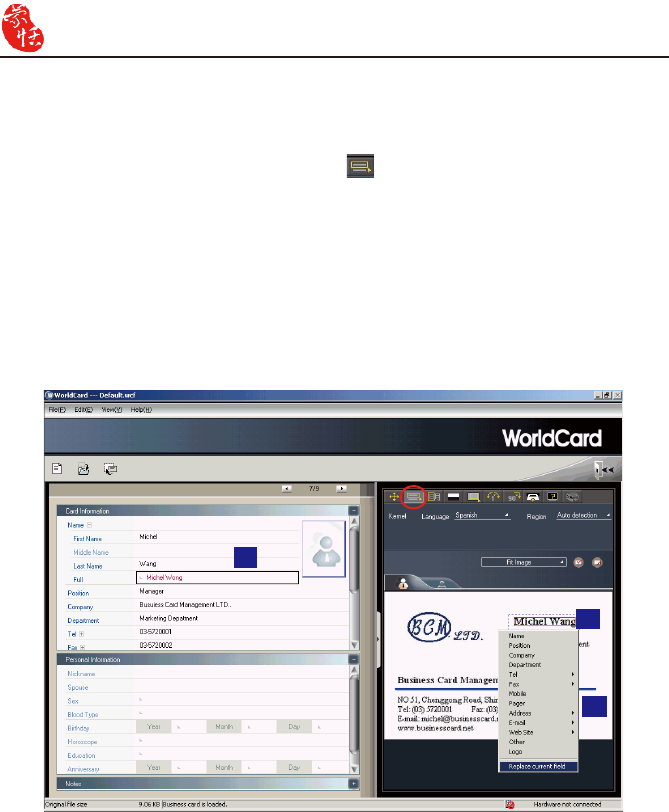
4.3.1 Recognizing Partial Content of a Card Entry
In some cases, the information of a business card may not be completely recognized. You
may use the Partially Select and Recognize command of the Editing window. To select
Partially Select and Recognize, click this icon .
After clicking the Partially Select and Recognize, you can use the mouse to select the
specic area that contains the correct data.
After selecting the area, select the appropriate eld for the information which has been
highlighted.
Besides, WorldCard allows you partial replacement to the led you want to replace at the
left pane directly. Click the eld you want to replace, select the area in the name card image,
then click Replace current eld. The replacement will be done.
1
2
3
Chapter 4 Editing Cards 4-5
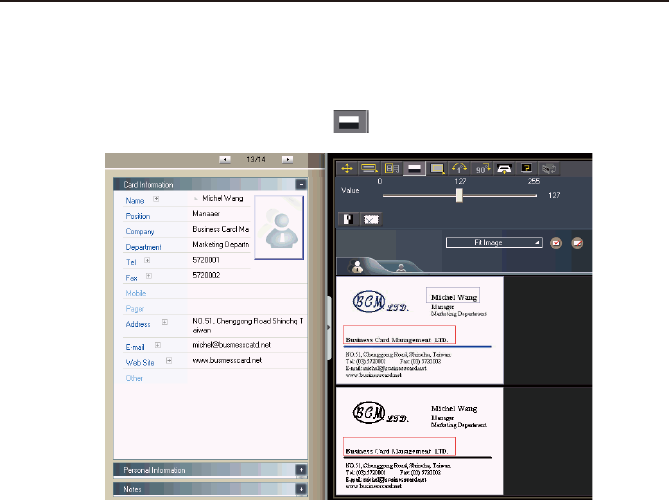
4.3.2 Adjusting the Separation Rate
The Separation Rate is the rate of separation between the color of the card background
and the color of the text data contained on the business card.
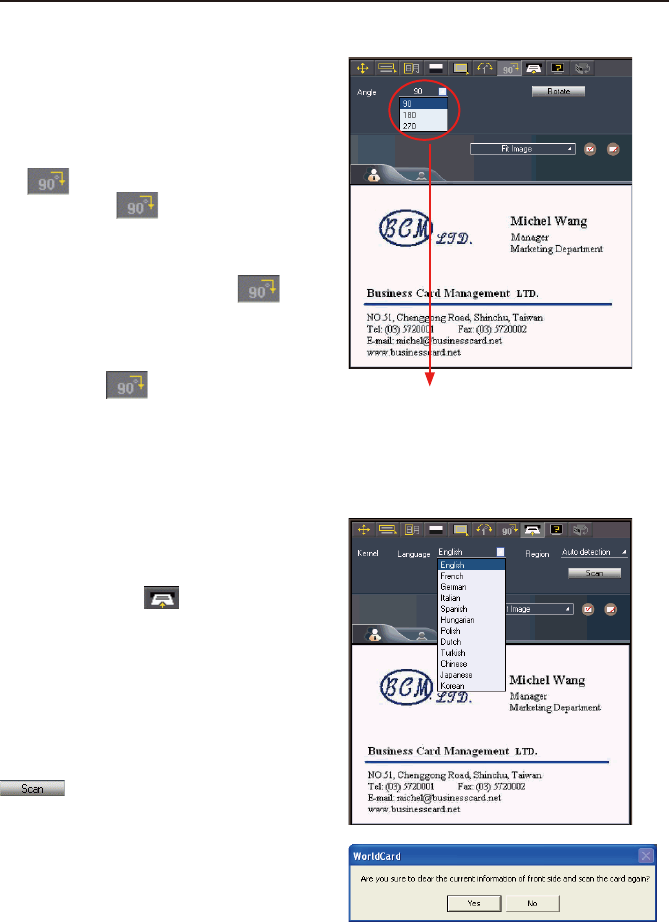
After clicking the Separation Rate button , the following window appears.
4-6 WorldCard
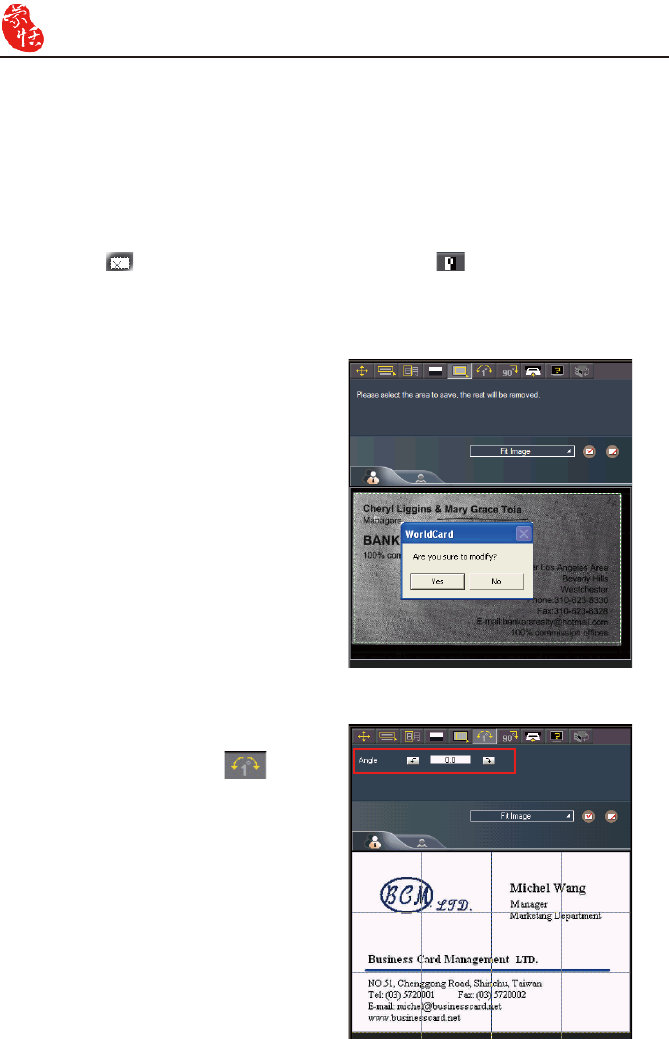
4.3.3 Deframing Command
The Deframing Manually command
allows you to select a specic area of a busi-
ness card to save. After the appropriate area
is selected, a box will be drawn around the
selected data.
If the data selected to be modied is cor-
rect, click Yes in the dialog box.
The data outside of the selection box will
be changed to white.
4.3.4 Fine Rotate
The Fine Rotate command is used
to correct the horizontal positioning of a
card after it has been scanned. This is some-
times necessary if a card has been inserted
into the WorldCard scanner incorrectly and
the resulting scan is skewed in the horizon-
tal plane. An indication of a card that has
been improperly scanned is as follows:
You can move the slider to achieve the clearest contrast between the background colors
of the business card and the text on the card. This adjustment is useful when the business
card image is blurred, or the contrast between the text and the background of the card is not
sufcient for correct recognition of the card information.
You may also adjust the separation rate by area. On the top business card image, select
a specic area, and move the slider to achieve the clearest contrast between the background
and text of the selected area. You can adjust multiple areas, each area with its own separation
rate. Click the button to remove selected area. Click the button to reverse selected
area.
Chapter 4 Editing Cards 4-7
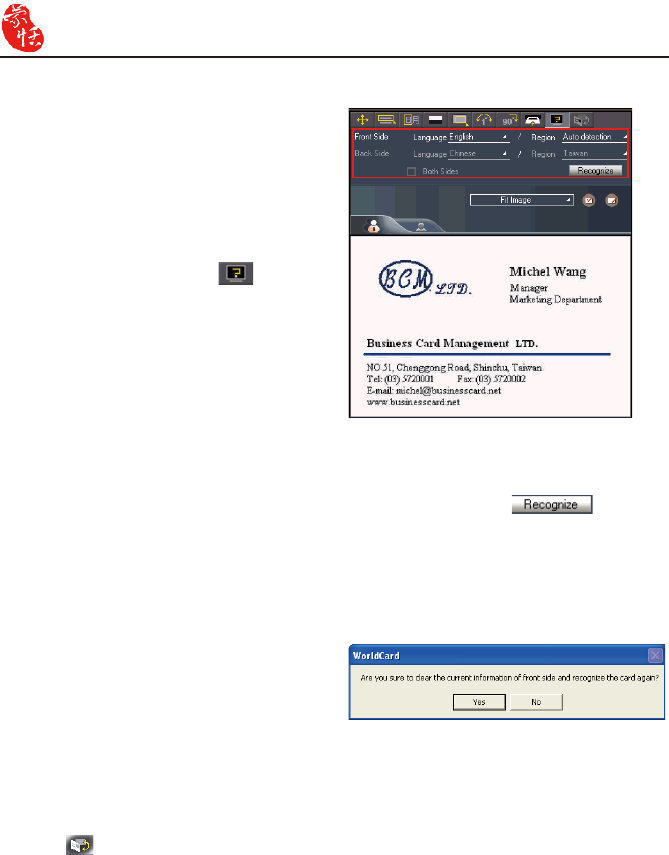
4.3.5 Rotating Card
If the card image shows an incorrect ori-
entation, you can use the Rotate Card com-
mand of the WorldCard editor to properly
align the card orientation. To use the Rotate
Card command, click the Rotate Card but-
ton in the Editor window. After you
click the button , the rotation angle
options will appear.
Select the appropriate angle of rotation
and then click the Rotate button . The
card image will then rotate to the selected
orientation. Should you need additional ne
adjustment of the card image, click the Fine
Rotate button required. The rotation angle is selectable
from a pulldown menu.
4.3.6 Rescanning Card
If a card is scanned inappropriately,
you may use the Rescanning command
of the WorldCard editor by clicking the
Rescanning button . After clicking the
Rescanning button, the following menu ap-
pears.
You can select the appropriate languages
from the pulldown menus.
After you have selected the appropriate
language settings, you can click the Scan
icon to rescan the business card.
The card must then be inserted into the
WorldCard scanner as appropriate for the
orientation of the languages selected.
4-8 WorldCard
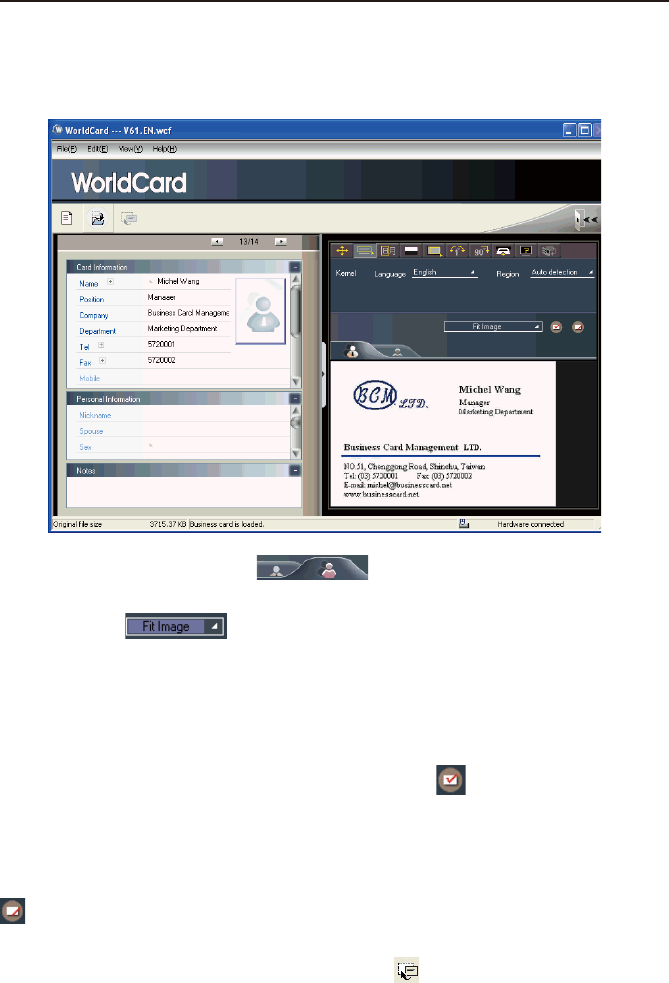
4.3.7 Recognize Again
After adjusting a card image with any
commands of the Editing window, you can
recognize the business card again to update
the image processing of your revised card
image.
This task can be accomplished by click-
ing the Recognize again icon from the
Editing window.
Select the appropriate language(s) for
the front and/or back side of the card. Then,
select the correct region for the language.
You may use the Auto detection feature in the geographic region selection. If the card is
double-sided, select the Both Sides command to recognize each side. You may then proceed
with the Recognize again command by clicking the Recognize button .
After clicking the Recognize icon is selected, the following prompt appears in the Edit-
ing window.
Click Yes to begin the recognition process. Note that the card information will be cleared
when you click Yes.
4.3.8 Front and Back Business Card Image Exchange
Click to exchange the front side and back side images of the business card.
Chapter 4 Editing Cards 4-9
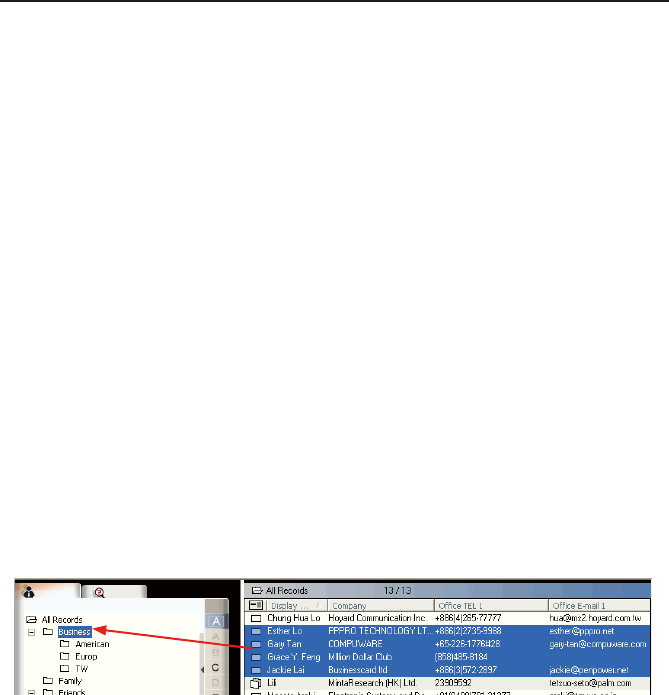
4.4 Viewing Cards
Cards are displayed in the Editing window after the scanning process. The following
window shows a typical display of a card in the Editing window.
You can click Back Side button to see the back side image of the busi-
ness card.
You can click to select the different display percentage of the business card
image.
4.4.1 Saving Card Image
If the displayed card image is clear and the information legible, the card image can be
saved as a .jpg le by clicking the Save Card Image button .
4.4.2 Deleting Card Image
To delete a card image from the Editing window, click the Delete Card Image button
with your mouse pointer.
If you have made an error in deleting a card image, the Editing window allows you to
recover the card image by clicking the Restore button .

4-10 WorldCard
Chapter 5 Managing Business Cards 5-1
Chapter 5 Managing Business Cards
The management functions of WorldCard allow you to categorize contacts, send e-mail
by contact or group functions, add new cards to a group, import cards from other sources,
search cards by various data elds, encrypt les to protect your card database, print cards,
export the database to other applications and synchronize your card information with other
software applications.
5.1 Categorizing Cards
The WorldCard software allows you to manage your business cards by storing them in
the category groups. After installing your WorldCard software, you will nd two default
categories on the management page: the All Records category and Unled category. You
can add as many user-specied categories and sub-categories as you choose to manage your
business cards.
5.1.1 Categorizing from Management Page
Each card, in addition to being categorized by last name, can also be categorized with our
own individual settings so that you can efciently manage numerous cards in your World-
Card database. From the WorldCard Management pane, highlight the card information you
want to categorize, drag it directly into a specic category type under the Category list on
the left side of the management window.
Tip: Cards in each category can be easily moved from one category to another by drag-
ging.
Tip: Each card can belong to a main category and numerous sub-categories. For ex-
ample, Bruce is a vendor of your company and your classmate. You can drag his card
into vendor category and then, drag his card into the classmate category from the All
Records category. The rst category you drag Bruce’s card to will become the main
category for his card entry.
5-2 WorldCard
5.1.2 Categorizing from Editing Page
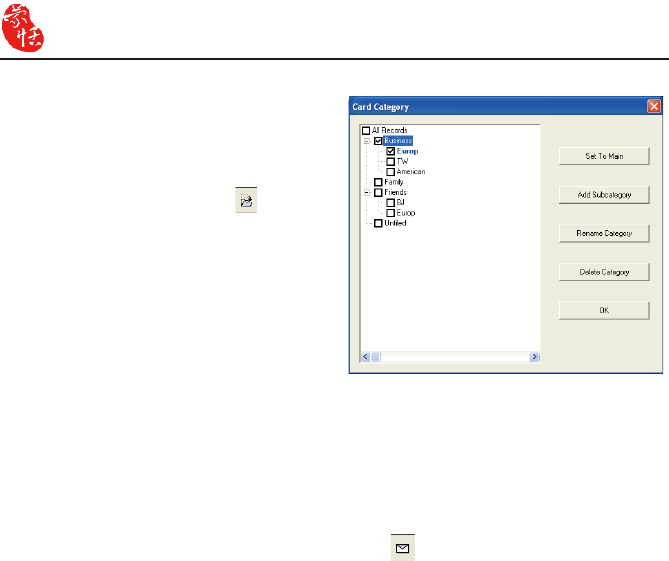
WorldCard allows you to categorize a
business card directly from the Editing
pane. To categorize a card from the editing
page, click on the Set Category button
. The Card Category dialog box appears.
Select the category and then click OK. You
may also add a subcategory from this win-
dow by clicking the Subcategory button.
5.1.3 Sending Email by Category
To send email to a category group, select the appropriate category group from the man-
agement page. Once selected, the category will appear in the right pane of the Management
window.
To send email to the group, click the Email button . WordCard will add the email
addresses of the group members into your default email software. Also the Email editing
window will then open with the appropriate contact list.
Chapter 5 Managing Business Cards 5-3
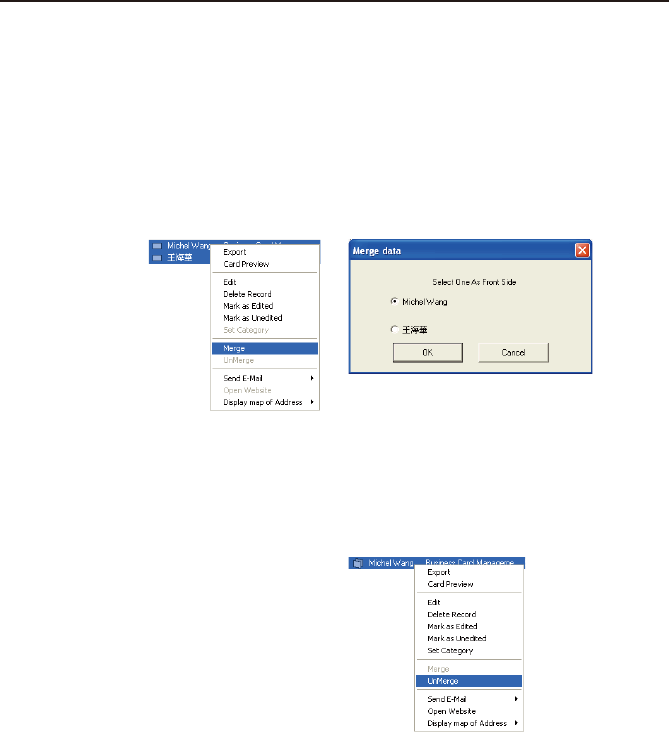
5.2 Merging and Separating Cards
WorldCard allows you to merge two business cards into one card entry. To merge two
cards into one, select two cards in the Management window.
On the Tool menu on the Editing window, click Merge and the following dialog box
appears.
Select the appropriate card as the front side of the merged card entry and press OK. This
action will merge the cards into one entry.
Separating double-sided cards into two distinct card entries can also be accomplished
with WorldCard. To separate a double-sided card into two separate entries, select the ap-
propriate card from the Management window. Then, on the Tool menu click UnMerge. The
double-side card is separated into two separate entries in the appropriate category.
5-4 WorldCard
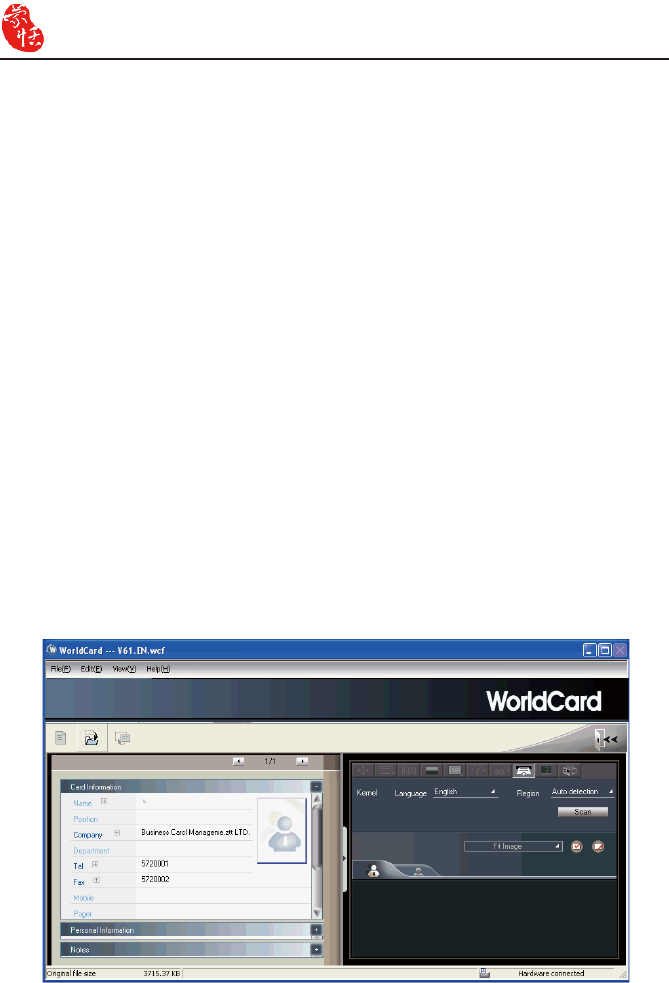
On the left side of the Editing window, the new colleague’s company information will
appear in the Card Information pane of the Management window.
5.3 Adding new Cards
You may add contacts to your WorldCard database by scanning their business card or by
manually entering the contact information. If you do not have a card from a new contact, you
can enter the contact information of a new business contact into your WorldCard database
manually.
5.3.1 Adding an Empty Card
To enter a contact manually without a business card, on the File menu in the Manage-
ment window, click New Empty Card. This will open the Editing window.
In the Editing window, manually select each category for your new contact. Then, type
your new contacts information into the eld.
5.3.2 Adding the Same Company Card
WorldCard allows you to add contact information for a new colleague from a company
that is already in your database without scanning the actual business card. To add a new
colleague of a company already on le, in the Management window, select a card from the
new colleague’s company.
After you have selected the card of the new colleague’s coworker, on the File menu in the
Management window select the File New Same Company Card. This will open the Edit-
ing window.
Chapter 5 Managing Business Cards 5-5
5.4 Adding Cards from Other Resources
The WorldCard Business Card Scanner and other WorldCard recognition products are
equipped with a card scanner or camera which are used to capture a card image. However,
you may use other hardware resources in conjunction with your WorldCard software to pro-
cess card images.
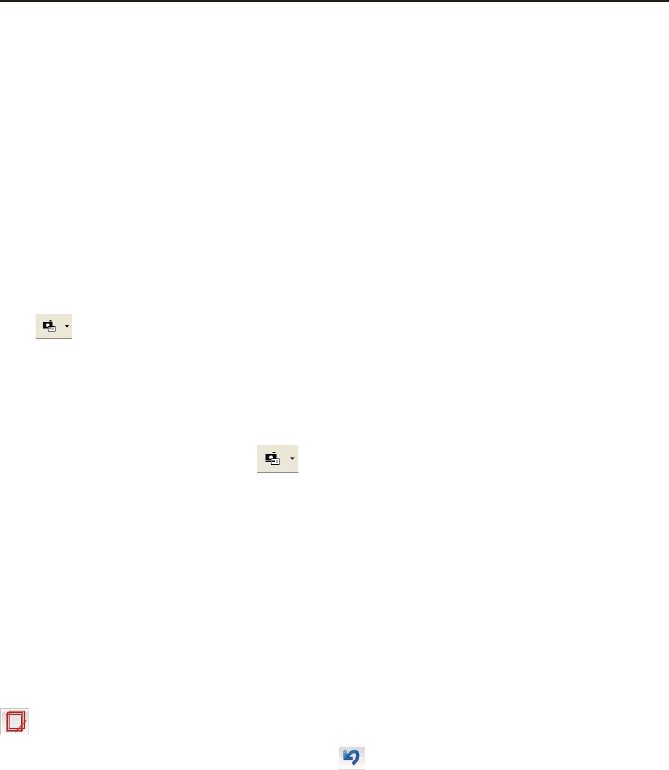
5.4.1 Photo File
WorldCard can process a business card entry from a photo image in either .bmp or .jpg
format. To use this option of your WorldCard software, you must have a picture image of
the card on an accessible medium which your computer can access directly, as well as a con-
nected the camera or scanner. To select an alternative image source click the Image Source
icon and select the appropriate image source, either Photo File or Twain Scanner.
5.4.2 Twain Scanner
Card entries may also be uploaded through any TWAIN-compliant scanner. If your scan-
ner is connected, WorldCard software will recognize it and add the scanner to the resource
list. Click the Image Source arrow and click Twain Scanner.
Ensure that the resolution for your scanner is set to at least 300dpi.
Tip: You may scan up to 8 cards at one time with an A4 size atbed scanner. Place the
card on the bed of your scanner with some separation between the card edges to
clearly distinguish each individual card. You may also use an A4-size white paper to
cover the business cards for recognizing regions of business cards properly.
When the scanning process is completed, the following TWAIN Scanner dialog box ap-
pears.
You can also recognize the cards automatically by clicking the Clear All Regions button
. This will remove all red recognition rectangles from your Twain Scanner window.
Then click the Auto Select Regions button . You will see the recognized cards identi-
ed as in the previous display of the TWAIN Scanner dialog box. Recognized cards will
appear within red rectangular boxes with their corresponding recognition number superim-
posed in red. Please see the following example of a correctly recognized card, (number 1)
and so on.
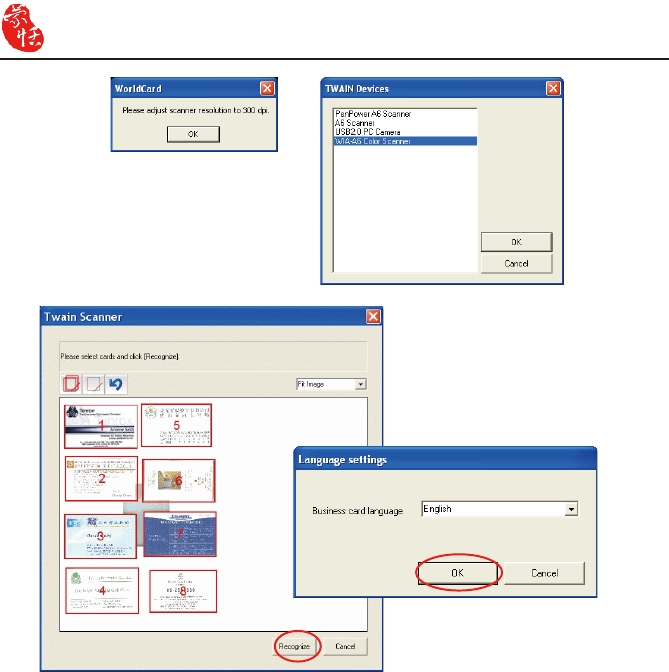
5-6 WorldCard
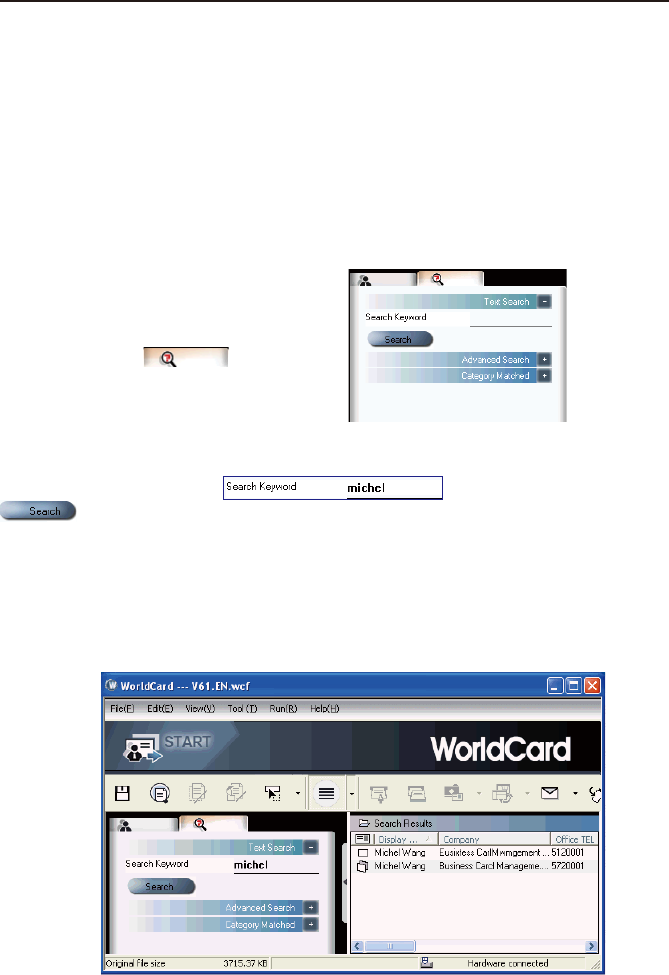
After the cards have been identi ed, click Recognize. In the Language settings dialog
box you can select the language to use to recognize the business cards. When the recogni-
tion process is completed, you will be returned to the Management window. Your new card
entries appear at the bottom of your All Records Category.
Chapter 5 Managing Business Cards 5-7
5.5 Searching Contacts
You can quickly and efciently nd your contacts with WorldCard Search features.
5.5.1 Text Search
The Text Search command of the WorldCard software allows you to quickly nd a
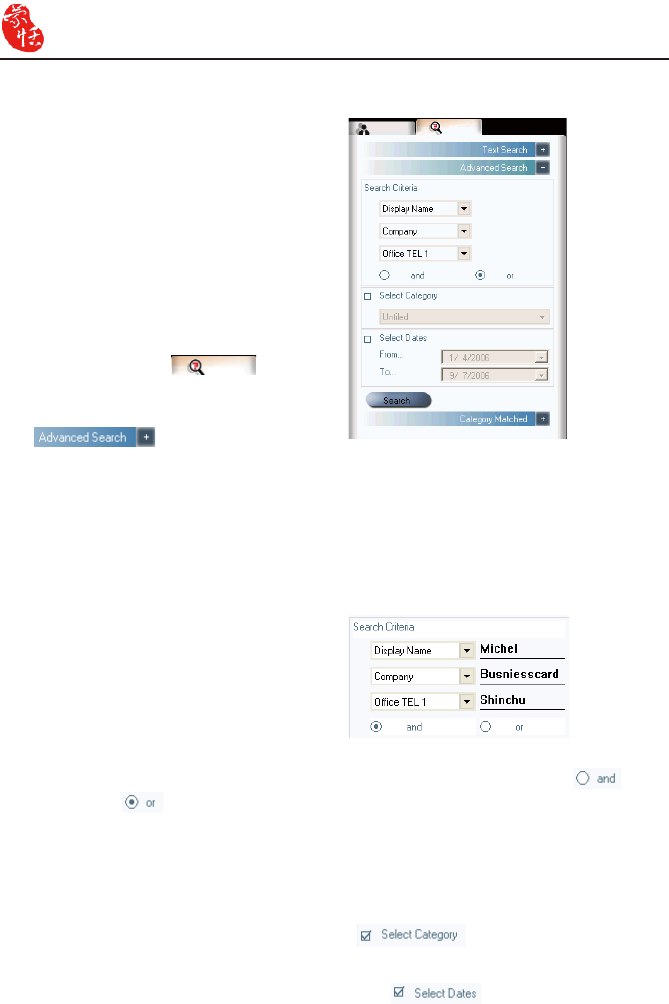
specic contact. To use Text Search in the WorldCard Management window, on the View
menu point to Search, and click Text Search.
The Text Search pane appears as follows:
In the Text Search pane, enter a key word or a group of key words separated by a
blank space in the Search box and click the Search button
. The Search pane will update, displaying the results as in the following picture.
In the left pane, there is a list of all categories where the data from your search string was
found. The right pane shows the search results that display all of the applicable elds for the
cards stored in your WorldCard database.
You can double-click on any record displayed in the Search Results pane to open the
card in the Editing window.
Tip: You may enter the Text Search win-
dow directly from the WorldCard
Management window by clicking the
Search button .
5-8 WorldCard
5.5.2 Advanced Search
WorldCard also offers an advanced
search function. To use the advanced search
function, on the View menu, point to Search
and click Advanced Search.
The Advanced Search pane will open
and appear as right.
Tip: You may also open the Advanced
Search pane from the WorldCard
Management window by clicking
the Search button . When
the Text Search pane appears, click
on the Advanced Search + button
.
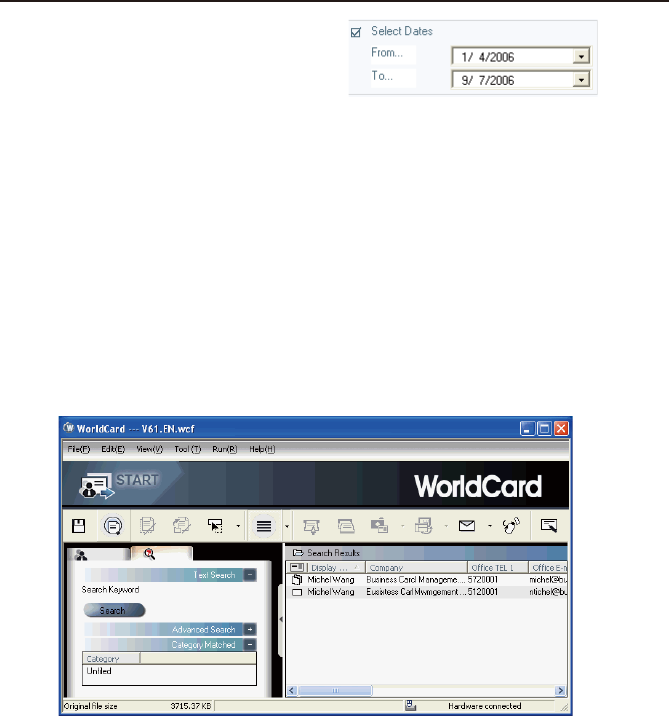
In the Advanced Search pane, you can enter your search criteria by category. You may
select from categories in any one of three option windows. If you have several cards with
similar criteria in your database, you may narrow your search further by using more than one
of the Search Criteria menus.
Please also note that the Search Criteria options include the AND operator and
the OR operator . You may use these operators to further dene your Advanced Search.
The AND operator denes that your search results contain the criteria listed in all three
search elds. Using the OR operator, a valid result must only match one of any of the three
elds to be a valid result.
You can further dene your Advance Search Criteria by using a specied Category. To
select a specic category, select Select Category and specify a category.
You may also dene your Advanced Search by calendar dates. To dene a period for an
Advanced Search by Dates, select Select Dates icon and make date selection
available.
After a Category for your Advanced
Search is selected from one or all three
Category options, you may enter an appro-
priate search string in the text eld of each
Category. A completed search will appear.
Chapter 5 Managing Business Cards 5-9
5.5.3 Finding Duplicate Data
Over a period of time, you may nd that you have received a business card from the same
individual on more than one occasion.
WorldCard has a built-in feature for nding duplicate data. To use Finding Duplicate
Data, click Run on the Main Menu and then Duplicates Data. A progress meter briey dis-
plays in the middle of the Management window showing the progress of the search. After
all records have been scanned, the Search Results pane displays any duplicate entries as
shown.
After selecting search by date, you may
use the From and To date options to specify
a period for your search criteria. The From
and To options appear as in the right picture.
In the pane on the left side, there is a list of all Categories where Duplicates Data was
found. In the Search Results pane on the right side, there is a list of all duplicate card en-
tries.
5-10 WorldCard
5.6 Safeguarding Your Contacts
Information is a valuable resource to any business. WorldCard recognizes the intangible
value of your business card contacts and has built-in features to help you safeguard that data.
5.6.1 Save
WorldCard is a business card database management system. It automatically saves all
changes when exit the system. You can manually save your card database by on the File
menu click Save.
You can also save your database by clicking the Save button on the WorldCard Man-
agement window.
5.6.2 Save As
You can save your database le to a specied directory for use as a backup le by using
Save as. On the File menu, click Save As.
WorldCard database les are stored in the .wcf format. No other format options are avail-
able. After you have named your le accordingly, click Save to complete this operation.
5.6.3 File Encryption
Protecting sensitive contact information is important in the business environment. The
WorldCard software recognizes the importance of sensitive data and allows you to protect
that data from unauthorized access.
To protect your WorldCard database from unauthorized access, WorldCard offers you an
automatic le encryption with password protection. You can encrypt your WorldCard data-
base by the following procedure.
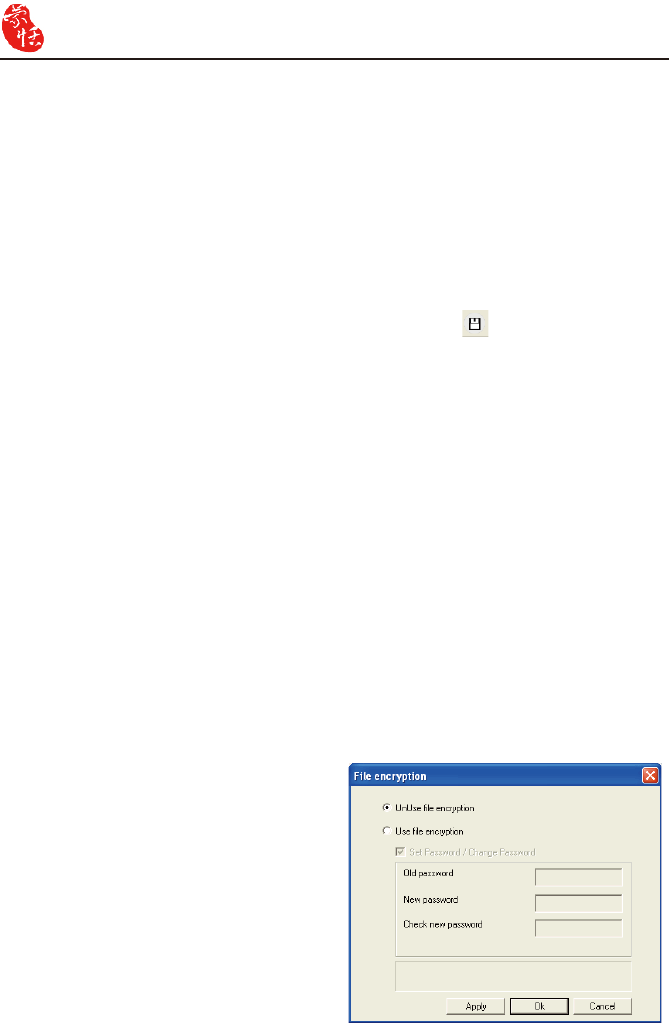
On the File menu, click File encryption.
The File encryption dialog box appears.
If you wish to use File encryption,
select Use le encryption.
Chapter 5 Managing Business Cards 5-11
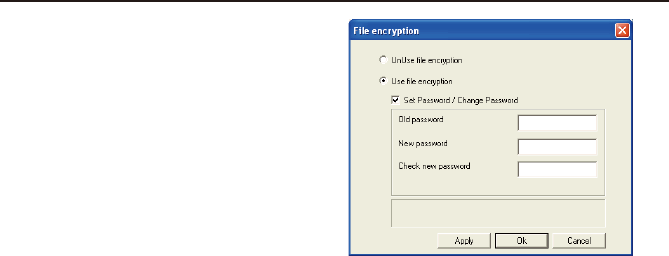
With Use le encryption selected, you
may use the File Encryption option with
password protection.
When the Set Password/Change
Password option is selected, the password
option is available for you to enter your ap-
propriate password options.
Note: Protect and safeguard your password. WorldCard does not offer a password recov-
ery option. If you forget your password, your database is inaccessible.
Tip: If you wish to decrypt the File encryption, place the mouse pointer over the selection
circle of the UnUse le encryption option.
5-12 WorldCard
5.7 Online Map
WorldCard offers you online map with a click of your mouse.
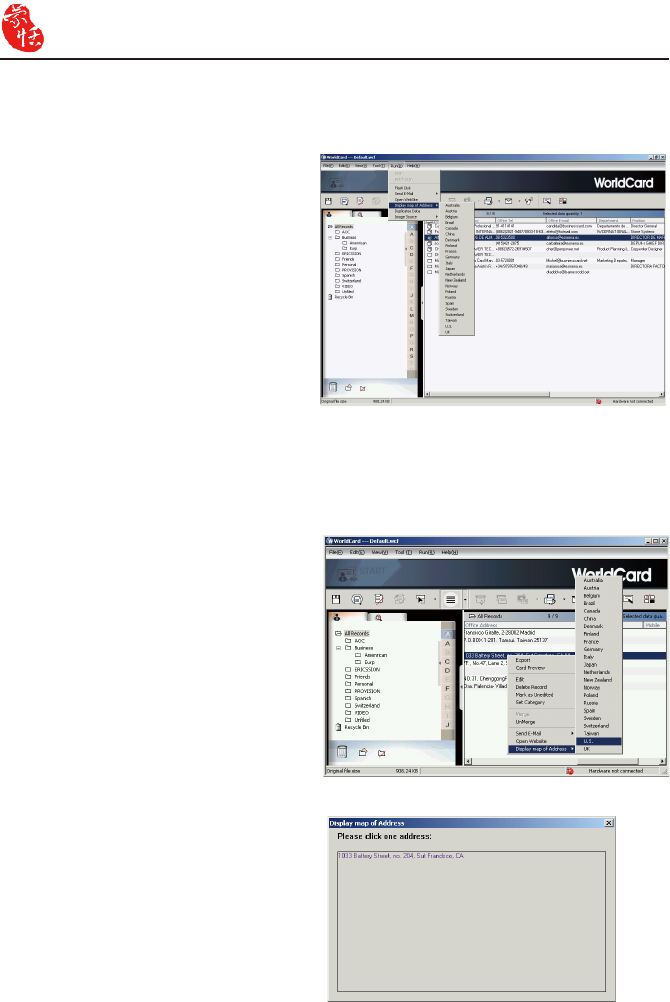
2. You can also right-click on the contact,
then click Display map of Address.
Select the country from the pull-down
menu.
3. If address searching you selected is more
than one contact, the Display map of
Address menu will appear. Click on the
address you want search will lead you to
online map automatically.
1. Select the contact, then click Run /
Display map of Address. You can
select the country from the pull-down
menu.
Note: WorldCard offer address searching of many nations, including: Australia, Austria,
Belgium, Brazil, Canada, China, Denmark, Finland, France, Germany, Italy, Ja-
pan, Netherlands, New Zeeland, Norway, Poland, Russia, Spain, Sweden, Switzer-
land, Taiwan, U.S., UK and many more to come.
Chapter 5 Managing Business Cards 5-13
5.8 Printing Cards
WorldCard software allows you to print card information in several usable formats. An
overview of the WorldCard printing features is presented in this chapter.
5.8.1 Printing Preview
Before printing card information, WorldCard allows you to preview your information in
the appropriate format for your desired output. To use the Print Preview options of your
WorldCard software, on the File menu click Print Preview. and the Print Preview pane
appears.
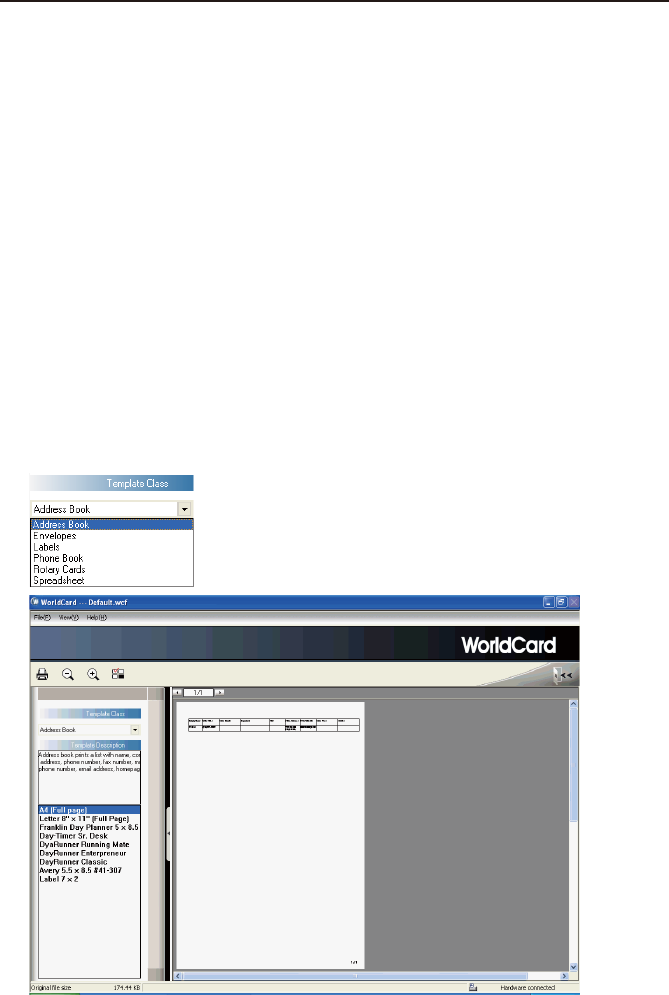
At the Print Preview pane, you can select several Print Preview Template Classes from
the Template Class menu to the left of the Print preview pane.
After the applicable Template is selected, you may further dene your printing preview
by selecting the available options in the selected Template. A similar Print Preview option
list will appear depending on your selected Template Class.
When a Preview option has been selected, the Print Preview pane reects that change
on the right side.
5-14 WorldCard
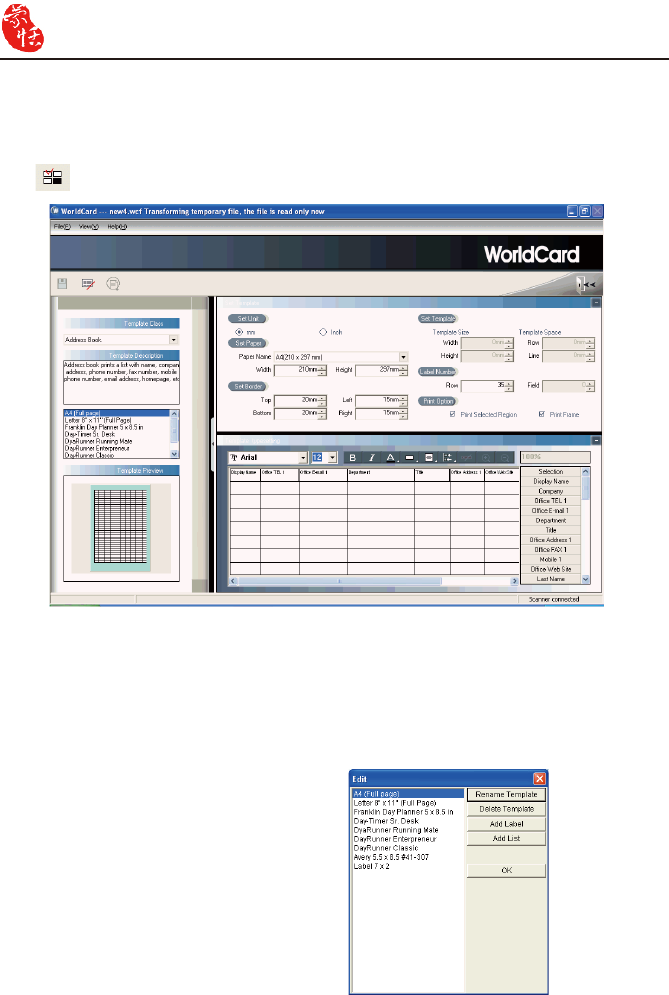
5.8.2 Editing Print Templates
WorldCard allows you to edit templates for printing your cards. On File menu click Print
Template Edit, the following pane appears. You may also click the Edit Print Template
icon .
To edit the Print Template, you may select a Template Class and Template from the left
pane. Then adjust the settings of the print paper from the pane on the upper right. If you wish
to choose print elds, you can drag the eld into the template editing area.
Note: WorldCard’s attentive categorizing function makes it exible on Editing Print Tem-
plates, such as you can add City, Zip Code under Address column
Note: You may also rename or delete templates with the Edit function.
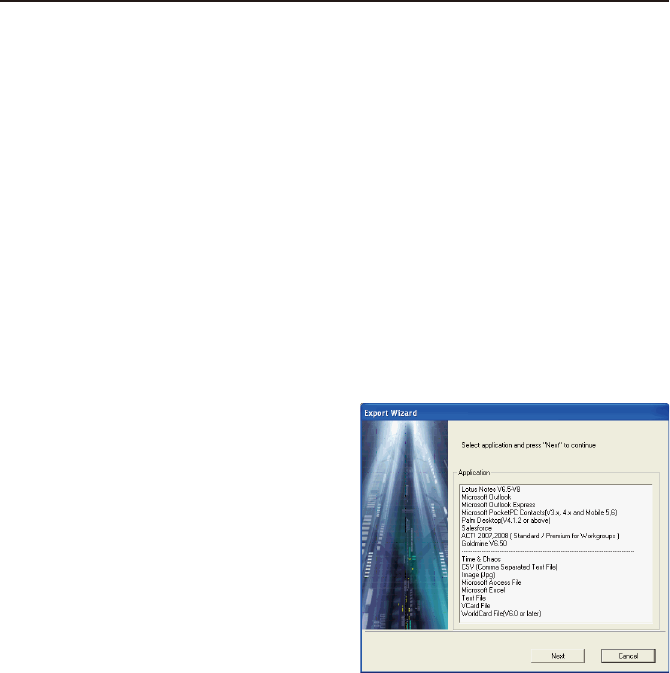
WorldCard provides Add Label and
Add List template model for creating your
own templates. On the Template Class
menu, click Edit. The Edit dialog box ap-
pears.
To add a new print template, click Add
Label or Add List, and then enter the tem-
plate name. Click OK to return to the Print
Template Edit pane for editing the new
print template.
Chapter 5 Managing Business Cards 5-15
5.9 Exchanging Contacts
WorldCard software allows you to exchange valuable contact information with other ap-
plications through the use of the Import, Export and Synchronize commands.
5.9.1 Export
To select export elds, you may refer to 5.10.1 Export Option for a detailed explanation.
To export your WorldCard database to another application such as Microsoft Excel, Access,
Outlook, Outlook Express, Lotus Notes, PocketPC, Palm, ACT!, Goldmine, Salesforce, CSV
or VCard, on the File menu click Export.
Notes: The Windows Vista version does not support Exporting data to Pocket PC and
Goldmine.
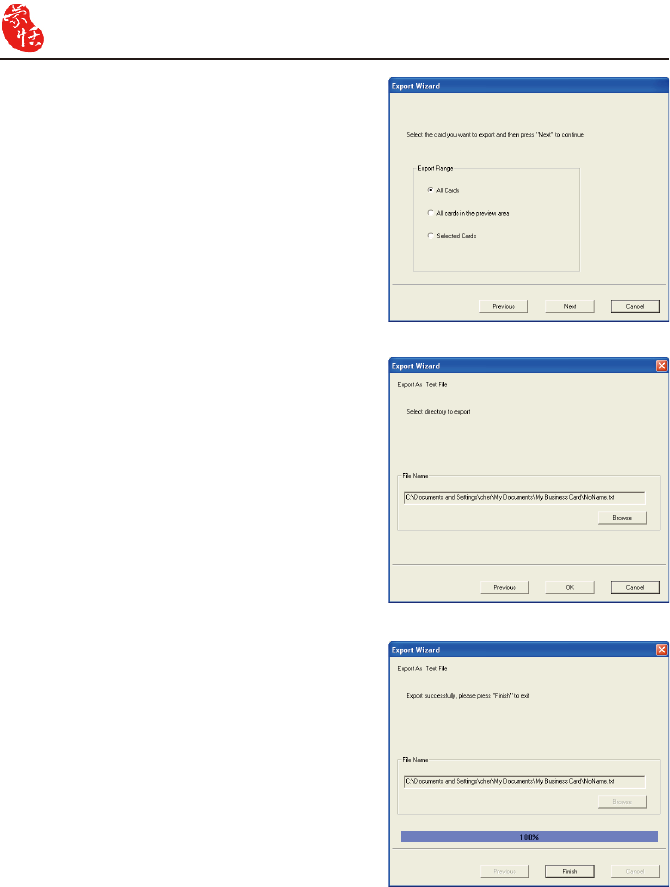
This will open the WorldCard Export Wizard screen and the following dialog box ap-
pears.
To use the Export Wizard, select the type
of application for the le type that you want to
create.
Tip1: Export Text File allows you to export all
elds.
Tip 2: Export function supports on Excel 97,
Outlook 97 and Outlook Express 4.0 ver-
sion and higher.
Tip 3: In exporting to an Excel le, WorldCard
transfers the different categories of con-
tact information to different sheets.
Tip 4: Export Wizard will compress the le . It makes your ling and mailing easier by
producing a smaller le.
Warnning: Because of the compliance between unicode and ANSI code, you might export
unreadable characters to Palm Desktop, CSV or Vcard le in cases you exportChi-
nese, Japanese, Korean....from a single-byte language character based computer
(such like English, German, French and so on) to a double-byte language character
based computer (Such like Chinese, Japanese, Korean and so on).
Click Next. The next Export Wizard dialog box displays.
5-16 WorldCard
If you have chosen to continue with the
Export function, choose the directory to export
the les to.
Click OK to export the cards.
To complete exporting the les, review the
information displayed in the Export Wizard
window.
After exporting is completed, click Finish
to close the Export Wizard dialog box.
The Export Wizard operations for exporting your WorldCard database to all application
types are similar and will not be discussed individually in this manual. However, a brief
overview of the Export of a card to Microsoft Outlook will be presented.
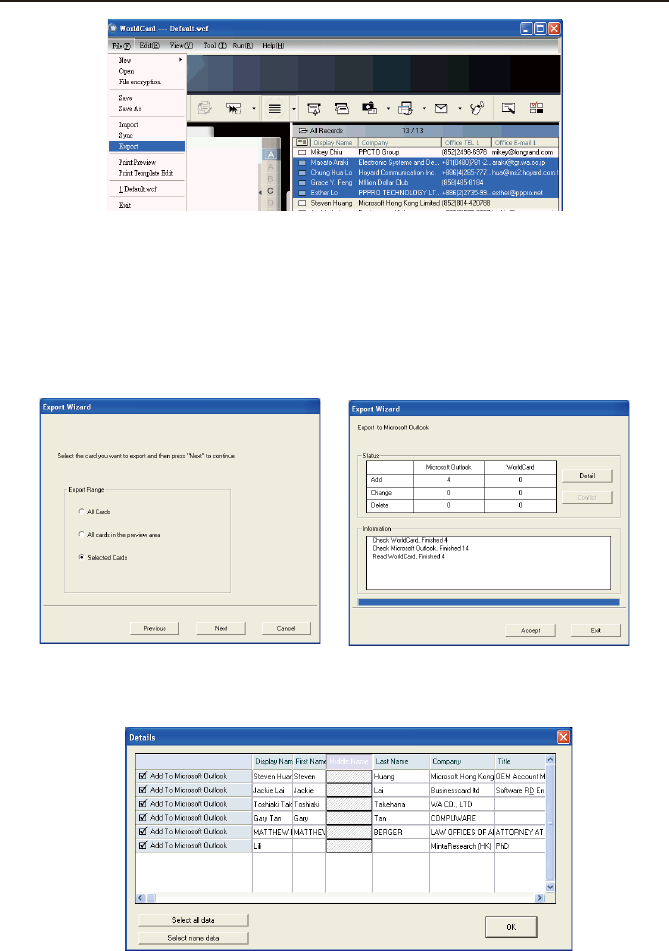
To export a card to Microsoft Outlook, select a card or a group of card by selecting the
specic card(s) in the WorldCard Management window as shown in the following picture.
Follow the instructions given in the
Export Wizard dialog box to select which
cards you want to export. And then click
Next.
Chapter 5 Managing Business Cards 5-17
On the File menu, click Export. The Export Wizard dialog box appears, as previously
displayed in the section. Select the Microsoft Outlook application from the Application
pane in Export Wizard dialog box and click Next. The next step is displayed in the Export
Wizard dialog box.
Select Selected Cards in the Export Range. Click Next.
The following Export Wizard status dialog box appears.
When the Export process is completed, you can view the Details page as shown in the
following picture by clicking Detail.
5-18 WorldCard
5.9.2 Import
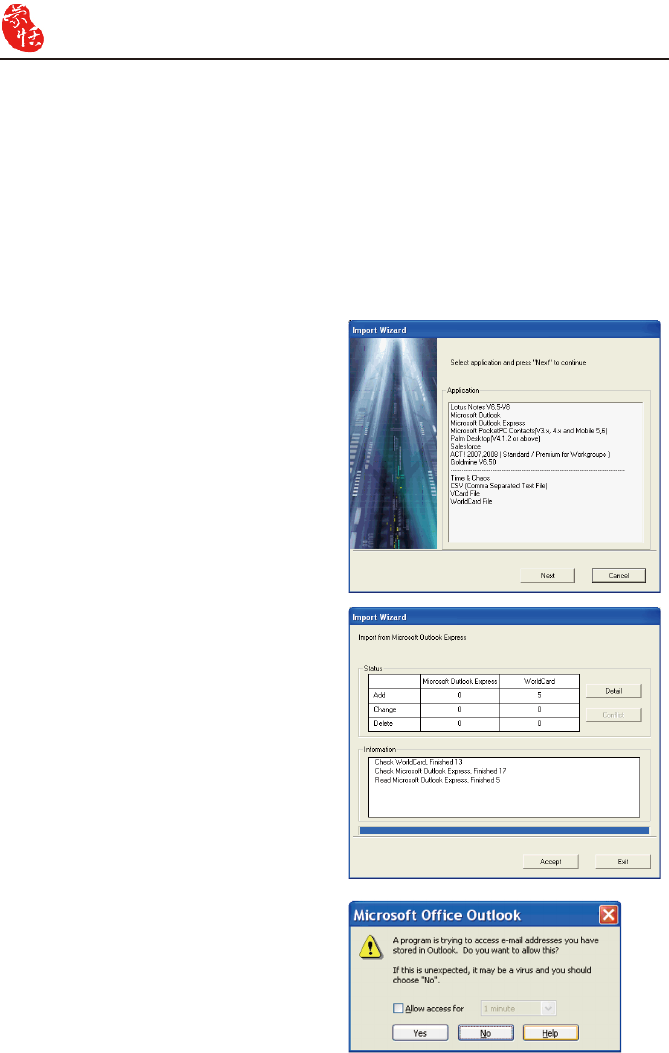
To import data into your WorldCard
database from another application such as
Microsoft Outlook, Outlook Express, Pock-
etPC, Palm, ACT!, Goldmine, Salesforce,
CSV or VCard, click Import on the File
menu. The Import Wizard dialog box ap-
pears.
Select the type of application source to
import into your WorldCard database.
Note: The example displays import data
from Microsoft Outlook Express us-
ing Windows XP.
Note: Windows Vista does not support im-
porting data from Windows Contacts,
Pocket PC and Goldmine.
Click Next in the Import Wizard dialog
box. The next dialog box appears.
Note: When importing data from a Mi-
crosoft Of ce application such as
Microsoft Outlook, you may receive
a warning message to advise you
that a program is trying to access
email address information from the
application. This warning message
may appear similar to the following
picture depending on your version of
Microsoft Of ce. To continue, click
Yes.
From the Details dialog box, you can choose to export all details of each card or none.
To close the Details dialog box, click OK. This will return you to the Export Wizard status
dialog box as seen previously in this section.
To complete the Export process, click Accept. You may see a suspicious script warning
message at this time. Click Continue on the warning dialog box to proceed. The Export
Wizard will now display the completed Status and Information of the exported cards being
processed.. To exit the Export Wizard, click Finish.
Chapter 5 Managing Business Cards 5-19
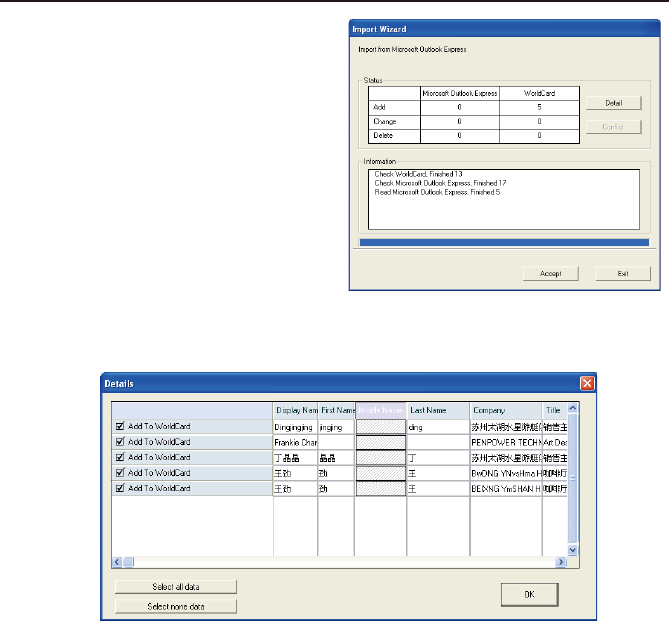
While your les are being imported, a
blue progress bar displays. After the process
is completed, the Import Wizard dialog
box displays Status and Information.
You can view the actual information being imported by clicking Detail. The Details
dialog box displays.
In the Details dialog box, you can select to import all details of each card or none and
then click the OK.
To complete the Import process, click Accept. The Import Wizard dialog box will up-
date the Status and Information elds for the data accepted. When the update is completed,
click Finish to close the Import Wizard. You will nd that your imported records have
been added to the bottom of the cards listed in All Records category.
5-20 WorldCard
5.9.3 Sync
The WorldCard Synchronize function allows you to synchronize the data between
WorldCard and other applications such as Microsoft Outlook Express, Microsoft Outlook,
Lotus Notes, PocketPC Contacts, Palm Desktop, ACT! by Sage, Goldmine and Salesforce.
Notes: The Microsoft Vista version does not support synchronizing data with Windows
Contacts, Pocket PC and Goldmine.
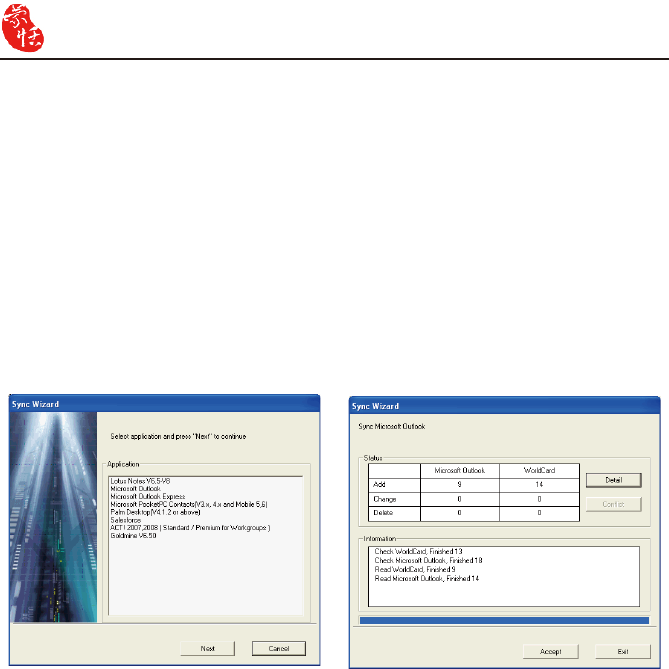
To use the Synchronize function, on the File menu, click Sync. The Sync Wizard dialog
box appears.
Select the application that you desire to synchronize with your WorldCard database by
clicking Next. The Sync Wizard Status and Information dialog box will open. At the same
time WorldCard will begin to synchronize with the selected application.
While synchronization occurs, a blue progress bar displays. Once the process is complet-
ed, the Sync Wizard window will display Status and Information data about the records
you have synchronize.
In the Status pane you can see that there is a difference between the Microsoft Outlook
database and the WorldCard database. The Information pane shows all actions that have
been completed at this point.
Note: The Sync function synchronizes the Client database with the Host database. In
other words, data in the Client database is changed to reect the data in the Host
database. After clicking Accept, the Client database is to match the Host database.
After this point you cannot reverse the process. You may select the WorldCard
database to act as either the Host or Client database from the Settings dialog box
discussed in section 5.10.2 of this manual.
Note: You will be asked to input the User ID, Password and DB Path when you synchro-
nize with Salesforce to protect and safeguard your contact info.
Chapter 5 Managing Business Cards 5-21
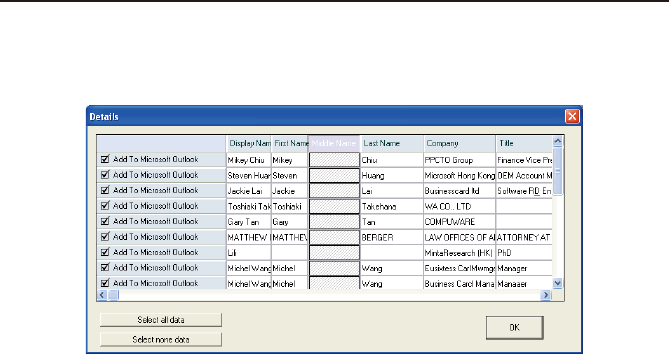
From the Details dialog box, you can click Select all data to accept all data in the list as
acceptable changes.
For this item, the Sync function would DELETE the entry from Microsoft Outlook.
Alternatively, you can use the Select none data icon to clear the selection of all items in the
list. After reviewing the Detail list, you may close the Detail window by clicking OK.
To accept the actions required to synchronize the two databases, click Accept. The De-
tails dialog box will display the updated Status and Information panes. To close the dialog
box and complete the Sync process, click Finish.
You can view the complete details of the actions that will be taken to synchronize the two
databases from the Details dialog box. To view the Details dialog box, click Detail. The
Details dialog box appears.
5-22 WorldCard
5.10 Settings
WorldCard has many selectable Setting options to allow you to congure the operational
functions of Export, Synchronize, Field Display, User Dene Field and Scan options. To
set your WorldCard options, use the procedures outlined in this chapter.
On the Tool menu, point to Setting and click any of the options. Alternatively, on the
main toolbar click the Setting button .
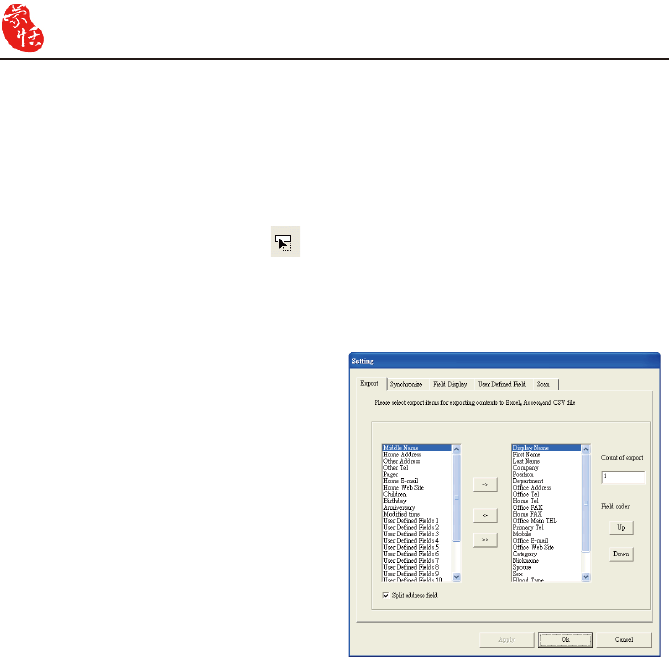
5.10.1 Export Option
To congure the Export options, open
the Setting dialog box page as described in
the preceding section of this chapter.
The Setting Export dialog box displays
with ALL options selected as a default
conguration. The elds on the right will
be exported to Excel, Access and CSV les.
To add another eld, select a eld from the
left side and click the [->] button. Click
[>>] button to export all elds. You can set
the number of elds with the same name to
export (up to 10 ).
Select Split address eld to export ad-
dress detail to different elds. After you’ve
selected the options you want, click OK to
accept the changes.
Chapter 5 Managing Business Cards 5-23
5.10.2 Synchronize Option
To set the Synchronize options, open
the Setting dialog box as described in the
preceding section of this chapter.
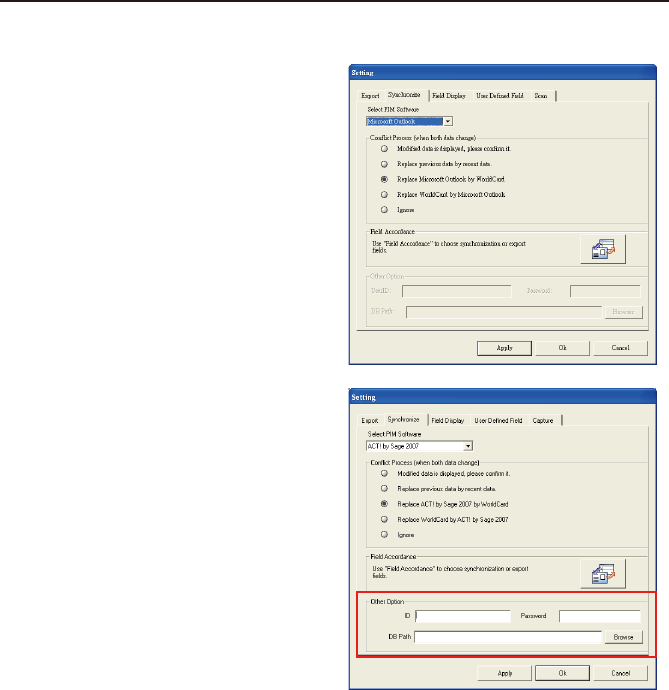
The Synchronize tab of the Setting
dialog box appears with Microsoft Outlook
as the selected PIM. PIM stands for Pro-
tocol Information Management software.
Change the PIM as desired. The Conict
Process option can be set to manage any
conicts which may occur during the Sync
operation.
ACT!, Goldmine and Salesforce require
a user ID, Password and DB Path. Before
synchronizing with above applications, you
may input this information into the boxes in
the Other Options area.
5-24 WorldCard
5.10.3 Field Display
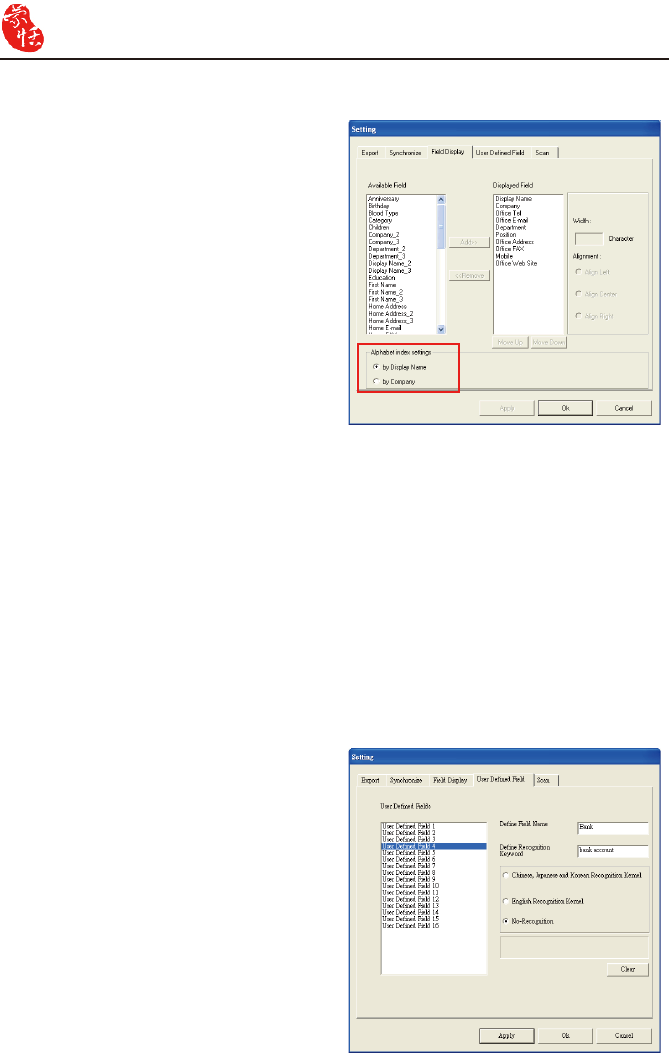
To set the Field Display options of the
List Mode, open the Setting dialog box as
described in the preceding section of this
chapter.
The Field Display tab of the Setting
dialog box appears with a default congura-
tion as displayed in the above window. To
modify the selected options, click any avail-
able eld from the Available Field menu
on the left side of the dialog box. After a
eld is selected, click Add to add it to the
Displayed Field list. The selected eld
will be added to the applicable WorldCard
screens.
To remove a eld, click the desired eld in the Displayed Field list. Then click Remove
to delete the eld from your WorldCard screen views. You may also set eld options from
the available options on the right side of the Field Display window. Once you have com-
pleted your changes, click Apply to apply any changes.
The Alphabet index can be indexed by Display Name and by Company. Please refer to
Chapter 3.1.
5.10.4 User Dene Field
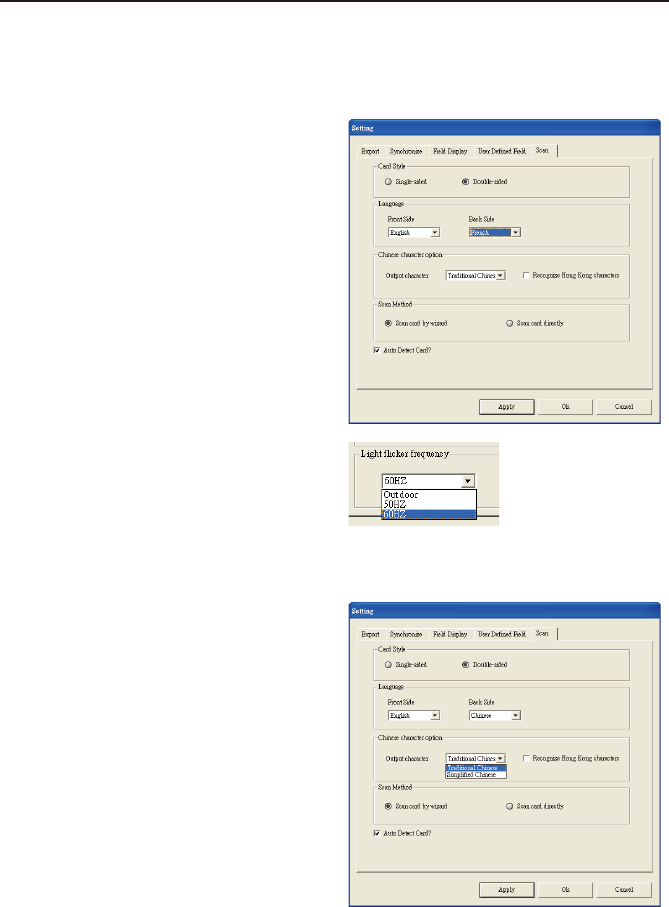
To congure the User Dened Field options, open the Setting dialog box as described in
the preceding section of this chapter.
The User Dened Field tab displays
the default conguration as seen in the
preceding picture. You may dene up to
ten user-specied elds to be displayed in
your WorldCard screens. To dene a eld,
select a User Dened Field from the avail-
able elds on the left side of the dialog box.
Then, assign the Dened Field Name and
Dene a Recognition Keyword in the text
box. Set the language recognition option
and click Apply.
Chapter 5 Managing Business Cards 5-25
5.10.5 Scan Option
To congure the Scan options, open the Setting dialog box as described in the preceding
section of this chapter.
The Scan tab displays the default cong-
uration as seen in the preceding picture. You
may dene Card Style, Language, Chinese
character options and Scanning method.
You can also select Auto Detection. Click
Apply for the settings to take effect.
If you use WorldCard duet 2, instead of
the Scan tab, there is a Capture tab. On the
Capture tab on the Light icker frequency
list select Outdoor, 50Hz or 60Hz to match
your environment.
WorldCard software has optical character
recognition (OCR) capabilities designed to
work specically with Chinese characters.
To optimize the settings for recognition
of a Chinese language card, on the Scan
tab in the Chinese character option area,
select Traditional Chinese or Simplied
Chinese.
5.10.6 Revising the Results of Chinese Card Recognition
Under the Chinese character option area, you can select Recognize Hong Kong
characters if you are scanning cards from Hong Kong. The character set for Hong Kong is
slightly different than the Traditional or Simplied Chinese character sets.
5-26 WorldCard
5.11 WorldCard Portable Disk
With Penpower WorldCard, you have a new traveling companion and all the exibility
you need for a successful business trip. You can quickly store your WorldCard Portable
software and database on any USB ash disk and access them from the USB port of any
available computer.
5.11.1 Saving Card Data to a Portable Disk
Note: WorldCard does not come with a ash disk. Flash disk must be purchased separate-
ly.
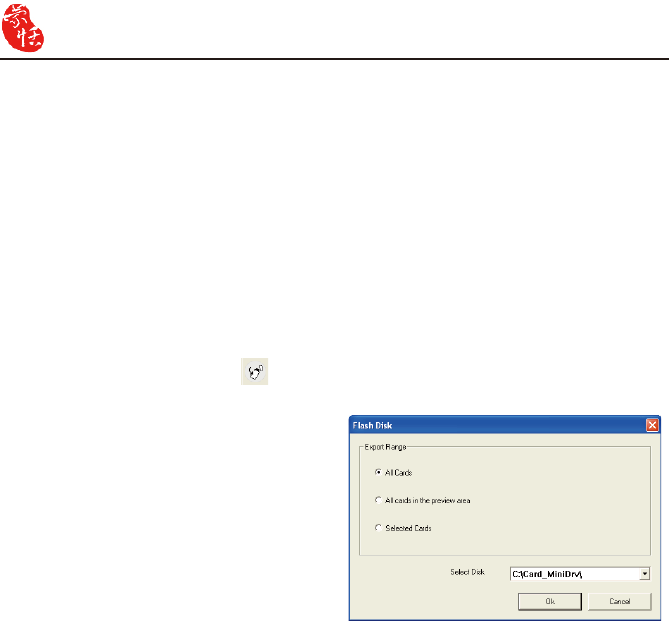
To save your WorldCard database to a portable disk, at the Management window click
the Export to Flash Disk button . The Flash Disk dialog box displays.
In the Flash Disk dialog box, select an
Export Range. Setting the range to the Se-
lected Cards option exports only the cards
that have been selected in the Management
window.
After you have set the Export Range,
select a Flash Disk drive from the Select
Drive list for available ash drives on your
system. After you have selected the correct
ash disk drive, click OK.
Chapter 5 Managing Business Cards 5-27
5.11.2 Card Data Management for Portable Disk
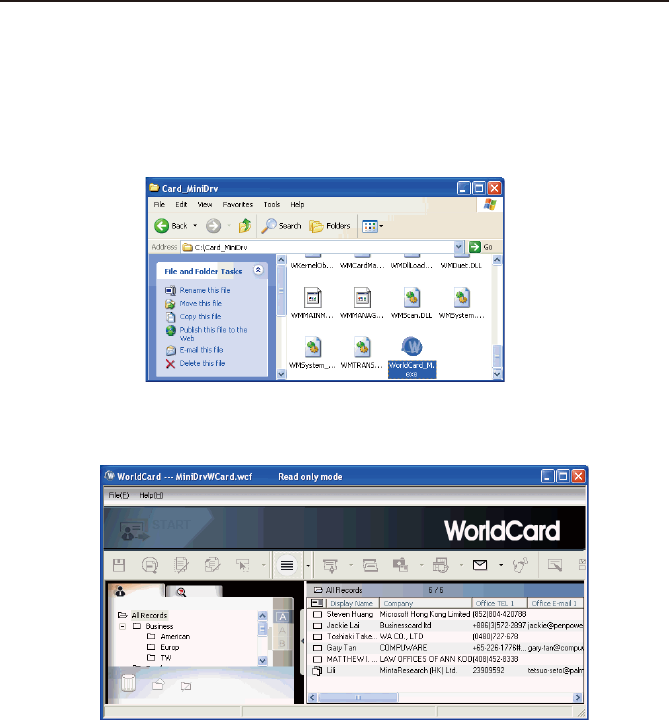
To use the card data stored on a ash disk, plug the ash disk into the USB port of any
computer. Using the My Computer directory of Microsoft Windows, locate the Flash Disk.
In the ash disk directory, locate the Card_MiniDrv folder. Double-click the
Card_MiniDrv folder. The following directory appears.
Double-click on the WorldCard_M application as highlighted in the above. WorldCard
will display the MiniDrvWCard.wcf Read only mode as shown in the picture below.
In the Mini_Drv mode you can view cards in List or Label mode. You can use World-
Card search functions and send email using the same procedures as the standard WorldCard
database in the ofce. For instructions on using any of these available features, see the previ-
ous sections of this manual for complete operational instructions.

5-28 WorldCard
Chapter 6 Scan Manager 6-1
Chapter 6 Scan Manager
WordCard integrates with Microsoft Outlook, Microsoft Outlook Express, Windows
Contacts (Vista) and ACT!. You can scan business cards and save veried contacts into the
above programs directly. You can view the original scanned business card image in Micro-
soft Outlook and ACT! as well.
6.1 Scanning Contacts
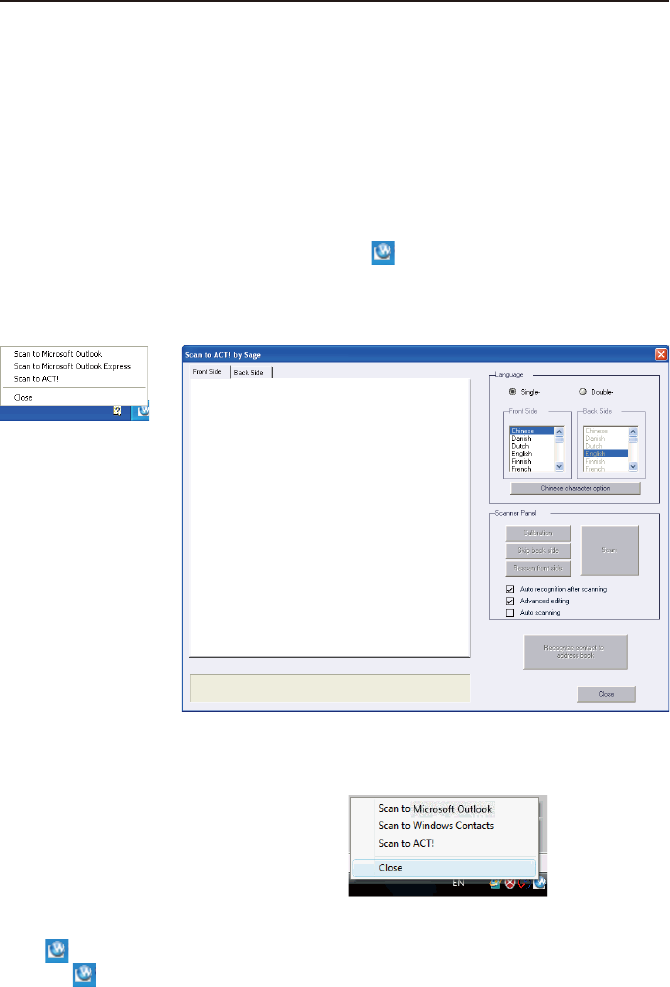
After installation, you’ll see the Scan Manager icon at the lower right corner on your
taskbar. Click it and select the desired software: Microsoft Outlook, Outlook Express, Win-
dows Contacts or ACT!. Whenever you click the software, WorldCard opens the scan wizard
of the indicated program.
Note: Microsoft Windows Vista version
supports scanning contacts into
Microsoft Outlook and Windows
Contacts.
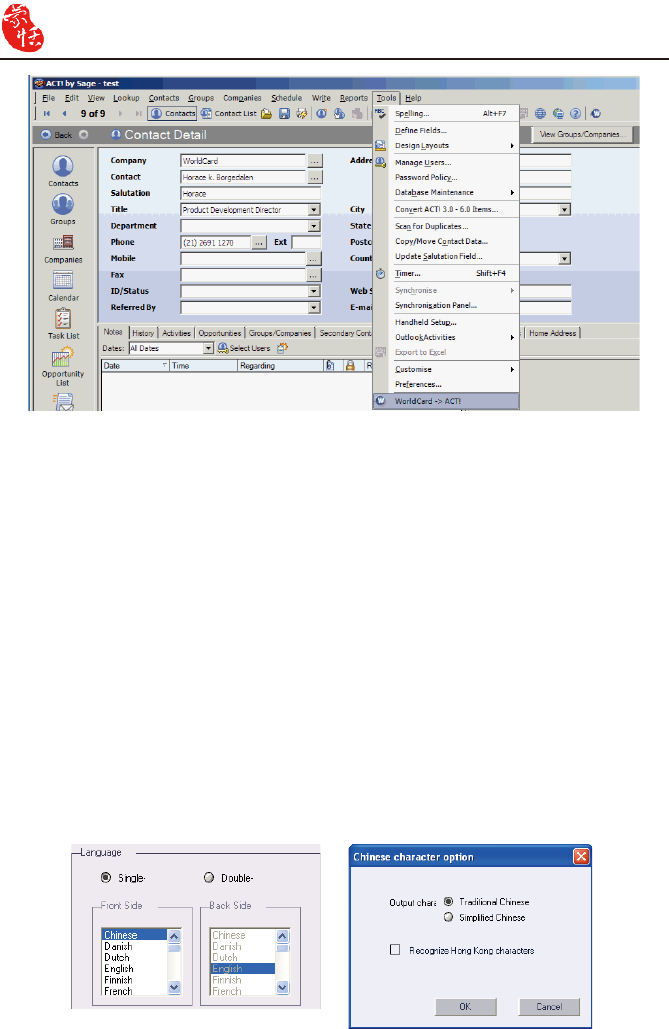
Note: If your computer has installed ACT!, after installing WorldCard, you will see the
button in ACT!, you may also nd WorldCard/ACT! under the Tool menu. Click
the button or WorldCard/ACT! from the Tool menu to start the Scan Wizard.
6-2 WorldCard
6.2 Scan business cards
6.2.1 Scan and Edit business cards
1. Insert a business card and click the Scan button to scan it.
Tip: The WorldCard software will require you to calibrate the scanner when you use the
scanner for the rst time. Whenever there is color difference after scanning the card,
you can calibrate the scanner by clicking Calibration.
2. Editing Recognition:
Language: Select the language of the business card.
Chinese character option: Select Traditional Chinese or Simplied Chinese for the out-
put characters. If the characters include Hong Kong characters, select Recognize Hong
Kong character.
Chapter 6 Scan Manager 6-3
Auto recognition after scanning: Select Auto recognition after scanning to recognize
contacts after scanning. If this option is not selected, you need to click Recognize content
to address book after scanning.
Advanced editing: Select Advanced editing to edit contact data before exporting them into
address book.
It is recommended that you select Advanced editing to edit contact data before exporting
contact data into address book. Regarding the editing functions, please refer to Chapter 4.
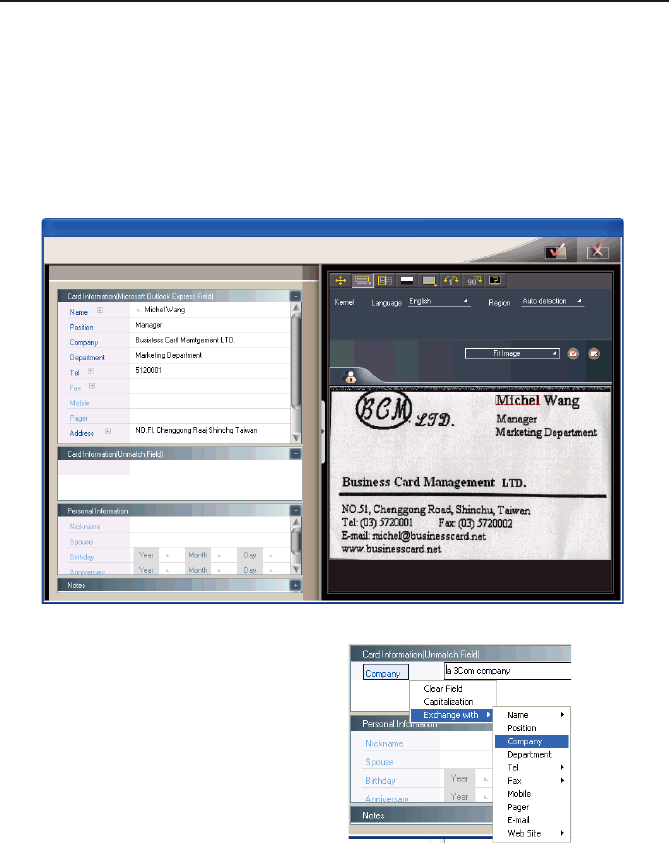
Because Microsoft Outlook Express
provides limited set of elds you may see
Card Information (Unmatched Field) on
the left pane of the Editing window. It lists
the contact data of unmatched elds. These
data will not export to the address book of
Outlook Express. You can click the eld
name to replace the eld that is unmatched.
Click Export to Address Book after con-
rming all data.
6-4 WorldCard
6.2.2 View business card image
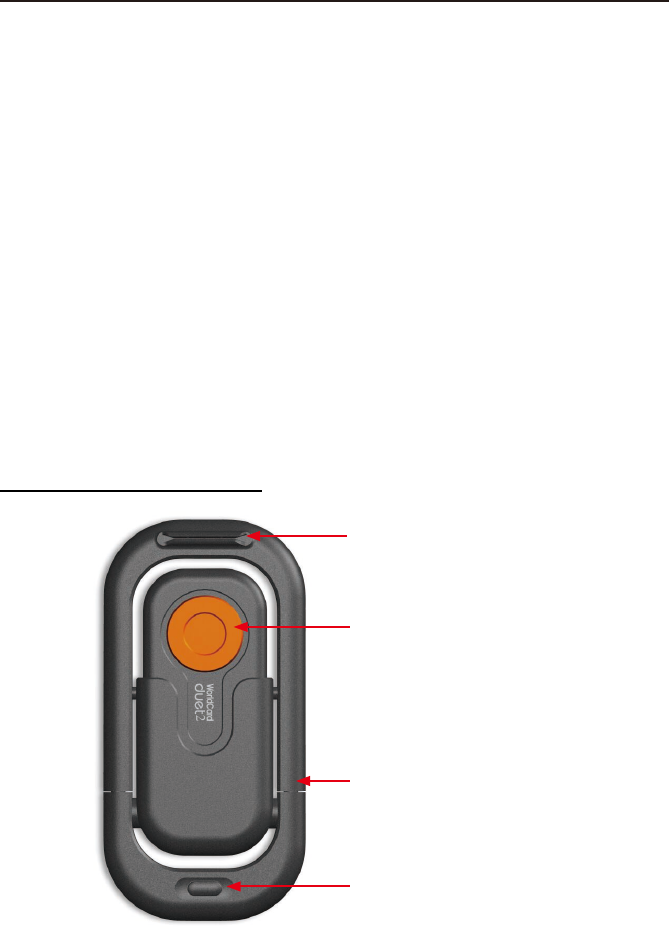
You can view the image of the business card by just selecting the exported contact from
your address book in Microsoft Outlook, and right-click to select view attachment. You can
magnify the image of the business card.
Note: If WorldCard exports business card images into a user dened eld of ACT!, you
may congure the settings of ACT! to view the images.
Note: WorldCard does not support viewing business card images in Microsoft Outlook
Express and Windows Contacts (Vista).
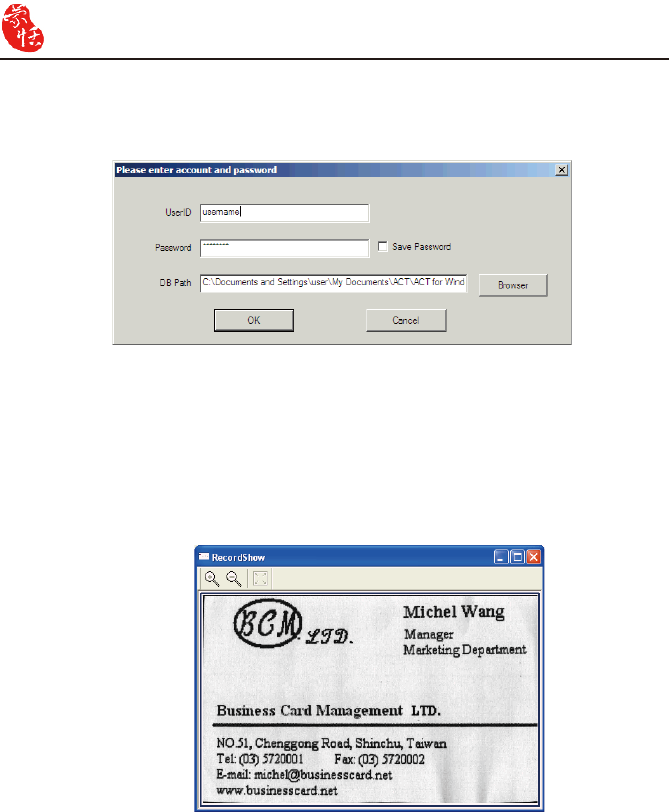
Note: When using Scan to ACT!, you will be asked to input the User ID, Password and
DB Path after clicking Recognize contact to address book in order to save the
contacts into ACT! properly.
Chapter 7 WorldCard duet 2 7-1
Chapter 7 WorldCard duet 2
7.1 Introduction
WorldCard duet 2 is a business card camera as well as a webcam. It can take pictures of
business cards and serve as a webcam for conferences. WorldCard duet 2 is a new system
that is a breakthrough from traditional scanning. WorldCard duet 2 takes a snapshot of a
business card, and converts the image to digital form for your computer. This innovative
procedure allows you to differentiate and manage business card materials in a convenient
and efcient manner.
Note: The Penpower WorldCard duet 2 package includes the full version of WorldCard
card management software on CD, the duet 2 Capture Camera, camera mount, a
USB cable to connect the duet 2 camera to your computer and the WorldCard instal-
lation manual.
7.1.1 Hardware Introduction
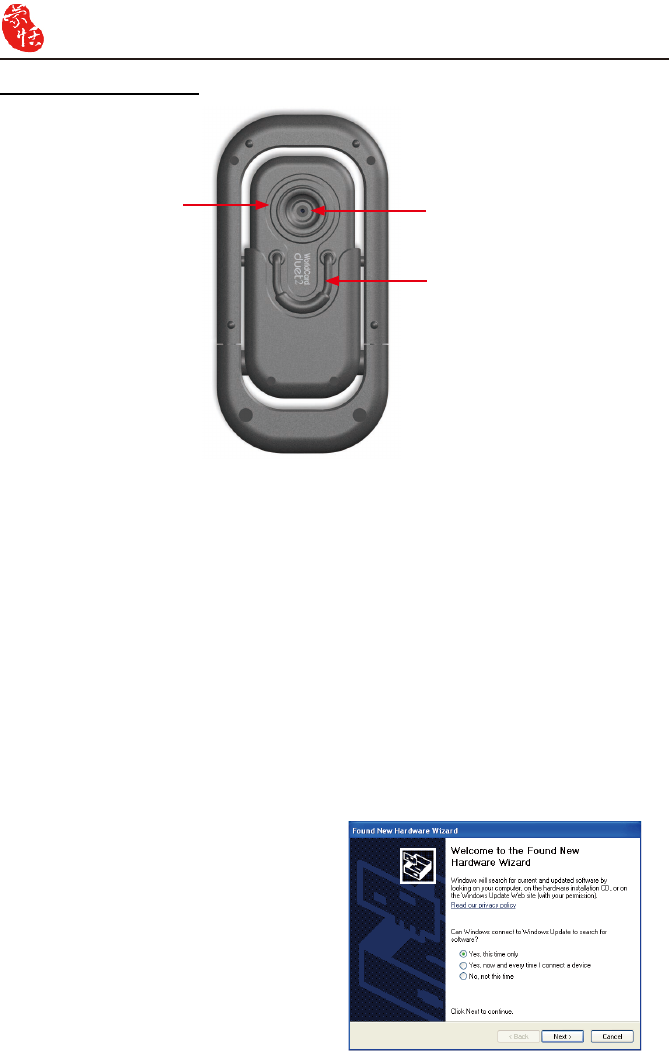
Front view of WorldCard duet 2
Card holder
Camera fuselage socket (this can rotate
and angle can be raised as desired)
Flexible ring (draw this ring and it raises
the camera socket of business card auto-
matically)
Shutter button
Note: WorldCard does not support the Shutter button in Windows Vista.
7-2 WorldCard
7.2 Installation
The procedure to install the Penpower WorldCard software package is the same as the
installation procedure for any other WorldCard package. The software installation for World-
Card is presented in previous sections of this manual. As a brief introduction to the package,
please refer to chapter 2 for the software installation procedure.
Rear view of WorldCard
7.3 Connecting Hardware
Note: After installing WorldCard, you must reboot your computer, connect your hardware
and restart your computer. Connect the WorldCard duet 2 cable to the camera and
a USB port on your computer. It’s that simple. When you restart your computer, you
may see the following Windows New Hardware Wizard.
Select Yes, this time only to have
Windows nd the correct driver for your
camera and click Next. Windows will nd
the WorldCard driver automatically. This
completes the installation of your World-
Card package.
Business card cam-
era fuselage (can be
used alone; detach
and lift off)
Camera Lens
Camera Clip (use this clip
when attaching the business
card camera on a computer
notebook to use
independently as a webcam)
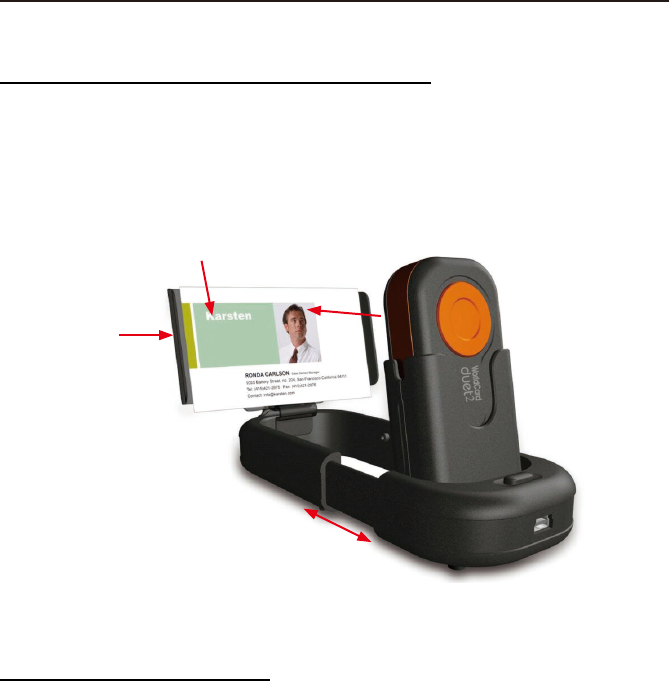
Chapter 7 WorldCard duet 2 7-3
7.4 Using Hardware
To use WorldCard duet 2 as a business card camera:
1. Draw the exible ring. The camera socket of business card and business card camera
fuselage are raised to the position of 80 degrees automatically.
2. Slide the business card switch downward to establish the function as a camera snapshot.
3. Insert the business card in the business card holder.
To use WorldCard as a webcam:
1. Draw the exible ring, raise the business card camera fuselage
2. Take the camera fuselage out by detaching it from its frame
3. Connect the USB cable at the bottom of the business card camera to a computer USB port
directly
4. Clip the fuselage to a notebook screen to use as a webcam.
Shooting direction
Inset name card
Card Holder
Draw the exible ring. The fuse-
lage and socket are raised into a
upright position automatically
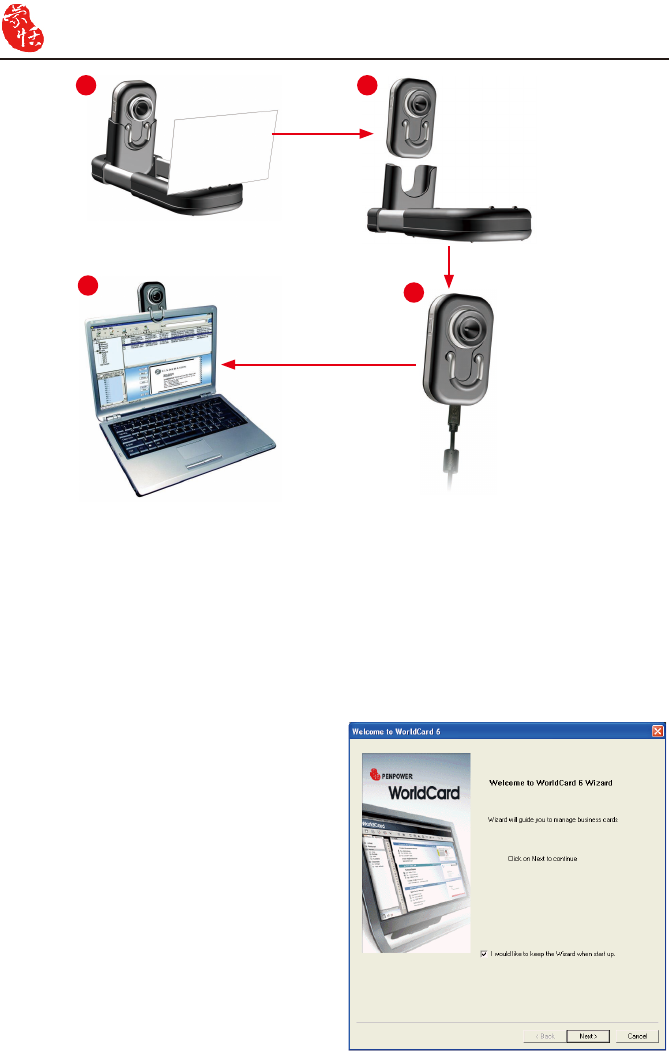
7-4 WorldCard
1 2
34
7.5 Capturing Business Cards
Capture
To capture a business card with your WorldCard duet 2 camera, ensure that the camera
is in the business card capture mode by sliding the camera mode selection switch to card
mode in the down position.
Start your WorldCard software by dou-
ble-clicking the WorldCard shortcut on your
desktop. You’ll see the WorldCard wizard.
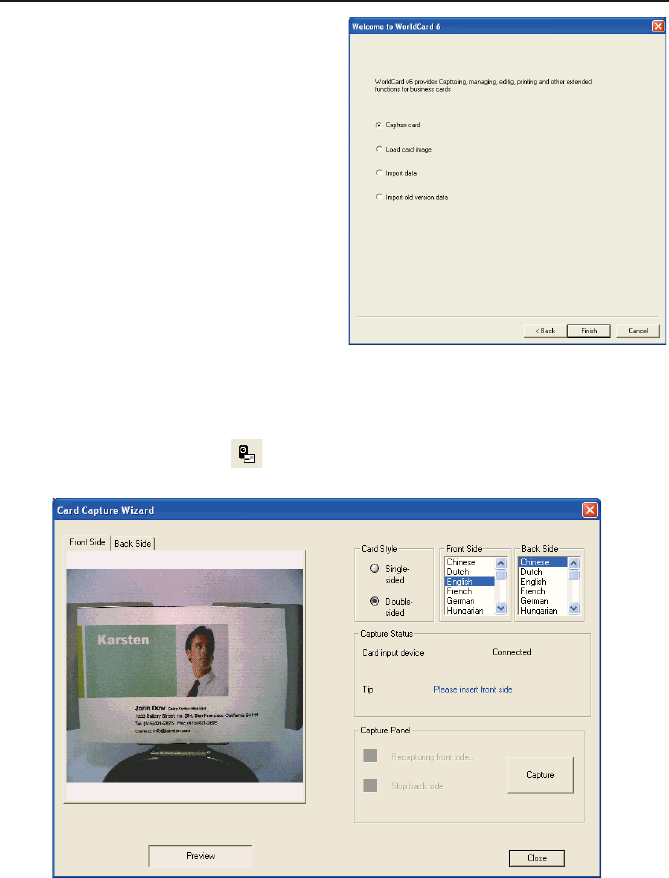
Chapter 7 WorldCard duet 2 7-5
Note: The Capture Card option is selected by default. To continue and capture a business
card, click Finish.
Tip: Click the Capture button to open the Card Capture Wizard.
Click Next to continue.
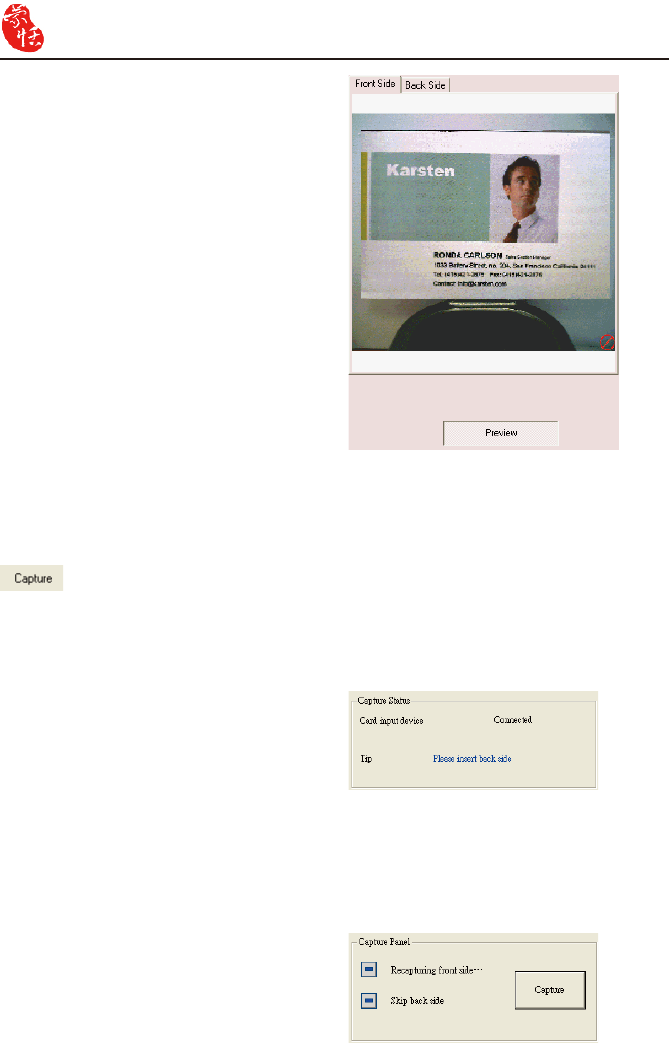
7-6 WorldCard
To capture a card, place your card in the
card holder. After a card is placed in the
holder, you will see the card in the Capture
window. You may need to shift the card
right or left to have a uniform alignment as
the preview screen right.
Rotate your card in the holder and click Capture again to capture the back side of you
card. You will see some active scanning processing in the Preview pane during the capture
operation. You also have the option on the Capture Panel dialog box to recapture the front
side or skip the backside. Click Capture.
Once the card is properly positioned, select the appropriate Card Style and language op-
tions.
Once the correct options have been selected, capture the card by clicking Capture
.
If the double-sided card option has been selected, WorldCard will prompt you to insert
the back side of the card with a tip in the Capture Status dialog box as shown in the follow-
ing picture.
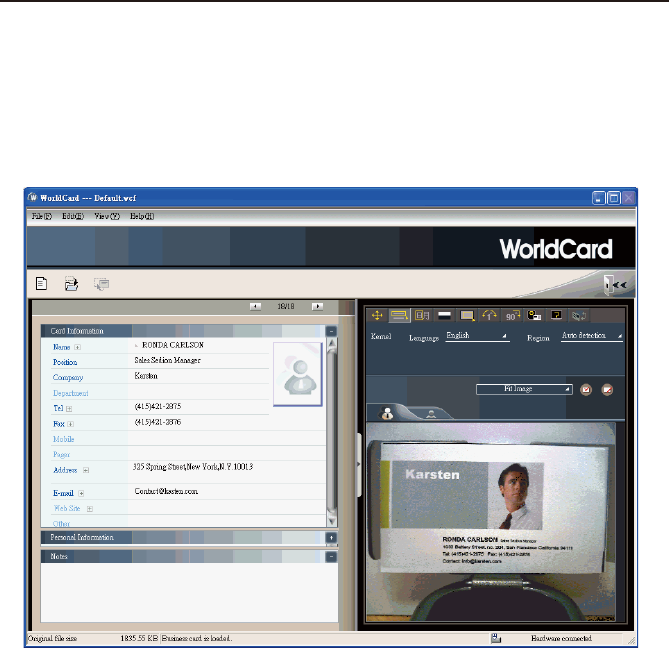
Chapter 7 WorldCard duet 2 7-7
The functions of the Editing window for WorldCard duet 2 are the same as with the
WorldCard Color scanner discussed previously in this manual. Please refer to Chapter 4 for
details.
After you have captured the applicable side or sides of your card, click Close.
This will close the Capture dialog box and add your newly captured card to the Man-
agement window.
To Recognize your new card in the Editing window, double click the new card in the
Management window. The Editing window will open with your new card displayed as
shown below.
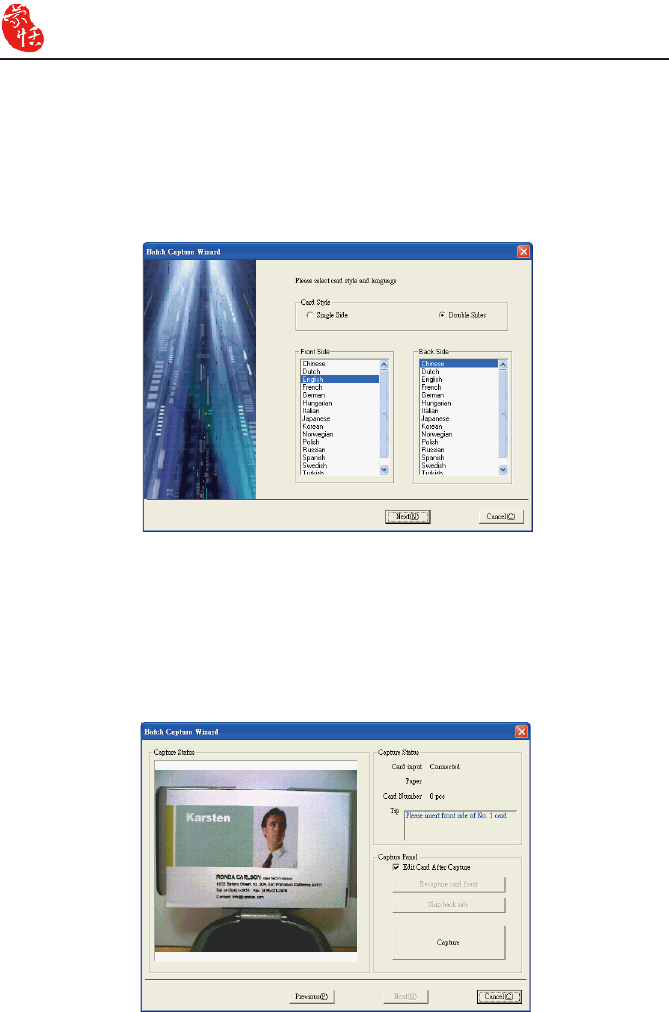
7-8 WorldCard
Batch Capture
To batch-capture business cards, select Batch Capture. With this function, you can cap-
ture many cards easily, preview them, and then add them to your Card File.
1. Select single- or double-sided. Next, select the languages of each side. Please note: only
cards (single-sided or double sided) that have the same languages chosen for each card
can be batch-captured.
2. The Capture status dialog box displays the status of the WorldCard duet 2. Please put
the card on the card holder as indicated by the tip. Then click Capture. If the card does
not capture properly, click Recapture to try again. If you want to return to the previous
screen, select Previous.
Note: If there is no information on the back side of the card, you can click on the Skip
back side to capture the next card.
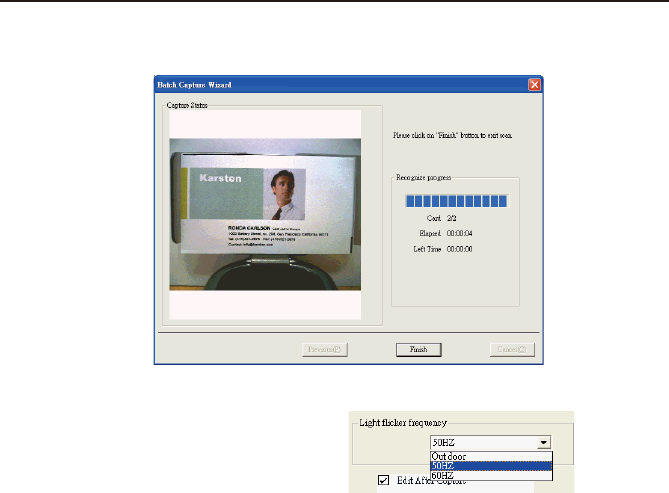
Chapter 7 WorldCard duet 2 7-9
3. You can quickly recognize all the cards captured during this batch. When you are done,
click Finish.
Note: When capturing business card via
Capture to Microsoft Outlook Cap-
ture to Outlook Express or Capture
to Windows Contacts, you may
select the Light icker frequency in
the Card Capture Wizard.
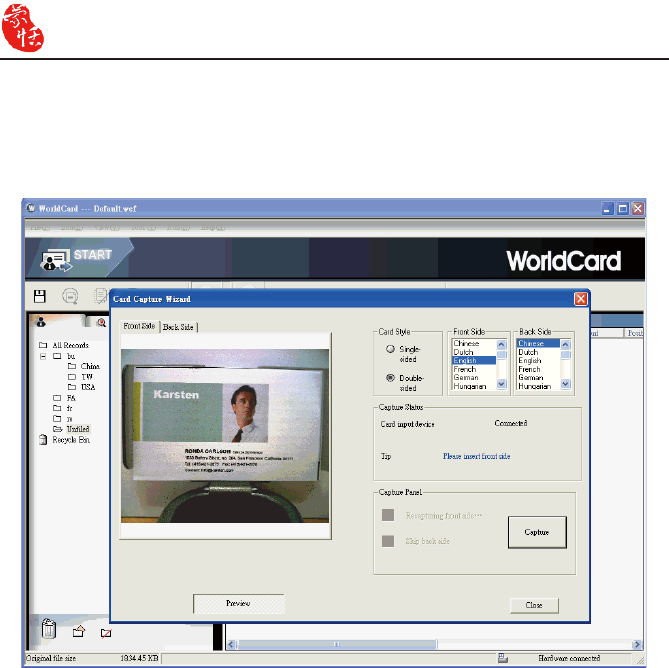
7-10 WorldCard
7.6 Capture Option
On the Run menu click Capture from the WorldCard Management screen.
Once you have clicked Capture, the Capture dialog box will be displayed.
The Capture functions are as previously discussed in this Chapter.

FAQ
FAQ
Q: How can I convert the les in earlier version to v6.X format?
A: WorldCard v6.x can convert your v5.x version les and import them in v6.x format. (For
v3.0, v4.0 CRD format, support is not available at this moment.) On the File menu, click
Import and then WorldCard le to convert the les to v6.x format. You can also use the
Start-Up Wizard to accomplish this task.
Q: Why are there dark lines on the scanned pictures of business cards, or all scanned
pictures turn out blank?
A: Before you use WorldCard the rst time, you’ll be asked to complete Calibration. If the
problem still exists after calibrating, on the Tool menu, click Calibrate the scanner to
proceed with calibration. You can also use Calibrate the scanner in the scan wizard for
calibration.
Q: How do I backup business card les?
A: On the File menu, click Export and click WorldCard les (v6.0 or later) to back up
les.
Q: How can I protect my business card les from being opened by other persons with-
out my permission?
A: On the File menu, click File encryption to encrypt les. Other persons have to type in
your predened password to open the encrypted les.
Q: How do I combine two pieces of business card data into one?
A: Hold down CTRL and click the left mouse button to select two single-sided business card
picture les or the image-less data of the card. Then right-click, click Combine, and set
either one to be the front side of the data combined.
Q: How do I separate a single picture le with data including the business card infor-
mation of front and rear sides into two separate data les?
A: Select the data including the business card information of front and rear sides, right-click,
then click UnMerge.
Q: How do I add the signature information in e-mails to the business card les?
A: Select the signature or business card information in e-mail or a Word le. Then drag it
directly to the main Card window to nish.

WorldCard
WorldCard duet 2 FAQ
Q: Why does it still indicate, on the bottom right of the WorldCard software, that
WorldCard duet 2 is not connected after connecting with WorldCard duet 2?
A: Please check whether the main body and the base are properly connected.
Q: I have taken a picture of a business card the size of a normal business card. But why
can I not see the entire card?
A: Please check if the opened exible ring has been pulled by the arrow pointer.
Q: Is there any relation between the angle of the business card and the outcome of
recognition?
A: Yes. Place the business card parallel to the lens for the best recognition results.
Q: I use a desk light to directly illuminate business cards for shooting in a dark place.
Will the image of the business cards be sharper?
A: WorldCard duet 2 will automatically balance exposure, brightness and contrast. Direct
lighting from a desk light will cause a contrary result. The best way is to have the shoot-
ing environment evenly lighted, such as positioning the desk light about 40 cm (about
16 inches) above WorldCard duet 2 and wait to shoot after the completion of automatic
balance.
Q: How do I take pictures of vertical business cards in portrait orientation?
A: Place the business cards in a horizontal orientation, the same as normal business cards.
Worldcard will automatically reorient and recognize the information on the cards after
shooting.

Penpower WorldCard User Manual
Manufacturer: Penpower Technology Ltd.
Version: 6.2
Release: October, 2008
CE Conformity and FCC Statement
This equipment has been tested and found to comply with the limits of the European
Council Directive on the approximation of the member states relating to electromagnetic
compatibility according to EN 55022/55024 Part 15 B.
This equipment has been tested and found to comply with the limits for a Class B
digital device, pursuant to Part 15 of the FCC Rules. These limits are designed to provide
reasonable protection against harmful interference in a residential energy and, if not
installed and used in accordance with the instructions, may cause harmful interference
to radio communications. However, there is no guarantee that interference will not occur
in a particular installation. If this equipment does cause harmful interference to radio or
television reception, which can be determined by turning the equipment off and on, the user
is encouraged to try to correct the interference by one or more of the following measures:
• Reorient the receiving antenna
• Increase the separation between the equipment and receiver
• Move the computer away from the receiver
• Connect the equipment into an outlet on a circuit different from that to which the receiver
is connected
