Pepper Jobs W10GYRO 2.4G smart media remote controller User Manual AM6 specification

Pepper Jobs Limited 2.4G smart media remote controller AM6 specification

User Manual

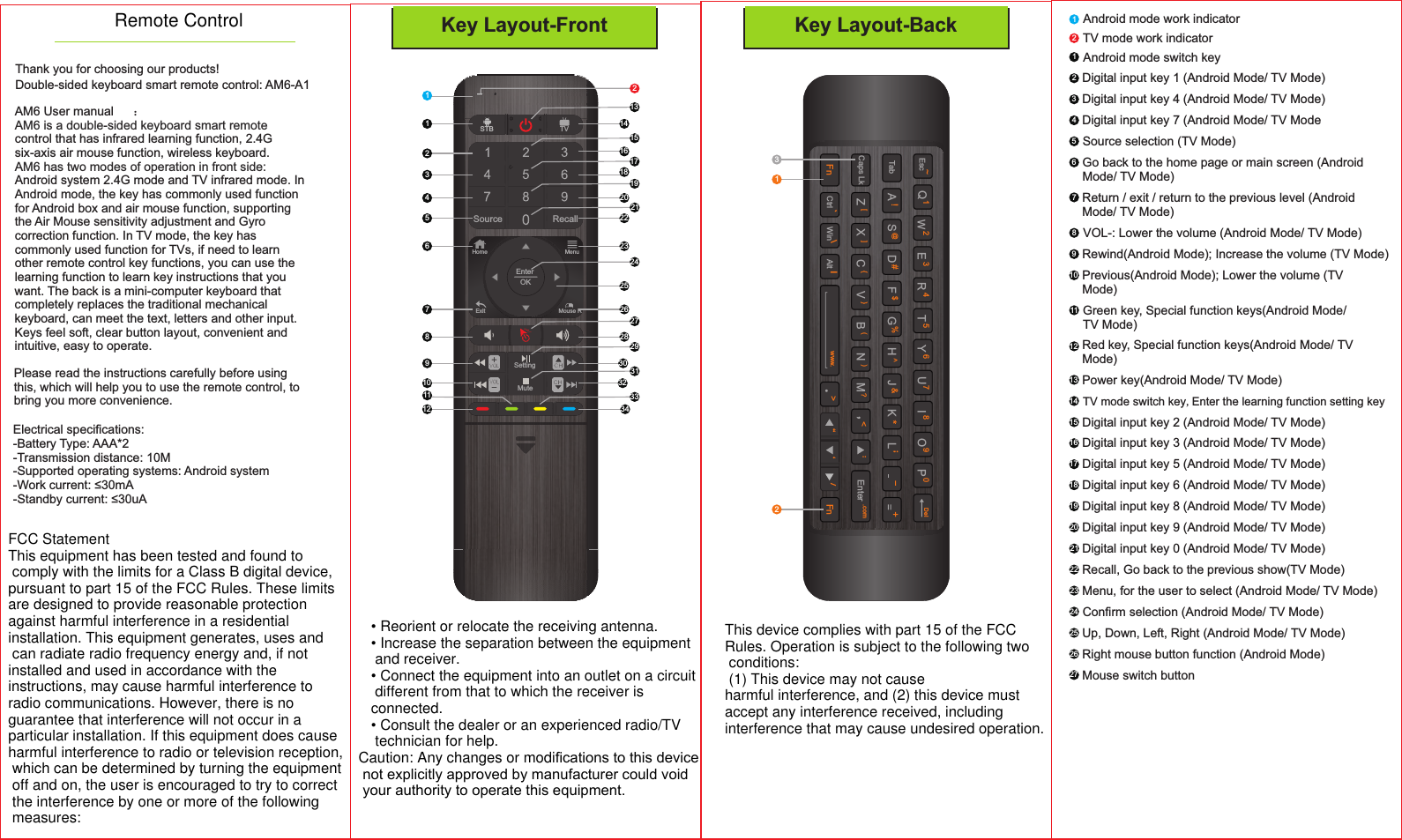
Q1W2E3R4T5Y6U7I8O9P0DelS@D#F$G%J&KH!AL;Esc~CtrlTabCaps Lkwww. FnFn:B(N(,<C{X[V{Enter .com[ZM?.<“‘/Alt|Win\Key Layout-Front27Source RecallSTB TVSettingMuteHome MenuExit Mouse REnterOK11234567891011121314151617181920212223242526282930273132341233123Thank you for choosing our products!Double-sided keyboard smart remote control: AM6-A1Key Layout-BackAM6 User manual :AM6 is a double-sided keyboard smart remotecontrol that has infrared learning function, 2.4Gsix-axis air mouse function, wireless keyboard.AM6 has two modes of operation in front side:Android system 2.4G mode and TV infrared mode. InAndroid mode, the key has commonly used functionfor Android box and air mouse function, supportingthe Air Mouse sensitivity adjustment and Gyrocorrection function. In TV mode, the key hascommonly used function for TVs, if need to learnother remote control key functions, you can use thelearning function to learn key instructions that youwant. The back is a mini-computer keyboard thatcompletely replaces the traditional mechanicalkeyboard, can meet the text, letters and other input.Keys feel soft, clear button layout, convenient andintuitive, easy to operate.Please read the instructions carefully before usingthis, which will help you to use the remote control, tobring you more convenience.Electrical specifications:-Battery Type: AAA*2-Transmission distance: 10M-Supported operating systems: Android system-Work current: ≤30mA-Standby current: ≤30uA1Android mode switch key2Digital input key 1 (Android Mode/ TV Mode)8VOL-: Lower the volume (Android Mode/ TV Mode)9Rewind(Android Mode); Increase the volume (TV Mode)1Android mode work indicator2TV mode work indicator3Digital input key 4 (Android Mode/ TV Mode)4Digital input key 7 (Android Mode/ TV Mode5Source selection (TV Mode)27 Mouse switch button13 Power key(Android Mode/ TV Mode)14 TV mode switch key Enter the learning function setting key,24 Confirm selection (Android Mode/ TV Mode)26 Right mouse button function (Android Mode)25 Up, Down, Left, Right (Android Mode/ TV Mode)15 Digital input key 2 (Android Mode/ TV Mode)16 Digital input key 3 (Android Mode/ TV Mode)17 Digital input key 5 (Android Mode/ TV Mode)18 Digital input key 6 (Android Mode/ TV Mode)19 Digital input key 8 (Android Mode/ TV Mode)20 Digital input key 9 (Android Mode/ TV Mode)21 Digital input key 0 (Android Mode/ TV Mode)22 Recall, Go back to the previous show(TV Mode)2323 Menu, for the user to select (Android Mode/ TV Mode)6Go back to the home page or main screen (AndroidMode/ TV Mode)7Return / exit / return to the previous level (AndroidMode/ TV Mode)10 Previous(Android Mode); Lower the volume (TVMode)11 Green key, Special function keys(Android Mode/TV Mode)12 Red key, Special function keys(Android Mode/ TVMode)Remote ControlFCC StatementThis equipment has been tested and found to comply with the limits for a Class B digital device, pursuant to part 15 of the FCC Rules. These limits are designed to provide reasonable protection against harmful interference in a residential installation. This equipment generates, uses and can radiate radio frequency energy and, if not installed and used in accordance with the instructions, may cause harmful interference to radio communications. However, there is no guarantee that interference will not occur in a particular installation. If this equipment does cause harmful interference to radio or television reception, which can be determined by turning the equipment off and on, the user is encouraged to try to correct the interference by one or more of the following measures:• Reorient or relocate the receiving antenna.• Increase the separation between the equipment and receiver.• Connect the equipment into an outlet on a circuit different from that to which the receiver is connected.• Consult the dealer or an experienced radio/TV technician for help.Caution: Any changes or modifications to this device not explicitly approved by manufacturer could void your authority to operate this equipment.This device complies with part 15 of the FCC Rules. Operation is subject to the following two conditions: (1) This device may not cause harmful interference, and (2) this device must accept any interference received, including interference that may cause undesired operation.
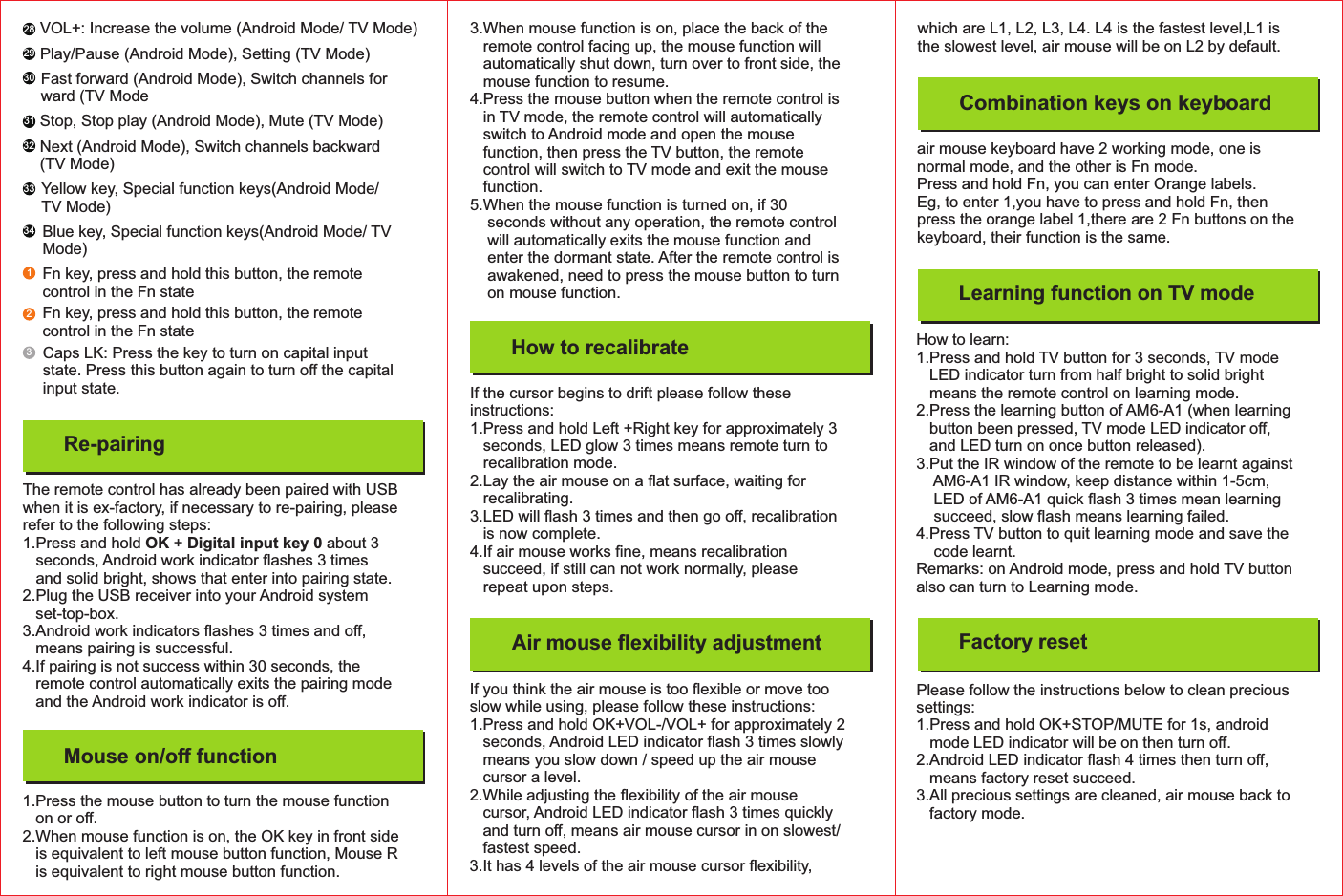
1.Press the mouse button to turn the mouse functionon or off.2.When mouse function is on, the OK key in front sideis equivalent to left mouse button function, Mouse Ris equivalent to right mouse button function.Mouse on/off functionThe remote control has already been paired with USBwhen it is ex-factory, if necessary to re-pairing, pleaserefer to the following steps:1.Press and hold + about 3OK Digital input key 0seconds, Android work indicator flashes 3 timesand solid bright, shows that enter into pairing state.2.Plug the USB receiver into your Android systemset-top-box.3.Android work indicators flashes 3 times and off,means pairing is successful.4.If pairing is not success within 30 seconds, theremote control automatically exits the pairing modeand the Android work indicator is off.Re-pairing28293133032333412VOL+: Increase the volume (Android Mode/ TV Mode)Play/Pause (Android Mode), Setting (TV Mode)Stop, Stop play (Android Mode), Mute (TV Mode)Caps LK: Press the key to turn on capital inputstate. Press this button again to turn offthe capitalinput state.Fast forward (Android Mode), Switch channels forward (TV ModeNext (Android Mode), Switch channels backward(TV Mode)Yellow key, Special function keys(Android Mode/TV Mode)Blue key, Special function keys(Android Mode/ TVMode)Fn key, press and hold this button, the remotecontrol in the Fn stateFn key, press and hold this button, the remotecontrol in the Fn state3.When mouse function is on, place the back of theremote control facing up, the mouse function willautomatically shut down, turn over to front side, themouse function to resume.4.Press the mouse button when the remote control isin TV mode, the remote control will automaticallyswitch to Android mode and open the mousefunction, then press the TV button, the remotecontrol will switch to TV mode and exit the mousefunction.5.When the mouse function is turned on, if 30seconds without any operation, the remote controlwill automatically exits the mouse function andenter the dormant state. After the remote control isawakened, need to press the mouse button to turnon mouse function.How to recalibrateIf you think the air mouse is too flexible or move tooslow while using, please follow these instructions:1.Press and hold OK+VOL-/VOL+ for approximately 2seconds, Android LED indicator flash 3 times slowlymeans you slow down / speed up the air mousecursor a level.2.While adjusting the flexibility of the air mousecursor, Android LED indicator flash 3 times quicklyand turn off, means air mouse cursor in on slowest/fastest speed.3.It has 4 levels of the air mouse cursor flexibility,If the cursor begins to drift please follow theseinstructions:1.Press and hold Left +Right key for approximately 3seconds, LED glow 3 times means remote turn torecalibration mode.2.Lay the air mouse on a flat surface, waiting forrecalibrating.3.LED will flash 3 times and then go off, recalibrationis now complete.4.If air mouse works fine, means recalibrationsucceed, if still can not work normally, pleaserepeat upon steps.Air mouse flexibility adjustmentCombination keys on keyboardLearning function on TV modeair mouse keyboard have 2 working mode, one isnormal mode, and the other is Fn mode.Press and hold Fn, you can enter Orange labels.Eg, to enter 1,you have to press and hold Fn, thenpress the orange label 1,there are 2 Fn buttons on thekeyboard, their function is the same.Factory resetHow to learn:1.Press and hold TV button for 3 seconds, TV modeLED indicator turn from half bright to solid brightmeans the remote control on learning mode.2.Press the learning button of AM6-A1 (when learningbutton been pressed, TV mode LED indicator off,and LED turn on once button released).3.Put the IR window of the remote to be learnt againstAM6-A1 IR window, keep distance within 1-5cm,LED of AM6-A1 quick flash 3 times mean learningsucceed, slow flash means learning failed.4.Press TV button to quit learning mode and save thecode learnt.Remarks: on Android mode, press and hold TV buttonalso can turn to Learning mode.Please follow the instructions below to clean precioussettings:1.Press and hold OK+STOP/MUTE for 1s, androidmode LED indicator will be on then turn off.2.Android LED indicator flash 4 times then turn off,means factory reset succeed.3.All precious settings are cleaned, air mouse back tofactory mode.which are L1, L2, L3, L4. L4 is the fastest level,L1 isthe slowest level, air mouse will be on L2 by default.

Navigation menu