Philips 40PFL9704H/12 SW_Q5492_0.26.72.0 User Manual Installationsinstruktioner 40pfl9704h 12 Fin Deu
40PFL9904H/12 Οδηγίες εγκατάστασης 40pfl9904h_12_fin_deu Aurea LCD TV 40PFL9904H/12 | Philips40PFL9904H/12
User Manual: Philips 40PFL9704H/12 Installationsinstruktioner LCD-TV 40PFL9704H/12 | Philips40PFL9704H/12
Open the PDF directly: View PDF  .
.
Page Count: 6
Was benötigen Sie dazu?
•Archivdienstprogramm, das das ZIP-Format unterstützt
(z. B.WinZip für Windows).
•USB-Speicherstick mit mindestens 64 Mb freiem
Arbeitsspeicher.
Software-Aktualisierungen können Sie downloaden von der
Web-Site www.philips.com/support.
1. Klicken Sie auf den Download-Pfeil oben links auf dem
Bildschirm.
2. Speichern Sie das neueste Software-Upgrade auf Ihren
Computer.
3. Klicken Sie zweimal auf die ZIP-Datei und kopieren Sie die
Datei “autorun.upg” in das Hauptverzeichnis von Ihrem
USB-Stick.
Die Fernsehsoftware aktualisieren
So bereiten Sie einen steckbaren Speicher für
Software-Aktualisierungen vor
Hinweis:Verwenden Sie ausschließlich Software-
Aktualisierungen, die auf der Website
www.philips.com/support zur Verfügung stehen.
Einführung
Philips verbessert kontinuierlich seine Geräte und davon
können Sie auch noch nach Ihrem Kauf profitieren.
Über einen USB-Stick (nicht im Lieferumfang) können Sie die
Software von Ihrem Fernsehgerät upgraden.
Diese Software-Aktualisierung können Sie selbst vornehmen.
Die Fernsehsoftware aktualisieren (Fortsetzung)
Die Fernsehsoftware aktualisieren
Achtung:
-Entfernen Sie den USB-Speicherstick nicht während der
Software-Aktualisierung.
-Ziehen Sie, falls es während der Aktualisierung zu einem
Stromausfall kommt, den USB-Speicherstick nicht aus
dem Fernsehgerät.Wenn wieder Strom fließt, wird die
Aktualisierung vom Fernsehgerät fortgesetzt.
-Wenn während der Aktualisierung ein Fehler auftritt,
sollten Sie das Verfahren wiederholen oder wenn Sie
weitere Unterstützung benötigen oder bei Problemen
rufen Sie bitte das Philips- Infocenter an.
Siehe Philips Kundendienst auf der Website
www.philips.com/support.
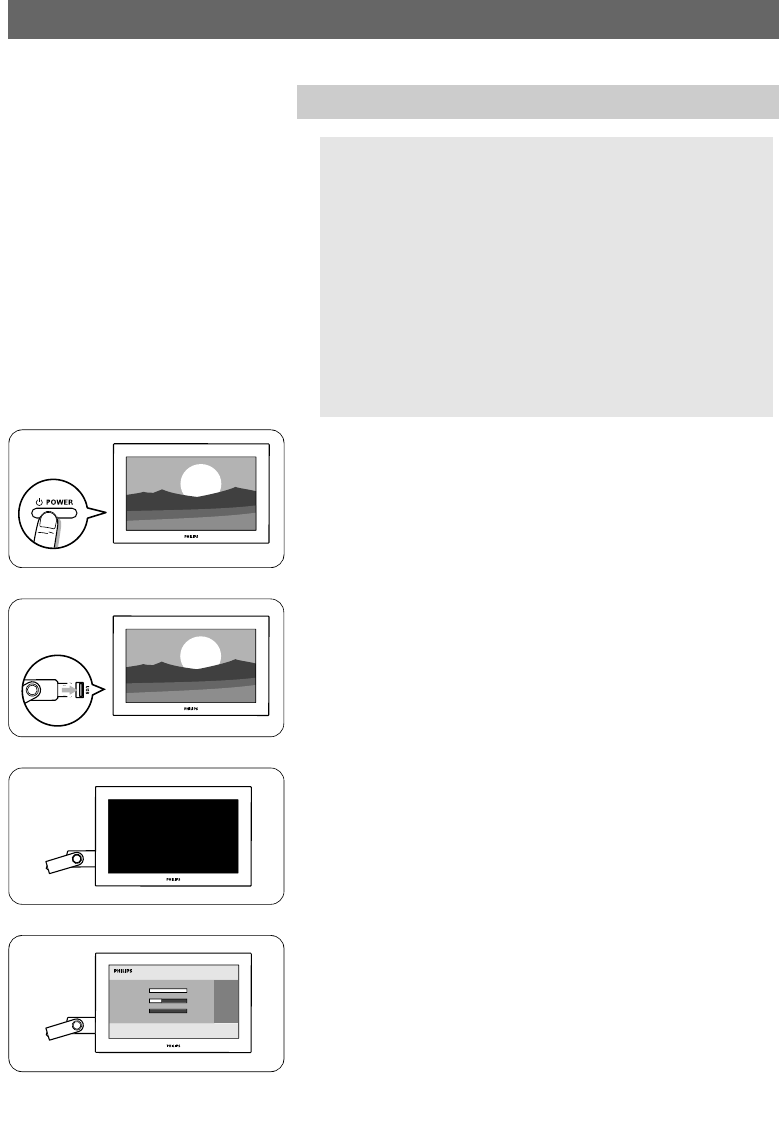
1. Schalten Sie das Fernsehgerät ein.
2. Stecken Sie den USB-Speicherstick in ein USB-Steckplatz
des Fernsehgeräts.
3. Das Fernsehgerät wechselt in den Standby-Modus.
Der Bildschirm bleibt ungefähr 10 Sekunden schwarz.
Bitte, warten Sie und drücken Sie die Netztaste des
Fernsehgeräts nicht.
4. Der Aktualisierungsvorgang startet automatisch.
Bitte, warten Sie.
Die Fernsehsoftware aktualisieren (Fortsetzung)
P
r
g
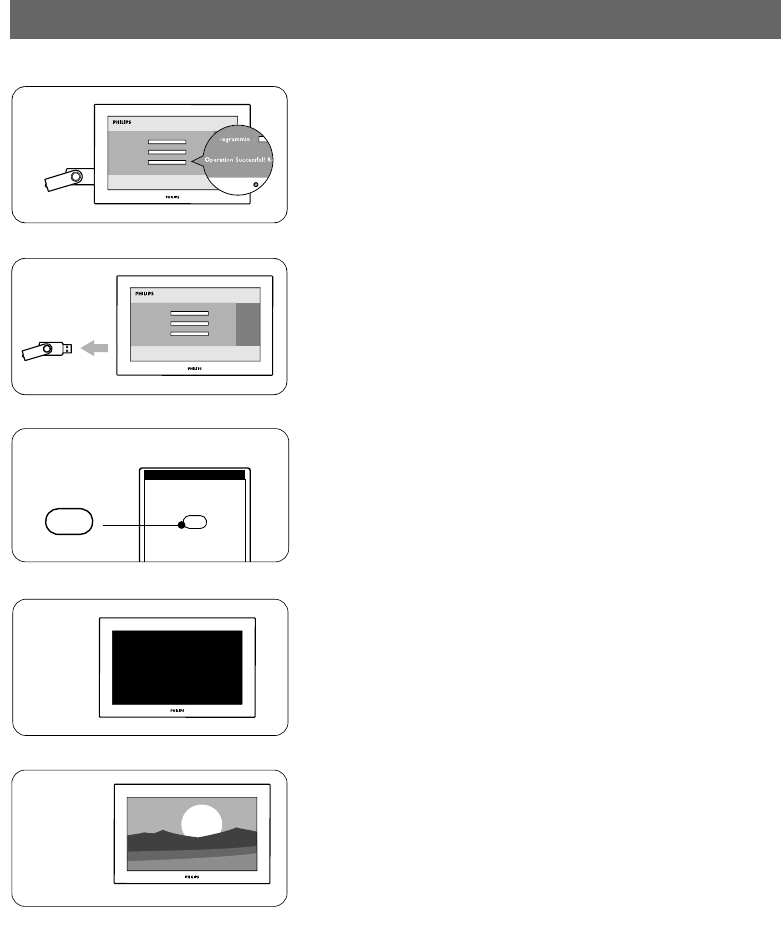
5. Die Aktualisierung war erfolgreich, wenn auf dem Bildschirm
die Meldung ‘Operation successful’ (Vorgang erfolgreich)
angezeigt wird.
6. Entfernen Sie den USB-Speicherstick aus dem Fernsehgerät.
B
B
7. Drücken Sie auf der Fernbedienung die Taste B.
Drücken Sie nicht mehr als ein Mal.
Drücken Sie die Netztaste des Fernsehgeräts nicht.
8. Das Fernsehgerät wechselt in den Standby-Modus.
Der Bildschirm bleibt ungefähr 10 Sekunden schwarz.
Bitte, warten sie.
9. Das Fernsehgerät schaltet sich automatisch wieder ein.
Die Aktualisierung ist abgeschlossen.
10. Nach der Aktualisierung können Sie die Fernsehsoftware
über den PC vom USB-Speicherstick entfernen.

Software history
Main modifications
Each release contains:
z All solutions identified in earlier versions
z Improved connectivity to improve compatibility with other external devices
Q5492_0.26.72.0
• Improvement picture freeze/macro blocks on ARD-HD + ZDF-HD via DVB-C.
Q5492_0.26.71.0
• Solving picture freeze/macro blocks on ARD-HD + ZDF-HD via DVB-C.
Q5492_0.26.70.0
• Improvement on CI+ performances.
Q5492_0.26.69.0
• Solving Italian broadcast issue.
Q5492_0.26.66.0
• Automatic Channel Installation - all presets shifted by one.
• IP-EPG is available again.
• case of ‘undefined’ OSD resolved.
• 'no TXT on RTL4' - Teletext performance enhanced.
• Yellow button forwarded to NetTV.(RTL gemist service)
• Robustness of subtitles improved.
• Higher number of EPG channels.
• Parental rating applicable for Radio.
• Improved network connectivity with some routers.
Q5492_0.26.58.5
• Introduction of the extra feature named Interactive TV via the “ Red
Button ” on the remote control, initially, the feature works for Dutch
channels on those TVs in the Netherlands without a set-top box.
Interactive TV will not be offered in the UK, as the red color key is used
for other interactive applications (MHEG)
• Solution for Automatic Channel Installation on the UPC network in the
Netherlands.
• Except for the 56PFL9954H/12, the feature Scenea can be used. ( Scenea is a
new feature, which allows you to use your TV as a big photoframe.
By selecting Scenea you will see a butterfly, this is the standard Scenea
picture. You can load your personal picture by watching it in the content
browser, pressing the options key, navigating down to "Set as Scenea ".
Then your personal picture will get stored as the "Scenea picture", so
from then onwards when choosing Scenea in the Home menu you will see your
personal picture. In Scenea,any key press returns you to "Watch TV”. The
maximum displaying time in Scenea is 240 minutes. A few minutes before the
set switches of a message is displayed to warn the customer.
• Improved cam authentication.
Q5492_0.26.38.22
• Support for DVB-S2 box.
• resolves installation issue on DVB-C and analog networks in the
Netherlands and Germany.
Q5492_0.26.38.13
• Full DVB-C Austria & Switzerland availability.
• Improvement of robustness of the side control.
After updating this software the operation of the side control can be
slightly different as before. It might be that the TV needs a confirmation
of the key press. This means, the first press activates the side control,
while the second press executes the action. During 15 seconds the side
control will operate immediately on the key press. Afterwards, again the
activation is needed.
Q5492_0.26.33.14
• Solving video drop outs when changing channels on external set-top box.
Q5492_0.26.33.12
• Reliability for Net TV improved.
Q5492_0.26.33.9
• Improvement.avi media via WIFI in the Netherlands.
• Sound improvements for France.
• Possibility to swith off the digital channel update in standby mode.
Q5492_0.26.29.6
• For France:Canal+decoder:solution for the preset sometimes skipped after
using back key or after standby.
• Improvement on the startup behavior of the NetTV functionality .
• This software is RiksTV certified.
• Improved installation behaviour for DVB-C countries Netherlands & Austria.
• DGTVi certified.
Q5492_0.26.24.8
• HD simulcast presets are not misplaced anymore by an overnight update
installation.
• improved USB Browse stability.
• DVB-T MPEG4 support for Slovenia.
