Philips 42PFL8654H/12 User Manual Felhasználói Kézikönyv 42pfl8654h 12 Dfu Eng
Contents 42pfl8654h_12_dfu_eng
User Manual: Philips 42PFL8654H/12 Felhasználói kézikönyv LCD TV 42PFL8654H/12 | Philips42PFL8654H/12
Open the PDF directly: View PDF  .
.
Page Count: 77
- Contents
- 1 Notice
- 2 Important
- Safety
- Screen care
- Disposal of your old product and batteries
- ECO-Green
- 3 Your product
- Side controls and indicators
- Remote control
- 4 Use your product
- Switch channels with the channel grid
- Add a device to the home menu
- Select a device via the home menu
- Select a device via the source list
- Access Net TV
- Navigate Net TV
- Mark favourite Net TV pages
- Clear browsing history
- Set Ambilight active mode
- 5 Use more of your product
- Change language settings
- Access the home menu
- Access the options menu
- Access the setup menu
- Change picture and sound settings
- Change Ambilight settings (selected models only)
- Use advanced teletext features
- Create and use lists of favourite channels
- Reorder/rearrange and rename channels
- Hide and unhide channels
- Use the Electronic Programme Guide
- Use timers
- Use child and rating locks
- Use subtitles
- Use the TV clock
- View photos, play music and watch video
- Listen to digital radio channels
- Update the TV software
- Change TV preferences
- Start a TV demo
- Reset the TV to factory settings
- Use universal remote control (selected models only)
- Remove devices from the home menu
- Use smart settings
- Use settings assistant
- Use the picture and sound experience bar
- Manually adjust picture settings
- Change picture format
- Adjust sound settings
- Access the teletext options menu
- Select teletext subpages
- Select T.O.P. teletext broadcasts
- Search teletext
- Enlarge teletext pages
- Use Teletext 2.5
- Add or remove channels from a favourite list
- Reorder/rearrange channels
- Rename channels
- Hide channels
- Unhide channels
- Switch on EPG
- View channel/programme information
- Use the EPG options menu
- Automatically switch the TV to standby (sleeptimer)
- Set or change the child lock code
- Lock or unlock the TV
- Enable parental ratings
- Set parental ratings
- Enable or disable subtitles on analogue TV channels
- Enable or disable subtitles on digital TV channels
- Select a subtitle language on digital TV channels
- Display the TV clock
- Change the clock mode
- Enable or disable daylight saving
- Connect a USB storage device and enter the content browser
- Connect to a network and enter the content browser
- Watch a slideshow of your photos
- Change slideshow settings
- Listen to music
- Change music settings
- Watch video
- Change video settings
- Disconnect a USB storage device
- Check the current software version
- Update software (from website)
- Update software (digital broadcasts)
- Update software (from internet)
- Setup universal remote control
- Manually setup universal remote control
- 6 Install channels
- Install channels
- Access DVB-C and DVB-T channel networks
- Step 1 Select your system
- Step 2 Search and store new TV channels
- Fine-tune analogue channels
- 7 Connect devices
- What you need
- Connect the TV to a computer network
- Setup media server software
- In Microsoft Windows Media Player 11
- In TVersity v0.9.10.3 (Microsoft Windows)
- In Twonky Media v4.4.2 (Macintosh OS X)
- Setup media server software
- Insert and activate a CAM
- Access CAM services
- EasyLink features
- EasyLink buttons
- Enable or disable EasyLink
- Enable or disable remote control key forwarding
- Set TV speakers to EasyLink mode
- 8 Product information
- 9 Troubleshooting
- 10 Universal remote control codes
- 11 Index
Österreich 0810 000 205 €0.07 pro Minute
België/Belgique 078250145 €0.03 Per minuut/Par minute
България +3592 489 99 96 Местен разговор
Hrvatska 01 6403 776 Lokalni poziv
Česká republika 800142840 Bezplatný hovor
Danmark 3525 8759 Lokalt opkald
Estonia 6008600 kohalik kõne tariifi
Suomi 09 2311 3415 paikallispuhelu
France 0805 025 510 numéro sans frais
Deutschland 0800 000 7520 gebührenfreier Anruf
Ελλάδα 0 0800 3122 1280 Κλήση χωρίς χρέωση
Magyarország 0680018189 Ingyenes hívás
Hrvatska 0800 222778 free
Ireland North 0800 055 6882
South 1800-PHILIPS 7445477
free
Italia 800 088774 Numero Verde
Қазақстан +7 727 250 66 17 local
Latvia 52737691 local
Lithuania 67228896 local
Luxemburg/Luxembourg 40 6661 5644 Ortsgespräch/Appel local
Nederland 0800 0230076 Gratis nummer
Norge 22 70 81 11 Lokalsamtale
Polska (022) 349-15-05 Monitory i akcesoria komputerowe,
Portugal 800 780 903 Chamada Grátis
România 0800-894910
0318107125
Apel gratuit
Apel local
Россия (495) 961-1111 0.15 USD/minute
Србија +381 114 440 841 Lokalni poziv
Slovensko 0800 004537 Bezplatný hovor
Slovenija 00386 12 80 95 00 lokalni klic
España 900 800 655 Teléfono local gratuito solamente para
clientes en España
Sverige 08 5792 9100 Lokalsamtal
Suisse/Schweiz/Svizzera 0844 800 544 Schweizer Festnetztarif
Türkiye 0800 261 3302 Şehiriçi arama
United Kingdom General No: 0800 331 6015
General National Rate No:
0870 911 0036
free
National rate
Україна 8-800-500-69-70 Місцевий виклик
www.philips.com/support
Model
Serial
This information is correct at the time of press. For updated information, see www.philips.com/support.
1
6 Install channels 36
Automatically install channels 36
Manually install channels 37
Manually update the channel list 38
Test digital reception 39
Change startup message settings 39
7 Connect devices 40
Back connectors 40
Side connectors 42
Connect a computer 43
Connect to a computer network (selected
models only) 45
Use a Conditional Access Module 49
Assign a channel decoder 50
Use Philips EasyLink 50
Use a Kensington lock 52
8 Product information 53
Supported display resolutions 53
Multimedia 53
Tuner/Reception/Transmission 54
Remote control 54
Power 54
Supported TV mounts 54
EPG information 55
9 Troubleshooting 56
General TV issues 56
TV channel issues 56
Picture issues 56
Sound issues 57
HDMI connection issues 57
USB connection issues 58
Computer connection issues 58
Contact us 58
10 Universal remote control codes 59
11 Index 72
Contents
1 Notice 2
2 Important 4
3 Your product 7
Product overview 7
4 Use your product 9
Switch your TV on/off or to standby 9
Switch channels 9
Adjust TV volume 10
Watch connected devices 10
Browse Net TV (selected models only) 11
Use teletext 12
Use Ambilight (selected models only) 12
5 Use more of your product 14
Change language settings 14
Access the home menu 14
Access the options menu 15
Access the setup menu 15
Change picture and sound settings 16
Change Ambilight settings (selected models
only) 20
Use advanced teletext features 21
Create and use lists of favourite channels 23
Reorder/rearrange and rename channels 23
Hide and unhide channels 24
Use the Electronic Programme Guide 25
Use timers 26
Use child and rating locks 27
Use subtitles 28
Use the TV clock 29
View photos, play music and watch video 30
Listen to digital radio channels 32
Update the TV software 32
Change TV preferences 33
Start a TV demo 34
Reset the TV to factory settings 34
Use universal remote control (selected
models only) 34
English
EN

2
Pixel characteristics
This LCD product has a high number of
colour pixels. Although it has effective
pixels of 99.999% or more, black dots or
bright points of light (red, green or blue)
may appear constantly on the screen.
This is a structural property of the display
(within common industry standards) and
is not a malfunction.
Open source software
This television contains open source
software. Philips hereby offers to deliver
or make available, upon request, for
a charge no more than the cost of
physically performing source distribution,
a complete machine-readable copy of
the corresponding source code on a
medium customarily used for software
interchange. This offer is valid for a period
of 3 years after the date of purchase of
this product. To obtain the source code,
write to:
Development Manager
Technology & Development
Philips Consumer Lifestyle
620A Lorong 1, Toa Payoh
TP1, Level 3
Singapore 319762
Compliance with EMF
Koninklijke Philips Electronics N.V.
manufactures and sells many products
targeted at consumers which, like
any electronic apparatus, in general
have the ability to emit and receive
electromagnetic signals.
One of Philips’ leading Business Principles
is to take all necessary health and safety
measures for our products, to comply
with all applicable legal requirements and
to stay well within the EMF standards
applicable at the time of producing the
products.
Philips is committed to develop, produce
and market products that cause no
1 Notice
2009 © Koninklijke Philips Electronics N.V. All
rights reserved.
Specications are subject to change without
notice. Trademarks are the property of
Koninklijke Philips Electronics N.V or their
respective owners. Philips reserves the right
to change products at any time without being
obliged to adjust earlier supplies accordingly.
The material in this manual is believed
adequate for the intended use of the system.
If the product, or its individual modules or
procedures, are used for purposes other than
those specied herein, conrmation of their
validity and suitability must be obtained. Philips
warrants that the material itself does not
infringe any United States patents. No further
warranty is expressed or implied.
Warranty
Risk of injury, damage to TV or void of •
warranty! Never attempt to repair the TV
yourself.
Use the TV and accessories only as •
intended by the manufacturer.
The caution sign printed on the back of •
the TV indicates risk of electric shock.
Never remove the TV cover. Always
contact Philips Customer Support for
service or repairs.
Any operation expressly prohibited in •
this manual, or any adjustments and
assembly procedures not recommended
or authorised in this manual shall void the
warranty.
EN

3
Copyright
VESA, FDMI and the VESA Mounting Compliant
logo are trademarks of the Video Electronics
Standards Association.
Windows Media is either a registered
trademark or trademark of Microsoft
Corporation in the United States and/or other
countries.
® Kensington and Micro Saver are registered
US trademarks of ACCO World Corporation
with issued registrations and pending
applications in other countries throughout the
world.
DLNA®, the DLNA logo and DLNA 1.0
Certied are trademarks, service marks,
or certication marks or the Digital Living
Network Alliance.
All other registered and unregistered
trademarks are the property of their respective
owners.
Manufactured under licence from BBE Sound,
Inc. Licensed by BBE, Inc under one or more
of the following US patents: 5510752,5736897.
BBE and BBE symbol are registered trademarks
of BBE Sound Inc.
adverse health effects. Philips conrms
that if its products are handled properly
for their intended use, they are safe
to use according to scientic evidence
available today.
Philips plays an active role in the
development of international EMF
and safety standards, enabling Philips
to anticipate further developments in
standardisation for early integration in its
products.
Mains fuse (UK only)
This TV is tted with an approved
moulded plug. Should it become
necessary to replace the mains fuse, this
must be replaced with a fuse of the same
value as indicated on the plug (example
10A).
1 Remove fuse cover and fuse.
2 The replacement fuse must comply with
BS 1362 and have the ASTA approval
mark. If the fuse is lost, contact your
dealer in order to verify the correct type.
3 Ret the fuse cover.
In order to maintain conformity to the EMC
directive, the mains plug on this product must
not be detached from the mains cord cable.
English
EN

4
When stand mounting the TV, use only •
the supplied stand. Secure the stand to
the TV tightly. Place the TV on a at, level
surface that can support the combined
weight of the TV and the stand.
When wall mounting the TV, use only a •
wall mount that can support the weight of
the TV. Secure the wall mount to a wall
that can support the combined weight of
the TV and wall mount. Koninklijke Philips
Electronics N.V. bears no responsibility
for improper wall mounting that result in
accident, injury or damage.
Risk of injury to children!
Follow these precautions to prevent the
TV from toppling over and causing injury to
children:
Never place the TV on a surface covered •
by a cloth or other material that can be
pulled away.
Ensure that no part of the TV hangs over •
the edge of the surface.
Never place the TV on tall furniture (such •
as a bookcase) without anchoring both
the furniture and TV to the wall or a
suitable support.
Educate children about the dangers of •
climbing on furniture to reach the TV.
Risk of overheating!
Never install the TV in a conned space.
Always leave a space of at least 4 inches or
10 cm around the TV for ventilation. Ensure
curtains or other objects never cover the
ventilation slots on the TV.
Risk of damage to the TV!
Before you connect the TV to the power
outlet, ensure that the power voltage matches
the value printed on the back of the TV.
Never connect the TV to the power outlet if
the voltage is different.
Risk of injury, re or power cord damage!
Never place the TV or any objects on the •
power cord.
To easily disconnect the TV power cord •
from the power outlet, ensure that you
have full access to the power cord at all
times.
2 Important
Read and understand all instructions before you
use your TV. If damage is caused by failure to
follow instructions, the warranty does not apply.
Safety
Risk of electric shock or re!
Never expose the TV to rain or water. •
Never place liquid containers, such as
vases, near the TV. If liquids are spilt on
or into the TV, disconnect the TV from
the power outlet immediately. Contact
Philips Consumer Care to have the TV
checked before use.
Never place the TV, remote control or •
batteries near naked ames or other heat
sources, including direct sunlight.
To prevent the spread of re, keep
candles or other ames away from the
TV, remote control and batteries at all
times.
Never insert objects into the ventilation •
slots or other openings on the TV.
When the TV is swivelled ensure that •
no strain is exerted on the power cord.
Strain on the power cord can loosen
connections and cause arcing.
Risk of short circuit or re!
Never expose the remote control or •
batteries to rain, water or excessive heat.
Avoid force coming onto power plugs. •
Loose power plugs can cause arcing or
re.
Risk of injury or damage to the TV!
Two people are required to lift and carry •
a TV that weighs more than 25 kg.
EN
5
Disposal of your old product and
batteries
Your product is designed and manufactured
with high quality materials and components,
which can be recycled and reused.
When this crossed-out wheeled bin symbol
is attached to a product it means that the
product is covered by the European Directive
2002/96/EC. Please inform yourself about the
local separate collection system for electrical
and electronic products.
Please act according to your local rules and
do not dispose of your old products with your
normal household waste.
Correct disposal of your old product helps to
prevent potential negative consequences for
the environment and human health.
Your product contains batteries covered by
the European Directive 2006/66/EC, which
cannot be disposed with normal household
waste.
Please inform yourself about the local rules
on separate collection of batteries because
correct disposal helps to prevent negative
consequences for the environmental and
human health.
When you disconnect the power cord, •
always pull the plug, never the cable.
Disconnect the TV from the power outlet •
and aerial before lightning storms. During
lightning storms, never touch any part of
the TV, power cord or aerial cable.
Risk of hearing damage!
Avoid using earphones or headphones at high
volumes or for prolonged periods of time.
Low temperatures
If the TV is transported in temperatures
below 5°C, unpack the TV and wait until the
TV temperature matches room temperature
before connecting the TV to the power outlet.
Screen care
Avoid stationary images as much as •
possible. Stationary images are images
that remain on-screen for extended
periods of time. Examples include:
on-screen menus, black bars and time
displays. If you must use stationary
images, reduce screen contrast and
brightness to avoid screen damage.
Unplug the TV before cleaning.•
Clean the TV and frame with a soft, •
damp cloth. Never use substances such as
alcohol, chemicals or household cleaners
on the TV.
Risk of damage to the TV screen! Never •
touch, push, rub or strike the screen with
any object.
To avoid deformations and colour fading, •
wipe off water drops as soon as possible.
English
EN

6
• Low standby power consumption
The class-leading and highly advanced
power circuitry brings down the power
consumption of the TV to an extremely
low level, without losing out on the
constant standby functionality.
Power management
The advanced power management of this TV
ensures the most efcient use of its energy.
You can check how your personal TV settings,
the level of brightness in current onscreen
pictures and the surrounding light conditions
determine the relative power consumption.
Press DEMO, then select [Active Control]
and press OK. Your current TV setting is
highlighted. You can select another setting to
check the corresponding values.
End of use
To inform yourself on the correct disposal
of the TV and batteries, refer to ‘Disposal of
your old product and batteries’ in the user
manual (see ‘Disposal of your old product and
batteries’ on page 5).
ECO-Green
High energy efciency•
Low standby power•
Designed to facilitate recycling•
Philips continuously focuses on lowering
the environmental impact of its innovative
consumer products. We aim our efforts
towards environmental improvements
during manufacturing, reduction of harmful
substances, energy-efcient use, end-of-life
instructions and product recycling.
Thanks to our environmental effort, this TV
has been awarded the European Ecolabel –the
ower– www.ecolabel.eu
You can nd detailed information on standby
energy consumption, warranty policy, spare
parts and recycling of this TV on the Philips
website for your country at www.philips.com.
This TV has features that contribute to
energy-efcient use. This TV was awarded
the European Ecolabel for its environmental
qualities.
Energy efciency features
• Ambient light sensor
To save energy, the built-in Ambient
light sensor lowers the brightness of the
TV screen when the surrounding light
darkens.
• Energy saving
The [Standard] setting of the TV
combines several TV settings that result
in saving energy. See the [Smart settings]
in the [Setup] menu.
EN
7
Remote control
a (Standby-On)
Switches the product to standby if •
it is on.
Switches the product on if it is on •
standby.
1
2
3
4
6
7
8
9
10
13
14
17
19
20
21
18
15
16
25
24
22
23
28
29
27
12
11
5
26
3 Your product
Congratulations on your purchase, and
welcome to Philips! To fully benet from the
support that Philips offers; register your product
at www.philips.com/welcome.
Product overview
This section gives you an overview of
commonly used controls and functions.
Side controls and indicators
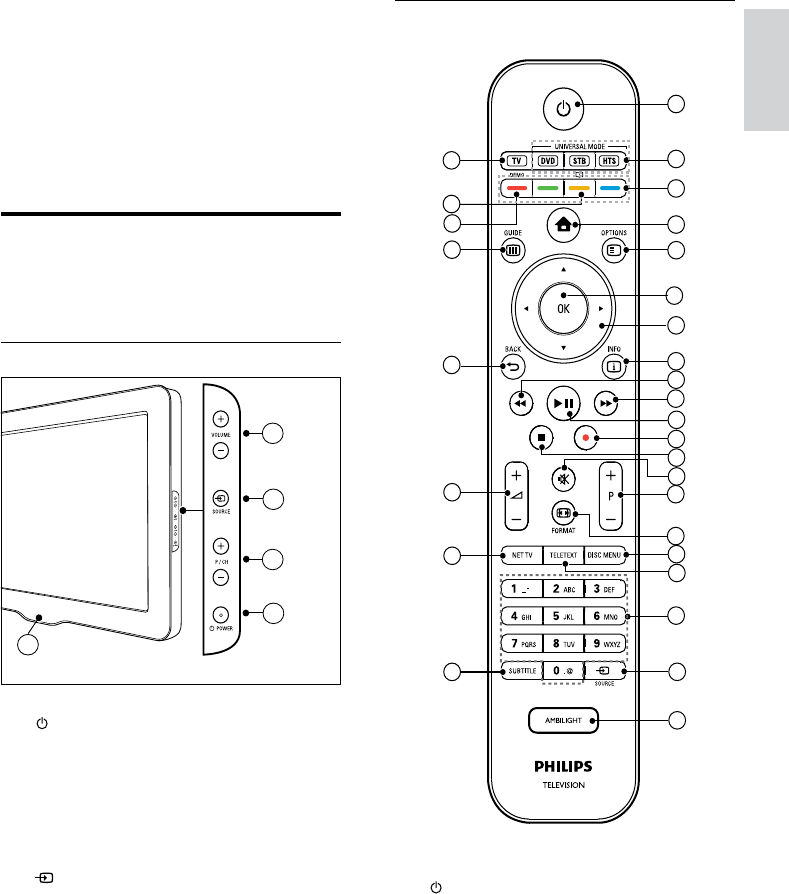
a POWER: Switches the product on
or off. The product is not powered
off completely unless it is physically
unplugged.
b P/CH +/-: Switches to the next or
previous channel.
c SOURCE: Selects connected devices.
d VOLUME +/-: Increases or decreases
volume.
e LightGuide: Front LED indicator
3
4
2
1
5
English
EN
8
s 0-9 (Numeric buttons)
Selects a channel or setting.
t SOURCE
Selects connected devices.
u AMBILIGHT
*Switches Ambilight on or off.
v SUBTITLE
Enables or disables subtitles.
w NET TV
*Accesses Net TV.
x +/- (Volume +/-)
Increases or decreases volume.
y BACK
Returns to the previous menu.
z GUIDE
Accesses or exits the Electronic
Programme Guide (EPG).
{ DEMO
Toggles the demonstration menu on or
off.
|
*Accesses the electronic user manual.
} TV
Switches back to the aerial source.
*This feature is availabe in selected models
only.
**Controls the connected EasyLink-compliant
device.
b Universal control buttons (DVD/STB/
HTS)
*Controls other devices such as a DVD
player, set-top box or a home theatre
system from Philips or other brands.
c Colour buttons
Selects tasks or options.
d (Home)
Toggles the home menu on or off.
e OPTIONS
Accesses options relating to the current
activity or selection.
f OK
Conrms an entry or selection.
g (Navigation buttons)
Navigates through the menus.
h INFO
Displays programme information, if
available.
i (Backward)
**Searches backward.
j (Forward)
**Searches forward.
k (Play/Pause)
**Starts, pauses or resumes playback.
l (Record)
**Starts or stops video recording.
m (Stop)
**Stops playback.
n (Mute)
Mutes or restores audio output.
o P +/- (Program +/-)
Switches to the next or previous channel.
p FORMAT
Selects a picture format.
q DISC MENU
Accesses or exits the disc menu.
r TELETEXT
Toggles teletext on or off.
EN
9
Tip
Though your TV consumes very little power •
when in standby, energy continues to be
consumed. When not in use for an extended
period of time, disconnect the TV power cable
from the power outlet.
Note
If you cannot locate your remote control and •
want to switch on the TV from standby, press
P/CH +/- on the side of the TV.
Switch channels
Press • P +/- on the remote control or
P/CH +/- on the side of the TV.
Enter a channel number using the •
Numeric buttons.
Use the channel • grid (see ‘Switch
channels with the channel grid’ on page
10).
4 Use your
product
This section helps you perform basic operations
(see ‘Use more of your product’ on page 14).
Switch your TV on/off or to
standby
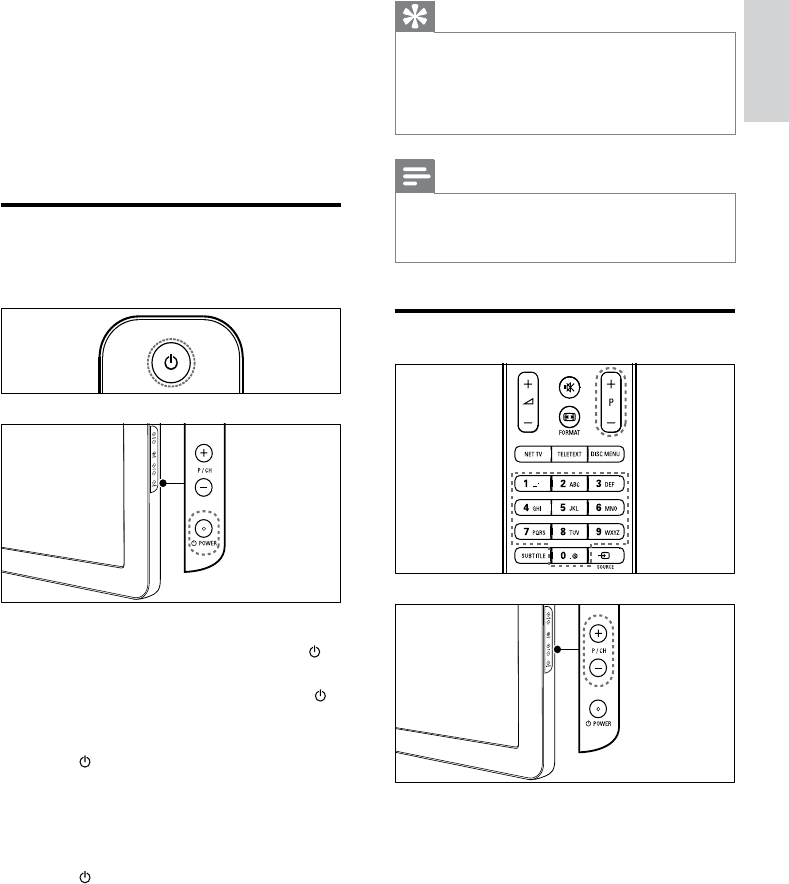
To switch on
If the front LED indicator is off, press •
POWER at the side of the TV.
If the front LED indicator is red, press •
(Standby-On) on the remote control.
To switch to standby
Press • (Standby-On) on the remote
control.
The front LED indicator switches to »
red.
To switch off
Press • POWER at the side of the TV.
The front LED indicator switches off. »
English
EN
10
To increase or decrease volume
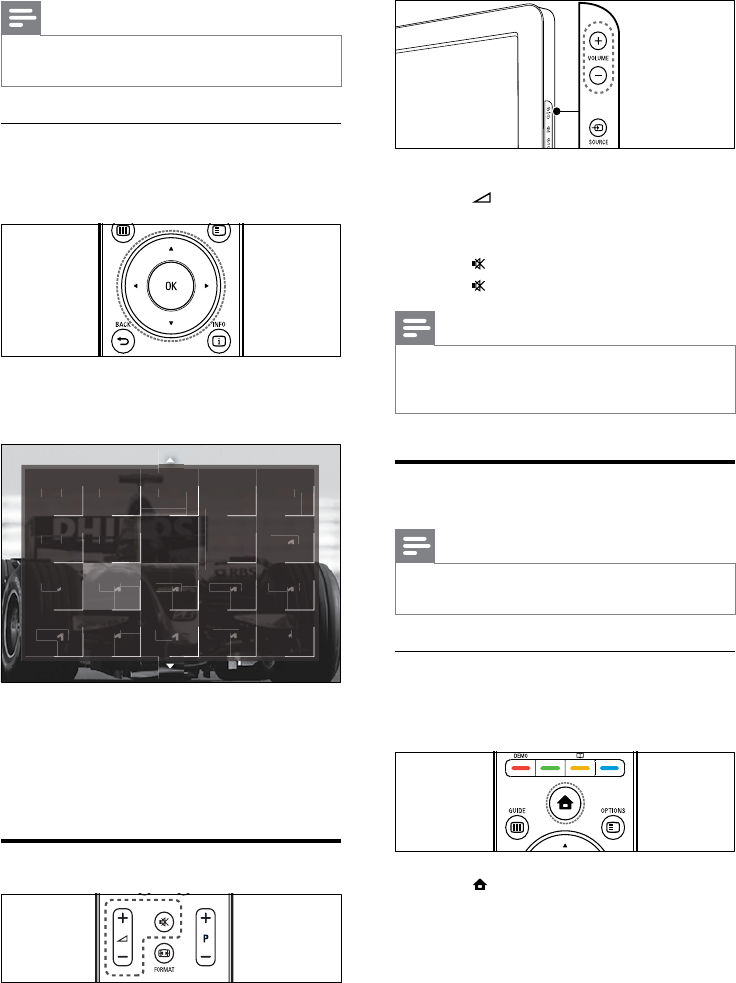
Press • +/-.
Press • VOLUME +/- on the side of the TV.
To mute or unmute sound
Press • to mute the sound.
Press • again to restore the sound.
Note
Use the •[Sound] menu to adjust headphone
volume (see ‘Adjust sound settings’ on page
19).
Watch connected devices
Note
For easy access, add new devices to the home •
menu before selecting them.
Add a device to the home menu
Connect and switch on devices before adding
them to the home menu.
1 Press (Home).
The home menu appears. »
Note
When you use a favourite list, you can only •
select those channels in the list.
Switch channels with the channel grid
The channel grid allows you to view all
available channels in a grid format.
1 Press OK.
The channel grid appears. »
2 Press the Navigation buttons to select a
channel.
3 Press OK to conrm your choice.
The selected channel appears. »
Adjust TV volume
Ned
Ned
1
1
1
Nd
Ned
2
2
2
2
2
RTL
RTL
4
4
4
4
4
RTL
RTL
5
5
5
5
5
Comedy
1
6
6
6
1
6
6
edy
ed
CNN
7
17
7
N
NN
Anim
al
9
9
1
11
9
9
9
9
m
al
m
a
HBO
B
0
2
2
2
2
0
O
O
Euro
ro
s
sp
sp
8
8
1
1
8
8
8
sp
sp
p
o
sp
p
BBC
B
1
11
1
1
BBC 2
12
2
2
Disc
over
1
1
4
4
ver
ve
Nati
onal
a
15
15
onal
a
on
KetN
KetN
KetN
et
11
1
3
3
3
1
1
3
3
3
N
N
N
et
et
et
e
N
N
et
e
et
SBS
SBS
SBS
S
6
6
6
6
6
6
6
6
6
6
6
6
6
RTL
RTL
RTL
7
7
7
Net
5
9
9
9
9
9
9
9
9
9
9
9
9
Nickelo
0
0
0
0
1
1
1
0
0
0
0
elo
elo
1
Ned
Ned
3
3
3
3
2
2
2
2
2
7
7
7
7
7
7
7
7
7
7
7
7
7
3
3
3
3
3
3
3
3
3
3
3
RTL 8
8
EN
11
3 Press OK to conrm your choice.
The TV switches to the selected »
device.
Select a device via the source list
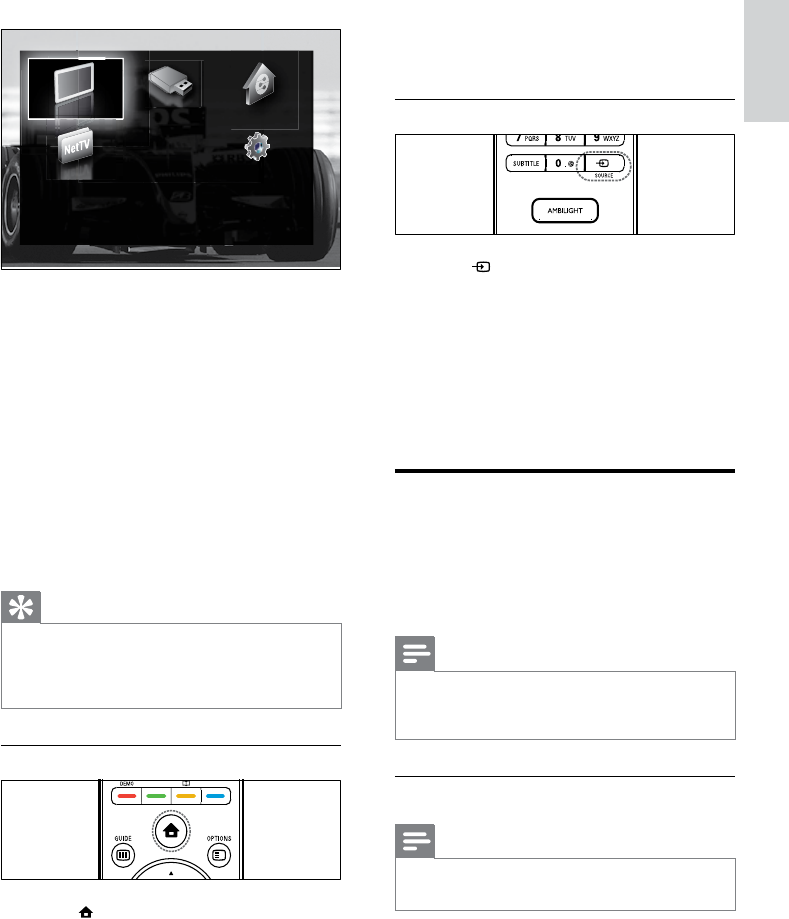
1 Press SOURCE.
The source list appears. »
2 Press the Navigation buttons to select a
device.
3 Press OK to conrm your choice.
The TV switches to the selected »
device.
Browse Net TV (selected
models only)
With the TV connected to the Internet, you can
use Net TV to access videos, pictures, music,
information, games and other online services.
Note
Koninklijke Philips Electronics N.V. bears no •
responsibility for content provided by Net TV
service providers.
Access Net TV
Note
Connect the TV to a computer network •
before accessing Net .
1 Press NET TV.
The Net TV home page appears. »
2 Press the Navigation buttons to select
[Add new device].
3 Press OK.
A message appears with »[Start]
selected, prompting you to start the
add new device guide.
4 Press OK.
Follow the on-screen instructions to »
select the type of device and where
it is connected. When the guide is
complete, a new device icon is added
to the home menu.
Tip
To avoid screen clutter, remove devices from •
the home menu when they are no longer
connected (see ‘Remove devices from the
home menu’ on page 15).
Select a device via the home menu
1 Press (Home).
The home menu appears. »
2 Press the Navigation buttons to select a
device.
Add your devices
Browse USB
Setup
Watch TV Browse PC
Browse Net TV
English
EN
12
Use teletext
1 Press TELETEXT.
The teletext screen appears. »
2 Select a page by:
Entering the page number with the •
Numeric buttons.
Pressing • P +/- or the Navigation
buttons to view the next or previous
page.
Pressing the • Colour buttons to
select a colour coded item.
Pressing • BACK to return to a
previously viewed page.
3 Press TELETEXT to exit teletext.
Use Ambilight (selected
models only)
1 Press AMBILIGHT.
Ambilight switches on. »
2 Press AMBILIGHT again to switch off
Ambilight.
Tip
Use Ambilight as a lounge light by pressing •AMBILIGHT when the TV is in standby. Press
OK to change colours.
Navigate Net TV
Press:
• Navigation buttons to navigate Net TV
or web pages
• OK to view or select an item
• BACK to go back to a previous page
• (Home) to exit Net TV and go back to
the home menu
Mark favourite Net TV pages
You can mark Net TV pages or services as
favourites for easy access.
1 In Net TV, press the Navigation buttons
to select [Mark as favourite].
2 Press OK.
3 Press the Navigation buttons to navigate
to the page to mark, then press OK.
4 When done, press the Navigation
buttons to select [Done] then press OK.
Clear browsing history
Clear browsing history to remove passwords,
cookies and browsing data from your TV.
1 Press (Home).
The home menu appears. »
2 Press the Navigation buttons to select
[Setup].
The »[Setup] menu appears.
3 Press the Navigation buttons to select
[Installation] > [Clear Net TV memory].
Passwords, cookies and other browsing »
history are removed from the TV.
EN

13
Set Ambilight active mode
Ambilight active mode allows you to set the
speed at which Ambilight responds to on-
screen images.
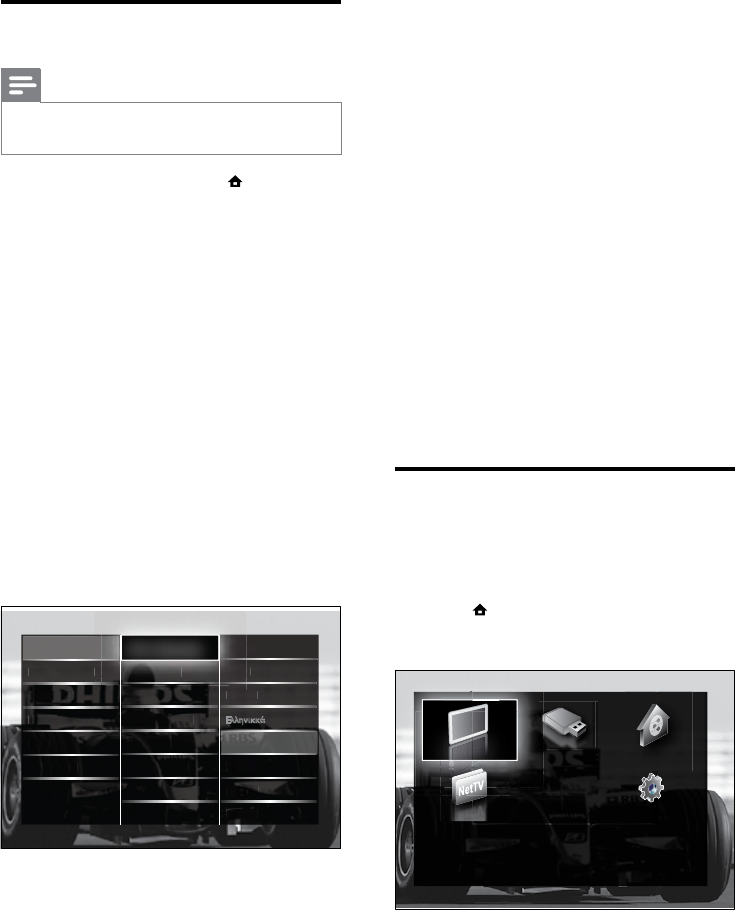
1 Press and hold AMBILIGHT for at least
three seconds.
The »[Ambilight active mode] bar
appears.
2 Press the Navigation buttons to
move the slider towards [Relaxed] for
smoother Ambilight responsiveness;
or towards [Dynamic] for faster
responsiveness
3 Press BACK to exit.
Note
You can only change the Ambilight active •
mode setting if Ambilight [Colour] is set to
[Active mode]. More information about this
and other advanced Ambilight features are .
English
EN
14
• [Primary audio]/[Secondary audio]
Select primary and secondary audio
languages for digital channels.
• [Primary subtitles]/[Secondary subtitles]
Select primary and secondary subtitle
languages for digital channels.
• [Primary teletext]/[Secondary teletext]
Select primary and secondary teletext
languages for digital channels.
• [Hearing impaired]
Select [On] to display subtitles with
primary and secondary audio languages.
• [Visually impaired]
If available, select to hear additional
audio commentary for the visually
impaired through the options: [Speakers],
[Headphones] or [Speakers +
headphones]. Select [Off] to disable the
feature.
• [Preferred audio format]
Select [Advanced] for best sound
reproduction from home theatre
systems. Select [Standard] for best sound
reproduction from the TV speakers and
basic sound systems.
Access the home menu
The home menu gives you easy access to
connected devices, picture and sound settings
as well as other useful features.
1 Press (Home).
The home menu appears. »
Add your devices
Browse USB
Setup
Watch TV Browse PC
Browse Net TV
5 Use more of
your product
Change language settings
Note
Skip this step if your language settings are •
correct.
1 When watching TV, press (Home).
The home menu appears. »
2 Press the Navigation buttons to select
[Setup].
The »[Setup] menu appears.
3 Press the Navigation buttons to select
[Installation] > [Languages] > [Menu
language].
A list of languages appears. »
4 Press the Navigation buttons to select a
menu language.
5 Press OK to conrm your choice.
The selected language is applied to the »
menu.
In addition to [Menu language], you can
congure the following language settings via
the [Languages] menu (digital channels only):
Menu language
Chann
a
el in
stall
ati
i
o
n
Pr
P
Prefe
P
P
rence
ence
ence
ence
enc
s
s
s
s
s
Pi
Prima
Pri
Prima
P
ry au
ry au
yau
ry
r
ry
dio
di
dio
dio
Seco
co
co
con
dary
ary
ary
ary
ary
ar
audio
audio
audio
udi
audio
dio
Prima
ma
ry sury su
y su
y su
y
y
btitlbtitl
bt
btit
btit
es
es
es
es
Decod
Decod
Decod
e
Decod
er
er
r
SeconSecon
dary
dary
subti
subti
tles
tles
es
es
s
Clock
lock
k
Dansk
s
D
na
na
C
e
Š
Šti
i
C
C
Facto
cto
t
t
ry re
ry r
set
set
Prima
m
ry te
ry t
y t
y t
y t
letext
Secon
Secon
dary
ary
ary
y
y
telet
tlt
te
telet
te
ext
ext
ext
ext
ext
H
ear
i
ng im
m
paire
i
d
d
d
d
Deuts
ch
EÏÏËÓÈÎο
English
EspañEspañ
ol
ol
Franç
nç
nç
nç
ais
ais
ais
ais
ais
ais
H
H
HrvatHrvat
H
ski
s
Languages
EN
15
Access the options menu
The options menu gives you quick access to the
picture and sound experience bar and other
useful features such as [Status]. The [Status]
menu gives you an overview of current TV
information.
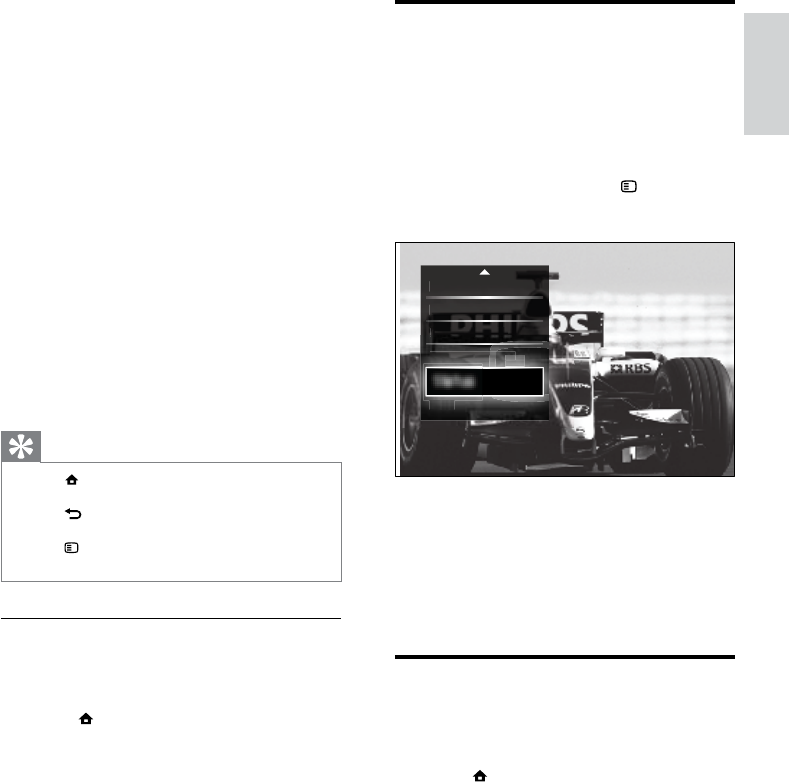
1 When watching TV, press OPTIONS.
The options menu appears. »
2 Press the Navigation buttons to select an
option.
3 Press OK.
The menu of the selected option »
appears.
Access the setup menu
The [Setup] menu gives you access to picture,
sound and other TV settings.
1 Press (Home).
The home menu appears. »
2 Press the Navigation buttons to select
[Setup].
3 Press OK.
The »[Setup] menu appears.
Status
Visu
Visu
ally
ally
imp
imp
aire
aire
d
d
Volu
o
Volu
Volu
V
Volu
me
-
me
Vis
Vis
Vis
uall
uall
uall
y im
m
yim
y im
y
im
pa
pair
pa
a
pa
e
d
MarkMark
Mark
Mark
Ma
asas
as
as
favo
favo
avo
favo
vo
uri
urit
uri
e
e
e
e
e
Mark
M
Mark
a
as
a
a
favo
vo
a
urit
uri
t
e
e
e
e
Com
Com
Comm
Com
omm
m
m
omm
omm
on i
on
n
n
on i
o
o
nte
nte
nte
e
r
r
r
face
ace
ace
ace
fac
fac
fac
c
er
er
e
e
f
ce
ce
ce
ce
Cloc
Cloc
Cloc
oc
Cloc
Cloc
c
k
k
k
k
k
k
k
k
2 Press the Navigation buttons to select a
home menu item:
• [Watch TV]Switches back to the
aerial source if another source is
selected.
• [Setup]Accesses menus that allow
you to change picture, sound and
other TV settings.
• [Add new device]Adds new devices
to the home menu.
• [Browse USB]If a USB storage
device is connected, accesses the
content browser.
• [Browse PC network]If a PC
network is available, accesses the
content browser.
• [Browse Net TV]Accesses Net TV.
3 Press OK to conrm your choice.
Tip
Press • (Home) at any time to exit the home
menu.
Press
• BACK at any time to exit the [Setup]
menu.
Press
• OPTIONS at any time to exit an
options menu.
Remove devices from the home menu
If a device is no longer connected to the TV,
remove it from the home menu.
1 Press (Home).
The home menu appears. »
2 Press the Navigation buttons to select a
device to remove.
3 Press OPTIONS.
A list appears, with »[Remove this
device] selected.
4 Press OK.
A message appears, prompting you to »
remove the device.
5 Press OK.
The home menu appears, with the »
device removed.
English
EN
16
• [Vivid]Rich and dynamic settings,
ideal for daylight use.
• [Natural]A natural picture setting.
• [Cinema]Ideal settings for watching
movies.
• [Game]Ideal settings for gaming.
• [Standard]The most energy
conscious settings. Factory standard
settings.
7 Press OK to conrm your choice.
The smart setting is applied. »
8 Press BACK to exit or press
(Home) to go back to the home menu.
Note
•[Smart settings] is also accessible via the
[Picture and sound] experience bar (see ‘Use
the picture and sound experience bar’ on page
17).
Use settings assistant
Use the settings assistant to guide you through
the best picture and sound settings.
1 When watching TV, press (Home).
The home menu appears. »
2 Press the Navigation buttons to select
[Setup].
3 Press OK.
The »[Setup] menu appears.
4 Press the Navigation buttons to select
[Picture] > [Settings assistant].
5 Press OK.
A message appears prompting you to »
start the settings assistant.
6 Press the Navigation buttons to select
[Start].
7 Press OK.
Follow the on-screen instructions to »
choose your preferred picture and
sound settings.
Change picture and sound
settings
Change picture and sound settings to suit your
preferences. You can apply pre-dened settings
or change settings manually.
Note
The exibility to change settings is limited if •
the TV location is set to [Shop] mode. Set
the TV location to [Home] mode to access all
TV settings (see ‘Change TV preferences’ on
page 33).
Use smart settings
Use smart settings to apply pre-dened
picture and sound settings.
1 When watching TV, press (Home).
The home menu appears. »
2 Press the Navigation buttons to select
[Setup].
3 Press OK.
The »[Setup] menu appears.
4 Press the Navigation buttons to select
[Smart settings].
5 Press OK.
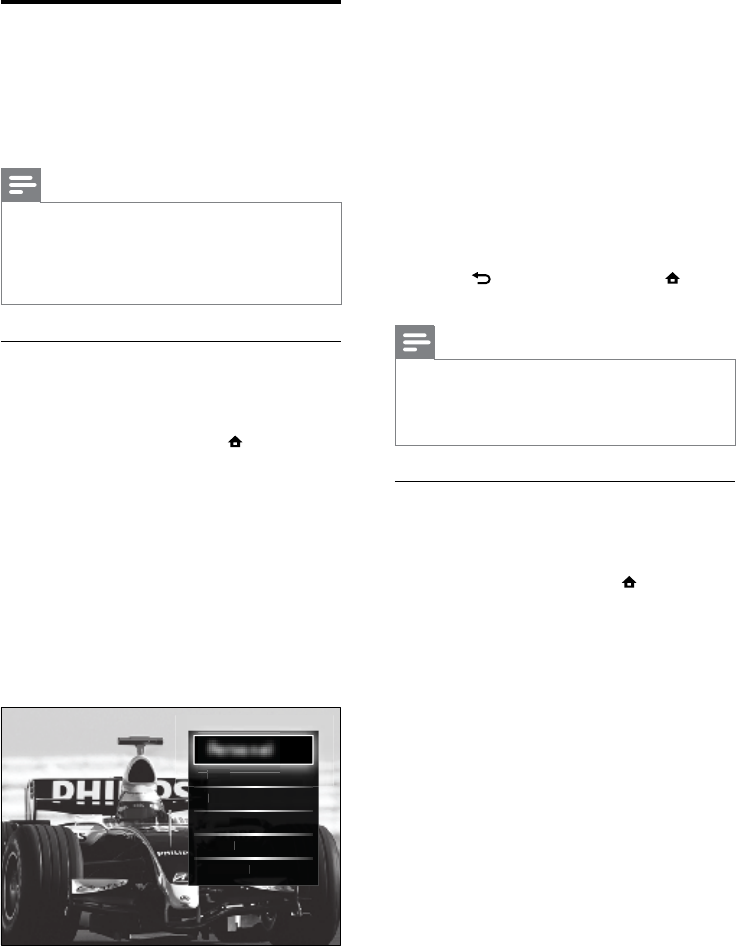
A list of smart settings appears. »
6 Press the Navigation buttons to select:
• [Personal]Sets the TV to your
personal preferences set in the
[Picture] and [Sound] menus in
[Setup].
Personal
Vivi
Vivi
Vivi
d
d
d
Vivid
N
atura
l
Cine
ne
ma
ma
G
Game
Stan
Stan
dard
da
EN
17
The following settings can be congured via
the [Picture and sound] experience bar.
• [Smart settings]Applies pre-dened
picture and sound settings.
• [Colour]Adjusts colour saturation.
• [Contrast]Adjusts the intensity of bright
areas, keeping dark areas unchanged.
• [Bass]Adjusts the bass level.
• [Treble]Adjusts the treble level.
• [TV speakers]Turns on or off TV
speakers. If [Automatic (EasyLink)] is
selected, the TV speakers are switched
off when content from an EasyLink-
compliant home theater system is
detected.
• [Ambilight active mode]Sets an Ambilight
setting between relaxed and dynamic
levels. This feature is only available when
Ambilight [Colour] is set to [Active
mode].
• [Ambilight]Turns Ambilight on or off.
• [Ambilight brightness]Changes the light
output from Ambilight.
Note
•[Bass] and [Treble] are not available if [TV
speakers] are set to [Off].
Manually adjust picture settings
1 When watching TV, press (Home).
The home menu appears. »
2 Press the Navigation buttons to select
[Setup].
3 Press OK.
The »[Setup]menu appears.
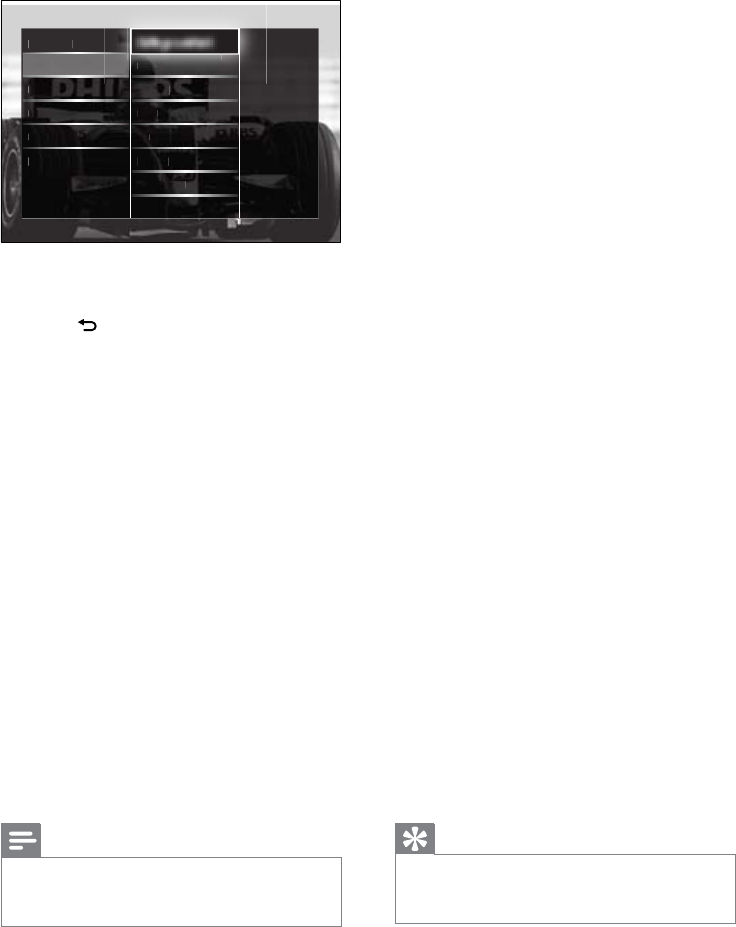
4 Press the Navigation buttons to select
[Picture] menu appears.
5 Press OK.
The »[Picture] menu appears.
Use the picture and sound experience
bar
Use the [Picture and sound] experience bar
to access frequently used picture and sound
settings.
Note
All picture settings are available via the •[Picture]menu (see ‘Manually adjust picture
settings’ on page 17).
All sound settings are available via the
•[Sound]menu (see ‘Adjust sound settings’ on
page 19).
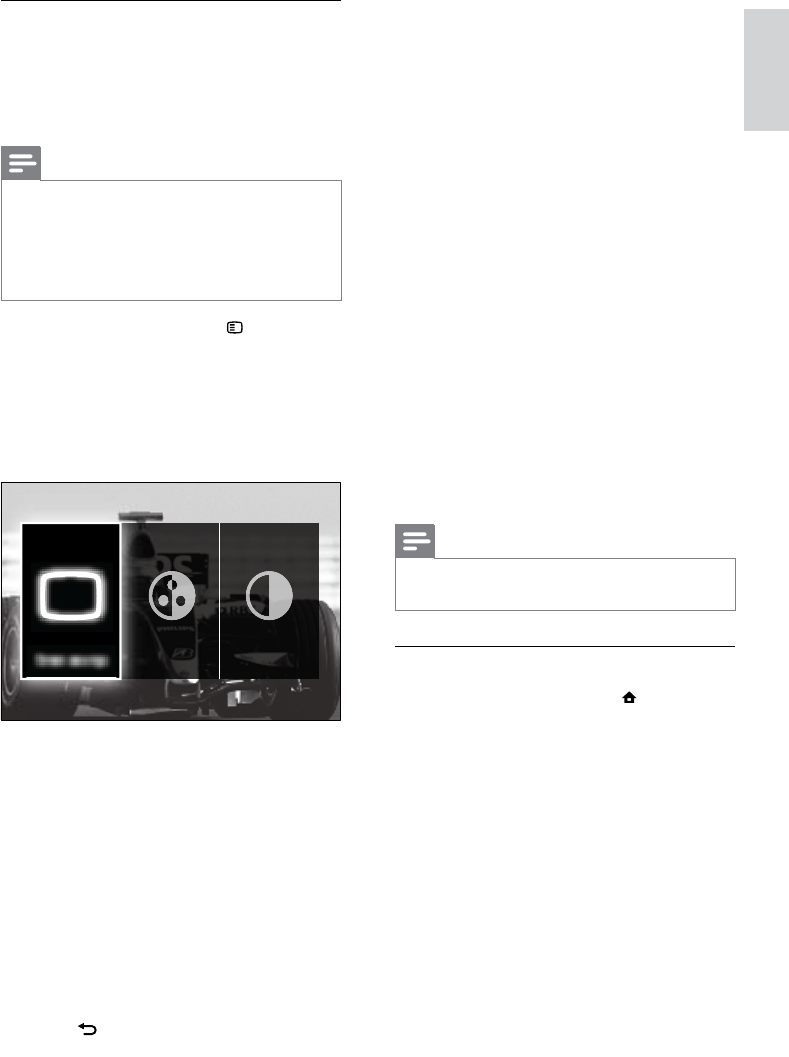
1 When watching TV, press OPTIONS.
The options menu appears. »
2 Press the Navigation buttons to select
[Picture and sound].
The »[Picture and sound] experience
bar appears.
3 Press the Navigation buttons to select a
picture or sound setting to adjust.
4 Press OK.
The picture or sound setting menu »
appears.
5 Press the Navigation buttons to adjust
the picture or sound setting.
6 Press OK to conrm your choice.
The picture or sound setting is »
applied and the [Picture and sound]
experience bar reappears.
7 Press BACK to exit.
Smart settings
English
EN
18
• [Perfect Natural Motion]Reduces
eld and line icker to display
movement smoothly.
• [100Hz Clear LCD]Sets the TV
refresh rate to a maximum of
100Hz to provide superior motion
sharpness, better black level, high
contrast with a icker-free, quiet
image and a larger viewing angle.
• [Advanced sharpness]Enables
superior sharpness, especially on
lines and contours in the picture.
• [Dynamic contrast]Automatically
enhances contrast in an image.
• [Dynamic backlight]Adjusts the
brightness of the TV backlight to
match lighting conditions.
• [MPEG artefact reduction]Smoothes
out transitions on digital pictures.
You can switch this feature on or off.
• [Colour enhancement]Makes
colours more vivid and improves the
resolution of details in bright colours.
You can switch this feature on or off.
• [PC mode]Enables picture settings
adjustment when a PC is connected to
the TV via HDMI. If enabled, you can
select [Picture format] > [Unscaled]
which provides maximum detail for
display of PC content.
• [Light sensor]Dynamically adjusts picture
settings to match lighting conditions.
• [Picture format]Changes the picture
format.
• [Auto format mode]Sets the picture
format to automatically ll or
automatically zoom into the screen.
Tip
If •[Auto format mode] is disabled, select
[Picture format] > [Auto format] to enable
the option.
• [Picture shift]Adjusts the position of the
picture.
6 Press the Navigation buttons and OK to
select and adjust a picture setting.
7 Press BACK to exit.
The following picture settings can be
congured. Depending on the format of the
picture source, some picture settings are not
available.
• [Settings assistant]Use settings assistant
to guide you through the best picture and
sound settings.
• [Contrast]Adjusts the intensity of bright
areas, keeping dark areas unchanged.
• [Brightness]Adjusts the intensity and
details of dark areas.
• [Colour]Adjusts colour saturation.
• [Hue]Compensates colour variations in
NTSC encoded transmissions.
• [Sharpness]Adjusts the level of sharpness
in image details.
• [Noise reduction]Filters and reduces
noise in an image.
• [Tint]Adjusts the colour balance in an
image.
Note
Before you adjust •[Custom tint], select [Tint]
> [Custom], then press OK to enable the
option.
• [Custom tint]Make a customised tint
setting.
• [Pixel Plus HD]/[Pixel Precise HD]Gives
access to advanced picture settings:
Picture
Settings assistant
Sound
S
S
Featu
Featu
eatu
res
res
S
mart setting
s
Contr
Contr
ontr
t
ast
Br
Brigh
Brigh
tness
nes
tness
Colou
r
r
r
Insta
ll
atio
n
Hu
e
Softw
are u
p
dat
e
Noise
redu
u
ction
ction
ct
Tin
t
Sharp
ness
nene
EN
19
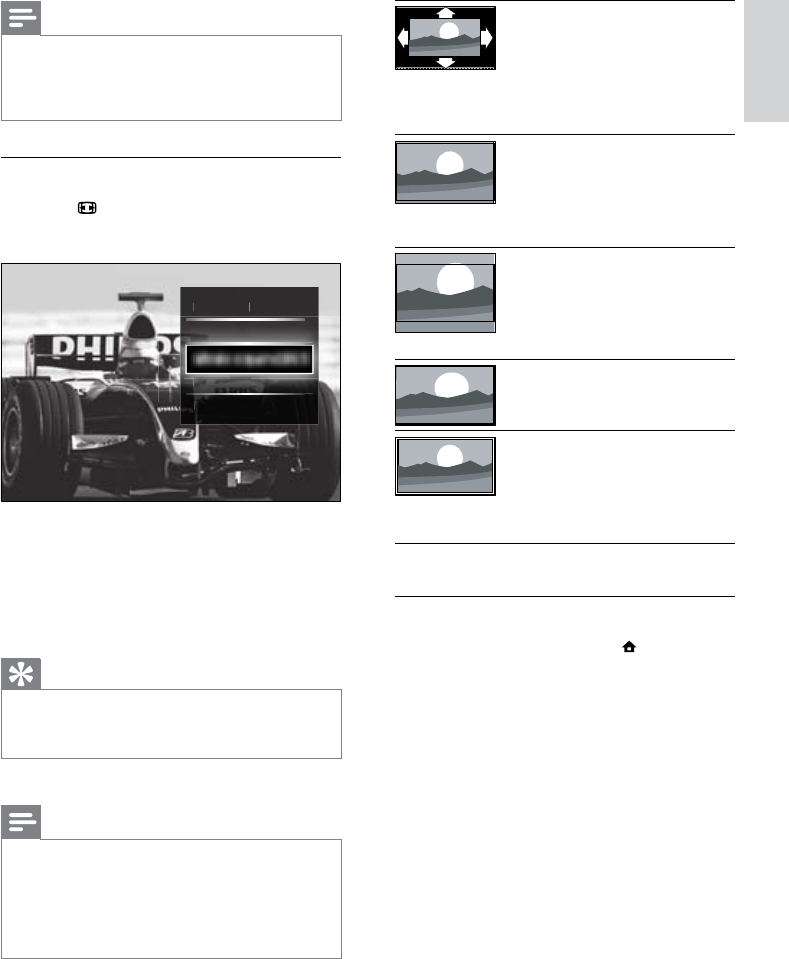
[Auto format] Enlarges
the picture to ll the
screen (subtitles remain
visible). Recommended for
minimal screen distortion
(but not for HD or PC).
[Super zoom] Removes
the black bars on the sides
of 4:3 broadcasts. Not
recommended for HD
or PC.
[Movie expand 16:9]
Scales the classic 4:3
format to 16:9. Not
recommended for HD
or PC.
[Wide screen] Stretches
the classic 4:3 format to
16:9
[Unscaled] Provides
maximum detail for PC.
Only available when [PC
mode] is enabled in the
[Picture] menu.
Adjust sound settings
1 When watching TV, press (Home).
The home menu appears. »
2 Press the Navigation buttons to select
[Setup].
3 Press OK.
The »[Setup]menu appears.
4 Press the Navigation buttons to select
[Sound] menu appears.
5 Press OK.
The »[Sound] menu appears.
Note
•[Colour] and [Contrast] settings are also
accessible via the [Picture and sound]
experience bar (see ‘Use the picture and
sound experience bar’ on page 17).
Change picture format
1 Press FORMAT.
A list of picture formats appears. »
2 Press the Navigation buttons to select a
picture format.
3 Press OK to conrm your choice.
The selected picture format is »
activated.
Tip
Picture formats are also accessible via the •[Setup]menu (see ‘Access the setup menu’ on
page 15).
The following picture formats can be selected.
Note
Depending on the picture source, some •
picture formats are not available and will not
be seen on-screen.
Before you adjust
•[Unscaled], select [Picture]
> [PC mode] > [On], then press OK to
enable the option.
Movie expand 16:9
Supe
Su
pe
r z
o
o
om
o
Auto
Auto
for
for
mat
mat
Unsc
U
U
aled
U
U
U
ld
Wide
Wide
Wide
scr
scr
scr
een
een
een
Wid
English
EN
20
compliant home theater system is
detected.
• [Surround]Enables spatial sound.
• [Headphones volume]Adjusts headphone
volume.
• [Delta volume]Levels out volume
differences between channels or
connected devices. Switch to the
connected device before you change the
delta volume.
• [Balance]Adjusts the balance of the
right and left speakers to best suit your
listening position.
• [Auto volume leveling]Automatically
reduces sudden volume changes, for
example, when switching channels. When
enabled, this produces a more consistent
audio volume.
Note
•[Bass], [Treble] and [TV speakers] settings
are also accessible via the [Picture and sound]
experience bar (see ‘Use the picture and
sound experience bar’ on page 17). When
supported, [Audio language] and [Volume -
Visually impaired] are directly accessible from
the options menu.
Change Ambilight settings
(selected models only)
You can adjust Ambilight colour, brightness and
mode to your taste.
1 When watching TV, press (Home).
The home menu appears. »
2 Press the Navigation buttons to select
[Setup].
3 Press OK.
The »[Setup] menu appears.
4 Press the Navigation buttons to select
[Ambilight].
5 Press OK.
The »[Ambilight] menu appears.
6 Press the Navigation buttons and OK to
select and adjust a sound setting.
7 Press BACK to exit.
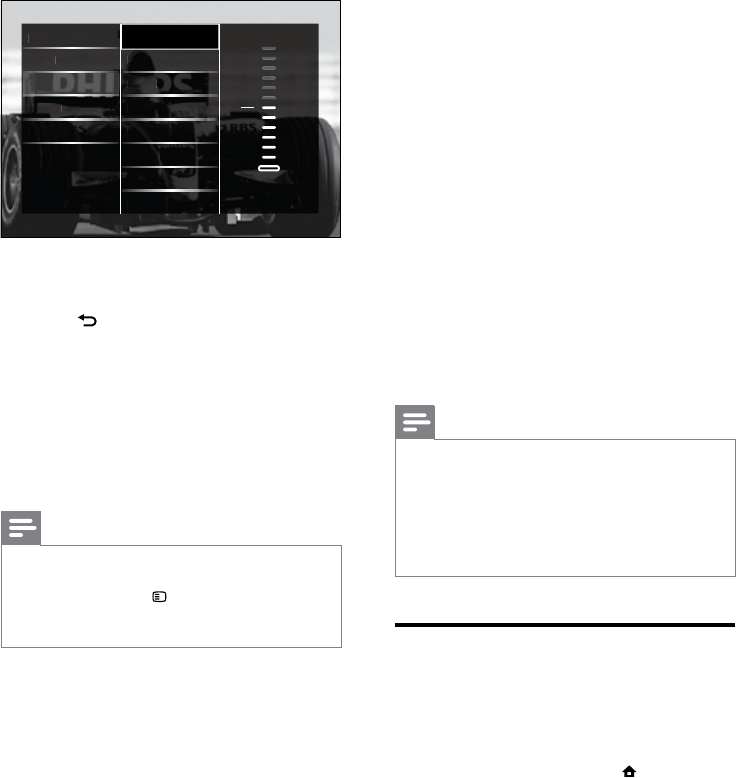
The following sound settings can be
congured. Depending on the broadcast,
some sound settings may not be available.
• [Bass]Adjusts the bass level.
• [Treble]Adjusts the treble level.
• [Volume]Adjusts the volume.
Note
Before you adjust •[Volume - Visually
impaired], enable [Visually impaired]. When
watching TV, press OPTIONS and select
[Visually impaired]. Select a preferred option
and press OK.
• [Volume - Visually impaired]Sets the mix
of visually impaired audio with regular
audio. When available, visually impaired
audio includes audio descriptions of on-
screen action. You can also enable this by
pressing AD (Audio Descriptor).
• [Audio language](Digital channels only)
Selects between audio languages when
multiple languages are broadcast.
• [Dual I-II](Analogue channels only)
Selects between audio languages when
dual sound is broadcast.
• [Mono/Stereo]Selects between mono or
stereo if stereo is broadcast.
• [TV speakers]Turns on or off TV
speakers. If [Automatic (EasyLink)] is
selected, the TV speakers are switched
off when content from an EasyLink-
Sound
Bass
-8
Pictu
t
re
Smart
Smart
sett sett
ingsings
T
T
Tr
T
Trebl
Tr
e
e
Volu
lu
lum
lum
e
e
Volum
um
e - Ve - V
isual
isu
isual
sual
sual
ly im
ly im
ly im
ly im
pairpair
pa
pa
pa
Feat
Featu
ea
Featu
Featu
res
es
res
Insta
nsta
llat
llati
on
on
Audio
Audio
A
lang lang
uage
uage
Softw
ftw
t
t
t
are u
are u
pdate
pdat
Dual
l
I/II
/II
II
II
II
Mono/
Mono
Stere
tere
tere
tere
e
o
o
o
o
TV
sp
eaker
er
s
Bass
EN
21
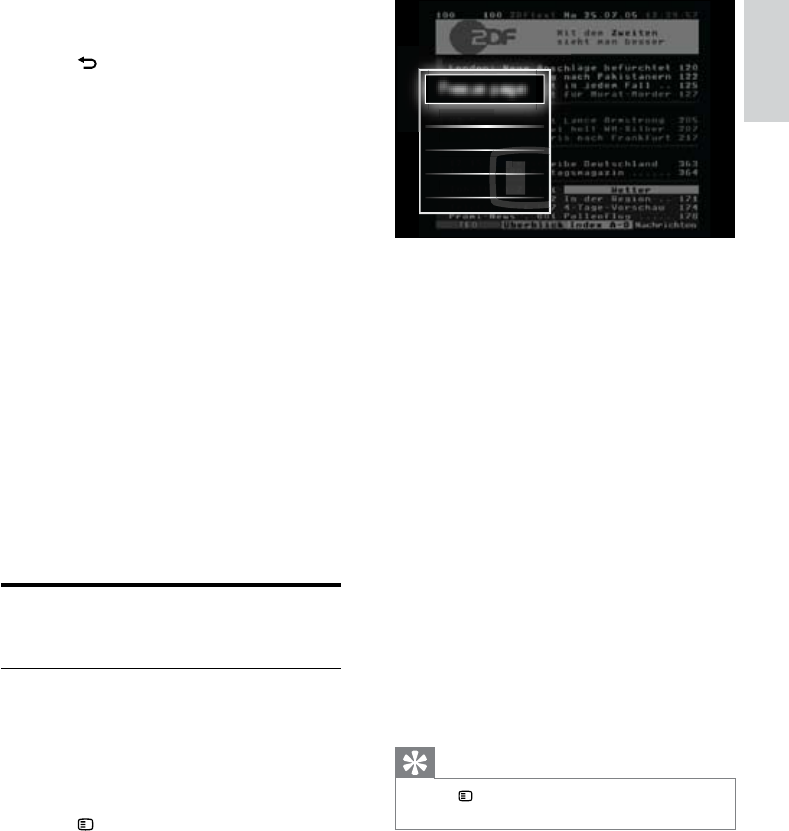
3 Press the Navigation buttons to select an
option:
• [Freeze page]Freezes the current
page.
• [Dual screen]/[Full screen]Enables
and disables dual screen teletext,
which splits the current channel or
source to the left of the screen, with
teletext on the right.
• [Reveal]Hides or reveals hidden
information on a page, such as
solutions to riddles or puzzles.
• [Cycle subpages]Cycles through
subpages automatically if subpages
are available.
• [Language]Switches to a different
language group to display a language
correctly when that language uses a
different character set.
4 Press OK to conrm your choice.
The teletext screen appears. »
Tip
Press • OPTIONS at any time to exit the
options menu.
Freeze page
Dual
Dual
scr
scr
scr
een
een
een
Dl
Reve
Reve
v
al
al
Cycl
Cycl
cl
e su
e su
e su
bp
b
b
g
es
es
es
pag
es
Lang
Lang
ng
uage
uage
uage
6 Press Navigation buttons and OK to
select and adjust an Ambilight setting.
7 Press BACK to exit.
The following Ambilight settings can be
congured:
• [Ambilight]Turns Ambilight on or off.
• [Ambilight active mode]Sets an
Ambilight setting between relaxed
and dynamic levels. This feature
is only available when Ambilight
[Colour] is set to [Active mode].
• [Brightness]Changes the light output
from Ambilight.
• [Colour]Selects a predened colour
setting or a customised colour
setting.
• [Custom colour]Allows ne tuning
of predened colours.
• [Separation]Sets the difference
in Ambilight color level between
the sides of the TV. Setting this
feature off gives a dynamic, uniform
Ambilight color.
Use advanced teletext
features
Access the teletext options menu
Most of the advanced teletext features are
accessed via the teletext options menu.
1 Press TELETEXT.
The teletext screen appears. »
2 Press OPTIONS.
The teletext options menu appears. »
English
EN
22
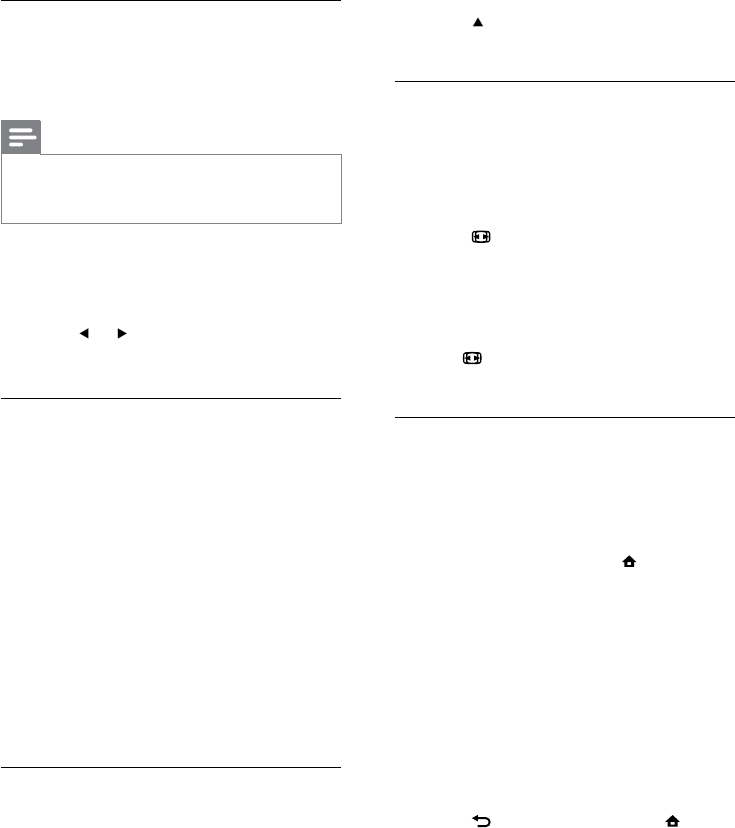
5 Press until no word or number is
highlighted to exit the search.
Enlarge teletext pages
For more comfortable reading, you can
enlarge the teletext page.
1 Press TELETEXT.
The teletext screen appears. »
2 Press FORMAT.
The teletext screen is enlarged. »
3 Press:
the • Navigation buttons to move
around the enlarged screen.
• FORMAT to return to normal
screen size.
Use Teletext 2.5
Teletext 2.5 offers more colours and better
graphics than normal teletext. If Teletext 2.5
is broadcast by a channel, it is switched on by
default.
1 When watching TV, press (Home).
The home menu appears. »
2 Press the Navigation buttons to select
[Setup].
3 Press OK.
The »[Setup] menu appears.
4 Press the Navigation buttons to select
[Installation] > [Preferences] > [Teletext
2.5] > [On] or [Off].
Teletext 2.5 is enabled or disabled. »
5 Press BACK to exit or press
(Home) to go back to the home menu.
Select teletext subpages
A teletext page can hold several subpages.
Subpages are displayed on a bar next to the
main page number.
Note
Enable cycling of subpages before selecting •
subpages (see ‘Access the teletext options
menu’ on page 21).
1 Press TELETEXT.
The teletext screen appears. »
2 Select a teletext page.
3 Press or to select a subpage.
The subpage appears. »
Select T.O.P. teletext broadcasts
Table Of Pages (T.O.P.) teletext broadcasts
allow you to jump from one subject to
another without using page numbers. T.O.P.
teletext is not broadcast on all TV channels.
1 Press TELETEXT.
The teletext screen appears. »
2 Press INFO.
The T.O.P. overview appears. »
3 Press the Navigation buttons to select a
subject.
4 Press OK to conrm your choice.
The teletext page appears. »
Search teletext
Search a teletext page by subject or word.
1 Press TELETEXT.
The teletext screen appears. »
2 Press OK to highlight the rst word or
number.
3 Press the Navigation buttons to skip to
the word or number to search.
4 Press OK to begin the search.
EN
23
Add or remove channels from a
favourite list
Tip
Select •[All] channels before adding a channel
to a favourite list.
1 When watching TV, switch to the channel
you want to add or remove from a
favourite list.
Alternatively, press OK to enter the
channel grid and press the Navigation
buttons to select the channel to add or
remove.
2 Press OPTIONS.
The options menu appears. »
3 Press the Navigation buttons to select
[Mark as favourite] or [Unmark as
favourite].
A star appears in the channel grid, »
indicating that the channel is added to
the favourite list. The star disappears if
you chose to remove the channel from
the favourite list.
Reorder/rearrange and
rename channels
Reorder/rearrange channels
Reorder/rearrange channels in the grid to your
desired location.
1 When watching TV, press OK.
The channel grid appears. »
2 Press OPTIONS.
The options menu appears. »
3 Press the Navigation buttons to select
[Reorder], then press OK.
An on-screen message appears. To »
continue, go to step 4.
To cancel and exit, press •
OPTIONS and follow the on-screen
instructions.
Create and use lists of
favourite channels
You can create lists of your preferred TV
channels so that you can nd those channels
easily.
Note
Digital radio stations can also be added to •
favourite lists, if supported.
View only channels in a favourite list, or
view all channels if a favourite list is currently
selected.
1 When watching TV, press OK.
The channel grid appears. »
2 Press OPTIONS.
The options menu appears. »
3 Press the Navigation buttons to select
[Select list].
4 Press OK.
The »[Select list] menu appears.
5 Press the Navigation buttons to select:
• [All]Displays all channels.
• [Favourites]Displays channels in a
selected favourite list.
• [Radio]Displays radio channels only.
• [Digital]Displays digital channels only.
• [Analogue]Displays analogue
channels only.
6 Press OK to conrm your choice.
The selected list is applied to the »
channel grid.
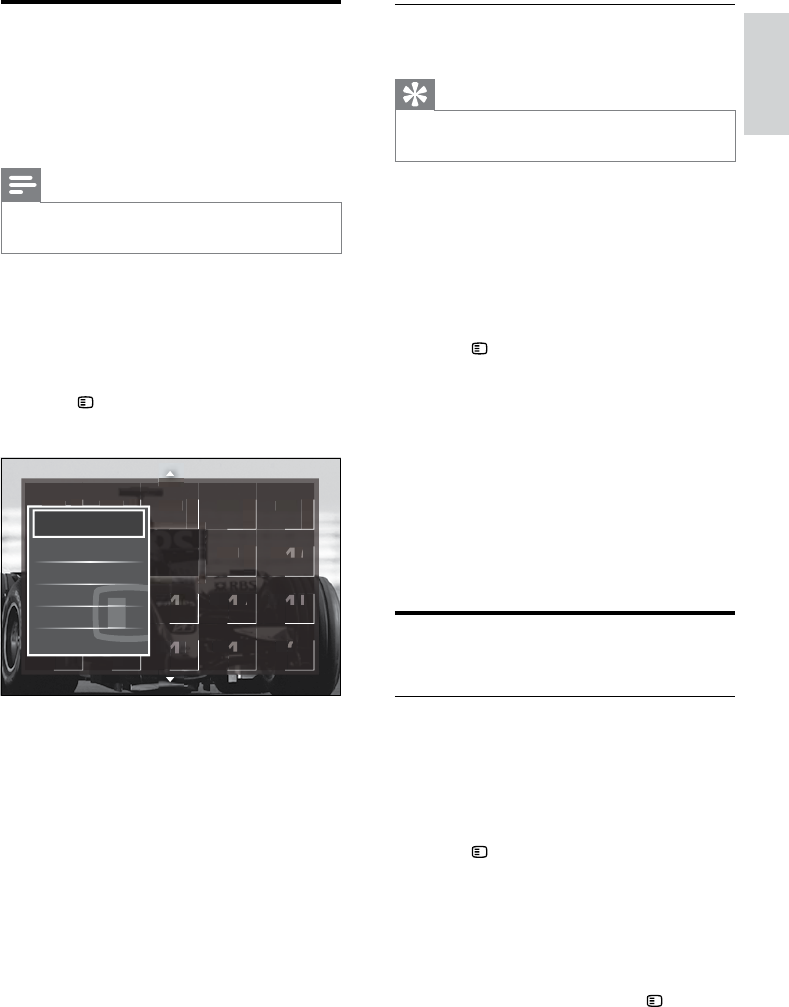
Ned
Ned
1
1
1
1
1
1
Ned
Ned
2
2
2
2
2
2
2
2
RTL
RTL
4
4
4
4
RTL
RTL
5
5
5
5
5
6
6
1
1
6
17
A
ni
m
9
1
1
1
9
9
9
9
m
a
l
ma
HBO
B
0
2
2
2
2
0
O
O
Euro
ro
1
1
1
8
8
8
o
o
o
sp
sp
sp
o
o
s
s
Disc
o
1
1
4
o
ve
r
over
Nati
1
1
5
15
onal
n
onal
KetN
KetN
Ket
tN
11
33
3
1
1
3
3
3
N
N
N
N
et
et
et
N
N
e
e
Ne
t
5
9
9
9
9
9
9
Ni
ck
1
1
1
0
0
0
0
ke
l
o
kelo
1
1
Ned
Ned
3
3
3
3
3
3
3
3
3
3
3
3
3
3
3
3
RTL 8
8
Show hidden channels
Mark as favourite
Reorder
Rename
Hide channel
Select list
English
EN
24
6 Once complete, press the Navigation
buttons to select [Done].
To clear the name entered, select •
[Clear].
To cancel, select • [Cancel].
7 Press OK to conrm your choice.
8 Press BACK to exit the channel grid.
Hide and unhide channels
Hide channels
Hide channels from the grid, to prevent
unauthorised access.
1 When watching TV, press OK.
The channel grid appears. »
2 Press the Navigation buttons to select a
channel to hide.
3 Press OPTIONS.
The options menu appears. »
4 Press the Navigation buttons to select
[Hide channel].
5 Press OK to conrm your choice.
The channel is hidden. »
6 Press BACK to exit the channel grid.
Unhide channels
Display hidden channels.
1 When watching TV, press OK.
The channel grid appears. »
2 Press OPTIONS.
The options menu appears. »
3 Press the Navigation buttons to select
[Show hidden channels].
4 Press OK.
Hidden channels appear in the channel »
grid, but without channel information
displayed. It is displayed as a black box.
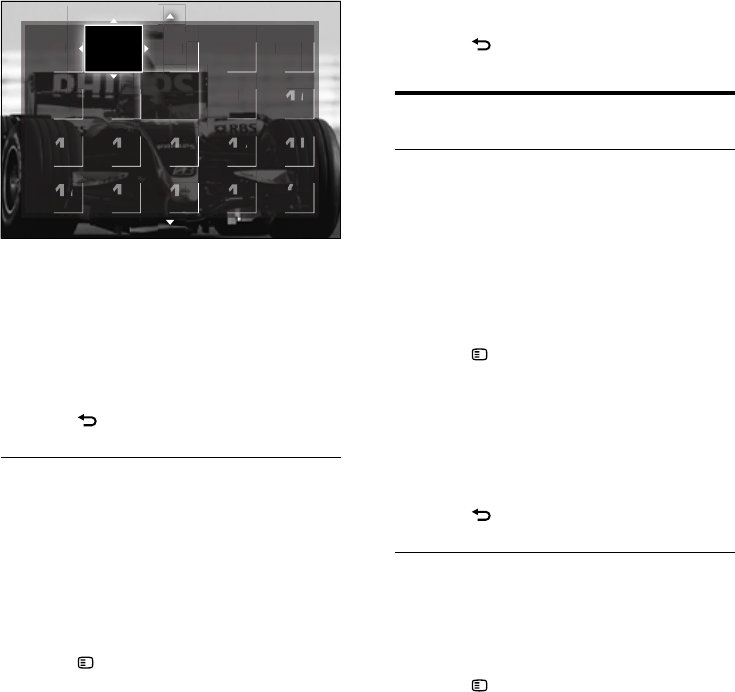
4 Press the Navigation buttons to select
the channel to reorder in the grid.
A box appears around the selected »
channel.
5 Press the Navigation buttons to move
the channel to the desired location in the
grid.
6 Press OK to conrm your choice.
The channel is moved to the selected »
location.
7 Press BACK to exit the channel grid.
Rename channels
Rename channels in the grid to suit your
needs.
1 When watching TV, press OK.
The channel grid appears. »
2 Press the Navigation buttons to select a
channel to rename.
3 Press OPTIONS.
The options menu appears. »
4 Press the Navigation buttons to select
[Rename].
An entry screen appears. »
5 Press the Navigation buttons or Numeric
buttons to edit the name, then press OK.
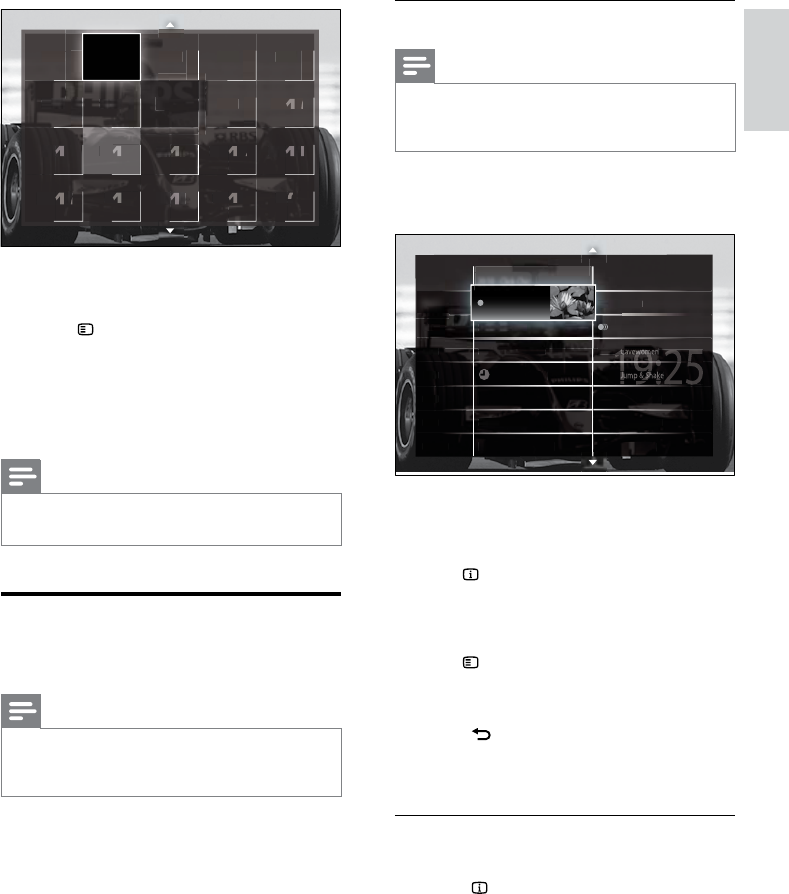
Ned
Ned
1
1
RTL
RTL
4
4
4
4
RTL
RTL
5
5
5
5
5
C
o
m
6
6
1
1
1
1
6
6
6
6
6
6
m
e
dy
dy
me
dy
C
CN
1
7
7
N
N
NN
Anim
An
9
9
9
1
1
1
1
1
1
9
9
9
9
9
m
a
l
ma
HBO
HBO
B
0
2
2
2
2
2
2
2
0
0
O
O
O
O
Euro
r
r
1
1
1
1
1
1
8
8
8
8
8
8
o
o
o
o
o
sp
sp
sp
spsp
o
o
o
s
s
s
BBC
B
B
1
1
1
1
1
C
1
C 1
BB
C
1
1
2
2
C
2
2
C 2
Disc
Dis
o
1
1
1
4
4
o
ve
r
over
Nati
1
1
1
1
5
5
1
5
5
onal
na
n
n
onal
KetN
KetN
KetN
Ket
Ket
KetN
Ket
1
1
1
1
3
3
3
3
3
3
3
1
1
1
1
3
3
3
3
N
N
N
N
N
N
N
et
et
et
et
et
et
e
N
N
N
e
e
e
SBS
SBS
S
SBS
SBS
SBS
SBS
6
6
6
6
6
6
6
6
6
6
6
66
RTL
RTL
RTL
RTL
RTL
RTL
7
7
7
7
7
7
7
Ne
t
5
9
9
9
9
9
9
9
9
9
9
Ni
ck
1
1
1
1
1
1
0
0
0
0
0
0
0
ke
l
o
kelo
1
1
1
N
Ned
Ned
3
3
3
3
3
7
7
7
7
7
7
7
7
7
3
3
3
3
3
RTL 8
8
1
1
1
1
1
1
1
1
Ned 2
2
2
2
2
2
2
2
2
6
6
6
6
6
6
6
RTL
RTL
RTL
RTL
L
TL
RTL
7
7
7
7
7
7
7
7
7
N
N
N
2
2
2
2
7
7
7
7
7
7
7
RT
EN
25
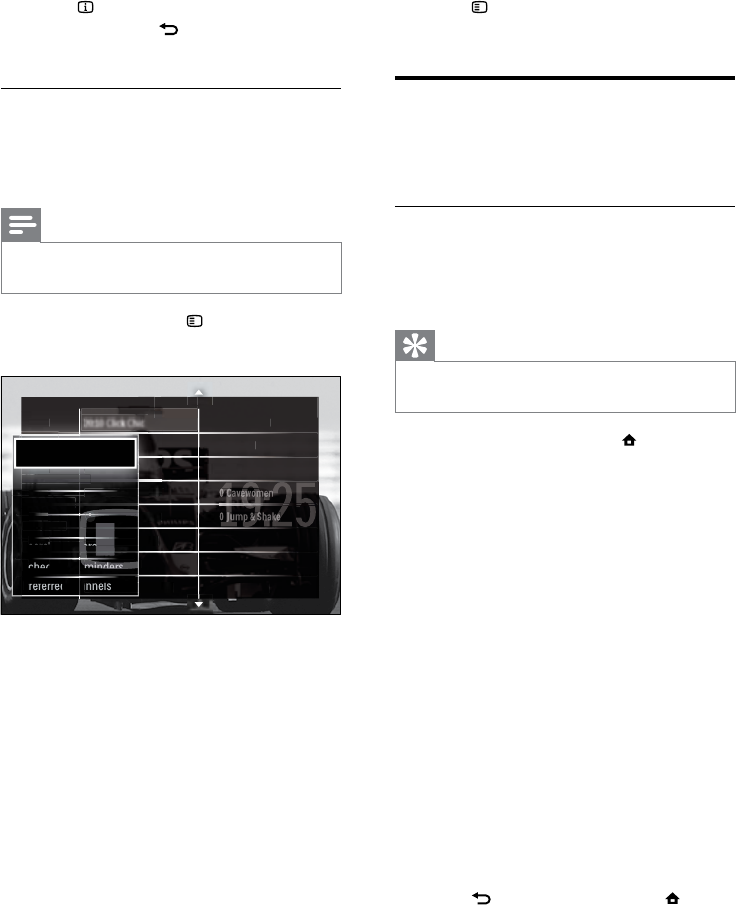
Switch on EPG
Note
The rst time you use EPG, you may be •
prompted to perform an update. Follow the
on-screen instructions to perform the update.
1 When watching TV, press GUIDE.
The EPG menu appears. »
2 Press:
The • Navigation buttons to move
around the screen.
• INFO to view more information
about a programme (see ‘View
channel/programme information’ on
page 25).
• OPTIONS to view the options
menu (see ‘Use the EPG options
menu’ on page 26).
3 Press BACK to exit to the original
channel, or press OK to exit to the
selected channel.
View channel/programme information
1 When watching TV or when in EPG,
press INFO.
The programme information screen »
appears.
2 Press the Navigation buttons to navigate
the screens.
N
EX
T
Ned
1
Ned 2
20:15
20:15
20:15
20:15
Trea Trea Trea
Trea
sure sure
su
su
Chest
Chest
est
st
20:15 Funk
y Fee
ee
ee
t
t
Ned 3
Ned 3
Ned 3
Ned
RTL 4
RTL 4
RTL 5
5
SBS 6
6
2
0:00 Cleo
p
atra Ja
m
20:10
She-Wol
f
S
B
S
7
Veronic
a
NO
NO
NO
N
N
W
W
W
N
O
NO
N
NO
O
N
N
N
N
NO
O
N
NO
W
W
W
W
W
W
W
T
T
Ch
20 1
20 10
20 10
10
20:1
20:10
20:10
20:10
20:10
20:
20:10
2
20:10
20:
2
20
:10
Th
The
The
The
The
Th
Th
The
The
Th
Th
Th
The
e
Man
M
Man
Man
Man
Man
Man
Man
a
W
W
20:00 Flying Lotus
20:10 Click Chic
21:30
21:30
21:30
21:30
C
C
Cave
C
2
30
C
22:00
2
40
N
CS
2
22:4
P
oint Blan
k
22:3
:30
30
22
2
2
P
Z
-
Tea
m
2
2
2
2
21
1
:
:
:30
2
2
2
21
21
1
Z
21:10 Unlu
cky L
cky L
y
uke
uke
21:25
2
2
Disaster Eart
h
20:45
120
120
0
0
D
Days
Da
of
of
20:05
0
Under The Bridg
e
5 Press the Navigation buttons to select
the channel to unhide.
6 Press OPTIONS.
The options menu appears. »
7 Press the Navigation buttons to select
[Unhide channel], then press OK.
The channel is unhidden. »
Note
Repeat steps 5 through 7 to unhide other •
channels.
Use the Electronic
Programme Guide
Note
EPG is not available in all countries. If available, •
you will receive either [Now]/[Next] or 8 days
EPG.
EPG is an on-screen guide available for digital
channels. EPG allows you to:
View a list of digital programmes being •
broadcast
View upcoming programmes•
Group programmes by genre•
Set reminders when programmes start•
Set up preferred EPG channels•
Ned
Ned
1
1
RTL
RTL
4
4
4
4
RTL
RTL
5
5
5
5
5
C
o
m
6
6
1
1
6
6
6
m
e
dy
y
medy
CN
17
N
N
NN
A
ni
m
9
1
1
1
9
9
9
9
m
a
l
ma
HBO
B
0
2
2
2
2
0
O
O
Euro
ro
1
1
1
8
8
8
o
o
o
sp
sp
sp
o
o
s
s
BBC
B
1
1
1
C
1
C 1
BB
C
12
C
2
C 2
Disc
o
1
1
4
o
ver
over
Nati
1
1
5
15
onal
n
onal
KetN
KetN
Ket
tN
1
1
33
3
1
1
3
3
3
N
N
N
N
et
et
et
N
N
e
e
SBS
S
SBS
6
6
6
6
66
6
RTL
RTL
RTL
7
7
7
7
7
Ne
t
5
9
9
9
9
9
9
Ni
ck
1
1
1
0
0
0
0
ke
l
o
kelo
1
1
Ned
Ned
3
3
3
3
3
7
7
7
7
7
7
7
7
7
7
7
7
7
7
3
3
3
3
3
3
3
3
3
3
3
RTL 8
8
1
1
1
1
1
1
1
1
1
1
1
1
1
1
1
1
Ned 2
2
2
2
2
2
2
2
2
2
2
2
2
2
2
2
6
6
6
6
7
7
2
2
2
2
2
2
2
2
2
2
7
7
7
7
7
7
7
7
7
7
7
7
7
7
R
English
EN
26
3 Press OPTIONS to exit to the EPG
options menu.
Use timers
You can set timers to switch the TV to standby
at a specied time.
Automatically switch the TV to
standby (sleeptimer)
Sleeptimer switches the TV to standby after a
pre-dened period of time.
Tip
You can always switch off your TV earlier or •
reset the sleeptimer during the countdown.
1 When watching TV, press (Home).
The home menu appears. »
2 Press the Navigation buttons to select
[Setup]
3 Press OK.
The »[Setup] menu appears.
4 Press the Navigation buttons to select
[Features] > [Sleeptimer].
The »[Sleeptimer] menu appears.
5 Press the Navigation buttons to set the
sleep time.
The sleep timer can be up to 180 »
minutes, in steps of ve minutes. The
sleep timer is switched off if set to
zero minutes.
6 Press OK to activate the sleeptimer.
The TV switches to standby after the »
set period of time.
7 Press BACK to exit or press
(Home) to return to the home menu.
3 Press INFO to exit back to the original
channel or press BACK to exit to the
EPG menu.
Use the EPG options menu
Use the EPG options menu to set or clear
reminders, change day and access other useful
EPG options.
Note
The EPG options are only accessible for 8 days •
of TV channel information.
1 When in EPG, press OPTIONS.
The EPG options menu appears. »
2 Press the Navigation buttons and OK to
select and adjust:
• [Set reminder]Sets programme
reminders.
• [Clear reminder]Clears programme
reminders.
• [Change day]Sets the EPG day.
Select [Today], [Next day] or
[Previous day].
• [More info]View programme
information.
• [Search by genre]Searches TV
programmes by genre.
• [Scheduled reminders]Lists
programme reminders.
• [Preferred channels]Sets preferred
EPG channels.
NO
N
N
N
W
NEXT
N
NO
N
N
W
Ned 2
e
e
Chest
Chest
hest
Chest
k
y Fee
Fee
Fee
t
t
r
a
Jan
n
f
W
W
W
20:10 Click Chic
21:3
21:3
21:3
21:3
22:0
2
2
2
2
22:
2:40
NCS
S
22:30 Point Blank
21:30
2
2
21
Z-Te
am
21:10 Unlu
cky L
y
uke
21:25
2
2
2
Disaster Earth
20:45
120
120
20
0
Days
Days
of
f
h
e Bridge
RTL
4
RTL 5
SBS6
20:15
Treasure
SBS7
Veron
ica
20:15 Funk
20:00 Cleopatr
0:10
10
She
Wol
20:05 Under Th
20:15 Funk
2
20:10
20
She-Wol
00 Cl
e
k
r
f
h
h
e
l
k
r
l
h
k
l
N
N
N
Ned1
Ned
1
e
e
Chest
hest
est
Chest
n
n
n
n
n
n
Lo
o
o
o
o
L
t
tus
s
s
2
0:10 Click Chi
c
Nd2
Ned2
Ned2
Ned2
Ned 2
ed
Nd3
Ned3
Ned3
Ned3
Ned3
Ned3
Ned 3
N
RTL4
20:15 Treasure
20 10
20:10
20:10
20:10
20:10
20:10
20:10
Th
The
The
The
The
The
The
e
M
M
Ma
Ma
Man
Man
Man
Man
an
n
20 00
20 00
20:00
20:00
20:00
20:00
Fl i
Flyi
Flyi
Flyi
Flyi
Flyi
ng
ng
g L
g L
L
L
ng
ng
ng
ng
n
e
e
n
L
e
n
L
Set reminder
Clea
Clea
rre
r re
mind
mind
Clearremind
d
d
er
er
der
d
d
d
C
Chan
Chan
ge d
ge d
ay
a
Chan
han
ge day
RT
T
L
L
4
4
4
2
2
20
0
0:
:1
1
5
5
5
T
T
Tr
r
re
ea
sur
RT
TL
L
L
5
5
5
1
1
15
5
5
Fu
2
2
0
0:
:1
1
15
5
Fun
More
re
inf
nf
o
o
More
re
info
SB
BS
S
S
6
6
2
2
0
0
0:
:0
e
eo
pat
2
2
0
0
00
0
C
C
Cl
l
e
Sear
Sear
h b
ch b
y g
y ge
yg
SBS
6
SBS 6
e
nre
nre
20:0
20:0
en
2
2
e
e
0
0
e
e
mind
mind
ers
Schedule
d re
d re
20:1
20:1
SBS
7
SBS 7
e
0She
eminders
20:10 She-
20:10 She-
anne
anne
ls
Preferre
d ch
d
Veronica
Veronica
h
20:05 U
20:05 U
EN
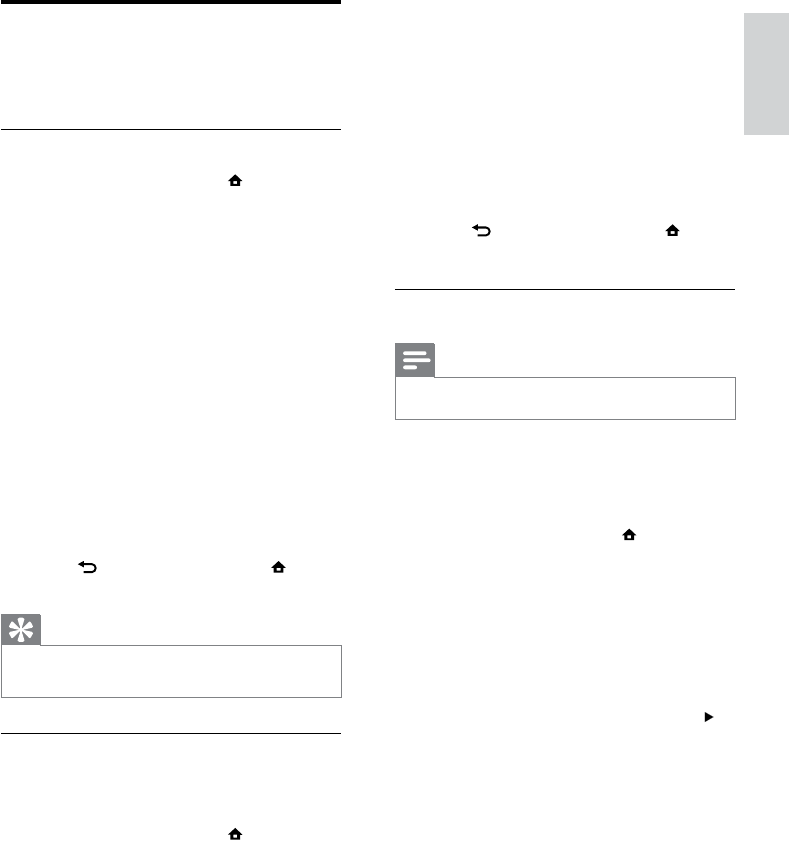
27
5 Enter the child lock code with the
Numeric buttons.
The »[Child lock] menu appears.
6 Press the Navigation buttons to select
[Lock]/[Unlock].
7 Press OK to conrm your choice.
All channels and connected devices are »
locked or unlocked.
8 Press BACK to exit or press
(Home) to go back to the home menu.
Enable parental ratings
Note
Parental rating is not available in all countries. •
Some digital broadcasters rate their
programmes according to age. Before you can
set parental ratings, you have to enable the
feature.
1 When watching TV, press (Home).
The home menu appears. »
2 Press the Navigation buttons to select
[Setup].
3 Press OK.
The »[Setup] menu appears.
4 Press the Navigation buttons to select
[Features] > [Child lock], then press .
A message appears prompting you to »
enter the child lock code.
5 Enter the child lock code with the
Numeric buttons.
6 Press the Navigation buttons to go back
one menu level to [Features] > [Parental
rating].
The »[Parental rating] menu is now
available.
Use child and rating locks
You can prevent your children from watching
TV by locking the TV and using age ratings.
Set or change the child lock code
1 When watching TV, press (Home).
The home menu appears. »
2 Press the Navigation buttons to select
[Setup].
3 Press OK.
The »[Setup] menu appears.
4 Press the Navigation buttons to select
[Features] > [Set code]/[Change code].
The »[Set code]/[Change code] menu
appears.
5 Enter the code with the Numeric
buttons.
6 Press OK.
A message appears conrming that »
your code is set.
7 Press BACK to exit or press
(Home) to go back to the home menu.
Tip
If you forget your code, enter ‘8888’ to •
override any existing codes.
Lock or unlock the TV
Locking the TV prevents your child from
accessing all channels and connected devices.
1 When watching TV, press (Home).
The home menu appears. »
2 Press the Navigation buttons to select
[Setup].
3 Press OK.
The »[Setup] menu appears.
4 Press the Navigation buttons to select
[Features] > [Child lock] > [Lock]/
[Unlock].
A message appears prompting you to »
enter the child lock code.
English
EN
28
Enable or disable subtitles on
analogue TV channels
1 Switch to an analogue TV channel.
2 Press TELETEXT.
3 Enter the three-digit page number of the
subtitle page with the Numeric buttons.
4 Press TELETEXT to switch off teletext.
5 Press SUBTITLE.
The »[Subtitles] menu appears.
Note
The •[Subtitles] menu is also accessible through
the [Setup] menu.
6 Press the Navigation buttons to select:
• [On]Enables subtitles.
• [Off]Disables subtitles.
• [On during mute]Displays subtitles
only when audio is muted.
7 Press OK to conrm your choice.
Subtitles are enabled or disabled. »
8 Press BACK to exit or press
(Home) to go back to the home menu.
Note
Repeat this procedure to enable subtitles on •
each analogue channel.
If EasyLink is enabled, subtitles are not
•
displayed when [On during mute] is selected
(see ‘Enable or disable EasyLink’ on page 51).
Enable or disable subtitles on digital
TV channels
1 Press SUBTITLE.
The »[Subtitles] menu appears.
Note
The •[Subtitles] menu is also accessible via the
[Setup]menu (see ‘Access the setup menu’ on
page 15).
Set parental ratings
Some digital broadcasters rate their
programmes according to age. You can set
your TV to display only programmes with age
ratings higher than your child’s age.
Note
Before you can set parental ratings, you have •
to enable the feature (see ‘Enable parental
ratings’ on page 27).
1 When watching TV, press (Home).
The home menu appears. »
2 Press the Navigation buttons to select
[Setup].
3 Press OK.
The »[Setup] menu appears.
4 Press the Navigation buttons to select
[Features] > [Parental rating].
A message appears prompting you to »
enter the child lock code.
5 Enter the child lock code with the
Numeric buttons.
6 Press the Navigation buttons to select
an age rating, then press OK to apply the
setting.
All programmes beyond the selected »
age rating are blocked.
7 Press BACK to exit or press
(Home) to go back to the home menu.
Use subtitles
You can enable subtitles for each TV channel.
Subtitles are broadcast via teletext or DVB-
T digital broadcasts. With digital broadcasts,
you have the additional option of selecting a
preferred subtitle language.
EN
29
Use the TV clock
You can display a clock on the TV screen. The
clock displays the current time using time data
received from your TV service operator.
Display the TV clock
You can display a clock on the TV screen,
displaying the current time.
1 When watching TV, press OPTIONS.
The options menu appears. »
2 Press the Navigation buttons to select
[Clock].
3 Press OK to conrm your choice.
The clock displays on the TV screen. »
Note
To disable the clock, repeat the procedure •
above.
Tip
The clock is also accessible via the •[Setup]menu (see ‘Access the setup menu’ on
page 15).
Change the clock mode
By default, the clock mode is set to
[Automatic], syncing the TV clock to
Coordinated Universal Time (UTC). If your
TV cannot receive UTC transmissions, set
the clock mode to [Manual]. If clock mode is
[Manual], time data is based on your current
time zone (see ‘Step 1 Select your system’ on
page 37) and daylight saving conditions (see
‘Enable or disable daylight saving’ on page 30).
1 When watching TV, press (Home).
The home menu appears. »
2 Press the Navigation buttons to select
[Setup].
3 Press OK.
The »[Setup] menu appears.
2 Press the Navigation buttons to select:
• [On]Enables subtitles.
• [Off]Disables subtitles.
• [On during mute]Displays subtitles
only when audio is muted.
3 Press OK.
Subtitles are enabled or disabled. »
4 Press BACK to exit or press
(Home) to go back to the home menu.
Select a subtitle language on digital TV
channels
Note
When you select a subtitle language on •
a digital TV channel as described below,
the preferred subtitle language set in the
installation menu is temporarily overruled.
1 When watching TV, press (Home).
The home menu appears. »
2 Press the Navigation buttons to select
[Setup].
3 Press OK.
The »[Setup] menu appears.
4 Press the Navigation buttons to select
[Features] > [Subtitle language].
A list of subtitle languages appears. »
5 Press the Navigation buttons to select a
language.
6 Press OK to conrm your choice.
The subtitle language is applied. »
Note
Select preferred subtitle languages in the •[Languages]menu. Subtitles automatically
appear in the preferred languages when
enabled.
English
EN
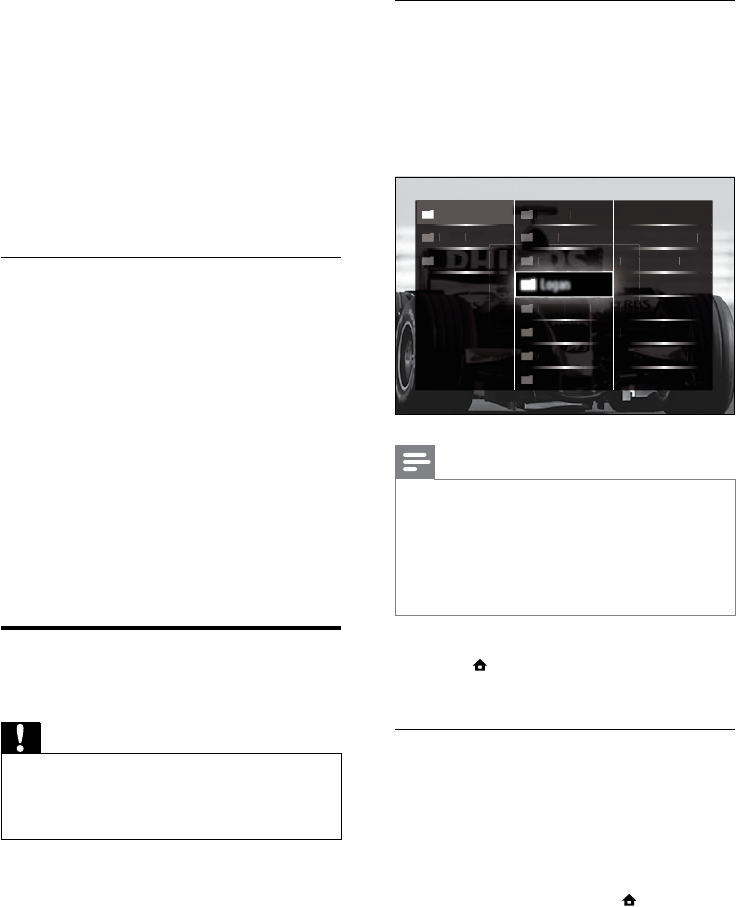
30
Connect a USB storage device and
enter the content browser
1 While the TV is on, connect the USB
device to the USB port on the side of
your TV.
The USB content browser appears. »
Note
The USB content browser is also accessible by •
selecting [Browse USB] in the home menu.
If you connect multiple USB storage devices
•
via a USB hub, a message appears prompting
you to select a device. Press the Navigation
buttons to select the device, then press OK
to conrm.
2 To exit from the USB content browser,
press (HOME).
The home menu appears. »
Connect to a network and enter the
content browser
Before accessing the content browser, be
sure that the TV is connected to a computer
network (see ‘Connect to a network and
enter the content browser’ on page 30).
1 When watching TV, press (Home).
The home menu appears. »
2 Press the Navigation buttons to select
[Browse PC network].
The content browser appears. »
Music
Coltr
Coltr
Coltr
a
ane
a
R
e
d
E
yes
Photo
Photo
s
Mi
Mi
Miles
iles
Drivi
vi
ng al
ong t
o
he A..
Video
deo
deo
deo
s
s
s
Can
n
n
n
n
Can
Can
n
n
Can
n
n
n
Can
n
n
o
dile
T
Tears
Croco
oco
Cr
C
l
l
l
l
y Bre
y Bre
y Bre
y Br
aking
aking
Eve
Eve.
.
B
Ba
ar
ar
rel
B
B
rel
Ba
Ba
ar
rel
Ba
ar
rel
Ph
Ph
Pharo
Pharo
Pharo
P
haro
hS
h
hS
ah Sa
a
ah Sa
ah Sa
a
ah Sa
n
n
n..
..
.
n.
t
t
Sk
S
Sk
Sk
Skint
kint
it
kint
Antip
ntip
tip
ti
op
C
on..
Space
S
is the Plac
e
MinimMinim
im
um Ma
um Ma
um Ma
um Ma
.
.
..
Livin
n
n
gfor
gfor
gfor
g for
the
the
the
the
City
City
City
A
Tri
be Ca
be Ca
lled
d
d
Logan
4 Press the Navigation buttons to select
[Installation] > [Clock] > [Auto clock
mode].
The »[Auto clock mode] menu
appears.
5 Press the Navigation buttons to select
[Automatic] or [Manual].
6 Press OK to conrm your choice.
The clock mode is set. »
Enable or disable daylight saving
If clock mode is set to [Manual], enable or
disable daylight saving if required for your time
zone.
1 In the [Clock] menu, press the
Navigation buttons to select [Daylight
saving].
The »[Daylight saving] menu appears.
2 Press the Navigation buttons to select
[Daylight saving time] or [Standard time].
3 Press OK to conrm your choice.
Daylight saving is enabled or disabled »
for your time zone.
View photos, play music and
watch video
Caution
Philips is not responsible if your USB storage •
device is not supported nor is it responsible
for damage or loss of data from use of this
feature.
Your TV is tted with a USB connector that
enables you to view to view photos, listen
to music or watch movies stored on a USB
storage device.
Your TV also has a network connector, enabling
you to access and play media les directly from
your computer.
EN
31
• / to fast-forward or rewind a
song.
• to play or pause a song.
4 Press or OK to stop play and exit to
the USB content browser.
Change music settings
1 When in the music player, press
OPTIONS.
The options menu appears. »
2 Press the Navigation buttons to select
and adjust:
• [Repeat]Repeats a song or an album.
• [Shufe on]/[Shufe off]Enables or
disables random play of songs.
3 Press OK to conrm your choice.
The music setting is applied. »
Note
Slideshow settings are also available by •
pressing the OPTIONS button when in the
content browser.
Watch video
1 In the USB content browser, press the
Navigation buttons to select a video.
2 Press OK.
The video starts to play in the video »
player.
3 Press:
• P +/- to skip to the next or previous
video.
• / to fast-forward or rewind a
video.
• to play or pause a video.
4 Press or OK to stop play and exit to
the USB content browser.
Watch a slideshow of your photos
1 In the content browser, press the
Navigation buttons to select a photo.
2 Press or OK.
A slideshow begins from the selected »
image.
3 Press:
• to pause the slideshow.
• / , / or P +/- to go back or
move forward to the next image.
• to stop the slideshow and return
to the content browser.
Change slideshow settings
1 When viewing a slideshow, press
OPTIONS.
The options menu appears. »
2 Press the Navigation buttons to select
and adjust:
• [Rotate]Rotates a picture.
• [Repeat]Repeats the slideshow.
• [Shufe on]Displays pictures in the
slideshow at random.
• [Shufe off]Disables random display
of pictures in the slideshow.
• [Slideshow speed]Sets the amount
of time that a picture is shown.
• [Slideshow transition]Sets the
transition from one picture to the
next.
3 Press OK to conrm your choice.
The slideshow setting is applied. »
Listen to music
1 In the USB content browser, press the
Navigation buttons to select a song.
2 Press OK.
The song starts to play in the music »
player.
3 Press:
• P +/- to skip to the next or previous
song.
English
EN
32
5 Press OK.
A list of available digital radio channels »
appears in the channel grid.
6 Press the Navigation buttons to select a
radio channel.
7 Press OK.
The selected digital radio channel plays »
through the TV speakers.
Update the TV software
Philips continuously tries to improve its
products and we recommend that you update
the TV software when updates are available.
Check www.philips.com/support for availability.
Check the current software version
1 When watching TV, press (Home).
The home menu appears. »
2 Press the Navigation buttons to select
[Setup].
3 Press OK.
The »[Setup] menu appears.
4 Press the Navigation buttons to select
[Software update] > [Current software
info].
5 Press OK.
The version of the current software is »
displayed.
Update software (from website)
Before performing this procedure be sure to:
Set aside some time to complete the •
entire update.
Have available a USB storage device with •
at least 256MB of storage space.
Have access to a computer with a USB •
port and internet access.
1 When watching TV, press (Home).
The home menu appears. »
Change video settings
1 When in the video player, press
OPTIONS.
The options menu appears. »
2 Press the Navigation buttons to select
and adjust:
• [Small screen]Plays video in a small
screen.
• [Full screen]Plays video across the
whole screen.
• [Repeat]Repeats a video.
• [Shufe on]/[Shufe off]Enables or
disables random play of videos.
3 Press OK to conrm the setting change.
Disconnect a USB storage device
Caution
Follow this procedure to avoid damage to your •
USB storage device.
1 Press (HOME) to exit the USB content
browser.
2 Wait ve seconds before disconnecting
the USB storage device.
Listen to digital radio
channels
If digital broadcasting is available, digital radio
channels are installed automatically during
installation.
1 When watching TV, press OK.
The channel grid appears. »
2 Press OPTIONS.
The options menu appears. »
3 Press the Navigation buttons to select
[Select list].
The »[Select list] menu appears.
4 Press the Navigation buttons to select
[Radio].
EN
33
2 Press the Navigation buttons to select
[Setup].
3 Press OK.
The »[Setup] menu appears.
4 Press the Navigation buttons to select
[Software update] > [Update now].
5 Press OK.
6 Select [Internet] and press OK.
The update begins. Once complete, »
the TV switches off and back on again
automatically. Wait for the TV to switch
back on; do not use POWER on the
TV.
Tip
If the TV is connected to the Internet, the TV •
displays a message about the availability of new
software at startup.
Change TV preferences
1 When watching TV, press (Home).
The home menu appears. »
2 Press the Navigation buttons to select
[Setup].
3 Press OK.
The »[Setup] menu appears.
4 Press the Navigation buttons to select
[Installation] > [Preferences].
The »[Preferences] menu appears.
2 Press the Navigation buttons to select
[Setup].
3 Press OK.
The »[Setup] menu appears.
4 Press the Navigation buttons to select
[Software update] > [Update now].
5 Press OK.
The update assistant starts. Follow the »
on-screen instructions to complete the
update.
Update software (digital broadcasts)
(Only available in some countries) If available,
your TV can receive software updates via
digital broadcasts.
If an update is available, a message appears
prompting you to update the software. We
strongly recommend that you update the
software when prompted.
Follow the instructions below to update the
software at a later stage.
1 When watching TV, press (Home).
The home menu appears. »
2 Press the Navigation buttons to select
[Setup].
3 Press OK.
The »[Setup] menu appears.
4 Press the Navigation buttons to select
[Software update] > [Local updates].
5 Press OK.
The TV searches for available software »
updates via digital broadcasts.
Update software (from internet)
(Only available in some countries) If your TV is
connected to a router, which is connected to
the Internet, you can update the TV software
directly from the Internet. You need a high
speed Internet connection.
1 When watching TV, press (Home).
The home menu appears. »
English
EN
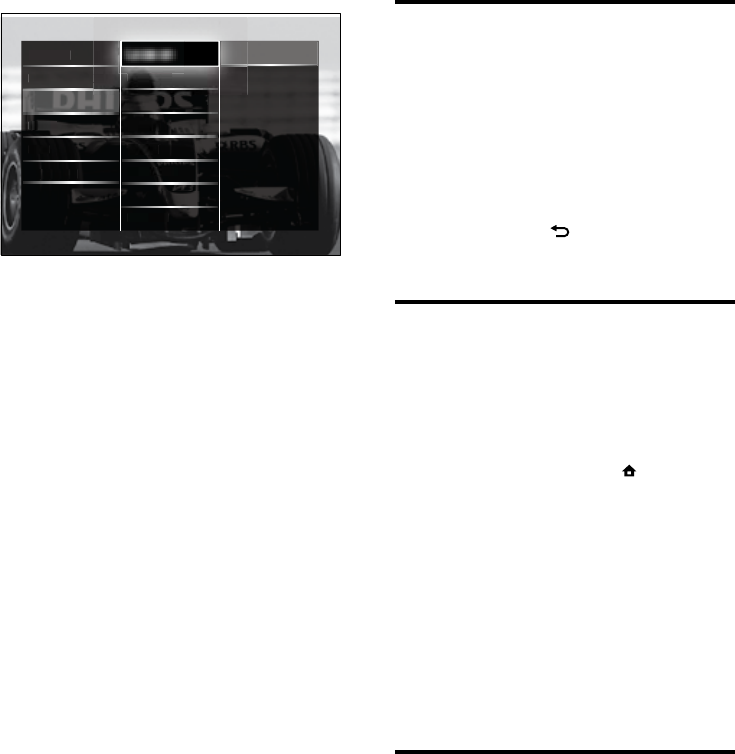
34
Start a TV demo
(Not supported on MHEG channels)
1 When watching TV, press DEMO.
The demo menu appears. »
2 Press the Navigation buttons to select a
demo.
3 Press OK to start the demo.
4 Press DEMO or BACK to exit the
demo.
Reset the TV to factory
settings
Resetting your TV to factory settings restores
default picture and sound settings. Channel
installation settings remain the same.
1 When watching TV, press (Home).
The home menu appears. »
2 Press the Navigation buttons to select
[Setup].
The »[Setup] menu appears.
3 Press the Navigation buttons to select
[Installation] > [Factory reset].
4 Press OK.
TV settings are reset back to the »
factory default.
Use universal remote control
(selected models only)
Control other devices such as a DVD player,
a set-top box or a home theatre system from
Philips or other brands.
To return to TV mode from universal control,
press TV.
Use these keys to control the devices:
• DVD: controls a DVD player, DVD
Recorder, DVD-R HDD or Blu-ray Disc
player.
5 Press the Navigation buttons to select
and change:
• [Location]Optimises TV settings for
your location - home or shop.
• [Volume bar]Displays the volume
bar when adjusting the volume.
• [Channel information]Displays
information about the TV channel
every time you switch channels.
• [EasyLink]Enables one-touch play
and one-touch standby between
EasyLink-compliant devices.
• [EasyLink Remote Control]When
EasyLink is enabled, allows remote
control key forwarding.
• [Pixel Plus link]When EasyLink is
enabled, automatically applies the
best Pixel Plus setting if there is
more than one (for example, if both
your TV and DVD player support
Pixel Plus).
• [LightGuide brightness]Sets the
brightness of the front LED indicator
or LightGuide.
• [Teletext 2.5]Enables or disables
Teletext 2.5.
6 Press OK.
The TV preference is applied. »
Location
LanguLangu
agesages
Chann
a
e
l in
s
t
a
ll
at
t
i
on
Volum
Vl
Volum
Volum
o
Volum
Volum
V
ebar
ebar
eb
e bar
e
Vl
Vl
Vl
l
b
Chan
an
an
ann
el in
el in
el in
l i
el in
i
forma
forma
forma
orma
forma
forma
tion
tion
tion
tion
n
EasyL
yL
ink
ink
n
k
k
k
Decod
Decod
Decod
e
Decod
er
er
r
EasyLEasyL
ink
ink
Remot
Remot
e Con
e Con
Con
Con
on
trol
trol
trol
trol
trol
Pixel
l
Plus
lus
u
us
us
link
Light
ight
Guide
ide
de
brig
bi
b
b
brig
br
htnes
htnes
htn
htn
tn
s
s
s
Telet
ext 2
.5
5
Clock
lock
Shop
p
Home
Facto
cto
t
t
ry re
ry r
set
set
Preferences
EN
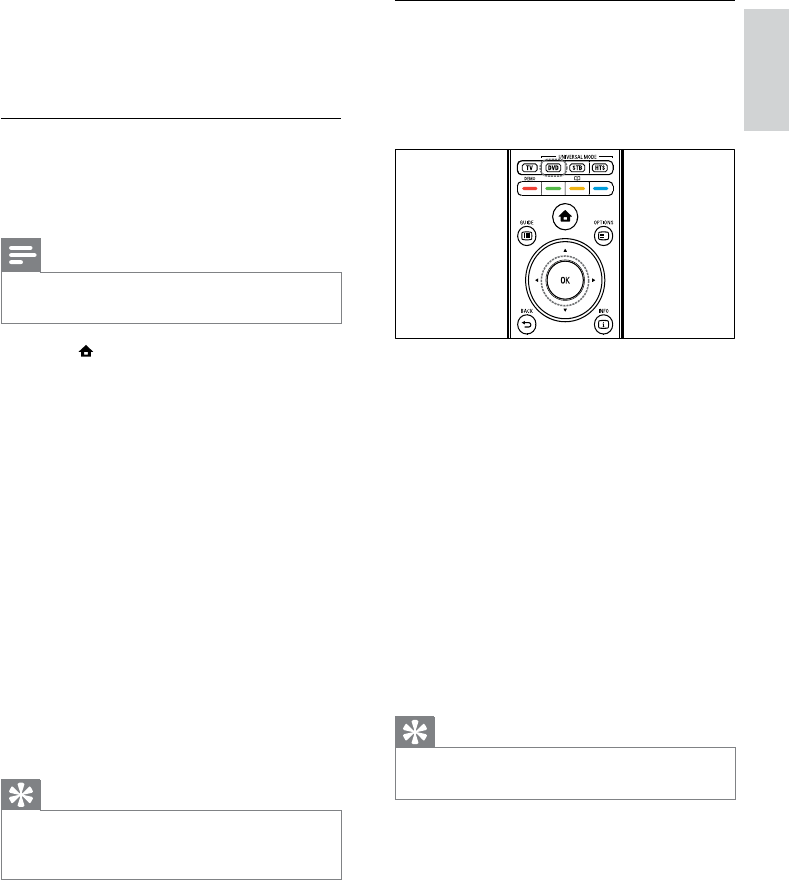
35
Manually setup universal remote
control
Enter an RC code to setup a universal mode
key (see ‘Universal remote control codes’ on
page 59).
1 Press and hold the universal mode
button (DVD, STB or HTS) and OK
simultaneously.
All four keys light up for one second »
and the key stays lighted.
2 Enter the 4-digit RC code for the device.
3 If the code is accepted, all four keys blink
three times.
The universal mode key is set up. »
4 If the code entered is incorrect, all keys
blink for two seconds. Re-enter the
correct code.
5 When setup is complete, press the
universal mode key to operate the device.
Tip
If the device does not react correctly, repeat •
the setup with another RC code.
• STB: controls a digital receiver or satellite
receiver
• HTS: controls a home theatre system or
anamplier.
Setup universal remote control
Before you use the TV remote control to
control another device, setup the universal
remote control mode.
Note
For some devices, this feature is not •
supported. There is no suitable RC code.
1 Press (Home).
The home menu appears. »
2 Press the Navigation buttons to select
[Setup].
3 Press OK.
The »[Setup] menu appears.
4 Press the Navigation buttons to select [I
nstallation]>[Universal remote control].
5 Press OK.
Follow the on-screen instructions. The »
TV searches for a suitable RC code for
your device.
6 When an RC code is detected, press the
Universal control buttons to control the
device.
The key blinks. Use the remote control »
to control the detected device.
Tip
In universal remote control mode, the remote •
control switches to TV mode after 30 seconds
if no key is pressed.
English
EN
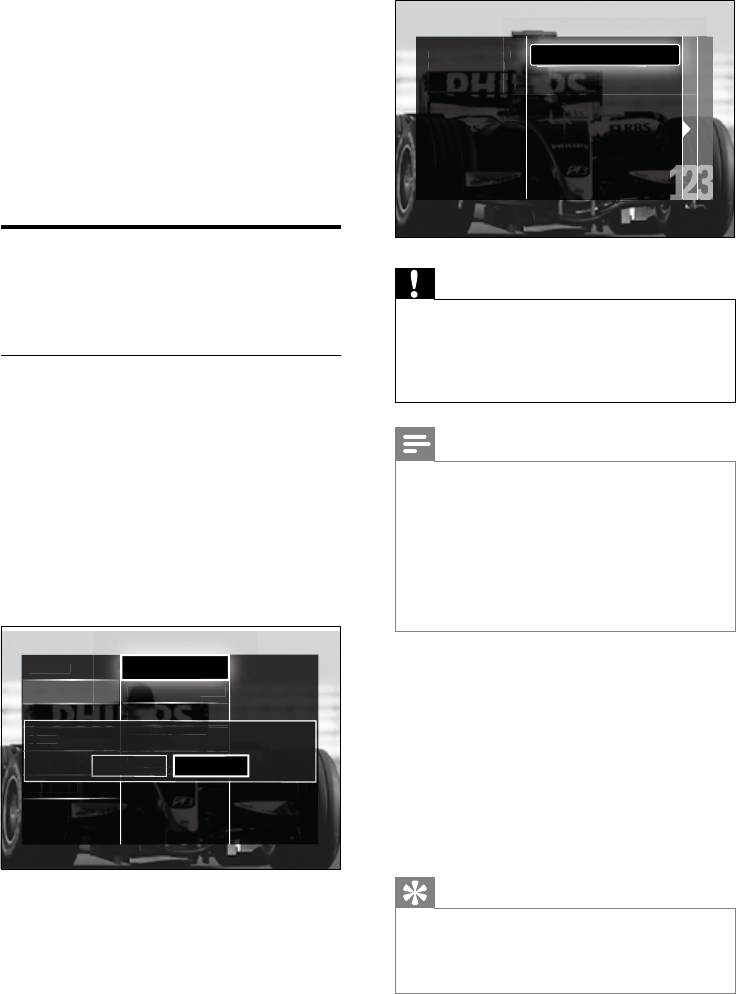
36
Caution
Leave •[Settings] unchanged unless your
DVB-C provider supplies values for [Network
frequency], [Network ID] or [Symbol rate].
Setting
•[Frequency scan] to [Full scan] can
extend installation time signicantly.
Note
If you have access to DVB-T and DVB-C, and •
want to view channels from both networks,
you must perform channel installation twice
— once for DVB-T and once for DVB-C.
Select [Antenna] to install DVB-T channels and
select [Cable] to install DVB-C channels.
To switch between DVB-T and DVB-C
•
channels (see ‘Access DVB-C and DVB-T
channel networks’ on page 37).
5 Press OK.
Follow the onscreen instructions to »
complete channel installation. When
channel installation is complete,
[Done] is selected and a list of installed
channels appears.
6 Press OK to conrm your choice.
The TV exits to the »[Channel
installation] menu.
Tip
When digital TV channels are found, the list of •
installed channels may display empty channel
numbers. You can rename, reorder or uninstall
stored channels as described below.
Select Update channels
to update your current
channel list. Select Re-
install channels to search
and store all channels
again.
e
ls
t
e-
a
r
c
h
Update channels
Re-install channels
6 Install channels
The rst time you set up your TV, you are
prompted to select a menu language and to
install TV and digital radio channels (if available).
This chapter provides instructions on how to
re-install and ne tune channels.
Automatically install channels
This section describes how to search and store
channels automatically.
Install channels
Your TV searches and stores all available
digital and analogue TV channels as well as all
available digital radio channels.
1 In the [Channel installation] menu,
press the Navigation buttons to select
[Automatic installation].
2 Press OK.
A message appears prompting you to »
start channel installation.
3 Press the Navigation buttons to select
[Start].
4 Press OK.
The channel update screen appears, »
with [Re-install channels] selected.
Channel installation
Automatic installation
Pr
P
Prefe
P
P
rence
ence
ence
ence
ence
s
s
s
s
s
Langu
Langu
ages
ages
Chann
Chann
h
Chann
Chann
C
l
l
elup
el up
e
e
dt
dt
date
date
messa
messa
ge
Stan
an
and
and
by ch
y ch
y ch
y c
c
ych
annel
annel
annel
annel
a
annel
upda
upda
upda
upda
upda
te
Facto
cto
ry re
ry r
set
set
Digital: Reception test
Manual Insta...
Decod
er
Clock
yp
Update your current channel list or Re-install all channels.
Analogue:
M
Cancel Start
EN
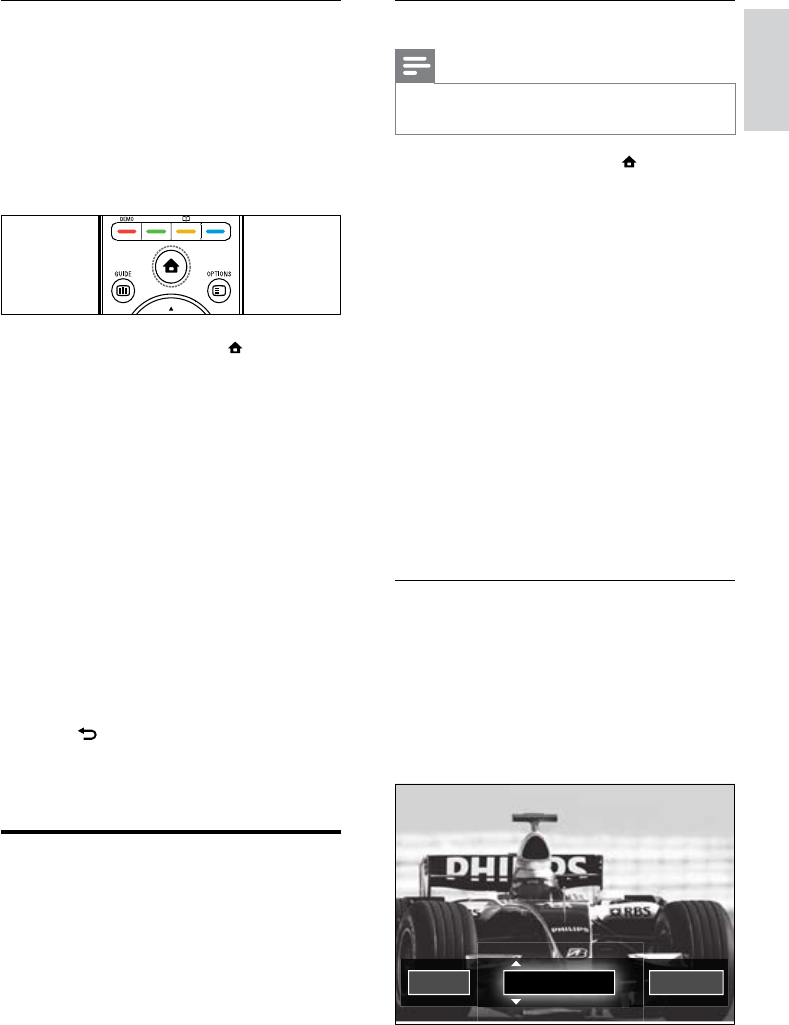
37
Step 1 Select your system
Note
Skip this step if your system settings are •
correct.
1 When watching TV, press (Home).
The home menu appears. »
2 Press the Navigation buttons to select
[Setup].
The »[Setup] menu appears.
3 Press the Navigation buttons to select
[Installation] > [Channel installation]
> [Analogue: Manual installation] >
[System].
4 Press OK.
A list of regional systems appears. »
5 Press the Navigation buttons to select
your country or region.
6 Press OK to conrm your choice.
The selected country or region is »
applied.
Step 2 Search and store new TV
channels
1 In the [Analogue: Manual installation]
menu, press the Navigation buttons to
select [Find channel].
2 Press OK.
The »[Find channel] menu appears.
5
38.00 MHz
Done Search next
Access DVB-C and DVB-T channel
networks
This option appears only if your country
supports DVB-C (Digital Video Broadcasting-
Cable). If you have installed both DVB-C and
DVB-T channels, you have to switch to the
respective network to watch channels on that
network.
1 When watching TV, press (Home).
The home menu appears. »
2 Press the Navigation buttons to select
[Setup].
The »[Setup] menu appears.
3 Press the Navigation buttons to select
[Installation] > [Channel installation] >
[Antenna or Cable DVB] > [Antenna] or
[Cable].
Select • [Antenna] to access DVB-
T (Digital Video Broadcasting-
Terrestrial) channels.
Select • [Cable] to access DVB-C
(Digital Video Broadcasting-Cable)
channels.
4 Press OK to conrm your choice.
5 Press BACK to exit.
The TV switches to the selected »
network.
Manually install channels
This section describes how to search and store
analogue TV channels manually.
English
EN

38
7 Press the Navigation buttons or Numeric
buttons to manually enter the channel
frequency.
8 When the correct channel frequency is
selected, press the Navigation buttons to
select [Done], then press OK.
The »[Analogue: Manual installation]
menu appears.
9 Press the Navigation buttons to select
[Store current channel] to store the new
channel under the current channel.
10 Press OK to conrm your choice.
Manually update the channel
list
If your TV is in standby mode, an update is
performed every morning. This update matches
channels stored in your channel list with those
available from your broadcaster.
In addition to this automatic update, you can
manually update the channel list.
Tip
To disable the automatic update, in the •[Installation] menu, press the Navigation
buttons to select [Channel installation] >
[Channel update in standby], then select
[Off].
1 In the [Installation] menu, press the
Navigation buttons to select [Channel
installation] > [Automatic installation].
2 Press OK.
A message appears with »[Start]
selected, prompting you to start the
channel update.
3 Press OK.
The channel update screen appears. »
4 Press the Navigation buttons to select
[Update channels].
3 Press:
The • Navigation buttons or Numeric
buttons to manually enter the
channel frequency.
The • Navigation buttons to select
[Search next], then press OK to
automatically search for the next
channel.
4 When the correct channel frequency is
selected, press the Navigation buttons to
select [Done].
5 Press OK.
The »[Analogue: Manual installation]
menu appears.
6 Press the Navigation buttons to select
[Store current channel] to store the new
channel under the current channel; or
[Store as new channel] to store the new
channel under a new channel number.
7 Press OK to conrm your choice.
The channel is stored. »
Fine-tune analogue channels
You can ne tune analog channels manually
when reception is poor.
1 When watching TV, select the channel to
ne-tune.
2 Press (Home).
The home menu appears. »
3 Press the Navigation buttons to select
[Setup].
4 Press OK.
The »[Setup] menu appears.
5 Press the Navigation buttons to select
[Installation] > [Channel installation] >
[Analogue: Manual installation] > [Fine
tune].
6 Press OK.
The »[Fine tune] menu appears.
EN
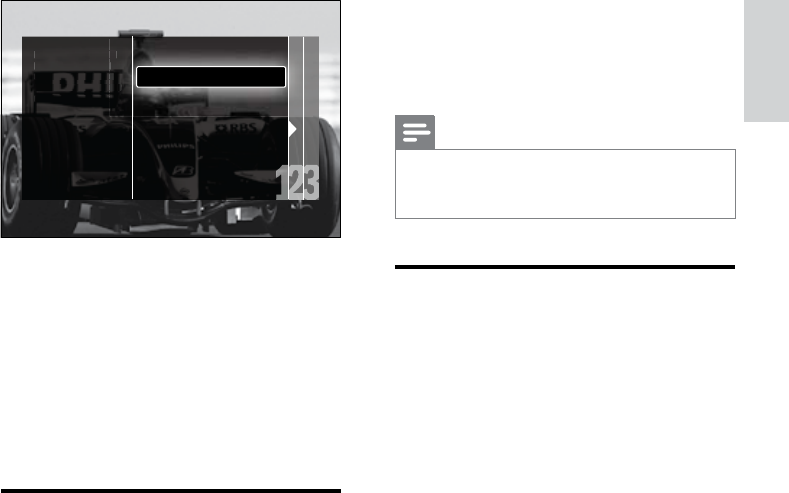
39
4 When complete, press the Navigation
buttons to select [Done].
5 Press OK.
The »[Installation] menu appears.
Note
If you have further problems with the •
reception of your digital broadcast, contact a
specialised installer.
Change startup message
settings
Enable or disable messages that appear at
the startup to indicate whether a channel or
installation update is needed.
1 In the [Installation] menu, press the
Navigation buttons to select [Channel
installation] > [Channel update
message].
2 Press OK.
3 Press the Navigation buttons to select
[On] or [Off].
Startup messages are enabled or »
disabled.
5 Press OK.
Follow the on-screen instructions »
to complete channel update. When
the update is complete, [Done] is
selected and a list of added channels is
displayed.
6 Press OK.
The »[Installation] menu appears.
Test digital reception
If using digital broadcasts, you can check the
quality and signal strength of digital channels.
This allows you to reposition and test your
antenna or satellite dish.
1 In the [Installation] menu, press the
Navigation buttons to select [Channel
installation] > [Digital: Reception test] >
[Search].
2 Press OK.
The »[Search] menu appears.
3 Press:
The • Navigation buttons or Numeric
buttons to manually enter the
channel frequency.
The • Navigation buttons to select
[Search], then press OK to
automatically search for the next
channel.
If the signal quality and strength
is poor, reposition the antenna or
satellite dish and retest.
Select Update channels
to update your current
channel list. Select Re-
install channels to search
and store all channels
again.
e
ls
t
e-
a
r
c
h
s
Re-install channels
Update channels
English
EN
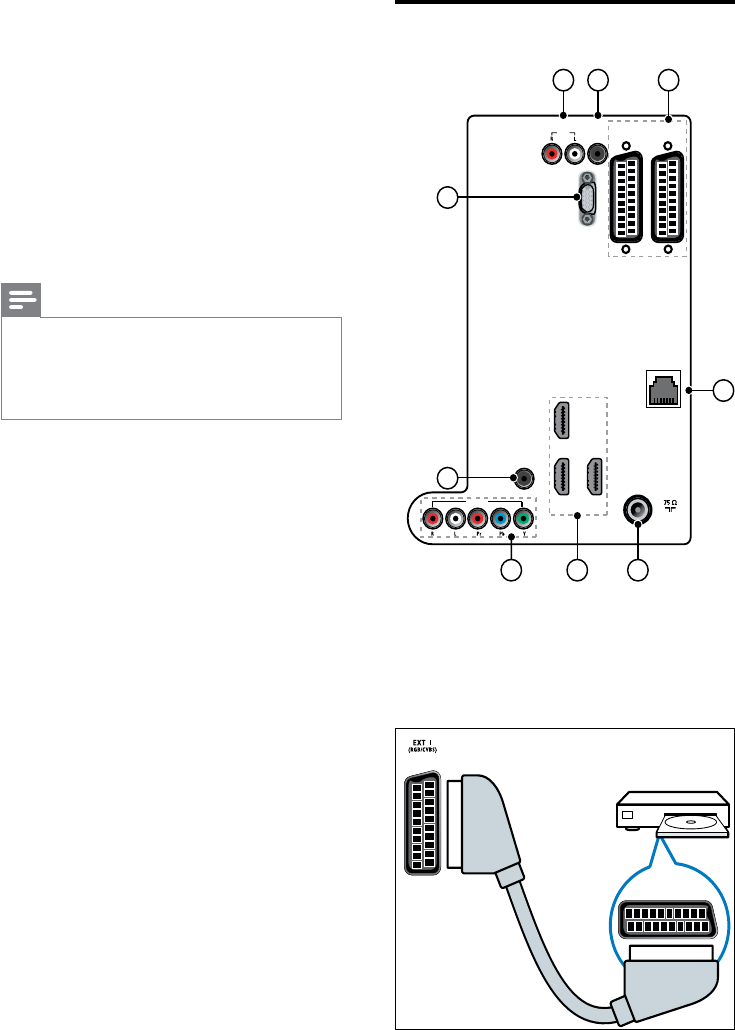
40
Back connectors
a EXT 1/EXT 2 (SCART)
Analogue audio and video input from
analogue or digital devices such as DVD
players or game consoles.
EXT 2
(RGB/CVBS)EXT 1
(RGB/CVBS)
SPDIF
OUT
AUDIO
VGA
TV ANTENNA
HDMI 3
AUDIO IN:
LEFT / RIGHT
HDMI 1 / DVI
HDMI 2 / DVI
HDMI 3 / DVI
VGA
EXT 3
3
4
5
2 1
6 7 8
HDMI 2 HDMI 1
OUT
NETWORK
9
7 Connect devices
For best picture quality, we recommend you to
use the following connection types, listed below
from highest to basic quality:
1 HDMI
2 Y Pb Pr (component)
3 SCART
4 VIDEO (composite)
Note
The connectivity diagrams provided in this •
section are examples only. A comprehensive
interactive guide to help you connect your
product is available at www.connectivityguide.
philips.com.
EN
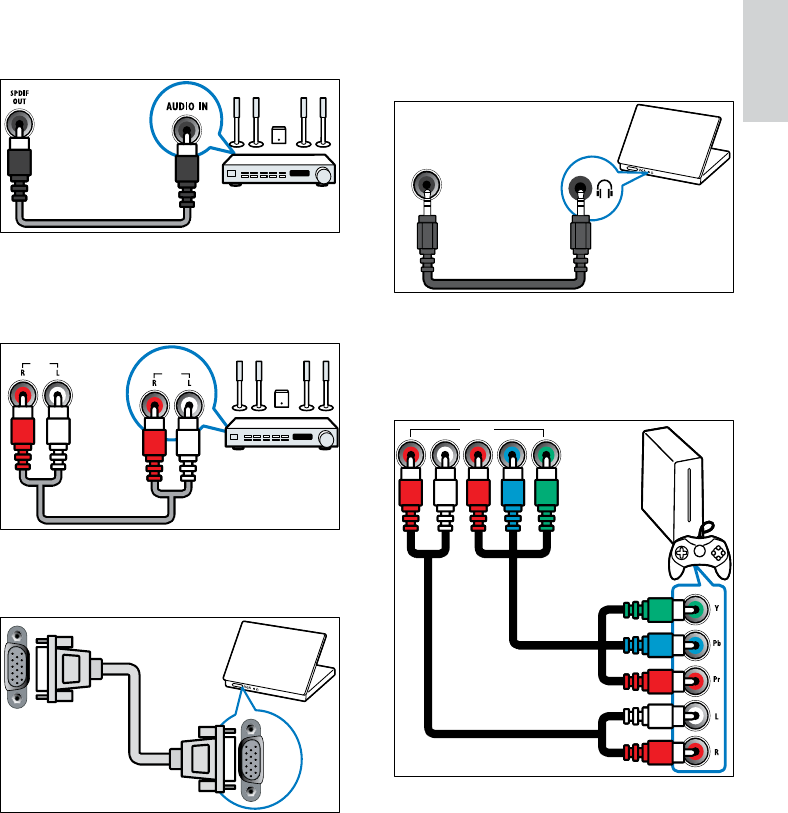
41
e AUDIO IN
Audio input from devices that require
a separate audio connection, such as a
computer.
f EXT 3(Y Pb PrandAUDIO L/R)
Analogue audio and video input from
analogue or digital devices such as DVD
players or game consoles.
AUDIO IN:
LEFT / RIGHT
HDMI 1 / DVI
HDMI 2 / DVI
HDMI 3 / DVI
VGA
EXT 3
b SPDIF OUT
Digital audio output to home theatres
and other digital audio systems.
c AUDIO OUT L/R
Analogue audio output to home theatres
and other audio systems.
d VGA
Video input from a computer.
AUDIO
OUT AUDIO
IN
VGA
VGA
English
EN
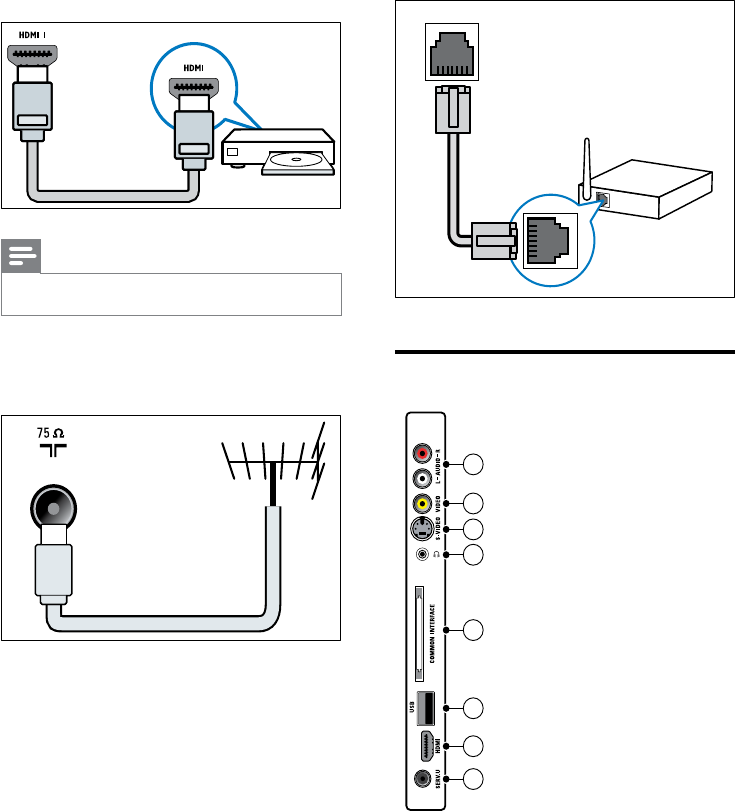
42
i NETWORK*This feature is availabe in
selected models only.
Data input from a network.
Side connectors
NETWORK
1
2
6
3
4
5
7
8
g HDMI1/2/3
Digital audio and video input from high-
denition digital devices such as Blu-ray
players.
Note
If connecting thick HDMI cables, use •HDMI1.
h TV ANTENNA
Signal input from an antenna, cable or
satellite.
TV ANTENNA
EN
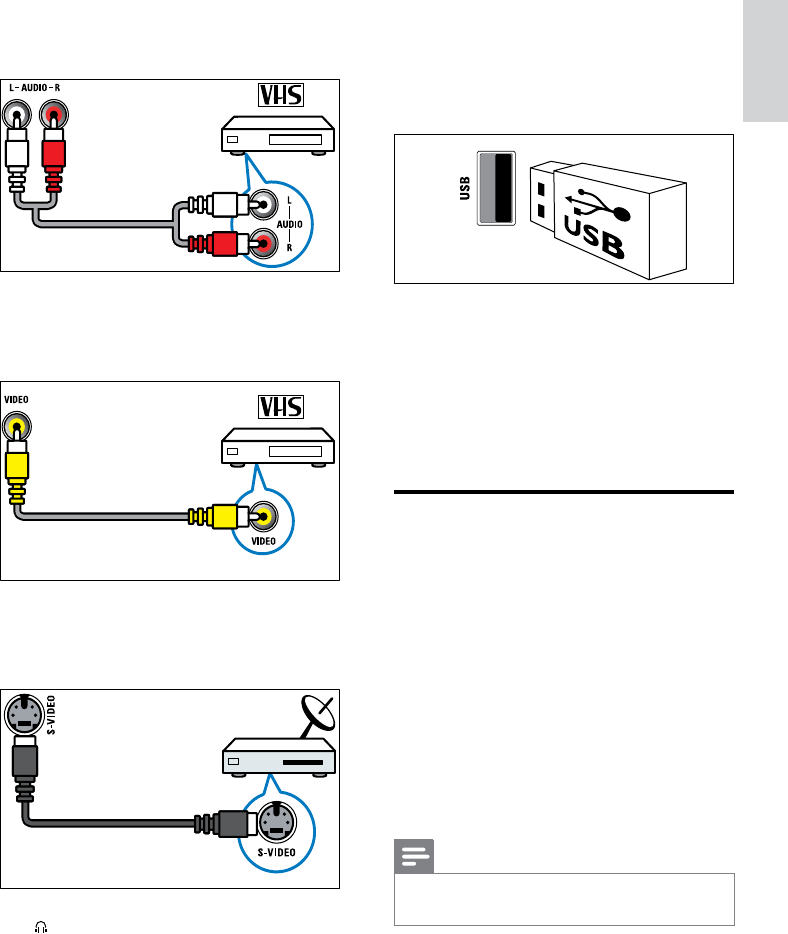
43
e COMMON INTERFACE
Slot for a Conditional Access Module
(CAM).
f USB
Data input from USB storage devices.
g HDMI
Digital audio and video input from high-
denition digital devices such as Blu-ray
players.
h SERV. U
For use by service personnel only.
Connect a computer
Before you connect a computer to the TV:
Set the screen refresh rate on your •
computer to 60Hz.
Select a supported screen resolution on •
your computer.
Enable • [PC mode] in the [Picture]menu
(see ‘Manually adjust picture settings’ on
page 17), and set the picture format to
[Unscaled].
Connect a computer with one of the
following connectors:
Note
Connections via DVI or VGA require an •
additional audio cable.
a AUDIO IN L/R
Audio input from analogue devices
connected to VIDEO or S-VIDEO.
b VIDEO
Composite video input from analogue
devices such as VCRs.
c S-VIDEO
Video input from analogue devices such
as satellite receivers.
d
Stereo audio output to headphones or
earphones.
English
EN
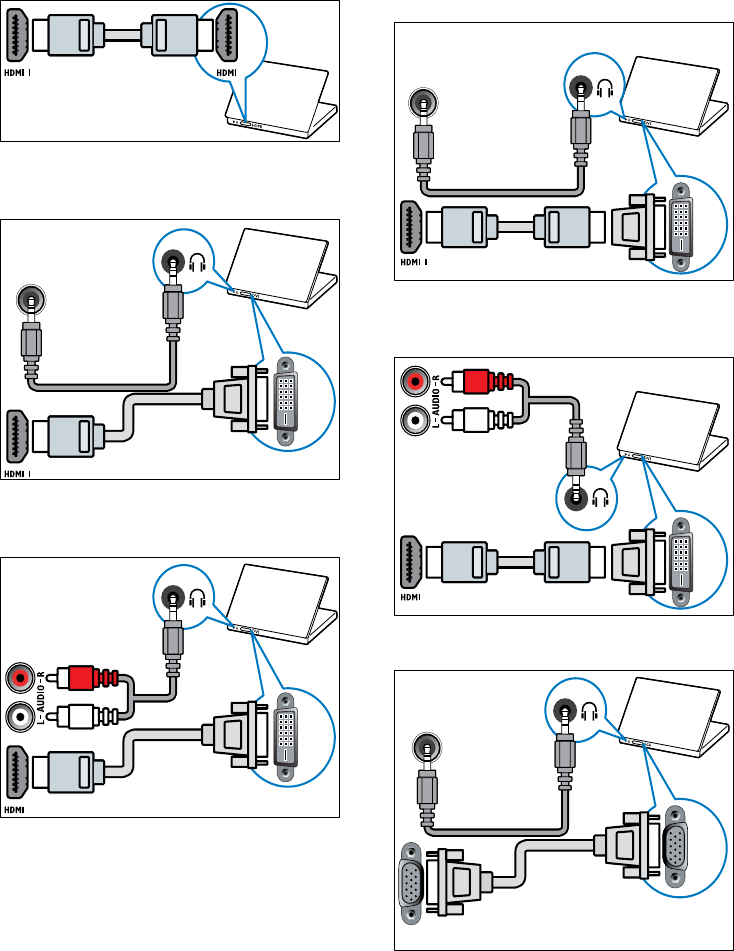
44
• HDMI cable and HDMI-DVI adaptor
(rear HDMI and AUDIO IN)
• HDMI cable and HDMI-DVI adaptor
(side HDMI and AUDIO IN L/R)
• VGA cable
DVI
AUDIO IN:
LEFT / RIGHT
HDMI 1 / DVI
HDMI 2 / DVI
HDMI 3 / DVI
VGA
DVI
VGA
VGA
AUDIO IN:
LEFT / RIGHT
HDMI 1 / DVI
HDMI 2 / DVI
HDMI 3 / DVI
VGA
• HDMI cable
• DVI-HDMI cable (rear HDMI and
AUDIO IN)
• DVI-HDMI cable (side HDMI and
AUDIO IN L/R)
DVI
AUDIO IN:
LEFT / RIGHT
HDMI 1 / DVI
HDMI 2 / DVI
HDMI 3 / DVI
VGA
DVI
EN
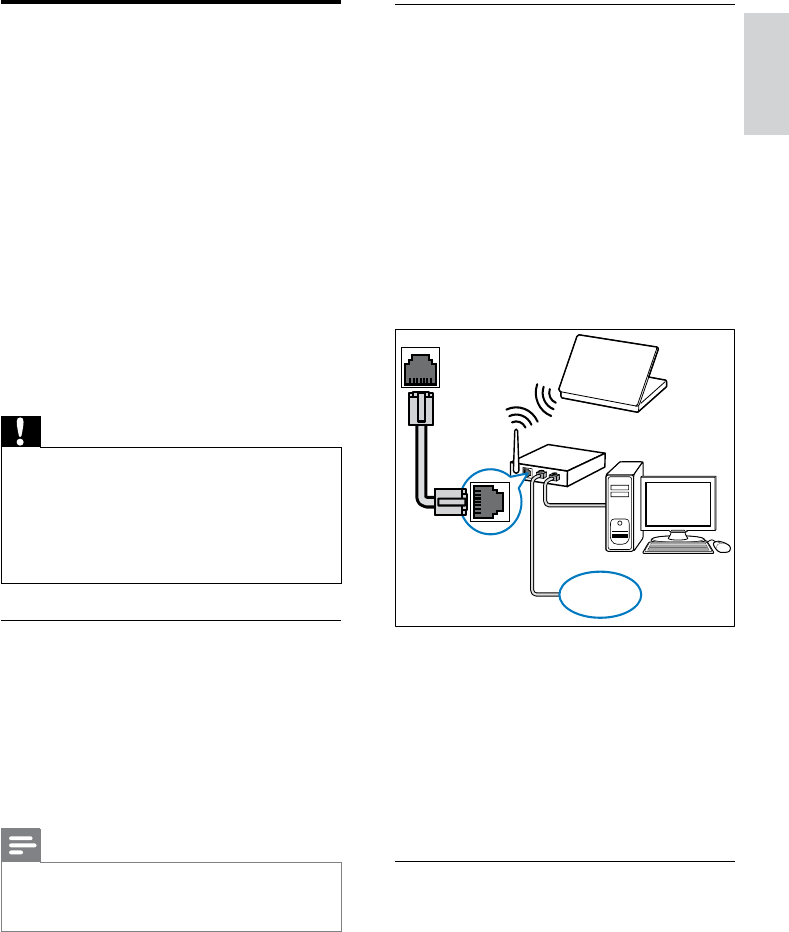
45
Connect the TV to a computer
network
1 Connect the network cable between the
NETWORK connector at the back of the
TV, and a network router.
Be sure that the router is connected to
your computer via a wired or wireless
connection and that the router’s DHCP
setting is enabled. For Net TV service,
be sure that the network router has
complete access to the Internet (and
is not restricted by rewalls or other
security systems).
2 Switch on the router.
3 Switch on the computer.
4 Setup media server software to access
media from your computer (see ‘Setup
media server software’ on page 45), or
congure the TV for access to Net TV
(see ‘Setup media server software’ on
page 49).
Setup media server software
Media server software must be properly
congured to enable media sharing. Follow the
instructions that follow to setup your media
server software and to share media folders.
If you do not nd instructions for your media
server software, refer to documentation
NETWORK
www
Connect to a computer
network (selected models
only)
Connect the TV to a computer network and
enjoy:
• Multimedia content streamed from your
computer
With the TV connected to a computer
network, you can view photos, play music
and watch video les streamed from your
computer (see ‘Connect to a network
and enter the content browser’ on page
30).
• Net TV
With the TV connected to a computer network
with Internet access, you can browse Net TV.
Caution
Familiarize yourself with the network router, •
media server software and networking
principles before attempting to connect the
TV to a computer network. If necessary,
read documentation accompanying network
components. Philips is not responsible for lost,
damaged or corrupt data.
What you need
A network router (with DHCP enabled) •
A computer with media server software •
installed. The computer must be
connected to the network router via a
wired or wireless network connection.
A network cable (RJ45)•
Internet connection, for Net TV•
Note
A complete list of supported media server •
software is available (see ‘Multimedia’ on page
53).
English
EN
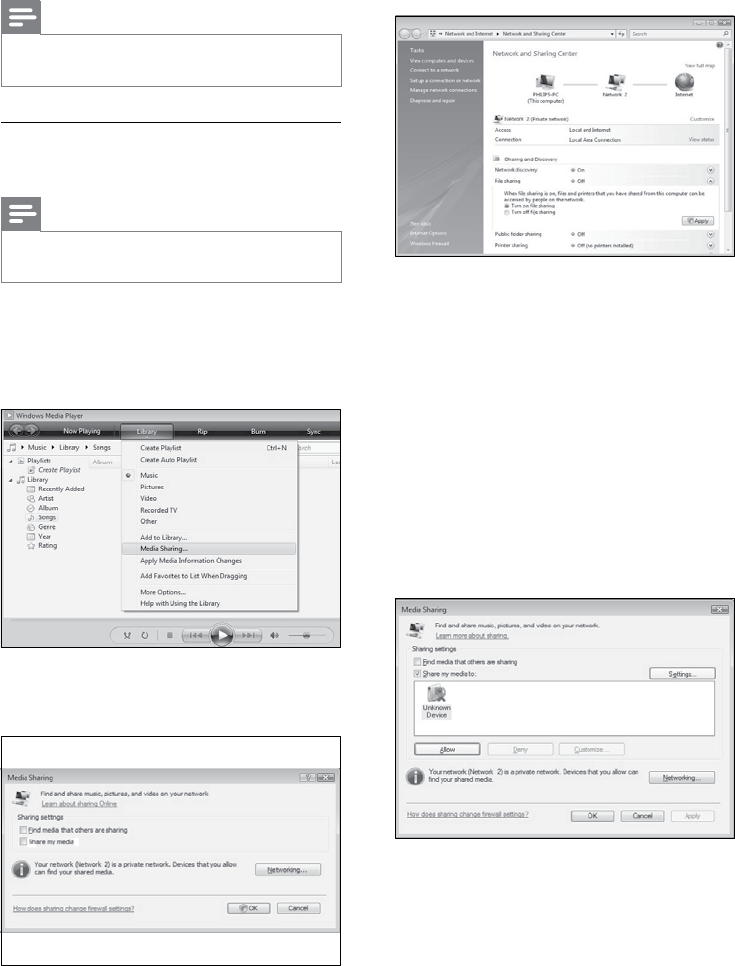
46
3 Click Networking... .
Network and Sharing Center appears. »
4 Click the arrow next to Network
discovery.
»Network discovery options appear.
5 Click Turn on network discovery, then
click Apply.
6 Click the arrow next to File sharing.
File sharing options appear. »
7 Click Turn on le sharing, then click
Apply.
8 Go back to the Media Sharing window.
9 In the Sharing settings box, click Share
my media to:.
10 Click the Unknown Device icon (the TV),
then click Allow.
A green tick appears on the »Unknown
Device icon, indicating that it is ready
for media sharing.
accompanying your software to enable media
sharing.
Note
You do not need to complete this section to •
access Net TV.
In Microsoft Windows Media Player
11
Note
The instructions are applicable to both •
Microsoft Windows XP and Vista.
Enable media sharing
1 In Microsoft Windows, start Windows
Media Player 11.
Windows Media Player appears. »
2 Click Library > Media Sharing.
The Media Sharing window appears. »
EN
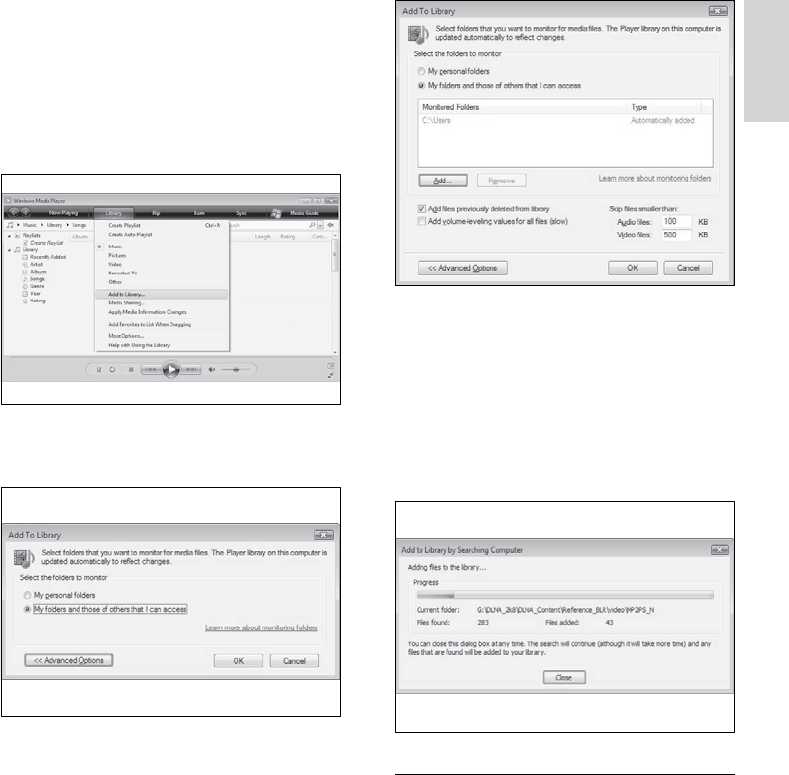
47
4 Click Add.
The »Add Folder window appears.
5 Select a folder to share and click OK.
6 When all folders are added, click OK in
the Add To Library window.
Folders are added to the library, and »
are ready to be accessed from the TV.
In TVersity v0.9.10.3 (Microsoft
Windows)
Enable media sharing
1 In Microsoft Windows, start TVersity.
TVersity appears. »
2 Click the Settings tab.
The TVersity settings appear. »
11 Click OK.
Add folders for media sharing
1 In Windows Media Player, click Library ->
Add to Library... .
The »Add To Libary window appears.
2 Click My folders and those of others that
I can access.
3 Click Advanced Options.
Advanced options appear in the »Add
To Library window.
English
EN
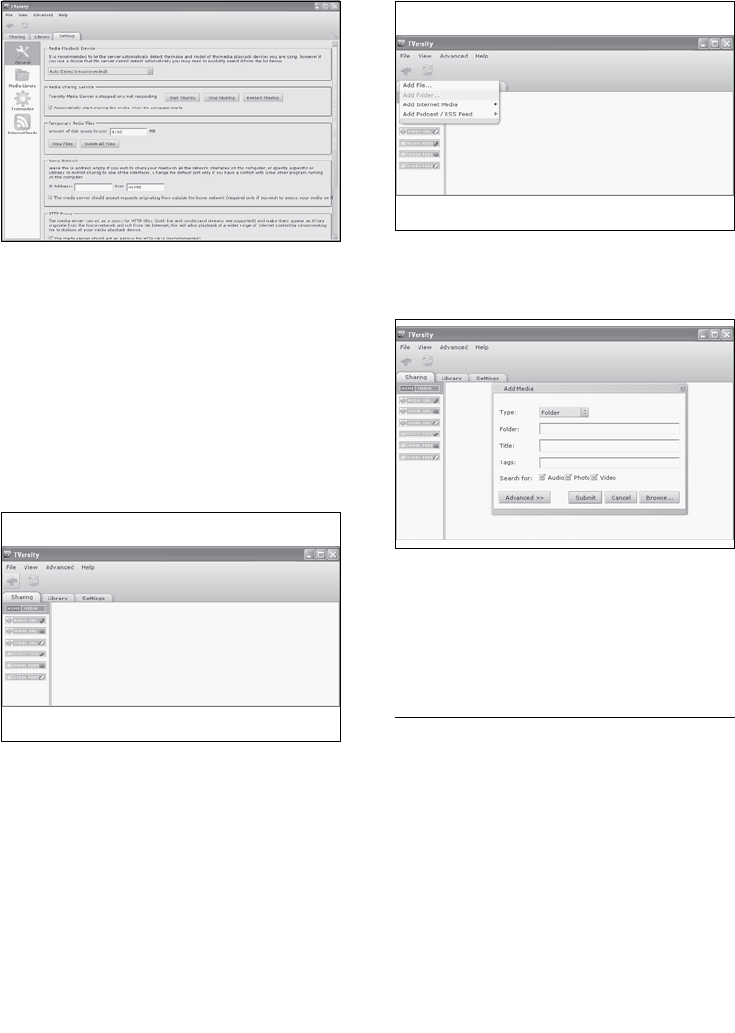
48
3 Click Add Folder.
An »Add Media window appears.
4 Click Browse and select folders to share.
5 When all folders are selected, click
Submit.
Media les are ready to be accessed »
from the TV.
In Twonky Media v4.4.2 (Macintosh
OS X)
Enable media sharing
1 In Mac OS X, start Twonky Media.
Twonky Media appears. »
2 In the Basic Setup box, click Clients/
Security.
Clients/Security settings appear. »
3 Click Enable sharing for new clients
automatically, then click Save Changes.
Media sharing is enabled. »
3 In the Media Sharing Service box, click
Start Sharing.
A window appears, informing you that »
Media Sharing Service started.
4 Click OK.
Add folders for media sharing
1 In TVersity, click the Sharing tab.
The »Sharing options appear.
2 Click the green plus icon
Options to add les and folders appear. »
EN
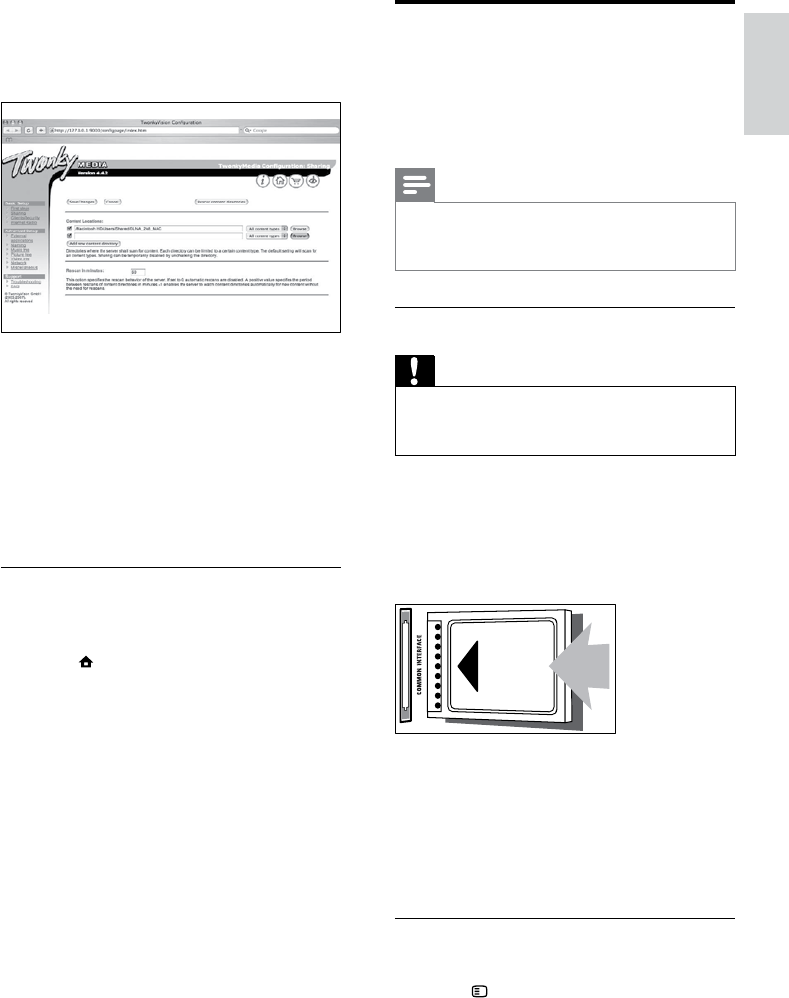
49
Use a Conditional Access
Module
A Conditional Access Module (CAM) is
provided by digital TV service operators to
decode digital TV channels.
Note
If required, refer to documentation from your •
operator on how to insert a smart card into
the Conditional Access Module.
Insert and activate a CAM
Caution
Be sure to follow the instructions described •
below. Wrong insertion of a CAM may
damage both the CAM and your TV.
1 Switch off the TV.
2 Following the directions printed on the
CAM, gently insert the CAM into the
COMMON INTERFACE at the side of
the TV.
3 Push the CAM in as far as it will go.
4 Turn on the TV and wait for the CAM
to be activated. This may take several
minutes. Do not remove the CAM from
the slot when in use — removing the
CAM will deactivate digital services.
Access CAM services
1 After inserting and activating the CAM,
press OPTIONS.
The options menu appears. »
Add folders for media sharing
1 In the Basic Setup box, click Sharing.
Sharing settings appear. »
2 Click Browse to add a folder location.
Click Add new content directory to add
more folders.
3 When all folders are added, click Save
changes then click Rescan content
directories.
Media les are ready to be accessed »
from the TV.
Setup media server software
1 When the TV is connected to a
computer network with Internet access,
press (Home).
The home menu appears. »
2 Press the Navigation buttons to select
[Setup].
The »[Setup] menu appears.
3 Press the Navigation buttons to select
[Network] > [Network].
Follow the on-screen instructions that »
appear to congure the TV for access
to Net .
English
EN
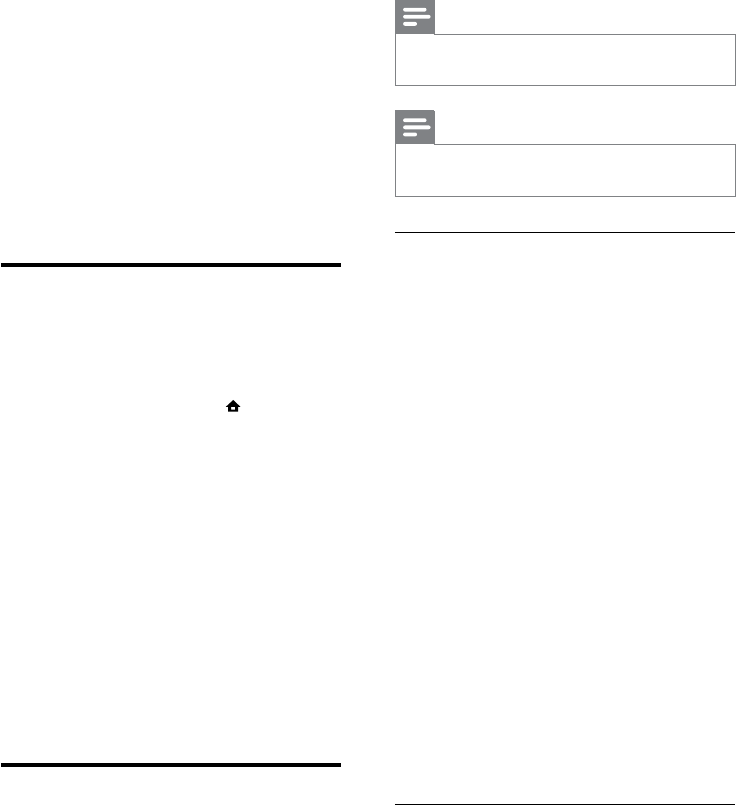
50
Note
Philips does not guarantee 100% •
interoperability with all HDMI CEC devices.
Note
The EasyLink-compliant device must be •
switched on and selected as the source.
EasyLink features
One-touch play
When you connect your TV to devices that
support one-touch play, you can control your
TV and the devices with one remote control.
One-touch standby
When you connect your TV to devices that
support standby, you can use your TV remote
control to put your TV and all connected
HDMI devices in standby mode.
System audio control
When you connect your TV to HDMI
CEC compliant devices, your TV can
switch automatically to play audio from the
connected device.
To use one-touch audio, you must map the
audio input from the connected device to
your TV.
You can use the remote control from the
connected device to adjust the volume.
Remote control (RC) key forwarding
RC key forwarding allows you to control
EasyLink-compliant devices using your TV
remote control.
EasyLink buttons
You can control EasyLink-compliant devices
with the following buttons on the remote
control of your TV.
2 Press the Navigation buttons to select
[Common interface].
3 Press OK.
A list of CAM applications appears. »
4 Press the Navigation buttons to select a
CAM application.
5 Press OK to conrm your choice.
The selected CAM application is »
enabled.
Assign a channel decoder
Before using a SCART digital channel decoder,
select the channel to decode and assign the
decoder to EXT 1 or EXT 2.
1 While watching TV, press (Home).
The home menu appears. »
2 Press the Navigation buttons to select
[Setup].
3 Press OK.
The »[Setup] menu appears.
4 Press the Navigation buttons to select
[Installation] > [Decoder] > [Channel].
5 Press the Navigation buttons to select
[Status], then the location of the decoder
(eg. EXT 1 or EXT 2).
6 Press OK to conrm your choice.
The decoder is assigned. »
Use Philips EasyLink
Your TV supports Philips EasyLink, which
uses the HDMI CEC (Consumer Electronics
Control) protocol. EasyLink-compliant devices
that are connected through HDMI connectors
can be controlled by a single remote control.
EN
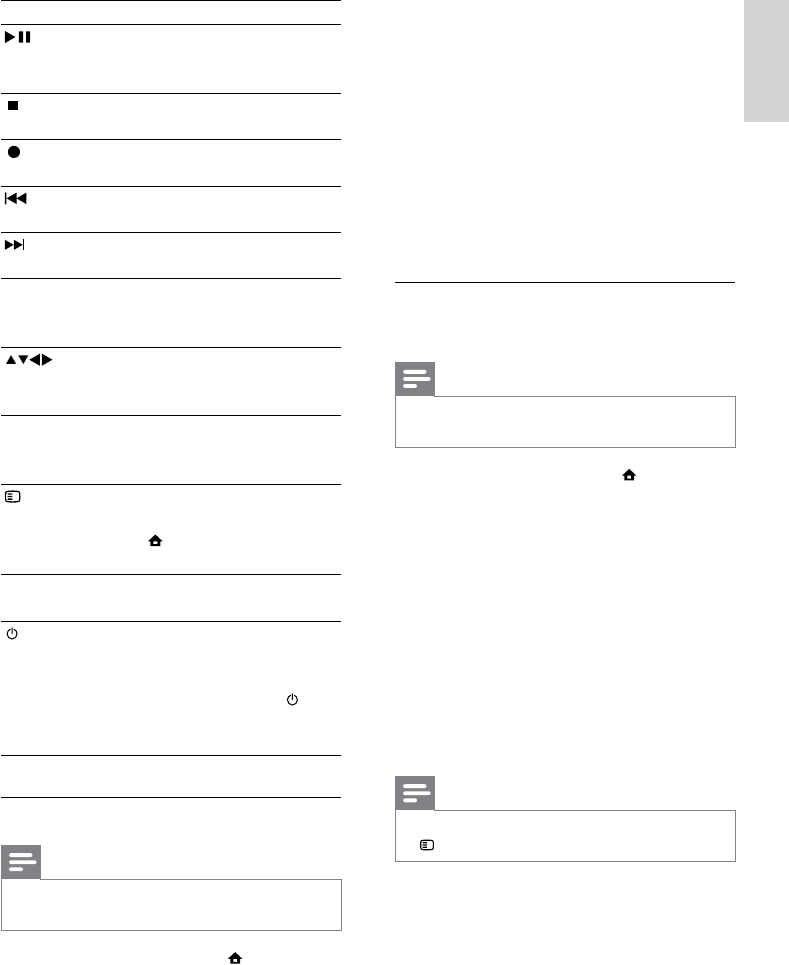
51
2 Press the Navigation buttons to select
[Setup].
The »[Setup] menu appears.
3 Press the Navigation buttons to
select [Installation] > [Preferences] >
[EasyLink].
The EasyLink menu appears. »
4 Select [On] or [Off].
5 Press OK to conrm your choice.
EasyLink is enabled or disabled. »
Enable or disable remote control key
forwarding
Note
Enable EasyLink before enabling remote •
control key forwarding.
1 When watching TV, press (Home).
The home menu appears. »
2 Press the Navigation buttons to select
[Setup].
The »[Setup] menu appears.
3 Press the Navigation buttons to
select [Installation] > [Preferences] >
[EasyLink Remote Control].
4 Select [On], then press OK.
RC key forwarding is enabled or »
disabled on the selected HDMI
connector.
Note
If you cannot exit from a device’s menu, press • OPTIONS then OK.
Button EasyLink function
(Play/
Pause)
Starts, pauses or resumes
playback on your EasyLink
device.
(Stop) Stops playback on your EasyLink
device.
(Record)
Starts or stops video recording
on your EasyLink device.
(Previous)
Searches backward on your
EasyLink device.
(Next) Searches forward on your
EasyLink device.
0-9
(Numeric
buttons)
When EasyLink is enabled,
selects a title, chapter or track.
(Navigation
buttons)
Navigates through the menus of
your EasyLink devices.
OK Activates a selection or
accesses the menu of your
EasyLink device.
OPTIONS
Displays the menus of your
EasyLink device. Note that
when (Home) is pressed, the
TV menu is displayed.
TV Switches back to the antenna
source from EasyLink mode.
(Standby-
On)
When EasyLink is enabled,
switches the TV and all EasyLink
devices to standby. Note that
you must press and hold
(Standby-On) for at least 3
seconds for this to occur.
Enable or disable EasyLink
Note
Do not enable Philips EasyLink if you do not •
intend to use it.
1 When watching TV, press (Home).
The home menu appears. »
English
EN
52
Set TV speakers to EasyLink mode
When enabled, this feature automatically
turns off TV speakers when content from an
EasyLink-compliant home theatre system is
played. Audio is played only from the home
theatre system’s speakers.
1 When watching content from an EasyLink
device, press OPTIONS.
The options menu appears. »
2 Press the Navigation buttons to select
[TV speakers].
The »[TV speakers] menu appears.
3 Press the Navigation buttons to select
[Automatic (EasyLink)].
4 Press OK to conrm your choice.
The TV speakers are set to EasyLink »
mode.
5 Press OPTIONS to exit.
Use a Kensington lock
There is a Kensington security slot at the back
of the TV. Prevent theft by looping a Kensington
lock between the slot and a permanent object,
such as a heavy table.
EN
53
Format Video Audio File ex-
tension
AVI MPEG-4 SP,
MPEG-4 ASP
MPEG
Layer
2/3,
AC3
.avi
mpeg MPEG-1,
MPEG-2
MPEG-1
Layer 2,
LPCM,
AC3
.mpg,
.mpeg,
.vob
mpeg4 MPEG-4
AVC (H.264,
L2-CIF),
MPEG-4
AVC (H.264,
L4-HD)
AAC-
LC,
AAC-
HE
.mp4
WMV (Only
available on
PFL86XXH)
WMV9/VC1 .wma .wmv
Note
Multimedia le names must not exceed 128 •
characters.
Supported media server software (*This •
feature is availabe in selected models
only.):
Windows Media Player 11 (Microsoft •
Windows XP or Vista)
PacketVideo Twonky Media 4.4.9 •
(Microsoft Windows or Macintosh
OS X)
Sony Vaio media server (Microsoft •
Windows XP or Vista)
TVersity v.0.9.10.3 (Microsoft •
Windows XP)
Nero 8 - Nero MediaHome •
(Microsoft Windows XP)
DiXiM (Microsoft Windows XP)•
Macrovision Network Media Server •
(Microsoft Windows XP)
Fuppes (Linux)•
UShare (Linix)•
Philips Media Manager (Microsoft •
Windows XP)
8 Product
information
Product information is subject to change
without notice. For detailed product
information, go to www.philips.com/support.
Supported display resolutions
Computer formats
Resolution - refresh rate:•
640 x 480 - 60Hz•
800 x 600 - 60Hz•
1024 x 768 - 60Hz•
1280 x 1024 - 60 Hz (supported on •
full HD TVs only)
1360 x 768 - 60Hz•
1600 x 1200 - 60Hz (supported on •
full HD TVs only)
1920 x 1080 - 60Hz•
Video formats
Resolution - refresh rate:•
480i - 60Hz•
480p - 60Hz•
576i - 50Hz•
576p - 50Hz•
720p - 50Hz, 60Hz•
1080i - 50Hz, 60Hz•
1080p - 24Hz, 25Hz, 30Hz, 50Hz, •
60Hz
Multimedia
Supported storage device: USB (FAT •
or DOS-formatted; Mass Storage Class
compliant only)
Images: JPEG•
Supported multimedia le formats:•
English
EN
54
Supported TV mounts
To mount the TV, purchase a Philips TV mount
or a VESA-compatible TV mount. To prevent
damage to cables and connectors, be sure to
leave a clearance of at least 2.2 inches or 5.5cm
from the back of the TV.
Warning
Follow all instructions provided with the TV •
mount. Koninklijke Philips Electronics N.V.
bears no responsibility for improper TV
mounting that results in accident, injury or
damage.
TV screen size Recommended VESA mount
19 inches/ 48
cm
VESA MIS-D 75, 4
22 inches/ 56
cm
VESA MIS-D 100, 4
26 inches/ 69
cm
VESA MIS-E 200, 100, 4
32 inches/ 81
cm
VESA MIS-F 200, 200, 6
37 inches/ 94
cm
VESA MIS-F 200, 200, 6
42 inches/ 107
cm
VESA MIS-F 400, 400, 6
47 inches/ 119
cm
VESA MIS-F 400, 400, 8
52 inches/ 132
cm
VESA MIS-F 400, 400, 8
Supported NAS:•
Philips NAS SPD8020•
Tuner/Reception/
Transmission
Antenna input: 75ohm coaxial (IEC75)•
TV system: DVB COFDM 2K/8K•
Video playback: NTSC, SECAM, PAL•
DVB-T (Digital Video Broadcasting-•
Terrestrial) and DVB-C (Digital Video
Broadcasting-Cable). See listed countries
on the back of the TV
Remote control
Type: RC4495•
Batteries: 3 x AAA (LR03 type)•
Power
Mains power: AC 220-240; 50Hz•
Standby power: < 0.15W•
Ambient temperature: 5 to 35 degrees •
Celsius
EN

55
EPG information
8 days EPG is only available in some countries
Country 8 days EPG
UK Yes
France No
Finland Yes
Sweden Yes
Denmark Yes
Norway Yes
Spain Yes
Germany Yes
Italy Yes
Greece No
Netherlands Yes
Czech Republic Yes
Belgium No
Austria Yes
Switzerland Yes
Estonia Yes
Lithuania Yes
Croatia No
Hungary No
Ireland No
Luxemburg No
Poland No
Portugal No
Russia No
Slovakia No
Slovenia No
Romania No
Serbia No
Latvia No
Ukraine No
Bulgaria No
Kazakhstan No
English
EN

56
The TV menu is in the wrong language.
Change the TV menu to your preferred •
language (see ‘Change language settings’
on page 14).
When turning the TV on/off/to standby, you
hear a creaking sound from the TV chassis:
No action is required. The creaking sound •
is normal expansion and contraction of
the TV as it cools down and warms up.
This does not impact performance.
When the TV is in standby mode, a startup
splash screen is displayed, then returns to
standby mode.
This is normal behavior. The startup •
screen is displayed when the TV is
disconnected from the mains and
reconnected.
TV channel issues
Previously installed channels do not appear in
the channel list:
Check that the correct channel list is •
selected.
No digital channels were found during the
installation:
Check that the TV supports DVB-T, DVB- •
T Lite or DVB-C in your country. See the
listed countries on the back of the TV.
Picture issues
The TV is on, but there is no picture:
Check that the antenna is properly •
connected to the TV.
Check that the correct device is selected •
as the TV source.
There is sound but no picture:
Check that the picture settings are •
correctly set.
There is poor TV reception from an antenna
connection:
Check that the antenna is properly •
connected to the TV.
9 Troubleshooting
This section describes commonly encountered
issues and accompanying solutions.
General TV issues
The TV does not switch on:
Disconnect the power cable from the •
power outlet. Wait for one minute then
reconnect it.
Check that the power cable is securely •
connected.
The TV does not respond to remote control
or side controls when switched on
When the TV is switched on, the front •
LED indicator ashes for about 20 to
25 seconds. This is normal behaviour.
During this time, the TV will not respond
to the remote control or side controls.
When a picture appears on-screen,
the TV responds only to the following
remote control buttons for the rst few
seconds: +/- (VOLUME +/-), P +/-
(Program +/-), (MUTE) and (Standby-
On). All buttons can be used when the
front LED indicator stops ashing.
The remote control is not working properly:
Check that the remote control batteries •
are correctly inserted according to the
+/- orientation.
Replace the remote control batteries if •
they are at or weak.
Clean the remote control and TV sensor •
lens.
The standby light on the TV blinks red:
Disconnect the power cable from the •
power outlet. Wait until the TV cools
down before reconnecting the power
cable. If the blinking reoccurs, contact
Philips Consumer Care.
You forgot the code to unlock the child lock
feature
Enter ‘8888’. •
EN

57
Sound issues
There is a picture but sound quality is poor:
Note
If no audio signal is detected, the TV •
automatically switches the audio output off
— this does not indicate malfunction.
Check that all cables are properly •
connected.
Check that the volume is not set to 0. •
Check that the sound is not muted. •
Check that the TV speakers setting is on •
in the sound menu.
Check that the TV audio output is •
connected to the audio input on the
HDMI CEC enabled/EasyLink-compliant
HTS device. Sound should be heard from
the HTS speakers.
There is a picture but the sound quality is
poor:
Check that the sound settings are •
correctly set.
There is a picture but sound comes from one
speaker only:
Verify that sound balance is set to the •
centre.
HDMI connection issues
There are problems with HDMI devices:
Note that HDCP support can delay the •
time taken for a TV to display content
from a HDMI device.
If the TV does not recognize the HDMI •
device and no picture is displayed, try
switching the source from one device to
another and back again.
If there are intermittent sound •
disruptions, check that output settings
from the HDMI device are correct.
If a HDMI-to-DVI adaptor or HDMI to •
DVI cable is used, check that an additional
audio cable is connected to AUDIO L/R
or AUDIO IN (mini-jack only).
Loudspeakers, unearthed audio devices, •
neon lights, high buildings and other large
objects can inuence reception quality.
If possible, try to improve the reception
quality by changing the antenna direction
or moving devices away from the TV.
If reception on only one channel is poor, •
ne tune this channel.
There is poor picture quality from connected
devices:
Check that the devices are connected •
properly.
Check that the picture settings are •
correctly set.
The TV did not save your picture settings:
Check that the TV location is set to the •
home setting. This mode offers you the
exibility to change and save settings.
The picture does not t the screen; it is too
big or too small:
Try using a different picture format. •
The picture position is incorrect:
Picture signals from some devices may •
not t the screen correctly. Check the
signal output of the device.
The picture from broadcasts is scrambled:
You may need to use a Conditional •
Access Module to access content. Check
with your operator.
An “e-sticker” banner displaying information
appears on the TV display:
The TV is in •[Shop] mode. Remove the
e-sticker by setting the TV to [Home]
mode. In the [Home] menu, select
[Setup] > [Installation] > [Preferences]
> [Location] menu. It is necessary to
switch the TV to standby to ensure that
the TV exits [Shop] mode completely.
English
EN
58
Contact us
If you cannot resolve your problem, refer to
the FAQs for this TV at www.philips.com/
support.
If the problem remains unresolved, contact
Philips Consumer Care in your country as
listed in this user manual.
Warning
Do not attempt to repair the TV yourself. This •
may cause severe injury, irreparable damage to
your TV or void your warranty.
Note
Make a note of your TV model and serial •
number before you contact Philips. These
numbers are printed on the back of the TV
and on the packaging.
You cannot use EasyLink features:
Check that your HDMI devices are •
HDMI-CEC compatible. EasyLink features
only work with devices that are HDMI-
CEC compatible.
If a HDMI CDC/EasyLink-compliant audio
device is connected to the TV and the TV does
not display any mute or volume icon when the
volume is muted, increased or decreased.
This behavior is normal when a HDMI •
CEC/EasyLink-compliant device is
connected.
USB connection issues
USB device content is not displayed:
Check that the USB storage device is •
set to ‘Mass Storage Class’ compliant,
as described in the storage device’s
documentation.
Check that the USB storage device is •
compatible with the TV.
Check that the audio and picture le •
formats are supported by the TV.
Audio and picture les do not play or display
smoothly
The transfer performance of the USB •
storage device may limit the data transfer
rate to the TV, causing poor playback.
Computer connection issues
The computer display on the TV is not stable:
Check that a supported resolution and •
refresh rate is selected on the computer.
Set the TV picture format to unscaled. •
EN

59
BBK - 0290
Bellagio - 0114
Best Buy - 0277
Boghe - 0289
BOSE - 0352, 0353, 0357, 0358, 0359, 0360,
0361, 0362
Bosston - 0271
Brainwave - 0135
Brandt - 0047, 0145, 0264
Britannia - 0268
Bush - 0121, 0127, 0134, 0169, 0176, 0265,
0267, 0275, 0279, 0288
Cambridge Audio - 0270
CGV - 0135, 0270
Cinetec - 0114
CineVision - 0278
Classic - 0104
Clatronic - 0275, 0288, 0365
Coby - 0284
Conia - 0265
Continental Edison - 0114
Crown - 0135, 0145
Crypto - 0280
C-Tech - 0142
CVG - 0135
CyberHome - 0061, 0062, 0063
Daenyx - 0114
Daewoo - 0092, 0114, 0135, 0186, 0193, 0195,
0348
Dalton - 0283
Dansai - 0135, 0269
Daytek - 0114, 0133, 0366
Dayton - 0114
DEC - 0275
Decca - 0135
Denon - 0118, 0205, 0209, 0214
Denon - 0118, 0205, 0209, 0214
Denver - 0124, 0203, 0275, 0281, 0284
Denzel - 0266
Desay - 0274
Diamond - 0142, 0270
Digitor - 0282Digix Media - 0367
DK Digital - 0134, 0300
Dmtech - 0091, 0368
Dual - 0266, 0369
DVX - 0142
Easy Home - 0277
10 Universal
remote control
codes
Enter a remote control code from this list to
setup universal remote control (see ‘Manually
setup universal remote control’ on page 35).
DVD codes : DVD player, DVD Recorder,
DVD-R HDD, Blu-ray Disc player.
Philips - 0000, 0001, 0002, 0003, 0004, 0005,
0006, 0007, 0008, 0009, 0010, 0012, 0064, 0065,
0066, 0067, 0094, 0098, 0103, 0122, 0131, 0132,
0140, 0143, 0144, 0170, 0174, 0175, 0177, 0180,
0190, 0206, 0240, 0255, 0264, 0287, 0293, 0295,
0296, 0302, 0309, 0316, 0317, 0318, 0325, 0327,
0333, 0334
Philips Magnavox - 0094
4Kus - 0287
Acoustic Solutions - 0011
AEG - 0135
Airis - 0290
Aiwa - 0113, 0163, 0312, 0343
Akai - 0097
Akura - 0281
Alba - 0112, 0121, 0124, 0127, 0138
Alize - 0285
Amitech - 0135
AMOi - 0225
AMW - 0114, 0354
Andersson - 0355
Apex - 0107
Asono - 0290
ATACOM - 0290
Avious - 0288
Awa - 0114
Bang and Olufsen - 0291
Basic Line - 0356
CAT - 0272, 0273
Celestron - 0363
Centrex - 0158
Centrum - 0273, 0364
Baze - 0288
English
EN
60
Kenwood - 0159, 0220, 0308, 0379
KeyPlug - 0135
Kiiro - 0135
Kingavon - 0275
Kiss - 0266, 0276
Koda - 0275
KXD - 0277
Lawson - 0142
Lecson - 0269
Lenco - 0135, 0275, 0288
Lenoxx - 0380
LG - 0031, 0032, 0033, 0071, 0101, 0117, 0137,
0204, 0229, 0234, 0258, 0313, 0329, 0330, 0331,
0336
Life - 0099, 0100
Lifetec - 0099, 0100, 0106
Limit - 0142
Linn - 0381
Liteon - 0287
Loewe - 0098, 0175, 0213, 0382
LogicLab - 0142
Lumatron - 0383
Luxor - 0158
Magnavox - 0264, 0275, 0293
Magnex - 0288
Magnum - 0106
Majestic - 0284
Marantz - 0009, 0103, 0211, 0212
Marquant - 0135
Matsui - 0145, 0235
MBO - 0110
Mecotek - 0135
Mediencom - 0268
Medion - 0099, 0100, 0106, 0279, 0384
Metz - 0096
MiCO - 0270, 0289, 0385
Micromaxx - 0099, 0100, 0106
Micromedia - 0264
Micromega - 0009
Microstar - 0099, 0100, 0106
Minoka - 0135
Minowa - 0288
Mirror - 0279
Mivoc - 0386
Mizuda - 0275, 0277
Monyka - 0266
Mustek - 0104, 0112, 0304
Eclipse - 0270
E-Dem - 0290
Electrohome - 0135
Elin - 0135
Elta - 0093, 0135, 0152, 0285
Eltax - 0297, 0366
Emerson - 0101
Enzer - 0266
Euroline - 0370
Finlux - 0135, 0270, 0288, 0371
Fintec - 0135, 0372
Fisher - 0102
Futronic - 0373
Gericom - 0158
Giec - 0289
Global Solutions - 0142
Global Sphere - 0142
Go Video - 0095
GoldStar - 0033
Goodmans - 0085, 0112, 0121, 0127, 0158,
0171, 0200, 0216, 0239, 0246, 0275, 0279, 0289
Graetz - 0266
Grundig - 0098, 0158, 0162, 0173
Grunkel - 0135, 0286
GVG - 0135
H and B - 0275, 0276
Haaz - 0142, 0270
Harman/Kardon - 0350
HiMAX - 0277
Hitachi - 0022, 0095, 0106, 0121, 0172, 0188,
0202, 0218, 0266, 0277, 0311
Hoeher - 0290
Home Tech Industries - 0290
Humax - 0221
Hyundai - 0224, 0286, 0374
Infotech - 0375
Innovation - 0099, 0100, 0106
Jamo - 0376
JBL - 0377
Jeutech - 0271
JVC - 0054, 0055, 0056, 0057, 0058, 0059, 0060,
0079, 0080, 0081, 0082, 0141, 0153, 0157, 0161,
0164, 0165, 0166, 0167, 0247, 0248, 0249, 0250,
0251, 0252, 0253, 0254, 0264, 0301, 0337
Kansai - 0284
KEF - 0378
Kennex - 0135
EN

61
Rimax - 0285
Roadstar - 0121, 0267, 0275
Ronin - 0114
Rowa - 0158, 0265
Rownsonic - 0273
Saba - 0047, 0145
Sabaki - 0142
Saivod - 0135
Sampo - 0105
Samsung - 0022, 0023, 0024, 0025, 0076, 0077,
0078, 0095, 0123, 0136, 0151, 0184, 0194, 0207,
0217, 0307, 0340, 0341, 0349
Sansui - 0135, 0142, 0270, 0392
Sanyo - 0147, 0150, 0181, 0185, 0306
ScanMagic - 0112
Scientic Labs - 0142
Scott - 0124, 0283
Seeltech - 0290
SEG - 0090, 0114, 0121, 0142, 0179, 0266
Sharp - 0099, 0109, 0149, 0168, 0178, 0199,
0210, 0230, 0231, 0256, 0257, 0262
Sherwood - 0108
Sigmatek - 0277, 0290
Silva - 0281
Singer - 0142, 0270
Skymaster - 0104, 0142
Skyworth - 0281
Slim Art - 0135
SM Electronic - 0142
Sontech - 0286
Sony - 0013, 0014, 0015, 0016, 0017, 0018,
0019, 0020, 0021, 0068, 0069, 0070, 0113, 0116,
0139, 0146, 0148, 0183, 0232, 0242, 0299, 0305,
0310, 0324, 0328, 0346
Soundmaster - 0142
Soundmax - 0142
Spectra - 0114
Standard - 0142
Star Cluster - 0142
Starmedia - 0275, 0290
Sunkai - 0135
Supervision - 0142
Synn - 0142
T.D.E. Systems - 0286
T+A - 0393
Tatung - 0135
TCM - 0023, 0099, 0100, 0106, 0292, 0397
Mx Onda - 0270
Mystral - 0286
NAD - 0109, 0387
Naiko - 0135, 0158
Nakamichi - 0111, 0388
Neufunk - 0266
Nevir - 0135
Next Base - 0226
NU-TEC - 0265
Omni - 0268
Onkyo - 0215, 0264, 0293
Oopla - 0287
Optim - 0269
Optimus - 0294
Orava - 0275
Orbit - 0114
Orion - 0176
Oritron - 0100
P and B - 0275
Pacic - 0142
Palladium - 0389
Palsonic - 0267
Panasonic - 0026, 0027, 0028, 0029, 0030, 0118,
0120, 0125, 0126, 0128, 0129, 0130, 0189, 0201,
0241, 0243, 0244, 0245, 0259, 0260, 0261, 0298,
0303, 0319, 0320, 0321, 0322, 0323, 0326, 0335,
0342, 0344
peeKTON - 0290, 0390
Pensonic - 0227
Phonotrend - 0288
Pioneer - 0034, 0035, 0036, 0037, 0038, 0039,
0040, 0072, 0073, 0074, 0075, 0096, 0115, 0119,
0154, 0155, 0156, 0191, 0192, 0196, 0197, 0198,
0236, 0294, 0314, 0332
Pointer - 0135
Polaroid - 0222
Portland - 0135
Powerpoint - 0114
Proline - 0158
Promax - 0223
Prosonic - 0135, 0284
Provision - 0275
Raite - 0266
REC - 0267, 0268
RedStar - 0135, 0281, 0284, 0391
Reoc - 0142
Revoy - 0276
English
EN

62
Alcatel - 0463, 0540
Allegro - 0464
Amstrad - 0431, 0449
Andover - 0452
Arcon - 0431
Atlanta - 0465
Auna - 0466
Axis - 0431
BBT - 0467
Belgacom TV - 0468
Bell Atlantic - 0453
Birmingham Cable Communications - 0451
British Telecom - 0448
BT Cable - 0448
Cabletime - 0538
Clyde - 0454
Clyde Cablevision - 0443
Comcrypt - 0442, 0469
Connect TV - 0470
Coship - 0471
Cryptovision - 0444, 0472
Daehan - 0473
Decsat - 0474
Digi1 - 0475
Eastern - 0476
Electricord - 0477
Electus - 0455
Fastweb - 0478
Fidelity - 0431
Filmnet - 0442
Filmnet Cablecrypt - 0445, 0539
Filmnet Comcrypt - 0445
Finlux - 0434
Foxtel - 0449
France Telecom - 0437, 0439, 0479
Freebox - 0450, 0480
GC Electronics - 0481
GE - 0482
GEC - 0443, 0454
General Instrument - 0433, 0448, 0483
Golden Channel - 0461
Gooding - 0432
Grundig - 0431, 0432
Hirschmann - 0434
Hitachi - 0484
HomeChoice - 0441, 0485
Humax - 0486, 0487
Teac - 0096, 0142, 0208, 0265, 0394
Tec - 0281
Technics - 0118
Technika - 0135, 0288
Telefunken - 0273
Tensai - 0135
Tevion - 0099, 0100, 0106, 0142, 0283
Thomson - 0046, 0047, 0048, 0049, 0050, 0051,
0052, 0053, 0083, 0084, 0233, 0263, 0339, 0347
Tokai - 0266, 0281
Top Suxess - 0290
Toshiba - 0012, 0041, 0042, 0043, 0044, 0045,
0086, 0087, 0088, 0089, 0094, 0182, 0187, 0219,
0237, 0238, 0264, 0293, 0345
TRANS-continents - 0114, 0288
Transonic - 0288
Trio - 0135
TruVision - 0277
TSM - 0290
Umax - 0285
Union - 0351
United - 0288
Universum - 0395
Viewmaster - 0290
Vtrek - 0280
Waitec - 0290
Welltech - 0289
Wharfedale - 0142, 0270
Wintel - 0271
Woxter - 0285, 0290
Xbox - 0048
Xenon - 0228
Xlogic - 0135, 0142
XMS - 0135, 0267
Xoro - 0289, 0396
Yakumo - 0158
Yamada - 0114, 0158, 0285, 0287
Yamaha - 0009, 0118, 0120, 0315, 0338
Yamakawa - 0114, 0266
Yukai - 0112, 0160
Zenith - 0101, 0264, 0293
STB codes : Digital receiver
Philips - 0432, 0436, 0437, 0439, 0506
ABC - 0448
ADB - 0461, 0462
EN

63
Scientic Atlanta - 0446
Seam - 0510
Sharp - 0511
SingTel - 0512
SkyCable - 0513
Skyworth - 0514
Starcom - 0448
Stargate - 0515
Stellar One - 0516
TaeKwang - 0517
Tandy - 0518
Tatung - 0519
Teknika - 0520
Tele+1 - 0442, 0445, 0539
Telefonica - 0460
Telegent - 0521
Telenet - 0522
Telepiu - 0442, 0539
Thomson - 0438
Timeless - 0476
Tiscali - 0523
Tocom - 0524
STB codes : Satellite receiver
Philips - 0000, 0001, 0002, 0008, 0020, 0054,
0065, 0069, 0070, 0072, 0075, 0077, 0111, 0119,
0136, 0140, 0144, 0155, 0156, 0159, 0163, 0165,
0388, 0390, 0391, 0392, 0396, 0410, 0412, 0420,
0422, 0423, 0427
AB Sat - 0163, 0164, 0173, 0425
Action - 0187
ADB - 0175, 0188
Aegir - 0189
AGS - 0163
Akai - 0054, 0391
Akura - 0190
Alba - 0015, 0019, 0020, 0021, 0023, 0044,
0067, 0164, 0234, 0412
Aldes - 0021, 0023, 0024, 0234, 0395
Allantide - 0191
Allegro - 0192
Allsat - 0040, 0054, 0193, 0384, 0390, 0391
Allsonic - 0010, 0023, 0028, 0395, 0402
Alltech - 0164, 0414
Alpha - 0391
Altai - 0403
HyperVision - 0435
ITT Nokia - 0434
Jerrold - 0433, 0448, 0536
Jiuzhou - 0488
JVC - 0432
Kabel Deutschland - 0489, 0490
Kansalaisboksi - 0491
LG Alps - 0492
Macab - 0439
Maestro - 0493
Magnavox - 0494
Maspro - 0432
Matav - 0462
Matsui - 0432
Maxdome - 0489
Medion - 0495
Minerva - 0432
Mnet - 0442, 0539
Mood - 0496
Motorola - 0497
Movie Time - 0447
Mr Zapp - 0439
Multichoice - 0442
NEC - 0498
Neuf Telecom - 0533
Nokia - 0434, 0499
Noos - 0439
Northcoast - 0500
Novaplex - 0501
Now - 0502
NTL - 0456
Omniview - 0503
Ono - 0457, 0504
Orange - 0534
Pace - 0535
Pacic - 0505
Palladium - 0432
Pioneer - 0431
Prelude - 0507
Protelcon - 0508
PVP Stereo Visual Matrix - 0536
Regency - 0509
Sagem - 0439
Samsung - 0440, 0502
SAT - 0431
Satbox - 0458
Satel - 0459
English
EN
64
Best - 0010, 0027, 0028, 0402
Best Buy - 0219
Big Brother - 0191
Blackbird - 0220
Blaupunkt - 0033, 0155, 0388
Blue Sky - 0164, 0169
Boca - 0026, 0050, 0153, 0164, 0221, 0378,
0410, 0416
Boom - 0222
BOSE - 0223
Boston - 0153, 0163, 0224
Brain Wave - 0035, 0398, 0419
Brandt - 0056
Broadcast - 0034, 0400
Broco - 0164, 0407
BSkyB - 0074, 0084, 0426
BT - 0066, 0163
BT Satellite - 0420
Bubu Sat - 0164
Bush - 0020, 0044, 0090, 0234, 0384, 0390
BVV - 0419
Cable Innovations - 0225
Cambridge - 0158, 0226, 0416
Camundosat - 0227
Canal Digital - 0176, 0180, 0181
Canal Satellite - 0005, 0156, 0396, 0427
Canal+ - 0156, 0228
CCI - 0229
cello - 0230
CellularVision - 0231
Century - 0232
CGV - 0233
Channel Master - 0021, 0234
Chaparral - 0052, 0235
CHEROKEE - 0163, 0173
Chesley - 0212
Chess - 0154, 0160, 0164, 0221
Chili - 0236
Churchill - 0237
Citizen - 0238
CityCom - 0020, 0037, 0071, 0152, 0161, 0165,
0423
Clatronic - 0035, 0398
Clemens Kamphus - 0046
CNT - 0024
Colombia - 0153
Columbia - 0153
Amino - 0194
Amitronica - 0164
Ampere - 0153, 0403
Amstrad - 0026, 0055, 0074, 0108, 0153, 0158,
0164, 0169, 0195, 0394, 0399, 0403, 0415, 0417,
0421, 0426
Amway - 0196
Anglo - 0164
Ankaro - 0010, 0023, 0028, 0164, 0197, 0392,
0395, 0402
AntSat - 0198
Anttron - 0019, 0023, 0390, 0412
AnySat - 0199
Apollo - 0019
Arcon - 0027, 0041, 0153, 0419
Arion - 0200
Ariza - 0201
Armstrong - 0026, 0391
Arrox - 0202
ASA - 0404
Asat - 0054, 0391
ASCI - 0203
ASLF - 0164
AST - 0031, 0204, 0397
Astacom - 0163, 0420
Aston - 0022, 0205
Astra - 0026, 0029, 0030, 0050, 0161, 0164,
0206, 0387, 0400, 0407
Astratec - 0207
Astro - 0010, 0023, 0024, 0028, 0033, 0155,
0156, 0158, 0161, 0208, 0388, 0402, 0412
Atlanta - 0209
AudioTon - 0023, 0040, 0412
Aurora - 0168, 0210
Austar - 0071, 0168, 0211
Avalon - 0403
Axiel - 0163
Axil - 0212
Axis - 0010, 0028, 0030, 0036, 0401, 0402, 0407
B and K - 0213
Barcom - 0027
BeauSAT - 0212
BEC - 0214
Beko - 0215
Belgacom TV - 0216
Belson - 0217
Benjamin - 0218
EN

65
DNT - 0032, 0054, 0391, 0403
Dong Woo - 0049
Drake - 0041, 0255
DStv - 0168, 0256
Dual - 0257
Dune - 0010, 0402
Dynasat - 0162
DynaStar - 0258
Echostar - 0032, 0164, 0173, 0403, 0427, 0428
EIF - 0259
Einhell - 0019, 0023, 0026, 0153, 0158, 0164,
0394, 0395
Elap - 0163, 0164
Electron - 0260
Elekta - 0024
Elsat - 0164, 0417
Elta - 0010, 0019, 0028, 0040, 0054, 0261, 0391,
0402
Emanon - 0019
Emme Esse - 0010, 0028, 0046, 0162, 0402,
0428
Engel - 0164, 0262
Ep Sat - 0020
Erastar - 0263
EURIEULT - 0013, 0108, 0169
Euro1 - 0264
Eurocrypt - 0387
Eurodec - 0060, 0265
Europa - 0158, 0161, 0391, 0392, 0410
European - 0064
Europhon - 0153, 0161
Europlus - 0266
Eurosat - 0026
Eurosky - 0010, 0026, 0028, 0152, 0153, 0158,
0161, 0402
Eurospace - 0042
Eurostar - 0026, 0152, 0161, 0162, 0165, 0430
Euskaltel - 0267
Eutelsat - 0164
Eutra - 0414
Exator - 0019, 0023, 0412
Fast - 0268
Fenner - 0010, 0154, 0160, 0164
Ferguson - 0020, 0060, 0114, 0384, 0390
Fidelity - 0158, 0394, 0415
Finepass - 0269
Finlandia - 0020, 0387
COLUMBUS - 0043
Comag - 0153, 0221, 0239
Commander - 0392
Commlink - 0023, 0395
Comtec - 0036, 0395, 0401
Condor - 0010, 0028, 0161, 0240, 0402
Connexions - 0010, 0032, 0402, 0403
Conrad - 0010, 0152, 0153, 0158, 0161, 0402,
0409, 0410
Conrad Electronic - 0161, 0164
Contec - 0036, 0037, 0401, 0410
Continental Edison - 0241
Cosat - 0040
Coship - 0212
Crown - 0026, 0242
CyberHome - 0243
Cybermaxx - 0062
Cyrus - 0174
Daeryung - 0032
Daewoo - 0066, 0164, 0244
Dansat - 0384, 0390
D-Box - 0245, 0429
DDC - 0021, 0234
Decca - 0038
Delega - 0021
Demo - 0246
Dew - 0036, 0401
DGStation - 0086
Diamond - 0039
Digenius - 0247
Digiality - 0161, 0248
Digiline - 0249
DigiO2 - 0250
Digipro - 0170
DigiQuest - 0251
DigitAll World - 0252
Digiturk - 0253
Dilog - 0254
DiPro - 0212
Discoverer - 0154, 0160
Discovery - 0163
Diseqc - 0163
Diskxpress - 0027
Distratel - 0169
Distrisat - 0391
Ditristrad - 0040
DNR - 0419
English
EN
66
Heliocom - 0161, 0280
Helium - 0161
Hinari - 0021, 0234, 0390
Hirschmann - 0010, 0033, 0046, 0098, 0108,
0155, 0158, 0161, 0163, 0388, 0403, 0404, 0406,
0409
Hisawa - 0035, 0398
Hitachi - 0020, 0281
Hivion - 0282
HNE - 0153
Homecast - 0283
Houston - 0040, 0284, 0392
Humax - 0011, 0012, 0050, 0071, 0085, 0086,
0094, 0097, 0121, 0122, 0123, 0124, 0128, 0129,
0149
Huth - 0023, 0026, 0034, 0035, 0036, 0040,
0046, 0153, 0161, 0171, 0392, 0395, 0398, 0400,
0401, 0410
Hypson - 0013
ID Digital - 0071
Imex - 0013
Imperial - 0044
Ingelen - 0108
Innovation - 0028, 0059, 0062
InOutTV - 0285
International - 0153
Interstar - 0170
Intertronic - 0026, 0286
Intervision - 0040, 0161, 0413
Inverto - 0287
InVideo - 0179
IRTE - 0288
ITT Nokia - 0020, 0387, 0404, 0409, 0429
Janeil - 0289
Jazztel - 0290
Johansson - 0035, 0398
JOK - 0163, 0418, 0420
JSR - 0040
JVC - 0015, 0159, 0291
Kamm - 0164
Kaon - 0292
Kathrein - 0033, 0037, 0047, 0052, 0054, 0068,
0073, 0080, 0091, 0092, 0093, 0095, 0118, 0120,
0130, 0131, 0152, 0155, 0163, 0164, 0165, 0173,
0388, 0391, 0406, 0412, 0423
Kathrein Eurostar - 0152
Kenwood - 0176, 0293
Finlux - 0020, 0387, 0405, 0409
FinnSat - 0036, 0060, 0270
Flair Mate - 0164
Fortec Star - 0198
Foxtel - 0071, 0168, 0172
Fracarro - 0271, 0428
France Satellite/TV - 0043
Freecom - 0019, 0045, 0155, 0158
Freesat - 0108, 0414
FTE - 0047, 0402, 0410, 0416
FTEmaximal - 0010, 0164
Fuba - 0010, 0019, 0027, 0028, 0029, 0032,
0033, 0043, 0054, 0152, 0155, 0387, 0402, 0403
Fugionkyo - 0170
Fujitsu - 0182
Galaxi - 0027
Galaxis - 0010, 0023, 0028, 0030, 0036, 0040,
0044, 0059, 0071, 0127, 0152, 0168, 0395, 0401,
0402, 0407
Galaxisat - 0397
Gardiner - 0165
Gecco - 0272
General Instrument - 0273
Gensat - 0274
Geotrack - 0275
Globo - 0276
GMI - 0026
Goldbox - 0156, 0396, 0427
Golden Interstar - 0277
GoldStar - 0045
Gooding - 0159
Goodmans - 0015, 0016, 0020, 0044
Gould - 0278
Granada - 0387
Grandin - 0013, 0385
Grothusen - 0019, 0045
Grundig - 0020, 0023, 0033, 0055, 0074, 0099,
0100, 0101, 0109, 0133, 0148, 0155, 0158, 0159,
0168, 0169, 0388, 0399, 0422, 0426
G-Sat - 0390
Hanseatic - 0160, 0279, 0411
Haensel and Gretel - 0153, 0161
Hantor - 0019, 0035, 0049, 0398
Hanuri - 0024
Harting und Helling - 0046
Hase and Igel - 0419
Hauppauge - 0089, 0113
EN

67
Matsui - 0155, 0159, 0163, 0234, 0388, 0420
Max - 0161
Maxi - 0304
MB - 0160, 0411
Mediabox - 0156, 0396, 0427
Mediamarkt - 0026
Mediasat - 0030, 0156, 0158, 0396, 0407, 0427
Medion - 0010, 0028, 0059, 0062, 0132, 0153,
0164, 0402
Medison - 0164
Mega - 0054, 0391
Melectronic - 0165
Meta - 0305
Metronic - 0013, 0014, 0019, 0023, 0024, 0027,
0164, 0165, 0169, 0306, 0385, 0395, 0412, 0423
Metz - 0033, 0155, 0388
Micro Com - 0089
Micro electronic - 0158, 0161, 0164
Micro Technology - 0042, 0164, 0407
Micromaxx - 0010, 0028, 0059, 0062
Micronik - 0307
Microstar - 0028, 0059, 0062
Microtec - 0164
Minerva - 0033, 0159
Mitsubishi - 0020, 0033
Mitsumi - 0050
Mogen - 0308
Morgan Sydney - 0061
Morgan’s - 0026, 0050, 0054, 0153, 0164, 0391,
0410, 0416
Motorola - 0167
Multichoice - 0168, 0175
Multiscan - 0309
Multistar - 0047, 0049
Multitec - 0154
Muratto - 0045, 0397
Mustek - 0310
Mysat - 0164
National Microtech - 0311
Navex - 0035, 0398
NEC - 0053, 0312, 0389
Nesco - 0313
Neta - 0314
Netgem - 0315
Network - 0390
Neuhaus - 0030, 0040, 0158, 0161, 0164, 0392,
0407, 0410, 0419
Key West - 0153
Klap - 0163
Kolon - 0177
Konig - 0161, 0294
Kosmos - 0045, 0046, 0047, 0295, 0406
KR - 0023, 0412, 0414
Kreatel - 0296
Kreiselmeyer - 0033, 0155, 0388
K-SAT - 0164
Kyostar - 0019, 0153, 0297, 0412
L and S Electronic - 0010, 0153
Lasat - 0010, 0024, 0028, 0048, 0049, 0050,
0056, 0152, 0153, 0154, 0161, 0401, 0402, 0416
Lemon - 0419
Lenco - 0010, 0019, 0045, 0051, 0152, 0161,
0164, 0257, 0392, 0402, 0407, 0419
Leng - 0035
Lennox - 0040
Lenson - 0158
Lexus - 0391
LG - 0045, 0208
Life - 0059
Lifesat - 0010, 0028, 0059, 0062, 0153, 0154,
0160, 0164, 0402, 0411
Lifetec - 0028, 0059, 0062
Lion - 0042, 0191
Loewe - 0147
Lorenzen - 0153, 0161, 0298, 0392, 0419, 0421
Lorraine - 0045
Lupus - 0010, 0028, 0402
Luxor - 0158, 0387, 0399, 0409, 0429
Luxorit - 0299
LuxSAT - 0300
Lyonnaise - 0060
M and B - 0160, 0411
M Technologies - 0301
Macab - 0060
Macom - 0183
Manata - 0013, 0153, 0163, 0164, 0420
Manhattan - 0020, 0024, 0040, 0163, 0420
Marann - 0302
Marantz - 0054
Marks and Spencer - 0303
Mascom - 0024, 0406
Maspro - 0020, 0052, 0155, 0159, 0164, 0386,
0388, 0414, 0419
Master’s - 0037
English
EN
68
Polsat - 0060
Polytron - 0037
Praxis - 0327
Predki - 0035, 0398
Preisner - 0153, 0328, 0403, 0410, 0416
Premiere - 0040, 0071, 0156, 0396, 0427
Priesner - 0026
Pro - 0051
Prole - 0163
Promax - 0020
Prosat - 0021, 0023, 0044, 0234, 0395, 0413
Prosonic - 0421
Protek - 0039, 0329
Provision - 0024
Pye - 0159
Pyxis - 0166
Quadral - 0010, 0021, 0023, 0028, 0163, 0173,
0234, 0395, 0402, 0410, 0413, 0420
Quelle - 0033, 0152, 0161, 0394
Quiero - 0060
Radiola - 0054, 0391
Radix - 0032, 0079, 0108, 0330, 0403, 0414
Rainbow - 0023, 0412, 0414
Rediffusion - 0053
Redpoint - 0030, 0407
RedStar - 0010, 0028, 0402
Regency - 0331
RFT - 0023, 0054, 0391, 0392, 0395, 0408
Roadstar - 0164
Roch - 0013
Rockdale - 0184
Rover 0010, 0164, 0413
Ruefach - 0051
Saba - 0024, 0042, 0056, 0152, 0161, 0163,
0169, 0390, 0418, 0419, 0420
Sabre - 0020
Sagem - 0005, 0060, 0146, 0332, 0424
Sakura - 0036, 0044, 0401
Salora - 0053, 0387
Samsung - 0017, 0018, 0019, 0076, 0081, 0096,
0137
Sansui - 0333
Sanyo - 0334
SAT - 0021, 0031, 0158, 0397, 0415
Sat Cruiser - 0171
Sat Partner - 0019, 0023, 0024, 0035, 0045,
0046, 0158, 0398
Neusat - 0164, 0419
Newave - 0316
NextWave - 0025, 0171, 0262
Nikko - 0026, 0164
Nokia - 0020, 0082, 0083, 0104, 0143, 0145,
0387, 0404, 0409, 0429
Nomex - 0063
Nordmende - 0019, 0020, 0021, 0024, 0060,
0234, 0398
Nova - 0168
Novis - 0035, 0398
Now - 0317
NTC - 0046
Numericable - 0380
Oceanic - 0039, 0042
Octagon - 0019, 0023, 0036, 0392, 0401, 0412
Okano - 0026, 0046, 0047
Ondigital - 0393
Optex - 0037, 0040
Optus - 0156, 0168, 0171
Orbit - 0031, 0381
Orbitech - 0019, 0154, 0156, 0158, 0408, 0410
Origo - 0042, 0157
Oritron - 0318
Osat - 0023, 0399
Otto Versand - 0033
Oxford - 0178
Pace - 0020, 0033, 0044, 0055, 0074, 0088,
0102, 0110, 0112, 0116, 0125, 0134, 0135, 0163,
0173, 0319, 0384, 0390, 0393, 0426
Pacic - 0039, 0320
Packsat - 0163
Pal - 0321
Palcom - 0021, 0029, 0043, 0234, 0322
Palladium - 0026, 0158, 0159
Palsat - 0154, 0158
Paltec - 0029
Panasat - 0168
Panasonic - 0020, 0055, 0074, 0078, 0142, 0426
Panda - 0020, 0155, 0161, 0384, 0387
Pansat - 0323
Pantech - 0324
Patriot - 0153, 0163
Philon - 0325
Phoenix - 0036, 0044, 0390, 0401
Phonotrend - 0020, 0023, 0040, 0046, 0395
Pioneer - 0087, 0156, 0326, 0427
EN

69
Sogo - 0346
Sonaecom - 0347
Sony - 0055, 0156
SR - 0026, 0050, 0153
Star Clusters - 0348
Star Trak - 0349
Star View - 0350
Starland - 0164
Starring - 0035, 0398
Start Trak - 0019
Strong - 0010, 0019, 0023, 0028, 0045, 0168,
0170, 0271, 0402
STVI - 0013
Sumida - 0026
Sunny Sound - 0010, 0402
Sunsat - 0164, 0351, 0407
Sunstar - 0010, 0026, 0050, 0153, 0402
Sunstech - 0352
Super Sat - 0162
Super Track - 0353
SuperGuide - 0354
Supermax - 0171
SVA - 0355
Swisstec - 0303
Systec - 0153, 0356
S-ZWO - 0357
TaeKwang - 0358
Tandberg - 0060
Tandy - 0023
Tantec - 0020, 0043
Tatung - 0038
TBoston - 0359
TCM - 0028, 0059, 0062, 0379
Techniland - 0034, 0400
TechniSat - 0007, 0008, 0009, 0032, 0154, 0156,
0158, 0391, 0408
Technology - 0168
Technomate - 0277
Technosat - 0171
Technosonic - 0360
TechnoTrend - 0133
Technowelt - 0153, 0161, 0169
Teco - 0026, 0050
Tee-Comm - 0185
Telanor - 0021
Telasat - 0152, 0160, 0161, 0411
Teleciel - 0412
Sat Team - 0164
Satcom - 0034, 0160, 0161, 0400, 0411
SatConn - 0335
Satec - 0164, 0390
Satelco - 0010, 0402
Satford - 0034, 0400
Satline - 0413
Satmaster - 0034, 0400
Satplus - 0154
Satstar - 0336
Schacke - 0412
Schneider - 0028, 0059, 0062, 0154, 0163, 0422
Schwaiger - 0037, 0039, 0153, 0154, 0160, 0161,
0169, 0390, 0410, 0411
Scientic Atlanta - 0337
SCS - 0152
Sedea Electronique - 0153, 0170
Seemann - 0026, 0030, 0032, 0402, 0407
SEG - 0010, 0019, 0028, 0035, 0160, 0398, 0402,
0411, 0421
Seleco - 0040, 0428
Septimo - 0169
Servi Sat - 0013, 0164
Setec - 0338
Sharp - 0115
Siemens - 0033, 0133, 0155, 0339, 0383, 0388,
0416
Silva - 0045
SilverCrest - 0340
Simz - 0341
Skantin - 0164
Skardin - 0030, 0407
Skinsat - 0158
SKR - 0164
SKT - 0342
SKY - 0084, 0167
Sky Digital - 0055
Sky New Zealand - 0343
Sky Television - 0344
Skymaster - 0003, 0004, 0023, 0138, 0139, 0154,
0160, 0164, 0395, 0411, 0413, 0430
Skymax - 0054, 0391
SkySat - 0154, 0158, 0160, 0161, 0164
Skyvision - 0040
SL - 0153, 0419
SM Electronic - 0154, 0164
Smart - 0108, 0152, 0153, 0164, 0345
English
EN

70
Via Digital - 0057
Viasat - 0173, 0371
Viewstar - 0372
Vision - 0373
Visionic - 0170
Visiosat - 0035, 0040, 0163, 0164, 0418
Viva - 0392
Vivanco - 0064
Vivid - 0172
Vortec - 0019, 0374, 0393
VTech - 0031, 0165, 0397, 0418, 0423
Watson - 0375
Wela - 0410
Welltech - 0154
WeTeKom - 0154, 0158, 0160
Wevasat - 0020
Wewa - 0020
Winersat - 0035, 0398
Wintergarten - 0395
Wisi - 0020, 0031, 0032, 0033, 0155, 0158,
0161, 0388, 0397, 0403, 0410, 0418
Woorisat - 0024
World - 0398
Worldsat - 0163, 0376
Xcom Multimedia - 0186
Xoro - 0377
Xrypton - 0010, 0402
XSat - 0164, 0173
Zaunkonig - 0419
Zehnder - 0010, 0024, 0027, 0028, 0047, 0105,
0107, 0152, 0165, 0397, 0402, 0421, 0423
Zenith - 0167
Zinwell - 0071
Zodiac - 0023, 0412
Zwergnase - 0026
HTS codes : Home Theatre System, Amplier
Philips - 0000, 0001, 0002, 0003, 0009, 0011,
0022, 0029, 0030, 0031, 0032, 0039, 0044, 0046,
0118, 0119, 0120, 0130, 0131, 0132, 0133, 0137,
0144, 0145, 0146, 0147, 0148, 0189, 0219, 0220
Aiwa - 0006, 0025, 0160, 0161, 0221, 0222,
0227, 0247, 0248
Akai - 0259, 0260
Alba - 0171
AMW - 0069
Telecom - 0164
Teledirekt - 0390
Telefunken - 0019, 0056, 0163, 0420
Teleka - 0023, 0026, 0032, 0158, 0161, 0403,
0406, 0412, 0419
Telemaster - 0024
Telemax - 0048
Telesat - 0160, 0161, 0411
Telestar - 0154, 0156, 0158
Teletech - 0430
Televes - 0020, 0061, 0153, 0158, 0345
Telewire - 0040
Tempo - 0171
Tevion - 0028, 0059, 0062, 0164
Thomson - 0006, 0020, 0057, 0060, 0103, 0106,
0117, 0141, 0150, 0151, 0152, 0156, 0161, 0163,
0164, 0396
Thorens - 0039, 0361
Thorn - 0020
Tioko - 0037, 0153
Tokai - 0391
Tonna - 0020, 0034, 0040, 0158, 0164, 0400
Topeld - 0126, 0362, 0382
Toshiba - 0363
TPS - 0058, 0364
Tratec - 0365
Triad - 0031, 0045, 0366, 0397
Triasat - 0158, 0405
Triax - 0033, 0056, 0152, 0153, 0158, 0164,
0405
Turnsat - 0164
Tvonics - 0114, 0367, 0368
Twinner - 0013, 0061, 0153, 0164
UEC - 0168, 0172
Uher - 0154
Uniden - 0415
Unisat - 0026, 0036, 0153, 0391, 0401
Unitor - 0027, 0035
Universum - 0033, 0152, 0155, 0159, 0161,
0388, 0404, 0415, 0421
Unnisat - 0369
Vantage - 0370
Variosat - 0033, 0155, 0388
Vector - 0042
Vega - 0010
Ventana - 0054, 0391
Vestel - 0421
EN

71
Nakamichi - 0103
Palladium - 0104
Panasonic - 0005, 0010, 0012, 0020, 0021, 0033,
0034, 0035, 0036, 0037, 0053, 0054, 0063, 0141,
0142, 0143, 0217, 0218, 0228, 0229, 0240, 0241
peeKTON - 0105
Pioneer - 0027, 0045, 0047, 0153, 0154, 0155,
0200, 0201, 0256
Redstar - 0106
Saba - 0172, 0173
Samsung - 0018, 0056, 0057, 0061, 0158, 0159
Sansui - 0085
Sanyo - 0015, 0017, 0149, 0150, 0151, 0246
Sharp - 0134, 0135, 0136, 0194, 0195, 0196,
0213, 0214, 0234, 0235
Sony - 0006, 0014, 0023, 0038, 0040, 0113,
0114, 0115, 0116, 0117, 0152, 0182, 0183, 0184,
0185, 0186, 0197, 0202, 0203, 0204, 0205, 0206,
0207, 0208, 0215, 0216, 0230, 0237, 0238, 0239,
0242, 0245, 0253, 0254, 0255
T+A - 0107
TCM - 0111, 0273, 0274, 0275, 0276
Teac - 0108, 0121, 0122, 0269, 0270, 0271, 0272
Technics - 0005, 0020, 0112, 0140, 0142, 0211,
0212, 0226
Thomson - 0055, 0059, 0152, 0192, 0193, 0197,
0198, 0199, 0231, 0232, 0233, 0252
Toshiba - 0058
Union - 0066
Universum - 0109
Xoro - 0110
Yamaha - 0028, 0052, 0162, 0163, 0257, 0258
Andersson - 0070
Basic Line - 0071
BOSE - 0067, 0068, 0072, 0073, 0074, 0075,
0076, 0077
Bush - 0051, 0261, 0262, 0263
Celestron - 0078
Centrum - 0079
Clatronic - 0080
Daewoo - 0060
Daytek - 0081
Denon - 0126, 0127, 0128, 0129, 0138, 0139,
0264, 0265, 0266
Denver - 0156, 0157, 0176, 0177
Digix Media - 0082
DK Digital - 0007
Dmtech - 0083
Dual - 0084
Eltax - 0004, 0081
Euroline - 0085
Finlux - 0086
Fintec - 0087
Futronic - 0088
Goodmans - 0174, 0175, 0267, 0268
Harman/Kardon - 0064
Hitachi - 0024, 0166, 0167, 0168
Hyundai - 0089
Infotech - 0090
Jamo - 0091
JBL - 0092
JVC - 0008, 0016, 0020, 0050, 0123, 0124, 0125,
0187, 0188, 0190, 0191, 0209, 0210, 0223, 0224,
0225, 0236
KEF - 0093
Kenwood - 0019, 0094, 0164, 0165, 0213, 0214,
0243, 0244, 0249, 0250, 0251
Lenoxx - 0095
LG - 0026, 0041, 0042, 0043, 0048, 0049, 0062,
0065, 0169, 0170, 0178, 0179, 0180, 0181
Linn - 0096
Loewe - 0097
Lumatron - 0098
Magnavox - 0011, 0118, 0132
Medion - 0099
MiCO - 0100
Mivoc - 0101
Mustek - 0013
NAD - 0102
English
EN

72
computer format
technical specications 53
Conditional Access Module 49, 40, 42
connections
composite 42
computer network 45
HDMI 42
S-video 42
technical specications 53
troubleshooting 58
USB 30
connectors
overview 40
USB 42
contrast 17
D
demo 34
devices
add to home menu 10
connect 40
remove from home menu 15
watch 10
digital channel
subtitle language 29
test reception 39
digital radio 32
digital services
CAM 49
teletext 22, 21
display
resolution 53
Dual I-II 19
DVB-C and DVB-T
access 37
E
EasyLink
buttons 50
disable 51
enable 51
features 50
RC key forwarding 51
TV speakers 52
environmental care 5
11 Index
A
Ambilight
change settings 20
switch on or off 12
analogue channel
ne-tune 38
audio balance 19
audio language 19
auto volume leveling 19
B
bass 19
batteries 54, 56
bracket 54
Brightness 17
C
cables
quality 40
CAM, see also Conditional Access Module 49
channel decoder 50
channel grid
access and change channels 10
channels
channel grid
hide channels 24
rename channels 24
reorder/rearrange channels 23
favourite list 23
install
automatic 36
manual 37
test reception 39
tune 38
child lock
ratings lock 28
TV lock 27
clock 29
colour 17
Common Interface 49, 42
composite cable 40, 42
EN
73
Multimedia
computer network 45
supported formats 53
music
digital radio 32
supported formats 53
USB 31
N
Net TV
conguration 49
Noise reduction 17
P
PC
connect to a network 45
PC mode , 17
Personal Indentication Number or PIN
code 56
photos
slideshow 31
supported formats 53
picture and sound experience bar 17
picture format
picture format change 19
troubleshooting 56
Pixel Plus 17
power 54, 56
R
ratings 28
RC key forwarding 51
reception 56
remote control
key forwarding 51
overview 7
technical specications 54
troubleshooting 56
S
safety 4
settings
Ambilight , 20
picture 17
F
factory settings 34
favourite list
create 23
troubleshooting 56
H
HDMI cable
connectors , 42
troubleshooting 57
headphone volume 19
Home menu
access 14
remove devices 15
hue 17
I
install channels
automatic 36
manual 37
K
Kensington lock 52
L
language
troubleshooting 56
light sensor 17
location 33
lock
Kensington 52
M
menu
home menu 14
language 14
setup menu 15
teletext 21
troubleshooting 56
Mono/Stereo 19
multimedia
listen to music 31
watch videos 31
English
EN

74
speakers 19
standby 9
switch channels 9
switch off 9
switch on 9
troubleshooting 56
tuner technical specications 53
wall mount 4, 54
V
videos
supported formats 53
watch 31
visually impaired 19
volume
adjust 10
headphones 19
visually impaired 19
sound 19
settings 17
settings assistant 16
setup menu 15
sharpness 17
shop mode 33
sleep timer 26
smart settings 16
software
update 32
version 32
sound settings 19
standby
troubleshooting 56
subtitles
language 29
surround sound 19
T
Table of Pages 22
technical specifcations 53
Teletext
dual screen 21
enlarge pages 22
features 21
menu 21
search 22
subpages 22
table of pages 22
teletext 2.5 22
use 12
timer
sleeptimer 26
tint 17
transmission
troubleshooting 56
treble 19
troubleshooting 56
tuner 54
TV
access DVB-C and DVB-T networks 37
adjust volume 10
controls , 7
menu 14
screen care 5
software 32
EN