Philips 55PFL7505D/F7 C User Manual Firmware Upgrade Readme File 55pfl7505d F7 Fur Aen
User Manual: Philips 55PFL7505D/F7 Firmware Upgrade Readme File LCD TV 55PFL7505D/F7 | Philips55PFL7505D/F7
Open the PDF directly: View PDF  .
.
Page Count: 3
Philips Software Upgrade with Portable Memory
Introduction
Philips offers software upgrade capability for your TV using USB portable memory. After you
have completed the software upgrade, your TV will typically perform better. What improve-
ments are made depends on the software you are using as well as the software your TV
contained before the upgrade. You can execute the software upgrade procedure yourself.
Be aware that the content of this document is addressing technical and software skilled
users.
Preparing a portable memory for software upgrade.
For the procedure you will require:
> A personal computer with web browsing capability
> An archive utility that supports the ZIP-format (e.g. WinZip for windows or Stufflt for
Mac OS).
> A preferably empty USB memory stick.
Note: Only FAT/DOS formatted portable memory is supported.
Check your current software version:
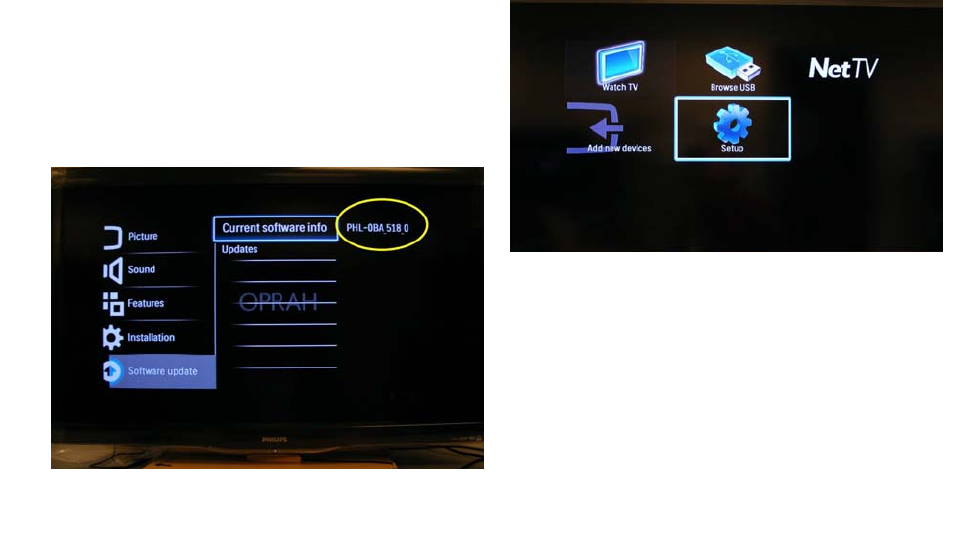
Press the Menu button on your remote and
select Setup.
Select Software update\Current software info to
view your TV software version.
If the version displayed is the same as the
version on the website, stop here. You do not
need to update your software. If the version
number is smaller than the one on the website,
proceed to Software installation instructions.
Continued on the next page
Software installation instructions:
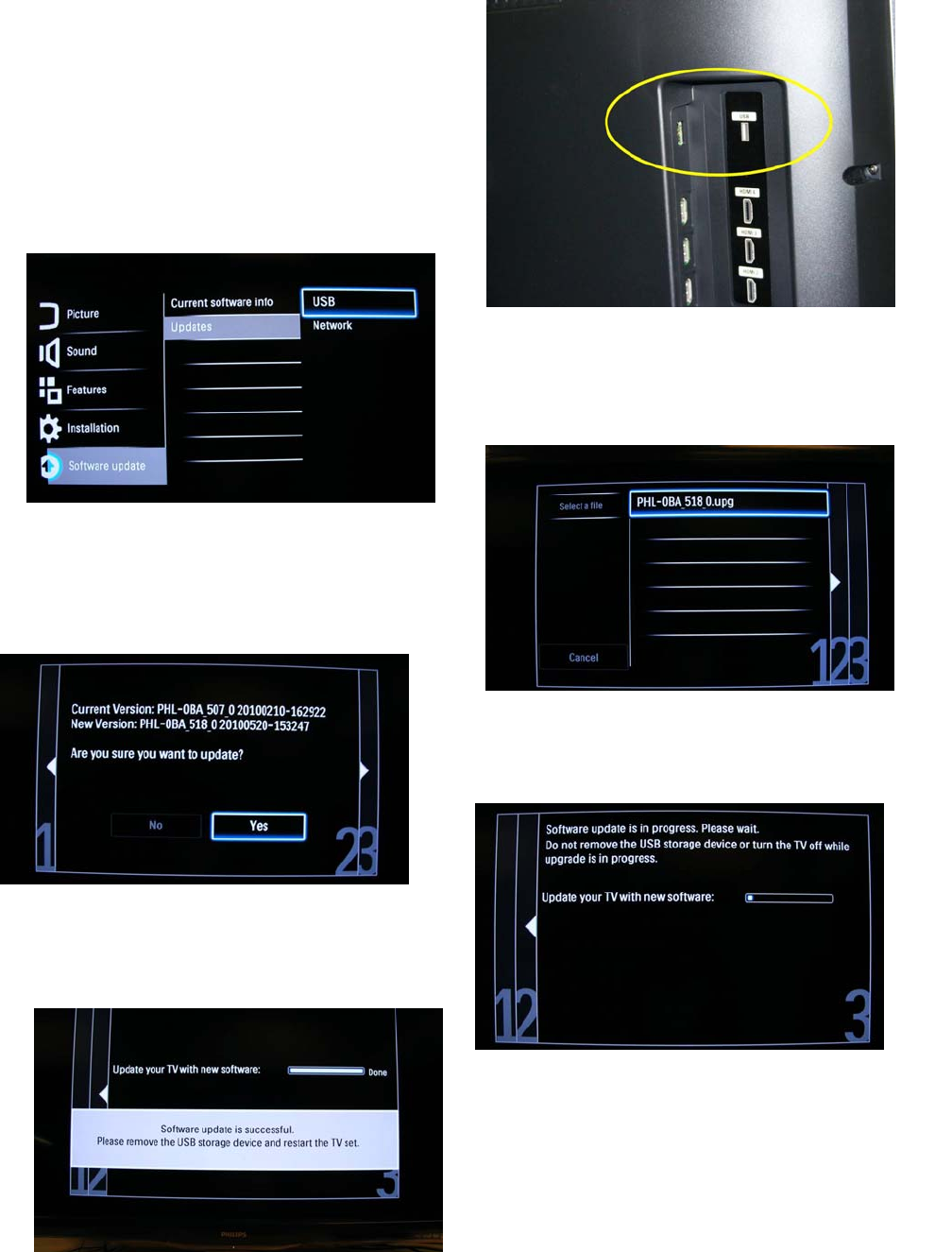
Download the software file and extract the
*.upg file. Copy the *.upg file to the root
directory of a USB drive. An example of
the root directory is E:\.
Insert the USB drive into the USB port on
your TV.
Select Software update\Updates\USB. Press the
OK button.
Select the file that matches the version
number on the website.
Select Yes to start the update.
Do not turn the set off while the upgrade is
in progress. The upgrade may take several
minutes.
When the software upgrade is complete, remove
the USB drive. Turn the set off and back and
on.

Software history:
Version Problems fixed
PHL-0CA_314_0 - Uneven brightness across screen.
- USB thumbnails not properly displayed
PHL-0CA_317_0 - Loss of picture when switching on a Blu-Ray player
connected using HDMI.
- Skin tone color correction.
- Unit switching On and Off after running Setting Assistant.
PHL-0CA_323_0 - Clock time shifts one hour when switching from Auto-
Clock to Manual clock.
- SPDIF (Digital Audio out) outputs PCM audio when
receiving ATSC Dolby Digital audio.
PHL-0CA_326_0 - Clock does not keep accurate time.
