Philips Dvp3150V 37 Quick Start Guide H982NUD_QSG_EN
Philips-Dvp3150V-37B-Quick-Start-Guide philips-dvp3150v-37b-quick-start-guide
2014-12-13
: Philips Philips-Dvp3150V-37-Quick-Start-Guide philips-dvp3150v-37-quick-start-guide philips pdf
Open the PDF directly: View PDF  .
.
Page Count: 2
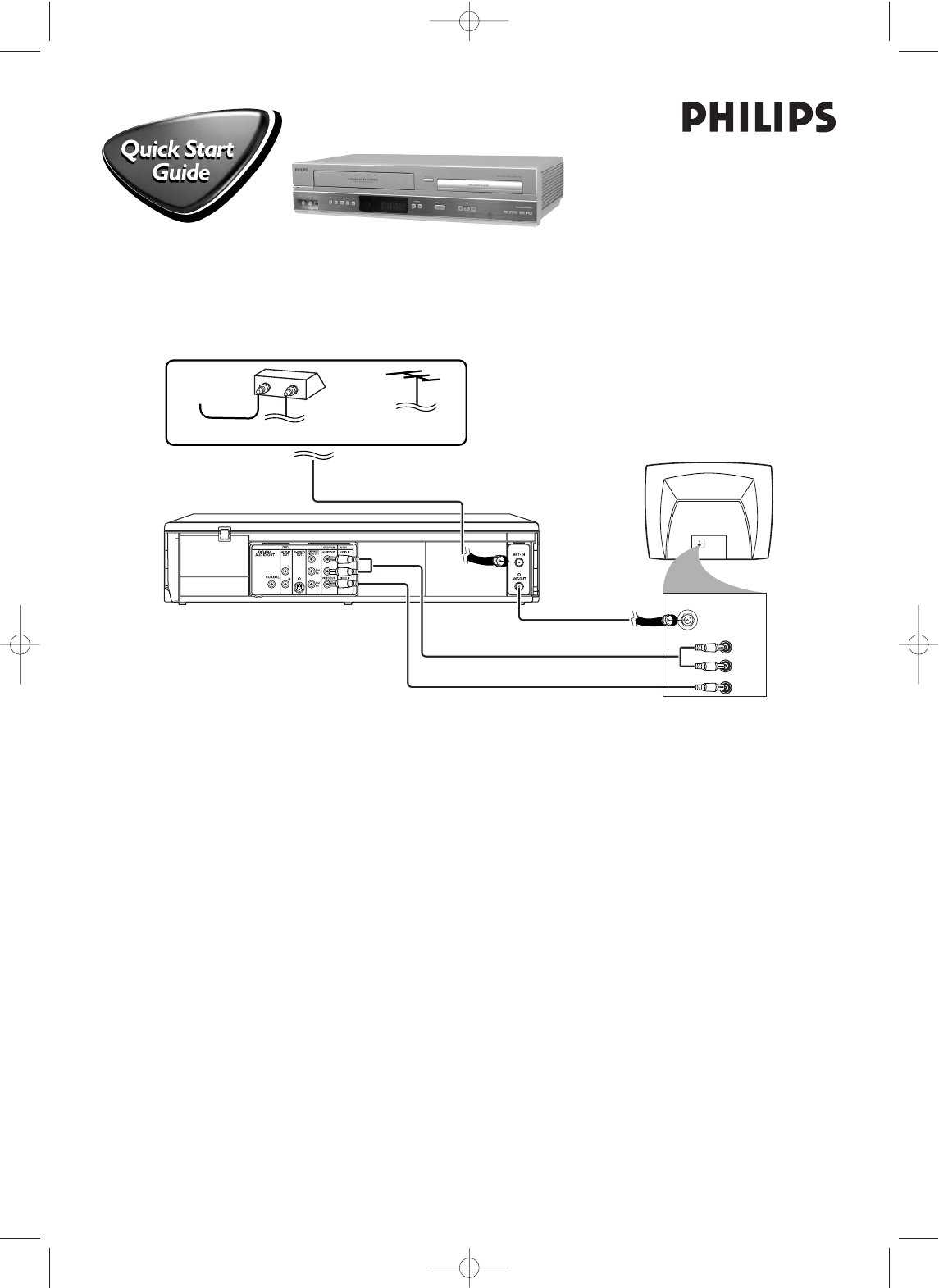
There are many ways to connect your new DVD/VCR to your Television and other equipment.This Quick Start
Guide shows the easiest, most common connection.
Higher quality connections are explained in the accompanying owner’s manual and will provide better sound or
picture if your TV and/or audio system is compatible.
REAR OF TV
(EXAMPLE ONLY)
IN OUT
OR
ANTENNA IN
AUDIO IN
VIDEO IN
L
R
4Audio Cables
3
RF COAXIAL CABLE
5Video Cable
Audio and Video IN Jacks on TV
2Antenna or Cable TV Signal to ANT-IN Jack
CABLE BOX
(Optional)
CABLE TV SIGNAL
ANTENNA or
CABLE TV SIGNAL
DVP3150V/37
1Disconnect all equipment from the power outlets. Connect the equipment to the power outlets only after you
have finished hooking up everything. Never make or change connections with equipment connected to the power outlet.
2Connect your Antenna TV signal or, if you have a Cable Box/Satellite Receiver, the OUT jack of your Cable
Box/Satellite Receiver to the ANT-IN jack on the rear of the DVD/VCR using the supplied RF coaxial cable.
3Connect another RF coaxial cable (not supplied) to the DVD/ VCR’s ANT-OUT jack and to your TV’s
ANTENNA IN jack.
The TV’s ANTENNA IN jack may be labelled 75-ohm,TV IN, or RF IN. Check your TV manual for details
.
4Connect the red and white audio cables (supplied) to the red and white DVD/VCR AUDIO OUT jacks on
the DVD/VCR and to the red and white AUDIO IN jacks on the TV.
5Connect the yellow video cable (supplied) to the DVD/VCR VIDEO OUT jack on the DVD/VCR and to
the VIDEO IN jack on the TV. The VIDEO IN jack on the TV is usually yellow and may be labelled CVBS, Composite,
or Baseband video.
6Plug the power cords of the DVD/VCR and the TV into an active power outlet.
7Turn on the TV and set it to the correct Audio/Video In channel.
8Press STANDBY-ONyon the DVD/VCR or its remote control to turn on the DVD/VCR. The first time
you turn on the DVD/VCR, you should complete the First-time DVD/VCR Setup. See the other side of
this Quick Start Guide for details.
H982NUD_QSG_EN 2/28/06 12:37 PM Page 1
Playable Discs
The DVD Player of the DVD/VCR will play the following Discs.
is a trademark of DVD Format/Logo Licensing Corporation.
Windows Media is a trademark of Microsoft Corporation.
DVDs must have a Region Code of ALL regions or Region 1.
1
ALL
STOP PLAY
REW F.FWD PLAY
REC CHANNELSTOP/EJECT
VIDEO AUDIOLR
ONE TOUCH RECORDING • LONG PLAY
SOURCE
STANDBY-ON
VCR DVD
DVD
DVP 3150V DVD PLAYER/VCR
OPEN/CLOSE
STANDBY-ON
PLAY
DVD
VCR VCR/TV
OK
MENU MENU
DISC/VCR
RETURN TITLE
A-B
CLEAR/RESET SLOW
SUBTITLE ZOOM
ANGLE
REPEAT REPEAT
AUDIO
SEARCH MODE
DISPLAY
SKIP / CH
SYSTEM
PAUSESTOP
MARKER RECORDTIMER SET
SPEED
1 2 3
7
6
5
4
890
+10
8239 300 48191
1VMN22817*****
H982NUD
Quick Start Guide (cont’d)Quick Start Guide (cont’d)
Playing a Disc
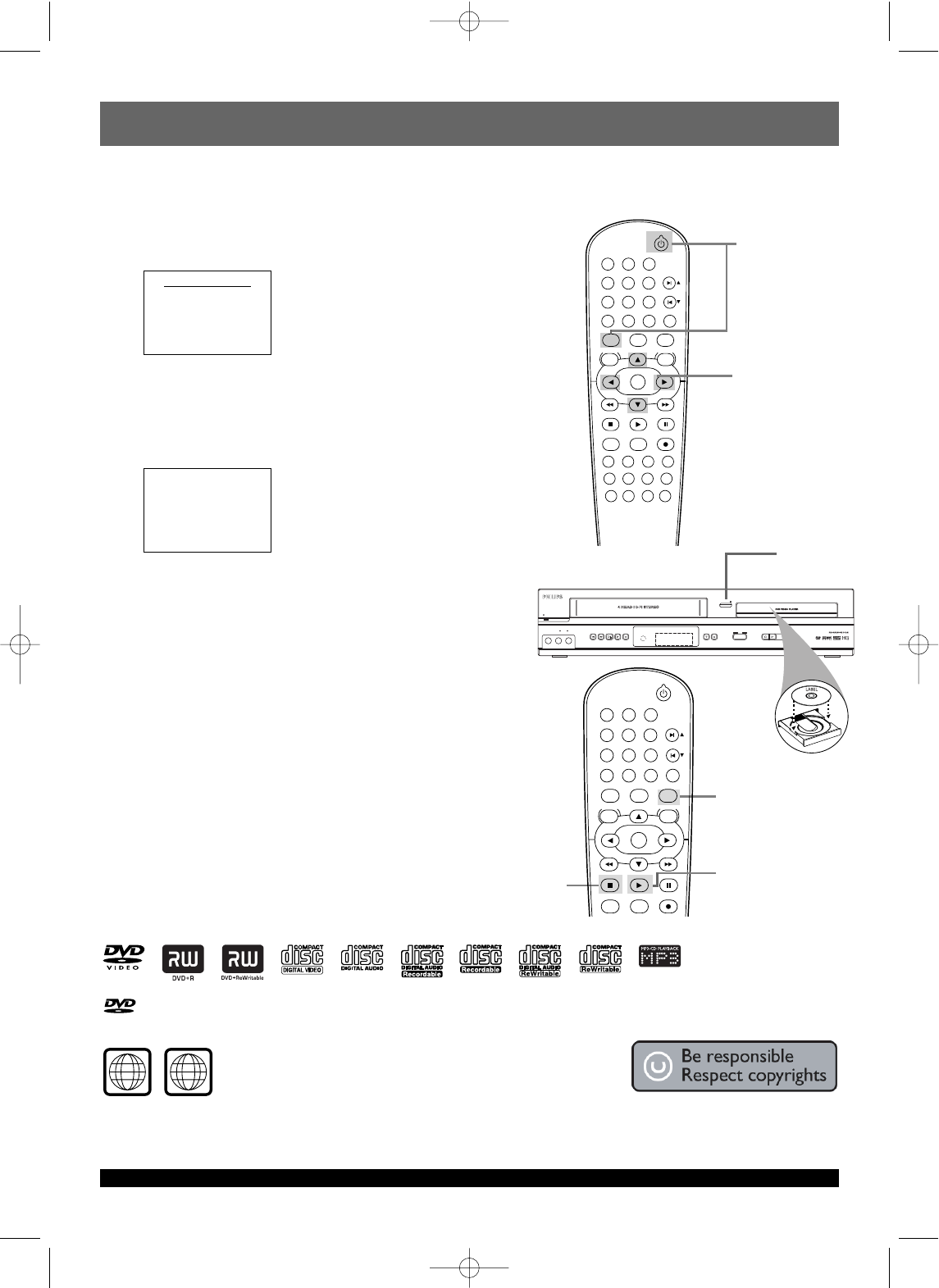
1Turn on the TV and set it to the correct Audio/Video In
channel.
2With the TV and DVD/VCR turned on, press DVD to put
the DVD/VCR in DVD mode.
3Press OPEN/CLOSE Ato open the disc tray.
Put a Disc in the tray with the label facing up and the shiny side
facing down.
Press PLAY Bto close the disc tray.
4Playback may start automatically. If not, press PLAY B.
If a DVD Disc menu appears, use the sBKL,OK, or Number
buttons to select features or start playback. Follow the
instructions in the menu.
5To stop playing a Disc, press STOP C.
First-Time DVD/VCR Setup
1Turn on the TV and set it to the correct Audio/Video In
channel.
2
Press VCR, then press STANDBY-ONy.VCR light will appear on
the front of the DVD/VCR. The TV display shown below will appear.
3Press K or L to select ENGLISH, FRANCAIS (French), or
ESPAÑOL (Spanish) as the language for VCR on-screen
displays. Then, press B.
4The AUTO SET UP message will appear. Press Bto set up TV
channels for the VCR. When setup is complete, the lowest TV
channel will appear on the TV.
Turn on the TV and set it to the
correct Audio/Video In channel.
3-4
2
1
3
5
2
4
STANDBY-ON
PLAY
DVDVCR VCR/TV
OK
MENU MENU
DISC/VCR
RETURN TITLE
A-B
CLEAR/RESET SLOW
SUBTITLE ZOOM
ANGLE
REPEAT REPEAT
AUDIO
SEARCH MODE
DISPLAY
SKIP / CH
SYSTEM
PAUSESTOP
MARKER RECORDTIMER SET
NEED HELP! Visit our website at www.philips.com/usasupport
DVDs must be recorded in either the NTSC or PAL color system.
Your TV must also have the NTSC or PAL color system.
LANGUAGE SELECT
BENGLISH [ON]
FRANCAIS
ESPAÑOL
PUSH B
AUTO SET UP
PUSH B
H982NUD_QSG_EN 2/28/06 12:37 PM Page 2
