Philips Fw V355 Users Manual
FW-V355/21M User manual fw-v355_21m_dfu_eng Mini Audio System FW-V355/21M | PhilipsFW-V355/21M
FW-V355/21M fw-v355_21m_dfu_eng Philips FW-V355/21M user manual - English, Pdf file (866 Kb) - Owner's manual
FW-V355 to the manual ba96d95c-8e3c-4cb6-b02f-afd01f830456
2015-02-05
: Philips Philips-Fw-V355-Users-Manual-384943 philips-fw-v355-users-manual-384943 philips pdf
Open the PDF directly: View PDF  .
.
Page Count: 34
1
3139 115 21371
FW-
V355
FW-
V355
VCD MP3-CD
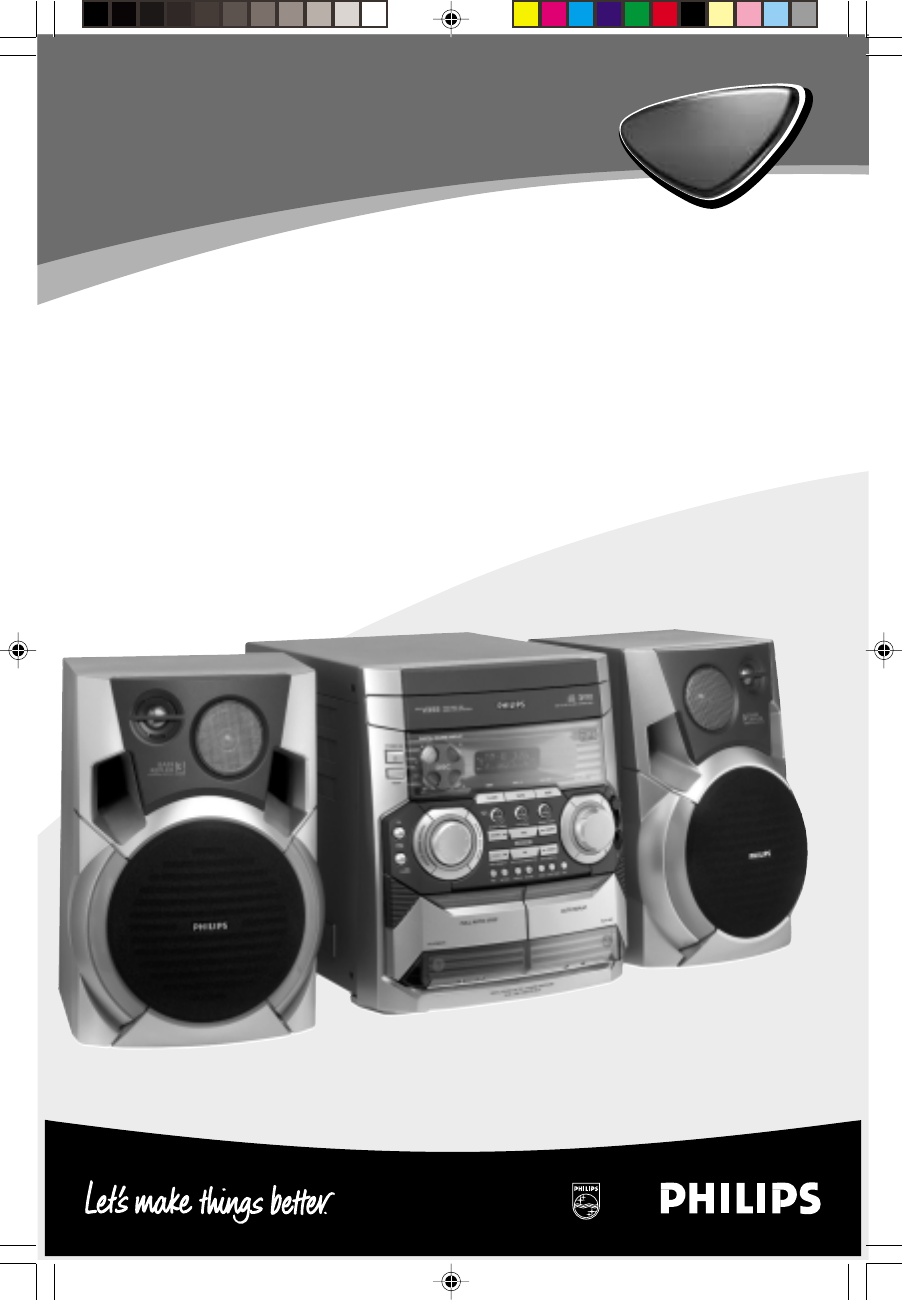
Mini Hi-Fi System
pg 001-034/V355/21-Eng 4/17/02, 1:14 PM1
2
3139 115 21371
Optimum disc playability :
ensuring excellent picture quality
Philips components and modules for the various
CD applications have always enjoyed an
excellent reputation in the market place for
super disc playability - the ability to play discs
which may be scratched, soiled or not fully
according to the standard specification. This
position has been underlined by tests showing
the superior performance of the various Philips
players, as well as by the positive experiences of
millions of individual consumers around the
world.
Constantly improving performance
As the penetration of the CD system has
increased, and new applications like CD-ROM
and Video CD have become commonplace,
Philips Components - as the CD technology
inventor and as one of the major suppliers of
CD player modules in the industry - has
constantly improved the performance of its
products.
One of the ways in which this benefits users is
by optimum disc playability. This is an important
parameter for CD players other than CD Audio,
and especially for the Video CD applications,
because any loss of data from the disc will at
best cause disturbances in the reproduced
picture, and at worst can cause the player to lose
track so that disc playing fails.
Presenting Super Error Correction
To ensure consistently good results when playing
Video CD discs of all quality grades and
conditions, Philips has introduced further
improvements in the system's playability. These
developments together are called Super Error
Correction, a proprietary Philips technology
optimizing the system's ability to handle less-
than-perfect discs with the minimum disturbance
to normal playing.
By effectively eliminating virtually all errors arising
under normal playing conditions, Super Error
Correction ensures that the picture quality as
seen by the user is independent of disc play. The
video encoding and processing during mastering
of the disc, and the MPEG-1 decoding and video
encoding in the signal processing stages, are now
the only limiting factors for picture quality.
pg 001-034/V355/21-Eng 4/17/02, 1:14 PM2
3
3139 115 21371
VCD MP3-CD
MINI HIFI SYSTEM
FW-
CD / CD-R/CD
-RW COMPATIBLE
TUNER TAPE AUX
TAPE 1 • 2 CDR/VIDEO
DIGITAL SOUND DISPLAY
STANDBY-ON
SLEEP
STOP• CLEAR / DEMO STOP
SEARCH •TUNING SEARCH •TUNING PLAY• PAUSE
PRESET▲
NEXT/PRESET
PREV/
▲
DSC
OPEN/
CLOSE
DISC
CHANGE
CD
D
I
G
I
T
A
L
S
O
U
N
D
C
O
N
T
R
O
L
D
Y
N
A
M
I
C
B
A
S
S
B
O
O
S
T
PLAYBACK PLAY / REC
O
P
T
I
M
A
L
J
A
Z
Z
T
E
C
H
N
O
R
O
C
K
1
VCD
DIMCLOCK•TIMERPROG
ALBUM-
TITLE-
ALBUM+
TITLE+
MP3-CD
NTSC/
PAL
CHANGER
DCV
3
2
VCD
3
VCD
A. REPLAYPBC RETURN RECORD
BAND
MASTER
VOLUME
MIC
MIC
LEVEL
≤
1
2
6
4
5
7
8
9
0
!
#$
(
*
%
&
£
3
@
^
™
)
¡
3
pg 001-034/V355/21-Eng 4/17/02, 1:14 PM3
4
3139 115 21371
CAUTION
Use of controls or adjustments or performance of
procedures other than herein may result in hazardous
radiation exposure or other unsafe operation.
pg 001-034/V355/21-Eng 4/17/02, 1:14 PM4
5
3139 115 21371
English
Bahasa Melayu
Bahasa Indonesia
Index
English ------------------------------------------------ 6
-------------------------------------------------------- 35
Bahasa Melayu ----------------------------------- 64
Bahasa Indonesia -------------------------------- 93
pg 001-034/V355/21-Eng 4/17/02, 1:14 PM5
6
English
3139 115 21372
Contents
General Information
Supplied accessories .................................................. 7
Environmental information ....................................... 7
Safety information ....................................................... 7
Preparations
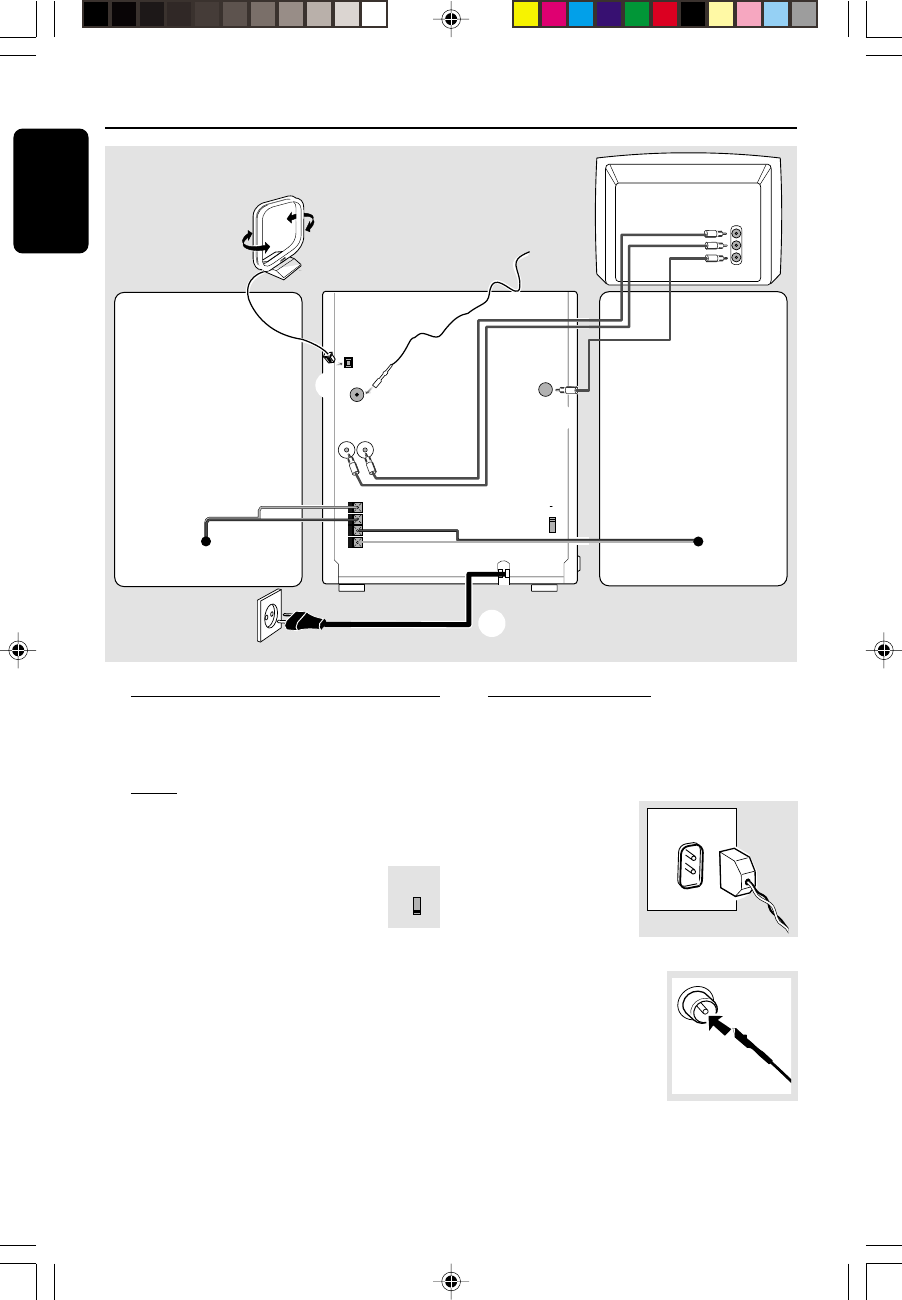
Rear connections ................................................... 8–9
Power
Antennas connection
Speakers connection
Video Out Connection
Connecting other equipment to your system
Inserting batteries into the remote control ......... 9
Controls
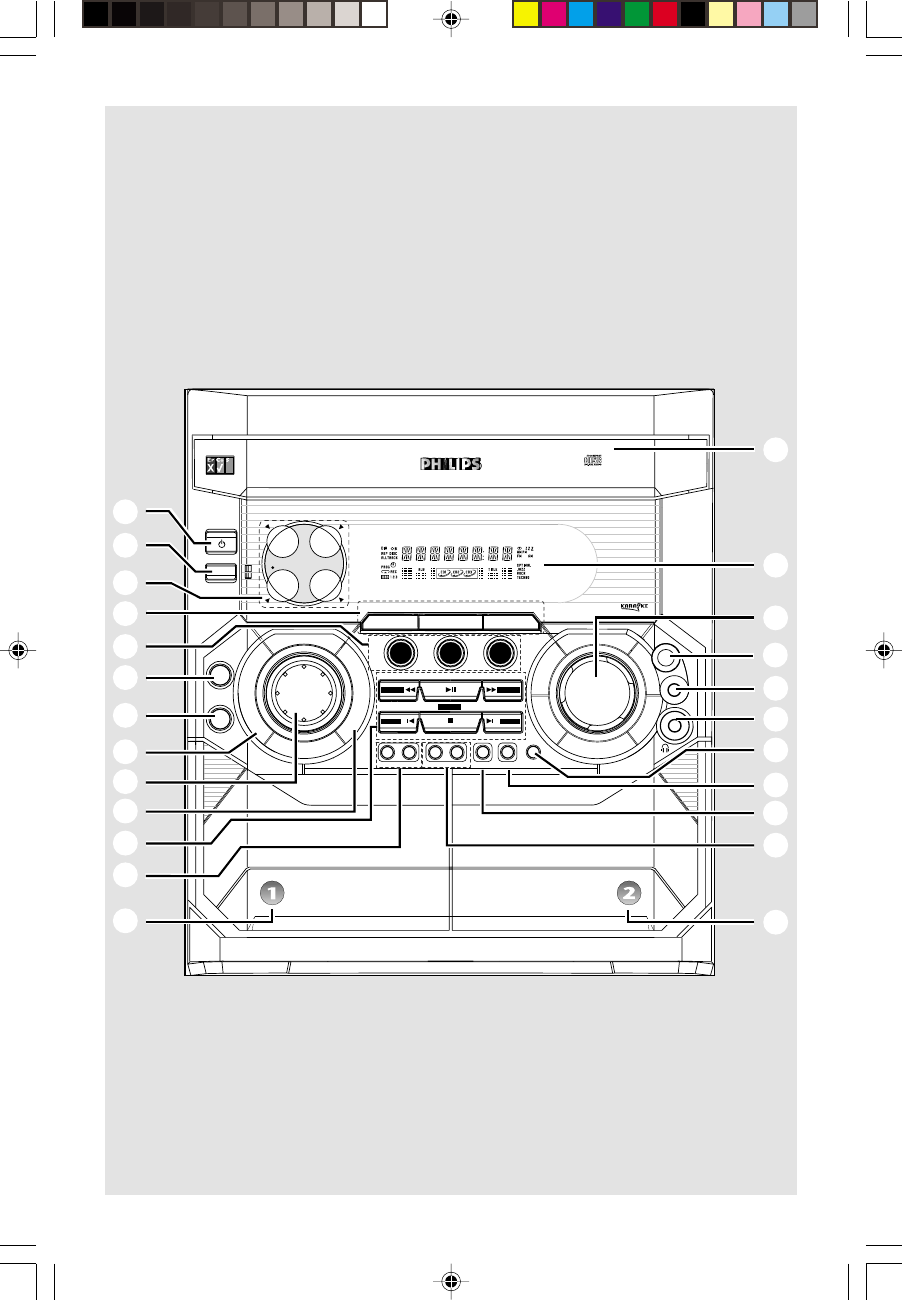
Controls on the system and remote
control .................................................................. 10–12
Basic Functions
Plug and Play ............................................................. 13
Demonstration mode ............................................. 14
Switching the system on ........................................ 14
Switching the system to standby mode .............. 14
Dim mode ................................................................. 14
Volume control ......................................................... 14
Sound control ........................................................... 15
Digital Sound Control (DSC)
Dynamic Bass Boost (DBB)
CD/VCD/MP3-CD Operations
Discs for playback .................................................... 16
About MP3 disc .................................................. 16–17
Loading discs ............................................................. 17
Playing discs ............................................................... 17
Replacing discs during playback ............................ 17
Selecting a desired track/passage ......................... 18
Selecting a desired Album/Title
(MP3 disc only) ......................................................... 18
Repeat play ................................................................ 18
Programming the disc tracks .......................... 18–19
Erasing the programme .......................................... 19
VCD Operations
Adjusting the TV system ........................................ 20
On screen display (OSD) ....................................... 20
Playing a video CD with PBC functions .............. 21
Returning to menu screen ..................................... 21
Quick review ............................................................ 21
Playing a specific passage repeatedly ................... 22
Resume playback from the last stop point ......... 22
Picture effect ............................................................. 22
Slow
Zoom
Changing vocal .......................................................... 23
Adjusting the microphone echo ........................... 23
Adjusting the key tone ........................................... 23
Radio Reception
Tuning to radio stations ......................................... 24
Storing preset radio stations ........................... 24–25
Automatic preset programming
Manual preset programming
Tuning to preset radio stations ............................. 25
Erasing a preset radio station ............................... 25
Changing tuning grid ............................................... 25
Tape Operation/Recording
Loading tape .............................................................. 26
Playing tapes .............................................................. 26
Rewinding/Fast forwarding .................................... 27
General information on recording ...................... 27
Preparation for recording ...................................... 27
One touch recording / Recording
the mixed sound ...................................................... 27
CD Synchronised start recording .................. 27–28
Dubbing tapes ........................................................... 28
Karaoke
Microphone mixing ................................................. 28
Clock/Timer
View clock ................................................................. 29
Clock setting ............................................................. 29
Timer setting ...................................................... 29–30
Deactivating the timer
Activating the timer
Sleep timer setting ................................................... 30
External sources
Listening to external sources ................................ 31
Maintenance.............................................. 31
Specifications ........................................... 32
Troubleshooting ............................. 33–34
pg 001-034/V355/21-Eng 4/17/02, 1:14 PM6
7
English
3139 115 21372
General Information
IMPORTANT!
PLEASE NOTE THAT THE VOLTAGE
SELECTOR LOCATED AT THE REAR OF
THIS SYSTEM IS PRESET AT 220V FROM
THE FACTORY. FOR COUNTRIES THAT
OPERATE AT 110V-127V, PLEASE ADJUST
TO 110V-127V BEFORE YOU SWITCH ON
THE SYSTEM.
Supplied accessories
– 2 speaker boxes
– remote control
– batteries (two AA size) for remote control
– AM loop antenna
– FM wire antenna
– One Video cinch cable
Environmental information
All unnecessary packaging has been omitted. We
have tried to make the packaging easy to
separate into three materials: cardboard (box),
polystyrene foam (buffer) and polyethylene (bags,
protective foam sheet).
Your system consists of materials which can be
recycled and reused if disassembled by a
specialised company. Please observe the local
regulations regarding the disposal of packaging
materials, exhausted batteries and old
equipment.
Safety information
●Before operating the system, check that the
operating voltage indicated on the typeplate (or
the voltage indication beside the voltage
selector) of your system is identical with the
voltage of your local power supply. If not, please
consult your dealer.
●Place the system on a flat, hard and stable
surface.
●Place the system in a location with adequate
ventilation to prevent internal heat build-up in
your system. Allow at least 10 cm (4 inches)
clearance from the rear and the top of the unit
and 5 cm (2 inches) from each side.
●Do not expose the system, batteries or discs to
excessive moisture, rain, sand or heat sources
caused by heating equipment or direct sunlight.
●The lens may cloud over when the system is
suddenly moved from cold to warm
surroundings, making it impossible to play a disc.
Leave the system in the warm environment until
the moisture evaporates.
●The mechanical parts of the set contain self-
lubricating bearings and must not be oiled or
lubricated.
●When the system is switched to Standby
mode, it is still consuming some power.
To disconnect the system from the
power supply completely, remove the AC
power plug from the wall socket.
pg 001-034/V355/21-Eng 4/17/02, 1:14 PM7
8
English
3139 115 21372
Preparations
SPEAKERS 6Ω
R
+
—
L
—
+
SUBWOOFER
OUT
AM
ANTENNA
FM
ANTENNA
LR
speaker
(right) speaker
(left)
FM wire antenna
AM loop
antenna
B
C
AUX/CDR
A
AC power cord
VOLTAGE
SELECTOR
110V-
127V
220V-
240V
VOLTAGE
SELECTOR
220V-
240V
110V-
127V
VIDEO
OUT
VIDEO
IN
Television
L
R
AUDIO
OUT
D
E
Rear connections
The type plate is located at the rear of the
system.
APower
Before connecting the AC power cord to the
wall outlet, ensure that the following are done;
– If your system is equipped with a
Voltage Selector, set the VOLTAGE
SELECTOR to the local power line
voltage.
– All other connections have been made.
WARNING!
– For optimal performance, use only the
original power cable.
– Never make or change any connections
with the power switched on.
BAntennas Connection
Connect the supplied AM loop antenna and FM
antenna to the respective terminals. Adjust the
position of the antenna for optimal reception.
AM Antenna
●Position the antenna as
far as possible from a
TV, VCR or other
radiation source.
FM Antenna
●For better FM stereo
reception, connect an
outdoor FM antenna to the
FM ANTENNA terminal.
AM ANTENNA
VOLTAGE
SELECTOR
110V-
127V
220V-
240V
pg 001-034/V355/21-Eng 4/17/02, 1:14 PM8
9
English
3139 115 21372
Preparations
CSpeakers Connection
Front Speakers
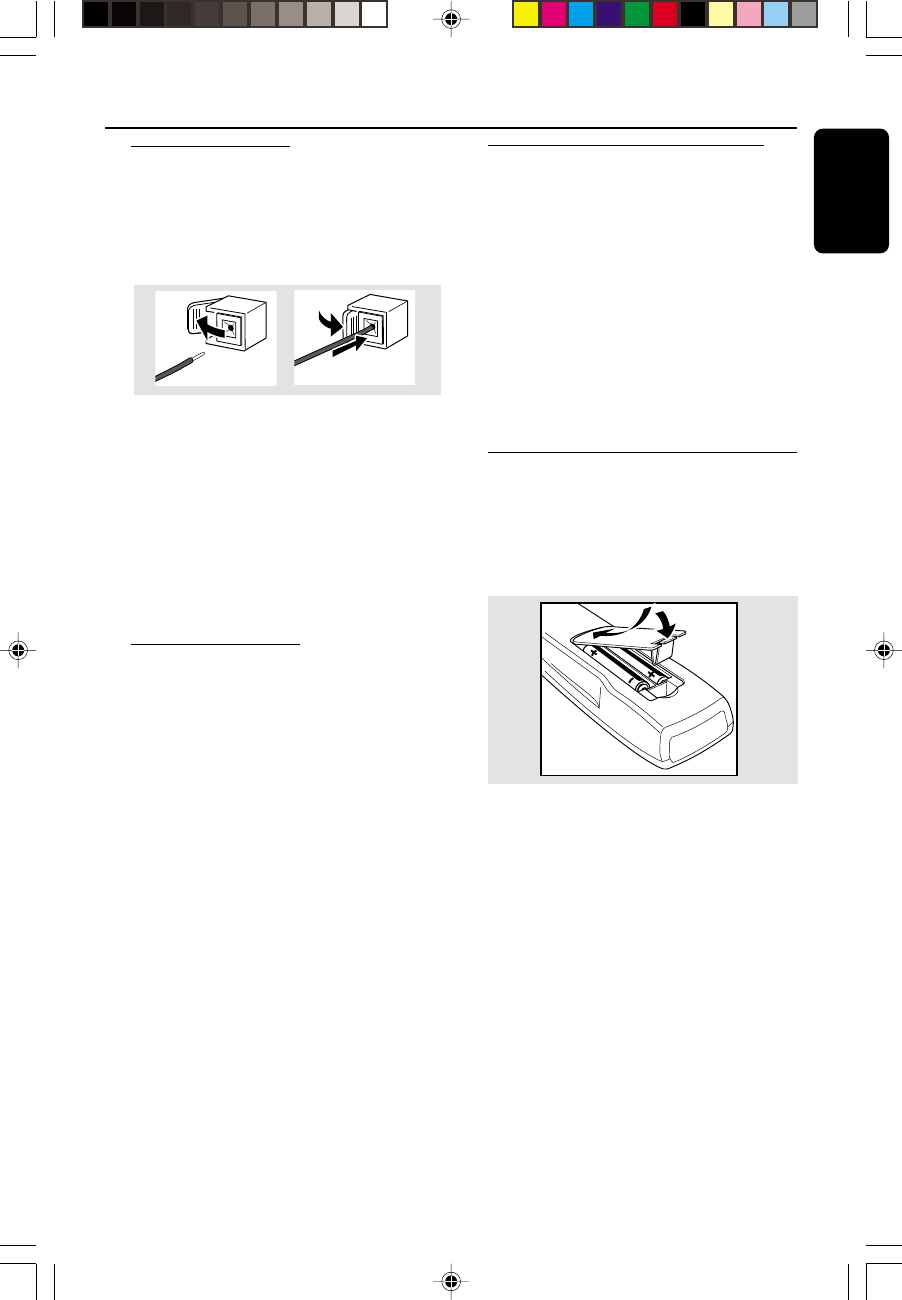
Connect the speaker wires to the SPEAKERS
terminals, right speaker to "R" and left speaker to
"L", coloured (marked) wire to "+" and black
(unmarked) wire to "-".
1
2
●Fully insert the stripped portion of the speaker
wire into the terminal as shown.
Notes:
– For optimal sound performance, use the
supplied speakers.
– Do not connect more than one speaker to any
one pair of
+
/
-
speaker terminals.
– Do not connect speakers with an impedance
lower than the speakers supplied. Please refer to
the SPECIFICATIONS section of this manual.
DVideo Out Connection
Connect the VIDEO OUT terminal at the rear
of the system to the TV or VCR VIDEO IN for
viewing or recording.
Note:
– To avoid magnetic interference with the picture
on your TV, do not position the front speakers too
close to the TV.
EConnecting other equipment to your
system
Use a cinch cable to connect AUX/CDR IN to
the analogue audio out terminals of an external
equipment (TV, VCR, Laser Disc player, DVD
player or CD Recorder).
Note:
– If you are connecting equipment with a mono
output (a single audio out terminal), connect it to
the AUX/CDR IN left terminal. Alternatively, you
can use a “single to double” cinch cable (the output
sound still remain mono).
Inserting batteries into the
remote control
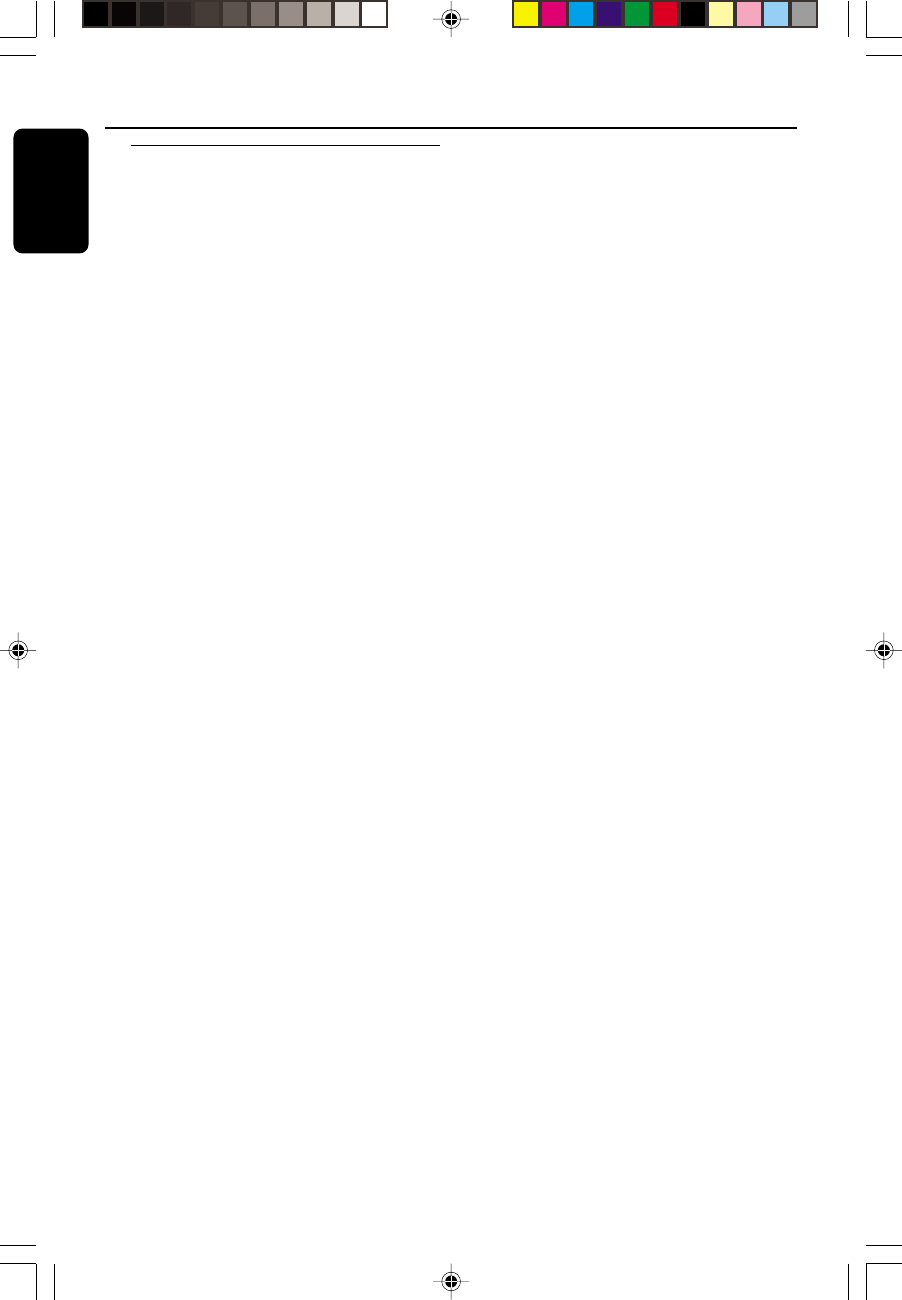
Insert two batteries type R06 or AA into the
remote control with the correct polarity as
indicated by the "+" and "-" symbols inside
the battery compartment.
CAUTION!
– Remove batteries if they are exhausted
or will not be used for a long time.
– Do not use old and new or different
types of batteries in combination.
– Batteries contain chemical substances, so
they should be disposed off properly.
pg 001-034/V355/21-Eng 4/17/02, 1:14 PM9
10
English
3139 115 21372
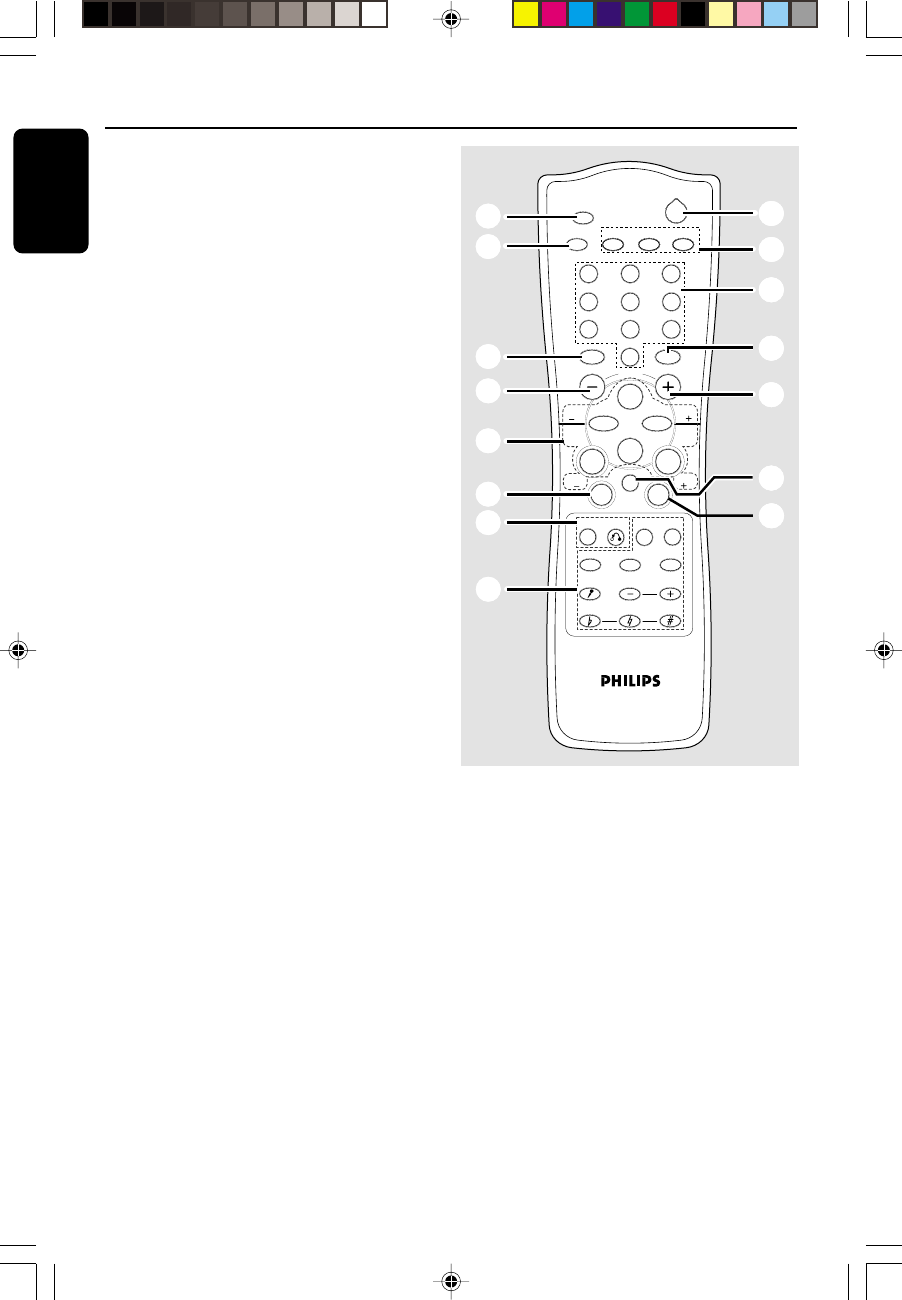
Controls on the system and
remote control
1STANDBY ON y
– to switch the system on or to standby mode.
2SLEEP
– to activate/deactivate or set the sleep timer.
3DIGITAL SOUND DISPLAY
– the active DSC will be lighted.
4TUNER (BAND)
– to select waveband : FM or MW.
TAPE (TAPE 1•2)
– to select tape deck 1 or 2.
AUX (CDR/VIDEO)
– to select the input for an additional appliance.
5VCD 1 / 2 / 3
(VCD.CD 1/2/3 - MP3.CD 1/2/3)
– to select disc tray 1, 2 or 3.
VCD 1 (NTSC/PAL)
–(on the system only) to select corresponding
video output for NTSC or PAL system of your
TV set (except Multi-system TV).
6OPEN/CLOSE
– to open or close the disc tray.
7DISC CHANGE
– to change disc(s).
8DIGITAL SOUND CONTROL (DSC)
– to activate the jog control for DSC selection.
9Jog control
– to select the desired sound effect for the
selected sound feature.
DSC .................. JAZZ, ROCK, TECHNO or
OPTIMAL.
DBB .................. DBB 1, DBB 2, DBB 3 or
DBB OFF.
0DYNAMIC BASS BOOST (DBB)
– to activate the jog control for DBB selection.
!Mode Selection
PLAY•PAUSE ÉÅ
for CD/VCD/MP3-CD…to start or interrupt
playback.
for Tape ............... to start playback.
for Plug & Play…(on the system only) to initiate
and start plug & play mode.
SEARCH•TUNING à (ALBUM -)
SEARCH•TUNING á (ALBUM +)
for MP3-CD ..... to select previous/next album.
for VCD .............. to move the zoomed picture to
the left or right.
for CD/VCD .... to search backward/forward.
for Tuner ............. to tune to a lower or higher
radio frequency.
for Tape ............... to rewind or fast forward.
for Clock ............ (on the system only) to set the
hour.
STOP•CLEAR / DEMO STOP Ç
for CD/VCD/MP3-CD…to stop playback or to
clear a programme.
for Tuner ............. (on the system only) to stop
programming or to erase a
selected preset.
for Tape ............... to stop playback or recording.
for Demo ........... (on the system only) to activate/
deactivate the demonstration.
for Clock ............ (on the system only) to exit clock
setting or cancel timer.
for Plug & Play…(on the system only) to exit plug
& play mode.
PREV í / PRESET 4 (TITLE -)
NEXT ë / PRESET3 (TITLE +)
for MP3-CD ..... to select previous/next title.
for VCD .............. to move the zoomed picture
down or up.
................................. to select next or previous menu
or track during playback (for VCD
with PBC switched on).
for CD/VCD .... to skip to the beginning of the
current, previous, or next track.
for Tuner ............. to select a preset radio station.
for Clock ............ (on the system only) to set the
minute.
Controls (main system’s illustrations on page 3)
pg 001-034/V355/21-Eng 4/17/02, 1:14 PM10
11
English
3139 115 21372
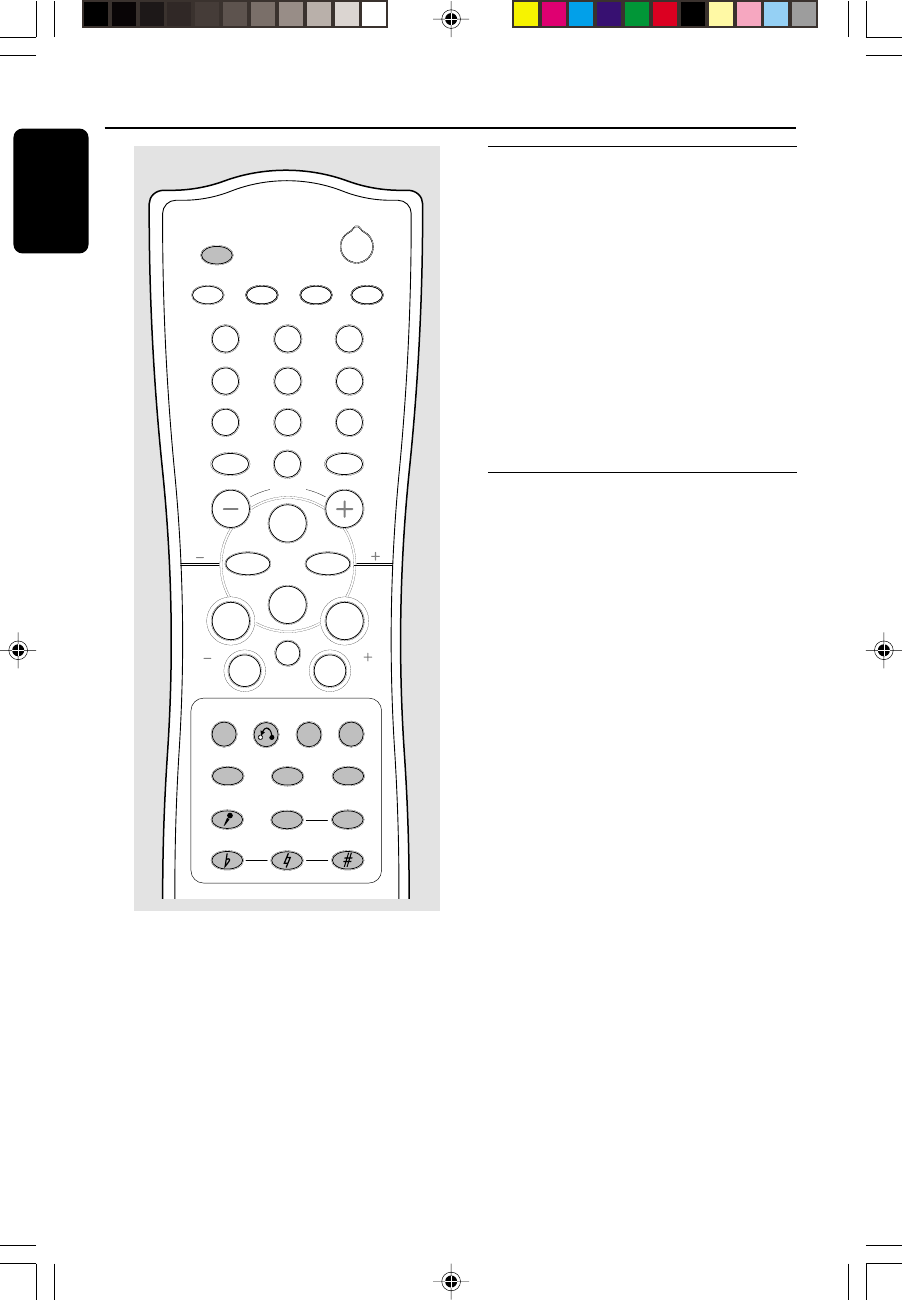
@VCD operations (for VCD version 2.0 only)
PBC
– to switch on or off the playback control mode.
RETURN
– to return to the previous menu level during
playback (for VCD with PBC switched on).
#Tape deck 1
$Tape deck 2
%Tape deck operations
A. REPLAY
– to select continuous playback in either AUTO
REPLAY or ONCE mode only.
RECORD
– to start recording on tape deck 2.
^PROG
for CD/VCD/MP3-CD…to programme disc
tracks.
for Tuner ............. to programme preset radio
stations.
for Clock ............ to select 12- or 24-hour clock
mode.
&CLOCK•TIMER
– to view the clock, set the clock or set the timer.
*DIM
– to select different brightness for the display
screen : DIM 1, DIM 2, DIM 3 or DIM OFF.
(n
– to connect headphones.
)MIC
– to connect microphone jack.
¡MIC LEVEL
– to adjust the mixing level for karaoke or
microphone recording.
™MASTER VOLUME (VOLUME +/-)
– to increase or decrease the volume.
£Display screen
– to view the current status of the system.
≤Disc tray
∞VCD operations (on remote control only)
OSD
– to switch on or off the On Screen Display on
the TV.
ZOOM
– to enlarge a still picture of the VCD on the TV
screen.
RESUME
– to continue playback again from where you have
stopped (for VCD with PBC switched off).
VOCAL
– to fade out the original vocal from a Karaoke
VCD or to switch between mono or stereo
mode during audio disc playback.
KEY CONTROL ( I È i )
– to change the VCD key tone level to suit your
vocal range.
I........................... to decrease the key tone level.
È.............................. to restore the key tone level to
original setting.
i............................. to increase the key tone level.
ECHO -/+
– to adjust the VCD echo level for karaoke after
inserted the microphone.
SLOWÖ
– to watch the VCD at a slower speed.
A - B
– to playback a certain scene or passage of a CD/
VCD repeatedly.
DIGEST
– to scan through a VCD or a specific track.
§IS (not functional for this model)
Controls
pg 001-034/V355/21-Eng 4/17/02, 1:14 PM11
12
English
3139 115 21372
DBB DSC
ÅÉ
13
2
46
5
79
8
VOLUME
á
à
IS
ë
í
Ç
0
2
TAPE 1/2
OSD
VCD.CD 1/2/3 AUX TUNER
REPEATPROG
ZOOM
∞ª
5
^
™
!
9
@
§
™
•
≥
MP3.CD 1/2/3
TITLE
TITLE
ALBUM
ALBUM
RESUME SLOW
VOCAL ECHO
KEY CONTROL
PBC RETURN A-B
DIGEST
Ö
4
∞
9
Controls
Notes for remote control:
– First select the source you wish to control
by pressing one of the source select keys on
the remote control (for example TAPE 1/2,
TUNER).
– Then select the desired function (for
example
É
,
í
,
ë
).
≥REPEAT
– to playback track/disc/programme repeatedly.
•Numeric keys (0 – 9)
(numbers consisting more than two figures must be
keyed in within 2 seconds.)
– to direct key in a track number for
CD/VCD/MP3-CD.
ªB
– to switch the system to standby mode.
pg 001-034/V355/21-Eng 4/17/02, 1:14 PM12
13
English
3139 115 21372
Basic Functions
TUNER TAPE AUX
TAPE 1 • 2
DIGITAL SOUND DISPLAY
STANDBY-ON
DSC
OPEN/
CLOSE
DISC
CHANGE
CD
O
P
T
I
M
A
L
J
A
Z
Z
T
E
C
H
N
O
R
O
C
K
CD 1 CD 2 CD 3
D
I
G
I
T
A
L
S
O
U
N
D
C
O
N
T
R
O
L
D
Y
N
A
M
I
C
B
A
S
S
B
O
O
S
T
SEARCH •TUNING SEARCH •TUNING PLAY• PAUSE
STOP •CLEAR / DEMO STOP PRESET▲
NEXT/PRESET
PREV/
▲
DIMCLOCK•TIMERPROG
ALBUM-
TITLE-
ALBUM+
TITLE+
MP3-CD
BAND
SLEEP
A. REPLAY RECORD
CDR/VIDEO
NTSC/
PAL
PBC RETURN
MASTER
VOLUME
MIC
MIC
LEVEL
ÅÉ
13
2
46
5
79
8
VOLUME
á
à
IS
ë
í
Ç
0
2
TAPE 1/2
OSD
VCD.CD 1/2/3 AUX TUNER
REPEATPROG
DBB DSC
MP3.CD 1/2/3
TITLE
TITLE
ALBUM
ALBUM
IMPORTANT!
Before operating the system, complete the
preparation procedures.
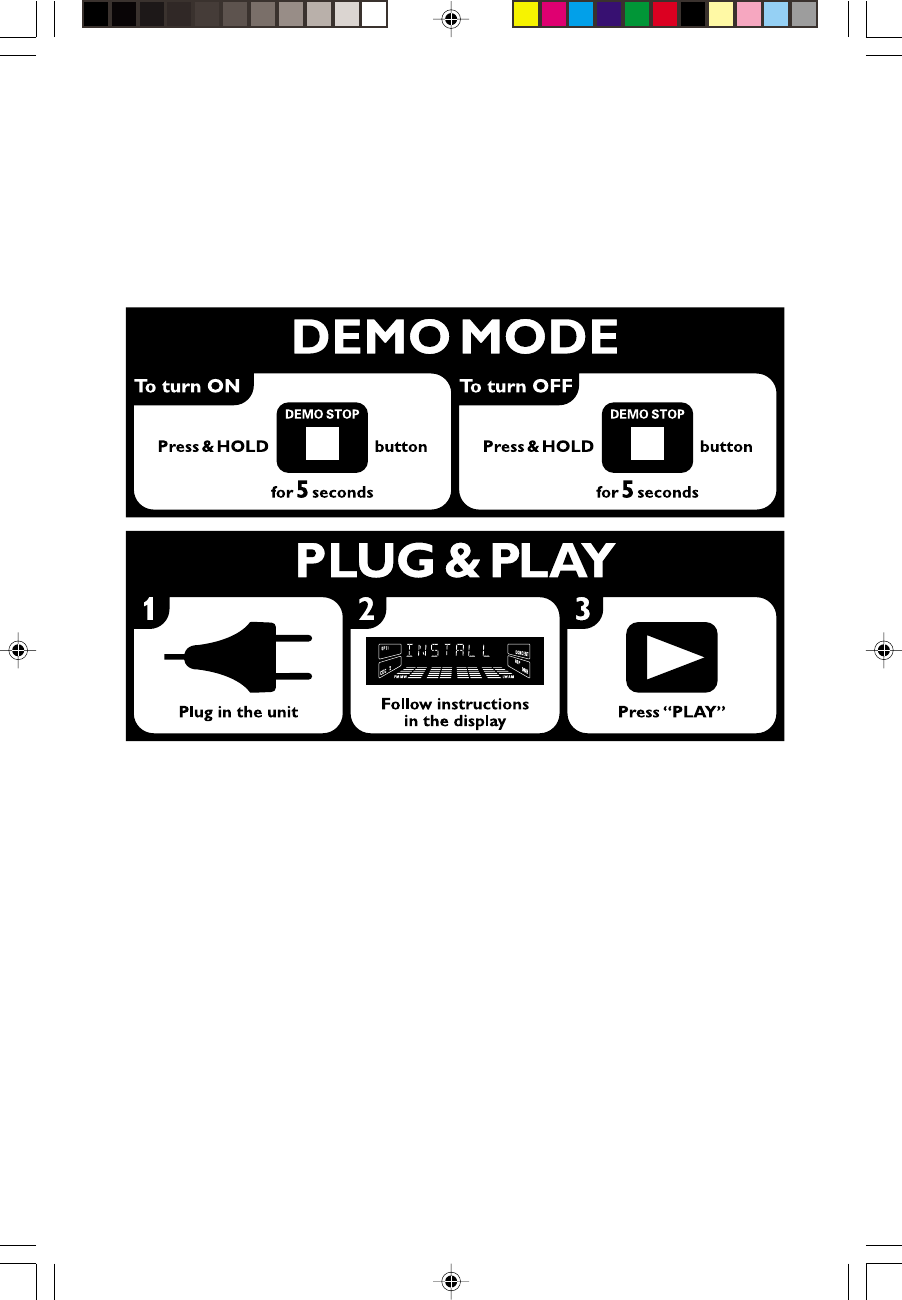
Plug and Play
Plug and Play allows you to store all available
radio stations automatically.
First time setup/power up
1When you turn on the main supply, "AUTO
INSTALL - PRESS PLAY" is displayed.
2PressÉÅ on the system to start installation.
➜"INSTALL" is displayed, followed by "TUNER"
and "AUTO".
➜PROG starts flashing.
➜All available radio stations with sufficient signal
strength will be stored automatically, starting
from FM and followed by MW band.
➜When all the available radio stations are
stored or the memory for 40 presets are used,
the last preset radio station will be played.
To reinstall Plug and Play
1In standby or demonstration mode, press and
holdÉÅ on the system until "AUTO INSTALL
- PRESS PLAY" is displayed.
2PressÉÅ again to start installation.
➜All previously stored radio stations will be
replaced.
To exit without storing the Plug and Play
●Press Çon the system.
➜If you do not complete the Plug and Play
installation, the function will be restarted when
you next turn on the main supply again.
Notes:
– When the power is turned on, the disc tray may
open and close to initialise the system.
– If no stereo frequency is detected during
Plug and Play, "CHECK ANTENNA" will be
displayed.
– During Plug and Play, if no button is pressed
within 15 seconds, the system will exit Plug and
Play mode.
pg 001-034/V355/21-Eng 4/17/02, 1:15 PM13
14
English
3139 115 21372
Demonstration mode
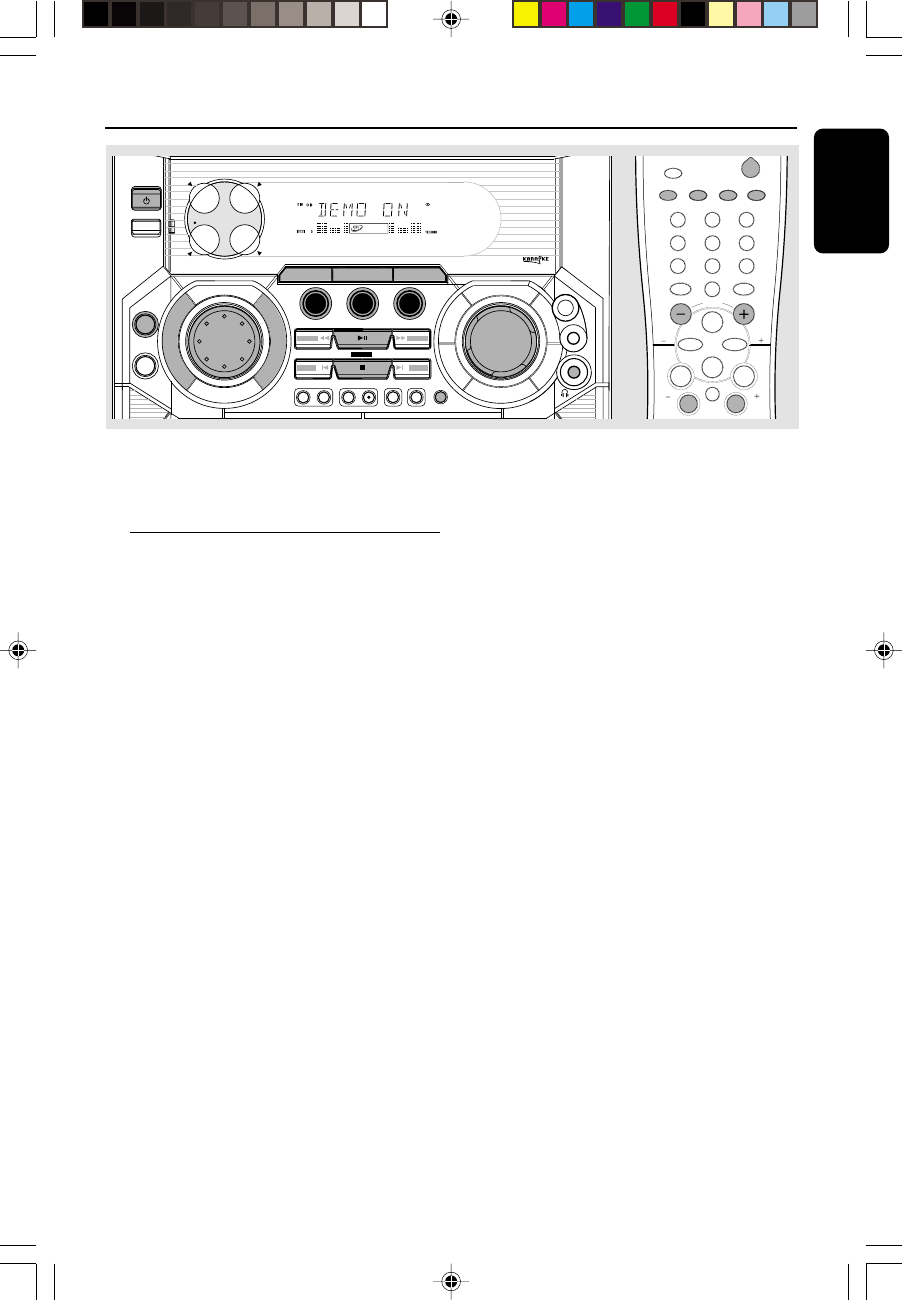
The system has a demonstration mode that
shows the various features offered by the system.
To activate the demonstration
●In standby mode, press and holdÇon the
system until "WELCOME" is displayed.
➜The demonstration will begin.
To deactivate the demonstration
●Press and holdÇon the system until
"DEMO OFF" is displayed.
➜The system will switch to standby mode.
Note:
– If you have not deactivated the demonstration, it
will resume five seconds after the system switches
to standby mode.
Switching the system on
In standby/demonstration mode
●Press STANDBY ON to switch on the last
selected source.
●Press VCD 1/2/3 (VCD.CD 1/2/3), TUNER,
TAPE (TAPE 1/2) or AUX.
●Press OPEN/CLOSE.
➜The system will switch to CD mode.
Switching the system to standby
mode
In demonstration mode
●Press and hold Ç on the system.
In any other source mode
●Press STANDBY ON (or B on the remote
control).
➜The clock will appear on the display when the
system is in standby mode.
Dim mode
You can select the desired brightness for the
display.
●In any source mode (except standby mode),
press DIM repeatedly to select : DIM 1, DIM 2,
DIM 3 or DIM OFF display mode.
➜DIM is shown, except for DIM OFF mode.
DIM
mode
1
2
3
OFF
Brightness
normal
half
half
normal
Spectrum
Analyser
off
on
off
on
Note:
– In standby mode, pressing DIM to select half or
full brightness for clock display.
Volume control
Adjust MASTER VOLUME (or press
VOLUME + or - on the remote control) to
increase or decrease the volume level.
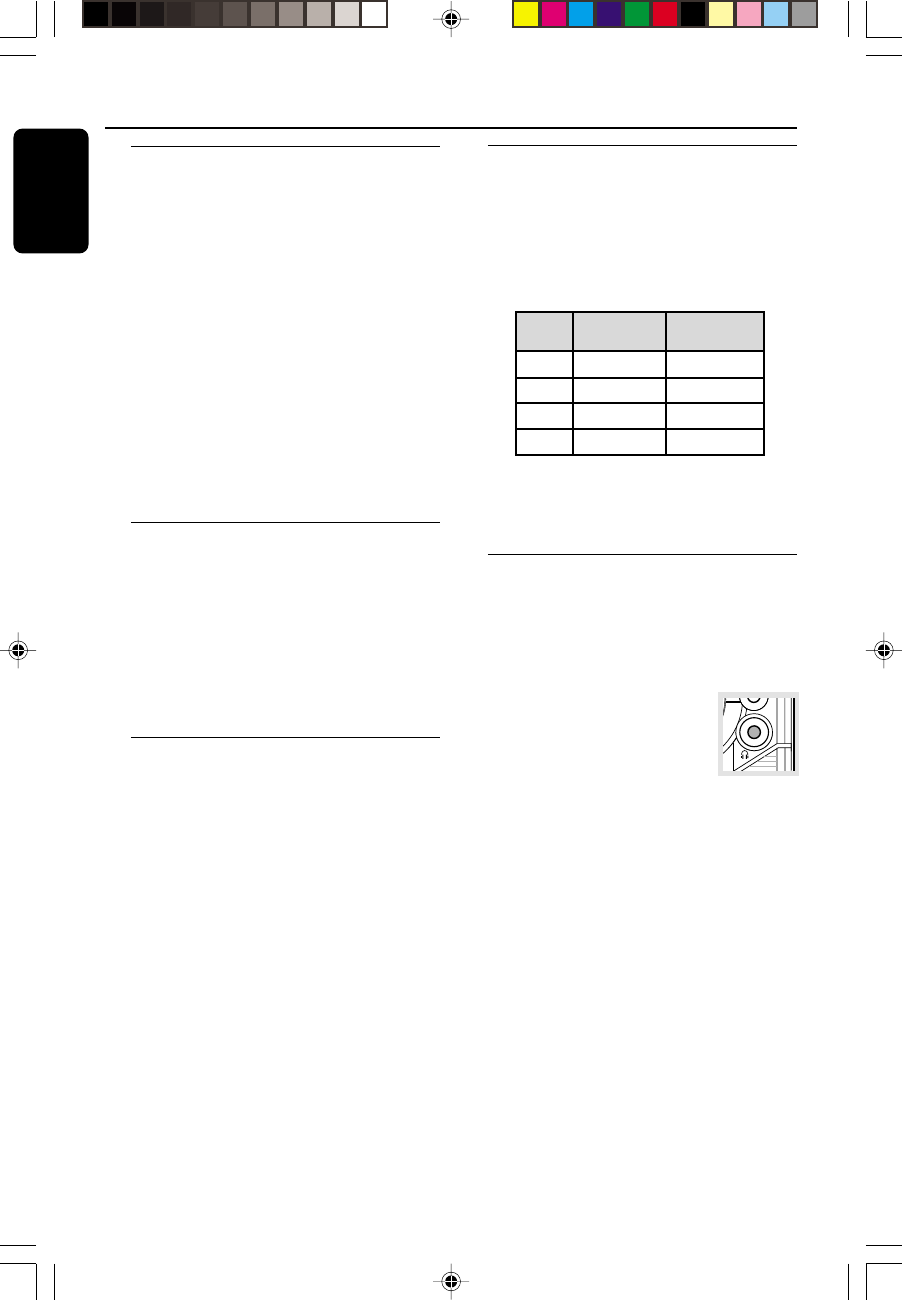
To listen through the headphones
●Connect the headphones plug to
the n socket at the front of the
system.
➜The speakers will be muted.
Basic Functions
MIC
pg 001-034/V355/21-Eng 4/17/02, 1:15 PM14
15
English
3139 115 21372
Sound control
Digital Sound Control (DSC)
The DSC feature enables you to enjoy special
sound effects that have preset equaliser settings,
providing the best music reproduction.
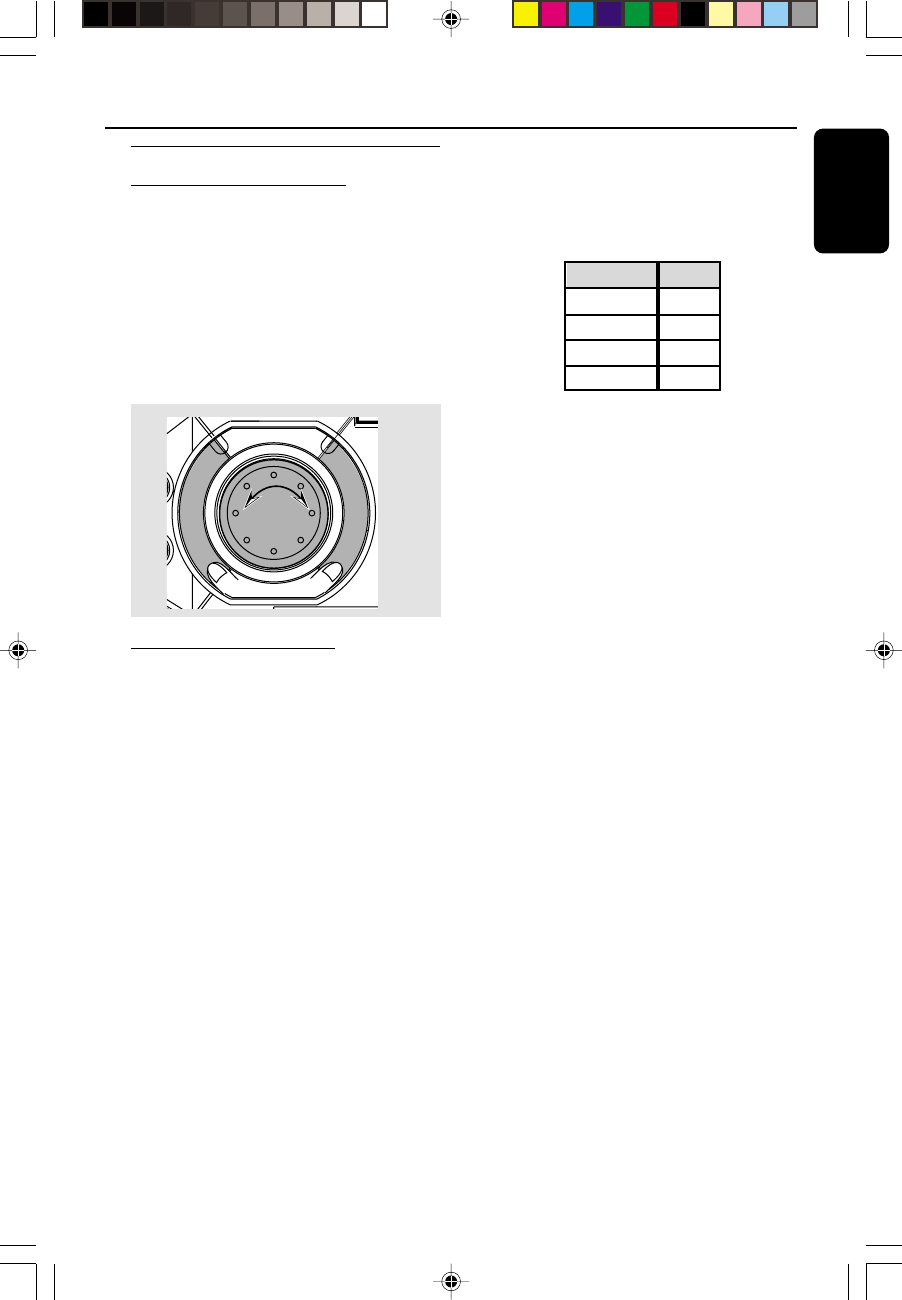
1Press DSC.
➜The selected DSC is shown.
2Adjust the jog control (or press DSC on the
remote control repeatedly) to select : JAZZ,
ROCK, TECHNO or OPTIMAL.
D
ISC
N
GE
D
I
G
I
T
A
L
S
O
U
N
D
C
O
N
T
R
O
L
D
Y
N
A
M
I
C
B
A
S
S
B
O
O
S
T
2
11
Dynamic Bass Boost (DBB)
There are three DBB settings to enhance the
bass response.
1Press DBB.
➜The selected DBB is shown, except for
DBB OFF mode.
2Adjust the jog control (or press DBB on the
remote control repeatedly) to select : DBB 1,
DBB 2, DBB 3 or DBB OFF.
Note:
– Some discs or tapes might be recorded in high
modulation, which causes a distortion at high
volume. If this occurs, switch off DBB or reduce the
volume.
Basic Functions
Automatic DSC-DBB selection
The best DBB setting is generated automatically
for each DSC selection. You can manually select
the DBB setting that best suits your listening
environment.
DSC
JAZZ
ROCK
TECHNO
OPTIMAL
DBB
off
on (3)
on (3)
on (2)
pg 001-034/V355/21-Eng 4/17/02, 1:15 PM15
16
English
3139 115 21372
1
CD / CD-R/CD
-RW COMPATIBLE
TUNER TAPE AUX
TAPE 1 • 2
DIGITAL SOUND DISPLAY
STANDBY-ON
DSC
OPEN/
CLOSE
DISC
CHANGE
CD
O
P
T
I
M
A
L
J
A
Z
Z
T
E
C
H
N
O
R
O
C
K
CD 1 CD 2 CD 3
D
I
G
I
T
A
L
S
O
U
N
D
C
O
N
T
R
O
L
D
Y
N
A
M
I
C
B
A
S
S
B
O
O
S
T
SEARCH •TUNING SEARCH •TUNING PLAY• PAUSE
STOP•CLEAR / DEMO STOP PRESET▲
NEXT/PRESET
PREV/
▲
DIMCLOCK•TIMERPROG
ALBUM-
TITLE-
ALBUM+
TITLE+
MP3-CD
BAND
SLEEP
A. REPLAY RECORD
VCD MP3-CD
MINI HIFI SYSTEM
FW-
CDR/VIDEO
NTSC/
PAL
CHANGER
DCV
3
PBC RETURN
MASTER
VOLUME
MIC
MIC
LEVEL
13
2
46
5
79
8
VOLUME
á
à
IS
ë
í
Ç
0
2
TAPE 1/2
OSD
VCD.CD 1/2/3 AUX TUNER
REPEATPROG
DBB DSC
ÅÉ
MP3.CD 1/2/3
TITLE
TITLE
ALBUM
ALBUM
IMPORTANT!
– This system is designed for regular discs.
Therefore, do not use any accessories such
as disc stabiliser rings or disc treatment
sheets, etc., as offered on the market,
because they may jam the changer
mechanism.
– Do not load more than one disc into
each tray.
Before viewing the Video CD, ensure that
the set is switched to corresponding PAL
or NTSC system of your TV set
(exception Multi-system TV).
Discs for playback
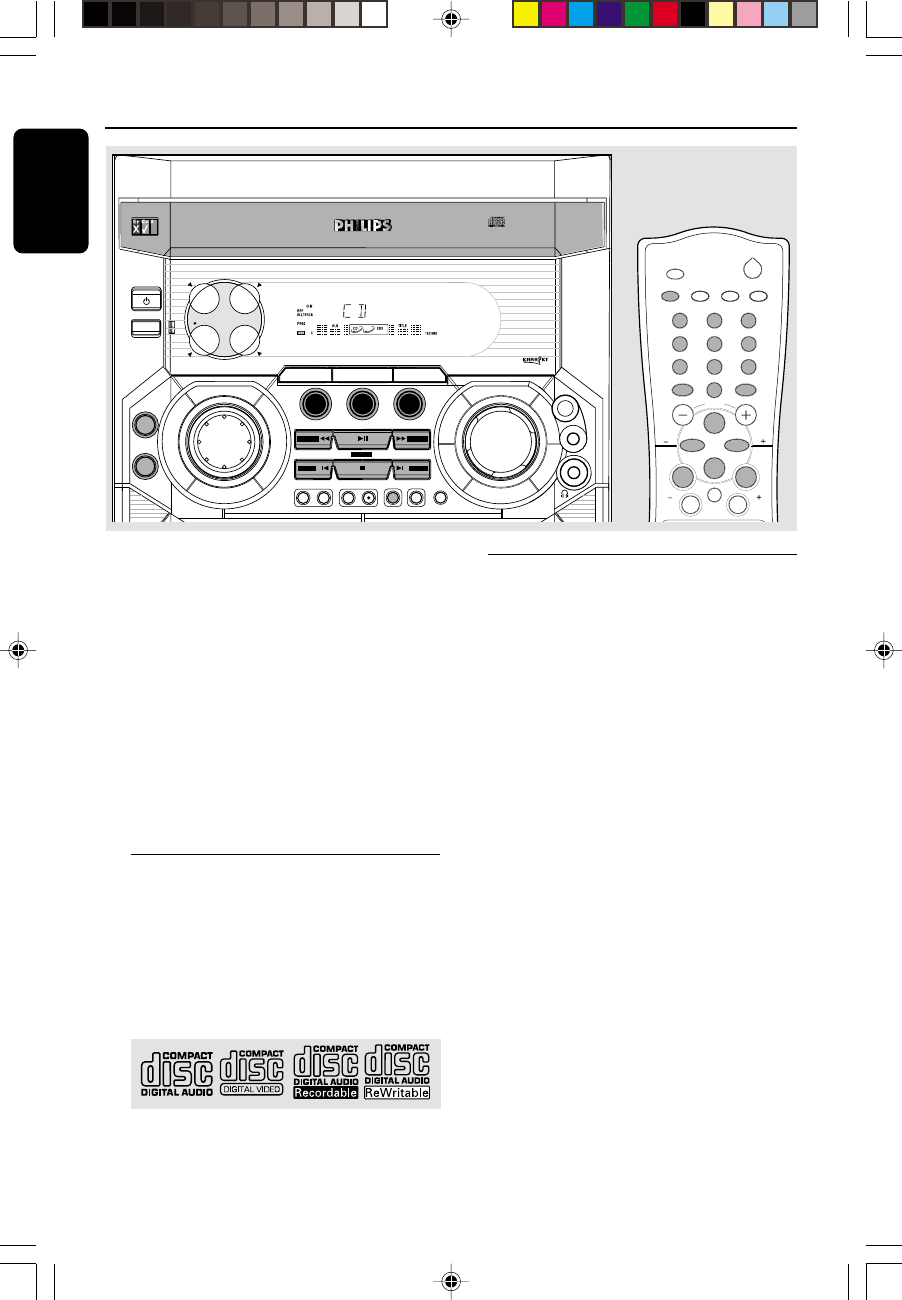
This system is able to play :
– All pre-recorded audio CDs
– All finalised audio CDR and audio
CDRW discs
– All pre-recorded video CDs
– MP3-CDs (CD-ROMs with MP3 tracks)
Make sure filename ends with .mp3
About MP3 disc
Supported formats
– ISO9660, Joliet, Multisession
– Max. track number plus album is 255
– Max. nested directory is 8 levels
– The max. album number is 32
– The max. MP3 programme track number is 99
– Supported VBR bit-rate
– Supported sampling frequencies for MP3 disc
are: 32 kHz, 44.1 kHz, 48 kHz
– Supported Bit-rates of MP3 disc are: 32, 64,
96, 128, 192, 256 (kbps)
Making your own MP3-CD
1Rip the music from your own Digital Audio CDs
or download legal MP3 music from the Internet.
2Record (“burn”) the music on CD-R(W) disc
with your home PC. Make sure to use a
recording speed not faster than indicated on the
CD-R(W) and avoid running other programmes
simultaneously on your PC during the recording
process.
pg 001-034/V355/21-Eng 4/17/02, 1:15 PM16
17
English
3139 115 21372
CD/VCD/MP3-CD Operations
Sound Quality
Take note that MP3-CD compilations should
best contain only MP3 tracks (.mp3). To
achieve a good MP3 quality, a bit rate of
128 kbps is recommended.
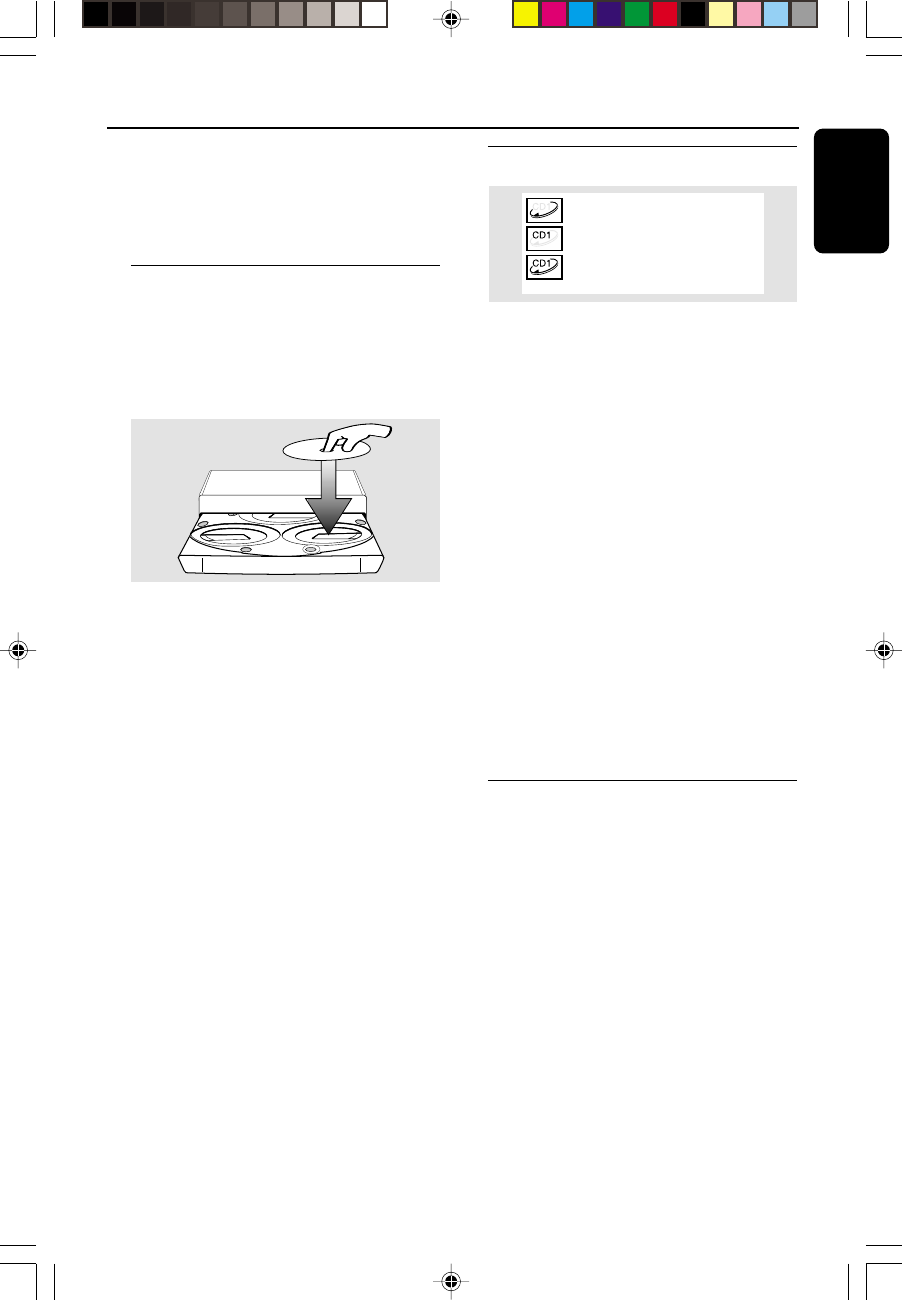
Loading discs
1Press OPEN/CLOSE to open the disc tray.
2Load up to two discs on the individual disc trays.
To load the third disc, press DISC CHANGE.
➜The disc tray will rotate until the empty tray
is ready for loading.
3
CD CHANGER
CLOCK
.
TIMER
VOLUME
DEMO
PRESET TUNING
SHUFFLE
TIMER
PLAY
MODE
SIDE
SET CLOCK
TIMER SET
BAND
RECORD
DUBBING
CD TAPE
PROGRAM
CLEAR
RDS
MODE
1
2
3
TIMER
DBB
PROGRAM
AMPM
SHUFFLE
FMMW
LWSW
STEREO
NR
FRONT
BACK
RECORD
HSD
2
2
1
OPEN•CLOSE
1
3Press OPEN/CLOSE to close the disc tray.
➜"READING" is displayed. The selected disc
tray, total number of tracks and the playing time
will appear on the display.
➜For MP3 disc, the name of the first album
and title will be scrolled through the display once
and followed by "AXX TXXX".
Notes:
– Load the discs with the label side facing up.
– For MP3 disc, the disc reading time may exceed
10 seconds due to the large number of songs
compiled into one disc.
Playing discs
a disc is loaded in the disc tray
the current selected disc tray is empty
the current selected disc tray is loaded
or playing
To play all discs on the disc tray
●PressÉÅ .
➜All the available discs will play once, then stop.
➜During playback, the selected disc tray, track
number and elapsed playing time of the current
track are displayed.
➜For MP3 disc, TITLE is shown. For mixed
mode discs, only one mode will be selected for
playback depending on the recording format.
To play the selected disc only
●In CD mode, press VCD 1, VCD 2 or VCD 3
on the system.
➜The selected disc will play once, then stop.
To interrupt playback
●PressÉÅ.
➜The current track time flashes.
●To resume playback, pressÉÅ again.
To stop playback
●Press Ç.
Replacing discs during playback
1Press DISC CHANGE.
➜The disc tray will open without interrupting
current playback.
2To change the inner disc, press DISC
CHANGE again.
➜"DISC CHANGE" is displayed and the disc
will stop playing.
➜The disc tray will close to retrieve the inner
disc, then reopen with the inner disc accessible.
pg 001-034/V355/21-Eng 4/17/02, 1:15 PM17
18
English
3139 115 21372
Selecting a desired track/passage
To search for a particular passage during
playback
●Press à or á to select four different search
speed.
➜"FRX1" ; "FRX2" ; "FRX3" or "FRX4" is
displayed on the TV screen when you select a
fast rewind search.
➜"FFX1" ; "FFX2" ; "FFX3" or "FFX4" is
displayed on the TV screen when you select a
fast forward search.
➜Normal playback will begin at the end of the
fast rewinding or forwarding of the selected
track.
●Play returns to normal whenÉÅ is pressed or
when a new track is selected.
To select a desired track
●Press í or ë (or numeric keys 0-9 on the
remote control) repeatedly until the desired
track is displayed.
●If playback is stopped, pressÉÅ to start
playback.
Note:
– Maximum track selection from digital keys on
the remote control is 199 for MP3-CD and 99 for
VCD/CD.
Selecting a desired Album/Title
(MP3 disc only)
To select a desired album
●Press ALBUM -/+ (à or á) repeatedly.
➜ALB starts flashing and the album’s name will
scroll through the display once.
To select a desired title
●Press TITLE -/+ repeatedly (à / áor
numeric keys 0-9 on the remote control).
➜TITLE starts flashing and the title’s name will
scroll through the display once.
Repeat play
You can select and change the various play
modes before or during playback.
1Press REPEAT on the remote control
repeatedly to select :
➜"TRACK" – to repeat playback of the current
track.
➜"DISC" – to repeat playback of the current
disc.
➜"PROGRAM" – to repeat playback of the
programmed tracks.
2To resume normal playback, press REPEAT
until "REPEAT OFF" is displayed.
➜REP is shown, except for REPEAT OFF mode.
Notes:
– During programme play mode, it is not possible
to repeat playback the current disc (Repeat Disc
mode).
– Pressing the
Ç
button will cancel all repeat
modes.
CD/VCD/MP3-CD Operations
pg 001-034/V355/21-Eng 4/17/02, 1:15 PM18
19
English
3139 115 21372
Programming the disc tracks
Programming tracks is possible when playback is
stopped. Up to 99 tracks can be stored in the
memory in any order.
1Load the desired discs on the disc tray (refer to
“Loading discs”).
2Press VCD 1/2/3 to select a disc.
➜Programming can only be done on the
selected disc.
3Press PROG to start programming.
➜PROG starts flashing.
4Press í or ë (or numeric keys 0-9 on the
remote control) repeatedly to select the desired
track.
●For MP3 disc, press ALBUM -/+ and
TITLE -/+ to select the desired album and
title for programming.
5Press PROG to store the track.
●Repeat steps 3–5 to store other discs and
tracks.
6To end programming, press Ç once.
➜PROG stays and the programme mode
remains active.
➜The total number of tracks programmed and
the total playing time are displayed.
➜For MP3 disc, total playing time will not be
shown.
7To start programme play, pressÉÅ.
➜"PLAY PROGRAM" is displayed.
Notes:
– To programme from a video CD, the PBC mode
has to be switched off.
– It is not possible to create a programme with
MP3 tracks from multiple CDs, or combined with
normal audio tracks.
– If the total playing time is more than "99:59"
then "--:--" is displayed instead of the total
playing time.
– If you attempt to programme more than 99
tracks, "FULL" is displayed.
– During programming, if no button is pressed
within 20 seconds, the system will exit the
programme mode automatically.
To review the programme
●Stop playback and pressí or ë repeatedly.
●To exit review mode, press Ç.
Erasing the programme
●Press Ç once when playback is stopped or
twice during playback.
➜PROG disappears and "PROGRAM CLEARED"
is displayed.
Note:
– The programme will be erased when the system
is disconnected from the power supply or when the
disc tray is opened.
For Recording, please refer to “Tape
Operation/Recording”.
CD/VCD/MP3-CD Operations
pg 001-034/V355/21-Eng 4/17/02, 1:15 PM19
20
English
3139 115 21372
DBB DSC
ÅÉ
13
2
46
5
79
8
VOLUME
á
à
IS
ë
í
Ç
0
2
TAPE 1/2
OSD
VCD.CD 1/2/3 AUX TUNER
REPEATPROG
ZOOM
MP3.CD 1/2/3
TITLE
TITLE
ALBUM
ALBUM
RESUME SLOW
VOCAL ECHO
KEY CONTROL
PBC RETURN A-B
DIGEST
Ö
Adjusting the TV system
Before viewing the video CD, ensure that the
mini system is switched to corresponding PAL or
NTSC system of your TV set (except Multi–
system TV).
1In CD/VCD mode, press and hold VCD 1 for
more than three seconds.
2Press and hold VCD 1 again to switch between
PAL or NTSC.
➜The setting will remain after it has been set.
Note:
– Before adjusting the TV system, make sure that
there is no MP3-CD in disc tray 1 during power up.
On screen display (OSD)
If you are playing a video CD, your TV screen will
able to display the messages of the current
operating status (for example, PLAY, STOP) and
the information stored in the disc.
●Press OSD on the remote control repeatedly to
switch on or off the On Screen Display mode.
When OSD is switched on, you can see the
following display on the TV screen.
PLAY XX/TT MM:SS
–"XX" is the current track.
–"TT" is the total tracks.
–"MM" is in minutes.
–"SS" is in seconds.
Note:
– You can also view the information from a
MP3-CD or normal CD.
VCD Operations
pg 001-034/V355/21-Eng 4/17/02, 1:15 PM20
21
English
3139 115 21372
Playing a video CD with PBC
functions (for VCD version 2.0 only)
VCD with PBC (Playback Control) will be
indicated on the display of the set as soon as
they are inserted. PBC is a predefined play
sequence stored in the VCD.
1Switch on the TV, insert a VCD with PBC and
pressÉÅ to start playback.
2MENU appears on the TV screen.
If the menu consists of a list of tracks,
you can select a track directly
●Press numeric keys 0–9 on the remote
control to select your choice.
➜The VCD starts playing of the selected
sequence automatically.
Note:
– If a menu consists of more than one page, press
¡
/
™
to go through the pages.
Switching off PBC
●In stop mode, press PBC.
➜“PBC OFF” is displayed on TV screen.
Notes:
– When PBC mode is switched on, it is not
possible to programme the disc track.
– The menu structure depends on the information
stored in the VCD. Please refer to the information
supplied with the disc.
Returning to menu screen
●Press RETURN to return to the previous VCD
disc menu level. PBC mode must be
switched on.
Quick review
This feature allows you to scan through a VCD
for a quick review. PBC mode must be
switched off. There are four digest modes for
selection.
1Press DIGEST on the remote control.
➜"DIGEST" is displayed.
➜"1.INTRO SCAN" , "2.DIGEST DISC" ,
"3.DIGEST TRACK" and "4.EXIT DIGEST
MENU" appear on TV screen.
1. INTRO SCAN
2. DIGEST DISC
3. DIGEST TRACK
4. EXIT DIGEST MENU
●Press digit 1 on the remote control to select
"INTRO SCAN".
➜The first 10 seconds of each track is played.
●Press digit 2 on the remote control to select
"DIGEST DISC".
➜The first frame of each track appears on the
TV screen.
➜Press digit 0 – 9 on the remote control to
playback the desired tracks.
➜Press í or ë to view the previous or next
page for additional information.
●Press digit 3 on the remote control to select
"DIGEST TRACK".
➜The first track of the selected disc will be
divided into 9 sessions and displayed on the TV
screen.
➜Press digit 0 – 9 on the remote control to
playback the desired session.
➜Press í or ë to digest the next track.
2To exit Digest mode, press digit 4 on the
remote control to select "EXIT DIGEST
MENU".
VCD Operations
pg 001-034/V355/21-Eng 4/17/02, 1:15 PM21
22
English
3139 115 21372
Playing a specific passage
repeatedly
This feature is also applicable to audio CD
(except for MP3-CD). To play a certain scene or
passage of the disc repeatedly.
1Press A-B on the remote control during
playback to mark the start of the chosen scene
or passage.
➜"SET A" is displayed
2Press A-B again to mark the end of the chosen
scene or passage.
➜"SET B" is displayed
●The selected scene or passage is played
repeatedly.
➜"PLAY AB" is displayed
3Press A-B once more to return to normal
playback.
➜"CLEAR AB" is displayed
Notes:
– You can also cancel A-B Repeat by pressing
í
or
ë
.
– You are able to set the A-B marking within the
same track only. Once it crosses from one track to
the next, the A-B marking is reset.
Resume playback from the last
stop point
This feature is also applicable to audio CD
(except for MP3-CD).
●In stop mode, press RESUME on the remote
control to start playback again from where you
have stopped.
Note:
– Resume information is lost if you have changed
the disc, opened the disc tray, change source or
disconnected the system from the power supply.
– Resume is not available when PBC mode is
switched on.
Picture effect
Slow
1Press SLOW on the remote control to watch a
VCD at a slower speed. There are three types of
slow modes to select.
➜The sound is muted.
➜On TV screen, “SLOW 1”, “SLOW 2” or
“SLOW 3” is displayed.
2To resume playback at normal speed, press ÉÅ.
Zoom
This feature enables you to view a still picture
frame in an enlarge mode.
1During playback, press ÉÅ to have a still
picture on the TV screen.
➜The sound is muted.
➜On TV screen, “PAUSE” is displayed.
2Press ZOOM on the remote control once to
enlarge the still picture by two times.
➜On TV screen, “ZOOM” is displayed.
●You can move the zoomed picture left or right
by pressing à or á respectively.
●You can move the zoomed picture down or up
by pressing í or ë respectively.
3Press ZOOM once more to return to normal
still frame.
4Press ÉÅ to continue playback.
VCD Operations
pg 001-034/V355/21-Eng 4/17/02, 1:15 PM22
23
English
3139 115 21372
Changing vocal
This feature allows you to fade out the original
vocal from a karaoke VCD. You can also use it to
select the desired language.
●Press VOCAL on the remote control
repeatedly to select the following modes :
➜STEREO ™ STEREO VOCAL LEFT ™
STEREO VOCAL RIGHT ™ MONO LEFT ™
MONO RIGHT ™ STEREO …
STEREO
– same effect as the original recorded disc.
STEREO VOCAL LEFT/RIGHT
– fade out the original vocal for special recorded
Karaoke disc only (ECHO mode must be
switched on).
MONO LEFT/RIGHT
– select the language on a bilingual VCD.
Adjusting the microphone echo
This feature allows you to add echo while singing
or talking through a microphone.
●Press ECHO --
--
-/++
++
+ on the remote control to
decrease, increase or switch off the echo effect.
➜"ECHO -X", "ECHO +X" or "ECHO OFF" is
displayed.
Notes:
–“X” denotes the echo level.
– You are advised to switch off the echo effect
when not using the feature.
– If microphone is not inserted, “INSERT MIC”
is displayed.
– Echo will switch off automatically when unplug
the microphone from the system.
VCD Operations
Adjusting the key tone
This feature allows you to change the key tone
of your vocal range.
●Press II
II
Ion the remote control to decrease
vocal key level.
➜"KEY -X" is displayed.
●Press ii
ii
i on the remote control to increase vocal
key level.
➜"KEY +X" is displayed.
●Press ÈÈ
ÈÈ
È on the remote control to restore vocal
key to original setting.
➜"KEY FLAT" is displayed.
Note:
–“X” denotes the key level.
pg 001-034/V355/21-Eng 4/17/02, 1:15 PM23
24
English
3139 115 21372
Radio Reception
TUNER TAPE AUX
TAPE 1 • 2
DIGITAL SOUND DISPLAY
STANDBY-ON
DSC
OPEN/
CLOSE
DISC
CHANGE
CD
O
P
T
I
M
A
L
J
A
Z
Z
T
E
C
H
N
O
R
O
C
K
CD 1 CD 2 CD 3
D
I
G
I
T
A
L
S
O
U
N
D
C
O
N
T
R
O
L
D
Y
N
A
M
I
C
B
A
S
S
B
O
O
S
T
SEARCH •TUNING SEARCH•TUNING PLAY• PAUSE
STOP•CLEAR / DEMO STOP PRESET▲
NEXT/PRESET
PREV/
▲
DIMCLOCK•TIMERPROG
ALBUM-
TITLE-
ALBUM+
TITLE+
MP3-CD
BAND
SLEEP
A. REPLAY RECORD
CDR/VIDEO
NTSC/
PAL
PBC RETURN
MASTER
VOLUME
MIC
MIC
LEVEL
ÅÉ
13
2
46
5
79
8
VOLUME
á
à
IS
ë
í
Ç
0
2
TAPE 1/2
OSD
VCD.CD 1/2/3 AUX TUNER
REPEATPROG
DBB DSC
MP3.CD 1/2/3
TITLE
TITLE
ALBUM
ALBUM
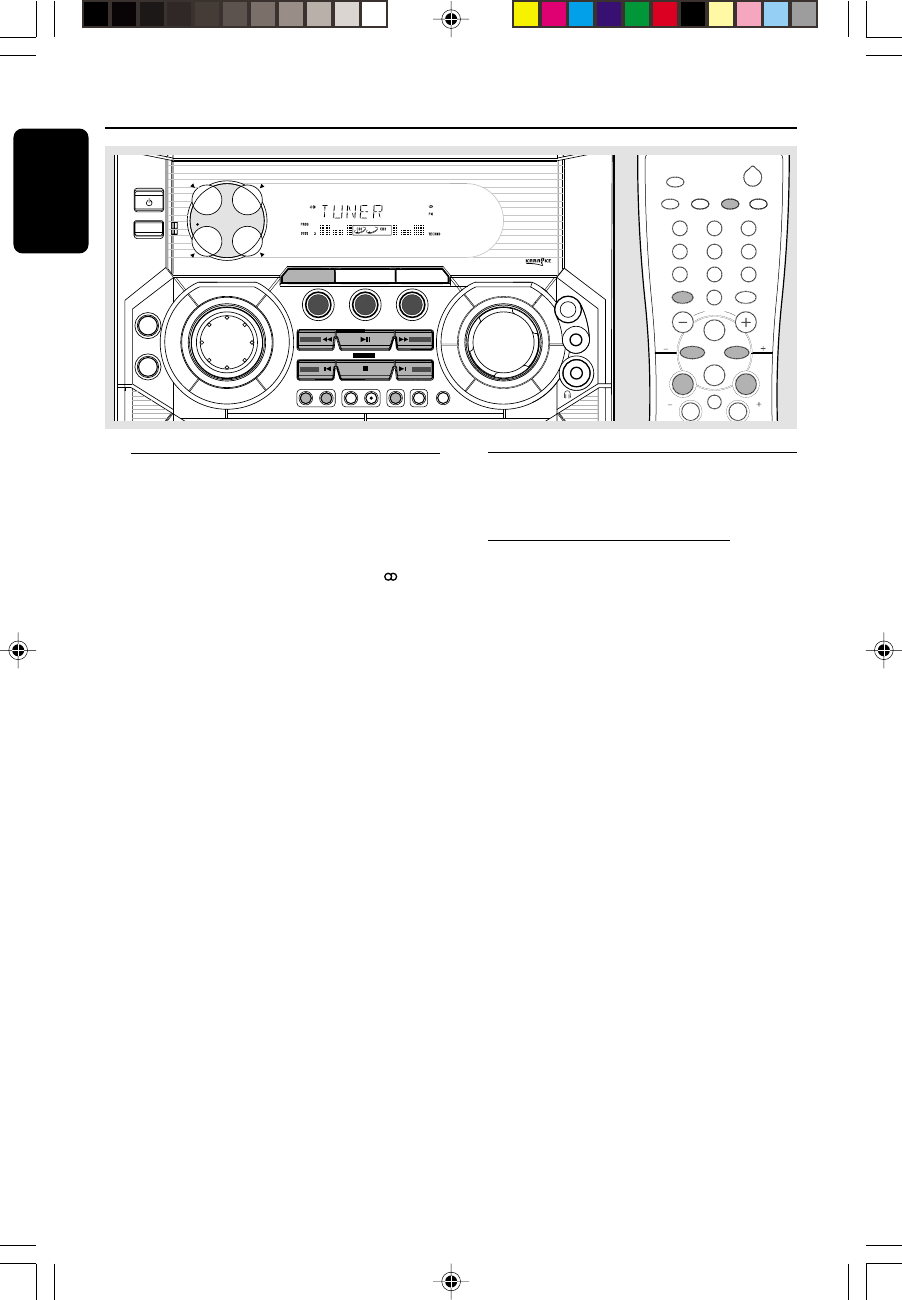
Tuning to radio stations
1Press TUNER to select TUNER mode.
➜"TUNER" is displayed. A few seconds later, the
current radio frequency will appear on the
display.
➜If an FM station is received in stereo, is
displayed.
2Press TUNER again to select the desired
waveband : FM or MW.
3Press and hold à or á until the frequency
indication starts to change, then release.
➜The display will show "SEARCH" until a radio
station with sufficient signal strength is found.
4Repeat step 3 if necessary until you find the
desired radio station.
●To tune to a weak station, press à or á briefly
and repeatedly until optimal reception found.
Storing preset radio stations
You can store up to 40 preset radio stations in
the memory.
Automatic Preset Programming
●Plug and Play setting (refer to “Basic Functions -
Plug and Play”).
OR
1Press TUNER to select TUNER mode.
To begin automatic preset from a desired
preset number
●Press í or ë to select the desired preset
number.
➜If a radio station has been stored in one of
the presets, it will not be stored again under
another preset number.
2Press and hold PROG until "AUTO" is displayed.
➜PROG starts flashing.
➜All available radio stations with sufficient signal
strength will be stored automatically, starting
from FM and followed by MW band.
➜When all the available radio stations are
stored or the memory for 40 presets are used,
the last preset radio station will be played.
To stop storing the automatic preset
●Press PROG or Ç on the system.
pg 001-034/V355/21-Eng 4/17/02, 1:15 PM24
25
English
3139 115 21372
Note:
– If no preset number is selected, automatic preset
will begin from preset (1) and all your former
presets will be overridden.
Manual Preset Programming
1Tune to your desired radio station (refer to
“Tuning to radio stations”).
2Press PROG.
➜PROG starts flashing.
➜The next available preset number is displayed
for selection.
To store the radio station to another
preset number
●Press í or ë to select the desired preset
number.
3Press PROG again to store the radio station.
➜PROG disappears.
●Repeat steps 1–3 to store other radio stations.
To exit manual preset mode
●Press Ç on the system.
Notes:
– If you attempt to store more than 40 preset
radio stations, "FULL" is displayed.
– During programming, if no key is pressed within
20 seconds, the system will exit the programme
mode automatically.
Tuning to preset radio stations
●Once you’ve programmed the radio stations,
press í or ë to select the desired preset
number.
➜The preset number, radio frequency, and
waveband are displayed.
Radio Reception
Erasing a preset radio station
1Press í or ë to select the preset radio station
to be erased.
2Press and hold Çon the system until
“PRESET DELETED” is displayed.
➜The deleted radio frequency remains on the
display.
➜The preset numbers of all other preset radio
stations in the band with higher numbers are
also decreased by one.
●Repeat steps 1–2 to erase other preset radio
stations.
Changing tuning grid (not available for
all versions)
In North and South America, the frequency step
between adjacent channels in the MW band is
10 kHz (9 kHz in some areas). The preset
frequency step in the factory is 9 kHz.
Changing the tuning grid will erase all
previously stored preset radio stations.
1Disconnect the system from the AC power
supply (pull out the AC power cord).
2While holding down TUNER and á on the
system, reconnect the system to the AC power
supply.
➜The display will show "GRID 9" or
"GRID 10".
Notes:
– GRID 9 and GRID 10 indicate that the tuning
grid is in step of 9 kHz and 10 kHz respectively.
– The FM tuning grid also will be changed from
50 kHz to 100 kHz or vice versa.
For Recording, please refer to “Tape
Operation/Recording”.
pg 001-034/V355/21-Eng 4/17/02, 1:15 PM25
26
English
3139 115 21372
Tape Operation / Recording
IMPORTANT!
– Before playing a tape, check and tighten
slack tape with a pencil. Slack tape may get
jammed or may burst in the mechanism.
– C-120 tape is extremely thin and is easily
deformed or damaged. It is not
recommended for use in this system.
– Store the tapes at room temperature and
do not put them too close to a magnetic
field (for example, a transformer, TV or
speaker).
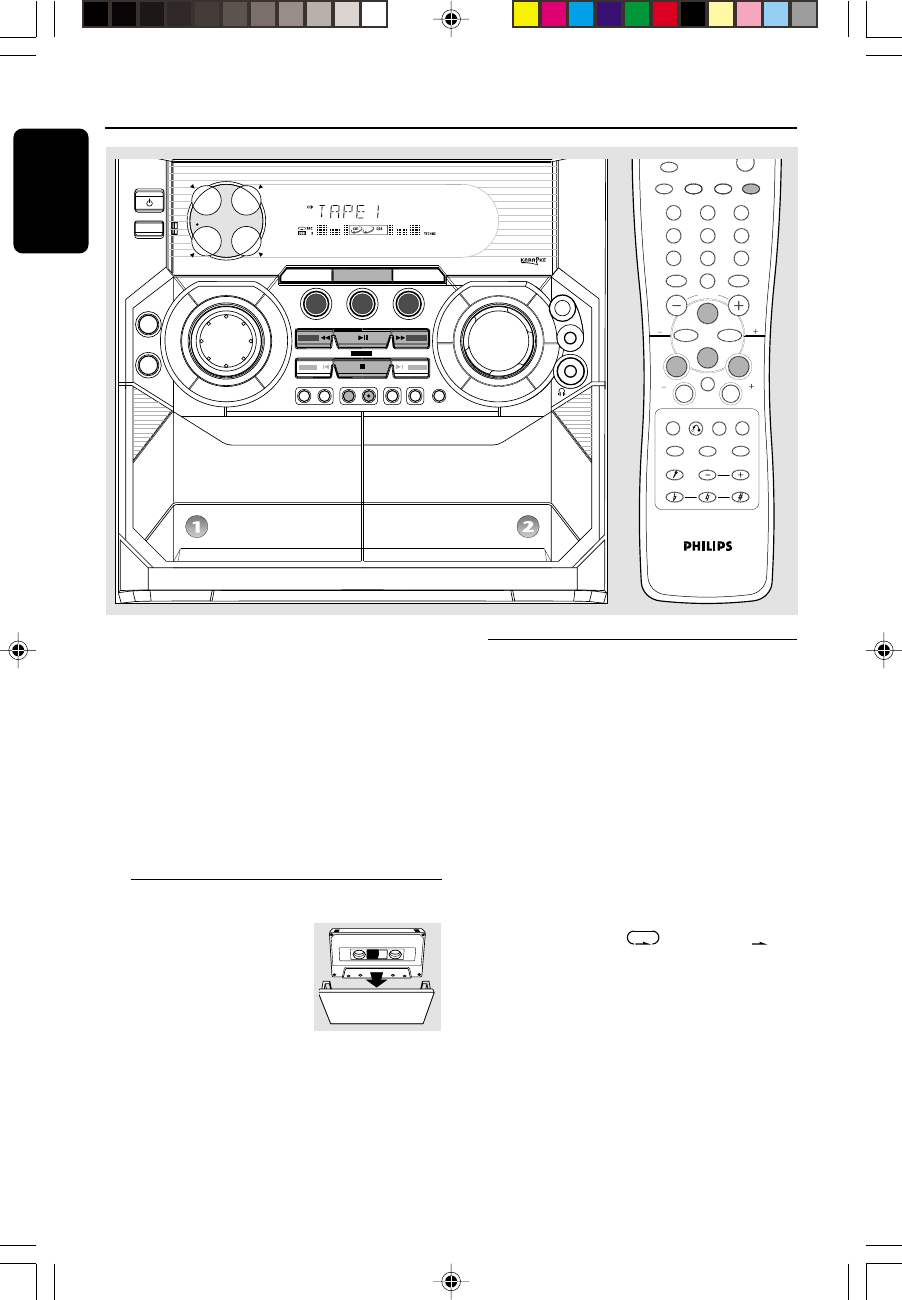
Loading tape
1Press on the tape deck to
open the tape deck door.
2Load the tape with the open
side downward and full
spool to the left.
3Close the tape deck door.
Playing tapes
To playback a selected tape deck
1Press TAPE (or TAPE 1/2 on the remote
control) repeatedly to select tape deck 1 or 2.
2PressÉÅ.
To stop playback
●Press Ç.
To select automatic replay or one time
playback
●Press A. REPLAY repeatedly to select the
different playback modes.
➜"AUTO REPLAY" ( ) or "ONCE" ( )
is displayed.
AUTO REPLAY …the tape will rewind
automatically at the end of
playback and replay again. It will
replay up to a maximum of 20
times.
ONCE .............. the tape will playback the
selected side once and then stop.
TUNER TAPE
TAPE 1 • 2
DIGITAL SOUND DISPLAY
STANDBY-ON
DSC
OPEN/
CLOSE
DISC
CHANGE
CD
PLAYBACK PLAY / REC
O
P
T
I
M
A
L
J
A
Z
Z
T
E
C
H
N
O
R
O
C
K
CD 1 CD 2 CD 3
D
I
G
I
T
A
L
S
O
U
N
D
C
O
N
T
R
O
L
D
Y
N
A
M
I
C
B
A
S
S
B
O
O
S
T
SEARCH •TUNING SEARCH •TUNING PLAY• PAUSE
AUX
STOP•CLEAR / DEMO STOP PRESET▲
NEXT/PRESET
PREV/
▲
DIMCLOCK•TIMERPROG
ALBUM-
TITLE-
ALBUM+
TITLE+
MP3-CD
BAND
SLEEP
A. REPLAY RECORD
CDR/VIDEO
NTSC/
PAL
PBC RETURN
MASTER
VOLUME
MIC
MIC
LEVEL
13
2
46
5
79
8
VOLUME
á
à
IS
ë
í
Ç
0
2
TAPE 1/2
OSD
VCD.CD 1/2/3 AUX TUNER
REPEATPROG
DBB DSC
ÅÉ
ZOOM
MP3.CD 1/2/3
TITLE
TITLE
ALBUM
ALBUM
RESUME SLOW
VOCAL ECHO
KEY CONTROL
PBC RETURN A-B
DIGEST
Ö
pg 001-034/V355/21-Eng 4/17/02, 1:15 PM26
27
English
3139 115 21372
Tape Operation / Recording
Rewinding / Fast forwarding
1Stop playback, press à or á.
➜The tape will stop automatically at the end of
rewinding or fast forwarding.
2Press Ç to stop rewinding or fast forwarding.
Note:
– During rewinding or fast forwarding of a tape, it
is also possible to select another source (VCD or
TUNER, for example).
General information on
recording
●If you do not intend to record via the
microphone, unplug the microphone to avoid
accidental mixing with other recording source.
●For recording, use only tape of IEC type I
(normal tape).
●The recording level is set automatically,
regardless of the position of the Volume, DBB,
DSC and so forth.
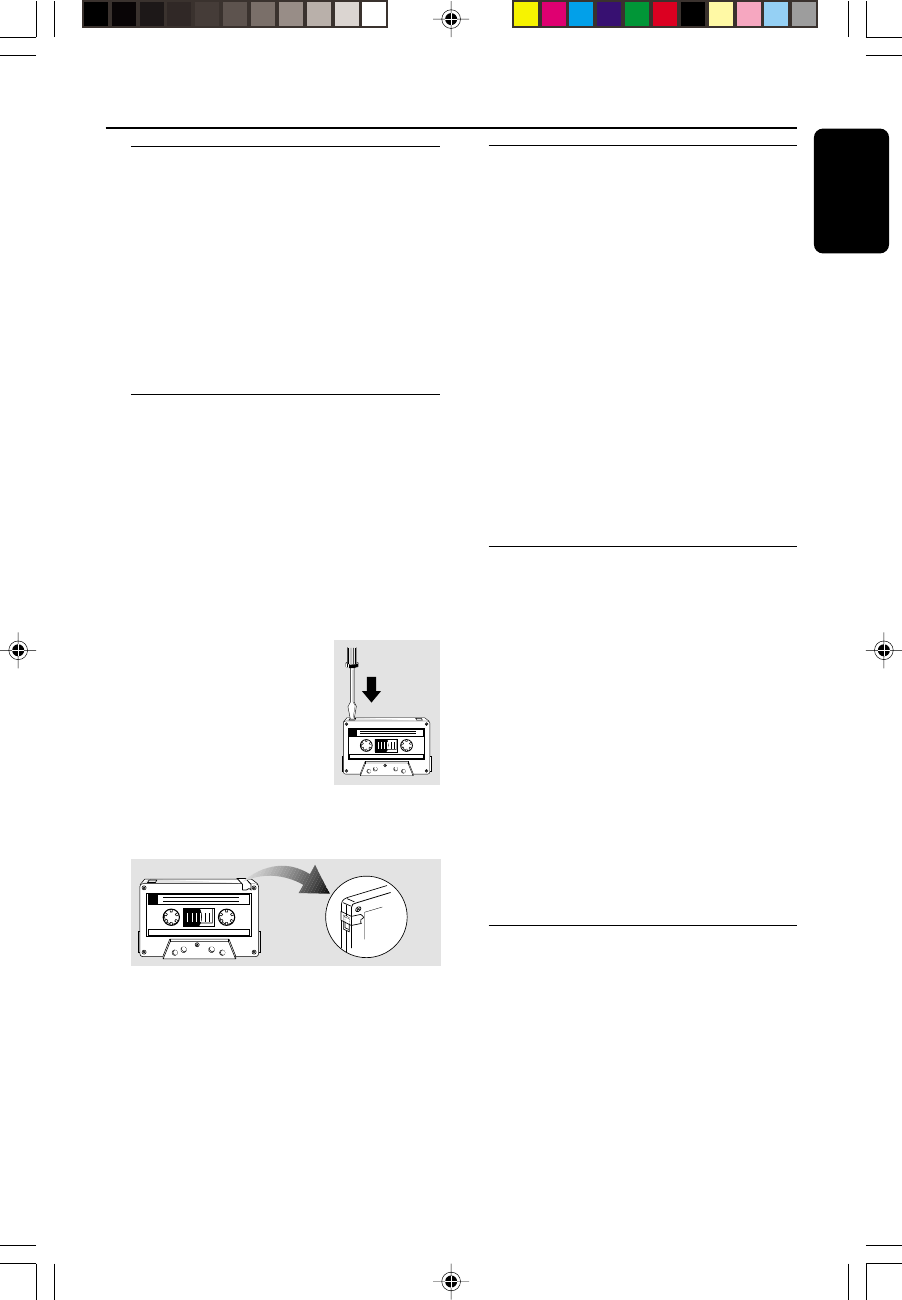
●The tape is secured at both ends with leader
tape. At the beginning and end
of the tape, nothing will be
recorded for six to seven
seconds.
●To prevent accidental recording,
break out the tab on the left
shoulder of the tape side you
want to protect.
●If “CHECK TAPE” is displayed, the protection
tab has been broken. Put a piece of clear
adhesive tape over the opening.
IMPORTANT!
– Recording is permissible if copyright or
other rights of third parties are not
infringed upon.
– Recording is possible only on tape deck 2.
Preparation for recording
1Press TAPE to select TAPE 2.
2Load a recordable tape into tape deck 2 with full
spool to the left.
3Prepare the source to be recorded.
VCD – load the disc(s).
TUNER – tune to the desired radio station.
TAPE – load the prerecorded tape into tape
deck 1 with the full spool to the left.
AUX – connect external equipment.
When recording is in progress
➜REC starts flashing.
●It is not possible to listen to another source,
except tape dubbing.
●It is not possible to activate the timer function
during recording or tape dubbing.
One touch recording / Recording
the mixed sound
1Press VCD 1/2/3, TUNER or AUX to select
the source.
●You can connect a microphone to record the
mixed sound (refer to “Karaoke - Microphone
Mixing”).
2Start playback of the selected source.
3Press RECORD to start recording.
To stop recording
●Press Ç on the system.
Note:
– One Touch Recording is not possible in TAPE
mode, "SELECT SOURCE" will be displayed.
CD Synchronised start recording
1Press VCD 1/2/3 to select the disc.
●Press í or ë to select the desired track to
start recording.
●You can programme the tracks in the order you
want them to be recorded (refer to “CD/VCD/
MP3-CD Operations - Programming the disc
tracks”).
2Press RECORD to start recording.
➜The disc will start playback automatically.
pg 001-034/V355/21-Eng 4/17/02, 1:15 PM27
28
English
3139 115 21372
Tape Operation / Recording
To select another track during recording
1PressÉÅ to interrupt recording.
2Pressí or ë to select the desired track.
3PressÉÅ to resume recording.
To stop recording
●Press Ç.
➜Recording and disc playback will stop
simultaneously.
Dubbing tapes
1Press TAPE to select tape mode.
2Load the prerecorded tape in tape deck 1.
●You can set the tape to the desired passage
where recording will start.
3Press RECORD.
➜Playing and recording will start simultaneously.
➜"DUB" is displayed.
●Dubbing of tapes is possible on one side of the
tape only. To continue recording on the reverse
side, at the end of side A, flip the tape to side B
and repeat the procedure.
To stop dubbing
●Press Ç.
Notes:
– Dubbing of tapes is possible only from tape
deck 1 to tape deck 2.
– To ensure good dubbing, use tapes of the same
length.
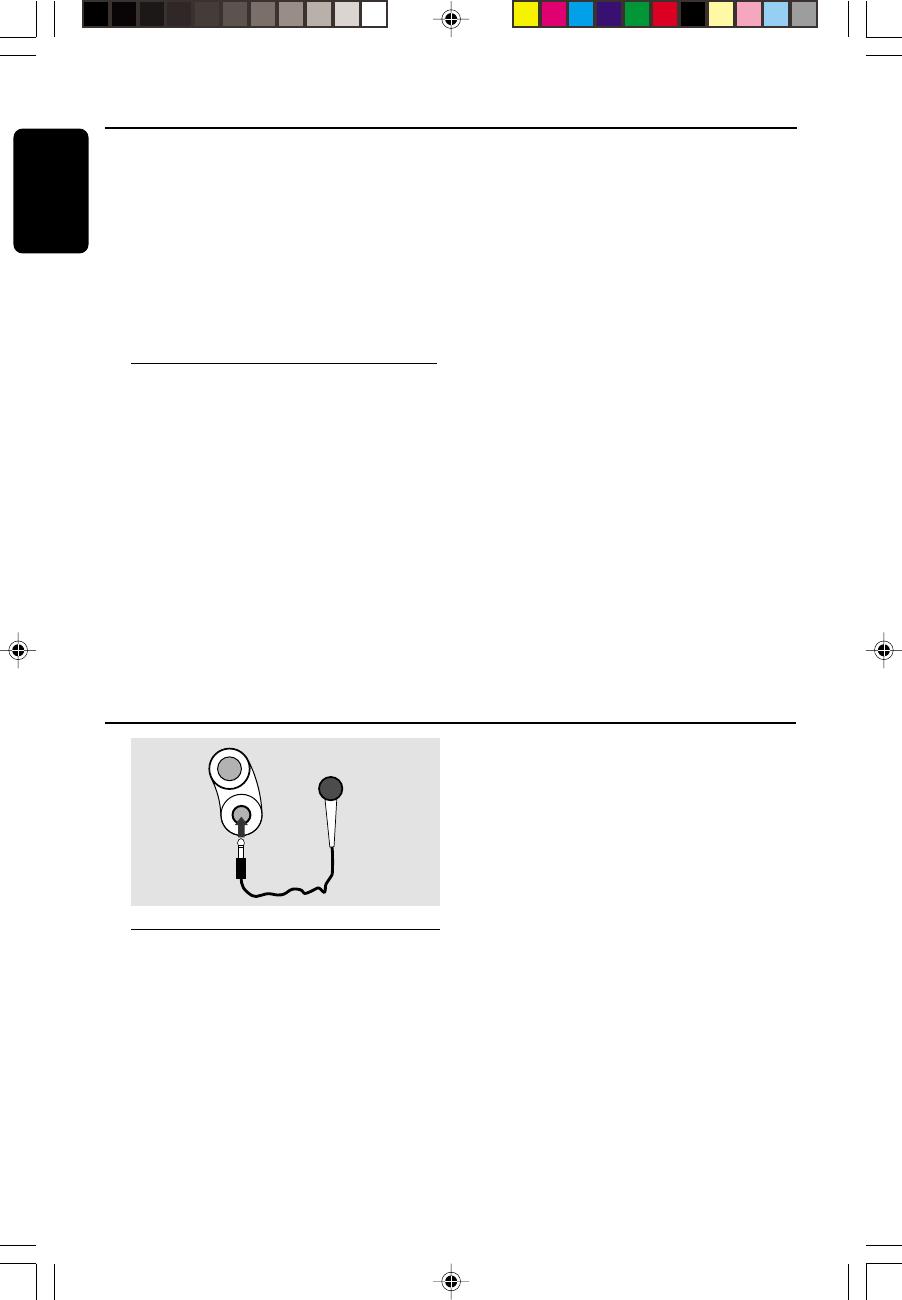
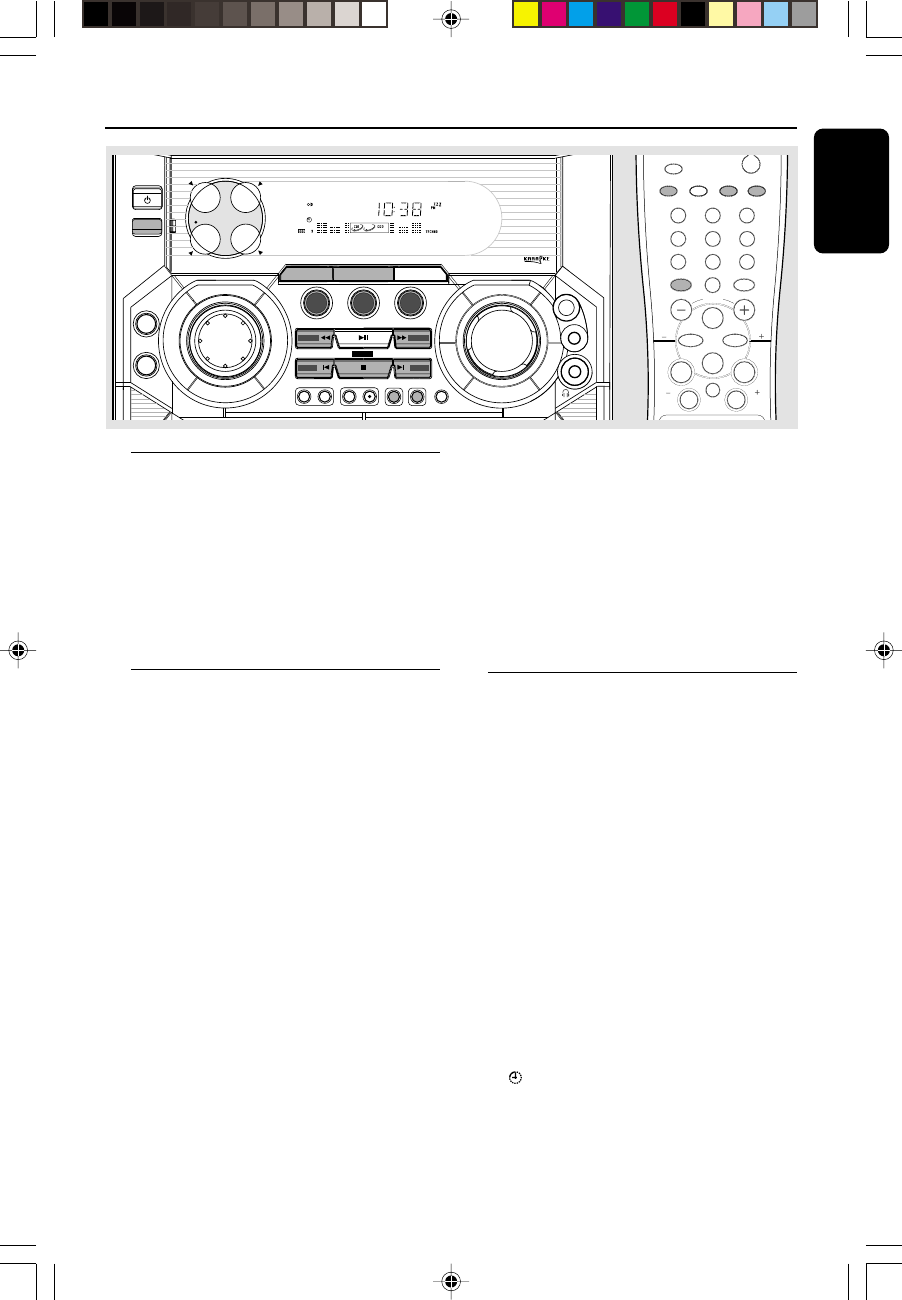
Microphone mixing
Connect a microphone (not supplied) to the
system allowing you to sing along with the music
source.
1Connect a microphone to the MIC jack.
●Before connecting the microphone, set the
microphone MIC LEVEL to the minimum level
to prevent howling sound.
Karaoke
MIC
MIC
LEVEL
2Press VCD 1/2/3, TUNER, TAPE or AUX to
select the source to be mixed and start playback.
3Adjust the volume level of the source with
MASTER VOLUME control.
4Adjust the microphone volume with microphone
MIC LEVEL control.
Note:
– Keep the microphone away from the speakers to
prevent howling.
For Recording, please refer to “Tape
Operation/Recording”.
pg 001-034/V355/21-Eng 4/17/02, 1:15 PM28
29
English
3139 115 21372
Clock/Timer
TUNER TAPE
TAPE 1 • 2
DIGITAL SOUND DISPLAY
STANDBY-ON
DSC
OPEN/
CLOSE
DISC
CHANGE
CD
O
P
T
I
M
A
L
J
A
Z
Z
T
E
C
H
N
O
R
O
C
K
CD 1 CD 2 CD 3
D
I
G
I
T
A
L
S
O
U
N
D
C
O
N
T
R
O
L
D
Y
N
A
M
I
C
B
A
S
S
B
O
O
S
T
SEARCH •TUNING SEARCH •TUNING PLAY• PAUSE
AUX
STOP•CLEAR / DEMO STOP PRESET▲
NEXT/PRESET
PREV/
▲
DIMCLOCK•TIMERPROG
ALBUM-
TITLE-
ALBUM+
TITLE+
MP3-CD
BAND
SLEEP
A. REPLAY RECORD
CDR/VIDEO
NTSC/
PAL
PBC RETURN
MASTER
VOLUME
MIC
MIC
LEVEL
ÅÉ
13
2
46
5
79
8
VOLUME
á
à
IS
ë
í
Ç
0
2
TAPE 1/2
OSD
VCD.CD 1/2/3 AUX TUNER
REPEATPROG
DBB DSC
MP3.CD 1/2/3
TITLE
TITLE
ALBUM
ALBUM
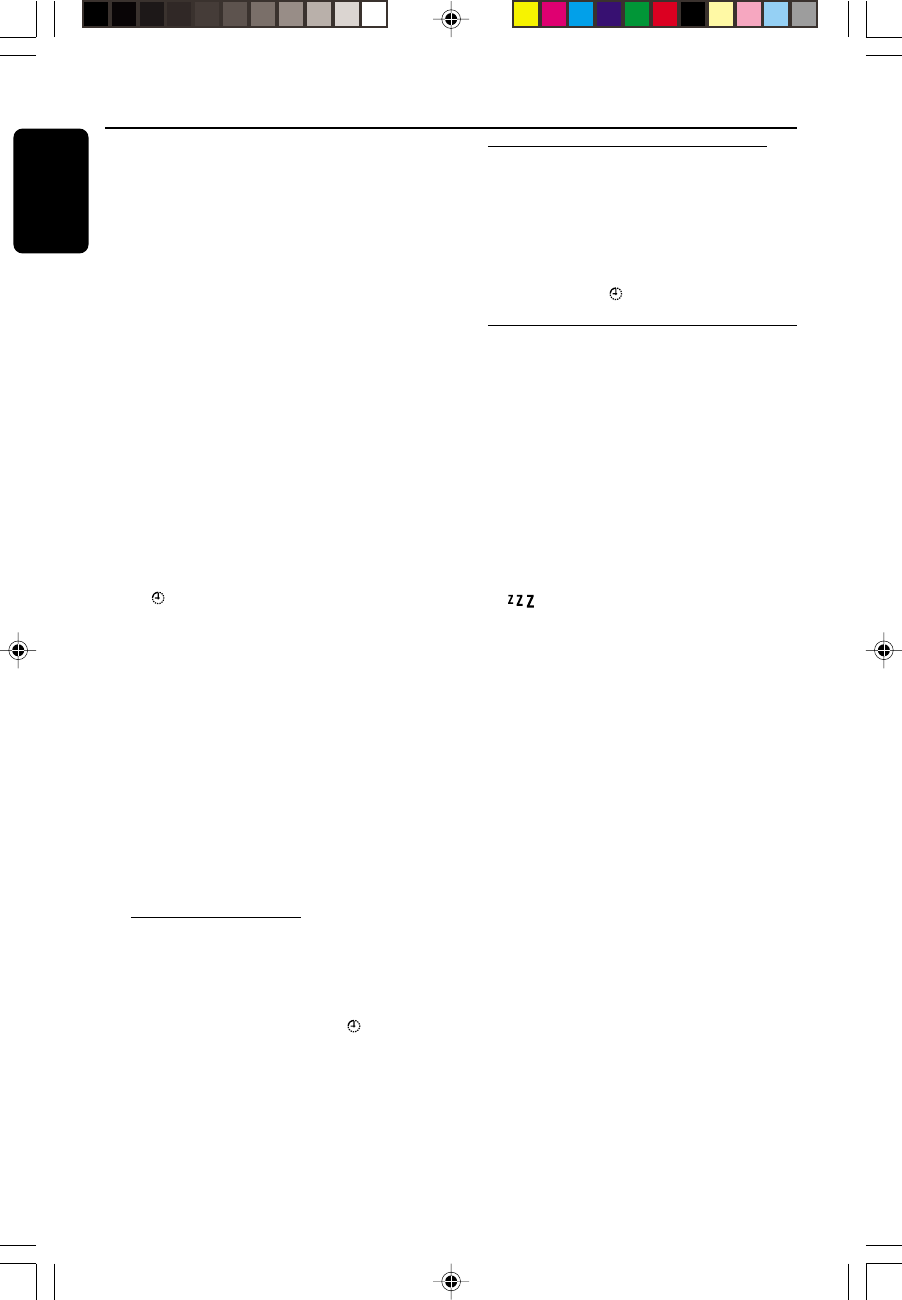
View clock
The clock (if it is set) will be shown in standby
mode.
To view the clock in any source mode
(VCD or TUNER for example)
●Press CLOCK•TIMER.
➜The clock is displayed for a few seconds.
➜If the clock has not been set, "--:--" is
displayed.
Clock setting
The clock can be set in either 12-hour or
24-hour mode ("12:00 AM" or "00:00", for
example)
1In standby or view clock mode, press
CLOCK•TIMER once. In other source mode,
press CLOCK•TIMER twice.
2Press PROG repeatedly to select clock mode.
➜"12:00 AM" or "00:00" starts flashing.
3Press à or á on the system repeatedly to set
the hour.
4Press í or ë on the system repeatedly to set
the minute.
5Press CLOCK•TIMER again to store the
setting.
➜The clock starts working.
To exit without storing the setting
●Press Çon the system.
Notes:
– The clock setting will be cancelled when the
power cord is disconnected or if a power failure
occurs.
– During clock setting, if no button is pressed
within 90 seconds, the system will exit clock setting
mode automatically.
Timer setting
The system can switch on to VCD, TUNER or
TAPE mode automatically at a preset time,
serving as an alarm to wake you up.
IMPORTANT!
– Before setting the timer, ensure that the
clock is set correctly.
– The timer will always be switched on
after it has been set.
– The timer will not start if a recording is in
progress.
– The volume of the timer will increase
gradually from the minimum level to the
last tuned volume level.
1Press and hold CLOCK•TIMER for more than
two seconds to select timer mode.
➜"12:00 AM" or "00:00" or the last timer
setting starts flashing.
➜ starts flashing.
pg 001-034/V355/21-Eng 4/17/02, 1:15 PM29
30
English
3139 115 21372
2Press VCD 1/2/3, TUNER or TAPE to select
the desired source.
➜“CD1 [or 2, 3] XX:XX" indicates the CD
mode is selected.
➜“TU XX:XX” indicates the Tuner mode is
selected.
➜“TA1 [or 2] XX:XX” indicates the Tape
mode is selected.
●Before setting timer, make sure the music source
has been prepared.
VCD 1/2/3 – Load the disc(s).
TUNER – tune to the desired radio station.
TAPE – load the prerecorded tape into tape
deck.
3Press à or á on the system repeatedly to set
the hour for the timer to start.
4Press í or ë on the system repeatedly to set
the minute for the timer to start.
5Press CLOCK•TIMER to store the timer.
➜"TIMER ON" is displayed, followed by the set
timer "XX:XX" and the selected source.
➜ remains on the display.
●At the preset time, the selected sound source
will play.
To exit without storing the setting
●Press Çon the system.
Notes:
– When the preset time is reached and the
selected disc tray is empty, the next available disc
will be selected. If all the disc trays are not
available, Tuner will be selected automatically.
– During timer setting, if no button is pressed
within 90 seconds, the system will exit timer setting
mode automatically.
Deactivating the timer
1Press and hold CLOCK•TIMER for more than
two seconds.
2Press Ç on the system to cancel the timer.
➜"CANCEL" is displayed and the disappears.
Activating the timer (for the same preset
time and source)
1Press and hold CLOCK•TIMER for more than
two seconds.
2Press CLOCK•TIMER again to store.
➜The last set timer information is displayed for
a few seconds and is shown.
Sleep timer setting
The sleep timer enables the system to switch to
standby mode automatically at a preset time.
1Press SLEEP repeatedly to select a preset time.
➜The selections are as follows (time in
minutes):
15 ™ 30 ™ 45 ™ 60 ™ 90 ™ 120 ™
OFF ™ 15 …
➜"SLEEP XX" or "OFF" is displayed. "XX" is the
time in minutes.
2When you reach the desired length of time, stop
pressing the SLEEP button.
➜ is shown, except for "OFF" mode.
➜The sleep timer is now set. Before the system
switches to standby mode, a countdown of 10
seconds is displayed.
"SLEEP 10" ™ "SLEEP 9".... ™ "SLEEP 1"
™ "SLEEP"
To check the remaining length of time
after sleep timer is activated
●Press SLEEP once.
To change the preset sleep timer
●Press SLEEP again while the remaining sleep
timer is shown.
➜The display will show the next sleep timer
options.
To deactivate the sleep timer
●Press SLEEP repeatedly until "OFF" is displayed,
or press the STANDBY ON button.
Clock/Timer
pg 001-034/V355/21-Eng 4/17/02, 1:15 PM30
31
English
3139 115 21372
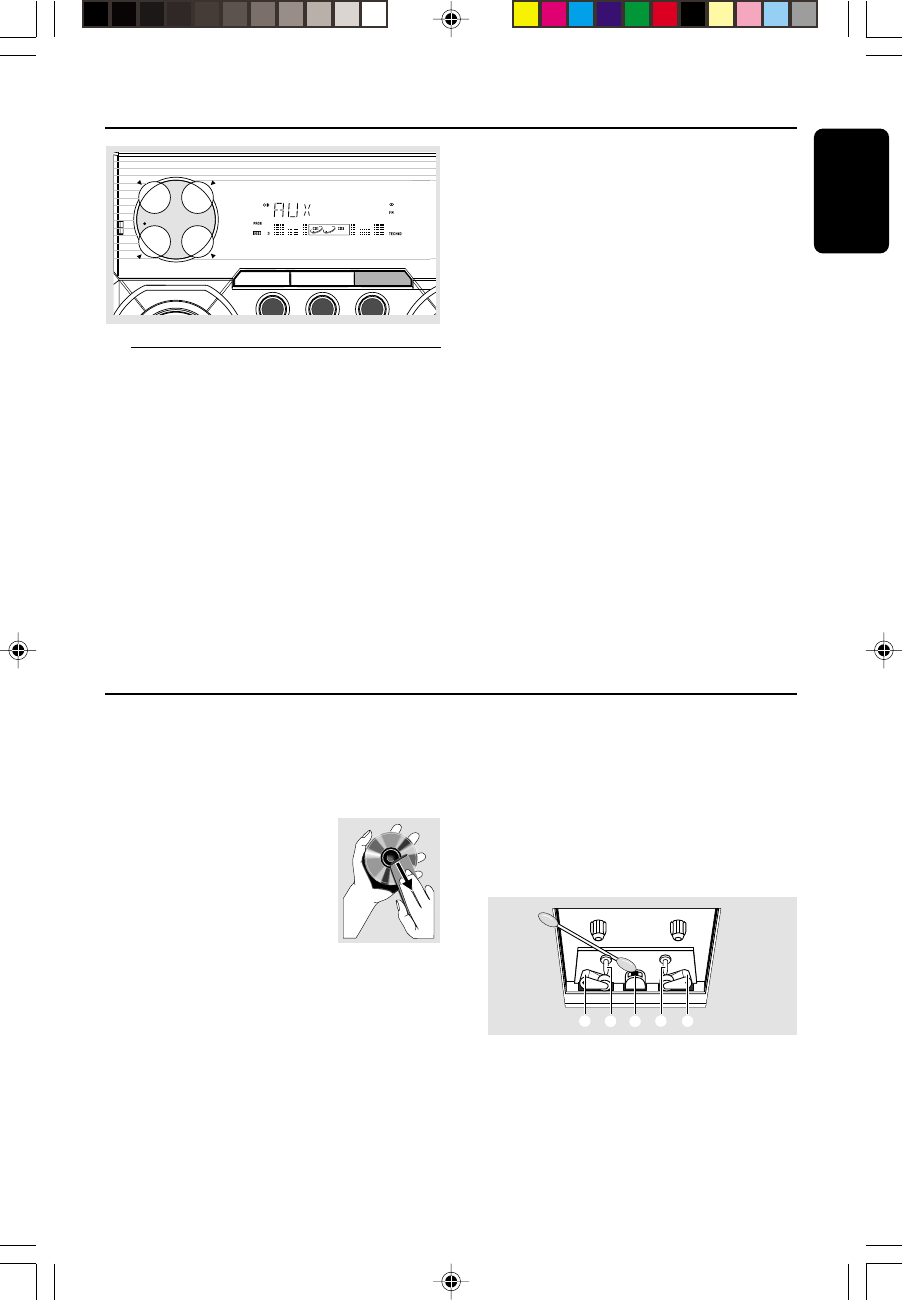
Listening to external sources
1Connect the audio out terminals of the external
equipment (TV, VCR, Laser Disc player, DVD
player or CD Recorder) to the AUX/CDR IN
terminals of your system.
2Press AUX to select external equipment.
➜"AUX" is displayed.
External Sources
TUNER TAPE
TAPE 1 • 2
DIGITAL SOUND DISPLAY
DSC
O
P
T
I
M
A
L
J
A
Z
Z
T
E
C
H
N
O
R
O
C
K
CD 1 CD 2 CD 3
R
O
L
D
AUX
BAND CDR/VIDEO
NTSC/
PAL
Notes:
– All the sound control features (DSC or DBB, for
example) are available for selection.
– Refer to the operating instructions for the
connected equipment for details.
For Recording, please refer to “Tape
Operation/Recording”.
Maintenance
Cleaning the Cabinet
●Use a soft cloth slightly moistened with a mild
detergent solution. Do not use a solution
containing alcohol, spirits, ammonia or abrasives.
Cleaning Discs
●When a disc becomes dirty,
clean it with a cleaning cloth.
Wipe the disc from the centre
out.
●Do not use solvents such as
benzene, thinner, commercially
available cleaners, or antistatic spray intended for
analogue records.
Cleaning the disc lens
●After prolonged use, dirt or dust may
accumulate at the disc lens. To ensure good
playback quality, clean the disc lens with Philips
CD Lens Cleaner or any commercially available
cleaner. Follow the instructions supplied with
cleaner.
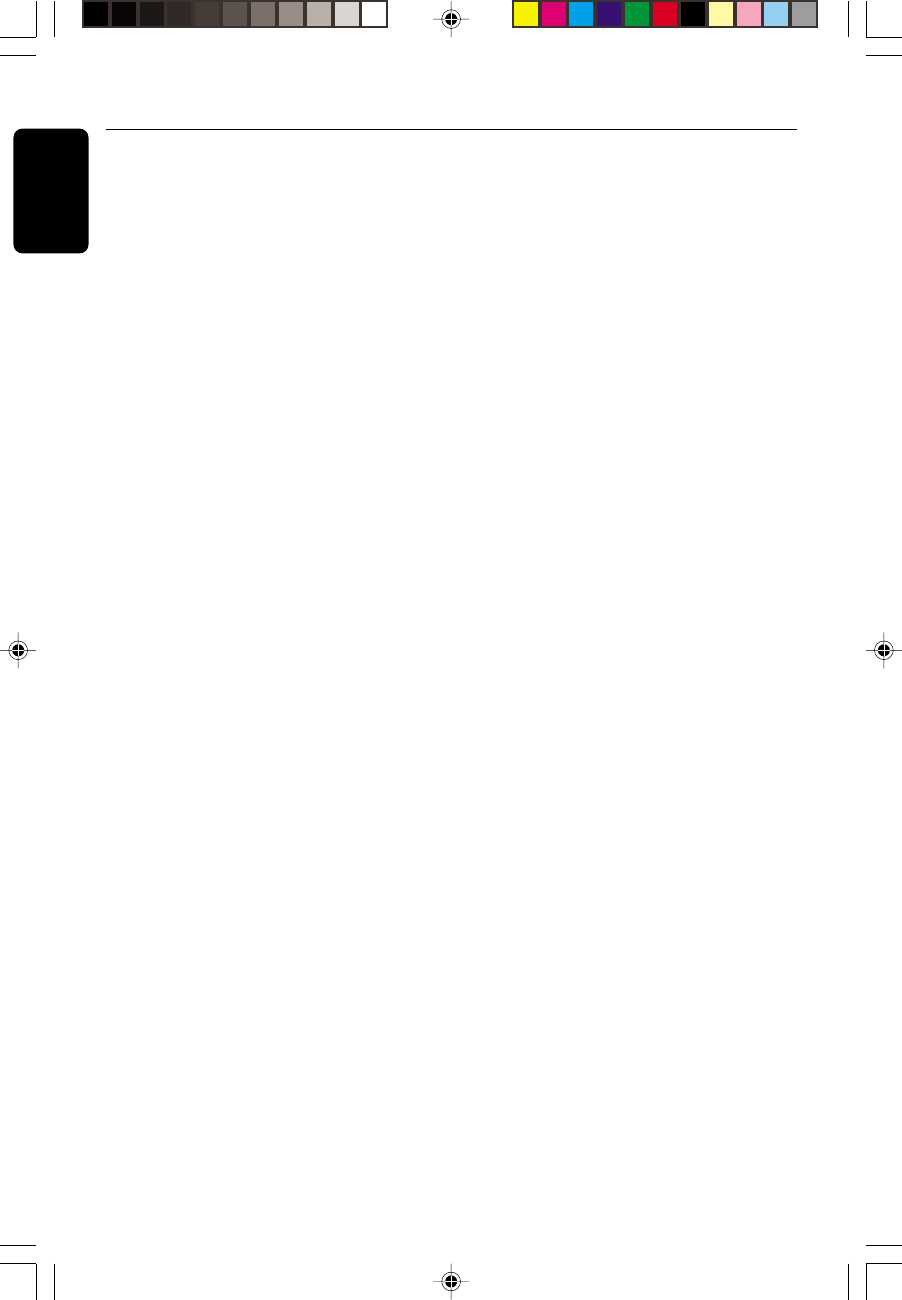
Cleaning the Heads and the Tape Paths
●To ensure good recording and playback quality,
clean the heads A , the capstan(s) B, and
pressure roller(s) C after every 50 hours of
tape operation.
●Use a cotton swab slightly moistened with
cleaning fluid or alcohol.
●You can also clean the heads by playing a
cleaning tape once.
C CB B
A
Demagnetising the heads
●Use a demagnetising tape available at your
dealer.
pg 001-034/V355/21-Eng 4/17/02, 1:15 PM31
32
English
3139 115 21372
Specifications
AMPLIFIER
Output power ...................................... 1500 W PMPO
................................................................... 2 x 40 W RMS(1)
Signal-to-noise ratio .......................... ≥ 67 dBA (IEC)
Frequency response .......................... 50 – 15000 Hz
Input sensitivity
AUX/CDR In .......................................... 500 mV / 1V
Microphone .......................................................... 3.5 mV
Output
Speakers .................................................................... ≥ 6 Ω
Headphones ...................................... 32 Ω – 1000 Ω
(1) (6 Ω, 1 kHz, 10% THD)
CD/VCD/MP3-CD PLAYER
Number of programmable tracks ......................... 99
Frequency range .................................. 20 – 20000 Hz
Signal-to-noise ratio ....................................... ≥ 80 dBA
Channel separation .......................... ≥ 60 dB (1 kHz)
Total harmonic distortion ........................... < 0.003%
MPEG 1 ................................................. VCD version 2.0
MPEG 1 Layer 3 (MP3-CD) .......... MPEG AUDIO
MP3-CD bit rate ....................................... 32-256 kbps
(128 kbps advised)
Sampling frequencies ....................... 32, 44.1, 48 kHz
RADIO RECEPTION
FM wave range ................................... 87.5 – 108 MHz
MW wave range (9 kHz) ............. 531 – 1602 kHz
MW wave range (10 kHz) ........... 530 – 1700 kHz
Tuning grid ............................................................ 9/10 kHz
Number of presets ........................................................ 40
Antenna
FM ....................................................................... 75 Ω wire
AM .............................................................. Loop antenna
TAPE DECK
Frequency response
Normal tape (type I) ...... 80 – 12500 Hz (8 dB)
Signal-to-noise ratio
Normal tape (type I) ................................ ≥ 48 dBA
Wow and flutter ......................................... ≤ 0.4% DIN
SPEAKERS
System .................................... double port bass reflex
Impedance ........................................................................ 6 Ω
Woofer ........................................... 1 x 5 1/4" full range
Dimensions (w x h x d) . 210 x 310 x 235 (mm)
Weight ................................................................ 3.1 kg each
GENERAL INFORMATION
Material .............................................................. Polystyrene
AC Power ............................ 110 – 127 / 220 – 240 V;
....................................................... 50/60 Hz Switchable
Power Consumption
Active ......................................................................... 80 W
Standby ................................................................. < 15 W
Dimensions (w x h x d) .... 265x 310x 365 (mm)
Weight (without speakers) ................................. 6.4 kg
Specifications and external appearance are
subject to change without notice.
pg 001-034/V355/21-Eng 4/17/02, 1:15 PM32
33
English
3139 115 21372
WARNING
Under no circumstances should you try to repair the system yourself, as this will invalidate the
warranty. Do not open the system as there is a risk of electric shock.
If a fault occurs, first check the points listed below before taking the system for repair. If you
are unable to solve a problem by following these hints, consult your dealer or service centre.
Problem Solution
CD OPERATION
“UNREADABLE DISC” is displayed. – Check if the disc is inserted upside down.
– Wait until the moisture condensation at the lens
has cleared.
– Replace or clean the disc, see “Maintenance”.
– Use a finalised CD-RW or a correct MP3-CD
format disc.
“NO DISC” is displayed. – Insert a disc.
No picture on TV screen. – Connect the cable betwen the system and TV.
No colour on TV screen. – Change the system to the respective PAL or
NTSC setting.
Cannot adjust the TV system to – Remove the MP-3 CD from disc tray 1 or press
PAL or NTSC. DISC CHANGE to select a non MP3 disc tray
RADIO RECEPTION
Radio reception is poor. – If the signal is too weak, adjust the antenna or
connect an external antenna for better reception.
– Increase the distance between the Mini HiFi
System and your TV or VCR.
TAPE OPERATION/RECORDING
Recording or playback cannot be made. – Clean deck parts, see “Maintenance”.
– Use only NORMAL (IEC I) tape.
– Apply a piece of adhesive tape over the missing
tab space.
The tape deck door cannot open. – Remove and reconnect the AC power plug and
switch on the system again.
Troubleshooting
pg 001-034/V355/21-Eng 4/17/02, 1:15 PM33
34
English
3139 115 21372
GENERAL
The system does not react when – Remove and reconnect the AC power plug and
buttons are pressed. switch on the system again.
Sound cannot be heard or is of poor – Adjust the volume.
quality. – Disconnect the headphones.
– Check that the speakers are connected correctly.
– Check if the stripped speaker wire is clamped.
– Make sure the MP3 disc was recorded within
32-256 kbps bit rate with sampling frequencies at
48 kHz, 44.1 kHz or 32 kHz.
The left and right sound outputs are – Check the speaker connections and location.
reversed.
The remote control does not function – Select the source (VCD 1/2/3 or TUNER, for
properly. example) before pressing the function button
(É,í,ë).
– Reduce the distance between the remote
control and the system.
– Insert the batteries with their polarities
(+/– signs) aligned as indicated.
– Replace the batteries.
– Point the remote control directly towards the IR
sensor .
The timer is not working. – Set the clock correctly.
– Press and hold CLOCK•TIMER to switch on the
timer.
– If recording or tape dubbing is in progress, stop
recording.
The Clock/Timer setting is erased. – Power has been interrupted or the power cord
has been disconnected. Reset the clock/timer.
The system displays features – Press and hold Çon the system to switch off
automatically. the demonstration.
Troubleshooting
pg 001-034/V355/21-Eng 4/17/02, 1:15 PM34
