Philips Hts5500C 37 Quick Start Guide HTS5500 QUG Eng4
Philips-Hts5500C-37B-Quick-Start-Guide philips-hts5500c-37b-quick-start-guide
HTS5500C/37 Quick start guide hts5500c_37_qsg_aen 5 DVD/CD Changer Home Theater HTS5500C/37 | PhilipsHTS5500C/37
HTS5500C/37 Quick start guide hts5500c_37_qsg_eng 5 DVD/CD Changer Home Theater HTS5500C/37 | PhilipsHTS5500C/37
HTS5500-37-QUG-Eng4 hts5500c_37_qsg_aen
2014-12-13
: Philips Philips-Hts5500C-37-Quick-Start-Guide philips-hts5500c-37-quick-start-guide philips pdf
Open the PDF directly: View PDF  .
.
Page Count: 2
QUICK START GUIDE 12nc: 3139 115 24001
HTS5500C
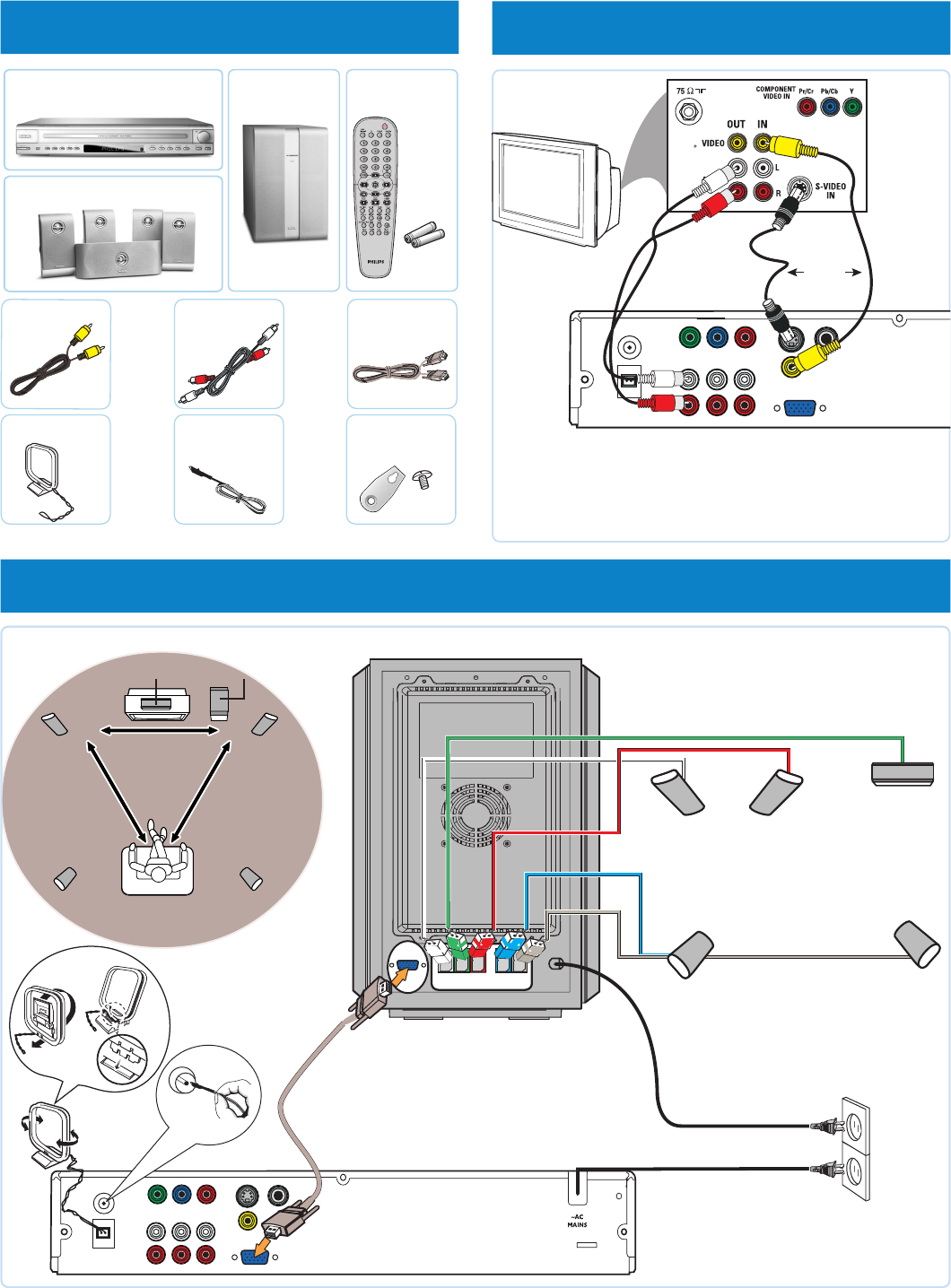
1 what’s in the box 2 connect TV
3 connect AV subwoofer, speakers and antennas
Note: For connecting to a Progressive Scan TV,
refer to the user manual for proper
connections and detailed set up.
A
Remote control
includes 2x AA batteries
D
BC
Subwoofer
HTS5500C main unit
Front/Rear/Center speakers
I
FM wire
antenna
H
MW loop
antenna
Video cable
E
Audio cable
F
J
Speaker screws
and brackets
(for mounting the
speakers on the wall)
Interconnect
cable
G
FM
ANT
S-VIDEO
L
R
AM
ANT
PR
PB
Y
COMPONENT
VIDEO OUT
AUX-INTV-IN LINE-OUT
VIDEO
COAXIAL
DIGITAL IN
TO AV SUBWOOFER
OR
A
E
F
FM
ANT
S-VIDEO
L
R
AM
ANT
PR
PB
Y
COMPONENT
VIDEO OUT
AUX-INTV-IN LINE-OUT
VIDEO
COAXIAL
DIGITAL IN
TO AV SUBWOOFER
➠
~ AC
MAINS
TO DVD
SYSTEM
FRONT
LEFT
CENTER FRONT
RIGHT
REAR
LEFT
REAR
RIGHT
3a Placement of speakers
3b Connect the FM
and AM antennas
G
H
REAR L REAR R
FRONT L
CENTER
FRONT R
AV Subwoofer
TV
A
3d Connect the speakers
to the AV subwoofer
(refer to the user manual for “Individual
speaker volume adjustment”)
3e Connect the mains cord
to the power supply
3c Connect the HTS5500C main
unit to the AV subwoofer
I
B
AM loop
antenna
(4x)
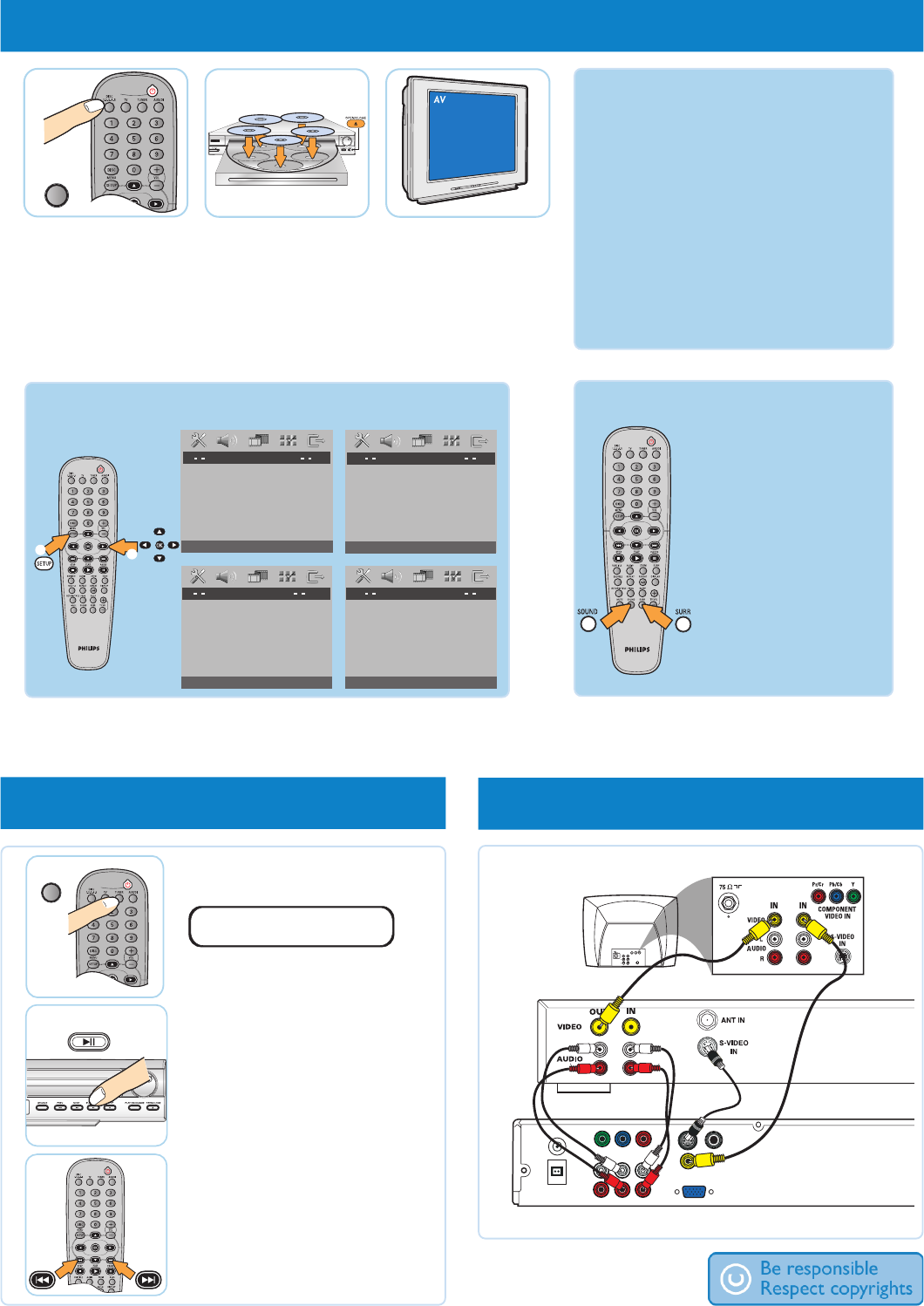
4 play a disc
DISC
1-2-3-4-5
LEVELPHONES
DISC 1 DISC 2
DISC 3
DISC 4
DISC 5
4a Press DISC
1-2-3-4-5
Point the remote control
towards the DVD system.
4b Load in maximum
5 discs
Press OPEN CLOSE to
open and close the disc tray.
4c Select correct
AV In channel
Switch to the correct
input source by using the
TV remote control.
GET PICTURE
•Check the connection of the DVD system
to TV is in place (see 2 Connect TV).
•Check the AV mode on TV. It may be
called FRONT, A/V IN, or VIDEO. Choose
the different modes using TV remote
control.
•Or, use the TV remote control to select
Channel 1 on TV, then press Channel down
button until you get the picture.
•See your TV manual for more details.
AUDIO SETUP PAGE
SPEAKER SETUP
CD UPSAMPLING
NIGHT MODE
VIDEO SETUP PAGE
TV TYPE
TV DISPLAY
PROGRESSIVE
PICTURE SETTING
BLACK LEVEL
CLOSED CAPTION
PREFERENCE PAGE
AUDIO
SUBTITLE
DISC MENU
PARENTAL
PBC
MP3/JPEG NAV
PASSWORD
DIVX SUBTITLE
DEFAULT
GENERAL SETUP PAGE
DISPLAY DIM
PROGRAM
OSD LANGUAGE
SCREEN SAVER
DISC LOCK
DIVX(R) VOD CODE
Refer to chapters “Getting Started” and “DVD Setup Menu
Options” in the user manual the detailed descriptions.
2
1
More settings and features GET SOUND
To enhance the sound
quality
Press SOUND button to
select a predefined digital
sound effect.
Detailed playback features and additional
functions are described in the user manual.
No sound from rear
speakers?
Press SURR button to select
“Multi-Channel”.
5 programme radio stations 6 Others - connect to VCR
FM
ANT
S-VIDEO
L
R
AM
ANT
PR
PB
Y
COMPONENT
VIDEO OUT
AUX-INTV-IN LINE-OUT
VIDEO
COAXIAL
DIGITAL IN
TO AV SUBWOOFER
V
CR
TV
NEEDS HELP? Visit our website www.usasupport.philips.com
TUNER
PLAY PAUSE
AUTO PRESET PRESS PLAY
5a Press TUNER.
5b Press and hold 2;
until “START ...” appears.
It will start to programme
all available radio stations.
5c Once complete, use
S / T to select a
preset radio station.
Note: This feature is only available
for first time setup.
