User manual
S616L
Dual SIM Cards Smart Phone
User Guide
Dear Customer,
Thank you for choosing S517-unistarX3 smart phone.
This is a smart phone. In addition to common call functions, it also
provides you with a variety of practical functions including Bluetooth,
English input, Contacts, ringing or image alert for incoming calls, camera,
MP3 player, Video player, memory card (T-Flash card), recorder,
calculator, Schedule power on/off, MMS (Multimedia Message Service).
With this manual, you can acquire a full understanding of the usage of
this phone.
.
Contents
1. Appearance
2. Insertion and Removal of SIM card
3. Insertion and Remove of the Memory Card
4. Installation and Removal of the Battery
5. Battery Charging
6. Dialing
7-9 Guide to Menu Operations
10 Safety Precautions.
11. Cleaning and Maintenance.
12. Trouble shooting
Appearance
1 Insertion and Removal of SIM card
Turn off the phone; remove the battery and unplug other external power
sources.
Insert the SIM card into the SIM slot.
When you need to remove the SIM card, please first turn off the phone,
remove the battery, then remove the SIM card.
2 Insertion and Remove of the Memory Card
Place the Memory Card into the Memory Card Slot.
When you need to insert or remove the memory card, it is suggest that
first turn off the phone. When you turn on the phone, insert the memory
card can lead to memory card don’t recognize.
Warning: when the mobile phone is sending or access messages,
please do not remove the memory card. Otherwise it may
result in data loss or damage the mobile phone and memory card.
3 Installation,and Removal of the battery
If the mobile phone is switched on, please turn off your mobile phone.
When removing the battery follow the following steps:
①Push the battery cover and remove.
②Remove the battery from the mobile phone.
When installing the battery follow the following steps:
① Push the battery to inset mobile-phone.
② Cover with the battery cover.
Warning: You must turn off your mobile phone before removing the battery.
Do not place the battery in fire; follow local laws and ordinances in
disposing used battery.
Check the model number of the charger before using it to charge the
mobile.
Only use approved battery, charger and accessories applicable to the
specific mobile model. Using other types of battery, charger and
accessories may violate the certification or warranty terms of the
equipment and may result in danger.”
Return waste and used batteries to the supplier or specified recovery
site.
Hearing protection, long time in the environment of high volume may
damage people's hearing. Setting the minimum volume required of the
call and music is suggested to use.
4 Battery Charging
Plug the charger into the electrical outlet.
Plug the charger connector into the charge interface of the phone.
The mobile phone and charger will become warm during charging and this
is normal.
When charging is complete, unplug the charge connector from the
electrical outlet and the mobile phone.
Warning: do not to take off the charger before removing the
battery. Otherwise it will damage the mobile phone.
Charging must be performed in a well-ventilated area with a temperature
between -10C and +55C.
If the mobile phone automatically shuts down, or indicates that the
Battery is low you should immediately charge the battery.
Do not use damaged charger or battery.
Prevent battery from contacting metal objects, otherwise the pole "+"
and "-" of the battery may be connected and cause temporary or permanent
damage to the battery.
5 Dialing
5.1 Making Domestic Calls
Use the number keys to input number, then press the dial key to dial
the call via SIM card 1/2.
You can input domestic calls in this order:
Area code phone number dial key
5.2 Making International calls
For making international calls you should long press the 0 key, until
the international phone prefix “+” appears on the screen.
This will allow you to make an international call in any country
regardless of what the international call prefix is.
You can input international calls in this order:
+ Country code area code telephone number dial key
After entering the prefix, enter the country code and full number you
wish to call.
5.3 Emergency Calls
If you are located within a network area (you can find this out by
referring to the network strength indicator located on the
upper left-hand corner of your mobile phone screen), even if you do
not have a SIM card, you will be able to transmit emergency
calls.
5.4 Key board values
Power key: hold down for power off or power on, press for close or
switch on background light.
Volume keys (up/down key): adjust sound volume in stand by interface.
Home key: in function interface, shoft press the key to return to
standby interface; long press the key to display Recent.
Menu key: in standby interface, press the key can display the menu
of Add, Wallpapers, Search, Notifications, Settings,
Animation: And in different function interface, press the key can
display different menus.
Back key: in function interface, press the key to return to the menu.
7-8 Guide to Menu Operations
All function options about the mobile phone are listed as below with
brief descriptions.
7.1 Application software
The mobile phone provides you with a lot of application software,
While at the same time, customer
can installed unlimited application software.
Note: need to insert the memory card, and keep the memory card has
enough space.
7.2 Phone
Be used to dial the number.
7.3 Contacts
It displays the contacts. Long press one contact, it displays the
options in follows: View contact, Edit contact, Delete contact,
Add to speed dial, Share contact
7.4 Messages
You can compose new message. Press the Menu key, you can choose Compose,
Search, Settings to set. In the menu of Settings, you
can set it as follows: Delete old messages, Text message limit,
Multimedia message limit, Delivery reports, Manage SIM card messages,
Edit quick text, SMS Service Center, SMS storage location, Delivery
reports, Read reports, Auto-retrieve, Roaming auto-retrieve,
Creation Mode, Size Limit, Priority, Notifications, Select ringtone,
Enable Service Message.
7.5 Dial contacts Favorites
In this menu, you can switch Phone, Call log. Contacts, Favourites
through the button.
7.6 Music:
To play the music. You can choose the music from the menu of Artists,
Alnums, Songs, Playlists to view or play.
7.7 Camera:
To take pictures and videos at anytime by a vivid camera and then save
them on your memory card.
7.8 Gallery:
To view the saved pictures and videos.
7.9 Email
You can create an account and use the email.
8.0 Video Wallpaper
You can play video wallpaper form the menu of Default, SD Card, Camera.
If you like the video wallpaper, you can click the button
of “Set Wallpaper” to set as Wallpaper
8.1 File Manager
You can use File Manager to organize your files in folders in the
Memory card.
8.2 Settings
SIM management:
You can choose SIM card 1/2 in SIM Information. And you can perform
the settings such as Voice call, Video call,
Messaging:Data connection, Roaming, Contacts & SIM
Wireless& networks:
To perform the settings as follows: Airplane mode, WLAN, WLAN
settings, Bluetooth, Bluetooth settings, Tethering & Portable
hotspot, VPN settings, Mobile networks, GPRS transfer prefer.
Call settings: To perform the call settings including Voice Call,
Video Call, IP Call settings, Other settings.
Audio profiles: To activate and customize the desired profile
as General, Silent, Meeting, Outdoor.
Display: To perform the settings including Brightness,
Auto-rotate screen, Animation, Screen timeout, Proximity
Location:
To perform the settings including Use wireless networks, Use GPS
satellites, GPS EPO assistance, EPO settings, A-GPS, A-GPS
settings.
Security:
To perform the security settings including Set up screen lock, Set
up SIM card lock, Visible passwords, Select devic
administrators,Use secure credentials, Install from SD card, Set
password, Clear storage.
Applications:
To perform the settings including Unknown sources, Preferred
install location, Manage applications, Running services, Storage
use, Development
Accounts & sync: To perform the settings including Background
data, Auto-sync.
Privacy: To perform the settings including Back up my data,
Automatic restore, Factory data reset.
Storage: You can view the information form the SD card or phone
storage.
Language& keyboard: Enter the menu; you can set the function of
Select language, User dictionary, Android keyboard, Select
input method.
Accessibility:
You can download a screen reader for your device form Android
Market through the function. During the call, When you turn on
the function of Power button ends call, press Power key will end
the call instead of turning off screen.
Date & time: This menu to change the time and date displayed on
your phone.
Schedule power on/off: You can edit four times to turn on/off
the mobile-phone
About phone: It displays the information of your phone.
8.3 Browser:You can visit the website through this function. But this
function need network support.
8.4 Bluetooth
It is a short distance wireless communication technology, which can
realize the communication between the mobile phone and other
mobile communication terminal equipment
8.5 Search:To access to search page, you can search the content through
the virtual keyboard input.
8.6 Calendar:To view and arrange your journey according to calendar.
8.7 Calculator:To provide a calculator with 4 basic functions to facilitate
simple calculations.
8.8 Clock
Enter the menu, you can view the date and time set weather location.
Click the button of Alarm, Gallery or Music, you can enter
corresponding function
8.9 Sound recoder:To record the sound
9.0 Downloads:To display a downloadable content
9.1 SIM management
You can choose SIM card 1/2 in SIM Information. And you can perform
the settings such as Voice call, Video call, Messaging, Data connection,
Roaming, Contacts & SIM.
9.2 SIM Toolkit

10 Safety Precautions
Before using the phone, please read the safety precautions carefully
and let your children know these, so that you can use your phone correctly
and safely.
: Do not switch on your phone when phone use is prohibited or
when phone use may cause interference or danger.
: Do not use your phone while driving.
: Mobile phone may interfere with the medical equipment in a
hospital or health care institution.follow the rules or
regulations
in hospitals and health care facilities. Switch off your phone
near medical apparatus.
: Mobile phone may interfere with aircraft equipment. Please
abide by all the rules and regulations of the airline, and when
the airline staff requires you can switch off your mobile
phone or switch to the wireless function off mode ,switch off
your phone in an aircraft.
: Mobile phone sends out radio frequency signal, the mobile
phone may affect the performance of these devices, such as
pacemakers
and hearing aids, medical equipment and other household or
vehicle electronic equipment. switch off your phone near
high-precision electronic devices..
: Do not attempt to disassemble your phone or its accessories.
Only qualified personnel are allowed to service or repair
the phone
: Mobile phone and memory card may be influenced by the damage
causd by the magnetic field,do not place your phone or its
accessories in containers with strong electromagnetic field.
: Do not place magnetic storage media near your phone. Radiation
from the phone may delete the information stored on them.
: Do not put your phone in a high-temperature place or use it
in a place with flammable gas such as a gas station.
: Keep your phone and its accessories away from children. Do
not allow children to use your phone without guidance
: Use approved batteries and chargers only to avoid explosion
11. Cleaning and Maintenance
The mobile phone, battery and charger are not water resistant. Please
do not use them in the bathroom or other excessively moist areas and
likewise avoid allowing them to get wet in the rain.
Use a soft, dry cloth to clean the mobile phone, battery and charger.
Please do not use alcohol, thinner, benzene or other solvents to wipe
the mobile phone. A dirty outlet will cause poor electrical contact,
lose of power and even inability to recharge. Please clean regularly.
Mobile phone can not be used or stored in dusty, dirty places ,
otherwise it will damage the mobile phone's parts.
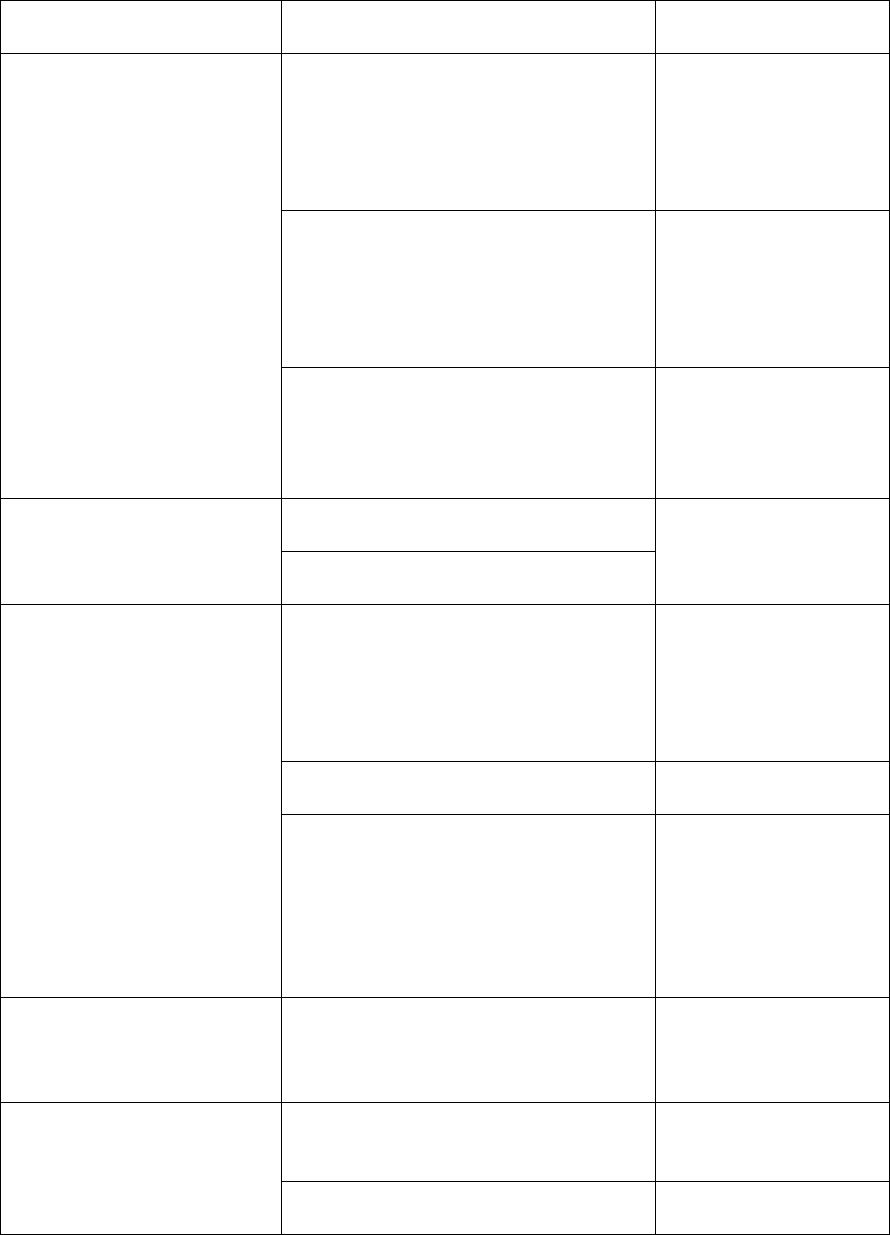
12.Trouble shooting
If anything unusual occurs while using your mobile phone, please refer
to the following table.Frequently Occurring Problems
Frequently
Occurring Problems
Cause How to Fix
Poor reception
Using the mobile phone in an
area with poor reception such
as near tall buildings or in a
basement where radio waves
cannot
be transmitted
Try to avoid.
Using the mobile phone when
the network is busy, such as
during rush hour, when the
lines are full making it
impossible to get through.
Try to avoid.
Related to the distance from
the base station built by the
network.
You can request
that the network
service provider
provide a service
area plan.
Echo or noise
Caused by poor network relay, a
regional problem.
Hang up and redial,
if the relay is
changed then the
line may be better.
Some calling regions have poor
lines.
Shortening of the
standby time
Standby time is related to the
network system.
Please temporarily
turn off your
mobile phone, as
you are located in
an area with poor
reception.
Batteries need to be replaced Replace the
batteries
When you cannot get a signal,
the phone will continue to
transmit in order to find a base
station, thereby expending
large amounts of electricity
will cause the standby time to
decrease.
Please move to an
area with a strong
signal or
temporarily turn
off your mobile
phone.
Unable to turn on
the phone
The battery is empty. Look at the
remaining
electricity or
recharge.
SIM card malfunction
SIM card is damaged. Contact your
network service
provider.
SIM card is not properly
inserted.
Confirm SIM card is
properly inserted.
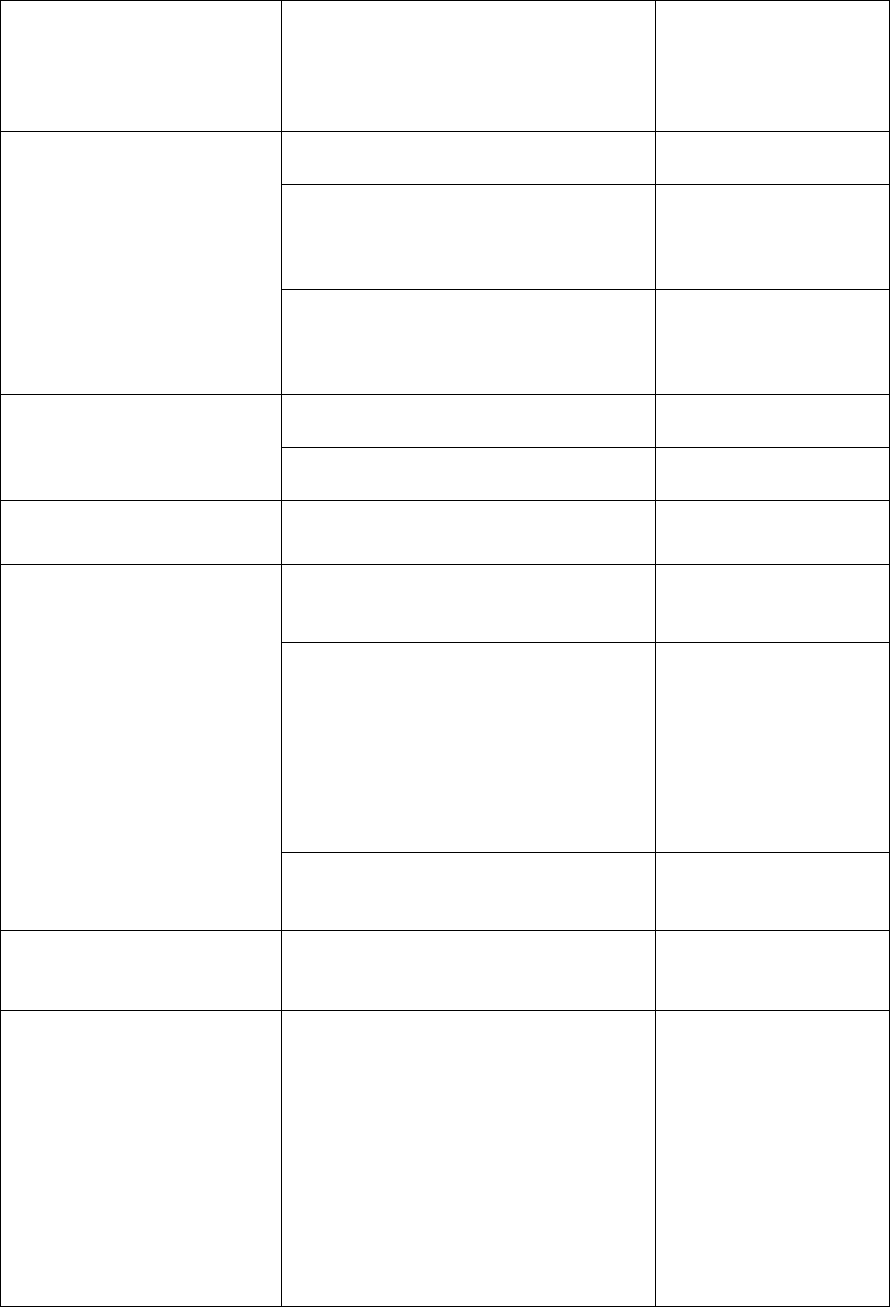
There is a foreign substance on
the metal surface of the SIM
card.
Use a clean cloth
to wipe off the
metal contact
point of the SIM
card.
Unable to connect with
the network
Expired SIM card Contact your
network provider.
Outside the GSM service area Consult your
network provider
on the service
area.
Poor signal. Please move to a
place with a better
signal and try
again.
Unable to make a call
Using the call bar function Cancel the call bar
function.
Using the fixed dialling
function.
Cancel the fixed
call setting.
Incorrect PIN number Consecutively enter the wrong
password three times.
Contact your
network provider.
Unable to charge
Battery or charger is damaged Replace the
battery or
charger.
Recharging in the environment
of less than -10℃or higher
than 45℃.extreme temperatures
can cause deformation of mobile
phone, reduce the charging
capacity and shorten the
service life of the battery and
the mobile phone .
Change the
charging
environment.
Poor contact Check if the plug
is properly
connected
Unable to add new phone
book entries
The storage space of the phone
book is full
Delete a portion of
the phone number
entries
Unable to set certain
functions
Your network provider does not
support this function or you
have not applied for it.
Contact your
network provider.
FCC Statement
This equipment has been tested and found to comply with the limits for a Class B digital device, pursuant to Part 15 of
the FCC Rules. These limits are designed to provide reasonable protection against harmful interference in a
residential installation. This equipment generates uses and can radiate radio frequency energy and, if not installed and
used in accordance with the instructions, may cause harmful interference to radio communications. However, there is
no guarantee that interference will not occur in a particular installation. If this equipment does cause harmful
interference to radio or television reception, which can be determined by turning the equipment off and on, the user is
encouraged to try to correct the interference by one or more of the following measures:
-- Reorient or relocate the receiving antenna.
-- Increase the separation between the equipment and receiver.
-- Connect the equipment into an outlet on a circuit different from that to which the receiver is connected.
-- Consult the dealer or an experienced radio/TV technician for help.
This device complies with part 15 of the FCC Rules. Operation is subject to the following two conditions:
(1) This device may not cause harmful interference, and (2) this device must accept any interference received,
including interference that may cause undesired operation.
Changes or modifications not expressly approved by the party responsible for compliance could void the user's
authority to operate the equipment.
RF Exposure Information (SAR)
This device meets the government’s requirements for exposure to radio waves. This device is
designed and manufactured not to exceed the emission limits for exposure to radio frequency
(RF) energy set by the Federal Communications Commission of the U.S. Government.
The highest reported SAR values for head and body are below:
Head: 0.588W/kg(1g); Body:0.701W/kg(1g) respectively.
WARNING!! Read this information before using your phone
In August 1986 the Federal Communications Commission (FCC) of the United States with its
action in Report and Outer FCC 96-326 adopted an updated safety standard for human
exposure to radio frequency (RF) electromagnetic energy emitted by FCC regulated
transmitters. Those guidelines are consistent with the safety standard previously set by both
U.S. and international standards bodies. The design of this phone complies with the FCC
guidelines and these international standards. Use only the supplied or an approved antenna.
Unauthorized antennas modifications, or attachments could impair call quality, damage the
phone, or result in violation of FCC regulations. Do not use the phone with a damaged antenna.
If a damaged antenna comes into contact with the skin, a minor burn may result. Please
contact your local dealer for replacement antenna.
BODY-WORN OPERATION:
This device was tested for typical body-worn operations with the back of the phone kept 1.0cm
from the body. To comply with FCC RF exposure requirements, a minimum separation
distance of 1.0cm must be maintained between the user's body and the back of the phone,
including the antenna, whether extended or retracted. Third-party belt-clips, holsters and
similar accessories containing metallic components shall not be used. Body-worn accessories
that cannot maintain 1.0cm separation distance between the user’s body and the back of the
phone, and have not been tested for typical body-worn operations may not comply with FCC
RF exposure limits and should be avoided.
For more information about RF exposure, please visit the FCC website at www.fcc.gov
Your wireless handheld portable telephone is a low power radio transmitter and receiver. When
it is ON, it receives and also sends out radio frequency (RF) signals. In August, 1996, the
Federal Communications Commissions (FCC) adopted RF exposure guidelines with safety
levels for hand-held wireless phones. Those guidelines are consistent with the safety
standards previously set by both U.S. and international standards bodies:
<ANSIC95.1> (1992) / <NCRP Report 86> (1986) / <ICIMIRP> (1996)
Those standards were based on comprehensive and periodic evaluations of the relevant
scientific literature. For example, over 120 scientists, engineers, and physicians from
universities, government health agencies, and industry reviewed the available body of
research to develop the ANSI Standard (C95.1). Nevertheless, we recommend that you use a
hands-free kit with your phone (such as an earpiece or headset) to avoid potential exposure to
RF energy. The design of your phone complies with the FCC guidelines (and those standards).
Use only the supplied or an approved replacement antenna. Unauthorized antennas,
modifications, or attachments could damage the phone and may violate FCC regulations.