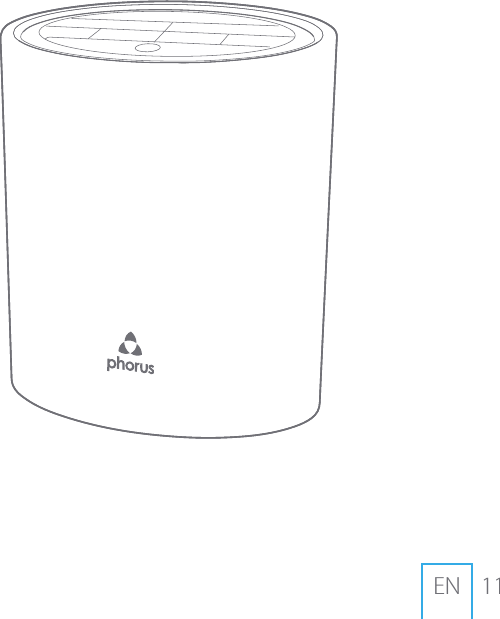
Phorus PS10SPEAKER Phorus Play-Fi Speaker User Manual

Phorus, Inc. Phorus Play-Fi Speaker

User Manual

1 Quick Start Guide Guide de démarrage rapide Guía de inicio rápido Guida di avvio rapido Schnellstartanleitung Snel aan de slag
2ENThat’s a sweet new speaker you’ve got there!Let’s get it set up.
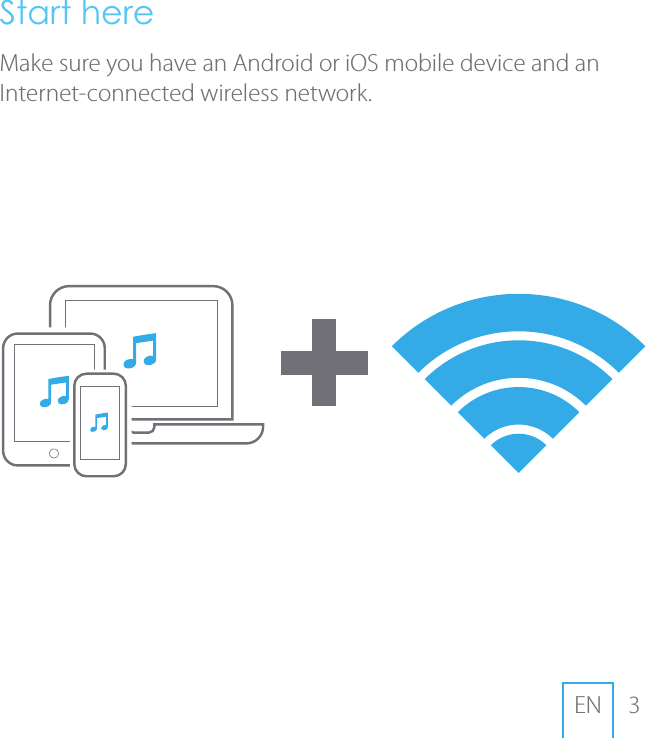
3ENStart hereMake sure you have an Android or iOS mobile device and an Internet-connected wireless network.
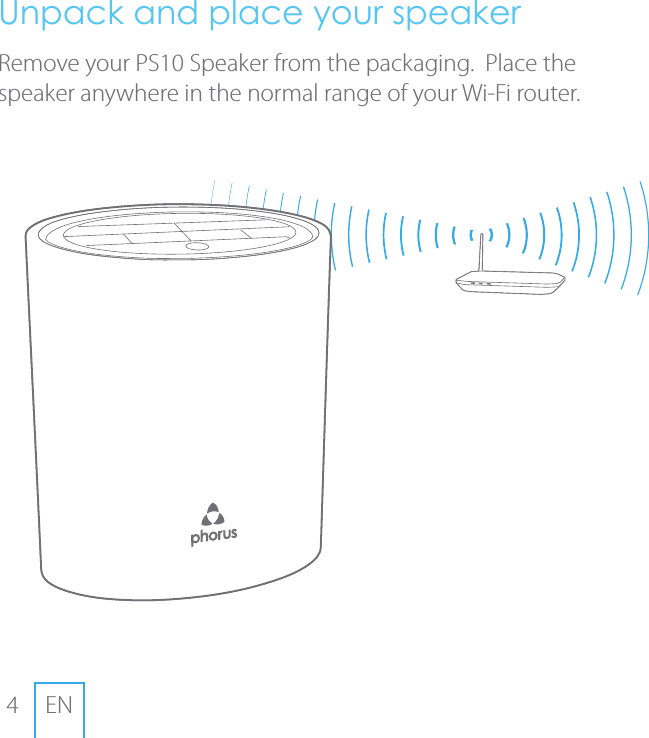
4ENUnpack and place your speakerRemove your PS10 Speaker from the packaging.  Place the speaker anywhere in the normal range of your Wi-Fi router.
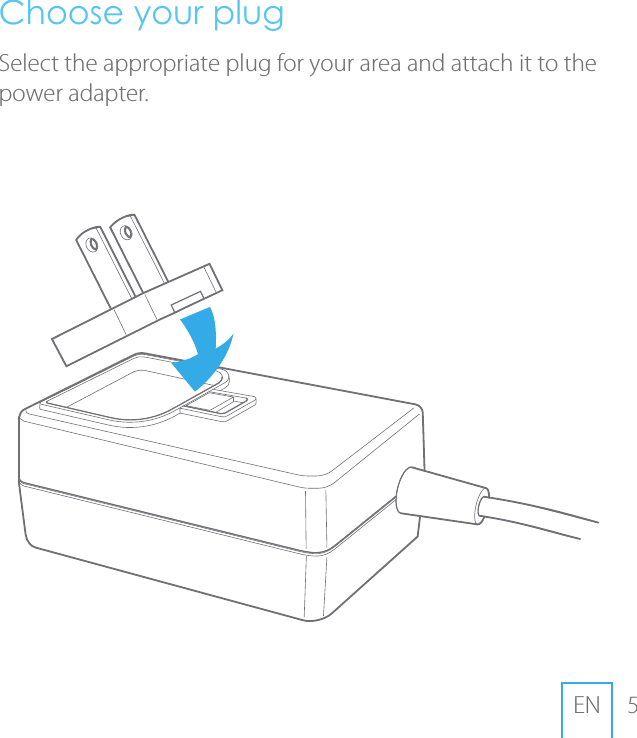
5ENChoose your plugSelect the appropriate plug for your area and attach it to the power adapter.
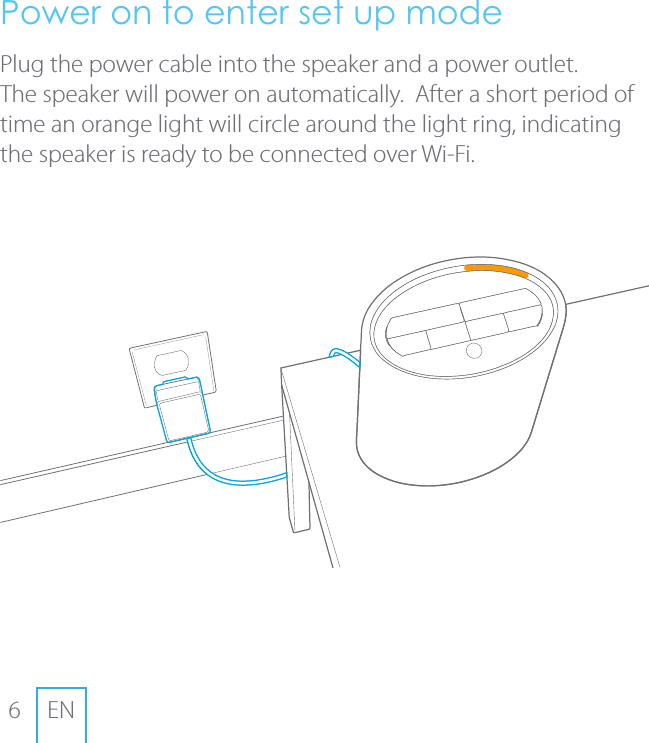
6ENPower on to enter set up mode Plug the power cable into the speaker and a power outlet.  The speaker will power on automatically.  After a short period of time an orange light will circle around the light ring, indicating the speaker is ready to be connected over Wi-Fi.
7ENDownload the Phorus appDownload the Phorus App from the Apple App Store, Google Play Store, or the Amazon App Store.
8ENConnect your PS10 to Wi-Fi Make sure your mobile device is connected to your preferred Wi-Fi network.  In the Phorus app, go to Settings and select Set Up Play-Fi Device.  Follow the instructions to connect your PS10 Speaker to your Wi-Fi network.
9ENLog into your Amazon accountOnce connected to your network the app will guide you to log in to your Amazon account.  If you do not have an account you will be prompted to create one. If you decide not to connect your Amazon account you can always go to Settings, select Amazon Alexa, select your PS10 Speaker, and log in.  Note that you cannot use the Alexa Voice Service if you are not logged in to an Amazon account.
10 ENEnjoy!Once you’re connected and logged in you can enjoy the amazing and ever growing world of Amazon Alexa voice control, combined  with Play-Fi ecosystem that lets you stream audio to any room in your home.Download the Amazon Alexa app to congure your Alexa Voice Service experience. If you need any help with set-up visit the following website to view troubleshooting or con-tact our customer support.https://phorus.com/support/ps10
11EN
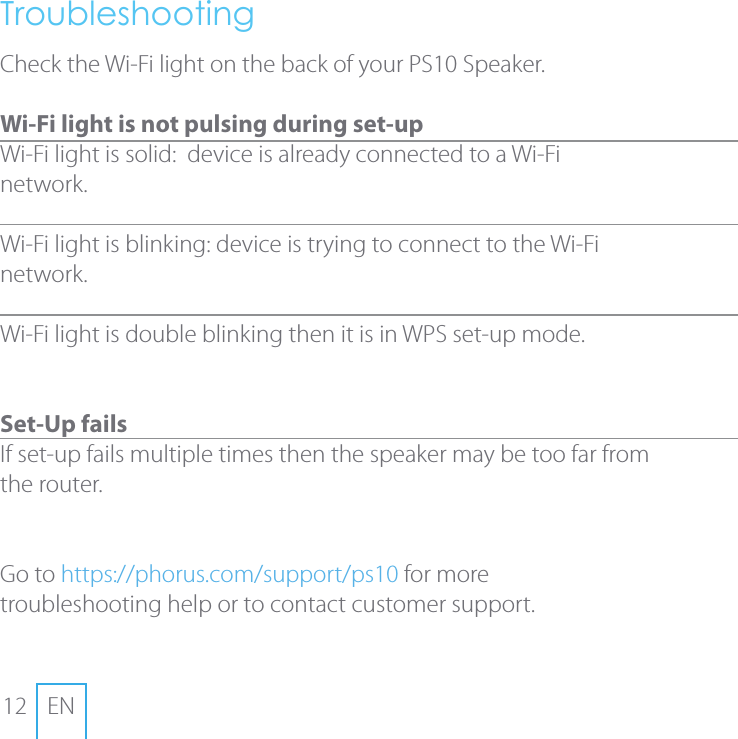
12 ENTroubleshootingCheck the Wi-Fi light on the back of your PS10 Speaker.Wi-Fi light is not pulsing during set-upWi-Fi light is solid:  device is already connected to a Wi-Fi network.Wi-Fi light is blinking: device is trying to connect to the Wi-Fi network.  Wi-Fi light is double blinking then it is in WPS set-up mode.  Set-Up fails If set-up fails multiple times then the speaker may be too far from the router.  Go to https://phorus.com/support/ps10 for more troubleshooting help or to contact customer support.
13EN Solution:Go to the Phorus app speaker settings and select your PS10 Speaker.  Put the device into set-up mode by holding the Wi-Fi button for 8 seconds (release after a second chime is heard).Exit WPS set-up mode by pressing the Wi-Fi button once (a mode exit sound will play).Solution:Move speaker closer to the router.
14 FRC’est un beau haut-parleur neuf que vous avez là!Installons-le ensemble.
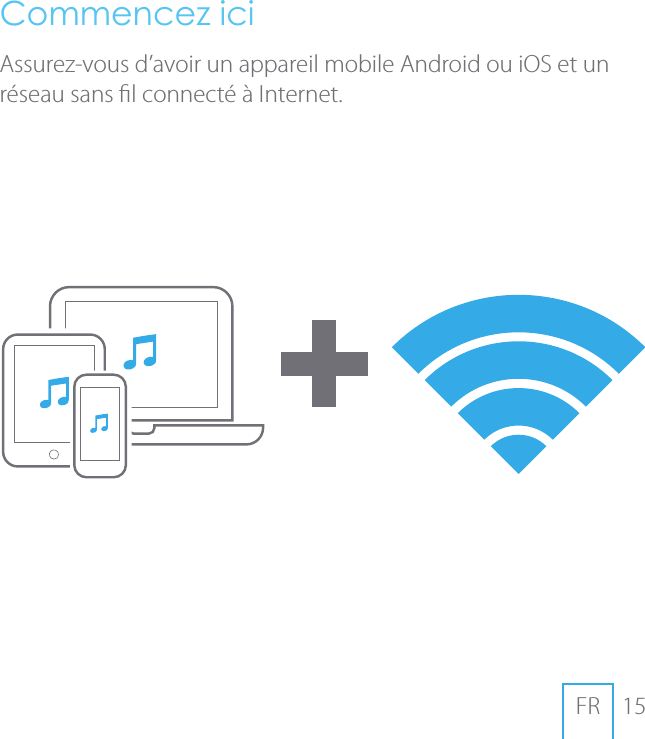
15FRCommencez iciAssurez-vous d’avoir un appareil mobile Android ou iOS et un réseau sans l connecté à Internet.
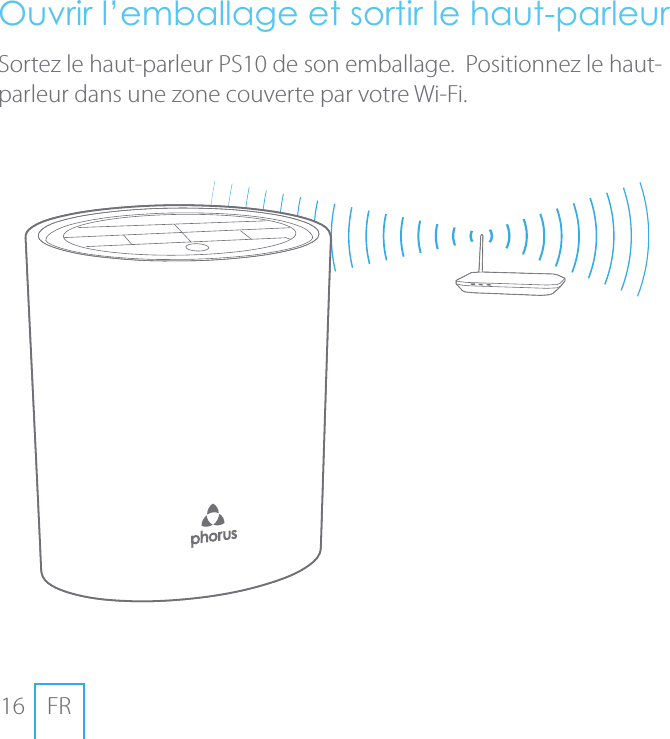
16 FROuvrir l’emballage et sortir le haut-parleurSortez le haut-parleurPS10 de son emballage.  Positionnez le haut-parleur dans une zone couverte par votre Wi-Fi.
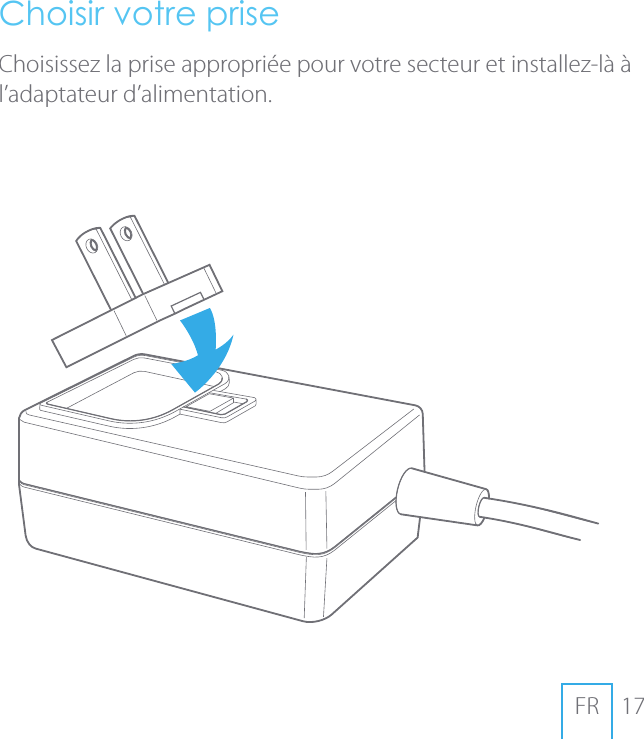
17FRChoisir votre priseChoisissez la prise appropriée pour votre secteur et installez-là à l’adaptateur d’alimentation.
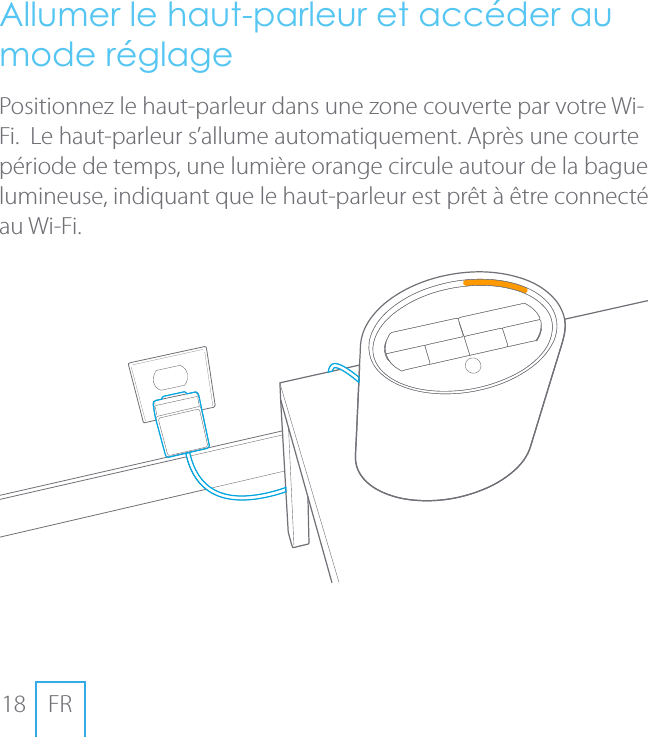
18 FRAllumer le haut-parleur et accéder au mode réglage Positionnez le haut-parleur dans une zone couverte par votre Wi-Fi.  Le haut-parleur s’allume automatiquement. Après une courte période de temps, une lumière orange circule autour de la bague lumineuse, indiquant que le haut-parleur est prêt à être connecté au Wi-Fi.
19FRUtiliser l’application pour terminer la congurationTéléchargez l’application Phorus depuis Apple App Store, Google Play Store ou Amazon App Store.
20 FRConnecter le PS10 au réseau Wi-FiAssurez-vous que votre appareil mobile soit bien connecté à votre réseau Wi-Fi préféré.  Ouvrez l’application Phorus sur votre appareil mobile, selectionnez Paramètres puis Congurer le périphérique Play-Fi. Suivez les instructions pour connecter votre haut-parleur PS10 à votre réseau Wi-Fi.
21FRConnectez-vous à votre compte AmazonUne fois connecté à votre réseau, l’application vous guidera pour vous connecter à votre compte Amazon. Si vous n’avez pas encore de compte Amazon, vous serez invité à en créer un an de pouvoir utiliser Alexa.Si vous décidez de ne pas connecter votre compte Amazon, vous pouvez à tout moment accéder aux Paramètres, sélectionner Amazon Alexa, sélectionner votre haut-parleur PS10 et vous connecter. Notez que vous ne pouvez pas utiliser le service Alexa Voice si vous n’êtes pas connecté à un compte Amazon.
22 FRAppuyez sur Play et appréciez!Une fois que vous êtes connecté et enregistré avec votre compte Amazon, vous pouvez proter de l’assistance vocale Amazon Alexa combinéé à Play-Fi pour commander et diuser de la musique dans n’importe quelle pièce de votre maison.Téléchargez l’application Amazon Alexa pour congurer votre expérience Alexa Voice Service. Si vous avez besoin d’aide pour la conguration, rendez-vous sur le site internet suivant pour les solutions de dépannage, ou contactez notre service client.https://phorus.com/support/ps10
23FR
24 FRDépannageVériez le voyant Wi-Fi à l’arrière de votre haut-parleur PS10. Le voyant Wi-Fi ne clignote pas durant la conguration.Le voyant Wi-Fi s’ache en continu: le dispositif  est déjà relié à un réseau Wi-Fi.Le voyant Wi-Fi clignote: le dispositif tente de se connecter au réseau Wi-Fi.  Le voyant Wi-Fi clignote deux fois, puis s’ache en mode de congurationWPS. Échec de la conguration Si la conguration échoue à plusieurs reprises, le  haut-parleur est peut-être trop éloigné du routeur. Consultez https://phorus.com/support/ps10 pour obtenir d’autres solutions de dépannage, ou contacter notre service client.
25FR Solution:Consultez les réglages de l’application  Phorus et choisissez votre haut-parleurPS10. Placez l’appareil en mode de conguration  en maintenant enfoncé le boutonWi-Fi  pendant 8secondes (relâchez dès le deuxième carillon).Quittez le mode de congurationWPS en appuyant une fois sur le boutonWi-Fi (vous entendrez un son de sortie de mode).Solution:Rapprochez le haut-parleur du routeur.
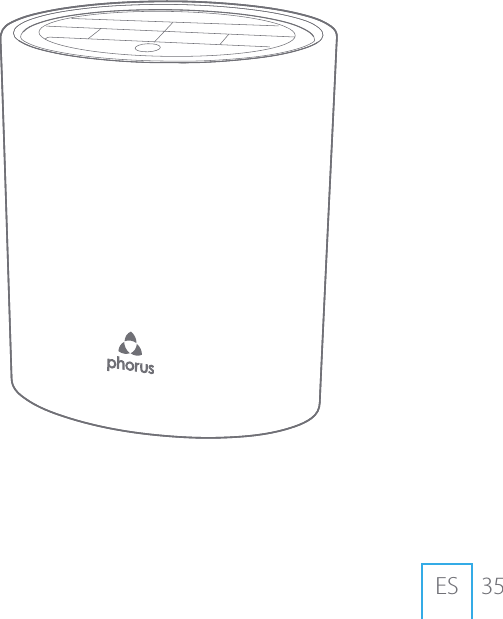
26 ES¡Qué estupendo altavoz!Vamos a instalarlo.
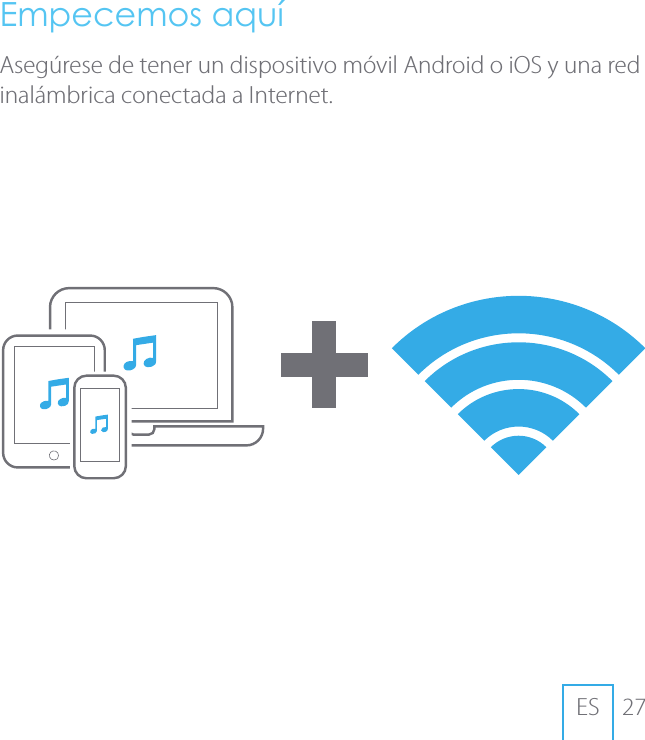
27ESEmpecemos aquíAsegúrese de tener un dispositivo móvil Android o iOS y una red inalámbrica conectada a Internet.
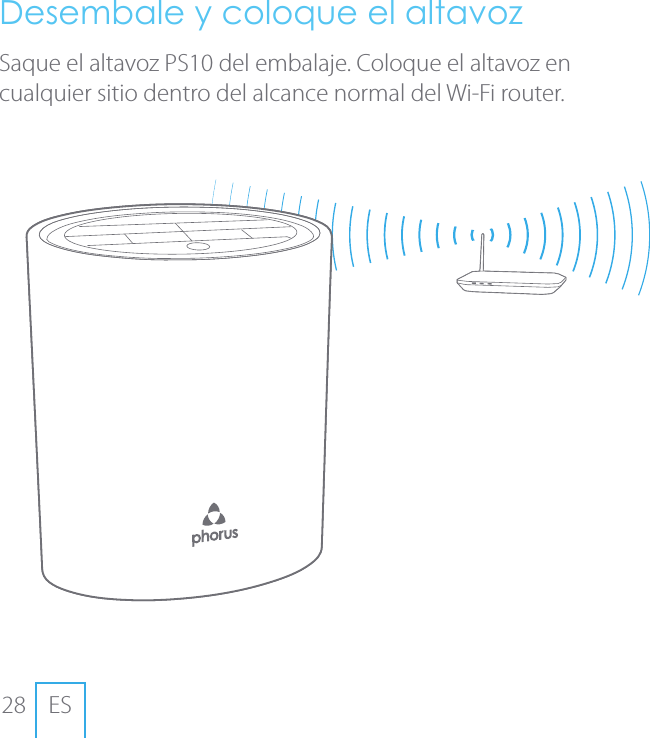
28 ESDesembale y coloque el altavozSaque el altavoz PS10 del embalaje. Coloque el altavoz en cualquier sitio dentro del alcance normal del Wi-Fi router.
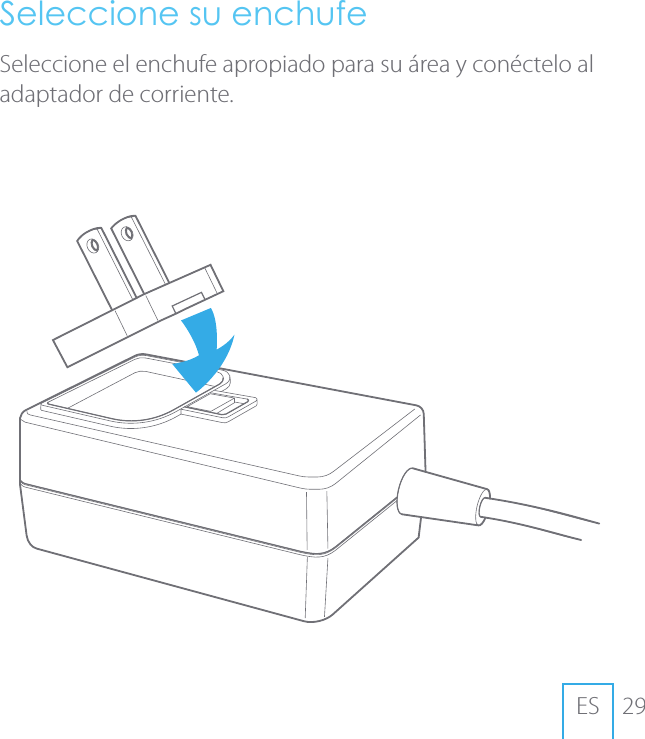
29ESSeleccione su enchufeSeleccione el enchufe apropiado para su área y conéctelo al adaptador de corriente.
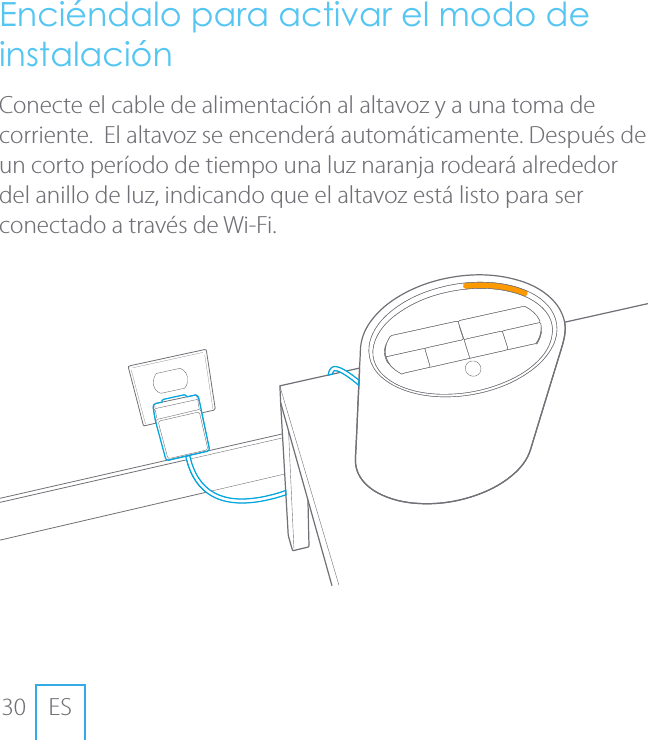
30 ESEnciéndalo para activar el modo de instalación Conecte el cable de alimentación al altavoz y a una toma de corriente.  El altavoz se encenderá automáticamente. Después de un corto período de tiempo una luz naranja rodeará alrededor del anillo de luz, indicando que el altavoz está listo para ser conectado a través de Wi-Fi.
31ESUtilice la aplicación para completar la instalaciónDescargue la aplicación Phorus desde la App Store de Apple, Google Play Store o la Amazon App Store.
32 ESConecta tu PS10 a Wi-FiAsegúrese de que su dispositivo móvil esté conectado a su red Wi-Fi preferida. En la aplicación Phorus, vaya a Conguración y seleccione Congurar dispositivo de reproducción. Siga las instrucciones para conectar su altavoz PS10 a su red Wi-Fi.
33ESInicie sesión en su cuenta de AmazonUna vez conectado a su red, la aplicación le guiará para iniciar sesión en su cuenta de Amazon. Si no tiene una cuenta, se le pedirá que cree una.Si decide no conectarse a su cuenta de Amazon, puede dirigirse al menú de Conguración, seleccione Amazon Alexa, seleccione su altavoz PS10 e inicie sesión. Tenga en cuenta que no puede usar Alexa Voice Service si no está conectado a una cuenta de Amazon.
34 ES¡Presione Play y a disfrutar!Una vez ya conectado y iniciado sesión, podrá disfrutar del asombroso y creciente mundo del control de voz de Amazon Alexa, combinado con el ecosistema de Play-Fi que le permite transmitir audio a cualquier habitación de su hogar.Descargue la aplicación de Amazon Alexa para congurar su experiencia de Alexa Voice Service. Si necesita ayuda con la instalación, visite el siguiente sitio web para ver la resolución de problemas o póngase en contacto con nuestro servicio de atención al cliente.https://phorus.com/support/ps10
35ES
36 ESResolución de problemasCompruebe la luz Wi-Fi en la parte posterior de su altavoz PS10. La luz Wi-Fi no parpadea durante la instalaciónLa luz Wi-Fi se queda ja: el dispositivo ya está conectado a la red Wi-Fi.La luz Wi-Fi parpadea: el dispositivo está intentando conectarse a la red Wi-Fi.  La luz Wi-Fi emite un parpadeo doble, de modo que está en modo de instalación de WPS. Error en la instalación Si se producen errores en múltiple ocasiones durante la instalación, es posible que el altavoz esté demasiado lejos del router. Visite https://phorus.com/support/ps10 para obtener más ayuda con relación a la resolución de problemas o póngase en contacto con el servicio de atención al cliente.
37ES Solución:Diríjase al menu conguración de altavoces en la applicación Phorus  y seleccione el altavoz PS10. Ponga el dispositivo en modo de instalación manteniendo pulsado el botón Wi-Fi durante 8 segundos (suéltelo tras oír un segundo aviso acústico).Salga del modo de instalación de WPS pulsando el botón Wi-Fi una vez (oirá un sonido de salida del modo).Solución:Ponga el altavoz más cerca del router.
38 ITChe bel nuovo altoparlante!Conguriamolo ora come si deve.
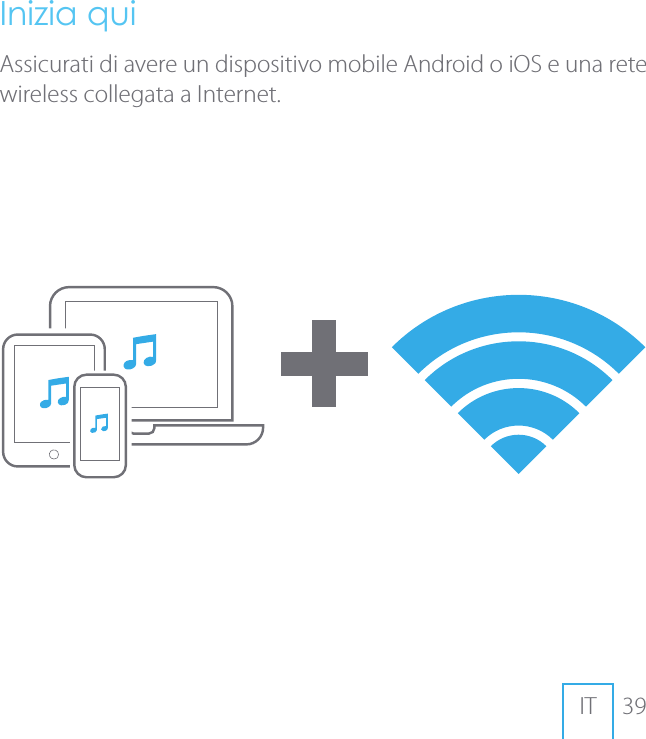
39ITInizia quiAssicurati di avere un dispositivo mobile Android o iOS e una rete wireless collegata a Internet.
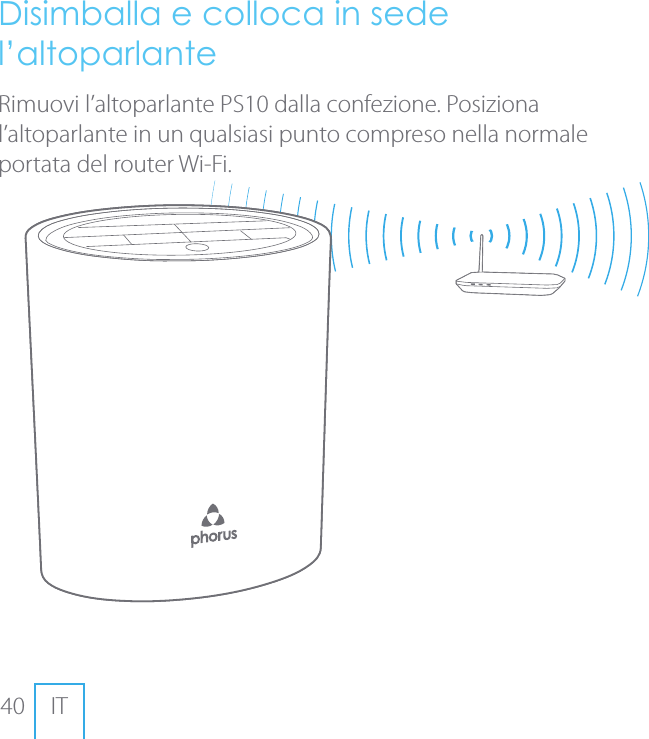
40 ITDisimballa e colloca in sede l’altoparlanteRimuovi l’altoparlante PS10 dalla confezione. Posiziona l’altoparlante in un qualsiasi punto compreso nella normale portata del router Wi-Fi.
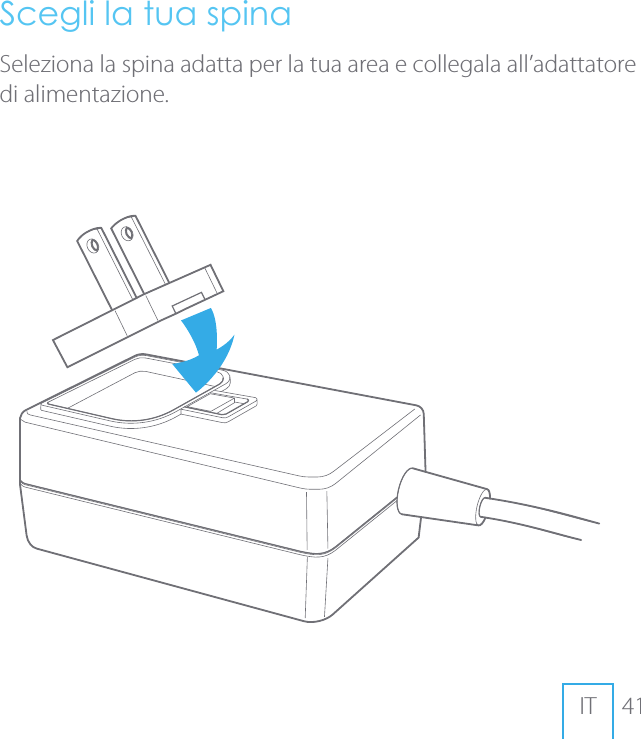
41ITScegli la tua spinaSeleziona la spina adatta per la tua area e collegala all’adattatore di alimentazione.
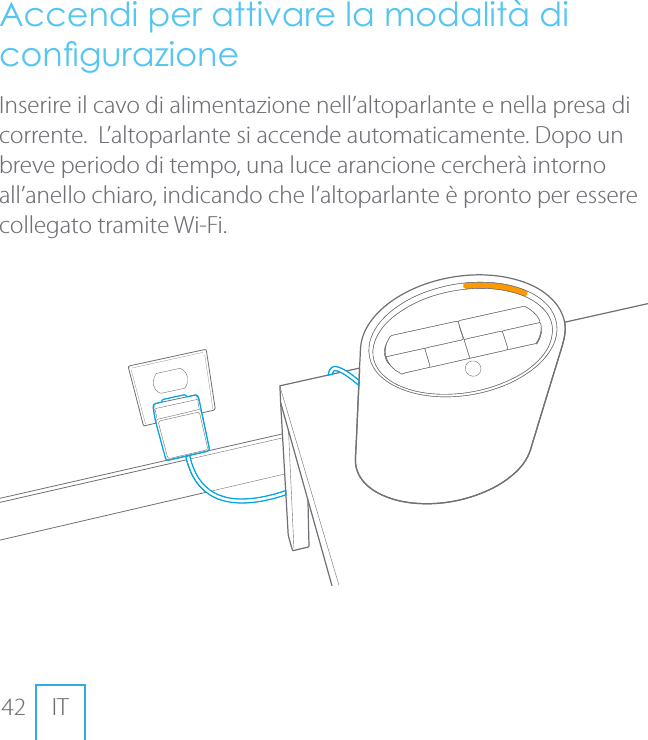
42 ITAccendi per attivare la modalità di congurazione Inserire il cavo di alimentazione nell’altoparlante e nella presa di corrente.  L’altoparlante si accende automaticamente. Dopo un breve periodo di tempo, una luce arancione cercherà intorno all’anello chiaro, indicando che l’altoparlante è pronto per essere collegato tramite Wi-Fi.
43ITUtilizza l’app per completare la congurazioneScarica l’applicazione Phorus da Apple App Store, Google Play Store o Amazon App Store.
44 ITCollegare il tuo PS10 a Wi-FiAssicurati che il dispositivo mobile sia collegato alla rete Wi-Fi preferita. Nell’applicazione Phorus, vai a Impostazioni e seleziona Imposta dispositivo riproduttore. Seguire le istruzioni per collegare l’altoparlante PS10 alla rete Wi-Fi.
45ITAccedi all’account AmazonUna volta connesso alla rete, l’applicazione ti guiderà per accedere all’account Amazon. Se non si dispone di un account verrà richiesto di crearne uno.Se decidi di non collegare l’account Amazon, puoi sempre andare a Impostazioni, selezionare Amazon Alexa, selezionare il tuo altoparlante PS10 e accedere. Nota che non puoi utilizzare Alexa Voice Service se non sei connesso a un account Amazon.
46 ITTocca Play (Riproduci) e goditi l’audio!Una volta collegati e connessi, potrai godere del fantastico mondo di Amazon Alexa, combinato con l’ecosistema Play-Fi che ti permette di far passare l’audio in qualsiasi stanza della tua casa.Scarica l’applicazione Amazon Alexa per congurare l’esperienza di Alexa Voice Service.Se hai bisogno di aiuto per la congurazione, visita il seguente sito Web per visualizzare la risoluzione dei problemi o contatta il nostro servizio clienti.https://phorus.com/support/ps10
47IT
48 ITRisoluzione dei problemiControllare la luce Wi-Fi sul retro dell’altoparlante PS10. La spia Wi-Fi non lampeggia durante la congurazioneLa spia Wi-Fi è ssa: il dispositivo è già connesso a  una rete Wi-Fi.La spia Wi-Fi lampeggia: il dispositivo sta tentando di connettersi alla rete Wi-Fi. La spia Wi-Fi lampeggia con due brevi lampeggi consecutivi: è in modalità di congurazione WPS. Congurazione non riuscita Se la congurazione non riesce più volte, l’altoparlante  può essere troppo distante dal router. Visita il sito https://phorus.com/support/ps10 per ulteriore assistenza nella risoluzione dei problemi o contatta il supporto clienti.
49ITSoluzione:Accedi alle impostazioni degli altoparlanti dell’app Phorus e seleziona il tuo altoparlante PS10. Metti il dispositivo in modalità di congurazione tenendo premuto il pulsante Wi-Fi per 8 secondi (rilascia dopo avere sentito un secondo suono).Esci dalla modalità di congurazione WPS premendo il pulsante Wi-Fi una volta (sentirai un suono di uscita dalla modalità).Soluzione:Avvicina l’altoparlante al router.
50 DESie haben da einen tollen neuen Lautsprecher!Jetzt sollten wir ihn einrichten.
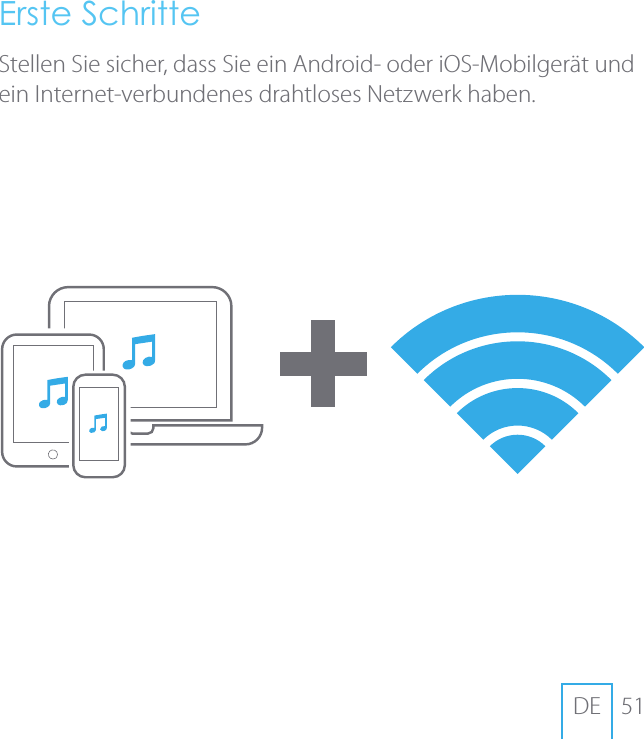
51DEErste SchritteStellen Sie sicher, dass Sie ein Android- oder iOS-Mobilgerät und ein Internet-verbundenes drahtloses Netzwerk haben.
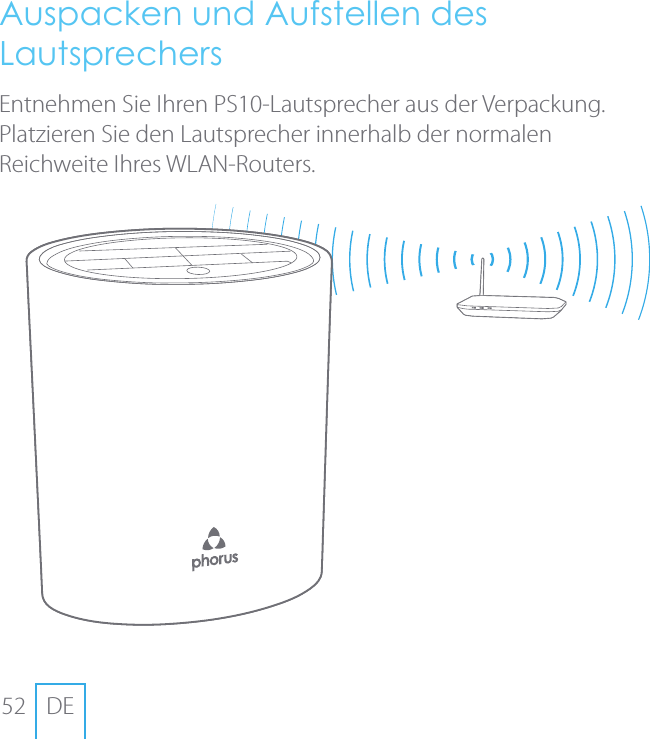
52 DEAuspacken und Aufstellen des LautsprechersEntnehmen Sie Ihren PS10-Lautsprecher aus der Verpackung. Platzieren Sie den Lautsprecher innerhalb der normalen Reichweite Ihres WLAN-Routers.
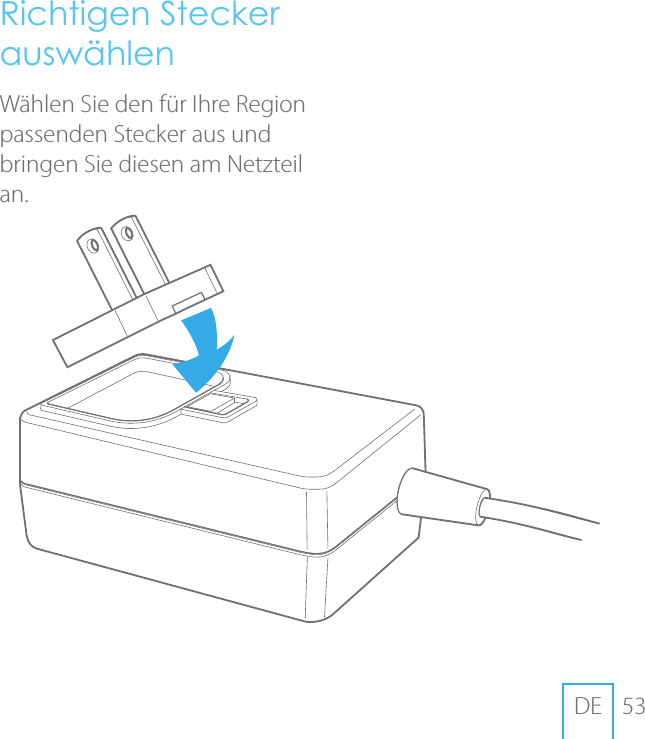
53DERichtigen Stecker auswählenWählen Sie den für Ihre Region passenden Stecker aus und bringen Sie diesen am Netzteil an.
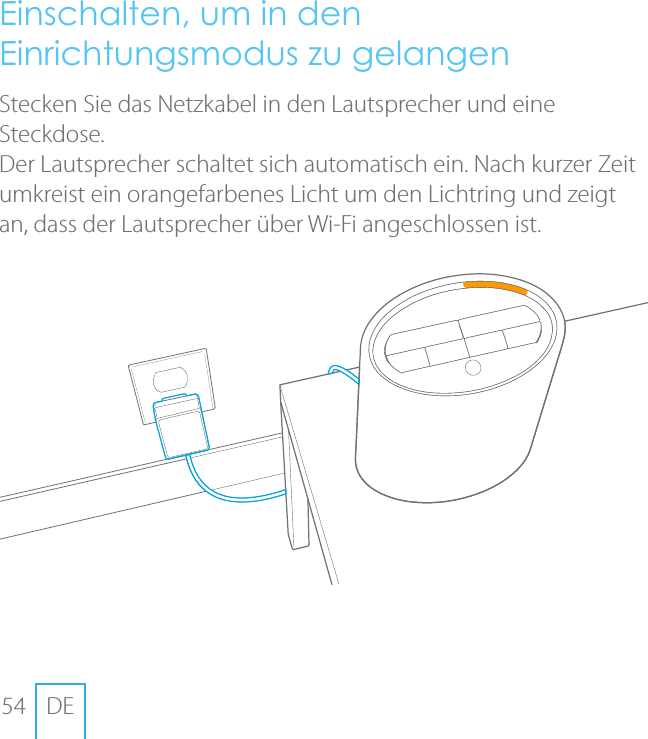
54 DEEinschalten, um in den Einrichtungsmodus zu gelangen Stecken Sie das Netzkabel in den Lautsprecher und eine Steckdose.Der Lautsprecher schaltet sich automatisch ein. Nach kurzer Zeit umkreist ein orangefarbenes Licht um den Lichtring und zeigt an, dass der Lautsprecher über Wi-Fi angeschlossen ist.
55DEVerwenden Sie die App, um das Einrichten abzuschließenLaden Sie die Phorus App aus dem Apple App Store, dem Google Play Store oder dem Amazon App Store herunter.
56 DEVerbinden Sie Ihre PS10 mit Wi-FiVergewissern Sie sich, dass Ihr Mobilgerät mit Ihrem bevorzugten WLAN verbunden ist. Gehen Sie in der Phorus App zu Einstellungen und wählen Sie Play-Fi Device einrichten. Folgen Sie den Anweisungen, um Ihren PS10-Lautsprecher an Ihr Wi-Fi-Netzwerk anzuschließen.
57DEMelden Sie sich bei Ihrem Amazon-Konto anSobald Sie mit Ihrem Netzwerk verbunden sind, führt die App Sie dazu, sich bei Ihrem Amazon-Konto anzumelden. Wenn du kein Konto hast, wirst du aufgefordert, einen zu erstellen.Wenn Sie sich entschließen, Ihr Amazon-Konto nicht zu verbinden, können Sie jederzeit auf Einstellungen klicken, Amazon Alexa auswählen, Ihren PS10-Lautsprecher auswählen und sich anmelden. Beachten Sie, dass Sie den Alexa Voice Service nicht verwenden können, wenn Sie nicht bei einem Amazon-Konto angemeldet sind.
58 DEAuf Play drücken und genießen!Sobald Sie verbunden sind und eingeloggt sind, können Sie die erstaunliche und ständig wachsende Welt der Amazon-Alexa-Sprachsteuerung genießen, kombiniert mit Play-Fi-Ökosystem, mit dem Sie Audio in jeden Raum in Ihrem Haus streamen können.Laden Sie die Amazon Alexa App herunter, um Ihre Alexa Voice Service Erfahrung zu kongurieren. Falls Sie Hilfe beim Einrichten benötigen, besuchen Sie die folgende Webseite mit Hinweisen zur Fehlersuche oder kontaktieren Sie unseren Kundendienst.https://phorus.com/support/ps10
59DE
60 DEFehlersucheÜberprüfen Sie die Wi-Fi-Leuchte auf der Rückseite des PS10-Lautsprechers. WLAN-Leuchte blinkt während des Einrichtungsvorgangs nicht aufWLAN-Leuchte leuchtet: Gerät ist bereits mit einem WLAN-Netzwerk verbunden. WLAN-Leuchte blinkt: Gerät versucht, sich mit dem WLAN-Netzwerk zu verbinden. WLAN-Leuchte blinkt doppelt: Gerät bendet sich im WPS-Einrichtungsmodus. Einrichtung schlägt fehl Falls die Einrichtung mehrfach fehlschlägt, kann es sein, dass der Lautsprecher zu weit vom Router entfernt ist. Für mehr Hilfe bei der Fehlersuche besuchen Sie  https://phorus.com/support/ps10 oder wenden Sie sich  an den Kundendienst.
61DELösung:Rufen Sie in der Phorus App die Lautsprechereinstellungen auf und wählen Sie Ihren PS10-Lautsprecher aus.   Aktivieren Sie den Einrichtungsmodus des Geräts, indem Sie die WLAN-Taste 8 Sekunden lang gedrückt halten (loslassen, nachdem Sie einen zweiten Ton gehört haben). Verlassen Sie den WPS-Einrichtungsmodus, indem Sie die WLAN-Taste einmal drücken (ein entsprechender Ton ist zu hören).Lösung:Bewegen Sie den Lautsprecher näher an den Router heran.
62 NLWat heb je daar een prachtige luidspreker!Laten we deze instellen.
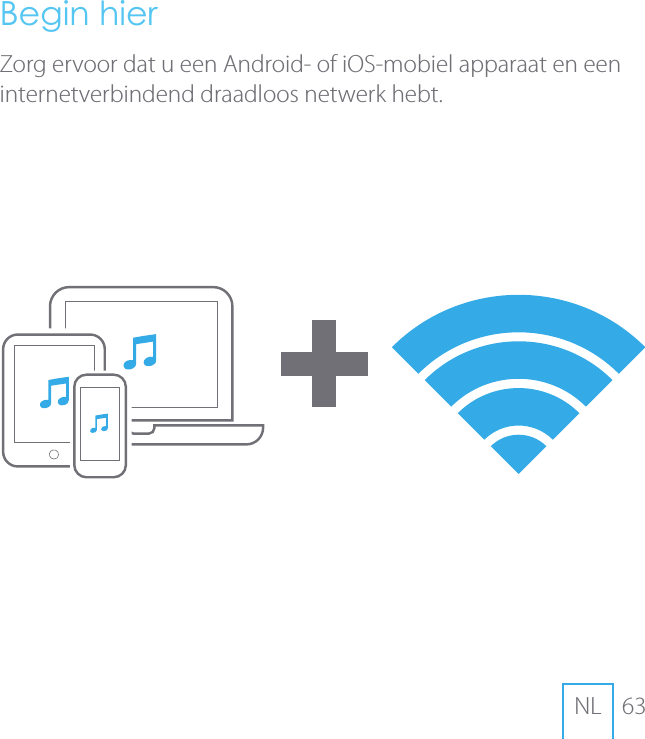
63NLBegin hierZorg ervoor dat u een Android- of iOS-mobiel apparaat en een internetverbindend draadloos netwerk hebt.
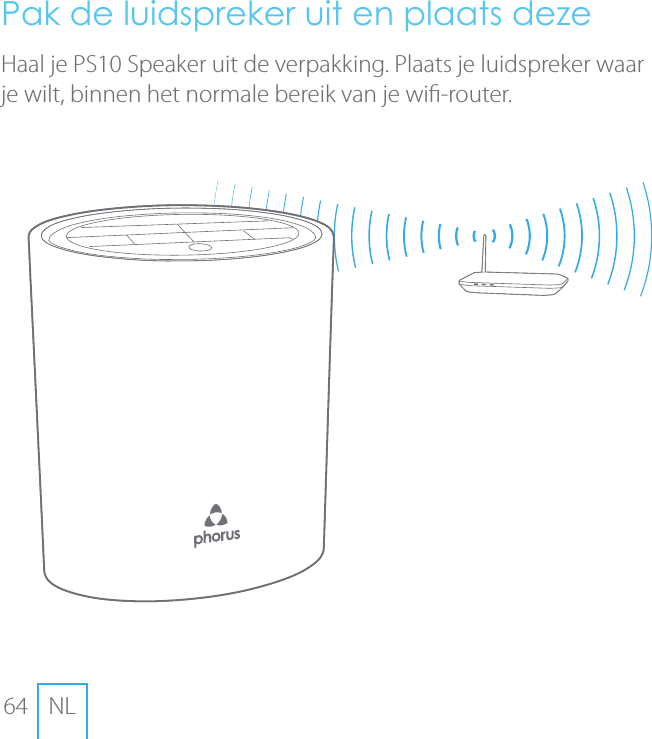
64 NLPak de luidspreker uit en plaats dezeHaal je PS10 Speaker uit de verpakking. Plaats je luidspreker waar je wilt, binnen het normale bereik van je wi-router.
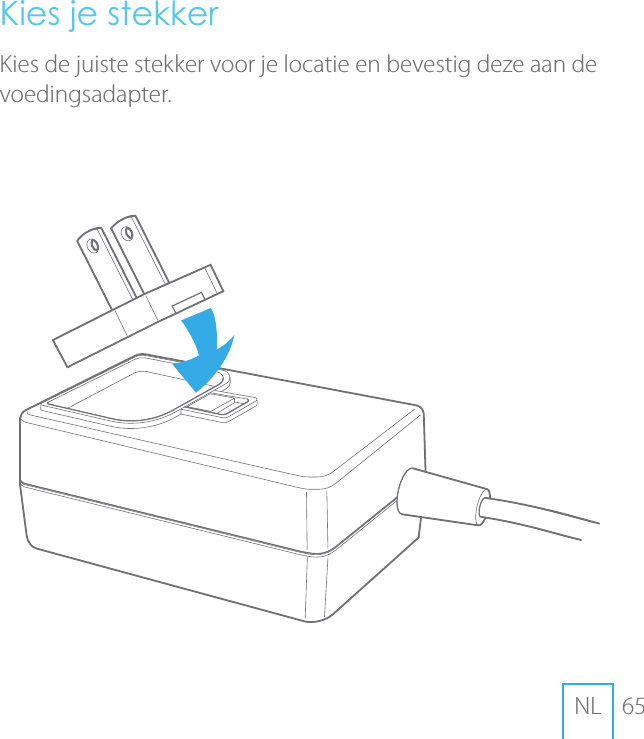
65NLKies je stekkerKies de juiste stekker voor je locatie en bevestig deze aan de voedingsadapter.
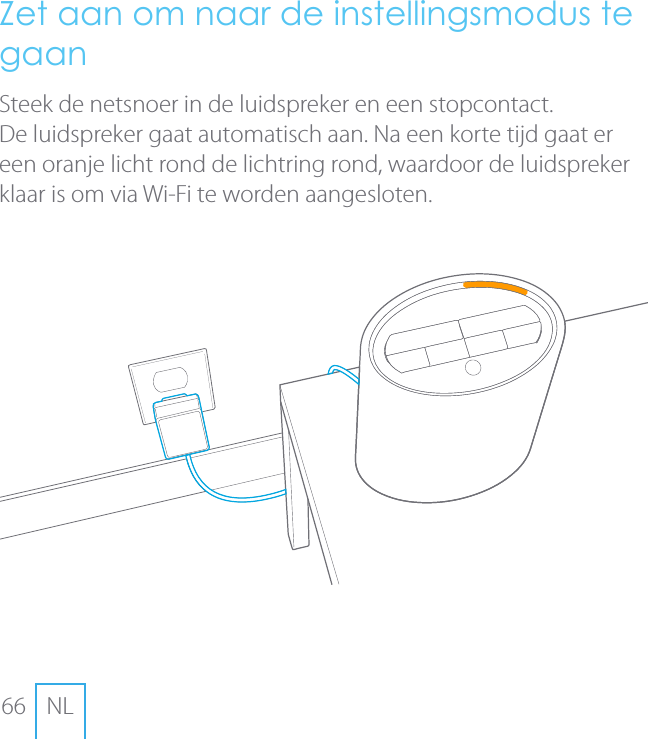
66 NLZet aan om naar de instellingsmodus te gaan Steek de netsnoer in de luidspreker en een stopcontact.De luidspreker gaat automatisch aan. Na een korte tijd gaat er een oranje licht rond de lichtring rond, waardoor de luidspreker klaar is om via Wi-Fi te worden aangesloten.
67NLGebruik de app om de instelling te voltooienDownload de Phorus App van de Apple App Store, Google Play Store of de Amazon App Store.
68 NLSluit je PS10 aan op Wi-FiZorg ervoor dat uw mobiele apparaat is aangesloten op uw favoriete Wi-Fi-netwerk. Ga naar Instellingen in de Phorus-app en selecteer Play-Fi Device instellen. Volg de instructies om uw PS10-luidspreker aan te sluiten op uw Wi-Fi-netwerk.
69NLLog in op je Amazon accountZodra u verbinding heeft met uw netwerk, zal de app u begeleiden om u in te loggen op uw Amazon-account. Als u geen account heeft, wordt u gevraagd een te maken.Als u besluit om uw Amazon-account niet te verbinden, kunt u altijd naar Instellingen gaan, Amazon Alexa selecteren, uw PS10-luidspreker selecteren en inloggen. Let op dat u de Alexa Voice Service niet kunt gebruiken als u niet bent aangemeld bij een Amazon-account.
70 NLKlik op ‘Play’ en geniet!Sobald Sie verbunden sind und eingeloggt sind, können Sie die erstaunliche und ständig wachsende Welt der Amazon-Alexa-Sprachsteuerung genießen, kombiniert mit Play-Fi-Ökosystem, mit dem Sie Audio in jeden Raum in Ihrem Haus streamen können.Laden Sie die Amazon Alexa App herunter, um Ihre Alexa Voice Service Erfahrung zu kongurieren.Als je hulp nodig hebt met het instellen, ga dan naar de volgende website om mogelijke oplossingen te bekijken of om contact op te nemen met onze klantenservice.https://phorus.com/support/ps10
71NL
72 NLProblemen oplossenControleer het Wi-Fi-lampje aan de achterzijde van uw PS10-luidspreker. Wi-lampje knippert niet tijdens het instellenWi-lampje brandt constant: apparaat is al verbonden met een wi-netwerk.Wi-lampje knippert: apparaat probeert verbinding te maken met een wi-netwerk. Wi-lampje knippert dubbel: apparaat is in  WPS-instellingsmodus. Instellen mislukt Als het instellen meerdere keren is mislukt kan het zijn dat de luidspreker te ver van de router verwijderd is. Ga naar https://phorus.com/support/ps10 voor meer informatie over het oplossen van problemen of neem contact op met de klantenservice.
73NLOplossing:Ga naar de luidsprekerinstelling in de Phorus-app en kies je PS10 Speaker. Zet het apparaat in de instellingsmodus door de wi-knop 8 seconden ingedrukt te houden (loslaten nadat je een tweede geluid hoort).Verlaat de WPS-instellingsmodus door eenmaal op de wi-knop te drukken (een modus-exitgeluid zal te horen zijn).Oplossing:Plaats luidspreker dichter bij de router.
74Declarations of ConformityPhorus Inc hereby declares that this product is in compliance with the essential requirements and other relevant provisions of Directive 2014/53/EU and all other applicable EU directive requirements. The complete declaration of conformity can be found at the following website: phorus.com/compliance.FEDERAL COMMUNICATIONS COMMISSION INTERFERENCE STATEMENTThis equipment has been tested and found to comply with the limits for a Class B digital device, pursuant to Part 15 of the FCC Rules. These limits are designed to provide reasonable protection against harmful interference in a residential installation. This equipment generates, uses and can radiate radio frequency energy and, if not in-stalled and used in accordance with the instructions, may cause harmful interference to radio communications. However, there is no guarantee that interference will not occur in a particular installation. If this equipment does cause harmful interference to radio or television reception, which can be determined by turning the equipment o and on, the user is encouraged to try to correct the interference by one or more of the following measures:– Reorient or relocate the receiving antenna.– Increase the separation between the equipment and receiver.– Connect the equipment into an outlet on a circuit dierent from that to which the receiver is connected.– Consult the dealer or an experienced radio/TV technician for help.CAUTION:Any changes or modications not expressly approved by the party responsible for compliance could void the user’s authority to operate the equipment.This device complies with Part 15 of the FCC Rules. Operation is subject to the following two conditions:(1) This device may not cause harmful interference and(2) This device must accept any interference received, including interference that may cause undesired opera-tion.RF Exposure WarningThis equipment must be installed and operated in accordance with provided instructions and the antenna(s) used for this transmitter must be installed to provide a separation distance of at least 20 cm from all persons.This product meets the applicable Innovation, Science and Economic Development Canada technical specifications.
75Canadian Compliance StatementRF-UnlicenseWarningThis device complies with Industry Canada license-exempt RSSs. Operation is subject to the following two conditions:1) This device may not cause interference, and2) This device must accept any interference, including interference that may cause undesired operation of the device.5GWarningCaution:1) The device for operation in the band 5150–5250 MHz is only for indoor use to reduce the potential for harm-ful interference to co-channel mobile satellite systems;DFS (Dynamic Frequency Selection) products that operate in the bands 5250- 5350 MHz, 5470-5600MHz, and 5650-5725MHz.MPEWarningRadiation Exposure Statement:This equipment complies with IC radiation exposure limits set forth for an uncontrolled environment. This equipment should be installed and operated with minimum distance 20cm between the radiator & your body.
76Déclaration de conformitéPhorus inc. déclare par la présente que ce produit est conforme aux principales exigences et autres clauses pertinentes de la directive2014/53/EU ainsi qu’à toute autre directive européenne applicable. La déclaration de conformité peut être consultée dans sa totalité sur le siteWebphorus.com/compliance.DÉCLARATION DE LA COMMISSION DES COMMUNICATIONS FÉDÉRALES CONCERNANT LES INTERFÉRENCESCet équipement a été testé et est conforme aux limites pour un périphérique numérique de Classe B, conformément à la Section 15 des règlements de la FCC. Ces limites sont conçues pour orir une protection raisonnable contre une interférence nocive dans une installation résidentielle. Cet équipement génère, utilise et peut émettre de l’énergie RF et, s’il n’est pas installé et utilisé conformément aux instructions, peut causer des interférences nuisibles aux communications radio. Cependant, nous ne pouvons donner aucune garantie qu’il n’y aura pas d’interférences dans une installation particulière. Si cet équipement occasionne des interférences néfastes sur la réception radio ou télévisée, ce qui peut se déterminer en éteignant l’équipement et en le rallumant, l’utilisateur est encouragé à essayer de corriger l’interférence par une ou plusieurs des mesures suivantes :– Réorienter ou déplacer l’antenne de réception.– Augmenter la distance entre l’équipement et le récepteur.– Brancher l’équipement dans une prise de courant sur un circuit diérent de celui auquel le récepteur est branché.– Consulter le revendeur ou un technicien radio/télévision expérimenté pour de l’aide.MISE EN GARDE :Toute modication non expressément approuvée par la partie responsable de la conformité peut annuler le droit de l’utilisateur à utiliser cet équipement.Cet appareil est conforme à la Section 15 des règlements de la FCC. Son fonctionnement est soumis aux deux conditions suivantes :(1) Cet appareil ne peut pas causer d’interférences nuisibles et2) Cet appareil doit accepter toute interférence reçue, incluant une interférence qui pourrait causer un fonctionnement indésirable.Avertissement concernant une exposition aux fréquences radioCet équipement doit être installé et utilisé selon les instructions; l’antenne ou les antennes fournies avec ce transmetteur doivent être installées à une distance minimale de 20 cm de toute personne et ne doivent pas
77être situées ou utilisées avec d’autres antennes ou transmetteurs. Les utilisateurs et installateurs doivent obtenir les directives d’installation et le manuel de l’utilisateur du transmetteur pour connaître la compatibilité aux interférences RF.Déclaration de Conformité CanadienneAvertissement de RF sans licenceLe présent appareil est conforme aux CNR d’Industrie Canada applicables aux appareils radio exempts de licence. L’exploitation est autorisée aux deux conditions suivantes :1) l’appareil ne doit pas produire de brouillage;2) l’utilisateur de l’appareil doit accepter tout brouillage radioélectrique subi, meme si le brouillage est susceptible d’en compromettre le fonctionnement.Avertissement 5GMise en garde::1) Le dispositif fonctionnant dans la bande 5150-5250 MHz est réservé uniquement pour une utilisation à l’intérieur an de réduire les risques de brouillage préjudiciable aux systèmes de satellites mobiles utilisant les mêmes canaux;Les produits utilisant la technique d’atténuation DFS (sélection dynamique des réquences) sur les bandes 5250- 5350 MHz, 5470-5600MHz et 5650-5725MHz.Avertissement MPEDéclaration d’exposition aux radiations:Cet équipement est conforme aux limites d’exposition aux rayonnements IC établies pour un environnement non contrôlé. Cet équipement doit être installé et utilisé avec un minimum de 20 cm de distance entre la source de rayonnement et votre corps.Ce produit répond aux spécifications techniques applicables à l'innovation, Science et Développement économique Canada.
78Declaración de conformidadPhorus Inc por la presente declara que este producto cumple con los requisitos esenciales y otras disposiciones pertinentes de la Directiva 2014/53/EU y otros requisitos de directivas de la UE aplicables. Puede encontrar la declaración completa de conformidad en el siguiente  sitio web: phorus.com/compliance.    Dichiarazione di conformitàPhorus Inc dichiara che il presente prodotto è conforme ai requisiti essenziali e altre dispo-sizioni pertinenti della Direttiva 2014/53/EU e ai requisiti di tutte le Direttive UE applicabili. La dichiarazione di conformità completa è consultabile al seguente sito Web: phorus.com/compliance.KonformitätserklärungPhorus Inc erklärt hiermit, dass dieses Produkt die wesentlichen Anforderungen und andere relevante Bestimmungen der Richtlinie 2014/53/EU sowie weiterer geltender EU-Richtlinien erfüllt. Die vollständige Konformitätserklärung ist einsehbar unter: phorus.com/compliance.Verklaring van conformiteitPhorus Inc verklaart hierbij dat dit product in naleving is van de essentiële eisen en andere relevante bepalingen van richtlijn 2014/53/EU en alle andere van toepassing zijnde vereisten van de EU-richtlijnen. De volledige verklaring van conformiteit is te vinden op de volgende website: phorus.com/compliance.
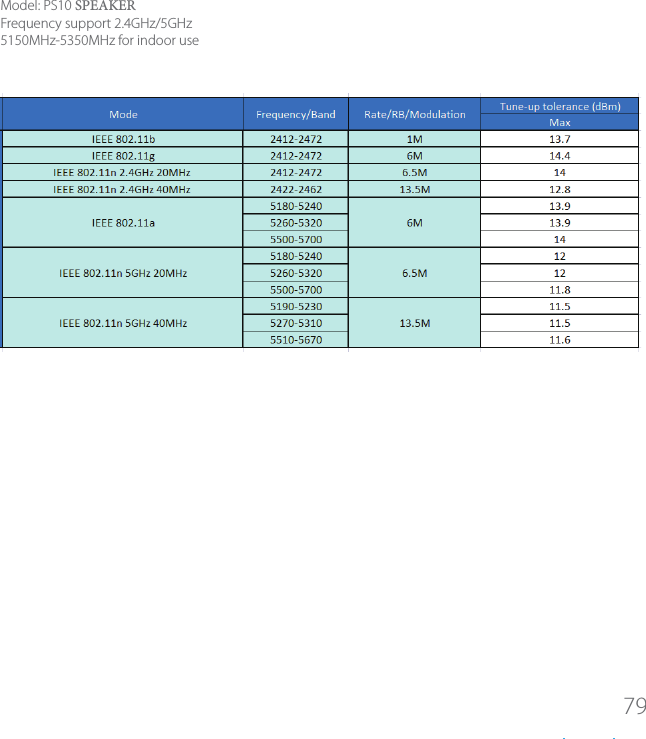
79Model: PS10 SPEAKERFrequency support 2.4GHz/5GHz 5150MHz-5350MHz for indoor use
01-31-000060-01

Navigation menu