Contents
- 1. User Manual
- 2. Users Manual
Users Manual
TABLE OF CONTENTS
Mio SLICE User Guide 2
Have any questions about your Mio SLICE?
We’re ready to help! Your complete satisfaction is
our goal, so your feedback is crucial.
If you have any thoughts, questions, or concerns,
just contact our knowledgeable support team at:
1.877.770.1116
support@mioglobal.com
BC
mioglobal.com/support
WELCOME
What’s Included
Important Safety Information
03
Syncing Activity Data10
Streaming Heart Rate Data10
Resetting SLICE And Pairing To A New Phone12
12
13
13
13
Specifications14
03
05
05
06
06
07
07
07
08
08
09
09
10
10
Charging
04 Getting Started
04 Your Mio SLICE
Battery Status
Set Up
Pairing Mio SLICE To Your Smartphone
Trouble With Pairing SLICE To Your Phone
Updating Mio SLICE
Wearing Mio SLICE
Battery
Cleaning Your Mio SLICE
Using Mio SLICE In Water
Caring For Your Mio SLICE
Navigating Mio SLICE
All-Day Mode
08 Screen Timeout
Automatic Heart Rate Sampling
Workout Mode
Trouble Getting Your Heart Rate
Sleep Tracking
GETTING STARTED
USING MIO SLICE
DATA STORAGE & TRANSFER
Phone Notifications11
Device Screens11
DEVICE SETTINGS
Auto-On Display11
Screen Brightness11
Screen Timeout11
24-Hour Time Format11
Device Orientation11
Vibration11
ANT+ In Workout Mode11
DEVICE SETTINGS (CONT)
Firmware Updates12
FIRMWARE UPDATES
RESETTING MIO SLICE AND PAIRING
TO A NEW PHONE
MAINTAINING MIO SLICE
MIO SLICE SPECIFICATIONS
Certification14
CERTIFICATION
Set up your device with
the Mio PAI app
TM
04 PAI (Personal Activity Intelligence)
PAI
WELCOME
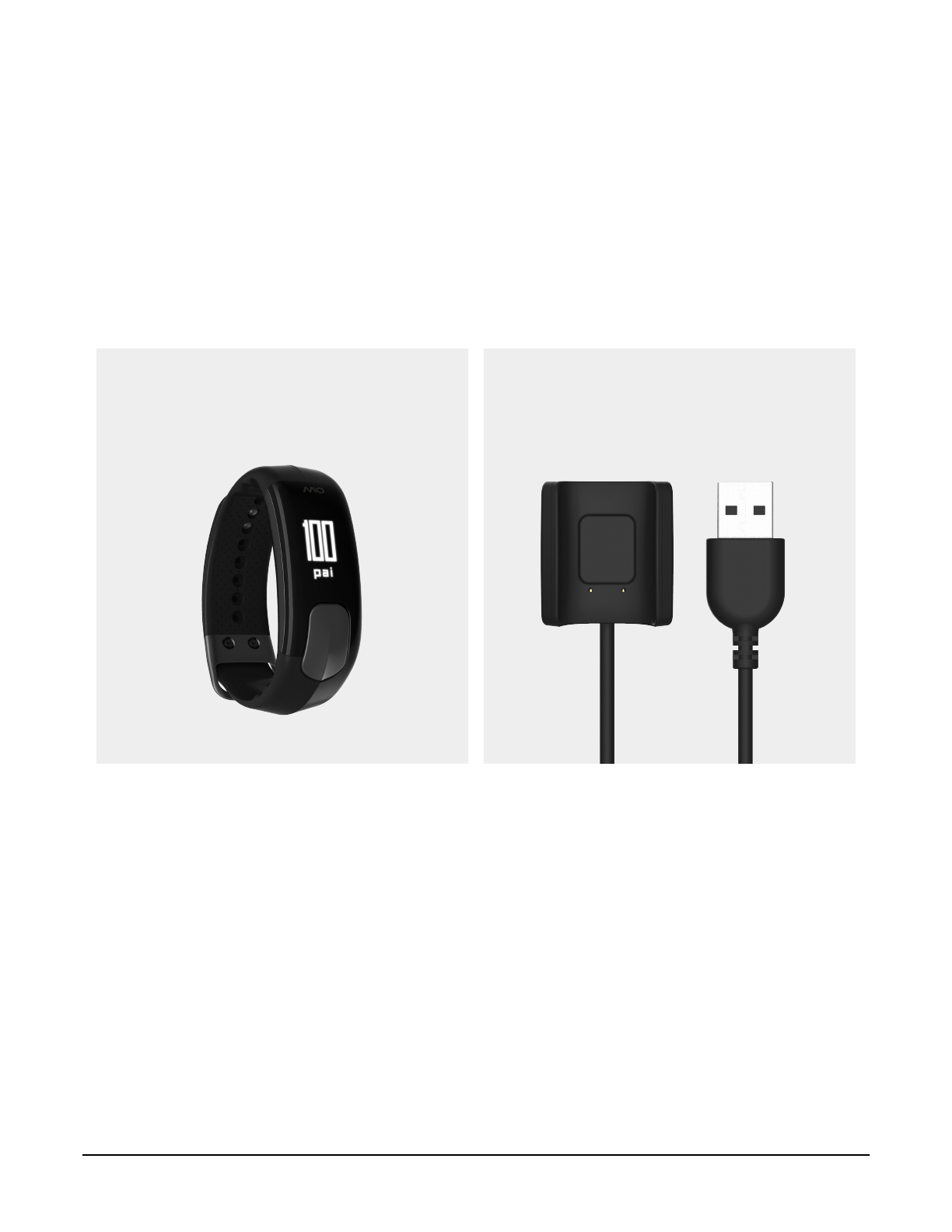
WHAT’S INCLUDED
IMPORTANT SAFETY INFORMATION
Congratulations on your purchase of Mio SLICE , the 24/7 activity tracker that measures your Personal
Activity Intelligence (PAI), daily activity, and sleep quality. Mio SLICE uses Bluetooth® Smart (BLE)
technology to wirelessly transmit your data to a smartphone.
Remember to register your SLICE online at mioglobal.com/register to receive full warranty service.
TM
TM
Be sure to consult your doctor before beginning a new exercise program.
While Mio SLICE provides accurate heart rate measurements, it is not a medical device. The SLICE and USB
charger contain strong magnets. If you use a pacemaker, defibrillator, or other implanted electronic devices,
consult your doctor before using a SLICE. See Battery Care for important battery care and battery safety
information.
USB ChargerMio SLICE
Mio SLICE User Guide 3
Battery Care
Mio SLICE User Guide 4
PAI is revolutionary new system that turns your heart rate data into a single, personal score, showing how
much activity you need to stay healthy. Everyone’s goal is the same, to keep your PAI score above 100 over a
7-day rolling window to maintain optimal health, but what it takes to achieve that goal is a personalized
experience.
PAI points are calculated based on your heart rate data and personal profile. To earn more PAI points,
increase the intensity of whatever activity you choose to get your heart rate up.
Your PAI Score and PAI Points Earned Today can be found anytime on your Mio SLICE and in the Mio PAI
app.
Learn more about PAI at mioglobal.com/PAI.
PAI (PERSONAL ACTIVITY INTELLIGENCE)
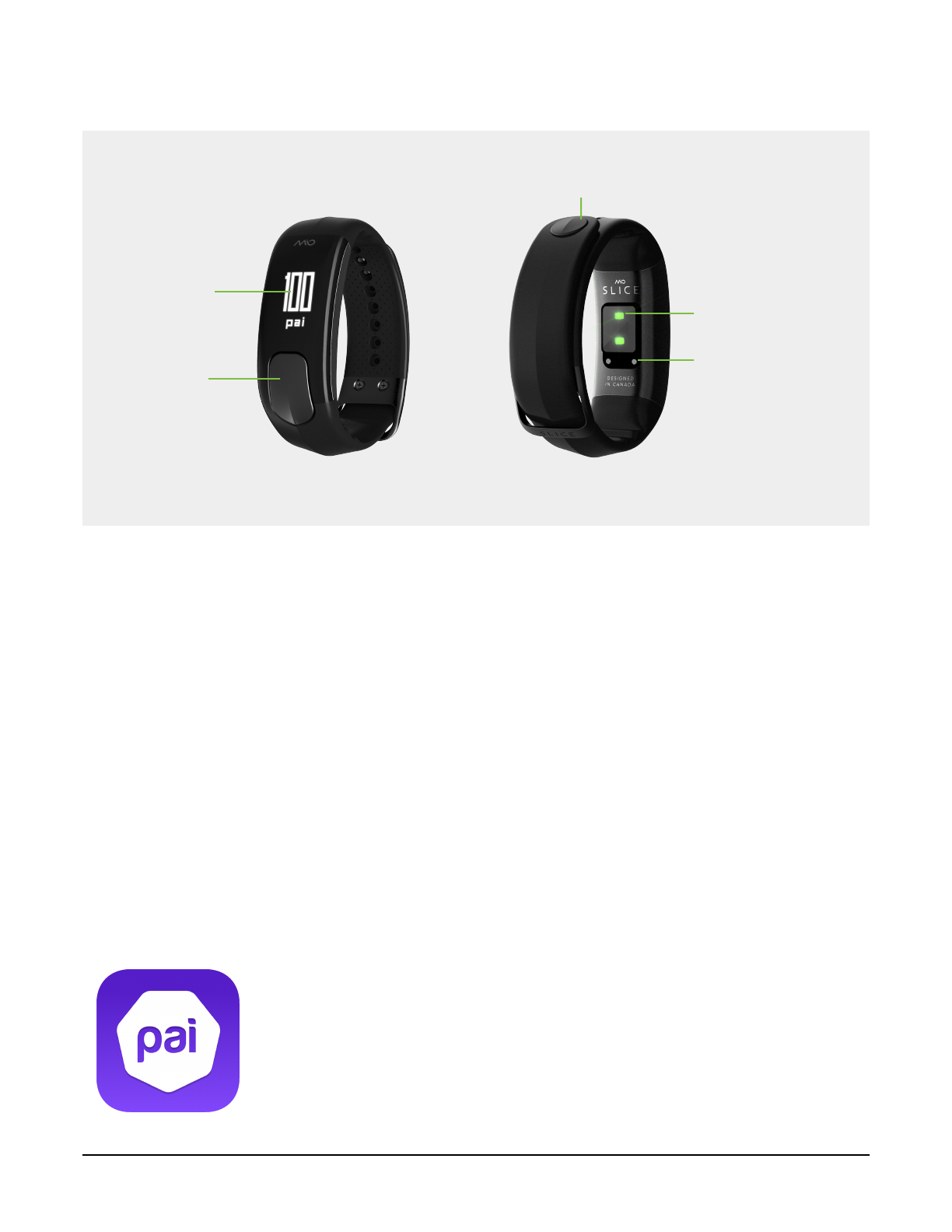
YOUR MIO SLICE
Display Heart Rate
Sensor
Charging Pins
Button
Clasp
GETTING STARTED
Fully charge Mio SLICE before you start using it. To activate and configure your
SLICE, download the Mio PAI app on your compatible smartphone.
The Mio PAI app is available for download on the Apple App Store and the
Google Play store.
A list of compatible smartphones can be found at mioglobal.com/compatibility
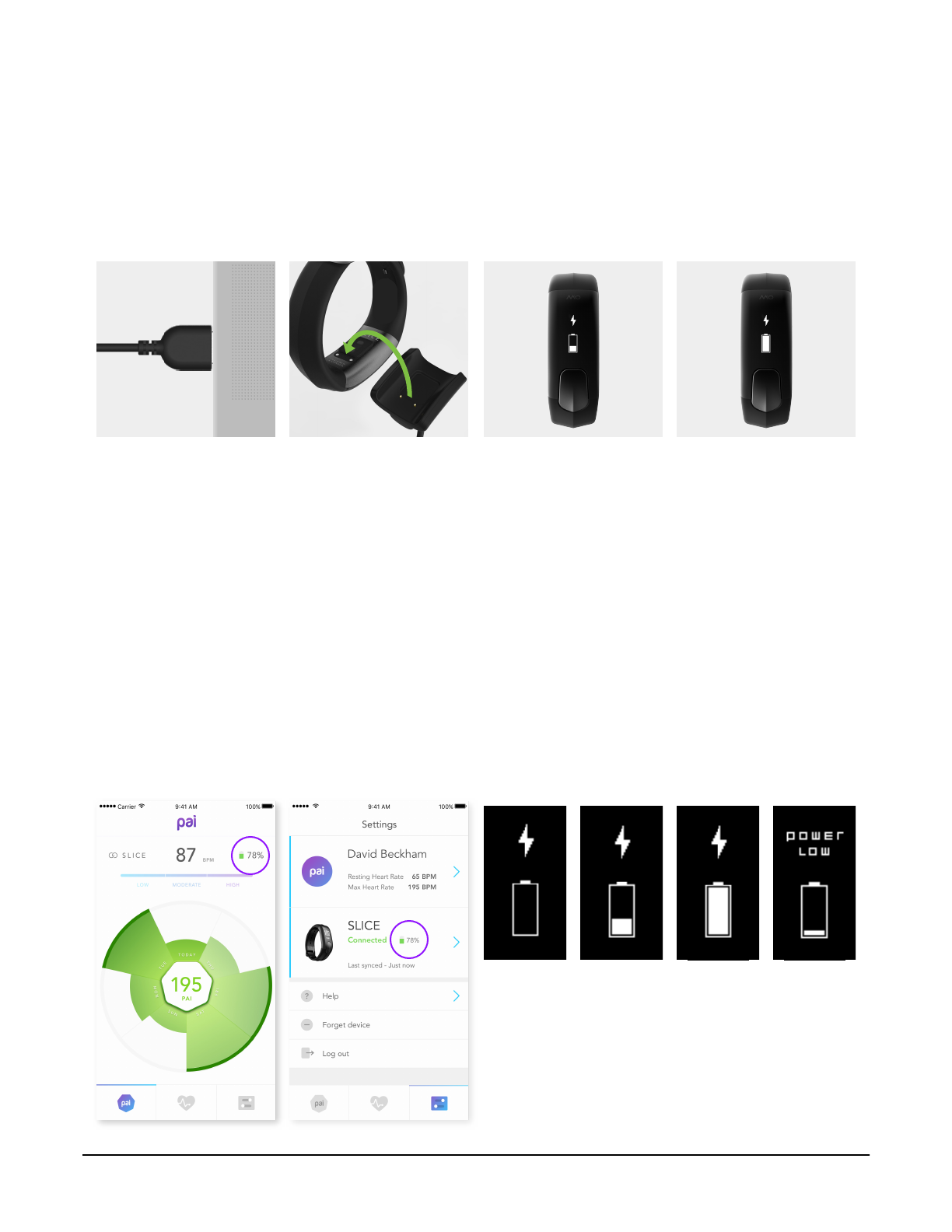
CHARGING
BATTERY STATUS
The battery level is displayed in the Mio PAI app when Mio SLICE is connected. Both SLICE and the PAI app
will alert you when SLICE is low in battery.
You can see the battery level of your
Mio SLICE in the Mio PAI app.
SLICE will display the following screens
to indicate its battery status:
For important battery care and battery safety
information, please see .Battery Care
Important: Make sure the two charging contacts on the back of the SLICE are dry. If they are wet, pat them
gently with a dry towel.
1. Plug the USB charger
into the USB port of your
computer.
4. It will take approximately
2 hours to fully charge; the
display will show a full
battery icon. Each full
charge will provide
approximately 4-5 days of
normal use.
3. The screen will display
a charging icon to
indicate that the battery
is charging. Depending
on the SLICE battery
level, it can take a few
minutes for the charging
icon to appear.
2. Align the two charging
contacts on the back of
the SLICE to the two
charging pins on the USB
charger. The magnets in
the charger will help the
two pieces lock into
place.
Battery is charging Battery is
fully charged
Low Battery
(20% charge)
Mio SLICE User Guide 5
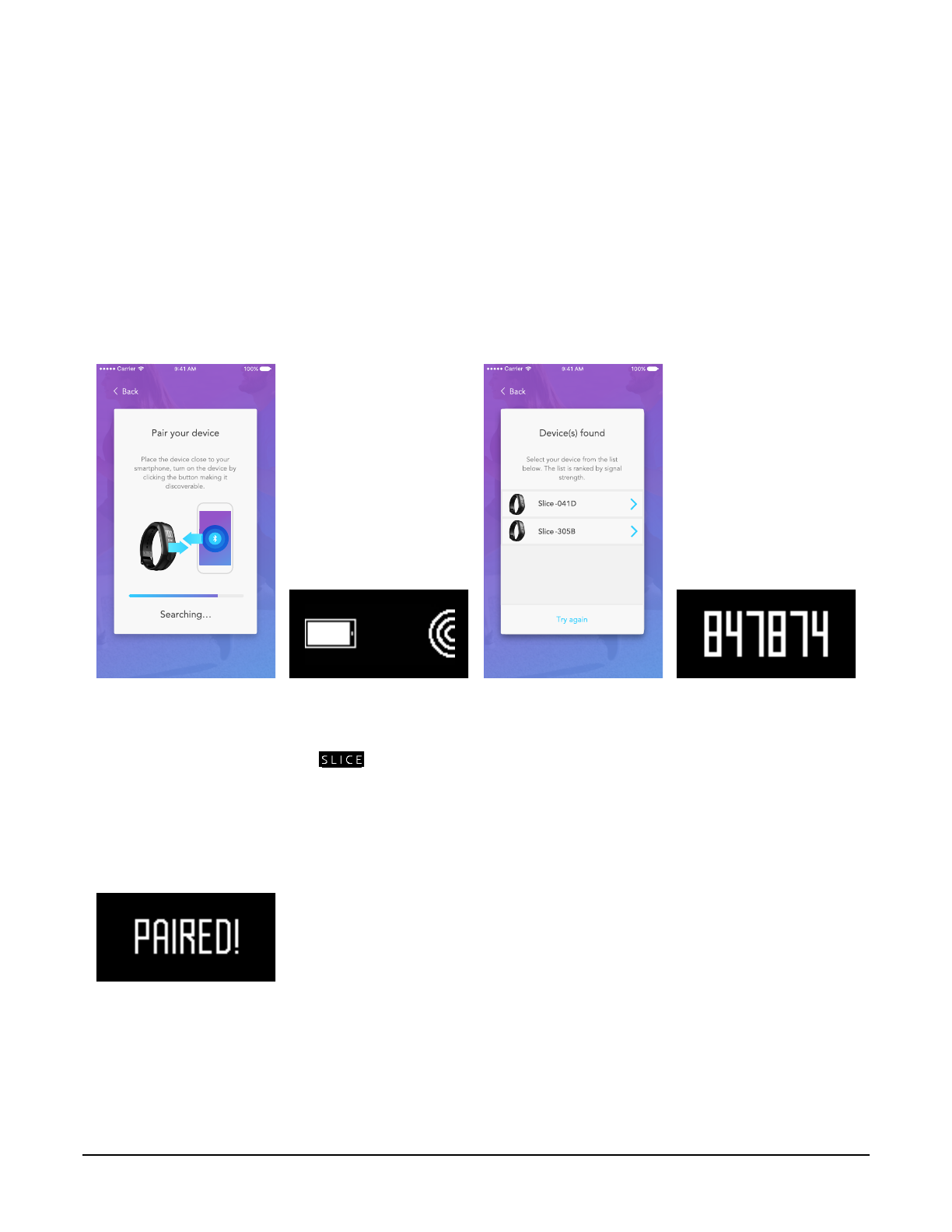
PAIRING MIO SLICE TO YOUR SMARTPHONE
CODE VERIFICATION
1. The app will start
searching for Bluetooth
discoverable devices. Be
sure to keep Mio SLICE
as close as possible to
your phone.
5. Your SLICE is now paired to
your phone and will reconnect
automatically when it is within
range. Your SLICE cannot be
connected to another phone.
2. Press the button on
SLICE. After it displays
the logo, it will
enter pairing mode for
60 seconds.
3. In the app, select the
SLICE that appears in the
list. If multiple devices
appear, bring your SLICE
as close as possible to
your phone. Refresh the
list, then select the one at
the top of the list.
4. SLICE will display a 6-
digit code. Enter this
code in the app when
prompted.
Mio SLICE User Guide 6
SET UP
Open the Mio PAI app on your smartphone and follow the prompts:
1. Create a new account, or sign in if you already have a Mio account
2. Complete your user profile
3. The app will now guide you to pair Mio SLICE to your phone
Mio SLICE User Guide 7
TROUBLE WITH PAIRING MIO SLICE TO YOUR PHONE
Try the following tips if you have trouble pairing Mio SLICE to your smartphone:
• Check that you are connecting to the correct SLICE device. Before pairing is complete, SLICE is listed
with a 4-digit code appended to the name. Match the 4-digit code to your device serial number, found
on the back of your SLICE. E.g. If your serial number is “60P00014DCI”, SLICE will show up in the app
as “SLICE-014D”.
• Check that your phone is compatible with the Mio PAI app at mioglobal.com/compatibility.
• Turn off your phone’s Bluetooth. After a few seconds, turn Bluetooth on again. Retry the pairing process.
• Force close the PAI app and reopen it. Follow the app’s prompts to retry the pairing process.
• Force close all apps on your phone and reopen the PAI app. Follow the app’s prompts to retry the
pairing process.
• Perform a factory reset on the SLICE (refer to R esetting Mio SLICE & Pairing To A New Phone) ).
Note that this will erase all data stored on your SLICE.
For additional help, please visit mioglobal.com/support
UPDATING MIO SLICE
After pairing, the app will update your Mio SLICE if a newer firmware version is available. Keep the Mio PAI
app open and your SLICE close to the phone until the update is complete.
Resetting Mio SLICE And Pairing To A New Phone
USING MIO SLICE
WEARING MIO SLICE
Mio SLICE tracks your activity 24/7. View your daily progress by scrolling through the screens on the display.
History and more details are available in the Mio PAI app.
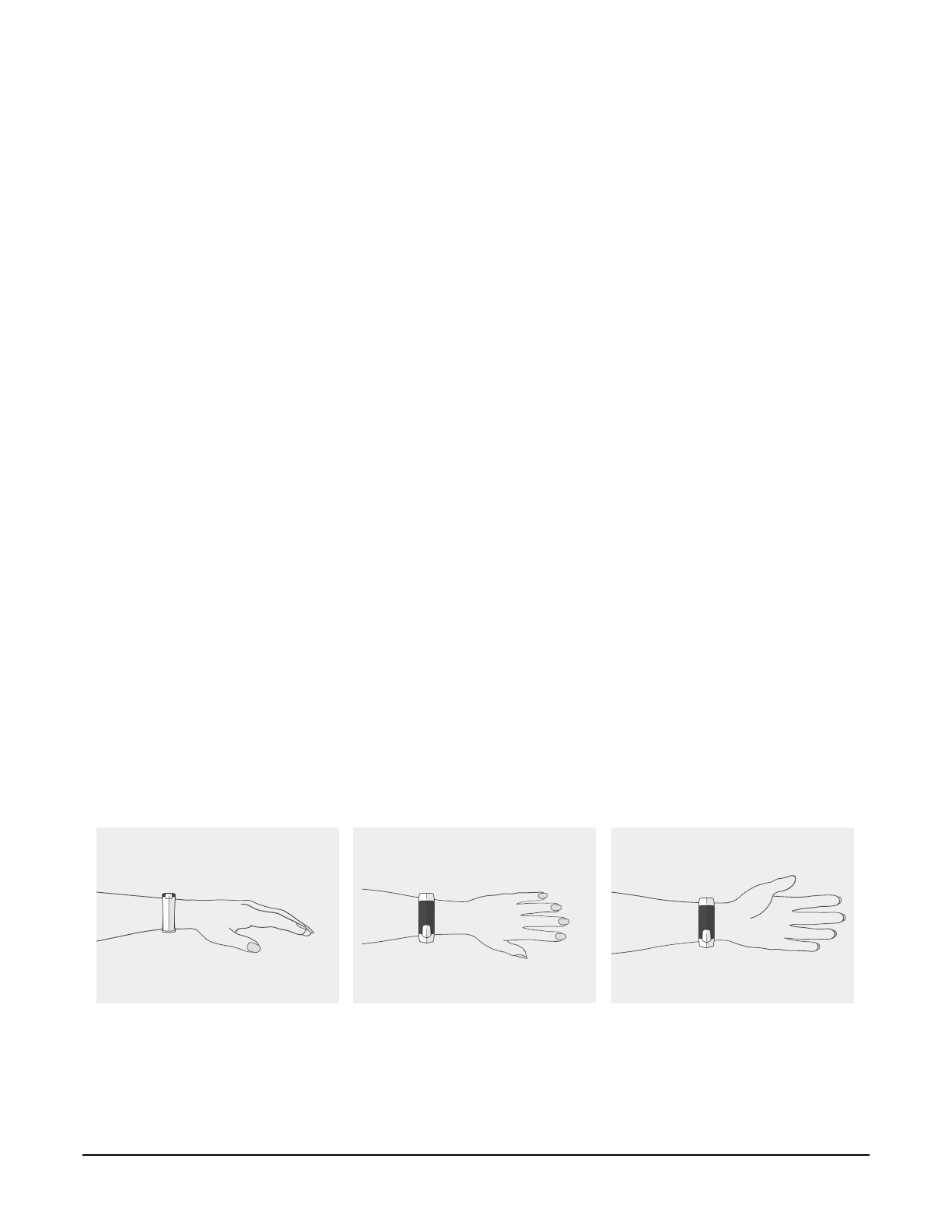
For accurate heart rate monitoring, wear Mio SLICE as shown below:
1. Fasten the SLICE snugly, about
1-2 finger widths above your wrist
bone. The optical sensor should
make good contact with your skin.
2. If you have a smaller wrist, wear
the SLICE higher on your forearm.
3. For cyclists or users with concave
wrists, wear the SLICE higher and on
the underside of your forearm, since
bending of the wrist may affect the
heart rate reading.
NAVIGATING MIO SLICE
SCREEN TIMEOUT
Mio SLICE has one button, which can be pressed in two ways:
Mio SLICE automatically turns off its screen to conserve battery. To wake the screen, press the button.
You can customize this screen timeout duration in .Device Settings
• Scroll to next screen
• Dismiss a notification
• Enter Workout Mode
• Exit Workout Mode
Short
Press
Long
Press
Mio SLICE User Guide 8
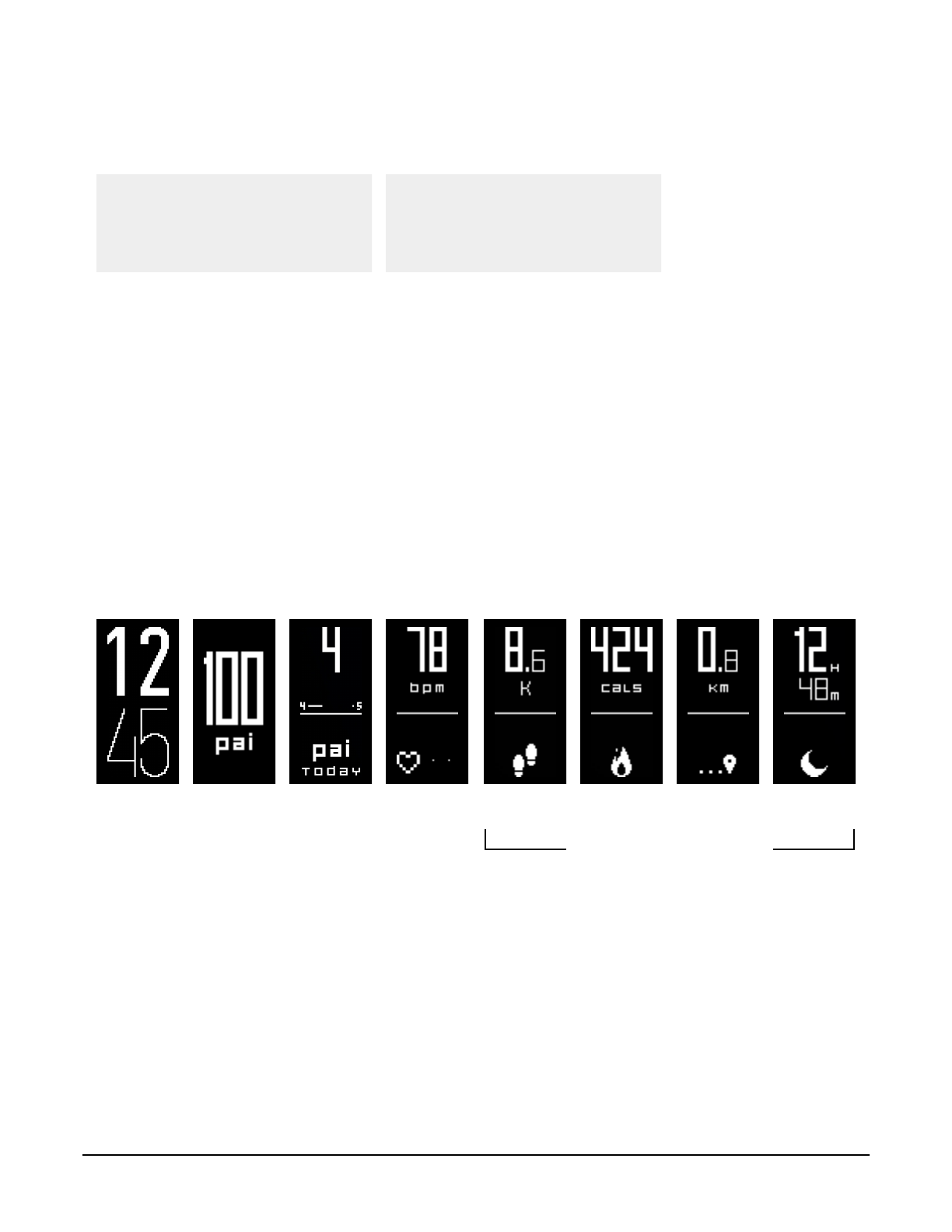
ALL-DAY MODE
Mio SLICE automatically tracks your heart rate, PAI, calories, steps, distance, and sleep data in All-Day Mode.
These values reset to 0 at midnight each day, with the exception of your PAI score, which is based on your
total activity in the last 7 days.
Time PAI PAI Points
Earned
Today
Heart Rate
& Intensity
Zone
Steps Calories
can be disabled via app
Distance Sleep
AUTOMATIC HEART RATE SAMPLING
Mio SLICE User Guide 9
In addition, SLICE will capture your heart rate each time you wake its display or open the Mio PAI app.
Mio SLICE monitors your activity level 24/7 to automatically adjust its heart rate sampling rate. When your
heart rate rises, SLICE will increase its sampling rate to ensure all your activity is captured accurately.
SLICE has four heart rate sampling rates:
• Rest: SLICE captures your heart rate every five minutes.
• Low Intensity: SLICE captures your heart rate every minute.
• Moderate to High Intensity: SLICE captures your heart rate every second, continuously
• Sleep: SLICE analyzes your sleep, captures your heart rate every five minutes, and measures your resting
heart rate.
WORKOUT MODE
To record an activity, put Mio SLICE into Workout Mode by pressing down the button for 2 seconds. SLICE
will display “GO!”, then start the chronograph timer. In Workout Mode, SLICE uses high intensity sampling
rate, capturing your heart rate every second.
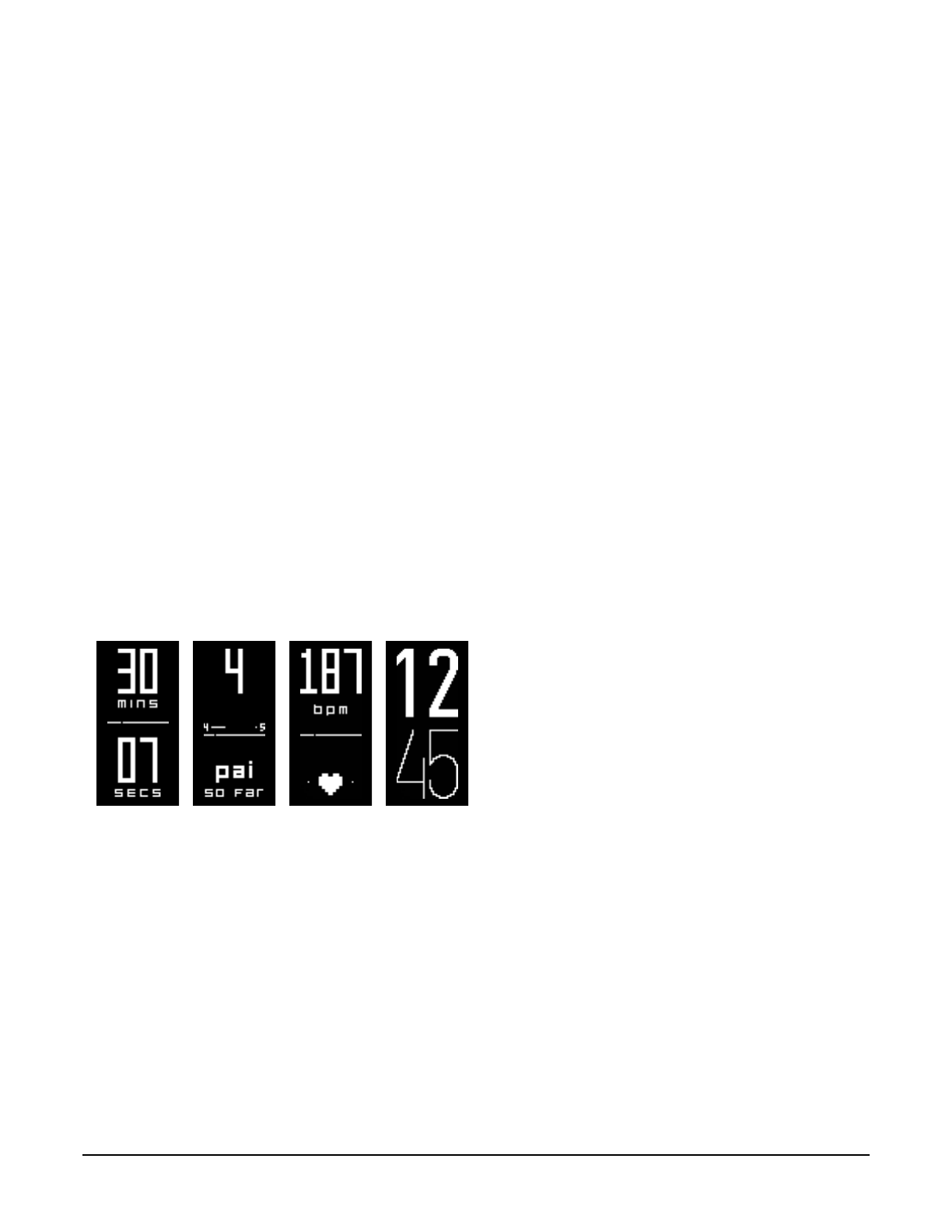
SLICE will display screens specific to the current activity session:
To end and save the activity session, press down the button for 2 seconds. SLICE will exit Workout Mode and
return to All-Day Mode.
PAI points earned in recorded activities are automatically rolled into your PAI Score and PAI Points Earned
Today. You can review details of your recorded activities in the Mio PAI app.
TimePAI Points
Earned In
Workout
Heart Rate
& Intensity
Zone
Chronograph
Timer

TROUBLE GETTING YOUR HEART RATE
SLEEP TRACKING
Try the following tips if you have trouble getting your heart rate:
Mio SLICE has automatic sleep detection. Simply wear your SLICE to sleep to analyze your sleep quality.
When you wake up, you will find a sleep summary on SLICE and a breakdown of your sleep session in the
Day Detail tab of the Mio PAI app.
• Try keeping your arm still while Mio SLICE is searching for your heart rate
• Try tightening the strap
• Try wearing SLICE higher on your forearm
• Try wearing SLICE on the underside of your forearm
• On colder days, enter Workout Mode before heading outdoors
• Warm up for a few minutes to increase your blood circulation before you start Workout Mode on SLICE
• If you are still having trouble, try wearing SLICE on your other arm
Mio SLICE User Guide 10
For additional help, please visit mioglobal.com/support
SYNCING ACTIVITY DATA
STREAMING HEART RATE TO OTHER APPS AND DEVICES
Mio SLICE automatically measures and saves your activity data. Open the Mio PAI app to see your 7-day
progress and to review each day in more detail.
If SLICE remains paired to the PAI app, it will automatically sync each time you open the app. SLICE will also
sync periodically to your phone if the PAI app is running in the background.
Mio SLICE can stream your heart rate to any fitness apps and devices that support Bluetooth or ANT+ heart
rate streaming. For best results, put SLICE into Workout Mode and ensure your phone remains nearby to stay
connected.
Mio SLICE can store up to 7 continuous days of data. Memory is cleared each time the SLICE connects and
syncs to the Mio PAI app. If SLICE has not been synced in 7 days, it will overwrite the oldest day to capture
new data.
DATA STORAGE & TRANSFER

Mio SLICE User Guide 11
DEVICE SETTINGS
You can configure your device settings in the Mio PAI app. Make sure Mio SLICE is connected to the app to
access the settings.
Select whether you want to receive notifications on your SLICE when you have an incoming call or text
message on your phone.
Select which metrics you would like displayed when you scroll through your screens in All-Day Mode.
Set the screen brightness level to Low, Medium (recommended), or High for your SLICE.
Select how long your SLICE screen will stay on after your last interaction with the device.
Enable ANT+ to stream your heart rate to another ANT+ device when SLICE is in Workout Mode. If you are
not using SLICE with another ANT+ device, we recommend you disable this function for increased privacy
and to reduce battery consumption.
When vibration alerts are enabled, SLICE will vibrate for the following events:
Vibration alerts for phone notifications cannot be disabled.
• Phone notifications
• Achieve 100 PAI
• Enter Workout Mode
• Exit Workout Mode
• Paired successfully
• Pairing failed
PHONE NOTIFICATIONS
DEVICE SCREENS
SCREEN BRIGHTNESS
This setting allows SLICE to turn on its screen automatically when you raise your arm to read it.
AUTO-ON DISPLAY
SCREEN TIMEOUT
Switch between a 12-hour or 24-hour time display.
24-HOUR TIME FORMAT
ANT+ IN WORKOUT MODE
VIBRATION
Select whether you are wearing SLICE on your left wrist or right wrist. This setting optimizes SLICE to
recognize your arm movements and enable features like Auto-on Display.
DEVICE ORIENTATION

Mio SLICE User Guide 12
RESETTING MIO SLICE AND
PAIRING TO A NEW PHONE
1. Open the PAI app on the original phone. Navigate to the Settings tab and select Forget Device.
2. Open the phone’s Bluetooth settings and forget SLICE from the list of paired devices.
3. Factory reset the SLICE:
a. Make sure SLICE has more than 50% battery remaining
b. Place SLICE on the charger
c. When you see the charging screen, press down the button for 15 seconds. Keep the button pressed
down throughout the 5-second reset countdown.
d. The SLICE logo will be displayed when the factory reset is complete.
4. SLICE is now ready to pair with a new phone. Refer to Getting Started to activate and set up SLICE with
the new phone.
Performing a factory reset will erase all data on the SLICE and require you to reconfigure the settings.Note:
To connect Mio SLICE to another smartphone, a factory reset is required:
FIRMWARE UPDATES
Firmware updates provide new features and device improvements. When a new firmware is available for your
Mio SLICE, you will be notified in the Mio PAI app. You will also see the option to update your firmware in
the Settings tab of the PAI app.
Try the following tips if you have trouble updating your Mio SLICE:
1. Fully charge your SLICE.
2. Keep the PAI app open and do not navigate away from the app until the firmware update is complete.
3. Keep your SLICE as close as possible to the phone until the firmware update is complete.
4. Check that your phone has a stable internet connection.
MAINTAINING YOUR MIO SLICE
Mio SLICE contains a rechargeable lithium polymer battery. Follow these instructions and guidelines to
maintain the battery lifespan.
If you do not follow these guidelines, the battery life could be shortened and there is a risk of damage to
your SLICE, risk of fire, risk of electrolyte leaks and chemical burns, and risk of injury.
BATTERY

Mio SLICE User Guide 13
• Wash Mio SLICE regularly with mild soap and water. As SLICE is designed to be worn all day and overnight,
regular cleaning is recommended to prevent skin irritation.
• Make sure you allow both your arm and SLICE to dry completely before resuming wear.
• Avoid scratching the device to protect your SLICE from damage.
• Do not expose the SLICE to strong chemicals such as gasoline, cleaning solvents, acetone, alcohol, or
insect repellents. Chemicals can damage the seal, case, and finish.
• If your skin becomes irritated, wear SLICE on the other arm or discontinue wearing until the irritation clears.
• SLICE is water resistant up to 30 meters (100 feet).
• Important: SLICE is water resistant only if the device remains intact.
• The accuracy of heart rate monitor may be reduced in cold water or if you are using large arm movements.
• Do not wear SLICE while swimming or diving.
• Wireless communication does not work under water.
• Important: Do not attempt to disassemble or service your Mio SLICE. The sensor unit cannot be removed
from the strap.
• Protect your SLICE from impact shocks, extreme heat, and extended exposure to direct sunlight.
CLEANING YOUR MIO SLICE
CARING FOR YOUR MIO SLICE
USING MIO SLICE IN WATER
Contact your local recycling authority to properly dispose of the device and battery. Do not dispose SLICE
and its battery with household waste or in the municipal waste stream.
RECYCLING AND DISPOSAL
The SLICE battery lasts for approximately 300-500 charge cycles. The battery is non-replaceable.
If the battery charge length is noticeably much shorter than before, your SLICE may have reached its end of
life. Proper recycling and disposal of the device is required.
• Recharge the battery at least once every 6 months
• Do not expose SLICE to high temperatures
• Use your SLICE in the temperature range of 5°C to 45°C (41°F to 113°F)
• Store the SLICE in the temperature range of -5°C to 55°C (23°F to 131°F)
• Do not disassemble, puncture, or incinerate the SLICE device and strap
• If the casing of the device breaks and the battery is exposed, keep the battery away from children.
Contact your local recycling authority to properly dispose of the device and battery.
BATTERY CARE GUIDELINES
BATTERY LIFESPAN

Mio SLICE User Guide 14
MIO SLICE SPECIFICATIONS
Maximum Readable Heart Rate:
Minimum Readable Heart Rate:
Operating Temperature:
Case:
Caseback:
Caseback Charging Pins:
Material:
Water Resistance:
Battery:
Magnets:
Radio Frequency/Protocol:
220 BPM
2.4GHz Bluetooth and ANT+
Neodymium - Iron - Boron (NdFeB)
60 mAH Lithium Polymer
3 ATM (30 meters or 100 feet)
TPU strap, anodized aluminum main body and buckle
SUS 316
PC + AL
PC
5°C to 45°C (41°F to 113°F)
30 BPM
CERTIFICATION
FCC ID
Changes or modifications not expressly approved by the party responsible for compliance could void the
user’s authority to operate the equipment.
This device complies with Part 15 of the FCC Rules. Operation is subject to the following two conditions: (1)
this device may not cause harmful interference, and (2) this device must accept any interference received,
including interference that may cause undesired operation.
This equipment has been tested and found to comply with the limits for a Class B digital device, pursuant to
Part 15 of the FCC Rules. These limits are designed to provide reasonable protection against harmful
interference in a residential installation. This equipment generates, uses and can radiate radio frequency
energy and, if not installed and used in accordance with the instructions, may cause harmful interference to
radio communications. However, there is no guarantee that interference will not occur in a particular
installation.
If this equipment does cause harmful interference to radio or television reception, which can be determined
by turning the equipment off and on, the user is encouraged to try to correct the interference by one or
more of the following measures:
• Reorient or relocate the receiving antenna.
• Increase the separation between the equipment and receiver.
• Connect the equipment into an outlet on a circuit different from that to which the receiver is connected.
• Consult the dealer or an experienced radio/TV technician for help.
Mio SLICE User Guide 15
IC ID
CE/R&TTE
This device complies with Industry Canada license-exempt RSS standard(s). Operation is subject to the
following two conditions: (1) this device may not cause interference, and (2) this device must accept any
interference, including interference that may cause undesired operation of the device.
Le présent appareil est conforme aux CNR d’Industrie Canada applicables aux appareils radio
exempts de licence. L’exploitation est autorisée aux deux conditions suivantes : (1) l’appareil ne
doit pas produire de brouillage, et (2) l’utilisateur de l’appareil doit accepter tout brouillage
radioélectrique subi, même si le brouillage est susceptible d’en compromettre le fonctionnement.
CAUTION
RISK OF EXPLOSION OF BATTERY IS REPLACED BY AN INCORRECT TYPE
DISPOSE OF USED BATTERIES ACCORDING TO THE INSTRUCTIONS
RCM
WEEE
Correct disposal of this product. This marking indicates that this product should not be
disposed with other household wastes throughout the EU. To prevent possible harm to the
environment or human health from uncontrolled waste disposal, recycle it responsibly to
promote the sustainable reuse of material resources. To return your used device, please use
the return and collection systems or contact the retailer where the product was purchased.
They can take this product for environmental safe recycling.