Pioneer CLD D704 User Manual CD PLAYER Manuals And Guides 97100163
PIONEER Tabletop Systems Manual 97100163 PIONEER Tabletop Systems Owner's Manual, PIONEER Tabletop Systems installation guides
User Manual: Pioneer CLD-D704 CLD-D704 PIONEER CD PLAYER - Manuals and Guides View the owners manual for your PIONEER CD PLAYER #CLDD704. Home:Electronics Parts:Pioneer Parts:Pioneer CD PLAYER Manual
Open the PDF directly: View PDF  .
.
Page Count: 45
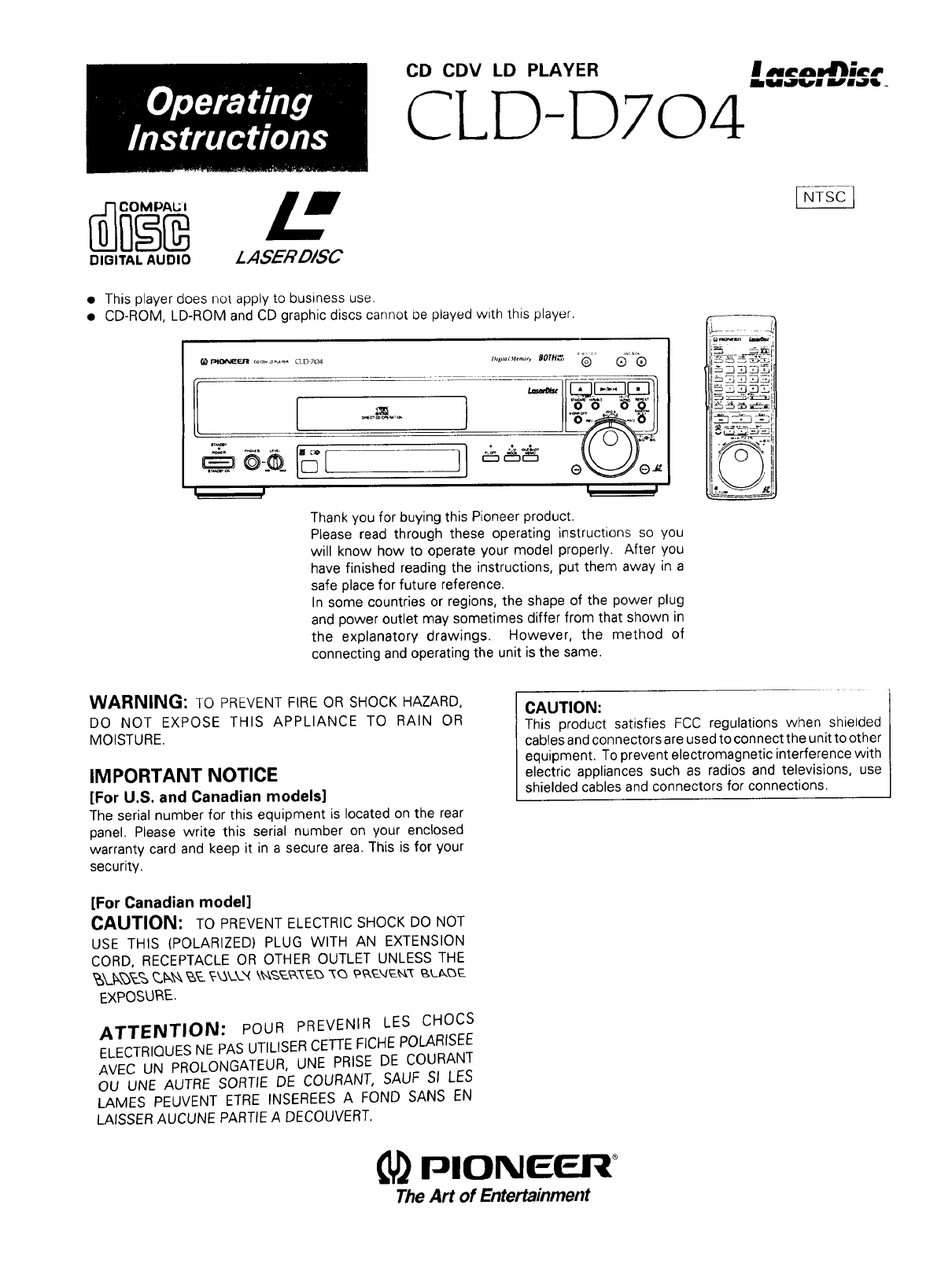
CD CDV LD PLAYER IR=..,'.,_,_,=.
Mllm=Wql_l il_'ilY_ ,,
CLD-D704
DIGITAL AUDIO
L
LASER D/SC
•This player does not apply to business use.
• CD-ROM, LD-ROM and CD graphic discs cannot be played with this player.
F_y_IIE_I31 _e. CLD 704
I, .I
Thank you for buying this Pioneer product.
Please read through these operating instructions so you
will know how to operate your model properly. After you
have finished reading the instructions, put them away in a
safe place for future reference.
In some countries or regions, the shape of the power plug
and power outlet may sometimes differ from that shown in
the explanatory drawings. However, the method of
connecting and operating the unit is the same.
_-,, .B3_i!I
._',-.r4-_ _!,
____ _ i
WARNING: TO PREVENT FIRE OR SHOCK HAZARD,
DO NOT EXPOSE THIS APPLIANCE TO RAIN OR
MOISTURE.
IMPORTANT NOTICE
[For U.S. and Canadian models]
The serial number for this equipment is located on the rear
panel. Please write this serial number on your enclosed
warranty card and keep it in a secure area. This is for your
security.
CAUTION:
This product satisfies FCC regulations when shielded
cables and connectors are used to connect the unit to other
equipment. To prevent electromagnetic interference with
electric appliances such as radios and televisions, use
shielded cables and connectors for connections.
[For Canadian model]
CAUTION: TO PREVENT ELECTRIC SHOCK DO NOT
USE THIS (POLARIZED) PLUG WITH AN EXTENSION
CORD, RECEPTACLE OR OTHER OUTLET UNLESS THE
EXPOSURE.
ATTENTION: POUR PREVENIR LES CHOCS
ELECTRIOUES NE PAS UTILISER CETTE FICHE POLARISEF
AVEC UN PROLONGATEUR, UNE PRISE DE COURANT
OU UNE AUTRE SORTIE DE COURANT, SAUF SI LES
LAMES PEUVENT ETRE INSEREES A FOND SANS EN
LAISSER AUCUNE PARTIE A DECOUVERT.
PIONEER +
The Art of Entertainment
IMPORTANT
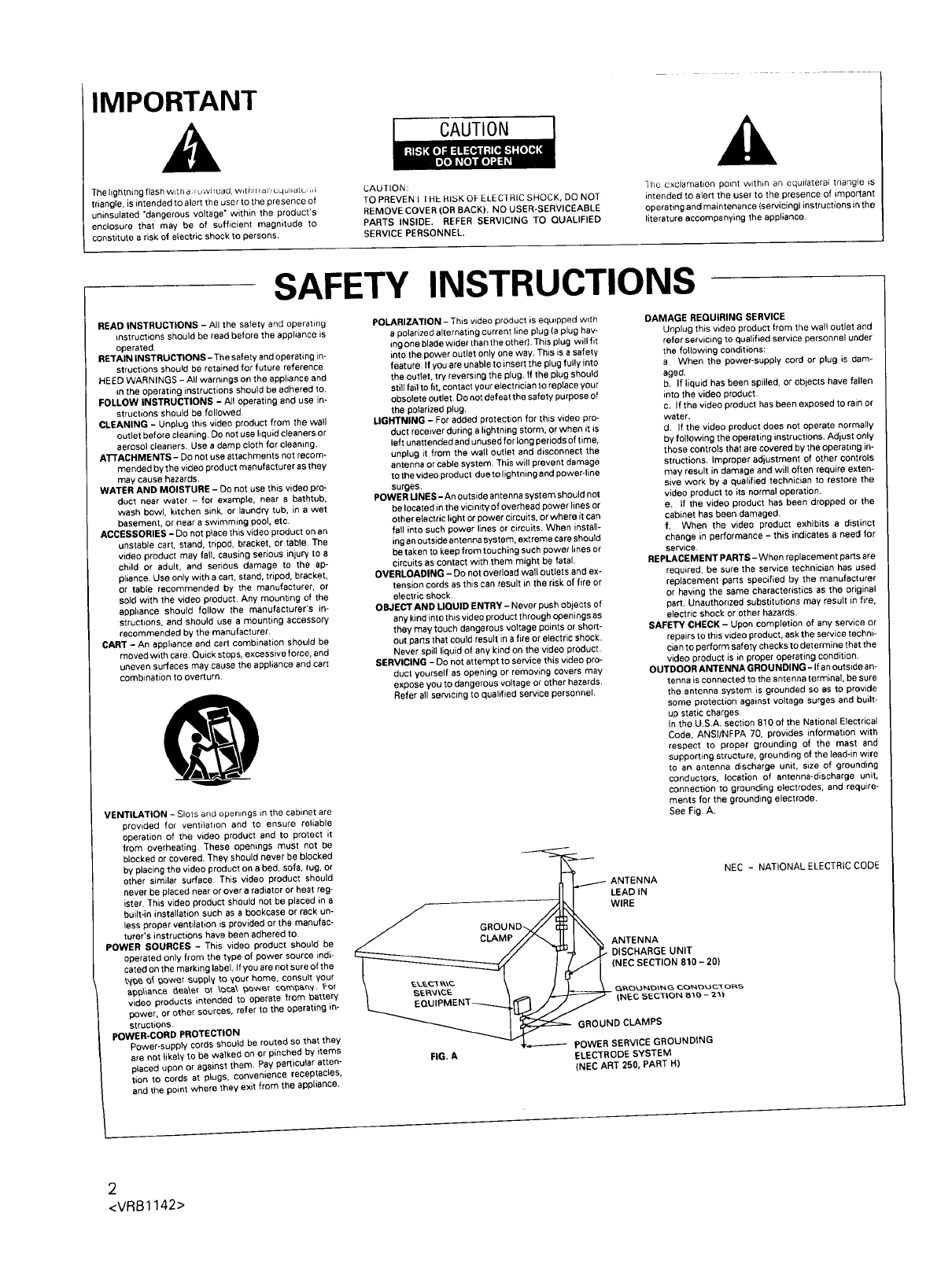
The lightning flash wit n a,i uwllead, w_[l/i:l a/_uquliaIb¢. I
triangle, is intended to alert the user to the presence of
uninsulated "dangerous voltage" within the product's
enclosure that may be of sufficient magnitude to
constitute a risk of electric shock to persons.
CAUTION
CAUTION:
TO PREVEN I I HE RISK OF ELECI RIC SHOCK, DO NOT
REMOVE COVER fOR BACK). NO USER-SERVICEABLE
PARTS INSIDE. REFER SERVICING TO QUALIFIED
SERVICE PERSONNEL.
]he exclamation point within an equilatera_ triangle is
intended to alert the user to the presence of important
operating and maintenance (servicing) instructions in the
literature accompanying the appliance.
SAFETY INSTRUCTIONS
READ INSTRUCTIONS -All the safety and operating
instructions should be read before the appliance is
operated.
RETAIN INSTRUCTIONS- The safety and operating in-
structions should be retained for future reference
HEED WARNINGS - All warnings on the appliance and
in the operating instructions should be adhered to.
FOLLOW INSTRUCTIONS -All operating and use in-
structions should be followed
CLEANING - UnpLug this video product from the wall
outlet before cleaning. Do not use liquid cleaners or
aerosol cleaners. Use a damp cloth for cleaning.
ATTACHMENTS - Do not use attachments not recom-
mended by the video product manufacturer as they
may cause hazards,
WATER AND MOISTURE - Do not use this video pro-
duct near water - for example, near a bathtub,
wash bowl, kitchen sink, or laundry tub, in a wet
basement, or near a swimming pool, etc.
ACCESSORIES - Do not place this video product on an
unstable cart, stand, tripod, bracket, or table, The
video product may fall, causing serious injury to a
child or adult, and serious damage to the ap-
pliance. Use onJy with acart, stand, tripod, bracket,
or table recommended by the manufacturer, or
sold with the video product. Any mounting of the
appliance should follow the manufacturer's in-
structions, and should use amounting accessory
recommended by the manufacturer.
CART - An appliance and cart combination should be
moved with ca re. Quick stops, excessive force, and
uneven surfaces may cause the appliance and cart
combination to overturn,
VENTILATION - Slots and openings in the cabinet are
provided for ventiiahon and tO ensure reliable
operation of the video product and to protect it
from overheating These openings must not be
blocked or covered, They should never be blocked
by placing the video product on a bed, sofa, rug, or
other similar surface. This video product should
never be placed near or over a radiator or heat reg-
ister. This video product should not be placed in a
built-in installation such as a bookcase or rack un-
less proper ventilation is provided or the manufac-
turer's instructions have been adhered to.
POWER SOURCES - This video product should be
operated only from the type of power source indi-
cated on the marking label. If you are not sure of the
t'{_e Of _ower su_gLy to your home, consult your
app\lance _ee\er o_ \oea\ power com£&n_, _-or
video products intended to operate from batter,/
power, or other sources, refer to the operating in-
structions.
POWER-CORD PROTECTION
Power-supply cords should be routed so that they
are not likely to be walked on or pinched by items
placed upon or against them. Pay particular atten-
tion to cords at plugs, convenience receptacles,
and the point where they exit from the appliance.
POLARIZATION -This video product is equipped with
a polarized alternating current line plug (a plug hav-
ing one blade wider than the other), This plug will fit
into the power outlet only one way. This is asafety
feature. If you are unable to insert the plug fully into
the outlet, try reversing the plug. If the plug should
still fail to fit, contact your electrician to replace your
obsolete outlet. Do not defeat the safety purpose of
the polarized plug,
LIGHTNING - For added protection for this video pro-
duct receiver during a lightning storm, or when it is
left unattended and unused for long periods of time,
unplug it from the wall outlet and disconnect the
antenna or cable system. This will prevent damage
to the video product due to lightning and power-line
surges.
POWER LINES-An outside antenna system should not
be located in the vicinity of overhead power lines or
other electric light or power circuits, or where it can
fall into such power lines or circuits. When install-
ing an outside antenna system, extreme care should
be taken to keep from touching such power lines or
circuits as contact with them might be fatal.
OVERLOADING - Do not overload wall outlets and ex-
tension cords as this can result in the risk of fire or
electric shock.
OBJECT AND LIQUID ENTRY -Never push ob}ects of
any kind into this video product through openings as
they may touch dangerous voltage points or short-
out parts that could result in a fire or electric shock.
Never spill liquid of any kind on the video product.
SERVICING -Do not attempt to service this video pro-
duct yourself as opening or removing covers may
expose you to dangerous voltage or other hazards,
Refer all servicing to qualified service personnel.
DAMAGE REQUIRING SERVICE
Unplug this video product from the wall outlet and
refer servicing to qualified service personnel under
the following conditions:
a When the power-supply cord or plug is dam-
aged.
b, If liquid has been spilled, or objects have fallen
into the video product.
c, If the video product has been exposed to rain or
water.
d. If the video product does not operate normally
by following the operating instructions. Adjust only
those controls that are covered by the operating in-
structions. Improper adjustment of other controls
may result in damage and will often require exten-
sive work by a qualified technician to restore the
video product to its normal operation.
e, If the video product has been dropped or the
cabinet has been damaged.
f, When the video product exhibits e distinct
change in performance - this indicates a neecl for
service,
REPLACEMENT PARTS- When replacement parts are
required, be sure the service technician has used
replacement parts specified by the manufacturer
or having the same characteristics as the original
part, Unauthorized substitutions may result in fire,
electric shock or other hazards,
SAFETY CHECK - Upon completion of any service or
repairs to this video product, ask the service techni-
cian to perform safety checks to determine that the
video product is in proper operating condition.
OUTDOOR ANTENNA GROUNDING -If an outside an-
tenna is connected to the antenna terminal, be sure
the antenna system is grounded so as to provide
some protection against voltage surges and built-
up static charges.
In the U.S.A. section 810 of the National Electrical
Code, ANSI/NFPA 70, provides information with
respect to proper grounding of the mast and
supporting structure, grounding of the lead-in wire
to an antenna discharge unit, size of grounding
conductors, location of antenna-discharge unit,
connection to grounding electrodes, and require-
ments for the grounding electrode.
See Fig. A.
_L_ ANTENNA
___11I LEADIN
GROUND_ WIRE
I "%ANTENNA
F-_ j:. DISCHARGEUNIT
,-------- POWER SERVICE GROUNDING
ELECTRODE SYSTEM
(NEC ART 250, PART H)
FIG. A
NEC - NATIONAL ELECTRIC CODE
CONOUCTORS
_NEC ,_ECTtON e'_o - 2"V_
2
<VRB1142>
CAUTION
•Use of controls or adjustments or performance of procedures other than those specified herein may result in hazardous radiation
exposure.
• The use of optical instruments with this product will increase eye hazard.
Information to User
Alteration or modifications carried out without appropriate authorization may invalidate the user's right to operate the equipment.
This equipment has been tested and found to comply with the limits for a Class B digital device, pursuant to Part 15 of the FCC Rules. These
limits are designed to provide reasonable protection against harmful interference in a residential installation. This equipment generates,
uses, and can radiate radio frequency energy and, if not installed and used in accordance with the instructions, may cause harmful
interference to radio communications. However, there is no guarantee that interference will not occur in a particular installation. If this
equipment does cause harmful interference to radio or television reception, which can be determined by turning the equipment off and
on, the user is encouraged to try to correct the interference by one or more of the following measures:
- Reorient or relocate the receiving antenna.
- Increase the separation between the equipment and receiver.
-Connect the equipment into an outlet on a circuit different from that to which the receiver is connected.
-Consult the dealer or an experienced radio/TV technician for help.
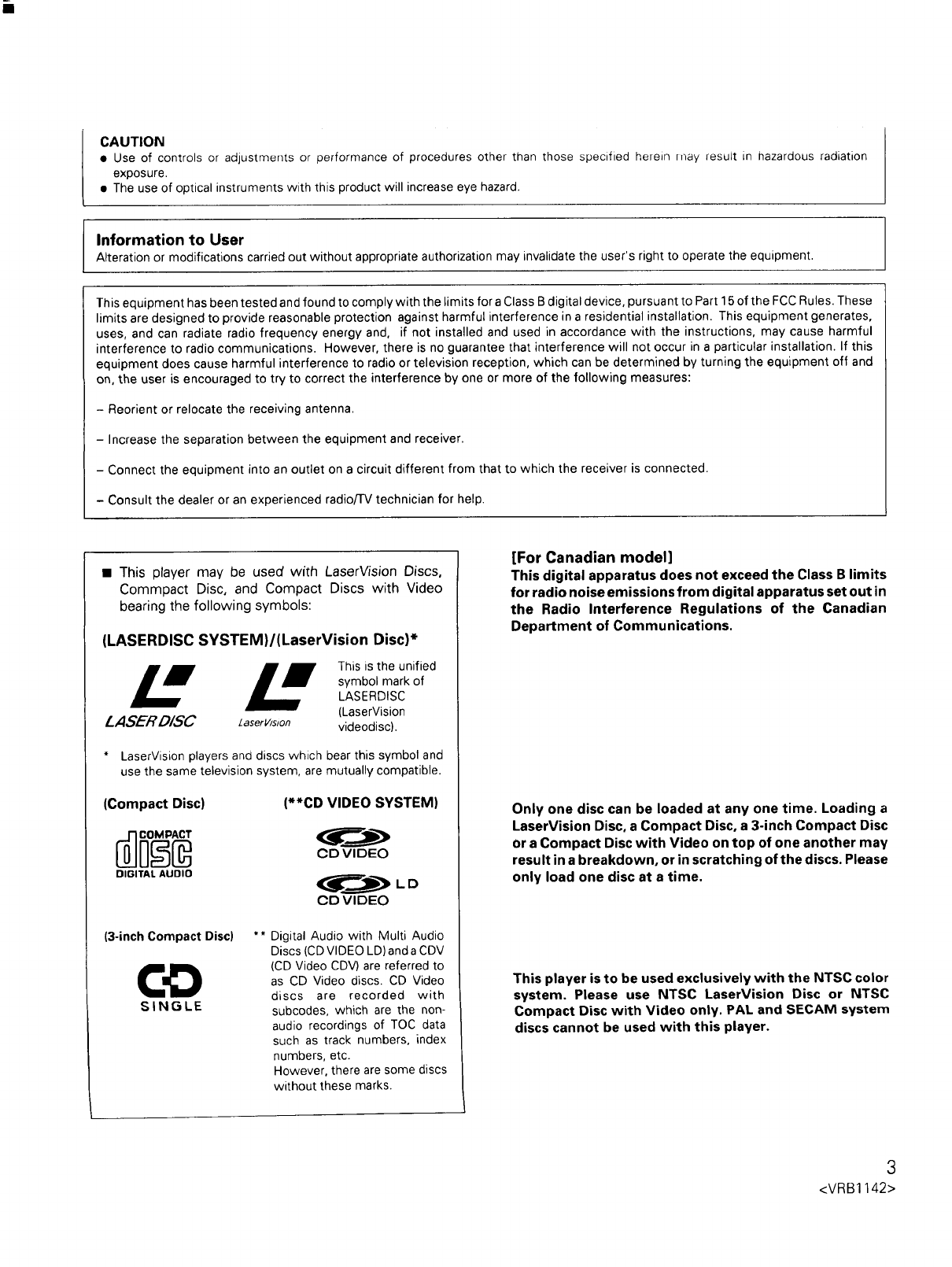
• This player may be used with LaserVision Discs,
Commpact Disc, and Compact Discs with Video
bearing the following symbols:
(LASERDISC SYSTEM)/(LaserVision Disc]*
LH LThis is the unified
symbol mark of
LASERDISC
(LaserVision
LASER D/SC /aserv/slon videodisc).
* LaserVision players and discs which bear this symbol and
use the same television system, are mutually compatible.
(Compact Disc) (**CD VIDEO SYSTEM)
CD Vl DEO
DIGITAL AUDIO
CD Vl DEO
(3-inch Compact Disc) **
SINGLE
Digital Audio with Multi Audio
Discs (CD VIDEO LD) and a CDV
(CD Video CDV) are referred to
as CD Video discs. CD Video
discs are recorded with
subcodes, which are the non-
audio recordings of TOC data
such as track numbers, index
numbers, etc.
However, there are some discs
without these marks.
[For Canadian model]
This digital apparatus does not exceed the Class B limits
for radio noise emissions from digital apparatus set out in
the Radio Interference Regulations of the Canadian
Department of Communications.
Only one disc can be loaded at any one time. Loading a
LaserVision Disc, a Compact Disc, a 3-inch Compact Disc
or a Compact Disc with Video on top of one another may
result in a breakdown, or in scratching of the discs. Please
only load one disc at a time.
This player is to be used exclusively with the NTSC color
system. Please use NTSC LaserVision Disc or NTSC
Compact Disc with Video only. PAL and SECAM system
discs cannot be used with this player.
3
<VRB1142>
_)e.a.,t C_.'
IJSrE_ING
f
Selecting fine audio equipment _uch as the unit you've just
purchased is only the start of your musical enjoyment. Now it's time
to consider how you can maximize the fun and excitement your
equipment offers. This manufacturer and the Electronic Industries
Association's Consumer Electronics Group want you to get the most
out of your equipment by playing it at a safe level. One that lets the
sound come through loud and clear without annoying blaring or
distortion--and, most importantly, without affecting your sensitive
hearing.
Sound can be deceiving. Over time your hearing "comfort level"
adapts to higher volumes of sound. So what sounds "normal" can
actually be loud and harmful to your hearing. Guard against this by
setting your equipment at a safe level BEFORE your hearing adapts.
To establish a safe level:
• Start your volume control at alow setting.
• Slowly increasethesound until you can hear it comfortablyand
clearly, and without distortion.
Once you have established a comfortable sound level:
• Set the dial and leave it there.
Taking a minute to do this now will help to prevent hearing
damage or loss in the future. After all, we want you listening for a
lifetime.
We Want You Listening For A Lifetime
Used wisely, your new sound equipment will provide a lifetime of
fun and enjoyment. Since hearing damage from loud noise is often
undetectable until it is too late, this manufacturer and the Electronic
Industries Association's Consumer Electronics Group recommend
you avoid prolonged exposure to excessive noise. This list of sound
levels is included for your protection.
Decibel
Level
30
40
50
60
70
80
Example
Quiet library, soft whispers
Living room, refrigerator, bedroom away from traffic
Light traffic, normal conversation, quiet office
Air conditioner at 20 feet, sewing machine
Vacuum cleaner, hair dryer, noisy restaurant
Average city traffic, garbage disposals, alarm clock
at two feet.
THE FOLLOWING NOISES CAN BE DANGEROUS
UNDER CONSTANT EXPOSURE
90 Subway, motorcycle, truck traffic, lawn mower
100 Garbage truck, chain saw, pneumatic drill
120 Rock band concert in front of speakers, thunderclap
140 Gunshot blast, jet plane
180 Rocket launching pad
Information courtesy of the Deafness Research Foundation.
4
<VRB1142>
LISTENING
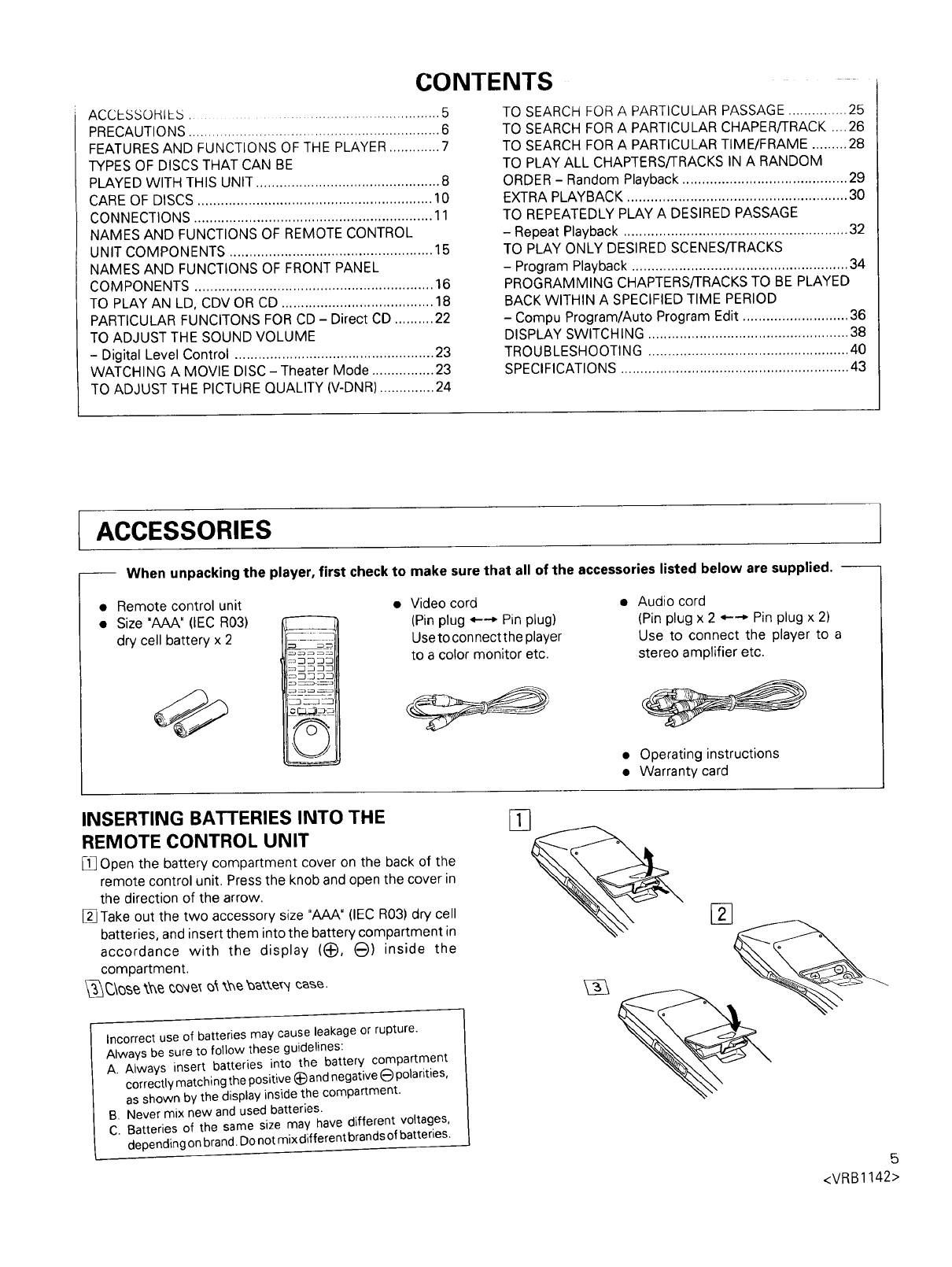
CONTENTS
ACCLSSOHILU ................................................. 5
PRECAUTIONS ................................................................ 6
FEATURES AND FUNCTIONS OF THE PLAYER ............. 7
TYPES OF DISCS THAT CAN BE
PLAYED WITH THIS UNIT ............................................... 8
CARE OF DISCS ............................................................ 10
CONNECTIONS ............................................................. 11
NAMES AND FUNCTIONS OF REMOTE CONTROL
UNIT COMPONENTS .................................................... 15
NAMES AND FUNCTIONS OF FRONT PANEL
COMPONENTS ............................................................. 16
TO PLAY AN LD, CDV OR CD ....................................... 18
PARTICULAR FUNCITONS FOR CD - Direct CD .......... 22
TO ADJUST THE SOUND VOLUME
- Digital Level Control ................................................... 23
WATCHING A MOVIE DISC- Theater Mode ................ 23
TO ADJUST THE PICTURE QUALITY (V-DNR) .............. 24
TO SEARCH FOR A PARTICULAR PASSAGE ............... 25
TO SEARCH FOR A PARTICULAR CHAPER/TRACK .... 26
TO SEARCH FOR A PARTICULAR TIME/FRAME ......... 28
TO PLAY ALL CHAPTERS/TRACKS IN A RANDOM
ORDER - Random Playback .......................................... 29
EXTRA PLAYBACK ........................................................ 30
TO REPEATEDLY PLAY A DESIRED PASSAGE
- Repeat Playback ......................................................... 32
TO PLAY ONLY DESIRED SCENES/TRACKS
- Program Playback ....................................................... 34
PROGRAMMING CHAPTERS/TRACKS TO BE PLAYED
BACK WITHIN A SPECIFIED TIME PERIOD
- Compu Program/Auto Program Edit ........................... 36
DISPLAY SWITCH ING ................................................... 38
TROUBLESHOOTING ................................................... 40
SPECIFICATIONS .......................................................... 43
[ACCESSORIES
-- When unpacking the player, first check to make sure that all of the accessories listed below are supplied. --
• Remote control unit
• Size 'AAA" (IEC R03)
dry cell battery x 2
•Video cord
(Pin plug *---* Pin plug)
Use to connect t heplayer
to a color monitor etc.
Audio cord
(Pin plug x 2 *----* Pin plug x 2)
Use to connect the player to a
stereo amplifier etc.
• Operating instructions
• Warranty card
INSERTING BATTERIES INTO THE
REMOTE CONTROL UNIT
Open the battery compartment cover on the back of the
remote control unit. Press the knob and open the cover in
the direction of the arrow.
_Take out the two accessory size "AAA" (IEC R03) dry cell
batteries, and insert them into the battery compartment in
accordance with the display (_:), _:)) inside the
compartment.
Incorrect use of batteries may cause leakage or rupture.
Always be sure to follow these guidelines:
A. Always insert batteries into the battery compartment
correctly matching the positive (_ and negative 1_)polarities,
as shown by the display inside the compartment.
B. Never mix new and used batteries.
C. Batteries of the same size may have different voltages,
depending on brand. Do not mix different brands of batteries.
%
5
<VRB1142>
PRECAUTIONS
If it becomes necessary to transport or ship this unit
in the future, be sure to first remove the disc (if
loaded), and retract the disc table to its closed position
and turn the power off. After the "OFF" display goes
out on the display, disconnect the power cord.
INSTALLING THE PLAYER
•Place the player on a stable platform next to the television
and stereo system to be used with the player.
• When using the player with a stereo system you r speakers
should be placed away from your television (orTV monitor).
• Do not place heavy objects such as a television or TV
monitor on top of the player.
•Do not place the player on top of your TV set or TV
monitor. Also, keep the player away from devices such
as cassette decks which are sensitive to magnetic fields.
Take the following precautions to avoid accidentst
Be careful not to catch your finger in the disc table
section while the disc table is being retracted into the
unit. Also, be careful that children do not put their
hands into the inside of the unit while the disc table
is open. This may cause injury.
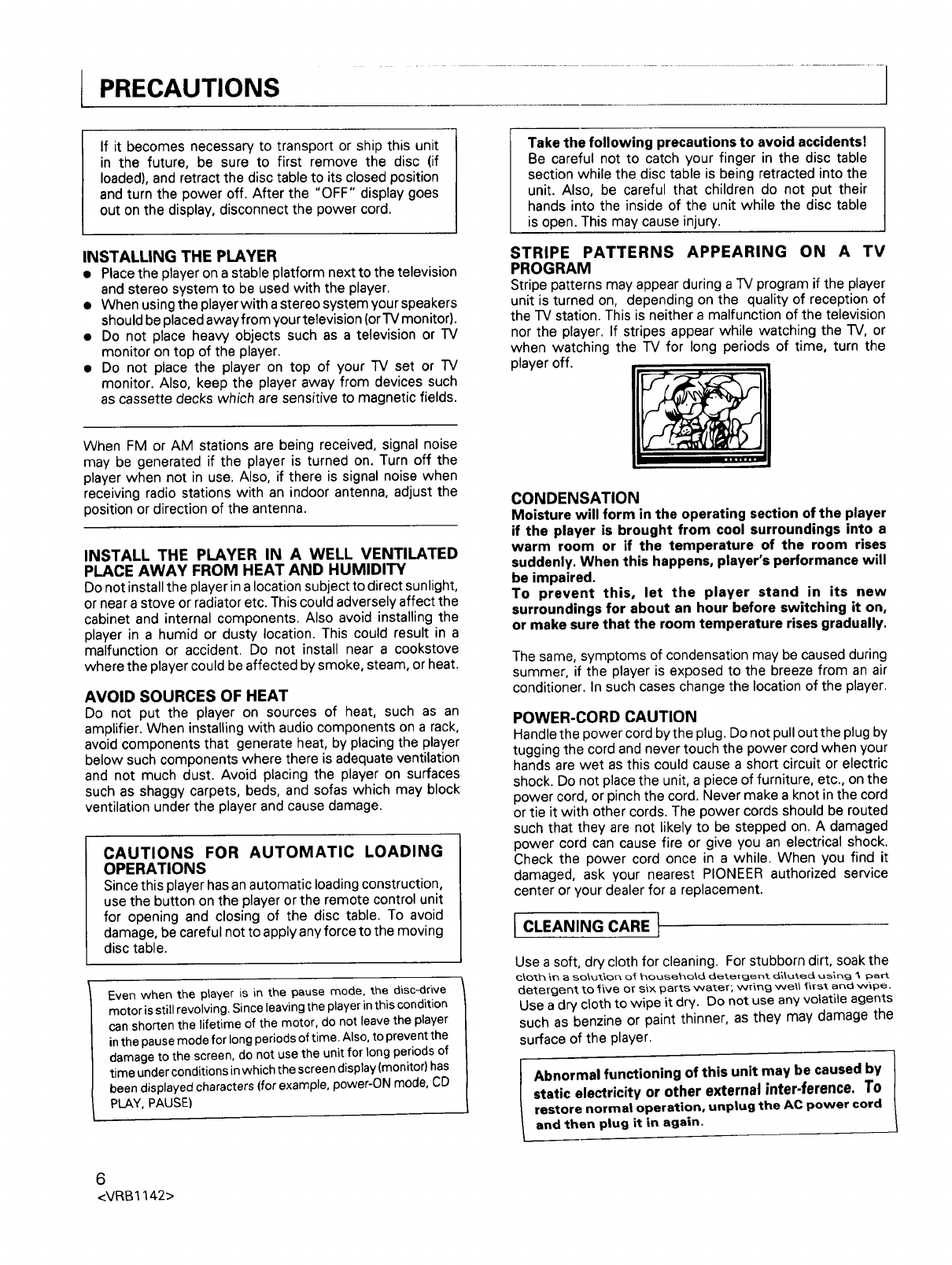
STRIPE PATTERNS APPEARING ON A TV
PROGRAM
Stripe patterns may appear during a TV program if the player
unit is turned on, depending on the quality of reception of
the TV station. This is neither a malfunction of the television
nor the player. If stripes appear while watching the TV, or
when watching the TV for long periods of time, turn the
player off.
When FM or AM stations are being received, signal noise
may be generated if the player is turned on. Turn off the
player when not in use. Also, if there is signal noise when
receiving radio stations with an indoor antenna, adjust the
position or direction of the antenna.
INSTALL THE PLAYER IN A WELL VENTILATED
PLACE AWAY FROM HEAT AND HUMIDITY
Do not install the player in a location subject to direct sunlight,
or near a stove or radiator etc. This could adversely affect the
cabinet and internal components. Also avoid installing the
player in a humid or dusty location. This could result in a
malfunction or accident. Do not install near a cookstove
where the player could be affected by smoke, steam, or heat.
AVOID SOURCES OF HEAT
Do not put the player on sources of heat, such as an
amplifier. When installing with audio components on a rack,
avoid components that generate heat, by placing the player
below such components where there is adequate ventilation
and not much dust. Avoid placing the player on surfaces
such as shaggy carpets, beds, and sofas which may block
ventilation under the player and cause damage.
CAUTIONS FOR AUTOMATIC LOADING
OPERATIONS
Since this player has an automatic loading construction,
use the button on the player or the remote control unit
for opening and closing of the disc table. To avoid
damage, be careful not to apply any force to the moving
disc table.
Even when the player is in the pause mode, the disc-drive
motor is still revolving. Since leaving the player in this condition
can shorten the lifetime of the motor, do not leave the player
in the pause mode for long periods of time. Also, to prevent the
damage to the screen, do not use the unit for long periods of
time under conditions in which the screen display (monitor) has
been displayed characters (for example, power-ON mode, CD
PLAY, PAUSE)
CONDENSATION
Moisture will form in the operating section of the player
if the player is brought from cool surroundings into a
warm room or if the temperature of the room rises
suddenly. When this happens, player's performance will
be impaired.
To prevent this, let the player stand in its new
surroundings for about an hour before switching it on,
or make sure that the room temperature rises gradually.
The same, symptoms of condensation may be caused during
summer, if the player is exposed to the breeze from an air
conditioner. In such cases change the location of the player.
POWER-CORD CAUTION
Handle the power cord by the plug. Do not pull out the plug by
tugging the cord and never touch the power cord when your
hands are wet as this could cause a short circuit or electric
shock. Do not place the unit, a piece of furniture, etc., on the
power cord, or pinch the cord. Never make a knot in the cord
or tie it with other cords. The power cords should be routed
such that they are not likely to be stepped on. A damaged
power cord can cause fire or give you an electrical shock.
Check the power cord once in a while. When you find it
damaged, ask your nearest PIONEER authorized service
center or your dealer for a replacement.
ICLEANING CARE }
Use a soft, dry cloth for cleaning. For stubborn dirt, soak the
C\Ot_ i_ _ SO\_t'_O_ O_ house_o_ dete[gent cL_uted us_r_g "_ Dart
detergent to _=_ve or s_× parts water; wring wel_ f_rst and wipe.
Use a dry cloth to wipe it dw. Do not use any volatile agents
such as benzine or paint thinner, as they may damage the
surface of the player.
Abnormal functioning of this unit may be caused by
static electricity or other external inter-ference. To
restore normal operation, unplug the AC power cord
and then plug it in again.
6
<VRB 1142>
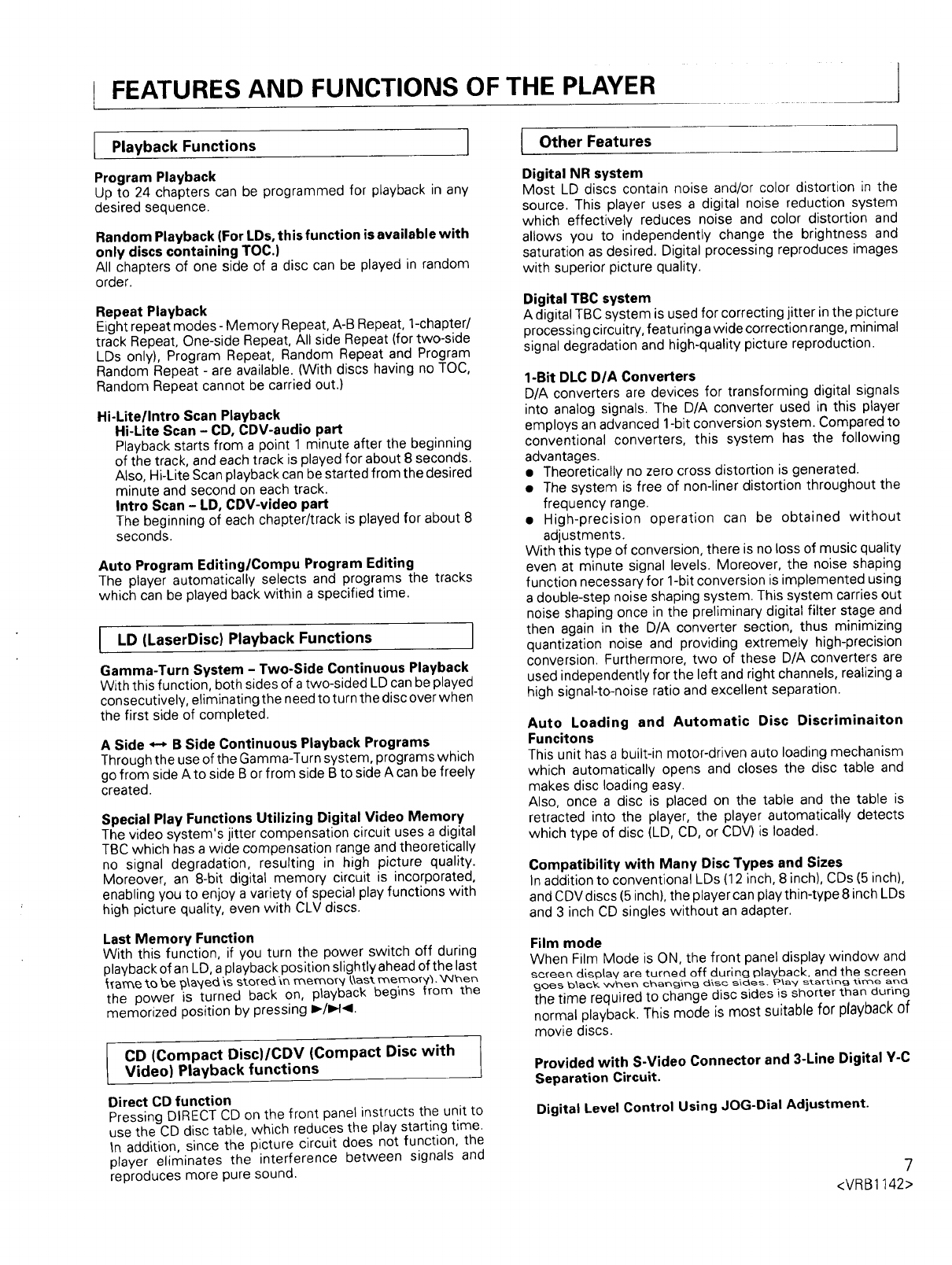
FEATURES AND FUNCTIONS OF THE PLAYER
LP,a.boo.Funct,o°s 1 { O..er °a.ures ]
Program Playback
Up to 24 chapters can be programmed for playback in any
desired sequence.
Random Playback (For LDs, this function is available with
only discs containing TOC.)
All chapters of one side of a disc can be played in random
order.
Repeat Playback
Eight repeat modes - Memory Repeat, A-B Repeat, 1-chapter/
track Repeat, One-side Repeat, All side Repeat (for two-side
LDs only), Program Repeat, Random Repeat and Program
Random Repeat - are available. (With discs having no TOC,
Random Repeat cannot be carried out.)
Hi-Litellntro Scan Playback
Hi-Lite Scan - CD, CDV-audio part
Playback starts from a point 1 minute after the beginning
of the track, and each track is played for about 8 seconds.
Also, Hi-Lite Scan playback can be started from the desired
minute and second on each track.
Intro Scan - LD, CDV-video part
The beginning of each chapter/track is played for about 8
seconds.
Auto Program Editing/Compu Program Editing
The player automatically selects and programs the tracks
which can be played back within a specified time.
JLD (LaserDisc) Playback Functions ]
Gamma-Turn System - Two-Side Continuous Playback
With this function, both sides of a two-sided LD can be played
consecutively, eliminating the need to turn the disc over when
the first side of completed.
A Side _B Side Continuous Playback Programs
Through the use of the Gamma-Turn system, programs which
go from side A to side B or from side B to side A can be freely
created.
Special Play Functions Utilizing Digital Video Memory
The video system's jitter compensation circuit uses a digital
TBC which has a wide compensation range and theoretically
no signal degradation, resulting in high picture quality.
Moreover, an 8-bit digital memory circuit is incorporated,
enabling you to enjoy a variety of special play functions with
high picture quality, even with CLV discs.
Last Memory Function
With this function, if you turn the power switch off during
playback of an LD, a playback position slightly ahead of the last
_fame to be p\aye_ '_sstored _nmemory/_\ast memo_V_ .'qkl_en
the power is turned back on, playback begins from the
memorized position by pressing I_/1_1_1.
CD (Compact Disc)/CDV (Compact Disc with
Video) Playback functions
Direct CD function
Pressing DIRECT CD on the front panel instructs the unit to
use the CD disc table, which reduces the play starting time.
In addition, since the picture circuit does not function, the
player eliminates the interference between signals and
reproduces more pure sound.
Digital NR system
Most LD discs contain noise and/or color distortion in the
source. This player uses a digital noise reduction system
which effectively reduces noise and color distortion and
allows you to independently change the brightness and
saturation as desired. Digital processing reproduces images
with superior picture quality.
Digital TBC system
A digital TBC system is used for correcting jitter in the picture
processing circuitry, featuring a wide correction range, minimal
signal degradation and high-quality picture reproduction.
1-Bit DLC D/A Converters
D/A converters are devices for transforming digital signals
into analog signals. The D/A converter used in this player
employs an advanced 1-bit conversion system. Compared to
conventional converters, this system has the following
advantages.
• Theoretically no zero cross distortion is generated.
• The system is free of non-liner distortion throughout the
frequency range.
• High-precision operation can be obtained without
adjustments.
With this type of conversion, there is no loss of music quality
even at minute signal levels. Moreover, the noise shaping
function necessary for 1-bit conversion is implemented using
a double-step noise shaping system. This system carries out
noise shaping once in the preliminary digital filter stage and
then again in the D/A converter section, thus minimizing
quantization noise and providing extremely high-precision
conversion. Furthermore, two of these D/A converters are
used independently for the left and right channels, realizing a
high signal-to-noise ratio and excellent separation.
Auto Loading and Automatic Disc Discriminaiton
Funcitons
This unit has a built-in motor-driven auto loading mechanism
which automatically opens and closes the disc table and
makes disc loading easy.
Also, once a disc is placed on the table and the table is
retracted into the player, the player automatically detects
which type of disc (LD, CD, or CDV) is loaded.
Compatibility with Many Disc Types and Sizes
In addition to conventional LDs (12 inch, 8 inch), CDs (5 inch),
and CDV discs (5 inch), the player can play thin-type 8 inch LDs
and 3 inch CD singles without an adapter.
Film mode
When Film Mode is ON, the front panel display window and
£ereen digDlav are turned off during playback, and the screen
gOeS b_ack when changing disc sides, Play starting time and
the time required to change disc sides is shorter than durir_g
normal playback. This mode is most suitable for playback of
movie discs.
Provided with S-Video Connector and 3-Line Digital Y-C
Separation Circuit.
Digital Level Control Using JOG-Dial Adjustment.
7
<VRB1142>
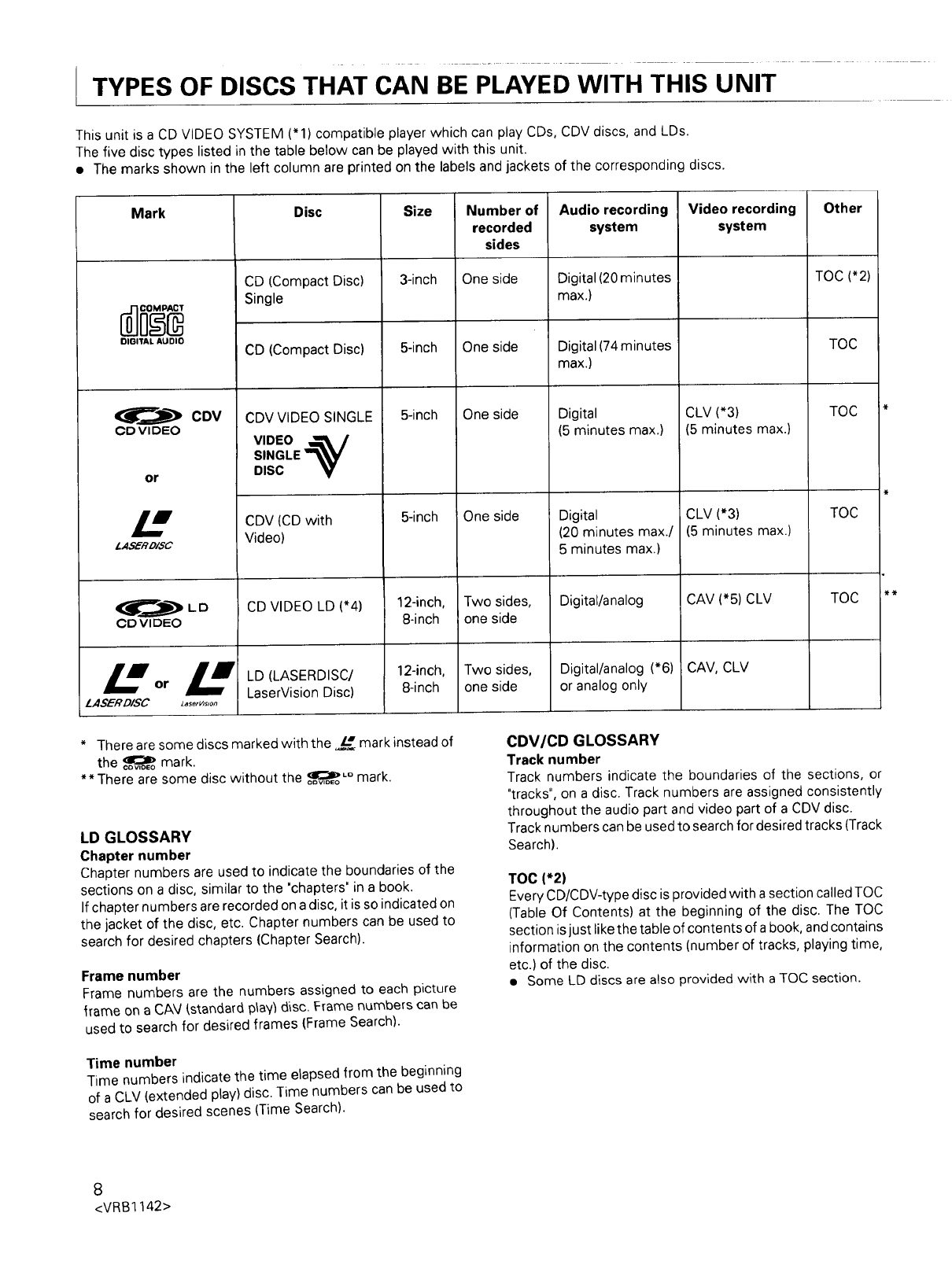
TYPES OF DISCS THAT CAN BE PLAYED WITH THIS UNIT
This unit is a CD VIDEO SYSTEM ('1) compatible player which can play CDs, CDV discs, and LDs.
The five disc types listed in the table below can be played with this unit.
• The marks shown in the left column are printed on the labels and jackets of the corresponding discs.
Mark
DIGITAL AUDIO
<_=r===_ CDV
CD VIDEO
or
L,4SER D/SC
<_gm'_ LD
CD VI DEO
L orL
LASERDISC z_se,_s,o,_
Disc
CD (Compact Disc)
Single
CD (Compact Disc)
CDV VIDEO SINGLE
VIDEO _t, I
SINGLE _
DISC _'
CDV (CD with
Video)
CD VIDEO LD (*4)
LD (LASERDISC/
LaserVision Disc)
Size
3-inch
5-inch
5-inch
5-inch
12-inch,
8-inch
12-inch,
8-inch
Number of
recorded
sides
One side
One side
One side
One side
Two sides,
one side
Two sides,
one side
Audio recording
system
Digital (20 minutes
max.)
Digital (74 minutes
max.)
Digital
(5 minutes max.)
Digital
(20 minutes max./
5 minutes max.)
Digital/analog
Digital/analog (*6)
or analog only
Video recording
system
CLV (*3)
(5 minutes max.)
CLV (*3)
(5 minutes max.)
CAV (*5) CLV
CAV, CLV
Other
TOC (*2)
TOC
TOC
TOC
TOC
• o
* There are some discs marked w_th the L_ mark instead of
the _ mark•
** There are some disc without the _,-,.a_Lo mark•
OI3 VIDEO
LD GLOSSARY
Chapter number
Chapter numbers are used to indicate the boundaries of the
sections on a disc, similar to the "chapters" in a book.
If chapter numbers are recorded on a disc, it is so indicated on
the jacket of the disc, etc. Chapter numbers can be used to
search for desired chapters (Chapter Search).
Frame number
Frame numbers are the numbers assigned to each picture
frame on a CAV (standard p_ay_disc. Frame numbers can be
used to search for desired frames (Frame Search).
CDV/CD GLOSSARY
Track number
Track numbers indicate the boundaries of the sections, or
"tracks", on a disc. Track numbers are assigned consistently
throughout the audio part and video part of a CDV disc.
Track numbers can be used to search for desired tracks (Track
Search)•
TOC (*2)
Every CD/CDV-type disc is provided with a section called TOC
(Table Of Contents) at the beginning of the disc. The TOC
section is just like the table of contents of a book, and contains
information on the contents (number of tracks, playing time,
etc.) of the disc.
•Some LD discs are also provided with a TOC section.
Time number
Time numbers indicate the time elapsed from the beginning
of a CLV (extended play) disc. Time numbers can be used to
search for desired scenes (Time Search).
8
<VRB1142>
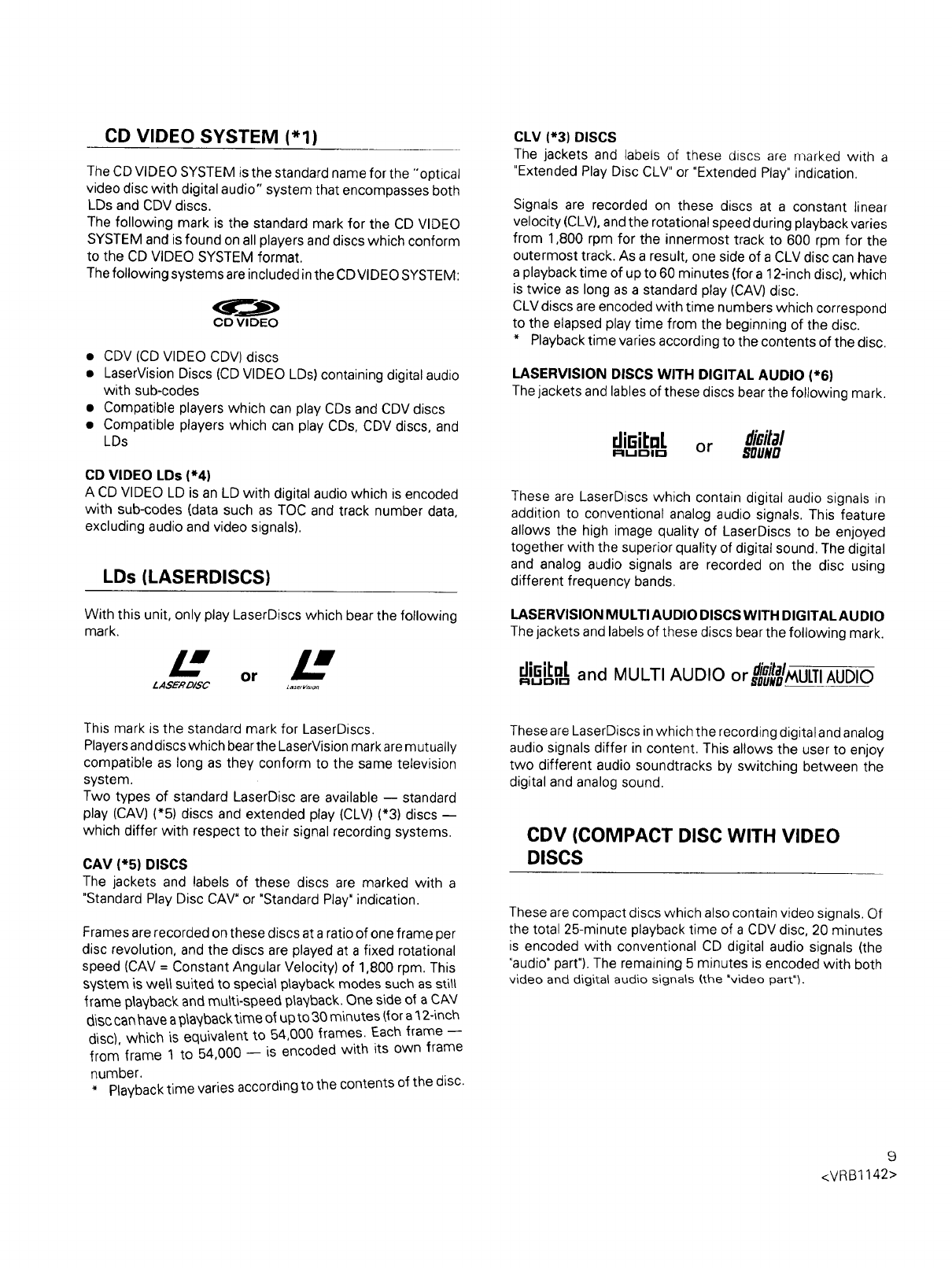
CD VIDEO SYSTEM ('1)
The CD VIDEO SYSTEM is the standard name for the "optical
video disc with digital audio" system that encompasses both
LDs and CDV discs.
The following mark is the standard mark for the CD VIDEO
SYSTEM and is found on all players and discs which conform
to the CD VIDEO SYSTEM format.
The following systems are included in the CD VIDEO SYSTEM:
CO VIDEO
•CDV (CD VIDEO CDV) discs
• LaserVision Discs (CD VIDEO LDs) containing digital audio
with sub-codes
• Compatible players which can play CDs and CDV discs
• Compatible players which can play CDs, CDV discs, and
LDs
CD VIDEO LDs (*4)
A CD VIDEO LD is an LD with digital audio which is encoded
with sub-codes (data such as TOC and track number data,
excluding audio and video signals).
LDs (LASERDISCS)
With this unit, only play LaserDiscs which bear the following
mark.
or
LASER D/,,_C zase,v,s,,>n
CLV (*3) DISCS
The jackets and labels of these discs are marked with a
"Extended Play Disc CLV" or "Extended Play" indication.
Signals are recorded on these discs at a constant linear
velocity (CLV), and the rotational speed during playback varies
from 1,800 rpm for the innermost track to 600 rpm for the
outermost track. As a result, one side of a CLV disc can have
a playback time of up to 60 minutes (for a 12-inch disc), which
is twice as long as a standard play (CAV) disc.
CLV discs are encoded with time numbers which correspond
to the elapsed play time from the beginning of the disc.
* Playback time varies according to the contents of the disc.
LASERVISION DISCS WITH DIGITAL AUDIO (*6)
The jackets and lables of these discs bear the following mark.
dieit,',L or die#a/
RUDJD BOUND
These are LaserDiscs which contain digital audio signals in
addition to conventional analog audio signals. This feature
allows the high image quality of LaserDiscs to be enjoyed
together with the superior quality of digital sound. The digital
and analog audio signals are recorded on the disc using
different frequency bands.
LASERVISION MULTI AUDIO DISCS WITH DIGITAL AUDIO
The jackets and labels of these discs bear the following mark.
,.,,. diaital_H,T,AUDIO
di6iL,',tand MULTI AUDIO v.sou_n,.,u.,,
I_IL,I I::) II:_1
This mark is the standard mark for LaserDiscs.
Players and discs which bear the LaserVision mark are mutually
compatible as long as they conform to the same television
system.
Two types of standard LaserDisc are available -- standard
play (CAV) (*5) discs and extended play (CLV) (*3) discs --
which differ with respect to their signal recording systems.
CAV (*5) DISCS
The jackets and labels of these discs are marked with a
"Standard Play Disc CAV" or "Standard Play" indication.
Frames are recorded on these discs at a ratio of one frame per
disc revolution, and the discs are played at a fixed rotational
speed (CAV = Constant Angular Velocity) of 1,800 rpm. This
system is well suited to specia_ playback modes such as still
_rame playback and multi-speed playback. One side of a CAN/
ciisc can have a 9_ayback£me o_up to 30 minutes (for a 12-inch
disc), which is equivalent to 54,000 frames. Each frame --
from frame 1 to 54,000 -- is encoded with its own frame
number.
* Playback time varies according to the contents of the disc.
These are LaserDiscs in which the recording digital and analog
audio signals differ in content. This allows the user to enjoy
two different audio soundtracks by switching between the
digital and analog sound.
CDV (COMPACT DISC WITH VIDEO
DISCS
These are compact discs which also contain video signals. Of
the total 25-minute playback time of a CDV disc, 20 minutes
is encoded with conventional CD digital audio signals (the
"audio" part"). The remaining 5 minutes is encoded with both
video and digital audio signals (the "video part").
9
<VRB1142>
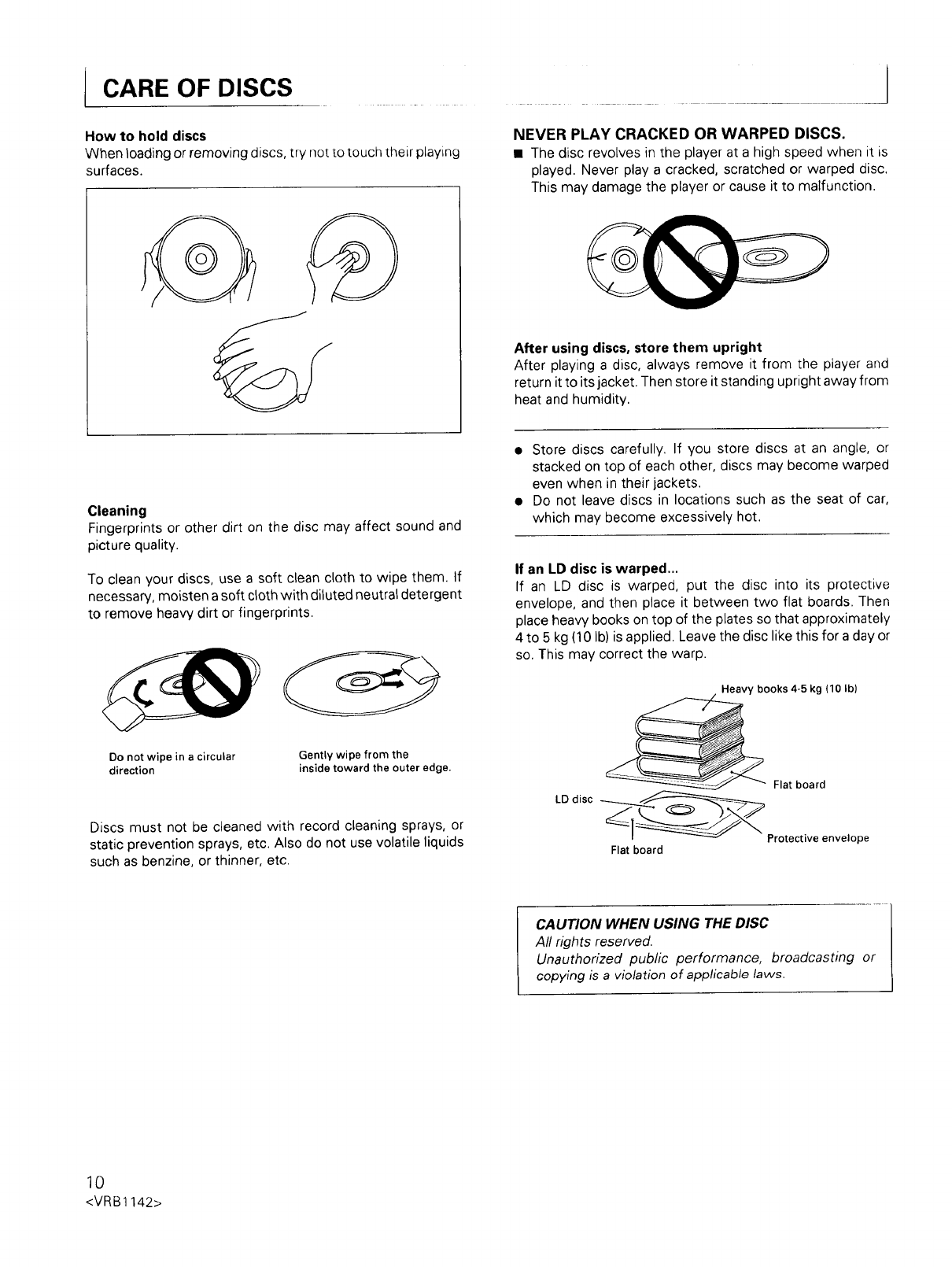
ICARE OF DISCS
How to hold discs
When loading or removing discs, try not to touch their playing
surfaces.
Cleaning
Fingerprints or other dirt on the disc may affect sound and
picture quality.
To clean your discs, use a soft clean cloth to wipe them. If
necessary, moisten a soft cloth with diluted neutral detergent
to remove heavy dirt or fingerprints.
Do not wipe in a circular
direction
Gently wipe from the
inside toward the outer edge.
Discs must not be cleaned with record cleaning sprays, or
static prevention sprays, etc. Also do not use volatile liquids
such as benzine, or thinner, etc.
NEVER PLAY CRACKED OR WARPED DISCS.
•The disc revolves in the player at a high speed when it is
played. Never play a cracked, scratched or warped disc.
This may damage the player or cause it to malfunction.
After using discs, store them upright
After playing a disc, always remove it from the player and
return it to its jacket. Then store it standing upright away from
heat and humidity.
• Store discs carefully. If you store discs at an angle, or
stacked on top of each other, discs may become warped
even when in their jackets.
• Do not leave discs in locations such as the seat of car,
which may become excessively hot.
If an LD disc is warped...
If an LD disc is warped, put the disc into its protective
envelope, and then place it between two flat boards. Then
place heavy books on top of the plates so that approximately
4 to 5 kg (10 Ib) is applied. Leave the disc like this for a day or
so. This may correct the warp.
Heavy books 4-5 kg (10 Ib)
Flat board
LD disc _._i_
Protective envelope
Flat board
CAUTION WHEN USING THE DISC
All rights reserved.
Unauthorized public performance, broadcasting or
copying is a violation of applicable laws.
10
<VRB1142>
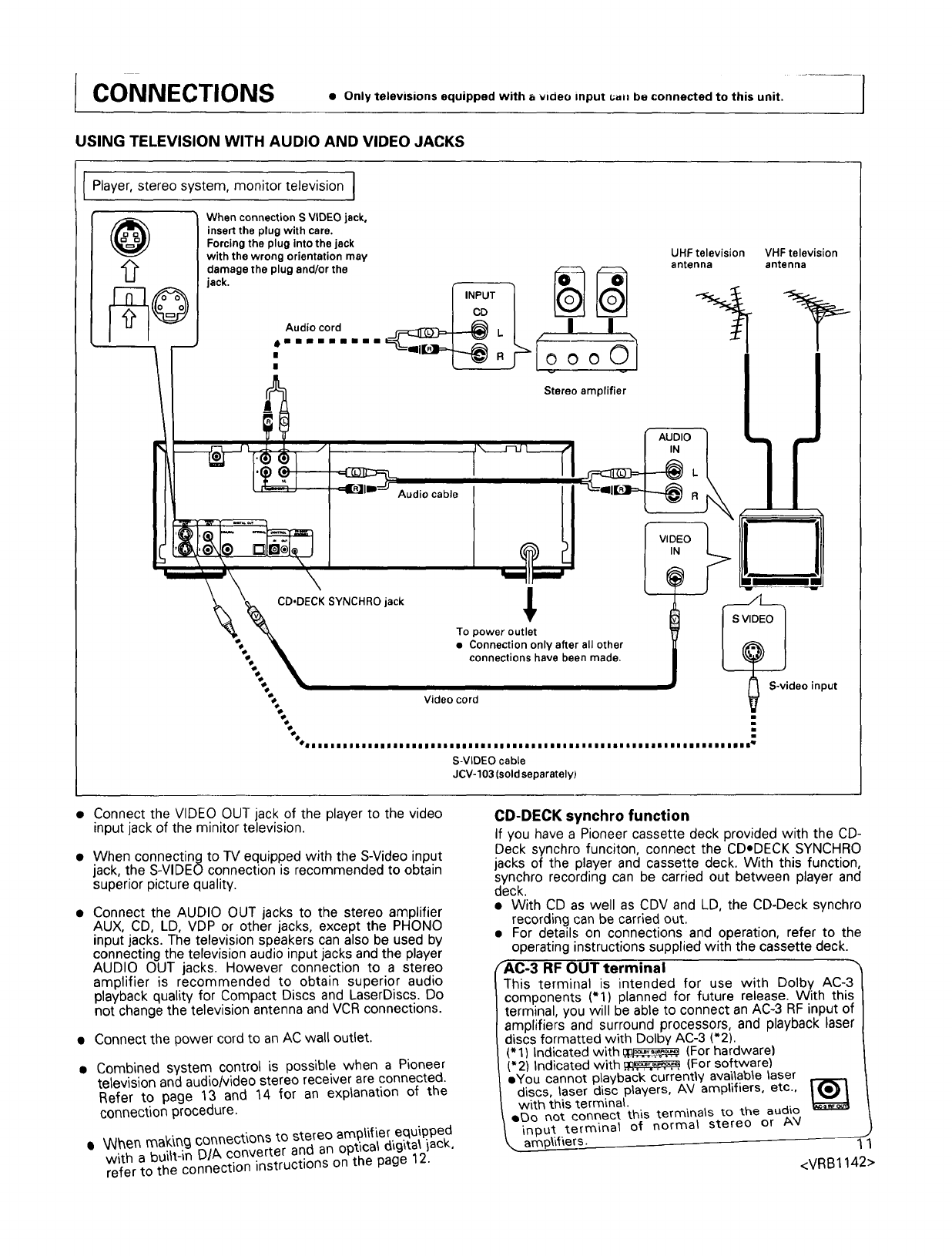
CONNECTIONS . Onlytelevisions equipped with a video input u_. be connected to this unit.
USING TELEVISION WITH AUDIO AND VIDEO JACKS
Player, stereo system, monitor television ]
@When connection SVIDEO jack,
insert the plug with care.
Forcing the plug into the jack
with the wrong orientation may
jack.damagetheplugand/°rthe••_iiaiamaamAUdiocord_IO_O_I
Stereo amplifier
UHF television
antenna
VHF television
antenna
1
Audio cable
__ECK SYNCHRO jack To power outlet
•Connection only after all other
connections have been made.
Video cord
I
foo i
IIIIIIIIIIIIIIIIIIIIIIIIIIIIII IIIIIII IIIIIIIIIIIIIIIIIIIIIIIIIII|IIIIII !
S-VIDEO cable
JCV-103 (sold separately)
S-video input
• Connect the VIDEO OUT jack of the player to the video
input jack of the minitor television.
• When connecting to IV equipped with the S-Video input
jack, the S-VIDEO connection is recommended to obtain
superior picture quality.
• Connect the AUDIO OUT jacks to the stereo amplifier
AUX, CD, LD, VDP or other jacks, except the PHONO
input jacks. The television speakers can also be used by
connecting the television audio input jacks and the player
AUDIO OUT jacks. However connection to a stereo
amplifier is recommended to obtain superior audio
playback quality for Compact Discs and LaserDiscs. Do
not change the television antenna and VCR connections.
• Connect the power cord to an AC wall outlet.
• Combined system control is possible when a Pioneer
television and audio/video stereo receiver are connected.
Refer to page 13 and 14 for an explanation of the
connection procedure.
•_hen making conuections to stereo amplifier equipped
with a bui_t-in D/A converter and an optical dlgita_ iack,
refer to the connection instructions on the page 12.
CD-DECK synchro function
If you have a Pioneer cassette deck provided with the CD-
Deck synchro funciton, connect the CDoDECK SYNCHRO
jacks of the player and cassette deck. With this function,
synchro recording can be carried out between player and
deck.
• With CD as well as CDV and LD, the CD-Deck synchro
recording can be carried out.
• For details on connections and operation, refer to the
operating instructions supplied with the cassette deck.
rAC-3 RF OUT terminal
This terminal is intended for use with Dolby AC-3
components ('1) planned for future release. With this
terminal, you will be able to connect an AC-3 RF input of
amplifiers and surround processors, and playback laser
discs formatted with Dolby AC-3 (*2).
('1) Indicated with _ (For hardware)
(*2) Indicated with _q_;_ (For software)
eYou cannot playback currently available laser
discs, laser disc players, AV amplifiers, etc.,
with this terminal.
eE)o r_ot connect th'lS terminals to the audio
input terminal of normal stereo or A'q
\i_iers. 1"1
<VRB1142>
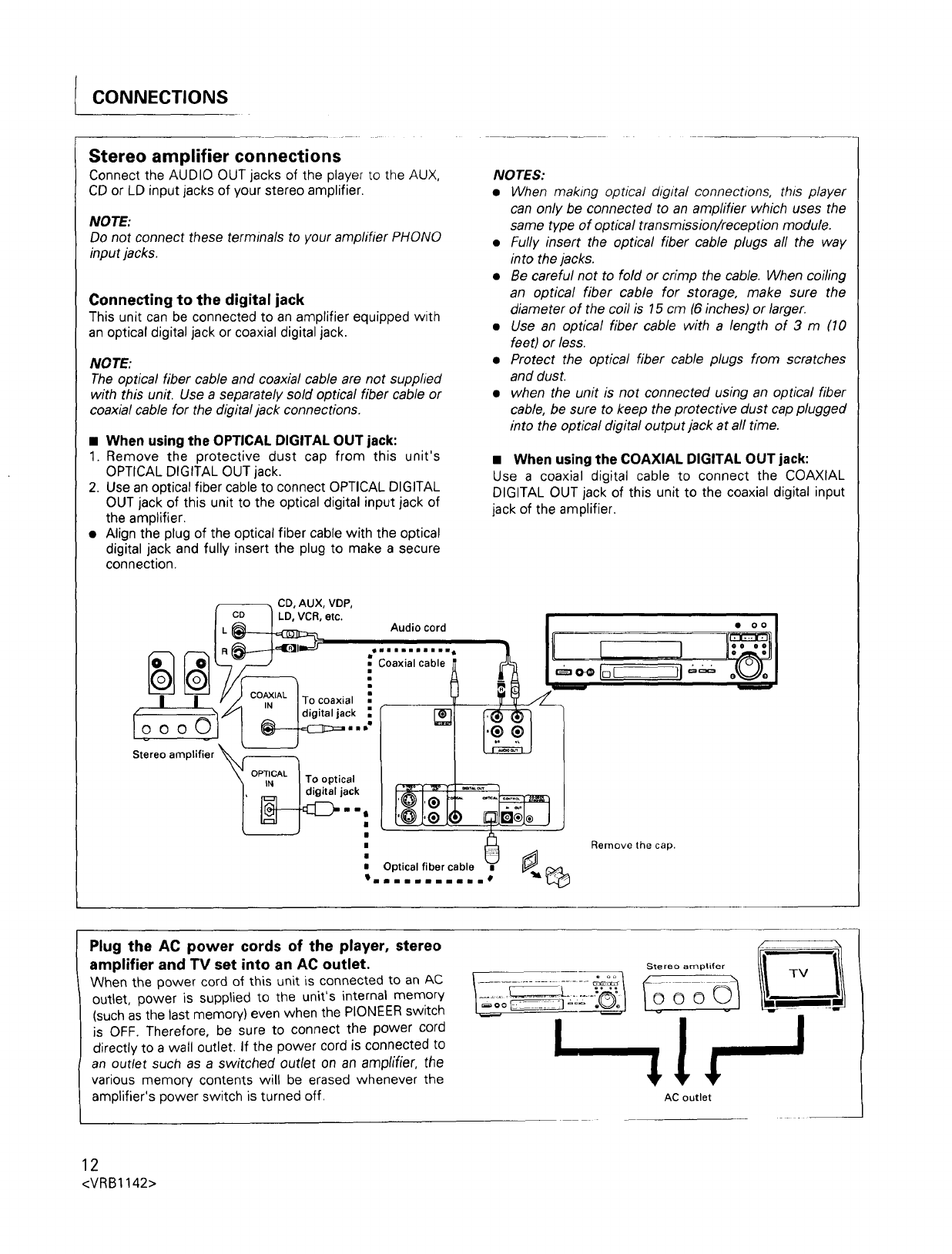
CONNECTIONS
Stereo amplifier connections
Connect the AUDIO OUT jacks of the player to the AUX,
CD or LD input jacks of your stereo amplifier.
NOTE:
Do not connect these terminals to your amplifier PHONO
input jacks.
Connecting to the digital jack
This unit can be connected to an amplifier equipped with
an optical digital jack or coaxial digital jack.
NOTE:
The optical fiber cable and coaxial cable are not suppfied
with this unit. Use a separately sold optical fiber cable or
coaxial cable for the digital jack connections.
• When using the OPTICAL DIGITAL OUT jack:
1. Remove the protective dust cap from this unit's
OPTICAL DIGITAL OUT jack.
2. Use an optical fiber cable to connect OPTICAL DIGITAL
OUT jack of this unit to the optical digital input jack of
the amplifier.
• Align the plug of the optical fiber cable with the optical
digital jack and fully insert the plug to make a secure
connection.
NOTES:
•When making optical digital connections, this player
can only be connected to an ampfifier which uses the
same type of optical transmission/reception module.
•Fully insert the optical fiber cable plugs all the way
into the jacks.
•Be careful not to fold or crimp the cable. When coiling
an optical fiber cable for storage, make sure the
diameter of the coil is 15 cm (6 inches) or larger.
•Use an optical fiber cable with a length of 3 m(10
feet) or less.
• Protect the optical fiber cable plugs from scratches
and dust.
• when the unit is not connected using an optical fiber
cable, be sure to keep the protective dust cap plugged
into the optical digital output jack at all time.
• When using the COAXIAL DIGITAL OUT jack:
Use a coaxial digital cable to connect the COAXIAL
DIGITAL OUT jack of this unit to the coaxial digital input
jack of the amplifier.
L_ --_ CD, AUX, VDP,
/LD, VCR, etc. =
I _ Audio cord I • o o
...........• , ,
,,_,,, I(_1 ,,_n'_n /•_:/1 li /t I==o= Ior-_l === o__Jo
:n"--- ---
I I #/_u_,_L ITocoaxial _, TTV/L_
t___._" "'" I digital jack .r I-_q] _
=1 /
t_J
\ v, iN.... I TO°ptical | _ /
I, I digitaljack / I _ I _ [ [ --___ /
mtL_ Remove the cap.
' ........ U
aOptical fiber cable i _ _ _
_=mnllllmninllmB _li_
Plug the AC power cords of the player, stereo
amplifier and TV set into an AC outlet.
When the power cord of this unit is connected to an AC
outlet, power is supplied to the unit's internal memory
(such as the last memory) even when the PIONEER switch
is OFF. Therefore, be sure to connect the power cord
directly to a wall outlet. If the power cord is connected to
an outlet such as a switched outlet on an amplifier, the
various memory contents will be erased whenever the
amplifier's power switch is turned off.
Stereo amplifer
AC outlet
12
<VRB1142>
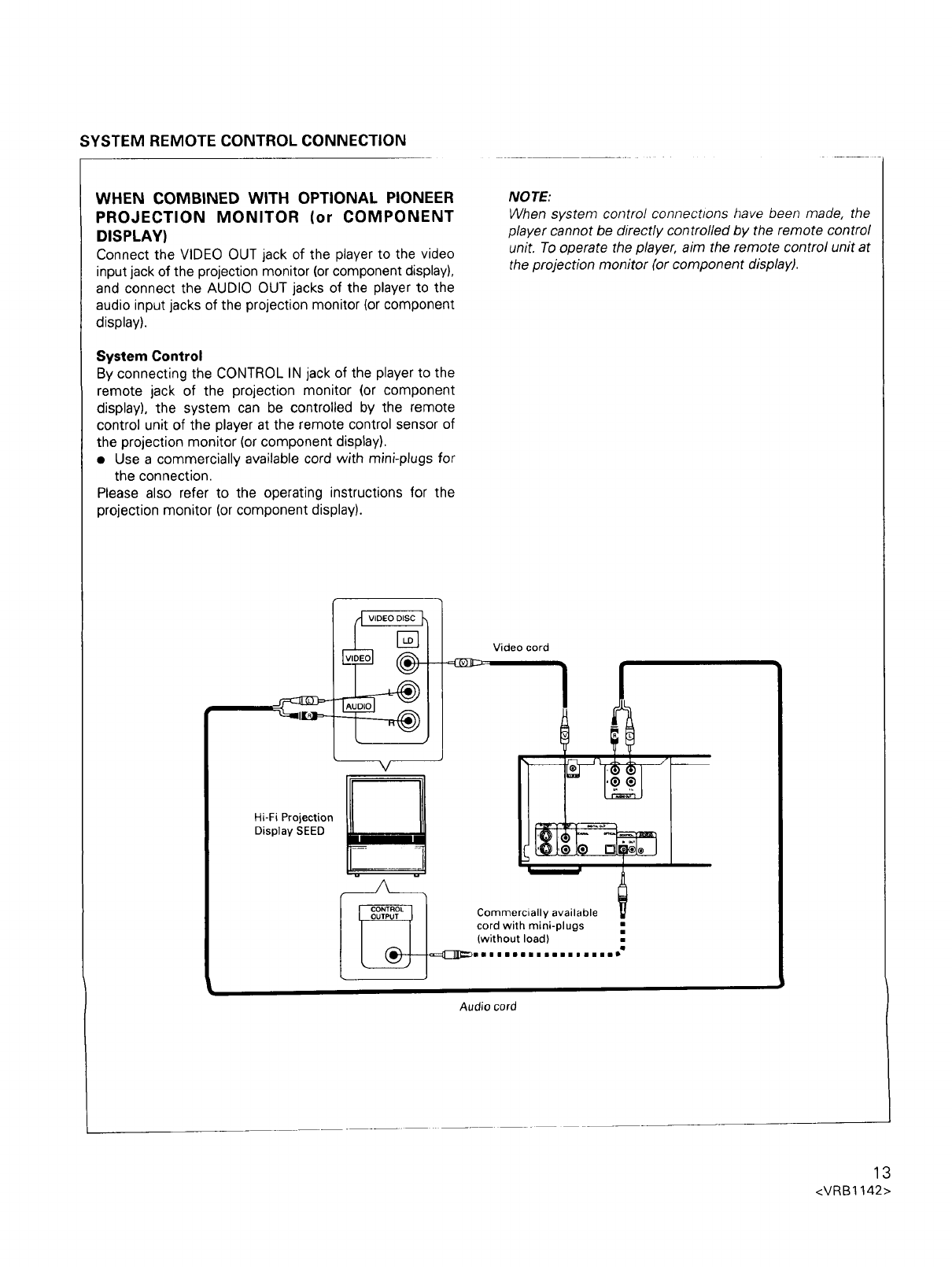
SYSTEM REMOTE CONTROL CONNECTION
WHEN COMBINED WITH OPTIONAL PIONEER
PROJECTION MONITOR (or COMPONENT
DISPLAY)
Connect the VIDEO OUT jack of the player to the video
input jack of the projection monitor (or component display),
and connect the AUDIO OUT jacks of the player to the
audio input jacks of the projection monitor (or component
display).
System Control
By connecting the CONTROL IN jack of the player to the
remote jack of the projection monitor (or component
display), the system can be controlled by the remote
control unit of the player at the remote control sensor of
the projection monitor (or component display).
•Use a commercially available cord with mini-plugs for
the connection.
Please also refer to the operating instructions for the
projection monitor (or component display).
NOTE:
When system control connections have been made, the
player cannot be directly controlled by the remote control
unit, To operate the player, aim the remote control unit at
the projection monitor (or component display).
Hi-Fi Projection
Display SEED
[] Video cord
_]]_ ommercially available
cord with mini-plugs
(without load)
nl||mllllmsgmm|lmlIO
Audio cord
13
<VRB1142>
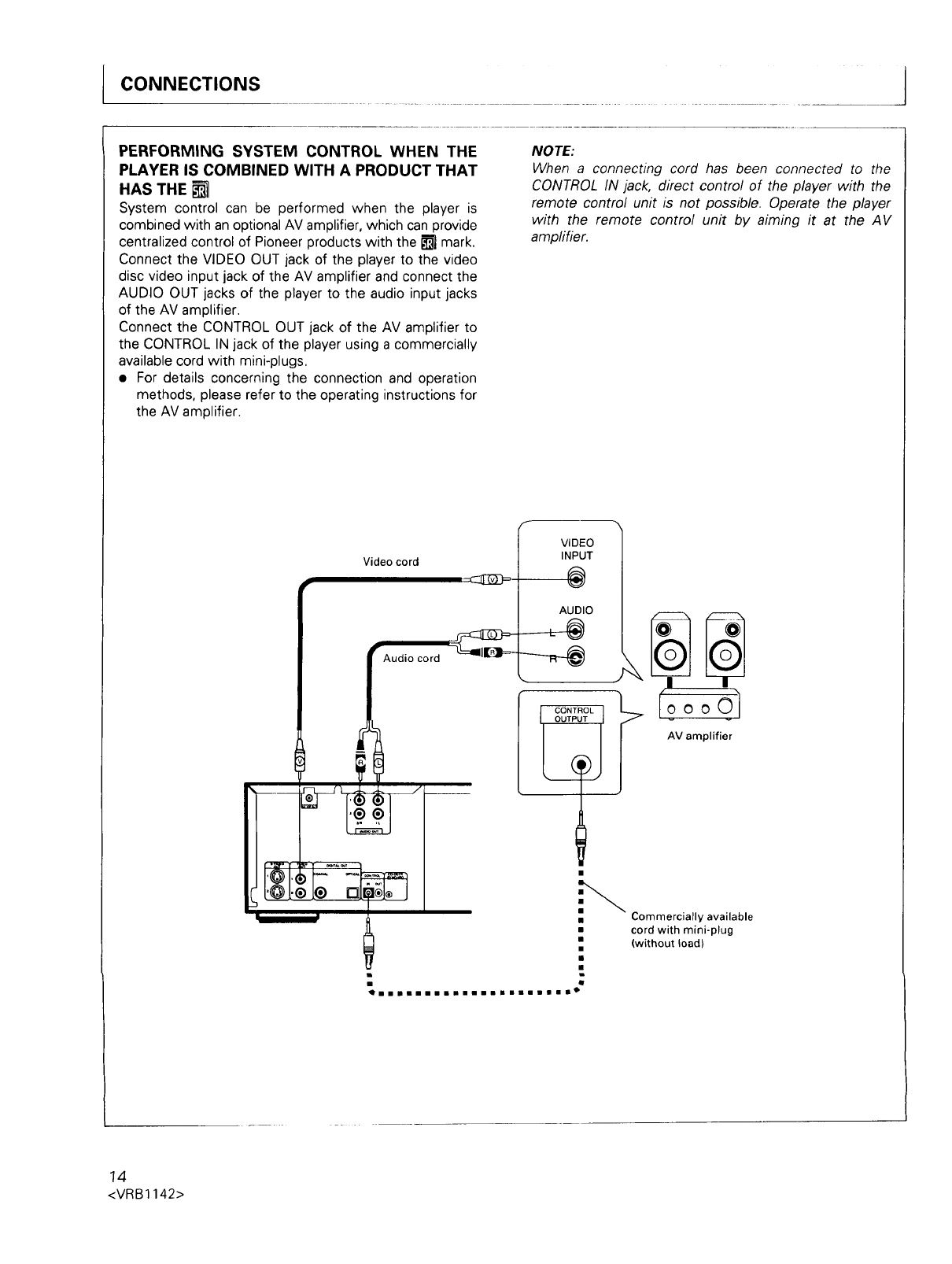
ICONNECTIONS
PERFORMING SYSTEM CONTROL WHEN THE
PLAYER IS COMBINED WITH A PRODUCT THAT
HAS THE
System control can be performed when the player is
combined with an optional AV amplifier, which can provide
centralized control of Pioneer products with the _ mark.
Connect the VIDEO OUT jack of the player to the video
disc video input jack of the AV amplifier and connect the
AUDIO OUT jacks of the player to the audio input jacks
of the AV amplifier.
Connect the CONTROL OUT jack of the AV amplifier to
the CONTROL IN jack of the player using a commercially
available cord with mini-plugs.
• For details concerning the connection and operation
methods, please refer to the operating instructions for
the AV amplifier.
NOTE:
When a connecting cord has been connected to the
CONTROL IN jack, direct control of the player with the
remote control unit is not possible. Operate the player
with the remote control unit by aiming it at the AV
ampfifier.
Video cord
v-
Audio cord
VIDEO
INPUT
®
AUDIO
CONTF Iooool
AV amplifier
i
_ii i i i n i i i II i i II n II II II i g I i il Oq
Commercially available
cord with mini-plug
(without load)
14
<VRB1142>
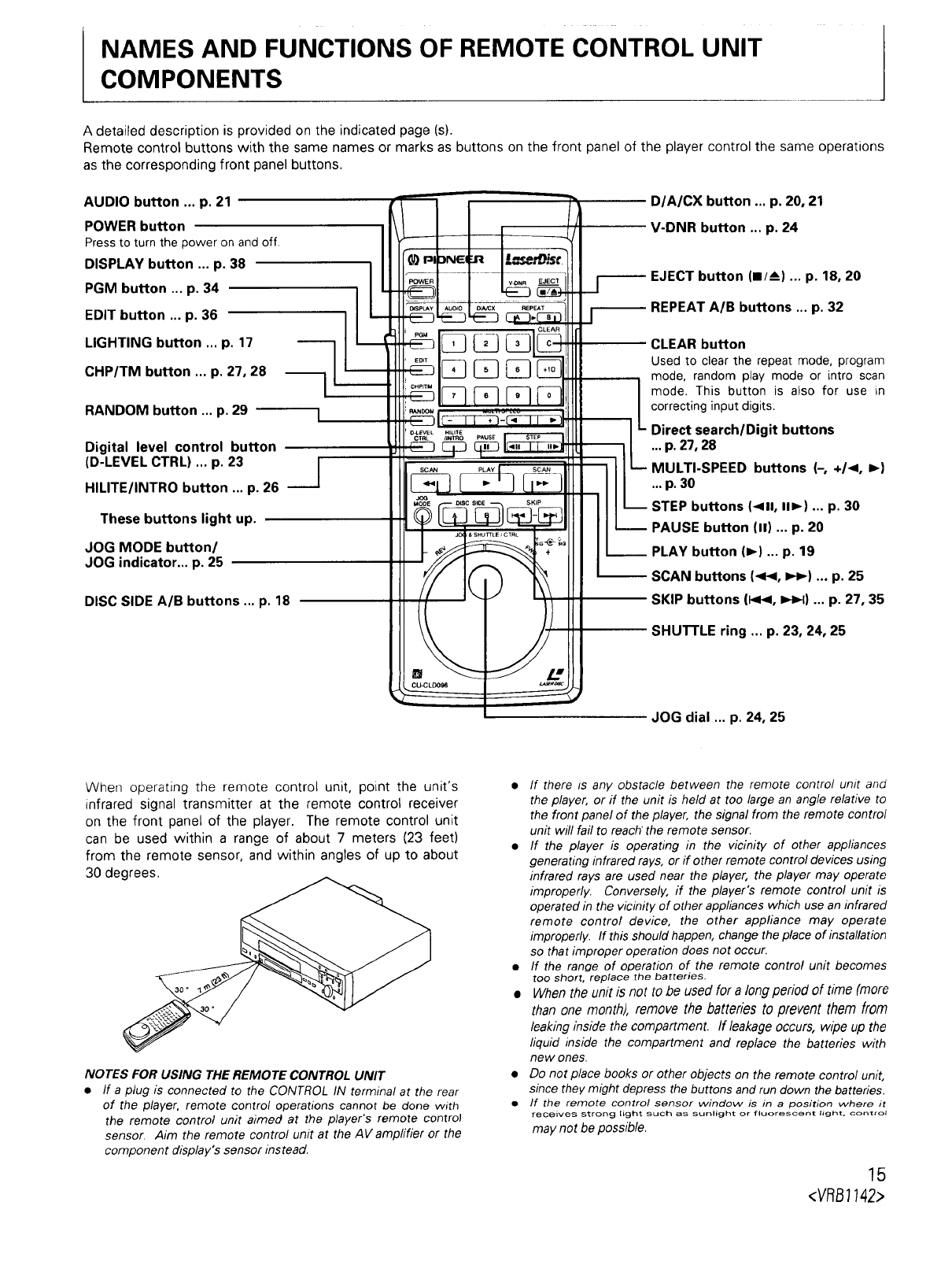
NAMES AND FUNCTIONS OF REMOTE CONTROL UNIT
COMPONENTS
A detailed description is provided on the indicated page (s).
Remote control buttons with the same names or marks as buttons on the front panel of the player control the same operations
as the corresponding front panel buttons.
AUDIO button ... p. 21
POWER button
Pressto turn the power on and off.
DISPLAY button ... p. 38
PGM button ... p. 34
EDIT button ... p. 36
LIGHTING button ... p. 17
CHP/TM button ... p. 27, 28
RANDOM button ... p. 29
Digital level control button
(D-LEVEL CTRL) ... p. 23 [
.__J
HILITE/INTRO button ... p. 26
These buttons light up.
JOG MODE button/
JOG indicator.., p. 25
DISC SIDE A/B buttons ... p. 18
D/A/CX button ... p. 20, 21
V-DNR button ... p. 24
-- EJECT button (m/A) ... p. 18, 20
-- REPEAT A/B buttons ... p. 32
CLEAR button
Used to clear the repeat mode, program
mode, random play mode or intro scan
mode. This button is also for use in
correcting input digits.
Direct search/Digit buttons
... p. 27, 28
MULTI-SPEED buttons (--, +/<, I_)
.. p. 30
STEP buttons (<11, I1_) ... p. 30
PAUSE button (11)... p. 20
__ PLAY button (I,-) ... p. 19
-- SCAN buttons (<1<, IH_) ... p. 25
-- SKIP buttons (1_<, 1_1) ... p. 27, 35
-- SHU3-rLE ring ... p. 23, 24, 25
JOG dial ... p. 24, 25
When operating the remote control unit, point the unit's
infrared signal transmitter at the remote control receiver
on the front panel of the player. The remote control unit
can be used within a range of about 7 meters (23 feet)
from the remote sensor, and within angles of up to about
30 degrees.
NOTES FOR USING THE REMOTE CONTROL UNIT
•If a plug is connected to the CONTROL IN terminal at the rear
of the player, remote control operations cannot be done with
the remote control unit aimed at the player's remote control
sensor, Aim the remote control unit at the AV ampfifier or the
component display's sensor instead,
• If there Is any obstacle between the remote control unit and
the player, or if the unit is held at too large an angle relative to
the front panel of the player, the signal from the remote control
unit will fail to reach the remote sensor.
• If the player is operating in the vicinity of other appliances
generating infrared rays, or if other remote control devices using
infrared rays are used near the player, the player may operate
improperly. Conversely, if the player's remote control unit is
operated in the vicinity of other applianceswhich use an infrared
remote control device, the other appliance may operate
improperly. If this should happen,change theplace of installation
so that improper operation does not occur.
•If the range of operation of the remote control unit becomes
too short, replace the batteries.
•When the unit is not tobe used for a long period of time (more
than one month), remove the batteries to prevent them from
leaking inside the compartment. If leakageoccurs, wipe up the
liquid inside the compartment and replace the batteries with
new ones.
•Do not place books or other objects on the remote control unit,
since they might depress the buttons and run down the batteries.
•If the remote control sensor window is in a position where it
receives strong light such as sunlight or fluorescent light, control
may not be possible.
15
<VRB7742>
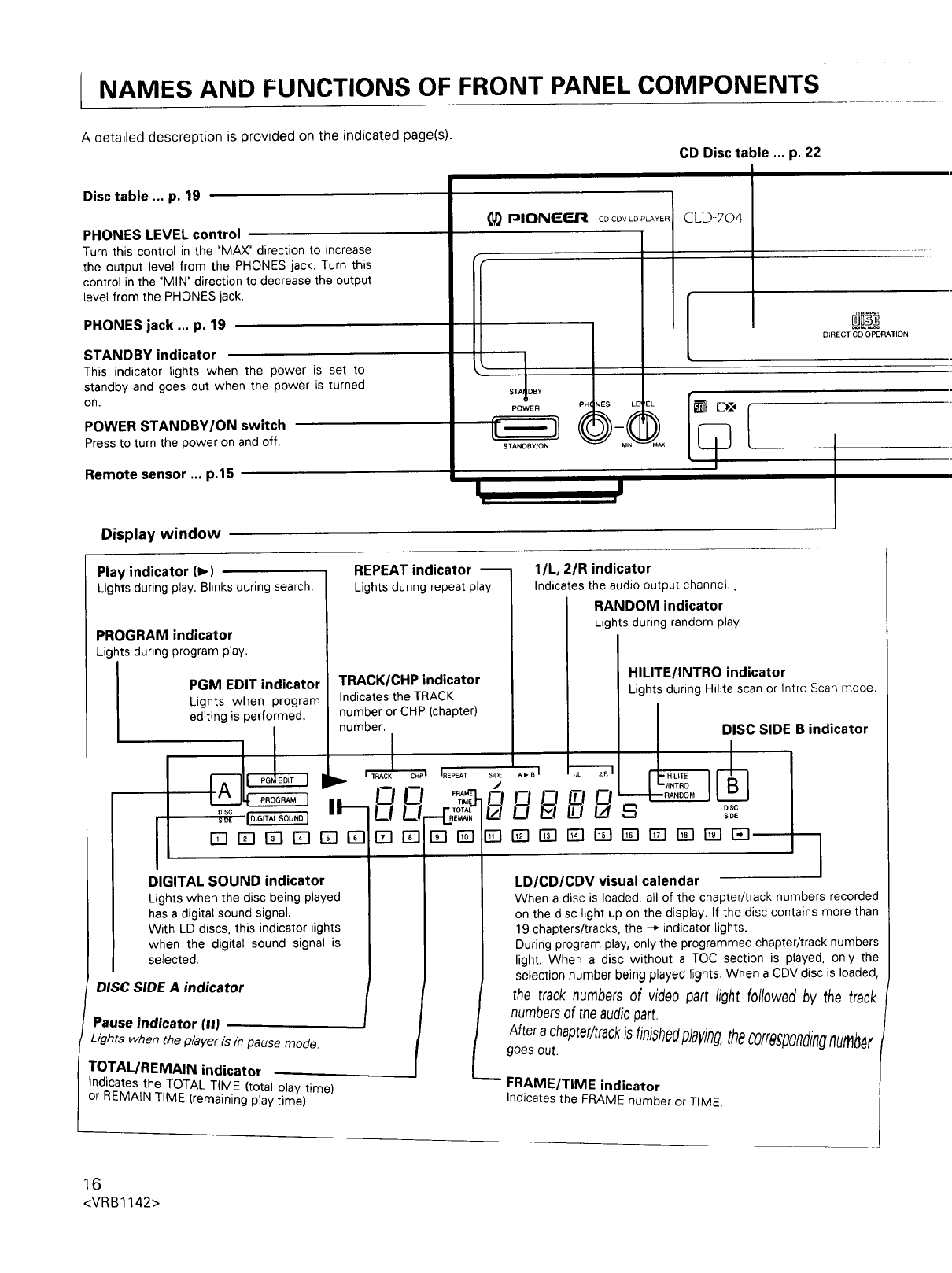
NAMES AND FUNCTIONS OF FRONT PANEL COMPONENTS
A detailed descreption is provided on the indicated page(s).
CD Disc table ... p. 22
Disc table ... p. 19
PHONES LEVEL control
Turn this control in the 'MAX" direction to increase
the output level from the PHONES jack, Turn this
control in the 'MIN" direction to decrease the output
level from the PHONES jack.
PHONES jack ... p. 19
STANDBY indicator
This indicator lights when the power is set to
standby and goes out when the power is turned
on.
POWER STANDBY/ON switch
Pressto turn the power on and off.
Remote sensor ... p.15
I_IPlONEF-.R CDC{.)vLDPLAYER
rF
STAIDBY
POWER
STANDBY/ON
PH NES LE'
CLD--704
DIRECT CO OPERATION
Display window
Play indicator (_-)
Lights during play.Blinks during search.
PROGRAM indicator
Lights during program play.
PGM EDIT indicator
Lights when program
editing is performed.
I
REPEAT indicator --
Lights during repeat play.
TRACK/CHP indicator
Indicates the TRACK
number or CHP (chapter)
number,
ITRACK
IP" _ c.P, _....
1"14 P.oG._I I 'oT;_
rT-iITI r;l rq ITIITII[] rTIFI IZEI
SiDE
/
O
Iz/
[]
l/L, 2/R indicator
Indicates the audio outpu[ channel.,
RANDOM indicator
Lights during random play.
HILITE/INTRO indicator
Lights during Hilite scan or Intro Scan mode.
._.._1 DISC SIDE B indicator
,A_BI --
"RANDOM ]
EEl rTI rTI EB EB ED ITq EB I=-I--.
DIGITAL SOUND indicator
Lights when the disc being played
has a digital sound signal.
With LD discs, this indicator lights
when the digital sound signal is
selected.
DISC SIDE A indicator
Pause indicator (11)
Lights when the player is rnpause mode.
TOTAL/REMAIN indicator
Indicates the TOTAL TIME (total play time)
or REMAIN TIME (remaining play time).
LD/CD/CDV visual calendar
When a disc is loaded, all of the chapter/track numbers recorded
on the disc light up on the display. If the disc contains more than
19 chapters/tracks, the --* indicator lights.
During program play, only the programmed chapter/track numbers
light. When a disc without a TOC section is played, only the
selection number being played lights. When a CDV disc is loaded,
the track numbers of video part light followed by the track
numbersof theaudiopart,
After a chapter/trackisfiniahe,dpJay/ng,thecofre_.poRdingnumber
goes out.
-- FRAME/TIME indicator
Indicates the FRAME number or TIME.
16
<VRB1142>
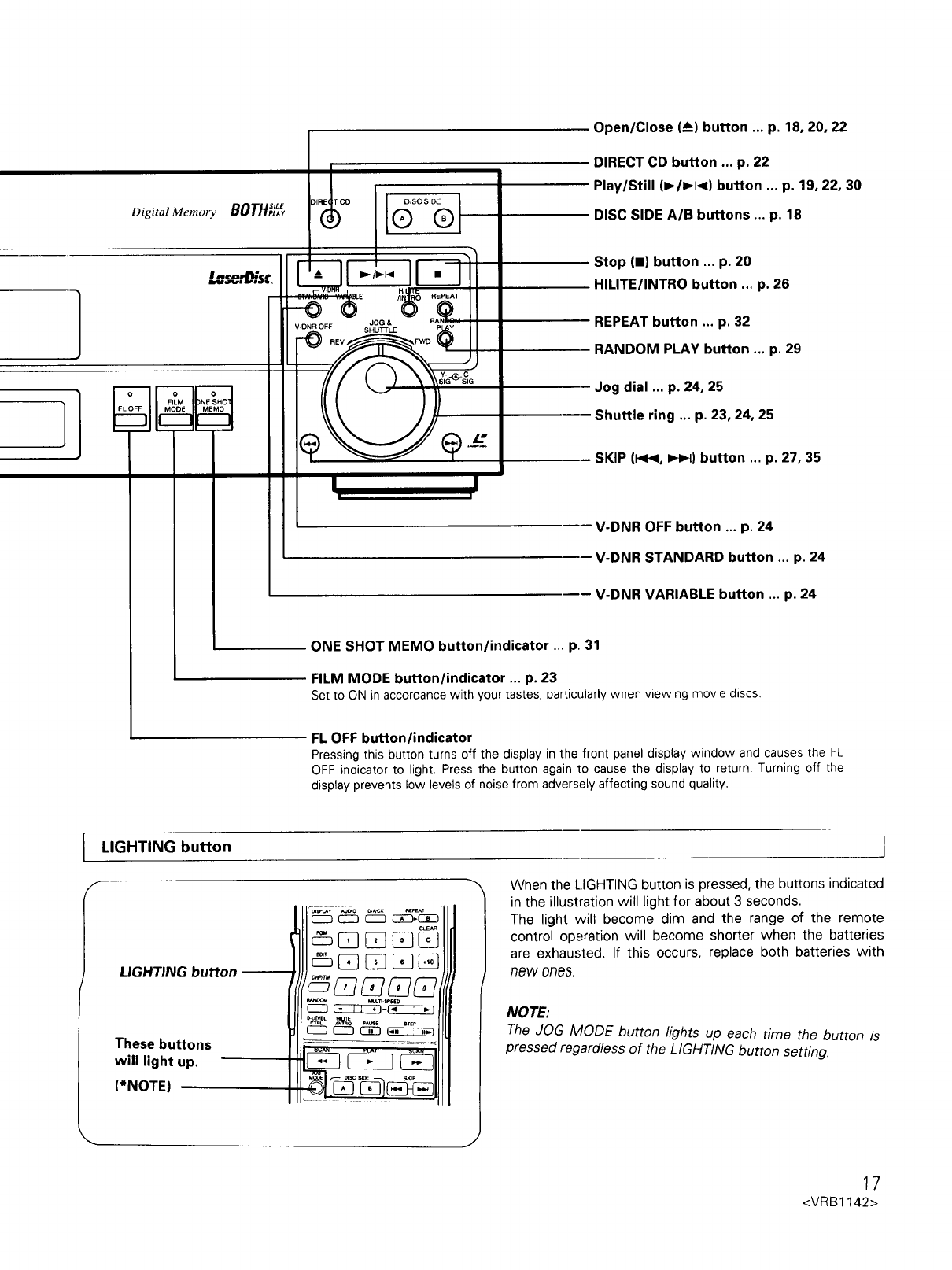
Digital Memoly SlOE
BOTH,_,,
I
:)IRE( T CO
®
5
o
FILM
MODfi
I
HI I • REPEAT
-T-T,';;2;-_VlJN'-H_L E /I RAN_
v-o..oFF s_°?_& p y
___ _,f_-_- _
Open/Close (_A)button ... p. 18, 20, 22
DIRECT CD button ... p. 22
Play/Still (1_/1_1<) button ... p. 19, 22, 30
DISC SIDE A/B buttons ... p. 18
Stop (11)button ... p. 20
HILITE/INTRO button ... p. 26
REPEAT button ... p. 32
RANDOM PLAY button ... p. 29
Jog dial ... p. 24, 25
Shuttle ring ... p. 23, 24, 25
SKIP (l<v<, _P4) button ... p. 27, 35
V-DNR OFF button ... p. 24
- V-DNR STANDARD button ... p. 24
V-DNR VARIABLE button ... p. 24
ONE SHOT MEMO button/indicator ... p. 3
FILM MODE button/indicator ... p. 23
Setto ON in accordancewith your tastes, particuh ,when viewing movie discs.
FL OFF button/:-'=: .....
Pressing this button turns off the display in the front panel display window and causes the FL
OFF indicator to light. Press the button again to cause the display to return. Turning off the
display prevents low levels of noise from adversely affecting sound quality.
LIGHTING button I
F"" When the LIGHTING button is pressed, the buttons indicated
_ _ C_:_'_l[/ in the illustration will light for about 3 seconds.
The light will become dim and the range of the remote
[] (_ [] _ _ control operation will become shorter when the batteries
LIGHTING _[]{_ [] []JlJJ are exhausted. If this occurs, replace both batteries with
bu.on ((((
_z_-"_::z_ till NOTE:
_J lIO'UEV_L_UTE
(_3 _ _3 _ The JOG MODE button lights up each time the button is
These buttons __-_ .......... pressed regardless of the LIGHTING button setting.
vv]ll light up. _ _L____J__JJJlJ
(*NOTE)
/
17
<VRB1142>
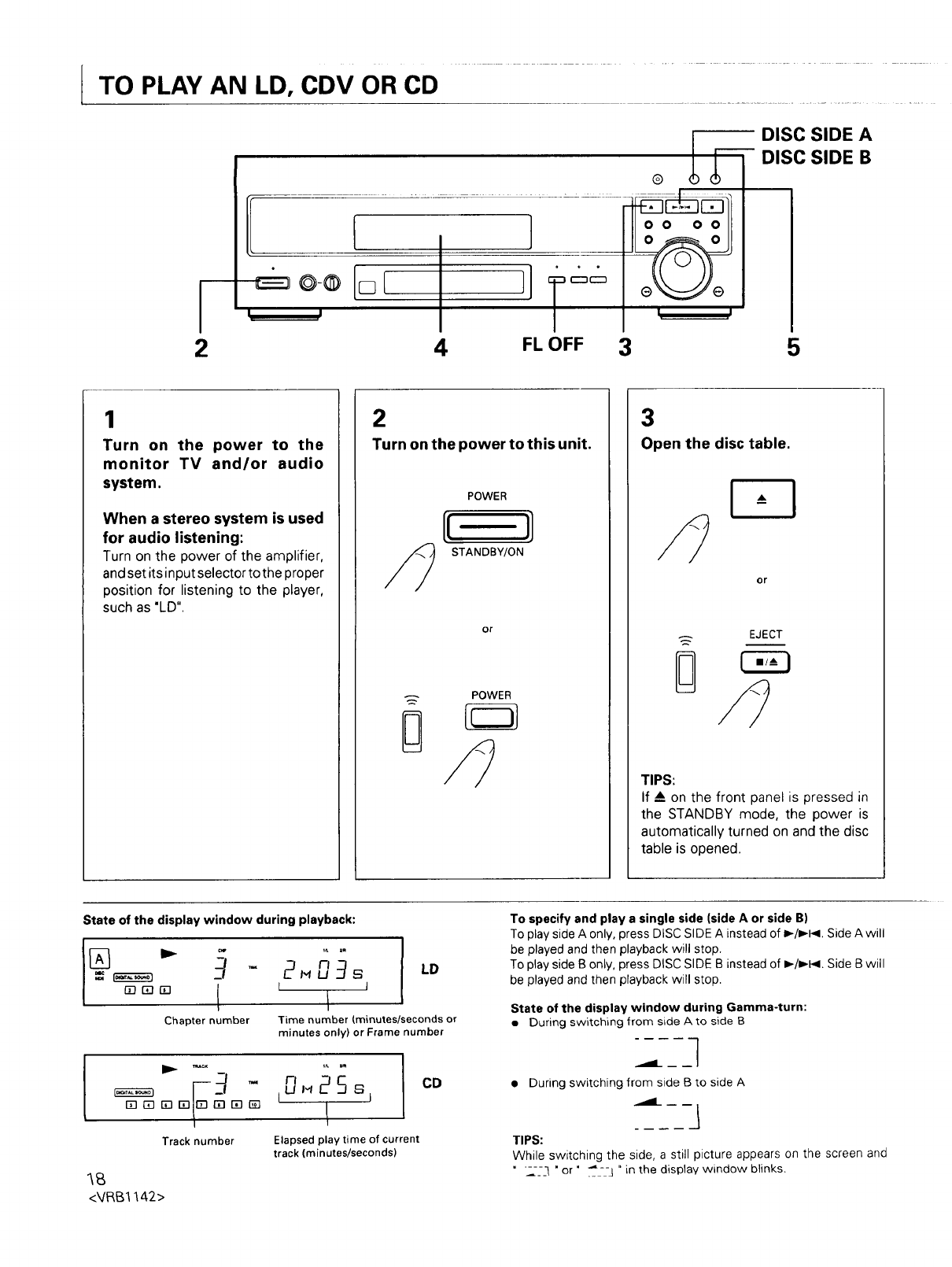
TO PLAY AN LD, CDV OR CD
I
2
l l
I, ,!
Z FL OFF 3
DISC SIDE A
-DISC SIDE B
5
1
Turn on the power to the
monitor TV and/or audio
system.
When a stereo system is used
for audio listening:
Turn on the power of the amplifier,
and set its input selector to the pro per
position for listening to the player,
such as "LD".
2
Turn on the power to this unit.
POWER
STANDBY/ON
or
POWER
D
3
Open the disc table.
or
EJECT
TIPS:
If & on the front panel is pressed in
the STANDBY mode, the power is
automatically turned on and the disc
table is opened.
State of the display window during playback:
ITI ITI iTI _¢-
Chapter number
21,_D9_LD
L J
Time number (minutes/seconds or
minutes only) or Frame number
- CD
Track number Elapsed play time of current
track (minutes/seconds)
<VRB1142>
To specify and play a single side (side A or side B)
To play side A only, press DISC SIDE A instead of D,-/_,-t.<.Side A will
be played and then playback will stop.
To play side B only, press DISC SIDE B instead of _-/_I<. Side B will
be played and then playback will stop.
State of the display window during Gamma-turn:
•During switching from side A to side B
• During switching from side B to side A
TIPS:
While switching the side, a still picture appears on the screen and
" :.-_-__" or " _--3 " in the display window blinks.
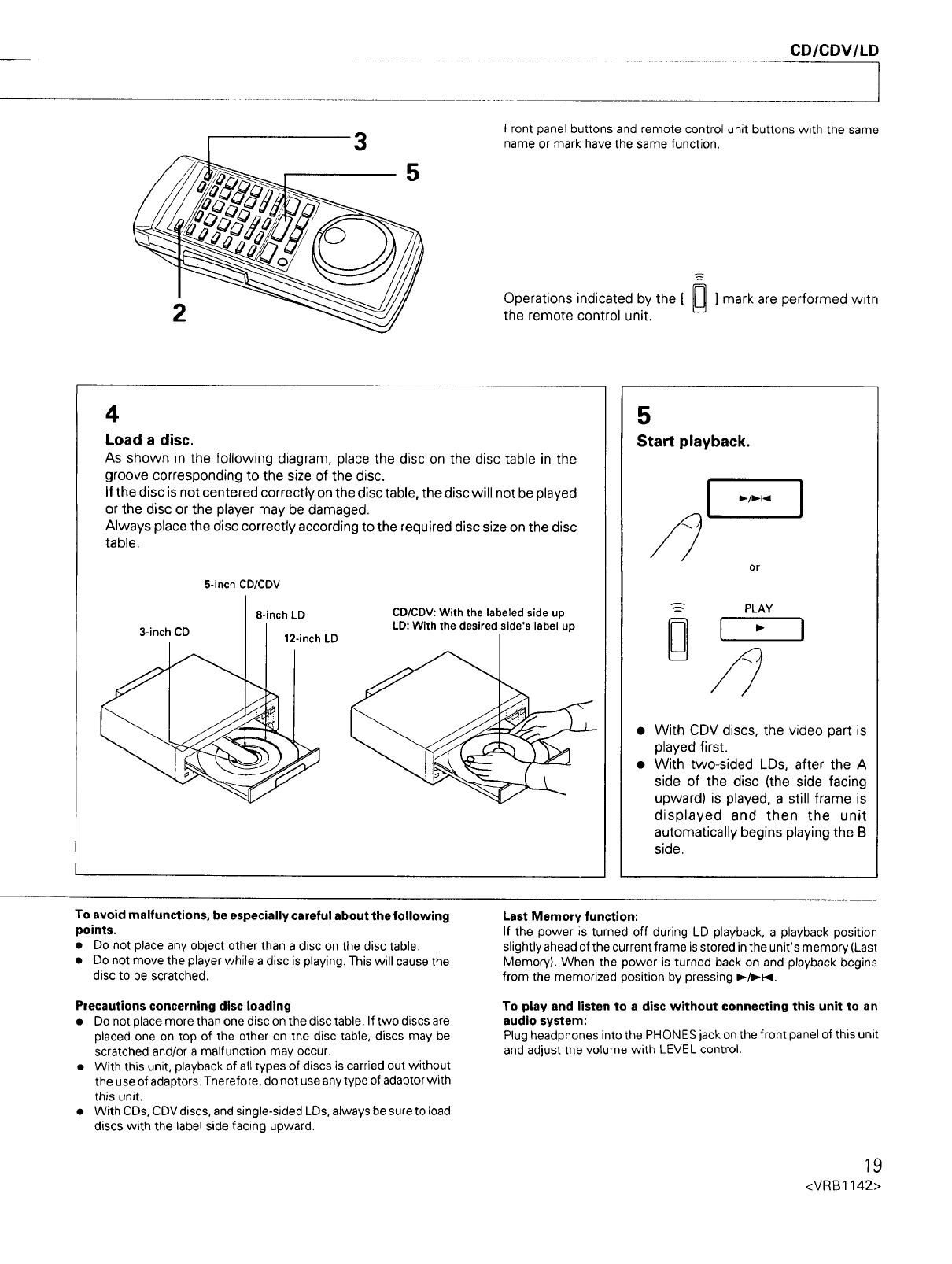
CDICDV/LD I
3Front panel buttons and remote control unit buttons with the same
name or mark have the same function.
Operations indicated by the [ _ ] mark are performed with
the remote control unit.
4
Load a disc.
As shown in the following diagram, place the disc on the disc table in the
groove corresponding to the size of the disc.
If the disc is not centered correctly on the disc table, the disc will not be played
or the disc or the player may be damaged.
Always place the disc correctly according to the required disc size on the disc
table.
3-inch CD
5-inch CD/CDV
8-inch LD
12-inch LD
CD/CDV: With the labeled side up
LD: With the desired side's label up
5
Start playback.
or
PLAY
• With CDV discs, the video part is
played first.
• With two-sided LDs, after the A
side of the disc (the side facing
upward) is played, a still frame is
displayed and then the unit
automatically begins playing the B
side.
To avoid malfunctions, be especially careful about the following
points.
•Do not place any object other than a disc on the disc table.
• Do not move the player while a disc is playing. This will cause the
disc to be scratched.
Precautions concerning disc loading
• Do not place more than one disc on the disc table. If two discs are
placed one on top of the other on the disc table, discs may be
scratched and/or a malfunction may occur.
• With this unit, playback of all types of discs is carried out without
the use of adaptors. Therefore, do not use any type of adaptor with
this unit.
• With CDs, CDV discs, and single-sided LDs, always be sure to load
discs with the label side facing upward.
Lest Memory function:
If the power is turned off during LD playback, a playback position
slightly ahead of the current frame is stored in the unit's memory (Last
Memory). When the power is turned back on and playback begins
from the memorized position by pressing _/=,-_<.
To play and listen to a disc without connecting this unit to an
audio system:
Plug headphones into the PHONES jack on the front panel of this unit
and adjust the volume with LEVEL control.
19
<VRB1142>
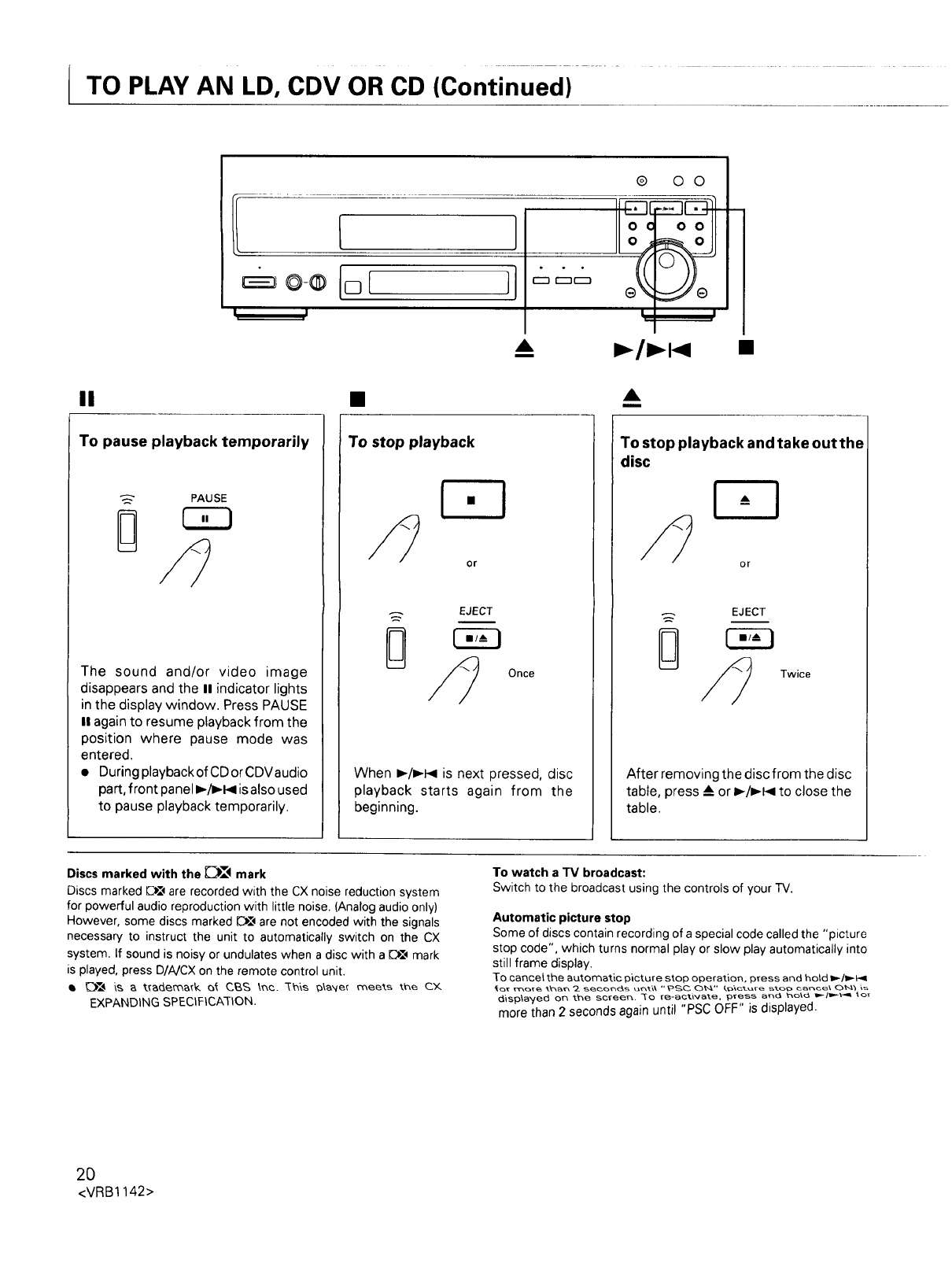
ITO PLAY AN LD, CDV OR CD (Continued) ..................
A
m
®0 0
! i
I_ rl_l_l
II A
m
To pause playback temporarily
PAUSE
B
The sound and/or video image
disappears and the II indicator lights
in the display window. Press PAUSE
II again to resume playback from the
position where pause mode was
entered,
•During playback of CD or CDVaudio
part, front panel./_l_ is also used
to pause playback temporarily,
To stop playback
I'1
Or
Once
When _/I,-I_ is next pressed, disc
playback starts again from the
beginning.
To stop playback and take out the
disc
or
EJECT
8Twice
After removing the disc from the disc
table, press & or I_/I_P< to close the
table.
Discs marked with the _l_-V<mark
Discs marked C_[qare recorded with the CX noise reduction system
for powerful audio reproduction with little noise. (Analog audio only)
However, some discs marked E)[_ are not encoded with the signals
necessary to instruct the unit to automatically switch on the CX
system. If sound is noisy or undulates when a disc with a IC_I, mark
is played, press D/A/CX on the remote control unit.
• _ _& _ t_et_. O_ C_ \_(3. _s _3\_N,er meets t_e CX
EXPANDING SPECtFICA-fION.
To watch a TV broadcast:
Switch to the broadcast using the controls of your "IV.
Automatic picture stop
Some of discs contain recording of a special code called the "picture
stop code", which turns normal play or slow play automatically into
still frame display.
To cancel the automatic picture stop operation, press and hold _,-/l,_P<
_isp\a_./ed on the screen,, ]0 [e-activate, p_ess a_ ho\_ _-/_-_q _o_
more than 2 seconds again until "PSC OFF" is displayed.
2O
<VRB1142>
LD/CDV/CD
II
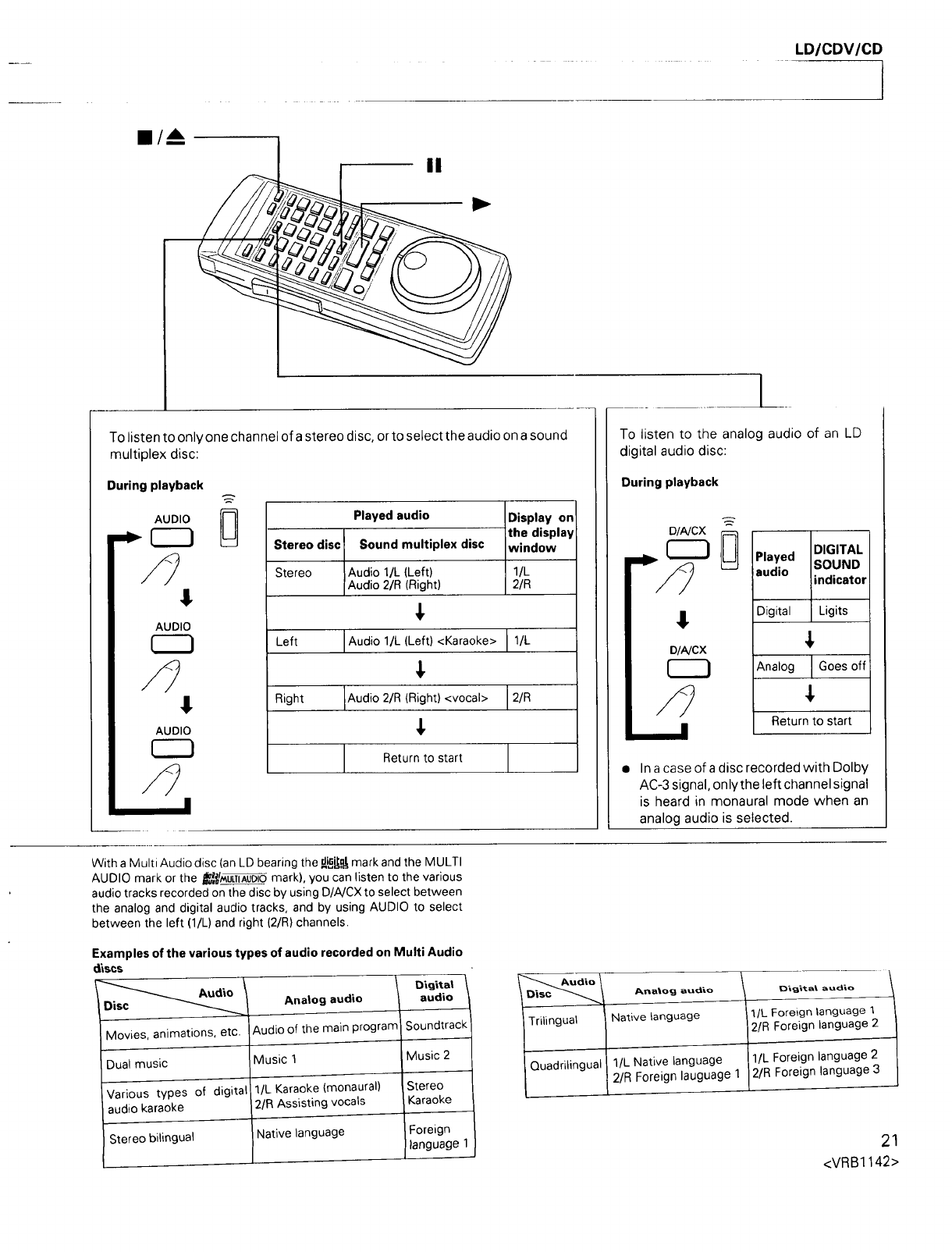
To listen to only one channel of a stereo disc, or to select the audio on a sound
multiplex disc:
During playback
D
AUDIO
!
AUDIO
Played audio Display on
the display
Stereo disc Sound multiplex disc window
Stereo Audio 1/L (Left) 1/L
Audio 2/R (Right) 2/R
Left Audio 1/L (Left) <Karaoke> 1/L
Right Audio 2/R (Right) <vocal> 2/R
Return to start
To listen to the analog audio of an LD
digital audio disc:
During playback
D/A/CX
D/A/CX
DIGITAL
Played SOUND
audio indicator
Digital Ligits
Analog IGoes off
Return to start
In a case of a disc recorded with Dolby
AC-3 signal, only the left channel signal
is heard in monaural mode when an
analog audio is selected.
With a Multi Audio disc (an LD bearing the d_it,uJ,mark and the MULTI
AUDIO mark or the j_m_l_ mark), you can listen to the various
audio tracks recorded on the disc by using D/A/CX to select between
the analog and digital audio tracks, and by using AUDIO to select
between the left (l/L) and right (2/R) channels.
Examples of the various types of audio recorded on Multi Audio
d_scs
Audio
Disc
Movies, animations, e_c.
Dual music
-Various types of digital
audio karaoke
Stereo bilingual
Analog audio
I Audio of the main program
Music 1
I/L Karaoke (monaural)
2/R Assisting vocals
Native language
D_g_tat
audio
Soundtrack
Music 2
Stereo
Karaoke
Foreign
language 1
"'"--.._Lldio \ audio /D_giXal audio
..o,oo
Trilingual _ Native language 2/R Foreign language 2
1/L Foreign language 2!
Quadrilingual I I/L Native language 11 2/R Foreign language 3
2/R Foreign lauguage
|i
21
<VRB1142>
PARTICULAR FUNCTIONS FOR CD- Direct CD
CD/CDV (Audio part) 1
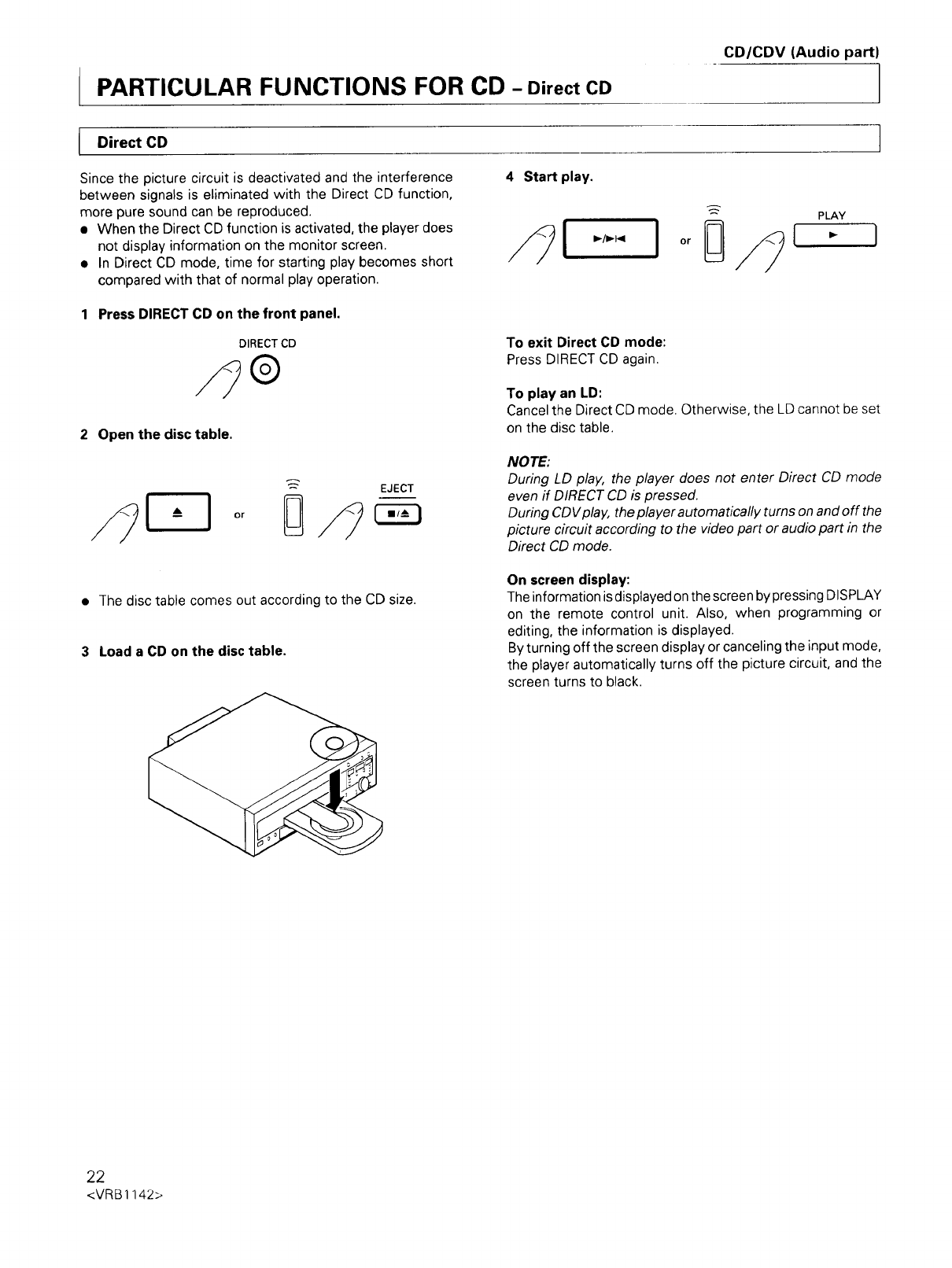
Direct CD
Since the picture circuit is deactivated and the interference
between signals is eliminated with the Direct CD function,
more pure sound can be reproduced.
•When the Direct CD function is activated, the player does
not display information on the monitor screen.
•In Direct CD mode, time for starting play becomes short
compared with that of normal play operation.
Start play.
IPLAY
--ior D l" I
Press DIRECT CD on the front panel.
DIRECT CD
®
2 Open the disc table.
EJECT
To exit Direct CD mode:
Press DIRECT CD again.
To play an LD:
Cancel the Direct CD mode. Otherwise, the LD cannot be set
on the disc table.
NOTE:
During LD play, the player does not enter Direct CD mode
even if DIRECT CD is pressed.
During CDV play, the player automatically turns on and off the
picture circuit according to the video part or audio part in the
Direct CD mode.
• The disc table comes out according to the CD size.
3 Load a CD on the disc table.
On screen display:
The information is displayed on the screen by pressing DISPLAY
on the remote control unit. Also, when programming or
editing, the information is displayed.
By turning off the screen display or canceling the input mode,
the player automatically turns off the picture circuit, and the
screen turns to black.
22
<VRB1142>
TO ADJUST THE SOUND VOLUME -DigitalLevel Control
LD/CDV/CD
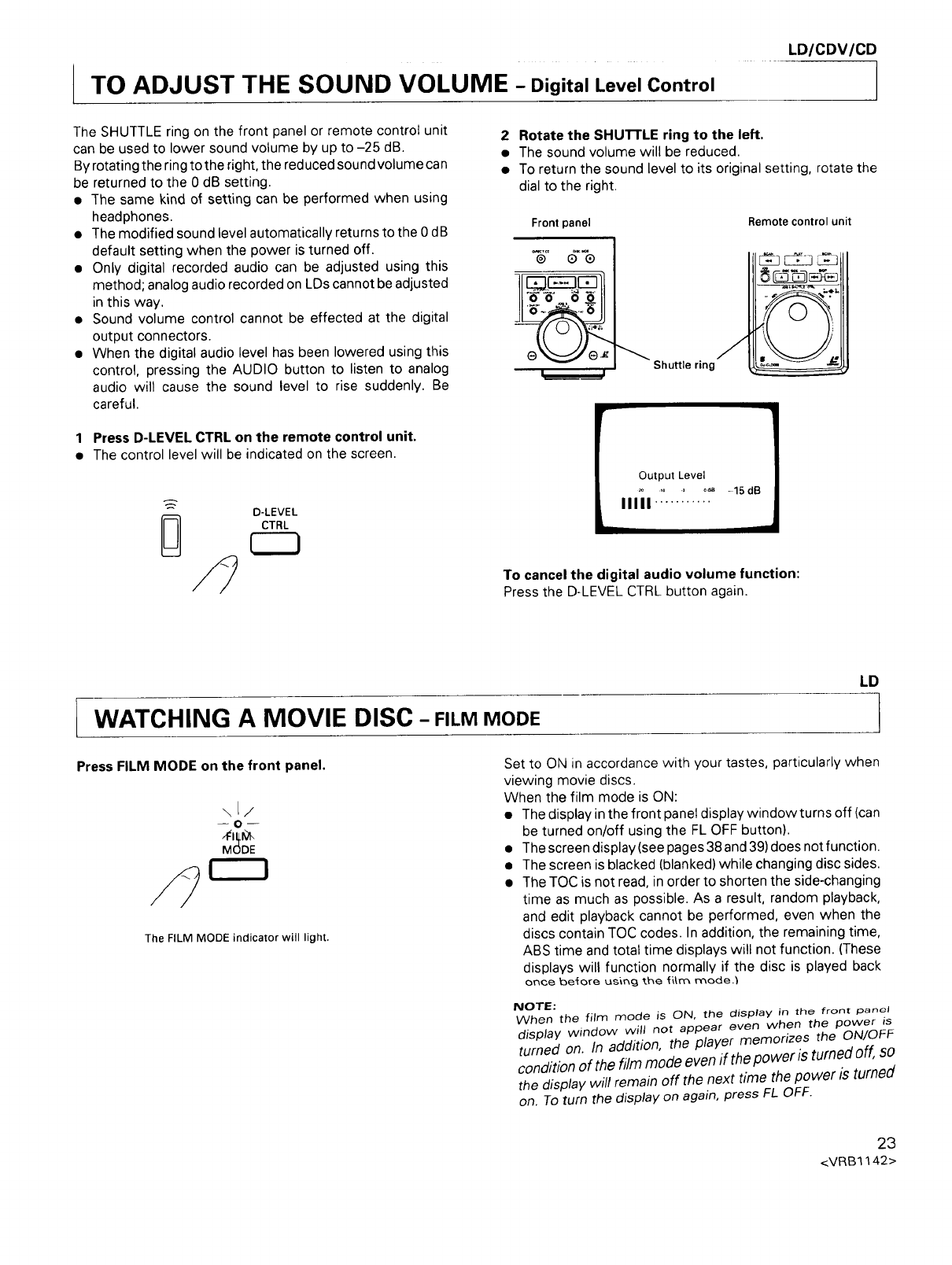
The SHUTTLE ring on the front panel or remote control unit
can be used to lower sound volume by up to -25 dB.
By rotating the ring to the right, the reduced sound volume can
be returned to the 0 dB setting.
•The same kind of setting can be performed when using
headphones.
• The modified sound level automatically returns to the 0 dB
default setting when the power is turned off.
• Only digital recorded audio can be adjusted using this
method; analog audio recorded on LDs cannot be adjusted
in this way.
• Sound volume control cannot be effected at the digital
output connectors.
• When the digital audio level has been lowered using this
control, pressing the AUDIO button to listen to analog
audio will cause the sound level to rise suddenly. Be
careful.
1Press D-LEVEL CTRL on the remote control unit.
• The control level will be indicated on the screen.
D-LEVEL
[_ CTRL
2 Rotate the SHUTrLE ring to the left.
• The sound volume will be reduced.
• To return the sound level to its original setting, rotate the
dial to the right.
Front panel Remote control unit
Q QQ
®_ e J
IL ,I Shuttle ring
[Output Level
I I II I' "0".............. 15de
To cancel the digital audio volume function:
Press the D-LEVEL CTRL button again.
LD
WATCHING A MOVIE DISC- FILMMODE
Press FILM MODE on the front panel.
\L/
o
MODE
The FILM MODE indicator will light.
Set to ON in accordance with your tastes, particularly when
viewing movie discs.
When the film mode is ON:
• The display in the front panel display window turns off (can
be turned on/off using the FL OFF button).
• The screen display (see pages 38 and 39) does not function.
• The screen is blacked (blanked) while changing disc sides.
• The TOC is not read, in order to shorten the side-changing
time as much as possible. As a result, random playback,
and edit playback cannot be performed, even when the
discs contain TOC codes. In addition, the remaining time,
ABS time and total time displays will not function. (These
displays will function normally if the disc is played back
once before us_r_g the f_m mode.)
NOTE:
When the film mode is ON, the display in the front panel
display window will not appear even when the power is
turned on. In addition, the player memorizes the ON/OFF
condition of the film mode even if the power is turned off, so
the display will remain off the next time the power is turned
on. To turn the display on again, press FL OFF.
23
<VRB1142>
TO ADJUST THE PICTURE QUALITY (V-DNR) I
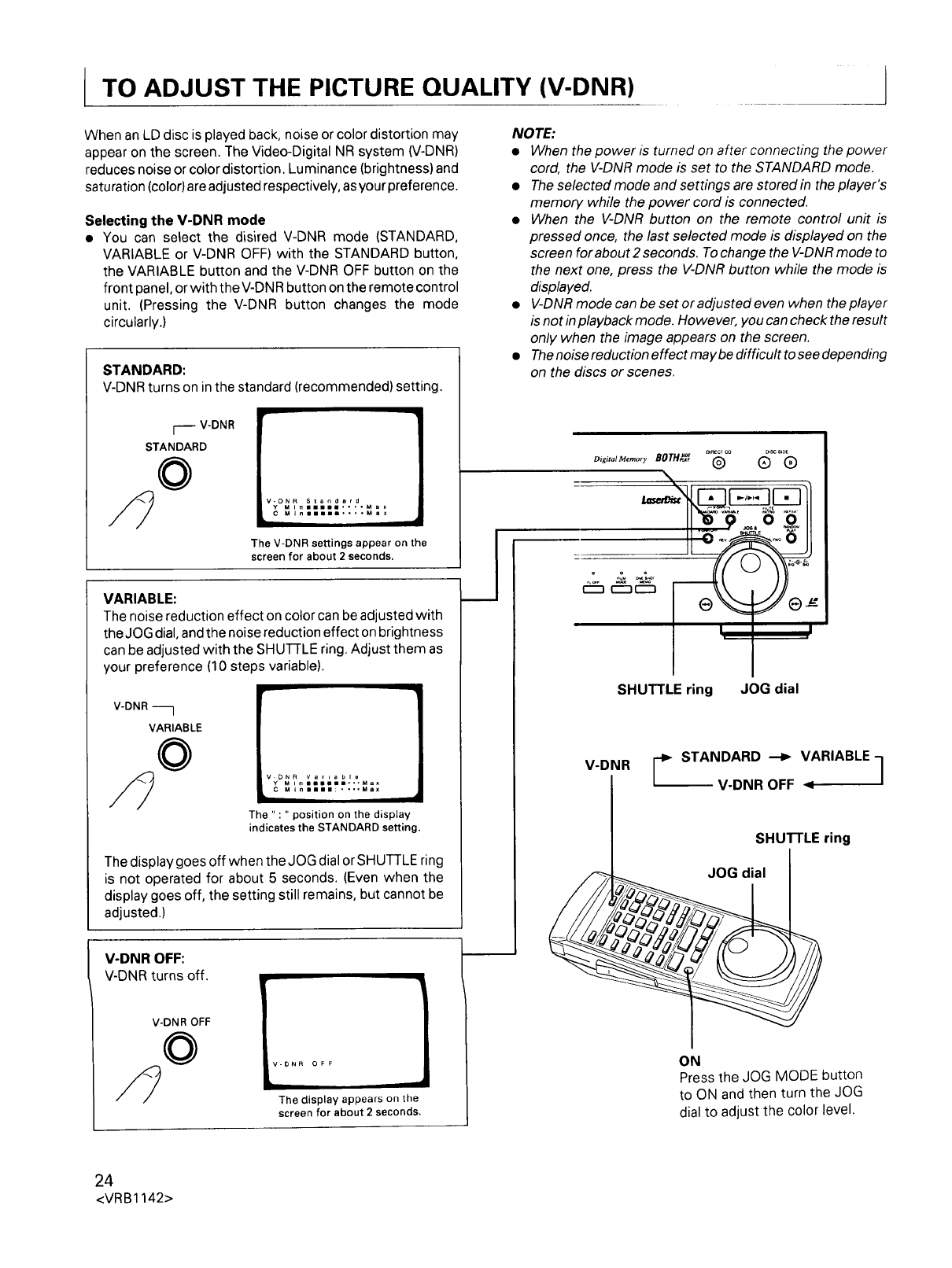
When an LD disc is played back, noise or color distortion may
appear on the screen. The Video-Digital NR system (V-DNR)
reduces noise or color distortion. Luminance (brightness) and
saturation (color) are adjusted respectively, as your preference.
Selecting the V-DNR mode
•You can select the disired V-DNR mode (STANDARD,
VARIABLE or V-DNR OFF) with the STANDARD button,
the VARIABLE button and the V-DNR OFF button on the
front panel, or with the V-DNR button on the remote control
unit. (Pressing the V-DNR button changes the mode
circularly.)
STANDARD:
V-DNR turns on in the standard (recommended) setting.
i'm V-DNR
STANDARD
©
The V-DNR settings appear on the
screen for about 2seconds.
VARIABLE:
The noise reduction effect on color can be adjusted with
the JQG dial, and the noise reduction effect on brightness
can be adjusted with the SHUI-ILE ring. Adjust them as
your preference (10 ste )s variable).
V-DNR
VARIABLE
©VONR Va_ ba ble
Y M i n nlllllllli-,.Max
C MtnBmmm: .... Max
The ":"position on the display
indicates the STANDARD setting.
The display goes off when the JOG dial or SHUTTLE ring
is not operated for about 5 seconds. (Even when the
display goes off, the setting still remains, but cannot be
adjusted.)
V-DNR OFF:
V-DNR turns off.
V-DNR OFF
©V-DNR OFF
The display appears on the
screen for about 2 seconds.
J
NOTE:
•When the power is turned on after connecting the power
cord, the V-DNR mode is set to the STANDARD mode.
•The selected mode and settings are stored in the player's
memory while the power cord is connected.
•When the V-DNR button on the remote control unit is
pressed once, the last selected mode is displayed on the
screen for about 2 seconds. To change the V-DNR mode to
the next one, press the V-DNR button while the mode is
displayed.
•V-DNR mode can be set oradjusted even when the player
is not inplayback mode. However, you can check the result
only when the image appears on the screen.
• The noise reduction effect maybe difficult to see depending
on the discs or scenes.
_Ecr _ D_sc_DE
oigi,,,m..,o.yeom_ @ Q Q
.... _
SHUTTLE ring JOG dial
V-DNR rSTANDARD--_ VARIABLE1
V-DNR OFF <
SHU'n-LE ring
JOG dial
ON
Press the JOG MODE button
to ON and then turn the JOG
dial to adjust the color level.
24
<VRB1142>
TO SEARCH FOR A PARTICULAR PASSAGE
LIJICDV I_,LD
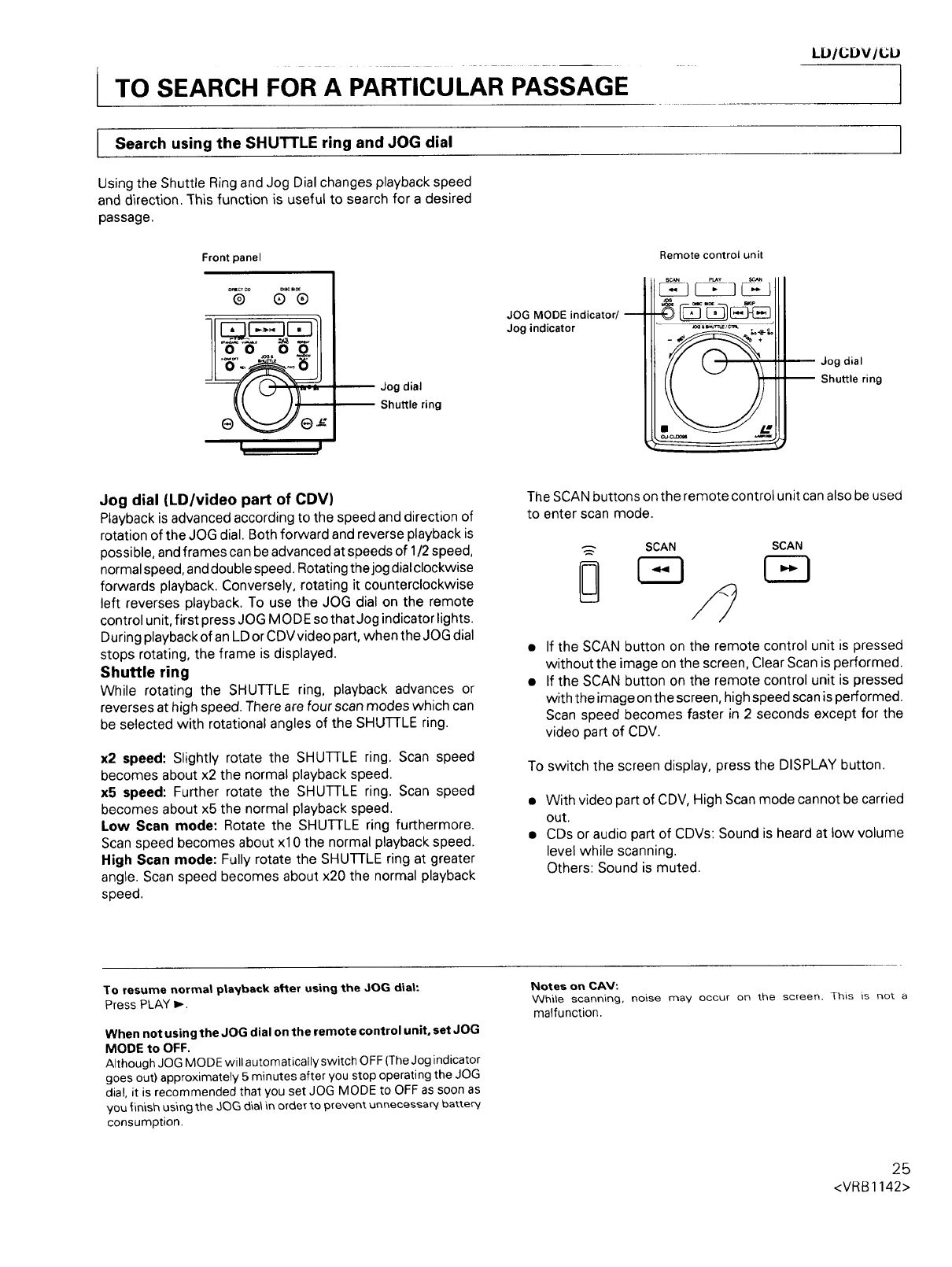
JSearch the SHUTTLE and JOG dial
using ring
Using the Shuttle Ring and Jog Dial changes playback speed
and direction. This function is useful to search for a desired
passage.
Front panel
®® ®
]:Jl/
Io o oo/|
I, .I
Jog dial
Shuttle ring
JOG MODE indicator/ m
Jog indicator
Remote control unit
SCAN PUW -C J
Jog dial
Shuttle ring
l
Jog dial (LD/video part of CDV)
Playback is advanced according to the speed and direction of
rotation of the JOG dial. Both forward and reverse playback is
possible, and frames can be advanced at speeds of 1/2 speed,
normal speed, and double speed. Rotating the jog dial clockwise
forwards playback. Conversely, rotating it counterclockwise
left reverses playback. To use the JOG dial on the remote
control unit, first press JOG MODE so that Jog indicator lights.
During playback of an LD or CDVvideo part, when the JOG dial
stops rotating, the frame is displayed.
Shuttle ring
While rotating the SHUTTLE ring, playback advances or
reverses at high speed. There are four scan modes which can
be selected with rotational angles of the SHUTTLE ring.
x2 speed: Slightly rotate the SHUTTLE ring. Scan speed
becomes about x2 the normal playback speed.
x5 speed: Further rotate the SHUTTLE ring. Scan speed
becomes about x5 the normal playback speed.
Low Scan mode: Rotate the SHUTTLE ring furthermore.
Scan speed becomes about xl 0 the normal playback speed.
High Scan mode: Fully rotate the SHUTTLE ring at greater
angle. Scan speed becomes about x20 the normal playback
speed.
The SCAN buttons on the remote control unit can also be used
to enter scan mode.
SCAN SCAN
If the SCAN button on the remote control unit is pressed
without the image on the screen, Clear Scan is performed.
If the SCAN button on the remote control unit is pressed
with the image on the screen, high speed scan is performed.
Scan speed becomes faster in 2 seconds except for the
video part of CDV.
To switch the screen display, press the DISPLAY button.
• With video part of CDV, High Scan mode cannot be carried
out.
• CDs or audio part of CDVs: Sound is heard at low volume
level while scanning.
Others: Sound is muted.
To resume normal p|a_/back after using the JOG diat:
Press PLAY i-.
When not using the JOG dial on the remote control unit, set JOG
MODE to OFF.
Although JOG MODE will automatically switch OFF (The Jog indicator
goes out) approximately 5 minutes after you stop operating the JOG
dial, it is recommended that you set JOG MODE to OFF as soon as
you finish using the JOG dia_in order to prevent unnecessary battery
consumption.
Notes on CAV:
While scanning, noise may occur on the screen. This is not_ a
malfunction.
25
<VRB1142>
TO SEARCH FOR A PARTICULAR CHAPTER/TRACK
Hi-Lite Scan/Intro Scan
LD/CDV/CD
I Hi-Lite Scan/Intro Scan
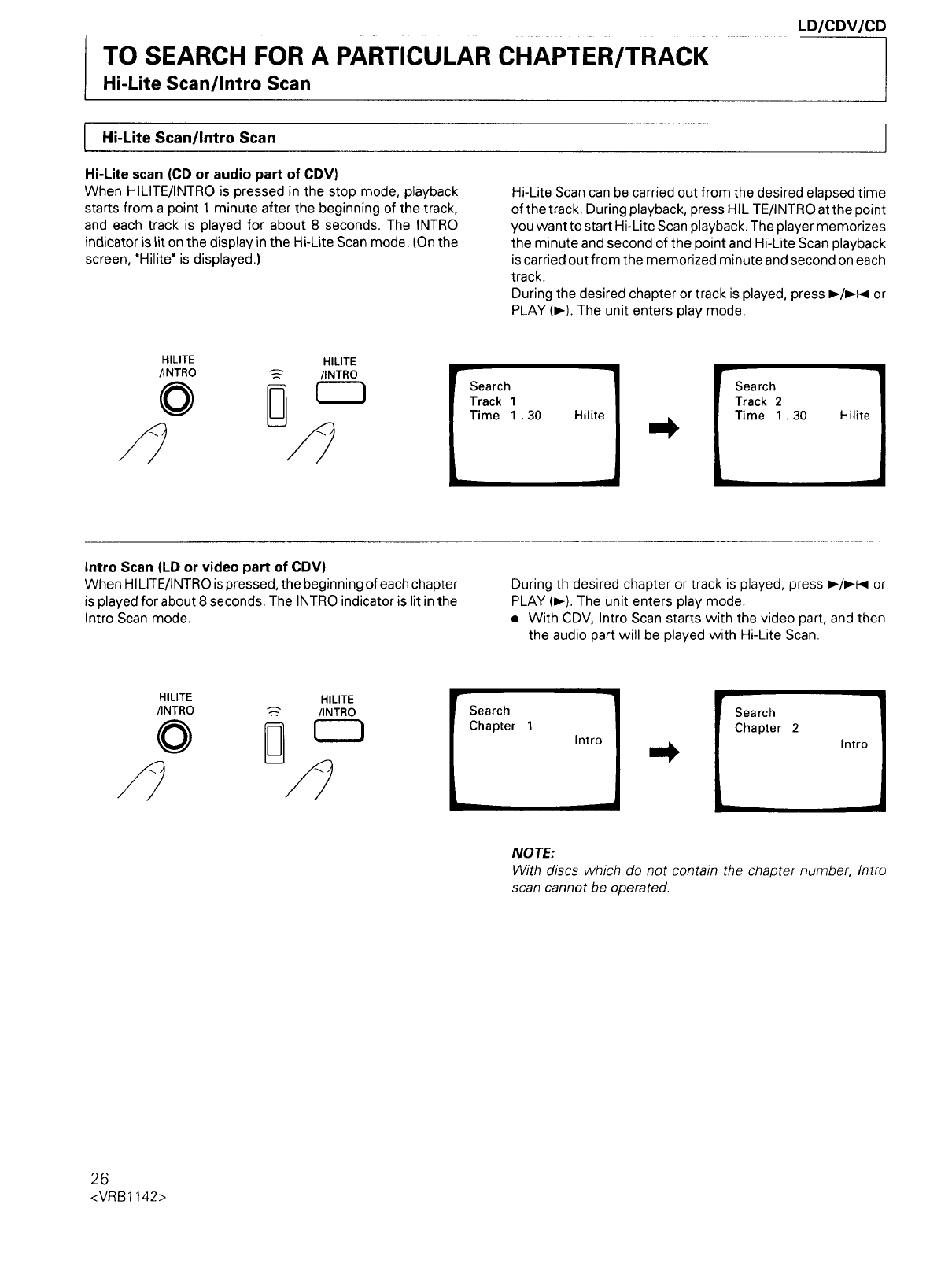
Hi-Lite scan (CD or audio part of CDV)
When HILITE/INTRO is pressed in the stop mode, playback
starts from a point 1 minute after the beginning of the track,
and each track is played for about 8 seconds. The INTRO
indicator is Siton the display in the Hi-Lite Scan mode. (On the
screen, "Hilite" is displayed.)
Hi-Lite Scan can be carried out from the desired elapsed time
of the track. During playback, press HILITE/INTRO at the point
you want to start Hi-Lite Scan playback. The player memorizes
the minute and second of the point and Hi-Lite Scan playback
iscarried out from the memorized minute and second on each
track.
During the desired chapter or track is played, press m,-/P-I_or
PLAY (m,-).The unit enters play mode.
HILITE HILITE
/INTRO _/INTRO
o D [Search
Track 2
Time 1.30 Hilite
L
Intro Scan (LD or video part of CDV)
When HILITE/INTRO ispressed, the beginning of each chapter
is played for about 8 seconds. The INTRO indicator is lit in the
Intro Scan mode.
During th desired chapter or track is played, press I_/1_1< or
PLAY (m,-).The unit enters play mode.
•With CDV, Intro Scan starts with the video part, and then
the audio part will be played with Hi-Lite Scan.
HILITE HILITE
/INTRO _/INTRO
oSearch
Chapter 1
Intro
NOTE:
With discs which do not contain the chapzer number, tntro
scan cannot be operated.
26
<VRB1142>
ITO SEARCH FOR A PARTICULAR CHAPTER/TRACK
Chapter (Track) Search/Chapter (Track) Skip
LD/CDV/CD
The term "chapter" refers to each section on an LD, and the
term "track" refers to each section on a CD or CDV disc.
If chapter or track numbers are encoded on a disc, it is so
indicated on the disc jacket.
• Chapter Search is not possible with discs which are not
divided into chapters.
Chapter (Track) Search -To search by designating the chapter]track number I
Example:
To play from the beginning of Chapter/Track 3:
<Direct Search>
Enter 3 with the digit button.
To search for chapter or track number 10 or above:
Use _ button.
(Example) To enter 17: _, []
To enter 30: I-+'_, _-_, F+_, []
If you make a mistake in pressing the digit buttons during
normal search operation:
Press CLEAR, and then press the correct button.
<Normal Search>
[_ CHPFM
When the display
shows Frame No.
or Time No. press
this button again.
Enter 3 with the
digit button.
PLAY
- I
To identify the present chapter number and frame (or
time} number:
The numbers are displayed in the front panel display window.
The information can also be displayed on the monitor TV
screen by pressing DISPLAY on the remote control unit.
Notes on LDs:
If PLA YI_ on the remote control unit is pressed, the beginning
of the designated chapter is played with still frame.
If, /pl< on the front panel is pressed, Normal playback starts
from the beginning of the designated chapter.
Chapter (Track) Skip -To search for the beginning of a chapter/track 1
During playback:
Press once to return the playback position to
the beginning of the chapter/track being played.
If the button is pressed more than once before
the picture reappears, the beginning of a
chapter/track located before the chapter/track
being played is searched for and played. The
position of the located track corresponds to
the number of times the button is pressed.
If this button is pressed once or a number of
times, playback is advanced to the beginning
of a chapter/track located after the chapter/
track being played. -[he position of the located
track corresponds to the number of times the
button is pressed.
27
<VRB1142>
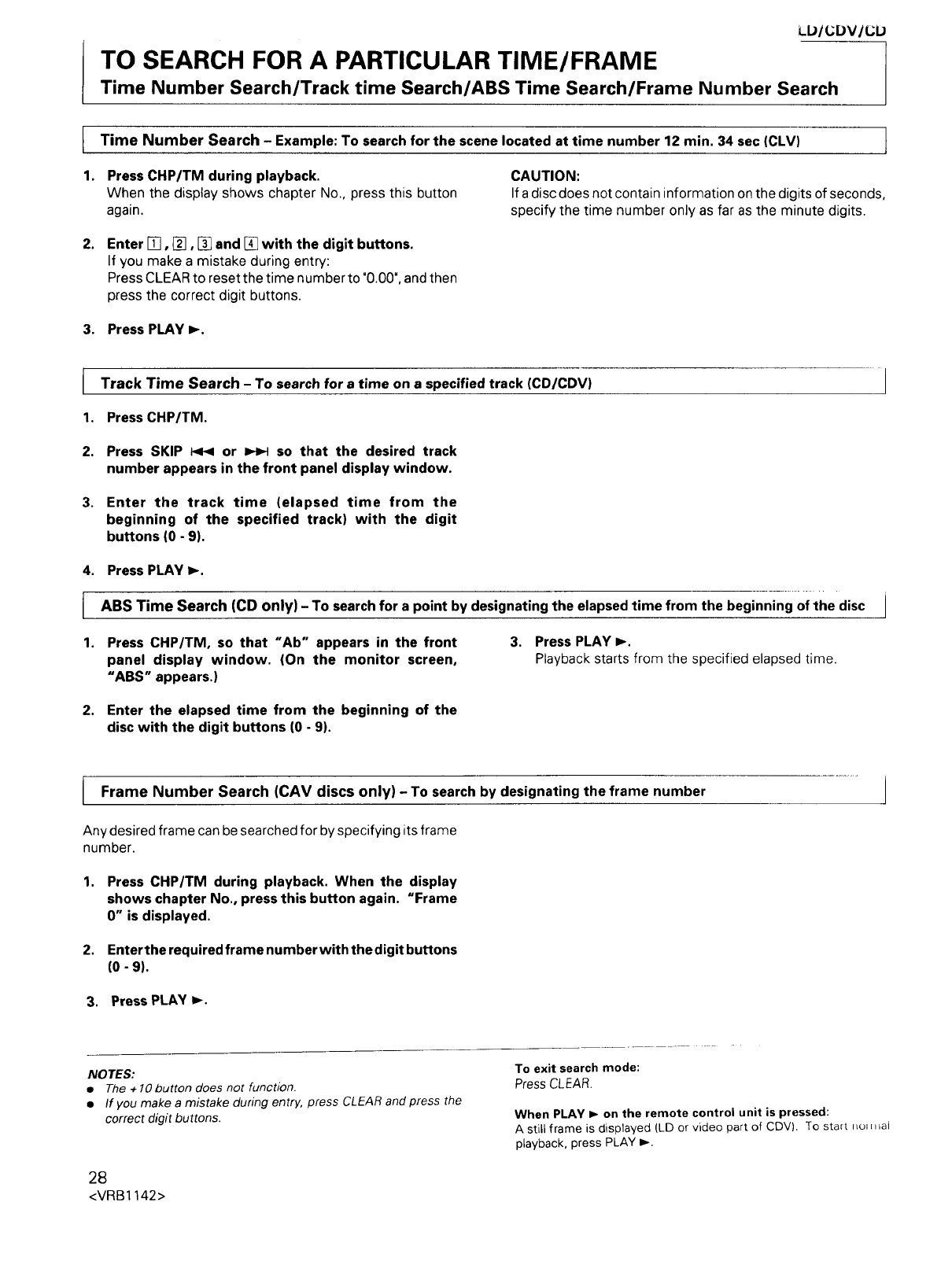
1
1.
20
LL,IIL;DV/L;IJ
TO SEARCH FOR A PARTICULAR TIME/FRAME
Time Number Search/Track time Search/ABS Time Search/Frame Number Search
Time Number Search -Example: To search for the scene located at time number 12 min. 34 sec (CLV) 1
Press CHP/TM during playback.
When the display shows chapter No., press this button
again.
CAUTION:
If a disc does not contain information on the digits of seconds,
specify the time number only as far as the minute digits.
Enter [], _], [] and [] with the digit buttons.
If you make a mistake during entry:
Press CLEAR to reset the time number to "0.00", and then
press the correct digit buttons.
3. Press PLAY_-.
I
1.
2.
3,
4.
I
1.
2o
Track Time Search -To search for a time on a specified track (CD/CDV)
Press CHP/TM.
Press SKIP _or _so that the desired track
number appears in the front panel display window.
Enter the track time (elapsed time from the
beginning of the specified track) with the digit
buttons (0 -9).
Press PLAY I_.
ABS Time Search (CD only) -To search for a point by designating the elapsed time from the beginning of the disc
Press CHP/TM, so that "Ab" appears in the front
panel display window. (On the monitor screen,
"ABS" appears.)
3. Press PLAY _,-.
Playback starts from the specified elapsed time.
Enter the elapsed time from the beginning of the
disc with the digit buttons (0 -9).
IFrame Number Search (CAV discs only) - To search by designating the frame number
Any desired frame can be searched for by specifying its frame
number.
1. Press CHP/TM during playback. When the display
shows chapter No., press this button again. "Frame
0" is displayed.
2. Enter the required frame numberwith thedigit buttons
(0 - 9).
3. Press PLAY _.
NOTES:
•The + 10 button does not function.
•If you make a mistake during entry, press CLEAR and press the
correct digit buttons.
28
<VRB1142>
To exit search mode:
Press CLEAB.
When PLAY I,- on the remote control unit is pressed:
A still frame is displayed (LD or video part of CDV). To start no_n _al
playback, press PLAY _.
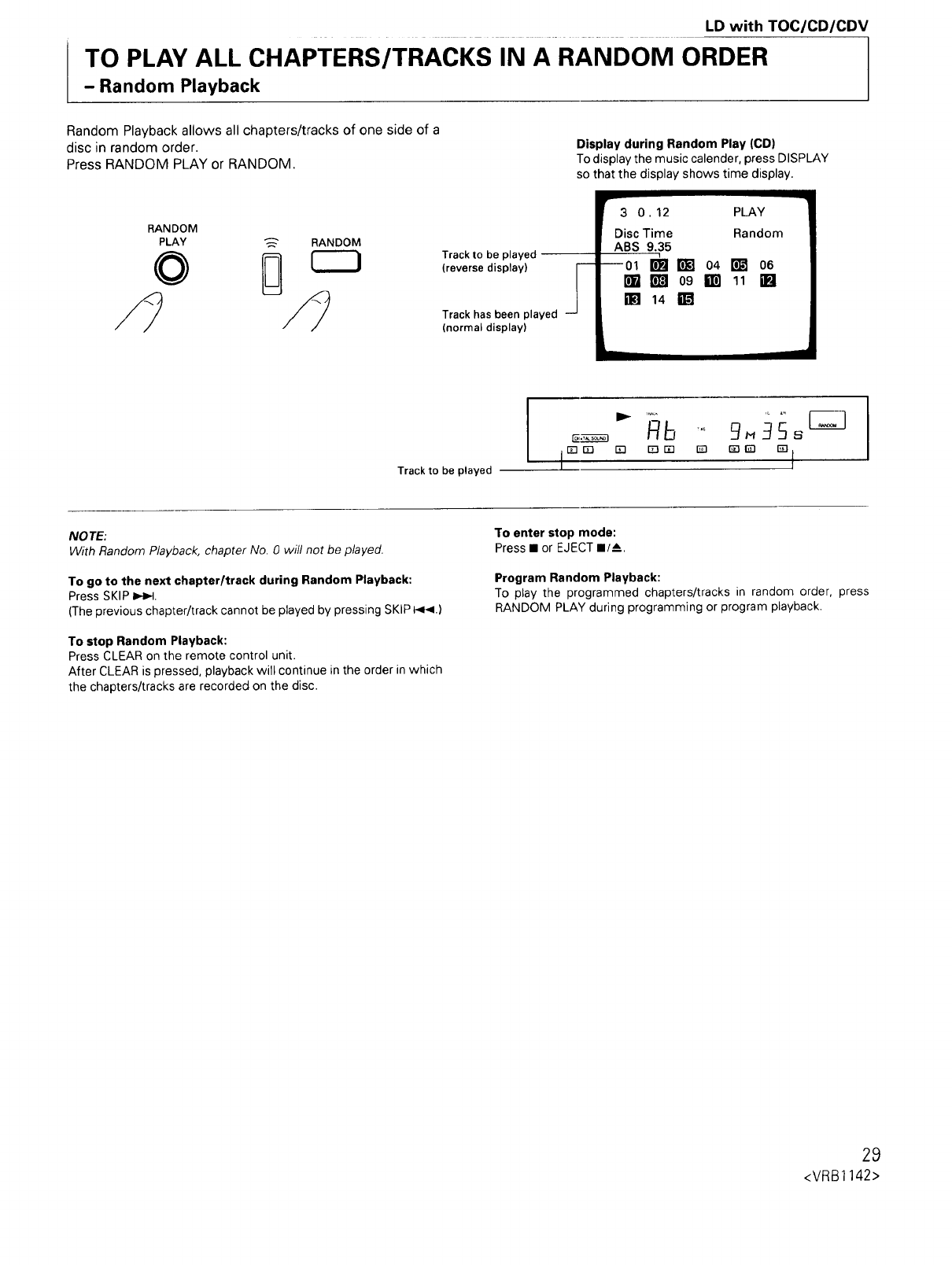
LD with TOC/CD/CDV
TO PLAY ALL CHAPTERS/TRACKS IN A RANDOM ORDER
- Random Playback
Random Playback allows all chapters/tracks of one side of a
disc in random order.
Press RANDOM PLAY or RANDOM.
RANDOM
PLAY _ RANDOM
Display during Random Play (CD)
To display the music calender, press DISPLAY
so that the display shows time display.
Track to be played
(reverse display)
Track has been played
(normal display)
r
3 0. 12 PLAY
Disc Time Random
ABS 9.35
09 ilm 11 []
_14g
Track to be played
NOTE:
With Random Playback, chapter No. 0 will not be played.
To go to the next chapter/track during Random Playback:
Press SKIP I_,_1.
(The previous chapter/track cannot be played by pressing SKIP _.)
To stop Random Playback:
Press CLEAR on the remote control unit.
After CLEAR is pressed, playback will continue inthe order in which
the chapters/tracks are recorded on the disc.
To enter stop mode:
Press •or EJECT •/!,
Program Random Playback:
To play the programmed chapters/tracks in random order, press
RANDOM PLAY during programming or program playback.
29
<VRB1142>
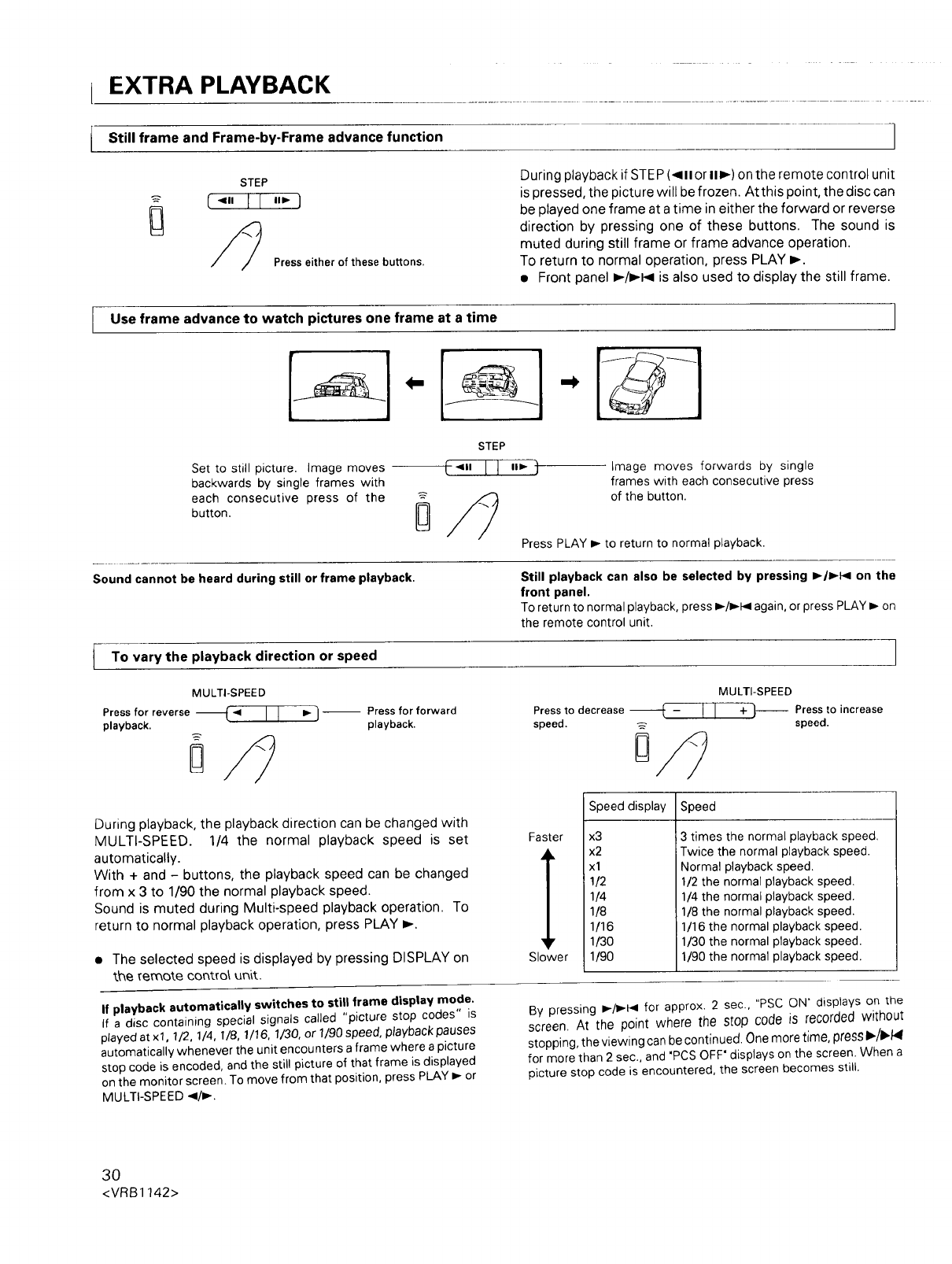
EXTRA PLAYBACK
IStill frame and Frame-by-Frame advance function ]
Press either of these buttons.
During playback if STEP (_111or II1_) on the remote control unit
is pressed, the picture will be frozen. At this point, the disc can
be played one frame at a time in either the forward or reverse
direction by pressing one of these buttons. The sound is
muted during still frame or frame advance operation.
To return to normal operation, press PLAY p,-.
•Front panel I_/1_1< is also used to display the still frame.
Use frame advance to watch pictures one frame at a time
Set to still picture. Image moves
backwards by single frames with
each consecutive press of the
button. 0
Image moves forwards by single
frames with each consecutive press
of the button.
Press PLAY p,-to return to normal playback.
Sound cannot be heard during still or frame playback. Still playback can also be selected by pressing _/_,-I_ on the
front panel.
To return to normal playback, press p,-/_l again, or press PLAY P-on
the remote control unit.
To the direction speed
playbackvary or
MULTI-SPEED MULTI-SPEED
--f- II +1--
Press for reverse --'_ <I I ,, }-- Press for forward
playback, playback.
D
Press to decrease Press to increase
speed, speed.
0
During playback, the playback direction can be changed with
MULTI-SPEED. 1/4 the normal playback speed is set
automatically.
With + and - buttons, the playback speed can be changed
from x 3 to 1/90 the normal playback speed.
Sound is muted during Multi-speed playback operation. To
return to normal playback operation, press PLAY _,-.
• The selected speed is displayed by pressing DISPLAY on
the _emote contro_ unit.
If playback automatically switches to still frame display mode.
If a disc containing special signals called "picture stop codes" is
played at xl, 1/2, 1/4, 1/8, 1/16, 1/30, or 1/90 speed, playback pauses
automatically whenever the unit encounters aframe where a picture
stop code is encoded, and the still picture of that frame is displayed
on the monitor screen. To move from that position, press PLAY _or
MULTI-SPEED 4/_.
Faster
Slower
Speed display Speed
x3
x2
xl
1/2
1/4
1/8
1/16
1/30
1/90
3 times the normal playback speed.
Twice the normal playback speed.
Normal playback speed.
1/2 the normal playback speed.
1/4 the normal playback speed.
1/8 the normal playback speed.
1/16 the normal playback speed.
1/30 the normal playback speed.
1/90 the normal playback speed.
By pressing p-/Ip_l for approx. 2 sec., "PSC ON" displays on the
screen. At the point where the stop code is recorded without
stopping, the viewing can be continued. One more time, press 1_/1_/41
for more than 2 sec., and "PCS OFF" displays on the screen. When a
picture stop code is encountered, the screen becomes still.
30
<VRB1142>
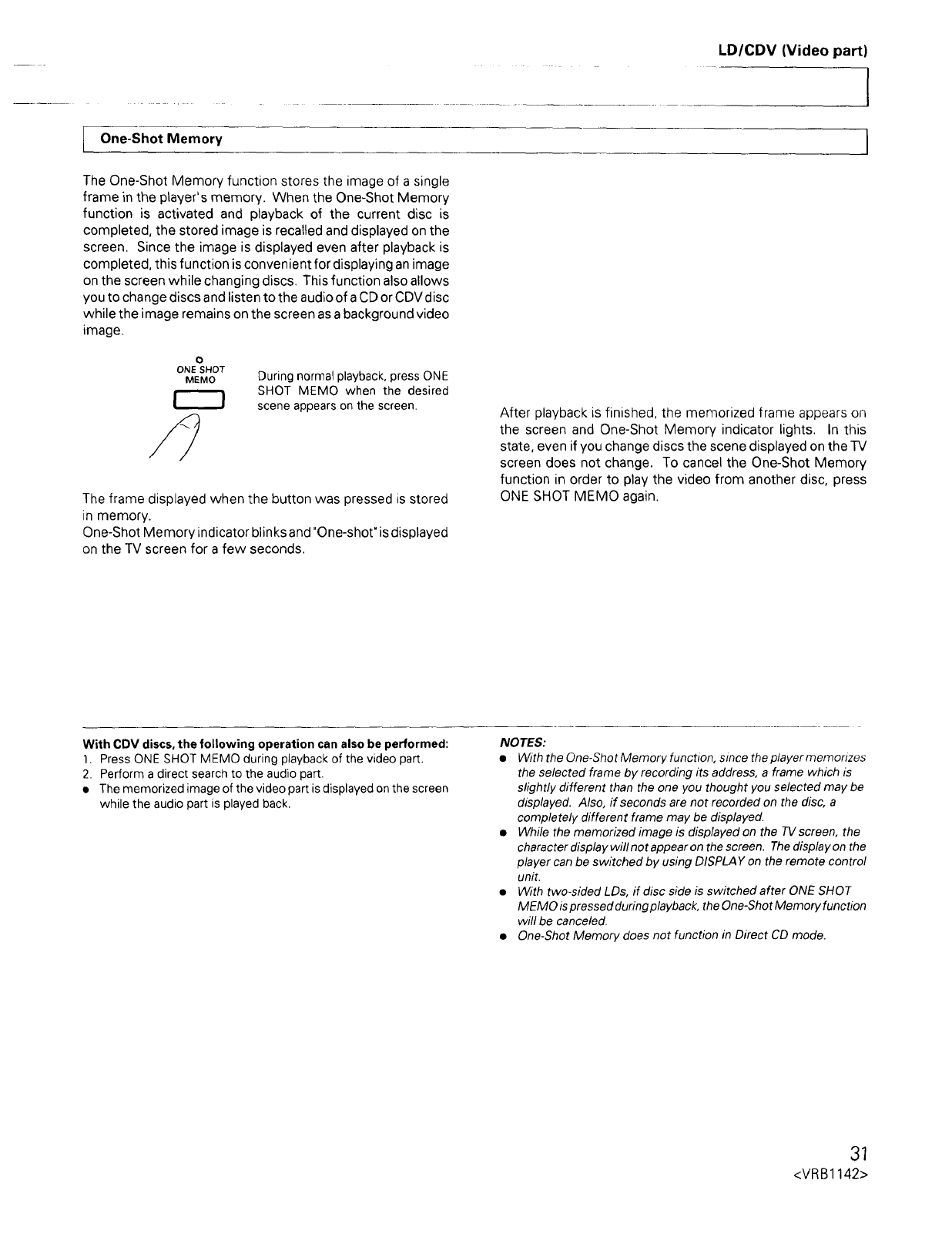
LD/CDV (Video part)
[One-Shot Memory J
The One-Shot Memory function stores the image of a single
frame in the player's memory. When the One-Shot Memory
function is activated and playback of the current disc is
completed, the stored image is recalled and displayed on the
screen. Since the image is displayed even after playback is
completed, this function is convenient for displaying an image
on the screen while changing discs. This function also allows
you to change discs and listen to the audio of a CD or CDV disc
while the image remains on the screen as a background video
image.
0
ONE SHOT
MEMO During normal playback, press ONE
SHOT MEMO when the desired
scene appears on the screen.
The frame displayed when the button was pressed is stored
in memory.
One-Shot Memory indicator blinks and "One-shot" is displayed
on the TV screen for a few seconds.
After playback is finished, the memorized frame appears on
the screen and One-Shot Memory indicator lights. In this
state, even if you change discs the scene displayed on the TV
screen does not change. To cancel the One-Shot Memory
function in order to play the video from another disc, press
ONE SHOT MEMO again.
With CDV discs, the following operation can also be performed:
]. Press ONE SHOT MEMO during playback of the video part.
2. Perform a direct search to the audio part.
• The memorized image of the video part is displayed on the screen
while the audio part is played back.
NOTES:
•With the One-Shot Memory function, since the player memorizes
the selected frame by recording its address, a frame which is
slightly different than the one you thought you selected may be
displayed. Also, if seconds are not recorded on the disc, a
completely different frame may be displayed.
•While the memorized image is displayed on the TV screen, the
character display will not appear on the screen. The display on the
player can be switched by using DISPLAY on the remote control
unit.
•With two-sided LDs, if disc side is switched after ONE SHOT
MEMO ispressed during playback, the One-Shot Memory function
will be canceled.
•One-Shot Memory does not function in Direct CD mode.
31
<VRB1142>
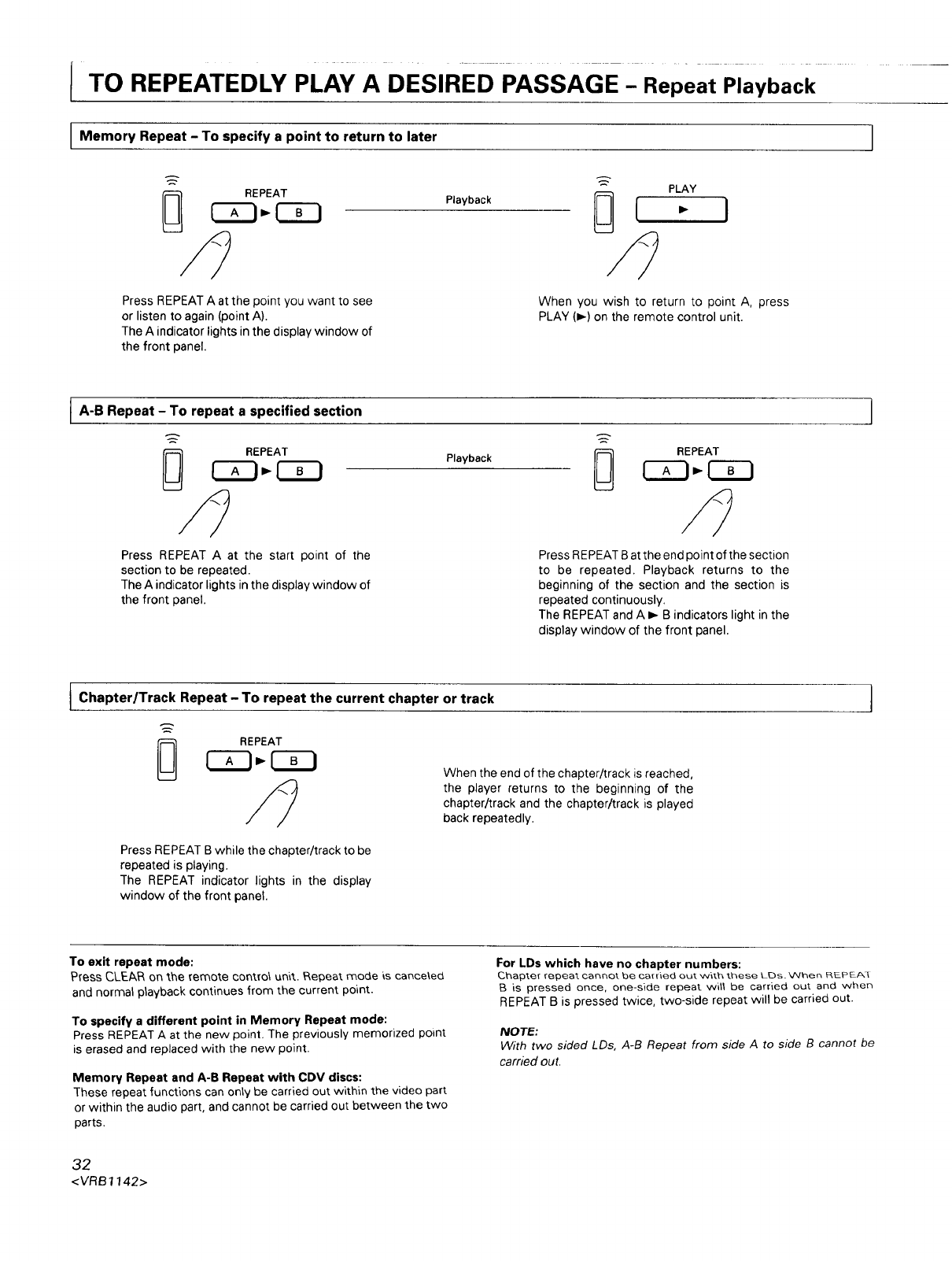
ITO REPEATEDLY PLAY A DESIRED PAssAGE- Repeat PiaYback
Memory Repeat -To specify apoint to return to later 1
PLAY
REPEAT P,ayback I I
Press REPEAT A at the point you want to see
or listen to again (point A).
The A indicator lights in the display window of
the front panel.
When you wish to return to point A, press
PLAY (m,,)on the remote control unit.
A-B Repeat - repeat a specified
To section
REPEAT
Playback
Press REPEAT A at the start point of the
section to be repeated.
The A indicator lights in the display window of
the front panel.
Press REPEAT B at the end point of the section
to be repeated. Playback returns to the
beginning of the section and the section Ls
repeated continuously.
The REPEAT and A I_ B indicators light in the
display window of the front panel.
IChapter/Track Repeat - To repeat the current chapter or track 1
When the end of the chapter/track is reached,
the player returns to the beginning of the
chapter/track and the chapter/track is played
back repeatedly.
Press REPEAT B while the chapter/track to be
repeated is playing.
The REPEAT indicator lights in the display
window of the front panel.
To exit repeat mode:
P_ess CLEAR on the remote contro\ unit.. P,epeat mode _s cance\ed
and normal playback continues from the current point.
To specify a different point in Memory Repeat mode:
Press REPEAT A at the new point. The previously memorized point
is erased and replaced with the new point.
Memory Repeat and A-B Repeat with CDV discs:
These repeat functions can onlybe carried out within the video part
or within the audio part, and cannot be carried out between the two
parts.
For LDs which have no chapter numbers:
Chapter r(_3eat cannot be cal-r_ed out_ w_t._ _.hese LDs. W_n REPEA_
B is pressed once, one-side repeat will be carried out and when
REPEAT B is pressed twice, two-side repeat will be carried out.
NOTE:
With two sided LDs, A-B Repeat from side A to side B cannot be
carned out,
32
<VRB1142>
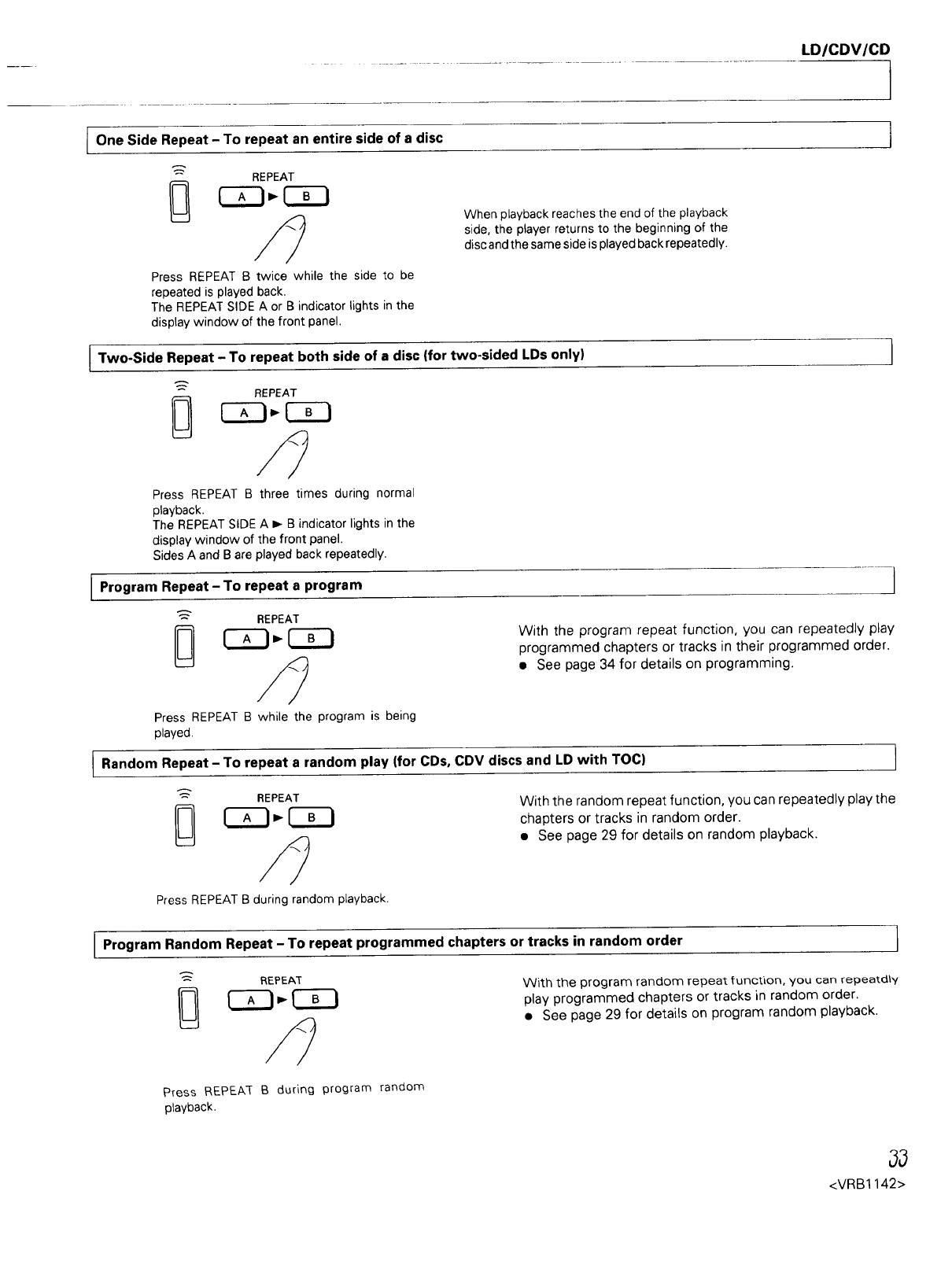
LD/CDV/CD 1
IOne Side Repeat -To repeat an entire side of a disc 1
When playback reaches the end of the playback
side, the player returns to the beginning of the
disc and the same side is played back repeatedly.
Press REPEAT B twice while the side to be
repeated is played back.
The REPEAT SIDE A or B indicator lights in the
display window of the front panel.
ITwo-Side Repeat -To repeat both side of a disc (for two-sided LDs only) 1
Press REPEAT B three times during normal
playback.
The REPEAT SIDE A _ B indicator lights in the
display window of the front panel.
Sides A and B are played back repeatedly.
/
lProgram Repeat - To repeat a program J
REPEAT
[_ With the program repeat function, you can repeatedly play
programmed chapters or tracks in their programmed order.
•See page 34 for details on programming.
IZ3 C
Press REPEATB while the program is being
played.
IRandom Repeat - To repeat a random play (for CDs, CDV discs and LD with TOC)
REPEAT With the random repeat function, you can repeatedly play the
_ _" (_ chapters or tracks in random order.
• See page 29 for details on random playback.
Press REPEAT B during random playback.
Program Random Repeat - To repeat programmed chapters or tracks in random order I
REPEAT With the program random repeat function, you can repeatdt¥
play programmed chapters or tracks in random order.
•See page 29 for details on program random playback.
Press P,EPEA3- Bduring program random
playback.
<VRB1142>
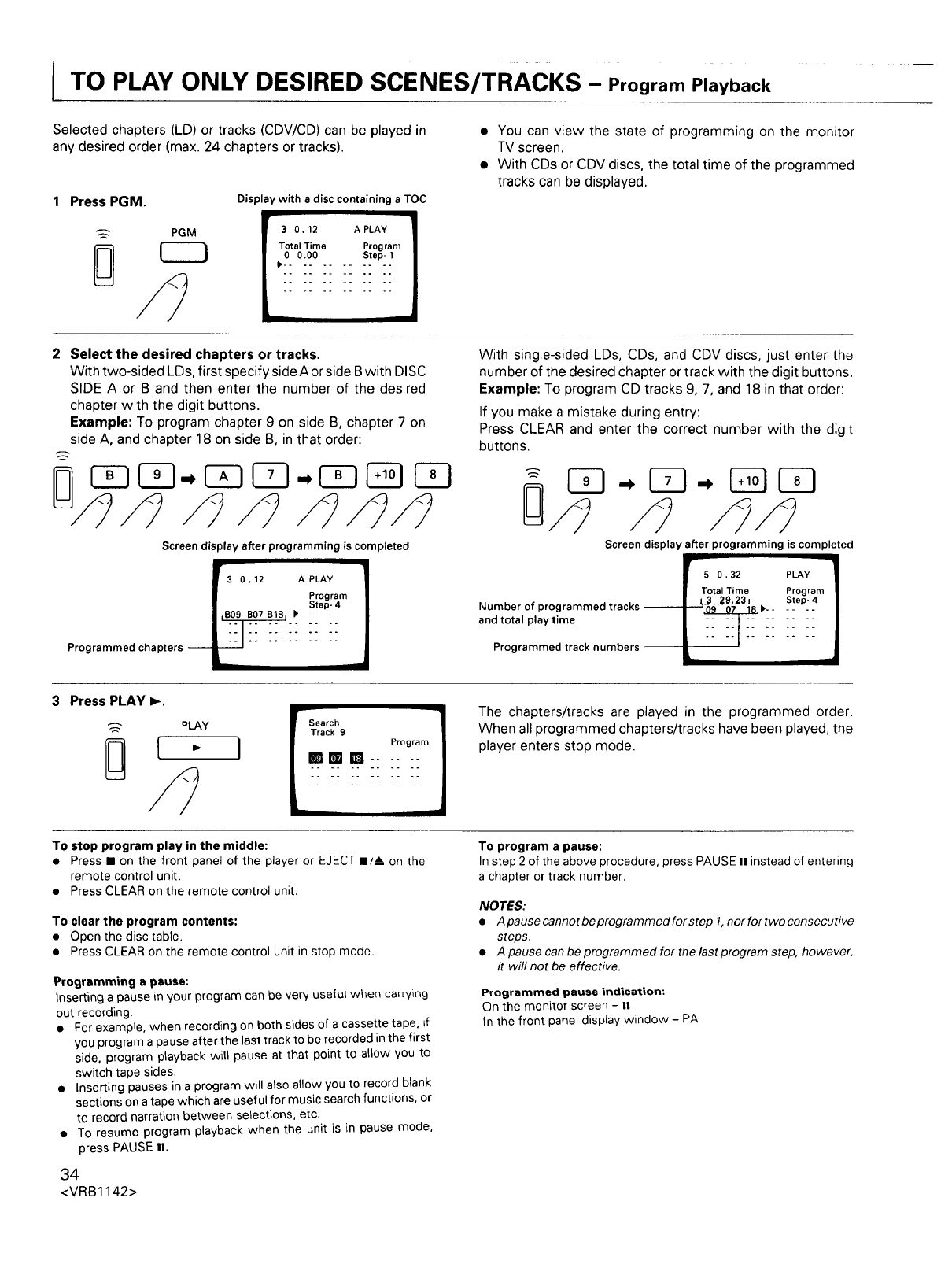
TO PLAY ONLY DESIRED SCENES/TRACKS- ProgramPlayback
Selected chapters (LD) or tracks (CDV/CD) can be played in
any desired order (max. 24 chapters or tracks).
Press PGM.
8PGM
Displaywith a disc containing a TOC
•You can view the state of programming on the monitor
TV screen.
• With CDs or CDV discs, the total time of the programmed
tracks can be displayed.
2 Select the desired chapters or tracks.
With two-sided LDs, first specify side A or side B with DISC
SIDE A or B and then enter the number of the desired
chapter with the digit buttons.
Example: To program chapter 9 on side B, chapter 7 on
side A, and chapter 18 on side B, in that order:
Screen display after programming is completed
_3 0 . 12 A PLAY 1
Program
Step- 4
Programmed chapters -- I18"0"91"_-]'"B078!81 __
t
With single-sided LDs, CDs, and CDV discs, just enter the
number of the desired chapter or track with the digit buttons.
Example: To program CD tracks 9, 7, and 18 in that order:
If you make a mistake during entry:
Press CLEAR and enter the correct number with the digit
buttons.
1i3. Q- 131ZI
Screen display after programming is completed
r5 0.32 pLAy 1
Number of programmed tracks _k- -
and total play time i ;;;;I;:::
Programmed track numbers 1
Press PLAY I_.
PLAY }
The chapters/tracks are played in the programmed order.
When all programmed chapters/tracks have been played, the
player enters stop mode.
To stop program play in the middle:
•Press • on the front panel of the player or EJECT II/A on the
remote control unit.
• Press CLEAR on the remote control unit.
To clear the program contents:
• Open the disc table.
• Press CLEAR on the remote control unit in stop mode.
Programming a pause:
tnserting a pause in your program can be very useful when carrying
out recording.
• For example, when recording on both sides of a cassette tape, if
you program a pause after the last track to be recorded in the first
side, program playback will pause at that point to allow you to
switch tape sides.
• Inserting pauses in a program will also allow you to record blank
sections on a tape which are useful for music search functions, or
to record narration between selections, etc.
• To resume program playback when the unit is in pause mode,
press PAUSE It.
34
<VRB1142>
To program a pause:
In step 2 of the above procedure, press PAUSE II instead of entering
a chapter or track number.
NOTES:
•Apausecannotbeprogrammedforstep 1,norfortwoconsecutive
steps.
•A pause can be programmed for the lastprogram step, however,
it will not be effective.
Programmed pause indication:
On the monitor screen - it
tn the front panel display window - PA
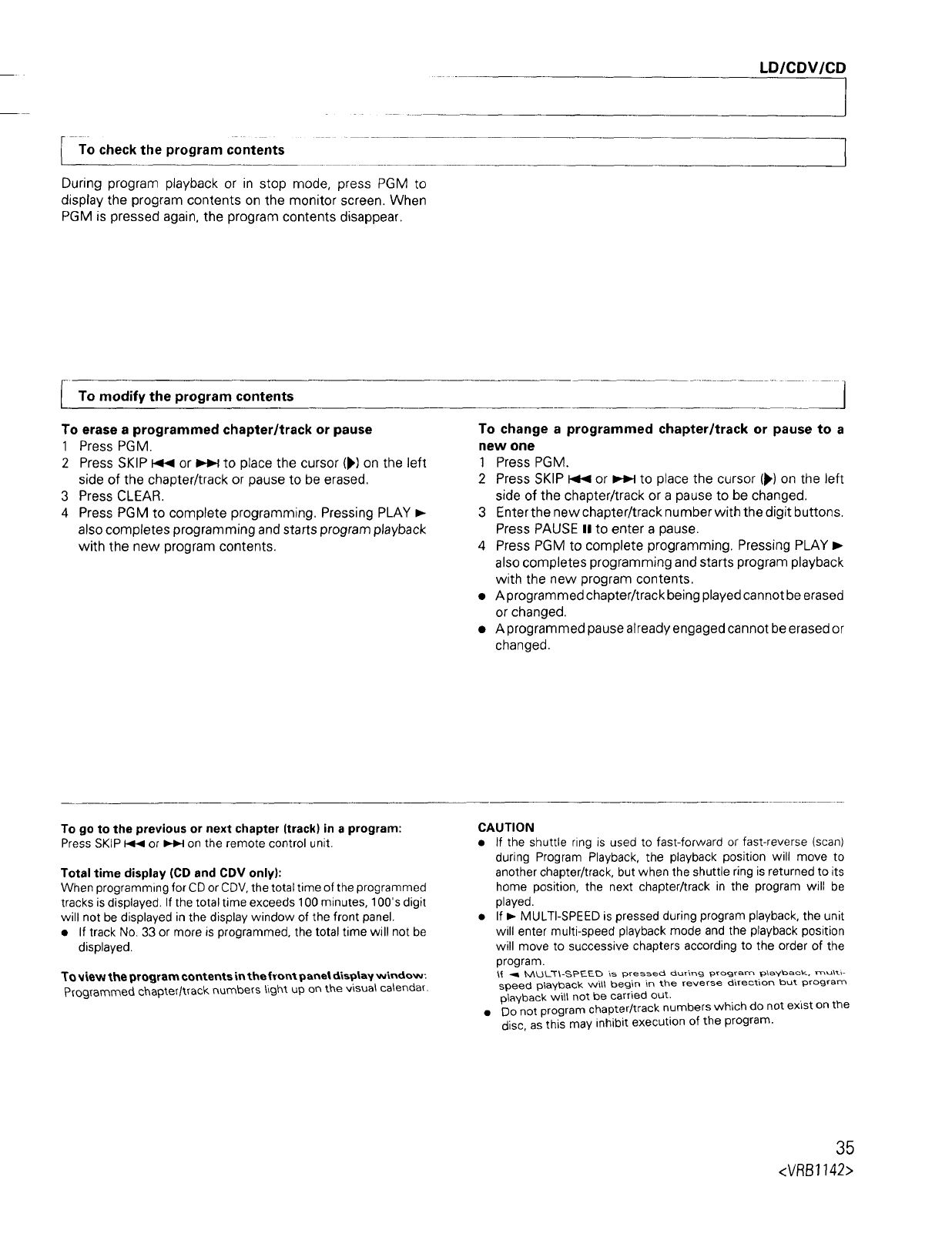
LD/CDV/CD 1
-To check the program contents
During program playback or in stop mode, press PGM to
display the program contents on the monitor screen. When
PGM is pressed again, the program contents disappear.
]
lo modify the program contents
To erase a programmed chapter/track or pause
1
2
3
4
Press PGM.
Press SKIP 14< or _ to place the cursor (),) on the left
side of the chapter/track or pause to be erased.
Press CLEAR.
Press PGM to complete programming. Pressing PLAY _-
also completes programming and starts program playback
with the new program contents.
J
To change a programmed chapter/track or pause to a
new one
1 Press PGM.
2 Press SKIP _ or _ to place the cursor (),) on the left
side of the chapter/track or a pause to be changed.
3 Enter the new chapter/track number with the digit buttons.
Press PAUSE II to enter a pause.
4 Press PGM to complete programming. Pressing PLAY D.-
also completes programming and starts program playback
with the new program contents.
• A programmed chapter/track being played cannot be erased
or changed.
• A programmed pause already engaged cannot be erased or
changed.
To go to the previous or next chapter (track) in a program:
Press SKIP I_ or _ on the remote control unit.
Total time display (CD and CDV only):
When programming for CD or CDV, the total time of the programmed
tracks is displayed. If the total time exceeds 1O0 minutes, 100's digit
will not be displayed in the display window of the front panel.
•If track No. 33 or more is programmed, the total time will not be
displayed.
To _ew the program contents in the fYont panet _ispta¥ wlrtdow:
Programmed chapter/track r_umbers _ight up on the v_sua_ calendar.
CAUTION
• If the shuttle ring is used to fast-forward or fast-reverse (scan)
during Program Playback, the playback position will move to
another chapter/track, but when the shuttle ring isreturned to its
home position, the next chapter/track in the program will be
played.
• If I_ MULTI-SPEEDis pressed during program playback, the unit
will enter multi-speed playback mode and the playback position
will move to successive chapters according to the order of the
program.
_ _ MUL'T\-_tP_-E[b is pressed _ur_ng _rogram p',ahtback, mu\t_-
speed playback will begin in the reverse direction but program
playback wi_t not be carried out.
• Do not program chapter/track numbers which do not exist on the
disc, as this may inhibit execution of the program.
35
<VRB1142>
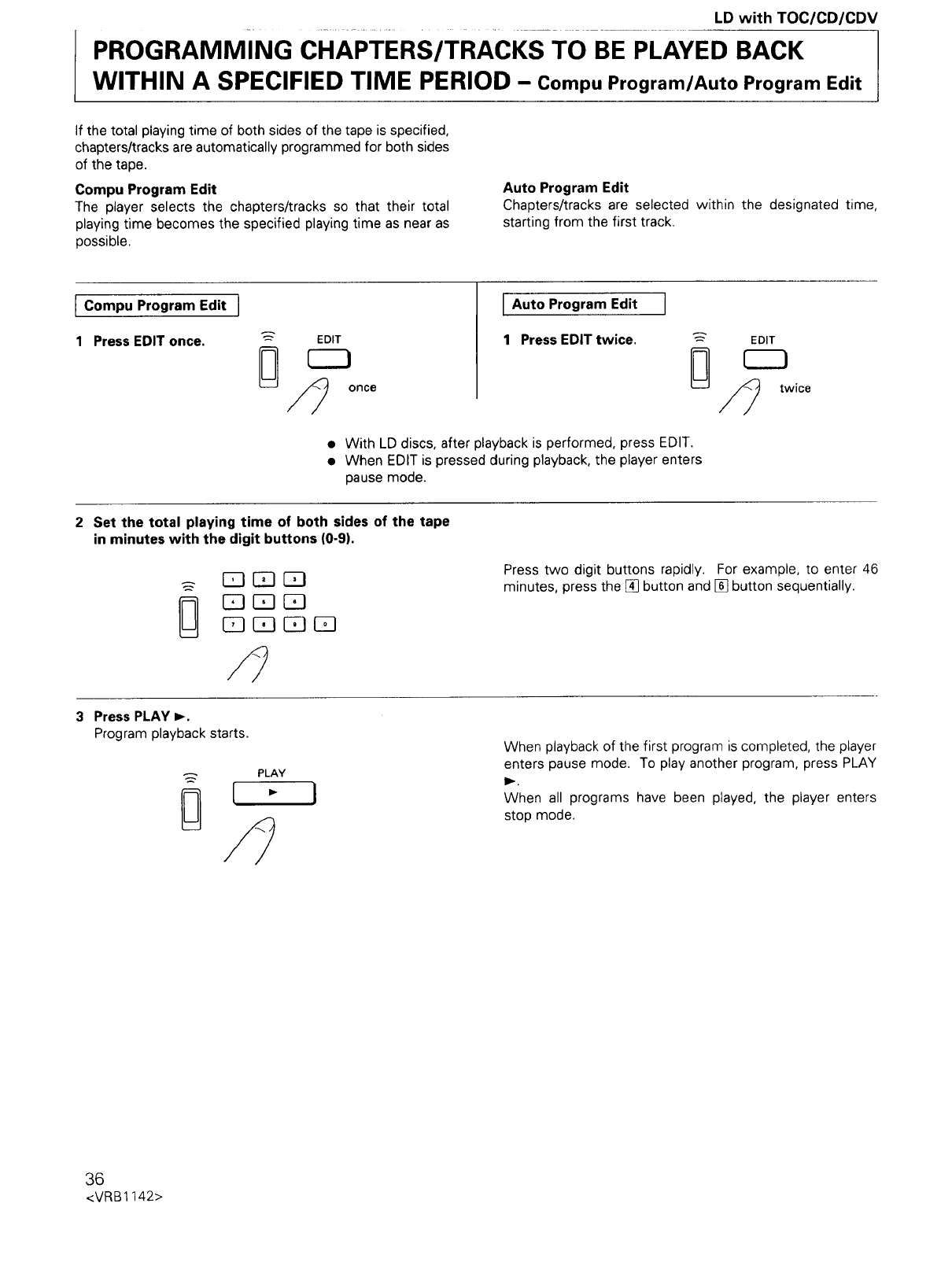
LD with TOC/CD/CDV
PROGRAMMING CHAPTERS/TRACKS TO BE PLAYED BACK
WITHIN A SPECIFIED TIME PERIOD - CompuProgram/AutoProgramEdit
If the total playing time of both sides of the tape is specified,
chapters/tracks are automatically programmed for both sides
of the tape.
Compu Program Edit
The player selects the chapters/tracks so that their total
playing time becomes the specified playing time as near as
possible.
Auto Program Edit
Chapters/tracks are selected within the designated time,
starting from the first track.
ICompu Program Edit I
1Press EDIT once. EDIT
once
I Auto Program Edit J
1 Press EDITtwice. EEDIT
twice
•With LD discs, after playback is performed, press EDIT.
• When EDIT is pressed during playback, the player enters
pause mode.
Set the total playing time of both sides of the tape
in minutes with the digit buttons (0-9).
Press two digit buttons rapidly. For example, to enter 46
minutes, press the [] button and [] button sequentially.
Press PLAY _.
Program playback starts.
PLAY i
When playback of the first program is completed, the player
enters pause mode. To play another program, press PLAY
I_.
When all programs have been played, the player enters
stop mode.
36
<VRB1142>
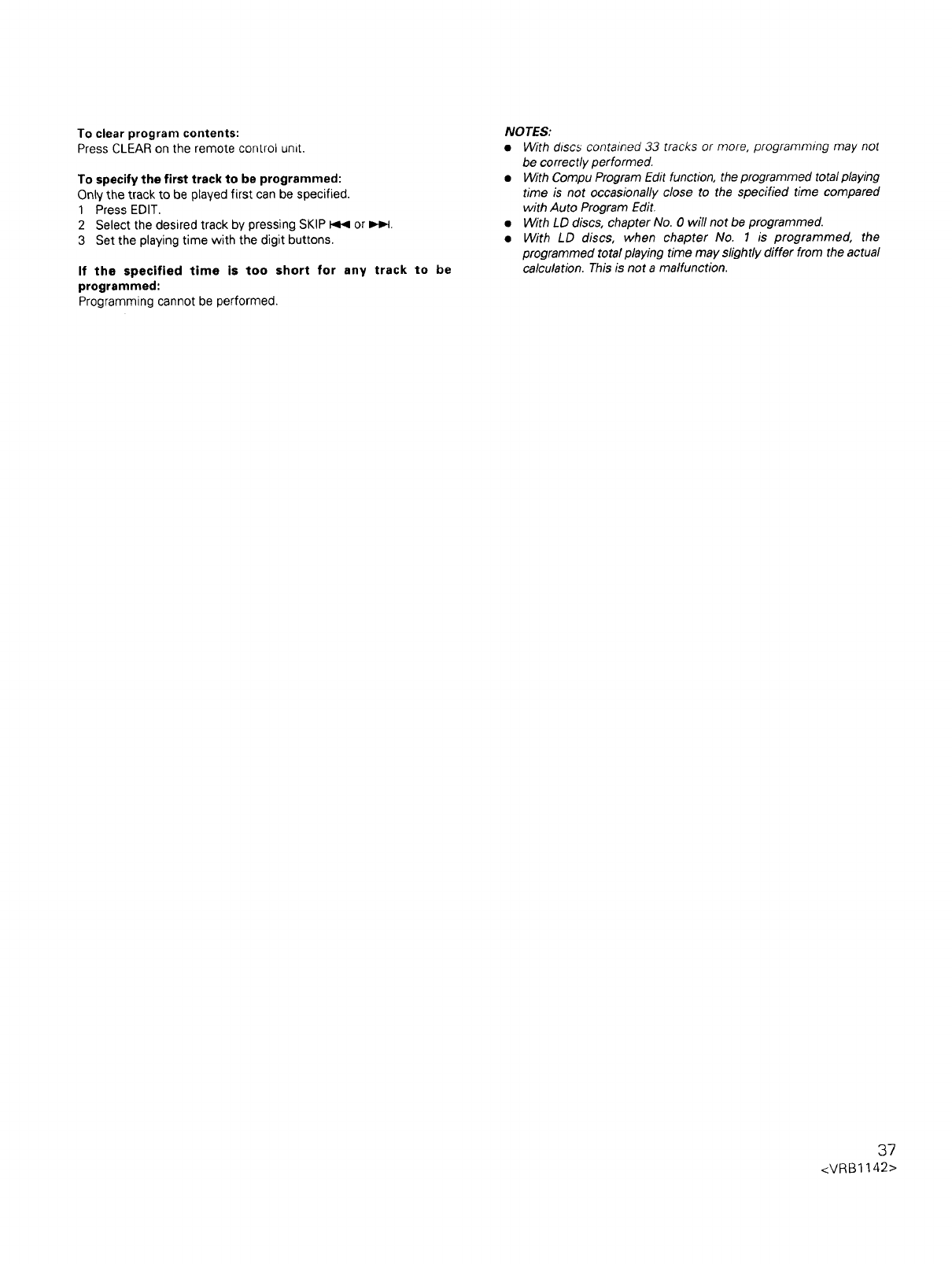
To clear program contents:
Press CLEAR on the remote control unit.
To specify the first track to be programmed:
Only the track to be played first can be specified.
1Press EDIT.
2 Select the desired track by pressing SKIP _ or _.
3 Set the playing time with the digit buttons.
If the specified time is too short for any track to be
programmed:
Programming cannot be performed.
NOTES:
•With discs contained 33 tracks or more, programming may not
be correctly performed.
• With Compu Program Edit function, the programmed total playing
time is not occasionally close to the specified time compared
with Auto Program Edit.
• With LD discs, chapter No. 0 will not be programmed.
•With LD discs, when chapter No. 1 is programmed, the
programmed total playing time may slightly differ from the actual
calculation. This is not a malfunction.
37
<VRB1142>
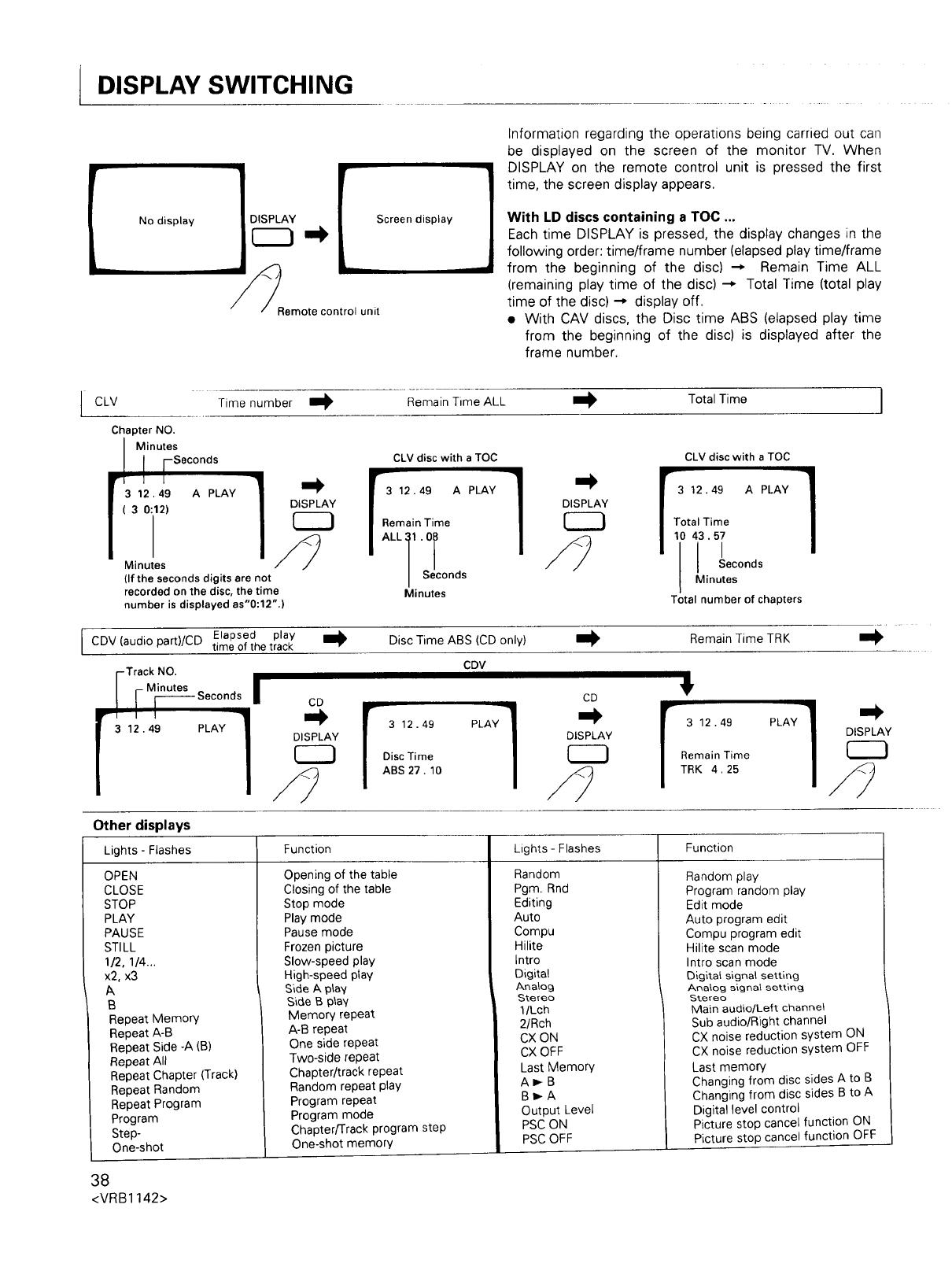
DISPLAY SWITCHING
Remote control unit
Information regarding the operations being carried out carl
be displayed on the screen of the monitor TV. When
DISPLAY on the remote control unit is pressed the first
time, the screen display appears.
With LD discs containing a TOC ...
Each time DISPLAY is pressed, the display changes in the
following order: time/frame number (elapsed play time/frame
from the beginning of the disc) _ Remain Time ALL
(remaining play time of the disc) --* Total Time (total play
time of the disc) --* display off.
• With CAV discs, the Disc time ABS (elapsed play time
from the beginning of the disc) is displayed after the
frame number.
CLV
Chapter NO.
Minutes
I r sec°nds
3 12.49 A PLAY
( 3 0:12)
Minutes
(If the seconds digits are not
recorded on the disc, the time
number is displayed as'0:12".)
Time number Remain Time ALL Total Time 1
CLV disc with a TOC CLV disc with a TOC
] yr9.] r 49PLY1
|Remain Time |Total Time
I 10 43'5_
I LLI'°T O,nuto
/ Seconds /_ Seconds
Minutes Total number of chapters
CDV (audio part)/CD Elapsed play Disc Time ABS (CD only)
time of the track
CDV
Track NO.
Minutes I
/ [____.__Seconds iI _i_
r312.49 PLAY 1 _Ay r 312.49 PLAY1-- DISPLAYI_ [312.49
|Disc Time Remain Time
_-_ lABS 27.10 TRK 4.25
Remain Time TRK
DISPLAY
Other displays
Lights - Flashes
OPEN
CLOSE
STOP
PLAY
PAUSE
STI LL
1/2, 1/4...
x2, x3
A
Function
Opening of the table
Closing of the table
Stop mode
Play mode
Pause mode
Frozen picture
Slow-speed play
High-speed play
Side A _3_a¥
Lights - Flashes
Random
Pgm. Rnd
Editing
Auto
Compu
Hilite
Intro
Digital
Analog
Function
Random play
Program random play
Edit mode
Auto program edit
Compu program edit
Hilite scan mode
Intro scan mode
Digital signal setting
Anatog signal setting
B
Repeat Memory
Repeat A-B
Repeat Side -A (B)
Repeat All
Repeat Chapter (Track)
Repeat Random
Repeat Program
Program
Step-
One-shot
Sid,e B p_a¥
Memory repeat
A-B repeat
One side repeat
Two-side repeat
Chapter/track repeat
Random repeat play
Program repeat
Program mode
Chapter/Track program step
One-shot memory
Stereo
1/Lch
2/Rch
CX ON
CX OFF
Last Memory
A_B
B_-A
Output Level
PSC ON
PSC OFF
Stereo
Main audio/Left channel
Sub audio/Right channel
CX noise reduction system ON
CX noise reduction system OFF
Last memory
Changing from disc sides A to B
Changing from disc sides B to A
Digital level control
Picture stop cancel function ON
Picture stop cancel function OFF
38
<VRB1142>
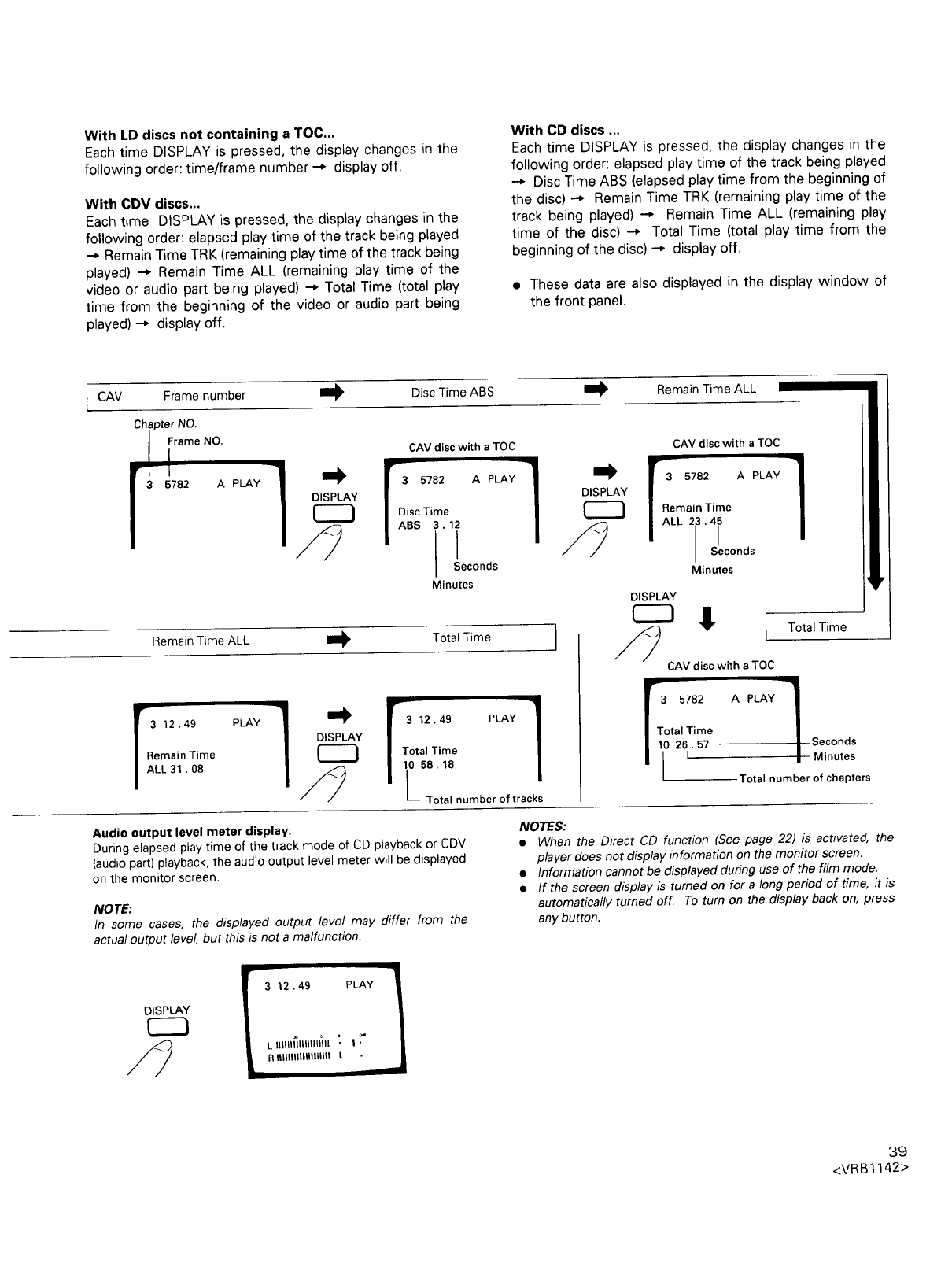
With LD discs not containin 9 a TOC...
Each time DISPLAY is pressed, the display changes in the
following order: time/frame number --* display off.
With CDV discs...
Each time DISPLAY is pressed, the display changes in the
following order: elapsed play time of the track being played
--* Remain Time TRK (remaining play time of the track being
played) --* Remain Time ALL (remaining play time of the
video or audio part being played) _ Total Time (total play
time from the beginning of the video or audio part being
played) -_ display off.
With OD discs ...
Each time DISPLAY is pressed, the display changes in the
following order: elapsed play time of the track being played
--* Disc Time ABS (elapsed play time from the beginning of
the disc) _ Remain Time TRK (remaining play time of the
track being played) _ Remain Time ALL (remaining play
time of the disc) --* Total Time (total play time from the
beginning of the disc) _ display off.
•These data are also displayed in the display window of
the front panel.
I CAV Frame number Disc Time ABS Remain Time ALL
Chapter NO.
A PLAY
DISPLAY
CAV disc with a TOC
isc Time
BS 3.1_ /
Seconds
Minutes
Remain Time ALL Total Time ]
IR 12.49 PLAY ]
emain Time
LL 31 .08
DISPLAY 312.49 PLAY 1
;t5/Ti 1; /
LTotal number of tracks
DISPLAY
CAV disc with a TOC
Minutes
DISPLAY
Total Time
CAV disc with a TOC
IT 782 A PLAY 1
otal Time
261 57 Seconds
Minutes
Total number of chapters
Audio output level meter display:
During elapsed play time of the track mode of CD playback or CDV
(audio part) playback, the audio output level meter will be displayed
on the monitor screen.
NOTE:
In some cases, the displayed output level may differ from the
actual output level, but this is not a malfunction.
NOTES:
•When the Direct CD function (See page 22) is activated, the
player does not display information on the monitor screen.
•Information cannot be displayed during use of the film mode.
•If the screen display is turned on for a long period of time, it is
automatically turned off. To turn on the display back on, press
any button.
DISPLAY
1
312.49 PLAY J
Rlllllllllllllllllll l
39
<VRBl142>
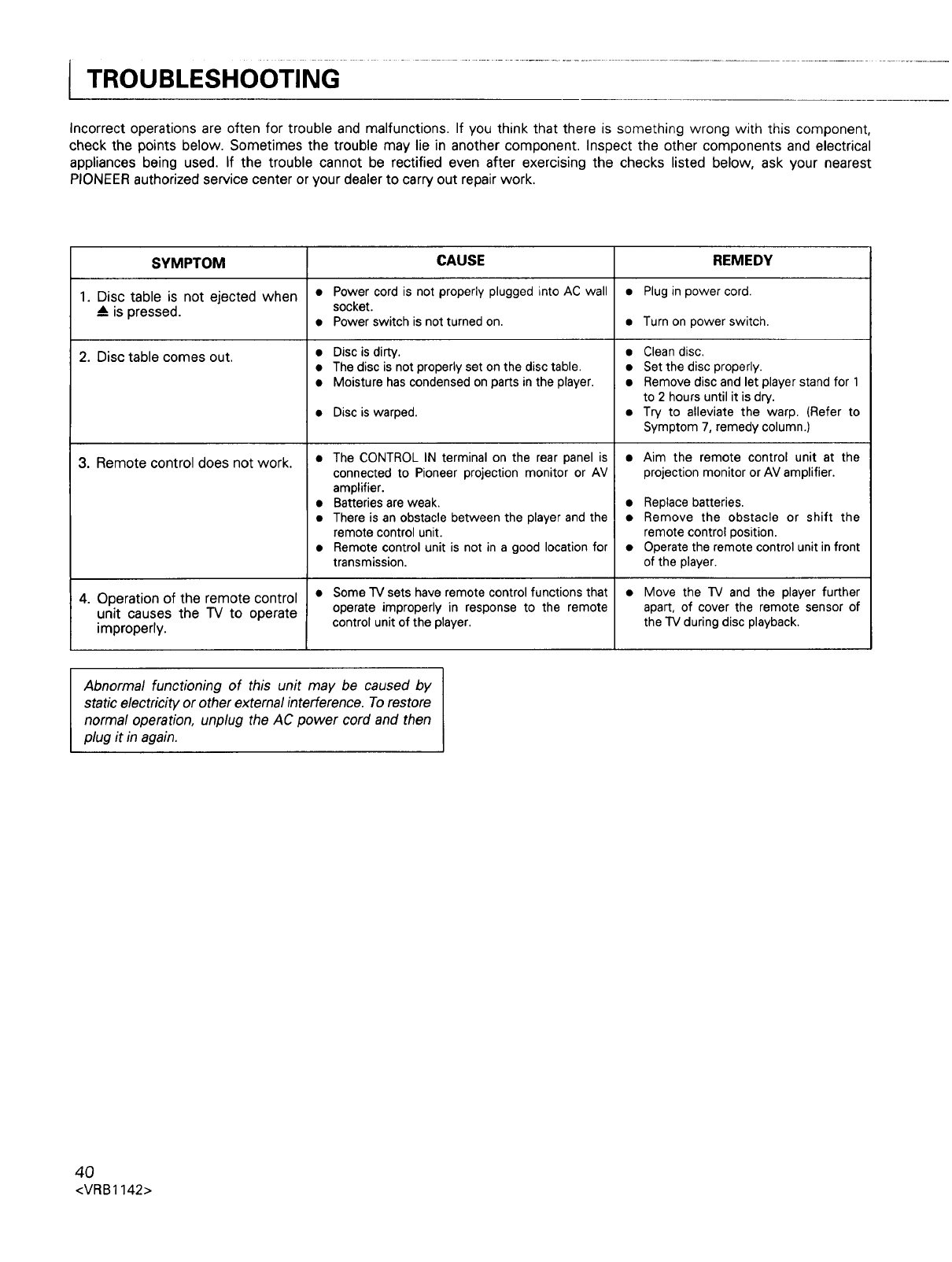
j TROUBLESHOOTING .................................................................................
Incorrect operations are often for trouble and malfunctions. If you think that there is something wrong with this component,
check the points below. Sometimes the trouble may lie in another component. Inspect the other components and electrical
appliances being used. If the trouble cannot be rectified even after exercising the checks listed below, ask your nearest
PIONEER authorized service center or your dealer to carry out repair work.
SYMPTOM CAUSE REMEDY
1. Disc table is not ejected when •Power cord is not properlyplugged into AC wall • Plugin power cord.
A is pressed, socket.
• Power switch is not turned on. • Turn on power switch.
2. Disc table comes out.
3. Remote control does not work.
4. Operation of the remote control
unit causes the TV to operate
improperly.
• Disc is dirty.
• The disc is not properly set on the disc table,
• Moisture has condensed on parts in the player.
• Disc is warped.
• The CONTROL IN terminal on the rear panel is
connected to Pioneer projection monitor or AV
amplifier.
• Batteries are weak.
• There is an obstacle between the player and the
remote control unit.
• Remote control unit is not in a good location for
transmission.
•Some "IV sets have remote control functions that
operate improperly in response to the remote
control unit of the player.
• Clean disc.
• Set the disc properly.
• Remove disc and let player stand for 1
to 2 hours until it is dry.
• Try to alleviate the warp. (Refer to
Symptom 7, remedy column.)
• Aim the remote control unit at the
projection monitor or AV amplifier.
• Replace batteries.
• Remove the obstacle or shift the
remote control position.
• Operate the remote control unit in front
of the player.
•Move the TV and the player further
apart, of cover the remote sensor of
the TV during disc playback.
Abnormal functioning of this unit may be caused by
static electricity or other external interference. To restore
normal operation, unplug the AC power cord and then
plug it in again.
4O
<VRB1142>
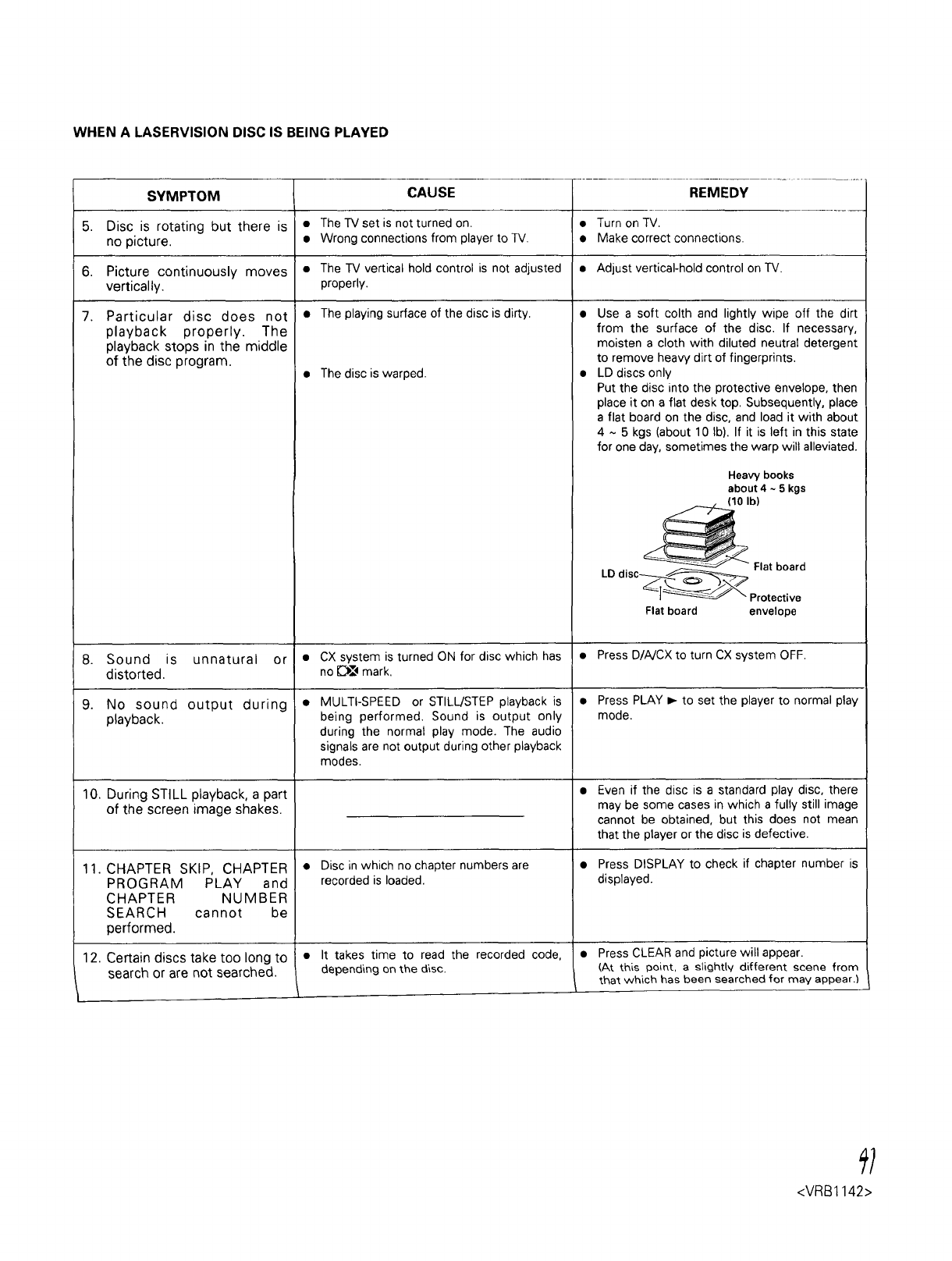
WHEN A LASERVISION DISC IS BEING PLAYED
SYMPTOM CAUSE REMEDY
5. Disc is rotating but there is • The TV set is not turned on. • Turn on TV.
no picture. • Wrong connections from player to TV. • Make correct connections.
6. Picture continuously moves • The TV vertical hold control is not adjusted • Adjust vertical-hold control on TV.
vertically, properly.
7. Particular disc does not • The playing surface of the disc is dirty. •
playback properly. The
playback stops in the middle
of the disc program.
No sound
playback.
• The disc is warped.
Use a soft colth and lightly wipe off the dirt
from the surface of the disc. If necessary,
moisten a cloth with diluted neutral detergent
to remove heaw dirt of fingerprints.
LD discs only
Put the disc into the protective envelope, then
place it on a flat desk top. Subsequently, place
a flat board on the disc, and load it with about
4 ~ 5 kgs (about 10 Ib). If it is left in this state
for one day, sometimes the warp will alleviated.
Heavy books
about 4 ~ 5 kgs
_0 Ib)
Flat board
LD disc-_ ._
I--- _Protective
Flat board envelope
8. Sound is unnatural or • CX system is turned ON for disc which has • Press D/A/CX to turn CX system OFF.
distorted, no O,_ mark.
9. output during • • Press PLAY _ to set the player to normal play
mode.
10. During STILL playback, a part
of the screen image shakes.
MULTI-SPEED or STILL/STEP playback is
being performed. Sound is output only
during the normal play mode. The audio
signals are not output during other playback
modes.
• Disc in which no chapter numbers are
recorded is loaded.
• It takes time to read the recorded code,
depending on the d'_s¢.
11. CHAPTER SKIP, CHAPTER
PROGRAM PLAY and
CHAPTER NUMBER
SEARCH cannot be
performed.
12. Certain discs take too long to
search or are not searched.
Even if the disc is a standard play disc, there
may be some cases in which a fully still image
cannot be obtained, but this does not mean
that the player or the disc is defective.
• Press DISPLAY to check if chapter number is
displayed.
• Press CLEAR and picture will appear.
(At thi_ point, a £tight(v different _cene from
that which has been searched for may appear.)
<VRBt 142>
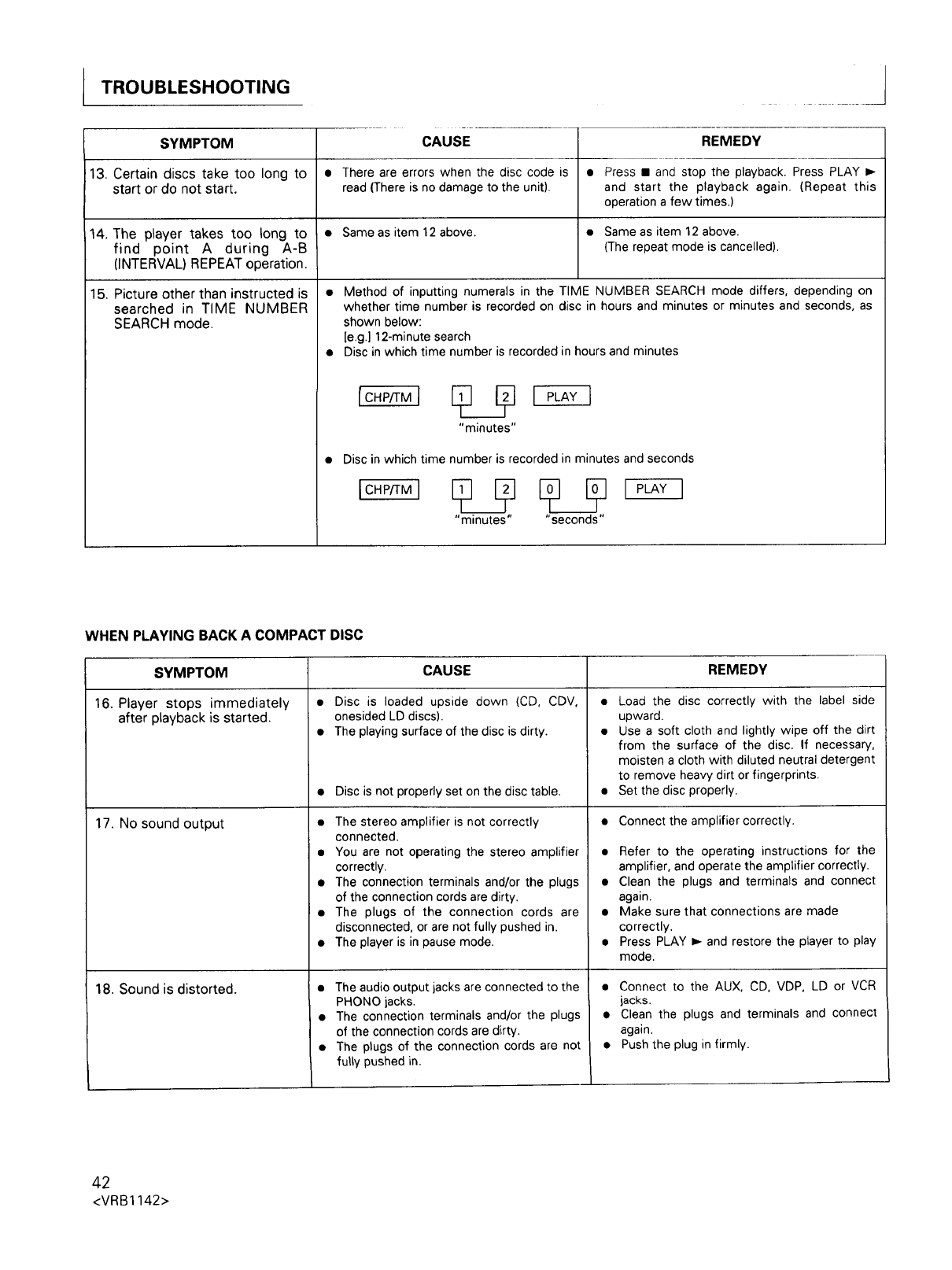
TROUBLESHOOTING
SYMPTOM
13. Certain discs take too long to
start or do not start.
14. The player takes too long to
find point A during A-B
(INTERVAL) REPEAT operation.
15. Picture other than instructed is
searched in TIME NUMBER
SEARCH mode.
CAUSE
There are errors when the disc code is
read (There is no damage to the unit).
•Same as item 12 above.
REMEDY
• Press • and stop the playback. Press PLAY =,-
and start the playback again. (Repeat this
operation a few times.)
• Same as item 12 above.
(The repeat mode is cancelled).
• Method of inputting numerals in the TIME NUMBER SEARCH mode differs, depending on
whether time number is recorded on disc in hours and minutes or minutes and seconds, as
shown below:
[e.g.] 12-minute search
• Disc in which time number is recorded in hours and minutes
"minutes"
• Disc in which time number is recorded in minutes and seconds
"minutes .... seconds"
WHEN PLAYING BACK A COMPACT DISC
SYMPTOM
16. Player stops immediately
after playback is started.
17. No sound output
18. Sound is distorted.
CAUSE
•Disc is loaded upside down (CD, CDV,
onesided LD discs).
• The playing surface of the disc is dirty.
• Disc is not properly set on the disc table.
• The stereo amplifier is not correctly
connected.
• You are not operating the stereo amplifier
correctly.
• The connection terminals and/or the plugs
of the connection cords are dirty.
• The plugs of the connection cords are
disconnected, or are not fully pushed in.
• The player is in pause mode.
• The audio output jacks are connected to the
PHONO iacks.
• The connection terminals and/or the plugs
of the connection cords are dirty.
• The plugs of the connection cords are not
fully pushed in.
REMEDY
Load the disc correctly with the label side
upward.
Use a soft cloth and lightly wipe off the dirt
from the surface of the disc. If necessary,
moisten a cloth with diluted neutral detergent
to remove heavy dirt or fingerprints.
Set the disc properly.
Connect the amplifier correctly.
Refer to the operating instructions for the
amplifier, and operate the amplifier correctly.
Clean the plugs and terminals and connect
again.
Make sure that connections are made
correctly.
Press PLAY _- and restore the player to play
mode.
• Connect to the AUX, CD, VDP, LD or VCR
jacks.
• Clean the plugs and terminals and connect
again.
• Push the plug in firmly.
42
<VRB1142>
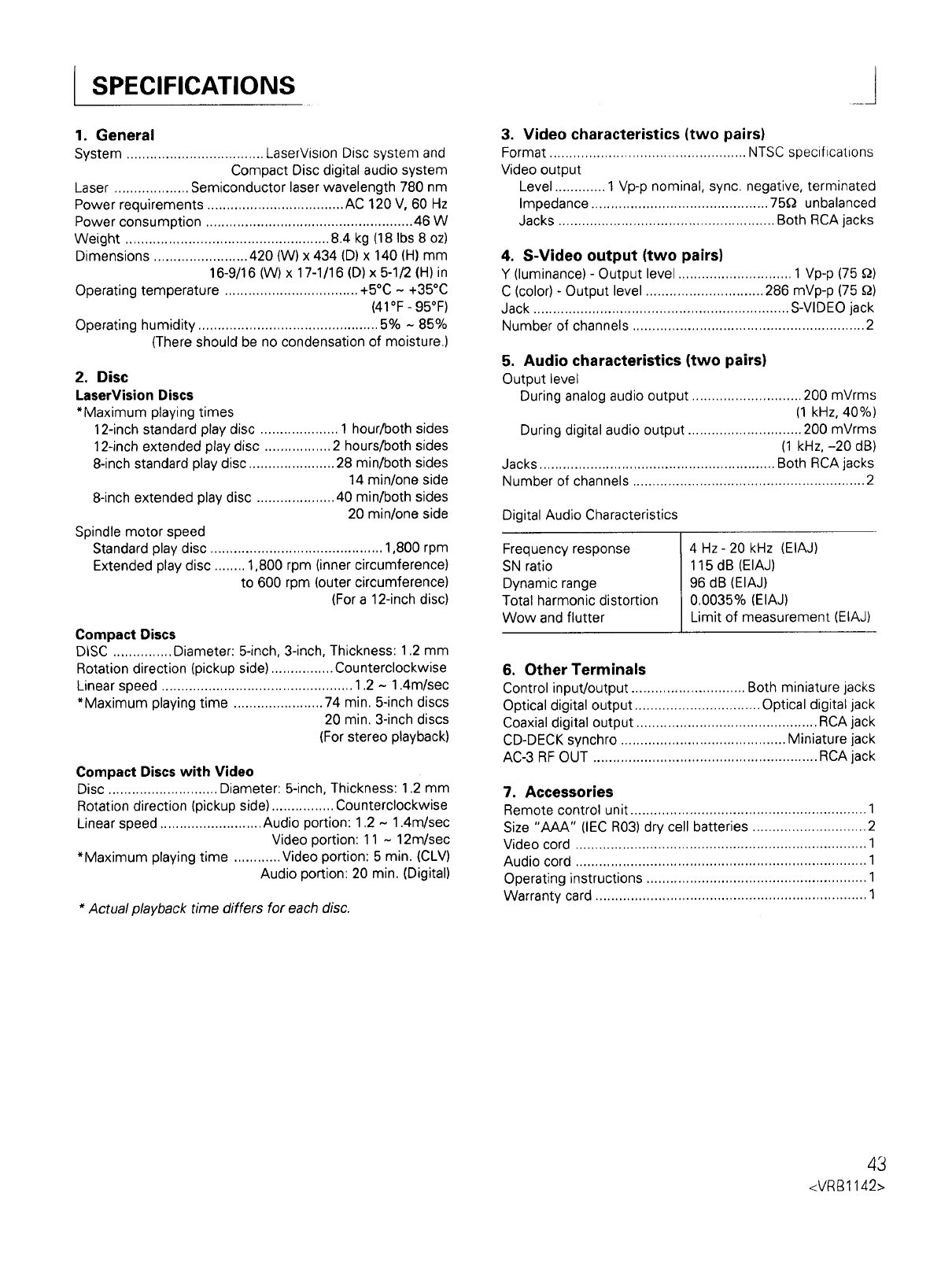
SPECIFICATIONS
1. General
System ................................... LaserVision Disc system and
Compact Disc digital audio system
Laser ................... Semiconductor laser wavelength 780 nm
Power requirements ................................... AC 120 V, 60 Hz
Power consumption ..................................................... 46 W
Weight .................................................... 8.4 kg (18 Ibs 8 oz)
Dimensions ........................ 420 (W) x 434 (D) x 140 (H) mm
16-9/16 (W) x 17-1/16 (D) x 5-1/2 (H)in
Operating temperature .................................. +5°C ~ +35°C
(41°F- 95°F)
Operating humidity .............................................. 5% ~ 85%
(There should be no condensation of moisture.)
2. Disc
LaserVision Discs
*Maximum playing times
12-inch standard play disc .................... 1 hour/both sides
12-inch extended play disc ................. 2 hours/both sides
8-inch standard play disc ...................... 28 min/both sides
14 min/one side
8-inch extended play disc .................... 40 min/both sides
20 min/one side
Spindle motor speed
Standard play disc ............................................ 1,800 rpm
Extended play disc ........ 1,800 rpm (inner circumference)
to 600 rpm (outer circumference)
(For a 12-inch disc)
Compact Discs
DiSC ............... Diameter: 5-inch, 3-inch, Thickness: 1.2 mm
Rotation direction (pickup side) ................ Counterclockwise
Linear speed ................................................. 1.2 -1.4m/sec
*Maximum playing time ....................... 74 min. 5-inch discs
20 min. 3-inch discs
(For stereo playback)
Compact Discs with Video
Disc ............................ Diameter: 5-inch, Thickness: 1.2 mm
Rotation direction (pickup side) ................ Counterclockwise
Linear speed .......................... Audio portion: 1.2 ~ 1.4m/sec
Video portion: 11 ~ 12m/sec
*Maximum playing time ............ Video portion: 5 min. (CLV)
Audio portion: 20 min. (Digital)
*Actual playback time differs for each disc.
3. Video characteristics (two pairs)
Format .................................................. NTSC specifications
Video output
Level ............. 1 Vp-p nominal, sync. negative, terminated
Impedance ............................................. 75_ unbalanced
Jacks ....................................................... Both RCA jacks
4. S-Video output (two pairs)
Y (luminance) - Output level ............................. 1 Vp-p (75 _)
C (color) - Output level .............................. 286 mVp-p (75 _)
Jack ................................................................. S-VIDEO jack
Number of channels ........................................................... 2
5. Audio characteristics (two pairs)
Output level
During analog audio output ............................ 200 mVrms
(1 kHz, 40%)
During digital audio output ............................. 200 mVrms
(1 kHz, -20 dB)
Jacks ............................................................ Both RCA jacks
Number of channels ........................................................... 2
Digital Audio Characteristics
Frequency response
SN ratio
Dynamic range
Total harmonic distortion
Wow and flutter
4 Hz- 20 kHz (EIAJ)
115 dB (EIAJ)
96 dB (EIAJ)
0.0035% (EIAJ)
Limit of measurement (EIAJ)
6. Other Terminals
Control input/output ............................. Both miniature jacks
Optical digital output ................................ Optical digital jack
Coaxial digital output .............................................. RCA jack
CD-DECK synchro .......................................... Miniature jack
AC-3 RF OUT ......................................................... RCA jack
7. Accessories
Remote control unit ............................................................ 1
Size "AAA" (IEC R03) dry cell batteries ............................. 2
Video cord .......................................................................... 1
Audio cord .......................................................................... 1
Operating instructions ........................................................ 1
Warranty card ..................................................................... 1
43
<VR81142>
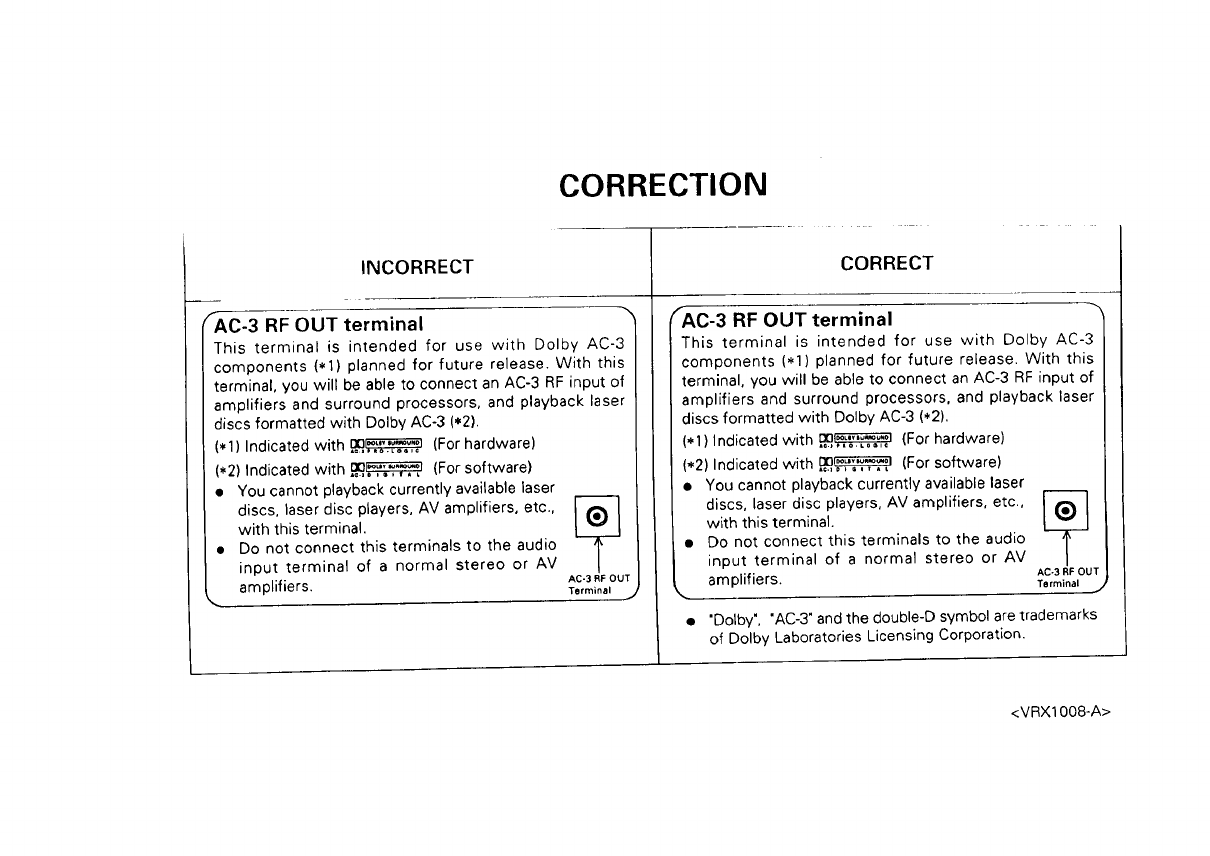
CORRECTION
INCORRECT
fA-C-3 RF OUT terminal
This terminal is intended for use with Dolby AC-3
components (.1) planned for future release. With this
terminal, you will be able to connect an AC-3 RF input of
amplifiers and surround processors, and playback laser
discs formatted with Dolby AC-3 (.2).
(.1) Indicated with _ (For hardware)
(*2) Indicated with ,._._ (For software)
•You cannot playback currently available laser
discs, laser disc players, AV amplifiers, etc.,
with this terminal.
•Do not connect this terminals to the audio
input terminal of a normal stereo or AV
amplifiers. Ac.3,_out
Terminal j
CORRECT
fAC-3 RF OUT terminal
This terminal is intended for use with Dolby AC-3
components (.1) planned for future release. With this
terminal, you will be able to connect an AC-3 RF input of
amplifiers and surround processors, and playback laser
discs formatted with Dolby AC-3 (*2).
(.1) Indicated with _ {For hardware)
(*2) Indicated with _ (For software)
•You cannot playback currently available laser
discs, laser disc players, AV amplifiers, etc.,
with this terminal.
•DO not connect this terminals to the audio
input terminal of a normal stereo or AV
amplifiers. Ac.3RFOUT
Terminal j
"Doiby", "AC-3" and the double-D symbol are trademarks
of Dolby Laboratories Licensin9 Corporation.
<VRX1008-A>
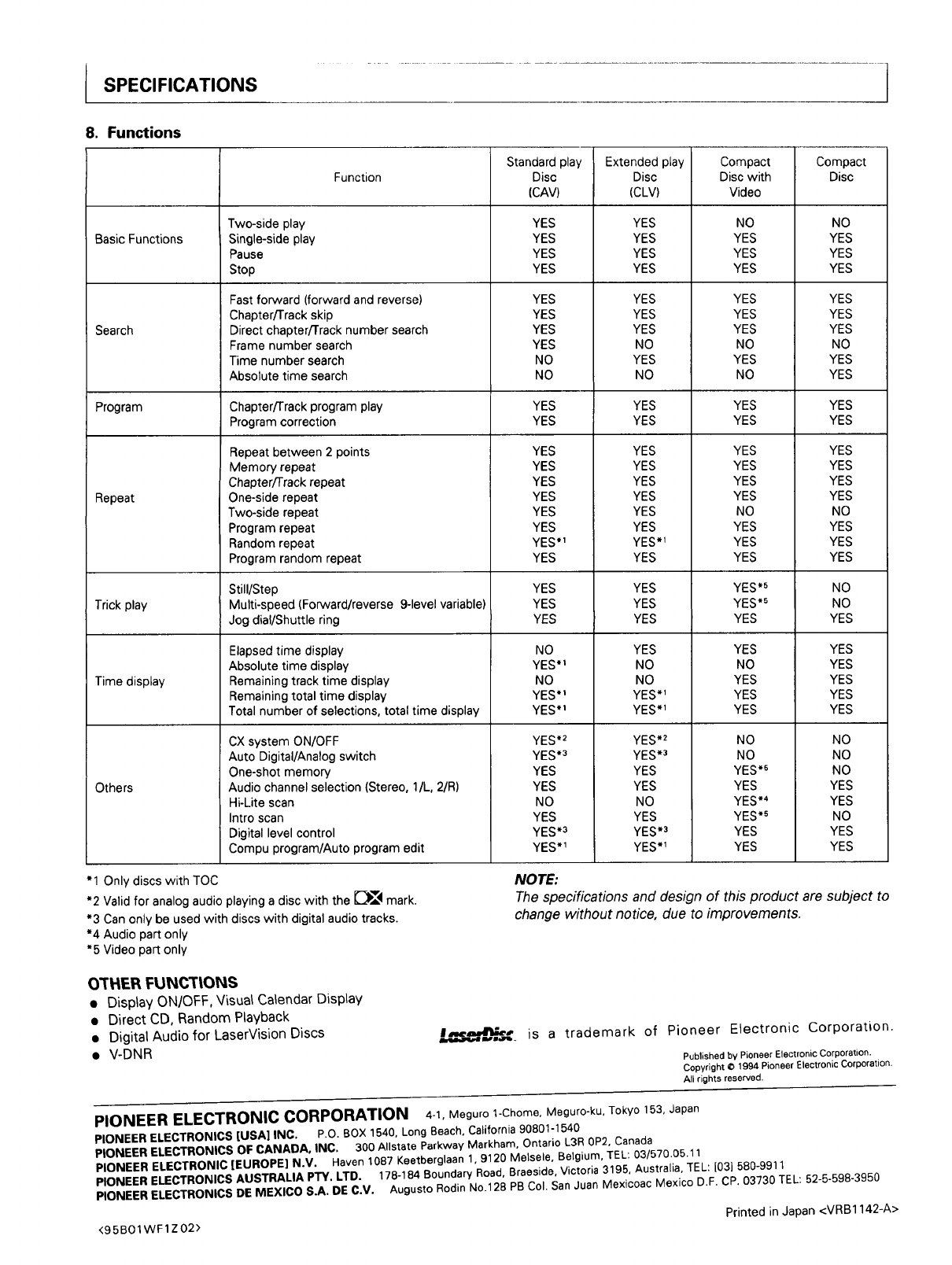
SPECIFICATIONS
8. Functions
Basic Functions
Search
Function
Two-side play
Single-side play
Pause
Stop
Fast forward (forward and reverse)
Chapter/Track skip
Direct chapter/Track number search
Frame number search
Time number search
Absolute time search
Standard play
Disc
(CAV)
YES
YES
YES
YES
YES
YES
YES
YES
NO
NO
Extended
Disc
(CLV)
YES
YES
YES
YES
YES
YES
YES
NO
YES
NO
play Compact
Disc with
Video
NO
YES
YES
YES
YES
YES
YES
NO
YES
NO
Compact
Disc
NO
YES
YES
YES
YES
YES
YES
NO
YES
YES
Program Chapter/Track program play YES YES YES YES
Program correction YES YES YES YES
YES
YES
YES
YES
YES
YES
YES.1
YES
YES
YES
YES
Repeat
Repeat between 2 points
Memory repeat
Chapter/Track repeat
One-side repeat
Two-side repeat
Program repeat
Random repeat
Program random repeat
Still/Step
Multi-speed (Forward/reverse 9-level variable)
Jog dial/Shuttle ring
YES
YES
YES
YES
YES
YES
YES*_
YES
YES
YES
YES
YES
NO
NO
YES.1
YES.1
YES*2
YES*3
YES
YES
NO
YES
YES*3
YES*l
Elapsed time display
Absolute time display
Remaining track time display
Remaining total time display
Total number of selections, total time display
CX system ON/OFF
Auto Digital/Analog switch
One-shot memory
Audio channel selection (Stereo, llL, 2/R)
Hi-Lite scan
Intro scan
Digital level control
Compu program/Auto program edit
Trick play
Time display
YES
YES
YES
YES
NO
YES
YES
YES
YES*5
YES*S
YES
YES
NO
YES
YES
YES
NO
NO
YES*S
YES
YES*4
YES*5
YES
YES
NO
YES*_
NO
YES*_
YES*_
Others
YES*2
YES*3
YES
YES
NO
YES
YES*3
YES*I
YES
YES
YES
YES
NO
YES
YES
YES
NO
NO
YES
YES
YES
YES
YES
YES
NO
NO
NO
YES
YES
NO
YES
YES
"1 Only discs with TOC
*2 Valid for analog audio playing a disc with the _1_,_ mark.
*3 Can only be used with discs with digital audio tracks.
*4 Audio part only
*5 Video part only
NOTE:
The specifications and design of this product are subject to
change without notice, due to improvements.
O't'HER FUNCT|ONS
•Display ONIOFF, Visual Calendar Display
• Direct CD, Random Playback
• Digital Audio for LaserVision Discs
• V-DNR
__,_,B is a trademark of Pioneer Electronic Corporation.
Published by Pioneer Electronic Corporation.
Copyright @ 1994 Pioneer Electronic Corporation,
All rights reserved.
PIONEER ELECTRONIC CORPORATION 4-1, Meguro 1-Chome, Meguro-ku, Tokyo 153, Japan
PIONEER ELECTRONICS [USA] INC. P.O. 80X 1540, Long Beach, California 90801-1540
PIONEER ELECTRONICS OF CANADA, INC. 300 Allstate Parkway Markham, Ontario L3R 0P2, Canada
PIONEER ELECTRONIC [EUROPE] N.V. Haven 1087 Keetberglaan 1,9120 Melsele, Betgium, TEL: 03/570.05.11
PIONEER ELECTRONICS AUSTRALIA P'TY, LTD. 178-184 Boundary Road, Braeside, Victoria 3195, Australia, TEL: [03] 580-9911
PIONEER ELECTRONICS DE MEXICO S.A. DE C.V. Augusto Rodin No.128 PB Col. San Juan Mexicoac Mexico D.F. CP. 03730 TEL: 52-5-598-3950
Printed in Japan <VRB1142-A>
<95BOlWF1Z02>
