Pioneer Avic 5100 Nex Operation Manual
AVIC 8100 NEX - Operation Manual AVIC-8100NEX_OM_EN Free User Guide for Pioneer GPS, Manual - page1
2015-07-27
: Pioneer Pioneer-Avic-5100-Nex-Operation-Manual-778412 pioneer-avic-5100-nex-operation-manual-778412 pioneer pdf
Open the PDF directly: View PDF  .
.
Page Count: 264 [warning: Documents this large are best viewed by clicking the View PDF Link!]
- Outline placeholder
- bk_page_1
- bk_page_10
- bk_page_100
- bk_page_101
- bk_page_102
- bk_page_103
- bk_page_104
- bk_page_105
- bk_page_106
- bk_page_107
- bk_page_108
- bk_page_109
- bk_page_11
- bk_page_110
- bk_page_111
- bk_page_112
- bk_page_113
- bk_page_114
- bk_page_115
- bk_page_116
- bk_page_117
- bk_page_118
- bk_page_119
- bk_page_12
- bk_page_120
- bk_page_121
- bk_page_122
- bk_page_123
- bk_page_124
- bk_page_125
- bk_page_126
- bk_page_127
- bk_page_128
- bk_page_129
- bk_page_13
- bk_page_130
- bk_page_131
- bk_page_132
- bk_page_133
- bk_page_134
- bk_page_135
- bk_page_136
- bk_page_137
- bk_page_138
- bk_page_139
- bk_page_14
- bk_page_140
- bk_page_141
- bk_page_142
- bk_page_143
- bk_page_144
- bk_page_145
- bk_page_146
- bk_page_147
- bk_page_148
- bk_page_149
- bk_page_15
- bk_page_150
- bk_page_151
- bk_page_152
- bk_page_153
- bk_page_154
- bk_page_155
- bk_page_156
- bk_page_157
- bk_page_158
- bk_page_159
- bk_page_16
- bk_page_160
- bk_page_161
- bk_page_162
- bk_page_163
- bk_page_164
- bk_page_165
- bk_page_166
- bk_page_167
- bk_page_168
- bk_page_169
- bk_page_17
- bk_page_170
- bk_page_171
- bk_page_172
- bk_page_173
- bk_page_174
- bk_page_175
- bk_page_176
- bk_page_177
- bk_page_178
- bk_page_179
- bk_page_18
- bk_page_180
- bk_page_181
- bk_page_182
- bk_page_183
- bk_page_184
- bk_page_185
- bk_page_186
- bk_page_187
- bk_page_188
- bk_page_189
- bk_page_19
- bk_page_190
- bk_page_191
- bk_page_192
- bk_page_193
- bk_page_194
- bk_page_195
- bk_page_196
- bk_page_197
- bk_page_198
- bk_page_199
- bk_page_2
- bk_page_20
- bk_page_200
- bk_page_201
- bk_page_202
- bk_page_203
- bk_page_204
- bk_page_205
- bk_page_206
- bk_page_207
- bk_page_208
- bk_page_209
- bk_page_21
- bk_page_210
- bk_page_211
- bk_page_212
- bk_page_213
- bk_page_214
- bk_page_215
- bk_page_216
- bk_page_217
- bk_page_218
- bk_page_219
- bk_page_22
- bk_page_220
- bk_page_221
- bk_page_222
- bk_page_223
- bk_page_224
- bk_page_225
- bk_page_226
- bk_page_227
- bk_page_228
- bk_page_229
- bk_page_23
- bk_page_230
- bk_page_231
- bk_page_232
- bk_page_233
- bk_page_234
- bk_page_235
- bk_page_236
- bk_page_237
- bk_page_238
- bk_page_239
- bk_page_24
- bk_page_240
- bk_page_241
- bk_page_242
- bk_page_243
- bk_page_244
- bk_page_245
- bk_page_246
- bk_page_247
- bk_page_248
- bk_page_249
- bk_page_25
- bk_page_250
- bk_page_251
- bk_page_252
- bk_page_253
- bk_page_254
- bk_page_255
- bk_page_256
- bk_page_257
- bk_page_258
- bk_page_259
- bk_page_26
- bk_page_260
- bk_page_261
- bk_page_262
- bk_page_263
- bk_page_264
- bk_page_27
- bk_page_28
- bk_page_29
- bk_page_3
- bk_page_30
- bk_page_31
- bk_page_32
- bk_page_33
- bk_page_34
- bk_page_35
- bk_page_36
- bk_page_37
- bk_page_38
- bk_page_39
- bk_page_4
- bk_page_40
- bk_page_41
- bk_page_42
- bk_page_43
- bk_page_44
- bk_page_45
- bk_page_46
- bk_page_47
- bk_page_48
- bk_page_49
- bk_page_5
- bk_page_50
- bk_page_51
- bk_page_52
- bk_page_53
- bk_page_54
- bk_page_55
- bk_page_56
- bk_page_57
- bk_page_58
- bk_page_59
- bk_page_6
- bk_page_60
- bk_page_61
- bk_page_62
- bk_page_63
- bk_page_64
- bk_page_65
- bk_page_66
- bk_page_67
- bk_page_68
- bk_page_69
- bk_page_7
- bk_page_70
- bk_page_71
- bk_page_72
- bk_page_73
- bk_page_74
- bk_page_75
- bk_page_76
- bk_page_77
- bk_page_78
- bk_page_79
- bk_page_8
- bk_page_80
- bk_page_81
- bk_page_82
- bk_page_83
- bk_page_84
- bk_page_85
- bk_page_86
- bk_page_87
- bk_page_88
- bk_page_89
- bk_page_9
- bk_page_90
- bk_page_91
- bk_page_92
- bk_page_93
- bk_page_94
- bk_page_95
- bk_page_96
- bk_page_97
- bk_page_98
- bk_page_99
- en
Operation Manual
MULTIMEDIA NAVIGATION RECEIVER
AVIC-8100NEX
AVIC-7100NEX
AVIC-6100NEX
AVIC-5100NEX
Notice to all users:
This software requires that the product is properly
connected to your vehicle’s parking brake and
depending on your vehicle, additional installation may
be required. For more information, please contact your
Authorized Pioneer Electronics retailer or call us at
(800) 421-1404.
Be sure to read Important Information for the User
first!
Important Information for the User includes the
important information that you must understand before
using this product.
English
Thank you for buying this Pioneer product.
Please read through these instructions so you will know how to operate your model
properly. After you have finished reading the instructions, keep this document in a
safe place for future reference.
Important
The screens shown in the examples may differ
from actual screens, which may be changed
without notice for performance and function
improvements.
Introduction
Manual overview 11
–How to use this manual 11
–Conventions used in this manual 11
–Terms used in this manual 11
Notes on internal memory 12
–Before removing the vehicle
battery 12
–Data subject to erasure 12
–Resetting the microprocessor 12
Basic operation
Checking part names and functions 13
Remote control 14
Use and care of the remote control 15
–Installing the battery 15
–Using the remote control 15
Protecting your product against theft 16
–Removing the detachable
faceplate 16
–Attaching the detachable faceplate 16
Notes on using the LCD panel 16
Adjusting the LCD panel angle 17
Inserting/ejecting/connecting media 17
–Inserting and ejecting a disc 17
–Inserting and ejecting an SD memory
card 18
–Connecting and disconnecting an
iPod 19
–Plugging and unplugging a USB
storage device 19
Startup and termination 19
On first-time startup 19
Regular startup 20
–A message about the map
database 20
Turning off the display 20
–When the Application screen is
available 20
–When the Application screen is not
available 20
How to use the screens 22
–Switching screens using the touch
panel keys 22
–Switching screens using the hardware
buttons 23
Supported AV source 24
Displaying the AV operation screen 24
–Selecting a front source on the AV
source selection screen 25
–Selecting a front source on the source
list 25
–Selecting a rear source 25
Turning off the AV source 25
Changing the display order of source
icons 25
Changing the display order of source
keys 26
Using the touch panel 26
–Using the common touch panel
keys 26
–Operating list screens 27
–Operating the time bar 27
–Operating the on-screen keyboard 27
On first-time startup of the navigation
system 28
How to use the Navigation menu screen
Operating the Navigation menu screen 29
How to use the map
How to read the Map screen 31
AV information bar 31
Operating the Map screen 32
–Changing the scale of the map 32
Contents
En
2

–Smart Zoom 32
–Switching between 2D, 3D, and 2D
North up views 32
–Scrolling the map to the position you
want to see 33
–Control keys on the scrolled map 33
Understanding the route guidance 34
–Frequently shown route events 34
Browsing the data field 35
–When the system cannot receive a GPS
signal 35
Searching for a destination
Searching for a location by address 37
Searching for Points of Interest (POI) 38
–Searching for POIs using preset
categories 38
–Searching for POIs by categories or
directly from the name of the
facilities 39
–Searching for providers nearby that
offer emergency or roadside assistance
services 40
Selecting a destination from stored
locations 41
Selecting a destination from stored
routes 41
Selecting a location you searched for
recently 42
–History 42
–Smart History 42
Searching for a location using “Combined
Search”43
Searching for a location by the
coordinates 44
Searching for a location by scrolling the
map 44
Using the “Map Location”screen 45
Checking and modifying the current
route
Modifying the route 46
–Building a route using “Route
Planner”46
–Adding waypoints 47
–Checking route alternatives 47
–Checking detour routes 48
–Checking route information and
preferences 48
–Canceling the current route
guidance 49
–Watching the simulation of the
route 50
Registering and editing locations and
routes
Storing a location in “Saved Location”51
–Storing your home and your workplace
location 51
–Storing your favorite locations 51
–Editing stored locations 51
Storing a route in “Saved Routes”52
Editing the stored route 53
–Renaming stored routes 53
–Deleting stored routes 53
Saving a location as an alert point 53
Editing the stored alert points 54
Receiving real-time traffic information
(TMC)
Viewing the traffic list 55
Checking the traffic incidents on the
map 55
When traffic incidents occur on your
route 56
Turning the traffic information on or off 56
Checking useful information about your
trip
Checking useful information 57
Recording your travel history 58
–Activating trip logger temporarily 58
–Browsing the trip log 58
–Setting the trip logger 59
En 3
Contents

–Editing a trip log 59
Using the Trip Computer mode 59
Calculating the fuel consumption 60
–Setting the initial odometer value 60
–Entering the fuel consumption
information 60
–Setting the car maintenance
schedule 61
Customizing preferences of the
navigation
Customizing the navigation settings 62
–Restoring the default settings 63
Information on each option of “Settings”63
–“Route Preferences”settings 63
–“Sound”settings 65
–“Warnings”settings 66
–“Navigation Map”settings 66
–“Regional”settings 68
–“Display”settings 69
–“Traffic”settings 69
–“Weather”settings 69
–“Fuel”settings 69
–“Trip Monitor”settings 69
–“Online Services”settings 69
–“Usage Reports”settings 70
Setting the alert point warnings 70
Expanding the use of the navigation
functions 71
–Be sure to read before you use
AVICSYNC function 71
–What is the AVICSYNC App? 72
Compatibility and connectivity 72
–AVICSYNC compatibility 72
–Preparations before using the
AVICSYNC function 73
Getting the map update 73
Registering and connecting a Bluetooth
device
Preparing communication devices 74
Registering your Bluetooth devices 74
–Searching for nearby Bluetooth
devices 74
–Pairing from your Bluetooth
devices 75
–Connecting to a Bluetooth device
automatically 76
–Deleting a registered device 76
Connecting a registered Bluetooth device
manually 77
Switching visibility 77
Entering the PIN code for Bluetooth wireless
connection 77
Displaying the Bluetooth address 78
Clearing the Bluetooth memory 78
Updating Bluetooth software 78
Displaying the Bluetooth software
version 79
Using hands-free phoning
Displaying the phone menu 80
–Touch panel keys 80
–Reading the screen 80
Making a phone call 81
–Direct dialing 81
–Calling a number in the phone
book 81
–Dialing from the history 82
–Using the preset dial lists 83
Receiving a phone call 83
–Answering an incoming call 84
Minimizing the dial confirmation screen 84
Changing the phone settings 85
–Answering a call automatically 85
–Switching the ring tone 85
–Inverting names in the phone book 85
–Setting the private mode 85
–Adjusting the other party’s listening
volume 86
Using the voice recognition function 86
Notes for hands-free phoning 86
Contents
En
4

iPod / iPhone or smartphone setup
operation
The basic flow of iPod / iPhone or
smartphone setup 88
Setting the device connection method 88
iPod compatibility 88
Android™device compatibility 89
AppRadio Mode Compatibility 89
MirrorLink device compatibility 89
Information on the connections and
functions for each device 90
Using the radio
Using the touch panel keys 93
Reading the screen 93
Starting procedure 94
Selecting a band 94
Manual tuning 94
Seek tuning 94
Selecting a preset channel from the preset
channel list 95
Storing broadcast frequencies 95
Storing the strongest broadcast
frequencies 95
Tuning into strong frequencies 95
Storing song information to an iPod (iTunes
Tagging) 96
Operating with the hardware buttons 96
HD Radio™reception
HD Radio stations 97
Using the touch panel keys 97
Reading the screen 98
Starting procedure 99
Selecting a band 99
Manual tuning 99
Seek tuning 99
Selecting a preset channel from the preset
channel list 100
Storing broadcast frequencies 100
Storing the strongest broadcast
frequencies 100
Tuning into strong frequencies 100
Switching the seek mode 101
Switching the reception mode 102
Storing song information to an iPod (iTunes
Tagging) 102
Operating with the hardware buttons 102
Playing a disc
Using the touch panel keys (for audio) 103
Using the touch panel keys (for video) 103
Reading the screen (for audio) 105
Reading the screen (for video) 105
Starting procedure 106
Selecting files from the file name list 106
Playing tracks in random order 106
Setting a repeat play range 106
Switching the media file type 107
Searching for the part you want to play 107
Operating the DVD menu 107
Switching the subtitle language 108
Switching the audio language 108
Frame-by-frame playback 108
Slow motion playback 108
Returning to a specified scene 108
Resuming playback (Bookmark) 109
Operating the DVD menu using touch panel
keys 109
Switching the multi-angle DVD display 109
Selecting the audio output 109
Operating with the hardware buttons 110
Playing compressed audio files
Using the touch panel keys 111
Reading the screen 112
Starting procedure (for Disc) 113
Starting procedure (for USB/SD) 113
Switching the browse mode 113
Selecting files from the file name list 114
Selecting a file from the list related to the
song currently playing (link search) 114
Playing files in random order 114
Setting a repeat play range 115
En 5
Contents
Switching the media file type 115
Operating with the hardware buttons 115
Playing compressed video files
Using the touch panel keys 116
Reading the screen 117
Starting procedure (for Disc) 117
Starting procedure (for USB/SD) 117
Selecting files from the file name list 117
Setting a repeat play range 118
Frame-by-frame playback 118
Slow motion playback 118
Switching the media file type 118
Operating with the hardware buttons 118
Playing compressed still image files
Using the touch panel keys 119
Reading the screen 119
Starting procedure 119
Selecting files from the file name list 120
Playing files in random order 120
Setting a repeat play range 120
Switching the media file type 120
Setting the slideshow interval 120
Operating with the hardware buttons 121
Using an iPod
Using the touch panel keys (for audio) 122
Using the touch panel keys (for video) 122
Using the touch panel keys (for iTunes
Radio) 123
Reading the screen (for audio) 123
Reading the screen (for video) 124
Reading the screen (for iTunes Radio) 124
Starting procedure 125
Setting the shuffle play 125
Setting a repeat play range 125
Selecting song or video sources from the
playlist screen 126
Using iTunes Radio 127
–Playing back songs similar to the
current song 127
–Setting the current song not to be
played back again 127
–Adding the current song to the wish
list 127
Using this product’s iPod function from your
iPod 128
Changing the speed of audiobook
playback 128
Displaying lists related to the song currently
playing (link search) 129
Operating with the hardware buttons 129
Playing back music from a music app other
than iPod music, as the iPod source 129
–Using the touch panel keys 129
–Reading the screen 130
Playing music output from the Android
Auto-compatible device
Using the touch panel keys 131
Reading the screen 131
Starting procedure 132
Using your iPhone or smartphone
applications
Using AppRadio Mode 133
–Using the touch panel keys (App
control side bar) 133
–Starting procedure 134
–Using the keyboard 135
–Adjusting the image size (For
smartphone users) 136
–Displaying the image of your
application (iPhone with 30-pin
connector) 137
–Displaying the image of your
application (iPhone with Lightning
connector) 137
–Displaying the image of your
application (smartphone) 138
Using Android Auto 138
–Starting procedure 139
–Setting the driving position 139
Contents
En
6

–Adjusting the volume 140
Using MirrorLink mode 140
–Using the touch panel keys (App
control side bar) 140
–Starting procedure 140
Using the audio mix function 141
Streaming Pandora®
Pandora operations 142
Using the touch panel keys 142
Reading the screen 143
Starting procedure 143
–For iPhone with a 30-pin connector
users 144
–For iPhone with a Lightning connector
users 144
–For smartphone users 144
Selecting a Pandora station from the
list 145
Creating a station 145
Operating with the hardware buttons 145
Using Aha Radio
Using the touch panel keys 146
Reading the screen 147
Starting procedure 147
–For iPhone with a 30-pin connector
users 147
–For iPhone with a Lightning connector
users 147
–For smartphone users 148
Operating with the hardware buttons 148
Using iDatalink
Activating iDatalink Maestro 149
–Updating the iDatalink Maestro
module 149
Starting procedure 149
Hands-free phone 151
–Setting Bluetooth 151
–Phone Book screen 152
–History list screen 152
–Dial screen 152
–Dial confirmation screen 152
Using a Bluetooth audio player
Using the touch panel keys 153
Reading the screen 154
Starting procedure 154
Selecting files from the file name list 155
Playing files in random order 155
Setting a repeat play range 155
Operating with the hardware buttons 155
Using the SiriusXM®satellite radio
SiriusXM satellite radio operations 156
–Subscribing to the SiriusXM Satellite
Radio service 156
Using the touch panel keys 156
Reading the screen 157
Starting procedure 158
Manual tuning 159
Selecting a preset channel from the preset
channel list 159
Storing broadcast channels 159
Selecting a SiriusXM channel directly 159
Selecting a channel from a list of all
channels 160
Selecting a channel from the category
list 160
Switching the displayed list 160
Using the Replay™function 161
Setting SiriusXM TuneStart™161
Using TuneScan™162
Using category scan 162
Using TuneMix™162
Checking the update Traffic and Weather
information 163
–Registering the city 163
Setting parental lock 164
–Setting the passcode 164
–Locking the channel 164
En 7
Contents

Using the content alerts function (such as
Song Alerts, Artist Alerts and Game
Alerts) 165
–Memorizing the current contents 165
Setting the program you want to be alerted
for 165
Selecting teams for Game Alert 166
Setting the Featured Favorites function 167
Setting the update notification for Featured
Favorites 168
Using the SportsFlash™function 168
Selecting teams for SportsFlash 169
Restoring the SiriusXM settings to the
default 170
Storing song information to an iPod (iTunes
Tagging) 170
Operating with the hardware buttons 171
Using an HDMI source
Using the touch panel keys 172
Reading the screen 172
Starting procedure 172
Using an AUX source
Using the touch panel keys 173
Reading the screen 173
Starting procedure 173
Setting the video signal 174
Switching the operation screen 174
Using AV input
Using the touch panel keys 175
Reading the screen 175
Starting procedure 175
Setting the video signal 176
Using MIXTRAX
Touch panel keys 177
Selecting an item to play songs 177
Selecting songs not to be played 177
Specifying the playback portion 178
Setting the flash pattern 178
System settings
Navigation info window 179
Setting automatic switching to the navigation
screen 179
Activating the Bluetooth audio source 179
Setting the ever scroll 180
Setting AV input 180
Setting the rear view camera 180
–Setting rear view camera
activation 181
–Setting the polarity of the rear view
camera 181
–Setting the reversed image display for
the rear view image 182
Setting the camera for Camera View
mode 182
Displaying the parking assist
guidelines 183
Setting guidelines on the rear view
image 183
Setting the second camera input 184
–Setting the second camera
activation 185
–Setting the reversed image setting for
the second camera input image 185
Turning off the demo screen 185
Selecting the system language 186
Setting the keyboard language with the
application for iPhone 186
Setting the beep sound 186
Adjusting the response positions of the
touch panel (touch panel calibration) 187
Setting the dimmer function 187
Setting whether to activate the dimmer
function 188
Setting the duration of time for the dimmer
function to be active 188
Adjusting the picture 189
Displaying the firmware version 190
Updating firmware 190
Contents
En
8

Checking sensor learning status and driving
status 191
Clearing the status 192
Checking the connections of leads 192
Audio adjustments
Using fader/balance adjustment 194
Using balance adjustment 194
Switching sound muting/attenuation 195
Adjusting source levels 195
Adjusting the filter 198
–Adjusting the front and rear speaker
output 198
–Using the subwoofer output 198
Selecting the listening position 199
Adjusting the speaker output levels
finely 199
Adjusting the time alignment 200
Using the automatic sound levelizer 202
Using the equalizer 202
–Recalling equalizer curves 202
–Customizing the equalizer curves 203
–Using the auto-adjusted equalizer 203
Adjusting the equalizer curve automatically
(Auto EQ) 203
–Before operating the Auto EQ
function 204
–Performing Auto EQ 204
Theme menu
Selecting the background display 207
–Changing to the background display
image stored on the external storage
device (USB, SD) 207
Setting the illumination color 208
–Selecting the color from the preset
colors 208
–Creating a user-defined color 209
Selecting the theme color 209
Selecting the clock image 209
Changing the preinstalled splash
screen 210
–Changing to the splash screen stored
on the external storage device (USB,
SD) 210
Replicating the settings 211
–Exporting “Theme”settings 211
–Importing “Theme”settings 212
Setting up the video player
Setting the top-priority languages 213
–Setting the subtitle language 213
–Setting the audio language 213
–Setting the menu language 214
Setting the angle icon display 214
Setting the aspect ratio 215
Setting parental lock 215
–Setting the code number and
level 215
Displaying your DivX VOD registration
code 216
Displaying your DivX VOD deregistration
code 217
Automatic playback of DVDs 217
Setting the video signal for the rear view
camera 218
Language code chart for DVDs 219
Favorite menu
Creating a shortcut 220
Selecting a shortcut 220
Removing a shortcut 220
Common operations
Setting the time and date 221
Storing song information to an iPod (iTunes
Tagging) 221
Setting the “Sound Retriever”function 222
Changing the wide screen mode 223
Other functions
Selecting the video for the rear display 224
Setting the anti-theft function 224
–Setting the password 224
–Entering the password 225
En 9
Contents

–Deleting the password 225
–Forgotten password 226
Restoring this product to the default
settings 226
–Restoring the default settings 226
Appendix
Troubleshooting 227
Error messages 229
Positioning technology 236
–Positioning by GPS 236
–Positioning by dead reckoning 236
–How do GPS and dead reckoning work
together? 236
Handling large errors 237
–When positioning by GPS is
impossible 237
–Conditions likely to cause noticeable
positioning errors 238
Route setting information 240
–Route search specifications 240
Handling and care of discs 240
–Built-in drive and care 241
–Ambient conditions for playing a
disc 241
Playable discs 241
–DVD-Video and CD 241
–AVCHD recorded discs 242
–Playing DualDisc 242
–Dolby Digital 242
Detailed information for playable media 242
–Compatibility 242
–Media compatibility chart 245
Bluetooth 249
SiriusXM®satellite radio 249
HD Radio™Technology 249
SDHC 249
WMA/WMV 249
DivX 249
AAC 250
Google, Google Play, Android™, and Android
Auto 250
MirrorLink 250
MIXTRAX 250
Detailed information regarding connected
iPod devices 250
–iPod and iPhone 250
–Lightning 251
–App Store 251
–iOS 251
–iTunes 251
–iTunes Radio 251
Using app-based connected content 251
–Pandora®252
–Aha Radio 252
HDMI 252
MHL 252
IVONA Text-to-Speech 252
Notice regarding video viewing 252
Notice regarding DVD-Video viewing 252
Notice regarding MP3 file usage 253
Notice regarding open source licenses 253
Map coverage 253
Using the LCD screen correctly 253
–Handling the LCD screen 253
–Liquid crystal display (LCD)
screen 253
–Maintaining the LCD screen 253
–LED (light-emitting diode)
backlight 254
Display information 255
–Phone menu 255
–System menu 255
–Theme menu 256
–Audio menu 257
–Video Setup menu 257
–Bluetooth menu 258
Specifications 259
Contents
En
10
Manual overview
Before using this product, be sure to read Im-
portant Information for the User (a separate
manual) which contains warnings, cautions,
and other important information that you
should note.
The screen examples shown in this manual
are those for AVIC-8100NEX. The screens may
vary according to the models.
How to use this manual
Finding the operation procedure for
what you want to do
When you have decided what you want to do,
you can find the page you need from the Con-
tents.
Finding the operation procedure from
a menu name
If you want to check the meaning of an item
displayed on screen, you will find the neces-
sary page from the Display information at the
end of this manual.
Conventions used in this manual
Before moving on, take a few minutes to read
the following information about the conven-
tions used in this manual. Familiarity with
these conventions will help you greatly as you
learn how to use your new equipment.
!Buttons on this product are described in
ALL CAPITALS,BOLD lettering:
e.g.)
HOME button, MODE button.
!Menu items, screen titles, and functional
components are described in bold with
double quotation marks “”:
e.g.)
“System”screen or “Audio”screen
!Touch panel keys that are available on the
screen are described in bold in brackets [ ]:
e.g.)
[Disc], [AV Source Settings].
!Extra information, alternatives and other
notes are presented in the following for-
mat:
e.g.)
pIf the home location has not been stored
yet, set the location first.
!Functions of other keys on the same screen
are indicated with #at the beginning of the
description:
e.g.)
#If you touch [OK], the entry is deleted.
!References are indicated like this:
e.g.)
=For details of the operations, refer to
How to use the screens on page 22.
!Model icons shown in this manual indicate
that the description is intended for the
models indicated by the icons.
If the following icons are shown, the de-
scription is applied only to the models
shown.
e.g.)
8100NEX 7100NEX
Terms used in this manual
“Front display”and “Rear display”
In this manual, the screen that is attached to
the body of this product will be referred to as
the “Front display”. Any additional screen that
is commercially available and can be con-
nected to this product will be referred to as the
“Rear display”.
“Video image”
“Video image”in this manual indicates mov-
ing images of DVD-Videos, Video-CDs, ROM-
Videos, DivX®, iPod, and any equipment that is
connected to this product, such as general-
purpose AV equipment.
En 11
Chapter
01
Introduction
Introduction
“External storage device (USB, SD)”
The SD memory card, SDHC memory card
and USB memory device are collectively re-
ferred to as the “external storage device (USB,
SD)”. If it indicates the USB memory only, it is
referred to as the “USB storage device”.
“SD memory card”
The SD memory card and SDHC memory card
are collectively referred to as the “SD memory
card”.
“iPod”
In this manual, iPod and iPhone will be re-
ferred to as “iPod”.
Notes on internal memory
Before removing the vehicle
battery
If the battery is disconnected or discharged,
the memory will be erased and must be repro-
grammed.
pSome of the settings and recorded con-
tents will not be reset.
Data subject to erasure
The information is erased by disconnecting
the yellow lead from the battery (or removing
the battery itself).
pSome of the settings and recorded con-
tents will not be reset.
Resetting the microprocessor
CAUTION
Pressing the RESET button resets settings and re-
corded contents to the factory settings.
pDo not perform this operation when a device
is connected to this product.
pSome of the settings and recorded contents
will not be reset.
The microprocessor must be reset under the
following conditions:
!Prior to using this product for the first time
after installation.
!If this product fails to operate properly.
!If there appears to be problems with the op-
eration of the system.
!If your vehicle position is shown on the
map with a significant positioning error.
1 Turn the ignition switch OFF.
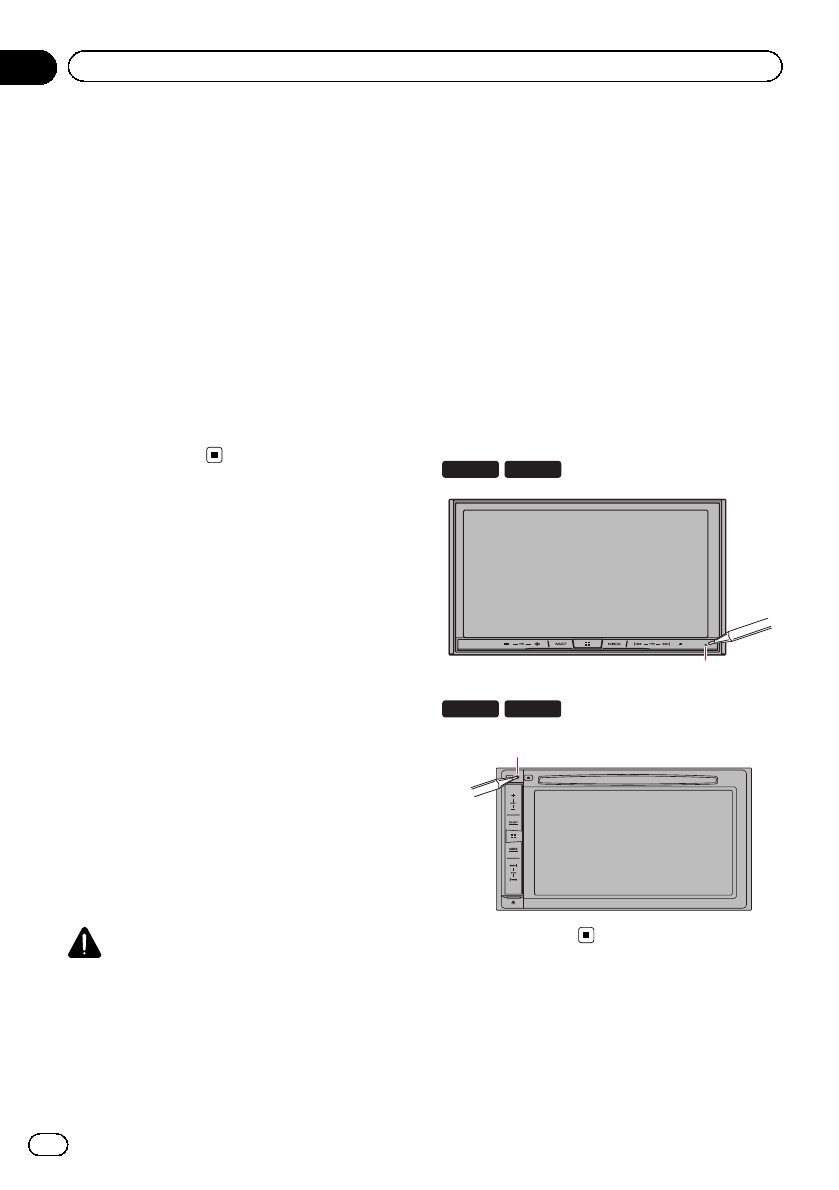
2 Press the RESET button with a pen tip
or other pointed implement.
Settings and recorded contents are reset to
the factory settings.
8100NEX 7100NEX
1
6100NEX 5100NEX
1
1RESET button
En
12
Chapter
01 Introduction
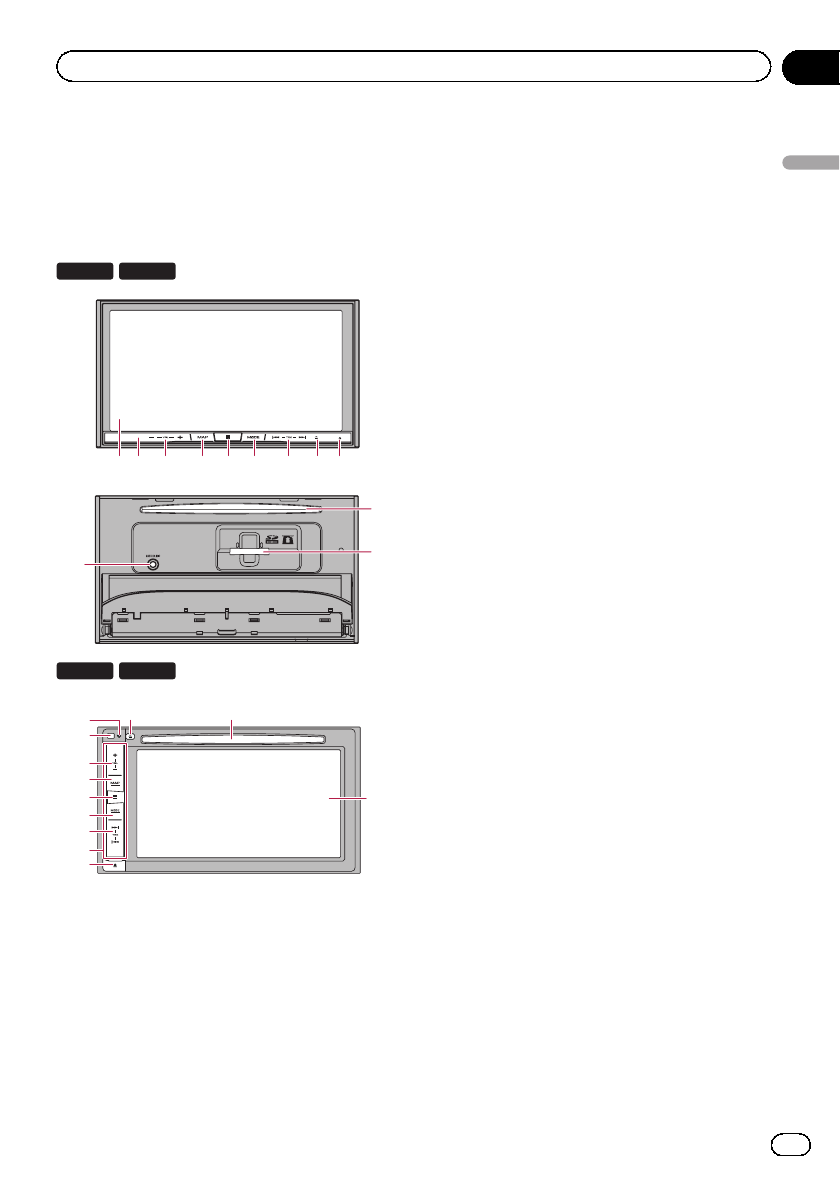
Checking part names and
functions
This chapter gives information about the names
of the parts and the main features using the but-
tons.
8100NEX 7100NEX
1 3 4 56 7 8 92
b
c
a
6100NEX 5100NEX
1
b
8
e
2
3
4
5
6
7
d
9
1LCD screen
2Remote control sensor
pThe remote control CD-R33 (sold sepa-
rately) is available.
For details concerning operations, see
the remote control manual.
3VOL (+/–) button
Press to adjust the AV (Audio and Video)
source volume.
4MAP button
!Press to display the Map screen.
=For details of the operations, refer to
How to use the screens on page 22.
!Press and hold to display the rear view
camera image.
pThis function is available only when
“Back Camera Input”or “2nd Cam-
era Input”is set to “On”.
5HOME button
!Press to display the Top menu screen.
=For details of the operations, refer to
How to use the screens on page 22.
!Press and hold to activate the voice re-
cognition function.
=For details, refer to Using the voice re-
cognition function on page 86.
6MODE button
!Press to switch between the Application
screen and the AV operation screen.
pIf the display cannot switch from the
AV operation screen to the Applica-
tion screen when the MODE button is
pressed, the display will turn off.
=For details of the operations, refer to
How to use the screens on page 22.
!Press and hold to turn the display off
when the Application screen is available.
=For details, refer to Turning off the dis-
play on page 20.
7TRK button
Press to perform manual seek tuning, fast
forward, reverse and track search controls.
8hbutton
9RESET button
=For details of the operations, refer to Re-
setting the microprocessor on page 12.
En 13
Chapter
02
Basic operation
Basic operation
aAuto EQ microphone input jack
Use to connect a microphone for acoustical
measurement (sold separately).
bDisc-loading slot
Insert a disc to play.
=For details, refer to Inserting and ejecting
a disc on page 17.
cSD card slot
=For details, refer to Inserting and ejecting
an SD memory card on page 18.
dDetachable faceplate
ebutton
Press to remove the detachable faceplate
from this product.
=For details, refer to Removing the detach-
able faceplate on page 16.
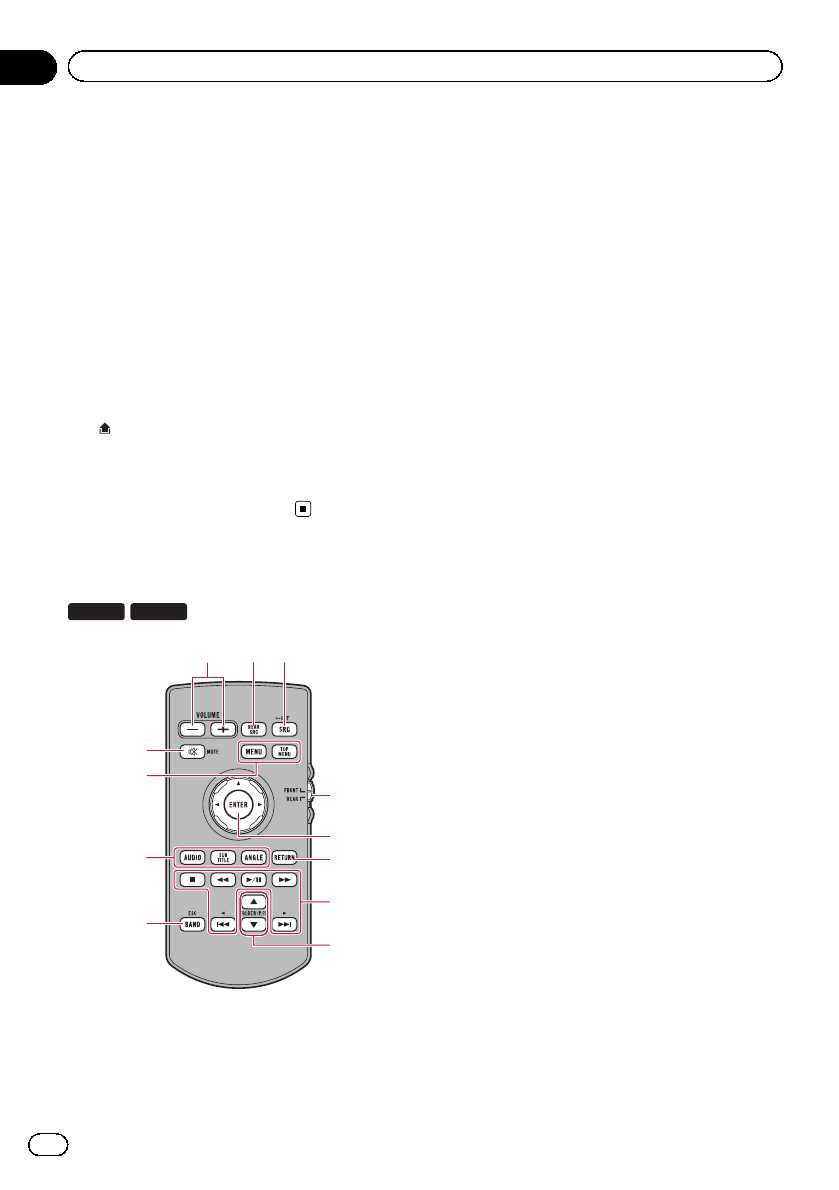
Remote control
8100NEX 6100NEX
3
4
2
1
5
6
7
9
8
b
a
c
1VOLUME (+/–)
2REAR SRC
!Press to cycle through all the available
rear sources.
!Press and hold to turn the rear source
off.
3SRC/OFF
!Press to cycle through all the available
front sources.
!Press and hold to turn the front source
off.
4Source mode select switch
Use to switch the source mode between the
front source and the rear source.
5Thumb pad
Use to select a menu on the DVD menu.
6RETURN
Returns to the specified point and starts
playback from there.
7f
Press to pause or resume playback.
m
For audio
Press and hold to perform fast reverse.
For video
!Press to perform fast reverse.
!Press to change the fast reverse speed.
n
For audio
Press and hold to perform fast forward.
For video
!Press to perform fast forward.
!Press to change the fast forward speed.
o
Press to return to the previous track (chap-
ter).
p
Press to go to the next track (chapter).
g
Press to stop playback.
If you resume playback, playback will start
from the point where you stopped. Touch
the key again to stop playback completely.
8FOLDER/P.CH
!Press to select the next or previous disc
or folder.
En
14
Chapter
02 Basic operation
!Press to recall radio station frequencies
assigned to preset channel keys.
9MUTE
Press to mute. Press again to unmute.
aMENU
Press to display the DVD menu during DVD
playback.
TOP MENU
Press to return to the top menu during DVD
playback.
bAUDIO
Press to change the audio language during
DVD playback.
SUBTITLE
Press to change the subtitle language dur-
ing DVD playback.
ANGLE
Press to change the viewing angle during
DVD playback.
cBAND/ESC
!Press to select the tuner band when
tuner is selected as a source.
!Press to cancel the control mode of func-
tions.
!Press to switch between media file types
when playing the following types of data:
—Disc
—External storage device (USB, SD)
Use and care of the remote
control
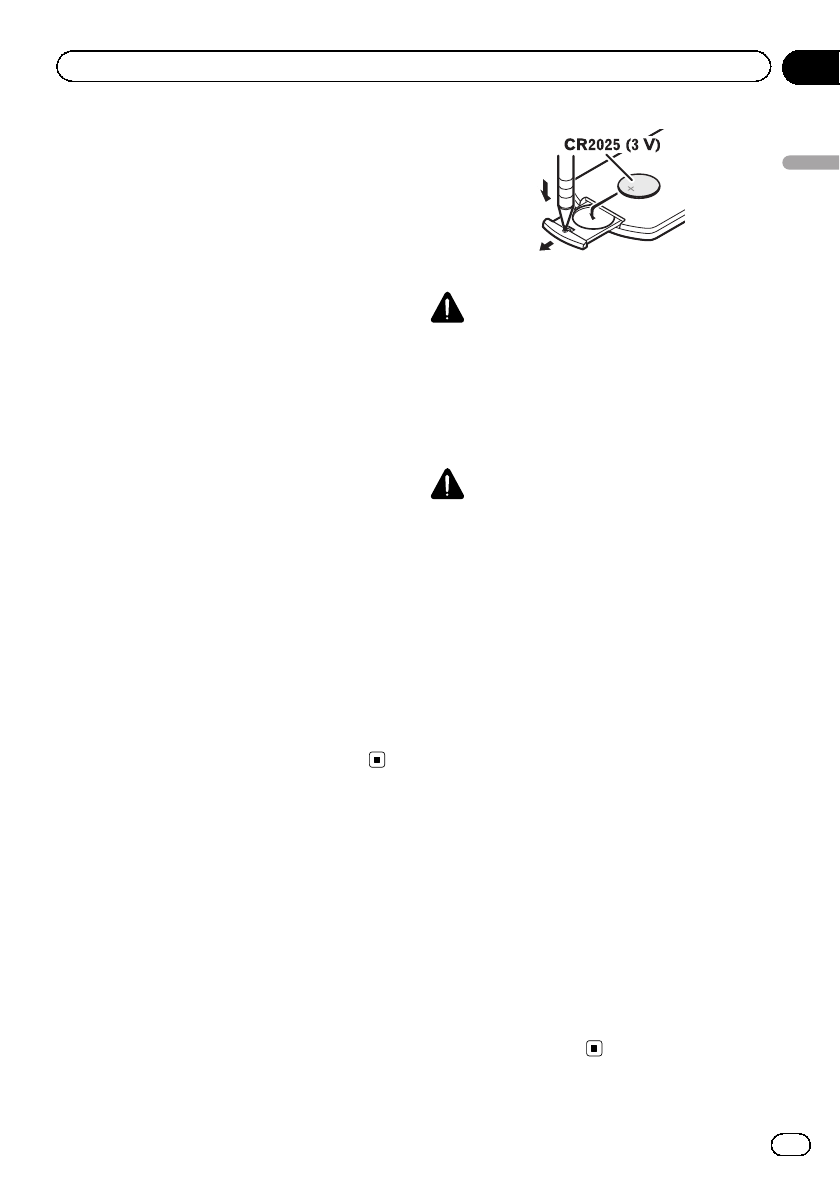
Installing the battery
Slide the tray on the back of the remote con-
trol out and insert the battery with the plus (+)
and minus (–) poles aligned properly.
!When using for the first time, pull out the
film protruding from the tray.
WARNING
!Keep the battery out of the reach of children.
Should the battery be swallowed, consult a
doctor immediately.
!Batteries (battery pack or batteries installed)
must not be exposed to excessive heat such
as sunshine, fire or the like.
CAUTION
!Remove the battery if the remote control is not
used for a month or longer.
!There is a danger of explosion if the battery is
incorrectly replaced. Replace only with the
same or equivalent type.
!Do not handle the battery with metallic tools.
!Do not store the battery with metallic objects.
!If the battery leaks, wipe the remote control
completely clean and install a new battery.
!When disposing of used batteries, comply
with governmental regulations or environmen-
tal public institutions’rules that apply in your
country/area.
Using the remote control
Point the remote control in the direction of the
front panel to operate.
!The remote control may not function prop-
erly in direct sunlight.
Important
!Do not store the remote control in high tem-
peratures or direct sunlight.
!Do not let the remote control fall onto the
floor, where it may become jammed under the
brake or gas pedal.
En 15
Chapter
02
Basic operation
Basic operation
Protecting your product
against theft
6100NEX 5100NEX
The detachable faceplate can be detached
from this product to discourage theft, as de-
scribed below.
CAUTION
!Do not expose the detachable faceplate to ex-
cessive shock or disassemble it.
!Never grip the buttons tightly or use force
when removing or attaching the detachable
faceplate.
!Keep the detachable faceplate out of reach of
small children to prevent them from placing it
in their mouths.
!After removing the detachable faceplate, keep
it in a safe place so it is not scratched or da-
maged.
!Do not expose the detachable faceplate to di-
rect sunlight and high temperatures.
!When removing or attaching the detachable
faceplate, do so after turning off the ignition
switch (ACC OFF).
Removing the detachable
faceplate
pThis product cannot be operated while the
detachable faceplate is removed from this
product.
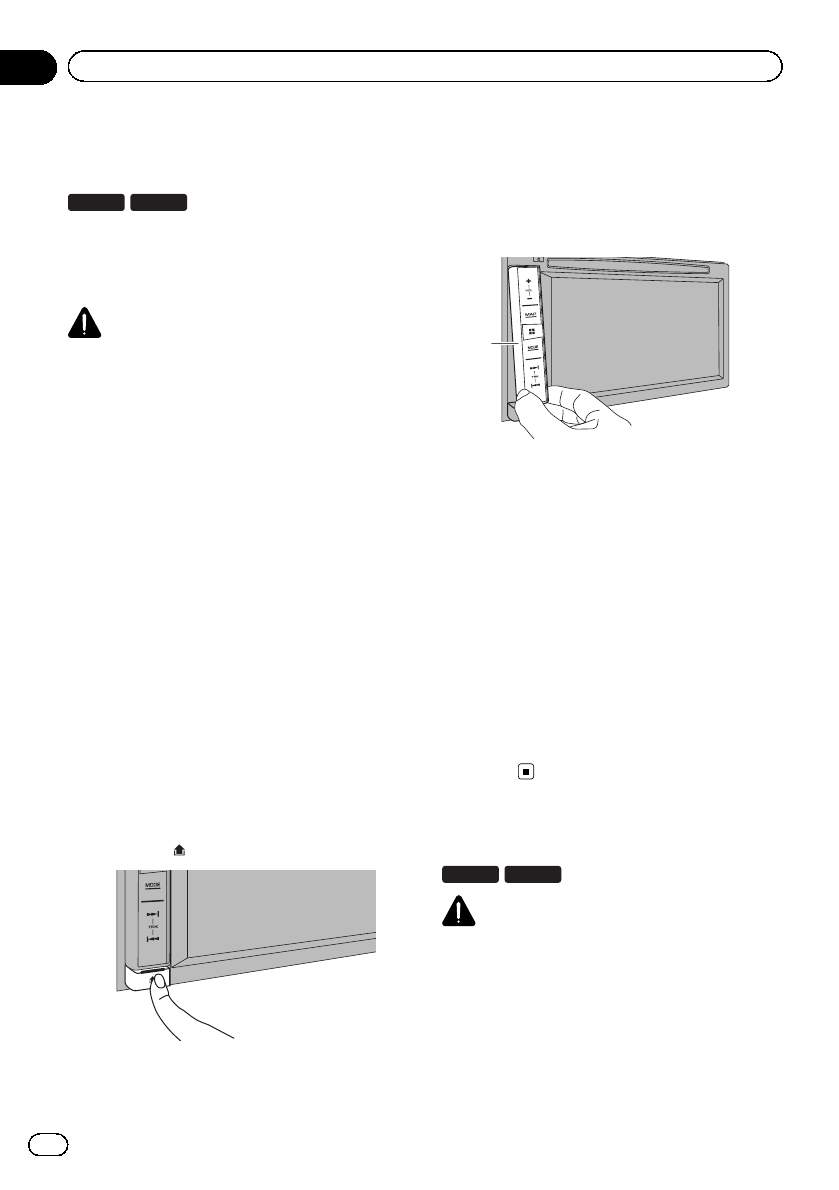
1 Press the button.
When you release your finger, the bottom of
the detachable faceplate separates slightly
from this product.
2 Gently grip the bottom of the detach-
able faceplate and slowly pull it outward.
1
1Detachable faceplate
Attaching the detachable faceplate
1 Slide the detachable faceplate all the
way into this product.
Make sure the detachable faceplate is se-
curely connected to the mounting hooks of
this product.
2 Push the lower part of the detachable
faceplate until you hear a click.
If you fail to successfully attach the detach-
able faceplate to this product, try again but be
careful not to force it as the panel could be
damaged.
Notes on using the LCD panel
8100NEX 7100NEX
WARNING
!Keep hands and fingers clear of this product
when opening, closing, or adjusting the LCD
panel. Be especially cautious of children’s
hands and fingers.
!Do not use with the LCD panel left open. If the
LCD panel is left open, it may result in injury
in the event of an accident.
En
16
Chapter
02 Basic operation
CAUTION
!Do not open or close the LCD panel by force.
This may cause a malfunction.
!Do not operate this product until the LCD
panel has completely opened or closed. If this
product is operated while the LCD panel is
opening or closing, the LCD panel may stop at
that angle for safety.
!Do not place a glass or can on the open LCD
panel. Doing so may break this product.
Adjusting the LCD panel angle
8100NEX 7100NEX
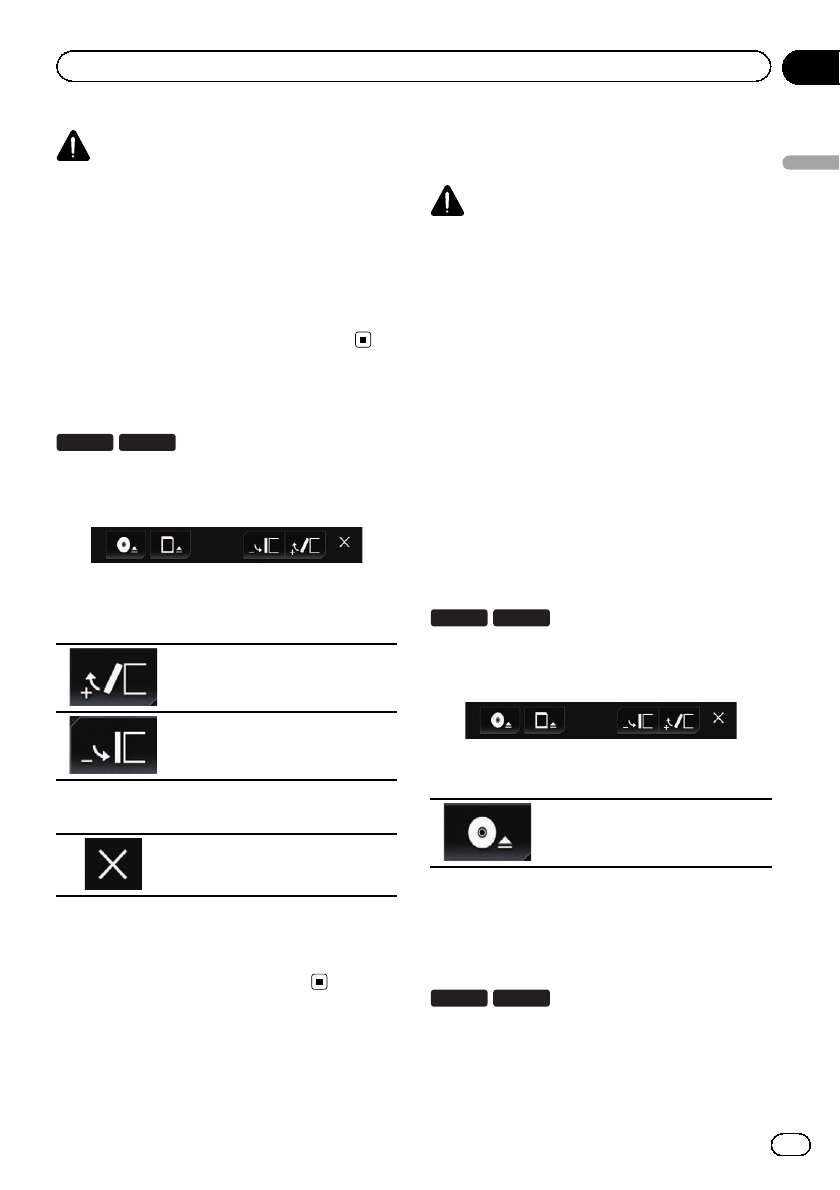
1 Press the hbutton.
The following screen appears.
2 Touch the following keys to adjust the
angle of the LCD panel.
Laying the panel down.
Returning the panel to the upright
position.
3 Touch the following key.
Returns to the previous screen.
pThe adjusted angle of the LCD panel will be
memorized and the LCD panel will automa-
tically return to that angle the next time the
LCD panel is opened or closed.
Inserting/ejecting/
connecting media
CAUTION
!Do not insert anything other than a disc into
the disc-loading slot.
!Do not insert anything other than SD memory
cards into the SD card slot.
!Ejecting an SD memory card during data
transfer can damage the SD memory card. Be
sure to eject the SD memory card by the pro-
cedure described in this manual.
!Do not press the hbutton when an SD mem-
ory card is not fully inserted. Doing so may da-
mage the card.
!Do not press the hbutton before an SD mem-
ory card has been completely removed. Doing
so may damage the card.
Inserting and ejecting a disc
Inserting a disc
8100NEX 7100NEX
1 Press the hbutton.
The following screen appears.
2 Touch the following key.
Opens the LCD panel.
3 Insert a disc into the disc-loading slot.
The disc is loaded, and the LCD panel closes.
Ejecting a disc
8100NEX 7100NEX
1 Press the hbutton.
The following screen appears.
En 17
Chapter
02
Basic operation
Basic operation
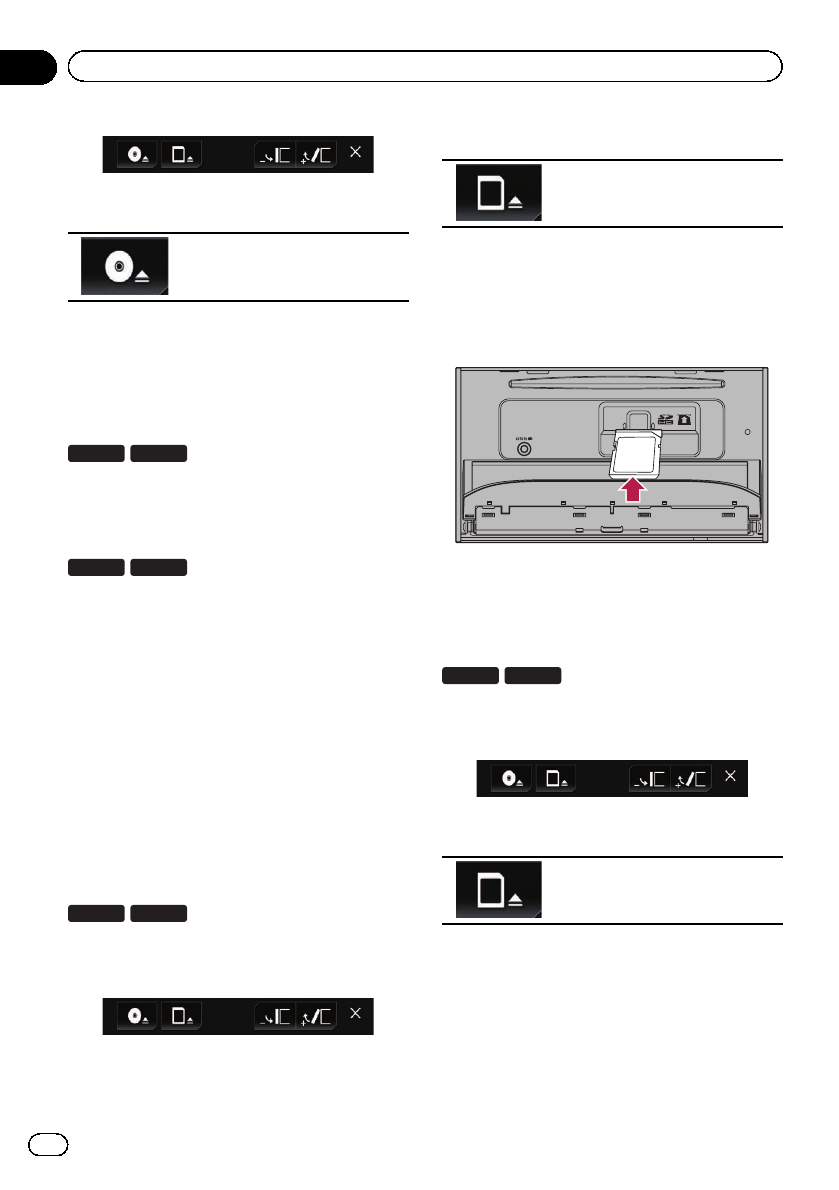
2 Touch the following key.
The LCD panel opens, and the disc
is ejected.
3 Remove the disc, and press the hbut-
ton.
The LCD panel closes.
Inserting a disc
6100NEX 5100NEX
%Insert a disc into the disc-loading slot.
Ejecting a disc
6100NEX 5100NEX
%Press the hbutton.
The disc is ejected.
Inserting and ejecting an SD
memory card
pThis system is not compatible with the
Multi Media Card (MMC).
pCompatibility with all SD memory cards is
not guaranteed.
pThis product may not achieve optimum per-
formance with some SD memory cards.
Inserting an SD memory card
8100NEX 7100NEX
1 Press the hbutton.
The following screen appears.
2 Touch the following key.
Opens the LCD panel.
3 Insert an SD memory card into the SD
card slot.
Insert it with the label surface face-up and
press the card until it clicks and completely
locks.
4 Press the hbutton.
The LCD panel closes.
Ejecting an SD memory card
8100NEX 7100NEX
1 Press the hbutton.
The following screen appears.
2 Touch the following key.
Opens the LCD panel.
3 Press the middle of the SD memory
card gently until it clicks.
The SD memory card is ejected.
4 Pull the SD memory card out straight.
5 Press the hbutton.
The LCD panel closes.
En
18
Chapter
02 Basic operation
Connecting and disconnecting
an iPod
Connecting your iPod
=For details of the connections, refer to the
Installation Manual.
Disconnecting your iPod
%Pull out the cables after confirming
that no data is being accessed.
Plugging and unplugging a USB
storage device
pThis product may not achieve optimum per-
formance with some USB storage devices.
pConnection via a USB hub is not possible.
pA USB cable is required for connection.
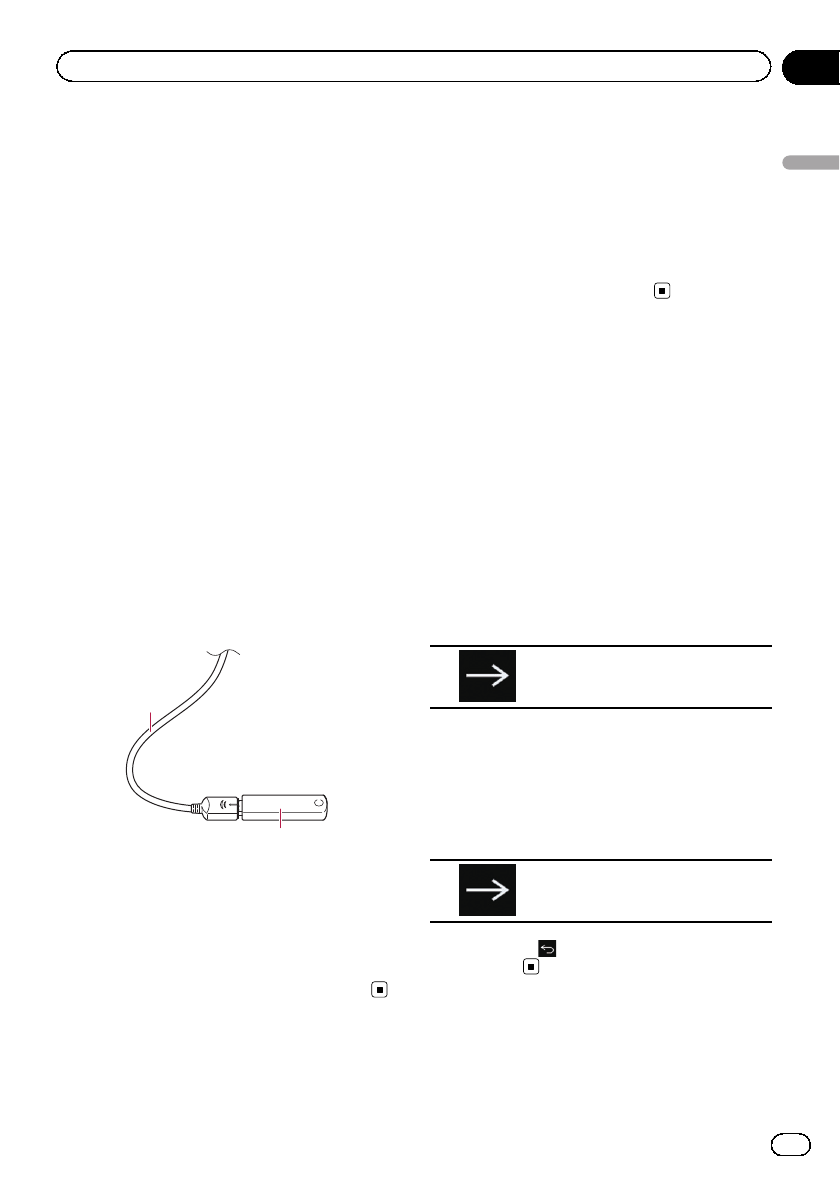
Plugging in a USB storage device
%Plug a USB storage device into the USB
cable.
2
1
1USB cable
2USB storage device
Unplugging a USB storage device
%Pull out the USB storage device after
checking that no data is being accessed.
Startup and termination
1 Start the engine to boot up the system.
After a short pause, the splash screen comes
on for a few seconds.
2 Turn off the vehicle engine to termi-
nate the system.
This product is also turned off.
On first-time startup
When you use this product for the first time,
select the language that you want to use.
1 Start the engine to boot up the system.
After a short pause, the splash screen comes
on for a few seconds.
The “Select Program Language”screen ap-
pears.
2 Touch the language that you want to
use on screen.
3 Touch the following key.
Displays the “Smartphone Setup”
screen.
4 Touch the item you want to set.
=For details, refer to Information on the con-
nections and functions for each device on
page 90.
5 Touch the following key.
Displays the Top menu screen.
#If you touch , the display returns to the pre-
vious screen.
En 19
Chapter
02
Basic operation
Basic operation

Regular startup
%Start the engine to boot up the system.
After a short pause, the splash screen comes
on for a few seconds.
pThe screen shown will differ depending on
the previous conditions.
pEnter the password for the anti-theft func-
tion if the password entry screen appears.
pThe terms appear if the screen displayed
last was the navigation screen.
Read the terms carefully, checking the de-
tails, and then touch [OK] if you agree to
the conditions.
After you touch [OK], the screen that was
displayed just before turning off the ignition
switch (ACC OFF) is displayed.
A message about the map
database
After you start using this product, a message
related to map data may be displayed.
pThis message is displayed the first time you
turn on this product each month.
Turning off the display
You can turn off the display at night or when
the screen is too bright.
When the Application screen is
available
%Press and hold the MODE button.
The display turns off.
pIf you touch the screen when the display is
off, it reverts to the original screen.
When the Application screen is
not available
%Press the MODE button.
The display turns off.
pIf you touch the screen when the display is
off, it reverts to the original screen.
En
20
Chapter
02 Basic operation

En 21
Chapter
02
Basic operation
Basic operation
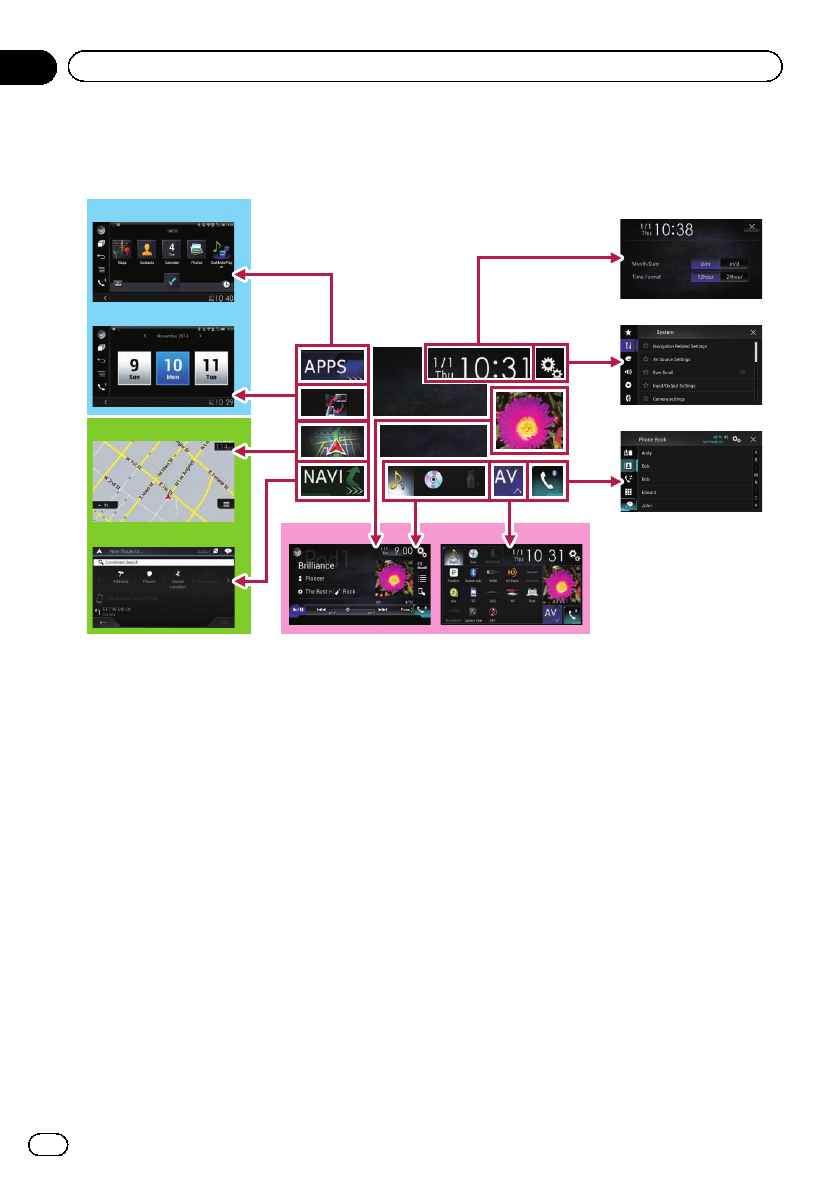
How to use the screens
Switching screens using the touch panel keys
1
2
3
4
7
8
a
b
5
6
9
En
22
Chapter
02 Basic operation
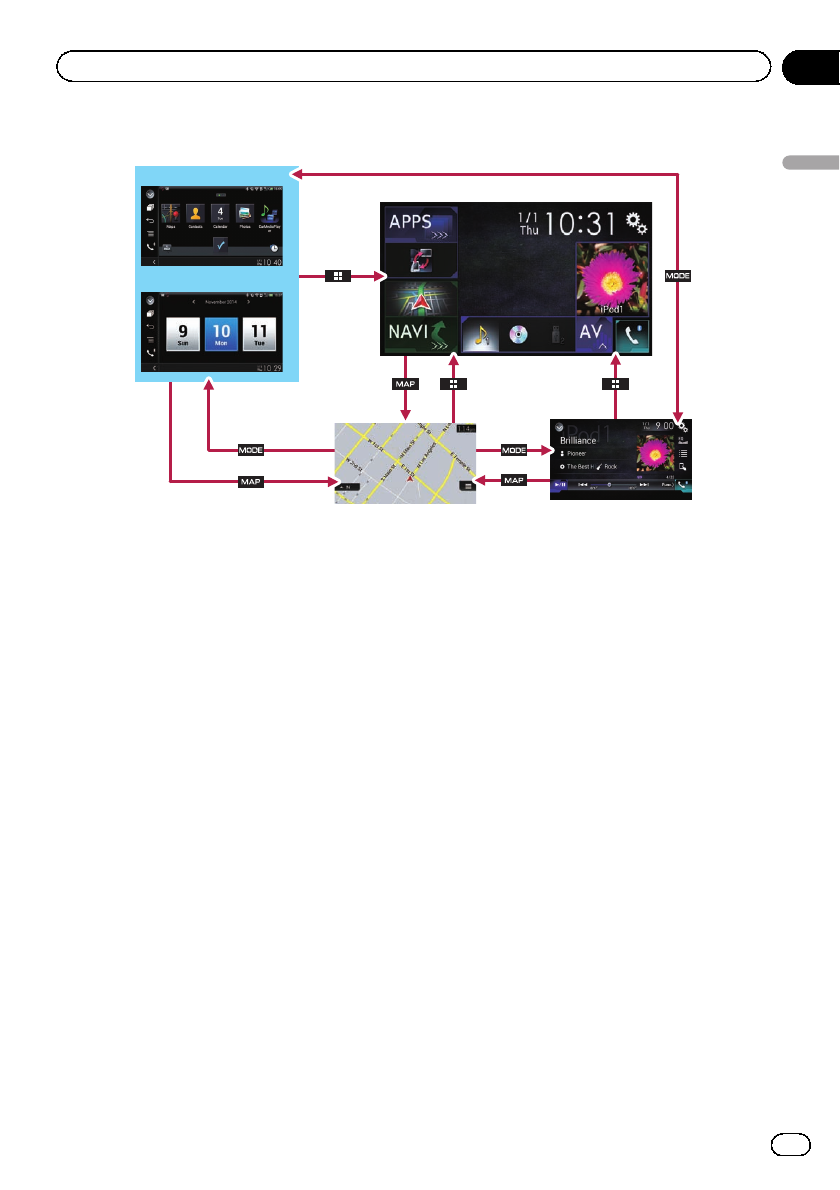
Switching screens using the hardware buttons
a
b
9
1
7
1Top menu screen
This is the starting menu to access the de-
sired screens and operate the various func-
tions.
pIf you press the HOME button, the Top
menu screen is displayed.
p“APPS”is displayed when AppRadio
Mode or MirrorLink mode is on.
p“Android Auto”is displayed when
Android Auto is on (for AVIC-8100NEX
and AVIC-7100NEX).
2Time and date setting screen
You can set the time and date settings.
3Setting menu screen
You can customize the system and audio
settings, etc.
4Phone menu screen
You can access the screen that is related to
hands-free phoning.
5AV source selection screen
You can select the AV source.
6Favorite source icons
You can display the icons of frequently used
sources by dragging the icons to the display
area.
=For details of the operation, refer to
Changing the display order of source
icons on page 25.
7AV operation screen
You can operate each source.
8Navigation menu screen
You can specify way points and a destina-
tion.
9Map screen
!You can use this screen to check the cur-
rent vehicle position information and
route to the destination.
!You can customize navigation settings.
pIf you press the MAP button, the Map
screen is displayed.
aApplication operation screen
You can control the iPhone or smartphone
applications directly on this product.
pIf applications are not available, the Ap-
plication operation screen will not be dis-
played.
En 23
Chapter
02
Basic operation
Basic operation
bApplication menu screen
This product can switch to the application
menu, on which you can display and oper-
ate the application for an iPhone or a smart-
phone on the screen.
pIf application menus are not available,
the Application menu screen will not be
displayed.
Supported AV source
You can play or use the following sources with
this product.
!Radio (FM, AM) (*1)
!HD Radio (HD Radio™tuner) (*2)
!CD
!ROM (compressed audio or video files)
!DVD-Video
!Video-CD
The following sources can be played back or
used by connecting an auxiliary device.
!USB
!SD (*3)
!iPod
!My Vehicle
!Pandora®
!Aha Radio
!Bluetooth audio
!SiriusXM®Satellite Radio
!AV input (AV)
!AUX
!HDMI (*2)
p(*1) Available for AVIC-5100NEX.
p(*2) Available for AVIC-8100NEX, AVIC-
7100NEX and AVIC-6100NEX.
p(*3) Available for AVIC-8100NEX and AVIC-
7100NEX.
Displaying the AV
operation screen
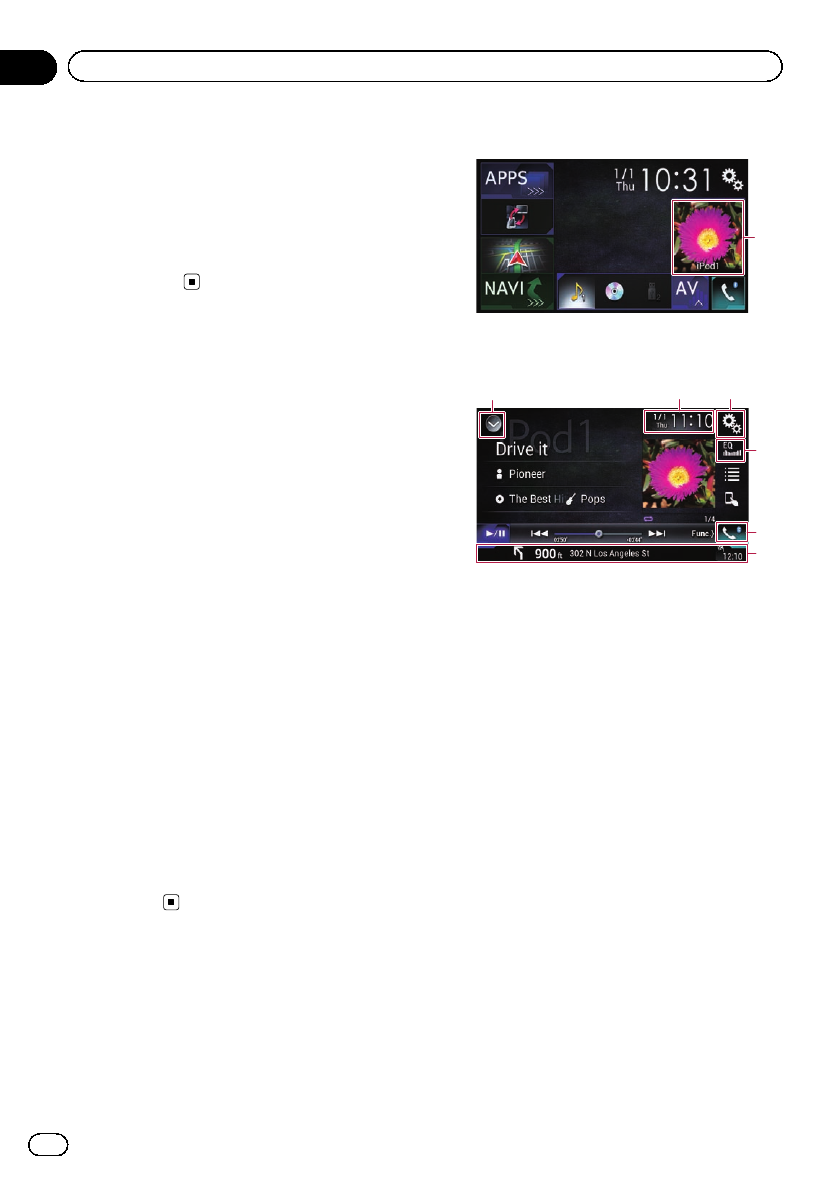
1 Press the HOME button to display the
Top menu screen.
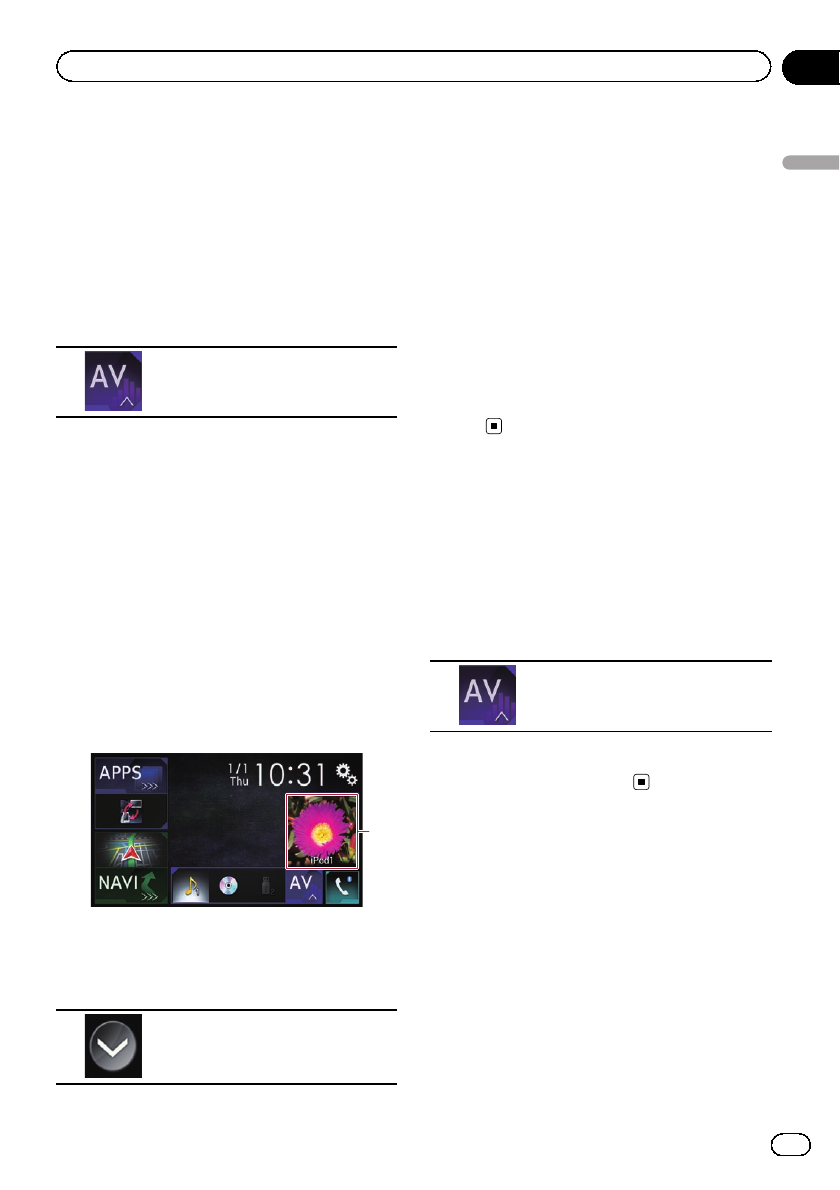
2 Touch the AV operation key.
1
1AV operation key
The AV operation screen appears.
132
6
4
5
1Displays the source list.
=For details, refer to Selecting a front
source on the source list on page 25.
2Displays the Time and date setting
screen.
=For details, refer to Setting the time and
date on page 221.
3Displays the Setting menu screen.
4Recalls equalizer curves.
=For details, refer to Using the equalizer
on page 202.
5Displays the Phone menu screen.
=For details, refer to Displaying the phone
menu on page 80.
6Shows the navigation information.
The distance to the next guidance point, the
name of the street on which the next gui-
dance point is located, the name of the
street that the vehicle is currently traveling
on, the estimated time of arrival, and warn-
ing icons, etc. are displayed.
pThis is not displayed for some sources.
pThis is not displayed when “Navigation
info window”is set to “Off”.
En
24
Chapter
02 Basic operation
=For details, refer to Navigation info win-
dow on page 179.
Selecting a front source on the
AV source selection screen
1 Press the HOME button to display the
Top menu screen.
2 Touch the following key.
Displays the AV source selection
screen.
3 Touch the source icon you want to se-
lect.
The AV operation screen of the selected
source appears.
Selecting a front source on the
source list
pThis function is not available during a call
via this product.
1 Press the HOME button to display the
Top menu screen.
2 Touch the AV operation key.
1
1AV operation key
The AV operation screen appears.
3 Touch the following key.
Displays the source list.
4 Touch the source key you want to se-
lect.
The AV operation screen of the selected
source appears.
p“Camera View”is available only when
“Back Camera Input”or “2nd Camera
Input”is set to “On”.
Selecting a rear source
You can select a source output to the rear dis-
play.
=For details of the operations, refer to Select-
ing the video for the rear display on page
224.
Turning off the AV source
Turn off the AV source to stop playing or re-
ceiving the AV source.
1 Press the HOME button to display the
Top menu screen.
2 Touch the following key.
Displays the AV source selection
screen.
3 Touch [OFF].
The AV source is turned off.
Changing the display order
of source icons
You can change the display order of source
icons on the AV source selection screen.
pThis setting is available only when you stop
your vehicle in a safe place and apply the
parking brake.
pThis function is not available during a call
via this product.
1 Press the HOME button to display the
Top menu screen.
En 25
Chapter
02
Basic operation
Basic operation
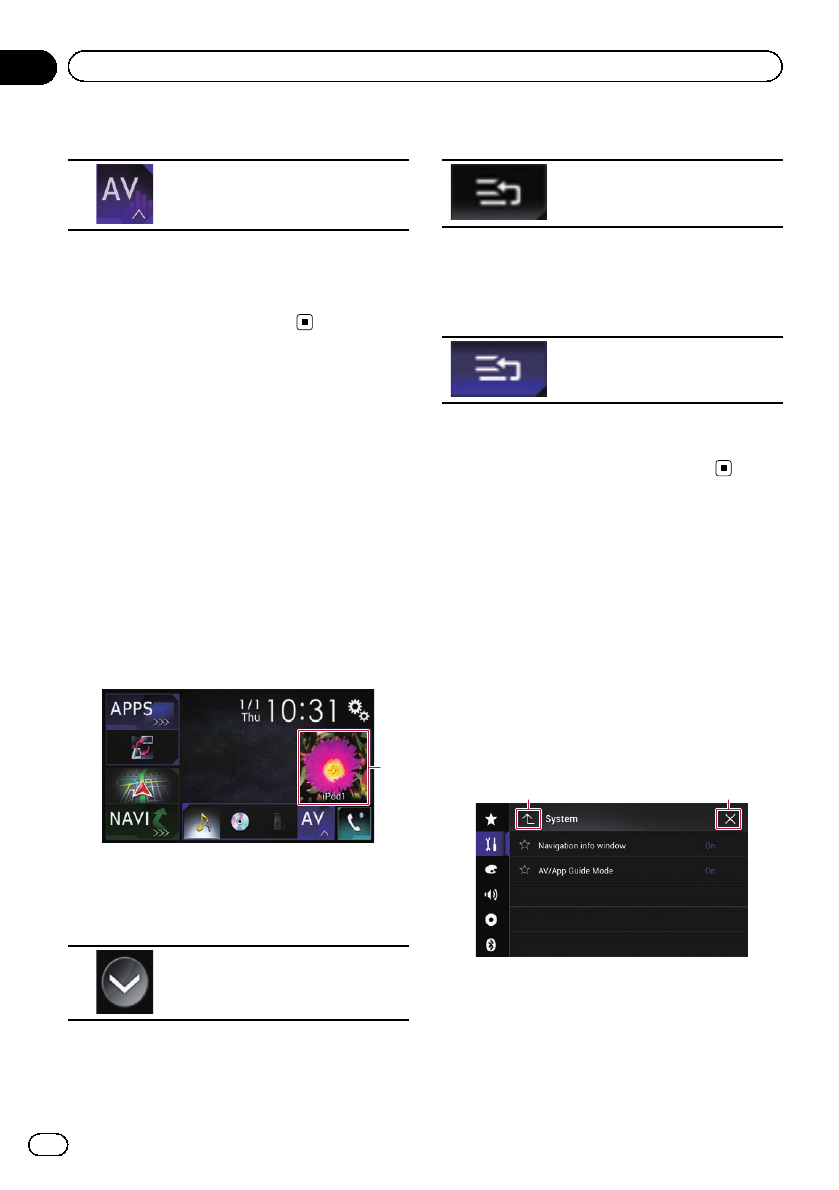
2 Touch the following key.
Displays the AV source selection
screen.
3 Touch and hold a source icon, and drag
the icon to the desired position.
pIf the source icon is moved, the order of the
source list is also changed.
Changing the display order
of source keys
You can change the display order of source
keys on the source list.
pThis setting is available only when you stop
your vehicle in a safe place and apply the
parking brake.
pThis function is not available during a call
via this product.
1 Press the HOME button to display the
Top menu screen.
2 Touch the AV operation key.
1
1AV operation key
The AV operation screen appears.
3 Touch the following key.
Displays the source list.
4 Touch the following key.
The source keys can be moved.
5 Drag the source key to the desired posi-
tion.
6 Touch the following key.
Returns to the previous screen.
pIf the source key is moved, the source icons
displayed on the Top menu screen and the
AV source screen are also moved.
Using the touch panel
You can operate this product by touching the
marks and items (touch panel keys) displayed
on the screen directly with your fingers.
pTo protect the LCD screen from damage, be
sure to touch the touch panel keys only
with your finger and do so gently.
Using the common touch panel
keys
1 2
1Returns to the previous screen.
2Closes the screen.
En
26
Chapter
02 Basic operation
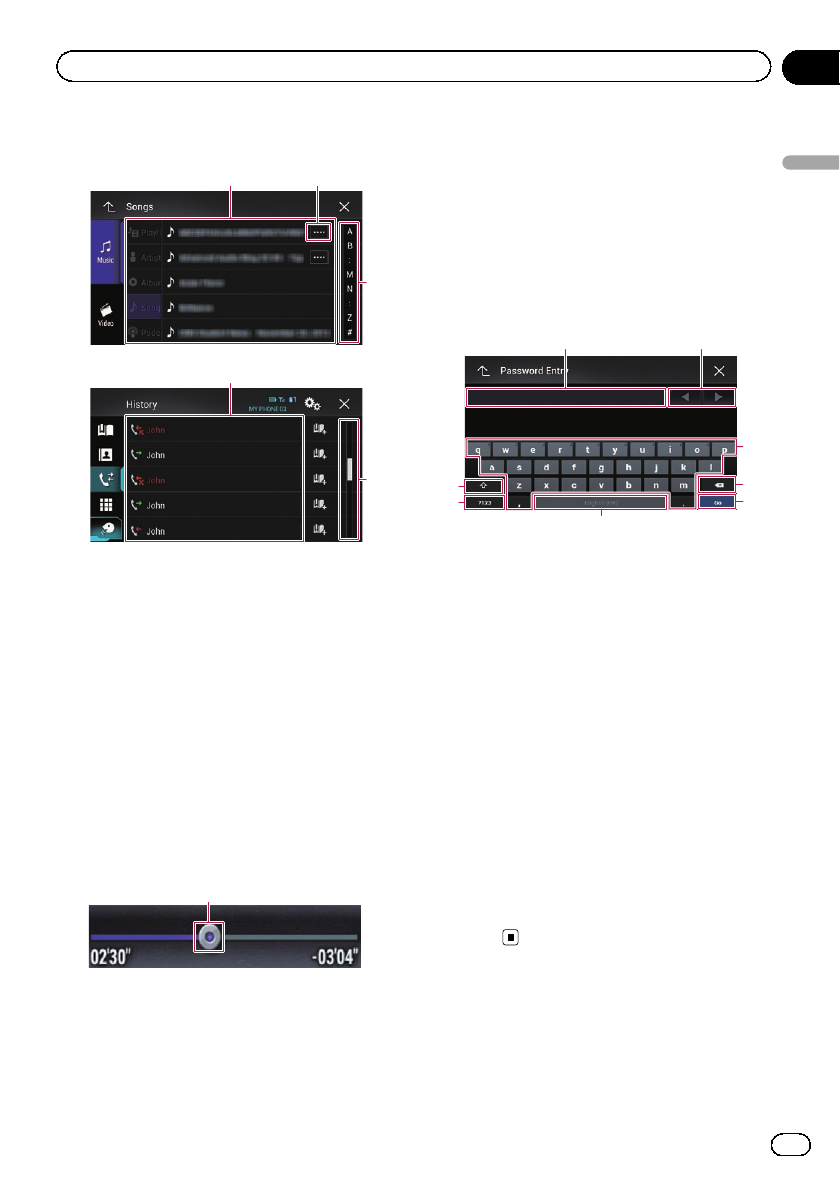
Operating list screens
3
12
3
1
1Touching an item on the list selects the item
or narrows down the options.
2Appears when all characters are not displayed
on the display area.
If you touch the key, the rest of the characters
are scrolled for display.
3Appears when items cannot be displayed on a
single page only.
Drag the slider bar to view any hidden items.
Also, you can drag the list to view any hidden
items.
Operating the time bar
1
1You can change the playback point by drag-
ging the key.
pPlayback time corresponding to the po-
sition of the key is displayed while drag-
ging the key.
pThis function is not available when
using iPod function with an iPhone 6
Plus, iPhone 6, iPhone 5s, iPhone 5c,
iPhone 5, or iPod touch (5th genera-
tion).
pThis function is not available for some
media or sources.
Operating the on-screen keyboard
6
5
4
3
8
7
21
1Displays the characters that are entered. If
there is no text in the box, an informative
guide with text appears.
2Moves the cursor to the right or left for a num-
ber of characters equivalent to the number of
touches.
3Enters the characters in the text box.
4Deletes the input text to the left of the cursor
one letter at a time. Continuing to touch the
key deletes all of the text.
5Confirms the entry and proceeds to the next
step.
6Enters a space.
A space equivalent to the number of touches
is inserted.
7Switches between alphabet and numbers/
symbols.
8Switches between capital and lower case
letters.
En 27
Chapter
02
Basic operation
Basic operation
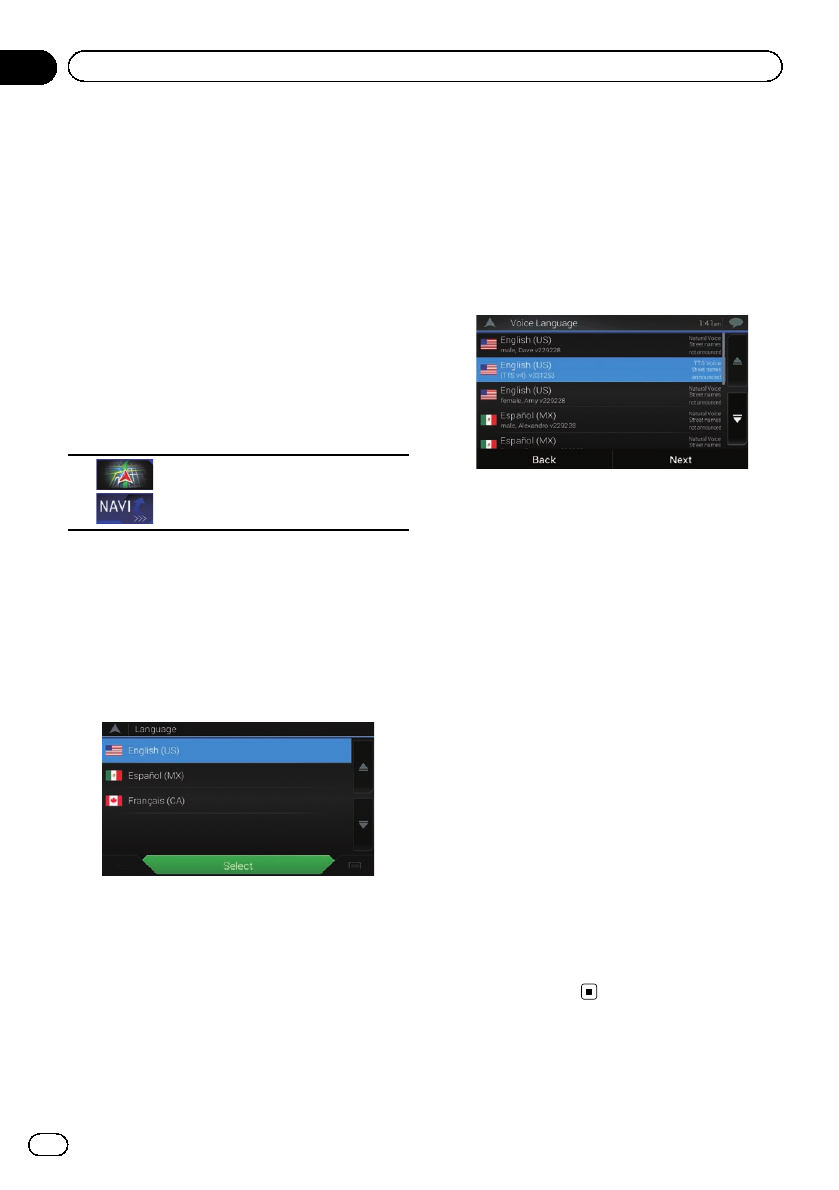
On first-time startup of the
navigation system
When you use the navigation function for the
first time, an initial setup process starts auto-
matically. Follow the steps below.
pYou can change the language and GPS log
setting later using [Regional] and [Usage
Reports] in the “Settings”screen. Other
settings can be restarted later using [Start
Configuration Wizard] in the “Settings”
screen.
1 Press the HOME button to display the
Top menu screen.
2 Touch the following keys.
Initiates the initial startup of the
navigation system.
pThe first time that the MAP button is
pressed, the navigation system also begins
its initial startup.
After a short pause, the splash screen comes
on for a few seconds.
The “Language”screen appears.
3 Select the language that you want to
use on the screen, then touch [Select].
The “EULA”screen appears.
4 Read the terms carefully, checking the
details, and then touch [Accept] if you
agree to the conditions.
The “Usage Reports”screen appears.
5 Touch [Yes].
If you touch [Yes], the software collects usage
information and GPS logs that may be used
for improving the application and the quality
and coverage of maps.
pIf you do not wish to activate information
collection, touch [No].
The configuration wizard starts.
6 Touch [Next].
The “Voice Language”screen appears.
7 Select the language that you want to
use for voice guidance messages, then
touch [Next].
8 If needed, modify the unit settings,
then touch [Next].
The “Route Preferences”screen appears.
9 If needed, modify the default route
planning options, then touch [Next].
10 Touch [Activate], then [Next].
A message saying that the connected online
features are activated appears if you activate
these services right away.
=For details, refer to “Online Services”set-
tings on page 69.
pYou will need to install the AVICSYNC App
on your iPhone or smartphone first in order
to be able to use online services, which re-
quire a paid subscription. Service coverage
for each online service may vary depending
on the content provider providing the ser-
vice.
=For details, refer to Expanding the use of
the navigation functions on page 71.
11 Select the connected services you want
to use, then touch [Next].
The initial setup is now complete. The Map
screen appears and you can start using the
navigation system.
En
28
Chapter
02 Basic operation
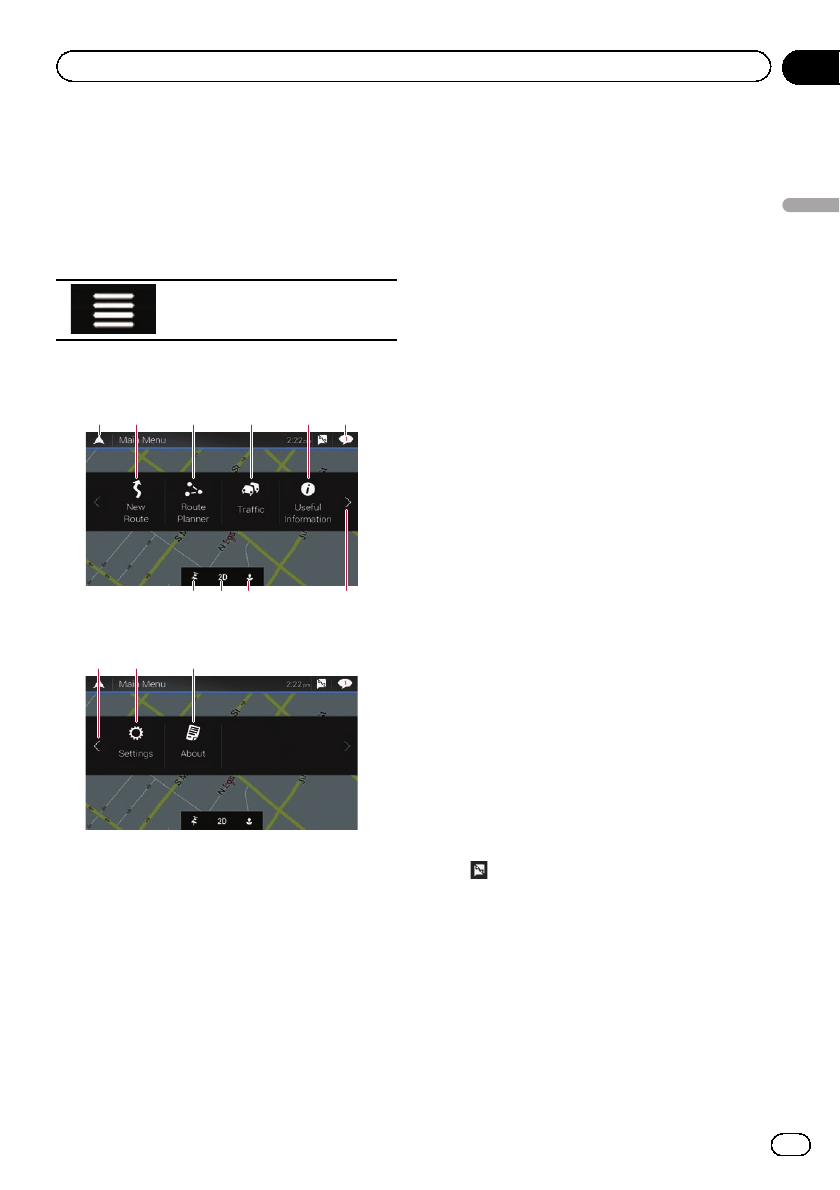
Operating the Navigation
menu screen
1 Press the MAP button.
The Map screen appears.
2 Touch the following key.
Displays the navigation menu on
the Map screen.
The following screen appears.
Touch panel keys (Page 1)
21 63 4
789 a
5
Touch panel keys (Page 2)
cb d
You will see the following keys when you are
navigating without a planned route.
1Returns to the Map screen.
2Searches for your destination by the ad-
dress or coordinates, or searches for the se-
lected place of interest, etc.
=For details, refer to Chapter 5.
3Builds your route or edits the route cur-
rently set.
=For details, refer to Building a route
using “Route Planner”on page 46.
4Displays the “Traffic Summary”screen.
=For details, refer to Checking the traffic
incidents on the map on page 55.
pFor AVIC-5100NEX, this key becomes ac-
tive when the online traffic feature is
available.
5Displays useful information to support your
driving.
=For details, refer to Chapter 9.
6Displays notifications that contain impor-
tant information.
7Displays the location that you saved as a fa-
vorite.
=For details, refer to Selecting a destina-
tion from stored locations on page 41.
8Switches among 2D, 3D, and 2D North up
view modes.
9Displays the “User Profiles”screen where
you can create new profiles or edit the exist-
ing profiles.
If multiple drivers are using this product,
they can create their own profiles with their
own settings. If you select a new profile,
this product restarts so that the new set-
tings can take effect.
aDisplays the next page of the navigation
menu.
bDisplays the previous page of the naviga-
tion menu.
cConfigures the navigation-related settings
and enables you to access the “SyncTool”
screen.
=For details, refer to Chapter 10.
dDisplays the information of your navigation
system (the version information, or li-
censes, for example).
pon the upper right corner of the screen
is used for AVICSYNC App connection.
=Be sure read Expanding the use of the
navigation functions (page 71) before
using the AVICSYNC function.
pWhen you are navigating a planned route,
the following route-related keys are avail-
able.
En 29
Chapter
03
How to use the Navigation menu screen
How to use the Navigation menu screen
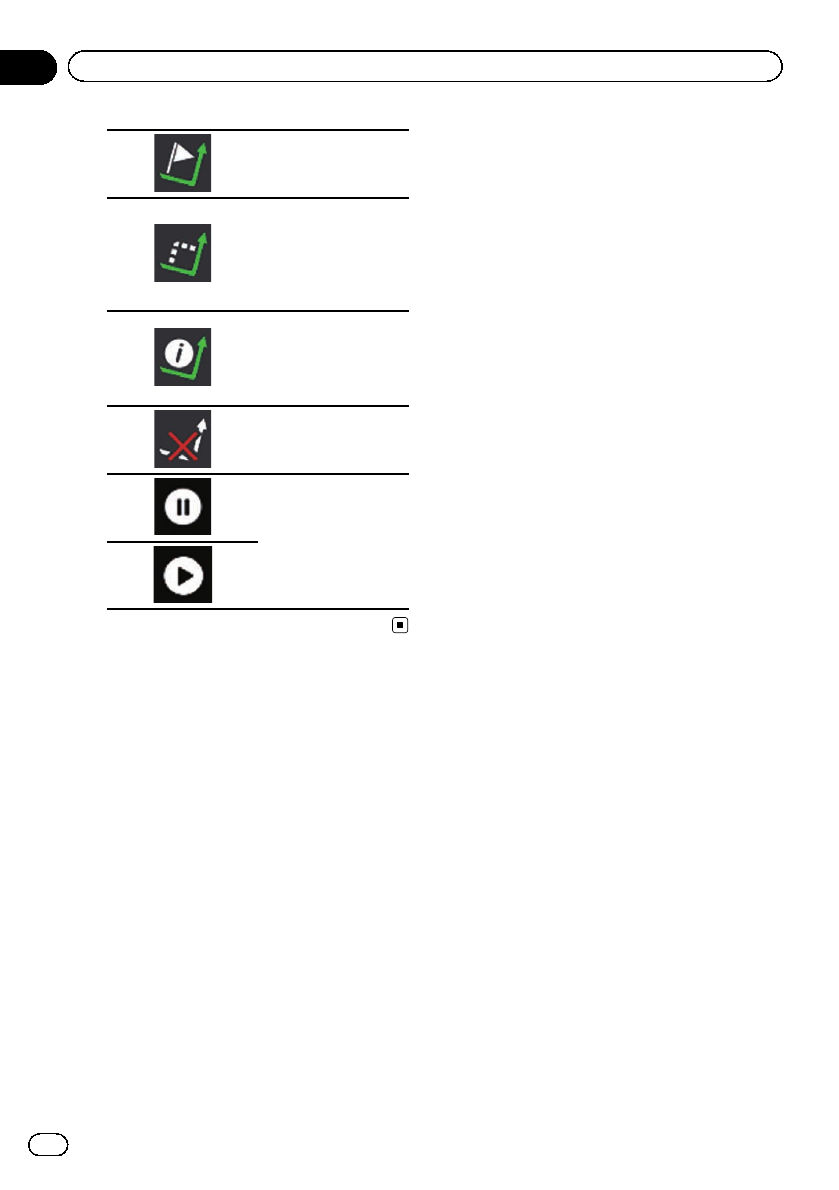
Adds a waypoint.
Displays route alter-
natives, parts of the
route to avoid, or spe-
cific roads in your
planned route to
avoid.
Displays the route in
its full length on the
map, and displays
route parameters and
route alternatives.
Deletes your route or
removes a waypoint.
Suspends and re-
sumes the route gui-
dance.
En
30
Chapter
03 How to use the Navigation menu screen
Most of the information provided by your naviga-
tion system can be seen on the map. You need to
become familiar with how information appears
on the map.
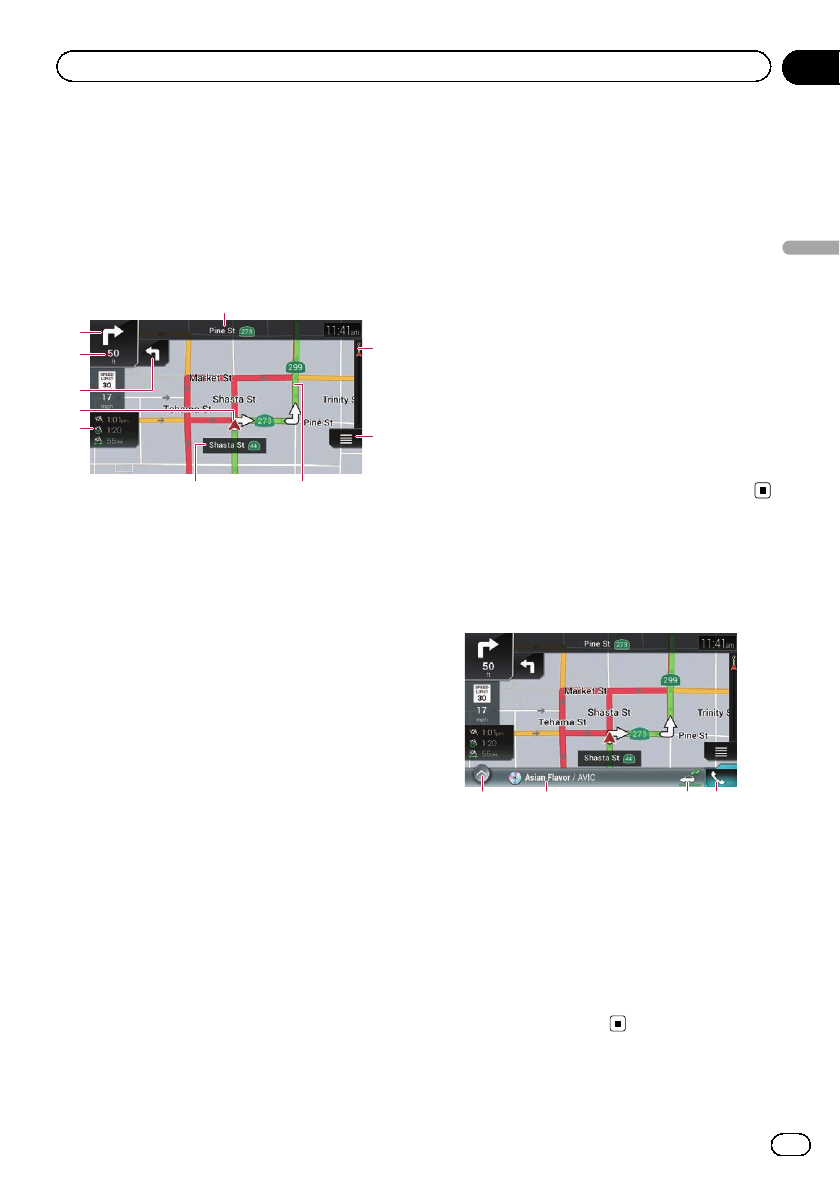
How to read the Map screen
5
4
1
2
3
6
7
a
9
8
pThe following information marked with an
asterisk (*) appears only when a route is
set.
pDepending on the conditions and settings,
some items may not be displayed.
pAV information is displayed at the bottom
of the Map screen.
pYou can select whether you want to see the
speed limit sign on the map all the time. If
you exceed the speed limit, the sign color
will change.
=For details, refer to “Warnings”settings
on page 66.
1Shows the number and name of the street to
be used (or next guidance point).*
2Shows the next guidance point (maneuver).*
Both the type of the event (turn, traffic circle,
exiting freeway, etc.) and its distance from the
current position are displayed. A smaller icon
shows the type of the second next maneuver if
it is near the next maneuver.
=For details, refer to Frequently shown
route events on page 34.
3Shows the distance to the next guidance point
(maneuver).*
4Shows the second maneuver arrow.*
5Indicates the current location of your vehicle.
The apex of the triangular mark indicates your
orientation and the display moves automati-
cally as you drive.
6Displays the data field.
Touching this field displays the “Trip Compu-
ter”screen.
Touch and hold down this key and then select
the values that you wish to have displayed to
customize the data fields in the corner of the
Map screen.
=For details, refer to Data Fields on page
67.
7Shows the name of the street (or city) that
your vehicle is traveling on (or in).
8Indicates the current route.*
The route currently set is highlighted in color
on the map.
9Displays the Navigation menu screen.
a
Indicates the progress to the final destination.*
AV information bar
AV information is displayed at the bottom of
the Map screen.
12 34
1Displays the source list.
=For details, refer to Selecting a front
source on the source list on page 25.
2Shows the current status of AV source briefly.
3You can turn on or off the communication be-
tween the AVICSYNC App and the navigation
system by touching the key.
4Displays the Phone menu screen.
=For details, refer to Displaying the phone
menu on page 80.
En 31
Chapter
04
How to use the map
How to use the map
Operating the Map screen
Changing the scale of the map
pThere is a limit to map scaling in 3D map
view mode. If the map scale is zoomed out
further, the map is zoomed out in 2D map.
=For details, refer to Switching between
2D, 3D, and 2D North up views on page
32.
1 Press the MAP button.
The Map screen appears.
2 Pinch or expand the map to zoom out
or in.
Touch anywhere on the map during naviga-
tion.
3 Touch the following key.
The map returns to the current po-
sition.
pIf you press the MAP button, the map re-
turns to the current position.
pFor information on the controls when the
scrolled map is displayed, refer to Control
keys on the scrolled map on page 33.
Smart Zoom
Your navigation system features “Smart Zoom”
that works in two ways:
!When the route is set:
When approaching a turn, “Smart Zoom”
will zoom in and raise the view angle to en-
able you to easily recognize your maneuver
at the next junction. If the next turn is at a
distance, it will zoom out and lower the
view angle to be flat so you can see the
road in front of you.
!When the route is not set:
“Smart Zoom”will zoom in if you drive
slowly and zoom out when you drive at
high speed.
Switching between 2D, 3D, and
2D North up views
You can switch how the map is displayed. For
2D map view mode, you can select between
“Heading up”and “North up”.
!Heading up:
The map display always shows the vehicle’s
direction as proceeding toward the top of
the screen.
!North up:
The map display always has north at the
top of the screen.
pThe map orientation is fixed at “Heading
up”when the 3D map screen is displayed.
1 Press the MAP button.
The Map screen appears.
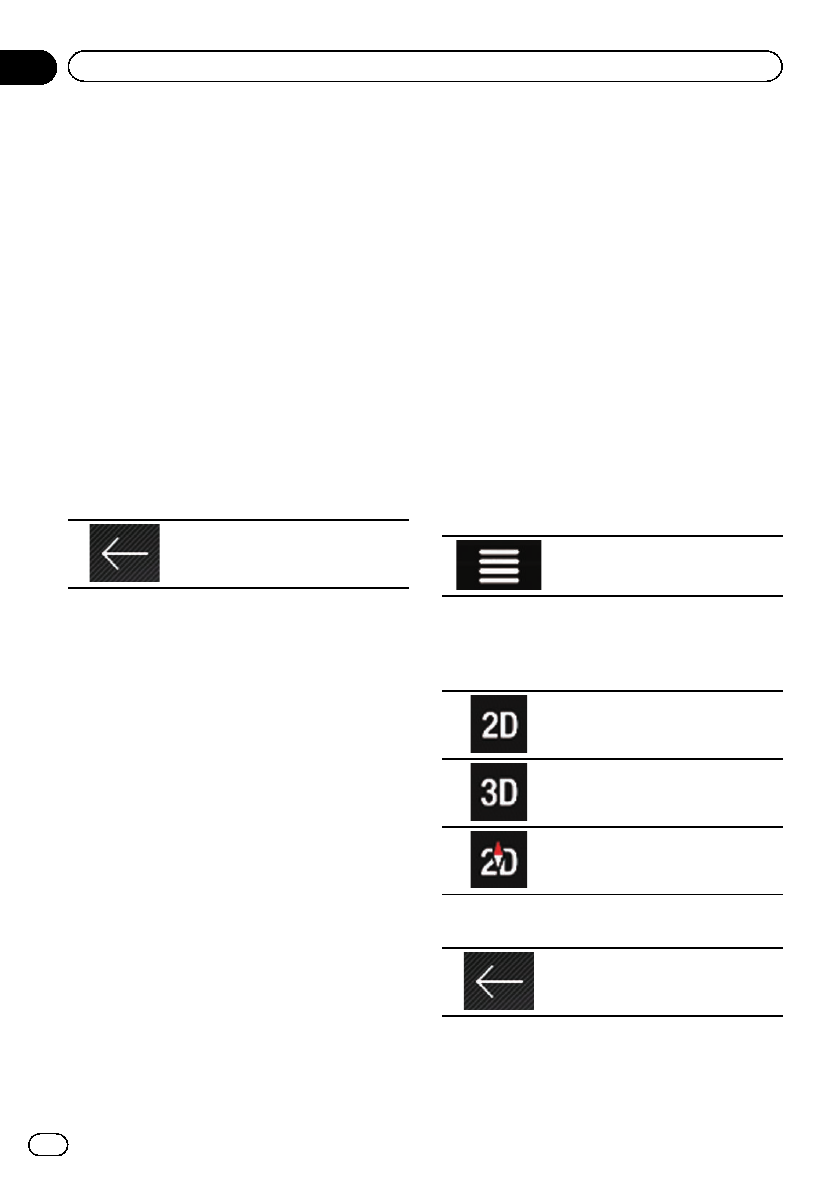
2 Touch the following key.
Displays the navigation menu on
the Map screen.
3 Touch the following key.
Each time you touch the key the setting
changes.
Indicates 2D Heading up view
mode is currently selected.
Indicates 3D Heading up view
mode is currently selected.
Indicates 2D North up view mode
is currently selected.
4 Touch the following key.
Returns to the Map screen.
pIf you press the MAP button, you can return
to the Map screen.
En
32
Chapter
04 How to use the map
pFor information on the controls when the
scrolled map is displayed, refer to Control
keys on the scrolled map on page 33.
Scrolling the map to the
position you want to see
1 Press the MAP button.
The Map screen appears.
2 Touch and drag the map in the desired
direction to scroll.
If you place the cursor on the desired location,
a brief overview about the location will appear
at the top of the screen, showing the street
name and other information for the location.
3 Touch the following key.
The map returns to the current po-
sition.
pIf you press the MAP button, the map re-
turns to the current position.
Control keys on the scrolled map
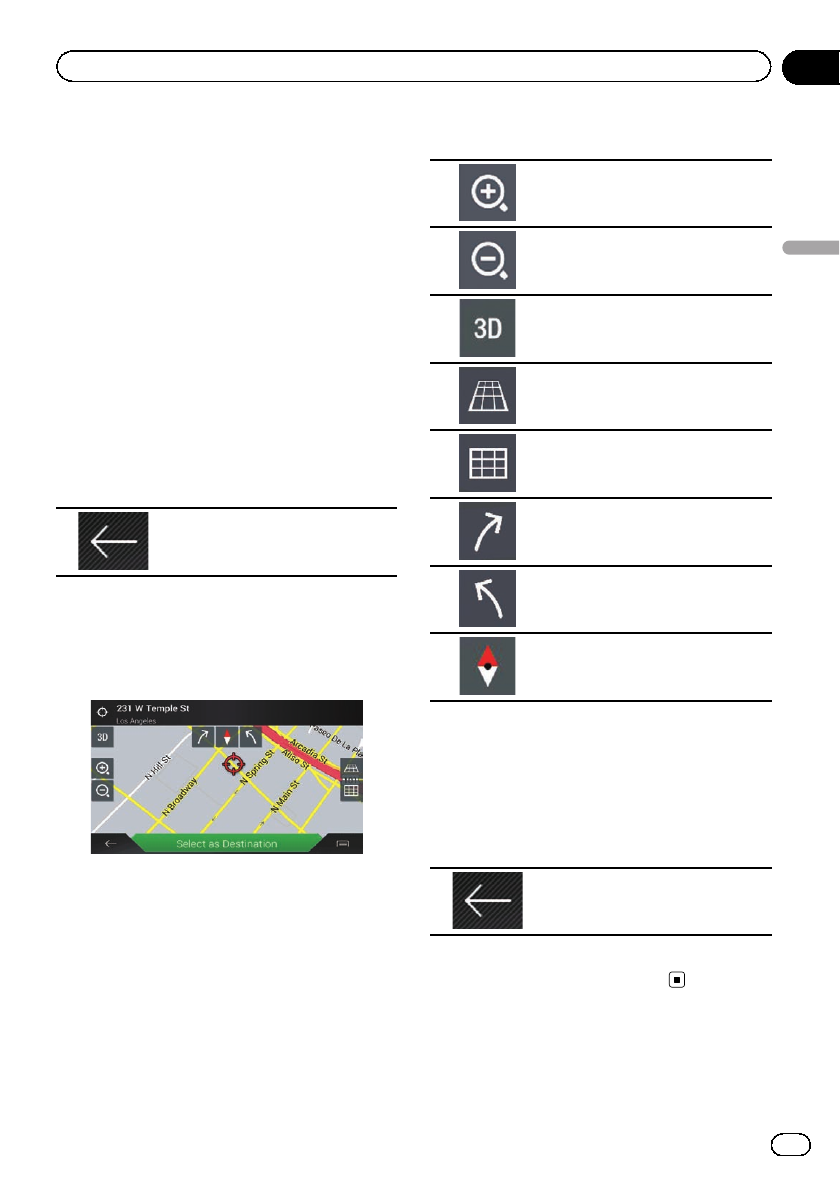
1 Press the MAP button.
The Map screen appears.
2 Touch anywhere on the map.
The cursor and control keys appear.
3 Touch the following key.
Zooms in.
Zooms out.
Changes the map view mode (the
map mode currently selected is
shown).
Tilts up.
Tilts down.
Rotates left.
Rotates right.
Cancels map rotation.
pYou can change the vertical view angle of
the map in 3D mode only.
=For details, refer to Switching between
2D, 3D, and 2D North up views on page
32.
4 Touch the following key.
The map returns to the current po-
sition.
pIf you press the MAP button, the map re-
turns to the current position.
En 33
Chapter
04
How to use the map
How to use the map
Understanding the route
guidance
Once the route guidance begins, the system
provides various guides by voice, text indica-
tions and signs.
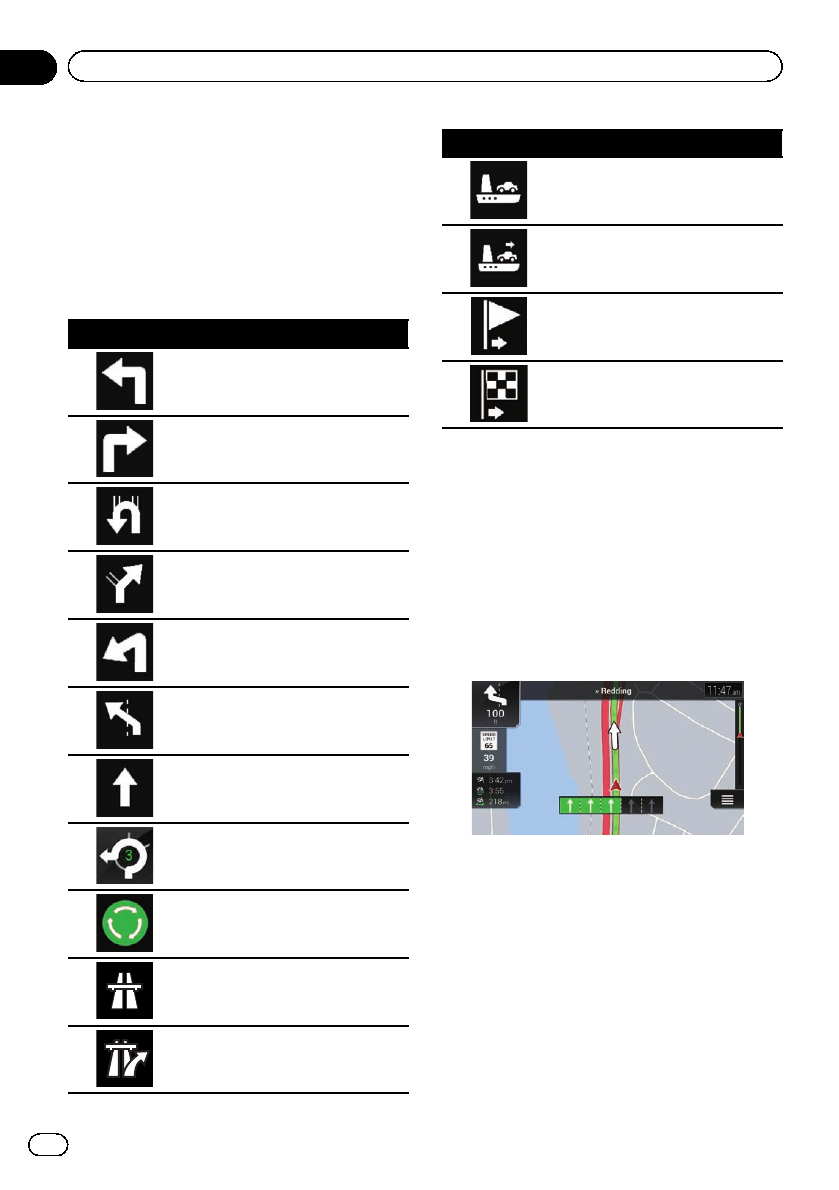
Frequently shown route events
Icon Meaning
Turn left.
Turn right.
Turn back.
Bear right.
Turn sharp left.
Keep left.
Continue straight though the inter-
section.
Go left on the traffic circle, 3rd exit
(next maneuver).
Enter traffic circle (maneuver after
the next maneuver).
Enter freeway.
Exit freeway.
Icon Meaning
Board ferry.
Leave ferry.
Approaching a waypoint.
Approaching the destination.
When navigating on multilane roads, you will
need to make sure to take the proper lane for
the recommended route.
If there is lane information available in the
map data, the navigation system will display
the lanes and corresponding directions of tra-
vel at the bottom of the map using small ar-
rows. Highlighted arrows represent the lane
and direction that you need to take for the re-
commended route.
Lane information
Signs are displayed at the top of the map. Sign
colors and design styles are similar to those of
the actual signs in place above or along the in-
dicated roads. These signs display select desti-
nations and the road number of the road that
the relevant lane leads to.
En
34
Chapter
04 How to use the map
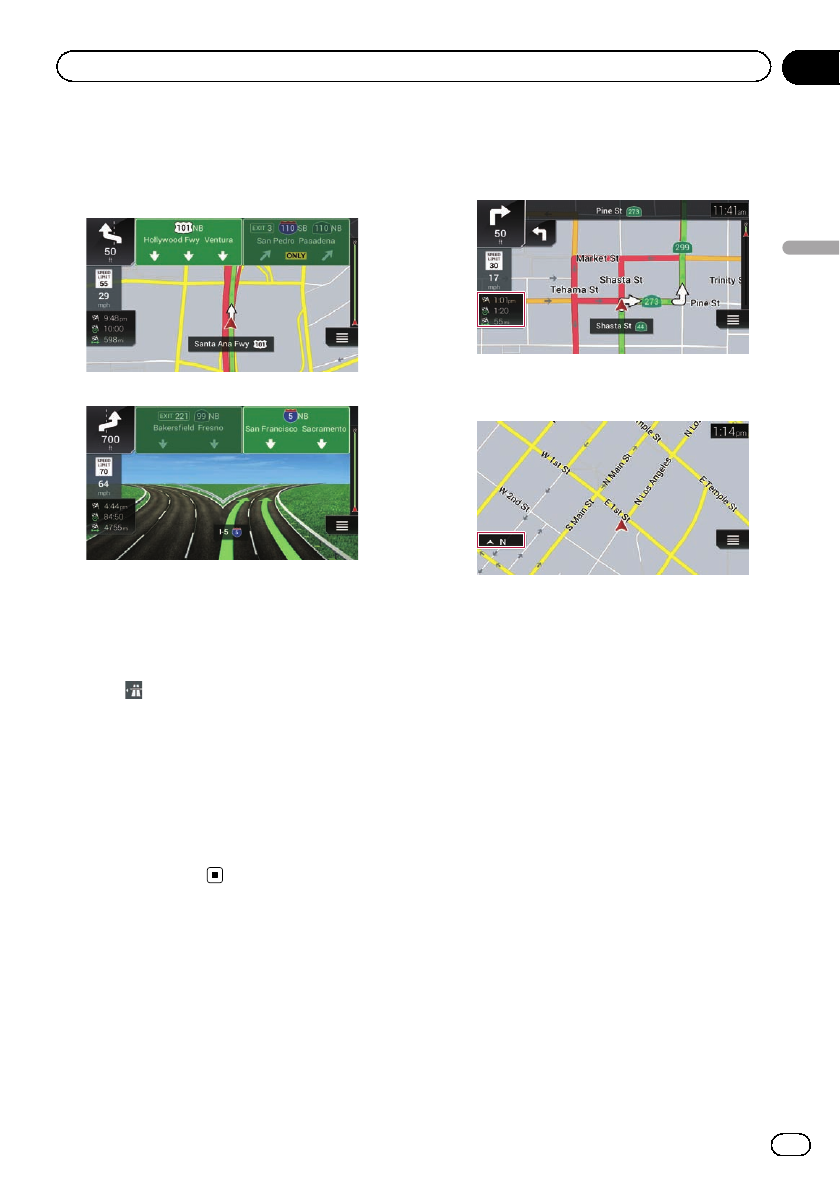
If you are approaching a complex intersection
and the necessary information exists, the map
is replaced with a 3D view of the junction.
Signposts
Junction view
pIf the data for these items is not contained
in the map data, the information is not
available even if there are signs on the ac-
tual road.
When you set “Offer Freeway Services”to
“on”, the icon appears while you are driving
on freeways. Touch the icon to open the details
of the next few exits or service stations. In ad-
dition, touch an item to show its location on
the map. You can set it as a waypoint easily.
pIf you want to display other types of POIs
for the exits, you can change the icons in
“Services Displayed”.
=For details, refer to “Navigation Map”set-
tings on page 66.
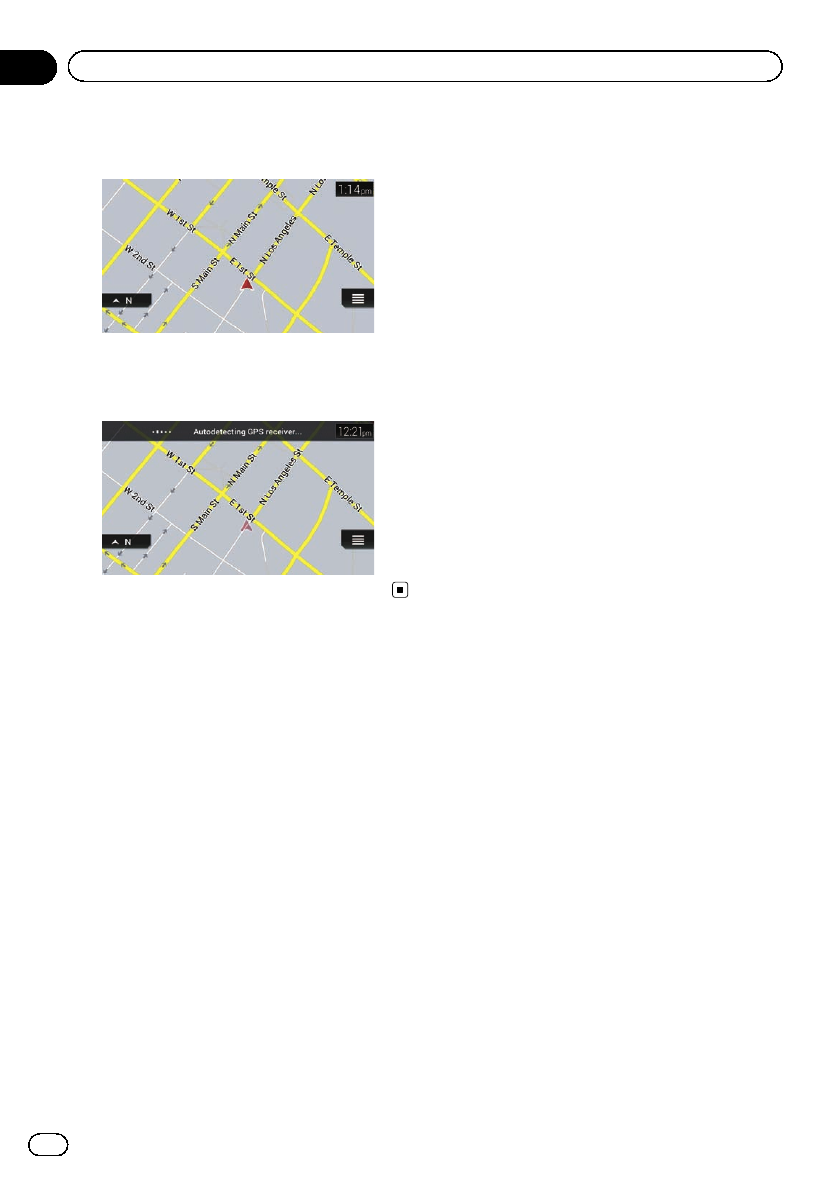
Browsing the data field
The data fields are different when you are navi-
gating a route and when you have no specified
destination. For example, the data field pro-
vides the following information.
!When the route is set:
Distance to final destination, time needed
to reach the final destination and estimated
arrival time are shown.
!When the route is not set:
Direction or altitude is shown.
pTouching and holding the field allows you
to display the setting screen for the field.
pThe estimated time of arrival is an ideal
value calculated based on the speed limit
value set in “Max. Speed”of vehicle type
setting and the actual driving speed. The
estimated time of arrival is only a reference
value, and does not guarantee arrival at
that time.
=For details, refer to “Route Preferences”
settings on page 63.
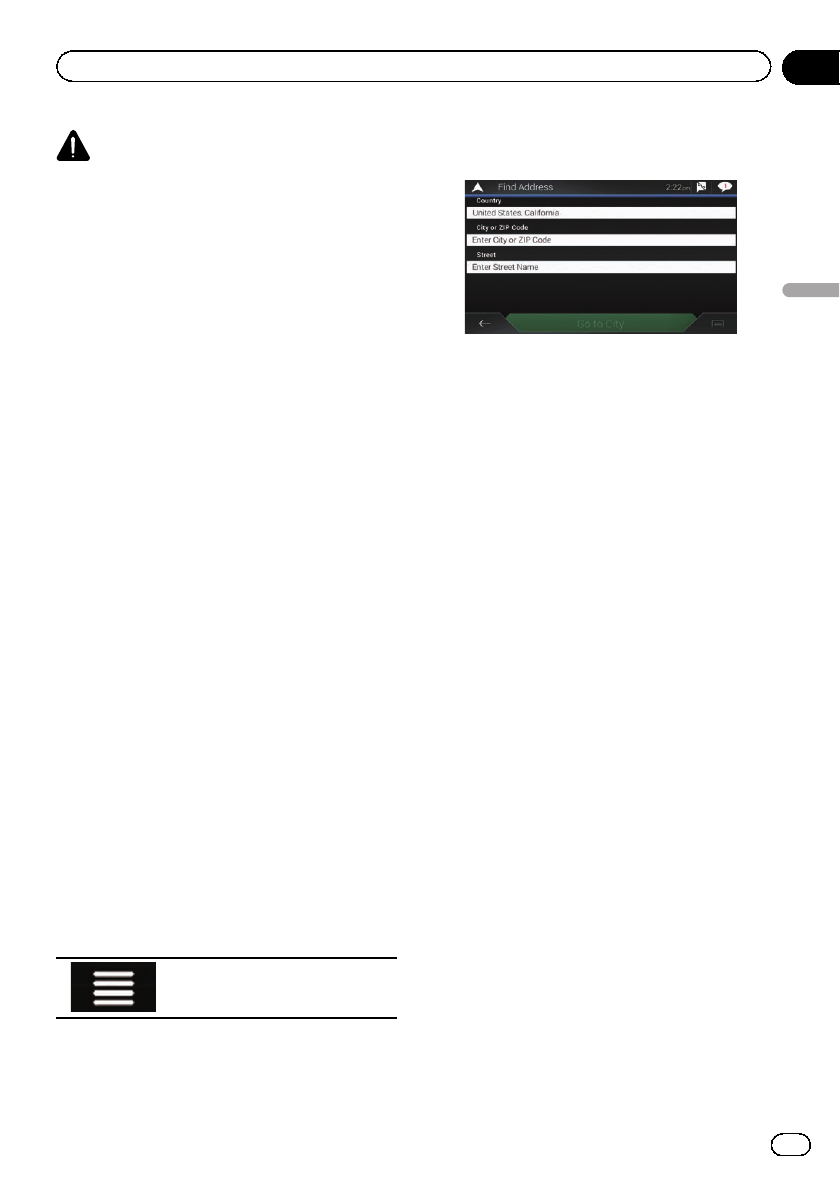
When the system cannot
receive a GPS signal
A triangular mark shows the current position
of your vehicle.
En 35
Chapter
04
How to use the map
How to use the map
When a GPS position is available, the triangu-
lar mark is displayed in full color.
When there is no GPS position, the triangular
mark is transparent. It shows your last known
position.
En
36
Chapter
04 How to use the map
CAUTION
For safety reasons, these route-setting functions
are not available while your vehicle is in motion.
To enable these functions, you must stop in a
safe place and put on the parking brake.
pSome information regarding traffic regula-
tions depends on the time when the route
calculation is performed. Thus, the infor-
mation may not correspond with a certain
traffic regulation when your vehicle actually
passes through the location in question.
Also, the information on the traffic regula-
tions provided applies for a passenger vehi-
cle, and not for a truck or other delivery
vehicles. Always follow the actual traffic
regulations when driving.
p[Destination from Phone] and [Online
Search] on the “New Route to...”screen
can be used when the AVICSYNC App con-
nection is established.
=Be sure read Expanding the use of the
navigation functions (page 71) before
using the AVICSYNC function.
Searching for a location by
address
The most frequently used function is “Ad-
dress”, in which the address is specified and
the location is searched.
pDepending on the search results, some
steps may be skipped.
1 Press the MAP button.
The Map screen appears.
2 Touch the following key.
Displays the navigation menu on
the Map screen.
3 Touch [New Route].
The “New Route to...”screen appears.
4 Touch [Address].
The “Find Address”screen appears.
5 Touch the following text box and set
the destination you are looking for.
!Country:
By default, your navigation system proposes
the country where you are.
If you want to change the area to search set
another country.
!City or ZIP Code:
By default, your navigation system proposes
the city/town where you are. You can select
the city/town using its postal code instead
of its name.
!Street:
If the street name is not available, touch
[Go to City] and select the city/town. This
way the center of the selected city/town be-
comes the destination of the route.
!Select House Number or Intersection:
This item will be displayed after you have
set a street. If the house number is not
available, touch [Go to Street] and select
the street. This way the center of the se-
lected street becomes the destination of the
route.
After you touch the selected address to finish
the address search, the searched location ap-
pears on the Map screen.
6 Touch [Select as Destination] on the
“Map Location”screen.
=For details on the operations in the “Map
Location”screen, refer to Using the “Map
Location”screen on page 45.
En 37
Chapter
05
Searching for a destination
Searching for a destination
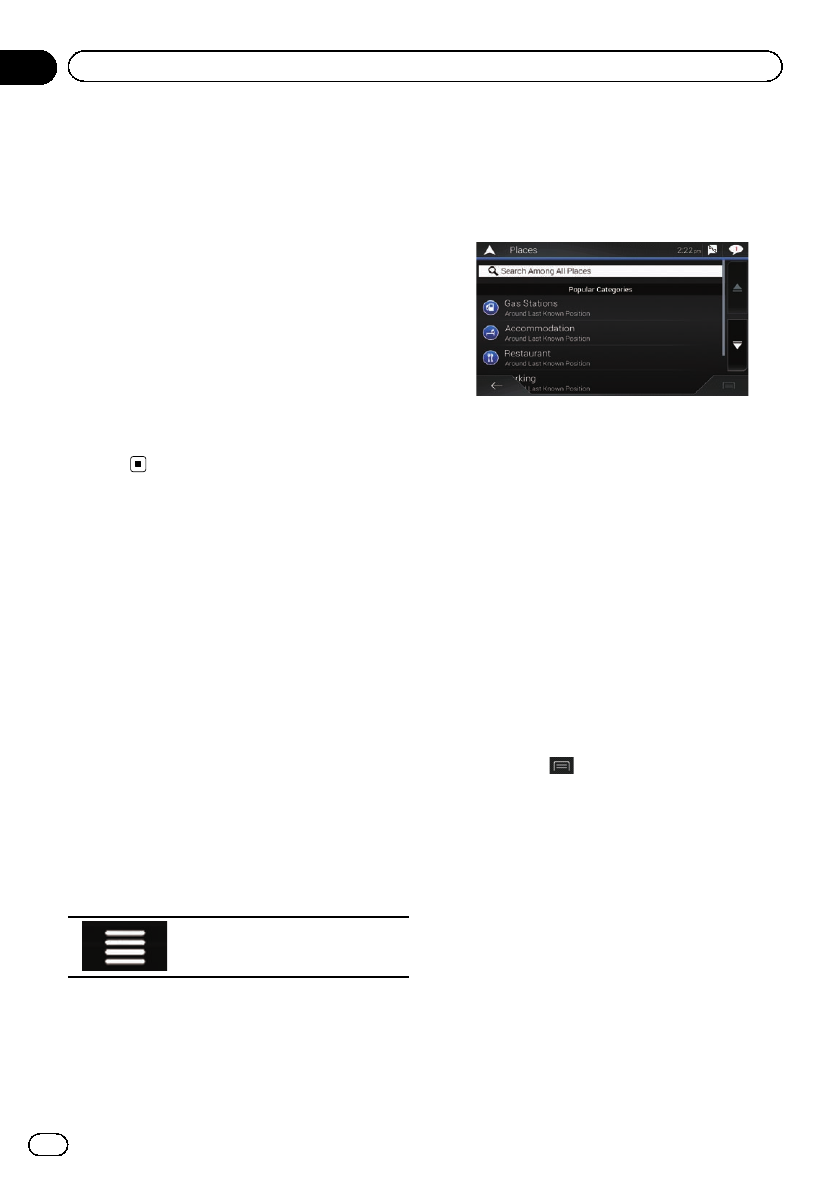
After touching [Select as Destination], the
“Route Summary”screen appears and count-
down begins. When the countdown ends, the
guidance automatically starts. If the screen is
touched anywhere during the countdown, the
countdown stops and the screen will stay as it
is.
=For details on the operations in the “Route
Summary”screen, refer to Checking route
information and preferences on page 48.
7 Touch [Start Navigation].
Your navigation system starts the route gui-
dance.
=For details of the route guidance, refer to
Understanding the route guidance on page
34.
Searching for Points of
Interest (POI)
Information about various facilities (Points Of
Interest –POI), such as gas stations, parking
lots or restaurants, is available. You can
search for a POI by selecting the category (or
entering the POI Name).
Searching for POIs using preset
categories
The preset search allows you to quickly find
the most frequently selected types of POIs.
1 Press the MAP button.
The Map screen appears.
2 Touch the following key.
Displays the navigation menu on
the Map screen.
3 Touch [New Route].
The “New Route to...”screen appears.
4 Touch [Places].
The “Places”screen appears.
The preset search categories are as follows.
!Gas Station
!Accommodation
!Restaurant
!Parking
pWhen a route is not set, POIs are searched
for around the current position.
pWhen the current position is not available
either (no GPS signal), POIs are searched
for around the last known position.
pWhen a route is set, “Gas Station”and
“Restaurant”are searched for along the
route, and “Accommodation”and “Park-
ing”are searched for around the destina-
tion.
5 Touch the category you want.
The results appear in a list.
6 Touch the POI you want.
The searched location appears on the Map
screen.
#If you touch , you can sort the results or
show the locations of all facilities on the map.
7 Touch [Select as Destination] on the
“Map Location”screen.
=For details on the operations in the “Map
Location”screen, refer to Using the “Map
Location”screen on page 45.
After touching [Select as Destination], the
“Route Summary”screen appears and count-
down begins. When the countdown ends, the
guidance automatically starts. If the screen is
touched anywhere during the countdown, the
countdown stops and the screen will stay as it
is.
En
38
Chapter
05 Searching for a destination
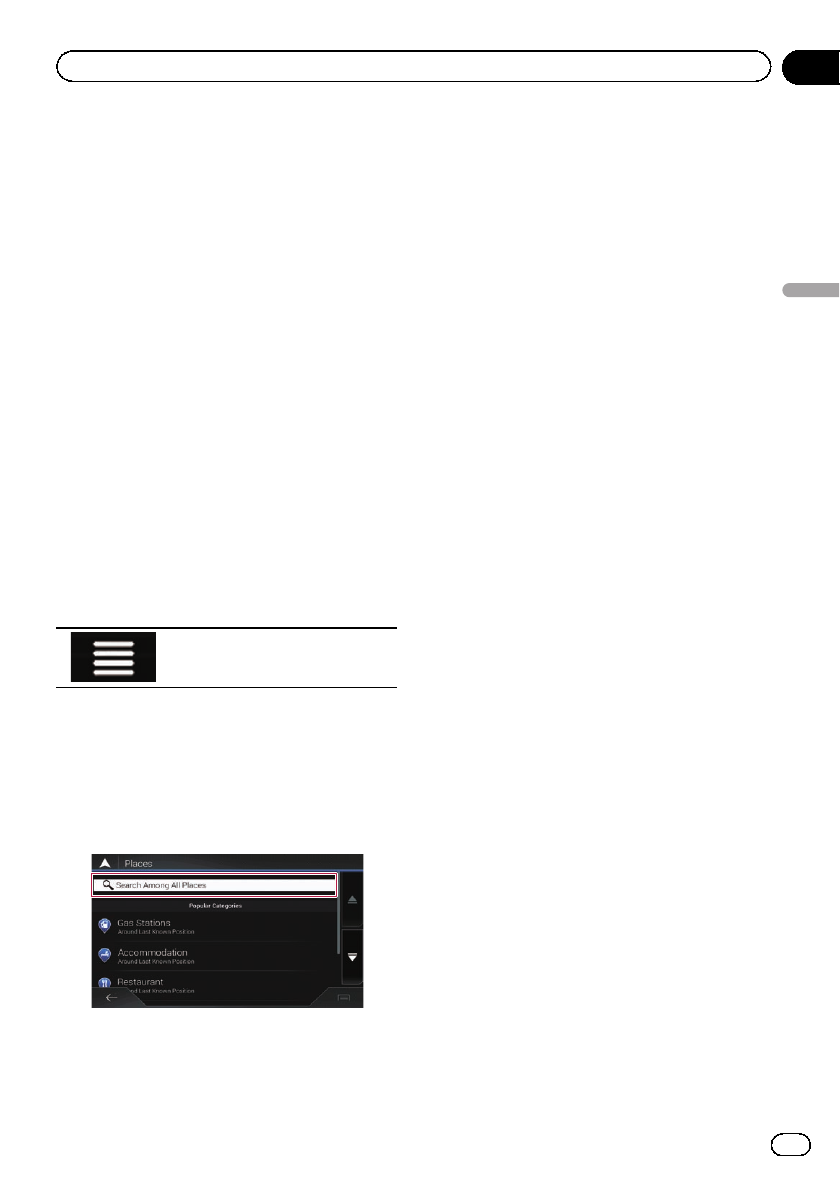
=For details on the operations in the “Route
Summary”screen, refer to Checking route
information and preferences on page 48.
8 Touch [Start Navigation].
Your navigation system starts the route gui-
dance.
=For details of the route guidance, refer to
Understanding the route guidance on page
34.
Searching for POIs by
categories or directly from the
name of the facilities
You can search for POIs by their categories
and subcategories. You can also search for
POIs by their names in each of their cate-
gories.
1 Press the MAP button.
The Map screen appears.
2 Touch the following key.
Displays the navigation menu on
the Map screen.
3 Touch [New Route].
The “New Route to...”screen appears.
4 Touch [Places].
The “Places”screen appears.
5 Touch [Search Among All Places].
The “Search by Category”screen appears.
6 Touch [Around Here] and then select
the area in which the POIs should be
searched for.
!Category View:
You can select whether or not POI cate-
gories are displayed.
!Around Here:
Searches around the current position. Or,
around the last known position if the cur-
rent position is not available. (The results
will be listed in order of the distance from
this position.)
!In a City:
Searches for a place within a selected city/
town. (The results will be listed in order of
the distance from the center of the selected
city/town.)
!Around Destination:
Searches for a place around the destination
of the current route. (The results will be
listed in order of the distance from the des-
tination.)
pThis key is active only when the route is
set.
!Along Route:
Searches along the current route, and not
around a point already set. This is useful
when searching for a stopover that results
in a minimal detour, such as searching for
gas stations or restaurants. (The results will
be listed in order of the length of the neces-
sary detour.)
pThis key is active only when the route is
set.
7 Select one of the categories, subcate-
gories or brands to narrow down the
places.
The screen appears showing all places in the
selected main category around the selected lo-
cation or along the route.
#Touch [Search by Name] and enter the name
of the place using the keyboard.
8 Touch the POI you want.
The searched location appears on the Map
screen.
En 39
Chapter
05
Searching for a destination
Searching for a destination
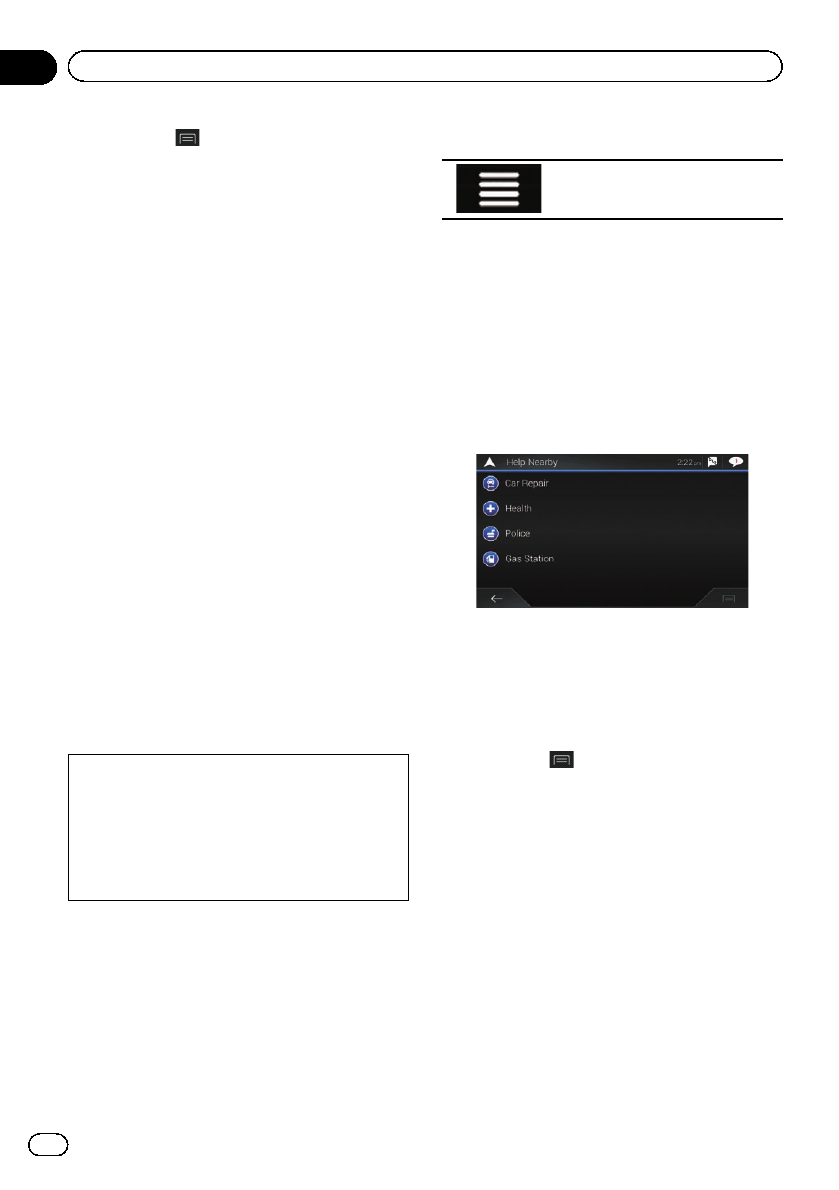
#If you touch , you can change the sort
method of the results.
9 Touch [Select as Destination] on the
“Map Location”screen.
=For details on the operations in the “Map
Location”screen, refer to Using the “Map
Location”screen on page 45.
After touching [Select as Destination], the
“Route Summary”screen appears and count-
down begins. When the countdown ends, the
guidance automatically starts. If the screen is
touched anywhere during the countdown, the
countdown stops and the screen will stay as it
is.
=For details on the operations in the “Route
Summary”screen, refer to Checking route
information and preferences on page 48.
10 Touch [Start Navigation].
Your navigation system starts the route gui-
dance.
=For details of the route guidance, refer to
Understanding the route guidance on page
34.
Searching for providers nearby
that offer emergency or
roadside assistance services
IMPORTANT
Never use this product to route to hospitals,
police stations or similar facilities in an emer-
gency. Stop using any functions relating to the
hands-free phoning and please call the appro-
priate emergency number.
You can search for locations that provide
emergency or roadside assistance in the sur-
rounding areas.
pThis information does not necessarily cor-
respond to actual information. Utilize the
information for your reference.
1 Press the MAP button.
The Map screen appears.
2 Touch the following key.
Displays the navigation menu on
the Map screen.
3 Touch [Useful Information].
The “Useful Information”screen appears.
4 Touch [Help Nearby].
The “Help Nearby”screen appears.
The preset search categories are as follows.
!Car Repair
!Health
!Police
!Gas Station
5 Touch the category you want.
The results appear in a list.
6 Touch the POI you want.
The searched location appears on the Map
screen.
#If you touch , you can change the sort
method of the results.
7 Touch [Select as Destination] on the
“Map Location”screen.
=For details on the operations in the “Map
Location”screen, refer to Using the “Map
Location”screen on page 45.
After touching [Select as Destination], the
“Route Summary”screen appears and count-
down begins. When the countdown ends, the
guidance automatically starts. If the screen is
touched anywhere during the countdown, the
countdown stops and the screen will stay as it
is.
En
40
Chapter
05 Searching for a destination
=For details on the operations in the “Route
Summary”screen, refer to Checking route
information and preferences on page 48.
8 Touch [Start Navigation].
Your navigation system starts the route gui-
dance.
=For details of the route guidance, refer to
Understanding the route guidance on page
34.
Selecting a destination
from stored locations
Storing locations you visit frequently saves
time and effort.
Selecting an item from the list provides an
easy way to specify the position.
The list of saved locations contains two preset
categories: Home and Work.
pThis function is available if locations have
been registered in “Saved Location”.
=For details, refer to Storing a location in
“Saved Location”on page 51.
1 Press the MAP button.
The Map screen appears.
2 Touch the following key.
Displays the navigation menu on
the Map screen.
3 Touch [New Route].
The “New Route to...”screen appears.
4 Touch [Saved Location].
The “Saved Location”screen appears.
#If you touch and then [Edit], you can edit
the details of saved locations.
5 Touch the entry you want.
The searched location appears on the Map
screen.
6 Touch [Select as Destination] on the
“Map Location”screen.
=For details on the operations in the “Map
Location”screen, refer to Using the “Map
Location”screen on page 45.
After touching [Select as Destination], the
“Route Summary”screen appears and count-
down begins. When the countdown ends, the
guidance automatically starts. If the screen is
touched anywhere during the countdown, the
countdown stops and the screen will stay as it
is.
=For details on the operations in the “Route
Summary”screen, refer to Checking route
information and preferences on page 48.
7 Touch [Start Navigation].
Your navigation system starts the route gui-
dance.
=For details of the route guidance, refer to
Understanding the route guidance on page
34.
Selecting a destination
from stored routes
Storing routes you use frequently saves time
and effort.
pThis function is not available if no routes
have been registered in “Saved Routes”.
=For details, refer to Storing a route in
“Saved Routes”on page 52.
1 Press the MAP button.
The Map screen appears.
2 Touch the following key.
Displays the navigation menu on
the Map screen.
3 Touch [New Route].
The “New Route to...”screen appears.
4 Touch to show the next page.
En 41
Chapter
05
Searching for a destination
Searching for a destination

5 Touch [Saved Routes].
The “Saved Routes”screen appears.
6 Touch the entry you want.
The “Route Planner”screen appears.
pYou can add waypoints or change the final
destination on the “Route Planner”screen.
=For details, refer to Building a route
using “Route Planner”on page 46.
7 Touch [Show Route].
After touching [Show Route], the “Route
Summary”screen appears and countdown
begins. When the countdown ends, the gui-
dance automatically starts. If the screen is
touched anywhere during the countdown, the
countdown stops and the screen will stay as it
is.
=For details on the operations in the “Route
Summary”screen, refer to Checking route
information and preferences on page 48.
8 Touch [Start Navigation].
Your navigation system starts the route gui-
dance.
=For details of the route guidance, refer to
Understanding the route guidance on page
34.
Selecting a location you
searched for recently
The places that were previously set as destina-
tions or waypoints have been automatically
stored in “History”.
History
1 Press the MAP button.
The Map screen appears.
2 Touch the following key.
Displays the navigation menu on
the Map screen.
3 Touch [New Route].
The “New Route to...”screen appears.
4 Touch [History].
The list of recent destinations appears.
5 Touch the entry you want.
The searched location appears on the Map
screen.
6 Touch [Select as Destination] on the
“Map Location”screen.
=For details on the operations in the “Map
Location”screen, refer to Using the “Map
Location”screen on page 45.
After touching [Select as Destination], the
“Route Summary”screen appears and count-
down begins. When the countdown ends, the
guidance automatically starts. If the screen is
touched anywhere during the countdown, the
countdown stops and the screen will stay as it
is.
=For details on the operations in the “Route
Summary”screen, refer to Checking route
information and preferences on page 48.
7 Touch [Start Navigation].
Your navigation system starts the route gui-
dance.
=For details of the route guidance, refer to
Understanding the route guidance on page
34.
Smart History
Smart History suggests these previously used
locations as destinations based on your navi-
gation habits, using parameters like the cur-
rent time of day, the day of week, and the
current location.
En
42
Chapter
05 Searching for a destination
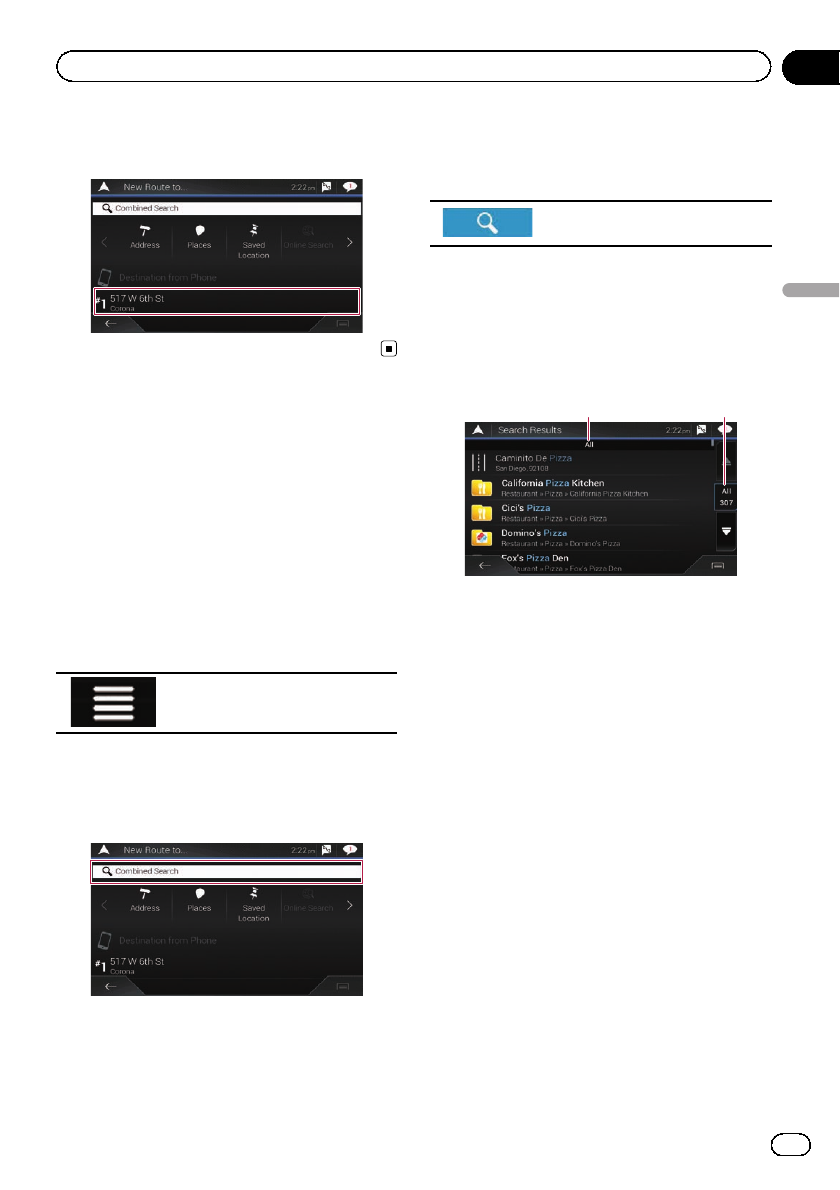
Smart History items are shown in the “New
Route to...”screen for easy access.
Searching for a location
using “Combined Search”
The “Combined Search”feature lets you
quickly find a place by its name and search
area.
pThe “Combined Search”function also
searches your stored data.
1 Press the MAP button.
The Map screen appears.
2 Touch the following key.
Displays the navigation menu on
the Map screen.
3 Touch [New Route].
The “New Route to...”screen appears.
4 Touch [Combined Search].
The “Combined Search”screen appears.
5 Touch the right text box to enter the
country and city/town you want search.
6 Enter the name, address, or category of
the destination you are looking for, then
touch the following key.
Displays the “Search Results”
screen.
7 Touch the entry you want.
The searched location appears on the Map
screen.
8 Touch the right of the list to narrow
down the search results.
12
1Shows the conditions that are currently se-
lected.
2Touch this key to show the other conditions.
#If you touch a map data provider logo, you can
narrow down the list of results by showing the re-
sults from the provider.
9 Touch [Select as Destination] on the
“Map Location”screen.
=For details on the operations in the “Map
Location”screen, refer to Using the “Map
Location”screen on page 45.
After touching [Select as Destination], the
“Route Summary”screen appears and count-
down begins. When the countdown ends, the
guidance automatically starts. If the screen is
touched anywhere during the countdown, the
countdown stops and the screen will stay as it
is.
=For details on the operations in the “Route
Summary”screen, refer to Checking route
information and preferences on page 48.
En 43
Chapter
05
Searching for a destination
Searching for a destination
10 Touch [Start Navigation].
Your navigation system starts the route gui-
dance.
=For details of the route guidance, refer to
Understanding the route guidance on page
34.
Searching for a location by
the coordinates
Entering a latitude and longitude pinpoints
the location.
1 Press the MAP button.
The Map screen appears.
2 Touch the following key.
Displays the navigation menu on
the Map screen.
3 Touch [New Route].
The “New Route to...”screen appears.
4 Touch to show the next page.
5 Touch [Coordinates].
The “Coordinates”screen appears.
6 Enter the latitude value and touch
[OK].
pWhen a value is already entered in the text
field, touch or to delete the value
first.
pYou can change the display format of the la-
titude and longitude to any of the following
formats: decimal degrees; degrees and dec-
imal minutes; or degrees, minutes and deci-
mal seconds.
#When entering the coordinates in UTM for-
mat, touch , then [UTM Coordinates].
7 Enter the longitude value and touch
[Go!].
pWhen a value is already entered in the text
field, touch or to delete the value
first.
The searched location appears on the Map
screen.
8 Touch [Select as Destination] on the
“Map Location”screen.
=For details on the operations in the “Map
Location”screen, refer to Using the “Map
Location”screen on page 45.
After touching [Select as Destination], the
“Route Summary”screen appears and count-
down begins. When the countdown ends, the
guidance automatically starts. If the screen is
touched anywhere during the countdown, the
countdown stops and the screen will stay as it
is.
=For details on the operations in the “Route
Summary”screen, refer to Checking route
information and preferences on page 48.
9 Touch [Start Navigation].
Your navigation system starts the route gui-
dance.
=For details of the route guidance, refer to
Understanding the route guidance on page
34.
Searching for a location by
scrolling the map
Specifying a location after scrolling the map
enables you to set the position as a destina-
tion or waypoint.
1 Press the MAP button.
The Map screen appears.
2 Touch and drag the screen to scroll the
map to the position you want.
3 Touch the location that you want to se-
lect as your destination.
The cursor appears.
En
44
Chapter
05 Searching for a destination
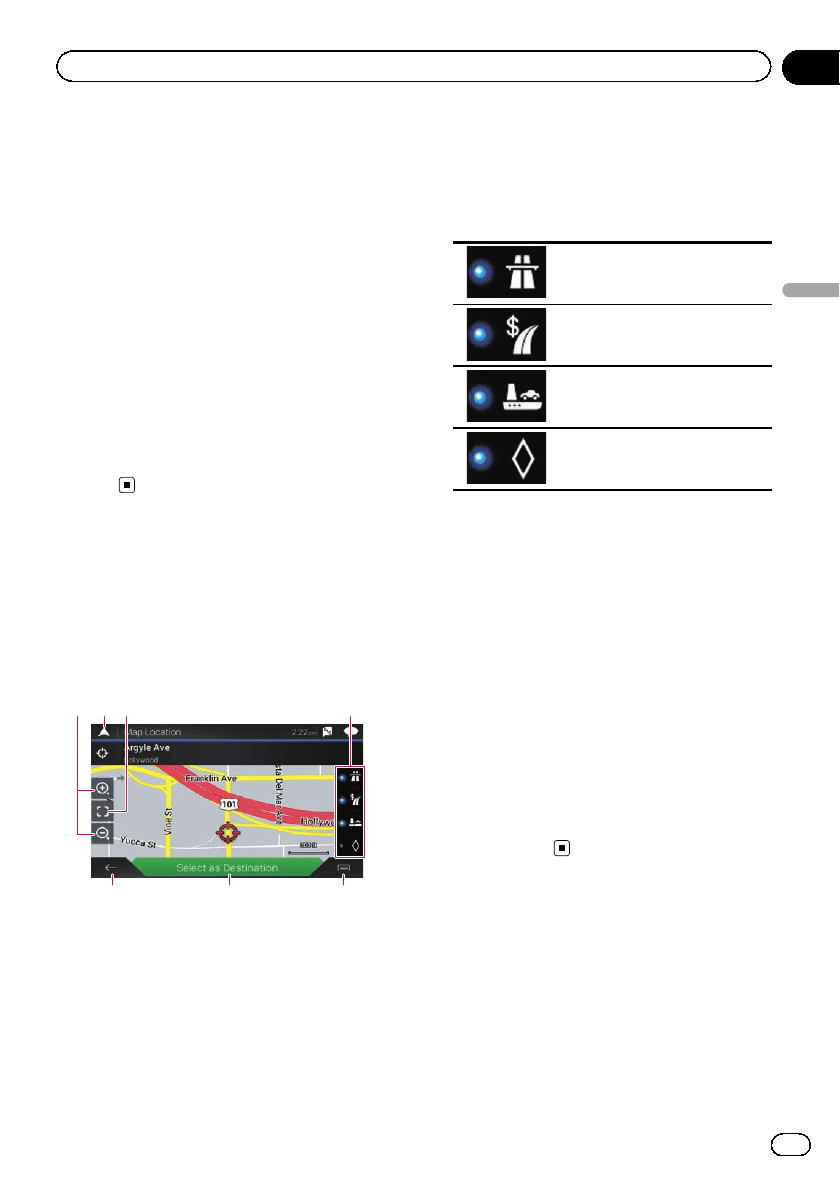
4 Touch [Select as Destination].
After touching [Select as Destination], the
“Route Summary”screen appears and count-
down begins. When the countdown ends, the
guidance automatically starts. If the screen is
touched anywhere during the countdown, the
countdown stops and the screen will stay as it
is.
=For details on the operations in the “Route
Summary”screen, refer to Checking route
information and preferences on page 48.
5 Touch [Start Navigation].
Your navigation system starts the route gui-
dance.
=For details of the route guidance, refer to
Understanding the route guidance on page
34.
Using the “Map Location”
screen
Once a location is searched, the “Map Loca-
tion”screen appears. You can select some op-
tions for the route or displayed map location
before route calculation.
13 42
576
pIf you touch the map, the cursor is placed
at that position. Also, you can scroll the
map by dragging the map.
1Zoom in/zoom out
pYou can also pinch or expand the map
to zoom in or out.
2Cancels the “Map Location”screen and dis-
plays the map of the current position.
3Returns the cursor to the initial position and
the map scale to the initial scale.
4Shows the route setting preferences for route
calculation. Touch the keys to activate or deac-
tivate the preference.
Calculates the route prioritizing
the use of freeways when the
key is activated.
Calculates the route prioritizing
the use of per-use charged toll
roads when the key is activated.
Calculates the route prioritizing
the use of ferries when the key
is activated.
Calculates the route prioritizing
the use of carpool and HOV
lanes when the key is activated.
5Returns to the previous screen.
6Sets the cursor position to your destination (or
waypoint).
7Displays the shortcuts.
!Detailed Information:
Shows the detailed information of the
point.
!Save Location:
Saves the displayed location as your fa-
vorite location. The saved location can
be easily recalled later.
!Places Around Cursor:
Searches for POIs around the displayed
location. Touch the POI to show the
“Map Location”screen, and also set
the POI as the destination (or
waypoint).
En 45
Chapter
05
Searching for a destination
Searching for a destination
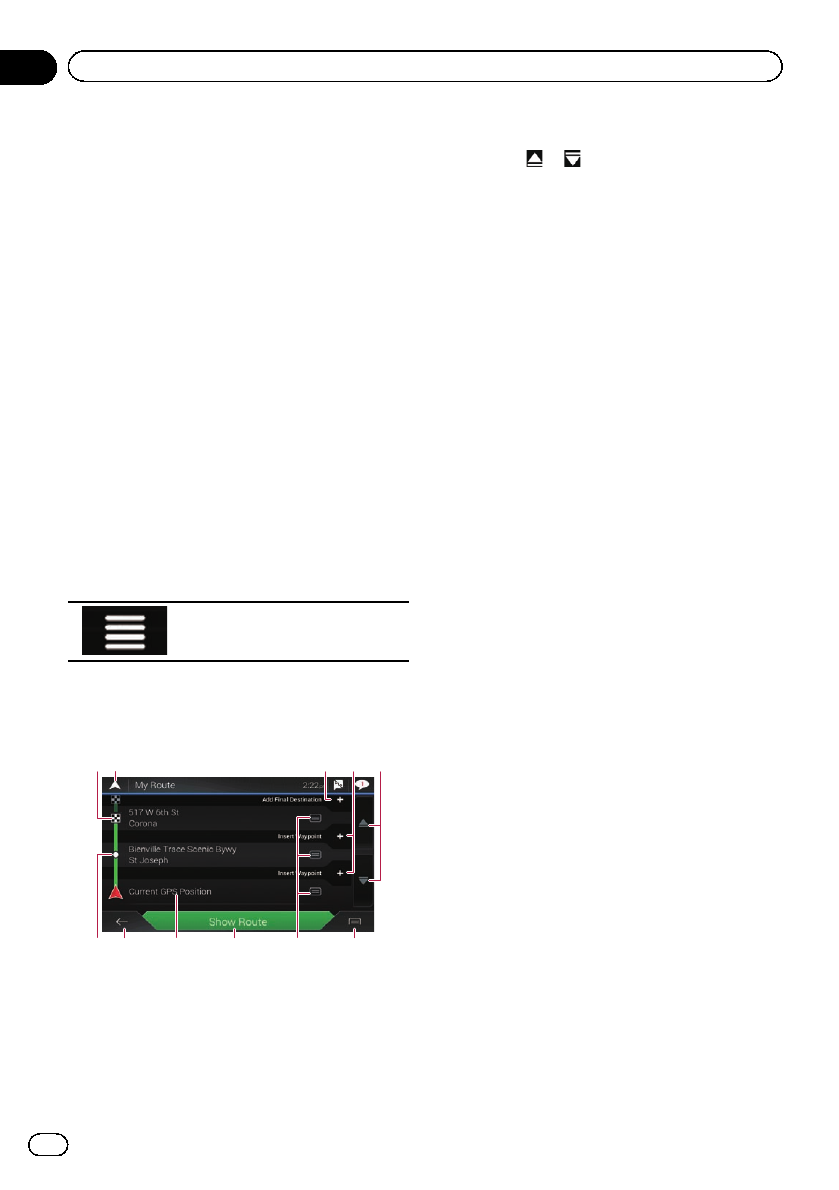
Modifying the route
When navigation is already started, there are
several ways to modify the current route. The
following sections describe some of those op-
tions.
Building a route using “Route
Planner”
The “Route Planner”(or “My Route”) feature
lets you build your route using the list of desti-
nations.
Editing the list allows you to plan your route
easily.
pOnce you set the route, you can edit your
route using the menu displayed as “My
Route”.
1 Press the MAP button.
The Map screen appears.
2 Touch the following key.
Displays the navigation menu on
the Map screen.
3 Touch [Route Planner] or [My Route].
4 Touch one of the options.
15423
7968 ab
1Destination
2Cancels the “Route Planner”(or “My
Route”) screen and displays the map of the
current position.
3Adds a new destination and changes the
current destination to the last waypoint.
4Inserts a new waypoint.
5Touch or to scroll the list.
6Waypoint
7Returns to the previous screen.
8Starting position (The current vehicle posi-
tion is set as default and [Current GPS Po-
sition] is displayed.)
=For details, refer to Changing the starting
position on page 47.
9Calculates the route and shows the “Route
Summary”screen.
aDisplays the options for the location.
!Move Up/Move Down:
Edits the order you want to visit the loca-
tions.
!Delete:
Deletes the destination or waypoint.
!Save Location:
Stores the location in “Saved Location”.
=For details, refer to Storing a location
in “Saved Location”on page 51.
!Change:
Changes the destination or waypoint to
another location.
!Show on Map:
Shows the selected location on the map.
bDisplays the shortcuts.
!Delete All:
Deletes all waypoints and the destina-
tion. Touch [Continue Without Route]
to cancel the planned route.
!Optimize Waypoints:
Changes the order of waypoints automa-
tically so that the route can be easily tra-
veled. (If the resulting order is the same
as the current order, this option is inva-
lid.)
!Optimize Route:
Changes the order of all waypoints and
the destination automatically so that the
route can be easily traveled. (If the re-
sulting order is the same as the current
order, this option is invalid.)
En
46
Chapter
06 Checking and modifying the current route
Changing the starting position
The starting position for route can be changed
from the current position.
1 Press the MAP button.
The Map screen appears.
2 Touch the following key.
Displays the navigation menu on
the Map screen.
3 Touch [Route Planner] or [My Route].
4 Touch [Current GPS Position].
The pop-up menu appears.
5 Touch [Set Start Point] or [Change Start
Point] and then touch [OK].
6 Search for a location.
7 Touch [Set Start Point] or [Change Start
Point].
The selected position is set as the starting po-
sition for route calculation.
8 Touch [Show Route] or [Continue With-
out Route].
The system starts route recalculation after
[Show Route] is touched, and then the
“Route Summary”screen appears. After
[Start Navigation] is touched, your navigation
system starts the route guidance.
After [Continue Without Route] is touched,
the current position map appears.
Restoring the current position as the
starting position
1 Touch [Route Planner] or [My Route].
2 Touch [Current GPS Position].
The pop-up menu appears.
3 Touch [Back to GPS position] and then
touch [Delete Start Point].
The starting position for route calculation re-
turns to the current position.
Adding waypoints
1 Press the MAP button.
The Map screen appears.
2 Touch the following key.
Displays the navigation menu on
the Map screen.
3 Touch [Add Waypoint].
4 Search for a location.
5 Touch [Select as Waypoint].
The route is recalculated, and the “Route
Summary”screen appears. (When the way-
point is already set, the “My Route”screen ap-
pears. Touch [Show Route] and proceed to
the next step.)
6 Touch [Start Navigation].
Your navigation system starts the route gui-
dance.
Checking route alternatives
You can select another route and compare dif-
ferent route alternatives.
1 Press the MAP button.
The Map screen appears.
2 Touch the following key.
Displays the navigation menu on
the Map screen.
3 Touch [Detours & Alternatives].
4 Touch [Alternative Routes].
The “Alternative Routes”screen appears.
En 47
Chapter
06
Checking and modifying the current route
Checking and modifying the current route
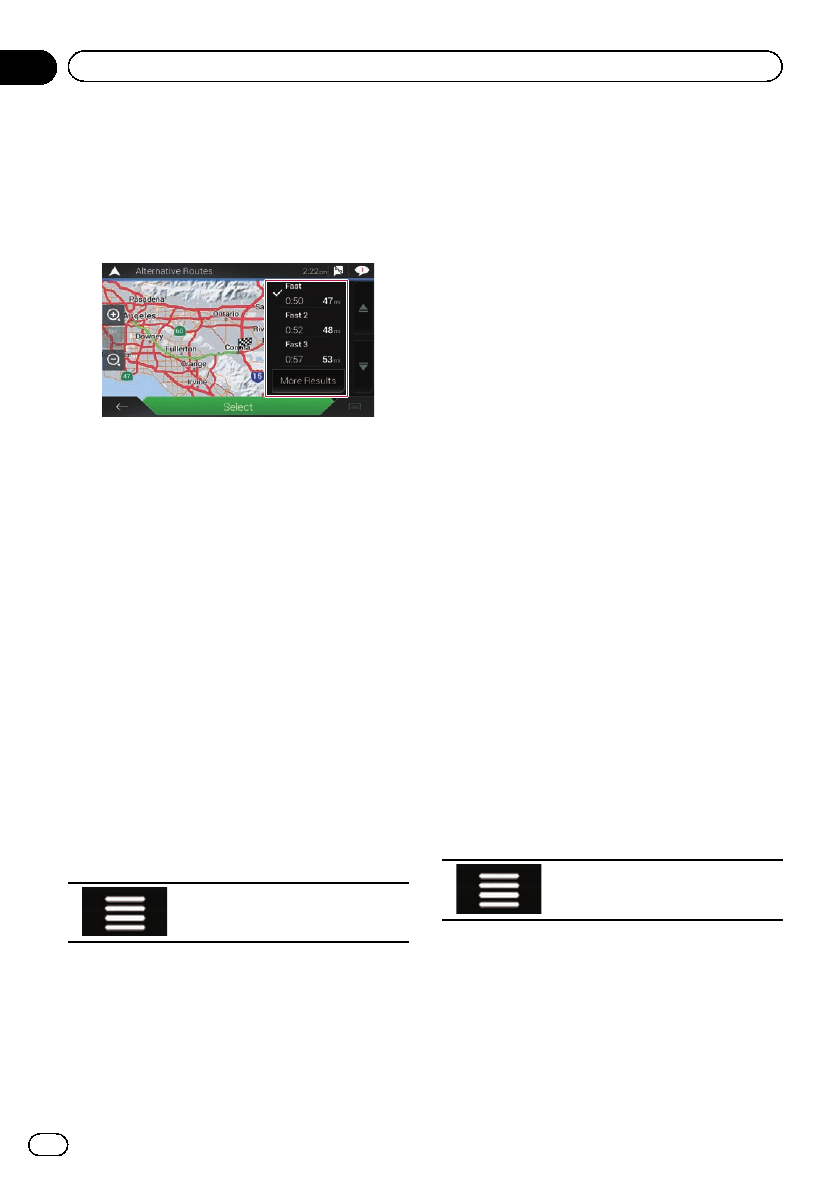
5 Touch any of the conditions you want
to display on the map.
You can see the approximate time required
and total distance of selected route alterna-
tives. Touch any of the route alternatives to see
it on the map.
pIf more than three route alternatives have
been found, [More Results] appears. Touch
[More Results] to show the other routes.
=For information about route calculation
conditions, refer to Route Planning
Method on page 64.
6 Touch [Select].
The selected route is applied as your current
route.
Checking detour routes
You can check for detour routes that avoid the
selected sections or streets, or that avoid the
road ahead. You can also check for alternative
routes.
1 Press the MAP button.
The Map screen appears.
2 Touch the following key.
Displays the navigation menu on
the Map screen.
3 Touch [Detours & Alternatives].
4 Touch one of the options.
!Alternative Routes:
Shows the alternative routes.
=For details, refer to Checking route alter-
natives on page 47.
!Avoid Special Sections:
Shows the route avoiding certain sections.
Touch the list item to select the section you
want to avoid. The distance and time differ-
ence, suggested route, current route, and
the section avoided are shown. Touch [Ac-
cept] to apply the suggested route.
!Avoid Specific Road:
Shows the route avoiding certain road.
Touch the list item to select the road you
want to avoid. Distance and time difference,
suggested route, current route, section
avoided are shown. Touch [Accept] to apply
the suggested route.
!Avoid Road Ahead:
Shows the route avoiding the road ahead.
Touch [+]or[–] to set the distance you want
to avoid. Touch [Avoid] to apply the sug-
gested route.
!Restore Original Route:
Cancels the route with avoidances and re-
stores the previous route.
pThe route set by [Alternative Routes]
cannot be canceled.
Checking route information
and preferences
Once you set the route, you can check a sum-
mary of the current route.
1 Press the MAP button.
The Map screen appears.
2 Touch the following key.
Displays the navigation menu on
the Map screen.
3 Touch [Route Summary].
The “Route Summary”screen appears.
En
48
Chapter
06 Checking and modifying the current route
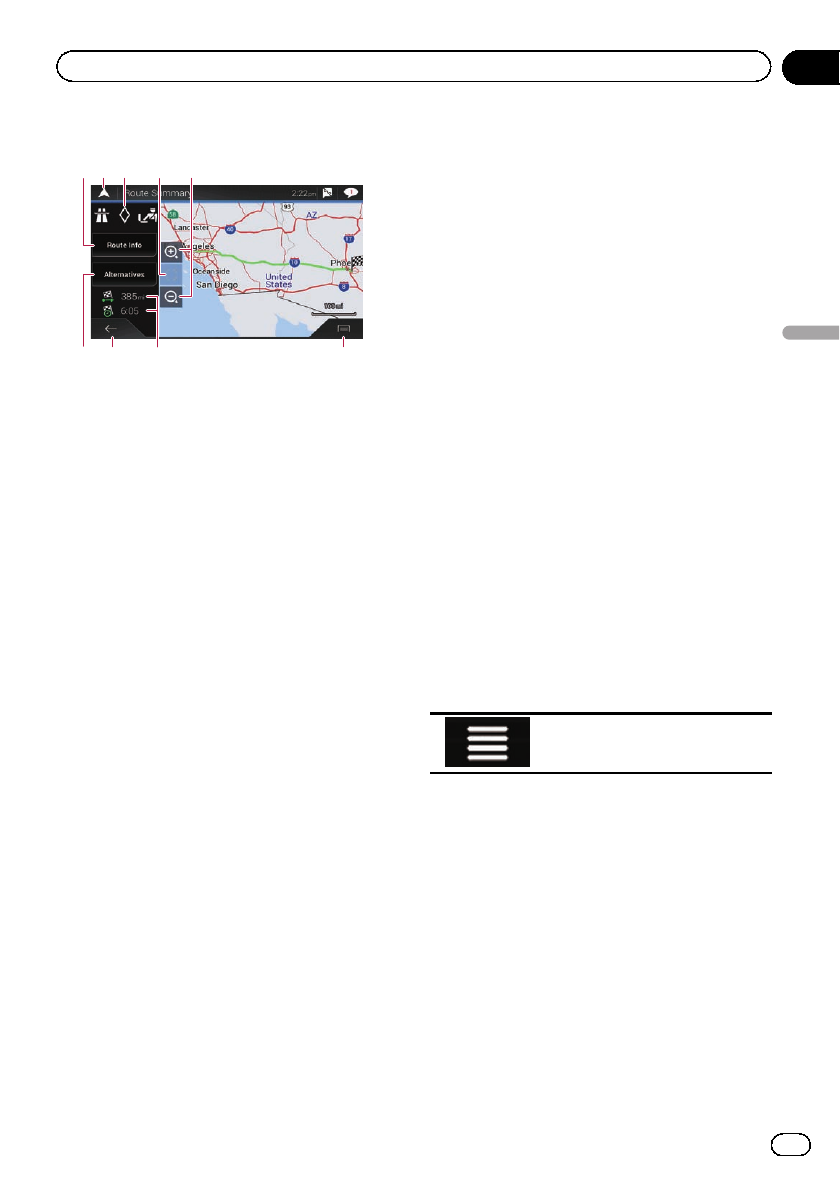
4 Touch one of the options.
15423
768 9
pYou can scroll the map by dragging the
map.
1Shows the information for a transit point on
the route. Touching the items allows you to
see the location on the map. Touch [Avoid]
and [Accept] to set the location as a loca-
tion to avoid.
2Cancels the “Route Summary”screen and
displays the map of the current position.
3Shows the conditions of the displayed
route.
4The screen returns to the initial position
and the map scale returns to the initial
scale.
5Zoom in/zoom out
pYou can also pinch or expand the map
to zoom in or out.
6Shows alternative routes.
=For details, refer to Checking route alter-
natives on page 47.
7Returns to the previous screen.
8Shows the total length of the route and ap-
proximate required time for the route.
9Displays the shortcuts.
!Route Preferences:
Shows the route setting preferences. If
you change the preferences, the route is
recalculated.
!Itinerary:
Shows all transit points in detail. Touch
a transit point to show its position on
the map. If you touch [Avoid] on the
map screen, the route is recalculated
avoiding the transit point (as much as
possible).
!Save Route:
Saves the displayed route. The saved
route can be recalled later.
!Places Along Route:
Searches for POIs along the displayed
route. Touch the POI to show the “Map
Location”screen, and also set the POI
as a waypoint.
!Simulation:
You can run a simulation of the naviga-
tion for the current route, as a demon-
stration.
=For details, refer to Checking route al-
ternatives on page 47.
Canceling the current route
guidance
If you no longer need to travel to your destina-
tion, follow the steps below to cancel the route
guidance.
1 Press the MAP button.
The Map screen appears.
2 Touch the following key.
Displays the navigation menu on
the Map screen.
3 Touch [Cancel Route] or [Delete Way-
point].
The message screen appears.
4 Touch one of the options.
If there are no waypoints on the route, touch
[Cancel Route] to cancel the route.
If there are waypoints on the route, touch
[Cancel Route] to cancel the route. Touch
[Delete Waypoint] to delete only the nearest
waypoint. In such case, the route is recalcu-
lated.
En 49
Chapter
06
Checking and modifying the current route
Checking and modifying the current route
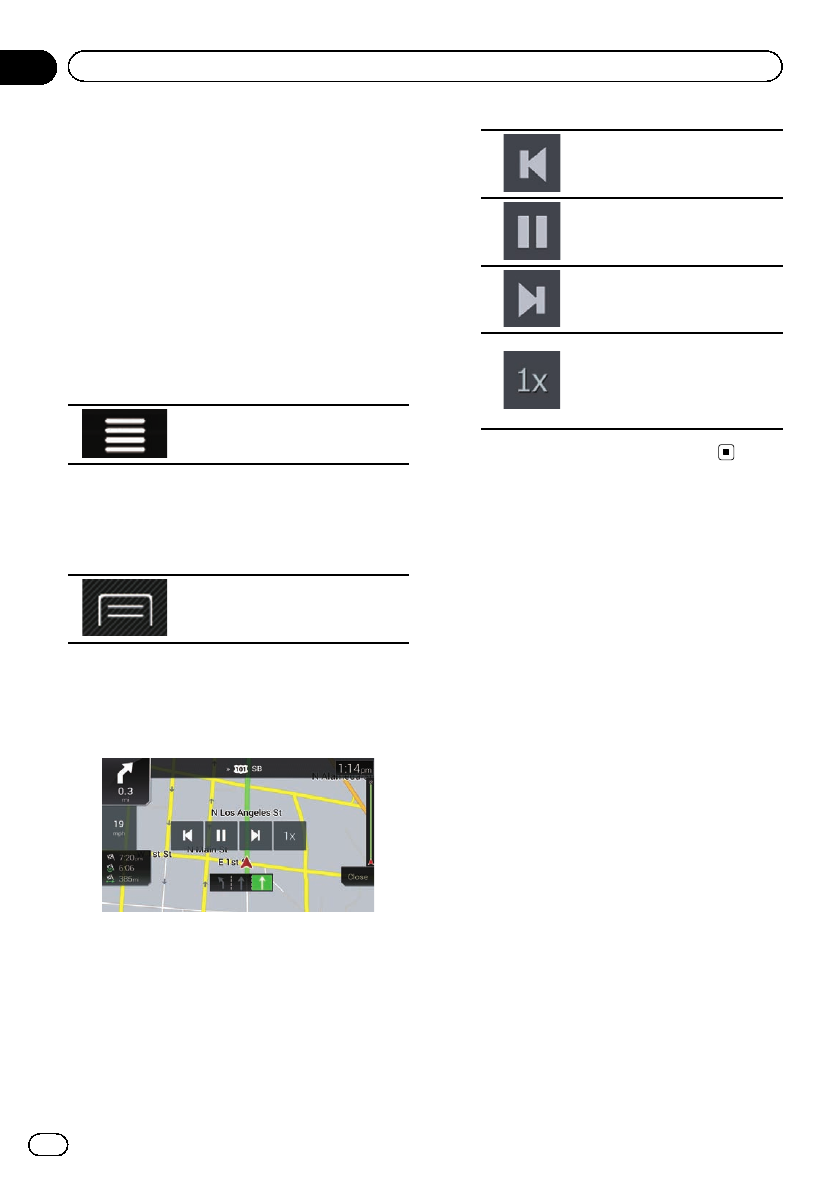
Watching the simulation of the
route
You can run a simulation of the navigation for
the current route, as a demonstration. Follow
the steps below.
1 Set a route to your destination.
=For details, refer to Chapter 5.
2 Press the MAP button.
The Map screen appears.
3 Touch the following key.
Displays the navigation menu on
the Map screen.
4 Touch [Route Summary].
The “Route Summary”screen appears.
5 Touch the following key.
Displays the shortcuts.
6 Touch [Simulation].
The simulation starts from the starting point of
the route, and using a realistic speed, it leads
you through the whole recommended route.
pDuring simulation, you can use the follow-
ing control keys (they disappear after a few
seconds but you can view them again by
touching the map).
Jumps to the previous gui-
dance point (maneuver).
Pauses the simulation.
Jumps to the next guidance
point (maneuver).
Increases the speed of the si-
mulation to four, eight or 16
times the normal speed.
Touching the key again returns
to the normal speed.
#Touch [Close] to stop the simulation.
En
50
Chapter
06 Checking and modifying the current route
Storing a location in
“Saved Location”
Storing your favorite locations in “Saved Loca-
tion”allows you to save the time and effort
used on re-entering this information.
“Saved Location”can include your home lo-
cation, workplace, and places you have al-
ready registered.
Storing your home and your
workplace location
You can store one home location and one
workplace location. You can change the stored
information later. Also, routes to stored loca-
tions can be calculated easily by touching the
corresponding key.
1 Press the MAP button.
The Map screen appears.
2 Touch the following key.
Displays the navigation menu on
the Map screen.
3 Touch the following key.
Displays the “Saved Location”
screen.
4 Touch [Home] or [Work] and then touch
[OK].
pWhen you have already stored your home or
workplace, touch [Home]or[Work]to
show the location on the “Map Location”
screen.
5 Search for a location.
=For details, refer to Chapter 5.
6 Touch [Save Location].
The cursor position has been stored.
Storing your favorite locations
You can store a frequently visited location
(such as a relative’s home) to allow easy rout-
ing.
1 Press the MAP button.
The Map screen appears.
2 Touch the following key.
Displays the navigation menu on
the Map screen.
3 Touch the following key.
Displays the “Saved Location”
screen.
4 Touch [Add Location].
5 Search for a location.
=For details, refer to Chapter 5.
6 Touch [Save Location].
7 Enter the name if needed and then
touch the following key.
Saves the location as a new loca-
tion under “Saved Location”.
The cursor position has been stored.
pYou can also store the location without
using the “Saved Location”screen. When
the “Map Location”screen is displayed
after searching for the location or after
scrolling the map, open the shortcuts and
then touch [Save Location].
pIn the on-screen keyboard, touching or
enables you to store the location as your
home or workplace location.
Editing stored locations
Stored locations can be edited later.
En 51
Chapter
07
Registering and editing locations and routes
Registering and editing locations and routes
Renaming stored locations
1 Press the MAP button.
The Map screen appears.
2 Touch the following key.
Displays the navigation menu on
the Map screen.
3 Touch the following key.
Displays the “Saved Location”
screen.
4 Touch the following key.
Displays the shortcuts.
5 Touch [Edit].
The “Select Location to Edit”screen appears.
6 Touch the item you want to rename
and touch [Rename].
p“Home”and “Work”cannot be renamed.
The location can be set again.
7 Enter the name and then touch .
8 Touch [Done].
The “Saved Location”screen appears.
Deleting stored locations
1 Press the MAP button.
The Map screen appears.
2 Touch the following key.
Displays the navigation menu on
the Map screen.
3 Touch the following key.
Displays the “Saved Location”
screen.
4 Touch the following key.
Displays the shortcuts.
5 Touch [Edit].
The “Select Location to Edit”screen appears.
6 Touch the item you want to delete and
touch [Delete].
p“Home”and “Work”cannot be deleted.
The location can be set again.
pIf you touch and then touch [Delete
All], all entries (including the home and
workplace locations) can be deleted.
A message will appear asking you to confirm
the deletion.
7 Touch [OK].
8 Touch [Done].
The “Saved Location”screen appears.
pYou can also delete the stored location with-
out using the “Saved Location”screen.
When the “Map Location”screen is dis-
played after scrolling the map, place the
cursor on a stored location which you want
to delete and open the shortcuts and then
touch [Remove Saved Location].
Storing a route in “Saved
Routes”
Storing your favorite routes in “Saved Routes”
allows you to save the time and effort used on
re-entering this information.
1 Set a route to your destination.
=For details, refer to Chapter 5.
2 Press the MAP button.
The Map screen appears.
3 Touch the following key.
Displays the navigation menu on
the Map screen.
En
52
Chapter
07 Registering and editing locations and routes
4 Touch [Route Summary].
The “Route Summary”screen appears.
5 Touch the following key.
Displays the shortcuts.
6 Touch [Save Route].
The “Save Route”screen appears.
7 Enter the name if needed and then
touch the following key.
Saves the route as a new route
under “Saved Routes”.
Editing the stored route
Stored routes can be edited later.
Renaming stored routes
1 Press the MAP button.
The Map screen appears.
2 Touch the following key.
Displays the navigation menu on
the Map screen.
3 Touch [New Route].
The “New Route to...”screen appears.
4 Touch to show the next page.
5 Touch [Saved Routes].
The “Saved Routes”screen appears.
6 Touch the following key.
Displays the shortcuts.
7 Touch [Edit].
8 Touch the item you want to rename
and touch [Rename].
9 Enter the name and then touch .
10 Touch [Done].
Deleting stored routes
1 Press the MAP button.
The Map screen appears.
2 Touch the following key.
Displays the navigation menu on
the Map screen.
3 Touch [New Route].
The “New Route to...”screen appears.
4 Touch to show the next page.
5 Touch [Saved Routes].
The “Saved Routes”screen appears.
6 Touch the following key.
Displays the shortcuts.
7 Touch [Edit].
8 Touch the item you want to delete and
touch [Delete].
pIf you touch and then touch [Delete
All], all entries can be deleted.
9 Touch [Delete].
10 Touch [Done].
Saving a location as an
alert point
You can save any map location (such as a
school zone or railroad crossing) as an alert
point.
pTo use this function, activate the warnings
beforehand and set the alert types.
En 53
Chapter
07
Registering and editing locations and routes
Registering and editing locations and routes
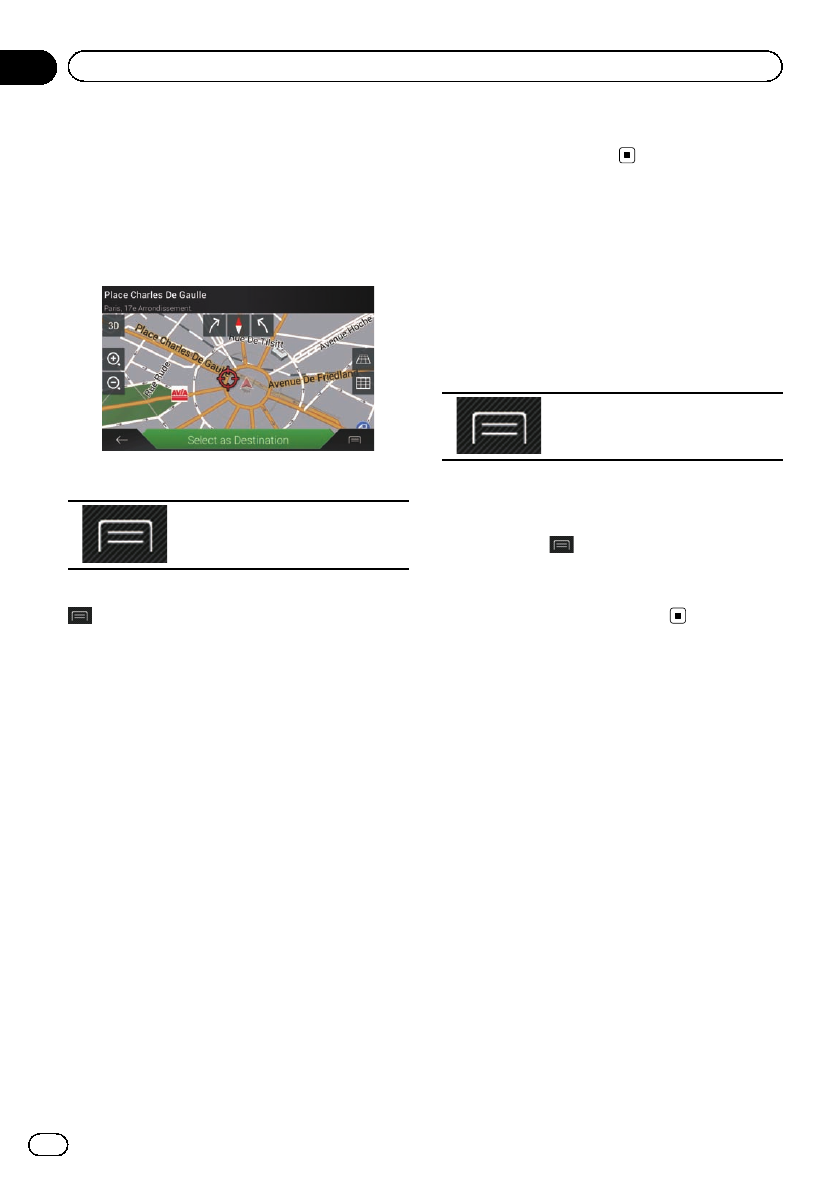
=For details, refer to “Warnings”settings on
page 66.
1 Press the MAP button.
The Map screen appears.
2 Scroll the map and select a location.
The cursor appears at the selected point.
3 Touch the following key.
Displays the shortcuts.
#To edit a previously saved alert point, touch
.
4 Touch [Add Alert Points].
The “Add New Alert Point”screen appears.
5 Set the necessary parameters.
!Alert Type:
Sets the type of the alert point.
!Speed Limit:
Sets the speed limit for this alert point (if
applicable).
!Direction:
Sets the direction from which you expect
the alert to come from.
6 Touch [Save].
The location is saved as a new alert point.
=For details, refer to “Warnings”settings on
page 66.
pThe warning for road safety cameras (like
speed cameras) is disabled when you are in
certain countries where warnings for road
safety cameras are prohibited. However,
you are fully responsible for ensuring that
this feature is legal in the country where
you intend to use it.
Editing the stored alert points
Stored alert points can be edited later.
1 Press the MAP button.
The Map screen appears.
2 Scroll the map to the stored alert point.
3 Touch the following key.
Displays the shortcuts.
4 Touch [Edit Alert Points].
5 Set the necessary parameters.
#If you touch and then touch [Delete], the
selected alert point will be deleted.
6 Touch [Edit].
The alert settings are modified.
En
54
Chapter
07 Registering and editing locations and routes
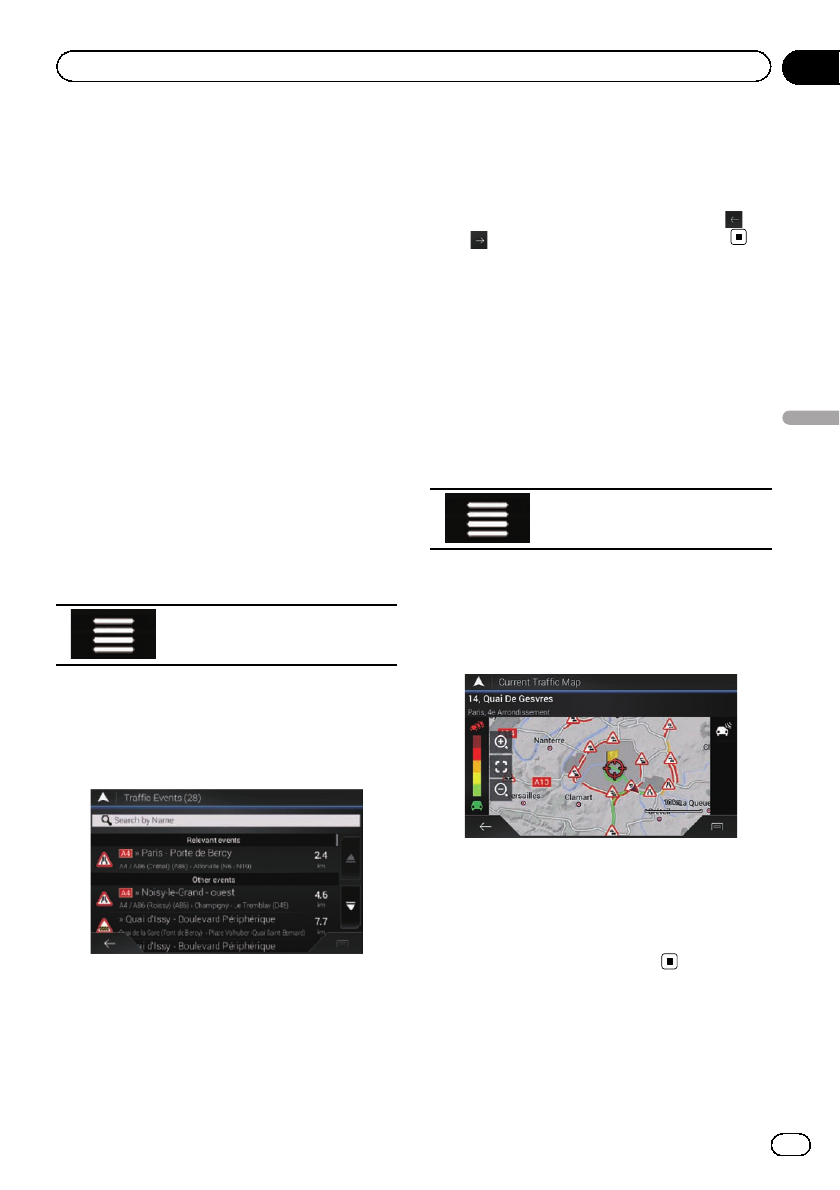
The Traffic Message Channel (TMC) provides
real-time traffic reports. If the navigation sys-
tem is equipped with the TMC feature, you can
check the traffic reports and information re-
ceived.
pThe online function in “Traffic”can be used
if you connect an iPhone or a smartphone
that has the AVICSYNC App installed.
=Be sure read Expanding the use of the
navigation functions (page 71) before
using the AVICSYNC function.
Viewing the traffic list
Traffic information is displayed onscreen in a
list. This allows you to check how many traffic
incidents have occurred, the locations, and
the distance from your current position.
1 Press the MAP button.
The Map screen appears.
2 Touch the following key.
Displays the navigation menu on
the Map screen.
3 Touch [Traffic].
The “Traffic Summary”screen appears.
4 Touch [Traffic Events].
The “Traffic Events”screen appears.
A list with traffic information that has been re-
ceived is shown. The list is sorted by distance
from your current position. Places (street
names) where incidents have occurred are dis-
played on the list.
pIf a route is set, relevant events for your cur-
rent route are shown in the upper section of
the list.
pTouching the desired item allows you to
check its position on the map. Touch or
to show the previous or next event.
Checking the traffic
incidents on the map
Traffic event information can be displayed on
the map.
1 Press the MAP button.
The Map screen appears.
2 Touch the following key.
Displays the navigation menu on
the Map screen.
3 Touch [Traffic].
The “Traffic Summary”screen appears.
4 Touch [Traffic Map].
The “Current Traffic Map”screen appears.
Road segments affected by traffic incidents
are displayed in an alternate color on the map,
and small symbols above the road show the
nature of the incident.
The traffic congestion lines indicate the de-
gree of the congestion by color.
En 55
Chapter
08
Receiving real-time traffic information (TMC)
Receiving real-time traffic information (TMC)
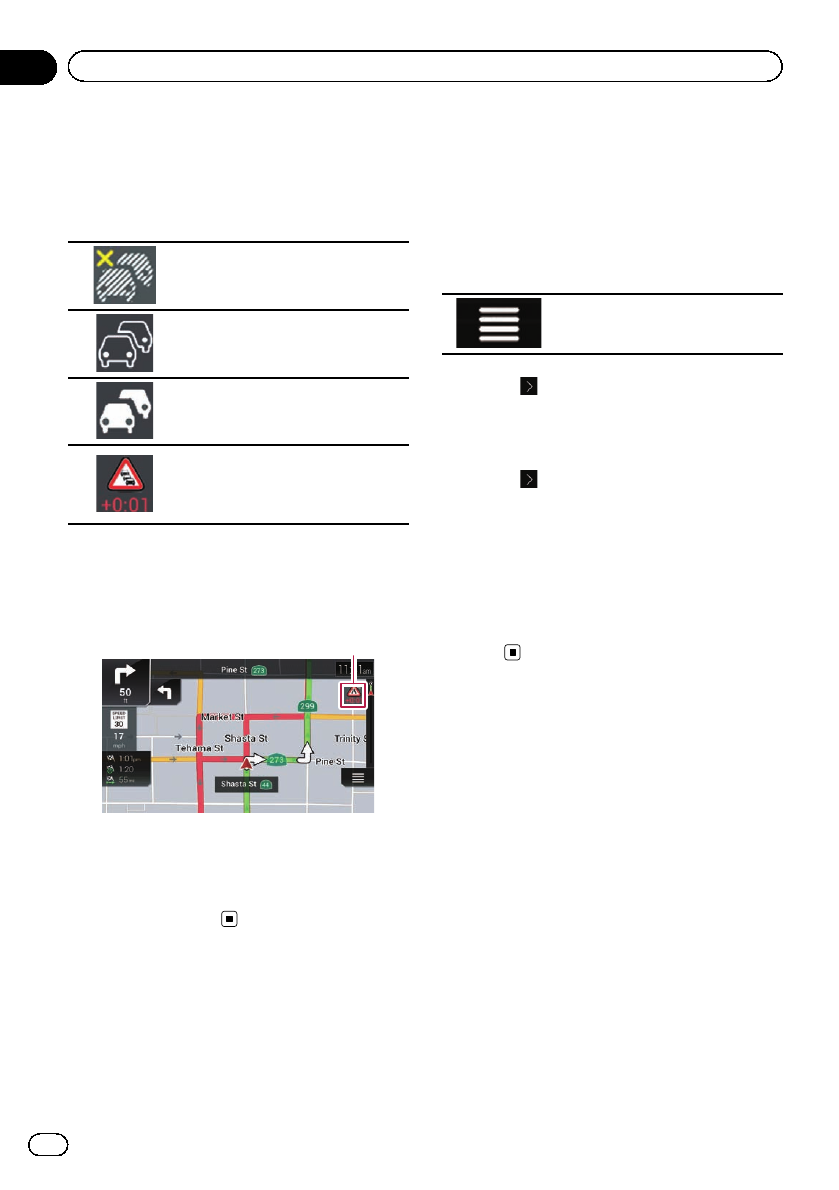
When traffic incidents
occur on your route
The notification icon shows the status of traffic
information reception.
Indicates that there are no traffic
incidents in your coverage area.
Indicates that information on traf-
fic incidents are being received.
Indicates that there are no signifi-
cant traffic incidents on your
route.
Indicates that there are significant
traffic incidents on your route. The
icon shows the type of the next
traffic incident.
1 Press the MAP button.
The Map screen appears.
2 Touch the relevant traffic event icon.
1
1Traffic notification icon
The “Traffic Summary”screen appears.
You can check the details of the traffic inci-
dents. Touch the relevant event to display the
location on the map.
Turning the traffic
information on or off
The traffic information feature is turned on by
default. To enable or disable the TMC feature,
perform the following procedure.
pIf you turn the traffic information feature
off, [Traffic] on the navigation menu disap-
pears.
1 Press the MAP button.
The Map screen appears.
2 Touch the following key.
Displays the navigation menu on
the Map screen.
3 Touch to show the next page.
4 Touch [Settings].
The “Settings”screen appears.
5 Touch to show the next page.
6 Touch [Traffic].
The “Traffic Settings”screen appears.
7 Touch [Traffic] to turn the switch on or
off.
The feature is enabled or disabled.
=For details, refer to “Traffic”settings on page
69.
En
56
Chapter
08 Receiving real-time traffic information (TMC)
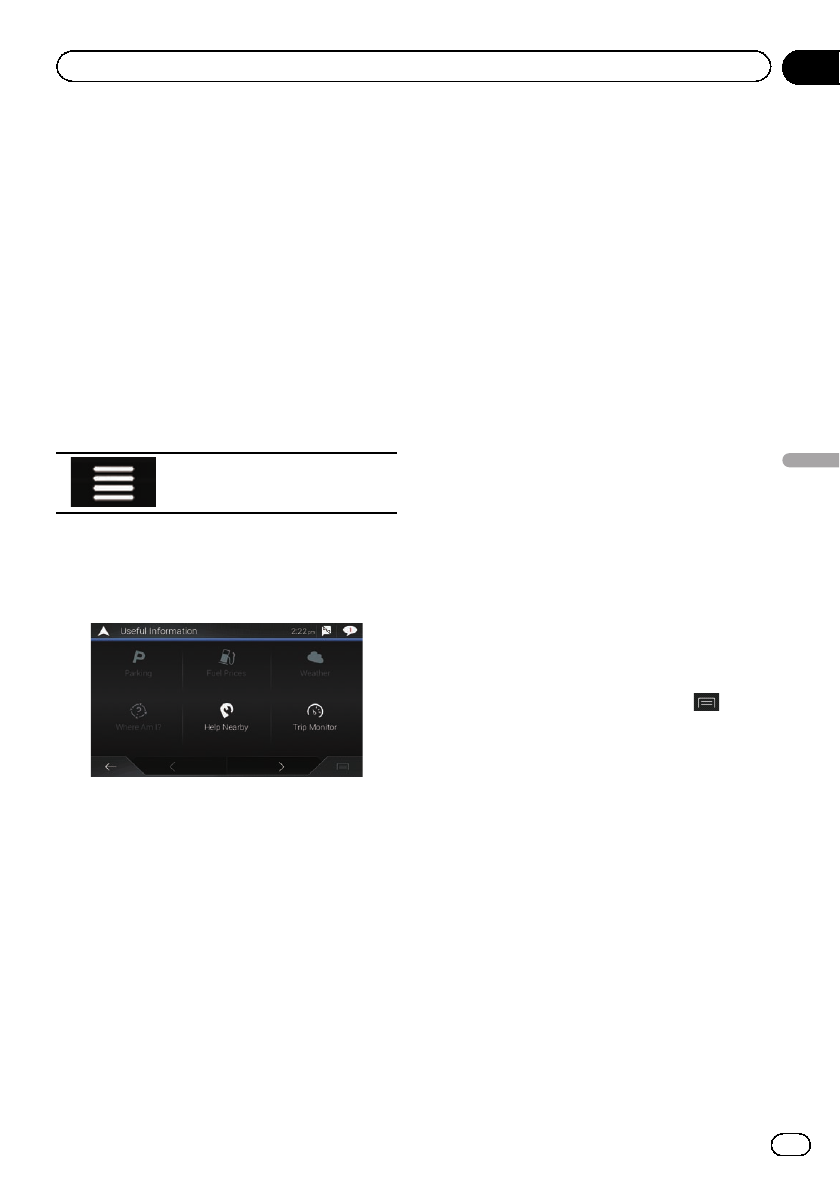
Checking useful information
The “Useful Information”menu contains var-
ious information to support your driving.
pThe online function in “Parking”,“Weath-
er”and “Fuel Prices”can be used if you
connect an iPhone or a smartphone that
has the AVICSYNC App installed.
=Be sure read Expanding the use of the
navigation functions (page 71) before
using the AVICSYNC function.
1 Press the MAP button.
The Map screen appears.
2 Touch the following key.
Displays the navigation menu on
the Map screen.
3 Touch [Useful Information].
The “Useful Information”screen appears.
4 Touch the desired menu item.
!Parking:
Checks for parking lots near your current lo-
cation.
pFor details, refer to the manual for
AVICSYNC on our website.
!Fuel Prices:
Displays recent gas prices of gas stations
near the current location, along the current
route, or in the town.
pFor details, refer to the manual for
AVICSYNC on our website.
!Weather:
Checks the weather forecast for your cur-
rent location, along your route, around your
destination, as well as for your saved loca-
tions.
pFor details, refer to the manual for
AVICSYNC on our website.
!Where Am I?:
Displays a special screen with information
about the current position and a key to
search for nearby emergency or roadside
assistance services.
The screen provides the following informa-
tion:
—Latitude and longitude (coordinates of
the current position in WGS84 format)
—Address details of the current position
(when available)
—The nearest city
—Next crossing road/street
—Previous crossing road/street
pIf the current street is displayed below
the current position marker on the map,
touch it to open the “Where Am I?”
screen. When you are driving without a
planned route, touch the current street
or the arrows at the top section of the
Map screen to open the “Where Am I?”
screen.
pTo save the current position as a “Saved
Location”destination, touch .
=For details, refer to Storing a location
in “Saved Location”on page 51.
!Help Nearby:
Checks for POIs in your surroundings.
The preset search categories are as follows.
!Car Repair:
!Health:
!Police:
!Gas Station:
!Trip Monitor:
Checks the statistical data of your trips (for
example, start time, end time, average
speed, etc.).
=For details, refer to Recording your travel
history on page 58.
!GPS Information:
Displays the GPS information screen with
satellite position and signal strength infor-
mation.
En 57
Chapter
09
Checking useful information about your trip
Checking useful information about your trip
!Fuel Consumption:
You can estimate the fuel cost to your desti-
nation by entering the fuel consumption in-
formation in the navigation system.
=For details, refer to Calculating the fuel
consumption on page 60.
Recording your travel history
Activating the trip logger enables you to re-
cord your driving history (hereinafter called
“trip log”). You can review your trip log later.
pThe trip logger is set so that it can be
started manually by default. You can
change the settings of this function in
order to save the log automatically.
=For details, refer to Trip Monitor:on page
62.
Activating trip logger temporarily
One-time activation is useful if you want to
create a log only for a particular trip.
1 Press the MAP button.
The Map screen appears.
2 Touch the following key.
Displays the navigation menu on
the Map screen.
3 Touch [Useful Information].
The “Useful Information”screen appears.
4 Touch [Trip Monitor].
The “Trip Monitor”screen appears.
A list of trip logs already recorded appears. A
blank list appears if you have not recorded any
trip logs yet.
5 Touch [Start New Recording].
The trip logger is activated. The touch key
changes to [Stop Recording]. Touching [Stop
Recording] allows you to deactivate the trip
logger.
pIf there is not enough space in the built-in
memory, the oldest trip log will be overwrit-
ten by the new one.
pIf you want the system to always activate
the trip logger whenever the GPS signal is
available, turn on “Enable Auto-Saving”.
=For details, refer to Enable Auto-Saving:
on page 59.
Browsing the trip log
1 Record the trip log.
2 Press the MAP button.
The Map screen appears.
3 Touch the following key.
Displays the navigation menu on
the Map screen.
4 Touch [Useful Information].
The “Useful Information”screen appears.
5 Touch [Trip Monitor].
The “Trip Monitor”screen appears.
pTo export all trip logs, touch [Export All].
6 Touch any of the items to see the de-
tails.
The screen showing the trip log in detail ap-
pears.
pTo display the trip log on the map, touch
[Visible on Map] to tick the check box.
Touching allows you to view the shortcuts
and enables you to use the following func-
tions.
!View on Map
Shows the trip log on the map screen.
!Export Track Log:
Exports the track log currently selected to
an external storage device.
En
58
Chapter
09 Checking useful information about your trip
Setting the trip logger
1 Record the trip log.
2 Press the MAP button.
The Map screen appears.
3 Touch the following key.
Displays the navigation menu on
the Map screen.
4 Touch [Useful Information].
The “Useful Information”screen appears.
5 Touch [Trip Monitor].
The “Trip Monitor”screen appears.
6 Touch and then touch [Trip Monitor
Settings].
The setting screen appears.
7 Touch any of the items to change the
settings.
!Enable Auto-Saving:
Sets whether automatic trip logging is acti-
vated or not.
!Save Track Log:
Track logs, the sequence of the positions
given by the GPS receiver, can be saved to-
gether with trip logs. You can activate the
track logger whenever the trip logger is acti-
vated.
p“Trip Database Size”indicates the cur-
rent data size of the trip log (track log in-
cluded).
Editing a trip log
1 Press the MAP button.
The Map screen appears.
2 Touch the following key.
Displays the navigation menu on
the Map screen.
3 Touch [Useful Information].
The “Useful Information”screen appears.
4 Touch [Trip Monitor].
The “Trip Monitor”screen appears.
5 Touch and then touch [Edit].
The “Select Trip to Edit”screen appears.
6 Touch any of the items to edit.
!Delete:
Deletes the trip log.
!Rename:
Renames the trip log.
!Change Color:
Changes the color by selecting another
color from the color table.
pIf you touch and then touch [Delete
All], all entries can be deleted.
7 Touch [Done].
Using the Trip Computer mode
In the trip computer screen, the information
received from the GPS receiver and your vehi-
cle is displayed like a meter for a vehicle.
1 Press the MAP button.
The Map screen appears.
2 Touch the data field key.
The “Trip Computer”screen appears.
En 59
Chapter
09
Checking useful information about your trip
Checking useful information about your trip
pIf you touch [Trip Summary], the details of
the current trip are displayed. Touch [Save
Trip] to store the current trip log.
3 Touch the following key.
Returns to the Map screen.
pIf you press the MAP button, you can return
to the Map screen.
Calculating the fuel
consumption
The fuel consumption monitor helps you keep
track of the fuel consumption of your car even
if you do not use the navigation system for all
your journeys. Set the initial odometer value
and then record the distance driven and the
amount of fuel whenever you fill up your car.
You can also set reminders for regular car
maintenance.
These calculations are based only on the infor-
mation that you provide and not on any data
from the vehicle. The fuel mileage displayed is
only a reference value, and does not guarantee
that the fuel mileage displayed can be ob-
tained.
Setting the initial odometer value
Before you use the fuel consumption feature,
enter the initial odometer value from which
you want to start measuring the mileage.
1 Press the MAP button.
The Map screen appears.
2 Touch the following key.
Displays the navigation menu on
the Map screen.
3 Touch [Useful Information].
The “Useful Information”screen appears.
4 Touch [Fuel Consumption].
The “Fuel Consumption”screen appears.
5 Touch [Initial Milometer Value].
The “Set Initial Milometer Value”screen ap-
pears.
6 Enter the initial odometer value and
then touch .
The initial odometer value has been set.
Entering the fuel consumption
information
To calculate the fuel consumption for the dis-
tance you have traveled, enter the distance dri-
ven and the amount of fuel whenever you fill
up your car.
1 Press the MAP button.
The Map screen appears.
2 Touch the following key.
Displays the navigation menu on
the Map screen.
3 Touch [Useful Information].
The “Useful Information”screen appears.
4 Touch [Fuel Consumption].
The “Fuel Consumption”screen appears.
5 Touch [Add].
The “Add Consumption Entry”screen ap-
pears.
En
60
Chapter
09 Checking useful information about your trip
6 Touch [Current Milometer Value] and
then enter the current odometer value.
7 Touch [Fuel Amount] to enter the
amount of fuel pumped this time.
8 Touch [Fuel Price / Unit] to enter the
fuel unit price this time.
9 Touch [Add].
The “View Consumption Entry”screen ap-
pears.
10 Touch [Done].
The entry is created and the fuel consumption
is displayed.
pTo delete an entry, touch to display the
shortcut for deletion.
Setting the car maintenance
schedule
1 Press the MAP button.
The Map screen appears.
2 Touch the following key.
Displays the navigation menu on
the Map screen.
3 Touch [Useful Information].
The “Useful Information”screen appears.
4 Touch [Fuel Consumption].
The “Fuel Consumption”screen appears.
5 Touch .
6 Touch [Maintenance Schedule].
7 Touch [Add] or the one of entries.
8 Enter the name, date, and mileage for
the reminder.
9 Touch [Done].
pTo delete an entry, touch to display the
shortcut for deletion.
En 61
Chapter
09
Checking useful information about your trip
Checking useful information about your trip
Customizing the
navigation settings
You can configure the navigation settings, and
modify the behavior of this system.
1 Press the MAP button.
The Map screen appears.
2 Touch the following key.
Displays the navigation menu on
the Map screen.
3 Touch to show the next page.
4 Touch [Settings].
The “Settings”screen appears.
!Route Preferences:
Sets the type of vehicle you are driving, the
road types used in route planning, and the
route planning method.
=For details, refer to “Route Preferences”
settings on page 63.
!Sound:
Adjusts the different sound volumes and
changes the voice guidance profile.
=For details, refer to “Sound”settings on
page 65.
!Warnings:
Enables or disables warnings and sets up
the warning function.
=For details, refer to “Warnings”settings
on page 66.
!Navigation Map:
Fine-tunes the appearance of the Map
screen and adjusts how the software helps
you navigate with different kinds of route-re-
lated information on the Map screen.
=For details, refer to “Navigation Map”set-
tings on page 66.
!Regional:
Changes the voice guidance language, the
application language, and measurement
units.
=For details, refer to “Regional”settings
on page 68.
!Display:
Sets separate themes for daytime and
nighttime use, adjusts the display back-
light, and enables or disables menu anima-
tions.
=For details, refer to “Display”settings on
page 69.
!Traffic:
Enables or disables the TMC receiver and
sets up the traffic function.
=For details, refer to “Traffic”settings on
page 69.
!Weather:
Enables or disables the online weather fore-
cast option and the automatic download of
weather information.
=For details, refer to “Weather”settings on
page 69.
!Fuel:
Enables or disables the online gas price op-
tion and sets up the gas type.
=For details, refer to “Fuel”settings on
page 69.
!Trip Monitor:
Turns automatic trip log saving on or off
and checks the current size of the trip data-
base.
=For details, refer to “Trip Monitor”set-
tings on page 69.
!AVICSYNC
Displays the connection method for
AVICSYNC.
pThe setting value is fixed. Use this pro-
duct as it is.
!Online Services:
Enables or disables the connected services.
=For details, refer to “Online Services”set-
tings on page 69.
!Usage Reports:
Enables or disables the collection of usage
information and GPS logs that may be used
for improving the application and the qual-
ity and coverage of maps.
=For details, refer to “Usage Reports”set-
tings on page 70.
!Start Configuration Wizard:
En
62
Chapter
10 Customizing preferences of the navigation
Modifies the basic software parameters
used during the initial setup process.
!SyncTool:
Starts the synchronization tool, which
makes it possible to update your maps.
=For details, refer to Getting the map up-
date on page 73.
Restoring the default settings
You can restore settings or recorded content
to the default settings.
1 Press the MAP button.
The Map screen appears.
2 Touch the following key.
Displays the navigation menu on
the Map screen.
3 Touch to show the next page.
4 Touch [Settings].
The “Settings”screen appears.
5 Touch the following key.
Displays the shortcuts.
6 Touch [Reset All Settings].
A confirmation message appears.
7 Touch [OK].
The recorded contents are cleared.
pIf you touch [Factory Reset] on the short-
cut, all data relevant to navigation (includ-
ing the items in saved locations and
histories) are deleted and all settings are
reset to their factory defaults.
Information on each option
of “Settings”
“Route Preferences”settings
Vehicle
You can set the type of vehicle you will be
using on the route.
pThe route is planned based on the selected
vehicle type.
Route planning can also be configured to
incorporate dimension, weight, and freight
hazard restrictions for maps that contain
such data.
To enhance the route accuracy, correctly
select a vehicle type that is similar to the
condition of your vehicle.
!Car:
—Maneuver restrictions and directional
constraints are taken into account when
planning a route.
—Roads are used only if access for cars is
allowed.
—Private roads and resident-only roads
are used only if they are inevitable to
reach the destination.
—Walkways are excluded from routes.
!Emergency:
—All maneuvers available at intersections
are taken into account.
—Directional constraints are taken into
account in the same way as travel in the
opposite direction is allowed at low
speeds.
—Only private roads that need to be used
to access the destination are included.
—Walkways are excluded from routes.
!Bus:
—Maneuver restrictions and directional
constraints are taken into account when
planning a route.
—Roads are used only if access for buses
is allowed.
—Private roads, resident-only roads and
walkways are excluded from routes.
!Taxi:
En 63
Chapter
10
Customizing preferences of the navigation
Customizing preferences of the navigation

—Maneuver restrictions and directional
constraints are taken into account when
planning a route.
—Roads are used only if access for taxis is
allowed.
—Private roads, resident-only roads and
walkways are excluded from routes.
!Truck:
—Maneuver restrictions and directional
constraints are taken into account when
planning a route.
—Only roads that allow truck access are
included.
—Private roads, resident-only roads and
walkways are excluded from routes.
—U-turns are not used in routes (turning
around on a divided road is not consid-
ered a U-turn for the purpose of this sys-
tem).
pTo edit the name and estimated maximum
speed of the selected vehicle profile, touch
.
pTo add a new vehicle profile, touch [Add
Profile]. Then select one of the vehicle
types and set the name and estimated max-
imum speed.
Route Planning Method
You can change the route planning method.
Route calculation can be optimized for differ-
ent situations and vehicle types by changing
the planning method. The route planning
method types are as follows.
!Fast
Calculates a route with the shortest travel
time to your destination as a priority. Usual-
ly the best selection for fast and standard
cars.
!Easy
Results in a route with fewer turns and no
difficult maneuvers. With this option, you
can make this system to take, for example,
the freeway instead of a series of smaller
roads or streets.
!Short
Calculates a route with the shortest dis-
tance to your destination as a priority.
Usually practical for slower vehicles. Rarely
practical to use to search for shorter routes
for normal vehicles regardless of the
speed.
!Economical
Calculates a route that is quick and saves
fuel.
Navigation Mode
You can enable or disable off-road navigation.
!On-road
The route is planned towards the destina-
tion along the roads on the map.
!Off-road
The route is planned towards the destina-
tion in a straight line, not along the roads
on the map.
Highways
When this function is turned off, the route is
calculated prioritizing the avoidance of free-
ways.
This function is useful when you want to avoid
freeways when you are driving a slow car or
you are towing another vehicle.
Period Charge
When this function is turned off, the route is
calculated prioritizing the avoidance of toll
roads.
This function is useful when you want to avoid
toll roads with restricted time access that re-
quire you to purchase a separate pass or vign-
ette to extend the length of time allotted for
use.
pThis option can be enabled or disabled se-
parately from the pre-use toll road usage
option.
Per-use Toll
When this function is turned off, the route is
calculated prioritizing the avoidance of per-
use charged toll roads.
This function is useful when you want to avoid
toll roads where there is a per-use charge.
En
64
Chapter
10 Customizing preferences of the navigation
Ferries
When this function is turned off, the route is
calculated prioritizing the avoidance of ferries.
Car Shuttle Trains
When this function is turned off, the route is
calculated prioritising the avoidance of car
shuttle trains.
Car shuttle trains are used to transport vehi-
cles for relatively short distances and they
usually connect places that are not easily ac-
cessible by road.
Unpaved Roads
When this function is turned off, the route is
calculated prioritizing the avoidance of un-
paved roads.
pThe navigation system avoids unpaved
roads by default.
Carpool Lanes
When this function is turned off, the route is
calculated prioritizing the avoidance of car-
pool and HOV lanes.
pThe navigation system avoids carpool and
HOV lanes by default.
“Sound”settings
Voice
You can adjust the volume of the guidance
sounds (verbal instructions).
Alert Beeps
You can adjust the volume of the non-verbal
alert sounds (beeps).
Ding
You can turn off the attention tone that pre-
cedes the verbal instructions or adjust its vo-
lume.
Voice Guidance
You can enable or disable voice guidance.
pThis function is enabled by default.
Announce Streets and Roads in Native
Language Area
You can select whether to have the navigation
system announce the street names in the na-
tive language of the area, only the road num-
bers, or only the maneuvers.
Announce Streets and Roads in Foreign
Language Area
You can select whether to have the navigation
system read the street names in a foreign
country, only the road numbers, or only the
maneuvers.
Early Indication of Maneuvers
You can select whether you want an immedi-
ate announcement for the next maneuver or to
receive the information when the maneuver is
near.
Verbosity Level
You can set the verbosity of the voice instruc-
tions: how much information is given and how
often the prompts occur.
!Minimal: Voice instructions are given once
right before the next maneuver.
!Medium: Voice instructions are given once
as the vehicle approaches the next maneu-
ver and it is repeated right before the man-
euver.
!Verbose: Voice instructions are given once
relatively far from the next maneuver, it is
repeated as the vehicle approaches the
next maneuver, and it is repeated again
right before the actual maneuver.
Announce Route Summary
You can select whether to have the navigation
system announce by voice a quick summary
of the route whenever a route is calculated.
Announce Traffic Info
You can select whether to have the navigation
system announce by voice the traffic informa-
tion whenever a traffic incident on your route
is received.
En 65
Chapter
10
Customizing preferences of the navigation
Customizing preferences of the navigation

Announce System Messages
When a system message appears, this naviga-
tion system can read out the message.
“Warnings”settings
IMPORTANT
!This system is able to warn you if you exceed
the current speed limit. This information may
not be available for your region (ask your local
dealer), or may not be fully correct for all
roads on the map.
!You are liable for ensuring that using this fea-
ture is legal in the country where you intend
to use it.
Speed Warning
!Warn When Speeding
You can select whether you want to receive
visible and/or audible warnings.
The following alert types are available:
—Audio and Visual: When selected, audi-
ble and visible warnings will go off
when you exceed the speed limit.
—Visual: When selected, visible warnings
will go off when you exceed the speed
limit.
!Speed Limit Always Visible
You can select whether you want to see the
speed limit sign on the map all the time.
When you set the speed limit to always be
visible, the color of the speed limit sign
changes when you exceed the speed limit.
!Warn at *** percent of the Speed Limit
(Outside Cities)
You can receive a warning when you reach
the set percentage of the speed limit in
rural areas.
!Warn at *** percent of the Speed Limit
(in Cities)
You can receive a warning when you reach
the set percentage of the speed limit in
urban areas.
Alert Points
This setting allows you to receive a warning
when approaching alert points like school
zones or railroad crossings.
=For details, refer to Setting the alert point
warnings on page 70.
“Navigation Map”settings
Map Display
You can see the effect when you change a set-
ting.
!Viewpoint
You can adjust the basic zoom and tilt le-
vels to your needs. Three levels are avail-
able.
!Color Mode
You can switch between daytime and night-
time color modes or let the software switch
between the two modes automatically a
few minutes before sunrise and a few min-
utes after sunset.
!Day Map Color
You can select the color scheme used in
the daytime map.
!Night Map Color
You can select the color scheme used in
nighttime map.
!Landmarks
This setting shows or hides 3D landmarks
which are 3D artistic or block representa-
tions of prominent or well-known objects.
pFor AVIC-6100NEX and AVIC-5100NEX,
this function becomes effective only
when the additional map data is in-
stalled.
!Buildings
This setting shows or hides 3D city models
which are 3D artistic or block representa-
tions of complete city building data con-
taining actual building sizes and actual
positions on the map.
pFor AVIC-6100NEX and AVIC-5100NEX,
this function becomes effective only
when the additional map data is in-
stalled.
En
66
Chapter
10 Customizing preferences of the navigation
!3D Terrain
This setting shows or hides the 3D eleva-
tion of the surrounding terrain.
!Track Logs
You can turn on or off track log saving
which saves the sequence of the locations
you go through on your journeys.
!Place Markers
You can select which POI icons to show on
the map while navigating.
pWhen a large number of POI icons exist
on a map display, maps and POI icons
become hard to see. To maintain map
and POI visibility, reduce the displayed
categories as much as possible.
Data Fields
You can choose to have different values dis-
played for when navigating a route to a select
destination and for when just cruising around
without any particular destination.
=For details, refer to Browsing the data field
on page 35.
“First”,“Second”and “Third”selects items
displayed in the data fields shown when the
route exists. “Without Route”selects the
items displayed in the data fields shown when
a route does not exist.
Route Progress Bar
You can turn on the route progress bar to dis-
play the current route as a straight line located
on the right side of the map. The arrow repre-
sents your current position and moves up the
line as you travel along the route. Waypoints
and traffic event markers are also displayed on
the line.
Offer Freeway Services
You may need to stop by a gas station or a res-
taurant during your journey.
=For details, refer to Frequently shown route
events on page 34.
Services Displayed
You can select the service types displayed for
the freeway exits or service stations. Choose
from the POI categories.
Automatic Overview
When selected, the map zooms out to show
an overview of the surrounding area if the next
route event (maneuver) is far. When you get
close to the event, the map returns to the nor-
mal map view.
Signposts
Whenever adequate information is available,
lane information similar to the real ones on
road signs above the road is displayed at the
top of the map. You can turn this feature on or
off.
Junction View
If you are approaching a freeway exit or a com-
plex intersection and the necessary informa-
tion is available, the map is replaced with a 3D
view of the junction.
Tunnel View
When entering tunnels, the surface roads and
buildings can be distracting. This feature
shows a generic picture of a tunnel instead of
the map. A top-down overview of the tunnel
and remaining distance are also displayed.
Offer Congestion Detour on Highways
When you slow down while driving on a free-
way due to a traffic congestion, this navigation
system offers you a detour using the next exit.
The message shows you the distance to the
exit and the difference in the distance and esti-
mated time compared to the original route.
You can choose from one of the following op-
tions:
!Touch [Dismiss] or just ignore the message
if you want to keep the original route.
!Touch [Preview] to see an overview of the
original route and the detour to make the
decision. You can accept the detour as
shown in the preview, or increase the free-
way segment bypassed before accepting.
!Turn to the suggested new direction and
the route will be automatically recalcu-
lated.
En 67
Chapter
10
Customizing preferences of the navigation
Customizing preferences of the navigation

Offer Real-time Route Alternatives
Alternative routes can be suggested when
driving on normal roads. This navigation sys-
tem will select a different turn in the upcom-
ing intersection and offer you a different route
for the next section of the route. You cannot,
however, modify the offered detour.
Offer Parking Around Destination
Parking at the destination may not be easy to
find in city areas. As you approach the destina-
tion, this navigation system can offer parking
category places near your destination. Touch
to open a top-down map with the destina-
tion and the offered parking places. The route
is calculated by selecting one of the parking
places.
Offer Hints Upon Detour
If you leave the recommended route and sud-
denly exit the freeway, this navigation system
offers different alternatives near the exit like
gas stations or restaurants. Also, if there are
avoidable parts of the original route ahead
(like a tunnel, a toll road or a ferry), you will
find them in the list in case you want to bypass
them with the help of this navigation system.
“Regional”settings
Language
This key displays the current language of the
user interface. By touching the key, you can
select a new language from the list of avail-
able languages. This system will restart if you
change this setting.
Voice Language
This key displays the current voice guidance
profile. By touching the key, you can select a
new voice guidance language from the list of
available languages and speakers. Touch any
of these keys to hear a sample voice prompt.
Units and Formats
You can set the various units to be used by
this system.
pThis system may not support all the listed
units in some voice guidance languages.
pYou can also set other country specific
units used to display different values in this
system.
Distance
The unit of distance can be changed.
Fuel Economy
The unit of fuel mileage can be changed.
Weight
The unit of weight can be changed.
Coordinate Display Format
The format of the coordinates can be chan-
ged.
Currency
The currency unit can be set.
Time Zone
By default, the time zone is taken from the
map information and adjusted according to
your current location.
!Automatic Time Zone
The time zone setting changes automati-
cally.
!Manual Time Zone
The present setting value for the time differ-
ence and daylight saving time that you set
are used.
!Manual Time Zone if Auto Unavailable
The time zone setting changes automati-
cally if automatic change is available.
Otherwise, the present setting value that
you set is used.
!Manual Time Zone in Current Zone
The present setting value that you set are
used in the current time zone. If your vehi-
cle moves to another time zone, the time
zone setting changes automatically.
Time Zone
You can set the time difference.
En
68
Chapter
10 Customizing preferences of the navigation
Daylight Saving Time
You can turn on or off the daylight saving time
for this navigation system.
“Display”settings
Menu Animations
When animation is turned on, the keys on the
menus and keyboard screens appear in an
animated way. Screen transitions are also ani-
mated.
Day Skin Theme
You can select the style and colors of the navi-
gation menu used in the daytime.
Night Skin Theme
You can select the style and colors of the navi-
gation menu used in the nighttime.
“Traffic”settings
Traffic
You can set to enable or disable the TMC recei-
ver that can receive real-time traffic informa-
tion.
Data Source
You can select what data source you want to
use for receiving real-time traffic information.
[Online] is available only if the device is en-
abled.
Show Traffic Info
You can select whether to show icons relevant
to traffic incidents and lines indicating the
traffic flow on the map.
!Off
No traffic icons or lines indicating the traf-
fic flow are shown.
!Color
Only the line relevant traffic incidents are
shown on the map.
!Color And Icon
Icons for the relevant traffic incidents and
lines indicating the traffic flow are shown
on the map.
Show Free Traffic Flow As Well
You can select whether to receive information
on smooth traffic flow.
Offer Detour if it Saves at Least
You can set the minimum time to be saved
when having the system suggest a detour
route. If the estimated time saved by the
planned detour avoiding the traffic incidents is
more than the set time, the system suggests
the new detour route. Otherwise, the new
route is not suggested.
Confirm Detours Manually
You can enable or disable the manual confir-
mation of every recalculation.
“Weather”settings
pFor details, refer to the manual for
AVICSYNC on our website.
“Fuel”settings
pFor details, refer to the manual for
AVICSYNC on our website.
“Trip Monitor”settings
Enable Auto-Saving
=For details, refer to Setting the trip logger on
page 59.
Save Track Log
=For details, refer to Setting the trip logger on
page 59.
“Online Services”settings
You can use the “Online Services”settings to
enable or disable connected online features.
pFor details, refer to the manual for
AVICSYNC on our website.
=For details, refer to Expanding the use of
the navigation functions on page 71.
En 69
Chapter
10
Customizing preferences of the navigation
Customizing preferences of the navigation
Online Traffic
You can enable or disable the online traffic ser-
vice.
Online Weather
You can enable or disable the online weather
forecast service.
Online Parking
You can enable or disable the online parking
service.
Online Fuel Prices
You can enable or disable the online gas price
service.
Online Search
You can enable or disable the online search
service.
“Usage Reports”settings
Application Usage Information
You can enable or disable the collection of
anonymous statistical information on using
this navigation system for later development
purposes.
pThe collected data is used for improving
the user interface and the program work-
flow. The data is processed anonymously,
and no one will be able to track any perso-
nal information.
GPS Tracks
You can set to enable or disable collecting
anonymous track logs for later development
purposes.
pThe collected data is used for improving
the quality and coverage of maps. The data
is processed anonymously, and no one will
be able to track any personal in-
formation.
Setting the alert point
warnings
You can set an alert for the different alert point
categories, individually.
1 Press the MAP button.
The Map screen appears.
2 Touch the following key.
Displays the navigation menu on
the Map screen.
3 Touch to show the next page.
4 Touch [Settings].
The “Settings”screen appears.
5 Touch [Warnings].
The “Warnings”screen appears.
6 Touch [Alert Points].
The “Alert Points”screen appears.
7 Touch [Alert Point Warnings] to turn it
on.
8 Touch [Alert Types].
The “Select Alert Types”screen appears.
9 Touch any of the items to change the
setting.
The warning setting screen of the selected ca-
tegory is shown.
10 Touch [Warning Type] and then touch
one of the options.
The following alert types are available:
!Disabled:
The system does not warn you of the alert
points for this category.
!Audio and Visual:
You will receive audible and visible warn-
ings while you are approaching the points
in this category.
!Visual:
You will receive a visible warning while you
are approaching the points in this category.
En
70
Chapter
10 Customizing preferences of the navigation
pIf you select “Audio and Visual”in the
warning type setting, you can change the
reception timing of the audio alert. If you
select “Only When Speeding”, the audio
alert is only played when you exceed the
given speed limit. If you select “When Ap-
proaching”, the audio alert is always played
when approaching one of these alert points.
In order to draw your attention, the alert is
different when you exceed the speed lim-
it.
Expanding the use of the
navigation functions
You can expand the use of the navigation func-
tions to iPhone or smartphones if you connect
an iPhone or a smartphone (Android) that has
the AVICSYNC App installed.
Be sure to read before you use
AVICSYNC function
IMPORTANT
!Premium services for AVICSYNC require a
paid subscription in order to be used, and
not all services are available in all coun-
tries. Please refer to our website for more
details.
!Please be aware that you may be charged
additional roaming charges by your cellular
provider if you use connected services
while abroad.
!If the Data Plan for your iPhone or smart-
phone (Android) does not provide for unlim-
ited data usage, additional charges from
your carrier may apply for accessing app-
based connected content via networks
other than Wi-Fi.
!The information which is sent by content
provider, such as search results, regula-
tions, prices, etc. may not necessarily corre-
spond to the actual condition. Utilise the
information for your reference.
!To ensure compatibility, always use the lat-
est version of the AVICSYNC App.
Limitations:
!Access to app-based connected content will
depend on the availability of cellular and/or
Wi-Fi network coverage for the purpose of al-
lowing your smartphone to connect to the In-
ternet.
!Service availability may be geographically lim-
ited to the region. Consult the connected con-
tent service provider for additional
information.
!Ability of this product to access connected
content is subject to change without notice
and could be affected by any of the following:
compatibility issues with future firmware ver-
sions of smartphone; compatibility issues with
future versions of the connected content ap-
plication(s) for the smartphone; changes to or
discontinuation of the connected Content ap-
plication(s) or service by its provider.
En 71
Chapter
10
Customizing preferences of the navigation
Customizing preferences of the navigation

!Pioneer is not liable for any issues that may
arise from incorrect or flawed app-based con-
tent.
!The content and functionality of the supported
applications are the responsibility of the App
providers.
What is the AVICSYNC App?
The AVICSYNC App is a dynamic companion
app that you can use to connect your iPhone
or smartphone to a compatible Pioneer navi-
gation system.
Once linked, the navigation system communi-
cates with your iPhone or smartphone to
share information such as contacts, naviga-
tion history, planned routes, POI favorites, and
even where you parked your vehicle.
With the AVICSYNC App, your navigation sys-
tem can also access Premium connected ser-
vices such as real-time local search and
weather, traffic, parking, and gas price data
lookup to ensure that you’ll have all the infor-
mation you need to reach your desired desti-
nation.
As new mapping data becomes available, you
can use the AVICSYNC App to review, pur-
chase, download, and transfer updated map-
ping content directly to the compatible
Pioneer navigation system.
In addition to augmenting your Pioneer in-
dash navigation experience, AVICSYNC App
also works as a standalone navigation app.
This means that you’ll always have access to
Pioneer’s accurate turn-by-turn navigation,
even when you’re not in your vehicle.
Access our website to check further details for
the AVICSYNC App.
—For U.S.A.
http://www.pioneerelectronics.com/AVICSYNC
—For Canada
http://www.pioneerelectronics.ca/AVICSYNC
Compatibility and
connectivity
You need to install the free AVICSYNC App to
your iPhone or smartphone (Android). To use
the AVICSYNC App function, both iPhone or
smartphone (Android) compatibility with the
AVICSYNC App and connectivity with the na-
vigation system are required.
AVICSYNC compatibility
AVICSYNC is available for the following mod-
els.
(As of November 2014)
pDepending on the software version of the
iPhone and Android, it may not be compati-
ble with this product. For latest compatibil-
ity with this product and AVICSYNC App,
refer to the information on our website.
iPhone models
!iPhone 6 Plus: iOS 8.0.x
!iPhone 6: iOS 8.0.x
!iPhone 5s: iOS 7.0.x, 7.1.x, 8.0.x, 8.1
!iPhone 5c: iOS 7.0.x, 7.1.x, 8.0.x, 8.1
!iPhone 5: iOS 7.0.x, 7.1.x, 8.0.x, 8.1
!iPhone 4s: iOS 7.0.x, 7.1.x, 8.0.x, 8.1
!iPhone 4: iOS 6.x
Smartphone (Android) models
SAMSUNG
!Galaxy S2: Android 4.1.2
!Galaxy S3: Android 4.1.2, 4.3
!Galaxy S4: Android 4.2.2, 4.4.2
!Galaxy Note B: Android 4.1.1
!Galaxy Tab 2: Android 4.0.3
LG
!Nexus 5: Android 4.4.2
ASUS
!Nexus 7 (2013) 4.3
En
72
Chapter
10 Customizing preferences of the navigation
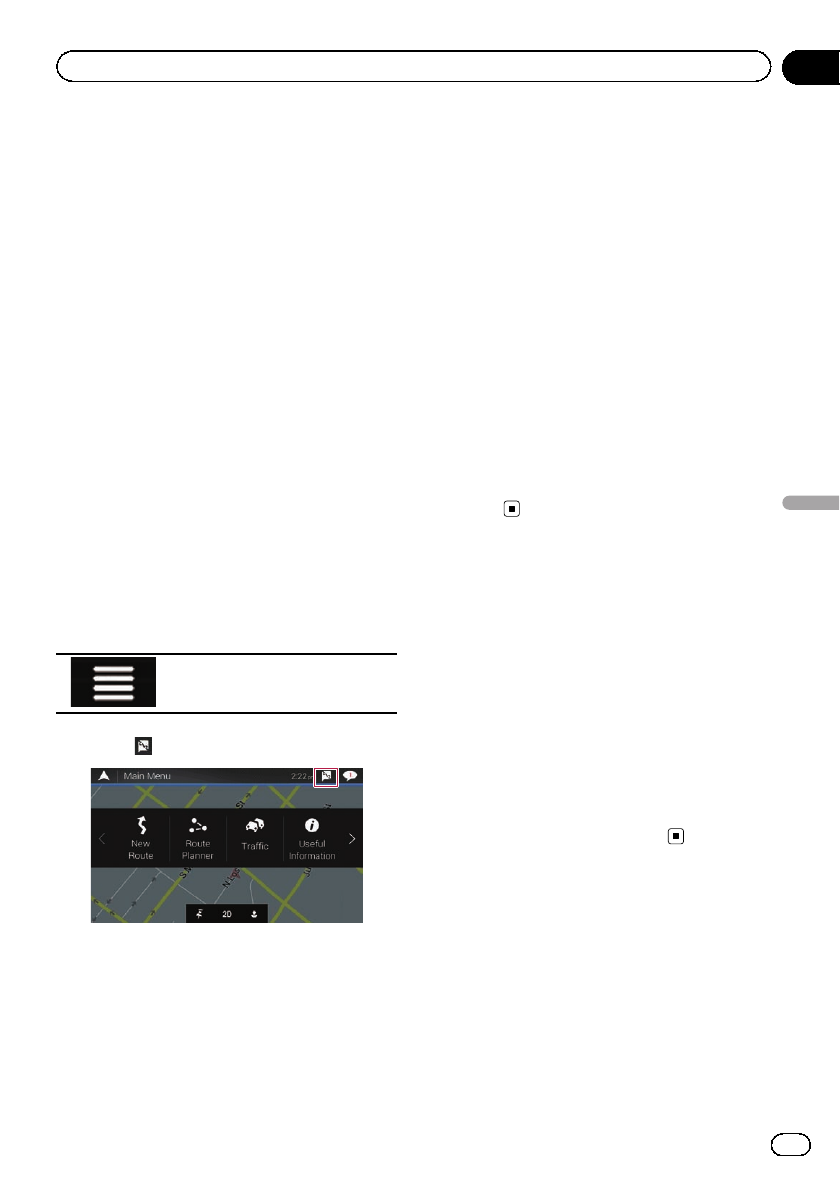
Preparations before using the
AVICSYNC function
1 Download the AVICSYNC App from
App Store or Google Play and install the
app to your iPhone or smartphone
(Android).
To find AVICSYNC App, access the App Store
or Google Play and enter “AVICSYNC”in the
search box.
2 Start the AVICSYNC App on your
iPhone or smartphone (Android).
3 Connect your iPhone or smartphone
(Android) to the navigation system via
Bluetooth or USB cable connection.
=For details of the Bluetooth connection,
refer to Chapter 11.
=For details of the USB connections, refer to
the Installation Manual.
4 Press the MAP button.
The Map screen appears.
5 Touch the following key.
Displays the navigation menu on
the Map screen.
6 Touch on the navigation menu.
7 Touch [Associate New Phone].
8 Touch the iPhone or smartphone
(Android) that you want to associate with
the navigation system and then touch [As-
sociate].
9 Accept the association on your iPhone
or smartphone (Android).
Once the association is established, your
iPhone or smartphone (Android) is automati-
cally associated when you connect your
iPhone or smartphone (Android) to the naviga-
tion system.
10 Purchase connected services via the
AVICSYNC App.
11 Display the navigation menu and then
touch [Settings].
12 Touch [Online Services].
13 Touch the service that you want to acti-
vate.
The menus for the connected service are
activated.
Getting the map update
You can update existing content, purchase ad-
ditional maps and activate extra services on
your product. To update the content, download
the update on your USB memory storage by
using the computer to which the Naviextras
Toolbox is installed. Then, transfer the data
from connected USB memory storage to your
navigation system by using “SyncTool”on this
product.
pFor details, access the following URL and
refer to "HOW TO UPDATE?" GUIDE.
http://pioneer.naviextras.com
En 73
Chapter
10
Customizing preferences of the navigation
Customizing preferences of the navigation
If your devices feature Bluetooth®technology,
this product can be connected to your devices
wirelessly. This section describes how to set
up a Bluetooth connection.
For details about connectivity with the devices
featuring Bluetooth wireless technology, refer
to the information on our website.
pThe “Bluetooth”menu is available only
when you stop your vehicle in a safe place
and apply the parking brake.
Preparing communication
devices
This product has a built-in function that en-
ables to use devices featuring Bluetooth wire-
less technology.
=For details, refer to Notes for hands-free
phoning on page 86.
You can register and use devices that feature
the following profiles with this product.
!HFP (Hands-Free Profile)
!A2DP (Advanced Audio Distribution Pro-
file)
!SPP (Serial Port Profile)
pWhen this product is turned off, the
Bluetooth connection is also disconnected.
When the system restarts, the system auto-
matically attempts to reconnect the pre-
viously-connected device. Even when the
connection is severed for some reason, the
system automatically reconnects the speci-
fied device (except when the connection is
severed due to device operation).
Registering your Bluetooth
devices
You need to register your devices featuring
Bluetooth wireless technology when you con-
nect it to this product for the first time. A total
of three devices can be registered. Two regis-
tration methods are available:
!Searching for nearby Bluetooth devices
!Pairing from your Bluetooth devices
pIf three devices are already paired, “Mem-
ory Full”is displayed and pairing cannot
be performed. In such cases, delete a
paired device first.
=For details, refer to Deleting a registered
device on page 76.
Searching for nearby Bluetooth
devices
The system searches for available Bluetooth
devices near this product, displays them in a
list, and registers them for connection.
pWhen the device is already connected, this
function is inactive.
1 Activate the Bluetooth wireless tech-
nology on your devices.
pFor some Bluetooth devices, no specific ac-
tion is necessary to activate Bluetooth wire-
less technology. For details, refer to the
instruction manual of your devices.
pSet the device visible to other devices.
2 Press the HOME button to display the
Top menu screen.
3 Touch the following keys in the follow-
ing order.
The “Bluetooth”screen appears.
4 Touch [Connection].
The following screen appears.
En
74
Chapter
11 Registering and connecting a Bluetooth device
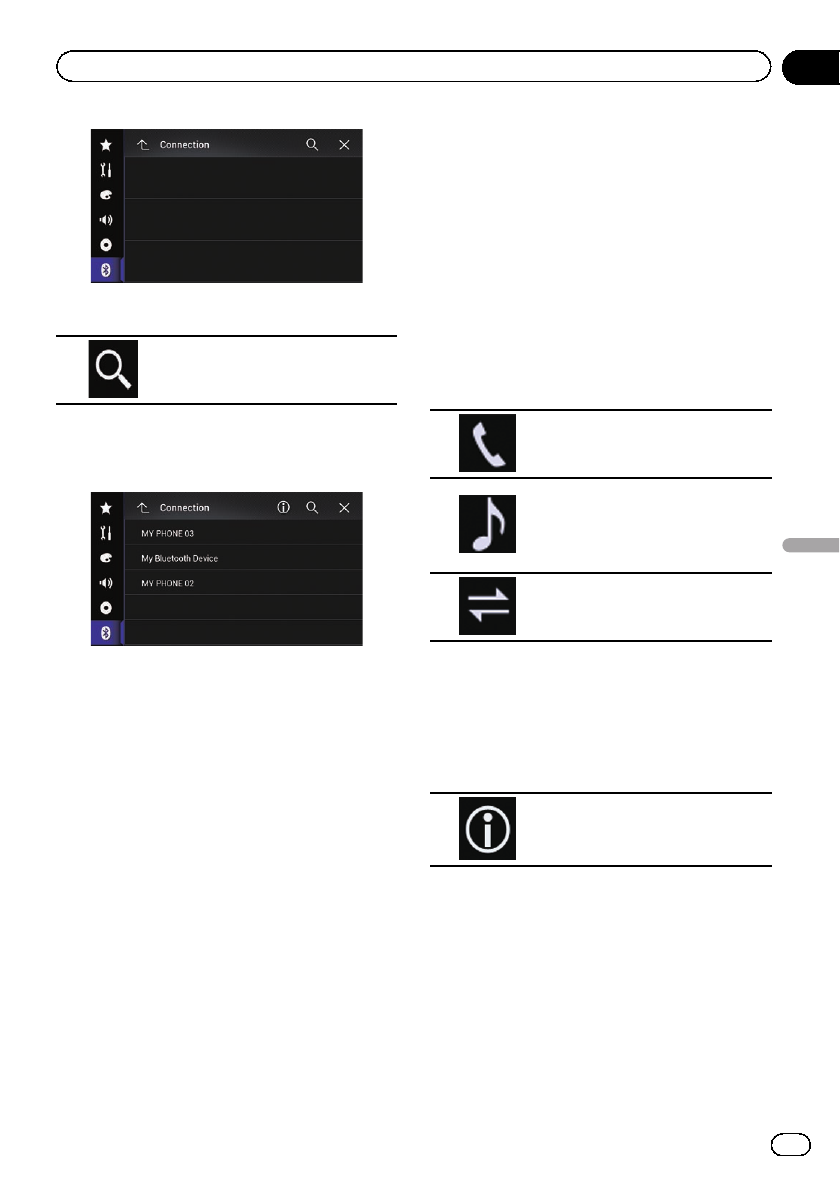
5 Touch the following key.
Starts searching.
The system searches for Bluetooth devices
waiting for a connection and displays them in
the list if a device is found.
pUp to 20 devices will be listed in the order
that the devices are found.
6 Wait until your Bluetooth device ap-
pears in the list.
pIf you cannot find the Bluetooth device that
you want to connect, check that the device
is waiting for a Bluetooth wireless technol-
ogy connection.
7 Touch the name of the Bluetooth device
you want to register.
While connecting, “Pairing…Please wait.”is
displayed. If the connection is established,
“Paired.”is displayed.
pIf your device supports SSP (Secure Simple
Pairing), a six-digit number appears on the
display of this product. Touch [Yes] to pair-
ing the device.
pIf the connection fails, “Error”is displayed.
In such cases, try again from the begin-
ning.
pThe PIN code is set to “0000”as the default,
but can be changed.
=For details, refer to Entering the PIN code
for Bluetooth wireless connection on
page 77.
pOnce the connection is established, the de-
vice name is displayed. Touch the device
name to disconnect.
After the device is successfully registered, a
Bluetooth connection is established from the
system.
The profile icons displayed on the registered
device list screen light up as follows.
Lights up when your mobile device
is successfully connected with the
HFP (Hands-Free Profile).
Lights up when your audio device
is successfully connected with the
A2DP (Advanced Audio Distribu-
tion Profile)/AVRCP (Audio/Video
Remote Control Profile).
Lights up when the Bluetooth con-
nection is established with the
SPP (Serial Port Profile).
pAfter pairing, the phone book registered in
the device may be automatically trans-
mitted to this product.
#If you touch the following key, you can switch
the display between the device names and
Bluetooth device addresses.
Switches between the device
names and Bluetooth device ad-
dresses.
Pairing from your Bluetooth
devices
You can register a Bluetooth device by setting
this product to standby mode and requesting
a connection from the Bluetooth device.
pBefore registration, make sure that “Visibi-
lity”in the “Bluetooth”menu is set to
“On”.
En 75
Chapter
11
Registering and connecting a Bluetooth device
Registering and connecting a Bluetooth device
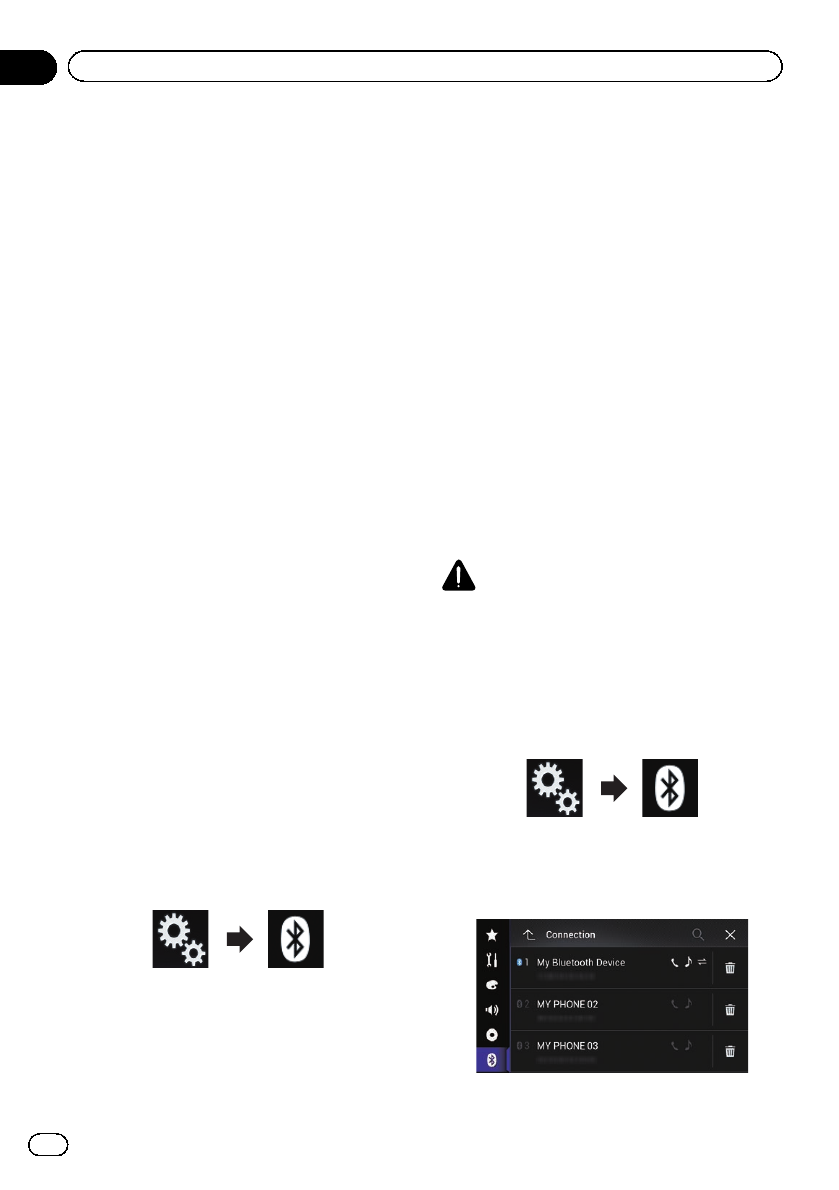
=For details, refer to Switching visibility on
page 77.
1 Activate the Bluetooth wireless tech-
nology on your devices.
pFor some Bluetooth devices, no specific ac-
tion is necessary to activate Bluetooth wire-
less technology. For details, refer to the
instruction manual of your devices.
2 Use the Bluetooth setting in the device
to pair this product with the device.
pIf a PIN code input is required, enter a PIN
code. (The default PIN code is “0000”.)
When the device is successfully registered,
the connection settings are made from the
device.
pIf registration fails, repeat the procedure
from the beginning.
Connecting to a Bluetooth
device automatically
If this function is set to on, a connection be-
tween your Bluetooth device and this product
will take place automatically as soon as the
two devices are less than a few meters apart.
Initially, this function is set to on.
pIf this function is set to on, a connection
with the last connected Bluetooth device
will be established automatically when the
ignition switch is turned on.
1 Press the HOME button to display the
Top menu screen.
2 Touch the following keys in the follow-
ing order.
The “Bluetooth”screen appears.
3 Touch [Auto Connect] repeatedly until
the desired setting appears.
!On (default):
Turns the automatic connection on.
!Off:
Turns the automatic connection off.
If your Bluetooth device is ready for a
Bluetooth wireless connection, a connection
to this product will automatically be estab-
lished.
If connection fails, “Bluetooth auto connec-
tion failed. Retry?”appears.
Touch [Yes] to reconnect.
Deleting a registered device
When you have already registered three
Bluetooth devices and you want to add an-
other one, you must first delete one of the re-
gistered devices.
pIf a registered phone is deleted, all the
phone book entries and call history lists
that correspond to the phone will be also
cleared.
CAUTION
Never turn this product off while the paired
Bluetooth device is being deleted.
1 Press the HOME button to display the
Top menu screen.
2 Touch the following keys in the follow-
ing order.
The “Bluetooth”screen appears.
3 Touch [Connection].
The following screen appears.
En
76
Chapter
11 Registering and connecting a Bluetooth device
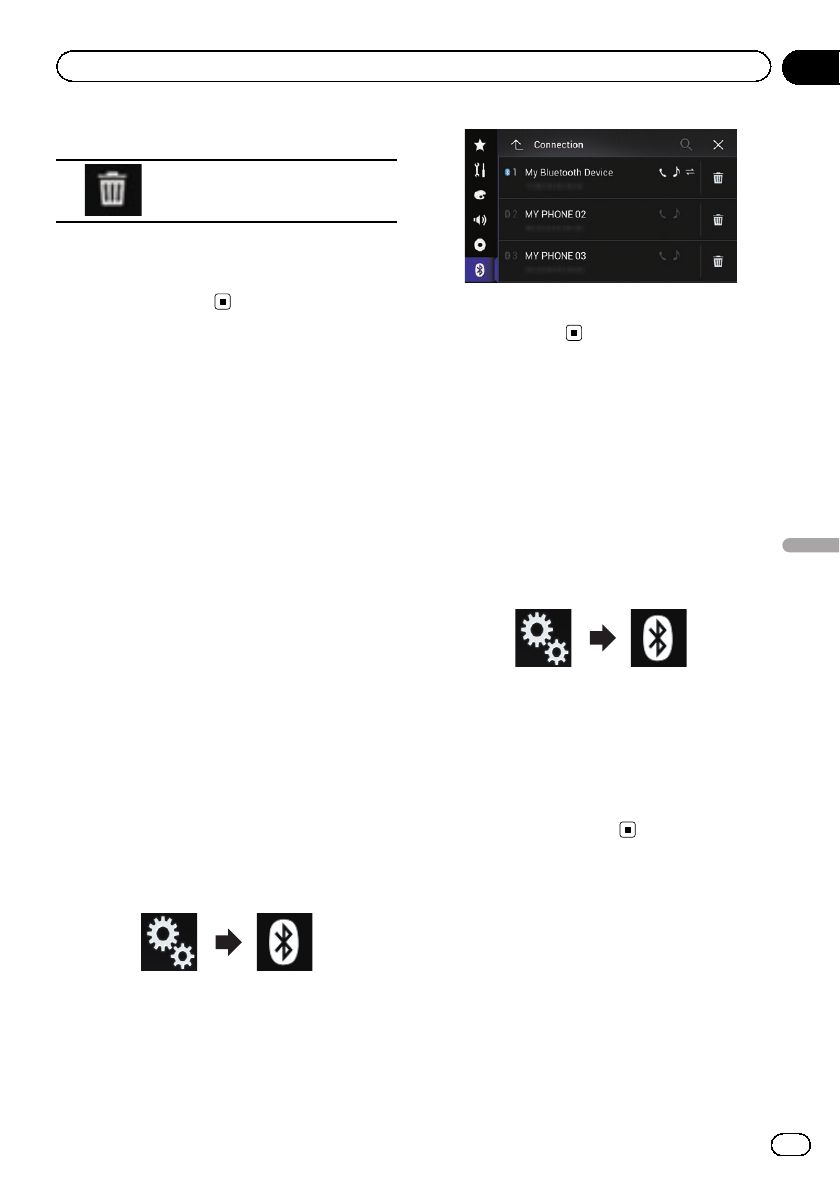
4 Touch the following key.
Deletes a paired device.
A confirmation message appears.
5 Touch [Yes].
The device is deleted.
Connecting a registered
Bluetooth device manually
Connect the Bluetooth device manually in the
following cases:
!Two or more Bluetooth devices are regis-
tered, and you want to manually select the
device to be used.
!You want to reconnect a disconnected
Bluetooth device.
!Connection cannot be established automa-
tically for some reason.
To start the connection manually, carry out the
following procedure.
1 Activate the Bluetooth wireless tech-
nology on your devices.
pFor some Bluetooth devices, no specific ac-
tion is necessary to activate Bluetooth wire-
less technology. For details, refer to the
instruction manual of your devices.
2 Press the HOME button to display the
Top menu screen.
3 Touch the following keys in the follow-
ing order.
The “Bluetooth”screen appears.
4 Touch [Connection].
The following screen appears.
5 Touch the name of the device that you
want to connect.
Switching visibility
This function sets whether or not to make this
product visible to other devices.
Initially, this function is set to on.
1 Press the HOME button to display the
Top menu screen.
2 Touch the following keys in the follow-
ing order.
The “Bluetooth”screen appears.
3 Touch [Visibility] repeatedly until the
desired setting appears.
!On (default):
Turns the visibility on.
!Off:
Turns the visibility off.
Entering the PIN code for
Bluetooth wireless connection
To connect your Bluetooth device to this pro-
duct via Bluetooth wireless technology, you
need to enter a PIN code on your Bluetooth
device to verify the connection.
pThe default code is “0000”, but you can
change it with this function.
En 77
Chapter
11
Registering and connecting a Bluetooth device
Registering and connecting a Bluetooth device
1 Press the HOME button to display the
Top menu screen.
2 Touch the following keys in the follow-
ing order.
The “Bluetooth”screen appears.
3 Touch [PIN Code Input].
The “PIN Code”screen appears.
4 Touch [0] to [9] to input pin code (up to
8 digits).
5 Touch the following key.
Stores the PIN code in this pro-
duct.
Displaying the Bluetooth
address
You can check the Bluetooth address of this
product.
1 Press the HOME button to display the
Top menu screen.
2 Touch the following keys in the follow-
ing order.
The “Bluetooth”screen appears.
3 Touch [Device Information].
The Bluetooth address is displayed.
Clearing the Bluetooth
memory
CAUTION
Never turn this product off while the Bluetooth
memory is being cleared.
1 Press the HOME button to display the
Top menu screen.
2 Touch the following keys in the follow-
ing order.
The “Bluetooth”screen appears.
3 Touch [Bluetooth Memory Clear].
4 Touch [Clear].
The confirmation screen appears.
5 Touch [OK].
The Bluetooth memory is cleared.
#If you do not want to clear the memory, touch
[Cancel].
Updating Bluetooth software
This function is used to update this product
with the latest Bluetooth software. For details
on Bluetooth software and updating, refer to
our website.
pThe source is turned off and the Bluetooth
connection is disconnected before the pro-
cess starts.
CAUTION
Never turn this product off while the software is
being updated.
1 Press the HOME button to display the
Top menu screen.
En
78
Chapter
11 Registering and connecting a Bluetooth device
2 Touch the following keys in the follow-
ing order.
The “Bluetooth”screen appears.
3 Touch [BT Software Update].
4 Touch [Start].
The data transfer screen is displayed.
pFollow the on-screen instructions to finish
updating the Bluetooth software.
Displaying the Bluetooth
software version
If this product fails to operate properly, you
may need to consult your dealer for repair.
In such cases, you may be asked to specify the
software version. Perform the following proce-
dure to check the version on this unit.
1 Press the HOME button to display the
Top menu screen.
2 Touch the following keys in the follow-
ing order.
The “Bluetooth”screen appears.
3 Touch [Bluetooth Version Information].
The version of this product’s Bluetooth mod-
ule appears.
En 79
Chapter
11
Registering and connecting a Bluetooth device
Registering and connecting a Bluetooth device
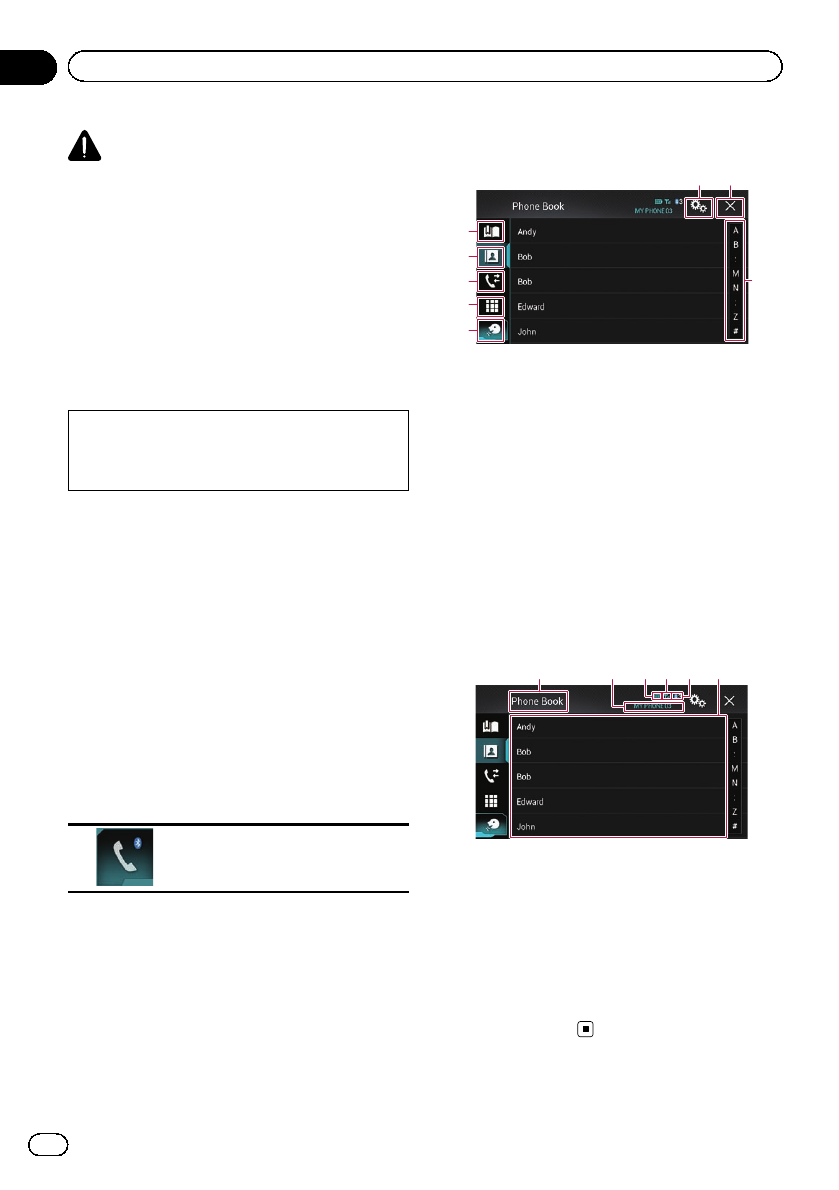
CAUTION
For your safety, avoid talking on the phone as
much as possible while driving.
If your cellular phone features Bluetooth tech-
nology, this product can be connected to your
cellular phone wirelessly. Using this hands-
free function, you can operate this product to
make or receive phone calls. This section de-
scribes how to set up a Bluetooth connection
and how to operate a cellular phone featuring
Bluetooth technology on this product.
For details about connectivity with the devices
featuring Bluetooth wireless technology, refer
to the information on our website.
Displaying the phone menu
pConnect a cellular phone to this product
for using hands-free phoning.
=For details, refer to Chapter 11.
pThe Phone icon is displayed on the follow-
ing screens.
—Top menu screen
—AV operation screen
—On the App control side bar on the
AppRadio Mode and MirrorLink mode
screens
%Touch the following key.
Displays the Phone menu screen.
pThe “Phone Book”screen appears when
using this function for the first time. The
screen of the last-used function appears
from the next time.
Touch panel keys
4
2
3
5
1
6 7
8
1Displays the preset dial screen.
2Switches to the phone book list.
3Switches to the missed, received and dialed
call lists.
4Switches the mode to enter the phone num-
ber directly.
5Switches to the voice recognition function.
6Displays the Setting menu screen.
7Closes the screen.
8Displays entries in the list by the initial charac-
ter.
Reading the screen
1 32456
1Menu title
2Name of the connected cellular phone
3Battery status of the cellular phone
4Reception status of the cellular phone
5Indicates that a Bluetooth telephone is con-
nected.
The list number of the connected device is dis-
played.
6List display area
En
80
Chapter
12 Using hands-free phoning
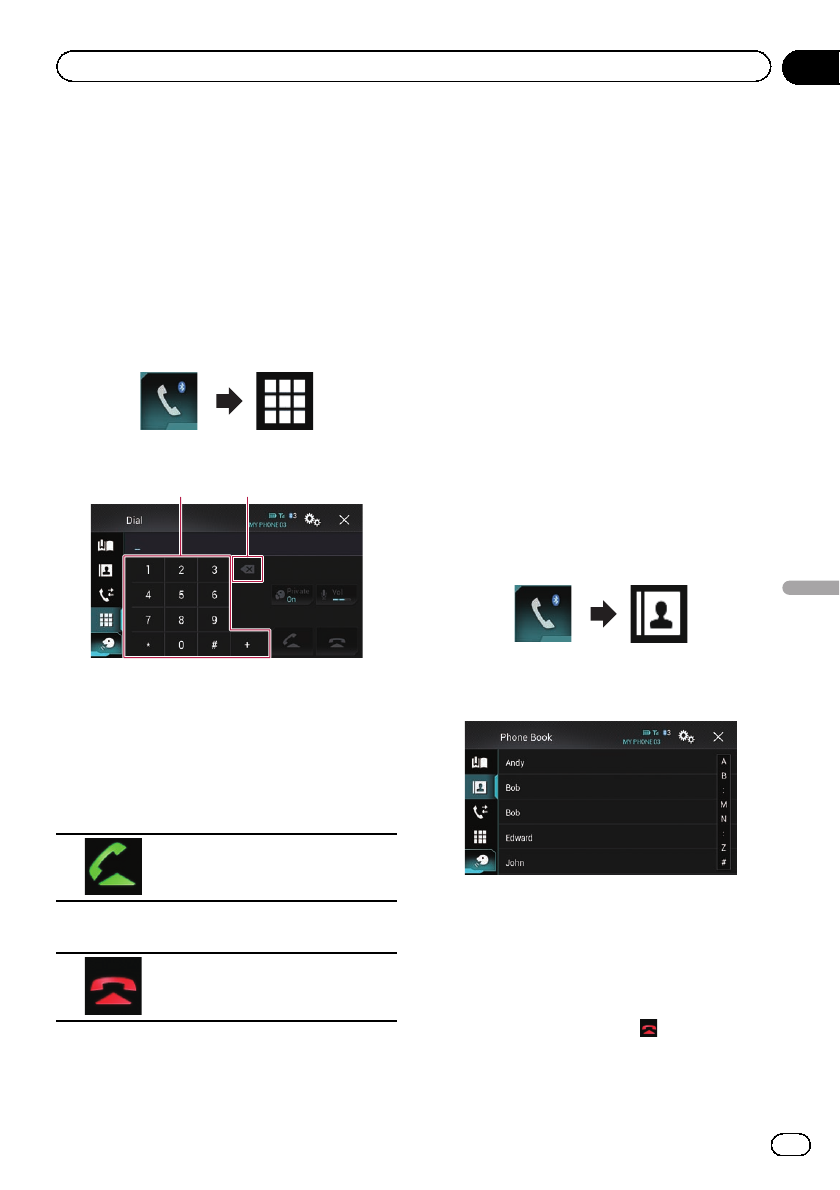
Making a phone call
You can make a phone call in many different
ways.
Direct dialing
1 Press the HOME button to display the
Top menu screen.
2 Touch the following keys in the follow-
ing order.
The “Dial”screen appears.
1 2
1Dial pad
2Deletes one digit. Touch and hold to delete
all digits.
3 Touch the number keys to enter the
phone number.
4 Touch the following key.
Makes a call.
5 Touch the following key.
Ends the call.
The call ends.
pYou may hear a noise when you hang up
the phone.
Calling a number in the phone
book
After finding the number you want to call in
the phone book, you can select the entry and
make the call.
pThe contacts on your phone will normally
be transferred to this product automatically
when the phone is connected.
If the contacts are not transferred automati-
cally, you can transfer the contacts using
the phone menu of the cellular phone.
To transfer the contacts using the phone
menu of the cellular phone, set this pro-
duct visible to other devices.
=For details, refer to Switching visibility
on page 77.
1 Press the HOME button to display the
Top menu screen.
2 Touch the following keys in the follow-
ing order.
The “Phone Book”screen appears.
3 Touch the desired name on the list.
The details screen of the phone book appears.
4 Touch the phone number you want to
dial.
The dial screen appears.
5 Dialing starts.
pTo cancel the call, touch .
En 81
Chapter
12
Using hands-free phoning
Using hands-free phoning
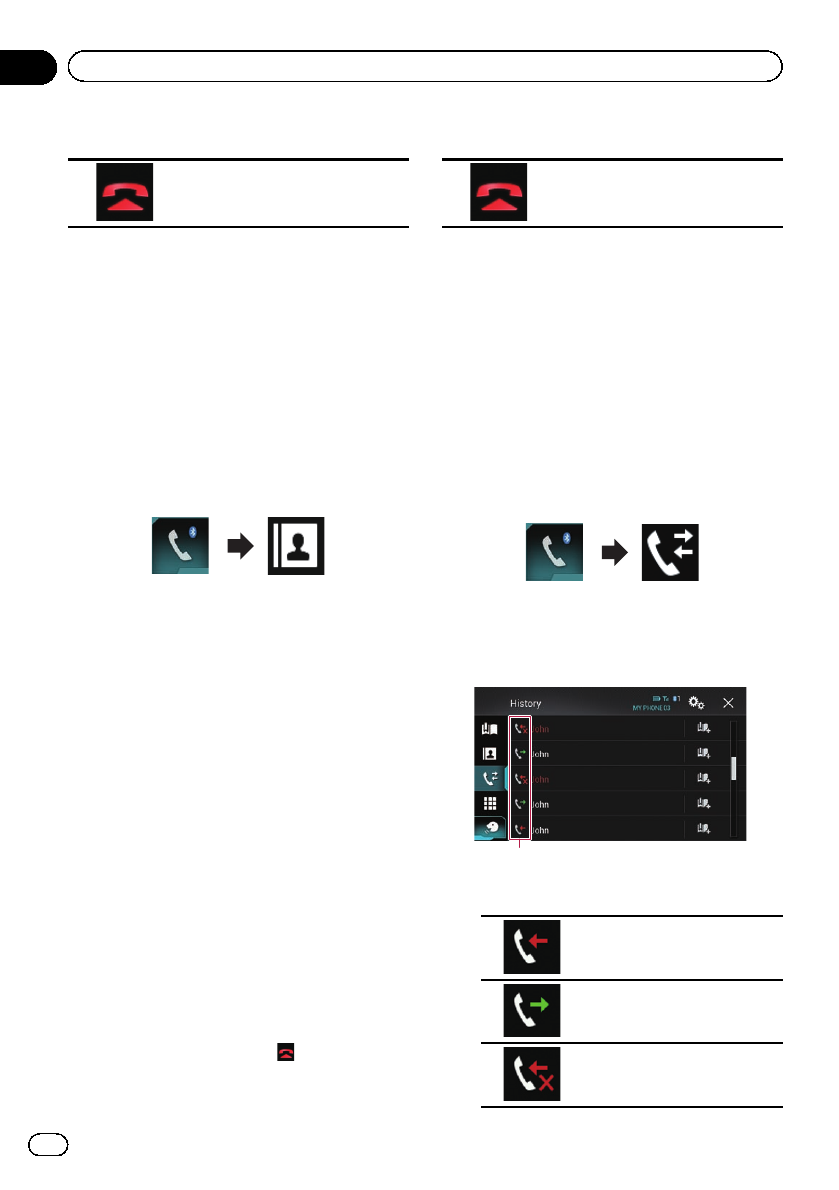
6 Touch the following key.
Ends the call.
The call ends.
Selecting a number by alphabet
search mode
If many phone numbers are registered in the
phone book, you can search for phone num-
bers by alphabet search mode.
1 Press the HOME button to display the
Top menu screen.
2 Touch the following keys in the follow-
ing order.
The “Phone Book”screen appears.
3 Drag the Initial Search Bar to find an
entry by the initial character of the name.
The alphabet corresponding to the current po-
sition on the Initial Search Bar is displayed.
4 Release the Initial Search Bar at the de-
sired alphabet.
The “Phone Book”entries starting with that
letter (e.g. “Ben”,“Brian”and “Burt”when “B”
is selected) will be displayed.
pTo refine the search with a different letter,
touch [Cancel].
5 Touch an entry to display the phone
number list of the entry.
The details screen of the phone book appears.
6 Touch the phone number you want to
dial.
The dial screen appears.
7 Dialing starts.
pTo cancel the call, touch .
8 Touch the following key.
Ends the call.
The call ends.
Dialing from the history
The most recent calls made (dialed, received
and missed) are stored in the call history list.
You can browse the call history list and call
numbers from it.
1 Press the HOME button to display the
Top menu screen.
2 Touch the following keys in the follow-
ing order.
The “History”screen appears.
pDepending on the type of cellular phone,
some calls may not be displayed in the call
history.
1
1Type of call history
Received calls.
Dialed calls.
Missed calls.
En
82
Chapter
12 Using hands-free phoning
3 Touch the desired entry on the list to
make a call.
The dial screen appears.
4 Dialing starts.
pTo cancel the call, touch .
5 Touch the following key.
Ends the call.
The call ends.
Using the preset dial lists
You can dial a number from the preset dial
list.
Registering a phone number
You can easily store up to six phone numbers
per device as presets.
1 Press the HOME button to display the
Top menu screen.
2 Touch the following keys in the follow-
ing order.
The “Phone Book”or “History”screen ap-
pears.
3 Touch the following key.
Registers the phone number to the
“Preset Dial”list.
Dialling from the preset dial list
1 Press the HOME button to display the
Top menu screen.
2 Touch the following keys in the follow-
ing order.
The “Preset Dial”screen appears.
3 Touch the desired entry on the list to
make a call.
The dial screen appears.
4 Dialing starts.
pTo cancel the call, touch .
5 Touch the following key.
Ends the call.
The call ends.
Deleting a phone number
1 Press the HOME button to display the
Top menu screen.
2 Touch the following keys in the follow-
ing order.
The “Preset Dial”screen appears.
3 Touch the following key.
Deletes the phone number.
Receiving a phone call
You can answer an incoming call to your cellu-
lar phone via this product.
En 83
Chapter
12
Using hands-free phoning
Using hands-free phoning
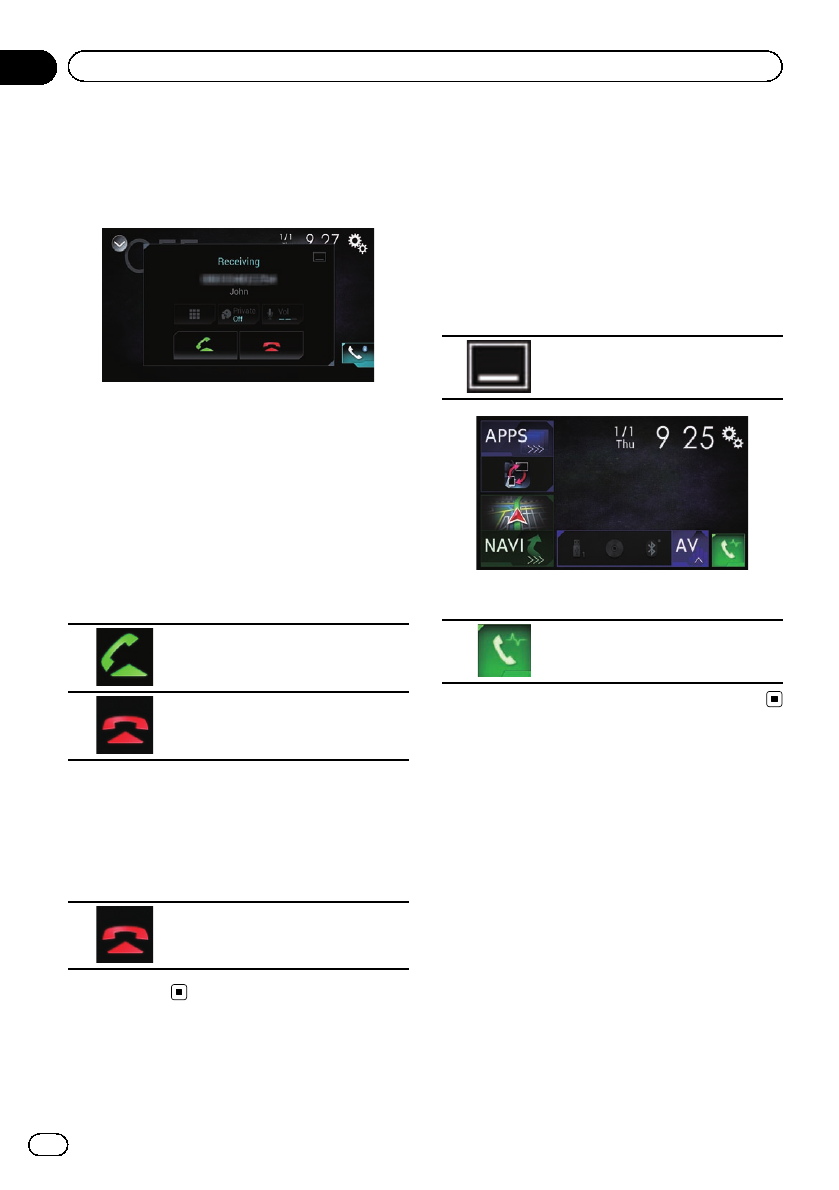
Answering an incoming call
This product informs you that it is receiving a
call by displaying a message and producing a
ring sound.
pYou can set the system to automatically an-
swer incoming calls. If this product is not
set to automatically answer incoming calls,
answer the calls manually.
=For details, refer to Answering a call
automatically on page 85.
pThe registered name appears if the phone
number of the received call is already regis-
tered in “Phone Book”.
1 Touch the following key.
Answers an incoming call.
Rejects an incoming call.
The rejected call is recorded in the missed call
history list.
=For details, refer to Dialing from the history
on page 82.
2 Touch the following key.
Ends the call.
The call ends.
Minimizing the dial
confirmation screen
pThe dial confirmation screen cannot be
minimized on the AV operation screen.
pAV sources cannot be selected even if the
dial confirm screen is minimized while talk-
ing on the phone.
1 Touch the following key.
The dial confirmation screen is
minimized.
2 Touch the following key.
Displays the dial confirmation
screen again.
En
84
Chapter
12 Using hands-free phoning
Changing the phone settings
Answering a call automatically
This product automatically answers incoming
calls to the connected cellular phone, so you
can answer calls while driving without taking
your hands off the steering wheel.
When “Auto Answer”is set to “On”, an in-
coming call will be automatically answered in
5 seconds.
1 Press the HOME button to display the
Top menu screen.
2 Touch the following keys in the follow-
ing order.
The “Bluetooth”screen appears.
3 Touch [Auto Answer] repeatedly until
the desired setting appears.
!Off (default):
Turns the automatic answering off.
!On:
Turns the automatic answering on.
Switching the ring tone
You can select whether or not to use this pro-
duct’s ring tone.
1 Press the HOME button to display the
Top menu screen.
2 Touch the following keys in the follow-
ing order.
The “Bluetooth”screen appears.
3 Touch [Ring Tone] repeatedly until the
desired setting appears.
!On (default):
Turns the ring tone on.
!Off:
Turns the ring tone off.
Inverting names in the phone book
When your device is connected to this pro-
duct, the first and last names of your contacts
may be registered to the phone book in reverse
order.
You can use this function to change the order
back. (Inverting the names in the phone book)
1 Press the HOME button to display the
Top menu screen.
2 Touch the following keys in the follow-
ing order.
The “Bluetooth”screen appears.
3 Touch [Invert Name].
The confirmation screen appears.
4 Touch [Yes].
pIf the inversion fails, “Invert Name Error”
appears. In such cases, try again from the
beginning.
pInverting the names of your contacts from
this product does not affect the data on
your cellular phone.
Setting the private mode
During a conversation, you can switch to pri-
vate mode (talk directly on your cellular
phone).
En 85
Chapter
12
Using hands-free phoning
Using hands-free phoning
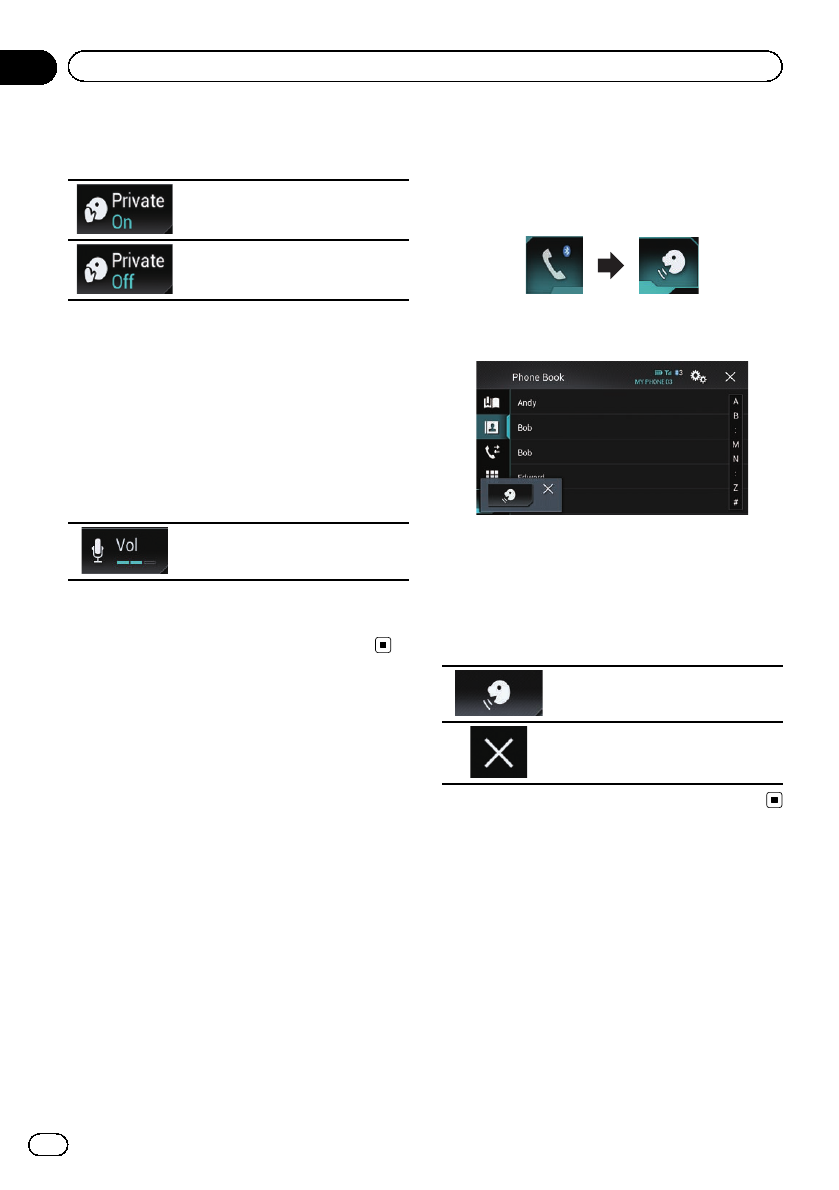
%Touch the following keys to turn pri-
vate mode on or off.
Talk directly on your mobile device.
Hands-free phoning
Adjusting the other party’s
listening volume
To maintain good sound quality, this product
can adjust the other party’s listening volume.
If the volume is too loud or not loud enough,
use this function.
%Touch the following key.
Switches between the three vo-
lume levels.
pThis function can be performed even while
talking on the phone.
pSettings can be stored for each device.
Using the voice recognition
function
You can use the voice recognition function of
iPhone or smartphone.
pWhen an iPhone running iOS 6.1 or higher
is used, Siri Eyes Free Mode is available
with this product.
pFor AVIC-8100NEX and AVIC-7100NEX
users
For using this function with a smartphone,
the device must be compatible with
Android Auto and “Mode”in “Smart-
phone Setup”must be set to “Android
Auto”beforehand.
=For details, refer to Information on the
connections and functions for each de-
vice on page 90.
1 Press the HOME button to display the
Top menu screen.
2 Touch the following keys to start voice
control.
The voice recognition function launches and
the voice control screen appears.
You can use the voice recognition function in
the same way as using it on the iPhone or
smartphone.
pYou can also launch the voice recognition
function by pressing and holding the
HOME button.
Indicates that this product is on
standby for your voice commands.
Cancels the voice recognition
function.
Notes for hands-free phoning
General notes
!Connection to all cellular phones featuring
Bluetooth wireless technology is not guar-
anteed.
En
86
Chapter
12 Using hands-free phoning

!The line-of-sight distance between this pro-
duct and your cellular phone must be
10 meters or less when sending and receiv-
ing voice and data via Bluetooth technol-
ogy. However, the actual transmission
distance may be shorter than the estimated
distance, depending on the usage environ-
ment.
!With some cellular phones, the ring sound
may not be output from the speakers.
!If private mode is selected on the cellular
phone, hands-free phoning may be dis-
abled.
Registration and connection
!Cellular phone operations vary depending
on the type of cellular phone. Refer to the
instruction manual that came with your cel-
lular phone for detailed instructions.
!With cellular phones, phone book transfer
may not work even though your phone is
paired with this product. In that case, dis-
connect your phone, and then perform
pairing again from your phone to this pro-
duct.
Making and receiving calls
!You may hear a noise in the following situa-
tions:
—When you answer the phone using the
button on the phone.
—When the person on the other end of
the line hangs up the phone.
!If the person on the other end of the line
cannot hear the conversation due to an
echo, decrease the volume level for hands-
free phoning. This may reduce the echo.
!With some cellular phones, even if you
press the accept button on the cellular
phone when a call comes in, hands-free
phoning may not be performed.
!The registered name appears if the phone
number of the received call is already regis-
tered in the phone book. When one phone
number is registered under different
names, only the phone number is dis-
played.
!If the phone number of the received call is
not registered in the phone book, the
phone number of the received call appears.
The received call and the dialed
number histories
!You cannot make a call to the entry of an
unknown user (no phone number) in the re-
ceived call history.
!If calls are made by operating your cellular
phone, no history data will be recorded in
this product.
Phone book transfers
!If there are more than 800 phone book en-
tries on your cellular phone, all entries may
not be downloaded completely.
!With some cellular phones, it may not be
possible to transfer all items in the phone
book at one time. In this case, transfer
items one by one from your cellular phone.
!Depending on the cellular phone, this pro-
duct may not display the phone book cor-
rectly. (Some characters may be garbled, or
the order of first and last names may be re-
versed.)
!If the phone book in the cellular phone con-
tains image data, the phone book may not
be transferred correctly. (Image data can-
not be transferred from the cellular phone.)
!Depending on the cellular phone, phone
book transfer may not be available.
En 87
Chapter
12
Using hands-free phoning
Using hands-free phoning
When using an iPod / iPhone or a smartphone
with this product, configure the settings of
this product according to the device to be con-
nected.
This section describes the settings required
for each device.
The basic flow of iPod /
iPhone or smartphone setup
1Select the method for connecting your de-
vice.
=For details, refer to Setting the device
connection method on page 88.
2Connect your device to this product.
=For details of the connections, refer to
the Installation Manual.
3If necessary, connect your device to this
product via Bluetooth connection.
=For details of the Bluetooth connection,
refer to Chapter 11.
Setting the device
connection method
If you want to use the application for iPhone
or smartphone on this product, you must se-
lect the method for connecting your device.
Settings are required according to the con-
nected device.
1 Press the HOME button to display the
Top menu screen.
2 Touch the following keys in the follow-
ing order.
The “System”screen appears.
3 Touch [Input/Output Settings].
4 Touch [Smartphone Setup].
The “Smartphone Setup”screen appears.
5 Configure the following settings.
!Device: Select the device to be connected.
!Connection: Select the connection meth-
od.
pConfigure the settings correctly according
to the device to be connected and the con-
nection method to be used.
=For details, refer to Information on the
connections and functions for each de-
vice on page 90.
pIf you change the setting, the confirmation
screen appears.
Touch [OK].
The setting will change after the following
processes are automatically executed.
—The source is turned off.
—AppRadio Mode or MirrorLink mode is
exited.
—The smartphone connection (USB and
Bluetooth) is disconnected.
To cancel, touch [Cancel].
pThe setting cannot be changed for a while
after the setting is changed.
iPod compatibility
This product supports only the following iPod
models and iPod software versions. Others
may not work correctly.
Made for
!iPhone 6 Plus: iOS 8
!iPhone 6: iOS 8
!iPhone 5s: iOS 7.0.3
!iPhone 5c: iOS 7.0.3
!iPhone 5: iOS 7.0.3
!iPhone 4s: iOS 7.0.3
!iPhone 4: iOS 7.0.3
!iPhone 3GS: iOS 6.0.1
!iPod touch (5th generation): iOS 6.0.1
!iPod touch (4th generation): iOS 6.0.1
!iPod touch (3rd generation): iOS 5.1.1
!iPod touch (2nd generation): iOS 4.2.1
!iPod classic 160GB (2009): Ver. 2.0.4
En
88
Chapter
13 iPod / iPhone or smartphone setup operation
!iPod classic 160GB (2008): Ver. 2.0.1
!iPod classic 80GB: Ver. 1.1.2
!iPod nano (7th generation)
!iPod nano (6th generation): Ver. 1.2
!iPod nano (5th generation): Ver. 1.0.2
!iPod nano (4th generation): Ver. 1.0.4
!iPod nano (3rd generation): Ver. 1.1.3
pYou can connect and control an iPod com-
patible with this product by using sepa-
rately sold connector cables.
pOperation methods may vary depending on
the iPod model and the software version of
the iPod.
pDepending on the software version of the
iPod, it may not be compatible with this
product.
For details about iPod compatibility with
this product, refer to the information on our
website.
This manual applies to the following iPod
models.
iPod with 30-pin connector
!iPhone 4s
!iPhone 4
!iPhone 3GS
!iPod touch 4th generation
!iPod touch 3rd generation
!iPod touch 2nd generation
!iPod classic 160GB
!iPod classic 80GB
!iPod nano 6th generation
!iPod nano 5th generation
!iPod nano 4th generation
!iPod nano 3rd generation
iPod with Lightning connector
!iPhone 6 Plus
!iPhone 6
!iPhone 5s
!iPhone 5c
!iPhone 5
!iPod touch 5th generation
!iPod nano 7th generation
Android™device compatibility
pOperation methods may vary depending on
the Android device and the software ver-
sion of the Android OS.
pDepending on the version of the Android
OS, it may not be compatible with this pro-
duct.
pCompatibility with all Android devices is
not guaranteed.
=For details about Android device compat-
ibility with this product, refer to the infor-
mation on our website.
AppRadio Mode Compatibility
iPod with 30-pin connector
!iPhone 4s
!iPhone 4
!iPod touch 4th generation
iPod with Lightning connector
!iPhone 6 Plus
!iPhone 6
!iPhone 5s
!iPhone 5c
!iPhone 5
!iPod touch 5th generation
=For details about Android device compat-
ibility with this product, refer to the infor-
mation on our website.
MirrorLink device
compatibility
pThis product is compatible with MirrorLink
version 1.0.
pCompatibility with all MirrorLink devices is
not guaranteed.
=For details about MirrorLink device com-
patibility with this product, refer to the in-
formation on our website.
En 89
Chapter
13
iPod / iPhone or smartphone setup operation
iPod / iPhone or smartphone setup operation
Information on the connections and functions for each device
The settings and cables required for connecting each device, and the available sources are as follows.
iPod / iPhone with a 30-pin connector
Required cable (sold separately) Cable connection is
not required. CD-IU201V CD-IU201S
Smartphone Setup
Device iPhone/iPod iPhone/iPod iPhone/iPod
Connection Bluetooth USB USB
Bluetooth connection Bluetooth connec-
tion is required.
——
Connection requirement —
Connect to USB
port 1 for using aha,
Pandora,or
AVICSYNC App.
Connect to USB
port 1 for using aha,
Pandora,AppRadio
Mode,or
AVICSYNC App.
Available source
iPod (audio) —11
iPod (video) —11
aha 111
Pandora 111
AppRadio Mode ——1
AVICSYNC App 111
En
90
Chapter
13 iPod / iPhone or smartphone setup operation
iPod / iPhone with a Lightning connector
Required cable (sold separately)
Cable connec-
tion is not re-
quired.
CD-IU52
!CD-IH202
!CD-IU52
!Lightning Di-
gital AV
Adapter
!CD-IV202AV
!CD-IU52
!Lightning to
VGA Adapter
Smartphone
Setup
Device iPhone/iPod iPhone/iPod iPhone/iPod iPhone/iPod
Connection Bluetooth USB Digital AV
adapter VGA adapter
Bluetooth connection
Bluetooth con-
nection is re-
quired.
—
Bluetooth con-
nection is re-
quired.
Bluetooth con-
nection is re-
quired.
Connection requirement —
Connect to USB
port 1 for using
aha,Pandora,
or AVICSYNC
App.
——
Available source
iPod (audio) —1—(*1) —(*1)
iPod (video) ———(*1) —(*1)
aha 1111
Pandora 1111
AppRadio
Mode
——11
AVICSYNC App 1111
Remarks ——
!This connec-
tion and set-
tings are
available on
AVIC-
8100NEX,
AVIC-
7100NEX
and AVIC-
6100NEX.
!This connec-
tion and set-
tings are
available on
AVIC-
5100NEX.
(*1) Use AppRadio Mode to play music or videos on an iPod. For using AppRadio Mode, install the
CarMediaPlayer app on your iPod.
=For details about the CarMediaPlayer, refer to the information on our website.
=Refer to the CarMediaPlayer manual for more information.
En 91
Chapter
13
iPod / iPhone or smartphone setup operation
iPod / iPhone or smartphone setup operation
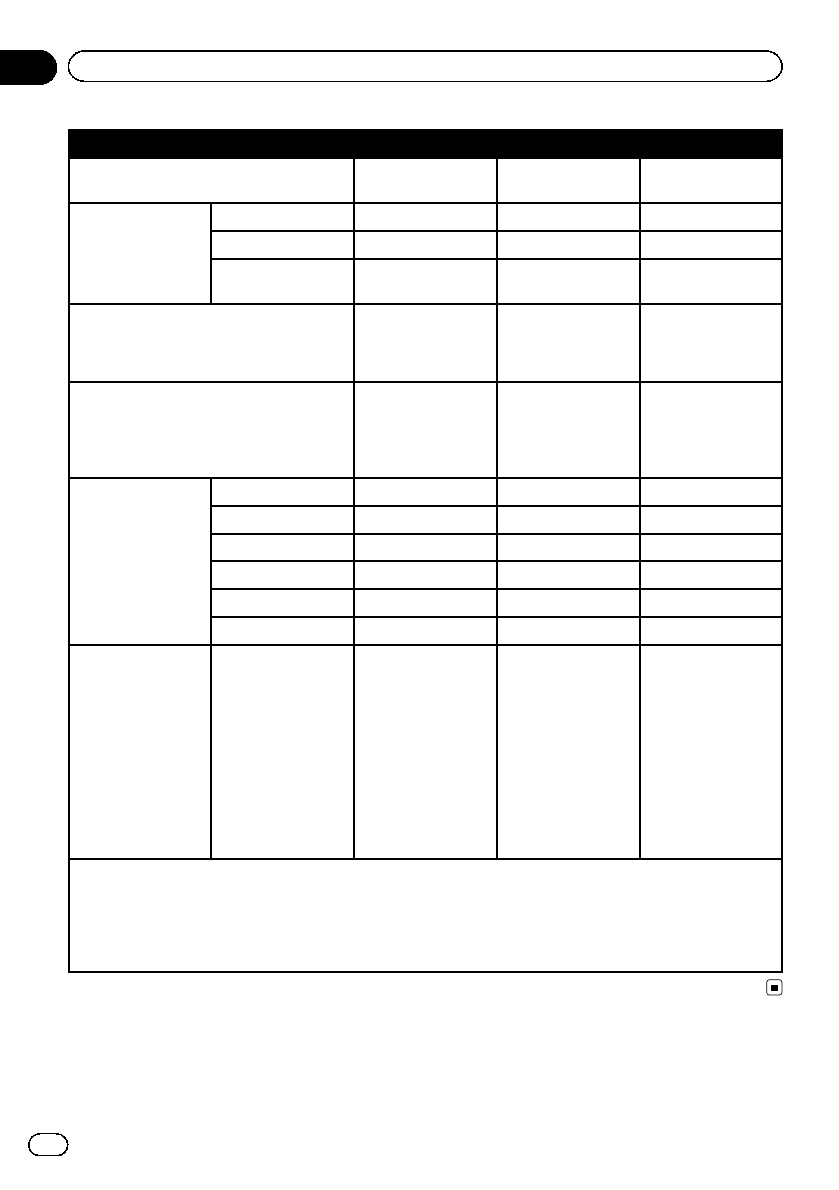
Android, MirrorLink
Required cable (sold separately) Cable connection is
not required. CD-MU200 CD-AH200
Smartphone Setup
Device Others Others Others
Connection Bluetooth USB HDMI
Mode —Android Auto (*1)/
MirrorLink/Off
—
Bluetooth connection Bluetooth connec-
tion is required.
Bluetooth connec-
tion is required for
using aha,Pandora,
or Android Auto.
Bluetooth connec-
tion is required.
Connection requirement —
Connect to USB port
2 for using
MirrorLink,
Android Auto or
AVICSYNC App.
—
Available source
aha 1(*2) 11(*2)
Pandora 1(*2) 11(*2)
AppRadio Mode ——1
MirrorLink —1(*2) —
Android Auto —1(*1) (*2) —
AVICSYNC App 1(*3) 1(*3) 1(*3)
Remarks —
!Select “Android
Auto”for
“Mode”for
using Android
Auto.
!Select
“MirrorLink”for
“Mode”for
using
MirrorLink
mode.
!This connection
and settings are
available on
AVIC-8100NEX,
AVIC-7100NEX
and AVIC-
6100NEX.
(*1) For AVIC-8100NEX and AVIC-7100NEX users
Available only when an Android Auto-compatible device is connected. The AVICSYNC App function automatically
turns off when an Android Auto-compatible device is connected with this product for the first time. From the next
time a compatible device is connected, Android Auto cannot be used while the AVICSYNC App function is on.
(*2) Not available when the AVICSYNC App function is turned on.
(*3) Turn on the AVICSYNC App function for using AVICSYNC App.
En
92
Chapter
13 iPod / iPhone or smartphone setup operation
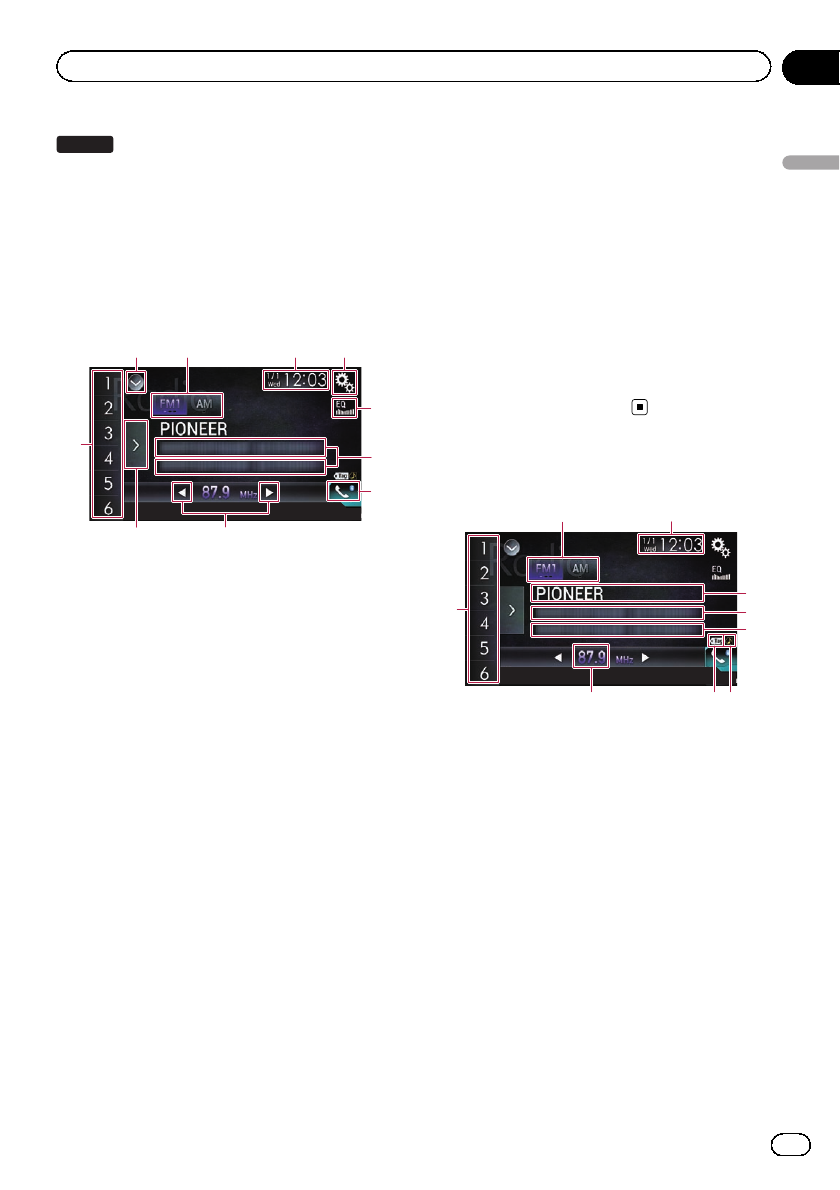
5100NEX
You can listen to the radio using this product.
This section describes operations for the
radio.
Using the touch panel keys
6
7
3
21 4
89
5
a
1Displays the source list.
=For details, refer to Selecting a front
source on the source list on page 25.
2Selects a band.
=For details, refer to Selecting a band on
page 94.
3Displays the Time and date setting
screen.
=For details, refer to Setting the time and
date on page 221.
4Displays the Setting menu screen.
5Recalls equalizer curves.
=For details, refer to Using the equalizer
on page 202.
6Stores song information to an iPod.
=For details, refer to Storing song informa-
tion to an iPod (iTunes Tagging) on page
221.
7Displays the Phone menu screen.
=For details, refer to Displaying the phone
menu on page 80.
8Performs manual tuning or seek tuning.
=For details, refer to Manual tuning on
page 94.
=For details, refer to Seek tuning on page
94.
9Displays the preset channels.
=For details, refer to Selecting a preset
channel from the preset channel list on
page 95.
aRecalls the preset channel stored to a key
from memory with a single touch of the
key.
Stores the current broadcast frequency to
a key for later recall by continuing to
touch the key.
=For details, refer to Storing broadcast fre-
quencies on page 95.
Reading the screen
9
12
3
5
4
786
1Band indicator
Shows the tuned band: FM1, FM2, FM3 or AM.
2Current time and date
3Program service name indicator
Shows the program service name (station
name) of the current station.
4Song title
Shows the title of the current song (when
available).
5Artist name
Shows the artist name for the current song
(when available).
6iTunes®tagging song status indicator
Shows the status of the song information
stored in this product.
pThe icon is displayed on all operation
screens of AV sources.
En 93
Chapter
14
Using the radio
Using the radio
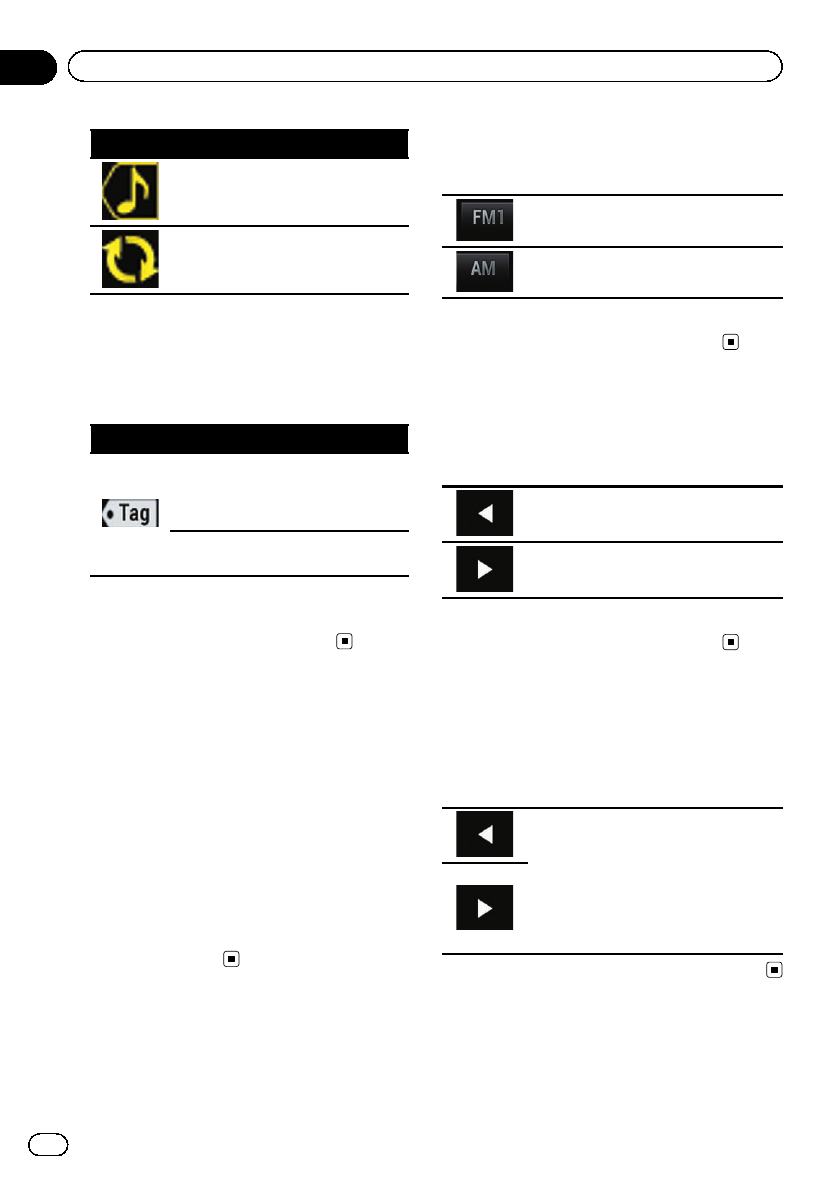
Indicator Meaning
Appears when the song information
tag is stored in this product.
Appears when the song information
tag is being transferred to an iPod.
7iTunes®tagging indicator
Indicates songs that are capable of iTunes tag-
ging.
pThe icon is displayed on all operation
screens of AV sources.
Indicator Meaning
Appears when this product receives
an iTunes song tag that can be
stored and then downloaded to an
iPod for later purchase.
Flashes when this product is storing
song tag information.
8Frequency indicator
9Preset number indicator
Highlights the selected preset item.
Starting procedure
1 Display the AV source selection screen.
=For details of the operations, refer to Dis-
playing the AV operation screen on page 24.
2 Touch [Radio] on the AV source selec-
tion screen.
The “Radio”screen appears.
3 Use the touch panel keys on the screen
to control the radio.
=For details, refer to Using the touch panel
keys on page 93.
Selecting a band
%Touch the following key.
Switches between the following FM
bands: FM1, FM2 and FM3.
Switches to AM band.
pThis function is convenient for preparing
different preset lists for each band.
Manual tuning
%Touch the following keys to tune manu-
ally.
Moves down one step at a time.
Moves up one step at a time.
pThis function is convenient for preparing
different preset lists for each band.
Seek tuning
%Touch and hold one of the following
keys for about one second and then re-
lease.
Scans frequencies until it finds a broad-
cast strong enough for good reception.
You can cancel seek tuning by touching
either key briefly.
If you keep holding either key, you can
skip broadcasting frequencies. Seek
tuning will start when you release the
key.
En
94
Chapter
14 Using the radio
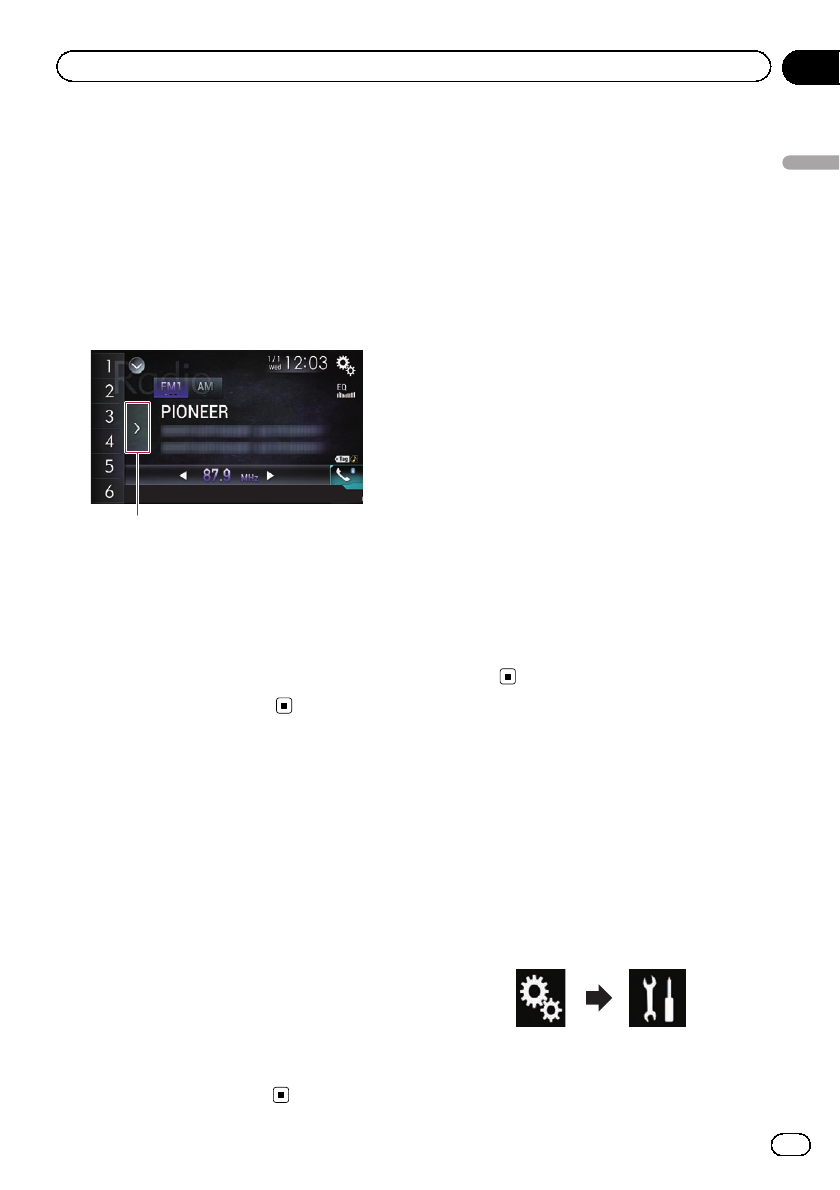
Selecting a preset channel
from the preset channel list
Once you have stored broadcast channels,
you can easily recall preset channels from
memory with a single touch of a key.
=For details, refer to Storing broadcast fre-
quencies on page 95.
1 Touch the preset channel list display
key.
1
1Preset channel list display key
2 Touch the item on the list (“1”to “6”)to
switch to a channel registered as a preset
channel.
pIf you touch the preset channel list display
key while the preset channel list is dis-
played, the list disappears and the preset
tuning keys are displayed.
Storing broadcast frequencies
With a touch of any of the preset tuning keys
(“1”to “6”), you can easily store up to six
broadcast channels for later recall (also with
the touch of a key).
1 Select a frequency that you want to
store in memory.
2 Touch and hold a preset tuning key [1]
to [6].
The selected radio station is stored in memory.
The next time you touch the preset tuning key
“1”to “6”, the broadcast channel is recalled
from memory.
pUp to 18 FM stations, six for each of the
three FM bands, as well as six AM stations,
can be stored in memory.
Storing the strongest
broadcast frequencies
BSM (best stations memory) function automa-
tically stores the six strongest broadcast fre-
quencies under the preset tuning keys “1”to
“6”and, once stored there, you can tune into
them with the touch of a key.
pStoring broadcast frequencies with BSM
may replace broadcast frequencies you
have already saved.
pPreviously stored broadcast frequencies
may remain stored if the number of strong
broadcast frequencies stored has not
reached the limit.
1 Touch the preset channel list display
key.
The preset channel list appears.
2 Touch [BSM] to start a search.
A message appears. While the message is dis-
played, the six strongest broadcast frequen-
cies will be stored under the preset tuning
keys “1”to “6”in order of their signal strength.
When this is complete, the message disap-
pears.
#If you touch [Cancel], the storage process is
canceled.
Tuning into strong frequencies
Local seek tuning allows you to only tune into
those radio stations with sufficiently strong
signals for good reception.
pThis setting is available only when “Radio”
is selected as the source.
1 Press the HOME button to display the
Top menu screen.
2 Touch the following keys in the follow-
ing order.
The “System”screen appears.
En 95
Chapter
14
Using the radio
Using the radio
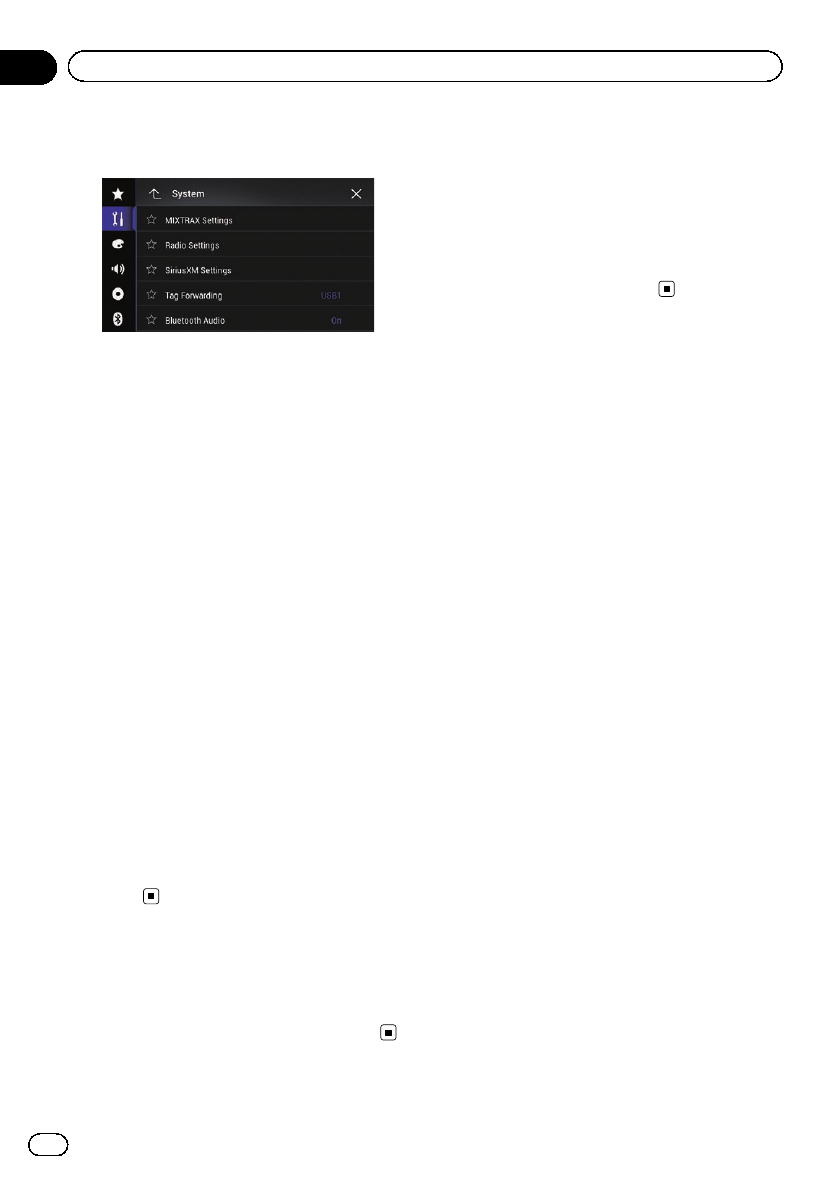
3 Touch [AV Source Settings].
The following screen appears.
4 Touch [Radio Settings].
5 Touch [Local].
The pop-up menu appears.
6 Touch the item you want to set.
FM
!Off (default):
Turns the seek tuning setting off.
!Level1:
Sets the level of sensitivity for FM to level 1.
!Level2:
Sets the level of sensitivity for FM to level 2.
!Level3:
Sets the level of sensitivity for FM to level 3.
!Level4:
Sets the level of sensitivity for FM to level 4.
AM
!Off (default):
Turns the seek tuning setting off.
!Level1:
Sets the level of sensitivity for AM to level 1.
!Level2:
Sets the level of sensitivity for AM to level 2.
pThe FM “Level4”(AM “Level2”) setting al-
lows reception of only stations with the
strongest signals, while lower settings
allow reception of those with weaker sig-
nals.
Storing song information
to an iPod (iTunes Tagging)
=For details, refer to Storing song information
to an iPod (iTunes Tagging) on page 221.
Operating with the
hardware buttons
Press the TRK button.
You can move up or down the preset chan-
nels.
Press and hold the TRK button.
You can perform seek tuning.
En
96
Chapter
14 Using the radio
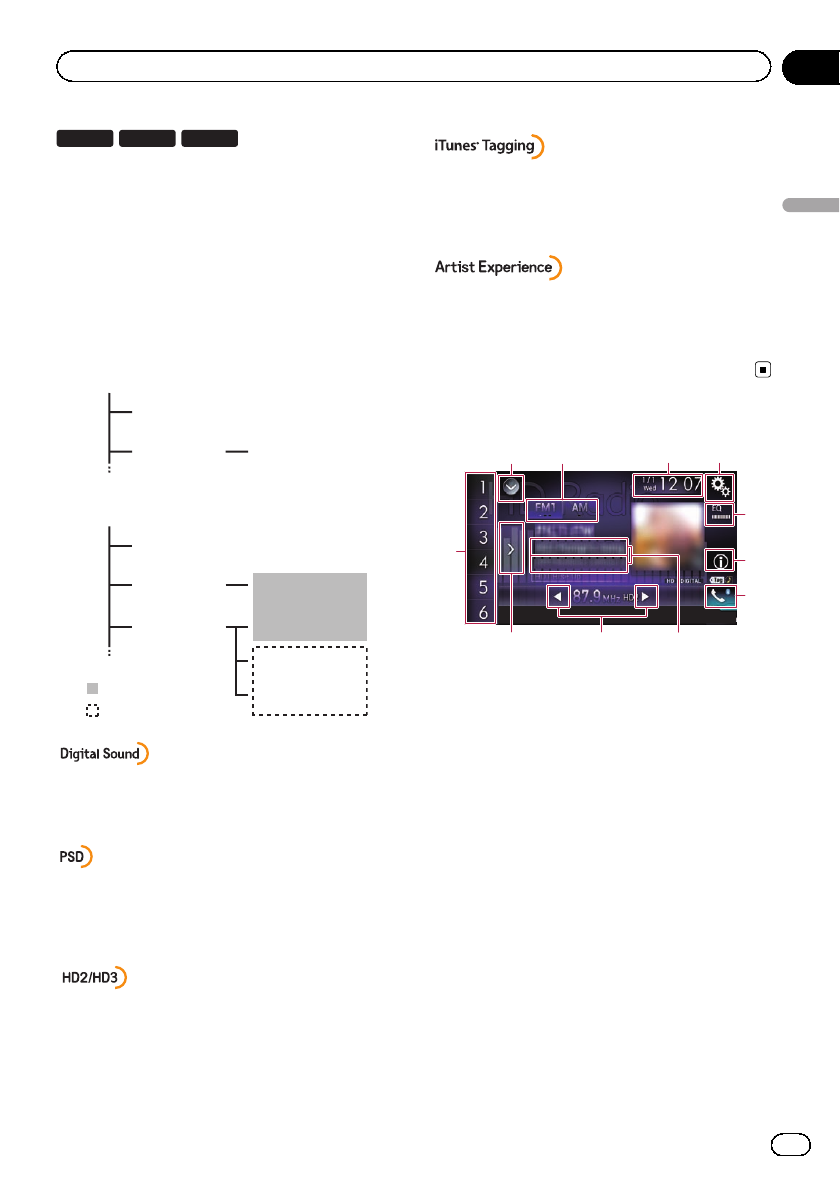
8100NEX 7100NEX 6100NEX
HD Radio stations
HD Radio stations offer high quality audio and
data services. HD Radio stations are brought
to you by your local FM or AM stations.
HD Radio stations feature the following:
!High quality audio
!FM multicasting
!Data service
: Sub channel
AM band
Analog AM
Analog AM Digital AM
FM band
Analog FM
Analog FM Digital FM
Analog FM Digital FM-1ch
Digital FM-2ch
Digital FM-3ch
: Main channel
Digital, CD-quality sound. HD Radio Technology enables
local radio stations to broadcast a clean digital signal.
AM sounds like today’s FM and FM sounds like a CD.
Program Service Data: Contributes to the superior user
experience of HD Radio Technology. Presents song
name, artist, station IDs, HD2/HD3 Channel Guide, and
other relevant data streams.
Adjacent to traditional main stations are extra local FM
channels. These HD2/HD3 Channels provide new, origi-
nal music as well as deep cuts into traditional genre.
iTunes®Tagging provides you the opportunity to discover
a wide range of content and the means to “tag”that con-
tent for later review and purchase from the iTunes®
Store.
Visual information related to content being played on
your HD Radio receiver, such as Album Art, historical
photographs, still art from live broadcasts, among other
related content.
Using the touch panel keys
12 43
5
6
7
a98
b
1Displays the source list.
=For details, refer to Selecting a front
source on the source list on page 25.
2Selects a band.
=For details, refer to Selecting a band on
page 99.
3Displays the Time and date setting
screen.
=For details, refer to Setting the time and
date on page 221.
4Displays the Setting menu screen.
5Recalls equalizer curves.
=For details, refer to Using the equalizer
on page 202.
6Switches the text display between the
main channel and multicast channels.
=For details, refer to Reading the screen
on page 98.
7Displays the Phone menu screen.
=For details, refer to Displaying the phone
menu on page 80.
8Stores song information to an iPod.
En 97
Chapter
15
HD Radio™reception
HD Radio™reception
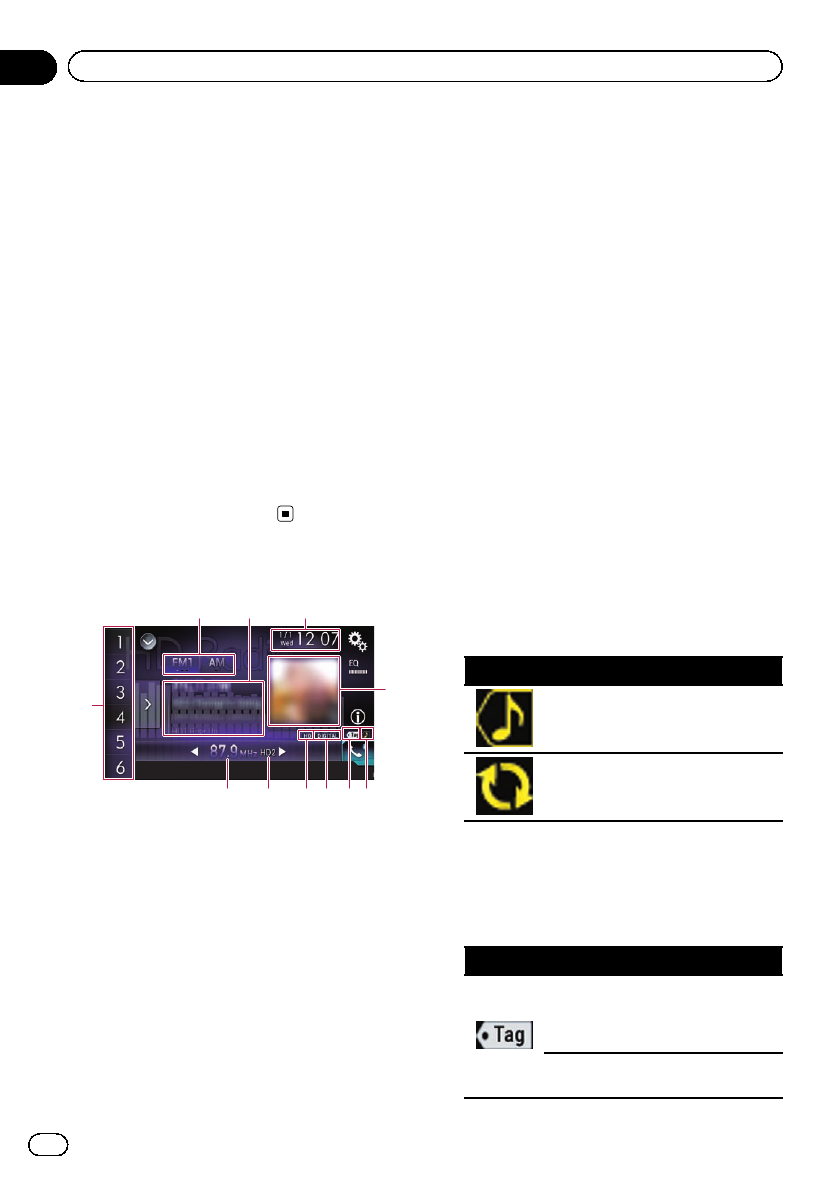
=For details, refer to Storing song informa-
tion to an iPod (iTunes Tagging) on page
221.
9Performs manual tuning or seek tuning.
=For details, refer to Manual tuning on
page 99.
=For details, refer to Seek tuning on page
99.
aDisplays the preset channels.
=For details, refer to Selecting a preset
channel from the preset channel list on
page 100.
bRecalls the preset channel stored to a key
from memory with a single touch of the
key.
Stores the current broadcast frequency to
a key for later recall by continuing to
touch the key.
=For details, refer to Storing broadcast fre-
quencies on page 100.
Reading the screen
b
4
3
2
78
1
a 9 56
1Band indicator
Shows the tuned band: FM1, FM2, FM3 or AM.
2Detailed information
Main channel
!Call sign, program service or fre-
quency
Shows the call sign, the program ser-
vice or the frequency of the broadcast
station currently being received.
!Song title
Shows the title of the current song
(when available).
!Artist (performer) name
Shows the artist (performer) name for
the song currently playing (when avail-
able).
Multicast channels
!Multicast channel number and song
title
Shows the numbers of multicast chan-
nels and the song titles.
pThe information is not displayed if
there is no corresponding informa-
tion.
pThe currently tuned multicast chan-
nel is displayed at the top of the list.
3Current time and date
4Album artwork
Shows the artwork for the current song (when
available).
pIf the album artwork cannot be ac-
quired, the station logo is displayed. If
the station logo cannot be acquired
either, a preinstalled image is displayed.
5iTunes®tagging song status indicator
Shows the status of the song information
stored in this product.
pThe icon is displayed on all operation
screens of AV sources.
Indicator Meaning
Appears when the song information
tag is stored in this product.
Appears when the song information
tag is being transferred to an iPod.
6iTunes®tagging indicator
Indicates songs that are capable of iTunes tag-
ging.
pThe icon is displayed on all operation
screens of AV sources.
Indicator Meaning
Appears when this product receives
an iTunes song tag that can be
stored and then downloaded to an
iPod for later purchase.
Flashes when this product is storing
song tag information.
En
98
Chapter
15 HD Radio™reception
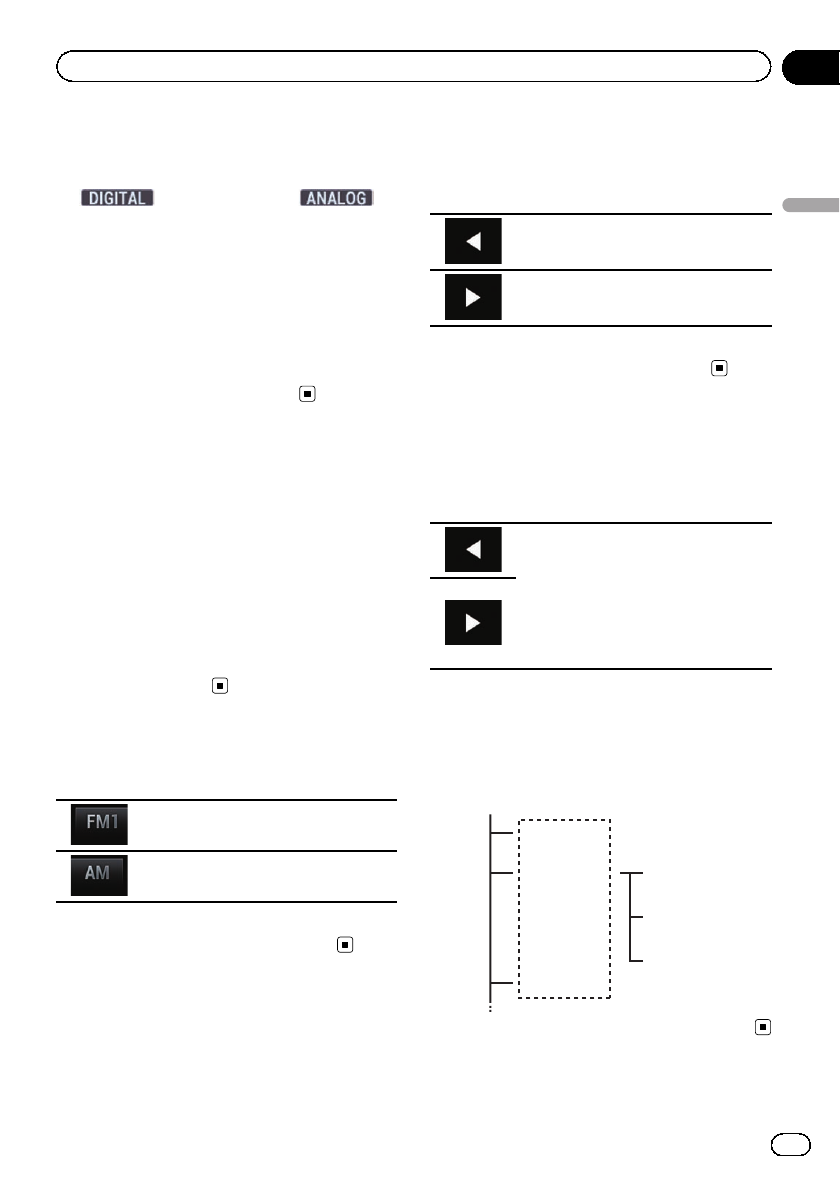
7Signal type indicator
Shows the type of signal currently being re-
ceived. If a digital broadcast is being received,
appears. Otherwise,
appears.
8HD Radio indicator
Shows that HD Radio station information is
being received.
9Multicasting indicator
Shows the number of multicast channels in
the current frequency.
aFrequency indicator
bPreset number indicator
Shows the selected preset item.
Starting procedure
1 Display the AV source selection screen.
=For details of the operations, refer to Dis-
playing the AV operation screen on page 24.
2 Touch [HD Radio] on the AV source se-
lection screen.
The “HD Radio”screen appears.
3 Use the touch panel keys on the screen
to control the radio.
=For details, refer to Using the touch panel
keys on page 97.
Selecting a band
%Touch the following key.
Switches between the following FM
bands: FM1, FM2 and FM3.
Switches to AM band.
pThis function is convenient for preparing
different preset lists for each band.
Manual tuning
%Touch the following keys to tune manu-
ally.
Moves down one step at a time.
Moves up one step at a time.
pThis function is convenient for preparing
different preset lists for each band.
Seek tuning
%Touch and hold one of the following
keys for about one second and then re-
lease.
Scans frequencies until it finds a broad-
cast strong enough for good reception.
You can cancel seek tuning by touching
either key briefly.
If you keep holding either key, you can
skip broadcasting frequencies. Seek
tuning will start when you release the
key.
pWhen an analog station is being received,
only analog broadcasts can be tuned up or
down.
If a digital broadcast is not being received
yet, tuning up or down seeks the next or
previous analog station.
Analog FM
Analog FM
Analog FM Digital FM-1ch
Digital FM-2ch
Digital FM-3ch
En 99
Chapter
15
HD Radio™reception
HD Radio™reception
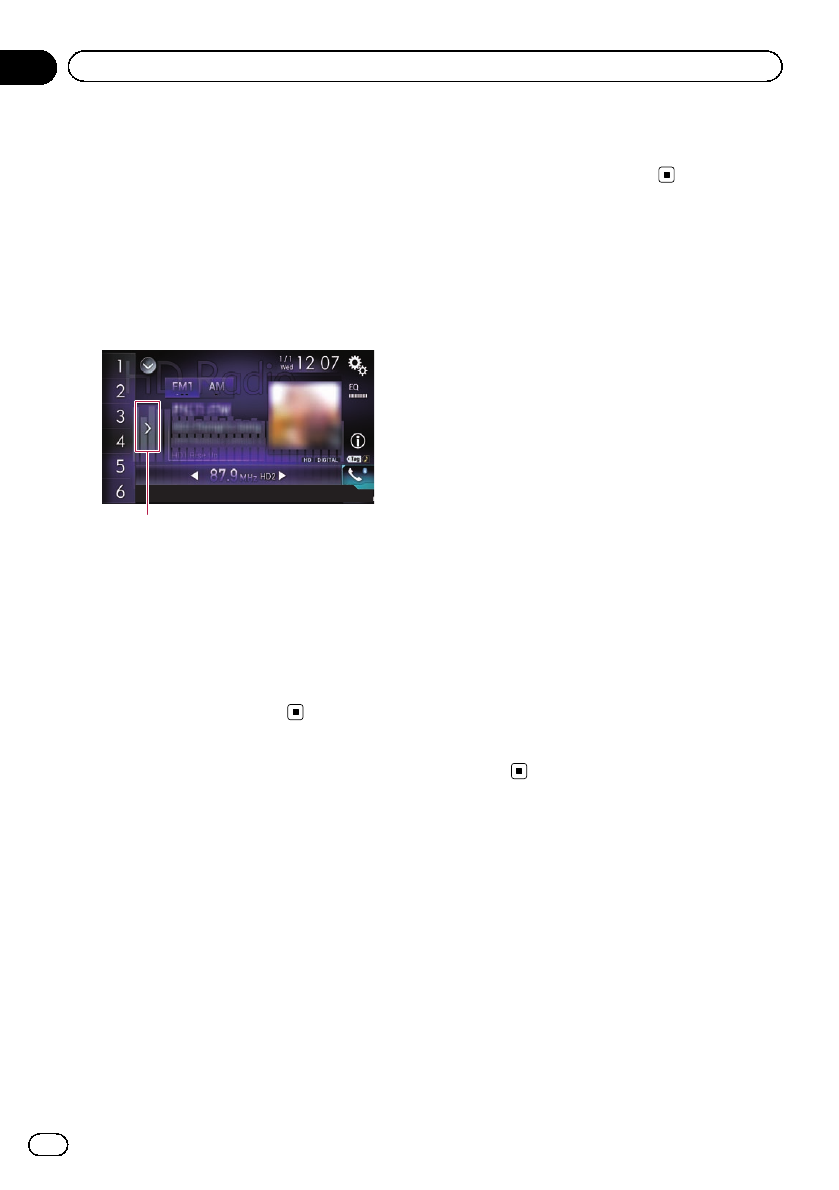
Selecting a preset channel
from the preset channel list
Once you have stored broadcast channels,
you can easily recall preset channels from
memory with a single touch of a key.
=For details, refer to Storing broadcast fre-
quencies on page 100.
1 Touch the preset channel list display
key.
1
1Preset channel list display key
2 Touch the item on the list (“1”to “6”)to
switch to a channel registered as a preset
channel.
pIf you touch the preset channel list display
key while the preset channel list is dis-
played, the list disappears and the preset
tuning keys are displayed.
Storing broadcast frequencies
With a touch of any of the preset tuning keys
(“1”to “6”), you can easily store up to six
broadcast channels for later recall (also with
the touch of a key).
1 Select a frequency that you want to
store in memory.
2 Touch and hold a preset tuning key [1]
to [6].
The selected radio station is stored in memory.
The next time you touch the same preset tun-
ing key “1”to “6”, the service component is re-
called from memory.
pUp to 18 FM stations, six for each of the
three FM bands, as well as six AM stations,
can be stored in memory.
Storing the strongest
broadcast frequencies
The BSM (best stations memory) function
automatically stores the six strongest broad-
cast frequencies under the preset tuning keys
“1”to “6”and, once stored there, you can tune
into them with the touch of a key.
pStoring broadcast frequencies with BSM
may replace broadcast frequencies you
have already saved.
pPreviously stored broadcast frequencies
may remain stored if the number of strong
broadcast frequencies stored has not
reached the limit.
1 Touch the preset channel list display
key.
The preset channel list appears.
2 Touch [BSM] to start a search.
A message appears. While the message is dis-
played, the six strongest broadcast frequen-
cies will be stored under the preset tuning
keys “1”to “6”in the order of their signal
strength. When this is complete, the message
will disappear.
#If you touch [Cancel], the storage process is
canceled.
Tuning into strong frequencies
Local seek tuning allows you to only tune into
those radio stations with sufficiently strong
signals for good reception.
pThis setting is available only when
“HD Radio”is selected as the source.
1 Press the HOME button to display the
Top menu screen.
En
100
Chapter
15 HD Radio™reception
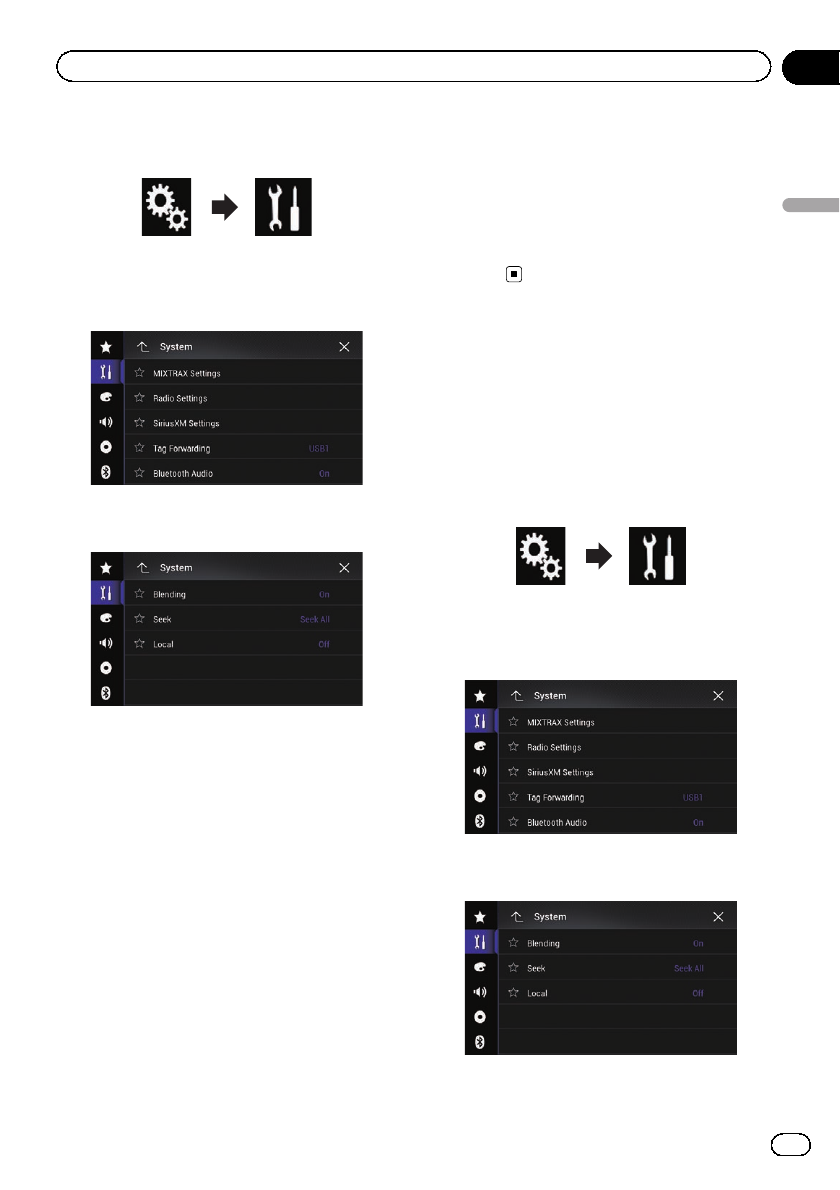
2 Touch the following keys in the follow-
ing order.
The “System”screen appears.
3 Touch [AV Source Settings].
The following screen appears.
4 Touch [Radio Settings].
The following screen appears.
5 Touch [Local].
The pop-up menu appears.
6 Touch the item you want to set.
FM
!Off (default):
Turns the seek tuning setting off.
!Level1:
Sets the level of sensitivity for FM to level 1.
!Level2:
Sets the level of sensitivity for FM to level 2.
!Level3:
Sets the level of sensitivity for FM to level 3.
!Level4:
Sets the level of sensitivity for FM to level 4.
AM
!Off (default):
Turns the seek tuning setting off.
!Level1:
Sets the level of sensitivity for AM to level 1.
!Level2:
Sets the level of sensitivity for AM to level 2.
pThe FM “Level4”(AM “Level2”) setting al-
lows reception of only stations with the
strongest signals, while lower settings
allow reception of those with weaker sig-
nals.
Switching the seek mode
You can select the method of seek tuning.
pThis setting is available only when
“HD Radio”is selected as the source.
1 Press the HOME button to display the
Top menu screen.
2 Touch the following keys in the follow-
ing order.
The “System”screen appears.
3 Touch [AV Source Settings].
The following screen appears.
4 Touch [Radio Settings].
The following screen appears.
En 101
Chapter
15
HD Radio™reception
HD Radio™reception
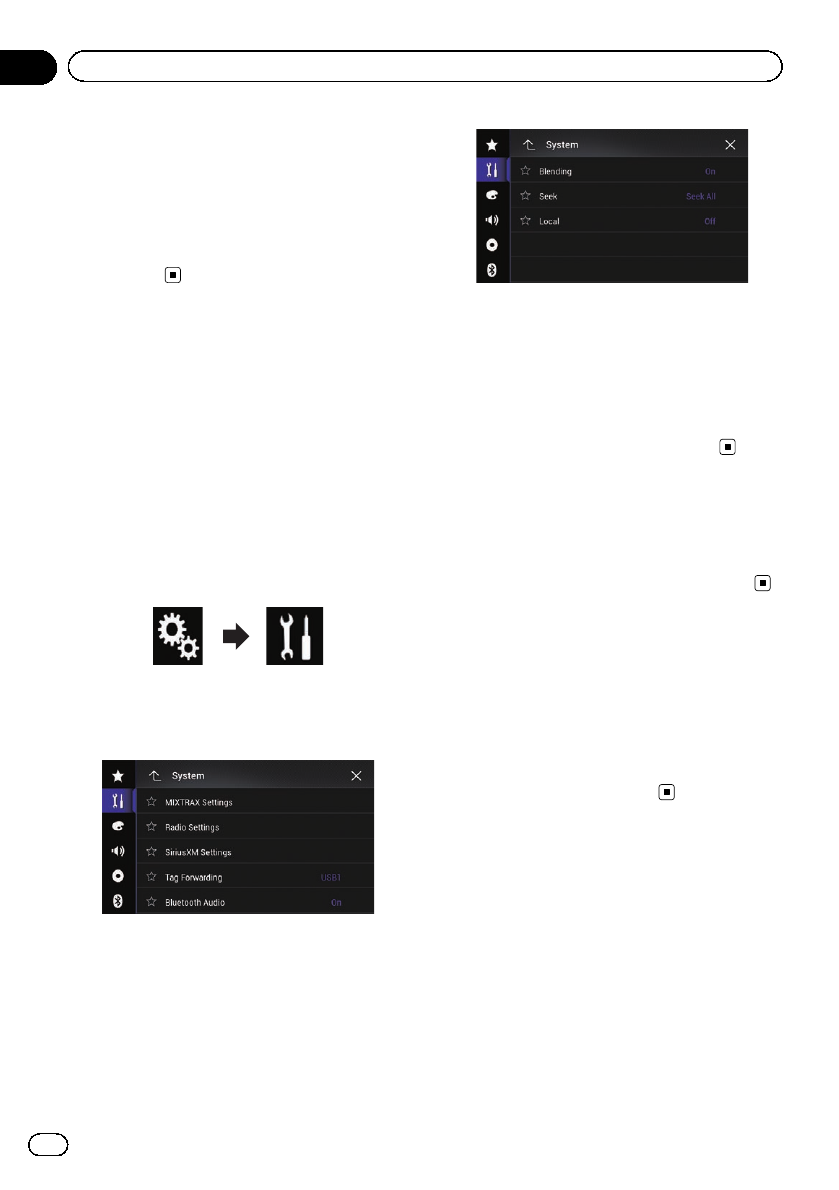
5 Touch [Seek] repeatedly until the de-
sired setting appears.
!Seek All (default):
Seeks stations from both analog and digital
broadcasting.
!Seek HD:
Only seeks stations from digital broad-
casting.
Switching the reception mode
If reception of a digital broadcast becomes
weak, the tuner automatically switches to the
analog broadcast of the same frequency level
by default. If you want to avoid frequent auto-
matic switching, change this setting to “Off”.
pThis setting is available only when
“HD Radio”is selected as the source.
1 Press the HOME button to display the
Top menu screen.
2 Touch the following keys in the follow-
ing order.
The “System”screen appears.
3 Touch [AV Source Settings].
The following screen appears.
4 Touch [Radio Settings].
The following screen appears.
5 Touch [Blending] repeatedly until the
desired setting appears.
!On (default):
Switches to the analog broadcast of the
same frequency automatically.
!Off:
Does not switch to the analog broadcast of
the same frequency automatically.
Storing song information
to an iPod (iTunes Tagging)
=For details, refer to Storing song information
to an iPod (iTunes Tagging) on page 221.
Operating with the
hardware buttons
Press the TRK button.
You can move up or down the preset chan-
nels.
Press and hold the TRK button.
You can perform seek tuning.
En
102
Chapter
15 HD Radio™reception
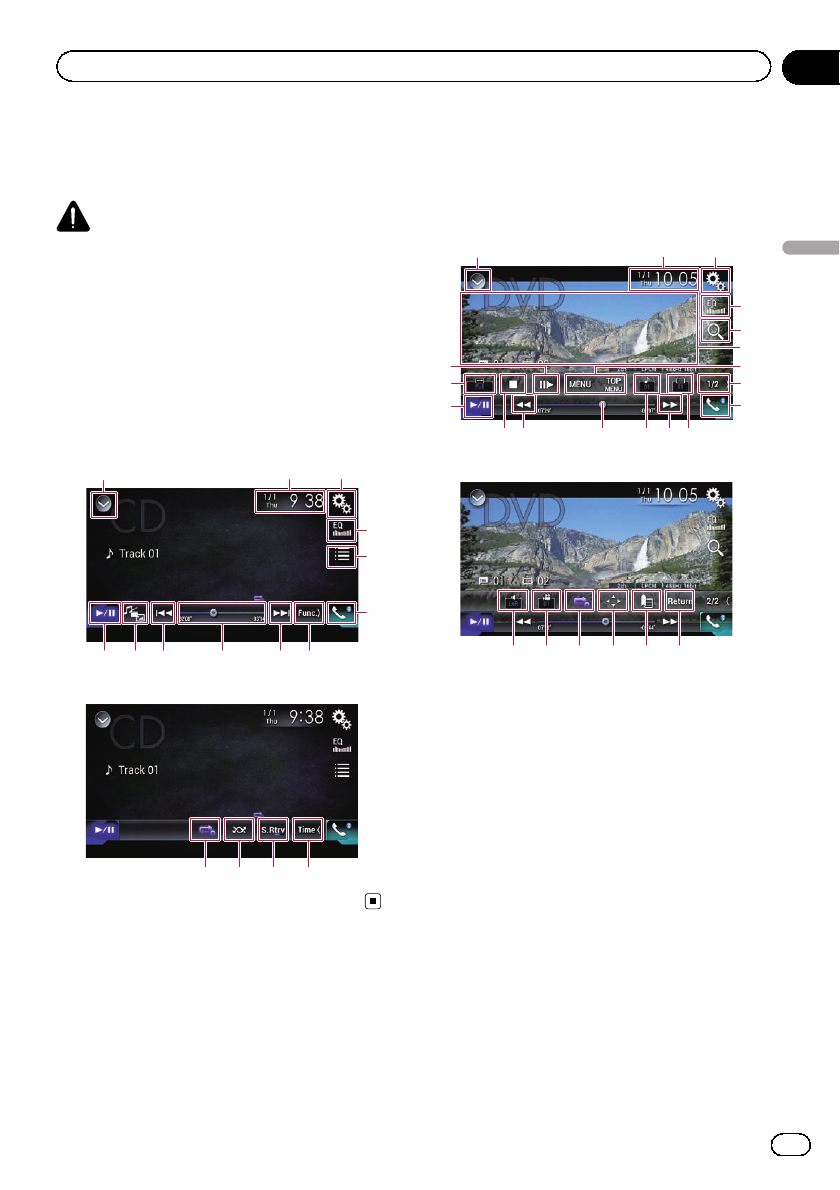
You can play a normal music CD, Video-CD or
DVD-Video using the built-in drive of this pro-
duct. This section describes these operations.
CAUTION
For safety reasons, video images cannot be
viewed while your vehicle is in motion. To view
video images, you must stop in a safe place and
apply the parking brake.
Using the touch panel keys
(for audio)
Example: CD
Playback screen (page 1)
132
7
4
5
6
b a 898
Playback screen (page 2)
7cde
Using the touch panel keys
(for video)
Example: DVD
Playback screen (page 1)
132
4
f
6
9
b
l
m
8k j8i
g
h
7
Playback screen (page 2)
nopeqr
1Displays the source list.
=For details, refer to Selecting a front
source on the source list on page 25.
2Displays the Time and date setting
screen.
=For details, refer to Setting the time and
date on page 221.
3Displays the Setting menu screen.
4Recalls equalizer curves.
=For details, refer to Using the equalizer
on page 202.
5Selects a track from the list.
=For details, refer to Selecting files from
the file name list on page 106.
6Displays the Phone menu screen.
=For details, refer to Displaying the phone
menu on page 80.
7Switches to the next or previous page of
touch panel keys.
8Skips files forward or backward.
En 103
Chapter
16
Playing a disc
Playing a disc

9Changes the playback point by dragging
the key.
=For details, refer to Operating the time
bar on page 27.
aSwitches the media file type.
=For details, refer to Switching the media
file type on page 107.
bSwitches between playback and pause.
cUses “Sound Retriever”function.
=For details, refer to Setting the “Sound
Retriever”function on page 222.
dPlays files in random order.
=For details, refer to Playing tracks in ran-
dom order on page 106.
eSets a repeat play range.
=For details, refer to Setting a repeat play
range on page 106.
fSearches for the part you want to play.
=For details, refer to Searching for the part
you want to play on page 107.
gHides the touch panel keys.
Touching this area hides the touch panel keys.
pTouch anywhere on the LCD screen to
display the touch panel keys again.
hDisplays the DVD menu.
=For details, refer to Operating the DVD
menu on page 107.
iSwitches the subtitle language.
=For details, refer to Switching the subtitle
language on page 108.
jSwitches the audio language.
=For details, refer to Switching the audio
language on page 108.
kStops playback.
lChanges the wide screen mode.
=For details, refer to Changing the wide
screen mode on page 223.
mMoves ahead one frame (frame-by-frame
playback) or slows down playback speed
(slow-motion playback).
=For details, refer to Frame-by-frame play-
back on page 108.
=For details, refer to Slow motion playback
on page 108.
nPerforms an operation (such as resuming)
that is stored on the disc.
=For details, refer to Returning to a speci-
fied scene on page 108.
oResumes playback (Bookmark).
=For details, refer to Resuming playback
(Bookmark) on page 109.
pDisplays the DVD menu keypad.
=For details, refer to Operating the DVD
menu using touch panel keys on page
109.
qChanges the viewing angle (Multi-angle).
=For details, refer to Switching the multi-
angle DVD display on page 109.
rSelects the audio output.
=For details, refer to Selecting the audio
output on page 109.
En
104
Chapter
16 Playing a disc
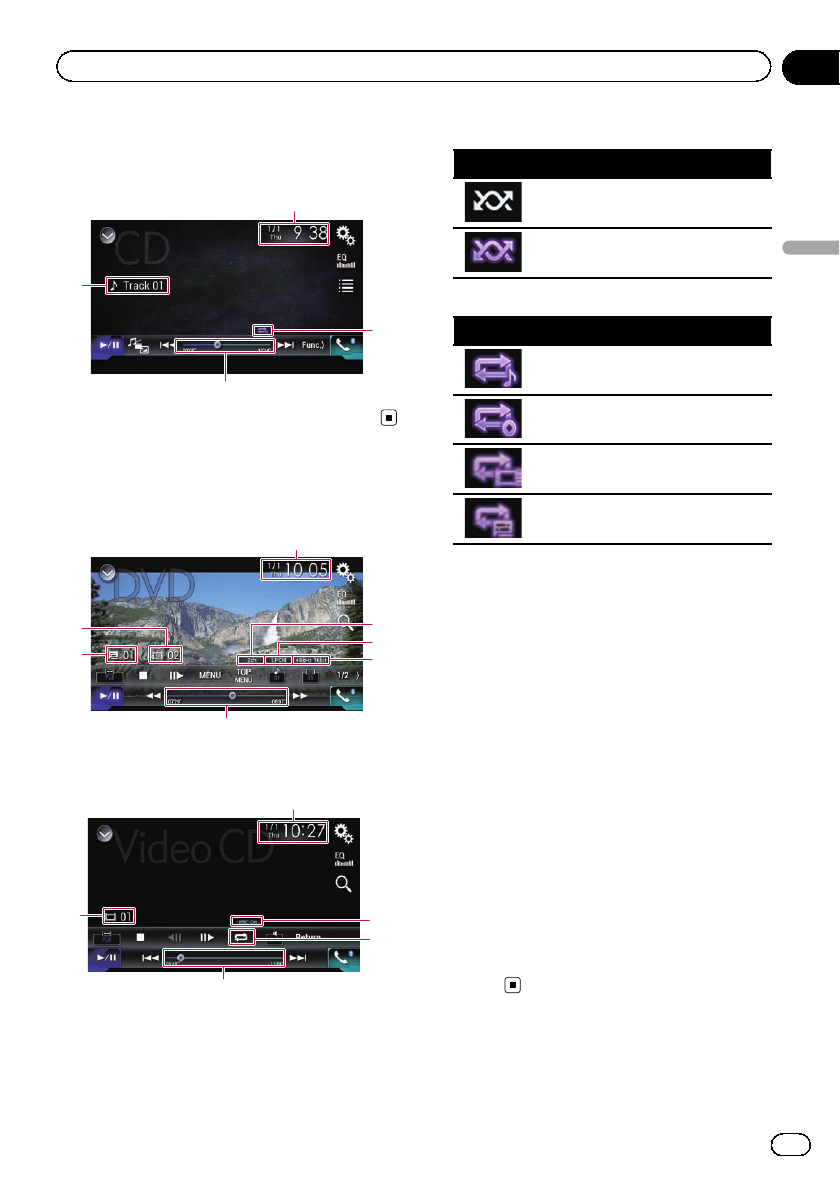
Reading the screen (for audio)
Example: CD
4
3
1
2
Reading the screen (for video)
Example: DVD
9
8
3
1
7
6
5
Example: Video-CD
3
1
a
4
2
1Current time and date
2Playback condition indicator
Indicates the current playback condition.
Playing tracks in random order
Indicator Meaning
Does not play tracks in random
order.
Plays all tracks in the current disc in
random order.
Setting a repeat play range
Indicator Meaning
Repeats just the current track.
Repeats the current disc.
Repeats just the current chapter.
Repeats just the current title.
3Play time indicator
Shows the elapsed playing time within the
current file.
4Track number indicator
Shows the number of the track currently play-
ing (when available).
5Audio channel indicator
Shows the current audio channel type, such
as “Mch”(Multi-channel).
6Digital sound format indicator
Shows which digital sound format (surround
sound format) has been selected.
7Sampling frequency indicator
Shows the sampling frequency currently play-
ing.
8Title number indicator
Shows the title number currently playing.
9Chapter number indicator
Shows the chapter number currently playing.
aPBC ON indicator
Indicates that a disc with PBC On is being
played.
En 105
Chapter
16
Playing a disc
Playing a disc
Starting procedure
1 Display the AV source selection screen.
=For details of the operations, refer to Dis-
playing the AV operation screen on page 24.
2 Insert the disc you want to play into
the disc-loading slot.
The source changes and then playback will
start.
=For details, refer to Inserting and ejecting a
disc on page 17.
pIf the disc is already set, touch [Disc] on the
source list or on the AV source selection
screen.
=For details, refer to Selecting a front
source on the source list on page 25.
=For details, refer to Selecting a front
source on the AV source selection screen
on page 25.
3 Use the touch panel keys on the screen
to control the disc.
=For details, refer to Using the touch panel
keys (for audio) on page 103.
=For details, refer to Using the touch panel
keys (for video) on page 103.
Selecting files from the file
name list
You can select tracks to play back using the
track title list which is a list of the tracks re-
corded on a disc.
1 Touch the following key.
Displays a list of the tracks re-
corded on the disc.
2 Touch a track on the list to play back.
Playing tracks in random order
All tracks on the disc can be played at random
by only touching a single key.
%Touch the following key repeatedly
until the desired setting appears.
Turns random play on or off.
!(default):
Does not play tracks in random order.
!:
Plays all tracks in the current repeat play
range in random order.
pIf you turn random play on when the re-
peat play range is set to the current
track, the repeat play range changes to
the whole of the current disc auto-
matically.
Setting a repeat play range
The repeat play range can be changed by only
touching a single key.
%Touch the following key repeatedly
until the desired setting appears.
Changes the repeat play range.
Audio
!(default):
Repeats the current disc.
!:
Repeats just the current track.
pIf you turn random play on when the repeat
play range is set to the current track, the re-
peat play range changes to the whole of the
current disc automatically.
pIf you change the repeat play range from
the whole of the current disc to the current
track when random play is turned on, the
random play turns off automatically.
Video
!(default):
En
106
Chapter
16 Playing a disc
Repeats all files.
!:
Repeats just the current chapter.
!:
Repeats just the current title.
Switching the media file type
When playing a digital media containing a
mixture of various media file types, you can
switch between media file types to play.
1 Touch the following key.
Displays the pop-up menu for selecting
a media file type to play on the disc.
2 Touch the item you want to set.
!Music:
Switches the media file type to music (com-
pressed audio).
!Video:
Switches the media file type to video.
!CD-DA:
Switches the media file type to CD (audio
data (CD-DA)).
Searching for the part you
want to play
You can use the search function to find the
part you want to play.
pFor DVD-Videos, you can select Title (title),
Chapter (chapter) or 10Key (numeric key-
pad).
pFor Video-CDs, you can select Track (track)
or 10Key (numeric keypad).
10Key (numeric keypad) is available for
Video-CDs featuring PBC (playback con-
trol) only.
pChapter search and time search are not
available when disc playback has been
stopped.
1 Touch the following key.
Displays the screen for direct num-
ber search.
2 Touch [Title] (title), [Chapter] (chapter),
[10Key] (numeric keypad), or [Track]
(track).
3 Touch [0] to [9] to input the desired
number.
pTo cancel an input number, touch [C]. To
cancel the input numbers, touch and hold
[C].
4 Touch the following key.
Registers the numbers and starts
playback.
Operating the DVD menu
You can operate the DVD menu by touching
the menu item on the screen directly.
pThis function may not work properly with
some DVD disc content. In that case, use
touch panel keys to operate the DVD menu.
1 Touch the screen to display the touch
panel keys.
2 Touch the following key.
Displays the touch panel keys to oper-
ate the DVD menu.
3 Touch the desired menu item.
En 107
Chapter
16
Playing a disc
Playing a disc
Switching the subtitle
language
You can switch the subtitle language while a
disc is playing when the disc has multilingual
data (multi-subtitle).
%Touch the following key repeatedly
until the desired setting appears.
Changes the subtitle language.
You can specify the desired lan-
guage as the default subtitle lan-
guage.
=For details, refer to Setting the
top-priority languages on page
213.
Switching the audio language
You can switch the audio language while a
disc is playing when the disc has multilingual
data (multi-audio).
%Touch the following key repeatedly
until the desired setting appears.
Changes the audio language.
You can specify the desired lan-
guage as the default audio lan-
guage.
=For details, refer to Setting the
top-priority languages on page
213.
Frame-by-frame playback
This lets you move ahead one frame at a time
during pause.
%Touch [r] during pause.
The video advances one frame each time [r]
is touched.
pTo return to normal playback, touch [d/e].
pWith some discs, images may be unclear
during frame-by-frame playback.
Slow motion playback
This lets you slow down the playback speed.
1 Touch and hold [r] until an arrow icon
is displayed during playback.
The arrow icon is displayed, and forward slow
motion playback starts.
pTo return to normal playback, touch [d/e].
2 Touch [r] to adjust playback speed
during slow motion playback.
Each time you touch [r], the speed changes
in four steps in the following order:
1/16 d1/8 d1/4 d1/2
pThere is no sound during slow motion play-
back.
pWith some discs, images may be unclear
during slow motion playback.
pReversed slow motion playback is not possi-
ble.
Returning to a specified scene
When using a disc that has a point recorded
that indicates where to return to, the disc re-
turns to the specified point and starts play-
back from there.
This function cannot be used if a specified
scene has not been preprogrammed on the
disc.
pThis function is available for DVD-Video
and Video-CDs featuring PBC (playback
control) only.
%Touch the following key.
Returns to the specified point and
starts playback from there.
pThe specified point differs depending on
the disc.
En
108
Chapter
16 Playing a disc
Resuming playback
(Bookmark)
The Bookmark function lets you resume play-
back from a selected scene the next time the
disc is loaded.
%Touch the following key.
Bookmarks one point for each of
up to five discs.
pIf you try to memorize another point for the
same disc, the older bookmark will be over-
written by the new one.
pTo clear the bookmark on a disc, touch and
hold this key.
pThe oldest bookmark is replaced by the new
one.
Operating the DVD menu
using touch panel keys
If items on the DVD menu appear, the touch
panel keys may overlay them. If so, select an
item using those touch panel keys.
1 Touch the following keys to select the
desired menu item.
Selects the left menu item.
Selects the right menu item.
Selects the upper menu item.
Selects the lower menu item.
pIf the touch panel keys for DVD menu selec-
tion disappear, touch anywhere on the
screen, and then touch . The touch
panel keys are displayed again.
2 Touch the following key.
Confirms the selected item.
pThe way to display the menu differs depend-
ing on the disc.
#If you touch , the touch panel keys disap-
pear and the icon is displayed.
Switching the multi-angle
DVD display
With DVDs featuring multi-angle recordings
(scenes shot from multiple angles), you can
switch among viewing angles during play-
back.
%Touch the following key repeatedly
until the desired setting appears.
Switches between viewing angles.
During the playback of a scene
shot from multiple angles, the
angle icon is displayed.
Turn the angle icon display on or
off using the “DVD/DivX Setup”
menu.
=For details, refer to Setting the
angle icon display on page 214.
Selecting the audio output
When playing DVDs recorded with LPCM
audio, you can switch the audio output.
%Touch the following key repeatedly
until the desired setting appears.
Changes the audio output setting.
!L+R: Left and right
!Left: Left
!Right: Right
En 109
Chapter
16
Playing a disc
Playing a disc

!Mix: Mixing left and right
pThis function is not available when disc
playback has been stopped.
pThe appearance of this key changes accord-
ing to the current setting.
Operating with the
hardware buttons
Press the TRK button.
You can skip tracks or chapters forward or
backward.
Press and hold the TRK button.
You can perform fast reverse or fast for-
ward.
En
110
Chapter
16 Playing a disc
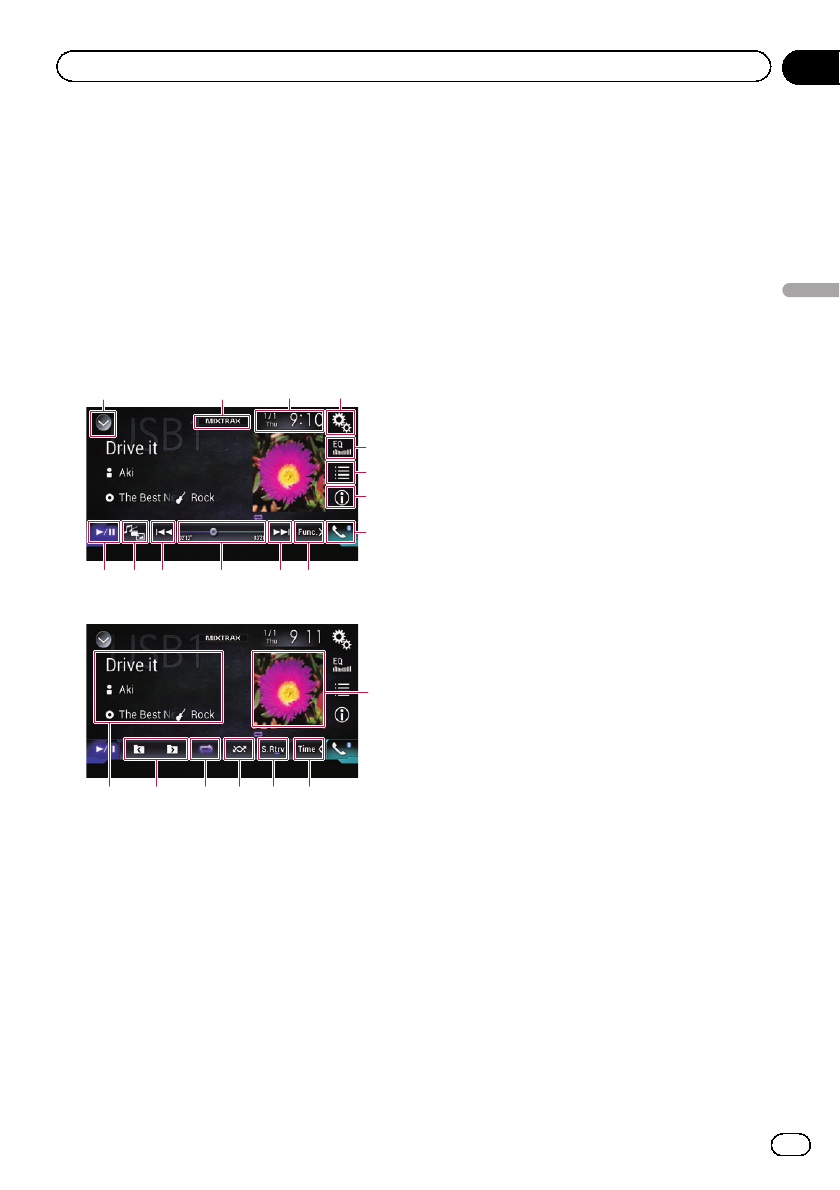
You can play compressed audio files stored in
a disc or an external storage device (USB, SD)
using the built-in drive of this product. This
section describes how.
=For details, refer to Media compatibility
chart on page 245.
Using the touch panel keys
Example: USB
Playback screen (page 1)
1243
9
5
6
7
8
d c aba
Playback screen (page 2)
9
e
f
g
hij
1Displays the source list.
=For details, refer to Selecting a front
source on the source list on page 25.
2Displays the MIXTRAX screen.
=For details, refer to Chapter 31.
3Displays the Time and date setting
screen.
=For details, refer to Setting the time and
date on page 221.
4Displays the Setting menu screen.
5Recalls equalizer curves.
=For details, refer to Using the equalizer
on page 202.
6Selects a file from the list.
=For details, refer to Selecting files from
the file name list on page 114.
Displays a list related to the song cur-
rently playing (link search).
=For details, refer to Selecting a file from
the list related to the song currently play-
ing (link search) on page 114.
7Switches the text display between tag in-
formation and file/folder information.
=For details, refer to Reading the screen
on page 112.
=For details, refer to Switching the browse
mode on page 113.
8Displays the Phone menu screen.
=For details, refer to Displaying the phone
menu on page 80.
9Switches to the next or previous page of
touch panel keys.
aSkips files forward or backward.
bChanges the playback point by dragging
the key.
=For details, refer to Operating the time
bar on page 27.
cSwitches the media file type.
=For details, refer to Switching the media
file type on page 115.
dSwitches between playback and pause.
eDisplays the album list.
pThis function is available only when
playing files in an external storage de-
vice (USB, SD) in the Music Browse
mode.
fUses “Sound Retriever”function.
=For details, refer to Setting the “Sound
Retriever”function on page 222.
gPlays files in random order.
=For details, refer to Playing files in ran-
dom order on page 114.
hSets a repeat play range.
=For details, refer to Setting a repeat play
range on page 115.
iSelects the previous folder or the next
folder.
jDisplays the category list including the
selected item.
En 111
Chapter
17
Playing compressed audio files
Playing compressed audio files
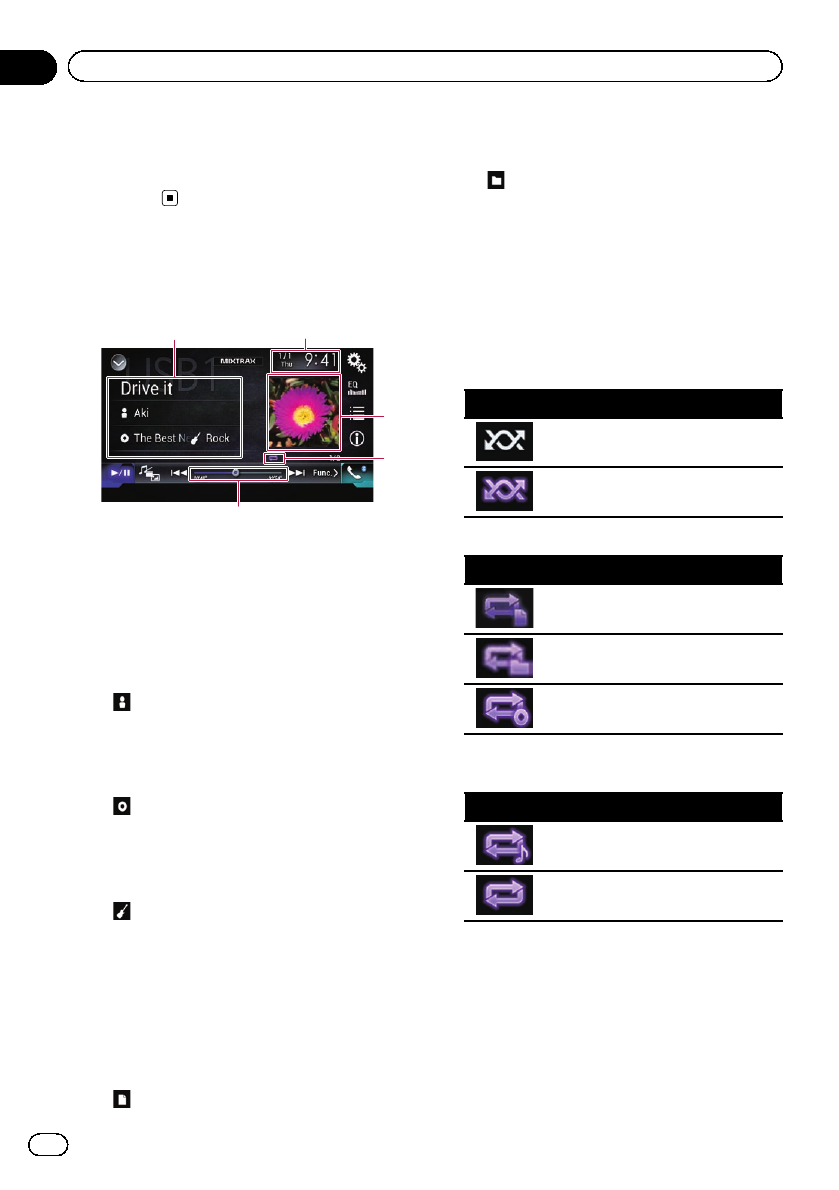
pThis function is available only when
playing files in an external storage de-
vice (USB, SD) in the Music Browse
mode.
Reading the screen
Example: USB
5
2
4
3
1
1Current file information
Music Browse mode
!Song title/File name
Shows the title of the song currently
playing (when available). If the title of a
song is not available, the file name ap-
pears.
!:Artist name
Shows the artist name for the song cur-
rently playing (when available). “No
Name”is displayed if there is no corre-
sponding information.
!:Album title/Folder name
Shows the title of the album of the cur-
rent file (when available). If the title of
the album is not available, the folder
name appears.
!:Genre
Shows the genre of the current file
(when available). “No Genre”is dis-
played if there is no corresponding infor-
mation.
pNothing is displayed if the song cur-
rently playing is in a format which does
not support these functions.
Folder Browse mode
!:File name
Shows the name of the file currently
playing.
!:Folder name
Shows the name of the folder contain-
ing the file currently playing.
2Current time and date
3Album artwork
Album art of the current song is displayed if it
is available.
4Playback condition indicator
Indicates the current playback condition.
Playing files in random order
Indicator Meaning
Does not play files in random order.
Plays all files within the repeat range
in random order.
Setting a repeat play range (for Disc)
Indicator Meaning
Repeats just the current file.
Repeats just the current folder.
Repeats all compressed audio files.
Setting a repeat play range (for Music
Browse mode)
Indicator Meaning
Repeats just the current file.
Repeats all compressed audio files.
En
112
Chapter
17 Playing compressed audio files
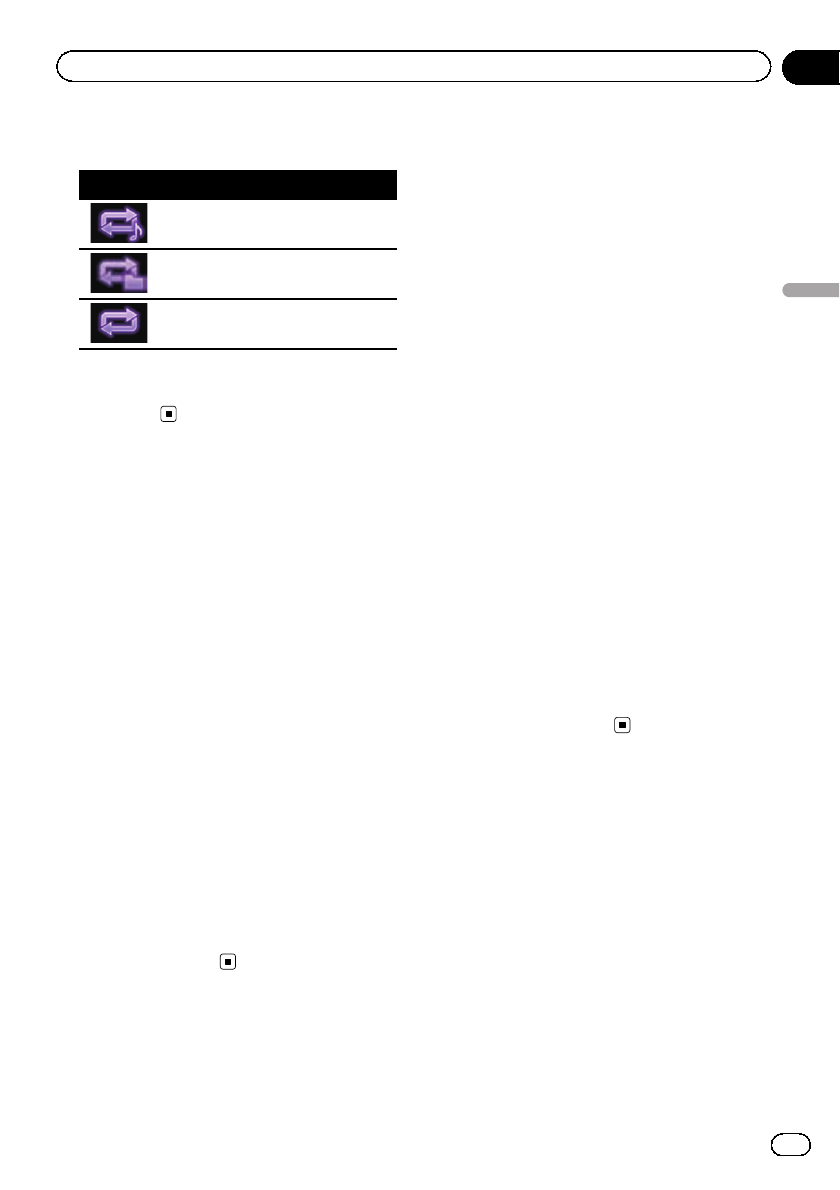
Setting a repeat play range (for Folder
Browse mode)
Indicator Meaning
Repeats just the current file.
Repeats just the current folder.
Repeats all compressed audio files.
5Play time indicator
Shows the elapsed playing time within the
current file.
Starting procedure (for Disc)
1 Display the AV source selection screen.
=For details of the operations, refer to Dis-
playing the AV operation screen on page 24.
2 Insert the disc you want to play into
the disc-loading slot.
The source changes and then playback will
start.
=For details, refer to Inserting and ejecting a
disc on page 17.
pIf the disc is already set, touch [Disc] on the
source list or on the AV source selection
screen.
=For details, refer to Selecting a front
source on the source list on page 25.
=For details, refer to Selecting a front
source on the AV source selection screen
on page 25.
3 Use the touch panel keys on the screen
to control the disc.
=For details, refer to Using the touch panel
keys on page 111.
Starting procedure (for
USB/SD)
1 Display the AV source selection screen.
=For details of the operations, refer to Dis-
playing the AV operation screen on page 24.
2 Insert the SD memory card into the SD
card slot or plug the USB storage device
into the USB connector.
=For details, refer to Plugging in a USB sto-
rage device on page 19.
=For details, refer to Inserting and ejecting an
SD memory card on page 18.
3 Touch [USB] or [SD] on the AV source
selection screen.
The source changes and then playback will
start.
4 Use the touch panel keys on the screen
to control the external storage device
(USB, SD).
=For details, refer to Using the touch panel
keys on page 111.
pPlayback is performed in order of folder
numbers. Folders are skipped if they con-
tain no playable files. If there are no play-
able files in folder 01 (root folder), playback
starts from folder 02.
Switching the browse mode
This product supports two types of browse
modes: Folder Browse mode and Music
Browse mode.
pThe browse modes are available only for
the external storage device (USB, SD).
Music Browse mode
Displays a song title, artist name, album title
and genre in the current file information dis-
play area on the AV operation screen. Select
when you want to play music files narrowed
down by a category of song title, artist name,
album title or genre.
En 113
Chapter
17
Playing compressed audio files
Playing compressed audio files
If connecting an external storage device (USB,
SD), this product accesses the database of
music files with tag information and switches
to the Music Browse mode automatically.
Folder Browse mode
Displays a folder name and file name in the
current file information display area on the AV
operation screen. Select when you want to
search for folders or music files on the list
screen.
pYou can switch between the browse modes
for file search by touching the tabs and se-
lecting a file on the list screen.
%Touch the following key repeatedly
until the desired setting appears.
Switches the display information
between the tag information (title,
artist name, album title etc.) and
the file/folder name information.
Selecting files from the file
name list
You can find files to play back using the list of
the files and folders stored on a disc or in an
external storage device (USB, SD).
1 Touch the following key.
Displays the list of the files or
folders stored on a disc or in the
external storage device (USB, SD).
pTouch the “File”tab to display the file/folder
list for an external storage device (USB,
SD).
2 Touch a file on the list to play back.
pFiles are played back in file number order.
pTouching a folder on the list shows its con-
tents. You can play a file on the list by
touching it.
Selecting a file from the list
related to the song currently
playing (link search)
You can select files to play back using the ca-
tegory list for the files in an external storage
device (USB, SD).
pThis function is available for the external
storage device (USB, SD) only.
1 Touch the following key.
Displays the list of the files or
folders stored in the external sto-
rage device (USB, SD).
pIf the “File”list is displayed, touch the “Tag”
tab to display the category list.
2 Touch the desired category to display
the file list.
The list screen appears.
3 Touch the item that you want to refine.
Refine the item until the desired song title or
file name is displayed on the list.
pTouching [All] on the list includes all op-
tions in the current list. For example, if you
touch [All] after touching [Artists], you can
proceed to the next screen with all artists in
the list selected.
pAfter you select “Artists”,“Albums”or
“Genres”, touch one of the lists to start
playing the first song in the selected list or
display the next options.
4 Touch the desired song title or file
name to play back.
Playing files in random order
All files on the disc or in the external storage
device (USB, SD) can be played at random by
only touching a single key.
En
114
Chapter
17 Playing compressed audio files
%Touch the following key repeatedly
until the desired setting appears.
Turns random play on or off.
!(default):
Does not play files in random order.
!:
Plays all audio files in the current repeat
play range in random order.
pIf you turn random play on when the re-
peat play range is set to the current file
in the Music Browse mode, the repeat
play range changes to the current folder
in the current disc or external storage
device (USB, SD) automatically.
pIf you turn random play on when the re-
peat play range is set to the current file
in the Folder Browse mode, the repeat
play range changes to the whole of the
current disc or external storage device
(USB, SD) automatically.
Setting a repeat play range
The repeat play range can be changed by only
touching a single key.
%Touch the following key repeatedly
until the desired setting appears.
Changes the repeat play range.
Disc
!(default):
Repeats all compressed audio files.
!:
Repeats just the current file.
!:
Repeats just the current folder.
Music Browse mode
!(default):
Repeats all files.
!:
Repeats just the current file.
Folder Browse mode
!(default):
Repeats all files.
!:
Repeats the current folder.
!:
Repeats just the current file.
Switching the media file type
When playing a digital media containing a
mixture of various media file types, you can
switch between media file types to play.
1 Touch the following key.
Displays the pop-up menu for selecting
a media file type to play on the disc or
in the external storage device (USB,
SD).
2 Touch the item you want to set.
!Music:
Switches the media file type to music (com-
pressed audio).
!Video:
Switches the media file type to video.
!CD-DA:
Switches the media file type to CD (audio
data (CD-DA)).
!Photo:
Switches the media file type to still image
(JPEG data).
Operating with the
hardware buttons
Press the TRK button.
You can skip files forward or backward.
Press and hold the TRK button.
You can perform fast reverse or fast for-
ward.
En 115
Chapter
17
Playing compressed audio files
Playing compressed audio files
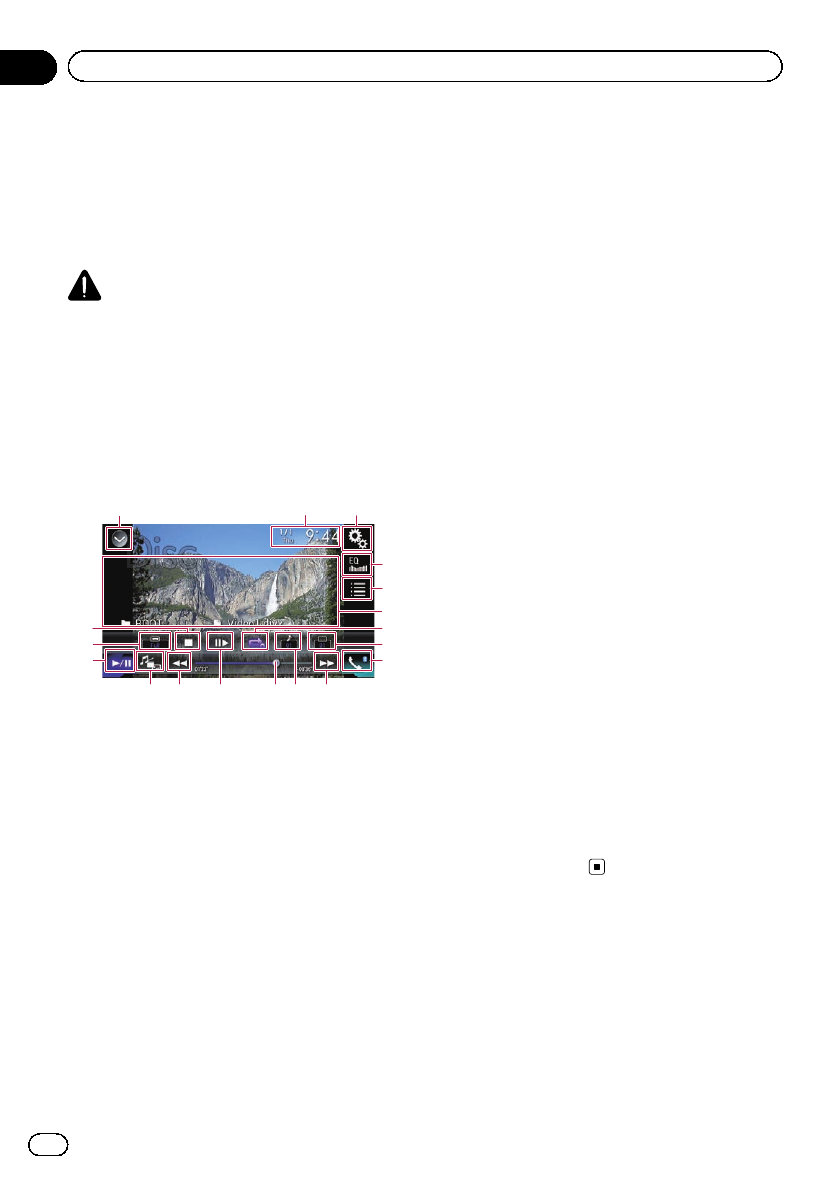
You can play compressed video files stored on
a disc or in an external storage device (USB,
SD) using the built-in drive of this product.
This section describes how.
=For details, refer to Media compatibility
chart on page 245.
CAUTION
For safety reasons, video images cannot be
viewed while your vehicle is in motion. To view
video images, you must stop in a safe place and
apply the parking brake.
Using the touch panel keys
Example: Disc
132
4
5
9
ce
f
g
h
a bda
6
7
8
1Displays the source list.
=For details, refer to Selecting a front
source on the source list on page 25.
2Displays the Time and date setting
screen.
=For details, refer to Setting the time and
date on page 221.
3Displays the Setting menu screen.
4Recalls equalizer curves.
=For details, refer to Using the equalizer
on page 202.
5Selects a file from the list.
=For details, refer to Selecting files from
the file name list on page 117.
6Hides the touch panel keys.
Touching this area hides the touch panel keys.
pTouch anywhere on the LCD screen to
display the touch panel keys again.
7Sets a repeat play range.
=For details, refer to Setting a repeat play
range on page 118.
8Switches the subtitle language.
With DivX featuring multi-subtitle recordings,
you can switch between subtitle languages
during playback.
9Displays the Phone menu screen.
=For details, refer to Displaying the phone
menu on page 80.
aSkips files forward or backward.
bSwitches the audio language.
With DivX files that provide audio playback in
different languages and different audio sys-
tems (Dolby Digital, DTS, etc.), you can switch
between languages or audio systems during
playback.
cChanges the playback point by dragging
the key.
=For details, refer to Operating the time
bar on page 27.
dMoves ahead one frame (frame-by-frame
playback) or slows down playback speed
(slow-motion playback).
=For details, refer to Frame-by-frame play-
back on page 118.
=For details, refer to Slow motion playback
on page 118.
eSwitches the media file type.
=For details, refer to Switching the media
file type on page 118.
fSwitches between playback and pause.
gChanges the wide screen mode.
=For details, refer to Changing the wide
screen mode on page 223.
hStops playback.
En
116
Chapter
18 Playing compressed video files
Reading the screen
Example: Disc
3
2
1
1Current time and date
2Play time indicator
Shows the elapsed playing time within the
current file.
3Current file information
!:File name
Shows the name of the file currently
playing.
!:Folder name
Shows the name of the folder contain-
ing the file currently playing.
Starting procedure (for Disc)
1 Display the AV source selection screen.
=For details of the operations, refer to Dis-
playing the AV operation screen on page 24.
2 Insert the disc you want to play into
the disc-loading slot.
The source changes and then playback will
start.
=For details, refer to Inserting and ejecting a
disc on page 17.
pIf the disc is already set, touch [Disc] on the
source list or on the AV source selection
screen.
=For details, refer to Selecting a front
source on the source list on page 25.
=For details, refer to Selecting a front
source on the AV source selection screen
on page 25.
3 Use the touch panel keys on the screen
to control the disc.
=For details, refer to Using the touch panel
keys on page 116.
Starting procedure (for
USB/SD)
1 Display the AV source selection screen.
=For details of the operations, refer to Dis-
playing the AV operation screen on page 24.
2 Insert the SD memory card into the SD
card slot or plug the USB storage device
into the USB connector.
=For details, refer to Plugging in a USB sto-
rage device on page 19.
=For details, refer to Inserting and ejecting an
SD memory card on page 18.
3 Touch [USB] or [SD] on the AV source
selection screen.
The image is displayed on the screen.
4 Use the touch panel keys on the screen
to control the external storage device
(USB, SD).
=For details, refer to Using the touch panel
keys on page 116.
pPlayback is performed in order of folder
numbers. Folders are skipped if they con-
tain no playable files. If there are no play-
able files in folder 01 (root folder), playback
starts from folder 02.
Selecting files from the file
name list
You can select files to view using the file name
list of the files stored on a disc or in the exter-
nal storage device (USB, SD).
1 Touch the following key.
Displays the list of the files or
folders stored on a disc or in the
external storage device (USB, SD).
En 117
Chapter
18
Playing compressed video files
Playing compressed video files
2 Touch a file on the list to play back.
pFiles are played back in file number order
and folders are skipped if they contain no
files. (If folder 01 (root folder) contains no
files, playback commences with folder 02.)
pTouching a folder on the list shows its con-
tents. You can play a file on the list by
touching it.
#Touch the playback sign of the thumbnail to
preview the file.
Setting a repeat play range
The repeat play range can be changed by only
touching a single key.
%Touch the following key repeatedly
until the desired setting appears.
Changes the repeat play range.
!or (default):
Repeats all files.
!:
Repeats just the current folder.
!:
Repeats just the current file.
Frame-by-frame playback
This lets you move ahead one frame at a time
during pause.
pThis function is available while a com-
pressed video file stored on a disc is being
played.
%Touch [r] during pause.
The video advances one frame each time [r]
is touched.
pTo return to normal playback, touch [d/e].
pWith some discs, images may be unclear
during frame-by-frame playback.
Slow motion playback
This lets you slow down the playback speed.
%Touch [r] (external storage device
(USB, SD)) or touch and hold [r] (disc)
during playback.
The arrow icon is displayed, and forward slow
motion playback starts.
pThere is no sound during slow motion play-
back.
pWith some discs and external storage de-
vices (USB, SD), images may be unclear
during slow motion playback.
pTo return to normal playback, touch [d/e].
pReversed slow motion playback is not possi-
ble.
Switching the media file type
When playing a digital media containing a
mixture of various media file types, you can
switch between media file types to play.
1 Touch the following key.
Displays the pop-up menu for selecting
a media file type to play on the disc or
in the external storage device (USB,
SD).
2 Touch the item you want to set.
!Music:
Switches the media file type to music (com-
pressed audio).
!Video:
Switches the media file type to video.
!Photo:
Switches the media file type to still image
(JPEG data).
!CD-DA:
Switches the media file type to CD (audio
data (CD-DA)).
Operating with the
hardware buttons
Press the TRK button.
You can skip files forward or backward.
Press and hold the TRK button.
You can perform fast reverse or fast for-
ward.
En
118
Chapter
18 Playing compressed video files
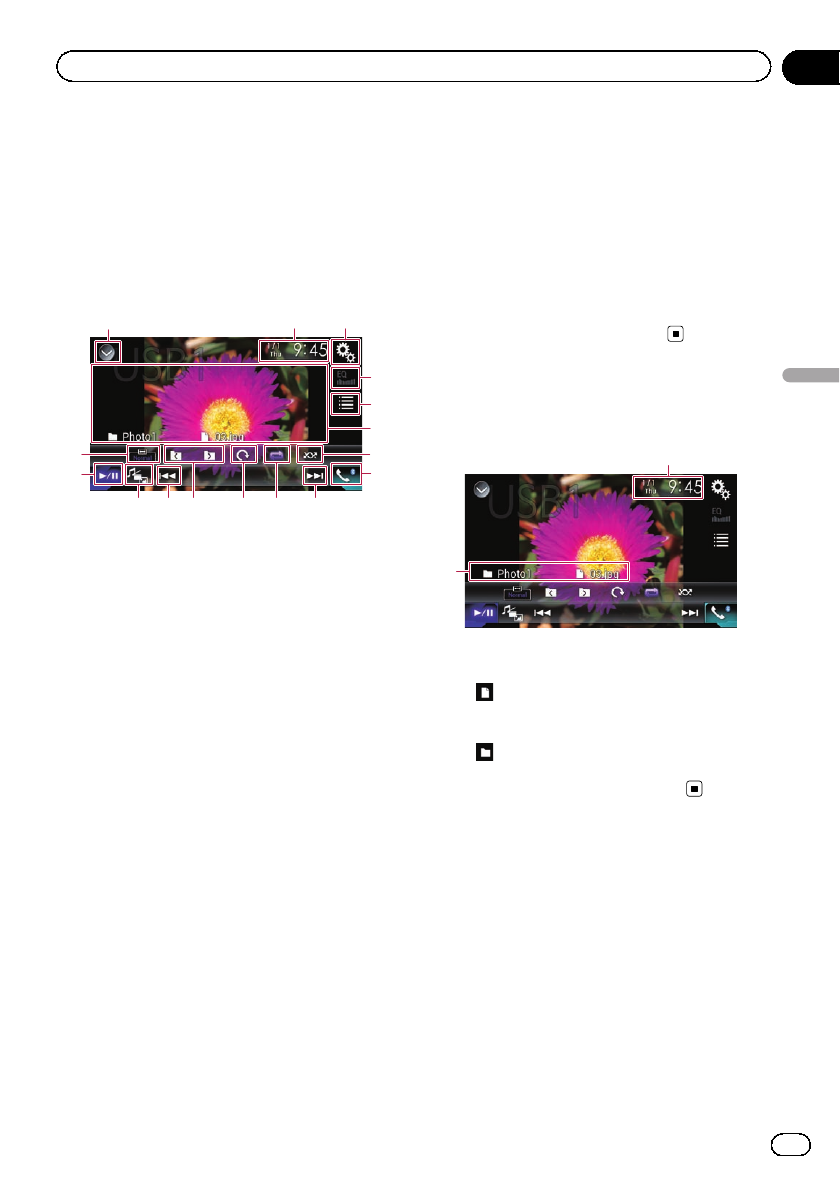
You can view still images (JPEG images)
stored in an external storage device (USB, SD)
using the built-in drive of this product. This
section describes how.
Using the touch panel keys
Example: USB
132
4
5
8
abcd
e
f
9 9
6
7
1Displays the source list.
=For details, refer to Selecting a front
source on the source list on page 25.
2Displays the Time and date setting
screen.
=For details, refer to Setting the time and
date on page 221.
3Displays the Setting menu screen.
4Recalls equalizer curves.
pThis key is not available while you are
viewing still images stored in an exter-
nal storage device (USB, SD).
5Selects a file from the list.
=For details, refer to Selecting files from
the file name list on page 120.
6Hides the touch panel keys.
Touching this area hides the touch panel keys.
pTouch anywhere on the LCD screen to
display the touch panel keys again.
7Plays files in random order.
=For details, refer to Playing files in ran-
dom order on page 120.
8Displays the Phone menu screen.
=For details, refer to Displaying the phone
menu on page 80.
9Skips files forward or backward.
aSets a repeat play range.
=For details, refer to Setting a repeat play
range on page 120.
bRotates the displayed picture 90° clock-
wise.
cSelects the previous folder or the next
folder.
dSwitches the media file type.
=For details, refer to Switching the media
file type on page 120.
eSwitches between playback and pause.
fChanges the wide screen mode.
=For details, refer to Changing the wide
screen mode on page 223.
Reading the screen
Example: USB
2
1
1Current time and date
2Current file information
!:File name
Shows the name of the file currently
playing.
!:Folder name
Shows the name of the folder contain-
ing the file currently playing.
Starting procedure
1 Display the AV source selection screen.
=For details of the operations, refer to Dis-
playing the AV operation screen on page 24.
2 Insert the SD memory card into the SD
card slot or plug the USB storage device
into the USB connector.
=For details, refer to Plugging in a USB sto-
rage device on page 19.
=For details, refer to Inserting and ejecting an
SD memory card on page 18.
En 119
Chapter
19
Playing compressed still image files
Playing compressed still image files
3 Touch [USB] or [SD] on the AV source
selection screen.
The image is displayed on the screen.
4 Use the touch panel keys on the screen
to control the external storage device
(USB, SD).
=For details, refer to Using the touch panel
keys on page 119.
pPlayback is performed in order of folder
numbers. Folders are skipped if they con-
tain no playable files. If there are no play-
able files in folder 01 (root folder), playback
starts from folder 02.
Selecting files from the file
name list
You can select files to view using the file name
list of the files stored in the external storage
device (USB, SD).
1 Touch the following key.
Displays the list of the files stored
in the external storage device
(USB, SD).
2 Touch a file on the list to play back.
pFiles are played back in file number order
and folders are skipped if they contain no
files. (If folder 01 (root folder) contains no
files, playback commences with folder 02.)
pTouching a folder on the list shows its con-
tents. You can play a file on the list by
touching it.
Playing files in random order
All files in the external storage device (USB,
SD) can be played at random by only touching
a single key.
%Touch the following key repeatedly
until the desired setting appears.
Turns random play on or off.
!(default):
Does not play files in random order.
!:
Plays all files in the current repeat play
range in random order.
Setting a repeat play range
The repeat play range can be changed by only
touching a single key.
%Touch the following key repeatedly
until the desired setting appears.
Changes the repeat play range.
!(default):
Repeats all files.
!:
Repeats the current folder.
Switching the media file type
When playing a digital media containing a
mixture of various media file types, you can
switch between media file types to play.
1 Touch the following key.
Displays the pop-up menu for selecting
a media file type to play in the external
storage device (USB, SD).
2 Touch the item you want to set.
!Music:
Switches the media file type to music (com-
pressed audio).
!Video:
Switches the media file type to video.
!Photo:
Switches the media file type to still image
(JPEG data).
Setting the slideshow interval
JPEG files can be viewed as a slideshow on
this product. In this setting, the interval be-
tween each image can be set.
En
120
Chapter
19 Playing compressed still image files
pThis setting is available during playback of
the JPEG files.
1 Press the HOME button to display the
Top menu screen.
2 Touch the following keys in the follow-
ing order.
The “Video Setup”screen appears.
3 Touch [Time Per Photo Slide].
The pop-up menu appears.
4 Touch the item you want to set.
!10sec (default):
JPEG images switch at intervals of 10 sec-
onds.
!5sec:
JPEG images switch at intervals of 5 sec-
onds.
!15sec:
JPEG images switch at intervals of 15 sec-
onds.
!Manual:
JPEG images can be switched manually.
Operating with the
hardware buttons
Press the TRK button.
You can skip files forward or backward.
Press and hold the TRK button.
You can search 10 JPEG files at a time.
pIf the number of files in the folder (from the
file currently being played to the first or last
file) is fewer than 10, the first or last file in
the folder is automatically played.
pIf the file currently being played is the first
or last file in the folder, the search is not
performed.
En 121
Chapter
19
Playing compressed still image files
Playing compressed still image files
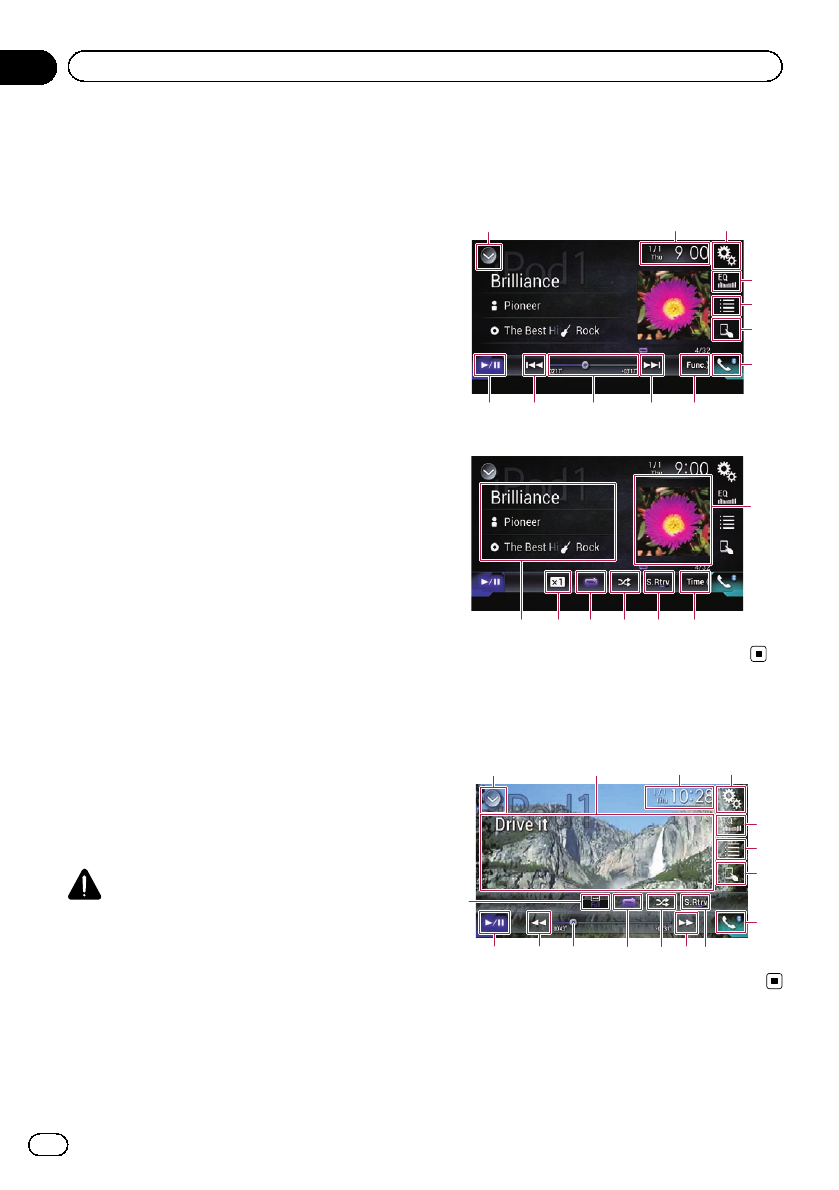
For iPod with a 30-pin connector users
pDepending on your iPod, there may not be
any output unless you use a USB interface
cable for iPod / iPhone (CD-IU201S/CD-
IU201V) (sold separately). Be sure to use a
USB interface cable for iPod / iPhone (CD-
IU201S/CD-IU201V) (sold separately) to
connect your iPod.
iPod audio and/or video sources are en-
abled if either of the cables is connected.
=For details of the connections, refer to
the Installation Manual.
For iPod / iPhone with a Lightning con-
nector users
pTo use iPod audio source, you must con-
nect your iPod to this product using a USB
interface cable for iPod / iPhone (CD-IU52)
(sold separately).
However, functions related to iPod video
files and AppRadio Mode are not avail-
able.
piPod audio and/or video sources are not
available when an iPod with a Lightning
connector is connected to this product
with a interface cable (CD-IH202/CD-
IV202AV) (sold separately).
=For details of the connections, refer to
the Installation Manual.
When you want to play audio and/or video
files on your iPod with a Lightning connec-
tor, first install CarMediaPlayer on your
iPod with a Lightning connector and then
launch CarMediaPlayer while in
AppRadio Mode.
For details about the CarMediaPlayer,
refer to the information on our website.
CAUTION
For safety reasons, video images cannot be
viewed while your vehicle is in motion. To view
video images, you must stop in a safe place and
apply the parking brake.
Using the touch panel keys
(for audio)
Playback screen (page 1)
132
8
4
5
6
7
b9a9
Playback screen (page 2)
8defg
c
h
Using the touch panel keys
(for video)
132
4
5
6
7
b9a 9
j
d
ef
i
En
122
Chapter
20 Using an iPod
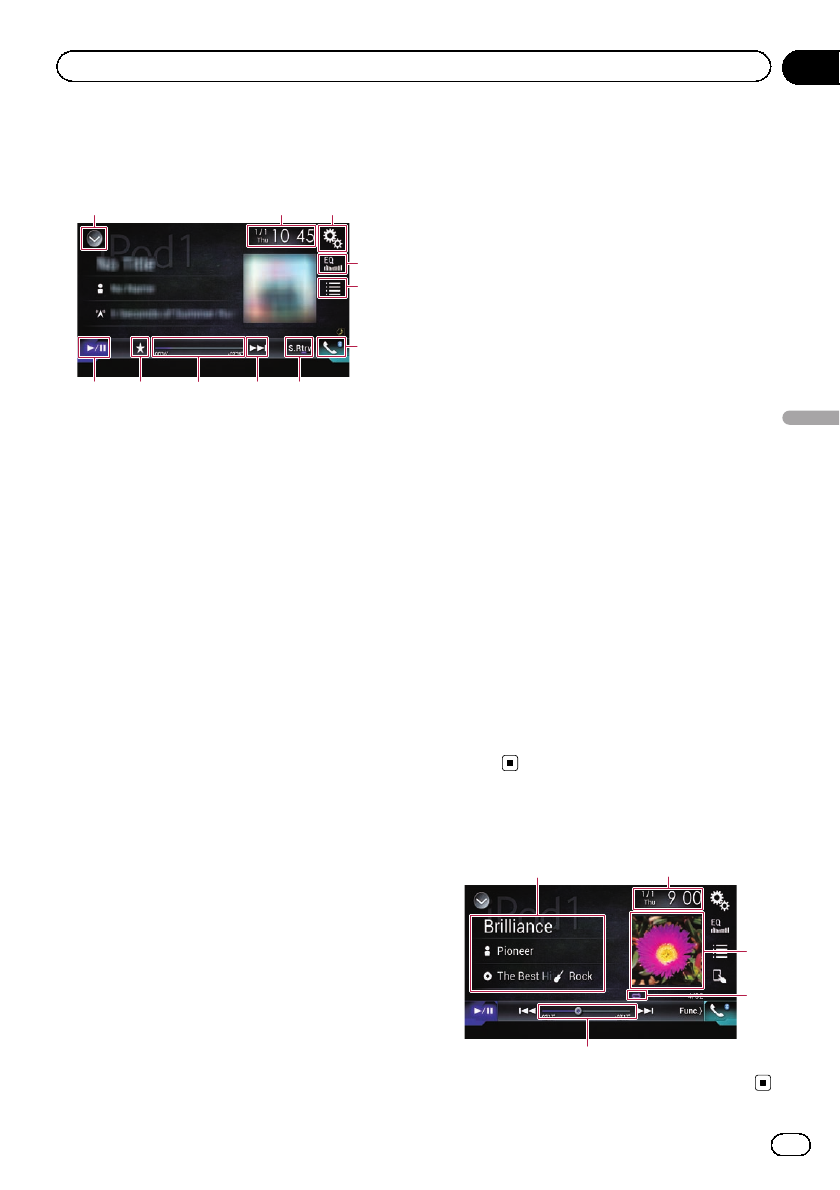
Using the touch panel keys
(for iTunes Radio)
a 9
13
2
4
5
7
dkb
1Displays the source list.
=For details, refer to Selecting a front
source on the source list on page 25.
2Displays the Time and date setting
screen.
=For details, refer to Setting the time and
date on page 221.
3Displays the Setting menu screen.
4Recalls equalizer curves.
=For details, refer to Using the equalizer
on page 202.
5Selects a track from the list.
=For details, refer to Selecting song or
video sources from the playlist screen on
page 126.
6Switches the control mode to “App
Mode”.
=For details, refer to Using this product’s
iPod function from your iPod on page
128.
7Displays the Phone menu screen.
=For details, refer to Displaying the phone
menu on page 80.
8Switches to the next or previous page of
touch panel keys.
9Skips files forward or backward.
pAvailability of the skip-forward function
while playing iTunes Radio depends on
the iPod.
pThe skip-back key is not available while
playing iTunes Radio.
aChanges the playback point.
=For details, refer to Operating the time
bar on page 27.
bSwitches between playback and pause.
cDisplays the song list of the album cur-
rently playing.
=For details, refer to Displaying lists re-
lated to the song currently playing (link
search) on page 129.
dUses “Sound Retriever”function.
=For details, refer to Setting the “Sound
Retriever”function on page 222.
ePlays files in random order.
=For details, refer to Setting the shuffle
play on page 125.
fSets a repeat play range.
=For details, refer to Setting a repeat play
range on page 125.
gChanges the audiobook speed.
=For details, refer to Changing the speed
of audiobook playback on page 128.
hDisplays the category list including the
selected item.
iHides the touch panel keys.
Touching this area hides the touch panel keys.
pTouch anywhere on the LCD screen to
display the touch panel keys again.
jChanges the wide screen mode.
=For details, refer to Changing the wide
screen mode on page 223.
kDisplays the pop-up menu for iTunes
Radio.
Reading the screen (for audio)
5
2
4
3
1
En 123
Chapter
20
Using an iPod
Using an iPod
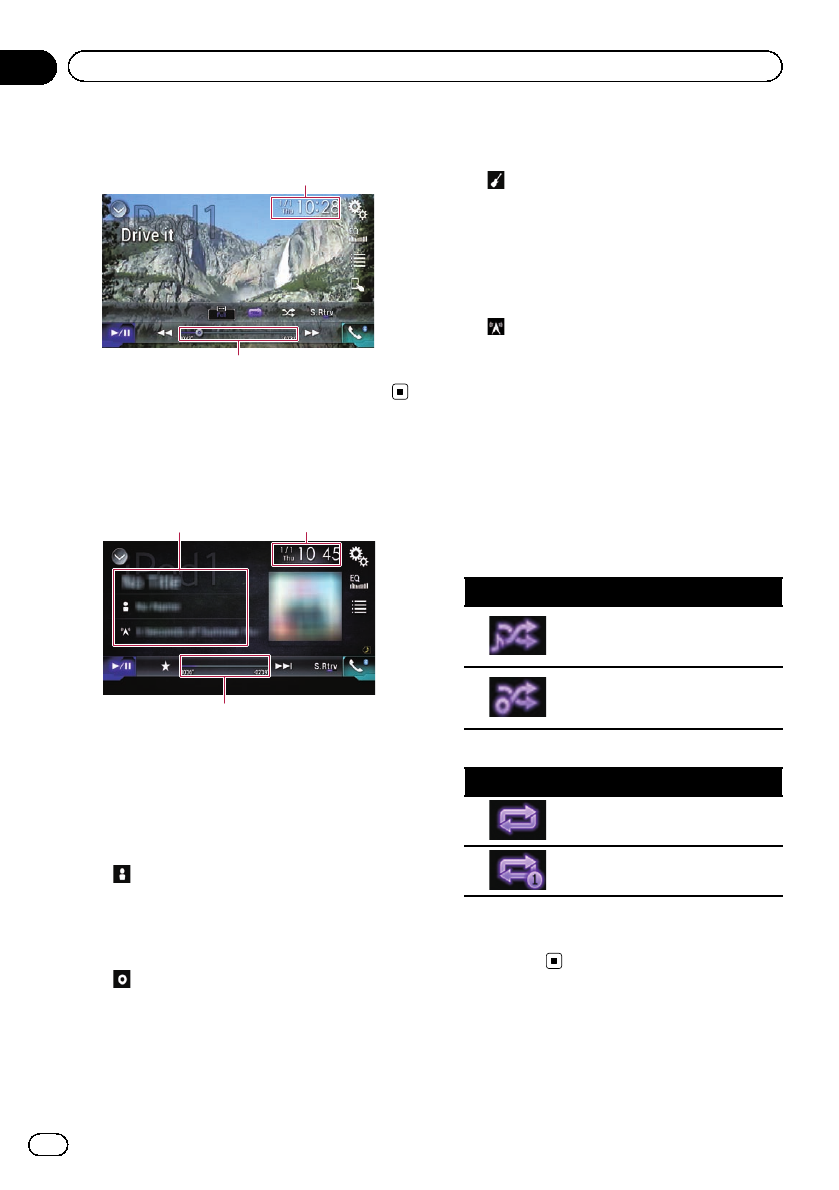
Reading the screen (for video)
5
2
Reading the screen (for
iTunes Radio)
2
5
1
1Current track information
!Song title
Shows the title of the song currently
being played (when available). “No
Title”is displayed if there is no corre-
sponding information.
!:Artist name
Shows the artist name for the song cur-
rently being played (when available).
“No Name”is displayed if there is no
corresponding information.
!:Album title
Shows the title of the album of the cur-
rent file (when available). “No Title”is
displayed if there is no corresponding
information.
pThis information is not available
while playing iTunes Radio.
!:Genre
Shows the genre of the current file
(when available). “No Genre”is dis-
played if there is no corresponding infor-
mation.
pThis information is not available
while playing iTunes Radio.
!:Station
Shows the station name of the song cur-
rently being played.
pThis information is available while
playing iTunes Radio.
2Current time and date
3Album artwork
Album art of the current song is displayed if it
is available.
4Playback condition indicator
Indicates the current playback condition.
Setting the shuffle play
Indicator Meaning
Plays back songs or videos in
random order within the se-
lected list.
Selects an album randomly, and
then plays back all songs in that
album in order.
Setting a repeat play range
Indicator Meaning
Repeats all songs or videos in
the selected list.
Repeats just the current song or
video.
5Play time indicator
Shows the elapsed playing time within the
current file.
En
124
Chapter
20 Using an iPod
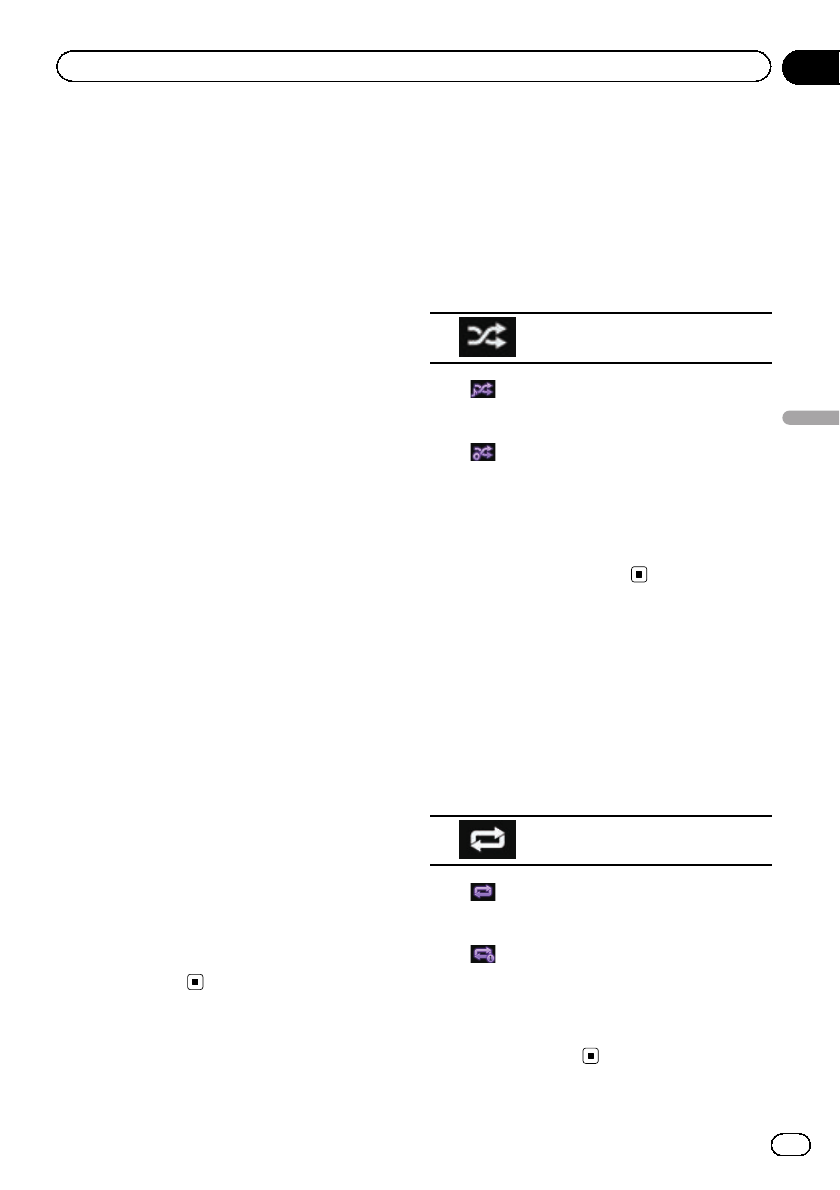
Starting procedure
When connecting an iPod to this product, you
must select the method for connecting your
device. Settings are required according to the
connected device.
=For details, refer to Chapter 13.
1 Display the AV source selection screen.
=For details of the operations, refer to Dis-
playing the AV operation screen on page 24.
2 Connect your iPod.
pIf connecting an iPhone or iPod touch, quit
applications before connecting.
pIf an iPhone 6 Plus, iPhone 6, iPhone 5s,
iPhone 5c, iPhone 5, or iPod touch (5th gen-
eration) is connected, the media library
(song information) will be imported from
the connected device and saved to this pro-
duct. Wait until the process completes.
The media library will not be imported if an
updated media library of the connected de-
vice has been imported or the memory of
this product is full.
3 Touch [iPod] on the AV source selection
screen.
4 Use the touch panel keys on the screen
to control your iPod.
=For details, refer to Using the touch panel
keys (for audio) on page 122.
=For details, refer to Using the touch panel
keys (for video) on page 122.
pThe video image of the iPod may have noise
if the rear display outputs the video image.
When noise is produced in the video image
of the iPod, turn off the output setting of the
rear display.
=For details of the operations, refer to Se-
lecting the video for the rear display on
page 224.
Setting the shuffle play
This function shuffles songs, albums or videos
and plays them in random order.
pThis function is not available while playing
iTunes Radio.
%Touch the following key repeatedly
until the desired setting appears.
Turns random play on or off.
!:
Plays back songs or videos in random order
within the selected list.
!:
Selects an album randomly, and then plays
back all songs in that album in order.
pThis icon may not be displayed when an
iPhone 6 Plus, iPhone 6, iPhone 5s,
iPhone 5c, iPhone 5, or iPod touch (5th
generation) is used.
Setting a repeat play range
The repeat play range can be changed by only
touching a single key.
pThis function is not available while playing
iTunes Radio.
%Touch the following key repeatedly
until the desired setting appears.
Changes the repeat play range.
!:
Repeats all songs or videos in the selected
list.
!:
Repeats just the current song or video.
pThe repeat setting can be turned off when
an iPhone 6 Plus, iPhone 6, iPhone 5s,
iPhone 5c, iPhone 5, or iPod touch (5th gen-
eration) is used.
En 125
Chapter
20
Using an iPod
Using an iPod
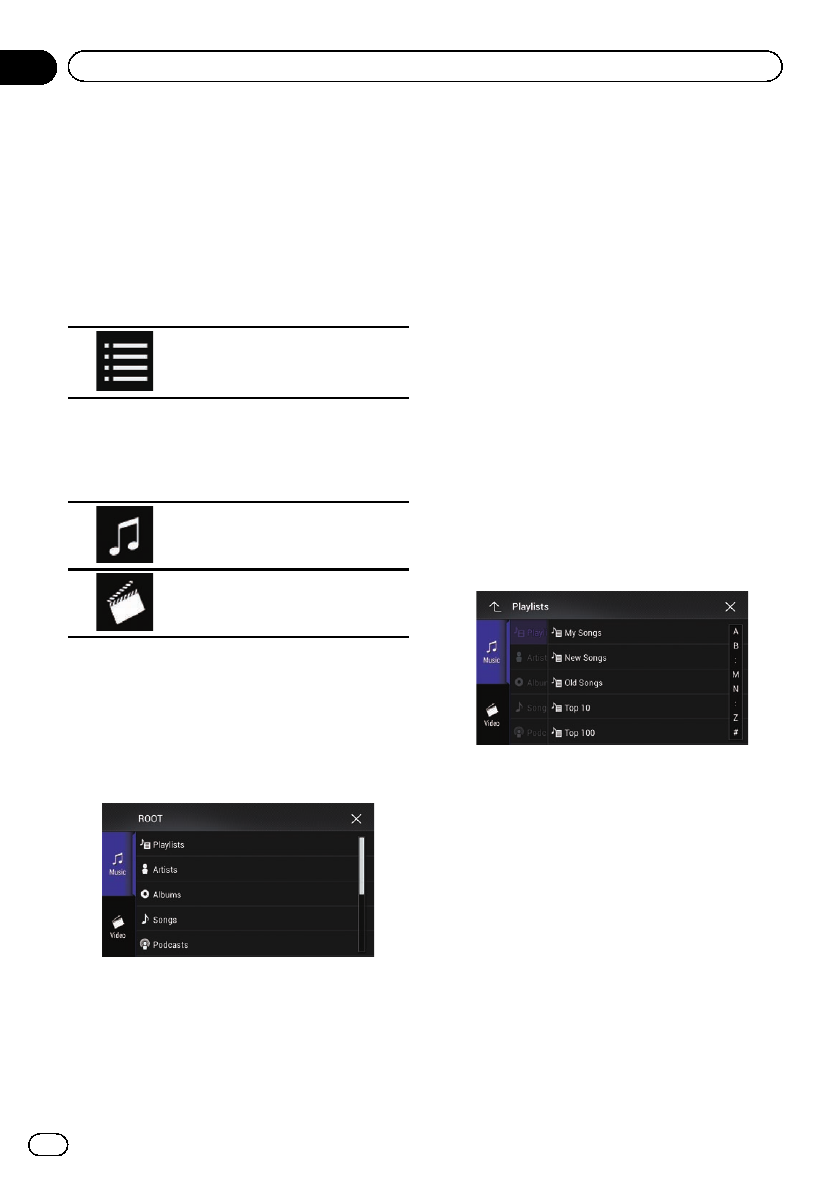
Selecting song or video
sources from the playlist
screen
You can search for the song, video, or radio
stations you want to play from the playlist
screen.
1 Touch the following key.
Displays the list of the category.
The “ROOT”screen appears.
2 Touch the following keys to switch the
music or video category list.
Switches to the music category
list.
Switches to the video category list.
pThe video category list icon is not available
when using iPod function with an iPhone 6
Plus, iPhone 6, iPhone 5s, iPhone 5c,
iPhone 5, or iPod touch (5th generation).
3 Touch the category you want to search
for.
Category lists (for music):
!Radio (iTunes Radio)
!Playlists
!Artists
!Albums
!Songs
!Podcasts
!Genres
!Composers
!Audiobooks
Category lists (for video):
!Video Playlists
!Movies
!Music Videos
!TV Shows
!Video Podcasts
pCategory items that do not correspond to
the connected iPod are not displayed.
p“Radio”is displayed only if iTunes Radio is
available on the iPod.
4 Drag the Initial Search Bar to find a file
by the initial character of the file name.
The alphabet corresponding to the current po-
sition on the Initial Search Bar is displayed
and the list scrolls as the bar is slid.
pThe Initial Search Bar is not displayed in
the top category list or the song list.
5 Release the Initial Search Bar at the de-
sired alphabet.
The items whose initial character is the se-
lected alphabet are displayed.
6 Touch the title of the list that you want
to play.
Repeat this operation until you find the de-
sired song or video.
7 Start playback of the selected list.
pDepending on the generation or version of
the iPod, some functions may not be avail-
able.
pYou can play playlists created with the
MusicSphere application. The application
is available on our website.
En
126
Chapter
20 Using an iPod
pPlaylists that you created with the
MusicSphere application are displayed in
abbreviated form.
Using iTunes Radio
pThis function is only available when using
iPod function with an iPhone 6 Plus,
iPhone 6, iPhone 5s, iPhone 5c, iPhone 5,
or iPod touch (5th generation).
1 Touch the following keys in the follow-
ing order.
2 Touch [Radio].
3 Use the touch panel keys on the screen
to control your iPod.
=For details, refer to Using the touch panel
keys (for iTunes Radio) on page 123.
Playing back songs similar to
the current song
You can listen to songs similar to the song cur-
rently being played.
1 Touch the following key.
Displays the pop-up menu.
2 Touch [Play More Like This].
pThe display of the menu item indicates as
follows:
—When the menu item is active, the func-
tion can be turned on.
—When the menu item is highlighted, the
function is turned on.
—When the menu item is not active, the
function is not available for the current
song.
pIf you touch [Play More Like This] when
the menu item is active, songs similar to
the current song will be played back.
pIf you touch [Play More Like This] when
the menu item is highlighted, the function
will turn off.
pThe operation result depends on the iPod.
Setting the current song not to
be played back again
You can set the current song not to be played
back again.
1 Touch the following key.
Displays the pop-up menu.
2 Touch [Never Play This Song].
pThe display of the menu item indicates as
follows:
—When the menu item is active, the func-
tion can be turned on.
—When the menu item is highlighted, the
function is turned on.
—When the menu item is not active, the
function is not available for the current
song.
pIf you touch [Never Play This Song] when
the menu item is active, the song will not
be played back again.
pIf you touch [Never Play This Song] when
the menu item is highlighted, the function
will turn off.
pThe operation result depends on the iPod.
Adding the current song to the
wish list
You can add the current song to the wish list
for easy access to the song later.
En 127
Chapter
20
Using an iPod
Using an iPod
1 Touch the following key.
Displays the pop-up menu.
2 Touch [Add to iTunes Wish List].
The song will be added to the wish list.
pIf the song is already in the wish list, [Re-
move from iTunes Wish List ] is displayed
instead of [Add to iTunes Wish List]. If you
touch [Remove from iTunes Wish List ],
the song will be removed from the wish list.
pThe operation result depends on the
iPod.
Using this product’s iPod
function from your iPod
You can control this product’s iPod function
from the connected iPod if the control mode is
set to “App Mode”. The application screen of
the iPod can be displayed on this product, and
the music files and video files in the iPod can
be played back with this product.
pThis function is not available when using
iPod function with an iPhone 6 Plus,
iPhone 6, iPhone 5s, iPhone 5c, iPhone 5,
or iPod touch (5th generation).
pWhile this function is in use, the iPod will
not turn off even if the ignition key is turned
off. Operate the iPod to turn off the power.
1 Touch the following key.
Switches the control mode.
pThe control mode switches to “App Mode”.
The icon changes to .
2 Operate the connected iPod to select a
video or song and play.
pThe following functions are still accessible
from this product even if the control mode
is set to “App Mode”. However, the opera-
tion will depend on your applications.
—Playing/pausing
—Fast forwarding/reversing
—Tracking up/down
—Moving up/down to a chapter
3 Touch the following key.
Switches the control mode, to con-
trol iPod functions from this pro-
duct.
Changing the speed of
audiobook playback
The playback speed can be changed while
playing an audiobook.
%Touch the following key.
Changes the playback speed.
!(default):
Plays back in normal speed.
!:
Plays back faster than normal speed.
!:
Plays back slower than normal speed.
pThe icon does not change when using this
function with an iPhone 6 Plus, iPhone 6,
iPhone 5s, iPhone 5c, iPhone 5, or iPod
touch (5th generation). The setting changes
as follows when the icon is touched, even
though the icon does not change.
Faster dSlower dNormal dFaster...
En
128
Chapter
20 Using an iPod
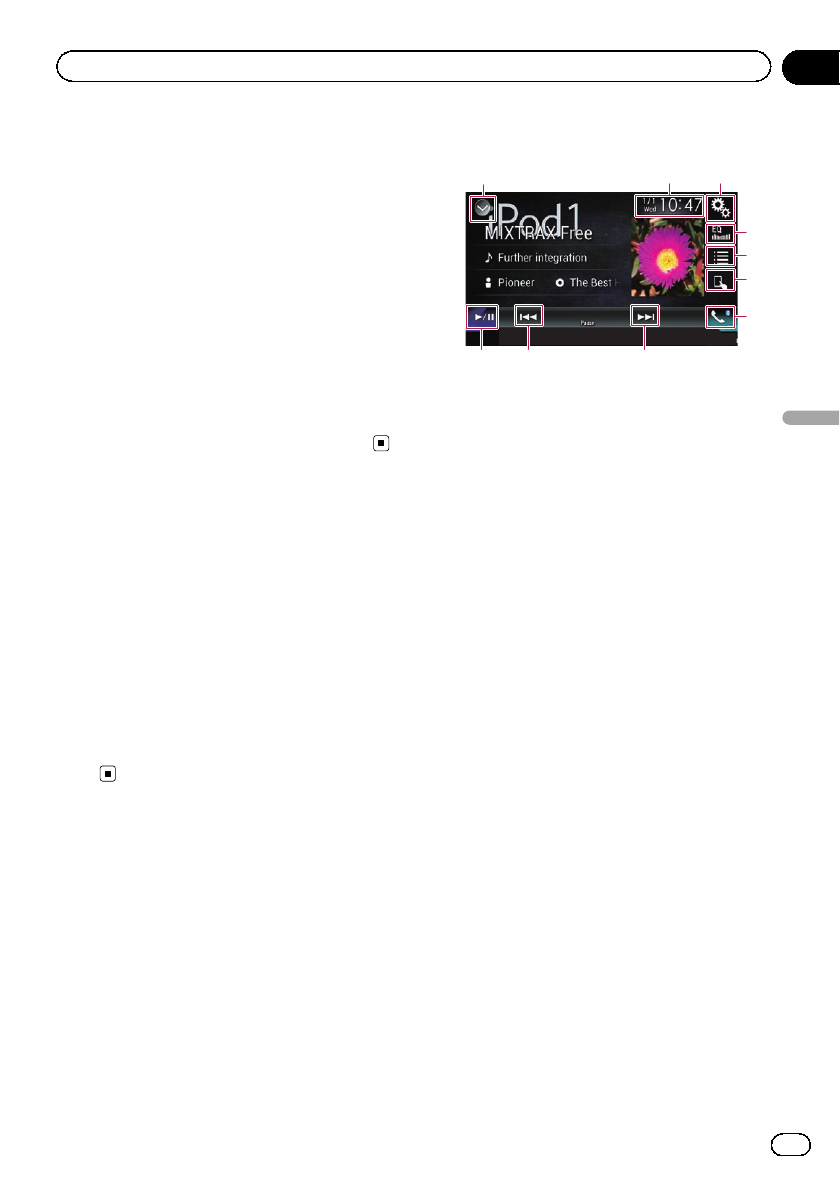
Displaying lists related to
the song currently playing
(link search)
pThis function is not available while playing
iTunes Radio.
1 Touch the artwork to open a list of the
names of songs on the album currently
playing.
2 Touch the name of the song you want
to play to start playing that song.
pIf part of the recorded information is not
displayed, a scroll key appears on the right
side of list. Touch the scroll key to scroll.
Operating with the
hardware buttons
Press the TRK button.
You can skip songs or videos forward or back-
ward.
pThe skip-back key is not available while
playing iTunes Radio.
When a song or video with chapters is played,
you can skip a chapter forward or backward.
Press and hold the TRK button.
You can perform fast reverse or fast for-
ward.
Playing back music from a
music app other than iPod
music, as the iPod source
The app name and the song information are
also displayed.
Using the touch panel keys
9 8 8
132
4
5
6
7
1Displays the source list.
=For details, refer to Selecting a front
source on the source list on page 25.
2Displays the Time and date setting
screen.
=For details, refer to Setting the time and
date on page 221.
3Displays the Setting menu screen.
4Recalls equalizer curves.
=For details, refer to Using the equalizer
on page 202.
5Selects a track from the list.
=For details, refer to Selecting song or
video sources from the playlist screen on
page 126.
6Switches the control mode to “App
Mode”.
=For details, refer to Using this product’s
iPod function from your iPod on page
128.
7Displays the Phone menu screen.
=For details, refer to Displaying the phone
menu on page 80.
8Skips files forward or backward.
9Switches between playback and pause.
En 129
Chapter
20
Using an iPod
Using an iPod
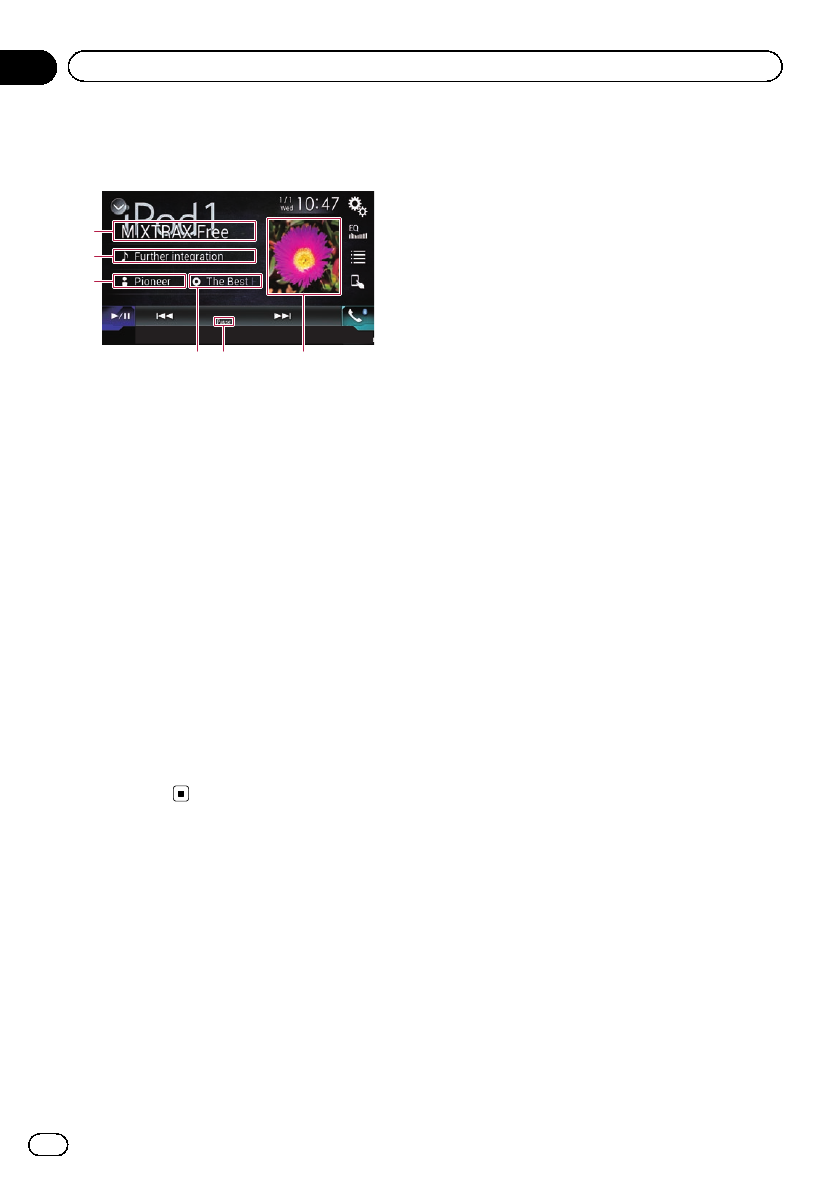
Reading the screen
1
2
3
45 6
1App name
Shows the App name of the currently playing.
2Song title
Shows the title of the song currently being
played (when available). “No Title”is dis-
played if there is no corresponding informa-
tion.
3Artist name
Shows the artist name for the song currently
being played (when available). “No Name”is
displayed if there is no corresponding infor-
mation.
4Album title
Shows the title of the album of the current file
(when available). “No Title”is displayed if
there is no corresponding information.
5Pause indicator
6Album artwork
Album art of the current song is displayed if it
is available.
En
130
Chapter
20 Using an iPod
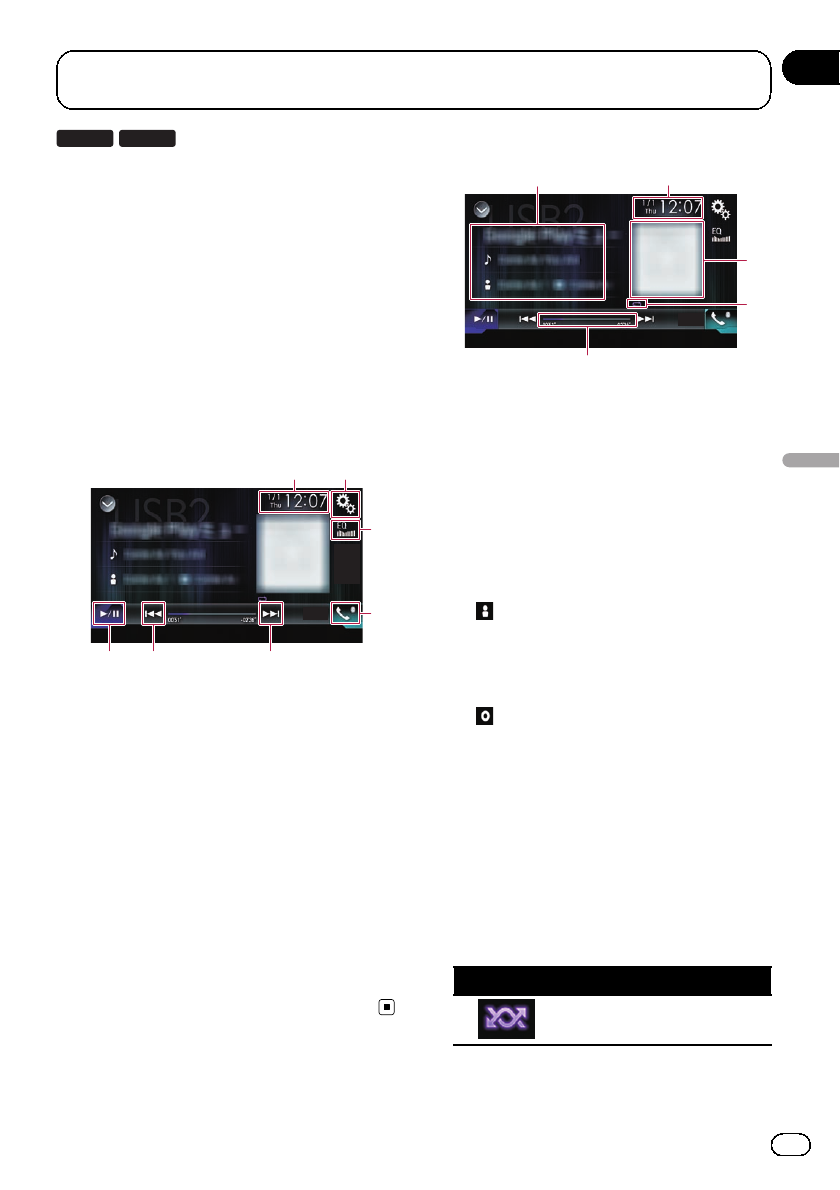
8100NEX 7100NEX
If an Android Auto-compatible device is con-
nected to this product, you can listen to the
music output from the Android device with
this product, and control the playback directly
from this product.
pThis function is available only when
Android Auto is turned on. Start the
Android Auto before using this function.
=For details, refer to Using Android Auto
on page 138.
Using the touch panel keys
21
3
4
655
1Displays the Time and date setting
screen.
=For details, refer to Setting the time and
date on page 221.
2Displays the Setting menu screen.
3Recalls equalizer curves.
=For details, refer to Using the equalizer
on page 202.
4Displays the Phone menu screen.
=For details, refer to Displaying the phone
menu on page 80.
5Skips files forward or backward.
pOperations may vary depending on the
application used on the Android Auto-
compatible device.
6Switches between playback and pause.
Reading the screen
5
2
4
3
1
1Current track information
!Application name
Shows the application name (when
available). “No Name”is displayed if
there is no corresponding information.
!Song title
Shows the title of the song currently
playing (when available). “No Title”is
displayed if there is no corresponding
information.
!:Artist name
Shows the artist name for the song cur-
rently being played (when available).
“No Name”is displayed if there is no
corresponding information.
!:Album title
Shows the title of the album of the cur-
rent file (when available). “No Title”is
displayed if there is no corresponding
information.
2Current time and date
3Album artwork
Album art of the current song is displayed if it
is available.
4Playback condition indicator
Indicates the current playback condition.
Setting the shuffle play
Indicator Meaning
Plays all files in the current re-
peat play range in random order.
En 131
Chapter
21
Playing music output from the Android Auto-compatible device
Playing music output from the Android Auto-
compatible device
Setting a repeat play range
Indicator Meaning
Repeats all songs in the se-
lected list.
Repeats just the current song.
pPlayback condition indicators may not
be displayed depending on the Android
device.
5Play time indicator
Shows the elapsed playing time within the
current file.
Starting procedure
1 Start up Android Auto.
=For details, refer to Using Android Auto on
page 138.
2 Press the HOME button to display the
Top menu screen.
3 Touch [USB2] on the AV source selec-
tion screen.
4 Use the touch panel keys on the screen
to control the playback.
=For details, refer to Using the touch panel
keys on page 131.
pThe Android Auto function may not oper-
ate properly if the Bluetooth connection
with the Android Auto-compatible device
is terminated.
En
132
Chapter
21 Playing music output from the Android Auto-
compatible device
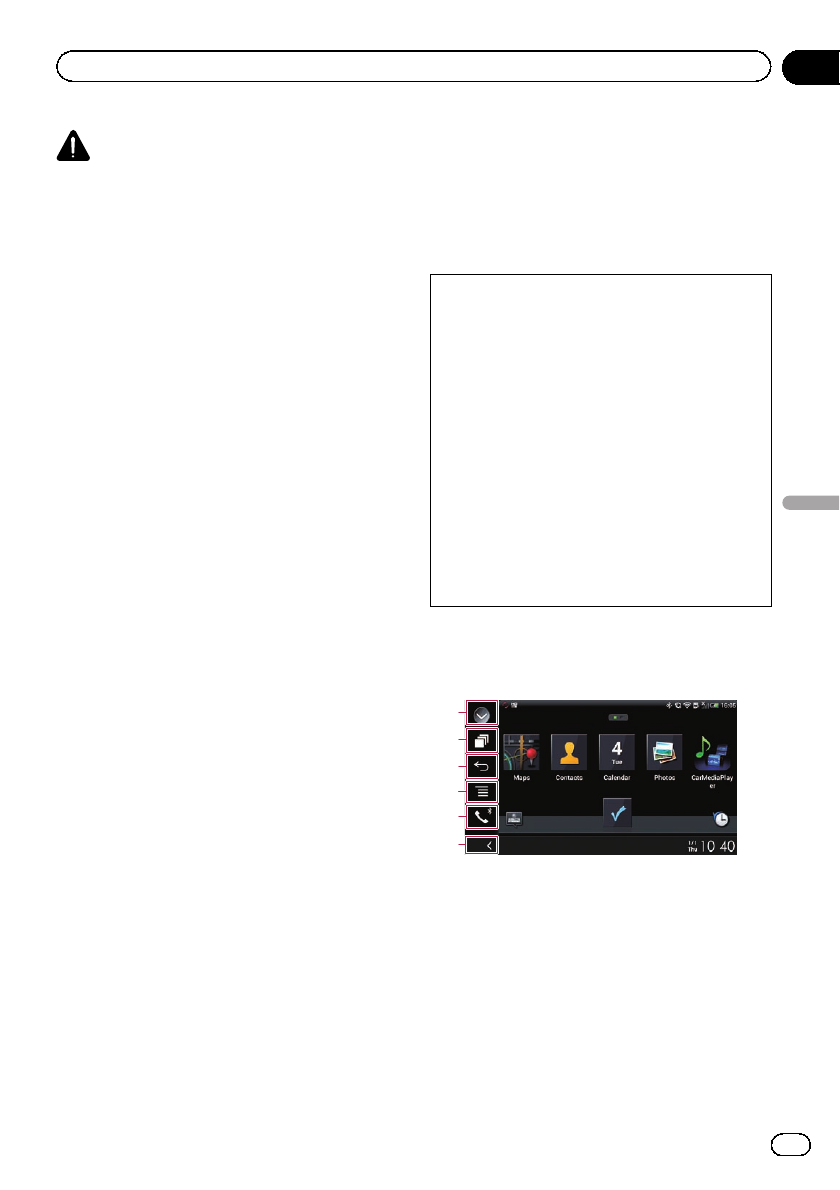
WARNING
Certain uses of an iPhone or a smartphone
may not be legal while driving in your juris-
diction, so you must be aware of and obey
any such restrictions.
If in doubt as to a particular function, only
perform it while the car is parked.
No feature should be used unless it is safe to
do so under the driving conditions you are
experiencing.
Using AppRadio Mode
You can control applications for an iPhone or
a smartphone directly from the screen
(AppRadio Mode).
In AppRadio Mode, you can operate applica-
tions with finger gestures such as tapping,
dragging, scrolling or flicking on the screen of
this product.
=For details of AppRadio Mode compatible
devices, refer to AppRadio Mode Compatibil-
ity on page 89.
pIn this chapter, iPhone and iPod touch will
be referred to as “iPhone”.
pFor AVIC-5100NEX users
AppRadio Mode is only available on an
iPhone.
pThe compatible finger gestures vary de-
pending on the application for an iPhone
or a smartphone.
pWhen an application not compatible with
AppRadio Mode is started, depending on
the application, you can see an image of
the application on the screen of this pro-
duct. However, you will not be able to oper-
ate the application.
To use AppRadio Mode, install the AppRadio
app on the iPhone or smartphone beforehand
to enable launching of the application on this
product. For details about the AppRadio app,
visit the following site:
For U.S.A.
http://www.pioneerelectronics.com/AppRadioMode
For Canada
http://www.pioneerelectronics.ca/AppRadioMode
pBe sure to read Using app-based connected
content before you perform this operation.
=For details, refer to Using app-based con-
nected content on page 251.
!Content and functionality of compatible ap-
plications are the responsibility of the App
providers.
!In AppRadio Mode, usage is limited while
driving, with availability of functions and
content determined by the App providers.
!AppRadio Mode allows access to applica-
tions other than those listed, subject to lim-
itations while driving.
!PIONEER IS NOT RESPONSIBLE AND DIS-
CLAIMS LIABILITY FOR THIRD PARTY
(NON-PIONEER) APPS AND CONTENT, IN-
CLUDING WITHOUT LIMITATION ANY IN-
ACCURACIES OR INCOMPLETE
INFORMATION.
Using the touch panel keys
(App control side bar)
1
2
3
4
5
6
1Displays the source list.
=For details, refer to Selecting a front
source on the source list on page 25.
2Displays the launcher application screen.
3Displays the previous screen.
pWhen you use an iPhone, this key is not
available.
4Displays the menu screen.
pWhen you use an iPhone, this key is not
available.
5Displays the Phone menu screen.
En 133
Chapter
22
Using your iPhone or smartphone applications
Using your iPhone or smartphone applications
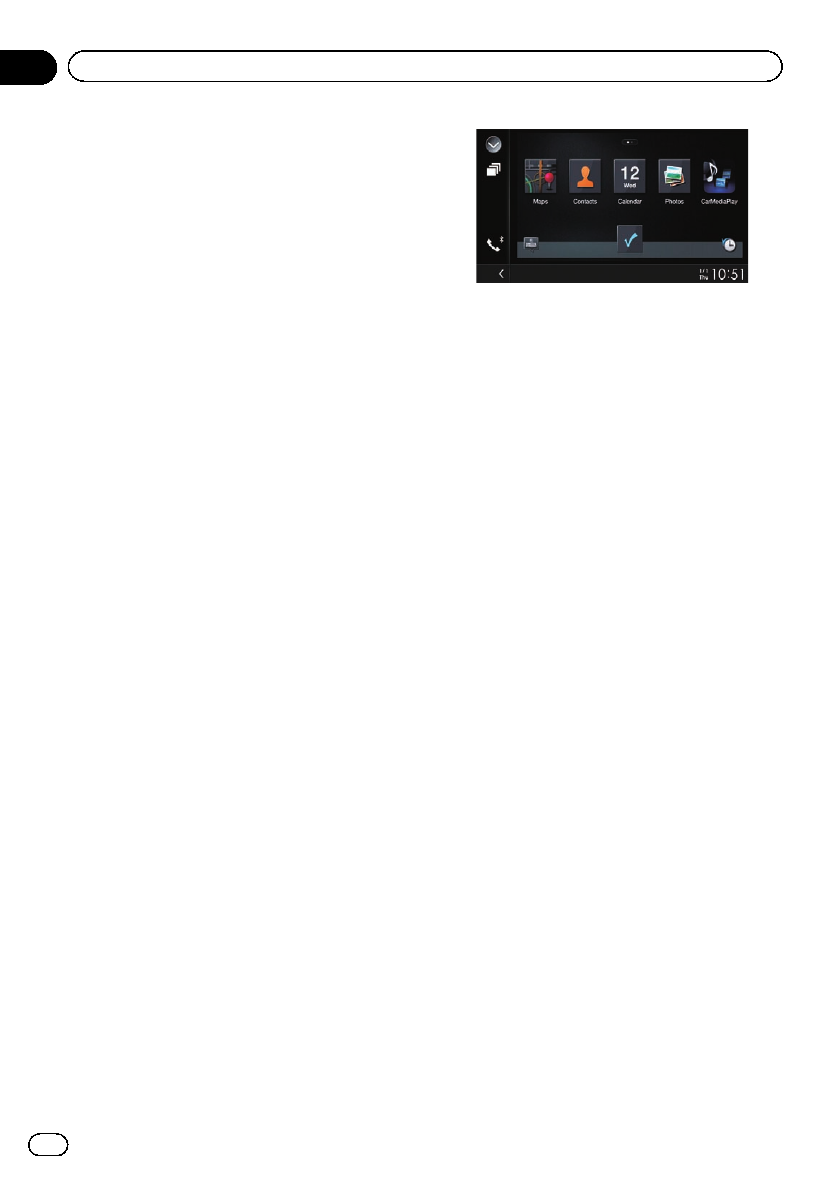
=For details, refer to Displaying the phone
menu on page 80.
6Displays the current source.
pIn AppRadio Mode, App control side bar
will appear.
pIf you press the HOME button twice, the
App control side bar will disappear. Press
the HOME button twice again, and the App
control side bar will appear.
Starting procedure
When connecting an iPhone or smartphone to
this product, you must select the method for
connecting your device. Settings are required
according to the connected device.
=For details, refer to Chapter 13.
The procedure varies depending on the type of
device.
For iPhone with a 30-pin connector users
1 Connect your iPhone.
=For details of the connections, refer to the
Installation Manual.
2 Press the HOME button to display the
Top menu screen.
3 Touch [APPS].
A message, which notifies you that your
iPhone can launch the application, appears
on the screen.
A message, which asks you whether you want
to launch your application, appears on your
iPhone.
4 Use your iPhone to launch the applica-
tion.
The AppRadio app is launched.
5 Touch [OK] on the screen of this pro-
duct.
The AppRadio Mode screen (Application
menu screen) appears.
pIf you connect your device while an
AppRadio Mode-compatible application is
already running, the application operation
screen will appear on this product.
6 Touch the desired application icon.
The desired application is launched, and the
application operation screen appears.
7 Operate the application.
8 Press the HOME button to go back to
the Top menu screen.
For iPhone with a Lightning
connector users
1 Register your iPhone and connect it to
this product via Bluetooth wireless technol-
ogy.
pThe registered device must be selected as
the priority device.
=For details, refer to Registering your
Bluetooth devices on page 74.
2 Unlock your iPhone.
3 Connect your iPhone.
pThe cable connection method varies de-
pending on your device.
=For details of the connections, refer to the
Installation Manual.
4 Press the HOME button to display the
Top menu screen.
5 Touch [APPS].
The AppRadio app is launched, and the
AppRadio Mode screen (Application menu
screen) appears.
En
134
Chapter
22 Using your iPhone or smartphone applications
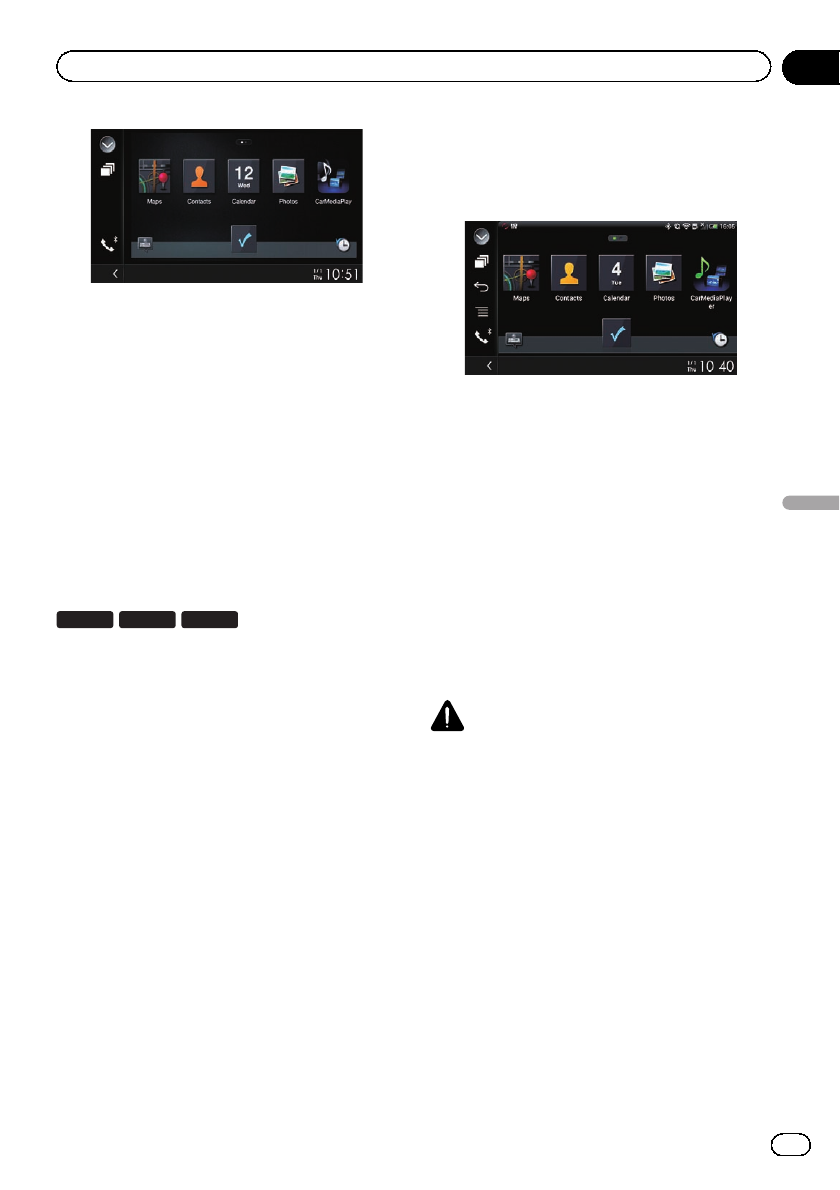
pIf you connect your device while an
AppRadio Mode-compatible application is
already running, the application operation
screen will appear on this product.
6 Touch the desired application icon.
The desired application is launched, and the
application operation screen appears.
7 Operate the application.
8 Press the HOME button to go back to
the Top menu screen.
For smartphone users
8100NEX 7100NEX 6100NEX
1 Register your smartphone and connect
it to this product via Bluetooth wireless
technology.
pThe registered device must be selected as
the priority device.
=For details, refer to Registering your
Bluetooth devices on page 74.
2 Unlock your smartphone.
3 Connect your smartphone to this pro-
duct via the separately sold App Connectiv-
ity Kit (CD-AH200).
pThe cable connection method varies de-
pending on your device.
=For details of the connections, refer to the
Installation Manual.
4 Press the HOME button to display the
Top menu screen.
5 Touch [APPS].
The AppRadio app is launched, and the
AppRadio Mode screen (Application menu
screen) appears.
pIf you connect your device while an
AppRadio Mode-compatible application is
already running, the application operation
screen will appear on this product.
6 Touch the desired application icon.
The desired application is launched, and the
application operation screen appears.
7 Operate the application.
8 Press the HOME button to go back to
the Top menu screen.
Using the keyboard
CAUTION
For your safety, the keyboard functionality is only
available when the vehicle is stopped and the
parking brake is engaged.
pThis function is only available in AppRadio
Mode on the iPhone.
pThis function may not be available depend-
ing on your iPhone.
When you tap the text input area of an applica-
tion for iPhone, a keyboard will be displayed
on the screen. You can input the desired text
directly from this product.
pThe language preference for the keyboard
of this product should be same as the set-
ting on your iPhone.
If the settings for this product and the
iPhone are different, you may be unable to
enter characters properly.
En 135
Chapter
22
Using your iPhone or smartphone applications
Using your iPhone or smartphone applications
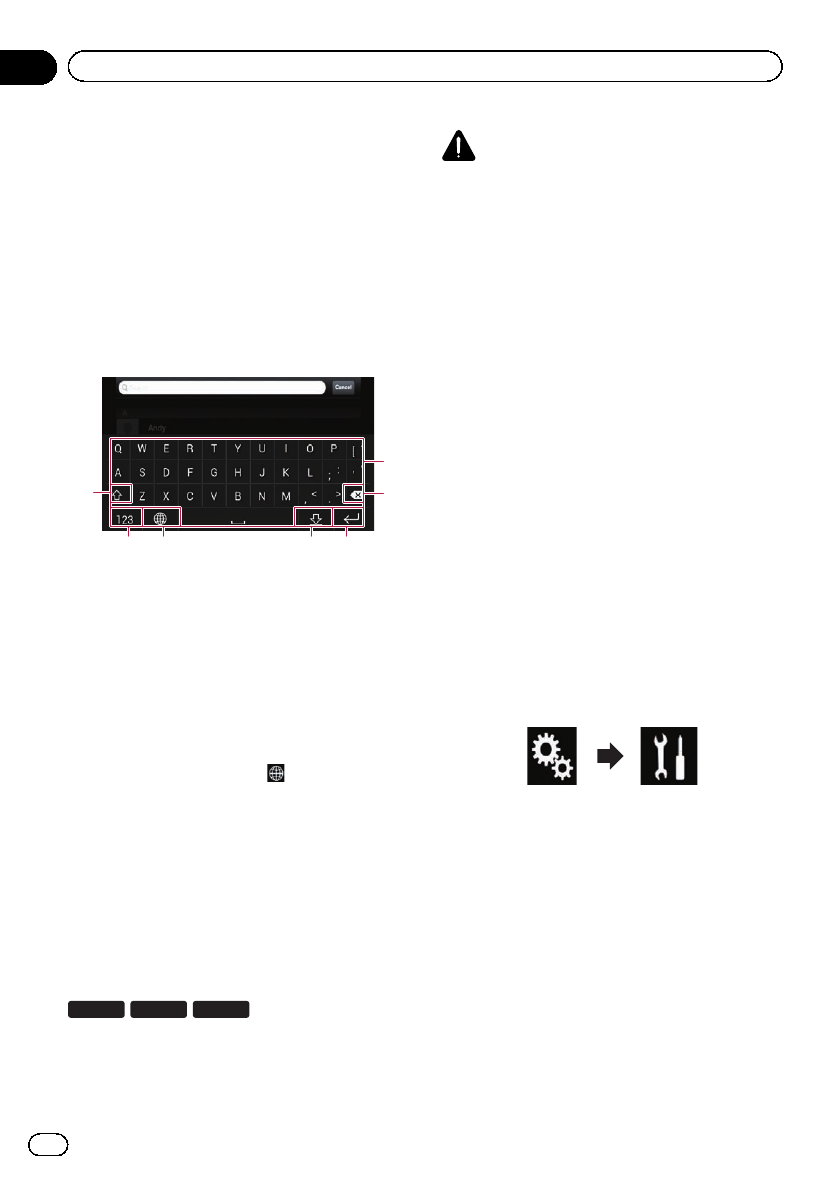
1 Set the keyboard language.
=For details of the operations, refer to Setting
the keyboard language with the application
for iPhone on page 186.
2 Start up the AppRadio Mode.
=For details, refer to Starting procedure on
page 134.
3 Touch the text input area on the appli-
cation operation screen.
A keyboard for entering text appears.
1
2
3456
7
1Enters the characters.
2Deletes the entered text one letter at a time,
beginning at the end of the text.
3Confirms the entry and allows you to pro-
ceed to the next step.
4Hides the keyboard and the text can now be
entered using the keyboard of the iPhone.
5Changes the iPhone keyboard layout.
pThe iPhone keyboard layouts that can be
selected by tapping depends on the
setting for Hardware Keyboard Layout
set on your iPhone.
6Switches to a keyboard offering numeric
characters and symbols.
7Converts the case of the keyboard charac-
ters.
Adjusting the image size (For
smartphone users)
8100NEX 7100NEX 6100NEX
Black dots may appear on the screen when
using AppRadio Mode with an Android de-
vice connected to this product.
CAUTION
This setting is available only when you stop your
vehicle in a safe place and apply the parking
brake.
pThis function can be set under the follow-
ing conditions:
—When an Android device is connected
to this product using CD-AH200 (sold
separately), and when AppRadio Mode
is available after a Bluetooth connection
using SPP (Serial Port Profile) has been
established.
pIf this setting has not been set, the setting
screen automatically appears in the follow-
ing cases:
—When entering AppRadio Mode after a
Bluetooth connection using SPP (Serial
Port Profile) has been established.
—When a Bluetooth connection using
SPP (Serial Port Profile) has been estab-
lished in AppRadio Mode.
1 Press the HOME button to display the
Top menu screen.
2 Touch the following keys in the follow-
ing order.
The “System”screen appears.
3 Touch [Input/Output Settings].
4 Touch [AppRadio Video Adjustment].
The confirmation screen appears.
5 Touch [OK].
En
136
Chapter
22 Using your iPhone or smartphone applications
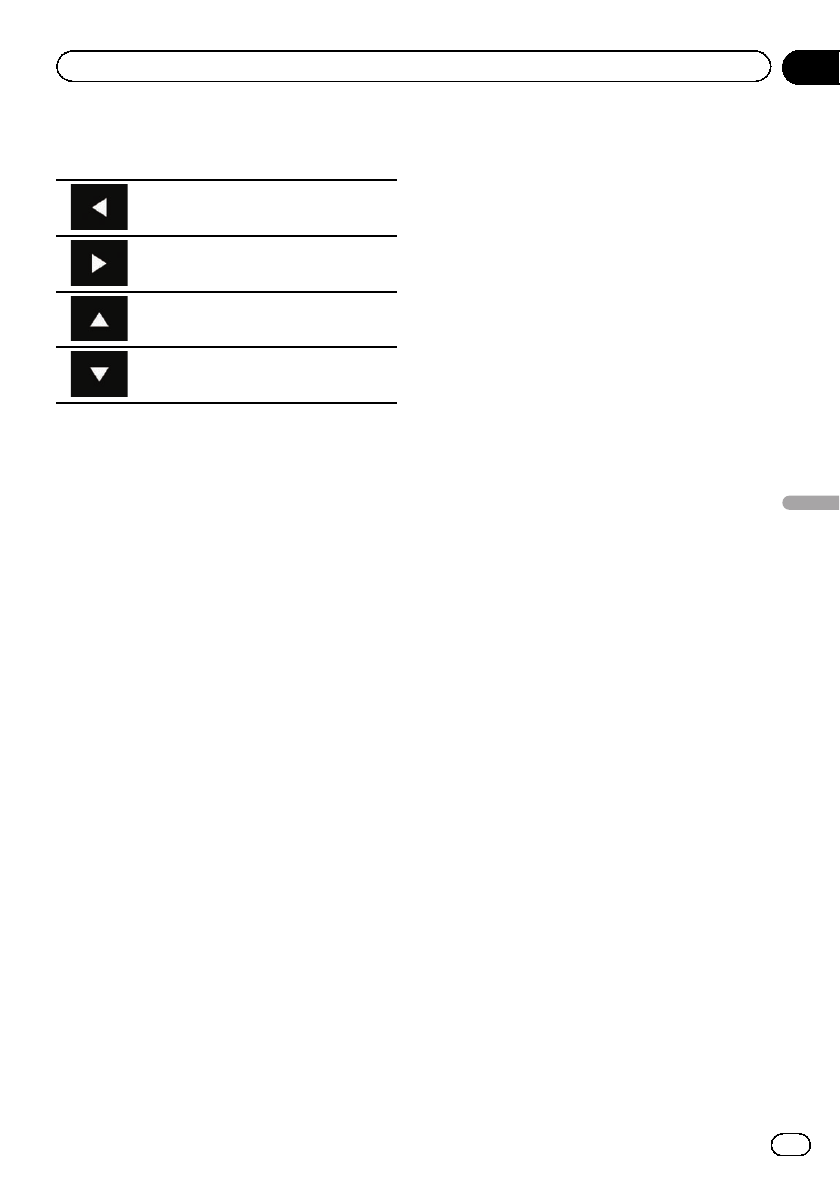
6 Touch the following keys to adjust the
line to fit smartphone image size.
Moves the line to the left.
Moves the line to the right.
Moves the line upward.
Moves the line downward.
7 Touch [Preview].
pConfirm that the whole image fills the
screen.
8 Touch [OK].
pIf you want to adjust the setting again from
the beginning, touch [RESET].
Displaying the image of your
application (iPhone with 30-pin
connector)
You can set an image of an application for
iPhone, which is not compatible with
AppRadio Mode, to be shown on the screen.
pDepending on the type of application, you
may not be able to see the image on the
screen.
pYou can only control the application on the
connected device.
pWhen you touch the display in this func-
tion, “Don’t Touch”mark appears on the
upper right corner of the screen.
1 Connect your iPhone.
=For details of the connections, refer to the
Installation Manual.
2 Press the HOME button to display the
Top menu screen.
3 Touch [APPS].
A message, which notifies you that your
iPhone can launch the application, appears
on the screen.
A message, which asks you whether you want
to launch your application, appears on your
iPhone.
4 Use your iPhone to refuse to launch the
application.
5 Touch [OK] on the screen of this pro-
duct.
The black screen appears.
6 Launch an application on your iPhone.
An image of the application appears on the
screen.
7 Press the HOME button to return to the
Top menu screen.
Displaying the image of your
application (iPhone with
Lightning connector)
You can set an image of an application for
smartphone, which is not compatible with
AppRadio Mode, to be shown on the screen.
pDepending on the type of application, you
may not be able to see the image on the
screen.
pWhen you use this function, do not connect
other devices via Bluetooth wireless tech-
nology. Be sure to disconnect your
Bluetooth device before using this func-
tion.
pYou can only control the application on the
connected device.
pWhen you touch the display in this func-
tion, “Don’t Touch”mark appears on the
upper right corner of the screen.
1 Connect your iPhone.
pThe cable connection method varies de-
pending on your device.
=For details of the connections, refer to the
Installation Manual.
En 137
Chapter
22
Using your iPhone or smartphone applications
Using your iPhone or smartphone applications
2 Press the HOME button to display the
Top menu screen.
3 Touch [APPS].
The image in your iPhone appears on the
screen.
4 Launch an application on your iPhone.
An image of the application appears on the
screen.
5 Press the HOME button to return to the
Top menu screen.
Displaying the image of your
application (smartphone)
8100NEX 7100NEX 6100NEX
You can set an image of an application for
smartphone, which is not compatible with
AppRadio Mode, to be shown on the screen.
pCompatibility with all smartphones is not
guaranteed.
pWhen you use this function, do not connect
other devices via Bluetooth wireless tech-
nology. Be sure to disconnect your
Bluetooth device before using this func-
tion.
pYou can only control the application on the
connected device.
pWhen you touch the display in this func-
tion, “Don’t Touch”mark appears on the
upper right corner of the screen.
1 Connect your smartphone to this pro-
duct via the separately sold App Connectiv-
ity Kit (CD-AH200).
pThe cable connection method varies de-
pending on your device.
=For details of the connections, refer to the
Installation Manual.
2 Press the HOME button to display the
Top menu screen.
3 Touch [APPS].
The image in your smartphone appears on the
screen.
4 Launch an application on your smart-
phone.
An image of the application appears on the
screen.
5 Press the HOME button to return to the
Top menu screen.
Using Android Auto
8100NEX 7100NEX
You can control applications for a smartphone
directly from the screen (Android Auto).
In Android Auto, you can operate applica-
tions with finger gestures such as tapping,
dragging, scrolling or flicking on the screen of
this product.
pAndroid Auto may not be available in your
country or region.
For details about Android Auto, please
refer to the Google support site:
http://support.google.com/androidauto
pThis function is available for the Android
Auto-compatible device only.
pThe compatible finger gestures vary de-
pending on the application for a smart-
phone.
To use Android Auto, set “Mode”in “Smart-
phone Setup”to “Android Auto”before-
hand.
=For details, refer to Setting the device con-
nection method on page 88.
En
138
Chapter
22 Using your iPhone or smartphone applications
!Content and functionality of compatible ap-
plications are the responsibility of the App
providers.
!In Android Auto, usage is limited while
driving, with availability of functions and
content determined by the App providers.
!Android Auto allows access to applica-
tions other than those listed, subject to lim-
itations while driving.
!PIONEER IS NOT RESPONSIBLE AND DIS-
CLAIMS LIABILITY FOR THIRD PARTY
(NON-PIONEER) APPS AND CONTENT, IN-
CLUDING WITHOUT LIMITATION ANY IN-
ACCURACIES OR INCOMPLETE
INFORMATION.
Starting procedure
When connecting an Android Auto-compati-
ble device to this product, you must select the
method for connecting your device. Settings
are required according to the connected de-
vice.
=For details, refer to Chapter 13.
pTurn off the AVICSYNC App function for
using Android Auto.
pTo achieve optimum usability of Android
Auto, set the driving position setting cor-
rectly according to the vehicle.
=For details, refer to Setting the driving po-
sition on page 139.
1 Connect an Android Auto-compatible
device to this product via the separately
sold USB interface cable for use with
Android devices (CD-MU200).
=For details of the connections, refer to the
Installation Manual.
2 Press the HOME button to display the
Top menu screen.
3 Touch [Android Auto].
The Bluetooth connection with the Android
Auto-compatible device will automatically be
established.
pIf Android Auto is turned on during a call
on a cellular phone other than the Android
Auto-compatible device, the Bluetooth con-
nection will be terminated after the call
ends.
pIf the AVICSYNC App function is not turned
off, a message confirming whether to turn
off the AVICSYNC App function appears.
4 Operate the application.
=For details on adjusting the volume, refer to
Adjusting the volume on page 140.
pThe Android Auto function may not oper-
ate properly if the Bluetooth connection
with the Android Auto-compatible device
is terminated.
Setting the driving position
To achieve optimum usability of Android
Auto, set the driving position setting correctly
according to the vehicle.
1 Touch the HOME button to display the
Top menu screen.
2 Touch the following keys in the follow-
ing order.
The “System”screen appears.
3 Touch [Driving Position].
4 Touch the item you want to set.
!Left (default):
Select for a left-hand drive vehicle.
!Right:
Select for a right-hand drive vehicle.
The setting will be applied the next time an
Android Auto-compatible device is con-
nected to this product.
En 139
Chapter
22
Using your iPhone or smartphone applications
Using your iPhone or smartphone applications
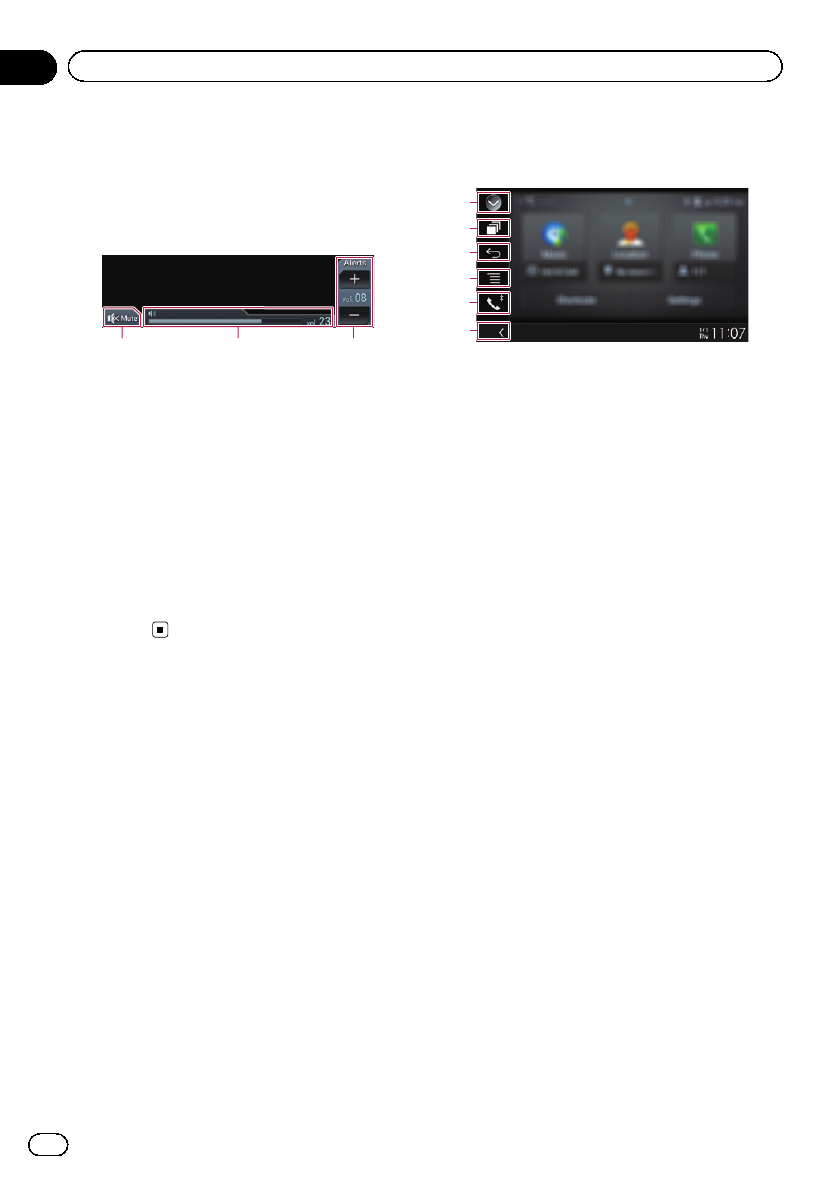
Adjusting the volume
You can adjust the guidance volume/alert
sound volume separately from the main sound
volume when Android Auto is used.
%Touch the VOL (+/–) button.
1 2 3
1Touch to mute. Touch again to unmute.
2Displays the main sound volume.
3Adjusts the guidance volume/alert sound
volume.
Each touch of [+]or[–] increases or de-
creases the volume level.
pYou cannot adjust the volume of the main
sound on the screen. Touch the VOL (+/–)
button to adjust the volume of the main
sound.
pThe volume menu is displayed for four sec-
onds. If the screen disappears, touch the
VOL (+/–) button again. The screen reap-
pears.
Using MirrorLink mode
When you connect a MirrorLink device with
compatible applications installed, you can
control the applications for the mobile device
directly from this product (MirrorLink mode).
You can view and operate the compatible ap-
plications via the display with multi-touch ges-
tures like tapping, dragging, scrolling, and
flicking.
pMulti-touch gestures may be disabled de-
pending on the MirrorLink device that is
connected.
Using the touch panel keys
(App control side bar)
1
3
2
4
5
6
1Displays the source list.
=For details, refer to Selecting a front
source on the source list on page 25.
2Displays the launcher application screen.
3Displays the previous screen.
pDepending on the type of MirrorLink
device, this key is not available.
4Displays the menu screen.
pDepending on the type of MirrorLink
device, this key is not available.
5Displays the Phone menu screen.
=For details, refer to Displaying the phone
menu on page 80.
6Displays the current source.
pIn MirrorLink mode, App control side bar
will appear.
pIf you press the HOME button twice, the
App control side bar will disappear. Press
the HOME button twice again, and the App
control side bar will appear.
Starting procedure
When connecting a MirrorLink device to this
product, you must select the method for con-
necting your device. Settings are required ac-
cording to the connected device.
=For details, refer to Chapter 13.
pTurn off the AVICSYNC App function for
using MirrorLink mode.
1 Unlock your MirrorLink device.
2 Connect your MirrorLink device to this
product via the separately sold USB inter-
face cable for use with MirrorLink devices
(CD-MU200).
=For details of the connections, refer to the
Installation Manual.
En
140
Chapter
22 Using your iPhone or smartphone applications
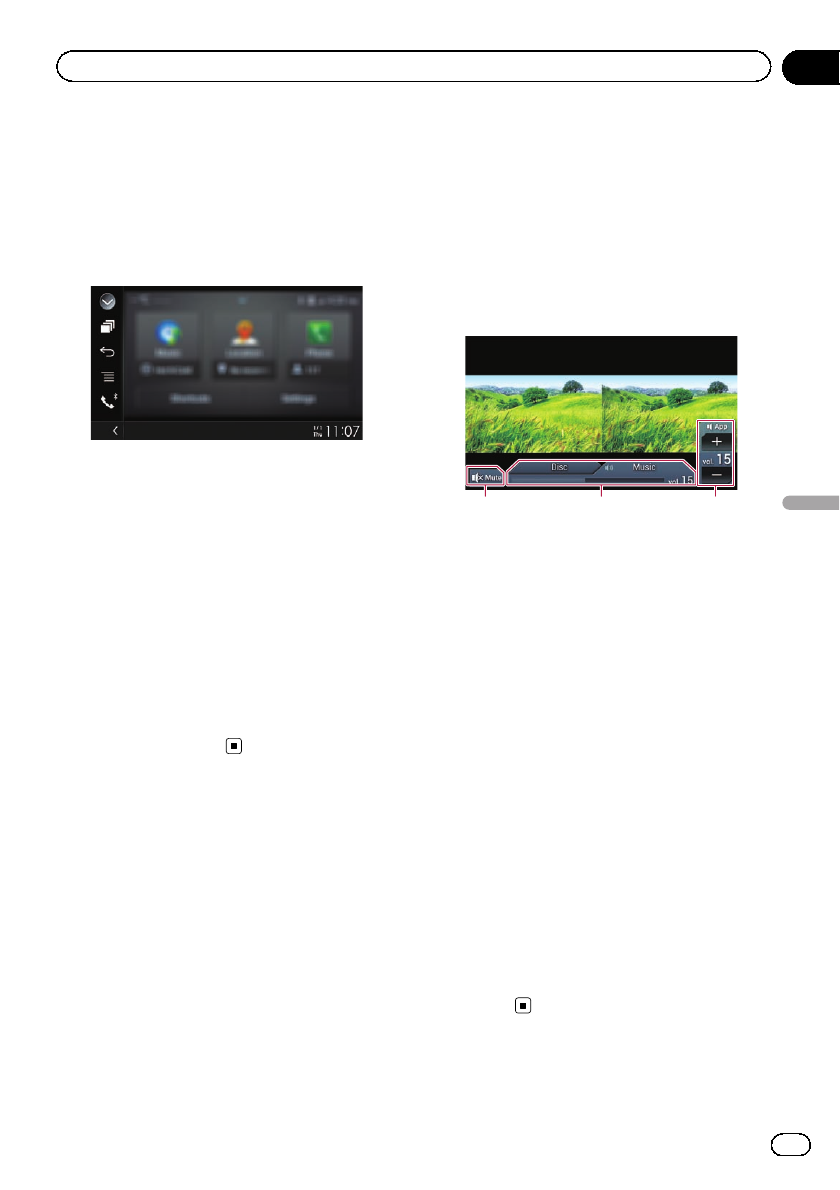
3 Press the HOME button to display the
Top menu screen.
4 Touch [APPS].
If the launcher application is installed in the
MirrorLink device, the application launches.
If not, the Application menu screen will ap-
pear.
pIf the AVICSYNC App function is not turned
off, a message confirming whether to turn
off the AVICSYNC App function appears.
5 Touch the desired application icon.
The desired application is launched, and the
application operation screen appears.
pSome applications may not launch depend-
ing on the state of the connected device. If
it does not launch, launch the application
according to the application startup mes-
sage.
6 Operate the application.
7 Press the HOME button to go back to
the Top menu screen.
Using the audio mix function
You can output audio mixing AV source and
an application for iPhone or smartphone
when the AppRadio Mode or MirrorLink
mode is used.
pWhen the audio mix function is set to on,
the voice guidance of the navigation sys-
tem is not output. To output the voice gui-
dance of the navigation system, set the
audio mix function to off.
pIf the screen is switched to the Map screen
when the audio mix function is turned on,
the message, “NOTE: Navigation Sounds
are unavailable with the current app &
source selections. Do you want to out-
put Navigation Sounds instead of App-
based Audio?”is displayed. To output
voice guidance for the navigation system,
touch [Yes].
1 Start up the AppRadio Mode or
MirrorLink mode.
2 Press the VOL (+/–) button.
The audio mix menu will be displayed on the
screen.
1 2 3
1Touch to mute. Touch again to unmute.
2Sets whether to switch the sound mix func-
tion on or off.
!Left tab: The audio mix function is en-
abled (mix on). The App volume is dis-
played. If you touch the App volume, the
volume keys will be displayed.
!Right tab: The audio mix function is dis-
abled (mix off).
3Adjusts the application audio volume.
Each touch of [+]or[–] increases or de-
creases the volume level.
pThe AV operation screen and the Applica-
tion screen can be switched by pressing the
MODE button.
pThe right tab is not displayed on the AV op-
eration screen.
pYou cannot adjust the volume of the main
sound on the screen. Press the VOL (+/–)
button to adjust the volume of the main
sound.
pThe audio mix menu is displayed for four
seconds. If the screen disappears, press the
VOL (+/–) button again. The screen reap-
pears.
En 141
Chapter
22
Using your iPhone or smartphone applications
Using your iPhone or smartphone applications
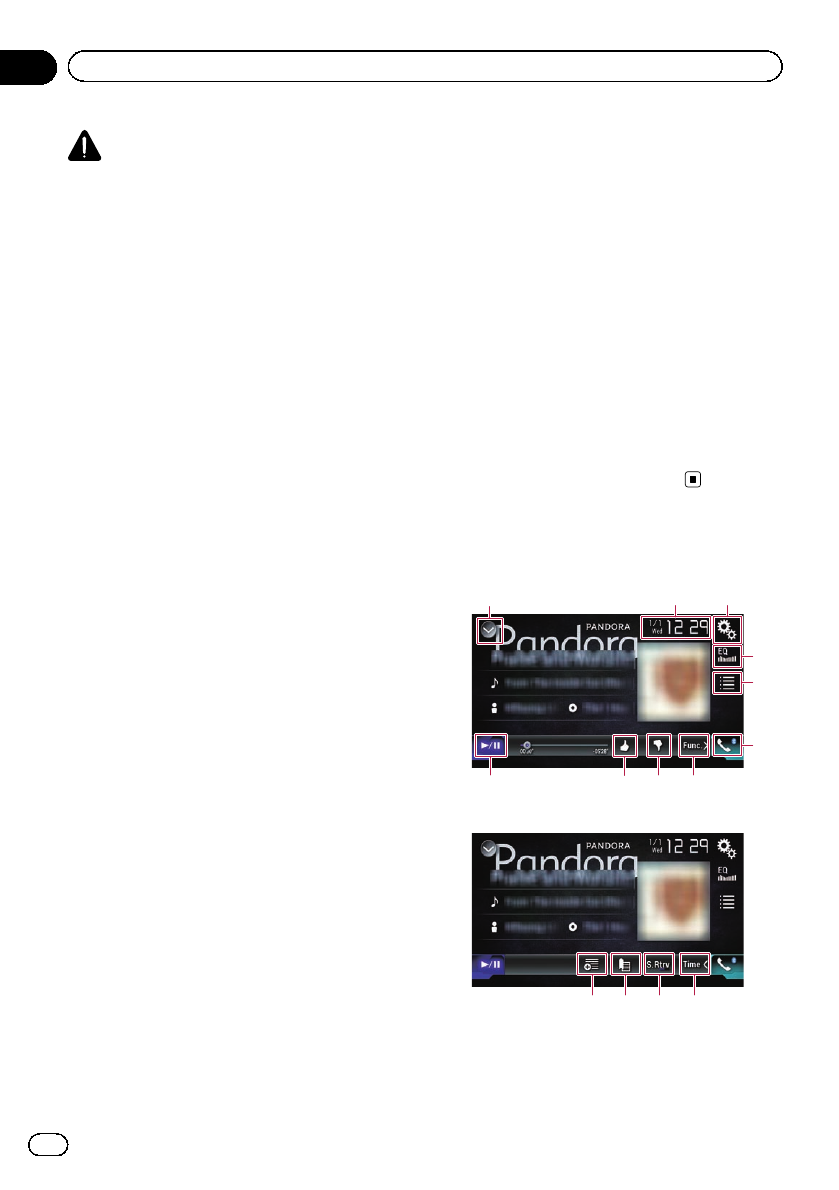
WARNING
Certain uses of an iPhone or a smartphone
may not be legal while driving in your juris-
diction, so you must be aware of and obey
any such restrictions.
If in doubt as to a particular function, only
perform it while the car is parked.
No feature should be used unless it is safe to
do so under the driving conditions you are
experiencing.
Pandora operations
You can enjoy Pandora by connecting an
iPhone or a smartphone that has the Pandora
application installed.
Important
!Requirements to access Pandora using
Pioneer car audio/video products:
=For details, refer to Chapter 13.
!Please update the firmware of the Pandora ap-
plication to the latest version before use.
!The latest version of the Pandora application
can be downloaded from the iTunes App Store
or Google Play.
!Create a free or a paid account online. You
can create the account in the Pandora appli-
cation from your iPhone or from the website
(http://www.pandora.com/register).
!If the Data Plan for your iPhone does not pro-
vide for unlimited data usage, additional
charges from your carrier may apply for acces-
sing the Pandora service via 3G, EDGE and/or
LTE (4G) networks.
!You need to connect to the Internet via 3G,
EDGE, LTE (4G) or Wi-Fi network to use the
Pandora service.
Limitations:
!Depending on the availability of the Internet,
you may not be able to receive the Pandora
service.
!The Pandora service is subject to change with-
out notice.
The service could be affected by any of the fol-
lowing: firmware version of the iPhone, firm-
ware version of the Pandora application,
changes to the Pandora music service.
!Certain functions of the Pandora service are
not available when accessing the service
through Pioneer car audio/video products.
They include, but are not limited to the follow-
ing: sending information about current sta-
tions, buying tracks from iTunes, viewing
additional text information, logging in to
Pandora, adjusting Cell Network Audio Qual-
ity.
Notes
!Pandora internet radio is a music service not
affiliated with Pioneer. More information is
available at
http://www.pandora.com
!The Pandora mobile application is available
for iPhone and smartphone, please visit
www.pandora.com/everywhere/mobile for the
latest compatibility information.
Using the touch panel keys
Playback screen (page 1)
132
7
4
5
6
a 8
9
Playback screen (page 2)
bcd 7
1Displays the source list.
=For details, refer to Selecting a front
source on the source list on page 25.
En
142
Chapter
23 Streaming Pandora®
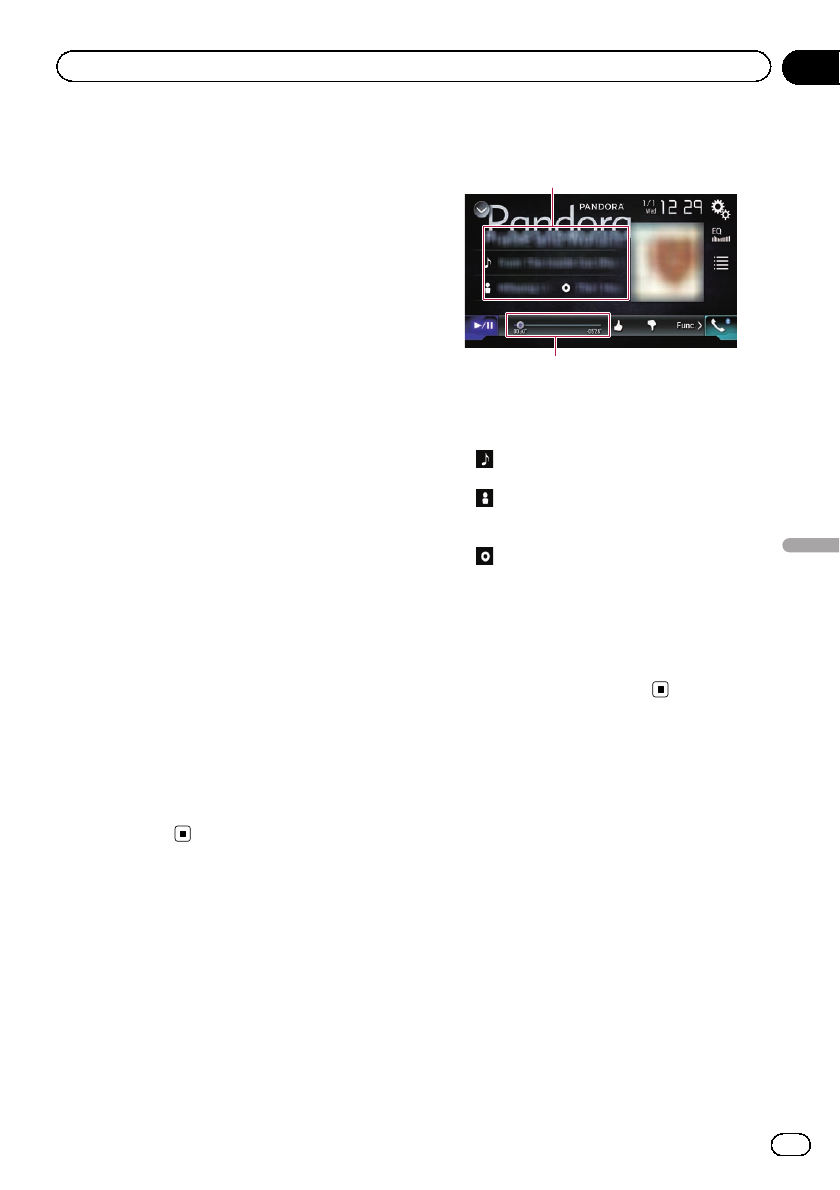
2Displays the Time and date setting
screen.
=For details, refer to Setting the time and
date on page 221.
3Displays the Setting menu screen.
4Recalls equalizer curves.
=For details, refer to Using the equalizer
on page 202.
5Touching the key displays the list of your
Pandora stations.
=For details, refer to Selecting a Pandora
station from the list on page 145.
6Displays the Phone menu screen.
=For details, refer to Displaying the phone
menu on page 80.
7Switches to the next or previous page of
touch panel keys.
8Touching the key gives a “Thumbs Down”
to the track currently playing and skips to
the next track.
pThis function is not available when
using a shared station.
9Touching the key gives a “Thumbs Up”to
the track currently playing.
pThis function is not available when
using a shared station.
aSwitches between playback and pause.
bUses “Sound Retriever”function.
=For details, refer to Setting the “Sound
Retriever”function on page 222.
cAdds information for the track currently
playing to bookmarks.
pSongs added to bookmarks cannot be
viewed from this product.
dCreates a new station.
=For details, refer to Creating a station on
page 145.
Reading the screen
2
1
1Current track information
!Shows the Pandora station name the
tuner is currently tuned in to.
!:Track title
Shows the title of the current track.
!:Artist name
Shows the artist name for the track cur-
rently playing.
!:Album title
Shows the title of the album of the cur-
rent track.
pThe information is not displayed if there
is no corresponding information.
2Play time indicator
Shows the elapsed time, remaining time and
time bar of the current track.
Starting procedure
When connecting an iPhone or smartphone to
this product, you must select the method for
connecting your device. Settings are required
according to the connected device.
=For details, refer to Chapter 13.
En 143
Chapter
23
Streaming Pandora®
Streaming Pandora®
For iPhone with a 30-pin
connector users
1 Unlock your iPhone.
2 Connect your iPhone.
pConnect via USB or Bluetooth.
=For details of the Bluetooth connection,
refer to Registering your Bluetooth de-
vices on page 74.
3 Display the AV source selection screen.
=For details of the operations, refer to Dis-
playing the AV operation screen on page 24.
4 Touch [Pandora] on the AV source selec-
tion screen.
5 Use the touch panel keys on the screen
to control the Pandora application.
=For details, refer to Using the touch panel
keys on page 142.
For iPhone with a Lightning
connector users
1 Unlock your iPhone.
2 Connect your iPhone.
8100NEX 7100NEX 6100NEX
pConnect via USB, Bluetooth, or HDMI and
Bluetooth.
=For details of the Bluetooth connection,
refer to Registering your Bluetooth de-
vices on page 74.
pThe cable connection method varies de-
pending on your device.
=For details of the connections, refer to
the Installation Manual.
5100NEX
pConnect via USB or Bluetooth.
=For details of the Bluetooth connection,
refer to Registering your Bluetooth de-
vices on page 74.
pThe cable connection method varies de-
pending on your device.
=For details of the connections, refer to
the Installation Manual.
3 Display the AV source selection screen.
=For details of the operations, refer to Dis-
playing the AV operation screen on page 24.
4 Touch [Pandora] on the AV source selec-
tion screen.
When you touch [Pandora], this product will
start establishing a Bluetooth connection.
After the connection is successfully estab-
lished, the touch panel key on the “Pandora”
screen is activated.
5 Use the touch panel keys on the screen
to control the Pandora application.
=For details, refer to Using the touch panel
keys on page 142.
For smartphone users
pTurn off the AVICSYNC App function for
using Pandora with a smartphone if the
smartphone is connected with the “HDMI”
or “Bluetooth”selected for “Connection”
in “Smartphone Setup”.
1 Unlock your smartphone.
2 Connect your smartphone.
8100NEX 7100NEX 6100NEX
pConnect via Bluetooth, or HDMI and
Bluetooth.
=For details of the Bluetooth connection,
refer to Registering your Bluetooth de-
vices on page 74.
pThe cable connection method varies de-
pending on your device.
=For details of the connections, refer to
the Installation Manual.
5100NEX
pConnect via Bluetooth.
=For details of the Bluetooth connection,
refer to Registering your Bluetooth de-
vices on page 74.
pThe cable connection method varies de-
pending on your device.
=For details of the connections, refer to
the Installation Manual.
3 Display the AV source selection screen.
=For details of the operations, refer to Dis-
playing the AV operation screen on page 24.
En
144
Chapter
23 Streaming Pandora®
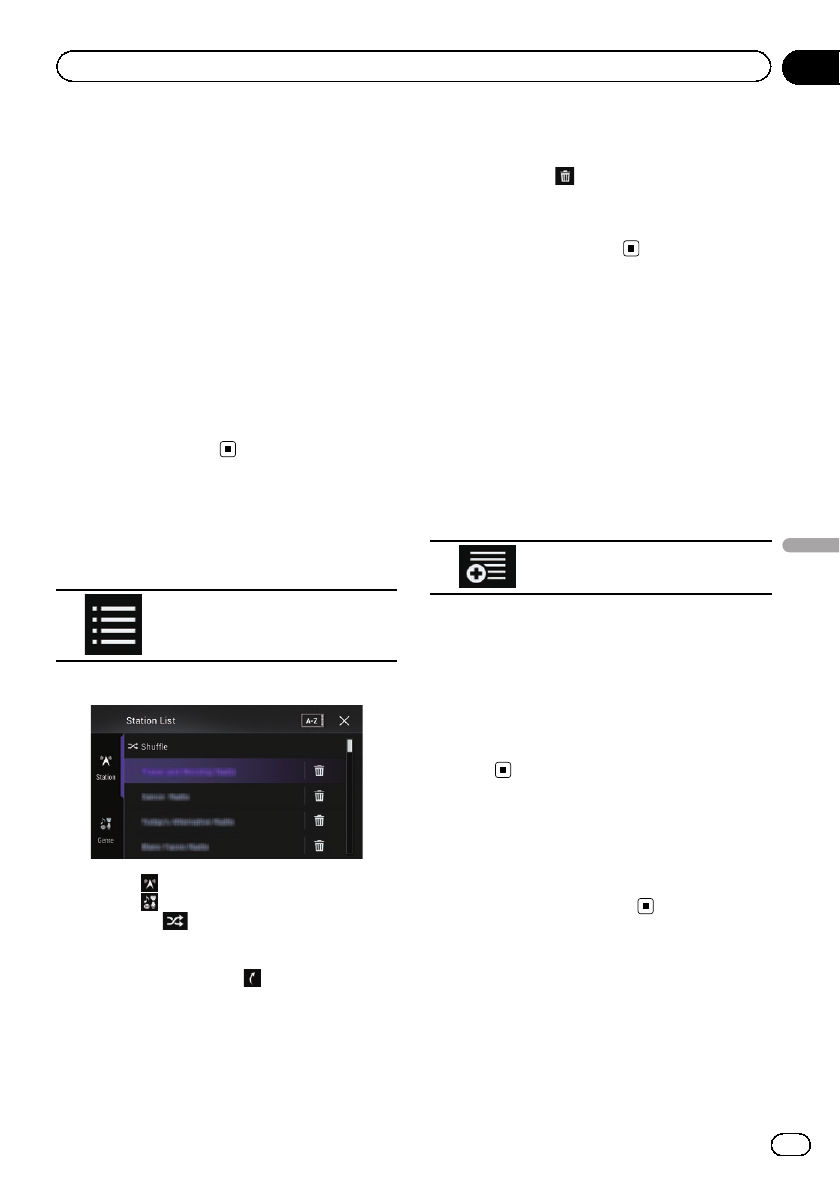
4 Touch [Pandora] on the AV source selec-
tion screen.
When you touch [Pandora], this product will
start establishing a Bluetooth connection.
After the connection is successfully estab-
lished, the touch panel key on the “Pandora”
screen is activated.
pIf the AVICSYNC App function is not turned
off, a message confirming whether to turn
off the AVICSYNC App function appears
for smartphones connected with “HDMI”or
“Bluetooth”selected for “Connection”in
“Smartphone Setup”.
5 Use the touch panel keys on the screen
to control the Pandora application.
=For details, refer to Using the touch panel
keys on page 142.
Selecting a Pandora station
from the list
%Touch the following key.
Displays the list of Pandora sta-
tions.
The following screen appears.
pTouch to switch to the station list.
pTouch to switch to the genre list.
pTouching plays only one track based on
particular musical characteristics, one at a
time, from several shuffled stations.
pStations indicated by are shared sta-
tions.
pWhen you touch [A-Z]or[Date], the list
items can be sorted.
A-Z: Sorts the items in the list alphabeti-
cally.
Date: Sorts the items in the list in the order
of the dates the items were created.
pIf you touch , the station will be deleted.
A message prompting you to delete the sta-
tion appears.
Touch [Yes]. The station will be deleted.
To cancel, touch [No].
Creating a station
You can create up to 100 stations by a song or
an artist.
pYou can also create a station by selecting a
station in the genre list.
pStations cannot be created in the following
cases:
—There is no response for 15 seconds.
—The number of created stations reaches
100.
1 Touch the following key.
Displays the pop-up menu.
2 Touch the desired item.
!Track:
Create a station by the song currently being
played.
!Artist:
Create a station by the artist of the song
currently being played.
#To cancel creating a new station, touch
[Cancel].
Operating with the
hardware buttons
Press the pTRK button.
You can skip songs forward.
En 145
Chapter
23
Streaming Pandora®
Streaming Pandora®
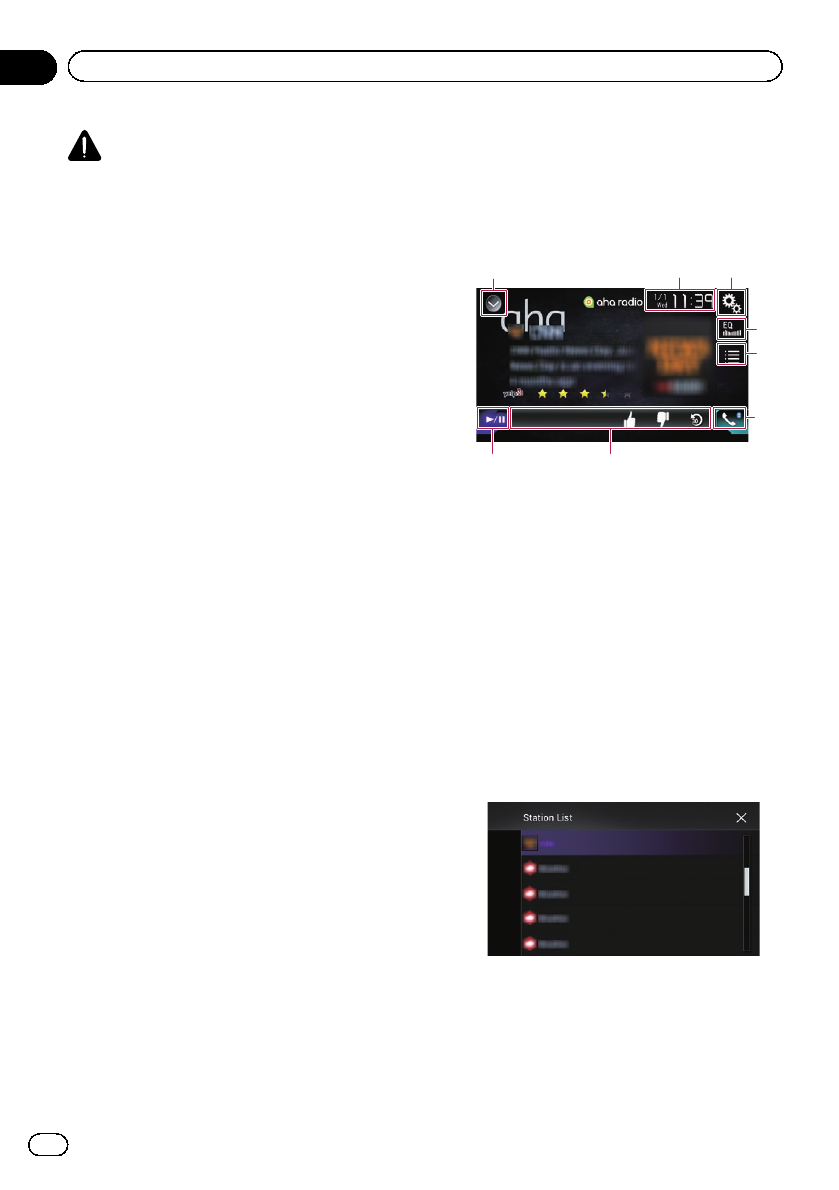
WARNING
Certain uses of an iPhone or a smartphone
may not be legal while driving in your juris-
diction, so you must be aware of and obey
any such restrictions.
If in doubt as to a particular function, only
perform it while the car is parked.
No feature should be used unless it is safe to
do so under the driving conditions you are
experiencing.
When you connect an iPhone or a smartphone
with the Aha Radio installed, you can control,
view, and/or listen to Aha Radio content from
this product.
pIn this chapter, iPhone and iPod touch will
be referred to as “iPhone”.
pFor details concerning operations, refer to
the Help and Tips section within the Aha
Radio application.
pAha Radio stations may require initial
setup or sign in before the station can be
accessed.
pBe sure to read Using app-based connected
content before you perform this operation.
=For details, refer to Using app-based con-
nected content on page 251.
Notes:
!Certain functionality of the Aha Radio service
may not be available when accessing the ser-
vice through this product, including, but not
limited to, creating new Aha stations, deleting
Aha stations, recording ‘shouts’by voice, ad-
justing Aha Radio App settings, logging into
Facebook, creating a Facebook account, log-
ging into Twitter, or creating a Twitter account.
!Aha Radio is a service not affiliated with
Pioneer. More information is available at
http://www.aharadio.com/.
!A specific version of the Aha Radio applica-
tion must be installed on your iPhone or
smartphone to enjoy Aha Radio content on
this product.
Because the application for the iPhone or
smartphone is not provided by Pioneer, the re-
quired version of the application may not yet
be available at the time of purchase of this
product.
Availability, version and update information
can be found at
http://www.pioneerelectronics.com/aharadio
Using the touch panel keys
132
4
5
6
87
1Displays the source list.
=For details, refer to Selecting a front
source on the source list on page 25.
2Displays the Time and date setting
screen.
=For details, refer to Setting the time and
date on page 221.
3Displays the Setting menu screen.
4Recalls equalizer curves.
=For details, refer to Using the equalizer
on page 202.
5Selects an Aha Radio station from the list.
Touching this key displays the list of the avail-
able Aha Radio stations. Touch the desired
Aha Radio station to change Aha Radio
sources.
6Displays the Phone menu screen.
=For details, refer to Displaying the phone
menu on page 80.
7Performs additional functions of each sta-
tion or content currently playing.
pThe icons displayed vary depending on
each station or content.
En
146
Chapter
24 Using Aha Radio
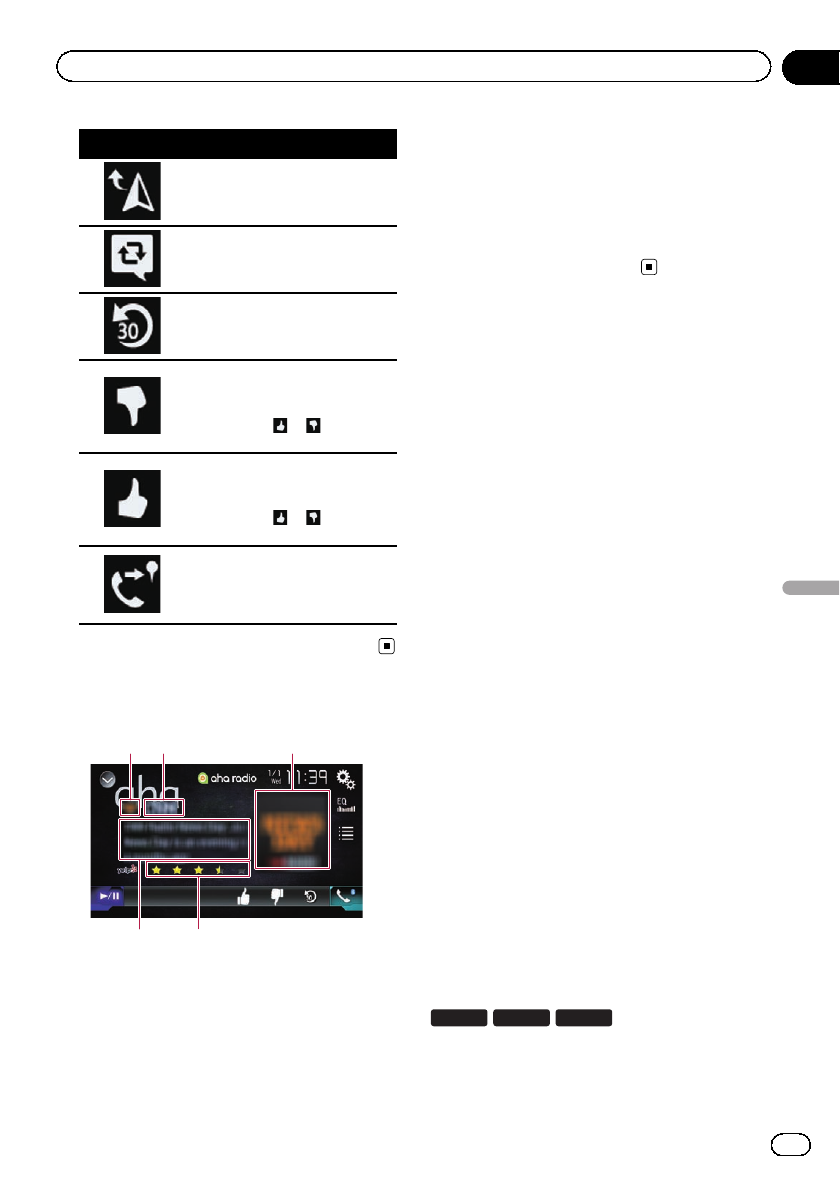
Indicator Meaning
Touching the key discloses the
current car location through
Aha Radio.
Touching the key retweets the
selected tweets with your Twitter
account.
Touching the key performs fast
reverse of the current content
for 30 seconds.
Touching the key “dislikes”the
current content.
pDepending on the content,
touching or cancels
“dislikes”.
Touching the key “likes”the cur-
rent content.
pDepending on the content,
touching or cancels
“likes”.
Touching the key lets you make
a call to a phone number regis-
tered in the current content
using the hands-free function.
8Switches between playback and pause.
Reading the screen
2
4
1
5
3
1Station mark
2Station name
Shows the name of the Aha Radio station to
which this product is currently tuned.
3Content image
Displays an image of the current content if
available.
4Rating information
Shows the rated value of the current content
displayed if available.
5Current station information
Shows information on the content currently
being played.
pThe item is blank if there is no corre-
sponding information.
Starting procedure
When connecting an iPhone or smartphone to
this product, you must select the method for
connecting your device. Settings are required
according to the connected device.
=For details, refer to Chapter 13.
For iPhone with a 30-pin
connector users
1 Unlock your iPhone.
2 Connect your iPhone.
pConnect via USB or Bluetooth.
=For details of the Bluetooth connection,
refer to Registering your Bluetooth de-
vices on page 74.
3 Display the AV source selection screen.
=For details of the operations, refer to Dis-
playing the AV operation screen on page 24.
4 Touch [aha] on the AV source selection
screen.
5 Use the touch panel keys on the screen
to control Aha Radio.
=For details, refer to Using the touch panel
keys on page 146.
For iPhone with a Lightning
connector users
1 Unlock your iPhone.
2 Connect your iPhone.
8100NEX 7100NEX 6100NEX
pConnect via USB, Bluetooth, or HDMI and
Bluetooth.
En 147
Chapter
24
Using Aha Radio
Using Aha Radio
=For details of the Bluetooth connection,
refer to Registering your Bluetooth de-
vices on page 74.
pThe cable connection method varies de-
pending on your device.
=For details of the connections, refer to
the Installation Manual.
5100NEX
pConnect via USB or Bluetooth.
=For details of the Bluetooth connection,
refer to Registering your Bluetooth de-
vices on page 74.
pThe cable connection method varies de-
pending on your device.
=For details of the connections, refer to
the Installation Manual.
3 Display the AV source selection screen.
=For details of the operations, refer to Dis-
playing the AV operation screen on page 24.
4 Touch [aha] on the AV source selection
screen.
When you touch [aha], this product will start
establishing a Bluetooth connection.
After the connection is successfully estab-
lished, the touch panel key on the “aha”
screen is activated.
5 Use the touch panel keys on the screen
to control Aha Radio.
=For details, refer to Using the touch panel
keys on page 146.
For smartphone users
pTurn off the AVICSYNC App function for
using Aha Radio with a smartphone if the
smartphone is connected with the “HDMI”
or “Bluetooth”selected for “Connection”
in “Smartphone Setup”.
1 Unlock your smartphone.
2 Connect your smartphone.
8100NEX 7100NEX 6100NEX
pConnect via Bluetooth, or HDMI and
Bluetooth.
=For details of the Bluetooth connection,
refer to Registering your Bluetooth de-
vices on page 74.
pThe cable connection method varies de-
pending on your device.
=For details of the connections, refer to
the Installation Manual.
5100NEX
pConnect via Bluetooth.
=For details of the Bluetooth connection,
refer to Registering your Bluetooth de-
vices on page 74.
pThe cable connection method varies de-
pending on your device.
=For details of the connections, refer to
the Installation Manual.
3 Display the AV source selection screen.
=For details of the operations, refer to Dis-
playing the AV operation screen on page 24.
4 Touch [aha] on the AV source selection
screen.
When you touch [aha], this product will start
establishing a Bluetooth connection.
After the connection is successfully estab-
lished, the touch panel key on the “aha”
screen is activated.
pIf the AVICSYNC App function is not turned
off, a message confirming whether to turn
off the AVICSYNC App function appears
for smartphones connected with “HDMI”or
“Bluetooth”selected for “Connection”in
“Smartphone Setup”.
5 Use the touch panel keys on the screen
to control Aha Radio.
=For details, refer to Using the touch panel
keys on page 146.
Operating with the
hardware buttons
Press the TRK button.
You can skip contents forward or backward.
En
148
Chapter
24 Using Aha Radio
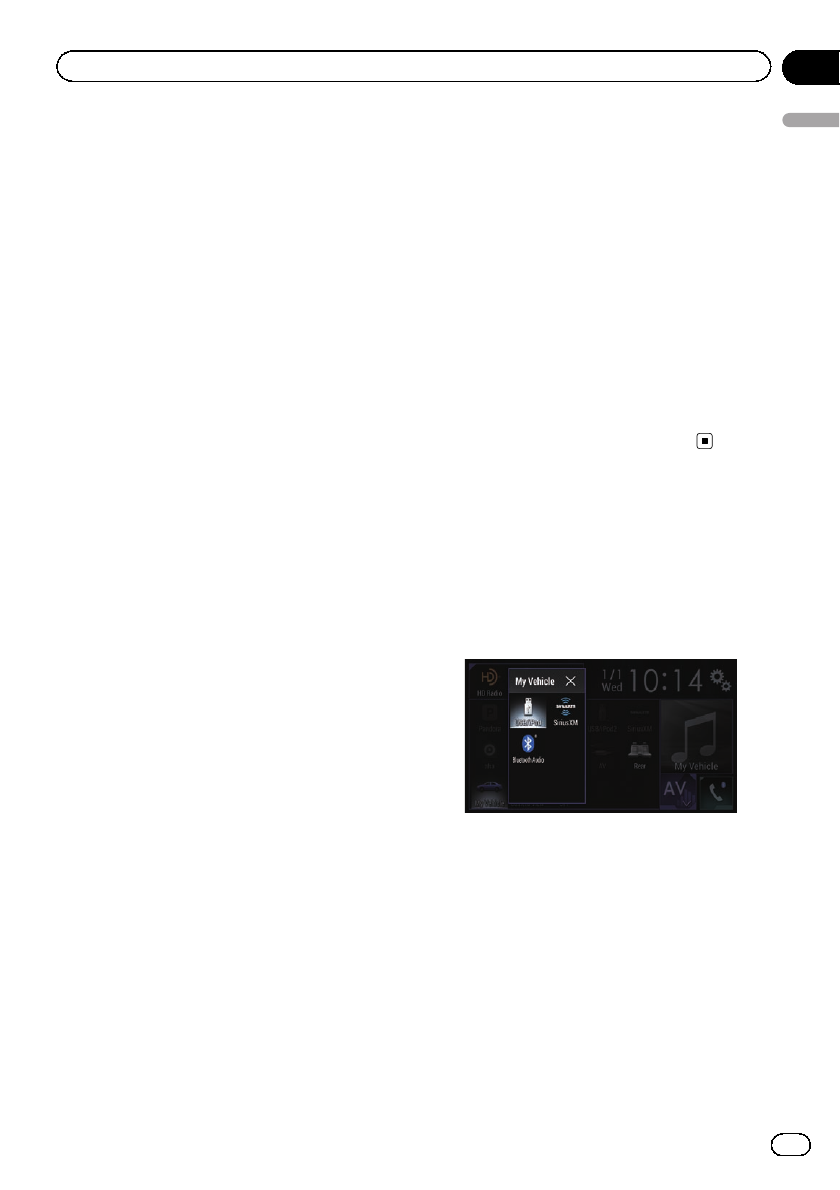
By connecting the optional iDatalink adapter,
you can access the satellite radio source pro-
vided for the vehicle and the vehicle informa-
tion can be displayed on this product.
Important
!For information on installing the iDatalink
adapter, refer to the operating manual of the
iDatalink adapter.
!After installing the iDatalink adapter, be sure
to check the operations.
!For details about vehicle models that are com-
patible with the iDatalink adapter, refer to the
information on our website.
!Functions and displays vary depending on the
vehicle model. For details of the functions
available for each model, refer to the informa-
tion on our website.
!The iDatalink list screen can be scrolled up or
down by page.
!Please note that the device number of this
product and a computer with internet access
are required to program your Maestro RR
module. For troubleshooting information
about “iDatalink”functions, visit
www.idatalinkmaestro.com/support or call
iDatalink Maestro Technical Support toll-free
at 877.212.6169 ext 7900.
Activating iDatalink Maestro
Before using and/or connecting the
iDatalink Maestro adapter, you will need to
first flash the Maestro module with the appro-
priate vehicle and head unit firmware.
Updating the iDatalink Maestro
module
1 Find the last six numbers (device num-
ber) on the label on the packaging of this
product or on this product itself.
pDevice number input is required for updat-
ing the iDatalink MAESTRO module. Take a
note of the device number as necessary.
pYou can also check the device number on
the “Firmware Information”screen of this
product.
=For details, refer to Displaying the firm-
ware version on page 190.
2 Access the Automotive Data Solutions
Inc. website (www.idatalinkmaestro.com/)
and follow the on-screen directions to con-
figure the desired firmware.
pWhen the serial number input is required,
please input the device number of this pro-
duct.
3 Install the vehicle/head unit specific
firmware on your iDatalink Maestro mod-
ule.
=For details, please refer to Automotive Data
Solutions Inc. website.
4 Connect this product to
iDatalink Maestro, and then install this pro-
duct to the vehicle.
The iDatalink function will be active.
Starting procedure
1 Display the AV source selection screen.
=For details of the operations, refer to Dis-
playing the AV operation screen on page 24.
2 Touch [My Vehicle] on the AV source se-
lection screen.
The following screen appears.
3 Touch [USB/iPod], [SiriusXM] or
[Bluetooth Audio] when you want to oper-
ate iDatalink.
En 149
Chapter
25
Using iDatalink
Using iDatalink
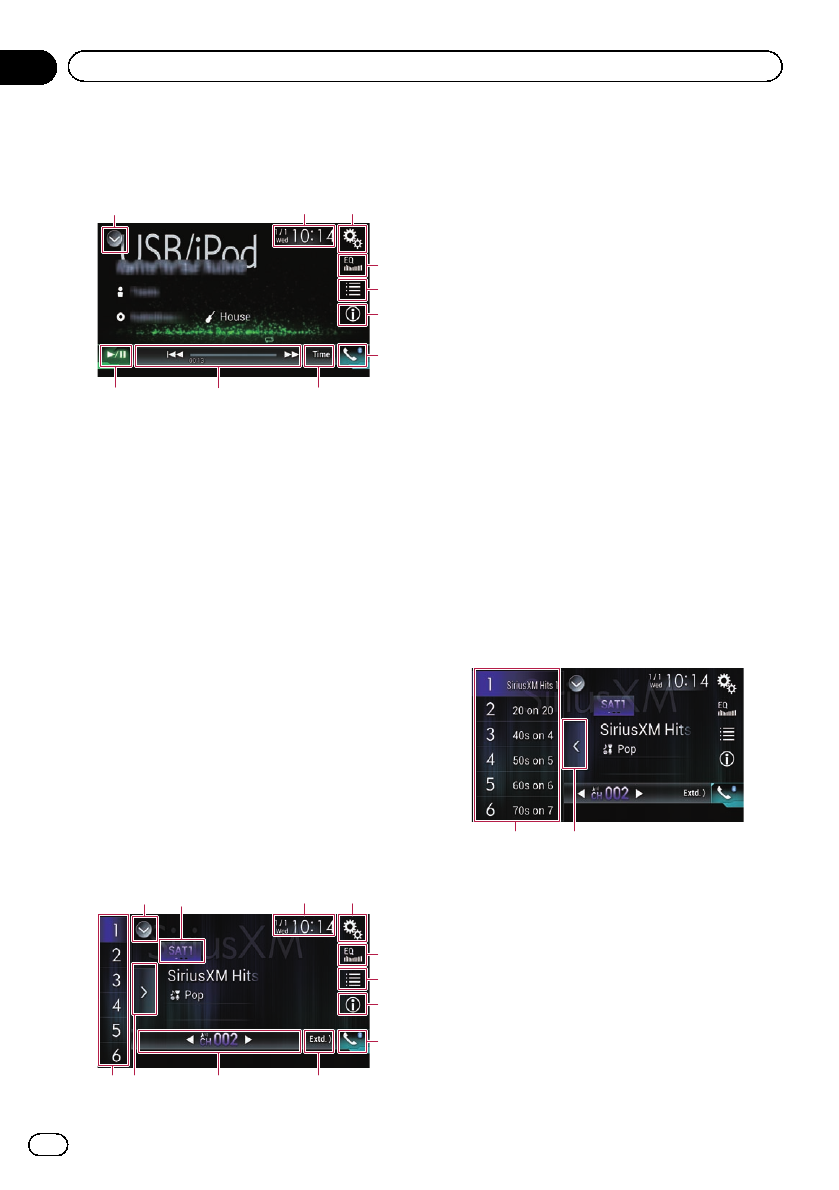
4 Use the touch panel keys on the screen
to control the OEM feature.
USB/iPod (Media player)
132
8
4
5
7
a
9
6
1Displays the source list.
=For details, refer to Selecting a front
source on the source list on page 25.
2Displays the Time and date setting
screen.
=For details, refer to Setting the time and
date on page 221.
3Displays the Setting menu screen.
4Recalls equalizer curves.
=For details, refer to Using the equalizer
on page 202.
5Selects a track from the list.
6Switches the text display between tag
information and file/folder information.
7Displays the Phone menu screen.
=For details, refer to Displaying the phone
menu on page 80.
8Switches to the next or previous page
of touch panel keys.
9Functions and displays vary depending
on the connected type of iDatalink
adapter and the vehicle model.
aSwitches between playback and pause.
Satellite Radio
14
9
5
6
8
c a
7
2
b
3
1Displays the source list.
=For details, refer to Selecting a front
source on the source list on page 25.
2Selects a band.
3Displays the Time and date setting
screen.
=For details, refer to Setting the time and
date on page 221.
4Displays the Setting menu screen.
5Recalls equalizer curves.
=For details, refer to Using the equalizer
on page 202.
6Selects a channel from the list.
7Switches the text display between the
current channel information and the
current content information.
8Displays the Phone menu screen.
=For details, refer to Displaying the phone
menu on page 80.
9Switches to the next or previous page
of touch panel keys.
aFunctions and displays vary depending
on the connected type of iDatalink
adapter and the vehicle model.
bDisplays the preset channels.
cSelects a preset channel.
Selecting a preset channel from the preset chan-
nel list
1 2
1Preset tuning keys
2Preset channel list display key
En
150
Chapter
25 Using iDatalink
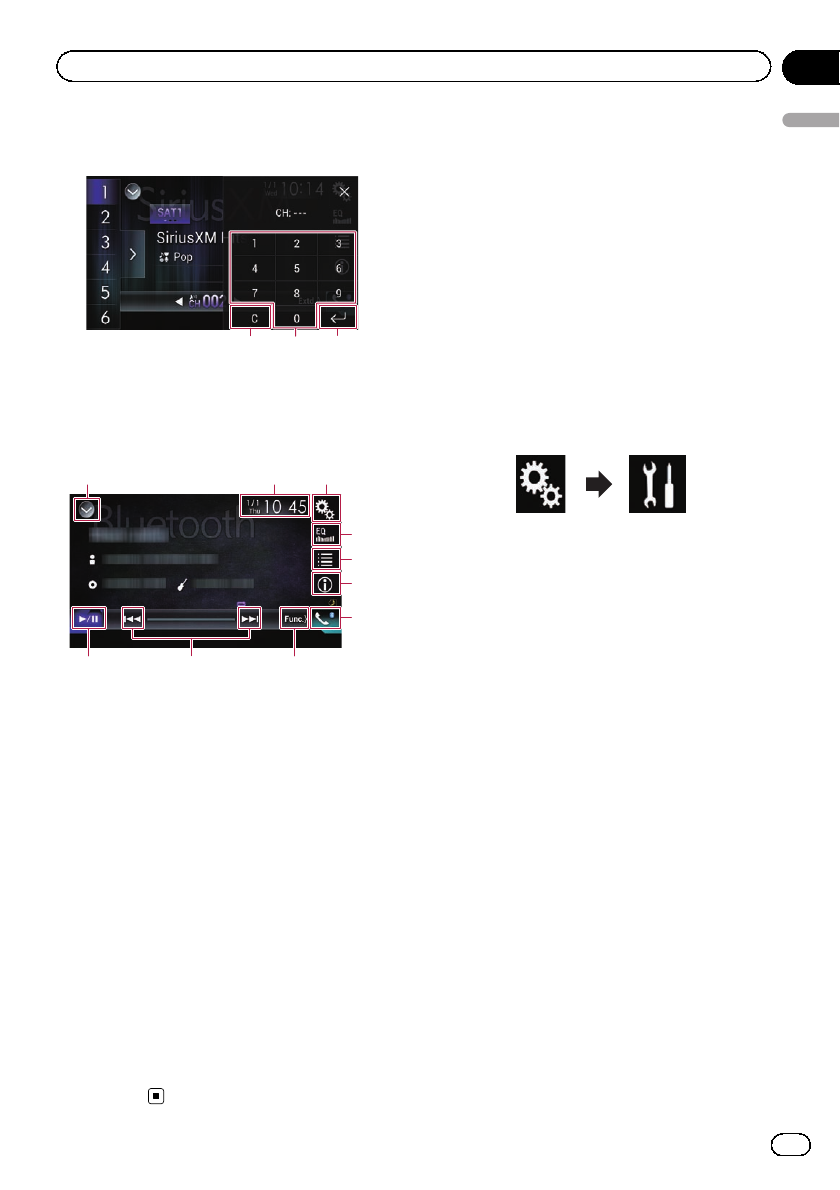
Selecting a SiriusXM channel directly
123
1Clear key
2Numeric keys
3Enter key
Bluetooth Audio
4
5
7
6
8
a9
123
1Displays the source list.
=For details, refer to Selecting a front
source on the source list on page 25.
2Displays the Time and date setting
screen.
=For details, refer to Setting the time and
date on page 221.
3Displays the Setting menu screen.
4Recalls equalizer curves.
=For details, refer to Using the equalizer
on page 202.
5Selects a file from the list.
6Switches the text display between tag
information and file/folder information.
7Displays the Phone menu screen.
=For details, refer to Displaying the phone
menu on page 80.
8Switches to the next or previous page
of touch panel keys.
9Skips files forward or backward.
aSwitches between playback and
pause.
Hands-free phone
By connecting this product to the vehicle bus
system using an iDatalink adapter (sold sepa-
rately), this product can access the hands-free
phone for the vehicle.
pThis function is not available during a call
via this product or while using the voice re-
cognition function.
Setting Bluetooth
1 Press the HOME button to display the
Top menu screen.
2 Touch the following keys in the follow-
ing order.
The “System”screen appears.
3 Touch [OEM Settings].
pFunctions and displays vary depending on
the connected type of iDatalink adapter and
the vehicle model.
En 151
Chapter
25
Using iDatalink
Using iDatalink
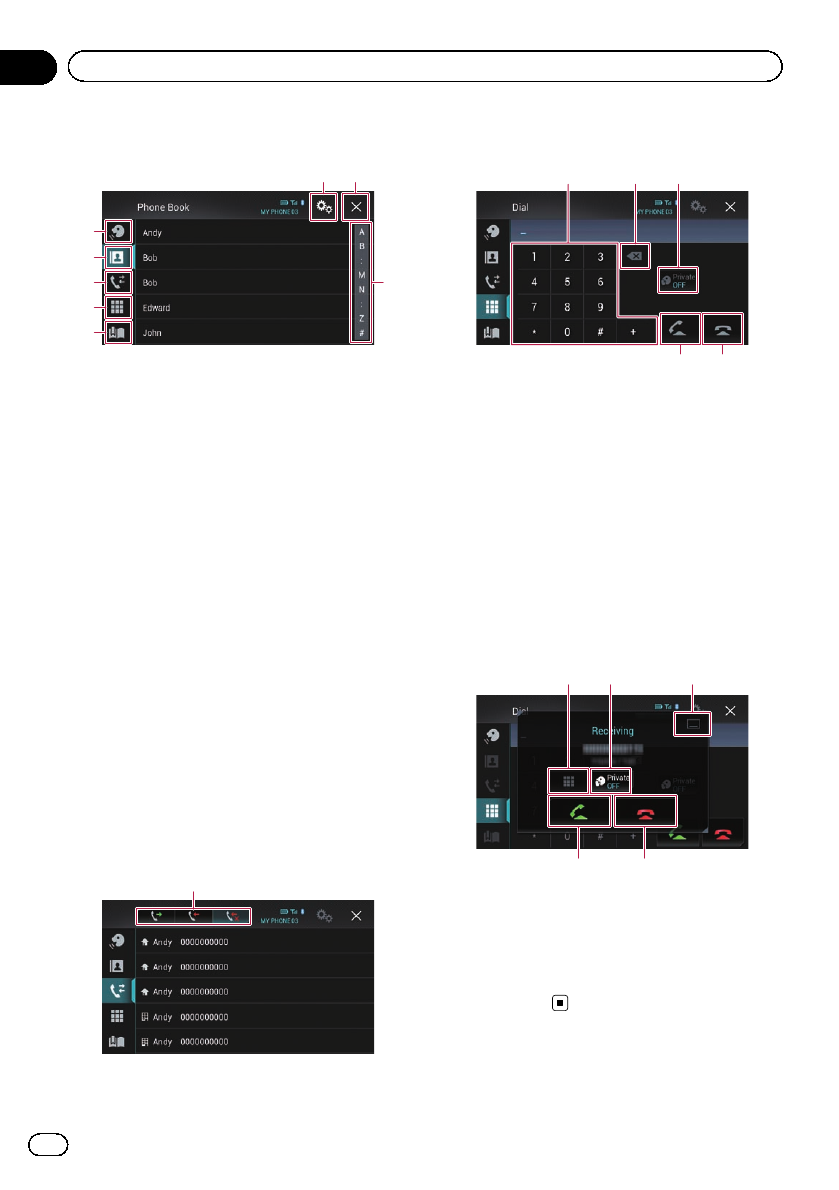
Phone Book screen
1
6
8
2
3
4
7
5
1Switches to the voice recognition func-
tion.
2Switches to the phone book list.
3Switches to the missed, received and dia-
led call lists.
4Switches the mode to enter the phone
number directly.
5Functions and displays vary depending
on the connected type of iDatalink adap-
ter and the vehicle model.
6Displays the Setting menu screen.
pThe [Connection] and [Bluetooth Set-
tings] menus are displayed. The avail-
able functions and displays for the
menus vary depending on the con-
nected type of iDatalink adapter and the
vehicle model.
7Closes the screen.
8Displays entries in the list by the initial
character.
History list screen
1
1Switches to call history.
Dial screen
1 2 3
4 5
1Dial pad
2Deletes one digit. Touch and hold to de-
lete all digits.
3Turns private mode on or off.
4Makes a phone call, when a phone num-
ber is selected.
Switches between callers on hold.
5Ends a call.
Rejects an incoming call.
Cancels call waiting.
Dial confirmation screen
12 3
54
1Switches the mode to enter the phone
number directly.
2Turns private mode on or off.
3Minimizes the dial confirmation screen.
4Accepts an incoming call.
5Ends a call.
En
152
Chapter
25 Using iDatalink
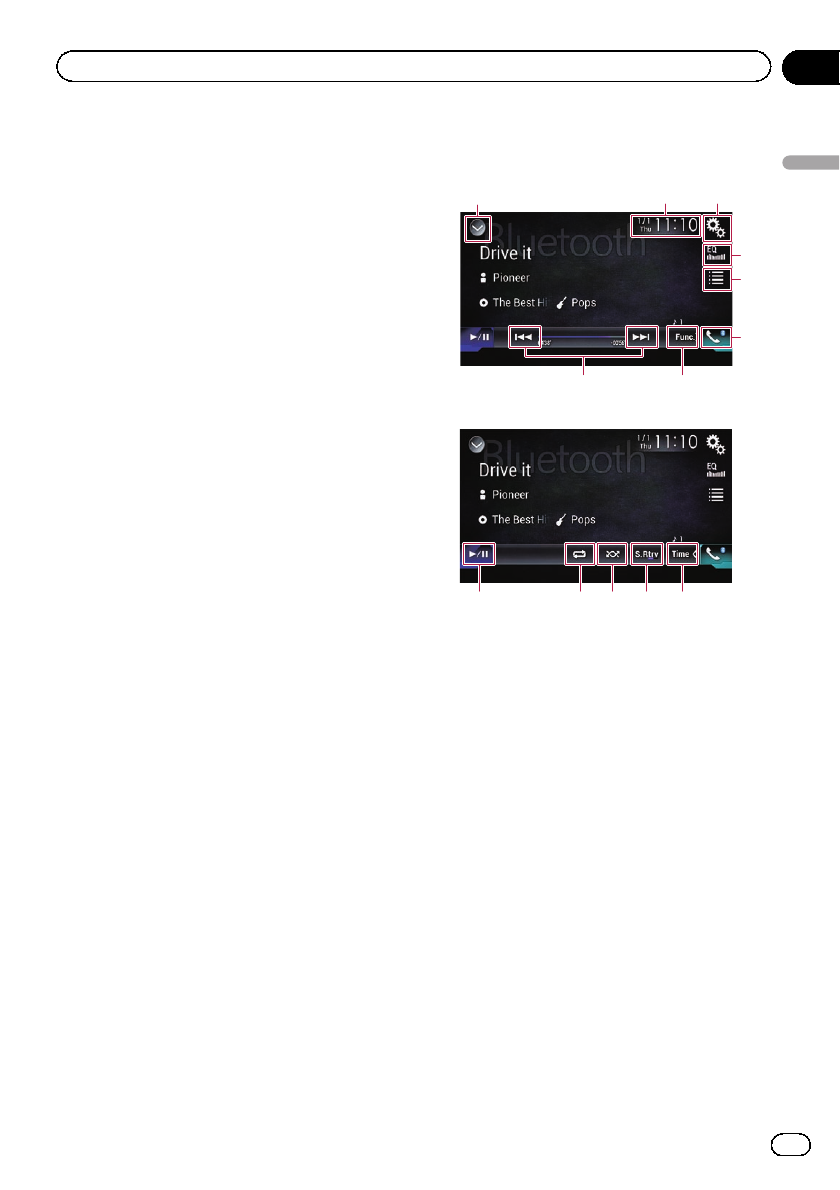
You can control a Bluetooth audio player.
pBefore using the Bluetooth audio player,
you must register and connect the device
to this product.
=For details, refer to Registering your
Bluetooth devices on page 74.
pOperations may vary depending on the
Bluetooth audio player.
pDepending on the Bluetooth audio player
connected to this product, the available op-
erations with this product may be limited to
the following two levels:
—A2DP (Advanced Audio Distribution
Profile): Only playing back songs on
your audio player is possible.
—A2DP and AVRCP (Audio/Video Remote
Control Profile): Playing back, pausing,
selecting songs, etc., are possible.
pSince a number of Bluetooth audio players
are available on the market, operations
with your Bluetooth audio player using this
product vary considerably in range. Please
refer to the instruction manual that came
with your Bluetooth audio player as well as
this manual while operating your player on
this product.
pWhile you are listening to songs on your
Bluetooth audio player, please refrain from
operating your cellular phone as much as
possible. If you try operating your cellular
phone, the signal may cause noise for song
playback.
pEven if you switch to another source while
listening to a song on your Bluetooth audio
player, song playback may continues.
pDepending on the Bluetooth audio player
you connected to this product, operations
on this product to control the player may
differ from those explained in this manual.
pWhen you are talking on a cellular phone
connected to this product via Bluetooth
wireless technology, song playback from
your Bluetooth audio player connected to
this product may be paused.
pYou cannot use Bluetooth audio player
when the connecting cable for using
AppRadio Mode is connected.
Using the touch panel keys
Playback screen (page 1)
87
13
2
4
5
6
Playback screen (page 2)
79abc
1Displays the source list.
=For details, refer to Selecting a front
source on the source list on page 25.
2Displays the Time and date setting
screen.
=For details, refer to Setting the time and
date on page 221.
3Displays the Setting menu screen.
4Recalls equalizer curves.
=For details, refer to Using the equalizer
on page 202.
5Selects a file from the list.
=For details, refer to Selecting files from
the file name list on page 155.
6Displays the Phone menu screen.
=For details, refer to Displaying the phone
menu on page 80.
7Switches to the next or previous page of
touch panel keys.
8Skips files forward or backward.
9Uses “Sound Retriever”function.
=For details, refer to Setting the “Sound
Retriever”function on page 222.
En 153
Chapter
26
Using a Bluetooth audio player
Using a Bluetooth audio player
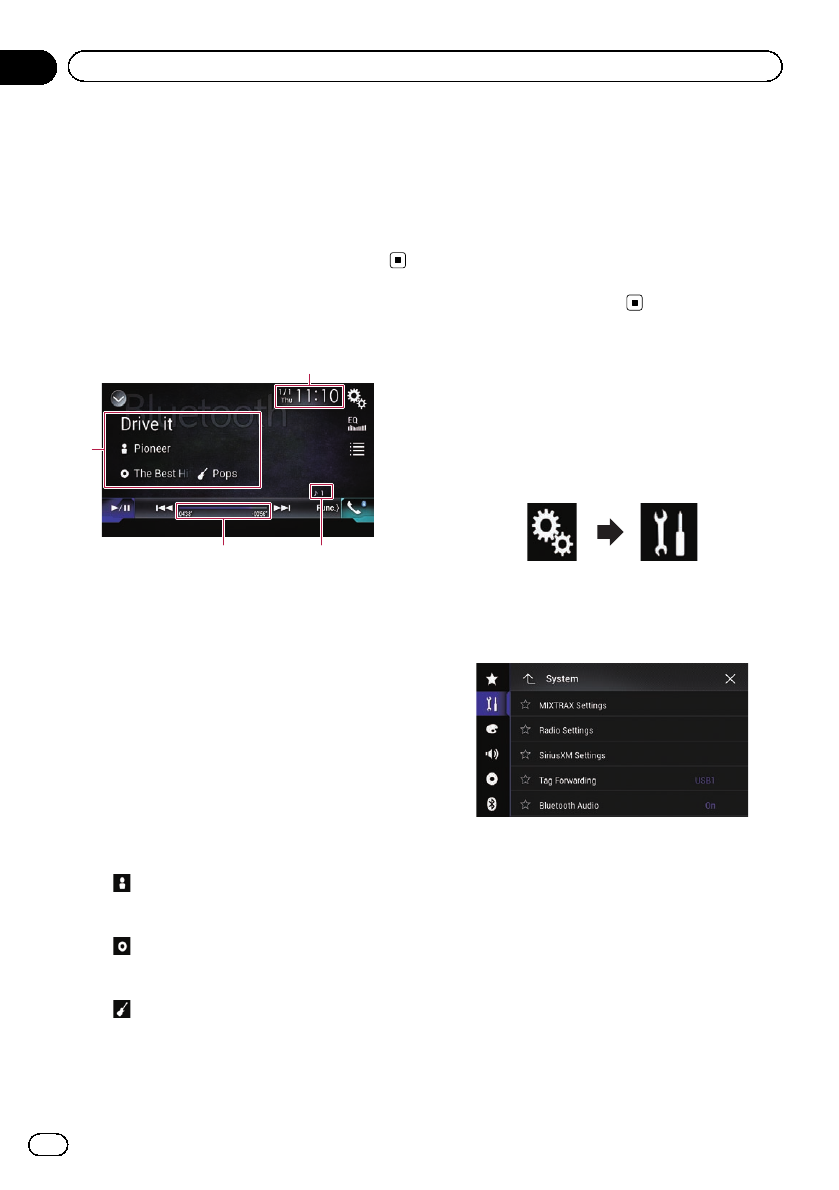
aPlays files in random order.
=For details, refer to Playing files in ran-
dom order on page 155.
bSets a repeat play range.
=For details, refer to Setting a repeat play
range on page 155.
cSwitches between playback and pause.
Reading the screen
4
1
23
1Current time and date
2File number indicator
Shows the file number currently playing
(when available).
3Play time indicator
Shows the elapsed playing time within the
current file (when available).
4Current file information
If the connected Bluetooth audio player fea-
tures AVRCP 1.3, the following file information
will be displayed.
!Track title
Shows the title of the track currently
playing (when available).
!:Artist name
Shows the name of the artist for the
track currently playing (when available).
!:Album title
Shows the title of the album of the cur-
rent file (when available).
!:Genre
Shows the genre of the current file
(when available).
pIn the following cases, file information
will only be displayed after a file starts
or resumes playing:
—Bluetooth audio player compatible
with AVRCP1.3 is connected, and the
playback is started by the operation
on the device.
—Another file is selected while play-
back is paused.
Starting procedure
1 Press the HOME button to display the
Top menu screen.
2 Touch the following keys in the follow-
ing order.
The “System”screen appears.
3 Touch [AV Source Settings].
The following screen appears.
4 Confirm that “Bluetooth Audio”is
turned on.
pThe default setting is “On”.
5 Display the AV source selection screen.
=For details of the operations, refer to Dis-
playing the AV operation screen on page 24.
6 Touch [Bluetooth Audio] on the AV
source selection screen.
The “Bluetooth”screen appears.
En
154
Chapter
26 Using a Bluetooth audio player
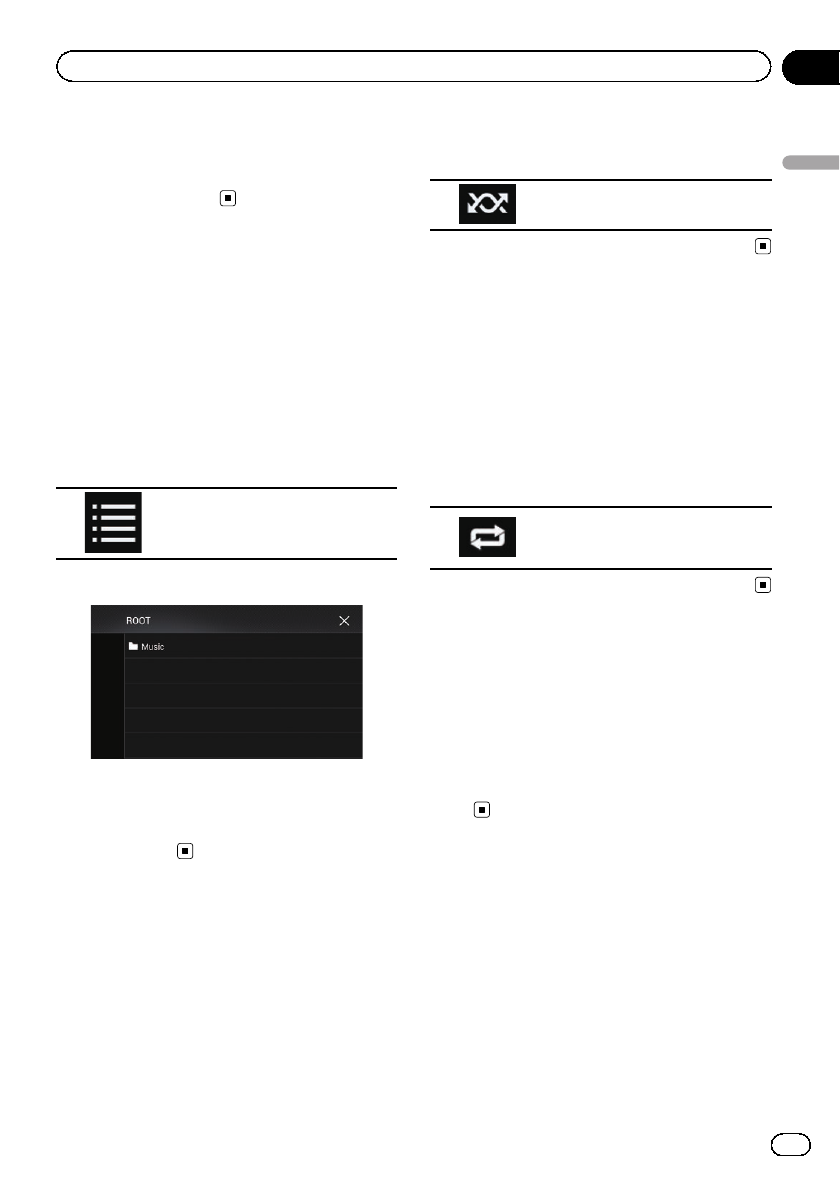
7 Use the touch panel keys on the screen
to control the Bluetooth audio player.
=For details, refer to Using the touch panel
keys on page 153.
Selecting files from the file
name list
The file name list lets you see the list of track
titles for the Bluetooth audio player and lets
you select one of them to play back.
pThis function is only available when the
connected Bluetooth audio player supports
AVRCP 1.4.
1 Touch the following key.
Displays the file name list.
The following screen appears.
2 Touch a file on the list to play back.
pTouching a folder on the list shows its con-
tents. You can play a file on the list by
touching it.
Playing files in random order
All of the files within the repeat play range can
be played at random by only touching a single
key.
pThis function is only available when the
connected Bluetooth audio player supports
AVRCP 1.3.
%Touch the following key repeatedly
until the desired setting appears.
Turns random play on or off.
Setting a repeat play range
The repeat play range can be changed by only
touching a single key.
pThis function is only available when the
connected Bluetooth audio player supports
AVRCP 1.3.
%Touch the following key repeatedly
until the desired setting appears.
Changes the repeat play range be-
tween the current file and all audio
files in the Bluetooth audio player.
Operating with the
hardware buttons
Press the TRK button.
You can skip files forward or backward.
Press and hold the TRK button.
You can perform fast reverse or fast for-
ward.
En 155
Chapter
26
Using a Bluetooth audio player
Using a Bluetooth audio player
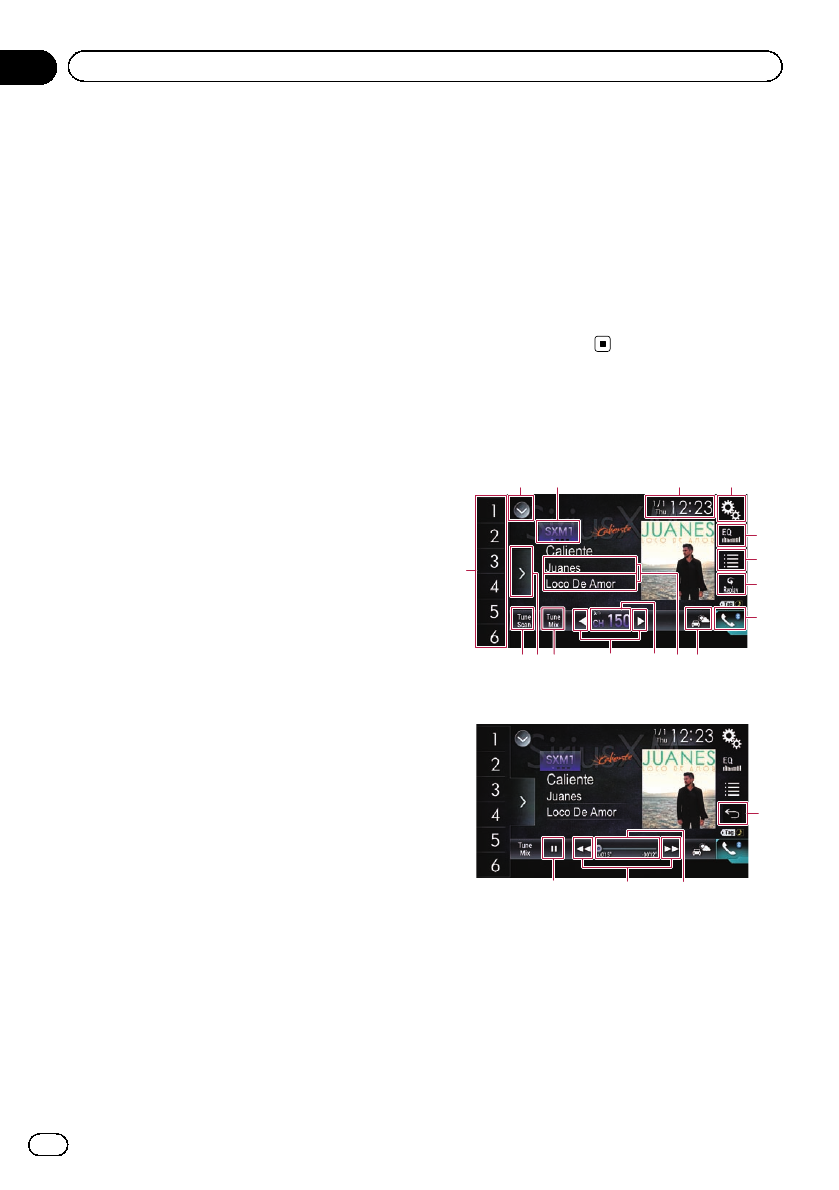
SiriusXM satellite radio
operations
You can use this product to control a SiriusXM
Connect Vehicle Tuner (sold separately).
For information on how to install the SiriusXM
Connect Vehicle Tuner, consult the installation
guide included with the tuner.
Only SiriusXM®brings you more of what you
love to listen to, all in one place. Get over 140
channels, including commercial-free music
plus the best sports, news, talk, comedy and
entertainment. Welcome to the world of satel-
lite radio. A SiriusXM Vehicle Tuner and Sub-
scription are required. For more information,
visit www.siriusxm.com.
Subscribing to the SiriusXM
Satellite Radio service
1 Select SiriusXM as the source.
You should be able to tune in to Channel 1. If
you cannot get Channel 1, ensure that your
SiriusXM Connect Vehicle Tuner is installed
correctly as described in the tuner installation
guide.
2 Switch to Channel 0 and check the
Radio ID.
The SiriusXM Radio ID can be found by tuning
in to Channel 0. The Radio ID can also be
found at the bottom of the SiriusXM Connect
Vehicle Tuner screen.
Note that the SiriusXM Radio ID does not in-
clude the letters I, O, S or F.
You will need this number to activate your sub-
scription.
3 Activate the service either online or by
phone.
In the USA, you can activate online or by call-
ing SiriusXM Listener care:
!Visit www.siriusxm.com/activatenow
!Call SiriusXM Listener Care at 1-866-635-
2349
For Canadian Subscriptions, please contact:
!Visit www.siriusxm.ca/activatexm
!Call XM customer Care at 1-877-438-9677
#The SiriusXM satellites will send an activation
message to your tuner. When the tuner has re-
ceived the message, “Subscription Updated”is
displayed.
Once you have subscribed, SiriusXM satellites
will send an activation message to your tuner.
The activation process usually takes 10 to 15 min-
utes but may take up to an hour in some cases.
Do not turn off this product while the activation
message is displayed.
Using the touch panel keys
Live display
12 43
5
7
6
8
bc9aedf
g
Replay display
hij
7
1Displays the source list.
=For details, refer to Selecting a front
source on the source list on page 25.
2Selects a band.
3Displays the Time and date setting
screen.
=For details, refer to Setting the time and
date on page 221.
4Displays the Setting menu screen.
En
156
Chapter
27 Using the SiriusXM®satellite radio
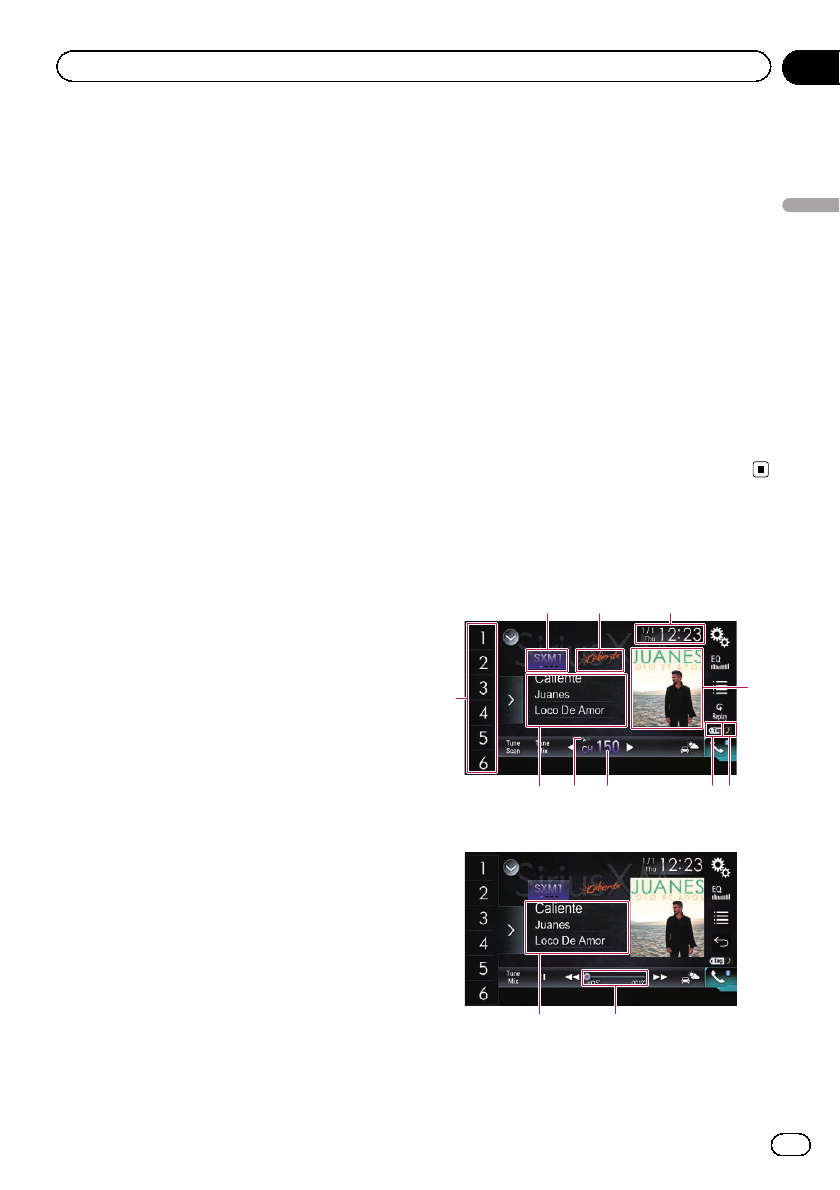
5Recalls equalizer curves.
=For details, refer to Using the equalizer
on page 202.
6Selects a channel from the list.
=For details, refer to Selecting a channel
from a list of all channels on page 160.
=For details, refer to Selecting a channel
from the category list on page 160.
7Switches between the Live screen and the
Replay screen.
=For details, refer to Using the Replay
™
function on page 161.
8Displays the Phone menu screen.
=For details, refer to Displaying the phone
menu on page 80.
9Switches to the channel broadcasting the
traffic and weather information for the se-
lected city.
=For details, refer to Checking the update
Traffic and Weather information on page
163.
aMemorizes the current channel.
=For details, refer to Memorizing the cur-
rent contents on page 165.
Stores song information to an iPod.
=For details, refer to Storing song informa-
tion to an iPod (iTunes Tagging) on page
221.
bSelects a channel directly.
=For details, refer to Selecting a SiriusXM
channel directly on page 159.
cPerforms manual tuning.
=For details, refer to Manual tuning on
page 159.
dPlays back the songs from the music
channels stored as presets in the current
band.
=For details, refer to Using TuneMix
™
on
page 162.
eDisplays the preset channels.
=For details, refer to Selecting a preset
channel from the preset channel list on
page 159.
fScans all the songs for the music chan-
nels found in the current preset band.
=For details, refer to Using TuneScan
™
on
page 162.
gRecalls the preset channel stored to a key
from memory with a single touch of the
key.
Stores the current broadcast frequency to
a key for later recall by continuing to
touch the key.
=For details, refer to Storing broadcast
channels on page 159.
hChanges the playback point by dragging
the key.
=For details, refer to Operating the time
bar on page 27.
iSkips files forward or backward with a
single touch of the key.
Fast forwards or fast reverses by touching
and holding the key.
jSwitches between playback and pause.
Reading the screen
Live display
5
4
12 3
9
a
8 67
Replay display
c b
1Band indicator
En 157
Chapter
27
Using the SiriusXM®satellite radio
Using the SiriusXM®satellite radio
Shows the tuned band: SXM1, SXM2, SXM3 or
Featured.
p“Featured”is available only when “Fea-
tured Favorites”is set to “On”.
2Channel name logo
Shows the name logo of the channel currently
being tuned into.
3Current time and date
4Album artwork
Shows the artwork for the current song (when
available).
pIf the album artwork is not available, the
SiriusXM Logo image will be displayed.
5iTunes®tagging song status indicator
Shows the status of the song information
stored in this product.
pThe icon is displayed on all operation
screens of AV sources.
Indicator Meaning
Appears when the song information
tag is stored in this product.
Appears when the song information
tag is being transferred to an iPod.
6iTunes®tagging indicator
Indicates songs that are capable of iTunes tag-
ging.
pThe icon is displayed on all operation
screens of AV sources.
Indicator Meaning
Appears when this product receives
an iTunes song tag that can be
stored and then downloaded to an
iPod for later purchase.
Flashes when this product is storing
song tag information.
7Channel number indicator
Shows the channel number to which the
tuner is currently tuned.
8Signal level indicator
9Current channel information
Shows the detailed information of the broad-
cast channel currently being received.
!Channel name/Channel number
Shows the channel name or channel
number of the channel currently being
tuned into.
p“RADIO ID”is displayed when Chan-
nel 0 is selected.
!:Artist (performer) name
Shows the artist (performer) name for
the current song (when available).
!:Song title (program name)
Shows the title of the current song (pro-
gram).
aPreset number indicator
Highlights the selected preset item.
bPlay time indicator
Shows the elapsed playing time within the
stored broadcast.
cCurrent content information
Shows the detailed information on the content
currently being played.
!Channel name/Channel number
Shows the channel name or channel
number of the channel currently being
tuned into.
p“RADIO ID”is displayed when Chan-
nel 0 is selected.
!:Artist (performer) name
Shows the artist (performer) name for
the current song (when available).
!:Song title (program name)
Shows the title of the current song
(program).
Starting procedure
1 Display the AV source selection screen.
=For details of the operations, refer to Dis-
playing the AV operation screen on page 24.
2 Touch [SiriusXM] on the AV source se-
lection screen.
The “SiriusXM”screen appears.
En
158
Chapter
27 Using the SiriusXM®satellite radio
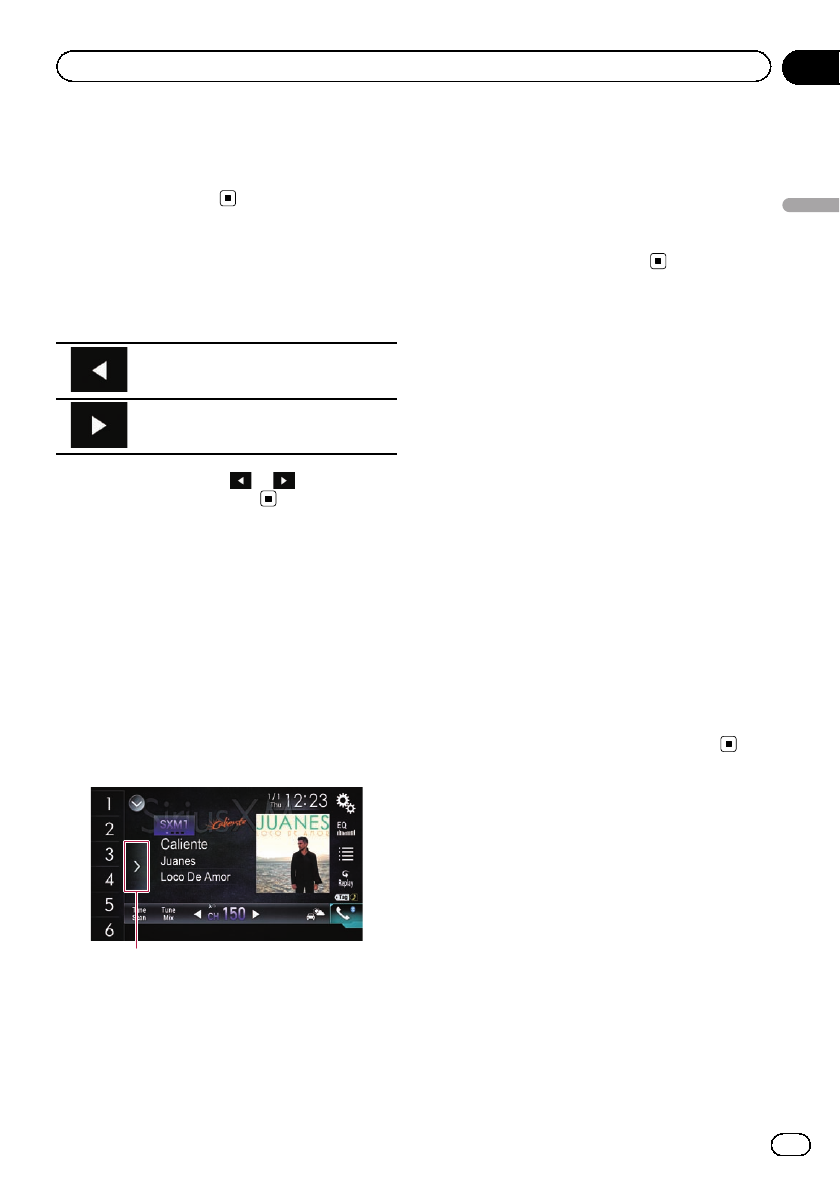
3 Use the touch panel keys on the screen
to control the radio.
=For details, refer to Using the touch panel
keys on page 156.
Manual tuning
%Touch the following keys to tune manu-
ally.
Moves down one channel at a time.
Moves up one channel at a time.
pIf you keep holding or , you can skip
broadcasting channels.
Selecting a preset channel
from the preset channel list
Once you have stored broadcast channels,
you can easily recall preset channels from
memory with a single touch of a key.
=For details, refer to Storing broadcast fre-
quencies on page 100.
1 Touch the preset channel list display
key.
1
1Preset channel list display key
2 Touch the item on the list (“1”to “6”)to
switch to a channel registered as a preset
channel.
pIf you touch the preset channel list display
key while the preset channel list is dis-
played, the list disappears and the preset
tuning keys are displayed.
Storing broadcast channels
With a touch of any of the preset tuning keys
(“1”to “6”), you can easily store up to six
broadcast channels for later recall (also with
the touch of a key).
pThe broadcast channel may not be stored
depending on the broadcast channel.
pThis function is not available in Featured
band.
1 Select the channel that you want to
store in memory.
2 Touch and hold a preset tuning key [1]
to [6].
The selected channel is memorized.
The next time you touch the same preset tun-
ing key “1”to “6”, the channel is recalled from
memory.
pUp to 18 channels, six for each of the three
SiriusXM bands, can be memorized.
Selecting a SiriusXM
channel directly
You can select a broadcast channel directly by
entering the desired channel number.
1 Touch the channel number on the
“SiriusXM”screen.
The following screen appears.
En 159
Chapter
27
Using the SiriusXM®satellite radio
Using the SiriusXM®satellite radio
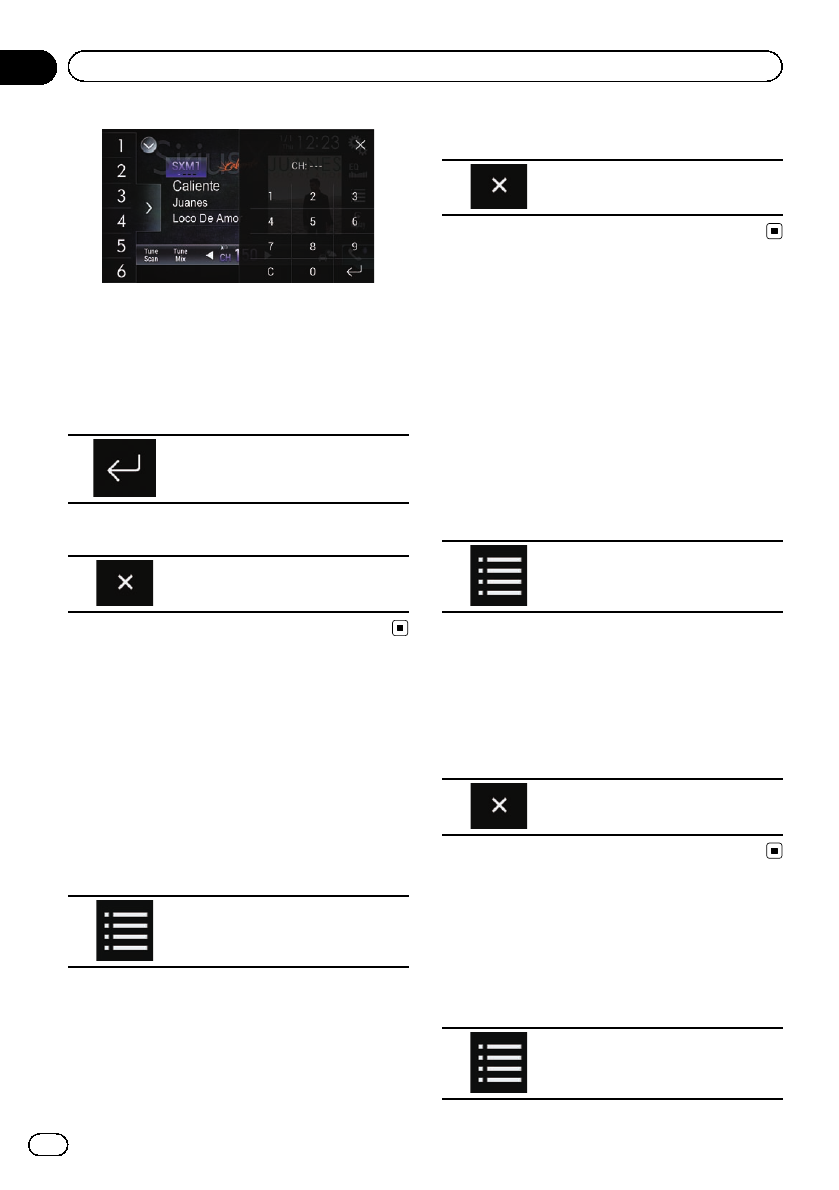
2 Touch [0] to [9] to input the desired
channel number.
pTo delete the entered numbers one by one,
touch [C].
3 Touch the following key.
Selects the SiriusXM channel of
the entered number.
4 Touch the following key.
Returns to the previous screen.
Selecting a channel from a
list of all channels
You can select a channel from any of the avail-
able channels.
pIt may take time to display the channel list
depending on the SiriusXM reception con-
dition.
1 Touch the following key.
Displays the list screen.
2 Select the list of all channels.
3 Touch the desired channel.
4 Touch the following key.
Closes the screen.
Selecting a channel from
the category list
You can select a channel from the available
categories.
The types of categories available depend on
the types of channels available.
pIt may take time to display the channel list
depending on the SiriusXM reception con-
dition.
1 Touch the following key.
Displays the list screen.
2 Touch the category name you want.
The category in the hierarchy under the se-
lected channel list is displayed.
3 Touch the desired channel.
4 Touch the following key.
Closes the screen.
Switching the displayed list
You can switch between list types when a list
is displayed.
1 Touch the following key.
Displays the list screen.
En
160
Chapter
27 Using the SiriusXM®satellite radio
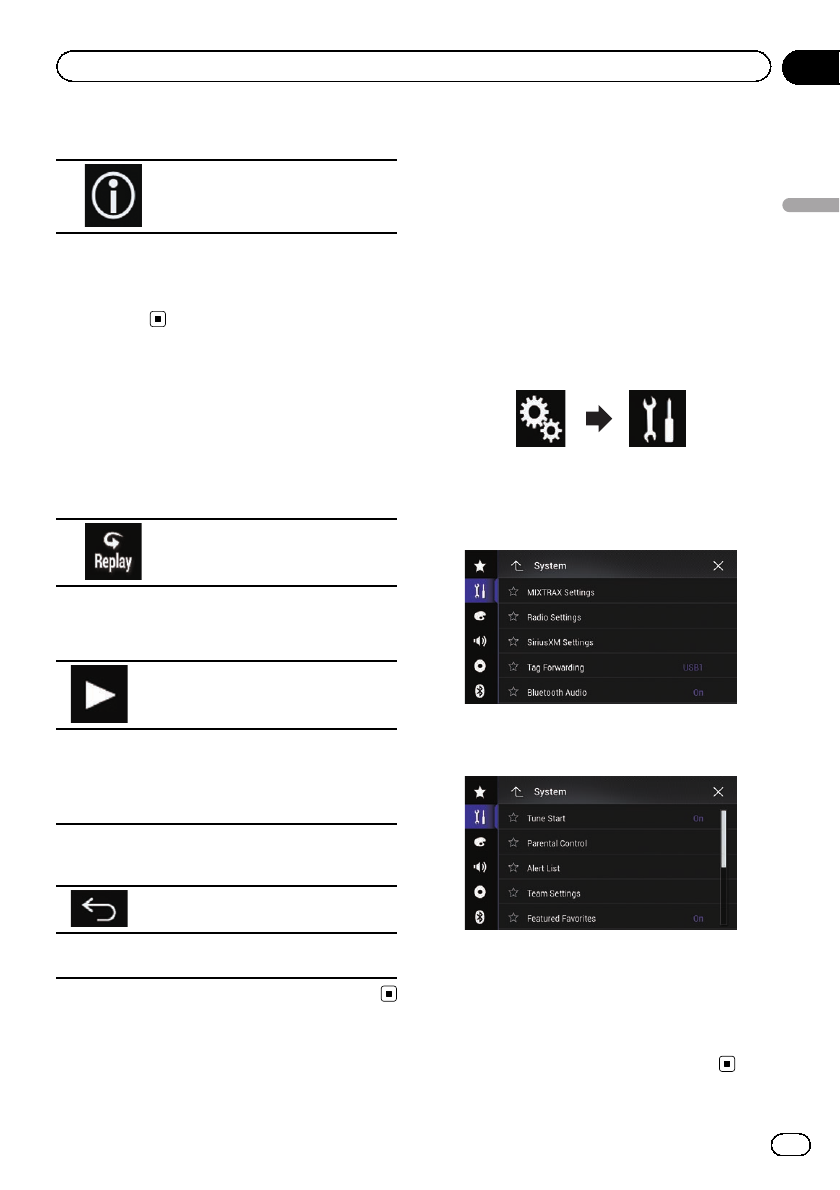
2 Touch the following key.
Switches between list types.
The displayed list switches in the following
order.
Channel Name—Artist Name—Song Title—
Content Info
Using the Replay™function
You can pause, skip contents, fast reverse, fast
forward or replay the channel you are currently
listening to.
1 Touch the following key.
Switches to the time bar display.
2 Touch the following keys or buttons to
control the radio.
Switches between playback and pause.
m(TRK)
Returns to the beginning of the current
program. Press again to skip back to
the previous program. Press and hold
to fast reverse scan through the con-
tent.
n(TRK)
Jumps to the next program. Press and
hold to fast forward scan through the
content.
Exits Replay mode and tunes into the
current live broadcast.
Time bar Changes the playback point by drag-
ging the key.
Setting SiriusXM TuneStart
™
Automatically start songs from the beginning when
you tune to one of your preset channels in the cur-
rent preset band when TuneStart is turned on.
pThis function is available only when
“SiriusXM”is selected as the source.
1 Press the HOME button to display the
Top menu screen.
2 Touch the following keys in the follow-
ing order.
The “System”screen appears.
3 Touch [AV Source Settings].
The following screen appears.
4 Touch [SiriusXM Settings].
The following screen appears.
5 Touch [Tune Start] repeatedly until the
desired setting appears.
!On (default):
Activates the TuneStart function.
!Off:
Deactivates the TuneStart function.
En 161
Chapter
27
Using the SiriusXM®satellite radio
Using the SiriusXM®satellite radio
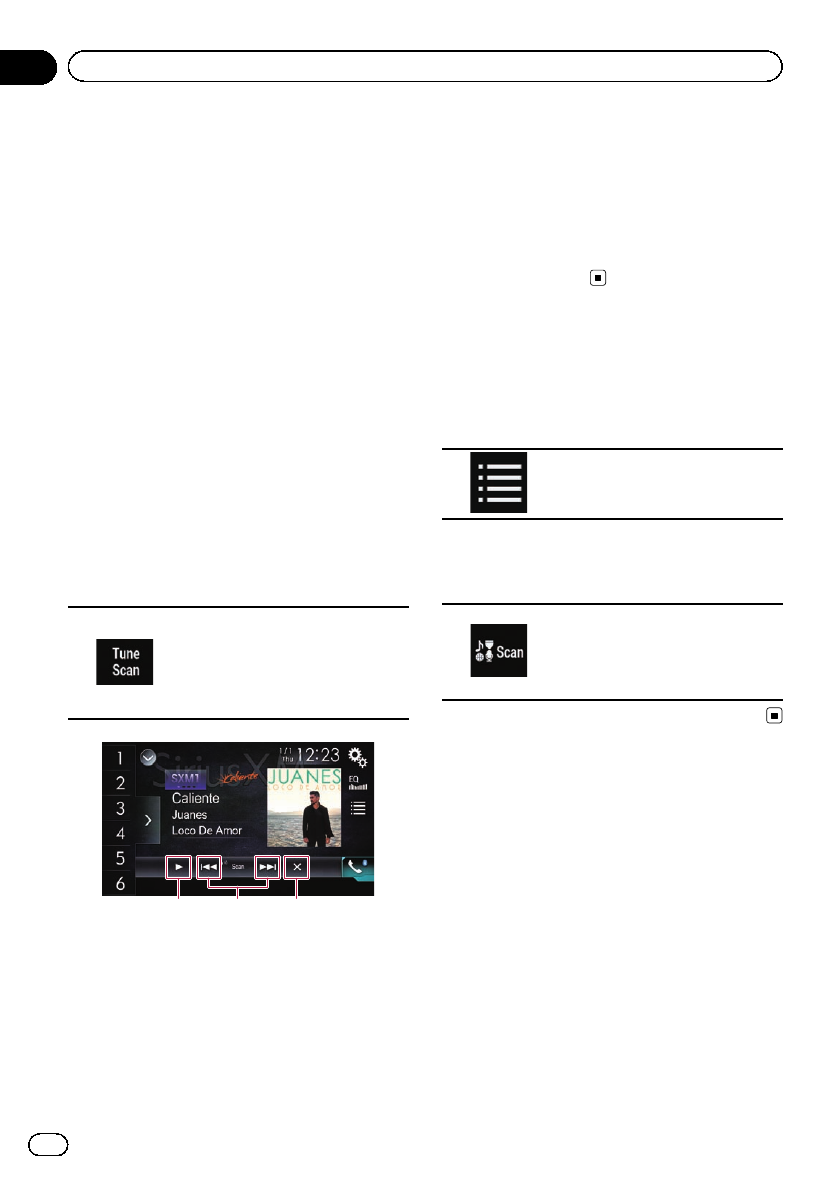
Using TuneScan™
When you activate the TuneScan™feature, you
will hear a few seconds of the songs, which
have not been listened to, from each of the
music channels stored as presets on the cur-
rent band.
pThis function is available only when the
channel that is tuned in to supports the Tu-
neScan function.
pIf fewer than two music channels are
stored as presets in the current band, the
message, “No Content”is displayed, and
you cannot perform scan tuning. Add more
music channels as presets.
pTuneScan may take a few minutes to be-
come available after the unit is turned on
or the preset band is changed.
1 Touch the preset channel list display
key.
The preset channel list appears.
2 Touch the following key.
Scans music channels in the cur-
rent band for songs, plays a found
song for a few seconds, and then
continues to scan another song.
Each song on the current channel
plays for a few seconds at a time.
1 32
1Continues playing the current scanning
song or channel.
pYou can stop the TuneScan feature to
listen to the current song and remain lis-
tening to the channel it is on.
2Skips forward or backward.
Touching [o] skips to the previous song
during TuneScan or to the previous channel
during category scan.
Touching [p] skips to the next song dur-
ing TuneScan or to the next channel during
category scan.
3Cancels scan play and returns to the ori-
ginal channel.
Using category scan
You can scan each channel in the selected ca-
tegory.
1 Touch the following key.
Displays the list screen.
2 Touch the desired category.
3 Touch the following key.
Performs scan tuning in the se-
lected category. The live broadcast
for each channel in the current ca-
tegory plays for six seconds at a
time.
Using TuneMix™
TuneMix™plays a unique blend of songs from
music channels stored in the current
SiriusXM Preset Band.
pSXV300 or later SiriusXM Connect vehicle
tuner (sold separately) is required to use
this function.
pIf fewer than two music channels are
stored as presets in the current band, the
message, “No qualified TuneMix music
channels in this band.”is displayed, and
you cannot use TuneMix™. Add more
music channels to presets.
pTuneMix may take a few minutes to be-
come available after the unit is turned on
or the preset band is changed.
En
162
Chapter
27 Using the SiriusXM®satellite radio
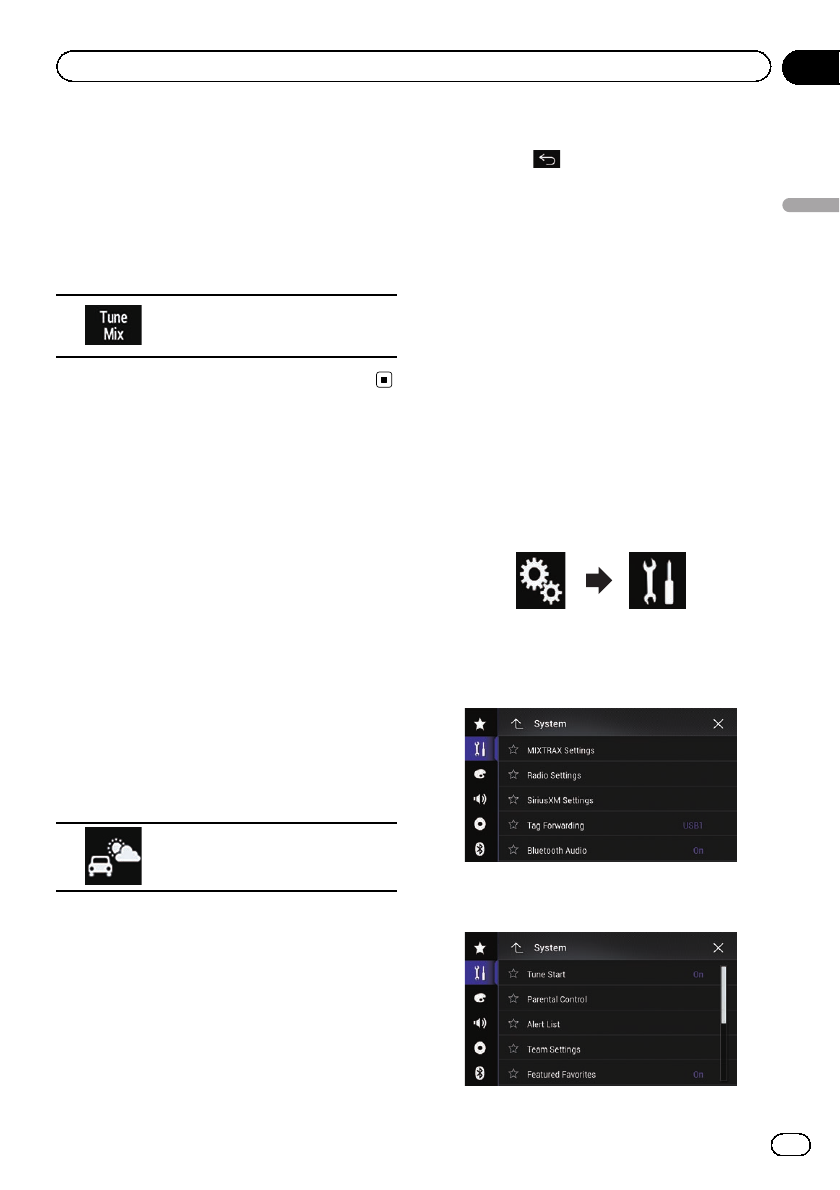
pIf the same channels are stored in the pre-
set channel list, the channels are counted
as one.
pThe channels that parental lock is applied
to cannot be played back by the TuneMix
function.
%Touch the following key.
Plays back the songs from the
music channels stored as presets
in the current band.
!To cancel TuneMix, touch the key again.
Checking the update Traffic
and Weather information
Traffic & Weather Now™allows you to ac-
cess the latest report ready for you whenever
you want to hear it. Set up your favorite traffic
& weather city from the set up menu and then
when you press the Traffic & Weather Now
button you will be able to hear the latest report
and it will start from the beginning.
pSXV300 or later SiriusXM Connect vehicle
tuner (sold separately) is required to use
this function.
pTo use this function, register the desired
city in advance.
=For details, refer to Registering the city
on page 163.
%Touch the following key.
Switches to the channel broad-
casting the traffic and weather in-
formation for the selected city.
pThe icon display indicates as follows.
—Grayed out: Traffic & Weather broadcast
for your market is not yet available.
—With green dot: latest report available
but not listened to yet.
—White: latest report available to hear
again.
pIf the key is touched when a target city is
not registered, the “City”screen is dis-
played.
!You can return to the original channel by
pressing while listening to the traffic
and weather channel.
!The channel automatically returns to the
original channel after the broadcast
reaches the end of the traffic and weather
information.
Registering the city
pSXV300 or later SiriusXM Connect vehicle
tuner (sold separately) is required to use
this function.
pThis function is available only when
“SiriusXM”is selected as the source.
1 Press the HOME button to display the
Top menu screen.
2 Touch the following keys in the follow-
ing order.
The “System”screen appears.
3 Touch [AV Source Settings].
The following screen appears.
4 Touch [SiriusXM Settings].
The following screen appears.
En 163
Chapter
27
Using the SiriusXM®satellite radio
Using the SiriusXM®satellite radio
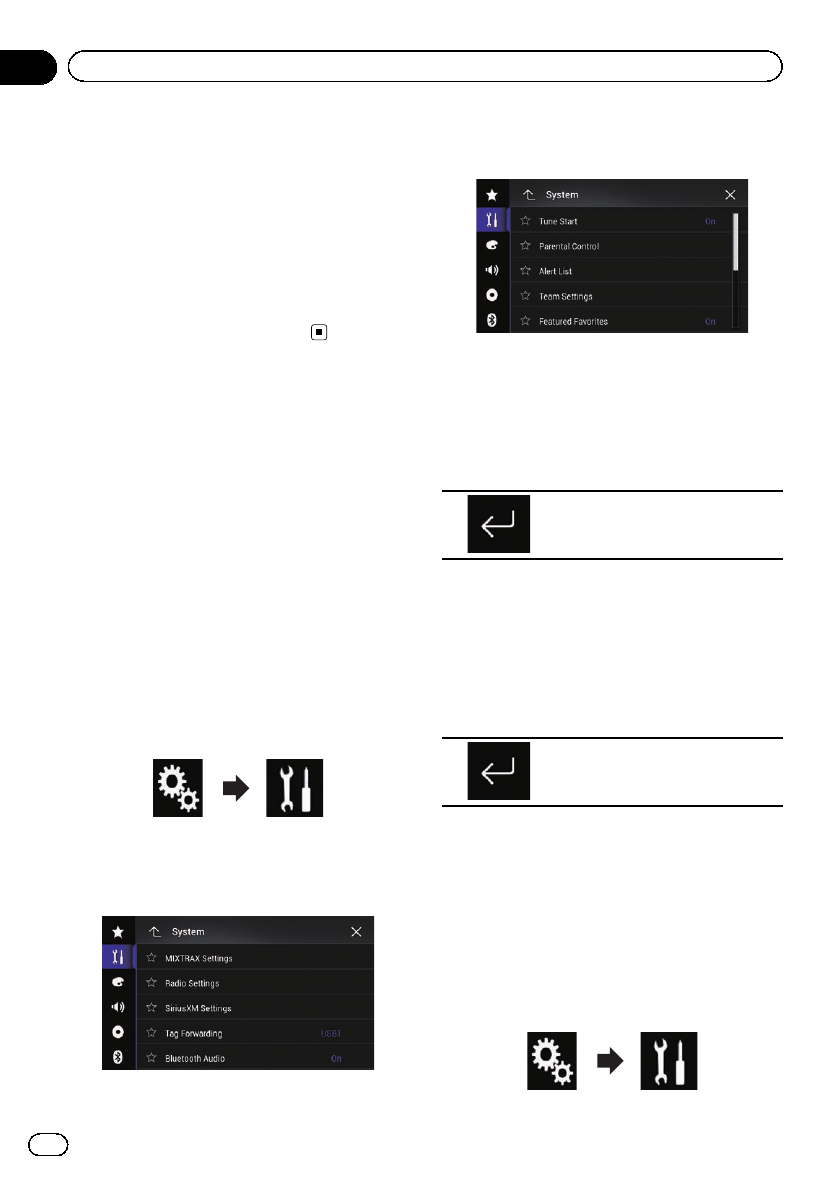
5 Touch [City Setting].
The “City”screen appears.
6 Touch the desired city.
pA check mark appears for the selected
item.
!If you touch [No City Selected], the check
mark will be removed from the selected city.
!If you remove the check mark from the se-
lected city, a check mark automatically ap-
pears for “No City Selected”.
Setting parental lock
The SiriusXM Parental Control feature allows
you to control access to channels that you
consider inappropriate for younger listeners.
When enabled, the Parental Control feature re-
quires you to enter a passcode to tune into the
locked channels.
Setting the passcode
pThis function is available only when
“SiriusXM”is selected as the source.
1 Press the HOME button to display the
Top menu screen.
2 Touch the following keys in the follow-
ing order.
The “System”screen appears.
3 Touch [AV Source Settings].
The following screen appears.
4 Touch [SiriusXM Settings].
The following screen appears.
5 Touch [Parental Control].
The “Parental Control”screen appears.
6 Enter the passcode.
pThe default passcode is “0000”.
7 Touch the following key.
Displays the “Locked Channel”
screen.
8 Touch [Edit Code].
The “Edit Code”screen appears.
9 Enter the passcode you want to set.
pTo delete the entered numbers one by one,
touch [C].
10 Touch the following key.
Displays the “Locked Channel”
screen.
Locking the channel
pThis function is available only when
“SiriusXM”is selected as the source.
1 Press the HOME button to display the
Top menu screen.
2 Touch the following keys in the follow-
ing order.
En
164
Chapter
27 Using the SiriusXM®satellite radio
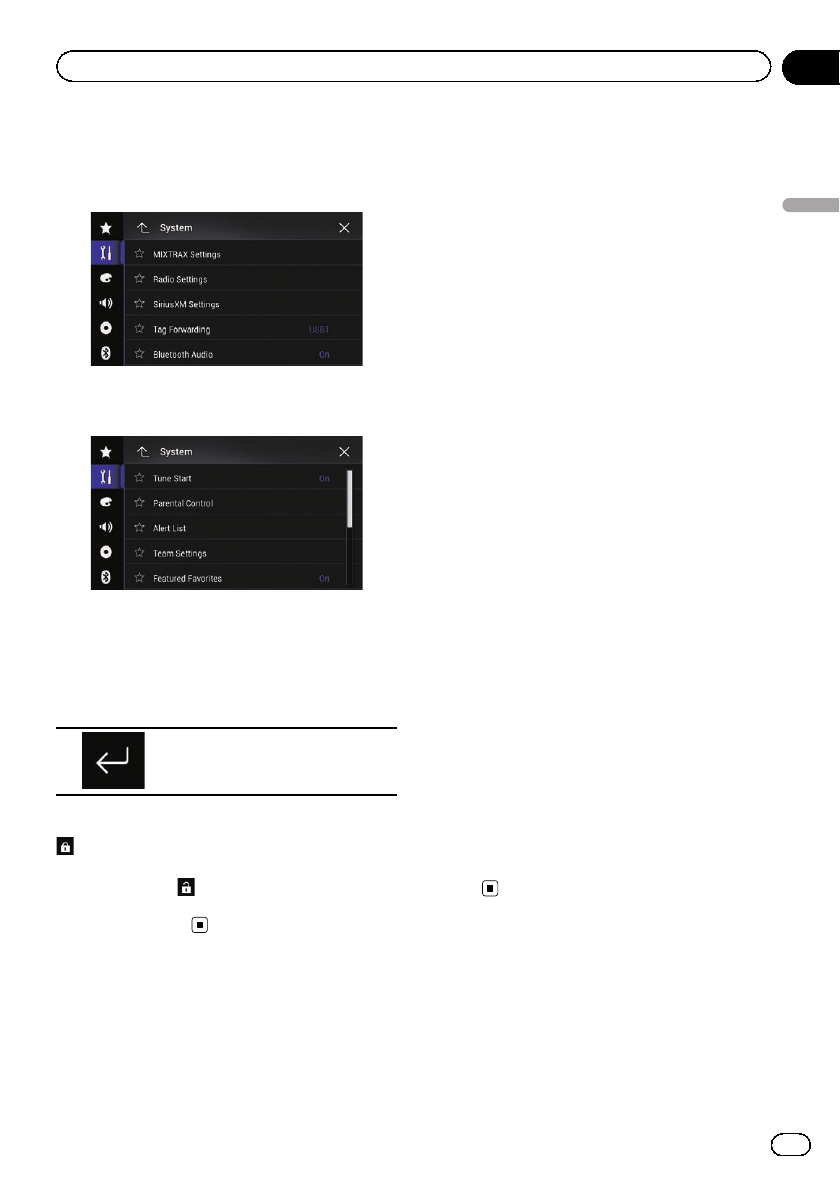
The “System”screen appears.
3 Touch [AV Source Settings].
The following screen appears.
4 Touch [SiriusXM Settings].
The following screen appears.
5 Touch [Parental Control].
The “Parental Control”screen appears.
6 Enter the current passcode.
7 Touch the following key.
Displays the “Locked Channel”
screen.
8 Touch the channel you want to lock.
appears and the channel is locked.
pIf you touch a locked channel, the icon
switches to and the channel is unlocked.
pIf you touch [Clear All], all locked channels
are unlocked.
Using the content alerts
function (such as Song Alerts,
Artist Alerts and Game Alerts)
While listening to SiriusXM Satellite Radio,
you can be alerted when your favorite songs,
artists or games involving your favorite sports
teams are playing on other channels. The
radio will display an alert message when a
matching artist, song or team is found on an-
other channel. Then you can choose if you
want to tune into that favorite or you can
ignore it and stay on your current channel. In-
formation on setting up the Artist, Song and
Game Alerts is described below.
Memorizing the current contents
The song titles, artist names, and your favorite
sport teams to which you are listening can be
memorized to an alert list.
1 On the current channel content infor-
mation area, touch the item for which you
want an alert.
=For details, refer to Using the touch panel
keys on page 156.
A confirmation message appears.
2 Touch [Set Alert] for artist or song, or
touch [Team1] or [Team2] for game.
The song, artist, or game is memorized to an
alert list.
When a program that matches a keyword
memorized to the alert list is broadcast, a
beep sounds and a message is displayed.
3 Touch [Jump] to switch to the channel.
You can listen to the track.
pYou can enable or disable alerts by setting
the alert function.
pNotification may not be provided depending
on the status of this product.
#If you touch [Stay], the channel will not
switch.
Setting the program you
want to be alerted for
1 Press the HOME button to display the
Top menu screen.
En 165
Chapter
27
Using the SiriusXM®satellite radio
Using the SiriusXM®satellite radio
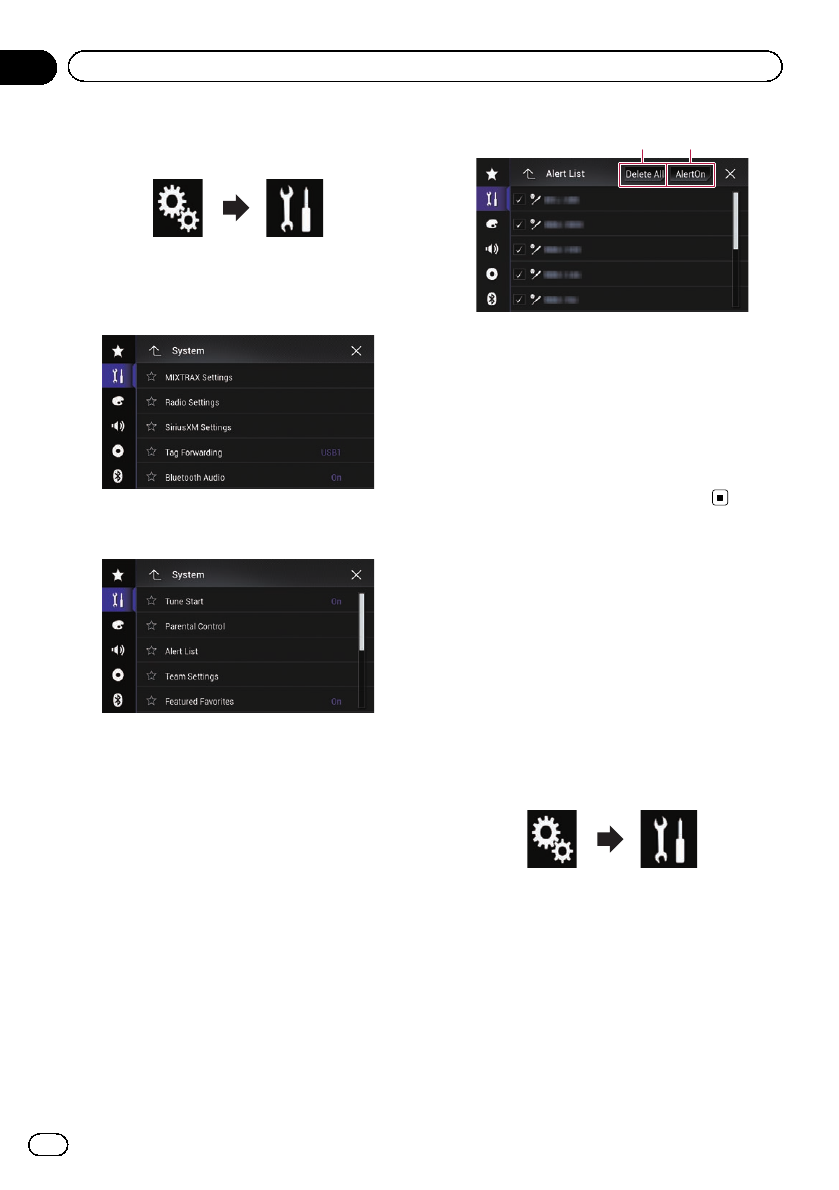
2 Touch the following keys in the follow-
ing order.
The “System”screen appears.
3 Touch [AV Source Settings].
The following screen appears.
4 Touch [SiriusXM Settings].
The following screen appears.
5 Touch [Alert List].
The “Alert List”screen appears.
6 Touch the artist name, song title or
team you want to be alerted for when
available.
The alert indicator is highlighted, and the alert
setting is enabled.
pIf you touch the indicator highlighted, the
alert setting is canceled.
pIf you touch and hold the list item, you can
delete the item from the list.
pYou can register up to 50 keywords in the
alert list.
12
1Delete All
Deletes all items memorized to the alert list.
2Alert On/Alert Off
Changes the settings in the following order
each time you touch the key.
!Alert On (default):
Activates the alert function.
!Alert Off:
Deactivates the alert function.
Selecting teams for Game
Alert
This product can notify you when games invol-
ving your favorite sports teams are about to
start. To use this function, you need to store
the teams you want to follow in advance.
1 Press the HOME button to display the
Top menu screen.
2 Touch the following keys in the follow-
ing order.
The “System”screen appears.
3 Touch [AV Source Settings].
The following screen appears.
En
166
Chapter
27 Using the SiriusXM®satellite radio
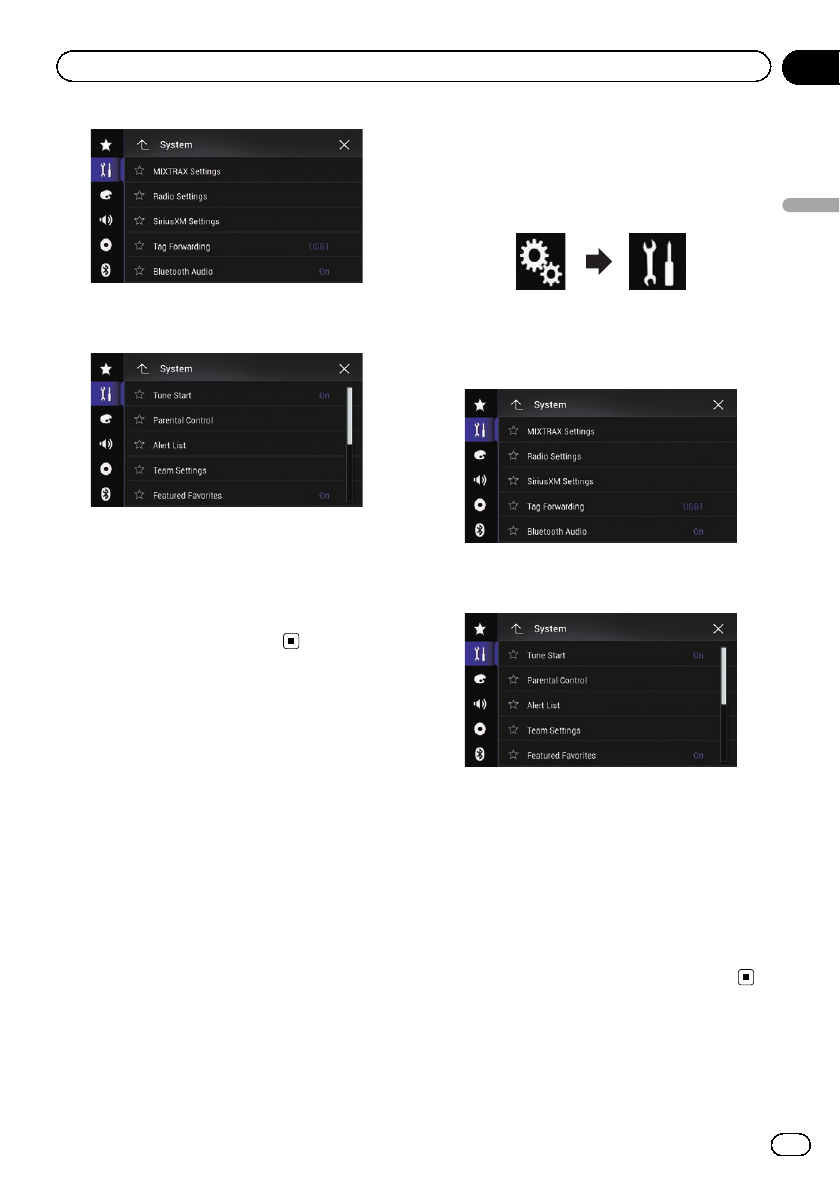
4 Touch [SiriusXM Settings].
The following screen appears.
5 Touch [Team Settings].
The “League”screen appears.
6 Touch the desired league.
7 Touch the desired team.
The team settings are enabled.
Setting the Featured
Favorites function
Featured Favorites are groups of channels that
are created by the SiriusXM Programming de-
partment allowing you to discover new chan-
nels. Featured Favorite channels are dynamic
and can change often, allowing you to dis-
cover new channels.
pThis function is available only when
“SiriusXM”is selected as the source.
pIf this function is turned on, “Featured”will
be available as a band selection.
pThe featured seasonal theme will be auto-
matically updated. You can set whether to
be notified of the update.
=For details, refer to Setting the update
notification for Featured Favorites on
page 168.
1 Press the HOME button to display the
Top menu screen.
2 Touch the following keys in the follow-
ing order.
The “System”screen appears.
3 Touch [AV Source Settings].
The following screen appears.
4 Touch [SiriusXM Settings].
The following screen appears.
5 Touch [Featured Favorites] repeatedly
until the desired setting appears.
!On (default):
Activates the Featured Favorite function.
!Off
Deactivates the Featured Favorite function.
pIf the setting is changed to “Off”while lis-
tening to the channel in Featured band, the
channel does not change and the band dis-
play on the screen changes to “SXM1”.
En 167
Chapter
27
Using the SiriusXM®satellite radio
Using the SiriusXM®satellite radio
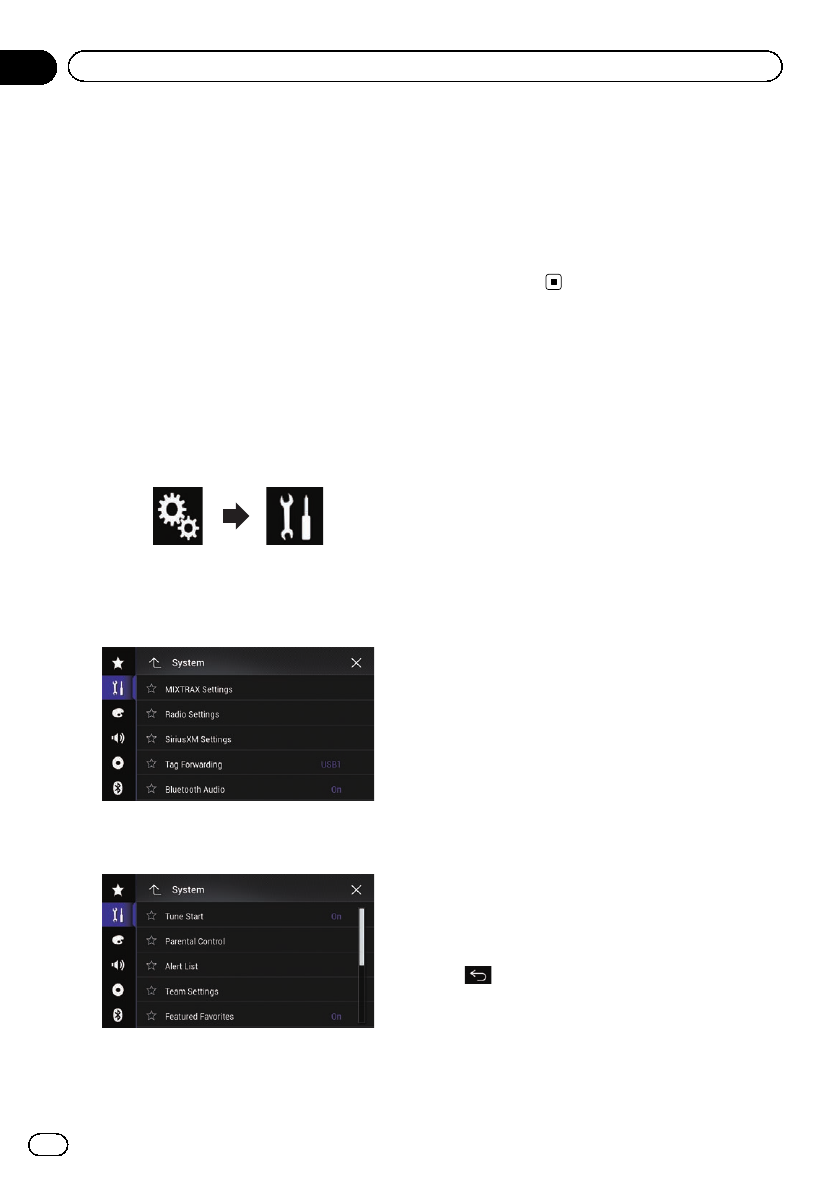
Setting the update
notification for Featured
Favorites
You can set whether to be notified when the
featured seasonal theme is updated.
pThis function is available only when
“SiriusXM”is selected as the source and
“Featured Favorites”is set to “On”.
=For details, refer to Setting the Featured
Favorites function on page 167.
1 Press the HOME button to display the
Top menu screen.
2 Touch the following keys in the follow-
ing order.
The “System”screen appears.
3 Touch [AV Source Settings].
The following screen appears.
4 Touch [SiriusXM Settings].
The following screen appears.
5 Touch [Featured Band Update Mes-
sages] repeatedly until the desired setting
appears.
!On (default):
Activates the update notification function.
!Off
Deactivates the update notification
function.
Using the SportsFlash™
function
The SportsFlash function notifies you with a
pop-up message if a notable event occurs in
the game of your favorite sports teams even if
you are listening to another channel. By touch-
ing [Play] on the pop-up message displayed
on the screen, the radio switches to the chan-
nel broadcasting the game and starts play-
back about 30 seconds before the notable
event occurred allowing you to hear it unfold
as if you listened to it live. If you return to the
original channel after listening to the highlight
of the game, the radio plays back from the
time that the channel was switched. You will
not miss either the highlight of the game or
the contents of the channel you were originally
listening to.
pSXV300 or later SiriusXM Connect vehicle
tuner (sold separately) is required to use
this function.
pThis function is available only when
“SiriusXM”is selected as the source.
pTo use this function, before the game starts
select the teams you want to follow.
=For details, refer to Selecting teams for
SportsFlash on page 169.
pTouch [Play] to listen to the notified chan-
nel. To return to the original channel, touch
within five minutes after the channel is
switched.
pTouch [Ignore] to stay tuned to the current
channel.
pTouch [Cancel] to cancel notifications re-
garding the game.
En
168
Chapter
27 Using the SiriusXM®satellite radio
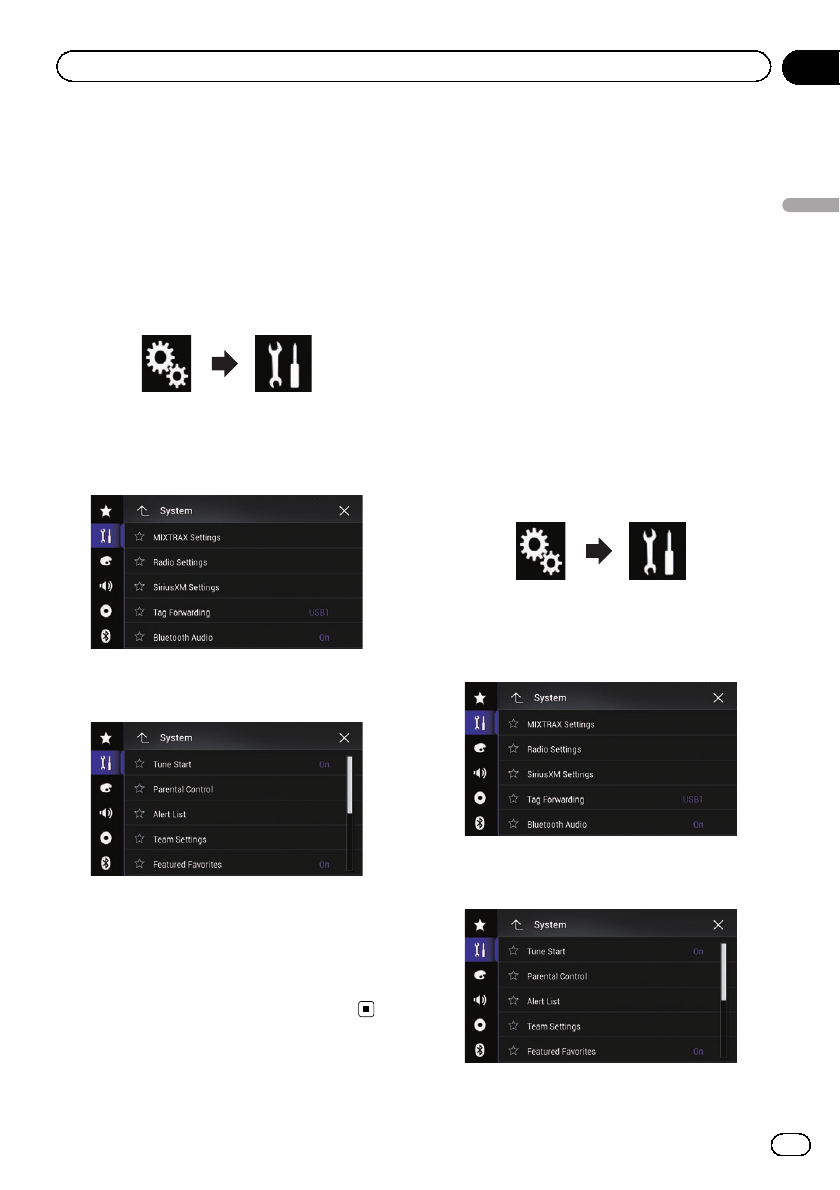
pNotification messages will not be displayed
while you are listening to the channel that
is the target of SportsFlash or while the
Radio ID is displayed.
1 Press the HOME button to display the
Top menu screen.
2 Touch the following keys in the follow-
ing order.
The “System”screen appears.
3 Touch [AV Source Settings].
The following screen appears.
4 Touch [SiriusXM Settings].
The following screen appears.
5 Touch [SportsFlash] repeatedly until the
desired setting appears.
!On (default):
Activates the SportsFlash function.
!Off
Deactivates the SportsFlash function.
Selecting teams for
SportsFlash
pThis function is available only when
“SiriusXM”is selected as the source and
“SportsFlash”is set to “On”.
=For details, refer to Using the Sports-
Flash
™
function on page 168.
pUp to 50 teams can be registered as the tar-
get of SportsFlash.
pIf five prioritized teams are registered, noti-
fication messages for the teams other than
the prioritized teams may not be displayed.
1 Press the HOME button to display the
Top menu screen.
2 Touch the following keys in the follow-
ing order.
The “System”screen appears.
3 Touch [AV Source Settings].
The following screen appears.
4 Touch [SiriusXM Settings].
The following screen appears.
En 169
Chapter
27
Using the SiriusXM®satellite radio
Using the SiriusXM®satellite radio
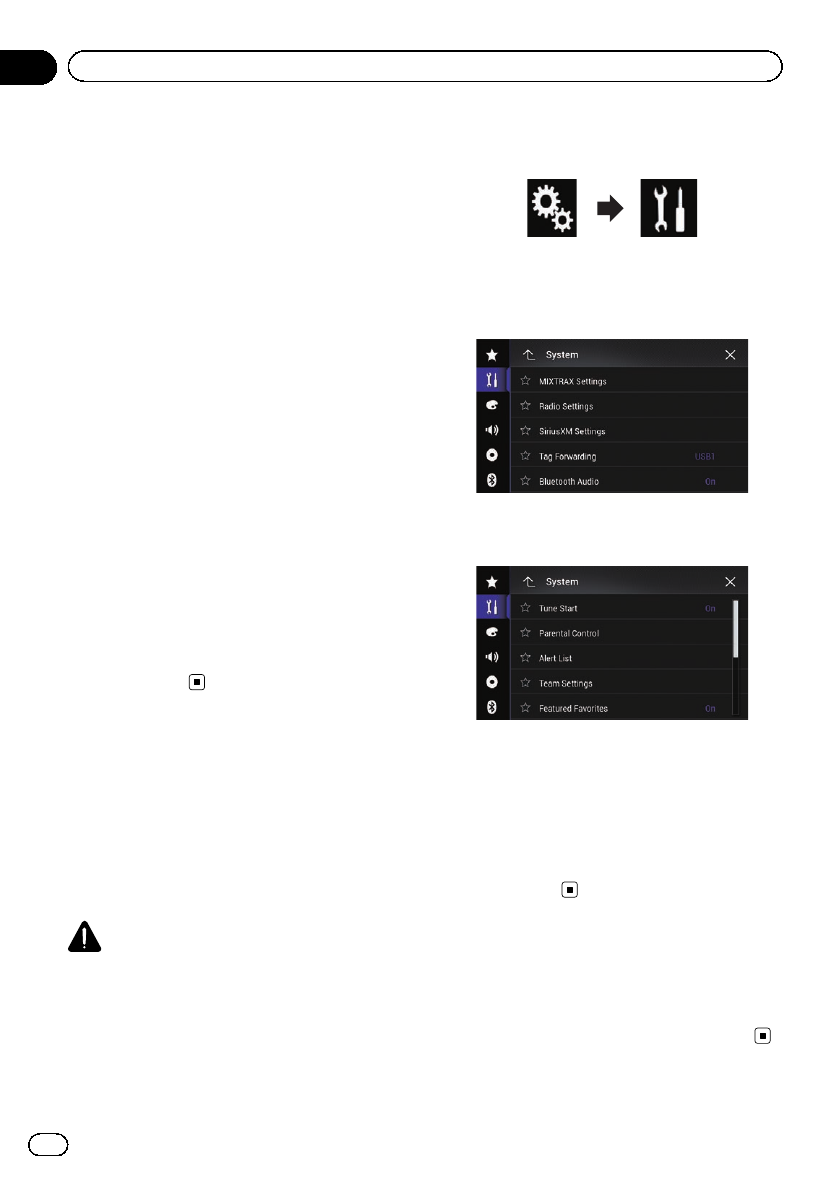
5 Touch [SportsFlash List].
The “SportsFlash List”screen appears.
6 Touch [Edit List].
Available leagues and teams are displayed.
pTouch a league to narrow down the options
as necessary.
7 Touch the teams to register to the
SportsFlash List.
pA check mark appears for the selected
item.
!Touch [Clear All] to cancel all the selec-
tions.
8 Touch [Prioritize] to register the se-
lected teams as the prioritized teams.
pYou can select up to five prioritized teams
for SportsFlash.
p[Prioritize] is not available if not more than
five teams are registered in the SportsFlash
list. The teams are automatically registered
as the prioritized teams.
pIf five teams are already registered as the
prioritized teams, remove a check mark
from one of the teams in the list on the
“Prioritize List”screen before adding an-
other team.
Restoring the SiriusXM
settings to the default
You can restore the SiriusXM settings to the
default.
pThis setting is available only when you stop
your vehicle in a safe place and apply the
parking brake.
CAUTION
Do not turn off the engine while restoring the set-
tings.
1 Press the HOME button to display the
Top menu screen.
2 Touch the following keys in the follow-
ing order.
The “System”screen appears.
3 Touch [AV Source Settings].
The following screen appears.
4 Touch [SiriusXM Settings].
The following screen appears.
5 Touch [SiriusXM Reset].
The “SiriusXM Reset”screen appears.
6 Touch [Restore].
The settings are restored to the default.
pThe source is turned off and the Bluetooth
connection is disconnected before the pro-
cess starts.
Storing song information
to an iPod (iTunes Tagging)
=For details, refer to Storing song information
to an iPod (iTunes Tagging) on page 221.
En
170
Chapter
27 Using the SiriusXM®satellite radio

Operating with the
hardware buttons
Press the TRK button.
You can move up or down the preset channels
when the current channel is displayed.
You can skip files forward or backward when
the play time indicator is displayed.
Press and hold the TRK button.
You can move up or down channels by holding
down the button when the current channel is
displayed.
You can perform fast reverse or fast forward by
holding down the button when the play time
indicator is displayed.
En 171
Chapter
27
Using the SiriusXM®satellite radio
Using the SiriusXM®satellite radio
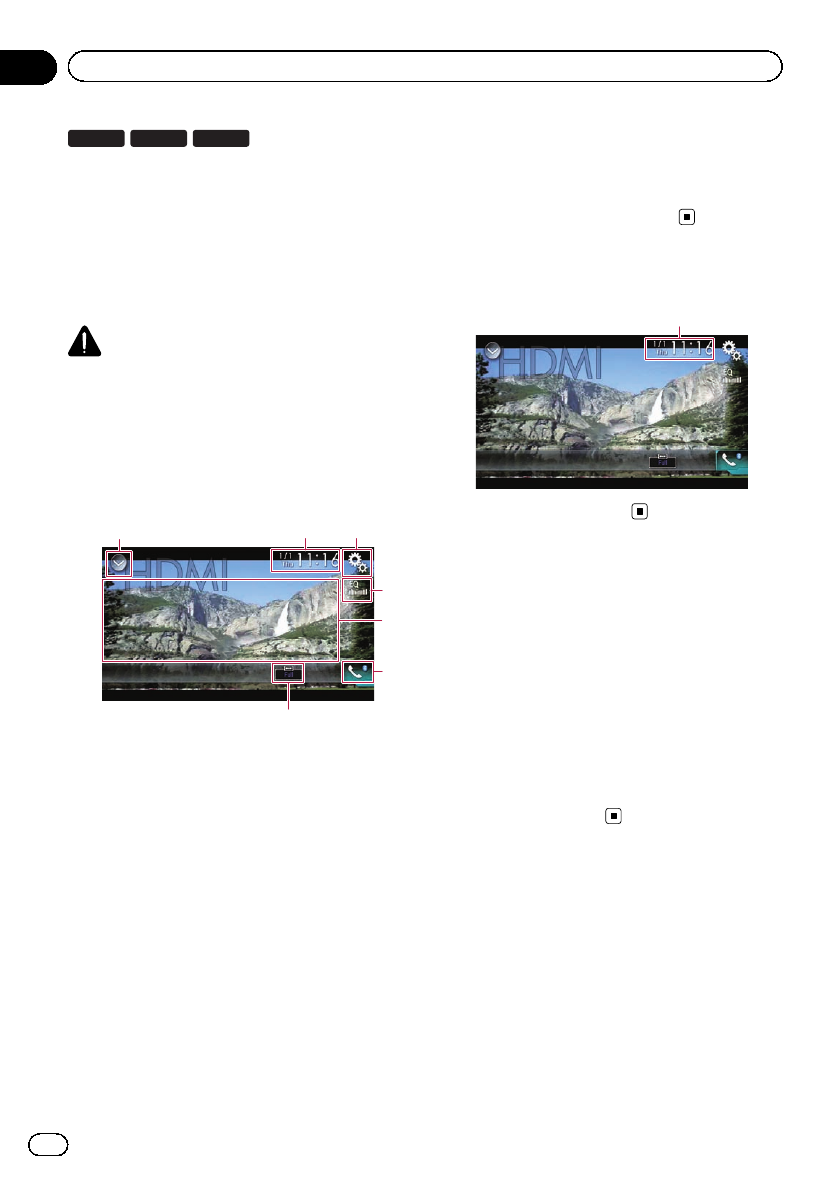
8100NEX 7100NEX 6100NEX
You can display the video image output by the
device connected to this product. This section
describes operations for an HDMI source.
pA High Speed HDMI®Cable (sold sepa-
rately) is required for connection.
=For details of the connection method,
refer to the Installation Manual.
CAUTION
For safety reasons, video images cannot be
viewed while your vehicle is in motion. To view
video images, you must stop in a safe place and
apply the parking brake.
Using the touch panel keys
132
7
5
4
6
1Displays the source list.
=For details, refer to Selecting a front
source on the source list on page 25.
2Displays the Time and date setting
screen.
=For details, refer to Setting the time and
date on page 221.
3Displays the Setting menu screen.
4Recalls equalizer curves.
=For details, refer to Using the equalizer
on page 202.
5Hides the touch panel keys.
Touching this area hides the touch panel keys.
pTouch anywhere on the LCD screen to
display the touch panel keys again.
6Displays the Phone menu screen.
=For details, refer to Displaying the phone
menu on page 80.
7Changes the wide screen mode.
=For details, refer to Changing the wide
screen mode on page 223.
Reading the screen
1
1Current time and date
Starting procedure
1 Display the AV source selection screen.
=For details of the operations, refer to Dis-
playing the AV operation screen on page 24.
2 Touch [HDMI] on the AV source selec-
tion screen.
The image is displayed on the screen.
3 Use the touch panel keys on the screen
to control the external unit.
=For details, refer to Using the touch panel
keys on page 172.
En
172
Chapter
28 Using an HDMI source
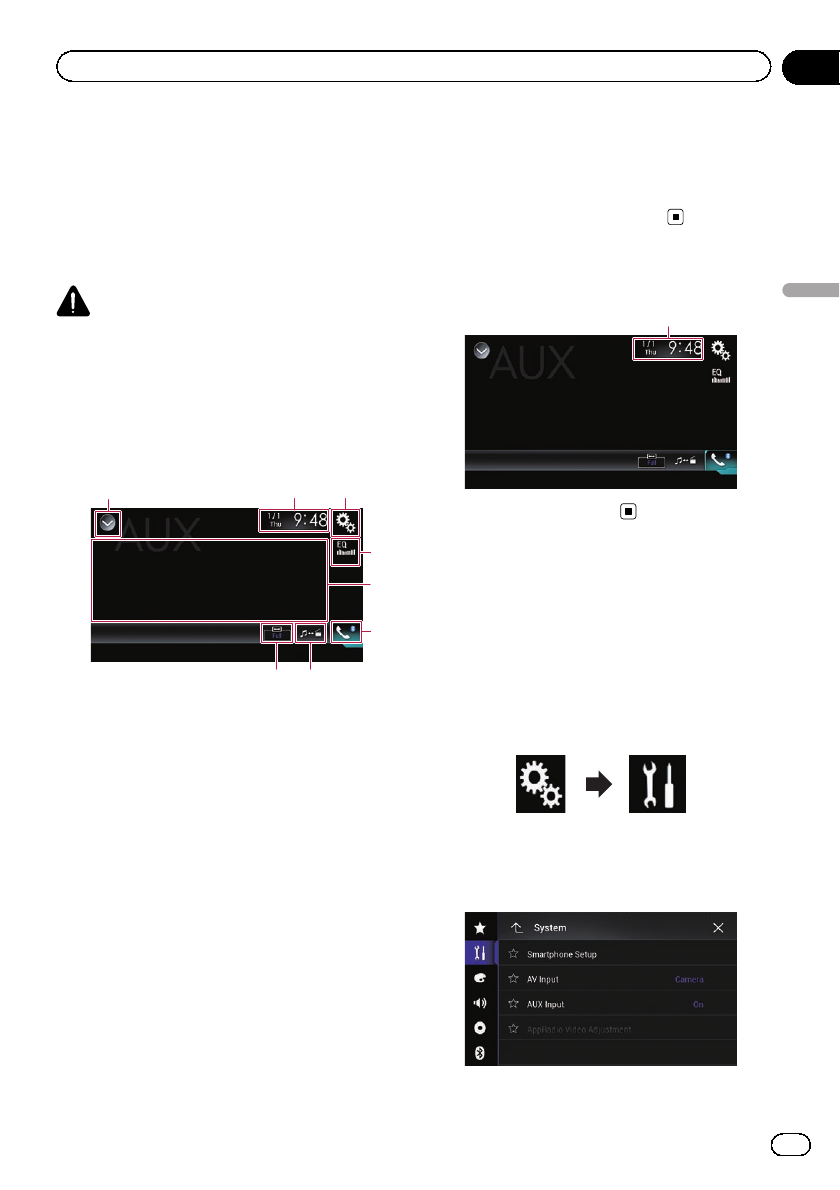
You can display the video image output by the
device connected to this product. This section
describes operations for an AUX source.
pA Mini-jack AV cable (CD-RM10) (sold sepa-
rately) is required for connection.
=For details of the connection method,
refer to the Installation Manual.
CAUTION
For safety reasons, video images cannot be
viewed while your vehicle is in motion. To view
video images, you must stop in a safe place and
apply the parking brake.
Using the touch panel keys
132
8
5
4
6
7
1Displays the source list.
=For details, refer to Selecting a front
source on the source list on page 25.
2Displays the Time and date setting
screen.
=For details, refer to Setting the time and
date on page 221.
3Displays the Setting menu screen.
4Recalls equalizer curves.
=For details, refer to Using the equalizer
on page 202.
5Hides the touch panel keys.
Touching this area hides the touch panel keys.
pTouch anywhere on the LCD screen to
display the touch panel keys again.
6Displays the Phone menu screen.
=For details, refer to Displaying the phone
menu on page 80.
7Switches the operation screen.
=For details, refer to Switching the opera-
tion screen on page 174.
8Changes the wide screen mode.
=For details, refer to Changing the wide
screen mode on page 223.
Reading the screen
1
1Current time and date
Starting procedure
You can display the video image output by the
device connected to video input.
1 Press the HOME button to display the
Top menu screen.
2 Touch the following keys in the follow-
ing order.
The “System”screen appears.
3 Touch [Input/Output Settings].
The following screen appears.
En 173
Chapter
29
Using an AUX source
Using an AUX source
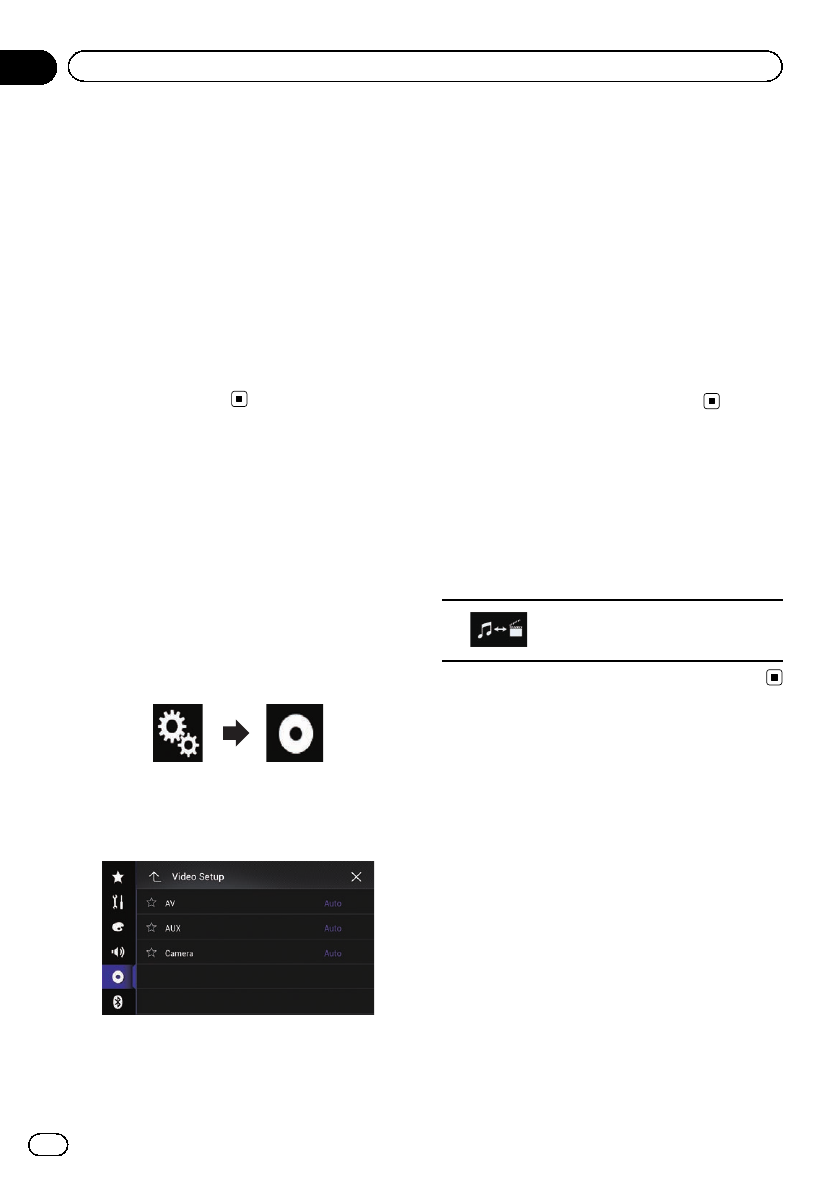
4 Confirm that “AUX Input”is turned on.
pThe default setting is “On”.
5 Display the AV source selection screen.
=For details of the operations, refer to Dis-
playing the AV operation screen on page 24.
6 Touch [AUX] on the AV source selection
screen.
The image is displayed on the screen.
7 Use the touch panel keys on the screen
to control the external unit.
=For details, refer to Using the touch panel
keys on page 173.
Setting the video signal
When you connect this product to an AUX
equipment, select the suitable video signal
setting.
pYou can operate this function only for the
video signal input into the AUX input.
1 Press the HOME button to display the
Top menu screen.
2 Touch the following keys in the follow-
ing order.
The “Video Setup”screen appears.
3 Touch [Video Signal Setting].
The following screen appears.
4 Touch [AUX].
The pop-up menu appears.
5 Touch the item you want to set.
!Auto (default):
Adjusts the video signal setting automati-
cally.
!PAL:
Sets the video signal to PAL.
!NTSC:
Sets the video signal to NTSC.
!PAL-M:
Sets the video signal to PAL-M.
!PAL-N:
Sets the video signal to PAL-N.
!SECAM:
Sets the video signal to SECAM.
Switching the operation
screen
You can switch between the screen to operate
music files and that to operate video files.
%Touch the following key.
Switches between the screen to
operate video files and that to oper-
ate music files.
En
174
Chapter
29 Using an AUX source
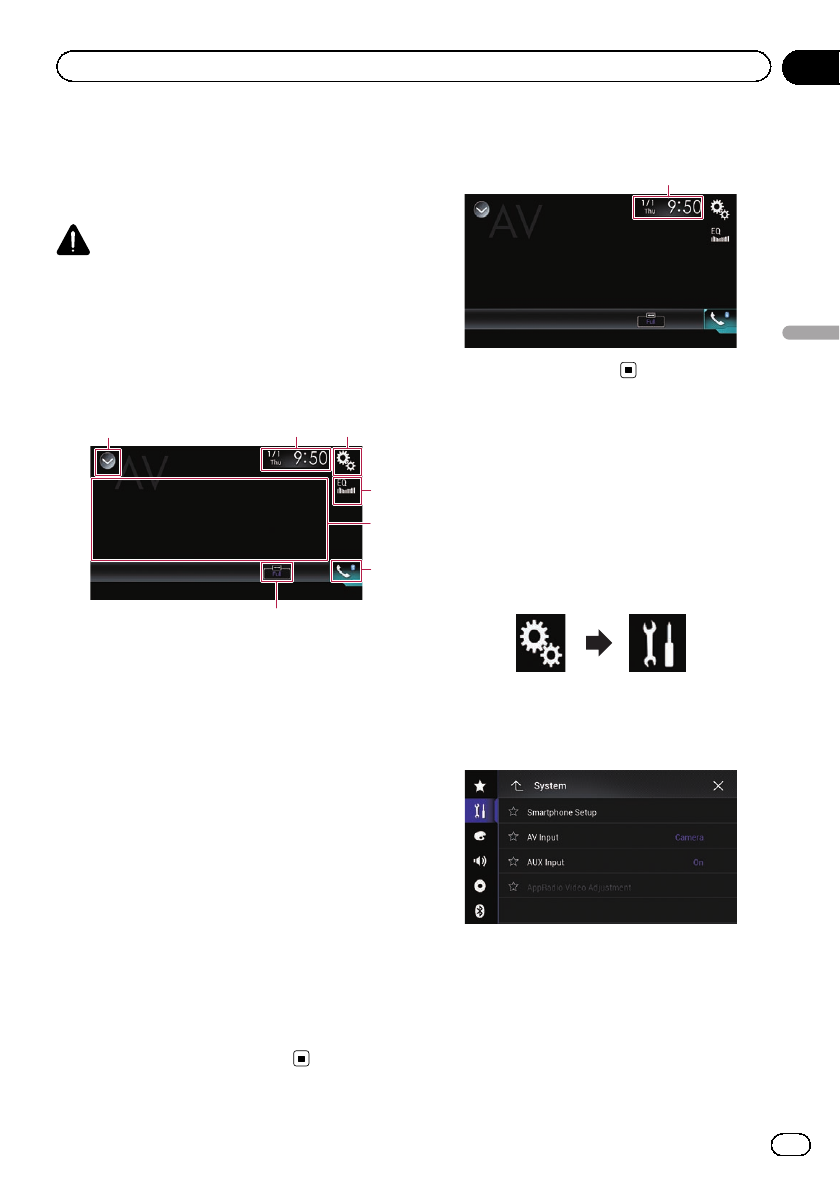
You can display the video image output by the
device connected to this product.
=For details of the connection method, refer
to the Installation Manual.
CAUTION
For safety reasons, video images cannot be
viewed while your vehicle is in motion. To view
video images, you must stop in a safe place and
apply the parking brake.
Using the touch panel keys
132
7
5
4
6
1Displays the source list.
=For details, refer to Selecting a front
source on the source list on page 25.
2Displays the Time and date setting
screen.
=For details, refer to Setting the time and
date on page 221.
3Displays the Setting menu screen.
4Recalls equalizer curves.
=For details, refer to Using the equalizer
on page 202.
5Hides the touch panel keys.
Touching this area hides the touch panel keys.
pTouch anywhere on the LCD screen to
display the touch panel keys again.
6Displays the Phone menu screen.
=For details, refer to Displaying the phone
menu on page 80.
7Changes the wide screen mode.
=For details, refer to Changing the wide
screen mode on page 223.
Reading the screen
1
1Current time and date
Starting procedure
You can display the video image output by the
device connected to video input.
1 Press the HOME button to display the
Top menu screen.
2 Touch the following keys in the follow-
ing order.
The “System”screen appears.
3 Touch [Input/Output Settings].
The following screen appears.
4 Touch [AV Input].
The pop-up menu appears.
5 Touch [Source].
The video image output by the connected ex-
ternal device can be displayed.
pIf “Source”is selected, “2nd Camera
Input”is automatically set to “Off”.
En 175
Chapter
30
Using AV input
Using AV input
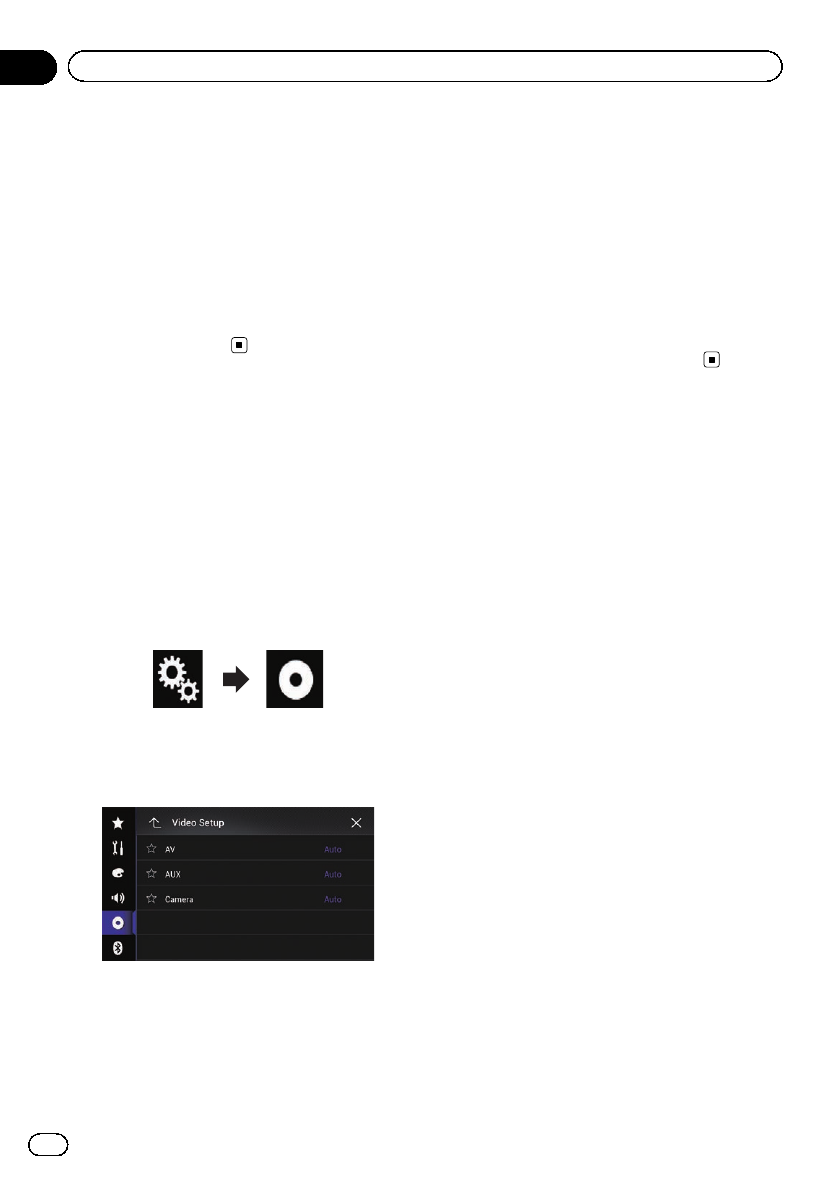
6 Display the AV source selection screen.
=For details of the operations, refer to Dis-
playing the AV operation screen on page 24.
7 Touch [AV] on the AV source selection
screen.
The image is displayed on the screen.
8 Use the touch panel keys on the screen
to control the external unit.
=For details, refer to Using the touch panel
keys on page 175.
Setting the video signal
When you connect this product to an AV
equipment, select the suitable video signal
setting.
pYou can operate this function only for the
video signal input into the AV input.
1 Press the HOME button to display the
Top menu screen.
2 Touch the following keys in the follow-
ing order.
The “Video Setup”screen appears.
3 Touch [Video Signal Setting].
The following screen appears.
4 Touch [AV].
The pop-up menu appears.
5 Touch the item you want to set.
!Auto (default):
Adjusts the video signal setting automati-
cally.
!PAL:
Sets the video signal to PAL.
!NTSC:
Sets the video signal to NTSC.
!PAL-M:
Sets the video signal to PAL-M.
!PAL-N:
Sets the video signal to PAL-N.
!SECAM:
Sets the video signal to SECAM.
En
176
Chapter
30 Using AV input
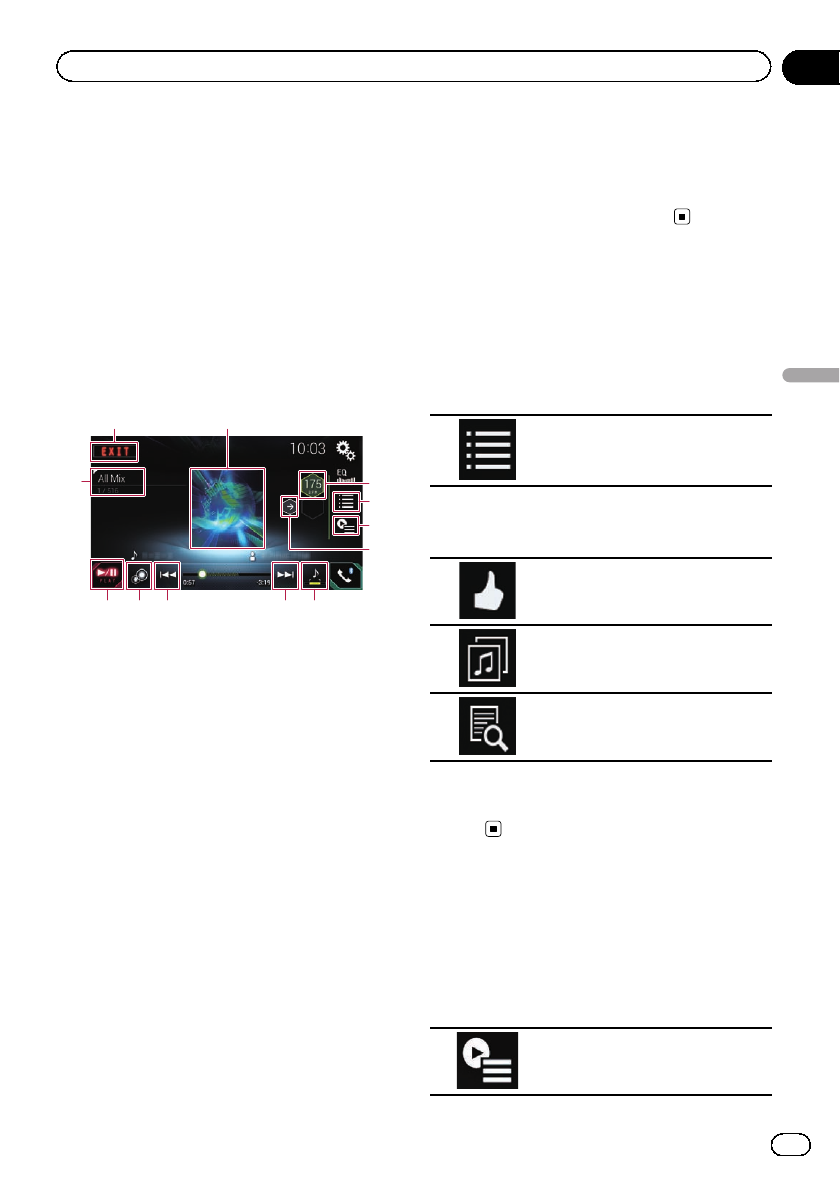
MIXTRAX is original technology for creating
non-stop mixes of selections from your audio
library, complete with DJ effects that make
them sound as if a DJ is right there with you
playing the music.
pYou can turn MIXTRAX on by touching
[MIXTRAX] on the playback screen of com-
pressed audio files.
=For details, refer to Using the touch
panel keys on page 111.
Touch panel keys
1
4
6
5
7
b
2
9
3
a8 8
1Exits the MIXTRAX screen.
2Displays the LinkGate screen.
Touch the desired item. Songs related to the
selected item are played.
3Specifies the BPM.
The original BPM is not displayed during play-
back.
4Displays the item selection screen.
=For details of the operations, refer to Se-
lecting an item to play songs on page
177.
5Displays the playback list screen.
=For details of the operations, refer to Se-
lecting songs not to be played on page
177.
6Sets to the original BPM (Beats Per Minute).
7Specifies the playback portion.
=For details of the operations, refer to
Specifying the playback portion on page
178.
8Touch to select a track.
Touch and hold to fast forward or rewind.
9Turns on or off the MIXTRAX original visual
display.
aPauses and starts playback.
bDisplays the item selected on the LinkGate
screen or item selection screen.
Selecting an item to play
songs
You can specify an item to play songs related
to it.
1 Touch the following key.
Displays the item selection screen.
2 Touch the following keys to select the
item.
Displays the MIX pattern list.
Displays the tag list.
Displays the file list.
3 Select an item in the list.
Songs related to the selected item are
played.
Selecting songs not to be
played
You can select items or songs not to be
played.
1 Touch the following key.
Displays the playback list screen.
En 177
Chapter
31
Using MIXTRAX
Using MIXTRAX
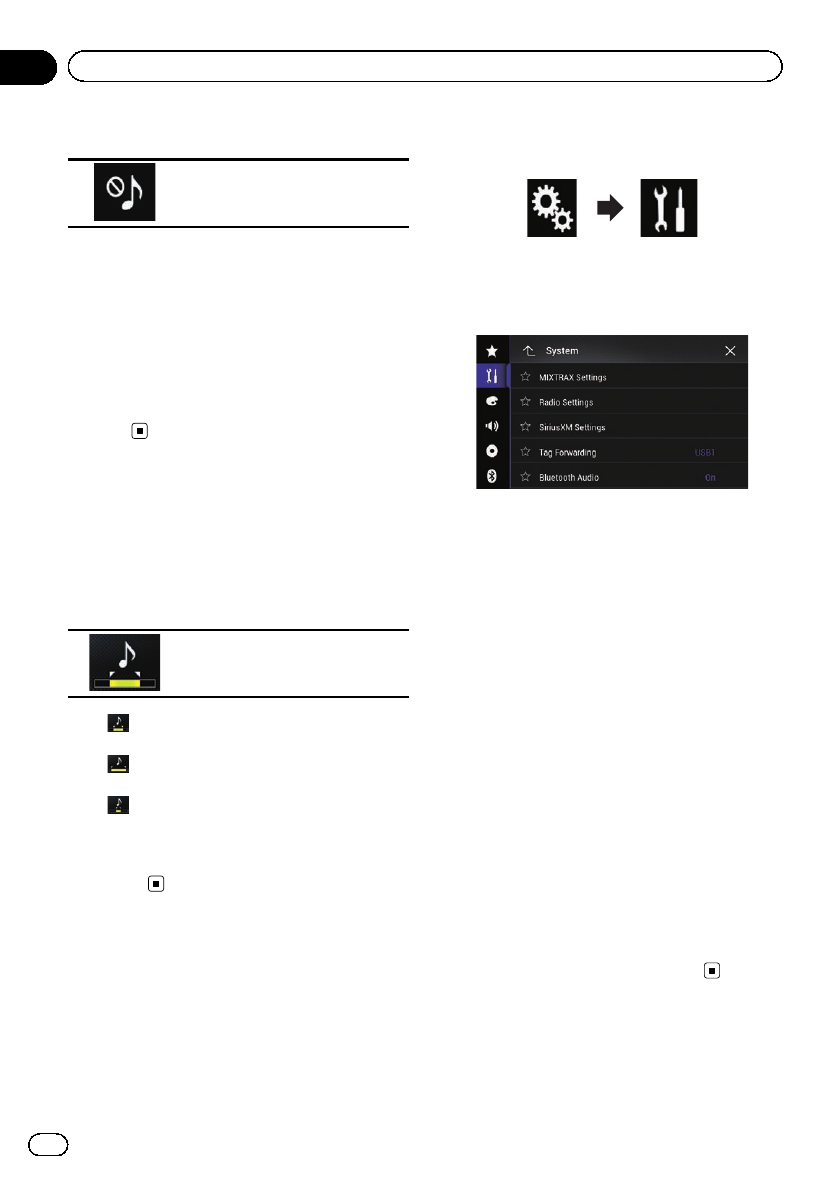
2 Touch the following key.
Displays the “Playback not al-
lowed”screen.
3 Touch [Songs], [Artists] or [Albums].
4 Touch the box on the left of the item or
song that you do not want to play.
An icon is displayed. Items displayed with the
icon will not be played.
#If you touch [Unselect All], all the selections
are canceled.
#If you touch [Select All], all the items are
selected.
Specifying the playback
portion
You can specify the playback portion.
%Touch the following key repeatedly
until the desired setting appears.
Changes the playback portion.
!(default):
Plays back a middle portion.
!:
Plays back a long portion.
!:
Plays back a short portion.
pThe most suitable sound effect is automati-
cally applied when switching to the next
song.
Setting the flash pattern
The flashing color changes with the changes
in the sound and bass levels.
1 Press the HOME button to display the
Top menu screen.
2 Touch the following keys in the follow-
ing order.
The “System”screen appears.
3 Touch [AV Source Settings].
The following screen appears.
4 Touch [MIXTRAX Settings].
5 Touch [Flash Pattern].
The pop-up menu appears.
6 Touch the item you want to set.
!Sound1 (default) to Sound6:
The flash pattern changes according to the
sound level. Select a desired mode.
!L-Pass1 to L-Pass6:
The flash pattern changes according to the
bass level. Select a desired mode.
!Random1:
The flash pattern changes randomly ac-
cording to the sound level mode and low
pass mode.
!Random2:
The flash pattern changes randomly ac-
cording to the sound level mode.
!Random3:
The flash pattern changes randomly ac-
cording to the low pass mode.
!Off:
The flash pattern does not flash.
En
178
Chapter
31 Using MIXTRAX
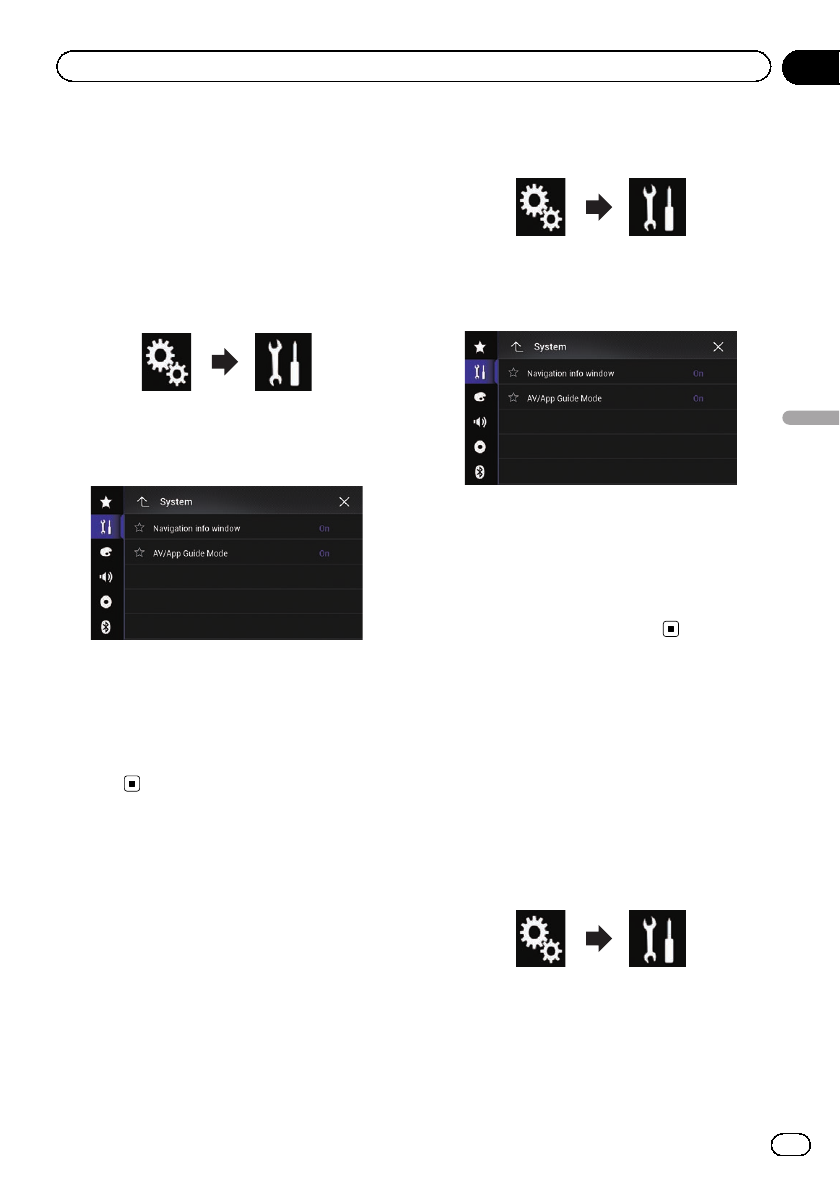
Navigation info window
You can set whether to display the guidance
information of the navigation on the AV opera-
tion screen.
1 Press the HOME button to display the
Top menu screen.
2 Touch the following keys in the follow-
ing order.
The “System”screen appears.
3 Touch [Navigation Related Settings].
The following screen appears.
4 Touch [Navigation info window] re-
peatedly until the desired setting appears.
!On (default):
Displays the navigation information bar.
!Off:
Does not display the navigation information
bar.
Setting automatic switching
to the navigation screen
You can set whether to automatically switch to
the navigation screen from the AV screen or
the Application screen when your vehicle ap-
proaches a guidance point such as an inter-
section.
1 Press the HOME button to display the
Top menu screen.
2 Touch the following keys in the follow-
ing order.
The “System”screen appears.
3 Touch [Navigation Related Settings].
The following screen appears.
4 Touch [AV/App Guide Mode] repeat-
edly until the desired setting appears.
!On (default):
Switches from the AV operation screen or
the Application screen to the map screen.
!Off:
Does not switch the screen.
Activating the Bluetooth
audio source
You need to activate the Bluetooth audio
source in order to use a Bluetooth audio
player.
1 Press the HOME button to display the
Top menu screen.
2 Touch the following keys in the follow-
ing order.
The “System”screen appears.
3 Touch [AV Source Settings].
The following screen appears.
En 179
Chapter
32
System settings
System settings
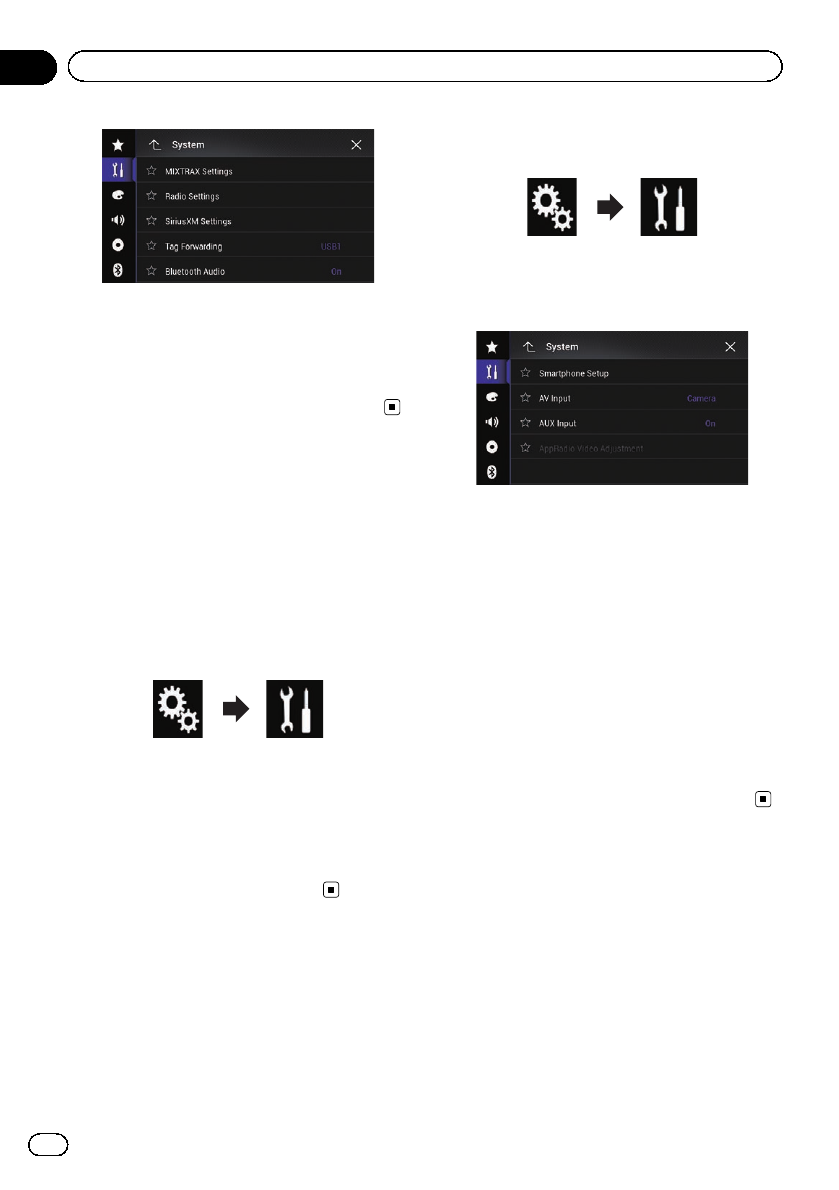
4 Touch [Bluetooth Audio] repeatedly
until the desired setting appears.
!On (default):
Activates the Bluetooth audio source.
!Off:
Deactivates the Bluetooth audio source.
Setting the ever scroll
When “Ever Scroll”is set to “On”, recorded
text information scrolls continuously in the
display. Set to “Off”if you prefer the informa-
tion to scroll just once.
1 Press the HOME button to display the
Top menu screen.
2 Touch the following keys in the follow-
ing order.
The “System”screen appears.
3 Touch [Ever Scroll] repeatedly until the
desired setting appears.
!Off (default):
Turns the ever scroll setting off.
!On:
Turns the ever scroll setting on.
Setting AV input
You can use external video equipment such as
portable players connected to this product
with this setting.
1 Press the HOME button to display the
Top menu screen.
2 Touch the following keys in the follow-
ing order.
The “System”screen appears.
3 Touch [Input/Output Settings].
The following screen appears.
4 Touch [AV Input].
The pop-up menu appears.
5 Touch the item you want to set.
!Off (default):
Deactivates the AV source.
!Source:
Displays the video image output by the con-
nected external device.
!Camera:
Displays the image output by the connected
external camera.
pIf “Camera”is selected, “2nd Camera
Input”is automatically set to “On”.
pIf “Off”or “Source”is selected, “2nd Cam-
era Input”is automatically set to “Off”.
Setting the rear view camera
The following two functions are available. A se-
parately sold rear view camera (e.g. ND-BC6)
is required for utilizing the rear view camera
function. (For details, consult your dealer.)
Rear view camera
This product features a function that automati-
cally switches to the full-screen image of the
rear view camera installed on your vehicle.
When the shift lever is in the REVERSE (R) po-
sition, the screen automatically switches to
full-screen rear view camera image.
En
180
Chapter
32 System settings
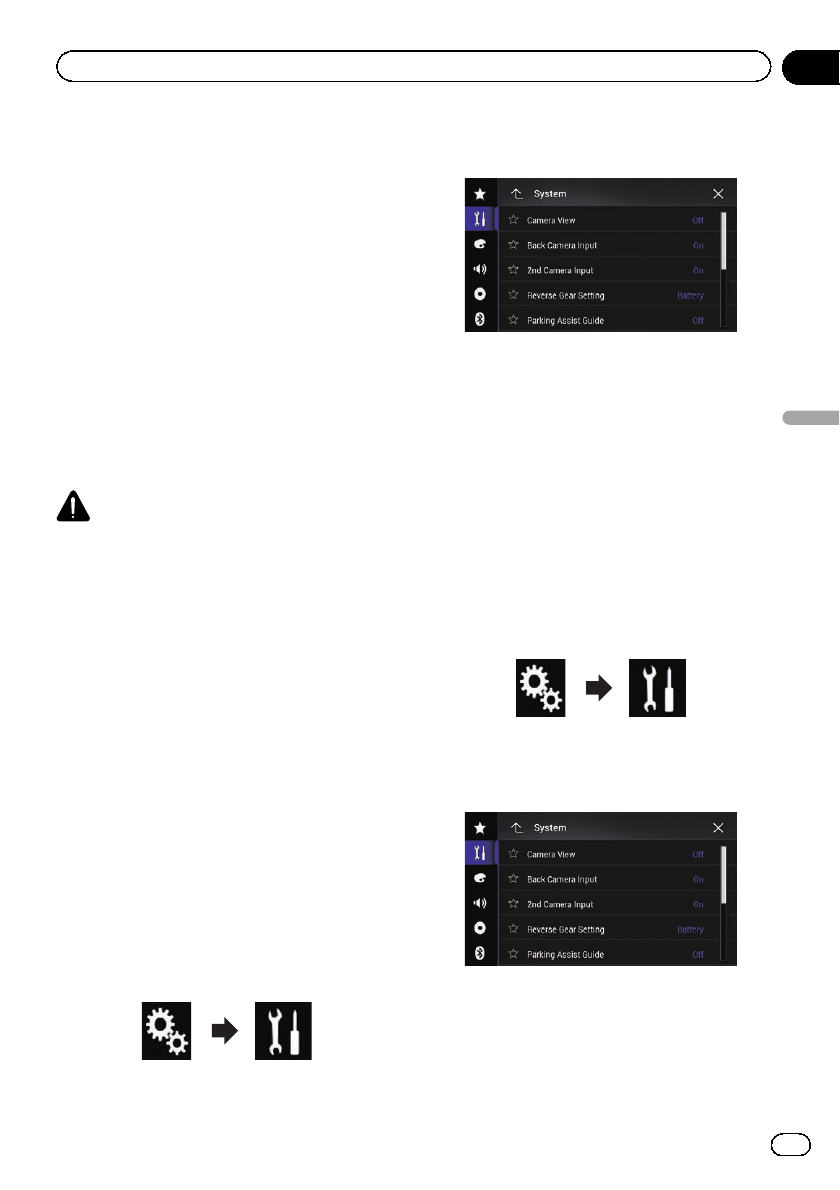
pIf the shift lever is aligned to the REVERSE
(R) position immediately after the system of
this product is started up, only the camera
image will be displayed and the parking as-
sist guidelines will not be displayed. The
parking assist guidelines will be displayed
on the camera image after a little while. Be
sure to check the conditions around the ve-
hicle even before the guidelines and the
message are displayed.
Camera for Camera View mode
Camera View can be displayed at all times
(e.g. when monitoring an attached trailer,
etc.). Please note that with this setting, the
camera image is not resized to fit, and that a
portion of what is seen by the camera is not
viewable.
CAUTION
Check to make sure settings for rear view camera
displays a mirror reversed image.
pImmediately verify whether the display
changes to a rear view camera image when
the shift lever is aligned to REVERSE (R)
from another position.
pWhen the screen changes to full-screen
rear view camera image during normal
driving, switch to the opposite setting in
“Reverse Gear Setting”.
Setting rear view camera
activation
To view images of the rear view camera on the
screen of this product, “Back Camera Input”
needs to be set to “On”.
1 Press the HOME button to display the
Top menu screen.
2 Touch the following keys in the follow-
ing order.
The “System”screen appears.
3 Touch [Camera settings].
The following screen appears.
4 Touch [Back Camera Input] repeatedly
until the desired setting appears.
!Off (default):
Turns the back camera input setting off.
!On:
Turns the back camera input setting on.
Setting the polarity of the rear
view camera
1 Press the HOME button to display the
Top menu screen.
2 Touch the following keys in the follow-
ing order.
The “System”screen appears.
3 Touch [Camera settings].
The following screen appears.
4 Touch [Reverse Gear Setting] repeat-
edly until the desired setting appears.
!Battery (default):
When the polarity of the connected lead is
positive while the shift lever is in the RE-
VERSE (R) position.
En 181
Chapter
32
System settings
System settings
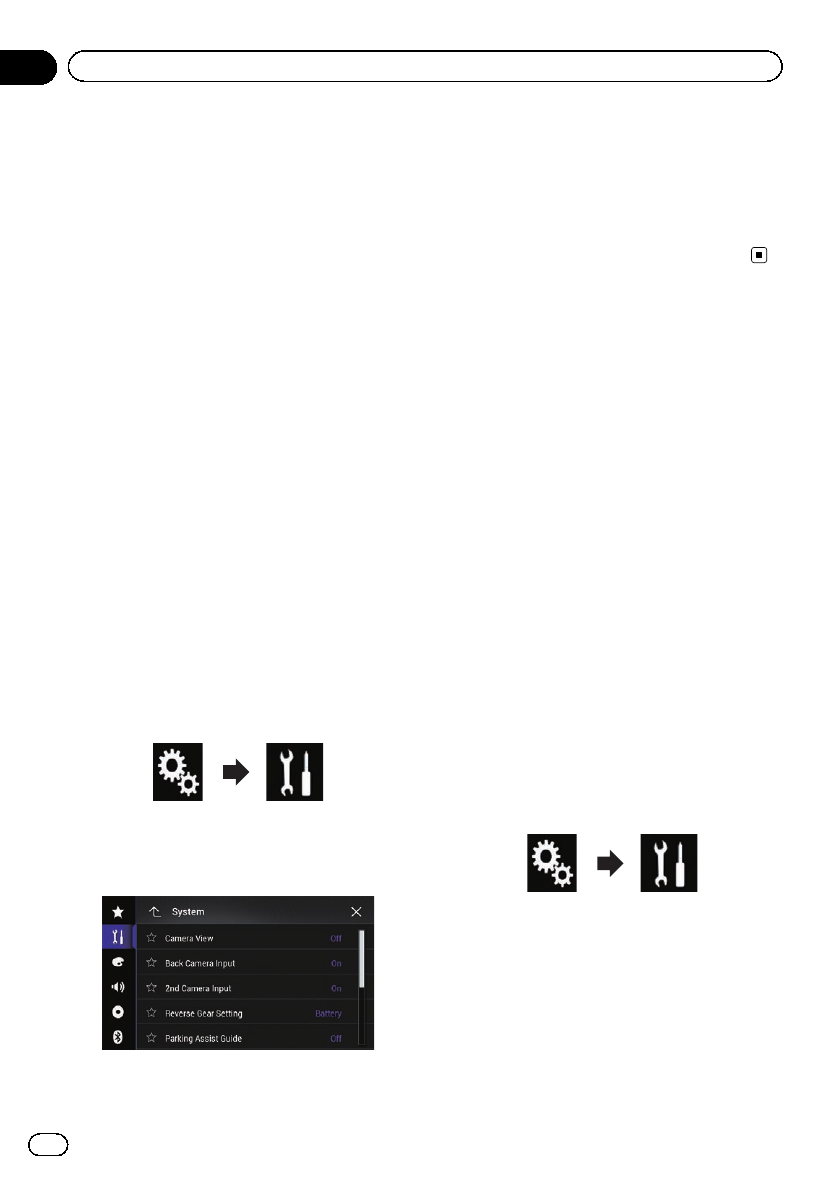
!Ground:
When the polarity of the connected lead is
negative while the shift lever is in the RE-
VERSE (R) position.
When the shift lever is aligned to the RE-
VERSE (R) position after setting the rear view
camera, the rear view image appears.
Setting the reversed image
display for the rear view image
Rear view camera images are displayed re-
versed (as mirror images) on the front screen
except when a rear view camera that can out-
put images in the correct direction is used.
You can set whether to reverse the rear view
camera images to be displayed on the front
screen.
pThis setting is available only when you stop
your vehicle in a safe place and apply the
parking brake.
pThis function is available only when “Back
Camera Input”is “On”.
=For details, refer to Setting rear view
camera activation on page 181.
1 Press the HOME button to display the
Top menu screen.
2 Touch the following keys in the follow-
ing order.
The “System”screen appears.
3 Touch [Camera settings].
The following screen appears.
4 Touch [Back Camera: Reverse Video] re-
peatedly until the desired setting appears.
!Off (default):
Does not reverse the rear view camera
images.
!On:
Reverses the rear view camera images.
Setting the camera for
Camera View mode
To display Camera View at all times, “Camera
View”needs to be set to “On”.
pTo set the rear view camera for Camera
View mode, “Back Camera Input”needs
to be set to “On”.
=For details, refer to Setting rear view
camera activation on page 181.
pTo set the second camera for Camera
View mode, set “AV Input”to “Camera”or
set “2nd Camera Input”to “On”.
=For details, refer to Setting AV input on
page 180.
=For details, refer to Setting the second
camera input on page 184.
pYou can also turn this function on by
touching [Camera View] on the AV
source selection screen or in the source
list.
1 Press the HOME button to display the
Top menu screen.
2 Touch the following keys in the follow-
ing order.
The “System”screen appears.
3 Touch [Camera settings].
The following screen appears.
En
182
Chapter
32 System settings
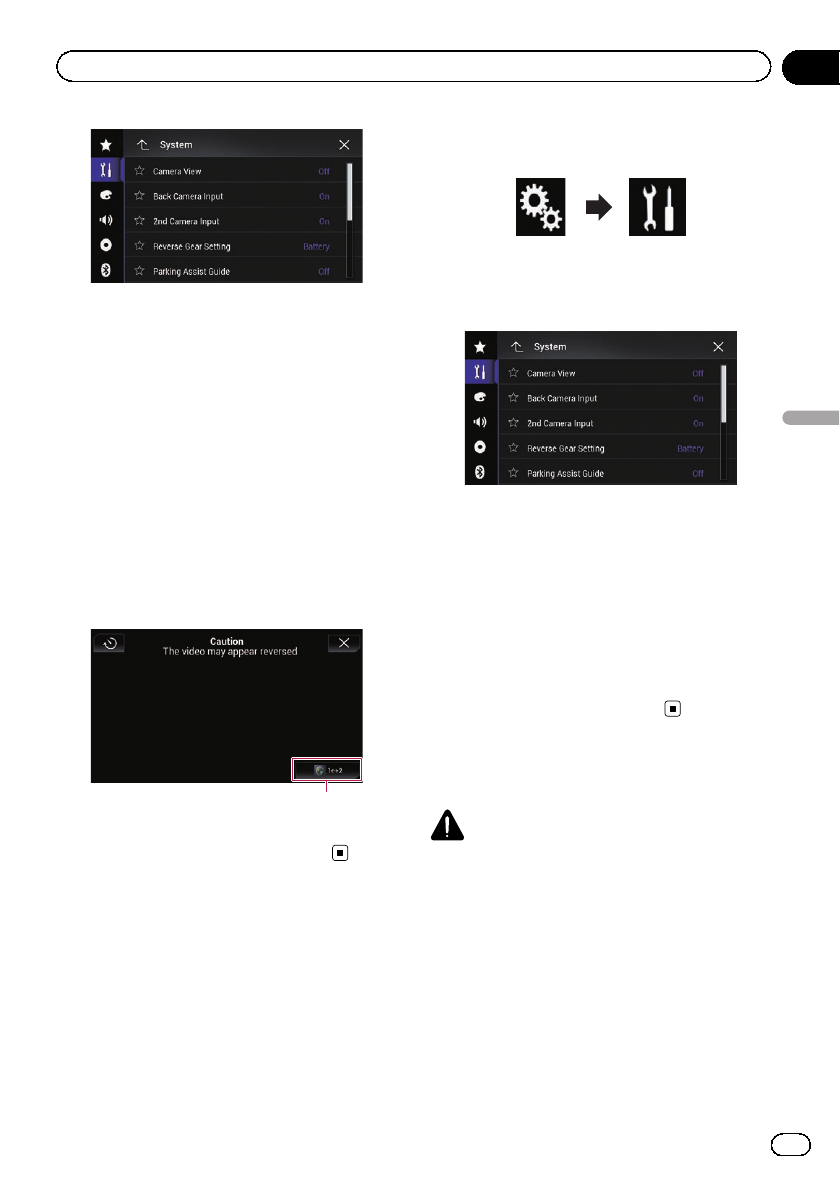
4 Touch [Camera View] repeatedly until
the desired setting appears.
!Off (default):
Turns the camera view setting off.
!On:
Turns the camera view setting on.
If no operations are performed for seven sec-
onds after the AV operation screen is dis-
played, the camera view will appear
automatically.
pIf you touch the screen while the camera
view is displayed, the displayed image will
turn off temporarily.
When the camera view of both rear view cam-
era and second camera are available, the key
to switch the display appears.
1
1Switches the display between rear view
image and second camera image.
Displaying the parking
assist guidelines
1 Press the HOME button to display the
Top menu screen.
2 Touch the following keys in the follow-
ing order.
The “System”screen appears.
3 Touch [Camera settings].
The following screen appears.
4 Touch [Parking Assist Guide] repeatedly
until the desired setting appears.
!Off (default):
Hides the guidelines.
!On:
Displays the guidelines.
When the shift lever is aligned to the RE-
VERSE (R) position after setting the rear view
camera, the rear view image appears.
pIf you press and hold the MAP button, the
rear view image disappears.
Setting guidelines on the
rear view image
CAUTION
!When adjusting the guidelines, be sure to
park the vehicle in a safe place and apply the
parking brake.
!Before getting out of the car to place the
markings, be sure to turn the ignition switch
off (ACC OFF).
!The range projected by the rear view camera
is limited. Also, the vehicle width and distance
guidelines displayed on the rear view camera
image may differ from the actual vehicle
width and distance. (The guidelines are
straight lines.)
En 183
Chapter
32
System settings
System settings
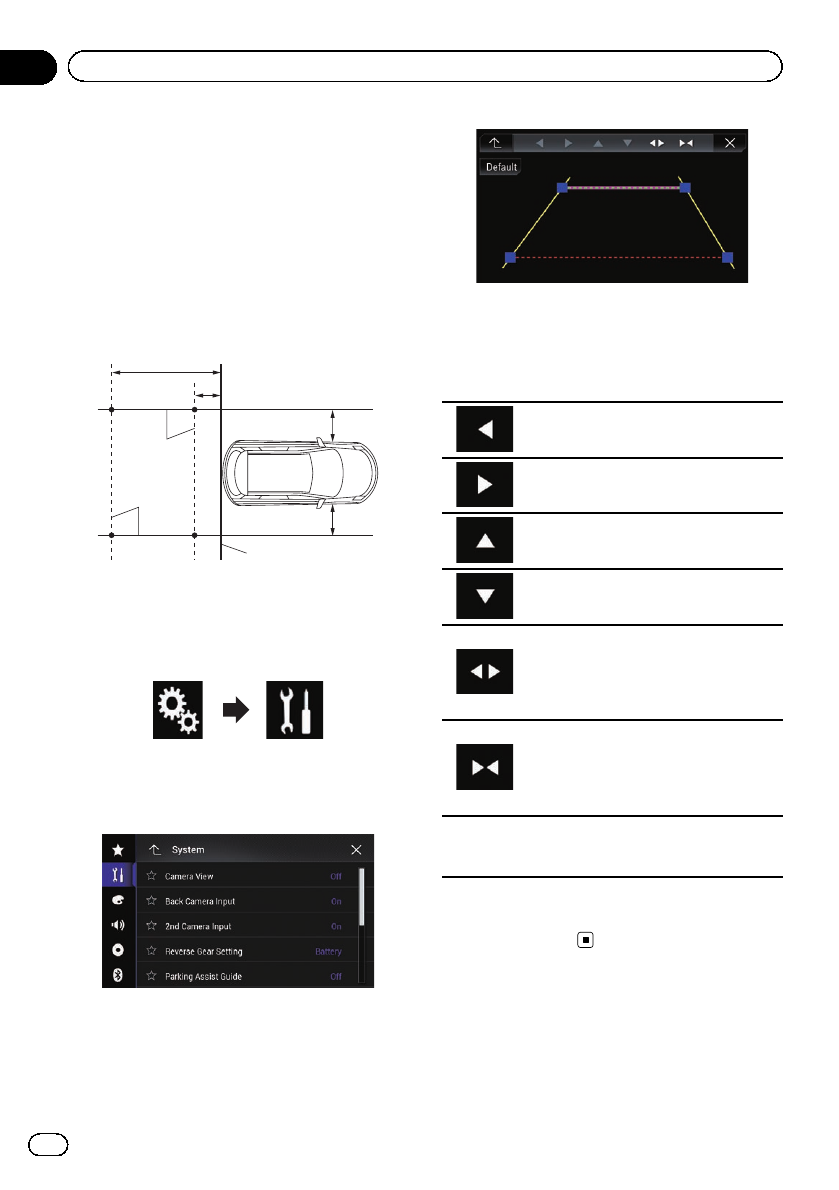
!The image quality may deteriorate depending
on the usage environment, such as at night or
in dark surroundings.
1 Park your vehicle in a safe place and
apply the parking brake.
2 Using packing tape or similar, place
markings approximately 25 cm (9-7/8 in.)
from each side of the vehicle, and approxi-
mately 50 cm (1 ft. 8 in.) and 2 m (6 ft. 7 in.)
from the rear bumper.
Rear bumper
25 cm
(9-7/8 in.)
25 cm
(9-7/8 in.)
50 cm (1 ft. 8 in.)
2 m (6 ft. 7 in.)
Markings
Markings
3 Press the HOME button to display the
Top menu screen.
4 Touch the following keys in the follow-
ing order.
The “System”screen appears.
5 Touch [Camera settings].
The following screen appears.
6 Touch [Parking Assist Guide Adjust].
The following screen appears.
7 Set the guidelines by dragging the four
points.
8 Touch the following keys to adjust the
position of the point if necessary.
Moves the point to the left.
Moves the point to the right.
Moves the point upward.
Moves the point downward.
Extends the line to the left and right
from the current center point of the dis-
tance guideline. The adjustment points
on the lateral coordinates at both ends
will also move.
Shortens the line from the left and right
to the current center point of the dis-
tance guideline. The adjustment points
on the lateral coordinates at both ends
will also move.
Default
Resets the settings of the distance and
vehicle width guidelines and adjust-
ment points to the default.
pWhen a point is moved, the distance from
the initial value is displayed at the bottom
of the screen.
Setting the second camera
input
You can view images of the second camera (a
front camera etc.) on the screen of this pro-
duct.
En
184
Chapter
32 System settings
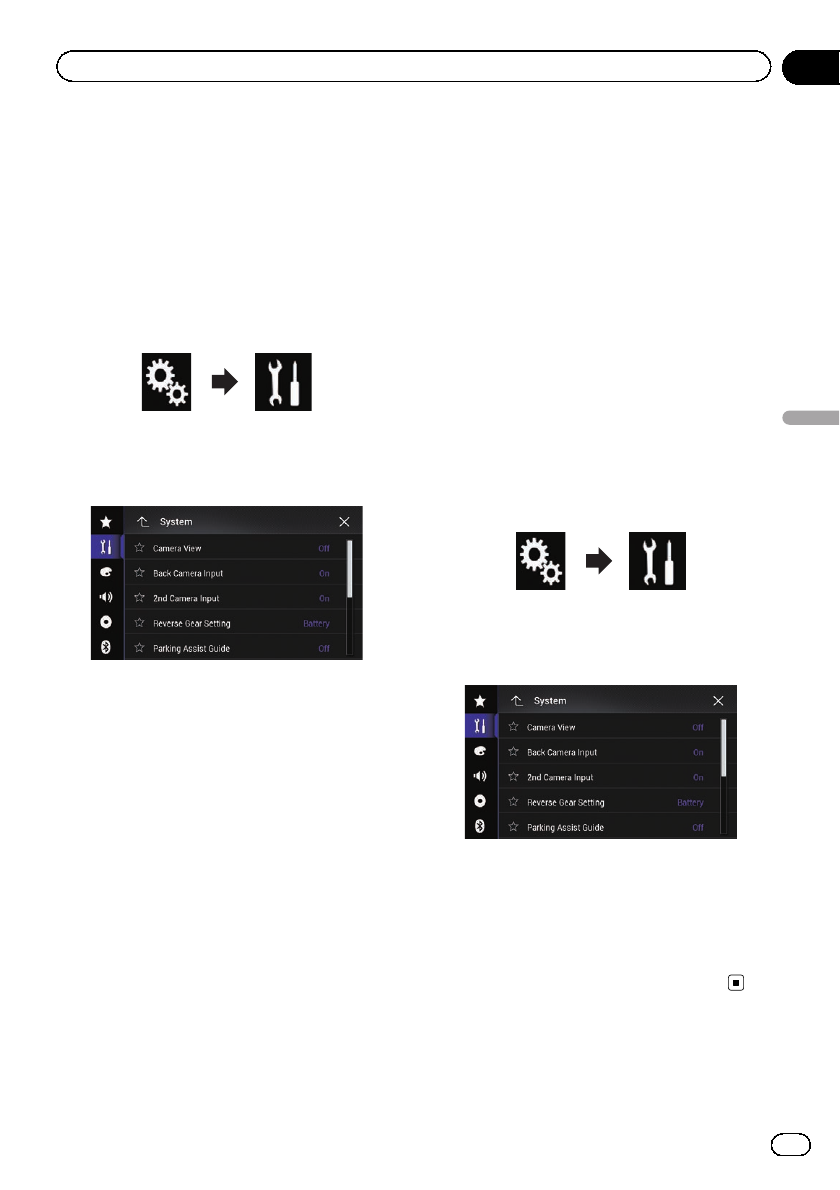
Setting the second camera
activation
pTo view images of the second camera on
the screen of this product, “2nd Camera
Input”needs to be set to “On”.
1 Press the HOME button to display the
Top menu screen.
2 Touch the following keys in the follow-
ing order.
The “System”screen appears.
3 Touch [Camera settings].
The following screen appears.
4 Touch [2nd Camera Input] repeatedly
until the desired setting appears.
!Off (default):
Turns the second camera input setting off.
!On:
Turns the second camera input setting on.
pThe confirmation message appears if set-
ting “2nd Camera Input”to “On”while the
AV source is on. The AV source will turn off
if “Yes”is selected, and “2nd Camera
Input”will be set to “On”. Select “No”to
cancel setting “2nd Camera Input”to
“On”.
pIf “On”is selected, “AV Input”is automati-
cally set to “Camera”.
pIf “Off”is selected, “AV Input”is automati-
cally set to “Off”.
Setting the reversed image setting
for the second camera input image
Second camera images are displayed reversed
(as mirror images) on the front screen except
when a second view camera that can output
images in the correct direction is used. You
can set whether to reverse the second camera
images to be displayed on the front screen.
pThis setting is available only when you stop
your vehicle in a safe place and apply the
parking brake.
pThis function is available when “2nd Cam-
era Input”is “On”or “AV Input”is set to
“Camera”.
1 Press the HOME button to display the
Top menu screen.
2 Touch the following keys in the follow-
ing order.
The “System”screen appears.
3 Touch [Camera settings].
The following screen appears.
4 Touch [2nd Camera: Reverse video] re-
peatedly until the desired setting appears.
!Off (default):
Does not reverse the second camera
images.
!On:
Reverses the second camera images.
Turning off the demo screen
If the demo screen appears, perform the fol-
lowing procedure to turn off the demo screen.
En 185
Chapter
32
System settings
System settings
1 Press the HOME button to display the
Top menu screen.
2 Touch the following keys in the follow-
ing order.
The “System”screen appears.
3 Touch [Demo Mode] repeatedly until
the desired setting appears.
!On (default):
Displays the demo screen.
!Off:
Hides the demo screen.
Selecting the system language
The system language can be selected.
pThe languages used in the program and
voice guidance can be set on the “Regio-
nal”screen.
=For details, refer to Customizing the na-
vigation settings on page 62.
!The language can be changed for the fol-
lowing:
—The “Audio”screen
—The “System”screen
—The “Video Setup”screen
—The “Bluetooth”screen
—Language for messages
Some operations on this product are
prohibited from use while driving or re-
quire careful attention when operated.
In such cases, a caution message will
appear on the display. You can change
the language for caution messages with
this setting.
!If the embedded language and the selected
language setting are not the same, text in-
formation may not display properly.
!Some characters may not be displayed
properly.
1 Press the HOME button to display the
Top menu screen.
2 Touch the following keys in the follow-
ing order.
The “System”screen appears.
3 Touch [System Language].
The pop-up menu appears.
4 Touch the desired language.
After the language is selected, the previous
screen returns.
Setting the keyboard
language with the
application for iPhone
You can use the keyboard in AppRadio Mode
by setting the language of the keyboard for
iPhone.
pThis function is only available in AppRadio
Mode on the iPhone.
1 Press the HOME button to display the
Top menu screen.
2 Touch the following keys in the follow-
ing order.
The “System”screen appears.
3 Touch [Keyboard].
The pop-up menu appears.
4 Touch the desired language.
After the language is selected, the previous
screen returns.
Setting the beep sound
1 Press the HOME button to display the
Top menu screen.
En
186
Chapter
32 System settings
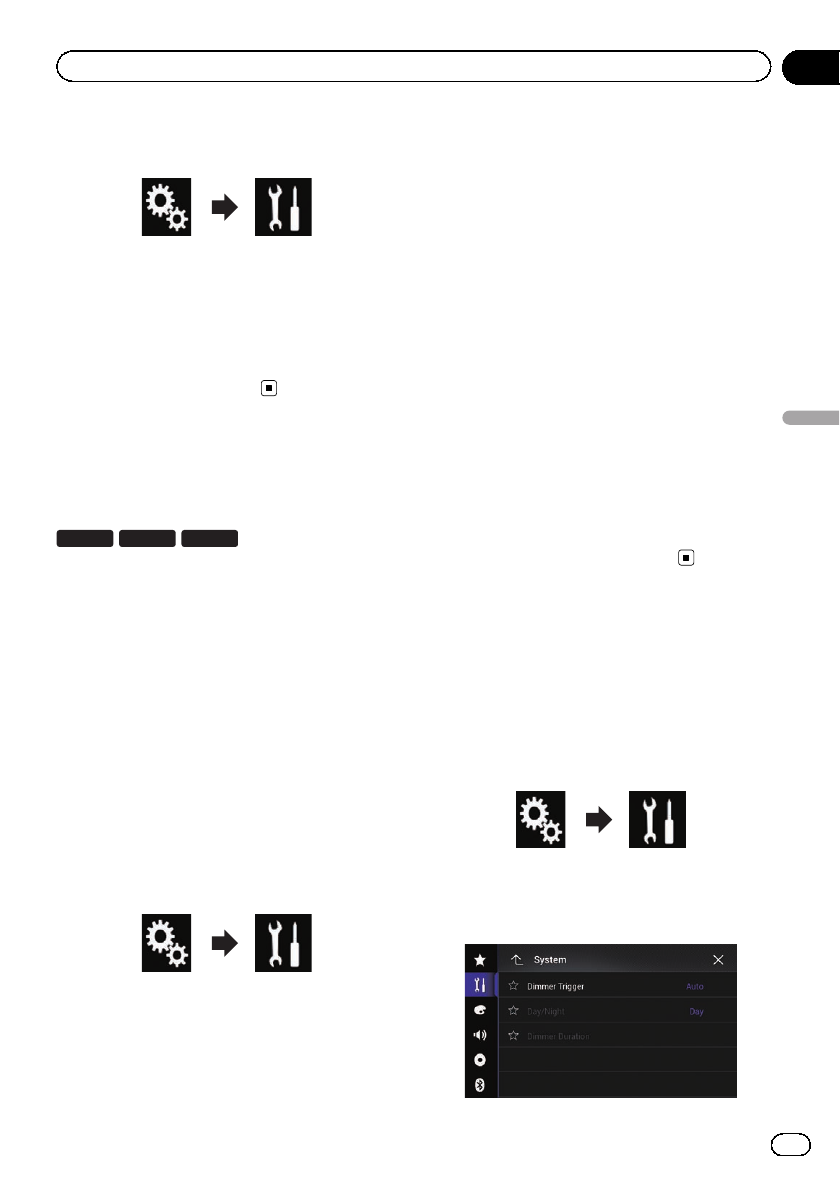
2 Touch the following keys in the follow-
ing order.
The “System”screen appears.
3 Touch [Beep Tone] repeatedly until the
desired setting appears.
!On (default):
Sounds a beep.
!Off:
Does not sound a beep.
Adjusting the response
positions of the touch panel
(touch panel calibration)
7100NEX 6100NEX 5100NEX
If you feel that the touch panel keys on the
screen deviate from the actual positions that
respond to your touch, adjust the response po-
sitions of the touch panel screen.
pThis setting is available only when you stop
your vehicle in a safe place and apply the
parking brake.
pDo not use sharp pointed tools such as a
ballpoint or mechanical pen, which could
damage the screen.
pDo not turn off the engine while saving the
adjusted position data.
1 Press the HOME button to display the
Top menu screen.
2 Touch the following keys in the follow-
ing order.
The “System”screen appears.
3 Touch [Touch Panel Calibration].
The touch panel adjustment screen appears.
4 Touch two corners of the screen along
the arrows, and then touch the centers of
two + marks at the same time twice.
5 Press the HOME button.
The adjustment results are saved.
6 Press the HOME button once again.
Proceed to 16-point adjustment.
#If you press and hold the HOME button, the
adjustment is canceled.
7 Gently touch the center of the + mark
displayed on the screen.
The target indicates the order.
After you touch all marks, the adjusted posi-
tion data is saved.
#If you press the HOME button, the previous
adjustment position returns.
#If you press and hold the HOME button, the
adjustment is canceled.
8 Press and hold the HOME button.
The adjustment results are saved.
Setting the dimmer function
You can specify the timing that the dimmer
function is to be turned on.
1 Press the HOME button to display the
Top menu screen.
2 Touch the following keys in the follow-
ing order.
The “System”screen appears.
3 Touch [Dimmer Settings].
The following screen appears.
En 187
Chapter
32
System settings
System settings
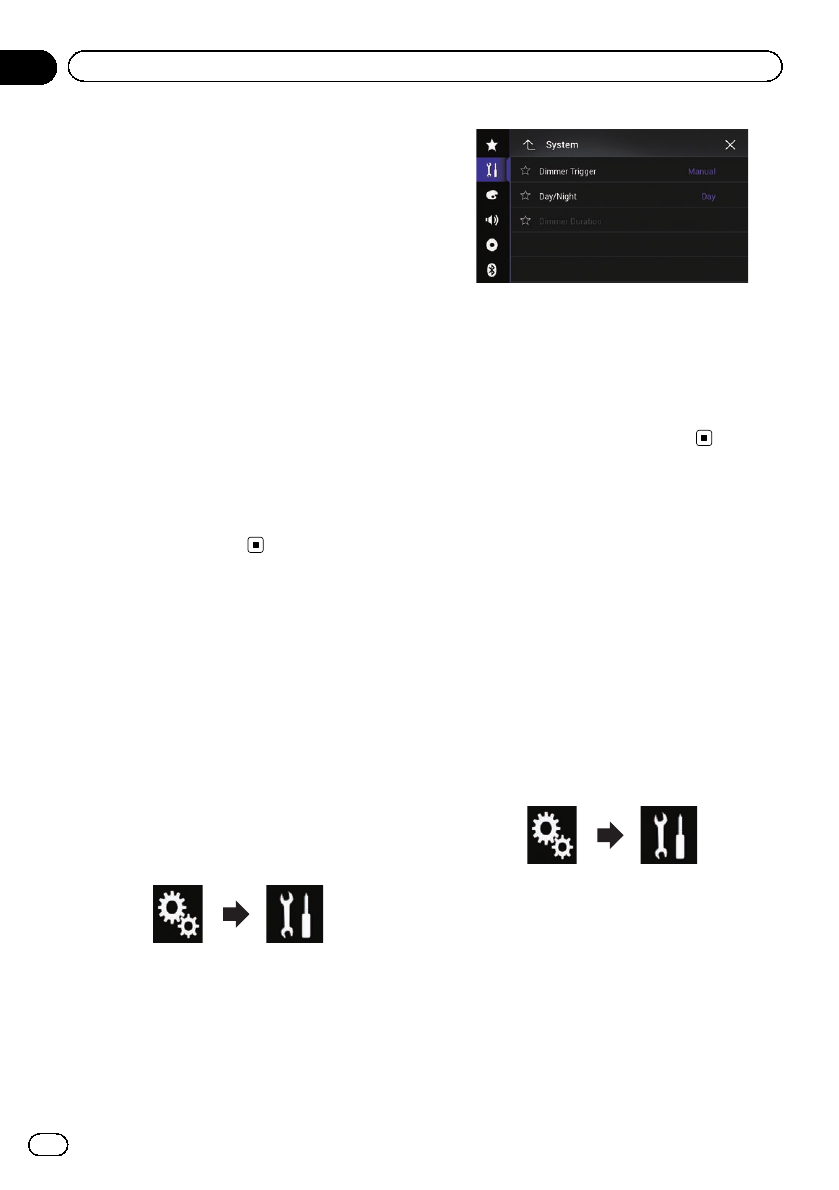
4 Touch [Dimmer Trigger].
The pop-up menu appears.
5 Touch the item you want to set.
!Auto (default):
Activates the dimmer function when the ve-
hicle’s headlights are on (nighttime).
!Manual:
Enables to set whether to activate the dim-
mer function.
!Time:
Enables to set the duration of time for the
dimmer function to be active.
pIf “Manual”is selected, set whether to acti-
vate the dimmer function.
=For details, refer to Setting whether to ac-
tivate the dimmer function on page 188.
pIf “Time”is selected, specify the duration
for the dimmer function to be active.
=For details, refer to Setting the duration
of time for the dimmer function to be ac-
tive on page 188.
Setting whether to activate
the dimmer function
You can set whether to activate the dimmer
function at nighttime.
pThis function is available only when “Dim-
mer Trigger”is set to “Manual”.
=For details, refer to Setting the dimmer
function on page 187.
1 Press the HOME button to display the
Top menu screen.
2 Touch the following keys in the follow-
ing order.
The “System”screen appears.
3 Touch [Dimmer Settings].
The following screen appears.
4 Touch [Day/Night].
The pop-up menu appears.
5 Touch the item you want to set.
!Day (default):
Deactivates the dimmer function.
!Night:
Activates the dimmer function.
Setting the duration of
time for the dimmer
function to be active
You can set the duration of time for the dim-
mer function to be active.
pThis function is available only when “Dim-
mer Trigger”is set to “Time”.
=For details, refer to Setting the dimmer
function on page 187.
1 Press the HOME button to display the
Top menu screen.
2 Touch the following keys in the follow-
ing order.
The “System”screen appears.
3 Touch [Dimmer Settings].
The following screen appears.
En
188
Chapter
32 System settings
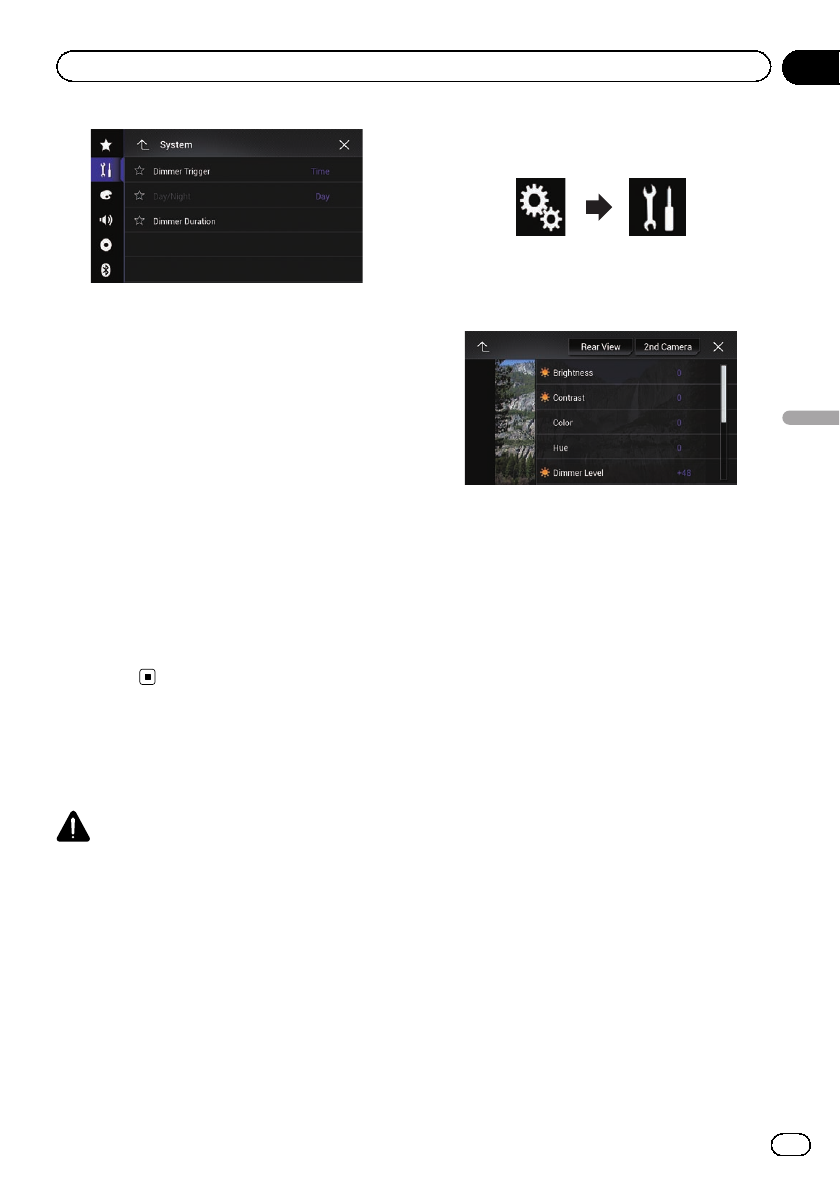
4 Touch [Dimmer Duration].
The duration setting bar appears.
5 Touch the desired points on the dura-
tion setting bar, or slide the cursors to spe-
cify the start time and the end time,
respectively.
pThe time display format depends on the
“Time Format”setting.
pThe value displayed at the center of the
duration setting bar (“12”for 12-hour format
and “00”for 24-hour format) indicates mid-
night. The values to the left of the value at
the center are for the afternoon, and the va-
lues to the right of value at the center are
for the morning.
pThe default values are “18:00”(start time)
and “6:00”(end time).
pThe value can be changed in 15-minute
steps.
Adjusting the picture
You can adjust the picture for each source, the
Application screen, and rear view camera.
CAUTION
For safety reasons, you cannot use some of these
functions while your vehicle is in motion. To en-
able these functions, you must stop in a safe
place and apply the parking brake. Refer to Im-
portant Information for the User (a separate man-
ual).
1 Display the screen you wish to adjust.
2 Press the HOME button to display the
Top menu screen.
3 Touch the following keys in the follow-
ing order.
The “System”screen appears.
4 Touch [Picture Adjustment].
The following screen appears.
5 Touch any of the following keys to se-
lect the function to be adjusted.
Picture adjustment items are displayed.
!Brightness:
Adjusts the black intensity.
!Contrast:
Adjusts the contrast.
!Color:
Adjusts the color saturation.
!Hue:
Adjusts the tone of color (which color is em-
phasized, red or green).
!Dimmer Level:
Adjusts the brightness of the display.
!Temperature:
Adjusts the color temperature, resulting in
a better white balance.
pYou can adjust Hue only when the color
system is set to NTSC.
#If you touch [Rear View]or[2nd Camera],
the mode changes to the selected camera mode.
By touching [Source], [Navi]or[Apps], you can
return to the selected mode.
En 189
Chapter
32
System settings
System settings
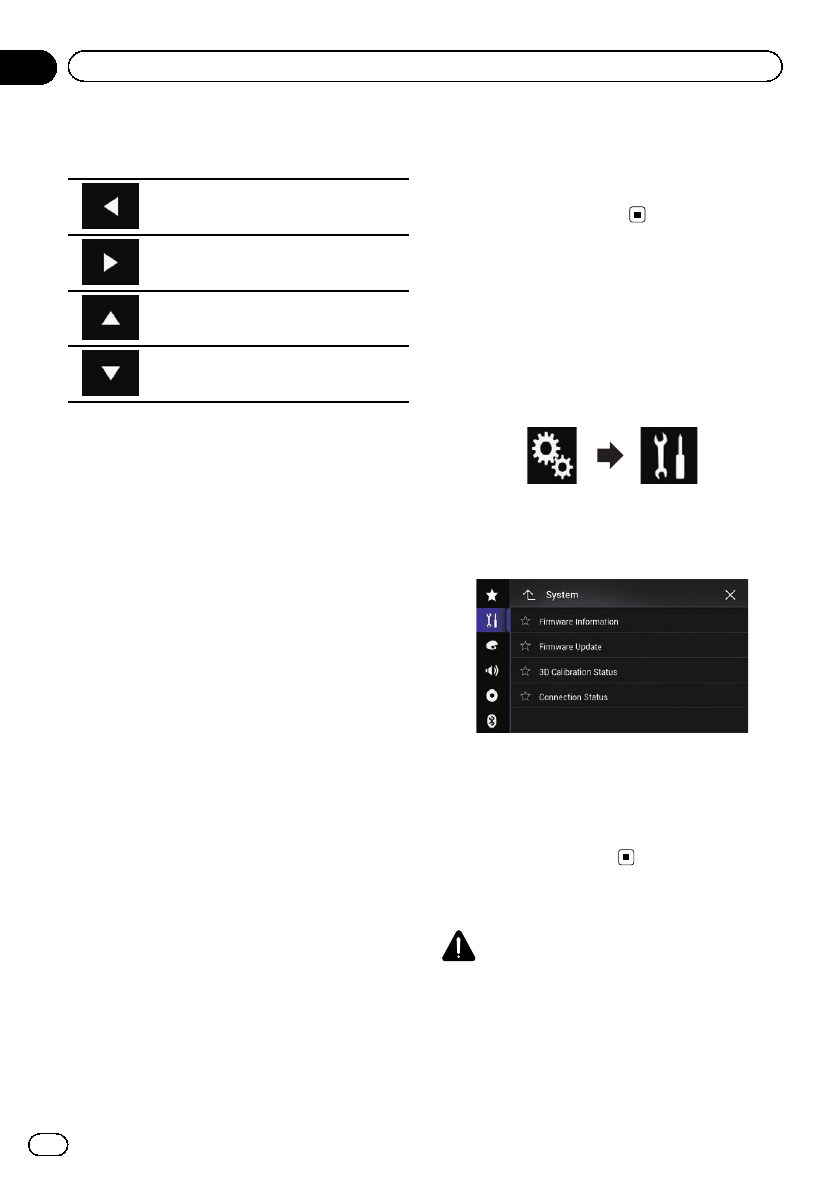
6 Touch the following keys to adjust the
selected item.
Decreases the level of the selected
item.
Increases the level of the selected item.
Selects the adjustable previous item.
Selects the adjustable next item.
Each time you touch the key, the level of the
selected item increases or decreases.
p“Brightness”,“Contrast”,“Color”and
“Hue”can be adjusted from “–24”to “+24”.
p“Dimmer Level”can be adjusted from “+1”
to “+48”.
p“Temperature”can be adjusted from “–3”
to “+3”.
pThe adjustments of “Brightness”,“Con-
trast”, and “Dimmer Level”are stored se-
parately for the On/Off status of the dimmer
function. These are switched automatically
depending on whether the dimmer function
is on or off.
=For details on setting the dimmer func-
tion, refer to Setting the dimmer function
on page 187.
pThe picture adjustment may not be avail-
able with some rear view cameras.
pThe setting contents can be memorized se-
parately for the following screens and video
images.
—DVD,Video-CD and Disc
—AV and external camera
—USB (Video) and USB (JPEG)
—SD (Video) and SD (JPEG)
—iPod (iPod with a 30-pin connector)
—iPod (Video) and AppRadio Mode (iPod
with a 30-pin connector)
—HDMI and AppRadio Mode (HDMI) (for
AVIC-8100NEX, AVIC-7100NEX and
AVIC-6100NEX)
—Android Auto (for AVIC-8100NEX and
AVIC-7100NEX)
—MirrorLink
—AUX
—Internal navigation system, MIXTRAX,
images output from the external device
—Rear view camera
Displaying the firmware
version
1 Press the HOME button to display the
Top menu screen.
2 Touch the following keys in the follow-
ing order.
The “System”screen appears.
3 Touch [System Information].
The following screen appears.
4 Touch [Firmware Information].
The “Firmware Information”screen appears.
pYou can check the open source licenses of
the functions that this product is equipped
with under “License”on the “Firmware In-
formation”screen.
Updating firmware
CAUTION
!Never turn this product off, eject the SD mem-
ory card or disconnect the USB storage device
while the firmware is being updated.
!You can only update the firmware when the ve-
hicle is stopped and the parking brake is en-
gaged.
En
190
Chapter
32 System settings
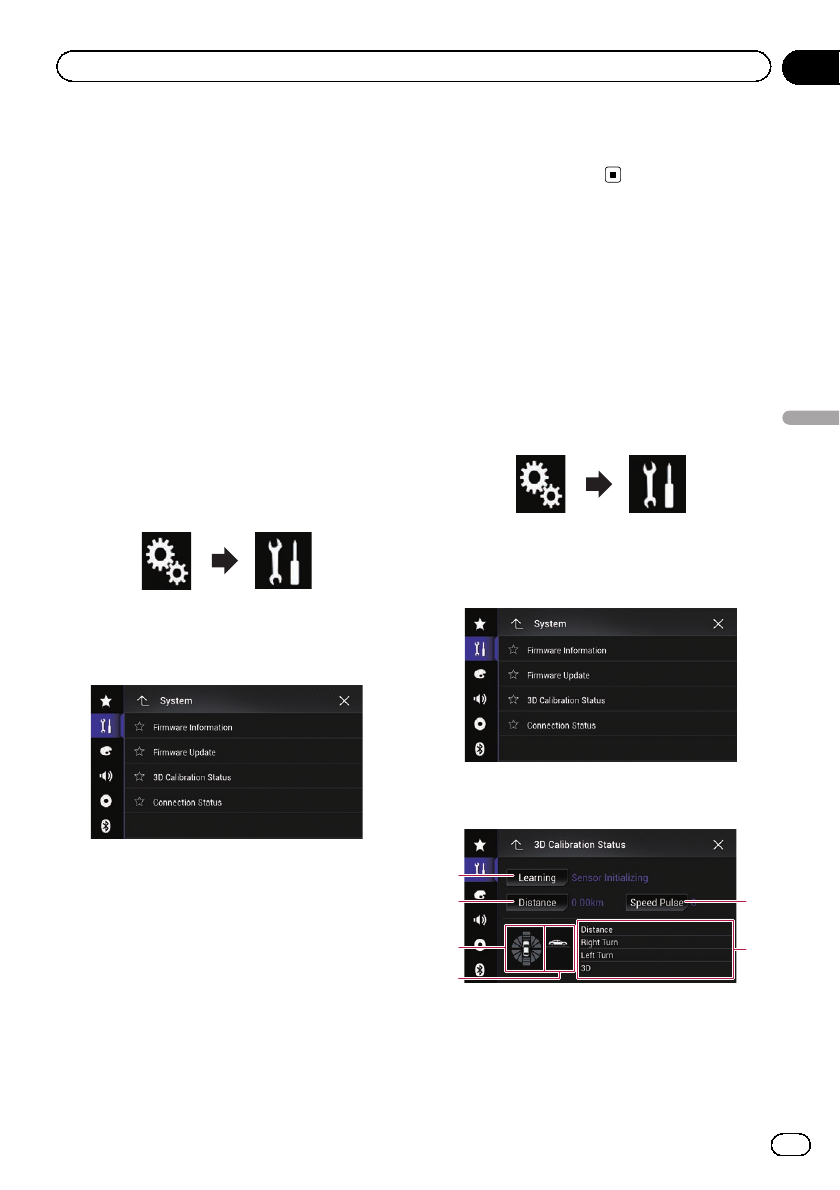
pUse the USB port1 to update the firmware
using a USB storage device.
pSD memory card is available for AVIC-
8100NEX and AVIC-7100NEX.
1 Download the firmware update files.
2 Connect a blank (formatted) SD mem-
ory card or USB storage device to your
computer, and then locate the correct up-
date file and copy it onto the SD memory
card or USB storage device.
3 Turn the source off.
=For details, refer to Turning off the AV source
on page 25.
4 Press the HOME button to display the
Top menu screen.
5 Touch the following keys in the follow-
ing order.
The “System”screen appears.
6 Touch [System Information].
The following screen appears.
7 Touch [Firmware Update].
The “Firmware Update”screen appears.
8 Touch [Continue] to display the data
transfer mode.
pFollow the on-screen instructions to finish
updating the firmware.
pThis product will reset automatically after
the firmware update is completed if the up-
date is successful.
pWhen the firmware update starts, the
source is turned off and the Bluetooth con-
nection is disconnected.
pIf an error message appears on the screen,
touch [Continue] to proceed and start the
recovery sequence.
Checking sensor learning
status and driving status
pThis product can automatically use its sen-
sor memory based on the outer dimensions
of the tires.
1 Press the HOME button to display the
Top menu screen.
2 Touch the following keys in the follow-
ing order.
The “System”screen appears.
3 Touch [System Information].
The following screen appears.
4 Touch [3D Calibration Status].
The “3D Calibration Status”screen appears.
1
6
5
2
3
4
1Learning
Indicates the current driving mode.
2Distance
Indicates driving distance.
En 191
Chapter
32
System settings
System settings
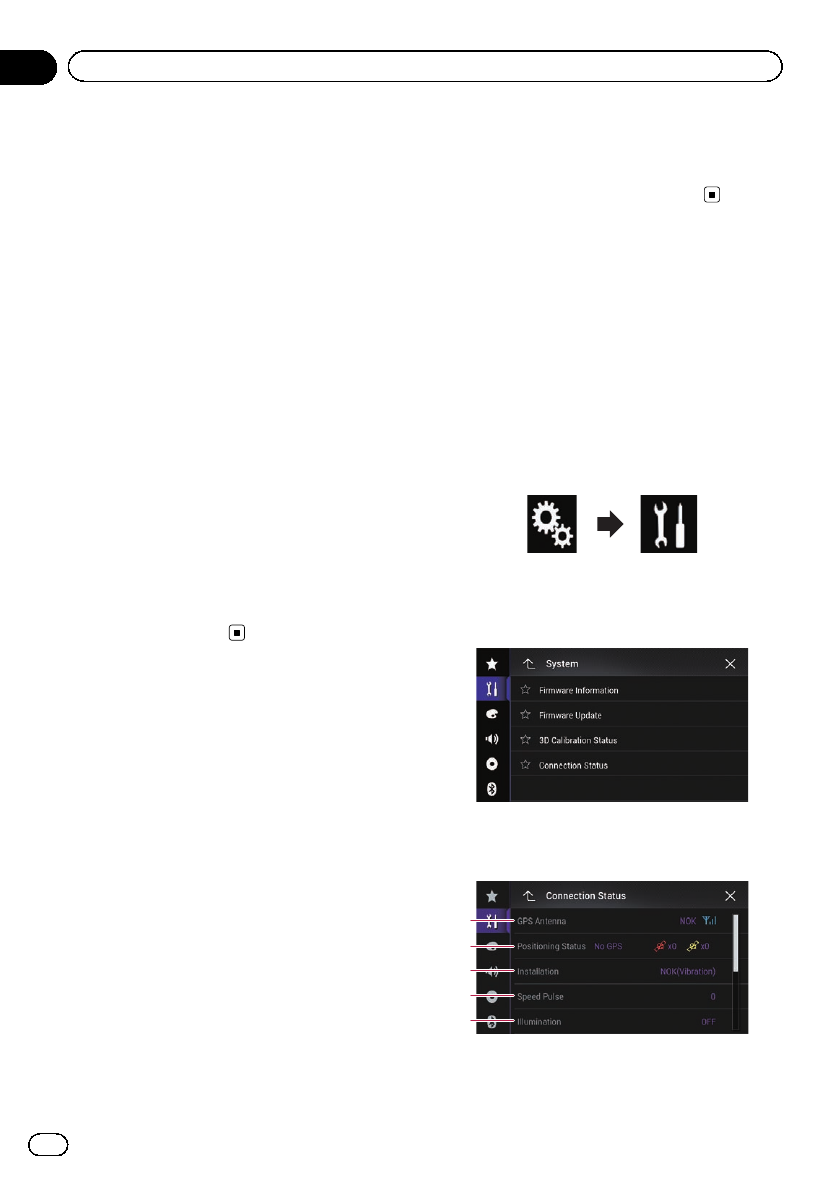
3Acceleration or deceleration/Rotational
speed
Indicates the acceleration or deceleration
velocity of your vehicle. The rotational
speed when your vehicle turns to the left or
right is also shown.
4Inclination
Indicates the incline of the street that you
are currently on.
5Speed Pulse
Indicates the total number of speed pulses.
6Degree of learning
Sensor learning situations for distance
(Distance), right turns (Right Turn), left
turns (Left Turn) and 3D detection (3D) are
indicated by the length of the bars.
pWhen the tires have been changed or
chains have been fitted, turning on the
Speed Pulse allows the system to detect
the fact that the tire diameter has chan-
ged, and automatically replaces the
value for calculating distance.
pIf a separately sold speed pulse genera-
tor (ND-PG1) is connected, the distance
calculation value cannot be replaced
automatically.
Clearing the status
You can delete the learned results stored in
“Distance”,“Speed Pulse”or “Learning”.
1 Touch [Distance] or [Speed Pulse].
A message confirming whether to erase the
data appears.
2 Touch [Yes].
The results stored in “Distance”or “Speed
Pulse”are cleared.
3 Touch [Learning].
The pop-up menu appears.
4 Touch [Reset All].
All learned results are cleared.
pTouch [Reset All] for the following cases:
!After changing the installation position
of the navigation system
!After changing the installation angle of
the navigation system
!After moving the navigation system to
another vehicle
#If you touch [Reset Distance], all learned re-
sults stored in “Distance”are cleared.
Checking the connections
of leads
Check that the leads are properly connected
between this product and vehicle. Also check
whether they are connected in the correct po-
sitions.
1 Press the HOME button to display the
Top menu screen.
2 Touch the following keys in the follow-
ing order.
The “System”screen appears.
3 Touch [System Information].
The following screen appears.
4 Touch [Connection Status].
The “Connection Status”screen appears.
2
3
5
4
1
En
192
Chapter
32 System settings
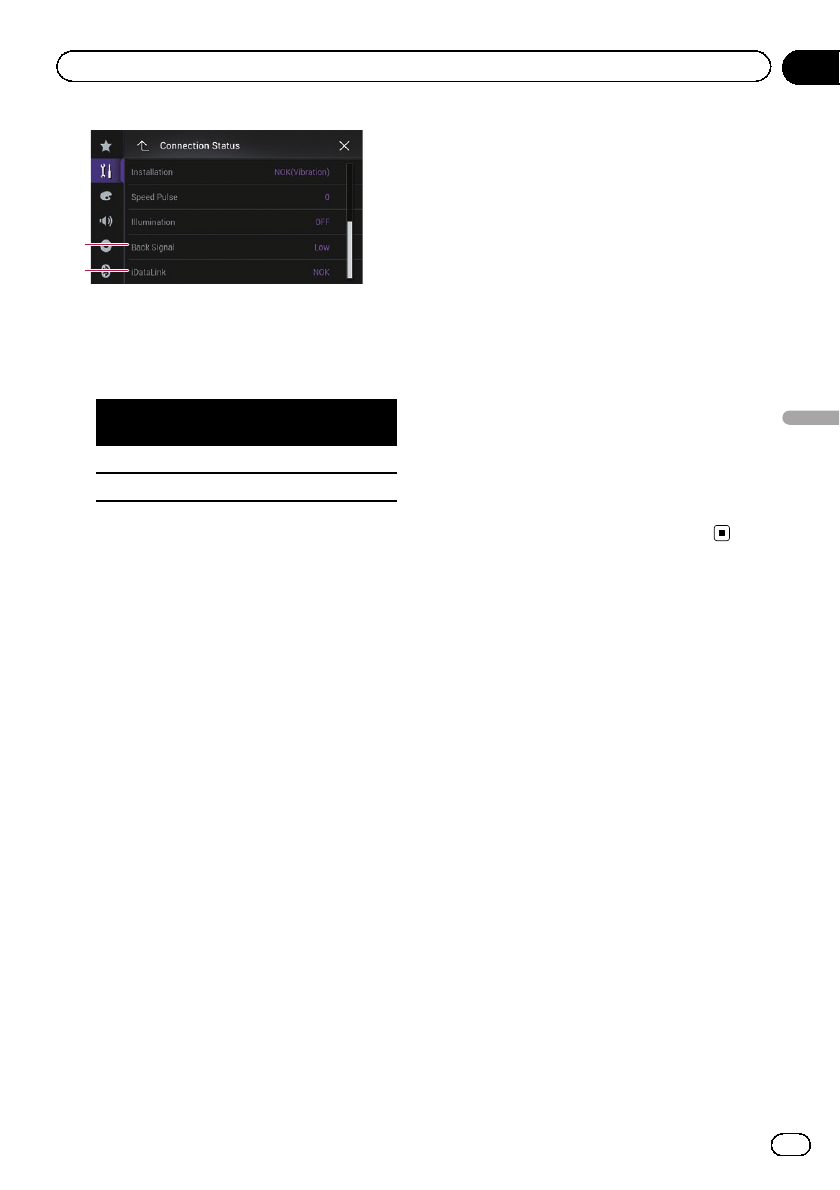
7
6
1GPS Antenna
Indicates the connection status of the GPS
antenna, the reception sensitivity, and from
how many satellites the signal is received.
Color Signal com-
munication
Used in posi-
tioning
Orange Yes Yes
Yellow Yes No
pWhen the GPS antenna is connected to
this product, “OK”is displayed. When
the GPS antenna is not connected to
this product, “NOK”is displayed.
pIf reception is poor, please change the
installation position of the GPS antenna.
2Positioning Status
Displays the positioning status (3D posi-
tioning, 2D positioning, or no positioning),
the number of satellites used for position-
ing (orange), and the number of satellites
whose signal has been received (yellow). If
signals from more than three satellites are
received, the current location can be mea-
sured.
=For details, refer to Positioning technol-
ogy on page 236.
3Installation
Indicates whether the installation position
of this product is correct or not. If installed
correctly, “OK”appears. When this product
is installed at an extreme angle exceeding
the limitation of the installing angle, “NOK
(Inst. Angle)”will be displayed. When the
angle of this product has been changed,
“NOK(Vibration)”will be displayed.
4Speed Pulse
The Speed Pulse value detected by this pro-
duct is shown. “0”is shown while the vehi-
cle is stationary.
5Illumination
When the headlights or small lamps of the
vehicle are on, “ON”is displayed. When the
small lamps of the vehicle are off, “OFF”is
displayed. (If the orange/white lead is not
connected, “OFF”appears.)
6Back Signal
When the shift lever is shifted to “R”, the
signal switches to “High”or “Low”. (One of
these is displayed depending on the vehi-
cle.)
7iDataLink
When the optional iDatalink adapter is con-
nected and the protocol version matches,
“OK”is displayed. If the version does not
match, “Unsupported Version”is dis-
played. If the optional iDatalink adapter is
not connected, “NOK”is displayed.
En 193
Chapter
32
System settings
System settings
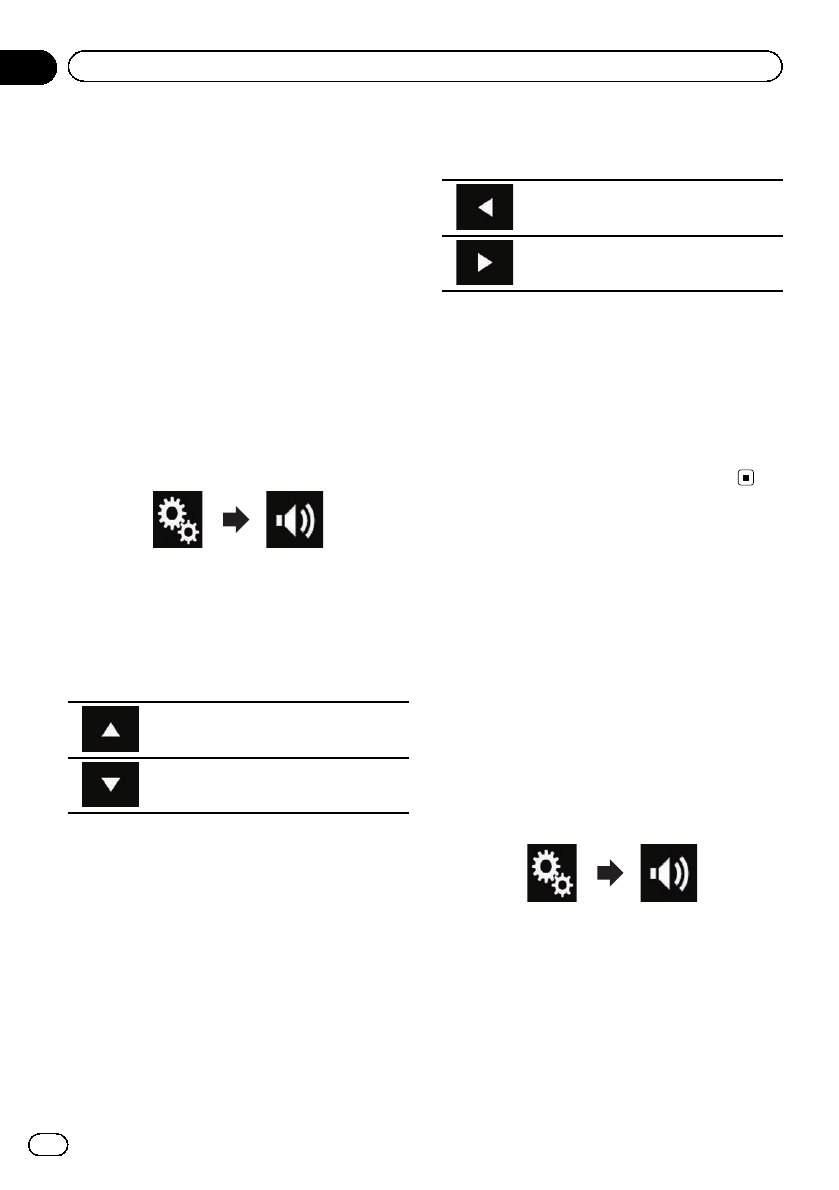
Using fader/balance
adjustment
You can select a fader/balance setting that
provides an ideal listening environment in all
occupied seats.
pThis function is available only when main
audio is available.
pThis function is available only when “Rear
Speaker”is set to “On”.
=For details, refer to Adjusting the front
and rear speaker output on page 198.
1 Press the HOME button to display the
Top menu screen.
2 Touch the following keys in the follow-
ing order.
The “Audio”screen appears.
3 Touch [Fader/Balance].
The “Fader/Balance”screen appears.
4 Touch the following keys to adjust the
front/rear speaker balance.
Moves towards the front.
Moves towards the rear.
Each time you touch the keys, the front/rear
speaker balance moves towards the front or
rear.
p“Front25”to “Rear25”is displayed as the
front/rear speaker balance moves from the
front to rear.
pThe default setting is “F/R 0 L/R 0”.
pSet “Front”and “Rear”to “0”when using a
dual speaker system.
5 Touch the following keys to adjust the
left/right speaker balance.
Moves towards the left.
Moves towards the right.
Each time you touch the keys, the left/right
speaker balance moves towards the left or
right.
p“Left25”to “Right25”is displayed as the
left/right speaker balance moves from the
left to right.
pThe default setting is “L/R 0”.
pYou can also set the fader/balance by drag-
ging the point on the displayed table.
Using balance adjustment
You can adjust the balance between right/left
sound output.
pThis function is available only when main
audio is available.
pThis function is available only when “Rear
Speaker”is set to “Off”.
=For details, refer to Adjusting the front
and rear speaker output on page 198.
1 Press the HOME button to display the
Top menu screen.
2 Touch the following keys in the follow-
ing order.
The “Audio”screen appears.
3 Touch [Balance].
The “Fader/Balance”screen appears.
En
194
Chapter
33 Audio adjustments
4 Touch the following keys to adjust the
left/right speaker balance.
Moves towards the left.
Moves towards the right.
Each time you touch the keys, the left/right
speaker balance moves towards the left or
right.
p“Left25”to “Right25”is displayed as the
left/right speaker balance moves from the
left to right.
pThe default setting is “L/R 0”.
pYou can also set the fader/balance by drag-
ging the point on the displayed table.
Switching sound muting/
attenuation
You can automatically mute or attenuate the
AV source volume and the application volume
when the navigation outputs the guidance
voice.
1 Press the HOME button to display the
Top menu screen.
2 Touch the following keys in the follow-
ing order.
The “Audio”screen appears.
3 Touch [Mute Level].
The pop-up menu appears.
4 Touch the item you want to set.
!ATT (default):
The volume becomes 1/10.
!Mute:
The volume becomes 0.
!Off:
The volume does not change.
Adjusting source levels
The SLA (source level adjustment) function ad-
justs the volume level of each source to pre-
vent radical changes in volume when
switching between sources.
pThis function is available only when main
audio is available.
pSettings are based on the FM tuner volume
level, which remains unchanged.
pThis function is not available when the FM
tuner is selected as the AV source.
1 Compare the FM tuner volume level
with the level of the source you want to
adjust.
2 Press the HOME button to display the
Top menu screen.
3 Touch the following keys in the follow-
ing order.
The “Audio”screen appears.
4 Touch [Source Level Adjuster].
The “Source Level Adjuster”screen appears.
5 Touch the following keys to adjust the
source volume.
Increases the source volume.
Decreases the source volume.
pIf you directly touch the area where the cur-
sor can be moved, the SLA setting will be
changed to the value of the touched point.
p“+4”to “–4”is displayed as the source vo-
lume is increased or decreased.
pThe default setting is “0”.
En 195
Chapter
33
Audio adjustments
Audio adjustments
The following AV sources are set to the same source level adjustment volume automatically.
8100NEX 7100NEX 6100NEX
Required cable
(sold separately)
Smartphone Setup
AV sources
Device Connection
iPod / iPhone with a
30-pin connector
CD-IU201V iPhone/iPod USB
USB1
iPod1
aha
Pandora
CD-IU201S iPhone/iPod USB
USB1
aha
Pandora
iPod1
AppRadio Mode
iPod / iPhone with a
Lightning connector
!CD-IH202
!CD-IU52
!Lightning Digital
AV Adapter
iPhone/iPod Digital AV adapter
aha
Pandora
AppRadio Mode
HDMI
CD-IU52 iPhone/iPod USB
iPod1
aha
Pandora
Android device
CD-MU200 Others USB Android Auto (*1)
MirrorLink
CD-AH200 Others HDMI
aha
Pandora
AppRadio Mode
HDMI
(*1) For AVIC-8100NEX and AVIC-7100NEX
En
196
Chapter
33 Audio adjustments
5100NEX
Required cable
(sold separately)
Smartphone Setup
AV sources
Device Connection
iPod / iPhone with a
30-pin connector
CD-IU201V iPhone/iPod USB
USB1
iPod1
aha
Pandora
CD-IU201S iPhone/iPod USB
USB1
aha
Pandora
iPod1
AppRadio Mode
iPod / iPhone with a
Lightning connector
!CD-IV202AV
!CD-IU52
!Lightning to VGA
Adapter
iPhone/iPod VGA adapter
aha
Pandora
AppRadio Mode
Bluetooth Audio
CD-IU52 iPhone/iPod USB
iPod1
aha
Pandora
pWhen a USB storage device is connected to
USB port 1 or USB port 2, the source level
adjustment volume is automatically set to
the same level as the USB port to which the
device is connected. The source level ad-
justment volume that is automatically set
varies depending on whether the device is
connected to USB port 1 or USB port 2.
pWhen an iPod / iPhone with a Lightning
connector is connected to USB port 1 or
USB port 2 using a USB interface cable for
iPod / iPhone (CD-IU52) (sold separately),
the source level adjustment volume is auto-
matically set to the same level as the USB
port to which the iPod / iPhone with a Light-
ning connector is connected. The source
level adjustment volume that is automati-
cally set varies depending on whether the
iPod / iPhone with a Lightning connector is
connected to USB port 1 or USB port 2.
pWhen an Android Auto-compatible device
(for AVIC-8100NEX and AVIC-7100NEX) or a
MirrorLink device is connected to USB port
2, the source level adjustment volume is
automatically set to the same level as USB
port 2.
En 197
Chapter
33
Audio adjustments
Audio adjustments
Adjusting the filter
The following adjustments can be made dur-
ing filter adjustments. Make the appropriate
adjustments for the reproduced frequency
band and characteristics of the connected
speaker unit.
20 1 k
0
10 k
Frequency (Hz)
34
2
Level (dB)
100
1
1Reproduced frequency band
2Slope adjustment
3Cut-off frequency of the LPF
4Cut-off frequency of the HPF
Adjusting the front and rear
speaker output
You can set the frequency range for the sound
output from the front and rear speakers.
pThis function is available only when main
audio is available.
1 Press the HOME button to display the
Top menu screen.
2 Touch the following keys in the follow-
ing order.
The “Audio”screen appears.
3 Confirm that “Rear Speaker”is set to
“On”.
pThe default setting is “On”.
4 Touch [Crossover].
The “Cutoff”screen appears.
5 Touch the following keys to select
“Front”or “Rear”.
Selects the adjustable previous speak-
er.
Selects the adjustable next speaker.
6 Touch [HPF] to turn on.
7 Drag the line graph horizontally to ad-
just the range of cut-off frequency from
“50”Hz to “200”Hz.
pThe default setting is “100”Hz.
8 Drag the tip of the slope to adjust the
range of level between “–6”dB/oct and
“–18”dB/oct.
pThe default setting is “–12”dB/oct.
Using the subwoofer output
This product is equipped with a subwoofer out-
put mechanism, which can be turned on or
off.
pThis function is available only when main
audio is available.
1 Press the HOME button to display the
Top menu screen.
2 Touch the following keys in the follow-
ing order.
The “Audio”screen appears.
3 Touch [Subwoofer] to set the subwoo-
fer output “On”.
pThe default setting is “Off”.
4 Touch [Subwoofer Settings].
The “Cutoff”screen appears.
En
198
Chapter
33 Audio adjustments
5 Touch the following keys to select
“Subwoofer”.
Selects the adjustable previous speak-
er.
Selects the adjustable next speaker.
6 Touch [LPF] to turn on.
7 Touch the following keys to select the
phase of subwoofer output.
Sets the phase of subwoofer output to
normal.
Sets the phase of subwoofer output to
reverse.
8 Drag the line graph horizontally to ad-
just the range of cut-off frequency from
“50”Hz to “200”Hz.
pThe default setting is “100”Hz.
9 Drag the tip of the slope to adjust the
range of level between “–6”dB/oct and
“–18”dB/oct.
pThe default setting is “–18”dB/oct.
Selecting the listening
position
You can select a listening position that you
want to make as the center of sound effects.
pThis function is available only when main
audio is available.
1 Press the HOME button to display the
Top menu screen.
2 Touch the following keys in the follow-
ing order.
The “Audio”screen appears.
3 Touch [Listening Position].
The “Listening Position”screen appears.
4 Touch the desired position.
!Off (default):
Changes the listening position setting to
off.
!Front:
Changes the listening position setting to
front.
!Front-L:
Changes the listening position setting to
front left.
!Front-R:
Changes the listening position setting to
front right.
!All:
Changes the listening position setting to
all.
Adjusting the speaker
output levels finely
Fine adjustments of the speaker output level
can be made by listening to audio output.
pThis function is available only when main
audio is available.
pThis function is available only when “Rear
Speaker”is set to “On”.
=For details, refer to Adjusting the front
and rear speaker output on page 198.
pThis function is available only when “Sub-
woofer”is set to “On”.
=For details, refer to Using the subwoofer
output on page 198.
1 Press the HOME button to display the
Top menu screen.
2 Touch the following keys in the follow-
ing order.
The “Audio”screen appears.
En 199
Chapter
33
Audio adjustments
Audio adjustments
3 Touch [Speaker Level].
The “Speaker Level”screen appears.
4 Touch the following keys to select the
listening position if necessary.
Selects the listening position.
!Off:
Changes the listening position setting to
off.
!Front Left:
Changes the listening position setting to
front left.
!Front Right:
Changes the listening position setting to
front right.
!Front:
Changes the listening position setting to
front.
!All:
Changes the listening position setting to
all.
pIf you change the listening position setting,
the output levels of all the speakers will
change in conjunction with the setting.
5 Touch the following keys to adjust the
speaker output level.
Decreases the speaker level.
Increases the speaker level.
p“–24”dB to “10”dB is displayed as the dis-
tance to be corrected is increased or de-
creased.
!Front Left:
Changes the speaker level of the front left
speaker.
!Front Right:
Changes the speaker level of the front right
speaker.
!Rear Left:
Changes the speaker level of the rear left
speaker.
!Rear Right:
Changes the speaker level of the rear right
speaker.
!Subwoofer:
Changes the speaker level of the subwoofer
speaker.
#If you touch [Apply Auto EQ], the result of
“A-EQ&TA Measurement”will be applied to the
speaker level setting.
pTo use this function, the vehicle’s acoustics
must be measured in advance.
Adjusting the time alignment
By adjusting the distance from each speaker
to the listening position, time alignment is
able to correct the time required for sound to
reach the listening position.
pThis function is available only when main
audio is available.
pThis function is available only when “Rear
Speaker”is set to “On”.
=For details, refer to Adjusting the front
and rear speaker output on page 198.
pThis function is available only when “Sub-
woofer”is set to “On”.
=For details, refer to Using the subwoofer
output on page 198.
pThis function is available only when the lis-
tening position setting is set to “Front Left”
or “Front Right”.
=For details, refer to Selecting the listen-
ing position on page 199.
1 Measure the distance between the
head of the listener and each speaker unit.
2 Press the HOME button to display the
Top menu screen.
En
200
Chapter
33 Audio adjustments
3 Touch the following keys in the follow-
ing order.
The “Audio”screen appears.
4 Touch [Time Alignment].
The “Time Alignment”screen appears.
5 Touch the following keys to select the
listening position if necessary.
Selects the listening position.
!Off:
Changes the listening position setting to
off.
!Front Left:
Changes the listening position setting to
front left.
!Front Right:
Changes the listening position setting to
front right.
!Front:
Changes the listening position setting to
front.
!All:
Changes the listening position setting to
all.
pIf you change the listening position setting,
the output levels of all the speakers will
change in conjunction with the setting.
6 Touch the following keys to input the
distance between the selected speaker and
the listening position.
Decreases the distance between the se-
lected speaker and the selected listen-
ing position.
Increases the distance between the se-
lected speaker and the selected listen-
ing position.
p“0.0”inch to “200.0”inch is displayed as
the distance to be corrected is increased or
decreased.
!Front Left:
Changes the distance between the front left
speaker and the selected listening position.
!Front Right:
Changes the distance between the front
right speaker and the selected listening po-
sition.
!Rear Left:
Changes the distance between the rear left
speaker and the selected listening position.
!Rear Right:
Changes the distance between the rear
right speaker and the selected listening po-
sition.
!Subwoofer:
Changes the distance between the subwoo-
fer speaker and the selected listening posi-
tion.
#If you touch [TA On], the time alignment is
turned off.
#If you touch [Apply Auto EQ], the result of
“A-EQ&TA Measurement”will be applied to the
time alignment setting.
pTo use this function, the vehicle’s acoustics
must be measured in advance.
En 201
Chapter
33
Audio adjustments
Audio adjustments
Using the automatic sound
levelizer
During driving, noise in the car changes ac-
cording to the driving speed and road condi-
tions. ASL (automatic sound levelizer)
monitors such varying noise and automati-
cally increases the volume level, if this noise
becomes greater. The sensitivity (variation of
volume level to noise level) of ASL can be set
to one of five levels.
pThis function is available only when main
audio is available.
1 Press the HOME button to display the
Top menu screen.
2 Touch the following keys in the follow-
ing order.
The “Audio”screen appears.
3 Touch [ASL].
The “ASL”screen appears.
4 Touch the item you want to set.
!Off (default):
Turns the ASL setting off.
!LOW:
Changes the ASL level to low.
!MID-LOW:
Changes the ASL level to mid-low.
!MID:
Changes the ASL level to mid.
!MID-HIGH:
Changes the ASL level to mid-high.
!HIGH:
Changes the ASL level to high.
Using the equalizer
The equalizer lets you adjust equalization to
match the vehicle interior acoustic character-
istics as desired.
Recalling equalizer curves
There are seven stored equalizer curves that
you can easily recall at any time. Here is a list
of the equalizer curves:
Equalizer curve
S.Bass is a curve in which only low-pitched sound is
boosted.
Powerful is a curve in which low- and high-pitched
sounds are boosted.
Natural is a curve in which low- and high-pitched
sounds are slightly boosted.
Vocal is a curve in which the midrange, which is the
human vocal range, is boosted.
Flat is a flat curve in which nothing is boosted.
Custom1 is an adjusted equalizer curve that you cre-
ate. If you select this curve, the effect is applied to all
AV sources.
Custom2 is an adjusted equalizer curve that you cre-
ate. If you select this curve, the effect is applied to all
AV sources.
pThis function is available only when main
audio is available.
pThe default setting is “Powerful”.
pWhen “Flat”is selected, no supplement or
correction is made to the sound. This is
useful to check the effect of the equalizer
curves by switching alternatively between
“Flat”and a set equalizer curve.
1 Press the HOME button to display the
Top menu screen.
2 Touch the following keys in the follow-
ing order.
The “Audio”screen appears.
3 Touch [Graphic EQ].
The “Graphic EQ”screen appears.
4 Touch the equalizer you want.
En
202
Chapter
33 Audio adjustments
Customizing the equalizer curves
You can adjust the currently selected equalizer
curve setting as desired. Adjustments can be
made with a 13-band graphic equalizer.
pThis function is available only when main
audio is available.
pIf you make adjustments when a curve “S.
Bass”,“Powerful”,“Natural”,“Vocal”,or
“Flat”is selected, the equalizer curve set-
tings will be changed to “Custom1”auto-
matically.
pIf you make adjustments when the “Cus-
tom2”curve is selected for example, the
“Custom2”curve will be updated.
p“Custom1”and “Custom2”curves can be
created common to all sources.
1 Press the HOME button to display the
Top menu screen.
2 Touch the following keys in the follow-
ing order.
The “Audio”screen appears.
3 Touch [Graphic EQ].
The “Graphic EQ”screen appears.
4 Touch one of the keys to select a curve
that you want to use as the basis of custo-
mizing.
5 Touch the frequency for which you
want to adjust the level.
pIf you trail a finger across the bars of multi-
ple equalizer bands, the equalizer curve set-
tings will be set to the value of the touched
point on each bar.
Using the auto-adjusted equalizer
You can set the auto-adjusted equalizer to suit
the vehicle’s acoustics. To use this function,
the vehicle’s acoustics must be measured in
advance.
=For details of the operations, refer to Adjust-
ing the equalizer curve automatically (Auto
EQ) on page 203.
pTo manually adjust the equalizer curve, set
“Auto EQ&TA”to “Off”.
1 Press the HOME button to display the
Top menu screen.
2 Touch the following keys in the follow-
ing order.
The “Audio”screen appears.
3 Touch [Auto EQ&TA] repeatedly until
the desired setting appears.
!Off (default):
Turns the Auto EQ&TA setting off.
!On:
Turns the Auto EQ&TA setting on.
Adjusting the equalizer curve
automatically (Auto EQ)
By measuring the vehicle’s acoustics, the
equalizer curve can be adjusted automatically
to suit the vehicle interior.
WARNING
A loud tone (noise) may be emitted from the
speakers when measuring the vehicle’s acous-
tics. Never perform Auto EQ measurement while
driving.
CAUTION
!Thoroughly check the conditions before per-
forming Auto EQ, as the speakers may be da-
maged if this is performed under the following
conditions:
—When the speakers are incorrectly con-
nected. (For example, when a rear speaker
is connected as a subwoofer output.)
En 203
Chapter
33
Audio adjustments
Audio adjustments

—When a speaker is connected to a power
amp delivering output higher than the
speaker’s maximum input power capabil-
ity.
!If a microphone for acoustical measurement
(sold separately) is not placed in an appropri-
ate location, the measurement tone may be-
come loud and measurement may take a long
time, resulting in battery drainage. Be sure to
place the microphone in the specified loca-
tion.
Before operating the Auto EQ
function
!Perform Auto EQ in as quiet a place as pos-
sible, with the vehicle engine and air condi-
tioning switched off. Also, cut power to car
phones or cellular phones in the vehicle, or
remove them from the vehicle before per-
forming Auto EQ. Sounds other than the
measurement tone (surrounding sounds,
engine sound, telephones ringing, etc.)
may prevent correct measurement of the
vehicle’s acoustics.
!Be sure to perform Auto EQ using the mi-
crophone for acoustical measurement
(sold separately). Using another micro-
phone may prevent measurement, or result
in incorrect measurement of the vehicle’s
acoustics.
!To perform Auto EQ, the front speakers
must be connected.
!When this product is connected to a power
amp with input level control, Auto EQ may
be impossible if the power amp’s input
level is set below the standard level.
!When this product is connected to a power
amp with an LPF (low pass filter), turn the
LPF off before performing Auto EQ. Also,
set the cut-off frequency for the built-in LPF
of an active subwoofer to the highest fre-
quency.
!The distance has been calculated by a
computer to provide optimum delay to en-
sure accurate results. Do not change this
value.
—The reflected sound within the vehicle is
strong and delays occur.
—The LPF on active subwoofers or exter-
nal amps delay the lower sounds.
!If an error occurs during measurement, a
message appears and measurement is
canceled. Check the following before mea-
suring the vehicle’s acoustics.
—Front speakers (left/right)
—Rear speakers (left/right)
—Noise
—Microphone for acoustical measure-
ment (sold separately)
—Low battery
Performing Auto EQ
pAuto EQ changes the audio settings as fol-
lows:
—“Auto EQ&TA”is set to “On”.
=For details, refer to Using the auto-ad-
justed equalizer on page 203.
—The fader/balance settings return to the
center position.
=For details, refer to Using balance ad-
justment on page 194.
—The equalizer curve switches to “Flat”.
=For details, refer to Using the equali-
zer on page 202.
—The front and rear speakers will automa-
tically be adjusted to a high pass filter
setting.
pPrevious settings for Auto EQ will be over-
written.
pFor AVIC-8100NEX and AVIC-7100NEX
users
Do not press the hbutton to open or close
the panel when you are using the micro-
phone.
CAUTION
Do not turn off the engine while the measure-
ment is in progress.
En
204
Chapter
33 Audio adjustments
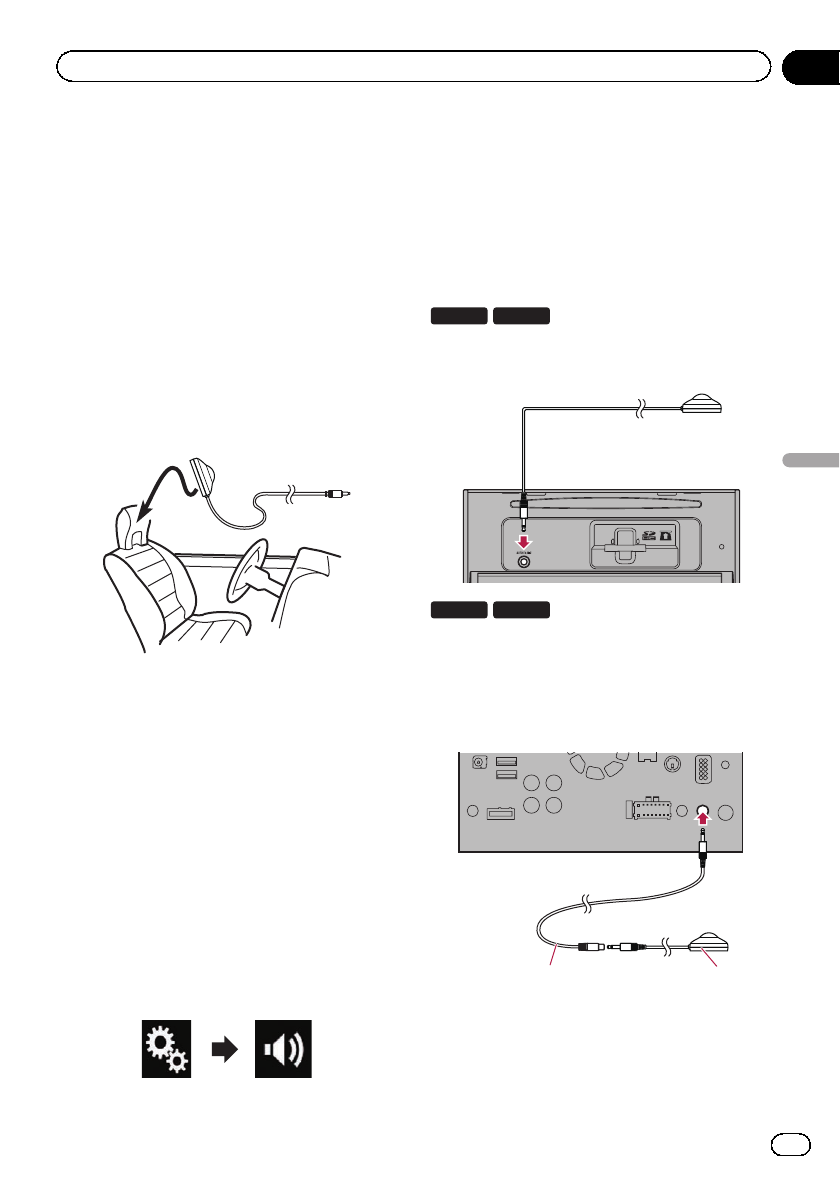
1 Stop the vehicle in a quiet place, close
all the doors, windows and sun roof, and
then turn the engine off.
If the engine is left running, engine noise may
prevent correct Auto EQ.
pIf driving restrictions are detected during
measurement, measurement is canceled.
2 Fix the microphone for acoustical mea-
surement (sold separately) in the center of
the headrest of the driver’s seat, facing for-
ward.
The Auto EQ may differ depending on where
you place the microphone. If desired, place
the microphone on the front passenger seat
and perform Auto EQ.
3 Disconnect the iPhone or smartphone
device.
4 Turn on the ignition switch (ACC ON).
If the vehicle’s air conditioner or heater is
turned on, turn it off. Noise from the fan in the
air conditioner or heater may prevent correct
Auto EQ.
5 Switch the AV source to “OFF”.
=For details of the operations, refer to Dis-
playing the AV operation screen on page 24.
6 Press the HOME button to display the
Top menu screen.
7 Touch the following keys in the follow-
ing order.
The “Audio”screen appears.
8 Touch [A-EQ&TA Measurement].
The “A-EQ&TA Measurement”screen ap-
pears.
9 Connect the microphone for acoustical
measurement (sold separately) with this
product.
8100NEX 7100NEX
Plug the microphone into the microphone
input jack on this product.
6100NEX 5100NEX
Connect the microphone with the mini-jack ex-
tension cable, and then plug it into the auxili-
ary input jack on this product.
=For details of the operations, refer to the In-
stallation Manual.
12
1Mini-jack extension cable
2Microphone for acoustical measurement
(sold separately)
En 205
Chapter
33
Audio adjustments
Audio adjustments

10 Touch [Front Left] or [Front Right] to se-
lect the current listening position.
11 Touch [Start].
A 10-second countdown starts.
pThe Bluetooth connection is disconnected
before the process starts.
12 Exit the vehicle and keep the doors
closed until the countdown finishes.
When the countdown finishes, a measure-
ment tone (noise) is emitted from the speakers
and the Auto EQ measurement begins.
13 Wait until the measurement is com-
pleted.
When Auto EQ is completed, a message is dis-
played indicating that the measurement is
completed.
pIf the vehicle’s acoustics cannot be mea-
sured correctly, an error message will be
displayed.
pThe measurement time varies depending
on the type of vehicle.
pTo stop the measurement, touch [Stop].
14 Store the microphone carefully in the
glove compartment or another safe place.
If the microphone is subjected to direct sun-
light for an extended period, high tempera-
tures may cause distortion, color change or
malfunction.
En
206
Chapter
33 Audio adjustments
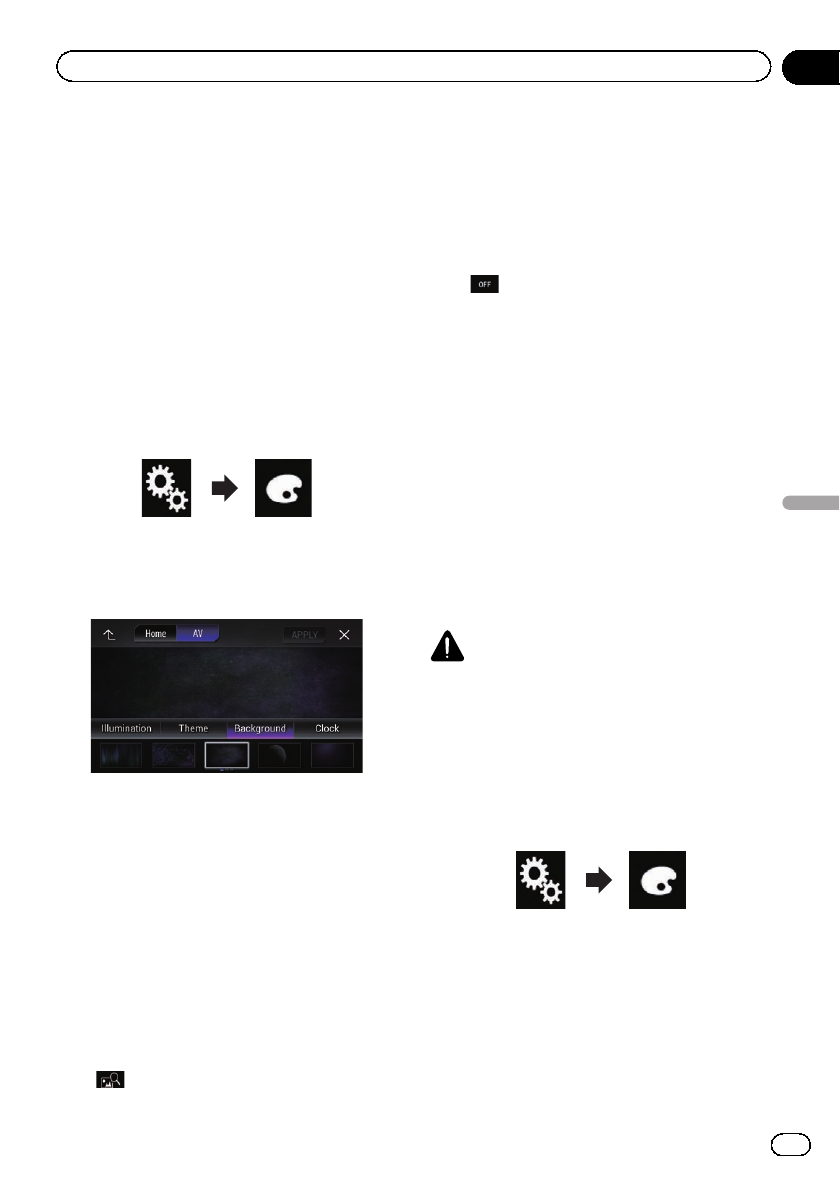
Selecting the background
display
The background display can be selected from
8 different preset displays for the AV operation
screen and 5 different preset displays for the
Top menu screen. Furthermore, you can
change the background display to other
images imported from an external storage de-
vice (USB, SD).
1 Press the HOME button to display the
Top menu screen.
2 Touch the following keys in the follow-
ing order.
The “Theme”screen appears.
3 Touch [Background].
The following screen appears.
pYou can also change the screen for settings
by touching [Illumination], [Theme]or
[Clock] on this screen.
4 Touch [Home] or [AV] to switch the
screen displays.
pThe setting contents can be memorized se-
parately for the AV operation screen and the
Top menu screen.
5 Touch the item you want to set.
!Preset displays:
Selects the desired preset background dis-
play.
!(custom):
Displays the background display image im-
ported from the external storage device
(USB, SD).
=For details, refer to Changing to the back-
ground display image stored on the exter-
nal storage device (USB, SD) on page
207.
!(off):
Hides the background display.
Changing to the background
display image stored on the
external storage device (USB, SD)
You can change the background display
image to an image imported from the external
storage device (USB, SD).
pBackground display image must be used
within the following formats.
—JPEG image files (.jpg or .jpeg)
—Allowable data size is 10 MB or smaller
—Allowable image size is 4 000 pixels ×
4 000 pixels or smaller
CAUTION
Do not turn off the engine while importing an
image from the external storage device (USB,
SD).
1 Press the HOME button to display the
Top menu screen.
2 Touch the following keys in the follow-
ing order.
The “Theme”screen appears.
3 Touch [Background].
The following screen appears.
En 207
Chapter
34
Theme menu
Theme menu
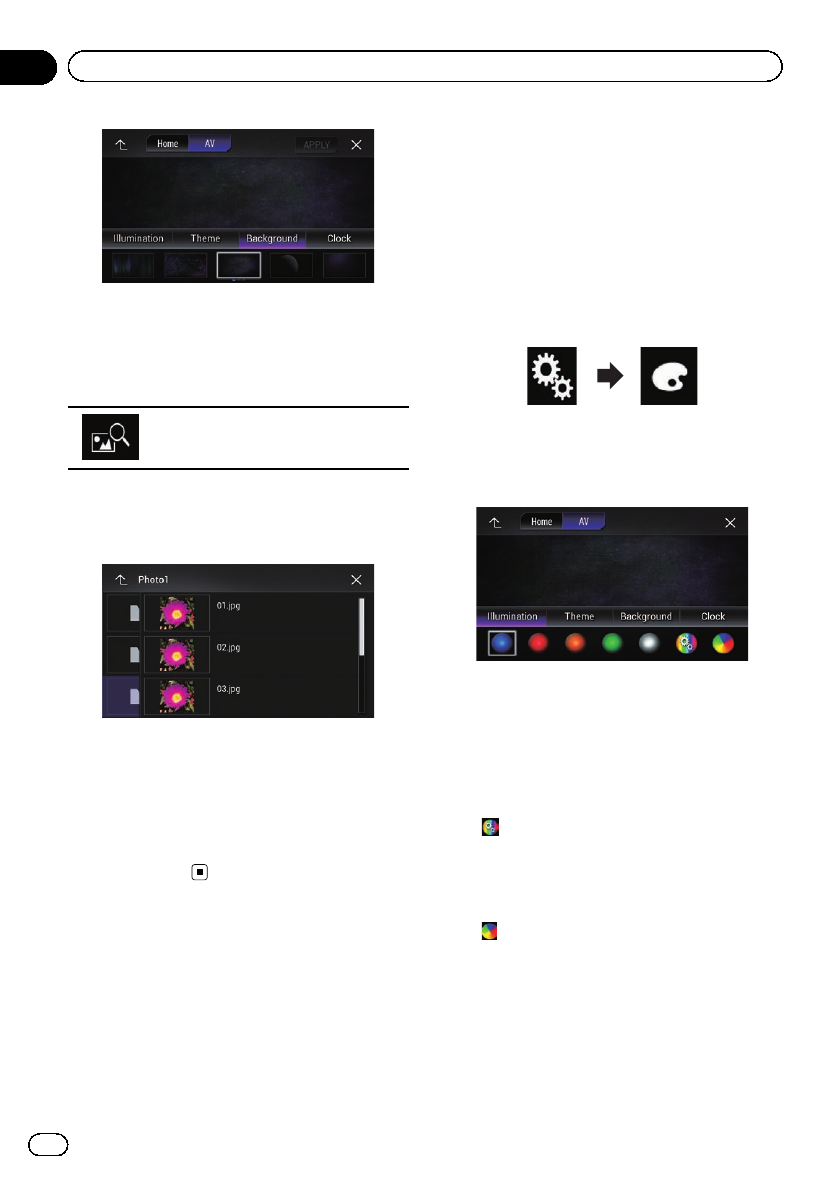
pYou can also change the screen for settings
by touching [Illumination], [Theme]or
[Clock] on this screen.
4 Touch the following key.
Displays the list of the background dis-
play images stored on the external sto-
rage device (USB, SD).
5 Touch the desired external storage de-
vice (USB, SD).
The following screen appears.
6 Touch the image to use as the back-
ground display from the list.
The image is set as the background display.
pYou can delete the imported image and re-
store the setting for the background display
to the default by touching and holding the
custom key.
Setting the illumination color
The illumination color can be selected from 5
different colors. Furthermore, the illumination
can be switched between these 5 colors in
order.
Selecting the color from the
preset colors
You can select an illumination color from the
color list.
1 Press the HOME button to display the
Top menu screen.
2 Touch the following keys in the follow-
ing order.
The “Theme”screen appears.
3 Touch [Illumination].
The following screen appears.
pYou can also change the screen for settings
by touching [Theme], [Background]or
[Clock] on this screen.
4 Touch the color you want.
!Colored keys:
Selects the desired preset color.
!(custom):
Displays the screen to customize the illumi-
nation color.
=For details, refer to Creating a user-de-
fined color on page 209.
!(rainbow):
Shifts through the rainbow of colors grada-
tionally.
pYou can preview the Top menu screen or
the AV operation screen by touching
[Home]or[AV] respectively.
En
208
Chapter
34 Theme menu
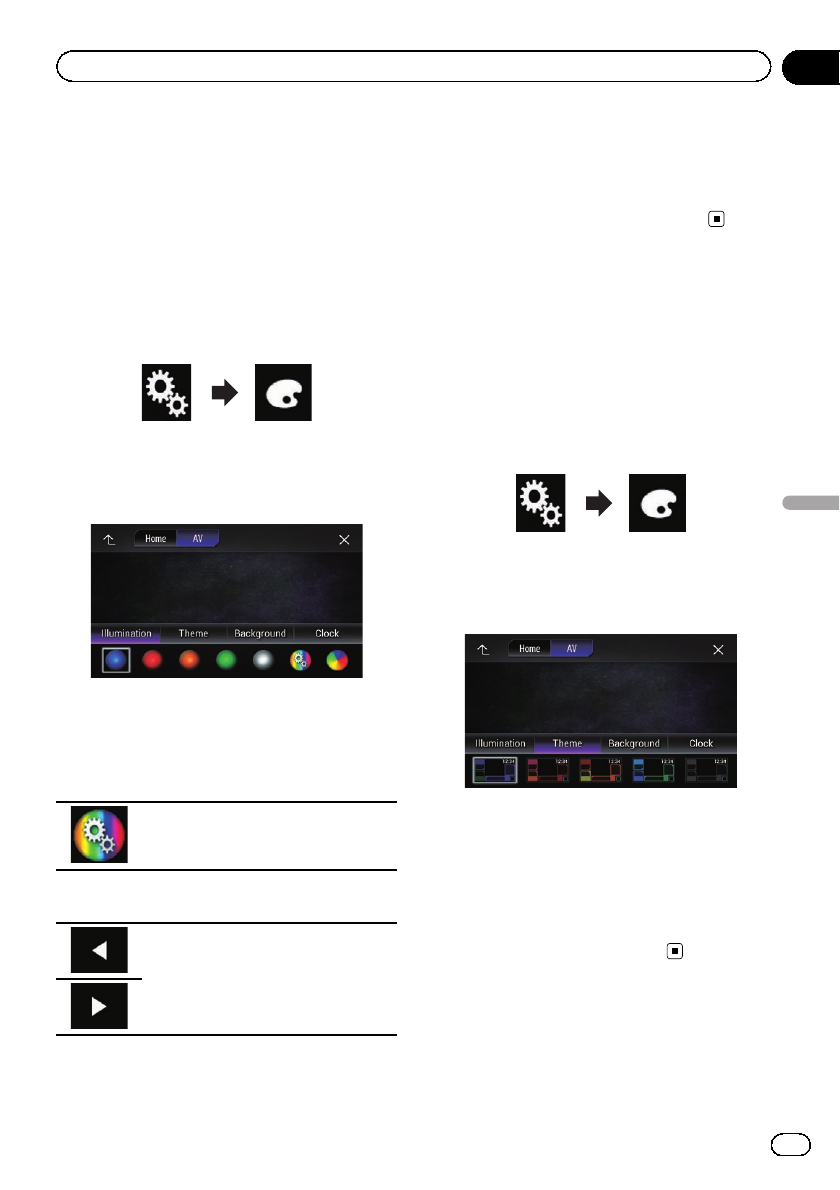
Creating a user-defined color
You can create a user-defined color. The cre-
ated color is stored, and you can select the
color when setting the illumination color the
next time.
1 Press the HOME button to display the
Top menu screen.
2 Touch the following keys in the follow-
ing order.
The “Theme”screen appears.
3 Touch [Illumination].
The following screen appears.
pYou can also change the screen for settings
by touching [Theme], [Background]or
[Clock] on this screen.
4 Touch the following key.
Displays the screen to create a user-de-
fined color and store it to memory.
5 Touch the following keys.
Adjusts the brightness and the level of
red, green and blue to create a favorite
color.
pYou can also adjust the color tone by drag-
ging the color bar.
6 Touch and hold [Memo] to store the
customized color in the memory.
The customized color is stored in the memory.
The set color will be recalled from the memory
the next time you touch the same key.
Selecting the theme color
A theme color can be selected from 5 different
colors.
1 Press the HOME button to display the
Top menu screen.
2 Touch the following keys in the follow-
ing order.
The “Theme”screen appears.
3 Touch [Theme].
The following screen appears.
pYou can also change the screen for settings
by touching [Illumination], [Background]
or [Clock] on this screen.
4 Touch the color you want.
pYou can preview the Top menu screen or
the AV operation screen by touching
[Home]or[AV] respectively.
Selecting the clock image
The clock on the AV operation screen and the
Top menu screen can be selected from 3 differ-
ent images.
En 209
Chapter
34
Theme menu
Theme menu
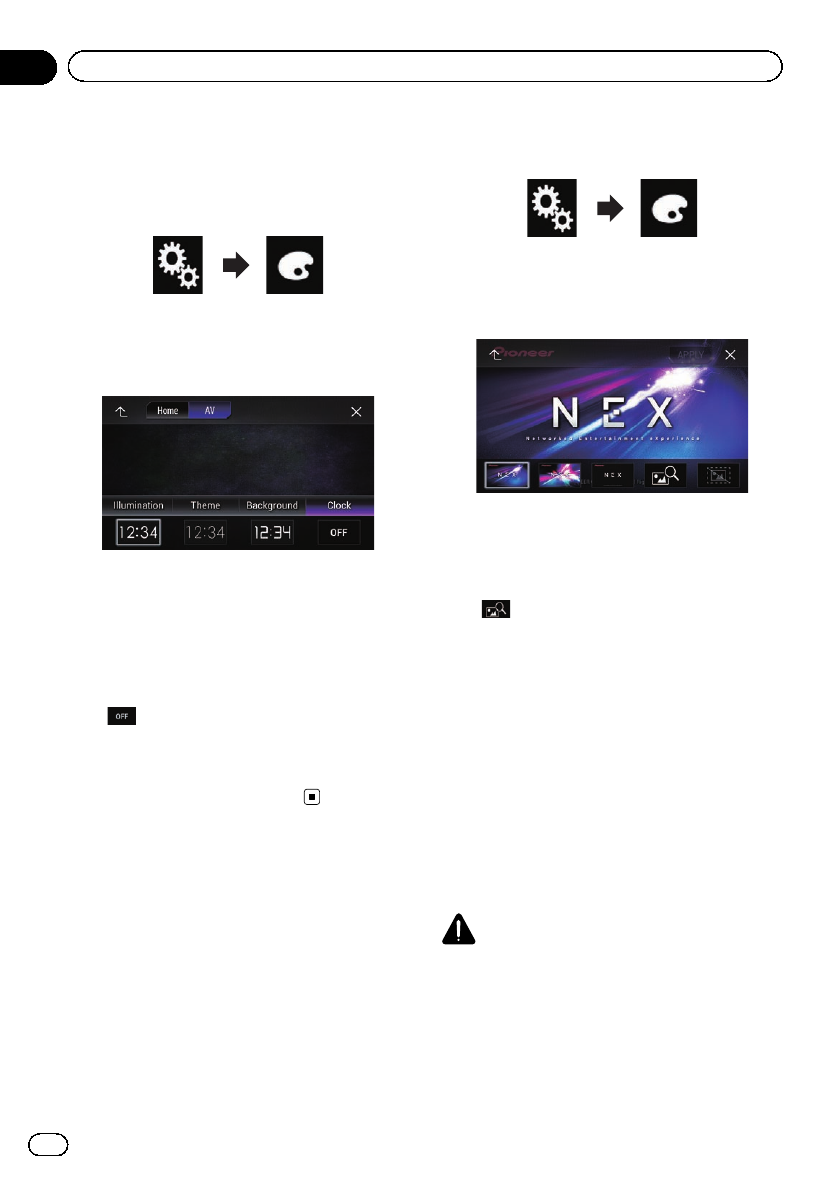
1 Press the HOME button to display the
Top menu screen.
2 Touch the following keys in the follow-
ing order.
The “Theme”screen appears.
3 Touch [Clock].
The following screen appears.
pYou can also change the screen for settings
by touching [Illumination], [Theme]or
[Background] on this screen.
4 Touch the item you want to set.
!Preset images:
Selects the desired preset clock image.
!(off):
Hides the clock display.
pYou can preview the Top menu screen or
the AV operation screen by touching
[Home]or[AV] respectively.
Changing the preinstalled
splash screen
You can change the splash screen to other
images preinstalled in this product.
1 Press the HOME button to display the
Top menu screen.
2 Touch the following keys in the follow-
ing order.
The “Theme”screen appears.
3 Touch [Splash Screen].
The following screen appears.
4 Touch the item you want to set.
!Preset images:
Selects the desired preset splash screen
image.
!(custom):
Displays the splash screen image imported
from the external storage device (USB, SD).
=For details, refer to Changing to the splash
screen stored on the external storage device
(USB, SD) on page 210.
Changing to the splash screen
stored on the external storage
device (USB, SD)
You can change the splash screen to other
images imported from the external storage de-
vice (USB, SD).
CAUTION
Do not turn off the engine while importing an
image from the external storage device (USB,
SD).
1 Press the HOME button to display the
Top menu screen.
En
210
Chapter
34 Theme menu
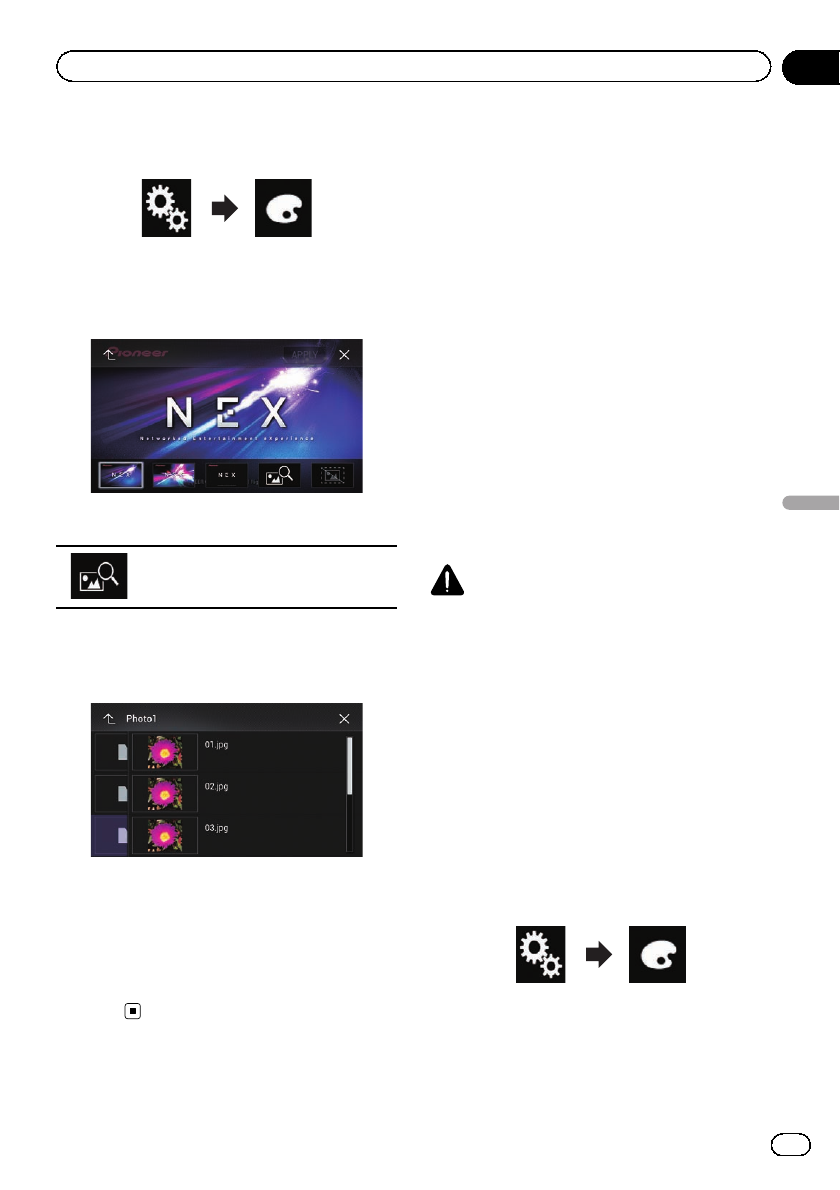
2 Touch the following keys in the follow-
ing order.
The “Theme”screen appears.
3 Touch [Splash Screen].
The following screen appears.
4 Touch the following key.
Displays the list of the splash screens
stored on the external storage device
(USB, SD).
5 Touch the desired external storage de-
vice (USB, SD).
The following screen appears.
6 Touch the image to use as the splash
screen from the list.
The image is set as the splash screen.
pYou can delete the imported image and re-
store the setting on the splash screen to the
default by touching and holding the custom
key.
Replicating the settings
Exporting “Theme”settings
You can export settings you have made on the
“Theme”screen to an external storage device
(USB, SD). These settings can be exported se-
parately.
pThis setting is available only when you stop
your vehicle in a safe place and apply the
parking brake.
pIf multiple external storage devices are con-
nected to this product, the order of priority
for the targets that the “Theme”settings
are exported to is as follows:
1SD memory card (for AVIC-8100NEX and
AVIC-7100NEX)
2USB storage device that is connected to
USB port 1
3USB storage device that is connected to
USB port 2
CAUTION
Do not turn off the engine while exporting the set-
tings.
1 Insert the SD memory card into the SD
card slot or plug the USB storage device
into the USB connector.
=For details, refer to Plugging in a USB sto-
rage device on page 19.
=For details, refer to Inserting and ejecting an
SD memory card on page 18.
2 Press the HOME button to display the
Top menu screen.
3 Touch the following keys in the follow-
ing order.
The “Theme”screen appears.
4 Touch [Export].
The “Settings Export”screen appears.
En 211
Chapter
34
Theme menu
Theme menu

5 Touch the desired item.
!Illumination:
Selects the illumination color setting.
!Splash Screen:
Selects the splash screen setting.
!Select All:
Selects all settings.
6 Touch [Export].
Data export starts.
After the data is exported, a completion mes-
sage appears.
pThe source is turned off and the Bluetooth
connection is disconnected before the pro-
cess starts.
Importing “Theme”settings
The settings made on the “Theme”screen
that were exported to an external storage de-
vice (USB, SD) can be imported.
pThis setting is available only when you stop
your vehicle in a safe place and apply the
parking brake.
pIf multiple external storage devices that in-
clude available data are connected to this
product, the order of priority for the targets
that the “Theme”settings are imported
from is as follows:
1SD memory card (for AVIC-8100NEX and
AVIC-7100NEX)
2USB storage device that is connected to
USB port 1
3USB storage device that is connected to
USB port 2
CAUTION
!Do not turn off the engine while importing the
settings.
!To prevent data loss and damage to the SD
memory card, never edit the data exported to
the SD memory card.
1 Insert the SD memory card into the SD
card slot or plug the USB storage device
into the USB connector.
=For details, refer to Plugging in a USB sto-
rage device on page 19.
=For details, refer to Inserting and ejecting an
SD memory card on page 18.
A message confirming whether to import the
stored setting data appears.
2 Touch [Import].
Data import starts.
When the data is successfully imported, an
import complete message is displayed.
pThe source is turned off and the Bluetooth
connection is disconnected before the pro-
cess starts.
En
212
Chapter
34 Theme menu
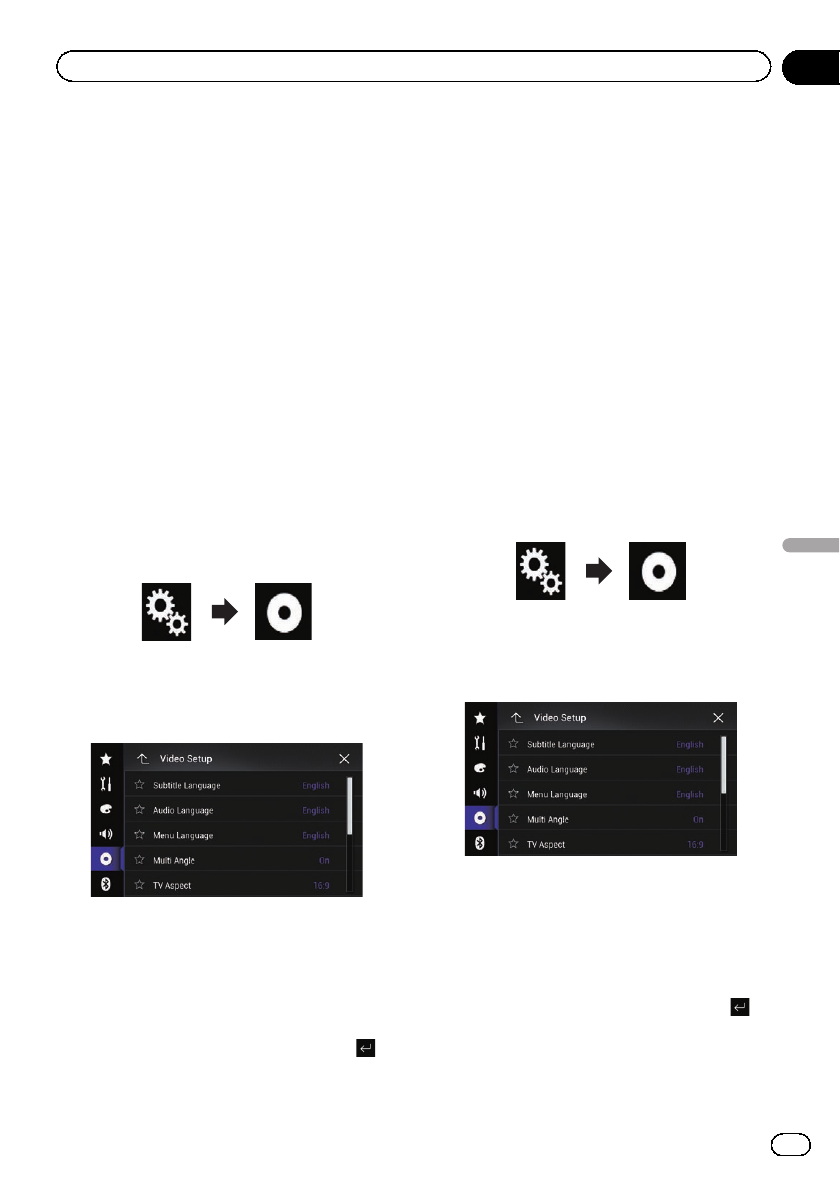
Setting the top-priority
languages
You can assign the top-priority language to the
top-priority subtitle, audio and menu in initial
playback. If the selected language is recorded
on the disc, subtitles, audio and menu are dis-
played or output in that language.
pThis setting is available only when “Disc”is
selected as the source.
Setting the subtitle language
You can set a desired subtitle language. When
available, the subtitles will be displayed in the
selected language.
1 Press the HOME button to display the
Top menu screen.
2 Touch the following keys in the follow-
ing order.
The “Video Setup”screen appears.
3 Touch [DVD/DivX Setup].
The following screen appears.
4 Touch [Subtitle Language].
The pop-up menu appears.
5 Touch the desired language.
When you select “Others”, a language code
input screen is shown. Input the four-digit
code of the desired language then touch .
=For details, refer to Language code chart for
DVDs on page 219.
The subtitle language is set.
pIf the selected language is not available, the
language specified on the disc is displayed.
pYou can switch the subtitle language by
touching the subtitle language switching
key during playback.
pThe setting made here will not be affected
even if the subtitle language is switched
during playback using the subtitle language
switching key.
Setting the audio language
You can set the preferred audio language.
1 Press the HOME button to display the
Top menu screen.
2 Touch the following keys in the follow-
ing order.
The “Video Setup”screen appears.
3 Touch [DVD/DivX Setup].
The following screen appears.
4 Touch [Audio Language].
The pop-up menu appears.
5 Touch the desired language.
When you select “Others”, a language code
input screen is shown. Input the four-digit
code of the desired language then touch .
=For details, refer to Language code chart for
DVDs on page 219.
The audio language is set.
En 213
Chapter
35
Setting up the video player
Setting up the video player
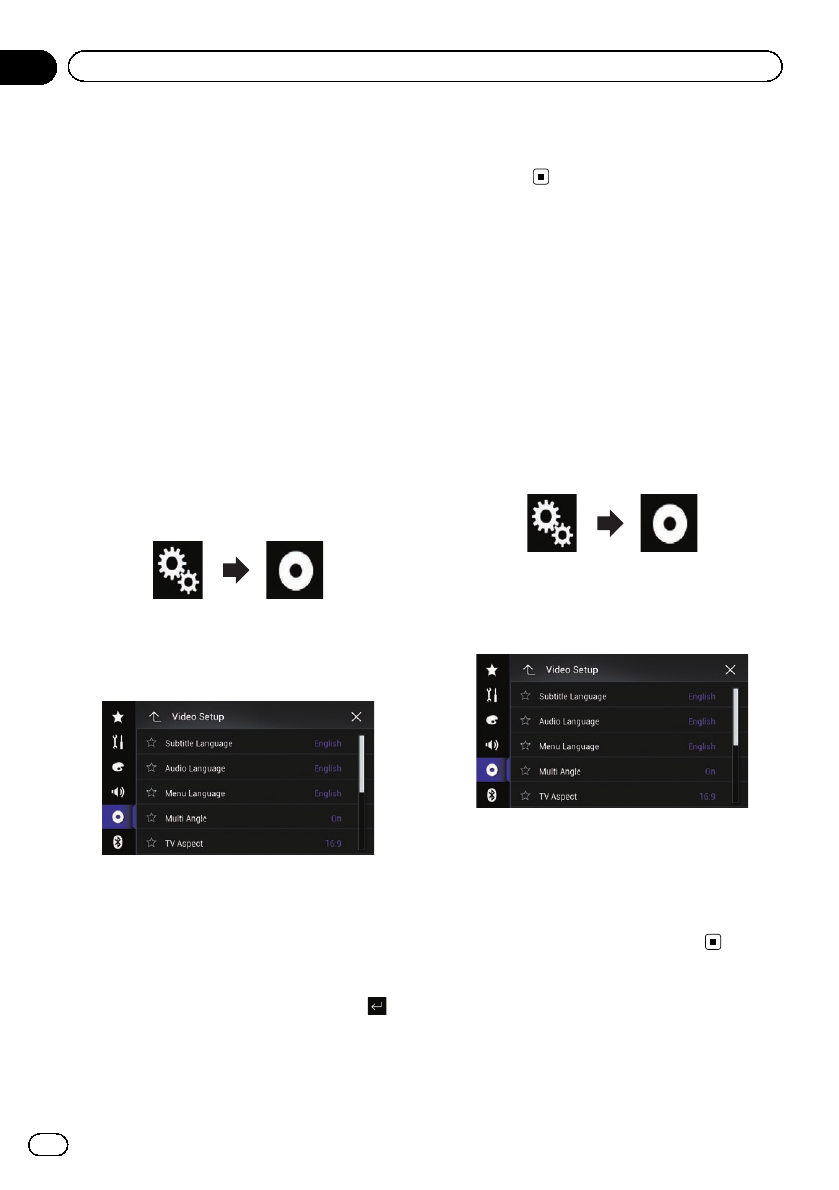
pIf the selected language is not available, the
language specified on the disc is applied.
pYou can switch the audio language by
touching the audio language switching key
during playback.
pThe setting made here will not be affected
even if the audio language is switched dur-
ing playback using the audio language
switching key.
Setting the menu language
You can set the preferred language in which
the menus recorded on a disc are displayed.
1 Press the HOME button to display the
Top menu screen.
2 Touch the following keys in the follow-
ing order.
The “Video Setup”screen appears.
3 Touch [DVD/DivX Setup].
The following screen appears.
4 Touch [Menu Language].
The pop-up menu appears.
5 Touch the desired language.
When you select “Others”, a language code
input screen is shown. Input the four-digit
code of the desired language then touch .
=For details, refer to Language code chart for
DVDs on page 219.
The menu language is set.
pIf the selected language is not available, the
language specified on the disc is dis-
played.
Setting the angle icon display
You can set whether to display the angle icon
on the scenes where the angle can be
switched.
pThis setting is available only when “Disc”is
selected as the source.
1 Press the HOME button to display the
Top menu screen.
2 Touch the following keys in the follow-
ing order.
The “Video Setup”screen appears.
3 Touch [DVD/DivX Setup].
The following screen appears.
4 Touch [Multi Angle] repeatedly until
the desired setting appears.
!On (default):
Turns the multi-angle setting on.
!Off:
Turns the multi-angle setting off.
En
214
Chapter
35 Setting up the video player
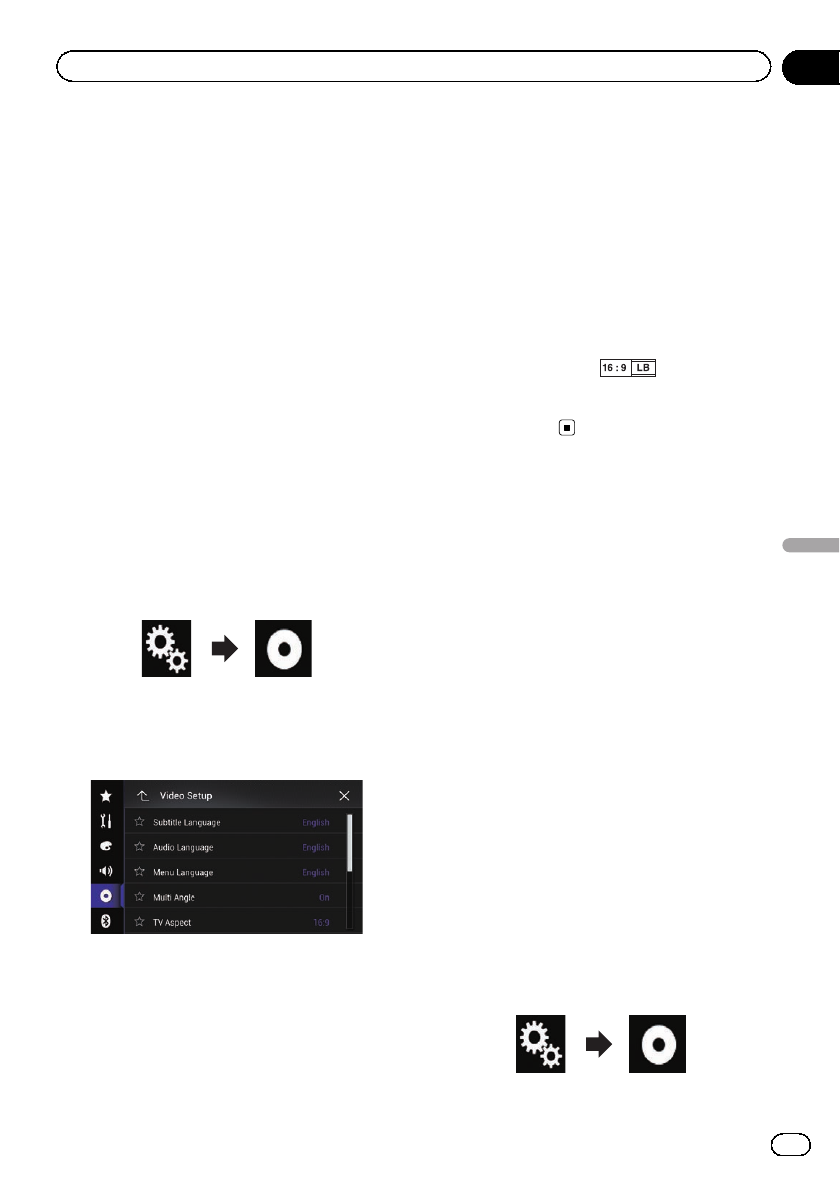
Setting the aspect ratio
There are two kinds of displays. A wide screen
display has a width-to-height ratio (TV aspect)
of 16:9, while a regular display has a TV aspect
of 4:3. If you use a regular rear display with a
TV aspect of 4:3, you can set the aspect ratio
suitable for your rear display. (We recommend
use of this function only when you want to fit
the aspect ratio to the rear display.)
pWhen using a regular display, select either
“Letter Box”or “Pan Scan”. Selecting
“16:9”may result in an unnatural image.
pIf you select the TV aspect ratio, this pro-
duct’s display will change to the same set-
ting.
pThis setting is available only when “Disc”is
selected as the source.
1 Press the HOME button to display the
Top menu screen.
2 Touch the following keys in the follow-
ing order.
The “Video Setup”screen appears.
3 Touch [DVD/DivX Setup].
The following screen appears.
4 Touch [TV Aspect].
The pop-up menu appears.
5 Touch the item you want to set.
!16:9 (default):
Displays the wide screen image (16:9) as it
is (initial setting).
!Letter Box:
Makes the image in the shape of a letterbox
with black bands on the top and bottom of
the screen.
!Pan Scan:
Cuts the image short on the right and left
sides of the screen.
pWhen playing discs that do not have a pan-
scan system, the disc is played back with
“Letter Box”even if you select the “Pan
Scan”setting. Confirm whether the disc
package bears the mark.
pThe TV aspect ratio cannot be changed for
some discs. For details, refer to the disc’s
instructions.
Setting parental lock
Some DVD-Video discs let you use parental
lock to set restrictions so that children cannot
watch violent or adult-oriented scenes. You
can set the parental lock level in steps as de-
sired.
pThis setting is available only when “Disc”is
selected as the source.
pWhen you set a parental lock level and then
play a disc featuring parental lock, code
number input indications may be dis-
played. In this case, playback will start
when the correct code number is input.
Setting the code number and level
When you first use this function, register your
code number. If you do not register a code
number, the parental lock will not operate.
1 Press the HOME button to display the
Top menu screen.
2 Touch the following keys in the follow-
ing order.
The “Video Setup”screen appears.
En 215
Chapter
35
Setting up the video player
Setting up the video player
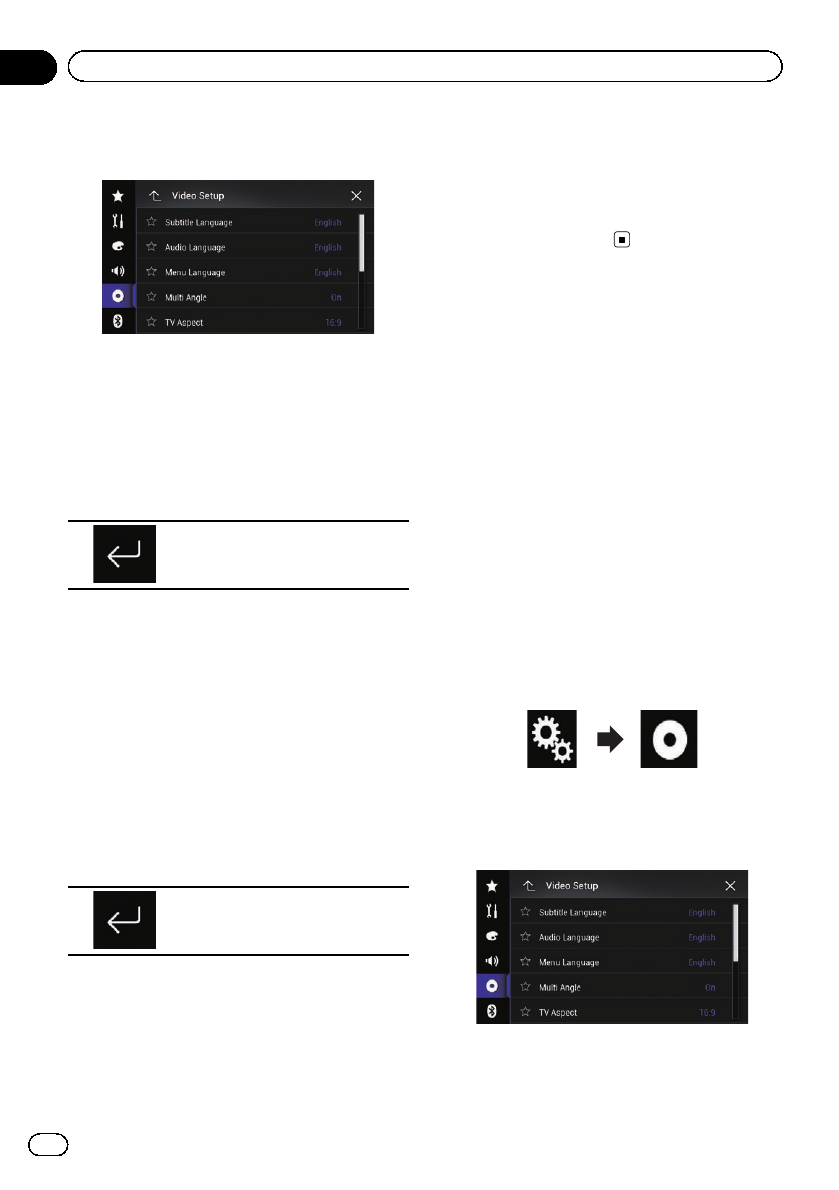
3 Touch [DVD/DivX Setup].
The following screen appears.
4 Touch [Parental].
The “Parental”screen appears.
5 Touch [0] to [9] to input a four-digit
code number.
6 While the input number is displayed,
touch the following key.
Registers the code number.
7 Touch any number between [1] to [8] to
select the desired level.
!8:
Enables playback of the entire disc (initial
setting).
!7to 2:
Enables playback of discs for children and
non-adult oriented discs.
!1:
Enables only playback of discs for children.
8 While the input number is displayed,
touch the following key.
Sets the parental lock level.
pWe recommend that you keep a record of
your code number in case you forget it.
pThe parental lock level is recorded on the
disc. You can confirm it by looking at the
disc package, the included literature or the
disc itself. You cannot use parental lock
with discs that do not feature a recorded
parental lock level.
pWith some discs, parental lock operates to
skip certain scenes only, after which normal
playback resumes. For details, refer to the
disc’s instructions.
Displaying your DivX VOD
registration code
If you want to play DivX VOD (video on de-
mand) content on this product, you must first
register this product with your DivX VOD con-
tent provider. You do this by generating a DivX
VOD registration code, which you submit to
your provider.
pKeep a record of the code as you will need
it when you register this product to the
DivX VOD provider.
pThis setting is available only when “Disc”is
selected as the source.
1 Press the HOME button to display the
Top menu screen.
2 Touch the following keys in the follow-
ing order.
The “Video Setup”screen appears.
3 Touch [DVD/DivX Setup].
The following screen appears.
4 Touch [DivX® VOD].
The “DivX® VOD”screen appears.
En
216
Chapter
35 Setting up the video player
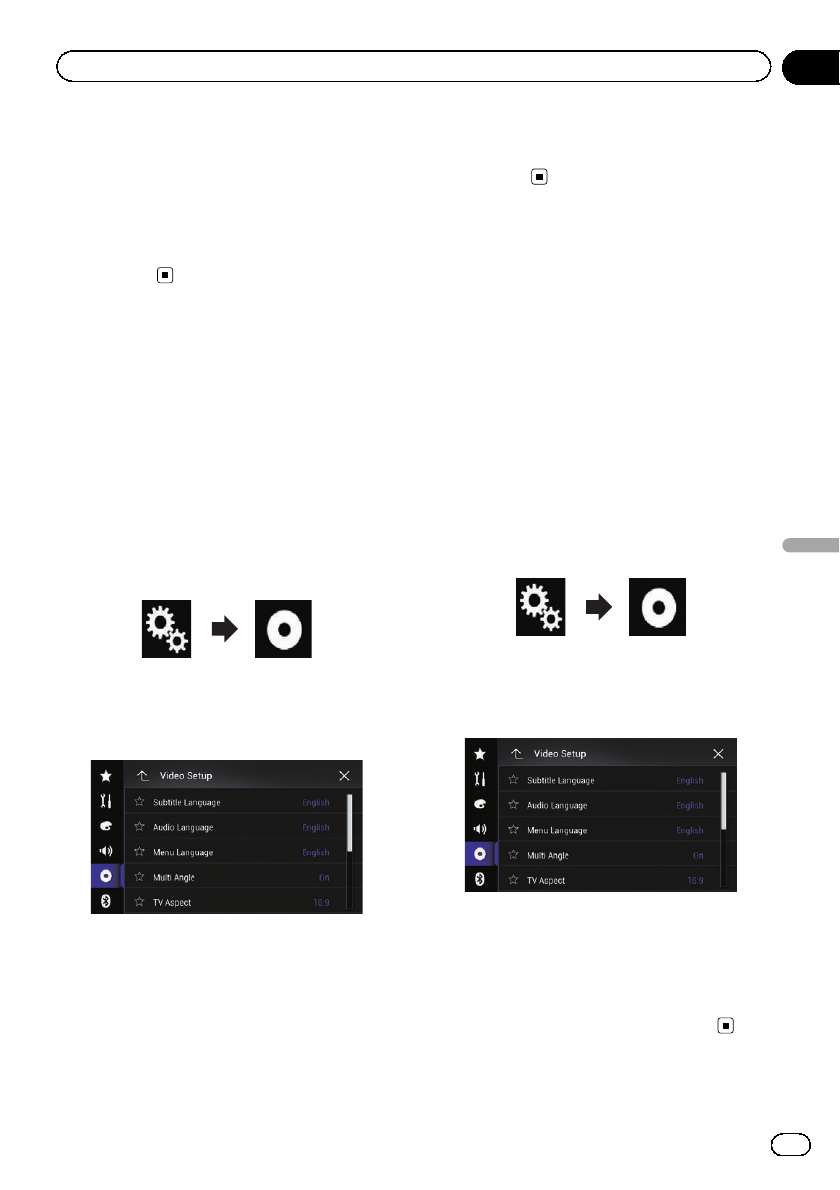
pIf a registration code has already been acti-
vated, it cannot be displayed.
5 Touch [Registration Code].
Your 10-digit registration code is displayed.
pMake a note of the code as you will need it
when you register with a DivX VOD
provider.
Displaying your DivX VOD
deregistration code
A registration code registered with a deregis-
tration code can be deleted.
pThis setting is available only when “Disc”is
selected as the source.
1 Press the HOME button to display the
Top menu screen.
2 Touch the following keys in the follow-
ing order.
The “Video Setup”screen appears.
3 Touch [DVD/DivX Setup].
The following screen appears.
4 Touch [DivX® VOD].
The “DivX® VOD”screen appears.
5 Touch [Deregistration Code].
Your eight-digit deregistration code is dis-
played.
pMake a note of the code as you will need it
when you deregister from a DivX VOD
provider.
Automatic playback of DVDs
When a DVD disc with a DVD menu is in-
serted, this product will cancel the menu auto-
matically and start playback from the first
chapter of the first title.
pSome DVDs may not operate properly. If
this function is not fully operable, turn this
function off and start playback.
pThis setting is available only when “Disc”is
selected as the source.
1 Press the HOME button to display the
Top menu screen.
2 Touch the following keys in the follow-
ing order.
The “Video Setup”screen appears.
3 Touch [DVD/DivX Setup].
The following screen appears.
4 Touch [DVD Auto Play] repeatedly until
the desired setting appears.
!Off (default):
Turns the DVD Auto Play setting off.
!On:
Turns the DVD Auto Play setting on.
En 217
Chapter
35
Setting up the video player
Setting up the video player
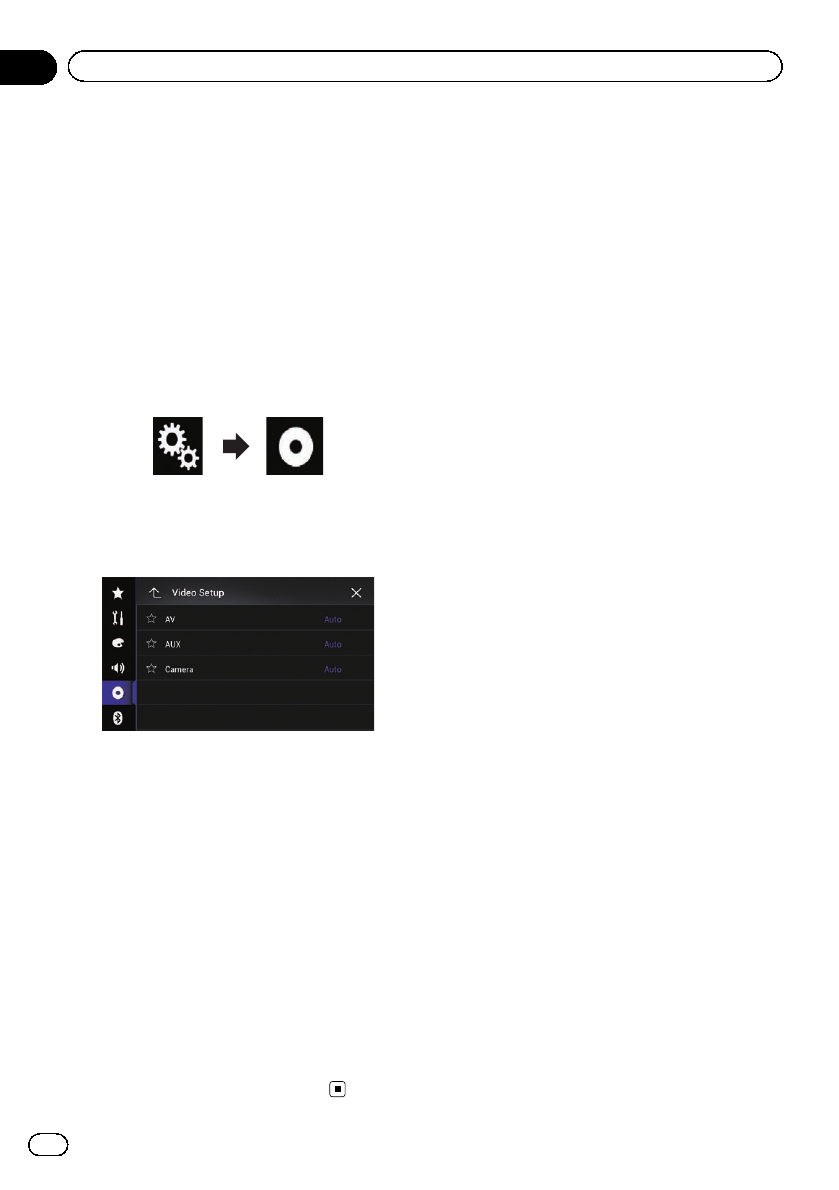
Setting the video signal for
the rear view camera
When you connect a rear view camera to this
product, select the suitable video signal set-
ting.
pYou can operate this function only for the
video signal input into the AV input.
1 Press the HOME button to display the
Top menu screen.
2 Touch the following keys in the follow-
ing order.
The “Video Setup”screen appears.
3 Touch [Video Signal Setting].
The following screen appears.
4 Touch [Camera].
The pop-up menu appears.
5 Touch the item you want to set.
!Auto (default):
Adjusts the video signal setting automati-
cally.
!PAL:
Sets the video signal to PAL.
!NTSC:
Sets the video signal to NTSC.
!PAL-M:
Sets the video signal to PAL-M.
!PAL-N:
Sets the video signal to PAL-N.
!SECAM:
Sets the video signal to SECAM.
En
218
Chapter
35 Setting up the video player

Language code chart for DVDs
Two-letter
code,
input code
Language
Two-letter
code,
input code
Language
Two-letter
code,
input code
Language
aa, 0101 Afar ie, 0905 Interlingue rn, 1814 Rundi
ab, 0102 Abkhazian ik, 0911 Inupiaq ro, 1815 Romanian
af, 0106 Afrikaans in, 0914 Indonesian ru, 1821 Russian
am, 0113 Amharic is, 0919 Icelandic rw, 1823 Kinyarwanda
ar, 0118 Arabic it, 0920 Italian sa, 1901 Sanskrit
as, 0119 Assamese iw, 0923 Hebrew sd, 1904 Sindhi
ay, 0125 Aymara ja, 1001 Japanese sg, 1907 Sango
az, 0126 Azerbaijani ji, 1009 Yiddish sh, 1908 Serbo-Croat
ba, 0201 Bashkir jw, 1023 Javanese si, 1909 Sinhala
be, 0205 Belarusian ka, 1101 Georgian sk, 1911 Slovak
bg, 0207 Bulgarian kk, 1111 Kazakh sl, 1912 Slovenian
bh, 0208 Bihari kl, 1112 Greenlandic sm, 1913 Samoan
bi, 0209 Bislama km, 1113 Central Khmer sn, 1914 Shona
bn, 0214 Bengali kn, 1114 Kannada so, 1915 Somali
bo, 0215 Tibetan ko, 1115 Korean sq, 1917 Albanian
br, 0218 Breton ks, 1119 Kashmiri sr, 1918 Serbian
ca, 0301 Catalan ku, 1121 Kurdish ss, 1919 Swati
co, 0315 Corsican ky, 1125 Kirghiz st, 1920 Sotho
cs, 0319 Czech la, 1201 Latin su, 1921 Sundanese
cy, 0325 Welsh ln, 1214 Lingala sv, 1922 Swedish
da, 0401 Danish lo, 1215 Lao sw, 1923 Swahili
de, 0405 German lt, 1220 Lithuanian ta, 2001 Tamil
dz, 0426 Dzongkha lv, 1222 Latvian te, 2005 Telugu
el, 0512 Greek mg, 1307 Malagasy tg, 2007 Tajik
en, 0514 English mi, 1309 Maori th, 2008 Thai
eo, 0515 Esperanto mk, 1311 Macedonian ti, 2009 Tigrinya
es, 0519 Spanish ml, 1312 Malayalam tk, 2011 Turkmen
et, 0520 Estonian mn, 1314 Mongolian tl, 2012 Tagalog
eu, 0521 Basque mo, 1315 Moldavian tn, 2014 Tswana
fa, 0601 Persian mr, 1318 Marathi to, 2015 Tonga
fi, 0609 Finnish ms, 1319 Malay tr, 2018 Turkish
fj, 0610 Fijian mt, 1320 Maltese ts, 2019 Tsonga
fo, 0615 Faroese my, 1325 Burmese tt, 2020 Tatar
fr, 0618 French na, 1401 Nauru tw, 2023 Twi
fy, 0625 Western Frisian ne, 1405 Nepali uk, 2111 Ukrainian
ga, 0701 Irish nl, 1412 Dutch ur, 2118 Urdu
gd, 0704 Scot.Gaelic no, 1415 Norwegian uz, 2126 Uzbek
gl, 0712 Galician oc, 1503 Occitan vi, 2209 Vietnamese
gn, 0714 Guarani om, 1513 Oromo vo, 2215 Volapük
gu, 0721 Gujarati or, 1518 Oriya wo, 2315 Wolof
ha, 0801 Hausa pa, 1601 Panjabi xh, 2408 Xhosa
hi, 0809 Hindi pl, 1612 Polish yo, 2515 Yoruba
hr, 0818 Croatian ps, 1619 Pashto zh, 2608 Chinese
hu, 0821 Hungarian pt, 1620 Portuguese zu, 2621 Zulu
hy, 0825 Armenian qu, 1721 Quechua
ia, 0901 Interlingua rm, 1813 Romansh
En 219
Chapter
35
Setting up the video player
Setting up the video player
Registering your favorite menu items in short-
cuts allows you to quickly jump to the regis-
tered menu screen by a simple touch on the
“Favorites”screen.
pUp to 12 menu items can be registered in
the favorite menu.
Creating a shortcut
1 Touch the HOME button to display the
Top menu screen.
2 Touch the following key.
Displays the Setting menu screen.
3 Touch the star icon of the menu item
that you want to add to the favorite menu.
The star icon for the selected menu is filled in.
#To cancel the registration, touch the star icon
in the menu column again.
Selecting a shortcut
1 Press the HOME button to display the
Top menu screen.
2 Touch the following keys in the follow-
ing order.
The “Favorites”screen appears.
3 Touch the desired item.
Removing a shortcut
1 Press the HOME button to display the
Top menu screen.
2 Touch the following keys in the follow-
ing order.
The “Favorites”screen appears.
3 Touch and hold the star icon of the fa-
vorite menu you want to remove.
The selected menu is removed from the “Fa-
vorites”screen.
En
220
Chapter
36 Favorite menu
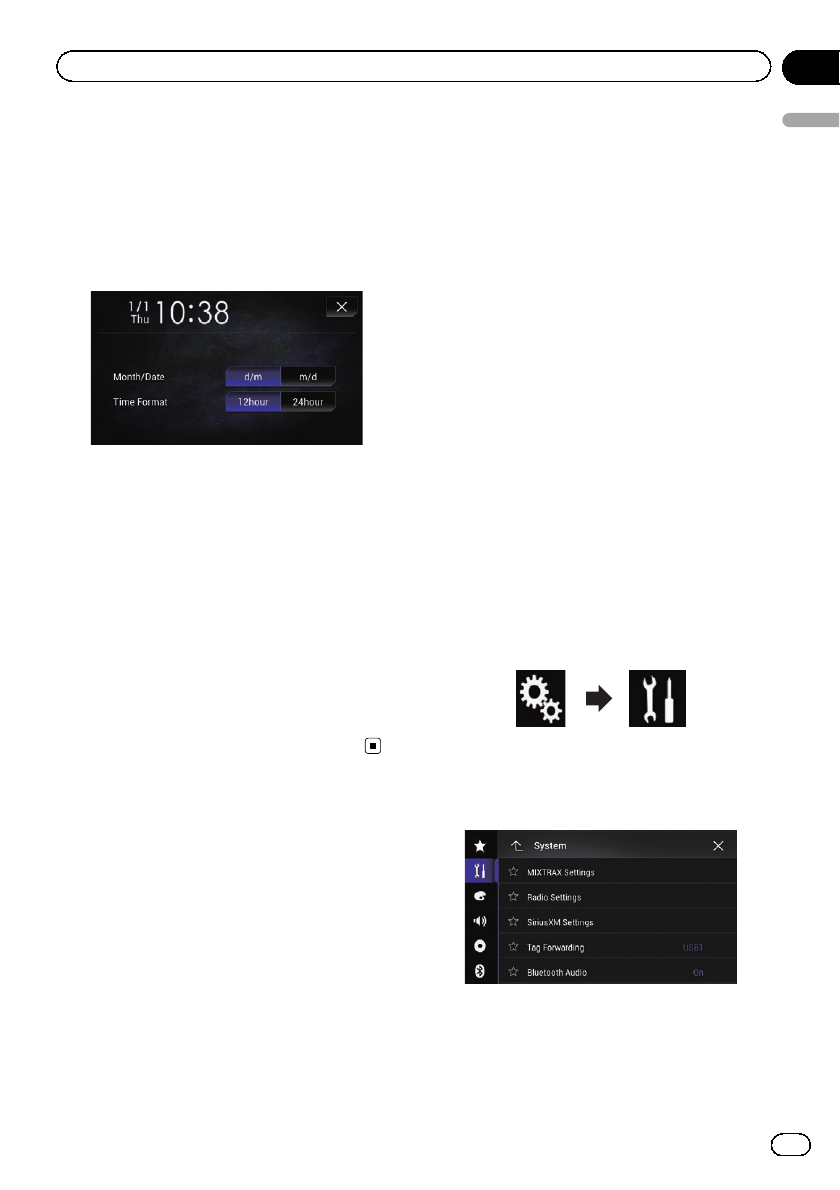
Setting the time and date
You can change the date display format and
the time format.
1 Touch the current time on the screen to
display the Time and date setting screen.
The following screen appears.
2 Touch the item you want to set.
Month/Date
!m/d (default):
Changes the date display format to month/
date.
!d/m:
Changes the date display format to date/
month.
Time Format
!12hour (default):
Changes the display to 12-hour format with
am/pm.
!24hour:
Changes the display to 24-hour format.
Storing song information
to an iPod (iTunes Tagging)
You can store song information to the iPod
when this product receives song information.
The songs will appear in a playlist called
“Tagged playlist”in iTunes the next time you
synchronize your iPod. You can directly buy
the songs via this product.
Depending on when the song information is
stored, information for the previous song or
the song after the current song may also be
stored. Be sure to confirm the song before you
purchase it.
pThe iTunes Tagging function is available
when the song information is available.
pThis function is available for the following
iPod models:
!iPhone 4s
!iPhone 4
!iPhone 3GS
!iPhone 3G
!iPhone
!iPod touch 5th generation
!iPod touch 4th generation
!iPod touch 3rd generation
!iPod touch 2nd generation
!iPod touch 1st generation
!iPod classic
!iPod nano 6th generation
!iPod nano 5th generation
!iPod nano 4th generation
!iPod nano 3rd generation
pThe version of iTunes must be 7.4 or higher.
1 Press the HOME button to display the
Top menu screen.
2 Touch the following keys in the follow-
ing order.
The “System”screen appears.
3 Touch [AV Source Settings].
The following screen appears.
4 Touch [Tag Forwarding] repeatedly
until the desired setting appears.
!USB1 (default):
Transfers the song information to your iPod
which is connected to USB port 1.
En 221
Chapter
37
Common operations
Common operations
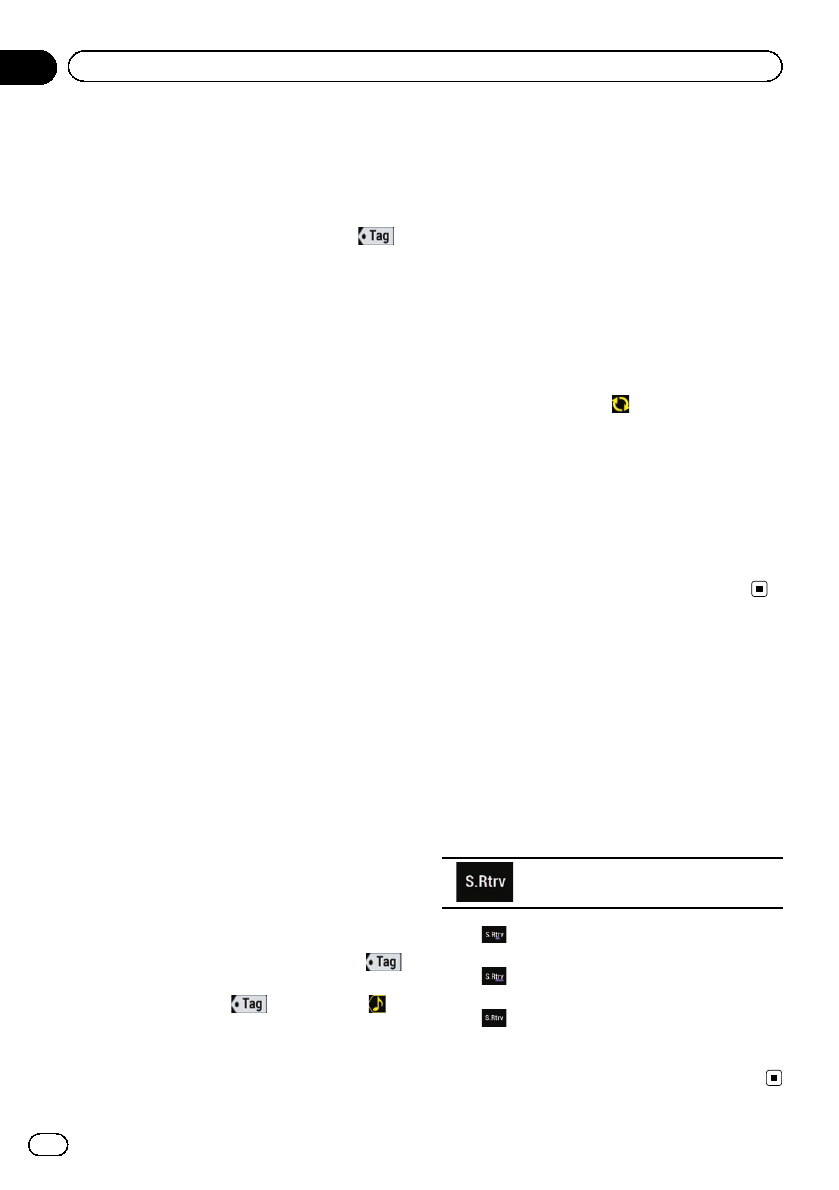
!USB2:
Transfers the song information to your iPod
which is connected to USB port 2.
5 Tune into a broadcast station.
When the song information is received,
is displayed while the desired song is being
broadcast, and the touch panel key becomes
active.
Radio (for AVIC-5100NEX)
=For details, refer to iTunes®tagging indi-
cator on page 94.
=For details, refer to Using the touch panel
keys on page 93.
HD Radio (for AVIC-8100NEX, AVIC-7100NEX
and AVIC-6100NEX)
=For details, refer to iTunes®tagging indi-
cator on page 98.
=For details, refer to Using the touch panel
keys on page 97.
SiriusXM
=For details, refer to iTunes®tagging indi-
cator on page 158.
=For details, refer to Using the touch panel
keys on page 156.
6 Touch the following key.
Radio (for AVIC-5100NEX)
The touch panel key on which song informa-
tion is displayed
HD Radio (for AVIC-8100NEX, AVIC-7100NEX
and AVIC-6100NEX)
The touch panel key on which the song title or
artist name is displayed
SiriusXM
The touch panel key on which the artist name,
song title, category name or content text is dis-
played
The information on the song on air is stored in
this product.
While the information is being acquired,
is displayed.
When it is completed, turns off and is
displayed.
pThe song information for up to 50 songs
can be stored in this product.
Depending on when the song information
is stored, information for the previous song
or the song after the current song may also
be stored.
7 Connect your iPod.
The song information is transferred to your
iPod.
pIf the iPod is already connected, the song
information will be transferred to your iPod
every time you touch the touch panel key
on which song information is displayed.
When the song information transfer to your
iPod is completed, disappears.
pWhen the song information transfer is com-
pleted, the information stored in this pro-
duct will be automatically deleted.
pIf you turn off this product or disconnect
the iPod while transferring song informa-
tion, the transfer may not successfully com-
plete.
pWhile this product is storing song informa-
tion, transfer to an iPod is not possible.
Setting the “Sound
Retriever”function
The “Sound Retriever”function automatically
enhances compressed audio and restores rich
sound.
%Touch the following key repeatedly
until the desired setting appears on the AV
operation screen.
Sets the “Sound Retriever”function.
!(Mode1) (default):
Activates the “Sound Retriever”function.
!(Mode2):
Activates the “Sound Retriever”function.
!(Off):
Deactivates the “Sound Retriever”func-
tion.
pMode2 has a stronger effect than Mode1.
En
222
Chapter
37 Common operations
Changing the wide screen
mode
You can set the screen size for the video and
JPEG images.
pThis setting is available only when you stop
your vehicle in a safe place and apply the
parking brake.
pThe default setting is “Full”for video, and
“Normal”for JPEG images.
1 Touch the following key.
Displays the setting screen to select the
appropriate screen ratio for the play-
back video.
pThe appearance of this key changes accord-
ing to the current setting.
2 Touch the desired mode.
!Full
A 4:3 picture is enlarged in the horizontal
direction only, enabling you to enjoy a 4:3
TV picture (normal picture) without any
omissions.
pThis setting is for video only.
!Zoom
A 4:3 picture is enlarged in the same pro-
portion both vertically and horizontally;
ideal for a wide screen picture.
pThis setting is for video only.
!Normal
A 4:3 picture is displayed normally, giving
you no sense of disparity since its propor-
tions are the same as those of the normal
picture.
!Trimming
An image is displayed across the entire
screen with the horizontal-to-vertical ratio
left as is. If the horizontal-to-vertical ratio
differs between the display and the image,
the image may be displayed partly cut off
either at the top/bottom or sides.
pThis setting is for JPEG images only.
pDifferent settings can be stored for each
video source.
pWhen a video is viewed in a wide screen
mode that does not match its original as-
pect ratio, it may appear different.
pThe video image will appear coarser when
viewed in “Zoom”mode.
En 223
Chapter
37
Common operations
Common operations
Selecting the video for the
rear display
You can choose either to show the same
image as the front screen or to show the se-
lected source on the rear display.
pThis function is not available during a call
via this product or while using the voice re-
cognition function.
1 Press the HOME button to display the
Top menu screen.
2 Touch the following key.
Displays the AV source selection
screen.
3 Touch [Rear].
The “Rear”screen appears.
4 Touch the source you want to show on
the rear display.
The source you can select is as follows.
!Mirror
The video on the front screen of this pro-
duct is output to the rear display.
—Not all videos or sounds can be output
to the rear display.
!DVD/CD
The video and sound of DVDs are output to
the rear display.
—Compatible file types are DVD-V, Video-
CD, DivX, MPEG-1, MPEG-2, and
MPEG-4 only.
!USB/iPod
The video and sound of the USB storage de-
vice or iPod are output to the rear display.
—The port that supports the rear display
will only be USB port 1.
—Compatible file types are MPEG-4,
H.264, WMV, MKV, and FLV only.
!SD
The video and sound of the SD memory
cards are output to the rear display.
—Compatible file types are MPEG-4,
H.264, WMV, MKV, and FLV only.
!AV
The video and sound of the AV input are
output to the rear display.
—The video image and sound are output
only when “AV”has both video and
sound.
—The video image and sound are output
only when “AV Input”is set to “Source”.
=For details, refer to Setting AV input
on page 180.
!OFF
Nothing is output to the rear display.
#Touch the following key.
Closes the “Rear”screen.
#You can also select “Rear”on the source list.
=For details, refer to Selecting a front source
on the source list on page 25.
pFor AVIC-8100NEX and AVIC-7100NEX
users
Video files on the external storage device
(USB, SD) are not available as a source for
the rear display when Android Auto is on.
p“SD”is available for AVIC-8100NEX and
AVIC-7100NEX only.
Setting the anti-theft function
You can set a password for this product. If the
back-up lead is cut after the password is set,
this product prompts for the password at the
time of next boot up.
Setting the password
1 Press the HOME button to display the
Top menu screen.
2 Touch the following keys in the follow-
ing order.
En
224
Chapter
38 Other functions
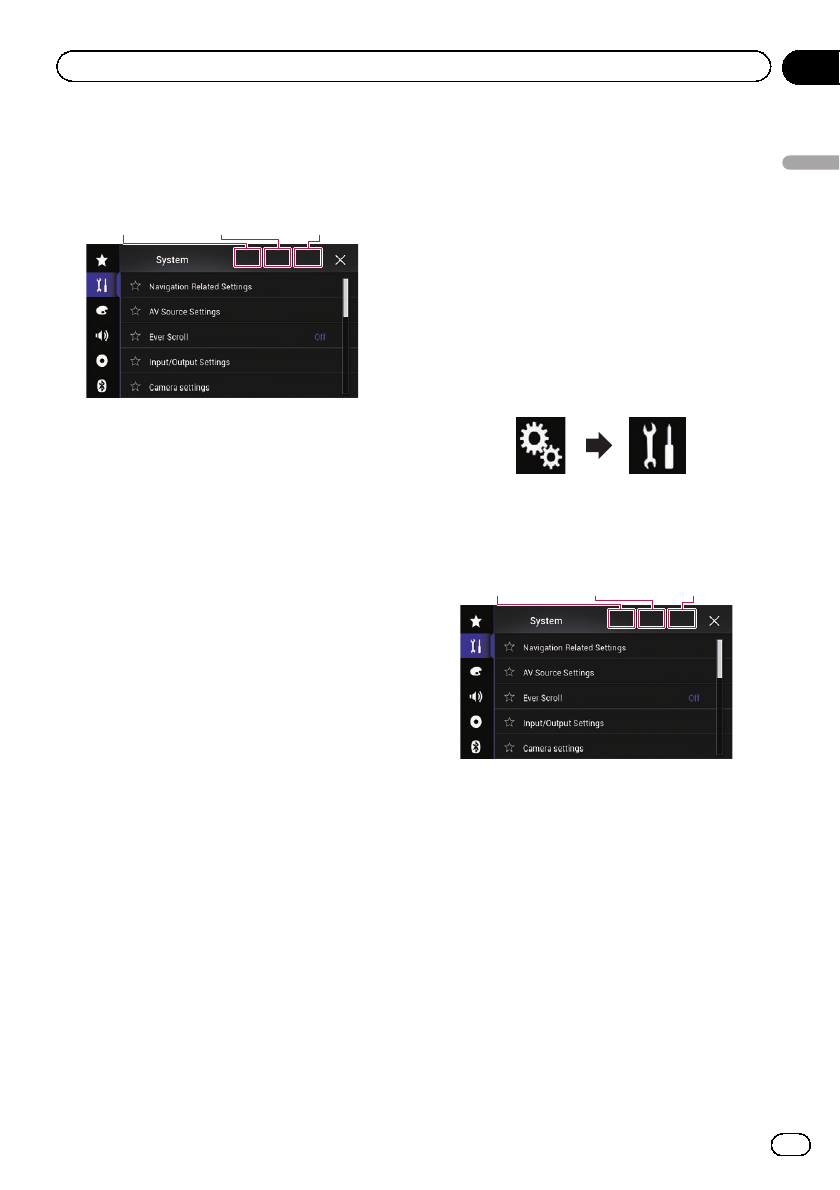
The “System”screen appears.
3 Touch Area1, followed by Area2, and
then touch and hold Area3.
Area1 Area2 Area3
The “Anti-theft Setting Menu”screen ap-
pears.
4 Touch [Set Password].
The “Password Entry”screen appears.
5 Enter the password you want to set.
p5 to 16 characters can be entered for a
password.
6 Touch [Go].
The “Hint Entry”screen appears.
7 Enter a password hint.
pUp to 40 characters can be entered for a
hint.
8 Touch [Go].
The “Password Confirmation”screen ap-
pears.
pIf you want to change the password cur-
rently set, enter the current password and
then enter the new one.
9 Check the password, and then touch
[OK].
The “Anti-theft Setting Menu”screen ap-
pears.
Entering the password
On the password input screen, you must enter
the current password.
1 Enter the password.
2 Touch [Go].
When the correct password is entered, this
product will be unlocked.
Deleting the password
The current password and password hint can
be deleted.
1 Press the HOME button to display the
Top menu screen.
2 Touch the following keys in the follow-
ing order.
The “System”screen appears.
3 Touch Area1, followed by Area2, and
then touch and hold Area3.
Area1 Area2 Area3
The “Anti-theft Setting Menu”screen ap-
pears.
4 Touch [Clear Password].
A message confirming whether to delete the
password appears.
5 Touch [Yes].
The password setting screen appears.
A message confirming a password hint ap-
pears.
6 Touch [OK].
The “Password Entry”screen appears.
7 Enter the current password.
En 225
Chapter
38
Other functions
Other functions
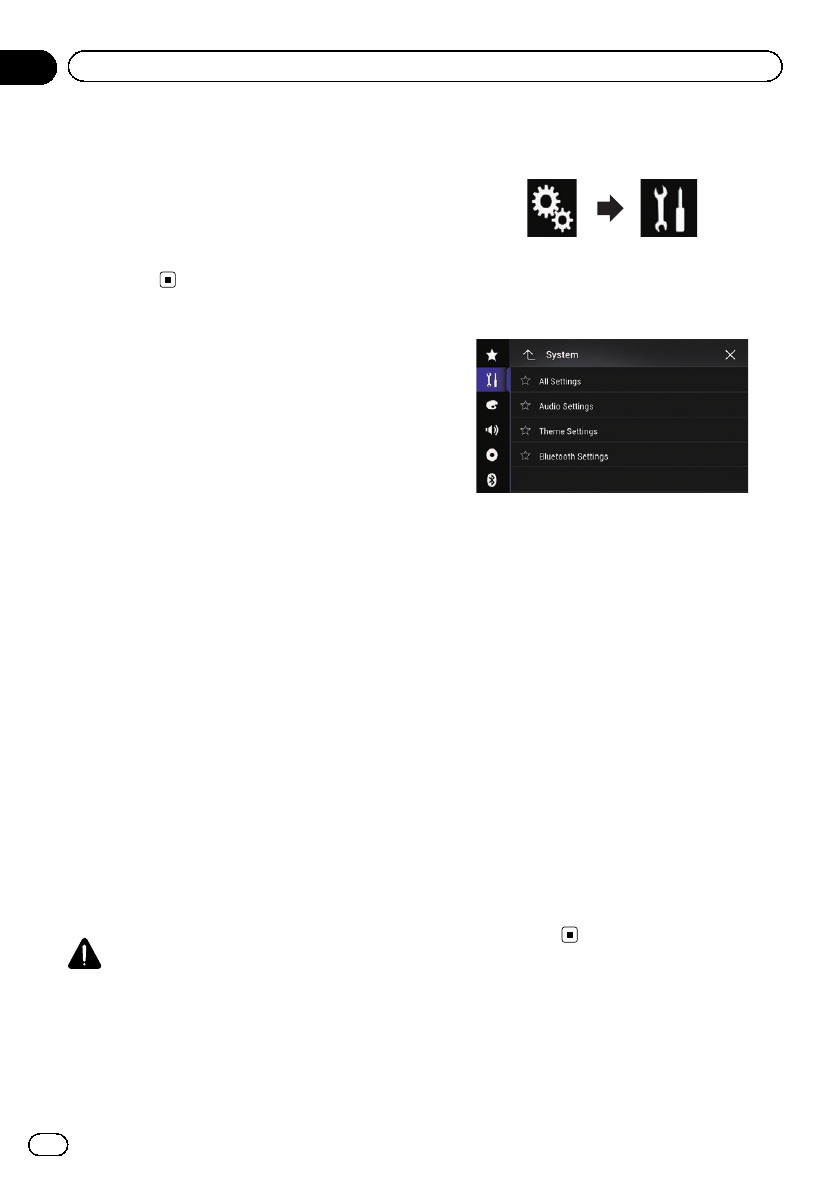
8 Touch [Go].
A message indicating that the security setting
is canceled appears.
Forgotten password
Contact the nearest authorized Pioneer Ser-
vice Station.
Restoring this product to
the default settings
You can restore settings or recorded content
to the default settings. Various methods are
used to clear user data.
Method 1: Remove the vehicle battery
Resets various settings registered to this pro-
duct.
Method 2: Touch the item you want to
initialize on the “System”screen
=For details, refer to Restoring the default set-
tings on page 226.
Method 3: Press the RESET button
=For details of the operations, refer to Reset-
ting the microprocessor on page 12.
pSome of the settings and recorded con-
tents will not be reset.
Restoring the default settings
Resets various settings registered to this pro-
duct to the default settings.
pThis setting is available only when you stop
your vehicle in a safe place and apply the
parking brake.
CAUTION
Do not turn off the engine while restoring the set-
tings.
1 Press the HOME button to display the
Top menu screen.
2 Touch the following keys in the follow-
ing order.
The “System”screen appears.
3 Touch [Restore Settings].
The following screen appears.
4 Touch the item you want to initialize.
!All Settings
!Audio Settings
pThis setting is available when the source
is turned off.
!Theme Settings
!Bluetooth Settings
A message confirming whether to initialize the
settings appears.
pIf you want to return settings or recorded
content to the default, touch [All Settings].
pSome of the settings configured on the
“Theme”setting will not be reset.
pThe settings for My Vehicle are not reset.
5 Touch [Restore].
When the selected item is successfully initia-
lized, a completion message appears.
pThe source is turned off and the Bluetooth
connection is disconnected before the pro-
cess starts.
En
226
Chapter
38 Other functions
Troubleshooting
If you have problems operating your navigation system, refer to this section. The most common
problems are listed below, along with likely causes and solutions. If a solution to your problem
cannot be found here, contact your dealer or the nearest authorized Pioneer service facility.
Problems with the AV screen
Symptom Cause Action (Reference)
CD or DVD playback is not pos-
sible.
The disc is inserted upside down. Insert the disc with the label upward.
The disc is dirty. Clean the disc.
The disc is cracked or otherwise da-
maged.
Insert a normal, round disc.
The files on the disc are in an irregu-
lar file format.
Check the file format.
The disc format cannot be played
back.
Replace the disc.
The loaded disc is a type this pro-
duct cannot play.
Check what type of disc it is. (Page 242)
The screen is covered by a cau-
tion message and the video can-
not be shown.
The parking brake lead is not con-
nected or applied.
Connect the parking brake lead correctly, and
apply the parking brake.
The parking brake interlock is acti-
vated.
Park your vehicle in a safe place and apply
the parking brake.
No video output from the con-
nected equipment.
The “AV Input”setting is incorrect. Correct the settings. (Page 180)
The audio or video skips. This product is not firmly secured. Secure this product firmly.
No sounds are produced.
The volume level will not rise.
Cables are not connected correctly. Connect the cables correctly.
The system is performing still, slow
motion, or frame-by-frame playback
with DVD-Video.
There is no sound during still, slow motion, or
frame-by-frame playback with DVD-Video.
The system is paused or performing,
fast reverse or forward during the
disc playback.
For the media other than music CD (CD-DA),
there is no sound on fast reverse or forward.
The icon 9is displayed, and op-
eration is impossible.
The operation is not compatible
with the video configuration.
This operation is not possible. (For example,
the DVD playing does not feature that angle,
audio system, subtitle language, etc.)
The picture stops (pauses) and
this product cannot be oper-
ated.
The reading of data is impossible
during disc playback.
Stop playback once, then restart.
The picture is stretched, with an
incorrect aspect ratio.
The aspect setting is incorrect for
the display.
Select the appropriate setting for that image.
(Page 215)
A parental lock message is dis-
played and DVD playback is not
possible.
The parental lock is on. Turn the parental lock off or change the level.
(Page 215)
The parental lock for DVD play-
back cannot be canceled.
The code number is incorrect. Input the correct code number. (Page 215)
En 227
Appendix
Appendix
Appendix

Symptom Cause Action (Reference)
Playback is not with the audio
language and subtitle language
settings selected in “DVD/DivX
Setup”.
The DVD playing does not feature
dialog or subtitles in the language
selected in “DVD/DivX Setup”.
Switching to a selected language is not possi-
ble if the language selected in “DVD/DivX
Setup”is not recorded on the disc. (Page
213)
The picture is extremely unclear/
distorted and dark during play-
back.
The disc features a signal to prohibit
copying. (Some discs may have
this.)
Since this product is compatible with the
copy guard analog copy protect system, the
picture may suffer from horizontal stripes or
other imperfections when a disc with that
kind of protection signal is viewed on some
displays. This is not a malfunction.
iPod cannot be operated. The iPod is frozen. !Reconnect the iPod with the USB interface
cable for iPod / iPhone.
!Update the iPod software version.
An error has occurred. !Reconnect the iPod with the USB interface
cable for iPod / iPhone.
!Park your vehicle in a safe place, and then
turn off the ignition switch (ACC OFF). Subse-
quently, turn the ignition switch to on (ACC
ON) again.
!Update the iPod software version.
Cables are not connected correctly. Connect the cables correctly.
Sound from the iPod cannot be
heard.
The audio output direction may
switch automatically when the
Bluetooth and USB connections are
used at the same time.
Use the iPod to change the audio output di-
rection.
Problems with the phone screen
Symptom Cause Action
Dialing is impossible because
the touch panel keys for dialing
are inactive.
Your phone is out of range for ser-
vice.
Retry after re-entering the range for service.
The connection between the cellular
phone and this product cannot be
established now.
Perform the connection process.
Problems with the Application screen
Symptom Cause Action
A black screen is displayed. While operating an application, the
application was ended on the smart-
phone side.
Press the HOME button to display the Top
menu screen.
The smartphone OS may be await-
ing screen operation.
Stop the vehicle in a safe place and check the
screen on the smartphone.
The screen is displayed, but op-
eration does not work at all.
An error has occurred. !Park your vehicle in a safe place, and then
turn off the ignition switch (ACC OFF). Subse-
quently, turn the ignition switch to on (ACC
ON) again.
!When an Android device is connected, dis-
connect the Bluetooth connection from this
product and then reconnect it.
En
228
Appendix
Appendix

Symptom Cause Action
The smartphone was not
charged.
Charging stopped because the tem-
perature of the smartphone rose
due to prolonged use of the smart-
phone during charging.
Disconnect the smartphone from the cable,
and wait until the smartphone cools down.
More battery power was consumed
than was gained from charging.
This problem may be resolved by stopping
any unnecessary services on the smartphone.
Error messages
When problems occur with this product, an error message appears on the display. Refer to the
table below to identify the problem, then take the suggested corrective action. If the error persists,
record the error message and contact your dealer or your nearest Pioneer service center.
Common
Message Cause Action
AMP Error This product fails to operate or the
speaker connection is incorrect; the
protective circuit is activated.
Check the speaker connection. If the mes-
sage fails to disappear even after the engine
is switched off/on, contact your dealer or an
authorized Pioneer Service Station for assis-
tance.
TEMP The temperature of this product is
outside the normal operating range.
Wait until this product returns to a tempera-
ture within the normal operating limits.
Product overheat. System will
be shut down automatically
in 1 minute. Restart the pro-
duct by ACC-Off/On may fix
this problem. If this message
keeps showing up, it is possi-
ble that some problem oc-
cured in the product.
The temperature is too high for this
product to operate.
Follow the instructions displayed on the
screen. If this does not solve the problem,
contact your dealer or an authorized Pioneer
Station for assistance.
Positioning is not possible
due to the hardware. Please
contact your dealer or Pioneer
service center.
The location display is not possible
due to hardware failure.
Contact your dealer or an authorized Pioneer
Station for assistance.
No GPS antenna. Check con-
nection.
GPS reception is lost. Check the antenna connection. If the mes-
sage fails to disappear even after the engine
is switched off/on, contact your dealer or an
authorized Pioneer Station for assistance.
GPS antenna problem de-
tected. Contact dealer or ser-
vice center.
GPS antenna lead is short-circuited. Contact your dealer or an authorized Pioneer
Station for assistance.
Calibration will start, but may
be inaccurate without speed
pulse.
The speed pulse sensor is not con-
nected correctly.
Contact your dealer or an authorized Pioneer
Station for assistance.
Sensor error. Please contact
your dealer or Pioneer Service
Center.
An error has occurred with the sen-
sor.
Contact your dealer or an authorized Pioneer
Station for assistance.
En 229
Appendix
Appendix
Appendix

Message Cause Action
Detected unusual speed
pulses.
The speed pulse cannot be detected
correctly.
Contact your dealer or an authorized Pioneer
Station for assistance.
Detected changes in the in-
stallation angle or position.
The in-dash receiver is updat-
ing the sensor learning data.
Changes in the installation angle or
position are detected.
Wait until the sensor learning finishes.
Speed pulse wire is not con-
nected. The system will oper-
ate in simple hybrid mode.
Speed pulse wire is not connected. The speed pulse cannot be detected if the
speed pulse wire is not connected correctly.
Pandora
Message Cause Action
Communication error oc-
curred.
iPod failure. Disconnect the cable from the iPod. Once the
iPod’s main menu is displayed, reconnect the
iPod and reset it.
Error-19 Communication failed. Disconnect the cable from the iPod. Once the
iPod’s main menu is displayed, reconnect the
iPod and reset it.
Skip limit reached. Skip limit reached. !Do not exceed the skip limit.
!Due to music licensing restrictions,
Pandora limits the total number of skips per
hour.
Check Device Device error message displayed in
Pandora application.
Please check your connected device.
Incompatible USB The connected USB storage device
is not supported by this product.
Disconnect your device and replace it with a
compatible USB storage device.
Check USB The USB connector or USB cable
has short-circuited.
Check that the USB connector or USB cable
is not caught in something or damaged.
The connected USB storage device
consumes more than maximum al-
lowable current.
Disconnect the USB storage device and do
not use it. Turn the ignition switch to OFF,
then to ACC or ON and then connect a com-
pliant USB storage device.
Aha Radio
Message Cause Action
Communication Error iPod failure. Disconnect the cable from the iPod. Once the
iPod’s main menu is displayed, reconnect the
iPod and reset it.
Error-02-6X iPod failure. Disconnect the cable from the iPod. Once the
iPod’s main menu is displayed, reconnect the
iPod and reset it.
En
230
Appendix
Appendix
SiriusXM Satellite Radio
Message Cause Action (Reference)
Check Antenna The antenna connection is incor-
rect.
Check the antenna connection. If the mes-
sage fails to disappear even after the engine
is switched off/on, contact your dealer or the
nearest authorized Pioneer service center for
assistance.
Check Tuner The SiriusXM Connect Vehicle Tuner
connection is incorrect.
Check the tuner connection and battery vol-
tage. If the message fails to disappear even
after the engine is switched off/on, contact
your dealer or the nearest authorized Pioneer
service center for assistance.
No Signal The SiriusXM Connect Vehicle Tuner
is having difficulty receiving the
SiriusXM satellite signal.
!Verify that your vehicle is outdoors with a
clear view of the southern sky.
!Verify that the SiriusXM magnetic mount
antenna is mounted on a metal surface on
the outside the vehicle.
!Move the SiriusXM antenna away from any
obstructions.
No Content TuneScan is not available. Perform the operation with another preset
channel.
Channel Not Available The channel that you have re-
quested is not a valid SiriusXM
channel.
Check the SiriusXM channel lineup.
Subscription Updated Press
Enter to Continue
This product has detected a change
in your SiriusXM subscription sta-
tus.
Touch [Enter] to clear the message.
Channel Not Subscribed. Call
SiriusXM to Subscribe.
The channel that you have re-
quested is not included in your
SiriusXM subscription package.
Check the content of your SiriusXM subscrip-
tion package.
Channel Locked Please Enter
the Lock Code
Locked by the radio Parental Control
feature.
Release the channel lock.
Artist Unavailable The alert memo function is not avail-
able.
Perform the operation with another channel.
Song Unavailable The alert memo function is not avail-
able.
Perform the operation with another channel.
Team Unavailable The alert memo function is not avail-
able.
Perform the operation with another channel.
Alert Memory Full You can
manage alert memory in the
alert list
The memory is full. Clear the alert list. (Page 170)
Memory Full The memory has become full while
playback was paused.
Resume playback.
Memory Nearly Full The memory has become nearly full
while playback was paused.
Resume playback.
En 231
Appendix
Appendix
Appendix
Disc
Message Cause Action (Reference)
Error-02-XX/FF-FF The disc is dirty. Clean the disc.
The disc is scratched. Replace the disc.
The disc is loaded upside down. Check that the disc is loaded correctly.
There is an electrical or mechanical
error.
Press the RESET button. (Page 12)
Different Region Disc The disc does not have the same re-
gion number as this product.
Replace the DVD with one bearing the correct
region number.
Unplayable Disc This type of disc cannot be played
on this product.
Replace the disc with one that can be played
on this product.
Unplayable File This type of file cannot be played on
this product.
Select a file that can be played. (Page 245,
Page 259)
Skipped The inserted disc contains DRM
protected files.
The protected files are skipped.
Protect All the files on the inserted disc are
embedded with DRM.
Replace the disc.
This DivX rental has expired. The inserted disc contains expired
DivX VOD content.
Select a file that can be played.
Video resolution not sup-
ported
Files that cannot be played on this
product are included in the file.
Select a file that can be played. (Page 245,
Page 259)
Unable to write to flash mem-
ory.
The playback history for VOD con-
tents cannot be saved for some rea-
son.
!Retry.
!If the message appears frequently, consult
your dealer.
Your device is not authorized
to play this DivX protected
video.
This product’s DivX registration
code has not been authorized by the
DivX VOD contents provider.
Register this product to the DivX VOD con-
tents provider.
Video frame rate not sup-
ported
DivX file’s frame rate is more than
30 fps.
Select a file that can be played.
Audio Format not supported This type of file is not supported on
this product.
Select a file that can be played. (Page 245,
Page 259)
External storage device (USB, SD)
Message Cause Action (Reference)
Error-02-9X/-DX Communication failed. !Turn the ignition switch OFF and back ON.
!Disconnect the USB storage device.
!Change to a different source. Then, return
to the USB storage device.
Unplayable File This type of file cannot be played on
this product.
Select a file that can be played. (Page 245,
Page 259)
Security for the connected external
storage device (USB, SD) is en-
abled.
Follow the external storage device (USB, SD)
instructions to disable security.
Skipped The connected external storage de-
vice (USB, SD) contains DRM pro-
tected files.
The protected files are skipped.
En
232
Appendix
Appendix

Message Cause Action (Reference)
Protect All the files on the connected exter-
nal storage device (USB, SD) are
embedded with DRM.
Replace the external storage device (USB,
SD).
Incompatible USB The connected USB storage device
is not supported by this product.
Disconnect your device and replace it with a
compatible USB storage device.
Incompatible SD The SD memory card is not sup-
ported by this product.
!Remove your device and replace it with a
compatible SD memory card.
!Format the SD memory card. It is recom-
mended that you use SD Formatter for for-
matting SD memory cards. (Page 243)
Check USB The USB connector or USB cable is
short-circuited.
Check that the USB connector or USB cable
is not caught in something or damaged.
The connected USB storage device
consumes more than maximum al-
lowable current.
Disconnect the USB storage device and do
not use it. Turn the ignition switch to OFF,
then to ACC or ON and then connect a com-
pliant USB storage device.
Video resolution not sup-
ported
Files that cannot be played on this
product are included in the file.
Select a file that can be played. (Page 245,
Page 259)
USB1 was disconnected for
device protection. Do not re-
insert this USB memory into
the unit. Press reset to restart
USB memory.
USB2 was disconnected for
device protection. Do not re-
insert this USB memory into
the unit. Press reset to restart
USB memory.
The USB connector or USB cable is
short-circuited.
Check that the USB connector or USB cable
is not caught in something or damaged.
The connected USB storage device
consumes more than maximum al-
lowable current.
Disconnect the USB storage device and do
not use it. Turn the ignition switch to OFF,
then to ACC or ON and then connect a com-
pliant USB storage device.
The USB interface cable for iPod /
iPhone is short-circuited.
Confirm that the USB interface cable for iPod
/ iPhone or USB cable is not caught in some-
thing or damaged.
Audio Format not supported This type of file is not supported on
this product.
Select a file that can be played. (Page 245,
Page 259)
iPod
Message Cause Action
Error-02-6X/-9X/-DX iPod failure. Disconnect the cable from the iPod. Once the
iPod’s main menu is displayed, reconnect the
iPod and reset it.
Error-02-67 The iPod firmware version is old. Update the iPod version.
iTunes tagging
Message Cause Action
Error-8D Built-in FLASH ROM encountered
an error.
Turn the ignition switch to OFF and then to
ON.
Tag store failed. Tag information cannot be stored in
this product.
Try again.
Already stored. This tag information is already
stored in memory.
Tag information can only be saved once for
any given song. Tag information cannot be
saved for the same song more than once.
En 233
Appendix
Appendix
Appendix

Message Cause Action
Memory full. Connect iPod. The tag information is successfully
stored. The flash memory of this
product has become full.
The tag information on this product is trans-
ferred to the iPod automatically when an iPod
is connected.
Memory full. Tags not stored.
Connect iPod.
This product’s flash memory used
as the temporary storage area is
full.
The tag information on this product is trans-
ferred to the iPod automatically when an iPod
is connected.
iPod full. Tags not transferred. Memory used for tag information on
the iPod is full.
Synchronize the iPod with iTunes and clean
up the tagged playlist.
Tag transfer failed. Reconnect
your iPod.
This product’s tag information can-
not transfer to the iPod.
Check the iPod and try again.
Bluetooth
Message Cause Action
Error-10 The power failed for the Bluetooth
module of this product.
Turn the ignition switch to OFF and then to
ON.
If the error message is still displayed after per-
forming the above action, please contact your
dealer or an authorized Pioneer Service Sta-
tion.
Android Auto
Message Cause Action (Reference)
Android Auto has stopped. The connected device is not compa-
tible with Android Auto.
Check if the device is compatible with
Android Auto.
The startup of Android Auto failed
for some reasons.
!Disconnect the cable from the smartphone,
and then connect the smartphone again after
a few seconds.
!Restart the smartphone.
!Turn the ignition switch to OFF and then to
ON.
If the error message is still displayed after per-
forming the above action, please contact your
dealer or an authorized Pioneer Service Sta-
tion.
The time set in this product is not
correct.
Check if GPS signals are received and the
time is correctly set.
Bluetooth pairing failed.
Please pair your Android
phone manually.
The Bluetooth pairing failed for
some reasons.
Pair this product with the device manually.
(Page 74, Page 77)
En
234
Appendix
Appendix
MirrorLink
Message Cause Action
The application list could not
be read out.
Failed to load the application list. !Disconnect the cable from the smartphone,
and then connect the smartphone again after
a few seconds.
!Turn the ignition switch to OFF and then to
ON.
If the error message is still displayed after per-
forming the above action, reset the smart-
phone.
If the error message is still displayed after per-
forming the above action, please contact your
dealer or an authorized Pioneer Service Sta-
tion.
There is no supported applica-
tion on your MirrorLink de-
vice.
No supported applications can be
found.
Install MirrorLink compliant applications to
your MirrorLink device.
Communication error oc-
curred.
There was a communication error. !Disconnect the cable from the smartphone,
and then connect the smartphone again after
a few seconds.
!Turn the ignition switch to OFF and then to
ON.
If the error message is still displayed after per-
forming the above action, reset the smart-
phone.
If the error message is still displayed after per-
forming the above action, please contact your
dealer or an authorized Pioneer Service Sta-
tion.
Launching the application
failed.
Failed to launch the application. Try again.
Failed to display the screen of
your device because of irregu-
lar resolution.
The image size is too large. The size of the images transferred from the
device exceeds 800 × 480.
If your MirrorLink device is
locked, please unlock it when
it is safe and lawful for you to
do so.
The MirrorLink device is locked. Unlock the MirrorLink device.
En 235
Appendix
Appendix
Appendix
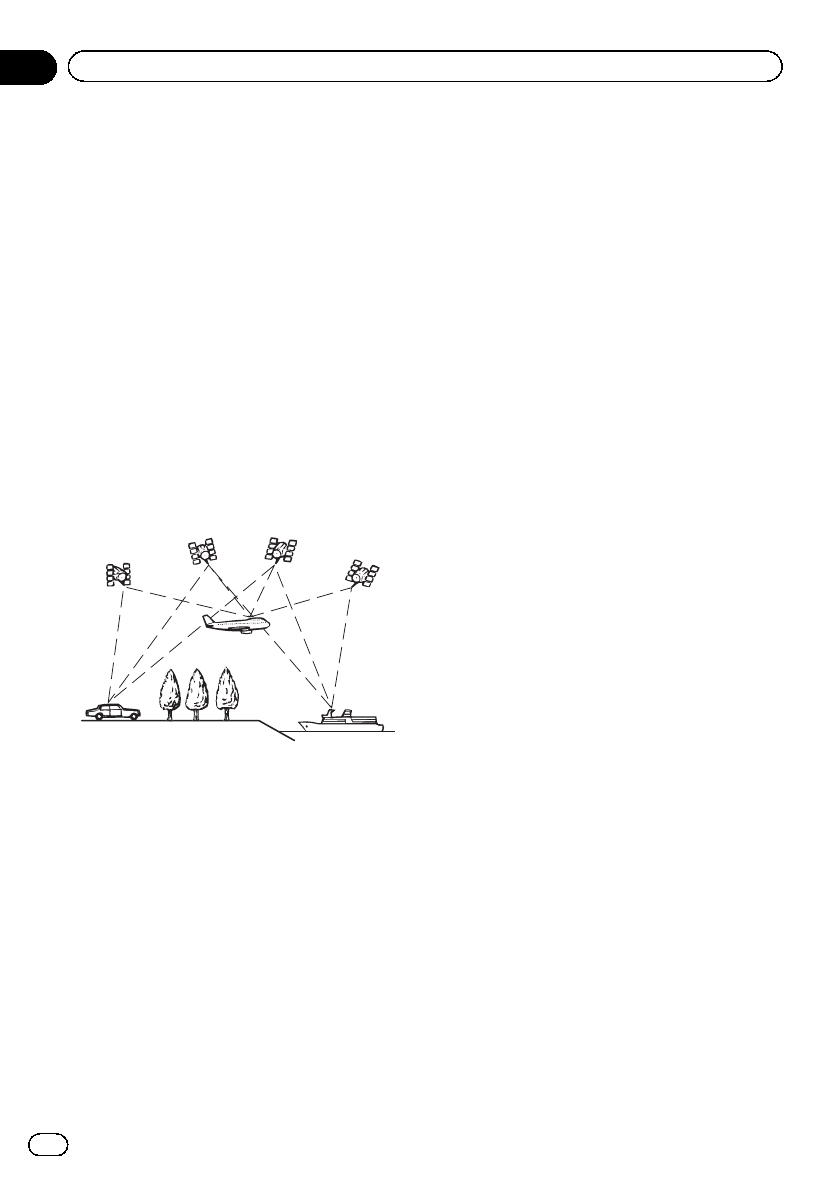
Positioning technology
Positioning by GPS
The Global Positioning System (GPS) uses a
network of satellites orbiting the Earth. Each
of the satellites, which orbit at a height of
68 900 000 feet (21 000 km), continually broad-
casts radio signals giving time and position in-
formation. This ensures that signals from at
least three can be picked up from any open
area on the ground’s surface.
The accuracy of the GPS information depends
on how good the reception is. When the sig-
nals are strong and reception is good, GPS
can determine latitude, longitude and altitude
for accurate positioning in three dimensions.
But if signal quality is poor, only two dimen-
sions, latitude and longitude, can be obtained
and positioning errors are somewhat greater.
Positioning by dead reckoning
The built-in sensor in the navigation system
also calculates your position. The current loca-
tion is measured by detecting driving distance
with the speed pulse, the turning direction
with the gyro sensor and inclination of the
road with the G sensor.
The built-in sensor can even calculate
changes of altitude, and correct the discrepan-
cies in the distance traveled caused by driving
along winding roads or up slopes.
If you use this navigation system with connect-
ing the speed pulse, the system will become
more accurate than no connection of speed
pulse. So you connect the speed pulse without
fail to get the accuracy of positioning.
pThe position of the speed detection circuit
vary depending on the vehicle model. For
details, consult your authorized Pioneer
dealer or an installation professional.
pSome types of vehicles may not output a
speed signal while driving at just a few kilo-
meters per hour. In such a case, the current
location of your vehicle may not be dis-
played correctly while in traffic congestion
or in a parking lot.
How do GPS and dead
reckoning work together?
For maximum accuracy, your navigation sys-
tem continually compares GPS data with your
estimated position as calculated from the data
of built-in sensor. However, if only the data
from the built-in sensor is available for a long
period, positioning errors are gradually com-
pounded until the estimated position becomes
unreliable. For this reason, whenever GPS sig-
nals are available, they are matched with the
data of the built-in sensor and used to correct
it for improved accuracy.
pIf you use chains on your wheels for winter
driving or put on the spare wheel, errors
may suddenly increase because of differ-
ence in wheel diameter. Initialize the sensor
status and it may recover the accuracy to
normal condition.
=For details, refer to Clearing the status
on page 192.
En
236
Appendix
Appendix
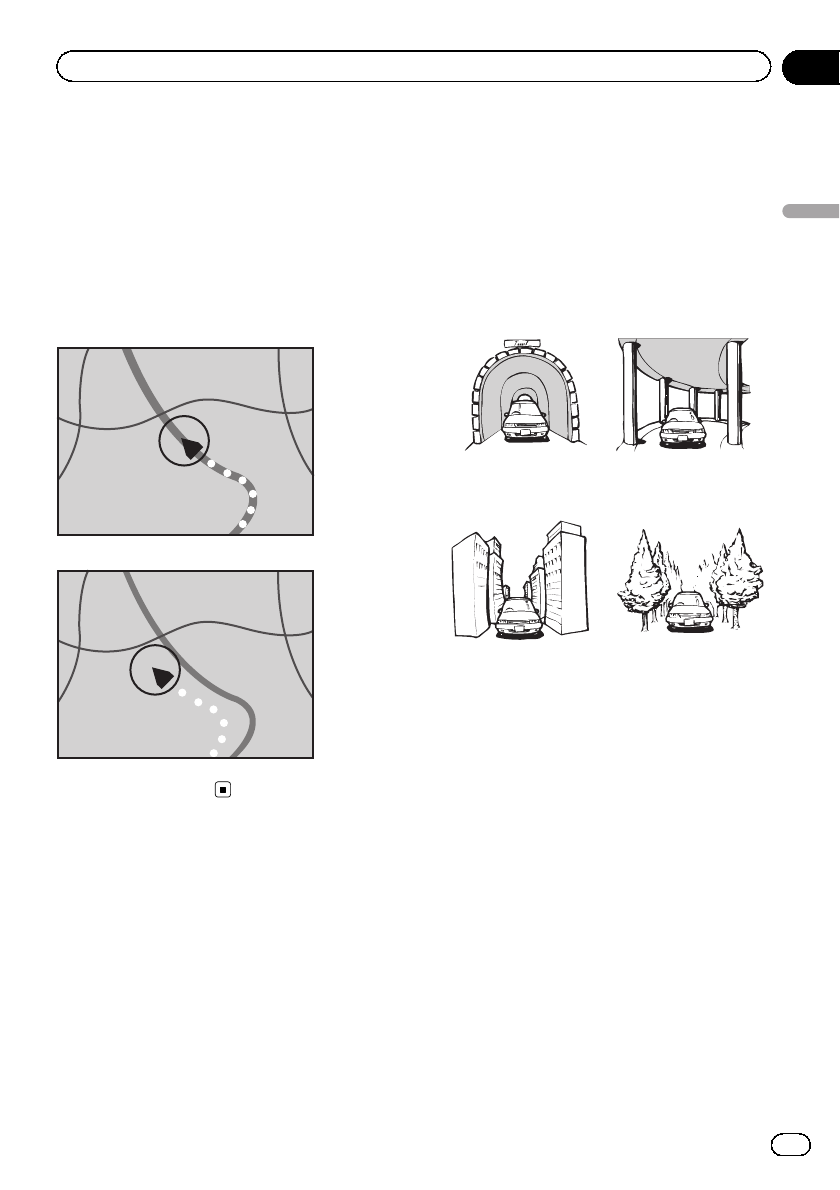
Map matching
As mentioned, the positioning systems used
by this navigation system are susceptible to
certain errors. Their calculations may, on occa-
sion, place you in a location on the map where
no road exists. In this situation, the processing
system understands that vehicles travel only
on roads, and can correct your position by ad-
justing it to a nearby road. This is called map
matching.
With map matching
Without map matching
Handling large errors
Positioning errors are kept to a minimum by
combining GPS, dead reckoning and map
matching. However, in some situations, these
functions may not work properly, and the error
may become bigger.
When positioning by GPS is
impossible
!GPS positioning is disabled if signals can-
not be received from more than two GPS
satellites.
!In some driving conditions, signals from
GPS satellites may not reach your vehicle.
In this case, it is impossible for the system
to use GPS positioning.
In tunnels or en-
closed parking
garages
Under elevated
roads or similar
structures
When driving
among high build-
ings
When driving through
a dense forest or tall
trees
!If a car phone or cellular phone is used
near the GPS antenna, GPS reception may
be lost temporarily.
!Do not cover the GPS antenna with spray
paint or car wax, because this may block
the reception of GPS signals. Snow buildup
can also degrade the signals, so keep the
antenna clear.
pIf a GPS signal has not been received for a
long time, your vehicle’s actual position
and the current position mark on the map
may diverge considerably or may not be up-
dated. In such case, once GPS reception is
restored, accuracy will be recovered.
En 237
Appendix
Appendix
Appendix
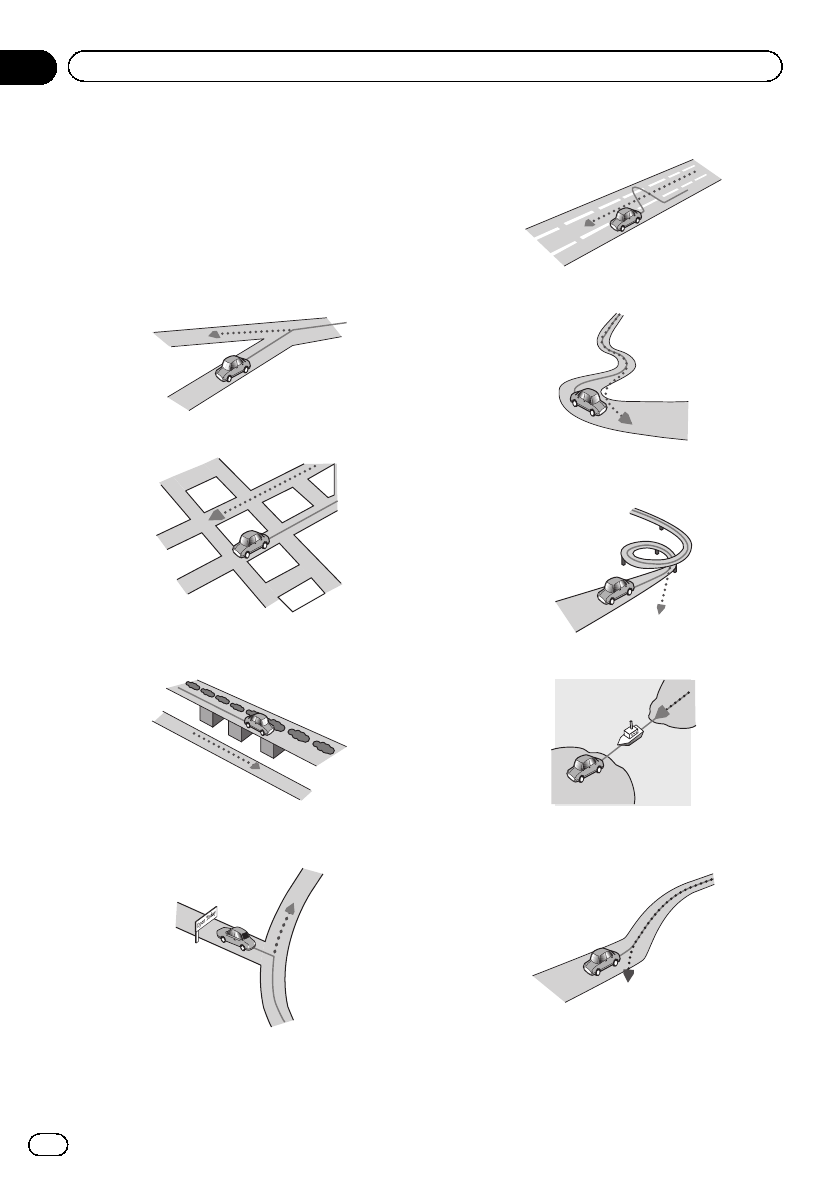
Conditions likely to cause
noticeable positioning errors
For various reasons, such as the state of the
road you are traveling on and the reception
status of the GPS signal, the actual position of
your vehicle may differ from the position dis-
played on the map screen.
!If you make a slight turn.
!If there is a parallel road.
!If there is another road very nearby, such
as in the case of an elevated freeway.
!If you take a recently opened road that is
not on the map.
!If you drive in zigzags.
!If the road has a series of hairpin bends.
!If there is a loop or similar road configura-
tion.
!If you take a ferry.
!If you are driving on a long, straight road or
a gently curving road.
En
238
Appendix
Appendix
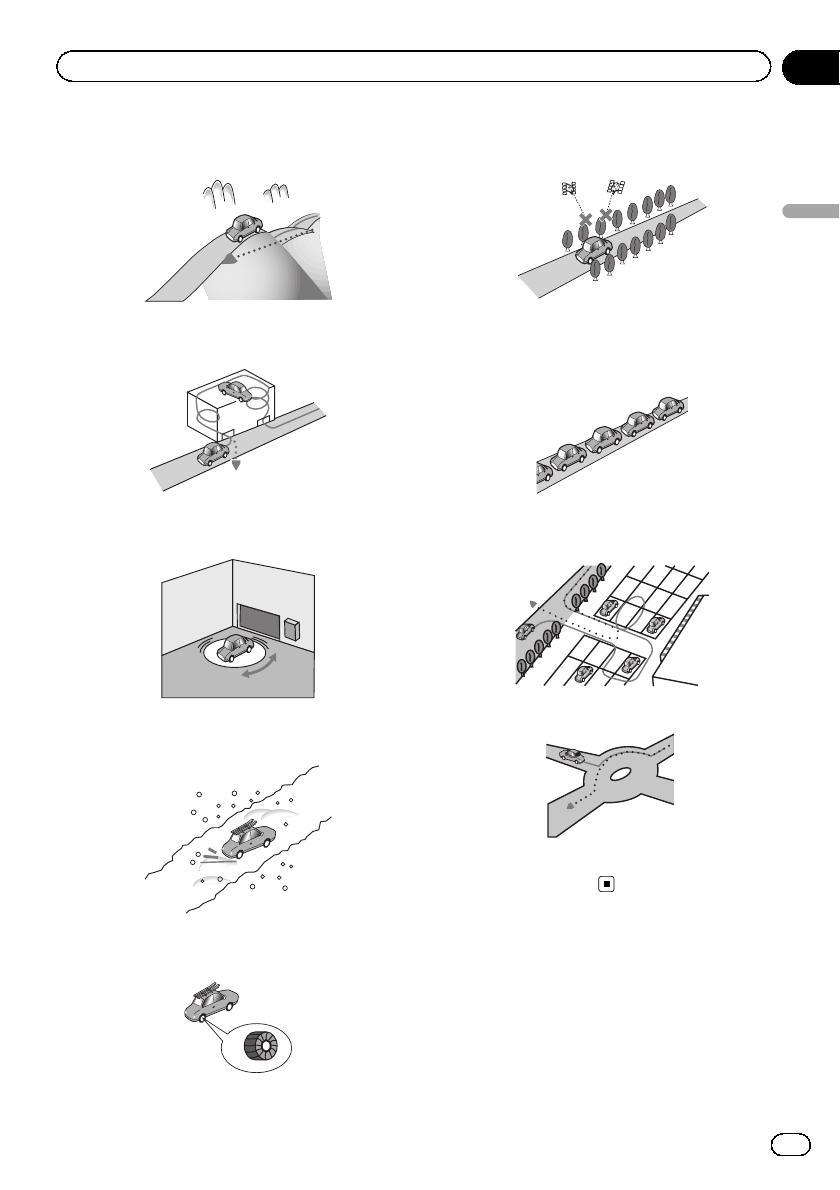
!If you are on a steep mountain road with
many height changes.
!If you enter or exit a multi-storey parking lot
or similar structure using a spiral ramp.
!If your vehicle is turned on a turntable or si-
milar structure.
!If your vehicle’s wheels spin, such as on a
gravel road or in snow.
!If you put on chains, or change your tires
for ones with a different size.
!If trees or other obstacles block the GPS
signals for a considerable period.
!If you drive very slowly, or in a start-and-
stop manner, as in a traffic congestion.
!If you join the road after driving around a
large parking lot.
!When you drive around a traffic circle.
!When starting driving immediately after
starting the engine.
En 239
Appendix
Appendix
Appendix

Route setting information
Route search specifications
Your navigation system sets a route to your
destination by applying certain built-in rules to
the map data. This section provides some use-
ful information about how a route is set.
CAUTION
When a route is calculated, the route and voice
guidance for the route are automatically set.
Also, for day or time traffic regulations, only infor-
mation about traffic regulations applicable at the
time when the route was calculated is consid-
ered. One-way streets and street closures may
not be taken into consideration. For example, if a
street is open during the morning only, but you
arrive later, it would be against the traffic regula-
tions so you cannot drive along the set route.
When driving, please follow the actual traffic
signs. Also, the system may not know some traf-
fic regulations.
!The calculated route is one example of the
route to your destination decided by the na-
vigation system while taking the type of
streets or traffic regulations into account. It
is not necessarily an optimum route. (In
some cases, you may not be able to set the
streets you want to take. If you need to take
a certain street, set a waypoint on that
street.)
!If the destination is too far, there may be in-
stances where the route cannot be set. (If
you want to set a long-distance route going
across several areas, set waypoints along
the way.)
!During voice guidance, turns and intersec-
tions from the freeway are announced.
However, if you pass intersections, turns,
and other guidance points in rapid succes-
sion, some may delay or not be announced.
!It is possible that guidance may direct you
off a freeway and then back on again.
!In some cases, the route may require you
to travel in the opposite direction to your
current heading. In such cases, you are in-
structed to turn around, so please turn
around safely by following the actual traffic
rules.
!In some cases, a route may begin on the
opposite side of a railway or river from your
actual current location. If this happens,
drive towards your destination for a while,
and try route calculation again.
!When there is a traffic congestion ahead, a
detour route may not be suggested if driv-
ing through the traffic congestion would
still be better than taking the detour.
!There may be instances when the starting
point, the waypoint and the destination
point are not on the highlighted route.
!The number of traffic circle exits displayed
on the screen may differ from the actual
number of roads.
Route highlighting
!Once set, the route is highlighted in bright
color on the map.
!The immediate vicinity of your starting
point and destination may not be high-
lighted, and neither will areas with particu-
larly complex road layouts. Consequently,
the route may appear to be cut off on the
display, but voice guidance will continue.
Auto reroute function
!If you deviate from the set route, the system
will re-calculate the route from that point
so that you remain on track to the destina-
tion.
!This function may not work under certain
conditions.
Handling and care of discs
Some basic precautions are necessary when
handling your discs.
En
240
Appendix
Appendix
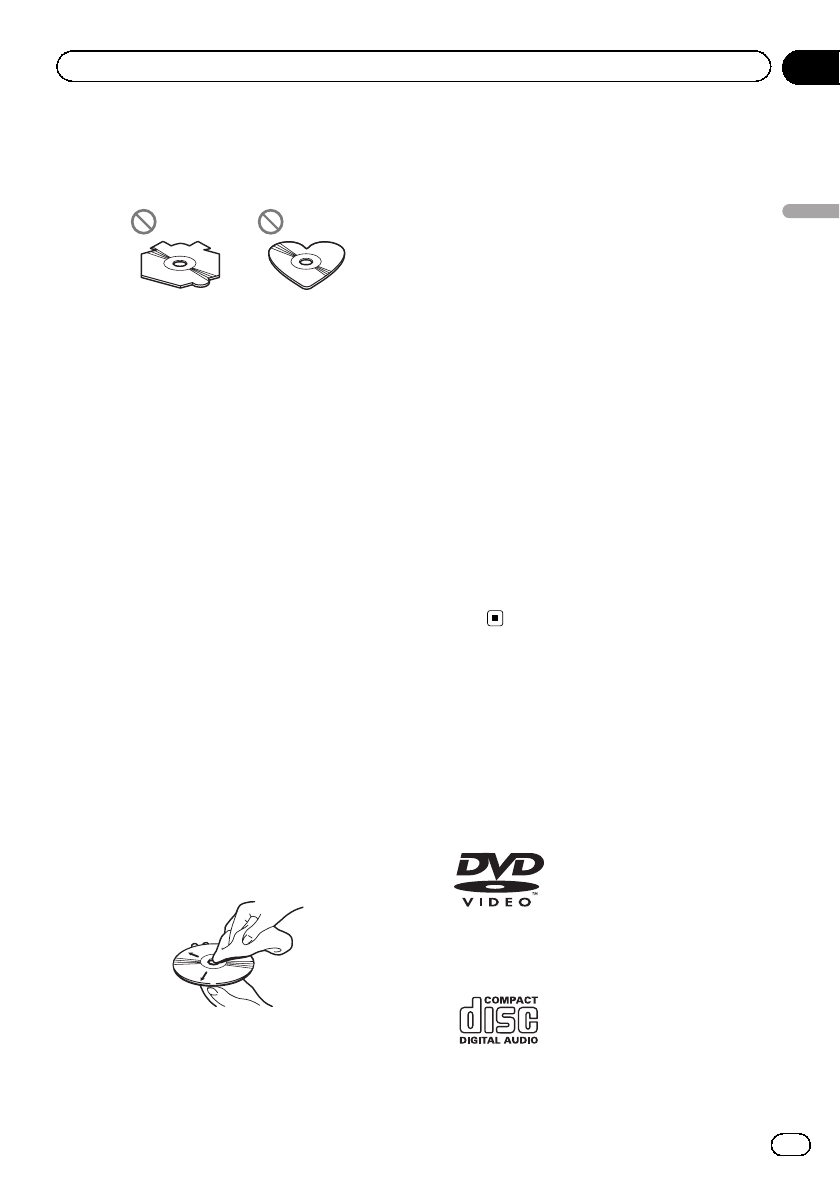
Built-in drive and care
!Use only conventional, fully circular discs.
Do not use shaped discs.
!Do not use cracked, chipped, warped, or
otherwise damaged discs as they may da-
mage the built-in drive.
!Use 12-cm discs. Do not use 8-cm discs or
an adapter for 8-cm discs.
!When using discs that can be printed on
label surfaces, check the instructions and
the warnings of the discs. Depending on
the discs, inserting and ejecting may not
be possible. Using such discs may result in
damage to this equipment.
!Do not touch the recorded surface of the
discs.
!Store discs in their cases when not in use.
!Avoid leaving discs in excessively hot envir-
onments including under direct sunlight.
!Do not attach labels, write on or apply che-
micals to the surface of the discs.
!Do not attach commercially available labels
or other materials to the discs.
—The discs may warp making the disc un-
playable.
—The labels may come off during play-
back and prevent ejection of the discs,
which may result in damage to the
equipment.
!To clean a disc, wipe it with a soft cloth,
moving outward from the center.
!Condensation may temporarily impair the
built-in drive’s performance. Leave it to ad-
just to the warmer temperature for about
one hour. Also, wipe any damp discs with a
soft cloth.
!Playback of discs may not be possible be-
cause of disc characteristics, disc format,
recorded application, playback environ-
ment, storage conditions and so on.
!Road shocks may interrupt disc playback.
!Read the precautions for discs before
using them.
Ambient conditions for playing
a disc
!At extremely high temperatures, a tempera-
ture cutout protects this product by switch-
ing it off automatically.
!Despite our careful design of the product,
small scratches that do not affect actual
operation may appear on the disc surface
as a result of mechanical wear, ambient
conditions for use or handling of the disc.
This is not a sign of the malfunction of this
product. Consider it to be normal wear and
tear.
Playable discs
DVD-Video and CD
DVD and CD discs that display the logos
shown below generally can be played on this
built-in DVD drive.
DVD-Video
CD
En 241
Appendix
Appendix
Appendix

pis a trademark of DVD Format/Logo
Licensing Corporation.
pIt is not possible to play DVD-Audio discs.
This DVD drive may not be able to play all
discs bearing the marks shown above.
AVCHD recorded discs
This unit is not compatible with discs recorded
in AVCHD (Advanced Video Codec High Defi-
nition) format. Do not insert AVCHD discs. If
inserted, the disc may not be ejected.
Playing DualDisc
!DualDiscs are two-sided discs that have a
recordable CD for audio on one side and a
recordable DVD for video on the other.
!Playback of the DVD side is possible with
this product. However, since the CD side of
DualDiscs is not physically compatible with
the general CD standard, it may not be pos-
sible to play the CD side with this product.
!Frequent loading and ejecting of a
DualDisc may result in scratches to the
disc.
!Serious scratches can lead to playback pro-
blems on this product. In some cases, a
DualDisc may become stuck in the disc-
loading slot and will not eject. To prevent
this, we recommend you refrain from using
DualDisc with this product.
!Please refer to the manufacturer for more
detailed information about DualDiscs.
Dolby Digital
This product will down-mix Dolby Digital sig-
nals internally and the sound will be output in
stereo.
pManufactured under license from Dolby
Laboratories. Dolby and the double-D sym-
bol are trademarks of Dolby Laboratories.
Detailed information for
playable media
Compatibility
Common notes about disc compatibility
!Certain functions of this product may not
be available for some discs.
!Compatibility with all discs is not guaran-
teed.
!It is not possible to playback DVD-ROM/
DVD-RAM discs.
!Playback of discs may become impossible
with direct exposure to sunlight, high tem-
peratures, or depending on the storage
conditions in the vehicle.
DVD-Video discs
!DVD-Video discs that have incompatible re-
gion numbers cannot be played on this
DVD drive. The region number of the player
can be found on this product’s chassis.
DVD-R/DVD-RW/DVD-R SL (Single
Layer)/DVD-R DL (Dual Layer) discs
!Unfinalized discs which have been re-
corded with the Video format (video mode)
cannot be played back.
!Discs which have been recorded with the
Video Recording format (VR mode) cannot
be played back.
!DVD-R DL (Dual Layer) discs which have
been recorded with Layer Jump recording
cannot be played back.
!For detailed information about recording
mode, please contact the manufacturer of
media, recorders, or writing software.
En
242
Appendix
Appendix

CD-R/CD-RW discs
!Unfinalized discs cannot be played back.
!It may not be possible to playback CD-R/
CD-RW discs recorded on a music CD re-
corder or a computer because of disc char-
acteristics, scratches or dirt on the disc, or
dirt, scratches or condensation on the lens
of the built-in drive.
!Playback of discs recorded on a computer
may not be possible, depending on the re-
cording device, writing software, their set-
tings, and other environmental factors.
!Please record with the correct format. (For
details, please contact manufacturer of
media, recorders, or writing software.)
!Titles and other text information recorded
on a CD-R/CD-RW disc may not be dis-
played by this product (in the case of audio
data (CD-DA)).
!Read the precautions with CD-R/CD-RW
discs before using them.
Common notes about the external
storage device (USB, SD)
!Do not leave the external storage device
(USB, SD) in any location with high tem-
peratures.
!Depending on the kind of the external sto-
rage device (USB, SD) you use, this pro-
duct may not recognize the storage device
or files may not be played back properly.
!The text information of some audio and
video files may not be correctly displayed.
!File extensions must be used properly.
!There may be a slight delay when starting
playback of files on an external storage de-
vice (USB, SD) with complex folder hierar-
chies.
!Operations may vary depending on the
kind of an external storage device (USB,
SD).
!It may not be possible to play some music
files from SD or USB because of file char-
acteristics, file format, recorded applica-
tion, playback environment, storage
conditions, and so on.
Notes on SD memory cards
!Some SD memory cards may not be recog-
nized by this unit even if the SD memory
cards can be recognized by a computer.
Formatting the SD memory cards using a
dedicated formatter may resolve the pro-
blem. SD memory cards formatted using
the standard formatting function on a com-
puter do not comply with the SD standard.
Problems such as that those cards cannot
be read or written could occur. It is recom-
mended that you use a dedicated formatter
to avoid such problems. All of the data
stored on an SD memory card will be de-
leted when the card is formatted. Back up
any needed data beforehand as necessary.
A dedicated formatter for SD memory
cards can be obtained from the following
site.
https://www.sdcard.org/
USB storage device compatibility
=For details about USB storage device com-
patibility with this product, refer to Specifi-
cations on page 259.
!Protocol: bulk
!You cannot connect a USB storage device
to this product via a USB hub.
!Partitioned USB storage device is not com-
patible with this product.
!Firmly secure the USB storage device when
driving. Do not let the USB storage device
fall onto the floor, where it may become
jammed under the brake or gas pedal.
!There may be a slight delay when starting
playback of audio files encoded with image
data.
!Some USB storage devices connected to
this product may generate noise on the
radio.
!Do not connect anything other than the
USB storage device.
The sequence of audio files on USB sto-
rage device
For USB storage device, the sequence is differ-
ent from that of USB storage device.
En 243
Appendix
Appendix
Appendix

SD memory card and SDHC memory card
=For details about SD memory card compat-
ibility with this product, refer to Specifica-
tions on page 259.
Handling guidelines and
supplemental information
!This product is not compatible with the
Multi Media Card (MMC).
!Copyright protected files cannot be played
back.
Notes specific to DivX files
!Only DivX files downloaded from DivX part-
ner sites are guaranteed for proper opera-
tion. Unauthorized DivX files may not
operate properly.
!DRM rental files cannot be operated until
playing back is started.
!This product corresponds to a DivX file dis-
play of up to 1 590 minutes 43 seconds.
Search operations beyond this time limit
are prohibited.
!DivX VOD file playback requires supplying
the ID code of this product to the DivX VOD
provider. Regarding the ID code, refer to
Displaying your DivX VOD registration code
on page 216.
!Plays all versions of DivX video, except for
DivX 7 with standard playback of DivX
media files.
!For more details about DivX, visit the follow-
ing site:
http://www.divx.com/
DivX subtitle files
!Srt format subtitle files with the extension
“.srt”can be used.
!Only one subtitle file can be used for each
DivX file. Multiple subtitle files cannot be
associated.
!Subtitle files that are named with the same
character string as the DivX file before the
extension are associated with the DivX file.
The character strings before the extension
must be exactly the same. However, if there
is only one DivX file and one subtitle file in
a single folder, the files are associated even
if the file names are not the same.
!The subtitle file must be stored in the same
folder as the DivX file.
!Up to 255 subtitle files may be used. Any
more subtitle files will not be recognized.
!Up to 64 characters can be used for the
name of the subtitle file, including the ex-
tension. If more than 64 characters are
used for the file name, the subtitle file may
not be recognized.
!The character code for the subtitle file
should comply with ISO-8859-1. Using char-
acters other than ISO-8859-1 may cause the
characters to be displayed incorrectly.
!The subtitles may not be displayed correctly
if the displayed characters in the subtitle
file include control code.
!For materials that use a high transfer rate,
the subtitles and video may not be comple-
tely synchronized.
!If multiple subtitles are programmed to dis-
play within a very short time frame, such as
0.1 seconds, the subtitles may not be dis-
played at the correct time.
En
244
Appendix
Appendix
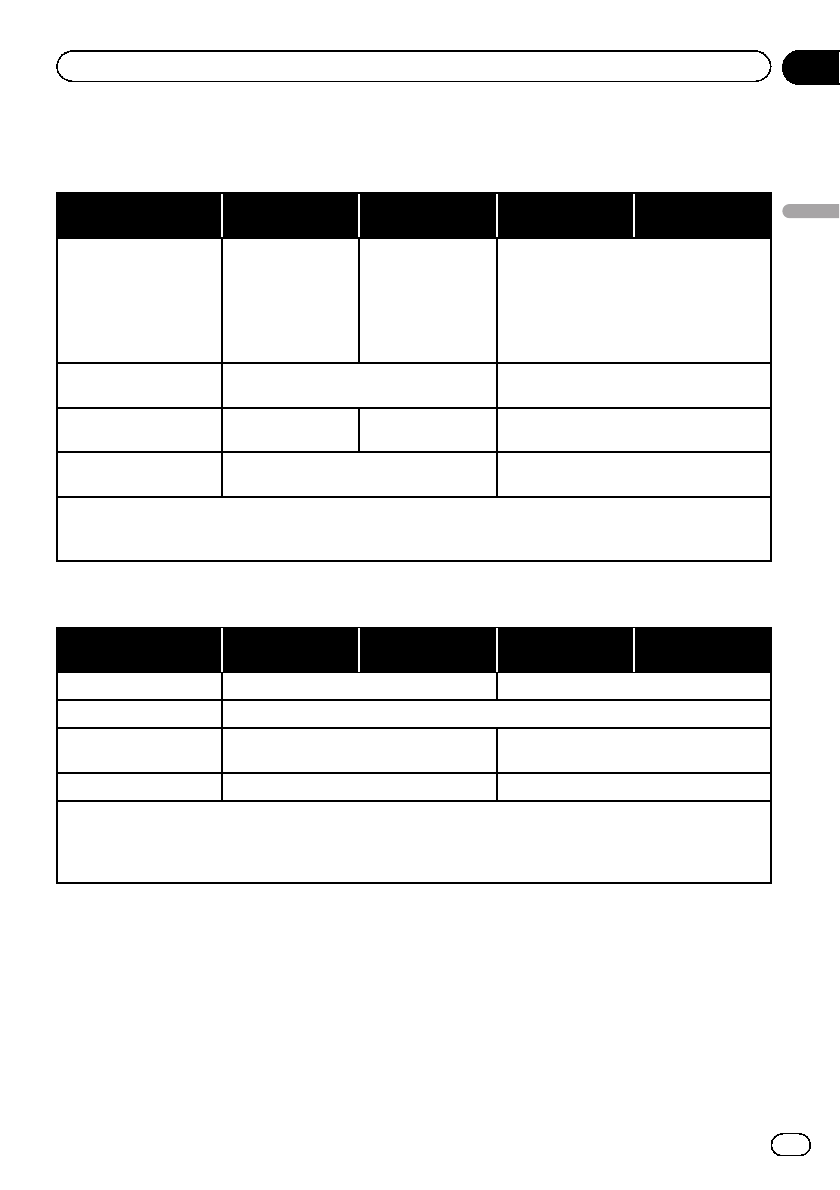
Media compatibility chart
General
Media CD-R/-RW DVD-R/-R SL/-R
DL/DVD-RW
USB storage de-
vice SD memory card
File system
!ISO9660 level 1
!ISO9660 level 2
!Romeo, Joliet
!UDF 1.02 / 1.50
/ 2.00 / 2.01 /
2.50
!ISO9660 level 1
!ISO9660 level 2
!Romeo, Joliet
!UDF 1.02 / 1.50
/ 2.00 / 2.01 /
2.50
FAT16/FAT32/NTFS
Maximum number of
folders 700 1 500
Maximum number of
files 999 3 500 15 000
Playable file types MP3, WMA, AAC, DivX, MPEG-1, MPEG-2,
MPEG-4
MP3, WMA, AAC, WAV, FLAC, H.264,
MPEG-2, MPEG-4, WMV, FLV, MKV, JPEG
Notes:
!Maximum playback time of audio file stored in the disc: 60 h
!Maximum playback time of audio file stored on an external storage device (USB, SD): 7.5 h (450 minutes)
MP3 compatibility
Media CD-R/-RW DVD-R/-R SL/-R
DL/DVD-RW
USB storage de-
vice SD memory card
File extension .mp3 .mp2, .mp3, .m2a, .mka
Bit rate 8 kbps to 320 kbps (CBR), VBR
Sampling frequency 16 kHz to 48 kHz (32 kHz, 44.1 kHz, 48 kHz
for emphasis) 8 kHz to 48 kHz
ID3 tag ID3 tag Ver. 1.0, 1.1, 2.2, 2.3 ID3 tag Ver. 1.0, 1.1, 2.2, 2.3, 2.4
Notes:
!Ver. 2.x of ID3 tag is prioritized when both Ver. 1.x and Ver. 2.x exist.
!This product is not compatible with the following:
MP3i (MP3 interactive), mp3 PRO, m3u playlist
En 245
Appendix
Appendix
Appendix
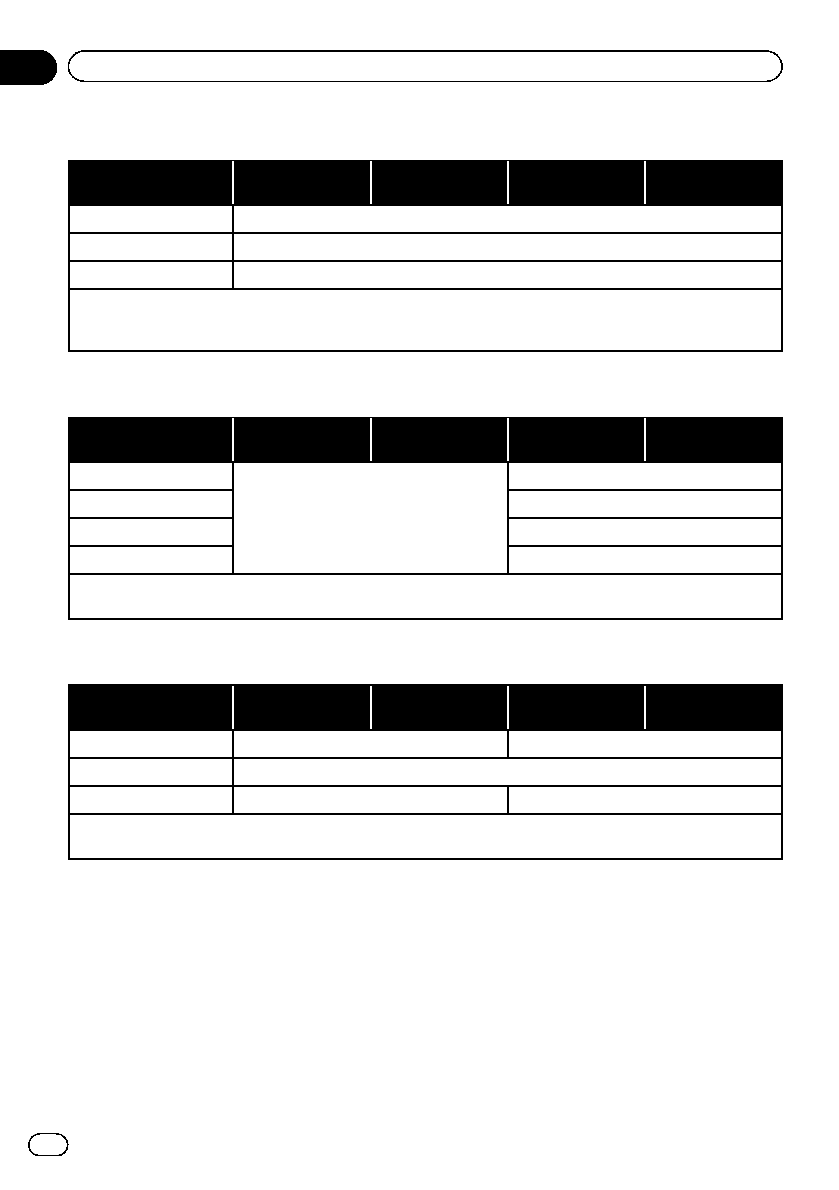
WMA compatibility
Media CD-R/-RW DVD-R/-R SL/-R
DL/DVD-RW
USB storage de-
vice SD memory card
File extension .wma
Bit rate 5 kbps to 320 kbps (CBR), VBR
Sampling frequency 8 kHz to 48 kHz
Note:
This product is not compatible with the following:
Windows Media™Audio 9 Professional, Lossless, Voice
WAV compatibility
Media CD-R/-RW DVD-R/-R SL/-R
DL/DVD-RW
USB storage de-
vice SD memory card
File extension
WAV files on the CD-R/-RW, DVD-R/-RW/-R
SL/-R DL cannot be played.
.wav
Format Linear PCM (LPCM)
Sampling frequency 16 kHz to 48 kHz
Quantization bits 8 bits and 16 bits
Note:
The sampling frequency shown in the display may be rounded.
AAC compatibility
Media CD-R/-RW DVD-R/-R SL/-R
DL/DVD-RW
USB storage de-
vice SD memory card
File extension .m4a .aac, .adts, .mka, .m4a
Bit rate 8 kbps to 320 kbps (CBR)
Sampling frequency 8 kHz to 44.1 kHz 8 kHz to 48 kHz
Note:
This product plays back AAC files encoded by iTunes.
En
246
Appendix
Appendix
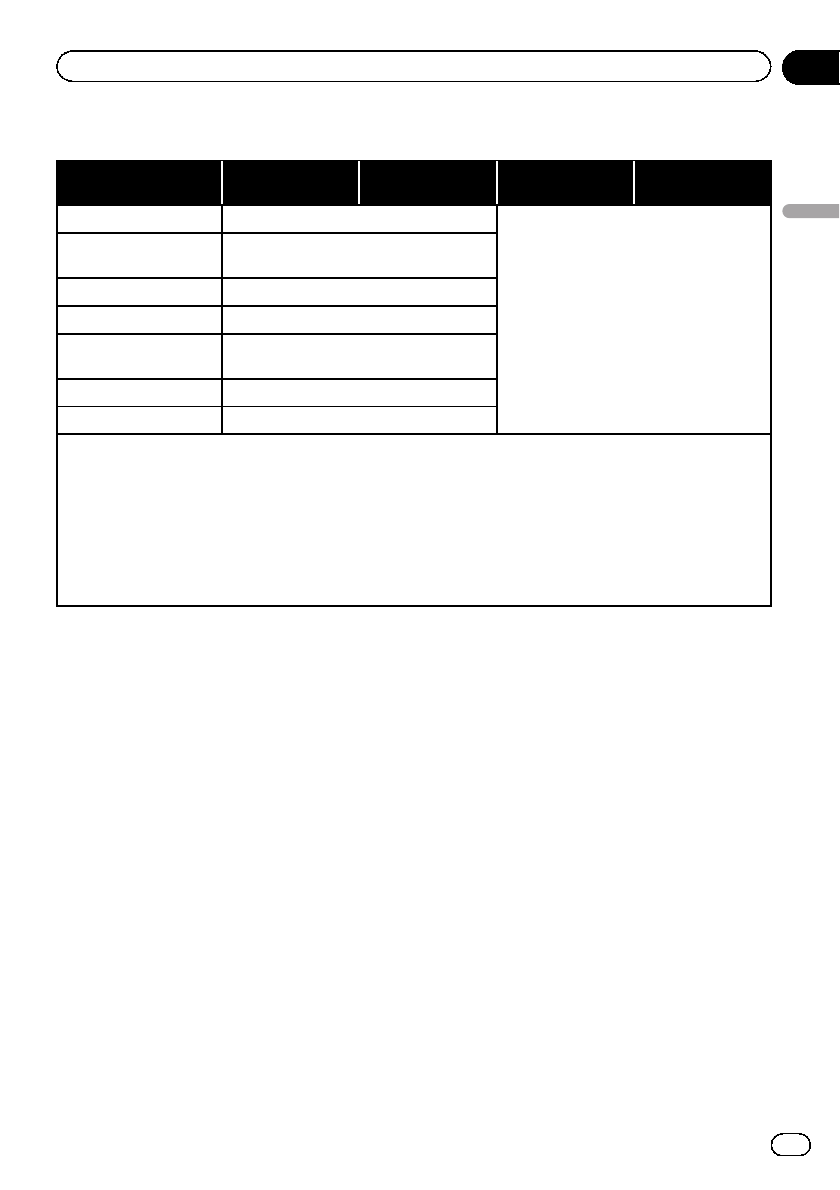
DivX compatibility
Media CD-R/-RW DVD-R/-R SL/-R
DL/DVD-RW
USB storage de-
vice SD memory card
File extension .avi/.divx
DivX files on the external storage device
(USB, SD) cannot be played.
Profile (DivX version) Home Theater Ver. 3.11/Ver. 4.x/Ver. 5.x/
Ver. 6.x
Compatible audio codec MP3, Dolby Digital
Bit rate (MP3) 8 kbps to 320 kbps (CBR), VBR
Sampling frequency
(MP3)
16 kHz to 48 kHz (32 kHz, 44.1 kHz, 48 kHz
for emphasis)
Maximum image size 720 pixels × 576 pixels
Maximum file size 4 GB
Notes:
!This product is not compatible with the following:
DivX Ultra format, DivX files without video data, DivX files encoded with LPCM (Linear PCM) audio codec
!Depending on the file information composition, such as the number of audio streams, there may be a slight
delay in the start of playback on discs.
!If a file contains more than 4 GB, playback stops before the end.
!Some special operations may be prohibited because of the composition of DivX files.
!Files with high transfer rates may not be played back correctly. The standard transfer rate is 4 Mbps for CDs and
10.08 Mbps for DVDs.
En 247
Appendix
Appendix
Appendix
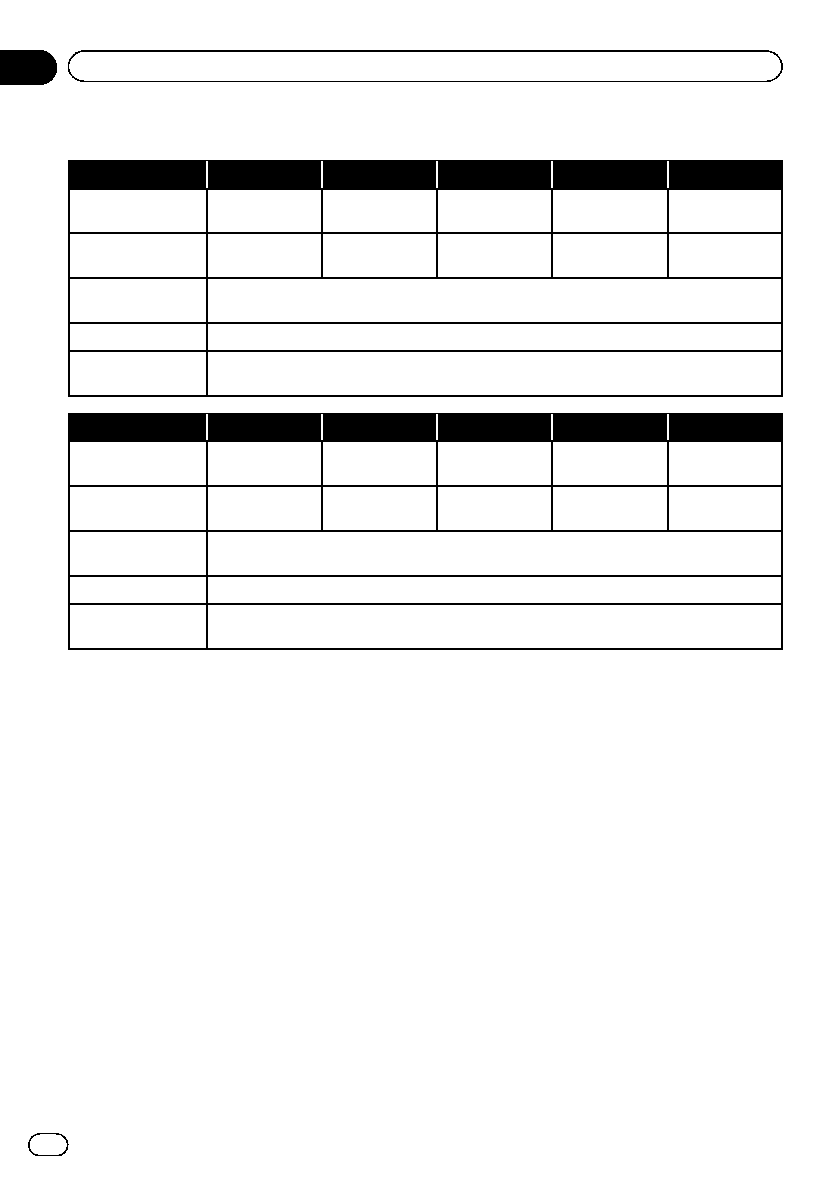
Video files compatibility (USB, SD)
File extension .avi .mkv .mov .f4v .mp4
Compatible video
codec
MPEG-4, H.264,
H.263, Xvid
MPEG-4, H.264,
VC-1, Xvid
MPEG-4, H.264,
H.263 H.264, H.263 MPEG-4, H.264,
H.263
Compatible audio
codec
MP3, AAC,
LPCM
MP3, AAC, Vor-
bis MP3, AAC MP3, AAC MP3, AAC
Maximum frame
rate 30 fps
Maximum file size 4 GB
Maximum playback
time 150 minutes
File extension .3gp .wmv .asf .flv .vob
Compatible video
codec
MPEG-4, H.264,
H.263 WMV, VC-1 WMV, VC-1 H.264 H.264, MPEG-2
Compatible audio
codec AAC WMA WMA MP3, AAC MP3, AAC,
LPCM
Maximum frame
rate 30 fps
Maximum file size 4 GB
Maximum playback
time 150 minutes
Common notes
!Files may not be played back properly de-
pending on the environment in which the
file was created or on the contents of the
file.
!This product may not play back files, de-
pending on the application used to encode
the files.
!This product may not operate correctly, de-
pending on the application used to encode
WMA files.
!Depending on the version of Windows
Media™Player used to encode WMA files,
album names and other text information
may not be correctly displayed.
!There may be a slight delay when starting
playback of audio files encoded with image
data.
!This product is not compatible with packet
write data transfer.
!This product can recognize up to 32 char-
acters, beginning with the first character,
including extension for the file and folder
name. Depending on the display area, this
product may try to display them with a re-
duced font size. However, the maximum
number of the characters that you can dis-
play varies according to the width of each
character, and of the display area.
!Folder selection sequence or other opera-
tions may be altered, depending on the en-
coding or writing software.
!Regardless of the length of blank section
between the songs of original recording,
compressed audio discs play with a short
pause between songs.
En
248
Appendix
Appendix
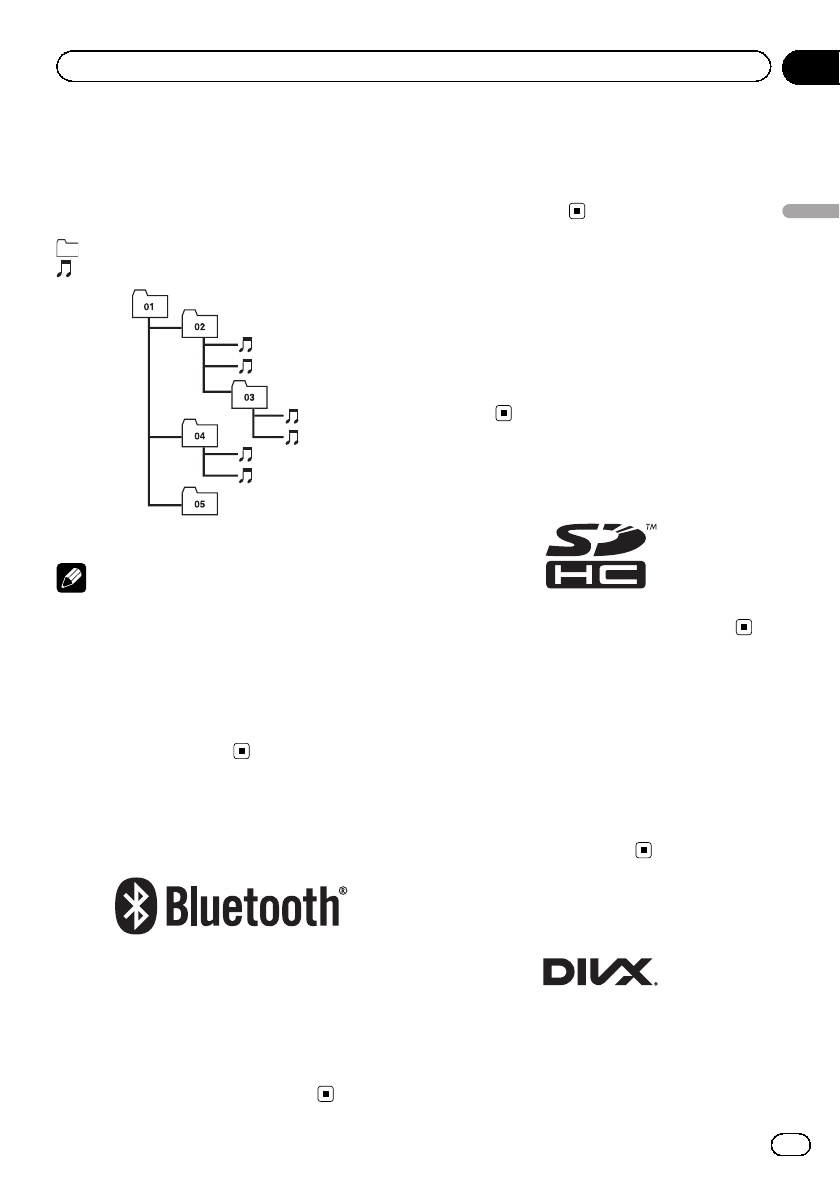
Example of a hierarchy
The following figure is an example of the tier
structure in the disc. The numbers in the fig-
ure indicate the order in which folder numbers
are assigned and the order to be played back.
: Folder
:File
1
2
3
4
5
6
L
e
v
e
l 1 L
e
v
e
l 2 L
e
v
e
l 3 L
e
v
e
l 4
Notes
!This product assigns folder numbers. The user
cannot assign folder numbers.
!If there is a folder that does not contain any
playable file, the folder itself will display in the
folder list but you cannot check any files in
the folder. (A blank list will appear.) Also,
these folders will be skipped without display-
ing the folder number.
Bluetooth
!The Bluetooth®word mark and logos are re-
gistered trademarks owned by Bluetooth
SIG, Inc. and any use of such marks by
PIONEER CORPORATION is under license.
Other trademarks and trade names are
those of their respective owners.
SiriusXM®satellite radio
!Sirius, XM and all related marks and logos
are trademarks of Sirius XM Radio, Inc. All
rights reserved.
HD Radio™Technology
!HD Radio Technology manufactured under
license from iBiquity Digital Corporation.
U.S. and Foreign Patents. HD Radio™and
the HD, HD Radio, and “Arc”logos are pro-
prietary trademarks of iBiquity Digital
Corp.
SDHC
SDHC Logo is a trademark of SD-3C, LLC.
WMA/WMV
Windows Media is either a registered trade-
mark or trademark of Microsoft Corporation in
the United States and/or other countries.
pThis product includes technology owned by
Microsoft Corporation and cannot be used
or distributed without a license from
Microsoft Licensing, Inc.
DivX
En 249
Appendix
Appendix
Appendix
DivX Certified®devices have been tested for
high-quality DivX®(.divx, .avi) video playback.
When you see the DivX logo, you know you
have the freedom to play your favorite DivX
movies.
DivX®, DivX Certified®and associated logos
are trademarks of DivX, LLC and are used
under license.
This DivX Certified®device has passed rigor-
ous testing to ensure it plays DivX®videos.
To play purchased DivX movies, first register
your device at vod.divx.com. Find your registra-
tion code in the DivX VOD section of your de-
vice setup menu.
=For details, refer to Displaying your DivX
VOD registration code on page 216.
AAC
AAC is short for Advanced Audio Coding and
refers to an audio compression technology
standard used with MPEG-2 and MPEG-4. Sev-
eral applications can be used to encode AAC
files, but file formats and extensions differ de-
pending on the application which is used to
encode. This unit plays back AAC files en-
coded by iTunes.
Google, Google Play,
Android
™
, and Android Auto
Google, Google Play, Android, Android Auto
and other marks are trademarks of
Google Inc.
MirrorLink
MirrorLink Certified™, the Design Only™Certifi-
cation Logo, MirrorLink™and the MirrorLink™
Logo are certification marks and trademarks
of the Car Connectivity Consortium LLC. Un-
authorized use is strictly prohibited.
MIXTRAX
MIXTRAX is a trademark of the PIONEER
CORPORATION.
Detailed information
regarding connected iPod
devices
CAUTION
!Pioneer accepts no responsibility for data lost
from an iPod, even if that data is lost while
using this product. Please back up your iPod
data regularly.
!Do not leave the iPod in direct sunlight for ex-
tended amounts of time. Extended exposure
to direct sunlight can result in iPod malfunc-
tion due to the resulting high temperature.
!Do not leave the iPod in any location with
high temperatures.
!Firmly secure the iPod when driving. Do not
let the iPod fall onto the floor, where it may be-
come jammed under the brake or gas pedal.
For details, refer to the iPod manuals.
iPod and iPhone
En
250
Appendix
Appendix

“Made for iPod”and “Made for iPhone”mean
that an electronic accessory has been de-
signed to connect specifically to iPod or
iPhone, respectively, and has been certified by
the developer to meet Apple performance
standards.
Apple is not responsible for the operation of
this device or its compliance with safety and
regulatory standards.
Please note that the use of this accessory with
iPod or iPhone may affect wireless perfor-
mance.
iPhone, iPod, iPod classic, iPod nano, and
iPod touch are trademarks of Apple Inc., regis-
tered in the U.S. and other countries.
Lightning
Lightning is a trademark of Apple Inc.
App Store
App Store is a service mark of Apple Inc.
iOS
iOS is a trademark on which Cisco holds the
trademark right in the US and certain other
countries.
iTunes
iTunes is a trademark of Apple Inc., registered
in the U.S. and other countries.
iTunes Radio
iTunes Radio is a service mark of Apple Inc.
Using app-based connected
content
IMPORTANT
Requirements to access app-based connected
content services using this product:
!Latest version of the Pioneer compatible con-
nected content application(s) for the smart-
phone, available from the service provider,
downloaded to your smartphone.
!A current account with the content service
provider.
!Smartphone Data Plan.
Note: if the Data Plan for your smartphone
does not provide for unlimited data usage, ad-
ditional charges from your carrier may apply
for accessing app-based connected content
via 3G, EDGE and/or LTE (4G) networks.
!Connection to the Internet via 3G, EDGE, LTE
(4G) or Wi-Fi network.
!Optional Pioneer adapter cable connecting
your iPhone to this product.
Limitations:
!Access to app-based connected content will
depend on the availability of cellular and/or
Wi-Fi network coverage for the purpose of al-
lowing your smartphone to connect to the In-
ternet.
!Service availability may be geographically lim-
ited to the region. Consult the connected con-
tent service provider for additional
information.
!Ability of this product to access connected
content is subject to change without notice
and could be affected by any of the following:
compatibility issues with future firmware ver-
sions of smartphone; compatibility issues with
future versions of the connected content ap-
plication(s) for the smartphone; changes to or
discontinuation of the connected Content ap-
plication(s) or service by its provider.
!Pioneer is not liable for any issues that may
arise from incorrect or flawed app-based con-
tent.
!The content and functionality of the supported
applications are the responsibility of the App
providers.
!In AppRadio Mode and Android Auto, func-
tionality through the product is limited while
driving, with available functions determined
by the App providers.
En 251
Appendix
Appendix
Appendix

!Availability of AppRadio Mode and Android
Auto functionalities is determined by the App
provider, and not determined by Pioneer.
!AppRadio Mode and Android Auto allow
access to applications other than those listed
(subject to limitations while driving), but the
extent to which content can be used is deter-
mined by the App providers.
Pandora®
Pandora, the Pandora logo, and the Pandora
trade dress are trademarks or registered trade-
marks of Pandora Media, Inc. Used with per-
mission.
Pandora is currently available in the United
States, Australia, and New Zealand.
Aha Radio
Aha, Aha Radio and the Aha and Aha Radio
logos are either the trademarks or the regis-
tered trademarks of Harman International In-
dustries, Incorporated.
HDMI
The terms HDMI and HDMI High-Definition
Multimedia Interface, and the HDMI Logo are
trademarks or registered trademarks of HDMI
Licensing, LLC in the United States and other
countries.
MHL
MHL, the MHL Logo, and Mobile High-Defini-
tion Link are trademarks or registered trade-
marks of MHL, LLC in the United States and
other countries.
IVONA Text-to-Speech
Notice regarding video
viewing
Remember that use of this system for com-
mercial or public viewing purposes may con-
stitute an infringement on the author’s rights
as protected by the Copyright Law.
Notice regarding DVD-
Video viewing
This item incorporates copy protection tech-
nology that is protected by U.S. patents and
other intellectual property rights of Rovi
Corporation. Reverse engineering and disas-
sembly are prohibited.
En
252
Appendix
Appendix

Notice regarding MP3 file
usage
Supply of this product only conveys a license
for private, non-commercial use and does not
convey a license nor imply any right to use
this product in any commercial (i.e. revenue-
generating) real time broadcasting (terrestrial,
satellite, cable and/or any other media), broad-
casting/streaming via internet, intranets and/
or other networks or in other electronic con-
tent distribution systems, such as pay-audio or
audio-on-demand applications. An indepen-
dent license for such use is required. For de-
tails, please visit
http://www.mp3licensing.com.
Notice regarding open
source licenses
For details about the open source licenses for
the functions that this product is equipped
with, please visit
http://www.oss-pioneer.com/car/multimedia/
Map coverage
For details about the map coverage of this pro-
duct, refer to the information on our
website.
Using the LCD screen correctly
Handling the LCD screen
!When the LCD screen is subjected to direct
sunlight for a long period of time, it will be-
come very hot, resulting in possible da-
mage to the LCD screen. When not using
this product, avoid exposing it to direct
sunlight as much as possible.
!The LCD screen should be used within the
temperature ranges shown in Specifica-
tions.
!Do not use the LCD screen at temperatures
higher or lower than the operating tem-
perature range, because the LCD screen
may not operate normally and could be da-
maged.
!The LCD screen is exposed in order to in-
crease its visibility within the vehicle.
Please do not press strongly on it as this
may damage it.
!Do not push the LCD screen with excessive
force as this may scratch it.
!Never touch the LCD screen with anything
besides your finger when operating the
touch panel functions. The LCD screen can
scratch easily.
Liquid crystal display (LCD) screen
!If the LCD screen is near the vent of an air
conditioner, make sure that air from the air
conditioner is not blowing on it. Heat from
the heater may break the LCD screen, and
cool air from the cooler may cause moist-
ure to form inside this product, resulting in
possible damage.
!Small black dots or white dots (bright dots)
may appear on the LCD screen. These are
due to the characteristics of the LCD
screen and do not indicate a malfunction.
!The LCD screen will be difficult to see if it is
exposed to direct sunlight.
!When using a cellular phone, keep the an-
tenna of the cellular phone away from the
LCD screen to prevent disruption of the
video in the form of disturbances such as
spots or colored stripes.
Maintaining the LCD screen
!When removing dust from or cleaning the
LCD screen, first turn this product off and
then wipe the screen with a soft dry cloth.
!When wiping the LCD screen, take care not
to scratch the surface. Do not use harsh or
abrasive chemical cleaners.
En 253
Appendix
Appendix
Appendix

LED (light-emitting diode)
backlight
A light emitting diode is used inside the dis-
play to illuminate the LCD screen.
!At low temperatures, using the LED back-
light may increase image lag and degrade
the image quality because of the character-
istics of the LCD screen. Image quality will
improve with an increase in temperature.
!The product lifetime of the LED backlight is
more than 10 000 hours. However, it may
decrease if used in high temperatures.
!If the LED backlight reaches the end of its
product lifetime, the screen will become
dimmer and the image will no longer be
visible. In that case, please consult your
dealer or the nearest authorized Pioneer
Service Station.
En
254
Appendix
Appendix
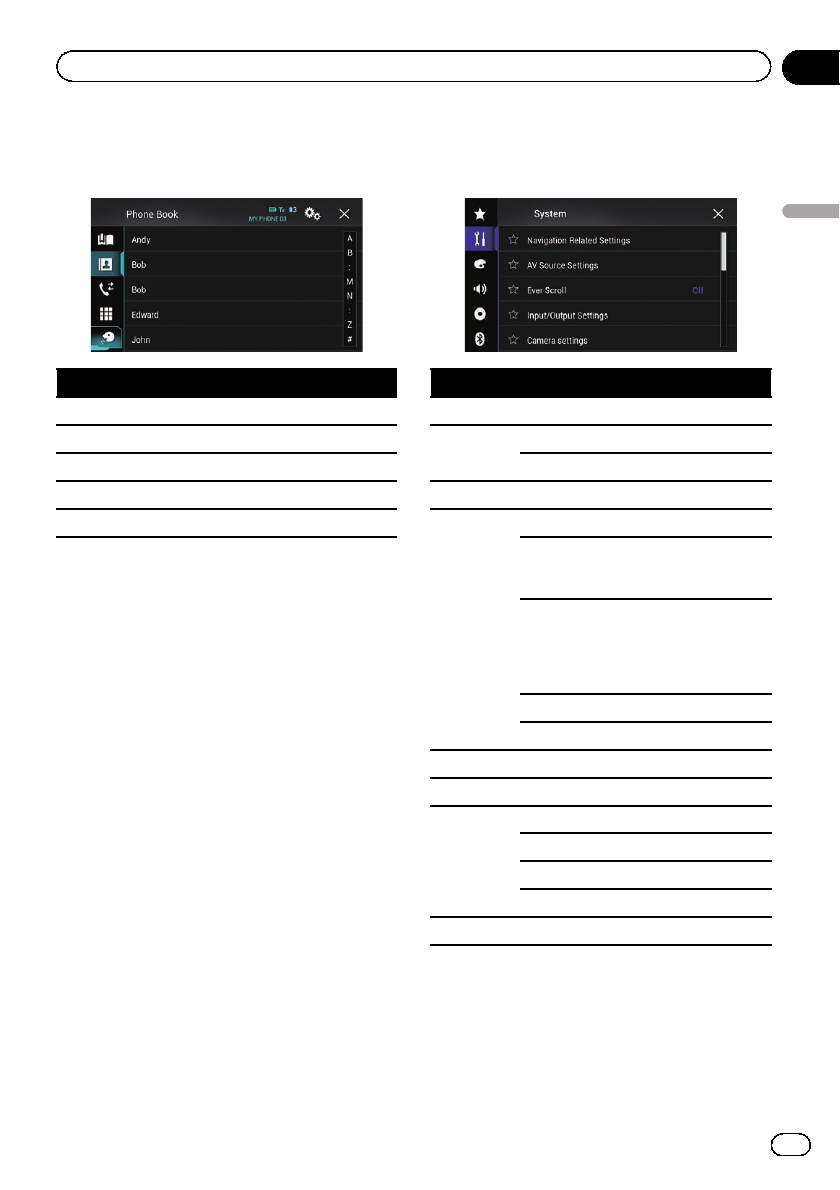
Display information
Phone menu
Page
Preset Dial 83
Phone Book 81
History 82
Dial 81
Voice recognition function 86
System menu
Page
Navigation Related Settings
Navigation info window 179
AV/App Guide Mode 179
AV Source Settings
MIXTRAX Settings 178
Radio Settings
95
101
102
SiriusXM Settings
161
164
165
166
170
Tag Forwarding 221
Bluetooth Audio 179
Ever Scroll 180
Input/Output Settings
Smartphone Setup 88
AV Input 180
AUX Input 173
AppRadio Video Adjustment 136
Camera settings
En 255
Appendix
Appendix
Appendix
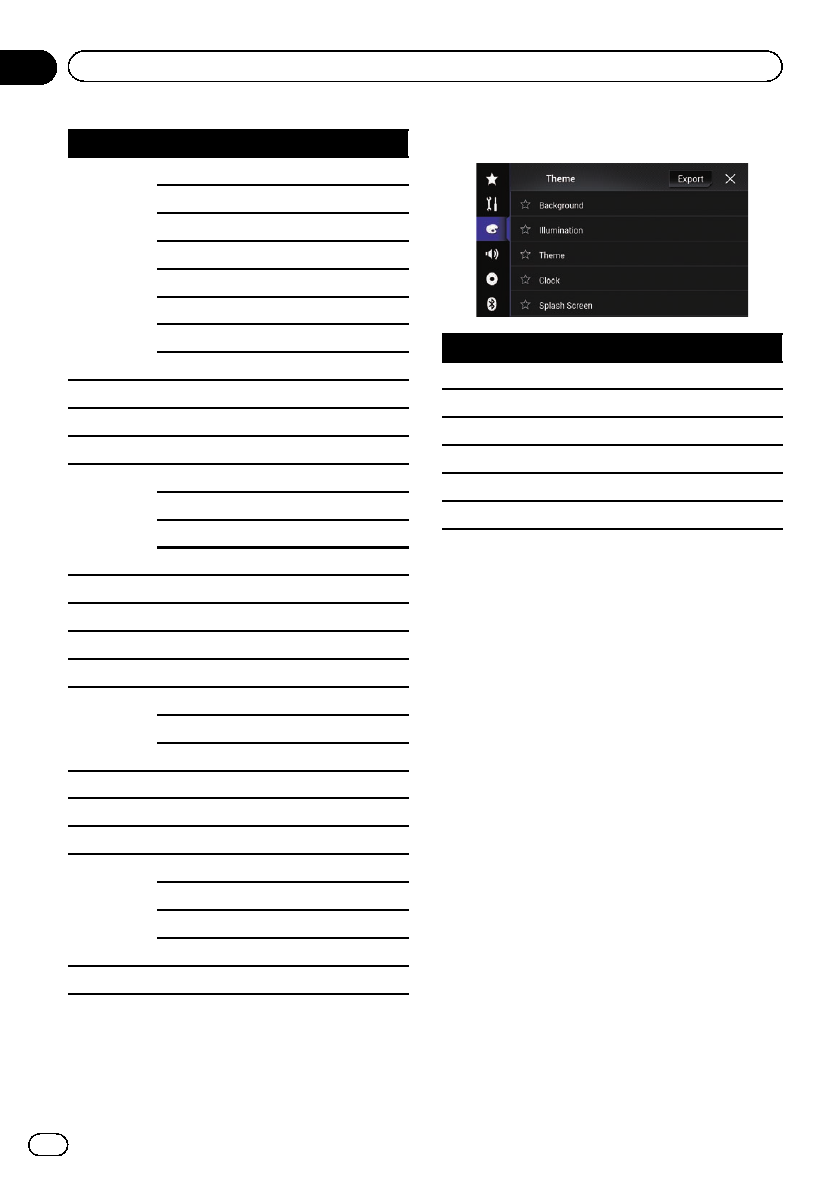
Page
Camera View 182
Back Camera Input 181
2nd Camera Input 184
Reverse Gear Setting 181
Parking Assist Guide 183
Back Camera: Reverse Video 182
2nd Camera: Reverse video 185
Parking Assist Guide Adjust 183
Demo Mode 185
System Language 186
Restore Settings 226
All Settings 226
Audio Settings 226
Theme Settings 226
Bluetooth Settings 226
Keyboard 186
Beep Tone 186
Touch Panel Calibration 187
Dimmer Settings 187
Dimmer Trigger 187
Day/Night 188
Dimmer Duration 188
Driving Position 139
Picture Adjustment 189
System Information
Firmware Information 190
Firmware Update 190
3D Calibration Status 191
Connection Status 192
OEM Settings 151
Theme menu
Page
Background 207
Illumination 208
Theme 209
Clock 209
Splash Screen 210
Export 211
En
256
Appendix
Appendix
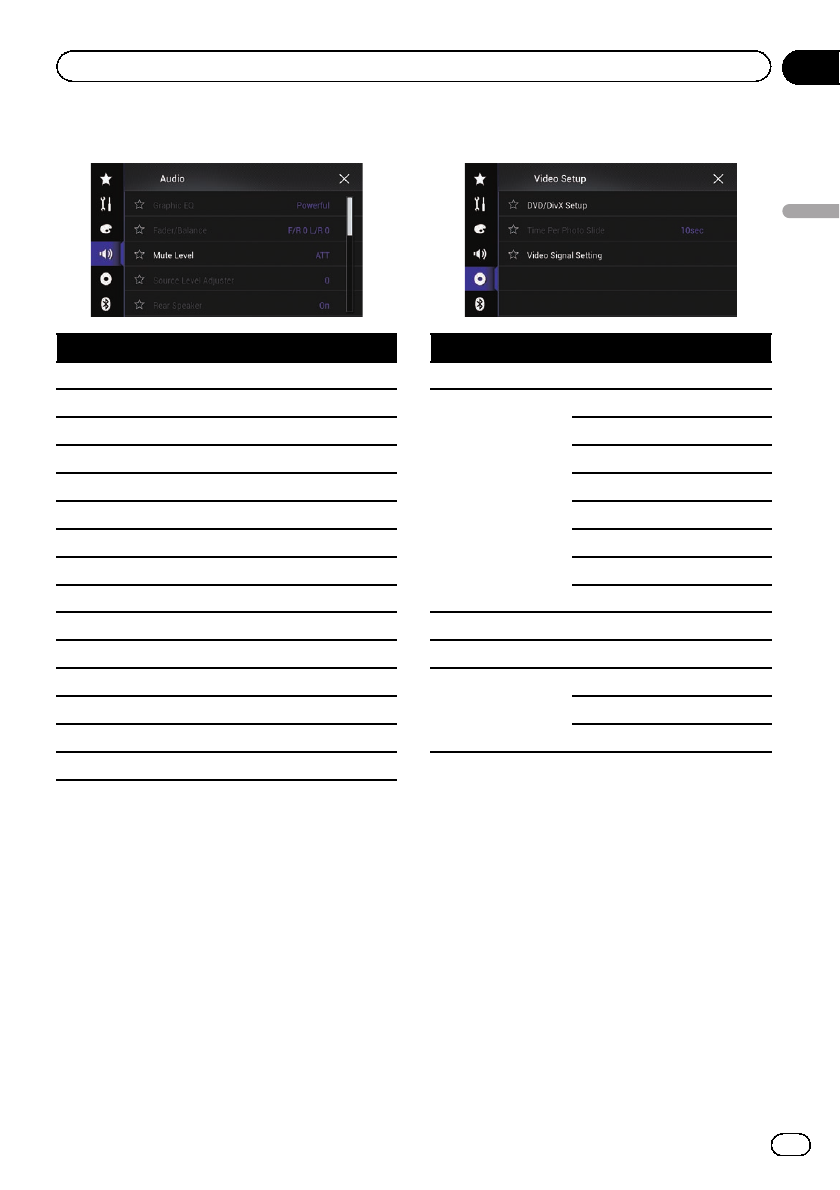
Audio menu
Page
Graphic EQ 202
Fader/Balance 194
Balance 194
Mute Level 195
Source Level Adjuster 195
Rear Speaker 198
Subwoofer 198
Speaker Level 199
Crossover 198
Subwoofer Settings 198
Listening Position 199
Time Alignment 200
Auto EQ&TA 203
A-EQ&TA Measurement 204
ASL 202
Video Setup menu
Page
DVD/DivX Setup
Subtitle Language 213
Audio Language 213
Menu Language 214
Multi Angle 214
TV Aspect 215
Parental 215
DivX® VOD 216
DVD Auto Play 217
Time Per Photo Slide 120
Video Signal Setting
AV 176
AUX 174
Camera 218
En 257
Appendix
Appendix
Appendix
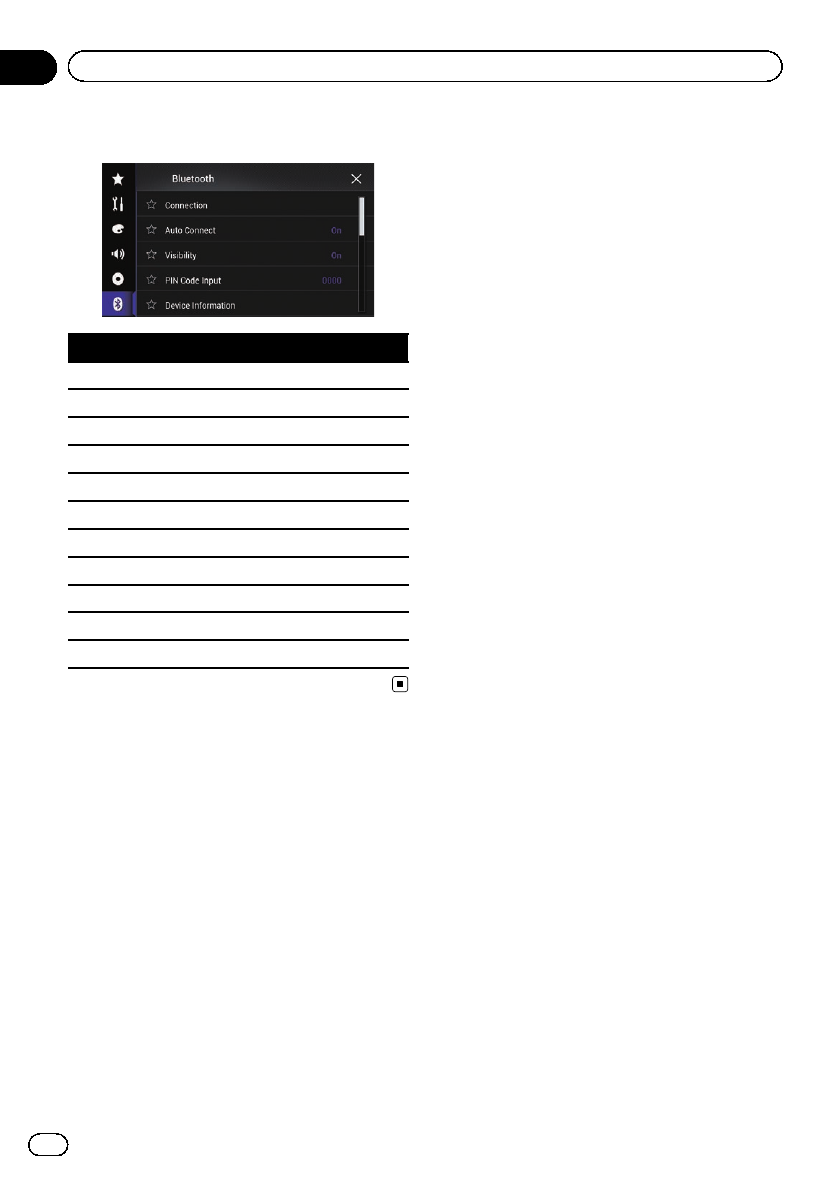

Specifications
General
Rated power source ............... 14.4 V DC
(allowable voltage range:
10.8 V to 15.1 V DC)
Grounding system ................... Negative type
Maximum current consumption
..................................................... 10.0 A
Dimensions (W × H × D):
AVIC-8100NEX
Chassis ..................... 178 mm × 100 mm ×
164 mm
(7 in. × 3-7/8 in. × 6-1/2 in.)
Nose ........................... 171 mm × 97 mm × 21 mm
(6-3/4 in. × 3-7/8 in. ×
7/8 in.)
AVIC-7100NEX
Chassis ..................... 178 mm × 100 mm ×
164 mm
(7 in. × 3-7/8 in. × 6-1/2 in.)
Nose ........................... 171 mm × 97 mm × 20 mm
(6-3/4 in. × 3-7/8 in. ×
3/4 in.)
AVIC-6100NEX, AVIC-5100NEX
Chassis ..................... 178 mm × 100 mm ×
164 mm
(7 in. × 3-7/8 in. × 6-1/2 in.)
Nose ........................... 170 mm × 97 mm × 8 mm
(6-3/4 in. × 3-7/8 in. ×
3/8 in.)
Weight:
AVIC-8100NEX ................. 2.1 kg (4.6 lbs)
AVIC-7100NEX ................. 2.1 kg (4.6 lbs)
AVIC-6100NEX ................. 1.8 kg (4.0 lbs)
AVIC-5100NEX ................. 1.8 kg (4.0 lbs)
NAND flash memory:
AVIC-8100NEX ................. 16 GB
AVIC-7100NEX ................. 8GB
AVIC-6100NEX ................. 8GB
AVIC-5100NEX ................. 8GB
Navigation
GPS receiver:
System ................................ L1, C/Acode GPS
SPS (Standard Positioning
Service)
Reception system .......... 50-channel multi-channel
reception system
Reception frequency .... 1 575.42 MHz
Sensitivity .......................... –140 dBm (typ)
Position update frequency
........................................... Approx. once per second
GPS antenna:
Antenna ............................. Micro strip flat antenna/
right-handed helical polari-
zation
Antenna cable ................. 3.55 m (11 ft. 7 in.)
Dimensions (W × H × D)
........................................... 33 mm × 14.7 mm × 36 mm
(1-1/4 in. × 1/2 in. ×
1-3/8 in.)
Weight ................................ 73.7 g (0.2 lbs)
Display
Screen size/aspect ratio:
AVIC-8100NEX ................. 6.95 inch wide/16:9
AVIC-7100NEX ................. 6.95 inch wide/16:9
AVIC-6100NEX ................. 6.2 inch wide/16:9
AVIC-5100NEX ................. 6.2 inch wide/16:9
Effective display area:
AVIC-8100NEX ................. 156.6 mm × 81.6 mm
(6-1/8 in. × 3-1/4 in.)
AVIC-7100NEX ................. 156.6 mm × 81.6 mm
(6-1/8 in. × 3-1/4 in.)
AVIC-6100NEX ................. 137.5 mm × 77.3 mm
(5-3/8 in. × 3 in.)
AVIC-5100NEX ................. 137.5 mm × 77.3 mm
(5-3/8 in. × 3 in.)
Pixels ............................................. 1 152 000 (2 400 × 480)
Display method ........................ TFT Active matrix driving
Color system .............................. PAL/NTSC/PAL-M/PAL-N/
SECAM compatible
Tolerable temperature range:
Power off ............................ –4 °F to +176 °F
Audio
Maximum power output ....... 50 W × 4
Continuous power output ... 22 W × 4 (50 Hz to 15 kHz,
5 %THD, 4 WLOAD, Both
Channels Driven)
Load impedance ...................... 4W(4 Wto 8 Wallowable)
Preout output level (max) .... 4.0 V
Equalizer (13-Band Graphic Equalizer):
Frequency .......................... 50 Hz/80 Hz/125 Hz/200 Hz/
315 Hz/500 Hz/800 Hz/
1.25 kHz/2 kHz/3.15 kHz/
5 kHz/8 kHz/12.5 kHz
Gain ...................................... ±12 dB
HPF:
Frequency .......................... 50 Hz/63 Hz/80 Hz/100 Hz/
125 Hz/160 Hz/200 Hz
Slope .................................... –6 dB/oct, –12 dB/oct,
–18 dB/oct
Subwoofer (mono):
Frequency .......................... 50 Hz/63 Hz/80 Hz/100 Hz/
125 Hz/160 Hz/200 Hz
En 259
Appendix
Appendix
Appendix

Slope .................................... –6 dB/oct, –12 dB/oct,
–18 dB/oct
Gain ...................................... –24 dB to +10 dB
Phase .................................. Normal/Reverse
Time alignment ........................ 0 to 200 step (1 inch/step)
DVD drive
System .......................................... DVD-Video, VCD, CD, MP3,
WMA, AAC, DivX, MPEG
player
Region number ........................ 1
Usable discs .............................. DVD-VIDEO, VIDEO-CD, CD,
CD-R, CD-RW, DVD-R, DVD-
RW, DVD-RDL
Frequency response ............... 5 Hz to 44 000 Hz (with DVD,
at sampling frequency
96 kHz)
Signal-to-noise ratio ............... 96 dB (1 kHz) (IHF-A net-
work) (RCA level)
Output level:
Video .................................... 1.0 Vp-p/75 W(±0.2 V)
Number of channels .............. 2 (stereo)
MP3 decoding format ........... MPEG-1, 2 & 2.5 Audio
Layer 3
WMA decoding format ......... Ver.7, 8, 9 (2 ch audio)
(Windows Media Player)
AAC decoding format ............ MPEG-4 AAC (only encoded
by iTunes):
.m4a (Ver.11 and earlier)
DivX decoding format ............ Home Theater Ver.3.11,
Ver.4.X, Ver.5.X, Ver.6.X :
.avi, .divx
MPEG video decoding format
..................................................... MPEG-1: mpg, mpeg, dat
MPEG-2 PS: mpg, mpeg
MPEG-4 Part2 (Visual),
MS MPEG-4 Ver.3: avi
USB
USB standard spec. ............... USB1.1, USB2.0 High
Speed
Max current supply ................. 1.6 A
USB Class ................................... MSC (Mass Storage Class)
device, iPod (AudioClass,
HID Class) device
File system .................................. FAT16, FAT32, NTFS
MP3 decoding format ........... MPEG-1/Layer 1, MPEG-1/
Layer 2, MPEG-1/Layer 3
MPEG-2/Layer 1, MPEG-2/
Layer 2, MPEG-2/Layer 3
MPEG-2.5/Layer 3
WMA decoding format ......... WMA10 Std , WMA10 Pro,
WMA9 Lossless
AAC decoding format ............ MPEG-2 AAC-LC, MPEG-4
AAC-LC
WAVE signal format ............... Linear-PCM
H.264 video decoding format
..................................................... BaseLine Profile, Main Pro-
file, High Profile
WMV video decoding format
..................................................... VC-1 SP/MP/AP, WMV 7/8
MPEG4 video decoding format
..................................................... SimpleProfile, Advanced-
SimpleProfile (except GMC)
JPEG decoding format .......... JPEG
SD (AVIC-8100NEX and AVIC-7100NEX)
SD memory card, SDHC memory card
Compatible physical format
........................................... Version 2.0
File system ........................ FAT16, FAT32, NTFS
MP3 decoding format
........................................... MPEG-1/Layer 1, MPEG-1/
Layer 2, MPEG-1/Layer 3
MPEG-2/Layer 1, MPEG-2/
Layer 2, MPEG-2/Layer 3
MPEG-2.5/Layer 3
WMA decoding format
........................................... WMA10 Std , WMA10 Pro,
WMA9 Lossless
AAC decoding format
........................................... MPEG-2 AAC-LC, MPEG-4
AAC-LC
WAVE signal format ..... Linear-PCM
H.264 video decoding format
........................................... BaseLine Profile, Main Pro-
file, High Profile
WMV video decoding format
........................................... VC-1 SP/MP/AP, WMV 7/8
MPEG4 video decoding format
........................................... SimpleProfile, Advanced-
SimpleProfile (except GMC)
JPEG decoding format
........................................... JPEG
Bluetooth
Version .......................................... Bluetooth 3.0+EDR certi-
fied
Output power ............................ +4 dBm Max.
(Power class 2)
FM tuner
AVIC-8100NEX, AVIC-7100NEX and AVIC-6100NEX
Frequency range ............ 87.9 MHz to 107.9 MHz
Usable sensitivity ........... 11 dBf (0.8 µV/75 W, mono,
S/N: 30 dB)
En
260
Appendix
Appendix
Signal-to-noise ratio ..... 80 dB (digital broadcasting)
(IHF-A network)
72 dB (analog broadcasting)
(IHF-A network)
AVIC-5100NEX
Frequency range ............ 87.9 MHz to 107.9 MHz
Usable sensitivity ........... 11 dBf (0.8 µV/75 W, mono,
S/N: 30 dB)
Signal-to-noise ratio ..... 72 dB (IHF-A network)
AM tuner
AVIC-8100NEX, AVIC-7100NEX and AVIC-6100NEX
Frequency range ............ 530 kHz to 1 710 kHz
Usable sensitivity ........... 25 µV (S/N: 20 dB)
Signal-to-noise ratio ..... 80 dB (digital broadcasting)
(IHF-A network)
62 dB (analog broadcasting)
(IHF-A network)
AVIC-5100NEX
Frequency range ............ 530 kHz to 1 710 kHz
Usable sensitivity ........... 25 µV (S/N: 20 dB)
Signal-to-noise ratio ..... 62 dB (IHF-A network)
CEA2006 Specifications
Power output ............................. 14 W RMS × 4 Channels
(4 Wand ≦1 % THD+N)
S/N ratio ....................................... 91 dBA (reference: 1 W into
4W)
Note
Specifications and design are subject to possible
modifications without notice due to im-
provements.
En 261
Appendix
Appendix
Appendix

En
262

En 263

PIONEER CORPORATION
1-1, Shin-ogura, Saiwai-ku, Kawasaki-shi,
Kanagawa 212-0031, JAPAN
PIONEER ELECTRONICS (USA) INC.
P.O. Box 1540, Long Beach, California 90801-1540, U.S.A.
TEL: (800) 421-1404
PIONEER ELECTRONICS OF CANADA, INC.
340 Ferrier Street, Unit 2, Markham, Ontario L3R 2Z5, Canada
TEL: 1-877-283-5901
TEL: 905-479-4411
PIONEER EUROPE NV
Haven 1087, Keetberglaan 1, B-9120 Melsele, Belgium/Belgique
TEL: (0) 3/570.05.11
PIONEER ELECTRONICS ASIACENTRE PTE. LTD.
253 Alexandra Road, #04-01, Singapore 159936
TEL: 65-6472-7555
PIONEER ELECTRONICS AUSTRALIA PTY. LTD.
5 Arco Lane, Heatherton, Victoria, 3202, Australia
TEL: (03) 9586-6300
PIONEER ELECTRONICS DE MEXICO, S.A. de C.V.
Blvd.Manuel Avila Camacho 138 10 piso
Col.Lomas de Chapultepec, Mexico, D.F. 11000
TEL: 55-9178-4270
先鋒股份有限公司
台北市內湖區瑞光路407號8樓
電話: 886-(0)2-2657-3588
先鋒電子(香港)有限公司
香港九龍長沙灣道909號5樓
電話: 852-2848-6488
© 2015 PIONEER CORPORATION.
All rights reserved.
<CRB4514-A> UC
To keep up to date with the latest navigational data, you can periodically
update your navigation system. For further details, please visit:
http://pioneer.naviextras.com
<KTSZ15A>
