Pioneer Car Stereo System Deh 6400Bt Users Manual
DEH-6400BT to the manual 4c1c73ed-19d9-4be0-8c5a-b87a69ab2d21
2015-01-26
: Pioneer Pioneer-Car-Stereo-System-Deh-6400Bt-Users-Manual-333386 pioneer-car-stereo-system-deh-6400bt-users-manual-333386 pioneer pdf
Open the PDF directly: View PDF  .
.
Page Count: 36

Thank you for purchasing this PIONEER product.
To ensure proper use, please read through this manual before using this product. It
is especially important that you read and observe WARNINGs and CAUTIONsin
this manual. Please keep the manual in a safe and accessible place for future refer-
ence.
Before you start
About this unit 3
In case of trouble 3
Demo mode 4
About this manual 4
Operating this unit
Head unit 5
Optional remote control 5
Set up menu 5
Basic operations 6
Menu operations identical for function
settings/audio adjustments/initial settings/
lists 7
Tuner 8
CD/CD-R/CD-RW and external storage
devices (USB, SD) 11
iPod 12
Audio adjustments 15
Using Bluetooth wireless technology 16
Initial settings 20
Other functions 22
Additional information
Troubleshooting 26
Error messages 26
Handling guidelines 29
Compressed audio compatibility (disc, USB,
SD) 30
iPod compatibility 32
Sequence of audio files 32
Bluetooth profiles 32
Copyright and trademark 33
Specifications 34
Contents
En
2
If you want to dispose this product, do not mix
it with general household waste. There is a se-
parate collection system for used electronic
products in accordance with legislation that re-
quires proper treatment, recovery and recy-
cling.
Private households in the member states of
the EU, in Switzerland and Norway may return
their used electronic products free of charge
to designated collection facilities or to a retai-
ler (if you purchase a similar new one).
For countries not mentioned above, please
contact your local authorities for the correct
method of disposal.
By doing so you will ensure that your disposed
product undergoes the necessary treatment,
recovery and recycling and thus prevent po-
tential negative effects on the environment
and human health.
About this unit
The tuner frequencies on this unit are allo-
cated for use in Western Europe, Asia, the
Middle East, Africa and Oceania. Use in other
areas may result in poor reception. The RDS
(radio data system) function only operates in
areas with broadcasting RDS signals for FM
stations.
CAUTION
This product is a class 1 laser product classi-
fied under the Safety of laser products, IEC
60825-1:2007, and contains a class 1M laser
module. To ensure continued safety, do not re-
move any covers or attempt to gain access to
the inside of the product. Refer all servicing to
qualified personnel.
CAUTION—CLASS 1M INVISIBLE LASER
RADIATION WHEN OPEN, DO NOT VIEW
DIRECTLY WITH OPTICAL INSTRUMENTS.
CAUTION
!Do not allow this unit to come into contact
with liquids. Electrical shock could result.
Also, damage to this unit, smoke, and over-
heating could result from contact with liquids.
!The Pioneer CarStereo-Pass is for use only in
Germany.
!Always keep the volume low enough to hear
outside sounds.
!Avoid exposure to moisture.
!If the battery is disconnected or discharged,
any preset memory will be erased.
Note
Function setting operations are completed even if
the menu is cancelled before the operations are
confirmed.
In case of trouble
Should this unit fail to operate properly, please
contact your dealer or nearest authorized
PIONEER Service Station.
En 3
Section
01
Before you start
Before you start

Demo mode
Important
!Failure to connect the red lead (ACC) of this
unit to a terminal coupled with ignition switch
on/off operations may lead to battery drain.
!Remember that if the feature demo continues
operating when the car engine is turned off, it
may drain battery power.
The demo starts automatically if you do not op-
erate this unit within about 30 seconds since it
was last operated or if the ignition switch is
set to ACC or ON while it is turned off. To can-
cel the demo mode, press and hold ( /DISP).
Press and hold ( /DISP) again to start. You
can also deactivate demo mode in the initial
settings. Select Demonstration (demo display
setting) and turn off the demo display. For de-
tails, refer to Initial settings on page 20.
About this manual
!In the following instructions, USB mem-
ories, USB portable audio players, and SD
memory cards are collectively referred to as
“external storage devices (USB, SD)”.If
only USB memories and USB portable
audio players are indicated, they are collec-
tively referred to as “USB storage devices”.
!In this manual, iPod and iPhone will be re-
ferred to as “iPod”.
En
4
Section
01 Before you start
Head unit
1 2
a
456
78d c b
3
9
e
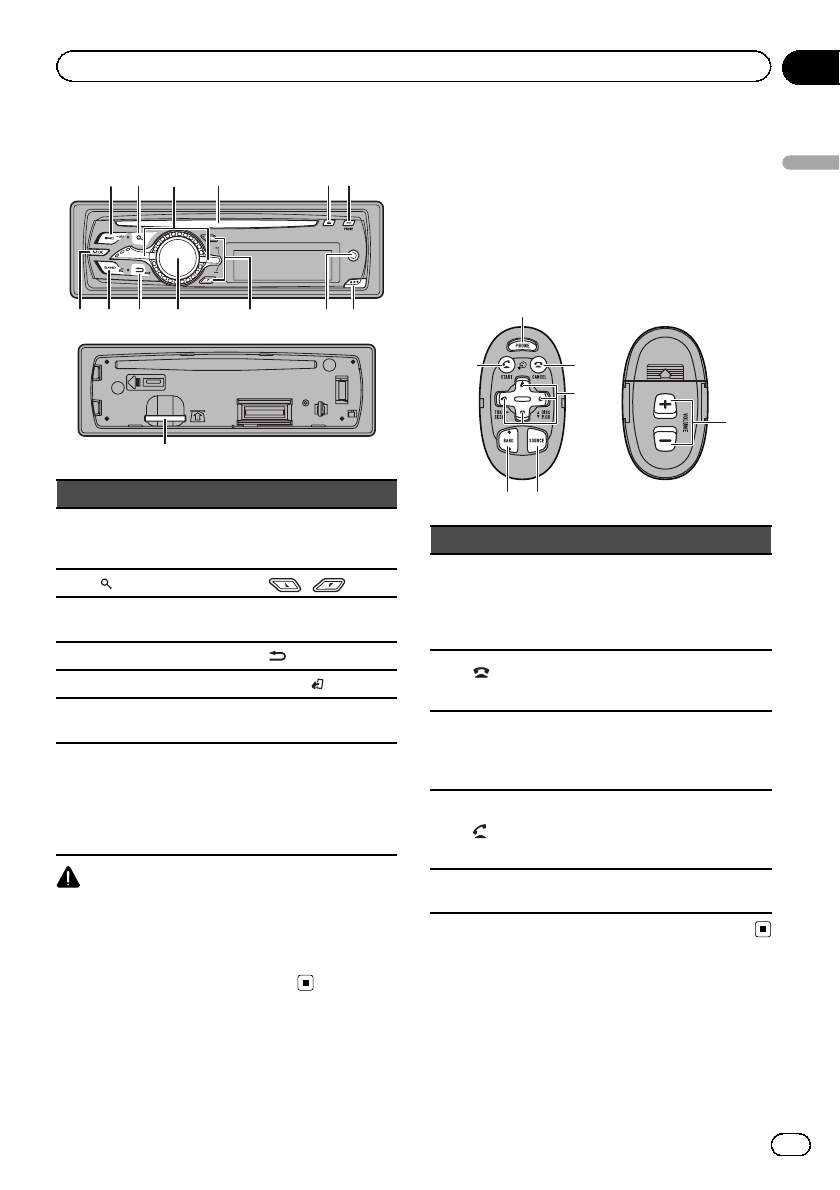
Part Part
1SRC/OFF 8
AUX input jack
(3.5 mm stereo
jack)
2(list) 9/
3LEVER aMULTI-CONTROL
(M.C.)
4Disc loading slot b/DISP
5h(eject) cBAND/(iPod)
6PHONE (phone/on
hook) dMIX
7Detach button e
SD memory card
slot
Remove the front
panel to access the
SD memory card
slot.
CAUTION
Use a Pioneer USB cable when connecting the
USB audio player/USB memory device as devices
connected to the unit directly will protrude out,
which is dangerous.
Do not use unauthorized products.
Optional remote control
The remote control CD-SR110 is sold sepa-
rately.
Remote controller buttons marked with the
same numbers as on the unit operate in the
same way as the corresponding unit button re-
gardless of button name.
1
f
g
h
i
j
c
Part Operation
fPHONE
Press to display the phone menu.
Press and hold to display the con-
nection menu.
Press to reject an incoming call
or cancel making a call.
g/CAN-
CEL
While operating the phone, press
to end a call or reject an incoming
call.
ha/b/c/d
Press to perform manual seek
tuning, fast forward, reverse and
track search controls. Also used
for controlling functions.
i/START
Press to start talking on the
phone while operating a phone.
Press to switch between callers
on hold.
jVOLUME Press to increase or decrease vo-
lume.
Set up menu
When you turn the ignition switch to ON after
installation, set up menu appears on the dis-
play.
You can set up the menu options below.
En 5
Section
02
Operating this unit
Operating this unit
1 After installation of this unit, turn the
ignition switch to ON.
SET UP appears.
2 Turn M.C. to switch to YES.
#If you do not operate for 30 seconds, the set
up menu will not be displayed.
#If you prefer not to set up at this time, turn
M.C. to switch to NO.
If you select NO, you cannot set up in the set up
menu.
3 Press M.C. to select.
4 Perform the following procedures to
set the menu.
To proceed to the next menu option, you need
to confirm your selection.
Language select (multi-language)
1Turn M.C. to select the desired language.
English—Français—Italiano—Español—
Deutsch—Nederlands—РУССКИЙ
2Press M.C. to confirm the selection.
Calendar (setting the date)
1Turn M.C. to change the year.
2Press M.C. to select day.
3Turn M.C. to change the day.
4Press M.C. to select month.
5Turn M.C. to change the month.
6Press M.C. to confirm the selection.
Clock (setting the clock)
1Turn M.C. to adjust hour.
2Press M.C. to select minute.
3Turn M.C. to adjust minute.
4Press M.C. to confirm the selection.
FM step (FM tuning step)
1Turn M.C. to select the FM tuning step.
50kHz (50 kHz)—100kHz (100 kHz)
2Press M.C. to confirm the selection.
Contrast (display contrast setting)
1Turn M.C. to adjust the contrast level.
0to 15 is displayed as the level is increased or de-
creased.
2Press M.C. to confirm the selection.
Demonstration (demo display setting)
1Turn M.C. to set the demo display to off.
2Press M.C. to confirm the selection.
Quit appears.
5 To finish your settings, turn M.C. to se-
lect YES.
#If you prefer to change your setting again, turn
M.C. to switch to NO.
6 Press M.C. to select.
Notes
!Because demonstration mode is the function
for displaying at stores, do not use this func-
tion while driving.
!You can set up the menu options in the initial
settings. For details about the settings, refer to
Initial settings on page 20.
!You can cancel set up menu by pressing SRC/
OFF.
Basic operations
Important
!Handle gently when removing or attaching
the front panel.
!Avoid subjecting the front panel to excessive
shock.
!Keep the front panel out of direct sunlight and
high temperatures.
!To avoid damaging the device or vehicle inter-
ior, remove any cables and devices attached
to the front panel before detaching it.
En
6
Section
02 Operating this unit
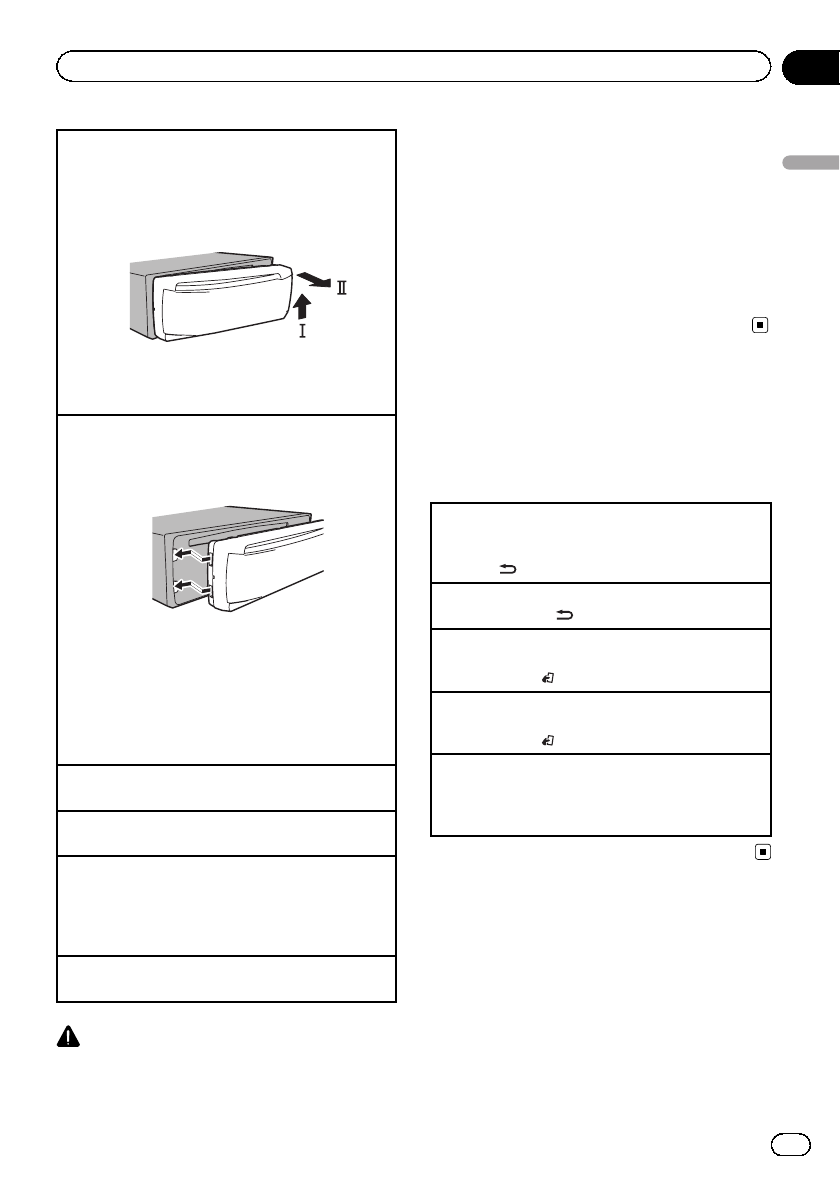
Removing the front panel to protect your unit from
theft
1Press the detach button to release the front
panel.
2Push the front panel upward (M) and then pull it
toward (N) you.
3Always keep the detached front panel in a protec-
tion device such as a protection case.
Re-attaching the front panel
1Slide the front panel to the left.
Make sure to insert the tabs on the left side of the
head unit into the slots on the front panel.
2Press the right side of the front panel until it is
firmly seated.
If you cannot attach the front panel to the head
unit successfully, make sure that you are placing
the front panel onto the head unit correctly. For-
cing the front panel into place may result in da-
mage to the front panel or head unit.
Turning the unit on
1Press SRC/OFF to turn the unit on.
Turning the unit off
1Press and hold SRC/OFF until the unit turns off.
Selecting a source
1Press SRC/OFF to cycle between:
TUNER (tuner)—CD (CD player)—USB (USB)/
iPod (iPod)—SD (SD memory card)—AUX (AUX)
—BT Audio (BT audio)
Adjusting the volume
1Turn M.C. to adjust the volume.
CAUTION
For safety reasons, park your vehicle when remov-
ing the front panel.
Notes
!When this unit’s blue/white lead is connected
to the vehicle’s auto-antenna relay control
terminal, the vehicle’s antenna extends when
this unit’s source is turned on. To retract the
antenna, turn the source off.
!If plug and play is on and either an iPhone or
iPod touch is connected, it may take time for
your source to switch. Refer to
USB plug&play (plug and play) on page 20.
Menu operations identical
for function settings/audio
adjustments/initial
settings/lists
Returning to the previous display
Returning to the previous list/category. (the folder/ca-
tegory one level higher.)
1Press /DISP.
Turning the demo display on or off
1Press and hold /DISP.
Returning to the ordinary display
Canceling the initial setting menu
1Press BAND/.
Returning to the ordinary display from the list/cate-
gory
1Press BAND/.
Selecting a function or list
1Turn M.C. or LEVER.
!In this manual, “Turn M.C.”is used to describe
the operation used to select a function or list.
En 7
Section
02
Operating this unit
Operating this unit
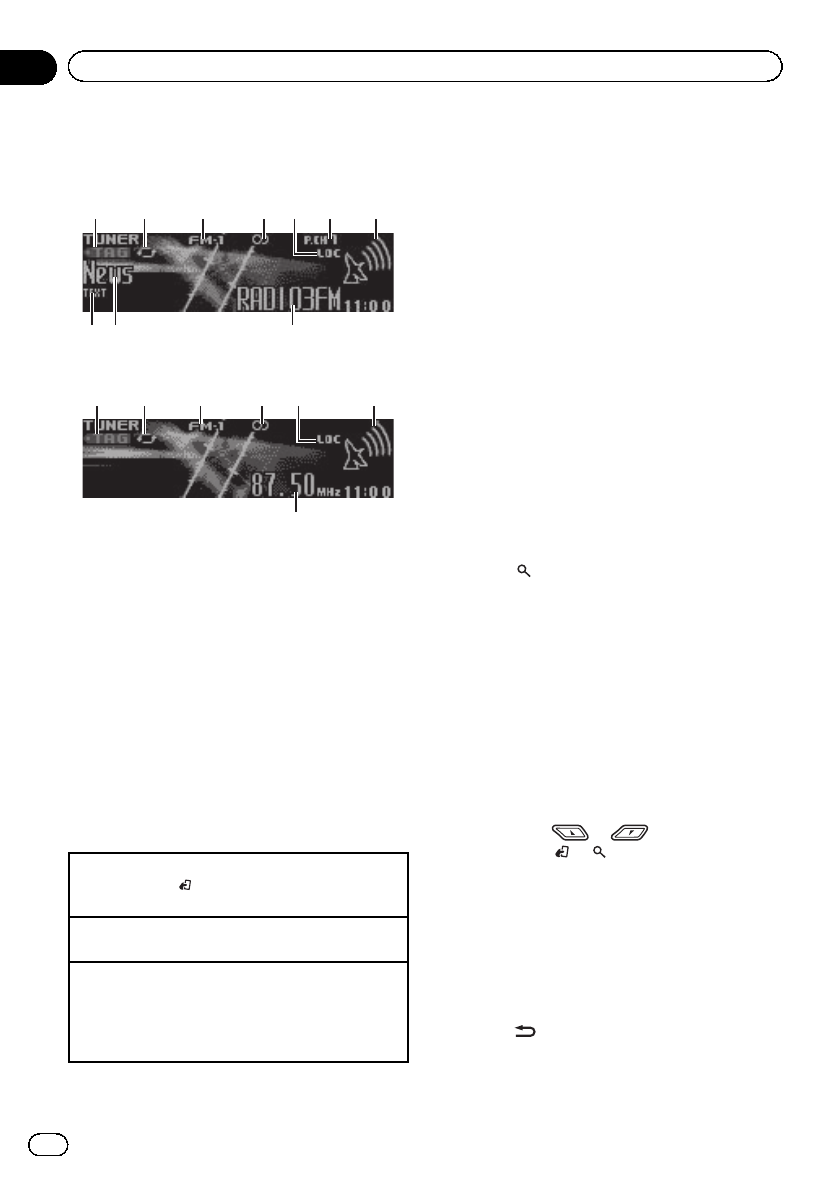
Tuner
Basic operations
a8 9
3 4 61 2 7
5
RDS
b
3 41 2 7
5
Non-RDS or MW/LW
1TAG indicator
2Tags transferring indicator
3Band indicator
45(stereo) indicator
5LOC indicator
Appears when local seek tuning is on.
6Preset number indicator
7Signal level indicator
8TEXT indicator
Shows when the radio text is received.
9PTY label indicator
aProgram service name
bFrequency indicator
Selecting a band
1Press BAND/until the desired band (FM-1,FM-
2,FM-3 for FM or MW/LW) is displayed.
Manual tuning (step by step)
1Turn LEVER.
Seeking
1Turn and hold down LEVER.
!While turning and holding down LEVER, you
can skip stations. Seek tuning starts as soon
as you release LEVER.
Using PI Seek
If the tuner cannot find a suitable station, or
the reception status deteriorates, the unit
automatically searches for a different station
with the same programming. During the
search, PI seek is displayed and the sound is
muted.
Using Auto PI Seek for preset
stations
When preset stations cannot be recalled, the
unit can be set to perform PI Seek during pre-
set recall.
!The default setting for Auto PI Seek is off.
Refer to Auto PI (auto PI seek) on page 20.
Storing and recalling stations
for each band
1 Press (list).
The preset screen is displayed.
2 Use M.C. to store the selected fre-
quency in the memory.
Turn to change the preset number. Press and
hold to store.
3 Use M.C. to select the desired station.
Turn to change the station. Press to select.
#All stations stored for FM bands can be re-
called from each independent FM band.
#You can tune the channel up or down manu-
ally by pressing or .
#Press BAND/or (list) to return to the or-
dinary display.
Switching the RDS display
RDS (radio data system) contains digital infor-
mation that helps search for the radio sta-
tions.
%Press /DISP.
PTY information and frequency or program
service name—song title and artist name
En
8
Section
02 Operating this unit
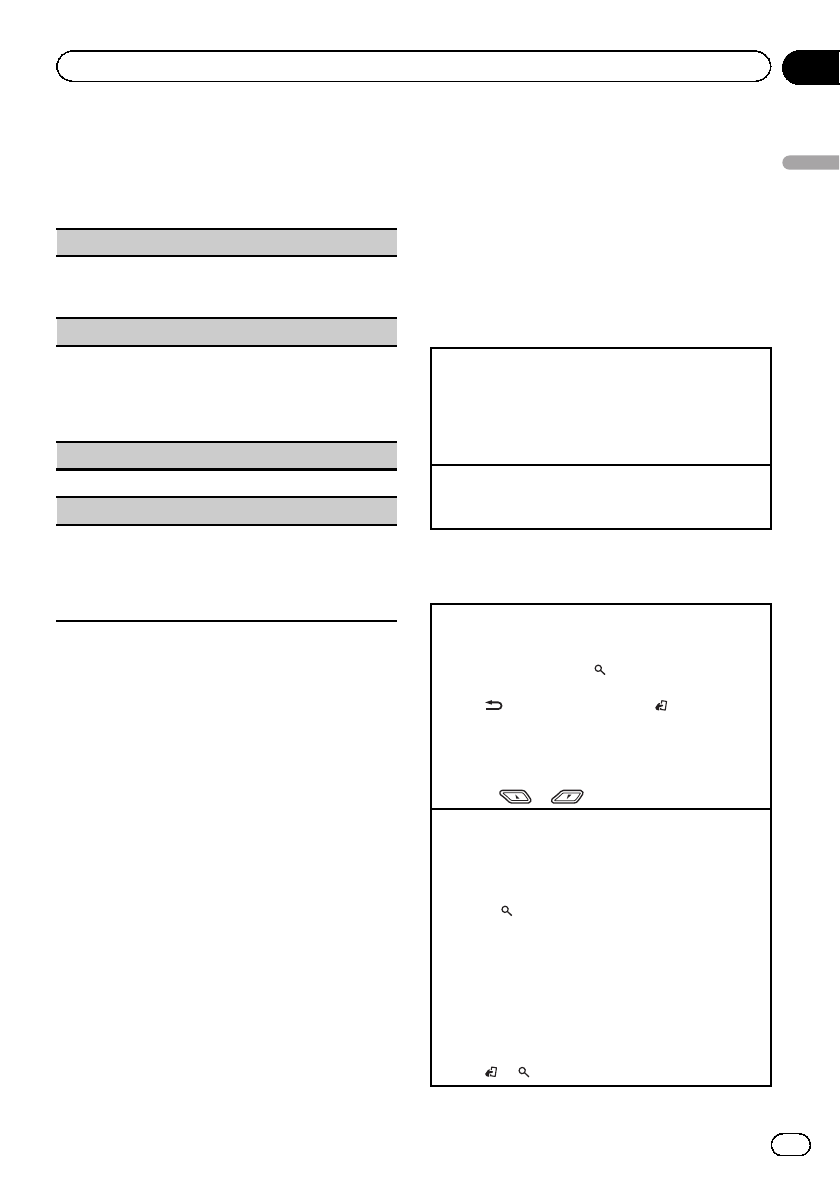
#PTY information and the frequency appear on
the display for eight seconds.
PTY list
News&Inf
News (News), Affairs (Current affairs), Info (Informa-
tion), Sport (Sports), Weather (Weather), Finance (Fi-
nance)
Popular
Pop Mus (Popular music), Rock Mus (Rock music),
Easy Mus (Easy listening), Oth Mus (Other music),
Jazz (Jazz), Country (Country music), Nat Mus (Na-
tional music), Oldies (Oldies music), Folk mus (Folk
music)
Classics
L. Class (Light classical), Classic (Classical)
Others
Educate (Education), Drama (Drama), Culture (Cul-
ture), Science (Science), Varied (Varied), Children
(Children’s), Social (Social affairs), Religion (Reli-
gion), Phone In (Phone in), Touring (Travel), Leisure
(Leisure), Document (Documentaries)
Using iTunes tagging
This function can be operated with the following
iPod models.
—iPod touch 4th generation
—iPod touch 3rd generation
—iPod touch 2nd generation
—iPod touch 1st generation
—iPod classic 160GB
—iPod classic 120GB
—iPod classic
—iPod nano 6th generation
—iPod nano 5th generation
—iPod nano 4th generation
—iPod nano 3rd generation
—iPhone 4
—iPhone 3GS
—iPhone 3G
—iPhone
However, tag information can be stored in this
unit even while other iPod models are used.
The song information (tag) can be saved from
the broadcasting station to your iPod. The
songs will show up in a playlist called “Tagged
playlist”in iTunes the next time you sync your
iPod. Then you can directly buy the songs you
want from the iTunes Store.
!The tagged songs and the song that you
can buy from the iTunes Store may be dif-
ferent. Make sure to confirm the song be-
fore you make the purchase.
Storing the tag information to this unit
1Tune in to the broadcast station.
2Press and hold M.C. if TAG is indicated in the dis-
play while desired song is broadcasting.
!While storing the tag data on this unit, TAG
flashes.
Storing the tagged information to your iPod
1Connect the iPod to this unit and transfer this
unit’s tag information to the iPod.
Using radio text
Displaying radio text
You can display the currently received radio text and
the three most recent radio texts.
1Press and hold down (list) to display radio text.
!You can turn off radio text display by pressing
/DISP,SRC/OFF or BAND/ .
!When no radio text is received, NO TEXT ap-
pears in the display.
2Turn LEVER left or right to recall the three most
recent radio texts.
3Press or to scroll.
Storing and recalling radio text
You can store data from up to six radio text transmis-
sions to the RT Memo 1 to RT Memo 6 keys.
1Display the radio text you want to store in the
memory.
2Press (list).
The preset screen is displayed.
3Use LEVER to store the selected radio text.
Turn it to change the preset number. Press and
hold down M.C. to store.
4Use LEVER to select the desired radio text.
Turn it to change the radio text. Press M.C. to se-
lect.
!To return to the ordinary display, press BAND/
or (list).
En 9
Section
02
Operating this unit
Operating this unit
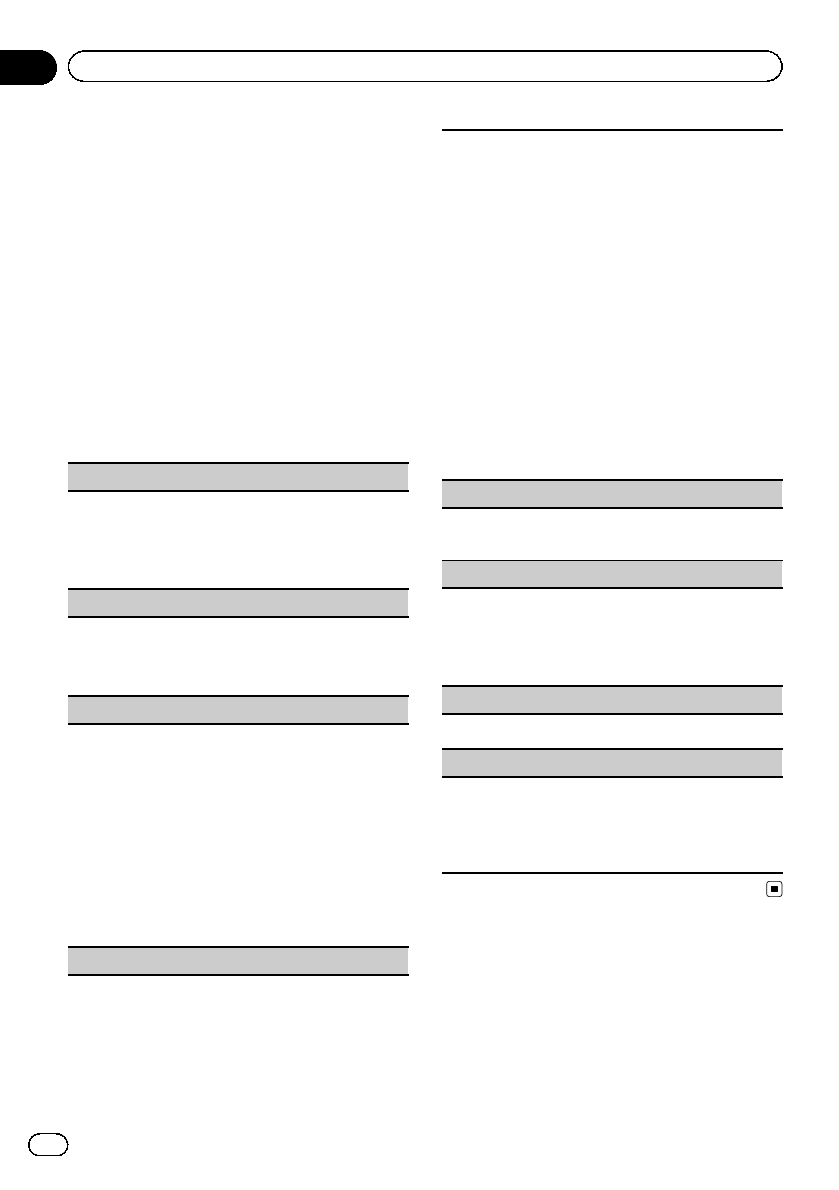
!The tuner automatically stores the three lat-
est radio text broadcasts received, repla-
cing the oldest text with the newest text.
Function settings
1 Press M.C. to display the main menu.
2 Turn M.C. to change the menu option
and press to select FUNCTION.
3 Turn M.C. to select the function.
After selecting, perform the following proce-
dures to set the function.
!If MW/LW band is selected, only BSM,
Local and Tuning Mode are available.
BSM (best stations memory)
BSM (best stations memory) automatically stores the
six strongest stations in the order of their signal
strength.
1Press M.C. to turn BSM on.
To cancel, press M.C. again.
Regional (regional)
When Alternative FREQ is used, the regional func-
tion limits the selection of stations to those broad-
casting regional programs.
1Press M.C. to turn the regional function on or off.
Local (local seek tuning)
Local seek tuning lets you tune in to only those radio
stations with sufficiently strong signals for good re-
ception.
1Press M.C. to turn local on.
!To cancel, press M.C. again.
2Turn LEVER left or right to select the desired set-
ting.
FM: Level 1—Level 2—Level 3—Level 4
MW/LW: Level 1—Level 2
The highest level setting allows reception of only
the strongest stations, while lower levels allow the
reception of weaker stations.
PTY search (program type selection)
You can tune in to a station using PTY (program type)
information.
1Turn LEVER left or right to select the desired set-
ting.
News&Inf—Popular—Classics—Others
2Press M.C. to begin the search.
The unit searches for a station broadcasting that
type of program. When a station is found, its pro-
gram service name is displayed.
PTY (program type ID code) information is listed
in the following section. Refer to PTY list on the
previous page.
To cancel the search, press M.C. again.
The program of some stations may differ from
that indicated by the transmitted PTY.
If no station is broadcasting the type of program
you searched for, Not found is displayed for
about two seconds and then the tuner returns to
the original station.
Traffic Announce (traffic announcement standby)
1Press M.C. to turn traffic announcement standby
on or off.
Alternative FREQ (alternative frequencies search)
When the tuner cannot get a good reception, the unit
automatically searches for a different station in the
same network.
1Press M.C. to turn the alternative frequencies
search on and off.
News interrupt (news program interruption)
1Press M.C. to turn the NEWS function on or off.
Tuning Mode (LEVER tuning setting)
You can assign a function to the LEVER on the unit.
Select Manual (manual tuning) to tune up or down
manually or select Preset (preset channel) to switch
between preset channels.
1Press M.C. to select Manual or Preset.
En
10
Section
02 Operating this unit
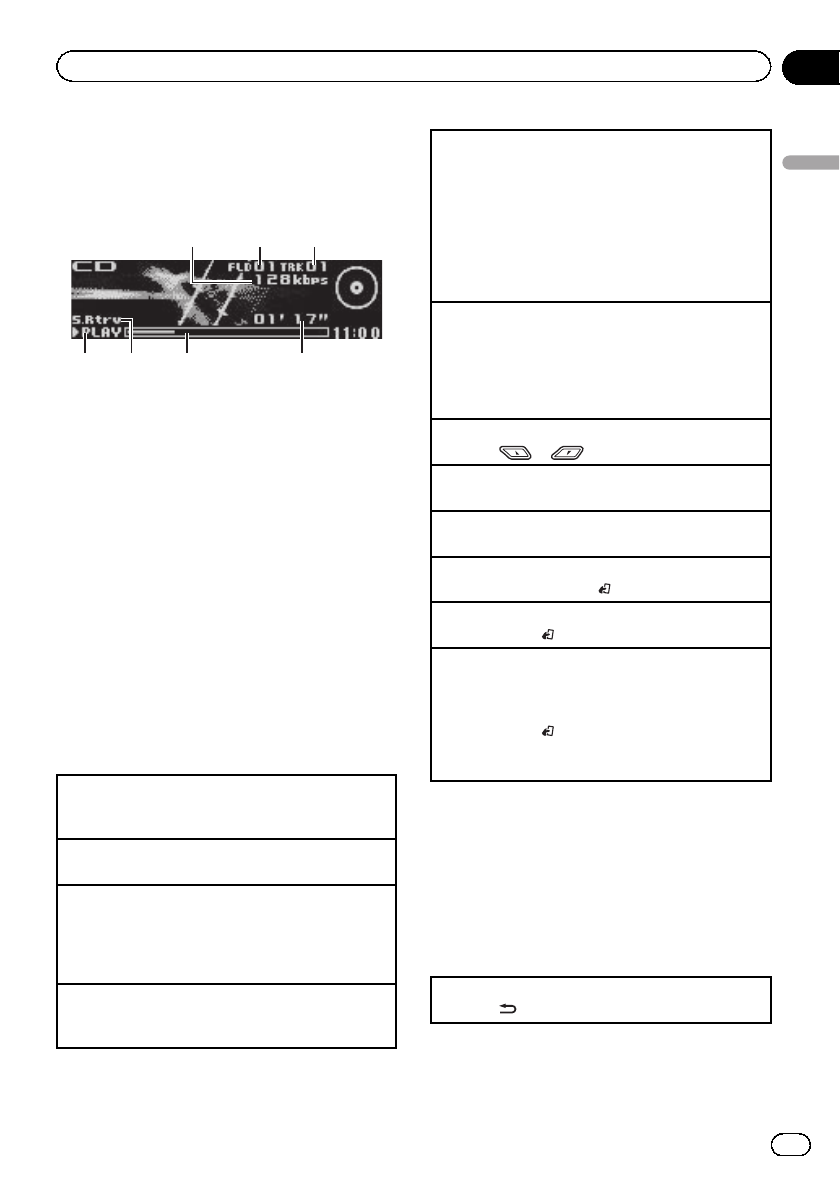
CD/CD-R/CD-RW and external
storage devices (USB, SD)
Basic operations
75 64
32
1
1Bit rate/sampling frequency indicator
Shows the bit rate or sampling frequency of
the current track (file) when the compressed
audio is playing.
!When playing back VBR (variable bit
rate)-recorded AAC files, the average bit
rate value is displayed. However, de-
pending on the software used to decode
AAC files, VBR may be displayed.
2Folder number indicator
Shows the folder number currently playing
when the compressed audio is playing.
3Track number indicator
4PLAY/PAUSE indicator
5S.Rtrv indicator
Appears when Sound Retriever function is on.
6Song time (progress bar)
7Play time indicator
Playing a CD/CD-R/CD-RW
1Insert the disc into the disc loading slot with the
label side up.
Ejecting a CD/CD-R/CD-RW
1Press h(eject).
Playing songs on a USB storage device
1Use a Pioneer USB cable to connect the USB sto-
rage device to the unit.
!Plug in the USB storage device using the USB
cable.
Stopping playback of files on a USB storage device
!You may disconnect the USB storage device at
any time.
Playing songs on an SD memory card
1Remove the front panel.
2Insert an SD memory card into the SD card slot.
Insert it with the contact surface facing down,
and press on the card until it clicks and comple-
tely locks into place.
3Re-attach the front panel.
4Press SRC/OFF to select SD as the source.
Playback will start.
Stopping playback of files on an SD memory card
1Remove the front panel.
2Press on the SD memory card until it clicks.
The SD memory card is ejected.
3Pull out the SD memory card.
4Re-attach the front panel.
Selecting a folder
1Press or .
Selecting a track
1Turn LEVER.
Fast forwarding or reversing
1Turn and hold down LEVER to the right or left.
Returning to root folder
1Press and hold BAND/.
Switching between compressed audio and CD-DA
1Press BAND/.
Switching between playback memory devices
You can switch between playback memory devices on
USB storage devices with more than one Mass Sto-
rage Device-compatible memory device.
1Press BAND/.
!You can switch between up to 32 different mem-
ory devices.
Notes
!When playing compressed audio, there is no
sound during fast forward or reverse.
!Disconnect USB storage devices from the unit
when not in use.
Displaying text information
Selecting the desired text information
1Press /DISP.
En 11
Section
02
Operating this unit
Operating this unit
Notes
!Depending on the version of iTunes used to
write MP3 files to a disc or media file types, in-
compatible text stored within an audio file
may be displayed incorrectly.
!Text information items that can be changed
depend on the media.
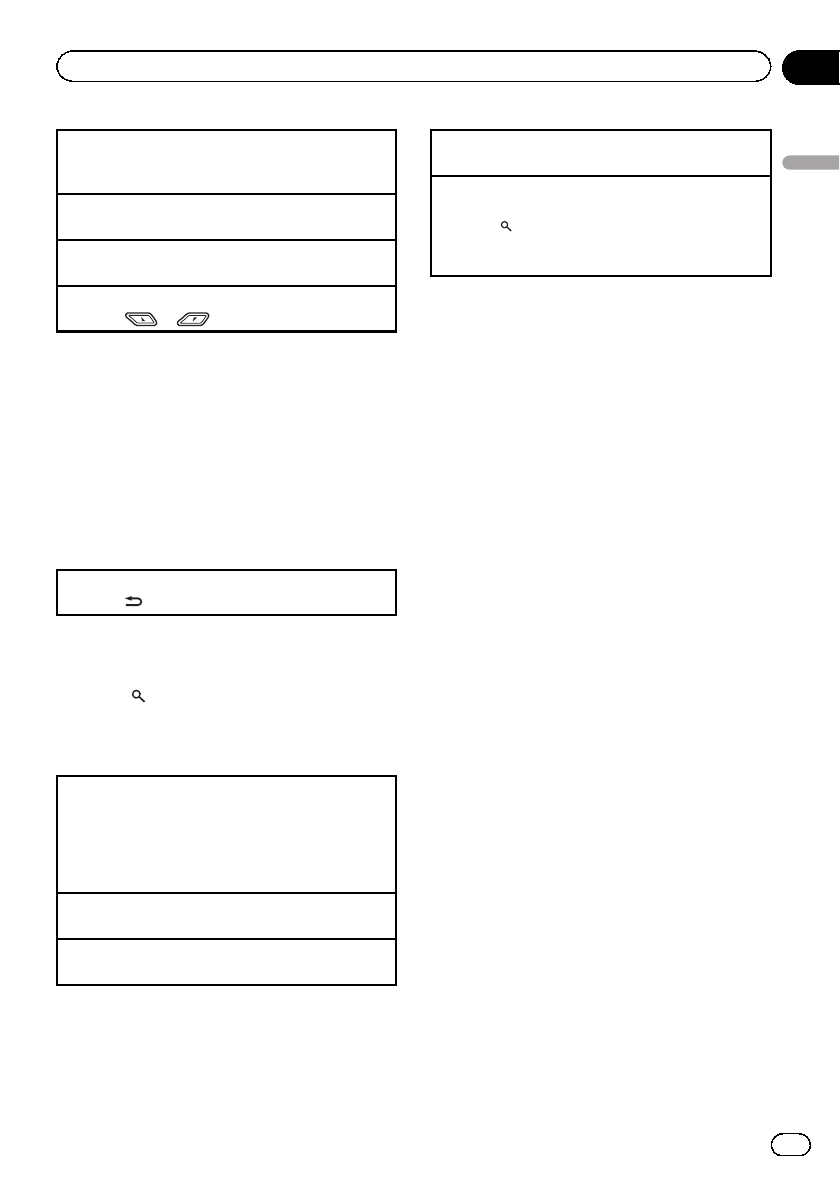
Selecting and playing files/
tracks from the name list
1 Press (list) to switch to the file/track
name list mode.
2 Use both LEVER and M.C. to select the
desired file name (or folder name).
Changing the file or folder name
1Turn LEVER.
Playing
1When a file or track is selected, press M.C.
Viewing a list of the files (or folders) in the selected
folder
1When a folder is selected, press M.C.
Playing a song in the selected folder
1When a folder is selected, press and hold M.C.
Function settings
1 Press M.C. to display the main menu.
2 Turn M.C. to change the menu option
and press to select FUNCTION.
3 Turn M.C. to select the function.
After selecting, perform the following proce-
dures to set the function.
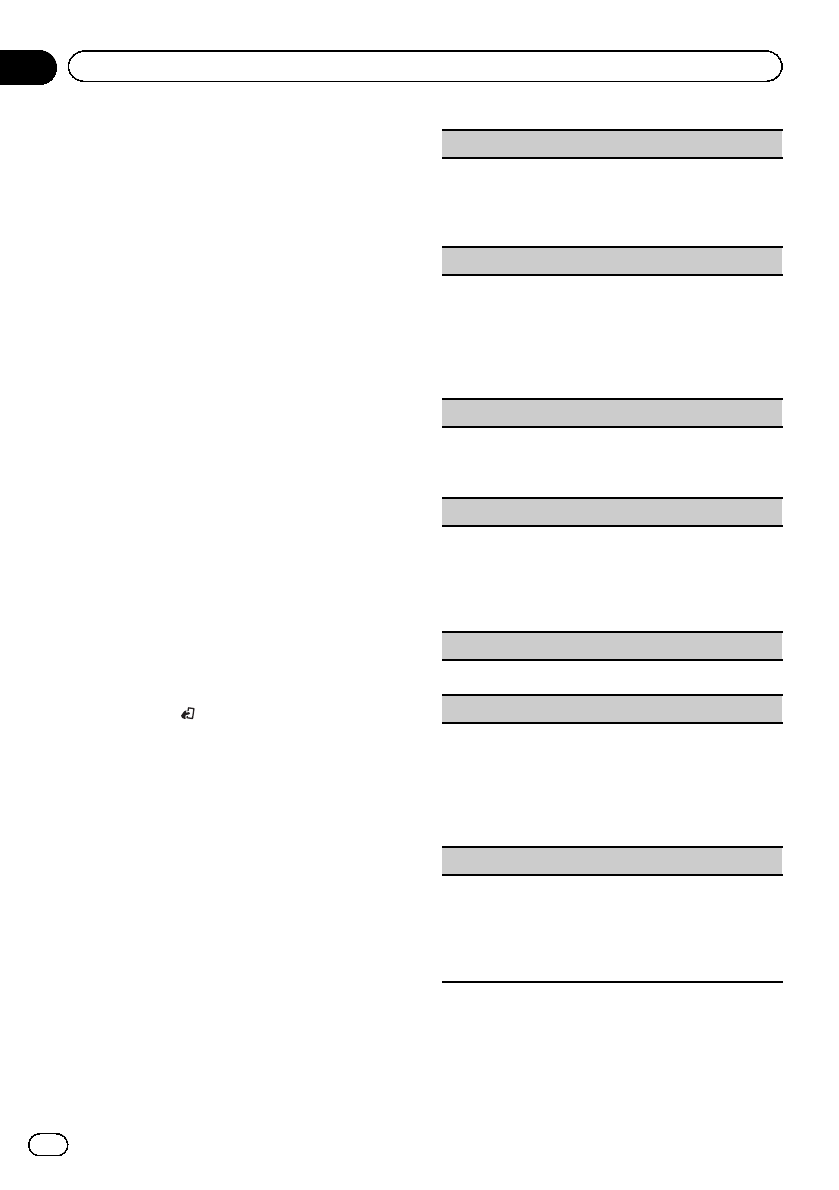
Play mode (repeat play)
1Press M.C. to select a repeat play range.
CD/CD-R/CD-RW
!Disc repeat –Repeat all tracks
!Track repeat –Repeat the current track
!Folder repeat –Repeat the current folder
External storage device (USB, SD)
!All repeat –Repeat all files
!Track repeat –Repeat the current file
!Folder repeat –Repeat the current folder
Random mode (random play)
1Press M.C. to turn random play on or off.
Pause (pause)
1Press M.C. to pause or resume.
Sound Retriever (sound retriever)
Automatically enhances compressed audio and re-
stores rich sound.
1Press M.C. to select the desired setting.
1—2—OFF (off)
OFF (off)—1—2(MIXTRAX)
1is effective for low compression rates, and 2is
effective for high compression rates.
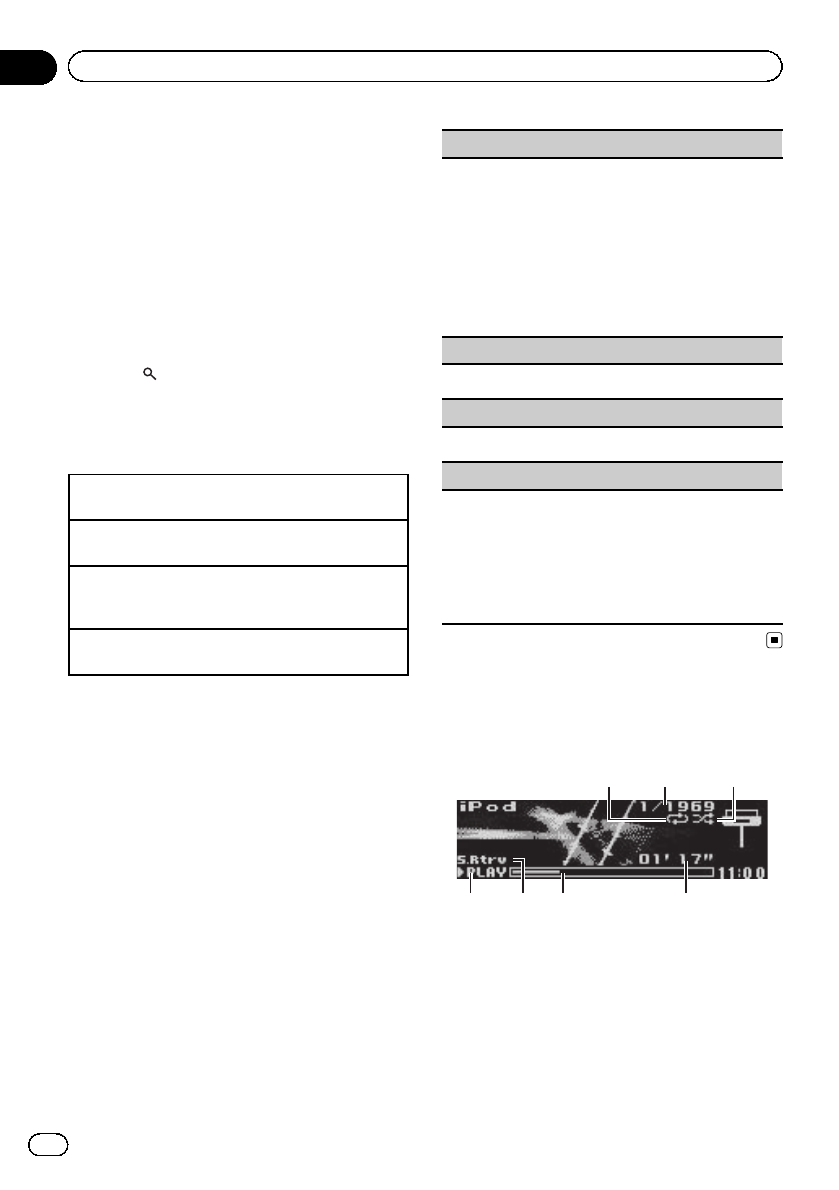
iPod
Basic operations
75 64
3
2
1
1Repeat indicator
2Song number indicator
3Shuffle indicator
4PLAY/PAUSE indicator
5S.Rtrv indicator
Appears when Sound Retriever function is on.
6Song time (progress bar)
7Play time indicator
En
12
Section
02 Operating this unit
Playing songs on an iPod
1Connect an iPod to the USB cable using an iPod
Dock Connector.
Selecting a track (chapter)
1Turn LEVER.
Fast forwarding or reversing
1Turn and hold down LEVER to the right or left.
Selecting an album
1Press or .
Notes
!The iPod cannot be turned on or off when the
control mode is set to AUDIO.
!Disconnect headphones from the iPod before
connecting it to this unit.
!The iPod will turn off about two minutes after
the ignition switch is set to OFF.
Displaying text information
Selecting the desired text information
1Press /DISP.
Browsing for a song
1 Press (list) to switch to the top menu
of the list search.
2 Use M.C. to select a category/song.
Changing the name of the song or category
1Turn M.C.
Playlists (playlists)—Artists (artists)—Albums
(albums)—Songs (songs)—Podcasts (podcasts)
—Genres (genres)—Composers (composers)—
Audiobooks (audiobooks)
Playing
1When a song is selected, press M.C.
Viewing a list of songs in the selected category
1When a category is selected, press M.C.
Playing a song in the selected category
1When a category is selected, press and hold M.C.
Searching the list by alphabet
1When a list for the selected category is displayed,
press to switch to alphabet search mode.
2Turn M.C. to select a letter.
3Press M.C. to display the alphabetical list.
Notes
!You can play playlists created with the PC ap-
plication (MusicSphere). The application will
be available on our website.
!Playlists that you created with the PC applica-
tion (MusicSphere) are displayed in abbre-
viated form.
Playing songs related to the
currently playing song
You can play songs from the following lists.
•Album list of the currently playing artist
•Song list of the currently playing album
•Album list of the currently playing genre
1 Press and hold M.C. to switch to link
play mode.
2 Turn M.C. to change the mode; press to
select.
!Artist –Plays an album of the artist cur-
rently being played.
!Album –Plays a song from the album cur-
rently being played.
!Genre –Plays an album from the genre
currently being played.
The selected song/album will be played after
the currently playing song.
Notes
!The selected song/album may be canceled if
you operate functions other than link search
(e.g. fast forward and reverse).
!Depending on the song selected to play, the
end of the currently playing song and the be-
ginning of the selected song/album may be
cut off.
En 13
Section
02
Operating this unit
Operating this unit
Operating this unit’s iPod
function from your iPod
You can listen to the sound from your iPod ap-
plications using your car’s speakers, when
APP is selected.
This function is not compatible with the follow-
ing iPod models.
—iPod with video
—iPod nano 1st generation
APP Mode is compatible with the following
iPod models.
!iPod touch 4th generation (software version
4.1 or later)
!iPod touch 3rd generation (software version
3.0 or later)
!iPod touch 2nd generation (software ver-
sion 3.0 or later)
!iPod touch 1st generation (software version
3.0 or later)
!iPod nano 6th generation (software version
1.0 or later)
!iPod nano 5th generation (software version
1.0.2 or later)
!iPhone 4 (software version 4.1 or later)
!iPhone 3GS (software version 3.0 or later)
!iPhone 3G (software version 3.0 or later)
!iPhone (software version 3.0 or later)
1Press BAND/ to switch the control mode.
!iPod –This unit’s iPod function can be
operated from the connected iPod.
!APP –Play back the sound from your
iPod applications.
!AUDIO –This unit’s iPod function can
be operated from this unit.
Function settings
1 Press M.C. to display the main menu.
2 Turn M.C. to change the menu option
and press to select FUNCTION.
3 Turn M.C. to select the function.
After selecting, perform the following proce-
dures to set the function.
Play mode (repeat play)
1Press M.C. to select a repeat play range.
!Repeat One –Repeat the current song
!Repeat All –Repeat all songs in the selected
list
Shuffle mode (shuffle)
1Press M.C. to select your favorite setting.
!Shuffle Songs –Play back songs in the se-
lected list in random order.
!Shuffle Albums –Play back songs from a
randomly selected album in order.
!Shuffle OFF –Cancel random play.
Shuffle all (shuffle all)
1Press M.C. to turn shuffle all on.
To turn off, set Shuffle mode in the FUNCTION
menu to off.
Link play (link play)
1Press M.C. to display the setting mode.
2Turn M.C. to change the mode; press to select.
For details about the settings, refer to Playing
songs related to the currently playing song on the
previous page.
Pause (pause)
1Press M.C. to pause or resume.
Audiobooks (audiobook speed)
1Press M.C. to select your favorite setting.
!Faster –Playback at a speed faster than nor-
mal
!Normal –Playback at normal speed
!Slower –Playback at a speed slower than nor-
mal
Sound Retriever (sound retriever)
1Press M.C. to select the desired setting.
1—2—OFF (off)
OFF (off)—1—2(MIXTRAX)
1is effective for low compression rates, and 2is
effective for high compression rates.
Notes
!Switching the control mode to iPod pauses
song playback. Operate the iPod to resume
playback.
En
14
Section
02 Operating this unit
!The following functions are still accessible
from the unit even if the control mode is set to
iPod/APP.
—Pausing
—Fast forward/reverse
—Track up/down
!When the control mode is set to iPod/APP,
only Pause or Sound Retriever is available.
!The browse function cannot be operated from
this unit.
Audio adjustments
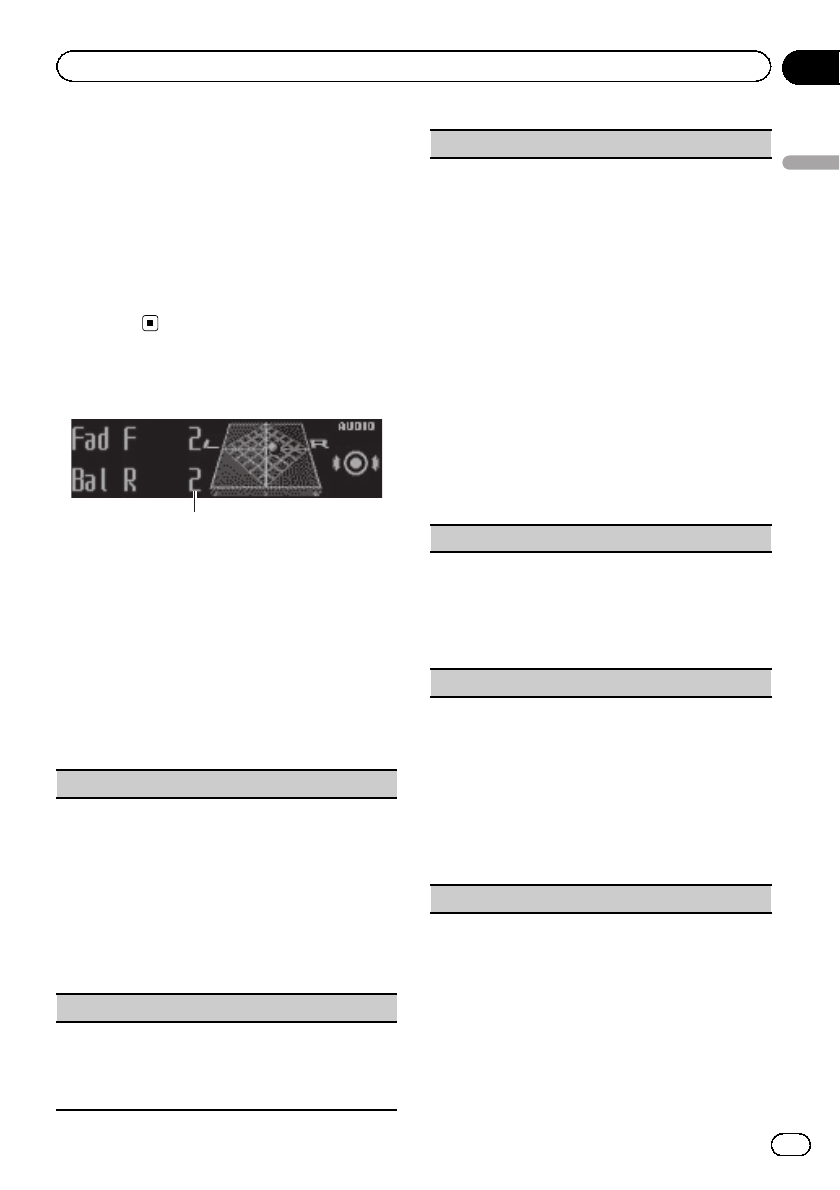
1
1Audio display
Shows the audio adjustment status.
1 Press M.C. to display the main menu.
2 Turn M.C. to change the menu option
and press to select AUDIO.
3 Turn M.C. to select the audio function.
After selecting, perform the following proce-
dures to set the audio function.
Fader/Balance (fader/balance adjustment)
1Press M.C. to display the setting mode.
2Press M.C. to cycle between fader (front/rear) and
balance (left/right).
3Turn M.C. to adjust the front/rear speaker bal-
ance.
!The front/rear speaker balance cannot be ad-
justed when the rear output setting is Rear
SP :S/W. Refer to S/W control (rear output
and subwoofer setting) on page 21.
4Turn M.C. to adjust the left/right speaker balance.
Preset EQ (equalizer recall)
1Press M.C. to display the setting mode.
2Turn M.C. to select an equalizer curve.
Powerful—Natural—Vocal—Custom1—Cus-
tom2—Flat—Super bass
G.EQ (equalizer adjustment)
You can adjust the currently selected equalizer curve
setting as desired. Adjusted equalizer curve settings
are stored in Custom1 or Custom2.
!A separate Custom1 curve can be created for
each source. If you make adjustments when a
curve other than Custom2 is selected, the equali-
zer curve settings will be stored in Custom1.
!ACustom2 curve that is common for all sources
can be created. If you make adjustments when
the Custom2 curve is selected, the Custom2
curve will be updated.
1Recall the equalizer curve you want to adjust.
2Press M.C. to display the setting mode.
3Press M.C. to cycle between equalizer band and
level.
4Turn M.C. to select the equalizer band to adjust.
100Hz—315Hz—1.25kHz—3.15kHz—8kHz
Turn M.C. to adjust the equalizer curve.
+6 to –6is displayed as the equalizer curve is in-
creased or decreased.
Loudness (loudness)
Loudness compensates for deficiencies in the low-fre-
quency and high-frequency ranges at low volume.
1Press M.C. to display the setting mode.
2Press M.C. to turn loudness on or off.
3Turn M.C. to select the desired setting.
Low (low)—Mid (mid)—High (high)
Subwoofer1 (subwoofer on/off setting)
This unit is equipped with a subwoofer output which
can be turned on or off.
1Press M.C. to display the setting mode.
2Press M.C. to turn subwoofer output on or off.
3Turn M.C. to select the phase for the subwoofer
output.
Turn M.C. to the left to select reverse phase, and
Reverse appears in the display. Turn M.C. to the
right to select normal phase, and Normal appears
in the display.
Subwoofer2 (subwoofer adjustment)
En 15
Section
02
Operating this unit
Operating this unit
The cut-off frequency and output level can be ad-
justed when the subwoofer output is on.
Only frequencies lower than those in the selected
range are outputted from the subwoofer.
1Press M.C. to display the setting mode.
2Press M.C. to cycle between the cut-off frequency
and the output level for the subwoofer.
3Turn M.C. to select the cut-off frequency.
50Hz—63Hz—80Hz—100Hz—125Hz
4Turn M.C. to adjust the output level for the sub-
woofer.
The subwoofer level increases or decreases each
time you turn M.C. +6 to –24 is displayed as the
level is increased or decreased.
Bass Booster (bass boost)
1Press M.C. to display the setting mode.
2Turn M.C. to select a desired level.
0to +6 is displayed as the level is increased or de-
creased.
HPF (high pass filter adjustment)
When you do not want low sounds from the subwoo-
fer output frequency range to play from the front or
rear speakers, turn on the HPF (high pass filter). Only
frequencies higher than those in the selected range
are output from the front or rear speakers.
1Press M.C. to display the setting mode.
2Press M.C. to turn high pass filter on or off.
3Turn M.C. to select the cut-off frequency.
50Hz—63Hz—80Hz—100Hz—125Hz
SLA (source level adjustment)
SLA (Source level adjustment) lets you adjust the vo-
lume level of each source to prevent radical changes
in volume when switching between sources.
!When selecting FM as the source, you cannot
switch to SLA.
!Settings are based on the FM volume level, which
remains unchanged.
!The MW/LW volume level can also be adjusted
with this function.
1Press M.C. to display the setting mode.
2Turn M.C. to adjust the source volume.
Adjustment range: +4 to –4
Using Bluetooth wireless
technology
Using Bluetooth telephone
Important
!Since this unit is on standby to connect with
your cellular phone via Bluetooth wireless
technology, using it without the engine run-
ning can drain the battery power.
!Operations may vary depending on the kind of
cellular phone.
!Advanced operations that require attention
such as dialing numbers on the monitor,
using the phone book, etc., are prohibited
while driving. Park your vehicle in a safe place
when using these advanced operations.
Setting up for hands-free phoning
Before you can use the hands-free phoning
function you must set up the unit for use with
your cellular phone.
1Connection
Operate the Bluetooth telephone connection
menu. Refer to Connection menu operation on the
next page.
2Function settings
Operate the Bluetooth telephone function menu.
Refer to Phone menu operation on page 19.
Basic operations
Making a phone call
!Refer to Phone menu operation on page 19.
Answering an incoming call
1When a call is received, press M.C.
Ending a call
1Press PHONE.
Rejecting an incoming call
1When a call is received, press PHONE.
Answering a call waiting
1When a call is received, press M.C.
Switching between callers on hold
1Press M.C.
En
16
Section
02 Operating this unit
Canceling call waiting
1Press PHONE.
Adjusting the other party’s listening volume
1Turn LEVER while talking on the phone.
!When private mode is on, this function is not
available.
Turning private mode on or off
1Press BAND/while talking on the phone.
Switching the information display
1Press /DISP while talking on the phone.
Notes
!If private mode is selected on the cellular
phone, hands-free phoning may not be avail-
able.
!The estimated call time appears in the display
(this may differ slightly from the actual call
time).
Connection menu operation
Important
!Be sure to park your vehicle in a safe place
and apply the parking brake when performing
this operation.
!Connected devices may not operate properly if
more than one Bluetooth device is connected
at a time (e.g. a phone and a separate audio
player are connected simultaneously).
1 Press and hold PHONE to display the
connection menu.
#You cannot operate this step during a call.
2 Turn M.C. to select the function.
After selecting, perform the following proce-
dures to set the function.
Device list (connecting or disconnecting a device
from the device list)
!When no device is selected in the device list, this
function is not available.
1Press M.C. to display the setting mode.
2Turn M.C. to select the name of a device you want
to connect/disconnect.
!Press and hold M.C. to switch the Bluetooth
device address and device name.
3Press M.C. to connect/disconnect the selected de-
vice.
Once the connection is established, Connected
is displayed.
Delete device (deleting a device from the device list)
!When no device is selected in the device list, this
function is not available.
1Press M.C. to display the setting mode.
2Turn M.C. to select the name of a device you want
to delete.
!Press and hold M.C. to switch the Bluetooth
device address and device name.
3Press M.C. to display Delete YES.
4Press M.C. to delete a device information from
the device list.
!While this function is in use, do not turn off the
engine.
Add device (connecting a new device)
1Press M.C. to start searching.
!To cancel, press M.C. while searching.
!If this unit fails to find any available cellular
phones, Not found is displayed.
2Turn M.C. to select a device from the device list.
!Press and hold M.C. to switch the Bluetooth
device address and device name.
3Press M.C. to connect the selected device.
!To complete the connection, check the device
name (Pioneer BT Unit). Enter the PIN code
on your device if necessary.
!PIN code is set to 0000 as the default. You
can change this code.
!6-digit number appears on the display of this
unit. Once the connection is established, this
number disappears.
!If you are unable to complete the connection
using this unit, use the device to connect to
the unit.
!If three devices are already paired, Device Full
is displayed and it is not possible to perform
this operation. In this case, delete a paired de-
vice first.
En 17
Section
02
Operating this unit
Operating this unit
Special device (setting a special device)
Bluetooth devices that are difficult to establish a con-
nection with are called special devices. If your
Bluetooth device is listed as a special device, select
the appropriate one.
1Press M.C. to display the setting mode.
!If three devices are already paired, Device Full
is displayed and it is not possible to perform
this operation. In this case, delete a paired de-
vice first.
2Turn M.C. to display a special device. Press to se-
lect.
3Turn M.C. to display this unit’s device name,
Bluetooth device address and PIN code.
4Use a device to connect to this unit.
!To complete the connection, check the device
name (Pioneer BT Unit) and enter the PIN
code on your device.
!PIN code is set to 0000 as the default. You
can change this code.
Auto connect (connecting to a Bluetooth device
automatically)
1Press M.C. to turn automatic connection on or
off.
Visibility (setting the visibility of this unit)
To check the availability of this unit from other de-
vices, Bluetooth visibility of this unit can be turned
on.
1Press M.C. to turn the visibility of this unit on or
off.
!While setting Special device, Bluetooth visibi-
lity of this unit is turned on temporarily.
Pin code input (PIN code input)
To connect your device to this unit via Bluetooth wire-
less technology, you need to enter a PIN code on your
device to verify the connection. The default code is
0000, but you can change it with this function.
1Press M.C. to display the setting mode.
2Turn M.C. to select a number.
3Press M.C. to move the cursor to the next posi-
tion.
4After inputting PIN code, press and hold M.C.
!After inputting, pressing M.C. returns you to
the PIN code input display, and you can
change the PIN code.
Device INFO (Bluetooth device address display)
1Press M.C. to display the setting mode.
2Turn M.C. left to switch to the Bluetooth device
address.
Turning M.C. right returns to the device name.
Bluetooth Audio
Important
!Depending on the Bluetooth audio player con-
nected to this unit, the available operations
will be limited to the following two levels:
—A2DP profile (Advanced Audio Distribution
Profile): You can only playback songs on
your audio player.
—AVRCP profile (Audio/Video Remote Con-
trol Profile): You can perform playback,
pause playback, select songs, etc.
!Since there are a number of Bluetooth audio
players available on the market, available op-
erations will vary extensively. When operating
your player with this unit, refer to the instruc-
tion manual that came with your Bluetooth
audio player as well as this manual.
!Information related to a song (such as the
elapsed playing time, song title, song index,
etc.) cannot be displayed on this unit.
!As the signal from your cellular phone may
cause noise, avoid using it when you are lis-
tening to songs on your Bluetooth audio
player.
!When a call is in progress on the cellular
phone connected to this unit via Bluetooth
wireless technology, the sound of the
Bluetooth audio player connected to this unit
is muted.
!When the Bluetooth audio player is in use,
you cannot connect to a Bluetooth telephone
automatically.
!Playback continues even if you switch from
your Bluetooth audio player to another source
while listening to a song.
En
18
Section
02 Operating this unit
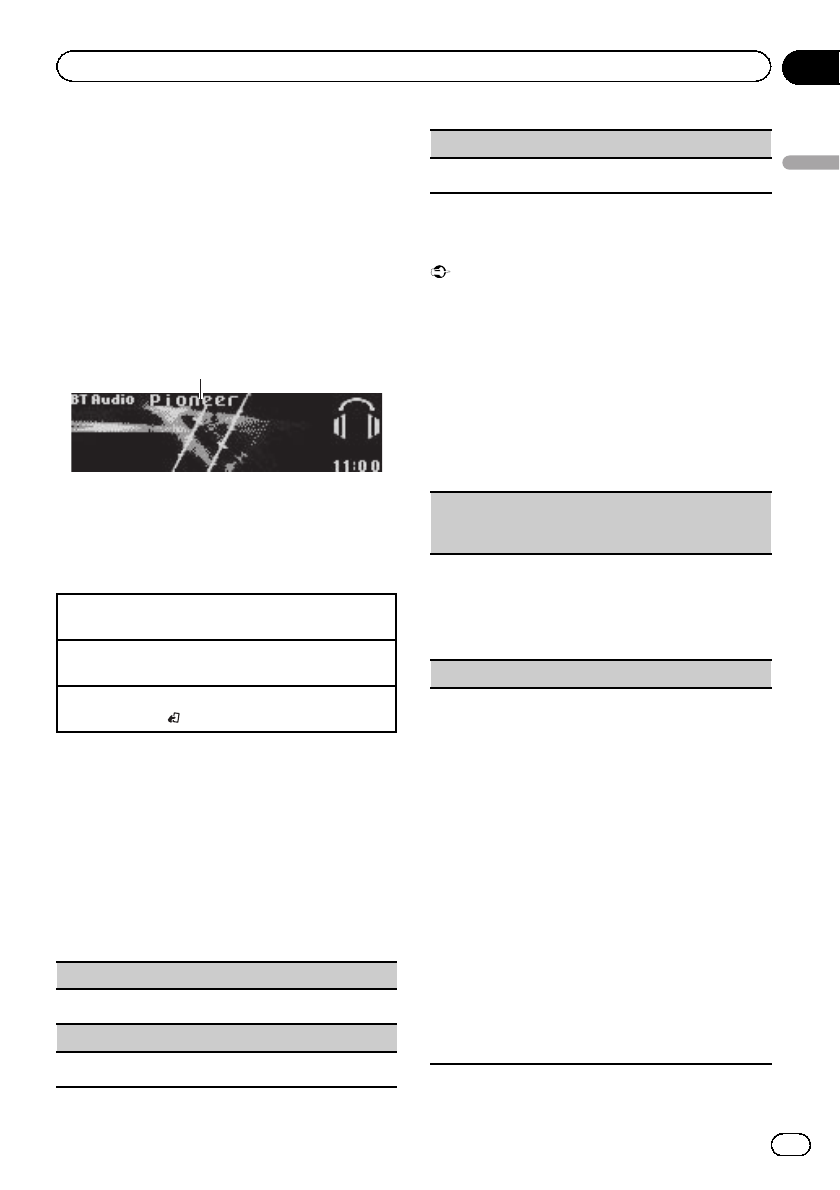
Setting up for Bluetooth audio
Before you can use the Bluetooth audio func-
tion you must set up the unit for use with your
Bluetooth audio player. This entails establish-
ing a Bluetooth wireless connection between
this unit and your Bluetooth audio player, and
pairing your Bluetooth audio player with this
unit.
Basic operations
1
1Device name
Shows the device name of the connected
Bluetooth audio player.
Fast forwarding or reversing
1Turn and hold down LEVER to the right or left.
Selecting a track
1Turn LEVER.
Starting playback
1Press BAND/.
Function settings
1 Press M.C. to display the main menu.
2 Turn M.C. to change the menu option
and press to select FUNCTION.
3 Turn M.C. to select the function.
After selecting, perform the following proce-
dures to set the function.
Play (play)
1Press M.C. to start playback.
Stop (stop)
1Press M.C. to stop the playback.
Pause (pause)
1Press M.C. to turn pause on.
Phone menu operation
Important
Be sure to park your vehicle in a safe place and
apply the parking brake when performing this op-
eration.
1 Press PHONE to display the phone
menu.
2 Turn M.C. to select the function.
After selecting, perform the following proce-
dures to set the function.
Missed calls (missed call history)
Dialed calls (dialed call history)
Received calls (received call history)
1Press M.C. to display the phone number list.
2Turn M.C. to select a name or phone number.
3Press M.C. to make a call.
!To display details about the contact you selected,
press and hold M.C.
PhoneBook (phone book)
!The phone book in your cellular phone will be
transferred automatically when the phone is con-
nected to this unit.
!Depending on the cellular phone, the phone book
may not be transferred automatically. In this case,
operate your cellular phone to transfer the phone
book. The visibility of this unit should be on. Refer
to Visibility (setting the visibility of this unit) on
the previous page.
1Press M.C. to display SEARCH (alphabetical list).
2Turn M.C. to select the first letter of the name you
are looking for.
!Press and hold M.C. to select the desired
character type.
3Press M.C. to display a registered name list.
4Turn M.C. to select the name you are looking for.
5Press M.C. to display the phone number list.
6Turn M.C. to select a phone number you want to
call.
7Press M.C. to make a call.
En 19
Section
02
Operating this unit
Operating this unit
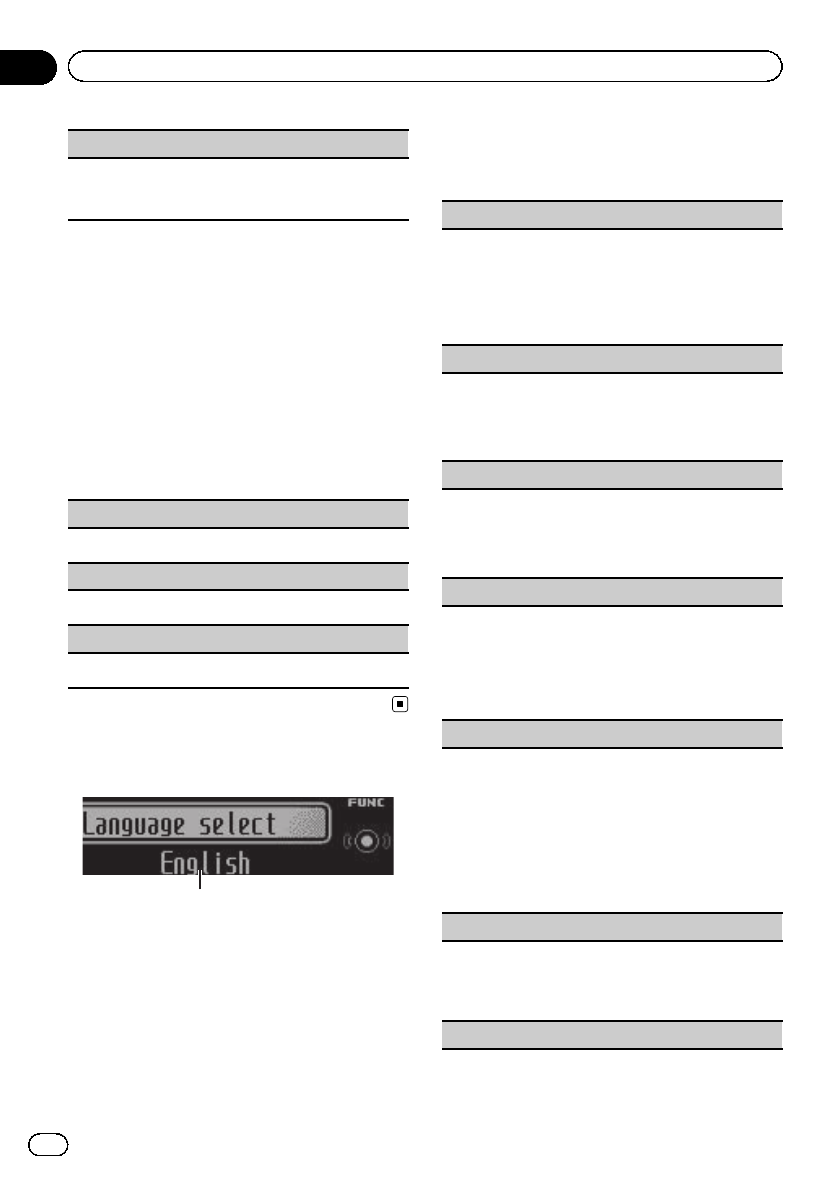
Phone Function (phone function)
You can set Auto answer,Ring tone and PH.B.
Name view from this menu. For details, refer to Func-
tion and operation on this page.
Function and operation
1 Display Phone Function.
Refer to Phone Function (phone function) on
this page.
2 Press M.C. to display the function
menu.
3 Turn M.C. to select the function.
After selecting, perform the following proce-
dures to set the function.
Auto answer (automatic answering)
1Press M.C. to turn automatic answering on or off.
Ring tone (ring tone select)
1Press M.C. to turn the ring tone on or off.
PH.B.Name view (phone book name view)
1Press M.C. to switch between the lists of names.
Initial settings
1
1Function display
!Shows the function status.
1 Press and hold SRC/OFF until the unit
turns off.
2 Press M.C. and hold until the initial set-
ting menu appears in the display.
3 Turn M.C. to select the initial setting.
After selecting, perform the following proce-
dures to set the initial setting.
Language select (multi-language)
For your convenience, this unit equips multiple lan-
guage display. You can select the language best sui-
ted to your first language.
1Press M.C. to select the language.
English—Français—Italiano—Español—
Deutsch—Nederlands—РУССКИЙ
Calendar (setting the date)
1Press M.C. to select the segment of the calendar
display you wish to set.
Year—Day—Month
2Turn M.C. to set the date.
Clock (setting the clock)
1Press M.C. to select the segment of the clock dis-
play you wish to set.
Hour—Minute
2Turn M.C. to adjust the clock.
EngineTime alert (elapsed time display setting)
This setting allows you to measure the length of time
that elapses from when the machine is turned on and
display the amount of elapsed time per set period.
Also, you will hear alarm.
1Press M.C. to select your favorite setting.
OFF—15Minutes—30Minutes
FM step (FM tuning step)
Normally, the FM tuning step setting employed for
seek tuning is 50 kHz. The tuning step changes to
100 kHz automatically when the alternative frequen-
cies search or traffic announcement standby function
is in use. It may be preferable to set the tuning step to
50 kHz when the alternative frequencies search func-
tion is on.
1Press M.C. to select the FM tuning step.
50kHz (50 kHz)—100kHz (100 kHz)
Auto PI (auto PI seek)
The unit can automatically search for a different sta-
tion with the same programming, even during preset
recall.
1Press M.C. to turn Auto PI seek on or off.
USB plug&play (plug and play)
En
20
Section
02 Operating this unit
This setting allows you to switch your source to USB/
iPod automatically.
1Press M.C. to turn the plug and play function on
or off.
!ON –When USB storage device/iPod is con-
nected, the source is automatically switched
to USB/iPod. If you disconnect your USB sto-
rage device/iPod, this unit’s source is turned
off.
!OFF –When USB storage device/iPod is con-
nected, the source does not switch to USB/
iPod automatically. Please manually change
the source to USB/iPod.
Warning tone (warning tone setting)
If the front panel is not detached from the head unit
within four seconds of turning off the ignition, a warn-
ing tone sounds. You can turn off the warning tone.
1Press M.C. to turn the warning tone on or off.
AUX (auxiliary input)
Activate this setting when using an auxiliary device
connected to this unit.
1Press M.C. to turn auxiliary setting on or off.
Dimmer (dimmer setting)
To prevent the display from being too bright at night,
the display is automatically dimmed when the car’s
headlights are turned on. You can turn the dimmer on
or off.
1Press M.C. to turn dimmer on or off.
Contrast (display contrast setting)
1Turn M.C. to adjust the contrast level.
0to 15 is displayed as the level is increased or de-
creased.
S/W control (rear output and subwoofer setting)
This unit’s rear output (rear speaker leads output and
RCA rear output) can be used for full-range speaker
(Rear SP :F.Range) or subwoofer (Rear SP :S/W) con-
nection. If you switch the rear output setting to Rear
SP :S/W, you can connect a rear speaker lead directly
to a subwoofer without using an auxiliary amp.
1Press M.C. to switch the rear output setting.
!When no subwoofer is connected to the rear
output, select Rear SP :F.Range (full-range
speaker).
!When a subwoofer is connected to the rear
output, select Rear SP :S/W (subwoofer).
!Even if you change this setting, there will be no
output unless you turn the subwoofer output on
(refer to Subwoofer1 (subwoofer on/off setting)
on page 15).
!If you change this setting, subwoofer output in
the audio menu will return to the factory settings.
!Both rear speaker lead outputs and RCA rear out-
put are switched simultaneously in this setting.
Demonstration (demo display setting)
1Press M.C. to turn the demo display on or off.
Ever-scroll (scroll mode setting)
When ever scroll is set to ON, recorded text informa-
tion scrolls continuously in the display. Set to OFF if
you prefer the information to scroll just once.
1Press M.C. to turn the ever scroll on or off.
BT AUDIO (Bluetooth audio activation)
You need to activate the BT Audio source in order to
use a Bluetooth audio player.
1Press M.C. to turn the BT Audio source on or off.
Clear memory (resetting the Bluetooth wireless tech-
nology module)
En 21
Section
02
Operating this unit
Operating this unit
Bluetooth device data can be deleted. To protect per-
sonal information, we recommend deleting this data
before transferring the unit to other persons. The fol-
lowing settings will be deleted.
!phone book entries on the Bluetooth telephone
!preset numbers on the Bluetooth telephone
!registration assignment of the Bluetooth tele-
phone
!call history of the Bluetooth telephone
!information of the connected Bluetooth telephone
!PIN code of the Bluetooth device
1Press M.C. to show the confirmation display.
YES is displayed. Clearing memory is now on
standby.
If you do not want to reset phone memory, turn
M.C. to display CANCEL and press to select.
2Press M.C. to clear the memory.
Cleared is displayed and the settings are deleted.
!While this function is in use, do not turn off
the engine.
BT Version info. (Bluetooth version display)
You can display the system versions of this unit and
of Bluetooth module.
1Press M.C. to display the information.
!Turning M.C. or LEVER cycles between the
system version of this unit and that of the
Bluetooth module.
S/W UPDATE (updating the software)
This function is used to update this unit with the lat-
est software. For information on the software and up-
dating, refer to our website.
!Never turn the unit off while the software is being
updated.
1Press M.C. to display the data transfer mode.
Follow the on-screen instructions to finish updat-
ing the software.
Other functions
Using an AUX source
1 Insert the stereo mini plug into the
AUX input jack.
2 Press SRC/OFF to select AUX as the
source.
Note
AUX cannot be selected unless the auxiliary set-
ting is turned on. For more details, refer to AUX
(auxiliary input) on the previous page.
Using different entertainment
displays
You can enjoy entertainment displays while lis-
tening to each sound source.
Advanced operations using the MIX
(MIXTRAX) button
MIXTRAX technology is used to add a variety
of sound effects between songs for arranging
the pauses between songs. It allows you to
enjoy listening to music nonstop.
Connecting the currently playing song and the next
song together with sound effects
1Press MIX to turn the MIXTRAX function on or
off.
!This function is only available when a file on an
external storage device (USB, SD) or a song on
an iPod is being played.
!This function is not available when the control
mode is set to iPod/APP.
!Depending on the file/song, sound effects may
not be enabled for adding.
!When the MIXTRAX function is turned on, the
Sound Retriever setting is turned off. Refer to
Sound Retriever (sound retriever) on page 14.
Note
MIXTRAX includes a MIXTRAX Illumination fea-
ture that when switched on changes the illumi-
nated colors in time with the audio track. If you
find the feature distracting while driving, please
return MIXTRAX Illumination to the default set-
ting of “OFF”.
Switching the display background
according to the type of music
This function is available only when the MIX-
TRAX function is on. Refer to Connecting the
currently playing song and the next song to-
gether with sound effects on this page.
En
22
Section
02 Operating this unit

1 Press M.C. to display the main menu.
2 Turn M.C. to change the menu option
and press to select ENTERTAINMENT.
3 Turn M.C. to select the function.
4 Press M.C. to display the MIXTRAX.
5 Turn M.C. to change the display.
MIXTRAX—OFF
!When MIXTRAX is selected, the illumina-
tion colors selected in Flashing Color are
displayed.
!When OFF is selected, the illumination
color selected for the Background is dis-
played.
Switching the display indication
1 Press M.C. to display the main menu.
2 Turn M.C. to change the menu option
and press to select ENTERTAINMENT.
3 Turn M.C. to select the function.
4 Press M.C. to display the Background.
5 Turn M.C. to change the display.
Background visual—genre—background pic-
ture 1—background picture 2—background
picture 3—background picture 4—simple dis-
play—movie screen —calendar
#Genre display changes depending on the
genre of music.
#Genre display may not operate correctly de-
pending on the application used to encode audio
files.
Turning the clock display on or off
1 Press M.C. to display the main menu.
2 Turn M.C. to change the menu option
and press to select ENTERTAINMENT.
3 Turn M.C. to select the function.
4 Press M.C. to select the desired setting.
Clock display—elapsed time display—clock
off
Selecting the illumination color
This unit is equipped with multiple-color illu-
mination. You can select desired colors for the
keys and display of this unit. You also can cus-
tomize the colors you want to use.
Selecting the flashing color from the
illumination color list
You can change colors for the keys and display
of this unit according to the type of music.
!This function is available only when the
MIXTRAX function is on. Refer to Connect-
ing the currently playing song and the next
song together with sound effects on the pre-
vious page.
1 Press M.C. to display the main menu.
2 Turn M.C. to change the menu option
and press to select ILLUMI.
3 Turn M.C. to display Flashing Color and
press to select.
4 Turn M.C. to select the illumination
color.
You can select one option from the following
list.
!Changing the color according to the type of
music played (You can select from Color 1
to Color 6 and Random.)
!Changing the color according to the level of
low sounds played (You can select from
Color 1 to Color 6 and Random.)
!OFF (No change.)
Selecting the key color from the
illumination color list
You can select desired colors for the keys of
this unit.
1 Press M.C. to display the main menu.
En 23
Section
02
Operating this unit
Operating this unit

2 Turn M.C. to change the menu option
and press to select ILLUMI.
3 Turn M.C. to display Key and press to
select.
4 Turn M.C. to select the illumination
color.
You can select one option from the following
list.
!27 preset colors (WHITE to ROSE)
!SCAN (cycle through all colors)
!3 sets of colors (WARM,AMBIENT,CALM)
!CUSTOM (customized illumination color)
Notes
!When SCAN is selected, the system automati-
cally cycles through the 27 preset colors.
!When WARM is selected, the system automa-
tically cycles through the warm colors.
!When AMBIENT is selected, the system auto-
matically cycles through the ambient colors.
!When CALM is selected, the system automati-
cally cycles through the calm colors.
!When CUSTOM is selected, the customized
color saved is selected.
Selecting the display color from the
illumination color list
You can select the desired colors for the dis-
play of this unit.
1 Press M.C. to display the main menu.
2 Turn M.C. to change the menu option
and press to select ILLUMI.
3 Turn M.C. to switch to Display and
press to select.
4 Turn M.C. to select the illumination
color.
You can select one option from the following
list.
!27 preset colors (WHITE to ROSE)
!SCAN (cycle through all colors)
!3 sets of colors (WARM,AMBIENT,CALM)
!CUSTOM (customized illumination color)
Note
For details about colors on the list, refer to Select-
ing the key color from the illumination color list on
the previous page.
Selecting key and display color from
the illumination color list
You can select the desired colors for the keys
and display of this unit.
1 Press M.C. to display the main menu.
2 Turn M.C. to change the menu option
and press to select ILLUMI.
3 Turn M.C. to display Key & Display and
press to select.
4 Turn M.C. to select the illumination
color.
You can select one option from the following
list.
!27 preset colors (WHITE to ROSE)
!SCAN (cycle through all colors)
!3 sets of colors (WARM,AMBIENT,CALM)
Notes
!You cannot select CUSTOM in this function.
!Once you select a color in this function, colors
on the keys and display of this unit automati-
cally switch to the color you selected.
!For details about colors on the list, refer to Se-
lecting the key color from the illumination color
list on the previous page.
Customizing the illumination color
1 Press M.C. to display the main menu.
2 Turn M.C. to change the menu option
and press to select ILLUMI.
3 Turn M.C. to display Key or Display.
Press to select.
4 Press M.C. and hold until the customiz-
ing illumination color setting appears in
the display.
En
24
Section
02 Operating this unit

5 Press M.C. to select the primary color.
R(red)—G(green)—B(blue)
6 Turn M.C. to adjust the brightness level.
Adjustment range: 0to 60
#You cannot select a level below 20 for all three
of R(red), G(green), and B(blue) at the same
time.
#You can also perform the same operation on
other colors.
Notes
!You cannot create a custom illumination color
when SCAN or a set of colors (WARM,
AMBIENT,orCALM) is selected.
!You can create custom illumination colors for
both Key and Display.
En 25
Section
02
Operating this unit
Operating this unit
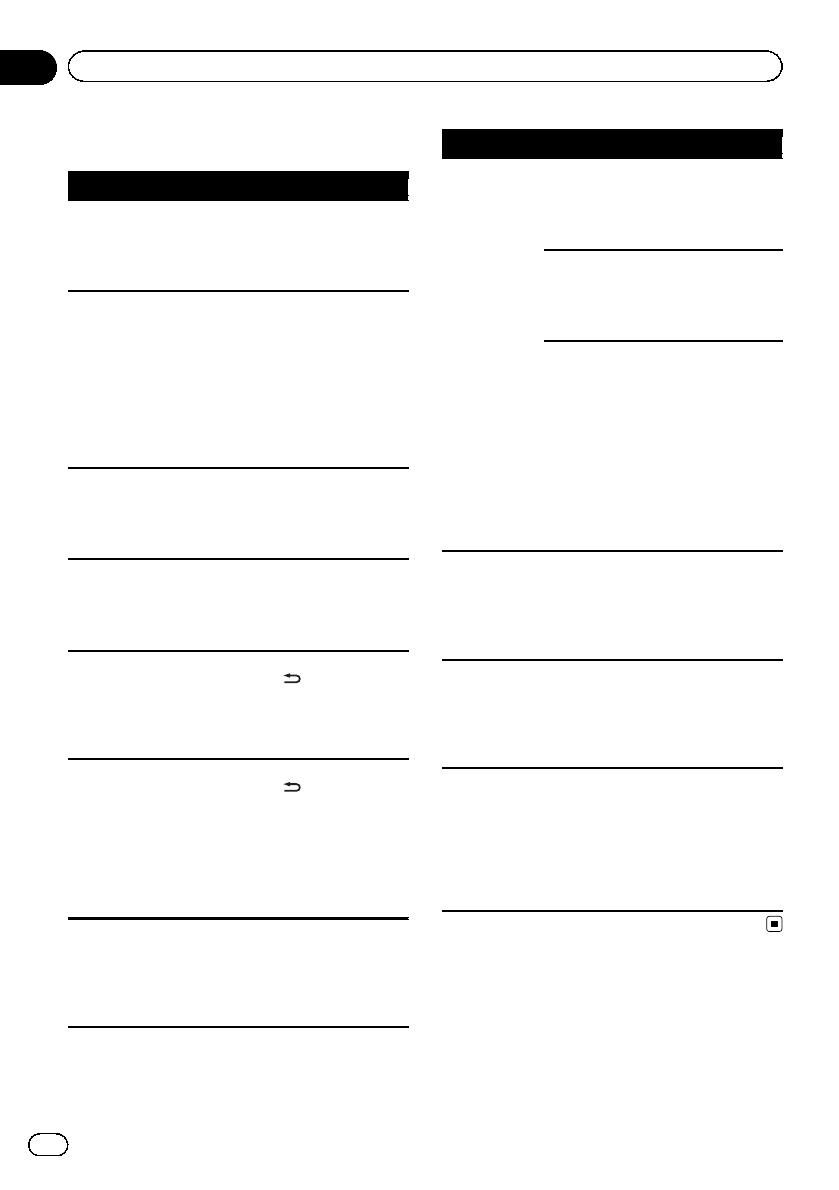
Troubleshooting
Symptom Cause Action
The display
automatically
returns to the
ordinary dis-
play.
You did not per-
form any opera-
tion within about
30 seconds.
Perform operation
again.
The repeat play
range changes
unexpectedly.
Depending on
the repeat play
range, the se-
lected range may
change when an-
other folder or
track is being se-
lected or during
fast forwarding/
reversing.
Select the repeat
play range again.
A subfolder is
not played
back.
Subfolders can-
not be played
when Folder re-
peat (folder re-
peat) is selected.
Select another re-
peat play range.
NO XXXX ap-
pears when a
display is chan-
ged (NO TITLE,
for example).
There is no em-
bedded text infor-
mation.
Switch the display
or play another
track/file.
The display
screen
changes at ran-
dom.
Demo mode is
on.
!Press and hold
/DISP to cancel
demo mode.
!Turn off the
demo display set-
ting.
The display
screen
changes at ran-
dom instead of
displaying the
clock continu-
ously even with
the clock dis-
play turned on.
Demo mode is
on.
!Press and hold
/DISP to cancel
demo mode.
!Turn off the
demo display set-
ting.
The unit is mal-
functioning.
There is inter-
ference.
You are using a
device, such as a
cellular phone,
that transmits
electric waves
near the unit.
Move electrical de-
vices that may be
causing the inter-
ference away from
the unit.
Symptom Cause Action
The sound
from the
Bluetooth
audio source is
not played
back.
There is a call in
progress on a
Bluetooth con-
nected cellular
phone.
The sound will be
played back when
the call is termi-
nated.
A Bluetooth con-
nected cellular
phone is cur-
rently being oper-
ated.
Do not operate the
cellular phone at
this time.
A call was made
with a Bluetooth
connected cellu-
lar phone and
then immediately
terminated. As a
result, communi-
cation between
this unit and the
cellular phone
was not termi-
nated properly.
Reconnect the
Bluetooth connec-
tion between this
unit and the cellu-
lar phone.
Text informa-
tion cannot be
scrolled.
Display scrolling
is stopped auto-
matically when
the temperature
around this unit
is 10°C or less.
Wait until it warms
back up.
Movie playback
is stopped and
the simple dis-
play appears.
Movie playback
is stopped auto-
matically when
the temperature
around this unit
is 10°C or less.
Wait until it warms
back up.
Sound from the
iPod cannot be
heard.
The audio output
direction may
switch automati-
cally when the
Bluetooth and
USB connections
are used at the
same time.
Use the iPod to
change the audio
output direction.
Error messages
When you contact your dealer or your nearest
Pioneer Service Center, be sure to note the
error message.
En
26
Appendix
Additional information
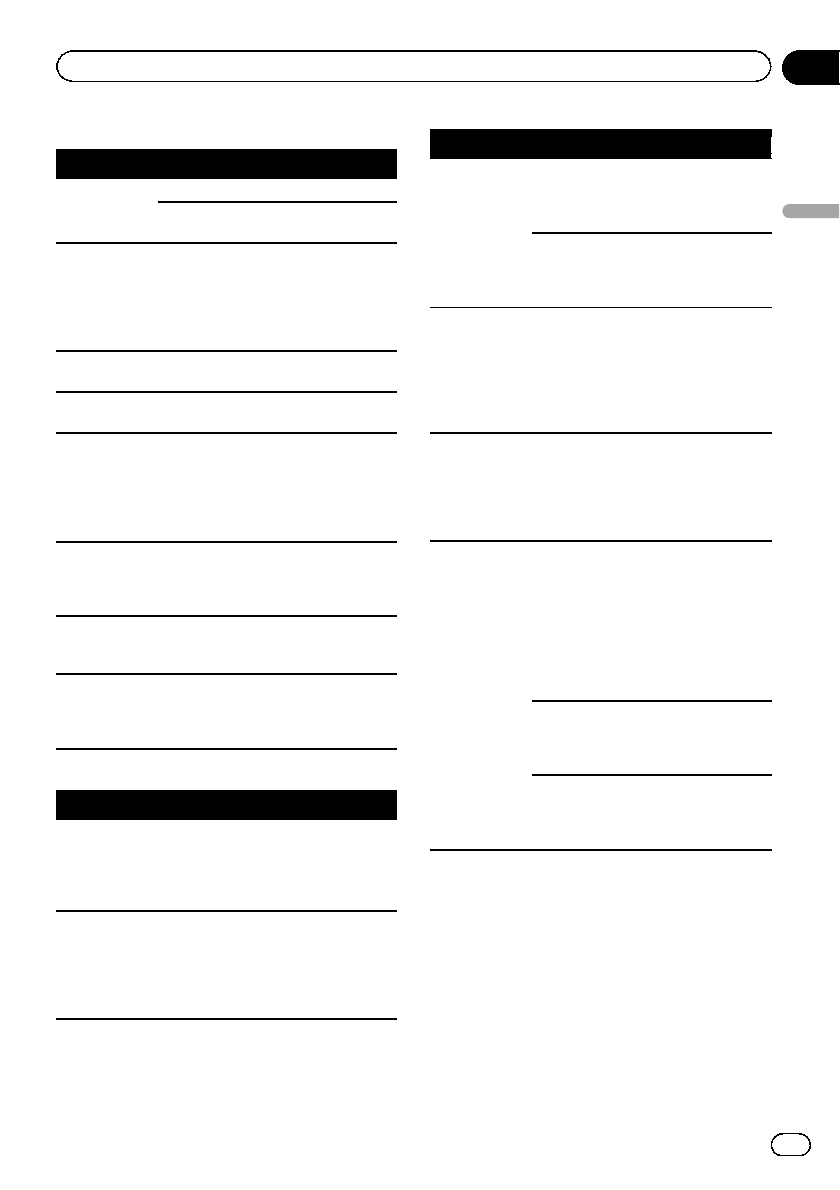
CD player
Message Cause Action
ERROR-07, 11,
12, 17, 30
The disc is dirty. Clean the disc.
The disc is
scratched.
Replace the disc.
ERROR-10, 11,
12, 15, 17, 30,
A0
There is an elec-
trical or mechan-
ical error.
Turn the ignition
switch OFF and
back ON, or switch
to a different
source, then back
to the CD player.
ERROR-15 The inserted disc
is blank.
Replace the disc.
ERROR-23 Unsupported CD
format.
Replace the disc.
FORMAT
READ
Sometimes there
is a delay be-
tween the start of
playback and
when you start to
hear any sound.
Wait until the mes-
sage disappears
and you hear
sound.
NO AUDIO The inserted disc
does not contain
any playable
files.
Replace the disc.
SKIPPED The inserted disc
contains DRM
protected files.
Replace the disc.
PROTECT All the files on
the inserted disc
are embedded
with DRM.
Replace the disc.
External storage device (USB, SD)/iPod
Message Cause Action
NO DEVICE When plug and
play is off, no
USB storage de-
vice or iPod is
connected.
!Turn the plug
and play on.
!Connect a com-
patible USB sto-
rage device/iPod.
FORMAT
READ
Sometimes there
is a delay be-
tween the start of
playback and
when you start to
hear any sound.
Wait until the mes-
sage disappears
and you hear
sound.
Message Cause Action
NO AUDIO There are no
songs.
Transfer the audio
files to the USB
storage device and
connect.
The connected
USB storage de-
vice has security
enabled.
Follow the USB
storage device in-
structions to dis-
able the security.
SKIPPED The connected
USB storage de-
vice contains
files embedded
with Windows
MediaäDRM 9/
10.
Play an audio file
not embedded with
Windows Media
DRM 9/10.
PROTECT All the files in the
USB storage de-
vice are em-
bedded with
Windows Media
DRM 9/10.
Transfer audio files
not embedded with
Windows Media
DRM 9/10 to the
USB storage de-
vice and connect.
NOT COMPA-
TIBLE
The USB device
connected to is
not supported by
this unit.
!Connect a USB
Mass Storage
Class compliant
device.
!Disconnect your
device and replace
it with a compati-
ble USB storage
device.
Non-compatible
iPod
Disconnect your
device and replace
it with a compati-
ble iPod.
Non-compatible
SD storage de-
vice
Remove your de-
vice and replace it
with a compatible
SD storage device.
En 27
Appendix
Additional information
Additional information
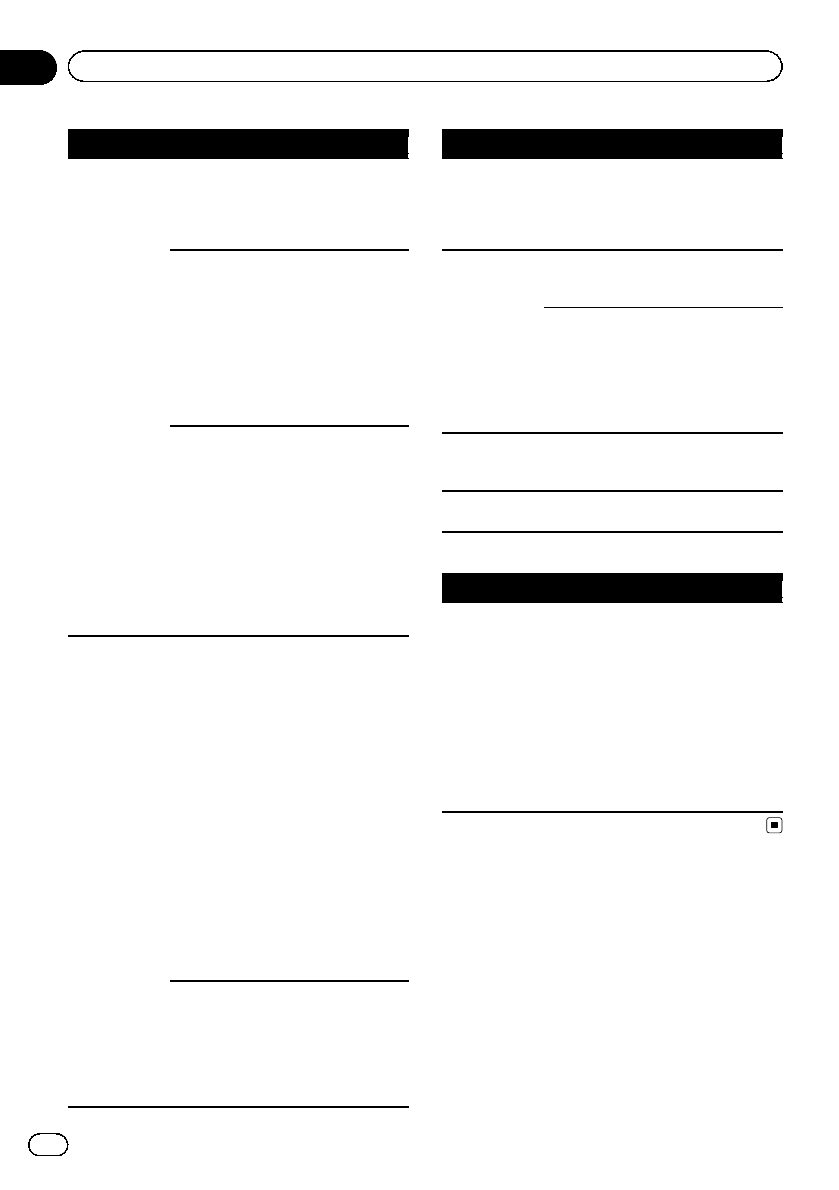
Message Cause Action
CHECK USB The USB connec-
tor or USB cable
has short-
circuited.
Check that the
USB connector or
USB cable is not
caught in some-
thing or damaged.
The connected
USB storage de-
vice consumes
more than
500 mA (maxi-
mum allowable
current).
Disconnect the
USB storage de-
vice and do not
use it. Turn the
ignition switch to
OFF, then to ACC
or ON and then
connect only com-
pliant USB storage
devices.
The iPod oper-
ates correctly but
does not charge.
Make sure the con-
nection cable for
the iPod has not
shorted out (e.g.,
not caught in
metal objects).
After checking,
turn the ignition
switch OFF and
back ON, or dis-
connect the iPod
and reconnect.
ERROR-19 Communication
failed.
!Perform one of
the following op-
erations.
–Turn the ignition
switch OFF and
back ON.
–Disconnect or
eject the external
storage device.
–Change to a dif-
ferent source.
Then, return to the
USB or SD source.
!Disconnect the
cable from the
iPod. Once the
iPod’s main menu
is displayed, recon-
nect the iPod and
reset it.
iPod failure. Disconnect the
cable from the
iPod. Once the
iPod’s main menu
is displayed, recon-
nect the iPod and
reset it.
Message Cause Action
ERROR-23 USB storage de-
vice was not for-
matted with
FAT12, FAT16 or
FAT32.
USB storage de-
vice should be for-
matted with FAT12,
FAT16 or FAT32.
ERROR-16 The iPod firm-
ware version is
old.
Update the iPod
version.
iPod failure. Disconnect the
cable from the
iPod. Once the
iPod’s main menu
is displayed, recon-
nect the iPod and
reset it.
STOP There are no
songs in the cur-
rent list.
Select a list that
contains songs.
Not found No related
songs.
Transfer songs to
the iPod.
Bluetooth device
Message Cause Action
ERROR-10 The power failed
for the Bluetooth
module of this
unit.
Turn the ignition
switch OFF and
then to ACC or ON.
If the error mes-
sage is still dis-
played after
performing the
above action,
please contact
your dealer or an
authorized Pioneer
Service Station.
En
28
Appendix
Additional information
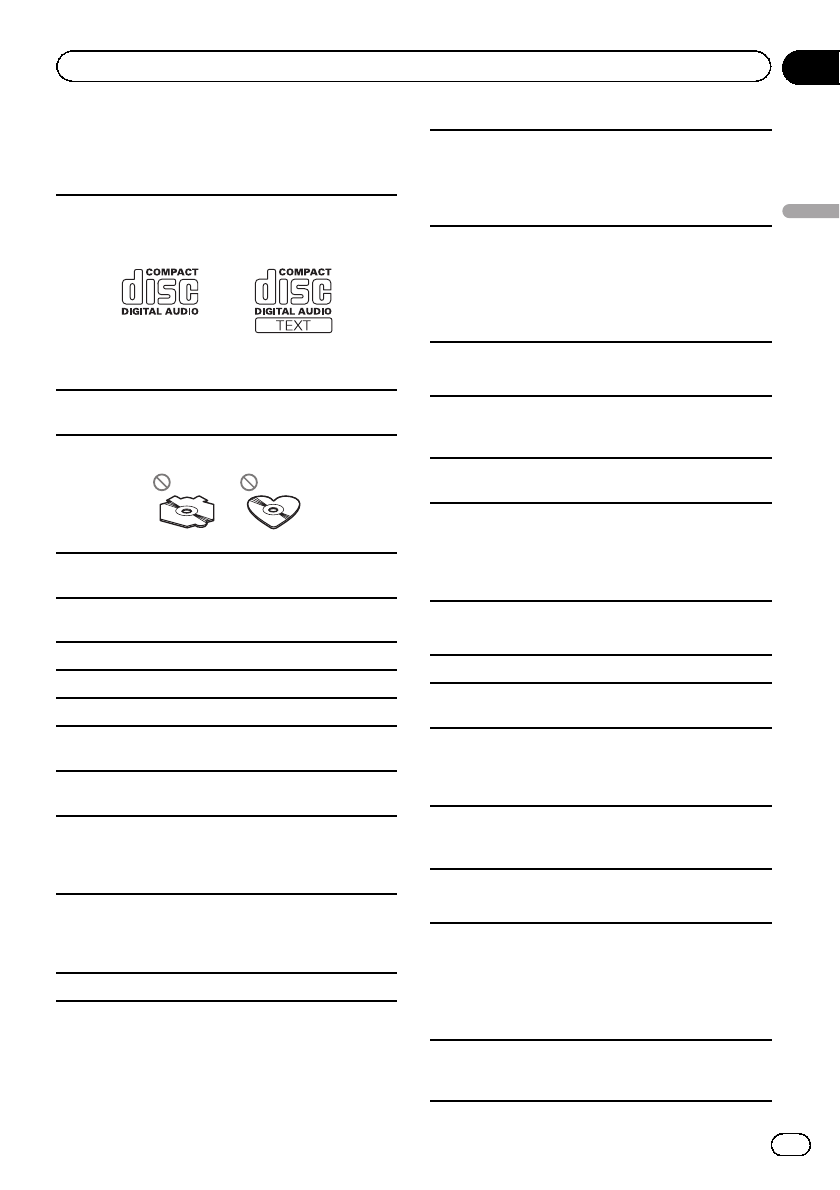
Handling guidelines
Discs and player
Use only discs that feature either of the following two
logos.
Use 12-cm discs. Do not use 8-cm discs or an adapter
for 8-cm discs.
Use only conventional, fully circular discs. Do not use
shaped discs.
Do not insert anything other than a CD into the CD
loading slot.
Do not use cracked, chipped, warped, or otherwise
damaged discs as they may damage the player.
Unfinalized CD-R/RW discs cannot be played back.
Do not touch the recorded surface of the discs.
Store discs in their cases when not in use.
Do not attach labels, write on or apply chemicals to
the surface of the discs.
To clean a CD, wipe the disc with a soft cloth outward
from the center.
Condensation may temporarily impair the player’s
performance. Let it rest for about one hour to adjust
to a warmer temperature. Also, wipe any damp discs
off with a soft cloth.
Playback of discs may not be possible because of
disc characteristics, disc format, recorded applica-
tion, playback environment, storage conditions, and
so on.
Road shocks may interrupt disc playback.
When using discs that can be printed on label sur-
faces, check the instructions and the warnings of the
discs. Depending on the discs, inserting and ejecting
may not be possible. Using such discs may result in
damage to this equipment.
Do not attach commercially available labels or other
materials to the discs.
!The discs may warp making the disc unplayable.
!The labels may come off during playback and pre-
vent ejection of the discs, which may result in da-
mage to the equipment.
External storage device (USB, SD)
Address any questions you have about your external
storage device (USB, SD) to the manufacturer of the
device.
Do not leave the external storage device (USB, SD) in
places with high temperatures.
Depending on the external storage device (USB, SD),
the following problems may occur.
!Operations may vary.
!The storage device may not be recognized.
!Files may not be played back properly.
USB storage device
Connections via USB hub are not supported.
Do not connect anything other than a USB storage
device.
Firmly secure the USB storage device when driving.
Do not let the USB storage device fall onto the floor,
where it may become jammed under the brake or ac-
celerator pedal.
Depending on the USB storage device, the following
problems may occur.
!The device may generate noise in the radio.
SD memory card
This unit supports only the following types of SD
memory cards.
!SD
!miniSD
!microSD
!SDHC
Keep the SD memory card out of the reach of chil-
dren. Should the SD memory card be swallowed, con-
sult a doctor immediately.
En 29
Appendix
Additional information
Additional information
Do not touch the connectors of the SD memory card
directly with your fingers or with any metal device.
Do not insert anything other than an SD memory card
into the SD card slot. If a metal object (such as a
coin) is inserted into the slot, the internal circuits may
break and cause malfunctions.
When inserting a miniSD or microSD, use an adapter.
Do not use an adapter which has metal parts other
than the connectors exposed.
Do not insert a damaged SD memory card (e.g.
warped, label peeled off) as it may not be ejected
from the slot.
Do not try to force an SD memory card into the SD
card slot as the card or this unit may be damaged.
When ejecting an SD memory card, press it and hold
it until it clicks. It is dangerous for you to release your
finger immediately after you press on the card as the
card may shoot out of the slot and hit you in the face,
etc. If the card shoots out of the slot, it may become
lost.
iPod
To ensure proper operation, connect the dock connec-
tor cable from the iPod directly to this unit.
Firmly secure the iPod when driving. Do not let the
iPod fall onto the floor, where it may become jammed
under the brake or accelerator pedal.
About iPod settings
!When an iPod is connected, this unit changes the
EQ (equalizer) setting of the iPod to off in order to
optimize the acoustics. When you disconnect the
iPod, the EQ returns to the original setting.
!You cannot set Repeat to off on the iPod when
using this unit. Repeat is automatically changed
to All when the iPod is connected to this unit.
Incompatible text saved on the iPod will not be dis-
played by the unit.
DualDiscs
DualDiscs are two-sided discs that have a recordable
CD for audio on one side and a recordable DVD for
video on the other.
Since the CD side of DualDiscs is not physically com-
patible with the general CD standard, it may not be
possible to play the CD side with this unit.
Frequent loading and ejecting of a DualDisc may re-
sult in scratches on the disc. Serious scratches can
lead to playback problems on this unit. In some
cases, a DualDisc may become stuck in the disc load-
ing slot and will not eject. To prevent this, we recom-
mend you refrain from using DualDisc with this unit.
Please refer to the information from the disc manu-
facturer for more detailed information about
DualDiscs.
CAUTION
Do not leave the discs/external storage device
(USB, SD) or iPod in places with high
temperatures.
Compressed audio
compatibility (disc, USB, SD)
WMA
File extension: .wma
Bit rate: 48 kbps to 320 kbps (CBR), 48 kbps to
384 kbps (VBR)
Sampling frequency: 32 kHz, 44.1 kHz, 48 kHz
Windows Media Audio Professional, Lossless, Voice/
DRM Stream/Stream with video: Not compatible
MP3
File extension: .mp3
Bit rate: 8 kbps to 320 kbps (CBR), VBR
Sampling frequency: 8 kHz to 48 kHz (32 kHz, 44.1 kHz,
48 kHz for emphasis)
Compatible ID3 tag version: 1.0, 1.1, 2.2, 2.3, 2.4 (ID3
tag Version 2.x is given priority over Version 1.x.)
M3u playlist: Not compatible
MP3i (MP3 interactive), mp3 PRO: Not compatible
WAV
File extension: .wav
Quantization bits: 8 and 16 (LPCM), 4 (MS ADPCM)
Sampling frequency: 16 kHz to 48 kHz (LPCM),
22.05 kHz and 44.1 kHz (MS ADPCM)
En
30
Appendix
Additional information
AAC
Compatible format: AAC encoded by iTunes
File extension: .m4a
Sampling frequency: 11.025 kHz to 48 kHz
Transmission rate: 16 kbps to 320 kbps, VBR
Apple Lossless: Not compatible
AAC file bought from the iTunes Store (.m4p file ex-
tension): Not compatible
Supplemental information
Only the first 32 characters can be displayed as a file
name (including the file extension) or a folder name.
This unit may not operate correctly depending on the
application used to encode WMA files.
There may be a slight delay at the start of playback of
audio files embedded with image data or audio files
stored on a USB storage device that has numerous
folder hierarchies.
Russian text to be displayed on this unit should be en-
coded in one of the following character sets:
!Unicode (UTF-8, UTF-16)
!A character set other than Unicode that is used in
a Windows environment and is set to Russian in
the multi-language setting
Disc
Playable folder hierarchy: up to eight tiers (A practical
hierarchy is less than two tiers).
Playable folders: up to 99
Playable files: up to 999
File system: ISO 9660 Level 1 and 2, Romeo, Joliet
Multi-session playback: Compatible
Packet write data transfer: Not compatible
Regardless of the length of blank sections between
the songs from the original recording, compressed
audio discs play with a short pause between songs.
External storage device (USB, SD)
Playable folder hierarchy: up to eight tiers (A practical
hierarchy is less than two tiers).
Playable folders: up to 1 500
Playable files: up to 15 000
Playback of copyright-protected files: Not compatible
Partitioned external storage device (USB, SD): Only
the first playable partition can be played.
There may be a slight delay when starting playback of
audio files on a USB storage device with numerous
folder hierarchies.
SD memory card
There is no compatibility for Multi Media Cards
(MMC).
Compatibility with all SD memory cards is not guaran-
teed.
This unit is not compatible with SD-Audio.
CAUTION
!Pioneer accepts no responsibility for data lost
on USB memory/USB portable audio players/
SD memory cards/SDHC memory cards, even
if that data is lost while this unit is used.
!Pioneer cannot guarantee compatibility with
all USB mass storage devices and assumes
no responsibility for any loss of data on media
players, smart phones, or other devices while
using this product.
En 31
Appendix
Additional information
Additional information
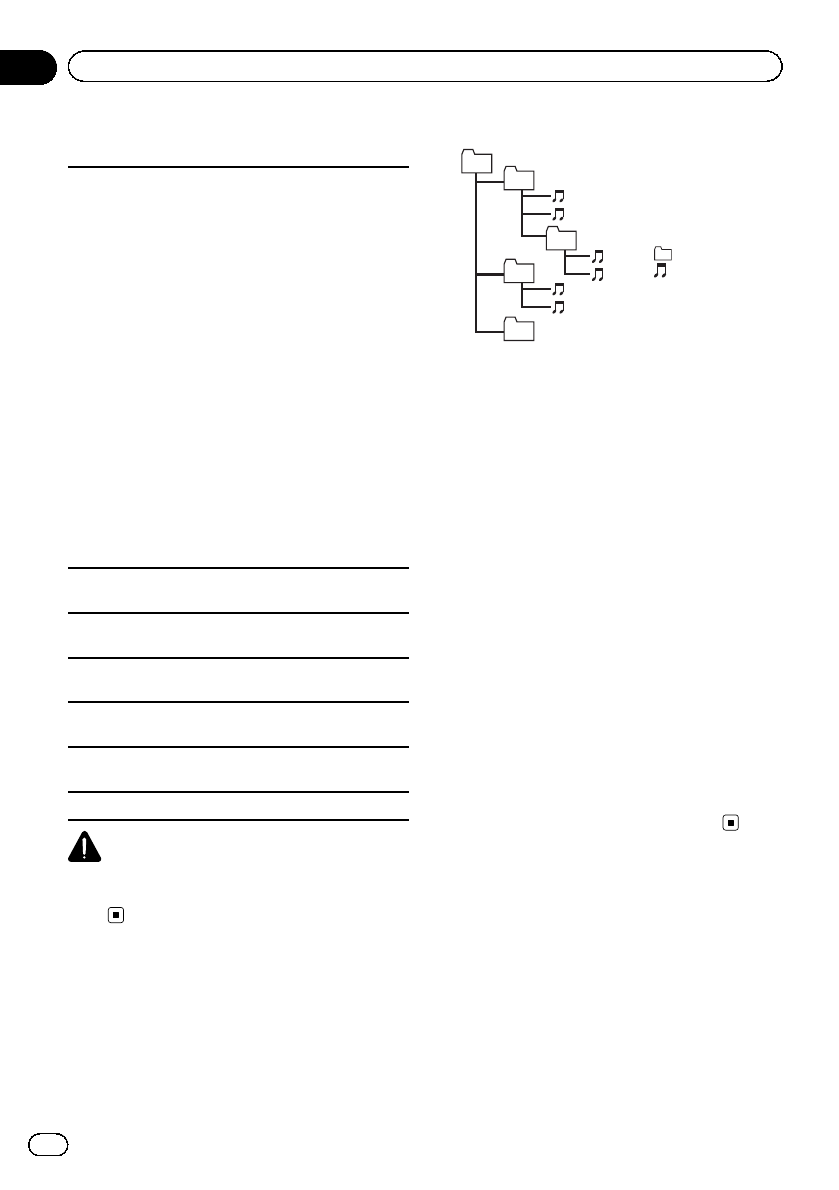
iPod compatibility
This unit supports only the following iPod models.
Supported iPod software versions are shown below.
Older versions may not be supported.
Made for
!iPod touch 4th generation (software version 4.1)
!iPod touch 3rd generation (software version 3.1.1)
!iPod touch 2nd generation (software version 2.1.1)
!iPod touch 1st generation (software version 1.1)
!iPod classic 160GB (software version 2.0.2)
!iPod classic 120GB (software version 2.0)
!iPod classic (software version 1.0)
!iPod with video (software version 1.2.3)
!iPod nano 6th generation (software version 1.0)
!iPod nano 5th generation (software version 1.0.1)
!iPod nano 4th generation (software version 1.0)
!iPod nano 3rd generation (software version 1.0)
!iPod nano 2nd generation (software version 1.1.3)
!iPod nano 1st generation (software version 1.3.1)
!iPhone 4 (software version 4.1)
!iPhone 3GS (software version 3.0)
!iPhone 3G (software version 2.0)
!iPhone (software version 1.1.1)
Depending on the generation or version of the iPod,
some functions may not be available.
Operations may vary depending on the software ver-
sion of iPod.
When using an iPod, an iPod Dock Connector to USB
Cable is required.
A Pioneer CD-IU51 interface cable is also available.
For details, consult your dealer.
About the file/format compatibility, refer to the iPod
manuals.
Audiobook, Podcast: Compatible
CAUTION
Pioneer accepts no responsibility for data lost on
the iPod, even if that data is lost while this unit is
used.
Sequence of audio files
The user cannot assign folder numbers and
specify playback sequences with this unit.
Example of a hierarchy
Level 1 Level 2 Level 3 Level 4
01
02
03
04
05
: Folder
: Compressed
audio file
01 to 05: Folder
number
1to 6: Playback
sequence
Disc
Folder selection sequence or other operation
may differ depending on the encoding or writ-
ing software.
External storage device (USB, SD)
The playback sequence is the same as the re-
corded sequence in the external storage de-
vice (USB, SD).
To specify the playback sequence, the follow-
ing method is recommended.
1Create a file name that includes numbers that
specify the playback sequence (e.g.,
001xxx.mp3 and 099yyy.mp3).
2Put those files into a folder.
3Save the folder that contains the files to the
external storage device (USB, SD).
However, depending on the system environ-
ment, you may not be able to specify the play-
back sequence.
For USB portable audio players, the sequence
is different and depends on the player.
Bluetooth profiles
In order to use Bluetooth wireless technology,
devices must be able to interpret certain pro-
files. This unit is compatible with the following
profiles.
!GAP (Generic Access Profile)
!SDP (Service Discovery Protocol)
!OPP (Object Push Profile)
!HFP (Hands Free Profile)
!HSP (Head Set Profile)
En
32
Appendix
Additional information
!PBAP (Phone Book Access Profile)
!A2DP (Advanced Audio Distribution Pro-
file)
!AVP (Audio/Video Profile)
!AVRCP (Audio/Video Remote Control Pro-
file) 1.0
Copyright and trademark
Bluetooth
The Bluetoothâword mark and logos are regis-
tered trademarks owned by Bluetooth SIG, Inc.
and any use of such marks by PIONEER COR-
PORATION is under license. Other trademarks
and trade names are those of their respective
owners.
iTunes
Apple and iTunes are trademarks of Apple
Inc., registered in the U.S. and other coun-
tries.
MP3
Supply of this product only conveys a license
for private, non-commercial use and does not
convey a license nor imply any right to use
this product in any commercial (i.e. revenue-
generating) real time broadcasting (terrestrial,
satellite, cable and/or any other media), broad-
casting/streaming via internet, intranets and/
or other networks or in other electronic con-
tent distribution systems, such as pay-audio or
audio-on-demand applications. An indepen-
dent license for such use is required. For de-
tails, please visit
http://www.mp3licensing.com.
WMA
Windows Media is either a registered trade-
mark or trademark of Microsoft Corporation in
the United States and/or other countries.
This product includes technology owned by
Microsoft Corporation and cannot be used or
distributed without a license from Microsoft
Licensing, Inc.
SD memory card
SD Logo is a trademark of SD-3C, LLC.
miniSD Logo is a trademark of SD-3C, LLC.
microSD Logo is a trademark of SD-3C, LLC.
SDHC Logo is a trademark of SD-3C, LLC.
iPod & iPhone
iPhone, iPod, iPod classic, iPod nano, and
iPod touch are trademarks of Apple Inc., regis-
tered in the U.S. and other countries.
“Made for iPod”and “Made for iPhone”mean
that an electronic accessory has been de-
signed to connect specifically to iPod or
iPhone, respectively, and has been certified by
the developer to meet Apple performance
standards. Apple is not responsible for the op-
eration of this device or its compliance with
safety and regulatory standards. Please note
that the use of this accessory with iPod or
iPhone may affect wireless performance.
MIXTRAX
MIXTRAX is a trademark of the PIONEER
CORPORATION.
En 33
Appendix
Additional information
Additional information

Specifications
General
Power source ............................. 14.4 V DC (10.8 V to 15.1 V
allowable)
Grounding system ................... Negative type
Maximum current consumption
..................................................... 10.0 A
Dimensions (W × H × D):
DIN
Chassis ..................... 178 mm × 50 mm ×
165 mm
Nose ........................... 188 mm × 58 mm × 18 mm
D
Chassis ..................... 178 mm × 50 mm ×
165 mm
Nose ........................... 170 mm × 46 mm × 18 mm
Weight .......................................... 1.2 kg
Audio
Maximum power output ....... 50 W × 4
50 W × 2/4 W+70W×1/
2W(for subwoofer)
Continuous power output ... 22 W × 4 (50 Hz to
15 000 Hz, 5 % THD,
4Wload, both channels dri-
ven)
Load impedance ...................... 4Wto 8 W×4
4Wto 8 W×2+2W×1
Preout maximum output level
..................................................... 4.0 V
Equalizer (5-Band Graphic Equalizer):
Frequency .......................... 100 Hz/315 Hz/1.25 kHz/
3.15 kHz/8 kHz
Gain ...................................... ±12 dB
HPF:
Frequency .......................... 50 Hz/63 Hz/80 Hz/100 Hz/
125 Hz
Slope .................................... –12 dB/oct
Subwoofer (mono):
Frequency .......................... 50 Hz/63 Hz/80 Hz/100 Hz/
125 Hz
Slope .................................... –18 dB/oct
Gain ...................................... +6 dB to –24 dB
Phase .................................. Normal/Reverse
Bass boost:
Gain ...................................... +12 dB to 0 dB
CD player
System .......................................... Compact disc audio system
Usable discs .............................. Compact disc
Signal-to-noise ratio ............... 94 dB (1 kHz) (IEC-A net-
work)
Number of channels .............. 2 (stereo)
MP3 decoding format ........... MPEG-1 & 2 Audio Layer 3
WMA decoding format ......... Ver. 7, 7.1, 8, 9, 10, 11, 12
(2 ch audio)
(Windows Media Player)
AAC decoding format ............ MPEG-4 AAC (iTunes en-
coded only) (.m4a)
(Ver. 9.2 and earlier)
WAV signal format .................. Linear PCM & MS ADPCM
(Non-compressed)
USB
USB standard specification
..................................................... USB 2.0 full speed
Maximum current supply .... 1A
USB Class ................................... MSC (Mass Storage Class)
File system .................................. FAT12, FAT16, FAT32
MP3 decoding format ........... MPEG-1 & 2 Audio Layer 3
WMA decoding format ......... Ver. 7, 7.1, 8, 9, 10, 11, 12
(2 ch audio)
(Windows Media Player)
AAC decoding format ............ MPEG-4 AAC (iTunes en-
coded only) (.m4a)
(Ver. 9.2 and earlier)
WAV signal format .................. Linear PCM & MS ADPCM
(Non-compressed)
SD
Compatible physical format
..................................................... Version 2.00
Maximum memory capacity
..................................................... 32 GB (for SD and SDHC)
File system .................................. FAT12, FAT16, FAT32
MP3 decoding format ........... MPEG-1 & 2 Audio Layer 3
WMA decoding format ......... Ver. 7, 7.1, 8, 9, 10, 11, 12
(2 ch audio)
(Windows Media Player)
AAC decoding format ............ MPEG-4 AAC (iTunes en-
coded only) (.m4a)
(Ver. 9.2 and earlier)
WAV signal format .................. Linear PCM & MS ADPCM
(Non-compressed)
FM tuner
Frequency range ...................... 87.5 MHz to 108.0 MHz
Usable sensitivity ..................... 9 dBf (0.8 µV/75 W, mono,
S/N: 30 dB)
Signal-to-noise ratio ............... 72 dB (IEC-A network)
MW tuner
Frequency range ...................... 531 kHz to 1 602 kHz (9 kHz)
Usable sensitivity ..................... 25 µV (S/N: 20 dB)
Signal-to-noise ratio ............... 62 dB (IEC-A network)
LW tuner
Frequency range ...................... 153 kHz to 281 kHz
Usable sensitivity ..................... 28 µV (S/N: 20 dB)
Signal-to-noise ratio ............... 62 dB (IEC-A network)
Bluetooth
Version .......................................... Bluetooth 3.0 certified
Output power ............................ +4 dBm Maximum
(Power class 2)
Note
Specifications and the design are subject to mod-
ifications without notice.
En
34
Appendix
Additional information

En 35

PIONEER CORPORATION
1-1, Shin-ogura, Saiwai-ku, Kawasaki-shi,
Kanagawa 212-0031, JAPAN
PIONEER ELECTRONICS (USA) INC.
P.O. Box 1540, Long Beach, California 90801-1540, U.S.A.
TEL: (800) 421-1404
PIONEER EUROPE NV
Haven 1087, Keetberglaan 1, B-9120 Melsele, Belgium/Belgique
TEL: (0) 3/570.05.11
PIONEER ELECTRONICS ASIACENTRE PTE. LTD.
253 Alexandra Road, #04-01, Singapore 159936
TEL: 65-6472-7555
PIONEER ELECTRONICS AUSTRALIA PTY. LTD.
5 Arco Lane, Heatherton, Victoria, 3202 Australia
TEL: (03) 9586-6300
PIONEER ELECTRONICS OF CANADA, INC.
340 Ferrier Street, Unit 2, Markham, Ontario L3R 2Z5, Canada
TEL: 1-877-283-5901
TEL: 905-479-4411
PIONEER ELECTRONICS DE MEXICO, S.A. de C.V.
Blvd.Manuel Avila Camacho 138 10 piso
Col.Lomas de Chapultepec, Mexico, D.F. 11000
TEL: 55-9178-4270
先鋒股份有限公司
台北市內湖區瑞光路407號8樓
電話:(02) 2657-3588
先鋒電子(香港)有限公司
香港九龍長沙灣道909號5樓
電話:(0852) 2848-6488
ã2011 PIONEER CORPORATION.
All rights reserved.
<YRB5235-B> EW
<KYTZX> <11J00000>
