Pioneer Dvd Map Avic D1 Users Manual CRB2089A_English
If not then 243552417AVICD1OperationManual Manual: ://www.pioneerelectronics.com/pio/pe/images/portal/cit_11221/243552417AVICD1OperationManual
avicd1 937379d6-18c4-0ab4-2d80-ff20fb1b88ed Pioneer DVD Player AVIC-D1 User Guide |
2015-01-26
: Pioneer Pioneer-Dvd-Map-Avic-D1-Users-Manual-334146 pioneer-dvd-map-avic-d1-users-manual-334146 pioneer pdf
Open the PDF directly: View PDF  .
.
Page Count: 133 [warning: Documents this large are best viewed by clicking the View PDF Link!]

Operation Manual
DOUBLE-DIN DVD NAVIGATION SYSTEM
AVIC-D1
ENGLISH
Notice to all users:
This software requires that the navigation unit be properly connected to your vehicle’s
parking brake. If not properly connected and depending on your vehicle, additional instal-
lation may be required. For more information, please contact your Authorized Pioneer
Electronics retailer or call us at (800) 421-1404.

The screen shown in the example may differ from the actual screen.
The actual screen may be changed without notice for performance and function
improvements.

1
Introduction
License Agreement
PIONEER AVIC-D1 - for U.S.A.
THIS IS A LEGAL AGREEMENT BETWEEN YOU,
AS THE END USER, AND PIONEER ELECTRON-
ICS (USA) INC. (“PIONEER”). PLEASE READ THE
TERMS AND CONDITIONS OF THIS AGREEMENT
CAREFULLY BEFORE USING THE SOFTWARE
INSTALLED ON THE PIONEER PRODUCTS. BY
USING THE SOFTWARE INSTALLED ON THE
PIONEER PRODUCTS, YOU AGREE TO BE
BOUND BY THE TERMS OF THIS AGREEMENT.
THE SOFTWARE INCLUDES A DATABASE
LICENSED BY THIRD PARTY SUPPLIER(S) (“SUP-
PLIERS”), AND YOUR USE OF THE DATABASE IS
COVERED BY THE SUPPLIERS’ SEPARATE
TERMS, WHICH ARE ATTACHED TO THIS
AGREEMENT (Refer to page 5). IF YOU DO NOT
AGREE WITH ALL OF THESE TERMS, PLEASE
RETURN THE PIONEER PRODUCTS (INCLUDING
THE SOFTWARE, AND ANY WRITTEN MATERI-
ALS) WITHIN FIVE (5) DAYS OF RECEIPT OF THE
PRODUCTS, TO THE AUTHORIZED PIONEER
DEALER FROM WHICH YOU PURCHASED
THEM. USE OF THE SOFTWARE SHALL BE
DEEMED TO BE YOUR CONSENT TO THE
LICENSE AGREEMENT.
1. GRANT OF LICENSE
Pioneer grants to you a non-transferable, non
exclusive license to use the software installed on
the Pioneer products (the “Software”) and the
related documentation solely for your own per-
sonal use or for internal use by your business,
only on such Pioneer products.
You shall not copy, reverse engineer, translate,
port, modify or make derivative works of the Soft-
ware. You shall not loan, rent, disclose, publish,
sell, assign, lease, sublicense, market or other-
wise transfer the Software or use it in any man-
ner not expressly authorized by this agreement.
You shall not derive or attempt to derive the
source code or structure of all or any portion of
the Software by reverse engineering, disassem-
bly, decompilation, or any other means. You shall
not use the Software to operate a service bureau
or for any other use involving the processing of
data for other persons or entities.
Pioneer and its licensor(s) shall retain all copy-
right, trade secret, patent and other proprietary
ownership rights in the Software. The Software is
copyrighted and may not be copied, even if modi-
fied or merged with other products. You shall not
alter or remove any copyright notice or proprie-
tary legend contained in or on the Software.
You may transfer all of your license rights in the
Software, the related documentation and a copy
of this License Agreement to another party, pro-
vided that the party reads and agrees to accept
the terms and conditions of this License Agree-
ment.
2. DISCLAIMER OF WARRANTY
The Software and related documentation are pro-
vided to you “AS IS”. PIONEER AND ITS LICEN-
SOR(S) (for the purpose of provisions 2 and 3,
Pioneer and its licensor(s) shall be collectively
referred to as “Pioneer”) MAKES AND YOU
RECEIVE NO WARRANTY FOR THE SOFTWARE,
WHETHER EXPRESS OR IMPLIED, AND ALL
WARRANTIES OF MERCHANTABILITY AND FIT-
NESS FOR ANY PARTICULAR PURPOSE FOR
THE SOFTWARE ARE EXPRESSLY EXCLUDED.
SOME STATES DO NOT ALLOW EXCLUSION OF
IMPLIED WARRANTIES, SO THE ABOVE EXCLU-
SION MAY NOT APPLY TO YOU. The Software is
complex and may contain some nonconformities,
defects or errors. Pioneer does not warrant that
the Software will meet your needs or expecta-
tions, that operation of the Software will be error
free or uninterrupted, or that all non-conformities
can or will be corrected. Furthermore, Pioneer
does not make any representations or warranties
regarding the use or results of the use of the Soft-
ware in terms of its accuracy, reliability or other-
wise.
2
3. LIMITATION OF LIABILITY
IN NO EVENT SHALL PIONEER BE LIABLE FOR
ANY DAMAGES, CLAIM OR LOSS INCURRED BY
YOU (INCLUDING, WITHOUT LIMITATION, COM-
PENSATORY, INCIDENTAL, INDIRECT, SPECIAL,
CONSEQUENTIAL, OR EXEMPLARY DAMAGES,
LOST PROFITS, LOST INCOME, LOST SALES OR
BUSINESS, EXPENDITURES, INVESTMENTS, OR
COMMITMENTS IN CONNECTION WITH ANY
BUSINESS, LOSS OF ANY GOODWILL, OR DAM-
AGES) RESULTING FROM THE USE OF OR INA-
BILITY TO USE THE SOFTWARE, EVEN IF
PIONEER HAS BEEN INFORMED OF, KNEW OF,
OR SHOULD HAVE KNOWN OF THE LIKELI-
HOOD OF SUCH DAMAGES. THIS LIMITATION
APPLIES TO ANY AND ALL CAUSES OF ACTION
INDIVIDUALLY OR IN THE AGGREGATE, INCLUD-
ING WITHOUT LIMITATION BREACH OF CON-
TRACT, BREACH OF WARRANTY, NEGLIGENCE,
STRICT LIABILITY, MISREPRESENTATION, AND
OTHER TORTS. IF PIONEER’S WARRANTY DIS-
CLAIMER OR LIMITATION OF LIABILITY SET
FORTH IN THIS AGREEMENT SHALL OR FOR
ANY REASON WHATSOEVER BE HELD UNEN-
FORCEABLE OR INAPPLICABLE, YOU AGREE
THAT PIONEER’S LIABILITY SHALL NOT EXCEED
FIFTY PERCENT (50%) OF THE PRICE PAID BY
YOU FOR THE ENCLOSED PIONEER PRODUCT.
Some states do not allow the exclusion or limita-
tion of incidental or consequential damages, so
the above limitation or exclusion may not apply to
you. This warranty disclaimer and limitation of
liability shall not be applicable to the extent that
they are prohibited by any applicable federal,
state or local law which provides that such a dis-
claimer or limitation cannot be waived or
preempted.
4. EXPORT LAW ASSURANCES
You agree and certify that neither the Software
nor any other technical data received from Pio-
neer, nor the direct product thereof, will be
exported outside the United States except as
authorized and as permitted by the laws and reg-
ulations of the United States. If the Software has
been rightfully obtained by you outside of the
United States, you agree that you will not re-
export the Software nor any other technical data
received from Pioneer, nor the direct product
thereof, except as permitted by the laws and reg-
ulations of the United States and the laws and
regulations of the jurisdiction in which you
obtained the Software.
5. TERMINATION
This Agreement is effective until terminated. You
may terminate it at any time by destroying the
Software. The Agreement also will terminate if
you do not comply with any terms or conditions
of this Agreement. Upon such termination, you
agree to destroy the Software.
6. U.S. GOVERNMENT END USERS
If the Software is being acquired by or on behalf
of the United States government or any other
entity seeking or applying rights similar to those
customarily claimed by the United States govern-
ment, the Data is licensed with “Limited Rights.”
Utilization of the Software is subject to the
restrictions specified in the “Rights in Technical
Data” clause at DFARS 252.227-7013, or the
equivalent clause for non-defense agencies. Pio-
neer Electronics (USA) Inc., 2265 East220th
Street, Long Beach, CA 90810.
7. MISCELLANEOUS
This is the entire Agreement between Pioneer
and you regarding its subject matter. No change
in this Agreement shall be effective unless
agreed to in writing by Pioneer. Pioneer retailers
do not have the authority to change this Agree-
ment. This Agreement shall be governed by and
construed in accordance with the internal laws of
the State of California. If any provision of this
Agreement is declared invalid or unenforceable,
the remaining provisions of this Agreement shall
remain in full force and effect.
3
PIONEER AVIC-D1 - for Canada
THIS IS A LEGAL AGREEMENT BETWEEN YOU,
AS THE END USER, AND PIONEER ELECTRON-
ICS OF CANADA, INC. (“PIONEER”). PLEASE
READ THE TERMS AND CONDITIONS OF THIS
AGREEMENT CAREFULLY BEFORE USING THE
SOFTWARE INSTALLED ON THE PIONEER
PRODUCTS. BY USING THE SOFTWARE
INSTALLED ON THE PIONEER PRODUCTS, YOU
AGREE TO BE BOUND BY THE TERMS OF THIS
AGREEMENT. THE SOFTWARE INCLUDES A
DATABASE LICENSED BY THIRD PARTY SUP-
PLIER(S) (“SUPPLIERS”), AND YOUR USE OF
THE DATABASE IS COVERED BY THE SUPPLI-
ERS’ SEPARATE TERMS, WHICH ARE
ATTACHED TO THIS AGREEMENT (Refer to page
5). IF YOU DO NOT AGREE WITH ALL OF THESE
TERMS, PLEASE RETURN THE PIONEER PROD-
UCTS (INCLUDING THE SOFTWARE, AND ANY
WRITTEN MATERIALS) WITHIN FIVE (5) DAYS OF
RECEIPT OF THE PRODUCTS, TO THE AUTHO-
RIZED PIONEER DEALER FROM WHICH YOU
PURCHASED THEM. USE OF THE SOFTWARE
SHALL BE DEEMED TO BE YOUR CONSENT TO
THE LICENSE AGREEMENT.
1. GRANT OF LICENSE
Pioneer grants to you a non-transferable, nonex-
clusive license to use the software installed on
the Pioneer products (the “Software”) and the
related documentation solely for your own per-
sonal use or for internal use by your business,
only on such Pioneer products.
You shall not copy, reverse engineer, translate,
port, modify or make derivative works of the Soft-
ware. You shall not loan, rent, disclose, publish,
sell, assign, lease, sublicense, market or other-
wise transfer the Software or use it in any man-
ner not expressly authorized by this agreement.
You shall not derive, or attempt to derive, the
source code or structure of all or any portion of
the Software by reverse engineering, disassem-
bly, decompilation, or any other means. You shall
not use the Software to operate a service bureau
or for any other use involving the processing of
data for other persons or entities.
Pioneer and its licensor(s) shall retain all copy-
right, trade secret, patent and other proprietary
ownership rights in the Software. The Software is
copyrighted and may not be copied, even if modi-
fied or merged with other products. You shall not
alter or remove any copyright notice or proprie-
tary legend contained in or on the Software.
You may transfer all of your license rights in the
Software, the related documentation and a copy
of this License Agreement to another party, pro-
vided that the party reads and agrees to accept
the terms and conditions of this License Agree-
ment.
2. DISCLAIMER OF WARRANTY
The Software and related documentation are pro-
vided to you “AS IS”. PIONEER AND ITS LICEN-
SOR(S) (for the purpose of provisions 2 and 3,
Pioneer and its licensor(s) shall be collectively
referred to as “Pioneer”) MAKES AND YOU
RECEIVE NO WARRANTY FOR THE SOFTWARE,
WHETHER EXPRESS OR IMPLIED, AND ALL
WARRANTIES OF MERCHANTABILITY AND FIT-
NESS FOR ANY PARTICULAR PURPOSE FOR
THE SOFTWARE ARE EXPRESSLY EXCLUDED.
SOME STATES DO NOT ALLOW EXCLUSION OF
IMPLIED WARRANTIES, SO THE ABOVE EXCLU-
SION MAY NOT APPLY TO YOU. The Software is
complex and may contain some nonconformities,
defects or errors. Pioneer does not warrant that
the Software will meet your needs or expecta-
tions, that operation of the Software will be error-
free or uninterrupted, or that all non-conformities
can or will be corrected. Furthermore, Pioneer
does not make any representations or warranties
regarding the use or results of the use of the Soft-
ware in terms of its accuracy, reliability or other-
wise.
4
3. LIMITATION OF LIABILITY
IN NO EVENT SHALL PIONEER BE LIABLE FOR
ANY DAMAGES, CLAIM OR LOSS INCURRED BY
YOU (INCLUDING, WITHOUT LIMITATION, COM-
PENSATORY, INCIDENTAL, INDIRECT, SPECIAL,
CONSEQUENTIAL, OR EXEMPLARY DAMAGES,
LOST PROFITS, LOST INCOME, LOST SALES OR
BUSINESS, EXPENDITURES, INVESTMENTS, OR
COMMITMENTS IN CONNECTION WITH ANY
BUSINESS, LOSS OF ANY GOODWILL, OR DAM-
AGES) RESULTING FROM THE USE OF OR INA-
BILITY TO USE THE SOFTWARE, EVEN IF
PIONEER HAS BEEN INFORMED OF, KNEW OF,
OR SHOULD HAVE KNOWN OF THE LIKELI-
HOOD OF SUCH DAMAGES. THIS LIMITATION
APPLIES TO ANY AND ALL CAUSES OF ACTION
INDIVIDUALLY OR IN THE AGGREGATE, INCLUD-
ING WITHOUT LIMITATION BREACH OF CON-
TRACT, BREACH OF WARRANTY, NEGLIGENCE,
STRICT LIABILITY, MISREPRESENTATION, AND
OTHER TORTS. IF PIONEER’S WARRANTY DIS-
CLAIMER OR LIMITATION OF LIABILITY SET
FORTH IN THIS AGREEMENT SHALL OR FOR
ANY REASON WHATSOEVER BE HELD UNEN-
FORCEABLE OR INAPPLICABLE, YOU AGREE
THAT PIONEER’S LIABILITY SHALL NOT EXCEED
FIFTY PERCENT (50%) OF THE PRICE PAID BY
YOU FOR THE ENCLOSED PIONEER PRODUCT.
Some states do not allow the exclusion or limita-
tion of incidental or consequential damages, so
the above limitation or exclusion may not apply to
you. This warranty disclaimer and limitation of
liability shall not be applicable to the extent that
they are prohibited by any applicable federal,
state or local law which provides that such a dis-
claimer or limitation cannot be waived or
preempted.
4. EXPORT LAW ASSURANCES
You agree and certify that neither the Software
nor any other technical data received from Pio-
neer, nor the direct product thereof, will be
exported outside Canada except as authorized
and as permitted by the laws and regulations of
Canada. If the Software has been rightfully
obtained by you outside of Canada, you agree
that you will not re-export the Software nor any
other technical data received from Pioneer, nor
the direct product thereof, except as permitted by
the laws and regulations of Canada and the laws
and regulations of the jurisdiction in which you
obtained the Software.
5. TERMINATION
This Agreement is effective until terminated. You
may terminate it at any time by destroying the
Software. The Agreement also will terminate if
you do not comply with any terms or conditions
of this Agreement. Upon such termination, you
agree to destroy the Software.
6. MISCELLANEOUS
This is the entire Agreement between Pioneer
and you regarding its subject matter. No change
in this Agreement shall be effective unless
agreed to in writing by Pioneer. Pioneer retailers
do not have the authority to change this Agree-
ment. This Agreement shall be governed by and
construed in accordance with the internal laws of
the Province of Ontario and the federal laws of
Canada applicable therein. If any provision of this
Agreement is declared invalid or unenforceable,
the remaining provisions of this Agreement shall
remain in full force and effect.

5
Terms and Conditions for the
Tele Atlas Data
THIS IS A LEGAL AGREEMENT (THE “AGREE-
MENT”) BETWEEN YOU, THE END USER, AND
TELE ATLAS NORTH AMERICA, INC. (“Tele
Atlas”). BY USING YOUR COPY OF THE TELE
ATLAS DATA, YOU AGREE TO THE TERMS AND
CONDITIONS OF THIS AGREEMENT.
1.
Grant of License.
Tele Atlas grants you a non-transferable, non-
exclusive license to use the map data and busi-
ness points of interest information (the “POIs”),
(together, the “Data”) contained on these discs,
solely for personal, non-commercial use and not
to operate a service bureau or for any other use
involving the processing of data of other persons
or entities. You may make one (1) copy of the
Data for archival or backup purposes only but
you may not otherwise copy, reproduce, modify,
make derivative works, derive the structure of or
reverse engineer the Data. The Data contains
confidential and proprietary information and
materials, and may contain trade secrets, so you
agree to hold the Data in confidence and in trust
and not to disclose the Data or any portions in
any form, including by renting, leasing, publish-
ing, leasing, sublicensing or transferring the
Data to any third party. You are prohibited from
using the POIs (i) to create mailing lists or (ii) for
other such similar uses.
2.
Ownership.
The Data is copyrighted by Tele Atlas and its
licensors and they retain all ownership rights in
the Data. You agree not to alter, remove, obliter-
ate, or obscure any copyright notice or proprie-
tary legend contained in or on the Data.
3.
Warranty Disclaimer.
THE DATA IS PROVIDED ON AN “AS IS” AND
“WITH ALL FAULTS BASIS” AND TELE ATLAS, ITS
LICENSORS, AND ITS LICENSED DISTRIBUTORS
AND SUPPLIERS (COLLECTIVELY, “SUPPLI-
ERS”) EXPRESSLY DISCLAIM ALL OTHER WAR-
RANTIES, EXPRESS OR IMPLIED, INCLUDING
BUT NOT LIMITED TO, THE IMPLIED WARRAN-
TIES OF NON-INFRINGEMENT, MERCHANTABIL-
ITY, EFFECTIVENESS, COMPLETENESS,
ACCURACY, TITLE AND FITNESS FOR A PARTIC-
ULAR PURPOSE. TELE ATLAS, ITS LICENSORS
AND SUPPLIERS DO NOT WARRANT THAT THE
DATA WILL MEET YOUR REQUIREMENTS OR
THAT THE OPERATION OF THE DATA WILL BE
UNINTERRUPTED OR ERROR FREE. NO ORAL
OR WRITTEN ADVICE GIVEN BY TELE ATLAS, ITS
LICENSORS, SUPPLIERS OR ANY OF THEIR
RESPECTIVE EMPLOYEES CREATES A WAR-
RANTY OR IN ANY WAY INCREASES TELE
ATLAS’, ITS LICENSORS OR SUPPLIERS LIABIL-
ITY AND YOU MAY NOT RELY ON ANY SUCH
INFORMATION OR ADVICE. THIS DISCLAIMER
IS AN ESSENTIAL CONDITION OF THIS AGREE-
MENT AND YOU ACCEPT THE DATA ON THIS
BASIS.
4.
Limitation of Liability.
IN NO EVENT SHALL TELE ATLAS’, ITS LICEN-
SORS’ OR SUPPLIER’ AGGREGATE LIABILITY
FOR ALL MATTERS ARISING OUT OF THE SUB-
JECT MATTER OF THIS AGREEMENT, WHETHER
IN CONTRACT, TORT OR OTHERWISE, EXCEED
THE AMOUNT PAID BY YOU FOR YOUR COPY OF
THE TELE ATLAS DATA. TELE ATLAS, ITS LICEN-
SORS AND SUPPLIERS SHALL NOT BE LIABLE
IN ANY MATTER TO YOU FOR ANY SPECIAL,
INDIRECT, CONSEQUENTIAL OR INCIDENTAL
DAMAGES (INCLUDING DAMAGES FOR LOSS
OF BUSINESS PROFITS, BUSINESS INTERRUP-
TION, LOSS OF BUSINESS INFORMATION, AND
THE LIKE) ARISING OUT OF THIS AGREEMENT
OR THE USE OF OR INABILITY TO USE THE
DATA, EVEN IF TELE ATLAS, ITS LICENSORS OR
SUPPLIERS HAVE BEEN ADVISED OF THE POS-
SIBILITY OF SUCH DAMAGES.
5.
Termination.
This Agreement will terminate immediately and
automatically, without notice, if you breach any
term of this Agreement. You agree that in the
event of termination of the Agreement, you shall
return the Data (including all documentation and
all copies) to Tele Atlas and its suppliers.
6.
Indemnity.
You agree to indemnify, defend and hold Tele
Atlas, its Licensors, and its Suppliers (including
their respective licensors, suppliers, assignees,
subsidiaries, affiliated companies, and the
respective officers, directors, employees, share-
holders, agents and representatives) free and

6
harmless from and against any liability, loss,
injury (including injuries resulting in death),
demand, action, cost, expense, or claim of any
kind or character, including but not limited to
attorney’s fees, arising out of or in connection
with any use or possession by you of the Data.
7.
U.S. Government Rights.
If you are an agency, department, or other entity
of the United States Government, or funded in
whole or in part by the United States Govern-
ment, then use, duplication, reproduction,
release, modification, disclosure or transfer of
this commercial product and accompanying doc-
umentation, is restricted in accordance with FAR
12.212 and DFARS 227.7202, and by a license
agreement. Contractor/manufacturer is Tele
Atlas North America, Inc., 1605 Adams Drive,
Menlo Park, CA 94025, (650) 328-3825. The Data
is
©
1984-2003 by Tele Atlas N.V. and Tele Atlas
North America, Inc. ALL RIGHTS RESERVED. For
purpose of any public disclosure provision under
any federal, state or local law, it is agreed that the
Data is a trade secret and a proprietary commer-
cial product and not subject to disclosure.
8.
Additional Provisions with respect to
Canadian Data only.
a.
Warranty Disclaimer.
The Data may include the data of licensors,
including Her Majesty the Queen in Right of
Canada. Such Data is provided on an “AS IS”
AND “WITH ALL FAULTS BASIS” and the licen-
sors, including HER MAJESTY THE QUEEN
AND THE MINISTER OF NATURAL
RESOURCES EXPRESSLY DISCLAIM ALL
WARRANTIES, EXPRESS OR IMPLIED,
INCLUDING BUT NOT LIMITED TO, THE
IMPLIED WARRANTIES OF NON-INFRINGE-
MENT, MERCHANTABILITY, QUALITY, EFFEC-
TIVENESS, COMPLETENESS, ACCURACY,
TITLE AND FITNESS FOR A PARTICULAR PUR-
POSE. THE ENTIRE RISK AS TO THE QUALITY
AND PERFORMANCE OF THE DATA PROD-
UCT RESTS WITH YOU. HER MAJESTY THE
QUEEN AND THE MINISTER OF NATURAL
RESOURCES DO NOT WARRANT THAT THE
DATA WILL MEET YOUR REQUIREMENTS OR
THAT THE OPERATION OF THE DATA WILL BE
UNINTERRUPTED OR ERROR FREE. NO ORAL
OR WRITTEN ADVICE GIVEN BY HER MAJ-
ESTY THE QUEEN, THE MINISTER OF NATU-
RAL RESOURCES, TELE ATLAS OR ITS
LICENSORS AND EMPLOYEES CREATES A
WARRANTY OR IN ANY WAY INCREASES HER
MAJESTY THE QUEEN AND THE MINISTER OF
NATURAL RESOURCES LIABILITY AND YOU
MAY NOT RELY ON ANY SUCH INFORMATION
OR ADVICE.
b.
Disclaimer of Liability.
IN NO EVENT SHALL THE LICENSORS,
INCLUDING HER MAJESTY THE QUEEN IN
RIGHT OF CANADA, THE MINISTER OF NATU-
RAL RESOURCES OR THEIR RESPECTIVE
OFFICERS, EMPLOYEES OR AGENTS (THE
“LICENSORS”), BE LIABLE TO YOU FOR MAT-
TERS ARISING OUT OF THE SUBJECT MAT-
TER OF THE AGREEMENTS, WHETHER IN
CONTRACT, TORT OR OTHERWISE.
THE LICENSORS SHALL NOT BE LIABLE TO
YOU FOR ANY SPECIAL, INDIRECT, CONSE-
QUENTIAL, OR INCIDENTAL DAMAGES
(INCLUDING DAMAGES FOR LOSS OF BUSI-
NESS PROFITS, BUSINESS INTERRUPTION,
LOSS OF BUSINESS INFORMATION, AND THE
LIKE) ARISING OUT OF THE AGREEMENT OR
THE USE OF OR INABILITY TO USE THE DATA,
EVEN IF THEY HAVE BEEN ADVISED OF THE
POSSIBILITY OF SUCH DAMAGES.
c.
Indemnification by You.
You shall indemnify and hold harmless the
licensors, including Her Majesty the Queen in
Right of Canada, the Minister of Natural
Resources and their respective officers,
employees and agents, from and against any
claim, demand or action, irrespective of the
nature of the claim, demand or action alleging
loss, costs, damages, expenses, or injury
(including injury from death) resulting from
your authorized or unauthorized use, posses-
sion, modification, or alteration of the Data.
9.
Miscellaneous.
This is the exclusive and complete Agreement
between Tele Atlas and you regarding its subject
matter. Nothing in this Agreement shall create a
joint venture, partnership or principal-agent rela-
tionship between Tele Atlas and you. The internal
laws of California shall govern this Agreement
and you consent to the jurisdiction of the North-
ern District of California or the State of California
for the County of Santa Clara. Sections 2 - 4 and 7

7
- 11 shall survive the expiration or termination of
this Agreement. This Agreement may be
amended, altered, or modified only by Tele Atlas.
You may not assign any part of this Agreement
without Tele Atlas’ prior written consent. You
acknowledge and understand that the Data may
be subject to restrictions on exportation and
agree to comply with any applicable export laws.
In the event that any provision or part of a provi-
sion of this Agreement is determined to be
invalid, illegal, or unenforceable, such provision
or part thereof shall be stricken from this Agree-
ment and the remainder of this Agreement shall
be valid, legal, and enforceable to the maximum
extent possible. Any notice under this Agreement
shall be delivered by courier to Tele Atlas North
America, Inc., Attention Legal Department, 1605
Adams Drive, Menlo Park, California 94025 USA.
About the Data for the Map
Database
•This database was developed and recorded up
to January 2004. Changes to streets/highways
made after that time may not be reflected in
this database.
• It is strictly prohibited to reproduce and use
any part or the whole of this map in any form
without permission from the copyright owner.
• If the local traffic regulations or conditions
deviate from this data, follow the local traffic
regulations (such as signs, indications, etc.)
and conditions (such as construction,
weather, etc.).
• The traffic regulation data used in the map
database applies only to standard sized pas-
senger vehicles. Note that regulations for
larger vehicles, motorbikes, and other non-
standard vehicles are not included in the data-
base.
Copyright
©1984-2004 Tele Atlas North America, Inc. All Rights
Reserved.
Data by Info USA ©2004 All Rights Reserved.
Canadian Data © 2004 DMTI Spatial Inc., its licensors,
and Tele Atlas North America, Inc. Portions of Canadian
map data are reproduced under license from Her Maj-
esty the Queen in Right of Canada with permission from
Natural Resource Canada, The Queen in Right of Mani-
toba, and other third party suppliers.
© 2005 INCREMENT P CORP. ALL RIGHTS RESERVED

8
Table of Contents
Introduction
License Agreement
1
PIONEER AVIC-D1 - for U.S.A.
1
PIONEER AVIC-D1 - for Canada
3
Terms and Conditions for the Tele Atlas Data
5
About the Data for the Map Database
7
Copyright
7
Table of Contents
8
Important Safety Information
11
Notes Before Using the System and Additional
Safety Information
12
Failure to operate
12
After-sales service for Pioneer products
12
Purchasing software upgrade
12
Product registration
12
Precaution
12
Features (Characteristics of this software)
14
About XM NavTraffic Service and Pioneer
Navigation
14
Manual Overview
16
How to use this manual
16
Terminology
17
DVD Map Discs for Navigation System
18
Configuration of data recorded on discs
18
Chapter 1
Basic Operation
Flow from Startup to Termination
19
Basic Navigation
20
How to set your destination
21
How to listen to a CD
24
Buttons you can use
25
Chapter 2
Menu and Map Display
How to Use Menu Screens
27
Main menu
27
Shortcut menu
28
How to Use the Map
29
Switching the current position screen display
mode
29
How to view the map of the current location
29
Changing the scale of the map
32
Moving the map to the location you want to
see
32
Chapter 3
Setting a Route to Your Destination
Finding Your Destination by Selecting the Type of
Facility
35
Searching for Points of Interest (POI)
35
Finding a POI in your surroundings
36
Searching the facilities around the scroll
cursor
36
Setting an Entrance or Exit of a Freeway as Your
Destination
37
Searching for Your Destination by Specifying the
Telephone Number
37
Route Calculation to Your Home Location or to
Your Favorite Location
37
Selecting Destination from the Destination Histo-
ry and Address Book
38
Canceling the Route Guidance
38
Checking the Set Route
38
Checking the set route with the map
38
Checking the set route with text
39
Checking the whole route overview
39
Checking the set route from the shortcut
menu
40
Recalculating the Route to Your Destination
40
Editing Way Points to the Current Route
41
Editing a way point
41
Skipping a way point 41
Setting Areas to Avoid 42
Registering an area to avoid 42
Changing or deleting an area to avoid 42
Displaying Certain POI on the Map 43
Registering/deleting POI Shortcuts 43
Registering a POI shortcut 43
Deleting a POI shortcut 44
Modifying the Route Calculation Conditions 44
Items that users can operate 44
Perform the route calculation of the several rou-
te options, and select one 45
Chapter 4
Editing the Navigation Utilities
Editing Registered Locations 47
Registering your home and your favorite
location 47
Registering a previous location in the Address
Book 48
Editing a location’s information 48
Deleting Address Book or Destination History
Information 49
Changing the position of locations registered in
the Address Book 50
Using XM NavTraffic Information 50
Viewing traffic list 50
Confirming traffic information on the map 51
Information on avoiding traffic congestion on
route ahead 52
When checking traffic congestion information
manually 52
9
Traffic flow information 52
Selecting traffic information to display 53
Using the XM Tuner to View Stock, Sports, and
Other Information 54
Displaying stock prices 54
Displaying browsable information 55
Displaying favorite browsable Information 56
Checking the Reception Status of the XM
Tuner 56
Emergency Info 57
Checking the information registered as Emer-
gency Info 57
Registering user information 57
Searching for car service in an emergency 58
Changing Background Picture 59
Setting the Vehicle Dynamics Display 60
Checking the Navigation Status 60
Checking sensor learning status and driving
status 60
Checking the connections of leads and installa-
tion positions 61
Correcting the Installation Angle 62
Chapter 5
Customizing Your Navigation Sys-
tem
Modifying the Default Settings 63
Items Users can Change 63
Volume 63
System Options 64
Short-Cut Selection 64
Map Display Options 65
Defined Locations 66
Demo Mode 66
Time 66
Modify Current Location 66
Hardware Info 66
Restore Factory Settings 67
Chapter 6
Using the AV Source (Built-in CD
Drive and Radio)
Basic Operation 69
Activating the touch panel keys 69
Selecting a source 69
How to display each menu 71
Operating the Built-in CD Drive 72
Touch key operation 73
Operation using the FUNCTION menu 74
Radio 76
Listening to the radio 76
Advanced radio operation 76
Storing and recalling broadcast frequencies 77
Storing the strongest broadcast frequencies 77
Tuning in strong signals 77
Chapter 7
Using the AV Source (Pioneer AV
Equipment)
Multi-CD Player 79
Listening a CD 79
Pausing CD playback 80
Advanced multi-CD player operation 80
Repeating play 80
Playing tracks in a random order 80
Scanning CDs and tracks 80
Using compression and bass emphasis 80
Selecting tracks from the track list 81
Using ITS playlists 81
Using CD TEXT functions 82
XM Tuner (GEX-P10XMT) 82
Listening to XM Satellite Radio 82
Switching the XM channel select mode 83
Switching between the detail information dis-
play and the preset list display 83
Storing and recalling broadcast stations 83
Selecting a channel in the channel category 84
Selecting a channel from the XM channel list
display 84
Selecting a XM channel directly 84
Using the MyMix function 84
Using the direct traffic announcement
function 85
Returning to the channel that was received im-
mediately before 85
Display the Radio ID 85
Advanced XM tuner operation 86
XM Tuner (GEX-P910XM) 86
Listening to XM Satellite Radio 86
Switching the XM display 87
Storing and recalling broadcast stations 87
Switching the XM channel select mode 87
Selecting a channel in the channel category 87
Selecting a XM channel directly 87
Display the Radio ID 87
SIRIUS Tuner 88
Listening to the SIRIUS 88
Storing and recalling broadcast stations 88
Advanced SIRIUS tuner operation 89
Switching the channel select mode 89
Switching the display 89
Switching the scroll setting 89
Selecting a channel in the channel category 89
TV Tuner 90
Watching the TV tuner 90
Storing and recalling broadcast stations 90
Changing the wide screen mode 91
Advanced TV tuner operation 91
Storing the strongest broadcast stations
sequentially 91
10
DVD Player (S-DVD) 92
Playing a disc 92
Selecting a disc 92
Pausing disc playback 92
Changing the wide screen mode 92
Advanced DVD player operation 93
Repeating play 93
Playing tracks in a random order 93
Scanning tracks of a CD 93
Using ITS playlists 93
External Unit 94
Operating the external unit 94
Operate the external unit by using 1 key — 6
key 94
Advanced external unit operation 94
Operate the external unit by using FUNCTION 1
— FUNCTION 4 94
Switching the automatic and manual
function 95
AUX 95
Selecting AUX as the source 95
AV Input (AV) 95
Selecting AV as the source 95
Changing the wide screen mode 95
Chapter 8
Customizing the Audio Source Set-
ting
Audio Adjustments 97
Introduction to audio adjustments 97
Using balance adjustment 97
Using the equalizer 98
Adjusting equalizer curves 98
Compensating for equalizer curves (EQ-EX) 99
Adjusting loudness 99
Using subwoofer output 99
Using non fading output 99
Using the high pass filter 99
Adjusting source levels 100
Initial Settings 100
Adjusting initial settings 100
Switching the auxiliary setting 100
Setting the rear output and subwoofer
controller 100
Switching the muting/attenuation 101
Changing the voice output of the navigation
guidance 102
Switching the auto antenna setting 102
Other Functions 102
Setup adjustments 102
Setting the video input 102
Setting for rear view camera 102
Selecting the video of rear display 103
Switching the dimmer setting 103
Changing the Wide Screen Mode 104
Operating the Picture Adjustment 104
Adjusting the dimmer 105
Switching the Backlight On/Off 105
Appendix
Installing the Program 107
Positioning Technology 109
Positioning by GPS 109
Positioning by dead reckoning 109
How do GPS and dead reckoning work
together? 109
Handling Large Errors 110
When the positioning by GPS is impossible 110
Vehicles that Cannot Obtain Speed Pulse
Data 111
Conditions Likely to Cause Noticeable Positioning
Errors 111
About the Data being Deleted 113
Limitation of Functions for Areas not Stored on
the Disc 113
Other function limitations 114
Troubleshooting 115
Problems in the screen 115
117
Messages and how to react to them 118
Understanding Built-in CD Drive Error
Messages 121
Route Setting Information 122
Route search specifications 122
Route highlighting 123
Intersection enlargement 123
Tracking 123
Types of the Road Stored in the Disc 124
Roads included in the route guidance and
roads not included 124
Non routable roads (pink color road) 124
Glossary 124
Display Information 126
Main menu 126
Shortcut menu 128
Menu in the Audio Screen 129
AUDIO menu 129
INITIAL menu 129
SET UP menu 129
FUNCTION menu 130

11
Important Safety Information
Before using your Navigation System, be sure to
read and fully understand the following safety
information:
❒Read the entire manual before operating this
Navigation System.
❒The navigation features of your Navigation
System (and rear view camera option if pur-
chased) are intended solely as an aid to you in
the operation of your vehicle. It is not a substi-
tute for your attentiveness, judgment, and
care when driving.
❒Do not operate this Navigation System (or the
rear view camera option if purchased) if doing
so will divert your attention in any way from
the safe operation of your vehicle. Always
observe safe driving rules and follow all exist-
ing traffic regulations. If you experience diffi-
culty in operating the system or reading the
display, park your vehicle in a safe location
and apply the parking brake before making
the necessary adjustments.
❒Never allow others to use the system unless
they have read and understood the operating
instructions.
❒Never use this Navigation System to route to
hospitals, police stations, or similar facilities
in an emergency. Please call 911.
❒Route and guidance information displayed by
this equipment is for reference purposes only.
It may not accurately reflect the latest permis-
sible routes, road conditions, one way streets,
road closures, or traffic restrictions.
❒Traffic restrictions and advisories currently in
force should always take precedence over
guidance given by the Navigation System.
Always obey current traffic restrictions, even if
the Navigation System provides contrary
advice.
❒Failure to input correct information about the
local time may result in the Navigation Sys-
tem providing improper routing and guidance
instructions.
❒Never set the volume of your Navigation Sys-
tem so high that you cannot hear outside traf-
fic and emergency vehicles.
❒To promote safety, certain functions are disa-
bled unless the vehicle is stopped and/or the
parking brake is applied.
❒The data encoded in the disc for the Naviga-
tion System is the intellectual property of the
provider, and the provider is responsible for
such content.
❒Keep this manual handy as a reference for
operating procedures and safety information.
❒Pay close attention to all warnings in this
manual and follow the instructions carefully.
❒Do not install this Navigation System where it
may (i) obstruct the driver’s vision, (ii) impair
the performance of any of the vehicle’s operat-
ing systems or safety features, including air
bags, hazard lamp buttons or (iii) impair the
driver’s ability to safely operate the vehicle.
❒Please remember to wear your seat belt at all
times while operating your vehicle. If you are
ever in an accident, your injuries can be con-
siderably more severe if your seat belt is not
properly buckled.
❒Using the most current map DVDs will allow
for most accurate destination mapping.
Upgrade DVDs are available for purchase
through your local Pioneer dealer.
❒Never use headphones while driving.
❒Do not attempt to install or service your Navi-
gation System by yourself. Installation or serv-
icing of the Navigation System by persons
without training and experience in electronic
equipment and automotive accessories may
be dangerous and could expose you to the
risk of electric shock or other hazards.
12
Notes Before Using the System
and Additional Safety Informa-
tion
Failure to operate
Should the Navigation System fail to operate
properly, contact your dealer or the nearest
authorized Pioneer service facility.
Purchasing software upgrade
Using the most current map DVDs will allow for
most accurate destination mapping. Upgrade
DVDs are available for purchase through your
local Pioneer dealer.
Product registration
Visit us at the following site:
1. Register your product. We will keep the details
of your purchase on file to help you refer to this
information in the event of an insurance claim
such as loss or theft.
2. Receive updates on the latest products and
technologies.
3. Download owner’s manuals, order product cat-
alogues, research new products, and much
more.
4. Receive notices of software upgrades and soft-
ware updates.
Precaution
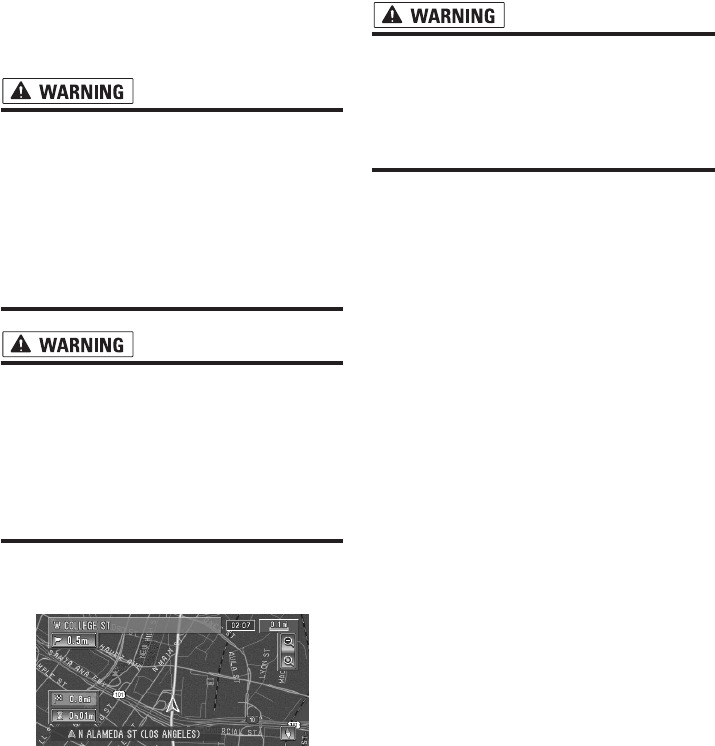
Parking brake interlock
Certain functions (viewing visual image and cer-
tain touch panel keys) offered by this Navigation
System could be dangerous and/or unlawful if
used while driving. To prevent such functions
from being used while the vehicle is in motion,
there is an interlock system that senses when the
parking brake is set and when the vehicle is mov-
ing. If you attempt to use the functions described
above while driving, they will become disabled
until you stop the vehicle in a safe place, and (1)
apply the parking brake, (2) release the parking
brake, and then (3) apply the parking brake again.
Please keep the brake pedal pushed down before
releasing the parking brake.
•Accuracy/performance of interlock may be
impacted by such factors as GPS signal
detection, speed pulse wire connectivity,
and driving habits or conditions of the
place where the vehicle is parked.
• It is strongly suggested that the speed
pulse wire be connected for accuracy of
navigation and better performance of
interlock.
• If the speed pulse wire is unavailable for
some reason, it is recommended that the
pulse generator (ND-PG1) be used.
After-sales service for Pioneer
products
Please contact the dealer or distributor from
which you purchased the product for after-sales
service (including warranty conditions) or any
other information. In case the necessary infor-
mation is not available, please contact the com-
panies listed below.
Please do not ship your product to the compa-
nies at the addresses listed below for repair with-
out making advance contact.
For warranty information, please see the Limited
Warranty sheet included with your product.
U.S.A
Pioneer Electronics
(USA) Inc.
CUSTOMER SUP-
PORT DIVISION
P.O. Box 1760
Long Beach, CA
90801-1760
800 421-1404
CANADA
Pioneer Electronics of
Canada, Inc.
CUSTOMER
SATISFACTION
DEPARTMENT
300 Allstate Parkway
Markham, Ontario
L3R OP2
1-877-283-5901
13
To ensure safe driving
❒“Visual image” in this manual indicates the
moving image from the equipments which are
connected to the Navigation System with AV-
BUS or RCA cable, such as DVD player and
TV tuner.
When you attempt to watch visual images while
driving, the warning Viewing of front seat
video source while driving is strictly prohib-
ited. will appear on the screen. To watch visual
images on this display, stop the vehicle in a safe
place, and (1) apply the parking brake, (2) release
the parking brake, and then (3) apply the parking
brake again. Please keep the brake pedal pushed
down before releasing the parking brake.
•To avoid the risk of damage and injury and
the potential violation of applicable laws,
the Navigation System is not for use with
a visual image that is visible to the driver.
• In some countries or states the viewing of
visual images on a display inside a vehicle
even by persons other than the driver may
be illegal. Where such regulations apply,
they must be obeyed.
• When applying the parking brake in order
to view visual image or to enable other
functions offered by the Navigation Sys-
tem, park your vehicle in a safe place, and
keep the brake pedal pushed down before
releasing the parking brake if the vehicle
is parked on a hill or otherwise might
move when releasing the parking brake.
Color difference of the map display
between day and night
The examples in this manual are illustrated using
the daytime display. When driving at night, the
colors you see may differ from those shown.
To use this function, the Orange/white lead of the
Navigation System must be connected correctly.
➲“Day/Night Display” ➞ Page 65
Rear view camera
With an optional rear view camera, you are able
to use the Navigation System as an aid to keep an
eye on trailers, or backing into a tight parking
spot.
• SCREEN IMAGE MAY APPEAR
REVERSED
• USE INPUT ONLY FOR REVERSE OR
MIRROR IMAGE REAR VIEW CAMERA.
OTHER USE MAY RESULT IN INJURY
OR DAMAGE.
About this disc
Only use the Pioneer DVD Map Disc with Pioneer
DVD Navigation Unit. You cannot use other discs.
CDs and MP3/WMA/WAV discs can be played on
AVIC-D1. When using AVIC-D1, refer to the
“Hardware Manual”.
Night display

14
Features (Characteristics of this
software)
Touch panel key operation
It is possible to operate the navigation function
and the Audio function by using touch panel key.
Variety of View Modes
Various types of screen display can be selected
for navigation guidance.
– Map View, Route View, Guide View
The split screen mode is also available.
– Rear View mode (Rear view camera screen and
Navigation map screen)
You can also display information on vehicle
speed, acceleration, and voltage, etc.
– Vehicle Dynamics
• The rear view mode is to use the Naviga-
tion System as an aid to keep an eye on
the trailers, or while backing up. Do not
use this function for entertainment pur-
poses.
Wide Variety of Facility Information for
Points of Interest (POI) Search
You can search your destination from all areas.
– Approximately 11 million POIs are included in
this database as of January 2004.
– Some POI information may not be accurate or
may become inaccurate through the passage of
time. Please directly contact the POI to verify the
accuracy of the information about the POI which
appears in this database. POI information is sub-
ject to change without notice.
Auto Reroute Function
If you deviate from the set route, the system will
re-calculate the route from that point so that you
remain on track to the destination.
❒This function may not work in certain areas.
Auto CD title and MP3/WMA/WAV file
listing
Title lists will automatically be displayed when a
CD TEXT or MP3/WMA/WAV disc is played. This
system provides easy-to-operate audio functions
that allow playback simply by selecting an item
from the list.
Data communication function with XM
tuner
If you connect the optional XM tuner (GEX-
P10XMT) to the navigation unit, you can use traf-
fic information as a part of the navigation func-
tion.
Furthermore, using the channel list function of
the XM tuner or icon display of station names
facilitates your selection of various broadcast sta-
tions on a highly visualized display.
➲Using XM NavTraffic Information ➞ Page 50
➲Listening to XM Satellite Radio ➞ Page 82
❒The icon of each broadcast station is con-
tained in this disc based on the data provided
by XM Satellite Radio as of February 2005.
Any changes made by XM Satellite Radio in
the lineup or icon of the broadcast station in
the future may not be supported by the Navi-
gation System.
About XM NavTraffic Service
and Pioneer Navigation
❒XM NavTraffic subscription is required and is
available only in select markets. Check
www.xmnavtraffic.com for service availability,
pricing information, and other details. The
availability of XM NavTraffic data depends on
the ability of the antenna to receive a signal.
The signal may be unavailable if obstructed
(e.g., by buildings, mountains, trees, bridges,
bad weather, etc.). XM NavTraffic data also
may be unavailable or not current if the origi-
nal data source is not providing data (e.g.,
scheduled or unscheduled downtime) or has
not been updated itself or if there is a time lag
between the time the original data source is
updated and when you receive the updated
XM NavTraffic data.
❒Depending on the amount of data being trans-
mitted in your area, it may take several min-
utes to collect all of the available data.
❒The information content depends on the infor-
mation provided by XM NavTraffic Service,
including data refresh and availability timing.
❒Pioneer does not bear responsibility for the
accuracy of the information transmitted.
15
❒Pioneer does not bear responsibility for
changes to information services provided by
XM, such as cancellation of the services or
subscription update.
❒Traffic information is not taken into account
when calculating estimated time of arrival
time or travel time for your destination.

16
Manual Overview
This manual provides the important information you need to make full use of your new Navigation Sys-
tem. The beginning sections outline the Navigation System and describe its basic operation. The later
sections describe the details of the navigation functions.
Chapters 6, 7 and 8 describe how to operate the AV functions. Please read these chapters when you
use a disc in the built-in CD drive or operate the Pioneer audio equipment connected to the navigation
unit.
Please note that when you have decided what you want to do, you can find the page you need from the
“Table of Contents”.
If you want to check the meaning of each item displayed on the screen, you will find the necessary page
from the “Display Information” section at the end of the manual.
How to use this manual
For reasons of safety, it is particularly important that you fully understand your Navigation System
before using it. Be sure to read the Introduction and Chapter 1 in particular.
Basic Operation
If you want to use the Navigation System immediately, please read this section. It
will explain the basics of operating this system.
This section also describes the basic operations for playing a CD with the naviga-
tion unit.
Menu and Map Display
Describes how to display the menu screen, and the method of changing map view or map
scale.
Setting a Route to Your Destination
This section describes various ways of searching for a destination, editing the current route
conditions, and the route operation during route guidance.
Editing the Navigation Utilities
Describes convenient functions for navigation, including how to organize information on
places you have visited.
Customizing Your Navigation System
The behavior of your Navigation System depends on a number of settings. If you need to
change any of the initial settings (default settings), read the relevant section of this chapter.
Using the AV Source (Built-in CD Drive and Radio)
Describes how to use a CD, MP3/WMA/WAV disc and the radio.
Using the AV Source (Pioneer AV Equipment)
When Pioneer audio equipment is connected to the navigation unit, that equipment can be
operated from the navigation unit. This chapter describes the operation of the audio source
that can be used when Pioneer audio equipment is connected.
1
2
3
4
5
6
7

17
Terminology
Before moving on, take a few minutes to read the following information about the conventions used in
this manual. Familiarity with these conventions will help you greatly as you learn how to use your new
equipment.
• Buttons on your Navigation Unit are described in ALL CAPITAL, BOLD lettering:
e.g.)
MAP button, DEST button.
• Items in the different menus or touch keys available on the screen are described in quotations (“ ”)
and bold:
e.g.)
“Destination”, “Settings”.
• Extra information, alternative use and other notes are presented like this:
e.g.)
❒Touch keys which are not available at this time are grayed out.
• The references are indicated like this:
e.g.)
➲Setting the Route Options ➞ Page 44
Customizing the Audio Source Setting
Using the audio source, various settings are available to suit your audio-visual taste. This
chapter describes how to change the settings.
Appendix
Read the appendix to learn more about your Navigation System and such information as the
availability of after-care. Please see “Display Information” at the end of this manual for
checking the details of each item on the menu.
8
18
DVD Map Discs for Navigation
System
Configuration of data recorded
on discs
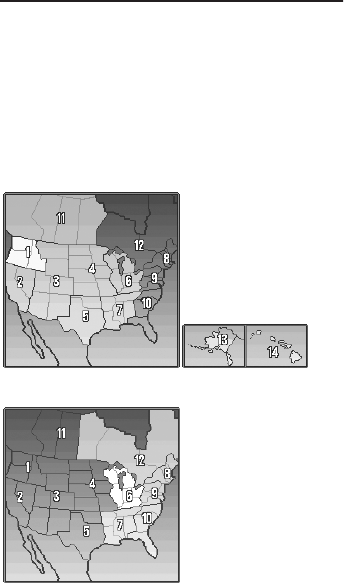
The map for this Navigation System is supplied
on two discs: one for the west and the other for
the east. Please set the disc to use according to
your destination or current location.
The areas recorded on each disc are as follows:
❒Removing the disc and inserting another disc
causes the Navigation System to automati-
cally restart and reload the new route. (This
automatic “Reroute” operation cannot be can-
celed.)
West area disc
East area disc
19
Chapter 1 Basic OperationNAVI/AV
Chapter 1
Basic Operation
Flow from Startup to Termina-
tion
• If the program is not installed, see page
107 and install the program.
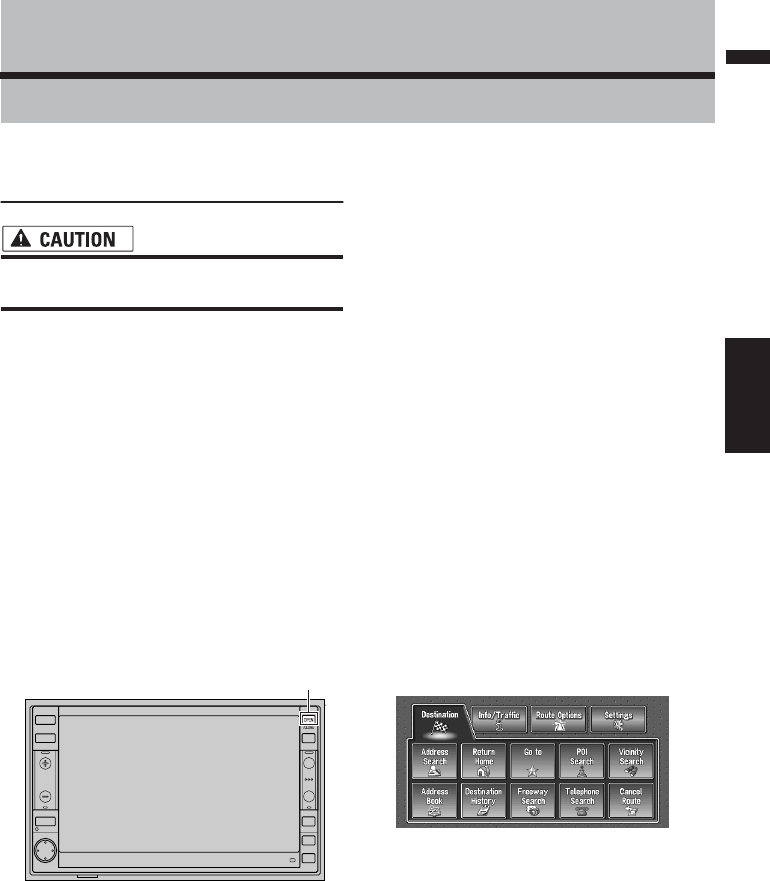
At first, please confirm the positions of the follow-
ing features using the “Hardware Manual”.
• DVD-ROM loading slot
•MAP button
•DEST button
•OPEN/CLOSE button
1Start the engine.
After a little time, the navigation opening
screen comes on for a few seconds. Then, a
message screen is displayed.
❒If the disc is not set, the message asking to
insert the disc appears. After you set the
disc correctly, your Navigation System
starts up.
2Press and hold the OPEN/CLOSE button.
The LCD panel fully opens, and the DVD-ROM
loading slot appears.
3Insert the Pioneer DVD Map Disc to the
DVD-ROM loading slot.
The LCD panel closes automatically.
❒Make sure the DVD-ROM loading slot is
empty before inserting a DVD Map Disc.
4Press the MAP button to switch the Navi-
gation map screen.
Pressing the AV button switches between the
navigation map screen and the audio screen.
5Check the details of the cautionary mes-
sage and touch “OK”.
You can operate the Navigation System by
touching keys displayed on the screen.
If the route is already set, it changes to route
guidance mode. The map of your surround-
ings is displayed.
➲How to read the current position screen ➞
Page 29
➲Setting the time ➞ Page 108
❒Touch keys which are not available at this
time are grayed out.
❒Be sure to touch the touch keys with a fin-
ger. Touch keys cannot be operated by a
pen or similar object.
6Press the DEST button.
Displays the main menu.
7Allows you to assign a destination and
being route guidance.
➲Specifying the address and searching the
destination ➞ Page 20
➲Searching the destination by map ➞
Page 33
➲Other search methods ➞ Page 35 to 38
8Turn off the vehicle engine.
This Navigation System is also turned off.
❒Until the vicinity of the destination is
reached, the set route will not be deleted
even if the engine is turned off.
OPEN/CLOSE button
20
Chapter 1
Basic Operation NAVI/AV
Basic Navigation
The most frequently used function is the Address
Search, in which the address is specified and the
destination searched. This section describes how
to use the Address Search and the basics of
using the Navigation System. Also, the method of
playing CDs is used as an example of switching
to the audio source.
• For safety reasons, you cannot use these
basic navigation functions while your
vehicle is in motion. To enable these func-
tions, you must stop in a safe place and
apply the parking brake (see page 12 Inter-
lock for details).
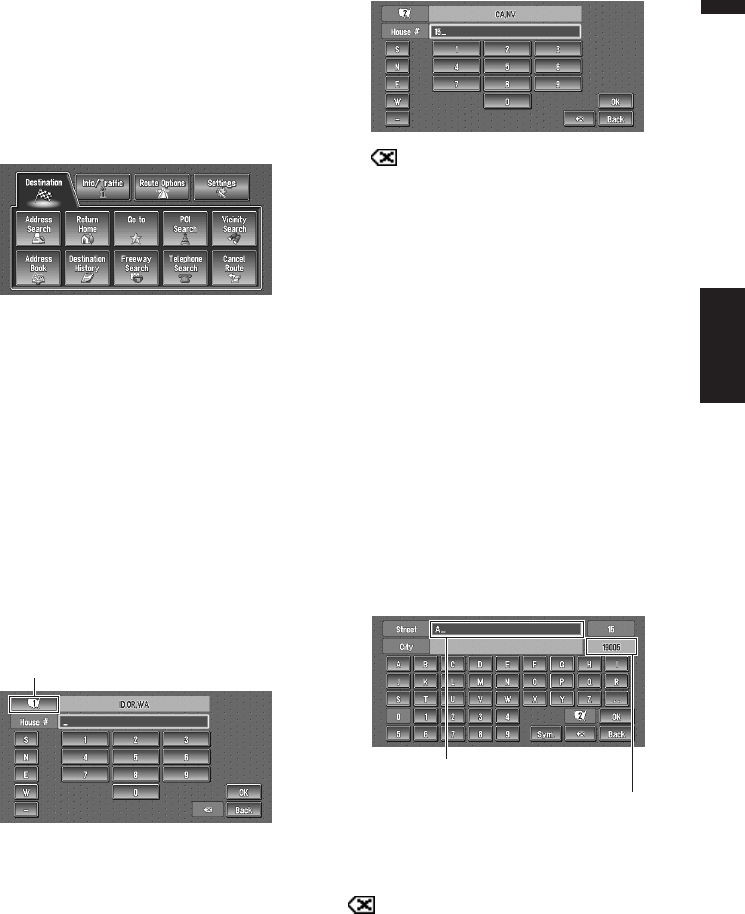
Basic flow of operation
1Park your vehicle in a safe place, and
apply the parking brake.
2Insert the Pioneer DVD Map Disc to
the DVD-ROM loading slot.
3Press the DEST button to display the
Main menu.
4Select the method of searching for
your destination.
5Enter the information about your des-
tination.
6Your Navigation System sets the route
to your destination, and the map of
your surroundings appears.
7After releasing the parking brake,
drive in accordance with the naviga-
tion information, subject of course to
the important safety instructions
noted on page 11-13.
21
Chapter 1 Basic OperationNAVI/AV
How to set your destination
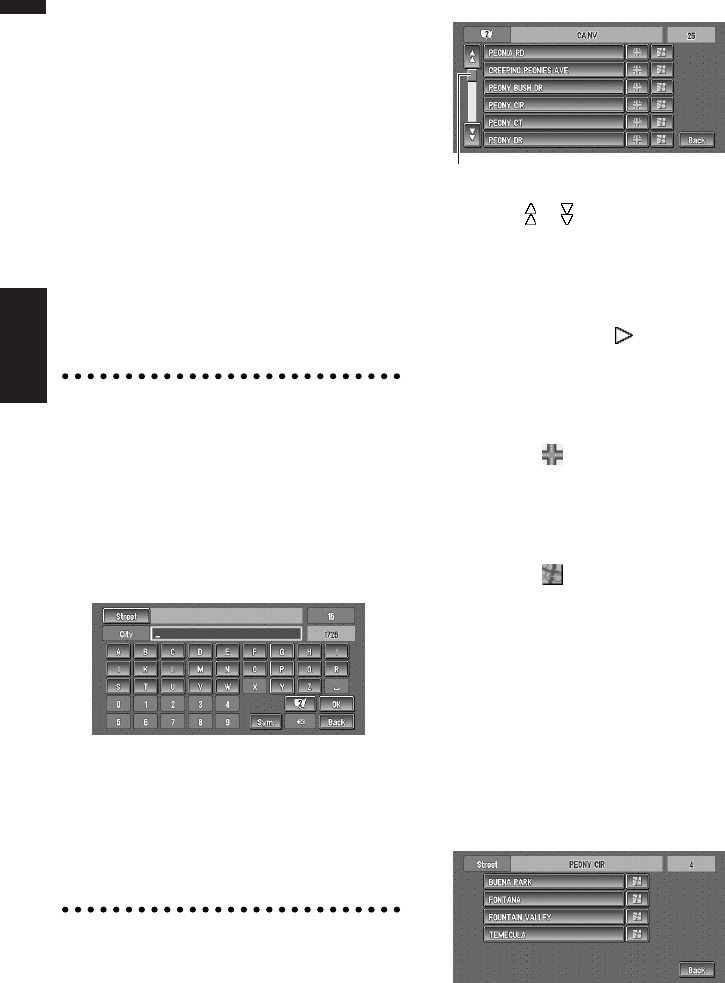
1Press the DEST button to display the
main menu.
2Touch “Address Search”.
Selects the method for searching the destina-
tion.
➲Return Home ➞ Page 37
➲Go to ➞ Page 37
➲POI Search ➞ Page 35
➲Vicinity Search ➞ Page 36
➲Address Book ➞ Page 38
➲Destination History ➞ Page 38
➲Freeway Search ➞ Page 37
➲Telephone Search ➞ Page 37
➲Cancel Route ➞ Page 38
3Touch “Zone code key”.
If the destination is in another zone, this
changes the zone setting.
❒Once the zone has been selected, you only
have to change zones when your destina-
tion is outside of the zone you selected.
4Touch the zone code of the destination
and touch “OK”.
Modifies the zone setting and returns you to
the previous display.
5Input the house number and touch “OK”.
Touch the characters you wish to input.
:
The input text is deleted letter by letter from
the end of the text. Continuing to press
deletes all of the text.
“Back” :
Returns you to previous screen.
❒Also input a prefix to the house number.
❒If the house number you have input is not
found among subsequently selected
“Street” or “City” data, a message appears
saying that the address has not been
found. In that case, try inputting the house
number again.
❒Touching “OK” with no input allows you to
specify and search a street name or the
name of the city or area first.
6Input the street name.
Touch the letter you wish to input. If the next
screen is not automatically displayed even
though the street name is entered, try touch-
ing “OK”.
“City” :
Touch if you wish to first specify the destination
city or area.
:
The input text is deleted letter by letter from the
end of the text. Continuing to press deletes all of
the text.
“Sym.” :
You can input text with marks such as “&”and
“+”.
Zone code key
The number of applicable candidates.
The input text.
22
Chapter 1
Basic Operation NAVI/AV
“0-9” :
You can input text with numbers.
“Back” :
Returns you to previous screen.
❒For example, for “Early California Ct”, you can
just enter part of the name, such as “Califor-
nia”.
❒When entering the characters, the unit will
automatically query the database of all possi-
ble options. If there is only one letter that
could possibly follow your entry, that letter will
automatically be entered.
❒When touching “Back” on the text input
screen to return to the previous screen, you
may not be able to input text. In such case,
delete the letters entered in the text box.
Searching your destination after
specifying the name of city or area
You can narrow down the search candidates by
initially specifying the name of city or area where
your destination is located. Inputting the name of
the city or area then selecting the destination city
or area from the list returns you to the Street
Name input screen. Now input the street name,
select the street from the list, and proceed to step
9.
In the selected area, if you touch “City” without
entering the name of city or area, you can check
the list of the cities or areas, which you have
searched in the past. (This item cannot be
selected when searching for the first time with
this system or when you have selected an area
that you have never searched before.)
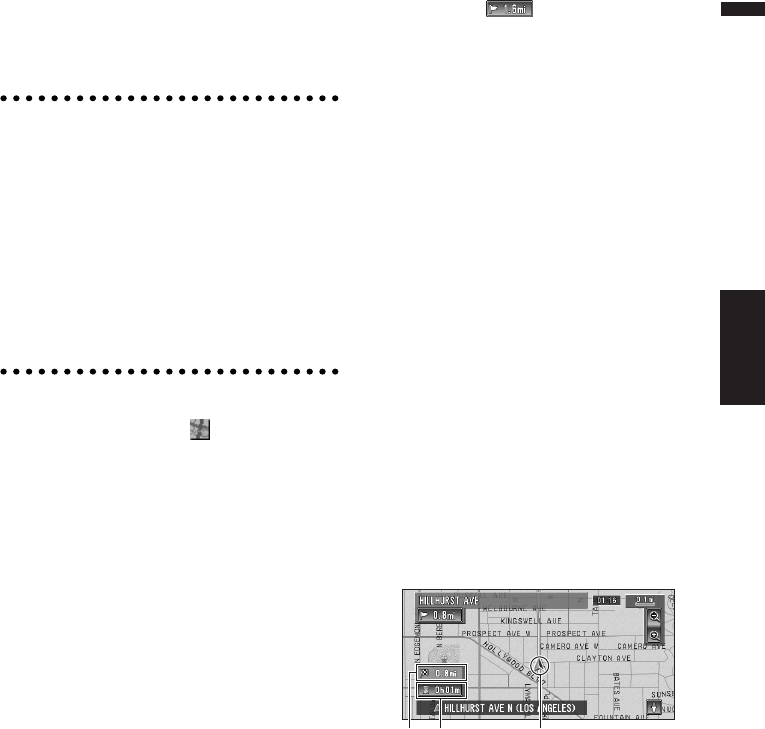
7Touch the street from the list.
Touching the or on the scroll bar scrolls you
through the list and allows you to view the
remaining items.
➲Searching the destination by map ➞ Page 33
In the case of an item that cannot be displayed in
a single line, touching the to the right of the
item allows you to see the whole line.
❒If only one location is found from the list,
route calculation starts after pressing the
item.
• Touching the specifies the selected street
and streets intersecting it, allowing you to set
an intersection as your destination. This is use-
ful when you don’t know the house number of
your destination or cannot input the house
number of the specified street.
• Touching the displays a map of the place
you have selected. (Candidate place names
may appear in the list screen.)
8Input the destination city or area.
If the list screen is displayed, proceed to step
9.
9Touch the city or area where your destina-
tion is located.
Route calculation starts. When the route cal-
culation is completed, the map of your sur-
roundings appears. (The route is displayed in
green or light blue.)
Scroll bar
23
Chapter 1 Basic OperationNAVI/AV
❒If the selected street is very long, and
passes through several cities or area, the
screen for entering the name of the city or
area appears.
If you did not input the house number in Step 5,
the house number input screen comes up after
the “Street” and “City” are determined. You
should now input the house number (perform
Step 5).
❒If there is more than one place for the house
number input, or if there is no such house
number in that place, a range of house num-
bers are displayed. To start the route calcula-
tion, touch the range within the list you wish
to specify as the destination.
❒You can also see the destination on the
map by touching the to the right of the
list.
➲Searching the destination by map ➞
Page 33
❒If you press the MAP button during route
calculation, the calculation is canceled
and the map display appears.
❒When performing a destination search
with the route already set, select whether
to regard the specified area as your desti-
nation and search for a new route, or
search for a route via that area.
➲Adding way points to the route ➞ Page 41
➲Once searched for, the location is auto-
matically stored in the “Destination His-
tory”. ➞ Page 48
10Drive in accordance with the screen and
voice information.
Your Navigation System gives you the follow-
ing information with the timing adjusted to
the speed of your vehicle:
• Distance to the next turning point
• Direction of travel
• Road number of the freeway
• Way point (If this is set)
• Your destination
➲How to view the screen ➞ Page 29
➲Searching for another route ➞ Page 40
➲Canceling route guidance ➞ Page 38
❒Touching the allows you to hear the
information again.
❒If you deviate from the route with the Guid-
ance set to Route View or Guide View and
enter a street not recorded on the disc, the
screen changes to Map View. When you
return to the route, returns to the original view
and resumes route guidance.
❒If you stop at a gas station or a restaurant dur-
ing the route guidance, your Navigation Sys-
tem remembers your destination and route
Information. When you start the engine and
get back on the road, the route guidance
resumes.
❒If a traffic congestion or closure occurs on the
set route ahead, traffic information will appear
on the screen and voice information will be
provided. At that time, select whether to recal-
culate for a new route or stay on the current
route.
➲Traffic information ➞ Page 50
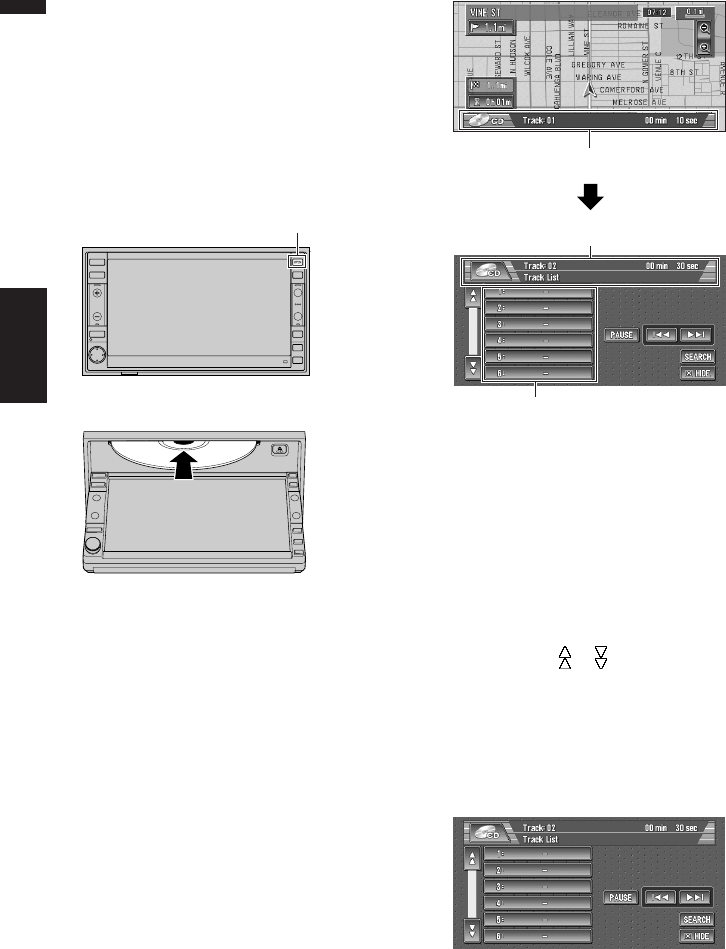
How to view Map View screen
This section describes only the items that are dis-
played on the Map View screen.
➲Details of the map screen ➞ Page 29
(1) Current location
(2) Distance to the destination
(3) Estimated time of arrival (or travel time to
your destination)
(1)(3)(2)
24
Chapter 1
Basic Operation NAVI/AV
How to listen to a CD
The built-in CD drive in the navigation unit ena-
bles you to listen to CDs and MP3/WMA/WAV
discs during navigation.
This section describes how to listen to a CD with
the built-in CD drive.
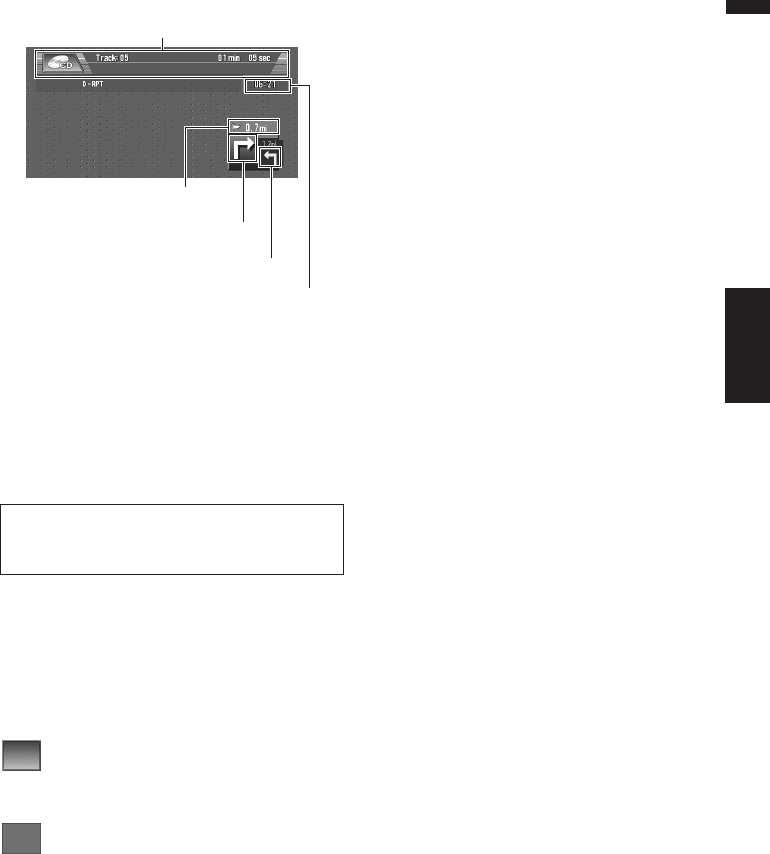
1Press the OPEN/CLOSE button.
The LCD panel opens halfway, and the CD
loading slot appears.
2Insert the CD to the CD loading slot.
The LCD panel closes automatically.
The audio CD set in the navigation unit is
played.
❒Make sure the CD loading slot is empty
before inserting a CD into the slot.
❒If you cannot insert a disc completely or if
a inserted disc is not recognized, check
that the label side of the disc is up. Press
CD EJECT button to eject the disc, and
check the disc for damage before inserting
the disc again.
❒If the built-in CD drive does not operate
properly, an error message such as
ERROR-11 may be displayed.
➲Error messages ➞ Page 121
3Press the AV button to switch the Audio
screen.
Pressing the AV button switches between the
navigation map screen and the audio screen.
4Press the VOL (+/–) button to adjust the
volume.
5Touch the track you want to listen to in
the track list.
The selected track is played.
You can also skip backward or forward to
another track by moving the joystick left or
right. You can also use
or
touch
keys.
❒If you touch or , you can switch the list
to the next page or the previous page.
❒When no touch key is displayed, if you
touch the screen, the touch key is dis-
played.
6To fast forward or reverse, keep touching
or
.
You can also perform fast reverse/fast forward
by holding the joystick left or right.
OPEN/CLOSE button
Information of Audio
Information of track being played
Track list
25
Chapter 1 Basic OperationNAVI/AV
7To hide the touch key, touch “HIDE”.
❒If you touch the screen, the touch panel
keys are displayed again.
Pausing playback
1Touch “PAUSE”.
You may pause CD playback by touching
“PAUSE”.
To resume play again, touch “PAUSE”.
Buttons you can use
The status of the buttons appearing on the
screen is indicated by their color.
Depending on the function the navigation is per-
forming, you can touch some buttons, while
other buttons are not available.
Light gray touch key:
The button is operable.
Dark gray touch key:
The function is not available (e.g., operation is
prohibited while driving).
For details on the functions which can be used
in the audio source, please see Chapters 6, 7
and 8.
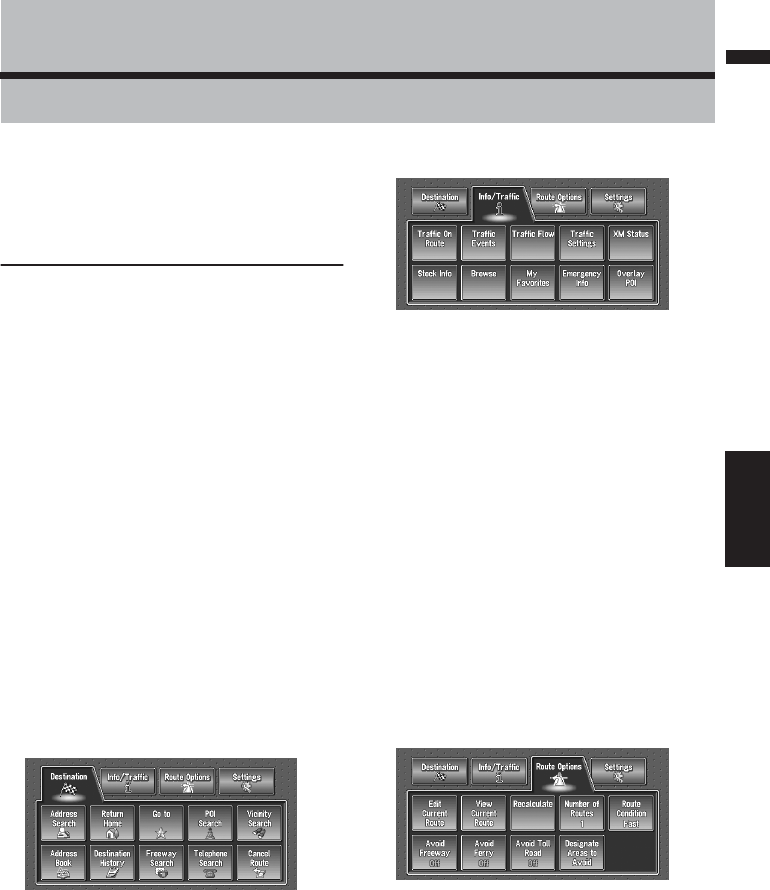
Distance to the guidance point
Current direction of travel
Next direction of travel
Information of Audio source being played
Current time

26
Chapter 1
Basic Operation NAVI/AV
27
Chapter 2 Menu and Map DisplayNAVI
Chapter 2
Menu and Map Display
This section describes the basic operations,
including how to display the main menu and how
to use the shortcut menu and the map screen.
How to Use Menu Screens
The basic operation of the navigation is per-
formed by using menus.
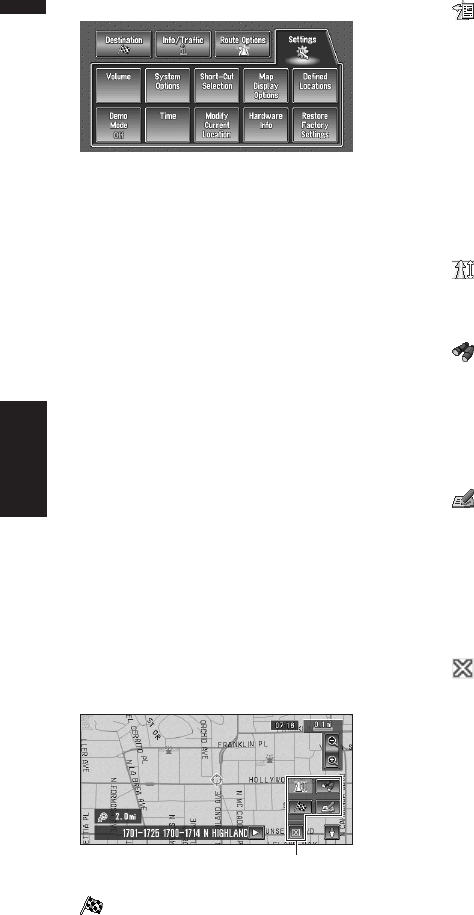
There are two types of menu: the “Main menu”
and the “Shortcut menu”.
Main menu
You use this menu for basic operation of your
Navigation System.
1With the map displayed, press the DEST
button.
2To change to the menu you want to use,
touch the name of the menu displayed at
the top of the screen.
The main menu is divided into four:
“Destination”, “Info/Traffic”, “Route
Options”, and “Settings”.
3If you want to return to the map, press the
MAP button.
Destination menu
Select the destination search method. Also the
route set can be canceled from this menu.
➲Specifying the address and searching for the
destination ➞ Page 20
➲Searching the destination by map ➞ Page 33
➲Other search methods ➞ Page 35 to 38
Info/Traffic menu
Use this menu to check traffic information mainly
using the GEX-P10XMT*.
❒“Traffic On Route”, “Traffic Events”,
“Traffic Flow”, “Stock Info”, “Browse”, and
“My Favorites” can be used only when the
GEX-P10XMT* is connected to the Navigation
System.
GEX-P10XMT*:
XM Digital Satellite Data & Audio Receiver (sold
separately). Traffic information only available for
cities where information is provided by XM
NavTraffic service. Active subscription to XM
NavTraffic required to receive traffic information
on the Navigation System.
➲Confirming traffic information ➞ Page 50
➲Registering information for emergencies ➞
Page 57
Route Options menu
Used to specify the conditions for setting the
route to the destination.
➲Setting the Route Options ➞ Page 44
❒“Edit Current Route”, “View Current
Route”, and “Recalculate” can be used
when the route is set.
28
Chapter 2
Menu and Map Display NAVI
Settings menu
Set the navigation functions so they can be used
easily.
➲Settings menu ➞ Chapter 5
Shortcut menu
Shortcuts allow you to perform various tasks,
such as route calculation for the location indi-
cated by the scroll cursor, or registering a loca-
tion in the Address Book, faster than using the
Main menu.
❒The shortcuts displayed onscreen can be
changed. The shortcuts described here are
those that can be selected with the system as
default setting.
❒Items marked with an asterisk (*) cannot be
removed from the shortcut menu.
➲Changing a shortcut ➞ Page 64
1When the map is displayed, briefly touch
any part of the map.
If you continue to touch the map, it will start
scrolling.
➲Moving the map to view the part you want
to see ➞ Page 32
: Destination*
Displayed when the map is scrolled. Set the
route to the place specified with the scroll cur-
sor.
➲Searching the destination by map ➞
Page 33
: Chg.Route*
Displayed when the map is not scrolled and
this item can be selected only during route
guidance.
You can add changes to your route and check
it.
➲Searching another route ➞ Page 40
➲Detour for a specified distance ➞ Page 40
➲Checking the route ➞ Page 38
➲Canceling the route guidance ➞ Page 38
➲Skipping a way point ➞ Page 41
: Whole Route Overview
Displays the whole route up to the destina-
tion.
: Vicinity Search
You select a location with the scroll cursor.
Nearby POIs (Points Of Interest) will also be
found.
➲Searching the facilities surrounding a cer-
tain place ➞ Page 36
: Registration
Registering the location indicated by the
scroll cursor to Address Book.
❒Touching “Registration” and selecting
“Save” allows you to register the location
to Address Book.
➲Registering a place ➞ Page 48
: Menu Close
Hides the shortcut menu.
Shortcut menu
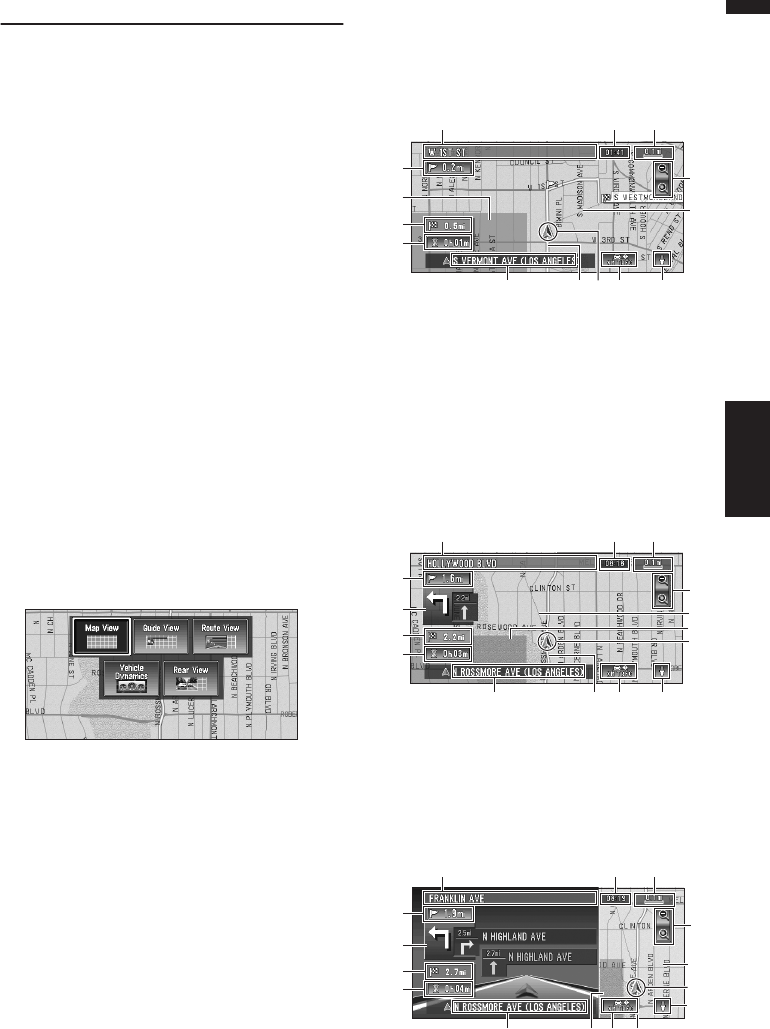
29
Chapter 2 Menu and Map DisplayNAVI
How to Use the Map
Most of the information provided by your Naviga-
tion System can be seen on the map. You need to
get to know how the information appears on the
map.
Switching the current position
screen display mode
This section describes how to display the current
position screen and change the map display
mode.
There are three types of map display and two
additional view modes.
•Map View
•Guide View (during route guidance only)
•Route View (during route guidance only)
•Vehicle Dynamics
•Rear View (Only possible when the
“CAMERA” is set to “ON”.)
1Press the MAP button to display a map of
the area around your current position.
2Press the MAP button again.
3Touch the mode name or press the MAP
button to select the mode you want to dis-
play.
❒If the mode is selected by pressing the
MAP button, the screen automatically
switches to the selected map display mode
after 4 seconds.
How to view the map of the cur-
rent location
Map View
Displays standard map.
Guide View
The standard map of your surroundings is over-
laid with the name of the street you will turn onto
next, and 2 arrows: the larger one to the left indi-
cating the direction of your next maneuver and
how far you are from approaching it, and the
smaller one to the right indicating the direction of
your second to next maneuver and how far you
are from approaching it.
Route View
Displays the name of the street you will next
travel along and an arrow indicating the direction
of travel.
(1)
(5)
(17)
(4)
(16)
(10) (8)
(2)
(11)
(6)
(7)
(3)(12) (9)
(1)
(5)
(4)
(15)
(10) (8)
(2)
(11) (3)
(6)
(7)
(12) (9)
(17)
(16)
Normal condition
(1)
(5)
(4)
(15)
(10) (8)
(2)
(11) (3)
(13)
(12)
(7)
(9)
(16)
(6)
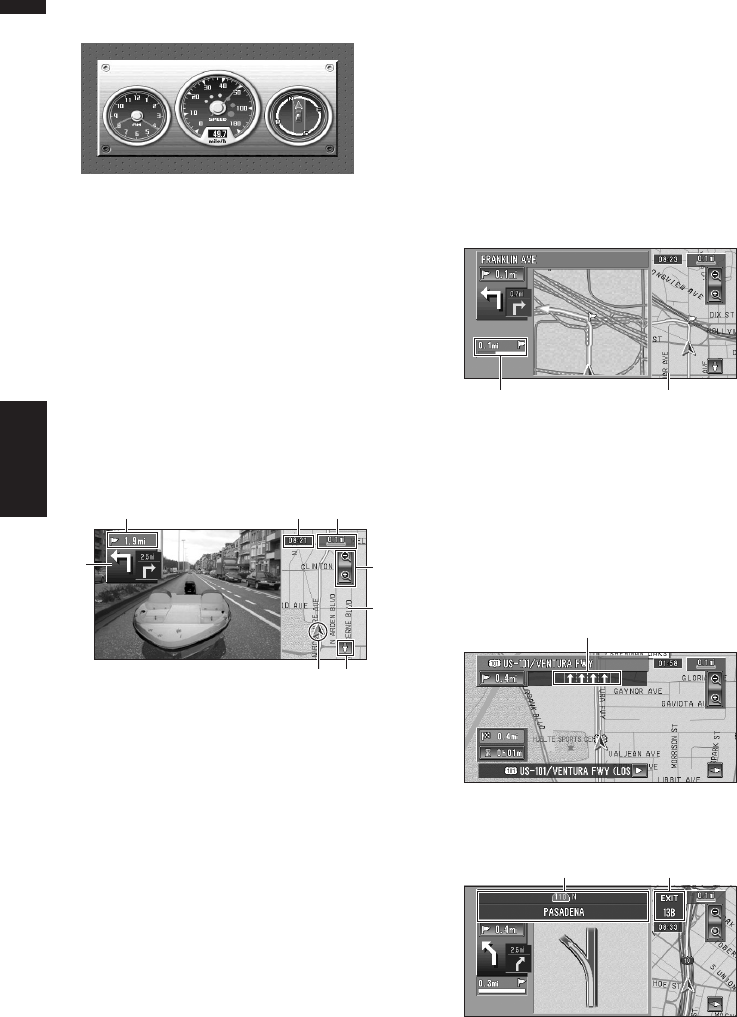
30
Chapter 2
Menu and Map Display NAVI
Vehicle Dynamics Display
Indicates the status of your vehicle.
❒You can change the items indicated to the
meters on the left and right.
❒In the Vehicle Dynamics Display mode, the
speedometer display may show a different
speed than your vehicle’s actual speedome-
ter, because your unit measures speed in a
different way.
➲Setting the Vehicle Dynamics Display ➞
Page 60
Rear View
Rear view image is displayed on the left-hand
side of the screen, while the map of your sur-
roundings is indicated on the right.
❒If the “CAMERA” is set to “OFF”, the rear
view image is not displayed. Please set it to
“ON”.
➲Camera setting ➞ Page 102
❒When using a camera set to turn OFF/ON in
conjunction with the reversing signal, no
camera images will be displayed in rear view
mode while you are moving forward.
❒If the camera is set always ON, it can display
images in rear view mode when the vehicle is
moving forward. In that case, you should ask
the camera maker or dealer whether the cam-
era’s functions or longevity would be affected.
❒Rear View can be displayed at all times (e.g.
when monitoring an attached trailer, etc.) as a
split screen where map information is par-
tially displayed. Please beware that in this set-
ting, camera image is not resized to fit to
screen, and that a portion of what is seen by
the camera is not viewable.
Enlarged map of the intersection
When “Close-up of Junction” in the Settings
menu is “On”, an enlarged map of the intersec-
tion appears.
❒When set to Vehicle Dynamics, the system
cannot be changed to an enlarged intersec-
tion map.
Display during freeway driving
In certain locations of the freeway, lane informa-
tion is available, indicating the recommended
lane to be in to easily maneuver the next guid-
ance.
When keep driving on the freeway, freeway exit
numbers and freeway signs may be displayed
when in the vicinity of interchanges and exits.
(3)
(2) (10) (8)
(15)
(6)
(7)
(13)
(13)(14)
(18)
(19) (20)
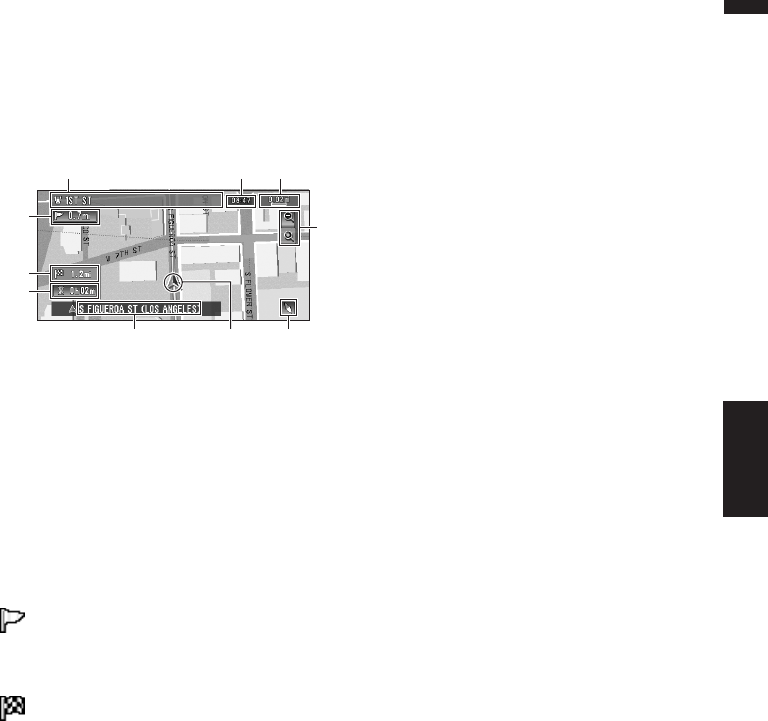
31
Chapter 2 Menu and Map DisplayNAVI
❒If the DVD Map Disc does not contain the
data for these items, the information is not
available.
City Map
In certain metropolitan city areas, a more
detailed “City Map” is available at the 0.05 mi
(50m) map scale or lower.
❒If the DVD Map Disc does not contain the
data for city area, detailed “City Map” is not
available.
❒Except when on a freeway, if you are driving by
an area where a City Map is available, at the
0.1 mi (100 m) map scale, a message appears
informing you that have entered a city map
area.
Display items
Guidance point*
The next guidance point (next turning point, etc.)
is shown by a yellow flag.
Destination*
The checker-flag indicates your destination.
(1) Name of the next street to be used*
(2) Distance to the guidance point*
Touch to access the next information.
(3) Current location
The current location of your vehicle. The tip of the
triangular mark indicates your heading and the
display moves automatically as you drive.
(4) Distance to the destination (or distance
to way point)*
If way points are set, the display changes with
each touch. When two or more way points are
set, the distance to the destination and the dis-
tance to the next way point are switched.
(5) Name of the street your vehicle is
traveling along (or City Name, etc.)
(6) Compass
The red arrow indicates north. If the scale is less
than 25 mi (50 km), touching the map changes
the direction it is displayed in (north up/heading
up). When the scale of the map is not less than
25 mi (50 km), it is fixed to “north up”.
Heading up:
The map display always shows the vehicle’s
direction as proceeding toward the top of the
screen.
North up:
The map display always has north at the top of
the screen.
(7) Zoom in/Zoom out
Touch to change the map’s scale.
➲Changing the map’s scale ➞ Page 32
(8) Map scale
The scale of the map is indicated by distance.
Except for on the Vehicle Dynamics Display,
the scale of the map is displayed at the top right
of the screen.
➲Changing the map’s scale ➞ Page 32
(9) TRAFFIC icon
This appears when an XM tuner (GEX-P10XMT,
sold separately) is connected, and traffic informa-
tion is received.
(10) Current time
(11) Estimated time of arrival (or travel time
to your destination)*
The display changes with each touch.
The estimated time of arrival is automatically cal-
culated from the Average Speed set and the
actual average speed.
➲How to set average speed ➞ Page 64
(12) Tracking mark
The tracking mark shows the route your vehicle
has traveled by the dots.
➲Select the tracking setting ➞ Page 65
(13) Map of your surroundings (Side map)
Touching on the map briefly shows the shortcut
menu, while touching longer changes the map to
Scroll mode.
➲Moving the map to the location you want to
see ➞ Page 32
(1)
(5)
(4)
(10) (8)
(2)
(11)
(3) (6)
(7)
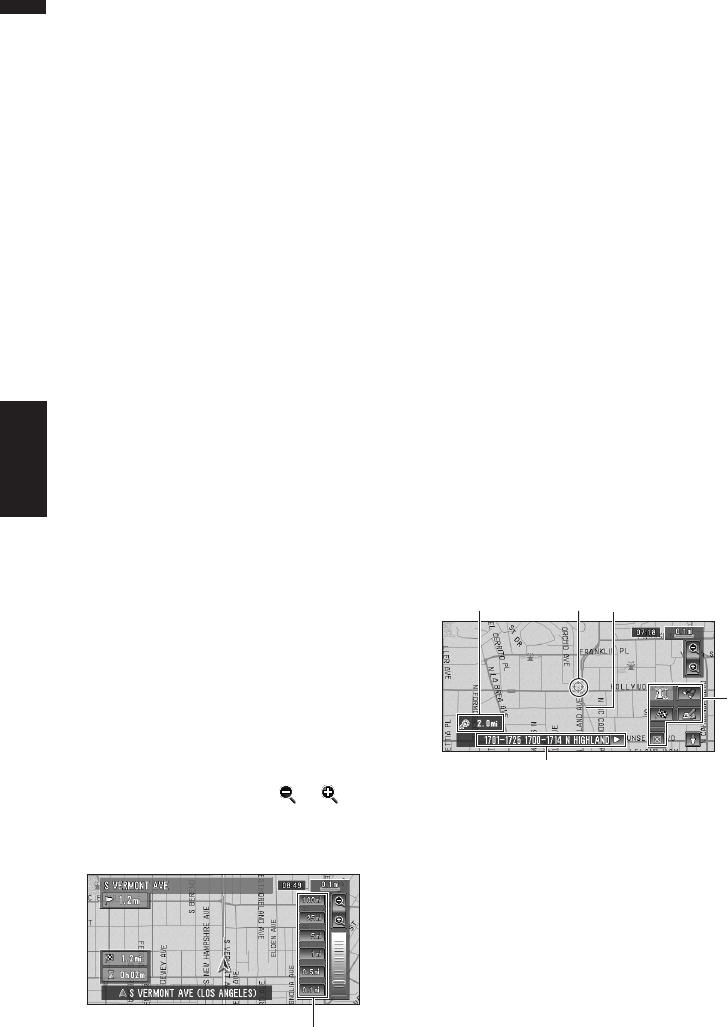
32
Chapter 2
Menu and Map Display NAVI
(14) Distance to an intersection*
Displayed on the enlarged intersection map. The
green bar gets shorter as your vehicle
approaches an intersection.
(15) Next direction of travel*
When you approach an intersection, it appears
green. The screen displays the distance to the
next guidance point, and the next guidance point
after that.
(16) Area to Avoid
➲About detour area ➞ Page 42
(17) Direction line
The direction towards the location set in (4) is
indicated with a straight line.
(18) Lane information*
Lane information is displayed the first time voice
guidance is used. When the guidance screen is
displayed near an interchange or exit, the lane
information disappears.
(19) Freeway signs*
These show the road number and give directional
information.
(20) Freeway exit information*
Displays the freeway exit.
❒Information with the mark (*) appears only
when the route is set.
❒Depending on the conditions and settings,
some items may not be displayed.
Changing the scale of the map
Touching the “Zoom in/Zoom out” key displayed
on the upper right of the screen displays the
scale gauge and “Direct scale” key. Directly
touching the “Direct scale” key changes the map
to the selected scale. Touching or above
the scale gauge allows you to specify the scale in
greater detail within a range of 25 yards - 1000
miles (25 meters - 2000 kilometers).
❒The icon of a registered location and the traf-
fic information icons are displayed when the
map scale is 10 miles (20 km) or lower.
❒POI icons and the line for traffic congestion
and traffic flow are displayed when the map
scale is 0.75 mile (1 km) or lower.
❒The Direct scale key may not appear depend-
ing on the map display mode.
Moving the map to the location
you want to see
If you touch the display briefly, the shortcut menu
appears.
Touching anywhere on the map for at least 2 sec-
onds changes the map to Scroll mode and the
map begins scrolling in the direction you
touched. The scrolling stops when you release
your finger from the screen. At this time, the
scroll cursor appears at the center of the screen.
Also a line connecting between the current loca-
tion and scroll cursor appears.
Pressing the MAP button returns you to the map
of your surroundings.
❒Touch the area close to the center of the
screen to scroll slowly; touch near the sides of
the screen to scroll through quickly.
(1) Scroll location
The position of scroll cursor shows the location
selected on the current map.
❒When the scale is 0.25 mi (200 m) or lower,
the road appears light blue in the vicinity of
the scroll cursor.
(2) Direction line
The direction towards the scroll cursor is indi-
cated with a straight line.
(3) Distance from the current location
Direct scale key
(4)
(5)
(1)
(3) (2)
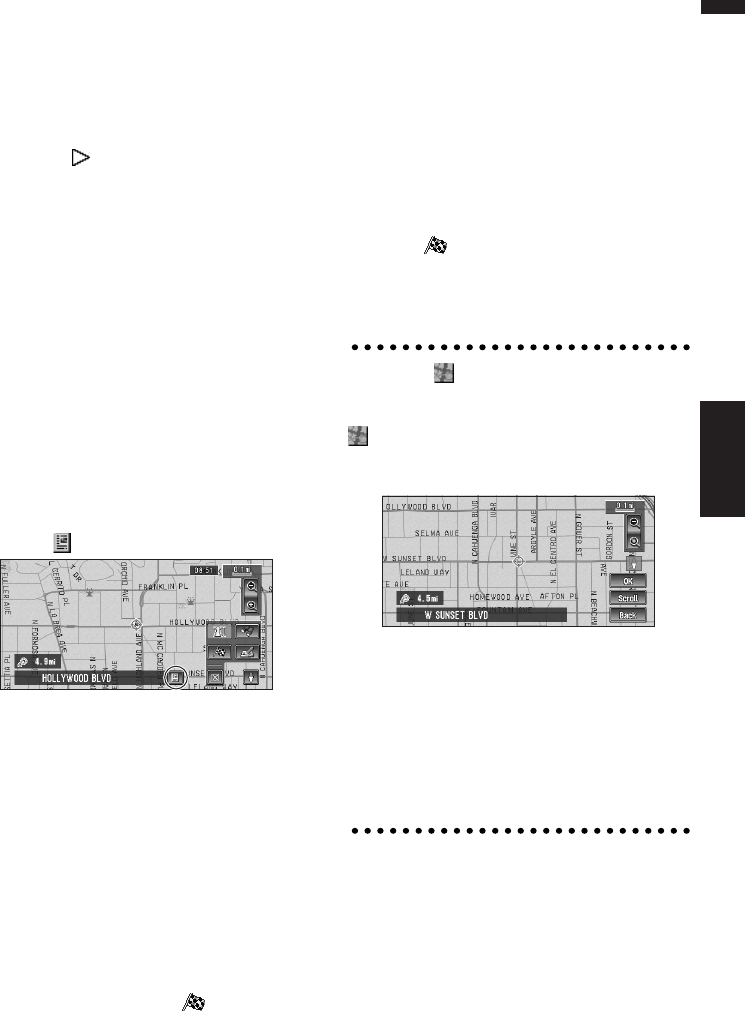
33
Chapter 2 Menu and Map DisplayNAVI
Shows the distance in a straight line between the
location indicated by the scroll cursor and your
current location.
(4) The street name, city name, area name
and other information for this location.
(The information displayed varies according to
the scale.)
Touching the on the right displays hidden
text.
➲Displaying information on the specified loca-
tion ➞ Page 33
(5) Shortcut menu
➲How to use shortcut menu ➞ Page 28
Viewing the information of a specified
location
An icon appears at registered places (home loca-
tion, specific places, address book entries) and
places where there is a POI icon or traffic infor-
mation icon. Place the scroll cursor over the icon
to view detailed information.
1Scroll the map and move the scroll cursor
to the icon you want to view.
2Touch .
Information for a specified location appears.
The information shown varies according to
the location. (There may be no information for
that location.)
➲Registering places ➞ Page 47
➲Displaying facilities (POI) icon on the map
➞ Page 43
➲Icon for traffic information ➞ Page 51
3Touch “Back”.
You are returned to the previous display.
Finding a destination on the map
If you search the location you want to visit by
scrolling the map, and touch in the Shortcut
menu, you can specify your destination on the
map.
1Press the MAP button to access the map
screen.
2Touch the map for at least 2 seconds.
The map display changes to Scroll mode.
3Scroll the map and move the scroll cursor
to the place you want to make your desti-
nation.
➲Moving the map to view the part you want
to see ➞ Page 32
4Touch .
❒If you press the MAP button during route cal-
culation, the calculation is canceled and the
map display appears.
When the appears on the right of
the list
You can also set a destination by touching the
to the right of the list. Touch “OK” to confirm.
The location pointed by the scroll cursor will be
set as a destination.
Alternative option:
Scroll :
The map display changes to the map with Short-
cut menu.
If you touch anywhere on the map, the map dis-
play changes to Scroll mode.
➲Shortcut menu ➞ Page 28

34
Chapter 2
Menu and Map Display NAVI
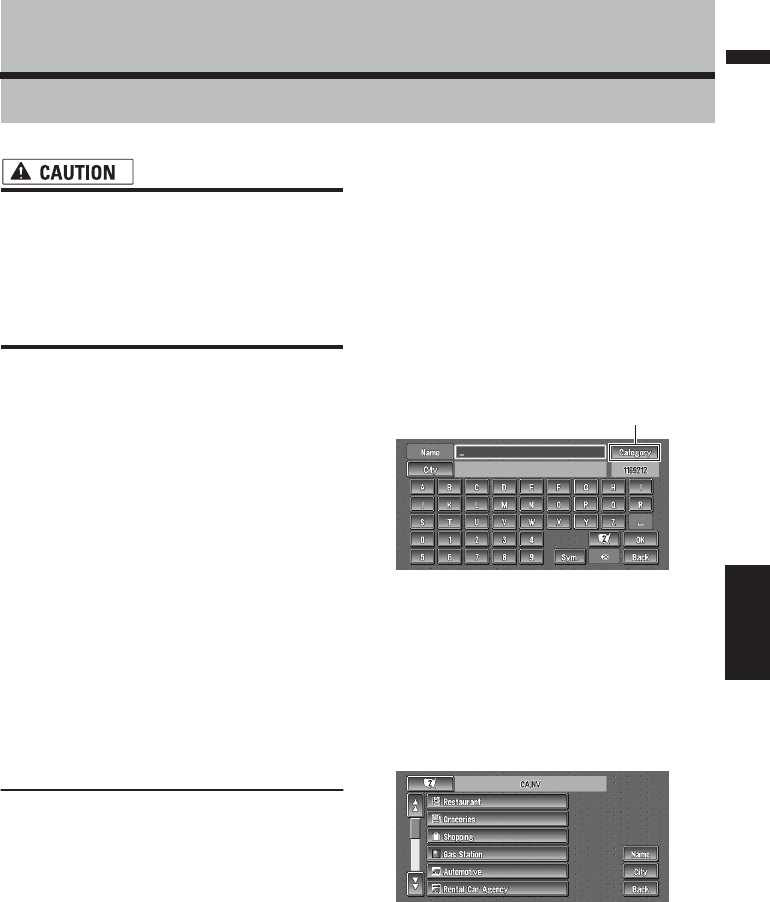
35
Chapter 3 Setting a Route to Your DestinationNAVI
Chapter 3
Setting a Route to Your Destination
• For safety reasons, these route-setting
functions are not available while your
vehicle is in motion. To enable these func-
tions, you must stop in a safe place and
put on the parking brake before setting
your route. (see page 12 Interlock for
details).
❒Some information on traffic regulations by
days or time depends on the time when the
route calculation is performed. Thus, the
information may not correspond with a cer-
tain traffic regulation when your vehicle actu-
ally passes the location. Also, the information
on the traffic regulations provided will be for a
passenger vehicle, and not for a truck or other
delivery vehicles. Always follow the actual traf-
fic regulations when driving.
❒If you press the MAP button during route cal-
culation, the calculation is canceled and the
map display appears.
❒When the DVD Map Disc is inserted, the
reroute is done by force. (This rerouting can-
not be canceled.)
Finding Your Destination by
Selecting the Type of Facility
Information about various facilities (Points Of
Interest - POI), such as gas stations, amusement
parks or restaurants is available. By selecting the
category (or entering the POI Name), you can
search for a POI.
❒You can also narrow down the search range
by initially specifying the name of the city or
area where your destination is located.
Searching for Points of Interest
(POI)
1Touch “Destination” in the Main menu,
and then touch “POI Search”.
2Touch the zone code key of the destina-
tion and touch “OK”.
➲Selecting the zone where you want to
search ➞ Page 21
3Touch “Category”.
“Name” :
Touch if you wish to first specify the POI
Name.
“City” :
Touch if you wish to first specify the destina-
tion city or area.
4Touch the desired category.
POI’s are divided into several categories.
If the category is not sub-divided into more
detailed categories, the list will not be dis-
played. Proceed to Step 6.
Category
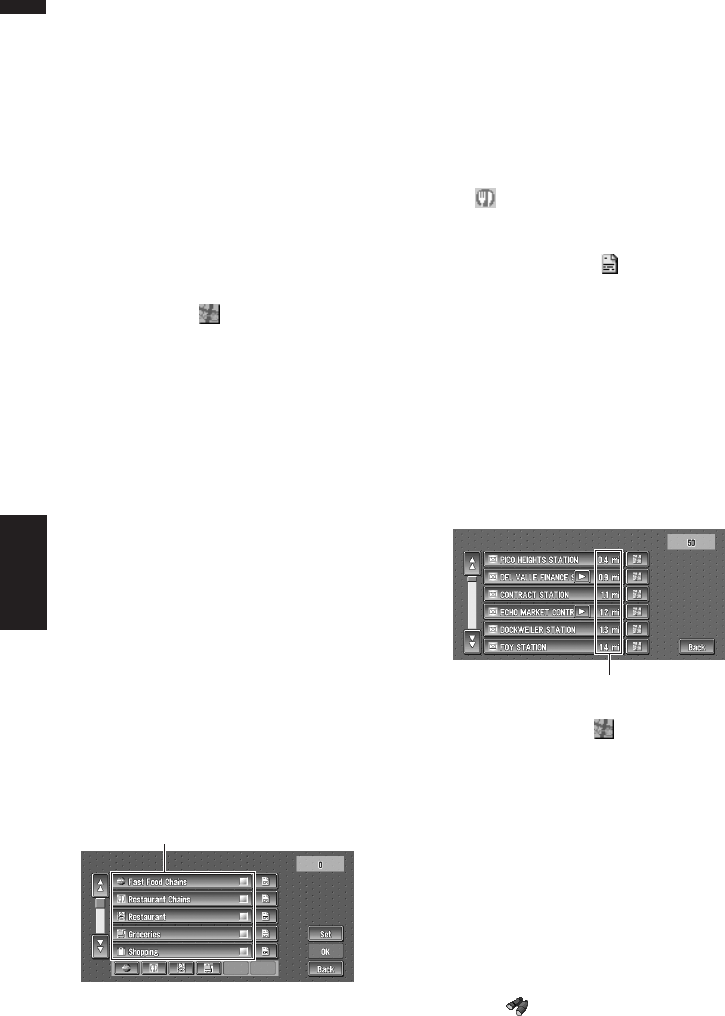
36
Chapter 3
Setting a Route to Your Destination NAVI
5Touch the subcategory.
6Input the name of the POI.
If the list does not automatically appear when
the name of the POI has been entered, try
touching “OK”.
“City” :
First, touch to specify the destination city or
area.
❒If less than six POIs in a subcategory are
registered, the screen for inputting the POI
name is not displayed. Please proceed to
Step 7.
7Touch POI for your destination.
❒Touching the displays a map of the
surroundings of the selected POI.
➲Searching the destination by map ➞
Page 33
❒If the selected POI is the name of a chain
of outlets and consequently the same
store name applies to different locations
(the number of outlets appears next to the
chain’s name), touch the name of the POI
to display a list of those POIs and touch
the particular POI that is your destination.
Finding a POI in your surround-
ings
You can search for Points Of Interest in your sur-
roundings on the map. Use it to find a POI to visit
during a journey.
1Touch “Destination” in the Main menu,
and then touch “Vicinity Search”.
The list of Points Of Interest categories
appears.
2Touch the desired category.
The selected category will have a red check
mark.
OK :
Starts searching
Back :
Returns to the previous screen
Set :
Display the screen for registering POI short-
cut
➲Register POI shortcut ➞ Page 43
❒If you touch one of the POI shortcuts (e.g.
), you can start searching POI directly
by selected category on the POI shortcut.
❒If you want to search with more detailed
categories, touch . When the subcate-
gory list appears, touch the item and touch
“Back”. When only a few types of the
detailed categories are selected, blue
check marks will appear.
❒You can select the detail category for up to
100 items.
3Touch POI.
Names of POIs and their distance from your
current location appear. They are listed in
nearest-to-furthest order. To the left of each
item is an icon indicating the category.
❒When you touch , the POIs around the
specified location are shown on a map.
➲Searching the destination by map ➞
Page 33
❒Searching range is approximately 10 miles
(16 km) square from the current location.
Searching the facilities around
the scroll cursor
1Scroll the map and move the scroll cursor
to the place you want to search POI.
2Touch .
See Step 2 of “Finding a POI in your surround-
ings” for the following operations.
Category
Distance to the facility

37
Chapter 3 Setting a Route to Your DestinationNAVI
➲Finding a POI in your surroundings ➞
Page 36
❒This can be used when setting the overlay
POI icon to display as a shortcut on the
map screen.
➲Changing Shortcut ➞ Page 64
❒The distance indicated in the search result
is the distance from the scroll cursor to the
facility.
❒The bottom icon is for shortcuts to your
favorite categories. Touching the shortcuts
icon displays a list of the facilities in a cat-
egory.
❒“Vicinity Search” in the Main menu
searches your surroundings. On the other
hand, in the case of in the Shortcut
menu (➞ Page 28), the area around the
scroll cursor will be searched.
Setting an Entrance or Exit of a
Freeway as Your Destination
You can set the entrance or exit of a freeway as
your destination.
1Touch “Destination” in the Main menu,
and then touch “Freeway Search”.
The display for entering the name of the free-
way appears.
2Touch the zone code key of the destina-
tion and touch “OK”.
3Enter the name of the freeway and touch
“OK”.
The list of freeways matching the name
appears.
4Touch the freeway.
The display for selecting your destination to
the entrance or to the exit of the freeway
appears.
5Touch “Entrance” or “Exit”.
The list of entrances to, or exits from, the
selected freeway appears.
6Touch your destination.
❒You can also see the destination by touch-
ing the on the right of the list.
➲Searching the destination by map ➞
Page 33
Searching for Your Destination
by Specifying the Telephone
Number
If you know the telephone number of your desti-
nation, you can quickly search for your destina-
tion by specifying the telephone number.
1Touch “Destination” in the Main menu,
and then touch “Telephone Search”.
The telephone number entry screen appears.
2Input a telephone number.
❒If there is more than one place for the
number input, a list of those places is dis-
played. Touch the item you want in the list
and proceed to step 3.
3If the displayed place is satisfactory,
touch “OK”.
Touching “Scroll” changes the destination.
➲Searching the destination by map ➞
Page 33
Route Calculation to Your Home
Location or to Your Favorite
Location
If your home location is registered, the route
home can be calculated by a single touch of the
touch key from the Main menu. Also, you can
register one location, such as your workplace, as
your favorite location, and the route is calculated
in a similar way.
1Touch “Destination” in the Main menu,
and then touch “Return Home” or “Go to”.
➲“Registering your home and your favorite loca-
tion” ➞ Page 47
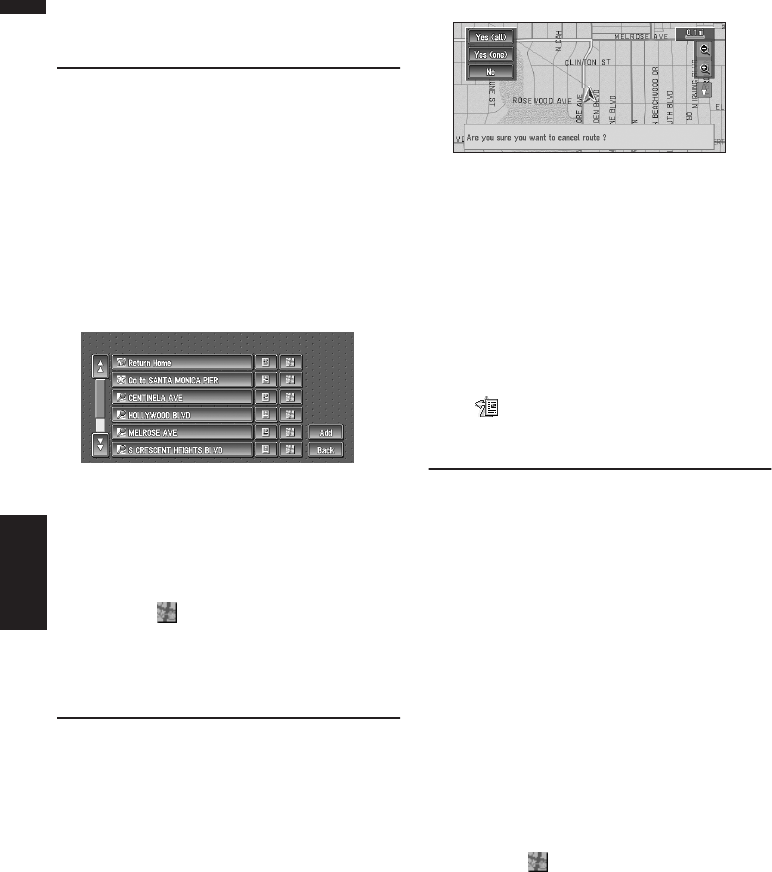
38
Chapter 3
Setting a Route to Your Destination NAVI
Selecting Destination from the
Destination History and Address
Book
Any place that has been searched before is
stored in the “Destination History”. Places that
you have registered manually, such as your
home, are stored in the “Address Book”. Simply
select the place you want to go to from the list
and a route to that place will be calculated.
1Touch “Destination” in the Main menu,
and then touch “Address Book” or
“Destination History”.
2Touch your destination name.
Route calculation starts.
➲For information on the Address Book ➞
Chapter 4
➲For information on the Destination His-
tory ➞ Chapter 4
❒You can also see the destination by touch-
ing the on the right of the list.
➲Searching the destination by map ➞
Page 33
Canceling the Route Guidance
If you no longer need to travel to your destination
or if you want to change your destination, follow
the steps below to cancel the route guidance.
1Touch “Destination” in the Main menu,
then touch “Cancel Route”.
The message confirming whether to cancel
the current route appears.
2Touch “Yes (all)”.
The current route is deleted, and a map of
your surroundings reappears.
On this screen, you can also select the follow-
ing items:
Yes (one) :
Route is recalculated by canceling the
selected way point.
No :
Returns to the previous display without delet-
ing the route.
❒You can also cancel the route using the
Chg.Route in the shortcut menu.
Checking the Set Route
You can check information about the route
between your current location and your destina-
tion.
You can select certain methods: checking the
passing streets with a list; checking the shape of
the route by scrolling the map along the route;
checking the entire distance of the route in a sin-
gle screen.
Checking the set route with the
map
1After touching “Route Options” in the
main menu, touch “View Current Route”.
❒“View Current Route” is displayed only
when the route is set.
❒You can also see the destination by touch-
ing the on the right of the list.
2Touch “Scroll”.
The screen to select the point to start scrolling
appears.
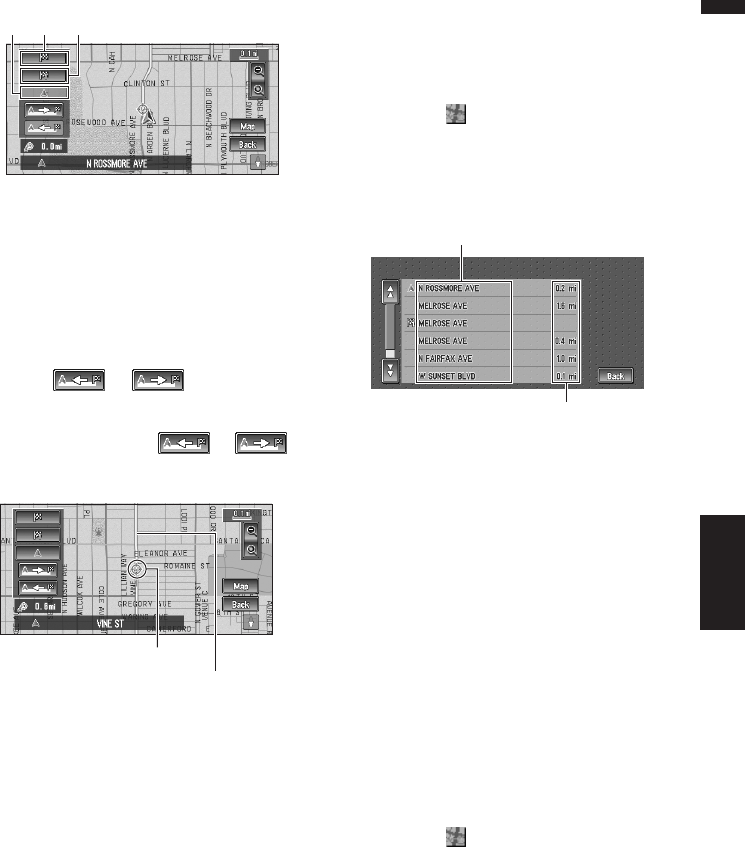
39
Chapter 3 Setting a Route to Your DestinationNAVI
3Touch the point to start scrolling.
You can select the following items:
(1) Starting Point
(2) Way Point (If this is set)
(3) Destination
❒If you have selected “Way Point”, a list of
the way points on the route is displayed.
Touch the place you want to start scrolling
from and proceed to step 5.
4Touch or to scroll the
map.
To continue scrolling after you release your
finger, touch and hold or .
If necessary, the scale of the map can be
changed.
You can select the following items:
Map :
The scroll screen is displayed.
➲Searching the destination by map ➞
Page 33
5Touch “Back”.
You can return to the previous display.
Checking the set route with text
This function is not available if your vehicle has
deviated from the set route.
1After touching “Route Options” in the
main menu, touch “View Current Route”.
❒“View Current Route” is displayed only
when the route is set.
❒You can also see the destination by touch-
ing the on the right of the list.
2Touch “Profile”.
3Check the contents on the display.
As necessary, scroll the list.
4Touch “Back”.
You can return to the previous display.
❒When a long distance route is calculated,
your Navigation System may not be able to
list all the roads. (In this case, the remain-
ing roads will be shown in the list as you
drive on.)
Checking the whole route over-
view
You can check the entire shape of current route.
1After touching “Route Options” in the
main menu, touch “View Current Route”.
❒“View Current Route” is displayed only
when the route is set.
❒You can also see the destination by touch-
ing the on the right of the list.
2Touch “Overview”
A map of the whole route up to the destination
is displayed.
❒You can also check the overview by using
the shortcut menu if “Whole Route Over-
view” is selected on the “Short-Cut
Selection”.
(3)(1) (2)
Scroll Cursor
Current Route
Name of the streets you are driving through
Driving distance
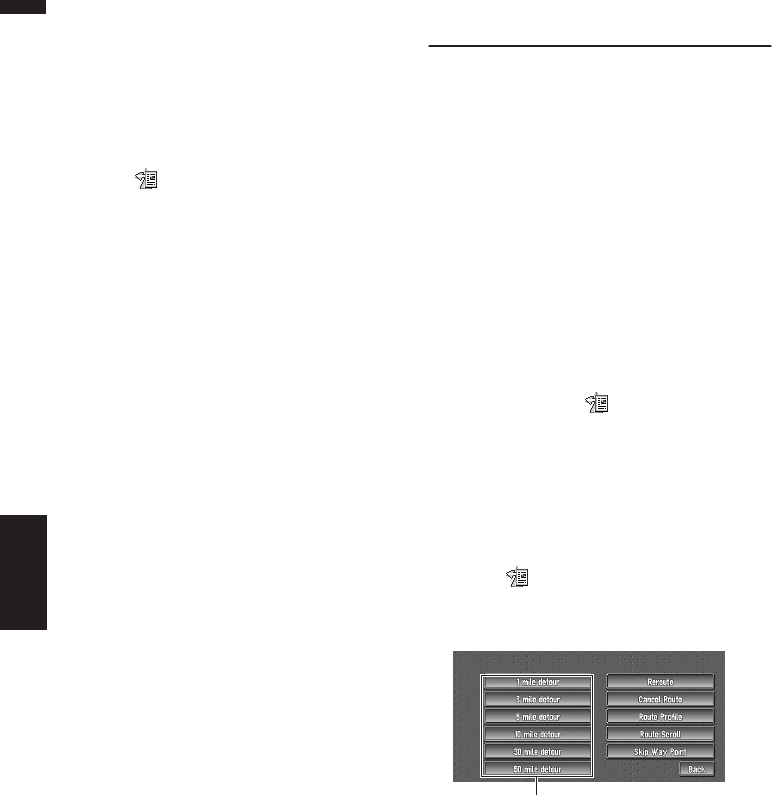
40
Chapter 3
Setting a Route to Your Destination NAVI
Checking the set route from the
shortcut menu
You can also check the information about the set
route from the shortcut menu.
1Touch the map screen.
The Shortcut menu appears.
2Touch .
The Route/Detour menu appears.
3Touch, “Route Profile” or “Route Scroll”.
➲“Route Profile” ➞ Page 39 (Step 3 and 4)
➲“Route Scroll” ➞ Page 38 (Step 3 and 4)
4Touch “Back”.
You can return to the previous display.
Recalculating the Route to Your
Destination
You can set the length of the area, and avoid just
that area, or you can even search a new route
from the current location to your destination. (On
the map screen during route guidance, try the fol-
lowing operations.)
Recalculating the route to the destina-
tion using the Route Options menu
1Touch “Route Options” in the Main menu,
and then touch “Recalculate”.
Automatically searches the route to the desti-
nation again.
❒“Recalculate” is displayed only when the
route is set.
❒You can also recalculate (reroute) your
route using the Chg.Route in the
shortcut menu.
Recalculating the specified distance in
the route ahead of your current position
1Touch the map screen.
The Shortcut menu appears.
2Touch .
The Route/Detour menu appears.
3Touch the distance from the list.
Searches detours of a specified distance in
the route ahead of your current position.
After the route is calculated, the map screen
shows your surroundings and route guidance
is resumed.
➲For details of switching the display between
“mile” and “km” see “KM/Mile Setting” ➞
Page 64
Detour distance
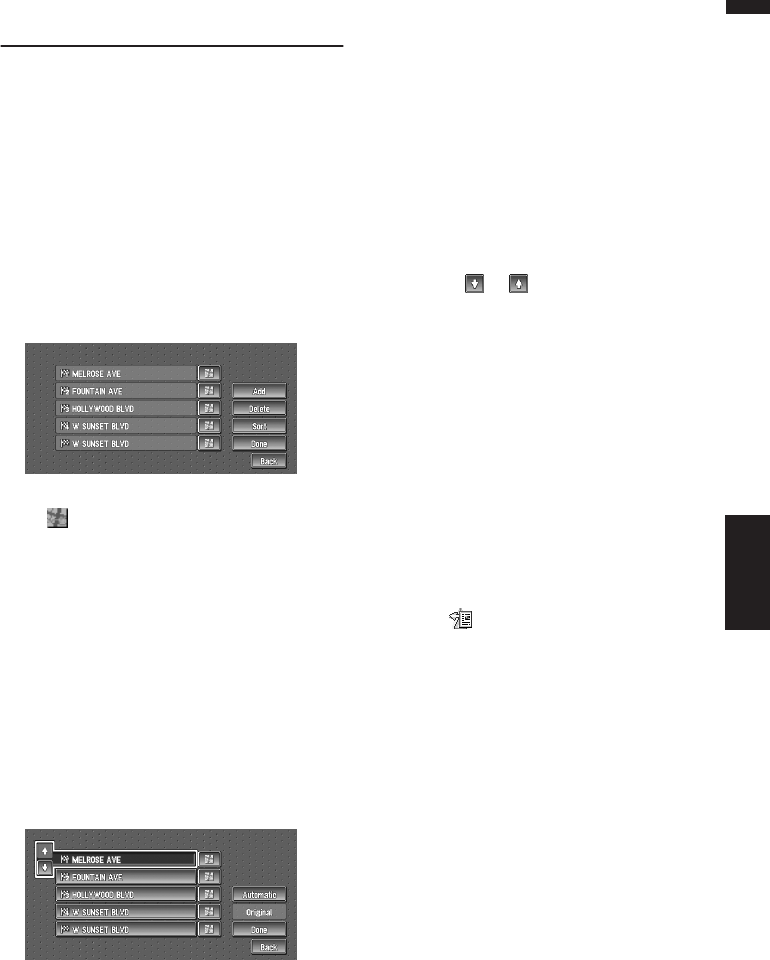
41
Chapter 3 Setting a Route to Your DestinationNAVI
Editing Way Points to the Cur-
rent Route
You can select way points (locations you want to
visit on the way to your destination) and you can
recalculate the route to pass through these loca-
tions.
Editing a way point
You can add up to five way points. This is
achieved as follows :
1Touch “Route Options” in the Main menu,
and then touch “Edit Current Route”.
2Select editing method.
❒You can see the way point by touching the
on the right of the list.
On this display, you can select the following
items:
Add :
Switch the display to search for points. Dis-
play a point you searched for on a map after
searching, then touch “OK” and add to the
way points. (You can add up to five way points
in total.)
Delete :
You can delete way points from the list.
(You can delete way points successively.)
Sort :
Touch to display a screen listing the way
points.
Automatic :
You can sort the destination and way points
automatically. The system will show the near-
est way point (distance in a straight line) from
the current location as way point 1, and sort
the other points (including your destination)
in order of distance from the way point before
your current location.
Original :
Returns to the original order.
Select either “Automatic” or “Original” and
touch “Done” to start the route search.
Touching or on the left of the list, you
can sort the way points manually.
3Touch “Done”.
❒If you set a way point(s) in the route to your
destination, the route up to the next way
point will appear light green. The rest of
the route will be light blue.
Skipping a way point
If the points are set, the next way point along the
route can be skipped.
1Touch the map screen.
The Shortcut menu appears.
2Touch .
The Route/Detour menu appears.
3Touch “Skip Way Point”.
A message asking whether you want to skip
the next way point appears.
4Touch “Yes”.
A new route to your destination through all
the remaining way points, except for the
skipped way point, is calculated.
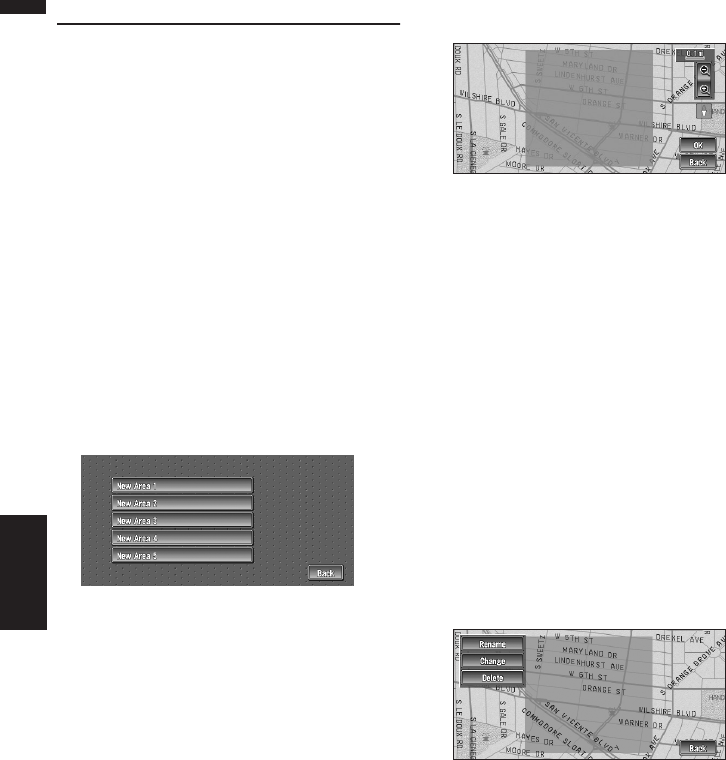
42
Chapter 3
Setting a Route to Your Destination NAVI
Setting Areas to Avoid
If you register Areas to Avoid, such as crowded
intersections or congested areas, routes can be
calculated that avoid those areas. Areas to
Avoid can be set from the Route Options menu.
❒An area not stored on the disc cannot be set
as an Area to Avoid.
Registering an area to avoid
This section describes how to register an Area to
Avoid for the first time. You can register up to five
Areas to Avoid.
1Touch “Route Options” in the Main menu,
then touch “Designate Areas to Avoid”.
2Select one of the items shown in “New
Area”.
When registering for the first time, any item
on the list is shown as “New Area”.
3Select the place to register and display
the map.
➲Searching places to register ➞ Page 35 to
38
Once a search is complete, a map with the
specified location at its center appears.
❒If you select the “Map Search”, move the
scroll cursor to the place you want to set
and touch “OK”.
4Change the map scale and decide the size
of the Area to Avoid.
The Area to avoid is enclosed in a red frame.
You can also change the map scale though
the maximum map scale for registering Areas
to Avoid is 0.1 mile (100 m).
5Scroll the map, adjust the position of the
red frame, and touch “OK”.
If you want to stop registration, touch “Back”.
❒Depending on the setting of route search con-
ditions, you may not be able to avoid the spec-
ified areas. The confirmation message is
displayed on the screen at this time.
➲Information on route calculation conditions ➞
Page 45
Changing or deleting an area to
avoid
You can subsequently change/rename/delete an
Area to Avoid.
1Touch “Route Options” in the Main menu,
then touch “Designate Areas to Avoid”.
2Select the area you want to change or
delete.
3Select the desired operation.
On this screen, you can select the following
options:
Rename :
Changes the name. Enter the new name and
touch “OK”. This returns you to the Route
Options menu.
Change :
A specified area can be changed. For the next
steps, see Step 3 in the “Registering an area
to avoid” above .
Delete :
Delete the selected Area to Avoid.
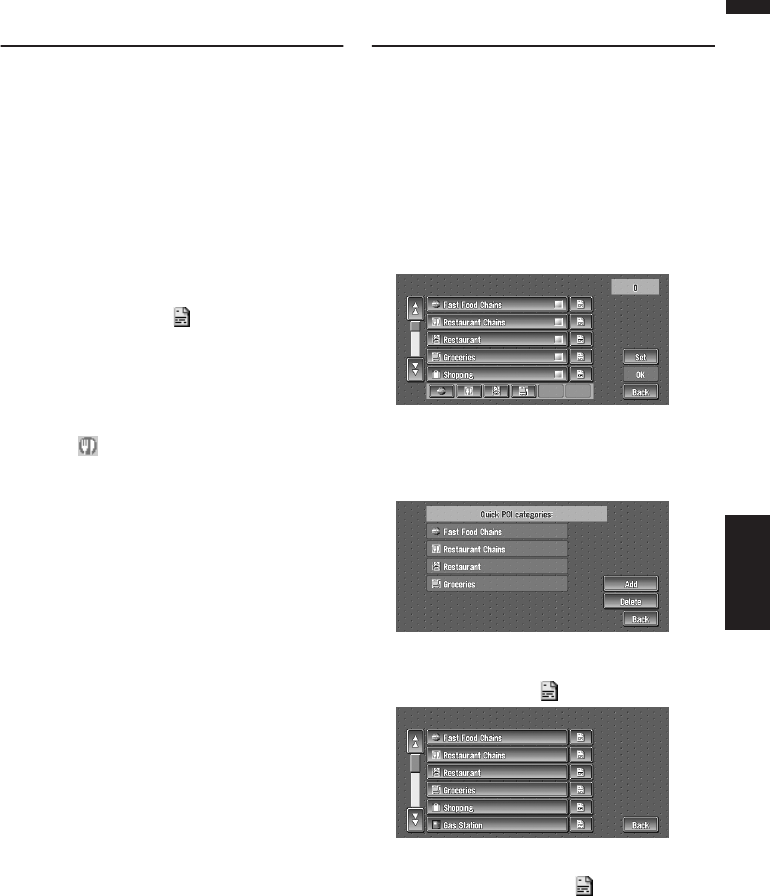
43
Chapter 3 Setting a Route to Your DestinationNAVI
Displaying Certain POI on the
Map
Selected POI in a certain category can be shown
on the map, and you can check the location on
the display.
1Touch “Info/Traffic” in the Main menu,
then touch “Overlay POI”.
The list of POI categories appears.
2Touch the category you want to display.
The selected item is marked. If you want to
select other categories, repeat this step.
❒If you want to display with more detailed
categories, touch . When the subcate-
gory list appears, touch the item you want
to display and touch “Back”.
❒You can select the detail category up to
100 items.
❒If you touch one of the POI shortcuts
(e.g. ), you can display POI immediately
by selected category on the POI shortcut.
3Touch “Back”.
POI’s in the selected category appear on the
map.
➲Searching the destination by map ➞
Page 33
➲Viewing the information of POI ➞ Page 33
❒When some sub-categories are selected,
the corresponding category is marked
blue. When all the sub-categories within a
category are selected, that category is
marked red.
❒You can also display POI by using the
shortcut menu if “Overlay POI” is
selected on the “Short-Cut Selection”.
Registering/deleting POI Short-
cuts
You can register up to six shortcuts to your
favorite POI. You can also change or delete the
registered shortcuts.
Registering a POI shortcut
1Touch “Destination” in the Main menu,
and then touch “Vicinity Search”.
2Touch “Set”.
Displays a list of already registered POI short-
cuts.
3Touch “Add”.
Displays a POI category list.
4Touch category or .
Touching category adds that category to the
shortcuts. After touching , please proceed
to Step 5 and select a subcategory.
5Touch subcategory.
The selected category is added to the list of
POI.
When registering another icon, repeat steps 3
through 5.
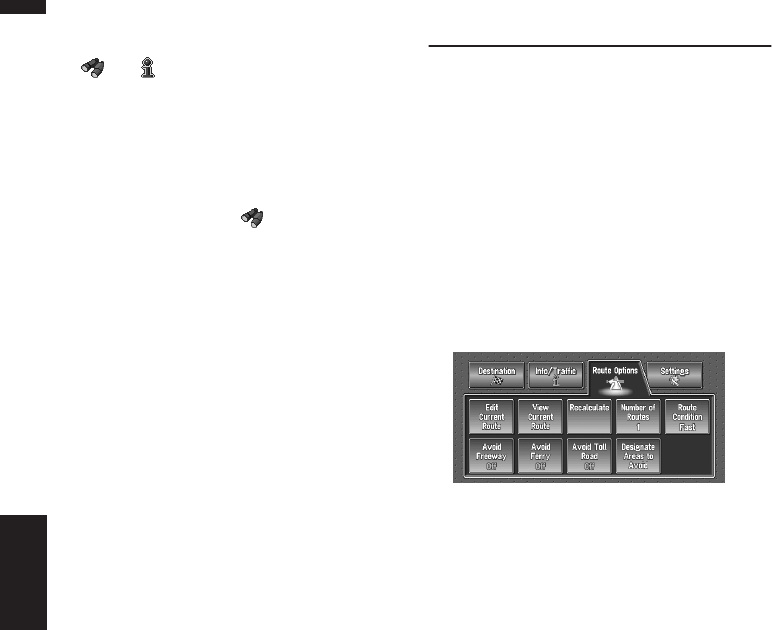
44
Chapter 3
Setting a Route to Your Destination NAVI
❒You can register a POI shortcut by touching
“Overlay POI” under “Traffic/Info” in the
main menu, or by touching the icons such as
and on the map . The registering steps
are the same as described above.
Deleting a POI shortcut
1Touch “Destination” in the Main menu,
and then touch “Vicinity Search”.
❒You can also touch in the shortcut
menu or “Traffic/Info” in the main menu,
then touch “Overlay POI”.
2Touch “Set”.
3Touch “Delete”.
Displays a list of already registered POI short-
cuts.
4Touch the category to be deleted.
A red check appears on the selected shortcut.
All :
A red check will appear on all registered cate-
gories.
5Touch “Delete”.
Deletes the selected shortcut from the list.
Modifying the Route Calculation
Conditions
You can change the route calculation conditions
using the Route Options menu. The following
description features an example of changing the
number of the route to be searched.
1Touch “Route Options” in the Main menu.
The Route Options menu appears.
2Touch “Number of Routes”.
The content currently set appears under the
name of the item. Each time you touch the
item, the setting changes. Repeatedly touch
the item until the value you want to set
appears.
❒When you touch items with a setting below
them, their setting changes. When you
touch items with no setting below them, a
setting screen appears.
Items that users can operate
This section describes the details of the each
item. Settings marked with an asterisk (*) show
that they are default or factory settings.
Edit Current Route”
This displays a screen for adding or deleting way
points. The method is the same as described in
“Editing Way Points to the Current Route”.
❒”Edit Current Route” is displayed only when
the route is set.
➲“Editing Way Points to the Current Route” ➞
Page 41
View Current Route
➲Checking the Set Route ➞ Page 38
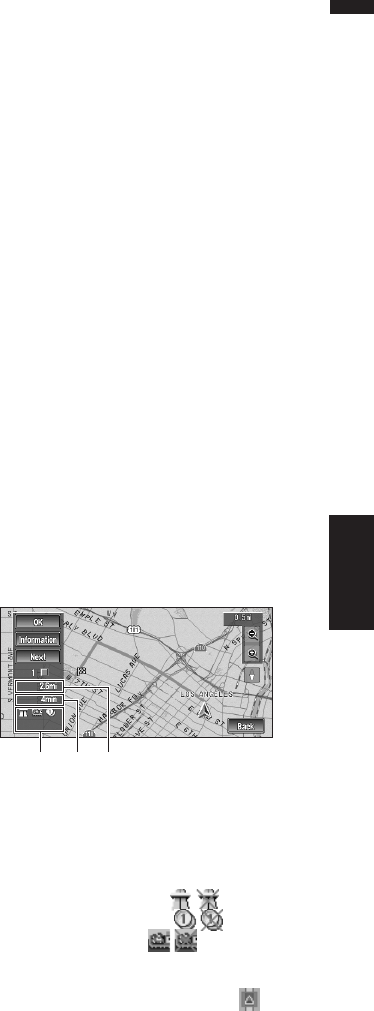
45
Chapter 3 Setting a Route to Your DestinationNAVI
Recalculate
Automatically searches the route to the destina-
tion again.
❒“Recalculate” is displayed only when the
route is set.
Number of Routes
This setting controls whether the system should
calculate only one route, or several routes.
1*:
Only one route judged as being optimum by your
Navigation System is calculated.
Multiple :
Several route options are calculated (maximum 6
routes).
Route Condition
This setting controls whether the route be calcu-
lated with taking into account the time or the dis-
tance.
Fast* :
Calculate a route with the shortest travel time to
your destination as a priority.
Short :
Calculate a route with the shortest distance to
your destination as a priority.
Avoid Freeway
This setting controls whether or not freeways may
be included in the road calculation. (A route
using freeway may be calculated in some cases,
such as when setting your destination far away.)
On :
Calculate a route that avoids freeways.
Off* :
Calculate a route that may include freeways.
Avoid Ferry
This setting controls whether or not ferry cross-
ings should be taken into account.
On :
Calculate a route that avoids ferries.
Off* :
Calculate a route that may include ferries.
❒The system may calculate a route that
includes ferries even if “On” is selected.
Avoid Toll Road
This setting controls whether or toll roads
(including toll areas) should be taken into
account.
On :
Calculate a route that avoids toll roads (including
toll areas).
Off* :
Calculate a route that may include toll roads
(including toll areas).
❒The system may calculate a route that
includes toll road even if “On” is selected.
Designate Areas to Avoid
➲About Areas to Avoid ➞ Page 42
Perform the route calculation of
the several route options, and
select one
You can get route calculations of several route
options. After route options are calculated, select
the one you want.
1Set the “Number of Routes” to
“Multiple”.
2Search your destination and set the route.
Calculated routes are shown in different
colors (from two to six routes).
3Touch “Next” to change the displayed
route.
The following information is displayed on this
screen:
(1) Route calculation condition
Displaying the conditions set by the Route
Options menu by icon.
• Use/avoid freeway
• Use/avoid toll road
• Use/avoid ferry
Displaying impracticability of fulfilling the
conditions by icon.
• Pass through Area to Avoid.
(1) (3) (2)

46
Chapter 3
Setting a Route to Your Destination NAVI
•Use toll road against the setting “Avoid
Toll Road” is “On”.
Use Ferry against the setting “Avoid
Ferry” is “On”.
(2) Distance to your destination
(3) Travel time to your destination
❒The “Avoid Freeway” setting may not be
reflected, depending on the distance to the
destination.
❒You can see other places while displaying
a candidate route by scrolling the map.
Touching “Next” moves the next candi-
date route to the center and indicates the
map.
4Touch “Information” to check the infor-
mation on the selected route.
You can also check details of the roads along
the selected route. (If you touch “Back”, you
can return to the previous display.)
➲“Route Scroll” ➞ Page 38 (Step 3 and 4)
➲“Route Profile” ➞ Page 39 (Step 3 and 4)
❒After the route is calculated, it may take
some time until the detailed route informa-
tion (Route Profile) can be confirmed.
5Touch “OK”.
The route you selected is accepted, and the
map of your surroundings appears. When you
start driving, the route guidance begins.
❒If the above operations are not performed
within 30 seconds after the route calcula-
tion is completed and you have already
started your vehicle, the route selected at
the time is automatically chosen.
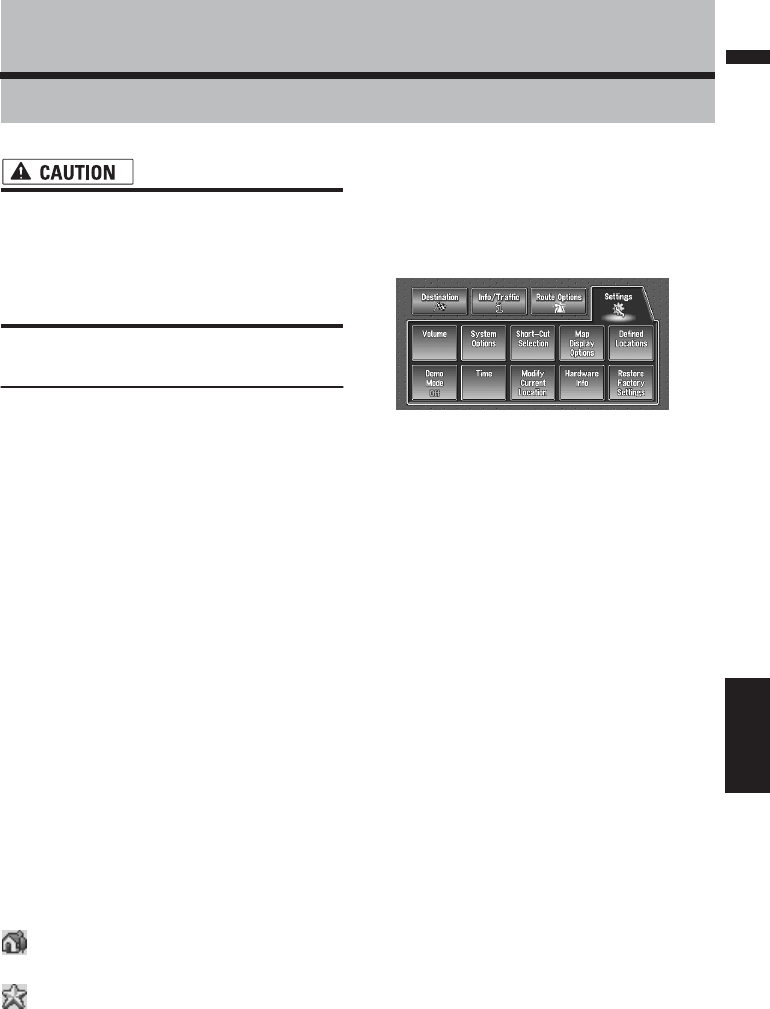
47
Chapter 4 Editing the Navigation UtilitiesNAVI
Chapter 4
Editing the Navigation Utilities
•For safety reasons, these functions are not
available while your vehicle is in motion.
To enable these functions, you must stop
in a safe place and put on the parking
brake before setting your route (see page
12 Interlock for details).
Editing Registered Locations
The Address Book can store up to 300 regis-
tered locations. These can include home loca-
tion, favorite places, and destinations you have
already registered. This registered location infor-
mation can also be modified. Also, routes to reg-
istered locations can be calculated by touching
the screen. Registering places you visit fre-
quently saves your time and effort.
❒The Address Book is automatically updated in
alphabetic order. However, “Return Home”
and “Go to” always appear at the top.
Registering your home and your
favorite location
Of the 300 registered locations that can be
stored, home location and favorite locations can
be stored separately in the Address Book. Reg-
istering your favorite location for the first time is
described here. You can change the registered
information later. You might find it useful to reg-
ister your workplace or a relative’s home as your
favorite location.
Map icons:
:
Home location icon
:
Favorite location icon
1Touch “Setting” in the Main menu, then
touch “Defined Locations”.
2Touch “Set ”Go To””.
When registering your home location, touch
“Set ”Home””.
You can select a method of location search on
the display.
❒The items already registered under
“Return Home” or “Go to” can be modi-
fied.
3Search for a location to register.
➲Information on searching locations to reg-
ister ➞ Page 35 to 38
❒If you select the “Map Search”, move the
scroll cursor to the place you want to set
and touch “OK”.
4Point the scroll cursor to the location you
want to register and touch “OK”.
5Touch “Save”.
Completes the registration.
❒If you want to stop registration, touch
“Back”.
➲“Editing a location’s information” ➞
Page 48
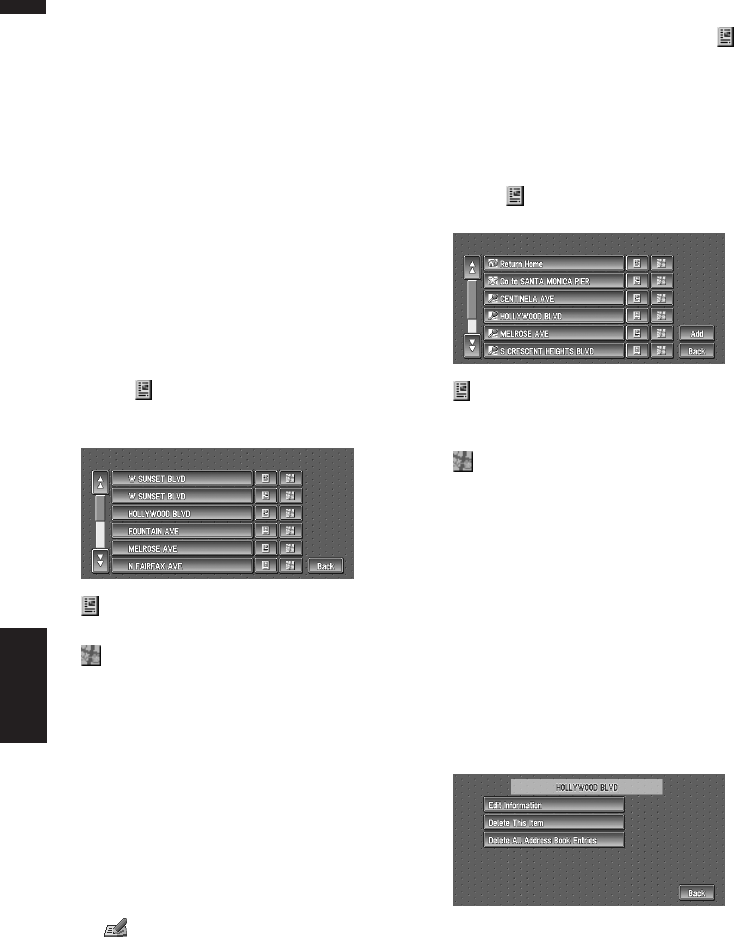
48
Chapter 4
Editing the Navigation Utilities NAVI
Registering a previous location
in the Address Book
Once a destination or way point is searched, it is
automatically retained and stored in the
Destination History. If a search is canceled
while still in progress, only the places where the
map was displayed and scrolled through or
places where the short-cut menu was displayed
are retained and stored. Note that after 100
places are stored, new places are automatically
overwritten on top of old ones, in oldest to most
recent order. Therefore, to ensure that certain
places are kept and not overwritten, be sure to
register them in the Address Book.
1Touch “Destination” in the Main menu,
then touch “Destination History”.
2Touch on the right-hand side of the
place you want to register in the Address
Book.
:
That place can be registered or deleted.
:
The map of that place can be displayed.
➲Searching the destination by map ➞
Page 33
3Touch “Registration”.
4Touch “Save”.
Registration is now complete.
❒If you want to stop registration, touch
“Back”.
➲“Editing a location’s information” ➞
Page 48
➲ in the Shortcut menu ➞ Page 28
Editing a location’s information
In the Address Book menu, touching the on
the right-hand side of the place displays the
Address Book Operate menu.
To edit the information about the location:
1Touch “Destination” in the Main menu,
then touch “Address Book”.
2Touch on the right-hand side of the
place whose information you want to edit.
:
The information related to that place can be
edited.
:
The map of that place can be displayed.
➲Searching the destination by map ➞
Page 33
Add:
The screen for selecting the method for regis-
tering the location in the Address Book
appears.
➲Searching places to register ➞ Page 35 to
38
❒If you select the “Map Search”, move the
scroll cursor to the place you want to set
and touch “OK”.
3Touch “Edit Information”.
The Address Information menu appears.
Refer to the item corresponding to the subse-
quent operation. After finishing the operation,
the Address Book menu appears. You can
continue to edit other information items if
necessary.
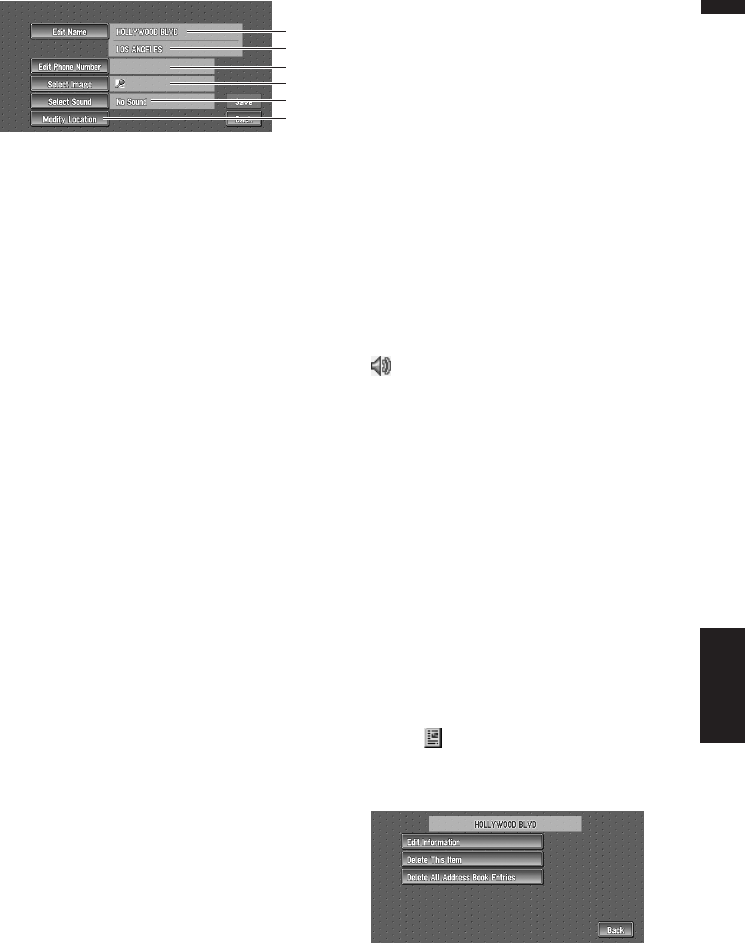
49
Chapter 4 Editing the Navigation UtilitiesNAVI
(1) Name
You can enter the desired name.
(2) Name (2nd line)
The name of the city appears in this column.
(Not editable.)
(3) Phone number
You can search by registered telephone
number.
(4) Pictograph
The symbol displayed on the map.
(5) Sound
The selected operating sound is played.
(6) Modify Location
You can change the registered location by
scrolling the map.
4Touch “Save”.
Completes the registration.
❒If you want to stop registration, touch
“Back”.
Changing a name
1Touch “Edit Name”.
2Enter a new name; touch “OK”.
The name of the current location appears in
the text box. Delete the current name, and
enter a new name between 1 and 23 charac-
ters long.
The details you set are registered, and the
Address Book menu appears.
❒You cannot change the name of your home.
Entering or changing a phone number
1Touch “Edit Phone Number”.
2Input a phone number; touch “OK”.
The Address Information menu appears.
❒To change a registered phone number,
delete the existing number and then enter
a new one.
Selecting a pictograph to appear on the
map
1Touch “Select Image”.
2Touch the Pictograph to appear on the
map.
The Address Information menu appears.
❒You cannot change the mark of your home
or of your favorite location.
Selecting sound
1Touch “Select Sound”.
2Select the sound.
The Address Information menu appears.
If you want to hear the operating sound, touch
.
Modify the Location
➲Changing the position of locations ➞ Page 50
Deleting Address Book or
Destination History Information
Items registered in the Address Book or
Destination History can be deleted. All entries
of the data in the Address Book or Destination
History can be deleted at once.
1Touch “Destination” in the Main menu,
then touch “Address Book”.
To delete items in the Destination History,
touch “Destination History”.
2Touch on the right-hand side of the
place you want to delete.
3Select the deletion method.
A message confirming deletion appears.
(1)
(2)
(3)
(4)
(5)
(6)
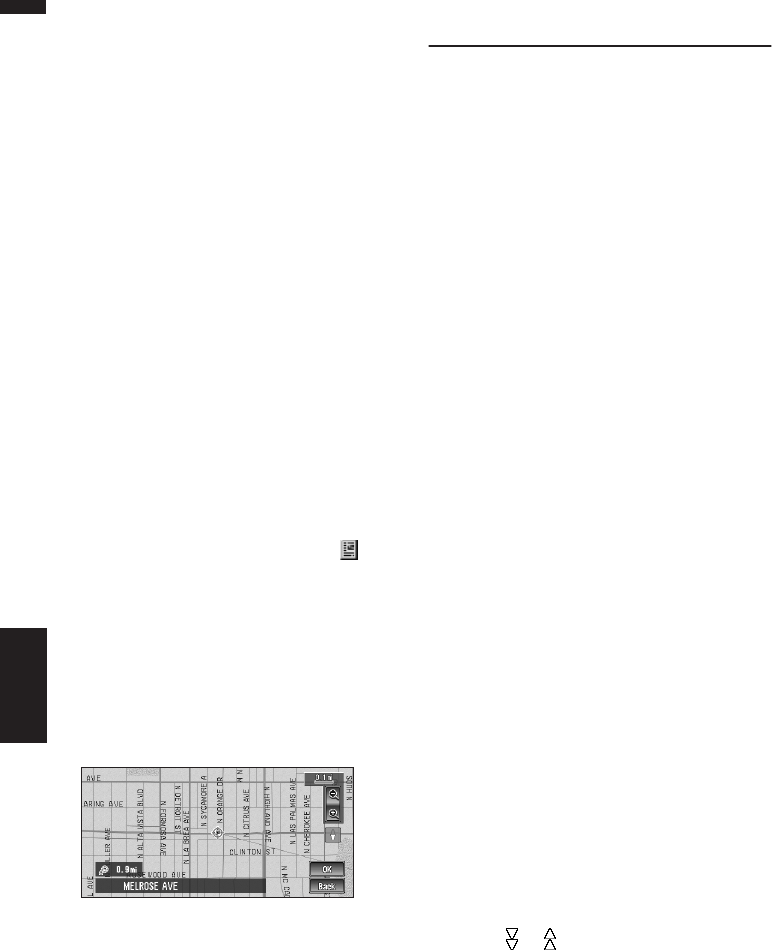
50
Chapter 4
Editing the Navigation Utilities NAVI
Alternative options :
Delete This Item :
Delete the location selected in Step 2.
Delete All Address Book Entries (or
Delete All Destinations) :
Delete all the Address Book or Destination
History data.
4Select “Yes”.
The data you selected is deleted.
Alternative option:
No :
The display shown in Step 3 appears.
❒Because deleted data cannot be restored,
take extra care not to select “Delete All
Address Book Entries” by mistake.
Changing the position of loca-
tions registered in the Address
Book
You can select a location registered in the
Address Book, display a map of its surround-
ings, and change its position.
1In the Address Book menu, touch on
the right-hand side of the place whose
position you want to change.
2Touch “Edit Information”, and then touch
“Modify Location”.
The map of the selected area and its sur-
roundings appears.
3Touch the display to change its position,
then touch “OK”.
The position is changed.
❒Touching “Back” returns to the previous
screen without changing the location.
Using XM NavTraffic Informa-
tion
If you have a GEX-P10XMT XM Digital Satellite
Data & Audio Receiver (sold separately) attached
to the Navigation System, and have an active
subscription to XM NavTraffic service, you can
view current traffic conditions and information
on your Navigation display. When the unit
receives updated traffic information, the Naviga-
tion system will overlay the traffic information on
your map, and also display detailed text informa-
tion when available. When you are traveling
along a route and there is traffic information on
your current route, the system will automatically
detect it, and ask you if you would like to be
rerouted. (In such case, route calculation takes
into consideration about 90 mile radius of alter-
native routes and its traffic conditions from your
current location).
❒The “traffic congestion” in this section indi-
cated the following types of traffic informa-
tion: stop and go, stopped traffic, closed/
blocked roads. This information is always
taken into consideration when checking your
route, and the information related with these
events cannot be turned off. Additionally, the
system also takes into consideration the traf-
fic flow information if “Use the traffic flow
information” is “On”.
Viewing traffic list
Traffic Information is displayed onscreen in a list.
This allows you to check how many traffic inci-
dents have occurred, their location, and their dis-
tance from your current position.
Checking all traffic information
1Touch “Info/Traffic” in the Main menu,
then touch “Traffic Events”.
The list with received traffic information is
shown.
2Touch or to view the incident list.
Places (street names) where incidents have
occurred are displayed in the list.
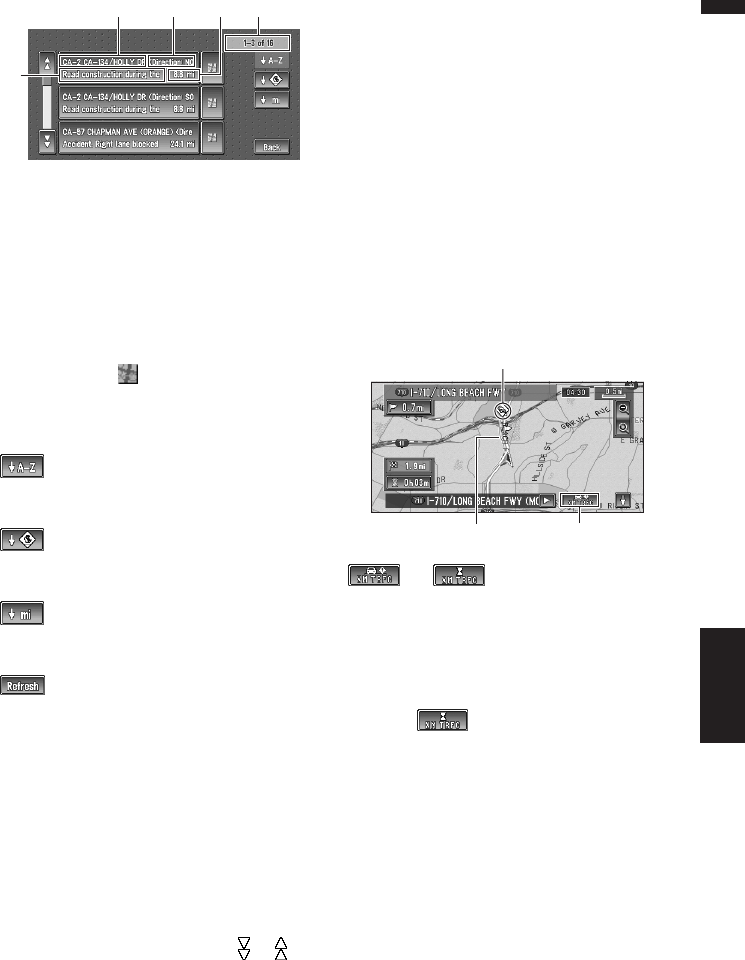
51
Chapter 4 Editing the Navigation UtilitiesNAVI
(1) Street or place
(2) Direction
(3) Incident
(4) Distance to the location
(5) The incident numbers currently dis-
played and the total number of incidents
❒The incidents that have already been read
will be displayed in white. Unread inci-
dents will be in yellow.
❒Touching the allows you to check the
place on a map. (Traffic information with-
out positional information cannot be
checked on a map.)
:
You can sort the traffic information in alpha-
betical order.
:
You can sort the traffic information according
to the incident.
:
You can sort the traffic information by dis-
tance from your current position.
:
When new traffic information is received, cur-
rent information is changed, or old informa-
tion has been removed, the list is updated to
reflect the new situation.
3Select an incident you want to view in
detail.
The details of the selected incident are dis-
played.
• Touching an incident you want to see
allows you to view the detailed information
of the incident. If the information cannot be
displayed on one screen, touch or to
view the remaining information.
4Touch “Back” to return to the list with
traffic information.
A list with traffic information appears again.
Checking traffic information on the
route
1Touch “Info/Traffic” in the Main menu,
and then touch “Traffic On Route”.
The currently set traffic information on the
route appears on the screen.
❒The method for checking the content dis-
played on the screen is the same for
“Checking all traffic information”.
➲Checking all traffic information ➞ Page 50
Confirming traffic information
on the map
The traffic-related information displayed on the
map is as follows.
(or ):
(1) TRAFFIC icon
When a route has been calculated, touch to
check whether there is any traffic congestion
information on your route. When no route has
been calculated, touch to display the traffic list.
❒When is displayed, the data is being
loaded from the DVD Map Disc.
(2) A line to indicate the length of the traffic
congestion
(displayed only when the scale on the map is 0.75
mile (1km) or lower).
Traffic congestion:
Orange with white outline: stop and go traffic
Red with white outline: stopped traffic
Black with white outline: closed/blocked roads
(3) Icon for traffic information
(appears only when the scale on the map is 10 mi
(20 km) or lower)
❒Traffic-related icons are not displayed on city
maps.
(3)
(1) (2) (5)(4)
(
3
)
(2) (1)
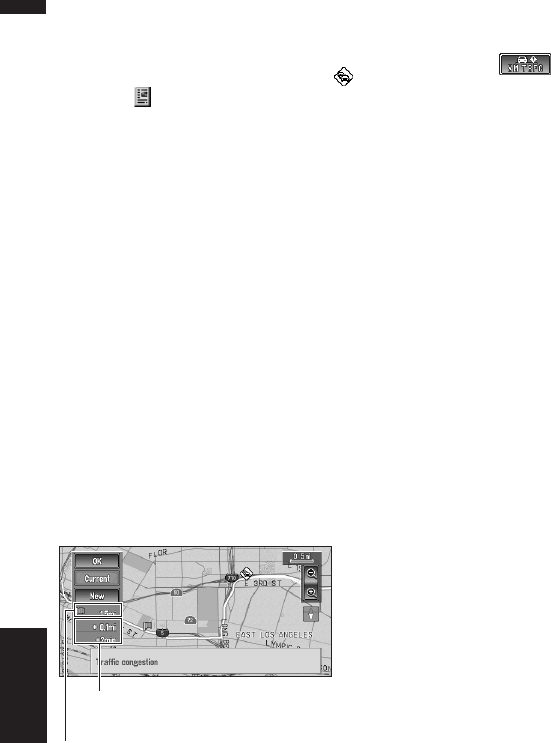
52
Chapter 4
Editing the Navigation Utilities NAVI
➲“Selecting traffic information to display” ➞
Page 53
If you want to check the traffic information
details, move the scroll cursor onto the , etc.
and touch . This allows you to view place
names and other information.
Information on avoiding traffic
congestion on route ahead
If you are approaching traffic on your current
route, the Navigation System has the ability to
recommend an alternative route. Depending on
the information of traffic congestion you have
received and the setting of Use traffic flow infor-
mation, the Navigation System will recommend
you an alternate route automatically. On the free-
way, the Navigation System will detect at least 1.6
miles (2.6 km) ahead of the specific traffic inci-
dent.
If a better route can be calculated, the following
screen will appear.
❒Following types of traffic incidents on the
route will be checked: stop and go, stopped
traffic and closed/blocked roads.
On this screen, you can select the following
items:
New :
A new route is displayed on the screen.
Current :
The current route is displayed on the screen.
OK :
Select the route to that displayed on the screen.
❒When no selection is made, the current route
will be automatically selected after a short
while.
When checking traffic conges-
tion information manually
Touching on the screen allows you to
check for traffic congestion information on your
route.
If there is any information about a traffic conges-
tion on your route, a message appears asking you
whether to search for another route to avoid the
traffic congestion. If there is no traffic congestion
information along the route being guided, it is
announced on screen and by voice.
If there is a traffic congestion informa-
tion on the route
When receiving information about a traffic con-
gestion, the message announcing the presence
of a traffic congestion is indicated.
On this screen, you can select the following
items:
Yes :
The route is recalculated taking the traffic con-
gestion into account.
No :
The message disappears, and the map display
reappears.
List :
The list with traffic information is displayed.
If there is no traffic congestion informa-
tion on the route
If there is no traffic congestion information, a
message informing you that there is no traffic
congestion information on the route is shown.
On this screen, you can select the following
items:
List :
The list with all traffic information is displayed.
Back :
Message disappears, and returns to the map
screen.
Following types of traffic incidents on the route
will be checked: stop and go, stopped traffic and
closed/blocked roads.
Traffic flow information
When the map scale is between 0.02 mi (25 m) –
1 mi (2 km), red, yellow, or green blinking lines
may appear on either sides of a road. These
colors indicate the average speed at which traffic
Distance from the current position of your vehicle
to the point of entry into the new route.
Difference in distance and travel time between
existing route and new route.
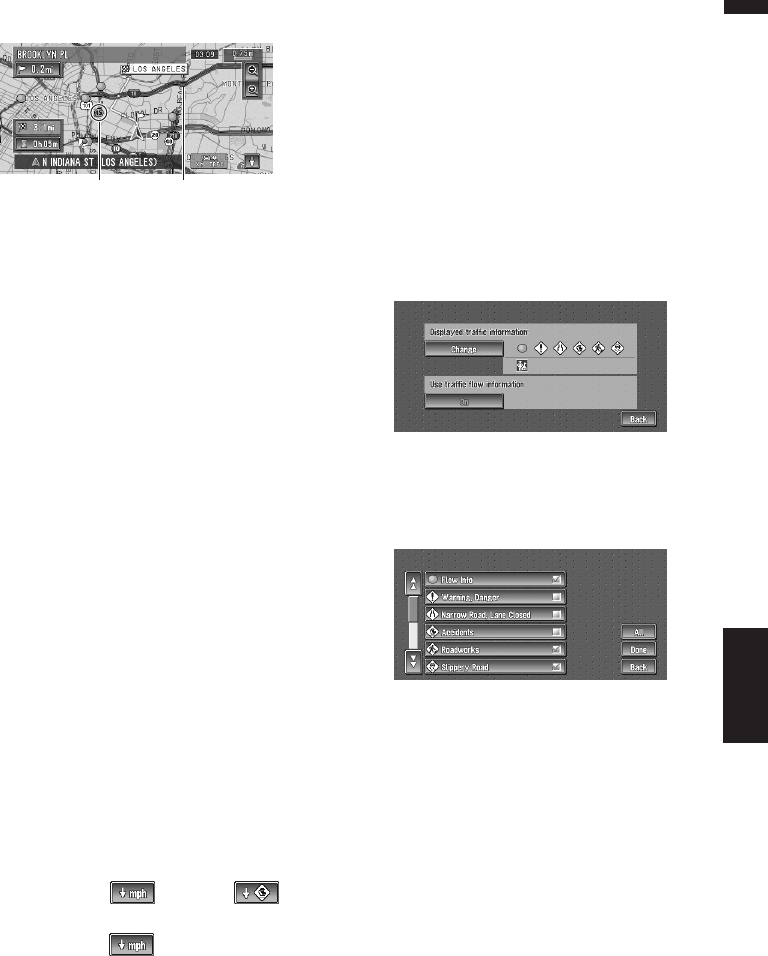
53
Chapter 4 Editing the Navigation UtilitiesNAVI
is flowing along these streets. Here is a guide to
the colors and the average speed they indicate:
Red: average speed in this area is between 5-15
mph (8-24 km/h)
Yellow: average speed in this area is between
20-40 mph (32-64 km/h)
Green: average speed in this area is 45 mph (72
km/h) or faster (The icon without number indi-
cates the average speed of the road is more than
70 mph (112km/h))
❒In addition to these blinking lines, a round
icon with a number may appear on the map.
The number in the icon indicates the actual
average speed of that specific area.
❒You can turn off the use of Traffic flow infor-
mation.
➲Set use of Traffic flow information setting to
off ➞ Page 54
Checking traffic flow information on the
list
The traffic flow information on the route can also
be displayed as an onscreen list.
❒The method for checking the traffic flow infor-
mation displayed on the screen is the same
for “Checking all traffic information”.
➲Checking all traffic information ➞ Page 50
1Touch “Info/Traffic” in the Main menu,
then touch “Traffic Flow”.
The list with the traffic flow information is
shown.
You can use instead of . The list
will be sorted according to the average speed
by touching .
Selecting traffic information to
display
There are different types of traffic information
that can be received via the XM NavTraffic serv-
ice, and you are able to select which types will be
incorporated and displayed on your Navigation
System.
1Touch “Info/Traffic” in the Main menu,
and then touch “Traffic Settings”.
2Touch “Change”.
The name of the displayed traffic information
items, and list of icons appears on the screen.
3Touch the traffic information item to dis-
play.
A red check appears next to the selected traf-
fic information.
❒Touching “All” selects all the traffic infor-
mation.
4Touch “Done”.
The selected traffic information icon is added
to the screen.
❒Touch “Back” to cancel your selection.
❒Traffic congestion of type stop and go,
stopped traffic and closed/blocked roads
cannot be deselected and are always dis-
played.
5Touch “Back”
Flow Icon The line for traffic flow
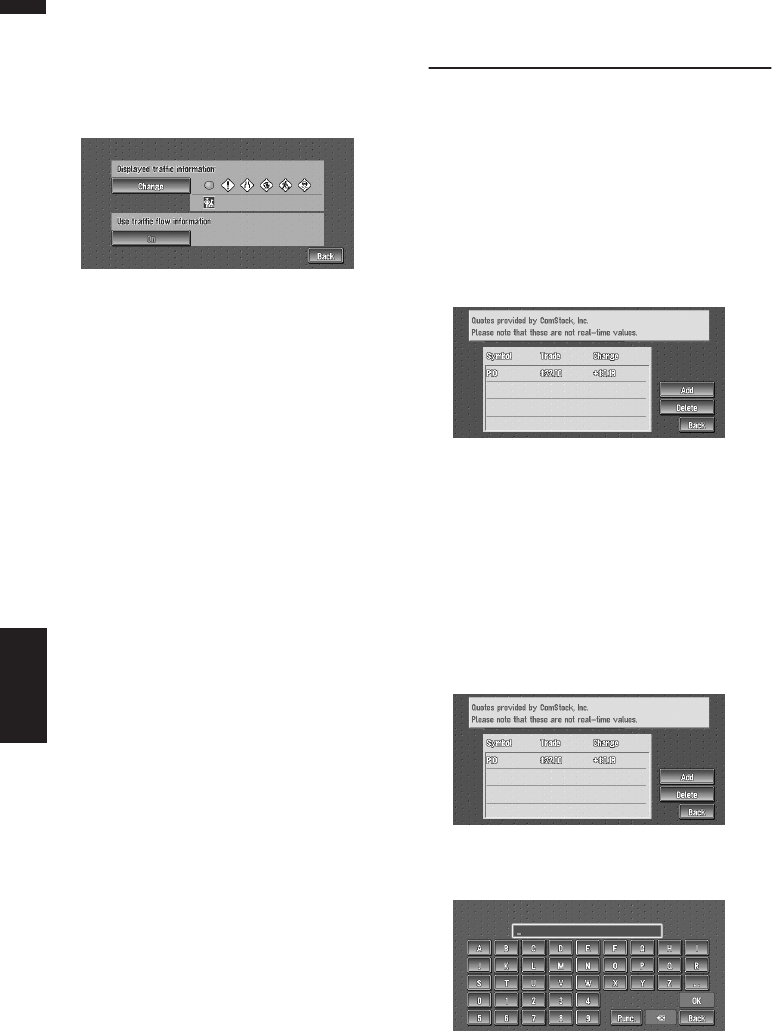
54
Chapter 4
Editing the Navigation Utilities NAVI
Set use of Traffic flow information set-
ting to off
1Touch “Info/Traffic” in the Main menu,
and then touch “Traffic Settings”.
2Touch “On”.
The button changes to “OFF”.
3Touch “Back”.
❒If you wish to use the traffic flow information
again, touch “OFF” to turn the button “On” in
the Traffic Settings screen.
Using the XM Tuner to View
Stock, Sports, and Other Infor-
mation
When an XM tuner (GEX-P10XMT) is connected,
you can receive stock price, sports, etc. and dis-
play it onscreen. You may also register favorite
information in the Navigation System.
Displaying stock prices
Can display the prices of up to 12 stocks.
1Touch “Info/Traffic” in the Main menu,
and then touch “Stock Info”.
The screen displays a list of stock prices.
❒Although the stock price information dis-
played onscreen is updated every 30 sec-
onds (approx.), these price information are
not real-time values.
Registering stocks to be displayed
1Touch “Info/Traffic” in the Main menu,
and then touch “Stock Info”.
2Touch “Add”.
3Input the Ticker text for the stocks you
wish to display, then touch “OK”.
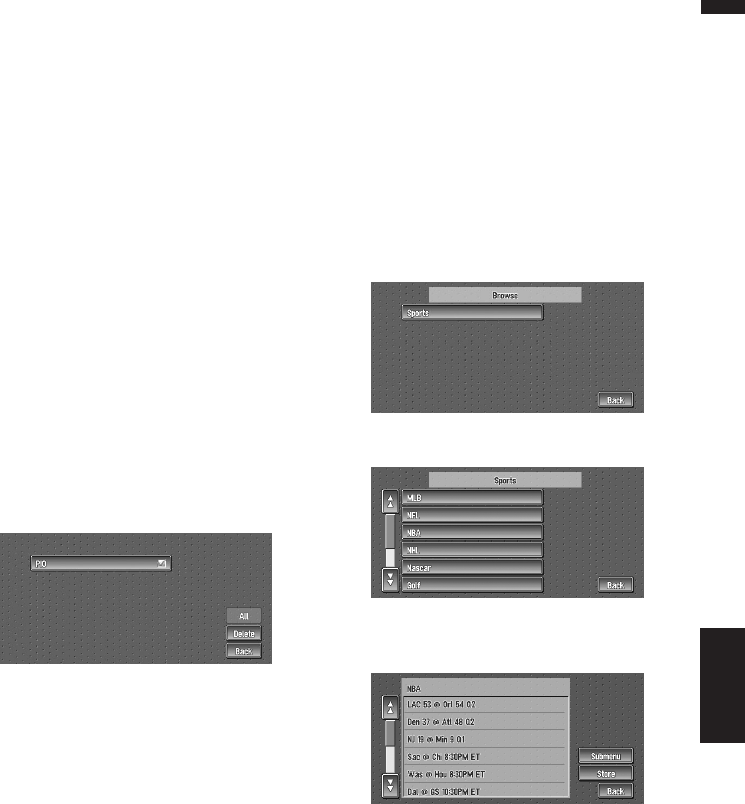
55
Chapter 4 Editing the Navigation UtilitiesNAVI
“Punc” :
You can input text with the punctuation such
as “!”and “:”.
“Oper” :
You can input text with the operators such as
“+”and “-”.
❒The method for inputting the text is the
same as for inputting street names.
➲Text input method ➞ Page 21
❒If the input ticker symbol does not match
in full the actual ticker symbol for the
stock, you may not be able to find it.
Deleting stocks to be displayed
onscreen
Can display the prices of up to 12 stocks. If 12
stocks are already registered, delete as many
entries as necessary to add new stocks.
1Touch “Info/Traffic” in the Main menu,
and then touch “Stock Info”.
2Touch “Delete”.
3Touch the ticker of the stock you wish to
delete.
A red check appears next to the ticker you
touched.
❒To delete all the registered stocks, touch
“All”. Red checks will appear next to all
the tickers.
4Touch “Delete”.
5A message will appear asking you to con-
firm the deletion. Touch “OK”.
Displaying browsable informa-
tion
❒The displayed items depend on the informa-
tion which is sent from each station.
1Touch “Info/Traffic” in the Main menu,
then touch “Browse”.
The screen will display a list of categories. The
information appearing onscreen is automati-
cally updated at regular intervals.
2Touch a category you want to browse
from the list.
3Touch the topic you wish to view.
4Touch an item (a topic) to display the
content.
Submenu :
Displays the submenu. If there is no submenu
for the content, the Submenu will be inactive.
Store :
Registers the current item (topic) about which
information is displayed as a favorite.
➲Confirming your favorite information ➞
Page 56
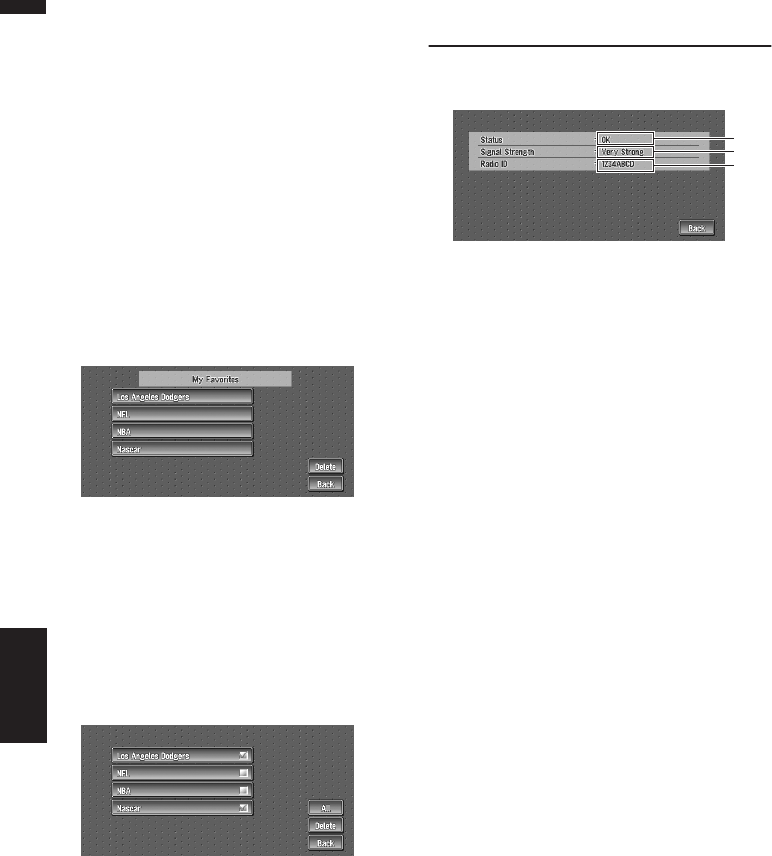
56
Chapter 4
Editing the Navigation Utilities NAVI
Displaying favorite browsable
Information
An XM special content can be assigned as a
shortcut or “My Favorites” so that it can be
accessed without having to search every time an
update is needed. The following are the instruc-
tions on how to do so:
1Store the desired item (topic).
➲Displaying browsable information ➞
Page 55
2Touch “Info/Traffic” in the Main menu,
and then touch “My Favorites”.
A list of registered items (topics) appears on
the screen. Touch the item to display informa-
tion about this item.
Deleting favorite browsable informa-
tion
1Touch “Info/Traffic” in the Main menu,
and then touch “My Favorites”.
2Touch “Delete”.
3Touch the name of the items you wish to
delete.
A red check appears next to the items you
touched.
❒To delete all favorite contents, touch “All”.
Red checks will appear next to all the
items.
4Touch “Delete”.
5A message will appear asking you to con-
firm the deletion. Touch “OK”.
Checking the Reception Status
of the XM Tuner
1Touch “Info/Traffic” in the Main menu,
and then touch “XM Status”.
The current XM tuner’s (GEX-P10XMT) recep-
tion status and signal strength appear on
screen.
(1) Status
Depending on the XM tuner’s (GEX-P10XMT)
reception status, any one of the following may
appear.
OK
No problem.
Updating
Updating encryption code.
Check antenna
Improper antenna connection.
Not Connected
(2) Signal Strength
Depending on the signal strength, any one of the
following may appear.
Very Strong
Strong
Marginal
Weak
No signal
(3) Radio ID
The radio ID appears.
(1)
(2)
(3)
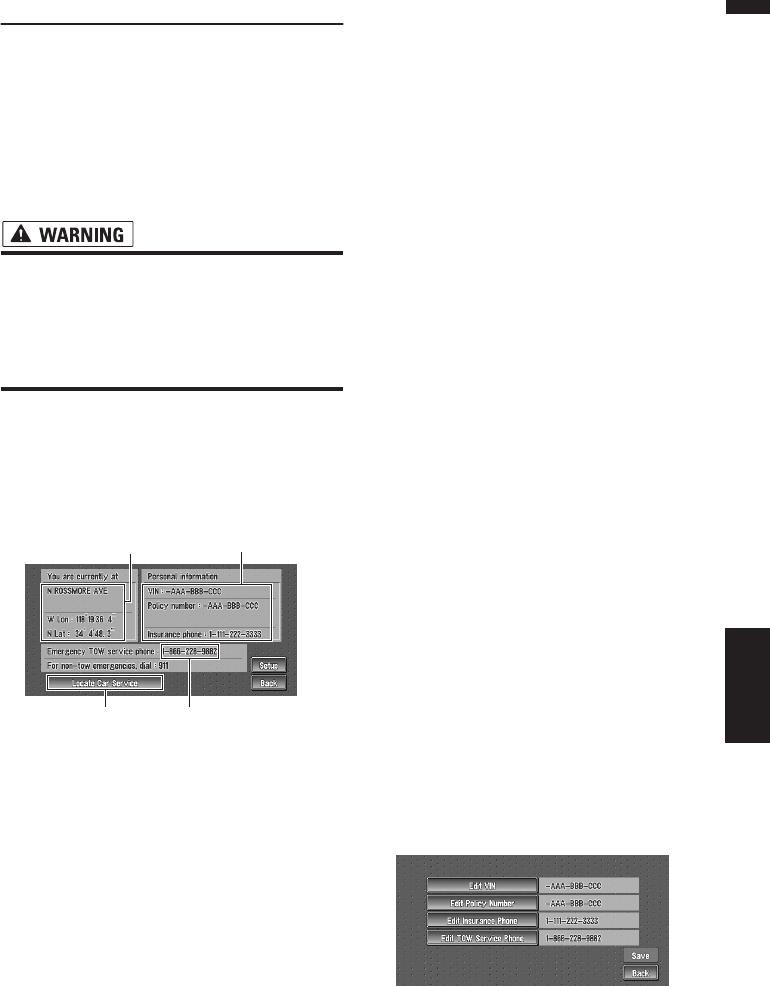
57
Chapter 4 Editing the Navigation UtilitiesNAVI
Emergency Info
The Emergency Info screen provides important
emergency information pertaining to your vehi-
cle, insurance, and current location. Such emer-
gency information could be useful in the event of
an accident or vehicle breakdown. The accuracy
of the personal information is dependent on the
accuracy of the information entered into the Nav-
igation System by the user.
• The Emergency Info screen is only inten-
ded to provide information to a driver that
may be useful during an emergency situa-
tion, and does not replace the need to call
for emergency assistance, when neces-
sary.
Checking the information regis-
tered as Emergency Info
1Touch “Info/Traffic” in the Main menu,
and then touch “Emergency Info”.
The information registered as Emergency
Info appears on the screen.
(1) You are currently at :
Your current position is indicated by the street
name and your latitude and longitude.
(2) Personal Information :
Your VIN number, insurance policy number, and
the telephone number of your insurance com-
pany can be displayed once entered by the user.
(3) Emergency TOW service phone :
1 year of free Emergency Roadside Assistance
service is available to all registered owners and
provided by Signature’s Nationwide Auto Club,
Inc. The first year of Emergency Roadside Assist-
ance service is paid for by Pioneer only if your
Navigation System is registered with Pioneer and
you sign up on-line with Nationwide Auto Club,
Inc. at the time you register your Navigation Sys-
tem with Pioneer. If you have not signed up for
this service with Nationwide Auto Club, Inc. or if
your free one-year period has expired, you are
subject to charges by Nationwide Auto Club, Inc.
You are also subject to charges by Nationwide
Auto Club, Inc. for roadside services not included
in the Emergency Roadside Assistance service.
The terms and conditions regarding the Emer-
gency Roadside Assistance service provided by
Nationwide Auto Club, Inc. are determined solely
and exclusively by Nationwide Auto Club, Inc.
Please contact Nationwide Auto Club, Inc. for
more information. The telephone number that
appears here by default is the toll free number for
this service. For additional details on registering
for this service, please check your product regis-
tration card included with this product. If you are
not interested in the free Roadside Assistance
service, this number can be edited and replaced
by your own roadside assistance telephone
number.
❒The police number is shown as 911 and can-
not be changed.
(4) Locate Car Service
➲Searching for car service in an emergency ➞
Page 58
Registering user information
1Touch “Info/Traffic” in the Main menu,
and then touch “Emergency Info”.
2Touch “Setup”.
3Touch the desired item to register your
information.
❒If information is already registered, that
information will appear.
(4) (3)
(2)(1)
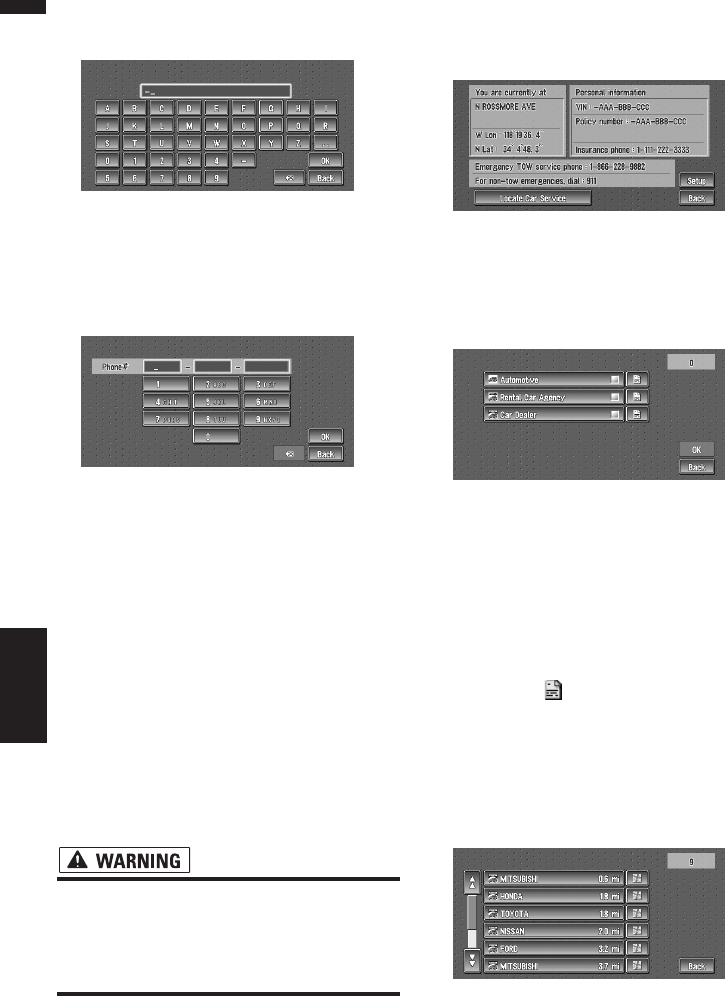
58
Chapter 4
Editing the Navigation Utilities NAVI
4Input the number you wish to register,
and then touch “OK”.
Edit VIN
Register your Vehicle’s Identification Number.
(You can enter the number between 1 and 17.)
Edit Policy Number
Register your insurance policy number.
Edit Insurance Phone
Register your insurance company’s phone
number.
Edit TOW Service Phone
Record a towing company’s phone number.
5Touch “Save”.
Completes the registration.
❒If you want to stop registration, touch
“Back”.
Searching for car service in an
emergency
In times of emergency, you can search the Emer-
gency Info for Auto Services in the vicinity of your
current position and set the current route.
• The Emergency Info screen is only inten-
ded to provide information to a driver that
may be useful during an emergency situa-
tion and if they are in a safe location. If
not, or in all major accidents, call 911.
1Touch “Info/Traffic” in the Main menu,
and then touch “Emergency Info”.
2Touch “Locate Car Service”.
A list of auto services appears onscreen.
3Touch the Category of the auto service
you wish to use.
A red check appears next to the selected cate-
gory.
❒The Auto Service categories that can be
selected in the Emergency Info are:
“Automotive”, “Rental Car Agency”,
and “Car Dealer”.
4Touch “OK”.
Displays a list of names of facilities in the
vicinity and the distances from your current
position.
❒Touching displays a list of subcatego-
ries. Touch the subcategory you wish to
use from among the subcategories dis-
played and touch “OK” to select the Auto
Service from the subcategories.
5Touch the name of the facility to set the
route you want.
Displays the route to the selected facility.
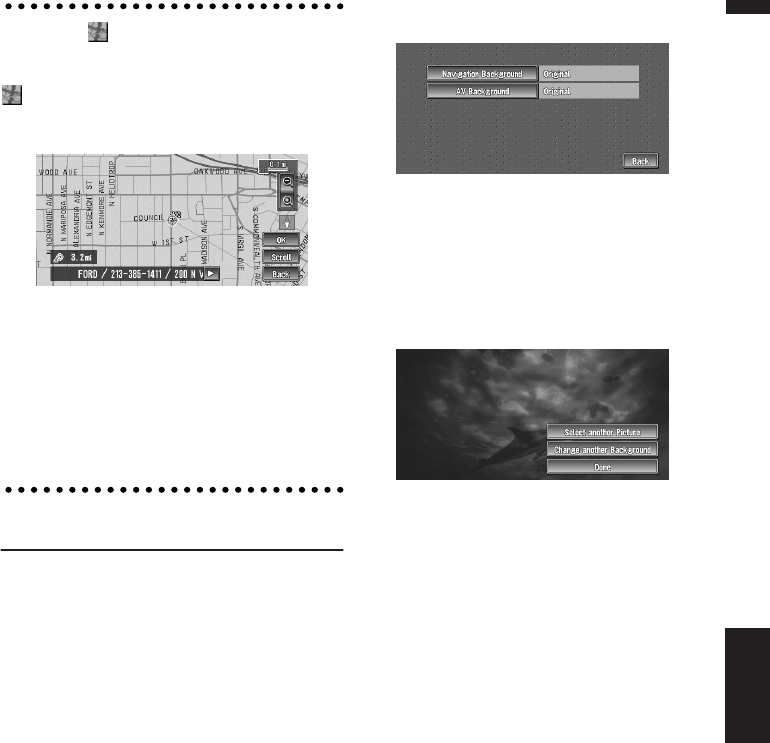
59
Chapter 4 Editing the Navigation UtilitiesNAVI
When the appears on the right of
the list
You can also set a destination by touching the
to the right of the list. Touch “OK” to confirm.
The location pointed by the scroll cursor will be
set as a destination.
Alternative option:
Scroll :
The map display changes to the map with Short-
cut menu.
If you touch anywhere on the map, the map dis-
play changes to Scroll mode.
➲Shortcut menu ➞ Page 28
Changing Background Picture
In the menu operation screen, you can indicate a
picture you like on the background. Some pic-
tures are already stored on the Pioneer DVD Map
Disc. The following two types of background pic-
tures can be changed:
•AV Background : Background for the screen
during the operation of audio.
•Navigation Background : Background of
navigation menu screen.
1Touch “Settings” in the Main menu, then
touch “System Options”.
2Touch “Background Picture Setting”.
The picture selected for each screen is indi-
cated on the right side of “AV Background”
and “Navigation Background” items.
3Touch “Navigation Background” or “AV
Background”.
4Touch a picture you want for the back-
ground, then touch “OK”.
The background image starts changing. After
a short while, the new background image
appears.
5Touch “Done”.
On this screen, you can select the following
items:
Select another Picture :
This is selected when you want to change to
another picture. Return to Step 4.
Change to another background :
Select if you want to successively change the
Audio Operating screen backgrounds or the
Navigation backgrounds. Return to step 3.
❒When changing a picture starts, do not cut
off the vehicle engine until the message
informing the completion of changing a
picture is indicated.
❒When the Navigation System is reset, or
the language setting is changed, the back-
ground picture may change back to the
original picture. (There is also a possibility
that the system will revert to the original
picture for some other reason). If this hap-
pens, set the background picture again.
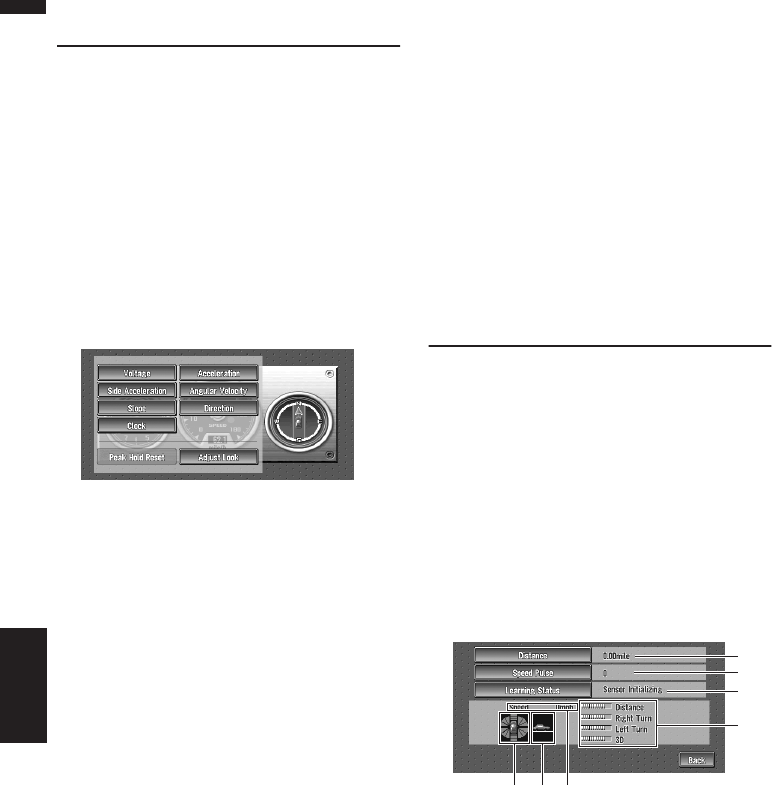
60
Chapter 4
Editing the Navigation Utilities NAVI
Setting the Vehicle Dynamics
Display
You can change the values displayed by the
instruments on the left and right of the Vehicle
Dynamics Display.
Until the sensor’s initial learning is complete,
only the voltage and clock are available.
1Switch to the Vehicle Dynamics Display.
➲Changing the map display mode ➞
Page 29
2Touch the left or right instrument.
Touch keys are displayed.
3Touch the items you want to display.
You can select the following items.
Voltage :
Displays the power supply and voltage sup-
plied from the battery to this system.
Acceleration :
Acceleration in a forward direction is dis-
played. The + sign indicates acceleration
while the – sign indicates deceleration.
Side Acceleration :
Acceleration in a side direction such as when
turning, is displayed. The + sign indicates a
right turn, while the – sign indicates a left
turn.
Angular Velocity :
Displays the vehicle’s turning angle over one
second (how far it has turned in a second).
Slope :
Displays the vehicle’s vertical movement. The
+ side represents the rising angle, and the -
side the falling angle.
Direction :
The direction your vehicle is traveling in is dis-
played.
Clock :
Current time is displayed.
Adjust Look :
Touch “Adjust Look” to display a screen for
selecting the panel pattern. Touch one of the
patterns from among those displayed
onscreen to change the panel to the selected
pattern.
❒If you touch “Peak Hold Reset”, the maxi-
mum and minimum (green line) values
indicated in “Acceleration” and “Side
Acceleration” are reset.
❒You cannot change the speedometer at the
center.
❒Selecting Demo mode in the Settings
menu enables you to perform a demon-
stration with random values.
Checking the Navigation Status
The navigation status, including the driving sta-
tus of a vehicle, positioning status by satellite,
learning status of the 3D sensor, and cable con-
nection status can be checked.
Checking sensor learning status
and driving status
1Touch “Settings” in the Main menu, then
touch “Hardware Info”.
2Touch “3D Calibration”.
The 3D Calibration screen appears.
(1) Distance
Driving distance is indicated.
(2) Speed Pulse
Total number of speed pulses is indicated.
(3) Learning Status
Current driving mode is indicated.
(4) Degree of learning
Sensor learning situations of distance
(Distance), right turn (Right Turn), left turn
(Left Turn), and 3D detection (3D Detection)
are indicated by the length of bars.
(1)
(2)
(3)
(4)
(5)(7)(6)
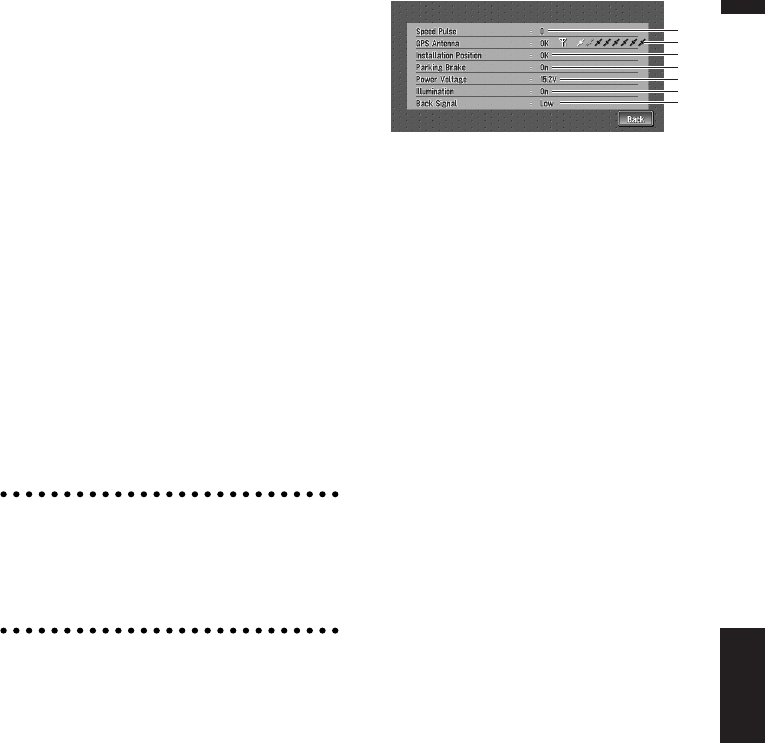
61
Chapter 4 Editing the Navigation UtilitiesNAVI
❒When tires have been changed or chains fit-
ted, turning on the Speed Pulse allows the
system detects the fact that the tire diameter
has changed, and automatically replaces the
value for calculating distance.
❒If the ND-PG1 is connected, the distance cal-
culation value cannot be replaced automati-
cally.
(5) Speed
Speed detected by the Navigation System is
indicated. (This indication may be different
from the actual speed of your vehicle, so
please do not use this instead of the speed-
ometer of your vehicle.)
(6) Acceleration or deceleration/Rota-
tional speed
Acceleration or deceleration velocity of your
vehicle is indicated. Also, rotational speed
when your vehicle turns to left or right is
shown.
(7) Inclination
Degree of slope of the street is indicated.
To clear values...
If you want to delete the learned results stored in
“Distance”, “Speed Pulse” or “Learning Sta-
tus”, touch the relevant result, then touch
“Clear”.
❒The Navigation System can automatically use
its sensor memory based on the outer dimen-
sions of the tires.
Checking the connections of
leads and installation positions
Check that leads are properly connected between
the navigation unit and the vehicle. Please also
check whether they are connected in the correct
positions.
1Touch “Settings” in the Main menu, then
touch “Hardware Info”.
2Touch “Connection Status”.
The Connection Status screen appears.
(1) Speed Pulse
The Speed Pulse value detected by the Navi-
gation System is shown. “0” is shown while
the vehicle is stationary.
(2) GPS Antenna
Indicates the connection status of the GPS
antenna, the reception sensitivity, and from
how many satellites the signal is received.
If the signal is received correctly, “OK” is dis-
played. If reception is poor, “NOK” appears.
(3) Installation Position
The Installation position of the navigation unit
is shown.
If installed correctly, “OK” appears. Indicates
whether the Installation position of the naviga-
tion unit is correct or not. When the naviga-
tion unit is installed at an extreme angle
exceeding the limitation of the installing
angle, “Incorrect angle” will be displayed.
When the angle of the navigation unit has
been changed, “Excessive vibration” will be
displayed.
(4) Parking Brake
When the parking brake is applied, “On” is
displayed. When the parking brake is
released, “Off” is displayed.
(5) Power Voltage
The power supply (reference value) provided
from the vehicle battery to the Navigation Sys-
tem is shown. If the voltage does not fall
within the range of 11 to 15V, check that
power cable connection is correct.
(6) Illumination
When the headlights or small lamps of a vehi-
cle are on, “On” is displayed. (If the orange/
white lead is not connected, “Off” appears.)
(7) Back Signal
When the gear lever is shifted to “R”, the sig-
nal switches to “High” or “Low”. (Which of
these is displayed depends on the vehicle.)
(1)
(2)
(3)
(4)
(5)
(6)
(7)
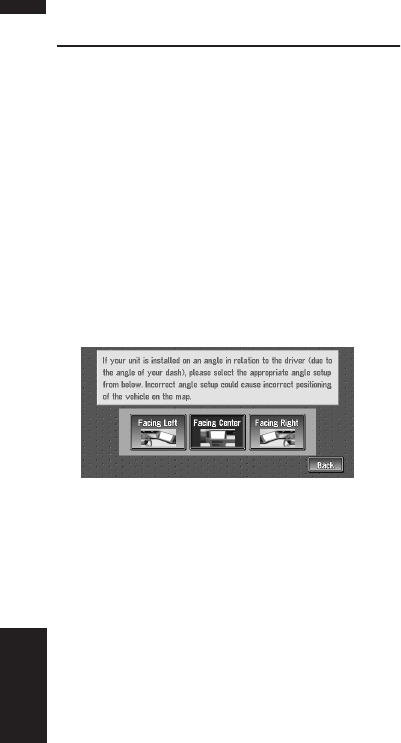
62
Chapter 4
Editing the Navigation Utilities NAVI
Correcting the Installation
Angle
You can correct the installation angle of the navi-
gation unit. Even if the installation angle is not
facing the center, higher-accuracy sensor learn-
ing can be performed by correcting it. Select the
orientation of the LCD panel from the left, center,
and right.
1Touch “Settings” in the Main menu, then
touch “System Options”.
2Touch “Installation Angle Setup”.
3Check the direction the LCD panel faces,
and touch the corresponding item.
Facing Left :
Select this when the angle is 5° or more to the
left from the center.
Facing Center :
Select this when the angle is less than 5° to
the left, and 5° or more to the right from the
center.
Facing Right :
Select this when the angle is 5° or more to the
right from the center.
❒If the sensor status is “Simple hybrid”,
correcting the installation angle will not be
invalid.
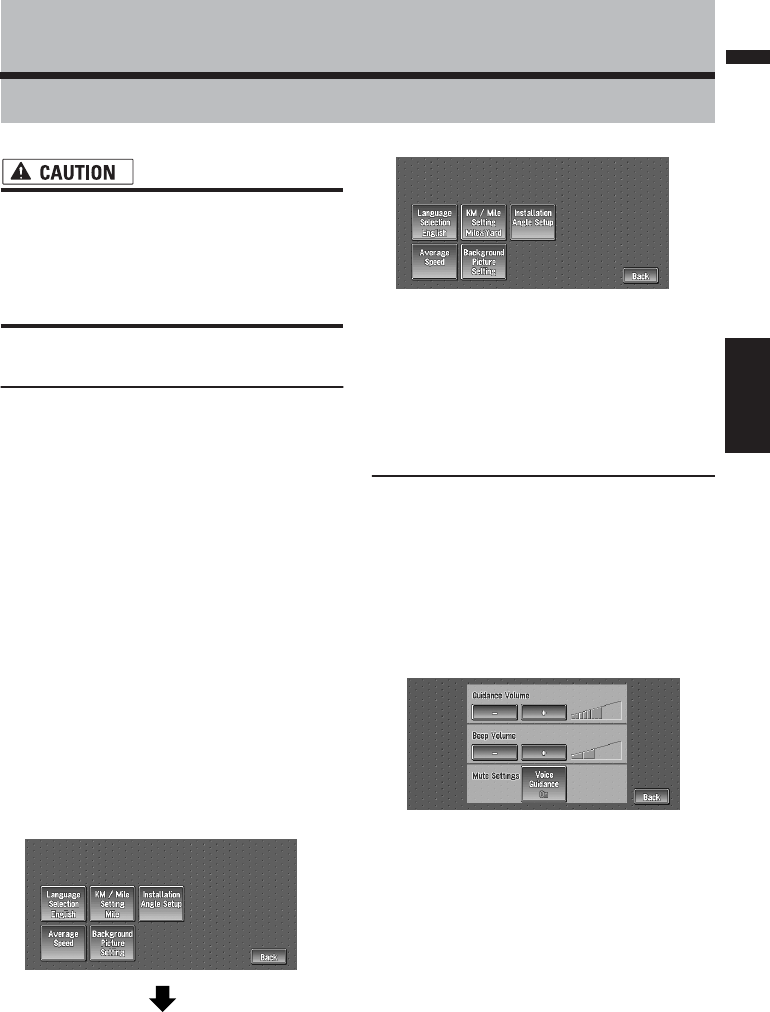
63
Chapter 5 Customizing Your Navigation SystemNAVI
Chapter 5
Customizing Your Navigation System
•For safety reasons, these functions are not
available while your vehicle is in motion.
To enable these functions, you must stop
in a safe place and put on the parking
brake before setting your route (see page
12 Interlock for details).
Modifying the Default Settings
You can tailor default settings such as navigation
functions and information display for ease of use.
The following example describes how to change
settings. In this example, the “KM/Mile Setting”
settings is set to “Mile & Yard”.
1Touch “Settings” in the Main menu.
The Settings menu appears.
2Touch “System Options”.
The screen changes. “Mile” is displayed
below “KM/Mile Setting”, indicating that
this function is currently set to “Mile”.
❒When you touch items with a setting below
them, their setting changes. When you
touch items with no setting below them, a
setting screen appears.
❒Touching “Back” switch to Settings
Menu.
3Touch “KM/Mile Setting”.
“Mile & Yard” is displayed below “KM/Mile
Setting”, indicating that “KM/Mile Setting”
is set to “Mile & Yard”.
If you want to change another setting, select
the item you want to change and repeat the
procedure in step 3.
Items Users can Change
This section describes the details of the setting
for each item. Settings marked with an asterisk
(*) show that they are default or factory settings.
Volume
The sound volume for the navigation can be set.
You can separately set the volume of the route
guidance and of the beep sound.
Guidance Volume
Touch “+” or “–” to change the Guidance volume.
Beep Volume
Touch “+” or “–” to change the Beep volume.
❒Volume of the audio source is adjusted by the
VOLUME dial of the navigation unit.
Mute Settings
Items related to muting of sound volume can be
set.
❒When Voice Guidance is “On”, be sure to set
the TEL/GUIDE setting in the Audio Menu to
MUTE or ATT.
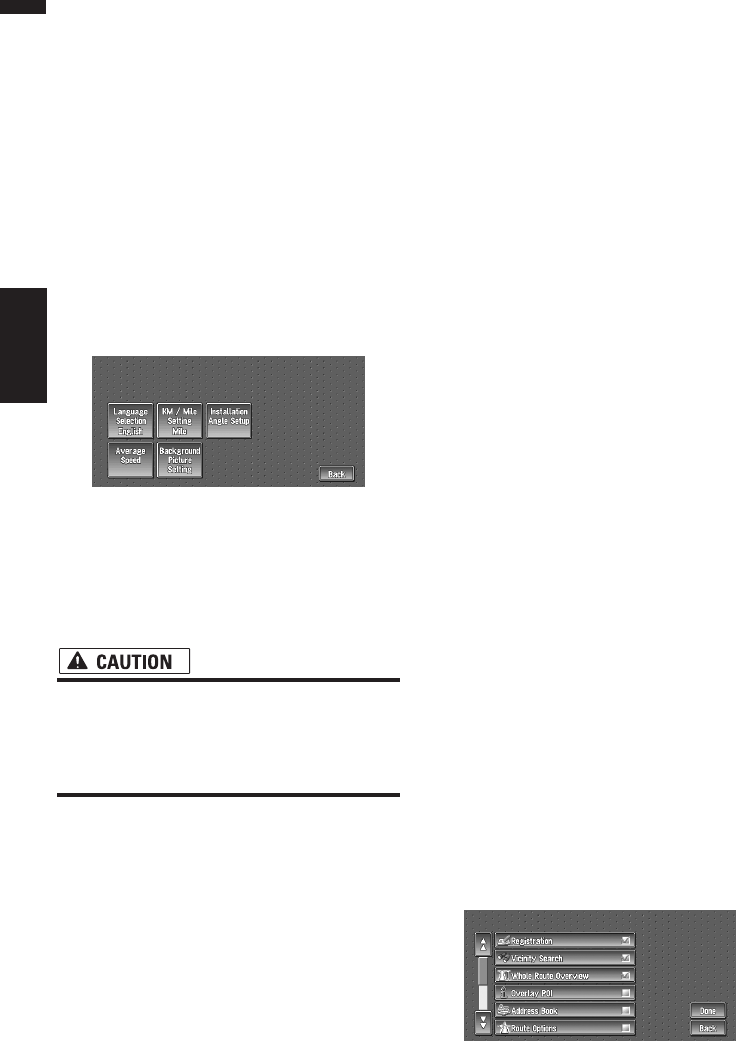
64
Chapter 5
Customizing Your Navigation System NAVI
➲Switching the muting/attenuation ➞
Page 101
•Voice Guidance
This setting controls whether the volume of the
Audio source is automatically muted during
voice guidance.
On* :
During voice guidance, the volume of the Audio
source is muted automatically.
Off :
Volume of the Audio source stays the same dur-
ing voice guidance.
System Options
Touch “System Options” in the Setting Menu to
display.
Language Selection
➲The language displayed can be set ➞
Page 107
Once you change the language, installation of
the program starts.
• Once the installation of the program
starts, do not stop the engine of your vehi-
cle and do not switch off the Navigation
System until the installation is completed
and the map of your surroundings appears.
KM/Mile Setting
This setting controls the unit of distance dis-
played on your Navigation System.
Mile * :
Show distances in miles.
Mile & Yard :
Show distances in miles and yards.
km :
Show distances in kilometers.
Installation Angle Setup
➲Correcting the installation angle ➞ Page 62
Average Speed
When calculating expected time of arrival and
the number of hours to the destination, set the
average speed for the freeway or ordinary road
using “+” and “–”.
• Minor Ordinary Road
• When the “KM/Mile Setting” is set to “Mile”
or “Mile & Yard”, it can be set in 5 mile incre-
ments from 10 miles to 100 miles (35 miles*).
•When the “KM/Mile Setting” is set to “km”, it
can be set in 5 km increments from 20 km to
110 km (55 km*).
• Major Ordinary Road
• When the “KM/Mile Setting” is set to “Mile”
or “Mile & Yard”, it can be set in 5 mile incre-
ments from 10 miles to 120 miles (45 miles*).
•When the “KM/Mile Setting” is set to “km”, it
can be set in 5 km increments from 20 km to
150 km (70 km*).
• Freeway
• When the “KM/Mile Setting” is set to “Mile”
or “Mile & Yard”, it can be set in 5 mile incre-
ments from 30 miles to 120 miles (60 miles*).
•When the “KM/Mile Setting” is set to “km”, it
can be set in 5 km increments from 60 km to
150 km (95 km*).
Background Picture Setting
➲The background picture can be changed ➞
Page 59
Short-Cut Selection
Select shortcuts to display on the map screen. In
the list displayed onscreen, the items with red
checks are displayed on the map screen.
Touch the shortcut you wish to display and then
touch “Done” when a red check appears. You
can select up to three shortcuts.
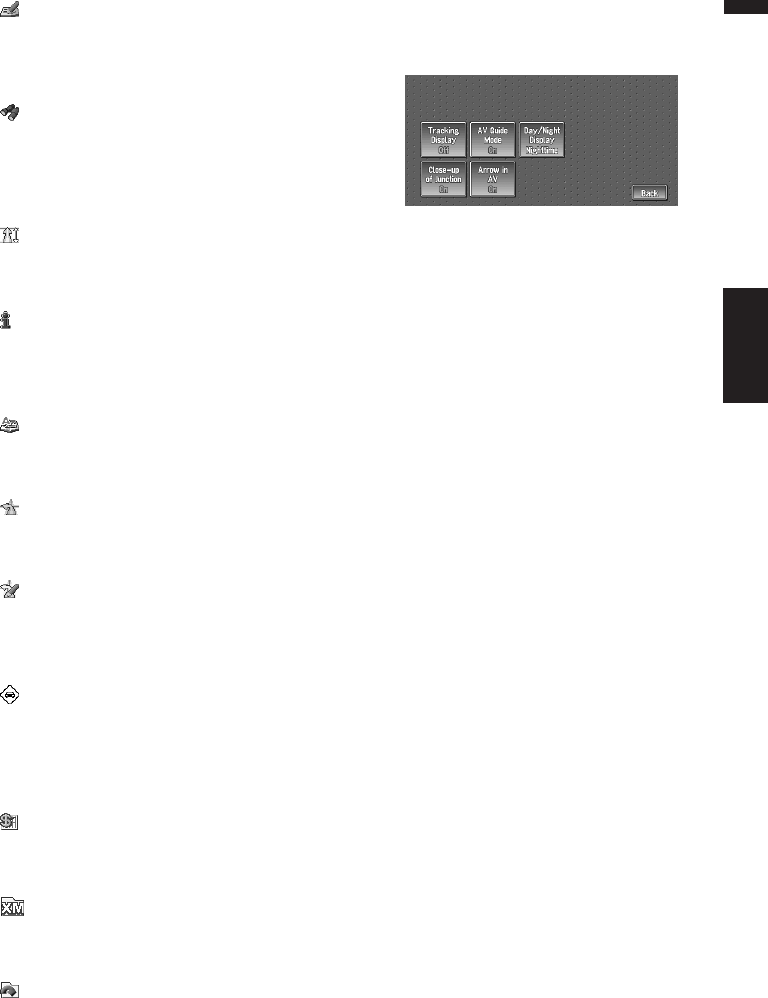
65
Chapter 5 Customizing Your Navigation SystemNAVI
: Registration *
Register to the Address Book information on the
location indicated by the scroll cursor.
➲Register to Address Book ➞ Page 48
: Vicinity Search *
Find POIs (Points Of Interest) in the vicinity of the
scroll cursor.
➲Searching the facilities surrounding a certain
place ➞ Page 36
: Whole Route Overview *
Displays the entire currently set route.
➲Checking the whole route overview ➞ Page 39
: Overlay POI
Displays on the map the mark for surrounding
facilities (POI).
➲Viewing POI information ➞ Page 43
: Address Book
Displays the Address Book.
➲Editing the Address Book ➞ Page 48
: Route Options
Displays the Route Options menu.
➲Displaying Route Options menu. ➞ Page 44
: Edit Current Route
Displays the screen for adding or deleting way
points.
➲Editing way points ➞ Page 41
: Traffic On Route
Displaying a list of traffic information on the
route.
➲Displaying traffic information on the route ➞
Page 51
: Stock Info
Displays share prices.
➲Displaying share prices ➞ Page 54
: Browse
Displays XM tuner content information.
➲Displaying browsable information ➞ Page 55
: My Favorites
Displays information on your favorite item.
➲Displaying browsable information ➞ Page 56
Map Display Options
Touch “Map Display Options” in the Setting
Menu to display.
Tracking Display
The tracking display setting has the following
options.
Always :
Display tracking for all journeys.
This Trip :
Display tracking dots but erase them when the
Navigation System is turned off (when turning off
the engine of your vehicle).
Off* :
Do not display tracking dots.
AV Guide Mode
Setting whether or not to switch to the navigation
screen automatically when your vehicle
approaches a guidance point such as an inter-
section while displaying a screen other than navi-
gation.
On* :
Switching from audio operation screen to naviga-
tion screen.
Off :
Screen is not switched.
Day/Night Display
To improve the visibility of the map during the
evening, you can change the combination of the
colors of the map.
Nighttime* :
You can change the combination of the colors of
a map according to whether the vehicle lights are
On or Off.
Daytime :
The map is always displayed with bright colors.
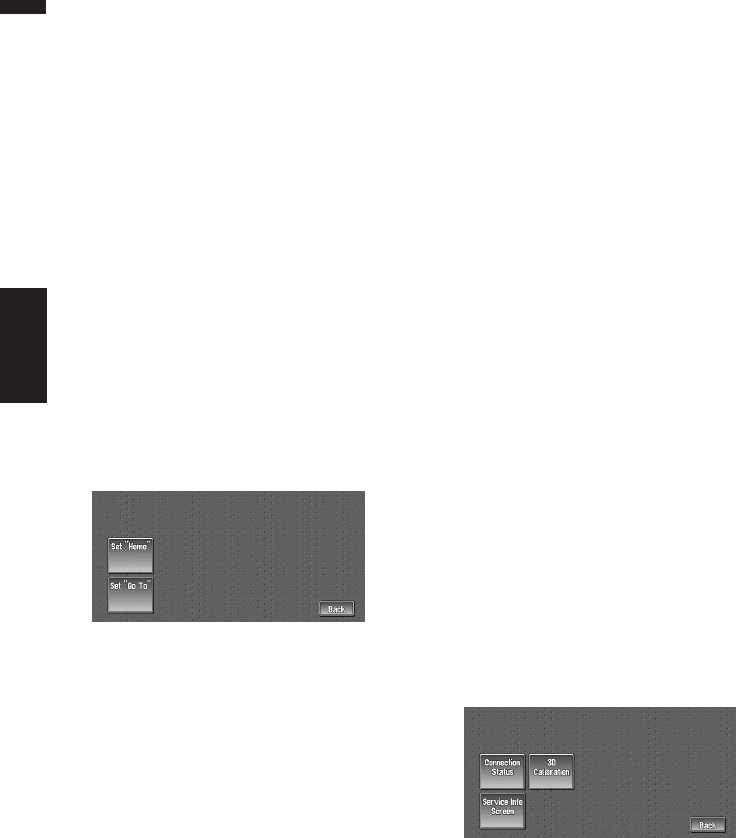
66
Chapter 5
Customizing Your Navigation System NAVI
Close-up of Junction
This setting enables to switch to an enlarged
map around the point where your vehicle is
approaching an intersection, entrance/exit of
freeway, or a junction.
On* :
Display switches to an enlarged map.
Off :
Does not switch to an enlarged map.
Arrow in AV
Set whether to display the guidance information
by arrow on the Audio Operation screen.
On* :
Display guidance information by arrow on the
Audio Operation screen.
Off :
Do not display guidance information by arrow on
the Audio Operation screen.
Defined Locations
Touch “Defined Locations” in the Setting Menu
to display.
Set ”Home”
➲Registering and changing your home location
➞ Page 47
Set ”Go to”
➲Registering and changing your favorite loca-
tion ➞ Page 47
Demo Mode
This is a demonstration function for shops. After
a route is set, the simulation of the route guid-
ance to a destination is automatically displayed.
Normally, set this to “Off”.
Repeat :
Repeat demo drive.
Off* :
Demo Mode is set off.
❒If you eject the DVD Map Disc during the
demo drive, the demo mode will be stopped.
Time
Adjusts the systems clock. The time difference
(+, –) between the time originally set in your
Navigation System is set here.
You can also select summer time On/Off.
➲Time settings ➞ Page 108
Summer Time
Choose whether or not to take summer time into
account.
On :
Summer time is taken into account.
Off* :
Summer time is not taken into account.
❒When the period of summer time comes, or
when the summer time ends, your Navigation
System does not automatically change the
summer time setting.
➲Change the summer time setting ➞ Page 108
Modify Current Location
Touch the screen to adjust the current position
and direction of the vehicle displayed on the
map.
Hardware Info
Touch “Hardware Info” in the Setting Menu to
display.
Connection Status
➲Connection Status ➞ Page 61
3D Calibration
➲3D Calibration ➞ Page 60
Service Info Screen
Displays the disc production number and version
information.

67
Chapter 5 Customizing Your Navigation SystemNAVI
Restore Factory Settings
Reset various settings registered to the Naviga-
tion System and restores to the default or factory
settings. To restore, touch “Yes”.
❒About the item return to the default, please
check “Display Information” at the end of
this manual.

68
Chapter 5
Customizing Your Navigation System NAVI
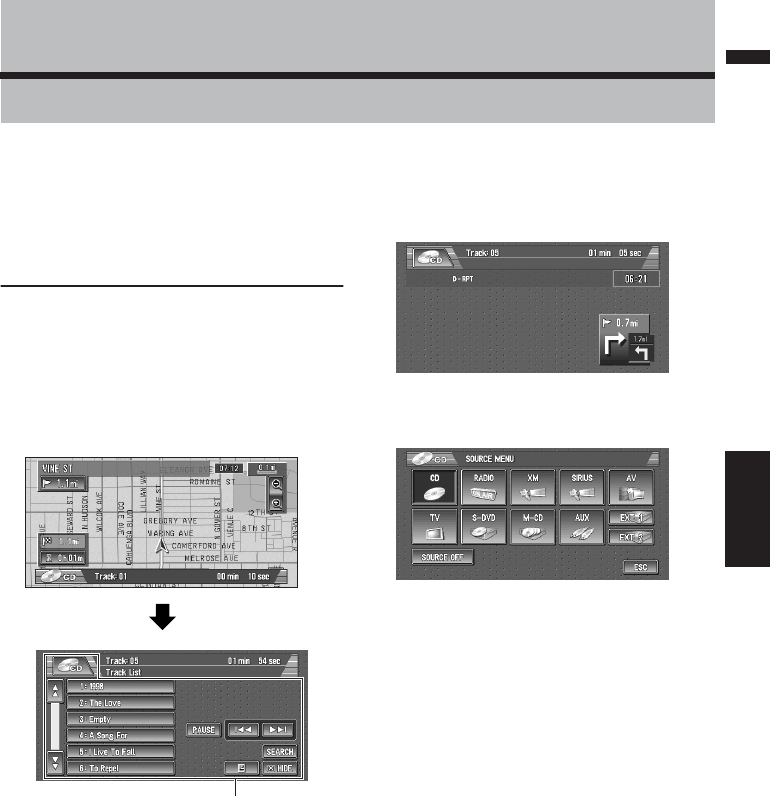
69
Chapter 6 Using the AV Source (Built-in CD Drive and Radio)AV
Chapter 6
Using the AV Source (Built-in CD Drive and Radio)
You can play a CD or MP3/WMA/WAV disc or use
the radio with the navigation unit. This chapter
describes how to use the audio source and the
basic operation of the audio source.
Basic Operation
➲For information on most basic operations,
refer to “How to listen to a CD” ➞ Page 24
Activating the touch panel keys
1Press the AV button to switch Audio oper-
ation screen.
(1) Touch panel keys
❒Touch “HIDE” to hide the touch panel
keys. If you touch the screen, the touch
panel keys are displayed again.
Selecting a source
1Press the AV button to switch Audio oper-
ation screen.
2Touch the source icon to select the
desired source.
❒You can also press the SRC button to
switch the source.
Press SRC button repeatedly to switch
between the following sources:
“XM” (XM tuner) — “SIRIUS” (SIRIUS tuner)
—“RADIO” (tuner) — “TV” (television) —
“AV” (video input) — “S-DVD” (DVD player/
multi-DVD player) — “CD” [CD, MP3/WMA/
WAV](built-in CD drive) — “M-CD” (multi-CD
player) — “EXT-1” (external unit 1) — “EXT-
2” (external unit 2) — “AUX” (Auxiliary equip-
ment)
❒Touch “SOURCE OFF” to turn the source
off.
❒In the following cases, the sound source can-
not to be used:
— When a unit corresponding to each source
is not connected to the Navigation System.
— When no disc is set in the CD loading slot.
— When no disc is set in the DVD-player (“S-
DVD”).
— When no magazine is set in the multi-CD
player.
(1)
Basic Operation

70
Chapter 6
Using the AV Source (Built-in CD Drive and Radio) AV
— When no magazine is set in the multi-DVD
player.
— When the “AUX” (auxiliary input) is set to
off.
— When the “AV INPUT” (video input) is not
set to “VIDEO”.
❒External unit refers to a Pioneer product (such
as one available in the future) that, although
incompatible as a source, enables control of
basic functions by the Navigation System.
Two external units can be controlled by the
Navigation System. When two external units
are connected, the allocation of them to exter-
nal unit 1 or external unit 2 is automatically
set by the Navigation System.
❒When the Navigation System’s blue lead is
connected to the vehicle’s auto-antenna relay
control terminal with the “AUTO
ANTENNA” is set to “SOURCE”, the vehi-
cle’s antenna extends with the Navigation
System’s source is turned on. To retract the
antenna, turn the source off.
➲“AUTO ANTENNA” ➞ Page 102
Basic Operation
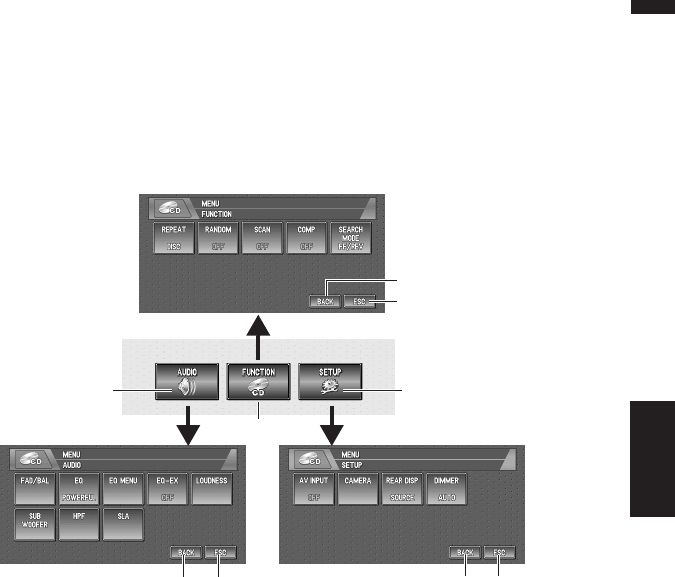
71
Chapter 6 Using the AV Source (Built-in CD Drive and Radio)AV
How to display each menu
1Select the desired source.
2Press the joystick to display MENU.
3Touch “AUDIO”, “FUNCTION” or “SETUP” to enter the menu you want to operate.
Each menu is displayed. The items that cannot be operated according to the sources or conditions
are indicated in gray.
(1) FUNCTION key
Touch to enter the FUNCTION menu for each source.
➲Using the FUNCTION menu ➞ “Operation using the FUNCTION menu” and “Advanced <each
source> operation”
(2) AUDIO key
Touch to select various sound quality controls.
➲Using the AUDIO menu ➞ Page 97
(3) SETUP key
Touch to select various setup functions.
➲Using the SETUP menu ➞ Page 102
(4) BACK key
Touch to return to the previous display.
(5) ESC key
Touch to cancel the control mode of functions.
4Touch “ESC” to return to the display of each source.
❒If you do not operate the function within about 30 seconds, the display is automatically returned
to the playback display.
FUNCTION menu
AUDIO menu SETUP menu
(1)
(3)
(2)
(4) (5) (4) (5)
(4)
(5)
Basic Operation
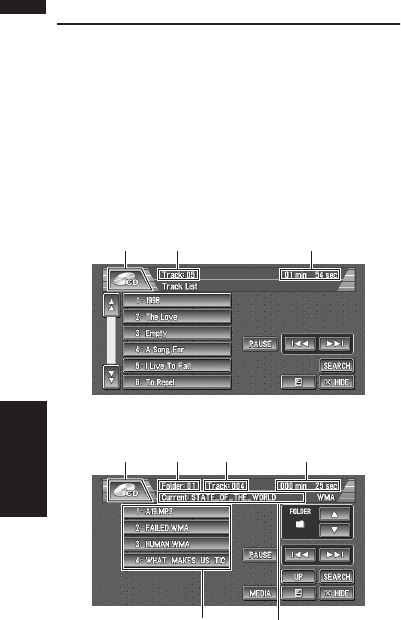
72
Chapter 6
Using the AV Source (Built-in CD Drive and Radio) AV
Operating the Built-in CD Drive
You can play a CD or MP3/WMA/WAV disc using
the built-in CD drive of the navigation unit. This
section describes common operations for these
media.
❒Also see at “Handling and Care of the Disc” in
the Hardware Manual for more cautions
about handling each media.
CD or CD TEXT disc
MP3/WMA/WAV
➲Common operation of the CD sources ➞
Page 73
(1) Source icon
Shows which source has been selected.
(2) Play time indicator
Shows the elapsed playing time of the current
track.
(3) Track number indicator
Shows the track currently playing.
(4) Current folder name indicator
Shows the folder name currently playing or tem-
porarily displayed in the list.
(5) Folder number indicator
Shows the folder number currently playing.
(6) Folder and track list
Shows contents of the folder currently playing or
temporarily displayed.
❒When playing discs with MP3/WMA/WAV
files and audio data (CD-DA) such as CD-
EXTRA and MIXEDMODE CDs, both types can
be played only by switching mode between
MP3 and CD-DA by touching “MEDIA”.
When playing back the CD-DA part, the opera-
tion is the same as for CDs.
Likewise, when playing back the MP3/WMA/
WAV part, the operation is the same as for
MP3/WMA/WAV. When you operate it, refer to
the instruction for each media.
❒If you have switched between playback of
MP3/WMA/WAV files and audio data (CD-
DA), playback starts at the first track on the
disc.
❒This built-in CD drive can play back a MP3/
WMA/WAV file recorded on CD-ROM.
❒When being read in, READING FORMAT is
displayed.
❒Playback is carried out in order of file number.
Folders are skipped if they contain no files. (If
folder 001 (ROOT) contains no files, playback
commences with folder 002.)
❒When playing back files recorded as VBR (var-
iable bit rate) files, the play time will not be
correctly displayed if fast forward or reverse
operations are used.
❒If you are using a folder that does not contain
an MP3/WMA/WAV file, the folder itself will
display but you will not be able to see any files
in the folder.
❒The maximum number of characters which
can be displayed for a file name, including the
extension (.mp3, .wma or .wav), is 30, from the
first character. (20 characters are maximum
in the folder and title list.)
❒The maximum number of characters which
can be displayed for a folder name is 30. (20
characters are maximum in the folder and
title list.)
❒In case of files recorded according to the
Romeo file system, only the first 30 characters
can be displayed. (20 characters are maxi-
mum in the folder and title list.)
(3)(1) (2)
(5)(1) (2)
(4)
(3)
(6)
Built-in CD drive source
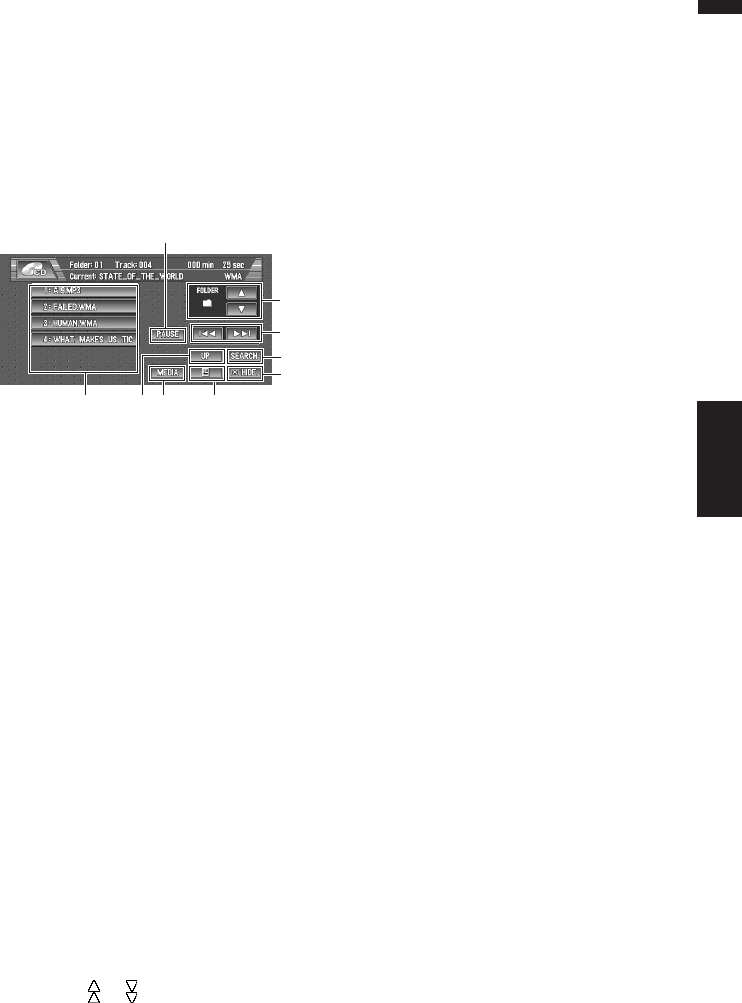
73
Chapter 6 Using the AV Source (Built-in CD Drive and Radio)AV
Touch key operation
1Touch the source icon and then touch
“CD” to select the built-in CD drive.
When the source icon is not displayed, you
can display it by touching the screen. If no
disc is loaded in navigation unit, you cannot
select “CD” (built-in CD drive).
➲insert a disc in navigation unit ➞ Page 24
Touch keys (e.g., MP3/WMA)
❒When playing a normal CD, (5), (7), (8), (9) are
not displayed.
❒When playing a CD TEXT disc, (5), (7), (8), are
not displayed.
(1) CD: Selecting a desired track from the
list
Touch a desired track to play.
❒In the case of normal CDs, no title informa-
tion is recorded. Accordingly, the display
shows “–”.
❒When playing a CD TEXT disc, the list lets
you see the list of track titles.
—Some discs have certain information
encoded on the disc during manufac-
ture. These discs may contain such
information as the CD title, track title,
artist’s name and playback time and are
called CD TEXT discs.
MP3/WMA/WAV: Selecting tracks from
the list or viewing contents of the folders
The list lets you see the list of track titles or
folder names on a disc. If you touch a folder
on the list, you can view its contents. If you
touch a track on the list, you can play the
selected track.
❒Touching or switches to the next or
previous page in the list.
❒Touching “UP” displays the next or previ-
ous page in the list.
❒If the selected folder does not contain any
track which can be played, the track list is
not displayed.
(2) Playback and Pause
Pause lets you temporarily stop disc playback.
Touching “PAUSE” switches between “play-
back” and “pause”.
(3) Touch: Skip the track forward or back-
ward
Touching
skips to the start of the next
track. Touching
once skips to the start of
the current track. Touching again will skip to
the previous track.
❒When “ROUGH” is selected in “SEARCH
MODE”, you can skip 10 tracks forward or
backward.
➲Setting the search mode ➞ Page 75
❒You can also skip back or forward to
another track by moving the joystick left or
right.
Touch and hold: fast backward or forward
Keep touching
or
to perform fast
backward or forward.
❒You can also perform fast backward/fast
forward by holding the joystick left or right.
❒Fast backward is canceled when it reaches
the beginning of the first track on the disc.
❒In the case of MP3/WMA/WAV, there is no
sound on fast backward or forward.
❒When “ROUGH” is selected in “SEARCH
MODE”, you cannot perform fast back-
ward or forward.
(4) Disappear the touch keys
Touch anywhere on the LCD screen, and the
touch keys appear again.
(5) MP3/WMA/WAV: Viewing contents of
upper folder
Touching “UP” to display contents of the
upper folder. If you touch and hold “UP”, it
return to folder001 (ROOT) and playback will
start. However, if folder 001 (ROOT) contains
no files, playback commences with next
folder.
❒If the current folder is the ROOT folder,
“UP” is not displayed.
(6) Searching for a desired track
You can use the search function to specify a
track to search for.
(1) (5) (7) (9)
(4)
(6)
(3)
(8)
(2)
Built-in CD drive source
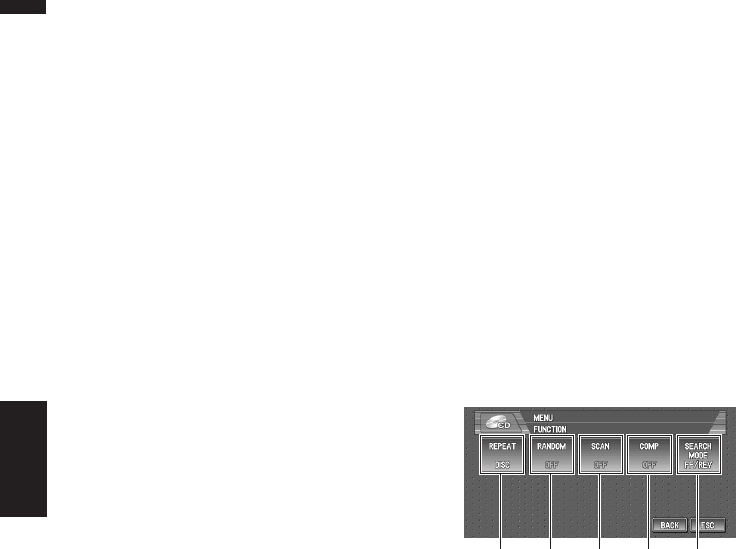
74
Chapter 6
Using the AV Source (Built-in CD Drive and Radio) AV
1Touch “0” — “9” to input the desired
number.
• To select 3, touch 3.
• To select 10, touch 1 and 0 in order.
• To select 23, touch 2 and 3 in order.
To cancel the input numbers, touch
“CLEAR”.
2While the input number is displayed,
touch “ENTER”.
This starts playback from the selected track.
❒If the track number you entered does not
exist, the track near that number will be
played.
(7) Switching mode between MP3/WMA/
WAV and CD-DA
When playing discs with MP3/WMA/WAV
files and audio data (CD-DA) such as CD-
EXTRA and MIXEDMODE CDs, both types can
be played only by switching mode between
MP3/WMA/WAV and CD-DA.
Touching “MEDIA” switches between CD-DA
part and MP3/WMA/WAV part.
(8) MP3/WMA/WAV: Using the folder up
or down
In the case of an MP3/WMA/WAV disc in
which the data is divided into folders, you can
move up or down another folder. This is used
to playback tracks recorded in other folders.
: Moves to the next folder.
: Moves to the previous folder.
❒You can also skip back or forward to
another folder by moving the joystick up or
down.
(9) CD TEXT disc: Displaying text infor-
mation on CD TEXT disc
Text information recorded on a CD TEXT disc
can be displayed.
The next piece of information is displayed.
•Disc Title (disc title)
•Disc Artist (disc title)
•Track Title (track title)
•Track Artist (track title)
MP3/WMA/WAV: Displaying text infor-
mation on MP3/WMA/WAV disc
Text information recorded on a MP3/WMA/
WAV disc can be displayed.
The next piece of information is displayed.
•Disc Title (disc title)
•Track Title (track title)
•Folder Title (folder name)
•File Name (file name)
•Artist Name (artist name)
❒If specific information has not been
encorded on MP3/WMA/WAV files on disc,
nothing may be displayed.
❒Depending on the version of Windows
Media Player used to encode WMA files,
album names and other text information
may not be correctly displayed.
❒Unlike MP3 and WMA file format, WAV
files display only Folder Title and File
Name.
Operation using the FUNCTION
menu
➲How to display the FUNCTION menu ➞
Page 71
(1) Repeating play
Each touch of the “REPEAT” changes the set-
tings as follows:
CD :
•DISC — Repeat the current disc
•TRACK — Repeat just the current track
❒If you perform track search or fast forward/
reverse, repeat play is automatically can-
celed.
MP3/WMA/WAV :
•DISC — Repeat all tracks
•TRACK — Repeat just the current track
•FOLDER — Repeat the folder currently play-
ing
❒If you select another folder during repeat
play, the repeat play range changes to
DISC.
❒If you perform track search or fast forward/
reverse during TRACK, the repeat play
range changes to FOLDER.
(1) (2) (3) (4)
FUNCTION menu (e.g., CD)
(5)
Built-in CD drive source

75
Chapter 6 Using the AV Source (Built-in CD Drive and Radio)AV
❒When FOLDER is selected, it is not possi-
ble to play back a subfolder of that folder.
❒When playing discs with MP3/WMA/WAV
files and audio data (CD-DA), repeat play
performs within the each data session
even if DISC is selected.
(2) Playing tracks in a random order
Touching “RANDOM” switches between “ON”
and “OFF”. In the case of MP3/WMA/WAV, the
selected tracks in the repeated range are ran-
domly played.
(3) CD: Scanning tracks of a CD
Touching “SCAN” switches between “ON” and
“OFF”. Scan play lets you hear the first 10 sec-
onds of each track on the CD. When you find the
desired track touch “SCAN” to turn scan play off.
❒After scanning of a CD is finished, normal
playback of the tracks will begin again.
MP3/WMA/WAV: Scanning folders and
tracks
Touching “SCAN” switches between “ON” and
“OFF”. Scan play will be performed for the
selected repeat range. When “FOLDER” is
selected for repeat play, the beginning of each
track in the selected folder will play for about 10
seconds. When “DISC” is selected for repeat
play, the beginning of the first track of each folder
will be played for about 10 seconds. When you
find the desired track touch “SCAN” to turn scan
play off.
❒After track or folder scanning is finished, nor-
mal playback of the tracks will begin again.
(4) Using compression and BMX
Using the COMP (compression) and BMX func-
tions let you adjust the sound playback quality of
CD drive. Each of the functions have a two-step
adjustment. The COMP function balances the
output of louder and softer sounds at higher vol-
umes. BMX controls sound reverberations to
give playback a fuller sound. Listen to each of the
effects as you select through them and use the
one that best enhances the playback of the track
or CD that you are listening to.
Each touch of the “COMP” changes the settings
as follows:
•OFF — COMP 1 — COMP 2 — OFF — BMX
1 — BMX 2
(5) Switching the search mode
You can switch the search method between fast
forward/backward and skipping every 10 tracks.
Each touch of the “SEARCH MODE” changes
the setting follows:
•FF/REV — Perform fast forward or backward
by touching
or
.
•ROUGH — Skips 10 tracks forward or back-
ward by touching
or
.
➲Skip the track forward or backward ➞
Page 73
Built-in CD drive source
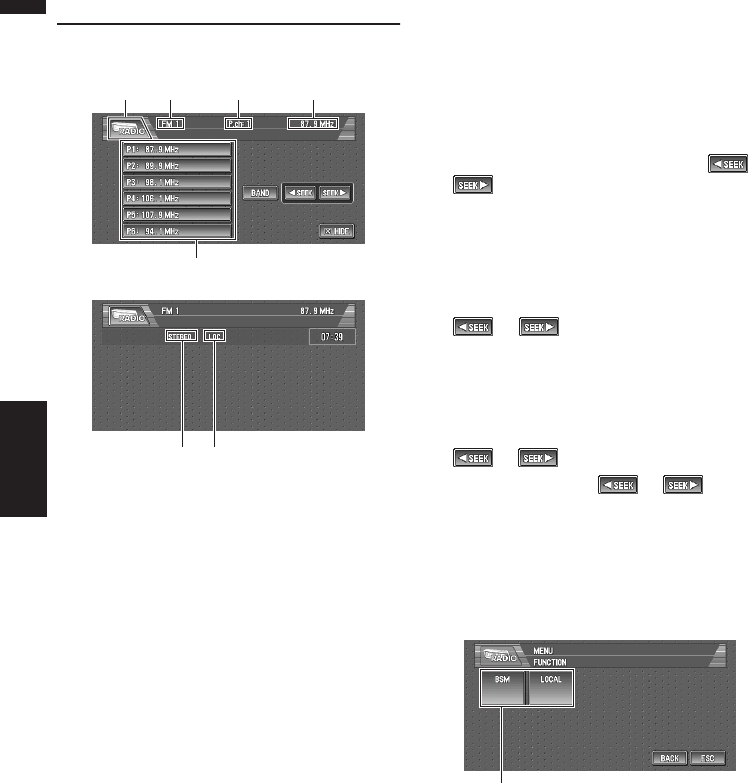
76
Chapter 6
Using the AV Source (Built-in CD Drive and Radio) AV
Radio
Listening to the radio
These are the basic steps necessary to operate
the radio.
➲More advanced radio operation ➞ Page 76
(1) Source icon
Shows which source has been selected.
(2) Band indicator
Shows which band the radio is tuned to AM or
FM.
(3) Preset number indicator
Shows what preset has been selected.
(4) Frequency indicator
Shows to which frequency the tuner is tuned.
(5) Preset list display
Shows the preset list.
(6) LOCAL indicator
Shows when local seek tuning is on.
(7) STEREO indicator
Shows that the frequency selected is being
broadcast in stereo.
1Touch the source icon and then touch
“RADIO” to select the radio.
2Touch “BAND” to select a band.
Touch “BAND” repeatedly until the desired
band is displayed, FM1, FM2, FM3 for FM or
AM.
3To perform manual tuning, touch or
briefly.
The frequencies move up or down step by
step.
You can also perform manual tuning by mov-
ing the joystick left or right.
4To perform seek tuning, keep touching
or for about one second and
release.
The tuner will scan the frequencies until a
broadcast strong enough for good reception
is found.
You can cancel seek tuning by touching either
or briefly.
If you keep touching or you can
skip broadcasting stations. Seek tuning starts
as soon as you release the keys.
You can also perform seek tuning by holding
the joystick left or right.
Advanced radio operation
(1) Function display
Shows the function names.
➲How to display the FUNCTION menu ➞
Page 71
(2)(1) (4)
(5)
(3)
(7) (6)
(1)
RADIO
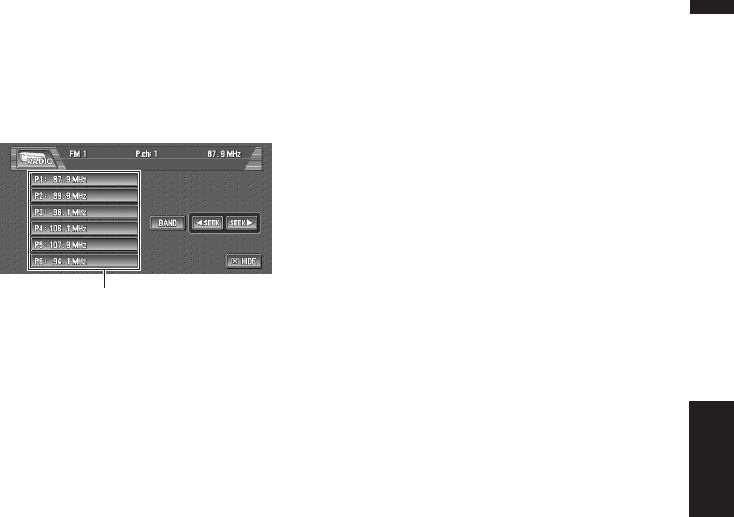
77
Chapter 6 Using the AV Source (Built-in CD Drive and Radio)AV
Storing and recalling broadcast
frequencies
If you touch any of the preset tuning keys P1
(PRESET 1) — P6 (PRESET 6) you can easily
store up to six broadcast frequencies for later
recall with the touch of a key.
1When you find a frequency that you want
to store in memory keep touching a preset
tuning key P1 — P6 until the preset
number (e.g., P.ch: 1) stops flashing.
The number you have touched will flash in the
preset number indicator and then remain lit.
The selected radio station frequency has been
stored in memory.
2The next time you touch the same preset
tuning key P1 — P6 the radio station fre-
quency is recalled from memory.
When the touch panel keys are not displayed,
you can display them by touching the screen.
❒Up to 18 FM stations, 6 for each of the
three FM bands, and 6 AM stations can be
stored in memory.
Storing the strongest broadcast
frequencies
BSM (best stations memory) lets you automati-
cally store the six strongest broadcast frequen-
cies under preset tuning keys P1 — P6 and once
stored there you can tune in to those frequencies
with the touch of a key.
1Touch “BSM” in the FUNCTION menu.
2Touch “START” to turn BSM on.
BSM begins to flash. While BSM is flashing
the six strongest broadcast frequencies will
be stored under preset tuning keys P1 — P6
in order of their signal strength. When fin-
ished, BSM stops flashing.
To cancel the storage process, touch
“STOP”.
❒Storing broadcast frequencies with BSM
may replace broadcast frequencies you
have saved using P1 — P6.
Tuning in strong signals
Local seek tuning lets you tune in only those
radio stations with sufficiently strong signals for
good reception.
1Touch “LOCAL” in the FUNCTION menu.
2Touch “ON” to turn local seek tuning on.
To turn local seek tuning off, touch “OFF”.
3Touch
or
to set the sensitivity.
There are four levels of sensitivity for FM and
two levels for AM:
FM: 1 — 2 — 3 — 4
AM: 1 — 2
The four setting allows reception of only the
strongest stations, while lower settings let you
receive progressively weaker stations.
Preset tuning keys (P1 — P6)
RADIO

78
Chapter 6
Using the AV Source (Built-in CD Drive and Radio) AVRADIO
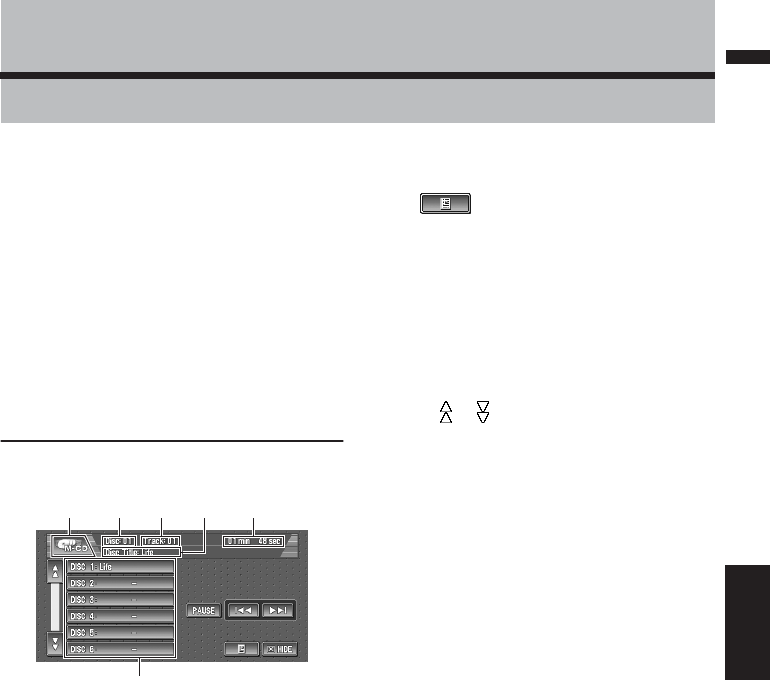
79
Chapter 7 Using the AV Source (Pioneer AV Equipment)AV
Chapter 7
Using the AV Source (Pioneer AV Equipment)
When Pioneer audio equipment is connected to
the Navigation System using IP-BUS or AV-BUS,
such equipment can be operated from the navi-
gation unit. This chapter describes the operation
of the audio source that can be used when the
Pioneer audio equipment is connected.
When reading this chapter, please also refer to
the operation manual of the AV equipment con-
nected to the Navigation System.
❒AVIC-D1 does not support 50-disc multi-CD
players.
Multi-CD Player
Listening a CD
You can use navigation unit to control a multi-CD
player, which is sold separately.
These are the basic steps necessary to play a CD
with your multi-CD player.
➲More advanced M-CD operation ➞ Page 80
(1) Source icon
Shows which source has been selected.
(2) Disc number indicator
Shows the disc currently playing.
(3) Track number indicator
Shows the track currently playing.
(4) Play time indicator
Shows the elapsed playing time of the current
track.
(5) Disc title, Disc artist, Track title and
Track artist indicator
When playing CD TEXT disc, each Disc title, Disc
artist, Track title or Track artist is displayed.
Touch repeatedly to switch these items.
(6) Disc list display
Shows the disc list in multi-CD player.
1Touch the source icon and then touch “M-
CD” to select the multi-CD player.
2Touch any of 01 — 12 to select a disc you
want to listen to.
If you want to select a disc located at 7 to 12,
touch or to display 07 — 12.
When 01 — 06 and 07 — 12 are not displayed,
you can display them by touching the screen.
You can also sequentially select a disc by
moving the joystick up or down.
3To skip back or forward to another track,
touch
or
.
Touching
skips to the start of the next
track. Touching
once skips to the start of
the current track. Touching again will skip to
the previous track.
You can also skip back or forward to another
track by moving the joystick left or right.
4To perform fast backward or forward,
keep touching
or
.
You can also perform fast backward/fast for-
ward by holding the joystick left or right.
❒When the multi-CD player has performed
the preparatory operations, READY is dis-
played.
❒If the multi-CD player does not operate
properly, an error message such as
ERROR-11 may be displayed. Refer to the
multi-CD player owner’s manual.
❒For a normal CD, the disc list shows “–”.
For a CD TEXT disc, a disc title appears.
➲Using CD TEXT function ➞ Page 82
❒If there are no discs in the multi-CD player
magazine, NO DISC is displayed.
(2)(1) (4)
(6)
(3) (5)
M-CD
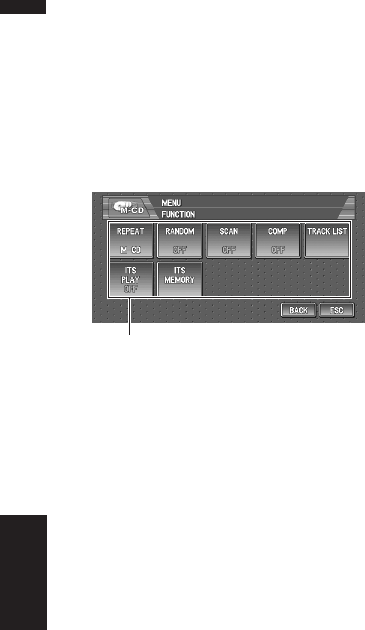
80
Chapter 7
Using the AV Source (Pioneer AV Equipment) AV
Pausing CD playback
Pause lets you temporarily stop disc playback.
1Touch “PAUSE”.
Play of the current track pauses.
Advanced multi-CD player oper-
ation
(1) Function display
Shows the function names.
➲How to display the FUNCTION menu ➞
Page 71
Repeating play
There are three repeat play ranges for the multi-
CD player: M-CD (multi-CD player repeat),
TRACK (one-track repeat) and DISC (disc
repeat).
1Touch “REPEAT” in the FUNCTION
menu.
Each touch of the “REPEAT” changes the
settings as follows:
•M-CD — Repeat all discs in the multi-CD
player
•TRACK — Repeat just the current track
•DISC — Repeat the current disc
❒If you select other discs during repeat play,
the repeat play range changes to M-CD.
❒If you perform track search or fast forward/
reverse during TRACK, the repeat play
range changes to DISC.
Playing tracks in a random order
Random play lets you play back tracks in a ran-
dom order within the repeat range, M-CD and
DISC.
1Select the repeat range.
➲Repeating play ➞ Page 80
2Touch “RANDOM” in the FUNCTION
menu.
Touching “RANDOM” switches between
“ON” and “OFF”.
Tracks will play in a random order within the
previously selected M-CD or DISC ranges.
Scanning CDs and tracks
When the repeat play range is set to DISC, the
beginning of each track on the selected disc
plays for about 10 seconds. When the repeat play
range is set to M-CD, the beginning of the first
track of each disc is played for about 10 seconds.
1Select the repeat range.
➲Repeating play ➞ Page 80
2Touch “SCAN” in the FUNCTION menu.
Touching “SCAN” switches between “ON”
and “OFF”.
The first 10 seconds of each track of the cur-
rent disc (or the first track of each disc) is
played.
3When you find the desired track (or disc)
touch “SCAN” to turn scan play off.
❒After track or disc scanning is finished,
normal playback of the tracks will begin
again.
Using compression and bass
emphasis
You can use these functions only with a multi-CD
player that supports them.
Using COMP (compression) and DBE (dynamic
bass emphasis) functions lets you adjust the
sound playback quality of the multi-CD player.
Each of the functions has a two-step adjustment.
The COMP function balances the output of
louder and softer sounds at higher volumes. DBE
boosts bass levels to give playback a fuller sound.
Listen to each of the effects as you select through
them and use the one that best enhances the
playback of the track or CD that you are listening
to.
1Touch “COMP” in the FUNCTION menu.
If the multi-CD player does not support
COMP/DBE, NO COMP is displayed and
you cannot select the function.
(1)
M-CD

81
Chapter 7 Using the AV Source (Pioneer AV Equipment)AV
Touch COMP repeatedly to switch between
the following settings:
OFF — COMP 1 — COMP 2 — OFF —
DBE 1— DBE 2
Selecting tracks from the track
list
Track list lets you select a track from the list.
When the CD TEXT disc is played, you can see the
track titles on a CD TEXT disc and select one of
them to playback.
❒This function may be invalid depending on the
multi-CD player.
1Touch “TRACK LIST” in the FUNCTION
menu.
2Touch or to switch between the lists
of tracks.
3Touch the track in the list.
That selection will begin to play.
Using ITS playlists
ITS (Instant Track Selection) lets you make a play-
list of favorite tracks from those in the multi-CD
player magazine. After you have added your
favorite tracks to the playlist you can turn on ITS
play and play just those selections.
Creating a playlist with ITS program-
ming
You can use ITS to enter and playback up to 99
tracks per disc, for up to 100 discs (with the disc
title). (With multi-CD players sold before the CDX-
P1250 and CDX-P650, up to 24 tracks can be
stored in the playlist.)
1Play a CD that you want to program.
➲How to select a CD ➞ Page 79
2Touch “ITS MEMORY” in the FUNCTION
menu.
3Touch
or
to select a track you want to
memorize.
4Touch “MEMORY” to store the currently
playing track in the playlist.
MEMORY is displayed briefly and the cur-
rently playing selection is added to your ITS
playlist.
Touching “CLEAR” will delete all the tracks
recorded in the ITS playlist.
❒After data for 100 discs has been stored in
memory, data for a new disc will overwrite
the oldest one.
Playback from your ITS playlist
ITS play lets you listen to the tracks that you have
entered into your ITS playlist. When you turn on
ITS play, tracks from your ITS playlist in the multi-
CD player will begin to play.
1Select the repeat range.
➲Repeating play ➞ Page 80
2Touch “ITS PLAY” in the FUNCTION
menu.
Touching “ITS PLAY” switches between
“ON” and “OFF”.
Playback begins of those tracks from your
playlist within the previously selected M-CD
or DISC ranges.
If no tracks in the current range are pro-
grammed for ITS play then ITS EMPTY is
displayed.
Erasing a track from your ITS playlist
When you want to delete a track from your ITS
playlist, you can if ITS play is on.
If ITS play is already on, skip to step 2.
1Play a CD you want to delete a track from
your ITS playlist, and turn ITS play on.
➲Playback from your ITS playlist ➞ Page 81
2Touch “ITS MEMORY” in the FUNCTION
menu.
3Touch
or
to select a track you want to
erase.
4Touch “CLEAR” to erase a selected track
from your ITS playlist.
The currently playing selection is erased from
your ITS playlist and playback of the next track
from your ITS playlist begins.
If there are no tracks from your playlist in the
current range, ITS EMPTY is displayed and
normal play resumes.
M-CD
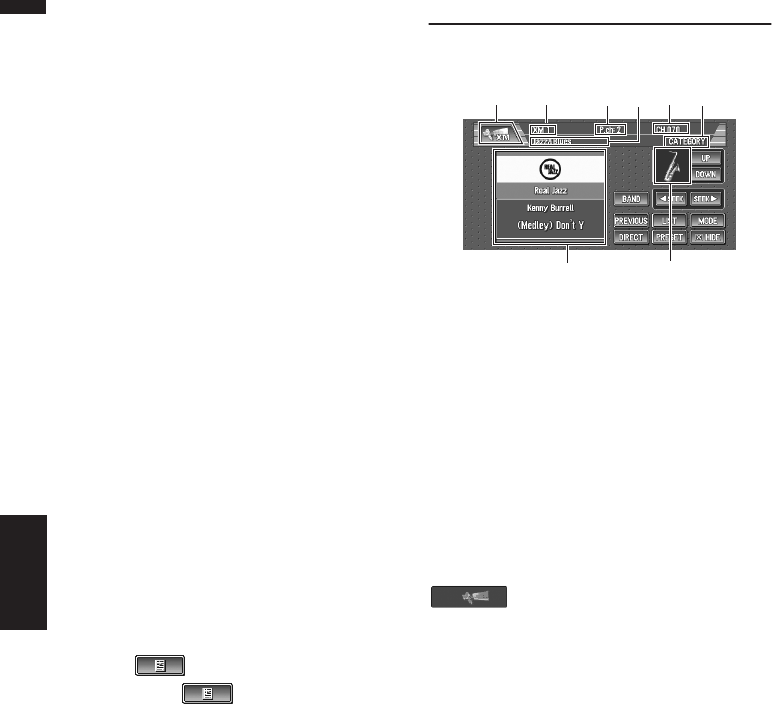
82
Chapter 7
Using the AV Source (Pioneer AV Equipment) AV
Erasing a CD from your ITS playlist
When you want to delete all tracks of a CD from
your ITS playlist, you can if ITS play is off.
1Play a CD that you want to delete.
➲How to select a CD ➞ Page 79
2Touch “ITS MEMORY” in the FUNCTION
menu.
3Touch “CLEAR” to erase all tracks on the
currently playing CD from your ITS playl-
ist.
All tracks on the currently playing CD are
erased from your playlist and ALL CLEAR is
displayed.
Using CD TEXT functions
You can use these functions only with a CD TEXT
compatible multi-CD player.
Some discs have certain information encoded on
the disc during manufacture. These discs may
contain such information as the CD title, track
title, artist’s name and playback time and are
called CD TEXT discs. Only these specially
encoded CD TEXT discs support the functions
listed below.
Displaying titles on CD TEXT discs
When playing a CD TEXT disc, you can switch the
information of the CD displayed on the screen.
1Touch .
Each touch of changes the informa-
tion as follows:
Disc Title — Disc Artist — Track Title — Track
Artist
❒If specific information has not been
recorded on a CD TEXT disc, NO XXXX
will be displayed (e.g., NO ARTIST).
XM Tuner (GEX-P10XMT)
Listening to XM Satellite Radio
You can use navigation unit to control a XM satel-
lite digital tuner (GEX-P10XMT), which is sold
separately.
For details concerning operation, refer to the XM
tuner’s operation manuals. This section provides
information on XM operations with navigation
unit which differs from that described in the XM
tuner’s operation manual.
Only the logo data that is contained in the naviga-
tion DVD Map Disc can be displayed for each
channel. The icon of a newly set-up channel that
is not contained in the disc cannot be displayed.
When no icon can be displayed, the following
substitute icon is displayed.
Substitute icon
(1) Source icon
Shows which source has been selected.
(2) XM band indicator
Shows the XM band which has been selected.
(3) XM preset number indicator
Shows what XM preset has been selected.
(4) XM channel number indicator
Shows to which XM channel number the tuner is
tuned.
(5) XM channel select mode indicator
Shows what channel select mode has been
selected. You can select a channel from all chan-
nels in ALL CH mode, and select a channel from
selected category in CATEGORY mode.
➲Switching the XM channel select mode ➞
Page 83
(6) XM channel category
Shows the category of broadcast channel.
(2)(1) (4)
(7)
(3) (6) (5)
(8)
XM (GEX-P10XMT)
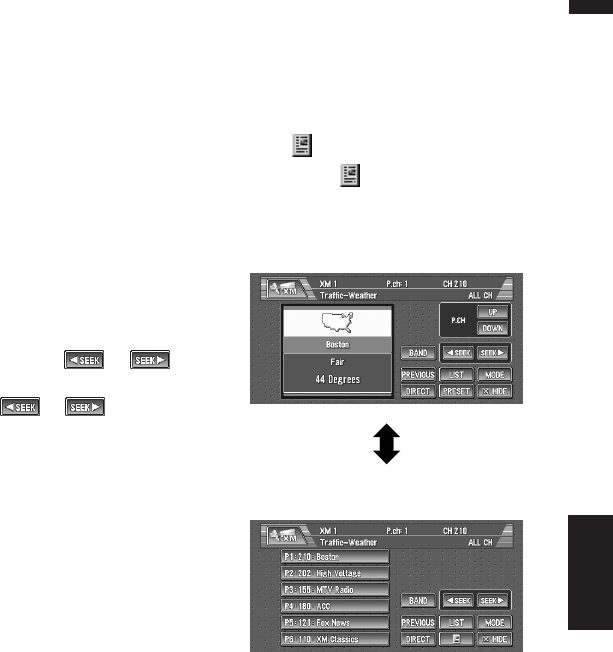
83
Chapter 7 Using the AV Source (Pioneer AV Equipment)AV
(7) Detail information or preset list display
Shows the detail information of the broadcast
channel currently being received or the preset
list.
(8) Category icon
Shows the category icon for the selected chan-
nel.
➲Switching between the detail information dis-
play and the preset list display ➞ Page 83
1Touch the source icon and then touch
“XM” to select the XM.
2Touch “BAND” to select a XM band.
Touch “BAND” repeatedly until the desired
XM band is displayed, XM1, XM2 or XM3.
3To perform tuning, touch or .
The channels move up or down step by step. If
you keep touching or , you can
increase or decrease channel number contin-
uously. You can also perform manual tuning
by moving the joystick left or right.
Switching the XM channel
select mode
You can switch the mode between the two meth-
ods for selecting and listing the channel.
ALL CH mode :
You can select a channel from all channels when
you operate.
CATEGORY mode :
You can select a channel within selected cate-
gory when you operate.
1Touch “MODE” to select the desired
channel select mode.
Touch “MODE” repeatedly to switch between
the two modes.
Switching between the detail
information display and the pre-
set list display
You can switch the left side of the basic screen
according to your preference.
1Touch (or “PRESET”).
Each touch of (or “PRESET”) changes
the detail information display or preset list dis-
play.
Storing and recalling broadcast
stations
If you touch any of the preset tuning keys P1 —
P6 you can easily store up to six broadcast sta-
tions for later recall with the touch of a key.
1Select the channel that you want to store
in memory.
2Touch “PRESET” to display the preset
list.
3Keep touching a preset tuning key P1 —
P6 until the XM preset number (e.g., P.ch:
1) stops flashing.
Detail information display
(e.g. ALL CH mode)
Preset list display
(e.g. ALL CH mode)
XM (GEX-P10XMT)
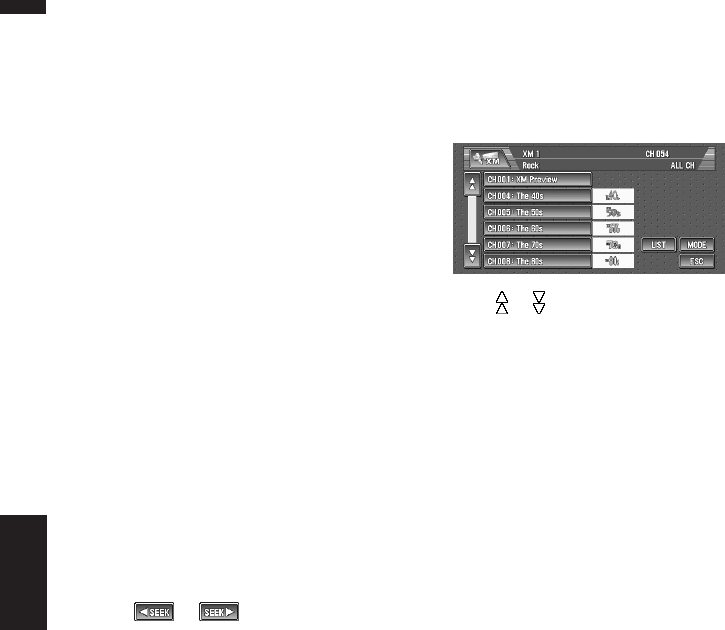
84
Chapter 7
Using the AV Source (Pioneer AV Equipment) AV
The number you have touched will flash in the
XM preset number indicator and then remain
lit. The selected station has been stored in
memory.
The next time you touch the same preset tun-
ing key P1 — P6 the station is recalled from
memory.
❒Up to 18 stations, 6 for each of three XM
bands can be stored in memory.
❒You can also use the following operations
to recall stations assigned to preset tuning
keys P1 — P6.
• Using “UP” or “DOWN” in the detail informa-
tion display when the “ALL CH” mode is
selected.
• Moving the joystick up and down when the
“ALL CH” mode is selected.
Selecting a channel in the chan-
nel category
1Touch “MODE” to select the CATEGORY
mode.
2Touch “UP” or “DOWN” to select the
desired category.
❒You can also select the category by moving
the joystick up and down.
3Touch or to select the desired
channel within the selected category.
Selecting a channel from the XM
channel list display
The list content can be switched so you can
search for the track you want to listen to not only
by the channel name but also by the artist name
or song title.
❒The channel list shows all the channels dur-
ing the “ALL CH” mode, and the channels
included in the selected category during the
“CATEGORY” mode. To switch the channel
mode, touch “MODE”.
1Touch “LIST”.
XM channel list appears in the display.
Each touch of the “LIST” changes the set-
tings as follows:
Detail information display or Preset list
display — Ch Name List (Channel name) —
Song Title List (Song title) — Artist Name
List (Artist name)
2Touch the desired channel that you want
to listen to.
Press or to switch to the next page or
previous page.
❒During the CATEGORY mode, press
“UP” or “DOWN” to switch to another cat-
egory.
Selecting a XM channel directly
You can select a XM channel directly by entering
the desired channel number.
1Touch “DIRECT”.
CHANNEL INPUT appears in the display.
2Touch 0 — 9 to input the desired channel
number.
To cancel the input numbers, touch
“CLEAR”.
3While the input number is displayed,
touch “ENTER”.
The entered XM channel is selected.
4Touch “Back”.
You can return to the previous display.
Using the MyMix function
The MyMix function memorizes the song title and
artist name of the song currently being received.
When the track that matches the memorized
song title and artist name is being broadcasted
on a station other than the one you are listening
to, you will be alerted, and you can switch the sta-
tion to listen to that song.
❒A track itself is NOT downloaded BUT only the
song title and the artist name are memorized.
XM (GEX-P10XMT)

85
Chapter 7 Using the AV Source (Pioneer AV Equipment)AV
Memorizing the song title and the artist
name of a song
The song title and artist name of the song you are
listening to can be memorized.
1Press and hold the MEMO button for two
seconds or more.
The song title and artist name of the song you
are listening to are memorized, and a confir-
mation message appears.
❒The song title and artist name of up to 12
tracks can be memorized. Trying to save more
than 12 tracks will overwrite old ones.
❒You cannot memorize the song title or the art-
ist name when “– – – – – – – –” is displayed on
the title information.
❒You cannot memorize the song title or the art-
ist name of the channel 000.
❒There is a possibility the memorized title is not
displayed correctly.
When the memorized track is broadcast
The MEMO button on the navigation unit flashes
as soon as the beep sounds, and a message is
displayed. Touch “Yes” to switch to that station,
and you can listen to that track.
❒If the memorized track is not selected in the
MyMix list, no notification will be provided
even when that track is broadcast.
❒Notification may not be provided depending
on the situation of the Navigation System.
➲Setting the notification of the memorized
track ➞ Page 86
❒If there is slight difference between the mem-
orized title and the title of the track being
broadcast, no notification will be provided
though they are the same song.
Using the direct traffic
announcement function
You can listen to the memorized traffic channel
by directly calling it up with the TRFC button.
Memorize a traffic channel
1Tune into the Traffic channel.
2Press and hold the TRFC button for two
seconds or more.
That traffic channel will be memorized.
❒The channel 000 and 001 can not be memo-
rized newly (although the channel 001 is the
default).
Calling up the memorized traffic chan-
nel
1Press the TRFC button.
❒You can call up a traffic channel even from
a source other than the XM source.
❒To cancel the traffic announcement, press
the TRFC button once again.
Returning to the channel that
was received immediately
before
1Touch “PREVIOUS”.
The channel returns to the one received
immediately before.
❒Depending on the last conditions, the channel
may not return to the previous station.
Display the Radio ID
If you select CH : 000, the Radio ID is displayed.
1Touch “DIRECT”.
2Input “000” and then touch “ENTER”.
If you select another channel, display of the
Radio ID is canceled.
Display of the Radio ID repeats displaying
“RADIO ID” and the ID code one after the
other.
❒You can also display the Radio ID to select
“RADIO ID” from channel category in the
CATEGORY mode.
XM (GEX-P10XMT)
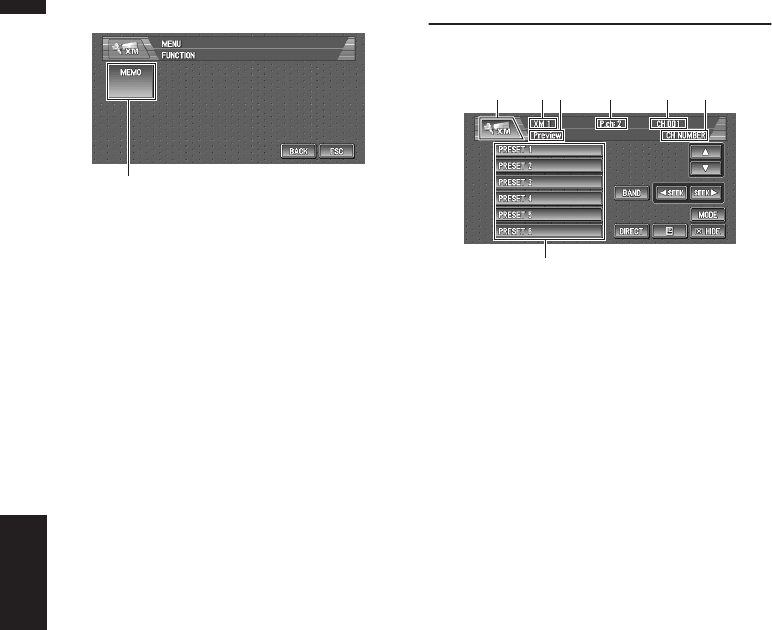
86
Chapter 7
Using the AV Source (Pioneer AV Equipment) AV
Advanced XM tuner operation
(1) Function display
Shows the function names.
➲How to display the FUNCTION menu ➞
Page 71
Setting the notification of the memo-
rized tracks
Display the song title list memorized for the
MyMix Function (MyMix list). You can change the
setting of the notification when the track is
broadcast again. You can enable or disable notifi-
cation for each track.
1Touch “MEMO” in the FUNCTION menu.
You will receive notification for all items with a
check mark.
2Touch the song title that you want to
exclude from the notification list.
The check mark is removed, and the song title
is excluded from the notification list.
Deleting the memorized tracks
You can delete each one of the memorized tracks
from the song title list.
1Touch “MEMO” in the FUNCTION menu.
2Touch the track you want to delete for
two seconds or more.
That track will be deleted from the song title
list.
❒To delete all the tracks that are memorized,
touch “DELETE ALL”.
3A message will appear asking you to con-
firm the deletion. Touch “OK”.
XM Tuner (GEX-P910XM)
Listening to XM Satellite Radio
You can use navigation unit to control a XM satel-
lite digital tuner (e.g. GEX-P910XM), which is sold
separately.
For details concerning operation, refer to the XM
tuner’s operation manuals. This section provides
information on XM operations with navigation
unit which differs from that described in the XM
tuner’s operation manual.
• This Navigation System does not have the text
scroll function.
• With the Navigation System, you can operate
one additional function: XM channel direct
selection.
(1) Source icon
Shows which source has been selected.
(2) XM band indicator
Shows the XM band which has been selected.
(3) XM preset number indicator
Shows what XM preset has been selected.
(4) XM channel number indicator
Shows to which XM channel number the tuner is
tuned.
(5) XM channel select mode indicator
Shows what channel select mode has been
selected. You can select a channel from all chan-
nels in CH NUMBER mode, and select a chan-
nel from selected category in CATEGORY
mode.
➲Switching the XM channel select mode ➞
Page 87
(6) XM channel information
Shows the channel information of broadcast
channel.
(7) Preset list display
Shows the preset list.
(1)
(2)(1) (4)(3)(6) (5)
(7)
XM (GEX-P910XM)

87
Chapter 7 Using the AV Source (Pioneer AV Equipment)AV
1Touch the source icon and then touch
“XM” to select the XM.
2Touch “BAND” to select a XM band.
Touch “BAND” repeatedly until the desired
XM band is displayed, XM1, XM2 or XM3.
3To perform tuning, touch or .
The channels move up or down step by step.
Channels that cannot currently be selected
are skipped, and the next channel is selected.
If you keep touching or , you can
increase or decrease channel number contin-
uously.
You can also perform manual tuning by mov-
ing the joystick left or right.
You can also perform tuning within selected
channel category.
➲Selecting the channel in the channel cate-
gory ➞ Page 87
Switching the XM display
1Touch .
Each touch of changes the information as
follows:
Channel name — Artist name/feature — Song/
program title — Channel category
Storing and recalling broadcast
stations
If you touch any of the preset tuning keys P1 —
P6 you can easily store up to six broadcast sta-
tions for later recall with the touch of a key.
1When you find a station that you want to
store in memory keep touching a preset
tuning key P1 — P6 until the XM preset
number (e.g., P.ch: 1) stops flashing.
The number you have touched will flash in the
XM preset number indicator and then remain
lit. The selected station has been stored in
memory.
The next time you touch the same preset tun-
ing key P1 — P6 the station is recalled from
memory.
When the touch panel keys are not displayed,
you can display them by touching the screen.
❒Up to 18 stations, 6 for each of three XM
bands can be stored in memory.
❒You can also use the following operations
to recall stations assigned to preset tuning
keys P1 — P6.
• Using
or
in the detail information display
when the “CH NUMBER” mode is selected.
• Moving the joystick up and down when the
“CH NUMBER” mode is selected.
Switching the XM channel
select mode
You can switch if you select a channel with a
channel number or within a selected category
when you select a channel.
1Touch “MODE” to select the desired
channel select setting.
2Touch “MODE” repeatedly to switch between
the following channel select settings:
CH NUMBER (channel number select mode)
— CATEGORY (channel category select
mode)
Selecting a channel in the chan-
nel category
1Touch “MODE” to select the CATEGORY
mode.
2Touch
or
to select the desired chan-
nel category.
3Touch or to select the desired
channel in the selected channel category.
❒You can also perform steps 2 and 3 by
using the joystick.
Selecting a XM channel directly
➲Refer to page 84
Display the Radio ID
➲Refer to page 85
XM (GEX-P910XM)
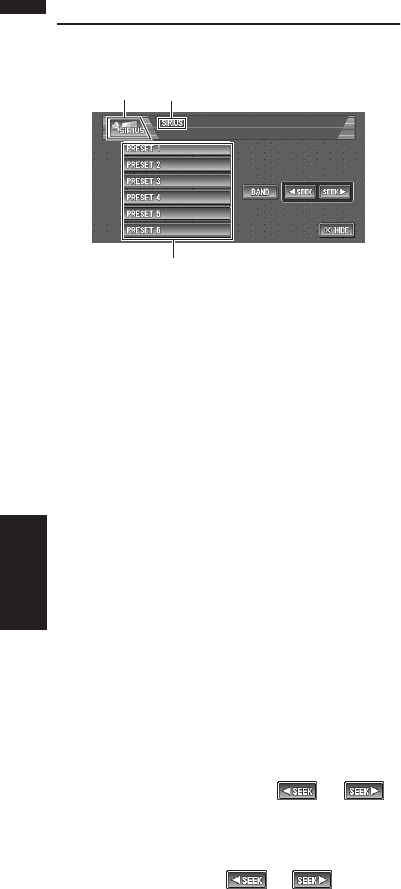
88
Chapter 7
Using the AV Source (Pioneer AV Equipment) AV
SIRIUS Tuner
Listening to the SIRIUS
You can use navigation unit to control a SIRIUS
satellite digital tuner, which is sold separately.
For details concerning operation, refer to the SIR-
IUS tuner’s operation manuals. This section pro-
vides information on SIRIUS operations with
navigation unit which differs from that described
in the SIRIUS tuner’s operation manual.
(1) Source icon
Shows which source has been selected.
(2) Channel information display
Shows the various information of the channel.
➲Switching the display ➞ Page 89
(3) Preset list display
Shows the preset list.
1Touch the source icon and then touch
“SIRIUS” to select the SIRIUS tuner.
2Touch “BAND” to select a SIRIUS band.
Touch “BAND” repeatedly until the desired SIR-
IUS band is displayed, SR1, SR2 or SR3.
3To perform tuning, touch or .
The channels move up or down step by step.
Channels that cannot currently be selected
are skipped, and the next channel is selected.
If you keep touching or , you can
increase or decrease channel number contin-
uously. You can also perform manual tuning
by moving the joystick left or right.
❒Display changes as follows when you
switch channels or operate in other ways.
The text of selected display* is automati-
cally scrolled.
CH NUMBER mode:
Channel name — Selected display*
CATEGORY mode:
Channel number — Channel name —
Selected display*
➲For details, refer to “Switching the display”
➞ Page 89
Storing and recalling broadcast
stations
If you touch any of the preset tuning keys
“PRESET 1” — “PRESET 6” you can easily
store up to six broadcast stations for later recall
with the touch of a key.
1When you find a station that you want to
store in memory keep touching a preset
tuning key “PRESET 1” — “PRESET 6”
until displaying PCH1 SET (e.g., P.ch: 1).
The selected channel has been stored in
memory.
The next time you touch the same preset tun-
ing key “PRESET 1” — “PRESET 6” the
channel is recalled from memory.
When the touch panel keys are not displayed,
you can display them by touching the screen.
❒Up to 18 stations, 6 for each of three SIR-
IUS bands can be stored in memory.
❒You can also use moving the joystick up or
down to recall stations assigned to preset
tuning keys “PRESET 1” — “PRESET 6”.
(1)
(3)
(2)
SIRIUS
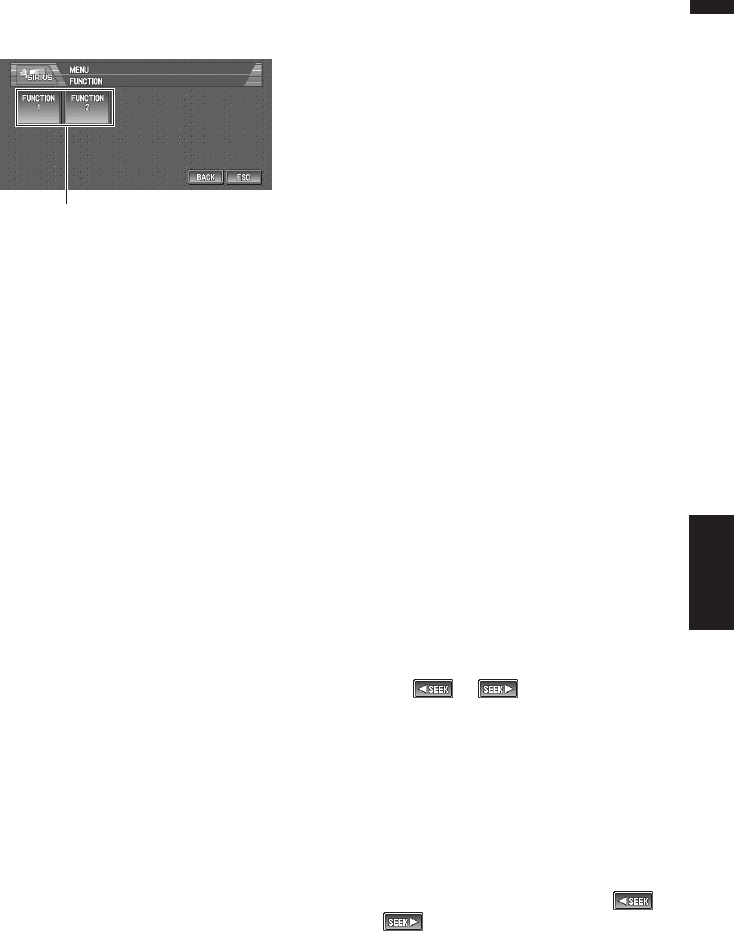
89
Chapter 7 Using the AV Source (Pioneer AV Equipment)AV
Advanced SIRIUS tuner opera-
tion
(1) Function display
Shows the function names.
➲How to display the FUNCTION menu ➞
Page 71
Switching the channel select
mode
You can switch if you select a channel with a
channel number or within a selected category
when you select a channel.
1Touch “FUNCTION 1” in the FUNCTION
menu.
2Touch “SEND”.
Touch “SEND” repeatedly to switch between
the following channel select settings:
CH NUMBER (channel number select mode)
— CATEGORY (channel category select
mode)
Switching the display
1Touch “FUNCTION 2” in the FUNCTION
menu.
2Touch “SEND”.
Each touch of “SEND” changes the informa-
tion as follows:
Channel number — Channel name — Chan-
nel category — Artist name/feature — Song/
program title — Composer
❒When you switch the display, the text is
automatically scrolled.
Switching the scroll setting
1Touch “FUNCTION 2” in the FUNCTION
menu.
2Touch and hold “SEND” to select the
scroll setting.
Touch and hold “SEND” selects scroll setting
in the following order:
Continuous scroll setting — One-time scroll
setting
❒When you switch the scroll setting, the
beep sounds.
Selecting a channel in the chan-
nel category
1Select the channel category select mode.
➲“Switching the channel select mode” ➞
Page 89
2Touch “ESC” to return to the previous
display.
3Move the joystick up or down to select the
desired channel category.
Once you select a channel category, the navi-
gation unit searches for channels in that cate-
gory. During search, the channel category
doesn’t immediately change even if you move
the joystick. To successively change the chan-
nel category, hold the joystick up or down.
4Touch or to select the desired
channel in the selected channel category.
The channel number moves up or down in the
selected channel category.
If channels that does not exist that channel
numbers are skipped, and the next channel in
that channel category is selected.
❒If you select a channel of another category
by channel recall, etc., during steps 3 and
4, the category selected in step 3 still
remains in memory. If you touch or
, the channel number moves up or
down in the category selected in step 3
regardless of the category of the present
channel.
(1)
SIRIUS
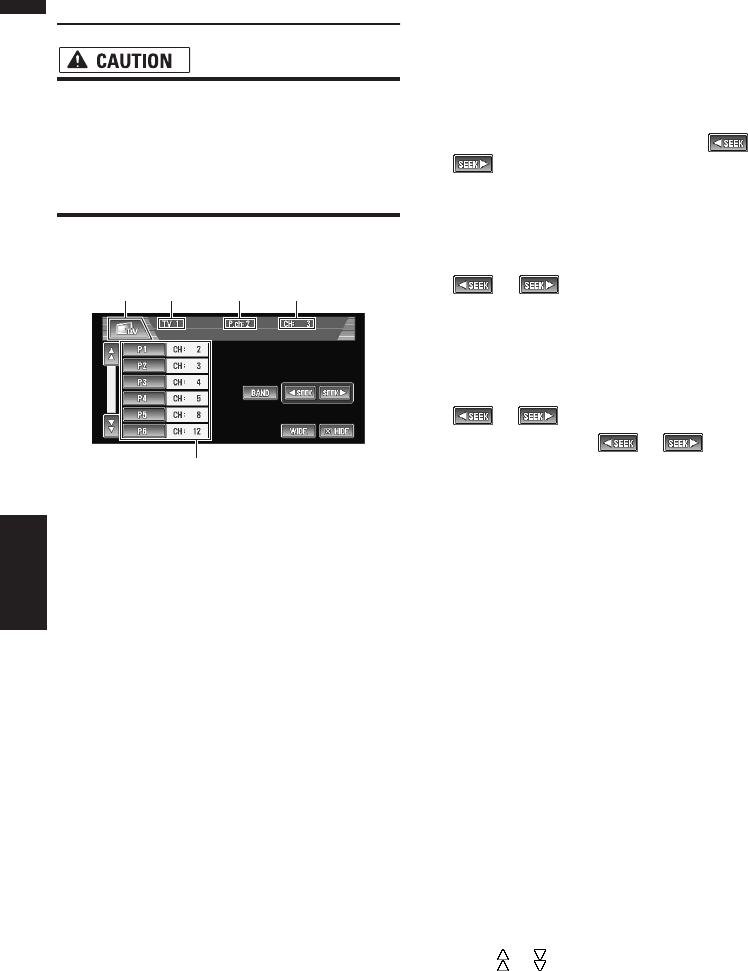
90
Chapter 7
Using the AV Source (Pioneer AV Equipment) AV
TV Tuner
• For safety reasons, visual images cannot
be viewed while your vehicle is in motion.
To view visual images, you must stop in a
safe place and put on the parking brake
before setting your route (see page 12
Interlock for details).
Watching the TV tuner
You can use the Navigation System to control a
TV tuner, which is sold separately.
For details concerning operation, refer to the TV
tuner’s operation manual. This section provides
information on TV operations with navigation unit
that differ from those described in the TV tuner’s
operation manual.
When you attempt to watch visual images while
driving, the warning Viewing of front seat
video source while driving is strictly prohib-
ited. will appear on the screen.
(1) Source icon
Shows which source has been selected.
(2) Band indicator
Shows which band the TV tuner is tuned to.
(3) Preset number indicator
Shows which preset has been selected.
(4) Channel indicator
Shows which channel the TV tuner is tuned.
(5) Preset list display
Shows the preset list.
1Touch the source icon and then touch
“TV” to select the TV.
2Touch “BAND” to select a band.
Touch “BAND” repeatedly until the desired
band is displayed, TV1 or TV2.
3To perform manual tuning, touch or
briefly.
The channels move up or down step by step.
You can also perform manual tuning by mov-
ing the joystick left or right.
4To perform seek tuning, keep touching
or for about one second and
release.
The tuner will scan the channels until a broad-
cast strong enough for good reception is
found.
You can cancel seek tuning by touching either
or briefly.
If you keep touching or you can
skip broadcasting channels. Seek tuning
starts as soon as you release the keys.
You can also perform seek tuning by holding
the joystick left or right.
Storing and recalling broadcast
stations
If you touch any of the preset tuning keys P1—
P12 you can easily store up to 12 broadcast sta-
tions for later recall with the touch of a key.
1When you find a station that you want to
store in memory keep touching a preset
tuning key P1 — P12 until the preset
number (e.g., P.ch: 1) stops flashing.
The number you have touched will flash in the
preset number indicator and then remain lit.
The selected station has been stored in mem-
ory.
The next time you touch the same preset tun-
ing key P1 — P12 the station is recalled from
memory.
To switch between P1 — P6 and P7 — P12,
touch or .
When the touch panel keys are not displayed,
you can display them by touching the screen.
❒Up to 24 stations, 12 for each of two TV
bands can be stored in memory.
(2)(1) (4)
(5)
(3)
TV
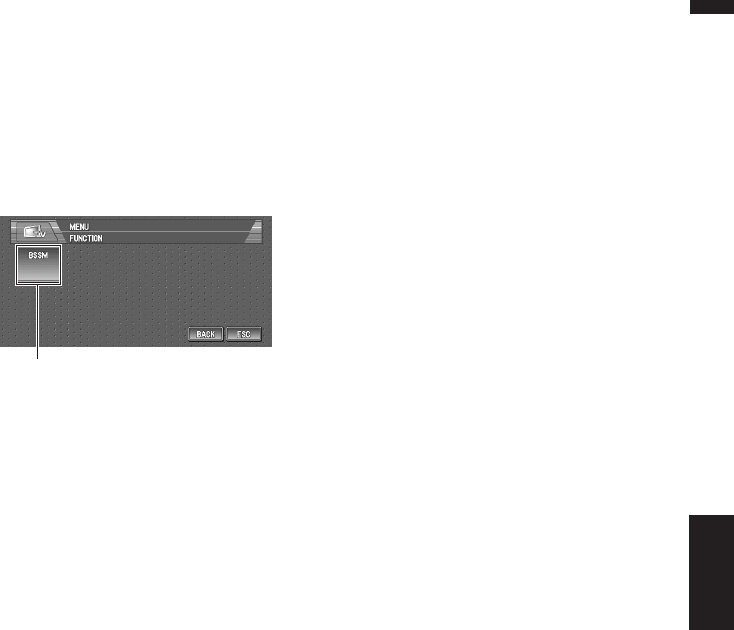
91
Chapter 7 Using the AV Source (Pioneer AV Equipment)AV
❒You can also use the joystick up or down to
recall stations assigned to preset tuning
keys P1 — P12.
Changing the wide screen mode
➲How to change the wide screen mode ➞
Page 104
Advanced TV tuner operation
(1) Function display
Shows the function names.
➲How to display the FUNCTION menu ➞
Page 71
Storing the strongest broadcast
stations sequentially
1Touch “BSSM” in the FUNCTION menu.
2Touch “START” to turn BSSM on.
BSSM begins to flash. While BSSM is flash-
ing the 12 strongest broadcast stations will be
stored in order from the lowest channel up.
When finished, BSSM disappears.
To cancel the storage process, touch
“STOP”.
❒Storing broadcast stations with BSSM may
replace broadcast stations you have saved
using P1 — P12.
(1)
TV
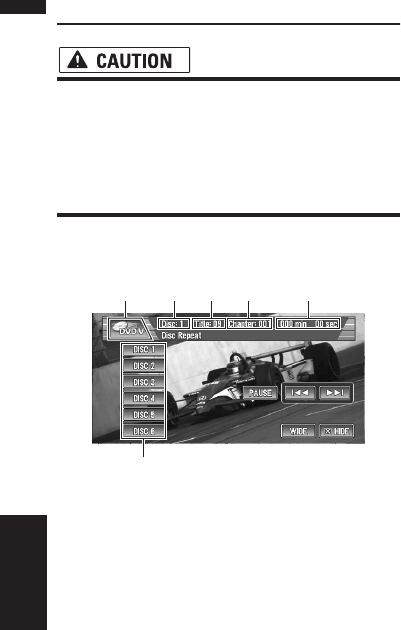
92
Chapter 7
Using the AV Source (Pioneer AV Equipment) AV
DVD Player (S-DVD)
• For safety reasons, visual images cannot
be viewed while your vehicle is in motion.
To view visual images, you must stop in a
safe place and put on the parking brake
before setting your route (see page 12
Interlock for details).
Playing a disc
You can use navigation unit to control a DVD
player or multi-DVD player, which is sold sepa-
rately.
For details concerning operation, refer to the
DVD player’s or multi-DVD player’s operation
manual. This section provides information on
DVD operations with navigation unit, which oper-
ations differ from those described in the DVD
player’s or multi-DVD player’s operation manual.
When you attempt to watch visual images while
driving, the warning Viewing of front seat
video source while driving is strictly prohib-
ited. will appear on the screen.
❒To watch a video image from a DVD player, set
“AV INPUT” in the SETUP menu correctly.
➲Setting the video input ➞ Page 102
(1) Source icon
Shows which source has been selected. (The
icon varies depending on the media to be played.)
(2) Disc number indicator
Shows the disc currently playing when using a
multi-DVD player.
(3) Title number indicator
Shows the title currently playing during DVD-
Video playback.
(4) Chapter/track number indicator
Shows the chapter/track currently playing.
(5) Play time indicator
Shows the elapsed playing time of the current
chapter/track.
(6) Disc list
Shows a list of discs when using a multi-DVD
player.
1Touch the source icon and then touch “S-
DVD” to select the DVD player.
2To skip back or forward to another chap-
ter/track, touch
or
briefly.
You can also skip back or forward to another
chapter/track by moving the joystick left or
right.
3To perform fast forward or reverse, keep
touching
or
for about one second
and release.
If you keep touching
or
for five sec-
onds, fast reverse/fast forward continues even
if you release
or
.
❒To stop fast reverse/fast forward, touch
“PAUSE”.
❒You can also perform fast reverse/fast for-
ward by holding the joystick left or right.
Selecting a disc
❒Only when a multi-DVD player is connected to
navigation unit, you can use this function.
1Touch “DISC 1” — “DISC 6” to select a
disc.
❒You can also skip back or forward to
another disc by moving the joystick up or
down.
Pausing disc playback
1Touch “PAUSE” during the normal play-
back.
Changing the wide screen mode
➲How to change the wide screen mode ➞
Page 104
(2)(1) (5)(4)(3)
(e.g., Multi-DVD player)
(6)
S-DVD
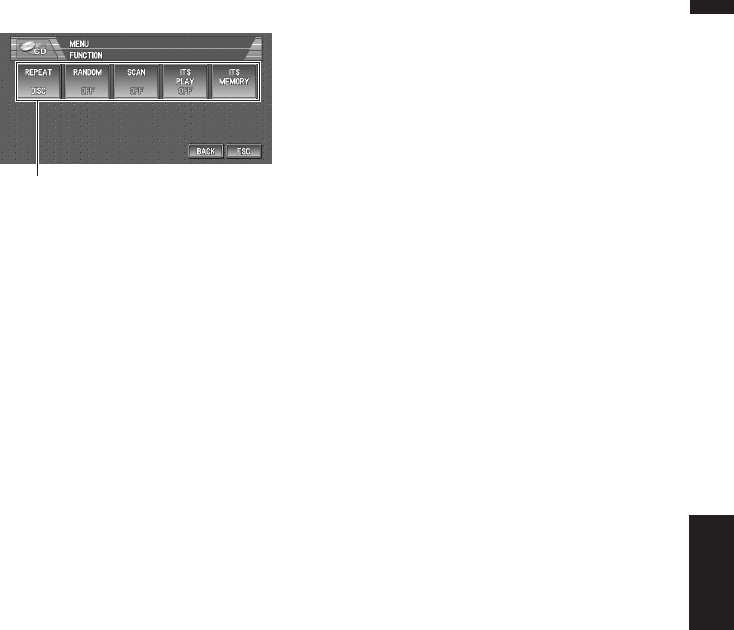
93
Chapter 7 Using the AV Source (Pioneer AV Equipment)AV
Advanced DVD player operation
(1) Function display
Shows the function names.
➲How to display the FUNCTION menu ➞
Page 71
Repeating play
❒During PBC playback of Video CDs, this func-
tion cannot be used.
1Touch “REPEAT” in the FUNCTION
menu.
Each touch of the “REPEAT” changes the
settings as follows:
During DVD-Video playback
•DISC — Repeat the current disc
•CHAPTER — Repeat just the current
chapter
•TITLE — Repeat just the current title
During Video CD or CD playback
•TRACK — Repeat just the current track
•DISC — Repeat the current disc
❒If you select other discs during repeat play,
the repeat play range changes to DISC.
❒If you perform track search or fast forward/
reverse during TRACK, the repeat play
range changes to DISC.
Playing tracks in a random order
❒You can operate this function only during CD
playback.
1Touch “RANDOM” in the FUNCTION
menu.
Touching “RANDOM” switches between
“ON” and “OFF”.
Tracks will play in a random order.
Scanning tracks of a CD
❒You can operate this function only during CD
playback.
1Touch “SCAN” in the FUNCTION menu.
Touching “SCAN” switches between “ON”
and “OFF”.
The first 10 seconds of each track is played.
2When you find the desired track touch
“SCAN” to turn scan play off.
Using ITS playlists
❒Only when a multi-DVD player is connected to
navigation unit can you use these functions.
❒This function differs slightly from ITS playback
with a multi-CD player. With multi-DVD player,
ITS playback applies only to the CD playing.
➲Using ITS playlists ➞ Page 81
(1)
S-DVD
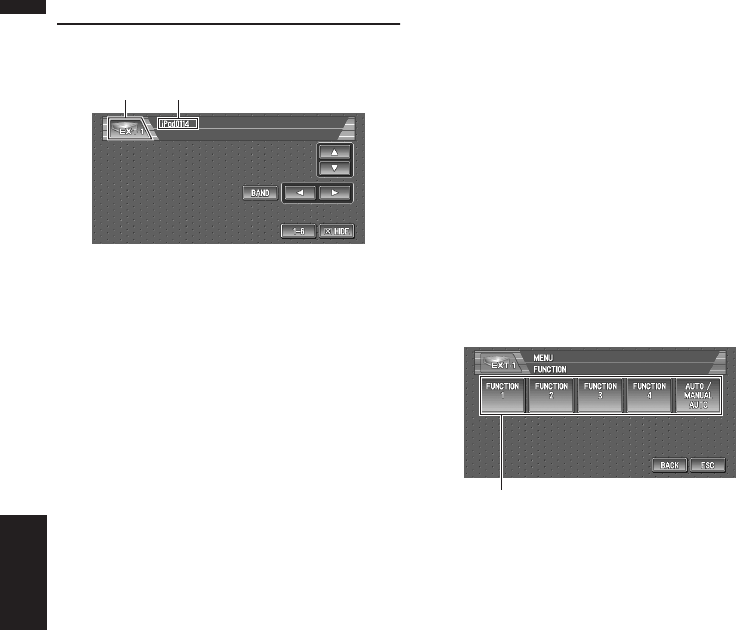
94
Chapter 7
Using the AV Source (Pioneer AV Equipment) AV
External Unit
Operating the external unit
External unit refers to a Pioneer product (such as
one available in the future) that, although incom-
patible as a source, enables control of basic func-
tions by the Navigation System. Two external
units can be controlled by the Navigation System.
When two external units are connected, the allo-
cation of them to external unit 1 or external unit 2
is automatically set by the Navigation System.
For details concerning operation, refer to the
external unit’s operation manual. This section
provides information on external unit operations
with navigation units that differ from those
described in the external unit’s operation man-
ual.
❒Operation varies depending on the external
unit connected. (In some cases, the external
unit may not respond.)
❒When you use the iPod (sold separately) with
this Navigation System, iPod adapter (CD-
IB100) is required.
iPod® is a trademark of Apple Computer, Inc.,
registered in the U.S. and other countries.
(1) Source icon
Shows which source has been selected.
(2) External unit indicator
Displays any connected external units.
1Touch the source icon and then touch
“EXT-1” or “EXT-2” to select the external
unit.
2Touch any touch panel key to operate the
external unit.
➲Advanced external unit operation ➞ Page 94
Operate the external unit by
using 1 key — 6 key
The external unit can be operated by transmitting
the operating commands set to 1 key - 6 key.
❒Operation varies depending on the external
unit connected. (In some cases, the external
unit may not respond.)
1Touch “1—6”.
2Touch desired key (“1—6”) to operate the
external unit.
Advanced external unit opera-
tion
(1) Function display
Shows the function names.
➲How to display the FUNCTION menu ➞
Page 71
Operate the external unit by
using FUNCTION 1 —
FUNCTION 4
The external unit can be operated by transmitting
the operating commands set to FUNCTION 1 —
FUNCTION 4.
❒The operating commands set to FUNCTION
1 — FUNCTION 4 vary depending on the
external unit.
❒Some functions may not be used until you
touch and hold the key.
1Touch “FUNCTION 1” - “FUNCTION 4” in
the FUNCTION menu.
(2)(1)
(1)
EXT
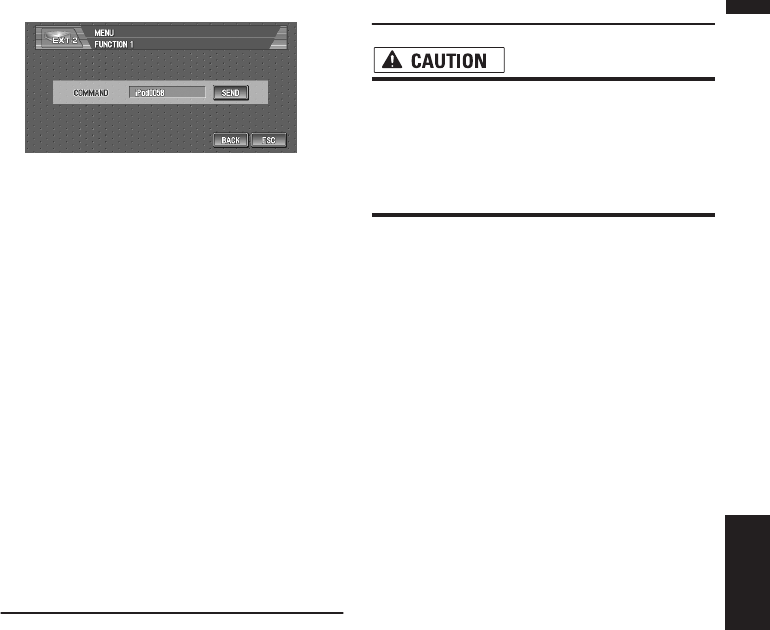
95
Chapter 7 Using the AV Source (Pioneer AV Equipment)AV
2Touch “SEND”.
The operation command is transmitted to the
external unit.
Switching the automatic and
manual function
You can turn automatic and manual function on
or off.
You can switch between AUTO and MANUAL
functions of the external unit connected.
Initially, this function is set to AUTO.
❒Operating commands set for AUTO and
MANUAL operations vary depending on the
external unit connected.
1Touch “AUTO / MANUAL” in the FUNC-
TION menu.
Touching “AUTO / MANUAL” switches
between “AUTO” and “MANUAL”.
AUX
An IP-BUS-RCA Interconnector such as the
CDRB20/CD-RB10 (sold separately) lets you con-
nect your navigation unit to auxiliary equipment
featuring RCA output. For more details, refer to
the IP-BUS-RCA Interconnector owner’s manual.
Selecting AUX as the source
➲Switching the source ➞ Page 69
❒If the auxiliary setting is turned off, “AUX”
cannot be selected.
❒When “AUX” is set to “ON”, you can select
“AUX” as a source.
➲Switching the auxiliary setting ➞ Page 100
AV Input (AV)
• For safety reasons, visual images cannot
be viewed while your vehicle is in motion.
To view visual images, you must stop in a
safe place and put on the parking brake
before setting your route (see page 12
Interlock for details).
Selecting AV as the source
➲Switching the source ➞ Page 69
❒If you want to switch AV source, select
“VIDEO” in the “AV INPUT”.
➲Selecting the video input ➞ Page 102
Changing the wide screen mode
➲How to change the wide screen mode ➞
Page 104
AUX/AV

96
Chapter 7
Using the AV Source (Pioneer AV Equipment) AVAUX/AV
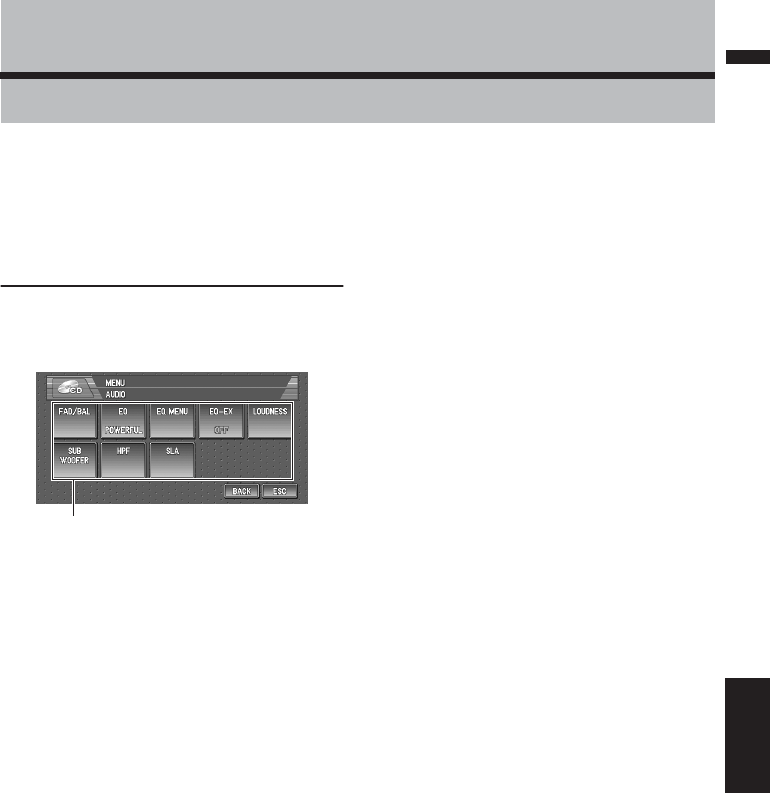
97
Chapter 8 Customizing the Audio Source SettingAV
Chapter 8
Customizing the Audio Source Setting
Various settings according to your audiovisual
requests are available with the audio source. This
chapter describes the methods of changing the
various settings and how to set of the LCD panel.
Audio Adjustments
Introduction to audio adjust-
ments
(1) Audio display
Shows the audio function names.
➲How to display the AUDIO menu ➞ Page 71
Only when the subwoofer controller setting is
PREOUT FULL, NON FADING will be dis-
played instead of SUB WOOFER.
➲Setting the rear output and subwoofer con-
troller ➞ Page 100
When selecting the FM tuner as the source, you
cannot switch to “SLA”.
Using balance adjustment
You can select a fader/balance setting that pro-
vides an ideal listening environment in all occu-
pied seats.
1Touch “FAD/BAL” in the AUDIO menu.
When the rear output setting is REAR SP
SUB. W, BALANCE will be displayed instead
of FAD/BAL.
➲Setting the rear output and subwoofer con-
troller ➞ Page 100
2Touch
or
to adjust front/rear speaker
balance.
Each time you touch
or
moves the front/
rear speaker balance towards the front or the
rear.
FRONT:15 — REAR:15 is displayed as the
front/rear speaker balance moves from front
to rear.
FR:00 is the proper setting when only two
speakers are used.
When the rear output setting is REAR SP
SUB. W, you cannot adjust front/rear speaker
balance.
➲Setting the rear output and subwoofer con-
troller ➞ Page 100
3Touch
or
to adjust left/right speaker
balance.
Each time you touch
or
moves the left/
right speaker balance towards the left or the
right.
LEFT:9 — RIGHT:9 is displayed as the left/
right speaker balance moves from left to right.
(1)
Audio Adjustments
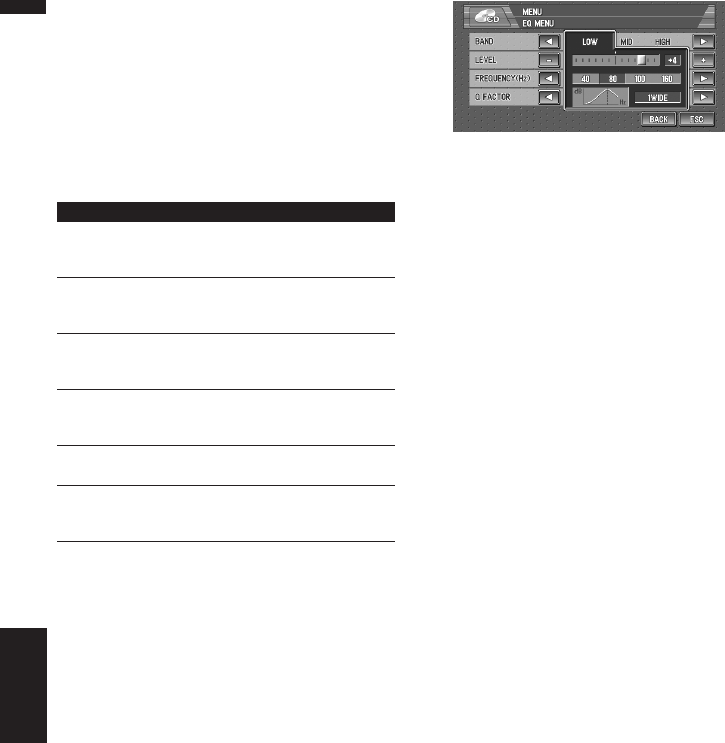
98
Chapter 8
Customizing the Audio Source Setting AV
Using the equalizer
The equalizer lets you adjust the equalization to
match vehicle interior acoustic characteristics as
desired.
Recalling equalizer curves
There are six stored equalizer curves which you
can easily switch. Here is a list of the equalizer
curves:
1Touch “EQ” in the AUDIO menu.
Touch “EQ” button repeatedly to switch
between the following equalizers:
POWERFUL — NATURAL — VOCAL —
CUSTOM — FLAT — SUPERBASS
❒A separate CUSTOM curve can be cre-
ated for each source. If you make adjust-
ments, the equalizer curve settings will be
memorized in CUSTOM.
❒When FLAT is selected no supplement or
correction is made to the sound. This is
useful to check the effect of the equalizer
curves by switching alternatively between
FLAT and a set equalizer curve.
Adjusting equalizer curves
You can adjust the currently selected equalizer
curve setting as desired. Adjusted equalizer
curve settings are memorized in CUSTOM.
• You can adjust the center frequency, level and
the Q factor (curve characteristics) of each
currently selected curve band (LOW/MID/
HIGH).
• BAND:
You can select the equalizer band.
• LEVEL:
You can select the decibel (dB) level of the
selected EQ.
• FREQUENCY:
You can select which frequency to be set as
the center frequency.
•Q FACTOR:
You can select the details of the curve charac-
teristics.
1Touch “EQ MENU” in the AUDIO menu.
2Touch
or
to select the equalizer band
to adjust.
Each time you touch
or
selects equalizer
bands in the following order:
LOW — MID — HIGH
3Touch “+” or “–” to adjust the level of the
equalizer band.
Each time you touch “+” or “–” increases or
decreases the level of the equalization band.
+6 — –6 is displayed as the level is increased
or decreased.
4Touch
or
to select the desired fre-
quency.
Touch
or
until the desired frequency
appears in the display.
LOW: 40 — 80 — 100 — 160 (Hz)
MID: 200 — 500 — 1K — 2K (Hz)
HIGH: 3.15K — 8K — 10K — 12.5K (Hz)
5Touch
or
to select the desired Q fac-
tor.
Touch
or
until the desired Q factor
appears in the display.
2WIDE — 1WIDE — 1NARROW —
2NARROW
❒If you make adjustments, CUSTOM curve
is updated.
Equalizer curve
POWERFUL
POWERFUL is a curve in which low-pitched and
high-pitched sounds are boosted.
NATURAL
NATURAL is a curve in which low-pitched and high-
pitched sounds are slightly boosted.
VOCAL
VOCAL is a curve in which the midrange, which is
the human vocal range, is boosted.
CUSTOM
CUSTOM is an adjusted equalizer curve that you
create.
FLAT
FLAT is a flat curve in which nothing is boosted.
SUPERBASS
SUPERBASS is a curve in which only low-pitched
sound is boosted.
Audio Adjustments

99
Chapter 8 Customizing the Audio Source SettingAV
Compensating for equalizer
curves (EQ-EX)
The EQ-EX function smoothes the effects of each
equalizer curve.
1Touch “EQ-EX” in the AUDIO menu.
Touching “EQ-EX” switches between “ON” and
“OFF”.
Adjusting loudness
Loudness compensates for deficiencies in the
low- and high-sound ranges at low volume.
1Touch “LOUDNESS” in the AUDIO menu.
2Touch “ON” to turn loudness on.
To turn loudness off, touch “OFF”.
3Touch
or
to select a desired level.
Each time you touch
or
selects level in
the following order:
LOW — MID — HIGH
Using subwoofer output
The Navigation System is equipped with a sub-
woofer output which can be turned on or off.
❒When the subwoofer output is on, you can
adjust the cut-off frequency and the output
level, and the phase of the subwoofer.
1Touch “SUB WOOFER” in the AUDIO
menu.
When PREOUT (the subwoofer controller
setting in INITIAL menu) is FULL, you can-
not select “SUB WOOFER”.
➲Rear speaker setting ➞ Page 100
2Touch “ON” to turn subwoofer output on.
To turn subwoofer output off, touch “OFF”.
3Touch “REVERSE” or “NORMAL” to
select the phase of subwoofer output.
4Touch “+” or “–” to adjust the output
level of the subwoofer.
+6 — –6 is displayed as the level is increased
or decreased.
5Touch
or
to select cut-off frequency.
Each time you touch
or
selects cut-off
frequencies in the following order:
50 — 80 — 125 (Hz)
Only frequencies lower than those in the
selected range are output from the sub-
woofer.
Using non fading output
When the non fading output setting is on, the
audio signal does not pass through navigation
unit’s low pass filter (for the subwoofer), but is
output through the RCA output.
1Touch “NON FADING” in the AUDIO
menu.
Only when PREOUT (the subwoofer control-
ler setting in INITIAL menu) is FULL, you
can select “NON FADING”.
➲Rear speaker setting ➞ Page 100
2Touch “ON” to turn non fading output on.
To turn non fading output off, touch “OFF”.
3Touch “+” or “–” to adjust the output
level of the non fading.
+6 — –6 is displayed as the level is increased
or decreased.
Using the high pass filter
When you do not want low sounds from the sub-
woofer output frequency range to play from the
front or rear speakers, turn the HPF (high pass
filter) on. Only frequencies higher than those in
the selected range are output from the front or
rear speakers.
1Touch “HPF” in the AUDIO menu.
2Touch “ON” to turn high pass filter on.
To turn high pass filter off, touch “OFF”.
3Touch
or
to select cut-off frequency.
Each time you touch
or
selects cut-off
frequencies in the following order:
50 — 80 — 125 (Hz)
When PREOUT (the subwoofer controller
setting in INITIAL menu) is SW, the HPF
function is effective for front speakers only.
Audio Adjustments
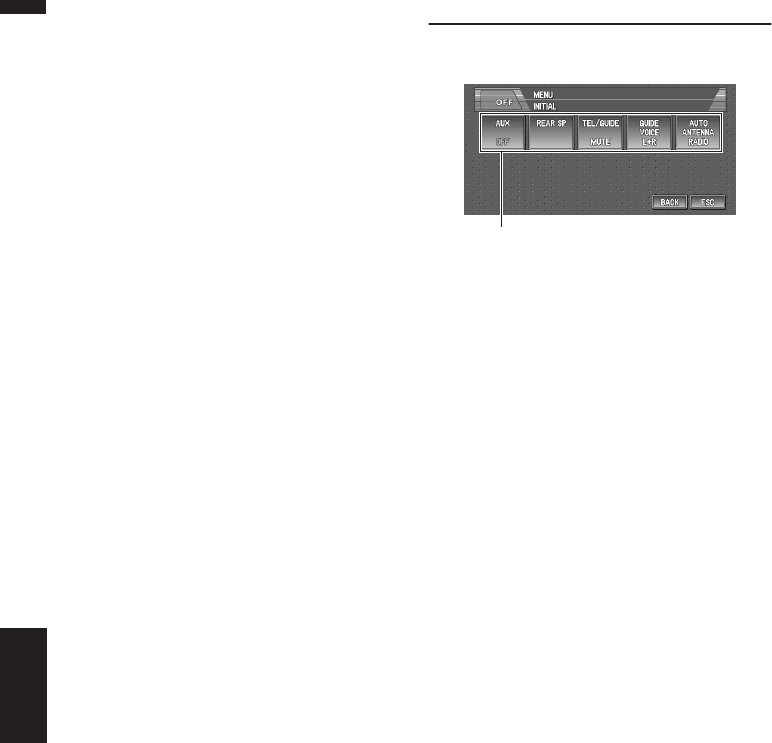
100
Chapter 8
Customizing the Audio Source Setting AV
Adjusting source levels
SLA (source level adjustment) lets you adjust the
volume level of each source to prevent radical
changes in volume when switching between
sources.
• Settings are based on the FM tuner volume
level, which remains unchanged.
1Compare the FM tuner volume level with
the level of the source you wish to adjust.
2Touch “SLA” in the AUDIO menu.
3Touch “+” or “–” to adjust the source vol-
ume.
+4 — –4 is displayed as the source volume is
increased or decreased.
Sources are set to same source level adjust-
ment volume automatically.
• CD, MP3/WMA/WAV, M-CD
•EXT-1 and EXT-2
•AUX and AV
•XM and SIRIUS
Initial Settings
Adjusting initial settings
Initial settings lets you perform initial set up of
different settings for navigation unit.
(1) Function display
Shows the function names.
1Touch the source icon and then touch
“SOURCE OFF” to turn source off.
When the source icon is not displayed, you
can display it by touching the screen.
2Press the joystick and then touch
“INITIAL” to display the function names.
The function names are displayed and opera-
ble ones are selected.
To return to the previous display, touch
“BACK”.
To return to the display of each source, touch
“ESC”.
Switching the auxiliary setting
It is possible to use auxiliary equipment with nav-
igation unit as the one of source. Activate the
auxiliary setting when using auxiliary equipment
connected to AV INPUT terminal on the naviga-
tion unit.
1Touch “AUX” in the INITIAL menu.
Touching “AUX” switches between “ON” and
“OFF”.
Setting the rear output and sub-
woofer controller
The navigation unit’s rear output (rear speaker
leads output and RCA rear output) can be used
for full-range speaker (REAR SP FULL) or sub-
woofer (REAR SP SUB. W) connection. If you
switch the rear output setting to the REAR SP
(1)
Initial Settings

101
Chapter 8 Customizing the Audio Source SettingAV
SUB. W, you can connect a rear speaker lead
directly to a subwoofer without using an auxiliary
amp.
Initially, navigation unit is set for rear full-range
speaker connection (REAR SP FULL). When
rear output is connected to full range speakers
(when REAR SP FULL is selected), you can con-
nect the RCA subwoofer output to a subwoofer.
In this case, you can select whether to use the
subwoofer controller’s (low pass filter, phase)
built-in PREOUT SUB. W or the auxiliary
PREOUT FULL.
1Touch “REAR SP” in the INITIAL menu.
2Touch “REAR SP” to switch the rear out-
put setting.
When no subwoofer is connected to the rear
output, select FULL.
When a subwoofer is connected to the rear
output, select SUB. W.
❒When the rear output setting is SUB. W,
you cannot change the subwoofer control-
ler.
3Touch “PREOUT” to switch the sub-
woofer output or non fading output.
❒Even if you change this setting, there is no
output unless you turn “NON FADING” or
“SUB WOOFER” in the AUDIO menu
“ON”.
➲Using non fading output ➞ Page 99
➲Using subwoofer output ➞ Page 99
❒If you change the subwoofer controller
(REAR SP), the subwoofer output (SUB
WOOFER) and non fading output (NON
FADING) in the AUDIO menu return to
the factory settings.
❒Both rear speaker leads output and RCA
rear output are switched simultaneously in
this setting.
Switching the muting/attenua-
tion
When the navigation outputs the guidance voice,
or when a mute signal has been received from
the yellow/black lead connected to the navigation
unit (e.g. using a cellular telephone), the audio
volume is muted or attenuated.
This function is activated in the following
condition:
—When “MUTE” or “ATT” is selected in this
setting.
— When “On” is selected in “Voice Guid-
ance” on “Mute Settings”.
➲Mute Settings ➞ Page 63
1Touch “TEL/GUIDE” in the INITIAL
menu.
Each touch of the “TEL/GUIDE” changes the
settings as follows:
•MUTE — Muting
•ATT — Attenuation
•NORMAL — Volume does not change
❒The sound is turned off, “MUTE” is dis-
played and no audio adjustments are pos-
sible.
❒The sound is attenuated, “ATT” is dis-
played and no audio adjustments, except
volume control, are possible.
❒Operation returns to normal when the
phone connection (the mute signal on the
yellow/black lead) is ended or when the
navigation guidance is ended.
❒Even when you receive a phone call, navi-
gation voice guidance cannot be attenu-
ated or muted. Use the Volume to control
the navigation voice guidance volume.
Initial Settings
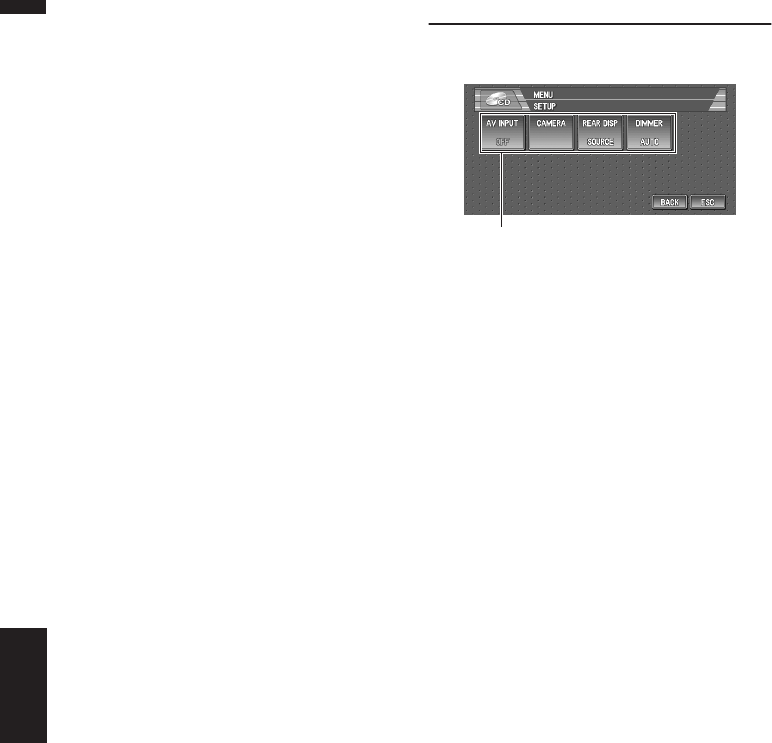
102
Chapter 8
Customizing the Audio Source Setting AV
Changing the voice output of the
navigation guidance
When there is a navigation guidance, you can
mix the guidance voice/beep sound from the nav-
igation unit with the audio sound from this sys-
tem. You can select the speaker output for the
navigation guidance.
1Touch “GUIDE VOICE” in the INITIAL
menu.
Each touch of the “GUIDE VOICE” changes
the settings as follows:
L+R (Front speakers) — R (Front right
speaker) — L (Front left speaker)
Switching the auto antenna set-
ting
If the blue lead of the navigation unit is con-
nected to the auto antenna of the vehicle, select
either of the following settings.
•RADIO — Extends the antenna only for the
RADIO source. The antenna is stored when the
source is switched to another.
•SOURCE — Extends the antenna when the
source is turned on in the navigation unit. The
antenna is stored when the source is turned
off.
1Touch “AUTO ANTENNA” in the INITIAL
menu.
Touching “AUTO ANTENNA” switches
between “RADIO” and “SOURCE”
❒Regardless of whether “RADIO” or
“SOURCE” is selected, turning off either
the source or ignition switch will cause the
antenna to automatically retract.
Other Functions
Setup adjustments
(1) Setup menu display
Shows the setup function names.
➲How to display the SETUP menu ➞ Page 71
Setting the video input
You can switch the setting according to the con-
nected component.
•Select “VIDEO” to watch video of a connected
component as AV source.
•Select “M-DVD” to watch video of a connected
DVD player as S-DVD source.
1Touch “AV INPUT” in the SETUP menu.
Each touch of the “AV INPUT” changes the
settings as follows:
•OFF — No video component is connected
•VIDEO — External video component
•M-DVD — DVD player connected with
RCA cable
When a DVD player is connected with an AV-
BUS cable, do not select “M-DVD” or else no
picture is displayed even if you select S-DVD.
Setting for rear view camera
The navigation unit features a function that auto-
matically switches to the rear camera image
(REAR VIEW CAMERA IN jack) when a rear cam-
era is installed on your vehicle. When the shift
lever is in REVERSE (R) position, the screen auto-
matically switches to a rear view camera. (For
more details, consult with your dealer.) You can
also use the camera as a rear view camera (Rear
View). In this case, you can see the image of the
rear view camera during normal driving. (The
navigation map screen can be displayed on the
right-hand side and the camera image can be
displayed on the left.) Please beware that in this
(1)
Other Functions
103
Chapter 8 Customizing the Audio Source SettingAV
setting, camera image is not resized to fit, but
that a portion of what is seen by the camera is
not viewable.
• Pioneer recommends the use of a camera
which outputs mirror reversed images,
otherwise screen image may appear
reversed.
• Confirm the setting immediately whether the
display changes to a rear view camera image
when the shift lever is moved to REVERSE (R)
from another position.
•When the whole screen changes to a rear view
camera image during normal driving, switch to
another setting.
❒Rear View can be displayed at all times (e.g.
when monitoring an attached trailer, etc.) as a
split screen where map information is par-
tially displayed. Please beware that in this set-
ting, camera image is not resized to fit, but
that a portion of what is seen by the camera is
not viewable.
❒Initially, this function is set to OFF.
1Touch “CAMERA” in the SETUP menu.
2Touch “CAMERA” to turn rear view cam-
era setting on.
Touching “CAMERA” switches between
“ON” and “OFF”.
❒Unless this setting is “ON”, you cannot
switch to Rear View mode.
3Touch “POLARITY” to select an appropri-
ate setting for polarity.
Each time you touch “POLARITY” switches
between the following polarity:
•BATTERY — When the polarity of the con-
nected lead is positive while the shift lever
is in the REVERSE (R) position
•GND — When the polarity of the connected
lead is negative while the shift lever is in the
REVERSE (R) position
Selecting the video of rear dis-
play
When the navigation screen is displayed on front,
you can select to show either the navigation
screen or the selected source on the rear display.
❒The map screen navigation images output to
the rear display differ from standard NTSC for-
mat images. Therefore, their quality will be
inferior to the images that appear on the front
display.
1Touch “REAR DISP” in the SETUP menu.
Each touch of the “REAR DISP” changes the
settings as follows:
•SOURCE — Display the video of the
selected source on rear display
•NAVI— Display the navigation video on
rear display when the navigation screen is
displayed on front
❒When selecting “SOURCE” in “REAR
DISP”, when the selected source have not
the video image, nothing is displayed on
rear display.
❒When selecting Rear View in the map dis-
play, nothing is displayed on the rear dis-
play.
Switching the dimmer setting
To prevent the display from being too bright at
night, the display is automatically dimmed when
the vehicle’s headlights are turned on. Also, you
can set the display to be dimmed as the sur-
roundings become darker.
1Touch “DIMMER” in the INITIAL menu.
Touching “DIMMER” switches between
“AUTO” and “ILLUMI”
When the setting is “ILLUMI”, the display is
automatically dimmed when the vehicle’s
headlights are turned on.
When the setting is “AUTO”, the display is
dimmed as the surroundings become darker.
❒Covering the ambient light sensor while
operating the navigation unit buttons can
inadvertently cause the LCD screen to
grow dark.
To correct this, set the “DIMMER” to
“ILLUMI”.
Other Functions
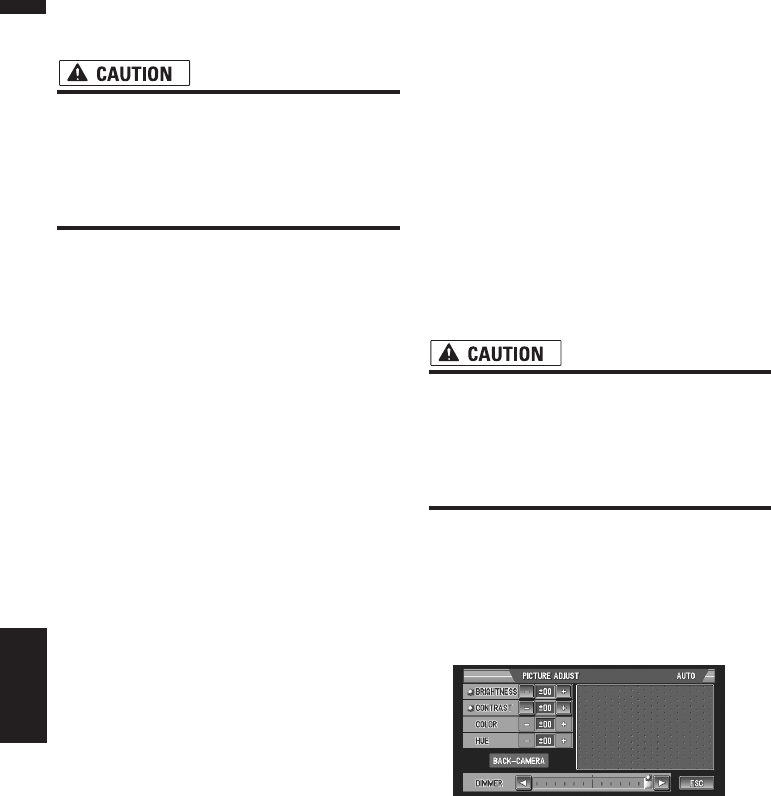
104
Chapter 8
Customizing the Audio Source Setting AV
Changing the Wide Screen
Mode
•For safety reasons, these functions are not
available while your vehicle is in motion.
To enable these functions, you must stop
in a safe place and put on the parking
brake before setting your route (see page
12 Interlock for details).
1Touch “WIDE” to select the desired set-
ting.
Touch “WIDE” repeatedly to switch between
the following settings:
NORMAL (normal) — FULL (full) — JUST
(just) — CINEMA (cinema) — ZOOM (zoom)
NORMAL (normal):
A 4:3 picture is displayed as it is, giving you no
sense of disparity since its proportions are the
same as that of the normal picture.
FULL (full):
A 4:3 picture is enlarged in the horizontal
direction only, enabling you to enjoy a 4:3 TV
picture (normal picture) without any omis-
sions.
JUST (just):
The picture is enlarged slightly at the center
and the amount of enlargement increases
horizontally toward the ends of the picture,
enabling you to enjoy a 4:3 picture without
sensing any disparity even on a wide screen.
CINEMA (cinema):
A picture is enlarged by the same proportion
as FULL or ZOOM in the horizontal direction
and by an intermediate proportion between
FULL and ZOOM in the vertical direction;
ideal for a cinema-sized picture (wide screen
picture) where captions lie outside.
ZOOM (zoom):
A 4:3 picture is enlarged in the same propor-
tion both vertically and horizontally; ideal for a
cinema-sized picture (wide screen picture).
❒Different settings can be memorized for
each video source.
❒When video is viewed in a wide screen
mode that does not match its original
aspect ratio, it may appear differently.
❒Remember that use of this system for
commercial or public viewing purposes
may constitute an infringement on the
author’s rights protected by the Copyright
Law.
❒Video will appear grainy when viewed in
CINEMA or ZOOM mode.
❒The navigation map and the rear view cam-
era picture is always FULL.
Operating the Picture Adjust-
ment
•For safety reasons, these functions are not
available while your vehicle is in motion.
To enable these functions, you must stop
in a safe place and put on the parking
brake before setting your route (see page
12 Interlock for details).
You can adjust BRIGHT (brightness),
CONTRAST (contrast), COLOR (color) and
HUE (hue) for each source and rear view cam-
era.
1Press P.ADJ/B.LIGHT button to display
PICTURE ADJUST.
BRIGHTNESS — Adjust the black intensity
CONTRAST — Adjust the contrast
COLOR — Adjust the color saturation
HUE — Adjust the tone of color (red is
emphasized or green is emphasized)
DIMMER — Adjust the brightness of display
BACK-CAMERA — Switch to the picture
adjustment display for the rear view camera
Other Functions

105
Chapter 8 Customizing the Audio Source SettingAV
❒Touching “SOURCE” (or “NAVI”) while
adjusting the rear view camera image
returns you to the previous screen. (Except
when the vehicle’s shift lever is in reverse
[R].)
❒The adjustments of BRIGHTNESS and
CONTRAST are stored separately for
light ambient (daytime) and dark ambient
(nighttime). A sun or moon is dis-
played to the left of BRIGHTNESS and
CONTRAST, respectively, as the ambient
light sensor determines brightness or
darkness.
❒You cannot adjust COLOR and HUE for
the source without a video and navigation
map display.
❒You can adjust the picture adjustment for
the rear view camera only when CAMERA
in SETUP menu is turned on.
➲Setting for rear view camera ➞ Operation
Manual
❒The picture adjustment may not be able to
be used with some rear view cameras.
❒The same setting is selected for the nor-
mal background picture and the naviga-
tion map display.
❒Because of the LCD screen characteris-
tics, you may not be able to adjust the
screen at low temperatures.
2Touch “+” or “–” to adjust the desired
item.
Each time you touch “+” or “–” increases or
decreases the level of desired item. +24 —
–24 is displayed as the level is increased or
decreased.
3Touch “ESC” to hide the touch panel
keys.
Adjusting the dimmer
When the “DIMMER” is set to “AUTO”, you can
set the display to dim as the surroundings
become darker.
The adjustment of DIMMER is stored separately
for each ambient light; daytime, evening and
nighttime. The brightness of the LCD screen
adjusts automatically to the optimum level in
accordance with the ambient light based on the
set values.
When the “DIMMER” is set to “ILLUMI”, the dis-
play is automatically dimmed only when the vehi-
cle’s headlights are turned on. The adjustment of
DIMMER is stored separately when the head-
light is turned on and turned off.
➲Switching the dimmer setting ➞ Page 103
1Press P.ADJ/B.LIGHT button and hold to
display PICTURE ADJUST.
The ambient light level icon used as the stand-
ard for adjusting DIMMER appears above the
level bar.
The icons indicating the current ambient
brightness used for adjusting BRIGHTNESS
and CONTRAST may differ from DIMMER
slightly.
• Yellow sun — bright ambient light (day-
time)
• Red sun — intermediate brightness
(evening)
• Blue moon — dark ambient light (night-
time)
❒The icons are not displayed when the
“DIMMER” is set to “ILLUMI”.
2Touch 22
22 or 33
33 to adjust the brightness.
The level indicates the brightness of the
screen being adjusted. The further the level
indicator moves to the right, the brighter the
screen.
3Touch “ESC” to hide the touch panel
keys.
❒Because of the LCD screen characteristics,
you may not be able to adjust the screen at
low temperatures.
Switching the Backlight On/Off
By turning off the backlight of the LCD screen,
you can turn off the screen display without turn-
ing off the voice guidance.
1Press and hold P.ADJ/B.LIGHT button.
The backlight turns off, and the screen turns
off.
❒Press the P.ADJ/B.LIGHT button once
again to turn on the backlight, and the
screen is displayed.
Other Functions

106
Chapter 8
Customizing the Audio Source Setting AVOther Functions
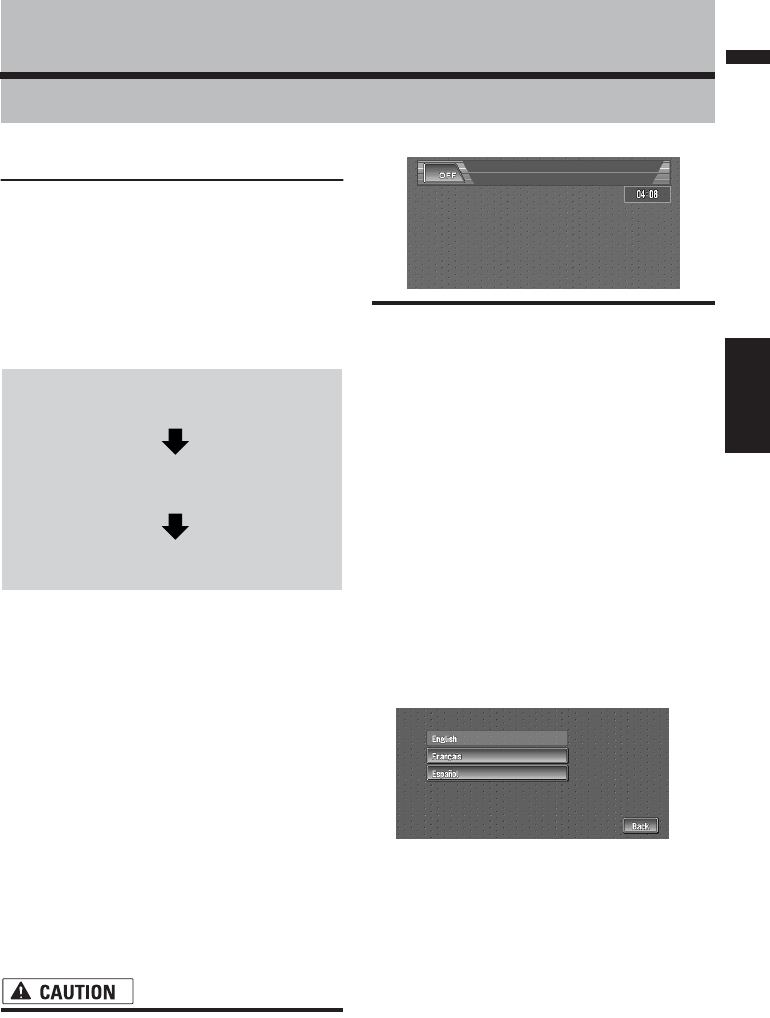
107
AppendixNAVI/AV
Appendix
Installing the Program
The program is installed to the Navigation Sys-
tem using the application disc.
This is not necessary if your dealer already
performed the installation.
When installing the program, you carry out the
following operations. When all the setup proce-
dures are completed, you can use the Navigation
System.
1Park your vehicle in a safe place.
Leave the engine on, and make sure that the
parking brake is applied.
2Insert the Pioneer DVD Map Disc into the
DVD-ROM loading slot of the Navigation
System.
When the upgraded program has been found,
installation of the program starts immediately.
❒Do not insert anything other than a disc
into the DVD-ROM loading slot.
❒If you cannot insert a disc completely or if
a inserted disc is not recognized, check
that the label side of the disc is up. Press
DVD-ROM EJECT button to eject the
disc, and check the disc for damage
before inserting the disc again.
• Once the installation of the program
starts, do not stop the engine of your vehi-
cle nor switch off the Navigation System
until the installation is completed and the
following Audio screen appears.
3Press the MAP button to change the navi-
gation screen.
4Touch “Yes/Oui”.
When you start the navigation unit for the first
time, you will see a confirmation message
asking if you wish to select another language.
English is the default language of the Naviga-
tion System. If desired, you can select another
language as shown.
❒To keep English, touch “No/Non”. After
this, proceed to Step 7.
❒When you want to select another lan-
guage, touch “Yes/Oui”, and proceed to
the next step.
5Select the language from the list.
Touch the language you want to use.
❒The language selected here is reflected for
the Navigation functions (e.g., Destination
search, etc.) only.
➲To Change the language ➞ Page 64
Installation of the program, in the language
you chose, begins.
1Insert the disc while the vehicle is
parked.
2Select the language used for the Navi-
gation System.
3Setting the clock.
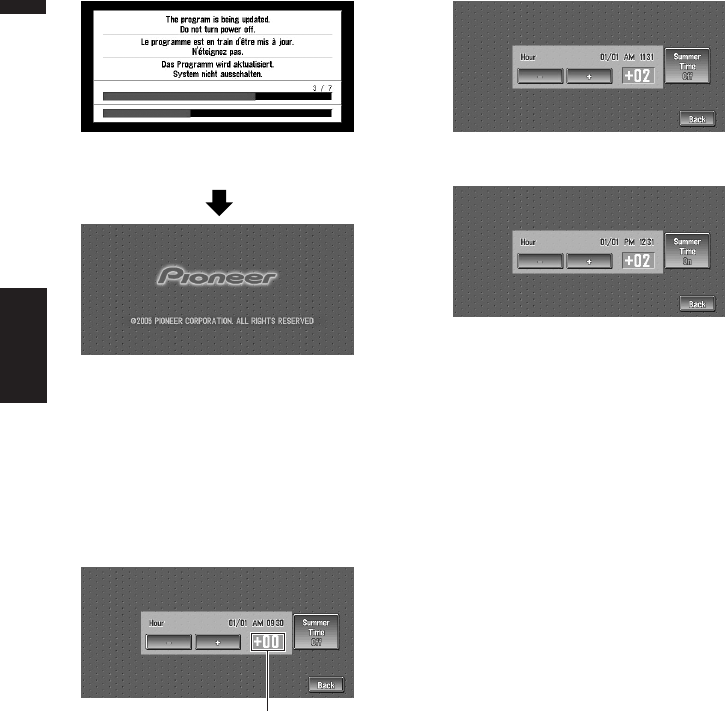
108
Appendix NAVI/AV
When the installation is complete, the open-
ing display appears.
6Press the MAP button to change the navi-
gation screen.
Some time is needed until navigation is ready.
7Check the details of the cautionary mes-
sage and touch “OK”.
8To set the time difference, touch “+” or
“–”.
The time difference between the time origi-
nally set in the Navigation System (Pacific
Standard Time) and the current location of
your vehicle is shown. If necessary, adjust the
time difference. Touching “+” or “–” changes
the time difference display in one-hour incre-
ments. The time difference can be set from
+3 to –3 hours.
9If necessary, set to summer time.
Daylight Saving Time (DST) is off by default.
Touch “Summer Time” to change the time if
you are in the daylight saving period. This
turns the display below summer time “On”.
10To complete the setting, touch “Back”.
The map of your surroundings appears.
This completes the setup of your Navigation Sys-
tem. Chapter 1 explains the basic operation of
your Navigation System.
➲To change the time later ➞ Page 66
Time difference
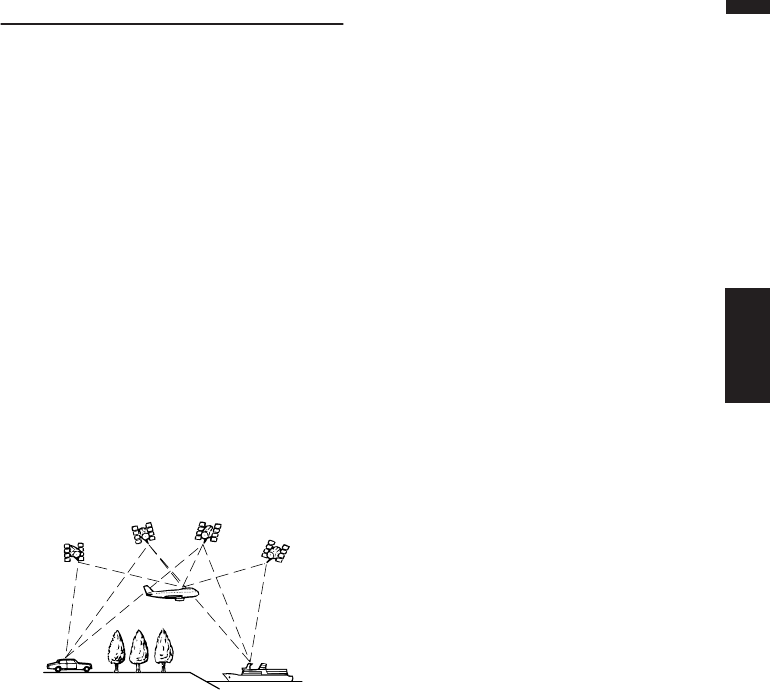
109
AppendixNAVI/AV
Positioning Technology
The Navigation System accurately measures your
current location by combining the positioning by
GPS and by Dead Reckoning.
Positioning by GPS
The Global Positioning System (GPS) uses a net-
work of satellites orbiting the Earth. Each of the
satellites, which orbit at a height of 68,900,000
feet (21,000 km), continually broadcasts radio
signals giving time and position information. This
ensures that signals from at least three can be
picked up from any open area on the Earth’s sur-
face.
The accuracy of the GPS information depends on
how good the reception is. When the signals are
strong and reception is good, GPS can determine
latitude, longitude, and altitude for accurate posi-
tioning in three dimensions. But if signal quality
is poor, only two dimensions, latitude and longi-
tude, can be obtained and positioning errors are
somewhat greater.
Positioning by dead reckoning
The 3D Hybrid Sensor in the navigation unit also
calculates your position. The current location is
measured by detecting driving distance with the
speed pulse, the turning direction with the Gyro-
sensor, and inclination of the road with the G
sensor.
The 3D Hybrid Sensor can even calculate
changes of altitude, and corrects for discrepan-
cies in the distance traveled caused by driving
along winding roads or up slopes. Also, the Navi-
gation System learns the driving conditions and
stores information in the memory; thus, as you
drive more, the precision of the positioning
becomes more accurate.
The method of positioning changes as follows
depending on whether the speed pulse of your
vehicle is detected or not:
3D hybrid mode
This is active when the speed pulse is detected.
Inclination of a street can be detected.
Simple hybrid mode
When the speed pulse is not detected, position-
ing is performed in this mode. Only horizontal
movement is detected, so it becomes less accu-
rate. Also, when the positioning by GPS is not
available, such as when your vehicle enters a
long tunnel, the discrepancy between your actual
and calculated position may become bigger.
❒The speed pulse data comes from the speed
sensing circuit. The location of this speed
sensing circuit depends on your vehicle
model. In some cases, it is impossible to
make a connection to it, and in such a case
we recommend that the ND-PG1 speed pulse
generator (sold separately) be used.
How do GPS and dead reckon-
ing work together?
For maximum accuracy, your Navigation System
continually compares GPS data with your esti-
mated position as calculated from the data of 3D
Hybrid Sensor. However, if only the data from the
3D Hybrid Sensor is available for a long period,
positioning errors are gradually compounded
until the estimated position becomes unreliable.
For this reason, whenever GPS signals are availa-
ble, they are matched with the data of the 3D
Hybrid Sensor and used to correct it for improved
accuracy.
To ensure maximum accuracy, the dead reckon-
ing system learns with experience. By comparing
the position it estimates with your actual position
as obtained using GPS, it can correct for various
types of error, such as tire wear and the rolling
motion of your vehicle. As you drive, the dead
reckoning system gradually gathers more data,
learns more, and the accuracy of its estimates
gradually increases. So, after you have driven
some distance, you can expect your position as
shown on the map to show fewer errors.
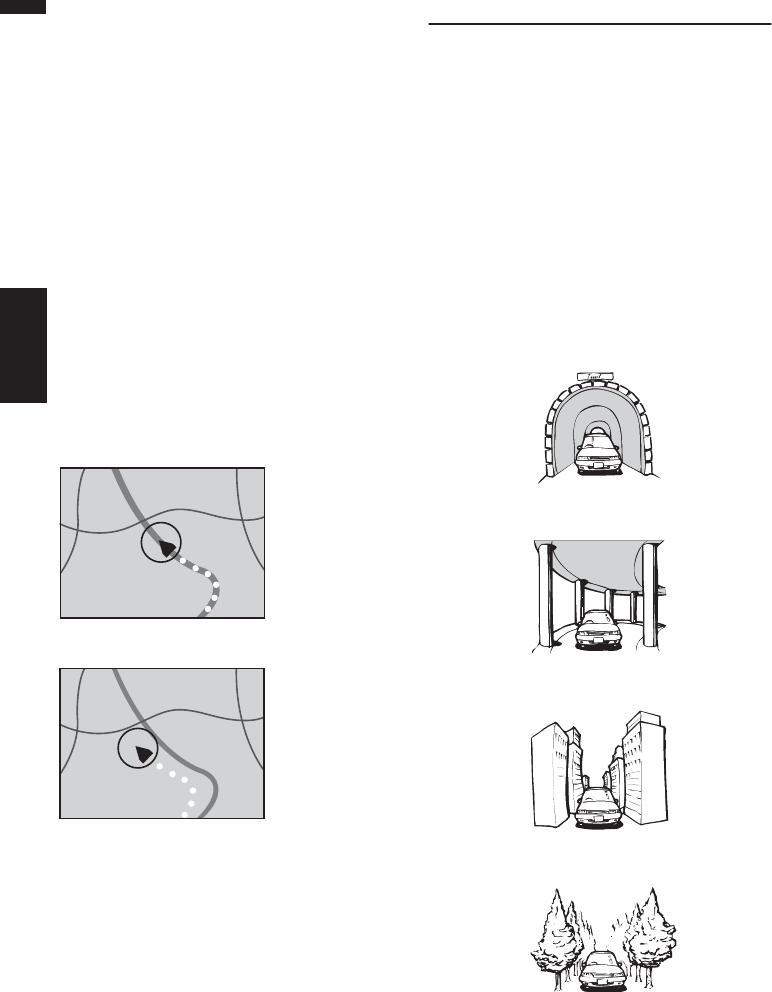
110
Appendix NAVI/AV
❒If you use chains on your wheels for winter
driving or put on the spare wheel, errors may
suddenly increase because of difference in
wheel diameter. The system detects the fact
that the tire diameter has changed, and auto-
matically replaces the value for calculating
distance.
❒If the ND-PG1 is used or if your vehicle is oper-
ating in Simple hybrid mode, the distance cal-
culation value cannot be replaced
automatically.
Map matching
As mentioned, the GPS and dead reckoning sys-
tems used by this Navigation System are suscep-
tible to certain errors. Their calculations may, on
occasion, place you in a location on the map
where no road exists. In this situation, the
processing system understands that vehicles
travel only on roads, and can correct your posi-
tion by adjusting it to a nearby road. This is called
map matching.
Handling Large Errors
Positioning errors are kept to a minimum by com-
bining GPS, Dead Reckoning, and map match-
ing. However, in some situations, these functions
may not work properly, and the error may
become bigger.
When the positioning by GPS is
impossible
• If signals cannot be received from more than
two GPS satellites, GPS positioning does not
take place.
• In some driving conditions, signals from GPS
satellites may not reach your vehicle. In this
case, it is impossible for the system to use GPS
positioning.
With map matching
Without map matching
In tunnels or enclosed parking garages
Under elevated roads or similar
When driving among high buildings
When driving through a dense forest or tall trees
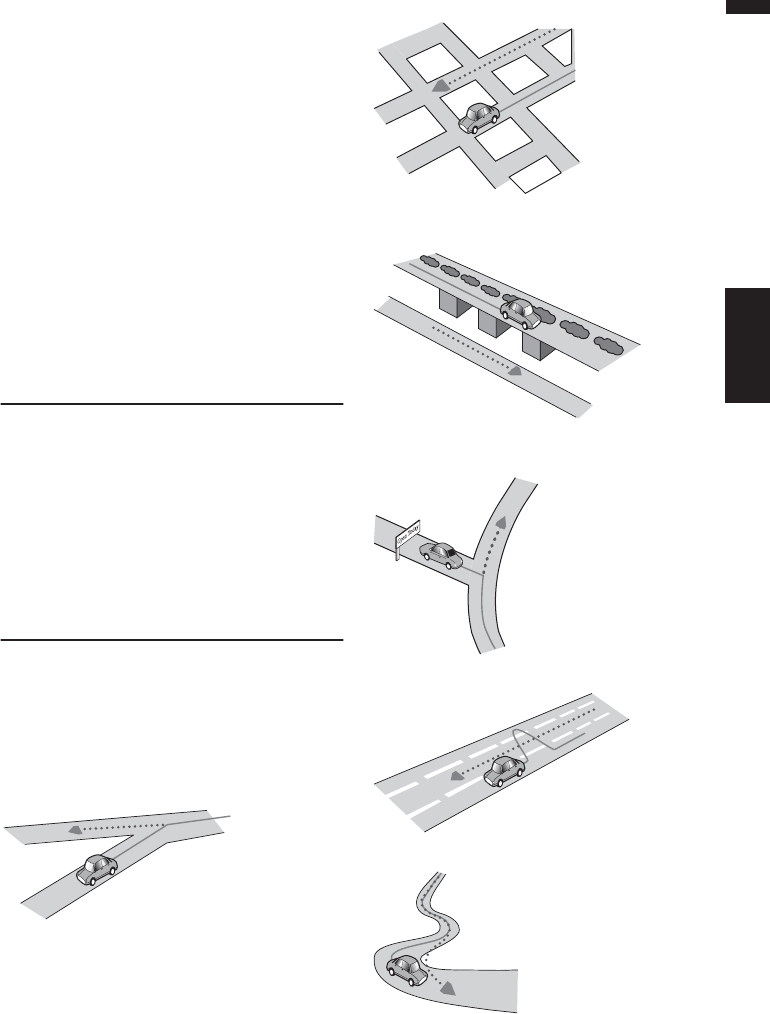
111
AppendixNAVI/AV
• If a car phone or cellular phone is used near
the GPS antenna, GPS reception may be lost
temporarily.
•Do not cover the GPS antenna with spray paint
or car wax, because this may block the recep-
tion of GPS signals. Snow buildup can also
degrade the signals, so keep the antenna
clear.
❒If, for any reason, GPS signals cannot be
received, learning and error correction are not
possible. If GPS positioning has been operat-
ing for only a short time, your vehicle’s actual
position and the current location mark on the
map may diverge considerably. Once GPS
reception is restored, accuracy will be recov-
ered.
Vehicles that Cannot Obtain
Speed Pulse Data
❒The speed pulse data comes from the speed
sensing circuit. The location of this speed
sensing circuit depends on your vehicle
model. In some cases, it is impossible to
make a connection to it, and in such a case
we recommend that the ND-PG1 speed pulse
generator (sold separately) be used.
Conditions Likely to Cause
Noticeable Positioning Errors
For various reasons such as the state of the road
you are traveling on and the state of reception of
the GPS signal, the actual position of your vehicle
may differ from the position displayed on the map
screen.
• If you make a shallow turn.
• If there is a parallel road.
• If there is another road very nearby, such as in
the case of an elevated freeway.
• If you take a recently opened road that is not
on the map.
• If you drive in zig-zags.
• If the road has connected hairpin bends.
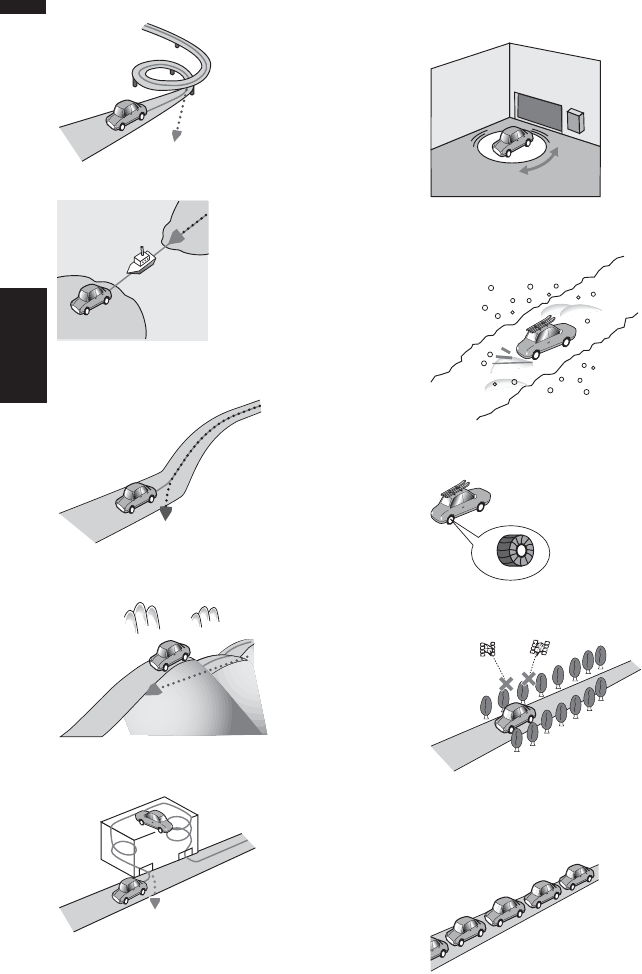
112
Appendix NAVI/AV
• If there is a loop or similar road configuration.
• If you take a ferry.
• If you are driving on a long, straight road or a
gently curving road.
•If you are on a steep mountain road with many
height changes.
• If you enter or exit a multi-storey parking lot or
similar using a spiral ramp.
• If your vehicle is turned on a turntable or simi-
lar.
• If your vehicle’s wheels spin, such as on a
gravel road or in snow.
• If you put on chains, or change your tires for
some of a different size.
• If trees or other obstacles block the GPS sig-
nals for a considerable period.
• If you drive very slowly, or in a start-and-stop
manner, as in a traffic congestion.
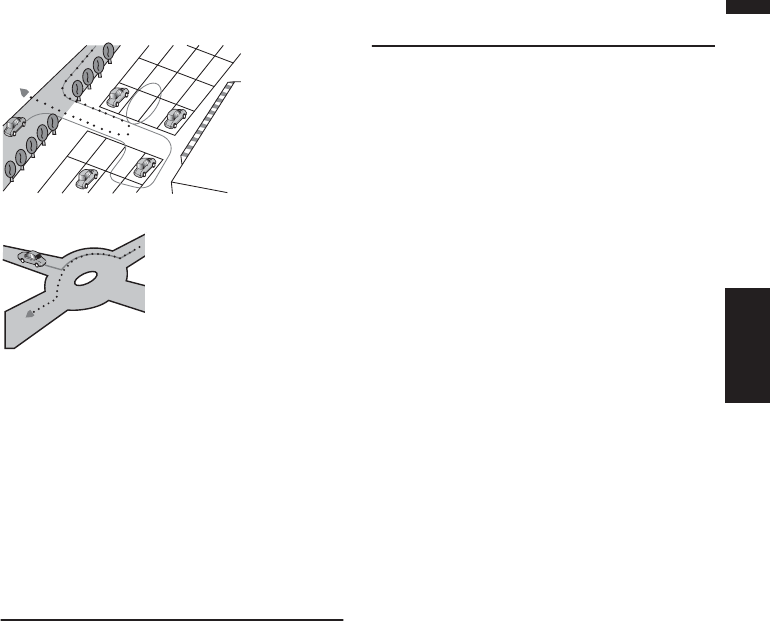
113
AppendixNAVI/AV
•If you join the road after driving around a large
parking lot.
• When you pass around a traffic circle.
• When starting driving immediately after start-
ing the engine.
• If you insert the disc and turn your Navigation
System on while driving.
Some types of vehicle may not output a speed
signal while driving at just a few kilometers per
hour. In such a case, the current location of your
vehicle may not be displayed correctly while in a
traffic congestion or in a parking lot.
About the Data being Deleted
The information is erased by pushing the RESET
button or disconnect yellow lead from battery (or
remove the battery itself), except for the following
items.
• Sensor learning status and driving status
• Area to avoid
• Registered Locations in “Address Book“
• Data registered in “Emergency Info”
Limitation of Functions for
Areas not Stored on the Disc
For areas not stored on the disc (unrecorded
areas), the functions will operate as follows:
Displaying the map
•Maps with a scale of between 0.02 mi and 0.25
mi cannot be displayed. (If the scale was set to
between 0.02 mi and 0.25 mi, it is automati-
cally switched to 0.5 mi.)
• When driving with Guide View or Route
View, upon entering an unrecorded area the
display automatically switches to Map View.
(When the vehicle re-enters an area stored on
the disc, the display returns to the previous
map mode.)
Destination search
• You cannot search a destination in an unre-
corded area using Address Search or
Telephone Search.
• In case of POI Search and Vicinity Search,
only “City Center” search is possible.
• If you cannot search in a currently selected
zone, the system may forcibly switch to the
zone selection screen.
•A Freeway Search covers all areas, regard-
less of the disc on which the information is
recorded.
• If a Vicinity Search is performed on the bor-
der of an unrecorded area, the system will not
necessarily select the nearest facility. (The
search will take place only within the range of
areas recorded on the disc.)
Guidance
• When your vehicle approaches an unrecorded
area, you will be notified three times: when the
distance to the unrecorded area is 12 mi (20
km), 6 mi (10 km) and 3 mi (5 km) respectively.
When your vehicle enters the unrecorded area,
a caution is given.
• In the unrecorded area, only guidance for
reaching the destination is provided. No other
guidance is given.
• If a route calculation is operated within an
unrecorded area, the route might not be set
from the streets you are currently driving. Also,
if you set the destination in an unrecorded
area of the disc, the system may not be able to
set the route up to the destination.

114
Appendix NAVI/AV
• If the vehicle deviates from the set route in an
unrecorded area, the Auto Reroute function
will not work.
• Even if “Close-up of Junction” is “On”, the
display will not switch to an enlarged map of
the intersection.
• Even if you drive on the freeway, lane informa-
tion, freeway exit numbers and freeway signs
will not be displayed.
Route information
• If the set route goes through an unrecorded
area, no route profile for the unrecorded area
will be displayed. (If the set route traverses
both an unrecorded area and area stored on
the disc, only the route profile within the
recorded area will be displayed.)
• Route scrolling for an unrecorded area is pos-
sible only with a map scale of 0.5 mi or above.
Other function limitations
Overlay POI
• Only display “City Center” is available in an
unrecorded area.
Avoid area
•An area not stored on the disc cannot be set as
an Area to Avoid.
❒A set Area to Avoid may be deleted when the
software is updated. If this happens, the sys-
tem will automatically try to recover the
deleted information, but data can be recov-
ered only for areas stored on the disc. For
items that could not be recovered, a recovery
process will begin when you set another disc.

115
AppendixNAVI/AV
Troubleshooting
If you have problems operating your Navigation System, refer to this section. The most common prob-
lems are listed below, along with likely causes and solutions. While this list is not comprehensive, it
should answer your most common problems. If a solution to your problem cannot be found here, con-
tact your dealer or the nearest authorized Pioneer service facility.
Problems in the screen
Symptom Cause Action (See)
Power doesn’t turn on. The unit
doesn’t operate.
Leads and connectors are incorrectly
connected.
Confirm once more that all connec-
tions are correct.
The fuse is blown. Rectify the reason for the fuse blow-
ing, then replace the fuse. Be very
sure to install the correct fuse with
the same rate.
Noise and other factors are causing
the built-in microprocessor to oper-
ate incorrectly.
Press RESET button. (➞ “Hardware
Manual” and refer to page 113 in this
manual.)
You cannot position your vehicle on
the map or the positioning error is
large.
The quality of signals from the GPS
satellites is poor, causing reduced
positioning accuracy. Such a loss of
signal quality may happen for the fol-
lowing reasons:
• The GPS antenna is in an unsuita-
ble location.
• Obstacles are blocking signals
from the satellites.
• The position of satellites relative to
your vehicle is bad.
• Signals from the GPS satellites
have been modified to reduce
accuracy. (GPS satellites are oper-
ated by the US Department of
Defense, and the US government
reserves the right to distort posi-
tioning data for military reasons.
This may lead to greater position-
ing errors.)
•If a vehicle phone or cellular phone
is used near the GPS antenna, GPS
reception may be lost temporarily.
•Do not cover the GPS antenna with
spray paint or vehicle wax, because
this may block the reception of
GPS signals. Snow buildup can
also degrade the signals.
Check the GPS signal reception (➞
Page 61) and the position of the GPS
antenna if necessary, or continue
driving until reception improves.
Keep the antenna clear.
Signals from the vehicle’s speed
pulse are not being picked up prop-
erly.
Check that the cables are properly
connected. If necessary, consult the
dealer that installed the system.
The navigation unit may not be
mounted securely in your vehicle.
Check that the navigation unit is
securely mounted and, if necessary,
consult the dealer that installed the
system.
Your vehicle is operating in Simple
hybrid mode.
Connect the speed signal input (pink
lead wire) of the power cable cor-
rectly, and reset the 3D Hybrid Sen-
sor memory (“Learning Status”).
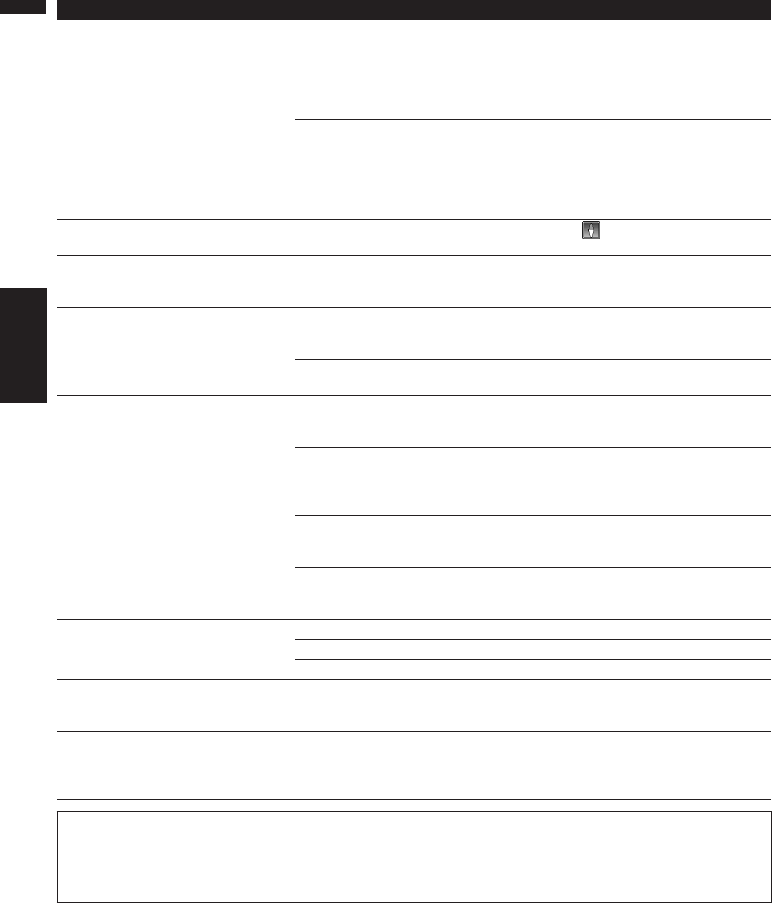
116
Appendix NAVI/AV
The navigation unit is installed with
an extreme angle exceeding the limi-
tation of the installation angle.
Confirm the installation angle. (The
Navigation System must be installed
within the allowed installation angle.
For details, refer to “Installation Man-
ual” and “Installation Angle Setup”
on page 62.)
Indication of the position of your
vehicle is misaligned after a U-turn or
reversing.
Check whether or not the reverse
gear signal input lead (purple) is con-
nected properly. (The Navigation Sys-
tem works properly without the lead
connected, but positioning accuracy
will be adversely affected.)
The map continually reorients itself. The traveling direction is always set
to Heading Up.
Touch on the screen and change
the map display.
Tracking marks are not displayed. The “Tracking Display” is turned
off.
Check the “Tracking Display” set-
tings (➞ Page 65) and make sure
“Always” or “This Trip” is selected.
The daylight display is used even
when the vehicle lights are on.
Daytime is selected on “Day/Night
Display”.
Check the “Day/Night Display” set-
ting (➞ Page 65) and make sure
“Nighttime” is selected.
The Orange/white lead is not con-
nected.
Check the connection.
The display is very dim. The vehicle’s light is turned ON, and
“Nighttime” is selected on “Day/
Night Display”.
Read about the “Day/Night Dis-
play” setting (➞ Page 65) and, if
desired, select “Daytime”.
The vehicle cabin temperature is
extremely low.
A Liquid Crystal Display (LCD) is
used, and such displays tend to
darken when cold. Wait for the vehi-
cle to warm up.
Picture quality adjustment of the dis-
play is not correct.
Refer to “Operating the Picture
Adjustment” (➞ Page 104) to adjust
the picture quality.
Ambient light sensor of the display is
hidden.
Set the ambient light sensor not to
be hidden or switch the “DIMMER”
to “ILLUMI” in the SETUP menu.
No sounds are heard.
The volume level will not rise.
The volume level is low. Adjust the volume level.
The attenuator or mute is on. Turn the attenuator or mute off.
The speaker lead is disconnected. Check the connection.
Adjusting the volume of navigation
guidance and beep is not possible.
You cannot adjust them with VOL
(+,–) button.
Turn the volume up or down accord-
ing to “Volume” (➞ Page 63) in the
Setting menu.
Slope is not displayed on the
Vehicle Dynamics screen.
Inclination does not move on the
3D Calibration screen.
The speed pulse lead is not con-
nected.
Connect the speed pulse lead.
When the screen is frozen...
Park your vehicle at a safe place, and cut the engine off. Turn the ignition key back to “Acc off”. Then
start the engine again, and turn the power to the navigation unit back on. If this does not solve the
problem, press the RESET button on the navigation unit.
Symptom Cause Action (See)

117
AppendixNAVI/AV
Symptom Cause Action (See)
The navigation does not boot up or
CD playback is not possible.
The disc is not inserted into the
appropriate slot.
Eject the disc and insert the disc to
appropriate slot.(➞ About CD load-
ing slot and DVD-ROM loading slot
➞ Hardware Manual )
The disc is inserted upside down. Insert the disc with the label upward.
The disc is dirty. Clean disc.
The disc is cracked or otherwise
damaged.
Insert a normal, round disc.
The files on the CD are an irregular
file format.
Check the file format. (Refer to
“Handing and care of the disc” on
the Hardware Manual.)
The CD format cannot be played
back.
Replace disc. (Refer to “Handing and
care of the disc” on the Hardware
Manual.)
No picture. The parking brake cord is not con-
nected or applied.
Connect a parking brake cord cor-
rectly, and apply the parking brake.
Parking brake interlock is activated. Park your vehicle in the safe place
and apply the parking brake.
➲Parking brake interlock ➞
Page 12
Audio skipping. The Navigation System is not firmly
secured.
Secure the Navigation System firmly.
Rear display picture disappears. The source without a video is
selected.
Switch the source with a video.
There was a problem with the rear
display or a faulty wiring connection,
for example.
Check the rear display and its con-
nection.
Rear View is selected on the screen. Select view mode other than Rear
View.
When the shift lever is in [R], displays
rear view camera images. (When
“NAVI” is selected in REAR DISP
menu.)
Select SOURCE in REAR DISP
menu.(or when you move the shift
lever other than [R] position, the
screen will be returned to the previ-
ous display.)
Operating the PICTURE ADJUST. There is no picture on the rear dis-
play while the PICTURE ADJUST
is carried out.
Nothing is displayed and the touch
panel keys cannot use.
The setting for the rear view camera
is incorrect.
The shift lever was placed in [R]
when the rear view camera was not
connected.
Connect a rear view camera cor-
rectly.
Press AV button to return to the
source display and then select the
correct setting for CAMERA.
➲About CAMERA setting ➞
Page 102
The back light of the LCD panel is
turned off.
Press the P.ADJ/B.LIGHT button
to turn on the back light.

118
Appendix NAVI/AV
Messages and how to react to them
The following messages may be displayed by your Navigation System.
❒There are occasions when you may see error messages other than those shown here. In such a
case, follow the instructions given on the display.
Message When What to do
Please insert the appropriate disc.
This is not the appropriate disc.
Please insert the appropriate disc.
If you try to use a disc which is
incompatible with this system.
Insert a suitable disc.
If you insert a disc upside down. Insert the disc with the label upward.
If the disc is dirty. Clean the disc.
If the disc is cracked or otherwise
damaged.
Insert a normal, round disc.
Irregular speed pulse signal is
detected. Please power off the sys-
tem and check the installation. After
you have checked, please re-boot the
system and press “OK”.
If the Navigation unit does not
receive the vehicle speed pulse.
Consult your Pioneer dealer.
Speed pulse wire is not connected.
System will start to learn without
speed pulse. Please keep in mind
that accuracy is not fully ensured
without speed pulse.
The speed signal input (pink lead
wire) of the power cable is not con-
nected.
To operate with 3D hybrid mode, con-
nect the speed signal input (pink
lead wire) of the power cable cor-
rectly.
Although it can be operated with
Simple hybrid mode without con-
necting the speed signal input, the
precision of the positioning will be
less accurate.
Vibration is detected. Please power
off the system and check the installa-
tion. After you have checked, please
re-boot the system and press “OK”.
While the vehicle is stationary, the
Navigation System is installed in a
place where the navigation unit may
be affected by a large vibration.
Re-install the navigation unit of the
Navigation System in a place where
the navigation unit will not be
affected by vibration.
Direction of G sensor is not correct.
Please power off the system and
check the installation. After you have
checked, please re-boot the system
and press “OK”.
Direction of G sensor is set incor-
rectly.
See the “Installation Manual” and set
the direction of the Hide-away unit
correctly.
Gyro Sensor is not working properly.
Please consult your dealer or Pioneer
service center.
Abnormal output of Gyrosensor is
detected.
Note down the error code shown on
the screen; turn off the power, and
then contact your nearest Pioneer
service facility.
This function is not available now. The screen cannot be displayed with
Vehicle Dynamics Display.
Because the sensor has not been
taught so the sensor information
cannot be acquired.
If the sensor learning status reaches
the Sensor Initializing status or more,
the system is ready to be used.
System detected that the vertical
angle of the installation has been
changed. Learning status for Gyro
Sensor has been initialized.
If the mounting angle of the Hide-
away unit has been changed.
The system initializes the sensor in
order to operate it with the maximum
performance and automatically
starts re-learning.
System detected that the vertical
angle of the installation exceeds the
permission level. Please install the
navigation unit correctly.
The navigation unit is installed with
an extreme angle exceeding the limi-
tation of the installation angle.
Confirm the installation angle. (The
Navigation System must be installed
within the allowed installation angle.
For details, refer to “Installation Man-
ual” and “Installation Angle Setup”
on page 62.)
No data available at this time. If no data is available that can be
used with the XM tuner.
Wait for a while and try the operation
again.
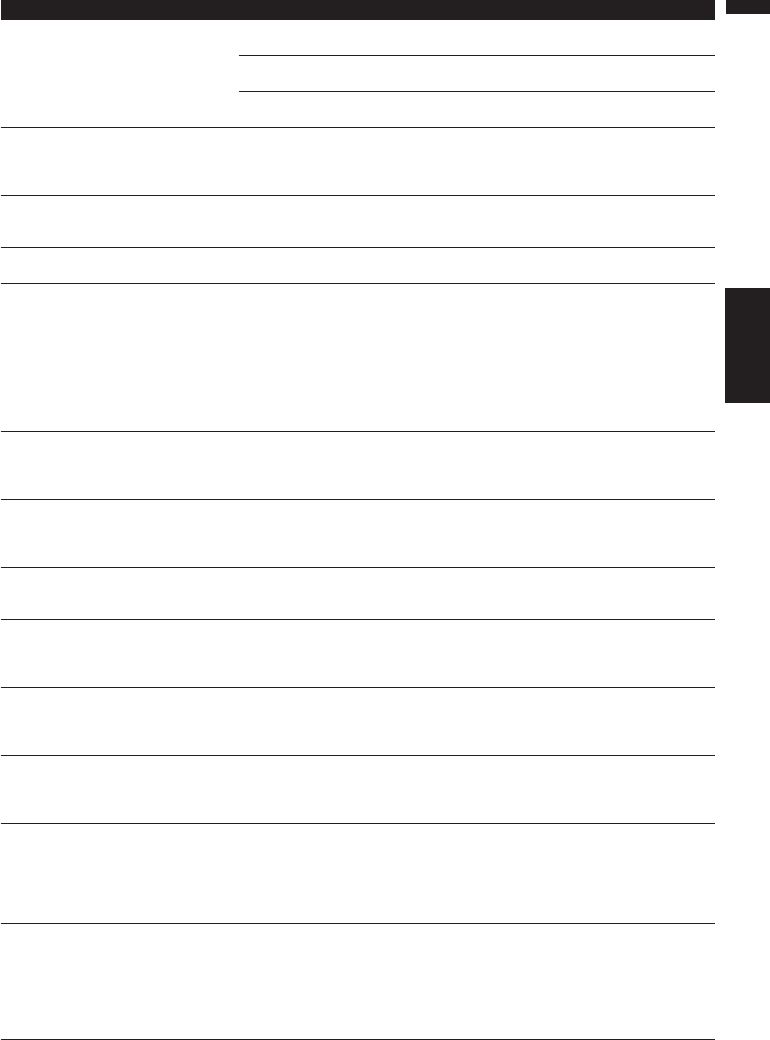
119
AppendixNAVI/AV
No XM signal. Please wait. While waiting for a response from
the XM tuner.
Wait for a while and try the operation
again.
You are in an area that cannot
receive XM tuner reception.
Move into an area that can receive
XM tuner reception.
Your current location provides very
poor reception.
Change your location.
Route calculation was not possible. Route calculation has failed because
of malfunction of map data, software,
hardware, or disc.
• Change the destination.
• Clean the disc.
• Consult the Pioneer Local dealer if
this message persists.
Route calculation was not possible
because the destination is too far.
The destination is too far. • Set a destination closer to the start-
ing point.
• Set one or more way points.
Route calculation was not possible
because the destination is too near.
The destination or way point(s) is too
close.
Set a destination [and way point(s)]
farther from the starting point.
Route calculation was not possible
due to traffic regulations.
• The destination or way point(s) are
in a Control Traffic Zone (CTR) and
the route calculation is hampered.
• Your vehicle is currently in a Con-
trol Traffic Zone (CTR) and the
route calculation is hampered.
• Set a destination and way point(s)
outside the CTR if you know where
the restricted area is.
• Try the destination or way point(s)
away from the currently set points
to some extent.
• Drive your vehicle to an unre-
stricted area and reset the destina-
tion and way point(s).
Route calculation was not possible
because no guidance can be pro-
vided around the destination or the
starting point.
The destination, way point(s), or
starting point are in an area where
no road exists (e.g. a mountain) and
the route calculation is impossible.
• Set a destination and way point(s)
on roads.
• Reset the destination after you
drive the vehicle to any road.
There is no route to the destination. The destination or way point(s) are in
an isolated island, etc. without a ferry
and the route calculation is impossi-
ble.
Change the destination.
The route could not avoid the speci-
fied area.
If route setting cannot avoid speci-
fied Areas to Avoid.
If the current route is not desired, set
destination or way points that do not
pass through the Areas to Avoid.
The route could not avoid the speci-
fied area.
Toll road has not been avoided.
If the route to the destination (or way
point) cannot be established by
bypassing toll roads (including toll
areas) and Areas to Avoid.
If the current route is not desired, set
destination or way points that do not
pass through toll roads (including
toll areas) and Areas to Avoid.
Ferry has not been avoided. In case a ferry route was included in
the route to the destination or way
points even though “Avoid Ferry”
was set to ON.
If the current route is not desired, set
destination or way points that do not
pass through a ferry route.
Toll road has not been avoided. If the route to the destination (or way
point) cannot be established by
bypassing toll roads (including toll
areas).
If the current route is not desired, set
destination or way points that do not
pass through toll roads (including
toll areas).
The address does not exist.
Do you want to continue?
If the house number is entered with-
out specifying City or Street and that
house number does not exist on the
data.
Re-enter the existing house number
by following the instructions shown
on the screen.
Or, proceed to the next step without
entering the house number and
specify the City or Street first.
There is no applicable data for the
selected city. Automatically returning
to list.
If the history data of the City could
not be used (for example, in case
that the history data of the City that
was used in the POI Search cannot
be found in the Address Search.)
Once the search is performed to
specify the City, the result is saved as
a history. The data of the specified
City, however, may not be hit by the
different search criteria. In this case,
try another search method or change
the destination.
Message When What to do

120
Appendix NAVI/AV
There is no Freeway in this area. If no freeway was found in the
selected Zone.
Set the destination or way points
using another search method or
change the location of the destina-
tion or way points.
This area does not contain any POI’s
of the selected type.
Vicinity Search cannot be per-
formed because the searched loca-
tion is in areas not stored on the DVD
Map Disc (unrecorded areas).
Replace the DVD Map Disc and per-
form the Vicinity Search again.
Facilities of the selected category do
not exist in the surrounding areas.
Use another search method or move
to another location and perform the
Vicinity Search again.
Only City Center can be searched. If POI Search was performed on
areas not stored on the DVD Map
Disc (unrecorded areas).
Only the City Center can be
searched. If you want to search other
categories in unrecorded areas,
replace the DVD Map Disc and per-
form the POI Search again.
Set the “areas stored on the DVD
Map Disc” to destination or way
points.
This zone is not available on this
disc. Please insert appropriate disc.
When areas not stored on the DVD
Map Disc (unrecorded areas) are
included in the search.
Set the destination or way points in
the areas stored on the DVD Map
Disc, or replace the DVD Map Disc
and perform the search again.
Failed to make the route profile. Failed to generate the route profile
because the set route passes
through areas not stored on the DVD
Map Disc (unrecorded areas).
Insert the DVD Map Disc and retry.
The maximum number of registra-
tions has been completed. Please
clear existing registered items and
re-register current item.
If there are already 300 items when
you attempt to register an item in the
Address Book.
Delete unnecessary data and try to
register again.
Data Read error. Back to Original
Background.
Please do not turn power off.
Failed to read the data because the
DVD Map Disc is damaged or dirty.
Or, the pick-up lens of the DVD-ROM
drive is dirty.
Try re-reading the data by inserting a
clean DVD Map Disc.
Clean the pick-up lens with a com-
mercially available cleaning kit for
DVD, then try to reading again.
No route data can be stored. You
should insert the disc that contains
the map data of the current position.
Areas not stored on the DVD Map
Disc (unrecorded areas).
Insert the DVD Map Disc containing
that area.
No map data available on this scale.
Scaling up.
When the scale that had been dis-
played could not be displayed
because the map was scrolled to
areas not stored on the DVD Map
Disc (unrecorded areas) or the vehi-
cle moved to areas not stored on the
DVD Map Disc (unrecorded areas).
If the desired scale cannot be
selected, insert the DVD Map Disc
that contains that area and then
change the scale.
This function is not available with the
current map disc.
In case the current position is “areas
not stored on the DVD Map Disc
(unrecorded areas)” and an attempt
was made to zoom in to make the
scale 0.5 mile or more.
Zoom in again after the vehicle
moves into an area stored on the
DVD Map Disc.
Or, replace the DVD Map Disc and
try to zoom in again.
Message When What to do
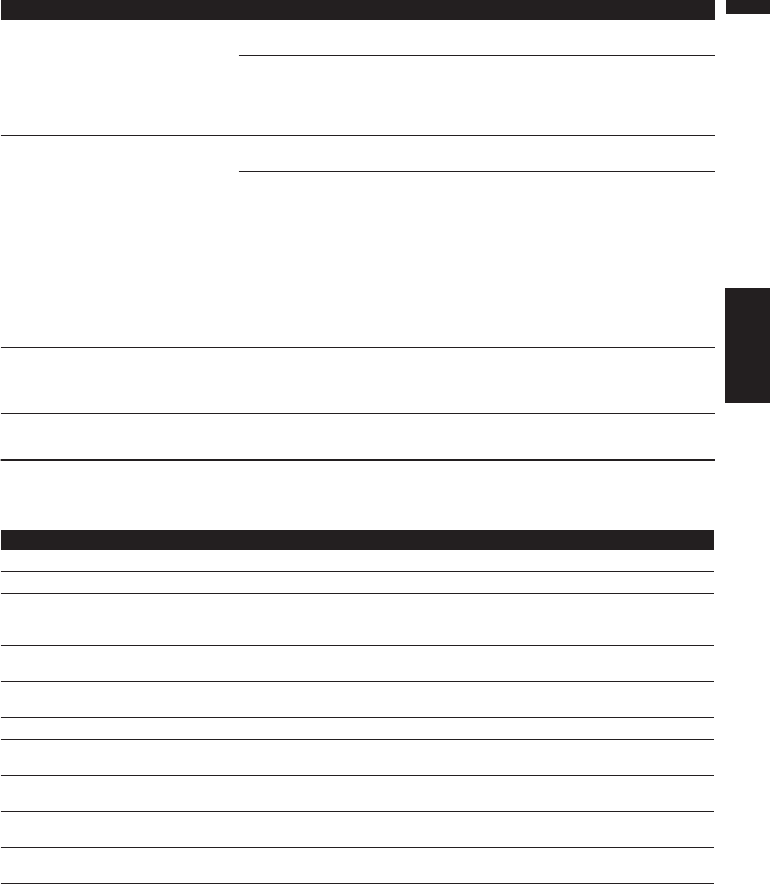
121
AppendixNAVI/AV
Understanding Built-in CD Drive Error Messages
When you contact your dealer or your nearest Pioneer Service Center, be sure to record the error mes-
sage.
Caution !
System detected improper connec-
tion of Parking Brake lead. Please
check your configuration for safety.
Please see Operation Manual for
more information regarding safe
operation.
Parking brake lead is incorrectly con-
nected.
Confirm once more that their con-
nections are correct.
For a certain period after the installa-
tion of your Navigation System.
Drive your vehicle for a while until the
sensor learning status “Initializing”
is turned to “Simple Hybrid” or “3D
Hybrid”.
CAUTION!
Navigation Initialization is currently
in process, or there may be an
improper connection of the Parking
Brake lead.
This caution window will no longer
appear after Initialization is com-
plete. If this message continues,
please check your configuration for
safety.
Please see Operation Manual for
more information regarding safe
operation.
Parking brake lead is incorrectly con-
nected.
Confirm once more that their con-
nections are correct.
For a certain period after the installa-
tion of your Navigation System.
Drive your vehicle for a while until the
sensor learning status “Initializing”
is turned to “Simple Hybrid” or “3D
Hybrid”.
Viewing of front seat video source
while driving is strictly prohibited.
Parking brake interlock is activated. Park your vehicle in the safe place
and apply the parking brake.
➲Parking brake interlock ➞
Page 12
Message Cause Action
ERROR-11, 12, 17, 30 Dirty disc Clean disc.
ERROR-11, 12, 17, 30 Scratched disc Replace disc.
ERROR-10, 11, 12, 15, 17,
30, A0
Electrical or mechanical Turn the ignition ON and OFF, or switch
to a different source, then back to the CD
drive.
ERROR-15 The inserted disc does not contain
any data
Replace disc.
ERROR-22, 23 The CD format cannot be played
back
Replace disc.
ERROR-44 All tracks are skip tracks Replace disc.
NO AUDIO The inserted disc does not contain
any files that can be played back
Replace disc.
TRK SKIPPED The inserted disc contains WMA
files that are protected by DRM
Replace disc.
PROTECT All the files on the inserted disc are
secured by DMR
Replace disc.
HEAT CD drive overheated Switch another source and wait until the
CD drive cools down.
Message When What to do
122
Appendix NAVI/AV
Route Setting Information
Route search specifications
Your Navigation System sets a route to your desti-
nation by applying certain built-in rules to the
map data. This section provides some useful
information about how a route is set.
• When a route is calculated, the route and
voice guidance for the route is automati-
cally set. Also, for day or time traffic regu-
lations, only information about traffic
regulations at the time when the route was
calculated is shown. One-way streets and
street closures may not be taken into con-
sideration. For example, if a street is open
during the morning only, but you arrive
later, it would be against the traffic regula-
tions so you cannot drive along the set
route. When driving, please follow the
actual traffic signs. Also, the system may
not know some traffic regulations.
• Upgrade DVD Map Discs are available for
purchase from your local Pioneer dealer
that includes the most current map and
point of interest information. Contact your
local Pioneer dealer for details.
About the route condition
When the calculation of only one route is set, you
can search a route option by combining the fol-
lowing conditions.
➲How to set the calculation conditions ➞
Page 44
For example, when “Fast” and “Avoid Freeway”
(“On”) are combined, the route, which avoids
freeway, and has the shortest travel time, will be
calculated and displayed on the screen.
Condition 1 :whether to put priority on the
distance, or time
Short :
Calculate a route with the shortest distance to
your destination as a priority.
Fast :
Calculate a route with the shortest travel time to
your destination as a priority.
Condition 2 :whether to use freeway or not
Avoid Freeway :
Calculate a route that avoids freeway. (A route
using the freeway may be set if your destination
is far away.)
• The system assumes the driver deviated either
intentionally or inadvertently from the route
and searches for another route (intelligent
rerouting). Depending on the situation, the
system may search a new route that does not
return to the original one.
• The calculated route is one example of the
route to your destination decided by the Navi-
gation System whilst taking the type of streets
or traffic regulations into account. It is not nec-
essarily an optimum route. (In some cases, you
may not be able to set the streets you want to
pass. If you want to pass a certain street, set
the way point on that street.)
• The route set by your Navigation System is
based on the assumption that the driver does
not know the area. Thus, the streets known to
local drivers, such as small streets or special
roads, may not be used for the set route.
• Some route options may become the same
route. If visiting points are set, only one route is
calculated.
•Route setting is limited to the range of the disc
in use.
• The destination is too far, there may be
instances where the route cannot be set. (If
you want to set a long-distance route going
across several areas, set way points along the
way.)
•During voice guidance, turns and intersections
from the freeway are announced. However, if
you pass intersections, turns, and other guide
points in rapid succession, some may not be
announced.
•It is possible that guidance may direct you off a
freeway and then back on again.
•In some cases, the set route may require you to
travel in the opposite direction to your current
heading. In such cases, you are instructed to
turn around, so please turn around safely by
following the actual traffic rules.

123
AppendixNAVI/AV
• In some cases, guidance may direct you past
your destination and then indicate a U-turn to
get back to it.
• In some cases, a route may begin on the oppo-
site side of a railway or river from your actual
current location. If this happens, drive towards
your destination for a while, and try route cal-
culation again.
• In the following cases, the route that passes
through an Area to Avoid may be set:
- when your vehicle is in the Area to Avoid
- when your destination or way points are in
the Area to Avoid
- when it is not possible to avoid doing so
•If a suitable route cannot be set in compliance
with the specified “Detour” distance, or your
preference to avoid freeways, toll roads, ferry
route, the setting or parameter may be
ignored.
• When there is a traffic congestion or closure
ahead, if driving through the traffic congestion
or closure is better than taking the detour, a
detour route may not be set.
• There may be instances when the starting
point and the destination point are not on the
highlighted route.
• The number of traffic circle exits displayed on
the screen may differ from the actual number
of roads.
Auto Reroute
• Auto Reroute is used when you deviate more
than 0.01 mi (30m) from the route.
• Auto Reroute function does not work in the fol-
lowing cases:
- when your vehicle is not on a street
- when you are too close to your destination
- when your vehicle is on a ferry
- when driving on a road inside a facility
- when driving on a traffic circle
- when the vehicle goes out of the area stored
in the disc
- when driving on the routes are described in
“Roads not used in calculations”
Route highlighting
• Once set, the route is highlighted in bright
green or light blue on the map.
• The immediate vicinity of your starting point
and destination may not be highlighted, and
neither will areas with particularly complex
road layouts. Consequently, the route may
appear to be cut off on the display, but voice
guidance will continue.
Roads not used in calculations
Even though displayed onscreen, the following
roads are not included in route calculations.
• Stubble Road
• Walk Way
• Public vehicle only
• Non routable road
Intersection enlargement
• When “Close-up of Junction” is on, the map
scale increases to show more detail as you
approach an intersection.
• If the intersection is approached in a gentle
curve, the map displayed may differ from the
actual road layout.
Tracking
• Your Navigation System marks your course on
the map in certain increments. This is called
tracking. It is handy when you want to check a
route traveled without guidance or if returning
along a complex route.
•A maximum of about 145 miles (230 km) is
marked and, as you travel beyond this limit,
tracking marks are erased in order from the
most distant. Tracking display shows about
100 miles tracking of your vehicle with white
dots.
➲Tracking can also be set for automatic erasing
whenever the Navigation System is switched
off ➞ Page 65

124
Appendix NAVI/AV
Types of the Road Stored in the
Disc
There are three types of roads in the map of this
disc.
Roads included in the route
guidance and roads not included
Turn by Turn Routable Roads contain full
attribute data and can be used for full Route
Guidance. Pioneer Navigation will display full
route guidance, including turn-by-turn voice
directions and arrow icons.
Routable roads (The route displayed and
highlighted in purple color) have only basic
data and can only be used to plot a navigable
route. Pioneer Navigation will only display a navi-
gable route on the map (only the arrival guidance
for the destination or a way point is available).
Please review and obey all local traffic rules
along the highlighted route. (For your safety.)
No turn-by-turn directions or arrow icons will be
displayed on these roads.
When your vehicle reaches to the entrance of this
road, the icon will be displayed, indicating
that the guidance is not available with this type of
road. The icon will be indicated for the road
with which the guidance is available.
The Close-up of intersection function, Auto
Reroute function, Changing the view to Guide
View, or Route View are not available.
Non routable roads (pink color
road)
Map display is possible, but it cannot be used for
the route calculation. Please review and obey all
local traffic rules along this route. (For your
safety.)
Glossary
This glossary explains some of the terms used in
the manual.
3D Hybrid sensor
The built-in sensor which enables the system to estimate
your vehicle’s position. A learning function increases its
accuracy and its learning data can be stored in memory.
Address Book
A list of previously searched destinations, way points
and locations registered manually.
Aspect ratio
This is the width-to-height ratio of a TV screen. A regular
display has an aspect ratio of 4:3. Wide screen displays
have an aspect ratio of 16:9, providing a bigger picture
for exceptional presence and atmosphere.
Bit rate
This expresses data volume per second, or bps units
(bits per second). The higher the rate, the more informa-
tion is available to reproduce the sound. Using the same
encoding method (such as MP3), the higher the rate, the
better the sound.
Current location
The present location of your vehicle; your current loca-
tion is shown on the map by a red triangle mark.
Default setting
A factory setting which applies when you first switch on
the system; you can change default settings to suit your
own needs in the Route Options menu or the Settings
menu.
Destination
A location you choose as the end point of your journey.
DVD Map Disc
This DVD-ROM disc contains Pioneer navigation soft-
ware. Map data is also recorded on the disc.
Favorite location
A frequently visited location (such as your workplace or
a relative’s home) that you can register to allow easy
routing.
GPS
Global Positioning System. A network of satellites that
provides navigation signals for a variety of purposes.
Guidance mode
The mode in which guidance is given as you drive to your
destination; the system automatically switches to this
mode as soon as a route has been set.

125
AppendixNAVI/AV
Guidance point
These are important landmarks along your route, gener-
ally intersections. The next guidance point along your
route is indicated on the map by the yellow flag icon.
Home location
Your registered home location.
ID3 tag
This is a method of embedding track-related information
in a MP3 file. This embedded information can include
the track title, the artist’s name, the album title, the
music genre, the year of production, comments and
other data. The contents can be freely edited using soft-
ware with ID3 Tag editing functions. Although the tags
are restricted to the number of characters, the informa-
tion can be viewed when the track is played back.
ISO9660 format
This is the international standard for the format logic of
CD-ROM folders and files. For the ISO9660 format, there
are regulations for the following two levels.
Level 1:
The file name is in 8.3 format (the name consists of up to
8 characters, half-byte English capital letters and half-
byte numerals and the “_” sign, with a file-extension of
three characters.)
Level 2:
The file name can have up to 31 characters (including
the separation mark “.” and a file extension). Each folder
contains less than 8 hierarchies.
Extended formats
Joliet:
File names can have up to 64 characters.
Romeo:
File names can have up to 128 characters.
m3u
Playlists created using the “WINAMP” software
have a playlist file extension (.m3u).
Menu
A list of options shown on the display; choices are
selected touching the display.
MP3
MP3 is short for MPEG Audio Layer 3. It is an audio com-
pression standard set by a working group (MPEG) of the
ISO (International Standards Organization). MP3 is able
to compress audio data to about 1/10th the level of a
conventional disc.
Multi-session
Multi-session is a recording method that allows addi-
tional data to be recorded later. When recording data on
a CD-ROM, CD-R or CD-RW, etc., all data from begin-
ning to end is treated as a single unit or session. Multi-
session is a method of recording more than 2 sessions
in one disc.
Packet write
This is a general term for a method of writing on CD-R,
etc. at the time required for a file, just as is done with
files on floppy or hard discs.
Point of Interest (POI)
Point Of Interest; any of a range of locations stored in
the data, such as railway stations, shops, restaurants,
and amusement parks.
Route setting
The process of determining the ideal route to a specific
location; route setting is done automatically by the sys-
tem when you specify a destination.
Set route
The route marked out by the system to your destination.
It is highlighted in bright green on the map.
Tracking
Marks on the map indicating the route you have
traveled.
VBR
VBR is short for variable bit rate. Generally speaking
CBR (constant bit rate) is more widely used. But by flexi-
bly adjusting the bit rate according to the needs of audio
compression, it is possible to achieve compression pri-
ority sound quality.
Voice guidance
The giving of directions by a recorded voice while in
guidance mode.
WAV
WAV is short for waveform. It is a standard audio file for-
mat for Windows®.
Way Point
A location that you choose to visit before your destina-
tion; a journey can be built up from multiple way points
and the destination.
WMA
WMA is short for Windows MediaTM Audio and refers to
an audio compression technology that is developed by
Microsoft Corporation. WMA data can be encoded by
using Windows Media Player version 7 or later.
Microsoft, Windows Media, and the Windows logo are
trademarks, or registered trademarks of Microsoft Cor-
poration in the United States and/or other countries.
126
Appendix NAVI/AV
Display Information
*1: If you touch “Restore Factory Settings”, the registered POI Shortcuts return to the default or fac-
tory settings.
*2: If you touch “Restore Factory Settings”, the setting value return to the default or factory settings.
Main menu
P. 20
Destination
Address Search
P. 37, 47
Return Home
P. 37, 47
Go to
P. 35
POI Search
P. 36
Vicinity Search*1
P. 38, 48
Address Book
P. 38, 48
Destination History
P. 37
Freeway Search
P. 37
Telephone Search
P. 38
Cancel Route
Info/Traffic
P. 51
Traffic On Route
P. 50
Traffic Events
P. 52
Traffic Flow
P. 53
Traffic Settings*2
P. 56
XM Status
Stock Info P. 54
Browse P. 55
My Favorites P. 56
Emergency Info P. 57
Overlay POI*1 P. 36
Route Options
P. 38, 44
View Current Route
P. 40, 45
Recalculate
P. 45
Number of Routes*2
P. 45
Route Condition*2
P. 45
Avoid Freeway*2
P. 41, 44
Edit Current Route
P. 45
Avoid Ferry*2
P. 45
Avoid Toll Road*2
P. 42
Designate Areas to Avoid
127
AppendixNAVI/AV
P. 63
Volume*2
System Options
Short-Cut Selection
Map Display Options*2
Defined Locations
P. 66
Demo Mode
P. 66, 108
Time
Modify Current Location
Hardware Info
P. 67
Restore Factory Settings
P. 47, 66
Set ”Home”
Settings
P. 65
Shortcut menu
P. 65
AV Guide Mode
P. 66
Arrow in AV
P. 66
Close-up of Junction
P. 65
Day/Night Display
P. 59, 64
Background Picture Setting
P. 64
Average Speed*2
P. 62, 64
Installation Angle Setup
P. 64
KM/Mile Setting*2
P. 64, 107
Language Selection
P. 66
P. 47, 66
Set ”Go To”
P. 61, 66
Connection Status
P. 60, 66
3D Calibration
P. 66
Service Info Screen
Tracking Display
P. 128
128
Appendix NAVI/AV
Shortcut menu
❒The shortcuts displayed onscreen can be changed. The shortcuts described here are those that can
be selected with the system as default setting.
❒Items marked with an asterisk (*3) cannot be removed from the shortcut menu.
➲Changing a shortcut ➞ Page 64
: Chg.Route*3
: Registration
P. 28
: Vicinity Search*1
P. 39
: Whole Route Overview
P. 43
: Overlay POI*1
Shortcut menu
P. 28, 48
: Route Options
P. 38, 48
: Address Book
P. 41, 44
: Edit Current Route
P. 51
: Traffic On Route
P. 54
: Stock Info
P. 55
: Browse
P. 56
: My Favorites
Route Options P. 126
P. 41
Skip Way Point
P. 38, 40
Route Scroll
P. 39, 40
Route Profile
P. 38
Cancel Route
P. 40
Reroute
1 mile (km) - 50 mile (km) P. 40
: Destination*3 P. 28, 33
129
AppendixNAVI/AV
Menu in the Audio Screen
AUDIO menu
INITIAL menu
SET UP menu
P. 97FAD/BAL (BALANCE)
P. 98EQ
P. 98
EQ MENU
P. 99
EQ-EX
P. 99
LOUDNESS
P. 99SUB WOOFER (NON FADING)
P. 99
HPF
SLA
AUDIO
P. 100
P. 100
INITIAL
AUX
P. 101
REAR SP
P. 102
TEL/GUIDE
P. 102
GUIDE VOICE
AUTO ANTENNA
P. 100
REAR SP
P. 100
PREOUT
P. 102
SET UP
AV INPUT
CAMERA
P. 103
REAR DISP
P. 103
DIMMER
CAMERA
POLARITY
P. 102
P. 102
130
Appendix NAVI/AV
FUNCTION menu
CD [CD, MP3/WMA/WAV]
RADIO
XM (GEX-P10XMT)
SIRIUS
TV
S-DVD (M-DVD)
M-CD
EXT-1, EXT-2
P. 74
REPEAT
P. 75
RANDOM
P. 75
SCAN
P. 75
COMP
FUNCTION CD
SEARCH MODE P. 75
P. 77
BSM
P. 77
LOCAL
FUNCTION RADIO
P. 86
MEMO
FUNCTION XM
P. 89
FUNCTION 1
P. 89
FUNCTION 2
FUNCTION SIRIUS
P. 91
BSSM
FUNCTION TV
P. 93
REPEAT
P. 93
RANDOM
P. 93
SCAN
P. 81
ITS PLAY
P. 81
ITS MEMORY
FUNCTION S-DVD, M-DVD
P. 80
REPEAT
P. 80
RANDOM
P. 80
SCAN
P. 80
COMP
P. 81
TRACK LIST
P. 81
ITS PLAY
ITS MEMORY
FUNCTION M-CD
P. 81
P. 94
FUNCTION 1
P. 94
FUNCTION 2
P. 94
FUNCTION 3
P. 94
FUNCTION 4
FUNCTION EXT-1, EXT-2
AUTO/MANUAL P. 95
<KKYHF> <05C00001>
PIONEER CORPORATION
4-1, MEGURO 1-CHOME, MEGURO-KU, TOKYO 153-8654, JAPAN
PIONEER ELECTRONICS (USA) INC.
P. O. Box 1540, Long Beach, California 90801-1540, U.S.A.
TEL: (800) 421-1404
PIONEER EUROPE NV
Haven 1087, Keetberglaan 1, B-9120 Melsele, Belgium
TEL: (0) 3/570.05.11
PIONEER ELECTRONICS ASIACENTRE PTE. LTD.
253 Alexandra Road, #04-01, Singapore 159936
TEL: 65-6472-7555
PIONEER ELECTRONICS AUSTRALIA PTY. LTD.
178-184 Boundary Road, Braeside, Victoria 3195, Australia
TEL: (03) 9586-6300
PIONEER ELECTRONICS OF CANADA, INC.
300 Allstate Parkway, Markham, Ontario L3R OP2, Canada
TEL: 1-877-283-5901
PIONEER ELECTRONICS DE MEXICO, S.A. de C.V.
Blvd.Manuel Avila Camacho 138 10 piso
Col.Lomas de Chapultepec, Mexico, D.F. 11000
TEL:55-9178-4270
Published by Pioneer Corporation.
Copyright © 2005 by Pioneer Corporation.
All rights reserved.
Printed in Japan
<CRB2089-A> UC
