Pioneer Dvr Rt501 S Users Manual 2H30301B_En_01_03
DVR-RT501-s to the manual aa25d101-1774-4c57-be13-dc4648ca92bb
2015-01-26
: Pioneer Pioneer-Dvr-Rt501-S-Users-Manual-334254 pioneer-dvr-rt501-s-users-manual-334254 pioneer pdf
Open the PDF directly: View PDF  .
.
Page Count: 92
DVD Recorder & VCR
Operating Instructions
Discover the benefits of registering your product online at
www.pioneer.co.uk
(www.pioneer-eur.com)
DVR-RT501-s
2H30301B_En_01_03 8/4/05, 19:181
D3-4-2-1-1_En-A
The exclamation point within an equilateral
triangle is intended to alert the user to the
presence of important operating and
maintenance (servicing) instructions in the
literature accompanying the appliance.
The lightning flash with arrowhead symbol,
within an equilateral triangle, is intended to
alert the user to the presence of uninsulated
"dangerous voltage" within the product's
enclosure that may be of sufficient
magnitude to constitute a risk of electric
shock to persons.
CAUTION:
TO PREVENT THE RISK OF ELECTRIC
SHOCK, DO NOT REMOVE COVER (OR
BACK). NO USER-SERVICEABLE PARTS
INSIDE. REFER SERVICING TO QUALIFIED
SERVICE PERSONNEL.
CAUTION
RISK OF ELECTRIC SHOCK
DO NOT OPEN
IMPORTANT
WARNING
This equipment is not waterproof. To prevent a fire
or shock hazard, do not place any container filed
with liquid near this equipment (such as a vase or
flower pot) or expose it to dripping, splashing, rain
or moisture. D3-4-2-1-3_A_En
CAUTION
The STANDBY/ON switch on this unit will not
completely shut off all power from the AC outlet.
Since the power cord serves as the main disconnect
device for the unit, you will need to unplug it from
the AC outlet to shut down all power. Therefore,
make sure the unit has been installed so that the
power cord can be easily unplugged from the AC
outlet in case of an accident. To avoid fire hazard,
the power cord should also be unplugged from the
AC outlet when left unused for a long period of time
(for example, when on vacation).
D3-4-2-2-2a_A_En
WARNING
The voltage of the available power supply differs
according to country or region. Be sure that the
power supply voltage of the area where this unit
will be used meets the required voltage (e.g., 230V
or 120V) written on the rear panel. D3-4-2-1-4_A_En
Before plugging in for the first time, read the following
section carefully.
This product complies with the Low Voltage Directive
(73/23/EEC, amended by 93/68/EEC), EMC Directives
(89/336/EEC, amended by 92/31/EEC and
93/68/EEC).
D3-4-2-1-9a_En
Thank you for buying this Pioneer product.
Please read through these operating instructions so you will know how to operate your model properly. After you have
finished reading the instructions, put them away in a safe place for future reference.
CAUTION
This product is a class 1 laser product, but this
product contains a laser diode higher than Class 1.
To ensure continued safety, do not remove any covers
or attempt to gain access to the inside of the product.
Refer all servicing to qualified personnel.
D3-4-2-1-8_A_En
The following caution label appears on your unit.
Location: inside of the unit
CAUTION
ATTENTION
CLASS 3B VISIBLE AND INVISIBLE LASER RADIATION
WHEN OPEN, AVOID EXPOSURE TO THE BEAM.
DRW2247 - A
RADIATIONS LASER VISIBLES ET INVISIBLES DE CLASSE 3B
QUAND OUVERT. ÉVITEZ TOUT EXPOSITION AU FAISCEAU.
ADVARSEL
KLASSE 3B SYNLIG OG USYNLIG LASERSTRÅLING VED ÅBNING.
UNDGÅ UDSÆTTELSE FOR STRÅLING.
VARNING
KLASS 3B SYNLIG OCH OSYNLIG LASERSTRÅLNING NÄR DENNA
DELÄRÖPPNAD. UNDVIK ATT UTSÄTTA DIG FÖR STRÅLEN.
VARO!
AVATTAESSA OLET ALTTIINA NÄKYVÄLLE JA
NÄKYMÄTTÖMÄLLE LUOKAN 3B LASERSÄTEILYLLE.
ÄLÄ KATSO SÄTEESEEN.
PRECAUCIAÓN
CUANDO SE ABRE HAY RADIACIÓN LÁSER DE CLASE 3B VISIBLE
E INVISIBLE. EVITE LA EXPOSICIÓN A LOS RAYOS LÁSER.
VORSICHT
BEI GEÖFFNETER ABDECKUNG IST SICHTBARE UND UNSICHTBARE
LASERSTRAHLUNG DER KLASSE 3B IM GERÄTEINNEREN
VORHANDEN. AUGEN NICHT DEM LASERSTRAHLAUSSETZEN!
2H30301B_En_01_03 8/4/05, 19:182
WARNING
To prevent a fire hazard, do not place any naked
flame sources (such as a lighted candle) on the
equipment.
D3-4-2-1-7a_A_En
VENTILATION CAUTION
When installing this unit, make sure to leave space
around the unit for ventilation to improve heat
radiation (at least 10 cm at top, 10 cm at rear, and
10 cm at each side).
WARNING
Slots and openings in the cabinet are provided for
ventilation to ensure reliable operation of the
product, and to protect it from overheating. To
prevent fire hazard, the openings should never be
blocked or covered with items (such as newspapers,
table-cloths, curtains) or by operating the
equipment on thick carpet or a bed.
D3-4-2-1-7b_A_En
Operating Environment
Operating environment temperature and humidity:
+5 C – +35 C (+41 F – +95 F); less than 80 %RH
(cooling vents not blocked)
Do not install this unit in a poorly ventilated area, or in
locations exposed to high humidity or direct sunlight (or
strong artificial light)
D3-4-2-1-7c_A_En
This product incorporates copyright protection technology
that is protected by method claims of certain U.S. patents
and other intellectual property rights owned by
Macrovision Corporation and other rights owners. Use of
this copyright protection technology must be authorized
by Macrovision Corporation, and is intended for home and
other limited viewing uses only unless otherwise
authorized by Macrovision Corporation. Reverse
engineering or disassembly is prohibited.
This product is for general household purposes. Any failure
due to use for other than household purposes (such as long-
term use for business purposes in a restaurant or use in a
car or ship) and which requires repair will be charged for
even during the warranty period.
K041_En
POWER-CORD CAUTION
Handle the power cord by the plug. Do not pull out the
plug by tugging the cord and never touch the power
cord when your hands are wet as this could cause a
short circuit or electric shock. Do not place the unit, a
piece of furniture, etc., on the power cord, or pinch the
cord. Never make a knot in the cord or tie it with other
cords. The power cords should be routed such that they
are not likely to be stepped on. A damaged power cord
can cause a fire or give you an electrical shock. Check
the power cord once in a while. When you find it
damaged, ask your nearest PIONEER authorized
service center or your dealer for a replacement.
S002_En
If the AC plug of this unit does not match the AC
outlet you want to use, the plug must be removed
and appropriate one fitted. Replacement and
mounting of an AC plug on the power supply cord of
this unit should be performed only by qualified
service personnel. If connected to an AC outlet, the
cut-off plug can cause severe electrical shock. Make
sure it is properly disposed of after removal.
The equipment should be disconnected by removing
the mains plug from the wall socket when not left
unused for a long period of time (for example, when
on vacation).
D3-4-2-2-1a_A_En
Do not connect either wire to the earth terminal of a
three pin plug.
NOTE
After replacing or changing a fuse, the fuse cover in
the plug must be replaced with a fuse cover which
corresponds to the colour of the insert in the base
of the plug or the word that is embossed on the
base of the plug, and the appliance must not be
used without a fuse cover. If lost replacement fuse
covers can be obtained from your dealer.
Only 5 A fuses approved by B.S.I or A.S.T.A to
B.S.1362 should be used.
D3-4-2-1-2-2_En
The wires in this mains lead are coloured in
accordance with the following code:
Blue : Neutral
Brown : Live
If the plug provided is unsuitable for your socket
outlets, the plug must be cut off and a suitable plug
fitted.
IMPORTANT
FOR USE IN THE UNITED
KINGDOM
The cut-off plug should be disposed of and must
not be inserted into any 13 amp socket as this can
result in electric shock. The plug or adaptor or the
distribution panel should be provided with 5 A fuse.
As the colours of the wires in the mains lead of this
appliance may not correspond with coloured
markings identifying the terminals in your plug,
proceed as follows ;
The wire which is coloured blue must be connected
to the terminal which is marked with the letter N or
coloured black.
The wire which is coloured brown must be
connected to the terminal which is marked with the
letter L or coloured red.
Replacement and mounting of an AC plug on the power supply cord of this unit should be performed only by qualified
service personnel.
If you want to dispose this product, do not mix it
with general household waste. There is a separate
collection system for used electronic products in
accordance with legislation that requires proper
treatment, recovery and recycling.
Private households in the 25 member states of the EU, in
Switzerland and Norway may return their used electronic
products free of charge to designated collection facilities
or to a retailer (if you purchase a similar new one).
For countries not mentioned above, please contact your
local authorities for the correct method of disposal.
By doing so you will ensure that your disposed product
undergoes the necessary treatment, recovery and
recycling and thus prevent potential negative effects on
the environment and human health.
2H30301B_En_01_03 8/4/05, 19:183
4
En
*WMA (Windows MediaTM Audio) compatibility
Microsoft, Windows Media, and the Windows logo are
trademarks, or registered trademarks of Microsoft
Corporation in the United States and/or other countries.
01 Before using your unit
Precautions ............................................................ 6
Accessories ............................................................ 7
Features ................................................................. 8
Disc ........................................................................ 9
Discs which can be played back ......................... 9
Discs on which video can be recorded ............. 10
Recording format .............................................. 10
Disc playback in other players .......................... 11
Parts and functions .............................................. 12
Front ................................................................. 12
Rear .................................................................. 12
Display window ................................................. 13
Remote control ..................................................... 14
Basic connections ................................................ 16
Playback connection ............................................ 16
02 Various settings
Automatic TV tuning and clock setting ................. 18
SETUP MENU...................................................... 19
Using the SETUP MENU .................................. 19
Setting the language ............................................ 20
OSD LANGUAGE ............................................. 20
DVD MENU ....................................................... 20
AUDIO .............................................................. 20
SUBTITLE......................................................... 20
Setting the parental control .................................. 21
Selecting parental control ................................. 21
Temporarily cancelling parental control ............ 21
Setting the clock ................................................... 22
Setting the disc .................................................... 22
REFORMAT ...................................................... 22
NEW DISC FORMAT ........................................ 23
FINALISE .......................................................... 23
PROTECT DISC ............................................... 23
UNDO FINALISE .............................................. 23
Other (SYSTEM SETUP) ..................................... 24
DIMMER (Brightness of the display window) .... 24
DISPLAY/CALL (Turning the screen display
“ON” or “OFF”) ................................................. 24
Setting the screen ................................................ 24
TV SCREEN ..................................................... 24
STILL MODE .................................................... 25
NO NOISE BACKGROUND ............................. 25
BRIGHTNESS .................................................. 25
DVD OUTPUT ................................................... 25
AV3 INPUT ....................................................... 25
Setting the audio .................................................. 26
DRC .................................................................. 26
EXTERNAL AUDIO INPUT ............................... 26
NICAM .............................................................. 26
DOLBY DIGITAL OUTPUT ............................... 26
Setting the recording ............................................ 26
INITIAL REC TO ............................................... 26
INITIAL REC MODE ......................................... 26
AUTO CHAPTER .............................................. 27
INDEX PICTURE .............................................. 27
BILINGUAL RECORDING ................................ 27
Setting the other ................................................... 27
JPEG INTERVAL .............................................. 27
DivX® VOD ........................................................ 27
Setting the channel .............................................. 28
Automatic station presetting ............................. 28
To skip a channel position................................. 28
Replace TV station positions ............................ 29
Manual TV station presetting ............................ 29
03 Disc playback
Playback procedure ............................................. 30
Playback by selecting a title ................................. 31
Checking media information ................................. 32
Special playback .................................................. 33
Fast forward playback ....................................... 33
Review playback ............................................... 33
Still playback ..................................................... 33
Frame advance ................................................. 33
Slow motion playback ....................................... 33
Locating a chapter or track ............................... 33
Commercial skip................................................... 34
Locating a specific scene ..................................... 34
Repeat playback ............................................... 35
One touch repeat .............................................. 35
A-B repeat playback ......................................... 35
Title, Chapter repeat playback .......................... 35
Title selection ....................................................... 36
DVD menu ............................................................ 36
Changing angles .................................................. 37
Zooming ............................................................... 37
Subtitles ............................................................... 37
Changing soundtrack language ........................... 38
Karaoke playback ................................................. 38
Various operations on CD .................................... 39
MP3/WMA*/JPEG/DivX® playback ....................... 41
PROGRESSIVE scan .......................................... 45
Contents
2H30301B_En_04_11 8/4/05, 19:184
5
En
: DVD-Video : DVD-R
: DVD-RW in VR mode : Audio CD and CD-R/CD-RW
: DVD-RW in Video mode : Video tape
Media mark
Each applicable media are indicated using the symbol shown below.
Editing an original title .......................................... 70
Adding a chapter mark ..................................... 70
Combining chapters .......................................... 71
Changing an original title name ........................ 72
Erasing a scene (Edit title) ................................ 73
Erasing an original title ..................................... 74
Changing a disc name ......................................... 75
Changing a disc name ...................................... 75
Using the keyboard screen ............................... 76
07 Dubbing
Dubbing a tape onto a disc .................................. 78
Dubbing a disc onto a tape .................................. 79
Dubbing using other equipment ........................... 80
08 Additional information
Glossary ............................................................... 82
Screen sizes and disc formats ............................. 83
Language code list ............................................... 84
Error/Warning message list .................................. 85
Problems and troubleshooting ............................. 86
Video head cleaning ............................................ 87
Other (Additional information) .............................. 88
Handling discs .................................................. 88
Storing discs ..................................................... 88
Damaged discs ................................................. 88
Cleaning the pickup lens................................... 88
Handling video tapes ........................................ 88
Storing video tapes ........................................... 88
Moving the recorder .......................................... 88
Hints on installation .......................................... 88
Specifications ....................................................... 89
04 Tape playback
Loading and unloading a cassette tape ............... 46
Cassette tape playback ........................................ 47
Special playback .................................................. 48
Picture search ................................................... 48
Still picture ........................................................ 48
Slow motion ...................................................... 48
Frame by Frame picture .................................... 48
Adjusting tracking condition .............................. 48
Repeat playback ............................................... 48
Commercial skip ............................................... 48
To display VCR operation status ....................... 48
ZERO RETURN function...................................... 49
Video index search system .................................. 49
05 Recording
Read this before recording on disc ...................... 50
Types of disc ..................................................... 50
Recording modes ............................................. 50
Disc remaining time .......................................... 51
Images that cannot be recorded ....................... 51
Recording a TV program ...................................... 52
One-touch Timer Recording (OTR) ...................... 54
VIDEO Plus+® programming system .................... 55
Checking the channel setup to use
the VIDEO Plus+ system .................................. 55
Setting the timer program using
the VIDEO Plus+ system .................................. 56
Timer recording .................................................... 59
Stereo recording and playback ............................ 62
06 Editing the disc
Editing the disc ..................................................... 63
Editing a playlist ................................................... 64
Creating a playlist ............................................. 64
Changing a title name ....................................... 65
Erasing a scene (Edit title) ................................ 66
Combining the title ............................................ 68
Erasing a playlist ............................................... 69
DVD-Video
VR mode
Video mode
DVD-R
CD
VCR
2H30301B_En_04_11 8/4/05, 19:185
6
En
Before using your unit
01
Precautions
Follow Instructions – All operating and
maintenance instructions should be followed and
warnings adhered to.
Cleaning – Unplug this product from the wall socket
before cleaning. Do not use liquid or aerosol
cleaners.
Accessories – Do not use accessories not recom-
mended in this operation manual as they may be
hazardous.
Water and Moisture – Hazard of electric shock –
Do not use this product near water or in rainy/moist
situations.
Placing or Moving – Do not place on an unstable
cart, stand, tripod, bracket or table. The product
may fall, causing serious injury to a child or adult,
and serious damage to the product. A product and
cart combination should be moved with care. Quick
stops, excessive force, and uneven surfaces may
cause the product and cart combination to overturn.
Power Cord Protection – Power cords should be
routed so that they are not likely to be walked on or
pinched by items placed upon or against them. Pay
particular attention to plugs and the point from
which the cords exit the product.
Lightning – For added protection of this product
during a lightning storm, or when it is left
unattended and unused for long periods of time,
disconnect it from the wall socket. This will prevent
damage to the product due to lightning and power-
line surges.
Overloading – Do not overload wall sockets and
extension cords as this can result in risk of fire or
electric shock.
Objects and Liquid – Never allow objects of any
kind or liquids to be pushed/spilled into this product
through openings as they may come into contact
with dangerous voltage or other hazards. Do not
place any objects, such as vases or lighted candles
on the product.
Servicing – Do not attempt to service this product
yourself as opening or removing covers may expose
you to dangerous voltage points or other hazards.
Refer all servicing to qualified service personnel.
Damage Requiring Service – Disconnect this
product from the wall socket and all power sources
including batteries, and refer servicing to qualified
service personnel under the following conditions:
a) When the power-supply cord or plug is dam-
aged.
b) If any liquid has been spilled onto, or objects
have fallen into the product.
c) If the product has been exposed to rain or
water.
d) If the product does not operate normally even if
you follow the operation manual. Adjust only
those controls that are covered by the operation
manual. Improper adjustment of other controls
may result in damage and will often require
extensive work by a qualified technician to
restore the product to its normal operating
condition.
e) If the product has been dropped or the cabinet
has been damaged.
f) When the product exhibits a distinct change in
performance. This indicates a need for service.
Replacement Parts – When replacement parts are
required, be sure the service technician has used
replacement parts that are specified or that have the
same characteristics as the original part.
Unauthorised substitutions may result in fire, electric
shock or other hazards.
Safety Check – Upon completion of any service or
repairs to this product, ask the service technician to
perform safety checks to determine that the product
is in safe operating order.
MOISTURE CONDENSATION - DO NOT
OPERATE THIS VCR/DVD FOR AT LEAST TWO
OR THREE HOURS WHEN MOISTURE IN THE
AIR CONDENSES ON THE VCR/DVD.
WHAT IS MOISTURE CONDENSATION?
When cold liquid is poured into a glass, for example,
water vapour in the air will condense on the surface
of the glass. This is called moisture condensation.
MOISTURE WILL CONDENSE ON THE UNIT IN
THE FOLLOWING CASES;
•When you move this VCR/DVD from a cold to a
warm place.
•After heating a cold room or under extremely
humid conditions.
WHEN YOU EXPERIENCE THE ABOVE CONDI-
TIONS;
Plug the power cord into the wall socket, turn on the
unit and leave at room temperature until moisture
condensation disappears. Depending on the
surrounding conditions, this may take from two or
three hours.
Important Warning
Please read this page carefully before attempting to operate your VCR/DVD.
2H30301B_En_04_11 8/4/05, 19:186
7
En
Before using your unit 01
* Recording and playback of any material may require consent. Please refer particularly to the provi-
sions of the copyright Act 1956, the Dramatic and Musical Performers Protection Act 1958, the
Performers Protection Acts 1963 and 1972 and to any subsequent statutory enactments and orders.
* Unauthorised recording of copyrighted television programs, films, video cassettes and other materials
may infringe the rights of copyright owners and be contrary to copyright laws.
Copyright
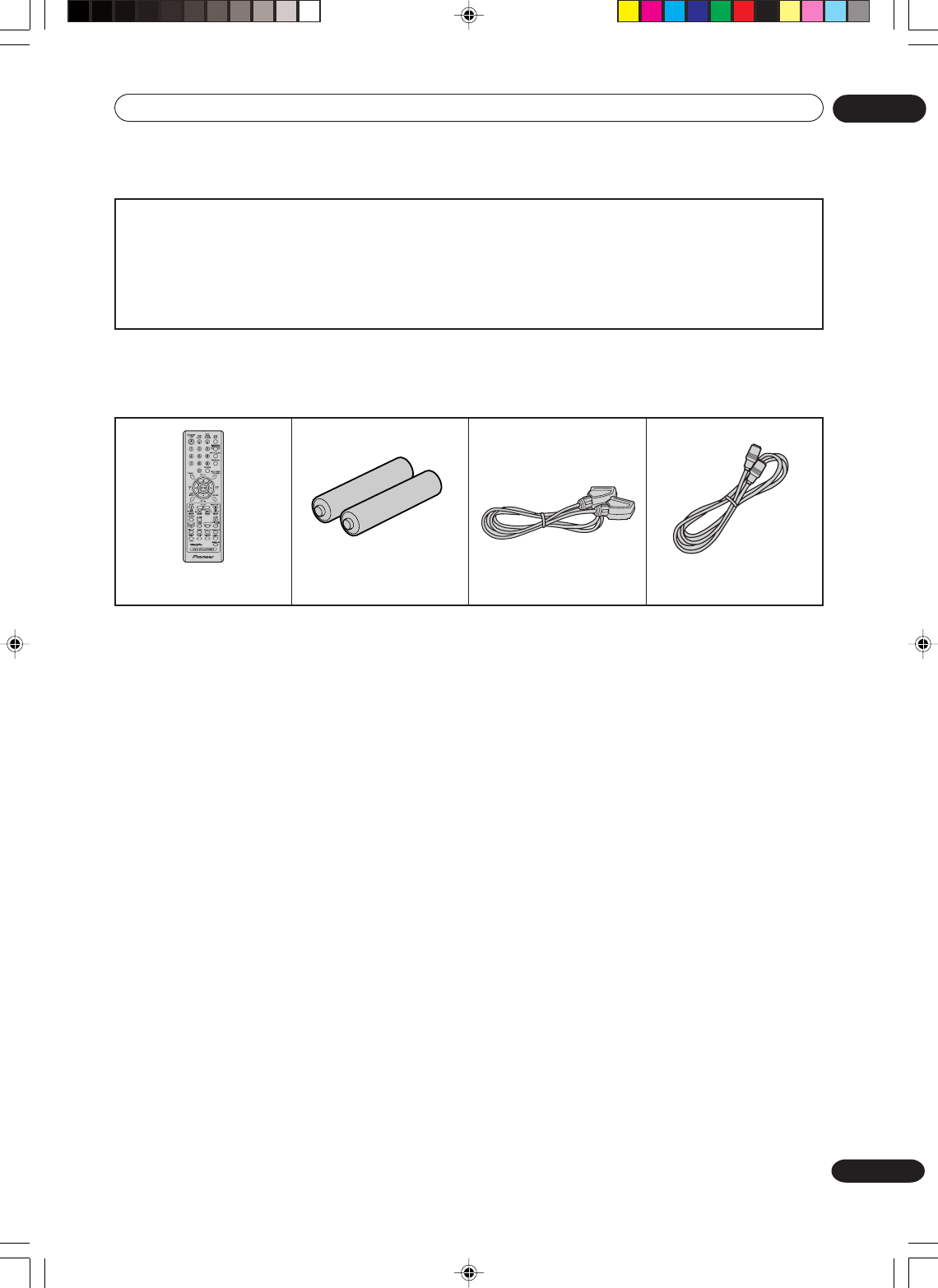
Remote control
Two AAA/R03 size batteries for
the remote control
21 pin SCART cable 75 Ω coaxial cable
Accessories
2H30301B_En_04_11 8/4/05, 19:187

8
En
Before using your unit
01
Features
Playback function
Title menu
Recording function
Timer recording
You can program the recorder to record up to 12
programs, up to a month in advance, using the
VIDEO Plus+® system*1 for easy programming if you
want. As well as single programs, you can specify
daily or weekly recordings, too.
*1
VIDEO Plus+ and PlusCode are registered
trademarks of Gemstar Development Corporation.
The VIDEO Plus+ system is manufactured under
license from Gemstar Development Corporation.
Edit function
Editing recorded material without changing
the original titles
You can create a playlist based on the original titles.
The playlist won’t affect the original titles. If you erase
the playlist, the original titles remain. It is recom-
mended to create and edit the playlist to prevent
important titles from being erased accidentally.
Chapter mark
You can add (or delete) a chapter mark to (from) the
original title. This function is useful when searching
for the scene you wish to watch that you have
marked with the Chapter mark function.
Erasing scenes
You can erase an unnecessary scene from the
created playlist or the original titles.
Combining titles
You can combine several original titles or playlists to
a separate playlist.
Dubbing function
Dubbing a tape onto a disc or a disc onto a
tape
MP3/WMA/JPEG/
DivX®
playback
MP3/WMA files can be played back. Also, you can
display JPEG/DivX
®
files on the TV screen and enjoy
them.
The title list appears on finalised DVD-RW disc
(recorded in the Video mode) and DVD-R disc.
•
•Dubbing cannot be carried out when attempting
to copy a “copy guarded” video tape or disc.
Not only can you playback and record video tapes,
but you can also playback DVD discs or make
recordings using DVD-RW/DVD-R discs with this
unit. In addition, you can edit the programs you have
recorded.
A realistic, powerful, Movie Theater sound
When connected to Dolby Digital and DTS compli-
ant devices, you can enjoy realistic, powerful
surround sound.
Playback the scene you want to see immediately
As DVDs do not require rewinding like video tapes,
you can get to the scene you wish to watch immedi-
ately. A variety of search functions allow you to find
the scene you wish to watch.
As thumbnail images are displayed in the title menu,
you can find the title you want to play back quickly.
With just this one unit, you can dub however you
like, from video tape to disc, or from disc to video
tape.
DVD-Video
DVD-Video
DVD-R
VR mode
Video mode
DVD-R
VR mode
Video mode
CD
VR mode
Video mode
VCR
VR mode
VR mode
VR mode
VR mode
DVD-R
VR mode
Video mode
VCR
Progressive scan-compatible
Compared to standard interlaced video, progressive
scan effectively doubles the amount of video
information fed to your TV or monitor. The result is a
stable, flicker-free image. (Check your TV/monitor for
compatibility with this feature.)
DVD-Video
DVD-R
VR mode
Video mode
One-touch Timer Recording (OTR)
The One-touch Timer Recording feature provides a
simple and convenient way to make a timed record-
ing.
DVD-R
VR mode
Video mode
VCR
DVD-R
2H30301B_En_04_11 8/4/05, 19:198
9
En
Before using your unit 01
Disc
Region management information
This unit is designed and manufactured to support
the region management information that is recorded
on a DVD disc. If the region number written on the
DVD disc does not correspond to the region number
of this unit, this unit cannot play that disc.
•The region number of this unit is “2”.
•The unit will play DVD-Video discs marked with
labels containing “2” or “ALL”.
Example:
2
*This unit is designed to playback music Compact Discs (CD)
that conform to the CD standard. CDs that contain (copy-
restriction) signals to protect copyrights cannot be played back.
*About DualDisc playback.
A DualDisc is a new two -sided disc, one side of which contains
DVD content video, audio, etc. while the other side contains non-
DVD content such as digital audio material. The non-DVD, audio
side of the disc is not compliant with the CD Audio specification
and therefore may not play. It is possible that when loading or
ejecting a DualDisc, the opposite side to that being played will
be scratched. Scratched discs may not be playable. The DVD
side of a DualDisc plays in this product. DVD-Audio content will
not play. For more detailed information on the DualDisc specification,
please refer to the disc manufacturer or disc retailer.
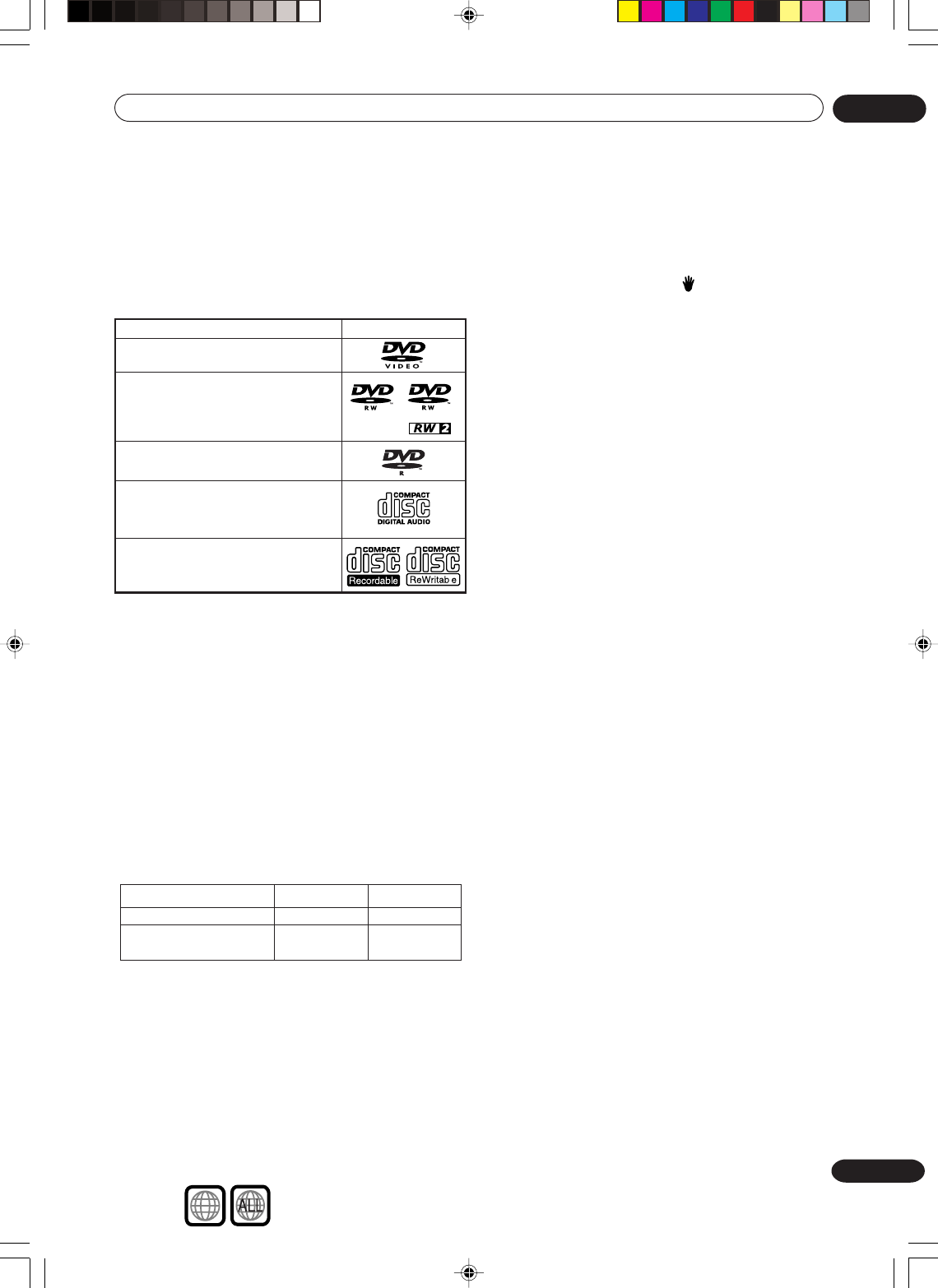
Discs which can be played back
In this unit, use only discs that meet the standard,
such as those bearing the below logo marks on the
disc label surface. If you use a non-standard disc, we
cannot guarantee playback. Even if such a disc can
be played back, we cannot guarantee the image or
sound quality.
The DVD logo is a registered trademark.
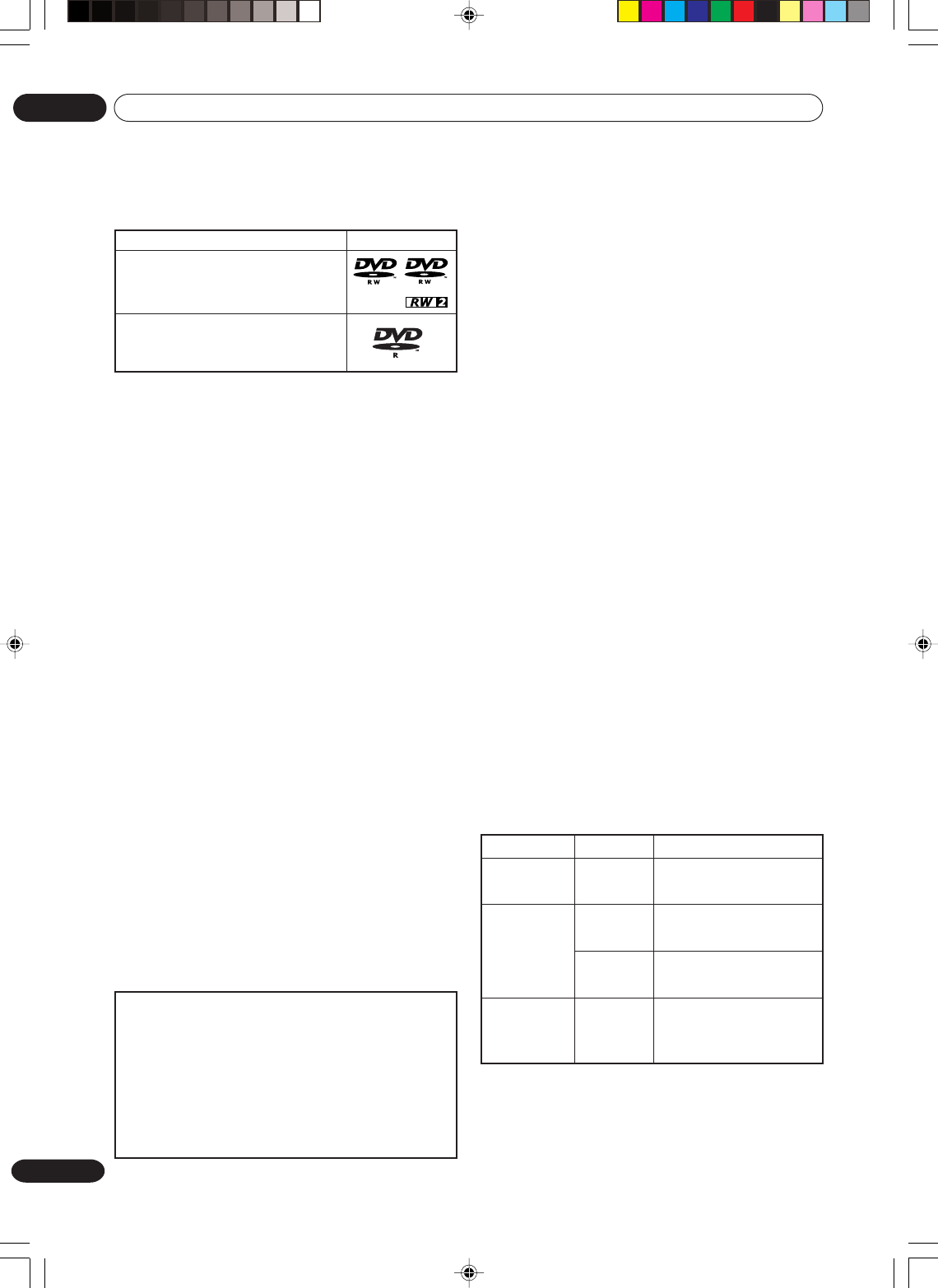
Media type Logo mark
DVD-Video
DVD-RW Ver.1.0 Ver.1.1 Ver.1.2
Ver.1.1CPRM support
Ver.1.2CPRM support
DVD-R Ver.2.0 (Ver. 2.0/4x/8x)
Audio CD*
CD-R/CD-RW
l
1Discs should be finalized in this recorder before playing. Unfinalized
VR mode and Video mode discs may not play.
2Cannot read the CPRM information will show in the display when
you load a disc. However, this will not affect playback.
3Copy-once protected disc titles will not play.
Model Playable
DVR-7000
DVR-3100
DVR-5100H
Recordable
Yes1,2,3
Yes1
No
No
Operating DVD-Video
•Some operations of DVD-Video may be prohibited
by the manufacturer, or some operation methods
or functions of the DVD-Video may be different
from the description in this manual.
•If you attempt an operation that is prohibited by
either the disc or the unit, a “ ” mark will appear
on the TV monitor. For operations prohibited by
the disc, see the information that came with the
disc.
•When the menu screen or the operation guide
appears during disc playback, follow the displayed
information.
Discs which cannot be played back
The discs listed below cannot be played back in
general. Even if one of these can be played back, it
may not be played back correctly. If a disc is played
back by mistake, extensively loud sounds may blow
the speakers or may damage the hearing of those in
hearing range. Do not playback the discs listed
below.
CDG, Photo-CD, CD-ROM, CD-TEXT, CD-
EXTRA, Video CD, SVCD, SACD, PD, DVD-ROM,
DVD-RAM, DVD+R/RW, DVD audio, etc.
The following DVD-Video discs may not be
played back on this unit:
•DVD-Video that do not have the region number “2”
or “ALL”.
•SECAM DVD-Video.
•Prohibited or business-use DVD-Video.
CD-R/CD-RWs may not be played back for the
following reasons.
•Compatibility of the disc and this unit.
• Compatibility of the disc and the recorder used.
•Unfinalised discs.
Do not playback the following discs. Playback of
these discs may cause a failure.
•Discs on which paper, labels or stickers are
affixed.
•Discs that have sticky areas left by adhesive tape.
•Special-shaped discs.
PC-created disc compatibility
Discs recorded using a personal computer may not
be playable in this unit due to the setting of the
application software used to create the disc. In these
particular instances, check with the software
publisher for more detailed information.
Older models of DVD recorders and DVD writers may
reject DVD-RW Ver. 1.2 / 4x discs. If you want to share
DVD-RW discs between this recorder and an older
recorder/writer, we recommend using Ver. 1.1 discs.
The following table shows older Pioneer DVD recorder
compatibility with DVD-RW Ver. 1.2 / 4x discs.
2H30301B_En_04_11 8/4/05, 19:199
10
En
Before using your unit
01
Discs on which video can be re-
corded
To record video with this unit, use the discs below:
Media type Format
DVD-RW
(Ver.1.0)
DVD-RW
(Ver.1.1 and
Ver.1.2)
DVD-R
(Ver.2.0 and
Ver. 2.0/4x/8x)
Available functions
VR mode
VR mode
Video
mode
Video
mode
Playback, recording and
editing (Original/playlist)
Playback, recording and
editing (Original/playlist)
Playback and recording
Editing (with limitation)
Playback and recording
Editing (with limitation)
Media type Logo mark
DVD-RW Ver.1.0 Ver.1.1 Ver.1.2
Ver.1.1CPRM support
Ver.1.2CPRM support
DVD-R Ver.2.0 and Ver. 2.0/4x/8x
Recording format
This unit has two modes for formatting discs for
recording: VR mode and Video mode.
When a blank, new disc is loaded into this unit, the
automatic format function starts to format the disc.
(For the disc format setting in this step, see page
23.)
VR mode
•This mode can be used for DVD-RW.
•In this mode, the discs can be recorded and
edited repeatedly.
•The disc recorded in this mode can be played
back with other DVD-RW-compatible players.
•When a Ver.1.1 CPRM or Ver.1.2 CPRM disc is
used, you can record a “Copy Once” program
(see page 51).
Video mode
•This mode can be used for DVD-R and DVD-RW
(Ver.1.1/1.2).
•When you finalise the disc after recording, the
disc recorded with this unit can be played back
with other DVD players.
•Recording, editing or playback of an unfinalised
disc can be done only with this unit. However,
there are some limitation to editing operations.
•In this mode, you cannot record a “Copy Once”
program (see page 51).
•When you record a TV program of a bilingual
broadcast, only one of the audio modes can be
recorded. You have to select it.
Format modes that can be used with each
disc
The usable format depends on the media type as
shown in the below table.
DVD-RW
•The disc can be erased and used again about
1,000 times.
•Only the VR mode can be used for Ver.1.0 discs.
•With Ver.1.1/1.2 discs, you can record by select-
ing the VR mode or Video mode.
•When you record in the VR mode, you can repeat-
edly record and erase. By erasing unnecessary
titles, you effectively increase remaining time.
•When you record in the Video mode, you can
record until the disc becomes full.
•When you use the Video mode, you can newly
record on the disc by formatting the disc. How-
ever, if the disc is formatted, all the recorded
contents will be erased.
DVD-R
•You can record on the disc only in the Video
mode.
•You can record until the disc becomes full.
•Finalising the discs allows playback on other DVD
players. However, the finalised discs can no
longer be recorded.
•Discs can be recorded to repeatedly until they are
finalised.
NOTES:
•There are some players that cannot playback
discs that were recorded with this unit. We cannot
guarantee the playback with other units.
•This unit cannot record on DVD-R and DVD-RW
discs that are 8 cm in diameter.
•This unit cannot record on CD-R or CD-RW.
•This unit may not be able to record to or
playback from discs that have been recorded
on other units due to the recording conditions,
surface dirt or scratches.
•Other units may not be able to record to or
playback from discs that have been recorded
on the unit due to the recording conditions,
surface dirt or scratches.
2H30301B_En_04_11 8/4/05, 19:1910
11
En
Before using your unit 01
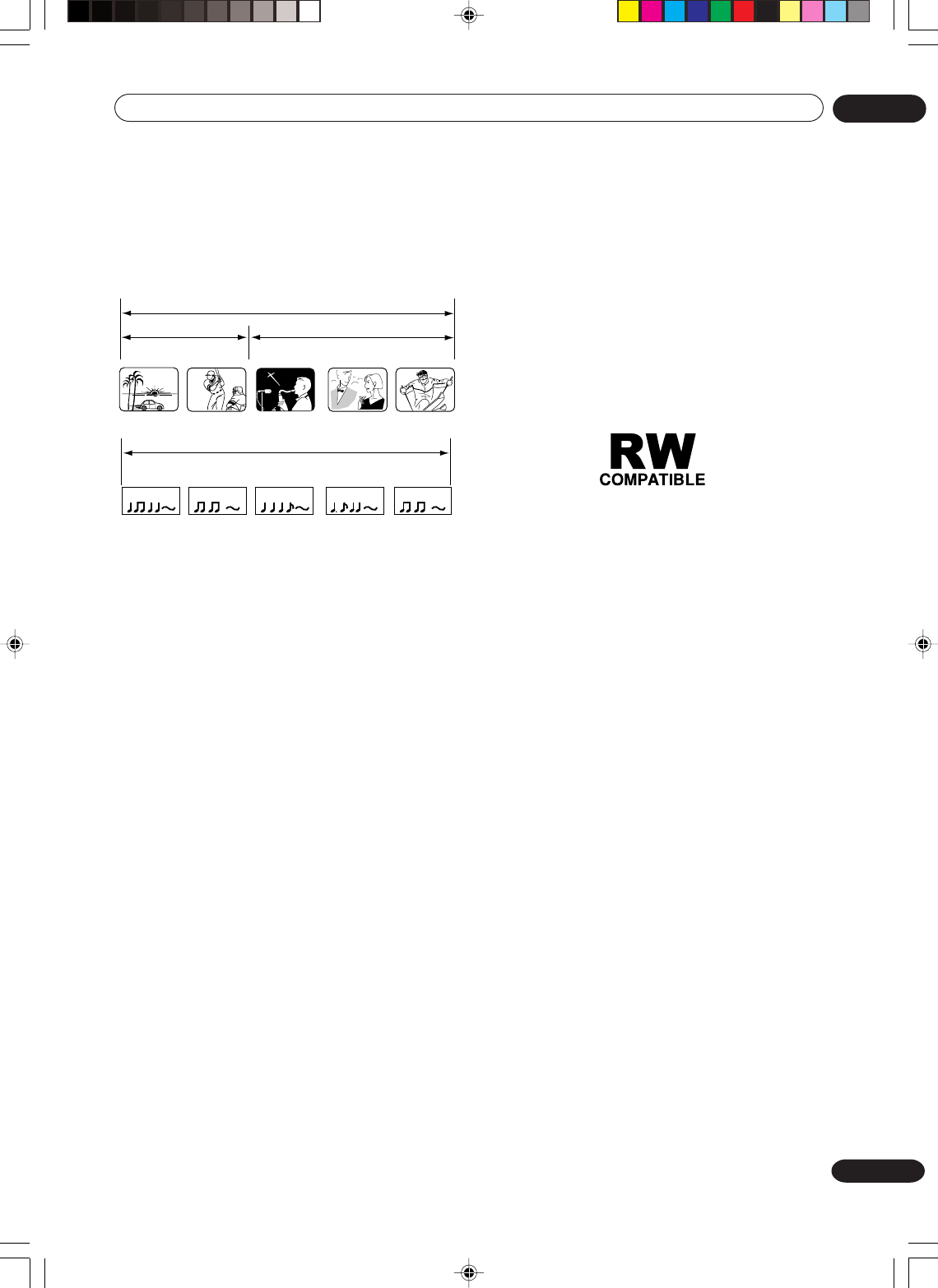
CHAPTER 1
TITLE1 TITLE2
DVD DISC
CHAPTER 2 CHAPTER 2 CHAPTER 3CHAPTER 1
TRACK 1 TRACK 2 TRACK 3 TRACK 4 TRACK 5
Audio-CD
Disc playback in other players
A disc recorded in this unit can be finalised. The
disc can be played back in other players that can
playback DVD-RW and DVD-R.
For more information on finalisation, see “FINALISE”
in “Setting the disc” (page 23).
When recording in the VR mode
Even if a disc recorded in the VR mode is finalised,
you can record or edit by cancelling the finalisation.
(See “UNDO FINALISE” on page 23.)
When you playback the disc with another player,
make sure that the DVD player supports DVD-RW
and bears the following mark.
When recording in the Video mode
When a disc recorded in the Video mode is
finalised, it cannot be recorded onto any more.
Therefore, before finalisation, be sure to perform all
desired recording. After finalisation, a title list that
can be used by the DVD player is automatically
created.
NOTES:
•The finalisation process may require from a few
minutes up to 1 hour depending on the disc type
and the amount of free space on the disc.
•A DVD-RW Ver.1.1/1.2 recorded in the Video
mode cannot be recorded or edited after
finalisation, but if you format the disc by erasing
all the content, you can again record on this disc.
•A finalised disc may not play because of the
condition of the DVD or the compatibility with the
player used for playback.
•Some players may not playback the discs
recorded with this unit. We cannot guarantee the
playback using other players.
Title/Chapter/Track
A DVD-Video has large partitions called “Titles”, and
smaller partitions within them called “Chapters”.
A music CD has other partitions called “Tracks”. A
number is allotted to each partition and these
numbers are called “title numbers”, “chapter
numbers” or “track numbers”.
When recording in the VR mode
One-time recording is set to 1 title (1 chapter).
However, if you stop recording temporarily or erase
scenes by editing, the chapter will automatically be
partitioned. The interval between chapters can be
specified. (See page 27.)
When recording in the Video mode
One-time recording is set to 1 title. In recording,
chapters are set automatically. The interval between
chapters can be specified. (See page 27.)
NOTES:
•The title, chapter and track are numbered, but
some discs may not record the numbers.
•Recording on DVD-R/RW in the Video mode is a
new standard approved at the 2000 DVD forum.
Conformity to this standard varies with each DVD
player manufacturer. Some models of DVD player
or DVD-ROM drive, therefore, will not playback
recorded videos.
2H30301B_En_04_11 8/4/05, 19:1911
Before using your unit
01
12
En
AV3
Parts and functions
Rear
Front
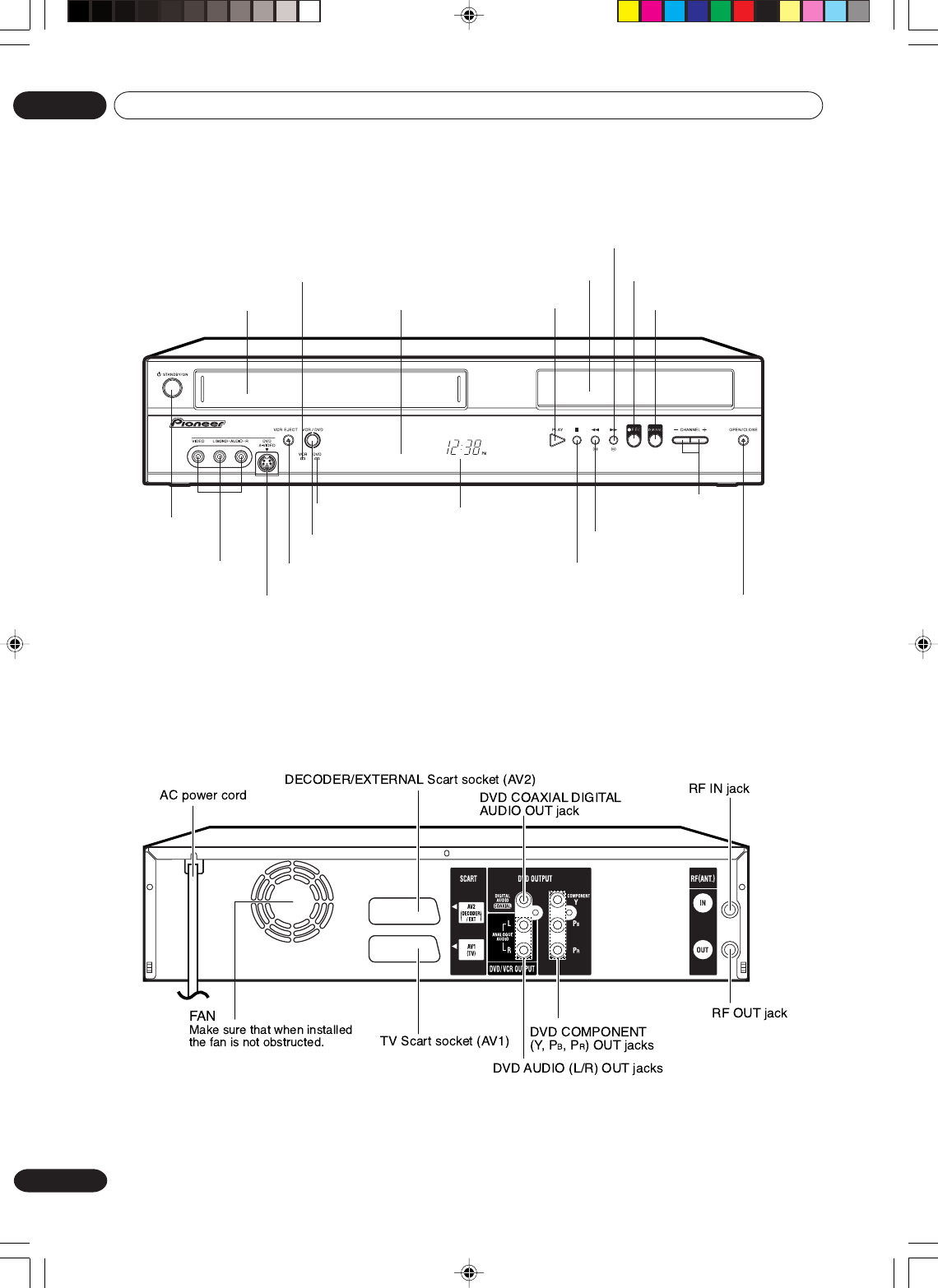
STANDBY/ON
button
AUDIO (L/R)/VIDEO
IN (AV3) jacks
VCR EJECT button
DVD S-VIDEO IN (AV3) jack
VCR/DVD button
OPEN/CLOSE button
PLAY button
STOP button
FF (Fast Forward) button
REW (Rewind) button
REC button
CHANNEL +/–
buttons
Disc tray
Cassette Loading Slot
VCR indicator
DUBBING button
Display window
IR Remote sensor
DVD indicator
2H30301B_En_12_17 8/4/05, 19:1912
Before using your unit 01
13
En
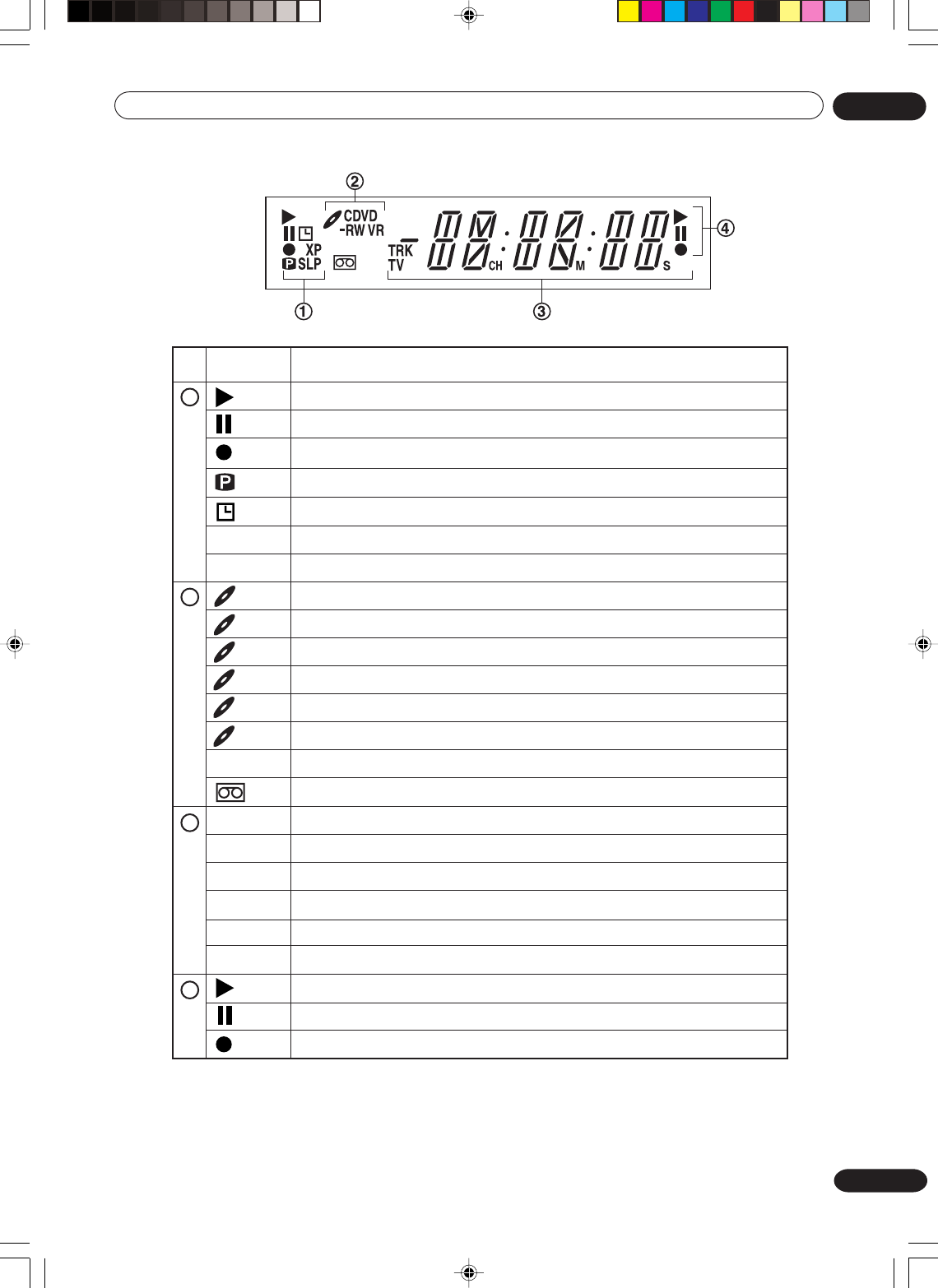
No. Display Description
Lights during video tape playback.
1
NOTES:
•Some discs may not playback correctly, or chapter number, playback time, etc may not be displayed.
•During CD playback, the counter display runs up to 99M59S and then restarts from 00M00S.
Display window
Video tape is temporarily stopped.
Lights during video tape recording.
Timer recording display.
2
4
Appears when a CD is inserted.
Appears when a CD-R is inserted.
Appears when a DVD-Video is inserted.
Appears when a DVD-R is inserted.
Appears when a DVD-RW is inserted.
Appears when a DVD-RW in VR mode is inserted. When the disc is set to video mode, VR does not appear.
Video tape is in the unit.
Clock display (Colon [ : ] flashes).
Counter display in hour/minute/second for VCR/DVD, minute/second for CD.
TV channel display.
Track number display for CD.
The external input channel (AV1, AV2, or AV3) display.
Lights during playback of DVD and CD. Flashes in auto resume.
DVD or CD is temporarily stopped.
Lights during DVD recording.
CD
CD-R
DVD
DVD-R
DVD-RW
VR
10:00
01H00M00S
2CH
TRK 002
A1/A2/A3
3
4 DVD recording modes. XP, SP, LP or EP can be selected in turn by pressing the REC MODE/SPEED repeatedly.
2 VCR recording modes. SP or LP can be selected in turn by pressing the REC MODE/SPEED repeatedly.
SP/LP
XP/SP/LP/EP
Appears when a CD-RW is inserted.
CD-RW
Progressive scanning mode.
TV
When the tape or disc is played back or the SETUP menu is displayed, TV disappears.
2H30301B_En_12_17 8/4/05, 19:1913
Before using your unit
01
14
En
Page
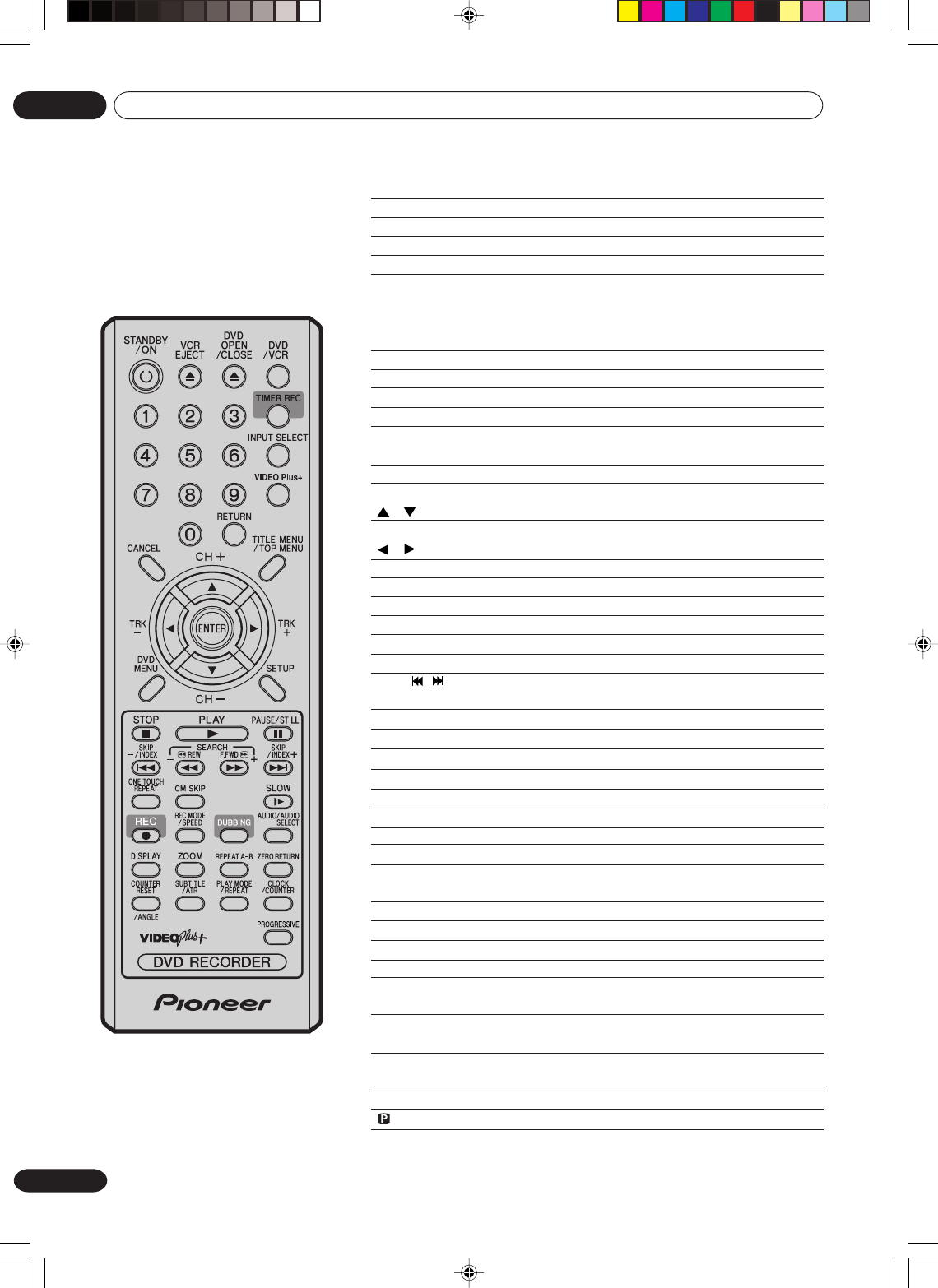
Remote control
STANDBY/ON Turns power on/off. 19
VCR EJECT Ejects the cassette tapes. 46
DVD OPEN/CLOSE Opens or Closes the tray. 30
DVD/VCR
Switches to operation between VCR and DVD.
30, 47, 78, 79
0-9 Direct channel selection of TV. 52, 54
Entering a Pluscode for VIDEO Plus+ timer programming
56
Setting input. 20, 34, 76
Entering a password. 21
TIMER REC Sets the unit to start recording at a preset time. 58, 61
INPUT SELECT SCART input or AV-Front input. 80, 81
VIDEO Plus+ Display the VIDEO Plus+ program screen. 56
RETURN Close the menu window. 19, 42
CANCEL Deletes the Timer recording program. 58, 61
Cancels input data in the setting mode. 20, 77
TITLE MENU/TOP MENU
Displays titles of a DVD disc. 31, 36, 39, 64
CH
+/–
Channel selection for VCR. 52, 54
/ Cursor buttons.
TRK (TRACKING) +/–
Manual tracking in the playback mode for VCR. 48
/ Cursor buttons.
ENTER Option selection in the menu.
DVD MENU Displays the menu of the DVD disc. 31, 36
SETUP Displays the setup menu. 19, 59
STOP Stop. 30, 47, 53
PLAY Playback. 30, 47
PAUSE/STILL Still picture/Recording pause on/off. 33, 48, 53
SKIP /
Skips chapters in the forward or reverse direction.
33, 43, 72
INDEX –/+ Searches for the INDEX mark of a tape. 49
REW/SEARCH – Rewind/Review playback. 33, 47, 48
F.FWD/SEARCH + Fast Forward/Forward search playback. 33, 47, 48
ONE TOUCH REPEAT
Skips the DVD playback back 10 seconds. 35
CM SKIP Skips commercial breaks. 34, 48
SLOW Slow motion playback. 33, 48
REC Recording/OTR. 52, 54, 80
REC MODE/SPEED Selects the recording mode. 52, 54, 78
DUBBING Copies VCR to DVD or DVD to VCR. 78, 79
AUDIO
Changes the soundtrack language of the DVD. 38
AUDIO SELECT
Switches sound between mono and stereo. 62
DISPLAY Displays VCR or DVD operation status. 32, 48, 65
ZOOM Zoom (for DVD). 37, 43
REPEAT A-B Repeats playback between A and B. (DVD/CD) 35
ZERO RETURN
Stops the tape when the counter reaches 00
H
00
M
00
S
.49
COUNTER RESET Resets the counter to 00H00M00S.49
ANGLE Changes playback angle of a DVD disc. 37, 43
SUBTITLE Selects subtitles of the DVD disc. 37
ATR Digital AUTO TRACKING. 48
PLAY MODE Displays the playback mode. 34
REPEAT Repeats playback. 35, 48
CLOCK/COUNTER Changes the front panel display mode. 49
PROGRESSIVE Activates the progressive scanning mode. 45
2H30301B_En_12_17 8/4/05, 19:2014
Before using your unit 01
15
En
123
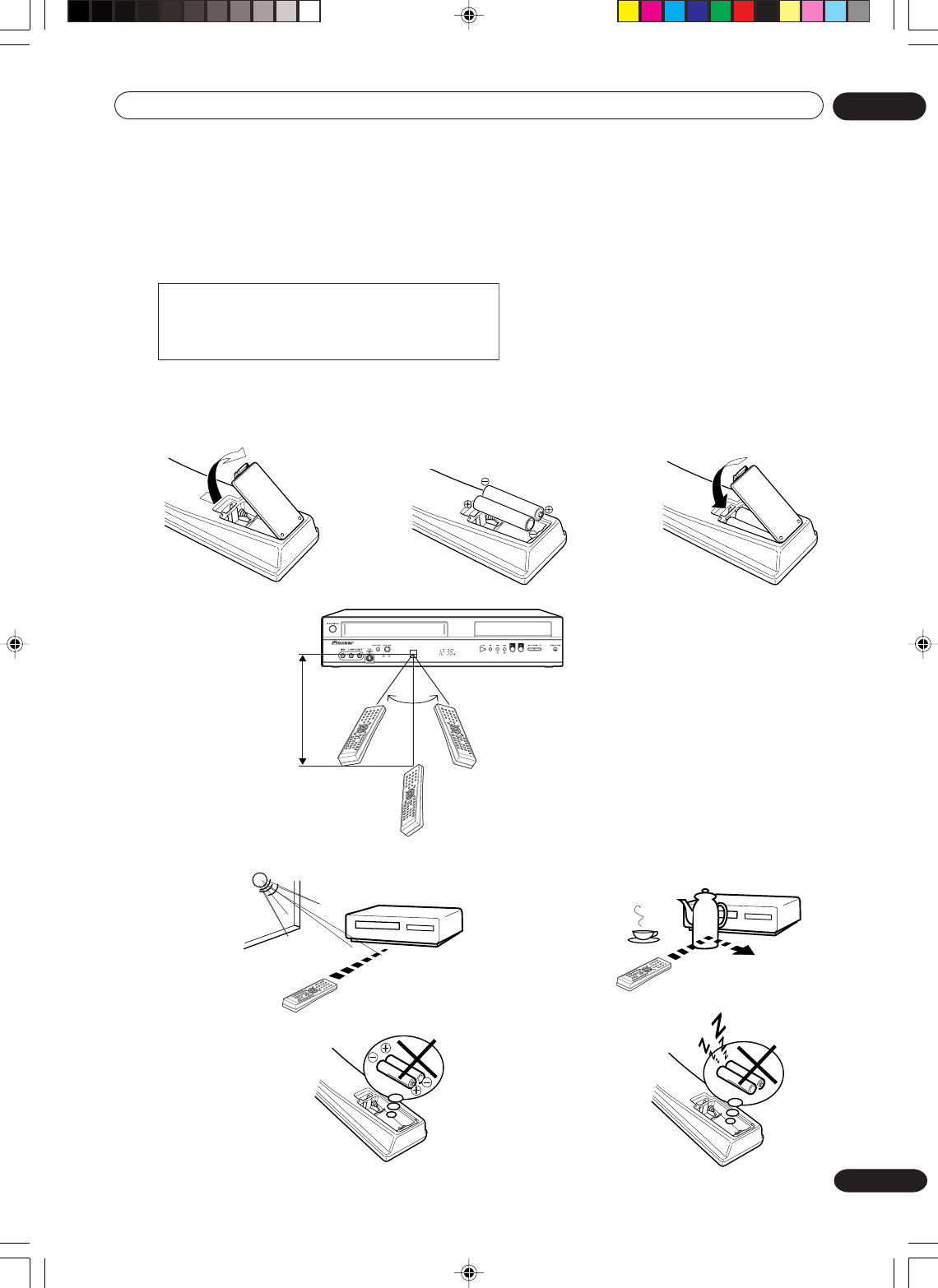
Replace the compartment
cover.
Install two
AAA/R03 batteries
(supplied), paying attention to the
polarity diagram in the battery
compartment.
Open the battery compartment
cover in the direction of the
arrow.
How to install the batteries
Use dry cell batteries type AAA/R03.
These batteries are offered as carbon / zinc-type. You may use both, but do not mix types.
Note: Flat, weak batteries will leak. Corrosive electrolyte will damage the remote control handset.
Leak proof batteries will not leak immediately when they are flat. As long as the handset is still working, there is
no danger of leakage. To prevent damage, remove the batteries if you do not use the handset for several
months.
Damage because of leakage is not covered by the guarantee.
Distance of Remote
Control Operation
Effective angle:
approx. 60°
approx.
7m
Point the remote
control directly at the
remote sensor.
If bright sunlight
directly beams
onto the unit
front.
If an obstacle is
placed between the
unit and the handset.
The remote control handset will not work properly in the following cases:
If the batteries have not
been installed according to
their polarities.
If the batteries are
weak.
When disposing of used batteries, please comply
with governmental regulations or
environmental public instruction’s rules that
apply in your country/area.
D3-4-2-3-1_En
AV3
2H30301B_En_12_17 8/4/05, 19:2015
Before using your unit
01
16
En
Basic connections
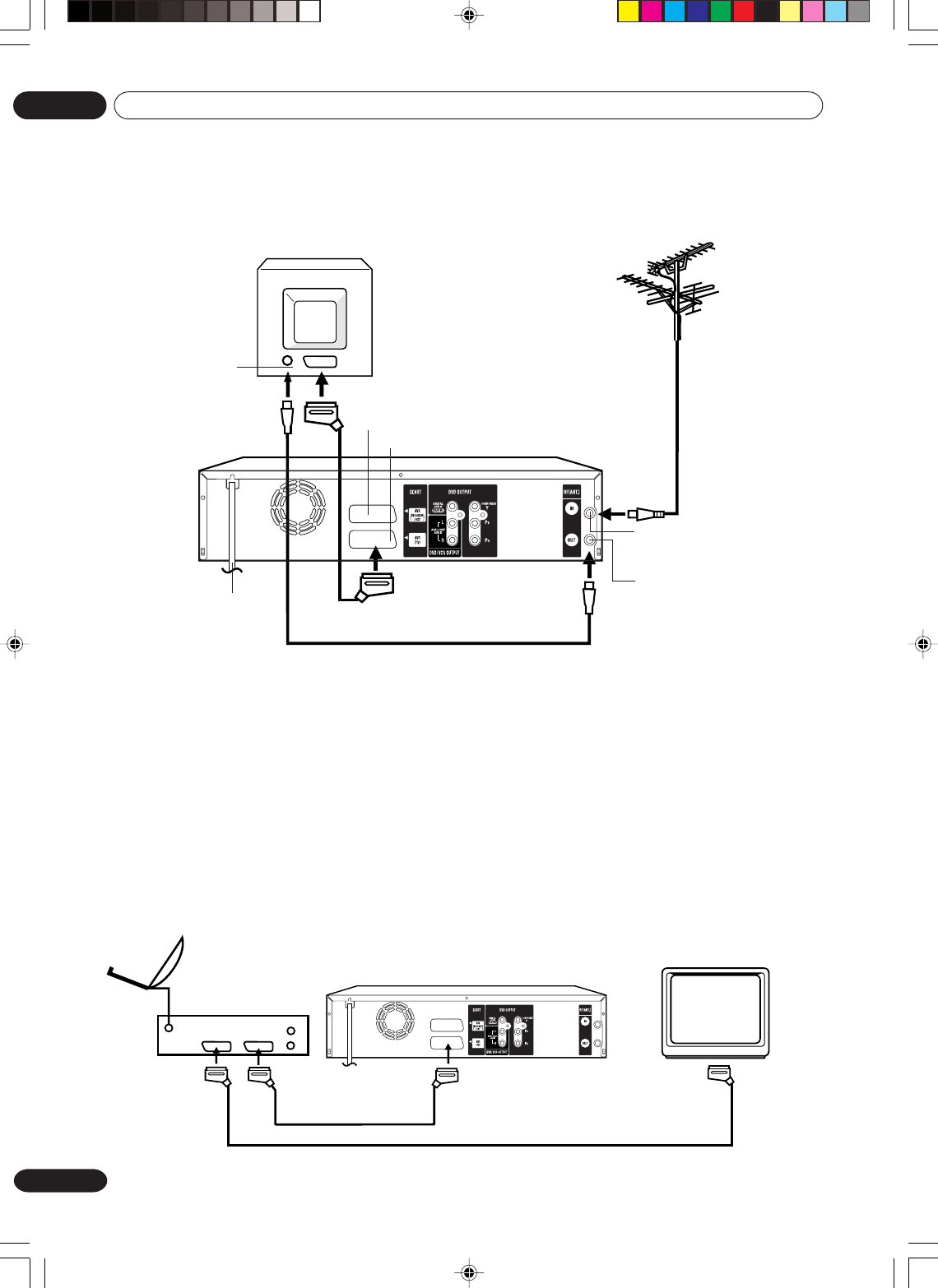
Connect your VCR/DVD to your main aerial and TV set as shown in the illustration. When you have finished
making these connections, connect your VCR/DVD to the mains power supply (230V / 50Hz).
Before making or changing any rear panel connections, make sure that all components are switched off and
unplugged from the wall outlet.
TV
AC power cord 230V/50 Hz
VCR/DVD
Aerial-Input
To SCART socket
RF-Input
(from house antenna)
TV Scart socket (AV1)
RF-Output (to TV)
Aerial
Supplied Coaxial cable
In addition to the coaxial cable connection, you should also connect the supplied SCART cable from the VCR/
DVD to your TV as shown. As well as transferring the high quality pictures and sound to your TV, the SCART
connection can automatically switch the TV to its AV channel for playback.
Connecting this unit to your TV using the SCART connections
Some TVs may not allow automatic switching to the AV input channel. In this case you should manually select
the AV input setting on your TV's controls when playing through this unit.
Supplied SCART cable
DECODER/EXTERNAL SCART Socket (AV2)
Playback connection
The exact arrangement you use to interconnect various video and audio components to the VCR/DVD is
dependent on the model and features of each component. Check the Operation Manual provided with each
component for the location of SCART socket.
SCART-cable (not supplied)
If a Satellite Receiver is used, we recommend the following configuration:
Connection to a Satellite Receiver
To record from Satellite Receiver press INPUT SELECT on the remote control of the VCR/DVD. “A1”
will appear on the front display. Select the particular satellite channel on the Satellite Receiver.
Satellite
Antenna
Satellite
Receiver
VCR/DVD
TV
SCART-cable (supplied)
2H30301B_En_12_17 8/4/05, 19:2016
Before using your unit 01
17
En
TV
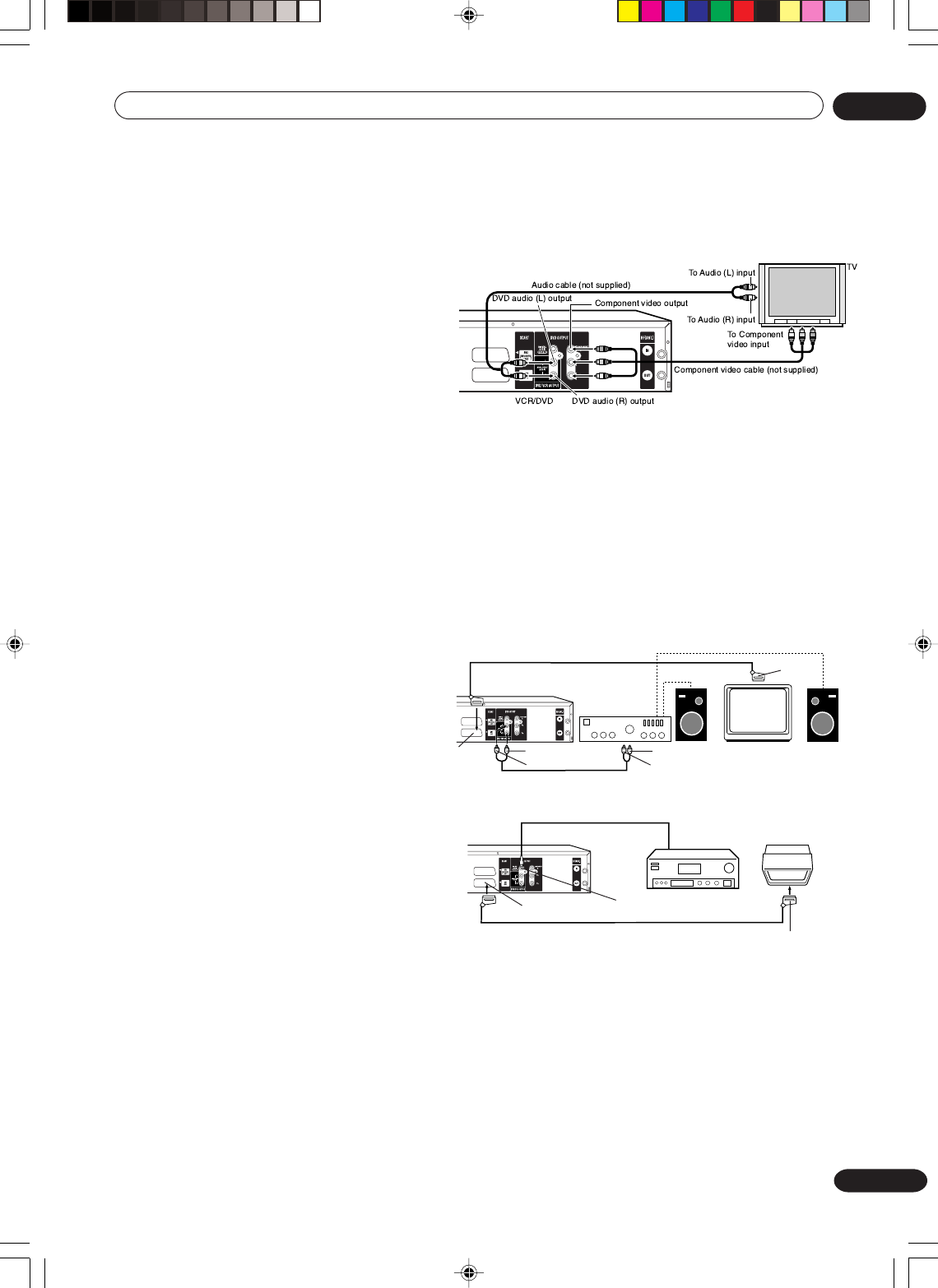
To Audio (L) Input
To Audio (R) Input
AUDIO Cord (not supplied)
Stereo Amplifier
VCR/DVD
Audio (R) Output
SCART-cable (supplied)
Audio (L) Output
To SCART
input
TV SCART
socket (AV1)
Connect to a Stereo Amplifier with Audio
Output
If your VCR/DVD is connected to a stereo
amplifier, the video soundtrack can output through
the loudspeakers of the stereo system.
Connect to an AV Amplifier with built-in
digital surround (for DVD/CD playback)
If you are using an Amplifier with a built-in digital
surround as follows, you can enjoy the various
audio systems such as Dolby Digital and DTS by
using the Coaxial Digital Output.
Connect to a TV with Component video output (for DVD/CD playback)
You can enjoy the highest quality picture by connecting the unit’s component video out jacks to the component
video input jacks of your TV, with component video cables (not supplied).
At shipment (with the factory settings), component video signals are not output from these component video jacks.
Connect the unit to the TV with the SCART cable and change the DVD OUTPUT setting to COMPONENT. (See
page 25.)
33
33
3PROGRESSIVE outputs
Some TVs or monitors are equipped with
component video inputs that are capable of
reproducing a progressively scanned video signal.
Connecting to these inputs allows you to view the
highest quality pictures with less flicker.
33
33
3INTERLACED outputs
Some TVs or monitors are equipped with
component video inputs. Connecting to these inputs
allows you to enjoy the highest quality DVD picture playback.
NOTES:
•In connecting to a TV that are not capable of reproducing a progressively scanned video signal using
the component sockets, do not select progressive scanning mode. If you do it, the component video
outputs does not feed the correct signals and you can not see any picture (see page 45).
•When connecting to a TV using the SCART socket, make sure that the progressive indicator on the display
window is not lit. If it is lit, the video and S-Video outputs do not feed the correct signals and you cannot see any
picture. To turn off the progressive indicator, make the progressive scanning mode inactive (see page 45).
•If the component video input jacks on a TV are the BNC type, use an adapter to convert the RCA jacks from the
component video cables to BNC (not supplied).
TV
Coaxial digital cable (not supplied)
AV Amplifier with built-in various
decoder as above
VCR/DVD
Coaxial digital Audio Output
SCART-cable (supplied) To SCART input
TV SCART socket (AV1)
Use this connection to connect an:
• AV amplifier with built-in *Dolby Digital decoder
• AV amplifier with built-in *DTS decoder
NOTES:
•The COAXIAL jack only outputs the audio from the DVD section.
VHS signal is output only from the SCART-sockets and AUDIO L/R jacks.
• When you make the connections above, do not set DOLBY DIGITAL to DOLBY DIGITAL or DTS to ON on the
AV Amplifier. If you do, a loud noise will suddenly come out from the speakers, affecting your ears or causing
the speakers to be damaged.
• DTS audio is only output via the COAXIAL output jack. You therefore need to connect this unit to a suitable
DTS decoder in order to hear the audio from DTS discs.
When playing DTS-encoded CDs, only noise will be heard from the speakers or analog stereo outputs.
•Some DTS decoders which do not support DVD-DTS interface may not work properly with the unit.
2H30301B_En_12_17 8/4/05, 19:2017
Various settings
02
18
En
Automatic TV tuning and
clock setting
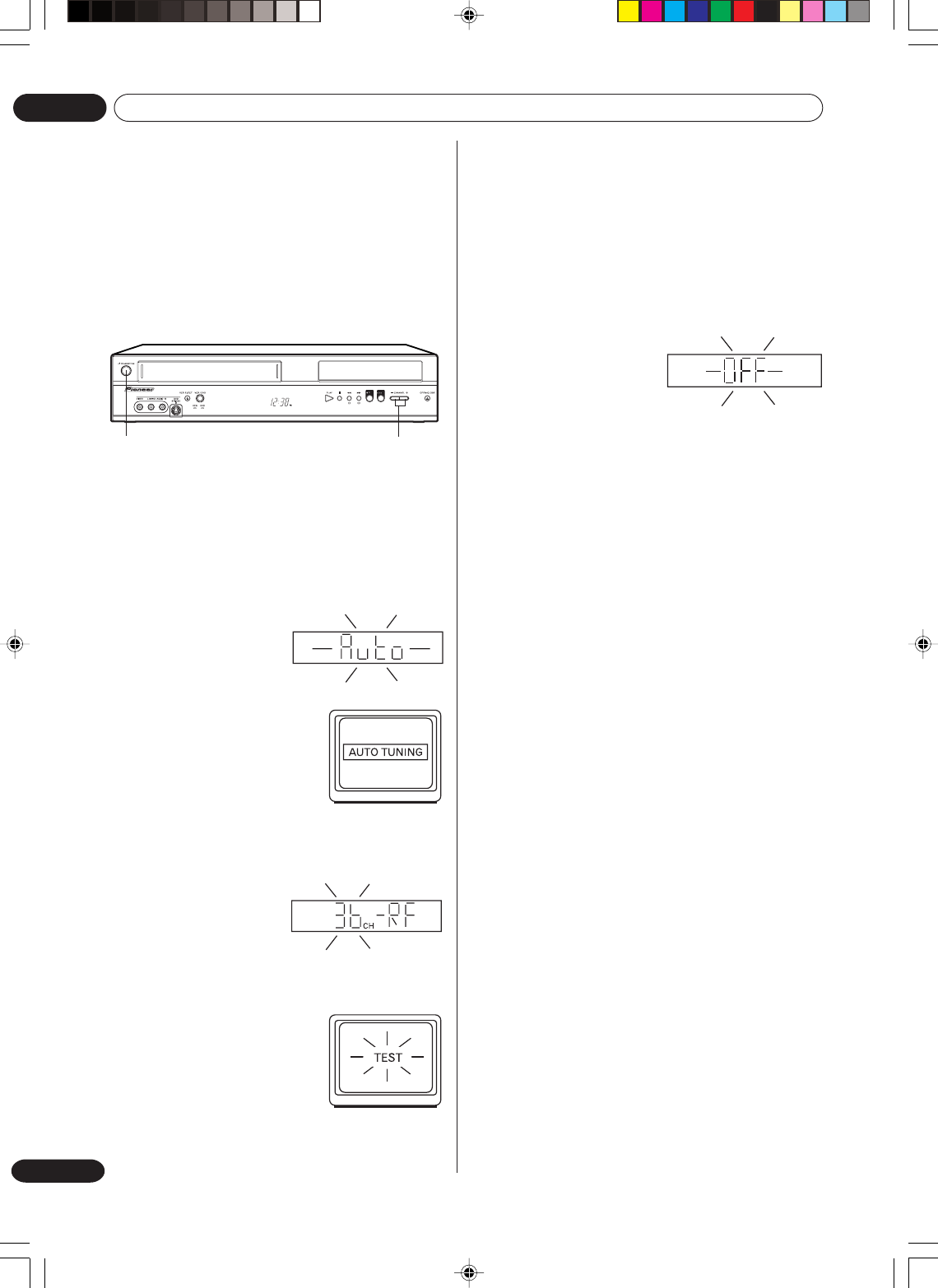
Plug in your unit into the mains supply and it will start
to automatically tune itself in and set the correct date
and time. After setting itself up, you must set the TV
to the video channel.
ONLY WHEN YOU PLUG IN THIS UNIT FOR THE
FIRST TIME, THE AUTOMATIC SETUP WILL BE
AVAILABLE.
STANDBY/ON CHANNEL + / –
AV3
4If there is interference from an adjacent broad-
cast channel in the picture (wavy lines, picture
roll, etc.), press the CHANNEL + / – buttons on
your unit to select any other RF channel between
23 and 69, retuning your TV until the word
“TEST” flashes on the TV screen. If you con-
nected a satellite receiver as explained on page
16, you must switch off the VCR’s transmitter.
Press the unit’s CHANNEL + / –
buttons repeatedly until OFF appears in the
display window (OFF
will appear after 69 or
before 23).
5Press the STANDBY/
ON button to turn OFF the unit. Now the TV is
tuned to your unit.
NOTES:
•
The unit automatically corrects the clock setting
every hour and automatically adjusts the clock
setting for Daylight Saving Time.
•Your unit will tune the TV stations as follows.
CH 1 BBC 1 CH 5 Channel 5
CH 2 BBC 2 CH 6 Satellite
CH 3 ITV CH 7 etc.
CH 4 Channel 4
•If you want to change the RF output channel or
switch to “OFF”, press and hold the STANDBY/ON
button on the front of your unit in the Standby mode
until the current RF output channel appears. Press
the CHANNEL + / – buttons on your unit to select
the RF channel you desire.
Preparation:
• Make sure that your unit is connected properly to
the TV.
• If a satellite receiver is connected with the coaxial
lead, make sure it’s switched ON and set to SKY
ONE.
•Turn on the TV and select the channel you wish to
allocate for video use.
1Plug in your unit's plug
into the mains supply.
“Auto” will start to flash in
the unit display. And also
“AUTO TUNING” will be
displayed on the TV
screen. Your unit will
automatically tune itself
in and set the correct
time and date
(Depending on the
reception condition, it
may take approx. 10
minutes.)
2Press and hold the
STANDBY/ON button on
the front of your unit in
the Standby mode until RF
output channel “36” will
appear in the unit display.
3If you have used a 21 pin
scart lead you now, simply
select the AV channel on
your TV and go to step 5.
Tune the TV in the same way
as tuning in a TV broadcast station until the word
“TEST” flashes on the TV screen. Refer to the TV
operating instructions for tuning. Now the output
from the unit is tuned to this channel. Whenever
you want to play back a tape, select this channel.
2H30301B_En_18_29 8/4/05, 19:2018
Various settings 02
19
En
SETUP MENU
The SETUP MENU consists of several menus
where you can make various settings concerning
language, audio functions, and images. In
addition, this menu includes a clock, channel and
other things that require setting just after pur-
chase.
For details of each menu, see the corresponding
section in this chapter.
Preparation:
•Turn ON the TV and select its AV channel (this may
be labelled EXT / AUX etc.).
• Press STANDBY/ON button to turn on the VCR/
DVD.
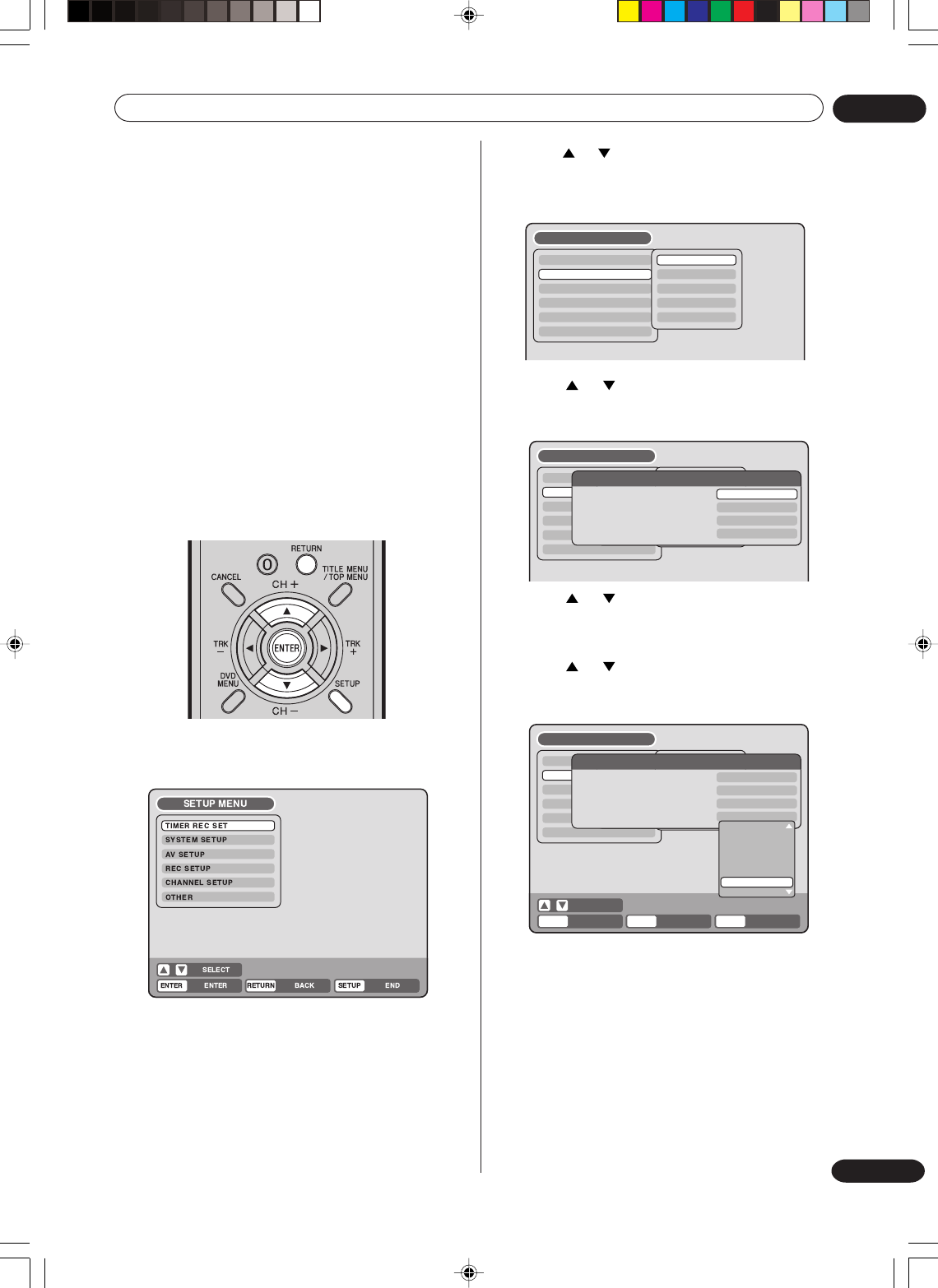
Using the SETUP MENU
The following example shows the basic setting
procedure of the SETUP MENU. The remote control
keys that operate the SETUP MENU are displayed at
the bottom of the screen.
TIMER REC SET
SYSTEM SETUP
AV SETUP
REC SETUP
CHANNEL SETUP
OTHER
LANGUAGE
PARENTAL
CLOCK
DISC SETUP
OTHER
SETUP MENU
TIMER REC SET
SYSTEM SETUP
AV SETUP
REC SETUP
CHANNEL SETUP
OTHER
SETUP MENU
LANGUAGE
PARENTAL
CLOCK
DISC SETUP
OTHER
LANGUAGE
OSD LANGUAGE
DVD MENU
AUDIO
SUBTITLE
ENGLISH
ENGLISH
AUTOMATIC
ENGLISH
TIMER REC SET
SYSTEM SETUP
AV SETUP
REC SETUP
CHANNEL SETUP
OTHER
SETUP MENU
LANGUAGE
PARENTAL
CLOCK
DISC SETUP
OTHER
LANGUAGE
OSD LANGUAGE
DVD MENU
AUDIO
SUBTITLE
RETURN SETUPENTER BACK END
ENGLISH
ENGLISH
AUTOMATIC
ENGLISH
SELECT
ENGLISH
FRANCAIS
ESPANOL
DEUTSCH
ITALIANO
OTHER
AUTOMATIC
OFF
ENTER
1Press SETUP while the DVD and video tape are
stopped.
The SETUP MENU screen will appear.
3Press or to select the desired submenu
and press ENTER.
The screen for the selected submenu will appear.
4Press or to select the desired item you
want, and press ENTER.
Selectable items will be listed.
5Press or to select the desired item and
press ENTER.
This completes the setting procedure.
•To return to the previous screen, press
RETURN.
•To close the SETUP MENU, press SETUP.
NOTES:
•For items that require different operations from the
basic setting procedure, the setting procedure is
described in each individual section.
•The item which is indicated by red colour cannot be
selected.
2
Press or to select the desired menu and press
ENTER.
The submenu screen of the selected menu will
appear.
2H30301B_En_18_29 8/4/05, 19:2019
Various settings
02
20
En
Setting the language
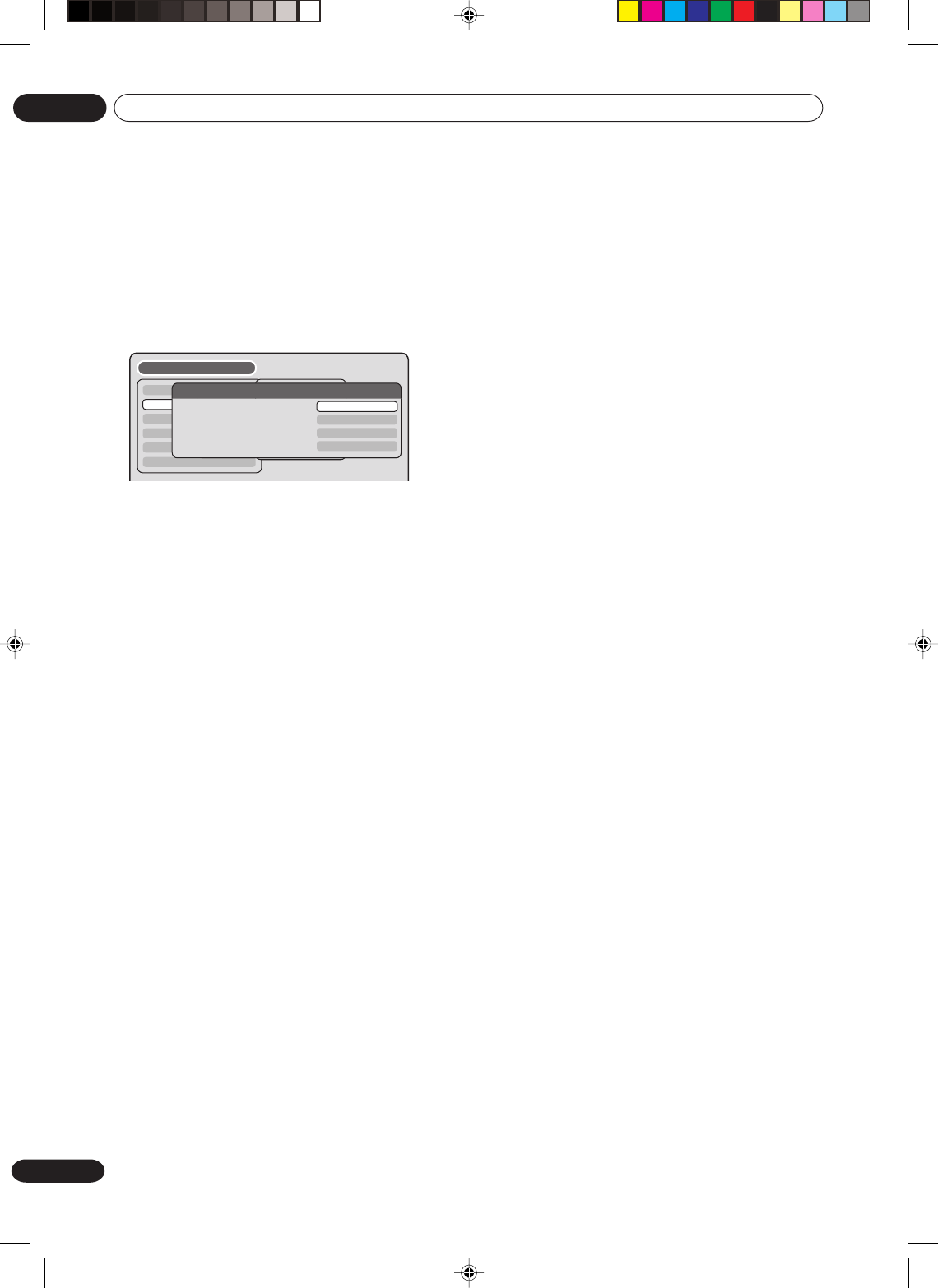
You can choose the language of the menu screen,
DVD menu, DVD audio and subtitles.
Preparation:
• Turn ON the TV and select its AV channel (this may
be labelled EXT / AUX etc.).
• Select “LANGUAGE” from “SYSTEM SETUP”. For
the procedure, see steps 1 to 3 in “Using the
SETUP MENU” on page 19.
OSD LANGUAGE
You can set the language for on screen display.
Select “OSD LANGUAGE” and select the language
from the list below.
Selectable languages:
ENGLISH, FRANCAIS, ESPANOL, DEUTSCH,
ITALIANO
DVD MENU
When several menu languages are recorded on a
DVD, you can select the language to be used for the
DVD menu.
Select “DVD MENU” and select the language from the
list below.
Selectable languages:
ENGLISH, FRANCAIS, ESPANOL, DEUTSCH,
ITALIANO
The selected language is the first priority menu
language.
OTHER
If you want to select another language, before
pressing ENTER, input the language code by using
the numeric keys. (See the Language code list on
page 84). Then press ENTER.
•If you input a wrong number, press CANCEL.
AUDIO
When several audio languages are recorded on a
DVD, you can select the audio language to be played
back. The selected language remains in effect after
the power is turned off or the disc is replaced.
Select “AUDIO” and select the audio language from
the list below.
Selectable languages:
ENGLISH, FRANCAIS, ESPANOL, DEUTSCH,
ITALIANO
The language you have selected will play if it is
recorded on the disc.
ORIGINAL
The unit will select the first priority language of
each disc.
OTHER
If you want to select another language, before
pressing ENTER, input the language code by using
the numeric keys. (See the Language code list on
page 84). Then press ENTER.
•If you input a wrong number, press CANCEL.
NOTE:
If the selected language is not recorded on the disc,
the first-priority language is selected.
SUBTITLE
When several subtitles languages are recorded on
DVD, you can select the language to be used for the
subtitles. The selected language remains in effect
after the power is turned off or the disc is replaced.
Select “SUBTITLE” and select the menu language
from the list below.
Selectable languages:
ENGLISH, FRANCAIS, ESPANOL, DEUTSCH,
ITALIANO
The subtitle is displayed with the selected language
if it is recorded on the disc.
OTHER
If you want to select another language, before
pressing ENTER, input the language code by using
the numeric keys. (See the Language code list on
page 84). Then press ENTER.
•If you input a wrong number, press CANCEL.
AUTOMATIC
• The unit will automatically select the same
language in the AUDIO setting.
• When the unit selects the same language as the
AUDIO setting, the subtitles will not appear
during playback.
• When you do not use the same language as the
AUDIO setting, the subtitles will appear during
playback.
OFF
Subtitles do not appear.
NOTE:
If the selected language is not recorded on the disc,
the first-priority language is selected.
TIMER REC SET
SYSTEM SETUP
AV SETUP
REC SETUP
CHANNEL SETUP
OTHER
SETUP MENU
LANGUAGE
PARENTAL
CLOCK
DISC SETUP
OTHER
LANGUAGE
OSD LANGUAGE
DVD MENU
AUDIO
SUBTITLE
ENGLISH
ENGLISH
AUTOMATIC
ENGLISH
2H30301B_En_18_29 8/4/05, 19:2020
Various settings 02
21
En
Setting the parental
control
Some discs are specified as not suitable for
children. This unit can prevent playback of such
discs.
Preparation:
• Turn ON the TV and select its AV channel (this may
be labelled EXT / AUX etc.).
•Select “PARENTAL” from “SYSTEM SETUP”. For
the procedure, see steps 1 to 3 in “Using the
SETUP MENU” on page 19.
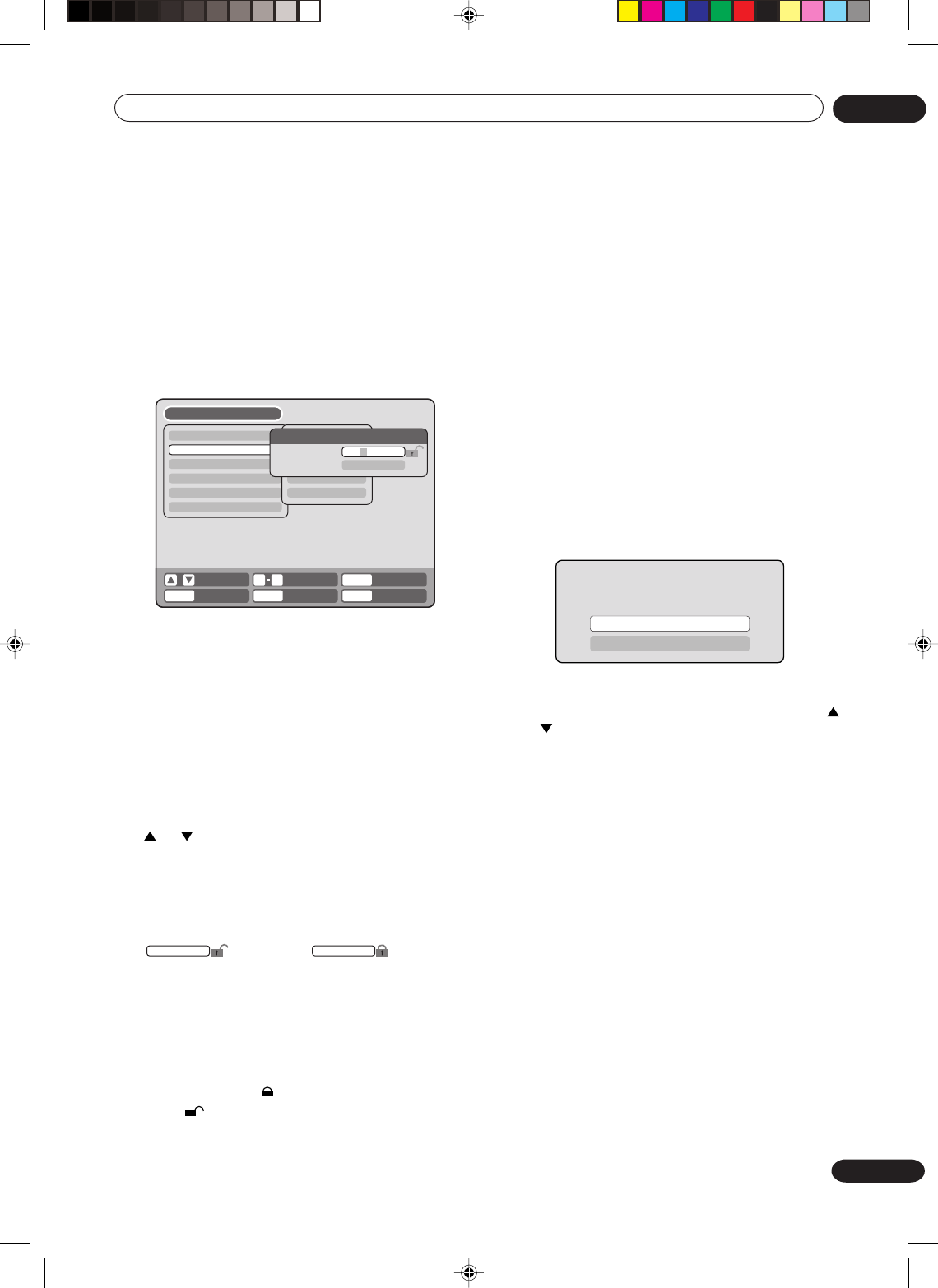
Selecting parental control
Select “PARENTAL” and select the parental control
level.
If the recorder is set to a lower level than the disc, it
will require you to enter a password before the disc
will play.
Select from level 1 to level 8.
On a scale of 1- 8, “1” is the most restrictive.
To lock the selected parental control level
1To lock the selected parental control level, press
or to select “PASSWORD”.
2
Use the numeric keys to input a 4-digit password.
•If you input a wrong number, press CANCEL.
•Be sure to remember this number!
3Press ENTER.
To cancel the locked parental control level
1
Select “PASSWORD” shown in step 1 of the above
section and use the numeric keys to input the
password.
2Press ENTER.
The locked mark “” will change to an unlocked
mark “ ”.
Then, you can change the parental control level,
or enter a new password.
----
change to
1234
TIMER REC SET
SYSTEM SETUP
AV SETUP
REC SETUP
CHANNEL SETUP
OTHER
LANGUAGE
PARENTAL
CLOCK
DISC SETUP
OTHER
PARENTAL
PASSWORD
PARENTAL
SETUP MENU
RETURN SETUPENTER BACK END
DELETE
- - - -
INPUT NO.
09
CANCEL
SELECT
PARENTAL
OFF
ENTER
YOUR DISC EXCEEDS THE PARENTAL
CONTROL LEVEL 1.
PARENTAL CONTROL LEVEL
CANCEL PICTURE
NOTES:
• The selected level will apply to operations executed
after this.
• The unit cannot restrict playback of some discs.
• Some discs may not be encoded with specific rating
level information though its disc jacket says “adult”.
Parental control will not work with those discs.
•If you forget the password, you can reset the recorder
to its factory settings (see Resetting the recorder on
page 87), then set a new password.
Temporarily cancelling parental control
Parental control can temporarily be cancelled with
some DVDs.
1Playback a DVD. (See page 30.)
2If the DVD disc has been designed to temporarily
cancel the rating level, the screen that follows the
“READING” screen will change. If you select
“YES” with the ENTER, the message “YOUR
DISC EXCEEDS THE PARENTAL CONTROL
LEVEL 1.” will then appear.
3If you wish to cancel the set rating level tempo-
rarily, select “PARENTAL CONTROL LEVEL” with
or , then press ENTER. If the password has been
selected, the password input screen will appear.
Alternatively, if the password has not been set,
playback will commence. If you don’t know (or have
forgotten) the password, select “CANCEL PIC-
TURE”.
The setting screen will disappear. Press OPEN/
CLOSE to remove the disc.
4Use the numeric keys to input the password.
•To interrupt the input process, press RETURN.
5Press ENTER.
6Playback will commence if the entered password
was correct.
NOTE:
This temporary cancellation of the rating level will
remain active until the disc is ejected.
When the disc is ejected, the original rating level
will be set again automatically.
2H30301B_En_18_29 8/4/05, 19:2021
Various settings
02
22
En
You can format, protect, or finalise a disc.
Preparation:
• Turn ON the TV and select its AV channel (this may
be labelled EXT / AUX etc.).
• Select “DISC SETUP” from “SYSTEM SETUP”. For
the procedure, see steps 1 to 3 in “Using the
SETUP MENU” on page 19.
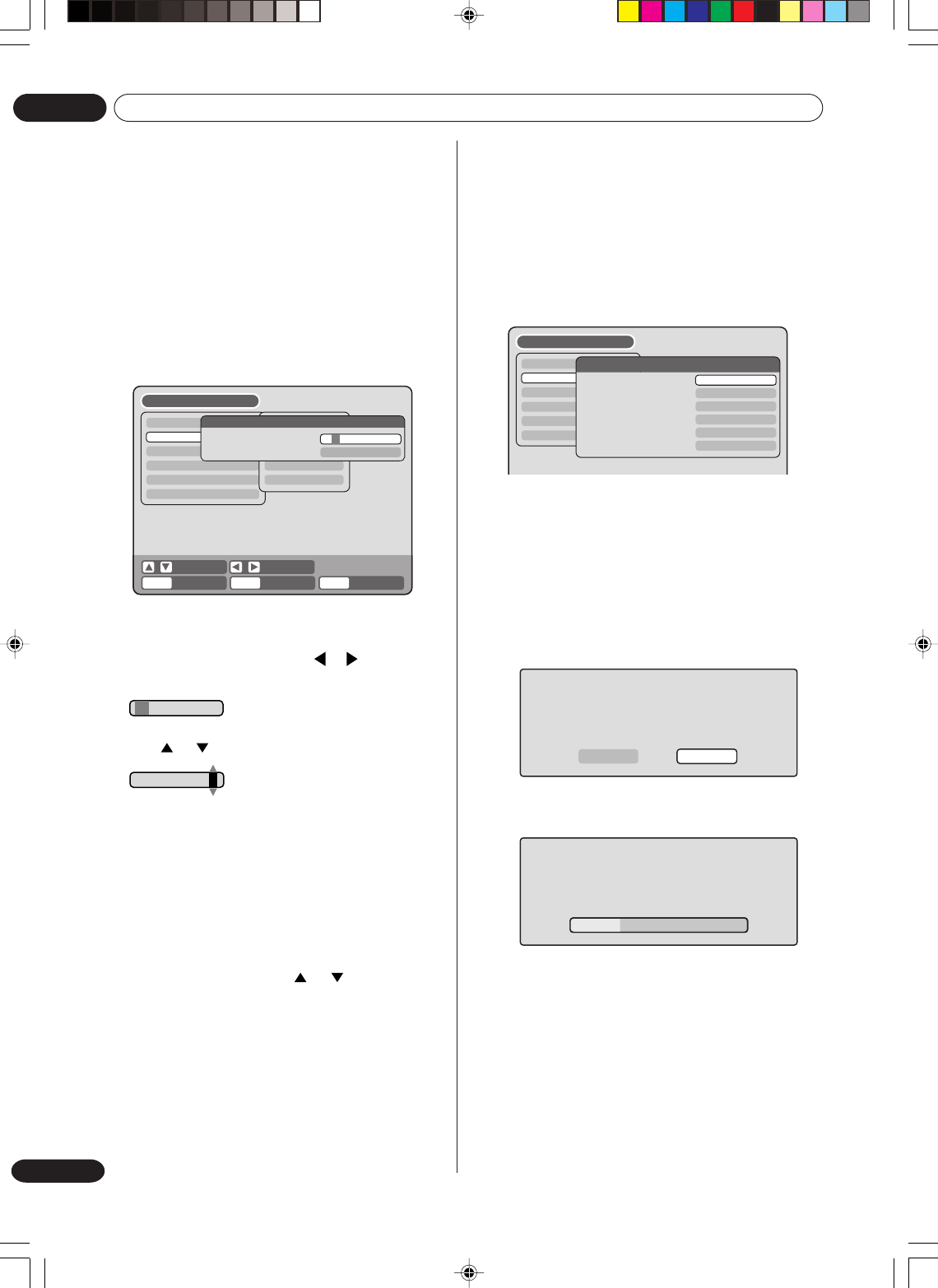
REFORMAT
You can format a recorded DVD-RW.
Check the content of the disc before format. If you
format the disc, the recorded content of the disc will
be erased.
To format a DVD in the Video mode, select “REFOR-
MAT AS DVD VIDEO”, and to format it in the VR
mode, select “REFORMAT AS DVD VR”.
The screen below will appear.
•When you select “START” and press ENTER,
format will start. The screen below will appear.
•When format finished, “REFORMATTING COM-
PLETED PRESS ENTER” will appear.
Press ENTER, the normal TV screen will appear.
•When you select “CANCEL” and press ENTER, the
DISC SETUP screen will appear.
NOTES:
•You cannot reformat DVD-R.
•You cannot reformat a disc if the disc protection is “ON”.
In such a case, be sure to cancel the disc protection
(see page 23) before format.
•During formatting, finalising and undo finalising, the
progress will be shown by “–” in the front display window.
Setting the clock
/01/05 00:0001
27/09/05 10:20
0
Your VCR/DVD is fitted with a 24 hour clock.
You must set the date and time for timer record-
ings.
Preparation:
•Turn ON the TV and select its AV channel (this may
be labelled EXT / AUX etc.).
• Select “CLOCK” from the “SYSTEM SETUP”
section of the SETUP MENU and press ENTER
(For the full procedure, see steps 1 to 3 in “Using
the SETUP MENU” on page 19).
Ex.: Setting the clock to “10:20” September, 27th, 2005.
1Select the desired items using or (date,
month, year, hour and minute), then press ENTER.
2Press or to set the value of the selected item.
3Repeat steps 1 and 2 to set the date, year and
present time, and press ENTER. The SETUP
MENU will close.
This completes clock time setting.
To set the AUTO TIME
1Select “AUTO TIME” from “CLOCK”.
2Press ENTER, then press or to select ON
or OFF.
NOTES:
•In case of a power failure, the clock will continue to
operate for another 30 minutes with quartzcontrolled
precision. To indicate that the power failure has lasted
for an excessive period of time “0:00” will appear on
the display. In this case readjust time and date.
•When the AUTO TIME is set to ON, the unit
automatically corrects the clock setting.
TIMER REC SET
SYSTEM SETUP
AV SETUP
REC SETUP
CHANNEL SETUP
OTHER
LANGUAGE
PARENTAL
CLOCK
DISC SETUP
OTHER
CLOCK
CLOCK (DD/MM/YY)
AUTO TIME ON
01/01/05 00:00
SETUP MENU
RETURN SETUPENTER BACK END
SELECT SELECT
ENTER
TIMER REC SET
SYSTEM SETUP
AV SETUP
REC SETUP
CHANNEL SETUP
OTHER
DISC SETUP
REFORMAT AS DVD VIDEO
REFORMAT AS DVD VR
NEW DISC FORMAT
FINALISE
PROTECT DISC (VR ONLY)
UNDO FINALISE
PROCEED
VR
PROCEED
OFF
PROCEED
PROCEED
SETUP MENU
REFORMAT
START CANCEL
REFORMAT
Setting the disc
2H30301B_En_18_29 8/4/05, 19:2022
Various settings 02
23
En
NOTES:
•During the finalisation the cursor will move repeatedly.
When the finalisation finished, “FINALISING
COMPLETED PRESS ENTER” will appear. Press ENTER,
the normal TV screen will appear.
•The finalisation process may require a few minutes to about
1 hour according to disc type or the amount of free space
on the disc.
•You can record or edit a finalised DVD-RW (in VR mode) by
cancelling the finalising, but you cannot do these opera-
tions with a DVD-RW (Video mode), or with a DVD-R.
•This unit may not be able to record or edit a disc which was
recorded or edited using another DVD recorder.
•You cannot playback a disc recorded on VR mode on a unit
that does not support DVD-RW.
•Even if you finalise a disc in the Video mode, the disc
cannot be played back in some DVD players.
•A DVD-R disc can not be named after it is finalized.
PROTECT DISC
You can protect a disc to prevent the content recorded on
it from being erased, edited or re-recorded.
Only DVD-RW (in VR mode) can be protected.
Select “PROTECT DISC (VR ONLY)” and select “ON” to
protect the disc.
To cancel the disc protection, select “OFF”.
UNDO FINALISE
You can cancel the finalisation of a finalised DVD-RW (in VR
mode).
You cannot cancel the finalisation for discs other than above.
You can record or edit on a disc whose finalisation has been
cancelled.
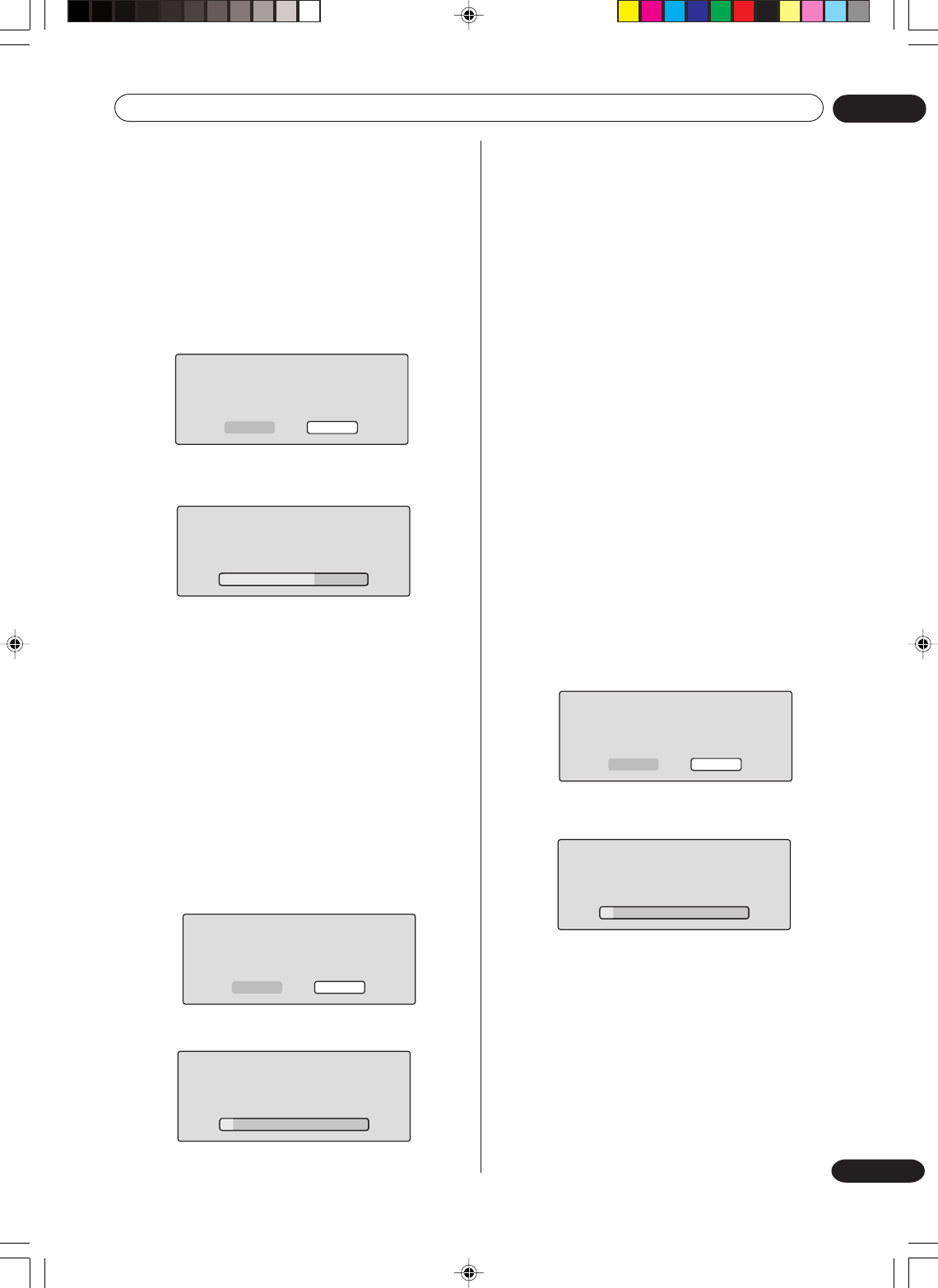
Select “UNDO FINALISE”, and the screen below will appear.
•When you select “START” and press ENTER, the
cancelling finalisation will start. The screen below
will appear.
•When you select “CANCEL” and press ENTER, the
DISC SETUP screen will appear.
NOTES:
•During the cancelling finalisation the cursor will
move repeatedly. When the cancelling finalisation
finished, “UNDO FINALISING COMPLETED
PRESS ENTER” will appear.
Press ENTER, the normal TV screen will appear.
•The cancelling finalisation process may require a
few minutes to about 1 hour according to disc type
or the amount of free space on the disc.
•When the disc’s finalisation cannot be cancelled,
you cannot select “UNDO FINALISE”.
FINALISING
PLEASE WAIT
FINALISE
START CANCEL
NEW DISC FORMAT
VIDEO MODE
START CANCEL
INITIALIZING DISC
VIDEO MODE
UNFINALISING
PLEASE WAIT
UNDO FINALISE
START CANCEL
NEW DISC FORMAT
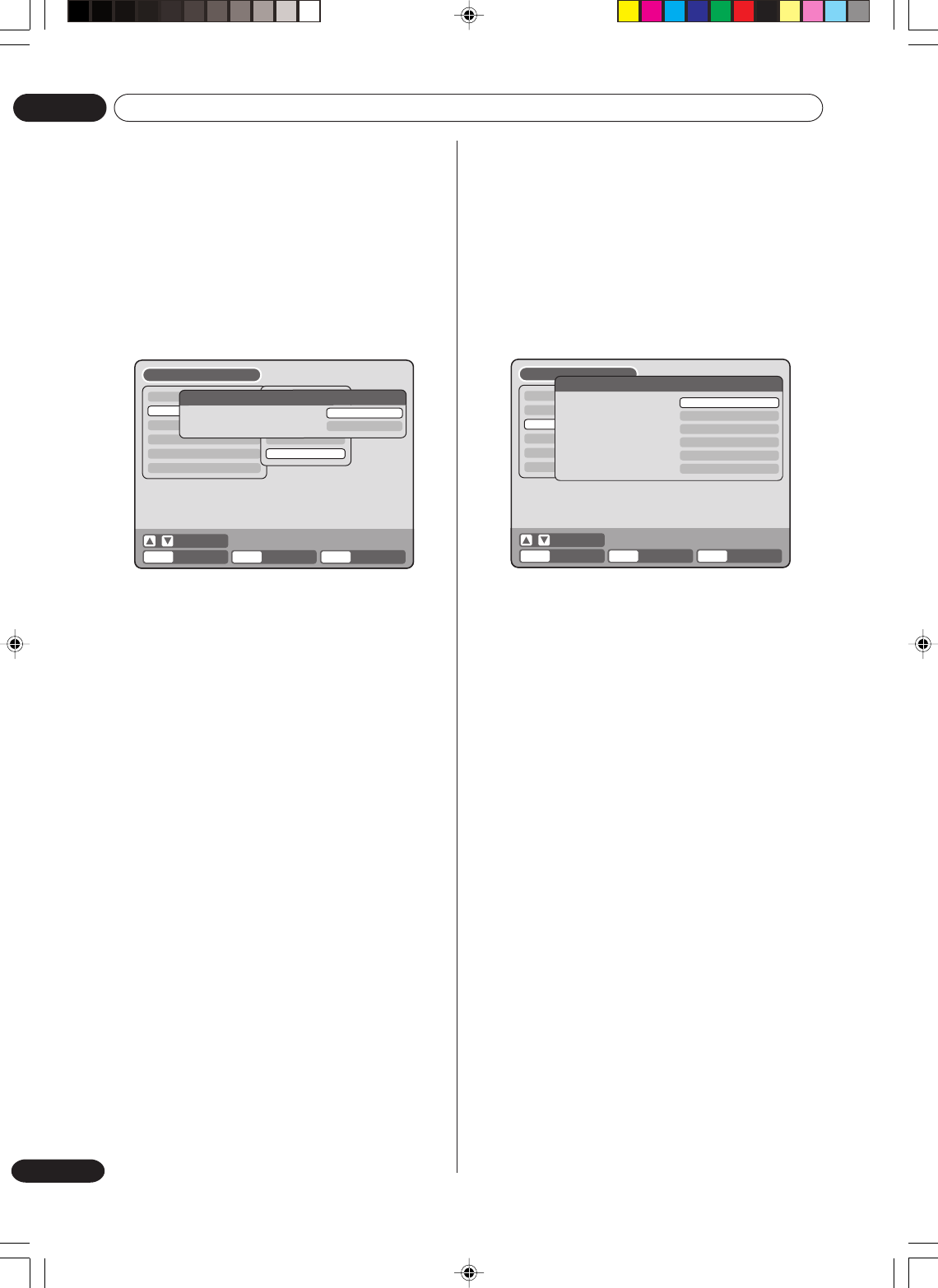
If you insert an unused disc, the disc is automatically
formatted.
If you use the DVD-RW (Ver.1.1/1.2), you can select the
mode to be used for automatic format.
Select “NEW DISC FORMAT” and select the mode from
the list below.
VR:Format the disc in the VR mode.
VIDEO:Format the disc in the Video mode.
When you insert an unused disc, the following message
screen will appear.
•When you select “START” and press ENTER, the
formatting will start. The screen below will appear.
• When format finished, “FORMATTING COMPLETED
PRESS ENTER” will appear.
Press ENTER, the normal TV screen will appear.
•When you select “CANCEL” and press ENTER, the
normal TV screen will appear.
NOTE:
If a recorded disc has scratches or contamination on it,
the “NEW DISC FORMAT” screen may appear.
If this happens, select “CANCEL”.
FINALISE
To play a DVD disc recorded on this unit you must finalise
the disc to ensure compatibility with other DVD players. In
addition if you are using a DVD-RW disc you must record in
Video mode.
When “FINALISE” is selected, the screen below will
appear.
•When you select “START” and press ENTER,
finalisation will start. The screen below will appear.
•When you select “CANCEL” and press ENTER, the DISC
SETUP screen will appear.
2H30301B_En_18_29 8/4/05, 19:2023
Various settings
02
24
En
This section describes settings about the screen.
Preparation:
•Turn ON the TV and select its AV channel (this may
be labelled EXT / AUX etc.).
•Select “VIDEO” from “AV SETUP”. For the
procedure, see steps 1 to 3 in “Using the SETUP
MENU” on page 19.
TV SCREEN
You can select the TV screen size to suit the screen
image.
Select “TV SCREEN” and select screen size from the
list below.
4:3 Panscan
It displays a wide picture across the whole screen
with left and right edges automatically cut off.
4:3 Letter box
Select this mode when connecting to a
conventional TV. When playing back a wide screen
DVD disc, it displays a wide picture with black
bands at the top and bottom of screen.
16:9
Select this mode when connecting to a wide-screen
TV. A wide-screen picture is displayed in full size.
NOTE:
If you select “4:3 Pan Scan” but the DVD disc is not
formatted in the pan scan format, the aspect ratio will
be displayed as “4:3 Letterbox”.
TIMER REC SET
SYSTEM SETUP
AV SETUP
REC SETUP
CHANNEL SETUP
OTHER
SETUP MENU
TV SCREEN
STILL MODE
NO NOISE BACKGROUND
BRIGHTNESS
DVD OUTPUT
AV3 INPUT
4:3 Letter box
AUTOMATIC
ON
STD
RGB
VIDEO
VIDEO
ENTER RETURN SETUPBACK END
SELECT
ENTER
Other (SYSTEM SETUP)
You can turn the display window and screen
display “ON” or “OFF”.
Preparation:
•Turn ON the TV and select its AV channel (this may
be labelled EXT / AUX etc.).
•Select “OTHER” from “SYSTEM SETUP”. For the
procedure, see steps 1 to 3 in “Using the SETUP
MENU” on page 19.
DIMMER (Brightness of the display
window)
You may adjust the brightness or turn off the display
on the front panel of the unit.
Select “DIMMER” and select the display window
status from the list below.
AUTOMATIC:
When the power is on, the display
window appears bright. When the
power is off, it appears dark.
DIM:The window display always appears
dark.
OFF:When the power is on, the display
window appears dark. When the
power is off, it is turned off.
DISPLAY/CALL (Turning the screen
display “ON” or “OFF”)
You can turn off the screen display that is output to
the TV screen by this unit. Select “DISPLAY/CALL”,
and select “ON” or “OFF”.
ON:The screen display appears.
OFF:Nothing but the SETUP MENU and error
messages appear.
•In the OFF selection, The DISPLAY button on the
remote control will be available.
SPRACHE
RATING
UHR
DISC SETUP
OTHER
TIMER REC SET
SYSTEM SETUP
AV SETUP
REC SETUP
CHANNEL SETUP
OTHER
SETUP MENU
OTHER
DIMMER
DISPLAY/CALL
AUTOMATIC
ON
ENTER RETURN SETUPBACK END
SELECT
ENTER
Setting the screen
2H30301B_En_18_29 8/4/05, 19:2024
Various settings 02
25
En
STILL MODE
You can set the type of image displayed on the TV
screen when the playback of the DVD is stilled.
Select “STILL MODE” and select the image to be
displayed from the list below.
AUTOMATIC
The field still or frame still is automatically selected.
(For normal use.)
STILL BY FRAME
The frame still is set.
Note for the field still and frame still:
•Field* still
Since only one field (half of the video information)
is shown on the TV screen, the picture appears
rough but does not shake.
•Frame* still
Tw o fields are alternatively shown on the TV
screen. The picture shakes but the resulting picture
quality is superior to the field still pictures.
Field*: A field refers to the video information in
one-half of a frame. 1 frame (screen)
consists of 2 fields.
Frame*: A frame refers to the total area occupied by
each picture on the TV screen.
NO NOISE BACKGROUND
When you select a channel where the broadcast has
finished or no broadcast is set, the TV screen will
automatically appear blue.
The function above works when you select “NO
NOISE BACKGROUND” and select “ON” from the list.
If you don’t want to use this blue background function,
select “OFF”.
The default setting is “ON”.
BRIGHTNESS
You can control the brightness level of the image.
Select “BRIGHTNESS” and select the level from the
list below.
MAX:The image becomes brighter.
STD:The image is of standard brightness.
MIN:The image becomes darker.
DVD OUTPUT
You can select the output signal of DVD playback pic-
ture to the TV screen as an RGB signal, a COMPO-
NENT VIDEO signal or a S-VIDEO signal.
RGB: RGB signal (AV1)
COMPONENT: COMPONENT VIDEO signal
S-VIDEO: S-VIDEO signal (AV1)
NOTES:
•If you select COMPONENT, refer to the connections
shown on page 17.
•An RGB output is available when being connected
to TV using SCART connector.
When you press STOP on the front panel for 5 sec-
onds, DVD OUTPUT setting will be restored to
“RGB”.
•Use the appropriate connection setting for your TV.
Refer to the owner's manual for your TV for details.
•Depending on its specifications, your TV may not
be able to receive RGB output from this unit.
•If you connect the unit to your TV with S-VIDEO sig-
nal input, a black and white image may be displayed
for around 10 seconds when you start the unit up.
AV3 INPUT
You must select the input mode of AV3 (front AV-
input). (see the upper connection on page 81)
S-VIDEO: Only the S-Video signal will be
(DVD only) input.
(Composite video signal will be
cut.)
VIDEO: Only the composite video signal
will be input. (S-Video input signal
will be cut.)
2H30301B_En_18_29 8/4/05, 19:2025
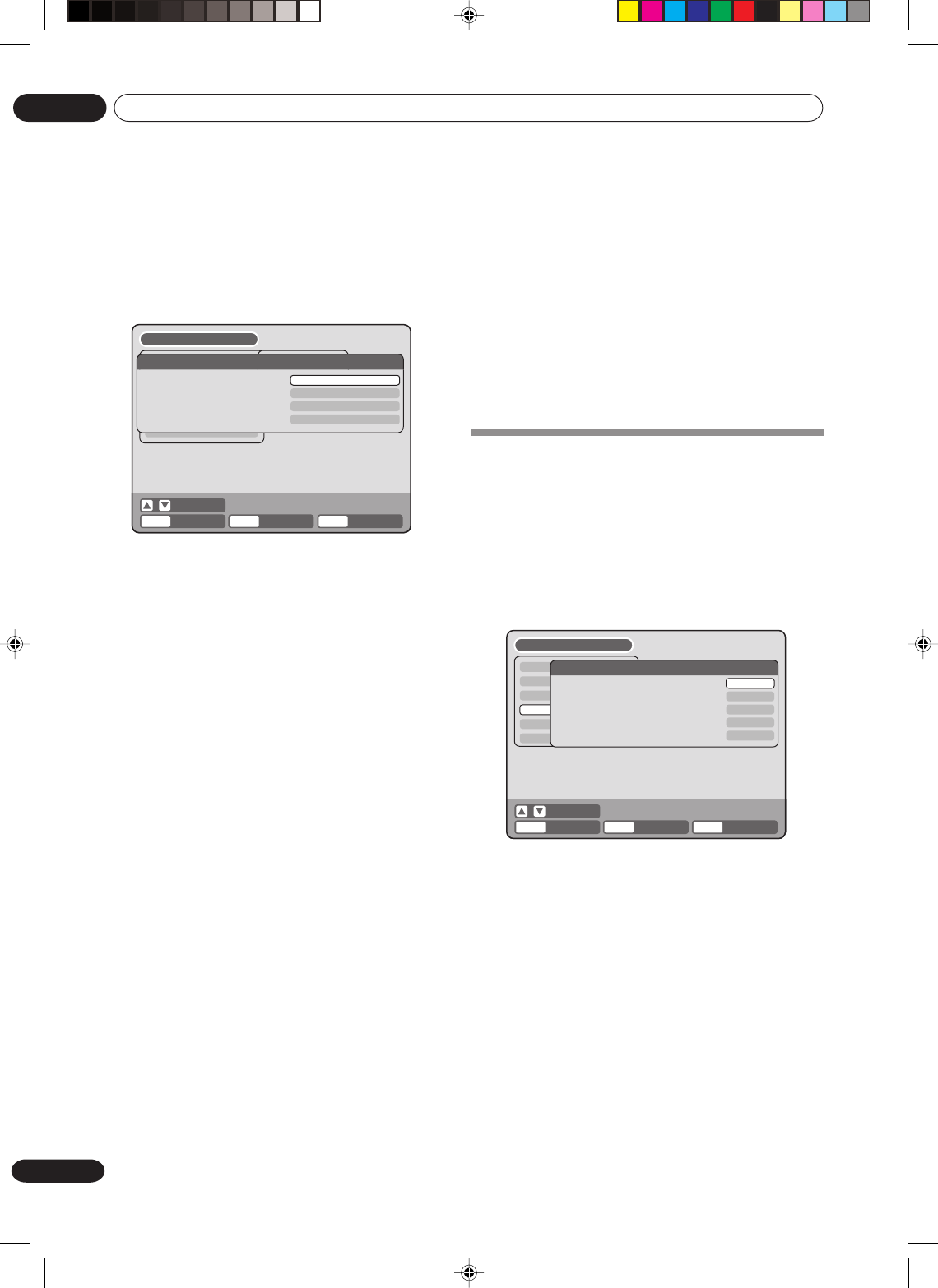
Various settings
02
26
En
NICAM
This unit is capable of NICAM stereo. You can select
the NICAM mode as follows (see page 60 for NICAM
recording and playback).
AUTOMATIC:to record NICAM programs
OFF: to set the NICAM off
DOLBY DIGITAL OUTPUT
You can select the output sound from the DIGITAL
AUDIO OUTPUT on the rear panel.
DOLBY DIGITAL:
to output with DOLBY DIGITAL
PCM: to output with PCM format
Setting the audio
TIMER REC SET
SYSTEM SETUP
AV SETUP
REC SETUP
SENDER SETUP
OTHER
DRC
EXTERNAL AUDIO INPUT
NICAM
DOLBY DIGITAL OUTPUT
STD
STEREO
AUTOMATIC
DOLBY DIGITAL
AUDIO
SETUP MENU
ENTER RETURN SETUPBACK END
SELECT
ENTER
This section describes audio settings.
Preparation:
•Turn ON the TV and select its AV channel (this may
be labelled EXT / AUX etc.).
•Select “AUDIO” from “AV SETUP”. For the proce-
dure, see steps 1 to 3 in “Using the SETUP MENU”
on page 19.
DRC
DRC (Dynamic Range Control) enables you to control
the dynamic range so as to achieve a suitable sound
for your equipment.
Select “DRC” and select the level from the list below.
MAX:Full dynamic range is maintained.
STD:Full dynamic range is reduced.
TV:Dynamic range is reduced.
NOTES:
• This function works only during playback of Dolby
Digital recorded discs.
•When you listen to the sound from TV’s speaker,
we recommend that you select “TV”.
•The level of Dynamic Range Reduction may differ
depending on the DVD.
EXTERNAL AUDIO INPUT
The audio mode for the audio input jack can be
selected, choosing either stereo or monaural.
Select “EXTERNAL AUDIO INPUT” and select from
the list below (see page 81).
STEREO:The sound is treated as stereo sound.
L CH: The sound is treated as the monaural
sound of the left channel.
R CH: The sound is treated as the monaural
sound of the right channel.
This section describes recording settings.
Preparation:
•Turn ON the TV and set it to the video input mode.
•Select “REC SETUP”. For the procedure, see steps
1 to 3 in “Using the SETUP MENU” on page 19.
INITIAL REC TO
You can select the recording media that is first
displayed in the item “REC TO” on the timer recording
screen.
Select “INITIAL REC TO” and select “DVD” or “VCR”.
INITIAL REC MODE
You can select the recording mode that is first
displayed in the item “REC MODE” on the timer
recording screen.
Select “INITIAL REC MODE”.
VCR recording modes: SP/LP
DVD recording modes: XP/SP/LP/EP
NOTE:
For the DVD recording mode, see page 50. And for
the VCR recording mode, see page 46.
TIMER REC SET
SYSTEM SETUP
AV SETUP
REC SETUP
CHANNEL
OTHER
REC SETUP
INITIAL REC TO
INITIAL REC MODE
AUTO CHAPTER
INDEX PICTURE
BILINGUAL RECORDING
SETUP MENU
DVD
SP
10MIN
0 SEC
L CH
ENTER RETURN SETUPBACK END
SELECT
ENTER
Setting the recording
2H30301B_En_18_29 8/4/05, 19:2026
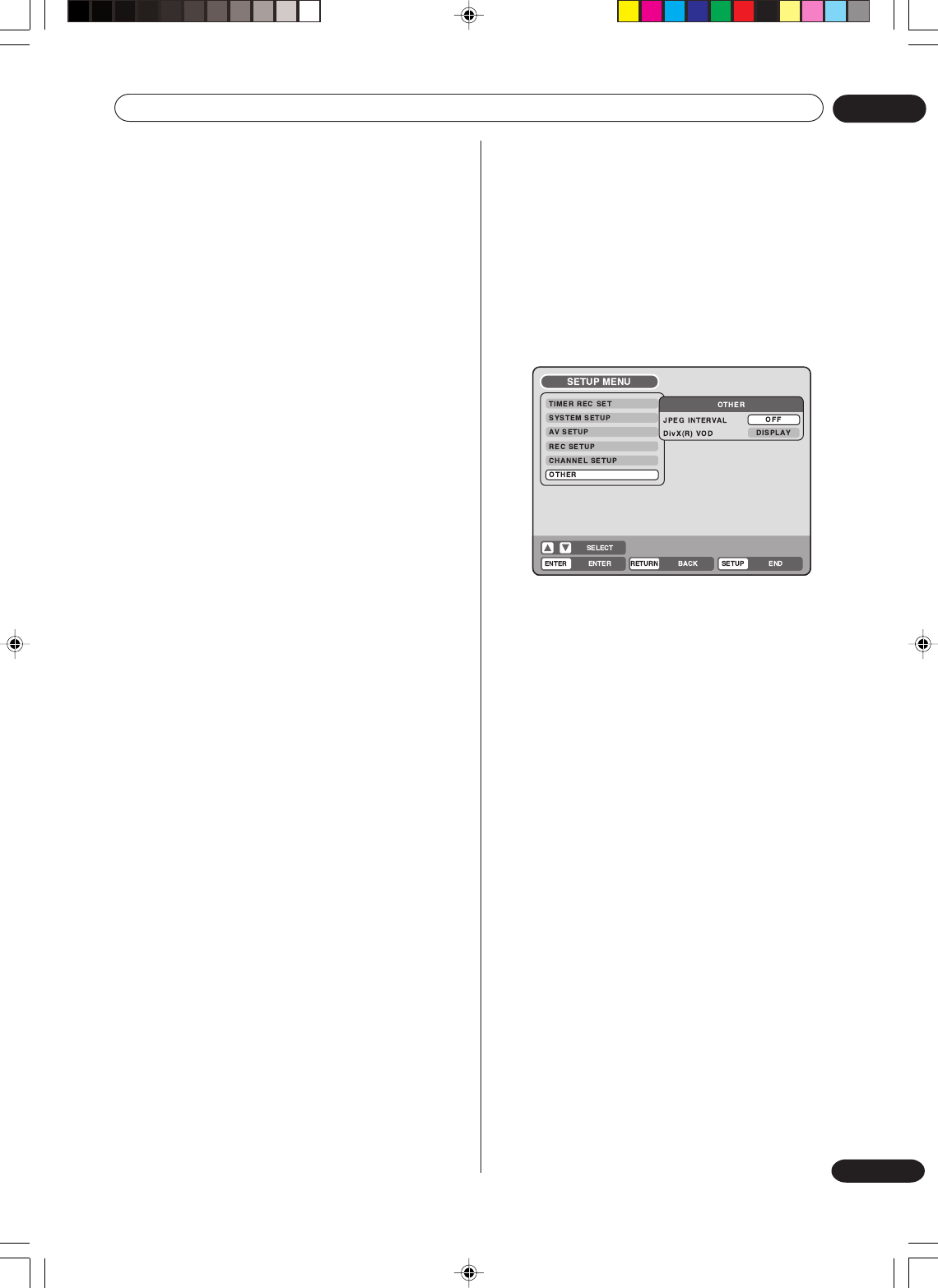
Various settings 02
27
En
Setting the other
AUTO CHAPTER
You can automatically make chapter marks on the
DVD to be recorded.
Select “AUTO CHAPTER” and select the interval
between chapter marks from the list below.
OFF:The automatic chapter is not used.
5 MIN:The interval is set to 5 minutes.
10 MIN:The interval is set to 10 minutes.
15 MIN:The interval is set to 15 minutes.
30 MIN:The interval is set to 30 minutes.
INDEX PICTURE
You can set the time that the thumbnail image is
registered in the title menu of DVD-RW (VR mode).
Select “INDEX PICTURE” and select from the list
below.
0 SEC: The image 0 second after a recording start
is registered.
1 MIN: The image 1 minute after a recording start
is registered.
3 MIN:The image 3 minutes after a recording
start is registered.
NOTE:
You cannot select the thumbnail image for Video
mode.
BILINGUAL RECORDING
In case of the recording of a bilingual program to a
disc with video format, you can select the recording
sound.
L CH:to record with left channel
R CH:to record with right channel
You can set the switching interval between played
back images in the slide show mode. And, you
can display the registration code of DivX
®
VOD.
Preparation:
•Turn ON the TV and select its AV channel (this may
be labelled EXT / AUX etc.).
•Select “OTHER”. For the procedure, see steps 1 to
3 in “Using the SETUP MENU” on page 19.
JPEG INTERVAL
You can select the interval time for JPEG slide show
(page 43).
Select “JPEG INTERVAL” and select the switching
interval between images from the list below.
OFF:The slide show mode is not used.
5 SEC:The interval is set to 5 seconds.
10 SEC:The interval is set to 10 seconds.
15 SEC:The interval is set to 15 seconds.
DivX® VOD
In order to play DivX® VOD (video on demand)
content on this recorder, you first need to register the
recorder with your DivX® VOD content provider. You
do this by generating a DivX® VOD registration code,
which you submit to your provider.
To display your registration code, select “DISPLAY”
and press ENTER.
Your 8-digit registtation code is displayed.
NOTES:
• DivX® VOD content is protected by a DRM (Digital
Rights Management) system. This restricts
playback of content to specific, registered devices.
•Resetting the recorder (as described in page 87)
will not cause you to lose your registration code.
2H30301B_En_18_29 8/4/05, 19:2027
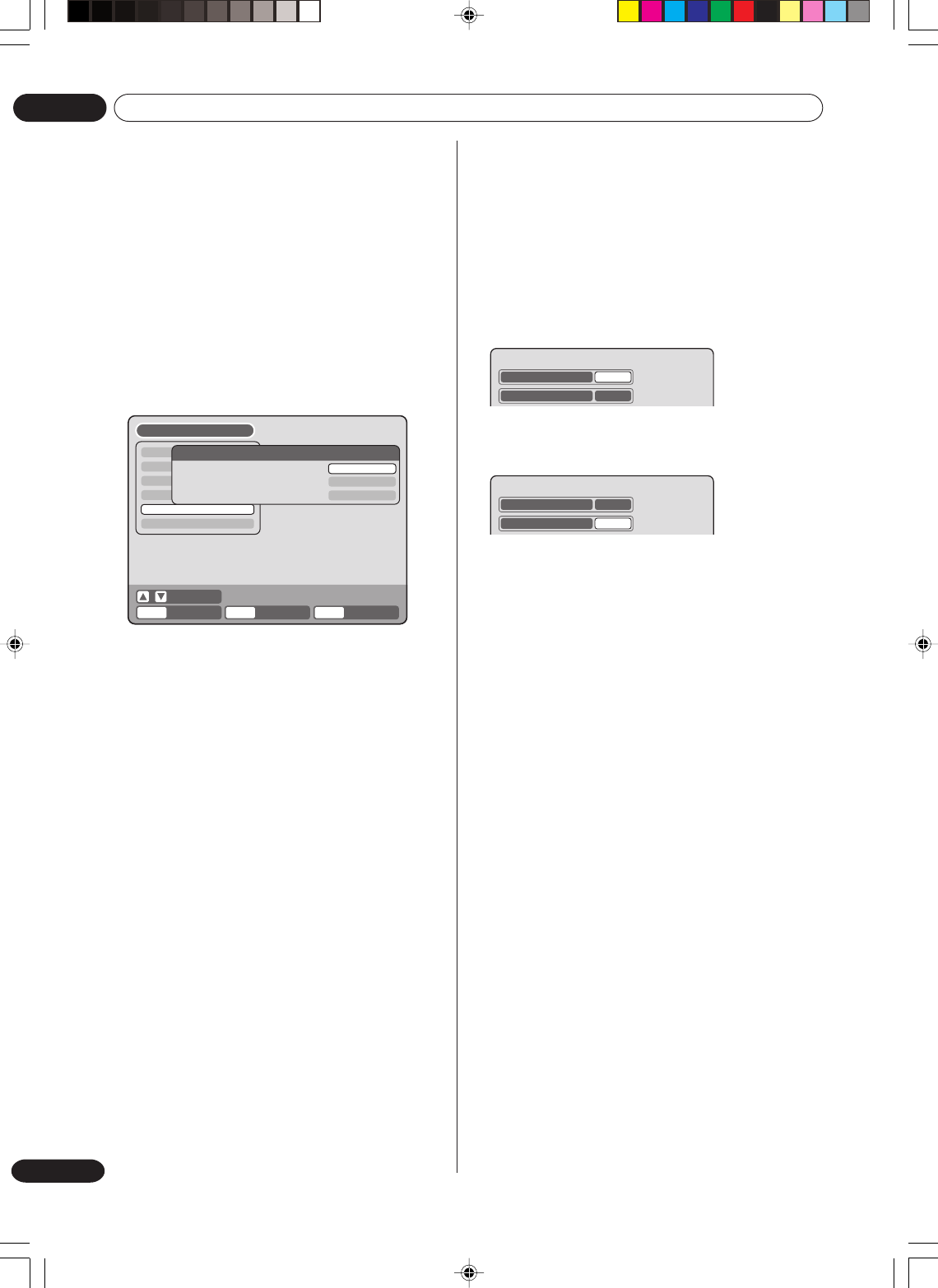
Various settings
02
28
En
Setting the channel
This VCR/DVD has a built-in tuner to receive TV
broadcast transmissions. Before you record a TV-
Broadcast, you must set and preset all available
channels. This VCR/DVD can preset up to 80
channels.
Preparation:
•Turn ON the TV and select its AV channel (this may
be labelled EXT / AUX etc.).
•Select “CHANNEL SETUP”. For the procedure, see
steps 1 to 3 in “Using the SETUP MENU” on page
19.
Automatic station presetting
Select “AUTO TUNING” and press ENTER.
The VCR/DVD will begin searching and storing all the
broadcasting channels available in your area. While
this is happening, “AUTO TUNING” will be shown on
the screen. When automatic tuning process is
completed, the screen will return to normal.
NOTES:
•Your unit will tune the TV stations as follows.
CH1 BBC1
CH2 BBC2
CH3 ITV
CH4 Channel 4
CH5 Channel 5
CH6 Satellite
CH7 etc.
•TV reception interference or power failure may
result in Automatic station presetting malfunctions.
In such a case repeat the setting procedure from
the beginning.
If the automatic tuning procedure has problems
receiving some stations correctly, you can try to
preset the station manually (see page 29).
•When the unit is in the auxiliary input mode, you
cannot preset channels.
TIMER REC SET
SYSTEM SETUP
AV SETUP
REC SETUP
CHANNEL SETUP
OTHER
CHANNEL SETUP
CH TUNING
AUTO TUNING
GUIDE CH SET
PROCEED
PROCEED
PROCEED
SETUP MENU
ENTER RETURN SETUPBACK END
SELECT
ENTER
To skip a channel position
Unwanted channels can be skipped so that they
cannot be called up by pressing CH + / –.
Example: Skip the channel position 29.
1Select “CH TUNING” and press ENTER.
2Select “CH” and press ENTER. Then select the
skipping channel position number (29) and press
ENTER.
3Select “SKIP” and press ENTER.
4Select “ON” and press ENTER. Now this channel
position is skipped.
NOTE: To cancel skipping, select “OFF” at step 4
above.
CH 29
SKIP OFF
CH 29
SKIP OFF
2H30301B_En_18_29 8/4/05, 19:2028
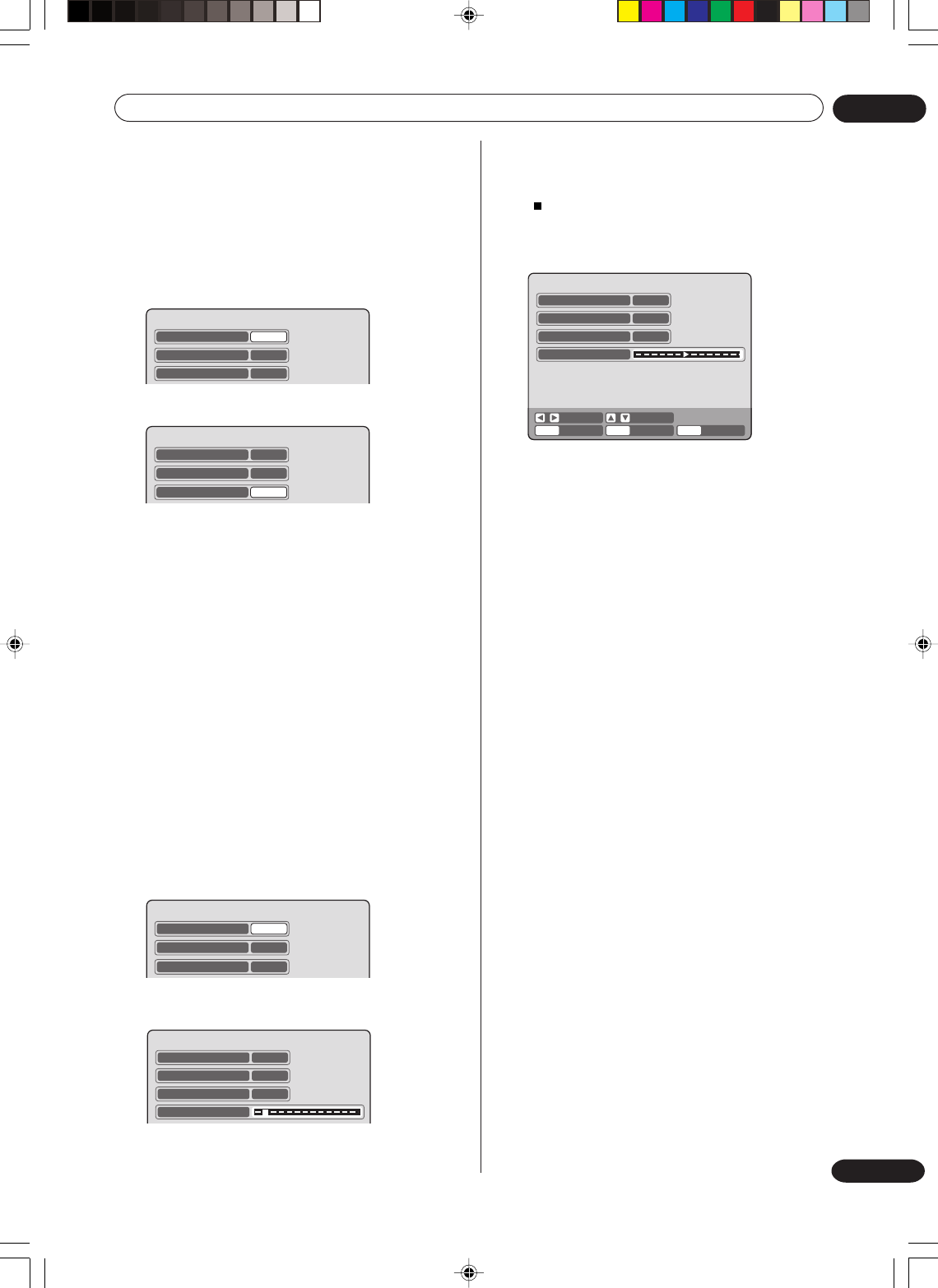
Various settings 02
29
En
Replace TV station positions
You can replace the channel positions as you like.
Example: Replace the TV station No. 6 with position
No. 2.
1Select “CH TUNING” and press ENTER.
2Select “CH” and press ENTER. Then select the
moving channel position number (6) and press
ENTER.
3Select “MOVE” and press ENTER.
4Select the channel position number (2) to which
the selected position at step 2 above is to be
moved and press ENTER. Now these channel
positions were replaced with each other.
CH 6
SKIP OFF
MOVE 6
CH 6
SKIP OFF
MOVE 6
Manual TV station presetting
The Automatic station presetting function (See page
28) memorises the available broadcasts to suitable
CH positions.
Some broadcasts may not be preset correctly by the
automatic tuning system - in this case you can tune
stations manually as follows.
Example: Presetting a station on program position 5.
1 Select “CH TUNING” and press ENTER.
2Select “CH” and press ENTER. Then select the
channel position number (5) and press ENTER.
3 Select “TUNING” (tuning scale) and press
ENTER.
CH 5
SKIP OFF
MOVE 5
TUNING
4Press A (rising frequency) or B (falling
frequency) once. The search starts. It stops at
each broadcast automatically. (“A” changes to
“”) Press B or A repeatedly until the desired
station appears. If the broadcast is too weak
(eg. with a drifting picture), the search will not
stop. If you want to stop, press C/D or B/A.
5If the tuned-up picture is not satisfactory, press C
or D until the best picture is achieved. Then
press ENTER.
6Repeat the steps 2 and 5 to preset other TV
stations.
NOTE:
Occasionally, the auto search might catch a weak
signal and stop. If the TV station signal is weak, you
shouldn't store this station. In that case restart the
auto search using B or A.
CH
ENTER RETURN SETUPBACK END
SEARCH F. TUNE
5
SKIP OFF
MOVE 5
TUNING
ENTER
CH 5
SKIP OFF
MOVE 5
2H30301B_En_18_29 8/4/05, 19:2129
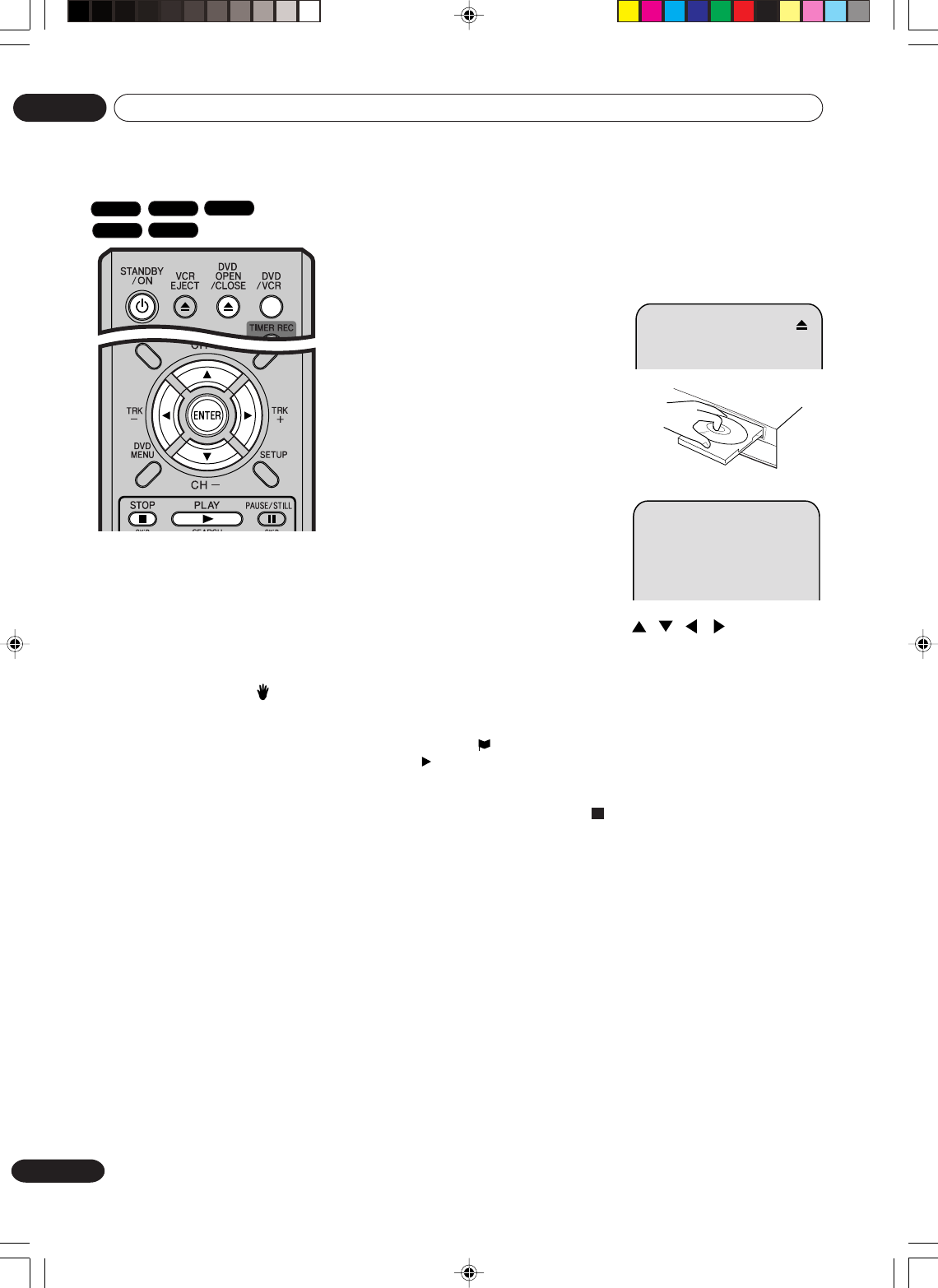
30
En
Disc playback
03
READING
Playback procedure
Preparation:
•Turn ON the TV and select its AV channel (this may be labelled
EXT / AUX etc.).
• Press DVD/VCR to select the DVD mode. (The DVD indicator will
light.)
1Press OPEN/CLOSE.
The disc tray will open.
2Place a disc onto the tray.
Hold the disc, position it with the
printed label side up, align it with
the guides, and place it in its
proper position.
3Press OPEN/CLOSE to close the
disc tray.
“READING” appears on the
screen and some discs start
playback automatically.
•A menu screen may appear on
the TV screen, if the disc has a
menu feature. In this case, press , , , or ENTER to
operate a menu feature.
4Press PLAY to start playback.
5Press STOP to end playback.
•The VCR/DVD memorises the stopped point, depending on
the disc. “ ” appears on the screen for approx. 4 seconds.
“” keeps blinking in the display until the playback is stopped
completely. Press PLAY to resume playback (from the scene
point).
•If you press STOP again (“ ” appears on the screen), the
VCR/DVD will clear the stopped point.
6Then press OPEN/CLOSE.
The disc tray opens.
Remove the disc and press STANDBY/ON.
The disc tray closes automatically and VCR/DVD turns off.
DVD-Video
VR mode
Video mode
DVD-R
CD
NOTES:
• If a non-compatible disc is loaded,
“INCORRECT DISC”, “REGION
CODE ERROR” or “PARENTAL
ERROR” will appear on the TV
screen according to the type of
loaded disc. In this case, check your
disc again (see pages 9 and 21).
•Some discs may take a minute or
so to start playback.
•A prohibition symbol “ ” may
appear at the upper right of the
screen. This symbol means either
the feature you tried is not available
on the disc, or the VCR/DVD can
not access the feature at this time.
This does not indicate a problem
with the VCR/DVD.
•When you set a single-faced disc
label downwards (ie. the wrong way
up) and press PLAY or OPEN/
CLOSE, “READING” will appear
and then it will change to “NO
DISC”.
•Some playback operations of DVDs
may be intentionally fixed by
software producers. Since this VCR/
DVD plays DVDs according to the disc contents the software producers designed, some playback features
may not be available. Also refer to the operation manual supplied with the DVDs.
•When playing DTS-encoded Audio CDs, excessive noise will be heard from the analog stereo outputs. To
avoid possible damage to the audio system, the consumer should take proper precautions when the analog
stereo outputs of the VCR/DVD are connected to an amplification system.
•Most discs labelled “Non PC/MAC CD Format” will not playback on this VCR/DVD.
•About DualDisc playback.
A DualDisc is a new two -sided disc, one side of which contains DVD content video, audio, etc. while the
other side contains non-DVD content such as digital audio material.
The non-DVD, audio side of the disc is not compliant with the CD Audio specification and therefore may not
play. It is possible that when loading or ejecting a DualDisc, the opposite side to that being played will be
scratched. Scratched discs may not be playable. The DVD side of a DualDisc plays in this product. DVD-
Audio content will not play. For more detailed information on the DualDisc specification, please refer to the
disc manufacturer or disc retailer.
2H30301B_En_30_43 8/4/05, 19:2130
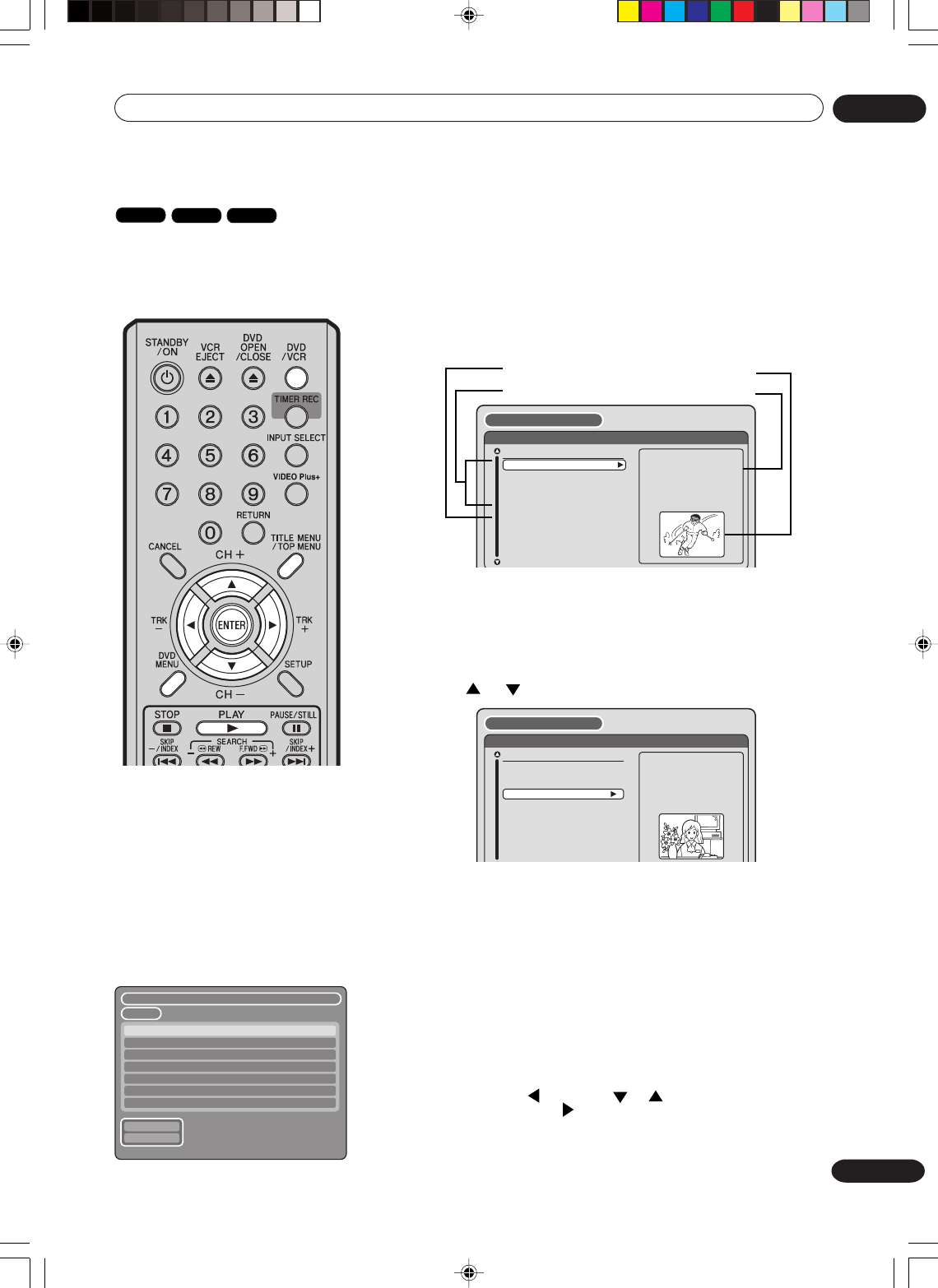
31
En
Disc playback 03
Playback by selecting a title
When playing back a recorded
disc, you can display the title
menu and select the title to be
played back.
Preparation:
•Turn ON the TV and select its AV channel (this may be labelled
EXT / AUX etc.).
•Load a recorded DVD.
• Press DVD/VCR to select the DVD mode. (The DVD indicator will
light.)
1Press TITLE MENU.
The title menu will appear.
If there are many original titles and playlists...
Before pressing TITLE MENU, press DVD MENU until “VR ORG”
or “VR PL” will appear on the upper right of the TV screen, then
press TITLE MENU.
The first original title or playlist will be highlighted.
2Press or to select the title you want to playback.
3Press ENTER or PLAY.
The selected title is played back.
NOTES:
•If you don’t display the title menu and press PLAY, the first title is played back.
• When a title is played by selecting it from the title menu, only the title selected is
played.
• When a disc that has been recorded in the Video mode is finalized, a title list is
automatically created that can be played back even with other DVD players.
Consequently, the menu before finalizing is different from that of after finalizing.
•The title menu is used not only for playing back titles but also for editing various
discs and titles. For details of editing operation, see page 63.
• If you create a playlist, an original title and playlist appear in the title menu. For
creating a playlist, see page 64.
•In case the disc includes more than 10 titles, you can turn to the next or the
previous page. Press , then press or to display next/previous page. To
return to normal use, press .
•You cannot switch to the VCR mode when the title menu is showing. Press TITLE
MENU to clear the title menu, then press DVD/VCR to switch to the VCR mode.
•The recording information of discs that have been recorded on other recorders
may not be displayed.
NOTE:
When a disc that has been
recorded in the Video mode is
finalised, a title list is
automatically created that can be
played back even with other DVD
players. Consequently, the menu
before finalising is different from
that of after finalising.
– – – –
1/1
PREV
NEXT
23/11/2005 08:41 06 EP
25/11/2005 10:03 11 SP
29/11/2005 11:30 09 SP
01/12/2005 06:52 06 XP
23/11/2005 08:41 06 EP PL
TITLE MENU
Original titles
Playlist Thumbnail image
Recording information
DISC NAME:– – – –
23/11/2005 08:41 06 EP
25/11/2005 10:03 11 SP
29/11/2005 11:30 09 SP
01/12/2005 06:52 06 XP
23/11/2005 08:41 06 EP PL
REC DATE :23/11/2005
TIME :08:41
LENGTH :00:30:17
CHANNEL :06
REC MODE :EP
TITLE MENU
REC DATE :29/11/2005
TIME :11:30
LENGTH :00:59:45
CHANNEL :09
REC MODE :SP
DISC NAME:– – – –
23/11/2005 08:41 06 EP
25/11/2005 10:03 11 SP
29/11/2005 11:30 09 SP
01/12/2005 06:52 06 XP
23/11/2005 08:41 06 EP PL
VR mode
Video mode
DVD-R
2H30301B_En_30_43 8/4/05, 19:2131
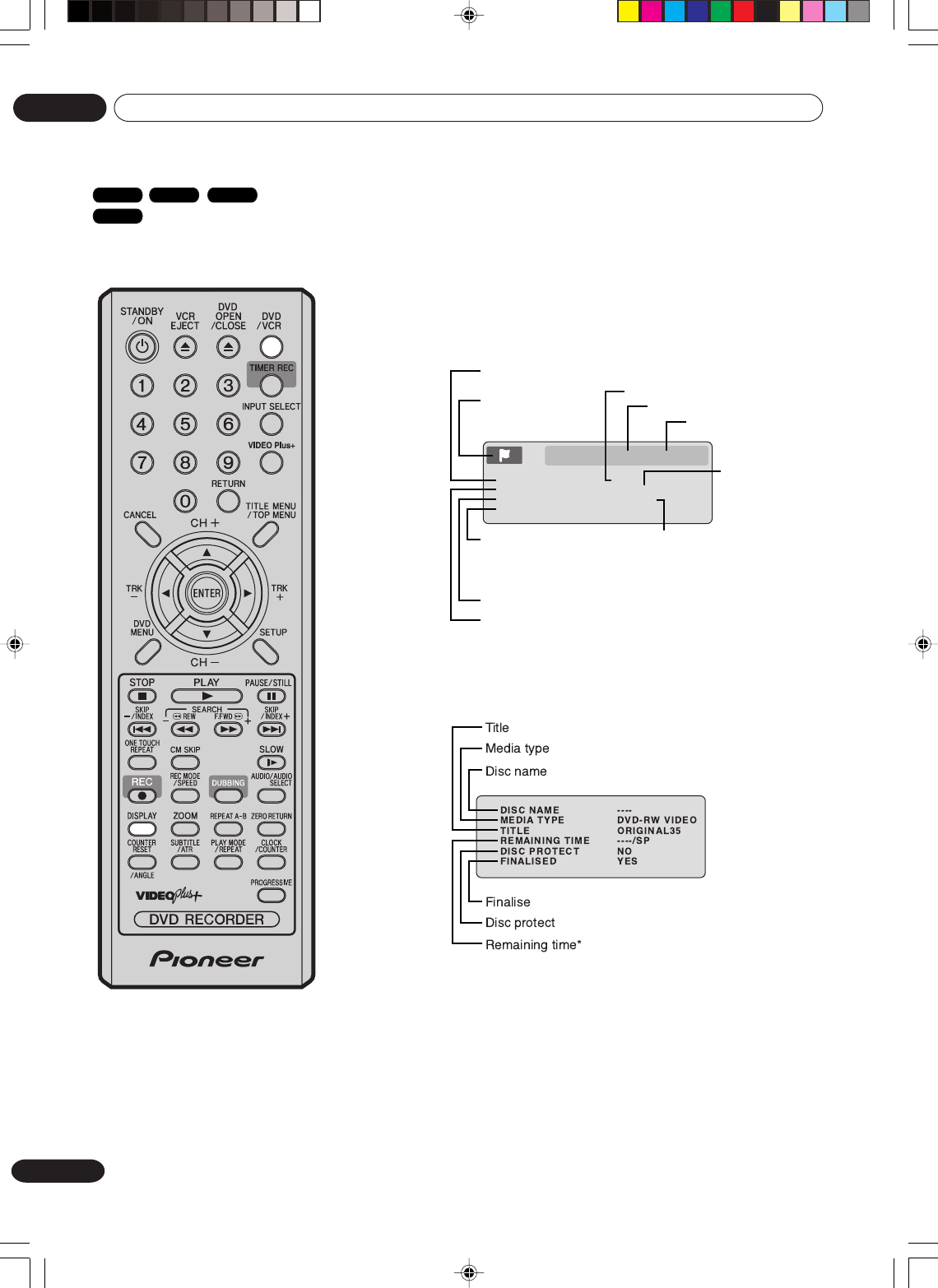
32
En
Disc playback
03
Checking media information
Various information on the
loaded disc can be displayed on
the TV screen.
NOTES:
•The displayed information varies
with the type of media.
•Some information may not
appear due to media type or
operating conditions.
Preparation:
•Turn ON the TV and select its AV channel (this may be labelled
EXT / AUX etc.).
•Load the disc.
• Press DVD/VCR to select the DVD mode. (The DVD indicator will
light.)
1Press DISPLAY.
Media information will appear.
2Press DISPLAY while the media information above is displayed.
The next media information will appear.
*The remaining time displayed during recording may be different
from the actual remaining time. When you want to check the
remaining time, stop recording and display the media informa-
tion again.
3Press DISPLAY again while the media information above is
displayed. The media information will disappear.
TITLE 01/35 TIME 00:25:41
CHAPTER 08/38 SUBTITLE
--
/
--
ANGLE 01/01 REC MODE SP
AUDIO 01/03ENG Dolby Digital
CLOCK 10:27 CH 3
Playback condition
(playback, stop,
pause and record)
The number of
audio languages
and present
language
Playback elapsed time
Current
subtitles
language
Recording mode
The number of titles and present title number
Present channel
Present time
The number of angles and present angle number
The number of chapters and
present chapter number
VR mode
DVD-Video
Video mode
DVD-R
2H30301B_En_30_43 8/4/05, 19:2132
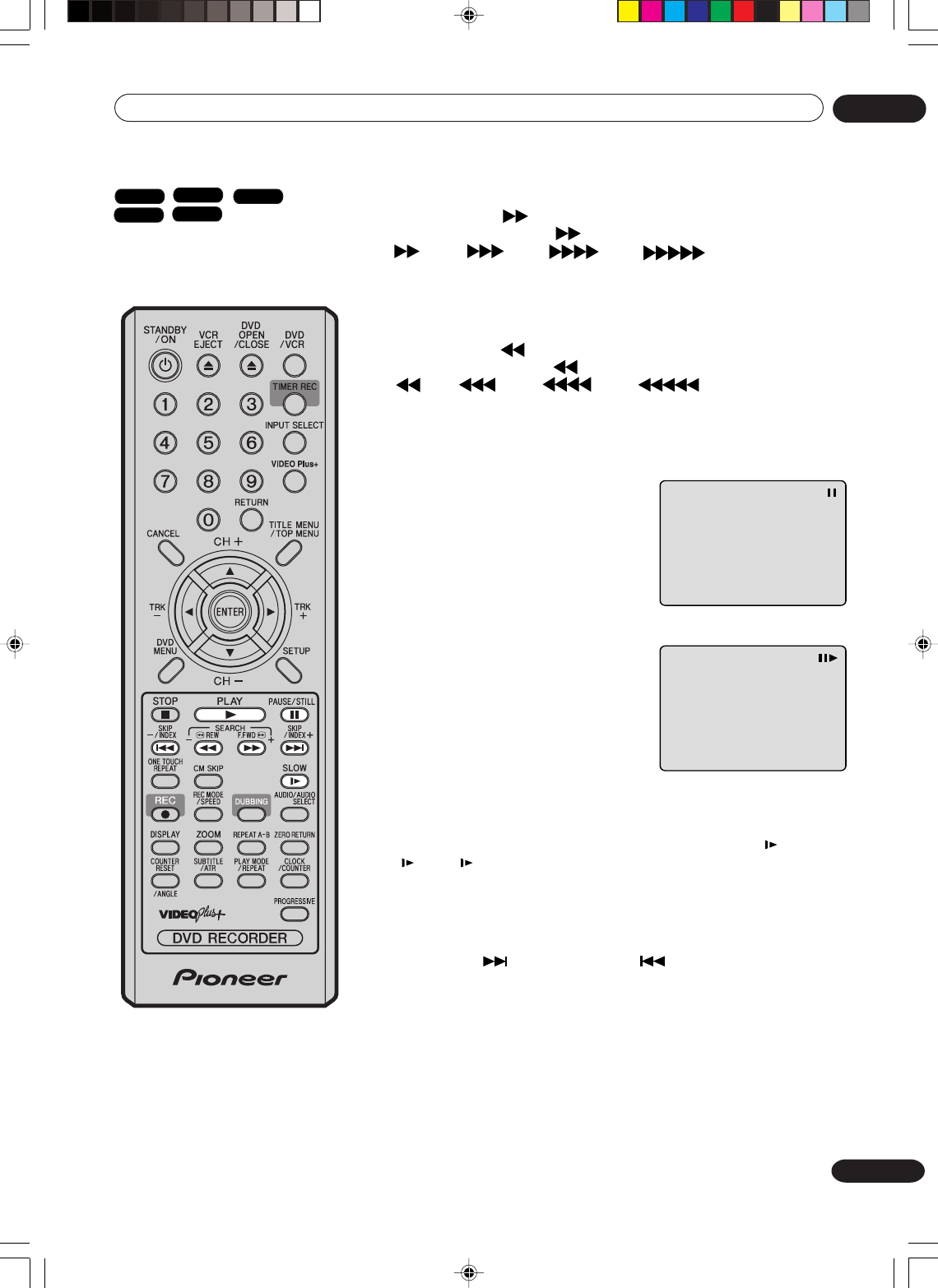
33
En
Disc playback 03
Special playback
Fast forward playback
Press SEARCH during normal playback.
Each press of SEARCH will increase the speed of the search
(x1.5), (x12), (x24), (x60).
The speed of the search is increased up to only 2 steps (x6, x16) in CD.
•To resume normal playback, press PLAY.
Review playback
Press SEARCH during normal playback.
Each press of SEARCH will increase the speed of the search
(x3), (x12), (x24), (x60).
The speed of the search is increased up to only 2 steps (x6, x16) in CD.
•To resume normal playback, press PLAY.
Still playback
Press PAUSE/STILL during normal
playback.
•To resume normal playback, press
PLAY.
Frame advance
Press PAUSE/STILL during still
playback.
One frame is advanced each time you
press PAUSE/STILL.
•To resume normal playback, press
PLAY.
Slow motion playback
Press SLOW during normal playback or still playback.
Each press of SLOW will change the speed of the slow “ 1/2”,
“1/4”, “ 1/8”.
•To resume normal playback, press PLAY.
•To resume the still playback, press PAUSE/STILL.
Locating a chapter or track
Press SKIP ( ) Forward or SKIP ( ) Reverse during playback
to locate a chapter that you want to watch.
Each time you press the button, a chapter or track is skipped.
NOTE: There may be a slight
delay between pressing the
button and the function
activation.
NOTES:
•The unit is capable of holding a still video image or On screen display image on your television screen
indefinitely. If you leave the still video image or On screen display image displayed on your TV for an extended
period of time, you risk permanent damage to your television screen. Projection televisions are very
susceptible.
•Fast forward and review playback does not work with a MP3/WMA/JPEG-CD.
•Frame advance and slow motion does not work with a CD.
VR mode
DVD-Video
Video mode
DVD-R
CD
2H30301B_En_30_43 8/4/05, 19:2133
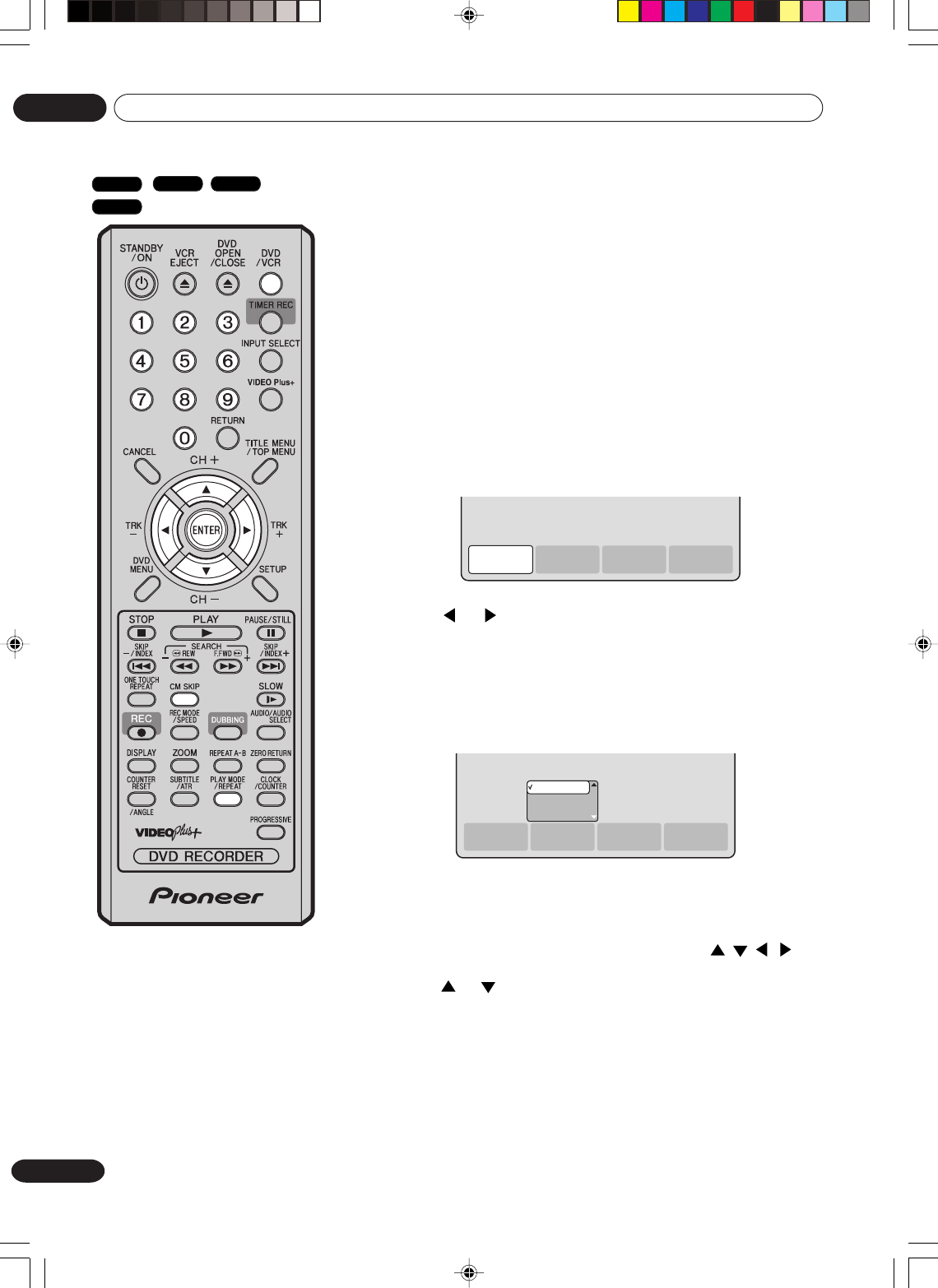
34
En
Disc playback
03
Commercial skip / Locating a specific scene
Commercial skip
Use this function to skip commercials while you playback.
Press CM SKIP during playback.
The time jumps to a point approx. 30 seconds later and playback
resumes.
NOTE:
With some DVD-Video, the Commercial skip operation may not work.
Locating a specific scene
Specify the time recorded on the disc, chapter or title to play-
back.
1Press PLAY MODE.
The play mode screen will appear.
2Press or to select “TIME SEARCH”, “CHAPTER
SEARCH” or “TITLE SEARCH”, and press ENTER.
TIME SEARCH: Input the time until the playback is
restarted.
CHAPTER SEARCH:
Select the chapter number to be played
back.
TITLE SEARCH: Select the title number to be played back.
The screen above shows the display when “CHAPTER
SEARCH” is selected.
3When selecting “TIME SEARCH”, input the time until the
playback is restarted with the numeric keys or ///.
When selecting “CHAPTER SEARCH” or “TITLE SEARCH”,
press or to select the chapter number or title number.
4Press ENTER.
The playback starts at the point you selected.
NOTE:
For “REPEAT”, see “Title, Chapter repeat playback” (page 35).
NOTE:
You cannot switch to the VCR
mode when the play mode screen
is showing. Press PLAY MODE to
clear the play mode screen, then
press DVD/VCR to switch to the
VCR mode.
TIME
SEARCH
CHAPTER
SEARCH
TITLE
SEARCH REPEAT
TIME
SEARCH
CHAPTER
SEARCH
TITLE
SEARCH REPEAT
CHAPTER 1
CHAPTER 2
CHAPTER 3
DVD-Video
VR mode
Video mode
DVD-R
2H30301B_En_30_43 8/4/05, 19:2134
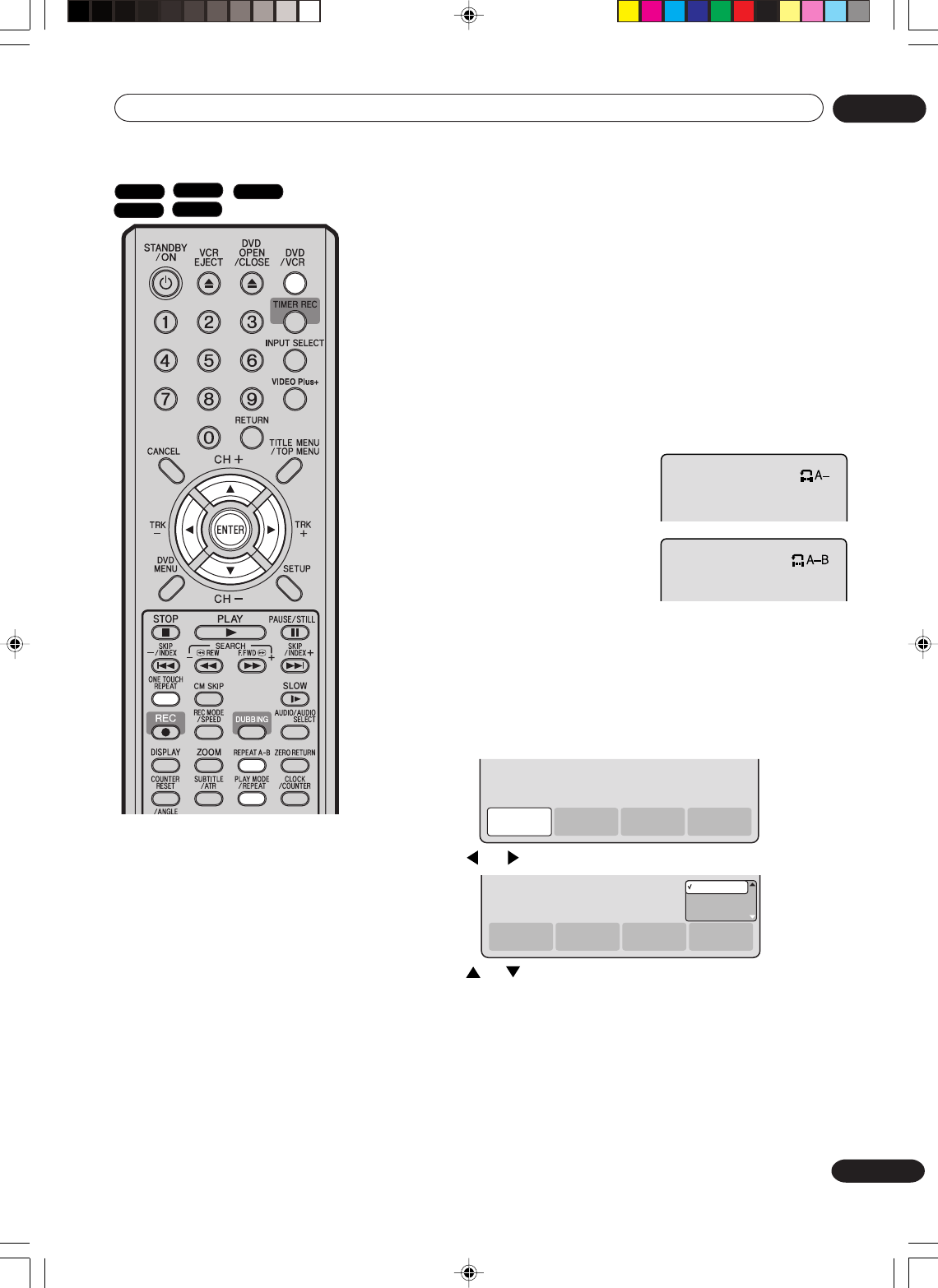
35
En
Disc playback 03
Repeat playback
1Press REPEAT A-B during
playback.
The start point is selected.
2Press REPEAT A-B again.
The end point is selected.
Playback starts at the point that
you selected. Playback stops at
the end point, returns to point A
automatically, then starts again.
To resume normal playback, press REPEAT A-B again.
“OFF” appears on the screen.
Title, Chapter repeat playback
1Press REPEAT.
The play mode screen will appear.
2Press or to select “REPEAT” and press ENTER.
3Press or to select “OFF”, “CHAPTER” or “TITLE” from the
list.
OFF: Playback is not repeated.
CHAPTER: The chapter in playback is repeatedly played back.
TITLE: The title in playback is repeatedly played back.
4Press ENTER.
To cancel the repeat playback, select “OFF” in step 3.
One touch repeat
This feature can be used to repeat the last 10 seconds of viewed
material on a DVD disc - then normal playback will continue.
Press ONE TOUCH REPEAT during playback.
The playback returns to a point 10 seconds earlier, then resumes
playing.
NOTE:
If ONE TOUCH REPEAT is pressed less than 10 seconds after the
beginning of the current title, it will just go back to the start of that
title.
A-B repeat playback
A-B repeat playback allows you to repeat material between two
selected points.
TIME
SEARCH
CHAPTER
SEARCH
TITLE
SEARCH REPEAT
TIME
SEARCH
CHAPTER
SEARCH
TITLE
SEARCH REPEAT
OFF
CHAPTER
TITLE
NOTES:
•Some discs may not work with the
repeat operation.
•In A-B repeat mode, subtitles near
point A or B may not appear.
•A-B repeat does not work during
the Title and the Chapter repeat
playback.
•You may not be able to set A-B
repeat, depending on the scenes
of the DVD.
•A-B repeat and Title, Chapter
repeat does not work with a MP3/
WMA/JPEG-CD.
•You cannot switch to the VCR
mode when the play mode screen
is showing. Press REPEAT to clear
the play mode screen, then press
DVD/VCR to switch to the VCR
mode.
•One touch repeat and Title,
Chapter repeat playback does not
work with a CD.
VR mode
DVD-Video
Video mode
DVD-R CD
2H30301B_En_30_43 8/4/05, 19:2135
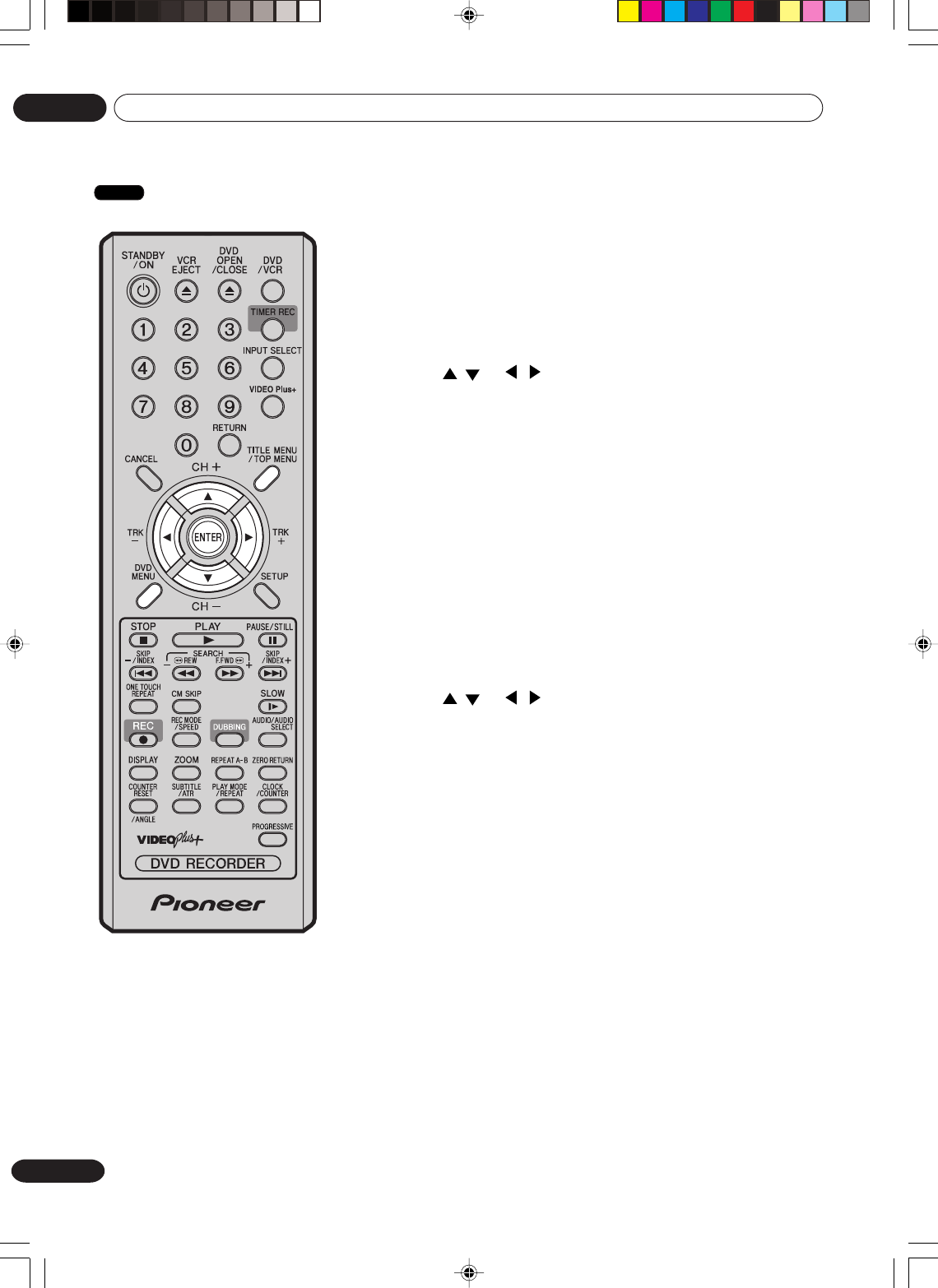
36
En
Disc playback
03
Title selection / DVD menu
NOTE:
Depending on the DVD, you may
be unable to select the title, and a
“title menu” may simply be called a
“menu” or “title” in the instructions
supplied with the disc.
Title selection
Two or more titles are recorded on some discs. If the title menu
is recorded on the disc, you can select the desired title.
1Press TITLE MENU/TOP MENU during playback.
The title menu appears on the screen.
• Press TITLE MENU/TOP MENU again to resume playback at
the scene when you pressed TITLE MENU/TOP MENU.
2Press / or / to select the desired title.
3Press ENTER.
The playback of the selected title will start.
DVD menu
Some DVDs allow you to select the disc contents using the
menu. When you playback these DVDs, you can select the
subtitles language and soundtrack language, etc. using the DVD
menu.
1Press DVD MENU during playback.
The DVD menu appears on the screen.
• Press DVD MENU again to resume playback at the scene
when you pressed DVD MENU.
2Press / or / to select the desired item.
3Press ENTER.
The menu continues to another screen. Repeat steps 2 and 3 to
set the item completely.
DVD-Video
2H30301B_En_30_43 8/4/05, 19:2236
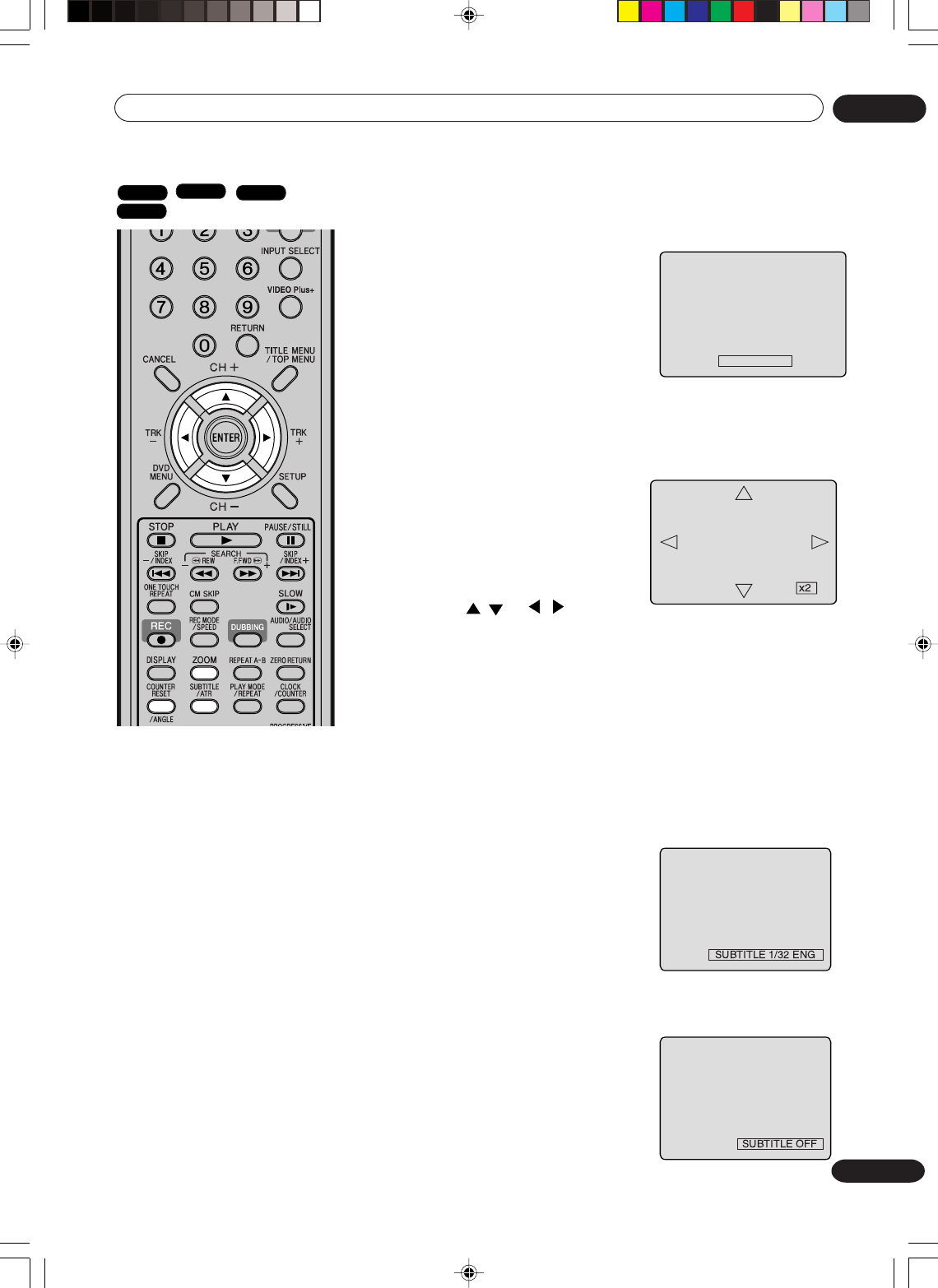
37
En
Disc playback 03
Changing angles / Zooming / Subtitles
NOTES:
•Depending on the DVD, you may
not be able to change the angles
even if multi-angles are recorded
on the disc.
•You can use the Pause, Slow,
Search or Skip feature in the
zoom mode.
•Changing soundtrack or subtitles
language is cancelled when you
open the disc tray. The initial
default language or available
language will be heard and seen if
the disc is played back again.
•Depending on the DVD you may be
unable to turn on, turn off, or change
the subtitles, even if they are re-
corded on the disc. While playing
the DVD, the subtitles may change
while opening or closing the disc
tray, or while changing the title.
•In some cases, the subtitles lan-
guage is not changed to the se-
lected one immediately.
Changing angles
When playing back a disc recorded with multi-angle facility, you
can change the angle that you are viewing the scene from.
1Press ANGLE during playback.
The current angle will appear.
2Press ANGLE repeatedly until the
desired angle is selected.
Zooming
This unit will allow you to zoom in on the frame image. You can
then make selections by switching the position of the frame.
1Press ZOOM during playback.
The center part of the image
will be zoomed in.
Each press of ZOOM will
change the ZOOM “x2” , “x3”
and “x4”.
2Press / or / to view a
different part of the frame.
You may move the frame from the center position to UP, DOWN,
LEFT or RIGHT direction.
3In the zoom mode press ZOOM repeatedly to return to a 1:1
view “x1”.
ANGLE 1/3
Subtitles
Turning the subtitles On and Off
When playing back a disc recorded with subtitles, you can turn
the subtitles on or off.
Press SUBTITLE during playback until
“SUBTITLE OFF” appears.
Changing the subtitles language
You can select the language when playing back a disc recorded
with multilingual subtitles.
Press SUBTITLE repeatedly during
playback until your desired language
appears.
The on screen display will disappear af-
ter a few seconds.
VR mode
DVD-Video
Video mode
DVD-R
2H30301B_En_30_43 8/4/05, 19:2237
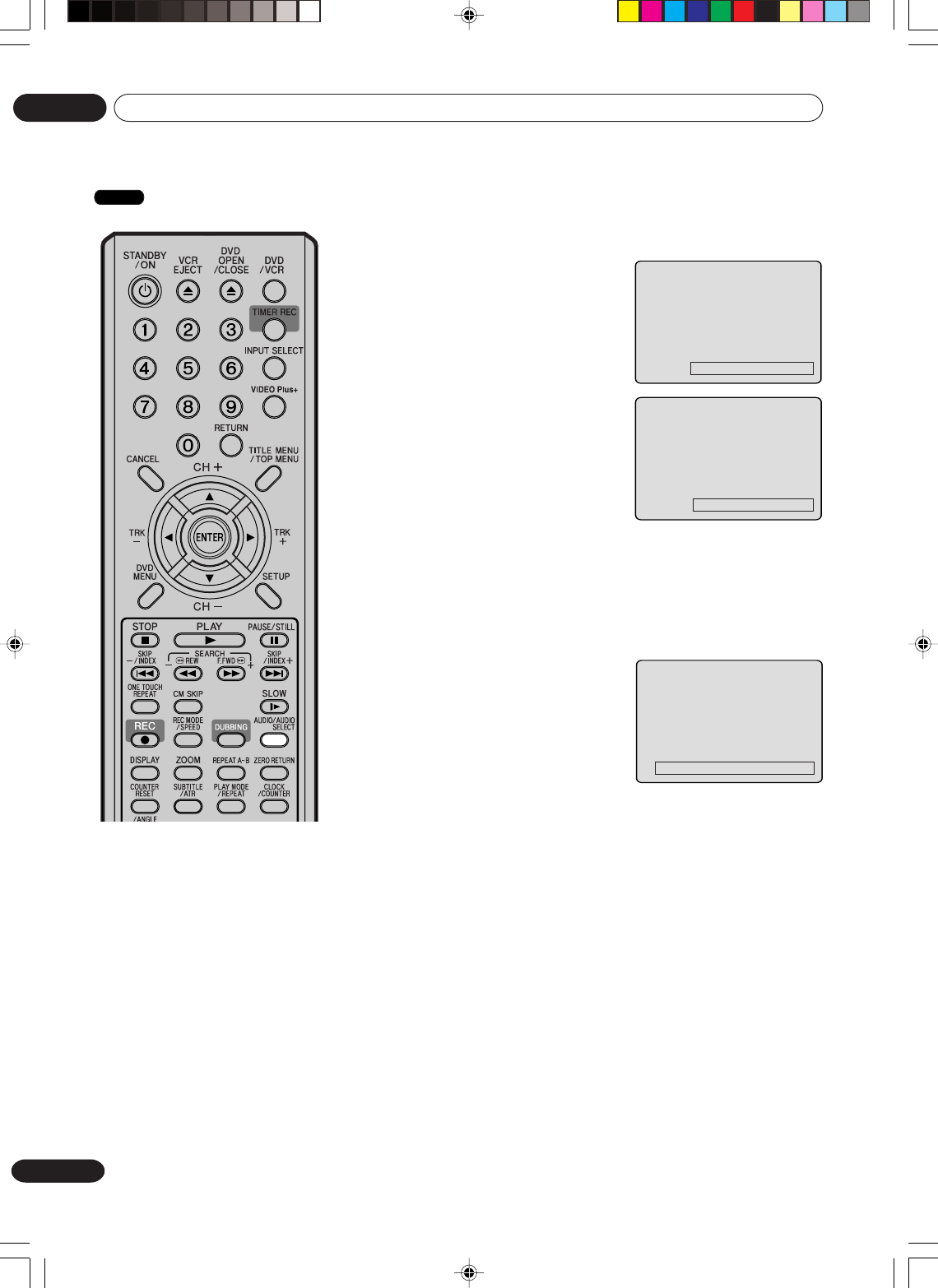
38
En
Disc playback
03
Changing soundtrack language
You can select the language when you play a multilingual disc.
1Press AUDIO during playback.
The current soundtrack language
will appear.
2Press AUDIO repeatedly until
the desired language is selected.
The on-screen display will
disappear after a few seconds.
Karaoke playback
You can turn the vocal on or off recorded on the DVD KARAOKE.
During DVD KARAOKE disc playback, press AUDIO repeatedly until
the desired setting is selected.
Vo. ON : The primary vocal is
output when it is
recorded on the disc.
Vo. OFF : The primary vocal is not
output.
NOTES :
•Some Karaoke discs may not have the vocal on/off function.
•The on screen display will disappear after a few seconds.
AUDIO 1/2 Vo. OFF Dolby Digital
Changing soundtrack language / Karaoke playback
AUDIO 1/8 ENG Dolby Digital
AUDIO 2/8 FRA Dolby Digital
NOTES:
•If the desired language is not
heard after pressing the button
several times, the language is
not recorded on the disc.
•The vocal output feature is used
during playback of Dolby Digital
(multi-channel) recorded DVD
KARAOKE discs. This feature
allows you to turn off vocal audio
tracks, or restore them for
background accompaniment.
•When playing Karaoke, connect
appropriate audio equipment
such as an amplifier to this unit.
DVD-Video
2H30301B_En_30_43 8/4/05, 19:2238
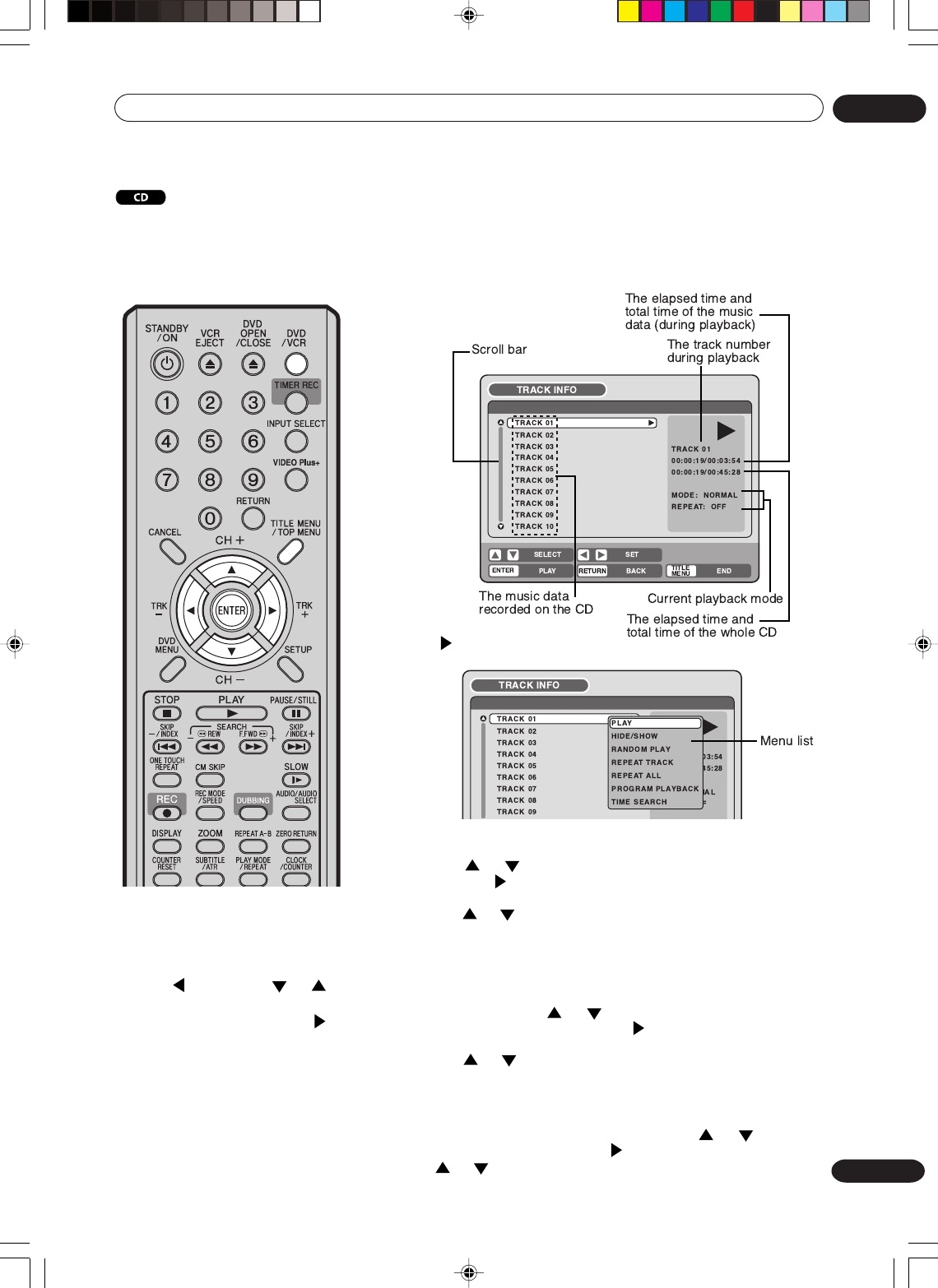
39
En
Disc playback 03
Various operations on CD
Preparation:
•Turn ON the TV and select its AV channel (this may be labelled EXT /
AUX etc.).
•Load the music CD.
•Press DVD/VCR to select the DVD mode. (The DVD indicator will light.)
Press TITLE MENU/TOP MENU.
The TRACK INFO screen will
appear.
This section describes the
TRACK INFO screen where
music CDs can be played back
using the various operations.
Press . The menu list will appear.
NOTES:
•In case the disc includes more
than 10 tracks, you can turn to
the next or the previous page.
Press , then press or to
display next/previous page. To
return to normal use, press .
•You cannot switch to the VCR
mode when the TRACK INFO
screen is showing. Press TITLE
MENU/TOP MENU to clear the
TRACK INFO screen, then press
DVD/VCR to switch to the VCR
mode.
Playing back a selected track
1Press or to select the track number you want to playback
and press .
2Press or to select “PLAY” from the menu list and press
ENTER.
The selected track will be played back.
Excluding specified track
1During stop, press or to select the track number you do
not want to playback and press .
2Press or to select “HIDE/SHOW” from the menu list and
press ENTER.
The selected track will not be played back. (“H” appears at the
side of the track number.)
When you want to cancel the exclusion, press or to select the
track number with “H” and press .
Press or to select “HIDE/SHOW” from the menu list and
press ENTER, “HIDE” will be cancelled.
2H30301B_En_30_43 8/4/05, 19:2239
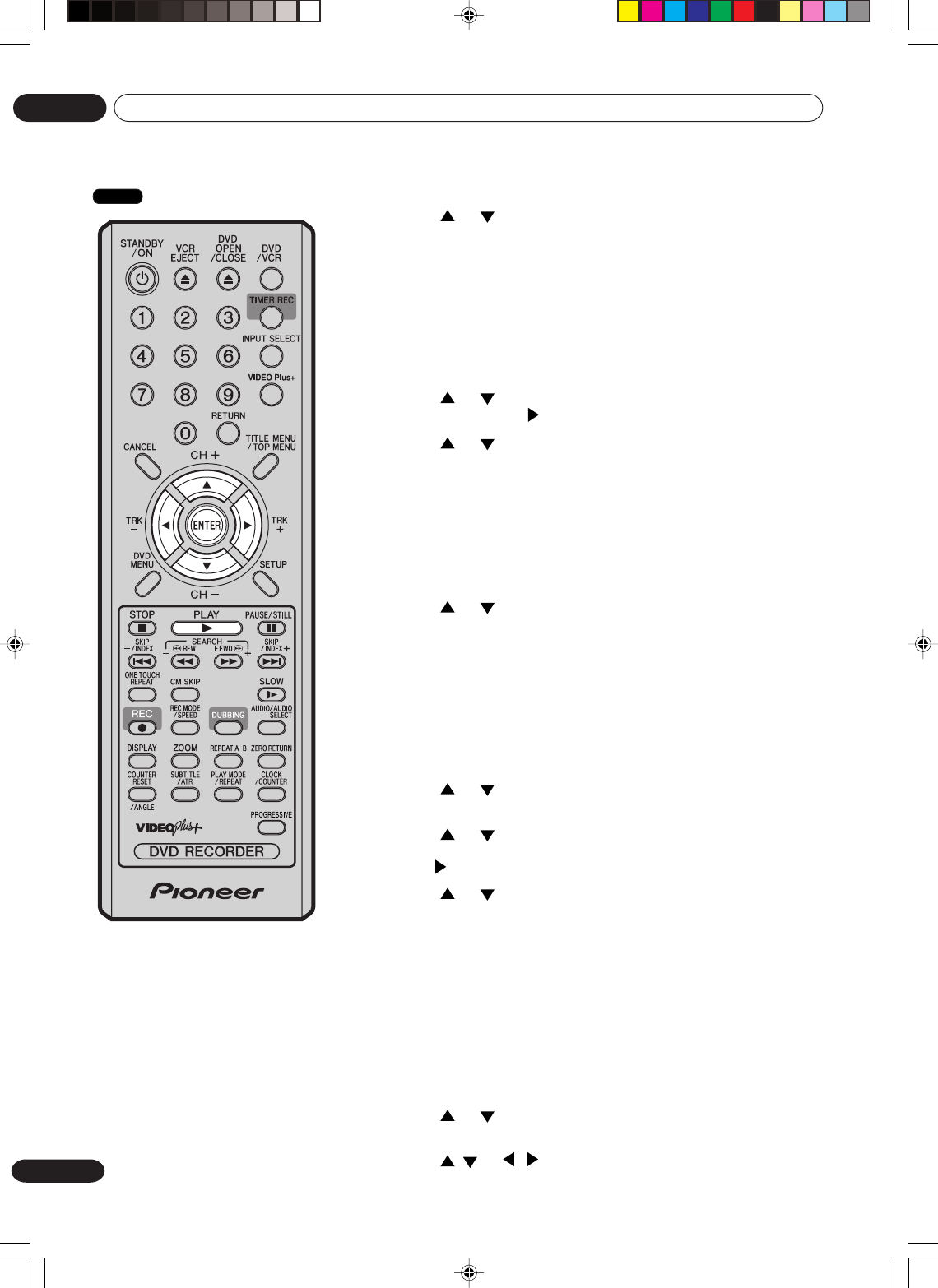
40
En
Disc playback
03
Various operations on CD
NOTES:
•When playing a CD-R/CD-RW
recorded in the MP3 or WMA
format, “RANDOM PLAY” and
“TIME SEARCH” will not appear
in the menu list.
•See also A-B Repeat on page
35.
Random playback
1Press or to select “RANDOM PLAY” from the menu list
and press ENTER.
The order of music tracks is randomly changed.
2Press PLAY.
Music is played back in random order.
To cancel random playback, select “RANDOM PLAY” from the menu list
again, and press ENTER.
Repeat playback of selected track
1Press or to select the track number you want to repeat
playback and press .
2Press or to select “REPEAT TRACK” from the menu list
and press ENTER.
3Press PLAY.
The selected track will be played back repeatedly.
To cancel repeat track playback, select “REPEAT TRACK” from the menu
list again, and press ENTER.
Repeat playback of all tracks
1Press or to select “REPEAT ALL” from the menu list and
press ENTER.
2Press PLAY.
All tracks on CD will be played back repeatedly.
To cancel the repeat all playback, select “REPEAT ALL” from the menu
list again, and press ENTER.
Playing back programs
You can specify the playback order yourself.
1Press or to select “PROGRAM PLAYBACK” from the
menu list and press ENTER.
2Press or to select to the track number that you want to
change the order of and press ENTER.
The “ ” mark will appear at the right side of the track number.
3Press or to select to the track number that you want to
specify and press ENTER.
The track number that you select in step 2 move to the before
position that you specified track.
4Repeat steps 2 and 3 to change the playback order.
5Press PLAY.
The tracks will be played back in the changed order.
To cancel program playback, select “EXIT PROGRAM MODE” from the
menu list and press ENTER.
Playing back track by specifying the time
1Press or to select “TIME SEARCH” from the menu list
during playback and press ENTER.
2Press / or / to specify the elapsed time of the track
(this will be the starting point of playback) and press ENTER.
Playback will start from the specified elapsed time.
CD
2H30301B_En_30_43 8/4/05, 19:2240
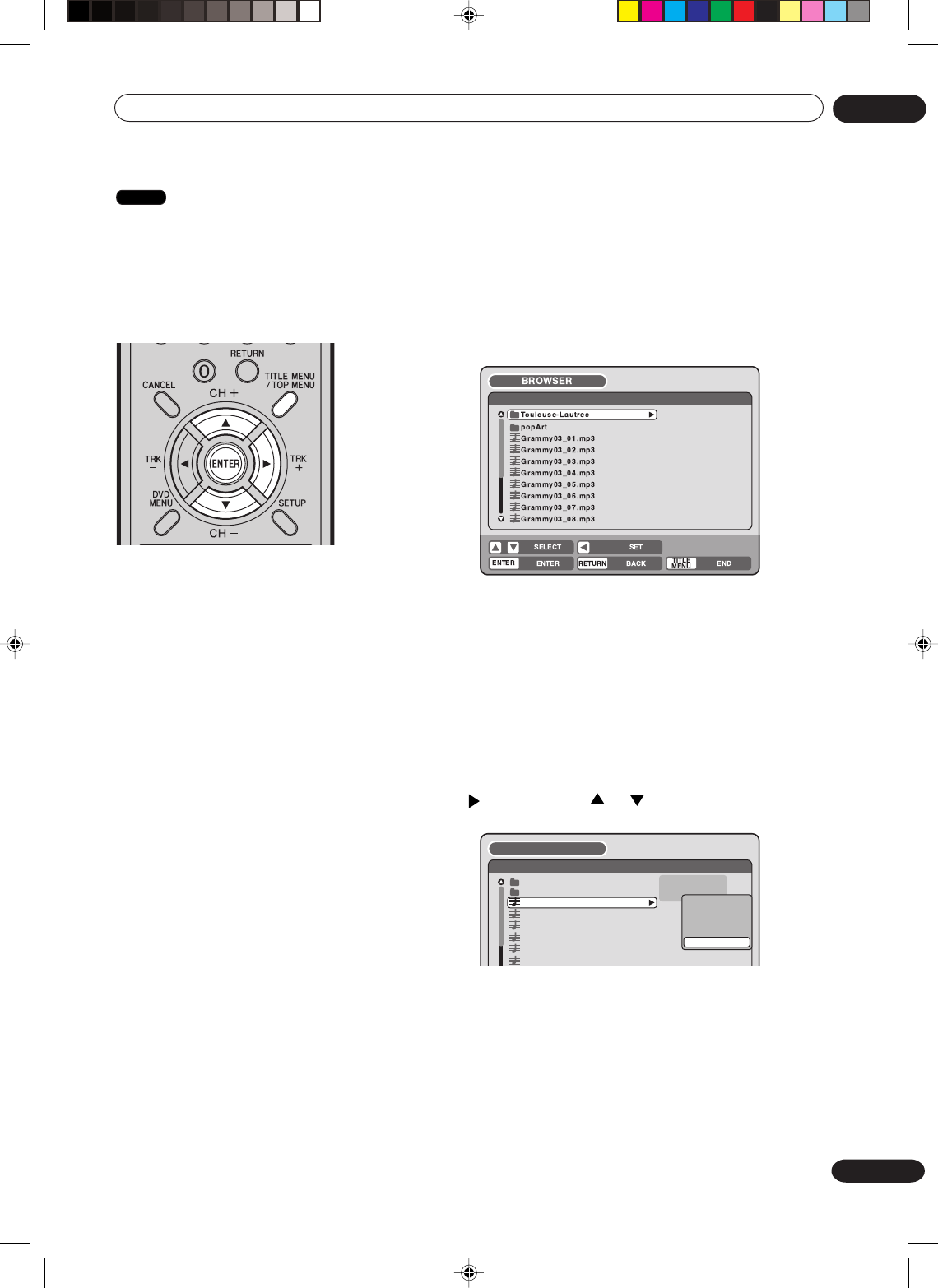
41
En
Disc playback 03
MP3/WMA/JPEG/DivX® playback
MP3/WMA files can be played
back. Also, you can display
JPEG/DivX® files on the TV
screen.
Some discs may not play due to
the condition of the recording.
Limitations on MP3/WMA/
JPEG/DivX® file playback:
• MP3/WMA/JPEG/DivX® file is a
disc that is standardised by
ISO9660.
•The directory and file names of the
MP3/WMA/JPEG/DivX® file must
correspond to the ISO
standardised file names.
•This unit can read 200 files per
directory. If one directory has more
than 200 files, it reads up to 200
files, the remaining files will be
omitted.
•The unit is able to recognise up to
a maximum of 50 directories per
disc.
•MP3/WMA files cannot be used for
playback for the purpose of
duplicating.
• MP3/WMA/JPEG/DivX® files may
be used for playback, but not for
recording.
•If the CD has both audio tracks and
MP3/WMA/JPEG/DivX® files, only
audio tracks are played.
•It may take more than one minute
for this unit to read MP3/WMA/
JPEG/DivX® files depending on its
structure.
• Music recorded by “Joliet Record-
ing Specification” can be played
back. Long file names will be cut.
•The music files recorded by
“Hierarchical File System ” (HFS)
cannot be played.
Preparation:
•Turn ON the TV and select its AV channel (this may be labelled
EXT / AUX etc.).
•Load the disc storing MP3, WMA, JPEG or DivX®.
•Press DVD/VCR to select the DVD mode. (The DVD indicator will
light.)
Using the BROWSER screen
1Press TITLE MENU.
The BROWSER screen will appear.
2The MP3, WMA JPEG and DivX® files and folders stored in the
disc are displayed on the BROWSER screen.
•Select a folder and press ENTER. The files in the folder
appear.
When the file to be displayed is selected
You can select the file types to be displayed on the BROWSER
screen.
1Press and then press or to select “SELECT FILES”
and press ENTER.
The following list will appear.
MUSIC ONLY: Only the MP3/WMA files appear.
PICTURES ONLY: Only the JPEG files appear.
MOVIE ONLY: Only the DivX® files appear.
ALL: All files and folders appear.
2Select one item in the above list and press ENTER.
The display will be changed to the selected display type.
popArt
Grammy03_01.mp3
Grammy03_02.mp3
Grammy03_03.mp3
Grammy03_04.mp3
Grammy03_05.mp3
Gramm
y
03_06.m
p
3
Toulouse-Lautrec PLAY
SELECT FILES
BROWSER
MUSIC ONLY
MUSIC ONLY
PICTURES ONLY
MOVIE ONLY
ALL
CD
2H30301B_En_30_43 8/4/05, 19:2241
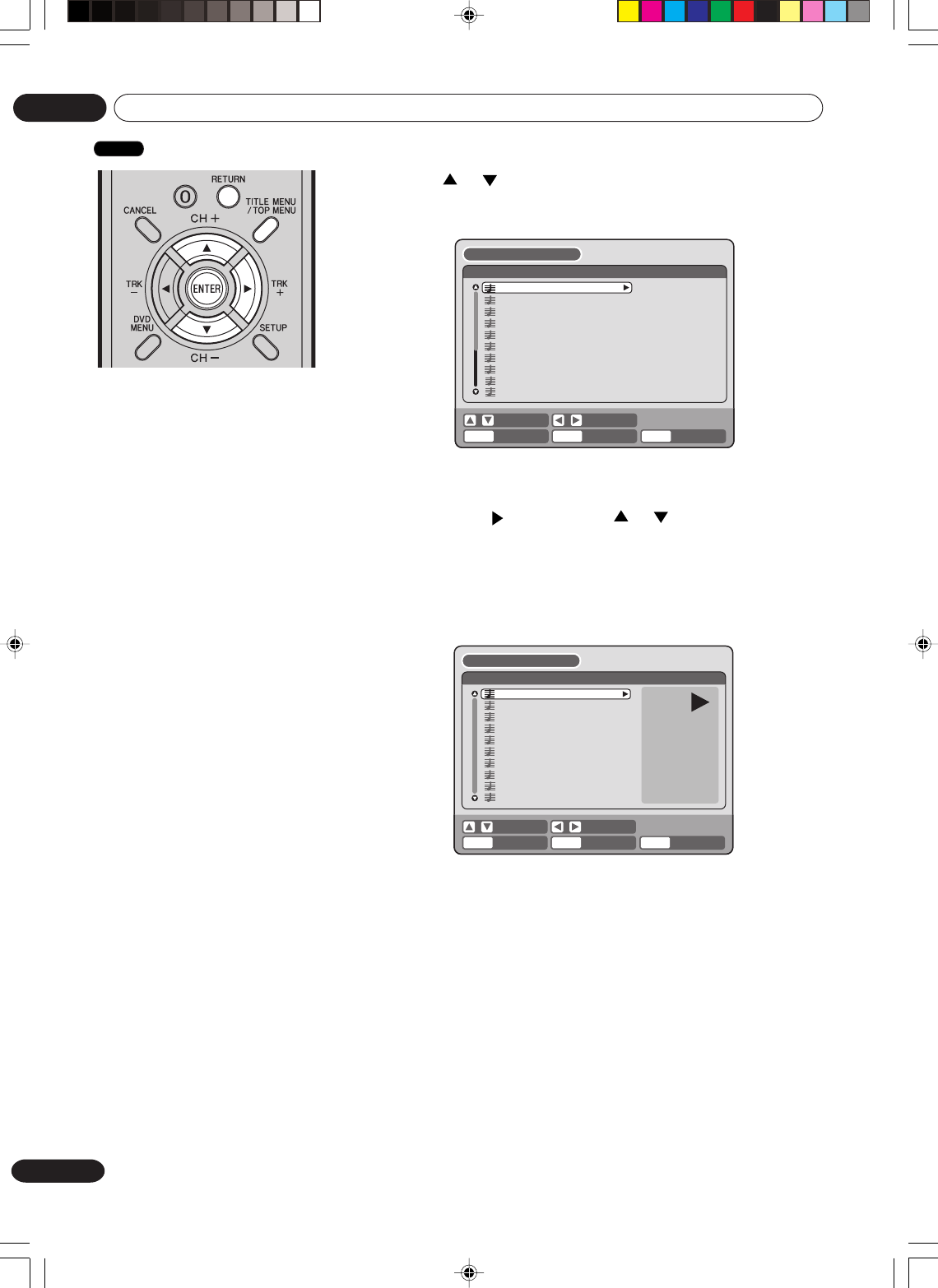
42
En
Disc playback
03
Playing back MP3/WMA files
1Press or to select MP3/WMA file.
•In case the disc includes more than 10 files, you can turn to
the next or the previous page. (See page 39.)
BROWSER
PLAY RETURN TITLE
MENU
BACK END
SELECT SET
w01.wma
w02.wma
w03.wma
w04.mp3
w05.wma
w06.wma
w07.mp3
w08.wma
w09.wma
w10.mp3
ENTER
w02.wma
w03.wma
w04.mp3
w05.wma
w06.wma
w07.mp3
w08.wma
w09.wma
w10.mp3
w01.wma
w01.wma
00:00:19
MODE: NORMAL
REPEAT: OFF
TRACK INFO
RETURNPLAY BACK END
SELECT SET
TITLE
MENU
ENTER
MP3 file specifications
•MP3 files must have the
extension letters “.mp3”.
•Standard, sampling frequency,
and the bit rate:
MPEG-1 Audio
32kHz, 44.1kHz, 48kHz
32kbps to 320kbps (constant bit
rate or variable bit rate)
•The recommend recording
setting for a high quality sound is
44.1kHz of sampling frequency
and 128kbps of constant bit rate.
WMA file specifications
•When creating a WMA disc,
make sure that the copyright
function is off. DRM (Digital
Rights Management) files cannot
be played back.
•WMA files must have the
extension letters “.wma”.
•Standard, sampling frequency,
and the bit rate:
WMA version 7 and 8
32kHz, 48kbps
44.1kHz, 48kbps to 192kbps
48kHz, 128kbps to 192kbps
•Music files recorded as mono,
48kHz, 48kbps cannot be played
back by this unit.
CD
3To return to the BROWSER screen, press RETURN.
•To stop playback of the MP3/WMA files, press TITLE MENU.
2Carry out either of the item a or b below.
a: Press ENTER.
b: Press and then press or to select “PLAY” and
press ENTER.
The TRACK INFO screen appears to playback the selected file.
For the details of the TRACK INFO screen, see “Various
operations on CD” on page 39.
2H30301B_En_30_43 8/4/05, 19:2242
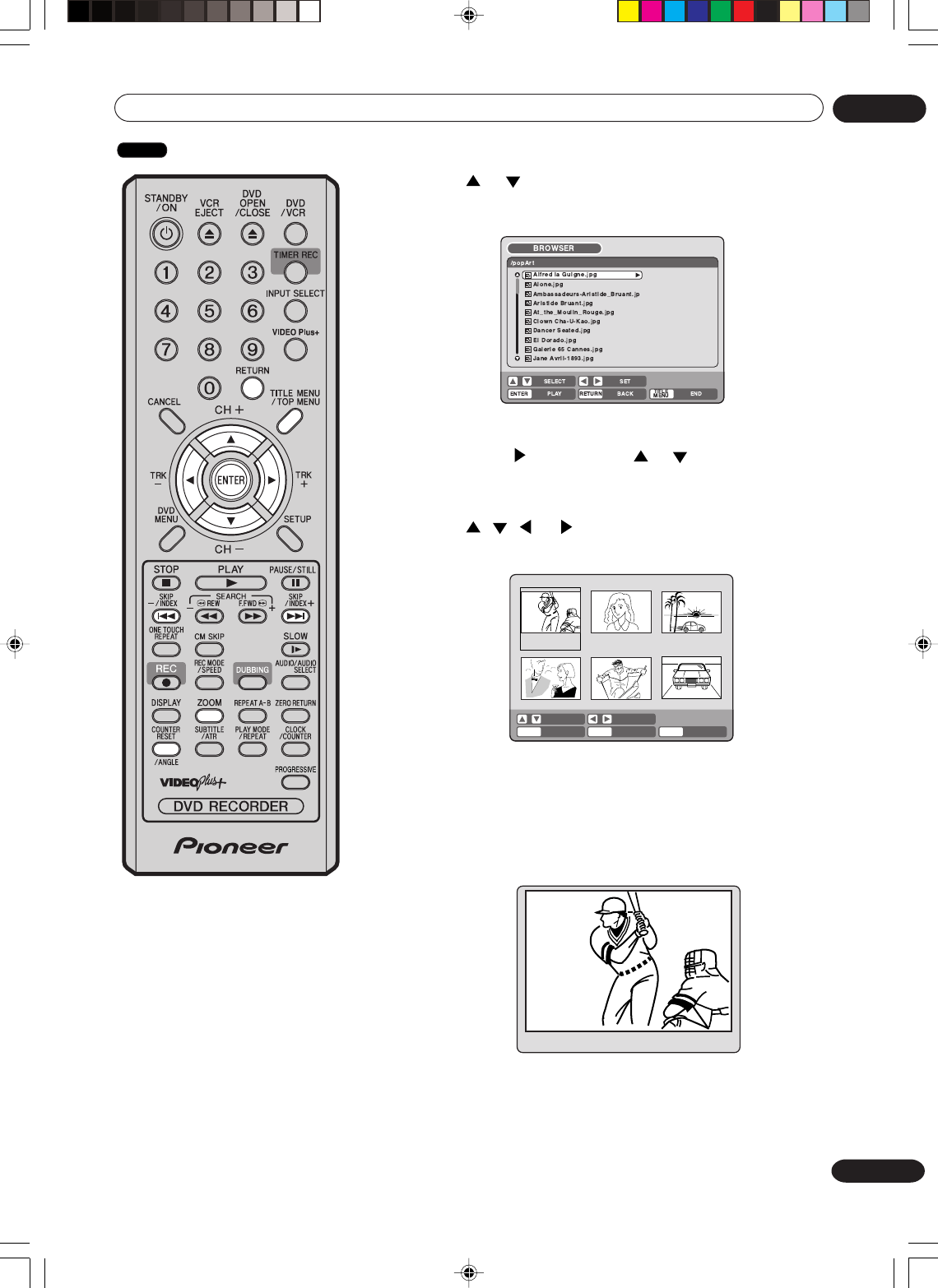
43
En
Disc playback 03
Playing back JPEG files
1Press or to select JPEG file.
• In case the disc includes more than 10 files, you can turn to
the next or the previous page. (See page 39.)
2Select either a or b as below:
a: Press ENTER.
b:Press and then press or to select “PLAY” and
press ENTER.
The thumbnail images of the JPEG files stored in the route
directory or the folder appear.
Press , , or to select the pages of the thumbnail
images, or select the JPEG file to be displayed at first for the
slide show.
3
Press ENTER to play the selected picture.
If you have set the interval time for JPEG slide show, the pictures will
be played back one after another automatically. (See page 27.)
• Press ZOOM to enlarge the displayed image.
• Press ANGLE to rotate the image by 90 degrees each time.
•To display the next or the previous picture, press SKIP 7 or
6.
JPEG file specification
JPEG files must have the extension
letters “.jpe”, “.jpeg” or “.jpg”.
4To return to the thumbnail screen, press RETURN.
•To stop the slide show, press TITLE MENU.
Base_ball.jpg Friend.jpg Drive.jpg
party_240803.jpg practice_ski.jpg My_car.jpg
ENTER
RETURNPLAY BACK END
SELECT SELECT
TITLE
MENU
CD
2H30301B_En_30_43 8/4/05, 19:2243
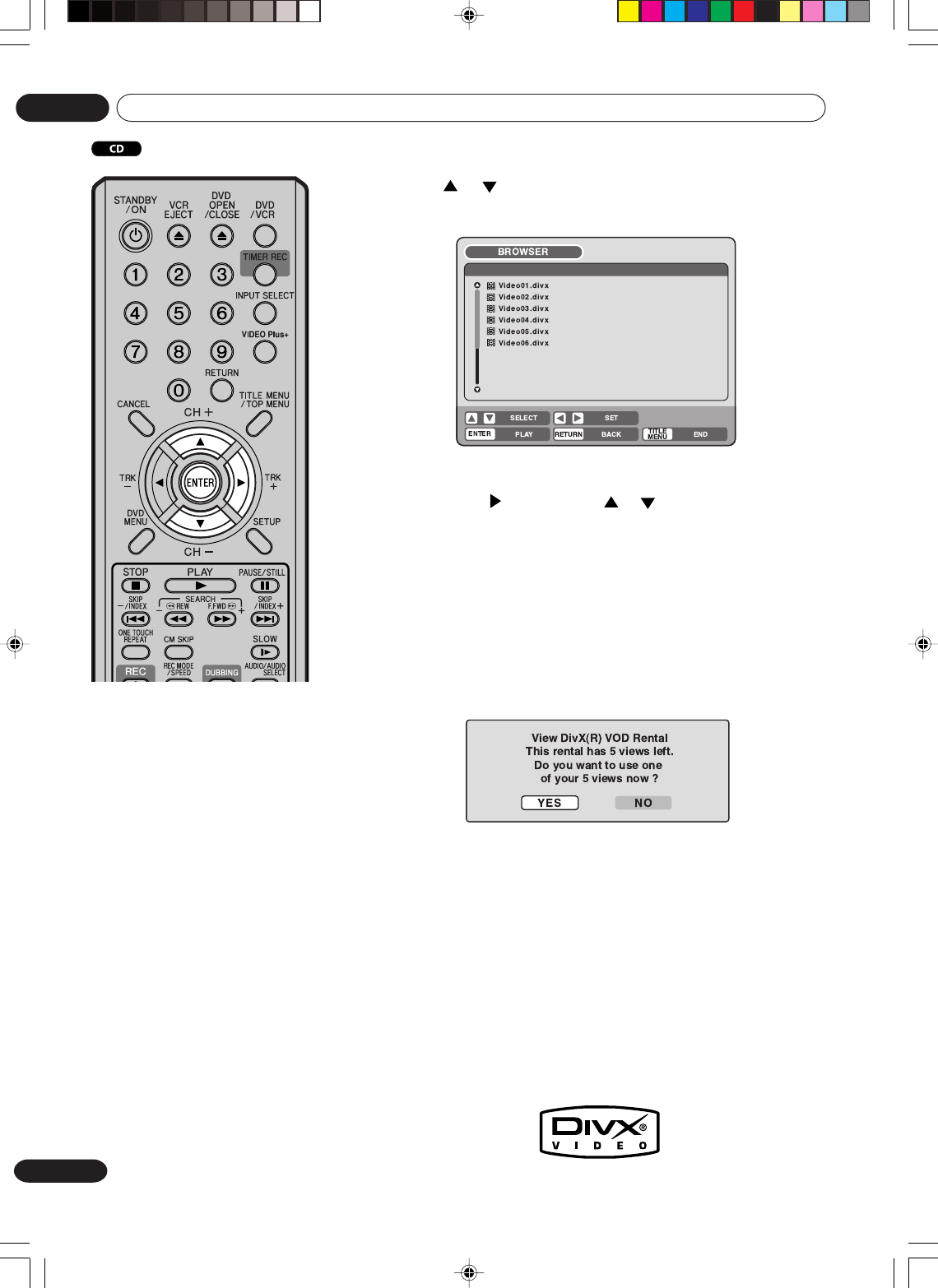
44
En
Disc playback
03
1Press or to select DivX
®
file.
•In case the disc includes more than 10 files, you can turn to the
next or the previous page. (See page 39.)
2Select either a or b as below:
a: Press ENTER.
b:Press and then press or to select “PLAY” and press
ENTER.
The selected title is played back.
•You can use Fast forward, Review, Still, Frame advance and Slow
motion playback (See page 33).
DivX
®
video file specifications
•Official DivX® Certified product.
•Plays DivX® 5, DivX® 4, DivX® 3 and
DivX® VOD video content (in com-
pliance with DivX® Certified techni-
cal requirements).
• DivX® file must have the extension
letters “.avi” “.div” or “.divx”.
Note that all files with the .avi
extension are recognized as
MPEG4, but not all of these are
necessarily DivX® video files and
therefore may not be playable on
this unit.
•Standard, sampling frequency,
and the bit rate:
DivX® file
Audio format:
MPEG1 Layer2 (MP2), MPEG1
Layer3(MP3)
Bit rate 8kbps - 320kbps
Sampling frequencies 8kHz -
48kHz
Resolution:
Max 720 x 576 (at 25fps)
Max 720 x 480 (at 30fps)
If the incorrect DRM file is loaded, “Authorization Error This player
is not authorized to play this video.” will appear on the screen.
When you attempt to play DivX® VOD, the number of plays is lim-
ited and the following message will appear on the screen. If you
wish to play it, select “YES”.
•If the number of plays goes over the limit, then “Rental Expired”
will be displayed, in which case the file will not be played.
Playing back DivX
®
video files
NOTES:
•For external subtitle files the following subtitle format filename
extensions are not supported: .srt, .sub, .ssa, .smi
•You cannot change the subtitles.
•Skip, Frame Advance, Program Playback, Random Playback,
Title/All Repeat, Title Search and Zooming cannot be used with
DivX® files.
•It depends on the recording situation of the DivX® file, the start-
up playback position could alter from the time you initially set up
to do a “Time Search”.
2H30301B_En_44_45 8/4/05, 19:2344
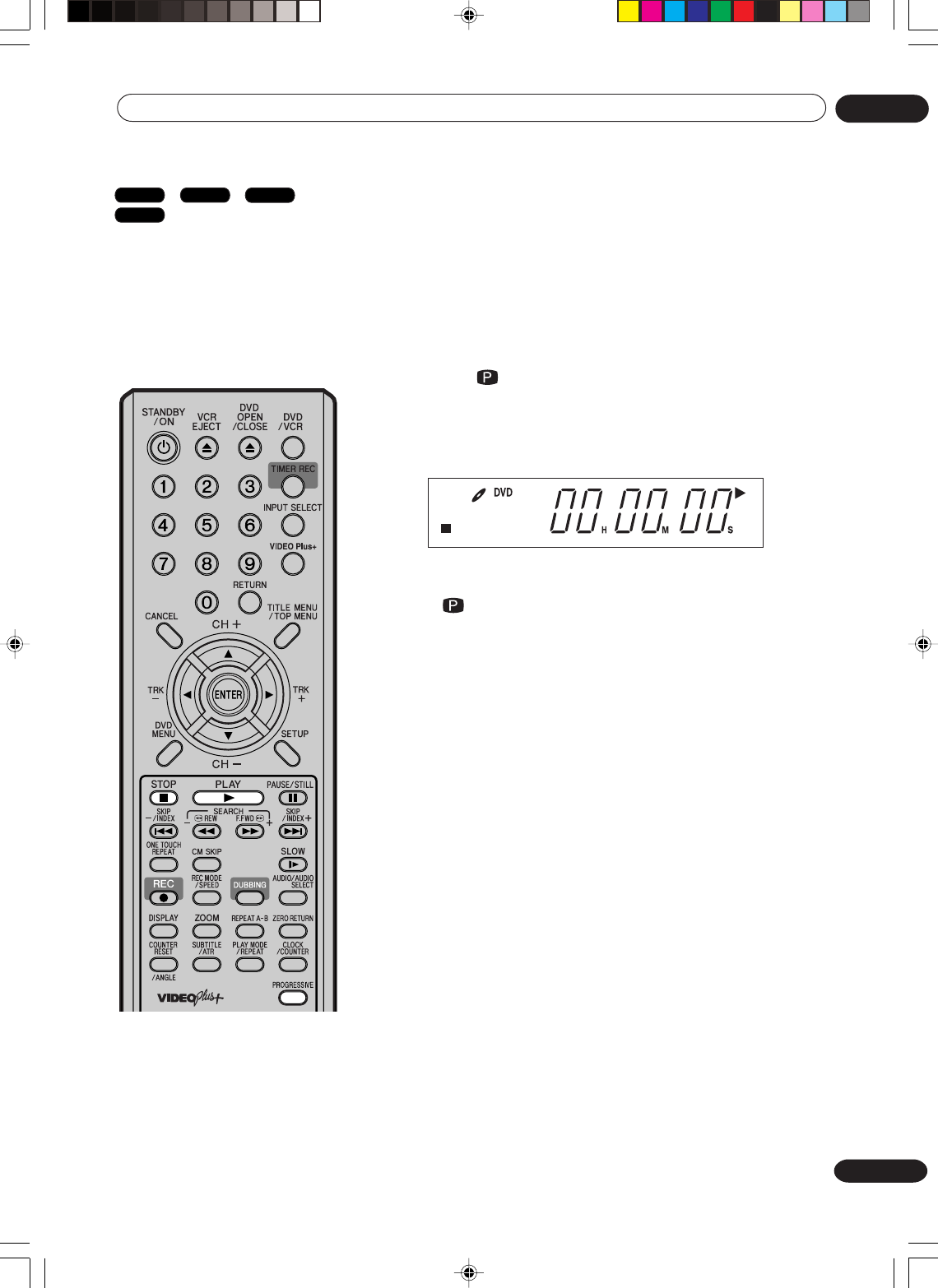
45
En
Disc playback 03
Progressive scan
The unit supports the progressive
scanning system as well as the con-
ventional interlaced scanning sys-
tem. If your TV is equipped with com-
ponent video input jacks which sup-
port the progressive video input, you
can enjoy high quality picture by
making the progressive scanning
mode active.
Preparation:
•Change the DVD OUTPUT setting to COMPONENT and then con-
nect the unit to a TV that is equipped with component jacks and
supports progressive video input. (See page 25.)
•Tu rn ON the TV and set it to the corresponding video input mode.
•Press DVD/VCR to select the DVD mode. (The DVD indicator will
light.)
1Press PROGRESSIVE in the stop mode. The PROGRESSIVE in-
dicator “ ” on the display window will light.
•The unit recognizes the picture source (film or video) of the cur-
rent disc according to the disc information.
2Press PLAY to start playback.
•To make the progressive scanning mode inactive, press PRO-
GRESSIVE in the stop mode. The PROGRESSIVE indicator
“” on the display window will go off.
Warning:
Once “Progressive” is selected when connecting to a TV progres-
sive scan incompatible, no image will be seen on the video dis-
play.
In this case, you must reset the unit by pressing STOP on the front
panel for five seconds. The video output will be restored to “Inter-
lace” setting, and a picture will once again be seen on a conven-
tional analog display.
Different scanning modes
Interlaced scan
Technology that alternately displays odd-numbered scanning lines
and even-numbered scanning lines. Also called “576i”, “i” meaning
“interlace”.
Progressive scan
Technology that simultaneously displays odd-numbered scanning
lines and even-numbered scanning lines from top to bottom. Also
called “576p”, “p” meaning “progressive”.
NOTES:
•Some discs may not be played back with the progressive scan mode correctly because of the disc characteris-
tics or recording condition.
•There are some progressive TV and High-Definition TV sets that are not fully compatible with the unit, resulting
in an unnatural picture when playing back a DVD disc in the progressive scan mode. In such a case, use the
interlaced scanning mode.
•You cannot activate the progressive scan mode in the following cases:
-The unit is in the VCR mode.
-A DVD disc is currently playing. You must stop playback first.
P
DVD-Video
VR mode
Video mode
DVD-R
2H30301B_En_44_45 8/4/05, 19:2345
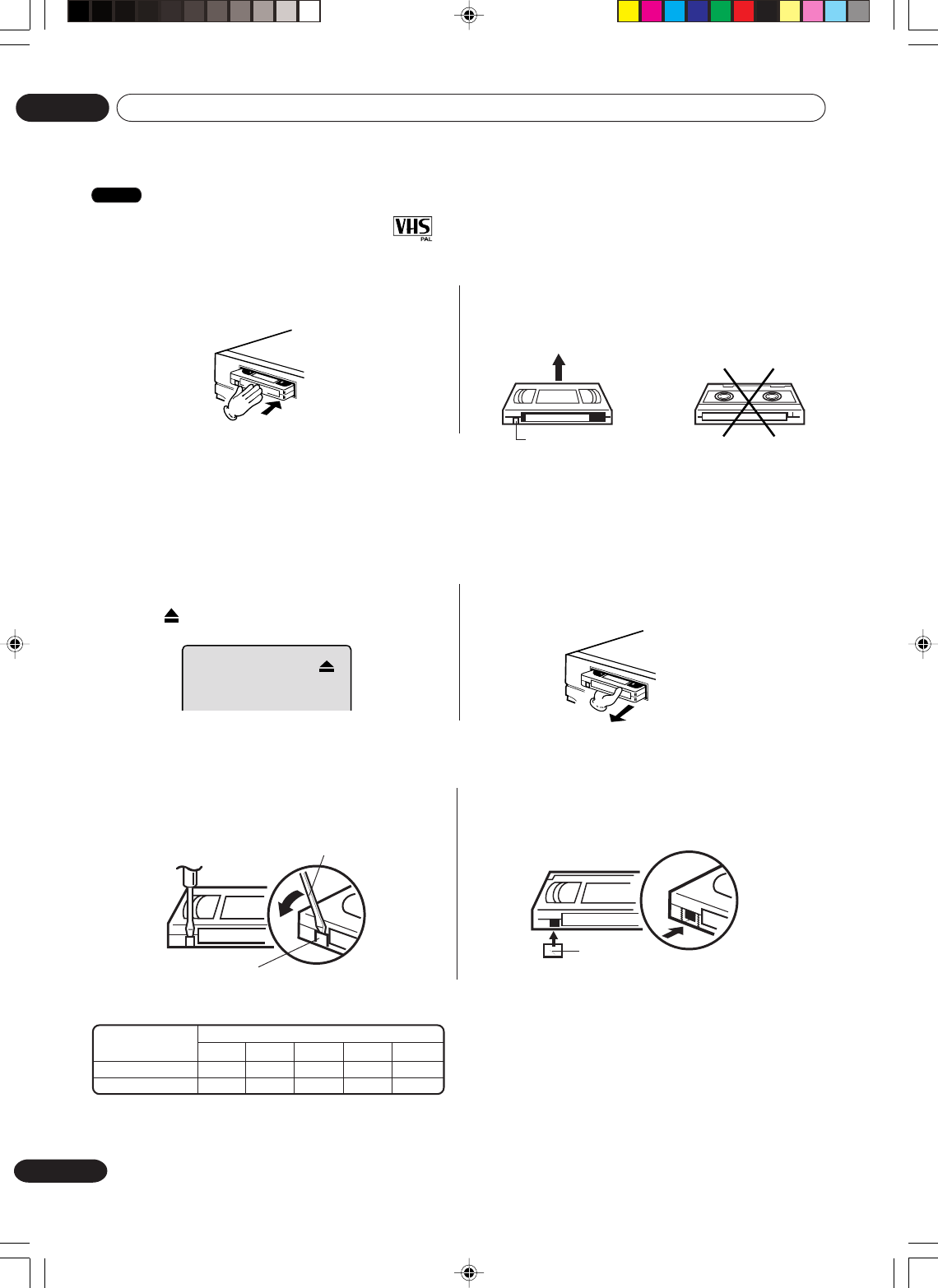
46
En
Tape playback
04
Tape speed and maximum recording time
Loading and unloading a cassette tape
Use only video cassette tapes marked .
Erase prevention tab
Erase prevention tab
Screwdriver
Loading
Push the center of the tape until it is automatically
inserted.
Insert the cassette tape with its labeled side facing up
and the erase prevention tab positioned at your left.
An inverted cassette tape cannot be inserted.
Automatic power ON
When you insert a cassette tape the VCR power will turn ON automatically.
Automatic playback
When loading a cassette tape without an erase prevention tab, playback will start automatically.
Unloading
You can eject the video tape while the unit is turned off.
1Press (EJECT) on the unit or the remote
control. 2Remove the cassette tape.
Automatic tape eject
This VCR will automatically rewind the tape when the tape has ended. And when the tape is rewound to its
beginning, the cassette tape will be ejected automatically.
To prevent accidental erasure
Remove the erase prevention tab with a screwdriver.
Adhesive
Tape
To record again
Cover the hole with a piece of adhesive tape.
Video cassette tape
E-30
30 min.
1 hour
E-60
1 hour
2 hours
Standard Play (SP)
Long Play (LP)
E-90
1 1/2 hou.
3 hours
E-240
4 hours
8 hours
E-180
3 hours
6 hours
Tape speed
We recommend using E-180 video tapes or shorter.
VCR
• HQ VHS is compatible with existing VHS equipment.
2H30301B_En_46_49 8/4/05, 19:2346
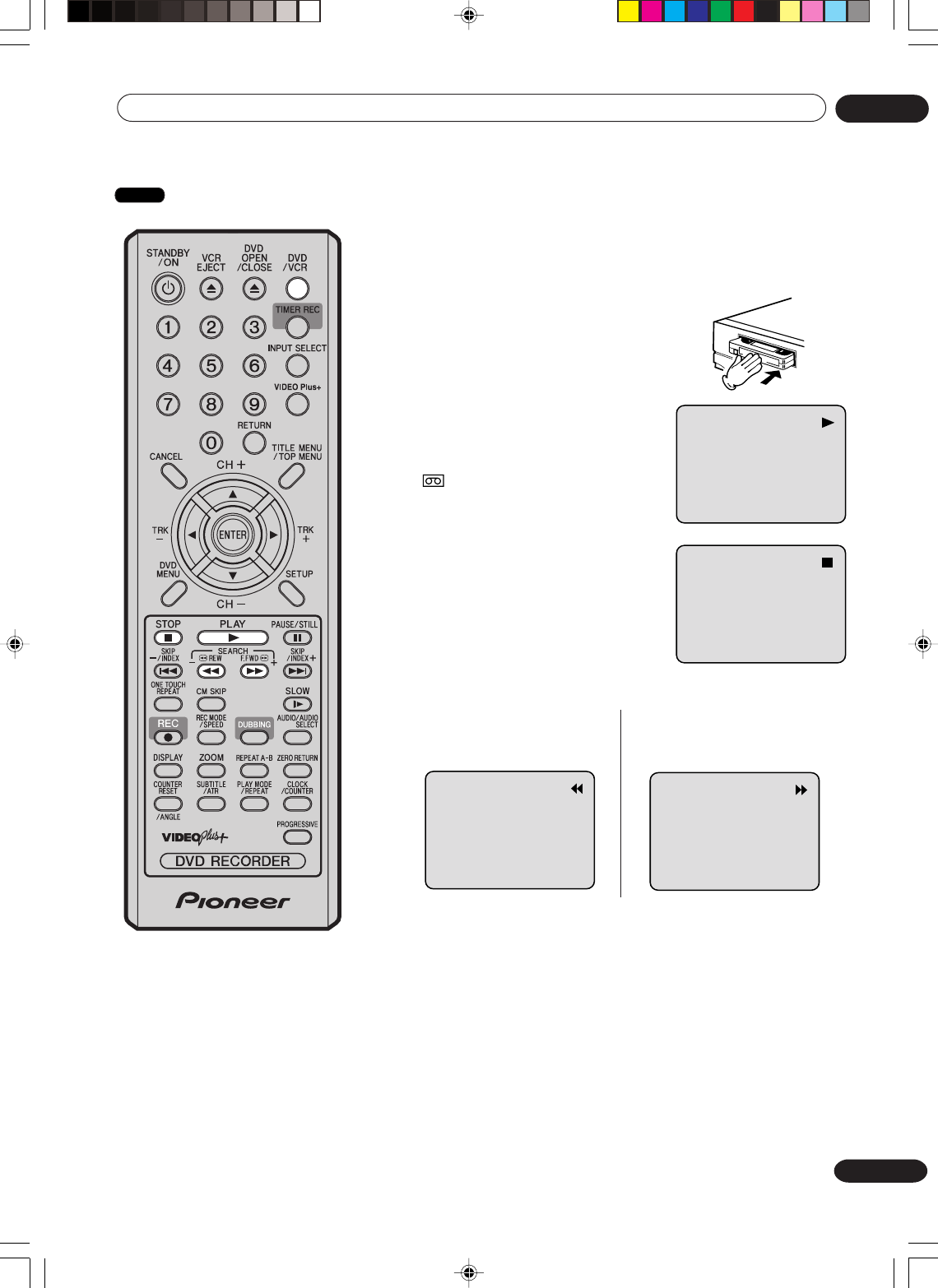
47
En
Tape playback 04
Cassette tape playback
NOTES:
•This VCR selects the playback
tape speed SP or LP automati-
cally.
•A cassette tape and DVD disc
can be played back simulta-
neously. If you press DVD/VCR,
the tape playback and DVD
playback alternate with each
other on the screen.
Preparation:
•Turn ON the TV and select its AV channel (this may be labelled
EXT / AUX etc.).
• Press DVD/VCR to select the VCR mode. (The VCR indicator will
light.)
1Load a prerecorded tape
(When loading a cassette tape
without the erase prevention
tab, playback will start automatically).
2To start playback
Press PLAY.
Playback will start.
If the cassette has not loaded yet,
will blink for approx. 4 seconds.
To stop playback
Press STOP once.
The tape will stop but remain fully
loaded and ready to play.
To rewind the tape or forward it rapidly
Press STOP.
To rewind the tape:
Press REW.
To stop the tape winding, press STOP. To switch to playback directly
(without STOP), press PLAY.
Forward/Reverse picture search mode
When the tape is being wound, you can switch to picture search
mode (see next page). To do this, press REW or F.FWD and hold it
down. The unit will resume the tape winding as soon as the button is
released.
To forward the tape:
Press F.FWD.
NTSC video cassette playback
When using a pre-recorded NTSC video cassette tape, the
connected TV set must be compatible with a 60Hz vertical frequency
(sometimes known as a PAL 60Hz feature). Otherwise the on-screen
picture will be affected by vertical rolling. Even if your VCR set is
capable of processing NTSC video signals, the picture may be
shortened vertically (appearance of black bars at the top and at the
bottom of the TV screen). The dubbing of a NTSC video cassette
tape to a standard PAL VCR is not possible.
VCR
2H30301B_En_46_49 8/4/05, 19:2347
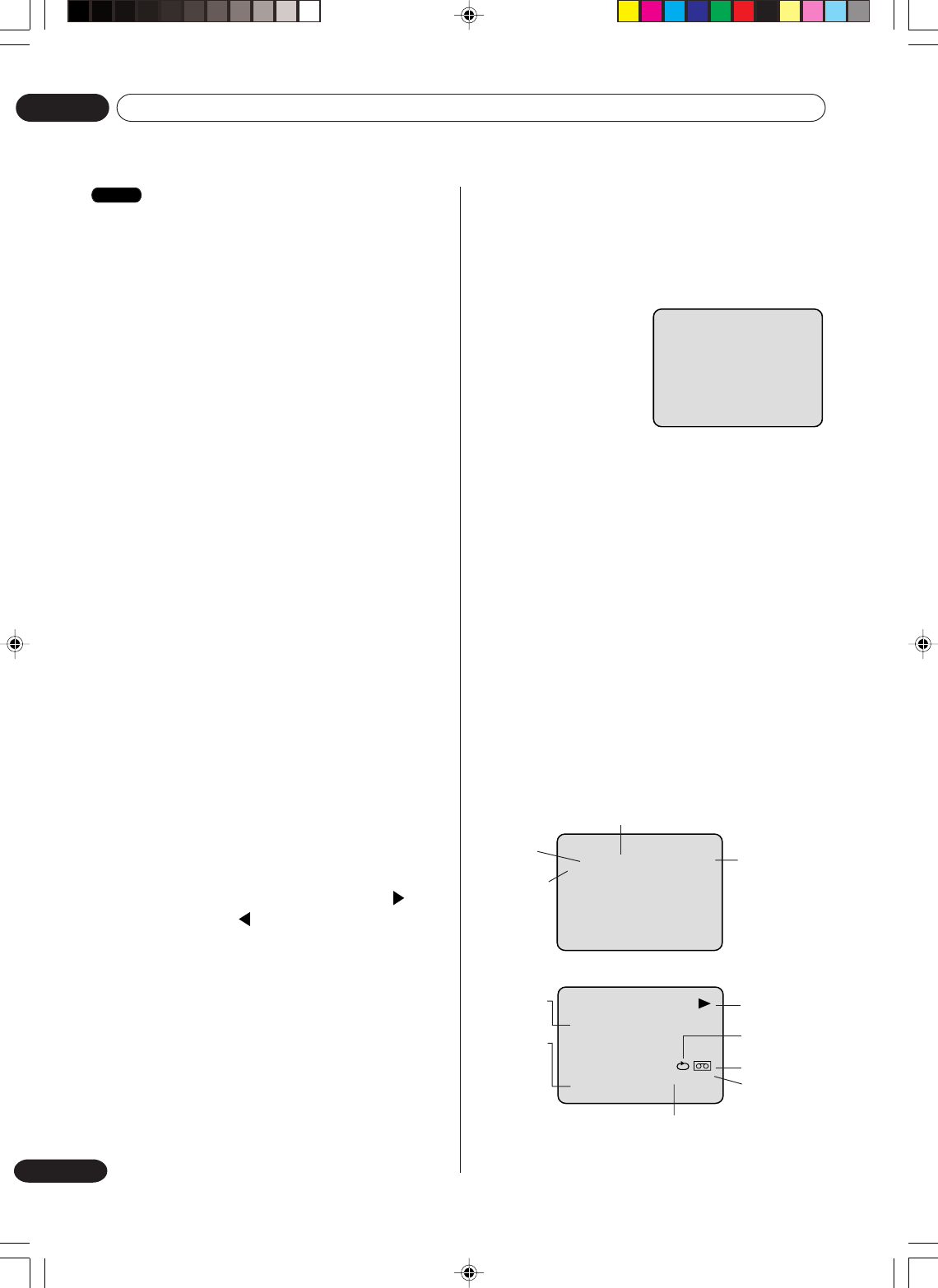
48
En
Tape playback
04
Special playback
NOTES:
•The audio output is muted during SPEED SEARCH,
STILL, FRAME ADVANCE and SLOW MOTION.
•During picture search mode there will be noise bars
which are caused by the system.
•The Special Playback will automatically change to
playback after approx. 5 minutes to protect the video
tape against excessive wear.
Repeat playback
The entire video tape will be played until its end. The
tape will then automatically rewind to the beginning
and the playback will be repeated.
1Press REPEAT.
2
By pressing REPEAT
each time, “REPEAT
ON” or “REPEAT
OFF” is selected in
turn.
3When “REPEAT ON” is selected, the tape is
played back to the end, and then, it is automati-
cally rewound to the starting point and played
back again.
To cancel repeat playback: Press REPEAT to
select “REPEAT OFF”.
Commercial skip
Press CM SKIP during playback.
The video is rapidly forwarded for approx. 30 seconds
and playback resumes.
You may press the button up to six times in a row to
move 180 seconds ahead.
To display VCR operation status
Press DISPLAY. The clock, day of the week and more
information will be indicated.
While watching TV
While operating a tape
To cancel the display: Press DISPLAY again.
REPEAT ON
CH 29
8 : 47 MON
00 : 00 : 00 SP
NICAM ST
DAY OF THE WEEK
CHANNEL
TAPE SPEED
REAL TIME COUNTER
CLOCK
STEREO
(displayed
only for
approx. 4
seconds)
8 : 30
MON
00 : 15 : 12 SP
L CH
HI-FI
OPERATING
MODE
TAPE IN
AUTO
REPEAT
HI-FI
STEREO
Slow tracking and vertical lock adjustment
If noise bars appear in the picture during slow motion,
press the TRK (TRACKING) + or – to reduce the
noise bars.
If the still picture jitters excessively, press
TRK (TRACKING) + or – to stabilise the still picture.
Frame by Frame picture
Press PAUSE/STILL during playback.
Press SLOW one by one: The picture advances
frame by frame.
To return to playback: Press PLAY or PAUSE/STILL.
Adjusting tracking condition
Automatic tracking adjustment
Whenever you insert a tape and start playback,
automatic tracking starts working and continuously
analyses the signal to enable optimum picture quality
during playback.
Manual tracking adjustment
If automatic tracking cannot eliminate noises well
during playback, press TRK (TRACKING) + / or
TRK (TRACKING) – / to eliminate the noises.
“MANUAL TR.” will appear. Press it briefly for a fine
adjustment, or press and hold for more severe
adjustments.
To return to automatic tracking, press ATR.
“AUTO TR.” will appear.
Slow motion
During playback press SLOW.
You can change the slow speed by the additional
pressing of SLOW.
To return to playback: Press PLAY.
Picture search
Reverse picture search function
Press REW x 1 or x 2 during the playback.
Forward picture search function
Press F.FWD x 1 or x 2 during the playback.
To return to playback: Press PLAY.
Still picture
Press PAUSE/STILL during playback.
To resume normal playback: Press PLAY.
Indication for
the selected
playback
sound
(e.g.: L CH =
VCR
Left Channel) (displayed
only for approx. 4 seconds.)
2H30301B_En_46_49 8/4/05, 19:2348
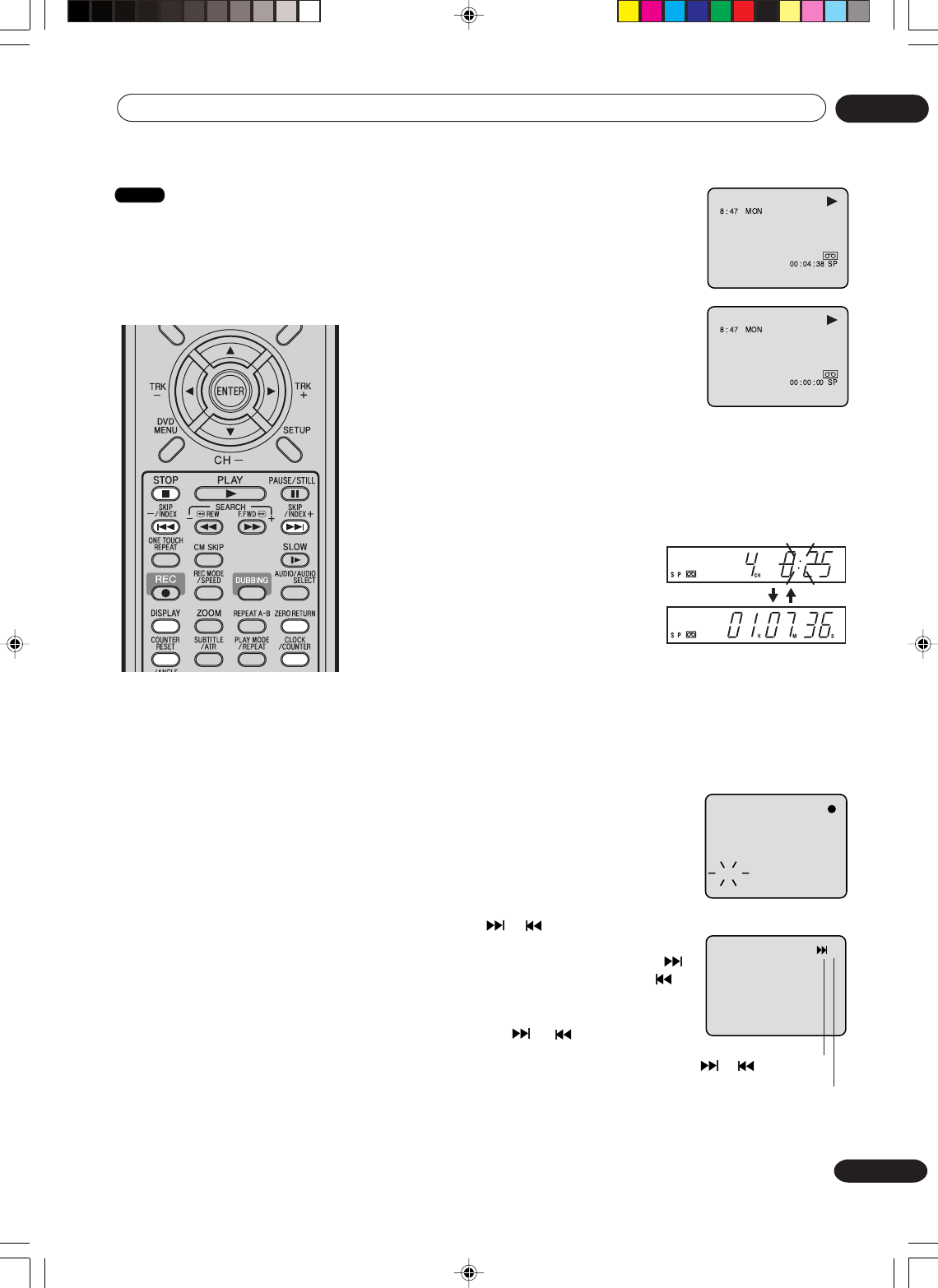
49
En
Tape playback 04
ZERO RETURN function / Video index search system
ZERO RETURN function
This function makes tape
rewinding (or forwarding) stop at
the counter “00:00:00” position
automatically.
CH 1
INDEX
or is displayed
+3
INDEX NO. (up to 9)
1Press DISPLAY.
The counter display shows the tape
running time during playback or recording.
2Press COUNTER RESET at the desired
tape position. The counter display will be
reset to the “00:00:00” position (e.g. the
beginning of recording).
3Press STOP when playback or recording is finished.
Press ZERO RETURN.
The tape will be rewound or fast forwarded and automatically
stop at the “00:00:00” position.
Switching the display between clock and counter
Press CLOCK/COUNTER. The clock
and tape counter alternate with each
other in the display.
Video index search system
This function enables you to locate the beginning of any
recording made on the VCR.
Recording an INDEX MARK
The Index search function automatically
records an INDEX mark on the tape
whenever a recording is initiated.
Index search
Press INDEX or during stop or play
mode.
For Succeeding programs: Press INDEX
For Preceding programs: Press INDEX .
(Additional press increases the INDEX NO.
up to 9.)
When the INDEX or is pressed, the
unit starts searching the INDEX NO.
selected and finds the portion, then
playback starts automatically.
To stop the Index Search, press STOP.
.
VCR
NOTES for Counter Display:
•If you rewind the tape beyond
“00:00:00”, a minus sign (“–”) will
be displayed in front of the time.
•When you load a tape, the
counter will reset to “00:00:00”.
•The counter does not function on
nonrecorded (blank) sections of
the tape. When you rewind, fast
forward or play tapes through
blank sections, the counter stops.
NOTES for Video index search
system:
•When you record an INDEX
mark at the very beginning of the
tape, the mark may not be found.
•During INDEX search, the tape
may stop and begin to play at a
slightly different location.
•INDEX may not function properly
with old or worn out video tapes.
• INDEX marks may not be found if
it is extremely close to the point
where the search began.
•In recording, if you stop record-
ing temporarily, the INDEX mark
is not recorded on the tape.
2H30301B_En_46_49 8/4/05, 19:2349
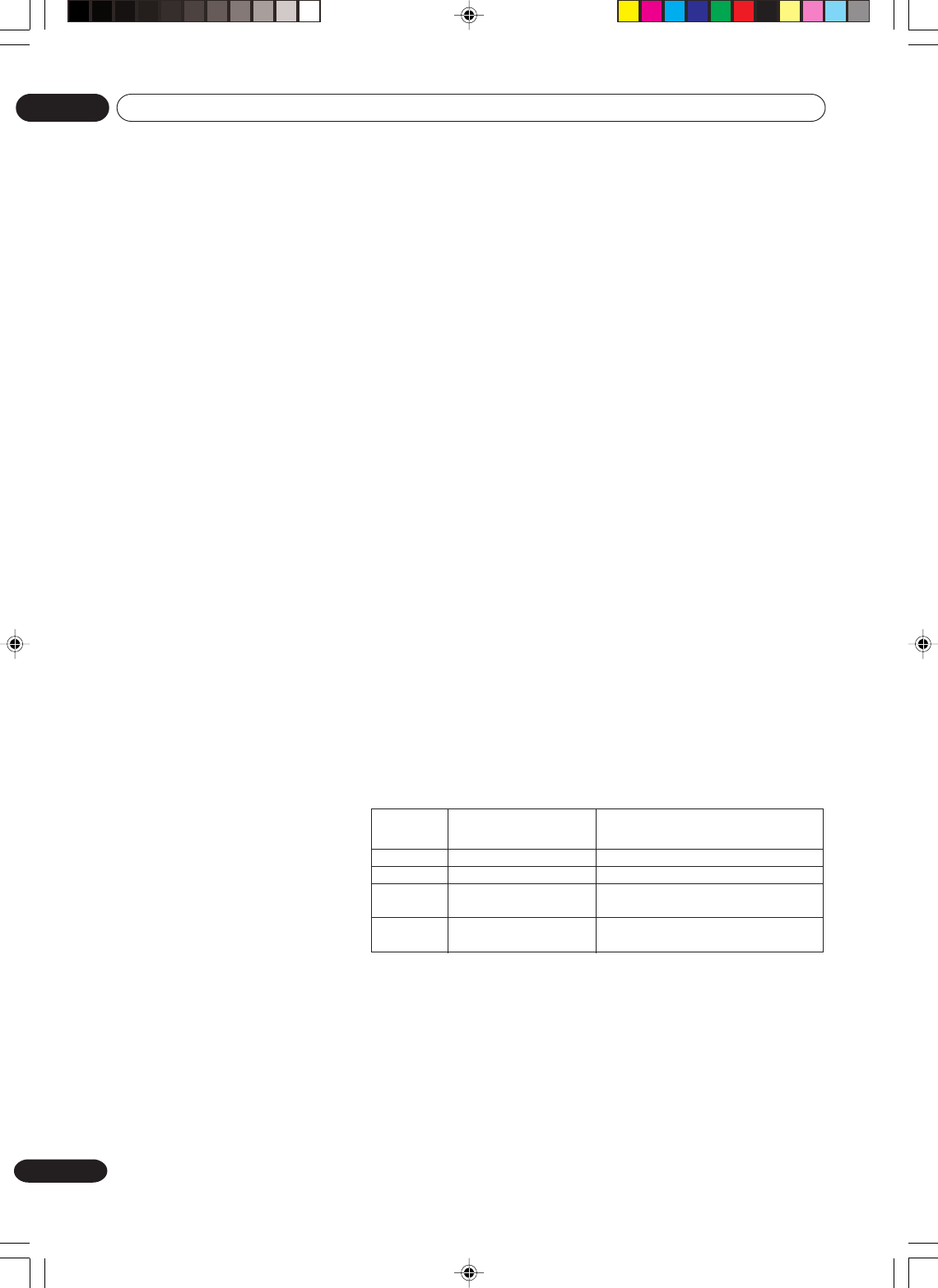
50
En
Recording
05
Read this before recording on disc
Types of disc
You can use DVD-RW and DVD-R discs to record video.
DVD-RW discs
•Ver 1.1/1.2 discs can be formatted for recording in either of the two
modes: the VR mode or the Video mode. Ver.1.0 discs can only be
formatted for recording in the VR mode.
•High quality images and sound can be repeatedly recorded about
1,000 times.
•A disc formatted in the VR mode can have as many as 99 original
titles and playlist titles each. Discs formatted in the Video mode
can have up to 99 original titles.
DVD-R discs
•Discs can only be recorded in the Video mode.
•Discs can be recorded only once.
•Up to 99 titles can be created.
For more information on recording format, see “Recording
format” (page 10).
Notes on recording in the Video mode
•The Video mode cannot be selected for Ver. 1.0 DVD-RW discs.
•The remaining available area on the disc decreases as recording
progresses. Additional contents can be recorded in the remaining
time area, but it cannot be overwritten into the recorded area.
•To format a new DVD-RW in the Video mode, set the automatic
format feature to the Video mode. (See page 23.)
Recording modes
There are 4 modes for recording on disc. Recording time and quality
vary according to mode.
• Recording time above is based on a 4.7GB disc.
Since DVD recording is performed using VBR (Variable Bit Rate),
recording time varies according to the recorded content.
To know the correct recording time, stop recording and check the
media information. (See page 32.)
This section explains things you
must know to record onto a disc.
Read it before attempting to record.
NOTES:
Recording time can change for the
following reasons.
•When image quality is poor as
during poor TV reception.
•When recording on a disc that
has been edited before.
•When the video is followed with
recordings of still images or just
audio.
NOTE:
Should a power failure occur or
should the AC cord plug be
disconnected while recording,
editing, initializing, finalising or any
other function, the program being
recorded will be lost or the disc
may not be playable. Manufacturer
can not guarantee against loss of
program or disc should this occur.
Recording
mode
XP
SP
LP
EP
Recording time
Approx. 60 min
Approx. 120 min
Approx. 240 min
Approx. 360 min
Quality
Can record high quality images.
Can record normal quality images.
Quality deteriorates slightly, but
recording time is longer.
Recording time is prioritised over
quality.
2H30301B_En_50_53 8/4/05, 19:2350
51
En
Recording 05
NOTES:
•Because of characteristics
peculiar to digital video compres-
sion technology, scenes with fast
motion may appear as a matrix
of larger blocks.
•During recording, if the picture
noise continues for 1 minute, the
recording will stop automatically.
Disc remaining time
VR mode
•Recording is possible as long as there is available space on the
disc. (Finalised discs can be recorded by cancelling the
finalisation, see “UNDO FINALISE” on page 23.)
•Erasing unnecessary title frees up available space on the disc.
(Titles can be erased from finalised discs by first undoing the
finalisation. See “UNDO FINALISE” on page 23.)
Video mode
•Up until the disc is finalised, recording is possible as long as there
is available space on the disc. (Once the disc has been finalised,
additional recording and erasing are not possible.)
• The remaining time cannot be increased, nor can recorded title be
overwritten.
•Titles cannot be erased nor can recorded titles be overwritten.
Images that cannot be recorded
Some DVD-Video and broadcasts contain copy-restriction signals to
protect copyrights. There are 3 types of copy-restriction signals:
“Copy Free”, “Copy Never” and “Copy Once”.
“Copy Free” (unrestricted recording)
Land-based TV broadcasts and images you record yourself with a
video camera allow unrestricted recording. There are no restrictions
on recording.
“Copy Never” (recording prohibited)
•Images that contain the recording prohibited signal cannot be
recorded.
• If the recording prohibited signal appears halfway through an
image you are recording, recording is paused at that instant. When
the recording prohibited signal ends, recording resumes.
•This unit incorporates a built-in copy guard. It cannot record
software or broadcasted programs that contain copy restriction
signals designed to protect copyright, etc.
“Copy Once” (one-time recordable)
Programs (images) that contain the one-time recordable signal can
be recorded only in the VR mode using a DVD-RW disc that sup-
ports CPRM Ver. 1.1 and Ver. 1.2.
2H30301B_En_50_53 8/4/05, 19:2351
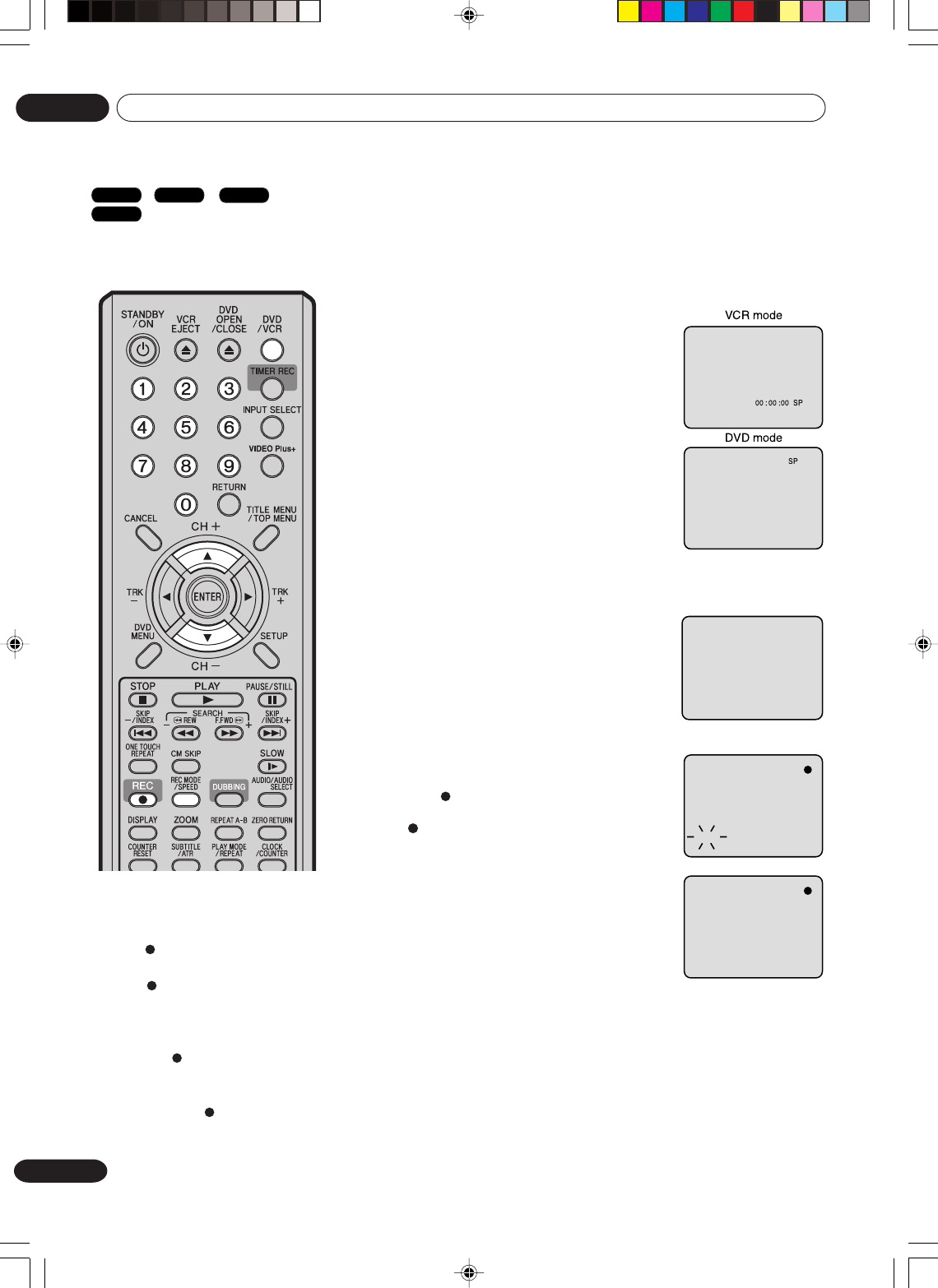
52
En
Recording
05
Recording a TV program
Preparation:
•Turn ON the TV and select its AV channel (this may be labelled
EXT / AUX etc.).
•Load a recordable DVD or video tape into the unit.
• Press DVD/VCR to select the appropriate mode.
1Press REC MODE/SPEED to select the
recording mode.
The recording mode will appear on the
TV monitor and change every time REC
MODE/SPEED is pressed.
VCR recording modes: SP/LP
DVD recording modes: XP/SP/LP/EP
SP is the normal recording mode for
video tapes. LP offers 2 times the
recording time as SP. For more informa-
tion on DVD recording modes, see page
50.
2Press the numeric keys or CH + / – to
select the channel to be recorded.
1~9 : e.g. 5 = press “5”
10~80 : e.g. 29 = press “2” and “9” within
2 seconds.
3Press REC.
“ ” appears on the screen for about 4
seconds and recording will start.
NOTES:
• When recording onto a DVD, it
takes some time from when you
press REC until recording
actually starts.
Press REC a little before your
preferred starting point.
With a video tape, recording
starts almost at the same time
you press REC.
•If the erase prevention tab of
video tapes is removed, the tape
will eject when REC is pressed
for recording.
You can record programs you
watch on TV onto video tapes or
DVDs.
CH 29
CH 29
VCR mode
DVD mode
INDEX
DVD-Video
VR mode
DVD-R
VCR
2H30301B_En_50_53 8/4/05, 19:2352
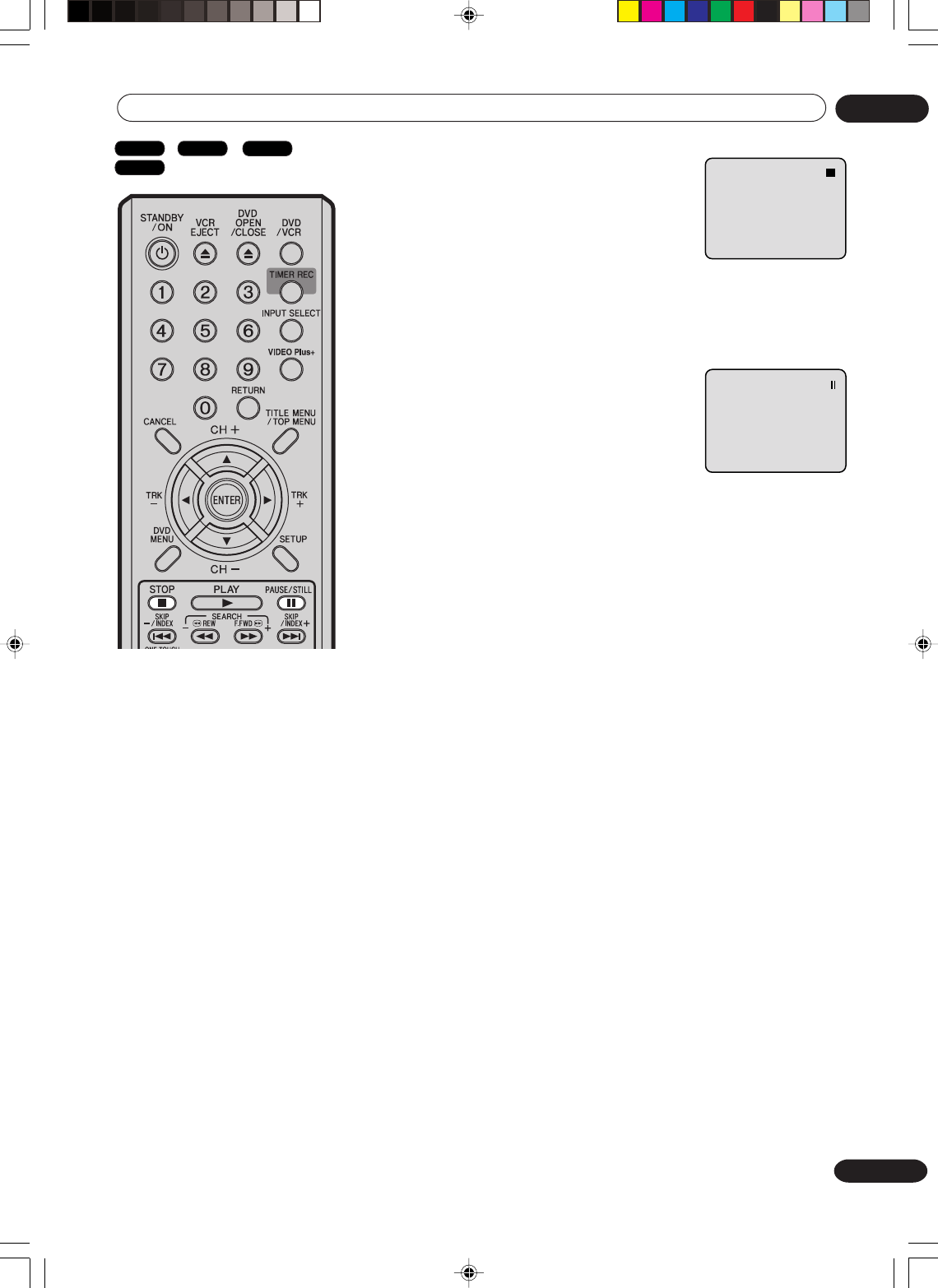
53
En
Recording 05
To stop recording
Press STOP to stop recording.
NOTE:
When recording onto a DVD, even if STOP is
pressed during recording, recording does not
stop instantly due to the concluding process
of recording. Recording may continue for as
long as 1 minute maximam. While this pro-
cess, “PROCESSING PLEASE WAIT” will
appear on the screen.
To stop recording temporarily
Press PAUSE/STILL to avoid recording
unwanted material.
“4” will appear on screen for about 4
seconds.
Press again to resume recording.
NOTES:
•In the recording onto a video tape, the pause function will be
released after 5 minutes to prevent damage the video tape. The
unit will change to the STOP mode.
• When recording onto a video tape, you can change a recording
channel in the recording pause mode. (You cannot change a
recording channel in the DVD recording pause mode.)
•Chapter marks are made when recording to a DVD in the VR
Mode.
Auto Rewind feature
This VCR will automatically rewind the
tape when the tape has ended (except
during OTR and TIMER REC). It will
also eject the tape.
NOTES:
•If the disc space become full, the
recording is stopped and “RECORDING
INTERRUPTED” will appear on the
screen.
•In the event of a power failure
during DVD recording including
OTR and TIMER REC, the program
can not be recorded on the disc.
When the power resumes, after
theVCR/DVD is turned on, the set
checks the disc to repair the error
which is caused by a power failure.
This checking process may require
about 1 minute 30 seconds
according to disc condition. In this
process “SYSTEM ERROR
PLEASE WAIT DISC CHECKING”
will appear on the screen.
DVD-Video
VR mode
DVD-R
VCR
2H30301B_En_50_53 8/4/05, 19:2353
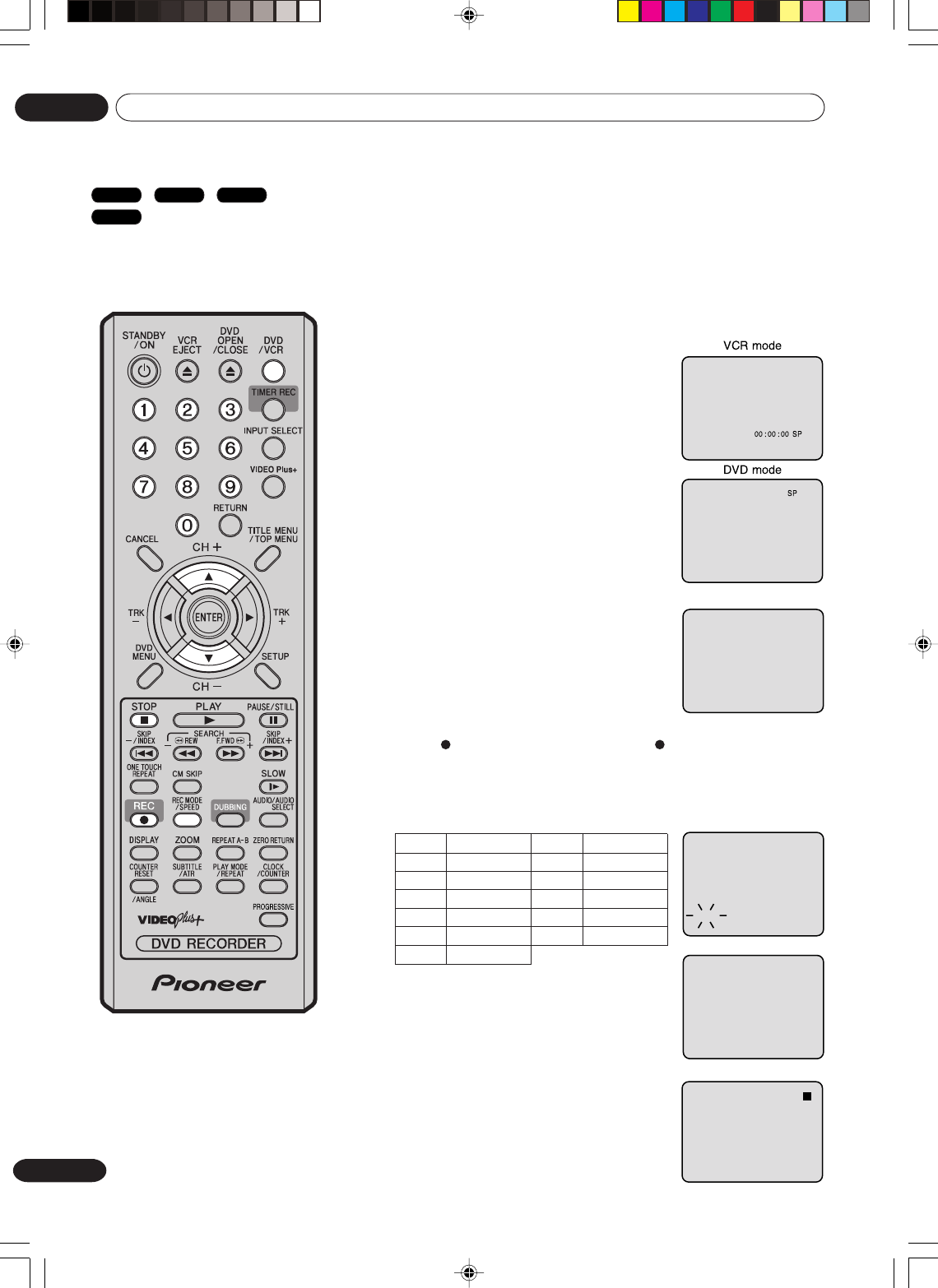
54
En
Recording
05
One-touch Timer Recording (OTR)
The One-touch Timer Recording
feature provides a simple and
convenient way to make a timed
recording.
CH 29
INDEX
CH 29
OTR 0 : 30
OTR 0 : 30
VCR mode
DVD mode
Preparation:
•Turn ON the TV and select its AV channel (this may be labelled
EXT / AUX etc.).
•Load a recordable DVD or video tape into the unit.
• Press DVD/VCR to select the appropriate mode.
Example: One-touch Timer Recording for 30 minutes.
1Press REC MODE/SPEED to select the
recording mode.
For the recording mode, see the step 1
on page 52.
2Press numeric keys or CH + / – to select
the channel to be recorded.
3Press REC. Each additional press of REC will increase
recording time as shown in the chart below, up to a maximum of
6 hours. The OTR and recording time will appear on the screen
for about 4 seconds.
To cancel OTR
Press STOP or turn off the power.
NOTE:
If you wish to watch the DVD
playback during the VCR OTR,
press DVD/VCR to change to DVD
mode and perform the DVD
playback. You can also playback
the VCR during DVD OTR.
Press
once
twice
3 times
4 times
5 times
6 times
NORMAL REC
OTR - : - -
OTR 0:30
OTR 1:00
OTR 1:30
OTR 2:00
OTR 3:00
OTR 4:00
OTR 5:00
OTR 6:00
NORMAL REC
Recording time Press
7 times
8 times
9 times
10 times
11 times
Recording time
DVD-Video
VR mode
DVD-R
VCR
2H30301B_En_54_62 8/4/05, 19:2454
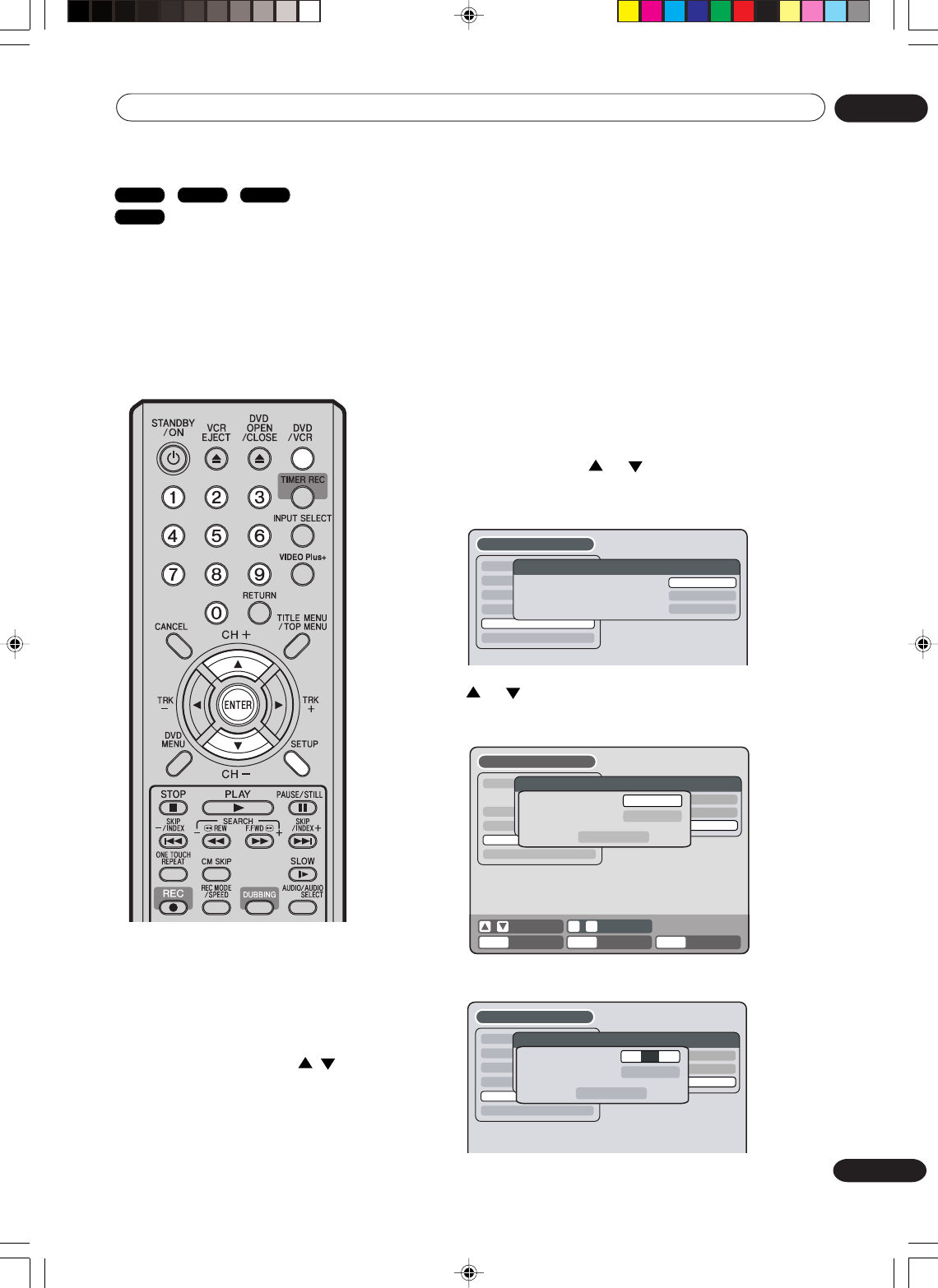
55
En
Recording 05
VIDEO Plus+® programming system
VIDEO Plus+ system is a timer
programming system which
simplifies timer recording
programming. Instead of entering
the date, channel and recording
time, you simply enter a
PlusCodeTM programming number
that you can find in your TV
listings.
NOTE:
There are two ways to enter a
GUIDE CH NO. :
•To select numbers you can either
use the numeric keys and then
ENTER, or you can press
ENTER first then use the /
buttons to select a number,
followed by ENTER.
•When using the numeric keys,
enter using two digits.
Preparation:
•Turn ON the TV and select its AV channel (this may be labelled EXT /
AUX etc.).
• Load a recordable DVD or video tape into the unit.
• Press DVD/VCR to select the appropriate mode.
Checking the channel setup to use the VIDEO
Plus+ system
Before you can use the VIDEO Plus+ system you need to set up the
channel mapping. This ensures that the VIDEO Plus+ system uses
the correct channels for recording by matching up the preset
channels in the recorder with “guide channels”. You can find these
guide channel numbers in your local TV guide or newspaper TV
listings.
1Press SETUP and press or to select “CHANNEL SETUP”
and press ENTER.
The Channel Setup menu will appear.
TIMER REC SET
SYSTEM SETUP
AV SETUP
REC SETUP
CHANNEL SETUP
OTHER
CHANNEL SETUP
CH TUNING
AUTO TUNING
GUIDE CH SET
PROCEED
PROCEED
PROCEED
SETUP MENU
TIMER REC SET
SYSTEM SETUP
AV SETUP
REC SETUP
CHANNEL SETUP
OTHER
SETUP MENU
ENTER
RETURNENTER BACK END
SELECT
SETUP
INPUT NO.
0
-
9
CHANNEL SETUP
CH TUNING
AUTO TUNING
GUIDE CH SET
PROCEED
PROCEED
PROCEED
GUIDE CH NO.
TUNER CH NO.
OK
--
01
TIMER REC SET
SYSTEM SETUP
AV SETUP
REC SETUP
CHANNEL SETUP
OTHER
SETUP MENU
CHANNEL SETUP
CH TUNING
AUTO TUNING
GUIDE CH SET
PROCEED
PROCEED
PROCEED
TV
/CATV SELEC
AUTO CH MEMORY
ADD/DELETE
GUIDE CH SET
GUIDE CH NO.
TUNER CH NO.
OK
--
01
2Press or to select “GUIDE CH SET” and press ENTER.
A window appears to set a guide channel number and the
corresponding tuner channel number.
3Enter a GUIDE CH NO. (guide channel number).
DVD-Video
VR mode
DVD-R
VCR
2H30301B_En_54_62 8/4/05, 19:2455
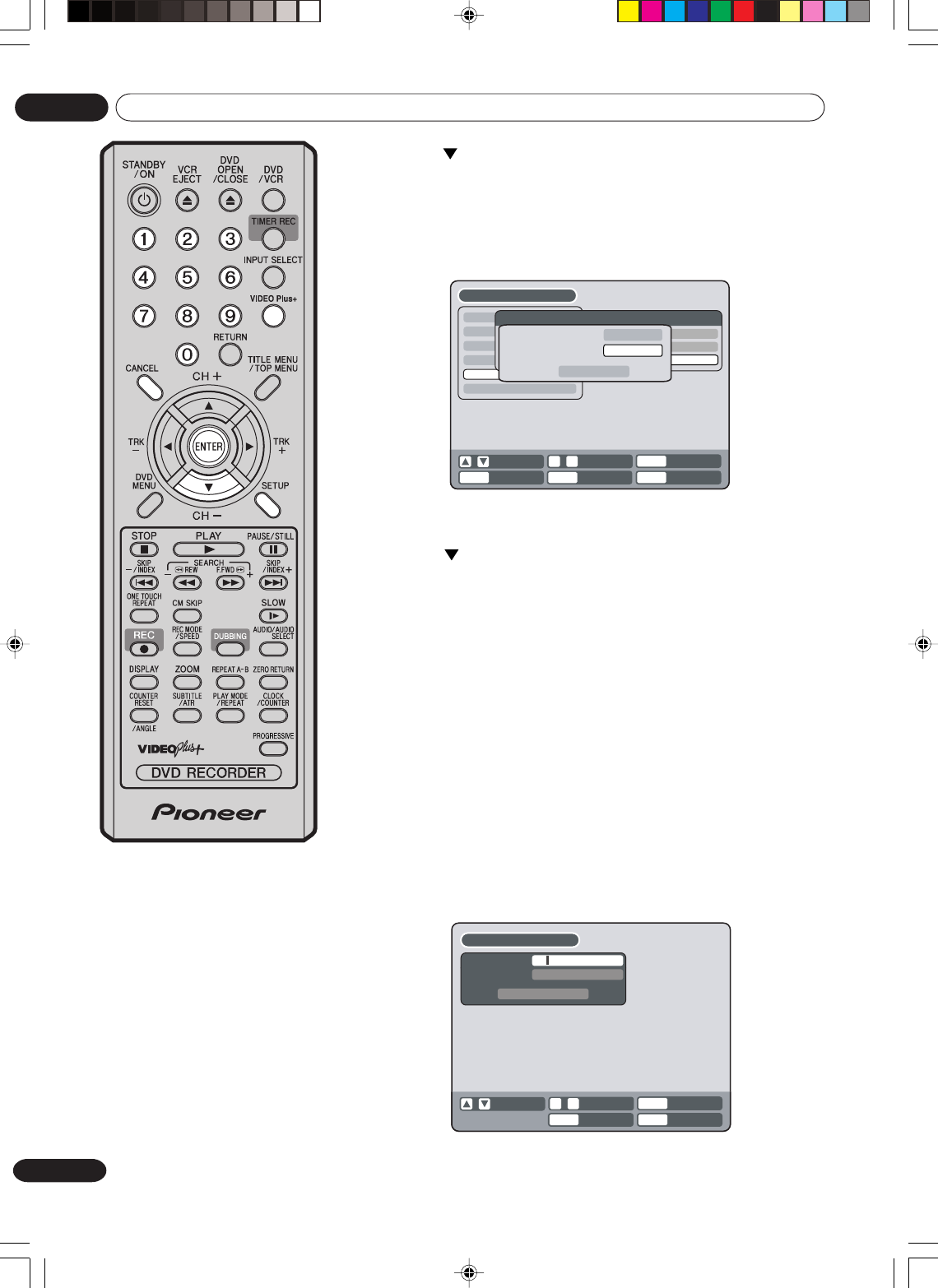
56
En
Recording
05
4Press to highlight TUNER CH NO., then enter the corre-
sponding tuner channel number.
•Select a tuner channel number in the same way as you
selected the guide channel number.
•You can also select one of the external inputs (AV1, AV2 or
AV3) instead of a channel number if some channels are
received via an external receiver.
5Repeat steps 3 – 4 to input the rest of the channel list.
6Press to highlight OK and press ENTER.
7When you’re done, press SETUP to exit.
Setting the timer program using the VIDEO
Plus+ system
The VIDEO Plus+ system simplifies timer recording so that you just enter a
PlusCode number (which you can find in your TV listings guide) for the
program you want to record, tell the recorder whether you want to record it
just once or regularly, and then select the DVD or the VCR for recording.
Note that for the VIDEO Plus+ system to work correctly, the clock must be
set to the right time and the guide channels must be setup. (See “Checking
the channel setup to use the VIDEO Plus+ system” on page 55.)
1Press VIDEO Plus+.
If a PROGRAM FULL message appears then you’ll need to
delete one of the existing timer programs before continuing.
Select a timer program from the list and press CANCEL.
2Use the numeric keys to enter the PlusCode number.
TIMER REC SET
SYSTEM SETUP
AV SETUP
REC SETUP
CHANNEL SETUP
OTHER
SETUP MENU
ENTER
RETURNENTER
CANCEL
DELETE
BACK END
SELECT
SETUP
INPUT NO.
0
-
9
CHANNEL SETUP
CH TUNING
AUTO TUNING
GUIDE CH SET
PROCEED
PROCEED
PROCEED
TV/CATV SELECT
AUTO CH MEMORY
ADD/DELETE
GUIDE CH SET
GUIDE CH NO.
TUNER CH NO.
OK
01
--
RETURN
CANCEL
VIDEO
Plus+
DELETE
BACK END
SELECT INPUT NO.
0
-
9
VIDEO Plus+
PlusCode#
TYPE
OK
ONCE
1 - - - - - - - -
2H30301B_En_54_62 8/4/05, 19:2456
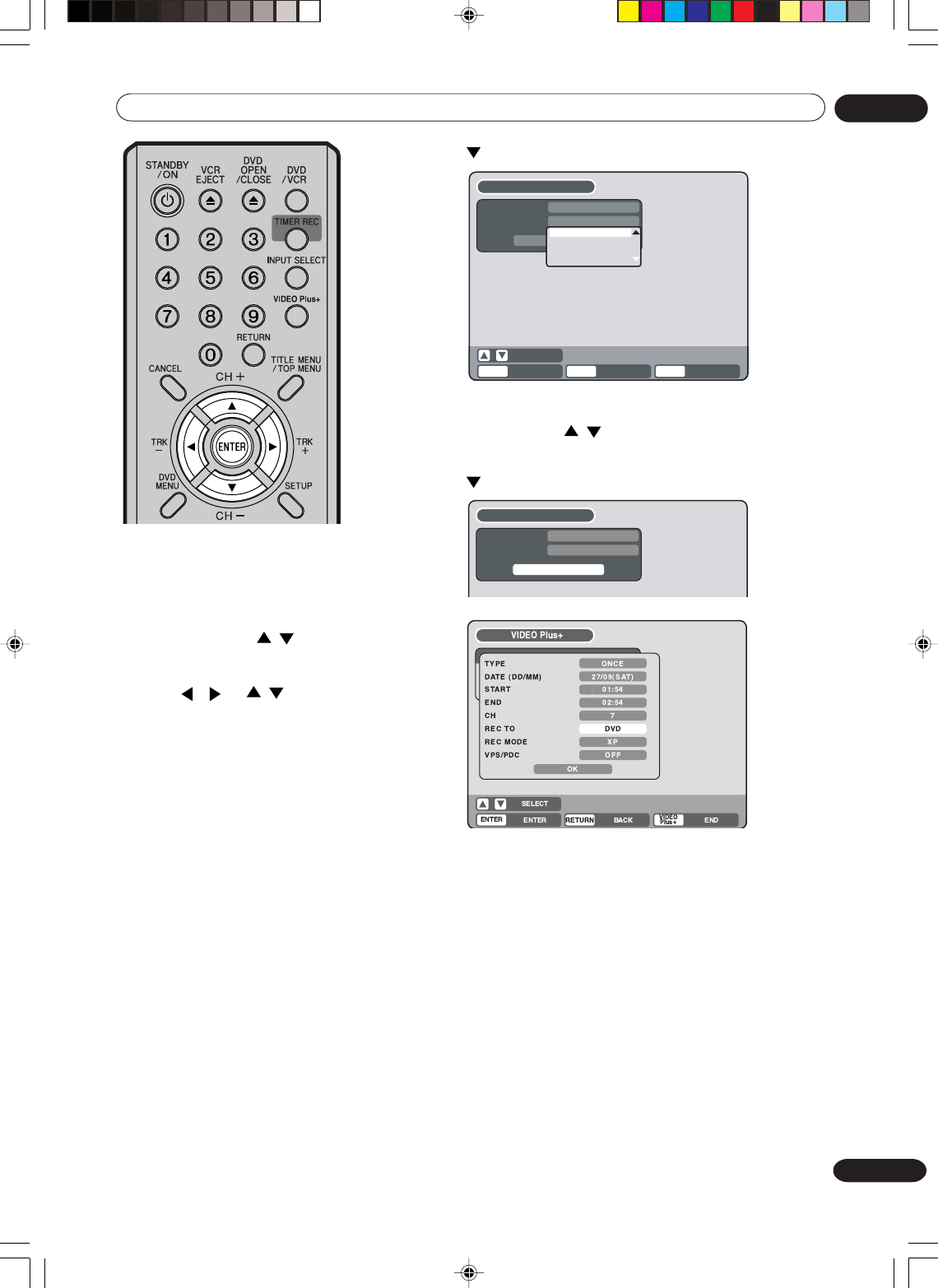
57
En
Recording 05
VIDEO Plus+
PlusCode#
TYPE
OK
ONCE
1 2 3 4 5 6 7 8 9
ENTER
RETURN BACK
SELECT
ENTER
VIDEO Plus+
PlusCode#
TYPE
OK
ONCE
1 2 3 4 5 6 7 8 9
VIDEO
Plus+
END
OK
ONCE
DAILY
WEEKLY
3Press to select “TYPE”.
Here you can set whether you want to record the program
ONCE, DAILY or WEEKLY. If you want to change it, press
ENTER then use the / buttons to select, then press
ENTER again.
4Press to highlight OK, then press ENTER.
NOTES:
•If you’ve entered a valid
PlusCode number, a summary of
the timer recording appears. You
can edit any of this information as
necessary. Use the /
buttons to select the item you
want to edit, press ENTER, then
use the / or / buttons
as appropriate to select, then
press ENTER again.
•VPS/PDC is a service provided by
the public TV station. When you se-
lect a VPS/PDC-compatible TV sta-
tion and activate the VPS/PDC
function, the beginning and the end
of the timer recording will be con-
trolled by the TV station. Any pro-
gram air time delays will be taken
care of. To make certain this works
correctly always enter the exact
starting time as published in the
news paper or TV listing magazine.
•When you use the VPS/PDC func-
tion, the recording start time may
be delayed by around 1 minute.
•If you use the VPS/PDC function
and timer recording to record con-
secutive programs on the same
channel, the 2 programs are re-
corded as a single title on a DVD.
When the programs are recorded
using a VCR, no VISS signal is in-
serted when the second program
starts.
•TYPE – select the frequency of the recording (more options
available here than in the previous screen, such as every
weekday)
•DATE (DD/MM) – the recording date
•STA RT – recording start time
• END – recording end time
•CH – the channel to be recorded, or one of the external inputs
(AV1, AV2 or AV3)
•REC TO – record to the DVD or the VCR
•REC MODE – recording quality
•VPS/PDC – If you want to receive VPS/PDC signal, select
“ON” at step 4.
•Note that If you haven’t set a guide channel for the selected
TV channel, the CH field will be blank (
--
). In this case, set the
channel number manually.
2H30301B_En_54_62 8/4/05, 19:2457
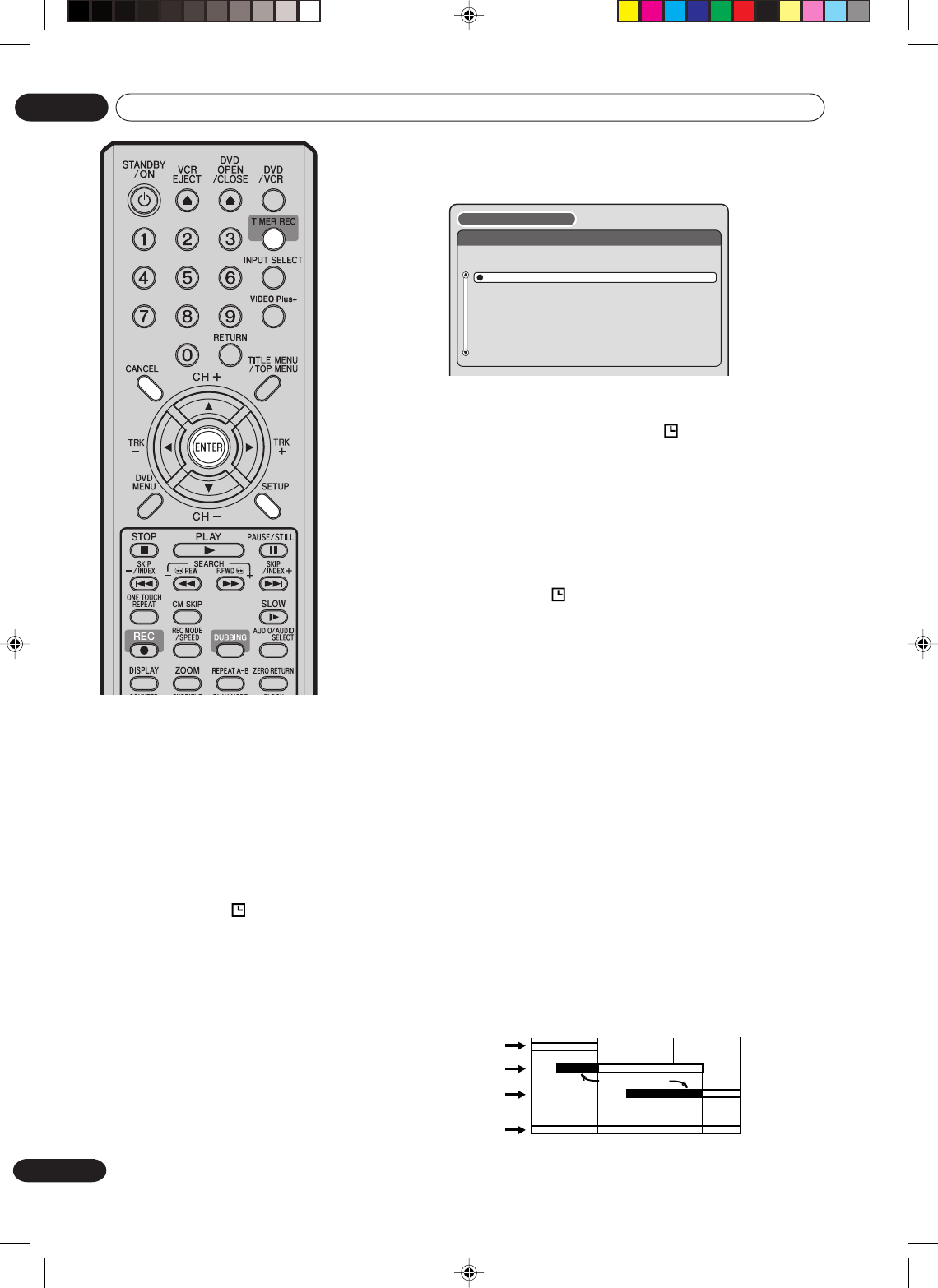
58
En
Recording
05
5Highlight OK and press ENTER.
The TIMER REC SET screen appears and you should see the
new timer recording in the list.
6Press SETUP to exit.
7Press TIMER REC. The timer indicator “ ” will appear on the
display and the unit stands by for recording.
•If the program is DVD recording only, the unit will change to VCR
mode automatically. (The DVD mode cannot be selected.)
•If the program is VCR recording only, the unit will change to DVD
mode automatically. (The VCR mode cannot be selected.)
•If the programs are DVD and VCR recording, the unit will turn off.
If you want to use the unit, press TIMER REC again to deactivate
the timer.
•
If the clock symbol ( ) blinks in the display in spite of the
pressing of TIMER REC, the cassette may not have been loaded
yet. (see page 46)
•If the cassette is ejected in spite of the pressing of TIMER REC,
the erase prevention tab of the cassette may have been
removed. (see page 46)
Checking or changing the timer recording
When you want to check the selected timer recording, follow the steps 1
and 2 of “Setting timer recording” and display the TIMER REC SET
screen. To change the timer recording, select the program to be changed
and press ENTER. The changing method is the same as that for the
recording a program for the first time.
Cancelling the timer recording
Display the TIMER REC SET screen.
Select the program you want to cancel and press CANCEL, then the
selected program will be erased from the timer recording list.
In case Timer programs-overlap
Do not overlap timer programs as portions of the conflicting programs will
be lost. The first recording time has priority over the next recording time as
shown in the diagram below.
In this case, the next recording time is delayed a maximum of about
2minutes. Even when one timer recording is set to start at the same time
as another is set to finish, the later timer recording will be delayed by up to
2 minutes.
NOTES:
•
Recording starts a few seconds
before the preset starting time.
•
You cannot use the timer record-
ing for the both DVD and VCR at
the same time.
•
You can playback the DVD during
the VCR timer recording, and you
can playback the VCR during the
DVD timer recording.
•
If the clock symbol ( ) blinks
when the timer recording ended,
the TV program has not been
completely recorded because of
an insufficient capacity for DVD
disc or video tape. Press TIMER
REC to cancel the timer program.
•After setting the timer program with
VPS/PDC is “ON”, press TIMER
REC then unit will automatically turn
off.
TIMER REC SET
REC REC
TO MODE
VPS/
PDCCHENDSTARTDATE
DVD EP ON702:3501:3527/09(SAT)
VCR SP OFF816:0015:00MON-SAT
DVD XP OFF1218:0017:00SUN
DVD XP OFF702.5401:5428/09(SUN)
NEW
SETUP MENU
8 : 00 11 : 00
9 : 00 10 : 00
Program 1
Prog.1
Deleted Parts
Non Recorded Portion Parts
Prog.2 Prog.3
Program 2
Program 3
Recording
Control Settings
2H30301B_En_54_62 8/4/05, 19:2458
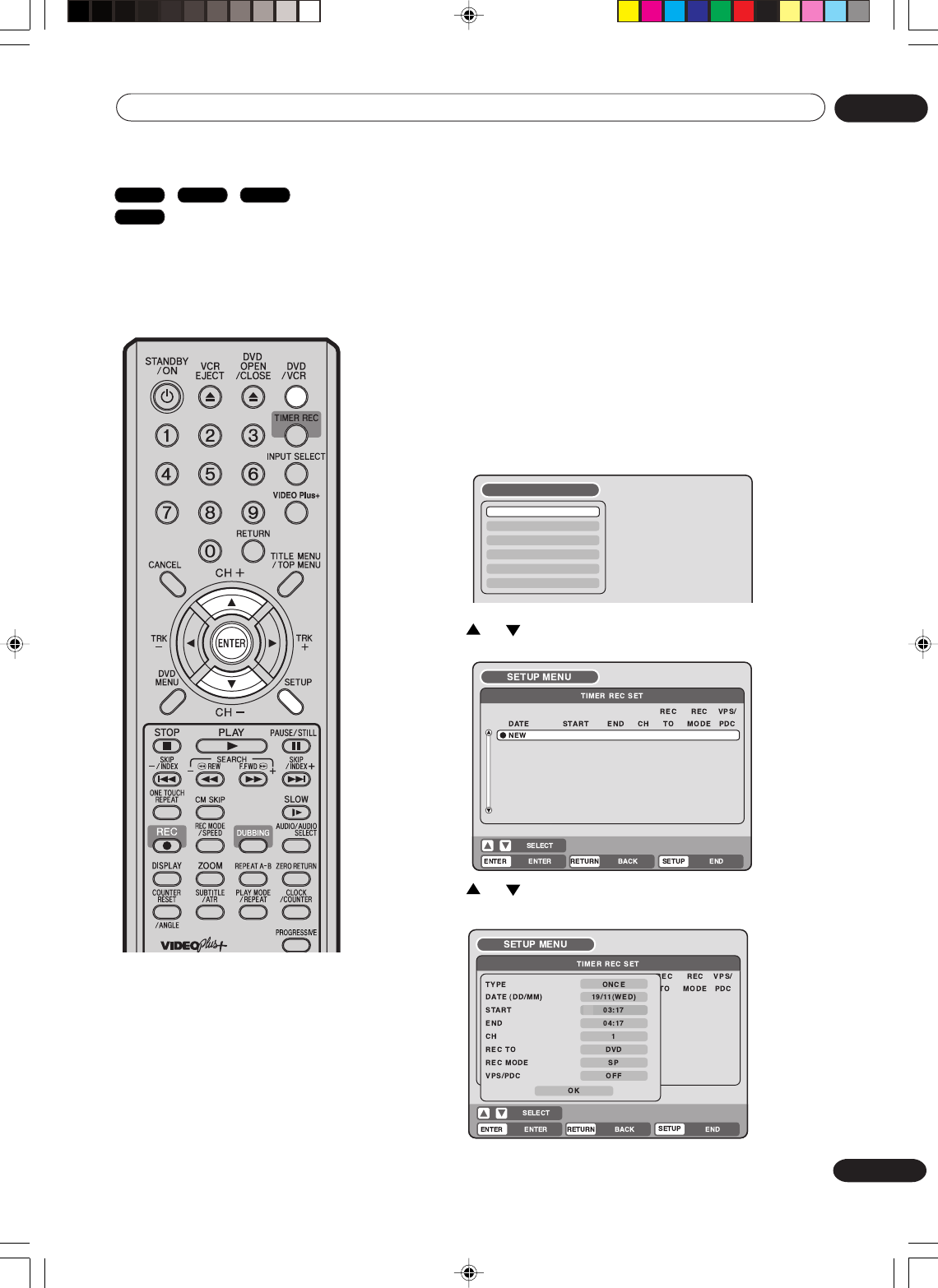
59
En
Recording 05
Timer recording
The timer recording system allows
you to select the date, time and
channel and record the desired
programs. Up to 12 timer pro-
grams within a month can be
stored in this unit.
Setting timer recording
Preparation:
•Turn ON the TV and select its AV channel (this may be labelled
EXT / AUX etc.).
• Load a recordable DVD or video tape.
• Press DVD/VCR to select the appropriate mode.
•Confirm that the clock is indicating the correct time.
Example: Set the recording mode to LP and record on DVD; the TV
program is on channel 1 starting at 20:00 and stopping at 23:00 on a
date of 20th.
1Press SETUP.
The SETUP MENU screen appears.
NOTE:
In the event of a power failure the
data of the automatic recording will
be maintained in the built-in memory
for about 30 minutes. Also, the clock
will continue to run for this period of
time. Thereafter the data will be
deleted. When the power resumes,
the time display will change to “0:00”
that the timer setting will have to be
set.
2Press or to select “TIMER REC SET” and press ENTER.
The TIMER REC SET screen will appear.
3Press or to select “NEW” and press ENTER.
The program screen will appear.
TIMER REC SET
SYSTEM SETUP
AV SETUP
REC SETUP
CHANNEL SETUP
OTHER
SETUP MENU
DVD-Video
VR mode
DVD-R
VCR
2H30301B_En_54_62 8/4/05, 19:2459
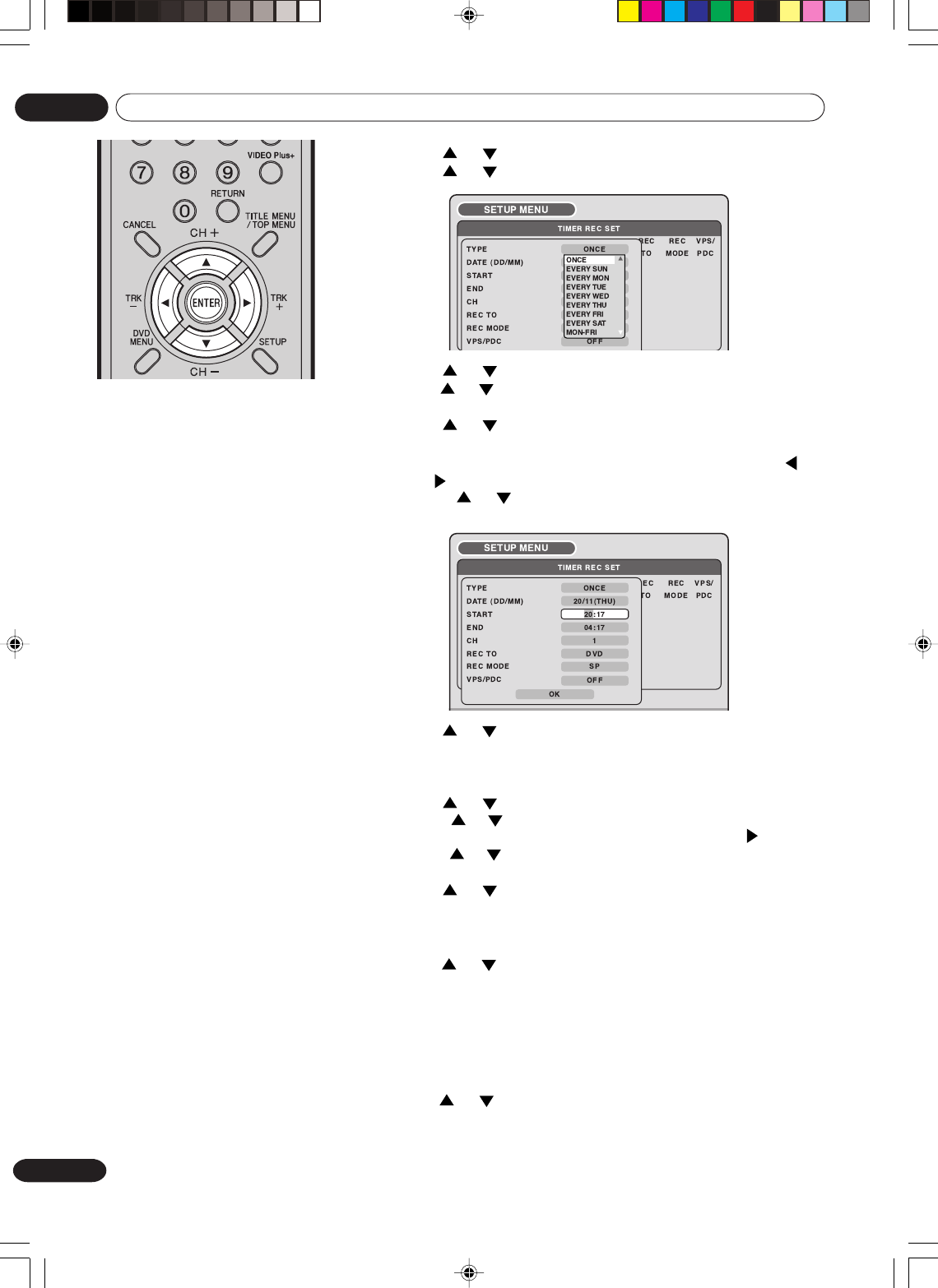
60
En
Recording
05
4Press or to select “TYPE” and press ENTER.
Press or to select “ONCE” from the list and press ENTER.
NOTES:
•If you select timer recording on a
specified date only one time, select
“ONCE” in the “TYPE” for recording.
You can record same days of every
week or from Monday to Friday using
the item “TYPE”. The items you can
select are as follows:
ONCE: Recording on the selected
“DATE”
EVERY SUN: Recording every Sun.
EVERY MON: Recording every Mon.
EVERY TUE: Recording every Tue.
EVERY WED: Recording every Wed.
EVERY THU: Recording every Thu.
EVERY FRI: Recording every Fri.
EVERY SAT: Recording every Sat.
MON-FRI: Recording from Mon. to
Fri.
MON-SAT: Recording from Mon. to
Sat.
EVERY DAY: Recording everyday.
•The initial setting of “REC TO” and
“REC MODE” can be changed using
“Setting the recording”. (See page
26.)
•VPS/PDC is a service provided by the
public TV station. When you select a
VPS/PDC-compatible TV station and
activate the VPS/PDC function, the be-
ginning and the end of the timer record-
ing will be controlled by the TV station.
Any program air time delays will be
taken care of. To make certain this
works correctly always enter the exact
starting time as published in the news
paper or TV listing magazine.
•When you use the VPS/PDC function,
the recording start time may be delayed
by around 1 minute.
•If you use the VPS/PDC function and
timer recording to record consecutive
programs on the same channel, the 2
programs are recorded as a single title
on a DVD. When the programs are re-
corded using a VCR, no VISS signal is
inserted when the second program
starts.
5Press or to select “DATE” and press ENTER.
Press or to select the date to be recorded and press ENTER.
6Press or to select “START” and press ENTER.
Set the time when the recording is started.
•To switch over the selection item (hour or minute), press
or , then press ENTER.
• Press or to adjust the time.
•After setting the time, press ENTER.
7Press or to select “END” and press ENTER.
Set the stopping time in the same manner for setting the starting
time of timer recording.
8Press or to select “CH” and press ENTER.
• Press or to select the channel to be recorded and press ENTER.
•You can select the external input setting mode by pressing . Then
press or to select “AV1”, “AV2” or “AV3” and press ENTER.
9Press or to select “REC TO” and press ENTER.
Select the media (DVD or VCR) to be recorded from the list and
press ENTER.
10 Press or to select “REC MODE” and press ENTER.
The recording modes for the media selected in “REC TO” item
are listed up.
Select the recording mode and press ENTER.
For the recording modes in VCR, see page 46, and for the
recording modes in DVD, see page 50.
11 Press or to select “VPS/PDC” and press ENTER.
Select “ON” if you want to receive VPS/PDC signal.
Then press ENTER.
2H30301B_En_54_62 8/4/05, 19:2460
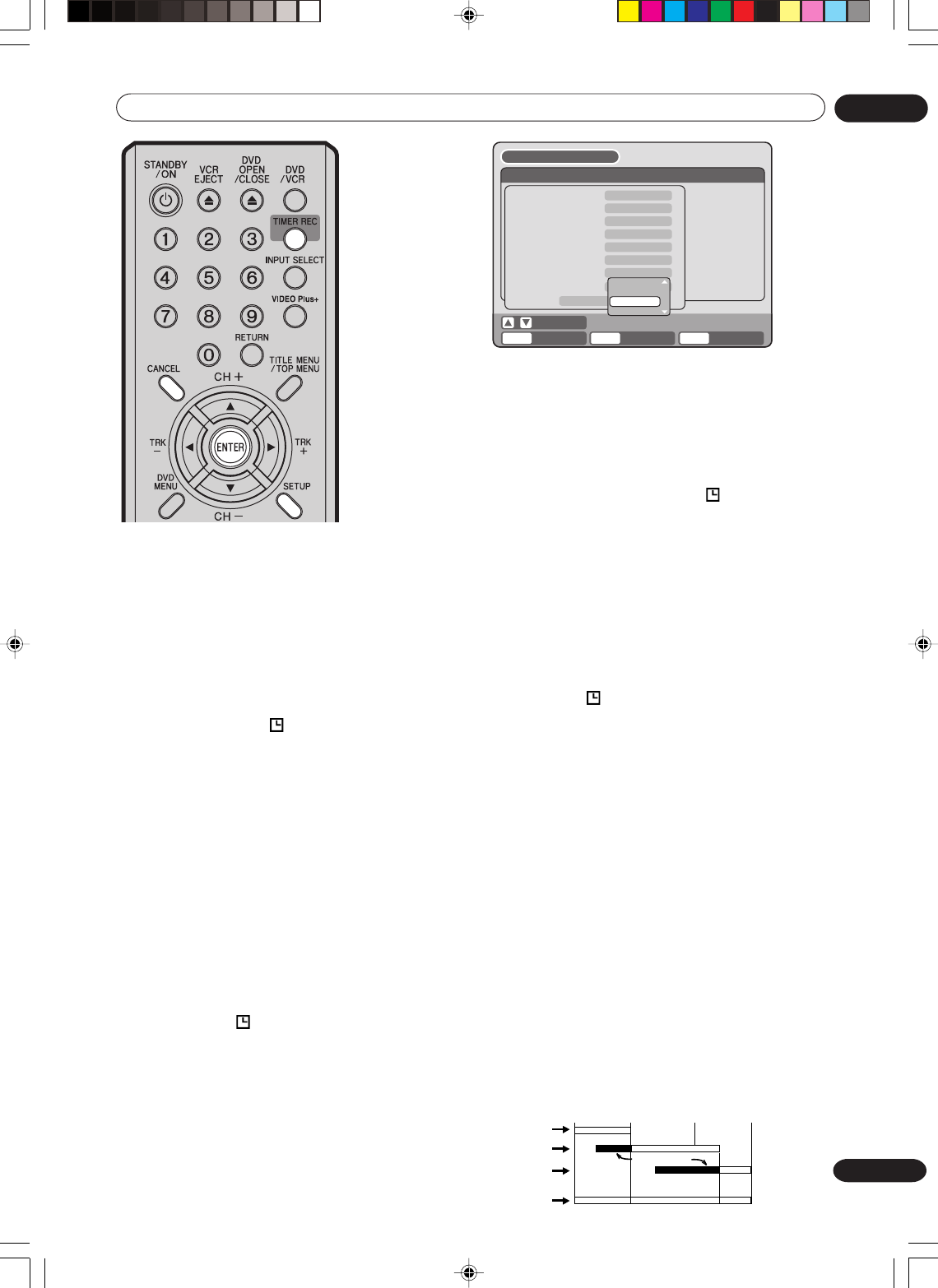
61
En
Recording 05
NOTES:
•Recording starts a few seconds
before the preset starting time.
•You cannot use the timer recording
for the both DVD and VCR at the
same time.
•You can playback the DVD during
the VCR timer recording, and you
can playback the VCR during the
DVD timer recording.
•If a recordable tape is not inserted
or no disc space is available, the
timer record indicator “ ” flashes,
and “TIMER RECORDING ERROR.
PLEASE CHECK THE DISC OR
TAPE.” appears on the screen.
Replace the tape or disc to allow
recording.
•If you perform any operation during
timer recording, the power will not
go OFF when timer recording
finishes. To turn the power OFF,
press STANDBY/ON.
•From about 2 minutes before timer
recording starts, some operations
cannot be done.
•If you set recording to start less
than 2 minutes ahead of time, the
power will not turn OFF after
recording finishes.
•If the recording media fills up during
timer recording, “ ” will flash and
the power will not turn OFF. Also,
any timer recording scheduled for
later is cancelled.
•After setting the timer program with
VPS/PDC is “ON”, press TIMER
REC then unit will automatically
turn off.
12 Select “OK” and press ENTER. The timer program is deter-
mined and the TIMER REC SET screen appears again.
13 When you enter the other program for the timer recording,
repeat the steps 3 to 12.
14 Press SETUP. The TIMER REC SET screen disappears and
the display will return to the normal screen.
15 Press TIMER REC. The timer indicator “
” will appear on
the display and the unit stands by for recording.
•If the program with “VPS/PDC” OFF is DVD recording only,
the unit will change to VCR mode automatically. (The DVD
mode cannot be selected.)
•If the program with “VPS/PDC” OFF is VCR recording only,
the unit will change to DVD mode automatically. (The VCR
mode cannot be selected.)
•If the programs with “VPS/PDC” OFF are DVD and VCR re-
cording, the unit will turn off. Also if the program with “VPS/
PDC” ON is set, the unit will turn off. If you want to use the
unit, press TIMER REC again to deactivate the timer.
•
If the clock symbol ( ) blinks in the display in spite of the
pressing of TIMER REC, the cassette may not have been
loaded yet. (see page 46)
•If the cassette is ejected in spite of the pressing of TIMER
REC, the erase prevention tab of the cassette may have
been removed. (see page 46)
Checking or changing the timer recording
When you want to check the selected timer recording, follow the steps 1
and 2 of “Setting timer recording” and display the TIMER REC SET
screen. To change the timer recording, select the program to be changed
and press ENTER. The changing method is the same as that for the
recording a program for the first time.
Cancelling the timer recording
Display the TIMER REC SET screen.
Select the program you want to cancel and press CANCEL, then the
selected program will be erased from the timer recording list.
In case Timer programs-overlap
Do not overlap timer programs as portions of the conflicting programs will
be lost. The first recording time has priority over the next recording time
as shown in the diagram below.
In this case, the next recording time is delayed a maximum of about
2minutes. Even when one timer recording is set to start at the same time
as another is set to finish, the later timer recording will be delayed by up
to 2 minutes.
ENTER RETURN SETUPBACK END
SELECT
ENTER
TIMER REC SET
REC REC
TO MODE
VPS/
PDC
TYPE
DATE (DD/MM)
START
END
CH
REC TO
REC MODE
VPS/PDC
OK
SETUP MENU
ONCE
1
DVD
LP
LP
20/11(THU)
20:00
23:00
XP
SP
LP
EP
8 : 00 11 : 00
9 : 00 10 : 00
Program 1
Prog.1
Deleted Parts
Non Recorded Portion Parts
Prog.2 Prog.3
Program 2
Program 3
Recording
Control Settings
2H30301B_En_54_62 8/4/05, 19:2461
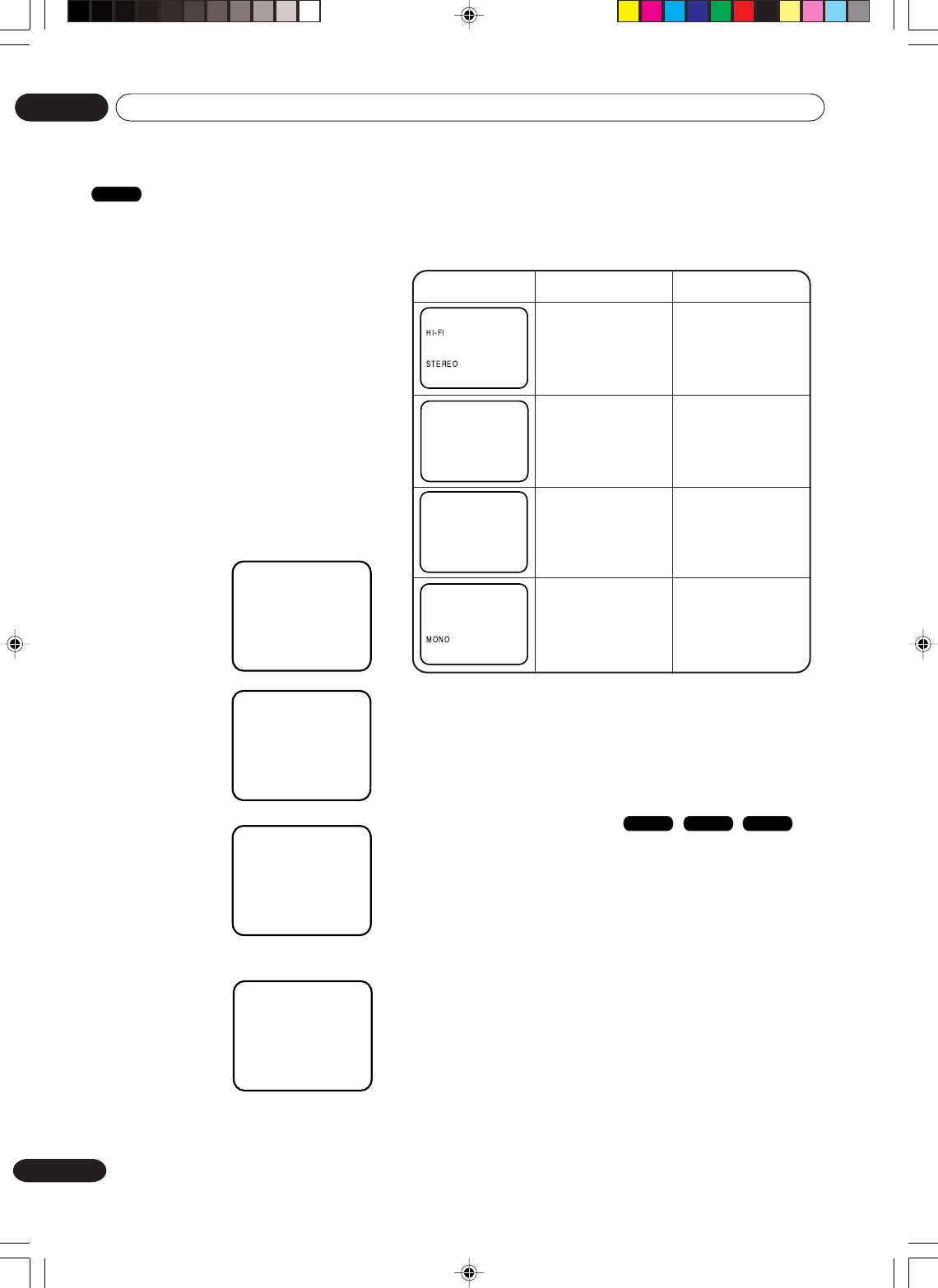
62
En
Recording
05
Stereo recording and playback
NOTE:
When playing HiFi cassette tapes recorded on another VCR,
the sound output may be distorted. This is normal and no
indication of a unit malfunction. Try to minimise sound
distortions by using TRK (TRACKING) +/– or change to
MONO by pressing of AUDIO SELECT.
Bilingual playback
performed as follows:
On-screen indications
(for 4 sec.)
Stereo playback
performed in:
Simultaneously
both languages
from HiFi track
(Mixed sounds)
Original sound
track (Sub sound)
One's mother
tongue dubbing
(Main sound)
One's mother
tongue dubbing
(Main sound)
Stereo
Mono
Right channel
signal output from
both loudspeakers
Left channel signal
output from both
loudspeakers
L CH
HI-FI
R CH
HI-FI
NICAM OFF
NICAM M1/2
NICAM M1
NICAM ST
NICAM programmes are divided
into 4 types as shown below.
NICAM STEREO
broadcast
“NICAM ST”
illuminates when a
NICAM STEREO
broadcast signal is
received.
NICAM MONO A
broadcast
“NICAM M1”
illuminates when a
NICAM MONO A
broadcast signal is
received.
NICAM MONO A
B broadcast
“NICAM M1/2”
illuminates when a
NICAM MONO A
and MONO B
broadcast signal is
received.
NICAM OFF
This will be
displayed if a
NICAM signal is
received when
“NICAM OFF” is
selected in the AV
SETUP MENU.
Playback
Press AUDIO SELECT to select either stereo/mono or
bilingual playback (where applicable). See the table below for
more information.
This VCR/DVD is capable of recording
Hi-Fi quality sound. When recording on
a video cassette, a broadcast which is
transmitted in NICAM Stereo normally
records to the HiFi audio tracks - the
normal Mono FM audio signal is
recorded to the mono audio track on the
cassette. The NICAM stereo reception
can be switched off if required, but
normally you would leave this on the
Automatic setting (See page 26). When a
bilingual broadcast is received, both
soundtracks will be recorded (when
recording to cassette only). However,
bilingual broadcasts are not usually
transmitted in the UK.
Output selection for DVD
You can switch between the left or right channel and stereo
only when playing a disc on which a bilingual broadcast was
recorded in the DVD-RW VR mode. It is not possible to
switch between channels otherwise as only the channel
selected in the setting of NICAM (AUTOMATIC or OFF) is
recorded in the DVD-RW Video mode or DVD-R (see page
25).
VR mode
Video mode
DVD-R
VCR
2H30301B_En_54_62 8/4/05, 19:2462
63
En
Editing the disc 06
Editing the disc
This section explains how to edit
the recorded contents on DVD-
RWs. However, the items that
you can edit vary with the
recording formats. In VR mode,
you can edit various title menus,
whereas in Video mode, you can
edit only a few items.
Title menu
When the content is recorded, a title name that includes the date,
time, channel number and other information is created automatically.
The title menu can be used when you playback after confirming the
contents (see page 31), or when you check the contents recorded on
the disc.
Original title
The titles explained above are called original titles; these will be
added with every recording. In VR mode you can do various editing
operations i.e., you can rename the titles, or add the chapter marks.
In addition, you can erase the unnecessary titles to increase the disc
space.
Playlist
You can create a playlist based on the original titles.
You can combine or erase undesired scenes.
If you create a playlist it will become the primary list used by the disc.
If you create a playlist to customise your viewing preferences, and
choose to delete it, the original titles will not be affected. It is recom-
mended to create and edit the playlist to prevent important titles from
being erased accidentally.
If you create a playlist, both the original title and playlist will be
displayed on the title menu.
Editable items
The items that can be edited are different between original title and
playlist. For the disc in Video mode, only the title name can be
edited.
The items can be edited in each are as follows:
NOTES:
•This unit may not be able to
record or edit a disc which was
recorded or edited using another
DVD recorder.
•You cannot edit or record the
disc on which disc protection is
set. In such a case, be sure to
cancel the disc protection (see
page 23) before starting the
operation.
•When a scene has been erased,
the selected position for erasing
may vary slightly from the actual
erased position.
Editing items VR mode Video mode
Original
Playback
Adding chapter mark
Combining chapters
Erasing scenes
Erasing titles
Renaming titles
Creating playlist
Combining titles
Original Playlist
Y
Y
Y
Y
Y
Y
Y
N
Y
N
N
Y
Y
Y
N
Y
Y
N
N
N
N
Y
N
N
If you finalise the disc in Video mode, the title list will be created and
you cannot use the title menu.
2H30301B_En_63 8/4/05, 19:2563
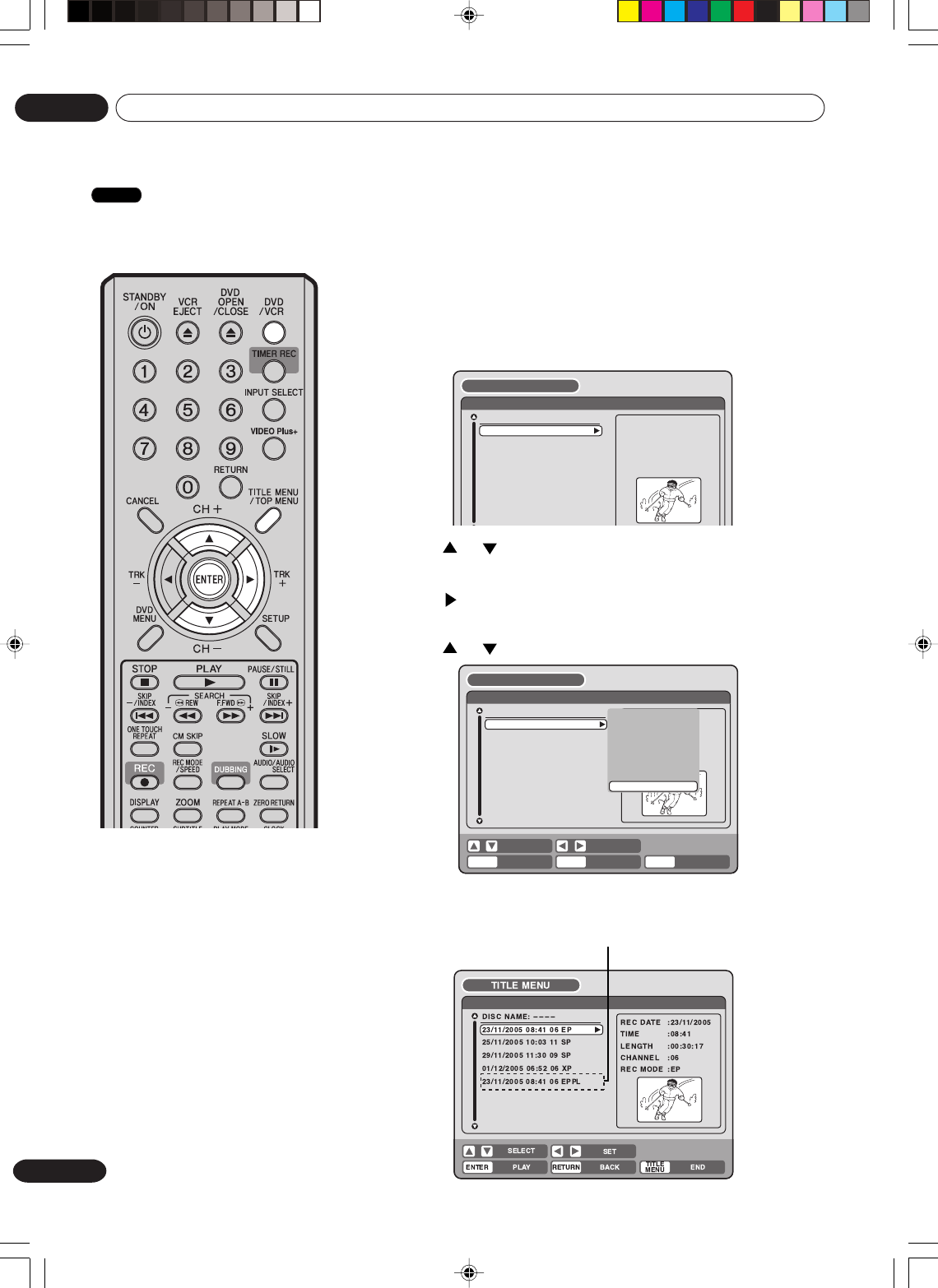
64
En
Editing the disc
06
Editing a playlist
You can create and edit the
playlist based on the original
title.
NOTES:
•A playlist can only be created
with a DVD-RW in VR mode. You
cannot create a playlist with a
DVD-RW in Video mode, nor with
a DVD-R.
•In case the disc includes more
than 10 titles, you can turn to the
next or the previous page. (See
page 31.)
•You cannot switch to the VCR
mode when the title menu is
showing. Press TITLE MENU to
clear the title menu, then press
DVD/VCR to switch to the VCR
mode.
Preparation:
• Turn ON the TV and select its AV channel (this may be labelled EXT /
AUX etc.).
• Load the recorded DVD-RW (VR).
• Press DVD/VCR to select the DVD mode. (The DVD indicator will light.)
Creating a playlist
1Press TITLE MENU.
The title menu will appear.
2Press or to select the original title which will be used as
the base of a playlist.
3Press .
The editing menu of original title will appear.
4Press or to select “NEW PLAYLIST”.
5Press ENTER.
The editing menu closes and the created playlist appears at the
bottom of the list.
DISC NAME:
----
1/T 1
25/11/2005 10:03 11 SP
29/11/2005 11:30 09 SP
01/12/2005 06:52 06 XP
23/11/2005 08:41 06 EP
REC DATE :23/11/2005
TIME :08:41
LENGTH :00:30:17
CHANNEL :06
REC MODE :EP
TITLE MENU
Created playlist
RETURNENTER BACK
SET
END
SELECT
TITLE
MENU
ENTER
DISC NAME:
----
Titl11e 1
25/11/2005 10:03 11 SP
29/11/2005 11:30 09 SP
01/12/2005 06:52 06 XP
23/11/2005 08:41 06 EP
REC DATE :11/23/2005
TIME : 08:41
LENGTH : 00:01:17
TITLE MENU
PLAY
ADD CHAPTER MARK
COMBINE CHAPTERS
EDIT TITLE
DELETE TITLE
RENAME TITLE
NEW PLAYLIST
NEW PLAYLIST
VR mode
2H30301B_En_64_71 8/4/05, 19:2564
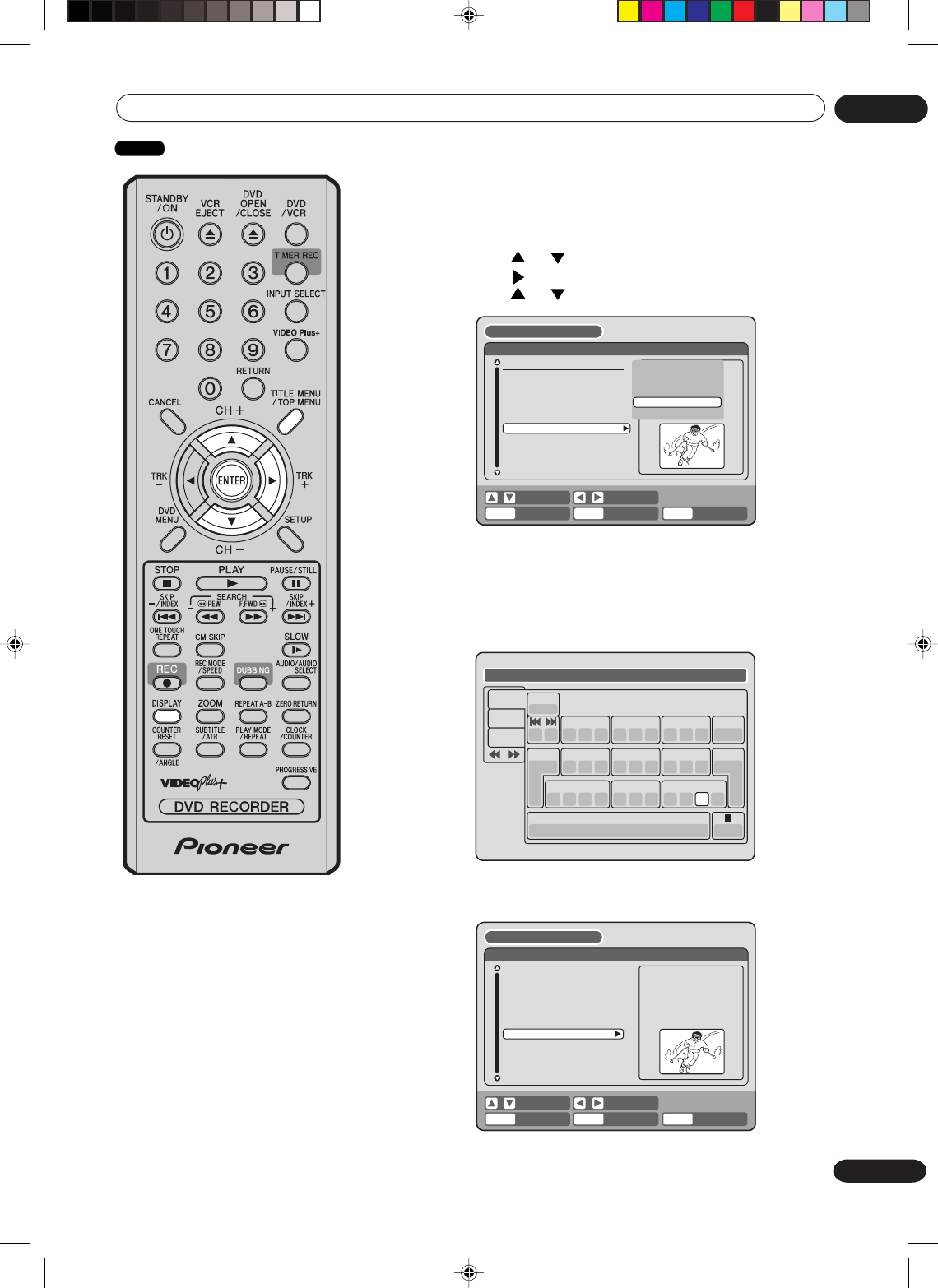
65
En
Editing the disc 06
NOTES:
•The title name can be a maxi-
mum of 64 characters. Long
names will be shortened in the
title menu.
•
For using the keyboard screen,
see “Changing a disc name”
(page 76).
Changing a title name
1Press TITLE MENU to display the title menu.
2Select the playlist where you want to change the title name.
• Press or to select the playlist.
• Press to display the editing menu of the playlist.
• Press or to select “RENAME TITLE”.
3Press ENTER.
The keyboard screen will appear.
4Use the keyboard screen to enter the title name (See P. 76).
5Press DISPLAY to return the title menu.
Family
1
( .< > #
2
a b c
3
d e f
CANCEL
Back
RETURN
Exit
Caps
0
Space bar
4
g h i
5
j k l
6
m n o
7
qp r s
8
t u v
9
w x y z
DISPLAY
OK
DISPLAY
OK
Numbers
Signs
Letters
RETURNENTER BACK
SET
END
SELECT
TITLE
MENU
ENTER
DISC NAME:
----
23/11/2005 08:41 06 EP
25/11/2005 10:03 11 SP
29/11/2005 11:30 09 SP
01/12/2005 06:52 06 XP
23/11/2005 08:41 06 EP PL
REC DATE :11/23/2005
TIME :08:41
LENGTH :00:30:17
CHANNEL :006
REC MODE :SLP
TITLE MENU
PLAY
EDIT TITLE
DELETE PLAYLIST
RENAME TITLE
TITLE COMBINE
RENAME TITLE
RETURNENTER BACK
SET
END
SELECT
TITLE
MENU
ENTER
DISC NAME:
----
23/11/2005 08:41 06 EP
25/11/2005 10:03 11 SP
29/11/2005 11:30 09 SP
01/12/2005 06:52 06 XP
Family
REC DATE :23/11/2005
TIME :08:41
LENGTH :00:30:17
CHANNEL :06
REC MODE :EP
TITLE MENU
VR mode
2H30301B_En_64_71 8/4/05, 19:2565
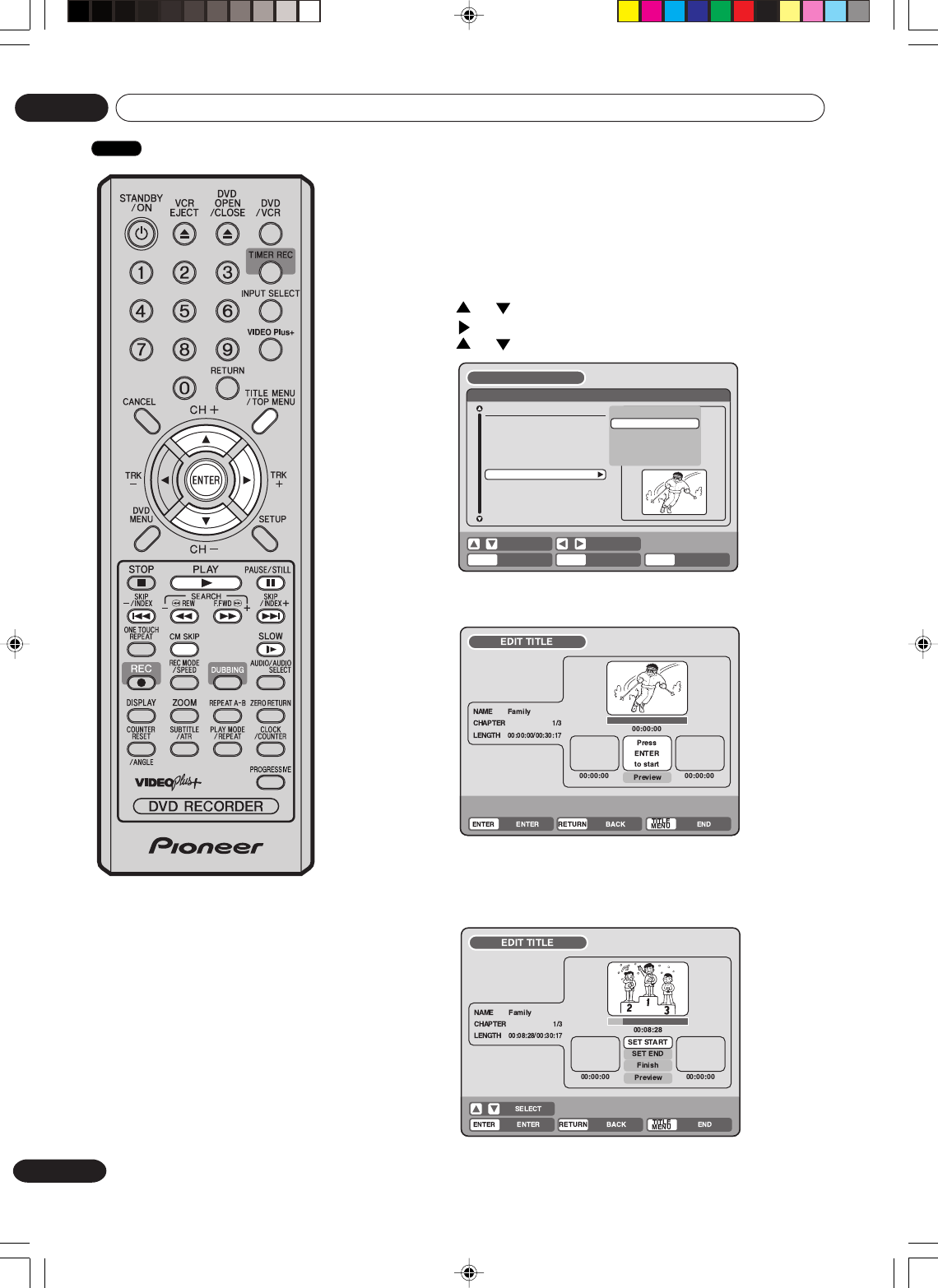
66
En
Editing the disc
06
Erasing a scene (Edit title)
You can erase an unnecessary scene from the created playlist.
When you erase the scene from the playlist, the scene is not erased
from the original title.
1Press TITLE MENU to display the title menu.
2Select the playlist where a scene you want to erase is included.
• Press or to select the playlist.
• Press to display the editing menu of the playlist.
• Press or to select “EDIT TITLE”.
3Press ENTER.
The EDIT TITLE screen appears.
4Press ENTER to playback the playlist on the EDIT TITLE screen.
•Use each operation button (F.FWD, REW, SKIP 66
66
6, SKIP
77
77
7, PLAY, PAUSE/STILL, SLOW, CM SKIP) for the playback
to search the starting point of the scene you want to erase.
RETURNENTER BACK
SET
END
SELECT
TITLE
MENU
ENTER
DISC NAME:
----
23/11/2005 08:41 06 EP
25/11/2005 10:03 11 SP
29/11/2005 11:30 09 SP
01/12/2005 06:52 06 XP
Family
REC DATE :11/23/2005
TIME :08:41
LENGTH :00:30:17
CHANNEL :006
REC MODE :SLP
TITLE MENU
PLAY
EDIT PROGRAM
DELETE PLAYLIST
RENAME TITLE
TITLE COMBINE
EDIT TITLE
VR mode
2H30301B_En_64_71 8/4/05, 19:2566
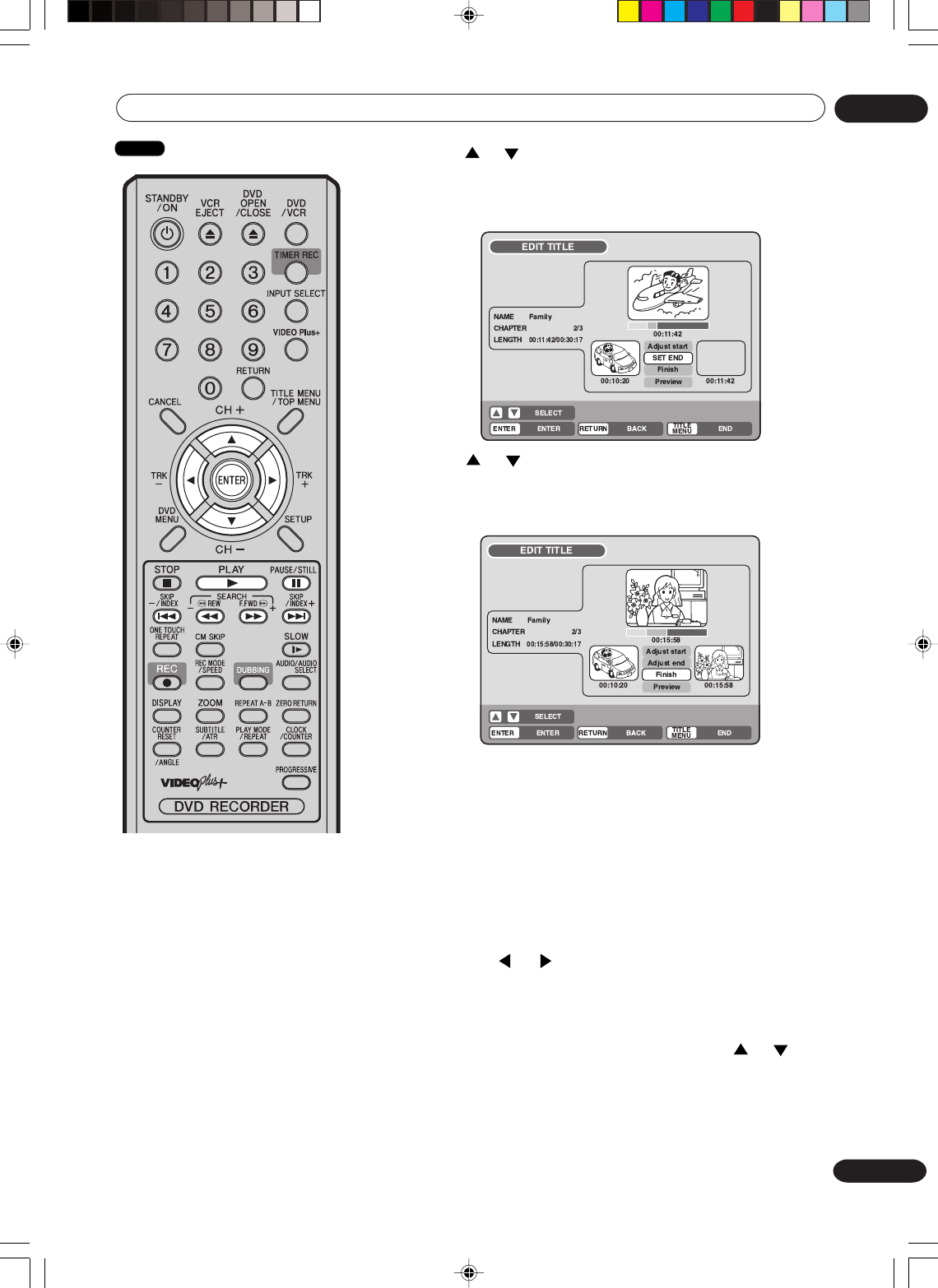
67
En
Editing the disc 06
NOTES:
•It is no problem to omit the
procedures for confirming the
scene or adjusting start and end
points.
• It is not possible to make any
adjustments for 2 seconds after a
title starts or 2 seconds before it
ends.
•To set a start point at the beginning
of a title, set it during countdown.
•The points during editing may be
different from the preview.
•Start and end points are adjusted
in units of 1 second.
5Press or to select “SET START” at the start point of the
scene that you want to erase and press ENTER. (To set the start
point easily, search the start point while “SET START” is selected)
The still image at the start point appears at the left small screen.
6Press or to select “SET END” at the end point of the
scene you want to erase and press ENTER.
The still image at the end point appears at the right small
screen.
7Check the erased scenes.
• Select “Preview” and press ENTER. Then the video where the
scenes between the start and end points are erased is played
back.
• Each operation button (F.FWD, REW, SKIP 66
66
6, SKIP 77
77
7,
PLAY, PAUSE/STILL) for playback also can be used.
8Adjust the start and end points.
• To adjust the start point, select “Adjust start” and press
ENTER. You can change the start point every one frame by
pressing or .
• To adjust the end point, select “Adjust end” and press ENTER.
You can change the end point in the same way as the start
point.
9If you determine the scene to be erased, press or to
select “Finish” and press ENTER.
•A chapter mark is automatically added at the location of the
erased scene.
VR mode
2H30301B_En_64_71 8/4/05, 19:2567
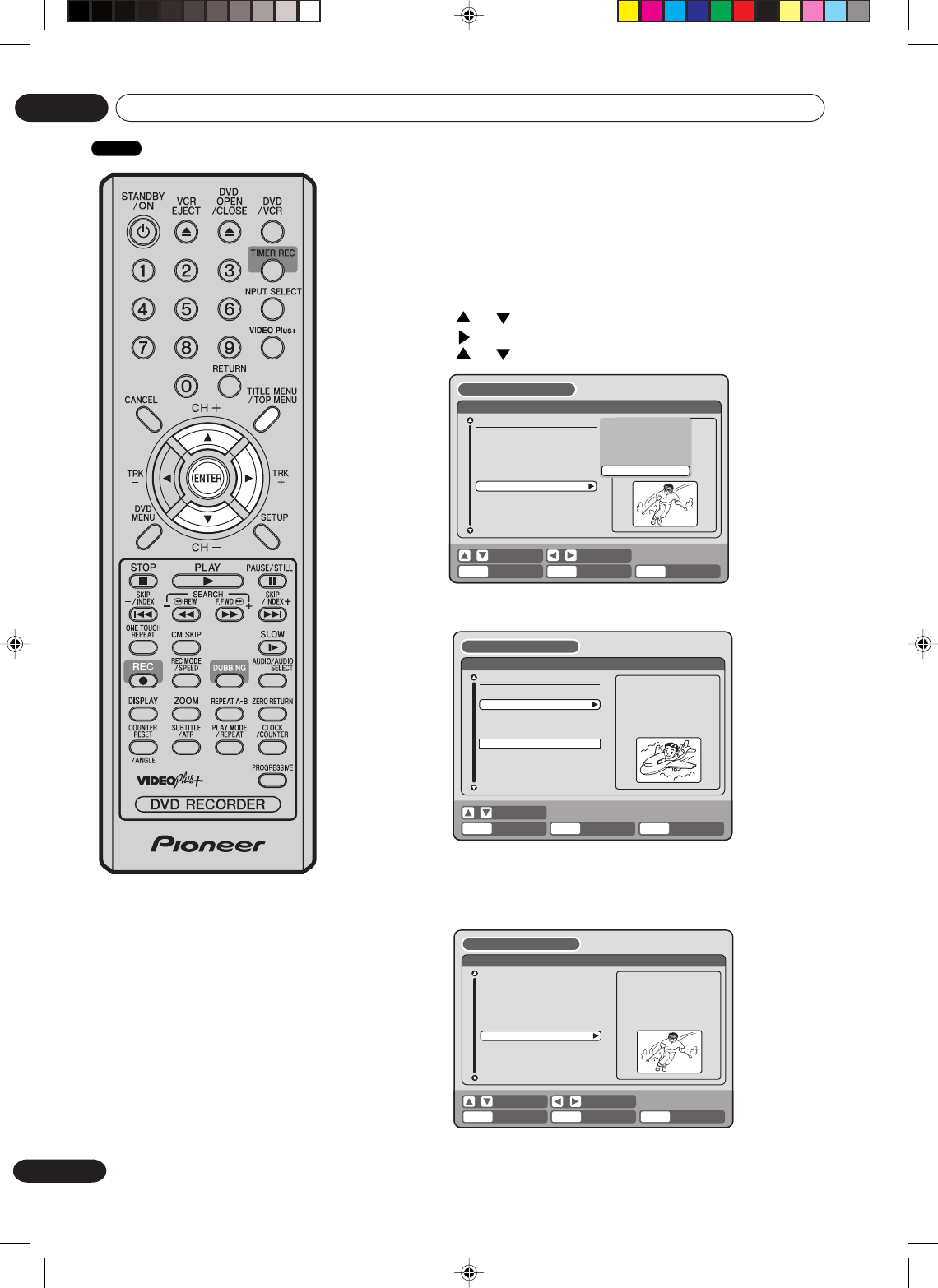
68
En
Editing the disc
06
Combining the title
You can create a playlist by combining several original titles or
playlists. To combine titles, it is necessary to create a playlist first. By
combining the titles in the playlist, a playlist where several titles are
combined is created.
1Press TITLE MENU to display the title menu.
2Select the playlist where you want to combine the titles.
• Press or to select the playlist.
• Press to display the editing menu of the playlist.
• Press or to select “TITLE COMBINE”.
3Press ENTER.
Select the title that you want to combine from the title menu.
4Press ENTER.
Following the playlist, the selected title is combined.
The several titles were combined so that the total recording time
is displayed.
RETURNENTER BACK
SET
END
SELECT
TITLE
MENU
ENTER
DISC NAME:
----
23/11/2005 08:41 06 EP
25/11/2005 10:03 11 SP
29/11/2005 11:30 09 SP
01/12/2005 06:52 06 XP
Title 1 PL
Family
REC DATE :11/23/2005
TIME :08:41
LENGTH :00:30:17
CHANNEL :006
REC MODE :SLP
TITLE MENU
PLAY
EDIT TITLE
DELETE PLAYLIST
RENAME TITLE
TITLE COMBINE
TITLE COMBINE
RETURNENTER BACK END
SELECT
TITLE
MENU
ENTER
DISC NAME:
----
23/11/2005 08:41 06 EP
25/11/2005 10:03 11 SP
29/11/2005 11:30 09 SP
01/12/2005 06:52 06 XP
Family
REC DATE :25/11/2005
TIME :10:03
LENGTH :00:20:00
CHANNEL :11
REC MODE :SP
TITLE MENU
RETURNPLAY BACK
SET
END
SELECT
TITLE
MENU
ENTER
DISC NAME:
----
23/11/2005 08:41 06 EP
25/11/2005 10:03 11 SP
29/11/2005 11:30 09 SP
01/12/2005 06:52 06 XP
Title 1 PL
Family
REC DATE :23/11/2005
TIME :08:41
LENGTH :00:50:17
CHANNEL :06
REC MODE :EP
TITLE MENU
VR mode
2H30301B_En_64_71 8/4/05, 19:2568
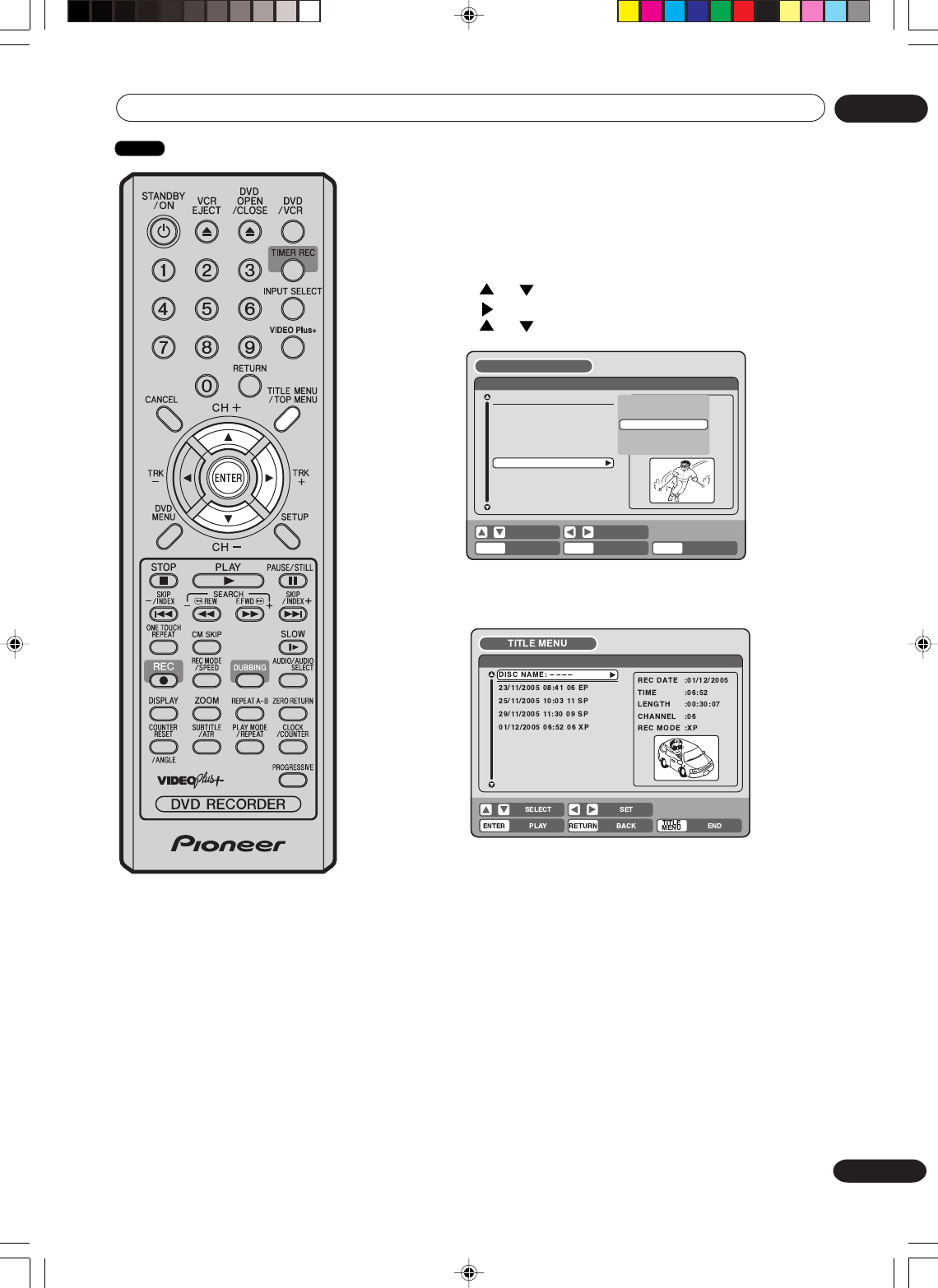
69
En
Editing the disc 06
Erasing a playlist
You can erase the created playlist. Even if you erase the playlist, the
original title will not be erased.
1Press TITLE MENU to display the title menu.
2Select the playlist that you want to erase.
• Press or to select the playlist.
• Press to display the editing menu of the playlist.
• Press or to select “DELETE PLAYLIST”.
3Press ENTER.
The selected playlist will be erased.
RETURNENTER BACK
SET
END
SELECT
TITLE
MENU
ENTER
DISC NAME:
----
23/11/2005 08:41 06 EP
25/11/2005 10:03 11 SP
29/11/2005 11:30 09 SP
01/12/2005 06:52 06 XP
Family
REC DATE :11/23/2005
TIME :08:41
LENGTH :00:30:17
CHANNEL :006
REC MODE :SLP
TITLE MENU
PLAY
EDIT TITLE
DELETE PROGRAM
RENAME TITLE
TITLE COMBINE
DELETE PLAYLIST
VR mode
2H30301B_En_64_71 8/4/05, 19:2569
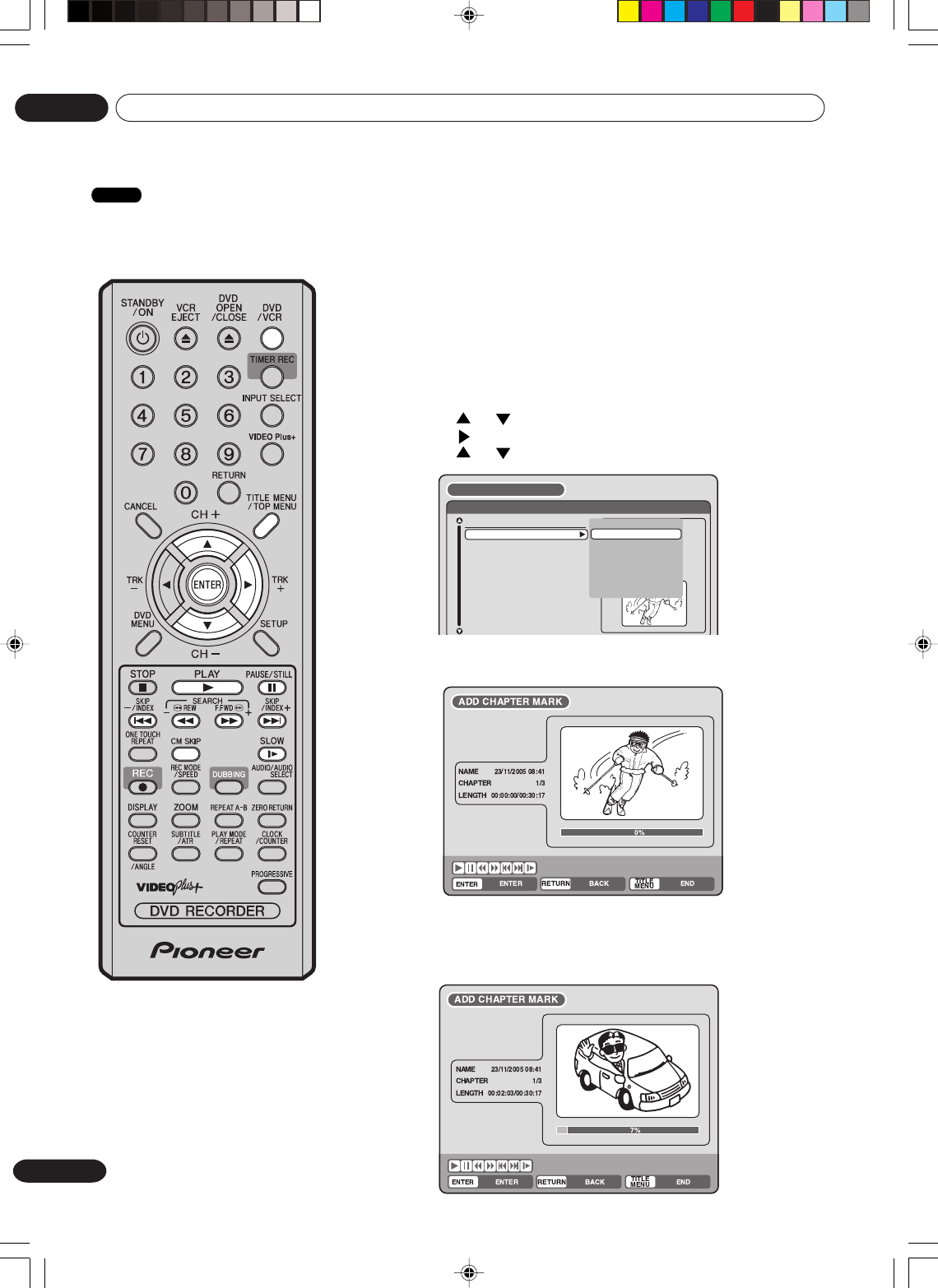
70
En
Editing the disc
06
Editing an original title
In VR mode, you can edit various
items, whereas in Video mode,
you can edit the title names only.
NOTES:
•You can automatically add a
chapter mark in recording. For
more information, see page 27.
•In case the disc includes more
than 10 titles, you can turn to the
next or the previous page. (See
page 31.)
Preparation:
• Turn ON the TV and select its AV channel (this may be labelled EXT /
AUX etc.).
• Load the recorded disc.
• Press DVD/VCR to select the DVD mode. (The DVD indicator will light.)
Adding a chapter mark
You can add a chapter mark to the original title. You can add up to 999
chapter marks to one disc, and up to 99 chapter marks to one title.
1Press TITLE MENU to display the title menu.
2Select the original title where a chapter mark is added.
• Press or to select the original title.
• Press to display the editing menu of the original title.
• Press or to select “ADD CHAPTER MARK”.
3Press ENTER.
The ADD CHAPTER MARK screen will appear.
4
Press PLAY to search a scene where you want to add the chapter mark.
• Search the scene by using each operation button (F.FWD,
REW, SKIP 66
66
6, SKIP 77
77
7, PAUSE/STILL, SLOW, CM SKIP)
for the playback.
DISC NAME:
----
23/11/2005 08:41 06 EP
25/11/2005 10:03 11 SP
29/11/2005 11:30 09 SP
01/12/2005 06:52 06 XP
Family
REC DATE :11/23/2005
TIME :08:41
LENGTH :00:30:17
CHANNEL :06
REC MODE :EP
PLAY
COMBINE CHAPTERS
EDIT TITLE
DELETE TITLE
RENAME TITLE
NEW PLAYLIST
ADD CHAPTER MARK
TITLE MENU
VR mode
2H30301B_En_64_71 8/4/05, 19:2570
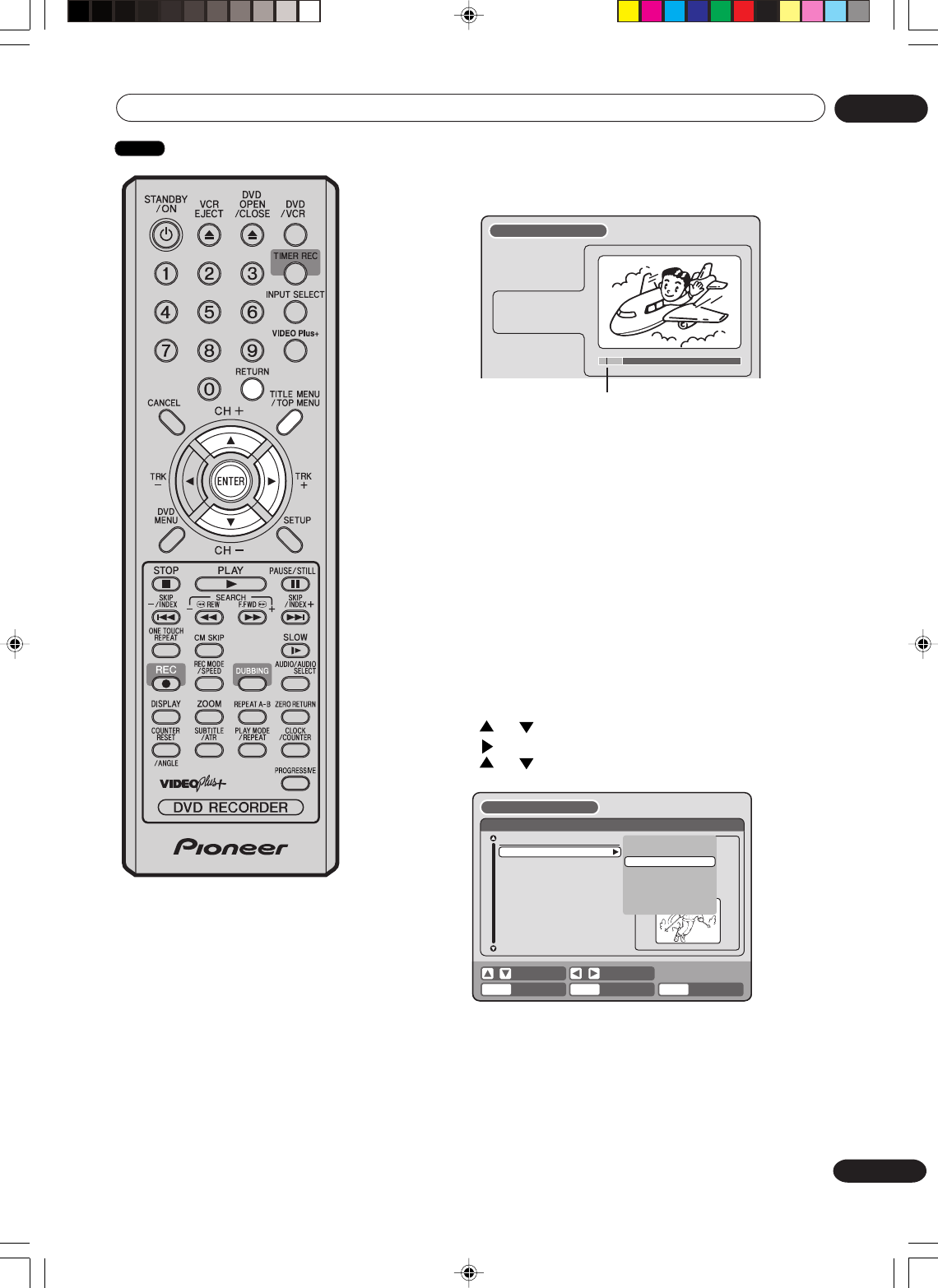
71
En
Editing the disc 06
5When the scene you want to add a chapter mark, press ENTER.
The playback is paused and the position of the added chapter
mark appears green.
6If you want to continue to add chapter mark, repeat step 5.
7Adding chapter marks is finished.
• To display the title menu, press RETURN.
• To return to the normal screen, press TITLE MENU.
Combining chapters
By erasing the added chapter marks, the chapters can be combined.
1Press TITLE MENU to display the title menu.
2Select the original titles where you want to combine the chap-
ters.
• Press or to select the original title.
• Press to display the editing menu of original title.
• Press or to select “COMBINE CHAPTERS”.
3Press ENTER.
The COMBINE CHAPTERS screen will appear. At the begin-
ning, the top still image in the chapter 2 is displayed.
ADD CHAPTER MARK
17%
NAME 23/
11/2005 08:41
CHAPTER
2/4
LENGTH
00:03:08/00:30:17
The added chapter mark
RETURNENTER BACK
SET
END
SELECT
TITLE
MENU
ENTER
DISC NAME:
----
23/11/2005 08:41 06 EP
25/11/2005 10:03 11 SP
29/11/2005 11:30 09 SP
01/12/2005 06:52 06 XP
Family
REC DATE :11/23/2005
TIME :08:41
LENGTH :00:30:17
CHANNEL :06
REC MODE :EP
PLAY
COMBINE CHAPTERS
EDIT TITLE
DELETE TITLE
RENAME TITLE
NEW PLAYLIST
ADD CHAPTER MARK
TITLE MENU
NOTE:
Chapter marks that have been
added automatically in the erasing
of a scene procedure (page 73)
cannot be erased.
VR mode
2H30301B_En_64_71 8/4/05, 19:2571
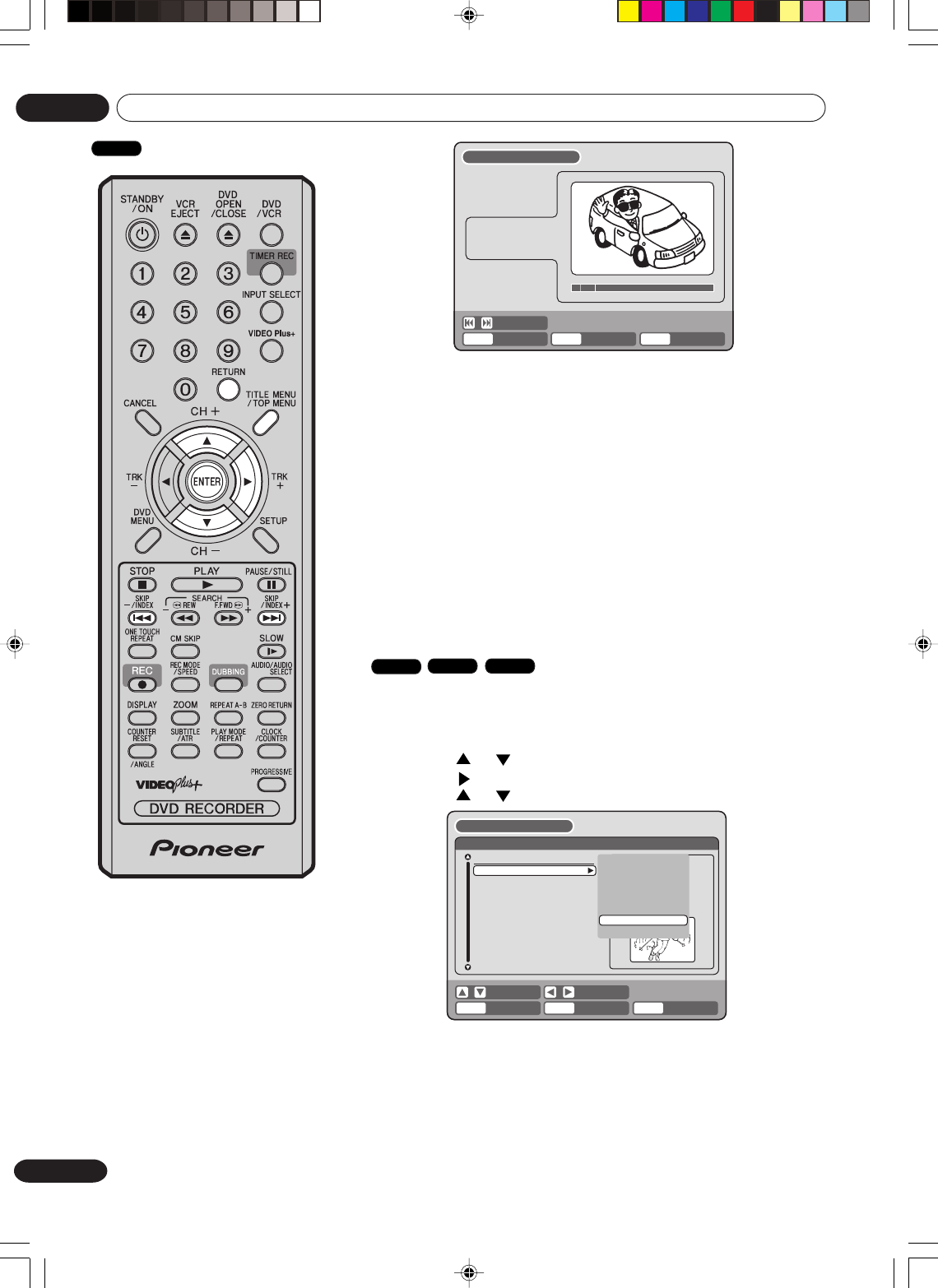
72
En
Editing the disc
06
4Press SKIP 6 or 7 to select the chapter marks to be
erased.
5Press ENTER.
The chapter marks are erased and 2 chapters are combined into
1 chapter.
6To continue erasing the chapter marks, repeat steps 4 and 5.
7The combining chapters will completed.
• To display the title menu, press RETURN.
• To return to the normal screen, press TITLE MENU.
Changing an original title name
1Press TITLE MENU to display the title menu.
2Select the original title that you want to rename.
• Press or to select the original title.
• Press to display the editing menu of original title.
• Press or to select “RENAME TITLE”.
3Press ENTER.
The keyboard screen will appear.
The entering method of the title name is the same as for the
playlist. See the steps 4 and 5 of “Changing a title name” in
“Editing a playlist” (page 65) and enter the title name (See also
page 76 for more about the keyboard screen).
SELECT
RETURNENTER BACK END
TITLE
MENU
ENTER
COMBINE CHAPTERS
NAME 23/
11/2005 08:41
CHAPTER
2/4
LENGTH
00:02:03/00:30:17
RETURNENTER BACK
SET
END
SELECT
TITLE
MENU
ENTER
DISC NAME:
----
23/11/2005 08:41 06 EP
25/11/2005 10:03 11 SP
29/11/2005 11:30 09 SP
01/12/2005 06:52 06 XP
Family
REC DATE :11/23/2005
TIME :08:41
LENGTH :00:30:17
CHANNEL :06
REC MODE :EP
TITLE MENU
PLAY
ADD CHAPTER MARK
COMBINE CHAPTERS
EDIT TITLE
DELETE TITLE
RENAME TITLE
NEW PLAYLIST
RENAME TITLE
NOTES:
•The title name can be a maxi-
mum of 64 characters in VR
mode and a maximum of 30
characters in Video mode. Long
names will be shortened in the
title menu.
•“RENAME TITLE” can only be
used with DVD-R discs and video
mode DVD-RW discs before they
have been finalized.
VR mode
VR mode
DVD-Video
DVD-R
2H30301B_En_72_77 8/4/05, 19:2572
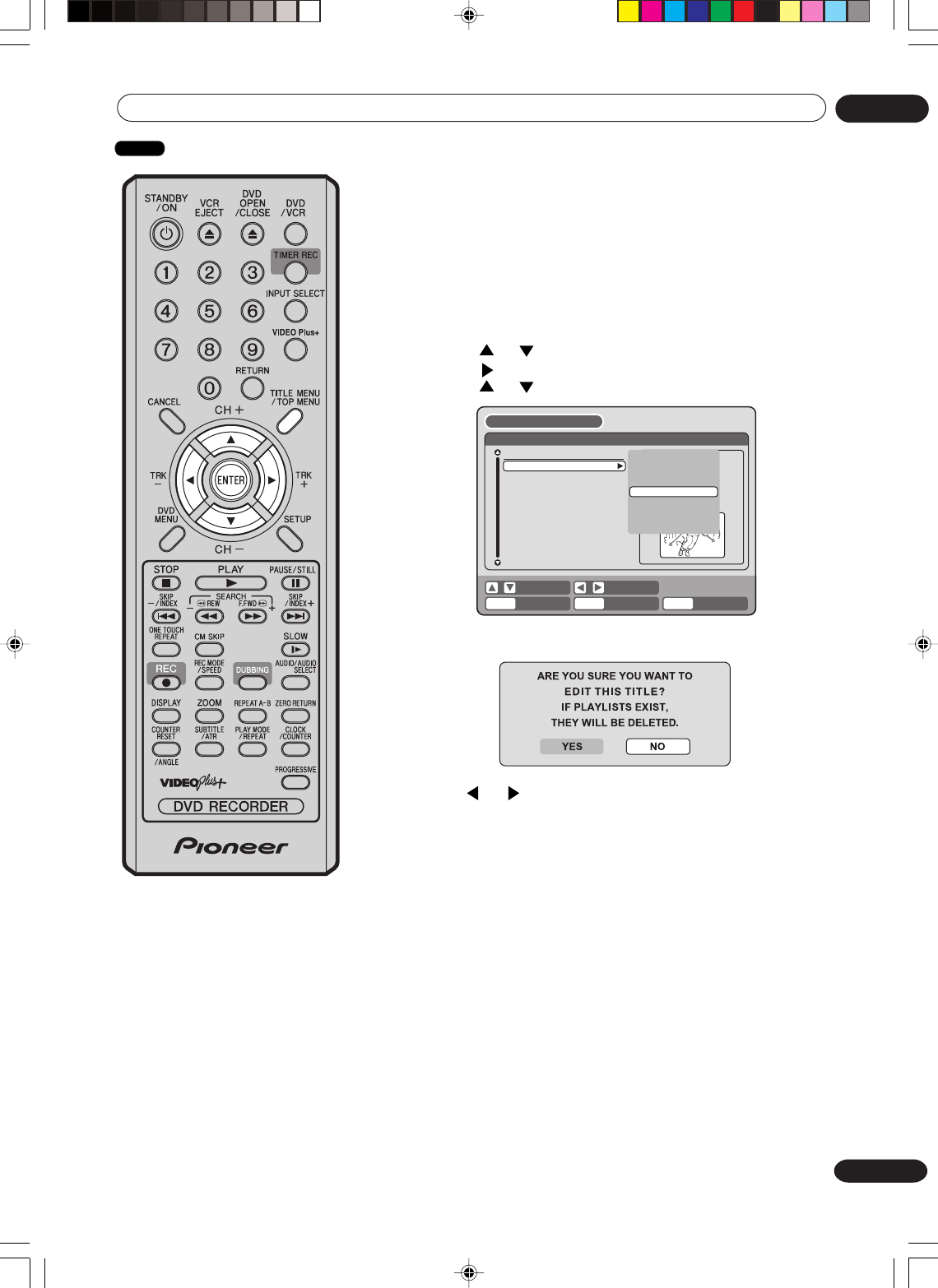
73
En
Editing the disc 06
3By pressing ENTER, the following message screen will appear.
4Press or to select “YES” and press ENTER, then the
EDIT TITLE screen will appear.
• By selecting “NO”, the title menu appears.
5The method for erasing a scene is the same as for the playlist.
See the steps 4 to 9 of “Erasing scenes (Edit title)” in “Editing a
playlist” (page 66).
Erasing a scene (Edit title)
You can erase an unnecessary scene from the original title.
Erase the scene after checking the title. You cannot restore the
erased scene.
When you erase the scene, you can increase the disc space.
1Press TITLE MENU to display the title menu.
2Select the original title where a scene you want to erase is
included.
• Press or to select the original title.
• Press to display the editing menu of original title.
• Press or to select “EDIT TITLE”.
RETURNENTER BACK
SET
END
SELECT
TITLE
MENU
ENTER
DISC NAME:
----
23/11/2005 08:41 06 EP
25/11/2005 10:03 11 SP
29/11/2005 11:30 09 SP
01/12/2005 06:52 06 XP
Family
REC DATE :11/23/2005
TIME :08:41
LENGTH :00:30:17
CHANNEL :06
REC MODE :EP
TITLE MENU
PLAY
ADD CHAPTER MARK
COMBINE CHAPTERS
EDIT PROGRAM
DELETE TITLE
RENAME TITLE
NEW PLAYLIST
EDIT TITLE
NOTES:
•If the scene is erased from the
original title, the created playlist
is erased.
•Disc space will only be freed up if
scenes lasting several minutes
are deleted.
•A chapter mark is automatically
added at the location of the
erased scene. Chapter mark
added by erasing scene cannot
be erased.
VR mode
2H30301B_En_72_77 8/4/05, 19:2673
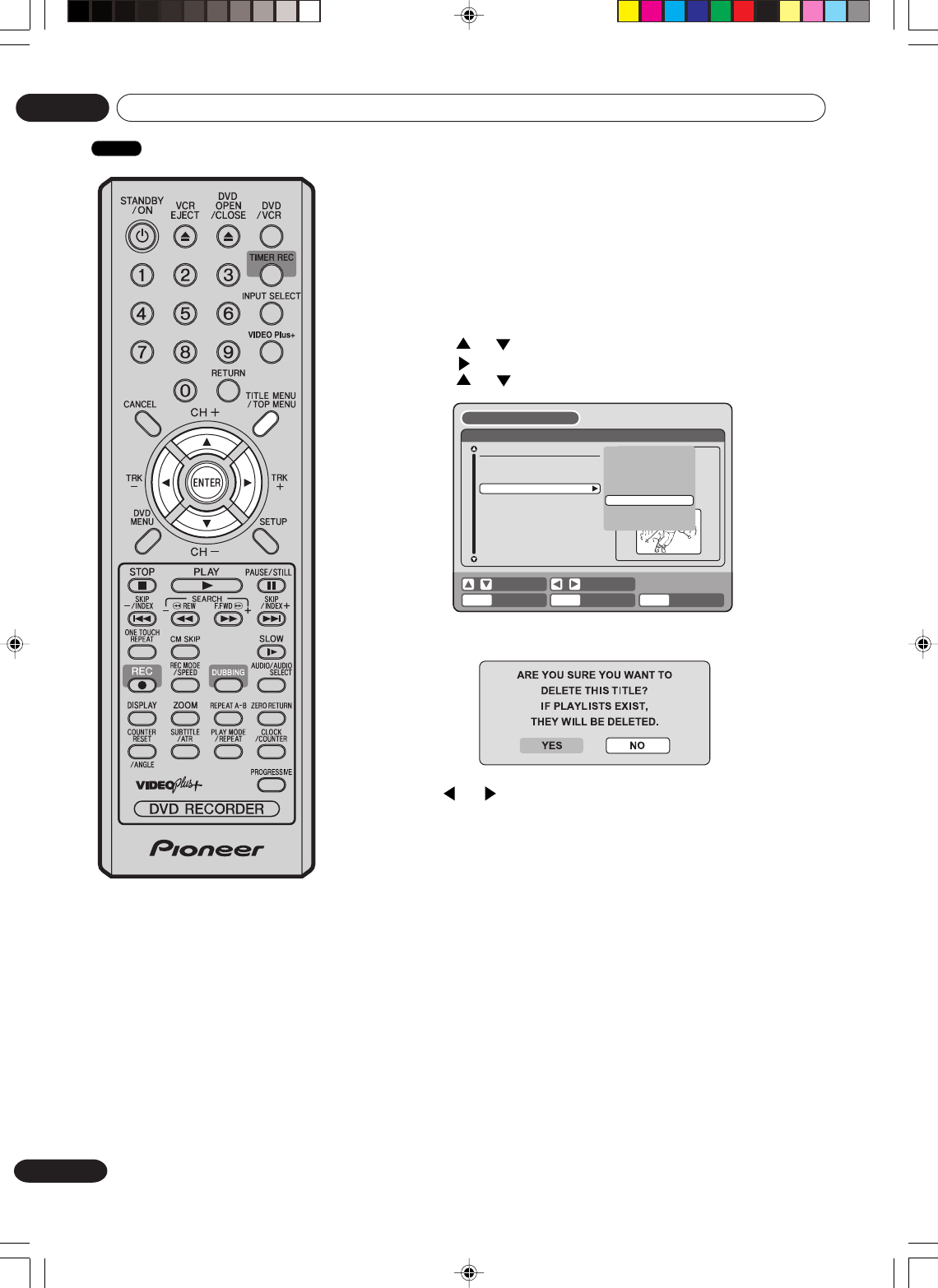
74
En
Editing the disc
06
NOTE:
If the original title is erased the
created playlist is also erased.
3By pressing ENTER, the following message screen will appear.
4Press or to select “YES” and press ENTER, then the
original title will be erased.
• Erasing the title will be cancelled by selecting “NO”.
Erasing an original title
You can erase the original title.
Erase the original title after checking its title. The erased title cannot be
restored.
When you erase the titles, you can increase the disc space.
1Press TITLE MENU to display the title menu.
2Select the original title you want to erase.
• Press or to select the original title.
• Press to display the editing menu of original title.
• Press or to select “DELETE TITLE”.
RETURNENTER BACK
SET
END
SELECT
TITLE
MENU
ENTER
DISC NAME:
----
23/11/2005 08:41 06 EP
25/11/2005 10:03 11 SP
29/11/2005 11:30 09 SP
01/12/2005 06:52 06 XP
Family
REC DATE :11/23/2005
TIME :08:41
LENGTH :00:30:17
CHANNEL :06
REC MODE :EP
TITLE MENU
PLAY
ADD CHAPTER MARK
COMBINE CHAPTERS
EDIT TITLE
DELETE TITLE
RENAME TITLE
NEW PLAYLIST
DELETE TITLE
VR mode
2H30301B_En_72_77 8/4/05, 19:2674
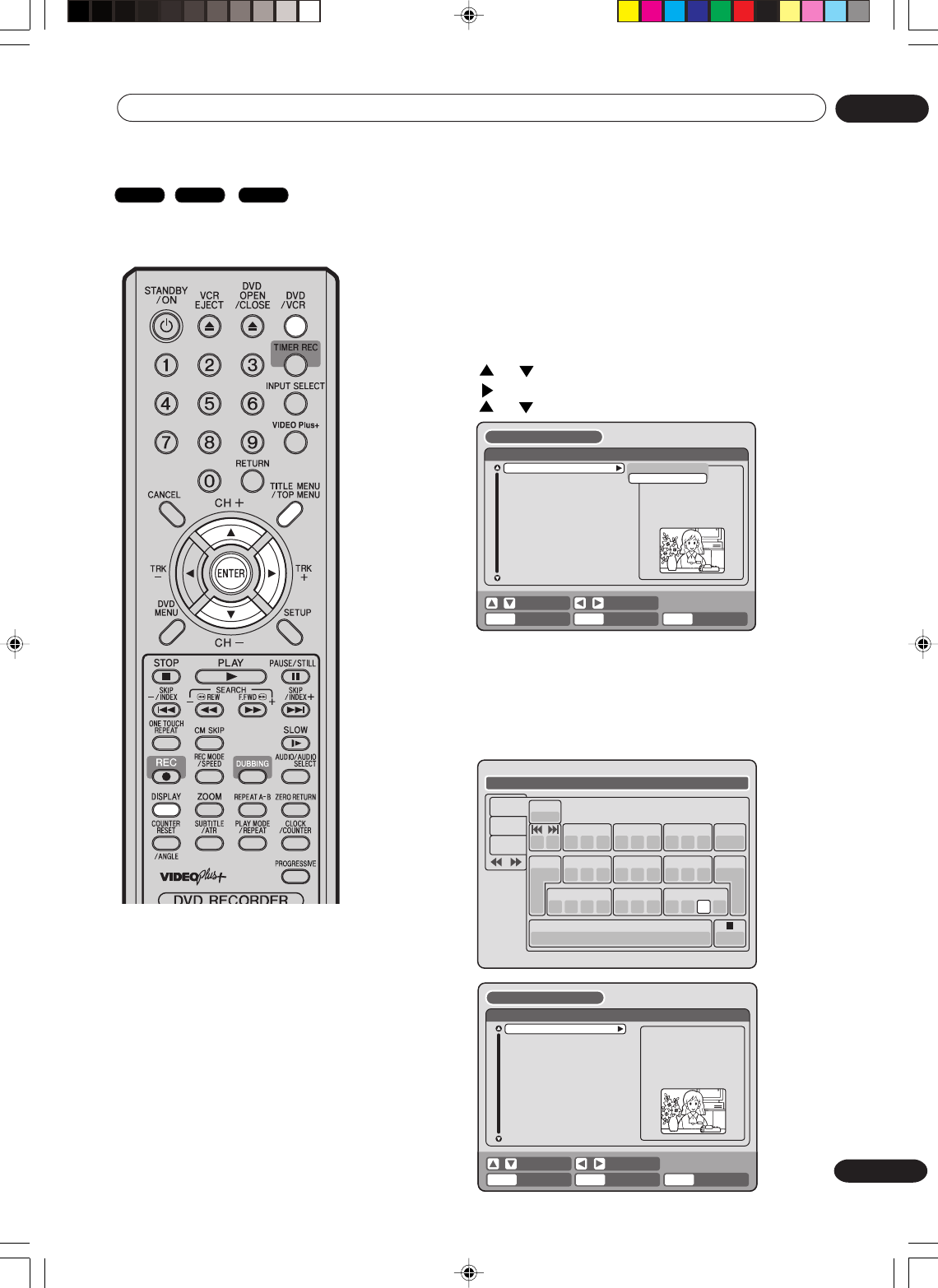
75
En
Editing the disc 06
Changing a disc name
You can change a disc name
from the title menu.
Preparation:
•Turn ON the TV and select its AV channel (this may be labelled EXT /
AUX etc.).
• Load the recorded DVD disc.
• Press DVD/VCR to select the DVD mode. (The DVD indicator will light.)
Changing a disc name
1Press TITLE MENU to display the title menu.
2• Press or to select “DISC NAME”.
• Press to display the editing menu.
• Press or to select “RENAME DISC”.
3Press ENTER.
The keyboard screen will appear.
4Use the keyboard screen to enter the disc name.
5Press DISPLAY to return the title menu.
Drama_Family
Numbers
Signs
Letters
1
( -< > #
2
a b c
3
d e f Back
Exit
Caps
0
4
g h i
5
j k l
6
m n o
7
qp r s
8
t u v
9
w x y z
CANCEL
RETURN
DISPLAY
OK
DISPLAY
OK
Space bar
NOTES:
•The disc name can be a maxi-
mum of 30 characters. Long
names will be shortened in the
title menu.
•For using the keyboard screen,
see “Using the keyboard screen”
(page 76).
•“RENAME DISC” can only be
used with DVD-R discs and video
mode DVD-RW discs before they
have been finalized.
23/11/2005 08:41 06 EP
25/11/2005 10:03 11 SP
29/11/2005 11:30 09 SP
01/12/2005 06:52 06 XP
Family
DISC NAME:
----
PLAY
LENGTH :
CHANNEL :
REC MODE :
RENAME DISC
TITLE MENU
RETURNENTER BACK
SET
END
SELECT
TITLE
MENU
ENTER
23/11/2005 08:41 06 EP
25/11/2005 10:03 11 SP
29/11/2005 11:30 09 SP
01/12/2005 06:52 06 XP
Family
DISC NAME:Drama_Family REC DATE :
TIME :
LENGTH :
CHANNEL :
REC MODE :
TITLE MENU
RETURNENTER BACK
SET
END
SELECT
TITLE
MENU
ENTER
VR mode
Video mode
DVD-R
2H30301B_En_72_77 8/4/05, 19:2675
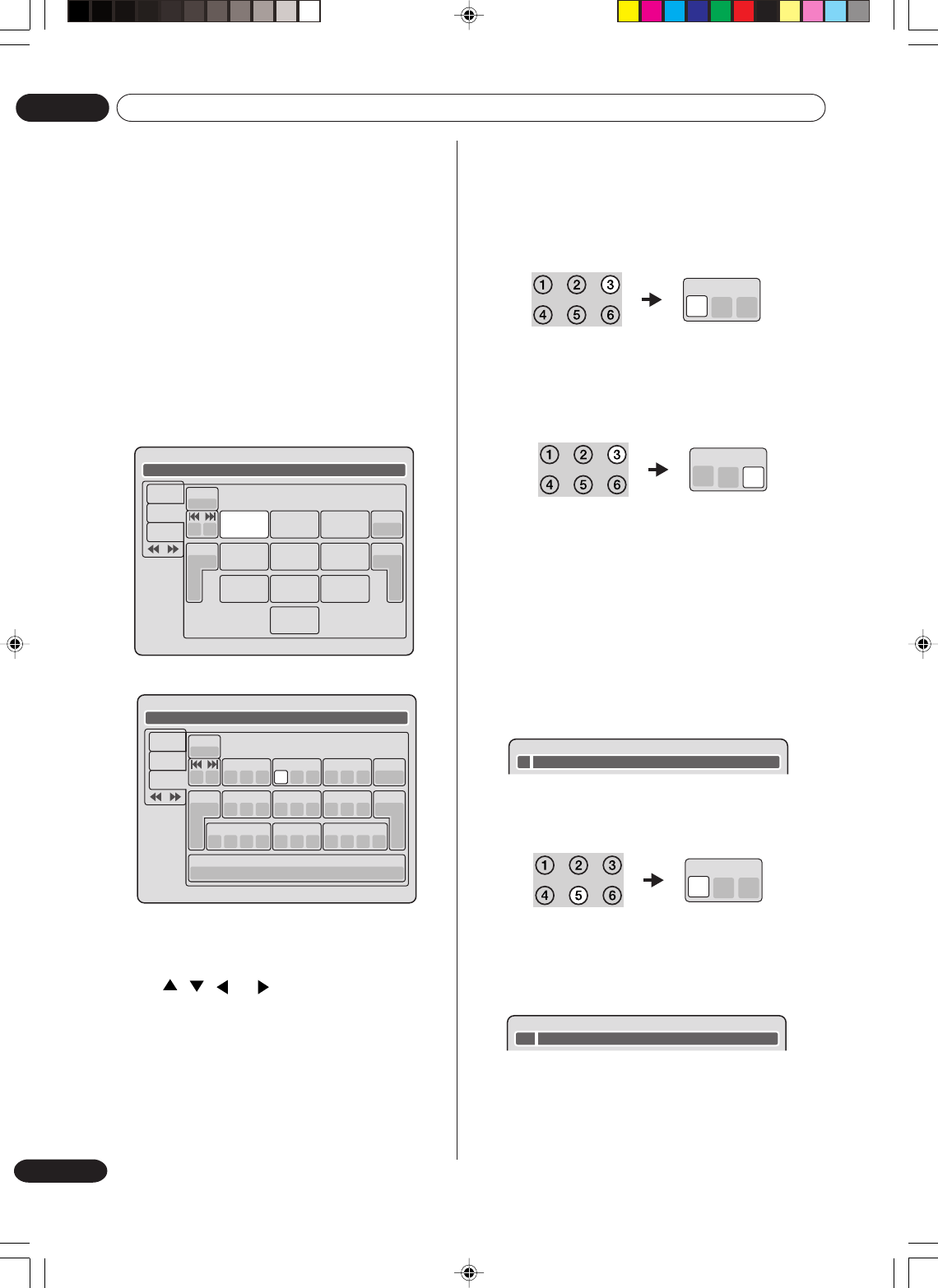
76
En
Editing the disc
06
Using the keyboard screen
This section explains the function of the keyboard screen
and how to input characters. The disc name and the title
name can be changed using the keyboard screen.
Keyboard screen types
The keyboard screen has three types of “Letters”,
“Numbers” and “Signs”. The type can be switched over
by pressing REW or F.FWD.
Letters:This is mainly used for inputting alphabetical
letters.
For the keyboard screen of Letters, see the
previous page.
Numbers:This is used for inputting numbers.
Signs:This is used for inputting symbols.
Live Show
Numbers
Signs
Letters
1
< > 2 3 Back
Exit
4 5 6
7 8
0
9
CANCEL
RETURN
DISPLAY
OK
DISPLAY
OK
Inputting characters
Live Show
Numbers
Signs
Letters
1
) !< > ,
2
? @ #
3
& % / Back
Exit
0
Space bar
4
. * _
5
- + =
6
[]:
7
¨; \ ‘
8
< > $
9
:·) :·( ;-/ :·}
CANCEL
RETURN
DISPLAY
OK
DISPLAY
OK
There are two methods for inputting characters.
Character input 1
1Press , , or to select the character to
be input.
2Press ENTER.
The selected character will be input.
Character input 2
Example: Explained here is the procedure when you
input “F” and “J”.
1Press the numeric keys where a character you
want to input is assigned.
3
de f
2Press the numeric keys continuously and select
the character to be input.
To input F, press 3 three times.
3
de f
NOTE:
When the interval between the pressing numeric
keys is 2 seconds or more in selecting the input
character, the selected character will automatically be
input.
3Stop the key operation when you select the
character to be input.
The selected character will automatically be
input.
F
4Press the numeric keys where the following
character is assigned.
5
jk l
Fj
5When the character to be input is selected, stop
the key operation.
The selected character is automatically input.
2H30301B_En_72_77 8/4/05, 19:2676
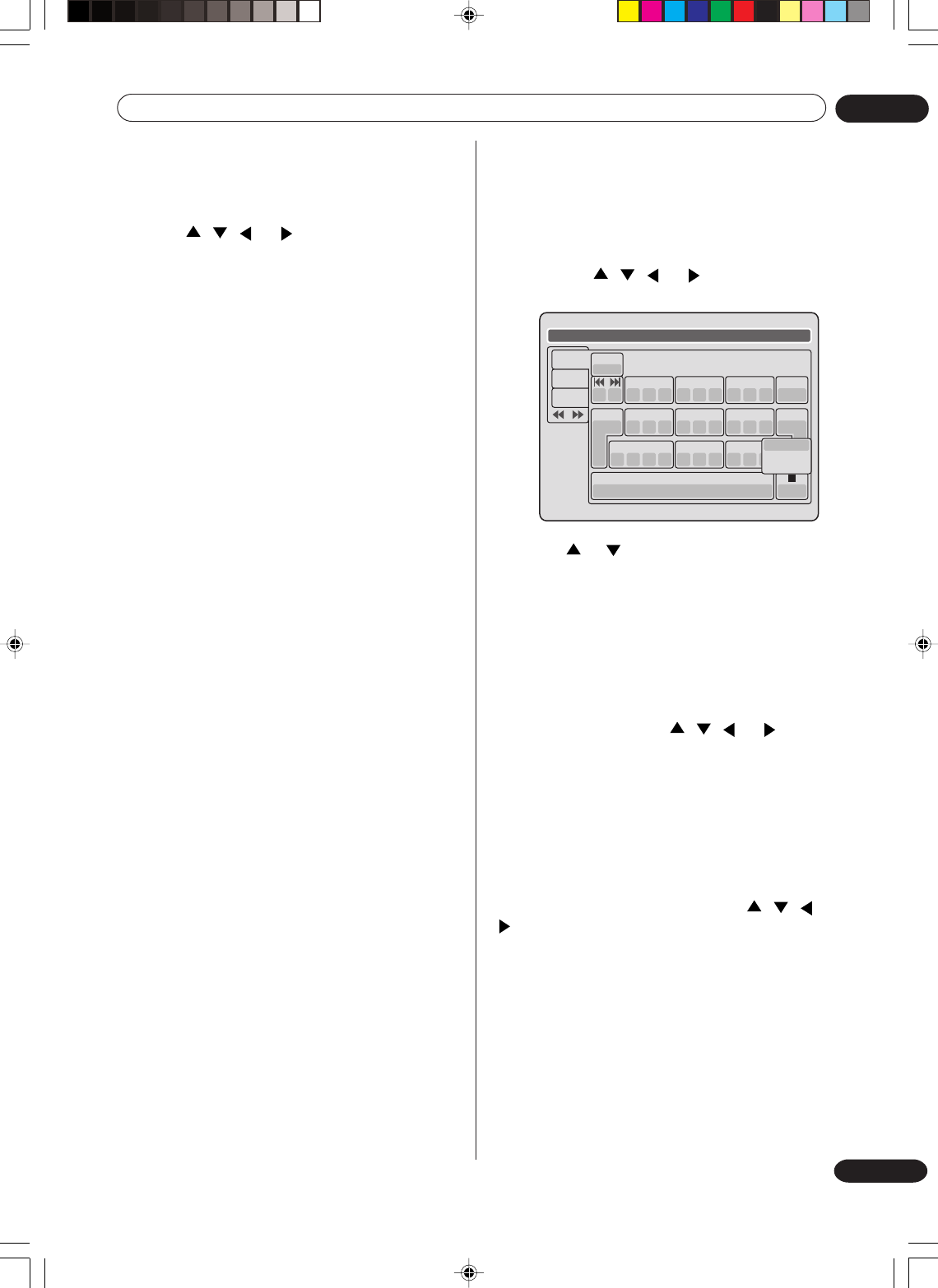
77
En
Editing the disc 06
Erasing a character
You can erase the input character.
Erasing method 1
1Press , , or to select “Back”.
2Press ENTER.
The last input character will be erased.
3To erase the characters continuously, press
ENTER.
The input characters will be erased from the last
to the top one by one.
Erasing method 2
1Press CANCEL on the remote control.
The last input character is erased.
2To erase the characters continuously, press
CANCEL.
The input characters will be erased from the last
to the top one by one.
Erasing method 3
Use the cursor to select the character and erase it.
1Press SKIP 6 or 7 to move the cursor after
the character you want to erase.
2Press CANCEL .
Erase the character before the cursor position.
Live Show
1
( -< > #
2
a b c
3
d e f Back
Exit
Caps
0
4
g h i
5
j k l
6
m n o
7
qp r s
8
t u v
9
w x y z
Numbers
Signs
Letters
Upper
Lower
Auto caps
CANCEL
RETURN
DISPLAY
OK
DISPLAY
OK
Space bar
Selecting between uppercase and lowercase
letters
You can select either uppercase or lowercase letters
when modifying your titles, using the keyboard screen
with the “Letters” tab.
1Press STOP.
(Or, press , , or to select “Caps”, then
press ENTER.)
2Press or to select the type of letters in the
list below and press ENTER.
Auto caps:Determines uppercase and lower-
case automatically.
Upper:Inputs all with uppercase letters.
Lower: Inputs all with lowercase letters.
Determining a name
To determine the entered disc name and title name,
press DISPLAY. Or, press , , or to select
“OK”, then press ENTER.
The keyboard screen disappears and the display will
return to the title menu.
The entered disc name and title name are displayed
in the title menu.
Cancelling character input
When you want to cancel the input and changed
characters, press RETURN. Or, press , , or
to select “Exit”, then press ENTER.
The input and changed characters are cancelled and
the title menu will appear.
2H30301B_En_72_77 8/4/05, 19:2677
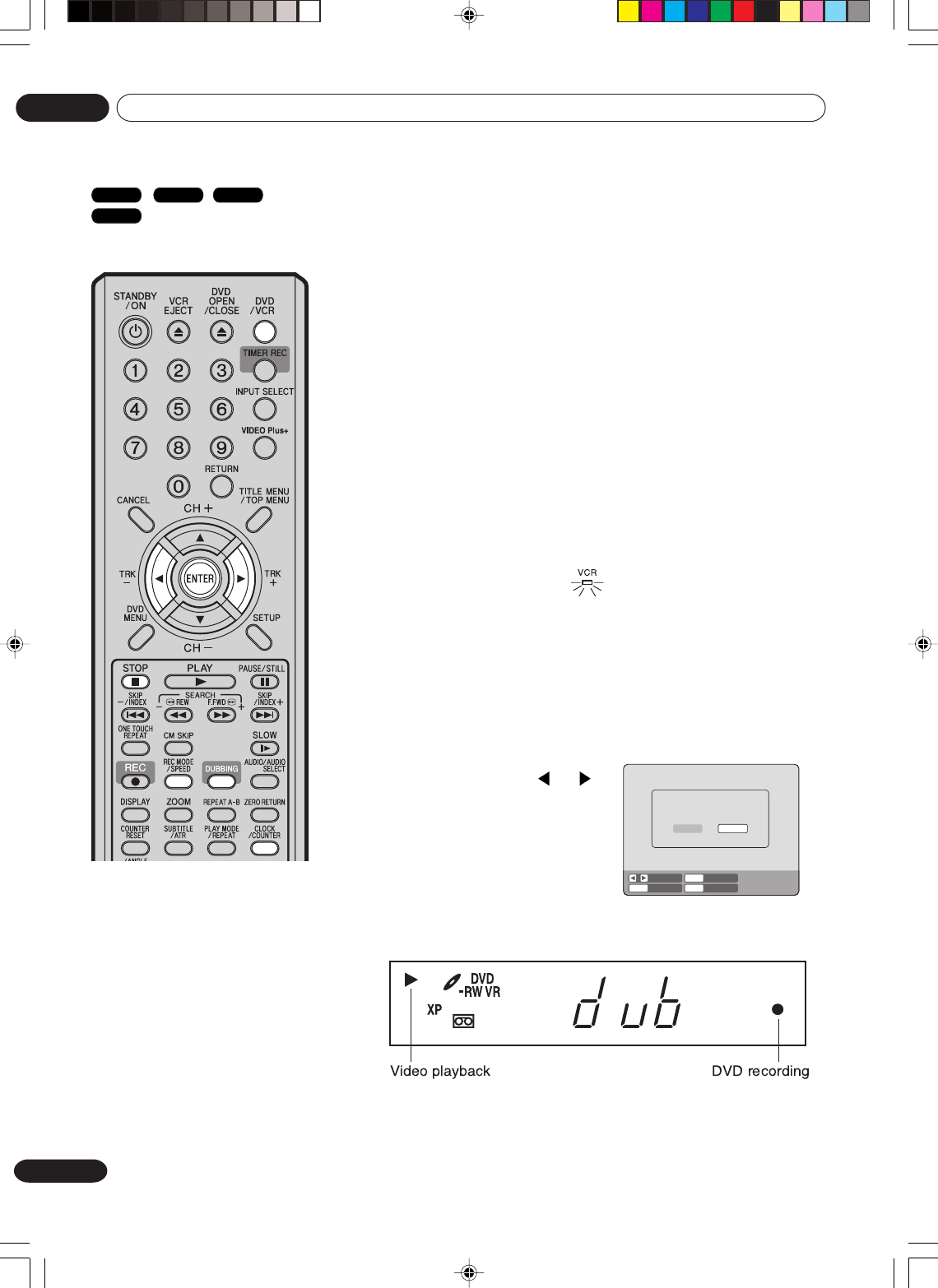
78
En
Dubbing
07
NOTE:
Confirm that the VCR indicator lights.
4Press DUBBING.
•The unit is changed to DVD mode automatically.
•The VCR is waiting for playback and the DVD is waiting for
recording. Then the following message will appear.
5Press DUBBING, or or to
select “YES” and press ENTER.
Dubbing starts.
•To cancel dubbing, press
STOP, or select “NO” and
press ENTER.
In dubbing, VCR playback, DVD recording and “dub” (dubbing)
indicator appear on the display window.
Press CLOCK/COUNTER to display the elapsed dubbing time in
the display window.
6To stop dubbing, press STOP.
Dubbing a tape onto a disc
You can record video or audio
on a video tape onto a disc.
Preparation:
•Turn ON the TV and select its AV channel (this may be labelled
EXT / AUX etc.).
•Load a source video tape and a disc for recording.
•Remove the erase protection tab of the source video tape to
prevent the data from accidentally being erased.
•Confirm the disc space before operation.
1Press DVD/VCR to set this unit to DVD mode.
The DVD indicator will light.
2Press REC MODE/SPEED and select the recording mode SP,
LP, EP or XP.
•The recording mode is indicated on both the TV screen and
the display window.
•For the details of the recording mode, see page 50.
3Press DVD/VCR and set the unit to VCR mode.
STOPENTERENTER NO
YES
SELECT
DUBBING
CONFIRM DUBBING FROM VCR TO DVD
YES NO
NOTES:
•Dubbing cannot be accomplished
when
- a copy protected tape is used.
- a finalised disc is used.
-disc protection is set.
-disc has no recording space.
•Dubbing stops when
-the video tape is played back to
the end and stops.
-recording space becomes full.
- the picture noise continues for 1
minute.
• The videos recorded from TV
programs or movies can be used
only for your personal enjoyment
without permission of the copyright
holder.
VR mode
Video mode
DVD-R
VCR
2H30301B_En_78_81 8/4/05, 19:2678
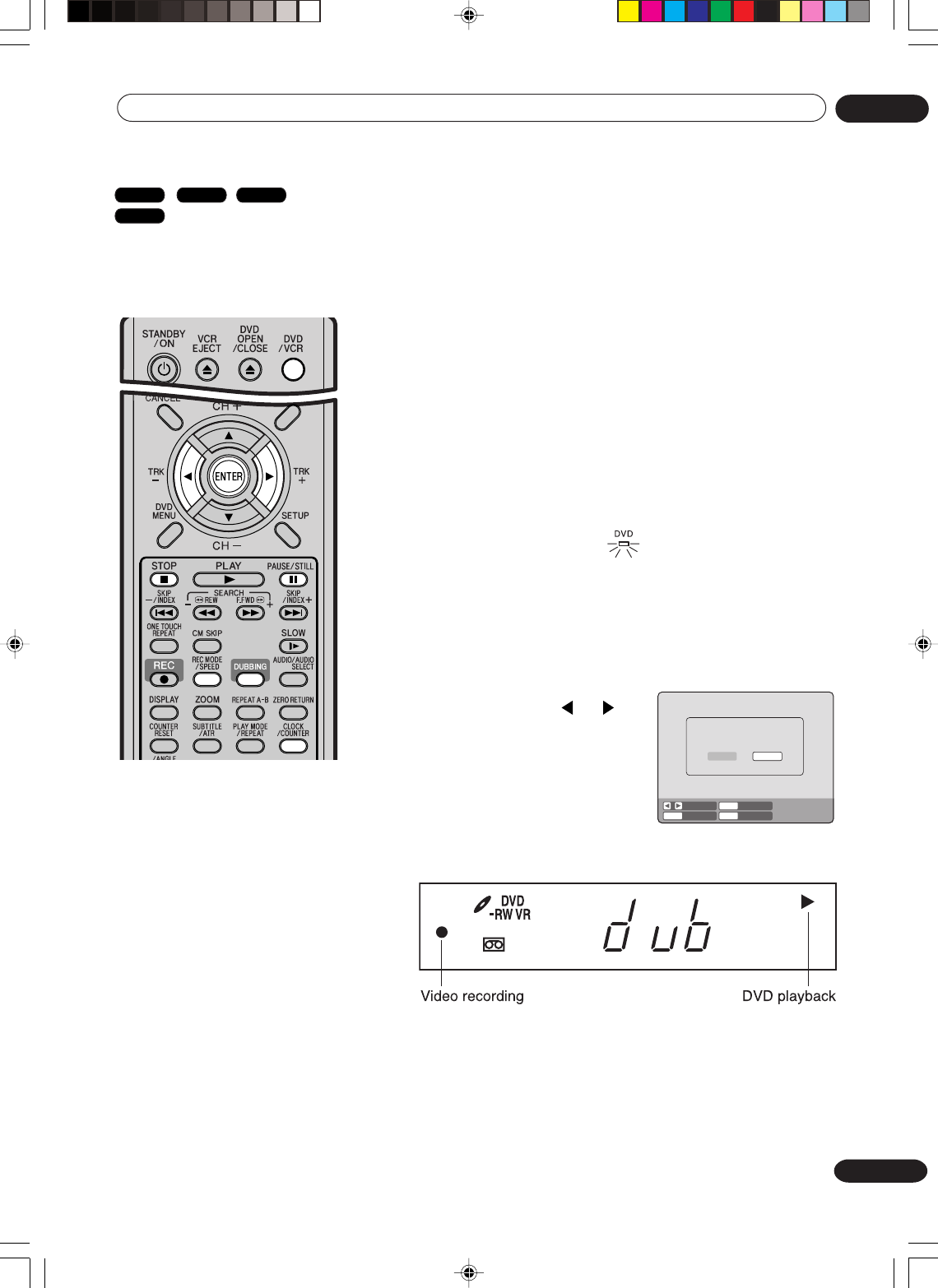
79
En
Dubbing 07
NOTES:
•When a title is played by selecting it from
the title menu, only the title selected is
played.
•Dubbing cannot be accomplished when
-a copy protected disc is used.
-a DivX
®
file is played.
-the erase prevention tab of video tape
is removed.
•Dubbing stops when
- the disc is played back to the end and
stops.
-no recording space on the Video tape
remains
•During dubbing, the unit is changed to
interlaced scan mode automatically, if it
has been previously set to progressive
scan mode.
• If no special permission is obtained from
the copyright owner, videos recorded
from TV programs or movies can only be
used for your own personal enjoyment.
You can record both video and
audio from a disc to a video
tape. When a disc with a copy
guard is used, dubbing cannot
be accomplished.
Preparation:
•Turn ON the TV and select its AV channel (this may be labelled EXT /
AUX etc.).
•Load a source disc and a video tape for recording.
•Confirm the remaining tape for recording before operation.
1Press DVD/VCR to set this unit to VCR mode.
The VCR indicator will light.
2Press REC MODE/SPEED and select the recording mode SP or
LP.
•The recording mode is indicated on both the TV screen and
the display window.
•For the details of the recording mode, see page 46.
3Press DVD/VCR and set the unit to DVD mode.
NOTE:
Confirm that the DVD indicator lights.
4Press DUBBING.
•The DVD is waiting for playback and the VCR is waiting for
recording. Then the following message appears.
5Press DUBBING, or or to
select “YES” and press ENTER.
Dubbing starts.
•To cancel dubbing, press STOP,
or select “NO” and press
ENTER.
In dubbing, DVD playback, VCR recording and “dub” (dubbing)
indicator appear on the display window.
Press CLOCK/COUNTER to display the tape counter in the
display window.
6To stop dubbing, press STOP.
Dubbing only the specified titles or the playlist
When you want to dub only specific titles or playlists recorded on the disc, start the playback of the desired title or playlist, and
then press DUBBING and proceed from step 5 above. Dubbing start from the beginning of the title or playlist.
Dubbing only a specified scene
When you want to dub only specific scene on the disc, press PAUSE/STILL at the desired scene, and then press DUBBING
and proceed from step 5 above.
Dubbing a disc onto a tape
STOPENTERENTER NO
YES
SELECT
DUBBING
CONFIRM DUBBING FROM DVD TO VCR
YES NO
VR mode
Video mode
DVD-R
VCR
2H30301B_En_78_81 8/4/05, 19:2679
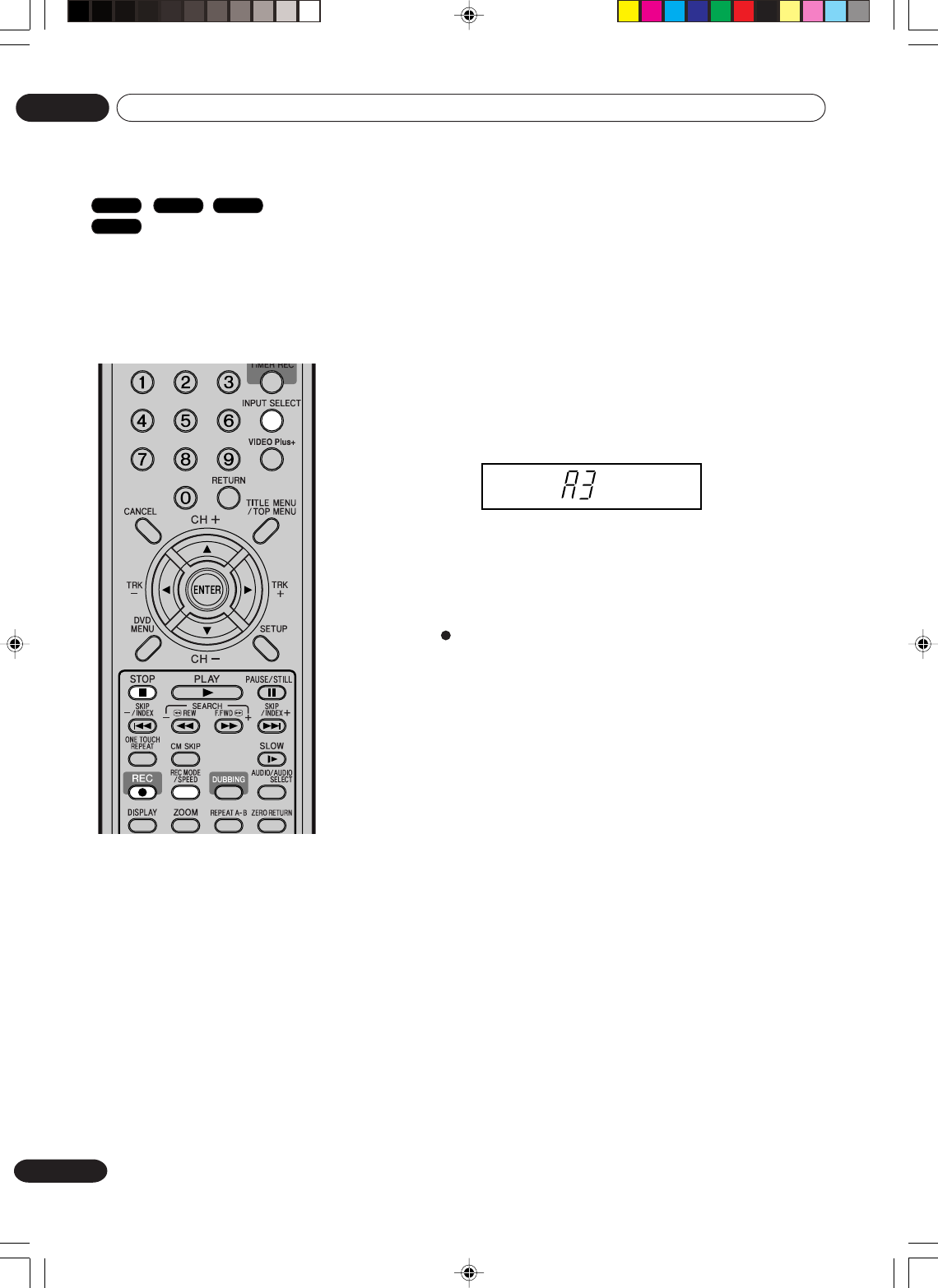
80
En
Dubbing
07
You can connect another VCR or
camcorder for dubbing.
Typical connection: When using this
unit as a recording device
See next page for the diagrams of
connection.
NOTES:
•When this unit is used as a
playback device, any on screen
displays that appear would also
appear on the recording.
However it is possible to set the
on screen display to OFF - see
the “DISPLAY/CALL” section on
page 24 for more information.
•If no special permission is
obtained from the copyright
owner, videos recorded from TV
programs or movies can only be
used for your own personal
enjoyment.
•You may not dub a copy pro-
tected video tape or DVD disc.
Dubbing using other equipment
VR mode
Video mode
DVD-R
VCR
2Press REC MODE/SPEED and select the recording mode.
VCR: SP or LP (See page 46.)
DVD: SP, LP, EP or XP (See page 50.)
3Press REC on this unit.
4Press the PLAY button on the playback device.
5To stop dubbing, press STOP.
When a video is recorded using this unit
Preparation:
• Turn ON the TV and select its AV channel (this may be labelled
EXT / AUX etc.).
• Load a video tape where the erase-protection tab is not activated
or a disc with enough recording space.
• To record onto a video tape, set the unit to VCR mode, whereas to
record onto a disc, set it to DVD mode.
1Press INPUT SELECT and set the channel to A3 (or A2).
A2: DECODER/EXTERNAL scart on the rear panel
A3: AUDIO/VIDEO input on the front panel
Confirm that A3 (or A2) appears on the display window.
2H30301B_En_78_81 8/4/05, 19:2680
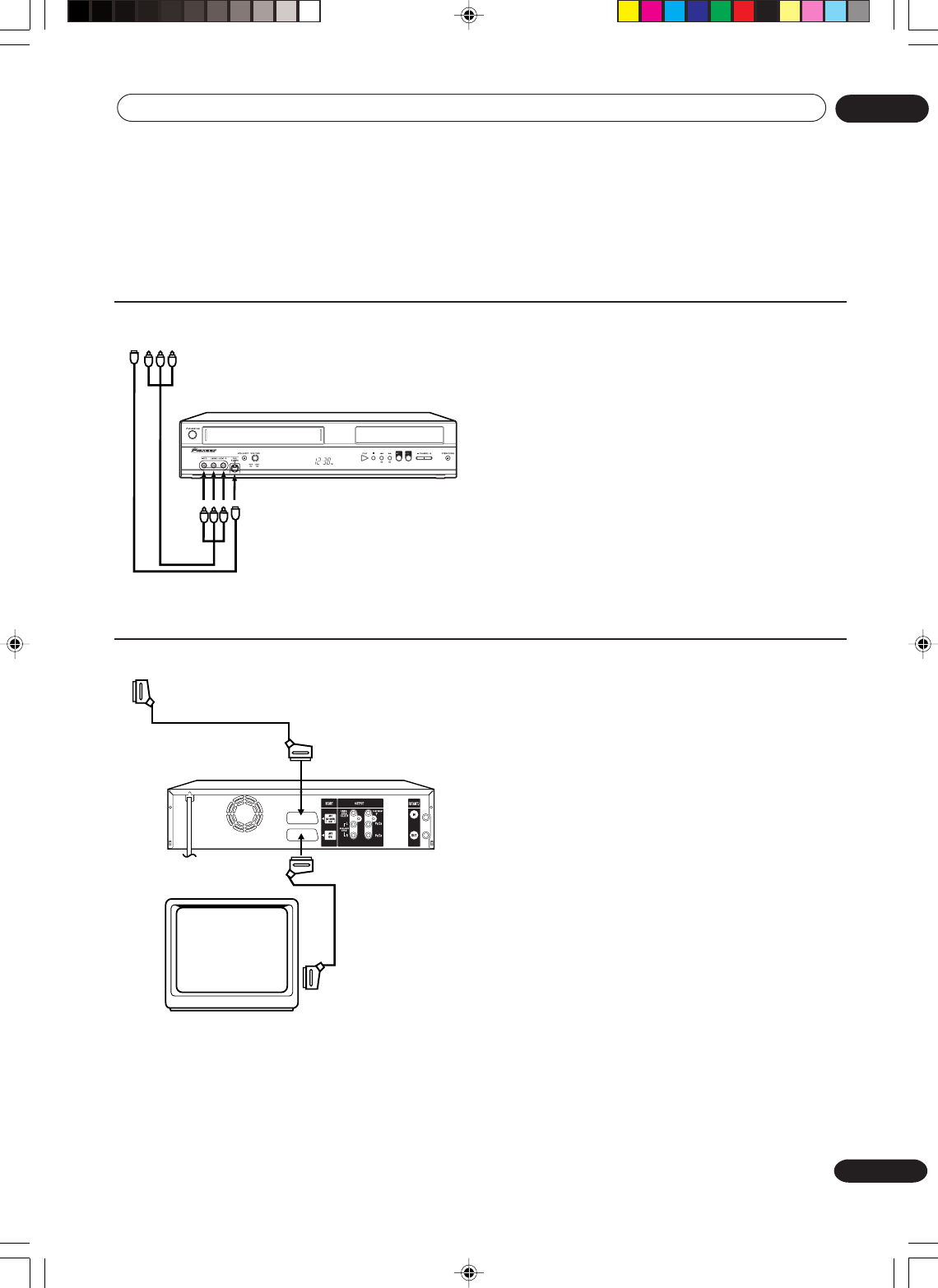
81
En
Dubbing 07
Playback unit connection.
The playback unit can be a camcorder or a video recorder. See each operation manual for each playback
operation. The copy protected video or DVD disc cannot be copied.
See “EXTERNAL AUDIO INPUT” on page 26 for how to switch the external audio input.
Dubbing with A/V-cable (or S-Video cable) (not supplied)
To playback unit
Recording unit
A/V-cable (not supplied)
Press INPUT SELECT on the remote
control repeatedly until A3 appears on the
front display.
If the other VCR or camcorder is equipped
with S-Video output, a superior picture will
be achieved using an S-Video cable
connected to the S-Video-input (AV3) on
the front panel with S-Video cable. In this
case, you must select “S-VIDEO” mode in
AV3 INPUT-setting on page 25.
If you select “VIDEO”, only the composite
video signal will be input. (S-Video input
signal will be cut.)
The S-Video input can be used only for
recording on the disc. (The S-Video input
cannot be used for recording on the video
tape.)
To playback unit
SCART cable
(not supplied)
SCART
cable
(supplied)
TV-unit (not supplied)
Dubbing with SCART cable (not supplied)
Press INPUT SELECT on the remote
control repeatedly until A2 appears on the
front display.
Recording unit
S-Video cable (not supplied)
AV3
2H30301B_En_78_81 8/4/05, 19:2681
Additional information
08
82
En
Glossary
A-B Repeat Playback
Playback that repeats between two set points, A
and B.
angle
Recorded onto some DVD discs are scenes which
have been simultaneously shot from a number of
different angles (the same scene is shot from the
front, from the left side, from the right side, etc.).
With such discs you can select the angle from
which to view the scene.
auto chapter
Feature that automatically makes chapter marks on
a DVD disc during recording.
blue background
Feature that automatically changes unpleasant
noise images to a blue screen when a channel
without a broadcast or a channel on which the
broadcast has ended has been selected.
BROWSER screen
Screen that appears when TITLE MENU is pressed
during MP3/WMA or JPEG CD is inserted.
chapter
A section within a title is called a “chapter”.
CM Skip
When pressed during playback, playback jumps 30
sec ahead and resumes.
copy guard
Copyright protection signal. Software and broad-
casts that contain this signal cannot be recorded.
DivX
DivX is a compressed digital video format created
by the DivX® video codec from DivXNetworks, Inc.
This unit can play DivX video files burned on CD-R/
RW/ROM discs. Keeping the same terminology as
DVD-Video, individual DivX video files are called
“Titles”. When naming files/titles on a CD-R/RW
disc prior to burning, keep in mind that by default
they will be played in alphabetical order.
DivX, DivX Certified, and associated logos are
trademarks of DivXNetworks, Inc. and are used under
license.
Dolby Digital
With multichannel audio, this high quality surround
system is used in many movie theaters around the
world.
Manufactured under licence from Dolby Laboratories.
"Dolby" and the double-D symbol are trademarks of
Dolby Laboratories.
DTS
DTS stands for Digital Theater System. DTS is a
surround system different from Dolby Digital that has
become a popular surround sound format for movies.
"DTS" and "DTS Digital Out" are registered trademarks of
Digital Theater Systems, Inc.
DVD menu
Menu recorded on a DVD-Video that enables the
user to select subtitles language, soundtrack
language, etc.
finalise
Operation that enables discs recorded or edited
with this unit to be played back on other DVD
players.
letter box
Feature that displays black bands above and below
the playback images during playback of a disc
recorded in wide (16:9) format on a 4:3 TV con-
nected to this unit.
MP3
One type of audio compression that uses MPEG1.
one touch repeat
If ONE TOUCH REPEAT is pressed during play-
back, playback returns to a point 10 sec earlier and
resumes.
original title
The file created by recording something is called an
“original title”.
OTR
One-touch Timer Recording. Start a timed record-
ing by pushing just one button (up to 6 hours).
pan scan
Feature that cuts the left and right edges of
playback images to a 4:3 size during playback of a
disc recorded in wide (16:9) format on a 4:3 TV
connected to this unit.
parental control
Some discs control viewing according to the age of
the viewer. A control level can be set for those
types of discs.
2H30301B_En_82_Back 8/4/05, 19:2682
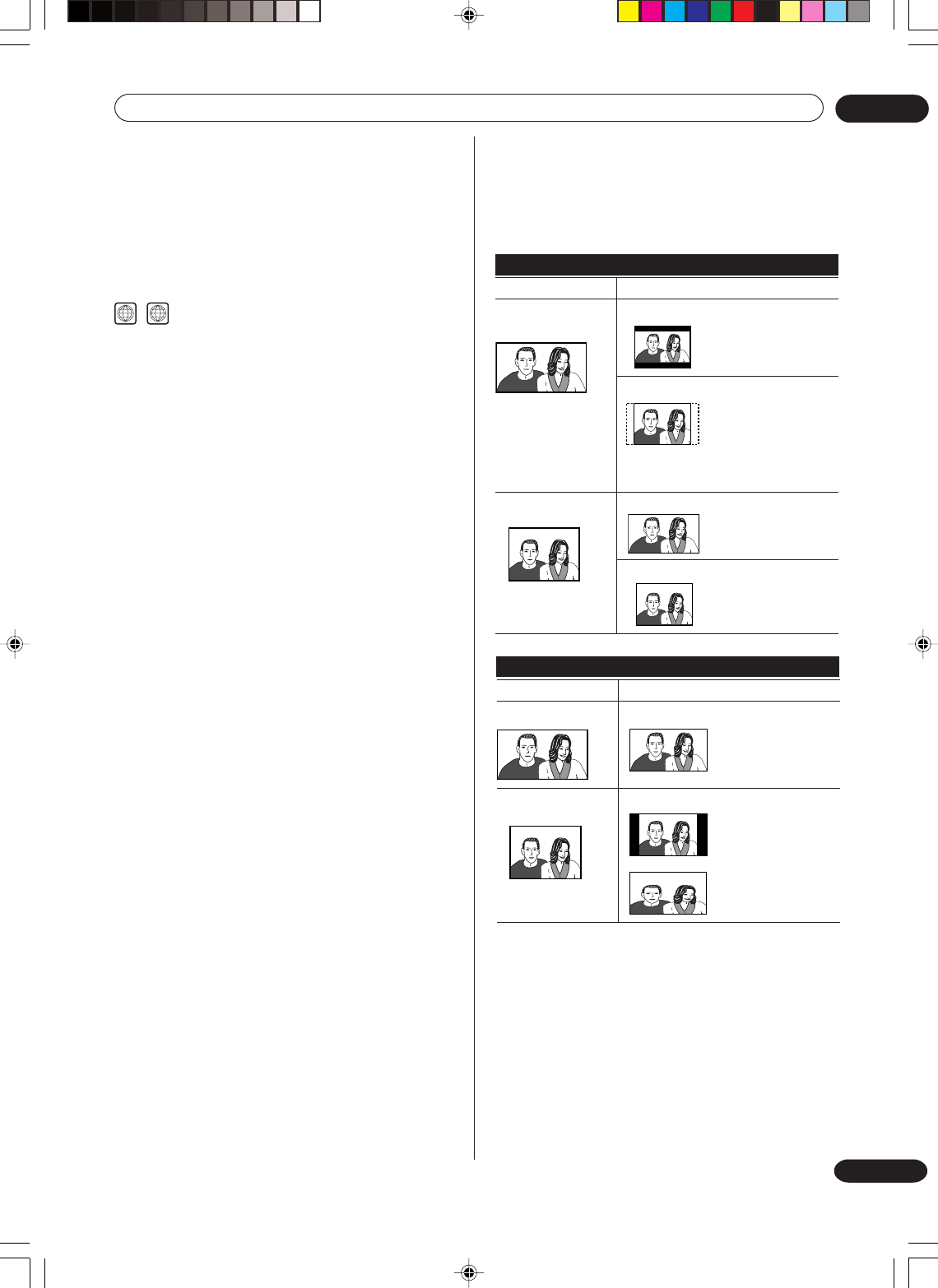
Additional information 08
83
En
Screen sizes and disc
formats
playlist
User-created titles based on each original title.
Progressive scan
Technology that simultaneously displays odd-
numbered scanning lines and even-numbered
scanning lines from top to bottom. Also called
“576p”, “p” meaning “progressive”.
Regions (DVD only)
2
ALL
(example region code marks)
Regions associate discs and players with particular
areas of the world. This unit will only play discs that
have compatible region codes. You can find the region
code of your unit by looking on the rear panel. Some
discs are compatible with more than one region (or all
regions).
SETUP MENU
Menu that contains settings for various features of
this unit, such as recording and playback. Timer
recording is also set from the SETUP MENU.
slide show
Technique for flipping through and viewing many
images (JPEG files).
subtitle language
Language used for subtitles of movies, etc. Viewers
can watch in a language of their choosing.
title
A program recorded on a disc is called a “title”.
title menu
Menu that lists titles and tracks recorded on the
disc. It is used for playback and disc editing.
top menu
Menu on a DVD-Video for selecting chapters for
playback, subtitle language, etc. The top menu may
be referred to as a Title Menu on some DVD discs.
track
A song on a music CD is called a “track”.
TRACK INFO screen
The screen that appears when TITLE MENU is
pressed, if an Audio disc is in the unit.
Video mode
This recording format is compatible with commer-
cially available DVD players.
VR mode
This recording format is the basic DVD-RW
recording format, and lets you enjoy the various
editing functions available with this unit.
Screen sizes and disc formats
(See page 24)
When viewing on a standard TV or monitor
Screen format of disc
Setting Appearance
4:3 (Letter Box)
The program is shown
in widescreen with
black bars at the top
and bottom of the
screen.
4:3 (Pan & Scan)
The sides of the
program are cropped
so that the picture fills
the whole screen.
Please note that many
4:3 16:9
The program appears
squashed. Set to either
4:3 (Letter Box) or 4:3
(Pan & Scan).
4:3 (Pan & Scan)
The program is
presented correctly on
either setting.
When viewing on a widescreen TV or monitor
Screen format of disc
Setting Appearance
16:9 16:9
The program is
presented in
widescreen.
4:3 16:9
Your TV will determine
how the picture is
presented-check the
manual that came
with the TV for details.
NOTE: Using the 16:9 (Wide) setting with a standard
4:3 TV, or either of the 4:3 settings with a
widescreen TV, will result in a distorted
picture.
widescreen discs override the player's
settings so that the disc is shown in letter
box format regardless of the setting.
16:9
2H30301B_En_82_Back 8/4/05, 19:2683
Additional information
08
84
En
Enter the appropriate code number for the initial settings “DVD MENU”, “AUDIO” and/or “SUBTITLE” (see page 20).
Language code list
Language
Abkhazian
Afar
Afrikaans
Albanian
Amharic
Arabic
Armenian
Assamese
Aymara
Azerbaijani
Bashkir
Bengali; Bangla
Bhutani
Bihari
Breton
Bulgarian
Burmese
Byelorussian
Catalan
Cambodian
Chinese
Corsican
Croatian
Czech
Danish
Deutsch
Dutch
Greek
English
Esperanto
Spanish
Code
1112
1111
1116
2927
1123
1128
1835
1129
1135
1136
1211
1224
1436
1218
1228
1217
2335
1215
1311
2123
3618
1325
1828
1329
1411
1415
2422
1522
1524
1525
1529
Code
1530
1531
1611
1625
1620
1619
1628
1635
1722
2111
2122
1724
1731
1811
1933
1819
1831
1929
1924
1911
1711
1930
2011
2033
2124
2129
2121
2135
2125
2131
2225
Language
Estonian
Basque
Persian
Faroese
Fiji
Finnish
French
Frisian
Galician
Georgian
Greenlandic
Guarani
Gujarati
Hausa
Hebrew
Hindi
Hungarian
Icelandic
Indonesian
Interlingua
Irish
Italian
Japanese
Javanese
Kannada
Kashmiri
Kazakh
Kirghiz
Korean
Kurdish
Laothian
Code
2211
2232
2224
2230
2321
2317
2329
2322
2330
2319
2328
2325
2324
2411
2415
2425
2528
2611
2629
2622
2630
2731
2823
2825
2831
2923
2911
1714
2928
2918
2924
Language
Latin
Latvian, Lettish
Lingala
Lithuanian
Macedonian
Malagasy
Malay
Malayalam
Maltese
Maori
Marathi
Moldavian
Mongolian
Nauru
Nepali
Norwegian
Oriya
Panjabi
Pashto, Pushto
Polish
Portuguese
Quechua
Rhaeto-Romance
Romanian
Russian
Samoan
Sanskrit
Scots Gaelic
Serbian
Serbo-Croatian
Shona
Language
Sindhi
Singhalese
Slovak
Slovenian
Somali
Sundanese
Swahili
Swedish
Tagalog
Tajik
Tamil
Tatar
Telugu
Thai
Tibetan
Tigrinya
Tonga
Tu r kish
Tu r kmen
Tw i
Ukrainian
Urdu
Uzbek
Vietnamese
Volapük
Welsh
Wolof
Xhosa
Yiddish
Yo r uba
Zulu
Code
2914
2919
2921
2922
2925
2931
2933
2932
3022
3017
3011
3030
3015
3018
1225
3019
3025
3028
3021
3033
3121
3128
3136
3219
3225
1335
3325
3418
2019
3525
3631
2H30301B_En_82_Back 8/4/05, 19:2784
Additional information 08
85
En
SYSTEM ERROR
PLEASE WAIT
SYSTEM ERROR
PLEASE WAIT
DISC CHECKING
SYSTEM ERROR
DISC MIGHT BE FAILED
PRESS ENTER
NO DISC
REGION CODE ERROR
INCORRECT DISC - C104, C105,
C106, C107
PROGRESSIVE OUTPUT. STOP
DISC PLAY BACK THEN PRESS
PROGRESSIVE TO CANCEL.
Error/Warning message list
--
ERROR/WARNING MESSAGE
CAUSE POSSIBLE SOLUTIONS PAGE
NOTE: It is possible that other warning messages other than this listed above could appear.
If this happens, please check the possible solutions above as they could still provide an explanation.
The power was shut down without completing the
termination process due to a power failure or dis-
connection of the AC cord plug. (Abnormal termi-
nation)
The power was abruptly turned off before writ-
ing to the disc was completed.
The data restoration was completed.
PLAY was pressed when a disc was not loaded
into the unit.
A disc specified other than “Region 2” or “Region
ALL” was loaded.
The disc cannot be identified.
Wait until the message disappears.
The data is now restoring.
Press ENTER, then the screen re-
turns to the normal display. The data
may not be restored even if the res-
toration process is performed.
Load a disc.
A disc specified other than “Region
2” or “Region ALL” cannot be played
back.
Check to make sure that the disc is
compatible with this unit.
--
50
30
9
9
Playback
Power ON
REC was pressed when a disc was not loaded
into the unit.
The recording termination is processing.
Disc became full during recording.
Recording was tried onto the disc having no space.
Recording was tried onto the disc which does not
support recording.
Disc erase-protection is applied.
Recording was tried onto the finalised disc.
Adding data was tried onto the disc recorded in
the other unit.
Adding data was tried to the disc where PC data
was recorded.
A scratch or contamination was found on the disc.
99 titles were recorded on the disc.
Load a disc.
Wait until the process is completed.
Erase unnecessary titles or load
another disc and restart recording.
Check the disc space.
Load a recordable disc.
Set “Protect disc” to “OFF”.
Undo finalisation or load another
disc for recording.
Load another disc for recording.
Load another disc for recording.
Check the disc and reload it, or use
another disc for recording.
Erase unnecessary titles or load
another disc.
--
52
32
10
23
23
--
--
--
74
71
51
51
51
74
999 chapters were existed on the disc.
You tried to record a copy-guard video.
The video was changed to a copy-guard format
in recording.
Yo u tried to record the “Copy Once” program onto
a disc (Video mode).
Yo u tried to record the “Copy Once” program onto
a disc without CPRM.
Erase unnecessary chapters or
load another disc.
You cannot record the video con-
taining copy-guard signal.
You cannot record the video con-
taining copy-guard signal.
Load a DVD-RW Ver. 1.1/1.2 (VR
mode) with CPRM.
Load a DVD-RW Ver. 1.1/1.2 (VR
mode) with CPRM. 51
NO DISC
PROCESSING PLEASE WAIT
RECORDING INTERRUPTED -
C204
CANNOT RECORD - C203
CANNOT RECORD - C206
CANNOT RECORD - C207
CANNOT RECORD - C208
CANNOT RECORD - C209
CANNOT RECORD - C210
DISC ERROR - C205, C211, C212,
C213
CANNOT RECORD EXCEEDS LIM-
ITED NUMBER OF TITLES.
CANNOT RECORD, EXCEEDS
LIMITED NUMBER OF CHAPTER.
CANNOT RECORD PROTECTED
IMAGE.
RECORDING INTERRUPTED PRO-
TECTED IMAGE.
CANNOT RECORD IN VIDEO MODE.
COPY IMAGE ONCE ONLY.
CANNOT RECORD ON DISC.
THIS IS NOT CPRM DISC.
TIMER RECORDING ERROR
PLEASE CHCK THE DISC OR TAPE
Recording
When the unit was not connec-ted to the TV with
the component video cables, PROGRESSIVE
was pressed.
Press PROGRESSIVE in the stop
mode to make the progressive
scanning mode inactive. 45
No video tape or disc is inserted as a source for
the recording.
The source video or disc to be copied is copy-
guarded.
The video tape or disc became full during dubbing.
Cannot Format disc due to a scratch or contami-
nation on the disc.
Cannot Finalise disc due to a scratch or con-
tamination on the disc.
Cannot Undo Finalise disc due to a scratch or
contamination on the disc.
Cannot Protect disc ON/OFF due to a scratch
or contamination on the disc.
Editing cannot be performed due to a scratch or
contamination on the disc.
Combining chapters cannot be performed.
Load a video tape or disc into the
source drive.
You cannot dub a video containing
copy-guarded material.
Load another video tape or disc for
recording and restart.
Check the disc and reload it, or use
another disc for recording.
Check the disc and reload it.
Check the disc and reload it.
Check the disc and reload it.
Check the disc and reload it, or use
another disc for recording.
Chapter marks that have been
added automatically in the erasing
of a scene procedure cannot be
erased.
78, 79
51
78, 79
--
88
88
88
--
A process requiring a longer time such as edit-
ing is being performed. Wait until the process is complete. --
73
CANNOT COPY DATA - C251
CANNOT COPY DATA - C254, C255
COPYING INTERRUPTED
DISC ERROR - C302, C303
DISC ERROR - C304, C305
DISC ERROR - C306
DISC ERROR - C307, C308
CANNOT EDIT
CANNOT EDIT - C408
PROCESSING PLEASE WAIT
Dubbing
Disc setup
Title Menu
When a recordable tape is not inserted or no disc
space is available, TIMER REC was pressed.
Load a recordabl tape or disc. 58, 61
85
En
2H30301B_En_82_Back 8/4/05, 19:2785
Additional information
08
86
En
SYMPTOMS POSSIBLE SOLUTIONS
• Make sure the power cord is plugged in.
•Try another AC outlet.
•Power is off, check fuse or circuit breaker.
•Unplug unit, then plug it back in.
•Select the DVD or VCR mode before operating.
•Antenna connection is not correct or antenna cable is disconnected.
•Check the unit is connected correctly.
•The video input selector of the TV is not set to VIDEO. Set to VIDEO (or equivalent).
•Channel is set to the external mode.
•Check the input settings on the TV and the output settings on the unit.
•Check the unit is connected correctly.
•Check the input selector of the amplifier is set properly.
• The unit is in the Special playback mode.
•Aim at the remote control at the remote sensor.
• Operate within Approx. 5 metres or reduce the light in the room.
• Clear the path of the beam.
•The batteries are weak. Replace the batteries.
•Check the batteries are inserted correctly.
•This unit may on rare occasions stop working in certain situations, such
as when a soiled or damaged disc is used. If this occurs, hold down
STANDBY/ON on the unit for 10 seconds or longer to reset the unit.
The unit may also automatically reset itself if it detects a problem.
•If the unit performs a reset of this sort while data is being recorded
onto a disc, it may in rare cases no longer be possible to successfully
record to or play back from the disc.
VCR/DVD does not operate.
No picture.
The picture is not normal (appears in black and white, etc.).
No sound.
The remote control does not function.
No function in DVD mode.
Problems and troubleshooting
–
–
–
–
30
16
16
–
–
25
16~17
–
33, 48
15
–
–
•Your preferred language may not be available on the disc.
• No disc is inserted.
•The disc may be dirty. Clean up the disc.
•The unit cannot play DVD-ROMs, etc.
•Check that the disc is not a DVD-RAM, DVD+R/RW, dual disc (DVD/CD
hybrid disc) or other incompatible format disc.
•Some discs may not do some of the functions.
•Check the disc space, using the disc information.
•Check the disc for protection.
•Check if the video to be recorded is not “copy-guarded”.
•Check that the number of recorded titles is 99 or less, using the disc information.
•Check that the total number of chapters for the recorded titles does not
exceed 999 in the disc information section.
•In a DVD-RW of Ver.1.0, recording in Video mode does not work. Check
the disc type.
•Check that the disc is finalised.
•Some DVD players will not play even if the disc has been finalised.
•If the disc was recorded in VR mode, the other player must be RW
compatible in order to play the disc.
Display is not shown in your language.
Playback doesn’t start.
Stopping playback, search, slow-
motion
play, repeat play, or program
play, etc.
cannot be performed.
Recording does not work.
A disc recorded using this recorder
cannot be played back in other play-
ers.
20
30
88
9
Incorrect operation is often mistaken for trouble and malfunction. If you think there is something wrong with this
component, please check the points below. Sometimes the trouble may lie in another component. Investigate
the other components and electrical appliances being used. If the trouble cannot be rectified even after checking
the points below, ask your nearest Pioneer authorized service center or your dealer to carry out repair work.
NOTE:
If the unit does not operate normally due to external effects such as static electricity, disconnect the power plug
from the AC outlet and insert again to return to normal operating conditions.
If the unit will not work even if the power cord is unplugged and plugged back in, unplug the cord from the AC
outlet for about 4 hours and then try plugging it back in and turn on the power.
VCR/DVD
DVD
–
32
23
51
32, 50
32, 50
10
23
11, 23
11, 23
30
2H30301B_En_82_Back 8/4/05, 19:2786
Additional information 08
87
En
24
24
24
18
–
21
20
20, 37
44
–
–
SYMPTOMS POSSIBLE SOLUTIONS PAGE
TV recording does not work.
Timer recording does not work.
Noise bars on screen.
•The erase prevention tab of the video cassette is broken off.
•The unit is in the external input mode.
•The time is not set correctly.
•The recording start/end time is not set correctly.
•TIMER REC has not been pressed ( is not lit).
•Tracking adjustment beyond range of automatic tracking circuit.
Tr y Manual tracking adjustment.
•Video heads are dirty.
•The tape is worn or damaged.
46,52
22
60
58, 61
48
87
–
No 4:3 (16:9) picture.
No on-screen display.
Nothing appears in the display window.
No surround sound.
The unit or remote operation key is
not functioning.
Playback does not start when the
title is selected.
Audio soundtrack and/or subtitle
language is not changed when you
playback a DVD.
No subtitles.
I can't change the subtitles.
Angle cannot be changed.
“” appears on the screen.
•The setup does not match your TV.
•Select Display “ON”.
•Check the DIMMER setting for SETUP.
•The setup does not match your stereo system.
•Turn off the unit and unplug the AC power cord for several min-
utes, then replug it.
•Check the Parental setup.
•Multilingual language is not recorded on the DVD disc.
•Some discs have no subtitles.
•Subtitles are cleared. Press SUBTITLE.
•Subtitles on a DivX® file cannot be changed.
•Multi-angles are not recorded on the DVD disc.
•The function is prohibited with the unit or the disc.
VCR
OTHER
Good Picture Snowy Picture
Video Head Clogging
The video heads record and playback pictures and sound
on the video tape. In the event that they become dirty you
won't be able to do a perfect recording and the playback
picture will be extremely snowy. Also, keep in mind that a
poor tape quality and a damaged cassette may contribute
to the rapid accumulation of dirt on the heads.
Video head cleaning
VIDEO HEAD CLEANING
Video head cleaning is needed when the playback picture becomes unclear. This signifies that the heads are getting
dirty and can occur when playing poor quality or damaged tapes. If the heads require cleaning, use a equivalent high
quality chemical non-abrasive (wet) head cleaning tape or have them cleaned professionally. If playing a head
cleaning tape in the VCR once does not improve the picture, play it several times before requesting service.
DO NOT ATTEMPT TO CLEAN THE VIDEO HEADS OR SERVICE THE UNIT BY REMOVING THE TOP COVER.
NOTES: •Video heads may eventually wear out and should be replaced when they fail to produce clear
pictures.
•To help prevent video head clogging, use only good quality VHS tapes. Discard worn out tapes.
Resetting the recorder
If you need to, you can reset the recorder to all its factory settings.
1 Make sure that the recorder is on and remove the disc.
2 Press and hold and press STANDBY/ON.
The recorder turns off with all settings reset.
2H30301B_En_82_Back 8/4/05, 19:2787
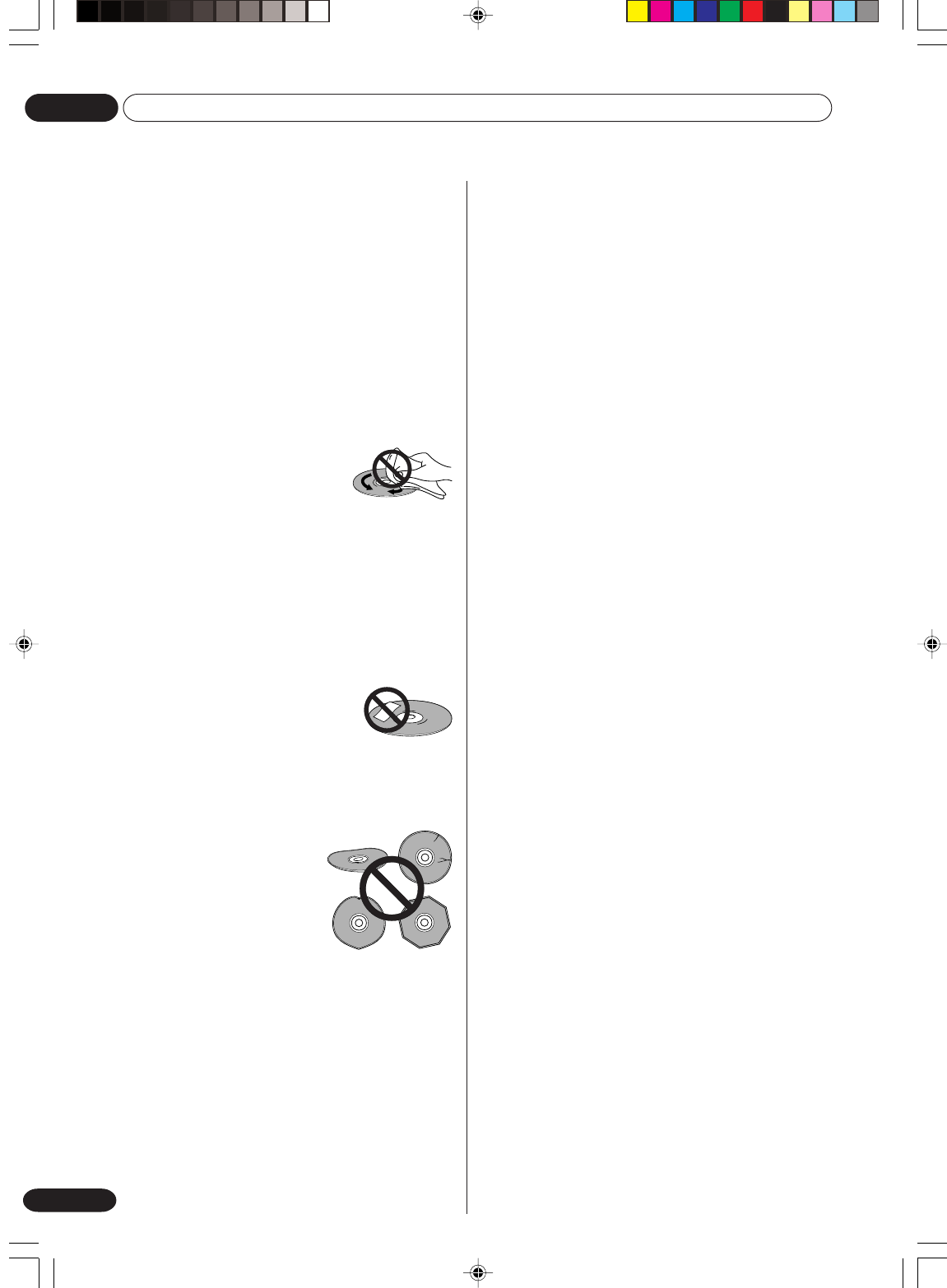
Additional information
08
88
En
Handling video tapes
Please do not use the following kinds of video tape:
-Dusty or mouldy tape
-Tape on which liquid has been spilled
-Tape which has been broken and then repaired
-Tape which has become unwound from the spools
in the cassette
•Dirty heads and very long length, thin video tape
can cause problems such as uneven playback.
•When using a new video tape, fast-forward to the
end, then rewind it back to the start before using.
•Avoid dropping video tapes or exposing them to se-
vere vibration.
Storing video tapes
•After using a video tape, rewind it back to the begin-
ning and return to its case.
•Do not store tapes:
- in excessively dusty places
- in excessively hot or humid places
- in direct sunlight
- near air-conditioners or heaters
- near strong magnetic fields
Moving the recorder
If you need to move the recorder, first remove the disc
and the cassette, if they are loaded, and close the disc
tray. Next press STANDBY/ON to switch the power to
standby. Lastly, disconnect the power cord.
Hints on installation
We want you to enjoy using this unit for years to come,
so please bear in mind the following points when choos-
ing a suitable location for it:
Do...
Use in a well-ventilated room.
Place on a solid, flat, level surface, such as a table,
shelf or stereo rack.
Don't...
Use in a place exposed to high temperatures or
humidity, including near radiators and other heat-
generating appliances.
Place on a window sill or other place where the
recorder will be exposed to direct sunlight.
Use in a dusty or damp environment or in a room
where it will be exposed to excessive cigarette
smoke.
Place directly on top of an amplifier, or other com-
ponent in your stereo system that becomes hot in
use.
Use near a television or monitor as you may expe-
rience interference-especially if the television uses
an indoor antenna.
Use in a kitchen or other room where the recorder
may be exposed to smoke or steam.
Use on a thick rug or carpet, or cover with cloth-
this may prevent proper cooling of the unit.
Place on an unstable surface, or one that is not
large enough to support all four of the unit's feet.
Other (Additional information)
Handling discs
When holding discs of any type, take care not to leave
fingerprints, dirt or scratches on the disc surface. Hold
the disc by its edge or by the center hole and edge.
Damaged or dirty discs can affect playback and record-
ing performance. Take care also not to scratch the label
side of the disc. Although not as fragile as the recorded
side, scratches can still result in a disc becoming unus-
able.
Should a disc become marked with fingerprints, dust,
etc., clean using a soft, dry cloth, wiping the disc lightly
from the center to the outside edge as shown in the
diagram below.
If necessary, use a cloth soaked in
alcohol, or a commercially available
CD/DVD cleaning kit to clean a disc
more thoroughly. Never use benzine,
thinner or other cleaning agents, in-
cluding products designed for clean-
ing vinyl records.
Storing discs
Although CDs and DVD discs are more durable than
vinyl records, you should still take care to handle and
store discs correctly. When you're not using a disc, re-
turn it to its case and store upright. Avoid leaving discs
in excessively cold, humid, or hot environments (includ-
ing under direct sunlight).
Don't glue paper or put stickers onto
the disc, or use a pencil, ball-point
pen or other sharp-tipped writing in-
strument. These could all damage
the disc.
For more detailed care information see the instructions
that come with discs.
Do not load more than one disc into the recorder.
Damaged discs
Discs spin at high speed inside
the recorder. If you can see that a
disc is cracked, chipped, warped,
or otherwise damaged, don't risk
using it; you could end up dam-
aging the recorder.
This recorder is designed for use with conventional, fully
circular discs only. Use of shaped discs is not recom-
mended for this product. Pioneer disclaims all liability
arising in connection with the use of shaped discs.
Cleaning the pickup lens
The DVD recorder's lens should not become dirty in
normal use, but if for some reason it should malfunc-
tion due to dust or dirt, consult your nearest Pioneer-
authorized service center. Although lens cleaners for
CD players are commercially available, we do not rec-
ommend using them since some may damage the lens.
88
En
2H30301B_En_82_Back 8/4/05, 19:2788
Additional information 08
89
En
Specifications
Note: The specifications and design of this product are subject to change without notice, due to improvement.
GENERAL
Power supply:
Power consumption:
Weight:
Dimensions:
Operating temperature:
Operating humidity:
Input Level:
Output Level:
Program:
Power off memory:
VCR section
Signal system:
Video head:
Audio track:
Channel coverage:
RF channel output:
F.FWD/REW Time:
Hi-Fi Frequency Response:
Hi-Fi Dynamic Range:
DVD section
Signal system:
Applicable disc:
Recording format:
Recording discs:
Recording time:
(based on a 4.7GB disc)
Audio characteristics
frequency response:
S/N Ratio:
Harmonic distortion:
Wow and flutter:
Output:
Pickup:
ACCESSORIES:
AC 230V 50Hz
Operation: 31W
Standby: 5.5W (if display window is off.)
5.0 kg
Width : 430 mm
Height : 90 mm
Depth : 320 mm
5°C to 35°C
Less than 80% RH
SCART-socket: Video : 1 Vp-p, 75 Ω
Audio : 500 mV, 50k Ω
Audio IN jack: 500 mV, 50k Ω
SCART-socket: Video : 1 Vp-p, 75 Ω
Audio : 500 mV, 1k Ω
Audio OUT jack: 500 mV, 1k Ω
12 programs / 1 month
Approx. 30 min
PAL
NTSC tape playback with PAL/60 Hz
4 Rotary Heads
Hi-Fi Sound - 2 Tracks / MONO Sound - 1 Track
21-69
UHF channel 36 (23 to 69)
Approx. 1 minute and 12 seconds (with E-180 Cassette Tape)(at+25˚C)
20Hz to 20,000Hz
More than 75dB
PAL
DVD (12cm, 8cm), CD (12cm, 8cm)
DVD-Video Recording (VR mode)
DVD-VIDEO (Video mode)
DVD-RW, DVD-R
XP: Approx. 60 min
SP: Approx. 120 min
LP: Approx. 240 min
EP: Approx. 360 min
DVD: 4Hz - 22kHz
CD: 4Hz - 20kHz
90dB
Less than 0.06%
Less than 0.01% Wrms
Video :(RCA) 1 Vp-p/75 Ω
Audio :(RCA) –12 dBm/1k Ω
Digital Audio : 0.5Vp-p/75 Ω
CD : Wavelength: 780 nm
Maximum output power: 8.5 mW
DVD : Wavelength: 660 nm
Maximum output power: 120 mW
Remote control x 1
75 Ω Coaxial Cable x 1
21 pin SCART Cable x 1
Dry cell battery (AAA/R03) x 2
Operating Instructions
2H30301B_En_82_Back 8/4/05, 19:2789

Additional information
08
90
En
2H30301B_En_82_Back 8/4/05, 19:2790

Additional information 08
91
En
2H30301B_En_82_Back 8/4/05, 19:2791

Published by Pioneer Corporation.
Copyright © 2005 Pioneer Corporation.
All rights reserved.
VRB1404-B
PIONEER CORPORATION
4-1, Meguro 1-Chome, Meguro-ku, Tokyo 153-8654, Japan
PIONEER ELECTRONICS (USA) INC.
PIONEER ELECTRONICS OF CANADA, INC.
300 Allstate Parkway, Markham, Ontario L3R OP2, Canada TEL: (905) 479-4411
P.O. BOX 1540, Long Beach, California 90810-1540, U.S.A. TEL: (800) 421-1404
PIONEER EUROPE NV
Haven 1087, Keetberglaan 1, B-9120 Melsele, Belgium TEL: 03/570.05.11
PIONEER ELECTRONICS ASIACENTRE PTE. LTD.
253 Alexandra Road, #04-01, Singapore 159936 TEL: 656-472-1111
PIONEER ELECTRONICS AUSTRALIA PTY. LTD.
178-184 Boundary Road, Braeside, Victoria 3195, Australia, TEL: (03) 9586-6300
PIONEER ELECTRONICS DE MEXICO S.A. DE C.V.
Blvd.Manuel Avila Camacho 138 10 piso Col.Lomas de Chapultepec, Mexico,D.F. 11000 TEL: 55-9178-4270
K002E
Printed in Malaysia
J2H30301B SH 05/10 X
2H30301B_En_82_Back 8/4/05, 19:2792
