Planet Avvio 362X Mobile Phone User Manual

Planet Avvio LLC Mobile Phone

User manual

         Contents  1 Getting To Know Your Phone ............................................................................4 2 Basic Functions ...................................................................................................9 3 Contacts  ..................................................................................................... 10 4 Call logs  ..................................................................................................... 11 5 Settings  ...................................................................................................... 11 6 Message  ..................................................................................................... 12 7 Camera  ....................................................................................................... 12 8 Video ........................................................................................................... 13
        9 Profiles  ....................................................................................................... 13 10 Calendar  ................................................................................................... 14 11 Audio  ........................................................................................................ 14 12 Video gallery   .......................................................................................... 14 13 Ebook  ....................................................................................................... 15 14 Files   ........................................................................................................ 15 15 Bluetooth   ................................................................................................ 16 16 Photo gallery  ........................................................................................... 16
        17 FM radio  ................................................................................................... 16 18 Calculator   ............................................................................................... 17 19 Recorder   ................................................................................................. 17 20 Games   .................................................................................................... 18 21 Clock  ........................................................................................................ 18 22 Converter   ............................................................................................... 18 23 SIM Claro   ................................................................................................ 19 24 Notes  ....................................................................................................... 19
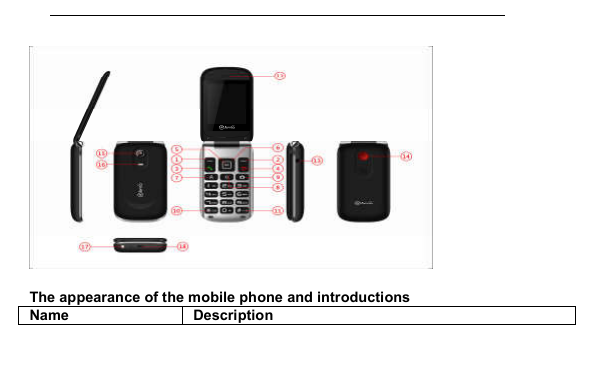
        25 Torch  ....................................................................................................... 19 26 Care And Maintain .......................................................................................... 20 27 Safe Information ............................................................................................. 22 RF Exposure Information (SAR) ........................................................................ 31   1     Getting To Know Your Phone Mobile phone appearance Mobile phone view
          The appearance of the mobile phone and introductions Name Description
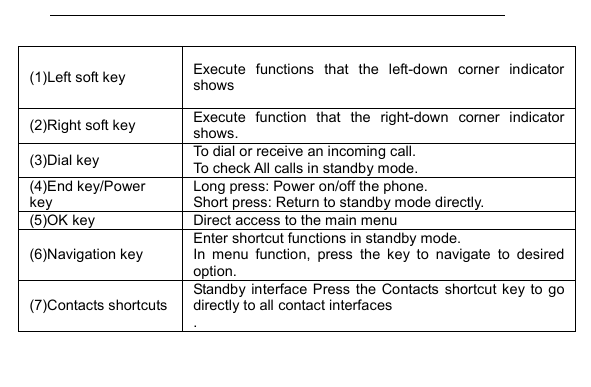
        (1)Left soft key  Execute  functions  that  the  left-down  corner  indicator shows (2)Right soft key  Execute  function  that  the  right-down  corner  indicator shows. (3)Dial key  To dial or receive an incoming call. To check All calls in standby mode. (4)End key/Power key Long press: Power on/off the phone. Short press: Return to standby mode directly. (5)OK key  Direct access to the main menu (6)Navigation key Enter shortcut functions in standby mode. In  menu  function,  press  the  key  to  navigate  to  desired option. (7)Contacts shortcuts Standby  interface  Press  the Contacts shortcut  key  to go directly to all contact interfaces .
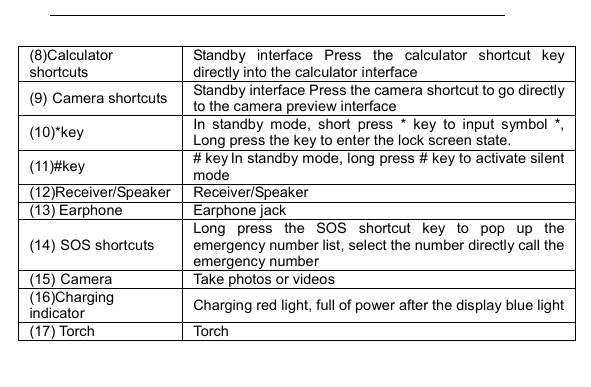
        (8)Calculator shortcuts Standby  interface  Press  the  calculator  shortcut  key directly into the calculator interface (9) Camera shortcuts  Standby interface Press the camera shortcut to go directly to the camera preview interface (10)*key  In  standby  mode,  short  press  *  key  to  input  symbol  *, Long press the key to enter the lock screen state. (11)#key  # key In standby mode, long press # key to activate silent mode (12)Receiver/Speaker Receiver/Speaker (13) Earphone  Earphone jack   (14) SOS shortcuts Long  press  the  SOS  shortcut  key  to  pop  up  the emergency number list, select the number directly call the emergency number (15) Camera  Take photos or videos (16)Charging indicator  Charging red light, full of power after the display blue light (17) Torch  Torch
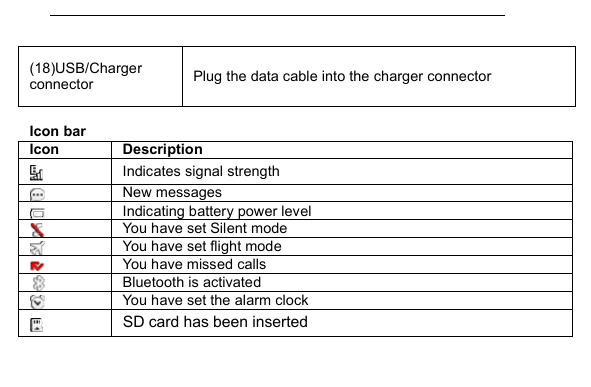
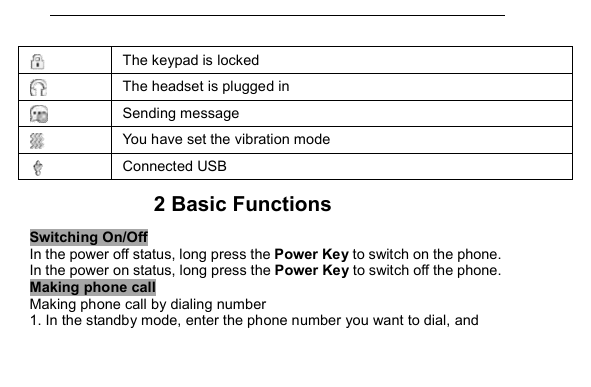
        (18)USB/Charger connector  Plug the data cable into the charger connector  Icon bar Icon  Description  Indicates signal strength  New messages  Indicating battery power level  You have set Silent mode  You have set flight mode  You have missed calls  Bluetooth is activated  You have set the alarm clock  SD card has been inserted
         The keypad is locked  The headset is plugged in  Sending message  You have set the vibration mode  Connected USB 2 Basic Functions Switching On/Off In the power off status, long press the Power Key to switch on the phone. In the power on status, long press the Power Key to switch off the phone. Making phone call Making phone call by dialing number 1. In the standby mode, enter the phone number you want to dial, and
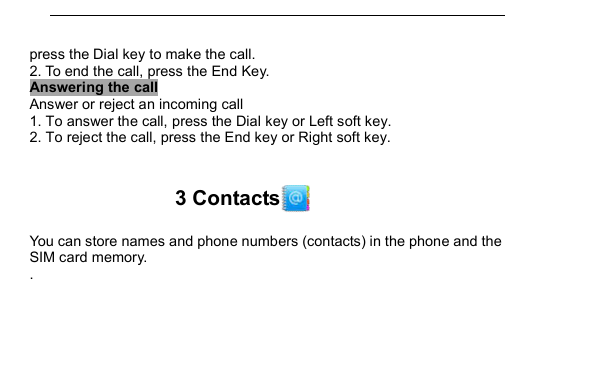
        press the Dial key to make the call. 2. To end the call, press the End Key. Answering the call Answer or reject an incoming call 1. To answer the call, press the Dial key or Left soft key. 2. To reject the call, press the End key or Right soft key.  3 Contacts  You can store names and phone numbers (contacts) in the phone and the SIM card memory. .
        4 Call logs  You can access your SIM call history by pressing dial key from the idle screen, or press the left key and select call logs from the menu. In this menu, you will see all call history.  5 Settings From the main menu, select the Settings menu and select the function of your choice in order to customise your telephone: Phone settings, Display, Security, Call settings, Connections.
        6 Message  From the main menu select “Message” to access the message, and choose “New message” to create SMS . You can type a message send it to a recipient in the SIM card directory. While writing a message, select “Options” to access all the messaging options. Specific letters (accent) will increase the size of the SMS, this may cause multiple SMS to be sent to your recipient. 7 Camera  You can take photos and then save the photos to your memory card. In the viewfinder, press left soft key to enter and complete different kinds of operations. You also can switch between camera and video recorder
        8 Video  You can record vides and then save the videos to your memory card. In the viewfinder, press left soft key to enter and complete different kinds of operations. You also can switch between video recorder and camera.  9 Profiles  Your phone provides you with various profiles. You can customize the ringtone and other settings for profile depending on the environment and need. You can activate or deactivate a profile
        10 Calendar  Once you enter this menu, there is a monthly-view calendar for you to refer to.  11 Audio  You can play the music with this application. In the music play interface, you can select the music from the Music List to play. 12 Video gallery   You can play the video with this application. In the video play list interface,
        you can select the video from the list to play. 13 Ebook    You can read txt format document here. 14 Files     The phone provides a certain space for users to manage files and supports the memory card. The capacity of the memory card is selectable. You can use the file manager to conveniently manage various directories and files on the phone and the memory card.
        15 Bluetooth   You can transfer data, such as music to other device using Bluetooth. Search the device and accept/transfer data. The received data is automatically stored in the directory  16 Photo gallery  Enter this menu, you can view pictures  17 FM radio  Your phone is equipped with a radio .You can use the application as a traditional radio and record the currently turned channel. You can listen to it while running other applications.
        To use this feature you must plug in your headset. The headset functions as an antenna when connected to your phone.  18 Calculator   Use this menu to perform basic arithmetic functions, such as addition, subtraction, multiplication, and division  19 Recorder   You can use this function to record audio files.
        20 Games   This function enables you to enjoy simple games.  21 Clock  Use this menu to set world time, alarm and timer.  22 Converter   Convert support weight conversion and length conversion.
        23 SIM Claro   STK service is the tool kit of SIM card. This phone supports the service function. The specific items depend on SIM card and network. Service menu will be automatically added to the phone menu when supported by network and SIM card.  24 Notes   You can make a note in text format by accessing "Notes" from the main menu.  25 Torch   Turn on/off the torch whenever you need to. In idle screen, long press 5
        key to activate/deactivate the torch light.  26 Care And Maintain If your mobile phone had abnormal conditions, please check it with the following table. If the problem still remains, please ask mobile phone sales for help. Common problems  Check item Can not charge  Please check if the charger is properly connected to the phone and the power source jack.   Can not power on  Please check if the battery level is too low; Please check if the batter is properly loaded;   Please press Power Key enough time. Insert the SIM card but cannot read the information in the SIM card Please check if properly inserted the SIM card; Please check if your SIM card is valid.
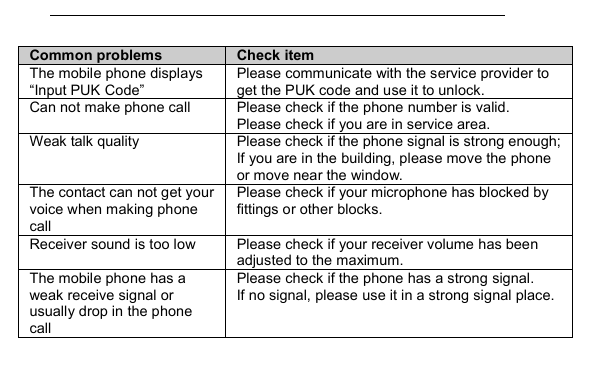
        Common problems  Check item The mobile phone displays “Input PUK Code” Please communicate with the service provider to get the PUK code and use it to unlock. Can not make phone call  Please check if the phone number is valid.   Please check if you are in service area.   Weak talk quality  Please check if the phone signal is strong enough;  If you are in the building, please move the phone or move near the window.   The contact can not get your voice when making phone call Please check if your microphone has blocked by fittings or other blocks.   Receiver sound is too low  Please check if your receiver volume has been adjusted to the maximum.   The mobile phone has a weak receive signal or usually drop in the phone call Please check if the phone has a strong signal.   If no signal, please use it in a strong signal place.
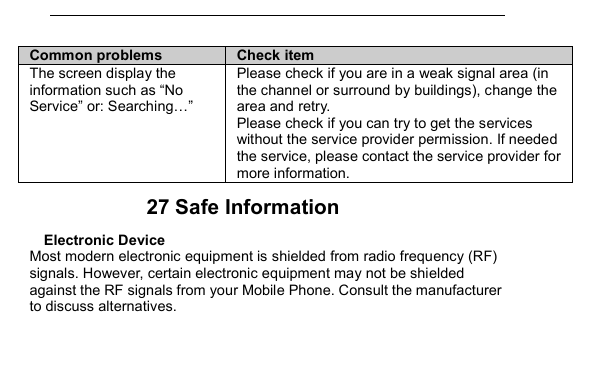
        Common problems  Check item The screen display the information such as “No Service” or: Searching…” Please check if you are in a weak signal area (in the channel or surround by buildings), change the area and retry. Please check if you can try to get the services without the service provider permission. If needed the service, please contact the service provider for more information. 27 Safe Information Electronic Device Most modern electronic equipment is shielded from radio frequency (RF) signals. However, certain electronic equipment may not be shielded against the RF signals from your Mobile Phone. Consult the manufacturer to discuss alternatives.
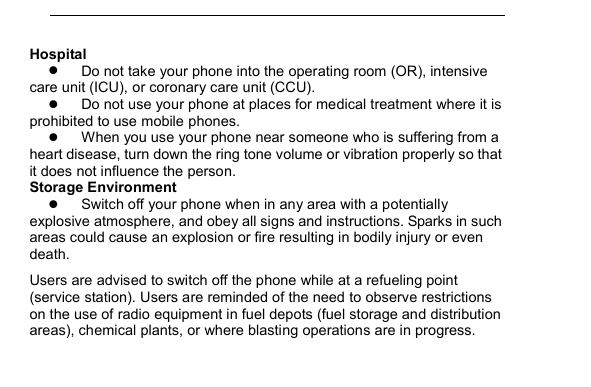
        Hospital  Do not take your phone into the operating room (OR), intensive care unit (ICU), or coronary care unit (CCU).    Do not use your phone at places for medical treatment where it is prohibited to use mobile phones.  When you use your phone near someone who is suffering from a heart disease, turn down the ring tone volume or vibration properly so that it does not influence the person.   Storage Environment  Switch off your phone when in any area with a potentially explosive atmosphere, and obey all signs and instructions. Sparks in such areas could cause an explosion or fire resulting in bodily injury or even death. Users are advised to switch off the phone while at a refueling point (service station). Users are reminded of the need to observe restrictions on the use of radio equipment in fuel depots (fuel storage and distribution areas), chemical plants, or where blasting operations are in progress.
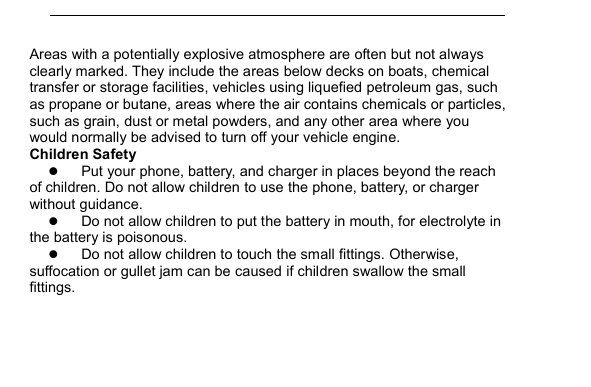
        Areas with a potentially explosive atmosphere are often but not always clearly marked. They include the areas below decks on boats, chemical transfer or storage facilities, vehicles using liquefied petroleum gas, such as propane or butane, areas where the air contains chemicals or particles, such as grain, dust or metal powders, and any other area where you would normally be advised to turn off your vehicle engine. Children Safety  Put your phone, battery, and charger in places beyond the reach of children. Do not allow children to use the phone, battery, or charger without guidance.  Do not allow children to put the battery in mouth, for electrolyte in the battery is poisonous.    Do not allow children to touch the small fittings. Otherwise, suffocation or gullet jam can be caused if children swallow the small fittings.
        Operating Environment  Remember to follow any special regulations in force in the area you are in, and always switch off your phone whenever it is forbidden to use it, or when it may cause interference or danger. When connecting the phone or any accessory to another device, read its user’s guide for detailed safety instructions. Do not connect incompatible products.  As with other mobile radio transmitting equipment, users are advised that for the satisfactory operation of the equipment and for the safety of personnel, it is recommended that the equipment should only be used in the normal operating position (held to your ear with the antenna pointing over your shoulder).  Equipment working environment temperature: +55°C~-10°C (+131°F~+14°F)  Device power: 3.4V~4.2V   The  socket-outlet  shall  be  installed  near  the  equipment  and  shall  be easily accessible.
        Care and Maintenance  Keep your phone and all its parts and accessories out of the reach of small children and pets. They may accidentally damage these things or choke on small parts.  Keep the phone dry. Precipitation, humidity, and liquids contain minerals that corrode electronic circuits.  Do not use the phone with a wet hand. Doing so may cause an electric shock to you or damage to the phone.  Do not use or store the phone in dusty, dirty areas. Its moving parts may be damaged.  Do not store the phone in hot areas. High temperatures can shorten the life of electronic devices, damage batteries, and warp or melt certain plastics.  Do not store the phone in cold areas. When the phone warms up to its normal operating temperature, moisture can form inside the phone, which may damage the phone’s electronic circuit boards.
         Do not drop, knock, or shake the phone. Rough handling can break internal circuit boards.  Do not use harsh chemicals, cleaning solvents, or strong detergents to clean the phone. Wipe it with a soft cloth slightly dampened in a mild soap-and water solution.  Do not paint the phone. Paint can clog the device’s moving parts and prevent proper operation.  Do not put the phone in or on heating devices, such as a microwave oven, stove, or radiator. The phone may explode when overheated.  When the phone or battery gets wet, the label indicates water damage inside the phone changes color. In this case, phone repairs are no longer guaranteed by the manufacturer's warranty, even if the warranty for your phone has not expired. Emergency Call You can use your phone for emergency calls. However, connections in call conditions cannot be guaranteed. You should never rely solely on the
        phone for essential communications. Battery  Using the wrong type battery replacement there is a danger of explosion, be sure to follow    the instructions    disposal of used batteries。  Never use a charger or battery that is damaged in any way.  Use the battery only for its intended purpose. If you use the phone near the network’s base station, it uses less power. Talk and standby time are greatly affected by the signal strength on the cellular network and the parameters set by the network operator.  Battery charging time depends on the remaining battery charge, the type of battery, and the charger used. The battery can be charged and discharged hundreds of times, but it will gradually wear out. When the operation time is noticeably shorter than normal, it is time to buy a new battery.  If left unused, a fully charged battery will discharge itself over time.
         Extreme temperatures will affect the charging capacity of your battery: it may require cooling or warming first.  Do  not  leave  the  battery  in  hot  or  cold  places  because  the capacity and lifetime of the battery will be reduced. Try to keep the battery at  room  temperature.  A  phone  with  a  hot  or  cold  battery  may  not  work temporarily,  even  when  the  battery  is  fully  charged.  Li-ion  batteries  are particularly affected by temperatures below 0°C (32°F).  Use only approved batteries and chargers. Disconnect the charger from the power source when it is not in use. Do not leave the battery connected to a charger for more than a week, since overcharging may shorten its lift. FCC Regulations: This mobile phone complies with part 15 of the FCC Rules. Operation is subject  to  the  following  two  conditions:  (1)  This  device  may  not  cause harmful  interference,  and  (2)  this  device  must  accept  any  interference
        received, including interference that may cause undesired operation. This mobile phone has been tested and found to comply with the limits for a  Class  B  digital  device,  pursuant  to  Part  15  of  the  FCC  Rules.  These limits  are  designed  to  provide  reasonable  protection  against  harmful interference in a residential installation. This equipment generates, uses and can radiated radio frequency energy and, if not installed and used in accordance with the instructions, may cause harmful interference to radio communications. However, there is no guarantee that interference will not occur  in  a  particular  installation  If  this  equipment  does  cause  harmful interference to radio or television reception, which can be determined by turning the equipment off and on, the user is encouraged to try to correct the interference by one or more of the following measures:  -Reorient or relocate the receiving antenna. -Increase the separation between the equipment and receiver. -Connect  the  equipment  into  an  outlet  on  a  circuit  different  from  that  to which the receiver is connected.
        -Consult the dealer or an experienced radio/TV technician for help.  FCC Note: Caution:  Changes  or modifications  not expressly approved by  the  party responsible for compliance could void the user‘s authority to operate the equipment. RF Exposure Information (SAR) This  phone  is  designed  and  manufactured  not  to  exceed  the  emission limits  for  exposure  to  radio  frequency  (RF)  energy  set  by  the  Federal Communications Commission of the United States.    During SAR testing, this device was set to transmit at its highest certified power  level  in  all  tested  frequency  bands,  and  placed  in  positions  that simulate RF exposure in usage against the head with no separation, and near  the  body  with  the  separation  of  15  mm.  Although  the  SAR  is
        determined  at  the  highest  certified  power  level,  the  actual  SAR  level  of the device while operating can be well below the maximum value.   This is because the phone is designed to operate at multiple power levels so as to use only the power required to reach the network. In general, the closer you are to a wireless base station antenna, the lower the power output.  The  exposure  standard  for  wireless  devices  employing  a  unit  of measurement is known as the Specific Absorption Rate, or SAR.  The SAR limit set by the FCC is 1.6W/kg.   This  device  is  complied  with  SAR  for  general  population  /uncontrolled exposure  limits  in  ANSI/IEEE  C95.1-1992  and  had  been  tested  in accordance with the measurement methods and procedures specified in IEEE1528.  The FCC has granted an Equipment Authorization for this model  phone with all reported SAR levels evaluated as in compliance with the FCC RF
        exposure guidelines. SAR information on this model phone is on file with the  FCC  and  can  be  found  under  the  Display  Grant  section  of www.fcc.gov/oet/ea/fccid after searching on FCC ID: 2ALTA362X.  For  this  device,  the  highest  reported  SAR  value  for  usage  against  the head is   0.31W/kg, for usage near the body is 1.15W/kg. While  there  may  be  differences  between  the  SAR  levels  of  various phones  and  at  various  positions,  they  all  meet  the  government requirements.  SAR  compliance  for  body-worn  operation  is  based  on  a  separation distance  of  15  mm  between  the  unit  and  the  human  body. Carry  this device at least 15 mm away from your body to ensure RF exposure level compliant or lower to the reported level. To support body-worn operation, choose  the  belt  clips  or  holsters, which  do  not contain  metallic components, to maintain a separation of 15 mm between this device and
        your body.   RF exposure compliance with any body-worn accessory, which contains metal, was not tested and  certified, and  use such body-worn  accessory should be avoided.

Navigation menu