Planet Avvio PRO550X Mobile Phone User Manual

Planet Avvio LLC Mobile Phone

User manual

  1 Avvio PRO550  Contents Safety .............................................................................. 2 1 Getting Started ........................................................... 4 1.1 Getting to know your touch phone................................................... 4 1.2 Installing the SIM card, battery, and storage card ............................ 4 1.3 Charging the Battery ....................................................................... 6 1.4 Starting up the device ...................................................................... 7 1.5 Status Icons ..................................................................................... 9 2 Using phone features ................................................ 10 2.1 Turning the phone function on and off ........................................... 10 2.2 Making a call ................................................................................ 11 2.3 Answering and Ending a call ......................................................... 11 2.4 In-call options ............................................................................... 11 2.5 Using call history .......................................................................... 12 2.6 Call settings .................................................................................. 12 3 Setting on your device .............................................. 13 4 ActiveSync ................................................................. 16 5 Contacts ..................................................................... 18 6 Exchanging Messages ............................................... 21 7 Internet ...................................................................... 25 7.1 Ways of Connecting to the Internet ................................................ 25 7.2 Browser ......................................................................................... 26 8 Experiencing Multimedia......................................... 28 8.1 Camera & Picture .......................................................................... 28 8.2 Music ............................................................................................ 30 8.3 FM Radio ...................................................................................... 33 8.4 Sound record ................................................................................. 33 9 Other applications .................................................... 33
  2 9.1 Calendar ........................................................................................ 33 9.2 Alarm Clock .................................................................................. 34 9.3 Calculator ...................................................................................... 35 10 Play Store* .............................................................. 36 RF Exposure Information (SAR) ........................... 40                         Safety Never  attempt  to  disassemble  your  phone.  You  alone  are  responsible  for  how you use your phone and any consequences of its use. As a general rule, always switch off your phone wherever the use of a phone is prohibited. Use of your phone is subject to safety measures designed to protect users and their environment. Do not use your phone in damp areas (bathroom, swimming pool…). Protect it
  3 from liquids and other moisture. Do  not  expose  your  phone  to  extreme  temperatures  lower  than  -  10°C  and higher than + 55°C. The  physicochemical  processes  created  by  chargers impose  temperature  limits when  charging  the  battery.  Your  phone  automatically  protects  the  batteries  in extreme temperatures. Do not  leave your phone within the reach of small children (certain removable parts may be accidentally ingested). Electrical safety: Only use the chargers listed in the manufacturer’s catalogue. Using  any  other  charger  may  be  dangerous;  it  would  also  invalidate  your warranty. Line voltage must be exactly the one indicated on the charger’s serial plate. Aircraft safety: When traveling by  plane, you will need to switch your phone off when so instructed by the cabin crew or the warning signs. Using a mobile phone may be dangerous to the operation of the aircraft and may disrupt the phone network. Its  use  is  illegal  and  you  could  be  prosecuted  or  banned  from  using  cellular networks in the future if you do not abide by these regulations. Explosive materials: Please comply with warning signs at petrol station asking you  to  switch  your  phone  off.  You  will  need  to  comply  with  radio  equipment usage  restrictions  in  places  such  as  chemical  plants,  fuel  depots  and  at  any location where blasting operations are under way. Electronic  equipment:  To  avoid  the  risk  of  demagnetization,  do  not  let electronic devices close to your phone for a long time. Electronic  medical equipment: Your  phone  is  a  radio transmitter which may interfere  with  electronic  medical  equipment  or  implants,  such  as hearing aids, pacemakers,  insulin pumps, etc. It  is recommended  that a minimum separation of 15  cm be maintained between the phone and an  implant. Your doctor or the manufacturers of such equipment will be able to give you any advice you  may need in this area.   Hospitals: Always make sure that your phone is switched off in hospitals when so instructed by warning signs or by medical staff.   Road safety: Do not use your phone when driving.  In order to give  your  full attention to driving, stop and park safely before making a call. You must comply
  4 with any current legislation. Distance  of  operation:  This  phone  model  has  been  tested  and  meets radiofrequency exposure guidelines when used as follows: • Against the ear: Place or receive a phone call and hold the phone as you would a wire line telephone. •  Body  worn:  When  transmitting,  place  the  phone  in  a  carry  accessory  that contains no  metal and positions the phone a minimum of 1cm form your body. Use  of  other  accessories  may  not  ensure  compliance  with  radiofrequency exposure  guidelines.  If  you  do  not  use  a  body  worn  accessory  and  are  not holding the phone at the ear, position the phone a minimum of 1 cm from your body, • Data operation: When using a data feature, position the phone a minimum of   1 cm from your body for the whole duration of the data transmission. Environment Packaging:  To  facilitate  the  recycling  of  packaging  materials,  please  obey  the sorting rules instituted locally for this type of waste. Batteries: Spent batteries must be deposited at the designated collection points. The product: The crossed-out waste bin mark affixed to the product means that it belongs to the family of electrical and electronic equipment. To  promote  the  recycling  and  recovery  of  waste  electrical  and  electronic equipment (WEEE) and at the same time safeguard the environment, European regulations require you  to  obey the  sorting rules instituted  locally for this type of waste. 1 Getting Started 1.1 Getting to know your touch phone 1.2 Installing the SIM card, battery, and storage card You  need  to  remove  the  back  cover  before  you  can  install  the  SIM  card  and battery.  Also,  make  sure  to  always  turn  off  the  power  before  installing  or replacing the SIM card and battery. To remove the back cover   1. Make sure your device is turned off.
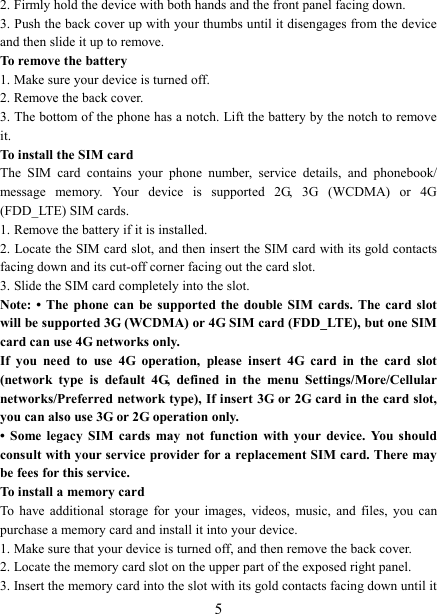
  5 2. Firmly hold the device with both hands and the front panel facing down.   3. Push the back cover up with your thumbs until it disengages from the device and then slide it up to remove.   To remove the battery   1. Make sure your device is turned off. 2. Remove the back cover. 3. The bottom of the phone has a notch. Lift the battery by the notch to remove it.     To install the SIM card   The  SIM  card  contains  your  phone  number,  service  details,  and  phonebook/ message  memory.  Your  device  is  supported  2G,  3G  (WCDMA)  or  4G (FDD_LTE) SIM cards.   1. Remove the battery if it is installed.   2. Locate the SIM card slot, and then insert the SIM card with its gold contacts facing down and its cut-off corner facing out the card slot.   3. Slide the SIM card completely into the slot. Note: • The phone  can  be  supported  the  double SIM cards. The card slot will be supported 3G (WCDMA) or 4G SIM card (FDD_LTE), but one SIM card can use 4G networks only. If  you  need  to  use  4G  operation,  please  insert  4G  card  in  the  card  slot (network  type  is  default  4G,  defined  in  the  menu  Settings/More/Cellular networks/Preferred network type), If insert 3G or 2G card in the card slot, you can also use 3G or 2G operation only. •  Some  legacy  SIM  cards  may  not  function  with  your  device.  You  should consult with your service provider for a replacement SIM card. There may be fees for this service.   To install a memory card To  have  additional  storage  for  your  images,  videos,  music,  and  files,  you  can purchase a memory card and install it into your device. 1. Make sure that your device is turned off, and then remove the back cover. 2. Locate the memory card slot on the upper part of the exposed right panel. 3. Insert the memory card into the slot with its gold contacts facing down until it
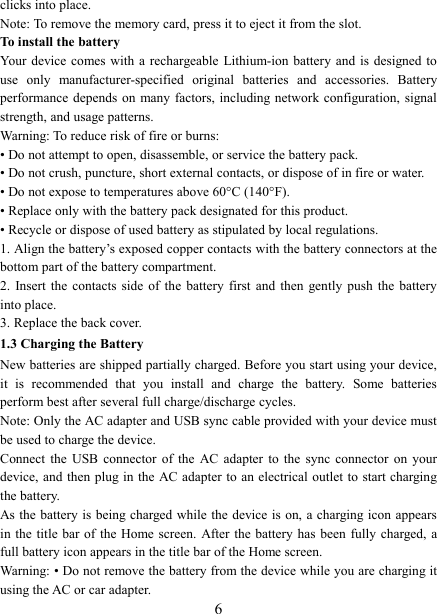
  6 clicks into place.     Note: To remove the memory card, press it to eject it from the slot. To install the battery Your  device comes with a  rechargeable Lithium-ion battery and is  designed to use  only  manufacturer-specified  original  batteries  and  accessories.  Battery performance depends on many factors, including network configuration, signal strength, and usage patterns.         Warning: To reduce risk of fire or burns: • Do not attempt to open, disassemble, or service the battery pack. • Do not crush, puncture, short external contacts, or dispose of in fire or water.   • Do not expose to temperatures above 60°C (140°F).   • Replace only with the battery pack designated for this product. • Recycle or dispose of used battery as stipulated by local regulations.     1. Align the battery’s exposed copper contacts with the battery connectors at the bottom part of the battery compartment.     2.  Insert the contacts side of the  battery  first  and  then  gently  push  the  battery into place.   3. Replace the back cover. 1.3 Charging the Battery New batteries are shipped partially charged. Before you start using your device, it  is  recommended  that  you  install  and  charge  the  battery.  Some  batteries perform best after several full charge/discharge cycles.     Note: Only the AC adapter and USB sync cable provided with your device must be used to charge the device.   Connect  the  USB  connector  of  the  AC  adapter  to  the  sync  connector  on  your device, and then plug in the AC adapter  to an electrical outlet to start charging the battery.     As the battery is being charged while the device is on, a charging icon appears in the title  bar of the  Home screen. After the battery  has been fully charged, a full battery icon appears in the title bar of the Home screen.     Warning: • Do not remove the battery from the device while you are charging it using the AC or car adapter.
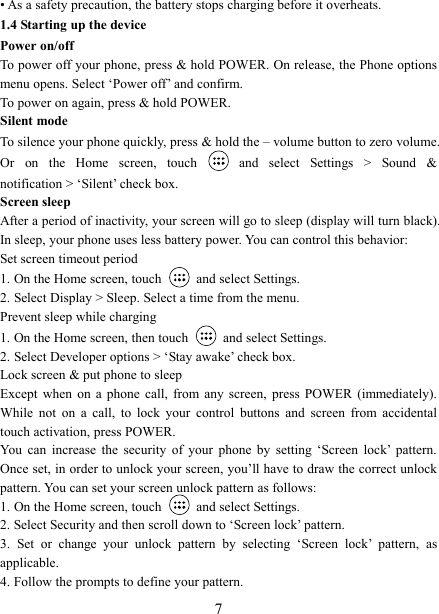
  7 • As a safety precaution, the battery stops charging before it overheats. 1.4 Starting up the device Power on/off   To power off your phone, press & hold POWER. On release, the Phone options menu opens. Select ‘Power off’ and confirm.   To power on again, press & hold POWER. Silent mode   To silence your phone quickly, press & hold the – volume button to zero volume. Or  on  the  Home  screen,  touch    and  select  Settings  >  Sound  & notification > ‘Silent’ check box.   Screen sleep   After a period of inactivity, your screen will go to sleep (display will turn black). In sleep, your phone uses less battery power. You can control this behavior:   Set screen timeout period 1. On the Home screen, touch   and select Settings.   2. Select Display > Sleep. Select a time from the menu.   Prevent sleep while charging 1. On the Home screen, then touch   and select Settings.   2. Select Developer options > ‘Stay awake’ check box.   Lock screen & put phone to sleep   Except  when  on  a  phone  call,  from  any  screen,  press  POWER  (immediately). While  not  on  a  call,  to  lock  your  control  buttons  and  screen  from  accidental touch activation, press POWER. You  can  increase  the  security  of  your  phone  by  setting  ‘Screen  lock’  pattern. Once set, in order to unlock your screen, you’ll have to draw the correct unlock pattern. You can set your screen unlock pattern as follows:   1. On the Home screen, touch    and select Settings.   2. Select Security and then scroll down to ‘Screen lock’ pattern. 3.  Set  or  change  your  unlock  pattern  by  selecting  ‘Screen  lock’  pattern,  as applicable. 4. Follow the prompts to define your pattern.
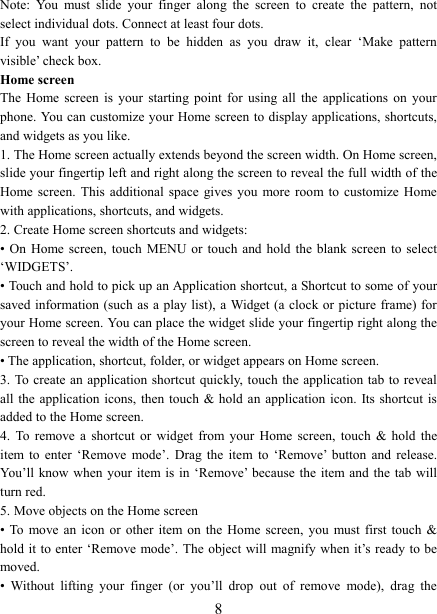
  8 Note:  You  must  slide  your  finger  along  the  screen  to  create  the  pattern,  not select individual dots. Connect at least four dots. If  you  want  your  pattern  to  be  hidden  as  you  draw  it,  clear  ‘Make  pattern visible’ check box.   Home screen The  Home  screen  is  your  starting  point  for  using  all  the  applications  on  your phone. You can customize your Home screen to display applications, shortcuts, and widgets as you like.   1. The Home screen actually extends beyond the screen width. On Home screen, slide your fingertip left and right along the screen to reveal the full width of the Home screen. This additional space gives you more room to  customize Home with applications, shortcuts, and widgets.   2. Create Home screen shortcuts and widgets:   • On Home screen,  touch  MENU or touch  and hold the blank  screen  to select ‘WIDGETS’. • Touch and hold to pick up an Application shortcut, a Shortcut to some of your saved information  (such as  a play  list), a Widget (a clock or picture frame) for your Home screen. You can place the widget slide your fingertip right along the screen to reveal the width of the Home screen. • The application, shortcut, folder, or widget appears on Home screen.   3. To create an application shortcut quickly,  touch the application tab to reveal all the application  icons,  then touch & hold an application icon. Its shortcut is added to the Home screen. 4.  To  remove  a  shortcut  or  widget  from  your  Home  screen,  touch  &  hold  the item  to  enter  ‘Remove  mode’.  Drag  the  item  to  ‘Remove’  button  and  release. You’ll  know when  your  item is  in ‘Remove’  because the item and the  tab  will turn red. 5. Move objects on the Home screen   • To  move  an  icon  or  other  item on the Home  screen,  you  must first touch & hold it  to enter ‘Remove mode’. The object will magnify when it’s ready to be moved.   •  Without  lifting  your  finger  (or  you’ll  drop  out  of  remove  mode),  drag  the
  9 object to the new position. To move an item to a section of the Home screen not in view, move it to the edge of the screen and hold it there for a moment. The screen view will shift; position the object and release.   1.5 Status Icons Connection status icons Along the top of your phone screen is the status bar. On the left side, icons will appear, notifying you of a new message, upcoming calendar event, or something else you should notice. On the right side of the status bar, you’ll see connection status icons.    Network signal E:EDGE 3G:WCDMA 4G:FDD-LTE  Sign-in/sync error  Call forward  Song is playing  Missed call   WLAN  service connected  SMS/MMS  Call in progress  Alarm is set    Wireless  services  are off (Airplane mode)                                           Ringer is off  Phone on mute  Bluetooth is on  Battery is low  Connected the PC  Battery is very low!       Connected  the earphone   Battery is charging Read your notifications   When you see a notification in the status bar, touch the bar and slide your finger down the screen to open the list of notifications displayed in the sliding window.
  10Ongoing notifications  report activities such as call forwarding ON,  current call status, song playing.   Notifications  report  the  arrival  of  new  messages,  calendar  events,  and  alarms. You can clear notifications list by selecting ‘Clear’ notifications at the bottom of the notifications window.   To  open  the message,  reminder, or  other notification, you  can  touch the items. To close the notifications window, slide your finger up the screen.   Notes: On the home  screen,  touch the  bar  and slide your finger  down  the screen to open the list of notifications displayed in the sliding window, you can  touch  the  icon    on  the  top  of  the  screen  to  enter  the  shortcuts screen, such as Airplane mode, Wi-Fi, Bluetooth, Data connection, Airplane mode, Brightness, you can open or close the selected function directly.         2 Using phone features 2.1 Turning the phone function on and off To enable or disable Airplane Mode In many countries, you are required by law to turn off the phone while on board an aircraft. Another way to turn off the phone function is to switch your device to Airplane Mode. When you enable  Airplane Mode, all wireless radios on your device are turned off, including the phone function, Bluetooth, and WLAN. 1. Touch    > Settings > More > Airplane mode. 2. Touch ‘Airplane mode’ to enable or disable.
  11When you disable Airplane mode, the phone function is turned back on and the previous state of Bluetooth and WLAN are restored. Adjusting the volume Press Volume button on the side of the phone to show the volume screen.   If the phone is in vibrating mode, the voice will be muted automatically and the device will vibrate when there is an incoming call. 2.2 Making a call On Home screen, you can touch    > Phone to enter the dial screen. 1.  Touch  the  on-screen  dial  pad  to  enter  a  number,  touch  ‘Delete’  button  to delete  numbers you’ve entered. Touch  &  hold to delete all  the  numbers  in  the field.   To dial a call, touch ‘Call’ button to make a call.   To end a call, touch ‘End’ button (Red icon).   2. On the dial screen, touch Call history tab (Recents) to show the call records, select an entry listed in the log to call the number.   3. Also, enter Contacts that the contacts with phone numbers are listed. Select a contact, and then select the phone number to dial the call.   2.3 Answering and Ending a call When  you  receive  a  phone  call,  the  incoming  voice  call  screen  will  appear, allowing you to either answer or ignore the call.   1. To answer an incoming call, slide ‘ANSWER’ (Green icon) button rightward. 2. To reject a call, slide ‘REJECT’ button (Red icon) button leftward. 2.4 In-call options While on a call, reveal the in-call options: Speaker, Mute, Hold, End.   Note  that  if  Bluetooth  services  are  on  and  you  are  connected  to  a  hands-free device, the more menu indicator will show Bluetooth on.   1. Speaker: To use the speaker, select ‘Speaker’ so it shows a green bar. To turn it off, select it again so  the bar  is unfilled. The status bar will display this icon when the speaker is on.   2.  Mute:  To  mute  your  side  of  the  conversation,  select  ‘Mute’  so  it  shows  a green bar. To turn it off, select it again so the bar is unfilled. The status bar will
  12display this icon when Mute is on.   3. Hold: To put an active call on hold, select ‘Hold’ so it shows a green bar. To resume the call, or take the call off hold, select it again so the bar is unfilled. If you  take  a  call  while  already  on  a  call,  the  first  call  will  be  placed  on  hold automatically. The status bar will display this icon when a call is on hold.   4. Add call: If you need to enter numbers while on a call, touch ‘Add call’.   5. Incoming call: During call in progress, if you are on a call (“call in progress”) when another call comes in (“incoming call”), you have a few choices:   •  Answer  the  incoming  call  and  place  the  call  in  progress  on  hold.  To  switch calls at any time, touch ‘Swap calls’. • If you don’t want to interrupt your call in progress, then touch ‘END’.   • If you have one call in progress and one caller on hold, to end both calls, touch ‘End all’. 6. While on a call, you can conference up to six callers, counting yourself. Note that  you  can  also  have  an  additional  caller  on  hold  during  a  conference  call, regardless of how many participants are on the conference.   Note:  Whether  the  group  call  function  can  be  used  depends  on  whether  the network  operator  supports  and  provides  such  function  as  well  as  whether  you have applied for such function. Please contact network operator for details. 2.5 Using call history 1. The missed call icon   appears in the title bar when you missed a call.   2.  Use  ‘Call  history’  tab  to check who  the  caller  was,  or  view  all  your  dialed numbers,  and  received  calls.  To  open  ‘Call  history’  tab,  touch  ‘Call  history’ button in the phone screen to enter the call history list. 3.  Scroll  to  select  the  contact  or  number  you  want  to  dial,  touch  ‘Call  back’ button. 4. Tap and hold the selected contact you want to call, and then you can make to do the  following options of call, edit number  before  call, send text message or remove from call log phone on the shortcut menu. 2.6 Call settings On the dialing screen, press MENU > Settings to enter Call settings menu, you
  13can make the operation of call settings and general settings.    3 Setting on your device Control  phone-wide  settings  from  the  Home  settings  screen:  touch    and select Settings.   3.1 Wireless & networks Wi -Fi 1. Select this check box if you prefer to use Wi-Fi for your data connection.   2. Wi-Fi settings: Open the Wi-Fi settings screen; select it from the network list. Provide your username or password if required.   Bluetooth 1. Use this check box to turn Bluetooth services on or off.   2.  With  Bluetooth  services  on,  you  can  touch  MENU  to  open  the  Bluetooth settings screen. SIM cards You can select to set the information of the SIM card, and activate or deactivate data connection. More Airplane mode on/off: When airplane mode is selected, all wireless connectivity is  off.  This  icon   will  display  in  the  status  bar  when  airplane  mode  is selected.   Mobile network   • Select data roaming capability.   • Select a wireless operator network - Scan for all available networks, or select a network automatically.   • Add or edit network Access Point Names (APNs) - Do not change this setting unless advised to do so by your wireless operator!   3.2 Device Display   Brightness:  Select  to  open  the  brightness  control,  and  then  slide  your  finger along the brightness bar to set the level. In sunlight, increase the level.
  14Sleep: Select to decide how long your phone must be inactive before the screen turns off.   Sound & notification Select one user profile that you want and enter the following options: Volumes: Select to open the volume control, and then slide your finger along the volume bar to  set  an incoming call ring volume or alarm, playing  back  music, videos.   Phone ringtones: Select to decide on a ring tone to use for incoming calls. Note that  you  can  override  this  setting  for  individual  contacts  in  the  Edit  contact details screens.   Default notification sound: Select a ring tone to use for a notification (e.g., new message).  Note  that  you  can  override  this  setting  for  new  Calendar  event notifications, text and multimedia message notifications. Go to the applications settings screens to select specific ring tones.   Vibrate: Select to have your phone vibrate for incoming calls.   Dial pad touch  tones: Select to have a tone  sound when you  use the on-screen Dialer.   Touch sound: Select to have a sound play when you select an item on the screen either using touch. Storage View and manage the data storage on your phone. Memory  card:  Monitor  and  manage  the  use  of  your  Memory  card  from  this screen: 1. View how much space you are using on your memory card.   2.  Select  to  use  your  memory  card  as  USB  mass  storage when  your  phone  is connected to your computer (selected by default)   3.  Unmount/eject  your  memory  card  from  your  phone.  Note  that  when  your phone is connected to your computer via USB, you cannot view pictures or play any media stored on the card from your phone.   Internal phone storage: Reports how much internal storage is free.   Apps View  all  the  applications  stored  on  your  phone  and  how  much  space  they occupy.  If  you’ve  downloaded  an  application  from  Android  Market,  you  can
  15uninstall it from this screen. Select a specific application to:   1.  Clear  your  user  data  (if  you  have  any  associated  with  a  particular application).   2. Disassociate the application with any actions.   3.  Uninstall  - If you’ve  downloaded  an  application from  Android  Market,  you will be able to uninstall it from this screen by selecting Uninstall.   3.3 Personal Location Select a source for determining your location.   Security Screen unlock pattern: Create a  pattern you will be asked to draw  before  your screen will unlock. You can select to make the pattern visible or invisible as you draw it.   SIM  card  lock  settings:  Lock  your  SIM  card  for  extra  security.  You  can  also change your SIM card PIN from this screen. If you don’t know your SIM PIN, you can obtain it from your wireless operator.   Visible passwords: Select to have your password display as you type it.   Unknown  sources:  Select  this  check  box  if  you  want  the  ability  to  download applications from the  Web. With this check box  not selected, you will  only be able  to  download  applications  from  Android  Market.  To  ensure  your  personal data and phone remain secure; it is recommended you not select this check box.    Accounts Turn on/off synchronization for all services.   Backup & reset You  can select to  reset  your phone to  factory settings. This will  erase all your data from the phone and require you to sign in and go through the setup screens to use any of the applications.   3.4 System Date & time Set time, time zone, and date: Use Automatic  unless  you  need  to  override the network values.
  16Time format: Select from 12 or 24 hour formats.   Date format: Select from a variety of formats.   Developer options If you are an application developer, you may be interested in these settings:   USB debugging:  If you want be able to communicate with your phone directly via USB, select ‘USB debugging’ check box.   Stay  awake:  To  prevent  your  phone  from  sleeping  while  charging  (via  power adapter or USB), select ‘Stay awake’ check box.   About phone   View  your  phone  Status:  This  screen  lists  a  variety  of  information,  including your phone number, the network you  are currently using, the type  of  network, signal strength, whether you are roaming  or not, any WLAN  addresses  you’re connected to, and more.   View the model number and version information for your phone.  4 ActiveSync 4.1 Data synchronization   Some applications on your phone (Contacts and  so  on) give  you  access  to the same personal information  that  you  can  add, view,  and  edit  on  your  computer using Web applications. This  means that when you add, change, or delete your information  in  any  of  these  applications  on  the  Web,  the  updated  information also appears on  your phone, and vice versa.  Also, if you  lose your  phone or if your phone  is destroyed, your  personal information is  not lost  and will appear, as before, on a replacement phone.   This  mirroring  of  information  happens  through  over-the-air  data synchronization, or data “syncing”. Data syncing occurs in the background and shouldn’t  ever  get  in  your  way.  You’ll  know  your  data  is  being  synchronized when you see this icon in the status bar:   Because sending large amounts of data back and forth over the air can take time and  require  considerable  bandwidth,  there are some  settings on the phone that allow you to control data sync.
  17Sync by application   To control synchronization Contacts, you can do the following:   1. On the Home screen, then touch    and select Settings.   2.  Select  Accounts.  When  any  of  the  applications  are  synchronizing,  you  will see  the  “sync”  icon .  You  will  also  see  the  last  time  your  data  was synchronized.   3.  By  default,  the  personal  information  in  Contacts  will  sync  whenever  you make a change or receive a new message. You can change this behavior:   Auto-sync: When  selected, Auto-sync will sync Contacts automatically, as you make  changes  or  receive  new  messages.  When  OFF,  information  will  not  be synced  automatically,  although  you  can  force  sync  by  using  the  individual application check boxes described below.   4. Sync problems:   If  you  see  this  icon   to  the  left  of  the  sync  check  box,  then  there  was  a temporary problem with  the  data synchronization. Check your data  connection and try again later.   4.2 Bluetooth   You  can use Bluetooth  to  send and receive calls using a  headset  or hands-free car kit.   Turn on Bluetooth services   1. On the Home screen, then touch    and select Settings.   2. Select Bluetooth, and then select ‘Bluetooth’ check box to turn on Bluetooth services.   3. When on, the Bluetooth icon appears in the status bar. Discoverability   By  default,  your  phone  is  “discoverable”  when  turned  on  the  Bluetooth.  This means other Bluetooth devices will see your phone in their scans for Bluetooth devices.   Name your Bluetooth device   1. Make sure you have turned Bluetooth on. 2.  Select  Settings  >  Bluetooth  >  Bluetooth  settings  (touch  MENU)>  Rename this device.
  183. Type the name for your device in the dialog box, and then select ‘OK’.   4. Your new device name appears on the Bluetooth settings screen. Pair & connect with Bluetooth devices Before your phone can communicate with a Bluetooth headset or hands-free car kit, the devices must “pair”, then “connect”:   1. Make sure you have turned Bluetooth on. 2.  Your  phone  starts scanning for Bluetooth devices  within  range.  As they are found, the devices appear in the list of Bluetooth devices.   3. To pair with a device in the list, select it.   4. Type the device’s PIN and then ‘Pair’.   5. Once paired, select the device name to connect.   6. Pairing and connection status appear under the device name.   7.  Once  the  other  Bluetooth  device  shows  “connected”  status,  you  can  start using it to make and receive phone calls.   8.  To  un-pair  with  a  device,  touch  the  icon  on  the  side  of  device to  open  the context  menu.  Select  Un-pair,  as  appropriate.  If  you  select  ‘Un-pair’  when connected, you will be disconnected as well.   Notes: The phone  supports only the  headset and hands-free Bluetooth profiles, so if you  try  to connect to a  device that is not a headset  or hands-free car kit, then you will receive an “unable to connect” message.   If you pair with a second headset while connected to  the first, the  first headset will  remain  connected.  To  switch  connection  to  the  second  headset  you  must manually select that headset again after pairing.   Rescan for Bluetooth devices   If you want to update the list of Bluetooth devices, select “Refresh”.    5 Contacts The contacts on your phone are synced with your account contacts stored on the Web.   To view the contacts on your phone, touch    and select Contacts. Contacts belonging to a specific group (you can choose which group) are listed
  19in the Contacts tab. Only those contacts you star as “favorites” are listed in the Favorites  tab.  Browse  through  your  contacts  by  sliding  your  fingertip  up  and down on the screen. Another way to find a contact quickly is to use “SEARCH” button, input the first letter of the name you’re looking for and touch search icon, the matching contacts are appeared on the screen. From the Contacts tab, you can:   1. Go to Contact details:    Select the contact’s name to open the Contact details screen,  where  all  screen  the  information  you’ve  saved  for  this  contact  is displayed.   2. Take action on a contact: On the Contact details screen, you can view call the contact’s number, send a text message, add or remove a star or edit the contact details.   3. On the Contact details screen, press MENU to open the context menu. From the menu you can select to share, place on home screen, or print the contact.   Add a contact   1. On the Home screen, then touch    and  select Contacts. Your contact list appears.   2. Touch the ‘+ ’icon on the right-down of the screen to add new contact.   3. Add all  the information you want to store for this contact in the appropriate fields.  You  must  add  some information  to  save  a  contact.  To change a default label,  select  the  label name to open the label  menu.  Select a different label or create a custom label. To add more fields, select ‘Add another field’.   4. You can assign a  Caller ID icon to your contact  by touching Caller ID icon. The  Pictures  application  opens.  Navigate  to  a  picture  and  select  it,  size  the cropper  with  your  fingertips.  When  finished,  select  ‘Done’.  The  picture  is associated with your contact. If you do not assign an icon, a default android icon will be assigned.   5. To save your contact, press BACK, or touch ‘Done’ icon. Edit contact details   You can always make changes to the information you’ve stored for a contact:   1 From Contacts, touch the contact you want to open the Contact details screen.   2. Select ‘Edit’ icon. The Edit contact screen appears.
  203. Make your edits, then press ‘Done’ icon. Communicate with a contact   From  Contacts  you  can  quickly  call  or  text  a  contact’s  default  number,  as displayed below their name on the screen. However, to view all the information you’ve stored for a contact, and to initiate other  types  of  communication  with that contact, open the Contact details screen. To open a contact’s details screen, simply select their name from Contacts.   1. Call a  contact: From the  contact list, touch the contact you want to  open the Contact  details  screen.  Touch  the  call  number  directly  to  dial  that  contact’s primary number (first in the list on their details screen).   2. To dial a different number for the contact, select the contact’s name, and then select the number on their details screen and then touch the call number that you want. 3. Send a text or multimedia: To send a text or multimedia message to a contact, you must have a message to a contact mobile number stored for them in contact details.  From  the  Contact  details  screen,  select  a  phone  number  and  click ‘Message’ icon, A Compose screen opens for your new message. Complete your message and select ‘Send’.   4.  Send  email  to  a  contact:  To  send  an  email  message  to  a  contact,  you  must have an email address stored for them in their contact details.   • Select the contact you want to email. Their Contact details screen opens.   • In the Send email section, select the email address. If you are fetching POP3 or IMAP email accounts to your phone, then select the account you wish to use to send. A Compose screen opens for your new message.   • Complete your message, select ‘Send’.   SIM contacts importer If you have  stored  names and phone numbers on your SIM card, you can add these  to  the  Contacts  stored  on  your  phone  by  selecting  this  settings  option. From the  contact  list, press MENU to select  ‘Import/export’,  you  can select to import  from  SIM  card  or  memory  card,  once  the  list  of  names  and  numbers appears you can:   Import  only  certain  names/numbers  in  the  list  -  Select  the  name/number  you
  21want to import, then repeat  for  others as you  wish.  (As soon as  you  select the name/number, it is imported)    6 Exchanging Messages 6.1 SMS and MMS messaging   To  open  the  SMS  &  MMS  Messaging  application,  on  the  Home  screen,  then touch    and select Messaging icon.   About text and multimedia messages   SMS messages are  also  know  as  “text” messages and can each be  around 160 characters. If you continue to type after the limit is reached, your message will be  delivered  as  one,  but  count  as  more  than  one  message.  These  are  called “concatenated” messages.   MMS messages are also known as “multimedia” or “picture” messages and can contain text, picture, audio, and video files.   When  you  compose  a  message,  the  phone  will  automatically  convert  a  text message  into  a  multimedia  message  as  soon  as  you  add  a  subject  or  an attachment, or if you address the message using an email address rather than a phone number.   View the message from the message list   Select  a  message  thread  in  the  list  to  open  it  for  reading.  When  open,  the individual  messages  appear  stacked  on  the  screen,  much  like  with  instant messaging conversations (or chats).   Note that messages you send are also listed in the Read view.   1. Reading multimedia messages   If you have selected to auto-retrieve your multimedia  messages, then both the message header and body will download. If  you  are  downloading  only  the  headers,  then  you  must  first  select  the Download button  to retrieve the message body. If you are concerned about the size  of  your  data  downloads,  you  can  check  the  message  size  before  you download.   Once the message has downloaded, select ‘Play’ button to view the message.
  22From a message read view, you can do the following:   1. To  view details about  a particular message, in the  Read view,  touch & hold the message to open the context menu. Select View details.   2. Reply to a message: Simply start  typing your message in  the text  box at the bottom of the  screen  to reply to a  message.  You  can  always press MENU  and select to  add a  subject or  an attachment to convert it to a multimedia message. Select ‘Send’ when ready.   3.  Links  in  messages:  If  a  message  contains  a  link  to  a  Web  page,  it  will  be selectable. To view the Web page in the Browser, simply select it.   4.  Delete  messages:  Your  messages  will  be  saved  until  you  explicitly  delete them.   • Delete one message in a thread - With the message thread open in Read view, touch  &  hold  the  individual  message  you  want  to  delete  to  open  the  context menu, and then select ‘Delete’.   • Delete all messages in a thread - From the message list, you can also delete an entire thread from the message list by pressing & holding the thread, then touch ‘Delete’ icon on the bottom of the screen.   • Delete all  message threads - From the  message list, press MENU and select Delete all threads.   Compose text and multimedia messages   1. Touch ‘+’ Compose icon. The Compose screen opens.   2.  Add  recipients  by  typing  a  name,  phone  number,  or  email  address  in  the ‘Type name or number’ field. Matching contacts will appear. Select the recipient or  continue  typing.  Add  as  many  recipients  as  you  wish.  If  you  send  the message to an email address, the message will automatically convert from a text to a multimedia message.   3. To add a subject, press MENU and select ‘Add subject’. If you add a subject, the message will convert to a multimedia message.   4.  To  add  an  attachment,  touch  ‘+’  icon.  Adding  an  attachment  will  always convert the message to a multimedia message. Select from audio or picture files. You  can select to  take a new  picture  if you want,  or record an  audio  file. Any recordings you make will be stored automatically in Music application in a play
  23list named  “My recordings”. To  remove an attachment, select the  attachment’s ‘Remove’ button.   5.  Type  your  message.  As  you  type,  you’ll  be  able  to  track  how  many characters/messages you’re creating. Remember that text messages have a limit around 160 characters.  Once you go over that limit, a  new message  is actually created but automatically joined into one when received.   6. Select ‘Send’ when ready. You can also save a draft.   7. As your message sends, progress displays in the title bar. If you see this icon to the right of the message, it means your message is still being delivered.   Save message as draft While composing, press BACK, your message automatically saves as a draft. Text and multimedia message settings   To  set  text  and  multimedia  message  preferences,  from  the  message  list,  press MENU and select ‘Settings’.   6.2 POP3 and IMAP email accounts   Add an email account   You can fetch messages from up to five POP3 or IMAP accounts. Follow these steps:   1. On the Home screen, then touch    and select Email application. 2. The Set up new account screen appears. 3. Type your account email address and password. 4.  If you want,  select  the  Send email from this account by default check  box. This setting only applies if you have more than one POP3 or IMAP account set up.   5. Select ‘Next’.   If you  have a popular  email account, the application will set everything up  for you! Before you go to your Inbox, you can name the account (if you don’t, your email address will be used). You are also asked to type your name as you want it to display on  outgoing messages.  You  must complete  this field before you can select ‘Next’ and go to your Inbox.   For less popular accounts, follow the prompts to type the email server, protocol, and  other  account information yourself.  After  your  account settings  have been
  24verified, select ‘Next’ to go to your Inbox.   6. To  add more accounts  (up to five),  from an Inbox or  your Accounts screen, press MENU and select ‘Add account’.   Use your POP3 and IMAP email account   Once you’ve set up an account, you can do the following:   1.  Refresh  Inbox:  From  the  Inbox,  press  MENU  and  then  select  ‘Refresh’  to update your Inbox with any previously-unfetched email.   2.  Read  email:  You  can  display  or  collapse  the  messages  in  your  Inbox  by selecting  Inbox.  Unread  messages  display  with  a  colored  band.  (Each  account you add will use a different color.)   3.  Forward,  Reply,  Reply  all:  You  can  forward,  reply, or reply all to an email message from the Inbox. From the Inbox, touch & hold the message to open its context menu. Select the action you want to take.   4. Compose new From  the  Inbox:  1.  Press  MENU  and  select  ‘Compose’.  2.  Add  recipients  by typing a name or address in the ‘To’ field. Matching contacts will appear. Select the recipient or continue typing the address. Add as many as you wish. 3. Type a subject  and  message.  4.  Select  ‘Send’,  ‘Save  as  draft’,  or  ‘Discard’.  Pressing BACK will also save as draft unless you have not typed anything.   5. Delete message From the Inbox: 1. Expand the Inbox to display the messages. 2. Touch & hold the message you want to delete. 3. Select ‘Delete’. 4. Your message is moved to the Trash.   6. Empty Trash: Once you’ve moved a message to the Trash, to empty messages in the Trash you must delete each message individually. Press MENU and select ‘Folders’ to enter the Trash.   Note  that  the  message  is  only  deleted  from  your  phone,  not  from  the  account server.   7. Remove an  email  account: You can always remove a POP3 or  IMAP email account from your phone. Go to your Inbox, press MENU and select ‘Accounts’. Your Accounts screen opens. Touch & hold the account you want to remove to open the context menu. Select ‘Remove account’. You will be asked to confirm
  25before the account is removed. Edit account settings   To open your Account settings screen, do the following:   1. From your account Inbox, press MENU and select ‘Account settings’.   2.  The  Account  settings  screen  appears.  You  can  do  the  following  from  this screen:   Account name: Select to change the name of your account as it appears on your Accounts screen.   Your name: Select to change your name as it appears in outgoing email.   Email  check  frequency:  Select  this  pop-up  menu  to  set  how  frequently  your email  account  is  checked  for  new  messages.  Note  that  whenever  you  open  a folder, email is refreshed, regardless of this setting.   Default account: If you have more than one POP3 or IMAP email account set up on your phone and want to use this account by default when selecting Compose from the Accounts screen, select this check box.   Email notifications: If you want an icon to appear in the status bar when a new message arrives, select this check box.   Incoming  server  settings:  Select  Incoming  settings  if  you  need  to  edit  the username/ password, server, port, or option to delete email from server.   Outgoing server settings: Select Outgoing settings if you need to edit the SMTP server, port, security type, option to require sign-in, or username/password.   Add another POP3 or IMAP   To add another account (you can add up to five), go to your Inbox, press MENU and select ‘Accounts’. Your Accounts screen opens. Press MENU and select ‘Add account’ another account.    7 Internet   7.1 Ways of Connecting to the Internet   Your  device’s  networking capabilities allow you to  access  the Internet  or  your corporate  network  through  WLAN,  GPRS,  EDGE  (if  available),  WCDMA  or FDD_LTE (if SIM card supported).
  26You can also add and set up a VPN or proxy connection. WLAN WLAN  provides  wireless  Internet  access  over  distances  of  up  to  100  meters (300 feet). To use WLAN on your device, you need access to a wireless access point or “hotspot”.   Note: The availability and range of your device’s WLAN signal depends on the number, infrastructure, and other objects through which the signal passes. 7.2 Browser To open the Browser, touch    and select Browser icon.   The  Browser  always  opens  to  the  last  Web  page  you  were  viewing.  The  first time you enter the Browser after powering on, your home page will display.   You can change your home page by pressing MENU > Settings >General > Set homepage.   The Browse screen   From the Browse screen you can do the following:   1.  Go  to  a Web  page:  Make sure the focus is not on a text  box  and  then  start typing the URL.   2. Add a bookmark: Bookmark the Web page you are currently viewing:   • Press MENU and select ‘Save to bookmarks’.   • Confirm the URL and name, and then select ‘OK’. • To view all your bookmarks, press MENU and select Bookmarks.   3. Refresh a Web page: To refresh the contents of the current page, press MENU and select ‘Refresh’. Open pages in separate windows   You  can  keep  more  than  one  Web  page  open  by  using  multiple  windows  to display the pages. You can open up to eight windows.   Open  a  new  window:  From  a  Web  page,  press  MENU  and  select  ‘Windows’. The  Current  windows  screen  opens,  showing  the  Web  page  you  started  from, plus a “new  window”. Select ‘New  window’. Your home  page opens  in  a new window.  To  return  to  one  of  the  other  windows,  press  MENU  and  select ‘Windows’. Select the page you want to view.   Manage bookmarks
  27You can store as many bookmarks as you want on your phone.   Press MENU and select ‘Bookmarks’. The Bookmarks screen opens. 1.  Bookmark any page: Select ‘Add’. Type  a  name and location (URL) in the dialog box. Select ‘OK’.   2.  Send  bookmarked  page’s  URL:  Touch  &  hold  the  bookmark  you  want  to open. The context menu opens.  Select ‘Share link’. An  email Compose screen opens  with  the  URL  as  the  message.  Address  your  message  and  finish composing and select ‘Send’. 3. View bookmarked page: Touch & hold the bookmark you want to open. The context menu opens. Select View page or Open in new window. 4. Edit bookmark: Touch & hold the bookmark you want to e open. The context menu  opens.  Select  ‘Edit  bookmark’.  The  edit  bookmark  dialog  box  opens. Type your change and select ‘OK’.   5.  Delete  a  bookmark:  Touch  &  hold  the  bookmark  you  want  to  open.  The context menu opens. Select ‘Delete bookmark’. You will be asked to confirm. 6.  Bookmark  current  page:  Go  to  a  Web  page  you  want  to  bookmark.  Press MENU  and  select  ‘Bookmarks’.  The  Bookmarks  screen  opens.  Press  MENU and  select  Bookmark  last-viewed  page.  The  Bookmark link dialog box opens. Confirm or edit the information, then select ‘OK’. Set your home page   You set your home page from the Settings screen:   1. Press MENU and select More > Settings. The Settings screen opens.   2. In the Page content section, select ‘Set home page’ to open the dialog box.   3. Type the URL of the page you want to set as home, and then select ‘OK’. Download Web files and applications   Before  you  download  any  files  or  applications  using  the  Browser,  note  the following:   1.  Before  you  can  download  Web  applications,  you  must  explicitly  “allow” downloading from the Home > Settings screen:   On the Home screen, then press    and select Settings. Select ‘Security’, then select ‘Unknown sources’ check box.   2. All items downloaded form the Web are stored on your memory card, so be
  28sure  you  have  a  card  installed  in  your  phone  before  you  download  from  the Browser.   3. The Browser will only allow you to download items that are supported by an application installed on the phone.   Warning! Applications downloaded from the Web can be from unknown sources. To  protect  your  phone  and  personal  data,  only  download  applications  from sources you trust, such as Android Market.    8 Experiencing Multimedia 8.1 Camera & Picture All the  pictures  you can capture  or view on your phone are  stored on memory card, which must be installed in your phone. Before you can use the Camera or view pictures in Pictures, make sure you have a card installed.   Load pictures onto your memory card   Read the  instructions below  to add  pictures to  your Memory card or the phone storage.   1.  Mount  your memory card to your computer  by  doing  one  of the following: Remove  the  memory  card  and  insert  it  into  a  card  reader  attached  to  your computer. 2. On your computer, find the mounted USB drive and open it. 3.  Create  a  folder  at  the  top-level  called  “Pictures”  or  some  other  descriptive name and open it. 4.  Copy  .jpg  or  other  image  files  into  this  folder.  To  organize  pictures  into albums  that  will  display  in  the  Pictures  application,  create  a  folder  and  copy pictures there for each album you want to display.   5. When finished, close  the USB  drive window and eject the drive  as required by your computer's operating system.   Take a picture   Captured pictures  are saved to the “DCIM” folder  on your memory card or the phone. Before you take a picture, wipe the sensor window (on the back cover) to remove any small amounts of oil.
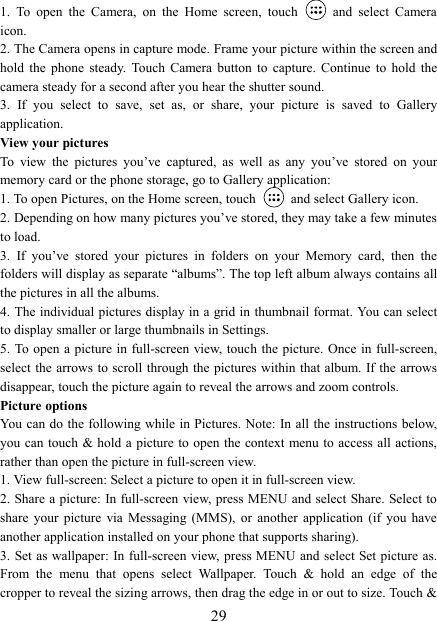
  291.  To  open  the  Camera,  on  the  Home  screen,  touch   and  select  Camera icon.   2. The Camera opens in capture mode. Frame your picture within the screen and hold  the  phone  steady.  Touch  Camera  button  to  capture.  Continue  to  hold  the camera steady for a second after you hear the shutter sound.   3.  If  you  select  to  save,  set  as,  or  share,  your  picture  is  saved  to  Gallery application.   View your pictures   To  view  the  pictures  you’ve  captured,  as  well  as  any  you’ve  stored  on  your memory card or the phone storage, go to Gallery application:   1. To open Pictures, on the Home screen, touch   and select Gallery icon.   2. Depending on how many pictures you’ve stored, they may take a few minutes to load.   3.  If  you’ve  stored  your  pictures  in  folders  on  your  Memory  card,  then  the folders will display as separate “albums”. The top left album always contains all the pictures in all the albums.   4. The individual pictures display in a grid in thumbnail format. You can select to display smaller or large thumbnails in Settings.   5. To open a picture in full-screen view,  touch the picture. Once in full-screen, select the  arrows to scroll through the  pictures within that album. If the  arrows disappear, touch the picture again to reveal the arrows and zoom controls. Picture options   You can do the following while in Pictures. Note: In all  the instructions below, you can  touch & hold a picture to open the context menu to  access all  actions, rather than open the picture in full-screen view. 1. View full-screen: Select a picture to open it in full-screen view.   2. Share a picture: In full-screen view, press MENU and select Share. Select to share  your  picture  via  Messaging  (MMS),  or  another  application  (if  you have another application installed on your phone that supports sharing).   3. Set as wallpaper: In full-screen  view, press MENU  and select Set picture as. From  the  menu  that  opens  select  Wallpaper.  Touch  &  hold  an  edge  of  the cropper to reveal the sizing arrows, then drag the edge in or out to size. Touch &
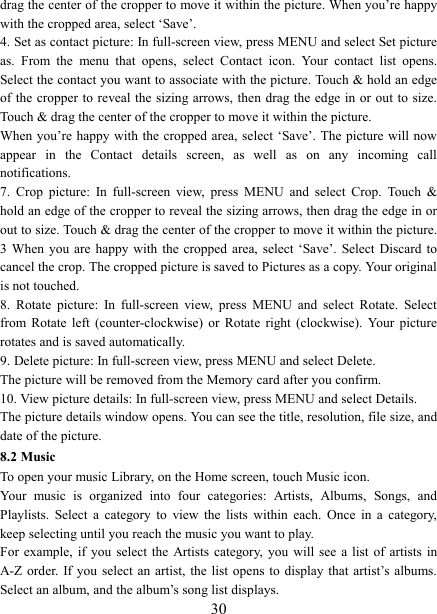
  30drag the center of the cropper to move it within the picture. When you’re happy with the cropped area, select ‘Save’.   4. Set as contact picture: In full-screen view, press MENU and select Set picture as.  From  the  menu  that  opens,  select  Contact  icon.  Your  contact  list  opens. Select the contact you want to associate with the picture. Touch & hold an edge of the  cropper to  reveal the  sizing arrows, then drag the  edge in  or out to size. Touch & drag the center of the cropper to move it within the picture.   When you’re  happy with  the cropped  area, select ‘Save’. The picture will now appear  in  the  Contact  details  screen,  as  well  as  on  any  incoming  call notifications.   7.  Crop  picture:  In  full-screen  view,  press  MENU  and  select  Crop.  Touch  & hold an edge of the cropper to reveal the sizing arrows, then drag the edge in or out to size. Touch & drag the center of the cropper to move it within the picture. 3  When  you are happy  with  the cropped area, select  ‘Save’.  Select Discard to cancel the crop. The cropped picture is saved to Pictures as a copy. Your original is not touched.   8.  Rotate  picture:  In  full-screen  view,  press  MENU  and  select  Rotate.  Select from  Rotate  left  (counter-clockwise)  or  Rotate  right  (clockwise).  Your  picture rotates and is saved automatically.   9. Delete picture: In full-screen view, press MENU and select Delete.     The picture will be removed from the Memory card after you confirm.   10. View picture details: In full-screen view, press MENU and select Details.   The picture details window opens. You can see the title, resolution, file size, and date of the picture.   8.2 Music To open your music Library, on the Home screen, touch Music icon.   Your  music  is  organized  into  four  categories:  Artists,  Albums,  Songs,  and Playlists.  Select  a  category  to  view  the  lists  within  each.  Once  in  a  category, keep selecting until you reach the music you want to play.   For  example, if you select the Artists  category,  you will see a  list  of artists in A-Z order.  If you  select  an artist, the list  opens  to display that artist’s albums. Select an album, and the album’s song list displays.
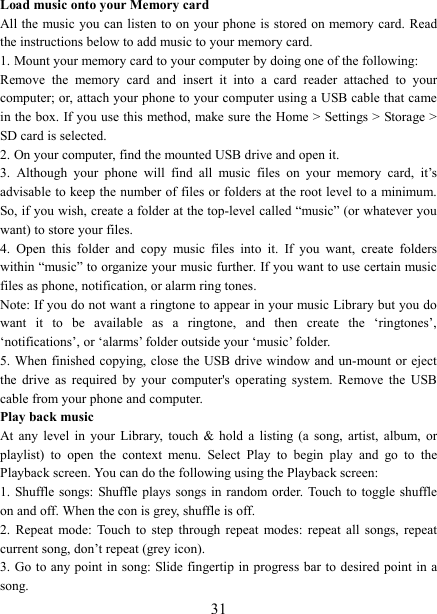
  31Load music onto your Memory card All the music you can listen to on your phone is stored on memory card.  Read the instructions below to add music to your memory card.   1. Mount your memory card to your computer by doing one of the following:   Remove  the  memory  card  and  insert  it  into  a  card  reader  attached  to  your computer; or, attach your phone to your computer using a USB cable that came in the box. If you use this method, make sure  the Home > Settings > Storage > SD card is selected.   2. On your computer, find the mounted USB drive and open it.   3.  Although  your  phone  will  find  all  music  files  on  your  memory  card,  it’s advisable to keep the number of files or folders at the root level to a minimum. So, if you wish, create a folder at the top-level called “music” (or whatever you want) to store your files.   4.  Open  this  folder  and  copy  music  files  into  it.  If  you  want,  create  folders within “music” to organize your music further. If you want to use certain music files as phone, notification, or alarm ring tones. Note: If you do not want a ringtone to appear in your music Library but you do want  it  to  be  available  as  a  ringtone,  and  then  create  the  ‘ringtones’, ‘notifications’, or ‘alarms’ folder outside your ‘music’ folder.   5. When finished copying, close the USB drive window and un-mount or eject the  drive  as  required  by  your  computer's  operating  system.  Remove  the  USB cable from your phone and computer.   Play back music   At  any  level  in  your  Library,  touch  &  hold  a  listing  (a  song,  artist,  album,  or playlist)  to  open  the  context  menu.  Select  Play  to  begin  play  and  go  to  the Playback screen. You can do the following using the Playback screen:   1. Shuffle songs: Shuffle plays songs  in  random order. Touch to toggle  shuffle on and off. When the con is grey, shuffle is off.   2.  Repeat  mode: Touch  to  step  through  repeat  modes: repeat  all  songs,  repeat current song, don’t repeat (grey icon). 3. Go to any point  in song: Slide fingertip in progress bar to desired point in a song.
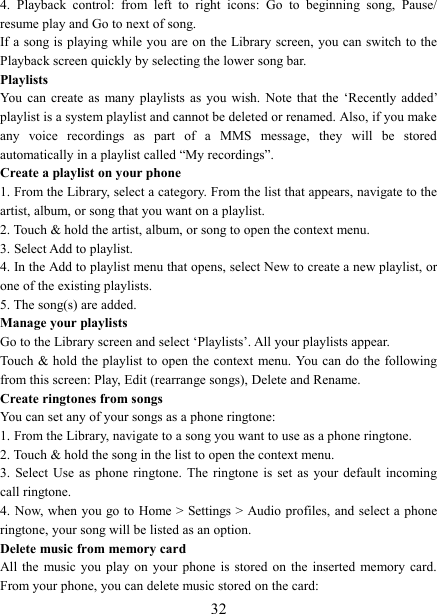
  324.  Playback  control:  from  left  to  right  icons:  Go  to  beginning  song,  Pause/ resume play and Go to next of song. If a song is playing while you are on the Library screen, you can switch to the Playback screen quickly by selecting the lower song bar.   Playlists   You  can  create  as  many  playlists  as  you  wish.  Note  that  the  ‘Recently  added’ playlist is a system playlist and cannot be deleted or renamed. Also, if you make any  voice  recordings  as  part  of  a  MMS  message,  they  will  be  stored automatically in a playlist called “My recordings”.   Create a playlist on your phone 1. From the Library, select a category. From the list that appears, navigate to the artist, album, or song that you want on a playlist.   2. Touch & hold the artist, album, or song to open the context menu.   3. Select Add to playlist.   4. In the Add to playlist menu that opens, select New to create a new playlist, or one of the existing playlists.   5. The song(s) are added.     Manage your playlists   Go to the Library screen and select ‘Playlists’. All your playlists appear.   Touch  & hold  the playlist  to open  the context menu. You can do the following from this screen: Play, Edit (rearrange songs), Delete and Rename. Create ringtones from songs   You can set any of your songs as a phone ringtone:   1. From the Library, navigate to a song you want to use as a phone ringtone.   2. Touch & hold the song in the list to open the context menu.   3.  Select Use as phone ringtone.  The  ringtone  is  set  as  your  default  incoming call ringtone.   4. Now, when  you go to  Home > Settings > Audio profiles, and  select a phone ringtone, your song will be listed as an option. Delete music from memory card   All the  music you play on your phone is stored on the inserted  memory  card. From your phone, you can delete music stored on the card:
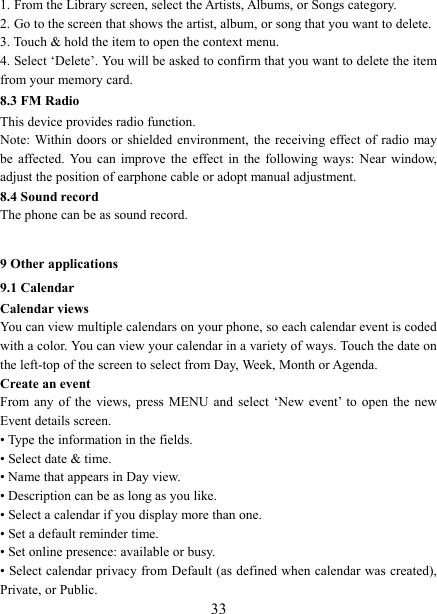
  331. From the Library screen, select the Artists, Albums, or Songs category.   2. Go to the screen that shows the artist, album, or song that you want to delete.   3. Touch & hold the item to open the context menu.   4. Select ‘Delete’. You will be asked to confirm that you want to delete the item from your memory card. 8.3 FM Radio This device provides radio function.   Note: Within doors or  shielded environment,  the receiving effect of radio  may be  affected.  You  can improve the  effect  in  the  following  ways:  Near  window, adjust the position of earphone cable or adopt manual adjustment.   8.4 Sound record The phone can be as sound record.  9 Other applications 9.1 Calendar Calendar views   You can view multiple calendars on your phone, so each calendar event is coded with a color. You can view your calendar in a variety of ways. Touch the date on the left-top of the screen to select from Day, Week, Month or Agenda.   Create an event   From any of the views,  press  MENU  and  select  ‘New  event’  to  open  the  new Event details screen.   • Type the information in the fields.   • Select date & time.   • Name that appears in Day view.   • Description can be as long as you like. • Select a calendar if you display more than one.   • Set a default reminder time.   • Set online presence: available or busy.   • Select calendar privacy from Default (as defined when calendar was created), Private, or Public.
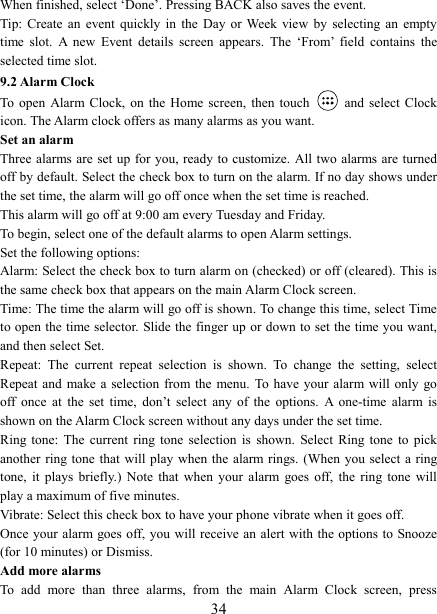
  34When finished, select ‘Done’. Pressing BACK also saves the event.   Tip: Create  an  event  quickly  in  the  Day  or Week  view  by  selecting an  empty time  slot.  A  new  Event  details  screen  appears.  The  ‘From’  field  contains  the selected time slot.   9.2 Alarm Clock To  open  Alarm  Clock,  on  the  Home  screen,  then  touch   and select Clock icon. The Alarm clock offers as many alarms as you want.   Set an alarm   Three alarms are set up for you, ready to customize. All two alarms are turned off by default. Select the check box to turn on the alarm. If no day shows under the set time, the alarm will go off once when the set time is reached. This alarm will go off at 9:00 am every Tuesday and Friday.   To begin, select one of the default alarms to open Alarm settings.   Set the following options:   Alarm: Select the check box to turn alarm on (checked) or off (cleared). This is the same check box that appears on the main Alarm Clock screen. Time: The time the alarm will go off is shown. To change this time, select Time to open the time selector. Slide the finger up or down to set the time you want, and then select Set.   Repeat:  The  current  repeat  selection  is  shown.  To  change  the  setting,  select Repeat and make a selection from the  menu.  To have your  alarm  will only go off  once  at  the  set  time,  don’t  select  any  of  the  options.  A  one-time  alarm  is shown on the Alarm Clock screen without any days under the set time. Ring  tone:  The  current  ring  tone  selection  is  shown.  Select  Ring tone  to  pick another ring tone  that will play when the alarm rings. (When you select a ring tone,  it  plays  briefly.)  Note  that  when  your  alarm  goes  off,  the  ring  tone  will play a maximum of five minutes.   Vibrate: Select this check box to have your phone vibrate when it goes off. Once your  alarm goes off, you will receive an alert with the options  to Snooze (for 10 minutes) or Dismiss.   Add more alarms   To  add  more  than  three  alarms,  from  the  main  Alarm  Clock  screen,  press
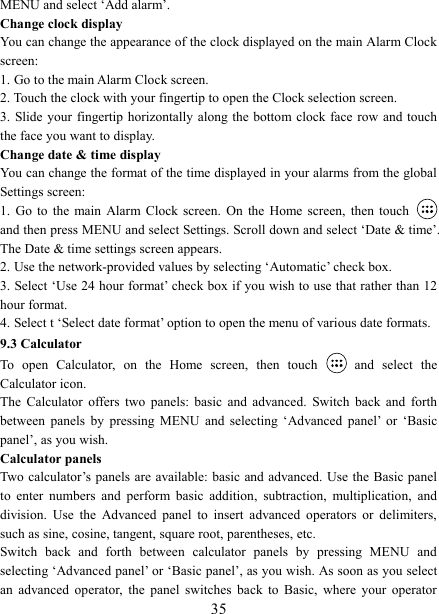
  35MENU and select ‘Add alarm’.   Change clock display   You can change the appearance of the clock displayed on the main Alarm Clock screen: 1. Go to the main Alarm Clock screen. 2. Touch the clock with your fingertip to open the Clock selection screen. 3. Slide your  fingertip horizontally along the bottom clock  face row and touch the face you want to display.   Change date & time display   You can change the format of the time displayed in your alarms from the global Settings screen: 1.  Go  to  the main Alarm Clock screen.  On  the  Home  screen,  then  touch   and then press MENU and select Settings. Scroll down and select ‘Date & time’. The Date & time settings screen appears.   2. Use the network-provided values by selecting ‘Automatic’ check box.   3. Select ‘Use 24 hour format’ check box if you wish to use that rather than 12 hour format.   4. Select t ‘Select date format’ option to open the menu of various date formats.   9.3 Calculator To  open  Calculator,  on  the  Home  screen,  then  touch   and  select  the Calculator icon.   The  Calculator  offers  two  panels:  basic  and  advanced.  Switch  back  and  forth between  panels  by  pressing  MENU  and  selecting  ‘Advanced  panel’  or  ‘Basic panel’, as you wish.   Calculator panels   Two  calculator’s panels are available: basic  and advanced. Use the Basic panel to  enter  numbers  and  perform  basic  addition,  subtraction,  multiplication,  and division.  Use  the  Advanced  panel  to  insert  advanced  operators  or  delimiters, such as sine, cosine, tangent, square root, parentheses, etc.   Switch  back  and  forth  between  calculator  panels  by  pressing  MENU  and selecting ‘Advanced panel’ or ‘Basic panel’, as you wish. As soon as you select an  advanced  operator,  the  panel  switches  back  to  Basic,  where  your  operator
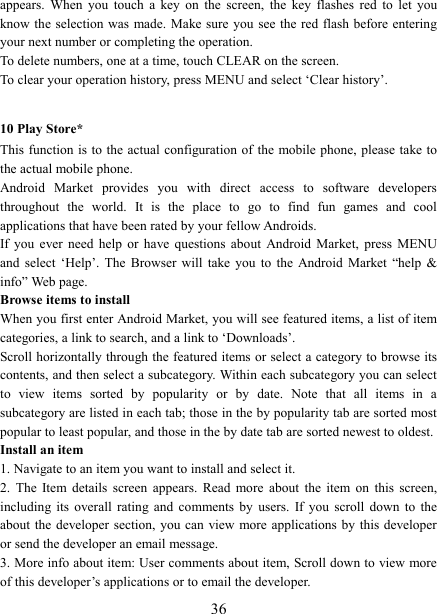
  36appears.  When  you  touch  a  key  on  the  screen,  the  key  flashes  red  to  let  you know the  selection was  made. Make sure you see the red flash before entering your next number or completing the operation.   To delete numbers, one at a time, touch CLEAR on the screen.   To clear your operation history, press MENU and select ‘Clear history’.    10 Play Store* This function  is to  the actual  configuration of the mobile phone,  please take to the actual mobile phone. Android  Market  provides  you  with  direct  access  to  software  developers throughout  the  world.  It  is  the  place  to  go  to  find  fun  games  and  cool applications that have been rated by your fellow Androids. If  you  ever  need  help  or  have  questions  about  Android  Market,  press  MENU and  select  ‘Help’.  The  Browser  will  take  you  to  the  Android  Market  “help  & info” Web page.   Browse items to install   When you first enter Android Market, you will see featured items, a list of item categories, a link to search, and a link to ‘Downloads’.   Scroll horizontally through the featured items or select a category to browse its contents, and then select a subcategory. Within each subcategory you can select to  view  items  sorted  by  popularity  or  by  date.  Note  that  all  items  in  a subcategory are listed in each tab; those in the by popularity tab are sorted most popular to least popular, and those in the by date tab are sorted newest to oldest.   Install an item   1. Navigate to an item you want to install and select it.   2.  The  Item  details  screen  appears.  Read  more  about  the  item  on  this  screen, including  its  overall  rating  and  comments  by  users.  If  you  scroll  down  to  the about the developer  section, you can  view more applications by  this developer or send the developer an email message.   3. More info about item: User comments about item, Scroll down to view more of this developer’s applications or to email the developer.
  37Press MENU and select ‘Security’ (permissions) to view the functions and data this item can access on your phone.   4.  To  install  the  item,  select  either  Install  (item  is  free)  or  Buy,  whichever appears. Important! If an application you are downloading requires either access to  any  of  your  data  or  control  of  any  functions  on  your  phone,  before  you proceed, you’ll see a screen that tells you what the application can access so you can give your permission. Be sure to read this carefully! Be especially cautious if an application  has  access to many  functions  or  a significant amount of your data. Once you select ‘OK’ on this screen, you will be responsible for the results of using this item on your phone.   • After selecting ‘Install’, the item will start downloading immediately.   •  After  selecting  ‘Buy’,  you  may  be  asked  to  sign  in  to  an  additional  Google account. Sign in and select Purchase now if  you want to proceed. Step through the purchase screens.   5. You can see the download progress of the item by  opening  the notifications window.  Download  progress  appears  in  the  “ongoing”  section  of  the notifications window. Once downloaded and installed, a notification appears.   Manage your downloads   From  the  Android  Market  Home  screen,  select  ‘Downloads’  to  view  your downloaded  items.  From  any  of  the  Android  Market  screens,  you  can  press MENU and select ‘Downloads’ to go to the screen. You can take the following actions from the Downloads screen:   View downloads in progress 1. From the Android Market home screen, press MENU and select ‘Downloads’. 2. If you are in the process of downloading and installing an item, the progress will display at the top of the screen. Review a downloaded item You can rate and post comments on any item you’ve downloaded from Android Market. Note that you must first rate an item to post a comment.   Uninstall a downloaded item 1. From the Android Market Home screen, press MENU and select ‘Downloads’. 2. Select the item you want to uninstall. The Item details screen appears.
  383. Select ‘Uninstall’ button at the bottom of the screen.   Open downloaded item 1. From the Android Market Home screen, press MENU and select ‘Downloads’. 2. Select the item you want to open. The Item details screen appears.   3. Select ‘Open’ button at the bottom of the screen. Read security permissions for this item Items  you  download  and  install  on  your  phone  typically  have  access  to functionality. You can view what an item has access to on your phone: 1. From the Android Market Home screen, press MENU and select ‘Downloads’. 2. Select the item you want to read about. The Item details screen appears.   3. Press MENU and select ‘Security’. 4. All areas of your phone that this item has access to are listed.   5. Dismiss the screen by selecting ‘OK’.   Flag content If you have a concern about an item, you can “flag” it for further investigation.   You  can  further  manage  your  Android  Market  applications  from  the  Home  > Settings > Applications > Manage applications screen.   Review your downloaded items Rate a downloaded item   If you’d like to rate one of the items you’ve downloaded from Android Market, follow these steps:   1. From the Android Market Home screen, press MENU and select ‘Downloads’. 2. Select the item you want to rate to open its Item details screen.   3. Select ‘My rating’ section to open the Rate it! dialog box. Touch the number of stars you want to give the item...more stars is better! When ready, select ‘OK’ to submit your rating.   Write a comment   Once you’ve rated a downloaded item, you can post a comment:   1. From the Android Market Home screen, press MENU and select ‘Downloads’. Select the item you want to comment on to open its details screen.   2. Select the Post a comment section to open ‘Post comment’ dialog box. If you don’t see the Post a comment section, first rate the item.   3. Type your comment, and then select ‘OK’ to post it.
  39Remove rating and/or comment   Once  you’ve  rated  or  commented  on  an  item,  you  can  always  remove  this review: 1. From the Android Market Home screen, press MENU and select ‘Downloads’. Select the item to open its details screen. 2. Press MENU and select ‘Clear my review’. 3. Your rating and comments are removed. FCC Regulations: This mobile phone complies with part 15 of the FCC Rules. Operation is subject to  the  following  two  conditions:  (1)  This  device  may  not  cause  harmful interference,  and  (2)  this  device  must  accept  any  interference  received, including interference that may cause undesired operation. This  mobile  phone  has  been  tested  and  found  to  comply  with  the  limits for  a Class B digital  device, pursuant to Part  15 of the FCC  Rules.  These limits are designed  to  provide  reasonable  protection  against  harmful  interference  in  a residential  installation.  This  equipment  generates,  uses  and  can  radiated  radio frequency  energy  and,  if  not  installed  and  used  in  accordance  with  the instructions, may cause harmful interference to radio communications. However, there is  no guarantee that interference will not occur in a particular installation If  this  equipment  does  cause  harmful  interference  to  radio  or  television reception,  which  can  be  determined  by  turning  the  equipment  off  and  on,  the user  is  encouraged  to  try  to  correct  the  interference  by  one  or  more  of  the following measures:  -Reorient or relocate the receiving antenna. -Increase the separation between the equipment and receiver. -Connect the  equipment into  an outlet on a circuit different from that to which the receiver is connected. -Consult the dealer or an experienced radio/TV technician for help.
  40FCC Note: Caution:  Changes  or  modifications  not  expressly  approved  by  the  party responsible  for  compliance  could  void  the  user‘s  authority  to  operate  the equipment. RF Exposure Information (SAR) This phone  is designed and manufactured not  to exceed the emission limits for exposure  to  radio  frequency  (RF)  energy  set  by  the  Federal  Communications Commission of the United States.    During SAR testing, this device was set to transmit at its highest certified power level  in  all  tested  frequency  bands,  and  placed  in  positions  that  simulate  RF exposure in usage  against the  head  with no  separation, and near the body with the  separation  of  10  mm.  Although  the  SAR  is  determined  at  the  highest certified power level, the actual SAR level of the device while operating can be well  below  the  maximum  value.   This  is  because  the  phone  is  designed  to operate at multiple  power  levels so as  to  use only the  power required to reach the network. In general, the closer you are to a wireless base station antenna, the lower the power output.  The exposure standard for wireless devices employing a unit of measurement is known as the Specific Absorption Rate, or SAR.  The SAR limit set by the FCC is 1.6W/kg.   This  device  is  complied  with  SAR  for  general  population  /uncontrolled exposure  limits  in  ANSI/IEEE  C95.1-1992  and  had been tested in accordance with the measurement methods and procedures specified in IEEE1528.  The FCC has granted an Equipment Authorization for this model phone with all reported  SAR  levels  evaluated  as  in  compliance  with  the  FCC  RF  exposure guidelines. SAR  information  on  this  model phone is on  file  with the FCC and
  41can be found under the Display Grant section of www.fcc.gov/oet/ea/fccid after searching on FCC ID: 2ALTAPRO550X.  For  this  device,  the  highest  reported  SAR  value  for  usage  against  the  head  is 0.36 W/kg, for usage near the body is 0.94 W/kg.  While there  may be differences between the SAR levels of  various phones and at various positions, they all meet the government requirements.  SAR compliance for body-worn operation  is based on a  separation distance of 10 mm between the unit and the human body. Carry this device at least 10 mm away  from  your  body  to  ensure  RF  exposure  level  compliant  or  lower  to  the reported  level.  To  support  body-worn  operation,  choose  the  belt  clips  or holsters, which do not contain metallic components, to maintain a separation of 10 mm between this device and your body.   RF exposure compliance with any body-worn accessory, which contains metal, was  not  tested  and  certified,  and  use  such  body-worn  accessory  should  be avoided.

Navigation menu