Ployer Electronics MOMO9C Tablet PC User Manual MOMO9C
Shenzhen Ployer Electronics Co.,Ltd Tablet PC MOMO9C
user manual
English User Manual
This manual is to introduce the functions of the device,
as well as matters which need attention. Please read
this manual before you use the device.
FCC Caution: Any changes or modifications not expressly
approved by the party responsible for compliance could void
the user's authority to operate this equipment.
This device complies with Part 15 of the FCC Rules.
Operation is subject to the following two conditions:
(1) This device may not cause harmful interference, and
(2) This device must accept any interference received,
including interference that may cause undesired operation.
This device and its antenna(s) must not be co-located or
operating in conjunction with any other antenna or transmitter.
Note: This equipment has been tested and found to comply with the
limits for a Class B digital device, pursuant to part 15 of the FCC Rules.
These limits are designed to provide reasonable protection against
harmful interference in a residential installation. This equipment generates,
uses and can radiate radio frequency energy and, if not installed and used
in accordance with the instructions, may cause harmful interference to
radio communications. However, there is no guarantee that interference
will not occur in a particular installation. If this equipment does cause
harmful interference to radio or television reception, which can be
determined by turning the equipment off and on, the user is encouraged
to try to correct the interference by one or more of the following measures:
--Reorient or relocate the receiving antenna.
--Increase the separation between the equipment and receiver.
--Connect the equipment into an outlet on a circuit different from that to
which the receiver is connected.
--Consult the dealer or an experienced radio/TV technician for help.
Content
1. Announcements …………………………………Page 1
2. Introduction ……………………………………Page 3
2.1 Packing Details………………………………Page 3
2.2 Instructions on Keys. ……… ……………Page 3
2.3 Features Overview……………………………Page 4
2.4 Technical Specifications…………………Page 6
3. Quick Guidance …………… …………………Page 7
3.1 About Touch Panel…………………………Page 7
3.2 Switch On/Off. …………… ………………Page 7
3.3 Power Save Modes and lock screen…………Page 8
3.4 Battery management and charging. ………Page 9
3.5 Definition for the icons of the Functions…Page 10
3.6 USB HOST Function…………………......... Page 12
3.7 TF Card Storage…………………………....Page 12.
4. Network Access …………………………..…Page 13
4.1 Network Access by Wi-Fi……………….. Page 13
4.2 Network Access by 3G…………………....... Page 13
5. Storage File Copy & Delete f rom PC…………Page 14
6. Main Functions Introduction …………………Page 15
6.1 Audio Function……………………..………Page 15
6.2 Video Function………………………………Page 17
6.3 Picture Function……………………….……Page 17
6.4 Record Fu nction………………………….. Page 18
6.5 File Man ager……………………………Page 19
6.6 E-book Function…………………………Page 19
6.7 Internet Br owser………………………Page 19
6.8 Email Function…………………………Page 20
6.9 Calendar…………………………….…Page 22
6.10 Calculator…………………………………Page 23
6.11 Alarm Clock……………………………Page 24
6.12 APK Inst aller…………………………Page 24
7. System Settings………………………………Page 26
8. FAQ……………………………………………Page 29
-- Page 1 --
1. Announcements
1. Please keep the device away from moist and dust.
2. Do not put the device in high-temperature environment,
especially closed car in hot weather.
3. Do not drop or strike the device.
4. Do not shake the device violently, especially the LCD
Screen part. Or, it will cause abnormal display on the
screen.
5. Please choose a proper volume when using the
earphone which will be good for your ear.
6. Please charge the device when
(1) The power icon shows lowest power.
(2) The device is turned off automatically, and when
you turn on it, it is turned off automatically
again.
(3) No response when operating the buttons.
Attention: Please use the charger offered by
manufacturer to charge, other charges may causes
damage to the device.
7. Do not disconnect the device from PC when
downloading, uploading or formatting, or it will cause
-- Page 2 --
programming errors of the device.
8. Do not dismounting the device privately without
professional guidance.
9. Do not use alcohol, thinner or benzene-chemical to
clean the surface of the device.
10. Do not use the device in forbidden place, like airplane.
11. Please back-up your files in device’s memory always.
The manufacturer is not responsible for the clear of
files after damage or repair of the device.
12. The manufacture reserves all right of device’s
technology and design, and will have no obligation to
inform the user if there are new versions or designs
been developed.
13. The device is NOT water-proof, please keep it away
from water.
The turn on time of this device is about 30 seconds, please
don’t operate t he device w hen it is turned on i n 30
seconds.

-- Page 3 --
2. Introduction
2.1 Packing Details.
Each unit has the following items: Tablet PC device*1,
charger*1, earphone*1, USB cable*1, and user manual*1. All
items are packed in gift box.
2.2 Instructions on Keys.
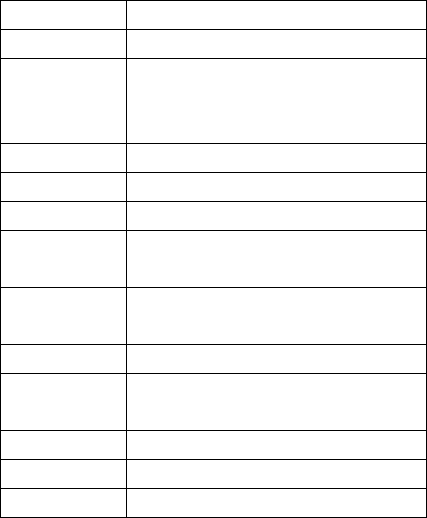
Name Description
RESET Press this button shortly to reset the
system when the device is halted
POWER
Press this button shortly to enter
sleeping/wake up mode, long press to
switch ON/OFF
MENU Press this button shortly to enter the
submenu

-- Page 4 --
ESC Press shortly to return, long press to the
touch screen calibration
TF Card Slot For external TF card, 1GB to 16GB
Stereo Earpieces
Jack Stereo earpieces jack for earphone
DC Socket Connect with 5V DC charger
MINI USB Port MINI_5 PIN USB Port
USB Host Port Port for external USB Driver,3G
Dongle, Mouse, keyboard, etc
Display HD Display area
Long Press: Press the item for more than 1.2 seconds.
2.3 Features Overview
CPU: ALLWINNER, Cortext A8, 1.2GHz. With
ANDROID 2.3 operation system.
7" TFT touch panel LCD display, 800 x 480 pixel
resolution.
-- Page 5 --
Support 2~32GB built-in Flash Memory, support
128MB-32GB external TF card.
Support Medias playing: Video, audio, pictures,
Ebooks, etc.
Built-in Wi-Fi. Support external 3G USB-DONGLE
wireless network card (3G card or USB-Dongle are not
provided by the Tablet PC manufacturer).
Various applications are available in the ANDROIED
2.3 OS. (APK applications only).
Support built-in microphone record function
(optional).
Support USB-HOST and external U-disk, MP3, MP4,
Mouse, keyboard, etc.
Support G-sensor screen rotation function.
Support Stereo Earpieces and speaker.
Supports multiple languages.
The device can be used as USB portable hard disk,
driver not needed for WIN2000 or above.
-- Page 6 --
2.4 Technical Specifications
CPU Chipset: ALLWINNER; Cortex A8; 1.2GHz
RAM DDR3 512 MB
Storage
Built-in 4GB Flash. ( 4GB-16GB be optional )
External Micro SD Card extendable: 1GB to 32
GB.
System Android 2.3
Network Wifi: Built-in Wifi Module. 3G: External 3G
Applications APK format applications
Video
RM, RMVB, AVI, MOV, WMV, MP4, ASF, 3GP,
TS, MKV, MPEG, etc.
Music
MP3, WMA, WAV, APE, FLAC, AAC, OGG,
etc.
Pictures JPG, BMP, PNG, TIFF, etc.
Ebooks
TXT, PDF, CHM, HTML, PDB, UMD, FB2,
LRC,
Office Files Supported files: Word, Excel, PDF, etc.
PC Connection MINI USB
Battery Built-in Lithium Battery: 4200 mAh.
-- Page 7 --
3. Quick Guides
3.1 About Touch Panel
The touch screen is capacitive touch screen, you can use five
fingers to touch the screen at the same time.
3.2 Switch On/Off.
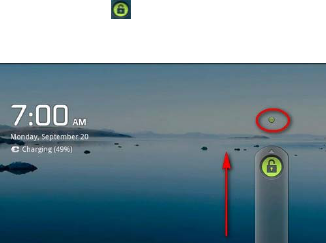
Switch On and Unlock: When the device is in the OFF mode,
press and hold “Power” key for 3 seconds to enter the
Android startup progress bar, it need about 20 seconds enter
to the system desktop, when the LCD is under locked mode,
please press and pull the icon to the green point, then the
LCD will unlocked automatically, see the figures below,
-- Page 8 --
3.3 Power Saving Modes and lock screen.
¾ Press the “POWER” key shortly after starting up,
system enter to power save and lock mode.
¾ Press the “POWER” key or tap the touch screen,
system will return to bright in 1 second
¾ The primary operation of the device will not stop
under the power save mode, just the LCD is shut and
with black screen. For example: playing music, movie, etc.
¾ Switch OFF: When the device is in the OFF mode,
press and hold the “POWER” key for 3 seconds, the
screen will display the power off interface, choose the
power off item to confirm, the system will shut
automatically
【Note】When the device with low battery it will alarm
continuous and shut automatically without charging. If the
device can not start up please check if the battery is low, and
try it again after the battery is charged.
-- Page 9 --
3.4 Battery management and charging.
3.4.1 Charge the battery for 8-12 hours to make sure the
battery is fully charged when firstly use.
3.4.2 Insert the micro port of the battery adaptor into DC slot
on the device, and connect the other side with the power
socket. Then the desktop icon of the battery keep rolling
which shows it is charging, please wait until the battery is
fully charged, don’t disconnect the power when charging.
Once the battery is fully charged, the Icon on the desktop will
stop rolling.
【Note】In order to keep the battery working in the best
condition, please pay attention as below:
z Please don’t charge the power in high temperature.
z No need to release the power for this Li- battery, you can
charge the power even there is still some power in the

-- Page 10 --
battery, no need to wait it runs out.
z In order to keep the battery in good condition, please make
sure to charge the power once per two weeks if you don’t
use this device for a long time.
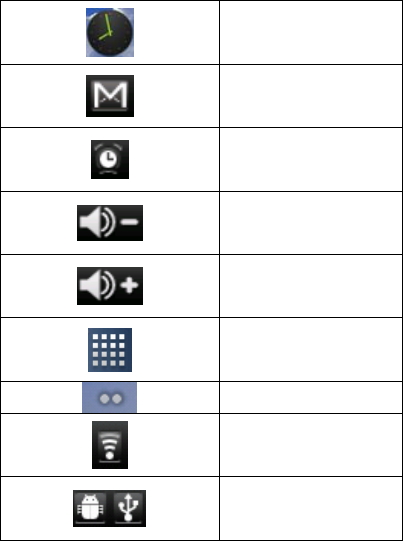
3.5 Definition for the icons of the Functions
Icon Function instruction
Back to main menu
Show current
power status
The current
system time
Back
Menu
Google search
-- Page 11 --
System clock
New mail
Set the alert time
Reduce the volume
Louder the volume
Menu for Function
Block.
Switch the interface
WIFI on/off
USB Connection
-- Page 12 --
3.6 USB HOST Function
3.6.1 USB- HOST Definition
The Mini USB on the device can be used as USB Host.
3.6.2 Read U-disk:
Insert the U-disk into the HOST port, press the Resource
manager in the desktop, press USB enter into u-disk.
3.6.3 External 3G USB Dongle . (See network access
guidance in item 4)
3.7 TF Card Storage
There is a TF card slot in this device, it support reading the
files in TF card. Insert the TF card into the card slot in
right way, when take it out, just push the TF toward to the
inside, then the slot will release the TF card, the TF card
will pop out automatically, take it then.
3.7.1 Please insert the TF into the card slot in the right side
of the device.
3.7.2 Don’t pull out the card when operating ( reading,
copying), or it may cause date error.
3.7.3 Don’t use the TF card under high temperature
condition.
3.7.4 Keep the TF card far from the liquid and erosive
materials.
-- Page 13 --
4. Network Access
The device support Wi-Fi network and external 3G network.
4.1 Network Access by Wi-Fi
4.1.1 Turn on Wi-Fi, and Press Wi-Fi settings. The
device will scans automatically for available Wi-Fi
networks.
4.1.2 Choose the Wi-Fi network that you want to
connect to.
4.1.3 Press Connect. Some network may need you
input the password.
4.1.4 On the Wi-Fi settings screen, press the Menu key,
touch Advanced, you will get more settings for Wi-Fi.
4.2 Network Access by 3G
4.2.1 Turn OFF Wi-Fi if it is working.
4.2.2 Access Wireless & Netw orks, and choose
Mobile network setting, make sure Data enabled was
chosen. Then go back to Wireless & Networks.
4.2.3 Insert External 3G by USB host.
4.2.4 Choose Mobile network, then wait for the 3G
network connection, soon you can access network via 3G..

-- Page 14 --
5. Storage File Copy & Delete from PC
A) Connect the device to computer by USB Cable, there will
be notification in the status bar that USB connected.
B) Hold Pressing the top of device, and move your fingers
down, the status bar will be dragged down.
C) Choose USB Connected. Then, Turn on USB storage.
If there is no notification as above when you turn on the
device, please operate as follows.
Enter System Settings. ----- Enter Applications settings----
Enter Development. ----- Choose USB debugging, turn it on.
Then, there will be notification again that if you Allow USB
debugging, choose OK and then turn on USB storage, now
you can copy or delete the device’s files from PC.
-- Page 15 --
6. Main Functions Introduction
6.1 Audio Function
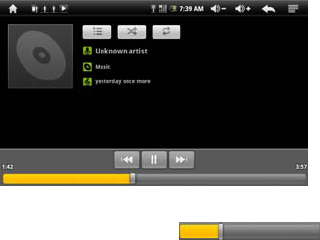
Enter the music player: In music player mode, double-click
the favorite in the list to play music as shown in the
following picture
Drag the playing progress bar ,to
adjust the playing process.
-- Page 16 --
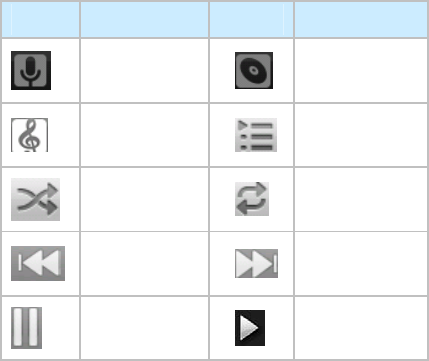
Instructions of the buttons in the Music player
Button Instruction button Instruction
Artist Album
Song Music list
Random Play Loop playback
Play the last Play the next
Pause Play
z When no music files in the audio player playlist, the
system will automatically load the music files from the
card to the audio player playlist after turning on the
audio player (the device supported audio file format:
mp3, wav, midi, wma). The playlist as shown in the
above figure
-- Page 17 --
z If two more songs in the Music playlist area, slide
up/down the touch screen to page up/down
z Double-click the favorite in the list to play music.
z In the music playing interface, click enter the
audio playing list.
z Drag the playback progress bar to
adjust audio playback progress.
6.2 Video Function
z Click the Video player icon to enter the video player
interface, open the video files,
z The device supported audio file format: MKV、AVI、
RM、RMVB、MP4、MOV、VOB、DAT、FLV、3GP、
etc.
z When no video files in the video player playlist, the
system will automatically load the video files from the
card to the video player playlist after turning on video
player.
z Drag the playback progress bar to
adjust video playback progress.

-- Page 18 --
6.3 Picture Function
z Click the HD Video Player to enter the viewing
interface
Add image(supports the format of picture: BMP、JPG、
JPEG、PNG、GIF)When there is no file in the photo list, the
system will automatically load the image files from the card
to the photo browsing list after opening the photo browser.
Open the corresponding folder, find the image file and add
the picture you want.
z Click menu button, the photo can be set as wallpaper.
6.4 Record Function
Click the record icon to enter the record interface, click
record button to start recording, click this button
to stop recording, the system will remind you to use this
recording or give up, please select manually.
Recording playing: please select audio player to play the
recording, firstly select the record files from the explorer,
then click it and playing, further details please refer to Audio
Function.
-- Page 19 --
6.5 File Manager
In file manager, you can check all files in the device,
including files in built-in Memory and external card. Also
there is a quick view for pictures and videos.
6.6 E-book Function.
Support formats of E-Book: TXT、LRC、PDF、HTML、HTM、
EPUB, etc.
6.7 Internet Browser
z Before you use internet browse function, please make
sure your network is connected. See network access
guidance in former part.
z Click IE Browser icon to enter to the IE interface,
click the address bar and input website and click Go to
enter a corresponding web page, you can view the
corresponding website information.
-- Page 20 --
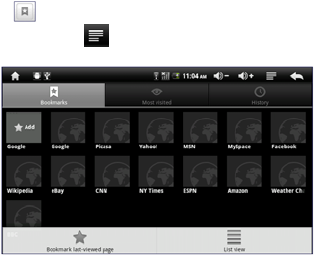
z Click icon to view bookmark and history record.
z Click menu icon to access settings
z The device also supports other internet browsers, detail
functions of those internet browsers refer to their own
instructions.
6.8 Email Function
z Before you use email function, please make sure your
network is connected. See network access guidance in
former part.
z When you firstly use this function, you need to add an
email account to the device. The device supports
several accounts working together.
z Portal sites email accounts and enterprise email
account adding methods are different.
-- Page 21 --
6.8.1 Add port al sites email accounts. ( Example: Gmail,
MSN, Yahoo, etc. )
Take Google email account for an example here.
Account: plommmmmm@gmail.com
Password: *********
z For portal sites email accounts, directly input your
email address and password, then click next.
z After successful connection, input Account Name and
Your Name. Account Name means the name of this
account in the device, Your Name means the displayed
name of your email in receivers’ account.
z Then you will access the account. Click email titles to
read emails, long press email titles to access options.
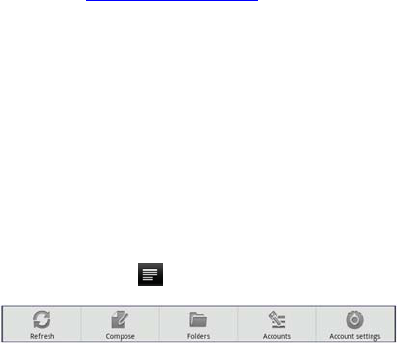
z Click menu icon to access settings
Refresh: Checking new emails.
Compose: Write new emails.
Folders: Manage emails to different folders.

-- Page 22 --
Accounts: View accounts in the device, add new accounts,
delete accounts, set main account.
Accounts settings: More options for email account.
6.8.2 Add enterprise email account.
Take PLO enterprise email account for an example
here.
Account: info@plo.com.cn
Password: *********
z For enterprise email account, first input your email
address and password, then click manual setup for
more options.
z Inquire the sever of enterprise email account from your
webmaster, and follow his guidance to fill in items in
manual setup, then click next.
z The following steps are the same as 6.8.1, see
instructions above.
6.9 Calendar
Click Calendar icon to enter calendar interface.

-- Page 23 --
z In calendar mode, press and pull up/down the screen to
reduce/increase the Months; or to turn the pages.
z Auto adjusts Years when the month exceeds December
or January.
z Enter interface, the number in the orange form is the
intraday date, you can change the date in setting
function; details as the setting section. .
Click to return to main menu.
6.10 Calculator Click Calculator icon to enter calculator
interface.
6.11 Alarm Clock
z Click Clock icon to enter time interface, then click the
clock to access alarm interface, and you can add new
alarms or edit former alarms now.
z Long press former alarms to choose turn alarm on/off,
edit alarm, and delete alarm. Click alarms to edit
alarm.

-- Page 24 --
z You can edit alarms’ time, repeat mode, ringtone, and
lable.
z In alarm interface, click menu icon to access
settings. The following items could be set.
¾ Alarm in silent mode
¾ Alarm volume
¾ Snooze duration
¾ Volume and camera
6.12 APK Installer
z This device supports the third party’s Application
Package (APK format) based on Android OS. Many
Application Package can be downloaded from internet,
or copied from other devices into the storage.
z If the Application Package is not downloaded from
Google Android Market, you should operate the
following steps before installation. Please check
Settings – Applications, make sure Unknown sources
is chosen.
-- Page 25 --
Click the APK installer icon and the APK installer interfaces
will popup: Install, Manage, and Exit.
6.12.1 Install: Click Install, enter into the APK installer
interface.
¾ Internal Memory means built-in Flash memory,
SD card means inserted T-Flash;
¾ After entering, select the APK format setting
program in the right side, click the application to
install, back to the main interface when complete
this operation, then it finished the installing, and
there will be a relevant icon in application list.
6.12.2 Manage: Click manage and enter into the third
part software interface.
¾ Startup: run the software.
¾ Export: export the software to the TF card.
¾ Uninstall: uninstall the software.

-- Page 26 --
¾ Search: search the software in the software shops.
¾ Cancel: cancel the operation.
6.12.3 Exit: Go back to the main interface.
Note: All installed applications will be shown in
application list menu. Here applications include games,
chatting TM, internet browser, media player, system tool,
etc.
7. System Settings
Click setting icon to enter system settings, then you can
change wireless & networks, sound, display, HDMI setting,
location & security, Applications, accounts & sync, Privacy,
Storage, language & keyboard, voice input & output, and
date & time.
7.1 Wireless & Networks Setting, See item 4.
-- Page 27 --
7.2 Sound Se tting. You can adjust Silent mode, Volume,
Notification ringtone, Audible selection, Screen lock sounds,
and Haptic feedback.
7.3 Display Sett ing. You can adjust Brightness, Auto-rotate
screen, Animation, Screen timeout.
7.4 Location & Security Setting. In this Setting, you can set
up screen lock and device administrators, as well as TF card
password.
7.5 Applications Setting. You can manage applications here,
and check storage & battery usage.
Notice: If you want to install applications which are not
downloaded from Google Android Market, you should turn
on Unknown sources in advance.
7.6 Accounts & sync Se tting. In this setting, you can
-- Page 28 --
manage accounts in the device.
7.7 Privacy Setting. In this setting, you can back up data,
and reset factory default.
7.8 Storage Setting. In this setting, you can check storage
use and Mount & Erase TF cards.
Notice: Before you fetch out TF Card (if you have inserted
TF card), please Unmount TF card first, in case that some
applications will arise problems.
7.9 Language & Keyboard Setting. In this setting, you can
change the language of system, and choose keyboard inputs.
Notice: If you have installed an input and you want to use it,
please remember to turn on it in this setting (All inputs could
be turned on here). Long Press the blank where you want to
type, there will be popup to choose inputs.

-- Page 29 --
7.10 Date & time Setting. In this setting, you can adjust date
and time.
7.11 About device. Check device information.
8. FAQ
1) How can I chang e languages if I m istakenly choose
an unknown language?
·Find setting icon in Menu Page to enter Settings.
·Then, choose icon to enter language & keyboard
setting, the first option is language setting.
2) How can I change input when I am typing?
Long Press the blank where you are typing, there will be
popup to choose inputs.
3) I already installed some applications, but I can no t
find them now, why?
·By default, some applications are installed in external TF
card, so if you fetched out the TF card from the device, you
-- Page 30 --
will not see these applications.
4) The machine can not be turned on.
·Check the battery and charge it if there is no power.
·Connect the machine to AC Adapter.
·Contact the seller if the machine still can not be turned on
after charged.
·Reset the device. (for models with RESET HOLE) SEE item 8)
5) There is no voice in the earphone.
·Check if the device is in Mute mode.
·Check the volume setting in case it is 0.
·Check the connection of earphone.
6) Why I can not install applications?
Please check Settings – Applications, make sure Unknown
sources is chosen.
7) There is Error Codes on the screen.
·System error, restart the device.
·The language you are browsing is not supported by built-in
languages, please contact the original manufacturer to debug.
-- Page 31 --
8) There are problems of system, many popup of error.
¾ Restart the device by POWER button, or by RESET,
Use a thin stick to HOLD PRESS the RESET for 5
seconds, the device will restart
¾ If you have restarted the device and error popup still
exist, you can check active applications to see if there
is any unknown application, uninstall it if any.
¾ There may be virus in the device, please install
security applications and protect your device.
¾ If you have problems after above operations, the
device’s firmware needs rebuilt ( the operation is
named “flash”). Notice: Before you flash the device,
please back up your storage, the flashing will make
all settings and files turn to factory default. Flashing
operation need flashing tool and firmware, please
contact original manufacturer for flashing operation.