Ployer Electronics PC0007 Tablet PC User Manual
Shenzhen Ployer Electronics Co.,Ltd Tablet PC Users Manual
User Manual
Tablet PC
English User manual
MOMO20S
NOTICE
☞ No striking from any hard object.
☞ Stop using in thunderstorm weather.
☞ Keep away from electric or magnetic field.
☞ Don't stain the device by chemicals.
☞ No disassembly to the device.
☞ Keep away from high temperature, freezing, dusty or
moist environment.
☞ Lower sound suggested, to keep away from
☞ hurting your ears and making noise.
☞ Do not flash firmware privately without original
manufacturer's guidance. The manufacturer is
not responsible for the breakdown of the device
caused by user's private firmware flashing.
1. Main functions Overview
● Wireless network exploring via WIFI, etc.
● Google Ice Cream Sandwich Android 4.0 OS.
● All-directional G-Sensor games supported.
● Immense amounts of applications supported.
● Various of audios supported.
● HD videos supported.
● Pictures browsing with zooming and slide-show.
● E-book reading with bookmark function.
● Photographing and Video recording
● Built-in voice recorder.
● Built-in multiple languages.
● USB 2.0 high-speed connection with PC.
● External Micro-SD card supported.
● Optional function: HDMI Out, Bluetooth, etc.
2. Basic Operation
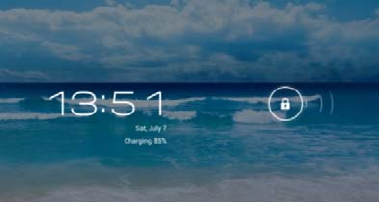
2.1 Turning ON
Press POWER button for around 2 seconds and the
device will start up and display the lock screen. Slide the
lock to unlock Home Screen.
2.2 Standby
When the device is working, press POWER button
shortly to shut the display and it goes into standby mode.
Press POWER button again to awake the device, and
slide the lock to continue.

2.3 Turning OFF
Press POWER button for around 2 second and choose
OK in the popup.
2.4 Reset
If the device is halted or crashed, and can not be turned
off by POWER button, users can launch the RESET
function.
2.5 Recharging
When the device can not be turned on normally or shut
down automatically, it may need to be recharged.
Please use the correct charger as the manufacturer
guides.
2.6 Home Screen
Tab to go to Home Screen.
2.7 Back Button
Tab to go to the previous page.
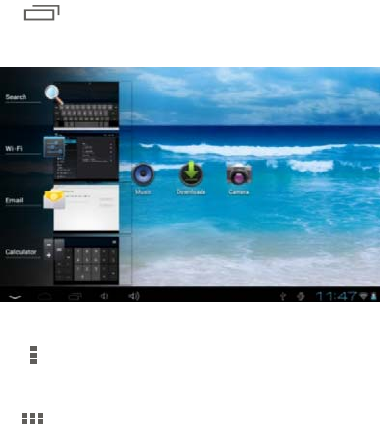
2.8 Recent Task
Tab to view recent tasks. Tap the task frame to
open it, or slide to close it.
2.9 Menu
Tab to view options.
2.10 Applications
Tab to launch apps list. Slide to view all applications
and widgets.
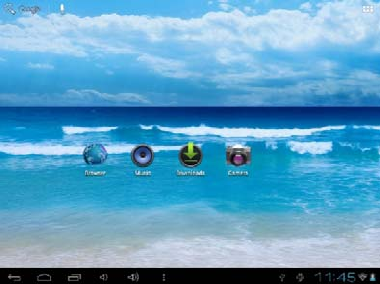
3. Home Screen
There are several pages, slide to view more.
3.1 Add apps & widgets to Home Screen
Launch apps list, press icons and drag it to Home
Screen. At Home Screen, press icons to drag leftward or
rightward to move it to other pages. Drag upwards to
remove it from Home Screen.
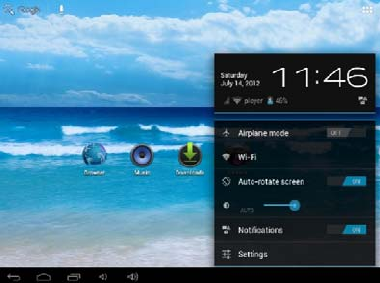
3.2 Wallpaper
Long press blank of Home Screen, choose different
wallpapers in the popup.
3.3 Notification Bar
Tab the bottom right corner of your screen to view the
notification bar, informing you WIFI status, battery,
updates, downloads, etc.
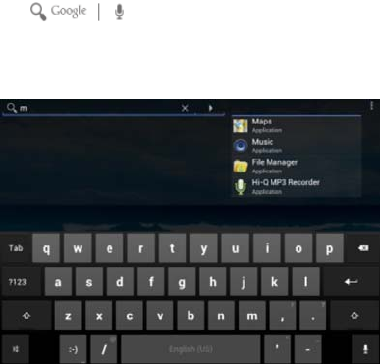
3.4 Search
Tab to search information at local or
internet. Voice Search is supported.
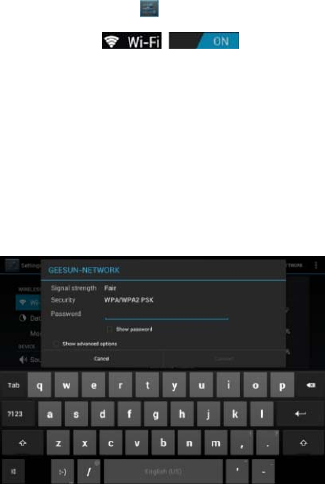
4. Connecting to Networks
4.1 Connecting to Wi-Fi
● Tab the Settings Icon
● Slide Wi-Fi icon to the right (ON)
to turn on Wi-Fi, the tablet will scan and offer a list of
available Wi-Fi net-works around. Tab the name of Wi-Fi
to connect to it.
● If the Wi-Fi network doesn't have a password, the
tablet will connect to it automatically. If the Wi-Fi network
has a password, input it and tap connect.

● Slide Wi-Fi icon to the left to
turn on Wi-Fi.
4.2 Other Networks
● VPN
● Portable hotspot
● Wi-Fi direct
● Please notice: Availability and network speed depend
on the User's network, and 3G network fees apply.
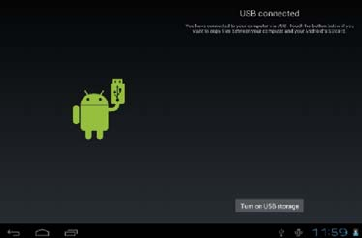
5. USB Connection
The tablet can be connected to PC to make data
exchange (Files copy & delete) via USB cable. Please
do not disconnect the device from PC when data
exchanging.
● Use a USB cable to connect the tablet with PC.
● Tab Turn on USB storage to read storage of the
tablet from PC.
● Tab Turn off USB storage to disconnect from PC, and
remove the USB cable.

If above interface does not pop up, tab the icon
at bottom right of screen and choose USB connected in
the popup.
6. Applications
6.1 Install New Apps
6.1.1 To download & install apps from Playstore ,
just follow the instructions by system.
6.1.2 To install apps APK packages in tablet's storage.
Run File Manager, just find the location of apps'
packages, and tab its name to install.
Tips
● To install applications which are not from Playstore,
make sure Unknown source is ON. (Setting – Security –
DEVICE ADMINISTRATION)
● If the application already exists in the tablet, choose
OK to replace it by latest version of package.
6.2 Applications uninstall
6.2.1 Tab Setting – Apps – All.
6.2.2 Tab the application you want to remove.
6.2.3 Tab Uninstall.
6.3 Applications management.
6.2.1 Tab Setting – Apps – All.
6.3.2 Tab application and choose Force stop, Uninstall,
Clear data or Move to SD.

7. Video Play
You can use the tablet's pre-installed HD Video Player
to enjoy movies & videos, or install other video apps to
enrich your video play.
7.1 Tab player icon to enter the video player interface, or
open the video files from File Manager directly.
7.2 The tablet supports many formats of video files
including RM, RMVB, MP4, AVI, 3GP, MKV, MOV, VOB,
DAT, FLV and more.
7.3 Tab progress bar to go fast-forward or fast-rewind.
8. Music Play
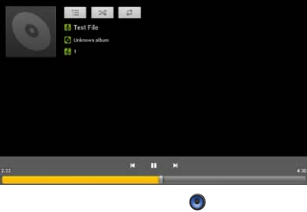
You can use the tablet's pre-installed Music Player to
enjoy music, or install other audio apps.
8.1 Tab the Music player icon to enter the music
player interface, or open from File Manager directly.
8.2 The device supports the following formats of audio
files: MP3, WMA, MP2, OGG, AAC, FLAC, APE, 3GP,
WAV, and more.
8.3 Tab the progress bar to go fast-forward, fast-rewind.
8.4 If there is no audio in the playlist, system will
automatically load the audio files from the storage of
tablet.
9. Camera
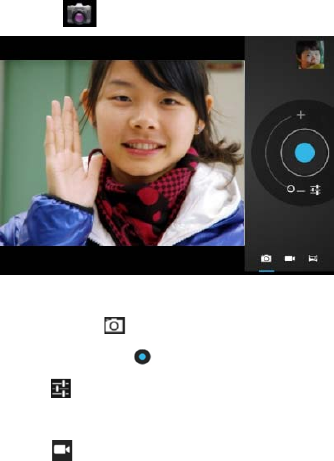
Tab the icon to access camera function.
9.1 Photos Mode
9.1.1 Click Blue Circle to take pictures.
9.1.2 Click to access photographing options.
9.1.3 Click the thumbnail picture to view saved pictures.
9.1.4 Click to switch to video recording mode.

9.2 Video Recording Mode
9.2.1 Click Red Circle to start video recording, click
it again to stop and save the video.
9.2.2 Click to access video recording options.
9.2.3 Click the thumbnail picture to view saved videos.
9.2.4 Click to switch to photos mode.

10. System Settings
Tab Setting icon to enter system settings, including
Wireless & networks, Sound, Display, Storage, Battery,
Apps, Accounts & sync, Location services, Security,
Language/input, Backup/reset, Date/time, Accessibility,
Developer options and About tablet.
10.1 Wireless & Networks
See item 4. Connecting to Networks
10.2 Sound
You can set volumes, ringtone & notification and system
sounds.
10.3 Display
Options: Brightness, Wallpaper, Auto-rotate screen,
Auto sleep time, Font size, Accelerometer coordinate
system and G-Sensor Calibration.
10.4 Storage
A general view of internal storage and external SD card.
10.5 Battery
A general view of battery information
10.6 Apps
See item 6. Applications
10.7 Accounts & sync
You can manage all accounts recorded in the tablet.
10.8 Location services
10.9 Security
Options: Screen security, Encryption, Passwords,
Device administration and Credential storage.
Tips: If you want to install applications beyond Playstore,
please turn on Unknown sources.
10.10 Language & input
You can change the language of system, and choose
keyboard in-puts by default.
Tips: If you have installed an input, remember to turn on
it in this setting.
10.11 Backup & reset
Options: Backup & Restore, Factory data reset and
Recovery Mode.
10.12 Date & time
Options: Time & Date settings, time zone and format
settings.
10.13 Accessibility
Options: Large text, Auto-rotate screen, Speak
passwords, Touch & hold delay and Install web scripts.
10.14 Developer options
Options: USB debugging, Stay awake, Allow mock
locations, Desktop backup password, Strict mode
enabled and Pointer location.

10.15 About Tablet
A view of tablet information (model, system, firmware
version, etc)
10.16 Optional function: HDMI Out
For tablet with HDMI port, just connect it by HDMI cable
directly. Make sure HDMI is ON (Setting--HDMI--Turn on
HDMI).
10.17 Optional function: Bluetooth
This function is only for tablets with built-in Bluetooth.
● Slide the Bluetooth icon to turn ON/OFF the function.
● Tab SEARCH FOR DEVICES to view Bluetooth.
● Tab on the right top to run Rename tablet, Visibility
time out and Show received files.

11. FAQ
Q: How can I change languages if I mistakenly
choose an unknown language?
● Find setting icon and access Settings.
● Choose icon to enter language&input setting,
the first option is language setting.
Q: How can I change input?
Access Setting – Language&input, and set default input.
Q: I already installed some applications, but I can
not find them now, why does it happen?
Some applications may be installed in external TF card,
if you fetch out the TF card from the tablet, you will not
see these apps.
Q: There are many popups of system error, what can
I do?
● Restart the tablet by POWER button, or by RESET.
Use a thin stick to prick the RESET and restart the
tablet.
● If you have restarted the tablet and there are still error
popups, you can check active applications to see if
there is any unknown application, remove it if any.
● There may be virus in the device, please install
security apps and protect your tablet.
12. About Firmware
Firmware contained in the tablets provides the control
program for the device, and it is offered by the original
manufacturer. Flashing firmware (refer to rebuilding
firmware into the device) is the final solution to serious
system problems. For common breakdown you can just
restart the device, or run factory reset. If system crashes
appear continuously even you have run factory reset,
you can flash firmware under professional guidance.
The firmware preloaded in the device is a stable version
for the tablet, Please do not flash it with other versions
of firmware unless absolute necessity. We DO NOT
suggest any private firmware flashing without guidance
of the original manufacturer, who is not responsible for
any possible breakdown of the tablet caused by user's
private firmware flashing.
FCC Caution: Any changes or modifications not expressly
approved by the party responsible for compliance could void the
user's authority to operate this equipment.
This device complies with Part 15 of the FCC Rules. Operation is
subject to the following two conditions: (1) This device may not
cause harmful interference, and (2) this device must accept any
interference received, including interference that may cause
undesired operation.
NOTE: The manufacturer is not responsible for any radio or TV
interference caused by unauthorized modifications to this
equipment.
Such modifications could void the user’s authority to operate the
equipment.
NOTE: This equipment has been tested and found to comply with
the limits for a Class B digital device, pursuant to part 15 of the
FCC Rules.
These limits are designed to provide reasonable protection
against harmful interference in a residential installation. This
equipment generates uses and can radiate radio frequency energy
and, if not installed and used in accordance with the instructions,
may cause harmful interference to radio communications.
However, there is no guarantee that interference will not occur in
a particular installation.If this equipment does cause harmful
interference to radio ortelevision reception, which can be
determined by turning the equipment off and on, the user is
encouraged to try to correct the
interference by one or more of the following measures:
- Reorient or relocate the receiving antenna.
- Increase the separation between the equipment and receiver.
- Connect the equipment into an outlet on a circuit different from
that
to which the receiver is connected.
- Consult the dealer or an experienced radio/TV technician for
help.
For portable devices
FCC RF Radiation Exposure Statement:
1. This Transmitter must not be co-located or operating in
conjunction with any other
antenna or transmitter.
2. This equipment complies with FCC RF radiation exposure
limits set forth for an
uncontrolled environment. This device was tested for typical
hand held operations with
the device contacted directly to the human body to the sides of
the device. To maintain
compliance with FCC RF exposure compliance requirements,
avoid direct contact to the
transmitting antenna during transmitting.