Plus Vision V3 131 Users Manual 131_English
V3-111 projector_manual_2305
V3-111 to the manual 38ecc9bb-99a3-41a7-b586-d37e3f5e0a36
2015-02-06
: Plus-Vision Plus-Vision-Plus-V3-131-Users-Manual-519503 plus-vision-plus-v3-131-users-manual-519503 plus-vision pdf
Open the PDF directly: View PDF  .
.
Page Count: 67
- INDEX
- English
- IMPORTANT SAFETY INFORMATION
- Major Features
- Table of Contents
- Checking the Supplied Accessories
- Names of the Main Unit Parts
- Names of the Remote Control Parts
- Preparing the Remote Control
- The Procedure Up to Projecting to the Screen
- Placement Guide
- Connecting Personal Computers and Video Equipment
- Power Cable Connections and Switching the Power On/Off
- Adjustment of the Projection Screen
- General Operation
- Input Selection
- Automatic Adjustment
- Selection of Aspect Ratio
- Freezing a Moving Picture
- Cancelling Video and Audio Temporarily
- Lamp Mode
- Keystone
- Adjustment of the Volume
- Enlargement of the Image and Video Movement
- Using the Presentation Timer
- Protecting the Projector with the Security Lock
- Using the Quick Menu
- Menu Operation Method
- Image
- Color
- View
- Setup
- Option
- Info.
- When an Indicator is Lit or Flashing
- Troubleshooting
- Cleaning
- Replacing the Lamp Cartridge
- Specifications
- Table of Supported Frequency
- Cabinet Dimensions
RGB
STANDBY
VIDEO
FREEZE MUTE ECO AUTO
ASPECT
TIMER
VOL KSTN ZOOM
CANCEL QUICK
MENU
ENTER
Q
1234
PUSH
STANDBY
AUTO
SOURCE
STANDBY STATUS
IMPORTANT
* DLP™ (Digital Light Processing) and DMD (Digital Micromirror Device) are registered trademarks of Texas Instru-
ments Incorporated (U.S.A.).
* DMD is an ultra-precise part developed by Texas Instruments (U.S.A.) which takes the place of liquid crystal (in the
projector).
* VGA and XGA are trademarks or registered trademarks of International Business Machines Corporation (U.S.A.).
* S-VGA is a registered trademark of Video Electronics Standards Association.
* Microsoft, Windows, and PowerPoint are registered trademarks of Microsoft Corporation (U.S.A. and other countries).
* Macintosh is a trademark of Apple Computer Inc. (U.S.A.).
Note that even in the absence of explanatory notes, serious attention is paid to the trademarks of the various companies
and to the product trademarks.
DATA PROJECTOR
V3-131/ V3-111
User’s Manual
E-2
IMPORTANT SAFETY INFORMATION
Precautions
Please read this manual carefully before using your PLUS Data Projector and keep the manual handy for future
reference.
These operating instructions apply to both models V3-131 and V3-111.
The two models are identical in appearance but have different display resolutions and projection distances.
CAUTION
TO PREVENT SHOCK, DO NOT OPEN THE CABINET. NO USER-SERVICEABLE PARTS INSIDE. REFER
SERVICING TO QUALIFIED PLUS SERVICE PERSONNEL.
This symbol warns the user that uninsulated voltage within the unit may have sufficient magnitude
to cause electric shock. Therefore, it is dangerous to make any kind of contact with any part inside
of this unit.
This symbol alerts the user that important literature concerning the operation and maintenance of
this unit has been included. Therefore, it should be read carefully in order to avoid any problems.
The above cautions are given on the bottom of the product.
Hg: Lamp in This Product Contains Mercury. Dispose of Lamp According to Local, State or Federal Law.
WARNING
TO PREVENT FIRE OR SHOCK, DO NOT EXPOSE THIS UNIT TO RAIN OR MOISTURE. DO NOT USE
THIS UNIT’S GROUNDED PLUG WITH AN EXTENSION CORD OR IN AN OUTLET UNLESS ALL THREE
PRONGS CAN BE FULLY INSERTED. DO NOT OPEN THE CABINET. THERE ARE HIGH-VOLTAGE COM-
PONENTS INSIDE. ALL SERVICING MUST BE DONE BY QUALIFIED PLUS SERVICE PERSONNEL.
WARNING
This is a class A product. In a domestic environment this product may cause radio interference in which case
the user may be required to take adequate measures.
RF Interference
WARNING
The Federal Communications Commission does not allow any modifications or changes to the unit EXCEPT
those specified by PLUS Vision in this manual. Failure to comply with this government regulation could void
your right to operate this equipment.
This equipment has been tested and found to comply with the limits for a Class A digital device, pursuant to
Part 15 of the FCC Rules. These limits are designed to provide reasonable protection against harmful interfer-
ence when the equipment is operated in a commercial environment. This equipment generates, uses, and can
radiate radio frequency energy and, if not installed and used in accordance with the instruction manual, may
cause harmful interference to radio communications. Operation of this equipment in a residential area is likely
to cause harmful interference in which case the user will be required to correct the interference at his own
expense.
DOC Compliance Notice
This Class A digital apparatus meets all requirements of the Canadian Interference-Causing Equipment Regula-
tions.

E-3
Important Safeguards
These safety instructions are to ensure the long life of the unit and to prevent fire and shock. Please read them
carefully and heed all warnings.
Installation
• For best results, use the unit in a darkened room.
• Place the unit on a flat, level surface in a dry area away from dust and moisture.
• Do not place the unit in direct sunlight, near heaters or heat radiating appliances.
• Exposure to direct sunlight, smoke or steam can harm internal components.
• Handle the unit carefully. Dropping or jarring can damage internal components.
• Do not place heavy objects on top of the unit.
Power Supply
• The unit is designed to operate on a power supply of 100 - 240 V 50/60 Hz AC. Ensure that your power supply
fits these requirements before attempting to use the unit.
• Handle the power cable carefully and avoid excessive bending. A damaged cord can cause electric shock or
fire.
• Disconnect the power cable (mains lead) from the power outlet after using the unit.
Before disconnecting the power cable, make sure that the STANDBY indicator lights in amber (not blinking or
in green).
Cleaning
• Disconnect the power cable (mains lead) from the unit.
• Clean the cabinet of the unit periodically with a damp cloth. If heavily soiled, use a mild detergent. Never use
strong detergents or solvents such as alcohol or thinner.
• Use a blower or lens paper to clean the lens, and be careful not to scratch or mar the lens.
• Clean the ventilation slots and speaker grills on the unit periodically using a vacuum cleaner. If accumulated
dust blocks the ventilation slots, the unit will overheat, which may cause the unit to malfunction.
Use a soft brush attachment when using the vacuum cleaner. Do not use a hard attachment, such as a crevice
tool, to prevent the damage to the unit.
Lamp Replacement
• Be sure to replace the lamp when the Status indicator comes on. If you continue to use the lamp after 2000
hours of usage, the lamp will turn off.
Fire and Shock Precautions
• Ensure that there is sufficient ventilation and that vents are unobstructed to prevent the buildup of heat inside
the unit. Allow at least 10 cm (4 inches) of space between the unit and walls.
• Prevent foreign objects such as paper clips and bits of paper from falling into the unit. Do not attempt to retrieve
any objects that fell into the unit. Do not insert any metal objects such as a wire or screwdriver into the unit. If
something should fall into the unit, immediately disconnect the power cable from the unit and have the object
removed by a qualified PLUS service person.
• Do not place any liquids on top of the unit.
Carrying around
When carrying the unit around, please use the storage case that comes with it and, to protect the lens from
scratches, always shut the sliding lens shutter. Also, do not subject the unit to strong mechanical shock.
CAUTION – HOT!
The area around the exhaust vents is hot during and immediately after image projection.
To avoid burns, keep your hands away from this area.
Wait until the exhaust vents area cools off before touching it.
Do not look into the lens while the unit is on. Serious damage to your eyes could result.
IMPORTANT SAFETY INFORMATION

E-4
Major Features
䡵World’s thinnest projector – just 35 mm thick
Plus is seeing just how thin the projector can be made. With our retractable lens and other unique ideas and technologies, we
have developed a projector just 35 mm thick, something previously considered impossible.
䡵Designed for portability
The flat design allows the projector to fit in a regular business bag along with documents and a laptop. Thanks to the sliding
type lens shutter, the lens is protected without any parts jutting out.
䡵Sharp, clear picture
The DLP™ display system affords RGB color fidelity and inconspicuous gaps between the individual dots, thereby permitting
the display of small characters and diagrams with distinct clarity.
䡵High contrast ration of 2000:1
Use of a new generation of DMD devices has given birth to an amazing 2000:1 high contrast ratio.
By widening the difference of brightness between black and white, you can see a degree of sharpness that is greater than just
the brightness based on specifications.
䡵Powerful functions for presentations
A wide variety of easy-to-set functions have been built into the projector, from a digital keystone correction function (used
when making settings) that corrects picture distortion, to an auto adjustment function that automatically identifies the PC
signal.
There is also a built-in “Presentation Timer” function for further presentation convenience.
䡵Great moving image playback capabilities using the same principles as DLP Cinema
technology
Plus DLP type projectors have the same makings as the DLP Cinema technology used in movie theaters. Because of their
extremely fast response, even images with much movement – sports, movies – play smoothly without blurring.
䡵Security lock function
The lock can be set so that a password must be input when the projector is started up. Without the correct password, no
operations other than turning the power on and off can be performed. This function effectively protects the projector from
unauthorized use.
䡵Eco-mode switch function for the lamp output
Using the lamp Eco-mode will extend the life of the lamp and lower the power consumption.
By switching the lamp mode to suit your operating environment, you will save on lamp cost as well as contribute to energy
conservation and ecology.

E-5
Table of Contents
IMPORTANT SAFETY INFORMATION ................................................................................... E-2
Major Features ....................................................................................................................... E-4
Table of Contents ................................................................................................................... E-5
Checking the Supplied Accessories .................................................................................... E-7
Names of the Main Unit Parts ............................................................................................... E-9
Names of the Remote Control Parts ................................................................................... E-11
Preparing the Remote Control ............................................................................................ E-12
Button Battery Replacement ..................................................................................... E-12
Remote Control Range ............................................................................................. E-12
The Procedure Up to Projecting to the Screen ................................................................. E-13
Placement Guide .................................................................................................................. E-14
V3-131 Screen Size and Projection Distance ........................................................... E-14
V3-111 Screen Size and Projection Distance ........................................................... E-15
Connecting Personal Computers and Video Equipment .................................................. E-17
Connections with Personal Computer ....................................................................... E-17
Connect the projector’s RBG connector using the included RGB signal cable. .. E-17
To Output the External Output Signal of a Notebook Computer ......................... E-18
Connections with Composite Signals ........................................................................ E-19
Video Equipment with VIDEO Connectors .......................................................... E-19
Video Equipment with S-VIDEO Connectors ...................................................... E-19
Connections with Component Signals ....................................................................... E-20
When the Video Equipment Has a YCbCr Connector or YPbPr Connector ........ E-20
Connections with the AUDIO Jack ............................................................................ E-21
Power Cable Connections and Switching the Power On/Off ........................................... E-22
Operating ................................................................................................................... E-22
Finishing .................................................................................................................... E-24
Adjustment of the Projection Screen ................................................................................. E-25
Adjustment of the Projection Screen ......................................................................... E-25
Making Adjustments with the Adjusters .............................................................. E-26
General Operation ................................................................................................................ E-27
Input Selection .......................................................................................................... E-27
Automatic Adjustment ............................................................................................... E-27
Selection of Aspect Ratio .......................................................................................... E-28
Freezing a Moving Picture ......................................................................................... E-29
Cancelling Video and Audio Temporarily ................................................................... E-29
Lamp Mode ............................................................................................................... E-29
Keystone .................................................................................................................... E-30
Adjustment of the Volume .......................................................................................... E-30
Enlargement of the Image and Video Movement ...................................................... E-31
Using the Presentation Timer .................................................................................... E-32
Protecting the Projector with the Security Lock ......................................................... E-33
Using the Quick Menu ............................................................................................... E-35
Menu Operation Method ...................................................................................................... E-36
Performing Menu Operations .................................................................................... E-38
List of Item Names Offering Input Selection and Adjustments/Settings .................... E-41
Image ..................................................................................................................................... E-43
Brightness / Contrast / Color / Tint / Sharpness ........................................................ E-43
Picture Adj. / Fine Picture / H Position / V Position .................................................... E-43
Reset ......................................................................................................................... E-44
Color ...................................................................................................................................... E-45
Quick Color Adj. ........................................................................................................ E-45
Gamma ..................................................................................................................... E-45
Color Temp. ............................................................................................................... E-46
White ......................................................................................................................... E-46
Color Space .............................................................................................................. E-46
White Balance ........................................................................................................... E-47

E-6
Table of Contents
View ....................................................................................................................................... E-48
Aspect ....................................................................................................................... E-48
Filter .......................................................................................................................... E-48
Vertical Flip ................................................................................................................ E-49
Keystone .................................................................................................................... E-49
Keystone Save .......................................................................................................... E-49
Setup ..................................................................................................................................... E-50
Auto Source............................................................................................................... E-50
Auto Power Off .......................................................................................................... E-50
Menu Position ............................................................................................................ E-51
Lamp Mode ............................................................................................................... E-51
Input Format .............................................................................................................. E-52
Presentation Timer .................................................................................................... E-52
Option ................................................................................................................................... E-53
Language .................................................................................................................. E-53
On Screen ................................................................................................................. E-53
Background ............................................................................................................... E-53
Startup Screen .......................................................................................................... E-54
Security Lock ............................................................................................................. E-54
Info. ........................................................................................................................................ E-55
Status ........................................................................................................................ E-55
Factory Default .......................................................................................................... E-55
Lamp Timer Reset ..................................................................................................... E-55
Resolution / Frequency ............................................................................................. E-56
Lamp Timer ............................................................................................................... E-56
When an Indicator is Lit or Flashing .................................................................................. E-57
Troubleshooting ................................................................................................................... E-59
Cleaning ................................................................................................................................ E-60
Replacing the Lamp Cartridge ............................................................................................ E-61
Specifications ....................................................................................................................... E-64
Table of Supported Frequency ........................................................................................... E-65
Cabinet Dimensions ............................................................................................................ E-66
E-7
RGB
STANDBY
VIDEO
FREEZEMUTEECOAUTO
ASPECT
TIMER
VOLKSTNZOOM
CANCELQUICK
MENU
ENTER
Q
1234
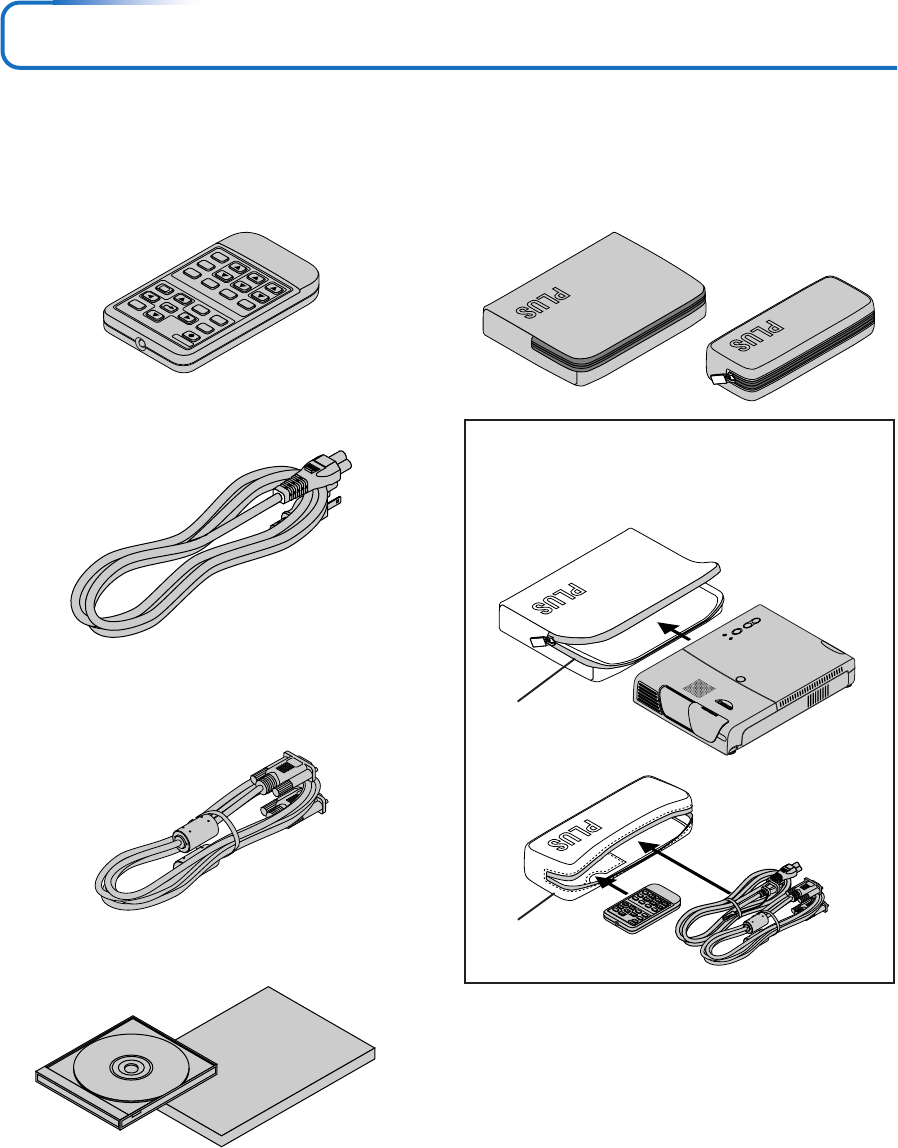
Checking the Supplied Accessories
Remove the main unit and the accessories from the box and check that the following items are included.
Storage case [1], Cable case [1]
These cases are designed to hold the projector itself and its
accessories.
Use them when storing the projector.
STANDBY
AUTO
SOURCE
STANDBY STATUS
PUSH
HOW TO PUT THE PROJECTOR INTO THE STORAGE CASE
Lower the projector’s lens unit and close the lens shutter
before storing the projector in the case. See Page E-9.
Place the accessories in the cable case.
Storage case
Cable case
Wireless remote control unit
(includes one button battery) [1]
This controls the projector. Please remove the transportation
insulation sheet at time of purchase. (See Page E-12.)
RGB
STANDBY
VIDEO
FREEZE MUTE ECO AUTO
ASPECT
TIMER
VOLKS
TN ZOOM
CANCELQUICK
MENU
ENTER
Q
1234
RGB signal cable
(Mini D-sub 15-pin, 2 m / 6.6 feet) [1]
This is used in making connections with a personal computer.
See Page E-17 about connections.
No. 773711000
Power cable (1.8 m / 5.9 feet) [1]
This power cable supplies power to the unit. See Page E-22
about connections.
User’s Manual (CD-ROM edition) [1]
User’s Manual (Simplified Edition) [1]
E-8
Checking the Supplied Accessories
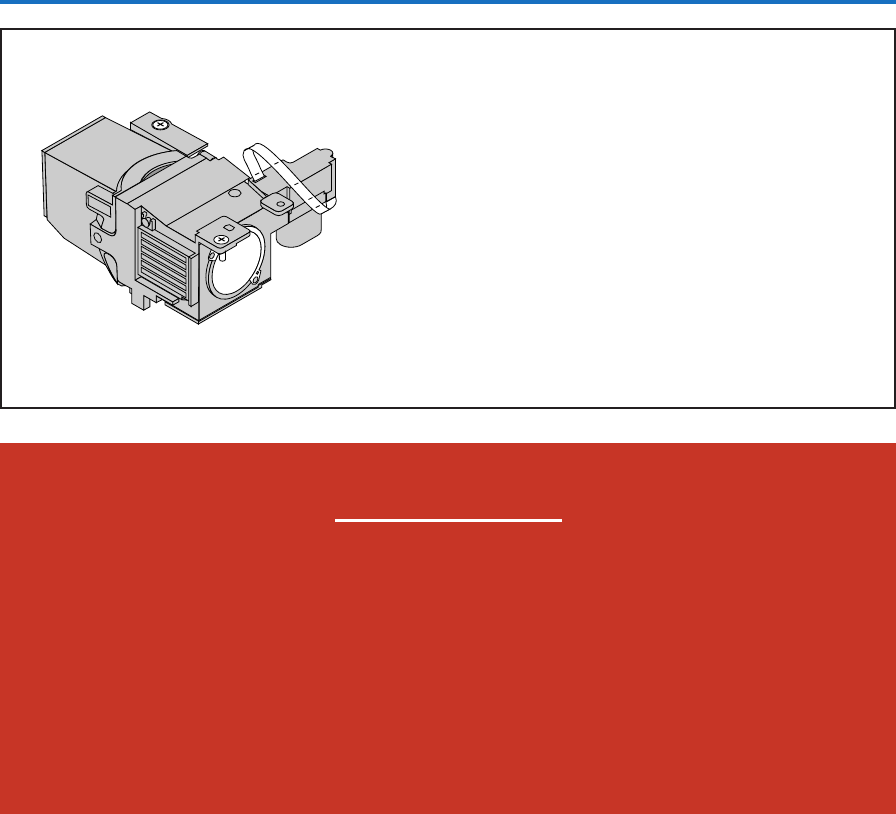
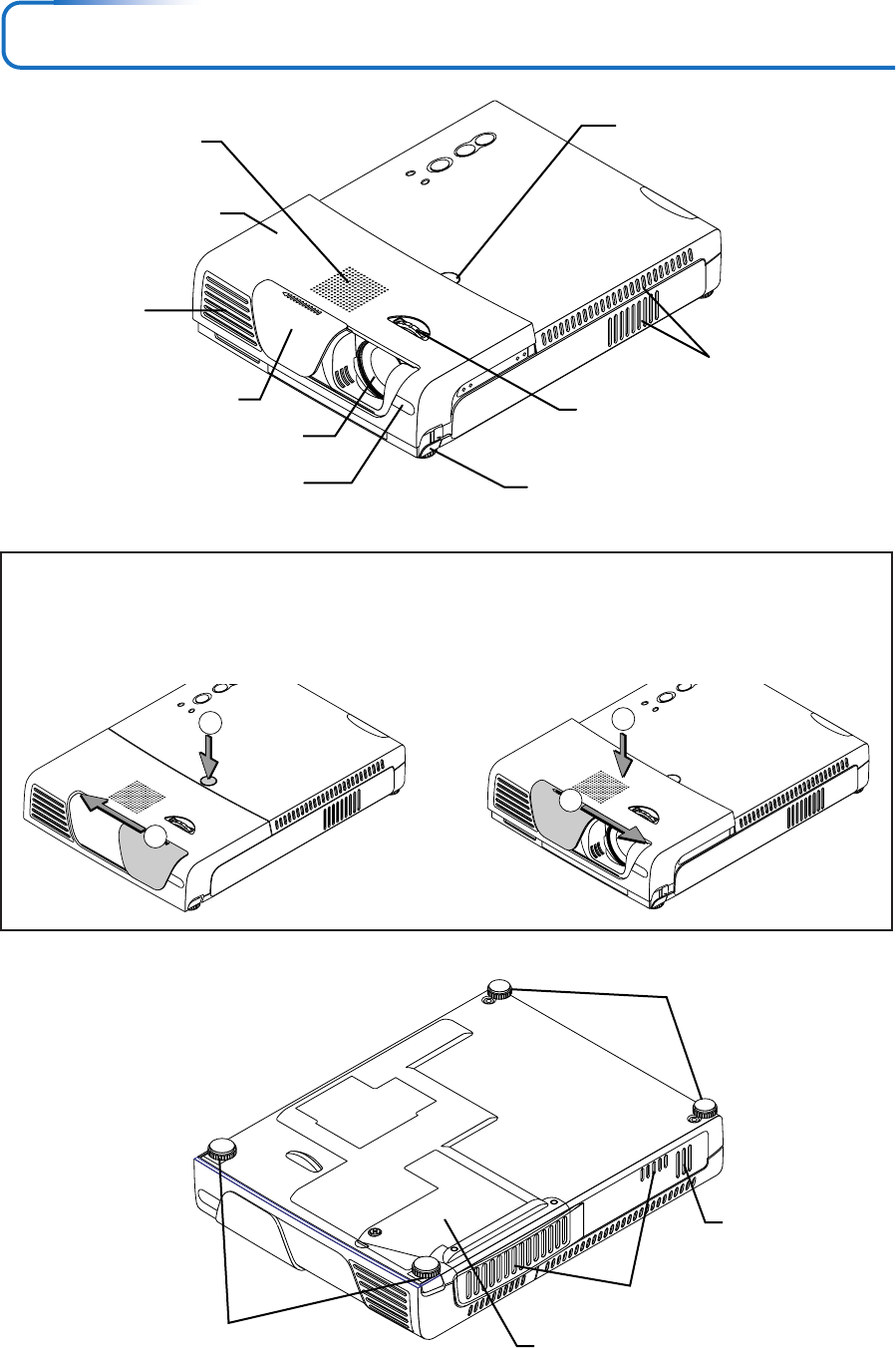
Expendables and Options
V3 Series lamps
Model V3-120 (ordering code: 28-051)
“WARNING”
Handling the cables supplied with this product, will
expose you to lead, a chemical known to the State of
California to cause birth defects or other reproduc-
tive harm.
Wash hands after handling.
E-9
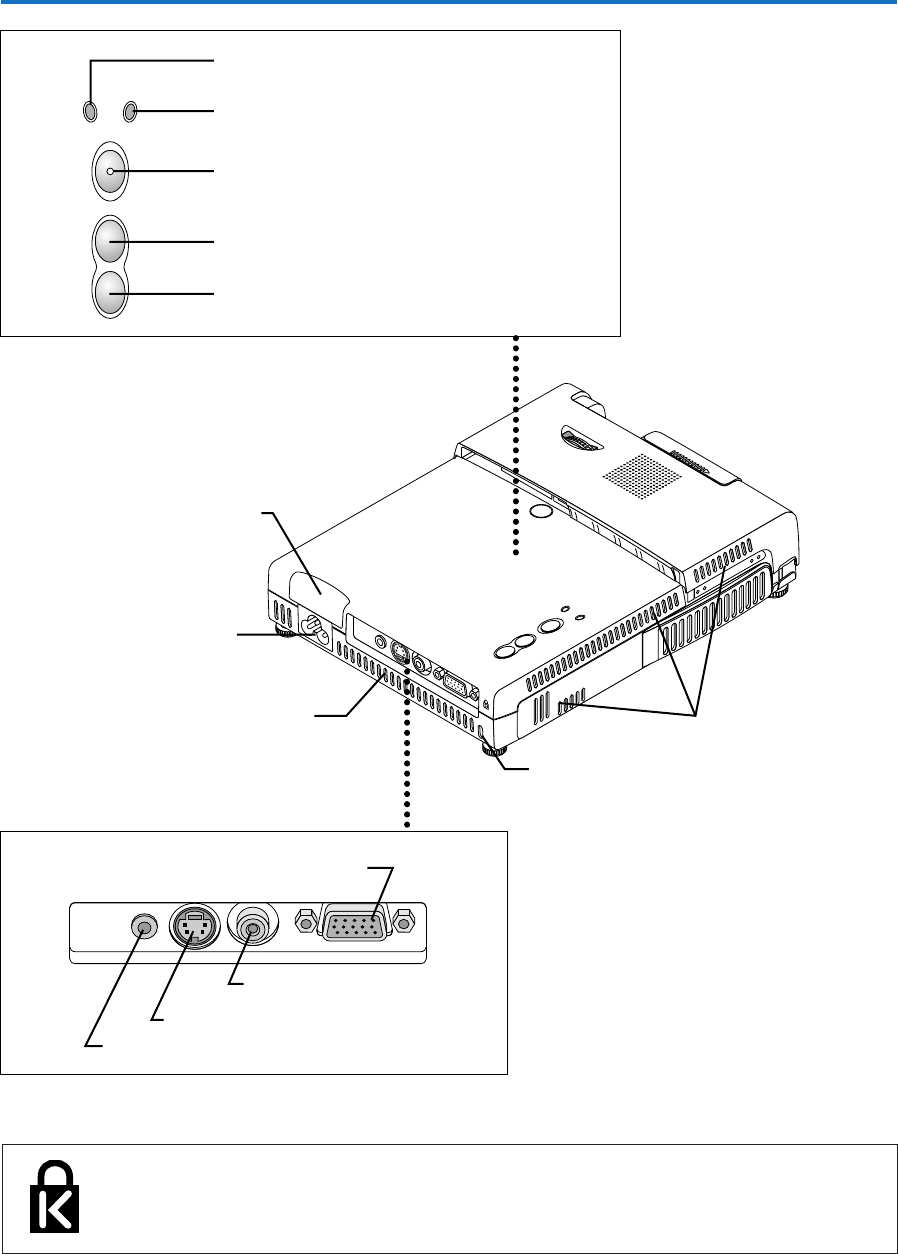
Names of the Main Unit Parts
STANDBY
AUTO
SOURCE
STANDBY STATUS
PUSH
Adjuster button [E-26]
(Also on opposite side)
Focus ring [E-25]
Exhaust vents
Front adjusters [E-26] Lamp cover [E-62]
Ventilation slots
Remote control
sensor [E-12]
Lens
Ventilation slots
Rear adjusters [E-26]
Ventilation holes
Lens shutter
Lift button
Lens unit
When using the projector
햲Slide the lens shutter to the left until it stops.
햳Press the lift button (marked “PUSH”).
The lens unit rises and projecting is now possible.
When storing the projector
햲Press on the top surface of the lens unit to lower it until
you feel it click.
햳Slide the lens shutter to the right to close it.
Handling the Lens Unit
STANDBY
AUTO
SOUR
CE
STANDBY STATUS
PUSH
1
2
STANDBY
AUTO
SOU
RC
STANDBY STATUS
PUSH
1
2
Speaker
E-10
Names of the Main Unit Parts
STANDBY
AUTO
SOURCE
STANDBY
PUSH
STATUS
AUDIO S-VIDEO VIDEO RGB
AUDIO S-VIDEO VIDEO RGB
STANDBY
AUTO
SOURCE
STANDBY STATUS
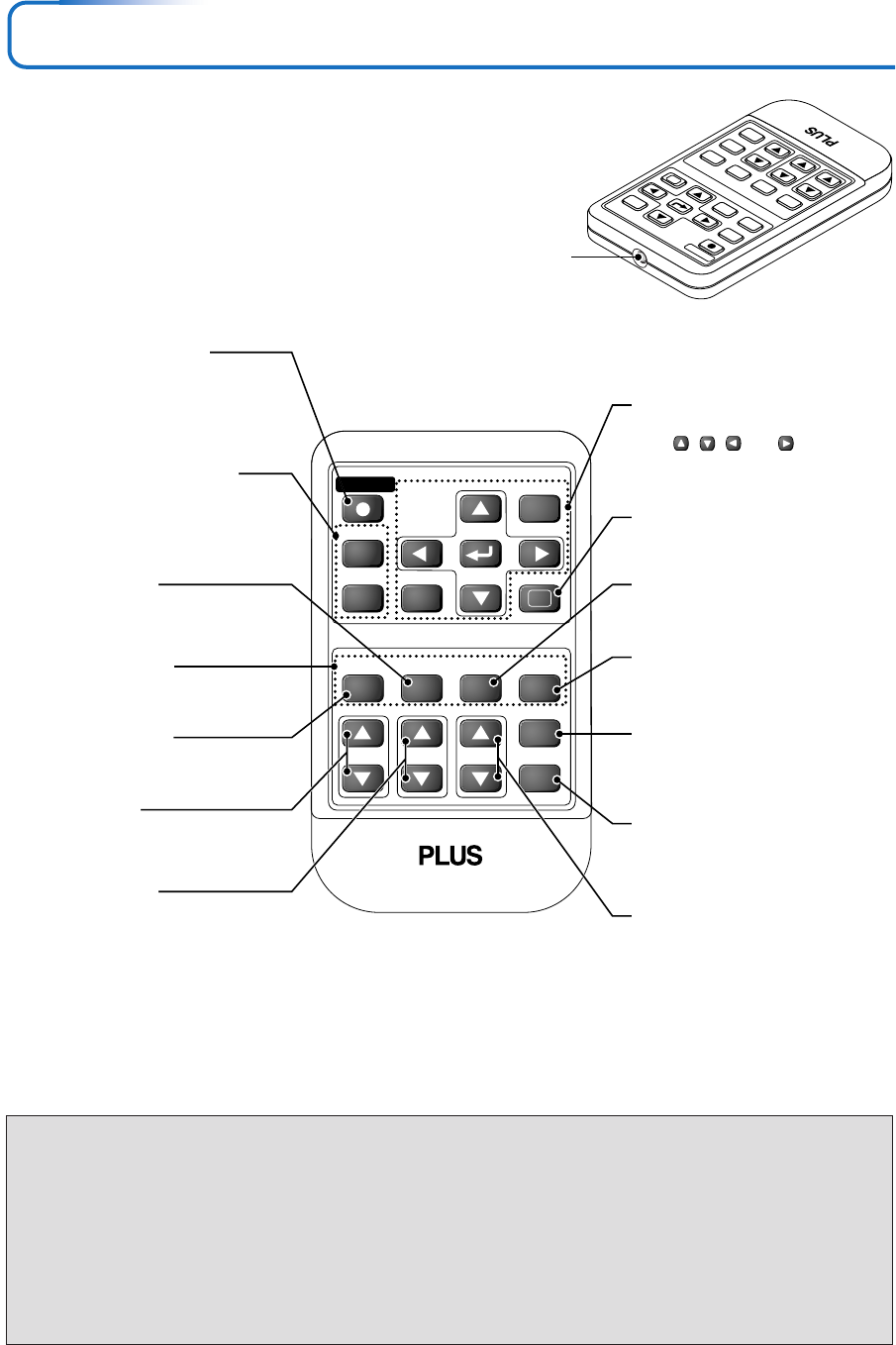
STANDBY indicator [E-22, 57]
STATUS indicator [E-29, 57]
AUTO button [E-27]
STANDBY button [E-22]
SOURCE button [E-27]
Built-in Security Slot
This security slot supports the MicroSaver Security System manufactured by
Kensington Microware Inc.
Ventilation slots
Built-in security slot
(See description below.)
AC IN connector [E-22]
Remote control sensor [E-12]
RGB connector [E-17, 20]
S-VIDEO connector [E-19]
VIDEO connector [E-19]
AUDIO connector [E-21]
Ventilation slot
E-11
Names of the Remote Control Parts
RGB
VIDEO
FREEZE MUTE ECO AUTO
ASPECT
TIMER
VOL KSTN ZOOM
CANCEL QUICK
MENU
ENTER
Q
STANDBY
1234
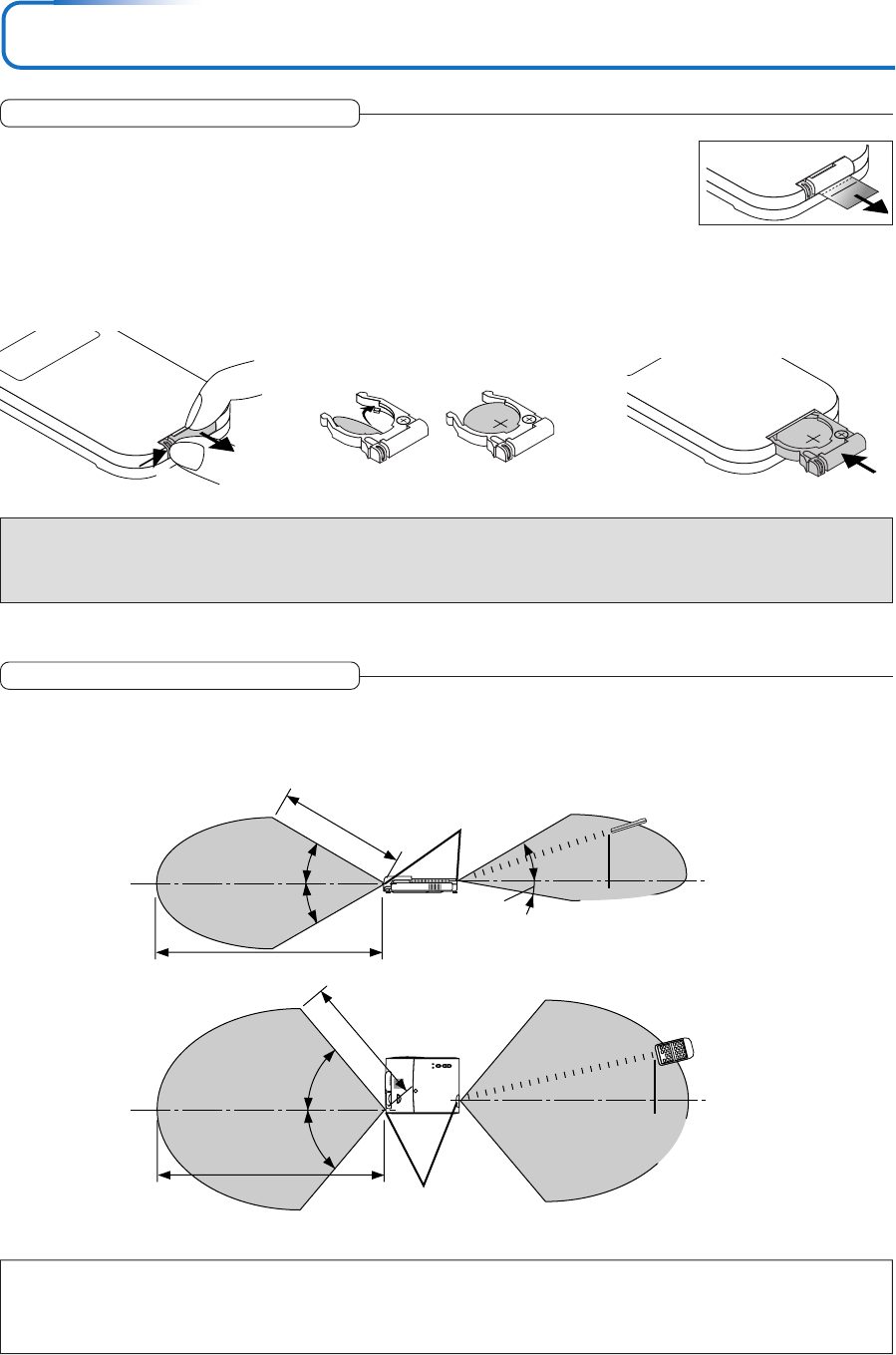
Infrared transmitter [E-12]
VOL button [E-30]
(Volume adjustment)
STANDBY button [E-22, 24]
This button is used to switch ON
the power and set the unit to the
STANDBY mode.
AUTO button [E-27]
(Automatic adjustment of the RGB
moving image)
Buttons used for menu operations
[E-36]
The , , and buttons are
the select (왖, 왔, 왗 and 왘) buttons.
FREEZE button [E-29]
(Freezes moving pictures)
MUTE button [E-29]
(Temporarily cancels the video and
audio)
TIMER button [E-32]
(Presentation timer time setting
display)
ZOOM button [E-31]
(Digital zoom adjustment)
Buttons used for input selection
[E-27]
RGB button and VIDEO button
(VIDEO / S-VIDEO) QUICK button [E-35]
(Displays a simplified menu)
Number buttons [E-33]
(Used for the security lock.)
ECO button [E-29]
(Selection of lamp mode)
ASPECT button [E-28]
(Selects the vertical and horizontal
ratio of the screen)
KSTN button [E-30]
(Keystone correction adjustment)
RGB
STANDBY
VIDEO
FREEZE MUTE ECOAUTO
ASPECT
TIMER
VOLKSTN ZOOM
CANCEL QUICK
MENU
ENTER
Q
1234
Precautions
Handling of the Remote Control
* Do not drop the remote control or handle it inappropriately.
* Do not expose the remote control to water or other liquids. Should the remote control become wet, wipe it dry
immediately.
* Try to avoid use in hot and/or humid locations.
* Please keep button battery out of the reach of children. If a battery is swallowed, promptly obtain the medical care of
a doctor.
* Remove the battery from the remote control when it is not going to be used for a long period.
* Some operations (such as menu operations) are available only through the use of the remote control and attention
should be given to its careful handling.
E-12
Using the remote control for the first time
The battery compartment is fitted with a transportation insulation sheet at the time of shipping. Pull
out the sheet and remove it. The remote control is now ready for use.
Replacement Method
1(A) With the knob pressed to
the right side, (B) draw out the
battery case.
2Remove the old battery and in-
stall a new button battery with (+)
side facing upward in the battery
holder.
3Insert the battery holder into the re-
mote control and push in until the
battery holder closes with a “click”
sound.
(B)
(A)
CR2025
CR2025
CR2025
Purchase a CR2025 type battery for replacement.
CAUTION
Danger of explosion if battery is incorrectly replaced.
Replace only with the same or equivalent type (CR2025) recommended by the manufacturer.
Dispose of used batteries according to your local regulations.
Preparing the Remote Control
30°
10°
30°
30°
50°
50°
4m/13.1 feet
4m/13.1 feet
7m/23.0 feet
7m/23.0 feet
Remote Control Range
Point the infrared transmitter of the remote control toward the remote control sensor located at the front or rear of the main unit
and operate.
Reception of the remote control signal should generally be possible within the range illustrated below.
Side View
Top View
Remote control in-
frared transmitter
Remote control sensor
Remote control
sensor
Remote control in-
frared transmitter
Note
* Exposure of the main unit's remote control sensor or the remote control infrared transmitter to bright light or the obstruction of the signal
by an obstacle located in the pathway may prevent operation.
* The remote control will not function when the battery is exhausted.
Button Battery Replacement

E-13
The Procedure Up to Projecting to the Screen
Perform setup adjustments in the following order.
1Position the projector
Determine the locations to set up the screen and the projector.
See “Placement Guide” on Page E-14.
2Connect the video equipment and personal computer
Connect your equipment to the projector.
When making connections with the personal computer’s RGB connector, see “Connections with
Personal Computer” on Page E-17.
When making connections with the video equipment’s video connector or an S-video connector,
see “Connections with Composite Signals” on Page E-19.
When making connections with the video equipment’s YCbCr connector or YPbPr connector,
see “Connections with Component Signals” on Page E-20.
When playing the audio through the built-in speaker of the projector, see “Connections with the
AUDIO Jack” on Page E-21.
About DLP projectors
Though careful attention is paid to providing optimum quality, please note that with DLP type projectors, in rare cases there may
be black spots or bright spots among the picture elements.
Note:
* Please purchase a screen.
* A component cable (order code 28-690), which is available separately, is required to connect a DVD player or other equipment with YCbCr
connectors.
* A component cable (order code 28-690), which is available separately, is required to connect high definition (HD) video equipment or other
equipment with YPbPr connectors.
3Connect the power cord, open the lens shutter and raise the lens unit.
See “Operating” on Page E-22.
See “Finishing” on Page E-24.
4When selecting the language of menu displays, etc.
(Only when the power is first switched on following purchase)
See “When [Menu Language Select] is Displayed Upon Switching On the Power” on Page E-23.
5Switching on the power of the personal computer and video equipment
6Properly adjust the projection image to the screen
See “Adjustment of the Projection Screen” on Page E-25.
7Selecting input equipment
See “Input Selection” on Page E-27.
8Adjust the screen or video image
Adjust the image to the optimum condition as required.
See the Table of Contents for the adjustment items.
E-14
1.20
(3.94)
1.33
(4.36)
2.00(6.56)
2.67(8.76)
3.33(10.93)
4.00(13.12)
5.00(16.40)
6.00(19.69)
6.67(21.88)
8.33(27.33)
10.00(32.81)
h1
h2
250"
200"
180"
150"
120"
100"
80"
60"
40"
36"
300"
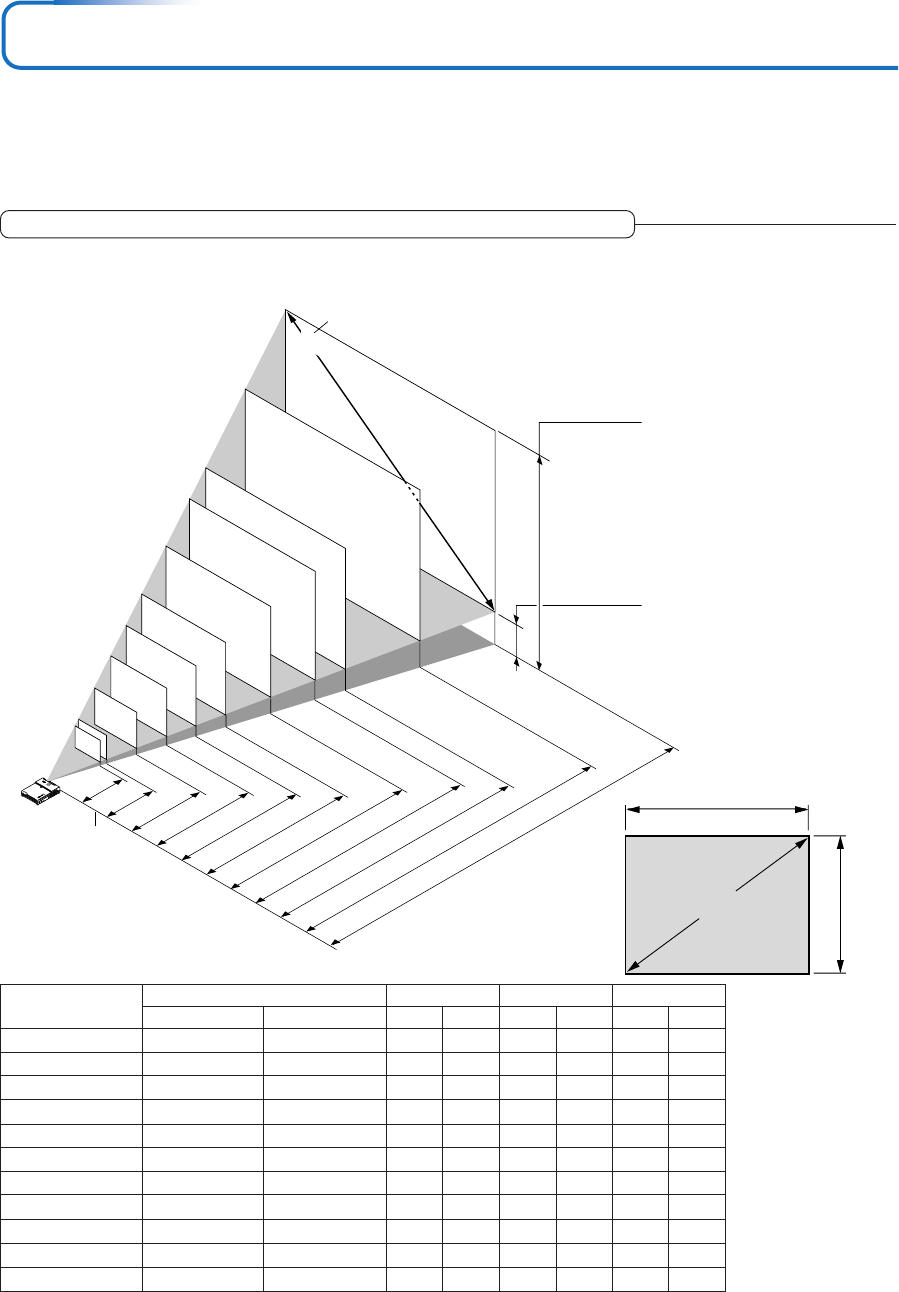
Placement Guide
•The projection distance over which focussing is adjustable is 1.20 m (3.94 feet) to 10.00 m (32.81 feet). The projector
should be placed within this range.
V3-131 Screen Size and Projection Distance
Height from center of
lens to bottom edge
of the projection
Height from center of
lens to top edge of
the projection
Unit: m (feet)
Lens surface of
the main unit
Screen Size Designation (Inches)
* There is a tolerance of ±5% due to design values.
* This table uses the lens apex and lens center as references and requires that the projector be in a horizontal condition
(with front and rear adjusters fully withdrawn).
Width
Height
Screen size (Diagonal)
•Use this information as a guide to find out about the screen size when the projector is placed at a certain location, or
to find out the approximate size of a screen that will be required.
•Refer to the projection distance table for your projector model.
•When installing the projector on its back, change the projection method. See “Vertical Flip” on page E-49.
36"
40"
60"
80"
100"
120"
150"
180"
200"
250"
300"
0.73⳯0.55
0.81⳯0.61
1.22⳯0.91
1.63⳯1.22
2.03⳯1.52
2.44⳯1.83
3.05⳯2.29
3.66⳯2.74
4.06⳯3.05
5.08⳯3.81
6.10⳯4.57
1.20
1.33
2.00
2.67
3.33
4.00
5.00
6.00
6.67
8.33
10.00
0.65
0.72
1.07
1.44
1.79
2.15
2.69
3.22
3.59
4.48
5.38
0.10
0.11
0.16
0.22
0.27
0.32
0.40
0.48
0.54
0.67
0.81
Screen Size
Designation (Inches)
Screen Size Width x Height Projection Distance Height h1 Height h2
2.40 ⳯1.80
2.67 ⳯2.00
4.00 ⳯3.00
5.33 ⳯4.00
6.67 ⳯5.00
8.00 ⳯6.00
10.00 ⳯7.50
12.00 ⳯9.00
13.33 ⳯10.00
16.67 ⳯12.50
20.00 ⳯15.00
(m) (feet)
3.94
4.36
6.56
8.76
10.93
13.12
16.40
19.69
21.88
27.33
32.81
2.13
2.36
3.51
4.72
5.87
7.05
8.83
10.56
11.78
14.70
17.65
0.33
0.36
0.52
0.72
0.89
1.05
1.31
1.57
1.77
2.20
2.66
(m) (feet) (m) (feet) (m) (feet)
E-15
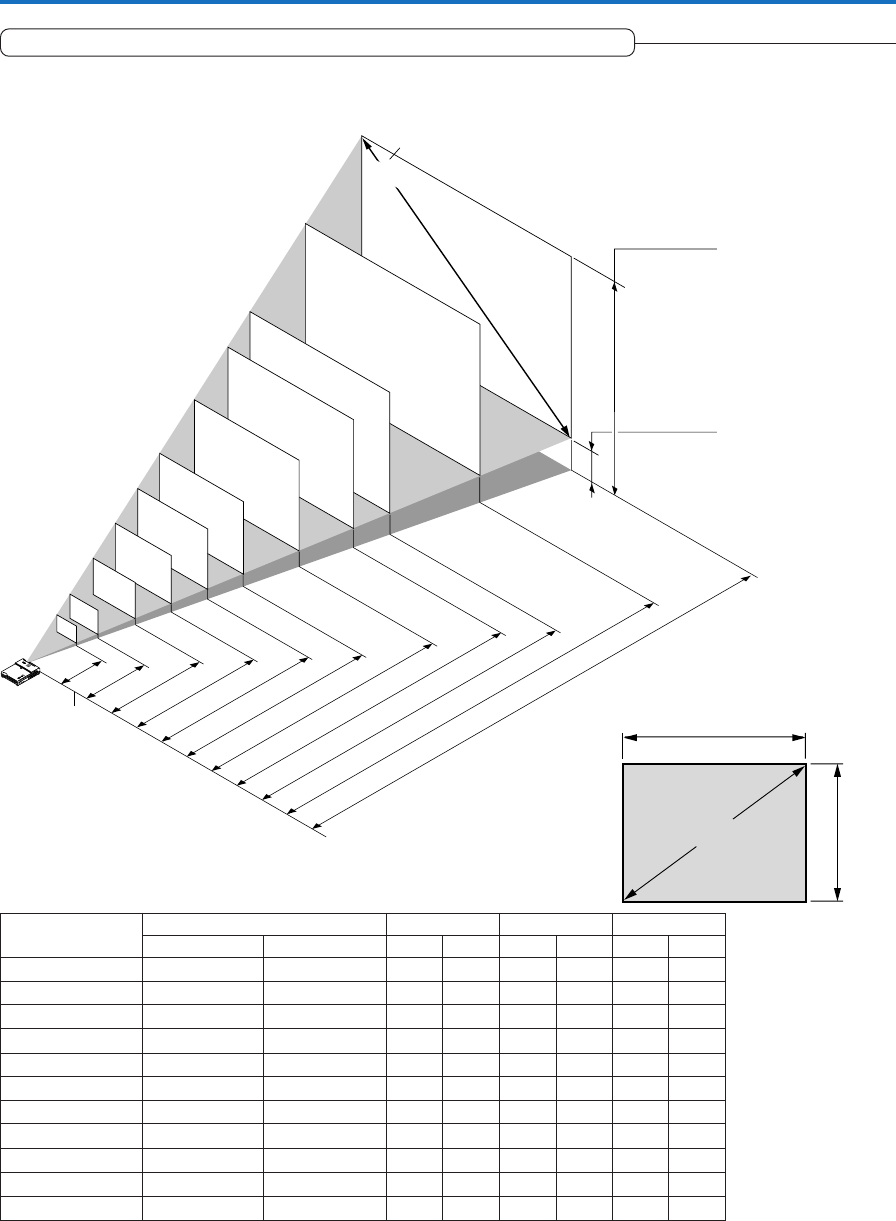
Placement Guide
1.20
(3.94)
1.71
(5.61)
2.56(8.40)
3.42(11.22)
4.27(14.01)
5.13(16.83)
6.41(21.03)
7.69(25.23)
8.55(28.05)
10.68(35.04)
12.82(42.06)
h1
250"
200"
180"
150"
120"
100"
80"
60"
300"
28"
40"
h2
Height from center of
lens to bottom edge
of the projection
Height from center of
lens to top edge of
the projection
Unit: m (feet)
Lens surface of
the main unit
Screen Size Designation (Inches)
• The projection distance over which focussing is adjustable is 1.20 m (3.94 feet) to 12.82 m (42.06 feet). The projector
should be placed within this range.
* There is a tolerance of ±5% due to design values.
* This table uses the lens apex and lens center as references and requires that the projector be in a horizontal condition
(with front and rear adjusters fully withdrawn).
Width
Height
Screen size (Diagonal)
28"
40"
60"
80"
100"
120"
150"
180"
200"
250"
300"
0.57⳯0.43
0.81⳯0.61
1.22⳯0.91
1.63⳯1.22
2.03⳯1.52
2.44⳯1.83
3.05⳯2.29
3.66⳯2.74
4.06⳯3.05
5.08⳯3.81
6.10⳯4.57
1.20
1.71
2.56
3.42
4.27
5.13
6.41
7.69
8.55
10.68
12.82
0.59
0.83
1.25
1.67
2.08
2.50
3.13
3.75
4.17
5.21
6.25
0.16
0.22
0.34
0.45
0.56
0.67
0.84
1.01
1.12
1.40
1.68
Screen Size
Designation (Inches)
Screen Size Width x Height Projection Distance Height h1 Height h2
1.87 ⳯1.40
2.67 ⳯2.00
4.00 ⳯3.00
5.33 ⳯4.00
6.67 ⳯5.00
8.00 ⳯6.00
10.00 ⳯7.50
12.00 ⳯9.00
13.33 ⳯10.00
16.67 ⳯12.50
20.00 ⳯15.00
(m) (feet)
3.94
5.61
8.40
11.22
14.01
16.83
21.03
25.23
28.05
35.04
42.06
1.94
2.72
4.10
5.48
6.82
8.20
10.27
12.30
13.68
17.09
20.51
0.52
0.72
1.12
1.48
1.84
2.20
2.76
3.31
3.67
4.59
5.51
(m) (feet) (m) (feet) (m) (feet)
V3-111 Screen Size and Projection Distance
E-16
Placement Guide
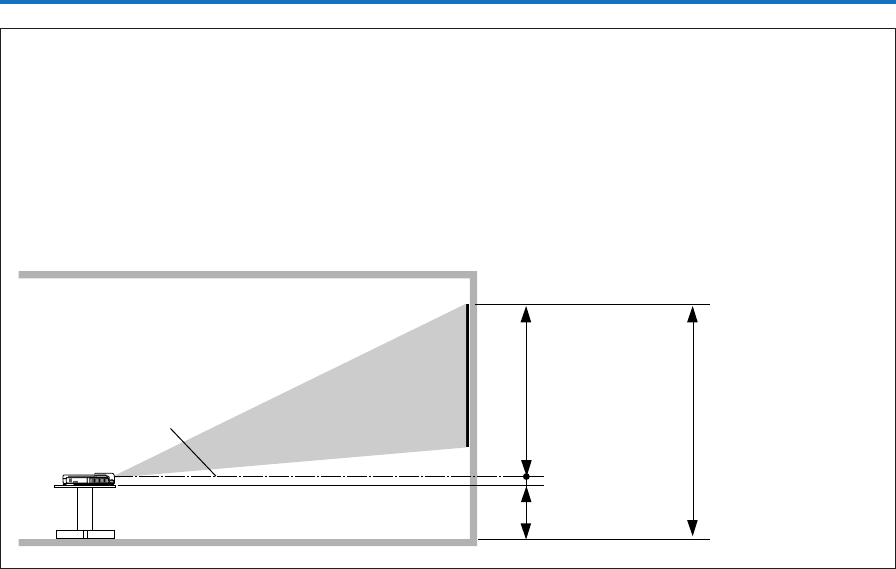
Installation Height of Projection Screen [Reference]
Once the installation location and position have been decided, the projection height should be checked. In the case of large
screen sizes, there are instances where the image cannot be projected within the floor to ceiling height.
The required installation height can be found using the following formula:
[Height from center of lens to top edge of the projection(h1)] m (feet) + 0.03m (0.1 feet) + Stand height
Example:
Using a 150" 4:3 screen and placing the projector horizontally, the required installation height will be
3.13m (10.3 feet) + 0.03m (0.1 feet) = 3.16m (10.4 feet) (without a stand)
An installation room with a height of 2.4m (7.9 feet) will have insufficient room height even when the projector is placed on the
floor. (The rear adjusters can be extended to lower the projected image.)
Screen size top edge
dimension measured
from floor
Stand dimension
Lens center
Screen size vertical
dimension
Approx. 0.03m (0.1feet)
E-17
Connecting Personal Computers and Video Equipment
Connecting this unit with a personal computer permits presentation data to be projected as a large screen display at
conferences, lectures, and on other occasions. Furthermore, connecting this unit to a DVD player or other video equip-
ment source in combination with an audio/video amplifier and speaker system will allow you to enjoy convincing home
theater.
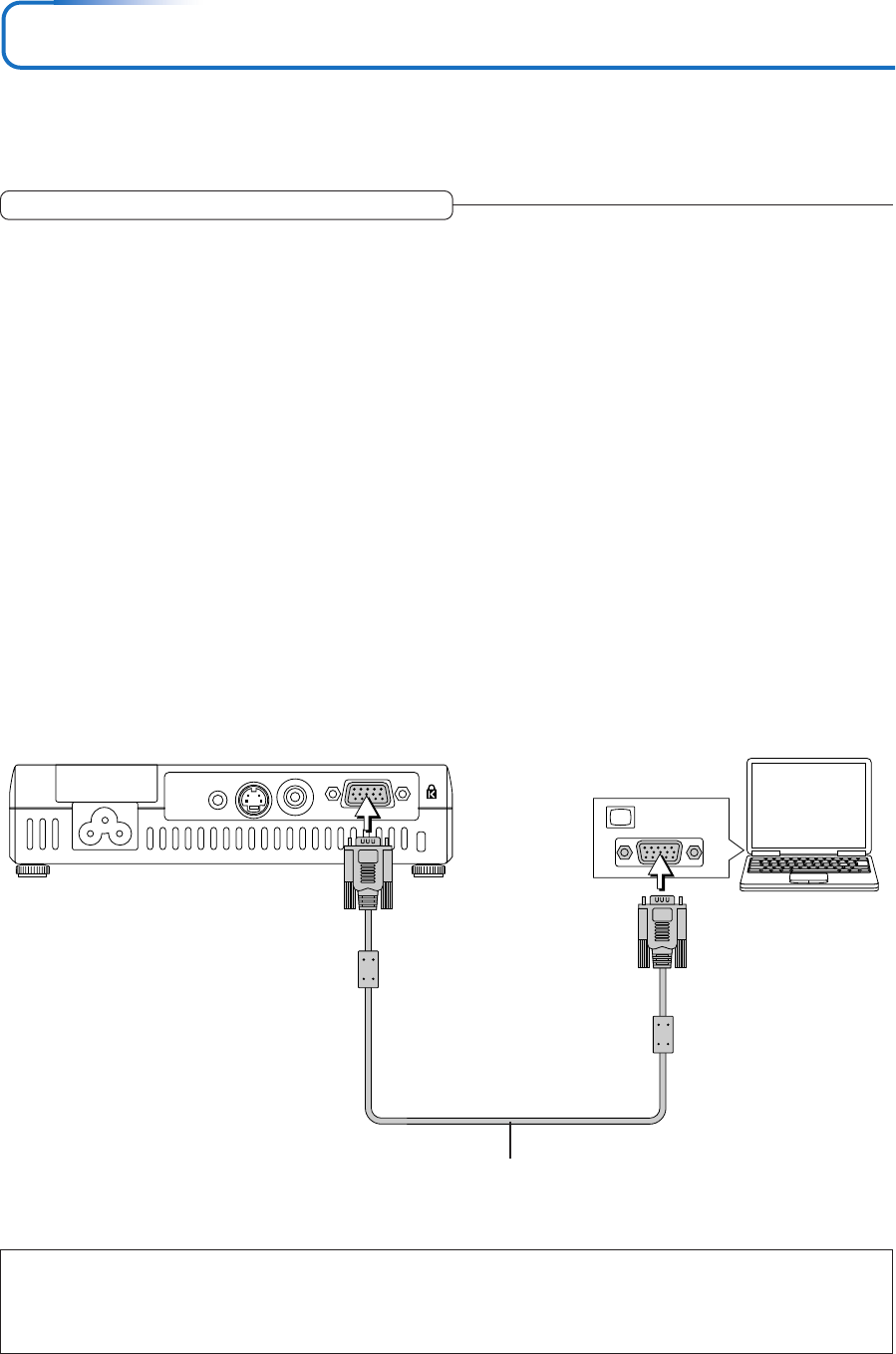
Connections with Personal Computer
Please check the following before making connections with the personal computer.
•A suitable resolution for the V3-111 is 800 ⳯ 600 dots (S-VGA) and the maximum displayable resolution is XGA (1024 ⳯ 768
dots).
•A suitable resolution for the V3-131 is 1024 ⳯ 768 dots (XGA) and the maximum displayable resolution is S-XGA (1280 ⳯
1024 dots).
Make changes to a displayable resolution at the personal computer side. Please check with “Table of Supported Frequency” on
Page E-65.
•The setting method for the personal computer will differ depending on the specific model. Please read the personal computer
instruction manual or the on-line help information, or contact the manufacturer of your personal computer.
Connect the projector’s RBG connector using the included RGB signal cable.
•When making connections with the RGB connector of the projector, please make the connection via the supplied RGB signal
cable.
•The projector has been set to “Auto” at the factory; however, if it does not project, please change the input setting to “RGB”
using the menu sequence of [Setup] → [Input Format] → [RGB].
See “Input Format” on Page E-52.
MONITOR OUT
Personal
computer
RGB signal cable (Supplied item)
Note:
* Before making connections, check the power of the projector and the equipment to be connected is switched off.
* When projection will be with a notebook computer connected, knowledge will be required for the cable connection and notebook computer
startup procedure as well as the operation that follows startup. Please consult the instruction manual of your notebook computer or the on-
line help.

E-18
Connecting Personal Computers and Video Equipment
To Output the External Output Signal of a Notebook Computer
When projection will be with a notebook computer connected, knowledge will be required for the cable connection and notebook
computer startup procedure as well as the operation that follows notebook startup. Please consult the instruction manual of your
notebook computer or the on-line help while performing the following procedure.
1Check whether a signal is being sent from the notebook computer to the projector.
An indication appearing on the liquid crystal display of the notebook computer does not necessarily mean that an external
output signal is being output.
REFERENCE: When “Resolution” or “Frequency” is not displayed under “Info.” on the menu of the projector, this means that
the external output signal is not being output from the personal computer. See “Resolution/Frequency” on Page E-56.
2Should a sign not be output from the notebook computer, please try the operation described below.
For an IBM PC/AT compatible computer, press the [Fn] key plus any one of the [F1] to [F12] keys. (See the table below.)
Manufacturer Model Key
akia All computers Fn + F2
COMPAQ All computers Fn + F4
DELL All computers Fn + F8
EPSON All computers Fn + F8
FUJITSU All computers Fn + F10
GATEWAY All computers Fn + F3
iiyama All computers Fn + F3
IBM All computers Fn + F7
NEC All computers Fn + F3
Panasonic All computers Fn + F3
SHARP All computers Fn + F5
SONY All computers Fn + F7
SOTEC All computers Fn + F3
TOSHIBA All computers Fn + F5
Victor All computers Fn + F10
Note: Table information is current to September 2002.
Note:
When the liquid crystal display of the notebook computer and the projector are displayed at the same time, the projected image might not be
correct even though the liquid crystal display shows a correct indication. Should this occur, stop the simultaneous display of the notebook
computer and try the mode with external output only. Try an operation such as that described in aforementioned Step 2 and try closing the
liquid crystal panel which might result in external output only.
E-19
VIDEO S-VIDEO
Connecting Personal Computers and Video Equipment
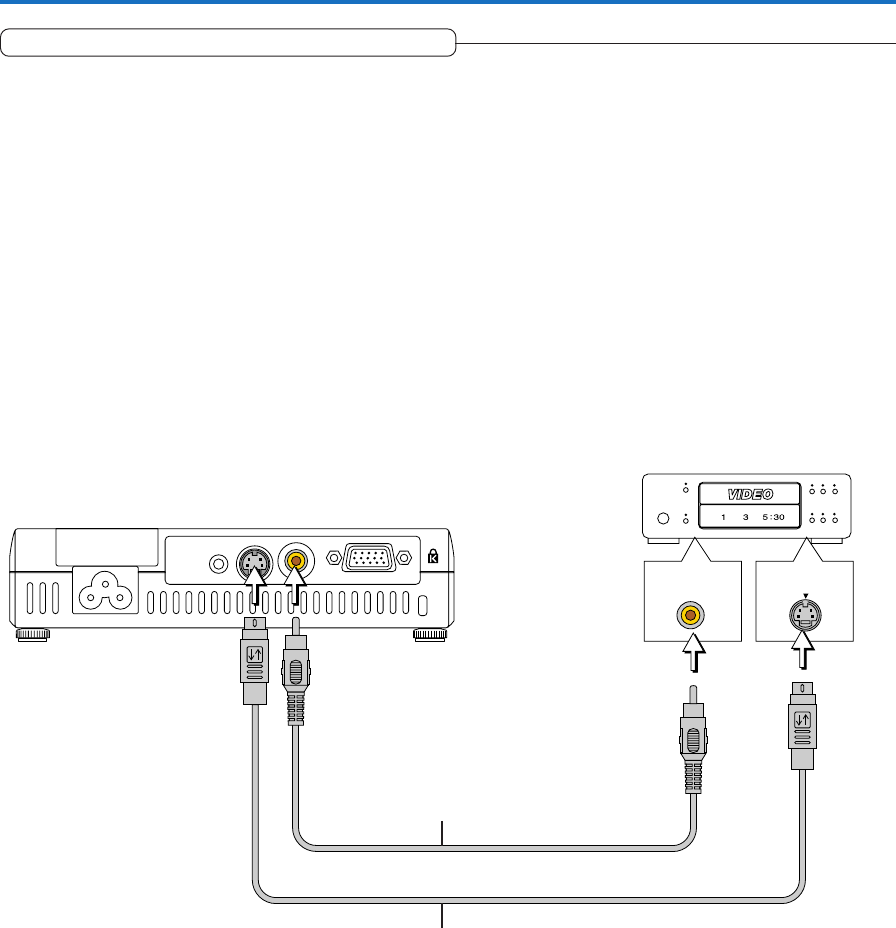
Connections with Composite Signals
Video Equipment with VIDEO Connectors
•Connect to the projector’s VIDEO connector using a commercially available video cable.
•The input setting of the VIDEO connector has been set to “Auto” at the factory; however, if the projector does not project, please
change the input setting to “Your Country’s Television Broadcast System” using the menu sequence of [Setup] → [Input Format]
→ [Video].
See “Input Format” on Page E-52.
Video Equipment with S-VIDEO Connectors
•Connect to the projector’s S-VIDEO connector using a commercially available S-Video cable.
•The input setting of the S-VIDEO connector has been set to “Auto” at the factory; however, if the projector does not project,
please change the input setting to “Your Country’s Television Broadcast System” using the menu sequence of [Setup] → [Input
format] → [S-Video].
See “Input Format” on Page E-52.
Video deck, DVD player, document
camera, etc.
Video cable (RCA pin plug)
(Commercially available)
S-Video cable (Mini DIN 4-pin plug)
(Commercially available)
E-20
CrCbY
PrPbY
COMPONENT
COMPONENT
Connecting Personal Computers and Video Equipment
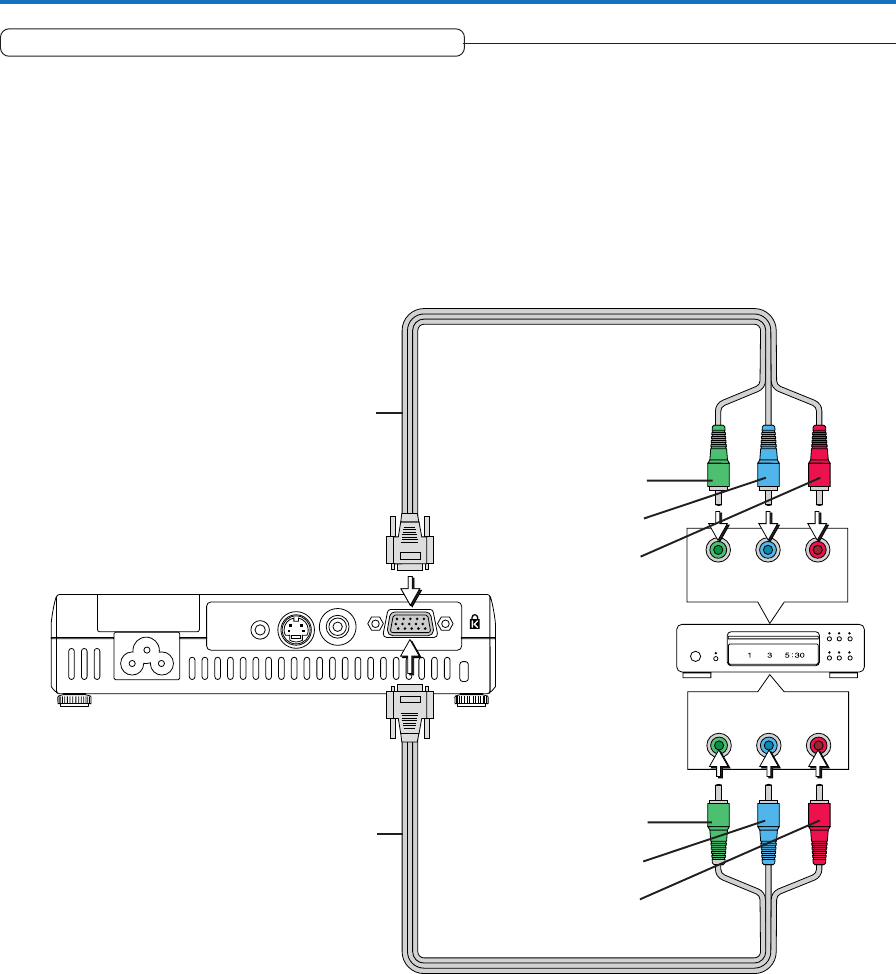
Connections with Component Signals
When the Video Equipment Has a YCbCr Connector or YPbPr Connector
•The projector has been set to “Auto” at the factory; however, if it does not project, please change the input setting to “Compo-
nent” using the menu sequence of [Setup] → [Input Format] → [RGB].
See “Input Format” on Page E-52.
•When projecting the YCbCr signal or YPbPr signal, if the color of the overall image strongly leans toward being greenish or
another color, change the setting under the menu of [Color] → [Color Space].
See “Color Space” on Page E-46.
Component cable (Available as an option)
(Mini D-sub 15-pin to RCA⳯3)
(Order code: 28-690)
Component cable (Available as an option)
(Mini D-sub 15-pin to RCA⳯3)
(Order code: 28-690)
Green
Blue
Red
Green
Blue
Red
E-21
Connecting Personal Computers and Video Equipment
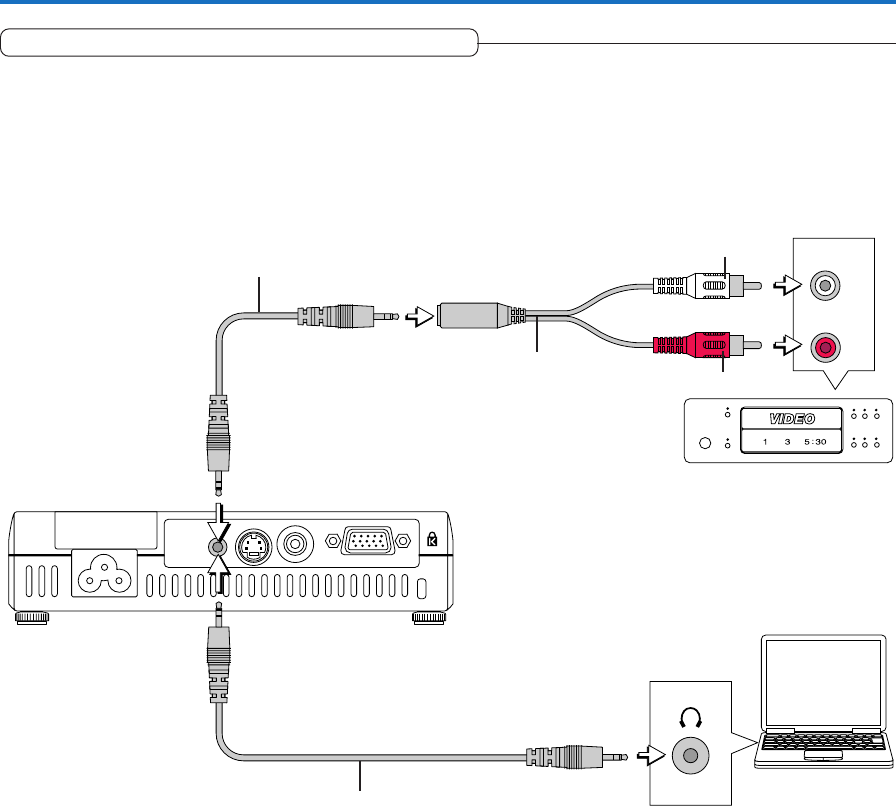
Connections with the AUDIO Jack
* Connect to the projector’s AUDIO jack using a commercially available audio cable. If the other device has an RCA phono type
audio jack, connect via a commercially available audio converter cable.
* The built-in speaker of the projector provides monaural audio. To enjoy convincing audio reproduction, please connect the
audio output of the video equipment to your audio system.
* The built-in speaker outputs the audio of the equipment connected to the AUDIO jack.
R
L
AUDIO OUT
White
Red
Audio conversion cable
(Mini-jack/ RCA pin plug)
(Commercially available)
Audio cable (Mini plug)
(Commercially available)
Audio cable (Mini plug)
(Commercially available)
E-22
STANDBY
AUTO
SOURCE
STANDBY
PUSH
STATUS
AUDIO S-VIDEO VIDEORGB
Firmly plug in all the
way.
To wall outlet
Power Cable Connections and Switching the Power On/Off
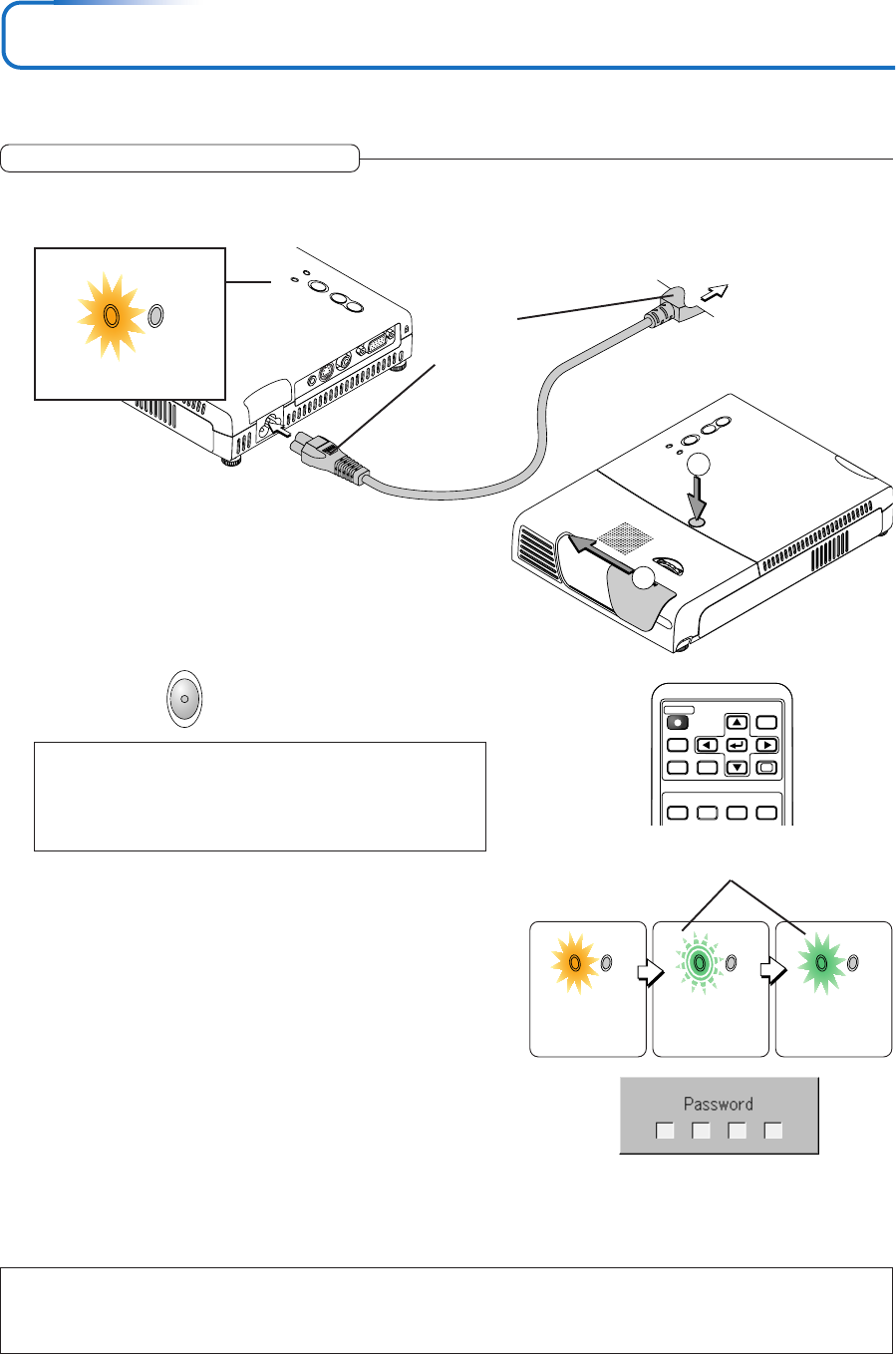
There is an order in which the power cable is connected and the power is switched on/off.
Operating
3Switch on the projector power
Press the STANDBY button.
Note:
The power will not turn on unless the lens unit is raised.
If the STANDBY button is pressed when the lens is stowed away, the
STATUS and STANDBY indicator’s flash orange for several seconds to
notify you that the lens is not raised.
The first time the power is switched on after purchase, [Menu
Language Select] will be displayed. See Page E-23 for infor-
mation about language selection.
•When the power is turned on, the STANDBY indicator starts
flashing green, then stops flashing after about 60 seconds. If
the STATUS indicator lights green at this time, the lamp mode
is set to “Eco”. See E-29 and 51 for instructions on selecting.
•If the power does not come on, see “When the STATUS Indica-
tor is Lit or Flashing” on Page E-57.
4Switch on the power of the connected equipment
Note:
• When the power plug will be unplugged from the power outlet, please place the projector near the power outlet so that it may be reached
easily.
• Press the STANDBY button after the STANDBY indicator is lit in amber.
STANDBY
(button on main unit)
RGB
STANDBY
VIDEO
FREEZE MUTE ECO AUTO
ASPECT
CANCEL QUICK
MENU
ENTER
Q
1234
2햲Slide the lens shutter to the left until it stops.
햳Press the lift button (marked “PUSH”).
The lens unit rises and projecting is now possible.
STANDBY
AUTO
SOURCE
STANDBYSTATUS
PUSH
1
2
1Connect the AC IN connector of the projector and the power outlet using the supplied power cable.
The STANDBY indicator will light in amber, and the unit will enter the standby mode.
STANDBY STATUS STANDBY STATUS STANDBY STATUS
This indicator is also lit green in Eco-mode.
Flashing green
(Approximately 60
seconds)
Lit green
Power is on
Lit amber
STANDBY STATUS
Lit amber
If the “Password” input window is displayed: See E-34.
A password is set for this projector.
The projector cannot be used unless the correct password is in-
put.
To turn off the power: See E-24.
The projector is now capable of regular projection.
E-23
When [Menu Language Select] is Displayed Upon Switching On the Power
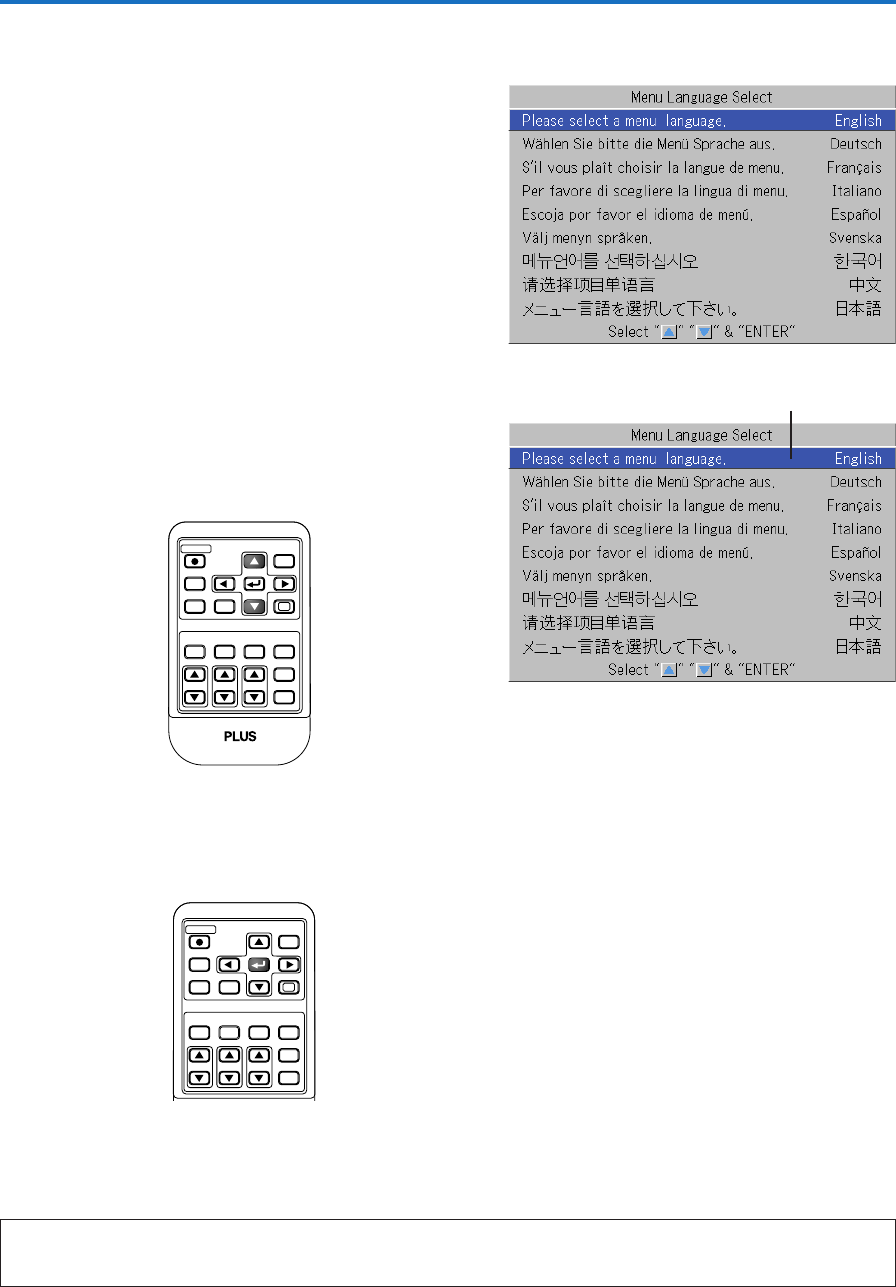
The first time the power is switched on after purchase, [Menu Lan-
guage Select] will be displayed. Follow the procedure described be-
low and select the display language of the projector.
If the image is blurred, turn the focus ring counterclockwise or clock-
wise to focus it. See Page E-25.
1Press the SELECT 왖왔 buttons of the Remote con-
trol and align the deep blue cursor with [English].
Cursor
2Press the ENTER button to set.
This will set the language and [Menu Language Select] will close.
This completes the selection of the display language.
Caution:
[Menu Language Select] will not appear the next time the power is switched on.
Should a change of language become necessary, see “Language” on Page E-53.
RGB
STANDBY
VIDEO
FREEZE MUTE ECO AUTO
ASPECT
TIMER
VOL KSTN ZOOM
CANCEL QUICK
MENU
ENTER
Q
1234
RGB
STANDBY
VIDEO
FREEZE MUTE ECO AUTO
ASPECT
TIMER
VOL KSTN ZOOM
CANCEL QUICK
MENU
ENTER
Q
1234
Power Cable Connections and Switching the Power On/Off
E-24
Power Cable Connections and Switching the Power On/Off
Finishing
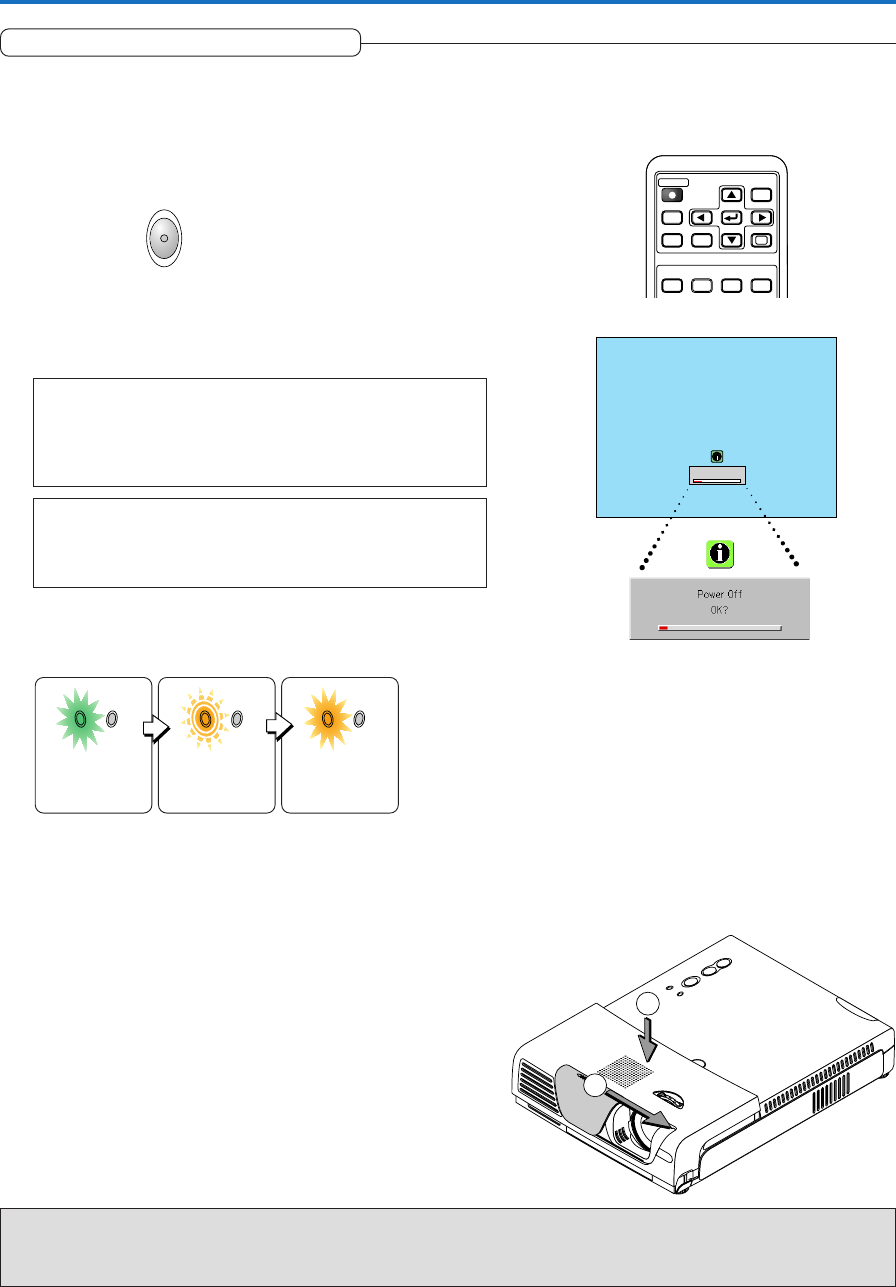
1Switch off the power of the connected equip-
ment
2Switch off the power of the projector
Press the STANDBY button.
The [Power Off] display appears.
When the level gauge reaches maximum, the projection screen
will go off (in about 5 seconds) and the projector will enter the
power-off operation.
Note:
Do not stow away the lens unit while projecting an image. Doing so
could damage the projector. If the lens unit has been stowed away
while projecting an image, the STATUS and STANDBY indicator’s flash
orange and the projector is automatically turned off.
Note:
* The operation can be cancelled by pressing a button other than the
STANDBY button.
* One more press of the STANDBY button will switch off the power.
The STANDBY indicator changes to flashing amber and lights a
steady amber after about 90 seconds (when the unit enters the
standby mode).
Flashing amber
(Approximately 90
seconds)
Lit amber
Standby mode
3Unplug the power cable
Check that the STANDBY indicator is lit in amber and then
unplug the power cable.
The STANDBY indicator will go off when the power cable is un-
plugged.
Warrning
Do not unplug the power cable while the STANDBY indicator is flashing amber. Doing so may shorten the life of the lamp
or damage the projector.
Power Off
OK
?
STANDBY STATUS STANDBY STATUS STANDBY STATUS
Lit green
RGB
STANDBY
VIDEO
FREEZE MUTE ECO AUTO
ASPECT
CANCEL QUICK
MENU
ENTER
Q
1234
4햲Press down on the lens unit until a “click” is heard
and the lens unit locks.
햳Slide the lens shutter to the right to close it.
STANDBY
AUTO
SOURCE
STANDBY STATUS
PUSH
1
2
STANDBY
(button on main unit)
E-25
Adjustment of the Projection Screen
Switch on the power of the connected equipment and make the adjustments with the video signal being input to the
projector.
Adjustment of the Projection Screen
1
(2)
(1)
(3) (4)
(5)
(3)
(4)
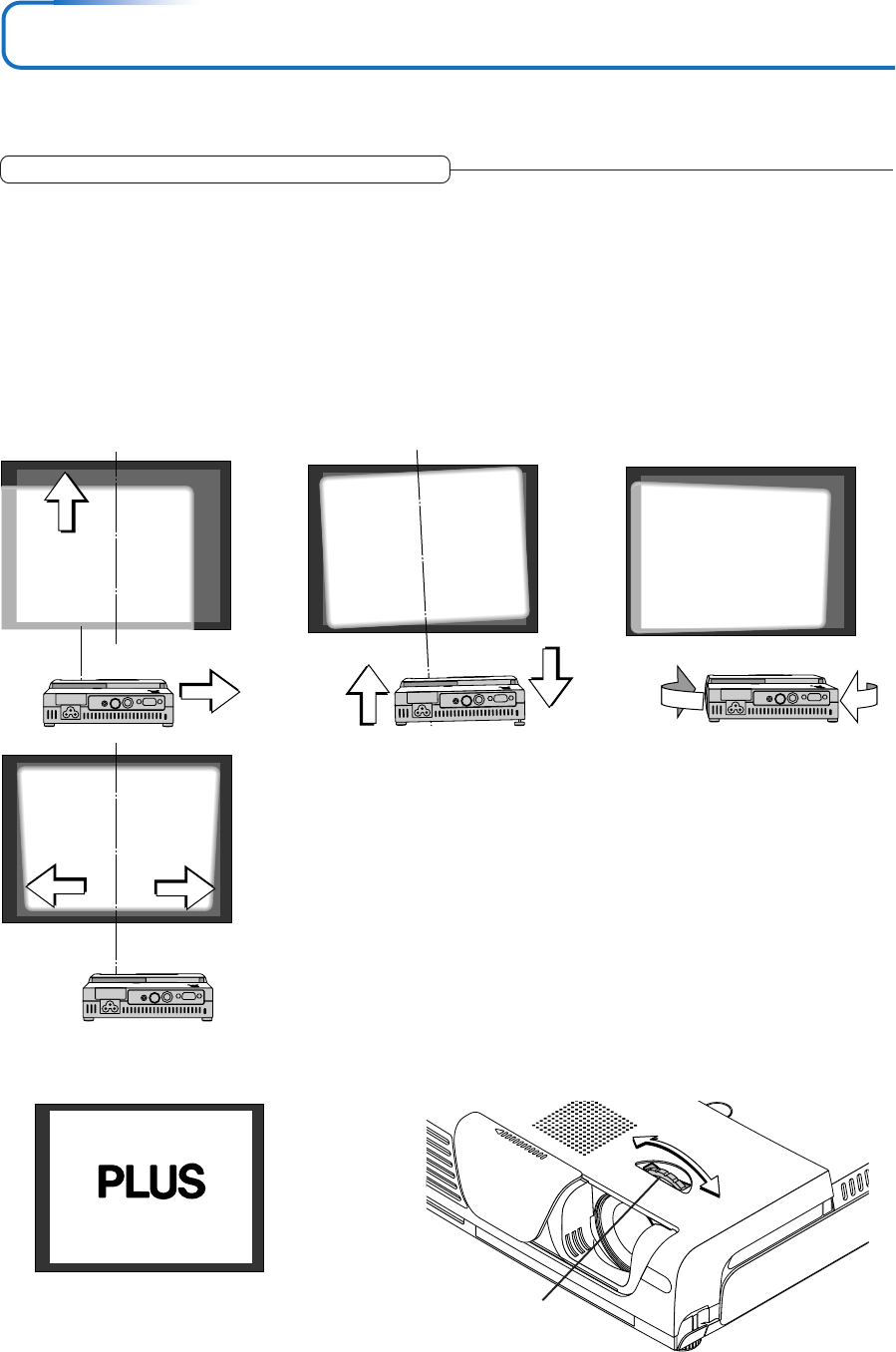
Adjust the projection image to the screen.
Check that the screen is set level and vertically.
(1) If the image is shifted to the left or right, move the main unit horizontally. (Align the center of the screen and the center of
the projector lens.)
(2) If the image is shifted vertically, move the image up or down with the adjuster. See “Making Adjustments with the Adjust-
ers” on Page E-26.
(3) If the image is slanted, adjust by turning the right or left adjuster. See “Making Adjustments with the Adjusters” on Page E-
26.
(4) A projection image such as that illustrated in the diagram is the result of the projector not being perpendicular to the
screen. Set the projector so that it is pointing straight toward the screen.
(5) If the image shows keystone distortion, adjust using remote control or menu operations. See “Keystone” on Page E-30, 49.
P
2Turn the focus ring and adjust the focus of the screen
Focus ring
E-26
Adjustment of the Projection Screen
(1)
STANDBY
AUTO
SOURCE
STANDBY STATUS
PUSH
(1)
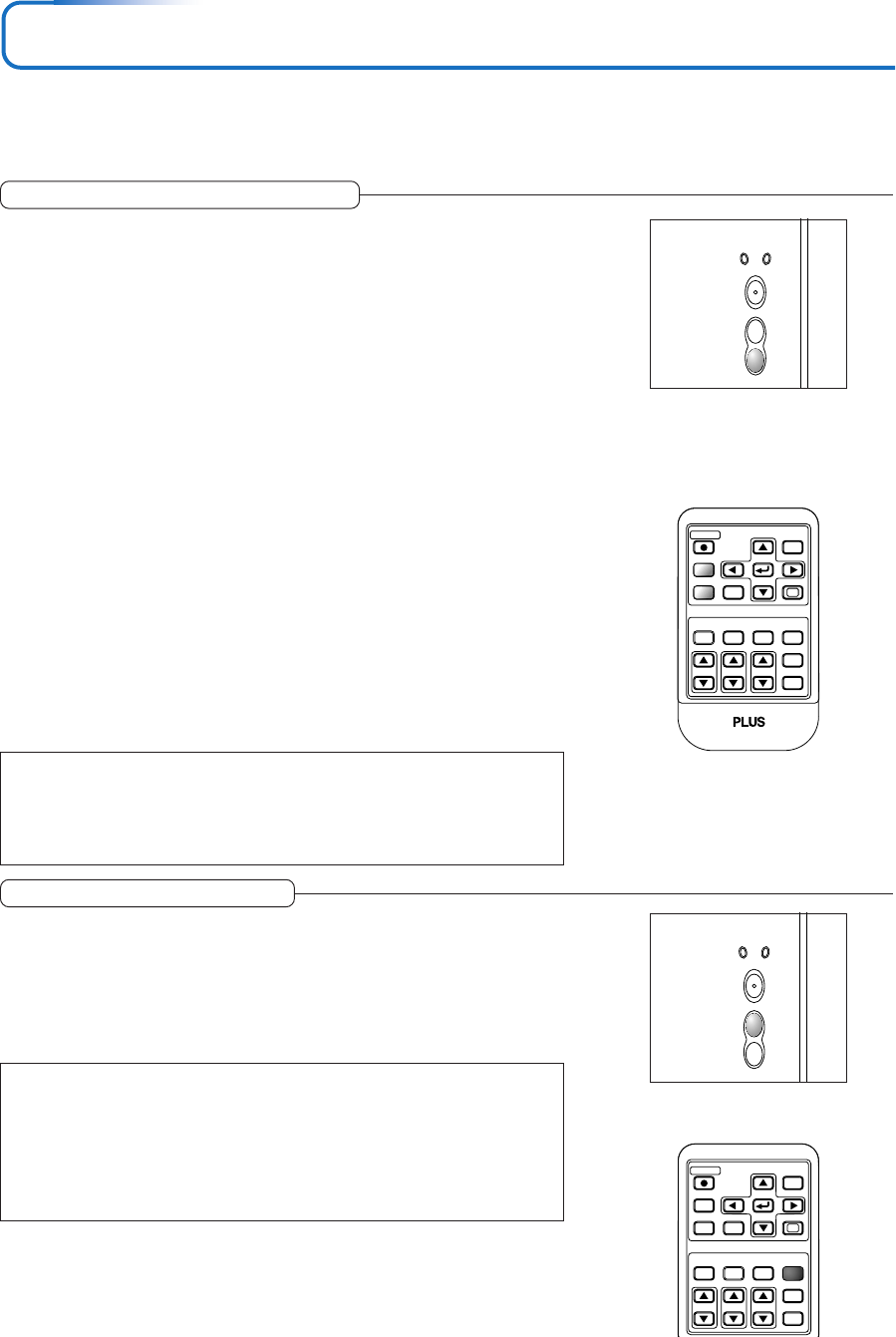
(2)
Note:
When the projector has a rear installation is used, the orientation of the projection will need to be changed.
Please see “Vertical Flip” on Page E-49.
Adjuster button
Making Adjustments with the Adjusters
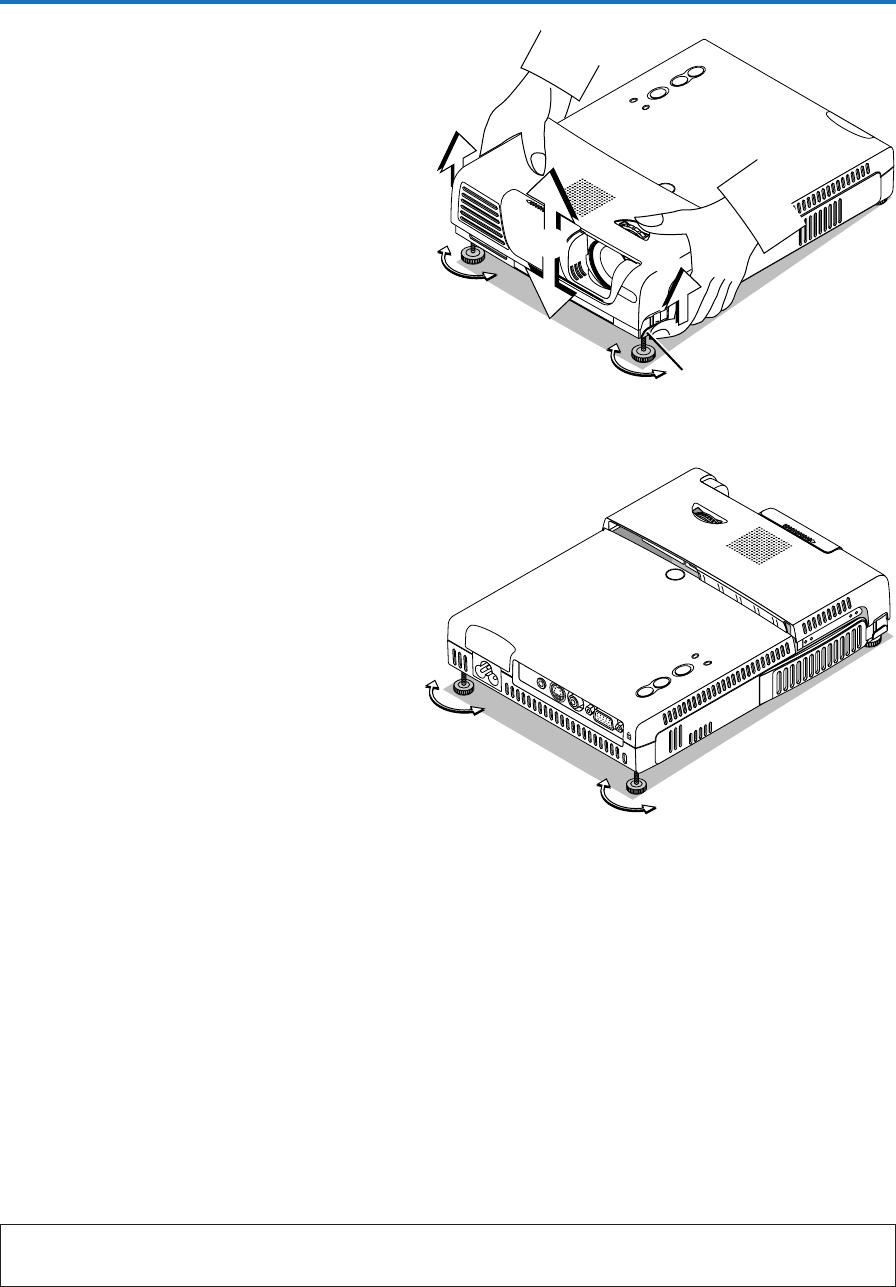
Raising the projection image
While viewing the projection image, (1) press and hold
the front adjuster buttons located at the left and right and,
(2) raise the projector to align the image with the screen,
then release your fingers.
Turn the left and right front adjusters for fine adjustment.
Adjust so that there is no shaking of the projector.
Lowering the projection image
Use the procedure described above to lower the front
adjusters.
If the rear adjusters are turned to lift the rear, the pro-
jected image lowers.
Adjust so that there is no shaking of the projector.
STANDBY
AUTO
SOURCE
STANDBY
PUSH
STATUS
AUDIO S-VIDEO VIDEO RGB
E-27
General Operation
This section describes the use of direct operation with the main unit or remote control buttons.
For information about operation using the menu, see “Menu Operation Method” on Page E-36 and the various items on
Pages E-43 to E-56.
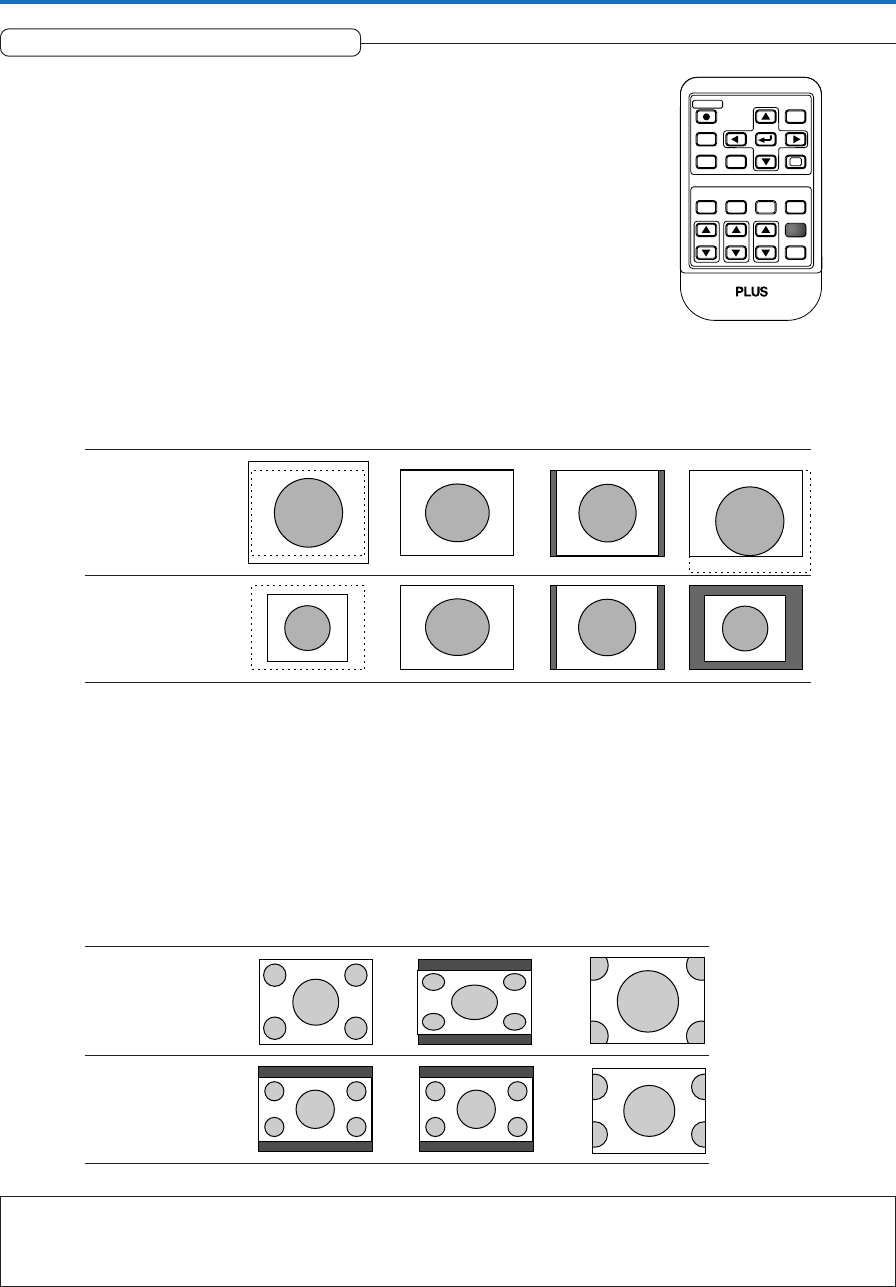
Input Selection
This operation selects the input signal to be projected.
Main unit operation: Press the SOURCE button.
(It will not function while the menu or the quick menu is displayed.)
When Auto Source is On
Whenever the SOURCE button is pressed, the projector automatically selects
another source that has the next input signal.
When Auto Source is Off
The input selection condition used last time will be set.
Each press of the button moves the selection one step in the sequence of RGB →
VIDEO → S-VIDEO. Note that the various input signals will become the signal
type set with [Input Format] See “Input Format” on page E-52.
Remote control operation: Press the desired input selection button.
RGB button ........ Switches the RGB input.
VIDEO button ..... The input switches between VIDEO and S-VIDEO each time the button is
pressed.
When Auto Source is On
When an input signal is not present at the selected source, the projector automati-
cally selects the next source that has an input signal.
When Auto Source is Off
The projector switches to the selected source regardless of whether an input sig-
nal is present.
Note:
* When you do not operate source selection, the projector will assume the input selec-
tion condition that was previously used.
* See “Auto Source” on Page E-50 for information about the Auto Source on and off
conditions.
STANDBY
AUTO
SOURCE
STANDBY STATUS
STANDBY
FREEZE MUTE ECO AUTO
ASPECT
TIMER
VOL KSTN ZOOM
CANCEL QUICK
MENU
ENTER
Q
1234
RGB
VIDEO
Automatic Adjustment
This function automatically adjusts the position shift, screen size, vertical stripes,
and color infidelity of the projected analog RGB input signal.
Normally automatic adjustment is performed at the time of signal selection.
Main unit operation/Remote control operation: Press the AUTO button.
(This will not function while the menu or the quick menu is displayed.)
A press of the AUTO button starts the automatic adjustment.
Note:
* If the display position is shifted, vertical lines appear on the picture, or the projection
is not good even after using automatic adjustment, please perform image adjustment
manually. See “Picture Adj. / Fine Picture / H Position / V Position” on Page E-43.
* When the image extends beyond the boundaries of the screen or is smaller than the
screen, set Aspect to “Auto”. See “Selection of Aspect Ratio” on Page E-28 and “As-
pect” on Page E-48.
STANDBY
AUTO
SOURCE
STANDBY STATUS
RGB
STANDBY
VIDEO
FREEZE MUTE ECO
ASPECT
TIMER
VOL KSTN ZOOM
CANCEL QUICK
MENU
ENTER
Q
123
AUTO
4
E-28
General Operation
Selection of Aspect Ratio
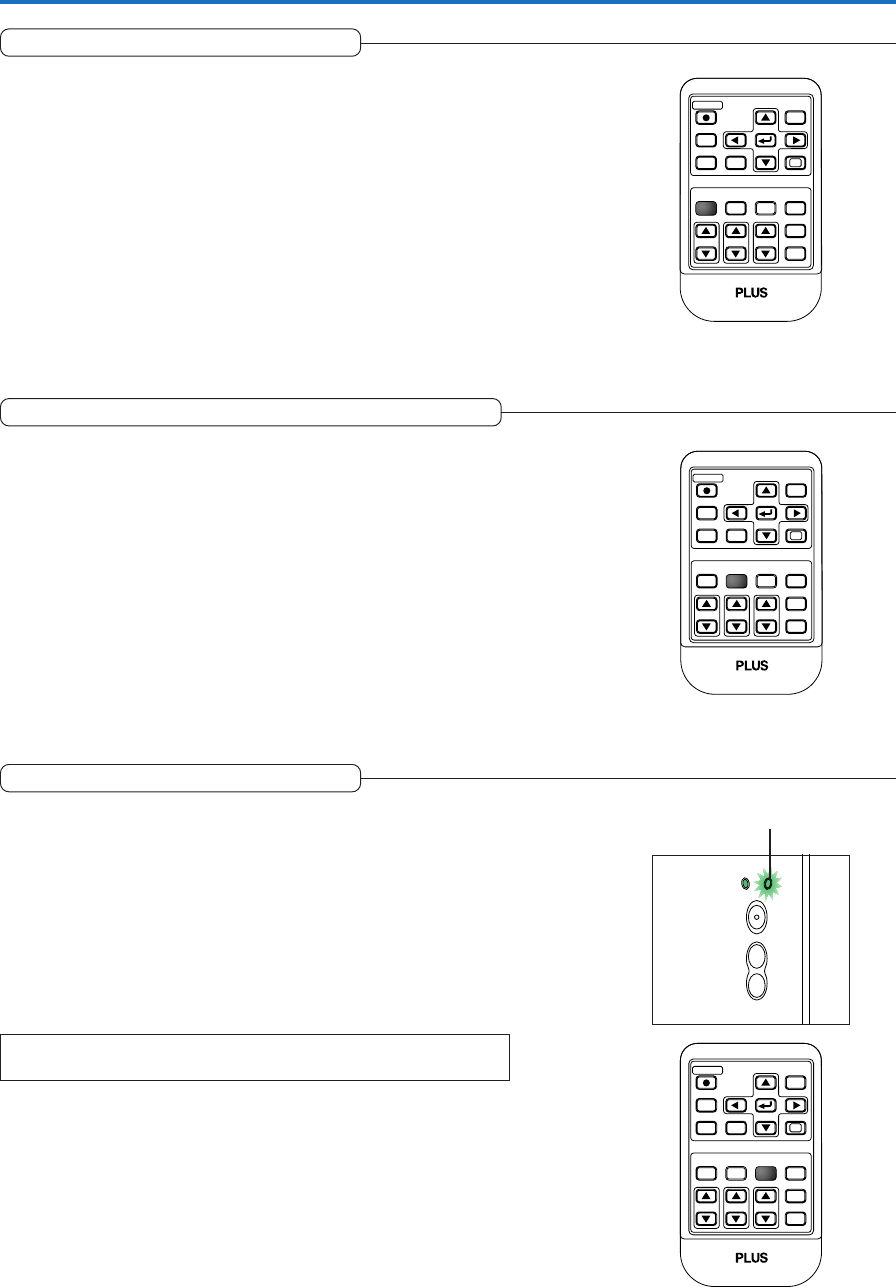
This function selects horizontal and vertical picture proportions of the input
signal.
Press the ASPECT button while viewing the projected image and select the
aspect ratio.
Personal Computer Signal
Each press of the ASPECT button advances the selection one step in the se-
quence of Auto → Direct → Real, and then repeats.
Auto ............ Automatically enlarges or reduces the image to project a full screen in a ratio
of 4:3
Direct .......... Maintains the aspect ratio and projects a picture of the maximum displayable
size
Real ............ Projects the input signal without pixel conversion.
Video Signals / Component Signals
Each press of the ASPECT button advances the selection one step in the sequence of Auto → Wide → Zoom, and then repeats.
Auto ............ While maintaining the aspect ratio, projects a full screen so that no portions extend beyond the boundaries of the screen. The top
and bottom of the 16:9 image becomes black.
Wide ........... Projects to fill the full width with the entire image at 16:9.
(This feature is used to project a squeezed image in a proper aspect ratio.)
Zoom .......... Projects only the 4:3 portion within 16:9 image to fill the screen.
(Portion that extend off screen is cut.)
Input Signal Auto Direct Real
The setting is higher
than the display reso-
lution of the projector.
The setting is lower
than the display reso-
lution of the projector.
Aspect ratio selection Auto Wide Zoom
4:3 screen
16:9 screen
RGB
STANDBY
VIDEO
FREEZE MUTE ECO AUTO
TIMER
VOL KSTN ZOOM
CANCEL QUICK
MENU
ENTER
Q
1234
ASPECT
Note:
When selection has been made for the “Real” setting of the personal computer signal (i.e., when the input signal and the projector display
resolution are high) and the “Zoom” setting of the video signal, pressing the SELECT
왖왔왗왘
buttons on the remote control will permit
movement of the display position. Note that there will not be any movement when the menu or the quick menu is displayed.
E-29
Freezing a Moving Picture
This function is used to stop and view a moving picture. Note that the input
image continues to advance even though the picture there is a still picture
condition.
A press of the FREEZE button changes the screen to a still picture. A
further press returns the screen to a moving picture.
General Operation
RGB
STANDBY
VIDEO
MUTE ECO AUTO
ASPECT
TIMER
VOL KSTN ZOOM
CANCEL QUICK
MENU
ENTER
Q
234
FREEZE
1
Cancelling Video and Audio Temporarily
This function is used to cancel the video and audio at the same time.
A press of the MUTE button will blank the picture and the sound, and
the screen will take on the background color that has been set.
Another press will cause a return to the original conditions.
RGB
STANDBY
VIDEO
FREEZE ECO AUTO
ASPECT
TIMER
VOL KSTN ZOOM
CANCEL QUICK
MENU
ENTER
Q
134
MUTE
2
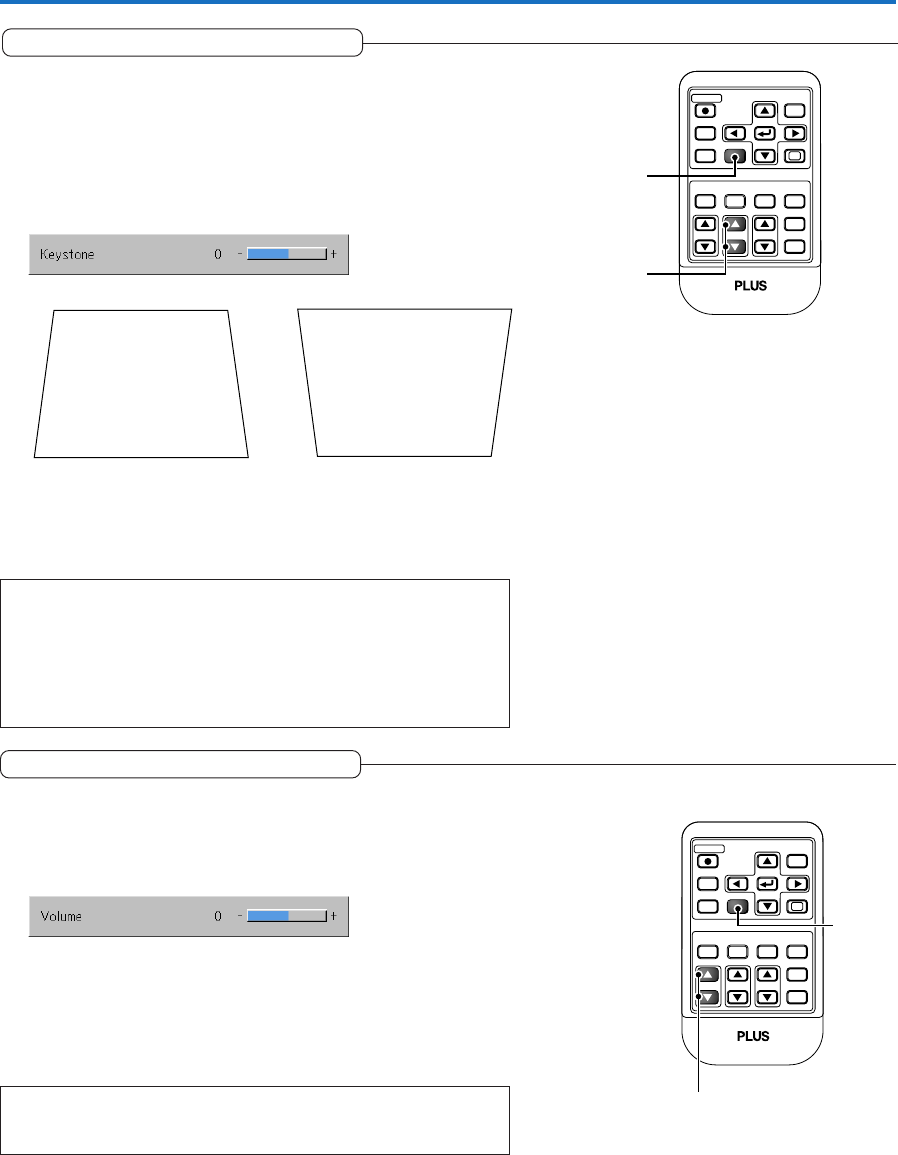
Lamp Mode
Use this if the picture is projected on a small screen and the picture
is too bright or when projecting images in dark rooms.
Pressing the ECO button will set the lamp mode.
Eco (STATUS indicator is lit green)
The lamp’s brightness is reduced to approximately 80%, extending the
lamp’s service life.
Normal (STATUS indicator is off)
The lamp brightness is set to 100% and the screen is bright.
Note:
Frequent switching this mode can degrade the lamp.
RGB
STANDBY
VIDEO
FREEZE MUTE AUTO
ASPECT
TIMER
VOL KSTN ZOOM
CANCEL QUICK
MENU
ENTER
Q
12 4
ECO
3
STANDBY
AUTO
SOURCE
STANDBY STATUS
STATUS indicator
E-30
Keystone
Use this to adjust for trapezoidal (keystone) distortion of the pro-
jected image.
Adjustment Method
(1) Press the 왖 or 왔 KSTN button to make the left and right sides
parallel.
The keystone adjustment display appears when one of the buttons is
pressed.
Press the “왔” button. Press the “왖” button.
(2) Press the CANCEL button to immediately close the display.
The display will close when there has not been an operation in about
10 seconds.
Note:
* Keystone adjustment values can be saved. See “Keystone Save” on Page E-
49.
* Screen examples have been drawn in an exaggerated style for the purpose
of description.
* Please note that depending on the projected picture and the projection con-
ditions, it may not be possible to eliminate keystone distortion completely.
General Operation
Adjustment of the Volume
This function adjusts the volume of the built-in speaker.
(1) Press the 왖 or 왔 VOL button to adjust the volume.
The volume adjustment display appears when one of the buttons is
pressed.
(2) Press the CANCEL button to immediately close the display.
The display will close when there has not been an operation in about
10 seconds.
Note:
* Adjustment of the volume will not produce any sound unless an image is
being projected.
RGB
STANDBY
VIDEO
FREEZE MUTE ECO AUTO
ASPECT
TIMER
KSTN ZOOM
QUICK
MENU
ENTER
Q
1234
VOL
CANCEL
(1)
(2)
RGB
STANDBY
VIDEO
FREEZE MUTE ECO AUTO
ASPECT
TIMER
VOL ZOOM
QUICK
MENU
ENTER
Q
1234
KSTN
CANCEL
(1)
(2)
The 왖 button increases the volume and the 왔 button decreases the
volume.
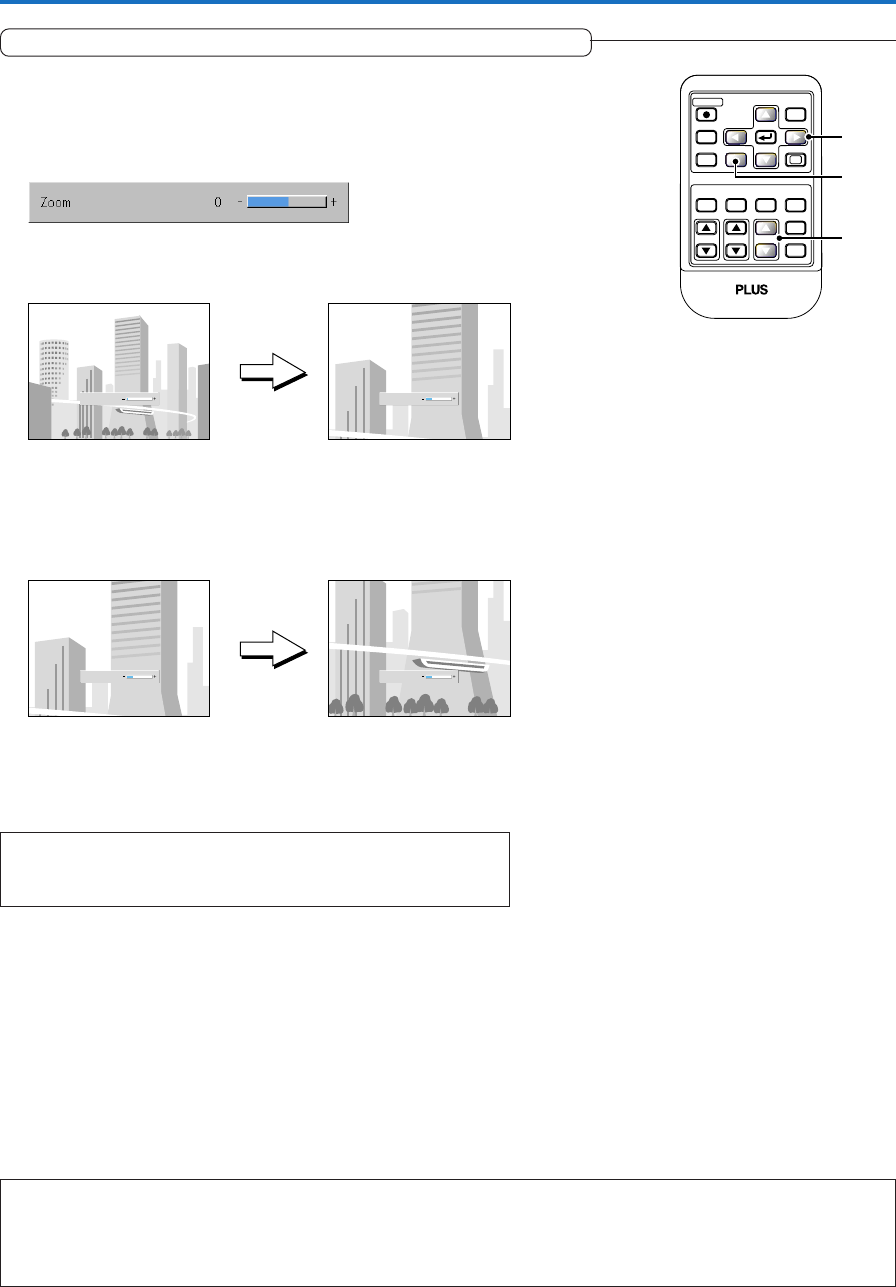
E-31
General Operation
Enlargement of the Image and Video Movement
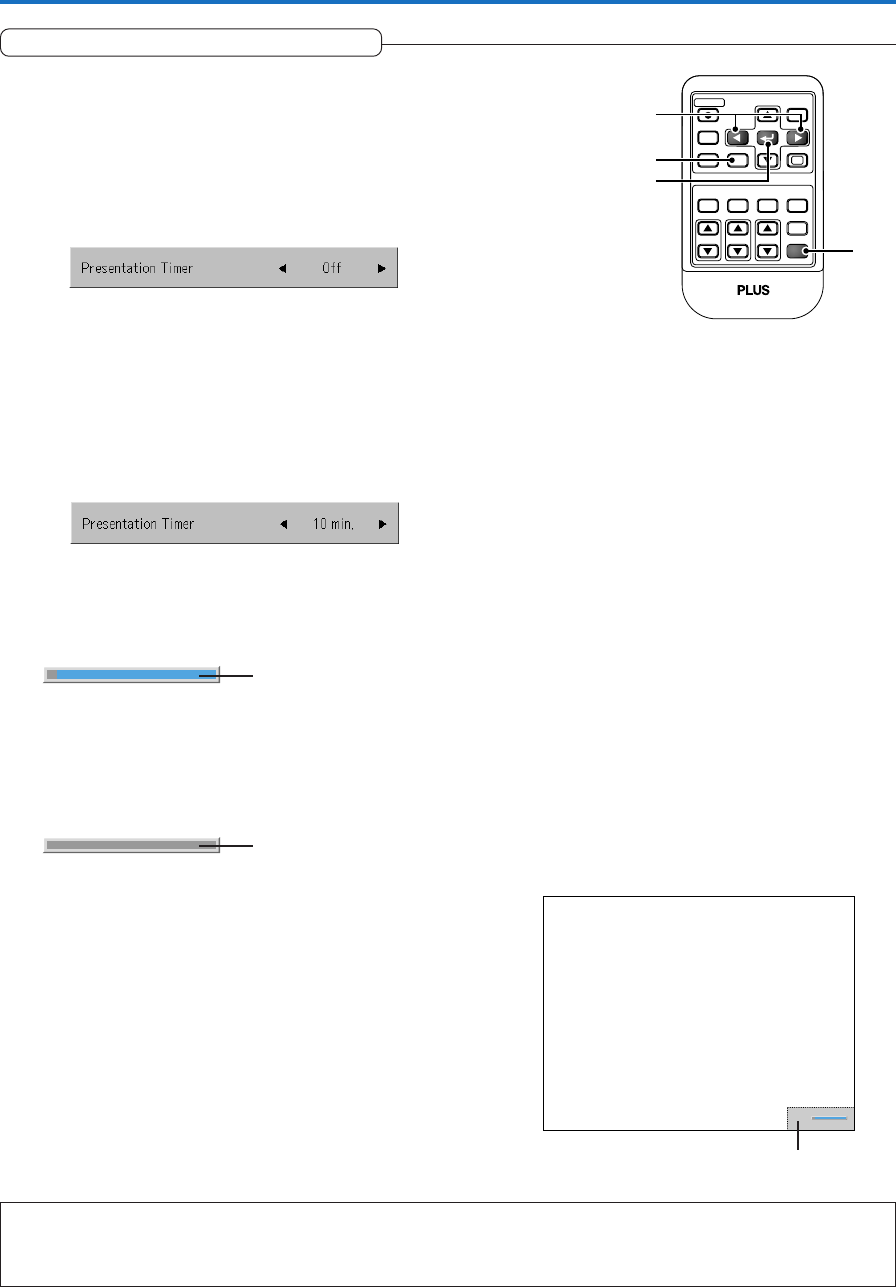
This function digitally enlarges the personal computer image and video
image.
(1) Press the ZOOM button to enlarge the image.
The zoom display appears when the ZOOM button is pressed.
Each press of the 왖 button enlarges the image and each press of the
왔 button makes the image smaller (returning it to 1:1).
(No enlargement) (Approximately 2 times enlargement)
The image can also be moved in the following circumstances.
•When “Aspect” is set to “Real” by the signal of the personal computer, and the input resolution is
higher than the display resolution of the projector.
•When “Aspect” is set to “Zoom” by the video signal.
Note:
* Zoom and image movement functions are cancelled when the input is switched.
* The greater the zoom enlargement, the less distinct the image will appear. The reason for this is that the dots are being digitally corrected
so that they are not conspicuous.
* Movement of the screen will not be possible when the menu screen is being displayed.
Zoom
0
Zoom
21
(3) Press the CANCEL button to immediately close the display.
The display will close when there has not been an operation in about
10 seconds.
(2) Pressing the SELECT 왖왔왗왘 buttons on the remote control at
the time of the zoom operation will cause the display position to
move.
(There will not be any movement when zoom is at 0.)
(Approximately 2 times enlargement) (Movement)
Zoom
21
Zoom
21
Note:
After magnifying the image, be sure to use the ZOOM button to bring the gauge
value back to “0”.
(3)
(1)
(2)
RGB
STANDBY
VIDEO
FREEZE MUTE ECO AUTO
ASPECT
TIMER
VOL KSTN
CANCEL QUICK
MENU
ENTER
Q
1234
ZOOM
E-32
General Operation
Using the Presentation Timer
Note:
* The timer display will be closed while the menu or the quick menu is displayed, and while a message is displayed; however, the timer will
still be operating at such times. Also, the timer will not be displayed unless a signal is being input.
* While the presentation timer is being displayed, screen movement will not be possible in the zoom mode.
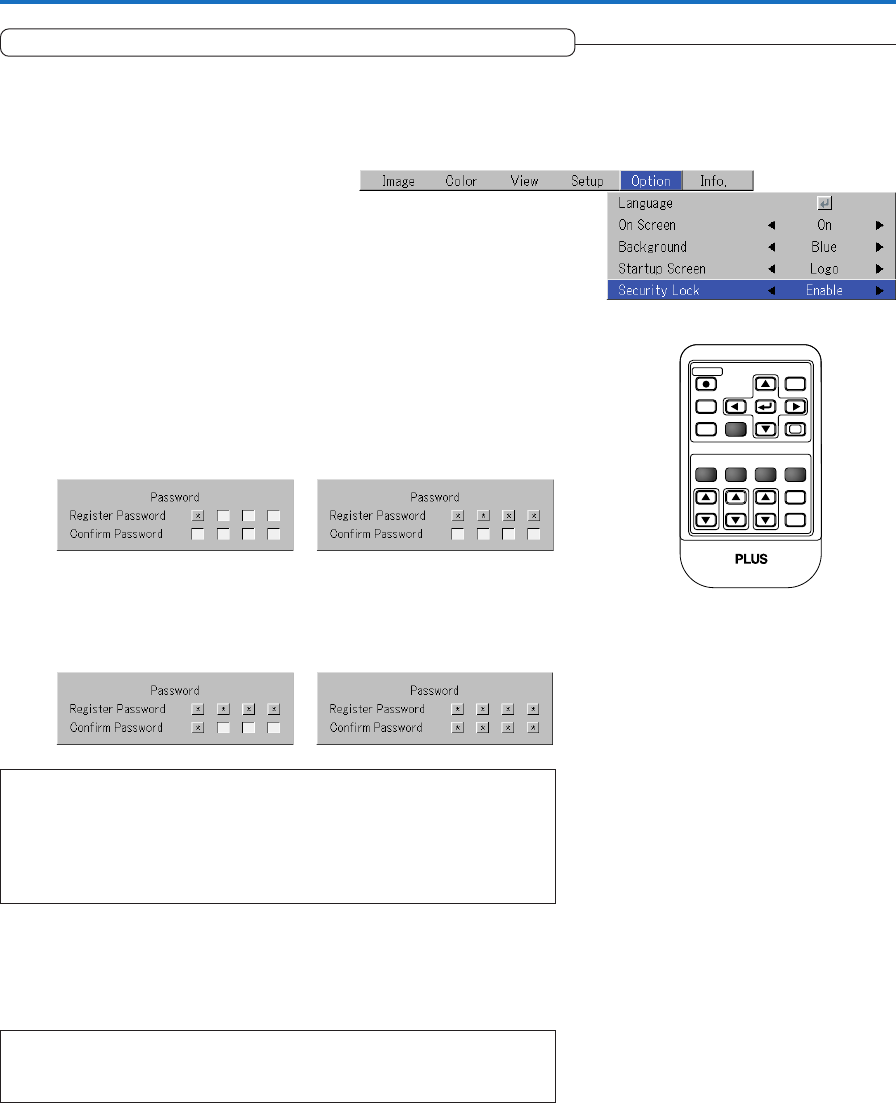
[Timer settings display]
The presentation is given while checking the timer displayed
on the screen.
The gauge display allows the remaining time to be known at
a glance.
(1) Press the TIMER button to show the settings display.
The display will close when an operation has not been made
for about 10 seconds.
Press the CANCEL button to close the display immediately.
(2) Use the 왗 and 왘 SELECT buttons to set the time.
The setting contents are “Off” and from 10 to 60 minutes (in
10-minute intervals)
Settings can also be made with the SELECT 왗왘 buttons.
Gauge (Blue)
•Press the ENTER button to restart the timer. The timer will
start with the same time setting.
•Press the CANCEL button to close the timer display. The
timer setting will return to “Off”.
Moving the Position of the Timer Display
The SELECT 왖왔왗왘 buttons on the remote control permit move-
ment within the movable range of the timer display.
(3) Press the ENTER button and start the timer.
•The display of the timer setting will close, the display of the
timer will appear and simultaneously the timer will start.
The blue gauge indicates the remaining time. When the
gauge disappears,the time is up.
The gauge continues to be displayed when the timer is
stopped.
[Timer Display]
When the remaining time is
“0” (Gray)
Movable Range of the Timer Display
RGB
STANDBY
VIDEO
FREEZE MUTE ECO AUTO
ASPECT
VOL KSTN ZOOM
CANCEL QUICK
MENU
Q
1234
TIMER
ENTER
(1)
(2)
(3)
CANCEL button
E-33
General Operation
Protecting the Projector with the Security Lock
A password can be registered and the security lock set in order to protect the projector from unauthorized use.
Registering the password
The password is registered using the menus. For instructions on operating the menus, see “Menu Operation Method” on E-36.
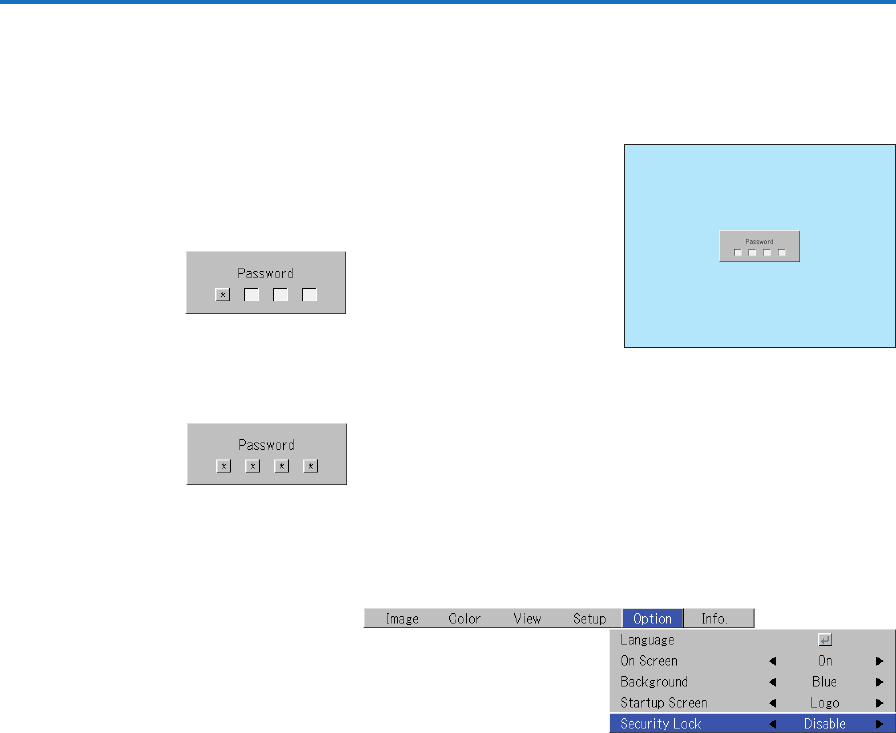
(1) Select “Security Lock” in the “Option” menu and set it to “Enable”.
The menu closes and the password registration display appears.
RGB
STANDBY
VIDEO
ASPECT
TIMER
VOL KSTN ZOOM
QUICK
MENU
ENTER
Q
FREEZE MUTE ECO AUTO
CANCEL
1234
Note:
The numbers you have input are not displayed. Be sure to write down the password
and store it in a safe place.
Note:
To cancel the number you have input, press the CANCEL button.
The asterisks disappear and the display returns to the input standby mode at the first
place.
To cancel the password registration mode, press the CANCEL button again. The “Pass-
word” display turns off.
This completes password registration.
The “Password” input display appears the next time the power is turned
on.
(2) Use the number buttons (1 to 4) to register the password.
Be sure to input a 4-digit number.
Example: Registering the password “2441”
(1) Press number button “2”. An “*” (asterisk) appears at the first place.
Next press number buttons “4”, “4” and “1” in that order. Asterisks appear
in all four places.
(2) Input the password again. An “*” appears when the input number
matches. If there is a mistake, the asterisks turn off. Start over from step
(1) above.
If the password matches, the password registration display closes.
E-34
General Operation
If the password input display appears when the power is turned on
When a password has been registered, the “Password” input window appears on the projected image when the power is turned
on. The projector continues projecting this image until the correct password is input. At this time, only the STANDBY button (power
off) works. Use the procedure described below to input the registered password. For instructions on registering the password, see
E-33.
Input the password using the number buttons (1 to 4).
Be sure to input the registered 4-digit number.
Example: To input the password “2441”
Press number button “2”. An “*” (asterisk) appears at the first place.
Next press number buttons “4”, “4” and “1” in that order. Asterisks appear in all
four places.
If the password matches, the window turns off and the projector can be used
normally.
Canceling the password/Changing the password
The password is canceled and changed using the menus. For instructions on operating the menus, see “Menu Operation Method”
on E-36.
Canceling the password
Select “Security Lock” in the “Option” menu and set it to “Disable”.
This clears the password and disables the security lock.
The password input display no longer appears when the power is turned on.
Changing the password
After setting “Security Lock” to “Disable” as described above, set it back to “En-
able”. The menu closes and the password registration display appears.
Register the new password. See “Registering the password” on E-33.
[Password input window]
E-35
General Operation
Using the Quick Menu
This function permits frequently used adjustments to be
performed quickly.
Note that the Quick Menu will not be displayed unless the signal
of the connected equipment is input. Please select the input that
you wish to adjust.
(1) A press of the QUICK MENU button brings up the quick
adjustment display.
Further presses cause the adjustment display to change in
sequence.
The adjustment display can be selected with use of either the
SELECT 왖 or 왔 button.
(2) Press the cursor 왗 or 왘 button to make the adjustment.
(3) To close the display immediately, press the CANCEL but-
ton.
In the absence of operations for a period of about 10 sec-
onds, the display will close automatically.
Brightness Adjusts the brightness of the image. See page E-43.
Contrast Adjusts the contrast of the image. See page E-43.
Keystone Corrects (vertical) keystone distortion of the screen. See page E-30.
Volume This function adjusts the volume of the built-in speaker. See page E-30.
Presentation timer Sets the time of the presentation timer. See page E-32.
Quick Color Adj. Select the preset color mode. See page E-45.
Content of Adjustments and Settings
Example: Brightness adjustment display
Display Item Adjustment/Setting
RGB
STANDBY
VIDEO
FREEZE MUTE ECO AUTO
ASPECT
TIMER
VOL KSTN ZOOM
CANCEL
MENU
ENTER
1234
QUICK
Q
(2)
(1)
(3)
E-36
Menu Operation Method
•This section describes only the menu operation method. Please see this item should you need information while
performing menu operations.
•For information about a menu function, adjustment, or setting, please see one of the pages containing such descrip-
tions.
•Adjustments and settings are made by projecting an image and adjusting to an optimum condition.
•The remote control should be pointed toward the remote control sensor of the projector and operated.
•To return the various items that have been changed via the menu to their standard values (i.e., default values at time
of shipping from the factory), see “Factory Default” on Page E-55. (Some items will not return to their initial values.)
•The adjustment/setting items and contents will differ depending on the input selection and the adjustment/setting
items that can be used with the input signal are displayed on the menu.
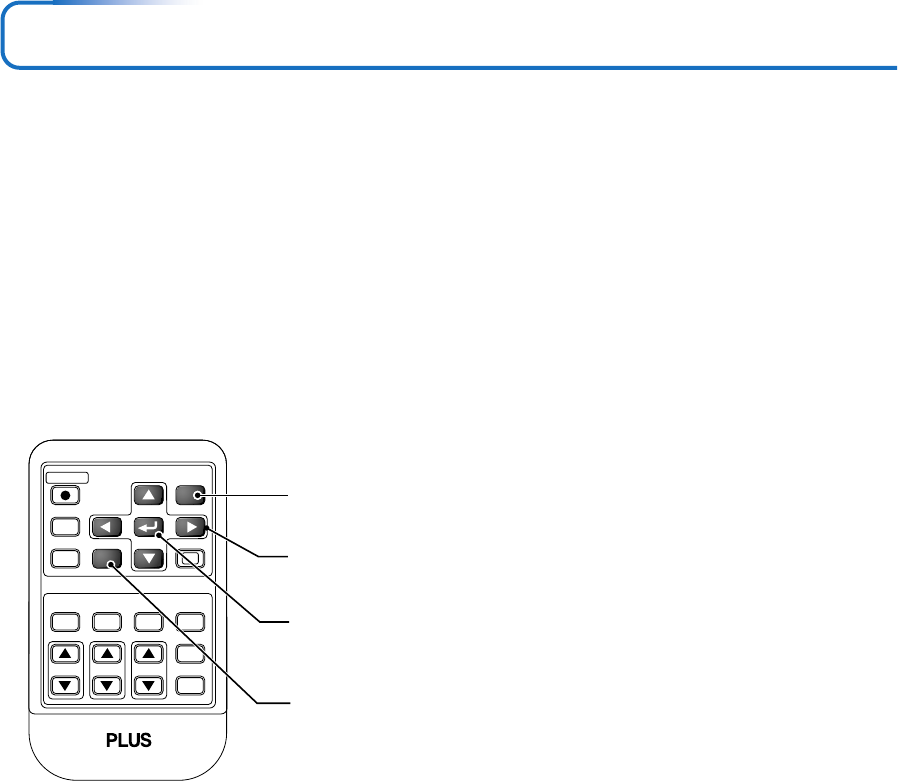
Names and functions of remote control unit buttons used for menu operations
RGB
STANDBY
VIDEO
FREEZE MUTE ECO AUTO
ASPECT
TIMER
VOL KSTN ZOOM
QUICK
MENU
Q
1234
CANCEL
ENTER
MENU button
Used for menu display and menu closure.
SELECT 왖왔왗왘 buttons
Used in the selection of menu names and item names as
well as in setting and adjusting the item contents.
CANCEL button
Used to return to menu name selection as well as to close
the menu (and the sub menu display).
ENTER button
Used to enter settings.
E-37
Menu Operation Method
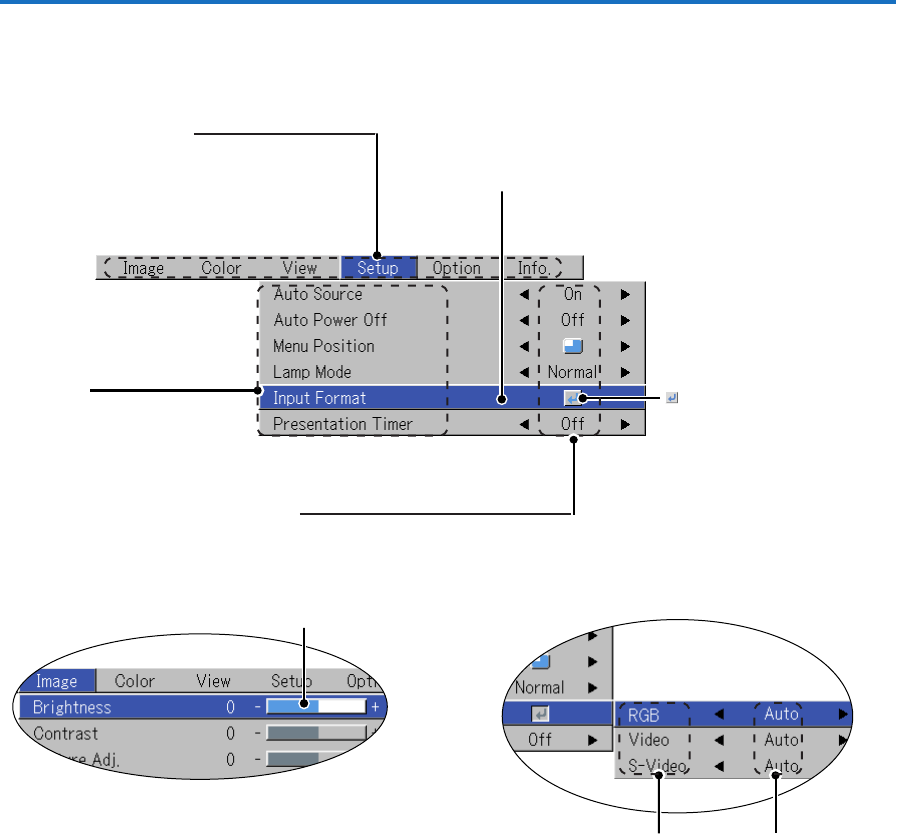
Menu Screen Names and Functions
Menu Name
This is the title of the menu.
There is a change to the title screen
when the menu is selected.
The cursor moves to the selected menu
name.
Cursor (Deep Blue)
This permits setting/adjustment of the
item located at the cursor position.
Item Name
This is the name of the ad-
justment or setting.
Icon: Pressing the ENTER but-
ton displays the sub menu or set-
ting contents.
Settings ContentsItem Name
Sub menu
Adjustment Bar
Adjustment Bar and Settings Contents
Adjustment Bar: The increases and decreases in bar length ex-
press the adjustment condition.
Setting Contents: Displays the contents that have been set.
E-38
Menu Operation Method
Performing Menu Operations
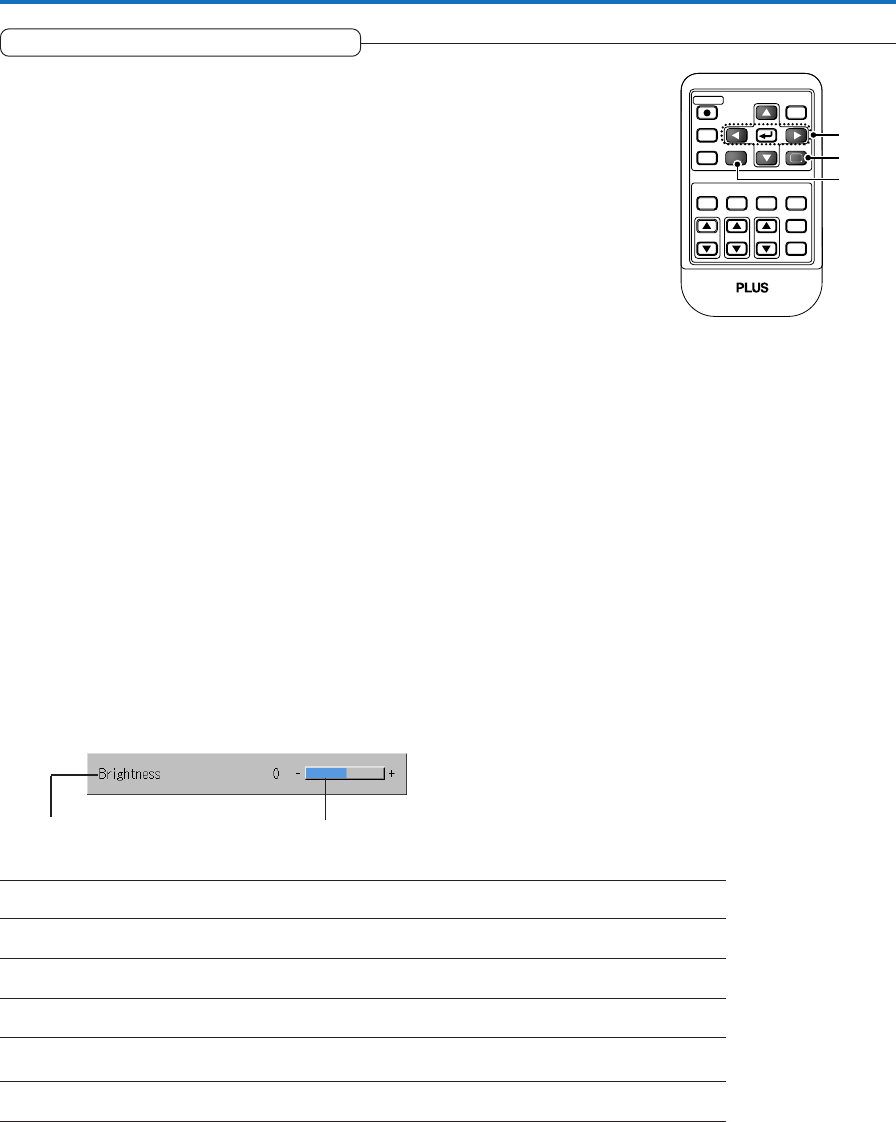
•Only “Setup”, “Options” and “Info.” can be selected when no signal is being input.
•The menu display will close if, after pressing a button, the next button operation is not made within 30 seconds.
•The adjustment and the setting values are stored even when the power is switched off or the plug is disconnected
from the power outlet.
(Note that some items are not stored.)
Preparation Switch on the power of the connected equipment, start the play operation or another operation, and input
the signal to the projector.
Select the input that you wish to adjust.
The menu display of the description diagram depicts an example in which the “Keystone” item name is selected.
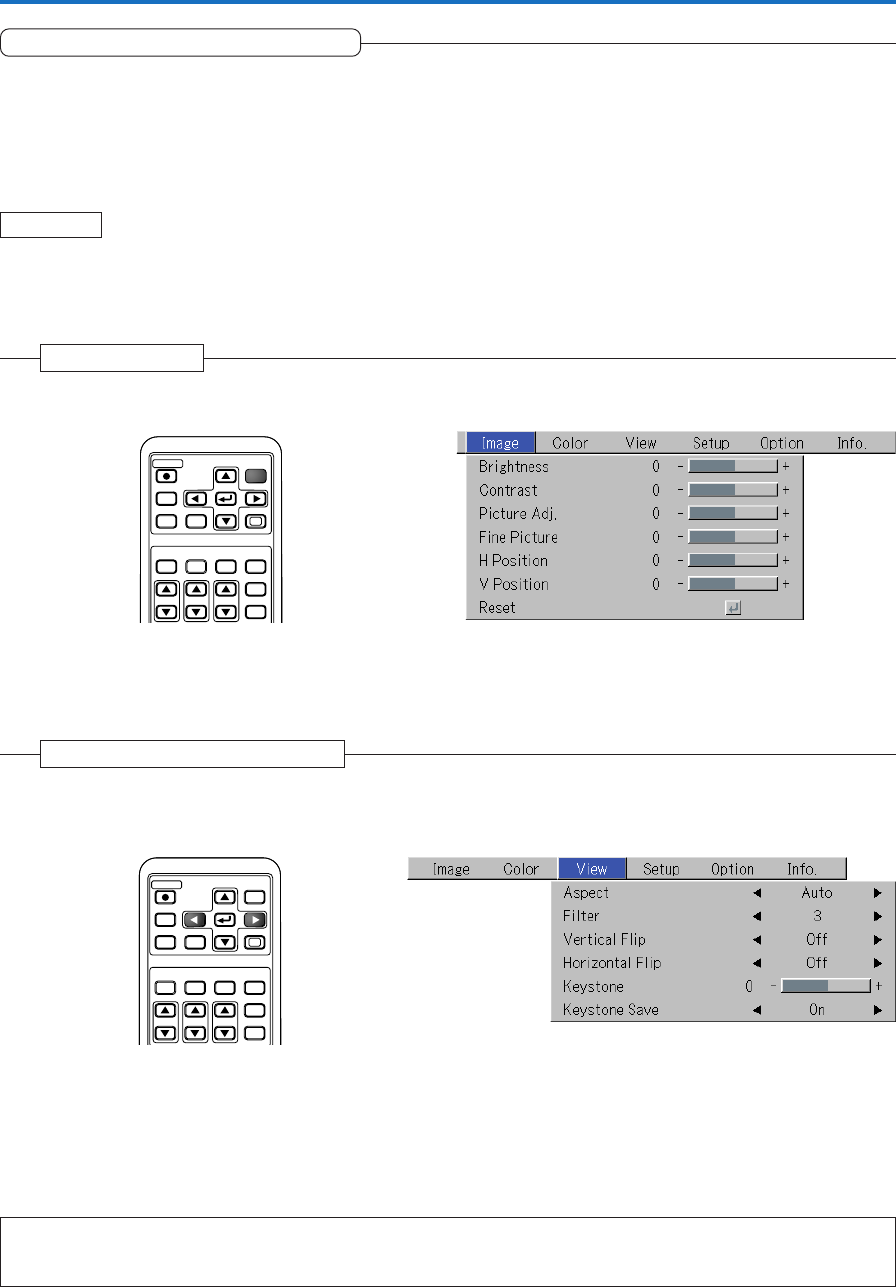
1Press the MENU button to display the menu
Menu Display
The menu name that existed when the menu was closed previously will be displayed.
Note:
Please check that the cursor of the item name has disappeared at the time of menu name selection.
Press the CANCEL button to make the cursor disappear.
RGB
STANDBY
VIDEO
FREEZE MUTE ECO AUTO
ASPECT
TIMER
VOL KSTN ZOOM
CANCEL QUICK
ENTER
Q
1234
MENU
2Press the SELECT 왗왘 button to select the menu name
Selection of the Menu Name
Each press of the SELECT 왘 button advances the selection one step in the sequence of “Color” → “View” → “Setup” →
“Option” → “Info.” → “Image”. Each press of the SELECT 왗 button causes a return of one step.
The cursor moves to the selected menu name.
RGB
STANDBY
VIDEO
FREEZE MUTE ECO AUTO
ASPECT
TIMER
VOL KSTN ZOOM
CANCEL QUICK
MENU
ENTER
Q
1234
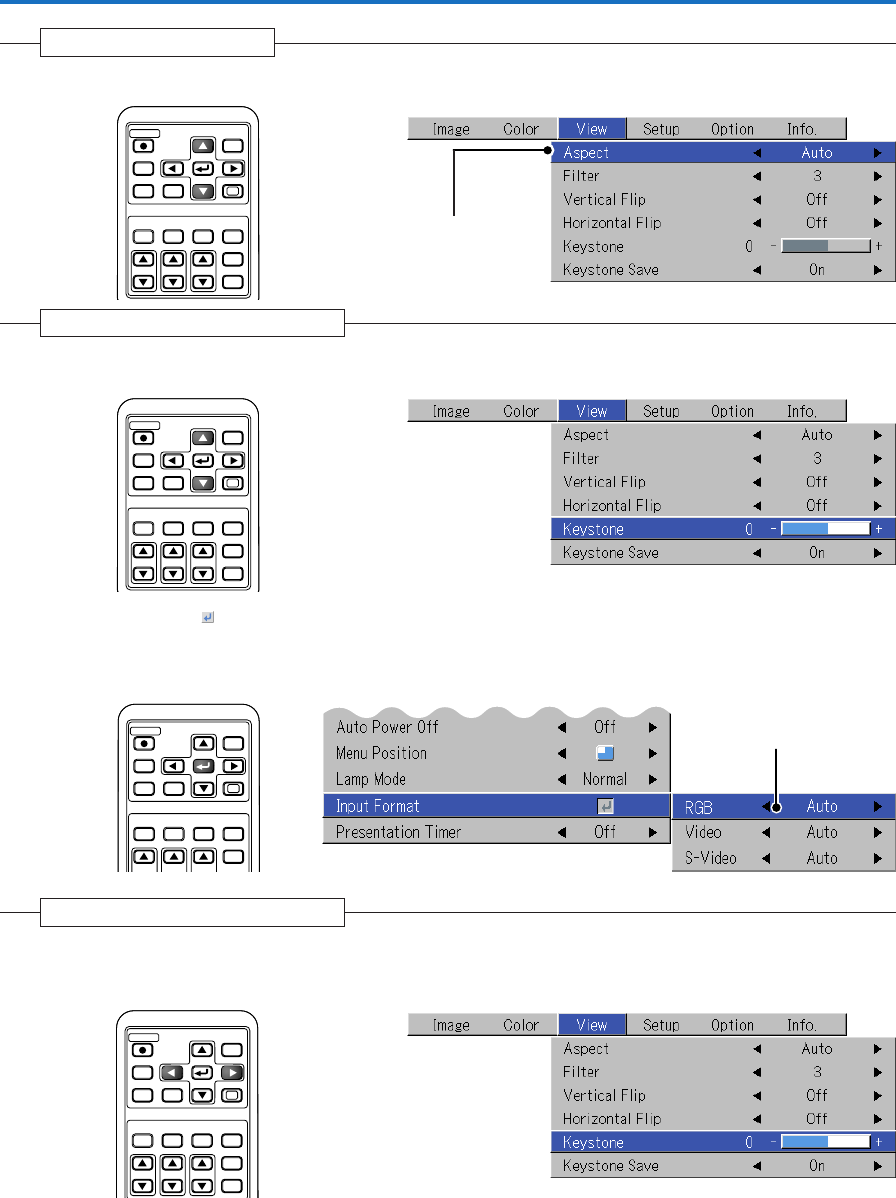
E-39
3Press the 왔 SELECT button to display the item name selection cursor.
Displaying the Cursor
This condition al-
lows selection of the
item name.
RGB
STANDBY
VIDEO
FREEZE MUTE ECO AUTO
ASPECT
TIMER
VOL KSTN ZOOM
CANCEL QUICK
MENU
ENTER
Q
1234
Menu Operation Method
4Press the SELECT 왖왔 button to align the cursor with the item name
Selection of the Item Name
RGB
STANDBY
VIDEO
FREEZE MUTE ECO AUTO
ASPECT
TIMER
VOL KSTN ZOOM
CANCEL QUICK
MENU
ENTER
Q
1234
Items for which the Icon Is Displayed
Press the ENTER button to display the submenu.
Press the SELECT 왖왔 button and align the cursor with the desired item name.
There are also some items for which the setting display or the verification display will appear. Please see the various item
descriptions.
RGB
STANDBY
VIDEO
FREEZE MUTE ECO AUTO
ASPECT
TIMER
VOL KSTN ZOOM
CANCEL QUICK
MENU
ENTER
Q
1234
Sub menu
5
Press the SELECT 왗왘 button and make the adjustment (or setting) while viewing the image
When a button is pressed, the image will also change.
Making Adjustments/Settings
Adjustment display: Each press of the button results in a change of 1 point and continued presses
cause changes to proceed in order.
Setting display: The setting contents display changes with each press of the button.
RGB
STANDBY
VIDEO
FREEZE MUTE ECO AUTO
ASPECT
TIMER
VOL KSTN ZOOM
CANCEL QUICK
MENU
ENTER
Q
1234
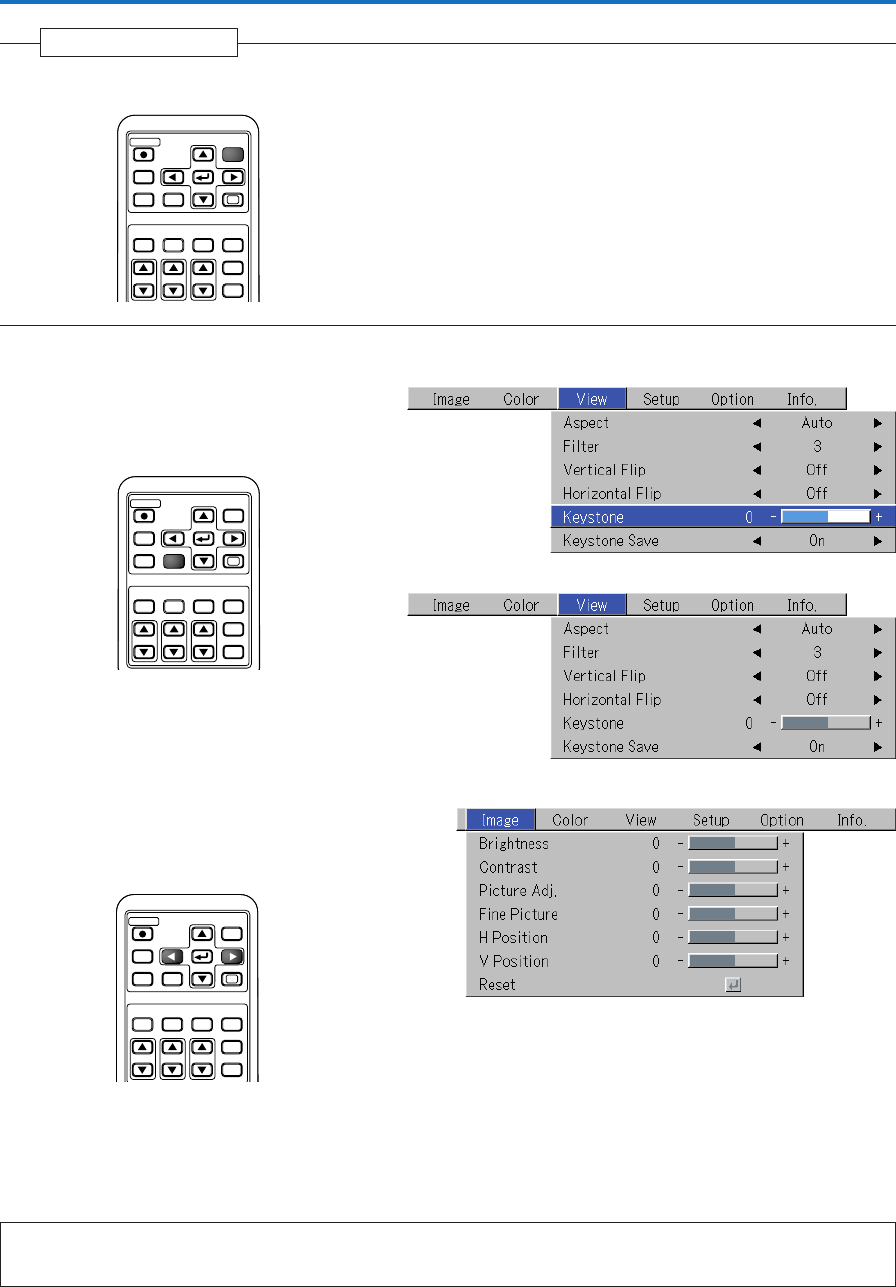
E-40
Menu Operation Method
6Press the MENU button and close the menu display
Closing the Menu
RGB
STANDBY
VIDEO
FREEZE MUTE ECO AUTO
ASPECT
TIMER
VOL KSTN ZOOM
CANCEL QUICK
ENTER
Q
1234
MENU
Selecting Another Menu Name with Remote Control Operation
When a sub menu is displayed, press the CANCEL but-
ton and close the sub menu.
Press the CANCEL button again to turn off the item name
cursor.
Press the SELECT 왗왘 button and select the menu name.
(Menu names cannot be selected when the item name
cursor is displayed.)
Note:
A press of the QUICK button while the menu is displayed will close the menu and display the quick menu. A press of the MENU button while
the quick menu is displayed will close the quick menu and display the menu.
RGB
STANDBY
VIDEO
FREEZE MUTE ECO AUTO
ASPECT
TIMER
VOL KSTN ZOOM
CANCEL QUICK
MENU
ENTER
Q
1234
RGB
STANDBY
VIDEO
FREEZE MUTE ECO AUTO
ASPECT
TIMER
VOL KSTN ZOOM
CANCEL QUICK
MENU
ENTER
Q
1234
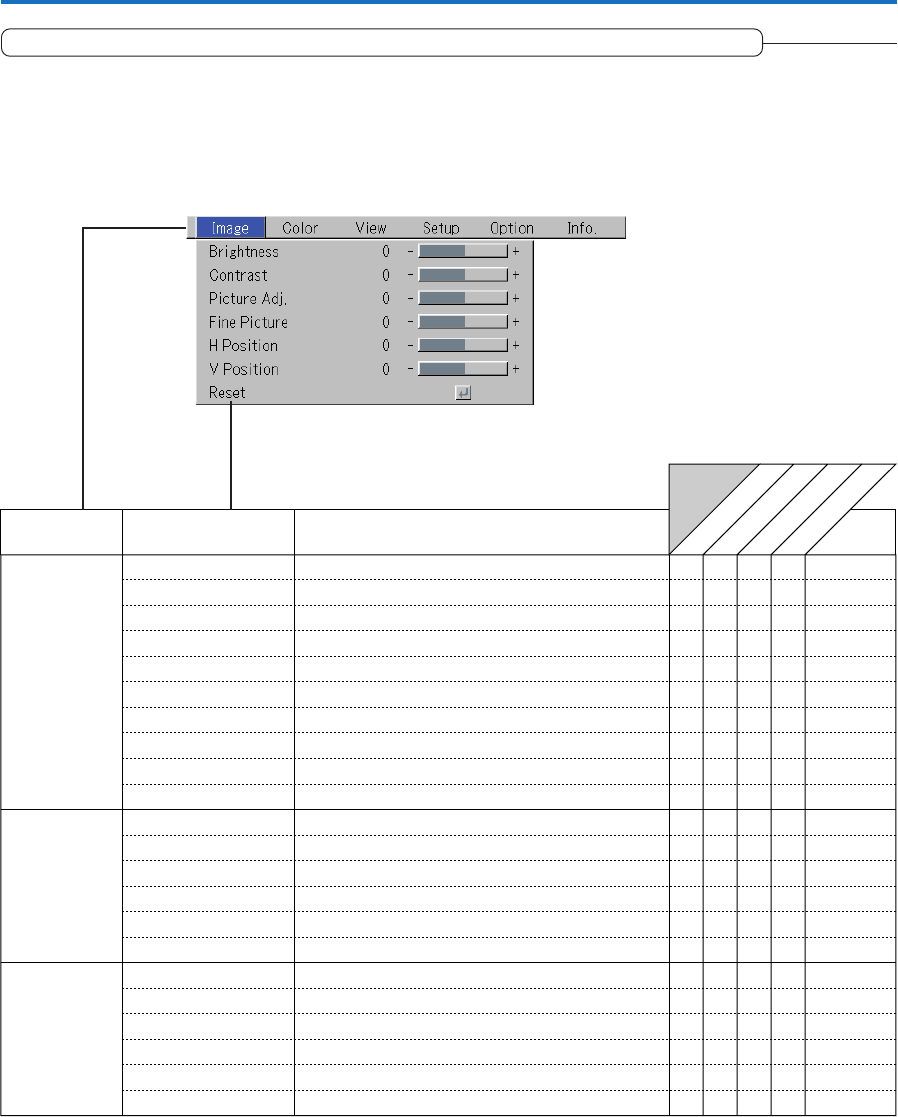
E-41
List of Item Names Offering Input Selection and Adjustments/Settings
The item names that can be adjusted/set will differ depending on the input signal.
“Tint” can be adjusted only at the time of NTSC composite/S signal input.
Menu Operation Method
[Example of Menu Display Items at the Time of Input Signal RGB Selection]
RGB
Component
VIDEO
S-VIDEO
Menu name
Image
Color
View
Brightness E-43
嘷嘷嘷嘷
Item Name Sub Menu
Item Name
Contrast E-43
嘷
嘷
嘷嘷嘷
Picture Adj.
Fine Picture
E-43
H Position
E-44
V Position
E-44
嘷
嘷
嘷
嘷E-44
Reset E-44
嘷嘷嘷嘷
Gamma E-45
嘷嘷嘷嘷
Quick Color Adj. E-45
嘷
Color Temp. E-46
嘷嘷嘷嘷
White E-46
嘷嘷嘷嘷
Color Space
E-46
嘷
White Balance E-47
嘷
Aspect E-48
嘷嘷嘷嘷
Filter E-48
嘷嘷嘷嘷
Vertical Flip E-49
嘷嘷嘷嘷
Horizontal Flip E-49
嘷嘷嘷嘷
Keystone E-49
嘷嘷嘷嘷
Keystone Save E-49
嘷嘷嘷嘷
Reference
Page
Input Signal
Color
Tint
E-43
嘷嘷
Sharpness
E-43
嘷嘷
E-43
嘷嘷
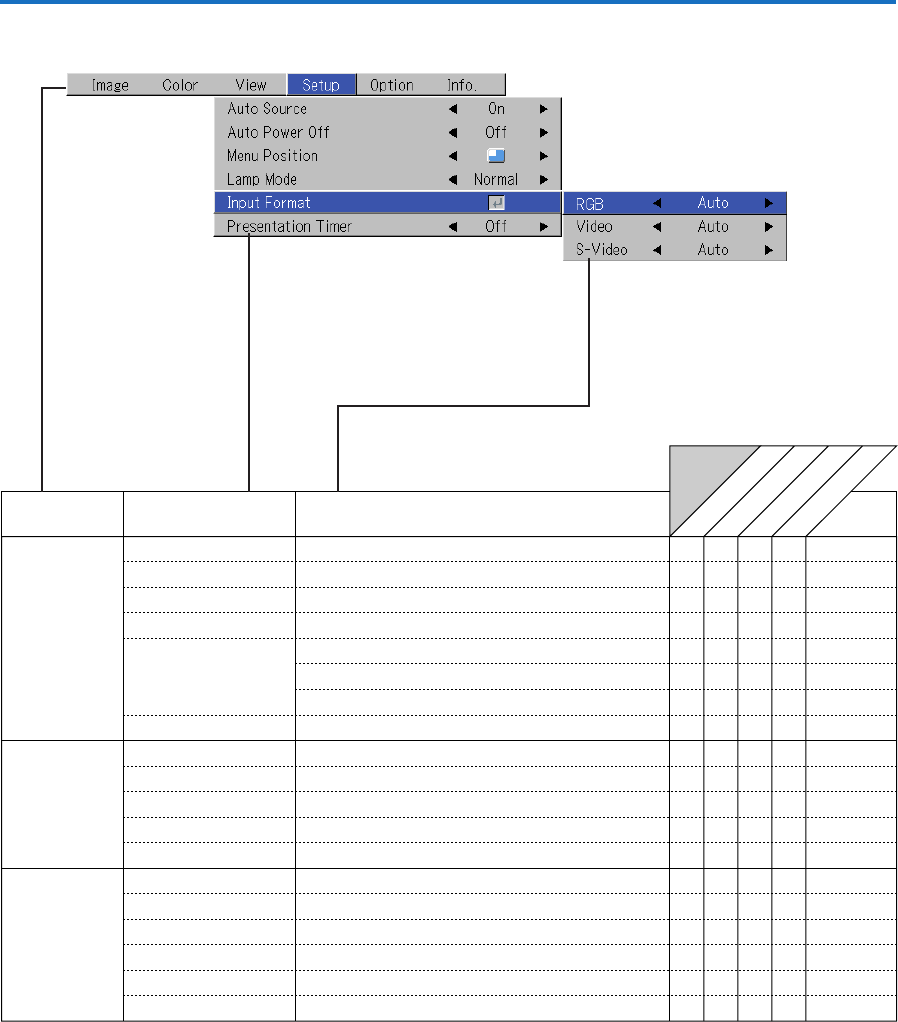
E-42
RGB
Component
VIDEO
S-VIDEO
Menu name
Setup
Info.
Auto Source
E-50
嘷嘷嘷嘷
Item Name
Reference
Page
Sub Menu
Item Name
Auto Power Off
E-50
嘷嘷嘷嘷
嘷嘷嘷
嘷嘷嘷
Menu Position
Lamp Mode
E-51
Input Format
E-51
RGB
嘷
嘷
嘷嘷嘷嘷
嘷嘷嘷嘷
嘷嘷嘷嘷
嘷嘷
Video
E-52
S-Video
E-52
Presentation Timer
E-52
E-52
嘷嘷
Language
On Screen
Background
Startup Screen
Option E-53
嘷嘷嘷嘷
E-53
嘷嘷嘷嘷
E-53
嘷嘷嘷嘷
E-54
嘷嘷嘷嘷
Security Lock
E-54
嘷嘷嘷嘷
Status
E-55
嘷嘷嘷嘷
Factory Default
E-55
嘷嘷嘷嘷
Lamp Timer Reset
E-55
嘷嘷嘷嘷
嘷嘷嘷
嘷嘷嘷
Resolution
E-56
嘷
Frequency
E-56
嘷
Lamp Timer
E-56
嘷嘷嘷嘷
Input Signal
Menu Operation Method
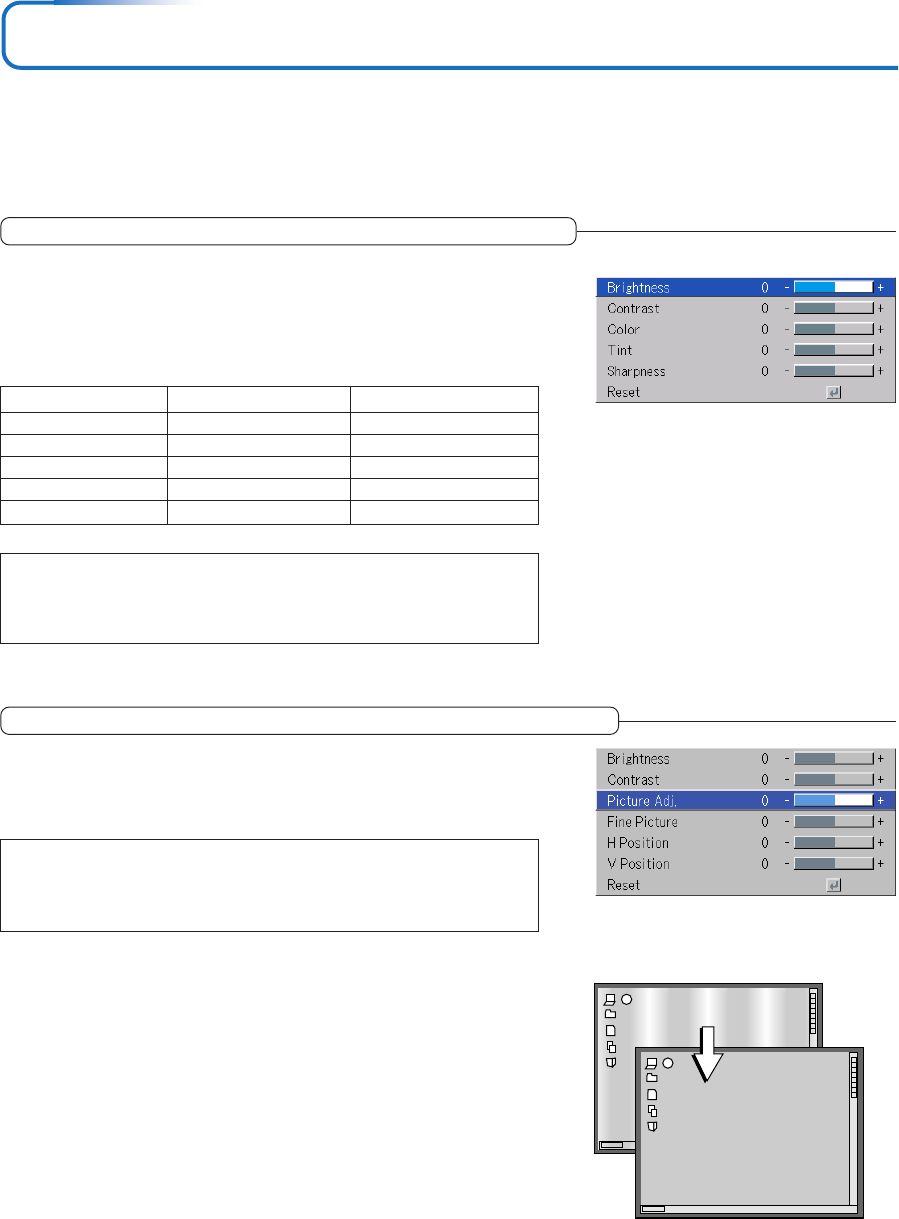
E-43
Image
•Perform this operation while projecting the picture for which the adjustment/setting will be made.
•Select the menu name “Image”.
See “Menu Operation Method” on Page E-36 for information about performing menu operations. The item name display will
differ depending on the input signal. See “List of Item Names Offering Input Selection and Adjustments/Settings” on Page E-41.
Brightness / Contrast / Color / Tint / Sharpness
Picture qualities such as brightness and contrast will change depend-
ing on the whether the room is bright or dark. Please adjust to suit your
preference.
Select the desired item name and then adjust with the SELECT 왗왘 buttons.
Item Name
Brightness
Contrast
Color
Tint
Sharpness
SELECT 䊴 Button SELECT 䊳 Button
Darker
Less contrast
Less dense color
More red
Softer image
Brighter
More contrast
Denser color
More green
Sharper image
Note:
* The adjustment values of the adjustable items are stored according to input source.
* “Tint” can only be adjusted when inputting NTSC composite/S-Video signals or
component signals.
Picture Adj. / Fine Picture / H Position / V Position
Usually, automatic adjustment is performed at the time of signal selec-
tion, but when automatic adjustment is not effective, these adjustments
can be performed.
Note:
When the image extends beyond the boundaries of the screen or is smaller than the
screen, check that the “View”
→
“Aspect” setting is set to “Auto”. See “Aspect” on
Page E-48.
Picture Adj. (Picture Adjustment)
Adjust this when bright and dark vertical bands appear on the screen.
Select the “Picture Adj.” item name and adjust with the SELECT 왗왘 buttons
so that the vertical bands disappear and brightness becomes uniform across
the screen.
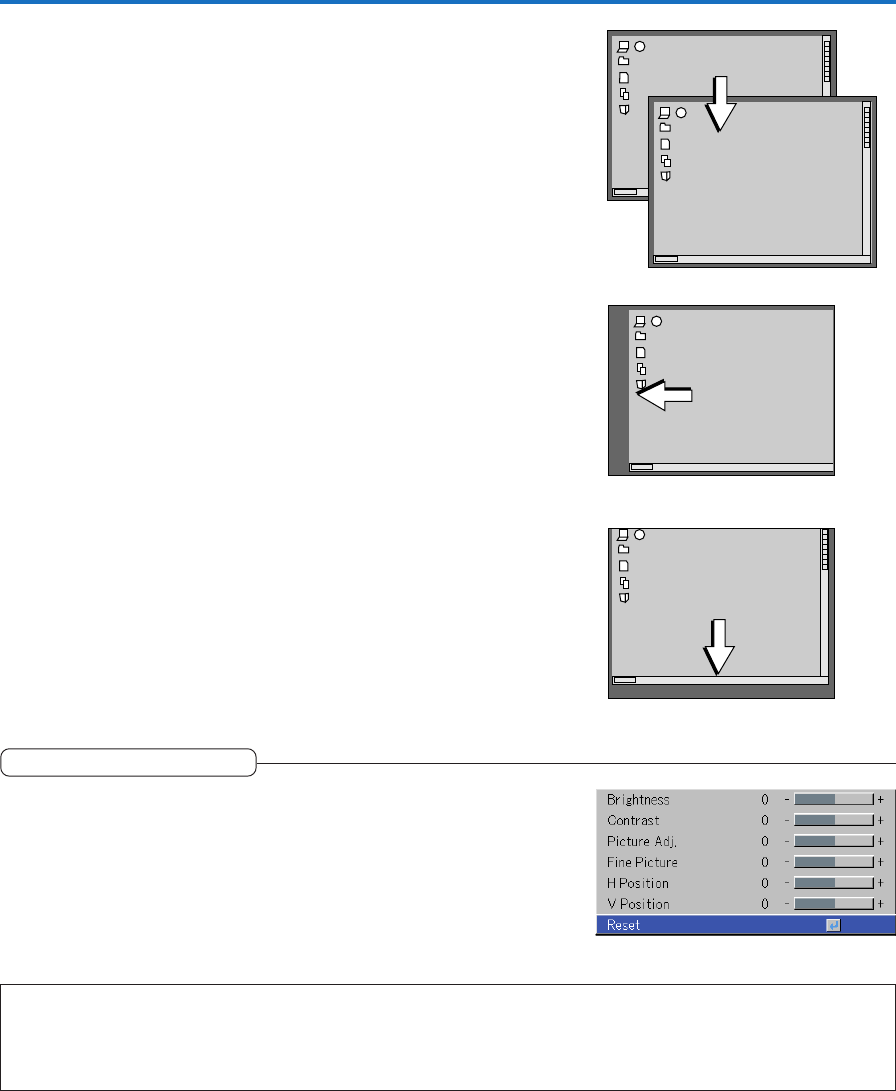
E-44
Fine Picture
Adjust this when the picture shows a lack of color fidelity or flickering.
Select the “Fine Picture” item name and adjust with the SELECT 왗왘 buttons
so that the lack of color fidelity or the flickering disappears.
Image
H Position
Adjust this when the picture is shifted to the left or right.
Select the “H Position” item name and adjust with the SELECT 왗왘 buttons.
V Position
Adjust this when the picture is shifted up or down.
Select the “V Position” item name and adjust with the SELECT 왗왘 buttons.
Reset
This function resets (i.e., returns to the standard settings) the adjust-
ment/setting value of the “Image” menu name.
A press of the ENTER button forces the reset.
Note:
* The item name “Fine Picture” at the time of RGB input will not be reset.
* “Reset” of the menu name “Image” can be reset for each input source.
* To reset the adjustments/settings of all the menu items (while noting that there are some items that cannot be reset), see “Factory Default”
on Page E-55.
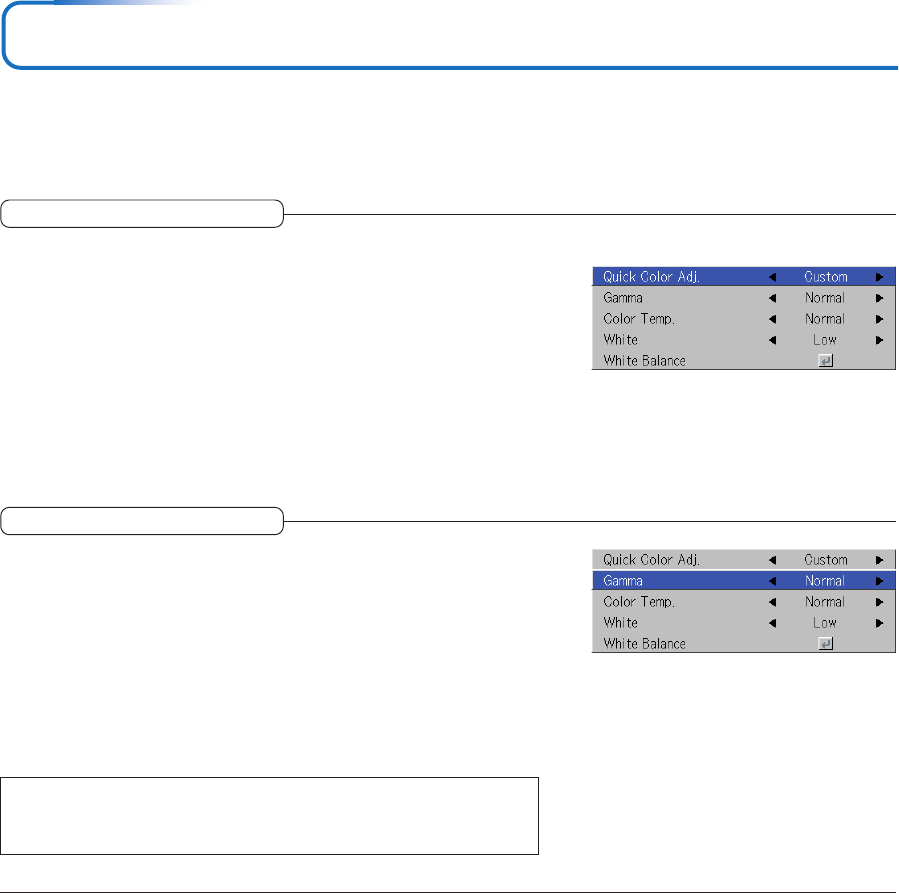
E-45
Color
•Do the following operation while displaying the image you want to adjust or set.
•Select the menu name “Color”.
See “Menu Operation Method” on Page E-36 for information about performing menu operations. The item name display will
differ depending on the input signal. See “List of Item Names Offering Input Selection and Adjustments/Settings” on Pages E-
41.
Gamma
Gamma corrects the proportion of change of the dark portions from the
bright portions of the input signal.
Set this to reproduce natural color tone or to distinctly project a per-
sonal computer picture in a bright conference room.
Select the “Gamma” item name and select the setting contents with the SE-
LECT 왗왘 buttons.
Normal ....... Correction with standard settings
Natural ........ Corrects for natural color tones
Real ............ Corrects with emphasis on brightness
Note:
When “Color” or “Standard” is selected for “Quick Color Adj.”, the “Gamma” adjust-
ment item is displayed in gray and cannot be selected or adjusted.
Quick Color Adj.
Select the preset color mode.
Select the “Quick Color Adj.” item name and select the setting contents with
the SELECT 왗왘 buttons.
Color ........... Select this to prioritize color.
Standard ..... Select this to prioritize brightness.
* When “Color” or “Standard” is selected, the “Gamma”, “Color Temp.” and “White” adjustment
items are displayed in gray and cannot be selected or adjusted.
Custom ....... “Gamma”, “Color Temp.” and “White” adjustment items can be selected
and adjusted
* The selected values for the different adjustment items are stored in the memory so the desired
color adjustments can be set.
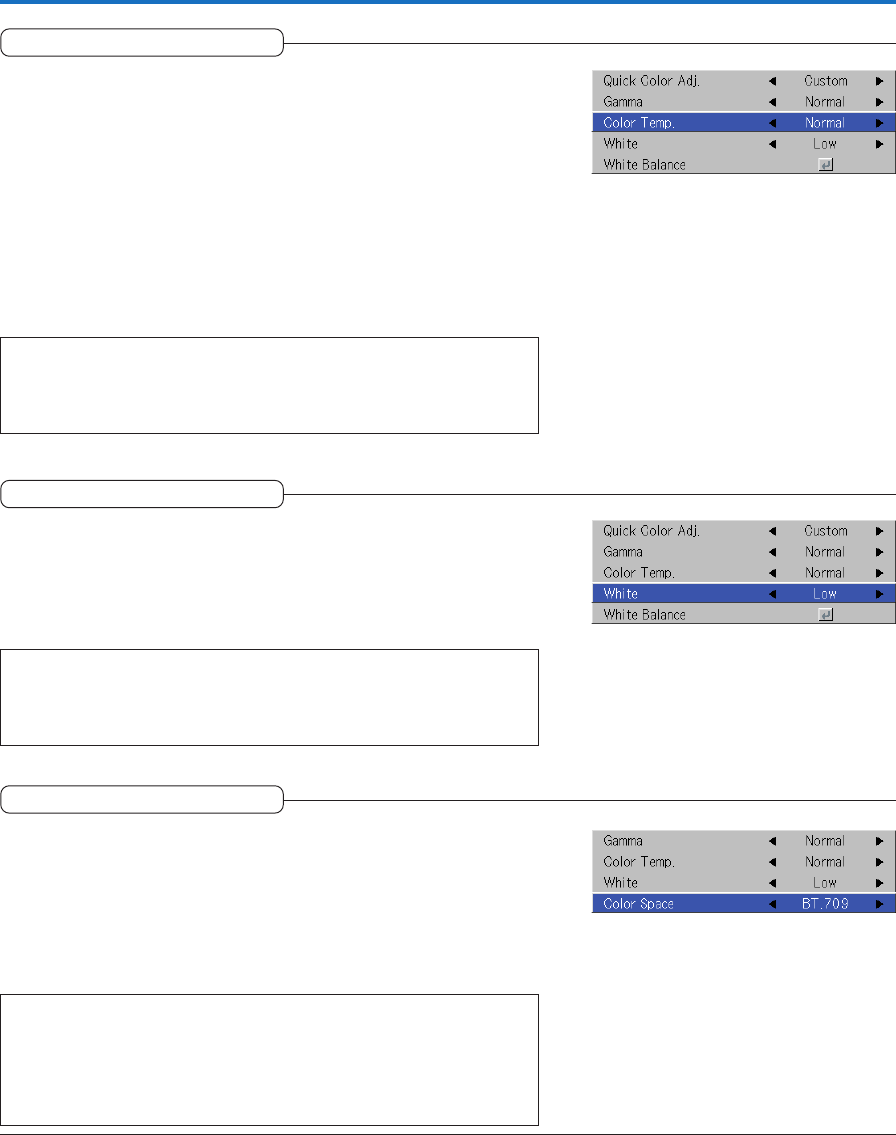
E-46
Color Space
Set this function when a component signal (YPbPr) is projected and the
image is extremely red or extremely green.
Select the item name “Color Space” and use the SELECT 왗왘 buttons to
select a color space setting that provides a normal image.
Selection contents at the time of YPbPr input
BT.709, SMPTE240
Note:
* When the component signal undergoes conversion processing to red, green,
and blue which express the image of the projector, the correct color cannot be
reproduced unless a system compliant with the color difference conversion sys-
tem of the input signal is used. Color Space serves to make this selection.
* The color space can only be adjusted with high definition TVs.
Color
Color Temp.
The screen color is affected by the color of the illumination and other
extraneous light.
This function adjusts the white, which is the reference color for video
equipment, and improves the quality of color reproduction. Adjustment
can also be used to enhance skin colors.
Select the item name “Color Temp.” and select the setting contents with the
SELECT 왗왘 buttons.
Low ............ Produces warm whites (reddish)
Medium ...... Produces warm whites (yellowish)
Normal ....... Produces the white of sunlight
High ............ Produces cool whites (bluish)
Note:
When “Color” or “Standard” is selected for “Quick Color Adj.”, the “Color Temp.”
adjustment item is displayed in gray and cannot be selected or adjusted. See “Quick
Color Adj.” on E-45.
White
When projecting, this function is used to emphasize the whites of text or
diagrams on the personal computer.
Select the item name “White” and use the SELECT 왗왘 buttons to select the
setting contents.
Select the desired degree of white from among “Low”, “Medium”, and “High”.
Note:
When “Color” or “Standard” is selected for “Quick Color Adj.”, the “White” adjust-
ment item is displayed in gray and cannot be selected or adjusted. See “Quick Color
Adj.” on E-45.
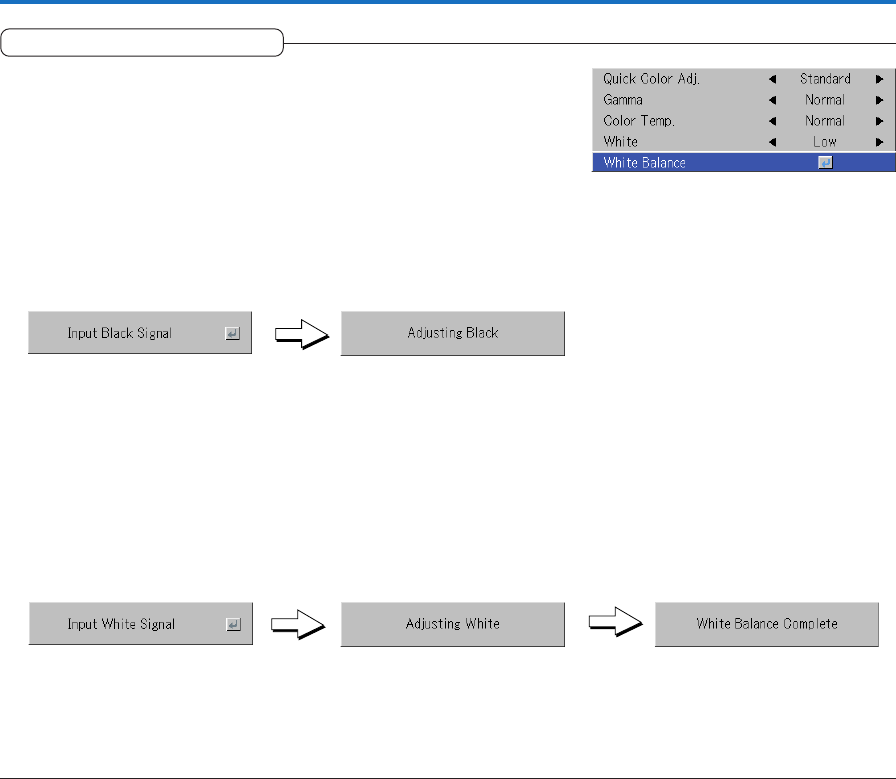
E-47
White Balance
This function automatically adjusts the black level and the white level of
the analog RGB input signal to suit the personal computer.
1 Select the item name [White Balance] and press the ENTER button.
The display will change to [Input Black Signal].
2 The screen background color of the connected personal computer
will be set to black.
3. Press the ENTER button. The display will change to [Adjusting Black]
and the black level will be adjusted.
4 The adjustment of the black level is completed and the display
changes to [Input White Signal].
5 The screen background color of the connected personal computer
will be set to white.
6 Press the ENTER button. The display will change to [Adjusting White]
and the white level will be adjusted.
[White balance complete] is displayed for a while and the adjustment is
completed.
Color
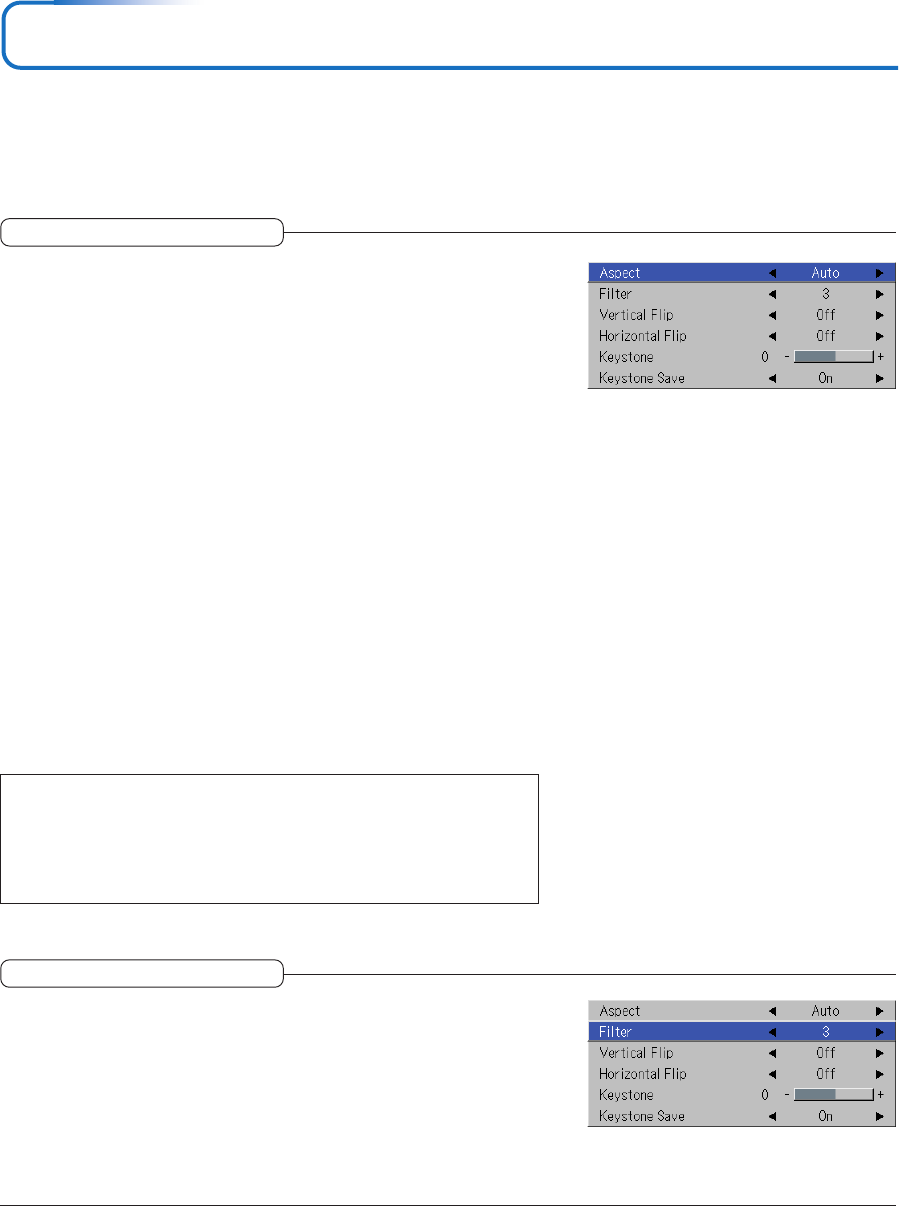
E-48
View
•Perform this operation while projecting the picture for which the adjustment/setting will be made.
•Select the menu name “View”.
See “Menu Operation Method” on Page E-36 for information about performing menu operations. The item name display will
differ depending on the input signal. See “List of Item Names Offering Input Selection and Adjustments/Settings” on Page E-41.
Aspect
This function sets the horizontal and vertical picture proportions of the
input signal.
Select the item name “Aspect” and select the setting contents with the SE-
LECT 왗왘 buttons.
Personal Computer Signal
Auto ............ Automatically enlarges or reduces the image to project a full screen in a
ratio of 4:3
Direct .......... Maintains the aspect ratio and projects a picture of the maximum
displayable size
Real ............ Projects the input signal without pixel conversion
Video Signals
Auto ............ While maintaining the aspect ratio, projects a full screen so that no por-
tions extend beyond the boundaries of the screen. The top and bottom of
the 16:9 image becomes black.
Wide ........... Projects to fill the full width with the entire image at 16:9.
(This feature is used to project a squeezed image in a proper aspect ra-
tio.)
Zoom .......... Projects only the 4:3 portion within 16:9 image to fill the screen.
(Portion that extend off screen is cut.)
See “Selection of Aspect Ratio” on Page E-28 for diagrams of projection screen
images that correspond to the input signals.
Note:
Please note that using this monitor for the purpose of commercial gain or the at-
traction of public attention in a venue such as a coffee shop or hotel and projecting
a 4:3 screen in wide mode or leaving a squeezed screen as a compressed image
raises concern about the infringement of the copyright holder’s rights which are
protected by copyright law.
Filter
This function sets the sharpness when the input signal is adjusted to
the resolution of the projector and enlarged or reduced.
Select the item name “Filter” and select the setting contents with the SELECT
왗왘 buttons.
Smaller numerical values result in a sharper picture and larger values result in
a softer picture. Please select your desired setting value.
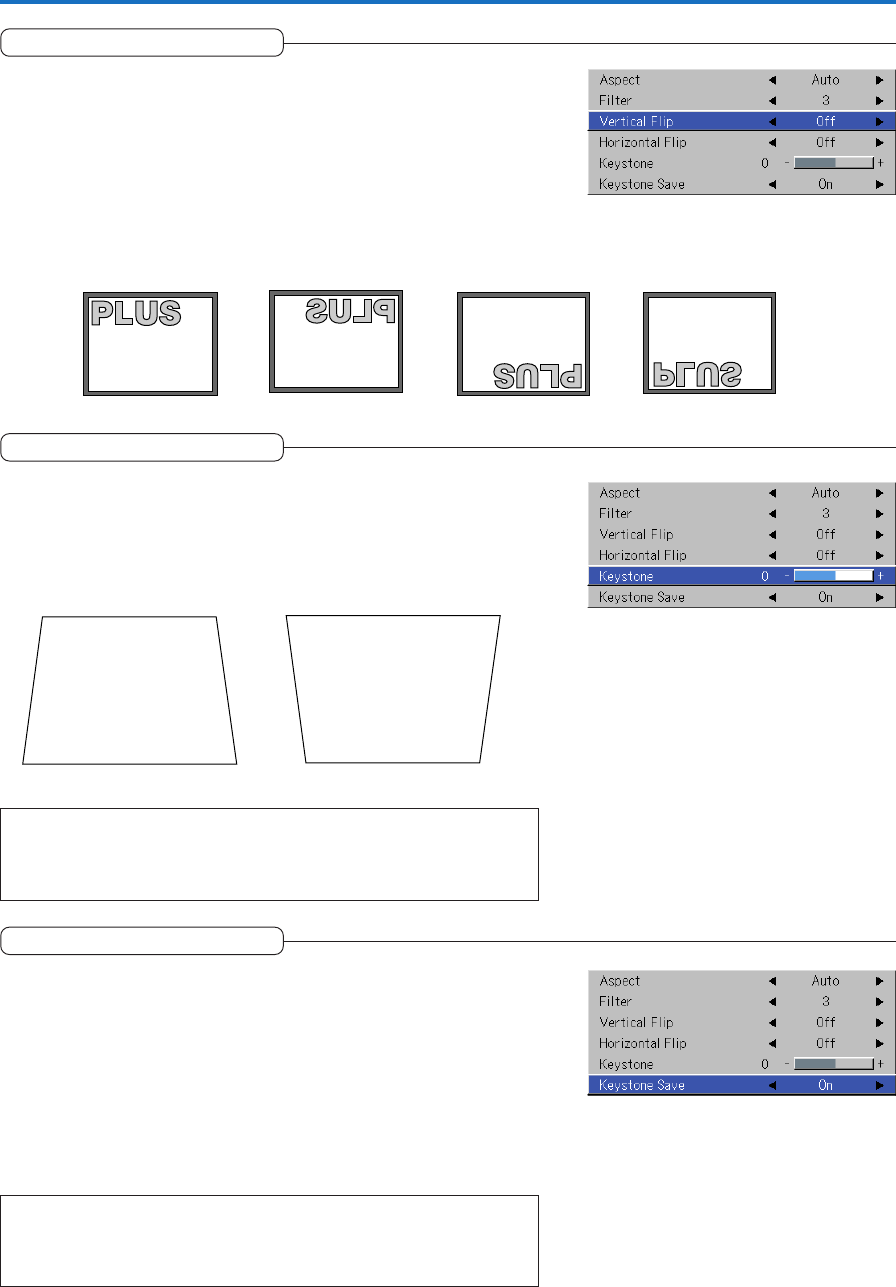
E-49
Vertical Flip
In selecting the method of projecting to the screen, these functions are
set when the projector is in a rear screen installation.
Select the item name “Vertical Flip” or “Horizontal Flip” and select the setting
contents with the SELECT 왗왘 buttons.
View
“Vertical Flip” Off
“Horizontal Flip” Off
“Vertical Flip” Off
“Horizontal Flip” On
“Vertical Flip” On
“Horizontal Flip” On
“Vertical Flip” On
“Horizontal Flip” Off
Press the “왗” button. Press the “왘” button.
Keystone
Keystone distortion will occur when the projector and screen are on an
angle (in the vertical orientation). This function is used to correct this
distortion.
Select the item name “Keystone” and correct the keystone distortion using the
SELECT 왗왘 buttons.
Note:
* The menus and other on-screen displays cannot be adjusted.
* Please note that depending on the projected picture and the projection condi-
tions, it may not be possible to eliminate keystone distortion completely.
This function is used to save the keystone adjustment values.
Setting Keystone Save to on will set the previous keystone adjustment values
when projecting after the power cable has been disconnected and then recon-
nected.
Select the item name “Keystone Save” and set with the SELECT 왗왘 buttons.
Off .............. The keystone adjustment values return to the initial values when the power
cable is unplugged.
On ............... The keystone adjustment values are retained in storage even when the
power cable has been unplugged.
Note:
Regardless of whether Keystone Save is set to “On” or “Off”, when projection is
from the standby condition, the picture is projected using the previous keystone
adjustment values.
Keystone Save
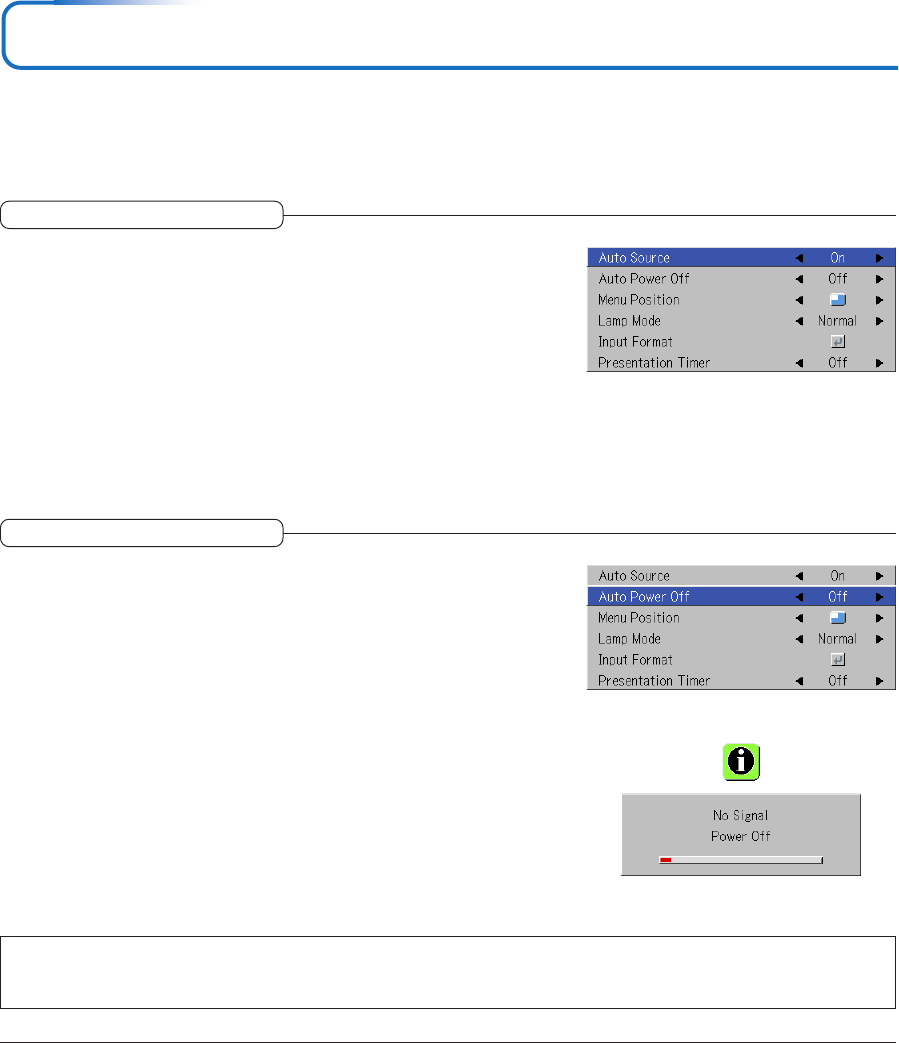
E-50
Setup
•Select menu name “Setup”.
See “Menu Operation Method” on Page E-36 for information about performing menu operations. The item name display will
differ depending on the input signal. See “List of Item Names Offering Input Selection and Adjustments/Settings” on Page E-41.
The Auto Source function automatically detects the input signal when
the power supply is switched on and when the input is switched.
Select the item name “Auto Source” and select the setting contents with the
SELECT 왗왘 buttons.
On ............... Switches on the automatic detection function
Off .............. Switches off the automatic detection function
Signal Detection Order When On
The sequence of RGB → VIDEO → S-VIDEO is searched repeatedly.
When a signal is detected, the search is stopped and the image is projected.
Auto Source
This function switches off the projector power automatically when the
input of the projector enters a no-signal condition.
Select item name “Auto Power Off” and select the setting contents with the
SELECT 왗왘 buttons.
On ............... The power is switched off when there is no signal.
Off .............. The power is not switch off even when there is no signal.
Operation when Function is On
•The “No Signal Power Off” display appears when a no-signal condition con-
tinues for approximately 10 seconds. The power is switched off about 5
minutes after this.
•If a signal is input during the appearance of the display and an operation
button other than the STANDBY button is pressed, the display is closed and
the function is cancelled.
Auto Power Off
Note:
Some video decks and other equipment output a blue background or other video when playback ends. When this happens, a signal is being
input to the projector and Auto Power Off is not activated.
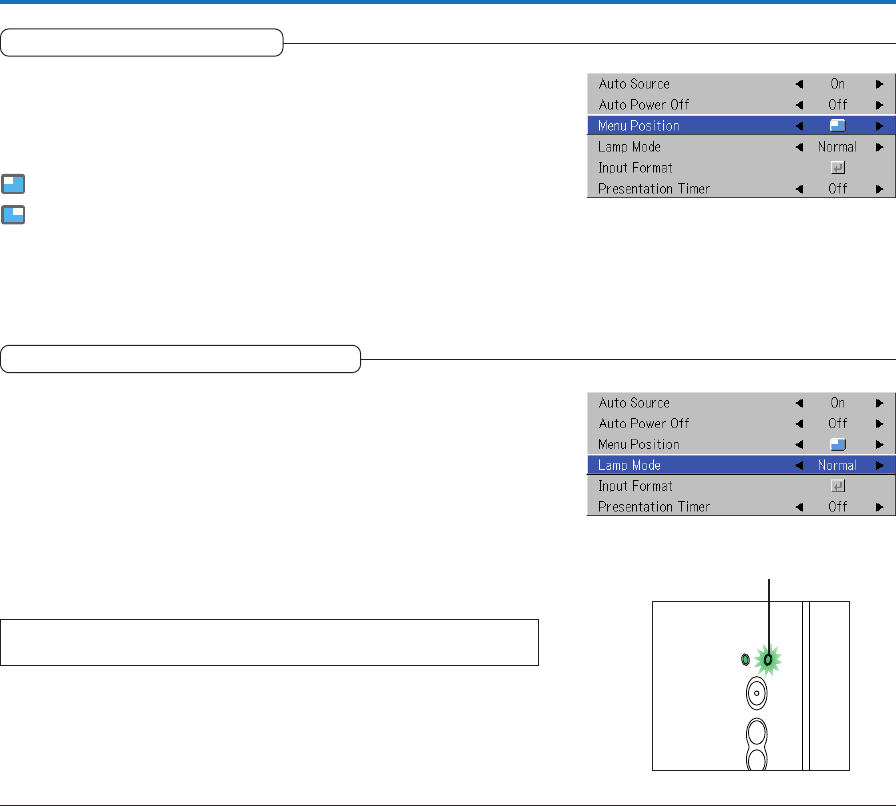
E-51
Lamp Mode
Use this if the picture is projected on a small screen and the picture is
too bright or when projecting images in dark rooms.
Select the item name “Lamp Mode” and select the setting contents with the
SELECT 왗왘 buttons.
Eco ............. The lamp’s brightness is reduced to approximately 80%, extending the
lamp’s service life.
(STATUS indicator is green)
Normal ....... The lamp brightness is set to 100% and the screen is bright.
(STATUS indicator is off)
Note:
Frequent switching this mode can degrade the lamp.
Setup
Menu Position
This function sets the display position of the menu.
Select item name “Menu Position” and select the setting contents with the
SELECT 왗왘 buttons.
............. Displays on the left side
............. Displays on the right side
STANDBY
AUTO
SOURCE
STANDBY STATUS
STATUS Indicator
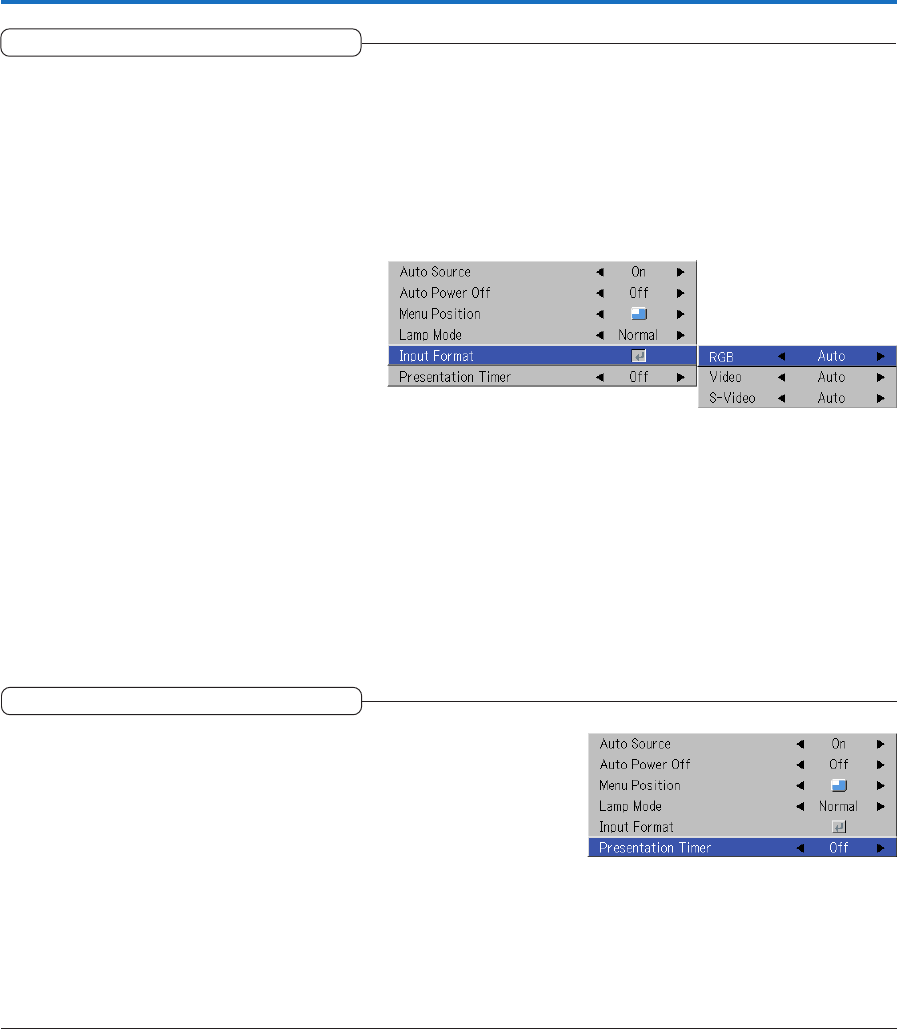
E-52
Presentation Timer
The presentation is given while checking the timer displayed on the
screen.
The gauge display allows the remaining time to be known at a glance.
Select the item name “Presentation Timer” and select the setting contents
with the SELECT 왗왘 buttons.
Setting contents: Off, 10 min., 20 min., 30 min., 40 min., 50 min., 60 min.
To start the timer...
Press the MENU button and open the menu.
The timer display will appear at the lower right and the timer will start.
See “Using the Presentation Timer” on Page E-32 for details.
Setup
Input Format
This function is used in setting the input signals of the input connec-
tors.
Normally, this should be set to Auto. When identification is not possible
with Auto, make the setting.
Select the item name “Input Format”, press the ENTER button, and the sub
menu will open.
Select the connector that is to be changed, and select the setting contents
with the SELECT 왗왘 buttons.
[RGB]
This is the signal setting for the RGB connector.
Auto ............ Automatically identifies the signal.
RGB ............ Analog RGB signal is set.
Component . Component signal is set.
[Video] and [S-Video]
[Video] is the color system setting for the VIDEO connector and [S-Video] is
the color system setting for the S-VIDEO connector.
Auto ............ Automatic identification.
NTSC .......... Fixed to the NTSC system.
NTSC 4.43 .. Fixed to the NTSC 4.43 system.
PAL ............. Fixed to the PAL system.
PAL M ......... Fixed to the PAL M system.
PAL N ......... Fixed to the PAL N system.
PAL 60 ........ Fixed to the PAL 60 system.
SECAM ....... Fixed to the SECAM system.
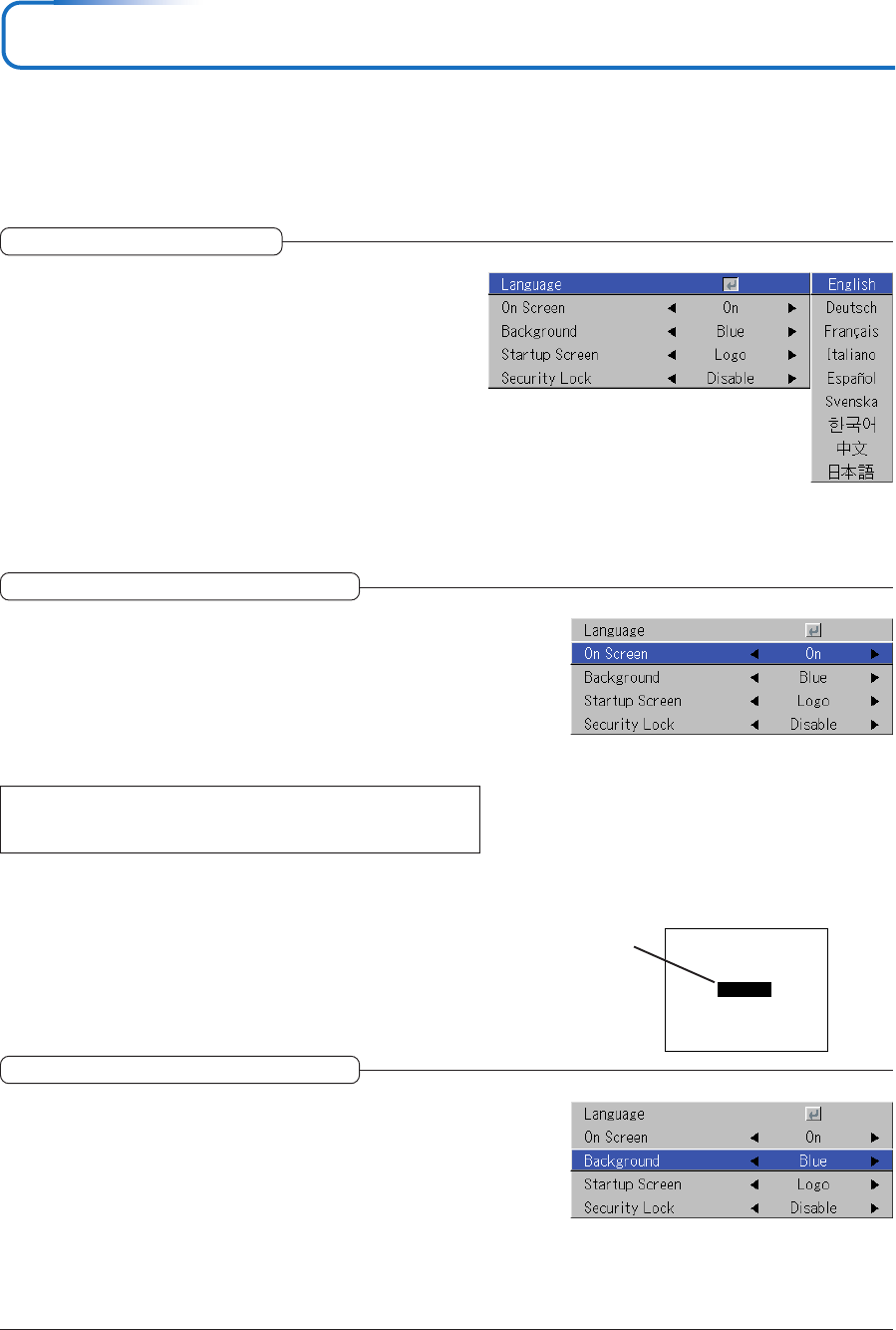
E-53
Language
This function sets the language that is displayed on screen in
the messages and menu displays.
Select item name “Language” and press the ENTER button to open
the Language sub menu.
Select the language with the SELECT 왖왔 buttons.
On Screen
This function switches on/off the messages displayed with a black
frame such as the input signal information and the aspect ratio.
Select item name “On Screen” and select the setting contents with the
SELECT 왗왘 buttons.
On ............... The message is displayed.
Off .............. The message is not displayed.
Note:
Even when set to off, messages that are not in a black frame will be dis-
played.
Example of a display when the
ASPECT button is pressed
Wide
Background
This function sets the screen color when the input source is no-
signal.
Select item name “Background” and select the setting contents with
the SELECT 왗왘 buttons.
Blue ............ Sets a blue screen when there is no signal
Black ........... Sets a black screen when there is no signal
Option
•Select menu name “Option”.
See “Menu Operation Method” on Page E-36 for information about performing menu operations. The item name display will
differ depending on the input signal. See “List of Item Names Offering Input Selection and Adjustments/Settings” on Page E-41.
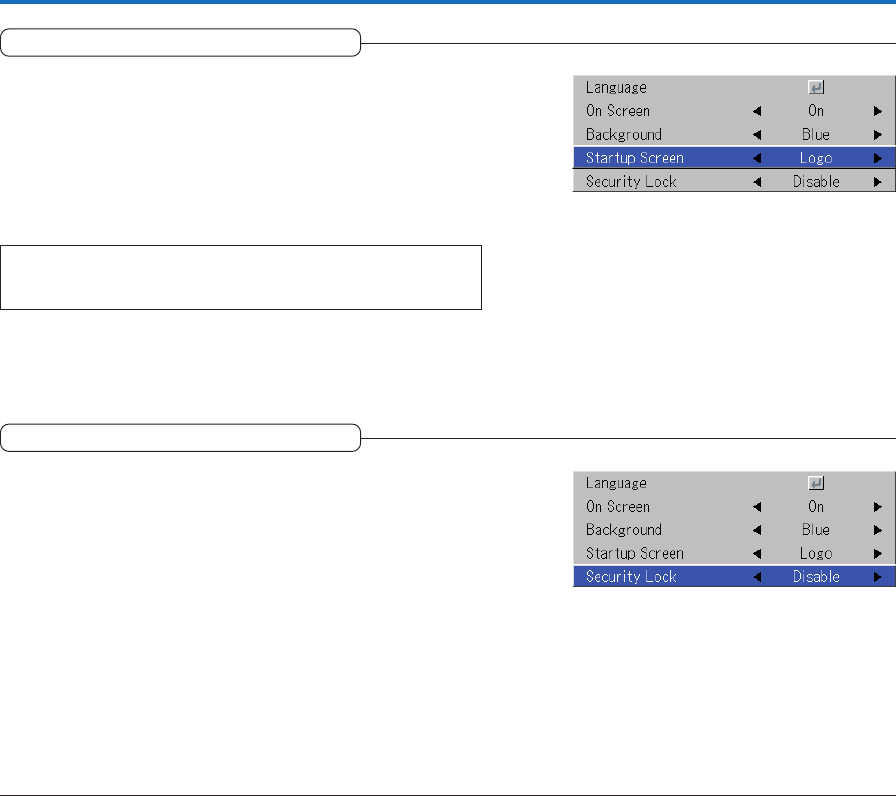
E-54
Startup Screen
This is the selection of whether or not to display the logo screen
at startup time.
Select item name “On Screen” and select the setting contents with the
SELECT 왗왘 buttons.
Logo ........... Displays the logo.
Blank .......... Does not display the logo.
Note:
When “Logo” is selected at the startup screen, the “PLUS” logo is dis-
played.
Option
Security Lock
A password can be registered and the security lock set in order
to prevent unauthorized use of the projector.
For instructions on using the security function, see “Protecting the
Projector with the Security Lock” on E-33.
Select item name “Security Lock” and select the setting contents with
the SELECT 왗왘 buttons.
Disable ....... The security lock is disabled.
The projector can be operated without inputting the password.
Enable ......... The security lock is enabled.
The security lock is activated when the power is turned on, and
the password must be input in order to operate the projector.
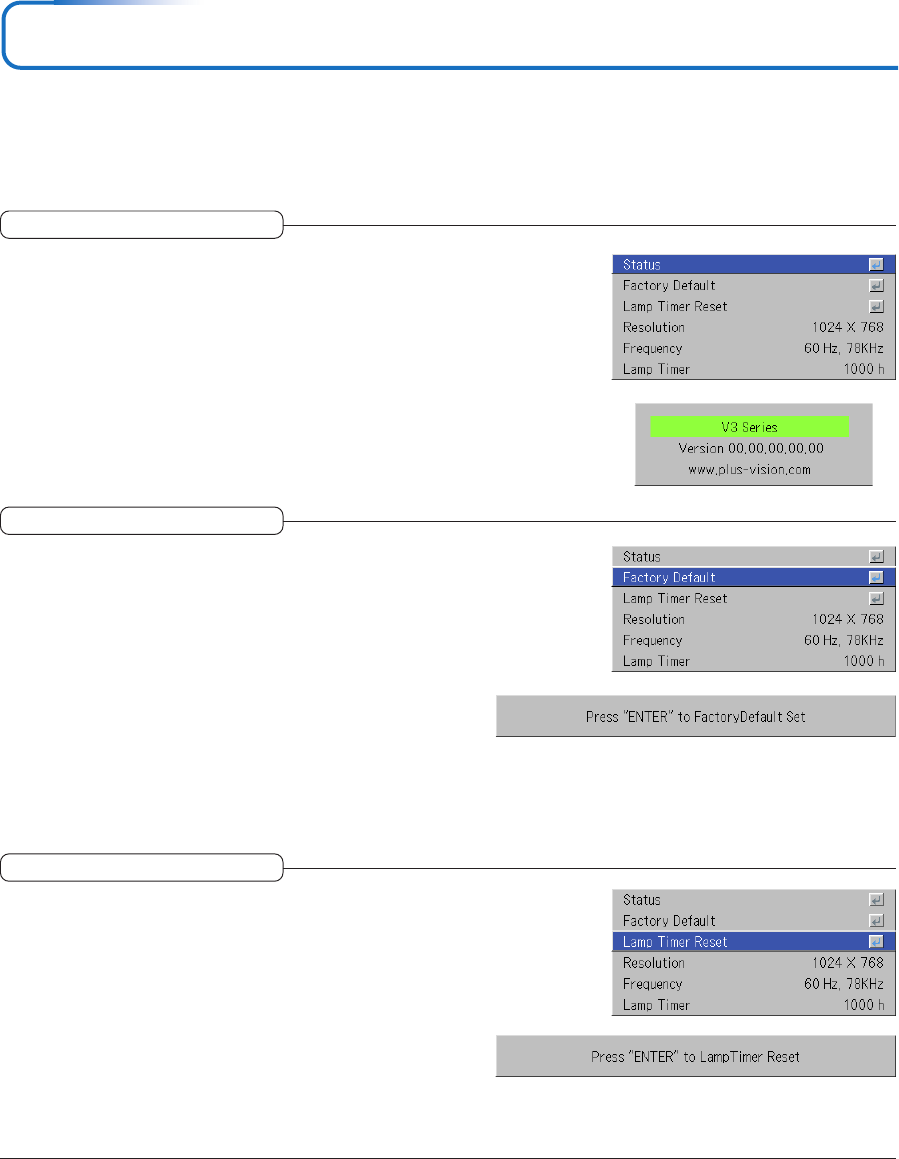
E-55
Info.
•Select menu name “Info.”.
See “Menu Operation Method” on Page E-36 for information about performing menu operations. The item name display will
differ depending on the input signal. See “List of Item Names Offering Input Selection and Adjustments/Settings” on Page E-41.
Status
This displays information about the equipment.
Select item name “Status” and press the ENTER button.
There is a change to the status display.
Press the CANCEL button to return to the menu.
Display Contents:
Projector model, firmware version, and the internet home page ad-
dress of PLUS Vision Corp.
Factory Default
This function returns the adjustments and settings of all the in-
put sources to the standard factory default values.
Select item name “Factory Default” and press the ENTER button.
There is a change to the display [Press “ENTER” to Factory Default
Set].
Press the ENTER button to initialize.
To cancel, press the CANCEL button and there will be a return to the
menu.
Items that are not set to the factory default:
Projection method, Language and Lamp Timer and Security.
Lamp Timer Reset
This function resets the lamp timer. Be sure to perform the reset
operation when the lamp cartridge has been replaced.
Select item name “Lamp Timer Reset” and press the ENTER button.
There is a change to the display “Press “ENTER” to Lamp Timer Re-
set”.
Press the ENTER button to initialize.
To cancel, press the CANCEL button and there will be a return to the
menu.
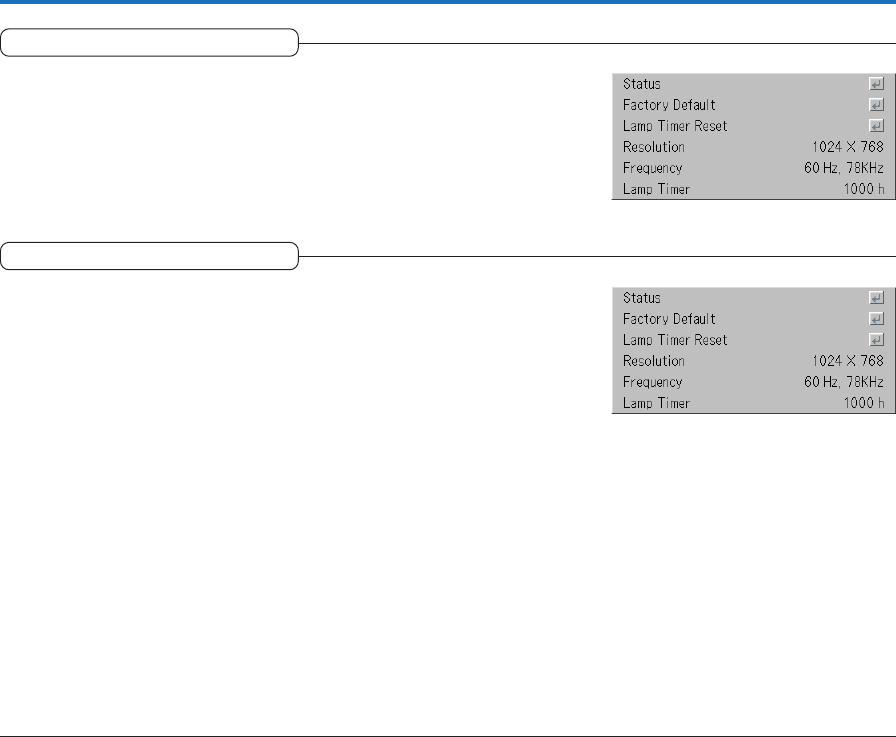
E-56
Resolution / Frequency
This function displays the resolution and frequency of the detected in-
put signal.
Lamp Timer
This displays the lamp timer.
This projector has an Eco mode function. The lamp life will differ between
Normal mode and Eco mode.
Lamp Life
Use only in Normal mode: approx.1500 hours
Use only in Eco mode: approx.2000 hours
* Lamp life will differ when there has been switching between the modes.
•When Lamp Life Has Been Reached
“Replace the Lamp Cartridge” is displayed on the screen for 10 seconds in
a 1-minute interval.
Please replace the lamp with a new one.
See “Replacing the Lamp Cartridge” on Page E-61 for information about
lamp cartridge replacement.
•When Over 100 Hours Have Elapsed Since Reaching Lamp Life
(Including Eco Mode)
[Warning!! System Shutdown] is displayed for 10 seconds and the power is
switched off. Pressing the STANDBY button under this condition will not
switch on the power. Please replace the lamp cartridge.
Info.
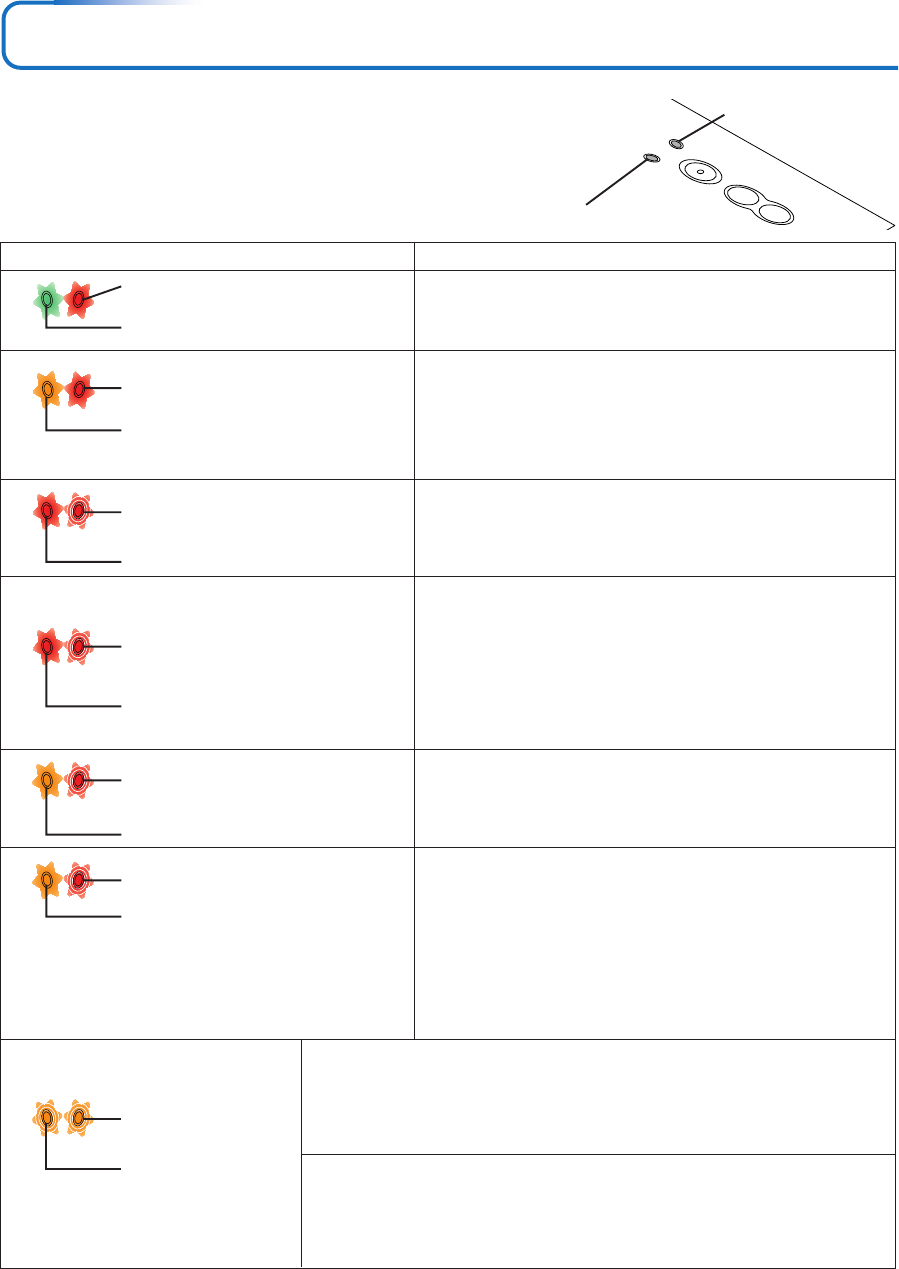
E-57
When an Indicator is Lit or Flashing
STANDBY
AUTO
RC
E
STANDBY STATUS
STANDBY STATUS
STATUSSTANDBY
STATUSSTANDBY
STATUSSTANDBY
STATUSSTANDBY
The indicators on the projector’s control panel light or flash to
notify of problems, as described below.
An indicator is also used to notify you of the currently set power
mode. See “Power Cable Connections and Switching the Power
On/Off” on page E-22.
STATUS indicator
Indicator status What you should do
Lit red
When the power is on (Lit green)
Standby (Lit amber)
Lit red
Flashing amber for 60 seconds, then lit
amber
Flashing red
(lit for 1 seconds/off for 1 seconds)
Lit red
Flashing red
(lit for 0.5 seconds/off for 0.5 seconds)
Lit red
Flashing red
(lit for 0.5 seconds/off for 0.5 seconds)
Lit amber
Flashing red
(lit for 1 seconds/off for 1 seconds)
When the lamp has burned out dur-
ing use
Flashing amber for 90 seconds, then lit
amber
When the lamp does not come on
from the start
Lit amber
It is time to replace the lamp.
Replace with a new lamp cartridge.
The lamp has reached the end of its service life. The power
will no longer turn on.
The projector can be used for 100 hours after the lamp has reached
the end of its service life.
Replace with a new lamp cartridge.
The lamp cover is open.
The lamp cover is not properly mounted. Mount it properly.
The temperature is abnormally high.
•The temperature protector has been activated. If the room tem-
perature is high, move the projector to a cool place. If the
projector’s internal temperature is high, check the cooling fan’s
ventilation slots and clean them if they are clogged.
•When the temperature protector is activated, the power turns
off and in some cases will not turn back on immediately. In this
case wait about 90 seconds, then try again.
The fan has stopped.
Unplug the power cable and contact a store that sells the V3-131/
V3-111 for repairs.
The lamp will not light.
Wait at least 90 seconds, then turn the power back on. If the prob-
lem persists, unplug the power cord and contact a store that sells
the V3-131/V3-111 for repairs.
STATUSSTANDBY
STANDBY indicator
Should an indicator be in a condition other than normal or flash at a rate other than the aforementioned, disconnect the power
cable and contact your store of purchase.
STATUSSTANDBY
Flashing amber
(for several seconds)
Flashing amber
(for several seconds)
The STANDBY button has been pressed with the lens stowed away.
The STANDBY indicator flashes for several seconds, then stops flashing, remain-
ing lit, and the projector is set back to the standby status (with the STATUS indica-
tor off). Press the lens lift button to raise the lens unit, then press the STANDBY
button. The power will now turn on.
The lens unit was stowed away while an image was being projected.
The projector automatically turns off, and the indicators continue to flash for 90
seconds. (The cooling fan continues to run during this time.) To turn the projector
back on, wait 90 seconds, press the lens lift button to raise the lens, then press the
STANDBY button. The power turns on.

E-58
Thermal Protector
When the temperature inside the projector becomes abnormally high, the STATUS indicator flashes red (0.5 seconds on/0.5
seconds off), the STANDBY indicator is a steady red, and at the same time the temperature protector operates and switches off
the power of the projector.
Should this happen, please take the following actions.
1. Switch off the power and disconnect the power plug from the wall outlet.
2. Check the following matters and take the required measures.
When the projector is being used in a location that has a high ambient temperature, set it up again in a cool location. Check the
outflow and intake holes and clean them if they are obstructed.
3. Wait about 60 minutes until the temperature of the projector drops.
If after having performed the above matters, the problem still has not been solved, please contact your store of purchase.
When an Indicator is Lit or Flashing
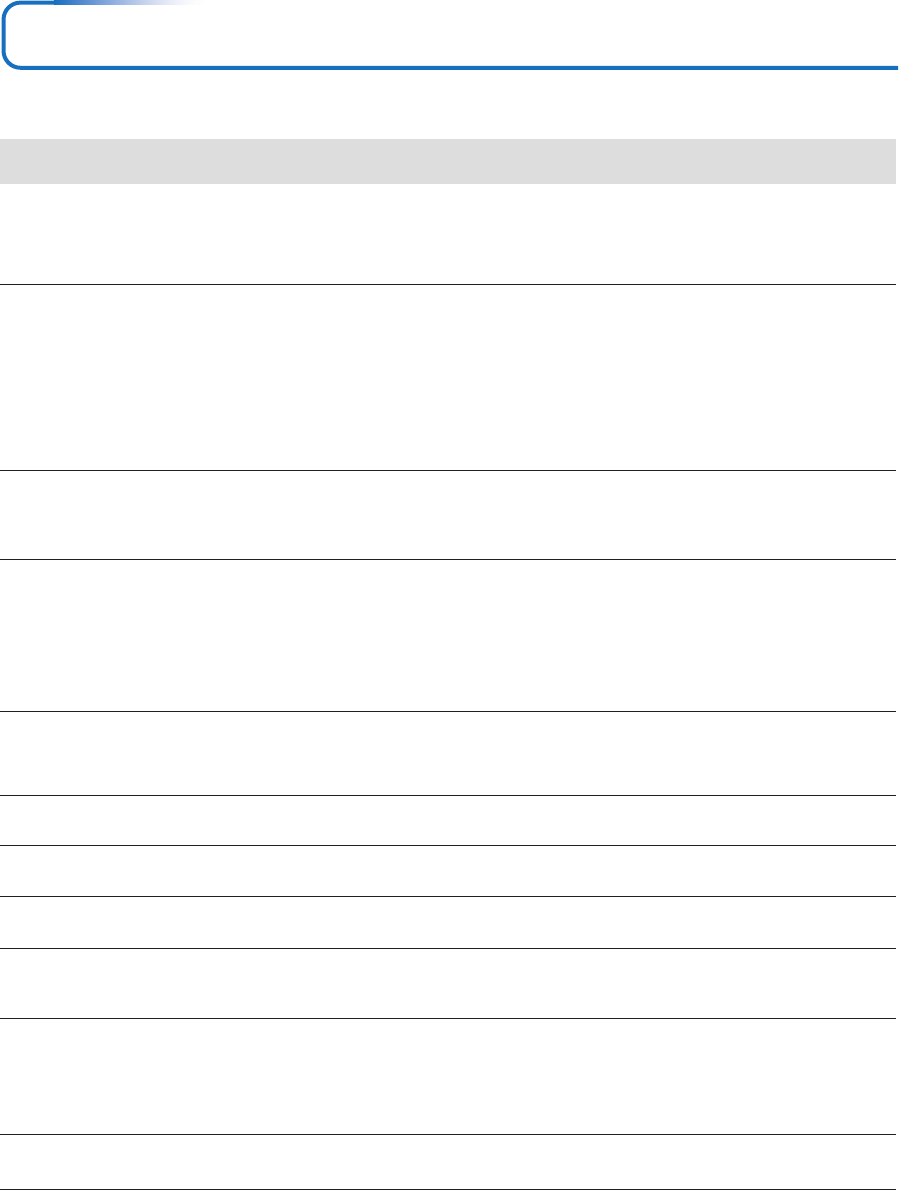
E-59
Troubleshooting
Check the following matters before requesting servicing.
•Is the power cord plugged into a power outlet?
•Is the lamp cover properly mounted?
•Is the projector’s temperature high? To protect the projector, the power can-
not be turned on when the projector’s temperature is abnormally high.
•Has the lamp reached the end of its service life?
•Is a connected input selected?
•Is the cable properly connected to the input terminal?
•When a computer is connected, are signals being output from the computer?
•Does the signal being input have a frequency usable with this projector?
•Are the brightness and contrast adjusted to the minimum?
•Is the STATUS indicator lit a steady red or flashing red?
•When the component signal of the DVD player is connected with the RGB
connector and the image is not output, is [Input Settings] of the RGB con-
nector properly selected?
•For a RGB input, has the picture been properly adjusted?
•Is the projector properly installed?
•For trapezoidal (keystone) distortion, perform keystone adjustment.
Please note that depending on the projected picture and the projection con-
ditions, it may not be possible to eliminate keystone distortion completely.
•Is the lens properly focused?
•Are the screen and projector installed at the proper distance?
•Does the projection distance exceed the focusing range?
•Is there condensation on the lens, etc.?
If the projector is moved from a cool storage area to a warm place and the
power is turned on, condensation may form on the lens or internal optical
parts. If this happens, wait until the condensation has evaporated before
using the projector.
•For a computer input, are the horizontal and vertical positions properly ad-
justed?
•Does the input signal have a compatible resolution and frequency? Check
the computer’s resolution.
•If the image is crushed in the horizontal or vertical direction or if it is not
displayed over the entire screen, select a different aspect ratio.
•When a component signal is being input, is the color space setting proper?
•For a composite input, is the tint properly adjusted?
•From the menu, select “Image” and adjust the clock frequency and phase.
•Other than [Settings], [Option] and [Information], selection will not be pos-
sible unless a signal is being input to the projector and the image/picture is
projected.
•Are the remote control unit’s batteries worn? Replace with new batteries.
•Is there an obstacle between the remote control unit and the projector’s
remote control signal sensor?
•Is the remote control unit outside of range?
•Are you pointing the remote control unit’s transmitter towards the projector’s
remote control signal sensor?
•See “When an indicator is lit or flashing”.
Power does not turn on
No image is produced
Image is distorted
Image is out of focus
Image is not in proper posi-
tion and is not displayed
properly
Video image is crushed
Colors of the overall image
are strange
Characters flicker or colors
are offset for RGB inputs
Cannot select the menu
name
Remote control unit does
not operate
STATUS indicator is lit red
or flashing red
Problem Check Reference
Page
E-22
E-63
E-57
E-57
E-27
E-17–20
E-56
E-65
E-43
E-57
E-52
E-43, 44
E-26
E-30, 49
E-25
E-14–15
E-14–15
–
E-44
E-65
E-28
E-46
E-43
E-43, 44
–
E-12
E-12
E-12
E-12
E-57
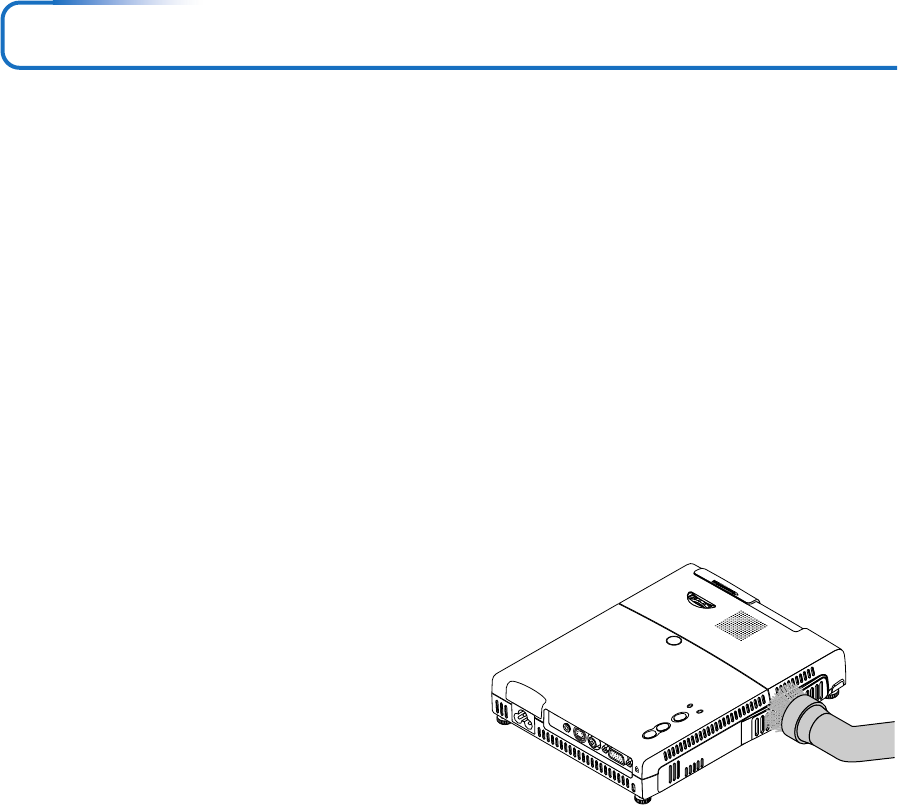
E-60
Cleaning
•Be certain to disconnect the power plug from the power outlet before cleaning.
•Do not spray or otherwise expose the projector, lens, or screen to volatile substances such as insecticides. Do not leave rubber
or vinyl products in contact with the projector for long periods. Doing so could cause them to undergo qualitative changes or the
coatings may peel, etc.
Cleaning a Soiled Projector Main Unit
•Wipe with a lint-free, soft, dry cloth.
When very dirty, wipe with a cloth that has been moistened with a diluted neutral detergent, then finish with a dry cloth. If a
chemically-treated cloth is going to be used, please follow any written warnings.
•Do not wipe with thinner, benzene, or other solvents. Doing so could cause them to undergo qualitative changes or the coatings
may peel, etc.
•When removing the dust of the outflow and intake holes, use the brush attachment on a vacuum cleaner to clean out the dust.
Avoid using the vacuum directly without attaching the adapter as well as the use of a nozzle adapter.
•Do not scratch or otherwise hit the projector body with your nails or other hard object, since this will cause scratches.
Dirty Lens
•Clean using the same method you would use to clean a camera lens: Use a commercial blower for camera use or cleaning
paper for eye glasses. Be careful not to scratch the lens at this time.
Dust of the Intake and Outflow Holes
Dust that collects in the intake and outflow holes will obstruct the ventilation and cause the internal temperature to rise which
could cause damage. Clean this area carefully. As a guideline, clean at least every 100 hours of usage.
•Switch off the power, check that the STANDBY indicator has
changed to a steadily lit amber, then unplug the power cable.
•Clean out the holes from the outside using a vacuum cleaner.
Use the brush adapter of the vacuum cleaner to do this. Avoid
using the vacuum directly without attaching the adapter as well
as the use of a nozzle adapter.
Cleaning the Inside of the Projector
Cleaning of the inside of the projector is required about once a year. Failure to clean over a long period while dust has collected
inside the projector could cause a fire or breakdown. Do not clean the inside of the projector by yourself. Please be sure to contact
your dealer.
STANDBY
AUTO
SOURCE
STANDBY
PUSH
STATUS
AUDIO S-VIDEO VIDEO RGB
E-61
Replacing the Lamp Cartridge
•The lamp that is used as a light source in the projector has a limited service life. The rated service life of the lamp is
about 1500 hours (when used in normal mode only). This could be shortened depending on conditions of use and
other factors.
Note that lamp life will be extended when the projector is often used in Eco mode. (The rated service life of the lamp
means the average value of lamp life for lamps that have been manufactured over a long period, and it is derived from
test conditions at this company.)
•When the life of the lamp is exceeded, the STATUS indicator lights a steady red and the message [Replace the Lamp
Cartridge] is displayed on the screen. When this occurs, it is time to replace the lamp cartridge. Please make the
replacement following the procedure below.
•If the projector is used another 100 hours after the lamp’s service life is reached, the power is set to the standby mode
and no longer turns on.
•Contact a store that sells the V3-131/V3-111 for a replacement lamp. Indicate you need a V3-120 replacement lamp for
the V3-131/V3-111 (order code 28-051).
CAUTION
• Replacement of the lamp cartridge is performed after switching off the power, waiting for the cooling fan to stop,
disconnecting the power plug from the power outlet, and then leaving the projector for about 60 minutes before
replacement is started. Replacement of the lamp cartridge during operation or immediately after operation stops will
cause burns because of the high temperature.
• Do not remove any screws other than those specified.
• Do not touch the lamp with bare hands. Doing so could shorten the life of the lamp.
• If lamp has reached the end of its usable life, the lamp bulb may shatter. When this happens, an explosive sound can
be heard and pieces of glass may be scattered in the lamp cartridge. Do not touch them as the pieces of glass may
cause injury. If this happens, contact your dealer or the store the projector was purchased.
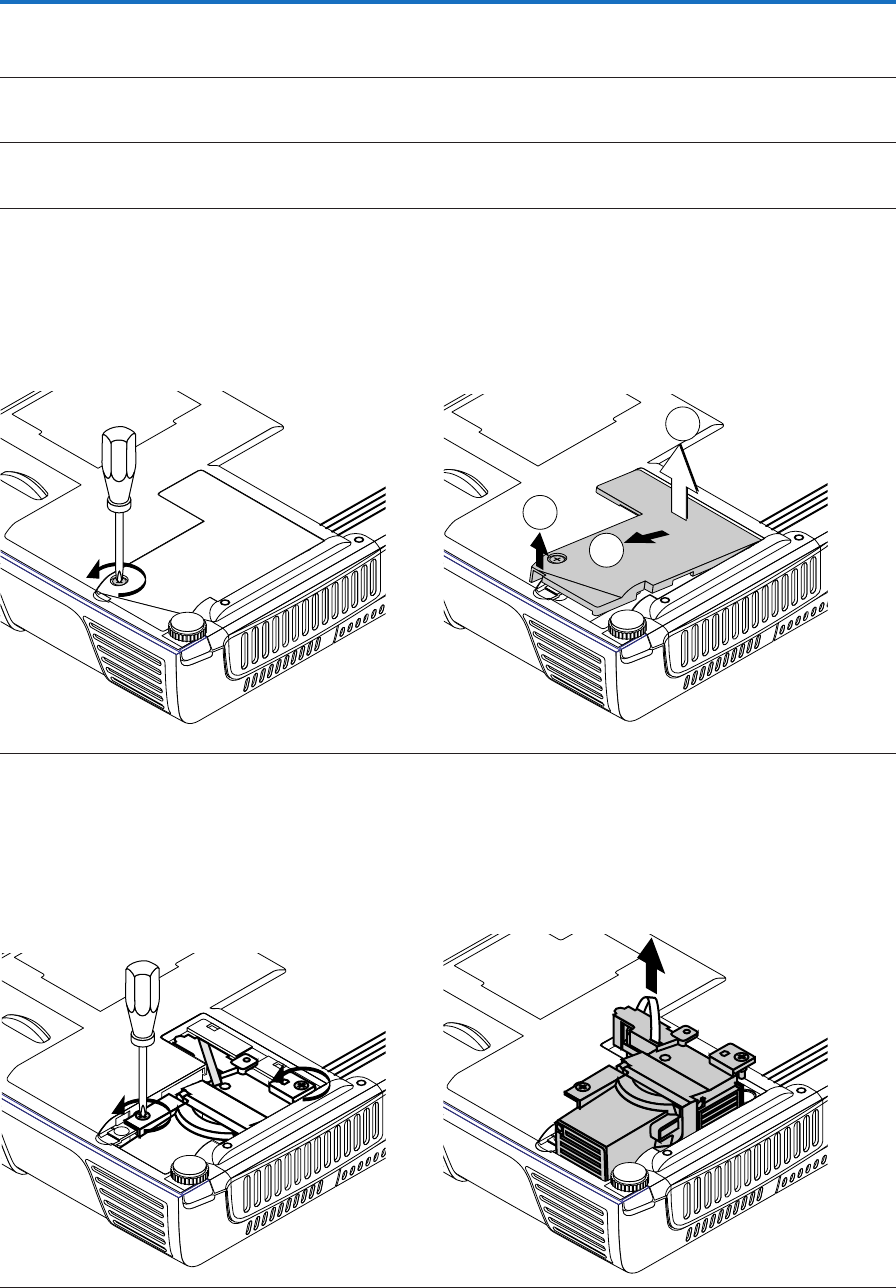
E-62
1
2
3
Replacing the Lamp Cartridge
Preparations: Turning the projector upside-down on top of a soft cloth, etc., so that it does not get scratched makes it easier to
replace the lamp cartridge. Turn the projector right-side up after replacing the lamp cartridge.
1Unplug the power cord.
2Turn the projector upside-down.
3Remove the lamp cover.
(1) Turn the lamp cover’s set screw counterclockwise and
loosen until the screw turns freely. (The screw does
not come off.)
(2) Open the lamp cover a little, then pull it in the direc-
tion of the arrow and remove it.
4Remove the lamp cartridge.
(1) Fully loosen the lamp cartridge’s two screws. (The
screws do not come off.)
(2) Grasp the lamp cartridge’s handle and pull upward
to remove the lamp cartridge.
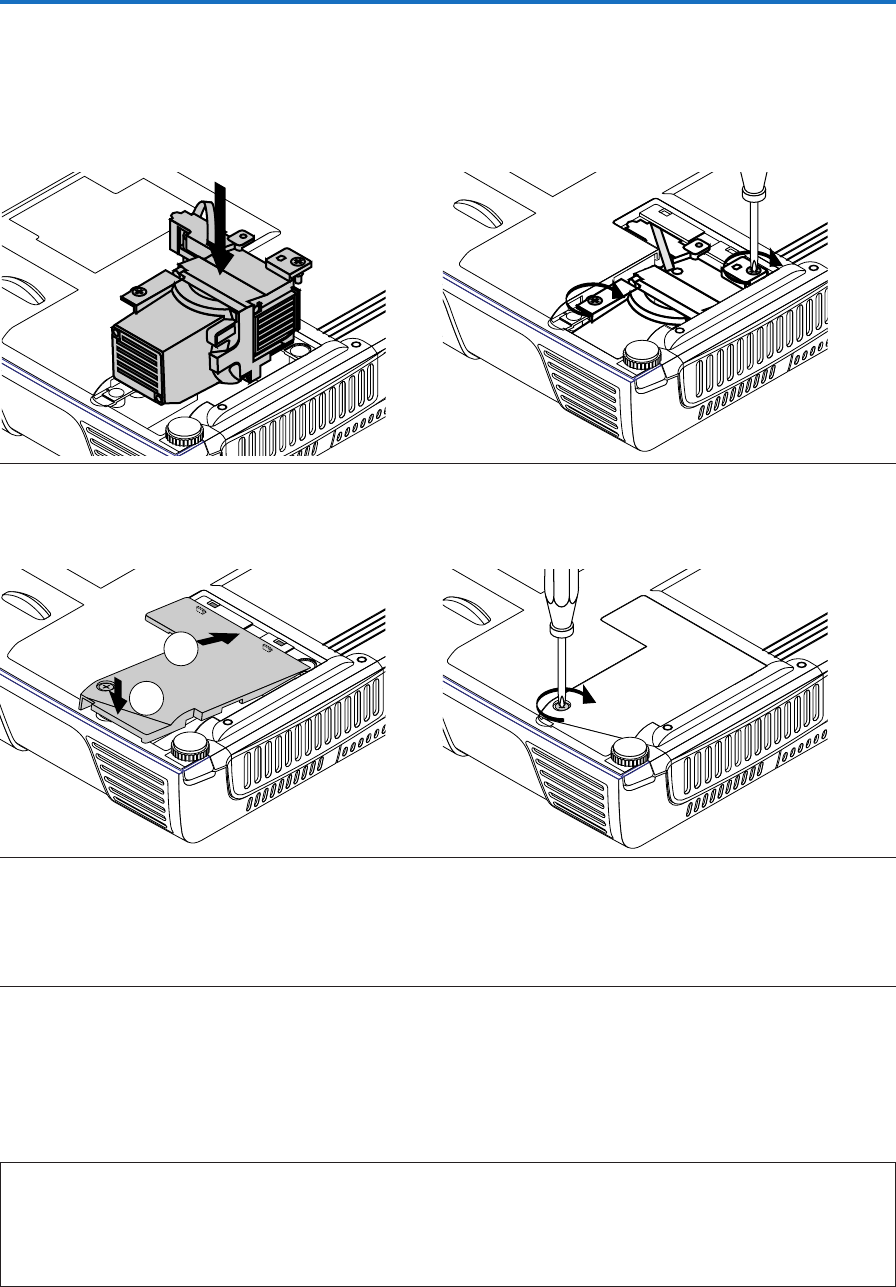
E-63
1
2
Replacing the Lamp Cartridge
5Mount the new lamp cartridge.
(1) Push the lamp cartridge in slowly.
(Line it up with the screw holes in the projector.)
6Mount the lamp cover.
(1) Set the tip of the lamp cover in place, then close the
lamp cover.
7Reset the Lamp Timer.
Connect the power cable, switch on the power, and then reset.
Select [Info.] → [Lamp Timer Reset] on the menu and press the ENTER button. There is a change to the initialization
verification display. Press the ENTER button again. See “Lamp Timer Reset” on Page E-55.
Note:
After reaching the lamp service life, if the lamp is used for more than another 100 hours, it will not be possible to switch on the power. Should
this happen, while the projector is in the standby mode, simultaneously holding down the projector’s SOURCE button and AUTO button for
more than 5 seconds will clear the lamp timer. Checking that the STATUS indicator is out will show that the lamp timer has been cleared.
Contact a store that sells the V3-131/V3-111 for a replacement lamp. Indicate you need a V3-120 replacement lamp for the V3-131/V3-111
(order code 28-051).
(2) Turn the lamp cartridge’s two screws clockwise to
tighten them.
(2) Turn the lamp cover’s screw clockwise to tighten it.

E-64
Specifications
Model V3-131/V3-111
Optical
Method of projection : DLP™ (single chip DMD)
DMD V3-131:
0.7 inches 1024⳯768 dots
V3-111:
0.55 inches 800⳯600 dots
Lamp 120 W high pressure mercury lamp
Projection lens : Fixed focus, Manual focus F = 2.6, f = 23 mm (f = 0.91 inch)
Image size V3-131:
Minimum: 36 inch (at projection distance of 1.2m(3.9 feet) )
Maximum: 300 inch (at projection distance of 10.0m(32.8 feet) )
V3-111:
Minimum: 28 inch (at projection distance of 1.2m(3.9 feet) )
Maximum: 300 inch (at projection distance of 12.8m(42.1 feet) )
Light Output V3-131:
Standard mode: 1000 lm
V3-111:
Standard mode: 800 lm
Contrast Ratio 2000:1 (Full on/off)
Electrical
Inputs Video (NTSC3.58/NTSC4.43/PAL/PAL-N/PAL-M/PAL60/SECAM/YCbCr(NTSC, PAL)/
YPbPr(480p, 576p, 1080i, 720p)): (automatic or manual switching)
RGB (Horizontal :15 to 80 kHz, Vertical 50 to 85 Hz)
Color Reproduction Full color (16,770,000 colors)
Resolution V3-131:
VGA (640⳯480) expansion/true, S-VGA (800⳯600) expansion/true
XGA (1024⳯768) true, S-XGA (1280⳯1024) compression
V3-111:
VGA (640⳯480) expansion/true, S-VGA (800⳯600) true
XGA (1024⳯768) compression
Input Current 1.8 A
Power Requirement 100 - 240 V AC, 50/60 Hz
Power Consumption 175 watts (165 watts in eco mode)
Mechanical
Dimensions Excluding Stand 158 mm (W)⳯35 mm (H)⳯209 mm (D) (when stored, not including projecting parts)
6.2 in.(W)⳯1.4 in.(H)⳯8.2 in.(D) (when stored, not including projecting parts)
Weight Approximately 1.1 kg / 2.4 lbs
Operational Temperatures Data projector: 5° to 35°C (41° to 95°F), 30 to 85% humidity
• Specifications and design are subject to change without notice.
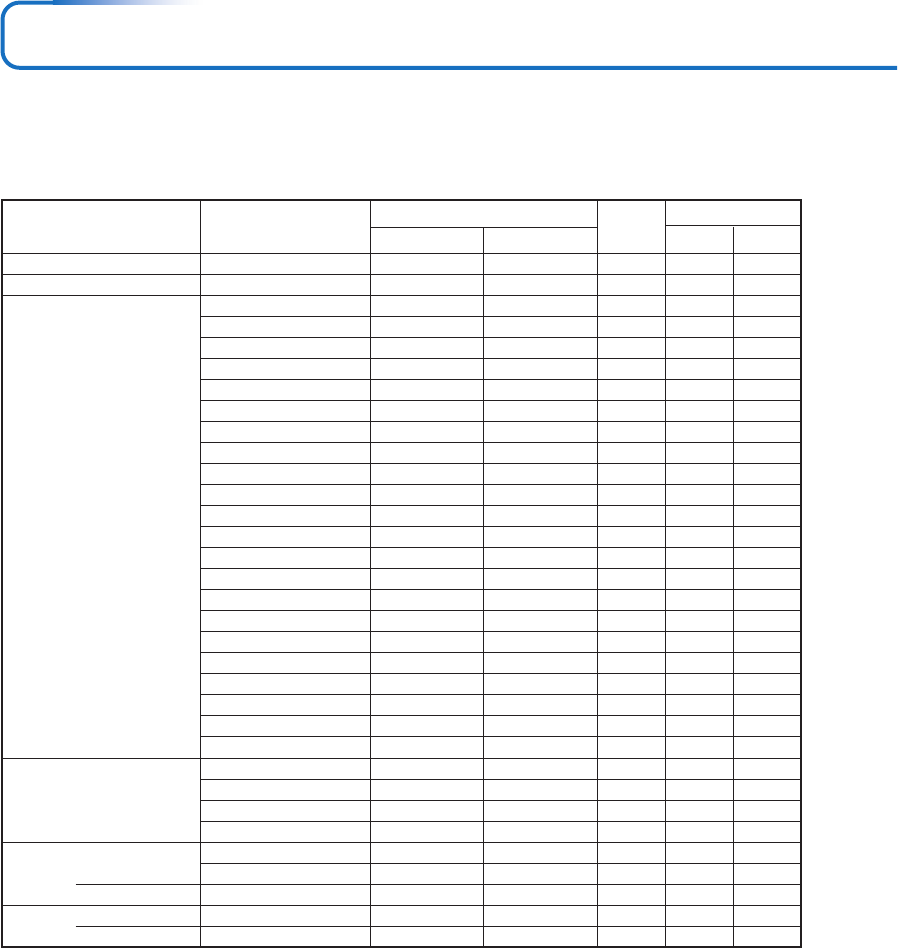
E-65
Table of Supported Frequency
The projector automatically identifies the signal input from the computer and selects the optimum resolution as shown on the table
below.
Manual adjustments may be required for some input signals. See “Picture Adj. / Fine Picture / H Position / V Position” on page E-
43, 44.
嘷: Supported frequency
ⳮ: Not supported frequency
* The model name for XGA is V3-131 and SVGA V3-111.
* The projector does not support the ADC connector on Apple Macintosh.
V3-131
The display resolution is 1024⳯768 dots. When displaying a signal with resolutions other than 1024⳯768 dots such as 1280⳯1024,
sizes of characters or lines may be uneven.
V3-111
The display resolution is 800⳯600 dots. When displaying a signal with resolutions other than 800⳯600 dots such as 1024⳯768,
sizes of characters or lines may be uneven.
XGA SVGA
VIDEO(NTSC)
VIDEO(PAL/SECAM)
VESA
Apple Macintosh
HDTV (1080i)
(720p)
SDTV (576p)
(480p)
ⳮ
ⳮ
640 ⳯350
640 ⳯350
720 ⳯350
640 ⳯400
640 ⳯400
720 ⳯400
720 ⳯400
640 ⳯480
640 ⳯480
640 ⳯480
640 ⳯480
800 ⳯600
800 ⳯600
800 ⳯600
800 ⳯600
800 ⳯600
1024 ⳯768
1024 ⳯768
1024 ⳯768
1024 ⳯768
1024 ⳯768
1280 ⳯1024
640 ⳯480
823 ⳯624
1024 ⳯768
1152 ⳯870
1920 ⳯1080
1920 ⳯1080
1280 ⳯720
720 ⳯576
720 ⳯480
15.734
15.625
31.5
37.9
31.5
31.5
37.9
31.5
37.9
31.5
37.9
37.5
43.3
35.2
37.9
46.9
48.1
53.7
48.4
56.5
57.7
60.0
68.7
64.0
35.0
49.7
60.2
68.7
33.8
28.1
45.0
31.3
31.5
60.0
50.0
70.1
85.1
70.0
70.1
85.1
70.0
85.0
60.0
72.8
75.0
85.0
56.3
60.3
75.0
72.2
85.1
60.0
70.1
72.0
75.0
85.0
60.0
66.7
74.5
74.9
75.1
60.0
50.0
60.0
50.0
60.0
嘷
嘷
ⳮ
ⳮ
ⳮ
ⳮ
ⳮ
ⳮ
ⳮ
ⳮ
ⳮ
ⳮ
ⳮ
ⳮ
ⳮ
ⳮ
ⳮ
ⳮ
ⳮ
ⳮ
ⳮ
ⳮ
ⳮ
ⳮ
ⳮ
ⳮ
ⳮ
ⳮ
嘷
嘷
嘷
嘷
嘷
ⳮ
ⳮ
嘷
嘷
嘷
嘷
嘷
嘷
嘷
嘷
嘷
嘷
嘷
嘷
嘷
嘷
嘷
嘷
嘷
嘷
嘷
嘷
嘷
嘷
嘷
嘷
嘷
嘷
ⳮ
ⳮ
ⳮ
ⳮ
ⳮ
ⳮ
ⳮ
嘷
嘷
嘷
嘷
嘷
嘷
嘷
嘷
嘷
嘷
嘷
嘷
嘷
嘷
嘷
嘷
嘷
嘷
嘷
嘷
嘷
ⳮ
嘷
嘷
嘷
嘷
ⳮ
ⳮ
ⳮ
ⳮ
ⳮ
Signal Resolution Video RGB
Frequency
Horizonral (kHz)
Vertical (Hz)
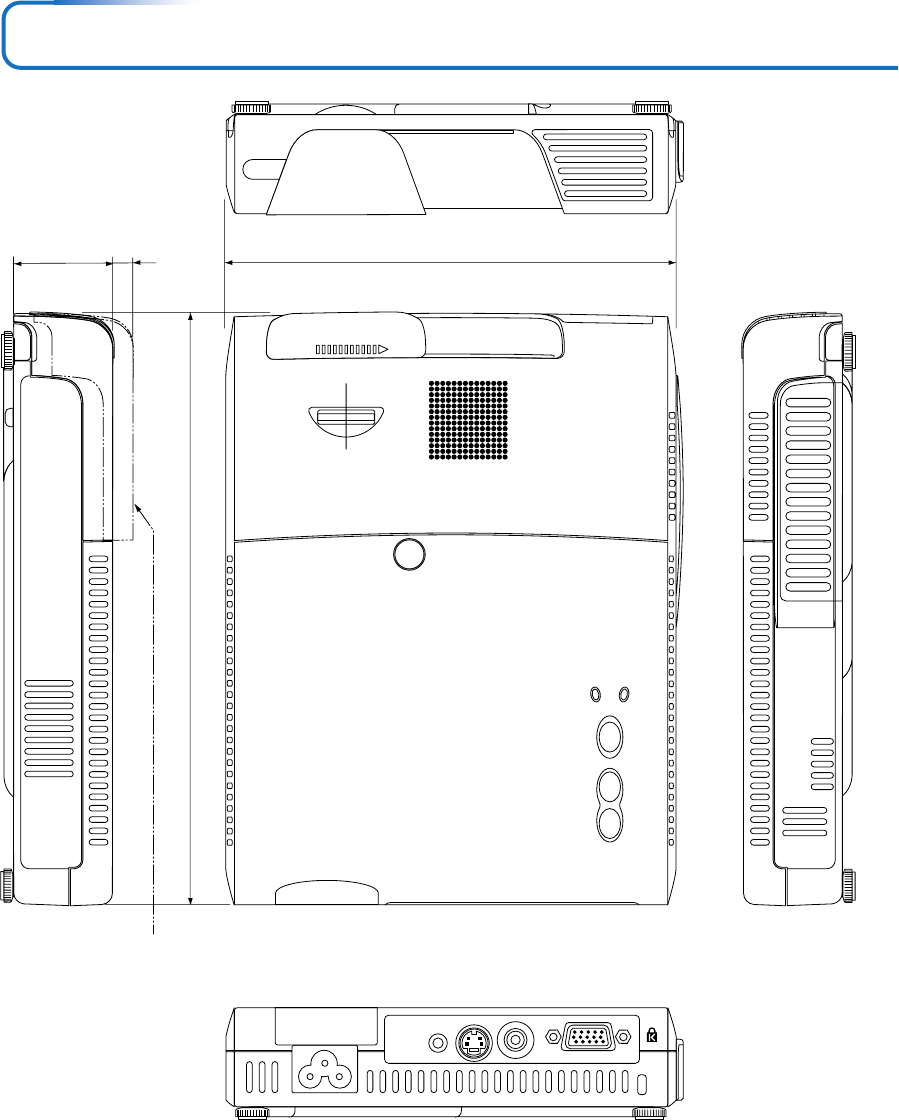
E-66
STANDBY
AUTO
SOURCE
STANDBY
PUSH
STATUS
Cabinet Dimensions
Unit: mm (inch)
158 (6.2)35 (2.4)
209 (8.2)
[When projecting]
7 (0.3)

2003
