Polaroid Studio 4 Users Manual Studio4 ML UM US Jul22
Studio 4 to the manual 446770c1-9441-4a53-af82-69fc335832bc
2015-01-24
: Polaroid Polaroid-Studio-4-Users-Manual-222800 polaroid-studio-4-users-manual-222800 polaroid pdf
Open the PDF directly: View PDF  .
.
Page Count: 78
www.polaroid-digital.com
Studio 4
Digital Video Camera
User Guide
2Polaroid Studio 4 Digital Video Camera User Guide
www.polaroid-digital.com
3
Polaroid Studio 4 Digital Video Camera User Guide
www.polaroid-digital.com
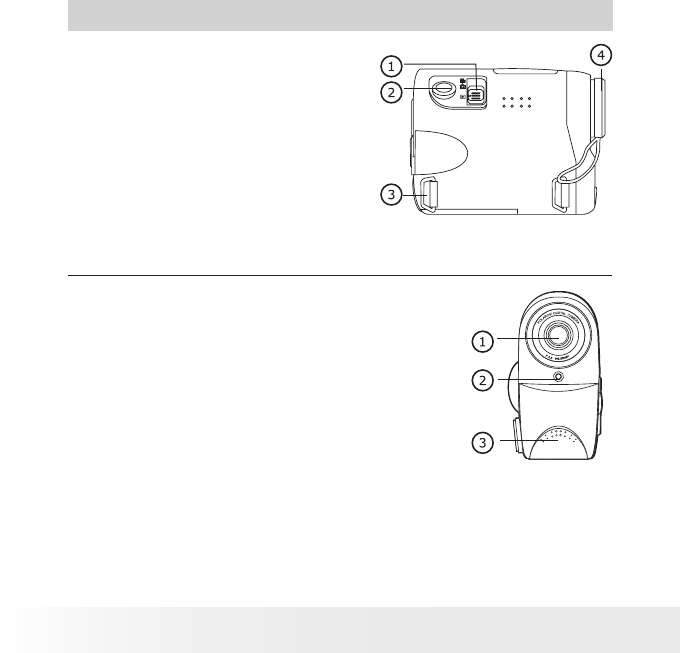
Product Overview
1. Capture/Playback selector
2. Shutter button
3. Hand strap eyelet
4. Lens cap
Side View
1. Lens
2. Status LED
3. Microphone
Front View
2Polaroid Studio 4 Digital Video Camera User Guide
www.polaroid-digital.com
3
Polaroid Studio 4 Digital Video Camera User Guide
www.polaroid-digital.com
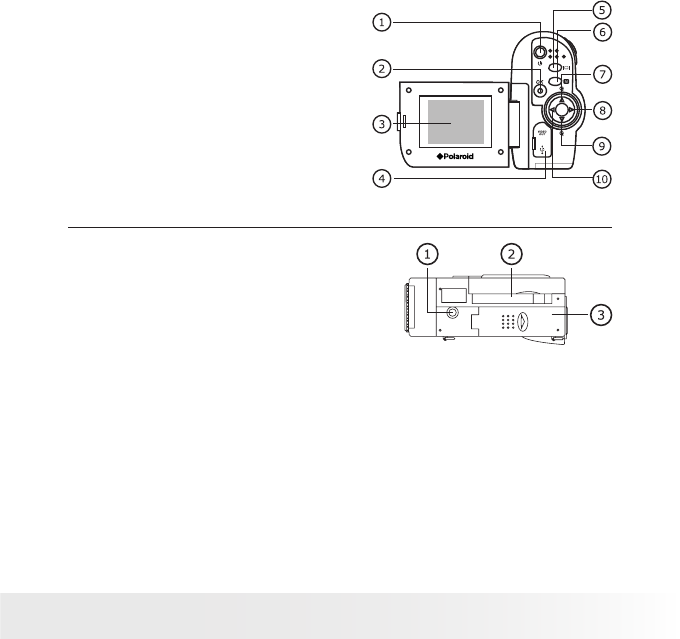
1. Power On/Off button
2. OK button
3. LCD screen
4. Video output terminal & USB port cover
5. Display On/Off button
6. Menu button
7. Up/Zoom in button
8. Right button
9. Down/Zoom out button
10. Left button
Back View
1. Tripod mount
2. SD card slot door
3. Battery door
Bottom View

4Polaroid Studio 4 Digital Video Camera User Guide
www.polaroid-digital.com
5
Polaroid Studio 4 Digital Video Camera User Guide
www.polaroid-digital.com
Table of Contents
1 Getting Started...........................................................................7
• What can I Do with My Camera? ..............................................7
• What can I Do with My Digital Pictures?....................................7
• What can I Do with my Video Clips ? ........................................7
• Camera Package Contents .......................................................8
• Installing the Batteries .............................................................9
• Turning the Camera On and Off ...............................................9
• Checking the Battery Power Level...........................................10
• How to Navigate Menus ........................................................10
2 Camera Setting.........................................................................12
• Checking Camera Status........................................................12
• Camera Modes .....................................................................14
• Drive Mode ..........................................................................15
• Setting the Current Date and Time..........................................16
• Setting Date/Time Display On/Off ...........................................17
• Auto Power Save Settings .....................................................18
• Setting the Beep Sound On/Off ..............................................19
• Setting Frequency.................................................................20
• Setting Display Language.......................................................21
• Resetting to Default Settings..................................................22
• Formatting the Internal Memory..............................................23
• Viewing Firmware Version .....................................................24
• Turning the Information Display and the LCD Screen On/Off ......25

4Polaroid Studio 4 Digital Video Camera User Guide
www.polaroid-digital.com
5
Polaroid Studio 4 Digital Video Camera User Guide
www.polaroid-digital.com
3 Taking Pictures.........................................................................26
• Taking a Picture ...................................................................27
• Setting Self-timer..................................................................28
• Zoom Feature.......................................................................29
• Setting Image Resolution and Quality ......................................30
• Setting Exposure Compensation .............................................32
• Setting the White Balance......................................................33
• Setting Photo Effect..............................................................34
4 Recording Video Clips................................................................35
• Recording Video Clips ...........................................................35
• Setting Video Resolution and Quality.......................................36
• Adjusting the Brightness Contrast...........................................38
• Setting Sharpness.................................................................39
• Setting Audio Recording On/Off..............................................40
5 Reviewing and Managing Pictures and Video clips.........................41
• Reviewing Pictures on the LCD Screen ....................................41
• Reviewing Picture and Video Clip Files in Thumbnail..................42
• Playing the Video Clip ...........................................................44
• Protect or Unprotect Picture(s) or Video Clip(s).........................45
• Delete Picture(s) or Video Clip(s).............................................46
• View Pictures and Video Clips on a TV....................................47
6 Using the SD (Secure Digital) Card ..............................................49
• Using the SD Card ................................................................49
7 Installing the Software onto a Computer ......................................54
• Installing the Software .........................................................54
• Software Included with Your Camera ......................................56
• Computer System Requirements .............................................57

6Polaroid Studio 4 Digital Video Camera User Guide
www.polaroid-digital.com
7
Polaroid Studio 4 Digital Video Camera User Guide
www.polaroid-digital.com
8 Transferring Pictures and Video Clips To Your Computer................58
• Before Transferring Files .......................................................58
• Connecting to Your Computer ................................................58
• Transferring Pictures and Video Clips to PC .............................59
• Transferring Pictures and Video Clips to Mac ...........................60
• PhotoImpression 5.0 Hot Plug Function (PC Only) .....................61
9 Troubleshooting Problems...........................................................63
• Troubleshooting....................................................................63
10 Getting Help ...........................................................................66
• Polaroid-digital Online Services ...............................................66
• Customer Support.................................................................66
• ArcSoft Software Help ..........................................................66
11 Appendix................................................................................67
• Technical Specications ........................................................67
• Storage Capacities................................................................69
• Uninstall the Camera Driver (PC).............................................73
• Camera Default Settings........................................................74
• Using Your Batteries .............................................................75
• Tips, Your Safety & Maintenance ...........................................76
• Regulatory Information ..........................................................76

6Polaroid Studio 4 Digital Video Camera User Guide
www.polaroid-digital.com
7
Polaroid Studio 4 Digital Video Camera User Guide
www.polaroid-digital.com
1 Getting Started
• What can I Do with My Camera?
Capture Enjoy point & shoot operation. Store pictures
and video clips on the internal memory or a
SD Card.
Setup Select various camera settings.
• What can I Do with My Digital Pictures?
View View pictures on a computer using
PhotoImpression or on a TV.
Save Save pictures to the computer memory by
Mass Storage interface.
Communicate Send pictures over the Internet to family and friends.
• What can I Do with My Video Clips?
Playback Playback video clips with audio feature on a
computer using the Window Media Play or a TV.
Save Save video clips with audio feature to the
computer memory by Mass Storage interface.
Communicate Send the video clips with audio feature over
the Internet to family and friends.
8Polaroid Studio 4 Digital Video Camera User Guide
www.polaroid-digital.com
9
Polaroid Studio 4 Digital Video Camera User Guide
www.polaroid-digital.com
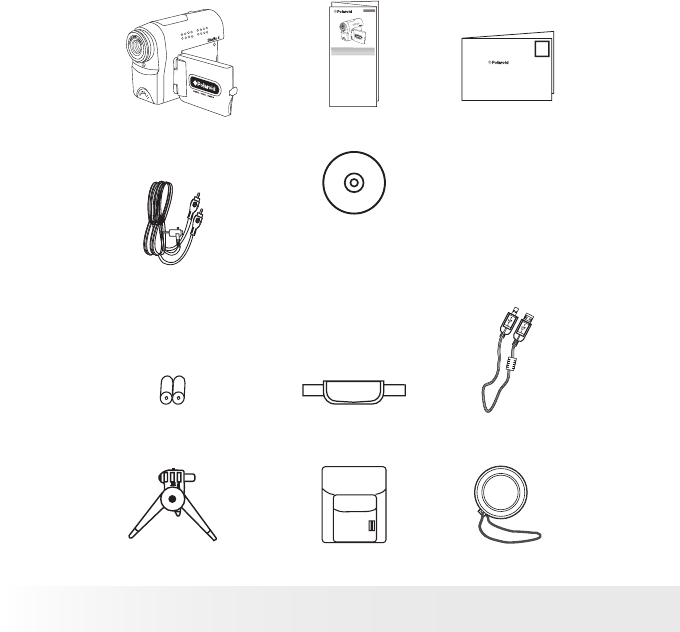
• Camera Package Contents
2 x AA Batteries
Video Cable
USB Cable
Lens Cap with Strap
Polaroid Studio 4 Registration Card
The CD-ROM includes
Polaroid Studio 4 Camera Driver (PC)
ArcSoft® PhotoImpression™ 5.0 (PC & Mac)
ArcSoft® ShowBiz DVD 1.3 (PC)
Adobe® Acrobat® Reader (PC & Mac)
QuickTime Player (Mac)
DivX (PC)
DivX Doctor II (Mac)
User Guide (in PDF Format)
Hand Strap
PouchTripod
Quick Guide
Digital Imaging Products
201 Burlington Road
Bedford, MA 01730-1434
Studio 4
Quick Start Guide
Guide de Démarrage rapide
Guía Rápida de Inicio
ML 0105
Part no.: OM837657 R1
Printed in China
8Polaroid Studio 4 Digital Video Camera User Guide
www.polaroid-digital.com
9
Polaroid Studio 4 Digital Video Camera User Guide
www.polaroid-digital.com
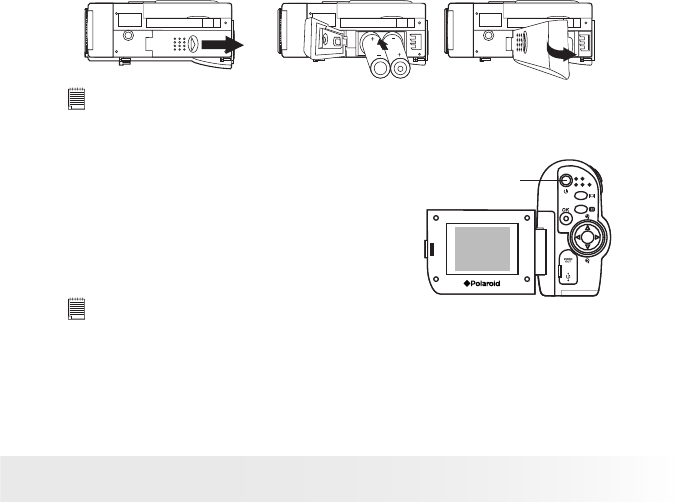
• Installing the Batteries
Two AA batteries are supplied with the product. For a detailed guideline
on battery usage, please see “Using your batteries” on page 74.
1. Open the camera battery door by pushing it outwards as illustrated.
2. Insert the batteries as shown, ensuring you follow the +/- signs correctly.
3. Close the battery door by pressing it downwards and then sliding it
towards the camera to lock.
TBA TBA
TBA
IMPORTANT NOTE:
For best performance and prolonged battery life, we recommend the use of
AA lithium or rechargeable NiMH.
• Turning the Camera On and Off
Pull left to open the LCD screen
panel. Fully press and hold the
Power On/Off button until the LCD
screen is on. Press the Power On/Off
button again to turn off the camera.
Power On/Off
button
NOTE:
Check and make sure that the date and time are correct after switching on the
camera, especially when the batteries are kept in the battery compartment
for a period of time (like over a month or so), or when the batteries are
removed from the camera for over a week. For a detailed guideline on date
and time adjustment, see “Setting the Current Date and Time” on page 16.
10 Polaroid Studio 4 Digital Video Camera User Guide
www.polaroid-digital.com
11
Polaroid Studio 4 Digital Video Camera User Guide
www.polaroid-digital.com
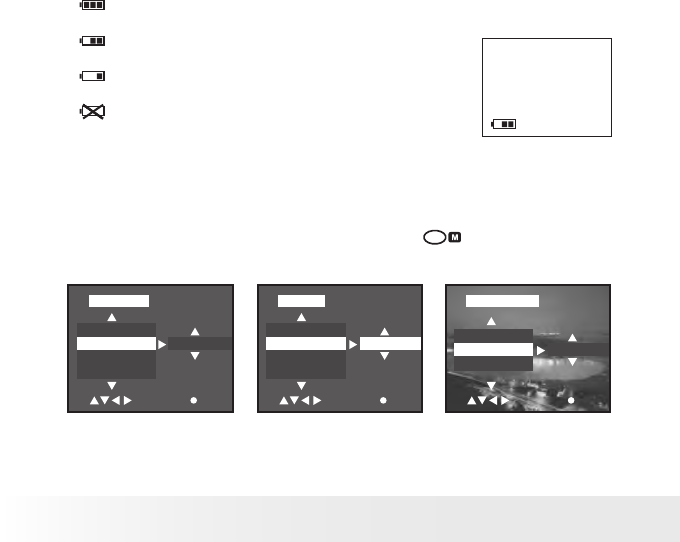
• Checking the Battery Power Level
Check the battery power level before taking pictures.
1. Turn on the camera.
2. Check the battery power level that appears on the LCD screen.
Battery power is full.
Battery power is adequate.
Battery power is low.
Battery power is exhausted.
• How to Navigate Menus
Menus are used to adjust capture and play settings, as well as other
camera settings like the date/time and auto power off.
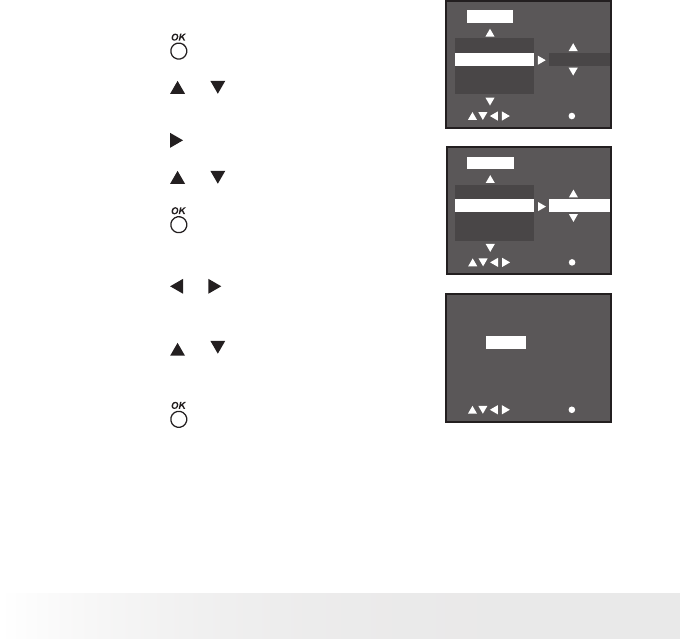
1. In the Capture or Playback mode, press the
button to enter the
CAMERA, VIDEO or PLAYBACK menu and press it again to exit.
THUMBNAIL
DELETE
PROTECT
PLAYBACK
SELECT SET
ONE
RESOLUTION
QUALITY
EV
WHITE BAL
CAMERA
SELECT SET
FINE
AUDIO
RESOLUTION
QUALITY
EV
VIDEO
SELECT SET
320X240
Capture Mode Playback Mode
10 Polaroid Studio 4 Digital Video Camera User Guide
www.polaroid-digital.com
11
Polaroid Studio 4 Digital Video Camera User Guide
www.polaroid-digital.com
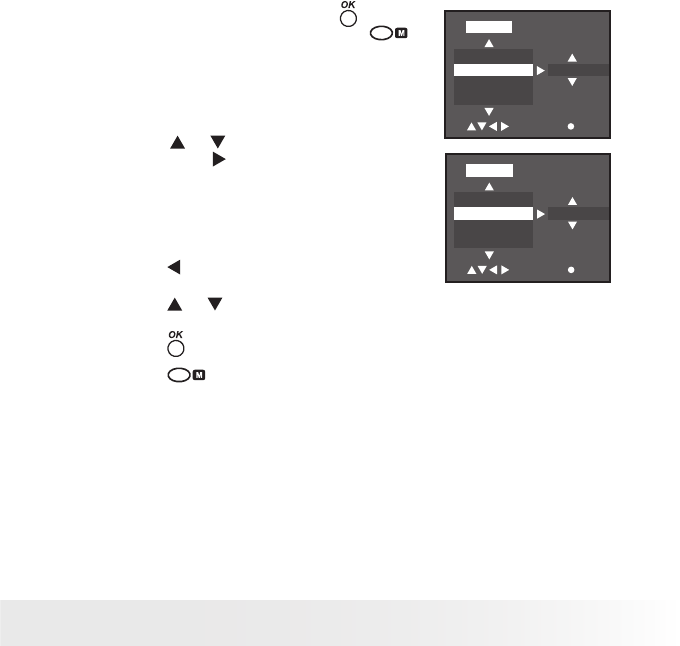
In the Playback mode, press the button
to enter the SETUP menu. Press the
button to exit. BEEP
CLOCK
DATE DISP
TV
SETUP
SELECT SET
VIEW
2. Press the or button to select a menu
item. Press the button to enter the
submenu.
POWER OFF
LANGUAGE
DEFAULT
FORMAT
SETUP
SELECT SET
ENGLISH
Press the button to return to the menu.
3. Press the or button to select the desired setting.
4. Press the button to conrm.
4. Press the button to close the menu.
12 Polaroid Studio 4 Digital Video Camera User Guide
www.polaroid-digital.com
13
Polaroid Studio 4 Digital Video Camera User Guide
www.polaroid-digital.com
2 Camera Setting
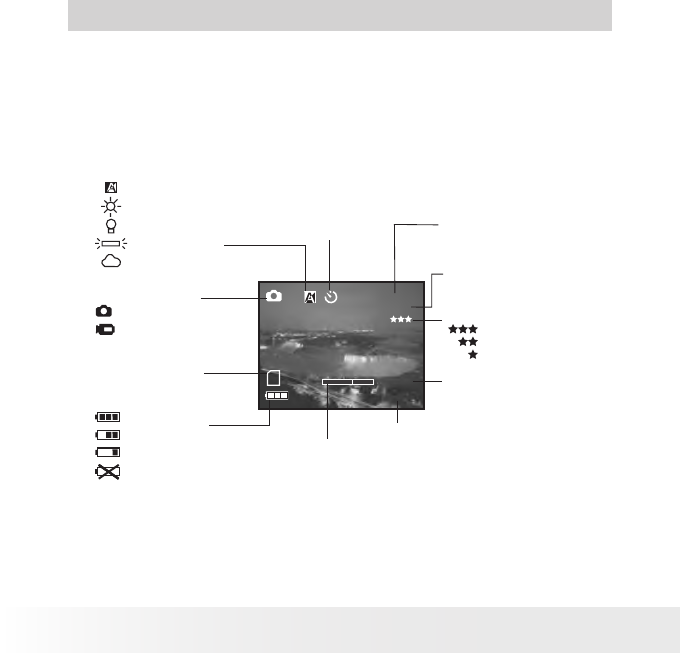
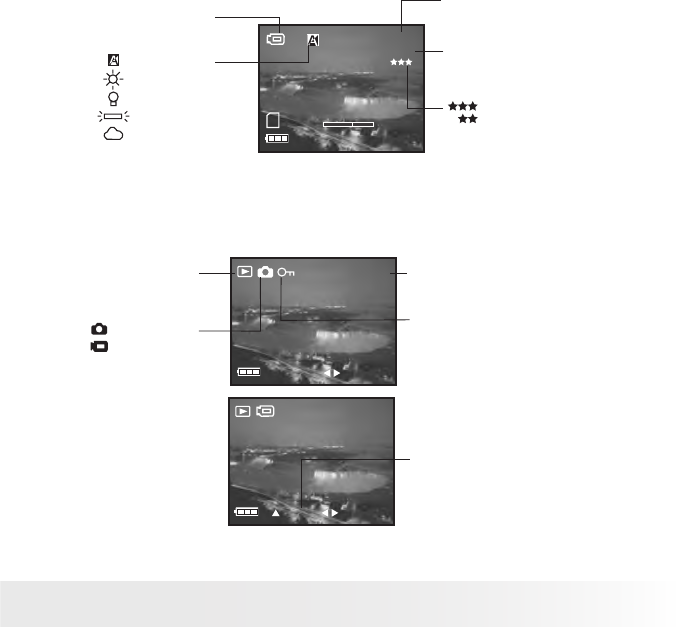
• Checking Camera Status
Open the LCD panel. Turn on the camera, view the camera LCD screen
to check which camera settings are active. If the feature icon is not
displayed, it means that particular feature is not activated.
Still Image mode
Still Image
Capture mode
Video*
Auto*
Daylight
Tungsten
Fluorescent
Cloudy
White balance
Fine*
Normal
Economic
Quality
Digital zoom status
Self-timer on
Number of
remaining pictures
SD card inserted
640 x 480
1280 x 960
1600 x 1200
2048 x 1536*
Image resolution
17:00
01. 19. 2005
640X480
0008
X2.3 Current time
Current date
Battery power level
Full
Adequate
Low
Exhausted
* Default setting
12 Polaroid Studio 4 Digital Video Camera User Guide
www.polaroid-digital.com
13
Polaroid Studio 4 Digital Video Camera User Guide
www.polaroid-digital.com
Video mode
Auto*
Daylight
Tungsten
Fluorescent
Cloudy
White balance
17:00
01. 19. 2005
320X240
00:28
X2.3
Quality
Fine*
Normal
Resolution
320 x 240
640 x 480*
Video mode
Remaining Time
* Default setting
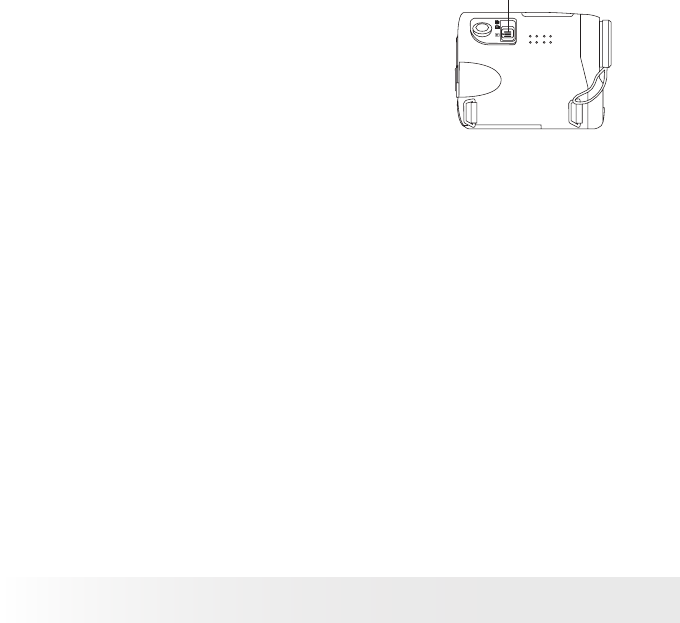
Playback mode
Play indicator
1/0001
17:00
01. 19. 2005
SELECT
PLAY
1/0001
17:00
01. 19. 2005
SELECT
Playback mode
Picture
Video clip
File type
Total number / File number
Locked le
14 Polaroid Studio 4 Digital Video Camera User Guide
www.polaroid-digital.com
15
Polaroid Studio 4 Digital Video Camera User Guide
www.polaroid-digital.com
• Camera Modes
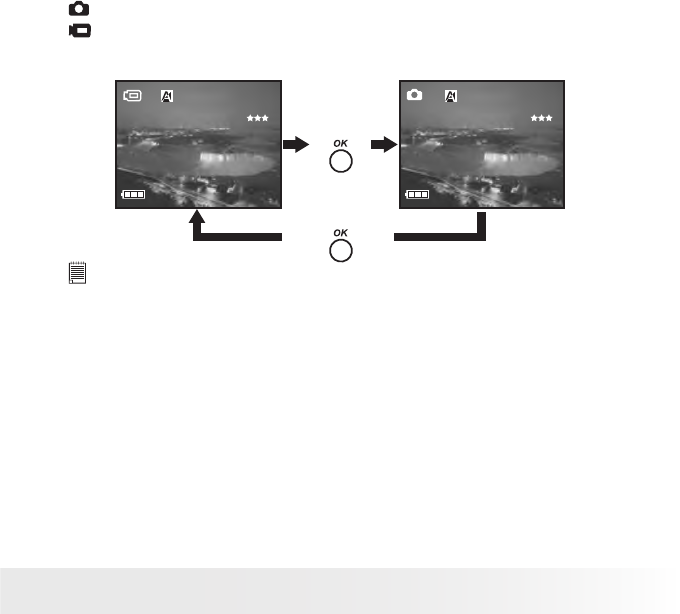
The camera has two working modes, Capture mode
and Playback mode. You can switch between them
by pushing the Capture/Playback selector upwards
or downwards.
Capture/Playback
selector
Capture Mode
Under this mode, you can select the image and video settings according
to the shooting environment, and take pictures and video clips under
the settings you have selected. For more details, please refer to “Taking
Pictures” on page 26 and “Recording Video Clips” on page 35.
Playback mode
This mode allows the review or deletion of pictures and video clips from
the camera. For more details, please refer to “Reviewing and Managing
Pictures and Video Clips” on page 41.
14 Polaroid Studio 4 Digital Video Camera User Guide
www.polaroid-digital.com
15
Polaroid Studio 4 Digital Video Camera User Guide
www.polaroid-digital.com
• Drive Mode
The camera has two modes for taking pictures and video clips.
Still Image mode
Video mode
You may switch between these two modes according to the following
steps.
17:00
01. 19. 2005
320X240
00:28
Press
17:00
01. 19. 2005
640X480
0002
Press
NOTE:
Video mode is the default capture mode.
16 Polaroid Studio 4 Digital Video Camera User Guide
www.polaroid-digital.com
17
Polaroid Studio 4 Digital Video Camera User Guide
www.polaroid-digital.com
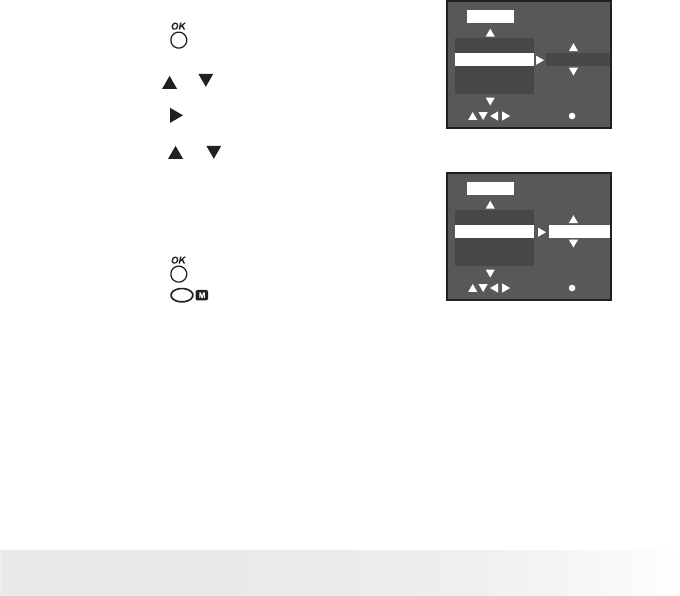
• Setting the Current Date and Time
1. Set the camera to Playback mode.
2. Press the button.
3. Press the or button to select “CLOCK”.
BEEP
CLOCK
DATE DISP
TV
SETUP
SELECT SET
CANCEL
4. Press the button.
5. Press the or button to select “VIEW”.
6. Press the button.
BEEP
CLOCK
DATE DISP
TV
SETUP
SELECT SET
VIEW
7. Press the or button to adjust the value
in the eld.
8. Press the or button to switch to the
next eld.
9. Press the button.
2 0 0 5 / 0 1 / 2 4
1 4 : 1 7
CLOCK
SELECT SET
16 Polaroid Studio 4 Digital Video Camera User Guide
www.polaroid-digital.com
17
Polaroid Studio 4 Digital Video Camera User Guide
www.polaroid-digital.com
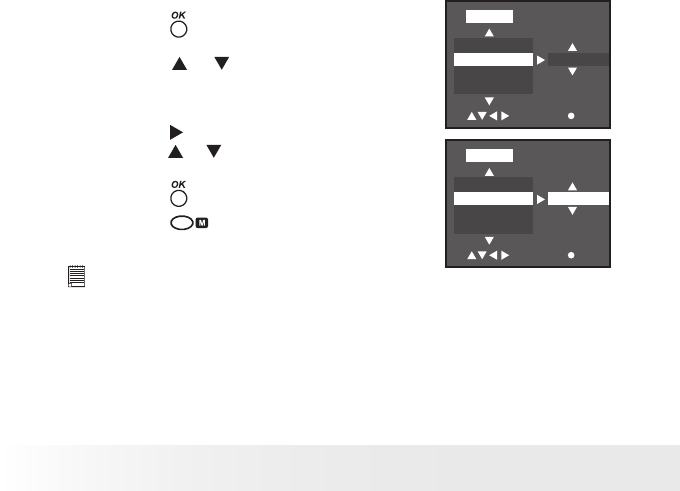
• Setting Date/Time Display On/Off
Date and time are displayed on the LCD screen by default. You can hide
one or both of them by the following steps.
1. Set the camera to Playback mode.
2. Press the button.
3. Press the or button to select “DATE DISP”.
CLOCK
DATE DISP
TV
FRQUENCY
SETUP
SELECT SET
DATE&TIME
4. Press the button.
5. Press the or button to select the desired
setting.
You can choose either time or date to
only display the item you have selected or
you can select “CANCEL” to turn off this
feature.
6. Press the button.
7. Press the button.
CLOCK
DATE DISP
TV
FRQUENCY
SETUP
SELECT SET
TIME
18 Polaroid Studio 4 Digital Video Camera User Guide
www.polaroid-digital.com
19
Polaroid Studio 4 Digital Video Camera User Guide
www.polaroid-digital.com
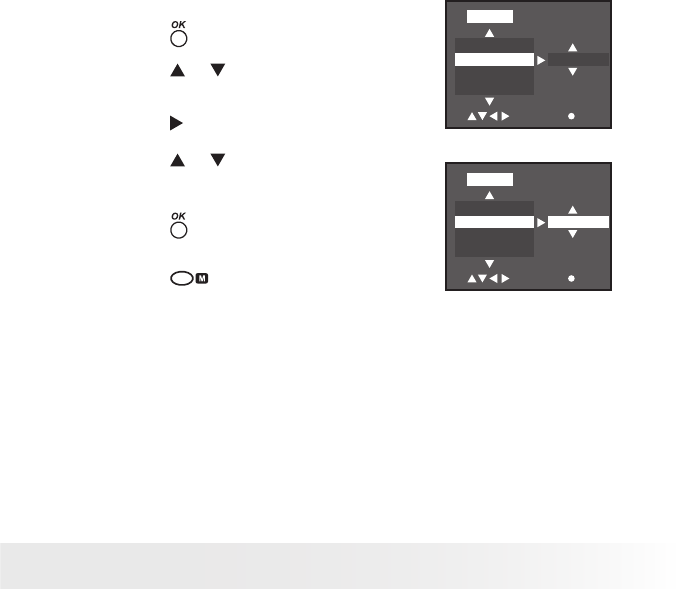
• Auto Power Save Settings
The camera performs the following power save operations to conserve
battery power.
OFF The power save feature is not activated.
1/3/5 MIN The camera is designed to switch off automatically to
save battery life after the specied period of inactivity.
You can change the power save setting according to the following steps:
1. Set the camera to Playback mode.
2. Press the button.
3. Press the or button to select “POWER
OFF”.
FREQUENCY
POWER OFF
LANGUAGE
DEFAULT
SETUP
SELECT SET
OFF
4. Press the button.
5. Press the or button to select the desired
setting.
6. Press the button.
7. Press the button.
FREQUENCY
POWER OFF
LANGUAGE
DEFAULT
SETUP
SELECT SET
1 MIN
NOTE:
Auto power off is automatically disabled under any one of the following
conditions.
- While recording a video clip.
- While the camera’s USB port is connected to a computer or other external
devices, or while the camera is being controlled by an external device.
18 Polaroid Studio 4 Digital Video Camera User Guide
www.polaroid-digital.com
19
Polaroid Studio 4 Digital Video Camera User Guide
www.polaroid-digital.com
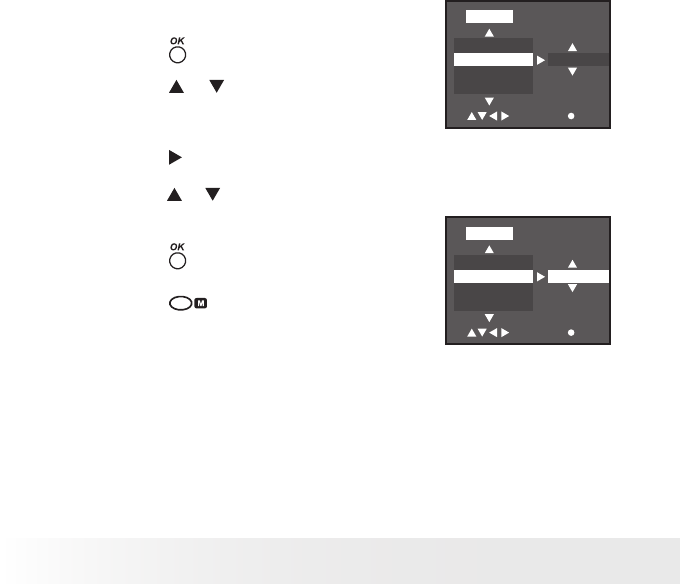
• Setting the Beep Sound On/Off
When the beep sound is turned on, the camera will beep when you press
the buttons.
1. Set the camera to Playback mode.
2. Press the button.
3. Press the or button to select “BEEP”.
VERSION
BEEP
CLOCK
DATE DISP
SETUP
SELECT SET
OFF
4. Press the button.
5. Press the or button to select the desired
setting.
6. Press the button.
7. Press the button.
VERSION
BEEP
CLOCK
DATE DISP
SETUP
SELECT SET
ON
20 Polaroid Studio 4 Digital Video Camera User Guide
www.polaroid-digital.com
21
Polaroid Studio 4 Digital Video Camera User Guide
www.polaroid-digital.com
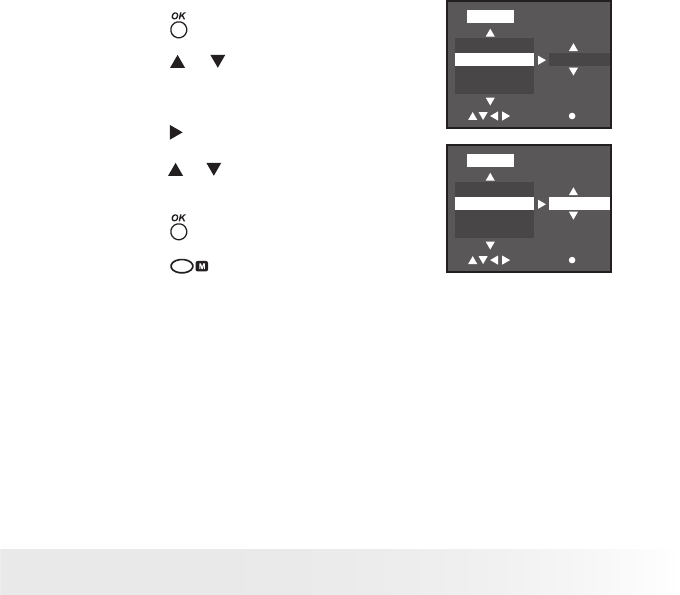
• Setting Frequency
In order to take a better indoor picture, the camera needs to be set to suit
the correct lighting frequency. Set the frequency to 60Hz for US, 50Hz
for Europe and Asia.
1. Set the camera to Playback mode.
2. Press the button.
3. Press the or button to select
“FREQUENCY”.
TV
FREQUENCY
POWER OFF
LANGUAGE
SETUP
SELECT SET
50HZ
4. Press the button.
5. Press the or button to select the desired
setting.
6. Press the button.
7. Press the button.
TV
FREQUENCY
POWER OFF
LANGUAGE
SETUP
SELECT SET
60HZ
20 Polaroid Studio 4 Digital Video Camera User Guide
www.polaroid-digital.com
21
Polaroid Studio 4 Digital Video Camera User Guide
www.polaroid-digital.com
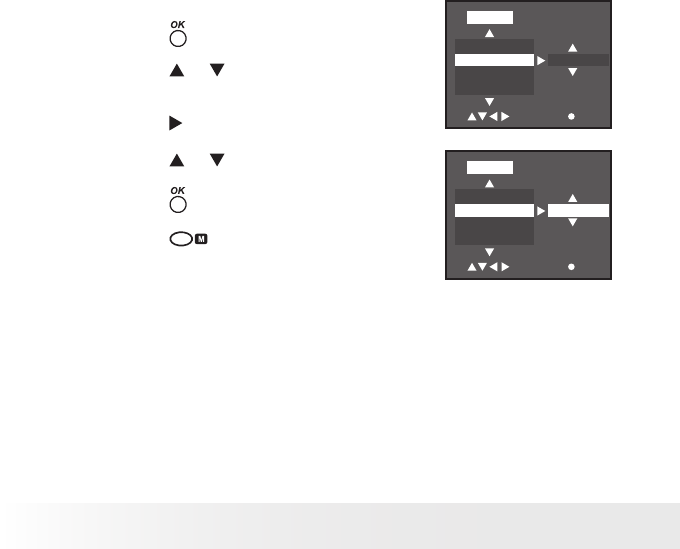
• Setting Display Language
Under this setting, you can select the language you prefer for the LCD screen.
1. Set the camera to Playback mode.
2. Press the button.
3. Press the or button to select
“LANGUAGE”.
POWER OFF
LANGUAGE
DEFAULT
FORMAT
SETUP
SELECT SET
ENGLISH
4. Press the button.
5. Press the or button to select the desired
setting.
6. Press the button.
POWER OFF
LANGUAGE
DEFAULT
FORMAT
SETUP
SELECT SET
DEUTSCH
7. Press the button.
22 Polaroid Studio 4 Digital Video Camera User Guide
www.polaroid-digital.com
23
Polaroid Studio 4 Digital Video Camera User Guide
www.polaroid-digital.com
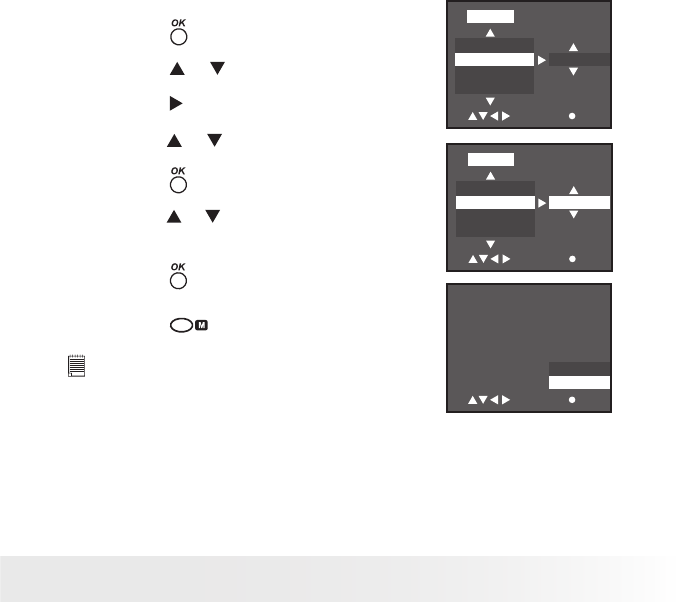
• Resetting to Default Settings
You can easily change all the settings you made back to the camera
default settings by the following steps.
Please refer to “Camera Default Settings” on page 74 for more details.
1. Set the camera to Playback mode.
2. Press the button. LANGUAGE
DEFAULT
FORMAT
VERSION
SETUP
SELECT SET
CANCEL
3. Press the or button to select
“DEFAULT”.
4. Press the button.
5. Press the or button to select “RESET”.
6. Press the button.
7. Press the button.
LANGUAGE
DEFAULT
FORMAT
VERSION
SETUP
SELECT SET
RESET
22 Polaroid Studio 4 Digital Video Camera User Guide
www.polaroid-digital.com
23
Polaroid Studio 4 Digital Video Camera User Guide
www.polaroid-digital.com
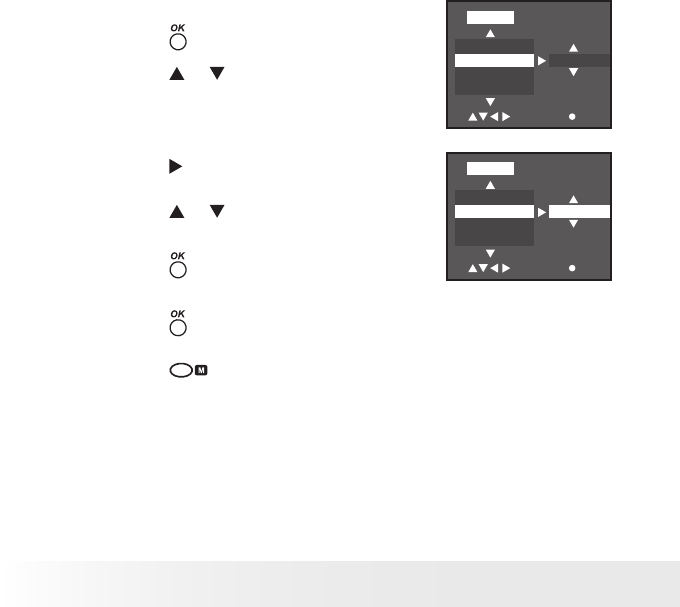
• Formatting the Internal Memory
Formatting the internal memory deletes all data already stored in it.
1. Set the camera to Playback mode.
2. Press the button.
3. Press the or button to select “FORMAT”.
4. Press the button.
DEFAULT
FORMAT
VERSION
BEEP
SETUP
SELECT SET
CANCEL
5. Press the or button to select “SET”.
6. Press the button. DEFAULT
FORMAT
VERSION
BEEP
SETUP
SELECT SET
SET
7. Press the or button to select the desired
setting.
8. Press the button.
9. Press the button. ALL DATA WILL
BE ERASED!
FORMAT
SELECT SET
CONFIRM
CANCEL
NOTE:
• Data deleted by a format operation cannot be
recovered. Make sure you do not have any useful
data currently stored in the internal memory
before you format it.
• Formatting the internal memory destroys all the pictures, even those are
protected.
• With a memory card inserted, the above operation would format the
inserted memory card only. The internal memory will not be formatted with
a memory card inserted.
24 Polaroid Studio 4 Digital Video Camera User Guide
www.polaroid-digital.com
25
Polaroid Studio 4 Digital Video Camera User Guide
www.polaroid-digital.com
• Viewing Firmware Version
The camera’s rmware version can be viewed for maintenance or upgrade.
1. Set the camera to Playback mode.
2. Press the button.
3. Press the or button to select
“VERSION”.
FORMAT
VERSION
BEEP
CLOCK
SETUP
SELECT SET
CANCEL
FORMAT
VERSION
BEEP
CLOCK
SETUP
SELECT SET
VIEW
4. Press the button.
5. Press the or button to select “VIEW”.
6. Press the button.
7. Press the button.
8. Press the button.
24 Polaroid Studio 4 Digital Video Camera User Guide
www.polaroid-digital.com
25
Polaroid Studio 4 Digital Video Camera User Guide
www.polaroid-digital.com
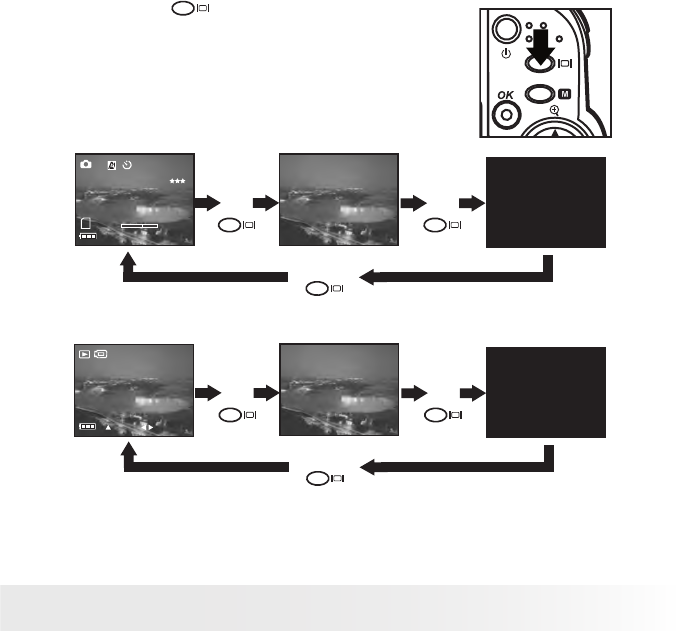
• Turning the Information Display and the LCD Screen On/Off
Pressing the button each time switches
the LCD screen to the next display mode in the
following sequence.
Capture mode
17:00
01. 19. 2005
640X480
0008
X2.3
Press
Press
Press
Playback mode
1/0001
17:00
01. 19. 2005
SELECT
PLAY
Press
Press
Press
26 Polaroid Studio 4 Digital Video Camera User Guide
www.polaroid-digital.com
27
Polaroid Studio 4 Digital Video Camera User Guide
www.polaroid-digital.com
3 Taking Pictures
Before you take pictures, please read this note rst:
IMPORTANT!
• Never remove batteries while a picture is being saved. Doing so will prevent
the current picture from being saved and may corrupt other pictures already
stored in the camera’s internal memory or on the memory card.
• Change the drive mode from Video mode to Still Image mode before taking
pictures, since Video mode is the default capture mode. Please refer to
“Drive Mode” on page 15 for more details.
Outdoor Pictures
• Avoid intense sunlight that may cause sun spots in pictures.
• Always make sure that the sun or other light source is in front of the
subject.
• For best results, take pictures outdoors or indoors in a brightly lit room.
26 Polaroid Studio 4 Digital Video Camera User Guide
www.polaroid-digital.com
27
Polaroid Studio 4 Digital Video Camera User Guide
www.polaroid-digital.com
• Taking a Picture
Taking pictures at approximately 3.2 ft to innity (1.0 m to innity).
1. Set the camera to Still Image mode.
2. Frame your subject using the LCD screen.
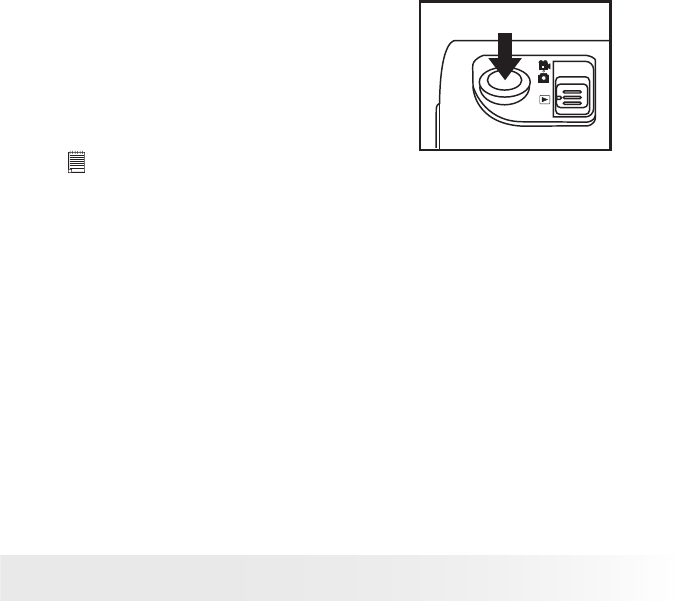
3. Hold the camera steady. Press the
shutter button completely down to
take a picture. A beep will sound (if
the beep sound is turned on) when a
picture is taken.
NOTE:
Image quality may vary if it is taken under dark lighting conditions.
28 Polaroid Studio 4 Digital Video Camera User Guide
www.polaroid-digital.com
29
Polaroid Studio 4 Digital Video Camera User Guide
www.polaroid-digital.com
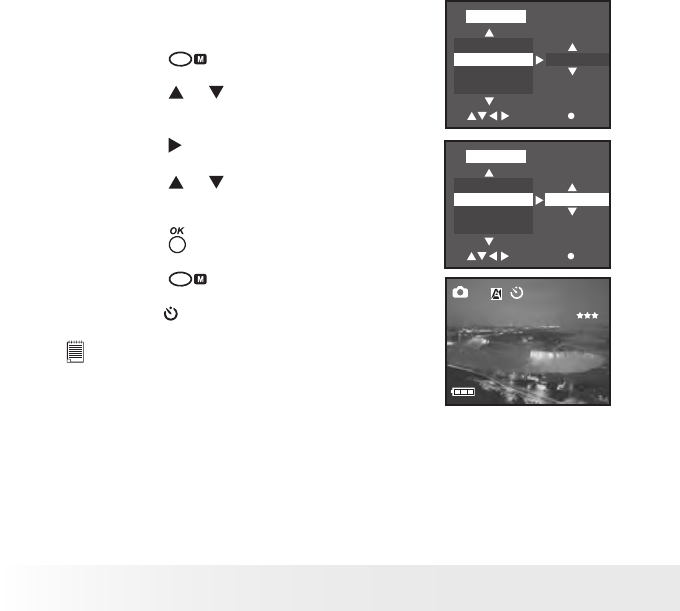
• Setting Self-timer
Your camera is designed with a self-timer function, which allows you to
take pictures with a 10-second built-in timer.
1. Set the camera to Still Image mode.
2. Press the button.
3. Press the or button to select
“SELF-TIMER”.
Color
SELF-TIMER
RESOLUTION
QUALITY
CAMERA
SELECT SET
OFF
4. Press the button.
Color
SELF-TIMER
RESOLUTION
QUALITY
CAMERA
SELECT SET
10 SEC
5. Press the or button to select the
desired setting.
6. Press the button.
7. Press the button.
8. The icon will appear on the LCD screen.
NOTE:
To disable the self-timer function, repeat the
above steps and select “OFF”. 17:00
01. 19. 2005
640X480
0002
28 Polaroid Studio 4 Digital Video Camera User Guide
www.polaroid-digital.com
29
Polaroid Studio 4 Digital Video Camera User Guide
www.polaroid-digital.com
9. Frame your subject using the LCD screen.
10. Press the shutter button to take a picture. A beep will sound (if it is
turned on) and the Status LED will blink slowly for 6 seconds, then
quickly for 4 seconds before the picture is taken.
NOTE:
• Place the camera on a at surface or use a tripod when using the self-timer
function.
• This setting is also available in Video mode.
• Zoom Feature
Your camera is designed with 12X digital zoom. This feature lets you
zoom in on the central area of a photo or portion of the video scene, and
records only that enlarged portion.
1. Set the camera to Still Image mode or Video mode.
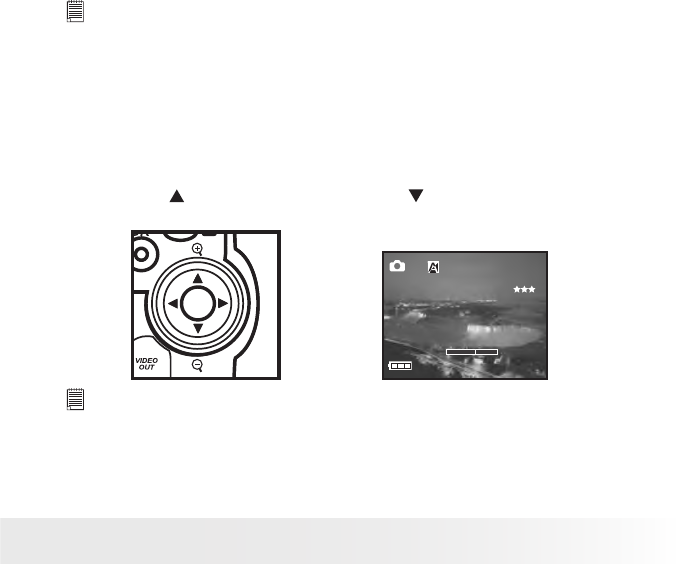
2. Press the button to zoom in. Press the button to zoom out. The
zoom status is shown on the LCD screen.
17:00
01. 19. 2005
640X480
0002
X2.3
NOTE:
• You may notice a decrease in image quality when using the digital zoom.
• The digital zoom function is not available for reviewing a video clip.
30 Polaroid Studio 4 Digital Video Camera User Guide
www.polaroid-digital.com
31
Polaroid Studio 4 Digital Video Camera User Guide
www.polaroid-digital.com
• Setting Image Resolution and Quality
Picture resolution refers to the number of pixels in a digital picture.
Picture quality depends on the JPEG le compression that the camera
applies when the picture is taken. Higher resolution and less compression
produces better quality but occupies more memory space. Smaller size
pictures and normal quality are easier to email while larger size and ne
quality are better for printing.
Resolution Setting
1. Set the camera to Still Image mode.
2. Press the button.
3. Press the or button to select
“RESOLUTION”.
SELF-TIMER
RESOLUTION
QUALITY
EV
CAMERA
SELECT SET
1600X1200
4. Press the button.
5. Press the or button to select the desired
setting. SELF-TIMER
RESOLUTION
QUALITY
EV
CAMERA
SELECT SET
640X480
6. Press the button.
7. Press the button.
NOTE:
It is recommended to use the 2048 x 1536 resolution for printing.
30 Polaroid Studio 4 Digital Video Camera User Guide
www.polaroid-digital.com
31
Polaroid Studio 4 Digital Video Camera User Guide
www.polaroid-digital.com
Quality Setting
1. Set the camera to Still Image mode.
2. Press the button.
3. Press the or button to select “QUALITY”.
RESOLUTION
QUALITY
EV
WHITE BAL
CAMERA
SELECT SET
FINE
4. Press the button.
5. Press the or button to select the desired
setting.
6. Press the button.
7. Press the button.
RESOLUTION
QUALITY
EV
WHITE BAL
CAMERA
SELECT SET
NORMAL
32 Polaroid Studio 4 Digital Video Camera User Guide
www.polaroid-digital.com
33
Polaroid Studio 4 Digital Video Camera User Guide
www.polaroid-digital.com
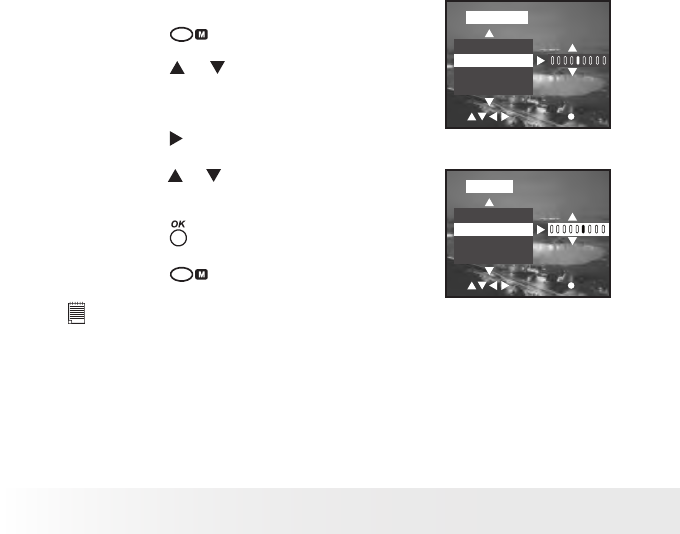
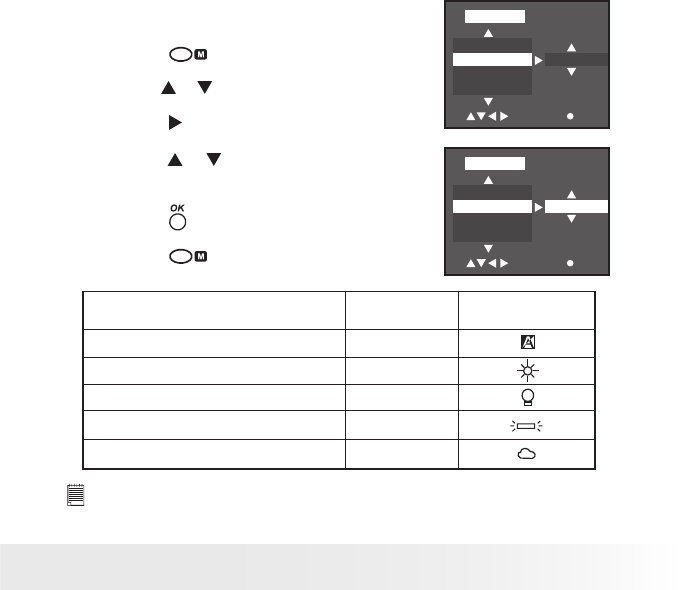
• Setting Exposure Compensation
You can adjust the exposure compensation value (EV) within the range
of -2EV to +2EV in order to compensate for current lighting conditions.
This setting can be used to obtain better result when shooting with
backlighting, indirect indoor lighting, a dark background, and so on.
1. Set the camera to Still Image mode.
2. Press the button.
3. Press the or button to select “EV”.
QUALITY
EV
WHITE BAL
Color
CAMERA
SELECT SET
4. Press the button.
5. Press the or button to select the desired
setting.
6. Press the button.
7. Press the button.
QUALITY
EV
WHITE BAL
Color
VIDEO
SELECT SET
+0.5
NOTE:
• A higher EV value is best for light-colored subjects and backlit subjects. A
lower EV value is best for dark-colored subjects.
• When shooting under very dark or very bright conditions, you may not be able
to obtain satisfactory results even after performing exposure compensation.
• This setting is also available in Video mode.
32 Polaroid Studio 4 Digital Video Camera User Guide
www.polaroid-digital.com
33
Polaroid Studio 4 Digital Video Camera User Guide
www.polaroid-digital.com
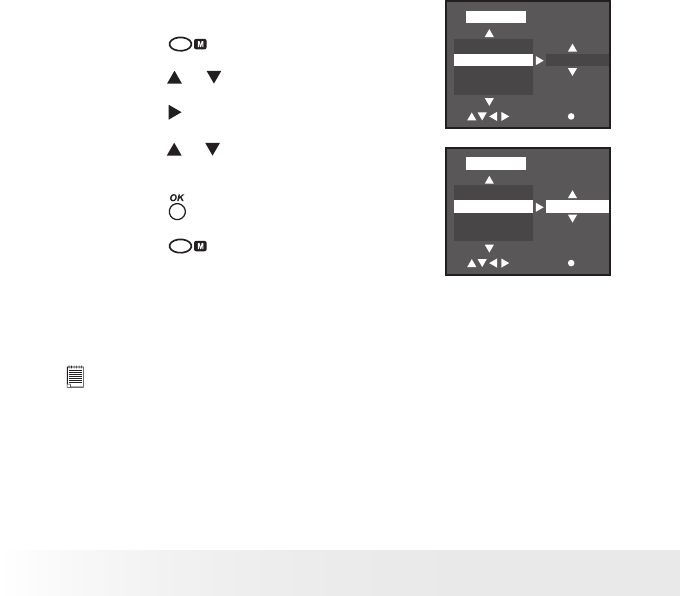
• Setting the White Balance
Selecting the right type of white balance can help to make the color of a
subject appear more natural under the type of lighting that is available.
1. Set the camera to Still Image mode.
2. Press the button.
3. Press the or button to select “WHITE BAL”.
EV
WHITE BAL
Color
SELF-TIMER
CAMERA
SELECT SET
AUTO
4. Press the button.
5. Press the or button to select the desired
setting.
6. Press the button.
7. Press the button.
EV
WHITE BAL
Color
SELF-TIMER
CAMERA
SELECT SET
DAYLIGHT
When shooting under these conditions: Select this setting
AUTO
Automatic adjustment
Outdoor daylight
Cloudy
Indoors, illuminated by light bulbs
Indoors, illuminated by uorescent lighting FLUORESCENT
TUNGSTEN
DAYLIGHT
CLOUDY
Icons shown on LCD
NOTE:
This setting is also available in Video mode.
34 Polaroid Studio 4 Digital Video Camera User Guide
www.polaroid-digital.com
35
Polaroid Studio 4 Digital Video Camera User Guide
www.polaroid-digital.com
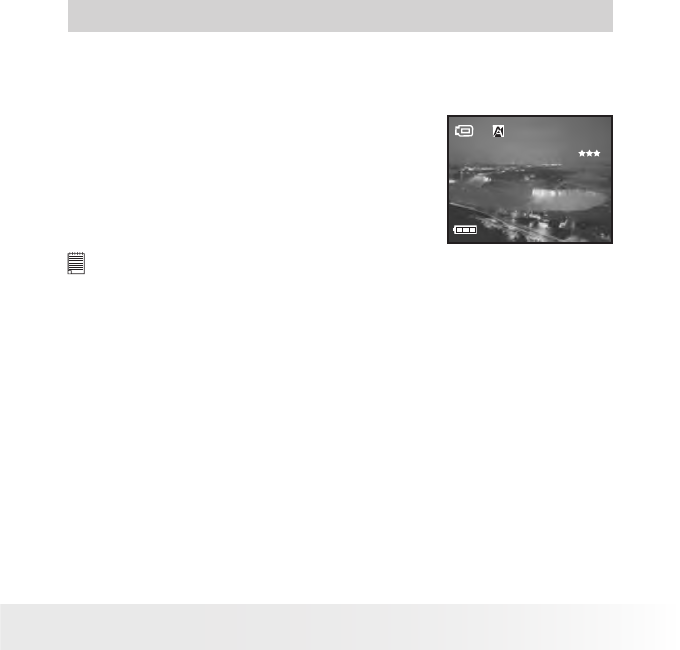
• Setting Photo Effect
You can control the color tones and moods of a picture in this setting.
1. Set the camera to Still Image mode.
2. Press the button.
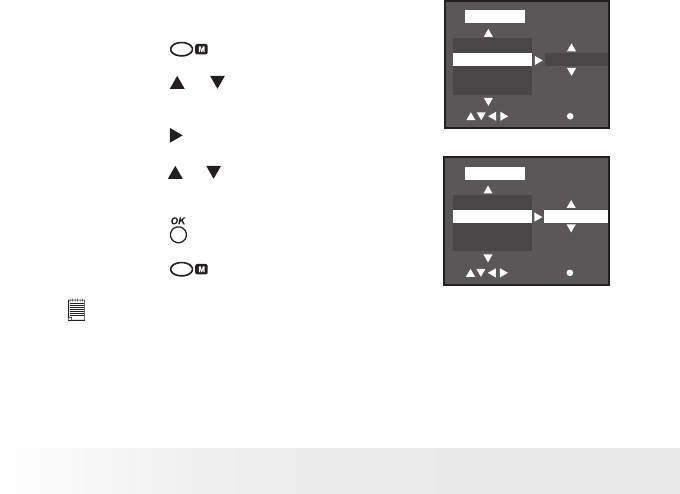
3. Press the or button to select “Color”.
WHITE BAL
Color
SELF-TIMER
RESOLUTION
CAMERA
SELECT SET
NORMAL
4. Press the button.
5. Press the or button to select the desired
setting.
6. Press the button.
7. Press the button.
WHITE BAL
Color
SELF-TIMER
RESOLUTION
CAMERA
SELECT SET
BW
NORMAL For taking pictures with neutral hues.
SEPIA For taking pictures with a brown and antique look.
BW For taking black-and-white pictures.
NOTE:
This setting is also available in Video mode.
34 Polaroid Studio 4 Digital Video Camera User Guide
www.polaroid-digital.com
35
Polaroid Studio 4 Digital Video Camera User Guide
www.polaroid-digital.com
4 Recording Video Clips
• Recording Video Clips
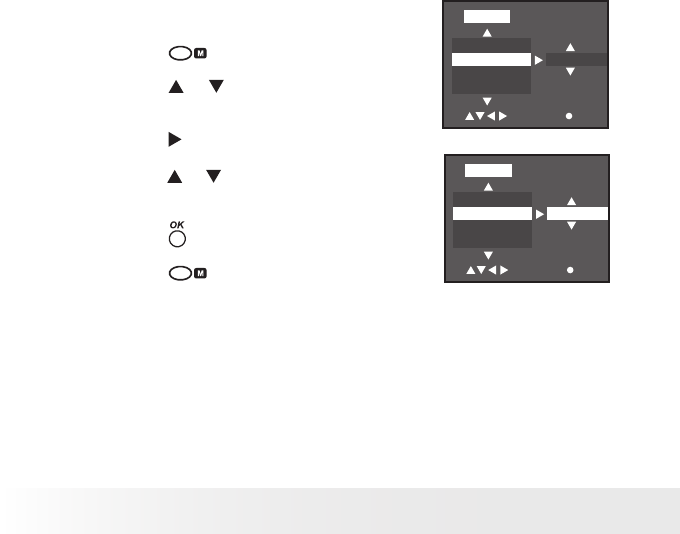
Use the Video mode to record video clips with audio. The elapsed time on
the LCD screen increases while recording.
1. Set the camera to Video mode.
2. Frame your subject using the LCD screen.
3. Press the shutter button completely down to
start recording.
4. Press the shutter button again to stop
recording, or recording stops when the current
memory is full. 17:00
01. 19. 2005
320X240
00:28
NOTE:
• Pictures and video clips can be taken in the dark environment but their
quality may be affected slightly or greatly.
• For best results, take videos outdoors or indoors in a brightly lit room.
36 Polaroid Studio 4 Digital Video Camera User Guide
www.polaroid-digital.com
37
Polaroid Studio 4 Digital Video Camera User Guide
www.polaroid-digital.com
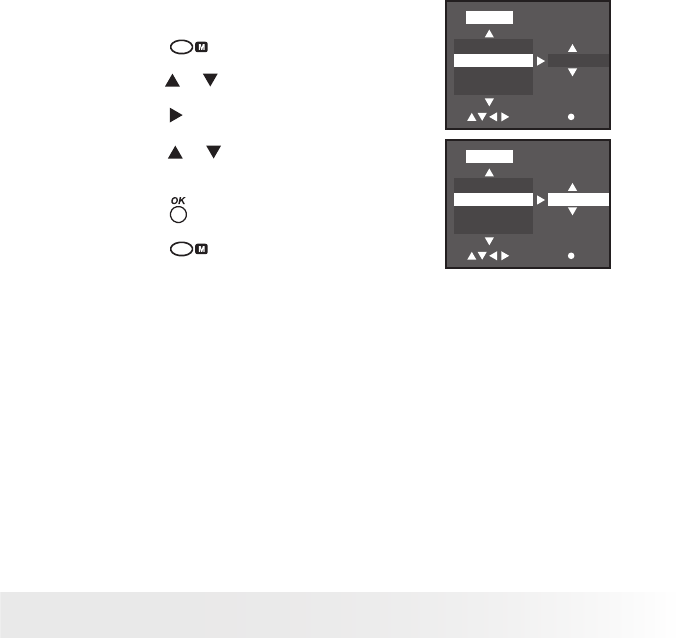
• Setting Video Resolution and Quality
Video resolution refers to the number of pixels in a digital video clip. Video
clip quality depends on the le resolution that the camera applies when
the video clip is recorded. Higher resolution makes better quality which
occupies more memory space.
Resolution Setting
1. Set the camera to Video mode.
2. Press the button.
3. Press the or button to select
“RESOLUTION”.
AUDIO
RESOLUTION
QUALITY
EV
VIDEO
SELECT SET
640X480
4. Press the button.
5. Press the or button to select the desired
setting.
6. Press the button.
7. Press the button.
AUDIO
RESOLUTION
QUALITY
EV
VIDEO
SELECT SET
320X240
36 Polaroid Studio 4 Digital Video Camera User Guide
www.polaroid-digital.com
37
Polaroid Studio 4 Digital Video Camera User Guide
www.polaroid-digital.com
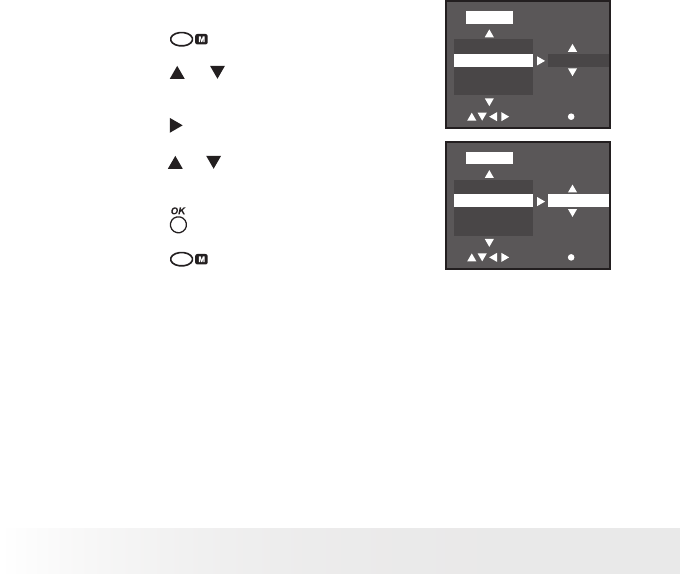
Quality Setting
1. Set the camera to Video mode.
2. Press the button.
3. Press the or button to select “QUALITY”.
RESOLUTION
QUALITY
EV
WHITE BAL
VIDEO
SELECT SET
NORMAL
4. Press the button.
5. Press the or button to select the desired
setting.
6. Press the button.
7. Press the button.
RESOLUTION
QUALITY
EV
WHITE BAL
VIDEO
SELECT SET
FINE
38 Polaroid Studio 4 Digital Video Camera User Guide
www.polaroid-digital.com
39
Polaroid Studio 4 Digital Video Camera User Guide
www.polaroid-digital.com
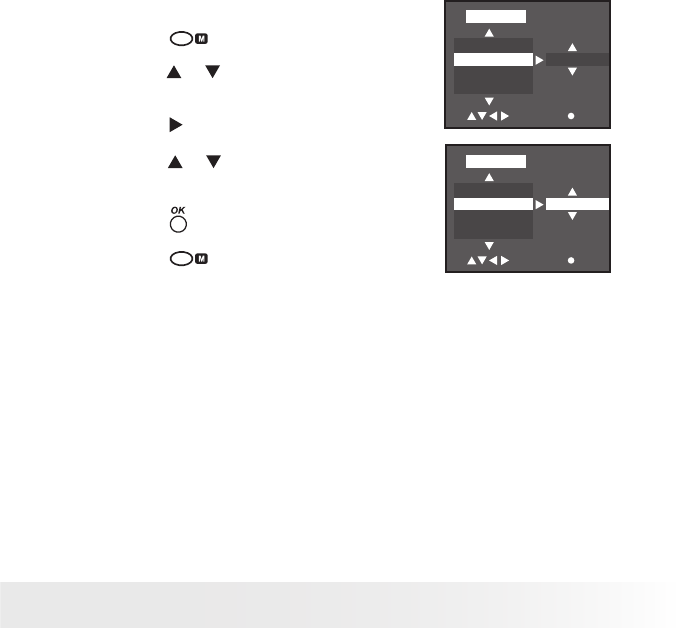
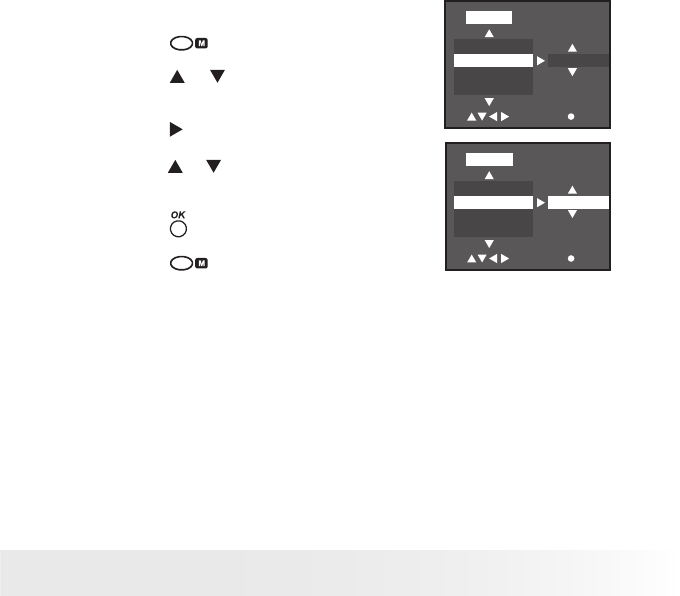
• Adjusting the Brightness Contrast
Brightness controls the amount of lightness or darkness in an image.
Increasing contrast increases the difference in brightness between lighter
or darker pixels.
1. Set the camera to Video mode.
2. Press the button.
3. Press the or button to select
“CONTRAST”.
Color
CONTRAST
SHARPNESS
SELF-TIMER
VIDEO
SELECT SET
NORMAL
4. Press the button.
5. Press the or button to select the desired
setting.
6. Press the button.
7. Press the button.
Color
CONTRAST
SHARPNESS
SELF-TIMER
VIDEO
SELECT SET
STRETCH
NORMAL Use it when no contrast enhancement is needed.
STRETCH Enhancing the brightness contrast sharpens an image and
makes specic areas stand out.
38 Polaroid Studio 4 Digital Video Camera User Guide
www.polaroid-digital.com
39
Polaroid Studio 4 Digital Video Camera User Guide
www.polaroid-digital.com
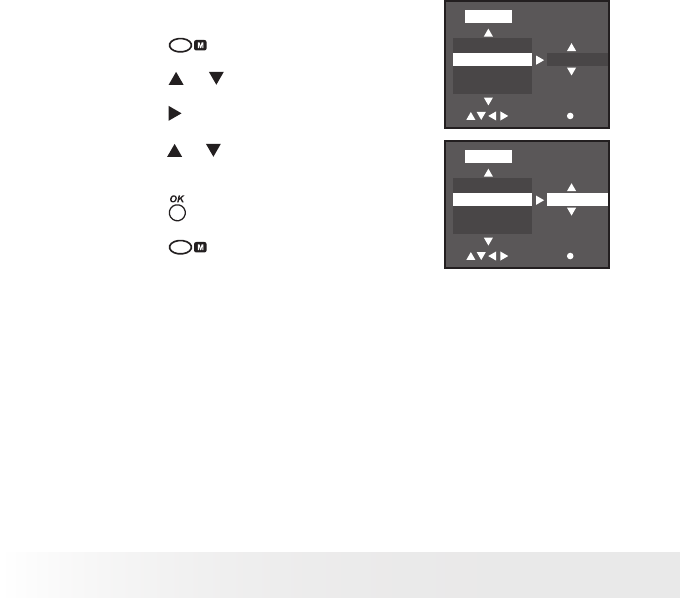
• Setting Sharpness
Use the sharpness setting to highlight or blend the edges of the subject
in pictures.
1. Set the camera to Video mode.
2. Press the button.
3. Press the or button to select
“SHARPNESS”.
CONTRAST
SHARPNESS
SELF-TIMER
AUDIO
VIDEO
SELECT SET
NORMAL
4. Press the button.
5. Press the or button to select the desired
setting.
6. Press the button.
7. Press the button.
CONTRAST
SHARPNESS
SELF-TIMER
AUDIO
VIDEO
SELECT SET
SMOOTH
NORMAL Use when no special effect is needed. Ideal for everyday
pictures.
SMOOTH Softens the edges of the picture, creating a “soft focus” effect.
SHARPEN Increases contrast on the edges of the picture. Ideal when
you want to improve the clarity of a picture, or if you later
may want to crop or cut out specic areas in the picture.
40 Polaroid Studio 4 Digital Video Camera User Guide
www.polaroid-digital.com
41
Polaroid Studio 4 Digital Video Camera User Guide
www.polaroid-digital.com
• Setting Audio Recording On/Off
When taking video clips, the audio sound is recorded simultaneously. You
can disable the audio recording if desired.
1. Set the camera to Video mode.
2. Press the button.
3. Press the or button to select “AUDIO”.
SELF-TIMER
AUDIO
RESOLUTION
QUALITY
VIDEO
SELECT SET
OFF
4. Press the button.
5. Press the or button to select the desired
setting.
6. Press the button.
7. Press the button.
SELF-TIMER
AUDIO
RESOLUTION
QUALITY
VIDEO
SELECT SET
ON
40 Polaroid Studio 4 Digital Video Camera User Guide
www.polaroid-digital.com
41
Polaroid Studio 4 Digital Video Camera User Guide
www.polaroid-digital.com
5 Reviewing and Managing Pictures and Video Clips
NOTE:
Change the camera mode from Capture mode to Playback mode before
reviewing pictures and video clips. Please refer to “Camera Modes” on page
14 for more details.
• Reviewing Pictures on the LCD Screen
1. Set the camera to Playback mode.
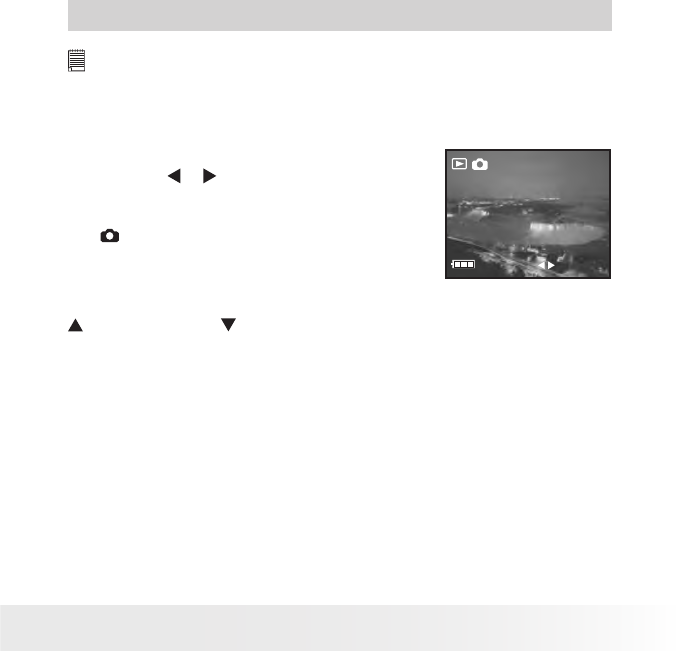
2. Press the or buttons to view the pictures
taken.
1/0001
17:00
01. 19. 2005
SELECT
The icon is shown on the LCD screen when a
picture is selected.
The currently displayed picture can be magnied up to 12 times using the
button. Press the button to view the picture in the original size.
42 Polaroid Studio 4 Digital Video Camera User Guide
www.polaroid-digital.com
43
Polaroid Studio 4 Digital Video Camera User Guide
www.polaroid-digital.com
• Reviewing Picture and Video Clip Files in Thumbnail
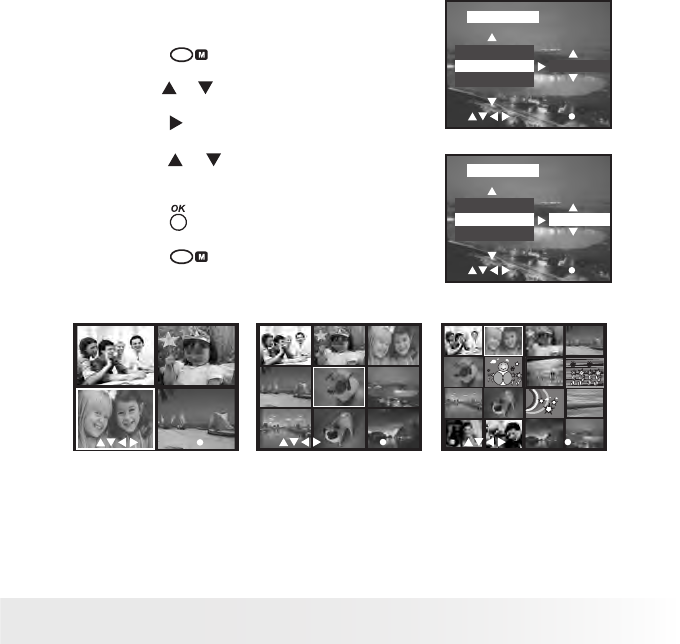
You can view up to 16 picture and video clip les at a time on the LCD
screen by using the Thumbnail function.
1. Set the camera to Playback mode.
2. Press the button. Thumbnail les will be shown on the LCD screen
and the last reviewed picture will be highlighted.
3. Press the , , and button to select a thumbnail le and view it
in full screen by pressing the button.
42 Polaroid Studio 4 Digital Video Camera User Guide
www.polaroid-digital.com
43
Polaroid Studio 4 Digital Video Camera User Guide
www.polaroid-digital.com
Selecting Thumbnail Display Format
1. Set the camera to Playback mode.
2. Press the button.
3. Press the or button to select “THUMBNAIL”.
PROTECT
THUMBNAIL
DELETE
PLAYBACK
SELECT SET
2x2
4. Press the button.
5. Press the or button to select the desired
setting.
6. Press the button.
7. Press the button.
PROTECT
THUMBNAIL
DELETE
PLAYBACK
SELECT SET
3x3
1 2
3 4
SELECT SET
41 2 3
85 6 7
129 10 11
1613 14 15
SELECT SET
1 2 3
5 6
7 8 9
SELECT SET
4
2 x 2 3 x 3 4 x 4
44 Polaroid Studio 4 Digital Video Camera User Guide
www.polaroid-digital.com
45
Polaroid Studio 4 Digital Video Camera User Guide
www.polaroid-digital.com
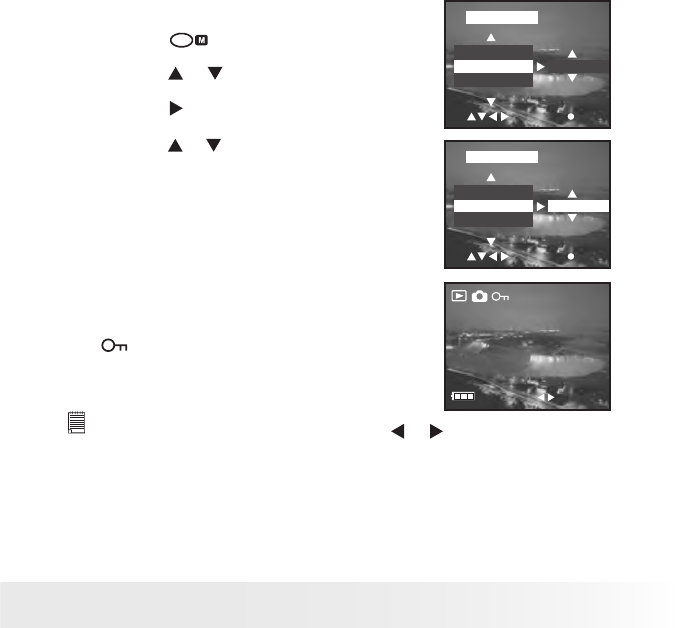
• Playing the Video Clip
1. Set the camera to Playback mode. 1/0001
17:00
01. 19. 2005
SELECT
PLAY
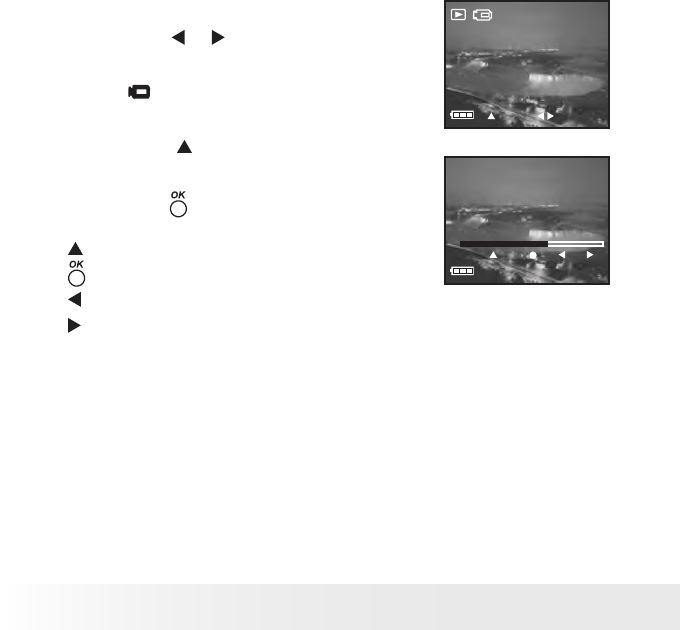
2. Press the or button to select the video
clip you wan to play.
The icon is shown on LCD screen when a
video clip is selected.
3. Press the button to start playing video
clip. Press it again to pause.
4. Press the button to stop.
PAUSE STOP REW FF
Start and pause playing a video clip
Stop playing a video clip
Rewind
Fast forward
44 Polaroid Studio 4 Digital Video Camera User Guide
www.polaroid-digital.com
45
Polaroid Studio 4 Digital Video Camera User Guide
www.polaroid-digital.com
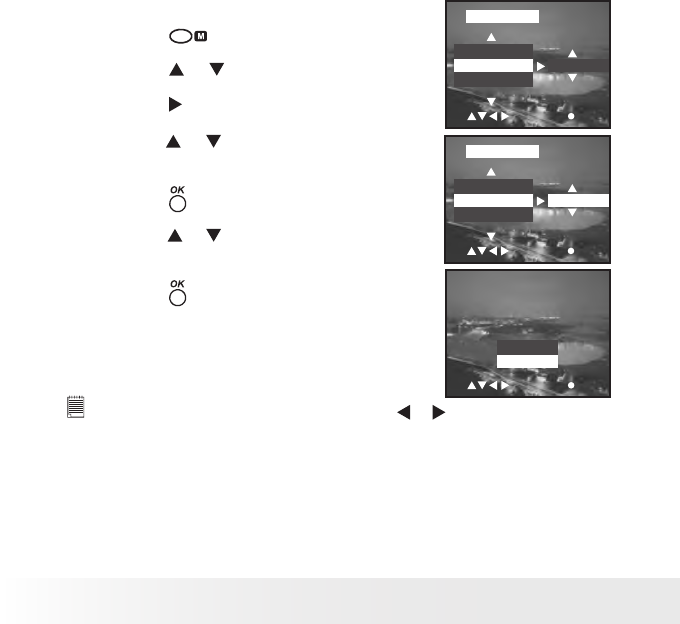
• Protect or Unprotect Picture(s) or Video Clip(s)
1. Set the camera to Playback mode.
2. Press the button.
3. Press the or button to select “PROTECT”.
DELETE
PROTECT
THUMBNAIL
PLAYBACK
SELECT SET
OFF
4. Press the button.
5. Press the or button to select the desired
setting.
DELETE
PROTECT
THUMBNAIL
PLAYBACK
SELECT SET
ON
ON Protect the selected picture or video clip
OFF Remove protection from the selected
picture or video clip
ALL ON Protect all pictures and video clips in
the current memory
ALL OFF Remove protection from all of the
pictures and video clips
1/0001
17:00
01. 19. 2005
SELECT
The icon appears on the information display
when you review the protection status of the
protected picture or video clip.
NOTE:
To protect one picture or video clip, use the or button to select the one
you want to protect before the above operation.
46 Polaroid Studio 4 Digital Video Camera User Guide
www.polaroid-digital.com
47
Polaroid Studio 4 Digital Video Camera User Guide
www.polaroid-digital.com
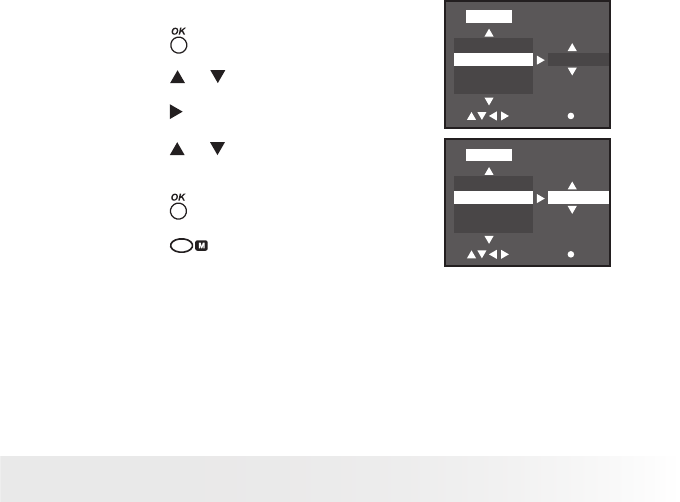
• Delete Picture(s) or Video Clip(s)
1. Set the camera to Playback mode.
2. Press the button.
3. Press the or button to select “DELETE”.
THUMBNAIL
DELETE
PROTECT
PLAYBACK
SELECT SET
CANCEL
4. Press the button.
5. Press the or button to select the desired
setting.
6. Press the button.
THUMBNAIL
DELETE
PROTECT
PLAYBACK
SELECT SET
ONE
7. Press the or button to select the desired
setting.
8. Press the button.
You may cancel the deletion by choosing
“CANCEL”.
DELETE ?
SELECT SET
SET
CANCEL
NOTE:
• To delete one picture or video clip, use the or button to select the one
you want to delete before the above operation.
• Protected les cannot be deleted. Remove protection before deleting.
• All deleted picture and video clips cannot be recovered.
46 Polaroid Studio 4 Digital Video Camera User Guide
www.polaroid-digital.com
47
Polaroid Studio 4 Digital Video Camera User Guide
www.polaroid-digital.com
• View Pictures and Video Clips on a TV
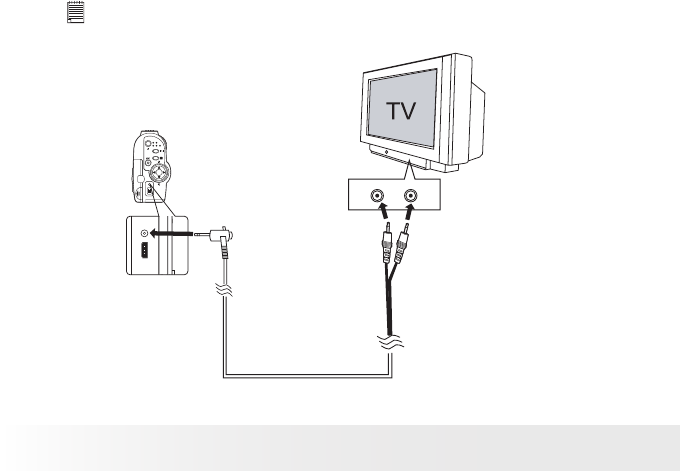
Setting the Video Output System
The video output signal (NTSC or PAL) can be switched to accommodate
different signal systems. For example: NTSC for USA, Canada, Taiwan,
Japan, etc. and PAL for Europe, Asia (excluding Taiwan), and so on.
You can change the video output system according to the following steps:
1. Set the camera to Playback mode.
2. Press the button.
3. Press the or button to select “TV”.
DATE DISP
TV
FREQUENCY
POWER OFF
SETUP
SELECT SET
PAL
4. Press the button.
5. Press the or button to select the
desired setting.
6. Press the button.
7. Press the button.
DATE DISP
TV
FREQUENCY
POWER OFF
SETUP
SELECT SET
NTSC
48 Polaroid Studio 4 Digital Video Camera User Guide
www.polaroid-digital.com
49
Polaroid Studio 4 Digital Video Camera User Guide
www.polaroid-digital.com
Connecting to a TV
“NTSC” or “PAL” can be selected when the camera is connected to a TV.
The TV screen now performs as the LCD screen and the LCD screen is
powered off.
1. Connect the camera to a TV via the video cable (supplied) as illustrated.
2. When the camera is set to Still Image mode or Video mode, you can
preview the picture you want to take on the TV screen.
3. When the camera is set to Playback mode, you can review all
pictures and video clips in the camera on the TV.
NOTE:
When playing the pictures or videol clips on the TV, its color may be over-
saturated. Manually adjust the color setting on the TV for best color effect.
USB
Yellow Plug
White Plug
To Audio In Jack To Video In Jack
48 Polaroid Studio 4 Digital Video Camera User Guide
www.polaroid-digital.com
49
Polaroid Studio 4 Digital Video Camera User Guide
www.polaroid-digital.com
6 Using the SD (Secure Digital) Card
• Using the SD card
Your camera comes with a 16 MB built-in ash memory for storing
pictures and video clips. You can expand the memory using a commercially
available SD card (up to 1GB). The camera senses whether a memory card
is inserted, and automatically saves pictures and video clips accordingly.
Note that you cannot save pictures or video clips to the built-in ash
memory while a memory card is installed in the camera.
NOTE:
As tests prove, the Studio 4 works best with 32MB to 512MB SD memory
cards. Consider using these cards for best performance.
Memory Card Precautions
1. Use only an SD memory card with this camera.
2. Electrostatic charge, electrical noise, and other phenomena can cause
data corruption or even loss. Always make sure you back up important
data on other media (MO disc, computer hard drive, etc.).
3. If a memory card starts to behave abnormally, you can restore normal
operation by reformatting it. However, we recommend that you
always take along more than one memory card whenever using the
camera away from the home or ofce.
4. We recommend that you format a memory card before using it for the rst
time after purchasing it, or whenever the card you are using seems to be
the cause of abnormal pictures. Remember to format a memory card if it
was used in another digital camera or other devices.

50 Polaroid Studio 4 Digital Video Camera User Guide
www.polaroid-digital.com
51
Polaroid Studio 4 Digital Video Camera User Guide
www.polaroid-digital.com
IMPORTANT!
• Make sure you turn off the camera before inserting or removing a memory card.
• Be sure to orient the card correctly when inserting it. Never try to force a
memory card into the slot when you feel resistance.
• SD memory cards have a write protection switch that you can use to
protect les from accidental deletion. However, you must remove the write
protection whenever you want to record new les onto it, format it, or
delete its les.
• Files contained in the SD card recorded by other cameras may conict
with the Studio 4 camera, and valuable data in your existing SD card may
be distorted or lost when the card is inserted in the Studio 4 camera. We
strongly recommend the user to use a NEW or formatted SD card for the
Studio 4 camera. The manufacturer is not liable for losing or corrupting any
valuable data or les in your SD card due to your improper operation.
• As tests prove, the Studio 4 works best with popular brands of memory
cards such as SanDisk, Panasonic, Lexar and TOSHIBA. Consider using
these cards for best performance.
50 Polaroid Studio 4 Digital Video Camera User Guide
www.polaroid-digital.com
51
Polaroid Studio 4 Digital Video Camera User Guide
www.polaroid-digital.com
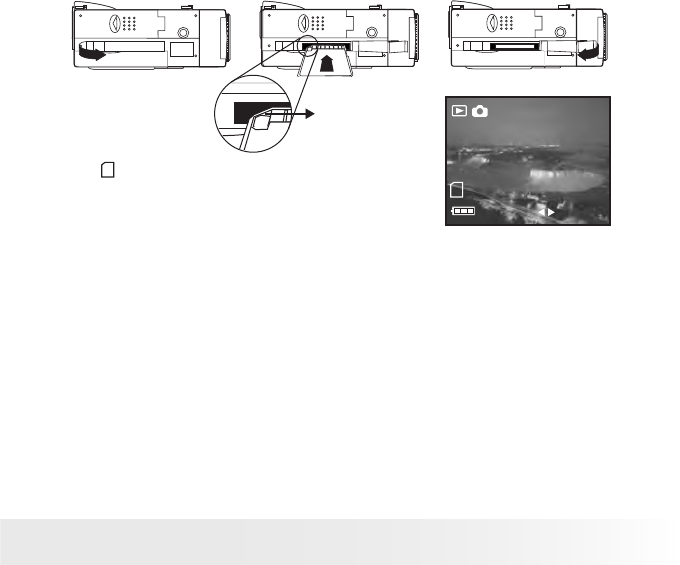
Inserting the SD Card
Turn off the camera and open the SD card slot door as illustrated. Insert
the SD card, ensuring that the card is inserted the correct position as
illustrated. Close the card slot door before using the camera.
TBA
TBA
TBA
Notched corner
of SD card
The icon will appear on the LCD screen when
an SD card is inserted into the camera.
1/0001
17:00
01. 19. 2005
SELECT
52 Polaroid Studio 4 Digital Video Camera User Guide
www.polaroid-digital.com
53
Polaroid Studio 4 Digital Video Camera User Guide
www.polaroid-digital.com
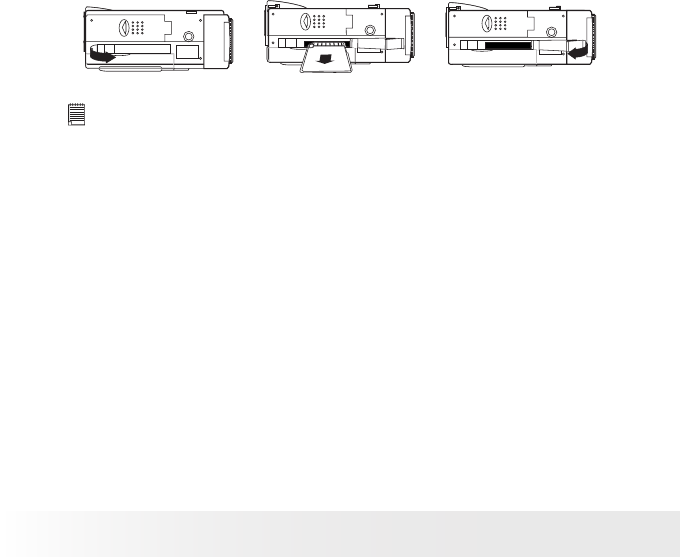
Removing the SD Card
To remove the SD card, turn off camera and open the SD card slot door.
Gently use your nger to push the SD card inwards and then release it for
the SD card to bounce out of the SD card slot as illustrated.
TBA TBA
TBA
IMPORTANT!
• Never insert any other object into the camera’s SD card slot. Doing so
creates the risk of damage to the camera and card.
• Should water or any foreign objects ever get into the card slot, immediately
turn off the camera, remove the batteries and contact your dealer or nearest
service provider.
• Never remove a card from the camera while the camera is powered on.
Doing so can cause the picture or video recording operation to fail, and even
damage the memory card.

52 Polaroid Studio 4 Digital Video Camera User Guide
www.polaroid-digital.com
53
Polaroid Studio 4 Digital Video Camera User Guide
www.polaroid-digital.com
Formatting the SD Card
Formatting the SD card erases all les stored in it, including the protected
ones. Removing the SD card during formatting may damage the card.
1. Insert an SD card into the camera card slot.
2. Turn on the camera.
3. Procedures are the same as for formatting the internal memory. Refer
to “Formatting the Internal Memory” on page 23 for details.
IMPORTANT!
• You can format a memory card on the camera or on a computer. However
formatting a memory card on a computer takes much longer.
• Note that data deleted by a format operation cannot be recovered. Make sure
you do not have any useful data currently stored on a memory card before you
format it.
54 Polaroid Studio 4 Digital Video Camera User Guide
www.polaroid-digital.com
55
Polaroid Studio 4 Digital Video Camera User Guide
www.polaroid-digital.com
7 Installing the Software onto a Computer
• Installing the Software
For Windows® Users: PC
IMPORTANT!
MAKE SURE YOU INSTALL ALL THE SOFTWARE FROM THE CD SUPPLIED
BEFORE YOU CONNECT YOUR CAMERA TO A COMPUTER AND TRANSFER
PICTURES FROM YOUR CAMERA TO THE COMPUTER.
IMPORTANT! (For Windows® 98SE)
On Windows® 98SE Mass Storage function needs to install the Studio 4
Driver. After the installation, please restart the Windows before connecting
the camera to the PC.
IMPORTANT! (For Windows® Me, 2000, XP)
Directly plug-in the camera to transfer and play the pictures. No need to
install the driver.
IMPORTANT!
To view the video clips it is recommended to install the Arcsoft ShowBiz 1.3.
It can be found in the CD.
IMPORTANT!
To play the video clips (AVI format), it is necessary to install the DivX from
the CD supplied.
54 Polaroid Studio 4 Digital Video Camera User Guide
www.polaroid-digital.com
55
Polaroid Studio 4 Digital Video Camera User Guide
www.polaroid-digital.com
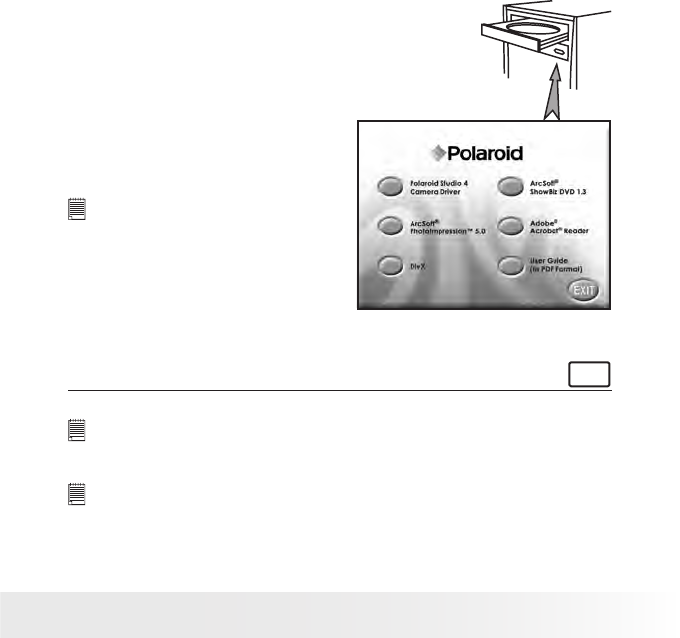
1. Before you begin, close all other
software applications open on
your computer.
2. Insert the CD supplied into the
computer CD-ROM Drive.
3. The CD User Interface Screen
will automatically launch.
4. With the mouse, click on each
software interface button in
turn and follow the on screen
instructions.
Open & Close
NOTE:
If the setup screen does not appear
after loading the CD, then you can
manually start it by double clicking
the “My Computer” icon on your
desktop, then double clicking the
icon for the CD-ROM drive. When
the CD-ROM window opens, double
click the “INSTALL-E.EXE” icon.
For Macintosh Users: Mac
IMPORTANT!
To play the video clips (AVI format), it is necessary to install the DivX
Doctor II from the CD supplied.
IMPORTANT!
To view the video clips it is recommended to install the QuickTime Player. It
can be found in the CD.

56 Polaroid Studio 4 Digital Video Camera User Guide
www.polaroid-digital.com
57
Polaroid Studio 4 Digital Video Camera User Guide
www.polaroid-digital.com
• Software Included with Your Camera
The Studio 4 software CD contains the following software:
Polaroid Studio 4 Camera Driver Plug & Play removable disk
Easy to use, just plug the camera to a computer and use it as a removable
disk. Use the ArcSoft® PhotoImpression™ 5.0 to edit and print the Pictures.
ArcSoft PhotoImpression™ 5.0 Picture Editing Software
ArcSoft PhotoImpression™ is an easy to use image-editing program. This
program enables users to upload still image and movie clips stored in
your camera. You could also edit and retouch your photos, then add
special effects or place them in cards, calendars, frames and fantasy
templates. ArcSoft PhotoImpression™ also includes a wide variety of
printing options.
ArcSoft ShowBiz 1.3 Movie Making Software
ArcSoft ShowBiz 1.3 is an easy-to-use program that has everything you
need to capture your home movies and create your own DVDs to share
with friends or send to customers. It includes tools for editing your video
footage, customizing DVD menus, and designing DVD photo slideshows!
Adobe® Acrobat® Reader . PDF File Reading Software
Adobe® Acrobat® Reader lets you view and print Adobe Portable Document
format (PDF) les on all major computer platforms, as well as ll in and
submit Adobe PDF forms online.
DivX®/DivX® Doctor II Advanced Digital Media Format
DivX lets you play, create and share digital video by turning bulky videos
into lean, mean DivX les. The DivX® codec (short for compressor/
decompressor) can compress video to a convenient size without losing
any noticeable quality and play those videos back on almost any device.
56 Polaroid Studio 4 Digital Video Camera User Guide
www.polaroid-digital.com
57
Polaroid Studio 4 Digital Video Camera User Guide
www.polaroid-digital.com
QuickTime Player Media Playing Software (Mac Only)
The QuickTime Player is an easy-to-use application for playing, interacting
with or viewing any video, audio, VR, or graphic le that is compatible
with QuickTime.
• Computer System Requirements
For acceptable picture transferring and editing performance, we recommend
the following minimum requirements;
For Windows® Users PC
• Compatible with Microsoft® Windows® 98SE, Me, 2000 or XP
• Pentium® III 800MHz or equivalent processor
• USB Port
• 128MB RAM (512MB recommended)
• 400MB free disk space
• Color monitor with high color (16-bit) graphic capability or higher
• CD-ROM drive
• Standard mouse and keyboard
• Stereo speakers
• DivX
For Macintosh Users Mac
• Mac® OS Version 9.2~X
• PowerMac G3 or higher
• USB Port
• 256MB RAM
• 400MB Free disk space
• Color monitor with high color (16-bit) graphic capability or higher
• CD-ROM drive
• Standard mouse and keyboard
• Stereo speakers
• DivX Doctor II
58 Polaroid Studio 4 Digital Video Camera User Guide
www.polaroid-digital.com
59
Polaroid Studio 4 Digital Video Camera User Guide
www.polaroid-digital.com
8 Transferring Pictures and Video Clips To Your Computer
• Before Transferring Files
IMPORTANT! - FOR PC USERS
BEFORE YOU CONNECT YOUR DIGITAL CAMERA TO THE COMPUTER, MAKE
SURE THAT YOU HAVE INSTALLED THE SOFTWARE FROM THE ENCLOSED
CD. PLEASE REFER TO “7 Installing the Software onto a Computer”.
For Windows® Users: PC
• Connecting to Your Computer
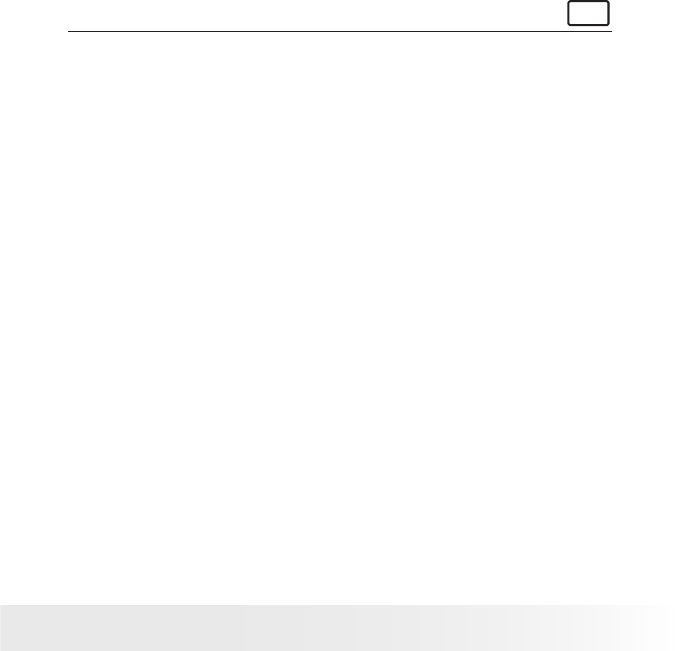
Connecting with the USB Cable.
USB Series “Mini B” plug
connects to your camera
USB Series “A” plug
connects to your computer
OK
VIDEO
OUT
USB
1. Open the LCD screen panel and turn on the camera.
2. Plug USB Series “A” plug into the socket marked on your computer.
3. Plug USB Series “Mini B” plug into the USB port on your camera.
58 Polaroid Studio 4 Digital Video Camera User Guide
www.polaroid-digital.com
59
Polaroid Studio 4 Digital Video Camera User Guide
www.polaroid-digital.com
For Windows® Users: PC
• Transferring Pictures and Video Clips to PC
1. Open the LCD screen panel and turn on the camera.
2. Connect the camera to a computer via the USB cable.
3. Double click on “My Computer” icon on your desktop and then you
can see a “Removable Disk” drive.
4. Double click “Removable Disk” -> double click “DCIM”-> double
click “100MEDIA”.
5. All the pictures and video clips are in the “100MEDIA” folder. Highlight
the pictures or video clips and drag them to a folder of your choice.
You can also create sub-folders to group them or use the ArcSoft
software to edit and manage the pictures.
60 Polaroid Studio 4 Digital Video Camera User Guide
www.polaroid-digital.com
61
Polaroid Studio 4 Digital Video Camera User Guide
www.polaroid-digital.com
For Macintosh Users Mac
• Transferring the Pictures and Video Clips to Mac
NOTE:
For Mac user, directly plug-in the camera, no need to install the driver.
1. Open the LCD screen panel and turn on the camera.
2. Set the camera to Playback mode.
3. Connect the camera to a computer via the USB cable, the systems will
automatically recognize the MASS STORAGE drive named “Unlablled”.
NOTE:
This Drive name will vary on different versions of Mac OS systems.
4. Double click the folder “Unlabbled” to enter sub-folder “DCIM”.
5. Double click the folder “DCIM” and then any sub folder inside.
6. You can copy the pictures and video clips from this directory folder
and paste them to the hard disk.
60 Polaroid Studio 4 Digital Video Camera User Guide
www.polaroid-digital.com
61
Polaroid Studio 4 Digital Video Camera User Guide
www.polaroid-digital.com
• PhotoImpression 5.0 Hot Plug Function (PC Only)
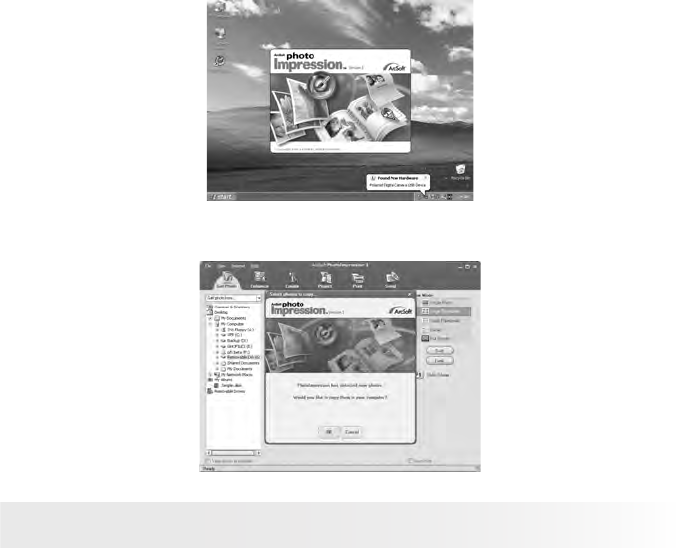
PhotoImpression 5.0 will detect the connection between the camera and
the computer automatically.
When connect the camera to the computer, PhotoImpression 5.0 will
launch on your desktop automatically.
PhotoImpression 5.0 will detect any new photos in the camera.
Click “OK” button to start the copying new photos to the computer.
62 Polaroid Studio 4 Digital Video Camera User Guide
www.polaroid-digital.com
63
Polaroid Studio 4 Digital Video Camera User Guide
www.polaroid-digital.com
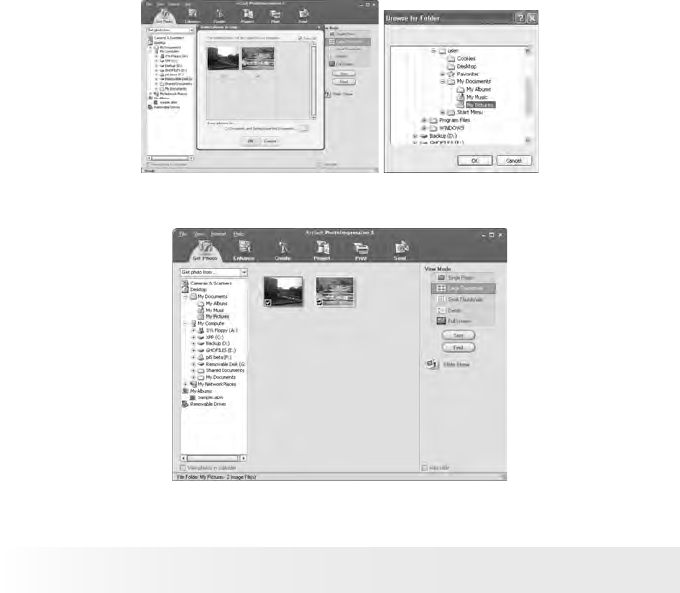
You can select the destination which the photos are copied to.
Click the “folder” icon - >Browse for folder - > Click the “OK” button to conrm.
Click “OK” to start copying.
The photos have been copied to the computer successfully. You can start
to use the PhotoImpression 5.0 to edit the photos.
62 Polaroid Studio 4 Digital Video Camera User Guide
www.polaroid-digital.com
63
Polaroid Studio 4 Digital Video Camera User Guide
www.polaroid-digital.com
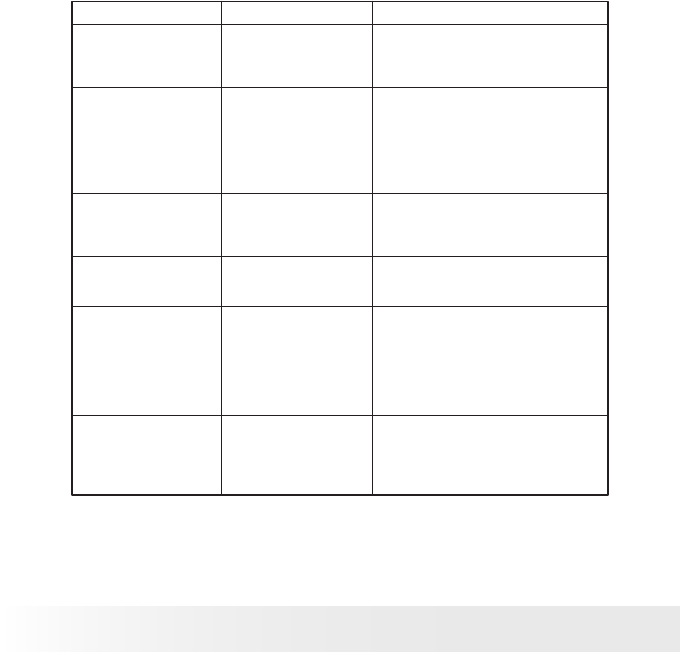
9 Troubleshooting Problem
• Troubleshooting
The troubleshooting guide is designed to help you. If problems continue,
please call your local customer support hot-line. See your registration card
for hot line contact details.
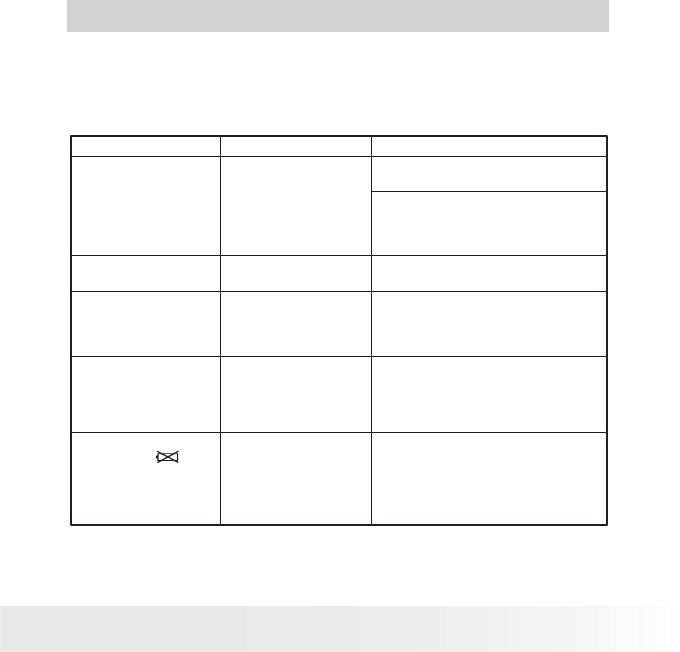
Symptom Problem Solution
I receive an error
message when I am
installing Polaroid
Studio 4 Camera
Driver.
Polaroid Studio 4
Camera Driver does
not load.
Shut down all other applications and
attempt to reinstall the driver.
Check the USB controller in your BIOS
if they are activated. If these do not
work, contact your national Customer
Support representative.
I cannot upload images
to the PC.
Connection failure. Check all cable connections are secured.
My Studio 4 camera
cannot be recognized
by the system.
Conict with another
camera driver or
capture device.
If you have another camera installed
on your computer, remove it and its
driver completely from your system to
avoid conicting with the Studio 4.
I get a blurred image
when uploading my
images to my computer.
There may be a
momentary delay
between pressing the
shutter button and the
actual exposure.
Hold your Studio 4 camera steadily
until you hear a beep which indicates
the exposure is completed.
My Studio 4 Camera LCD
screen shows icon.
or
I cannot activate my
digital camera by pressing
the Power button.
Insufcient battery power
or batteries are missing.
or
Batteries are no
oriented correctly.
Replace batteries.
or
Orient batteries correctly.
64 Polaroid Studio 4 Digital Video Camera User Guide
www.polaroid-digital.com
65
Polaroid Studio 4 Digital Video Camera User Guide
www.polaroid-digital.com
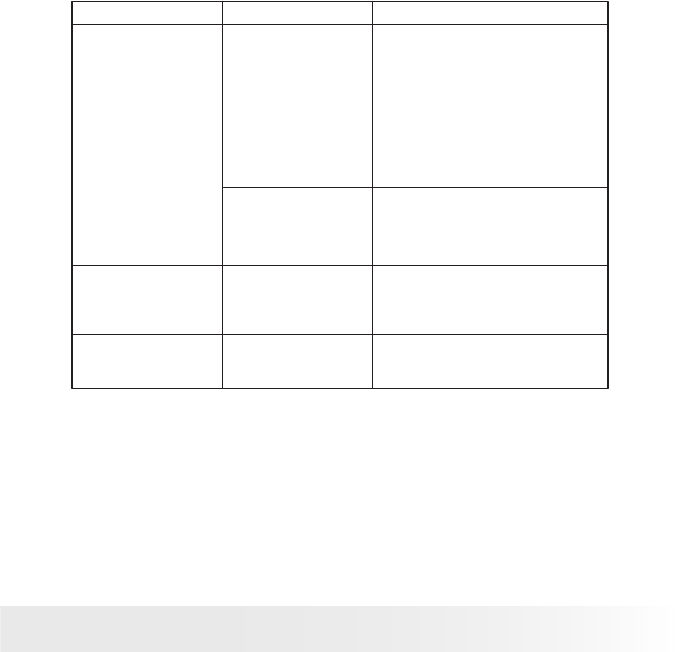
Symptom Problem Solution
Camera suddenly
powers off.
Auto power off
function is activated.
or
Batteries are dead.
Turn the camera on.
or
Replace batteries.
There is no response
from the camera while
pressing any buttons.
Your camera may
be affected by the
electrostatic discharge.
or
The LCD screen is
frozen or the camera is
hanged.
Remove and re-install the battery or
batteries to reset the camera. Your
valuable data stored in the camera
will not be lost.
Image is not recorded
when the Shutter
button is pressed.
Camera is turned off.
or
Memory is full.
Turn the camera on.
or
Delete images you no longer need, or
use another memory card.
Camera powers off
during self-timer
countdown.
Batteries are dead. Replace batteries.
Recorded pictures are
not saved in memory.
Camera powers
off before the save
operation is complete.
or
Remove the memory
card before the save
operation is complete.
If the low battery indicator displays
on the LCD screen, replace with new
batteries.
or
Do not remove the memory card before
the save operation is complete.
Color of the playback
pictures is different
from the picture on
the LCD screen during
recording.
Sunlight or light
from another source
is shinning directly
into the lens during
recording.
Position the camera so that sunlight
does not shine directly onto the lens.
64 Polaroid Studio 4 Digital Video Camera User Guide
www.polaroid-digital.com
65
Polaroid Studio 4 Digital Video Camera User Guide
www.polaroid-digital.com
The video clip (AVI) le
cannot be played.
DivX codec is not
installed yet.
Download and install the DivX or DivX
Doctor II from CD
Symptom Problem Solution
My CD installation
wizard does not work.
The auto installation
le is switched to off.
Go to the computer desktop Right
click on “My Computer”. Click
“Properties”. Select “Device
Manager”. Double click on “CD-Rom”,
double click on “CD-R” (Normally
the manufacturer’s name). Click
on “ Setting . Ensure “Auto insert
notication “ is ticked and the “
disconnect “ is ticked. If you change
the settings the computer will ask you
to restart your PC. Click “ Yes “
The CD ROM is
disconnected.
You can manually start it by going to
the Windows Desktop, double click
“My Computer”, double click your
CD ROM icon and nally double click
“INSTALL-E.EXE” le.
I cannot upload the
images from the
internal memory of the
Studio 4 camera to PC.
The SD Card is inserted
inside the SD Card slot.
The memory card with a higher priority
than the internal memory for image
storage or image transfer or delete.
Please also refer to the help les & User Guides that accompany the
enclosed applications. For further information and support, please visit
our web site: http://www.polaroid-digital.com
66 Polaroid Studio 4 Digital Video Camera User Guide
www.polaroid-digital.com
67
Polaroid Studio 4 Digital Video Camera User Guide
www.polaroid-digital.com
10 Getting Help
• Polaroid-digital Online Services
Website: http://www.polaroid-digital.com
• Customer Support
Questions? Need Help? Call us at 1-877-388-3779 (USA),
1-866-722-0866 (Mexico), 1-888-235-0808 (Canada).
Monday thru Friday, 10 am-7 pm EST and Sat 10 am-4 pm
EST Or visit us at http://www.polaroid-digital.com
• ArcSoft Software Help
For United States For Latin America
ArcSoft HQ Support Center E-mail:latinsupport@arcsoftsupport.com
(Fremont, CA 94538)
Tel.: 1-510-979-5599
Fax: 1-510-440-7978
E-mail: support@arcsoftsupport.com
Web: http://www.arcsoft.com/en/support/
For Europe For China
ArcSoft Europe Support Center ArcSoft China Support Center
(Ireland) (Hangzhou)
Tel.: +353-(0) 61-702087 Tel.: +86-571-88210575
Fax: +353-(0) 61-702001 E-mail: support@arcsoft.com.cn
E-mail: eurosupport@arcsoft.com Web: http://www.arcsoft.com.cn/new/
support
For Japan For Taiwan
ArcSoft Japan Support Center (Tokyo) ArcSoft Taiwan Support Center (Taiwan)
Tel.: +81-3-5795-1392 Tel.: +886-(0) 2-2506-9355
Fax: +81-3-5795-1397 Fax: +886-(0) 2-2506-8922
E-mail: support@arcsoft.jp E-mail: support@arcsoft.com.tw
Web: http://www.arcsoft.jp Web: www.arcsoft.com.tw
Visit http://www.arcsoft.com for technical support and frequently asked
questions (FAQ’s).
66 Polaroid Studio 4 Digital Video Camera User Guide
www.polaroid-digital.com
67
Polaroid Studio 4 Digital Video Camera User Guide
www.polaroid-digital.com
11 Appendix
• Technical Specications
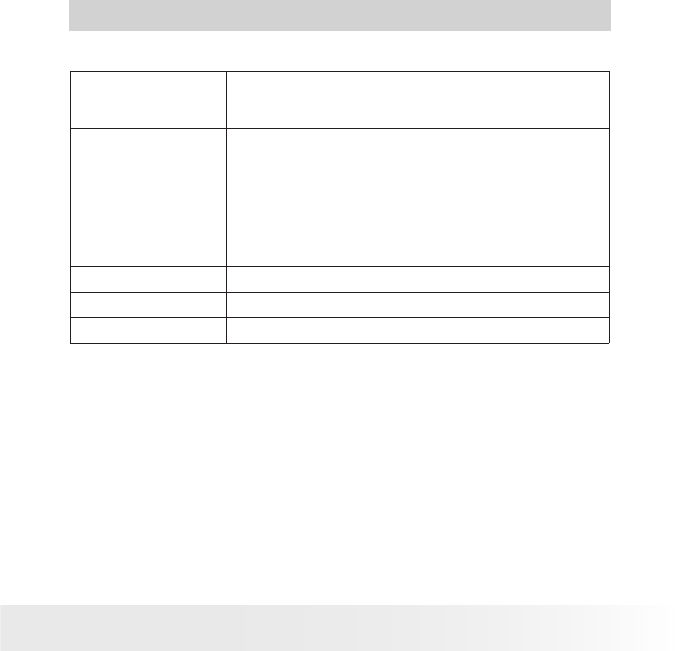
Picture Resolution • Sensor:
- 1/1.8 inch
- 3.2 Mega Pixels CMOS
Lens • Type: 5 elements plus IR lter
• Aperture: F 3.5
• Focal Length: f=8.66 mm
• Focal Distance
- Normal Focus: 3.2 ft to ∞ (1 m to ∞)
(The focusing range is the distance from the lens
surface to the subject.)
• Focus Zones: center-zone
LCD Screen 1.5” TFT color panel
ISO Speed Auto
Exposure Control -/+2 EV in 0.5 increments
68 Polaroid Studio 4 Digital Video Camera User Guide
www.polaroid-digital.com
69
Polaroid Studio 4 Digital Video Camera User Guide
www.polaroid-digital.com
Shutter Speed Electronic shutter 1/1000 sec ~ 1/10 sec
White Balance Auto, Daylight, Cloudy, Tungsten, Fluorescent
Storage • Internal Memory: 16MB (11MB for data storage)
• External Memory: supports SD card up to 1 GB (not
included)
File Format • Still Image
- EXIF 2.2 compatible format (JPEG compression)
• Video Clip: AVI format
Power Supply 2 x AA-size batteries (included)
Self-timer 10 seconds with beep sound
Tripod Socket Yes
Connectivity • With computer via USB cable (included)
• With TV via video cable (included)
Dimension • Size: (W) 92 mm x (D) 35 mm x (H) 74 mm
• Weight: Approximately 125g excluding batteries or card
Operating System • For Windows® Users: Microsoft® Windows® 98SE,
Me, 2000 or XP
• For Macintosh Users: Mac OS 9.2~X
68 Polaroid Studio 4 Digital Video Camera User Guide
www.polaroid-digital.com
69
Polaroid Studio 4 Digital Video Camera User Guide
www.polaroid-digital.com
• Storage Capacities
The charts below indicate the approximate numbers of pictures and length
of video clips the camera can hold at each setting based on the internal
memory and different capacities of SD card.
Recordable Images
Units: Images
Resolution Quality 16MB
Internal
Memory
(11MB
for data
storage)
32MB SD 64MB SD
2048 x 1536
High 20 55 110
Normal 27 72 144
Low 34 91 182
1600 x 1200 High 33 91 182
Normal 45 127 254
Low 56 148 296
1280 x 960 High 52 140 280
Normal 68 183 366
Low 87 221 442
640 x 480 High 170 457 914
Normal 227 545 1090
Low 228 551 1102
70 Polaroid Studio 4 Digital Video Camera User Guide
www.polaroid-digital.com
71
Polaroid Studio 4 Digital Video Camera User Guide
www.polaroid-digital.com
Resolution Quality 128MB SD 256MB SD 512MB SD 1GB SD
2048 x 1536
High 220 440 880 1760
Normal 288 576 1152 2304
Low 384 768 1536 3072
1600 x 1200 High 364 728 1456 2912
Normal 508 1016 2032 4064
Low 592 1184 1368 4736
1280 x 960 High 560 1120 2240 4480
Normal 532 1064 2128 4256
Low 884 1768 3536 7072
640 x 480 High 1828 3656 7312 14624
Normal 2180 4360 8720 17440
Low 2204 4408 8816 17632
70 Polaroid Studio 4 Digital Video Camera User Guide
www.polaroid-digital.com
71
Polaroid Studio 4 Digital Video Camera User Guide
www.polaroid-digital.com
Recordable Video Length
Units: Minute
Resolution Quality Video clips can be taken
16MB Internal Memroy
(11MB for data storage)
640 x 480 Fine 0.46
Normal 0.5
320 x 240 Fine 1
Normal 1.2
32MB SD 640 x 480 Fine 1.2
Normal 1.3
320 x 240 Fine 3
Normal 3.5
64MB SD 640 x 480 Fine 2.4
Normal 2.6
320 x 240 Fine 6
Normal 7
128MB SD 640 x 480 Fine 4.8
Normal 5.2
320 x 240 Fine 12
Normal 14
72 Polaroid Studio 4 Digital Video Camera User Guide
www.polaroid-digital.com
73
Polaroid Studio 4 Digital Video Camera User Guide
www.polaroid-digital.com
Resolution Quality Video clips can be taken
256MB SD 640 x 480 Fine 9.6
Normal 10.4
320 x 240 Fine 24
Normal 28
512MB SD 640 x 480 Fine 19.2
Normal 20.8
320 x 240 Fine 48
Normal 56
1GB SD 640 x 480 Fine 38.4
Normal 41.6
320 x 240 Fine 96
Normal 112
NOTE:
Scene complexity affects a picture’s le size. For example, a picture of
trees in autumn has a larger le size than a picture of blue sky at the same
resolution and quality setting. Therefore, the number of pictures and length
of video clips you can store on a memory card may vary.
72 Polaroid Studio 4 Digital Video Camera User Guide
www.polaroid-digital.com
73
Polaroid Studio 4 Digital Video Camera User Guide
www.polaroid-digital.com
• Uninstall the Camera Driver (PC)
For Windows® Users: PC
1. Click Windows Start button.
2. Go to Setting -> Control Panel.
3. Double-click “Add or Remove Program”.
4. Choose the “Polaroid Studio 4 Camera” and Click “Change/Remove”
to uninstall it.
5. The driver will be removed automatically.
74 Polaroid Studio 4 Digital Video Camera User Guide
www.polaroid-digital.com
75
Polaroid Studio 4 Digital Video Camera User Guide
www.polaroid-digital.com
• Camera Default Settings
Camera Mode
Still Image Mode
Video Mode
Setup Mode
Description
Image Resolution
Quality
Exposure Compensation
White Balance
Color
Self-timer
Video Resolution
Quality
Exposure Compensation
White Balance
Color
Self-timer
Contrast
Sharpness
Audio
Beep
Date / Time Display
Driver Type
TV
Frequency
Auto Power Off
Language
Default
2048 x 1536
Fine
0
Auto
Normal
Off
640x480
Fine
0
Auto
Normal
Off
Normal
Normal
On
On
Date & Time
Mass Storage
PAL
60Hz for USA / 50Hz for Europe
1 minute
English

74 Polaroid Studio 4 Digital Video Camera User Guide
www.polaroid-digital.com
75
Polaroid Studio 4 Digital Video Camera User Guide
www.polaroid-digital.com
NOTE:
The default language for the LCD screen may vary with different countries
and regions.
• Using Your Batteries
IMPORTANT NOTE:
For best performance and prolonged battery life, we recommend the use of
AA lithium or rechargeable NiMH.
Limit the following activities that reduces battery life:
Reviewing your pictures on the LCD screen.
WARNING!
• Batteries should be replaced by an adult.
• Do not mix different types of batteries (or new and used batteries).
• Use recommended or equivalent type of batteries only.
• Insert the batteries in the correct polarity.
• Remove exhausted batteries from the camera immediately.
• Do not short the supply terminals.
• Do not dispose the batteries in re.
• Remove batteries from the camera when not in use.
These instructions should be retained for future reference.

76 Polaroid Studio 4 Digital Video Camera User Guide
www.polaroid-digital.com
77
Polaroid Studio 4 Digital Video Camera User Guide
www.polaroid-digital.com
• Tips, Your Safety & Maintenance
Your Camera should only be operated within the following environmental
conditions;
• 32 - 104º Fahrenheit; 0 - 40º Celsius
• 20% - 85% relative humidity, non condensing
Battery life or image quality may be affected outside these conditions.
Camera Cautions
• NEVER immerse any part of the Camera or its accessories into any
uid or liquid.
• ALWAYS disconnect the Camera from your PC or TV before cleaning it.
• ALWAYS remove dust or stains with a soft cloth dampened with
water or neutral detergent.
• NEVER place hot items on the surface of the Camera.
• NEVER attempt to open or disassemble Camera as this will affect any
warranty claim.
• Regulatory Information
FCC Notice
This device complies with Part 15 of FCC Rules. Operation is subject
to the following two conditions: (1) This device may not cause harmful
interference, and (2) This device must accept any interference received,
including interference that may cause undesired operation.
Warning: Changes or modications to this unit not expressly approved
by the party responsible for compliance could void the user’s authority to
operate the equipment.

76 Polaroid Studio 4 Digital Video Camera User Guide
www.polaroid-digital.com
77
Polaroid Studio 4 Digital Video Camera User Guide
www.polaroid-digital.com
NOTE: This equipment has been tested and found to comply with the
limits for Class B digital device, pursuant to Part 15 of the FCC Rules.
These limits are designed to provide reasonable protection against harmful
interference in a residential installation. This equipment generates, uses
and can radiate radio frequency energy and, if not installed and used in
accordance with the instructions, may cause harmful interference to radio
communications.
However, there is no guarantee that interference will not occur in a
particular installation. If this equipment does cause harmful interference
to radio or television reception, which can be determined by turning
the equipment off and on, the user is encouraged to try to correct the
interference by one or more of the following measures:
• Re-orient or relocate the receiving antenna.
• Increase the separation between the equipment and receiver.
• Connect the equipment into an outlet on a circuit different from that to
which the receiver is needed.
• Consult the dealer or an experienced radio/TV technician for help.
Shielded cable must be used with this unit to ensure compliance with the
Class B FCC limits.
Under the environment with electrostatic discharge, the product may
malfunction and require user to reset the product.
US 0705
Part No.: OM3376US006
