Poly Savi 7310 7320 Office Ug En
User Manual: Poly Savi 7300 Office Series - Setup & Support | Poly, formerly Plantronics & Polycom
Open the PDF directly: View PDF  .
.
Page Count: 20

Savi 7310/7320 Office
for computer and desk phone
User Guide
PLANTRONICS + POLYCOM. NOW TOGETHER AS

Contents
DECT Information 3
DECT Enhanced Security 3
Overview 4
Headset overview 4
Base overview 5
Accessories 6
Hook up system 7
Desk phone setup details 7
Subscribe headset to base 10
Automatic secure subscription 10
Manual over-the-air subscription 10
Ending subscription 10
Fit and charge 11
Wear on the right or left 11
Charge your headset 11
Talk Time 11
Battery 11
Load software 12
Plantronics Hub configurable settings 12
System basics 13
Headset overview 13
Power on your headset 13
Adjust volume 13
Make, answer, end calls 14
Interact with Microsoft Teams 15
View Microsoft Teams notifications 15
Stream media 15
More Features 16
Change your default line 16
Optimize audio quality 16
Limit office noise 16
Online indicator 16
Out of Range Warning Tones 16
Troubleshooting 17
Headset 17
Desk phone 18
Softphone 18
Support 20
2

DECT products should never be used outside the region in which they were originally purchased
and intended to be used.
The enclosed DECT 6.0 wireless product uses restricted wireless radio frequencies which vary by
country. DECT 6.0 devices are generally authorized for use in the US/Canada/Mexico. Use of this
DECT 6.0 product in unauthorized countries is a violation of law, may disrupt
telecommunications networks and devices, and can subject you to fines and penalties by
regulatory agencies.
Plantronics is a member of the DECT Forum and has fully adopted their recommendations for
enhancements to security within all DECT products.
Plantronics DECT-based products now fully incorporate the latest recommendations on Enhanced
Security from the DECT Forum and ETSI. These improvements cover registration, authentication,
authorization and encryption procedures. Plantronics DECT products are now secure against all
the known vulnerabilities that were highlighted by the public announcements of the Chaos
Communication Congress in 2009.
Plantronics DECT products have been tested against and passed the DECT Forum security
certification requirements and consequently have been granted 'DECT Forum security' logo
certification.
Plantronics products using the new enhanced version of DECT that includes these security
improvements are marked on the base with the DECT Forum security logo.
DECT Information
DECT Enhanced Security
3
/
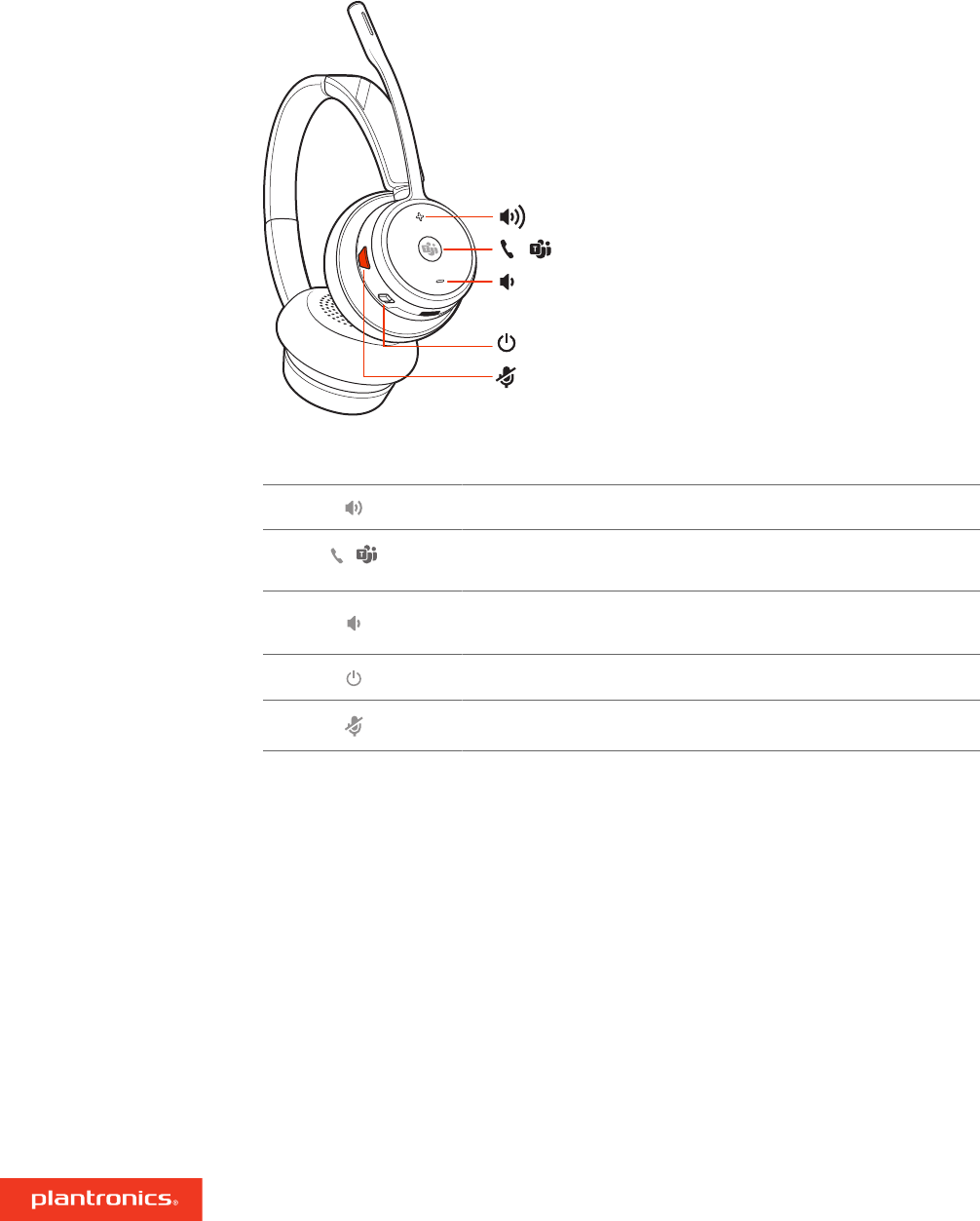
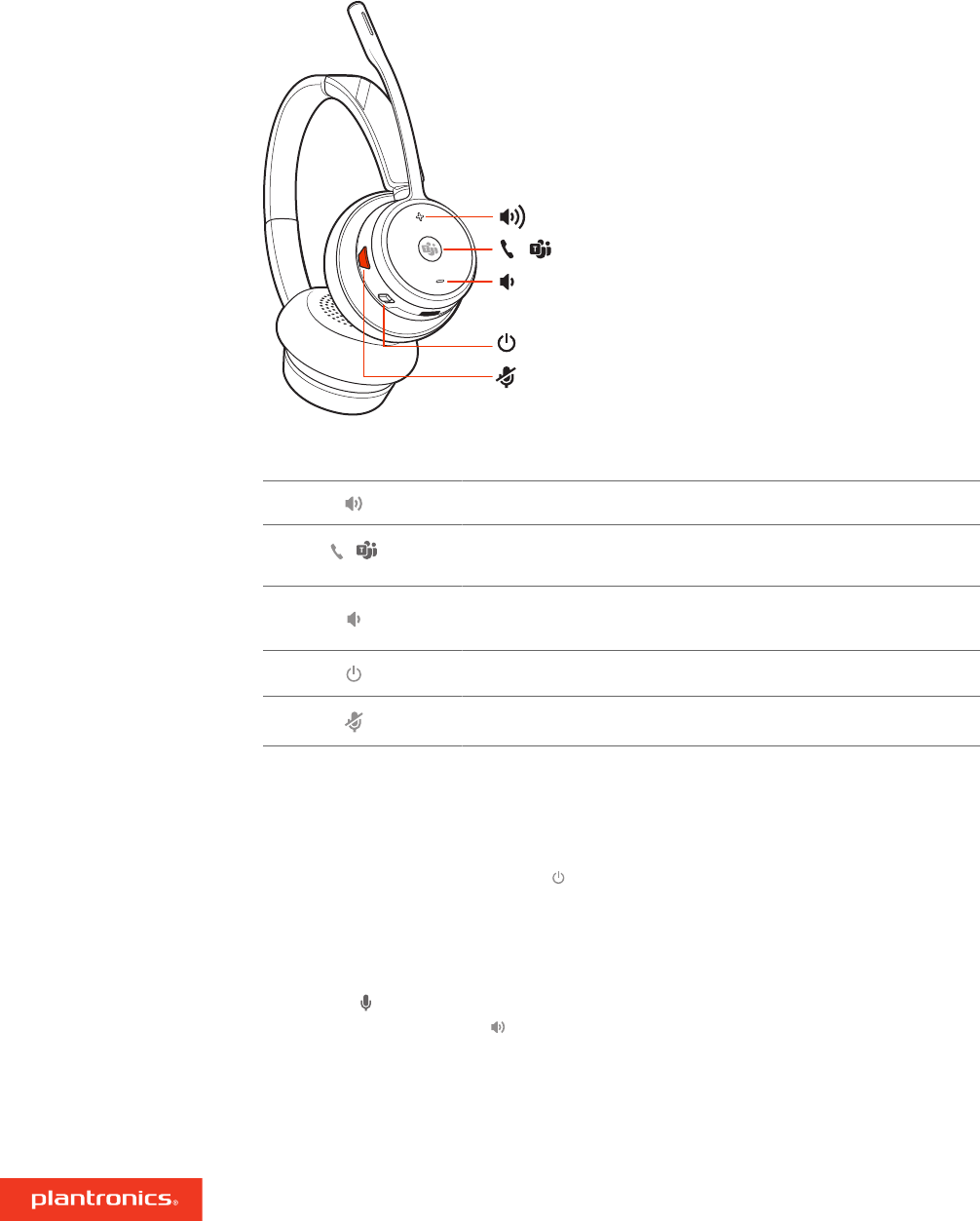
NOTE Headset design may vary but function is the same.
Volume up
/ Call / Press to interact with Microsoft Teams (Teams model only, app
required)
Volume down
Power
Mute/unmute
Be safe
Please read the safety guide for important safety, charging, battery and regulatory information
before using your new headset.
Overview
Headset overview
4
1 2 3 4 5 6 7 8 9
13
11
10
12
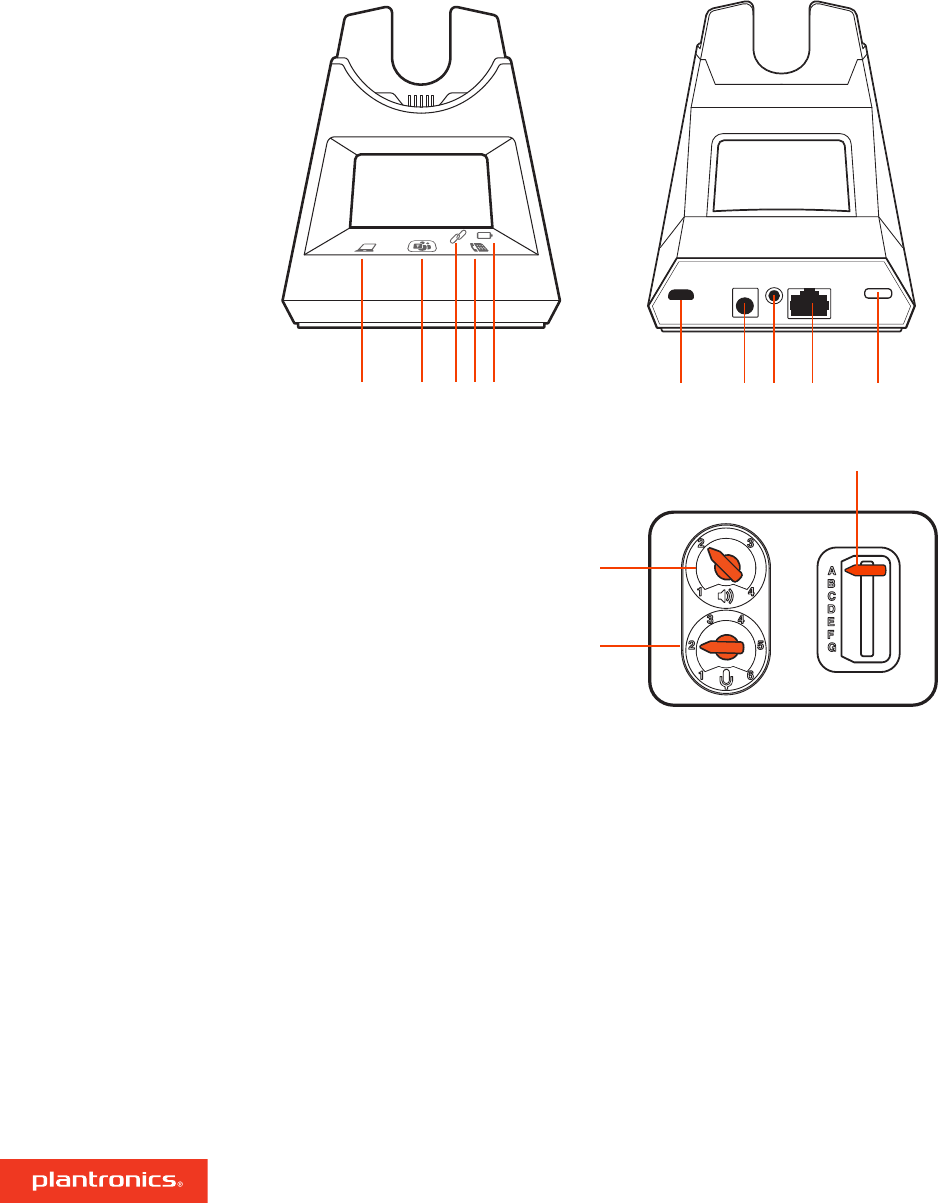
1Computer button 8Handset lifter jack
2Microsoft Teams button (Teams model
only, app required)
9Telephone interface cable jack
3Subscribe LED 10 Headset subscription button
4Desk phone button 11 Desk phone listening volume
5Charging LED 12 Desk phone speaking volume
6USB port 13 Desk phone configuration switch
7Power jack
Base overview
5

1Electronic hookswitch cable (EHS cable) Electronically and automatically answers/ends a desk
phone call. Enables remote call control with your headset.
2HL10 lifter Automatically lifts handset and returns it to the cradle. Enables remote call control
with your headset.
Accessories
6
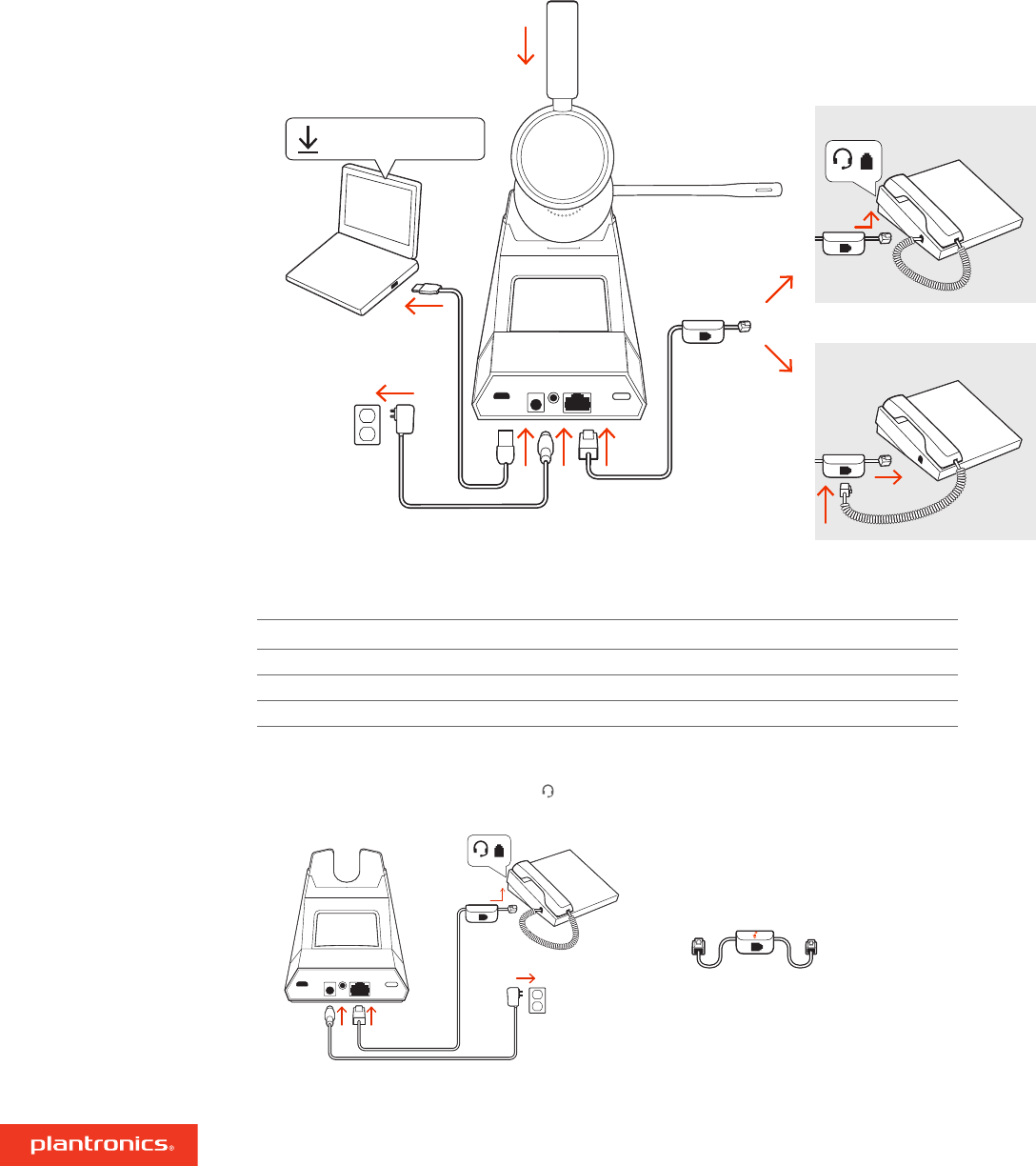
Using the diagram, connect your headset system.
poly.com/support
Plantronics Hub for Windows/Mac
BACK
NO HEADSET PORT
OR
HEADSET PORT
NOTE Base configuration settings
Desk phone Setting (on bottom of base)
Most phones A
Cisco phones D
Cisco phones with EHS cable A
Choose a desk phone setup A, B, C or D and connect cables.
ADesk phone with dedicated headset port
USE
• Connect one end of the telephone interface cable to the back of the base
Hook up system
Desk phone setup details
7
• Connect the other end of the telephone interface cable into the dedicated headset port on
the desk phone
IMPORTANT Cisco phones use configuration D on the bottom of the base. Most other phones use
default configuration A.
NOTE Use this setup if you are not using the HL10 lifter or EHS cable. In this configuration, press
both the headset button on your desk phone and the call control button on the headset to
answer or end calls.
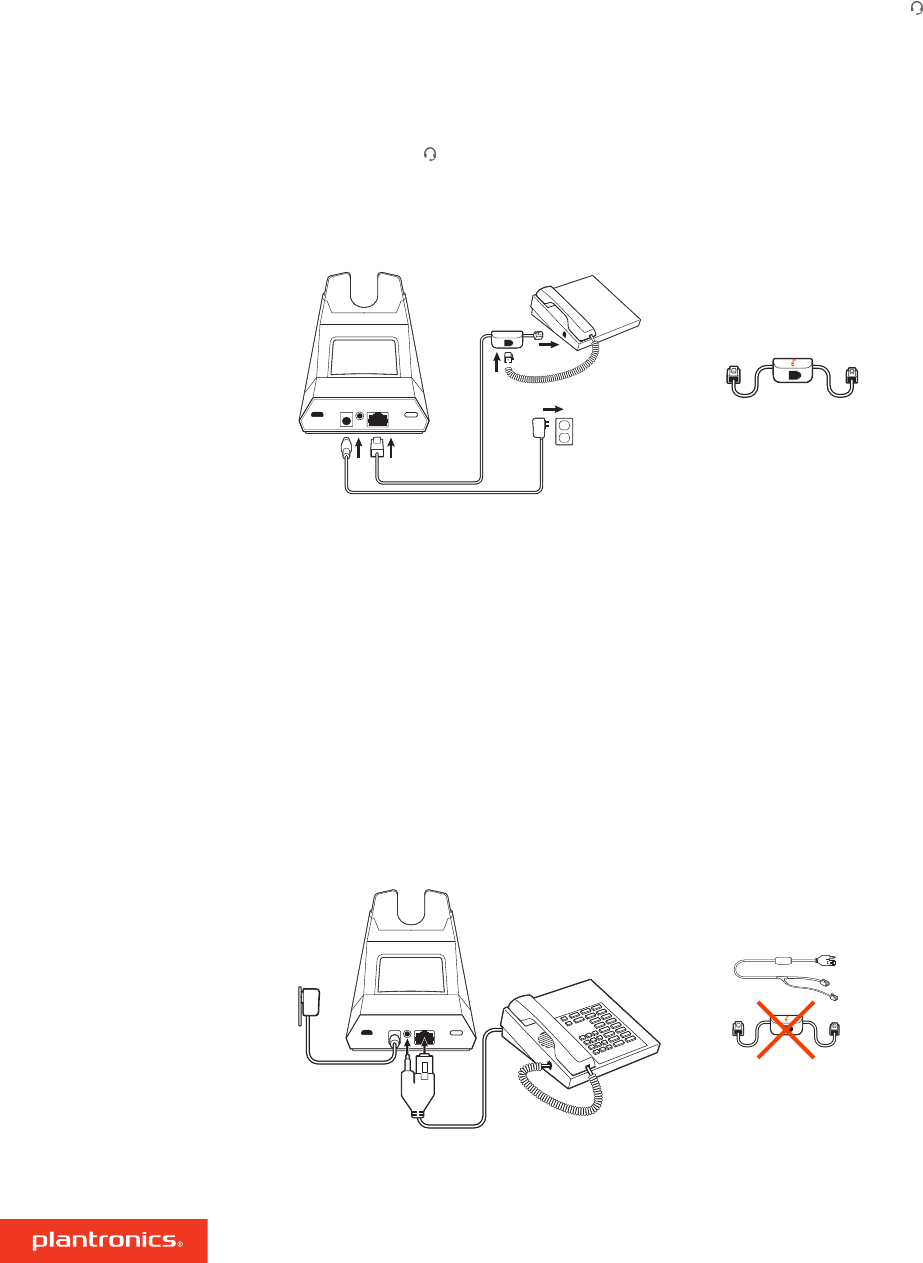
BDesk phone (standard)
USE
• Connect one end of the telephone interface cable to the back of the base
• Disconnect the handset coil cord from the base of the desk phone and re-connect it to the
telephone interface cable junction box
• Finally connect the remaining end of the telephone interface cable into the open handset port
on the desk phone
IMPORTANT Cisco phones use configuration D on the bottom of the base. Most other phones use
default configuration A.
NOTE Use this setup if you are not using the HL10 lifter or EHS cable and your desk phone does
not have a dedicated headset port. In this configuration, manually remove the handset on your
desk phone and press the call control button on the headset to answer or end calls.
CDesk phone + EHS cable (sold separately)
USE
IMPORTANT Use configuration A on the bottom of the base, which works for most phones
including Cisco phones.
8
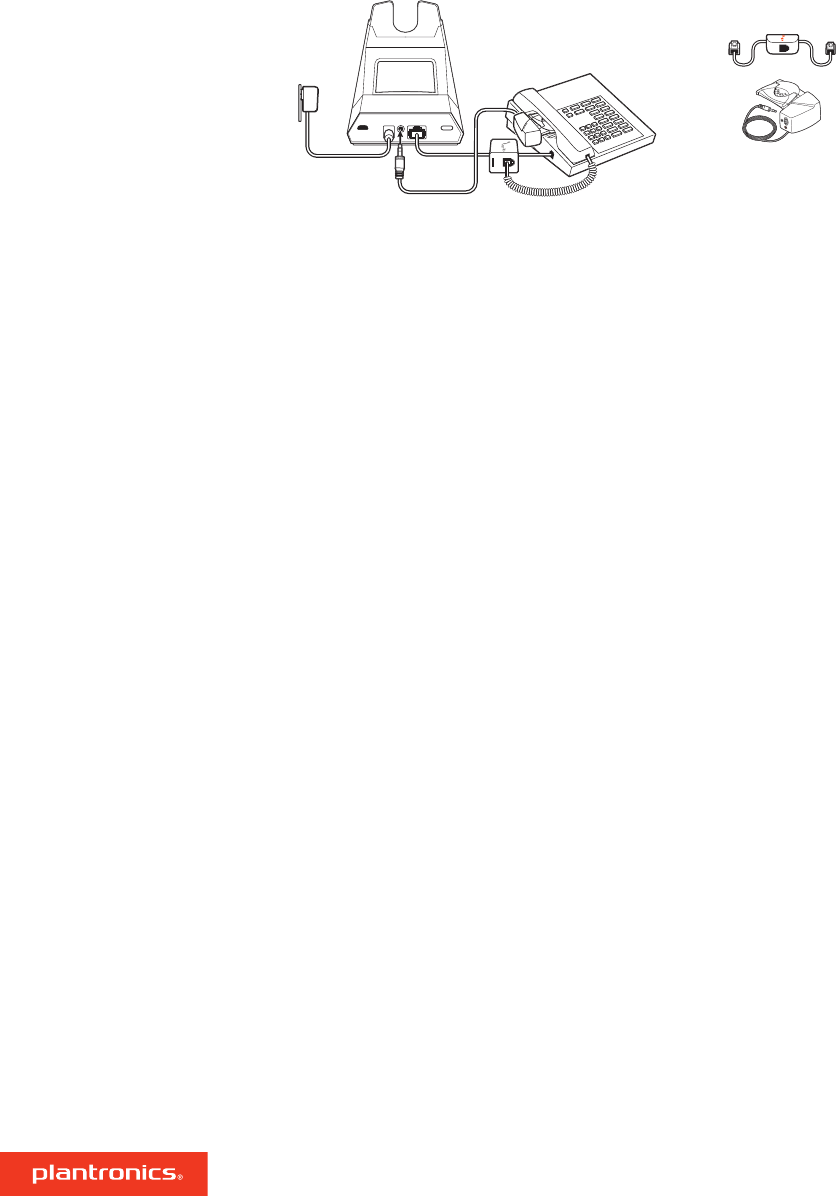
DDesk phone + HL10 lifter (sold separately)
USE
IMPORTANT Cisco phones use configuration D on the bottom of the base. Most other phones use
default configuration A.
9

The headset and base that came in the box are subscribed (connected) to each other. However, if
you wish to use a new headset or need to restore subscription to your current headset, the units
can be subscribed to each other by the following two methods.
With your system idle, docking a headset will automatically subscribe it to the base, making it the
primary headset. The base subscription LED will flash during subscription process and becomes
solid green when the new subscription is established.
1With your system idle and your headset undocked, double-click the Subscription button on the
back of the base. The subscription LED on the display panel flashes red and green.
2Press and hold the Volume up button on the headset for 4 seconds until the headset LED flashes
red and green.
3When the base subscription LED turns solid green and headset LED turns off, the headset and base
are subscribed to one another.
NOTE If the subscription process times out after 2 minutes or if the subscription process fails, try to
re-subscribe the headset again.
If the base is in subscription mode and you want to stop the base from searching for a headset,
press the subscription button again or place the headset in the charge cradle. The subscription
LED on the base stops flashing and is solid green.
Subscribe headset to base
Automatic secure
subscription
Manual over-the-air
subscription
Ending subscription
10
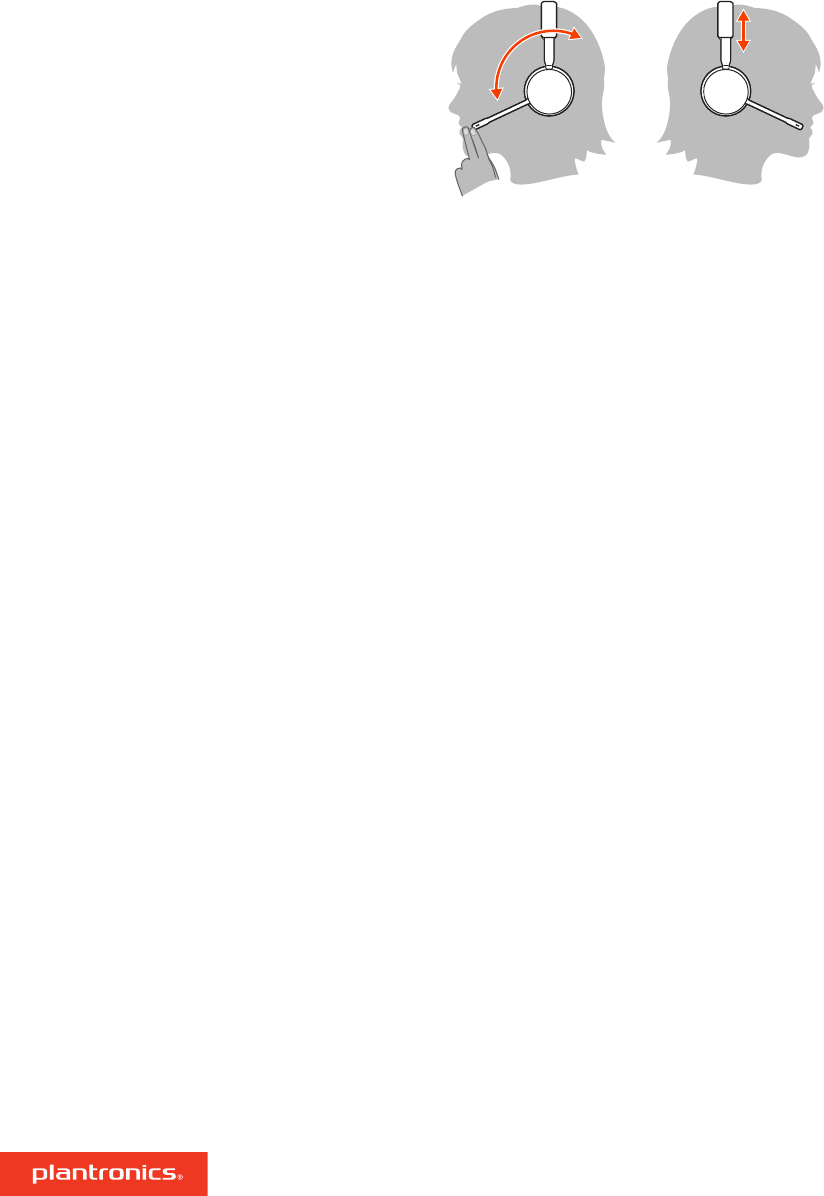
To position the microphone on the right or left side, rotate the microphone boom up and over.
Gently bend the boom so it is approximately 2 finger widths from the corner of your mouth.
Place the headset in the charge cradle. The charging LED flashes when charging the headset and
remains steady when the headset is fully charged. Charge for at least 20 minutes prior to the first
use.
With a full charge, the headset provides up to 13 hours of talk time.
This product has a replaceable battery. To ensure replacement batteries meet Plantronics high
quality standards and for optimal performance, only use replacement batteries provided by
Plantronics.
Fit and charge
Wear on the right or left
Charge your headset
Talk Time
Battery
11

Download Plantronics Hub for Windows/Mac by visiting poly.com/software. This allows you to
customize your device behavior through advanced settings and options.
Feature Plantronics Hub tab
Answering call alert
Audio channel tone
Audio sensing
Auto answer
Close conversation limiting
Default phone line
Mute reminder
Mute on/off alerts
Online indicator
Second incoming call
Headset to PC radio link
Plantronics product improvement program
Software log level
General
Change language of voice prompts
Brazilian Portugese, Cantonese, Danish, English (UK, US), French, German, Indonesian,
Italian, Japanese, Korean, Mandarin, Norwegian, Russian, Spanish, Swedish and Thai.
Language
Deskphone ringtone
PC ringtone
Volume level tones
Wearing preference (stereo audio)
Ring location
Ringtone and Volume
Dial tone
Target softphone
Media player action on incoming call
Softphones and media players (Poly enabled)
Softphones
Software settings (Aware for Microsoft) Sensors and Presence
Audio quality
Over-the-air subscription
Range
Wireless
Anti-startle
Noise exposure
Hours on phone per day
Advanced
Load software
Plantronics Hub
configurable settings
12
/
NOTE Headset design may vary but function is the same.
Volume up
/ Call / Press to interact with Microsoft Teams (Teams model only, app
required)
Volume down
Power
Mute/unmute
Be safe
Please read the safety guide for important safety, charging, battery and regulatory information
before using your new headset.
To turn on the headset, slide the Power button.
•Headset volume Fine-tune your headset volume by adjusting the headset's volume up (+) and
down (-) controls.
•Desk phone volume When you are on a desk phone call and your voice is too quiet/loud, adjust
the speaking volume on the bottom of the base. If your caller's voice is too loud/quiet on a desk
phone call, adjust the listening volume.
•Base ringtone volume Adjust the base ringtone volume setting in Plantronics Hub. This ringtone
alerts you if you are not wearing your headset and a call comes in.
Adjust headset microphone volume (softphone)
Place a test softphone call and adjust softphone volume and PC sound volume accordingly.
System basics
Headset overview
Power on your headset
Adjust volume
13

On the base there are 2 Audio buttons: computer and desk phone . These buttons allow you
to switch to a different audio source.
Make a call
1Tap an Audio button on the display panel. You hear a dial tone.
Desk phone only: Press phone's Headset button or manually remove handset if you don't have HL10
lifter or EHS cable.
2Dial from your softphone or desk phone.
End/take a call
To answer or end a call, tap the corresponding Audio button or tap the headset call button.
Desk phone only: If you don't have an HL10 lifter or EHS cable, press your phone's Headset button
or remove the handset when answering a call and hang up when ending a call.
TIP Headset call control for the computer requires Plantronics software and softphone compatibility.
See “Download software.”
Mute
During an active call, tap the Mute button to mute or unmute your headset.
Hold a call
To hold an active call, press the headset Call button for 2 seconds. Press the Call button to resume
a held call.
Switch between calls (flash)
To switch between calls, press the headset Call button for 2 seconds.
Mini conference call
Combine audio from your desk phone and computer into a mini conference call.
With one active call and one held call, simultaneously press the base computer and desk phone
audio buttons for 4 seconds until the LEDs are solid green.
NOTE The audio LEDs are red when your conference call is muted.
Set up a conference call
You can conference up to 3 additional headsets to a call in progress.
Join Savi headsets automatically (same headset type only)
1While on a call, place the guest headset into the primary user's charge cradle.
The base subscription LED flashes.
2The primary user hears a triple tone in their headset indicating a conference request. To accept the
request, press the primary user's headset Call button within 10 seconds.
3If the process fails or times out because the guest's Call button is not pressed within 10 seconds,
the guest subscription is terminated and the guest hears an error tone.
Join Savi headsets manually
1While on a call, press the primary user's base subscription button.
The base subscription LED flashes.
2Hold the guest headset's Volume up until the headset LED turns on.
3The primary user hears a triple tone indicating a conference request. To accept the request, press
the primary user's headset Call button within 10 seconds.
4If the process fails or times out because the guest's Call button is not pressed within 10 seconds,
the guest subscription is terminated and the guest hears an error tone.
Make, answer, end calls
14

NOTE Headsets in a conference have independent mute controls. The base only indicates the primary
user's mute state.
Exit a conference call
1Guest headsets can remain as guests through multiple calls. To remove a guest headset, press the
guest headset's Call button or dock the primary user's headset in the charge cradle. The primary
user hears a single tone in their headset as each guest leaves the call.
NOTE The primary user may hear additional tones in their headset and see the base subscription LED
flash as guest headsets join the call. These indicate that a guest headset has a different firmware
version than the primary headset, but can still be used for conferencing.
Press the Teams button to interact with Microsoft Teams when not on a call (model and
application required).
NOTE Your headset's Call button is also the Microsoft Teams button.
Your base's Microsoft Teams button LED pulses when you have a Teams notification.
Tap the button to view notifications on your computer.
To stream media from your computer, first press the base's Computer Audio button and then
play the media.
Interact with Microsoft
Teams
View Microsoft Teams
notifications
Stream media
15

Change the default outbound phone line/audio channel in Plantronics Hub for Windows/Mac.
There are 3 audio modes: wideband stereo (hybrid), wideband (conversation) and multimedia
(music).
To optimize your audio quality for your activity, with the system idle, press the headset Mute
button for 4 seconds. The headset cycles through the modes with each 4 second press. Also
configurable in Plantronics Hub.
You can limit the amount of nearby conversation that is transmitted during your calls.
Open Plantronics Hub. Go to Settings > General > Close Conversation Limiting. Changes take
effect with the next call. The default is Standard mode which is optimized for most environments.
Your headset LED flashes green to inform others that you are on a call. Your headset LED is solid
red when you are muted. Manage settings in Plantronics Hub for Windows/Mac.
If you are on a call and go out of the operating range, you will hear three low tones. You will hear
a single mid tone when you are back in range.
If you stay out of range, active calls will be suspended. Calls will be re-established when you walk
back into range. If you remain out of range for more than 5 minutes, the system will drop the call.
If you are not on a call and go out of the operating range and press the call button, you will hear a
single tone for the button press and three low tones for the failure to make a link.
More Features
Change your default line
Optimize audio quality
Limit office noise
Online indicator
Out of Range Warning
Tones
16

I can’t hear a dial tone in the
headset.
• Make sure your headset is charged.
• Make sure your headset is subscribed to base. See Subscribe
headset to base.
• Adjust the configuration switch (A--G) on the bottom of the base
until a dial tone is heard. The default A works for most phones.
ATTENTION Use configuration D for Cisco phones. Cisco phones
connected with EHS cable use configuration A.
• Make sure your desk phone is connected correctly to your base.
See Desk phone setup details.
• If your base is connected to your desk phone's dedicated headset
port, press the desk phone's headset button to hear a dial tone.
• If your base is connected to your desk phone's dedicated headset
port, press the desk phone's headset button and base's desk
phone button to hear a dial tone.
• If your base is connected to your handset port, manually remove
the handset to hear a dial tone (if you do not have an EHS cable or
HL10 lifter).
• Make sure your HL10 lifter is lifting the handset high enough to
operate the hookswitch; set to a higher setting if necessary.
• Adjust the headset's listening volume. See Adjust volume.
• If the volume is still too low, adjust the desk phone listening
volume on the base. See Adjust volume.
I hear static. • Make sure there is at least 12 inches between your base and your
computer, and 6 inches between your base and your telephone. If
adjusting the distance doesn’t help, your headset is going out of
range, move closer to the base. See Position Your Base
.
The sound is distorted. • Lower the desk phone speaking volume and/or desk phone
listening volume on the base. For most telephones the correct
setting is position 2. See Adjust volume.
• If your desk phone has a volume control, lower until the distortion
disappears.
• If the distortion is still present, adjust the headset volume control
to lower the headset speaker volume. See Adjust volume.
• Make sure there is 12 inches between your base and your
computer, and 6 inches between your base and your telephone.
See Position Your Base.
I hear echo in the headset. • Lower the desk phone speaking volume and/or desk phone
listening volume on the base. For most telephones the correct
setting is position 2. See Adjust volume.
• If the audio level is too low in this position, increase the headset
volume. See Adjust volume.
• If your speaking volume is too low for your listener in this position,
adjust the position of the headset to make sure the microphone is
as close as possible to your mouth.
Troubleshooting
Headset
17

People I talk to can hear a buzz in
the background.
• Move the base further away from your phone. See Position Your
Base.
• If the base power supply is plugged into a power strip, plug it into
the wall directly.
The headset feels too tight over my
ears.
• Gently flex the headband wider
The handset lifter is installed but
does not lift the handset.
• Be sure the handset lifter power cord is firmly pushed into the
handset lifter jack on the base.
I can’t hear my desk phone dial tone
in the headset.
• Adjust the configuration switch (A--F) on the bottom of the base
until a dial tone is heard. The default A works for most phones.
ATTENTION Use configuration D for Cisco phones. Cisco phones
connected with EHS cable use configuration A.
• Make sure your desk phone is connected correctly to your base.
See Desk phone setup details.
• If your base is connected to your desk phone's dedicated headset
port, press the desk phone's headset button to hear a dial tone.
• If your base is connected to your desk phone's dedicated headset
port, press the desk phone's headset button and base's desk
phone button to hear a dial tone.
• If your base is connected to your handset port, manually remove
the handset to hear a dial tone (if you do not have an EHS cable or
HL10 lifter).
When I dial from my softphone
application, nothing happens.
Ensure your headset is powered on.
Press the headset Call button.
Make sure your headset is charged.
Fine tune the listening volume.
Ensure that your headset is the default sound device by going to
your Sound Control Panel (Windows) or your Sound System
Preferences (Mac).
Make sure your headset is subscribed to the USB adapter. See
Subscribe USB adapter again.
Ensure that Plantronics Hub software is installed. To download,
visit poly.com/software.
Ensure that you are using a compatible softphone application. For
a list of compatible softphones, visit poly.com/software.
If the Plantronics software is not installed and you do not have a
compatible softphone, you must first press the headset Call button
and then use the softphone interface to place/answer/end calls.
Restart your computer.
How do I interact with Microsoft
Teams on my Teams-certified
headset system?
• Tap your headset's Call button to interact.
Desk phone
Softphone
18

• Tap your base's Teams button to interact with Microsoft Teams
or to view notifications.
NOTE Teams model and app required.
Does my Microsoft Teams-certified
headset system work with other
softphones?
Yes, while your headset is optimized for Microsoft Teams, it can be
configured to use with other supported softphones. Set your target
phone by going to Plantronics Hub for Windows/Mac > Softphones
> Software Settings > Target Softphone
When you configure another softphone, the Call button:
• doesn't interact with Teams
• doesn't go to Teams notifications
• will not launch Cortana
Speaking and/or listening volume is
too low or too high.
Adjust headset listening volume.
Adjust listening/speaking volumes in the computer’s sound control
panel/system preferences.
Adjust listening/speaking volumes in the softphone application.
The sound is distorted or I hear an
echo in the headset.
Reduce speaking and/or listening volume on the computer using
your softphone application.
Point microphone towards your chin.
If the distortion is still present, lower the volume on the headset.
I can no longer hear any audio
through my PC Speakers.
Change the default sound device by going to your Sound Control
Panel (Windows) or your Sound System Preferences (Mac) and
selecting your PC speakers or internal speakers.
No audio connection to PC. Unplug USB adapter and then reconnect it.
Quit and then re-start your PC or softphone application.
19

Support
NEED MORE HELP?
poly.com/support
Plantronics, Inc. Plantronics B.V.
345 Encinal Street
Santa Cruz, CA 95060
United States
Scorpius 171
2132 LR Hoofddorp
Netherlands
© 2021 Plantronics, Inc. All rights reserved. Poly, the propeller design, and the Poly logo are
trademarks of Plantronics, Inc. DECT is a trademark of ETSI. All other trademarks are the
property of their respective owners. Manufactured by Plantronics, Inc.
218230-06 03.21
20
