Practecol GZ360 Guardzilla 360 User Manual

Practecol, LLC Guardzilla 360

User Manual

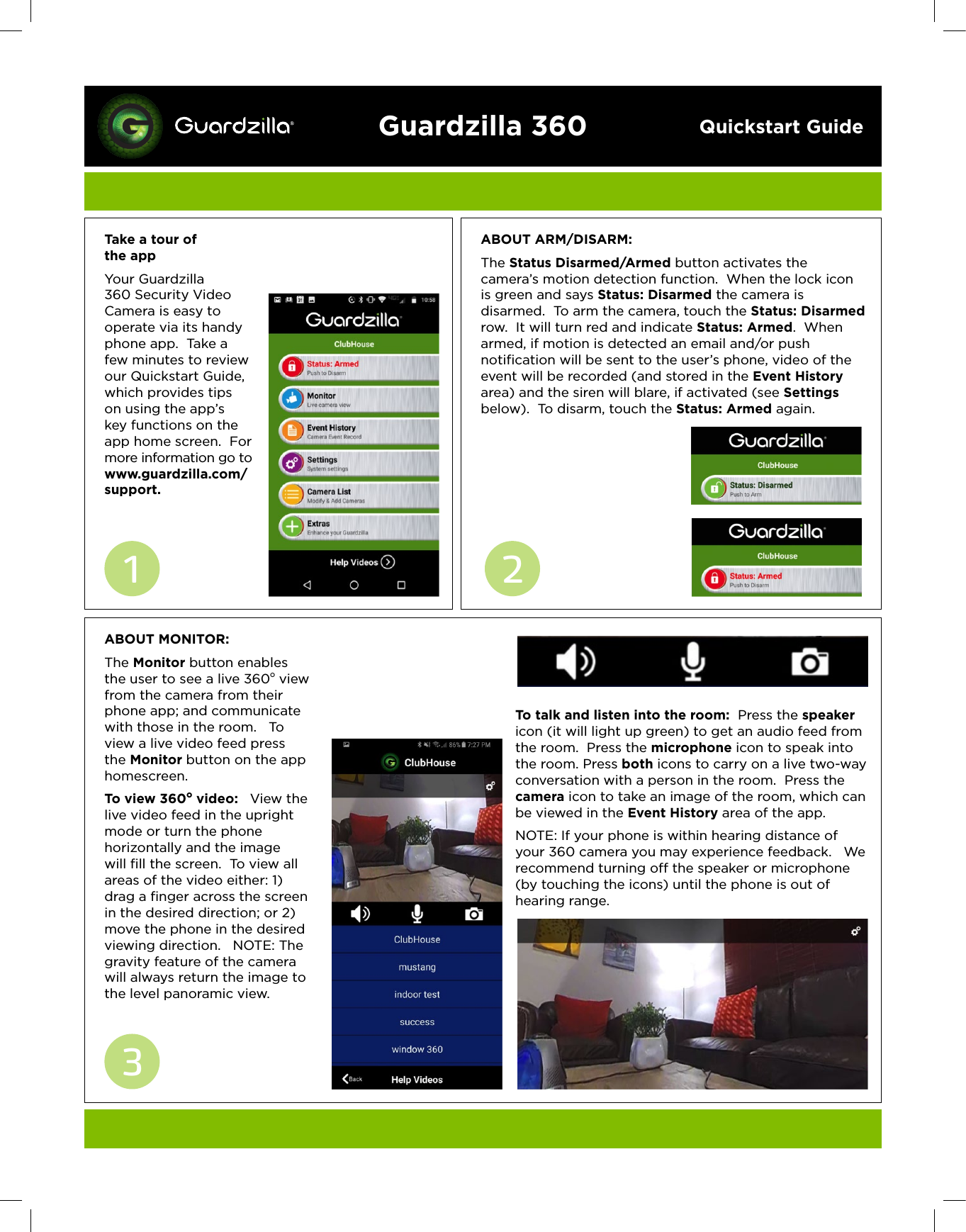
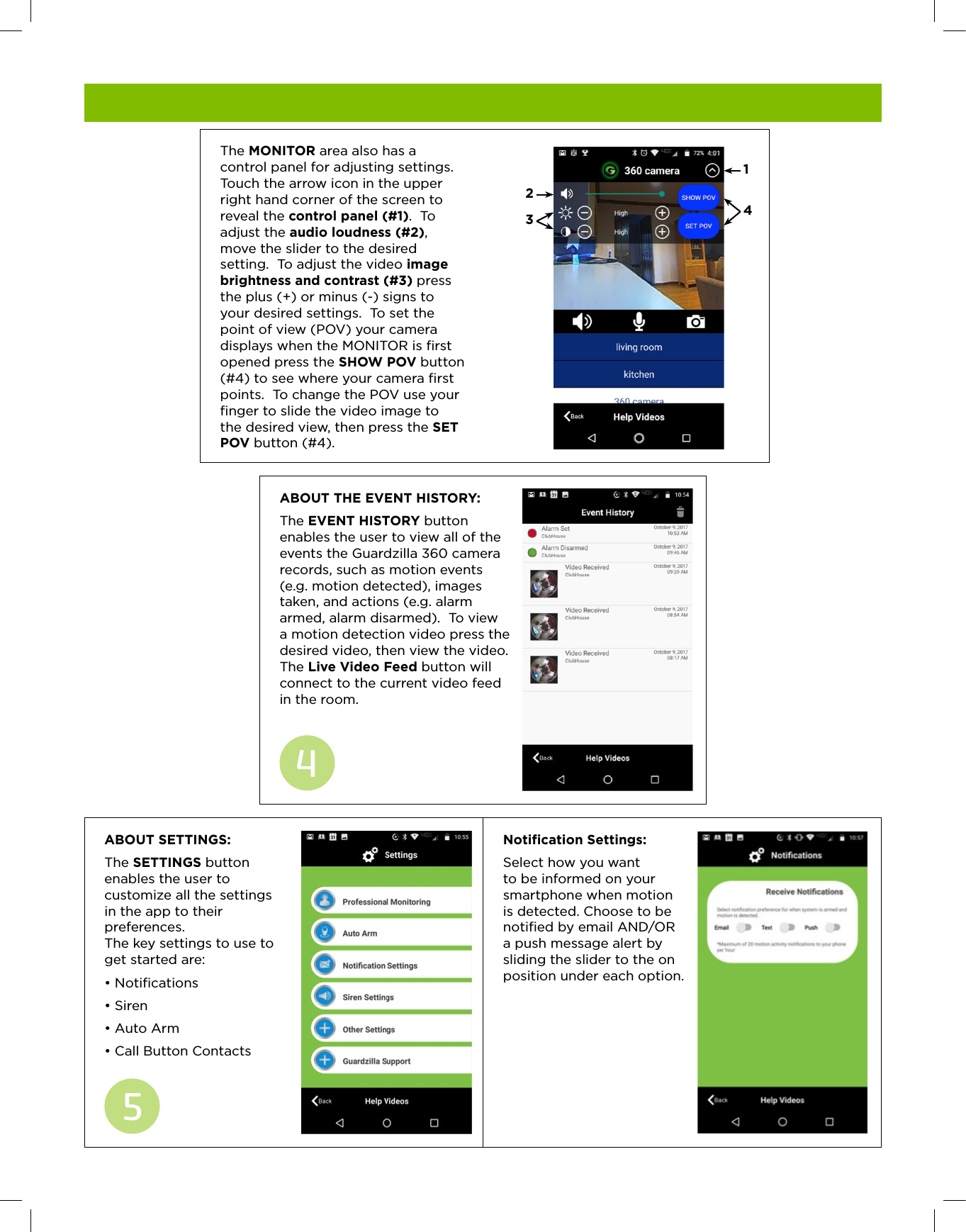
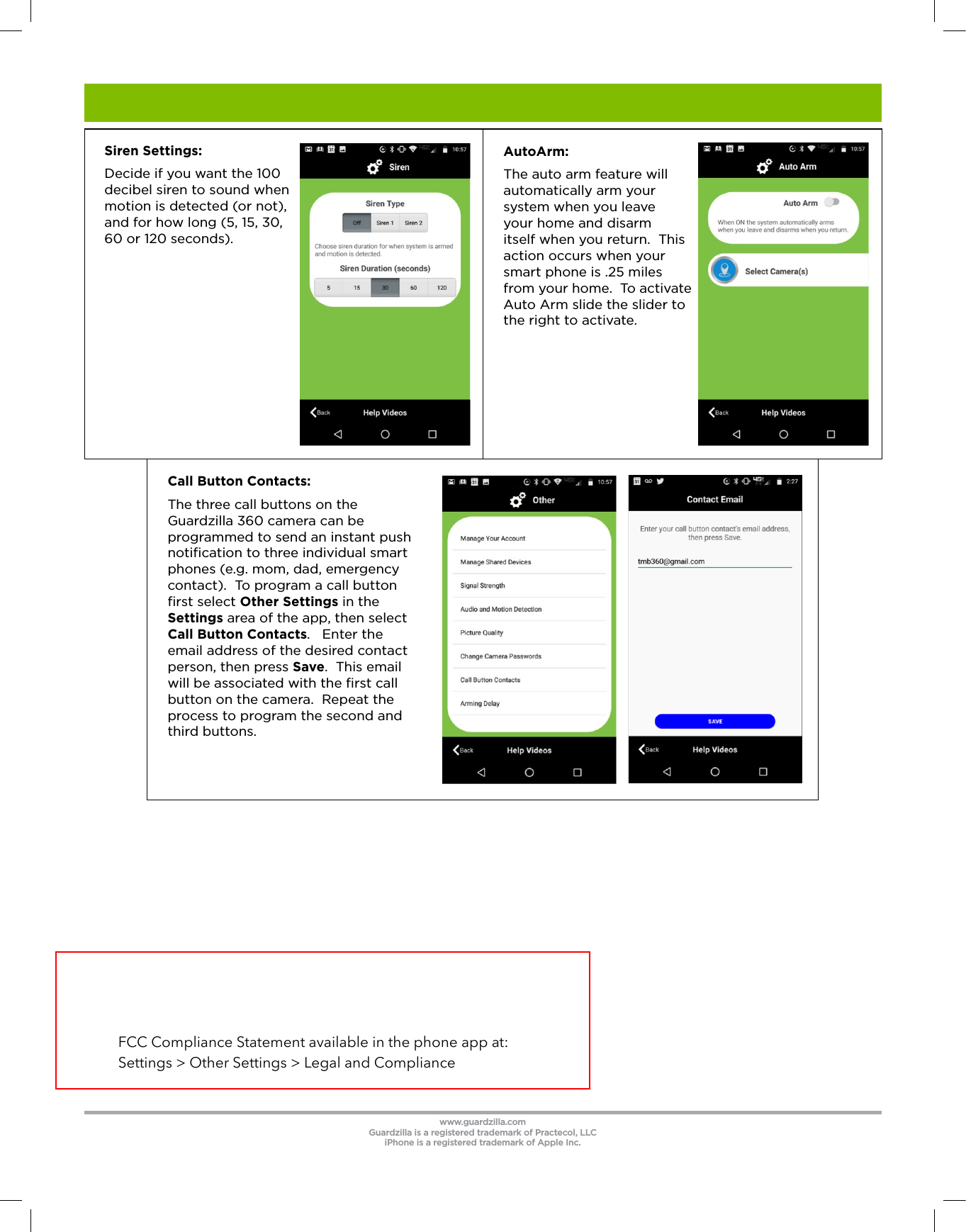
        Quickstart Guide Guardzilla 360Take a tour of  the appYour Guardzilla 360 Security Video Camera is easy to operate via its handy phone app.  Take a few minutes to review our Quickstart Guide, which provides tips on using the app’s key functions on the app home screen.  For more information go to  www.guardzilla.com/support.1ABOUT MONITOR:   The Monitor button enables the user to see a live 360o view from the camera from their phone app; and communicate with those in the room.   To view a live video feed press the Monitor button on the app homescreen.  To view 360o video:   View the live video feed in the upright mode or turn the phone horizontally and the image will fill the screen.  To view all areas of the video either: 1) drag a finger across the screen in the desired direction; or 2) move the phone in the desired viewing direction.   NOTE: The gravity feature of the camera will always return the image to the level panoramic view.To talk and listen into the room:  Press the speaker icon (it will light up green) to get an audio feed from the room.  Press the microphone icon to speak into the room. Press both icons to carry on a live two-way conversation with a person in the room.  Press the camera icon to take an image of the room, which can be viewed in the Event History area of the app.NOTE: If your phone is within hearing distance of your 360 camera you may experience feedback.   We recommend turning off the speaker or microphone (by touching the icons) until the phone is out of hearing range.3ABOUT ARM/DISARM:  The Status Disarmed/Armed button activates the camera’s motion detection function.  When the lock icon  is green and says Status: Disarmed the camera is disarmed.  To arm the camera, touch the Status: Disarmed row.  It will turn red and indicate Status: Armed.  When armed, if motion is detected an email and/or push notification will be sent to the user’s phone, video of the event will be recorded (and stored in the Event History area) and the siren will blare, if activated (see Settings below).  To disarm, touch the Status: Armed again.     2
ABOUT SETTINGS:  The SETTINGS button enables the user to customize all the settings  in the app to their preferences.   The key settings to use to get started are:• Notifications• Siren • Auto Arm• Call Button Contacts5ABOUT THE EVENT HISTORY:  The EVENT HISTORY button enables the user to view all of the events the Guardzilla 360 camera records, such as motion events (e.g. motion detected), images taken, and actions (e.g. alarm armed, alarm disarmed).  To view a motion detection video press the desired video, then view the video.  The Live Video Feed button will connect to the current video feed  in the room.4    The MONITOR area also has a control panel for adjusting settings.  Touch the arrow icon in the upper right hand corner of the screen to reveal the control panel (#1).  To adjust the audio loudness (#2), move the slider to the desired setting.  To adjust the video image brightness and contrast (#3) press the plus (+) or minus (-) signs to your desired settings.  To set the point of view (POV) your camera displays when the MONITOR is first opened press the SHOW POV button (#4) to see where your camera first points.  To change the POV use your finger to slide the video image to the desired view, then press the SET POV button (#4). 1423 Notification Settings:  Select how you want to be informed on your smartphone when motion is detected. Choose to be notified by email AND/OR a push message alert by sliding the slider to the on position under each option.
Call Button Contacts:  The three call buttons on the Guardzilla 360 camera can be programmed to send an instant push notification to three individual smart phones (e.g. mom, dad, emergency contact).  To program a call button first select Other Settings in the Settings area of the app, then select Call Button Contacts.   Enter the email address of the desired contact person, then press Save.  This email will be associated with the first call button on the camera.  Repeat the process to program the second and third buttons.   AutoArm:  The auto arm feature will automatically arm your system when you leave your home and disarm itself when you return.  This action occurs when your smart phone is .25 miles from your home.  To activate Auto Arm slide the slider to the right to activate.www.guardzilla.comGuardzilla is a registered trademark of Practecol, LLCiPhone is a registered trademark of Apple Inc.    Siren Settings: Decide if you want the 100 decibel siren to sound when motion is detected (or not), and for how long (5, 15, 30, 60 or 120 seconds).FCC Compliance Statement available in the phone app at: Settings > Other Settings > Legal and Compliance
FCC Compliance Statement: This device complies with Part 15 of the FCC Rules. Operation is subject to the following two conditions: (1) this device may not cause harmful interference, and (2) this device must accept any interference received, including interference that may cause undesired operation.This equipment has been tested and found to comply with the limits for a Class B digital device, pursuant to Part 15 of the FCC Rules. These limits are designed to provide reasonable protection against harmful interference in a residential installation.  This equipment generates, uses and can radiate radio frequency energy and, if not installed and used in accordance with the instructions, may cause harmful interference to radio communications.However, there is no guarantee that interference will not occur in a particular installation.  If this equipment does cause harmful interference to radio or television reception, which can be determined by turning the equipment off and on, the user is encouraged to try to correct the interference by one or more of the following measures:•  Reorient or relocate the receiving antenna.•  Increase the separation between the equipment and receiver.•  Connect the equipment into an outlet on a circuit different from that to which the receiver is connected.•  Consult the dealer or an experienced radio/TV technician for help.Warning: Changes or modifications to this unit not expressly approved by the manufacturer could void the user’s authority to operate the equipment.RF Radiation Exposure Statement:This equipment complies with FCC radiation exposure limits set forth for an uncontrolled environment. This equipment should be installed and operated with a minimum distance of 20cm between the radiator and your body. The device must not be co-located or operating in conjunction with any other antenna or transmitter.Industry Canada (IC) Compliance Statement:This device complies with Industry Canada license-exempt RSS standard(s). Operation is subject to the following two conditions:(1)  This device may not cause interference, and(2)  This device must accept any interference, including interference that may cause undesired operation of the device.This equipment complies with IC RSS-102 radiation exposure limits set forth for an uncontrolled environment. This equipment should be installed and operated with minimum distance 20cm between the radiator and your body. Le présent appareil est conforme aux CNR d’Industrie Canada applicables aux appareils radio exempts de licence. L’exploitation est autorisée aux deux conditions suivantes: (1)  l’appareil ne doit pas produire de brouillage, et (2)  l’utilisateur de l’appareil doit accepter tout brouillage radioélectrique subi, même si le brouillage est susceptible d’en compromettre le fonctionnement.Cet équipement est conforme aux limites d’exposition aux radiations IC CNR-102 établies pour un environnement non contrôlé. Cet équipement doit être installé et utilisé avec une distance minimale de 20 cm entre le radiateur et votre corps.

Navigation menu