Prime Electronics and Satellitics WP288P Wireless LAN PCMCIA Card User Manual ATLAS

Prime Electronics & Satellitics Inc. Wireless LAN PCMCIA Card ATLAS

Revised User Manual

 AMD Confidential   AMD Alchemy™ Solutions Am1772™ Terminal User's Manual A Development Application for the Am1772™ Mini PCI  Reference Design Kit Version 1.03
AMD Confidential                       © 2002 Advanced Micro Devices, Inc. All rights reserved.   The contents of this document are provided in connection with Advanced Micro Devices, Inc. (“AMD”) products. AMD makes no representations or warranties with respect to the accuracy or completeness of the contents of this publication and reserves the right to make changes to specifications and product descriptions at any time without notice. No license, whether express, implied, arising by estoppel, or otherwise, to any intellectual property rights are granted by this publication. Except as set forth in AMD’s Standard Terms and Conditions of Sale, AMD assumes no liability whatsoever, and disclaims any express or implied warranty, relating to its products including, but not limited to, the implied warranty of merchantability, fitness for a particular purpose, or infringement of any intellectual property right.   AMD’s products are not designed, intended, authorized or warranted for use as components in systems intended for surgical implant into the body, or in other applications intended to support or sustain life, or in any other application in which the failure of AMD’s product could create a situation where personal injury, death, or severe property or environmental damage may occur. AMD reserves the right to discontinue or make changes to its products at any time without notice.          Contacts www.amd.com    wlan.support@amd.com Trademarks AMD, the AMD Arrow logo, Alchemy, and combinations thereof, and Am1770, Am1771, and Am1772 are trademarks of Advanced Micro Devices, Inc.  Windows is a registered trademark of Microsoft Corporation. Other product names used in this publication are for identification purposes only and may be trademarks of their respective companies.
 Federal Communication Commission Interference Statement  This equipment has been tested and found to comply with the limits for a Class B digital device, pursuant to Part 15 of FCC Rules.  These limits are designed to provide reasonable protection against harmful interference in a residential installation. This equipment generates, uses, and can radiate radio frequency energy and, if not installed and used in accordance with the instructions, may cause harmful interference to radio communications.  However, there is no guarantee that interference will not occur in a particular installation. If this equipment does cause harmful interference to radio or television reception, which can be determined by turning the equipment off and on, the user is encouraged to try to correct the interference by one or more of the following measures:    1.  Reorient or relocate the receiving antenna. 2.  Increase the separation between the equipment and receiver. 3. Connect the equipment into an outlet on a circuit different from that to which the receiver is connected. 4.  Consult the dealer or an experienced radio technician for help.  FCC Caution  This Trasmitter must not be co-located or operating in conjunction with any other antenna ot transmitter. This device complies with Part 15 of the FCC Rules. Operation is subject to the following two conditions: (1) this device may not cause harmful interference, and (2) this device must accept any interference received, including interference that may cause undesired operation.   Any changes or modifications not expressly approved by the party responsible for compliance could void the authority to operate equipment.  Federal  Communication Commission (FCC) Radiation Exposure Statement  This equipment complies with FCC radiation exposure set forth for an uncontrolled environment. In order to avoid the possibility of exceeding the FCC radio frequency exposure limits, human proximity to the antenna shall not be less than 2.5cm (1 inches) during normal operation.   AMD Confidential
Am1772™ Terminal User’s Manual    AMD CONFIDENTIAL: for NDA Use Only   Table Of Contents 1 Document History..................................................................................... 4 2 Preface ................................................................................................... 4 3 Overview................................................................................................. 4 4 Using Am1772™ Terminal.......................................................................... 5 4.1 Installing Am1772 Terminal.................................................................. 5 4.2 Launching Am1772 Terminal................................................................. 5 4.3 Version Information............................................................................. 6 4.4 “General” Page ................................................................................... 7 4.4.1 Hardware Information .................................................................... 8 4.4.2 Driver Build Information ................................................................10 4.4.3 Adapter Properties ........................................................................11 4.5 “Network” Page .................................................................................12 4.5.1 Starting a Network........................................................................14 4.5.2 Connecting to a Network................................................................15 4.5.3 Disconnecting ..............................................................................15 4.6 “Stations” Page..................................................................................16 4.6.1 Station List Settings......................................................................17 4.6.2 Manual Scanning ..........................................................................17 4.7 “Frames” Page...................................................................................18 4.7.1 Frame Details...............................................................................19 4.7.2 Frame Display Settings..................................................................20 4.7.3 Clearing the Frame List .................................................................20 4.8 Page “Performance”............................................................................21 4.8.1 Performance Display Settings .........................................................22 4.8.2 Resetting Histograms ....................................................................22 Version 1.03  Page 3 of 22
Am1772™ Terminal User’s Manual    AMD CONFIDENTIAL: for NDA Use Only    1 Document History  Version/Date  Modification V1.0: 10/15/02  Initial version V1.01: 10/23/02  Updates for RDK V1.02: 10/31/02  Non-technical edits V1.03: 11/13/02  Added EEPROM configuration option   2 Preface This document describes the Am1772™ Terminal user interface for the Mini PCI reference design featuring the Am1772 wireless LAN chipset from AMD. The Am1772 Terminal utility may contain or reveal AMD proprietary information and should not be distributed without the proper license agreement from AMD.   3 Overview The Am1772 Terminal is a Windows® application provided to development and test engineers to configure, execute and troubleshoot experiments with the Mini PCI reference design provided by AMD. Please note that the Am1772 Terminal application is not an end-customer utility.  Version 1.03  Page 4 of 22
Am1772™ Terminal User’s Manual    AMD CONFIDENTIAL: for NDA Use Only   Version 1.03  Page 5 of 22 4  Using Am1772™ Terminal 4.1  Installing Am1772 Terminal The driver installation script automatically creates the following desktop shortcut for Am1772 Terminal on the desktop. This desktop shortcut points to the Am1772 Terminal executable, which resides in the Windows base directory (typically C:\WINDOWS or C:\WINNT). 4.2  Launching Am1772 Terminal Am1772 Terminal can be launched using the desktop shortcut, which was automatically created during driver installation.  Alternatively, Am1772 Terminal can be started by manually navigating to the Windows base directory (typically C:\WINDOWS or C:\WINNT) and executing the application (Am1772 Terminal.exe) in that directory. Although not advisable, multiple instances of Am1772 Terminal can be run simultaneously. Care should be taken so that these multiple instances do not issue conflicting commands to the driver.
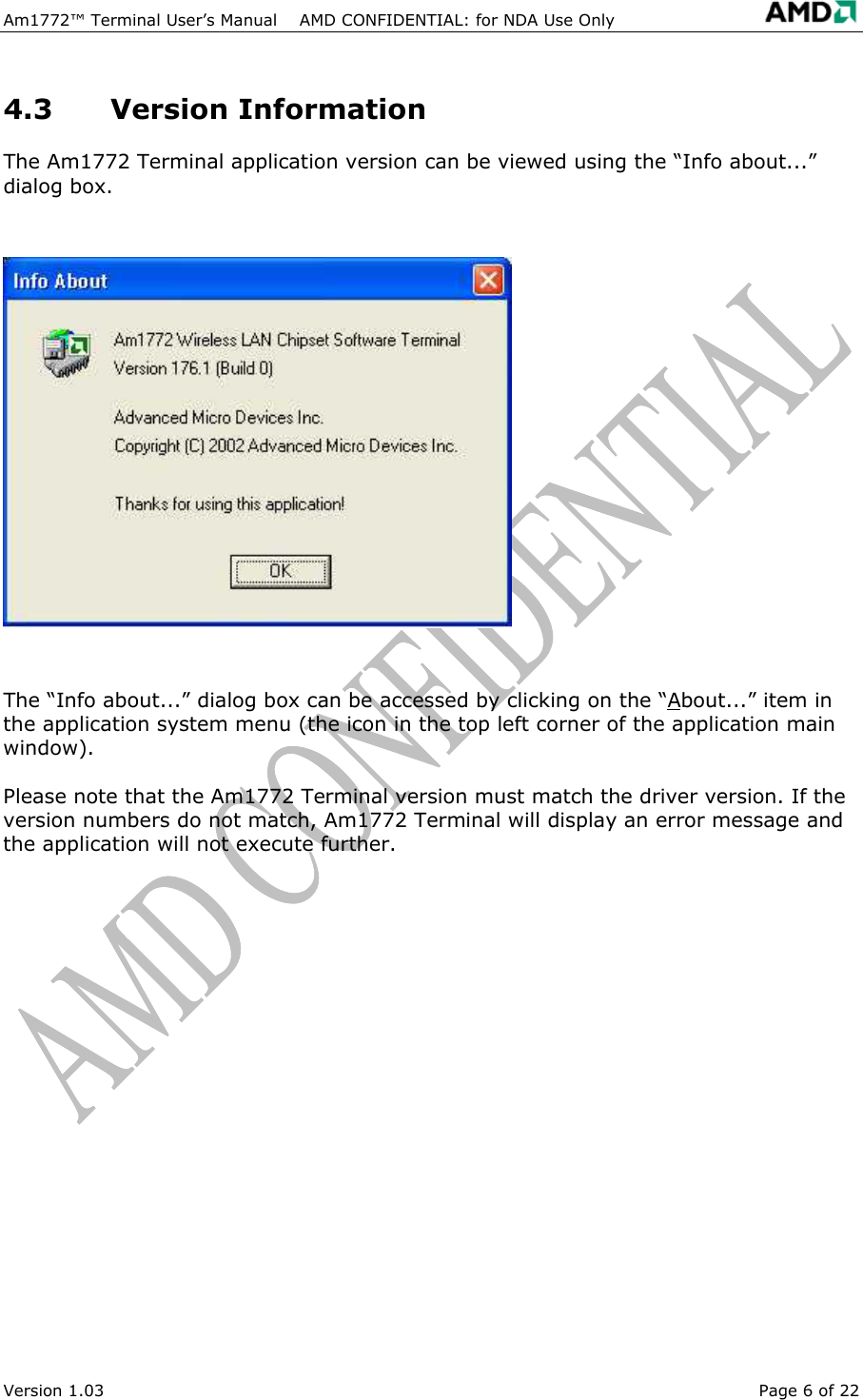
Am1772™ Terminal User’s Manual    AMD CONFIDENTIAL: for NDA Use Only   Version 1.03  Page 6 of 22 4.3 Version Information The Am1772 Terminal application version can be viewed using the “Info about...” dialog box.  The “Info about...” dialog box can be accessed by clicking on the “About...” item in the application system menu (the icon in the top left corner of the application main window). Please note that the Am1772 Terminal version must match the driver version. If the version numbers do not match, Am1772 Terminal will display an error message and the application will not execute further.
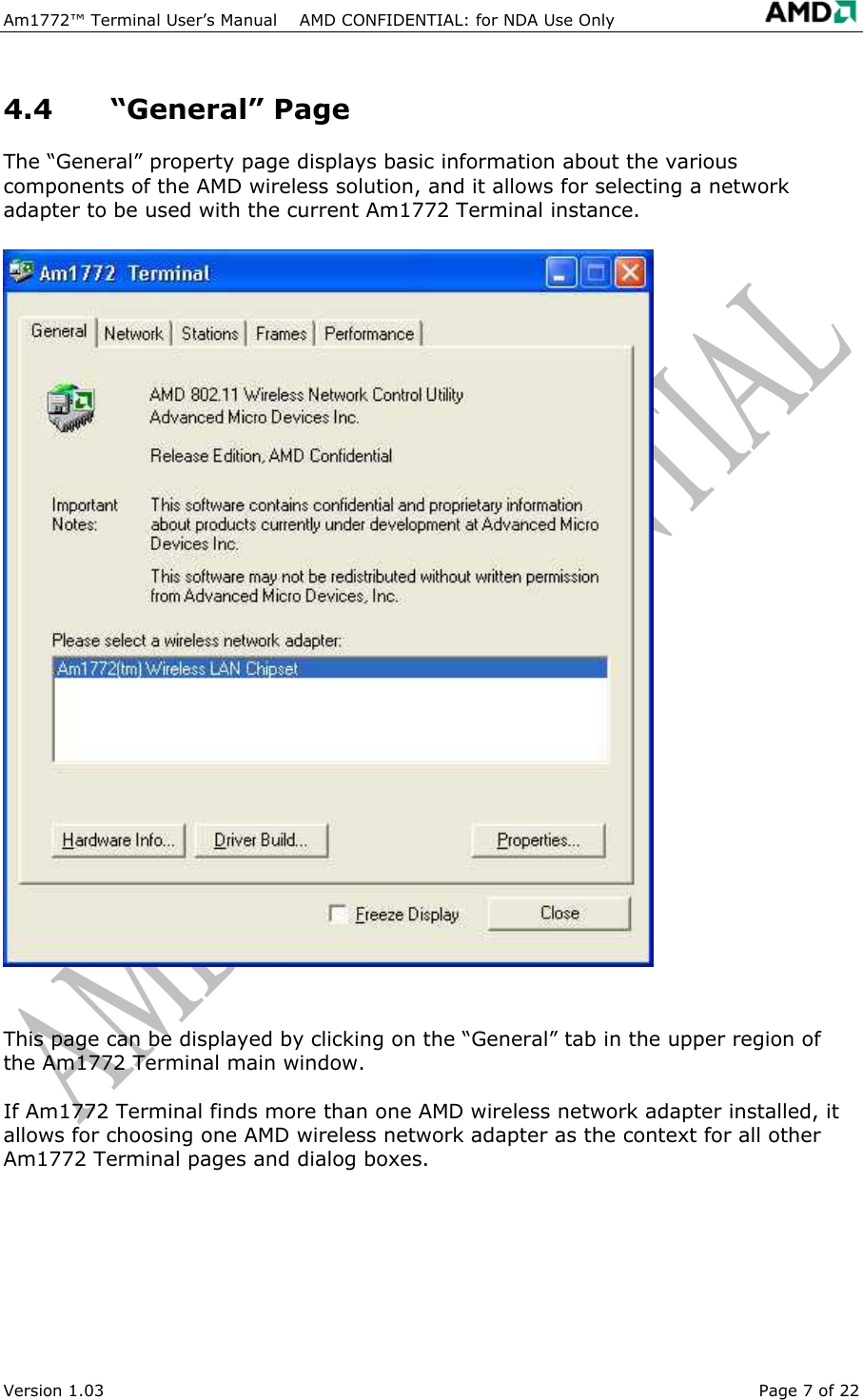
Am1772™ Terminal User’s Manual    AMD CONFIDENTIAL: for NDA Use Only   Version 1.03  Page 7 of 22 4.4 “General” Page The “General” property page displays basic information about the various components of the AMD wireless solution, and it allows for selecting a network adapter to be used with the current Am1772 Terminal instance.  This page can be displayed by clicking on the “General” tab in the upper region of the Am1772 Terminal main window. If Am1772 Terminal finds more than one AMD wireless network adapter installed, it allows for choosing one AMD wireless network adapter as the context for all other Am1772 Terminal pages and dialog boxes.
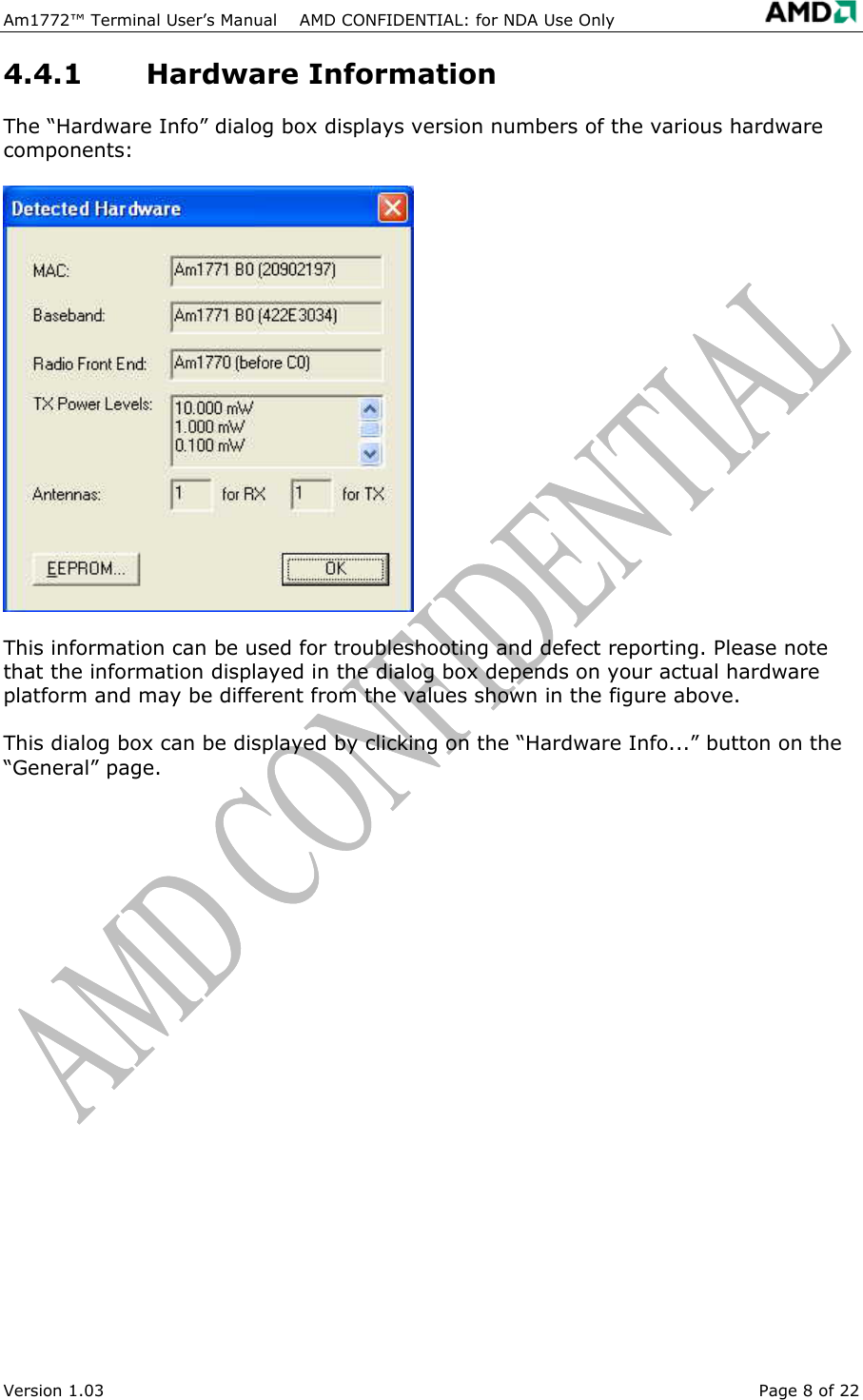
 Am1772™ Terminal User’s Manual    AMD CONFIDENTIAL: for NDA Use Only   Version 1.03  Page 8 of 22 4.4.1 Hardware Information The “Hardware Info” dialog box displays version numbers of the various hardware components: This information can be used for troubleshooting and defect reporting. Please note that the information displayed in the dialog box depends on your actual hardware platform and may be different from the values shown in the figure above. This dialog box can be displayed by clicking on the “Hardware Info...” button on the “General” page.
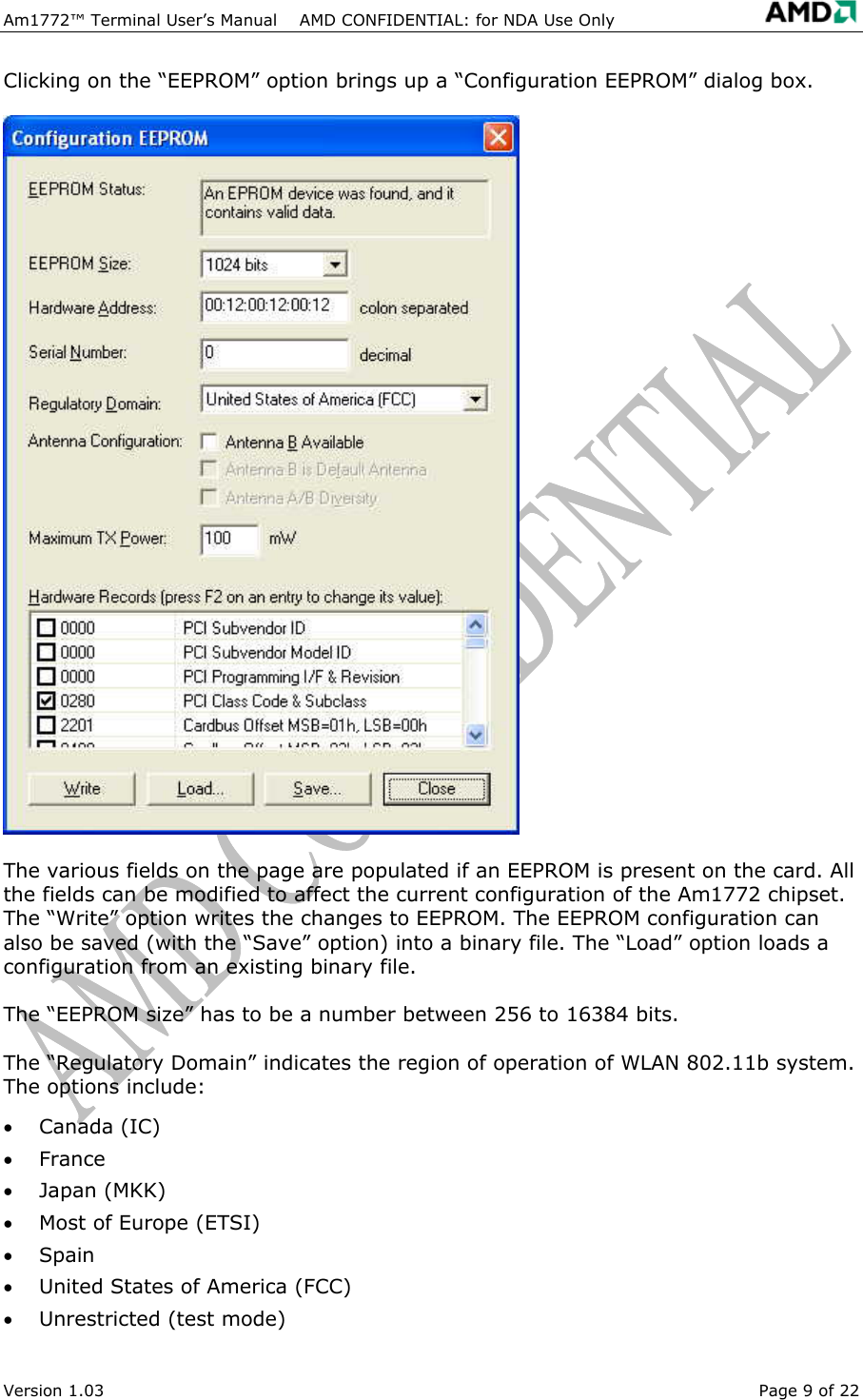
 Am1772™ Terminal User’s Manual    AMD CONFIDENTIAL: for NDA Use Only   Version 1.03  Page 9 of 22 Clicking on the “EEPROM” option brings up a “Configuration EEPROM” dialog box. The various fields on the page are populated if an EEPROM is present on the card. All the fields can be modified to affect the current configuration of the Am1772 chipset. The “Write” option writes the changes to EEPROM. The EEPROM configuration can also be saved (with the “Save” option) into a binary file. The “Load” option loads a configuration from an existing binary file. The “EEPROM size” has to be a number between 256 to 16384 bits.  The “Regulatory Domain” indicates the region of operation of WLAN 802.11b system. The options include: •  Canada (IC) •  France •  Japan (MKK) •  Most of Europe (ETSI) •  Spain •  United States of America (FCC) •  Unrestricted (test mode)
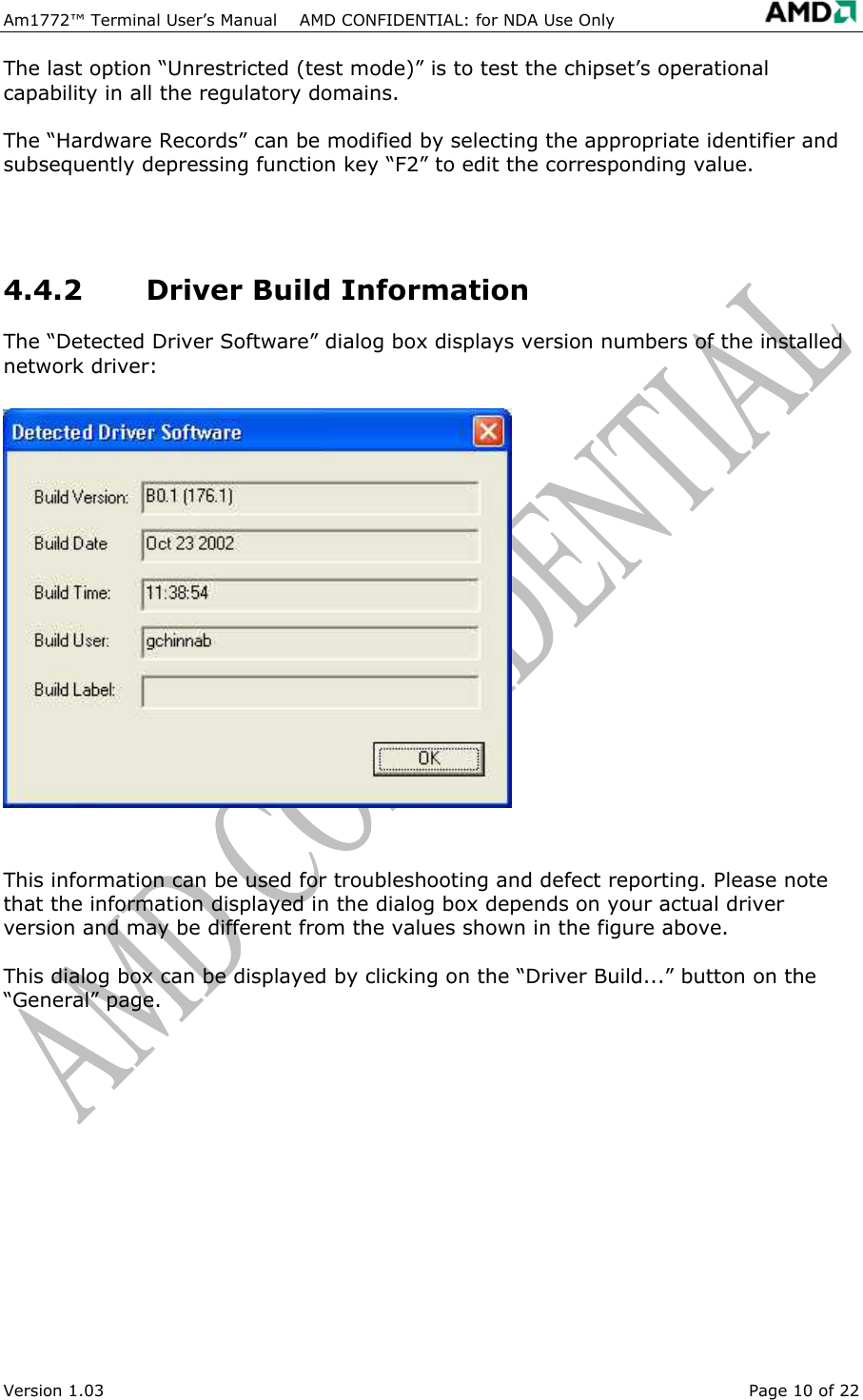
Am1772™ Terminal User’s Manual    AMD CONFIDENTIAL: for NDA Use Only   Version 1.03  Page 10 of 22 The last option “Unrestricted (test mode)” is to test the chipset’s operational capability in all the regulatory domains. The “Hardware Records” can be modified by selecting the appropriate identifier and subsequently depressing function key “F2” to edit the corresponding value.  4.4.2 Driver Build Information The “Detected Driver Software” dialog box displays version numbers of the installed network driver:  This information can be used for troubleshooting and defect reporting. Please note that the information displayed in the dialog box depends on your actual driver version and may be different from the values shown in the figure above. This dialog box can be displayed by clicking on the “Driver Build...” button on the “General” page.
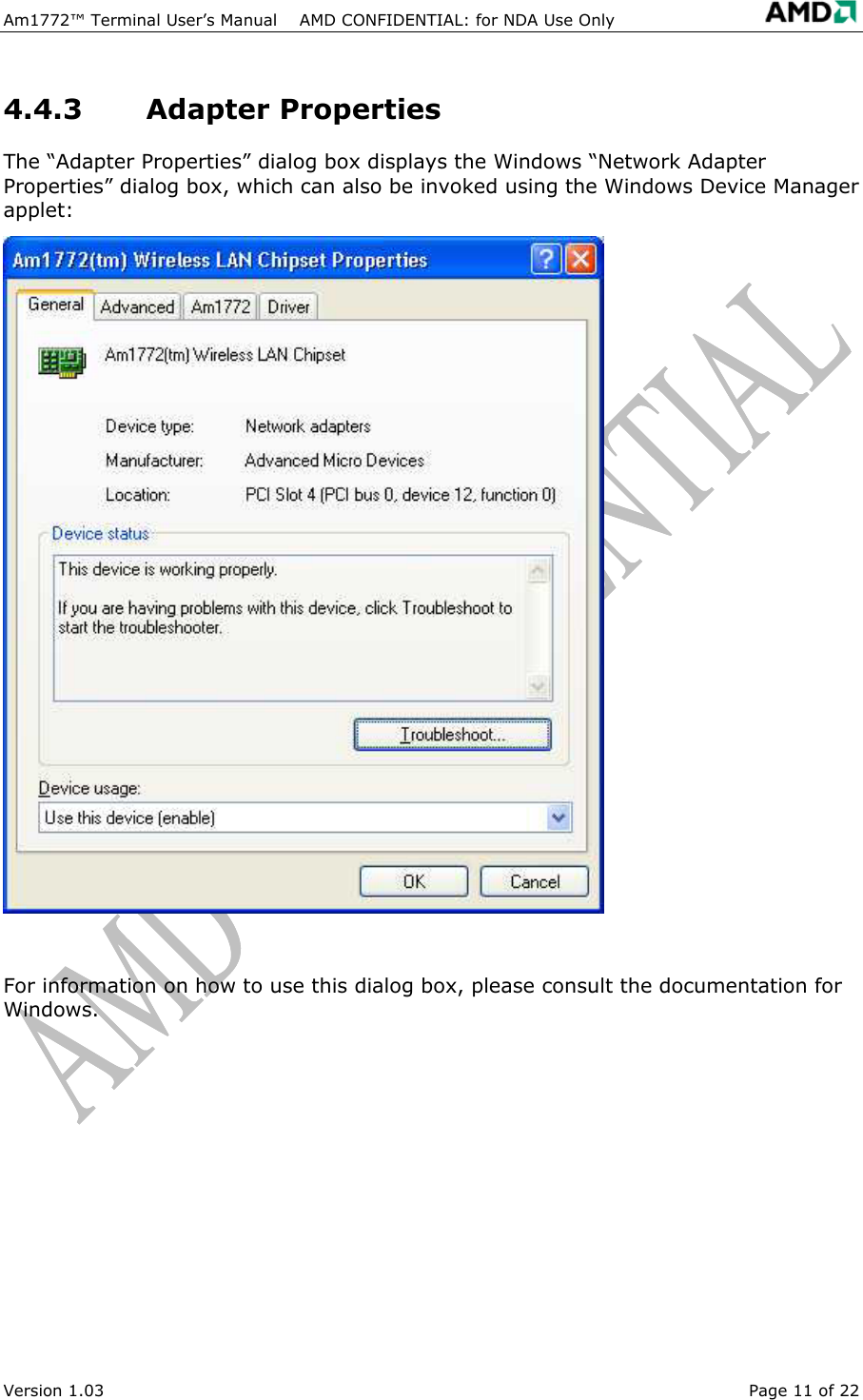
Am1772™ Terminal User’s Manual    AMD CONFIDENTIAL: for NDA Use Only   Version 1.03  Page 11 of 22 4.4.3 Adapter Properties The “Adapter Properties” dialog box displays the Windows “Network Adapter Properties” dialog box, which can also be invoked using the Windows Device Manager applet:  For information on how to use this dialog box, please consult the documentation for Windows.
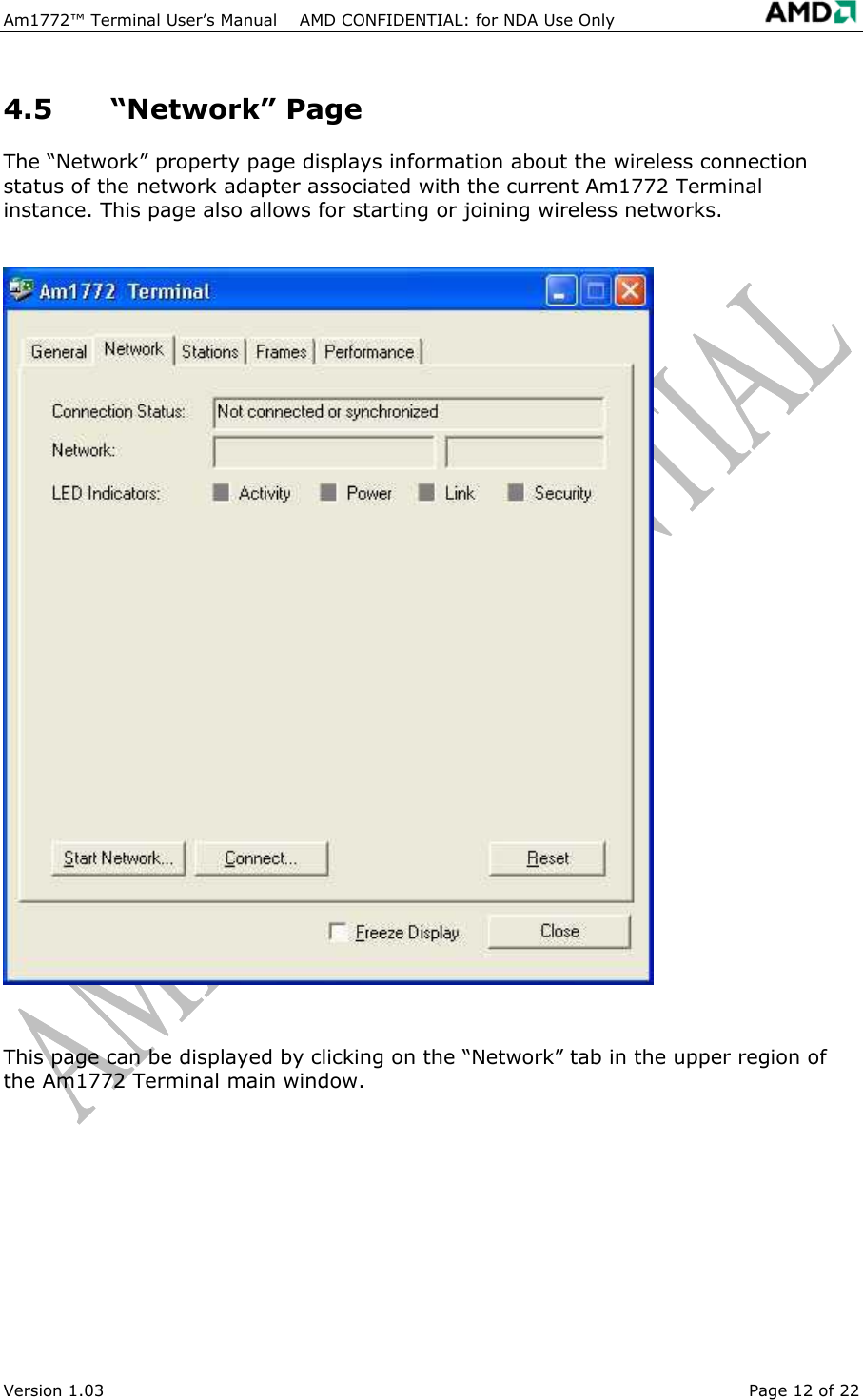
Am1772™ Terminal User’s Manual    AMD CONFIDENTIAL: for NDA Use Only   Version 1.03  Page 12 of 22 4.5 “Network” Page The “Network” property page displays information about the wireless connection status of the network adapter associated with the current Am1772 Terminal instance. This page also allows for starting or joining wireless networks.  This page can be displayed by clicking on the “Network” tab in the upper region of the Am1772 Terminal main window.
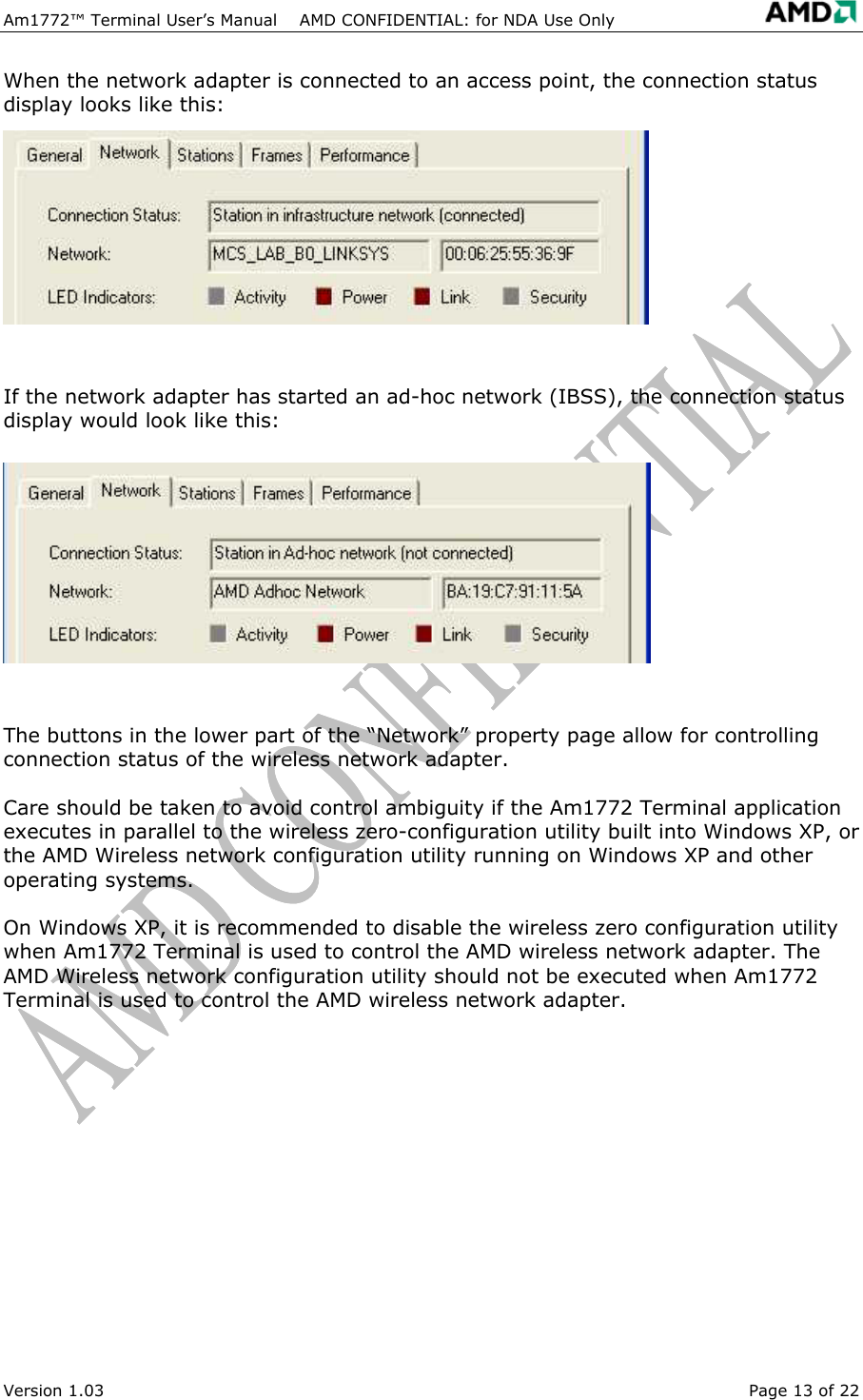
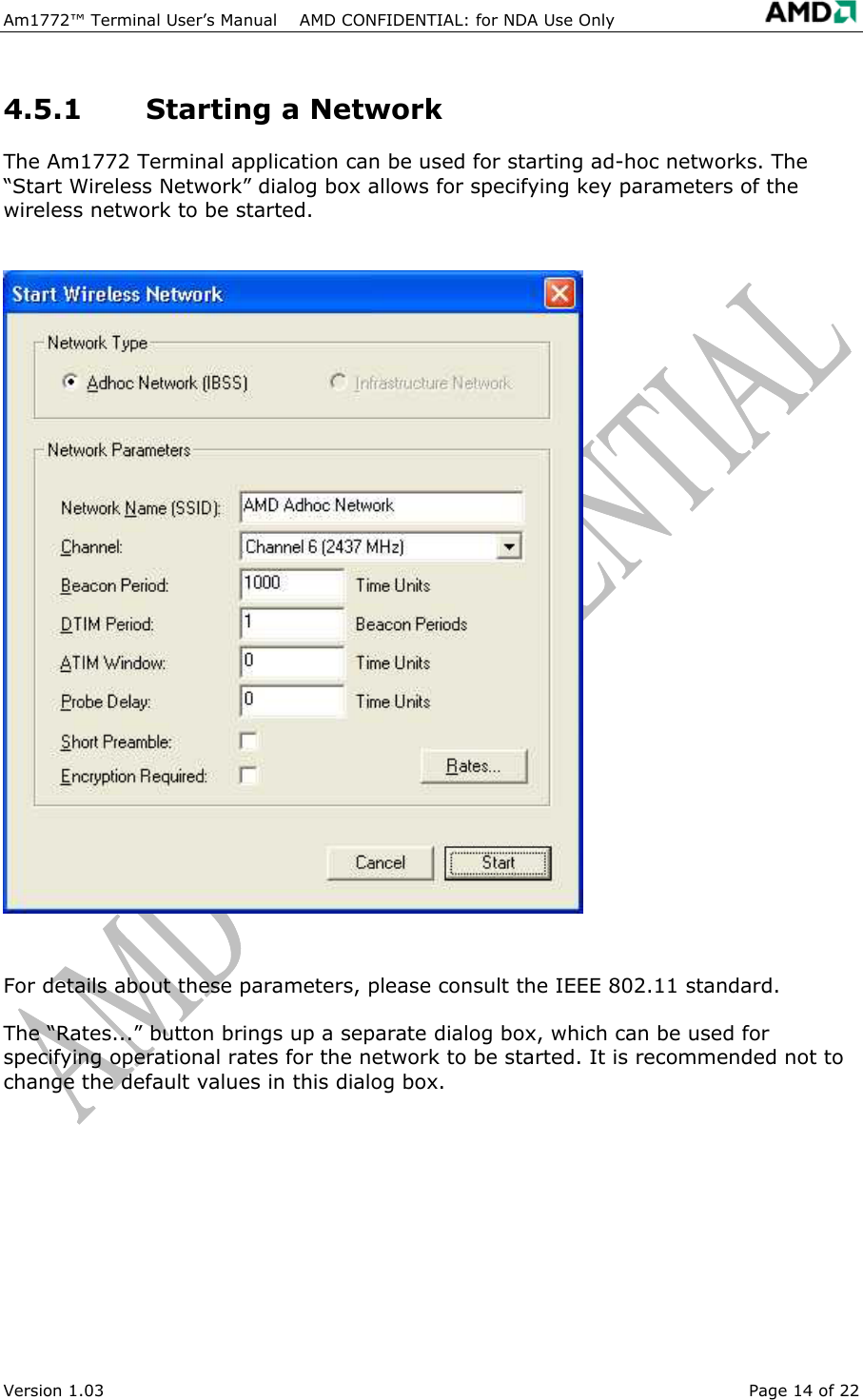
Am1772™ Terminal User’s Manual    AMD CONFIDENTIAL: for NDA Use Only   Version 1.03  Page 13 of 22 When the network adapter is connected to an access point, the connection status display looks like this:  If the network adapter has started an ad-hoc network (IBSS), the connection status display would look like this:  The buttons in the lower part of the “Network” property page allow for controlling connection status of the wireless network adapter.  Care should be taken to avoid control ambiguity if the Am1772 Terminal application executes in parallel to the wireless zero-configuration utility built into Windows XP, or the AMD Wireless network configuration utility running on Windows XP and other operating systems.  On Windows XP, it is recommended to disable the wireless zero configuration utility when Am1772 Terminal is used to control the AMD wireless network adapter. The AMD Wireless network configuration utility should not be executed when Am1772 Terminal is used to control the AMD wireless network adapter.
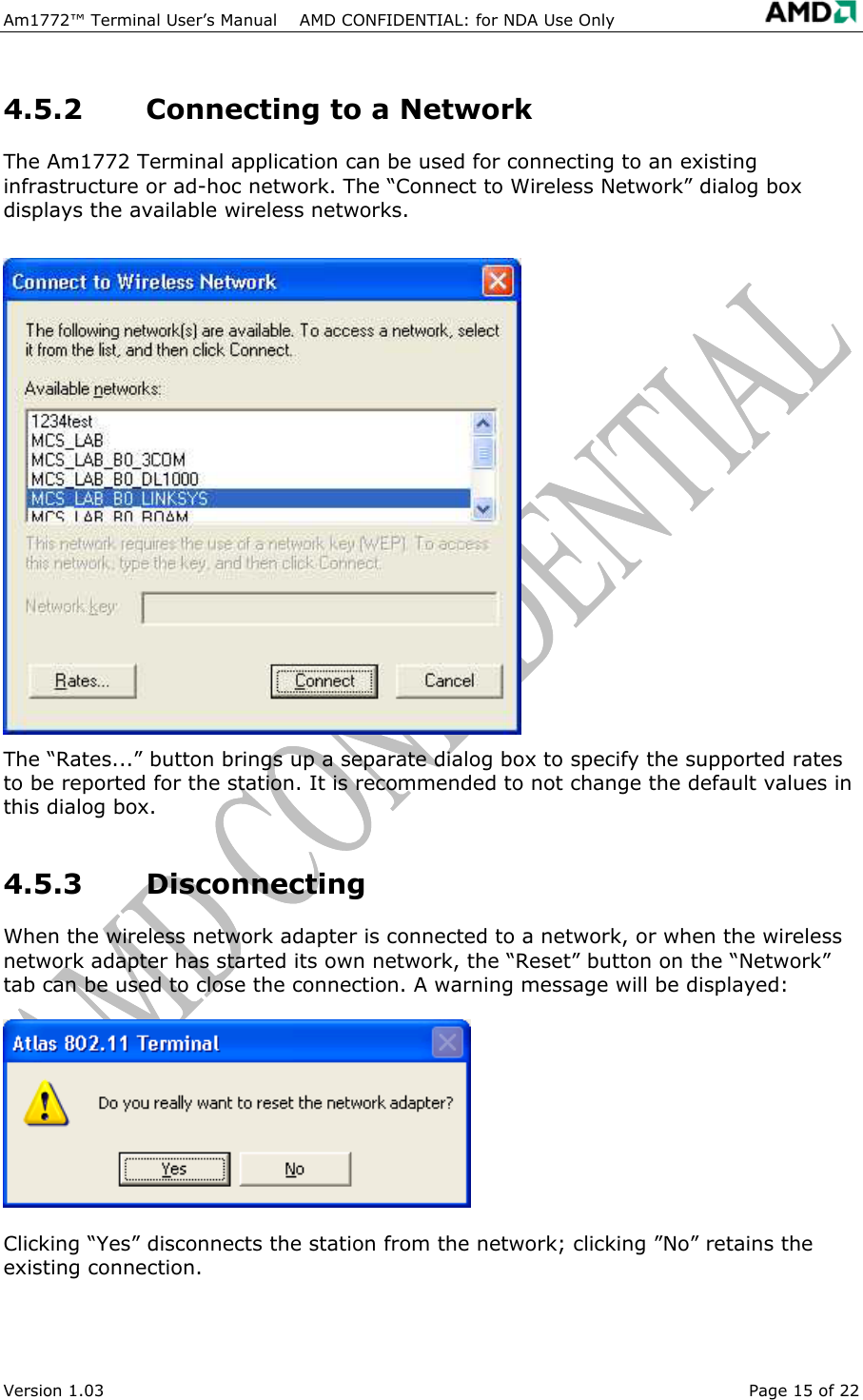
Am1772™ Terminal User’s Manual    AMD CONFIDENTIAL: for NDA Use Only   Version 1.03  Page 14 of 22 4.5.1  Starting a Network The Am1772 Terminal application can be used for starting ad-hoc networks. The “Start Wireless Network” dialog box allows for specifying key parameters of the wireless network to be started.  For details about these parameters, please consult the IEEE 802.11 standard.  The “Rates...” button brings up a separate dialog box, which can be used for specifying operational rates for the network to be started. It is recommended not to change the default values in this dialog box.
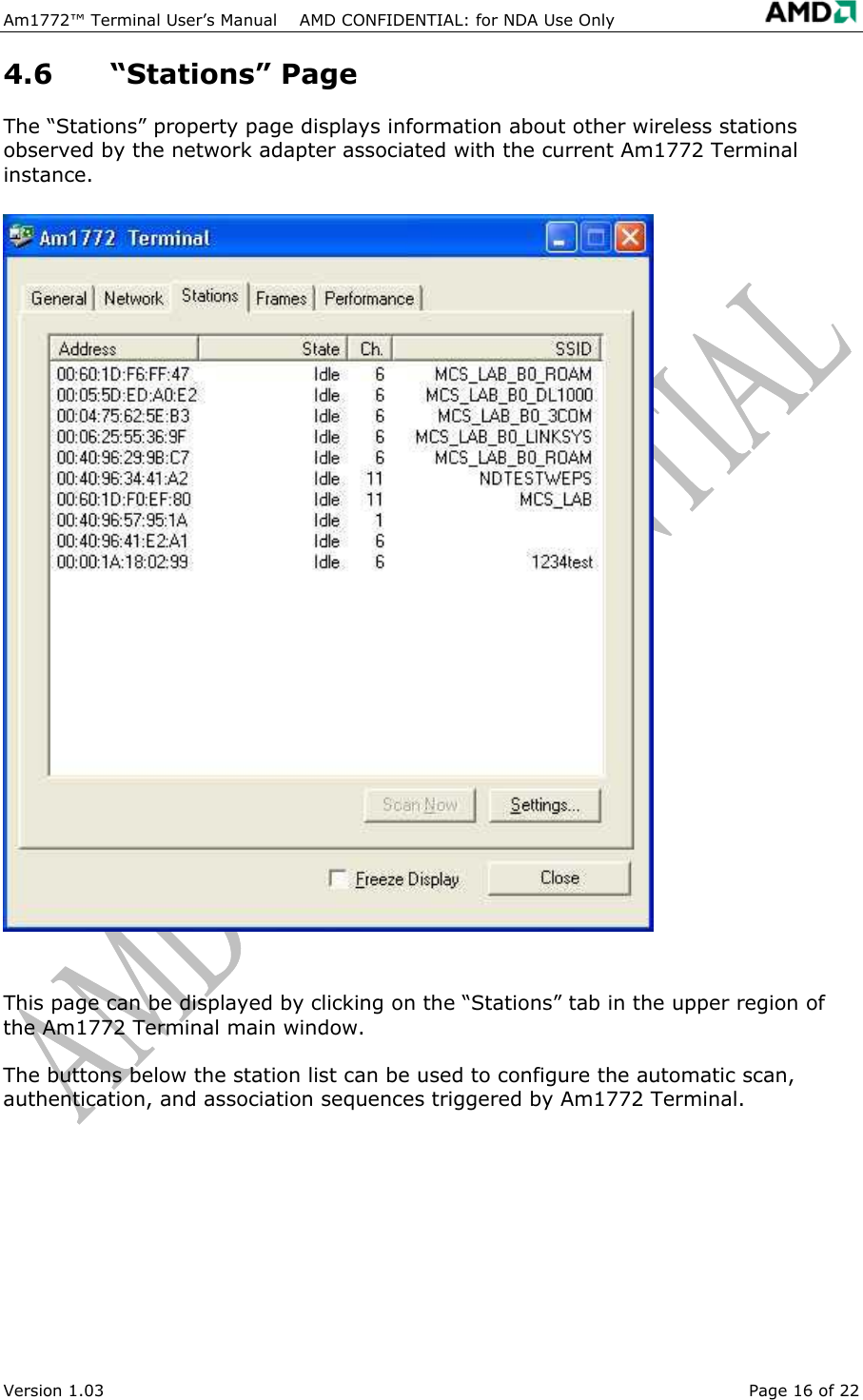
Am1772™ Terminal User’s Manual    AMD CONFIDENTIAL: for NDA Use Only   Version 1.03  Page 15 of 22 4.5.2  Connecting to a Network The Am1772 Terminal application can be used for connecting to an existing infrastructure or ad-hoc network. The “Connect to Wireless Network” dialog box displays the available wireless networks. The “Rates...” button brings up a separate dialog box to specify the supported rates to be reported for the station. It is recommended to not change the default values in this dialog box. 4.5.3 Disconnecting When the wireless network adapter is connected to a network, or when the wireless network adapter has started its own network, the “Reset” button on the “Network” tab can be used to close the connection. A warning message will be displayed: Clicking “Yes” disconnects the station from the network; clicking ”No” retains the existing connection.
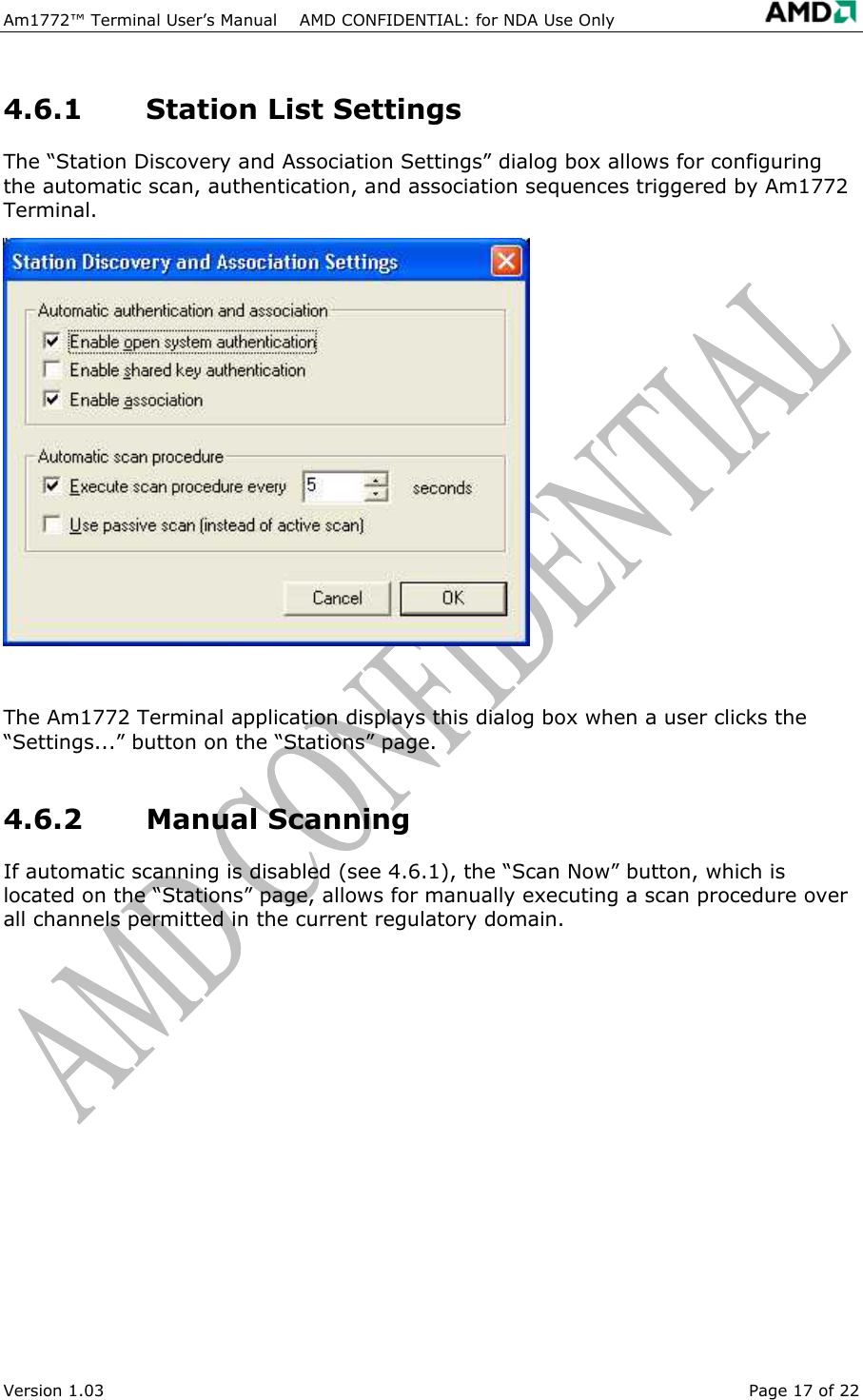
Am1772™ Terminal User’s Manual    AMD CONFIDENTIAL: for NDA Use Only   Version 1.03  Page 16 of 22 4.6 “Stations” Page The “Stations” property page displays information about other wireless stations observed by the network adapter associated with the current Am1772 Terminal instance.  This page can be displayed by clicking on the “Stations” tab in the upper region of the Am1772 Terminal main window. The buttons below the station list can be used to configure the automatic scan, authentication, and association sequences triggered by Am1772 Terminal.
Am1772™ Terminal User’s Manual    AMD CONFIDENTIAL: for NDA Use Only   Version 1.03  Page 17 of 22 4.6.1  Station List Settings The “Station Discovery and Association Settings” dialog box allows for configuring the automatic scan, authentication, and association sequences triggered by Am1772 Terminal.  The Am1772 Terminal application displays this dialog box when a user clicks the “Settings...” button on the “Stations” page. 4.6.2 Manual Scanning If automatic scanning is disabled (see 4.6.1), the “Scan Now” button, which is located on the “Stations” page, allows for manually executing a scan procedure over all channels permitted in the current regulatory domain.
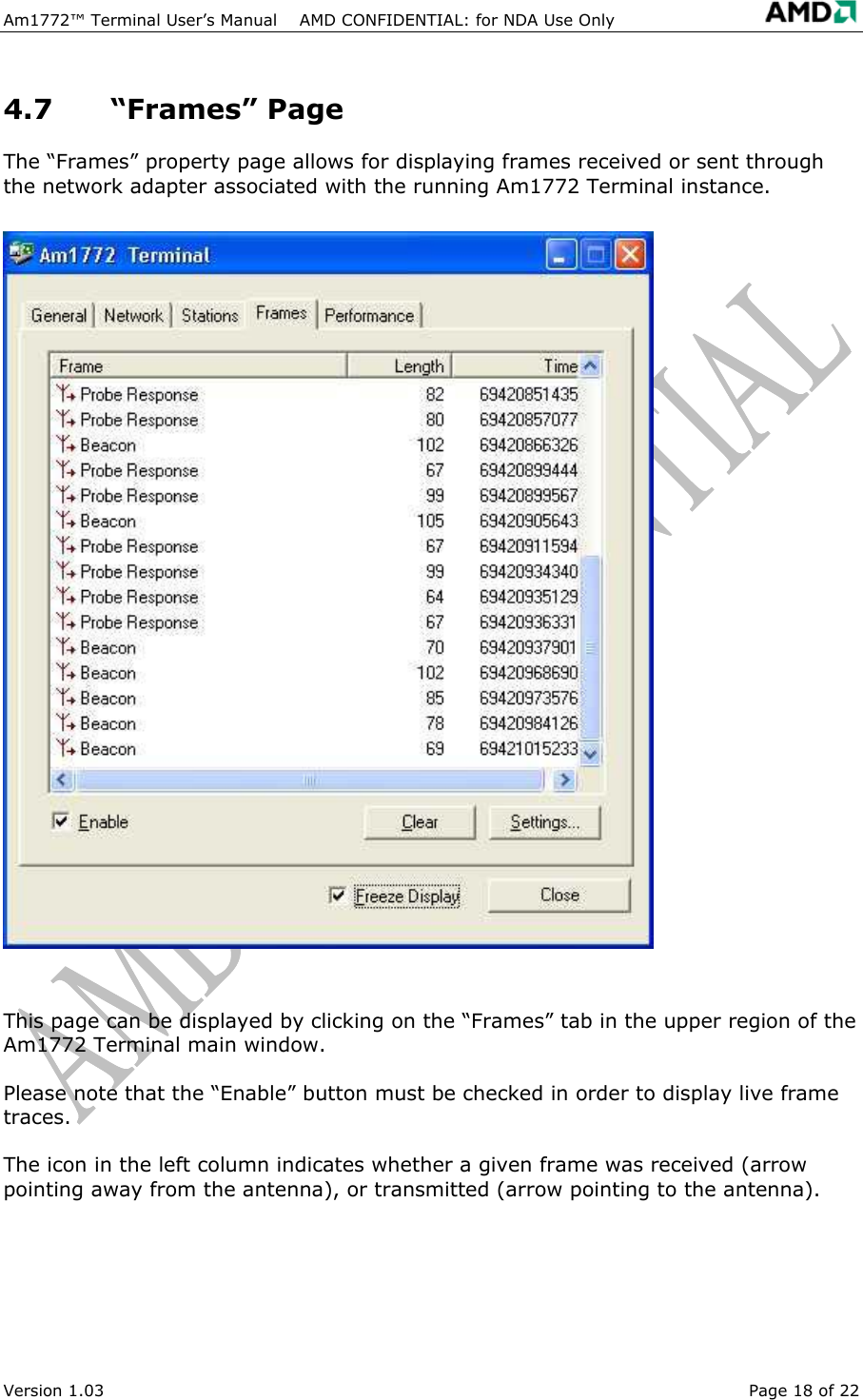
Am1772™ Terminal User’s Manual    AMD CONFIDENTIAL: for NDA Use Only   Version 1.03  Page 18 of 22 4.7 “Frames” Page The “Frames” property page allows for displaying frames received or sent through the network adapter associated with the running Am1772 Terminal instance.  This page can be displayed by clicking on the “Frames” tab in the upper region of the Am1772 Terminal main window. Please note that the “Enable” button must be checked in order to display live frame traces. The icon in the left column indicates whether a given frame was received (arrow pointing away from the antenna), or transmitted (arrow pointing to the antenna).
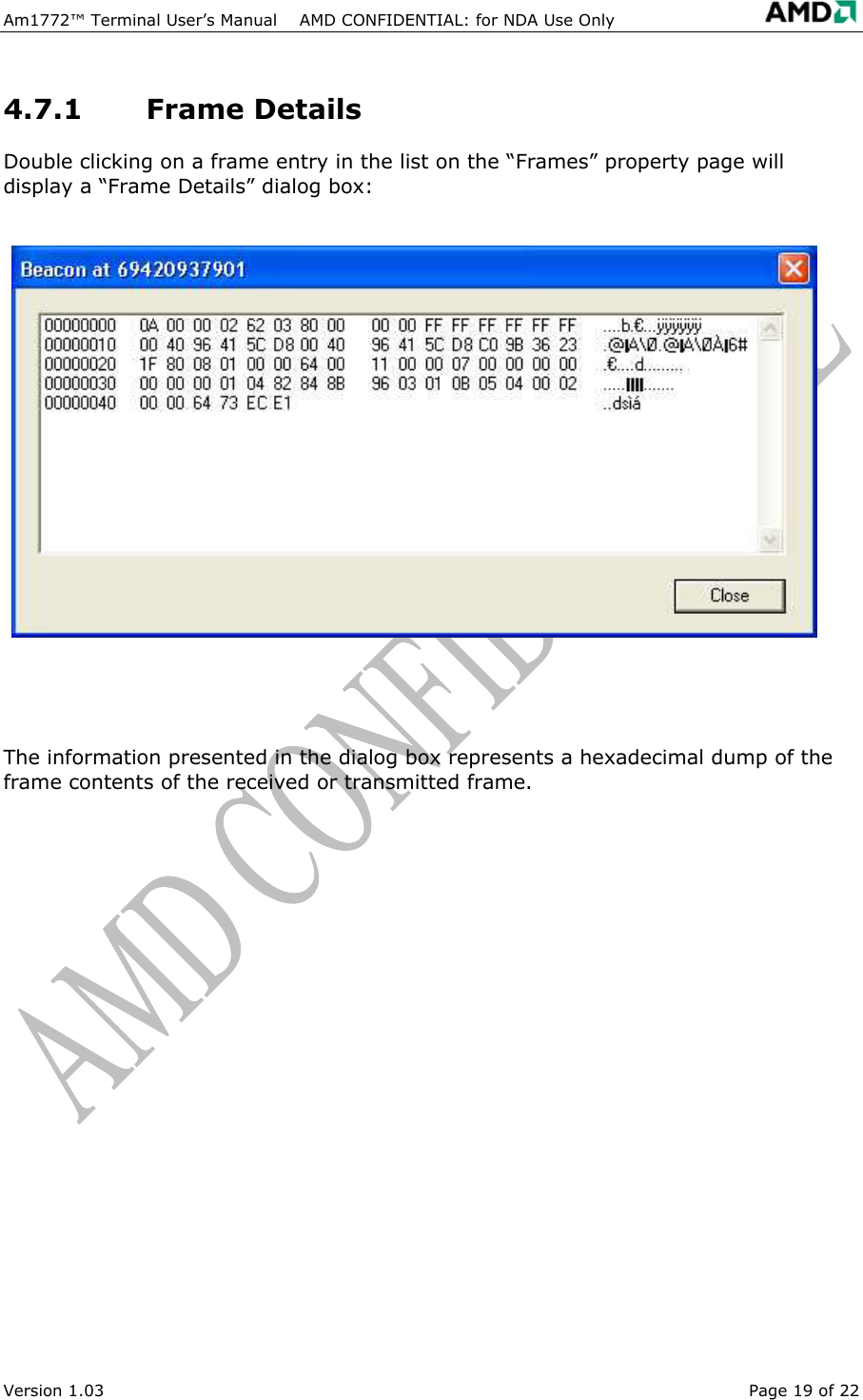
Am1772™ Terminal User’s Manual    AMD CONFIDENTIAL: for NDA Use Only   Version 1.03  Page 19 of 22 4.7.1 Frame Details Double clicking on a frame entry in the list on the “Frames” property page will display a “Frame Details” dialog box:   The information presented in the dialog box represents a hexadecimal dump of the frame contents of the received or transmitted frame.
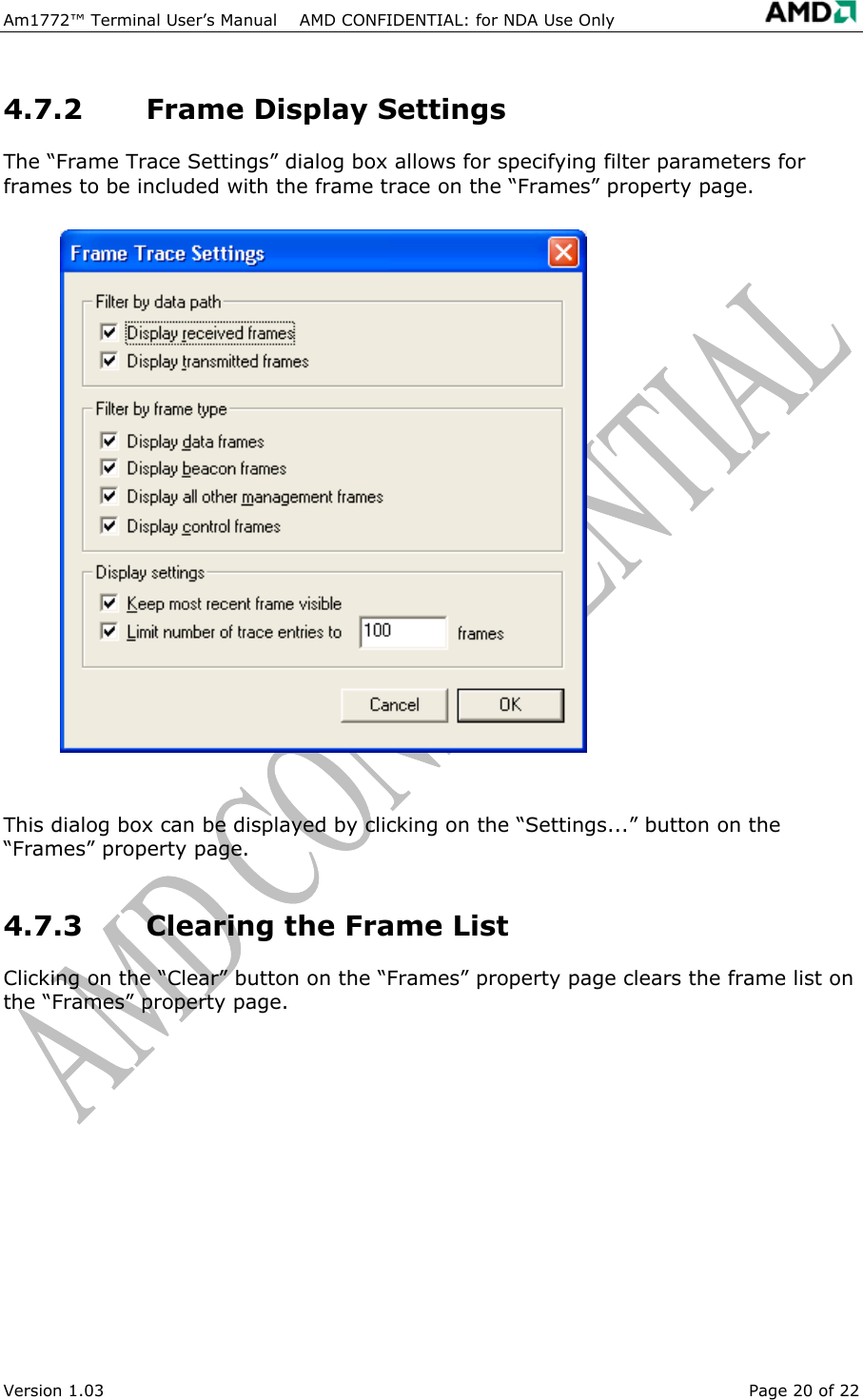
Am1772™ Terminal User’s Manual    AMD CONFIDENTIAL: for NDA Use Only   4.7.2 Frame Display Settings The “Frame Trace Settings” dialog box allows for specifying filter parameters for frames to be included with the frame trace on the “Frames” property page.  This dialog box can be displayed by clicking on the “Settings...” button on the “Frames” property page. 4.7.3  Clearing the Frame List Clicking on the “Clear” button on the “Frames” property page clears the frame list on the “Frames” property page. Version 1.03  Page 20 of 22
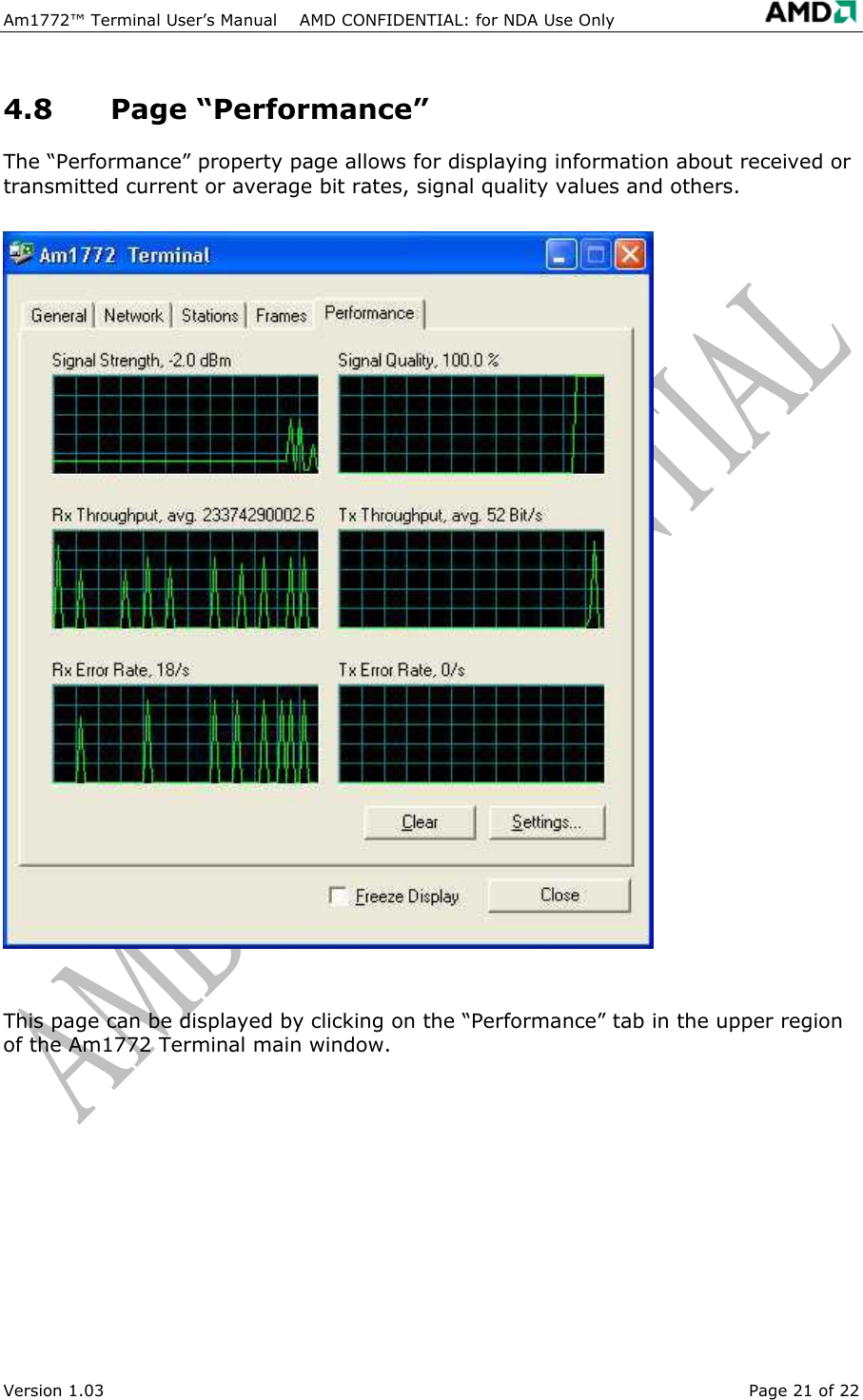
Am1772™ Terminal User’s Manual    AMD CONFIDENTIAL: for NDA Use Only   Version 1.03  Page 21 of 22 4.8 Page “Performance” The “Performance” property page allows for displaying information about received or transmitted current or average bit rates, signal quality values and others.  This page can be displayed by clicking on the “Performance” tab in the upper region of the Am1772 Terminal main window.
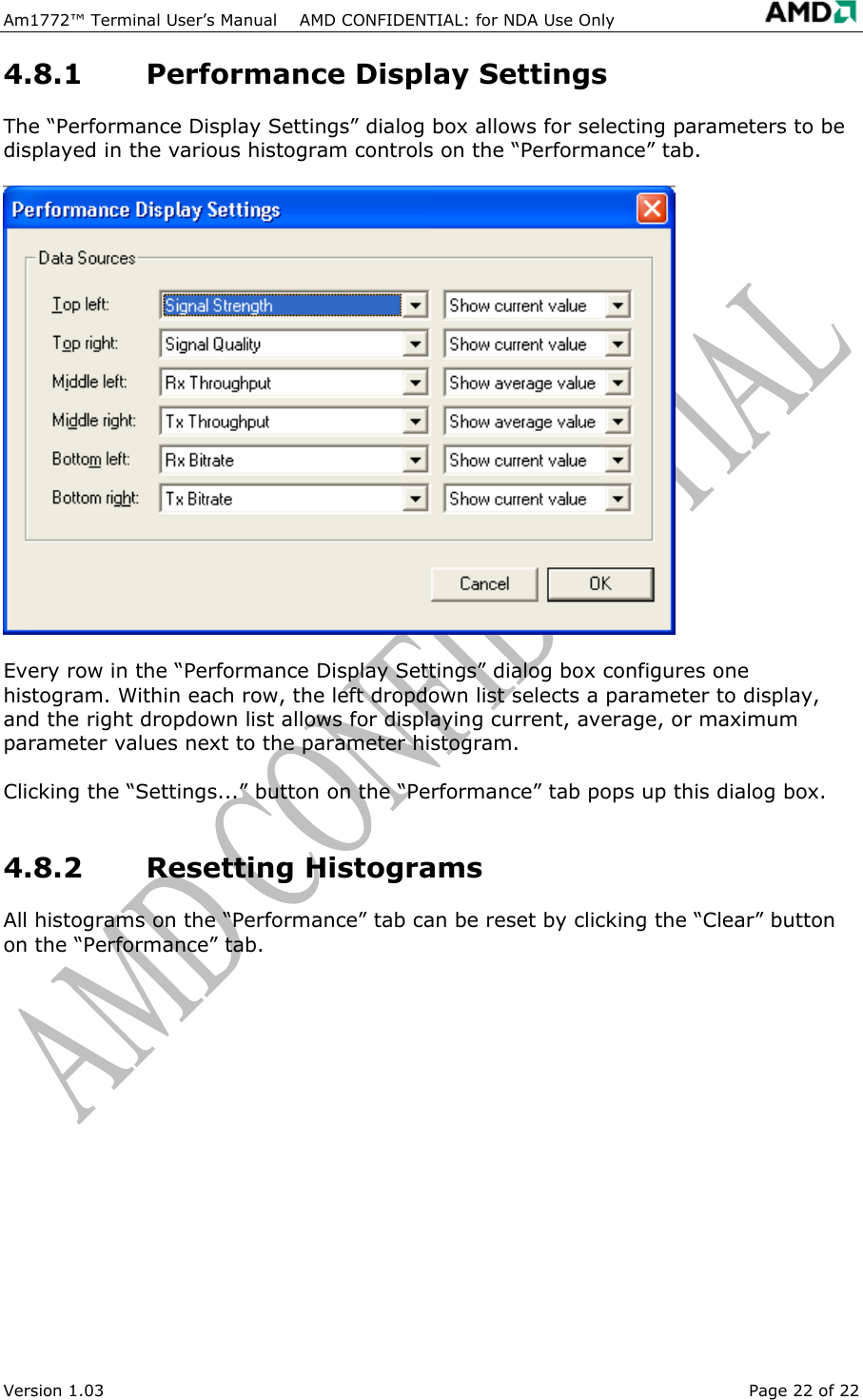
 Am1772™ Terminal User’s Manual    AMD CONFIDENTIAL: for NDA Use Only   Version 1.03  Page 22 of 22 4.8.1  Performance Display Settings The “Performance Display Settings” dialog box allows for selecting parameters to be displayed in the various histogram controls on the “Performance” tab. Every row in the “Performance Display Settings” dialog box configures one histogram. Within each row, the left dropdown list selects a parameter to display, and the right dropdown list allows for displaying current, average, or maximum parameter values next to the parameter histogram. Clicking the “Settings...” button on the “Performance” tab pops up this dialog box. 4.8.2 Resetting Histograms All histograms on the “Performance” tab can be reset by clicking the “Clear” button on the “Performance” tab.
編號:WP288PF00000 SP01 版次:A版33333333   百一電子股份有限公司 Prime Electronics & Satellitics Inc. 產品規格書 適用機種:WP288P    WLAN CARD WP288P Specifications   1. General specification   2. Standard test condition   3. Electrical specification   4. Frequency channel plan 核准: 審查: 製表: 莊繐瑄 修訂日期:       年    月   日 制定日期:    2003  年 4 月7  日 Page : 1/3
Specification No. Item  Condition Min. Typ. Max.Test Method/Condition 1. General specification 1-1. Standard IEEE 802.11b   1-2. Frequency Band(MHz)    2400    2483.5  1-3. No. of  Selectable Channels 11 Channels (US, Canada) 13 Channels (Europe) 14 Channels (Japan)  1-4. Channel Spacing (MHz)      5     1-5. Modulation Technique  DSSS (CCK, DQPSK, DBPSK)   1-6. Spreading  11-chip Barker Sequence   1-7.  Media Access Protocol  CSMA/CA(collision Avoidance) with ACK  1-8.  Interface  PCMCIA Type II 3.3V    1-9.  Dimensions  115.0 mm x 54.0 mm x 6.5 mm   1-10.  LED Indicators  Link, Power   1-11.  Antenna Connector  On board patch   2. Standard Test Condition 2-1.  Supply voltage(V)   3.3   3. Electrical Specification Temperature Range:0 ~ 55℃ Humidity:95 % (Non-condensing)   150 Receiver Mode 3-1.  Power Consumption (mA) @+3.3V   260 Transmit Mode   -82    -84    @ 11 Msps   -87   @ 5.5 Msps   -90   @ 2 Msps 3-2  Receive Sensitivity (dBm)[FER < 8%]   -92   @ 1 Msps 3-3.  Average Output Power (dBm)   11dBm 12dBm   @29.5dB difference between the signal level at center frequency and higher first side lobe 3-4  Frequency Accuracy(ppm)    - 25    + 25   Page : 2/3
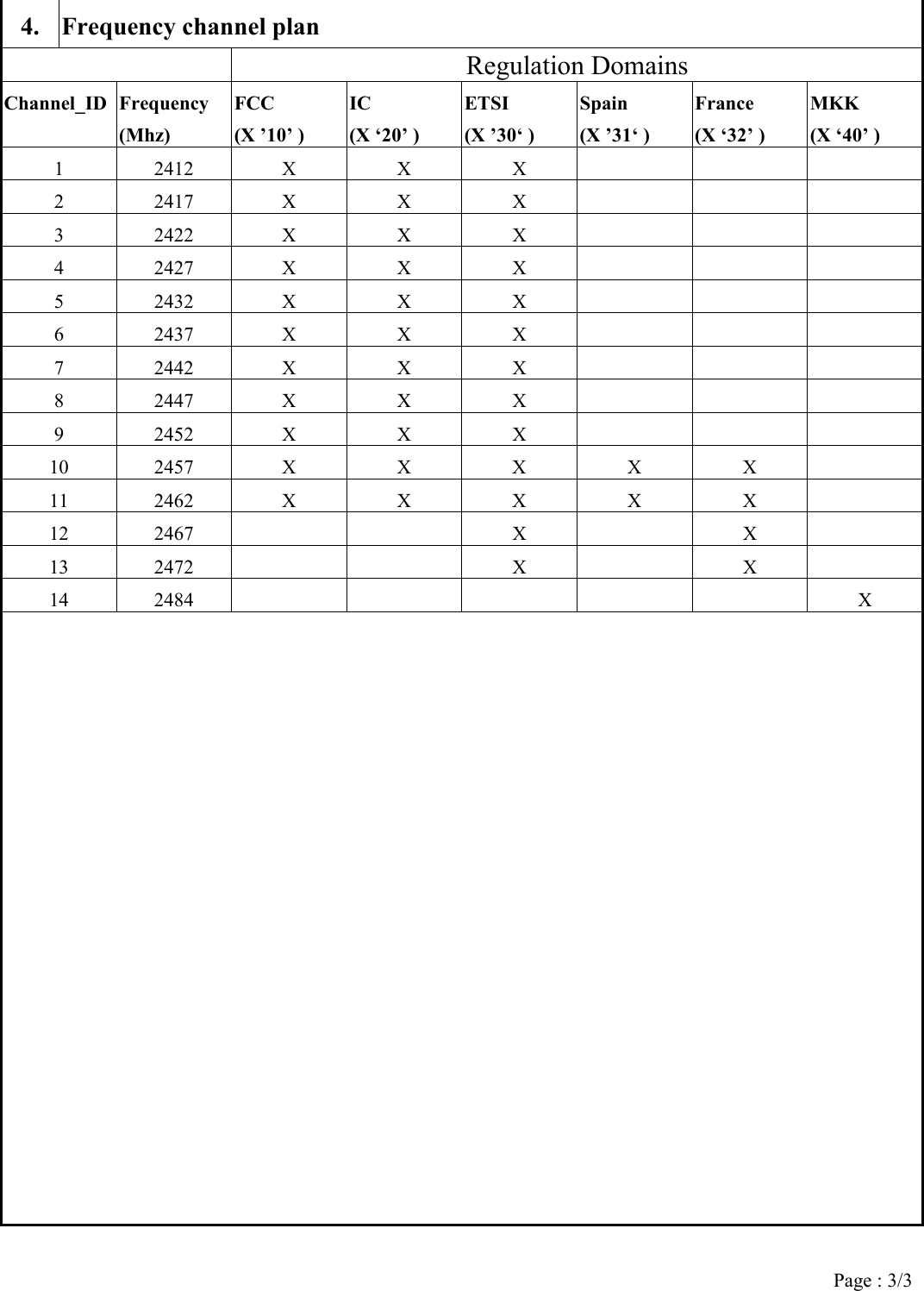
4. Frequency channel plan  Regulation Domains Channel_ID Frequency (Mhz) FCC   (X ’10’ ) IC (X ‘20’ ) ETSI  (X ’30‘ ) Spain  (X ’31‘ ) France     (X ‘32’ ) MKK (X ‘40’ ) 1 2412 X X X     2 2417 X X X     3 2422 X X X     4 2427 X X X     5 2432 X X X     6 2437 X X X     7 2442 X X X     8 2447 X X X     9 2452 X X X     10 2457 X X X X X   11 2462 X X X X X   12 2467    X   X   13 2472    X   X   14 2484       X         Page : 3/3

Navigation menu