Privaris LRT04-01 Long Range Transceiver User Manual
Privaris Inc. Long Range Transceiver
Privaris >
Contents
- 1. Solutions Overview
- 2. User Manual
User Manual
Long-Range Transceiver Configuration Tool Instructions
Overview
The Privaris Long-Range Transceiver (LRT) is an electronic device, that when connected to an
antenna, can communicate with the plusID 90 personal biometric token at distances of up to 100
meters (depending on the antennae selected) to grant access. The transceiver connects to most
existing physical access control systems using a Wiegand interface, or to a PC based interface
using a Serial Cable.
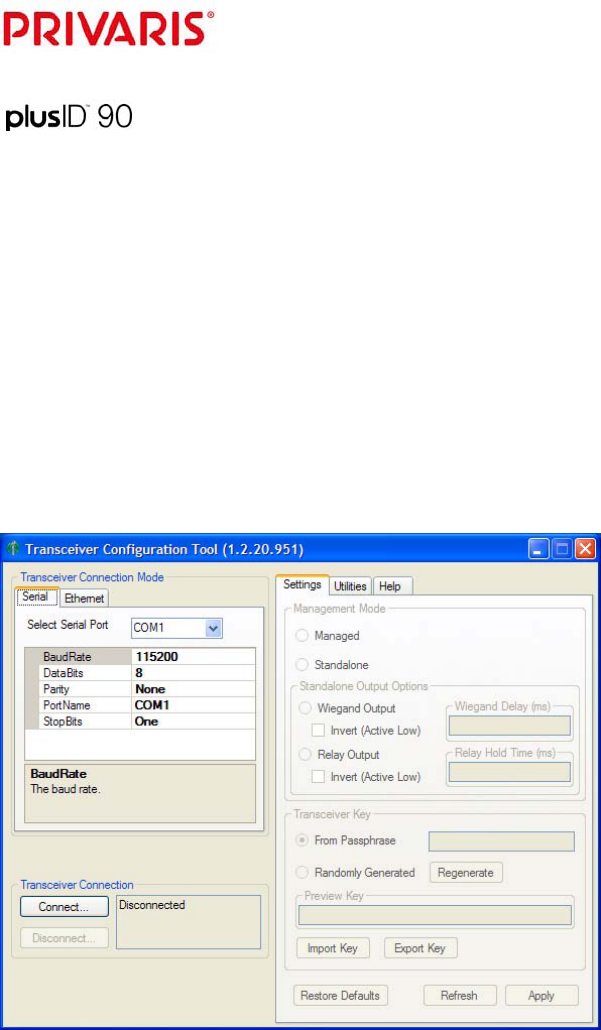
The Transceiver Configuration Tool is the software required for installation of the Privaris
Long-Range Transceiver, for maintenance, and for any changes to the transceiver settings.
The main screen of the Configuration Tool is shown below:
Connecting to the long-range transceiver
To use the software, the computer on which the Transceiver Configuration Tool resides must be
connected to the Long-Range Transceiver (LRT) by a serial port.
e 1
Additionally, the LRT requires an external 12-24V DC .5 amp power supply.
Privaris, Inc. Long-Range Transceiver
11.08.07 Configuration Tool Instructions Pag
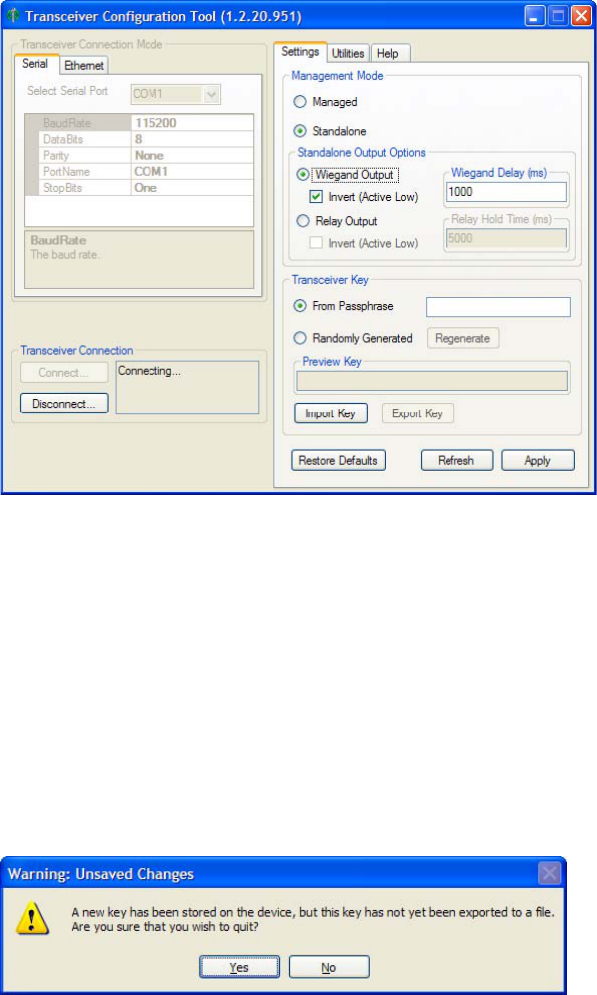
Once connected, the firmware version (F/W) of the LRT is displayed, and the remaining graphic user
interfaces become active. The LRT settings are populated with their default values, as shown
below.
Features of the tool
The tool is organized according to the tabs across the top. “Settings” and “Utilities” require an active
connection to an LRT, while the “Help” tab is always accessible, providing links to product
documentation.
When changing settings, the Apply button must be pressed in order to send the changes to the LRT.
The Refresh button causes any non-applied changes to be replaced by the current LRT settings.
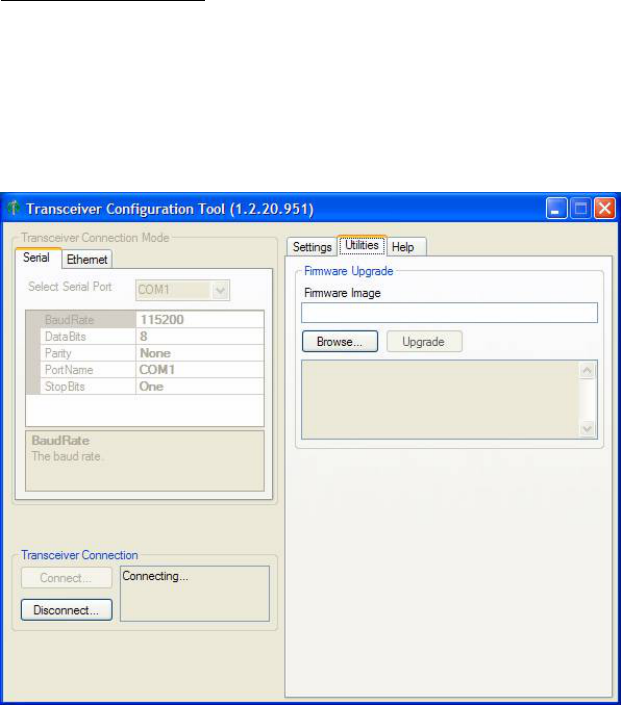
Additionally, if a key has been sent to the LRT but not exported (and imported to the plusID Manager
software), an error dialog is presented:
Privaris, Inc. Long-Range Transceiver
ge 2
11.08.07 Configuration Tool Instructions Pa

Management mode
This setting controls whether the LRT acts as the controller (Standalone Mode), or whether it is controlled
by an external application (Managed Mode). The controller in this instance is what interfaces to the
back-end physical access control system (PACS).
hat
ey match.
atching is either via a common passphrase, or via an export/import between
e two software tools.
The same key can be assigned to multiple transceivers.
o create a new key
For example, if the LRT’s Wiegand output is delivered directly to the PACS, it should be set to
Standalone Mode. If, however, the LRT is not configured for Wiegand output, or if a custom lane
controller is being used, then it should be set to Managed Mode.
Standalone Output Options
This setting is only applicable in Standalone Mode and allows for the configuration of:
• The number of milliseconds the LRT waits in between sending Wiegand output. The available
range is from 0 – 60,000 milliseconds. The back-end PACS can become overloaded if some degree of
throttling is not performed. This setting allows the timing to be customized based on the specific
application and experience. For instance, at a gate with minimal traffic, it could be set to a high number,
but in a high traffic scenario, the number should be low, as long as it does not confuse the backend
reader if packets are received too quickly. The default setting on a new transceiver is 0. A
recommended initial setting is 2000 milliseconds
• The number of milliseconds that the LRT will wait in between toggling the Form C relay.
• Inversion settings*: Wiegand or Relay signaling settings can be inverted, driving the signal to
low voltage instead of high voltage. This setting may be necessary if your access control panel cannot
interpret the default Wiegand signaling scheme. Note: The differential in voltage when driving “high” is
small, so inversion is recommended for applications that require a greater variance and therefore a more
noticeable effect.
*In this release of the LRT hardware, only Wiegand or Relay can be selected. In future revisions both will be able
to be configured to operate at the same time.
Transceiver key
This setting is only applicable if Standalone Mode has been selected. The transceiver key is used to
verify the authenticity of plusID 90 devices via a challenge/response cryptographic exchange.
A key must be created and assigned to each LRT. This can be done using the Transceiver
Configuration Tool or the plusID Manager software used for device issuance. Regardless of where the
key is created, the key must be assigned the same value in both applications, the plusID Manager and
the Transceiver Configuration Tool. The order in which the keys are configured is not important, just t
th
The way to achieve this m
th
!
TIf the transceiver key has not already been created within the plusID Manager:
mined: From Passphrase: enter a word or phrase
Randomly Generated: this is the most secure option.
e 3
1. Select how the key’s value is to be deter
Privaris, Inc. Long-Range Transceiver
11.08.07 Configuration Tool Instructions Pag
2. The preview bar at the bottom displays the key as it is generated. The key changes as the
option changes or as the text entered in the “Passphrase” field changes.
3. Select “Export” and choose a location for saving the new key so that it can be easily imported
into the plusID Manager.
To use an existing key If the transceiver key has already been created within the plusID Manager:
• Select the “Import a Key” button.
• Click the “Browse” button to find the file location of the saved key.
• Click “Apply” to save the key and send it to the LRT for storage.
UTILITIES TAB
Firmware upgrade
Firmware is another name for the software that resides in the LRT. A firmware upgrade should only be
performed if directed by Privaris or an authorized Privaris reseller. In the event an upgrade is required, a
file containing the upgrade will be provided
To upgrade the LRT’s firmware:
• Save the file to your hard drive.
e 4
• Select the “Browse” button and navigate to and select the saved file. The Upgrade button will
then become active.
• Press the “Upgrade” button to initiate the firmware upgrade. It will take several minutes to
complete.
• Upon completion the application will prompt you to reboot the LRT. To reboot, push the blue
post on the transceiver board labeled “reset,” or unplug/plug the power to the LRT.
Privaris, Inc. Long-Range Transceiver
11.08.07 Configuration Tool Instructions Pag
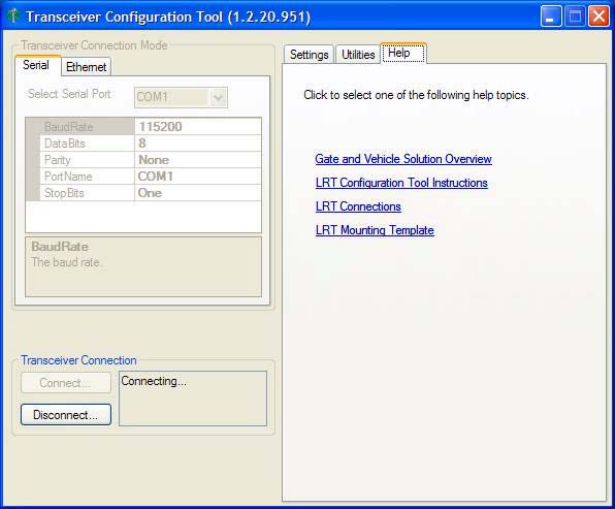
Hyperlinks to the product documentation for the Long-Range Transceiver are included.
FCC Statements
Part 15.21: Changes or modifications not expressly approved by the party responsible for compliance could void the
user’s authority to operate the equipment.
NOTE: The manufacturer is not responsible for any radio or TV interference caused by unauthorized modifications to this
equipment. Such modifications could void the user’s authority to operate the equipment.
"Warning: Maintain a separation distance from the antenna to a person(s) of at least 20 centimeters. You, as the qualified end-user
of this radio device must control the exposure conditions of bystanders to ensure the minimum separation distance
(above) is maintained between the antenna and nearby persons for satisfying RF Exposure compliance. The operation
this transmitter must satisfy the requirements of Occupational/Controlled Exposure Environment, for work-related us
Transmit only when person(s) are at least the minimum distance from the properly installed, externally mounted antenna."
of
e.
e 5
NOTE: This equipment has been tested and found to comply with the limits for a Class B digital device, pursuant to part 15 of the FCC
Rules. These limits are designed to provide reasonable protection against harmful interference in a residential installation. This
equipment generates, uses and can radiate radio frequency energy and, if not installed and used in accordance with the instructions, may
cause harmful interference to radio communications. However, there is no guarantee that interference will not occur in a particular
installation. If this equipment does cause harmful interference to radio or television reception, which can be determined by turning the
equipment off and on, the user is encouraged to try to correct the interference by one or more of the following measures:
— Reorient or relocate the receiving antenna.
— Increase the separation between the equipment and receiver.
— Connect the equipment into an outlet on a circuit different from that to which the receiver is connected.
— Consult the dealer or an experienced radio/TV technician for help.
Privaris, Inc. Long-Range Transceiver
11.08.07 Configuration Tool Instructions Pag