Pro Nets Technology WU71RL Wireless USB Dongle User Manual User manal 2 of 4
Pro-Nets Technology Corporation Wireless USB Dongle User manal 2 of 4
Contents
- 1. User manual 1 of 4
- 2. User manal 2 of 4
- 3. User manual 3 of 4
- 4. User manual 4 of 4
User manal 2 of 4
![323.1.3 Network Under the Network function, system will display the information of surrounding APs from last scan result. List information includes SSID, BSSID, Signal, Channel, Encryption algorithm, Authentication and Network type as below: [Definition of each field] SSID: Name of BSS or IBSS network Network Type: Network type in use, infrastructure for BBS, Ad-Hoc for IBSS network Channel: Channel in use. Wireless Mode: AP support wireless mode. IT may support, 802.11b, 802.11g or 802.11n wireless mode. Security-Enable: Whether AP provides security-enabled wireless network Signal: Receive signal strength of specified network [Icons & Buttons] Î Indicate connection is successful. Î Indicate network type is infrastructure mode. Î Indicate network type is Ad-Hoc mode. Î Indicate security-enabled wireless network. Î Indicate 802.11b wireless mode. Î Indicate 802.11g wireless mode. Î Indicate 802.11n wireless mode. Î Indicate the AP lists are sorted by SSID, Channel, or Signal. Î Command to connect to the selected network.](https://usermanual.wiki/Pro-Nets-Technology/WU71RL.User-manal-2-of-4/User-Guide-1027971-Page-3.png)
![33Î Issue a rescan command to wireless NIC to update information on surrounding wireless network. Î Add the selected AP to Profile setting. It will bring up profile page and save user’s setting to a new profile. [Connected Network] (1) When RaUI first ran, it will select the best AP to connect automatically. (2) If user wants to connect to other AP, He can click “Connect: button for the intended AP to make connection. (3) If the intended network has encryption other than “Not Use”, RaUI will bring up the security page appropriate information to make the connection. (4) When you double-click on the intended AP, you can see AP’s detail information. 3.1.4 Advanced Wireless Mode: Select wireless mode. 802.11B only, 802.11B/G mix, and 802.11B/G/N mix modes are supported. (802.11 A/B/G mix selection item only exists for A/B/G adapter; 802.11B/G/N mix selection item only exists for B/G/N adapter; 802.11B/G/N mix selection item only exists for A/B/G/N adapter.)Wireless Protection: User can choose from Auto, On, and Off (Only 802.11n adapter don’t support) Î Auto: STA will dynamically change as AP announcement Î ON: Always send frame with protection. ÎOff: Always send frame without protection. TX Rate: Manually force the Transmit using selected rate. Default is auto. (802.11n wireless card doesn’t support.)](https://usermanual.wiki/Pro-Nets-Technology/WU71RL.User-manal-2-of-4/User-Guide-1027971-Page-4.png)
![363.1.5 Statistics Statistics page displays the detail counter information based on 802.11 MIB counters. This page translates the MIB counters into a format easier for user to understand. [Transmit Statistics] Frames Transmitted Successfully: Frames successfully sent. Frames Fail To Receive ACK After All Retries: Frames failed transmit after hitting retry limit. RTS Frames Successfully Receive CTS: Successfully receive CTS after sending RTS frame.RTS Frames Fail to Receive CTS: Fail to receive CTS after sending RTS frame. Frames Retransmitted Successfully: Successfully retransmitted frames numbers Reset Counter: Reset counters to zero [Receive Statistics] Frames Received Successfully: Frames received successfully. Frames Received With CRC Error: Frames receive with CRC error. Frames Dropped Due To Out-Of-Resource: Frames dropped due to resource issue. Duplicate Frames Received: Duplicate received frames. Reset Counter: Reset counters to zero](https://usermanual.wiki/Pro-Nets-Technology/WU71RL.User-manal-2-of-4/User-Guide-1027971-Page-7.png)
![37Î Show the information of Status Section Î Hide the information of Status Section 3.1.6 WMM WMM function involves “WMM Enable”, “WMM-Power Save Enable” and “DSL Setup”.WMM Enable: Enabe Wi-Fi Multi-Media. WMM-Power Save Enable: Enable WMM Power Save. Direct Link Setup Enable: Enable DLS (direct Link Setup). [WMM Enable – Enable Wi-Fi Multi-Media] If you want to use “WMM-Power Save” or “Direct Link Setup” you must enable WMM. The setting methods of enabling WMM indicating as follow: Step 1: Click “WMM Enable”Step 2: Change to “Network” function. And add an AP that supports WMM features to a Profile. The result will look like the below figure in Profile page.](https://usermanual.wiki/Pro-Nets-Technology/WU71RL.User-manal-2-of-4/User-Guide-1027971-Page-8.png)
![38[WMM-Power Save Enable – Enable WMM Power Save] Step 1: Click “WMM-Power Save Enable”Step 2: Please select which ACs you want to enable. The setting of enabling WMM-Power Save is successfully.](https://usermanual.wiki/Pro-Nets-Technology/WU71RL.User-manal-2-of-4/User-Guide-1027971-Page-9.png)
![39[Direct Link Setup Enable – Enable DLS (Direct Link Setup)] Step 1: Click “Direct Link Setup Enable”Step 2: Change to “Network” function. And add an AP that supports DLS features to a Profile.The result will look like the below figure in Profile page.](https://usermanual.wiki/Pro-Nets-Technology/WU71RL.User-manal-2-of-4/User-Guide-1027971-Page-10.png)
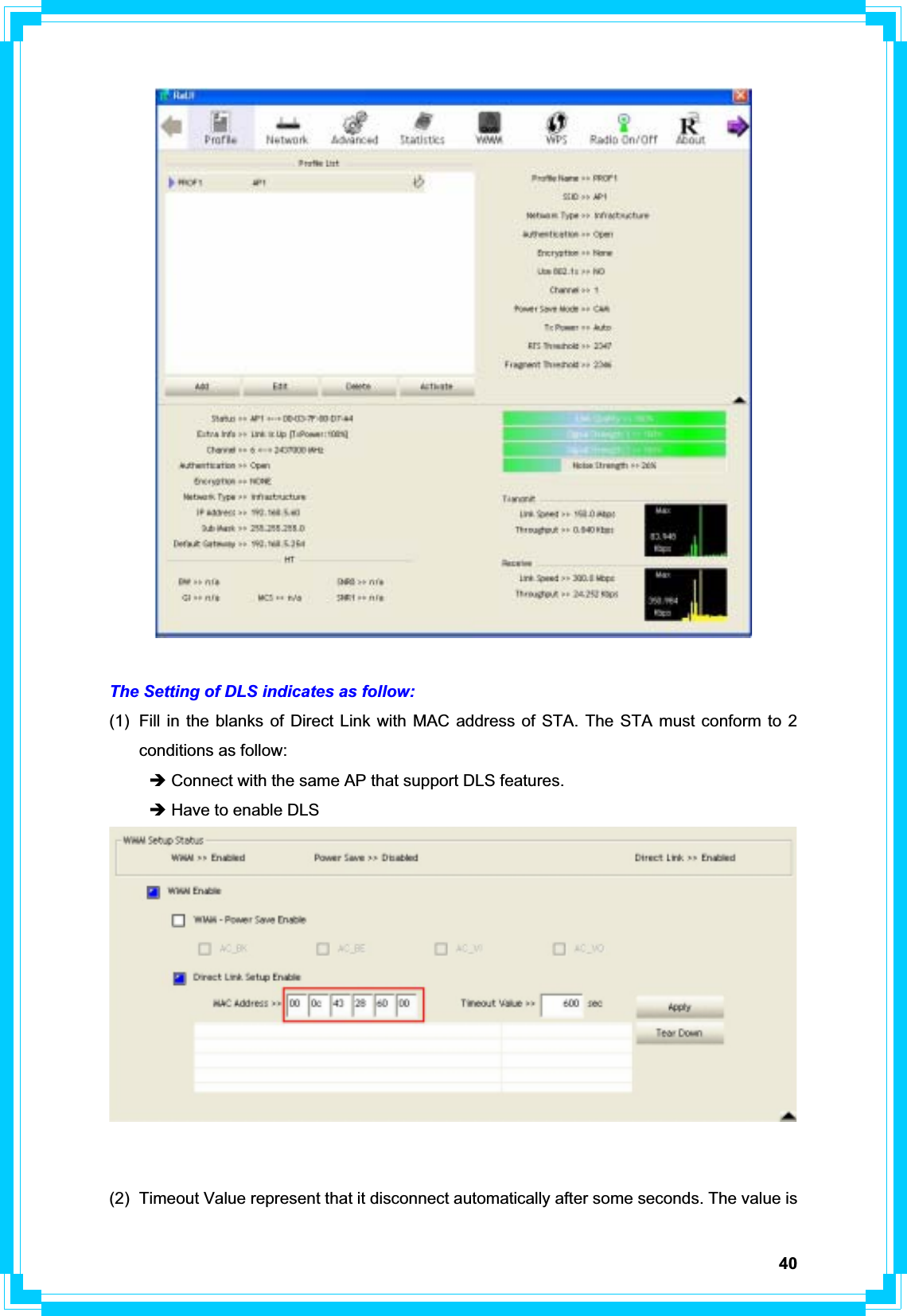
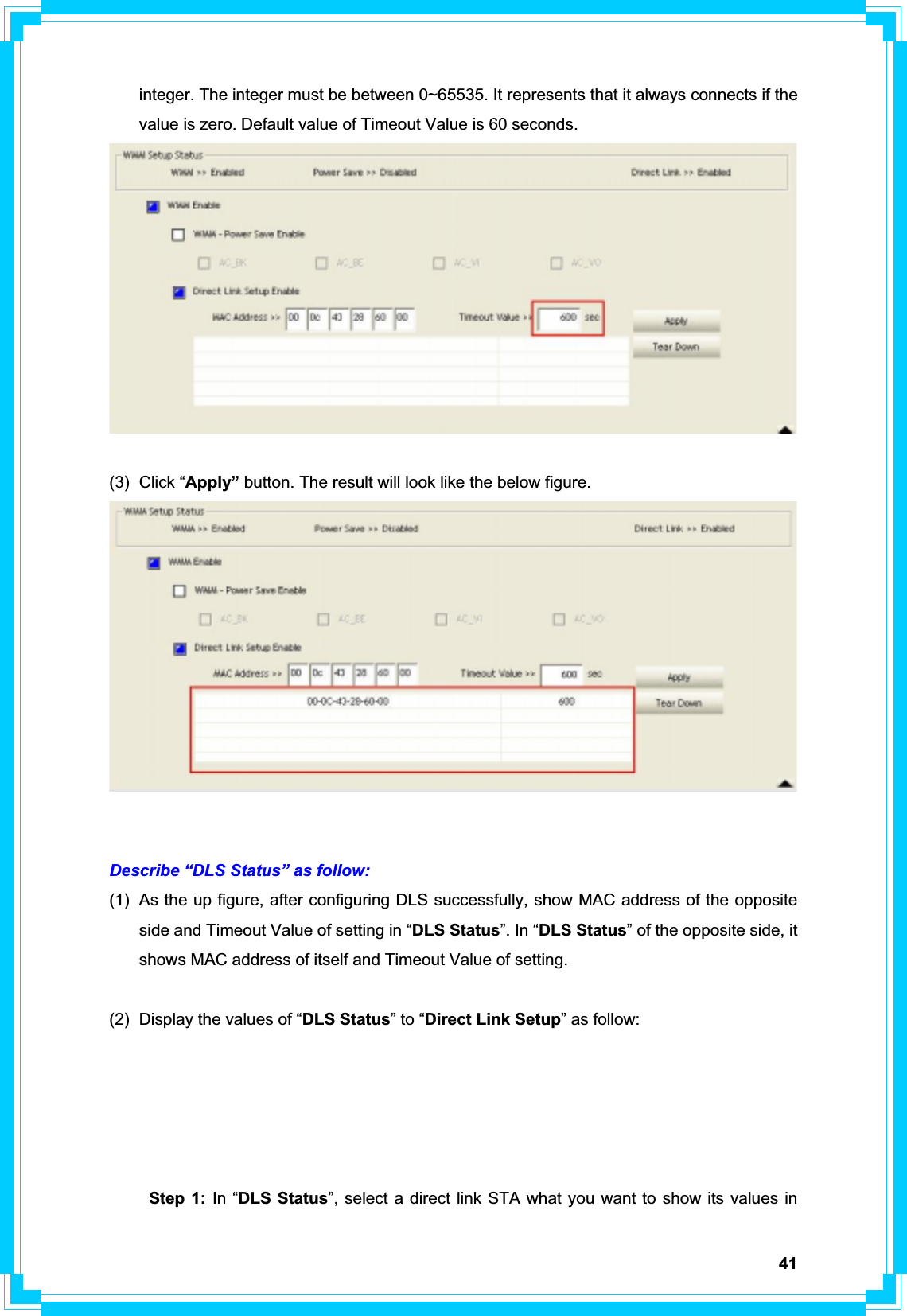
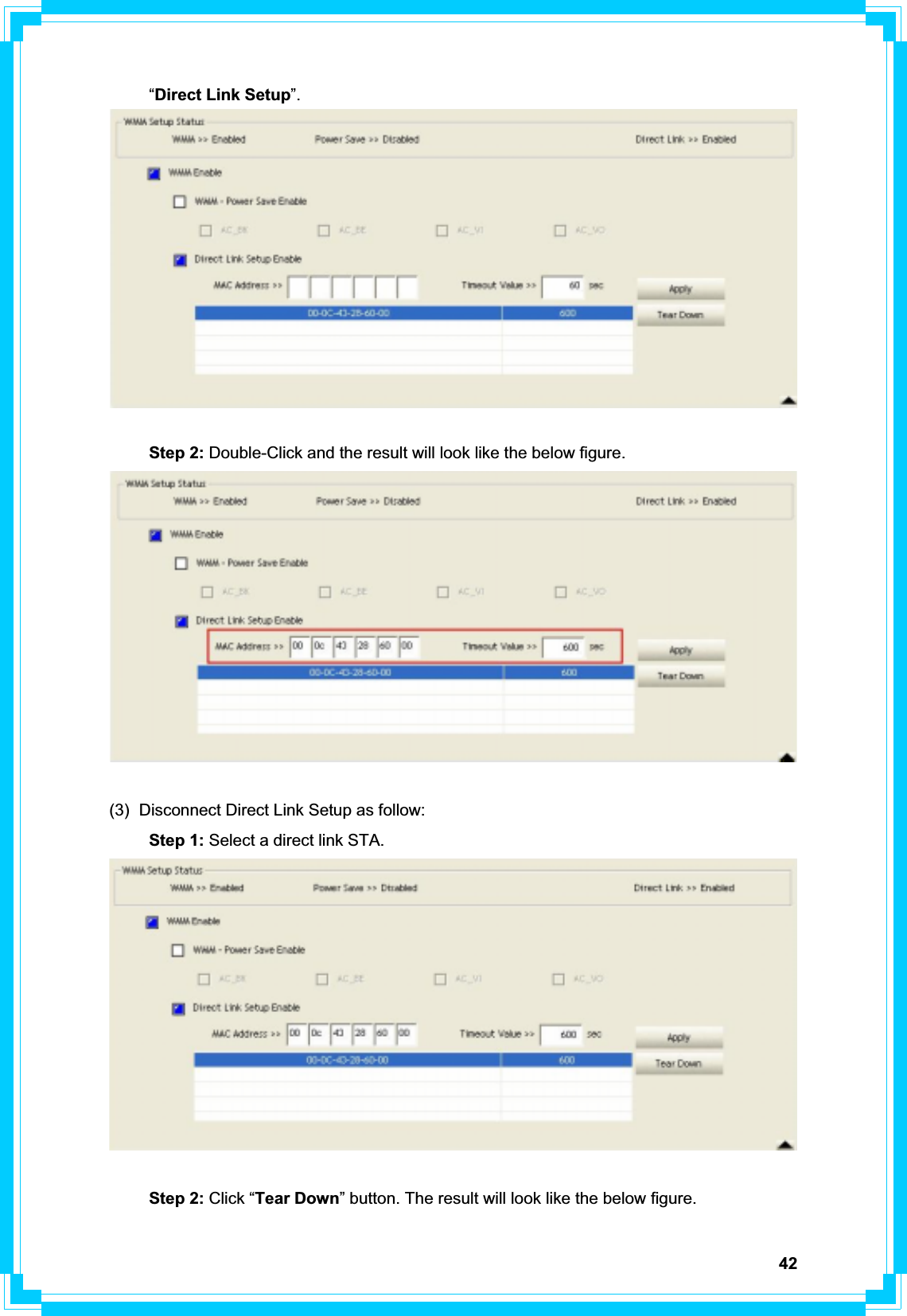
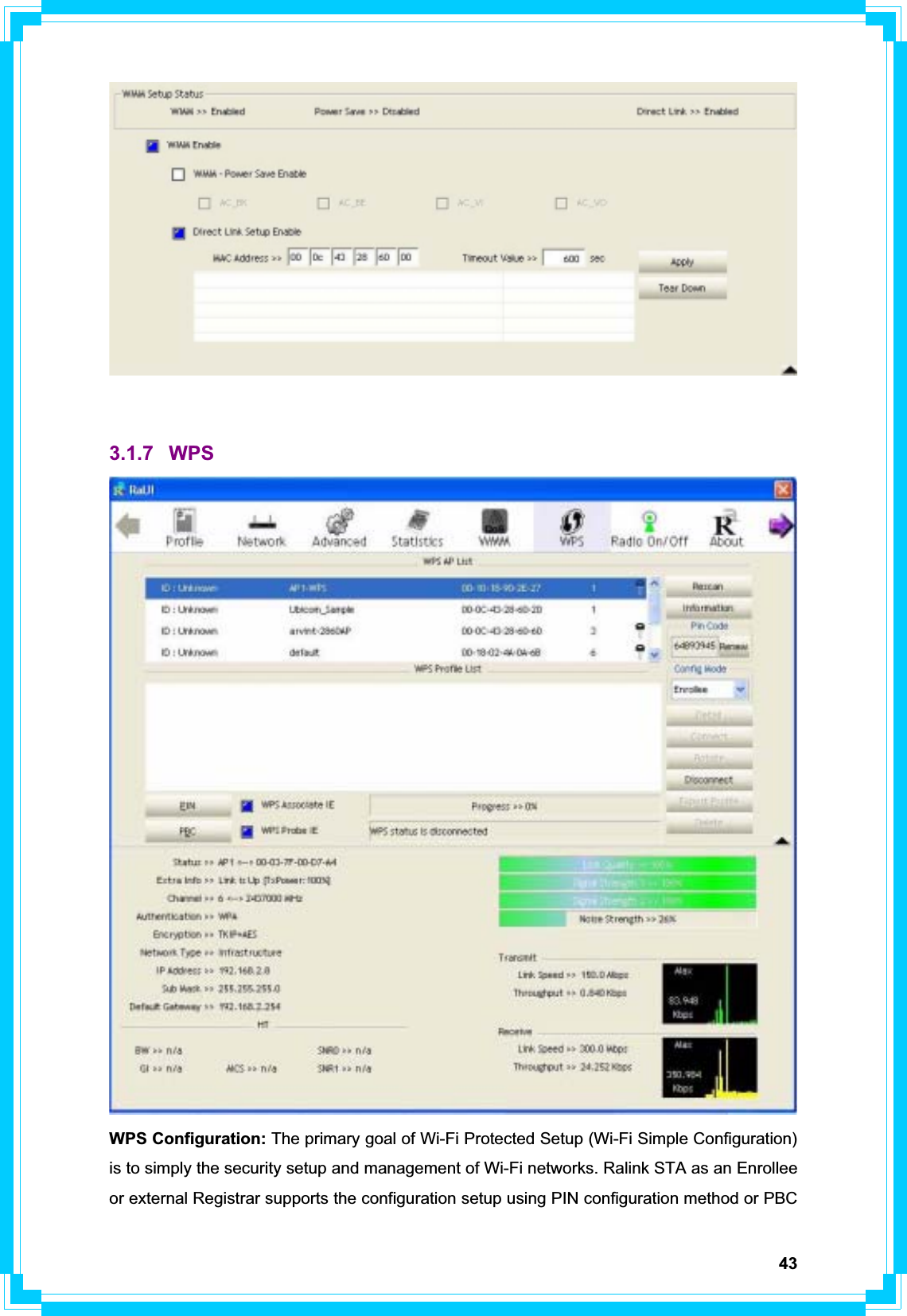
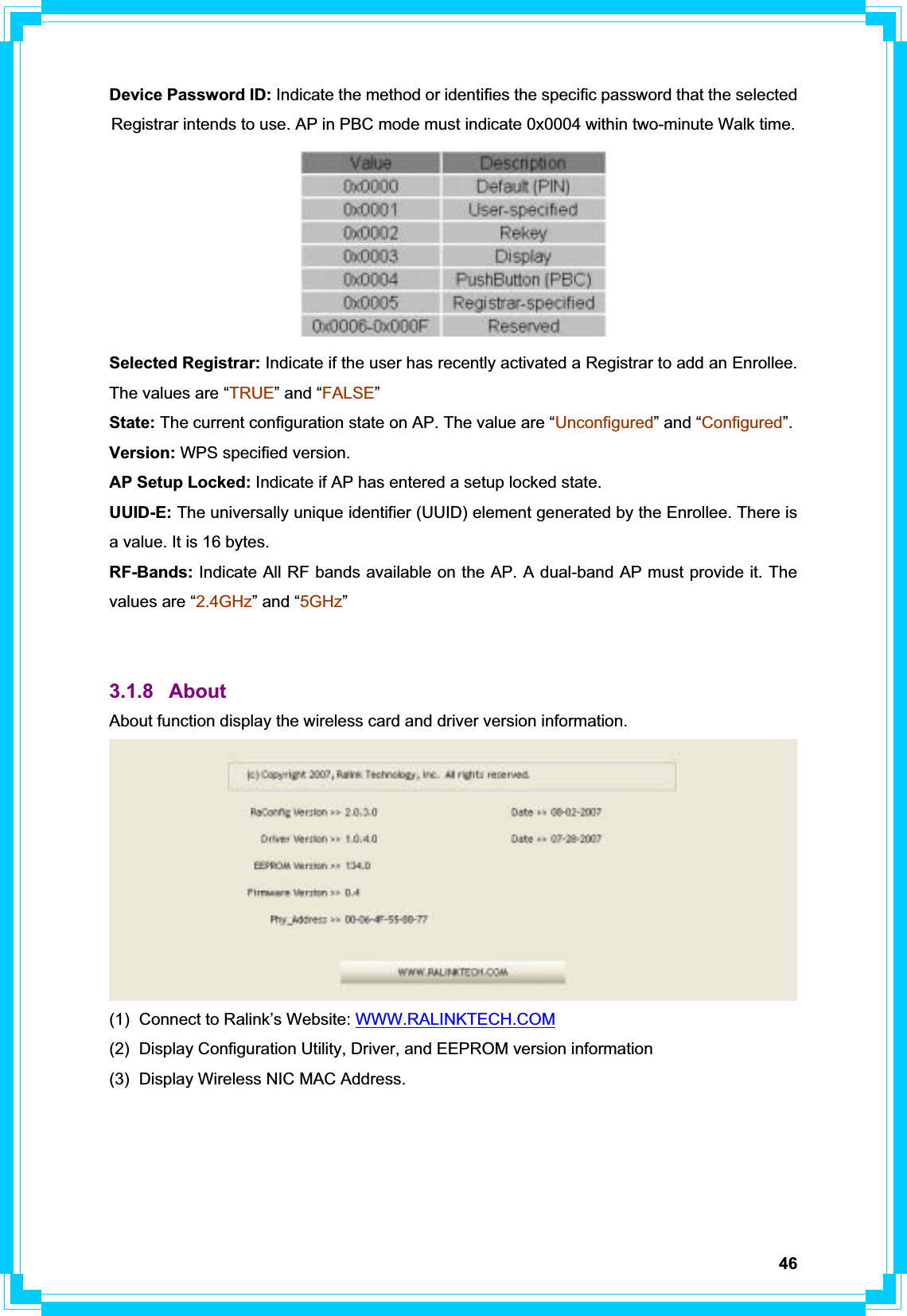
![45[WPS Information on AP] WPS information contain authentication type, encryption type, config methods, device password ID, selected registrar, state, version, AP setup locked, UUID-E and RF bands. Authentication Type: There are three types of authentication modes supported by RaConfig. There are Open, Shared, WPA-PSK, and WPA system. Encryption Type: For Open and shared authentication mode, the selection of encryption are None and WEP. For WPA, WPA2, WPA-PSK, and WPA2-PSK authentication mode, the encryption type supports both TKIP and AES. Config Methods: Correspond to the methods the AP supports as an Enrollee for adding external Registrars. (A bitwise OR of values)](https://usermanual.wiki/Pro-Nets-Technology/WU71RL.User-manal-2-of-4/User-Guide-1027971-Page-16.png)