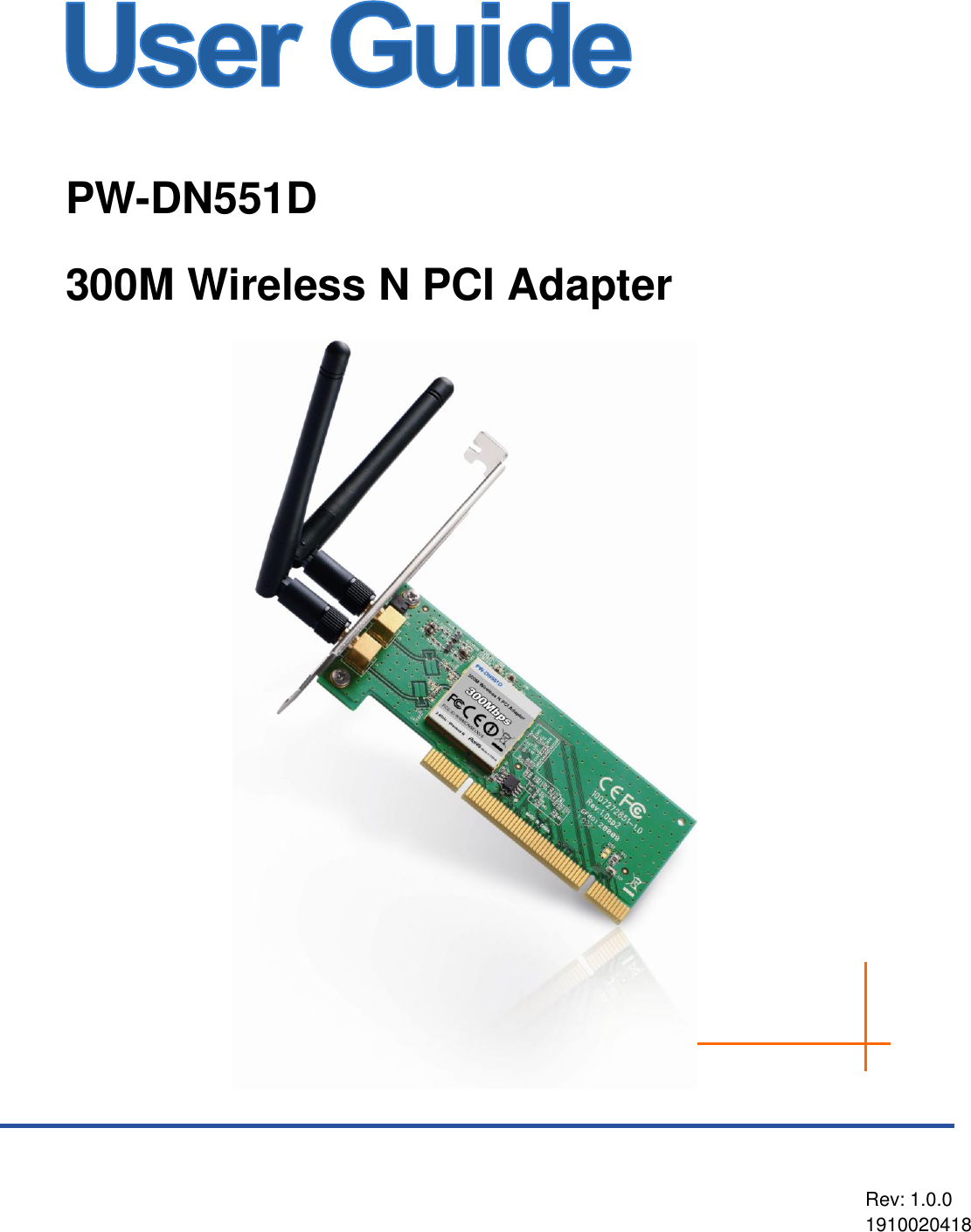
Proware Technologies Co DN551XV3 300Mbps Wireless N PCI Adapter Model No.: PW-DN551D User Manual

Proware Technologies Co Ltd. 300Mbps Wireless N PCI Adapter Model No.: PW-DN551D

User Manual

   PW-DN551D 300M Wireless N PCI Adapter         Rev: 1.0.0 1910020418
  FCC STATEMENT  This equipment has been tested and found to comply with the limits for a Class B digital device, pursuant to part 15 of the FCC Rules. These limits are designed to provide reasonable protection against harmful interference in a residential installation. This equipment generates, uses and can radiate radio frequency energy and, if not installed and used in accordance with the instructions, may cause harmful interference to radio communications. However, there is no guarantee that interference  will  not  occur  in  a  particular  installation.  If  this  equipment  does  cause  harmful interference to radio or television reception, which can be determined by turning the equipment off and on, the user is encouraged to try to correct the interference by one or more of the following measures:   Reorient or relocate the receiving antenna.   Increase the separation between the equipment and receiver.   Connect the equipment into an outlet on a circuit different from that to which the receiver is connected.     Consult the dealer or an experienced radio/ TV technician for help. This device complies with part 15 of the FCC Rules. Operation is subject to the following two conditions: 1)  This device may not cause harmful interference. 2)  This device must accept any interference received, including interference that may cause undesired operation. Any changes or modifications not expressly approved by the party  responsible for compliance could void the user‟s authority to operate the equipment. Note: The manufacturer is not responsible for any radio or tv interference caused by unauthorized modifications to this equipment. Such modifications could void the user‟s authority to operate the equipment. FCC RF Radiation Exposure Statement This  equipment  complies  with  FCC  RF  radiation  exposure  limits  set  forth  for  an  uncontrolled environment. This device and its antenna must not be co-located or operating in conjunction with any other antenna or transmitter. “To  comply  with  FCC  RF  exposure  compliance  requirements,  this  grant  is  applicable  to  only Mobile  Configurations.  The  antennas  used  for  this  transmitter  must  be  installed  to  provide  a separation distance of at least 20 cm from all persons and must not be co-located or operating in conjunction with any other antenna or transmitter.”
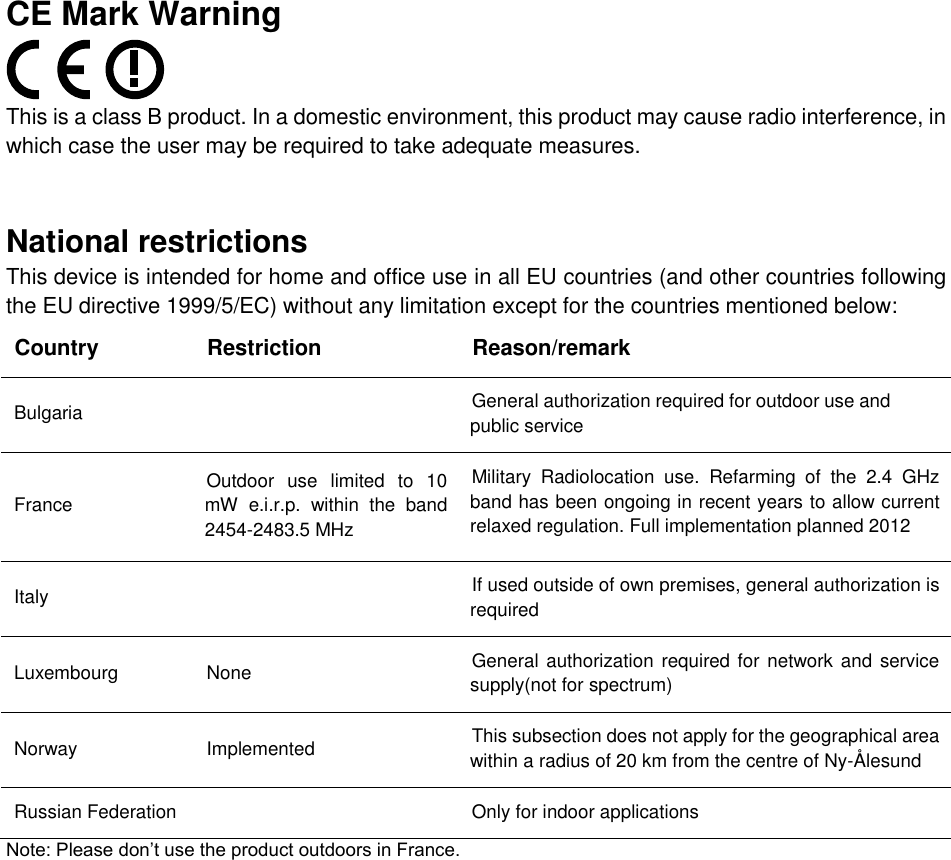
  CE Mark Warning  This is a class B product. In a domestic environment, this product may cause radio interference, in which case the user may be required to take adequate measures.    National restrictions This device is intended for home and office use in all EU countries (and other countries following the EU directive 1999/5/EC) without any limitation except for the countries mentioned below: Country Restriction Reason/remark Bulgaria  General authorization required for outdoor use and public service France Outdoor  use  limited  to  10 mW  e.i.r.p.  within  the  band 2454-2483.5 MHz Military  Radiolocation  use.  Refarming  of  the  2.4  GHz band has been ongoing in recent years to allow current relaxed regulation. Full implementation planned 2012 Italy  If used outside of own premises, general authorization is required Luxembourg None General authorization  required for network and service supply(not for spectrum) Norway Implemented This subsection does not apply for the geographical area within a radius of 20 km from the centre of Ny-Ålesund Russian Federation  Only for indoor applications Note: Please don‟t use the product outdoors in France.
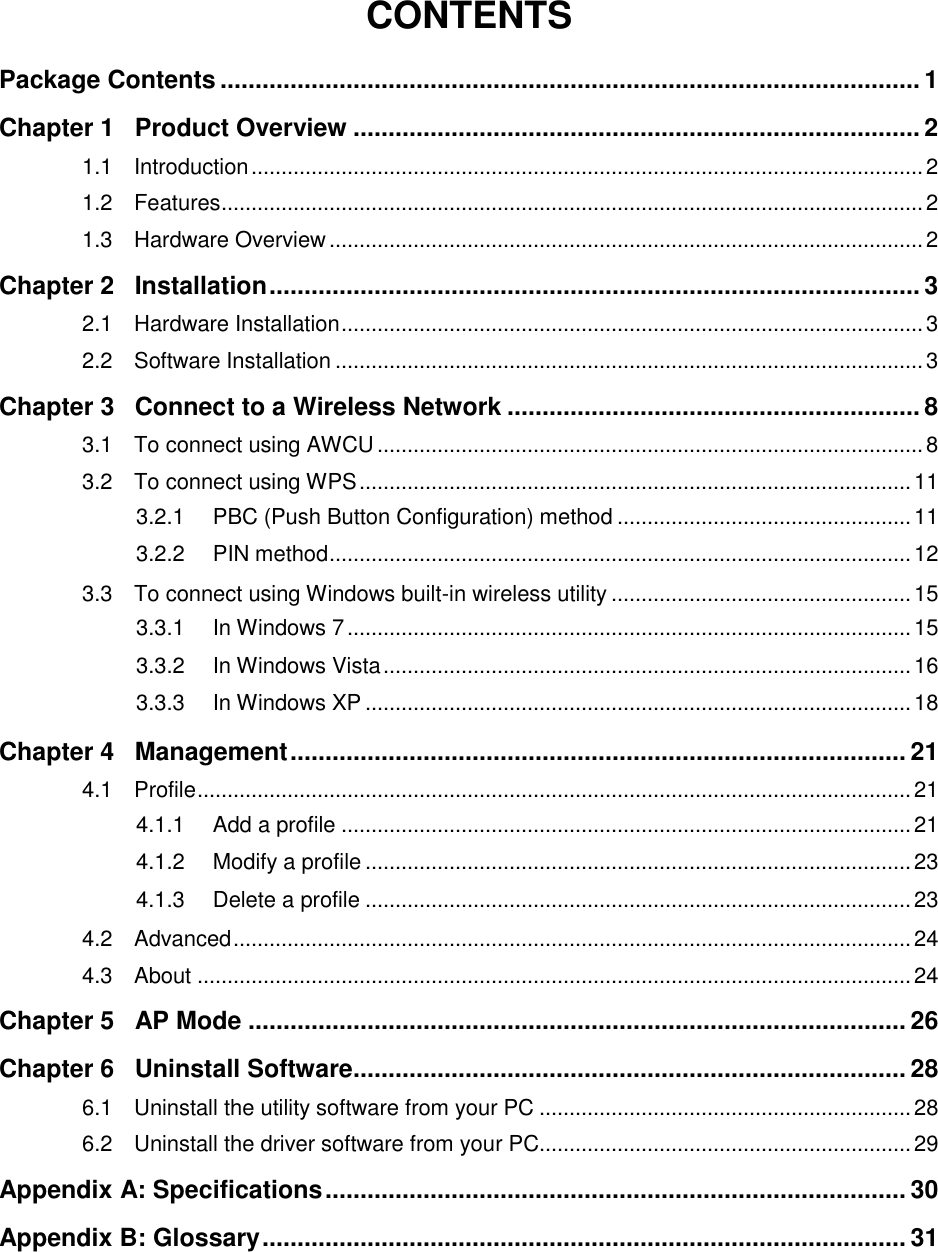
  CONTENTS Package Contents .................................................................................................... 1 Chapter 1 Product Overview ................................................................................. 2 1.1 Introduction ................................................................................................................ 2 1.2 Features ..................................................................................................................... 2 1.3 Hardware Overview ................................................................................................... 2 Chapter 2 Installation ............................................................................................. 3 2.1 Hardware Installation ................................................................................................. 3 2.2 Software Installation .................................................................................................. 3 Chapter 3 Connect to a Wireless Network ........................................................... 8 3.1 To connect using AWCU ........................................................................................... 8 3.2 To connect using WPS ............................................................................................ 11 3.2.1 PBC (Push Button Configuration) method ................................................. 11 3.2.2 PIN method ................................................................................................. 12 3.3 To connect using Windows built-in wireless utility .................................................. 15 3.3.1 In Windows 7 .............................................................................................. 15 3.3.2 In Windows Vista ........................................................................................ 16 3.3.3 In Windows XP ........................................................................................... 18 Chapter 4 Management ........................................................................................ 21 4.1 Profile ....................................................................................................................... 21 4.1.1 Add a profile ............................................................................................... 21 4.1.2 Modify a profile ........................................................................................... 23 4.1.3 Delete a profile ........................................................................................... 23 4.2 Advanced ................................................................................................................. 24 4.3 About ....................................................................................................................... 24 Chapter 5 AP Mode .............................................................................................. 26 Chapter 6 Uninstall Software ............................................................................... 28 6.1 Uninstall the utility software from your PC .............................................................. 28 6.2 Uninstall the driver software from your PC.............................................................. 29 Appendix A: Specifications ................................................................................... 30 Appendix B: Glossary ............................................................................................ 31
 1 Package Contents The following items should be found in your package:  One PW-DN551D 300M Wireless N PCI Adapter  Quick Installation Guide  One Resource CD for PW-DN551D, including:   AR73 Wireless N Client Utility (AWCU) and Drivers   User Guide   Other Helpful Information  Note: Make sure that the package contains the above items. If any of the listed items are damaged or missing, please contact with your distributor. Conventions: The „Adapter‟ mentioned in this user guide stands for PW-DN551D 300M Wireless N PCI Adapter without any explanations.
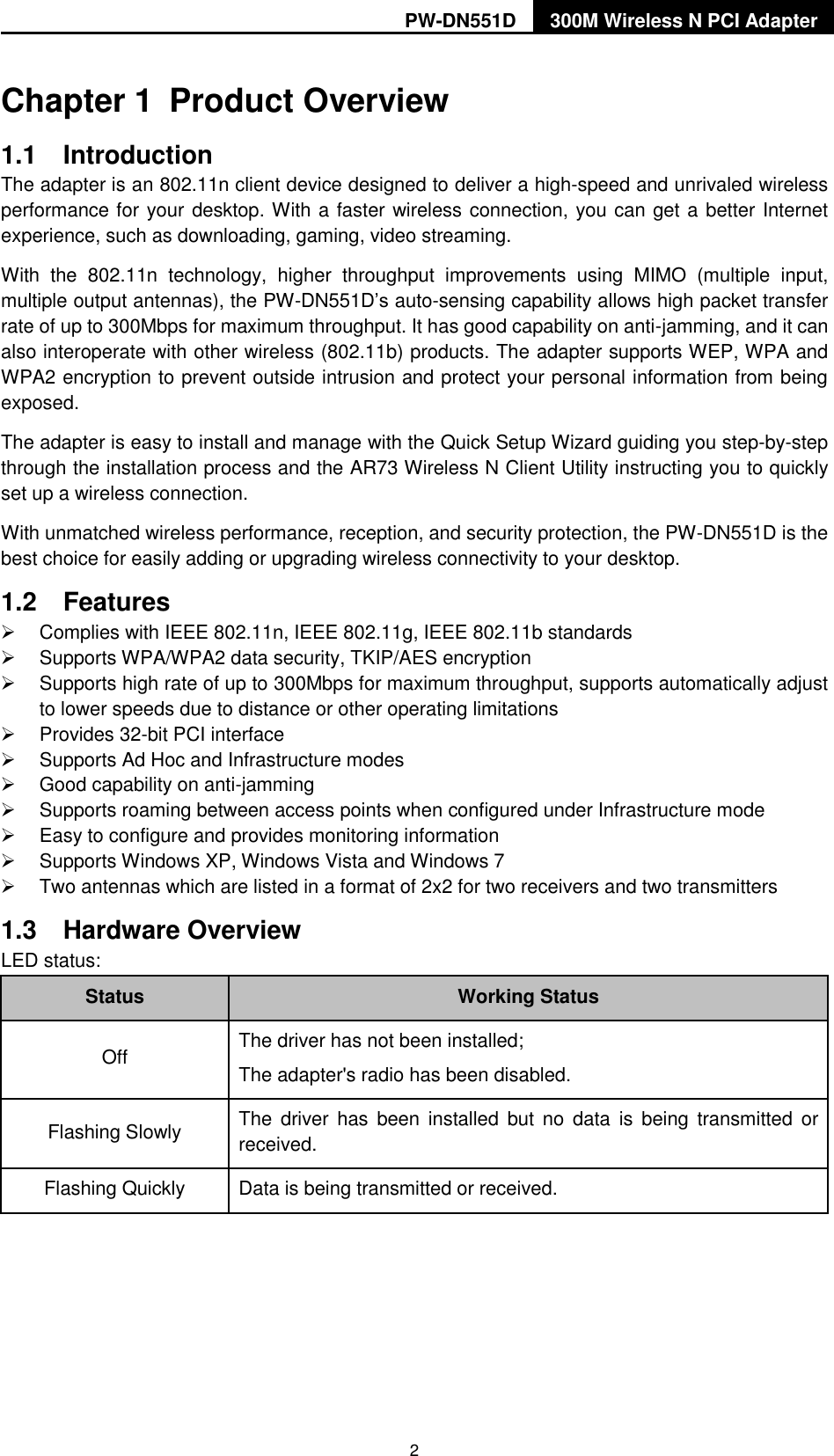
PW-DN551D 300M Wireless N PCI Adapter  2 Chapter 1  Product Overview 1.1  Introduction The adapter is an 802.11n client device designed to deliver a high-speed and unrivaled wireless performance for your desktop. With a faster wireless connection, you can get a better Internet experience, such as downloading, gaming, video streaming. With  the  802.11n  technology,  higher  throughput  improvements  using  MIMO  (multiple  input, multiple output antennas), the PW-DN551D‟s auto-sensing capability allows high packet transfer rate of up to 300Mbps for maximum throughput. It has good capability on anti-jamming, and it can also interoperate with other wireless (802.11b) products. The adapter supports WEP, WPA and WPA2 encryption to prevent outside intrusion and protect your personal information from being exposed. The adapter is easy to install and manage with the Quick Setup Wizard guiding you step-by-step through the installation process and the AR73 Wireless N Client Utility instructing you to quickly set up a wireless connection. With unmatched wireless performance, reception, and security protection, the PW-DN551D is the best choice for easily adding or upgrading wireless connectivity to your desktop. 1.2  Features   Complies with IEEE 802.11n, IEEE 802.11g, IEEE 802.11b standards   Supports WPA/WPA2 data security, TKIP/AES encryption   Supports high rate of up to 300Mbps for maximum throughput, supports automatically adjust to lower speeds due to distance or other operating limitations   Provides 32-bit PCI interface   Supports Ad Hoc and Infrastructure modes   Good capability on anti-jamming   Supports roaming between access points when configured under Infrastructure mode   Easy to configure and provides monitoring information   Supports Windows XP, Windows Vista and Windows 7   Two antennas which are listed in a format of 2x2 for two receivers and two transmitters 1.3  Hardware Overview LED status: Status Working Status Off The driver has not been installed; The adapter's radio has been disabled. Flashing Slowly   The  driver has  been  installed but  no  data  is  being transmitted  or received. Flashing Quickly   Data is being transmitted or received.
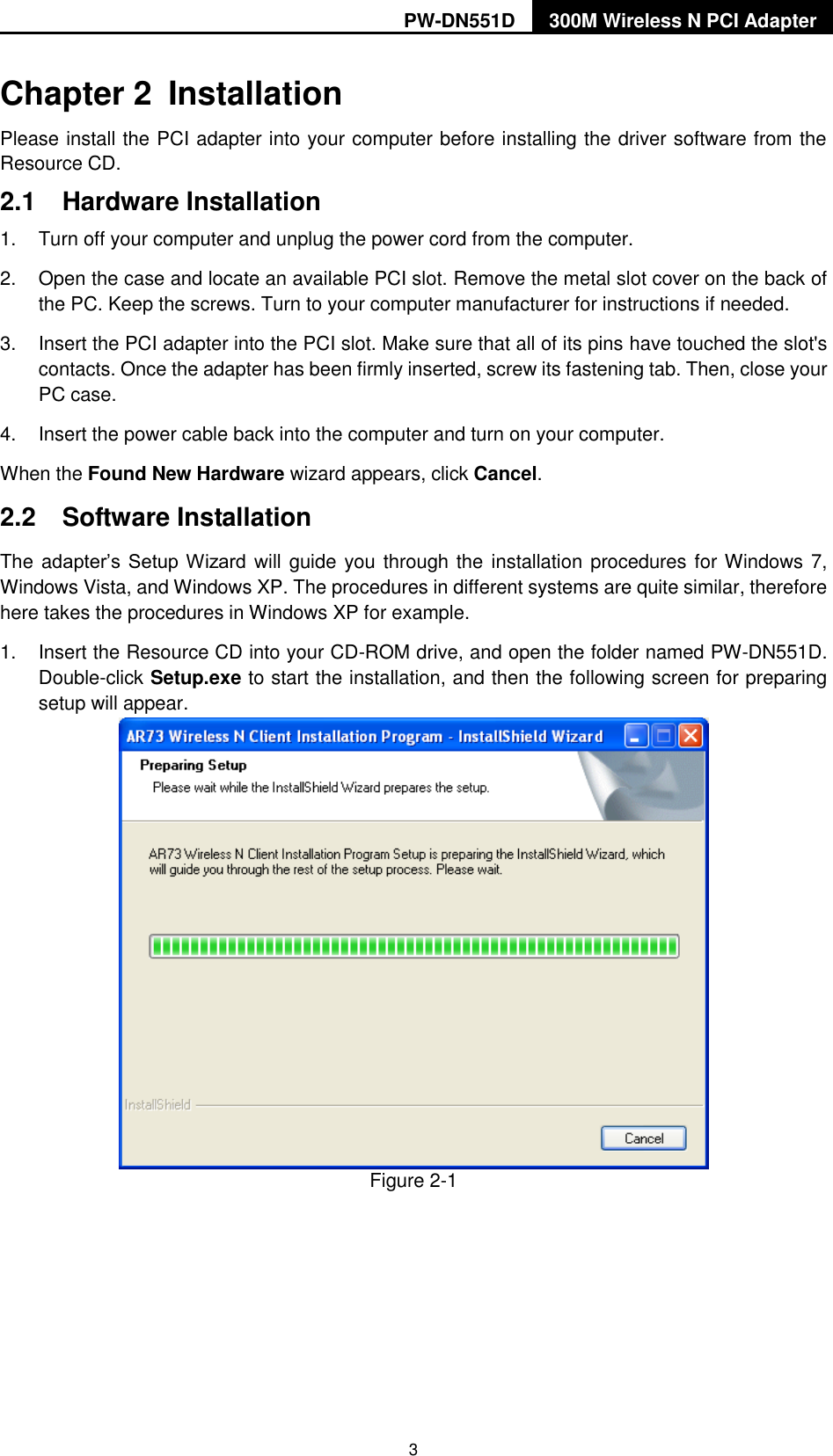
PW-DN551D 300M Wireless N PCI Adapter  3 Chapter 2  Installation Please install the PCI adapter into your computer before installing the driver software from the Resource CD.   2.1  Hardware Installation 1.  Turn off your computer and unplug the power cord from the computer. 2.  Open the case and locate an available PCI slot. Remove the metal slot cover on the back of the PC. Keep the screws. Turn to your computer manufacturer for instructions if needed. 3.  Insert the PCI adapter into the PCI slot. Make sure that all of its pins have touched the slot's contacts. Once the adapter has been firmly inserted, screw its fastening tab. Then, close your PC case. 4.  Insert the power cable back into the computer and turn on your computer. When the Found New Hardware wizard appears, click Cancel.   2.2  Software Installation The adapter‟s  Setup Wizard will guide you through the installation procedures for Windows 7, Windows Vista, and Windows XP. The procedures in different systems are quite similar, therefore here takes the procedures in Windows XP for example.   1.  Insert the Resource CD into your CD-ROM drive, and open the folder named PW-DN551D. Double-click Setup.exe to start the installation, and then the following screen for preparing setup will appear.   Figure 2-1
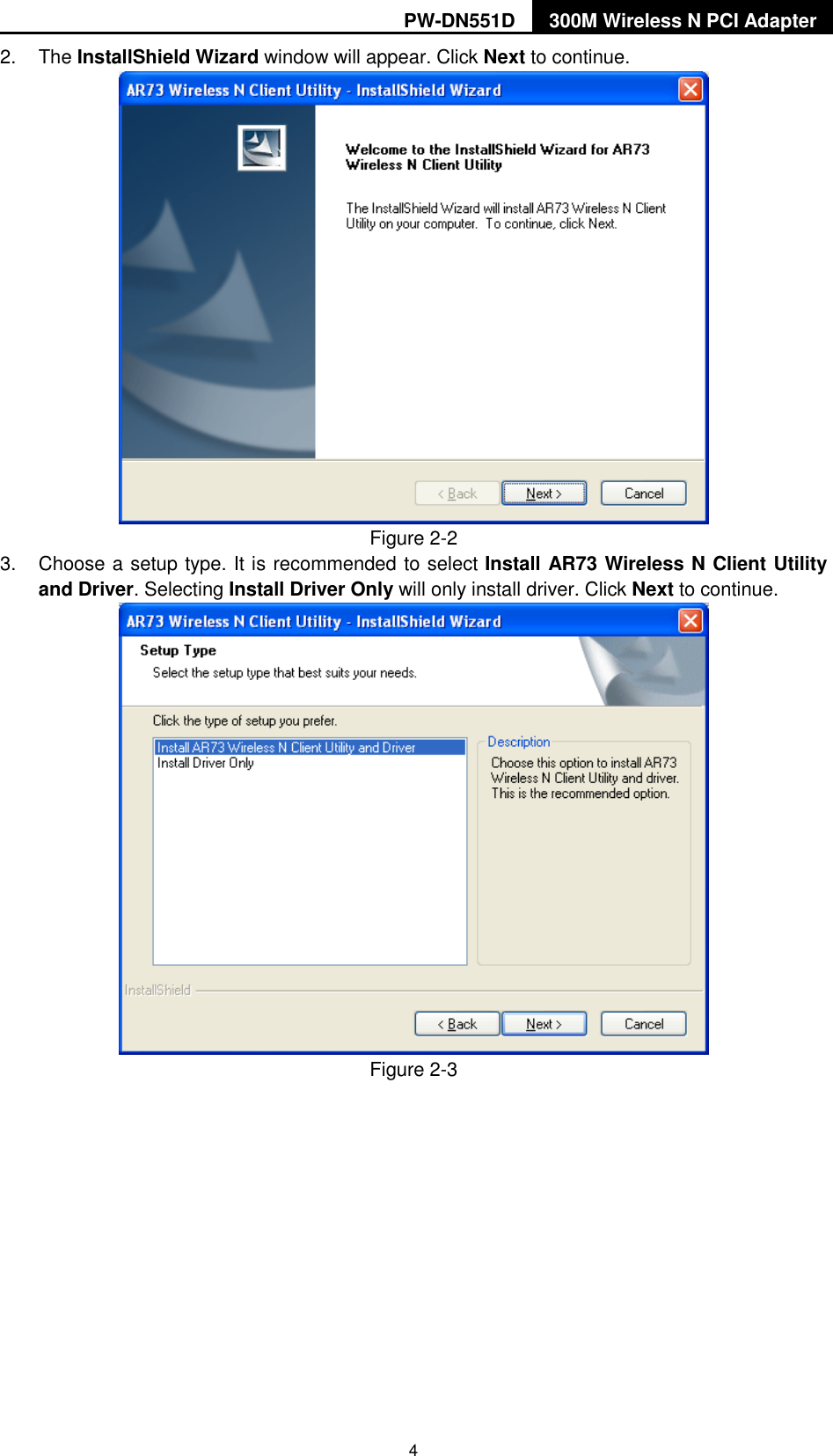
PW-DN551D 300M Wireless N PCI Adapter  4 2.  The InstallShield Wizard window will appear. Click Next to continue.  Figure 2-2 3.  Choose a setup type. It is recommended to select Install AR73 Wireless N Client Utility and Driver. Selecting Install Driver Only will only install driver. Click Next to continue.  Figure 2-3
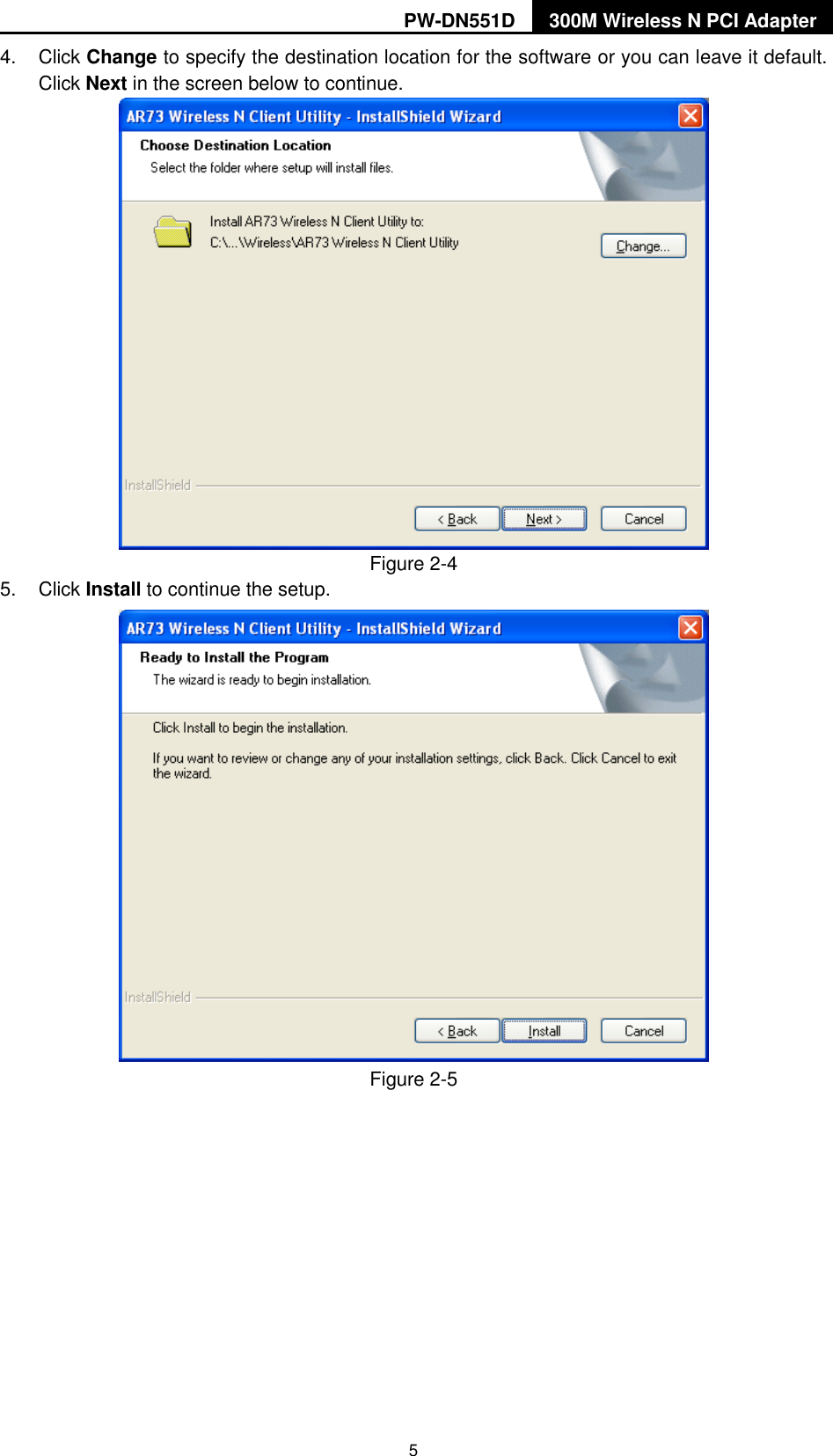
PW-DN551D 300M Wireless N PCI Adapter  5 4.  Click Change to specify the destination location for the software or you can leave it default. Click Next in the screen below to continue.  Figure 2-4 5.  Click Install to continue the setup.  Figure 2-5
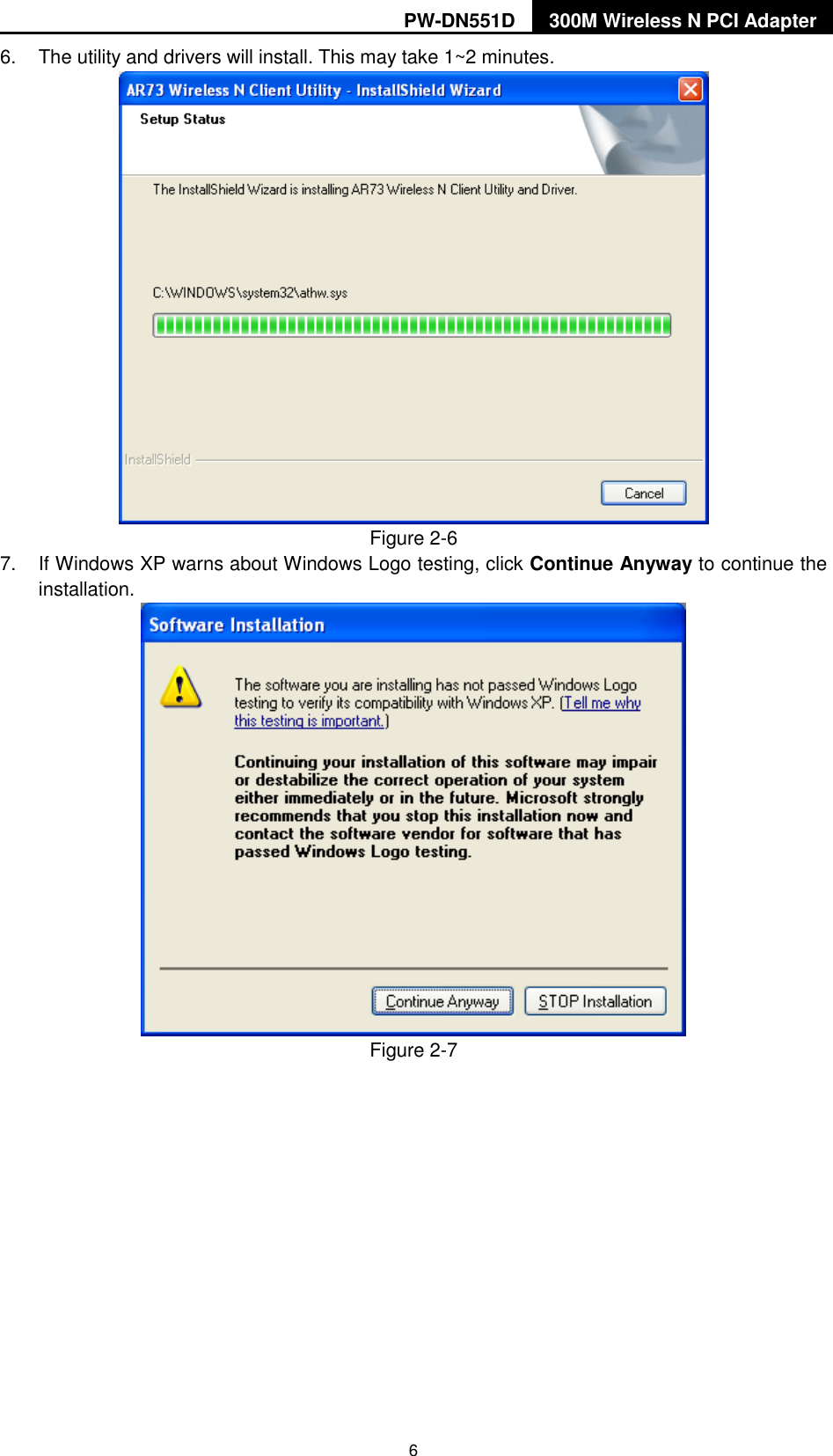
PW-DN551D 300M Wireless N PCI Adapter  6 6.  The utility and drivers will install. This may take 1~2 minutes.  Figure 2-6 7.  If Windows XP warns about Windows Logo testing, click Continue Anyway to continue the installation.  Figure 2-7
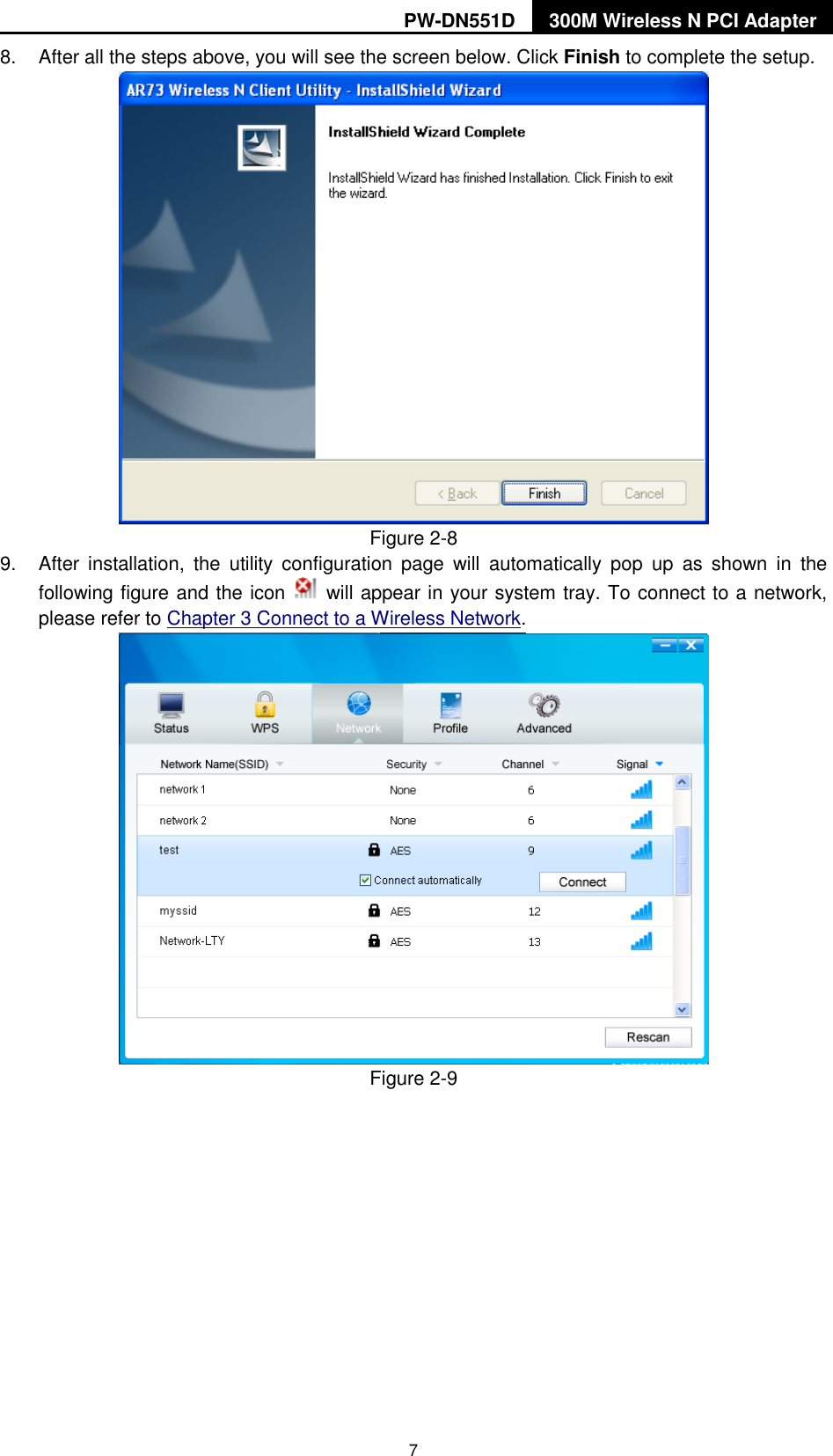
PW-DN551D 300M Wireless N PCI Adapter  7 8.  After all the steps above, you will see the screen below. Click Finish to complete the setup.  Figure 2-8 9.  After  installation,  the  utility  configuration  page  will  automatically  pop  up  as  shown  in  the following figure and the icon    will appear in your system tray. To connect to a network, please refer to Chapter 3 Connect to a Wireless Network.  Figure 2-9
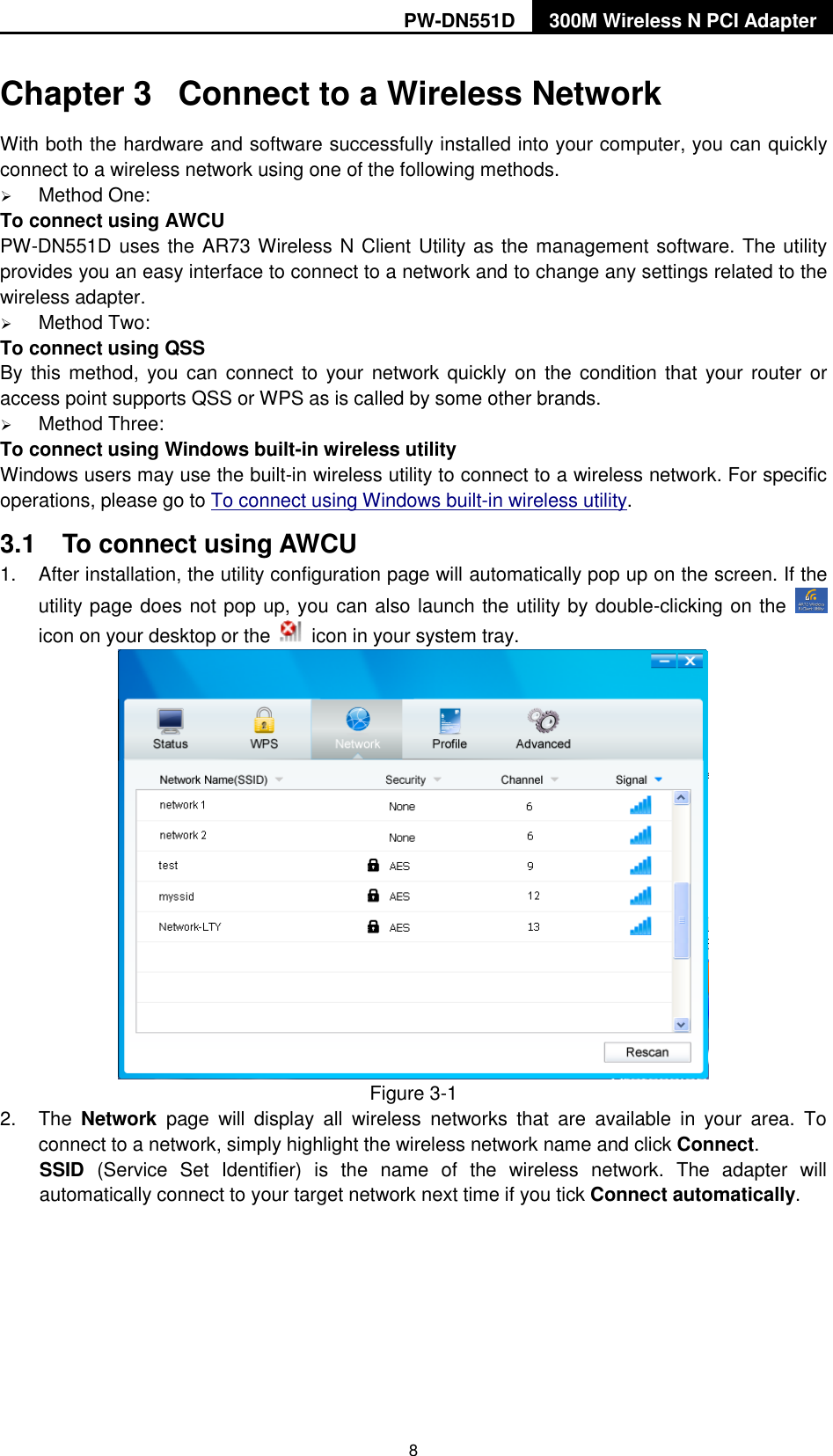
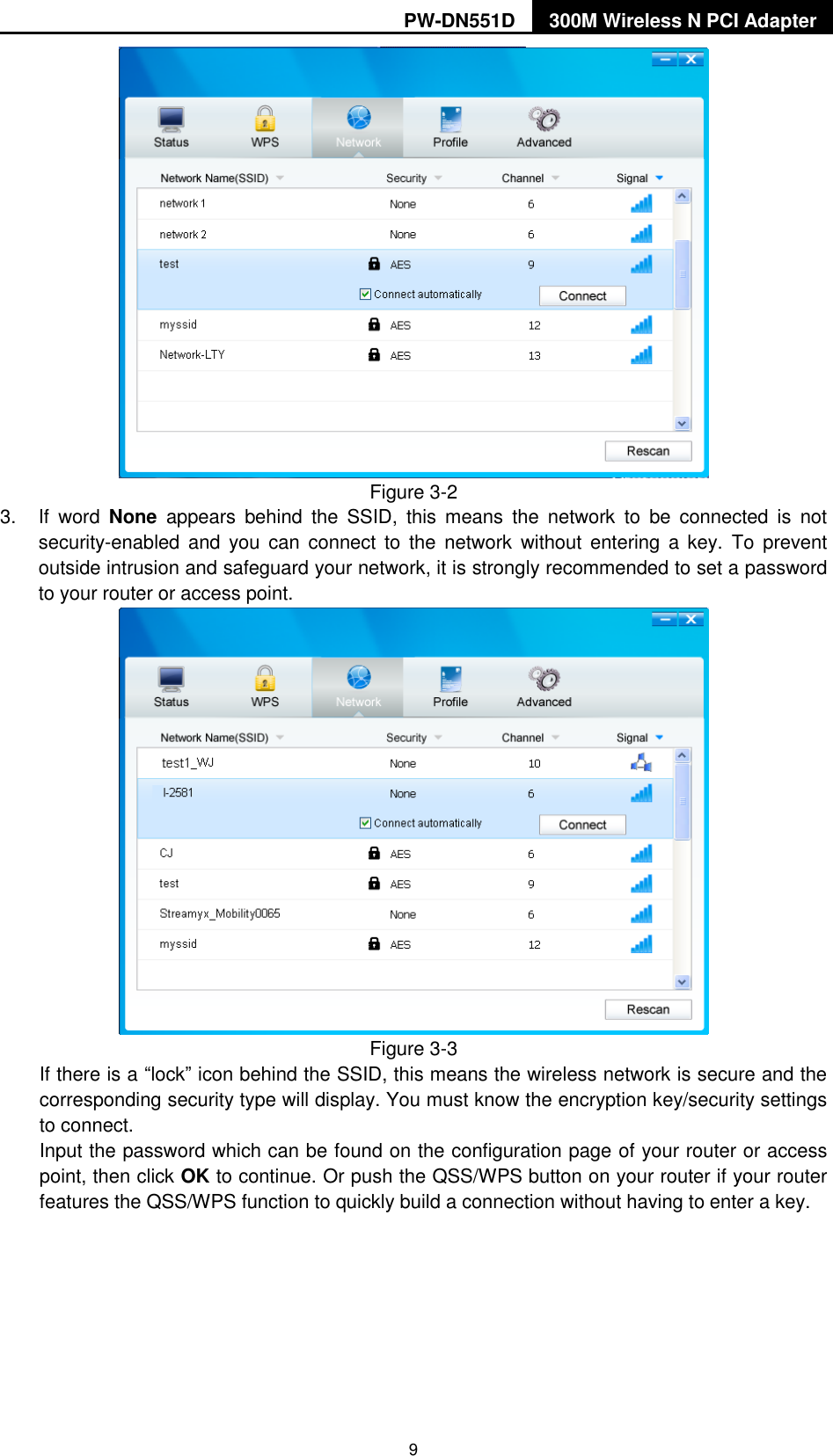
PW-DN551D 300M Wireless N PCI Adapter  8 Chapter 3  Connect to a Wireless Network With both the hardware and software successfully installed into your computer, you can quickly connect to a wireless network using one of the following methods.  Method One: To connect using AWCU PW-DN551D uses the AR73 Wireless N Client Utility as the management software. The utility provides you an easy interface to connect to a network and to change any settings related to the wireless adapter.    Method Two: To connect using QSS By this method,  you  can connect to  your  network quickly  on  the  condition that  your  router or access point supports QSS or WPS as is called by some other brands.    Method Three: To connect using Windows built-in wireless utility Windows users may use the built-in wireless utility to connect to a wireless network. For specific operations, please go to To connect using Windows built-in wireless utility. 3.1  To connect using AWCU 1.  After installation, the utility configuration page will automatically pop up on the screen. If the utility page does not pop up, you can also launch the utility by double-clicking on the   icon on your desktop or the    icon in your system tray.    Figure 3-1 2.  The  Network  page  will  display  all  wireless  networks  that  are  available  in  your  area.  To connect to a network, simply highlight the wireless network name and click Connect. SSID  (Service  Set  Identifier)  is  the  name  of  the  wireless  network.  The  adapter  will automatically connect to your target network next time if you tick Connect automatically.
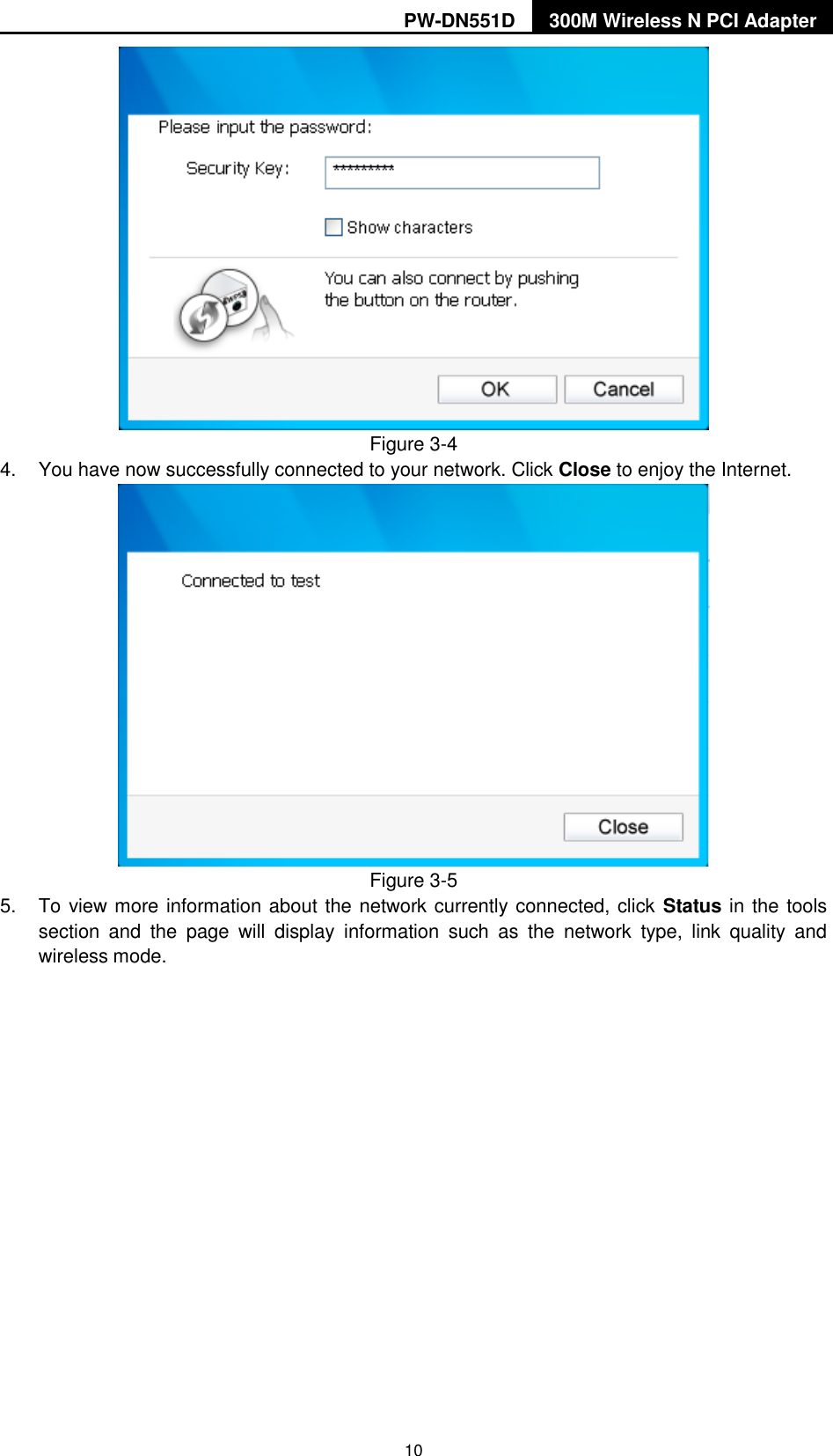
PW-DN551D 300M Wireless N PCI Adapter  9  Figure 3-2 3.  If  word  None  appears  behind  the  SSID,  this  means  the  network  to  be  connected  is  not security-enabled  and  you  can  connect  to  the  network  without entering  a  key.  To  prevent outside intrusion and safeguard your network, it is strongly recommended to set a password to your router or access point.    Figure 3-3 If there is a “lock” icon behind the SSID, this means the wireless network is secure and the corresponding security type will display. You must know the encryption key/security settings to connect.   Input the password which can be found on the configuration page of your router or access point, then click OK to continue. Or push the QSS/WPS button on your router if your router features the QSS/WPS function to quickly build a connection without having to enter a key.
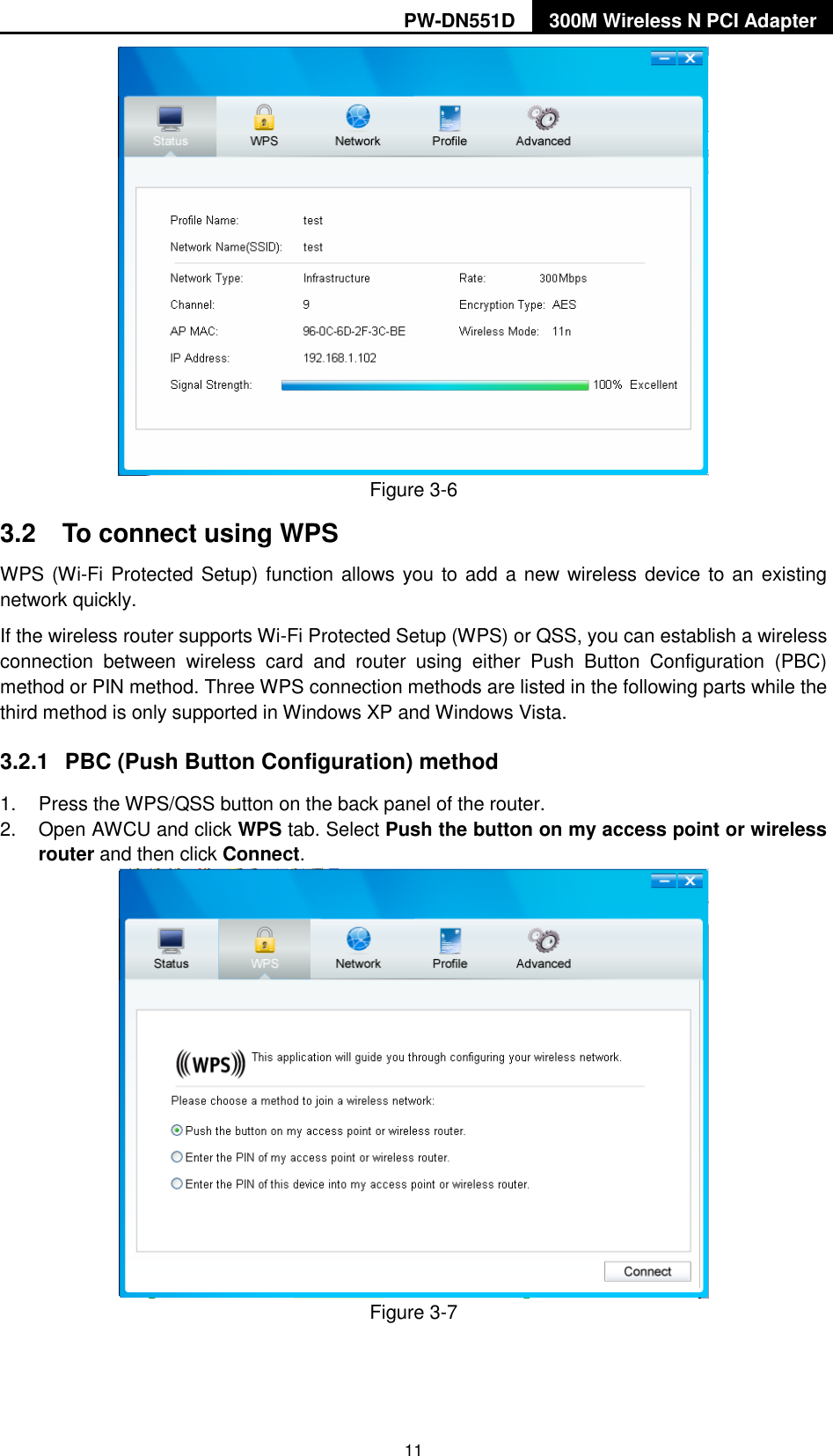
PW-DN551D 300M Wireless N PCI Adapter  10  Figure 3-4 4.  You have now successfully connected to your network. Click Close to enjoy the Internet.  Figure 3-5 5.  To view more information about the network currently connected, click Status in the tools section  and  the  page  will  display  information  such  as  the  network  type,  link  quality  and wireless mode.
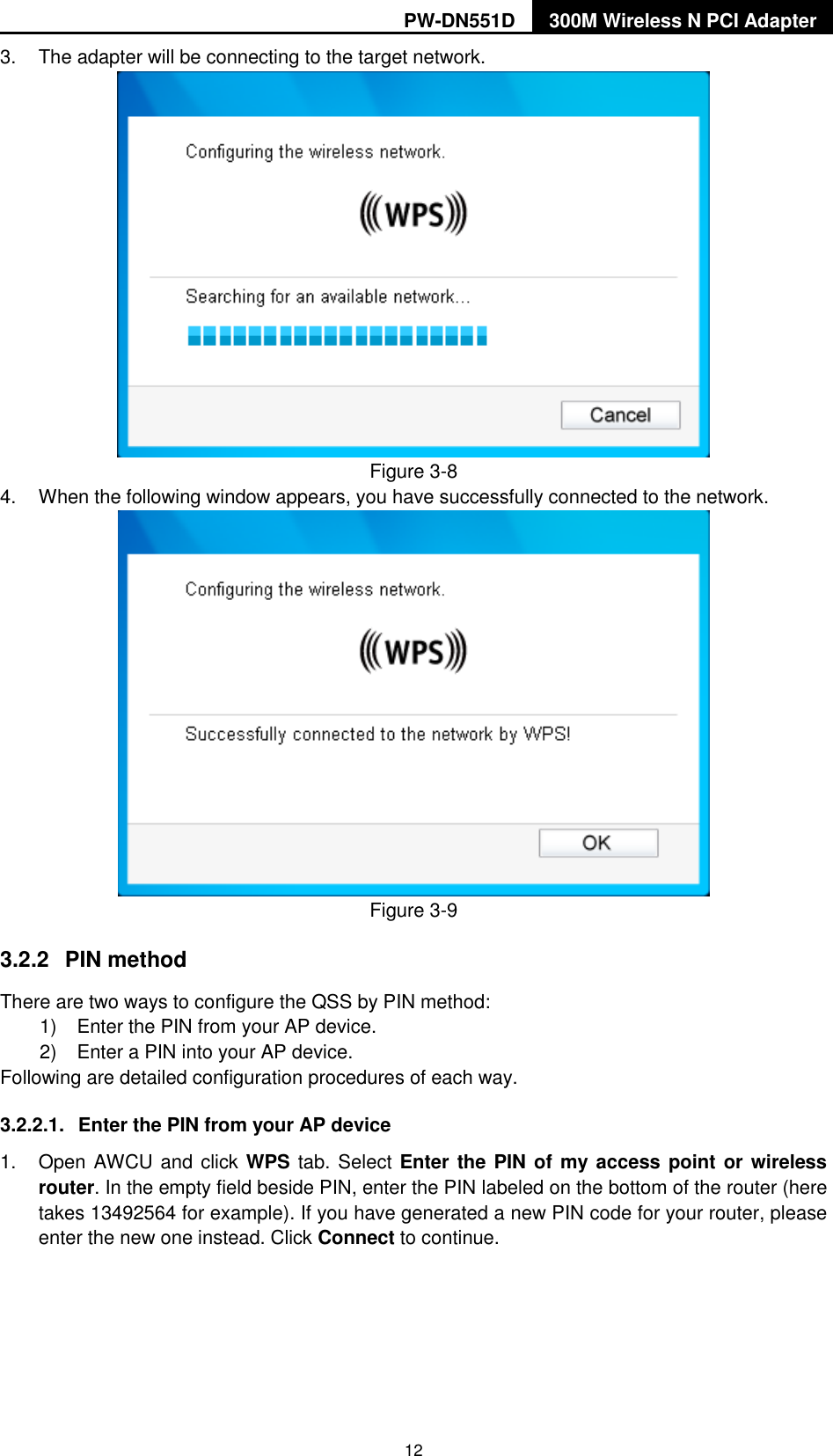
PW-DN551D 300M Wireless N PCI Adapter  11  Figure 3-6 3.2  To connect using WPS WPS (Wi-Fi Protected Setup) function allows you to add a new wireless device to an existing network quickly. If the wireless router supports Wi-Fi Protected Setup (WPS) or QSS, you can establish a wireless connection  between  wireless  card  and  router  using  either  Push  Button  Configuration  (PBC) method or PIN method. Three WPS connection methods are listed in the following parts while the third method is only supported in Windows XP and Windows Vista.   3.2.1  PBC (Push Button Configuration) method 1.  Press the WPS/QSS button on the back panel of the router.   2.  Open AWCU and click WPS tab. Select Push the button on my access point or wireless router and then click Connect.    Figure 3-7
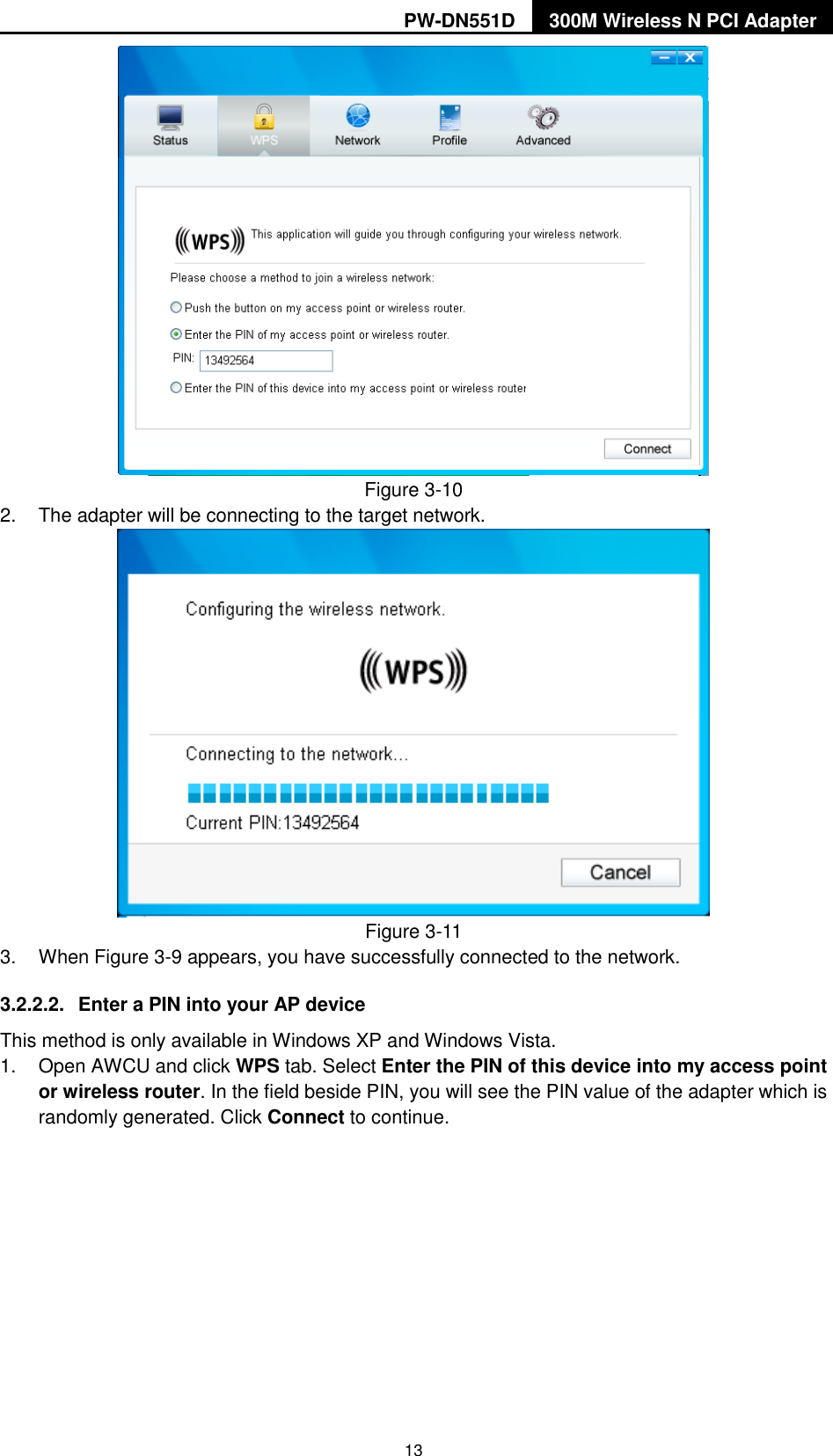
PW-DN551D 300M Wireless N PCI Adapter  12 3.  The adapter will be connecting to the target network.  Figure 3-8 4.  When the following window appears, you have successfully connected to the network.    Figure 3-9 3.2.2  PIN method There are two ways to configure the QSS by PIN method: 1)  Enter the PIN from your AP device. 2)  Enter a PIN into your AP device. Following are detailed configuration procedures of each way. 3.2.2.1.  Enter the PIN from your AP device   1.  Open AWCU and click WPS tab. Select Enter the PIN of  my  access point or wireless router. In the empty field beside PIN, enter the PIN labeled on the bottom of the router (here takes 13492564 for example). If you have generated a new PIN code for your router, please enter the new one instead. Click Connect to continue.
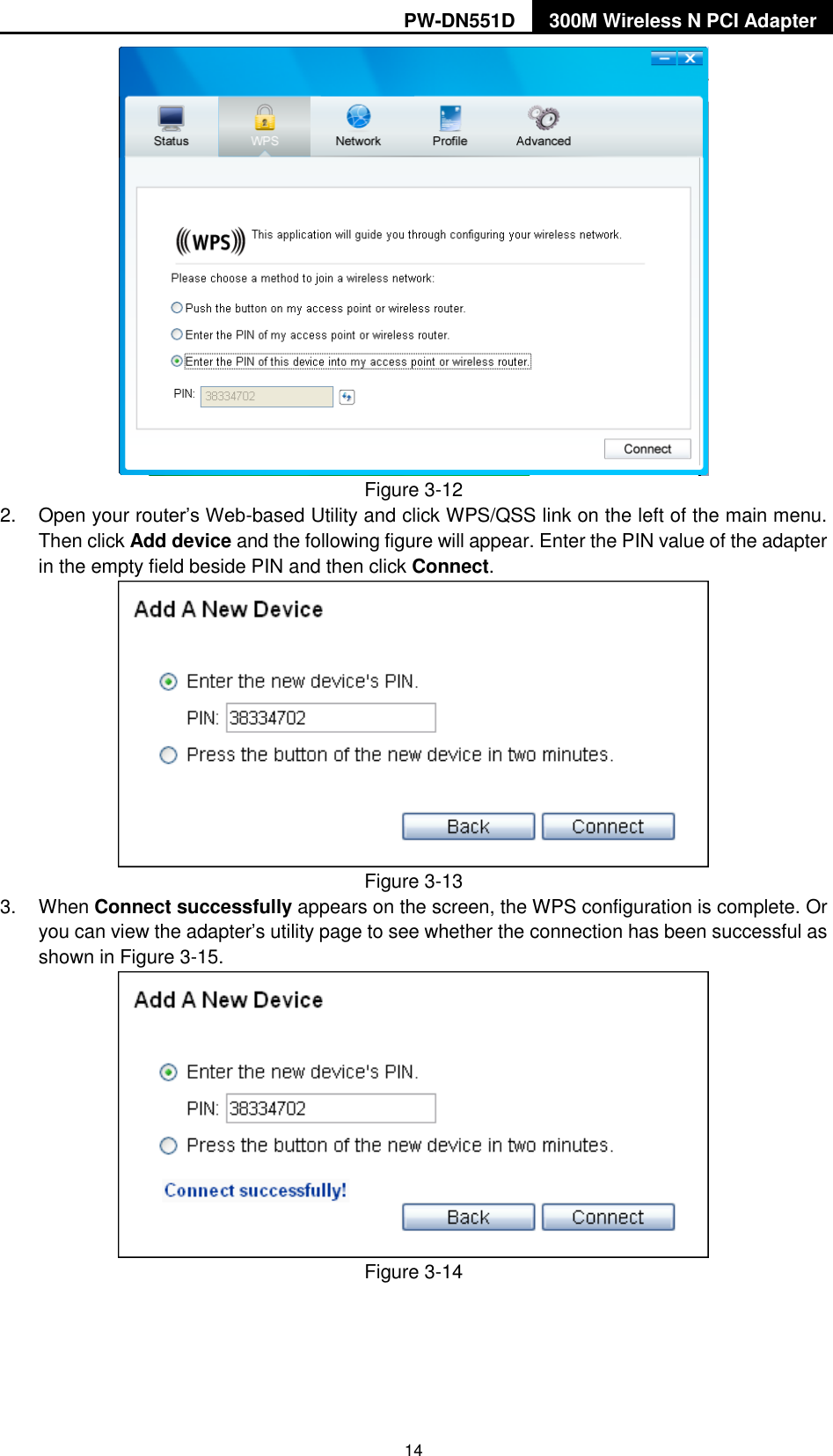
PW-DN551D 300M Wireless N PCI Adapter  13  Figure 3-10 2.  The adapter will be connecting to the target network.    Figure 3-11 3.  When Figure 3-9 appears, you have successfully connected to the network.   3.2.2.2.  Enter a PIN into your AP device This method is only available in Windows XP and Windows Vista.   1.  Open AWCU and click WPS tab. Select Enter the PIN of this device into my access point or wireless router. In the field beside PIN, you will see the PIN value of the adapter which is randomly generated. Click Connect to continue.
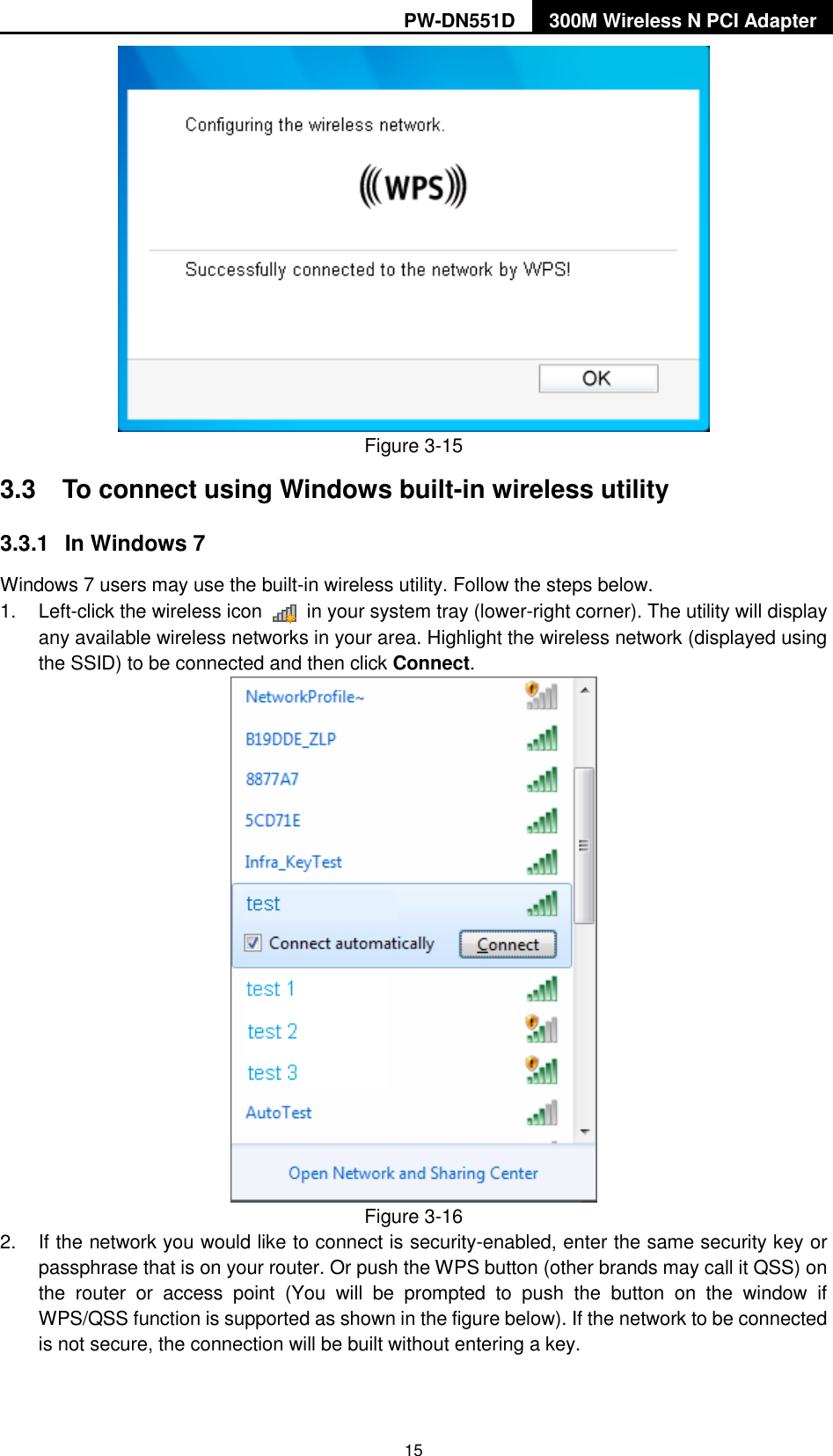
PW-DN551D 300M Wireless N PCI Adapter  14  Figure 3-12 2.  Open your router‟s Web-based Utility and click WPS/QSS link on the left of the main menu. Then click Add device and the following figure will appear. Enter the PIN value of the adapter in the empty field beside PIN and then click Connect.  Figure 3-13 3.  When Connect successfully appears on the screen, the WPS configuration is complete. Or you can view the adapter‟s utility page to see whether the connection has been successful as shown in Figure 3-15.    Figure 3-14
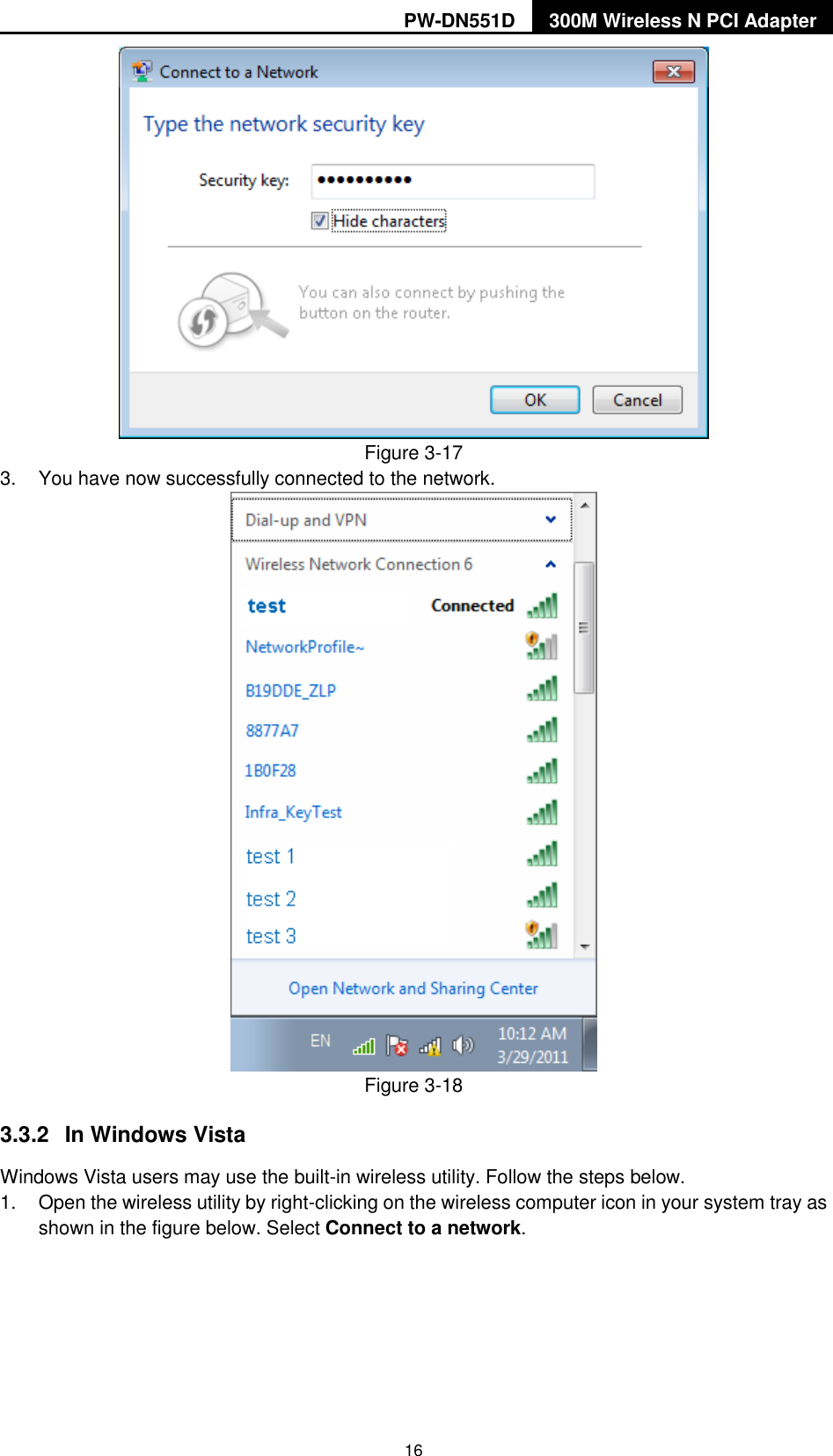
PW-DN551D 300M Wireless N PCI Adapter  15  Figure 3-15 3.3  To connect using Windows built-in wireless utility 3.3.1  In Windows 7 Windows 7 users may use the built-in wireless utility. Follow the steps below. 1.  Left-click the wireless icon    in your system tray (lower-right corner). The utility will display any available wireless networks in your area. Highlight the wireless network (displayed using the SSID) to be connected and then click Connect.    Figure 3-16 2.  If the network you would like to connect is security-enabled, enter the same security key or passphrase that is on your router. Or push the WPS button (other brands may call it QSS) on the  router  or  access  point  (You  will  be  prompted  to  push  the  button  on  the  window  if WPS/QSS function is supported as shown in the figure below). If the network to be connected is not secure, the connection will be built without entering a key.
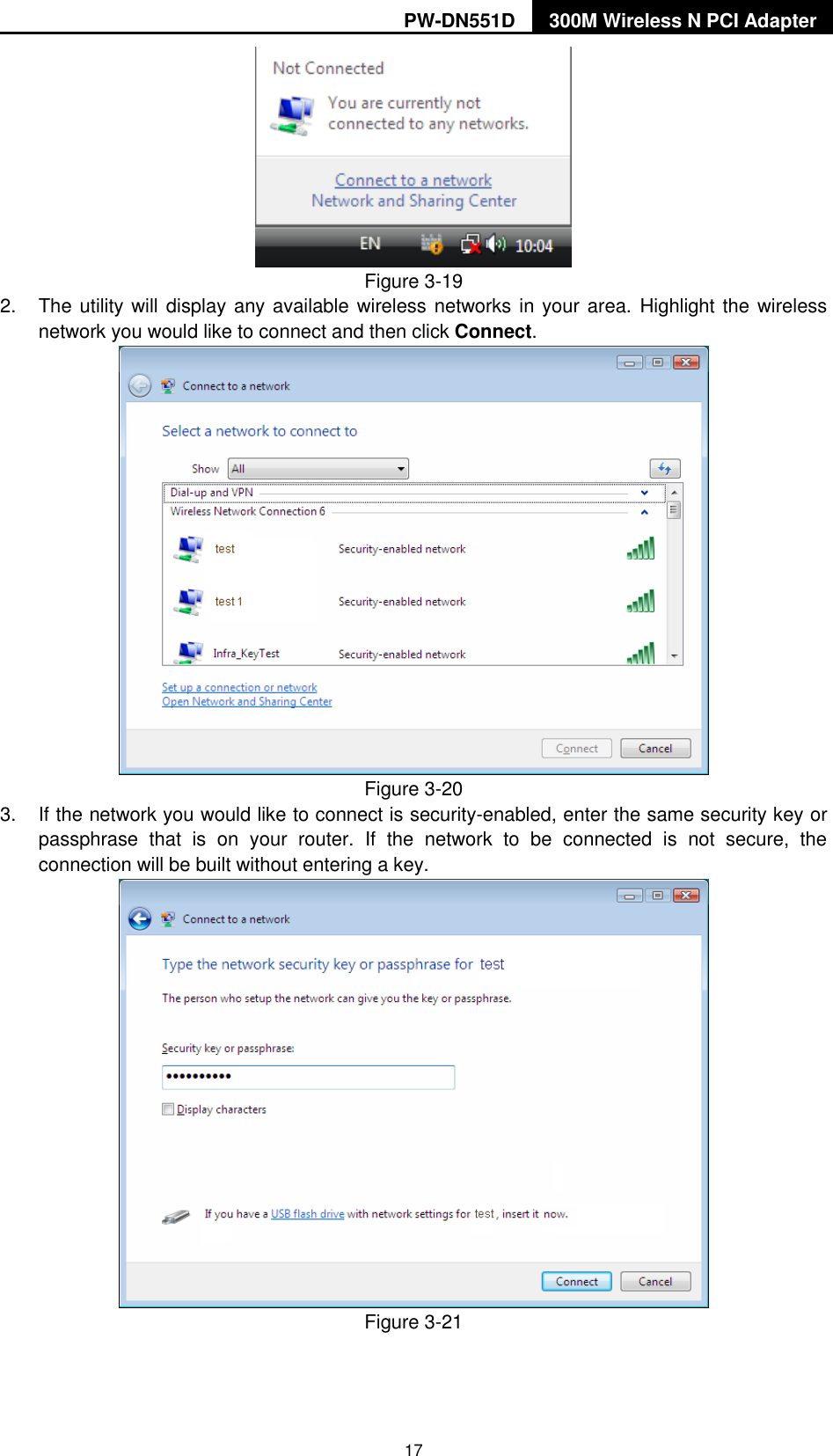
PW-DN551D 300M Wireless N PCI Adapter  16  Figure 3-17 3.  You have now successfully connected to the network.    Figure 3-18 3.3.2  In Windows Vista Windows Vista users may use the built-in wireless utility. Follow the steps below. 1.  Open the wireless utility by right-clicking on the wireless computer icon in your system tray as shown in the figure below. Select Connect to a network.
PW-DN551D 300M Wireless N PCI Adapter  17  Figure 3-19 2.  The utility will display any available wireless networks in your area.  Highlight the wireless network you would like to connect and then click Connect.    Figure 3-20 3.  If the network you would like to connect is security-enabled, enter the same security key or passphrase  that  is  on  your  router.  If  the  network  to  be  connected  is  not  secure,  the connection will be built without entering a key.  Figure 3-21
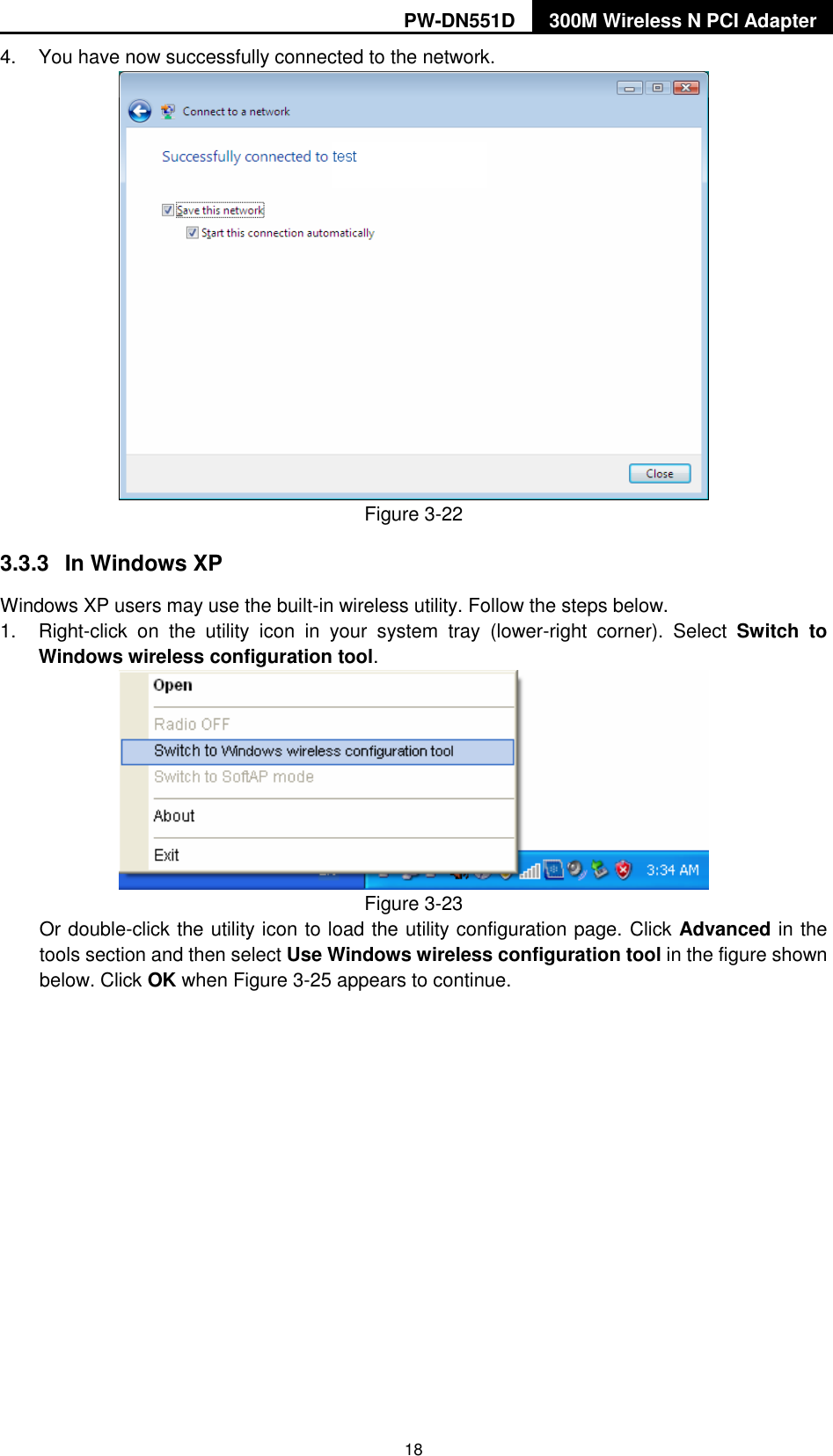
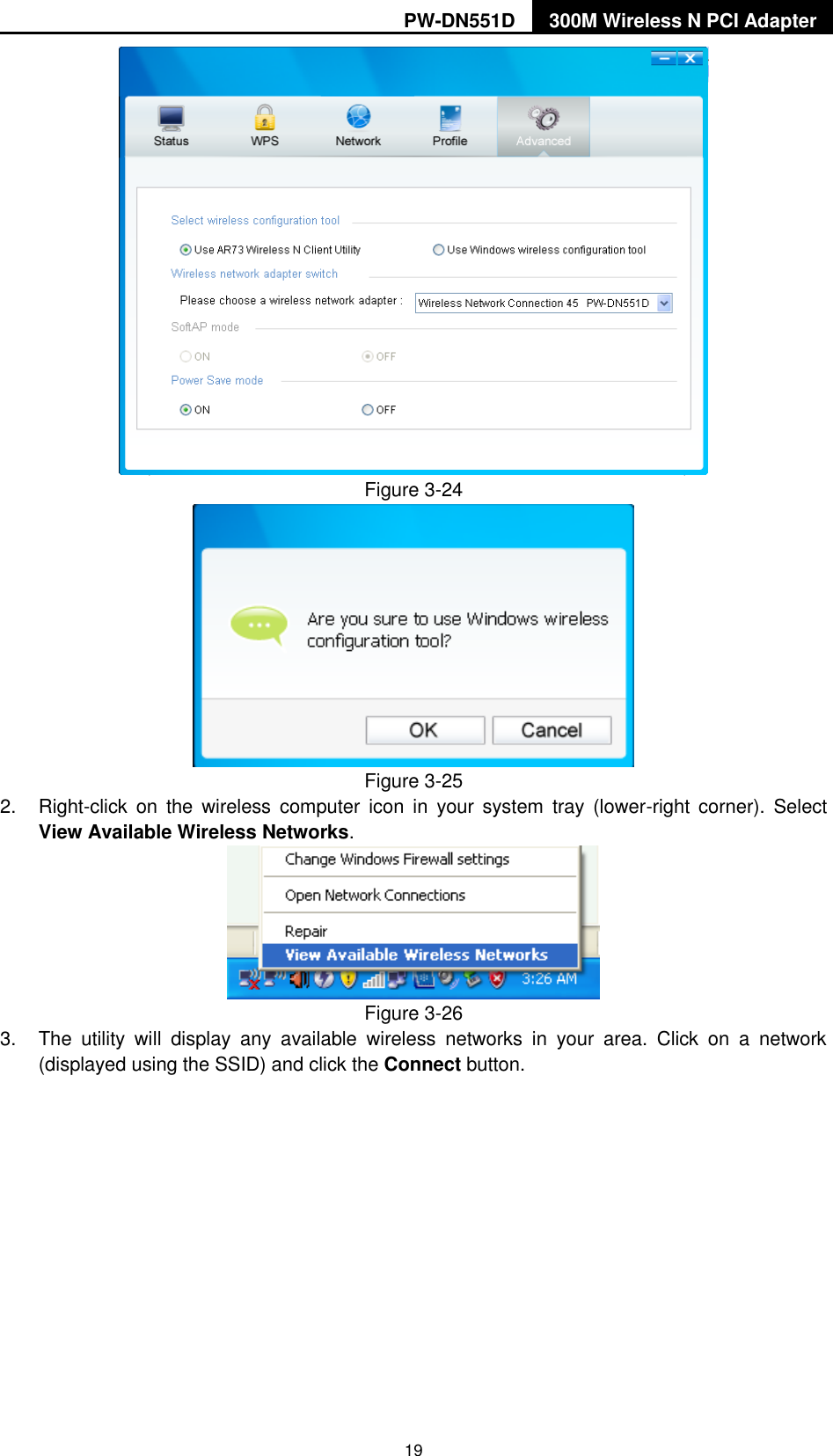
PW-DN551D 300M Wireless N PCI Adapter  18 4.  You have now successfully connected to the network.    Figure 3-22 3.3.3  In Windows XP Windows XP users may use the built-in wireless utility. Follow the steps below. 1.  Right-click  on  the  utility  icon  in  your  system  tray  (lower-right  corner).  Select  Switch  to Windows wireless configuration tool.    Figure 3-23 Or double-click the utility icon to load the utility configuration page. Click Advanced in the tools section and then select Use Windows wireless configuration tool in the figure shown below. Click OK when Figure 3-25 appears to continue.
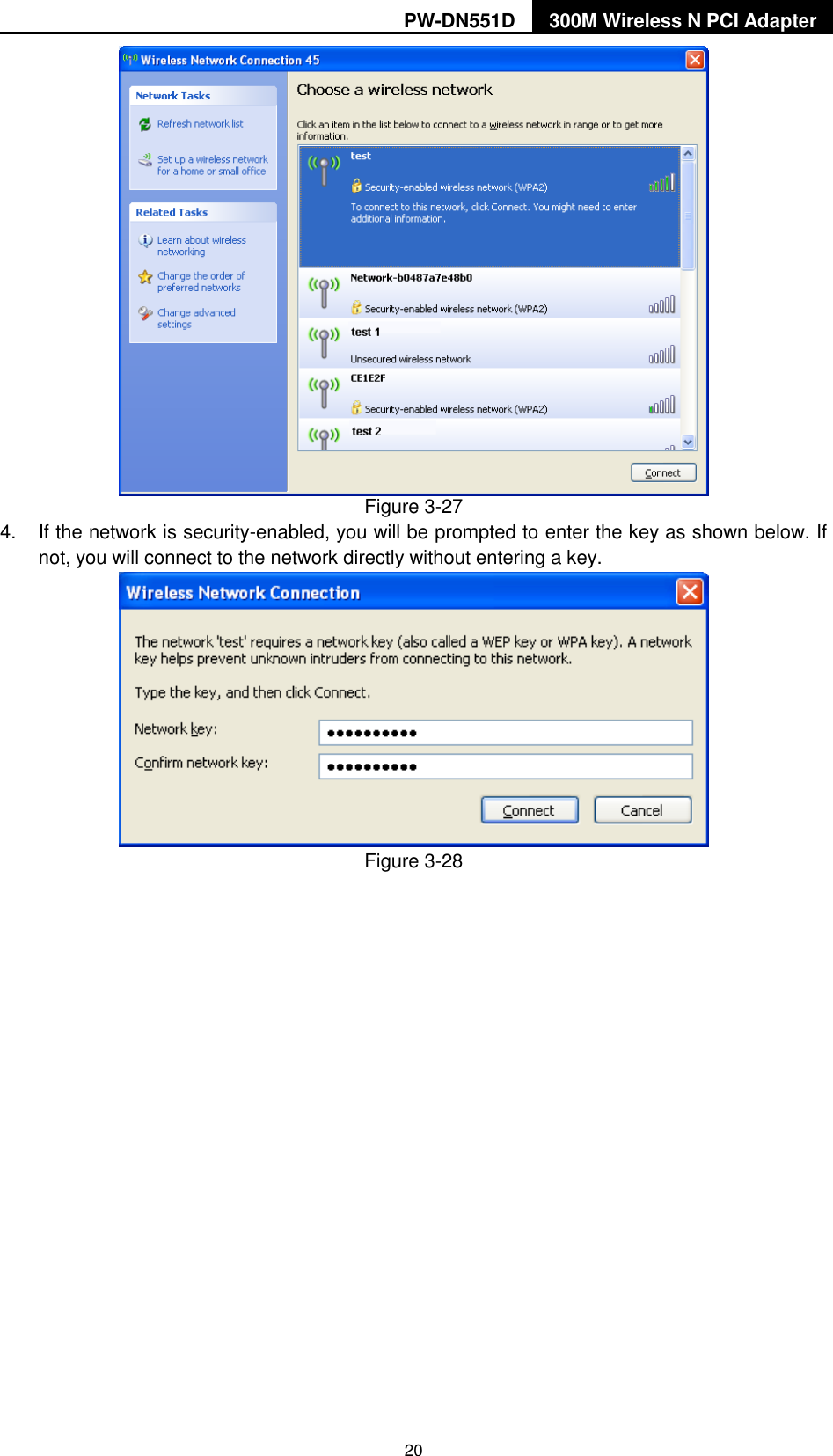
PW-DN551D 300M Wireless N PCI Adapter  19  Figure 3-24  Figure 3-25 2.  Right-click  on  the  wireless  computer  icon  in  your  system  tray  (lower-right corner).  Select View Available Wireless Networks.  Figure 3-26 3.  The  utility  will  display  any  available  wireless  networks  in  your  area.  Click  on  a  network (displayed using the SSID) and click the Connect button.
PW-DN551D 300M Wireless N PCI Adapter  20   Figure 3-27 4.  If the network is security-enabled, you will be prompted to enter the key as shown below. If not, you will connect to the network directly without entering a key.  Figure 3-28
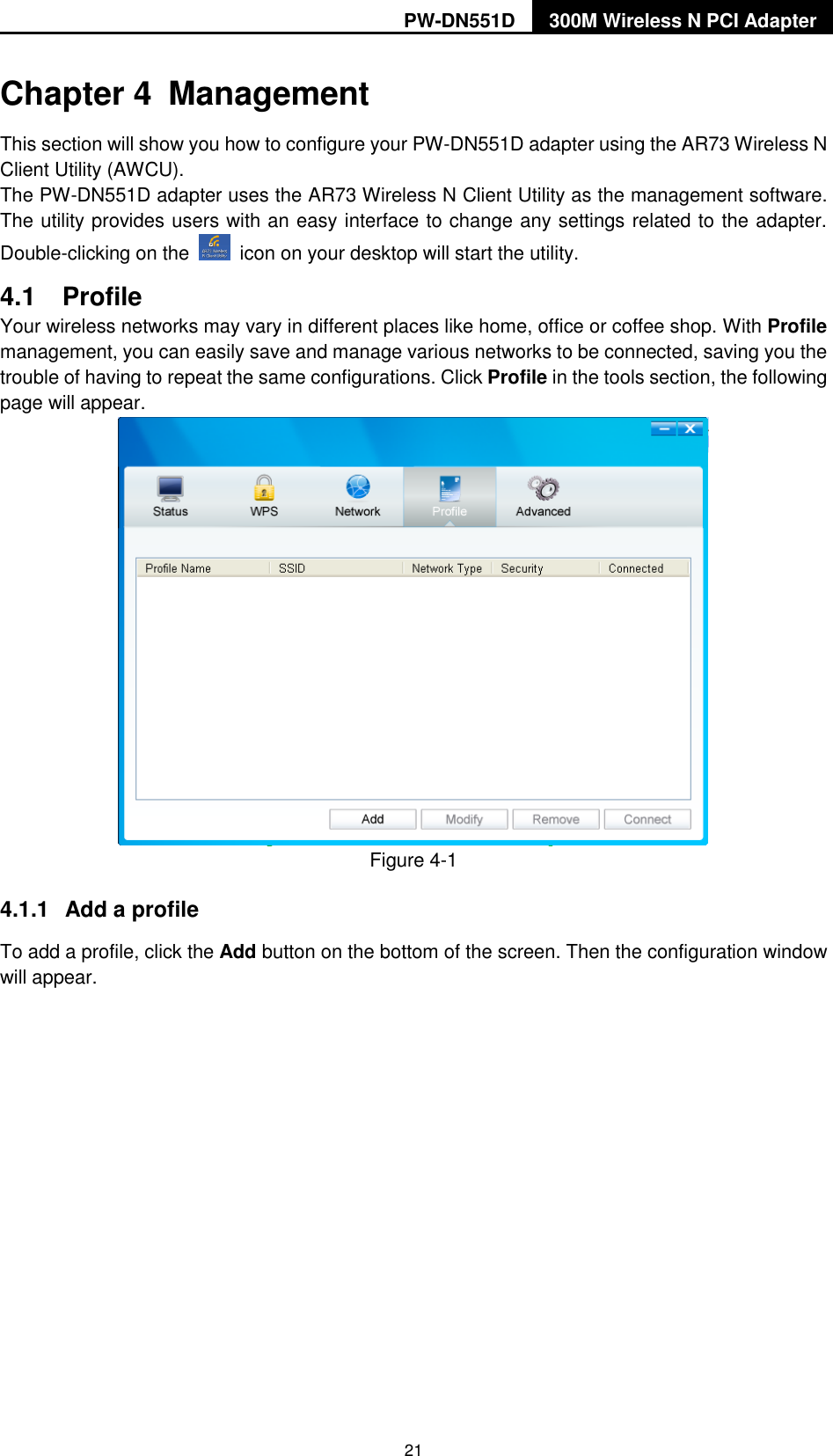
PW-DN551D 300M Wireless N PCI Adapter  21 Chapter 4  Management This section will show you how to configure your PW-DN551D adapter using the AR73 Wireless N Client Utility (AWCU). The PW-DN551D adapter uses the AR73 Wireless N Client Utility as the management software. The utility provides users with an easy interface to change any settings related to the adapter. Double-clicking on the    icon on your desktop will start the utility. 4.1  Profile Your wireless networks may vary in different places like home, office or coffee shop. With Profile management, you can easily save and manage various networks to be connected, saving you the trouble of having to repeat the same configurations. Click Profile in the tools section, the following page will appear.    Figure 4-1 4.1.1  Add a profile To add a profile, click the Add button on the bottom of the screen. Then the configuration window will appear.
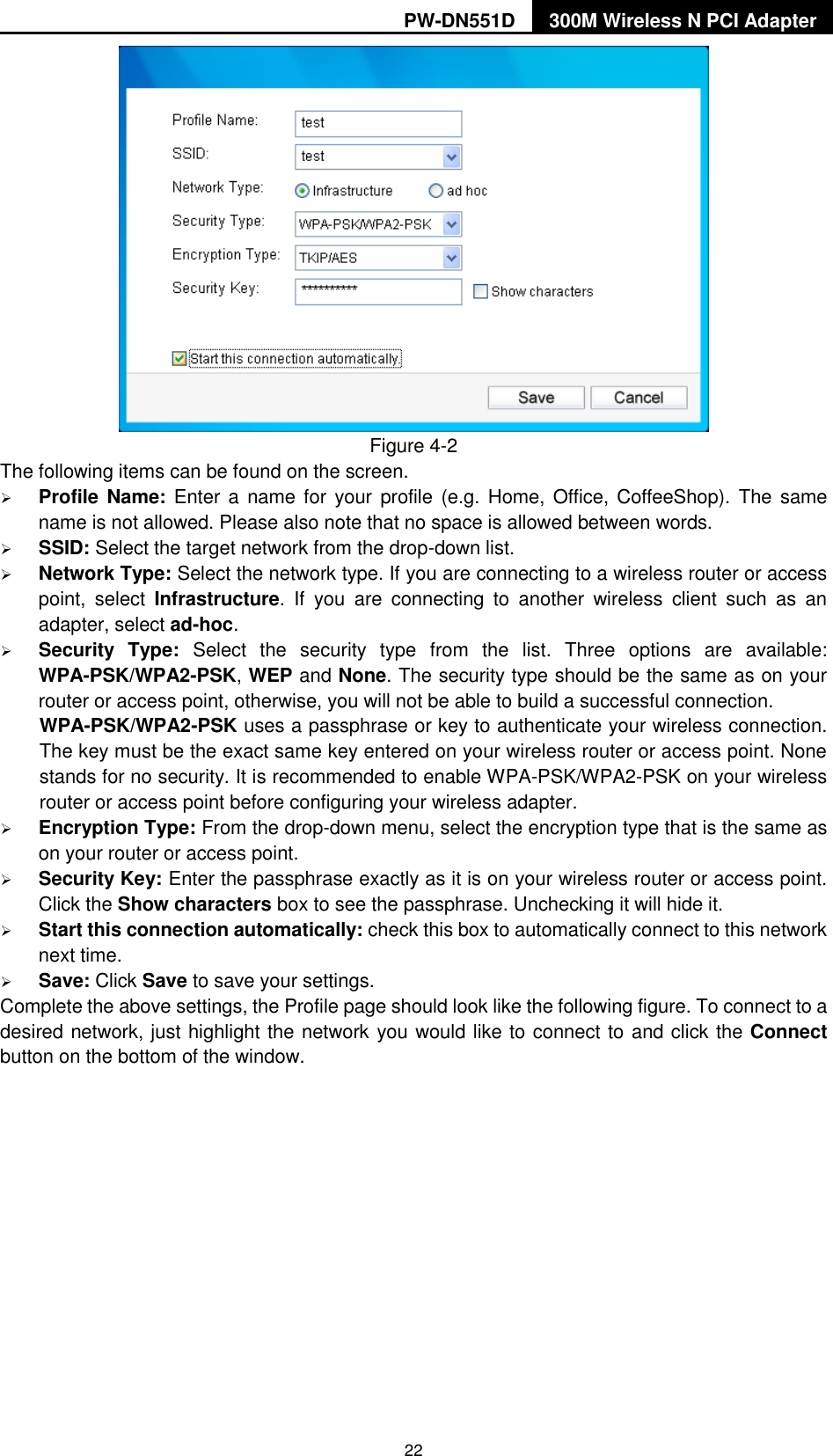
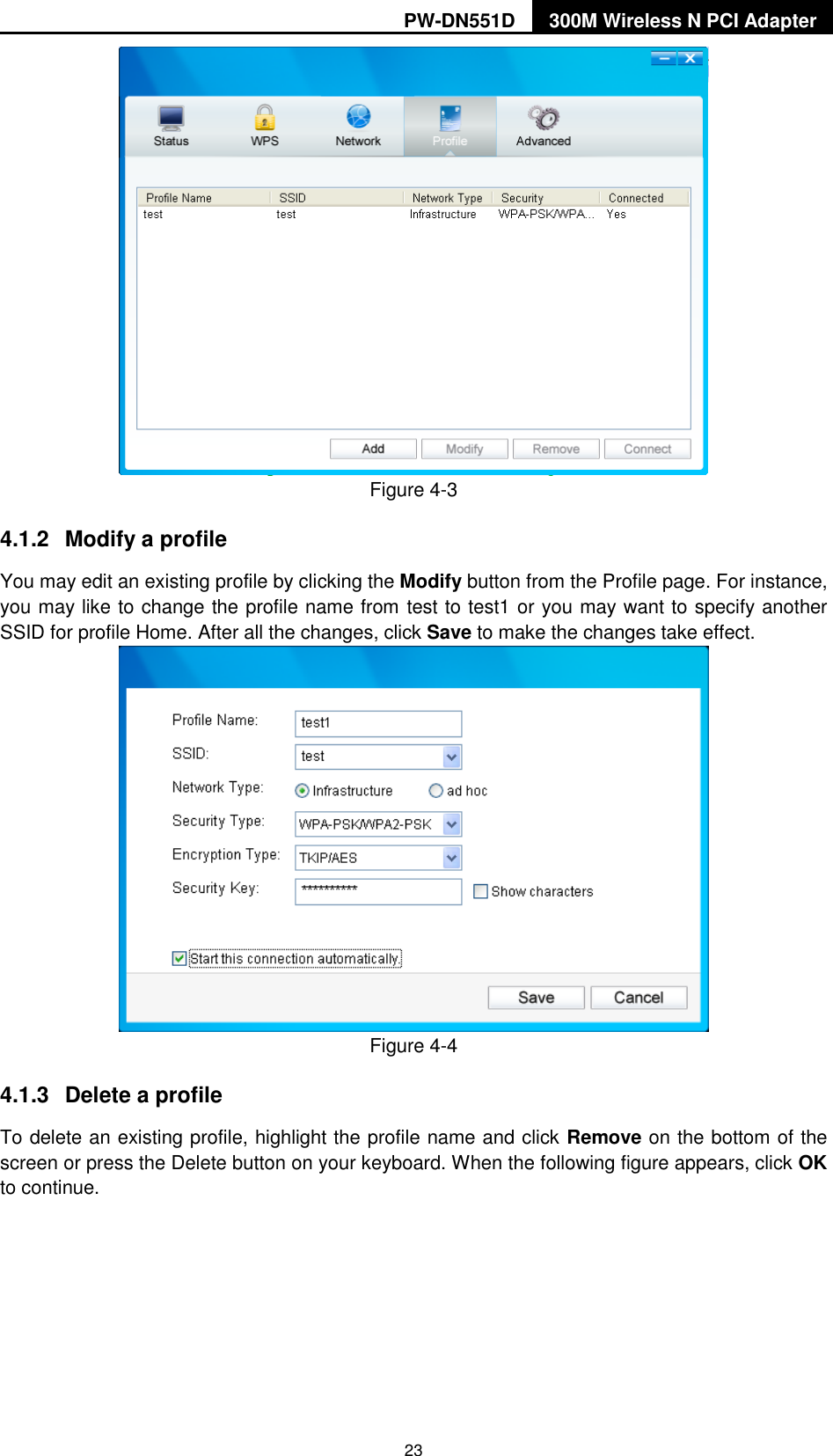
PW-DN551D 300M Wireless N PCI Adapter  22  Figure 4-2 The following items can be found on the screen.    Profile Name: Enter a  name for  your profile (e.g. Home, Office, CoffeeShop). The same name is not allowed. Please also note that no space is allowed between words.    SSID: Select the target network from the drop-down list.  Network Type: Select the network type. If you are connecting to a wireless router or access point,  select  Infrastructure.  If  you  are  connecting  to  another  wireless  client  such  as  an adapter, select ad-hoc.  Security  Type:  Select  the  security  type  from  the  list.  Three  options  are  available: WPA-PSK/WPA2-PSK, WEP and None. The security type should be the same as on your router or access point, otherwise, you will not be able to build a successful connection.   WPA-PSK/WPA2-PSK uses a passphrase or key to authenticate your wireless connection. The key must be the exact same key entered on your wireless router or access point. None stands for no security. It is recommended to enable WPA-PSK/WPA2-PSK on your wireless router or access point before configuring your wireless adapter.  Encryption Type: From the drop-down menu, select the encryption type that is the same as on your router or access point.      Security Key: Enter the passphrase exactly as it is on your wireless router or access point. Click the Show characters box to see the passphrase. Unchecking it will hide it.    Start this connection automatically: check this box to automatically connect to this network next time.    Save: Click Save to save your settings.   Complete the above settings, the Profile page should look like the following figure. To connect to a desired network, just highlight the network you would like to connect to and click the Connect button on the bottom of the window.
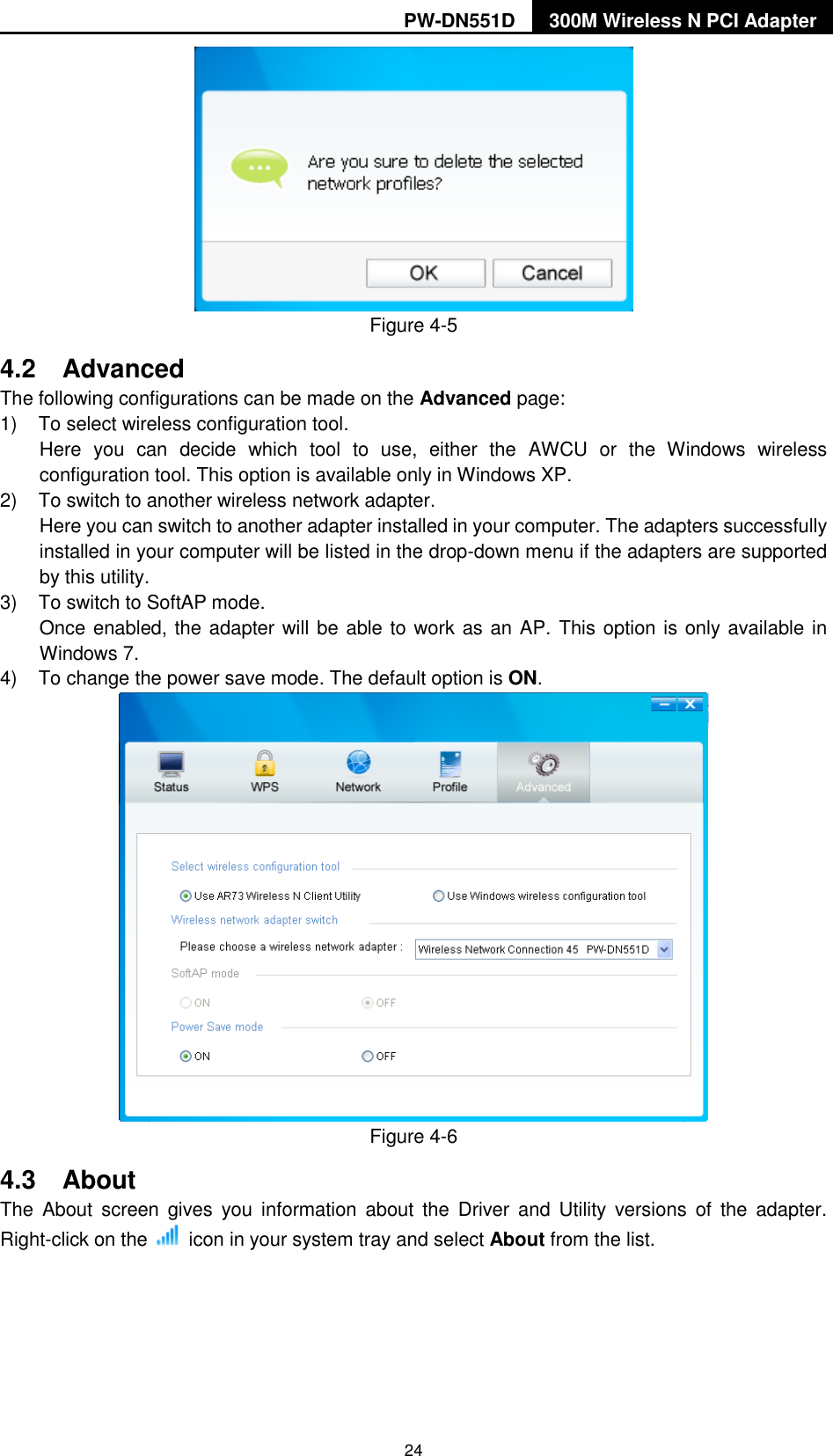
PW-DN551D 300M Wireless N PCI Adapter  23  Figure 4-3 4.1.2  Modify a profile You may edit an existing profile by clicking the Modify button from the Profile page. For instance, you may like to change the profile name from test to test1 or you may want to specify another SSID for profile Home. After all the changes, click Save to make the changes take effect.    Figure 4-4 4.1.3  Delete a profile To delete an existing profile, highlight the profile name and click Remove on the bottom of the screen or press the Delete button on your keyboard. When the following figure appears, click OK to continue.
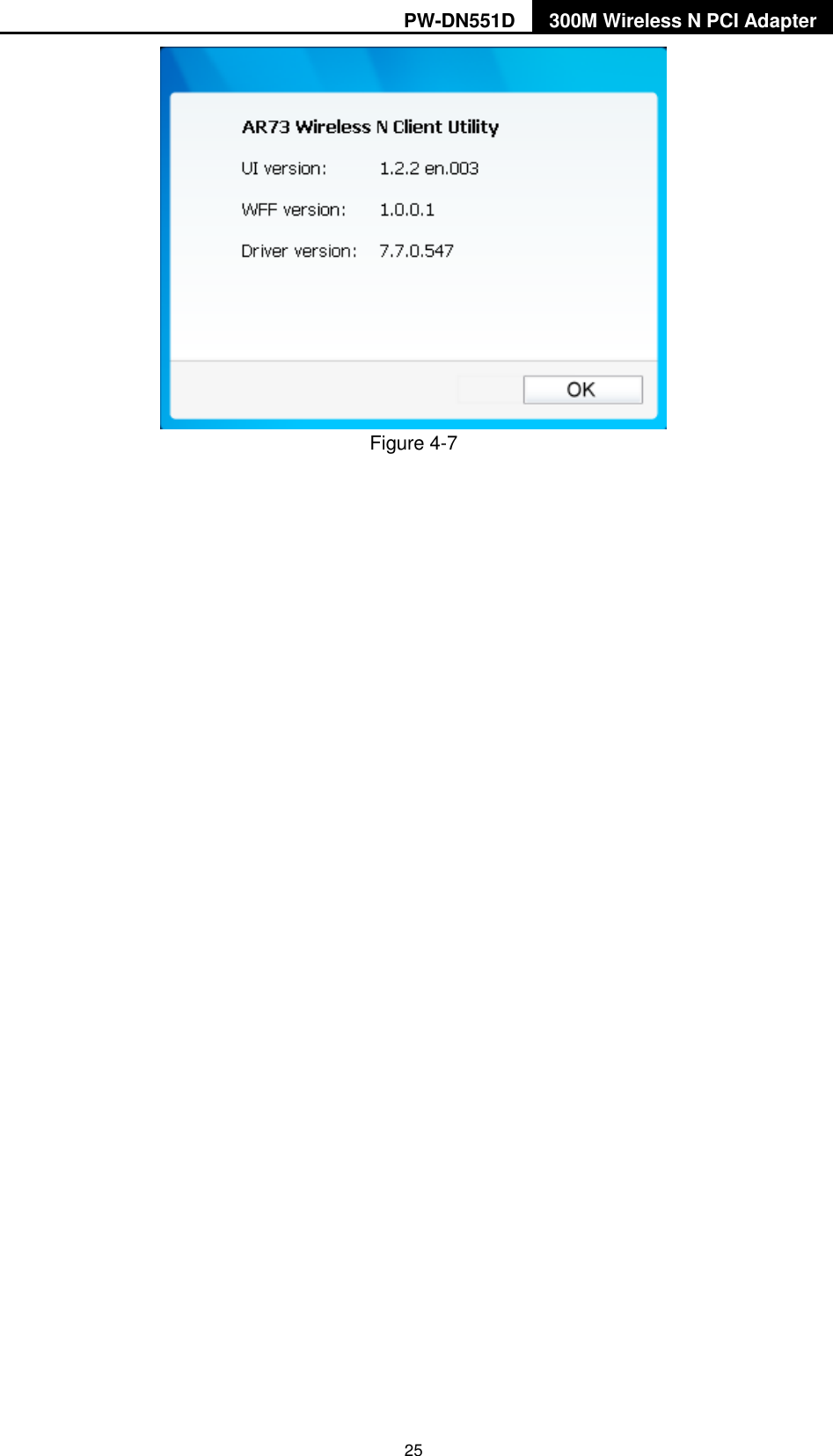
PW-DN551D 300M Wireless N PCI Adapter  24  Figure 4-5 4.2  Advanced The following configurations can be made on the Advanced page: 1)  To select wireless configuration tool.   Here  you  can  decide  which  tool  to  use,  either  the  AWCU  or  the  Windows  wireless configuration tool. This option is available only in Windows XP.   2)  To switch to another wireless network adapter.   Here you can switch to another adapter installed in your computer. The adapters successfully installed in your computer will be listed in the drop-down menu if the adapters are supported by this utility.   3)  To switch to SoftAP mode.   Once enabled, the adapter will be able to work as an AP. This option is only available in Windows 7.   4)  To change the power save mode. The default option is ON.    Figure 4-6 4.3  About   The  About  screen  gives  you  information  about  the  Driver  and  Utility  versions  of  the  adapter. Right-click on the    icon in your system tray and select About from the list.
PW-DN551D 300M Wireless N PCI Adapter  25  Figure 4-7
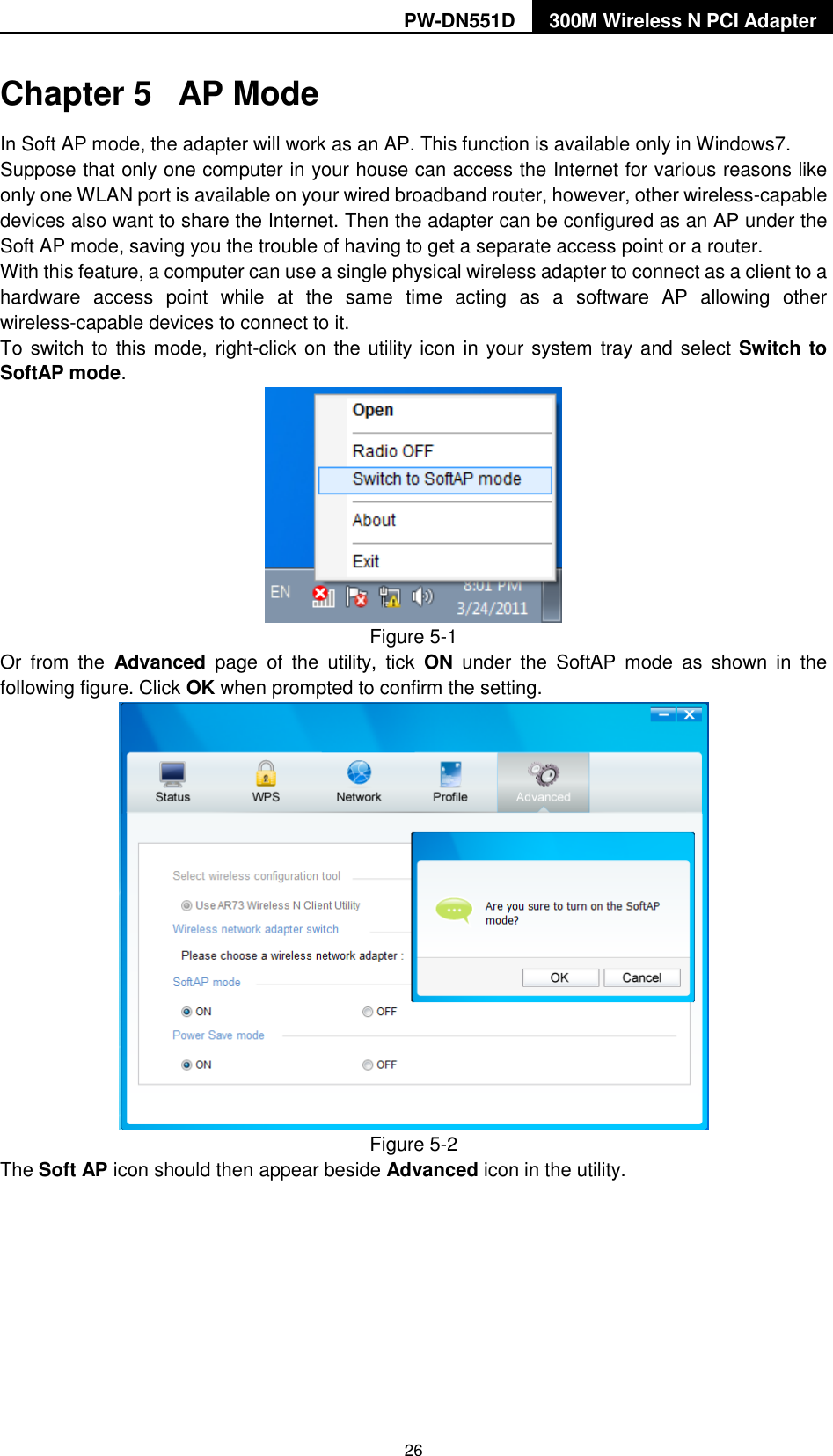
PW-DN551D 300M Wireless N PCI Adapter  26 Chapter 5  AP Mode In Soft AP mode, the adapter will work as an AP. This function is available only in Windows7. Suppose that only one computer in your house can access the Internet for various reasons like only one WLAN port is available on your wired broadband router, however, other wireless-capable devices also want to share the Internet. Then the adapter can be configured as an AP under the Soft AP mode, saving you the trouble of having to get a separate access point or a router.   With this feature, a computer can use a single physical wireless adapter to connect as a client to a hardware  access  point  while  at  the  same  time  acting  as  a  software  AP  allowing  other wireless-capable devices to connect to it.   To switch to this mode, right-click on the utility icon in your system tray and select Switch to SoftAP mode.  Figure 5-1 Or  from  the  Advanced  page  of  the  utility,  tick  ON  under  the  SoftAP  mode  as  shown  in  the following figure. Click OK when prompted to confirm the setting.    Figure 5-2 The Soft AP icon should then appear beside Advanced icon in the utility.
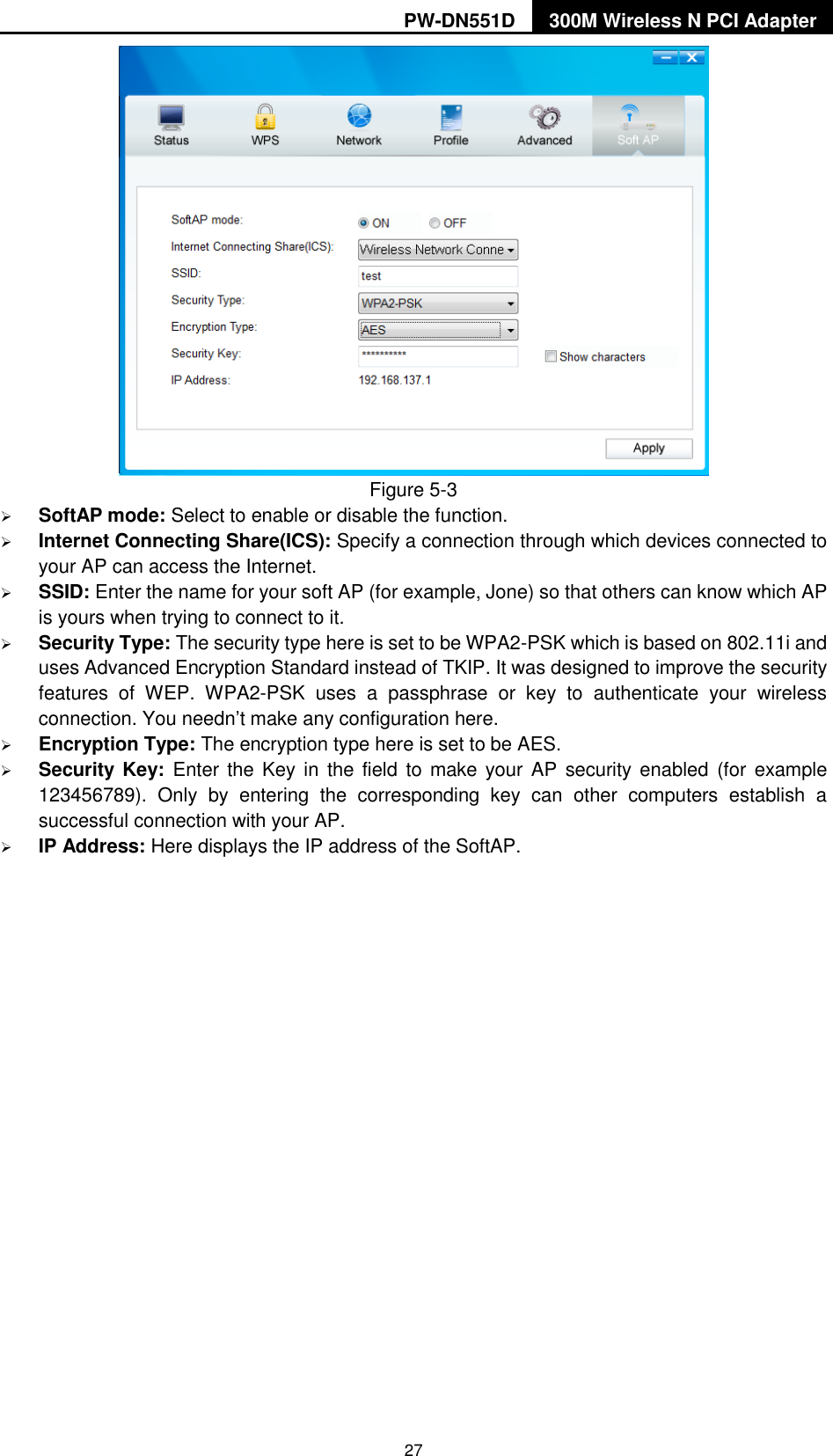
PW-DN551D 300M Wireless N PCI Adapter  27  Figure 5-3    SoftAP mode: Select to enable or disable the function.  Internet Connecting Share(ICS): Specify a connection through which devices connected to your AP can access the Internet.    SSID: Enter the name for your soft AP (for example, Jone) so that others can know which AP is yours when trying to connect to it.  Security Type: The security type here is set to be WPA2-PSK which is based on 802.11i and uses Advanced Encryption Standard instead of TKIP. It was designed to improve the security features  of  WEP.  WPA2-PSK  uses  a  passphrase  or  key  to  authenticate  your  wireless connection. You needn‟t make any configuration here.    Encryption Type: The encryption type here is set to be AES.    Security  Key: Enter  the Key in  the field to make your  AP  security enabled  (for  example 123456789).  Only  by  entering  the  corresponding  key  can  other  computers  establish  a successful connection with your AP.  IP Address: Here displays the IP address of the SoftAP.
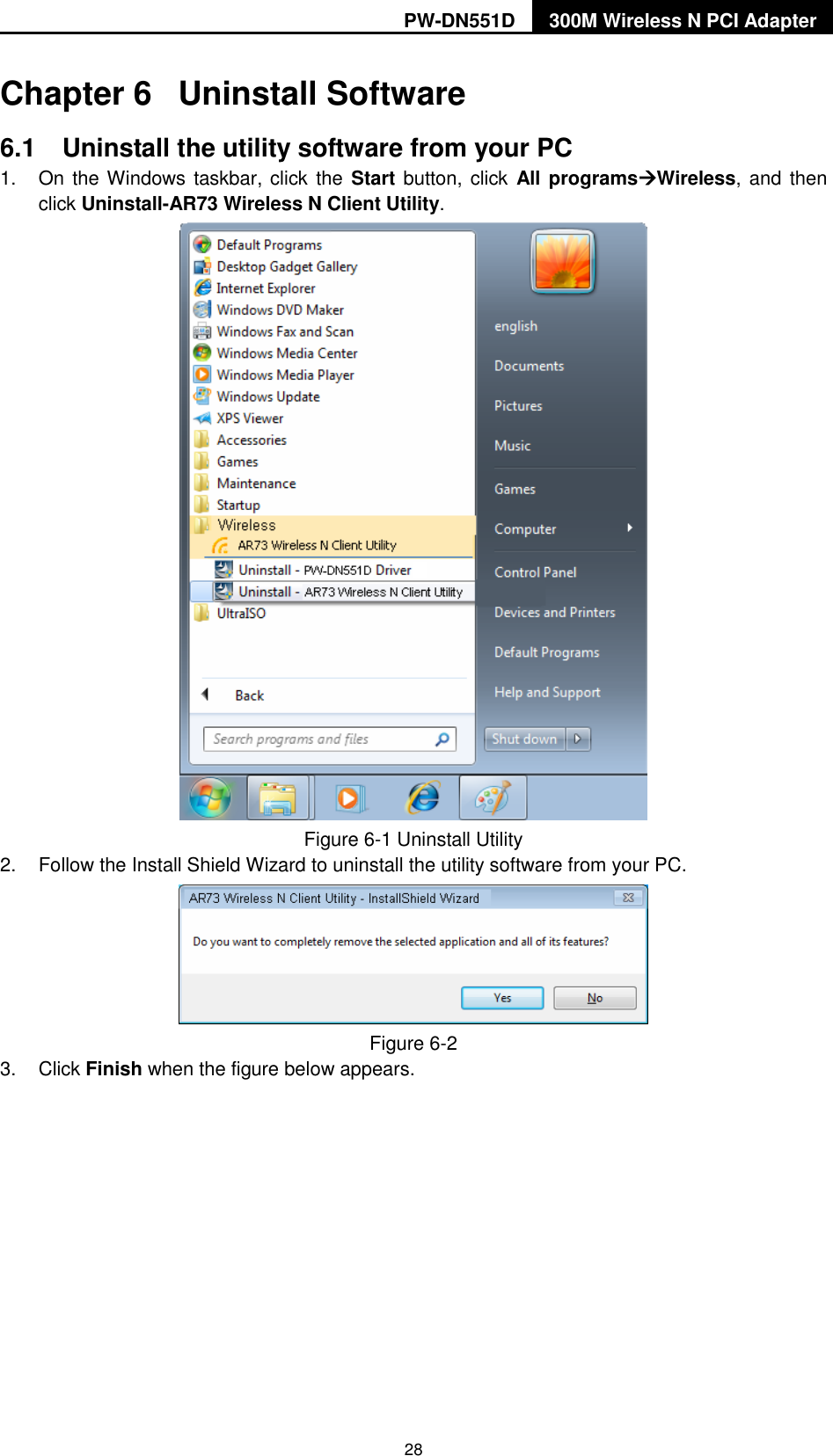
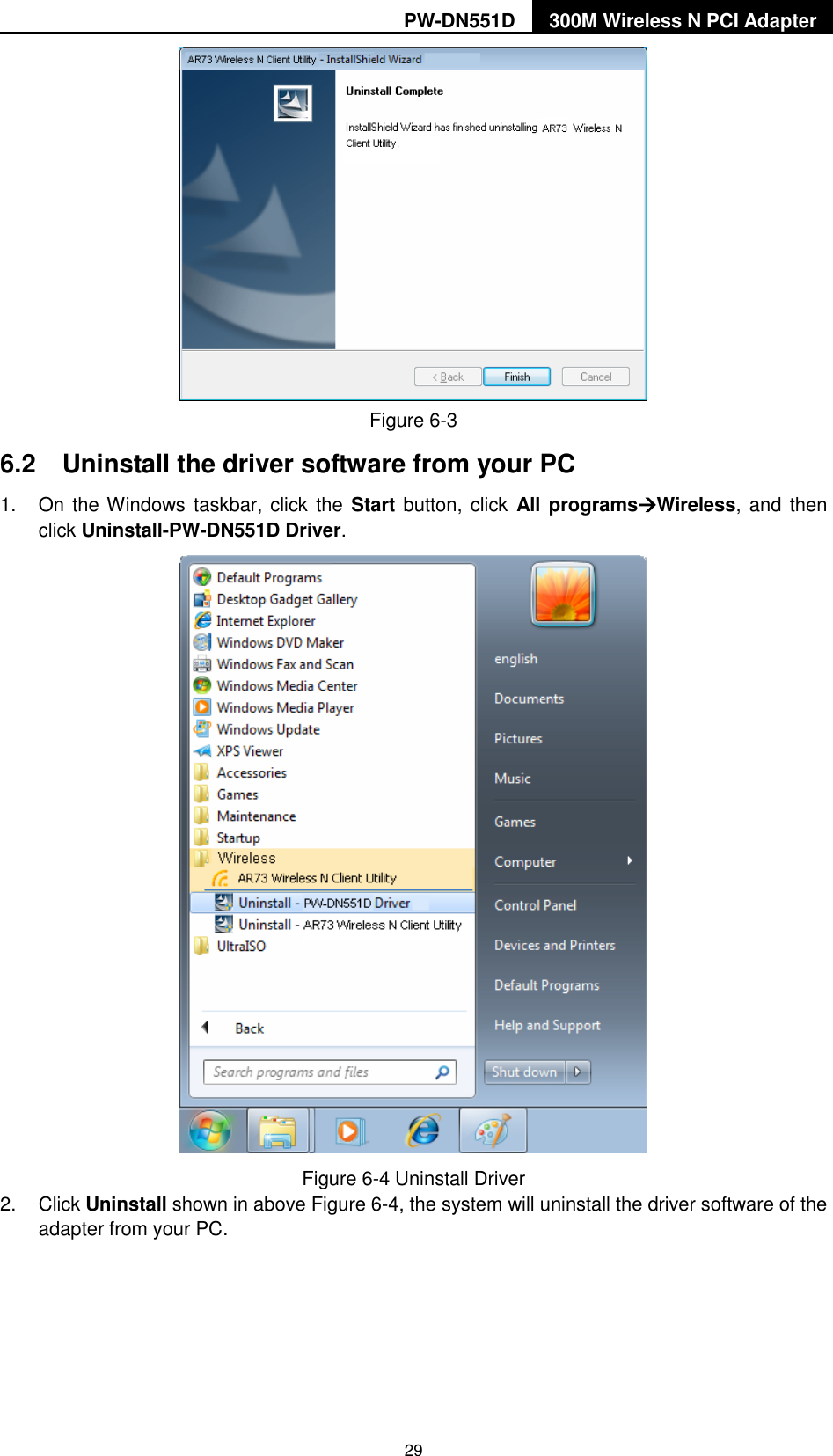
PW-DN551D 300M Wireless N PCI Adapter  28 Chapter 6  Uninstall Software 6.1  Uninstall the utility software from your PC   1.  On the Windows taskbar, click  the Start button, click  All programsWireless,  and  then click Uninstall-AR73 Wireless N Client Utility.  Figure 6-1 Uninstall Utility 2.  Follow the Install Shield Wizard to uninstall the utility software from your PC.  Figure 6-2   3.  Click Finish when the figure below appears.
PW-DN551D 300M Wireless N PCI Adapter  29  Figure 6-3   6.2  Uninstall the driver software from your PC 1.  On the Windows taskbar, click the Start button, click  All programsWireless, and  then click Uninstall-PW-DN551D Driver.  Figure 6-4 Uninstall Driver 2.  Click Uninstall shown in above Figure 6-4, the system will uninstall the driver software of the adapter from your PC.
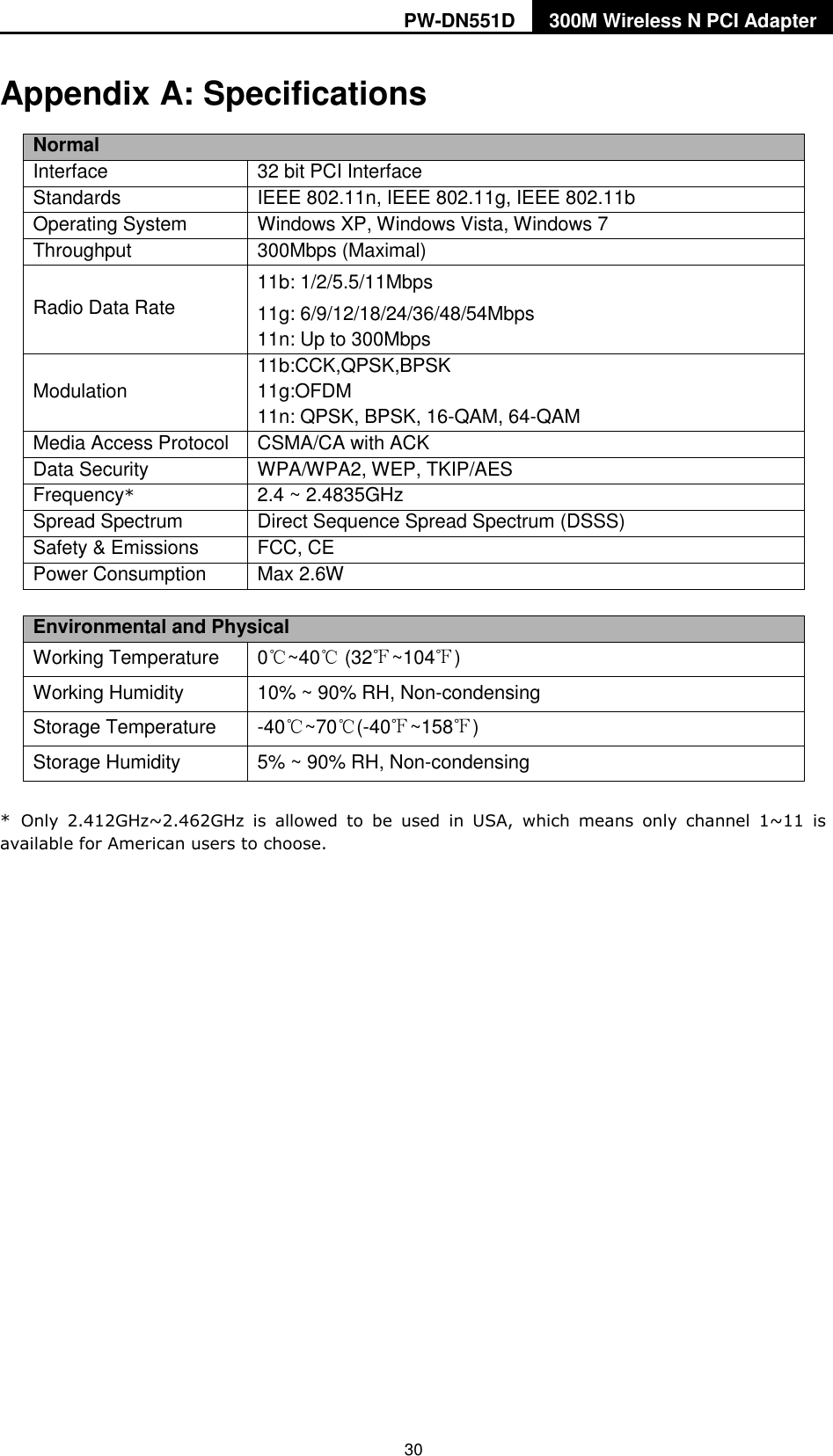
PW-DN551D 300M Wireless N PCI Adapter  30 Appendix A: Specifications Normal Interface 32 bit PCI Interface Standards IEEE 802.11n, IEEE 802.11g, IEEE 802.11b Operating System Windows XP, Windows Vista, Windows 7 Throughput 300Mbps (Maximal) Radio Data Rate 11b: 1/2/5.5/11Mbps 11g: 6/9/12/18/24/36/48/54Mbps 11n: Up to 300Mbps Modulation 11b:CCK,QPSK,BPSK 11g:OFDM 11n: QPSK, BPSK, 16-QAM, 64-QAM Media Access Protocol CSMA/CA with ACK Data Security WPA/WPA2, WEP, TKIP/AES Frequency* 2.4 ~ 2.4835GHz Spread Spectrum Direct Sequence Spread Spectrum (DSSS) Safety & Emissions FCC, CE Power Consumption Max 2.6W  Environmental and Physical Working Temperature 0℃~40℃ (32℉~104℉) Working Humidity 10% ~ 90% RH, Non-condensing Storage Temperature -40℃~70℃(-40℉~158℉) Storage Humidity 5% ~ 90% RH, Non-condensing * Only  2.412GHz~2.462GHz  is  allowed  to  be  used  in  USA,  which  means  only  channel  1~11  is available for American users to choose.
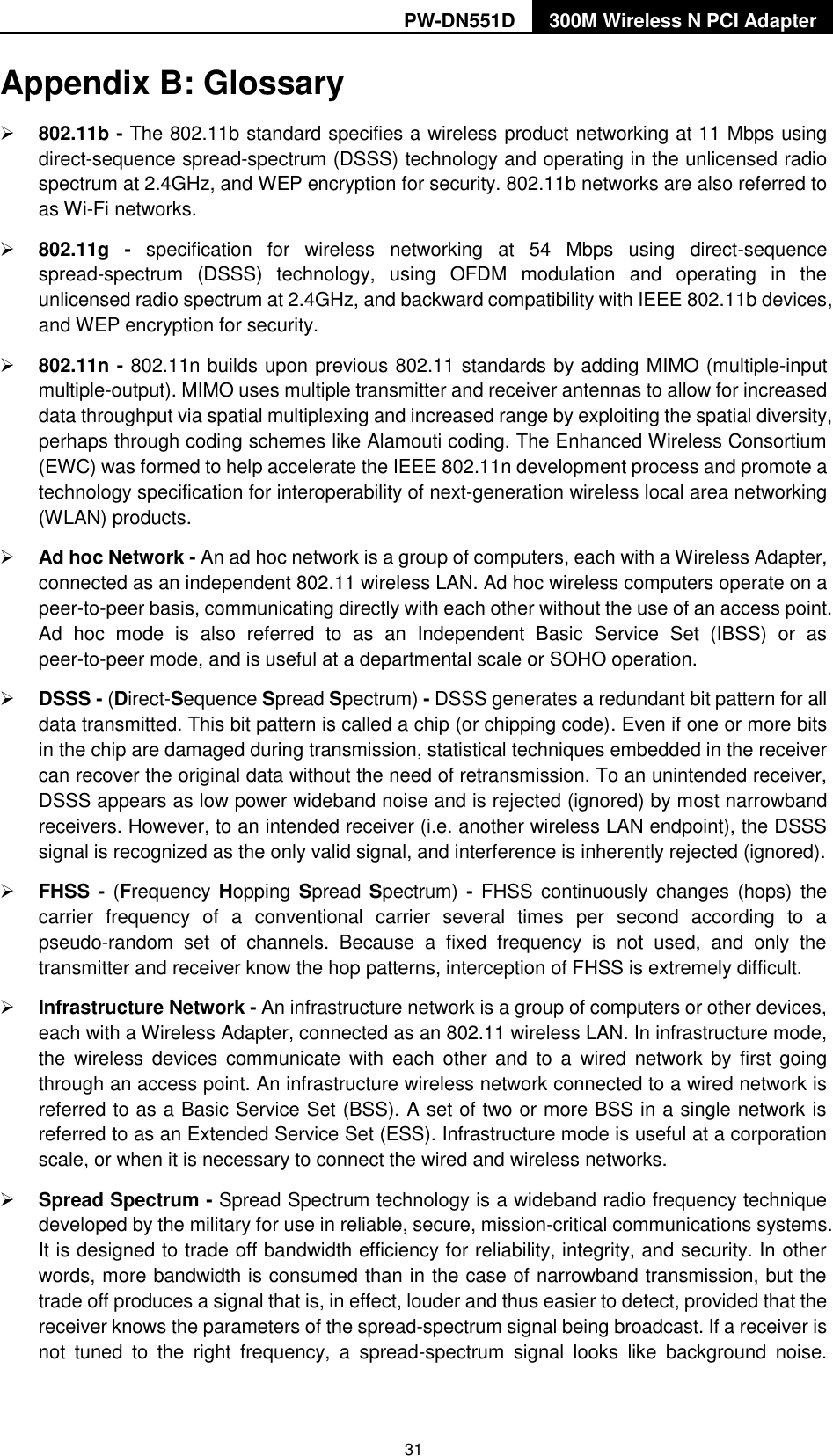
PW-DN551D 300M Wireless N PCI Adapter  31 Appendix B: Glossary  802.11b - The 802.11b standard specifies a wireless product networking at 11 Mbps using direct-sequence spread-spectrum (DSSS) technology and operating in the unlicensed radio spectrum at 2.4GHz, and WEP encryption for security. 802.11b networks are also referred to as Wi-Fi networks.  802.11g -  specification  for  wireless  networking  at  54  Mbps  using  direct-sequence spread-spectrum  (DSSS)  technology,  using  OFDM  modulation  and  operating  in  the unlicensed radio spectrum at 2.4GHz, and backward compatibility with IEEE 802.11b devices, and WEP encryption for security.  802.11n - 802.11n builds upon previous 802.11 standards by adding MIMO (multiple-input multiple-output). MIMO uses multiple transmitter and receiver antennas to allow for increased data throughput via spatial multiplexing and increased range by exploiting the spatial diversity, perhaps through coding schemes like Alamouti coding. The Enhanced Wireless Consortium (EWC) was formed to help accelerate the IEEE 802.11n development process and promote a technology specification for interoperability of next-generation wireless local area networking (WLAN) products.  Ad hoc Network - An ad hoc network is a group of computers, each with a Wireless Adapter, connected as an independent 802.11 wireless LAN. Ad hoc wireless computers operate on a peer-to-peer basis, communicating directly with each other without the use of an access point. Ad  hoc  mode  is  also  referred  to  as  an  Independent  Basic  Service  Set  (IBSS)  or  as peer-to-peer mode, and is useful at a departmental scale or SOHO operation.    DSSS - (Direct-Sequence Spread Spectrum) - DSSS generates a redundant bit pattern for all data transmitted. This bit pattern is called a chip (or chipping code). Even if one or more bits in the chip are damaged during transmission, statistical techniques embedded in the receiver can recover the original data without the need of retransmission. To an unintended receiver, DSSS appears as low power wideband noise and is rejected (ignored) by most narrowband receivers. However, to an intended receiver (i.e. another wireless LAN endpoint), the DSSS signal is recognized as the only valid signal, and interference is inherently rejected (ignored).  FHSS - (Frequency Hopping Spread Spectrum) -  FHSS continuously changes  (hops)  the carrier  frequency  of  a  conventional  carrier  several  times  per  second  according  to  a pseudo-random  set  of  channels.  Because  a  fixed  frequency  is  not  used,  and  only  the transmitter and receiver know the hop patterns, interception of FHSS is extremely difficult.  Infrastructure Network - An infrastructure network is a group of computers or other devices, each with a Wireless Adapter, connected as an 802.11 wireless LAN. In infrastructure mode, the  wireless devices  communicate with  each  other  and  to  a  wired  network  by  first  going through an access point. An infrastructure wireless network connected to a wired network is referred to as a Basic Service Set (BSS). A set of two or more BSS in a single network is referred to as an Extended Service Set (ESS). Infrastructure mode is useful at a corporation scale, or when it is necessary to connect the wired and wireless networks.    Spread Spectrum - Spread Spectrum technology is a wideband radio frequency technique developed by the military for use in reliable, secure, mission-critical communications systems. It is designed to trade off bandwidth efficiency for reliability, integrity, and security. In other words, more bandwidth is consumed than in the case of narrowband transmission, but the trade off produces a signal that is, in effect, louder and thus easier to detect, provided that the receiver knows the parameters of the spread-spectrum signal being broadcast. If a receiver is not  tuned  to  the  right  frequency,  a  spread-spectrum  signal  looks  like  background  noise.
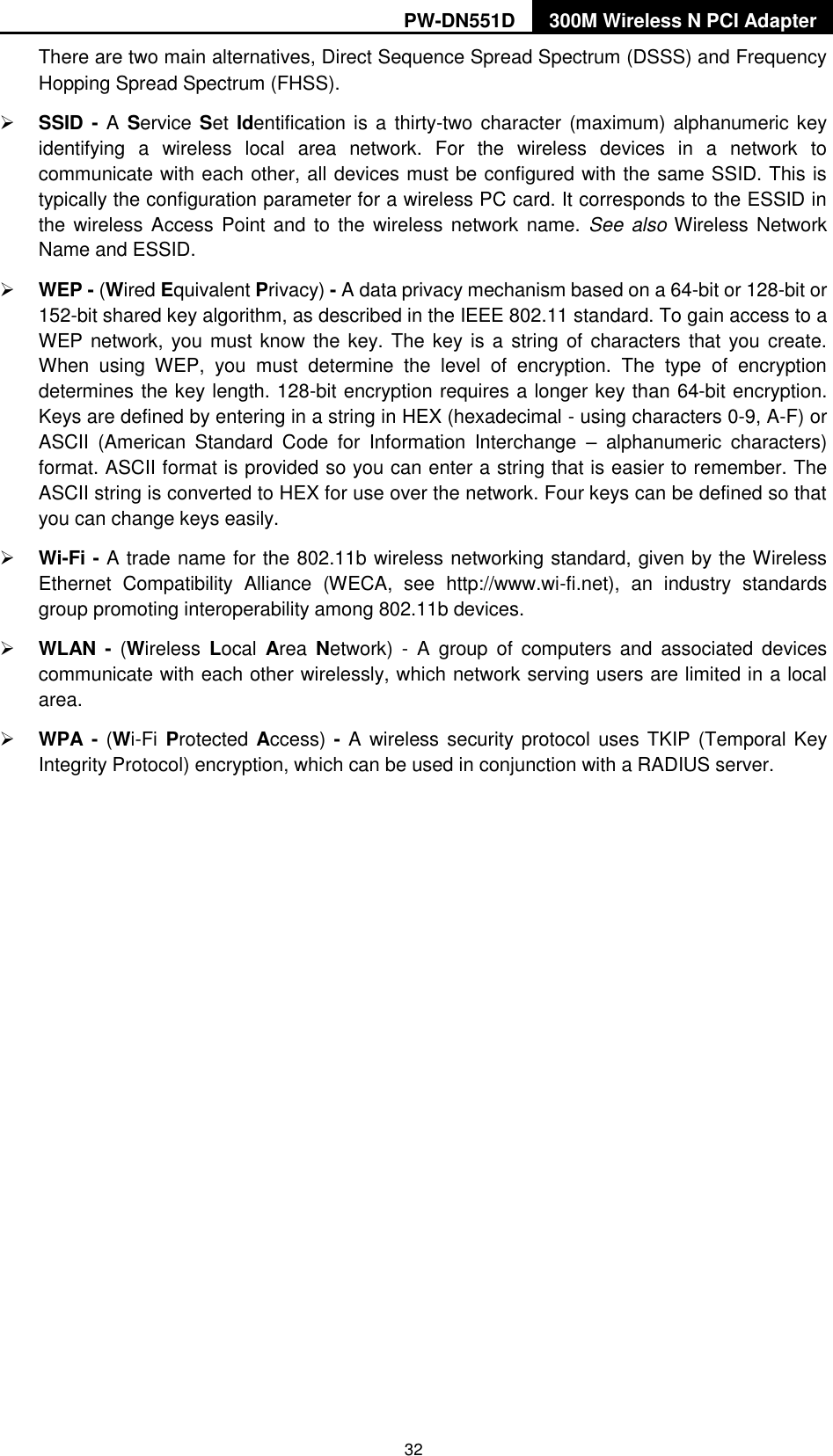
PW-DN551D 300M Wireless N PCI Adapter  32 There are two main alternatives, Direct Sequence Spread Spectrum (DSSS) and Frequency Hopping Spread Spectrum (FHSS).  SSID - A Service Set  Identification is a thirty-two character (maximum)  alphanumeric key identifying  a  wireless  local  area  network.  For  the  wireless  devices  in  a  network  to communicate with each other, all devices must be configured with the same SSID. This is typically the configuration parameter for a wireless PC card. It corresponds to the ESSID in the wireless Access Point and  to  the  wireless  network name.  See  also Wireless Network Name and ESSID.  WEP - (Wired Equivalent Privacy) - A data privacy mechanism based on a 64-bit or 128-bit or 152-bit shared key algorithm, as described in the IEEE 802.11 standard. To gain access to a WEP network, you must know the key. The key is a string of characters that you create. When  using  WEP,  you  must  determine  the  level  of  encryption.  The  type  of  encryption determines the key length. 128-bit encryption requires a longer key than 64-bit encryption. Keys are defined by entering in a string in HEX (hexadecimal - using characters 0-9, A-F) or ASCII  (American  Standard  Code  for  Information  Interchange  –  alphanumeric  characters) format. ASCII format is provided so you can enter a string that is easier to remember. The ASCII string is converted to HEX for use over the network. Four keys can be defined so that you can change keys easily.  Wi-Fi - A trade name for the 802.11b wireless networking standard, given by the Wireless Ethernet  Compatibility  Alliance  (WECA,  see  http://www.wi-fi.net),  an  industry  standards group promoting interoperability among 802.11b devices.  WLAN  -  (Wireless  Local  Area  Network)  -  A  group  of  computers and  associated  devices communicate with each other wirelessly, which network serving users are limited in a local area.  WPA - (Wi-Fi Protected Access) - A wireless security  protocol uses TKIP (Temporal Key Integrity Protocol) encryption, which can be used in conjunction with a RADIUS server.

Navigation menu