Proware Technologies Co MN427V3 150Mbps Wireless N USB Module User Manual PW MN427 34I User Guide

Proware Technologies Co Ltd. 150Mbps Wireless N USB Module PW MN427 34I User Guide

PW-MN427_34I_User Guide_REV2

                    PW-MN427_34I   150Mbps Wireless N USB Module
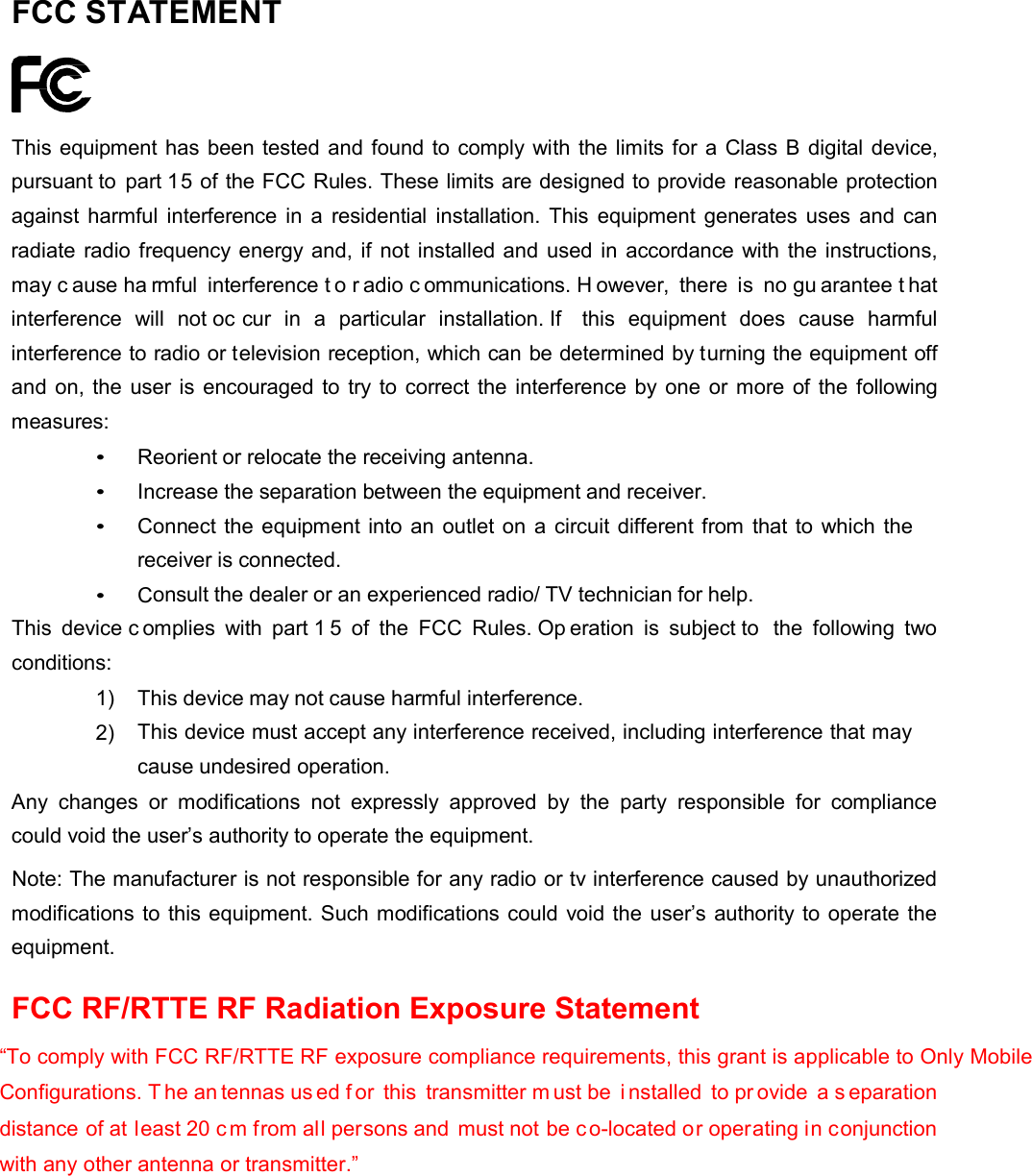
FCC STATEMENT       This equipment has been tested and found to comply with the limits for a Class B digital device, pursuant to part 15 of the FCC Rules. These limits are designed to provide reasonable protection against harmful  interference in  a  residential  installation. This  equipment generates uses and can radiate radio frequency energy and, if not installed and used in accordance with the instructions, may c ause ha rmful  interference t o r adio c ommunications. H owever,  there  is  no gu arantee t hat interference  will  not oc cur  in  a  particular  installation. If  this equipment does  cause  harmful interference to radio or television reception, which can be determined by turning the equipment off and on, the user is encouraged to try to correct the interference by one or more of the  following measures: • Reorient or relocate the receiving antenna.  • Increase the separation between the equipment and receiver.  • Connect the equipment into an outlet on a circuit different from that to which the receiver is connected. • Consult the dealer or an experienced radio/ TV technician for help. This device c omplies  with  part 1 5 of the FCC  Rules. Op eration  is  subject to  the  following  two conditions: 1)  This device may not cause harmful interference.  2) This device must accept any interference received, including interference that may cause undesired operation. Any changes  or  modifications not expressly  approved  by  the party  responsible  for  compliance could void the user’s authority to operate the equipment. Note: The manufacturer is not responsible for any radio or tv interference caused by unauthorized modifications to this equipment. Such modifications could void the user’s authority to operate the equipment.  FCC RF/RTTE RF Radiation Exposure Statement  “To comply with FCC RF/RTTE RF exposure compliance requirements, this grant is applicable to Only Mobile Configurations. T he an tennas us ed f or this transmitter m ust be  i nstalled to pr ovide a s eparation distance of at least 20 c m from all persons and must not be co-located or operating in conjunction with any other antenna or transmitter.”
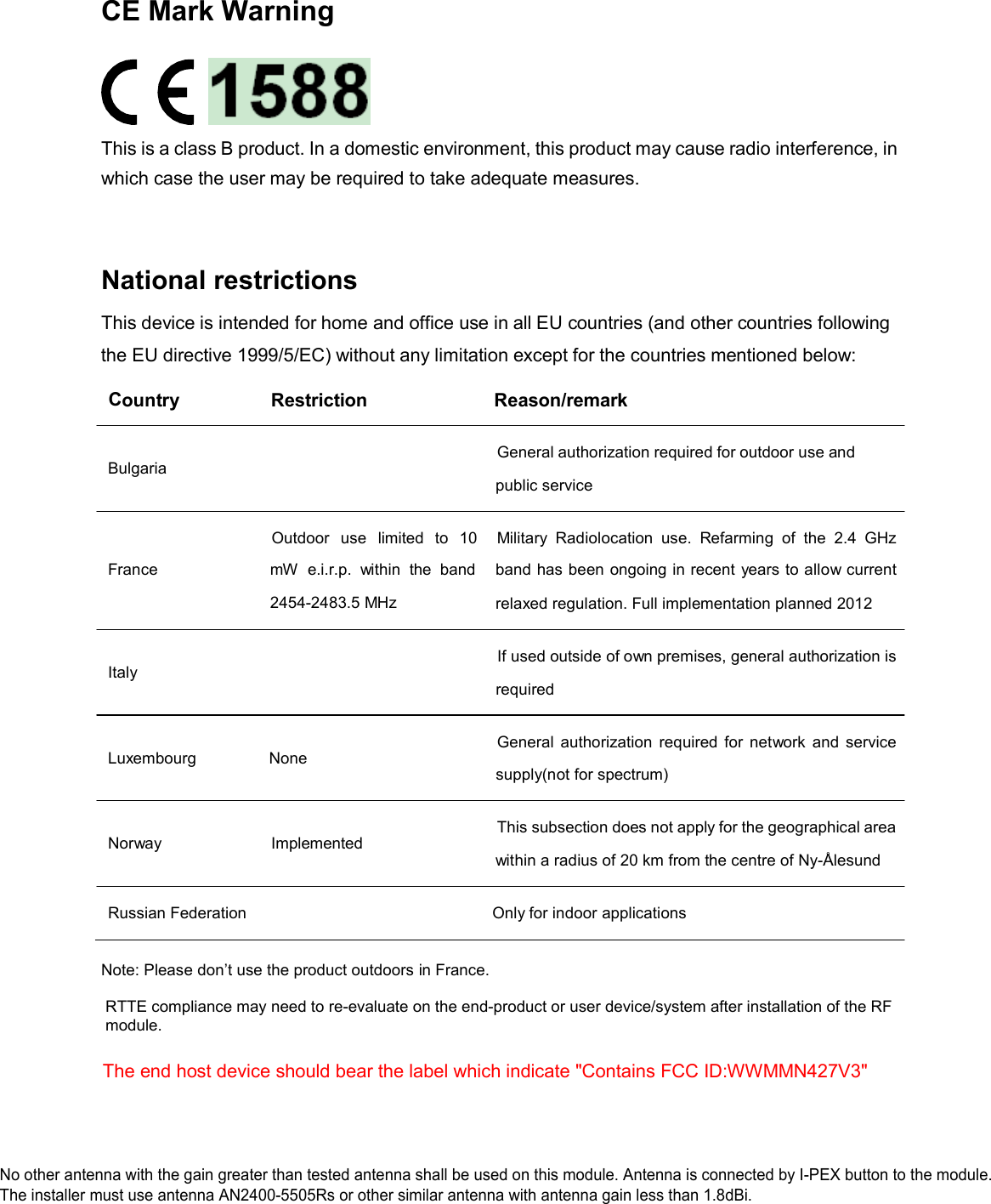
CE Mark Warning                                                                                            This is a class B product. In a domestic environment, this product may cause radio interference, in which case the user may be required to take adequate measures.     National restrictions  This device is intended for home and office use in all EU countries (and other countries following the EU directive 1999/5/EC) without any limitation except for the countries mentioned below:  Country  Restriction  Reason/remark    Bulgaria General authorization required for outdoor use and  public service     France Outdoor   use   limited   to  10 mW  e.i.r.p.  within  the  band 2454-2483.5 MHz Military  Radiolocation  use.  Refarming  of  the  2.4  GHz band has been ongoing in recent years to allow current relaxed regulation. Full implementation planned 2012    Italy If used outside of own premises, general authorization is  required    Luxembourg  None General  authorization  required for  network  and  service  supply(not for spectrum)    Norway  Implemented  This subsection does not apply for the geographical area  within a radius of 20 km from the centre of Ny-Ålesund   Russian Federation  Only for indoor applications   Note: Please don’t use the product outdoors in France.   RTTE compliance may need to re-evaluate on the end-product or user device/system after installation of the RF   module.    The end host device should bear the label which indicate "Contains FCC ID:WWMMN427V3" No other antenna with the gain greater than tested antenna shall be used on this module. Antenna is connected by I-PEX button to the module.No other antenna with the gain greater than tested antenna shall be used on this module. Antenna is connected by I-PEX button to the module.The installer must use antenna AN2400-5505Rs or other similar antenna with antenna gain less than 1.8dBi.
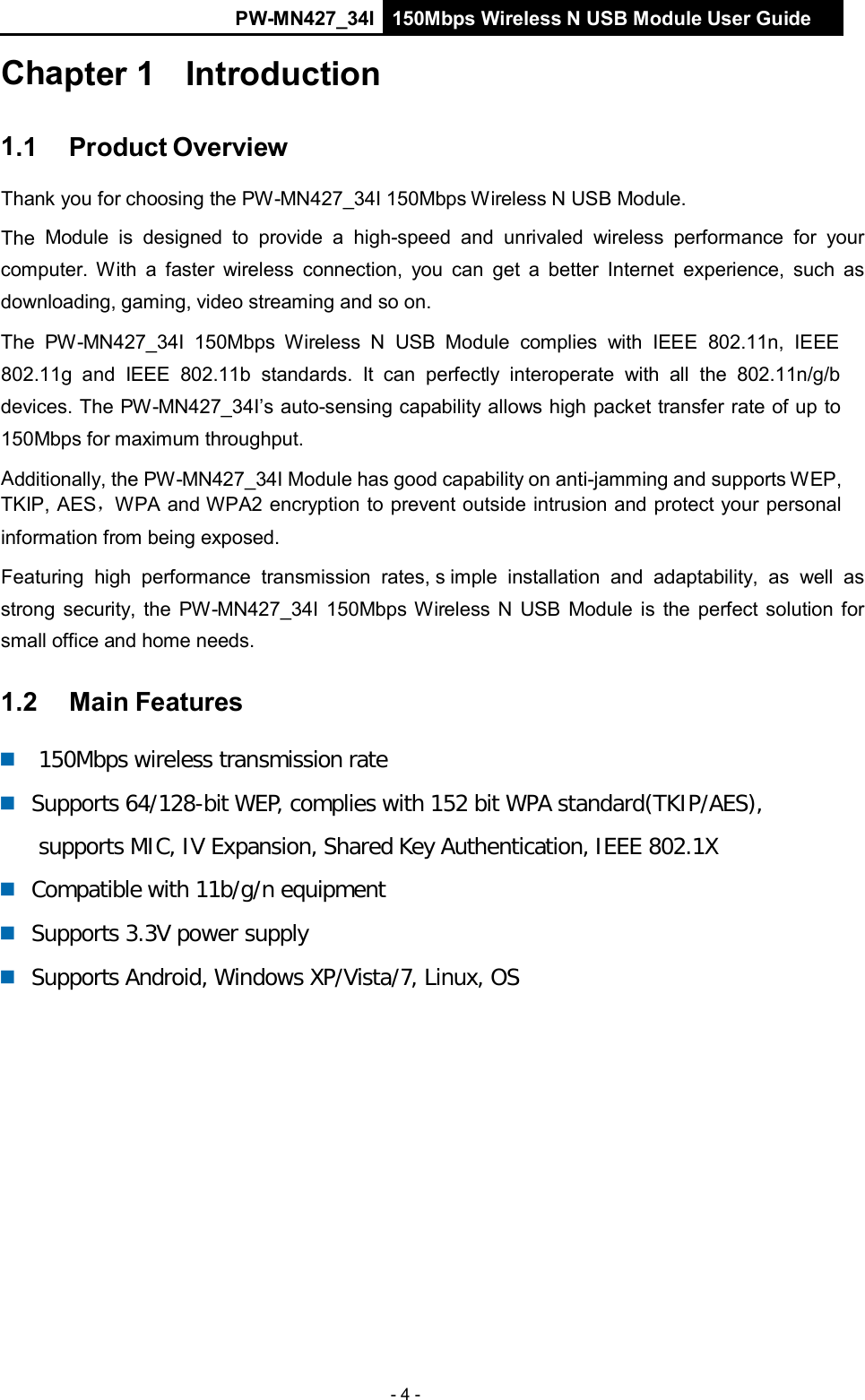
PW-MN427_34I 150Mbps Wireless N USB Module User Guide - 4 -    Chapter 1   Introduction   1.1    Product Overview  Thank you for choosing the PW-MN427_34I 150Mbps Wireless N USB Module.  The Module  is  designed  to provide a high-speed and unrivaled  wireless  performance for your computer.  With  a  faster  wireless  connection,  you  can  get a better Internet  experience,  such  as downloading, gaming, video streaming and so on. The  PW-MN427_34I 150Mbps  Wireless  N  USB  Module  complies  with  IEEE  802.11n,  IEEE  802.11g  and  IEEE  802.11b standards.  It  can  perfectly  interoperate  with  all  the  802.11n/g/b devices. The PW-MN427_34I’s auto-sensing capability allows high packet transfer rate of up to 150Mbps for maximum throughput.  Additionally, the PW-MN427_34I Module has good capability on anti-jamming and supports WEP, TKIP, AES,WPA and WPA2 encryption to prevent outside intrusion and protect your personal  information from being exposed.  Featuring  high  performance  transmission  rates, s imple  installation  and  adaptability,  as  well  as strong security, the  PW-MN427_34I 150Mbps Wireless N  USB  Module is  the perfect solution for small office and home needs.  1.2    Main Features      150Mbps wireless transmission rate     Supports 64/128-bit WEP, complies with 152 bit WPA standard(TKIP/AES), supports MIC, IV Expansion, Shared Key Authentication, IEEE 802.1X    Compatible with 11b/g/n equipment     Supports 3.3V power supply     Supports Android, Windows XP/Vista/7, Linux, OS
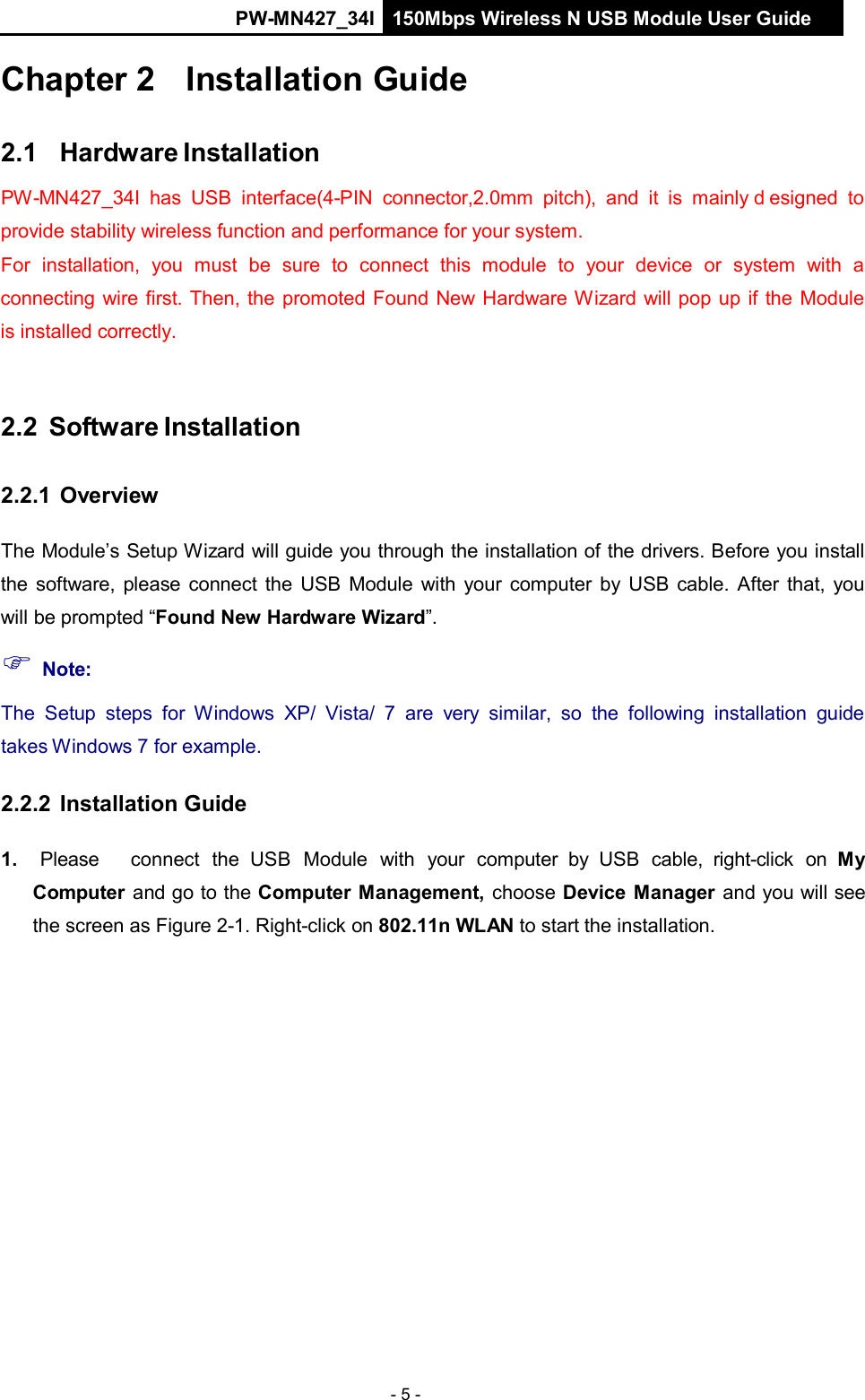
PW-MN427_34I 150Mbps Wireless N USB Module User Guide - 5 -    Chapter 2   Installation Guide   2.1   Hardware Installation  PW-MN427_34I has  USB  interface(4-PIN  connector,2.0mm  pitch),  and  it  is  mainly d esigned to provide stability wireless function and performance for your system. For  installation,  you  must  be  sure  to  connect  this  module  to  your  device  or  system  with  a connecting wire first. Then, the promoted Found New Hardware Wizard will pop up if the Module is installed correctly.    2.2  Software Installation   2.2.1 Overview   The Module’s Setup Wizard will guide you through the installation of the drivers. Before you install the software, please connect the  USB  Module with  your computer by USB cable. After that,  you will be prompted “Found New Hardware Wizard”.  Note:  The  Setup  steps  for  Windows  XP/  Vista/  7  are  very  similar,  so  the  following installation  guide takes Windows 7 for example.  2.2.2 Installation Guide   1.   Please     connect  the  USB  Module  with  your  computer by  USB  cable,  right-click  on  My Computer and go to the Computer Management,  choose Device  Manager and you will see the screen as Figure 2-1. Right-click on 802.11n WLAN to start the installation.
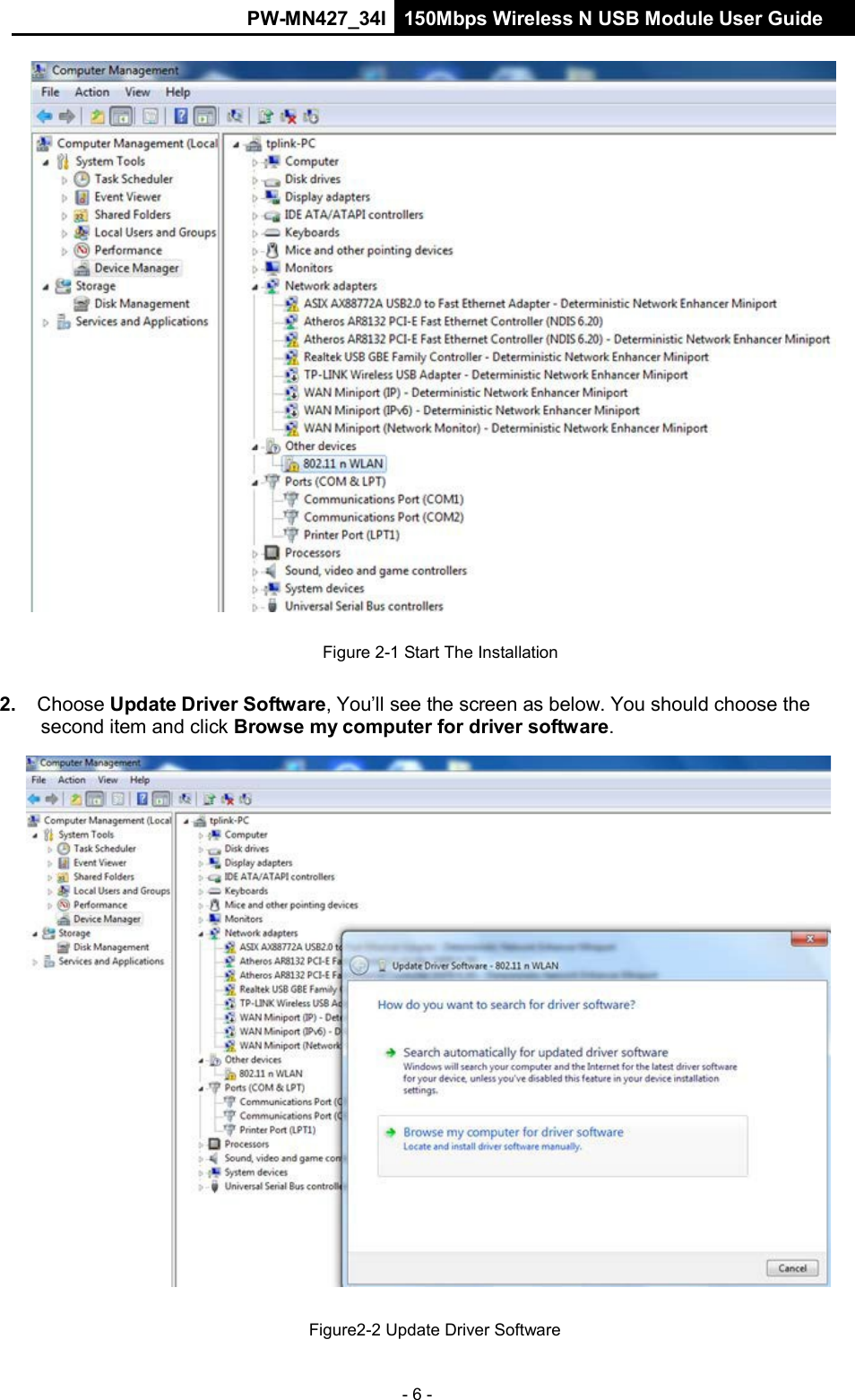
PW-MN427_34I 150Mbps Wireless N USB Module User Guide - 6 -       Figure 2-1 Start The Installation   2. Choose Update Driver Software, You’ll see the screen as below. You should choose the second item and click Browse my computer for driver software.     Figure2-2 Update Driver Software
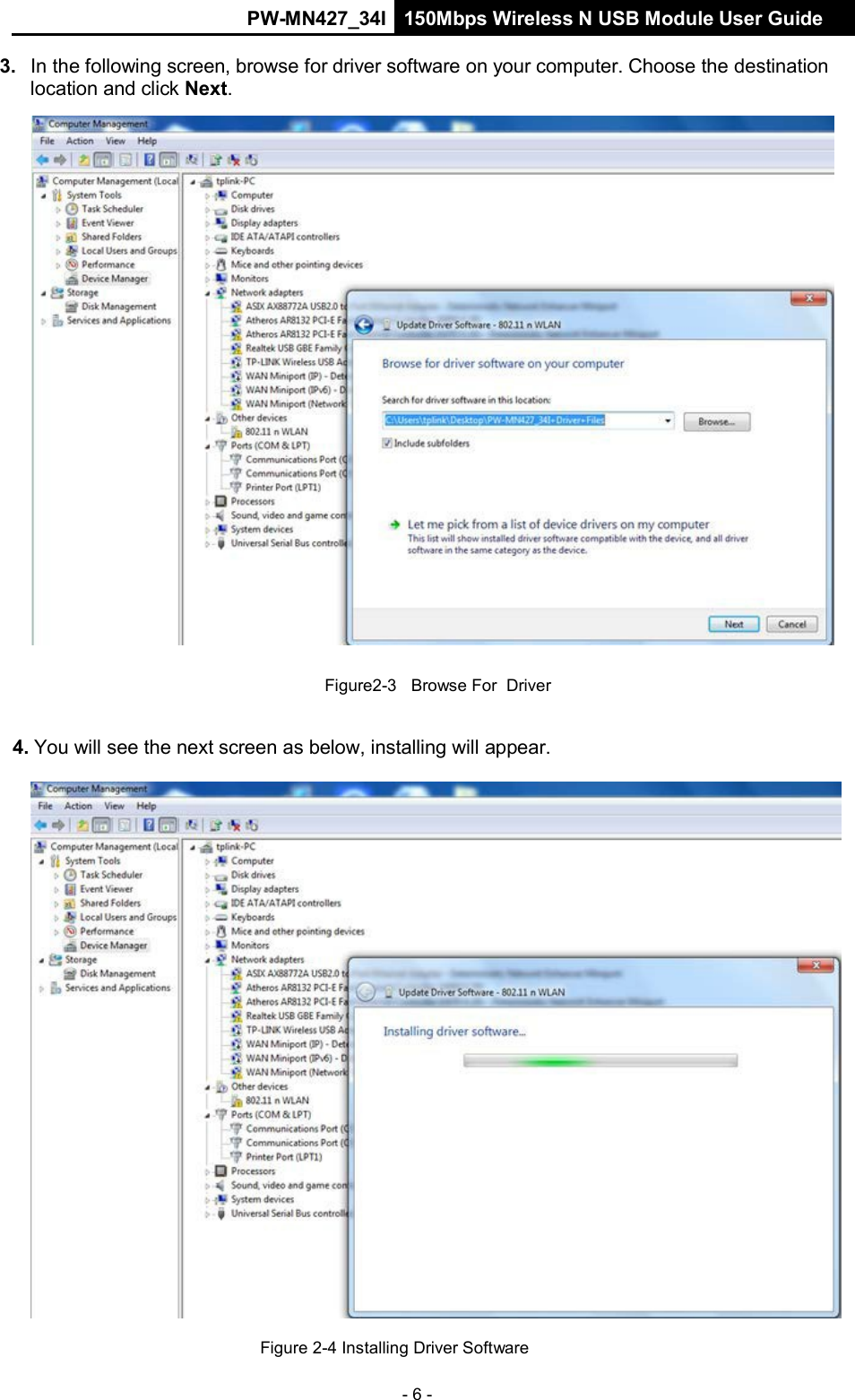
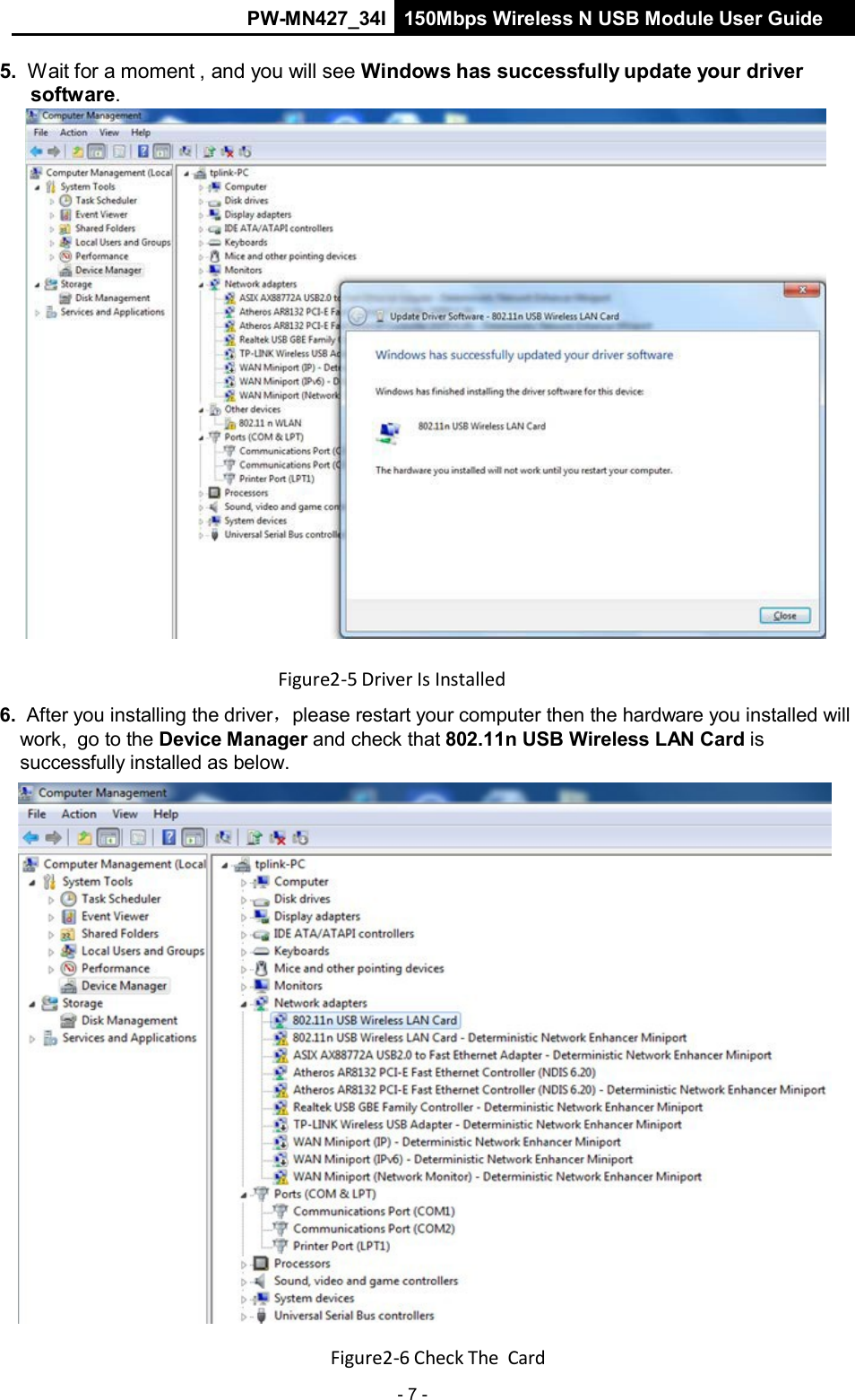
PW-MN427_34I 150Mbps Wireless N USB Module User Guide - 6 -    3.  In the following screen, browse for driver software on your computer. Choose the destination location and click Next.     Figure2-3   Browse For  Driver   4. You will see the next screen as below, installing will appear.    Figure 2-4 Installing Driver Software
PW-MN427_34I 150Mbps Wireless N USB Module User Guide - 7 -    5. Wait for a moment , and you will see Windows has successfully update your driver software.   Figure2‐5 Driver Is Installed  6. After you installing the driver,please restart your computer then the hardware you installed will work,  go to the Device Manager and check that 802.11n USB Wireless LAN Card is successfully installed as below.   Figure2‐6 Check The Card
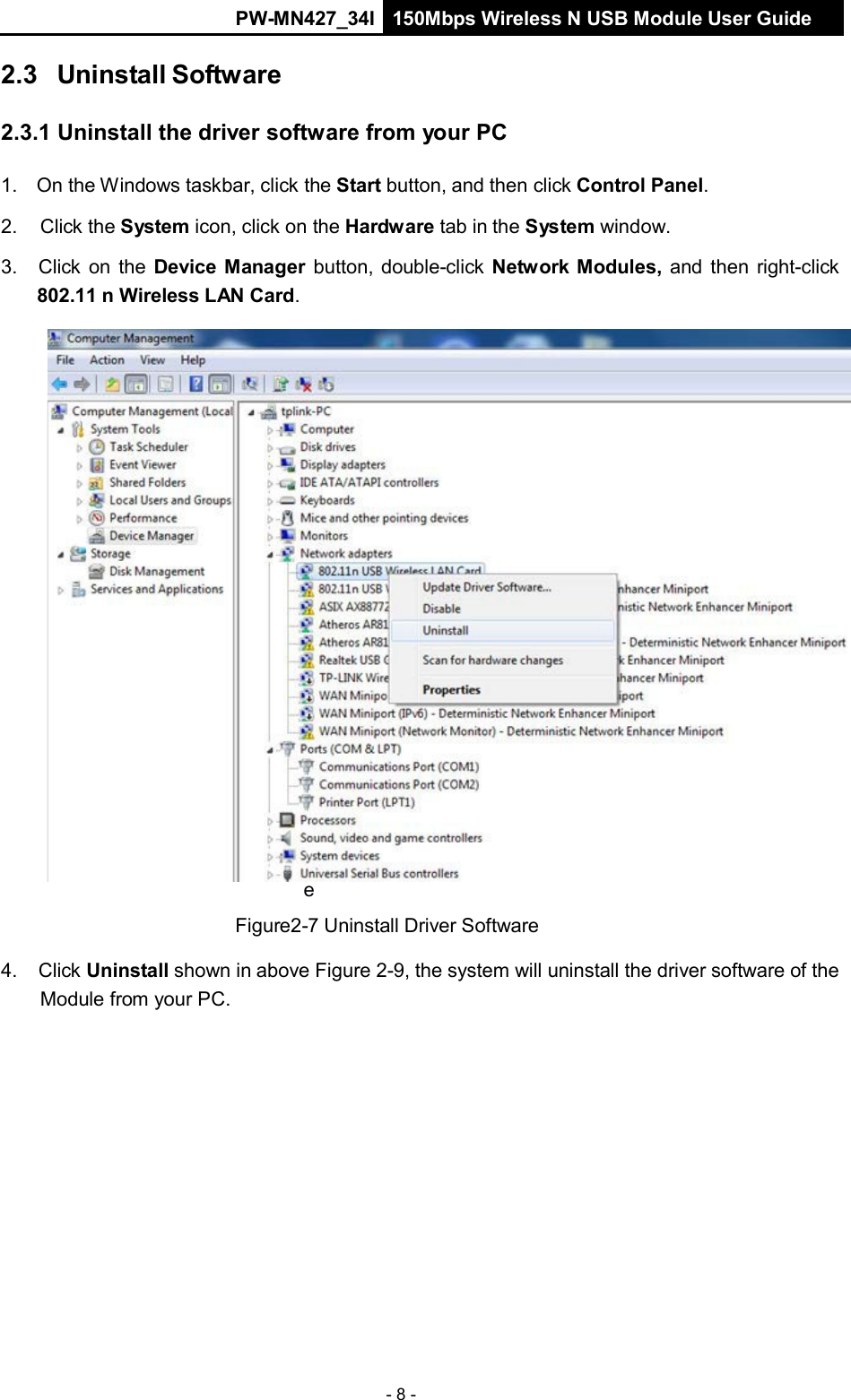
PW-MN427_34I 150Mbps Wireless N USB Module User Guide - 8 -     F i g u r e  2 - 9  D e v i c e  M a n a g    2.3 Uninstall Software   2.3.1 Uninstall the driver software from your PC   1. On the Windows taskbar, click the Start button, and then click Control Panel.  2.  Click the System icon, click on the Hardware tab in the System window.  3.  Click on the Device Manager button, double-click Network Modules, and then right-click 802.11 n Wireless LAN Card.                                e  Figure2-7 Uninstall Driver Software  4.  Click Uninstall shown in above Figure 2-9, the system will uninstall the driver software of the Module from your PC.
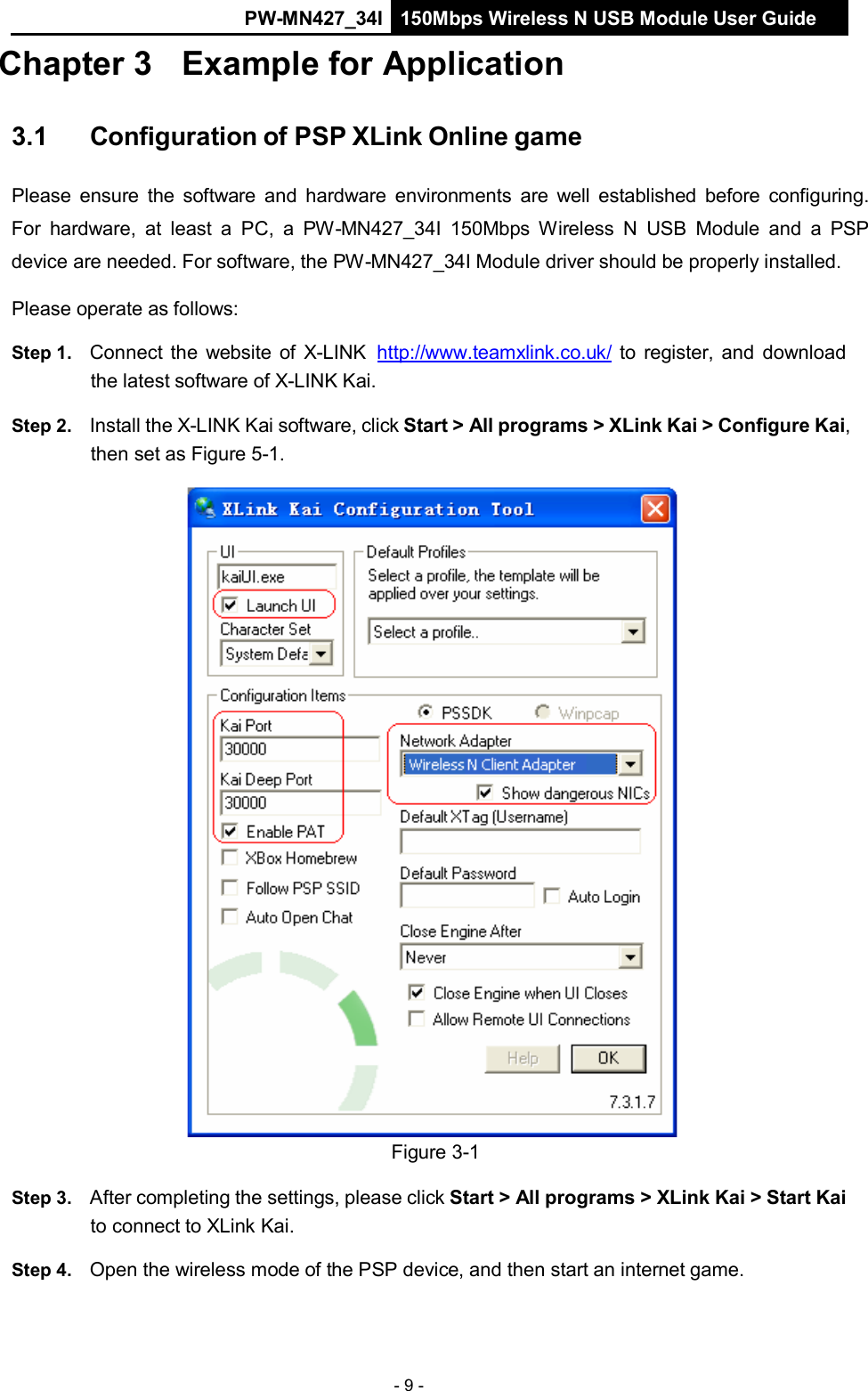
PW-MN427_34I 150Mbps Wireless N USB Module User Guide - 9 -   Chapter 3 Example for Application   3.1     Configuration of PSP XLink Online game   Please ensure  the  software  and hardware  environments  are  well  established  before  configuring. For  hardware, at  least  a  PC,  a  PW-MN427_34I  150Mbps  Wireless  N  USB  Module  and  a  PSP device are needed. For software, the PW-MN427_34I Module driver should be properly installed.  Please operate as follows:  Step 1.   Connect the  website of  X-LINK   http://www.teamxlink.co.uk/ to register, and download the latest software of X-LINK Kai.  Step 2.   Install the X-LINK Kai software, click Start > All programs > XLink Kai > Configure Kai, then set as Figure 5-1.   Figure 3-1  Step 3.   After completing the settings, please click Start > All programs > XLink Kai > Start Kai to connect to XLink Kai.  Step 4.   Open the wireless mode of the PSP device, and then start an internet game.
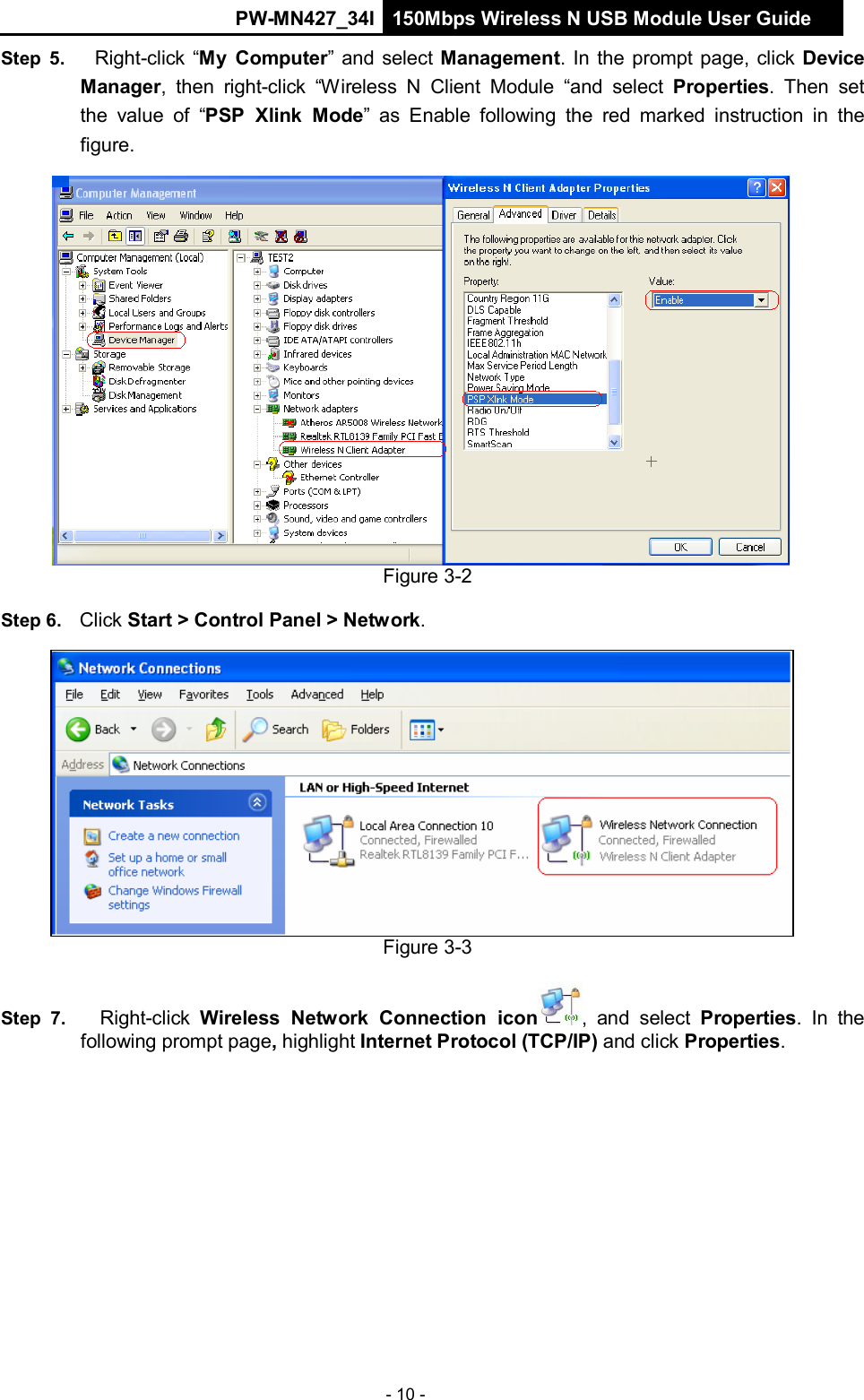
PW-MN427_34I 150Mbps Wireless N USB Module User Guide - 10 -        Step  5.    Right-click “My  Computer” and select Management. In the prompt page, click Device Manager,  then  right-click  “Wireless  N  Client Module  “and  select Properties.  Then  set the  value of  “PSP  Xlink  Mode”  as  Enable  following the  red marked  instruction  in  the figure.                       Figure 3-2  Step 6.   Click Start > Control Panel > Network.                 Figure 3-3  Step 7.     Right-click  Wireless  Network  Connection  icon,  and  select  Properties.  In  the following prompt page, highlight Internet Protocol (TCP/IP) and click Properties.
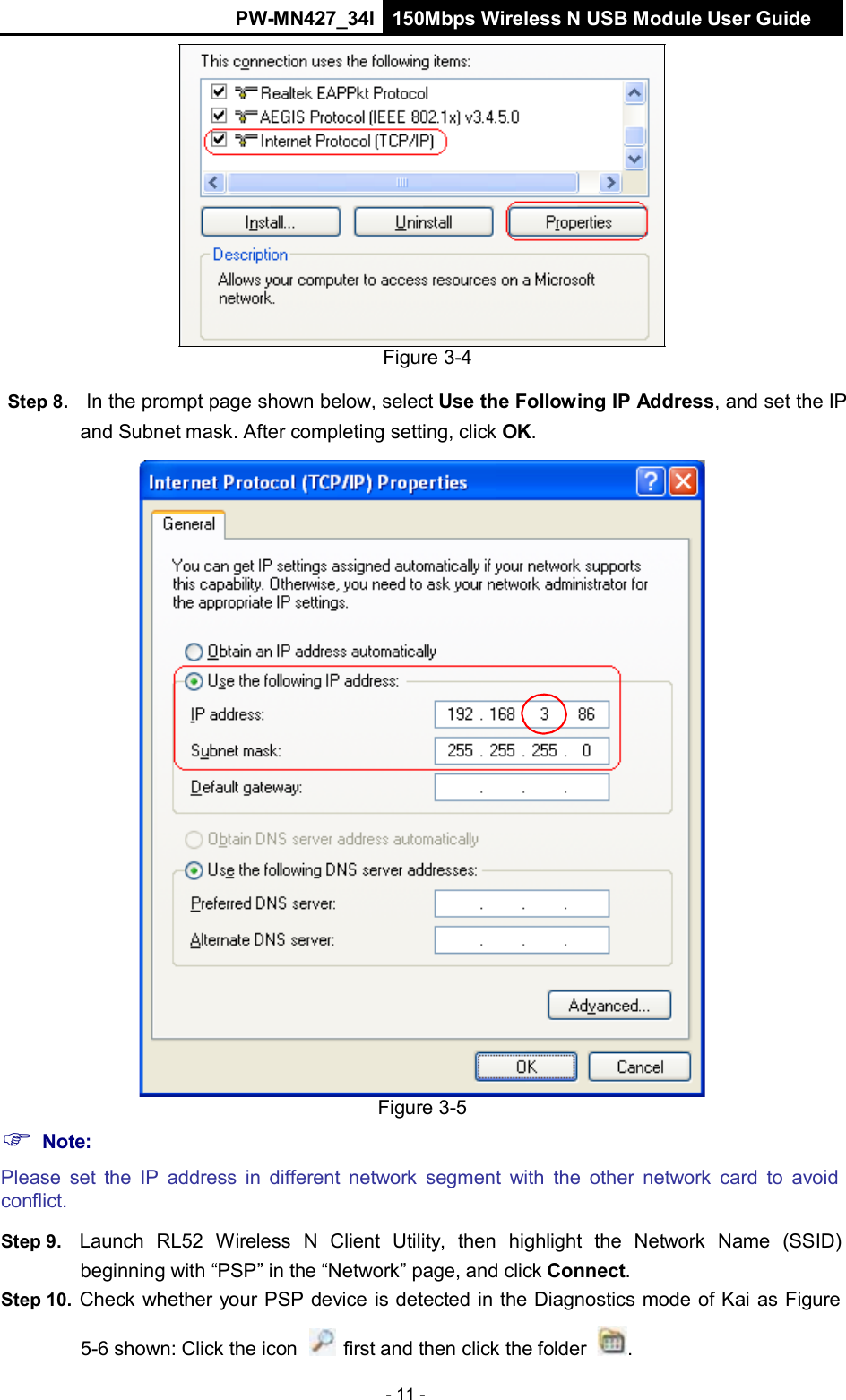
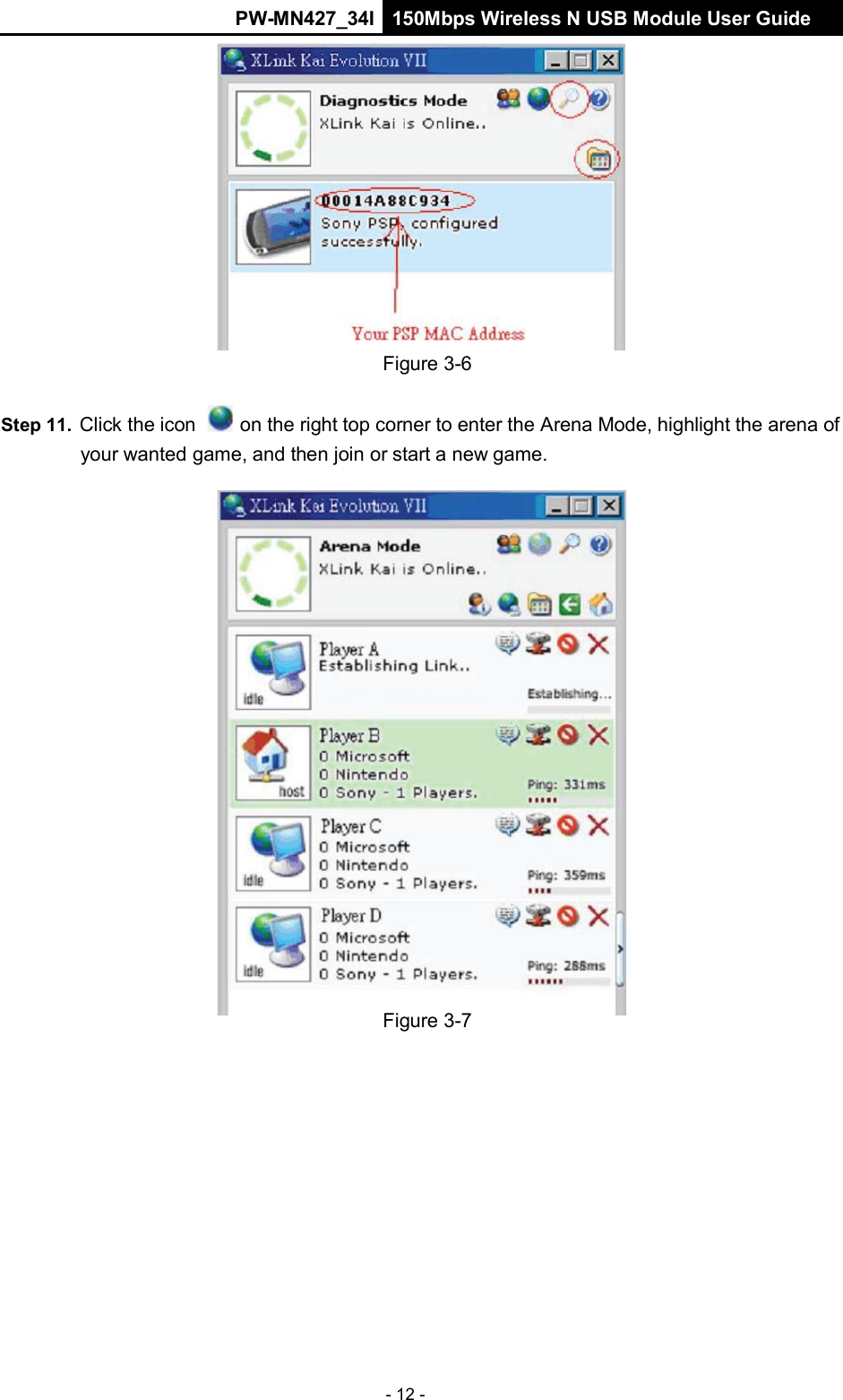
PW-MN427_34I 150Mbps Wireless N USB Module User Guide - 11 -                       Figure 3-4  Step 8.   In the prompt page shown below, select Use the Following IP Address, and set the IP and Subnet mask. After completing setting, click OK.                                       Note: Figure 3-5 Please set  the IP address  in  different network  segment with the other  network  card  to  avoid conflict.  Step 9.   Launch  RL52  Wireless  N  Client  Utility,  then  highlight  the  Network  Name  (SSID) beginning with “PSP” in the “Network” page, and click Connect. Step 10.  Check whether your PSP device is detected in the Diagnostics mode of Kai as Figure  5-6 shown: Click the icon   first and then click the folder  .
PW-MN427_34I 150Mbps Wireless N USB Module User Guide - 12 -      Figure 3-6   Step 11.  Click the icon   on the right top corner to enter the Arena Mode, highlight the arena of your wanted game, and then join or start a new game.                              Figure 3-7
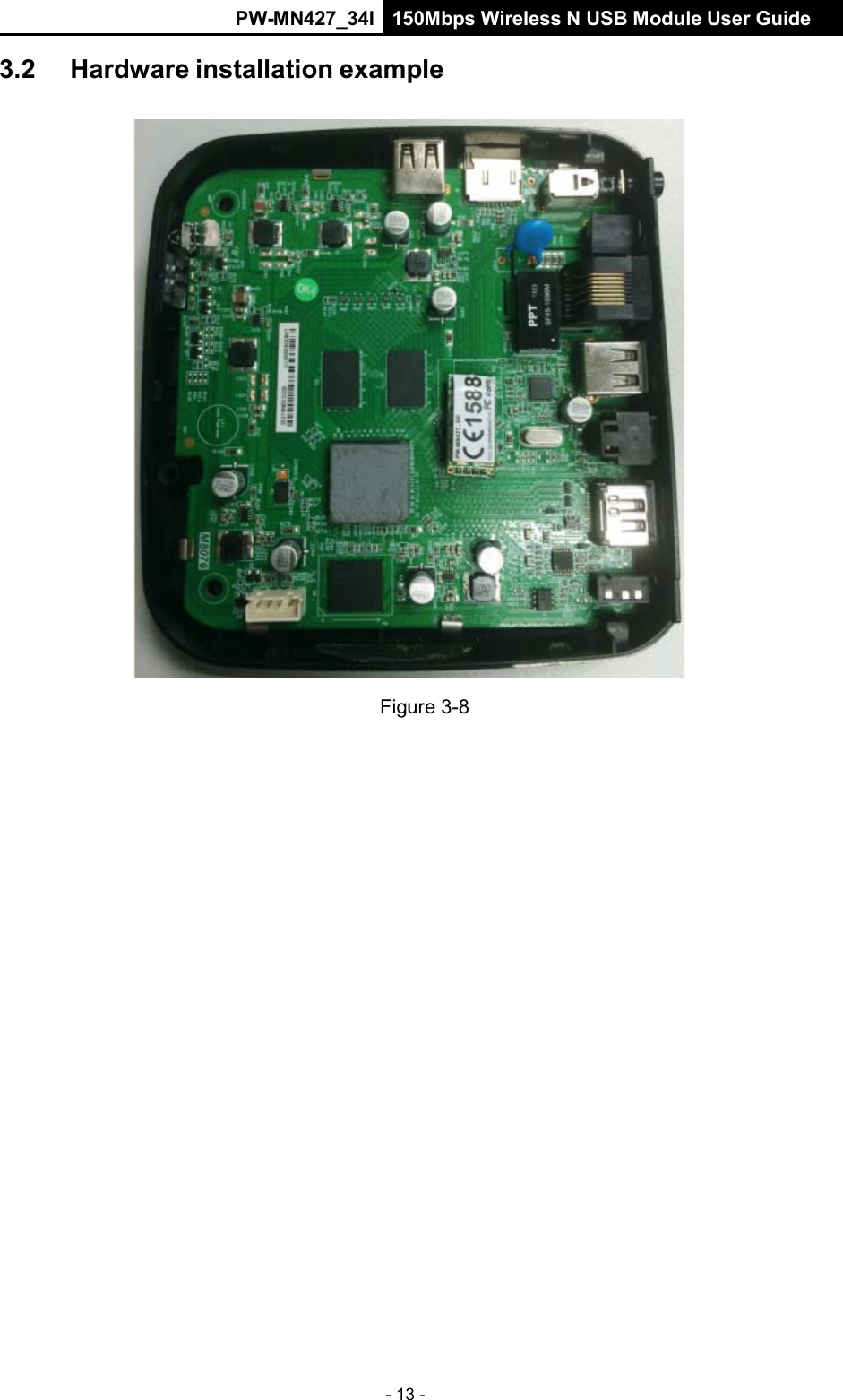
PW-MN427_34I 150Mbps Wireless N USB Module User Guide - 13 -    3.2 Hardware installation example     Figure 3-8
PW-MN427_34I 150Mbps Wireless N USB Module User Guide - 14 -    Appendix A:    Glossary   802.11b    -   The   802.11b   standard   specifies   a   wireless   networking   at   11   Mbps   using direct-sequence sp read-spectrum  (DSSS)  technology a nd  operating  in  the  unlicensed  radio spectrum at 2.4GHz, and WEP encryption for security. 802.11b networks are also  referred to  as Wi-Fi networks.  802.11g      -     Specification    for    wireless   networking    at    54    Mbps    using    direct-sequence spread-spectrum  (DSSS)  technology,  using  OFDM  modulation  and operating  in  the  unlicensed radio  spectrum  at 2.4GHz,  and backward  compatibility  with  IEEE  802.11b  devices,  and  WEP encryption for security.  802.11n  -  802.11n  builds  upon  previous  802.11  standards  by  adding  MIMO  (multiple-input multiple-output).  MIMO  uses  multiple  transmitter and receiver antennas to  allow  for  increased data throughput via  spatial multiplexing and  increased  range by exploiting the spatial  diversity, perhaps through  coding  schemes  like  Alamouti  coding.  The  Enhanced  Wireless  Consortium (EWC)[3]was formed to help accelerate the IEEE 802.11n development process and promote a technology  specification for  interoperability of  next-generation  wireless local  area  networking (WLAN) products.  Ad-hoc  Network  -  An ad-hoc network is a group of computers, each with a 150Mbps Wireless N USB  Module, c onnected a s an  independent 8 02.11  wireless  LAN.  Ad-hoc  wireless c omputers operate  on  a  peer-to-peer  basis, c ommunicating  directly  with eac h other  without the  use  of  an access point. Ad-hoc mode is also referred to as an Independent Basic Service Set (IBSS) or as peer-to-peer mode, and is useful at a departmental scale or SOHO operation.   Infrastructure  Network  -  An  infrastructure  network  is  a  group of  computers  or other devices, each  with  a  150Mbps  Wireless  N  USB  Module,  connected  as  an  802.11  wireless  LAN.  In infrastructure mode, the wireless devices communicate with each other and to a wired network by first  going through  an  access  point.  An  infrastructure  wireless  network  connected  to  a  wired network is referred to as a Basic Service Set (BSS). A set of two or more BSS in a single network is referred to as an Extended Service Set (ESS). Infrastructure mode is useful at a corporation scale, or when it is necessary to connect the wired and wireless networ   SSID   -   A  Service   Set  Identification  is  a  thirty-two   character   (maximum)  alphanumeric   key identifying  a  wireless  local  area  network.  For the  wireless  devices  in  a  network  to  communicate with  each  other,  all  devices  must  be  configured  with  the  same  SSID.  This  is  typically  the configuration parameter for a wireless PC card. It corresponds to the ESSID in the wireless Access Point and to the wireless network name.
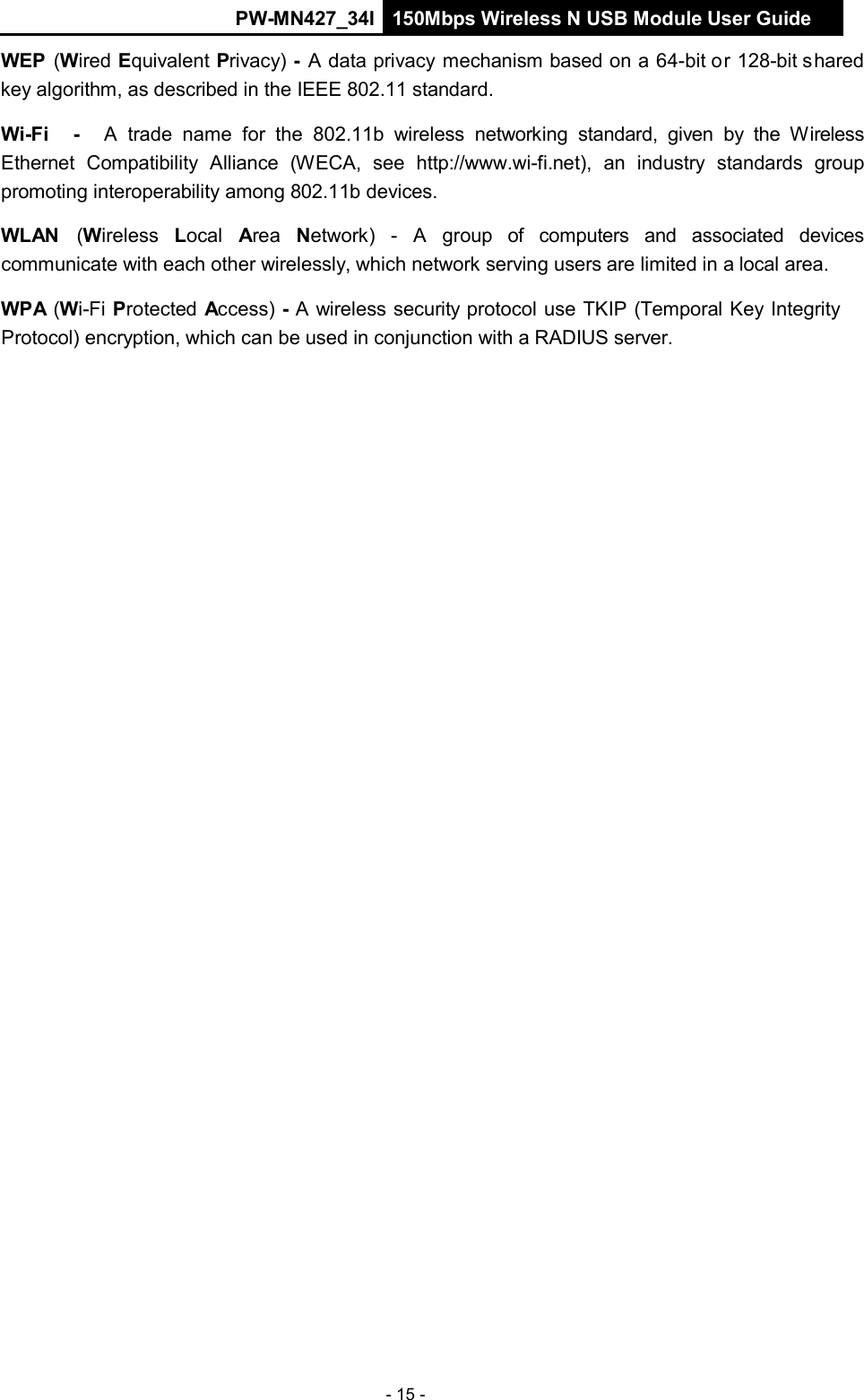
PW-MN427_34I 150Mbps Wireless N USB Module User Guide - 15 -    WEP  (Wired Equivalent Privacy) -  A data privacy mechanism based on a 64-bit or 128-bit shared key algorithm, as described in the IEEE 802.11 standard.  Wi-Fi     -    A  trade  name  for the 802.11b  wireless  networking standard, given by the  Wireless Ethernet  Compatibility  Alliance  (WECA,  see  http://www.wi-fi.net),  an  industry  standards  group promoting interoperability among 802.11b devices.  WLAN  (Wireless   Local  Area  Network)   -   A   group   of  computers   and  associated  devices communicate with each other wirelessly, which network serving users are limited in a local area.  WPA (Wi-Fi Protected Access) - A wireless security protocol use TKIP (Temporal Key Integrity Protocol) encryption, which can be used in conjunction with a RADIUS server.
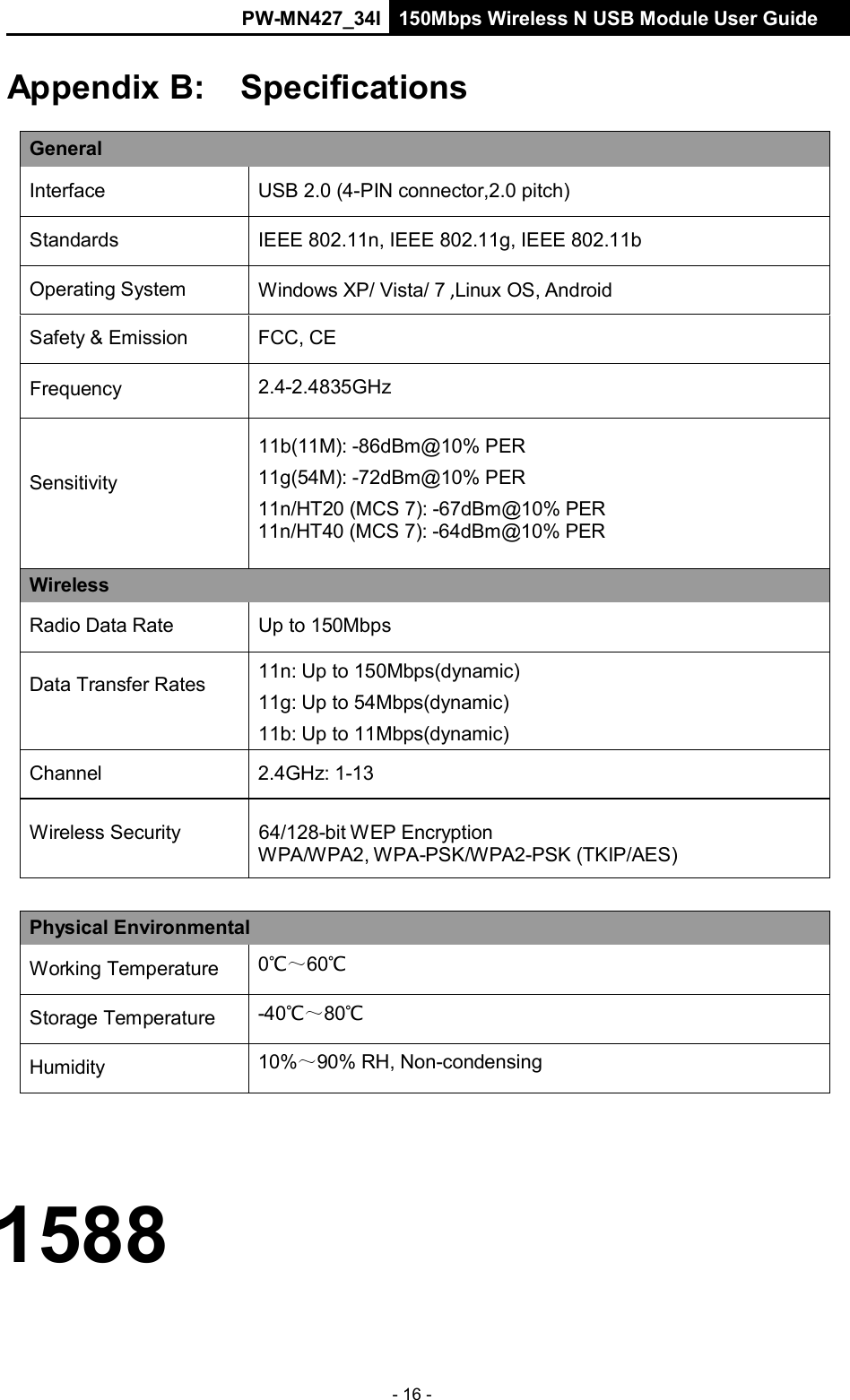
PW-MN427_34I 150Mbps Wireless N USB Module User Guide - 16 -     Appendix B:  Specifications  General  Interface  USB 2.0 (4-PIN connector,2.0 pitch)  Standards  IEEE 802.11n, IEEE 802.11g, IEEE 802.11b  Operating System  Windows XP/ Vista/ 7 ,Linux OS, Android  Safety & Emission  FCC, CE  Frequency  2.4-2.4835GHz    Sensitivity  11b(11M): -86dBm@10% PER 11g(54M): -72dBm@10% PER 11n/HT20 (MCS 7): -67dBm@10% PER 11n/HT40 (MCS 7): -64dBm@10% PER Wireless  Radio Data Rate  Up to 150Mbps  Data Transfer Rates 11n: Up to 150Mbps(dynamic) 11g: Up to 54Mbps(dynamic) 11b: Up to 11Mbps(dynamic)  Channel  2.4GHz: 1-13  Wireless Security  64/128-bit WEP Encryption WPA/WPA2, WPA-PSK/WPA2-PSK (TKIP/AES)   Physical Environmental  Working Temperature 0℃~60℃  Storage Temperature -40℃~80℃  Humidity 10%~90% RH, Non-condensing     1588

Navigation menu