Proware Technologies Co RN401XV3 150M Wireless N Router Model No.: PW-RN401D, PW-RN401 User Manual PW RN401D

Proware Technologies Co Ltd. 150M Wireless N Router Model No.: PW-RN401D, PW-RN401 PW RN401D

PW-RN401D_User manual

       PW-RN401/PW-RN401D 150M Wireless N Router  Rev: 3.0.0 1910020433
  FCC STATEMENT  This equipment has been tested and found to comply with the limits for a Class B digital device, pursuant to part 15 of the FCC Rules. These limits are designed to provide reasonable protection against harmful interference in a residential installation. This equipment generates, uses and can radiate radio frequency energy and, if not installed and used in accordance with the instructions, may cause harmful interference to radio communications. However, there is no guarantee that interference  will  not  occur  in  a  particular  installation.  If  this  equipment  does  cause  harmful interference to radio or television reception, which can be determined by turning the equipment off and on, the user is encouraged to try to correct the interference by one or more of the following measures:   Reorient or relocate the receiving antenna.   Increase the separation between the equipment and receiver.   Connect the equipment into an outlet on a circuit different from that to which the receiver is connected.     Consult the dealer or an experienced radio/ TV technician for help. This device complies with part 15 of the FCC Rules. Operation is subject to the following two conditions: 1)  This device may not cause harmful interference. 2)  This device must accept any interference received, including interference that may cause undesired operation. Any changes or modifications not expressly approved by the party responsible for compliance could void the user’s authority to operate the equipment. Only  2.412GHz~2.462GHz is  allowed to  be used in  USA, which means only channel 1~11 is available for American users to choose. NOTE:  THE  MANUFACTURER  IS  NOT  RESPONSIBLE  FOR  ANY  RADIO  OR  TV INTERFERENCE  CAUSED  BY  UNAUTHORIZED  MODIFICATIONS  TO  THIS  EQUIPMENT. SUCH  MODIFICATIONS  COULD  VOID  THE  USER’S  AUTHORITY  TO  OPERATE  THE EQUIPMENT.  FCC RF Radiation Exposure Statement This  equipment  complies with  FCC  RF  radiation  exposure  limits  set  forth  for  an  uncontrolled environment. This device and its antenna must not be co-located or operating in conjunction with any other antenna or transmitter. “To  comply  with  FCC  RF  exposure  compliance  requirements,  this  grant  is  applicable  to  only Mobile  Configurations.  The  antennas  used  for  this  transmitter  must  be  installed  to  provide  a
  separation distance of at least 20 cm from all persons and must not be co-located or operating in conjunction with any other antenna or transmitter.” CE Mark Warning  This is a class B product. In a domestic environment, this product may cause radio interference, in which case the user may be required to take adequate measures. National restrictions This device is intended for home and office use in all EU countries (and other countries following the EU directive 1999/5/EC) without any limitation except for the countries mentioned below: Country Restriction Reason/remark Bulgaria None General authorization required for outdoor use and public service France Outdoor  use  limited  to  10 mW  e.i.r.p.  within  the  band 2454-2483.5 MHz Military  Radiolocation  use.  Refarming  of  the  2.4  GHz band has been ongoing in recent years to allow current relaxed regulation. Full implementation planned 2012 Italy None If used outside of own premises, general authorization is required Luxembourg None General authorization required for network and service supply(not for spectrum) Norway Implemented This subsection does not apply for the geographical area within a radius of 20 km from the centre of Ny-Ålesund Russian Federation None Only for indoor applications Note: Please don’t use the product outdoors in France.
 - I - CONTENTS Package Contents ............................................................................................................................ 1 Chapter 1. Introduction .................................................................................................................. 2 1.1 Overview of the Router ................................................................................................... 2 1.2 Conventions ................................................................................................................... 3 1.3 Main Features ................................................................................................................ 3 1.4 Panel Layout .................................................................................................................. 4 1.4.1 The Front Panel ................................................................................................. 4 1.4.2 The Rear Panel .................................................................................................. 5 Chapter 2. Connecting the Router ................................................................................................. 6 2.1 System Requirements .................................................................................................... 6 2.2 Installation Environment Requirements ........................................................................... 6 2.3 Connecting the Router.................................................................................................... 6 Chapter 3. Quick Installation Guide .............................................................................................. 8 3.1 TCP/IP Configuration...................................................................................................... 8 3.2 Quick Installation Guide ................................................................................................ 10 Chapter 4. Configuring the Router .............................................................................................. 15 4.1 Login ............................................................................................................................ 15 4.2 Status ........................................................................................................................... 15 4.3 Quick Setup ................................................................................................................. 16 4.4 WPS ............................................................................................................................ 16 4.5 Network........................................................................................................................ 24 4.5.1 LAN .................................................................................................................. 24 4.5.2 WAN ................................................................................................................ 24 4.5.3 MAC Clone ....................................................................................................... 29 4.6 Wireless ....................................................................................................................... 30 4.6.1 Wireless Settings.............................................................................................. 30 4.6.2 Wireless Security.............................................................................................. 32 4.6.3 Wireless MAC Filtering ..................................................................................... 35 4.6.4 Wireless Advanced ........................................................................................... 37
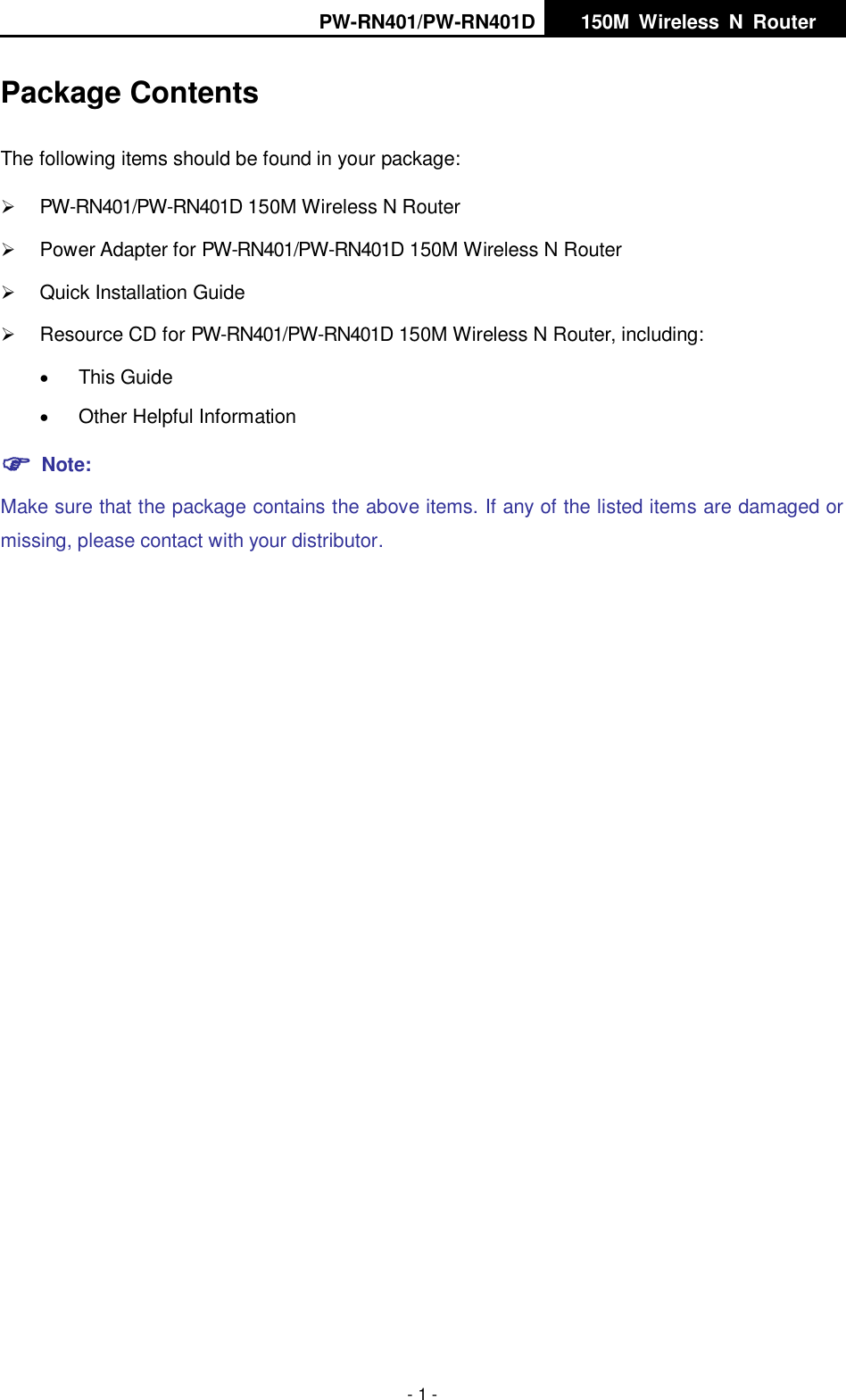
 - II - 4.6.5 Wireless Statistics ............................................................................................ 39 4.7 DHCP .......................................................................................................................... 39 4.7.1 DHCP Settings ................................................................................................. 40 4.7.2 DHCP Clients List ............................................................................................. 41 4.7.3 Address Reservation ........................................................................................ 41 4.8 Forwarding ................................................................................................................... 43 4.8.1 Virtual Servers .................................................................................................. 43 4.8.2 Port Triggering .................................................................................................. 45 4.8.3 DMZ ................................................................................................................. 47 4.8.4 UPnP ............................................................................................................... 47 4.9 Security ........................................................................................................................ 48 4.9.1 Firewall ............................................................................................................ 48 4.9.2 IP Filtering ........................................................................................................ 49 4.9.3 Domain Filtering ............................................................................................... 52 4.9.4 MAC Filtering ................................................................................................... 53 4.9.5 Remote Management ....................................................................................... 55 4.9.6 Advanced Security ........................................................................................... 56 4.10 Advanced Routing ........................................................................................................ 57 4.11 Bandwidth Control ........................................................................................................ 59 4.12 IP& MAC Binding ......................................................................................................... 60 4.12.1 Binding Settings ............................................................................................... 60 4.12.2 ARP List ........................................................................................................... 62 4.13 Dynamic DNS .............................................................................................................. 62 4.13.1 Dyndns.org DDNS ............................................................................................ 63 4.13.2 Oray.net DDNS................................................................................................. 64 4.13.3 Comexe.cn DDNS ............................................................................................ 64 4.14 System Tools ................................................................................................................ 66 4.14.1 Time Settings ................................................................................................... 66 4.14.2 Diagnostic ........................................................................................................ 67 4.14.3 Firmware Upgrade ............................................................................................ 69
 - III - 4.14.4 Factory Defaults ............................................................................................... 70 4.14.5 Backup & Restore ............................................................................................ 70 4.14.6 Reboot ............................................................................................................. 71 4.14.7 Password ......................................................................................................... 72 4.14.8 System log ....................................................................................................... 72 4.14.9 Statistics ........................................................................................................... 73 Appendix A: FAQ............................................................................................................................ 75 Appendix B: Configuring the PC ................................................................................................... 80 Appendix C: Specifications ........................................................................................................... 84 Appendix D: Glossary .................................................................................................................... 85
PW-RN401/PW-RN401D   150M  Wireless  N  Router    - 1 - Package Contents The following items should be found in your package:  PW-RN401/PW-RN401D 150M Wireless N Router  Power Adapter for PW-RN401/PW-RN401D 150M Wireless N Router  Quick Installation Guide  Resource CD for PW-RN401/PW-RN401D 150M Wireless N Router, including:  This Guide  Other Helpful Information  Note: Make sure that the package contains the above items. If any of the listed items are damaged or missing, please contact with your distributor.
PW-RN401/PW-RN401D   150M  Wireless  N  Router    - 2 - Chapter 1. Introduction Thank you for choosing the PW-RN401/PW-RN401D 150M Wireless N Router. 1.1  Overview of the Router The PW-RN401/PW-RN401D 150M Wireless N Router integrates 4-port Switch, Firewall, NAT-Router and Wireless AP. The 150M Wireless N Router delivers exceptional range and speed, which can fully meet the need of Small Office/Home Office (SOHO) networks and the users demanding higher networking performance.  The PW-RN401/PW-RN401D 150M Wireless N Router provides up to 150Mbps wireless connection with other 802.11n wireless clients. The speed makes it ideal for handling multiple data streams at the same time, which ensures your network stable and smooth. It is compatible with all IEEE 802.11g and IEEE 802.11b products.  With  multiple  protection  measures,  including  SSID  broadcast  control  and  wireless  LAN 64/128/152-bit  WEP  encryption,  WiFi  protected  Access  (WPA2-  PSK, WPA-  PSK),  as  well  as advanced  Firewall  protections,  the PW-RN401/PW-RN401D  150M  Wireless  N  Router  provides complete data privacy.    The  PW-RN401/PW-RN401D  150M  Wireless  N  Router  provides  flexible  access  control,  so  that parents or network administrators can establish restricted access policies for children or staff. It also supports Virtual Server and DMZ host for Port Triggering, and then the network administrators can manage and monitor the network in real time with the remote management function.  Since the Router is compatible with virtually all the major operating systems,  it is very easy to manage. Quick Setup Wizard is supported and detailed instructions are provided step by step in this user guide. Before installing the Router, please look through this guide to know all the Router’s functions. Simple Installation Flexible Access Control AccessontroInstallation Multiple Security Protections Incredible Speed ccessontroInstallation
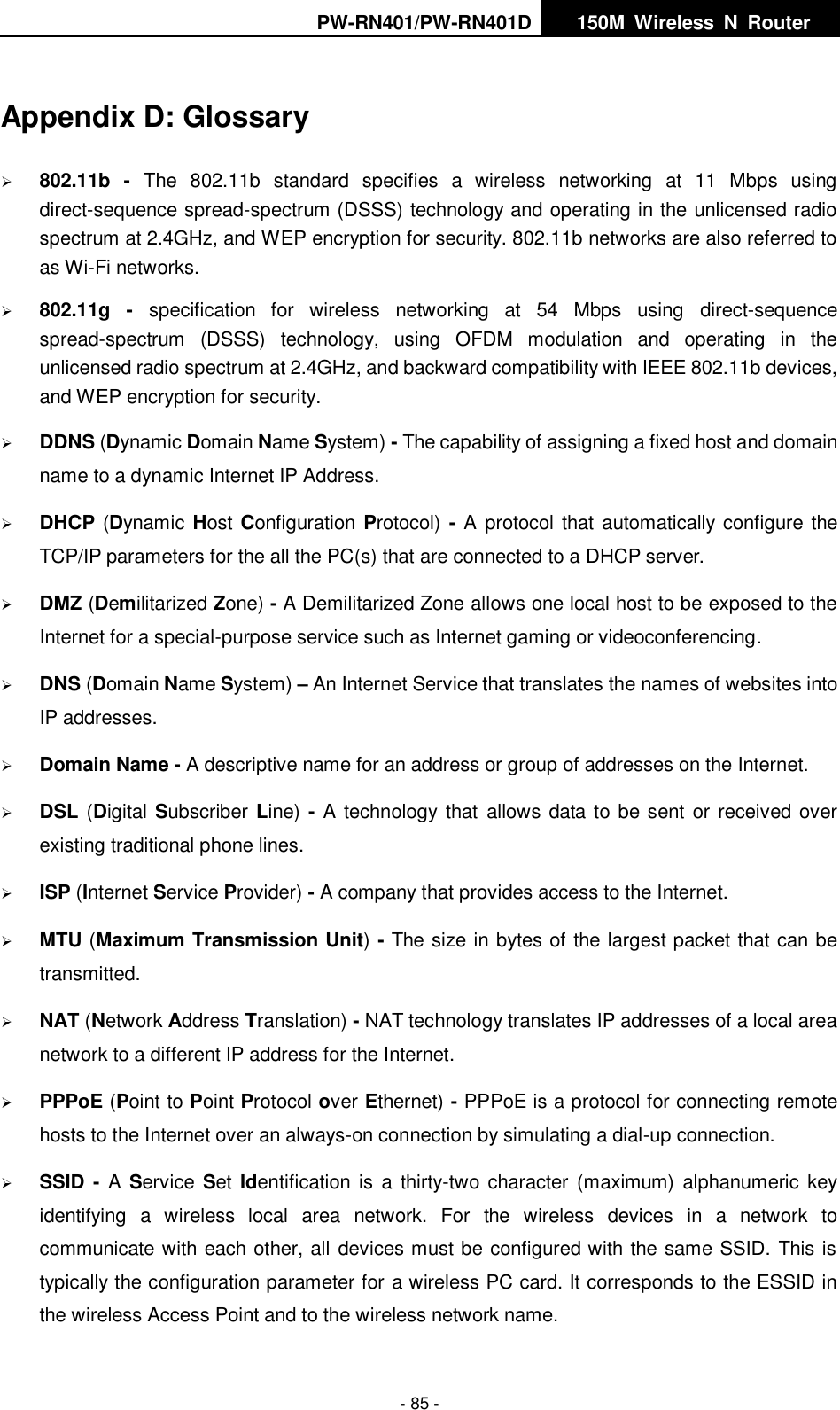
PW-RN401/PW-RN401D   150M  Wireless  N  Router    - 3 - 1.2  Conventions The  Router  or  PW-RN401/PW-RN401D  mentioned  in  this  guide  stands  for  PW-RN401/PW-RN401D 150M Wireless N Router without any explanation.  Note: The two devices of PW-RN401 and PW-RN401D are sharing this User Guide. For simplicity, we will take PW-RN401D for example throughout this Guide. The differences between them are:  PW-RN401 Router with one fixed antenna.  PW-RN401D Router with one detachable antenna. 1.3  Main Features  Make  use  of  IEEE  802.11n  wireless  technology  to  provide  a  wireless  data  rate  of  up  to 150Mbps.  One 10/100M Auto-Negotiation RJ45 WAN port, four 10/100M Auto-Negotiation RJ45 LAN ports, supporting Auto MDI/MDIX.  Provides WPA/WPA2, WPA-PSK/WPA2-PSK authentication, TKIP/AES encryption security.  Shares data and Internet access for users, supporting Dynamic IP/Static IP/PPPoE Internet access.  Supports Virtual Server, Special Application and DMZ host.  Supports UPnP, Dynamic DNS, Static Routing.  Provides Automatic-connection and Scheduled Connection on certain time to the Internet.  Connects Internet on demand and disconnects from the Internet when idle for PPPoE.  Built-in NAT and DHCP server supporting static IP address distributing.  Supports Stateful Packet Inspection.  Supports VPN Passthrough.  Supports Parental Control and Access Control.  Provides  64/128/152-bit  WEP  encryption  security  and  wireless  LAN  ACL  (Access  Control List).  Supports Flow Statistics.  Supports firmware upgrade and Web management.
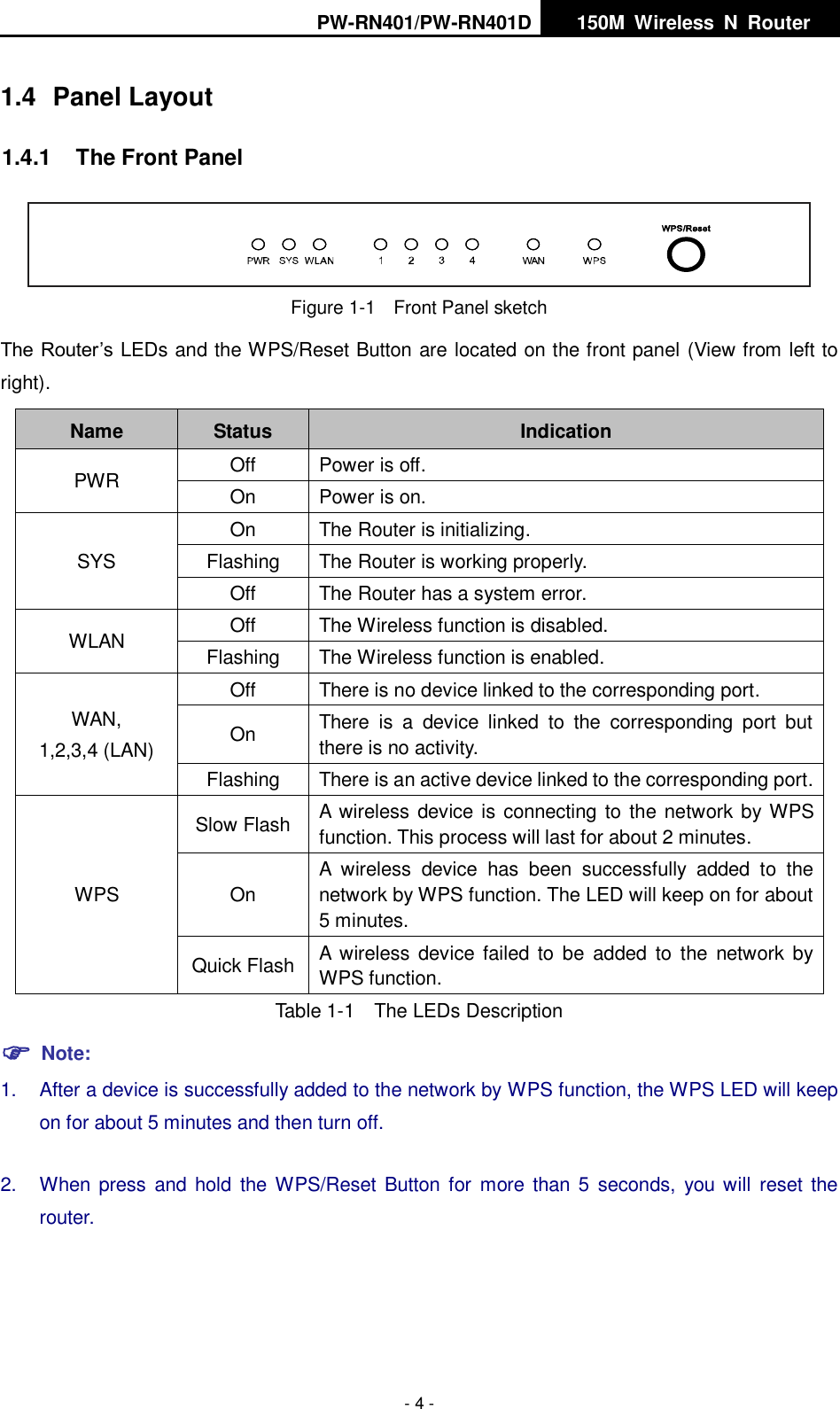
PW-RN401/PW-RN401D   150M  Wireless  N  Router    - 4 - 1.4  Panel Layout 1.4.1  The Front Panel  Figure 1-1    Front Panel sketch The Router’s LEDs and the WPS/Reset Button are located on the front panel (View from left to right).   Name Status Indication PWR Off Power is off. On Power is on. SYS On The Router is initializing. Flashing The Router is working properly. Off The Router has a system error. WLAN Off The Wireless function is disabled. Flashing The Wireless function is enabled. WAN, 1,2,3,4 (LAN) Off There is no device linked to the corresponding port. On There  is  a  device  linked  to  the  corresponding  port  but there is no activity. Flashing There is an active device linked to the corresponding port. WPS Slow Flash A wireless device is connecting to the network by WPS function. This process will last for about 2 minutes. On A  wireless  device  has  been  successfully  added  to  the network by WPS function. The LED will keep on for about 5 minutes. Quick Flash A wireless  device failed to  be added  to  the  network  by WPS function. Table 1-1    The LEDs Description  Note: 1.  After a device is successfully added to the network by WPS function, the WPS LED will keep on for about 5 minutes and then turn off.   2.  When  press  and hold  the WPS/Reset  Button for  more than 5  seconds,  you will  reset  the router.
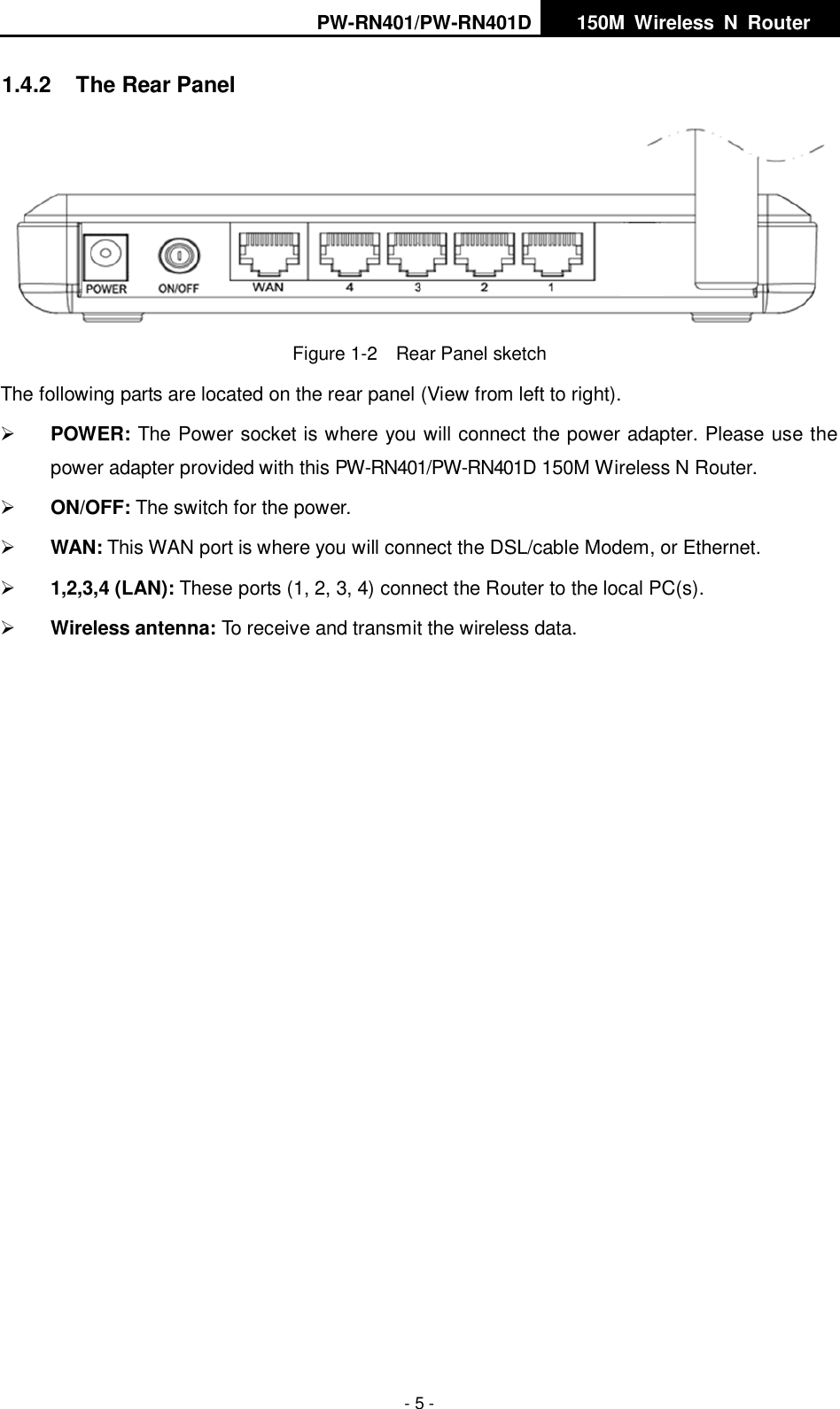
PW-RN401/PW-RN401D   150M  Wireless  N  Router    - 5 - 1.4.2  The Rear Panel  Figure 1-2    Rear Panel sketch The following parts are located on the rear panel (View from left to right).  POWER: The Power socket is where you will connect the power adapter. Please use the power adapter provided with this PW-RN401/PW-RN401D 150M Wireless N Router.  ON/OFF: The switch for the power.  WAN: This WAN port is where you will connect the DSL/cable Modem, or Ethernet.  1,2,3,4 (LAN): These ports (1, 2, 3, 4) connect the Router to the local PC(s).  Wireless antenna: To receive and transmit the wireless data.
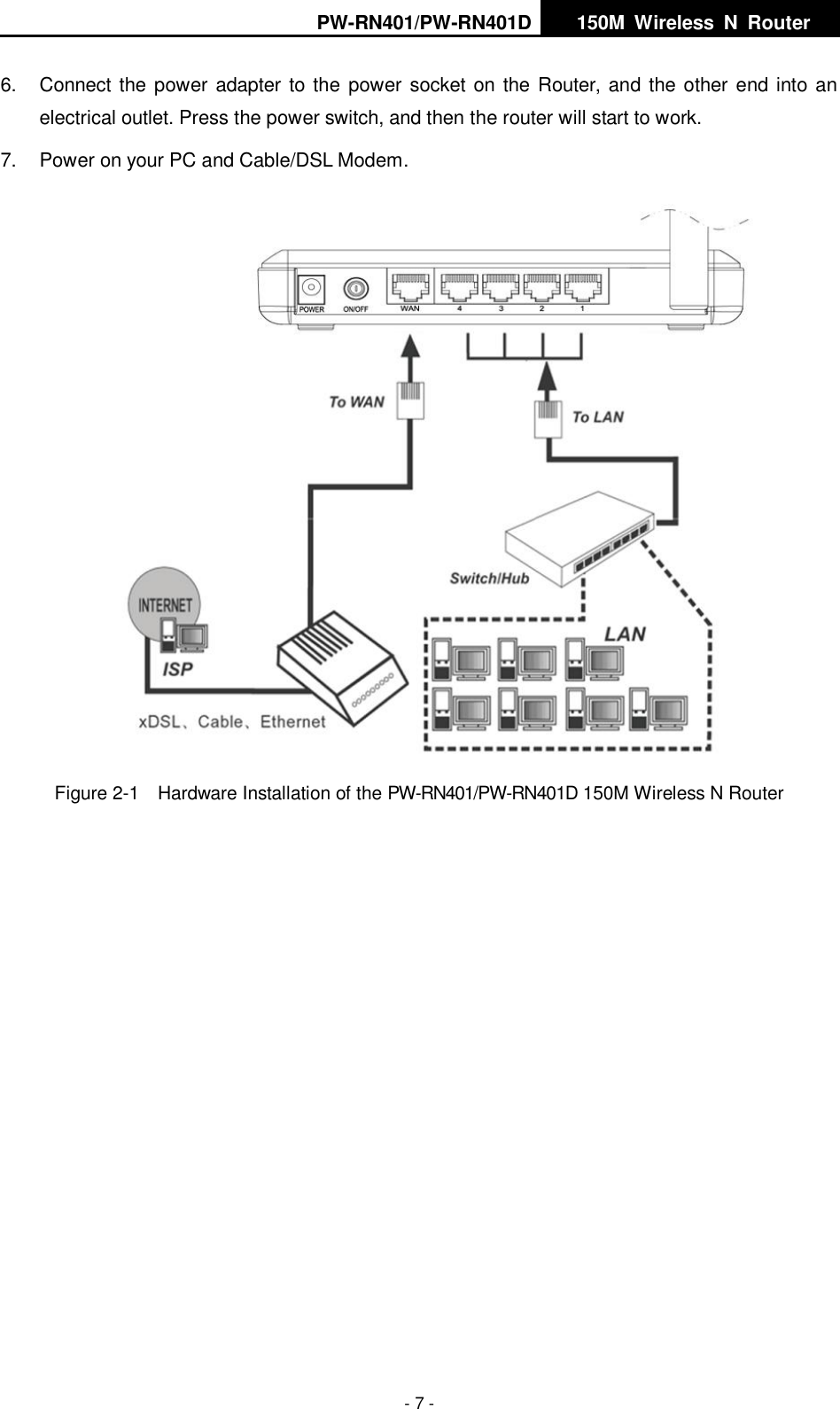
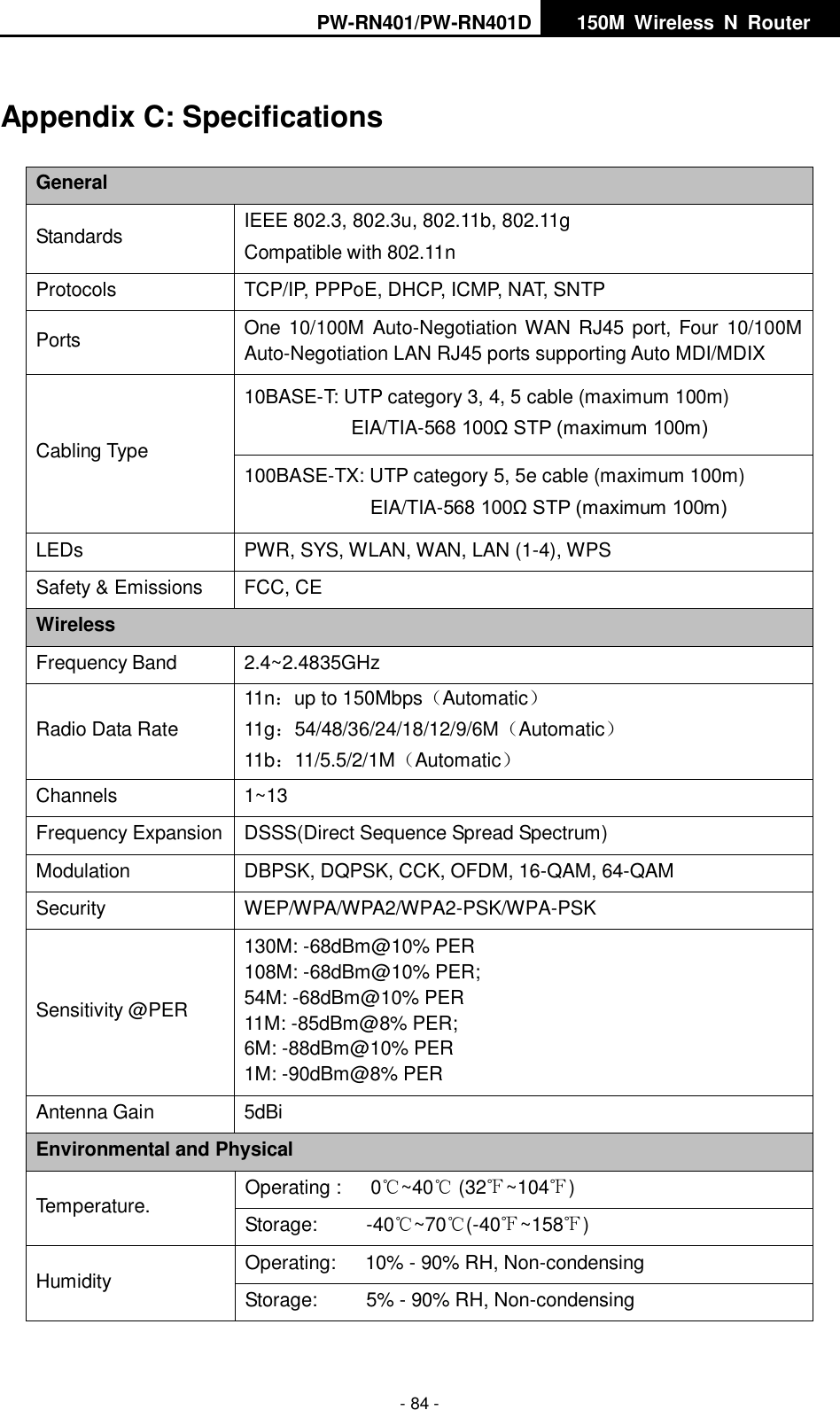
PW-RN401/PW-RN401D   150M  Wireless  N  Router    - 6 - Chapter 2. Connecting the Router 2.1  System Requirements  Broadband Internet Access Service (DSL/Cable/Ethernet)  One DSL/Cable Modem that has an RJ45 connector (which is not necessary if the Router is connected directly to the Ethernet.)  PCs with a working Ethernet Adapter and an Ethernet cable with RJ45 connectors    TCP/IP protocol on each PC  Web browser, such as Microsoft Internet Explorer, Mozilla Firefox or Apple Safari 2.2  Installation Environment Requirements  Place the Router in a well ventilated place far from any heater or heating vent    Avoid direct irradiation of any strong light (such as sunlight)  Keep at least 2 inches (5 cm) of clear space around the Router  Operating Temperature: 0℃~40℃ (32℉~104℉)  Operating Humidity: 10%~90%RH, Non-condensing 2.3  Connecting the Router Before  installing  the  Router,  make  sure  your  PC  is  connected  to  the  Internet  through  the broadband service successfully. If there is any problem, please contact your ISP. After that, please install the Router according to the following steps. Don't forget to pull out the power plug and keep your hands dry. 1.  Power off your PC, Cable/DSL Modem, and the Router.   2.  Locate an optimum location for the Router. The best place is usually at the center of your wireless network.   3.  Adjust the direction of the antenna. Normally, upright is a good direction. 4.  Connect the PC(s) and each Switch/Hub in your LAN to the LAN Ports on the Router, shown in Figure 2-1. (If you have the wireless NIC and want to use the wireless function, you can skip this step.) 5.  Connect the DSL/Cable Modem to the WAN port on the Router, shown in Figure 2-1.
PW-RN401/PW-RN401D   150M  Wireless  N  Router    - 7 - 6.  Connect the power adapter to the power socket on the Router, and the other end into an electrical outlet. Press the power switch, and then the router will start to work. 7.  Power on your PC and Cable/DSL Modem.  Figure 2-1  Hardware Installation of the PW-RN401/PW-RN401D 150M Wireless N Router
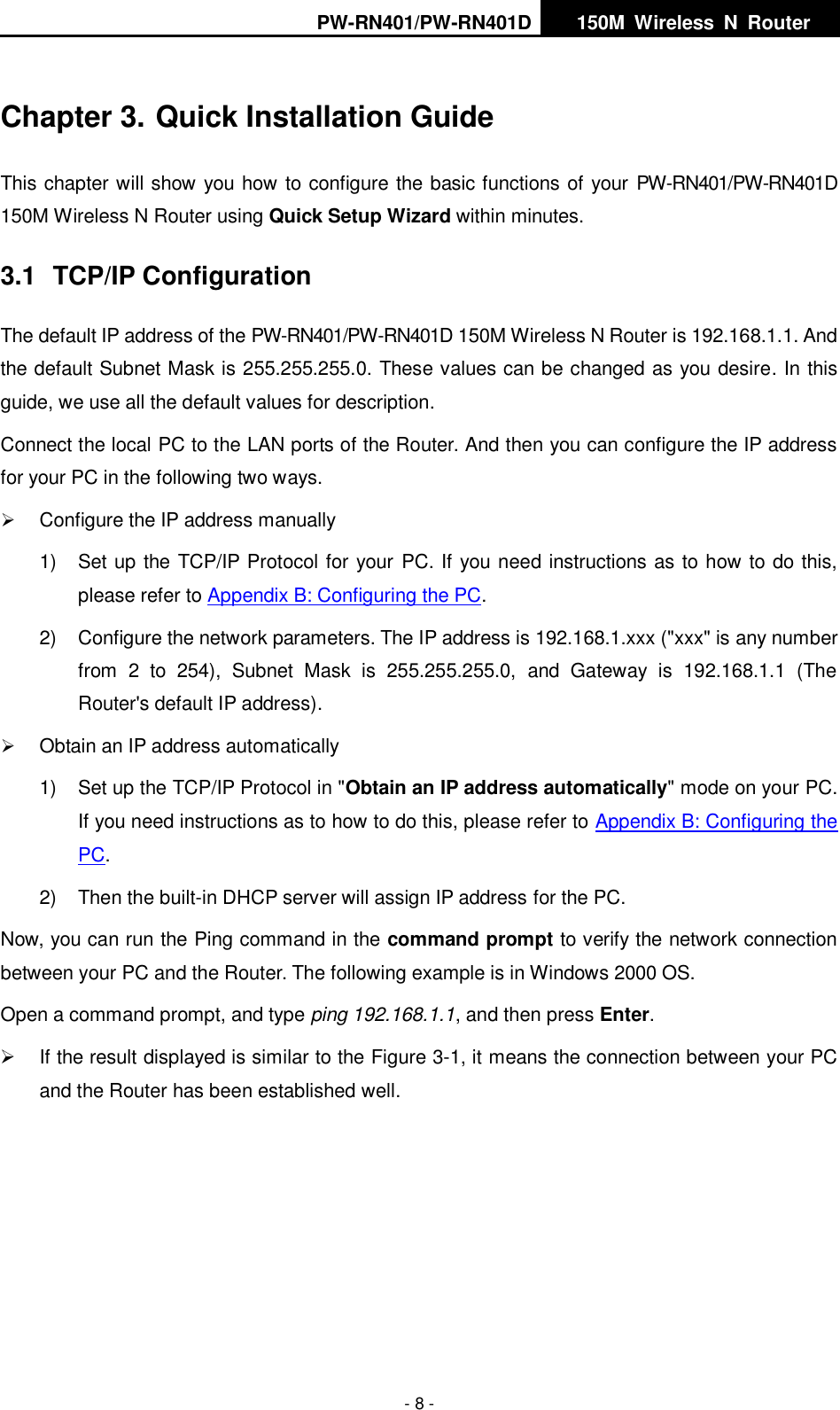
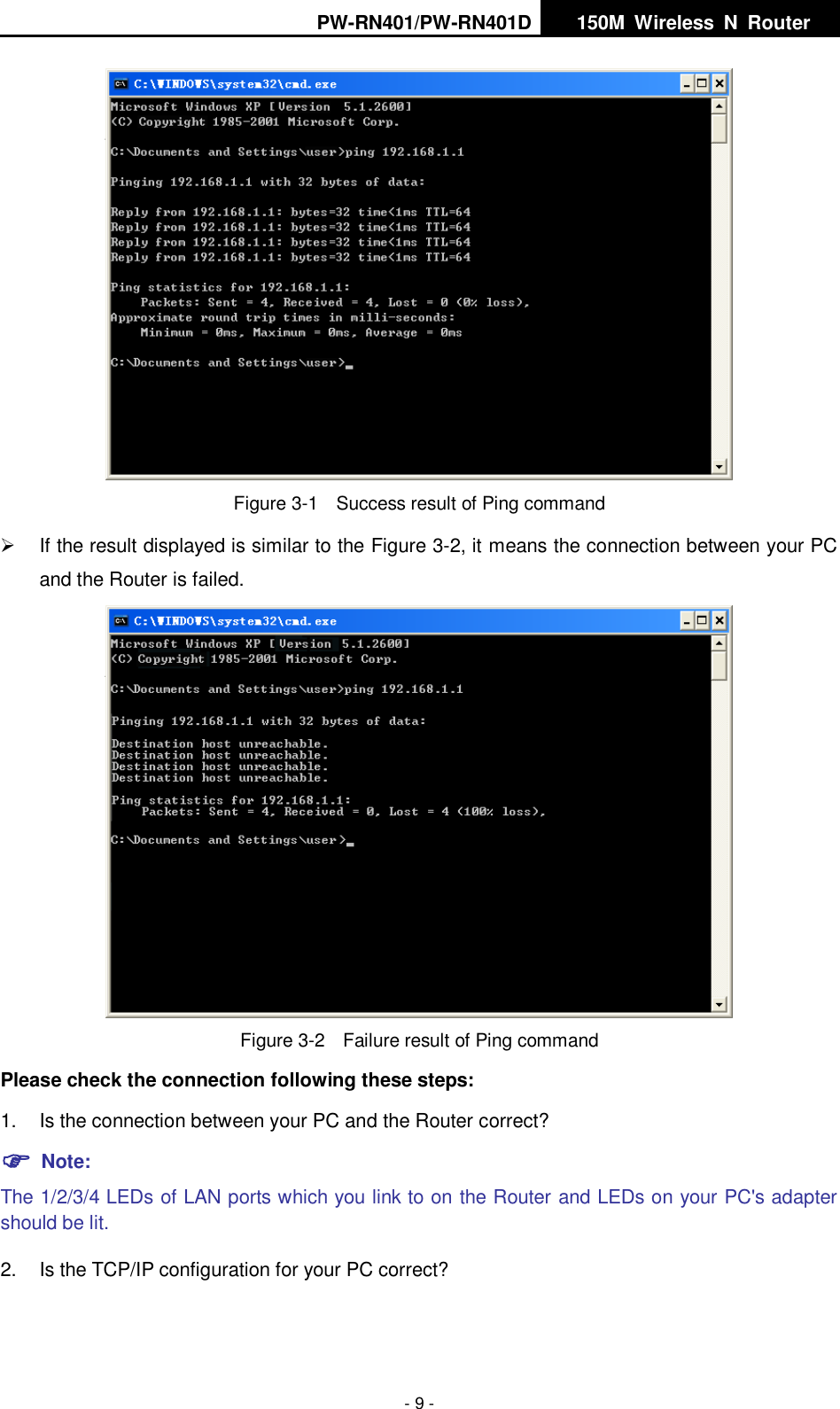
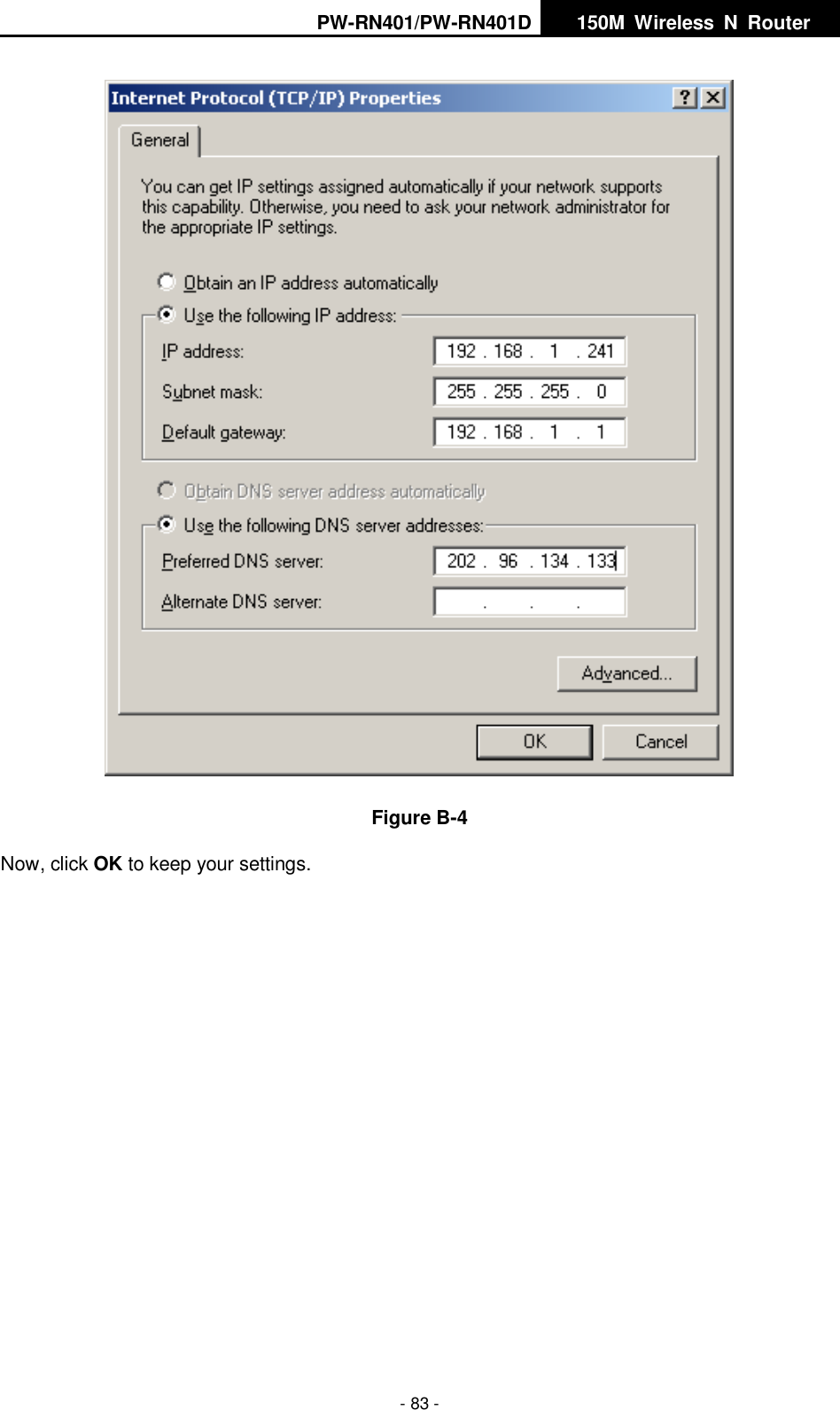
PW-RN401/PW-RN401D   150M  Wireless  N  Router    - 8 - Chapter 3. Quick Installation Guide This chapter will show you how to configure the basic functions of your PW-RN401/PW-RN401D 150M Wireless N Router using Quick Setup Wizard within minutes. 3.1  TCP/IP Configuration The default IP address of the PW-RN401/PW-RN401D 150M Wireless N Router is 192.168.1.1. And the default Subnet Mask is 255.255.255.0. These values can be changed as you desire. In this guide, we use all the default values for description. Connect the local PC to the LAN ports of the Router. And then you can configure the IP address for your PC in the following two ways.  Configure the IP address manually 1)  Set up the TCP/IP Protocol for your PC. If you need instructions as to how to do this, please refer to Appendix B: Configuring the PC. 2)  Configure the network parameters. The IP address is 192.168.1.xxx ("xxx" is any number from  2  to  254),  Subnet  Mask  is  255.255.255.0,  and  Gateway  is  192.168.1.1  (The Router's default IP address).  Obtain an IP address automatically 1)  Set up the TCP/IP Protocol in "Obtain an IP address automatically" mode on your PC. If you need instructions as to how to do this, please refer to Appendix B: Configuring the PC. 2)  Then the built-in DHCP server will assign IP address for the PC. Now, you can run the Ping command in the command prompt to verify the network connection between your PC and the Router. The following example is in Windows 2000 OS. Open a command prompt, and type ping 192.168.1.1, and then press Enter.   If the result displayed is similar to the Figure 3-1, it means the connection between your PC and the Router has been established well.
PW-RN401/PW-RN401D   150M  Wireless  N  Router    - 9 -  Figure 3-1  Success result of Ping command   If the result displayed is similar to the Figure 3-2, it means the connection between your PC and the Router is failed.    Figure 3-2  Failure result of Ping command Please check the connection following these steps: 1.  Is the connection between your PC and the Router correct?  Note:   The 1/2/3/4 LEDs of LAN ports which you link to on the Router and LEDs on your PC's adapter should be lit. 2.  Is the TCP/IP configuration for your PC correct?
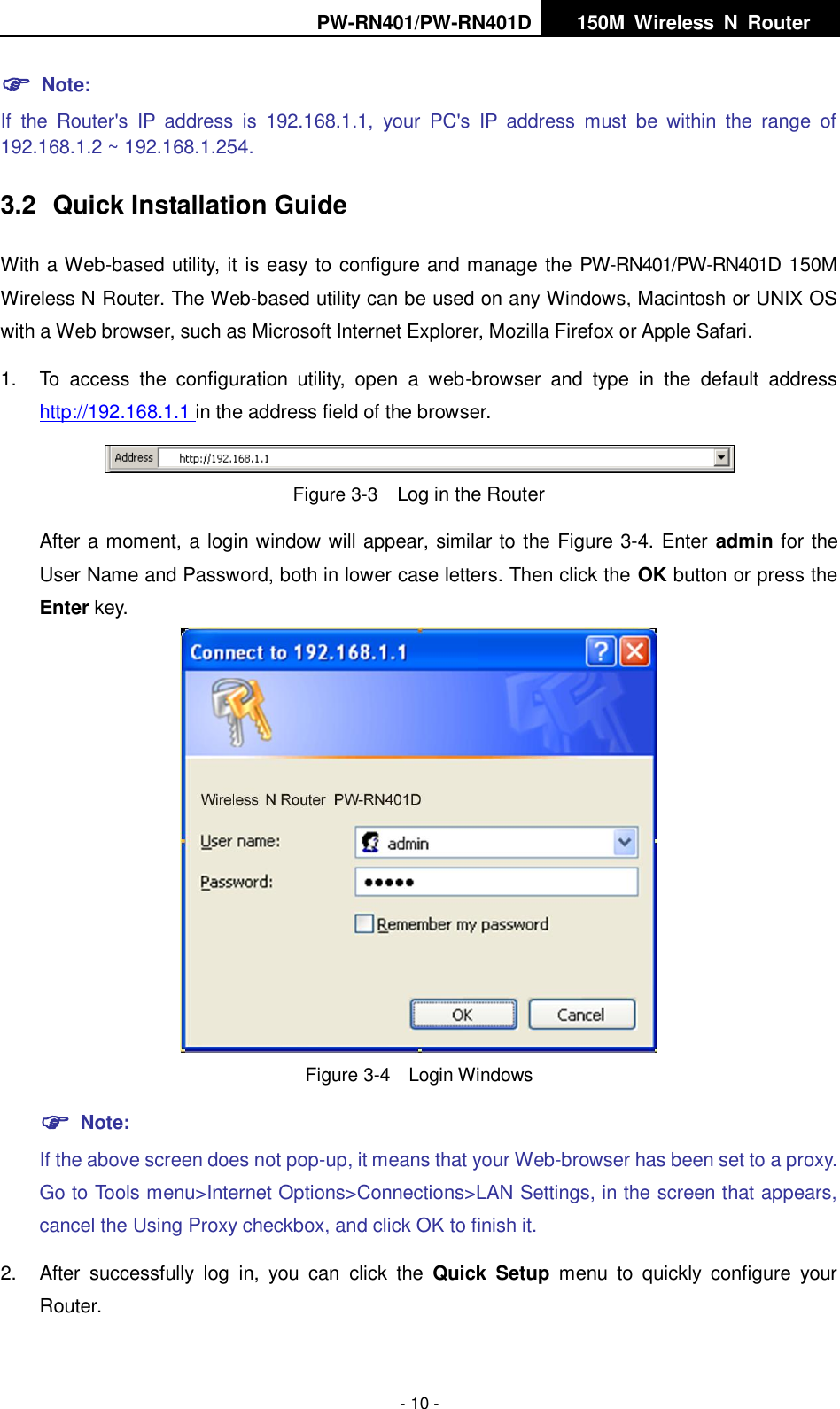
PW-RN401/PW-RN401D   150M  Wireless  N  Router    - 10 -  Note:   If  the  Router's  IP  address  is  192.168.1.1,  your  PC's  IP  address  must  be  within  the  range  of 192.168.1.2 ~ 192.168.1.254. 3.2  Quick Installation Guide With a Web-based utility, it is easy to configure and manage the PW-RN401/PW-RN401D 150M Wireless N Router. The Web-based utility can be used on any Windows, Macintosh or UNIX OS with a Web browser, such as Microsoft Internet Explorer, Mozilla Firefox or Apple Safari. 1.  To  access  the  configuration  utility,  open  a  web-browser  and  type  in  the  default  address http://192.168.1.1 in the address field of the browser.  Figure 3-3  Log in the Router After a moment, a login window will appear, similar to the Figure 3-4. Enter admin for the User Name and Password, both in lower case letters. Then click the OK button or press the Enter key.  Figure 3-4  Login Windows  Note: If the above screen does not pop-up, it means that your Web-browser has been set to a proxy. Go to Tools menu>Internet Options>Connections>LAN Settings, in the screen that appears, cancel the Using Proxy checkbox, and click OK to finish it. 2.  After  successfully  log  in,  you  can  click  the  Quick  Setup  menu  to  quickly  configure  your Router.
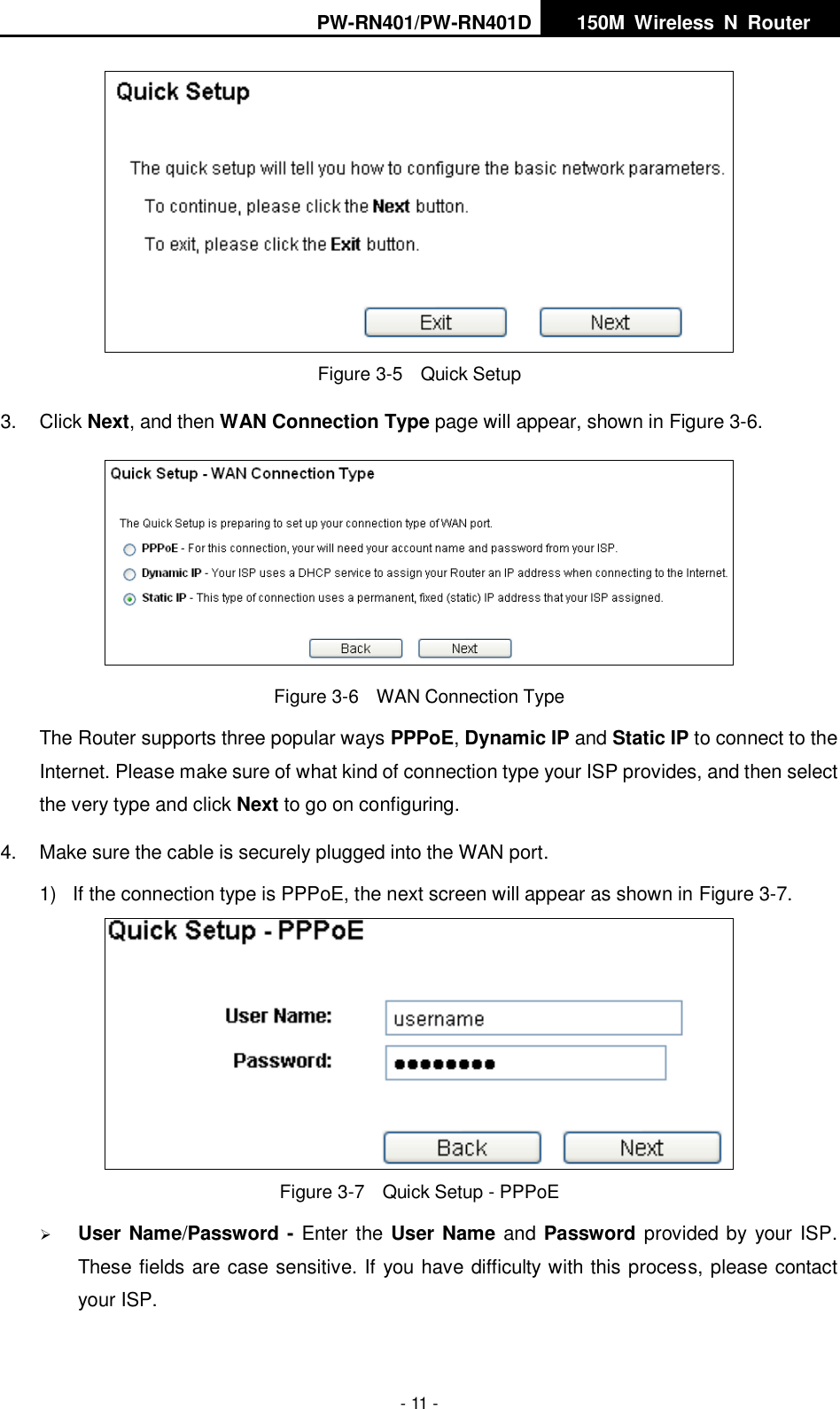
PW-RN401/PW-RN401D   150M  Wireless  N  Router    - 11 -  Figure 3-5    Quick Setup 3.  Click Next, and then WAN Connection Type page will appear, shown in Figure 3-6.  Figure 3-6    WAN Connection Type The Router supports three popular ways PPPoE, Dynamic IP and Static IP to connect to the Internet. Please make sure of what kind of connection type your ISP provides, and then select the very type and click Next to go on configuring. 4.  Make sure the cable is securely plugged into the WAN port. 1)  If the connection type is PPPoE, the next screen will appear as shown in Figure 3-7.  Figure 3-7    Quick Setup - PPPoE  User Name/Password - Enter the User Name and Password provided by your ISP. These fields are case sensitive. If you have difficulty with this process, please contact your ISP.
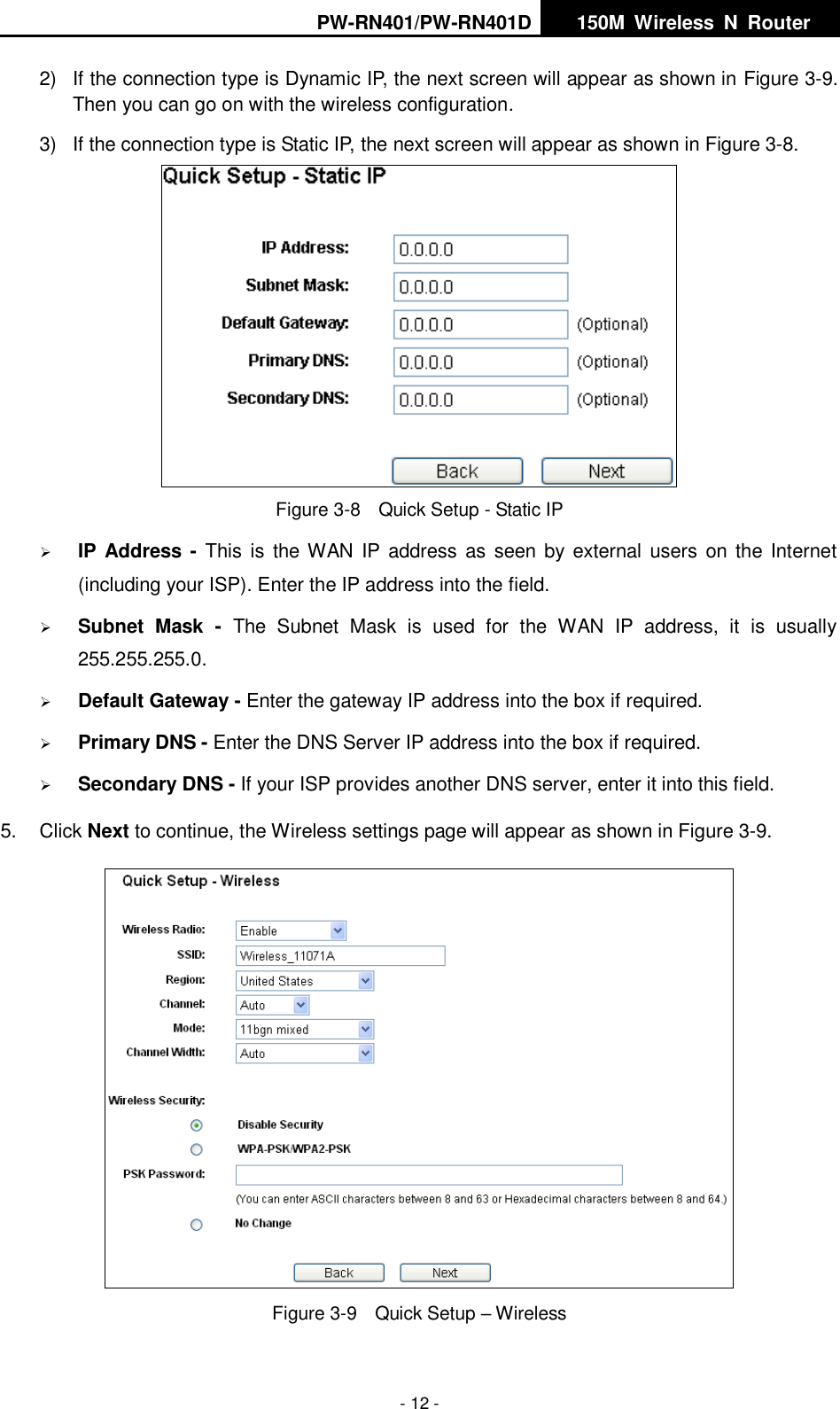
PW-RN401/PW-RN401D   150M  Wireless  N  Router    - 12 - 2)  If the connection type is Dynamic IP, the next screen will appear as shown in Figure 3-9. Then you can go on with the wireless configuration. 3)  If the connection type is Static IP, the next screen will appear as shown in Figure 3-8.  Figure 3-8  Quick Setup - Static IP  IP Address  - This  is the WAN IP  address as  seen by external  users  on the  Internet (including your ISP). Enter the IP address into the field.  Subnet  Mask  -  The  Subnet  Mask  is  used  for  the  WAN  IP  address,  it  is  usually 255.255.255.0.  Default Gateway - Enter the gateway IP address into the box if required.  Primary DNS - Enter the DNS Server IP address into the box if required.  Secondary DNS - If your ISP provides another DNS server, enter it into this field. 5.  Click Next to continue, the Wireless settings page will appear as shown in Figure 3-9.  Figure 3-9  Quick Setup – Wireless
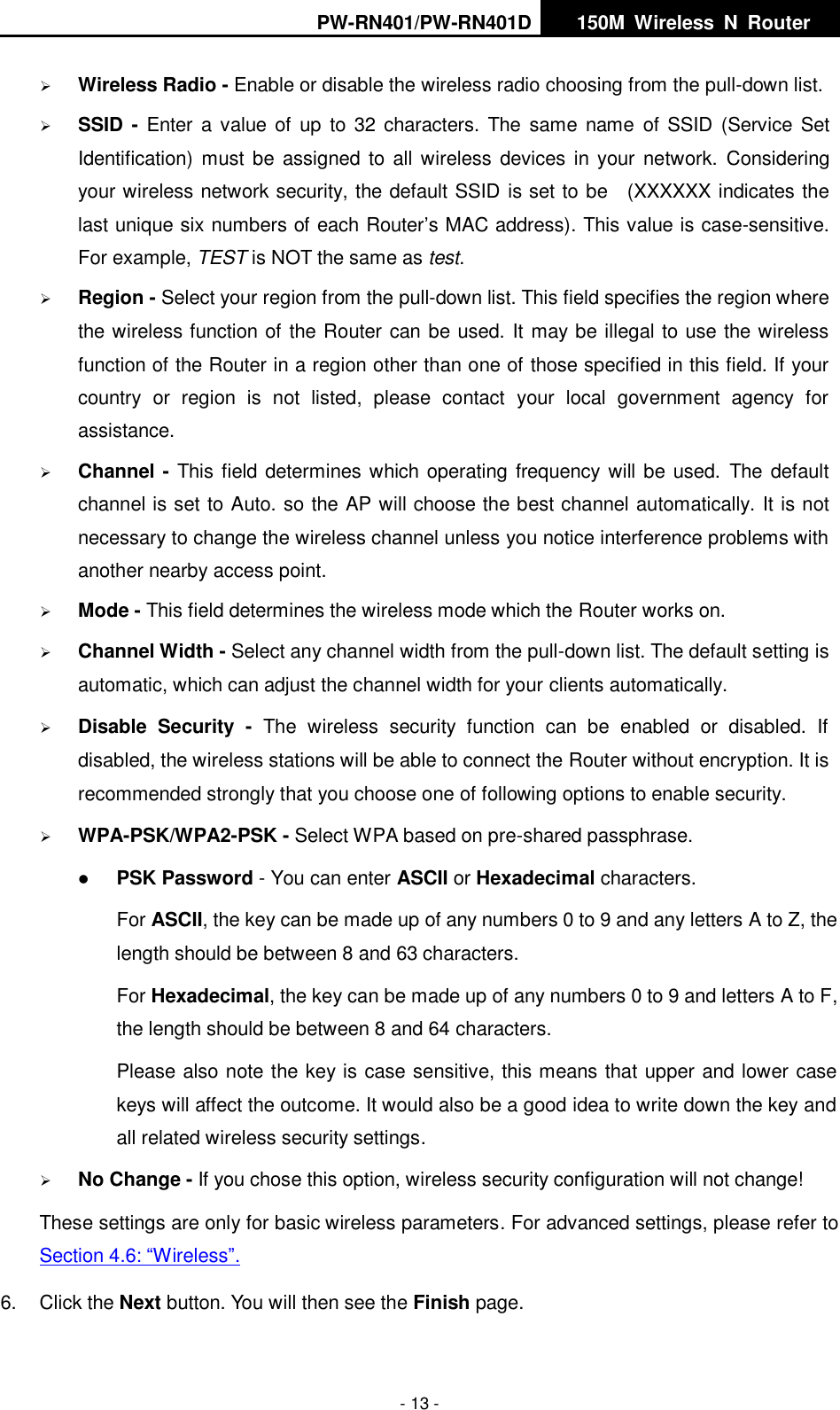
PW-RN401/PW-RN401D   150M  Wireless  N  Router    - 13 -  Wireless Radio - Enable or disable the wireless radio choosing from the pull-down list.    SSID  - Enter a value  of  up  to 32 characters.  The  same name  of SSID (Service Set Identification) must  be assigned to all  wireless devices  in your  network.  Considering your wireless network security, the default SSID is set to be    (XXXXXX indicates the last unique six numbers of each Router’s MAC address). This value is case-sensitive. For example, TEST is NOT the same as test.  Region - Select your region from the pull-down list. This field specifies the region where the wireless function of the Router can be used. It may be illegal to use the wireless function of the Router in a region other than one of those specified in this field. If your country  or  region  is  not  listed,  please  contact  your  local  government  agency  for assistance.  Channel - This field determines which operating frequency will be used.  The default channel is set to Auto. so the AP will choose the best channel automatically. It is not necessary to change the wireless channel unless you notice interference problems with another nearby access point.  Mode - This field determines the wireless mode which the Router works on.  Channel Width - Select any channel width from the pull-down list. The default setting is automatic, which can adjust the channel width for your clients automatically.  Disable  Security  -  The  wireless  security  function  can  be  enabled  or  disabled.  If disabled, the wireless stations will be able to connect the Router without encryption. It is recommended strongly that you choose one of following options to enable security.  WPA-PSK/WPA2-PSK - Select WPA based on pre-shared passphrase.    PSK Password - You can enter ASCII or Hexadecimal characters.   For ASCII, the key can be made up of any numbers 0 to 9 and any letters A to Z, the length should be between 8 and 63 characters. For Hexadecimal, the key can be made up of any numbers 0 to 9 and letters A to F, the length should be between 8 and 64 characters. Please also note the key is case sensitive, this means that upper and lower case keys will affect the outcome. It would also be a good idea to write down the key and all related wireless security settings.    No Change - If you chose this option, wireless security configuration will not change! These settings are only for basic wireless parameters. For advanced settings, please refer to Section 4.6: “Wireless”.   6.  Click the Next button. You will then see the Finish page.
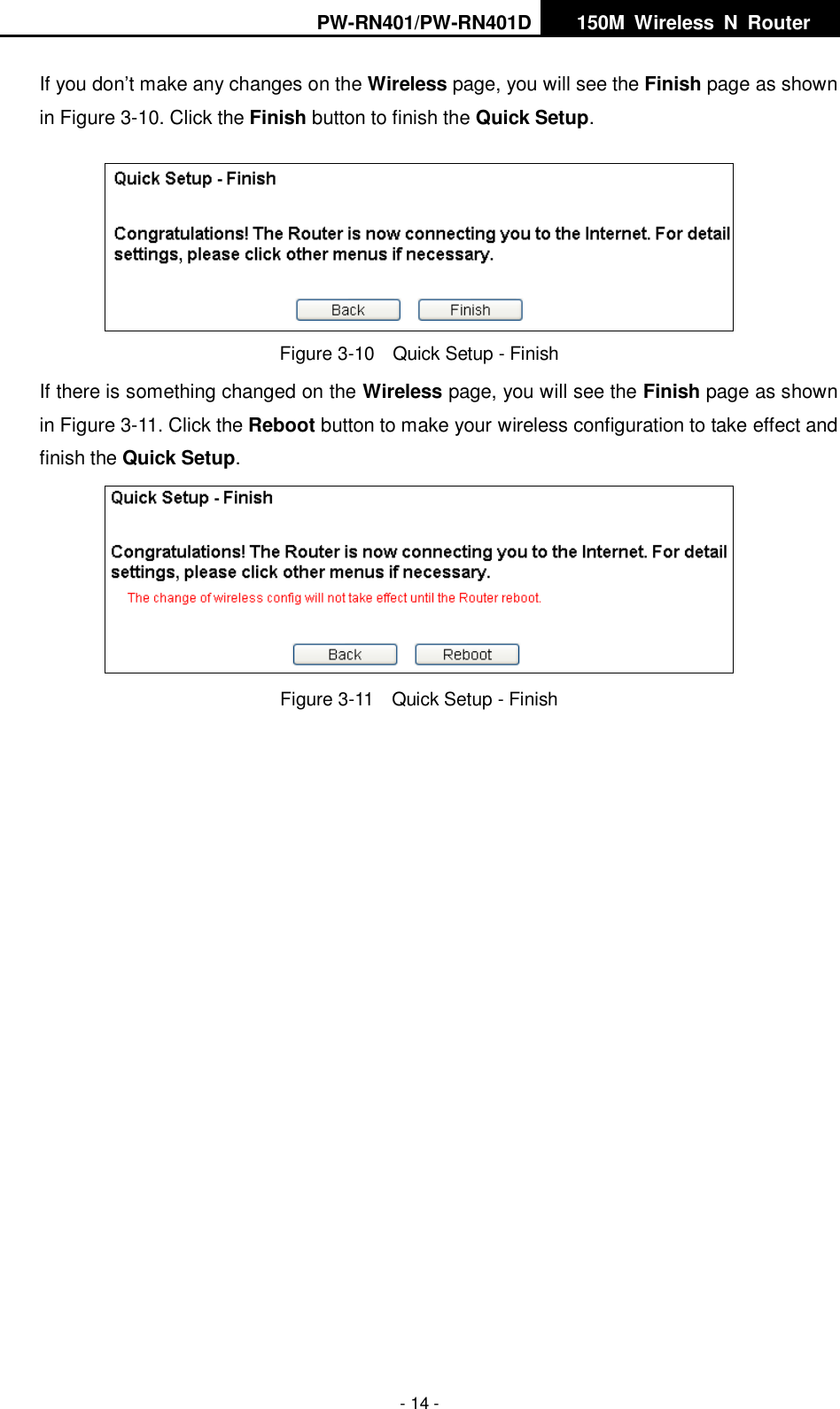
PW-RN401/PW-RN401D   150M  Wireless  N  Router    - 14 - If you don’t make any changes on the Wireless page, you will see the Finish page as shown in Figure 3-10. Click the Finish button to finish the Quick Setup.    Figure 3-10  Quick Setup - Finish If there is something changed on the Wireless page, you will see the Finish page as shown in Figure 3-11. Click the Reboot button to make your wireless configuration to take effect and finish the Quick Setup.  Figure 3-11  Quick Setup - Finish
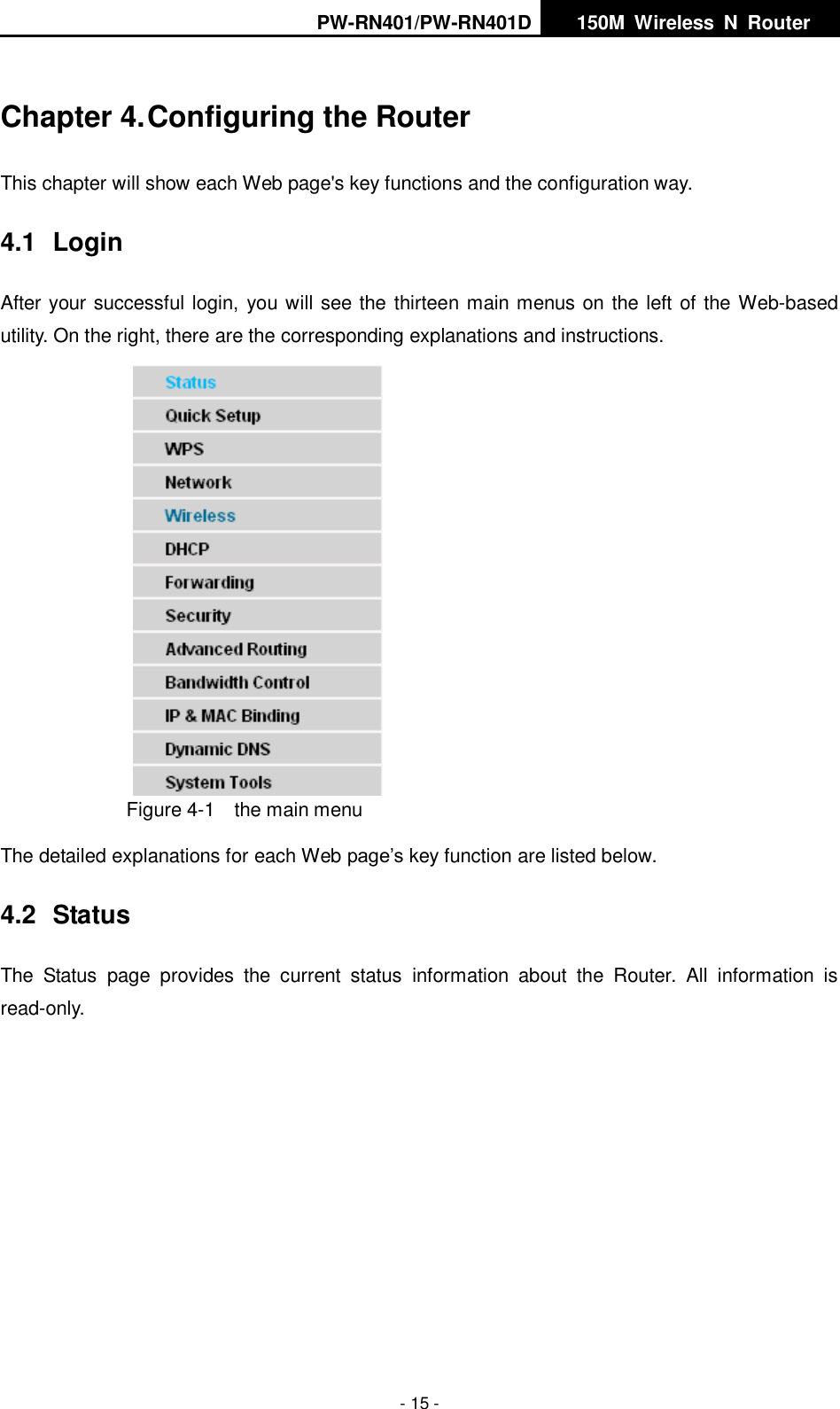
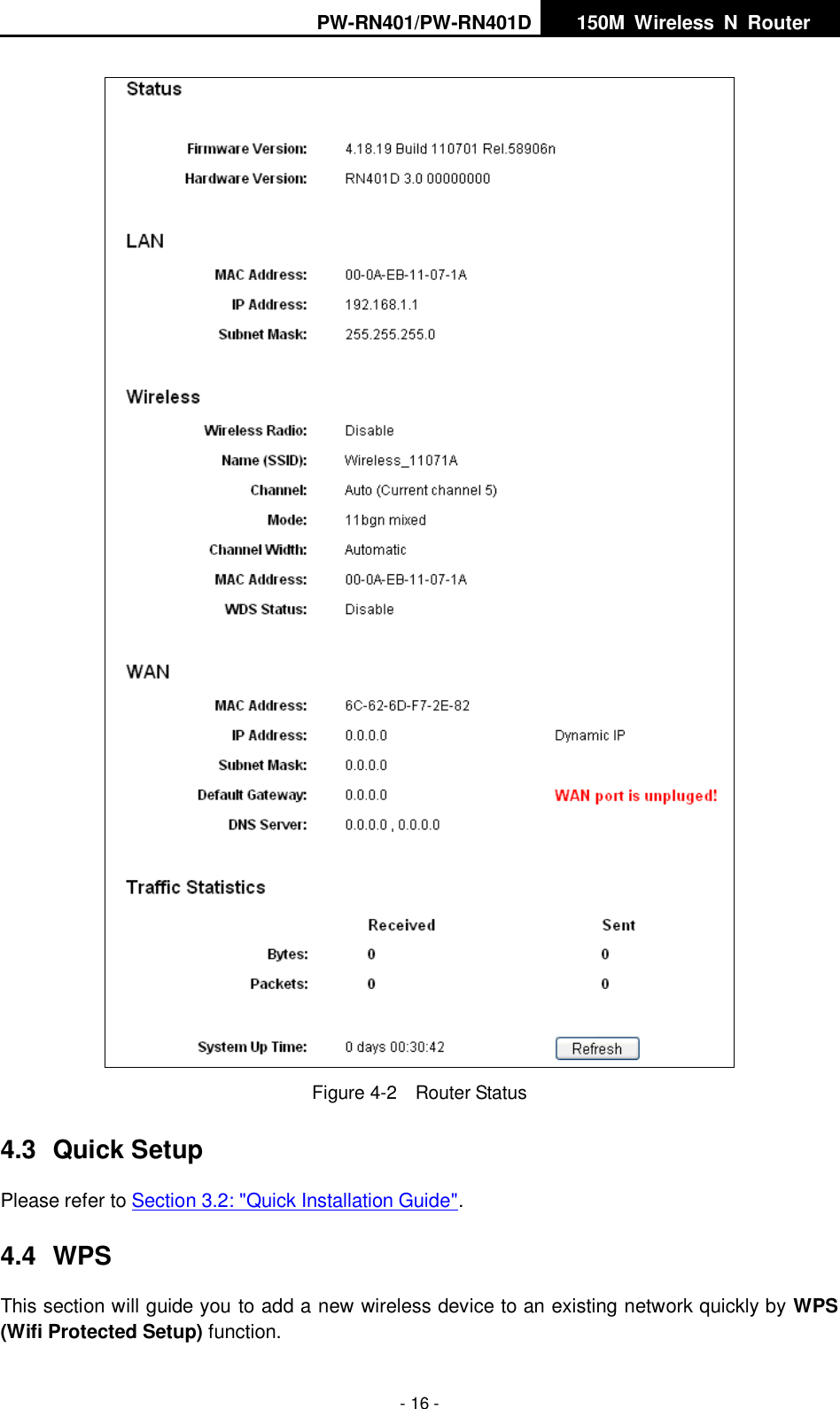
PW-RN401/PW-RN401D   150M  Wireless  N  Router    - 15 - Chapter 4. Configuring the Router This chapter will show each Web page's key functions and the configuration way. 4.1  Login After your successful login, you will see the thirteen main menus on the left of the Web-based utility. On the right, there are the corresponding explanations and instructions.    Figure 4-1    the main menu The detailed explanations for each Web page’s key function are listed below.   4.2  Status The  Status  page  provides  the  current  status  information  about  the  Router.  All  information  is read-only.
PW-RN401/PW-RN401D   150M  Wireless  N  Router    - 16 -  Figure 4-2  Router Status 4.3  Quick Setup Please refer to Section 3.2: "Quick Installation Guide". 4.4  WPS This section will guide you to add a new wireless device to an existing network quickly by WPS (Wifi Protected Setup) function.
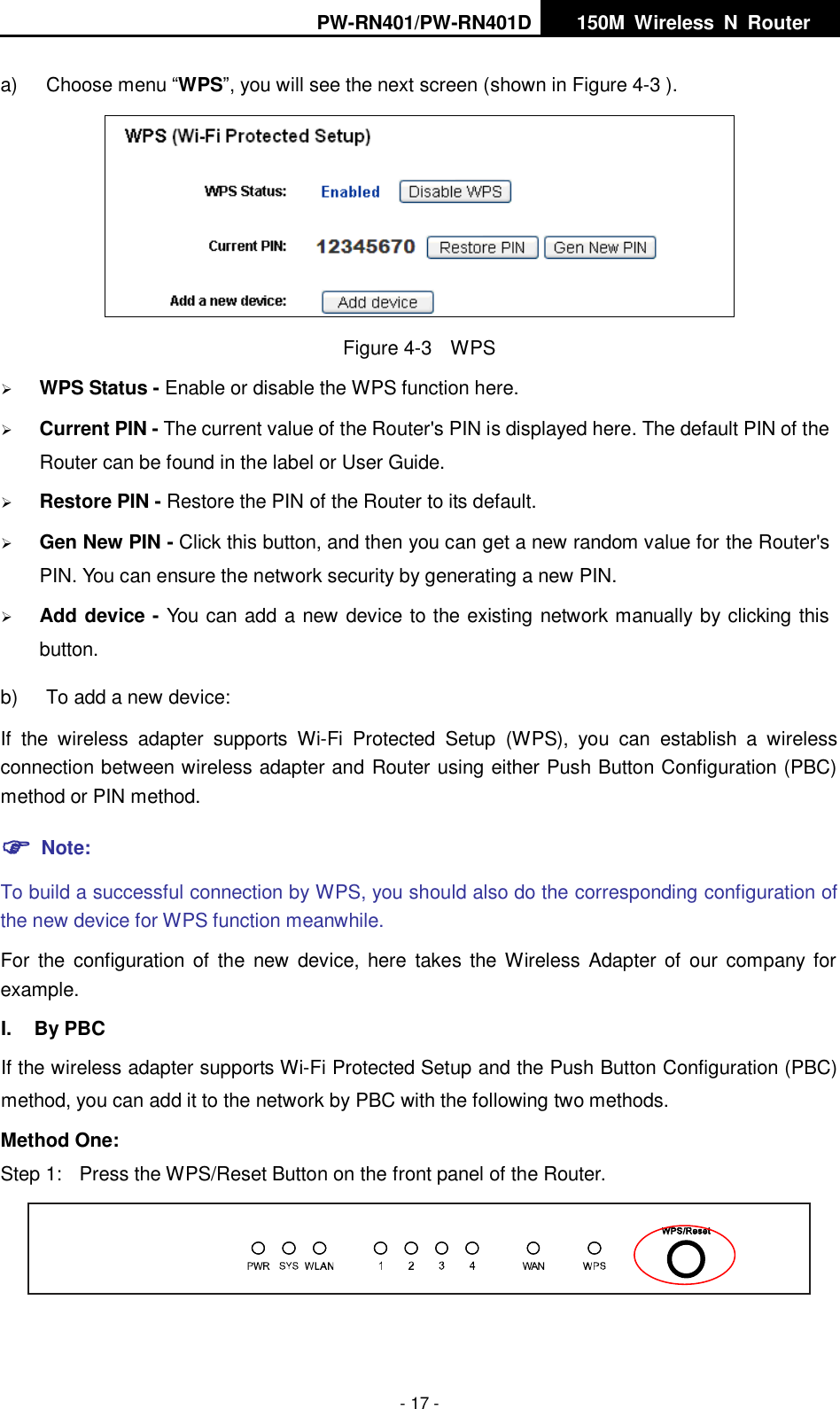
PW-RN401/PW-RN401D   150M  Wireless  N  Router    - 17 - a)  Choose menu “WPS”, you will see the next screen (shown in Figure 4-3 ).    Figure 4-3    WPS  WPS Status - Enable or disable the WPS function here.    Current PIN - The current value of the Router's PIN is displayed here. The default PIN of the Router can be found in the label or User Guide.    Restore PIN - Restore the PIN of the Router to its default.    Gen New PIN - Click this button, and then you can get a new random value for the Router's PIN. You can ensure the network security by generating a new PIN.    Add device - You can add a new device to the existing network manually by clicking this button.   b)  To add a new device: If  the  wireless  adapter  supports  Wi-Fi  Protected  Setup  (WPS),  you  can  establish  a  wireless connection between wireless adapter and Router using either Push Button Configuration (PBC) method or PIN method.  Note: To build a successful connection by WPS, you should also do the corresponding configuration of the new device for WPS function meanwhile. For  the  configuration  of the  new  device, here takes  the Wireless Adapter  of  our company  for example. I.  By PBC If the wireless adapter supports Wi-Fi Protected Setup and the Push Button Configuration (PBC) method, you can add it to the network by PBC with the following two methods. Method One: Step 1:  Press the WPS/Reset Button on the front panel of the Router.
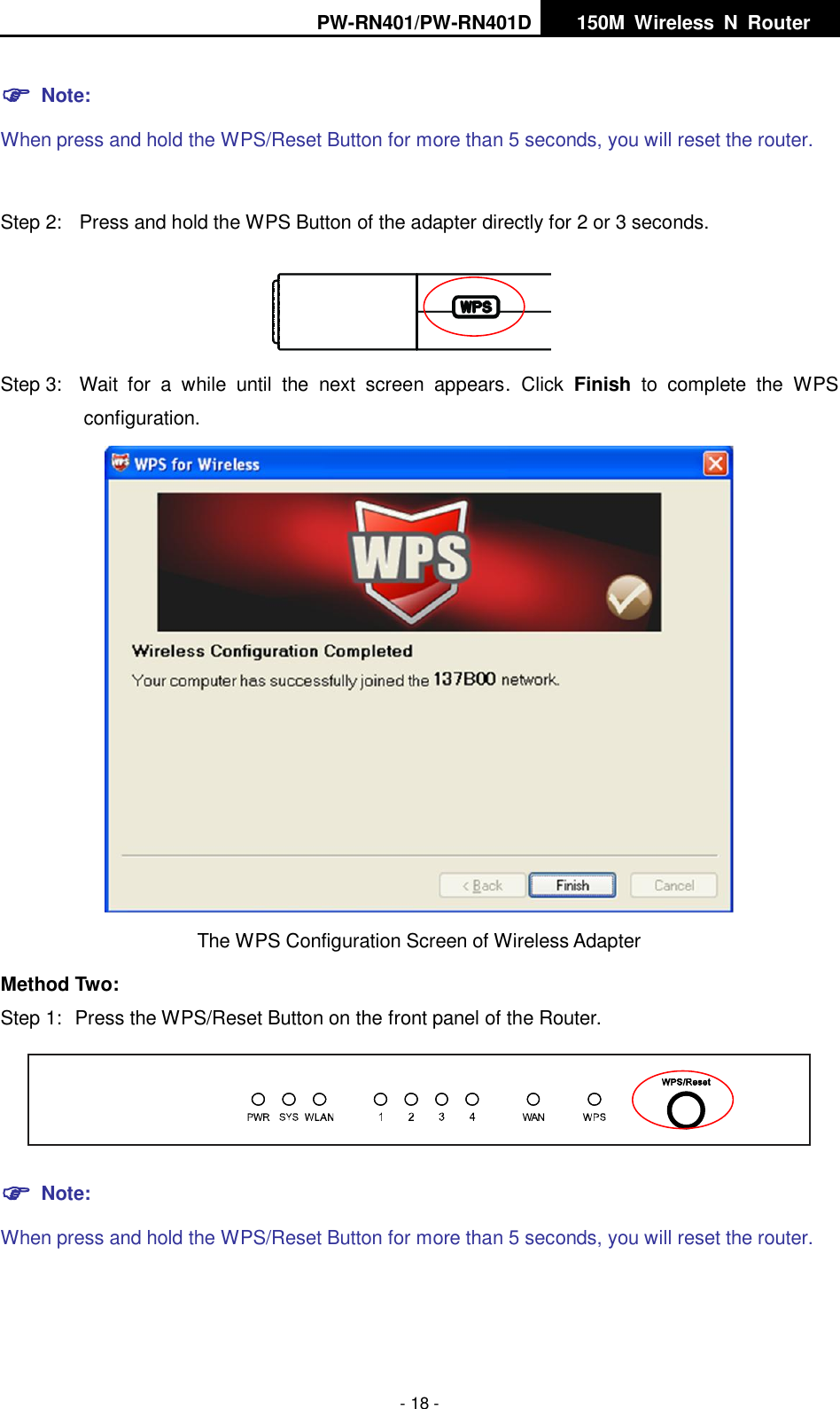
PW-RN401/PW-RN401D   150M  Wireless  N  Router    - 18 -  Note: When press and hold the WPS/Reset Button for more than 5 seconds, you will reset the router.  Step 2:  Press and hold the WPS Button of the adapter directly for 2 or 3 seconds.  Step 3:  Wait  for  a  while  until  the  next  screen  appears.  Click  Finish  to  complete  the  WPS configuration.  The WPS Configuration Screen of Wireless Adapter   Method Two: Step 1:  Press the WPS/Reset Button on the front panel of the Router.   Note: When press and hold the WPS/Reset Button for more than 5 seconds, you will reset the router.
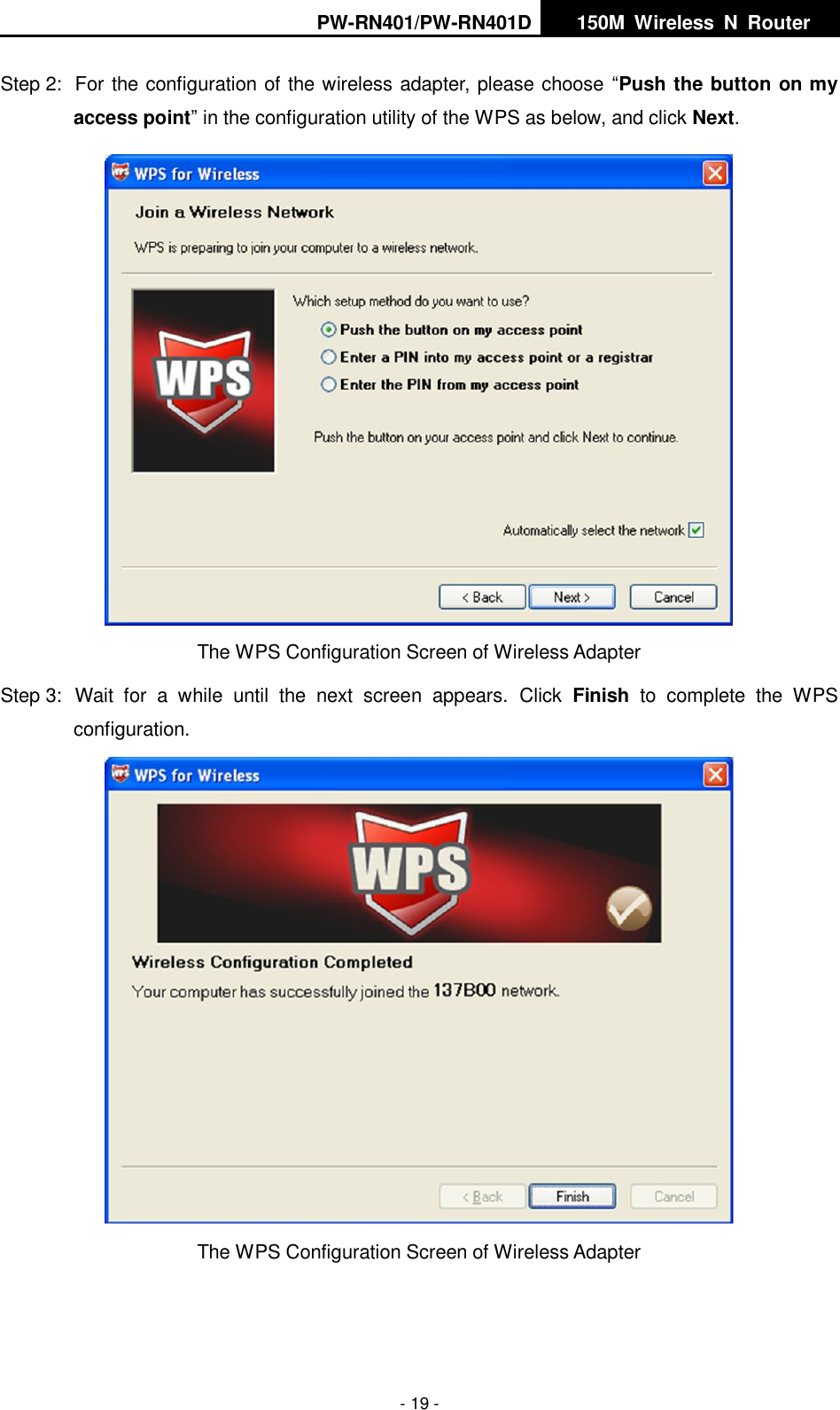
PW-RN401/PW-RN401D   150M  Wireless  N  Router    - 19 - Step 2:  For the configuration of the wireless adapter, please choose “Push the button on my access point” in the configuration utility of the WPS as below, and click Next.   The WPS Configuration Screen of Wireless Adapter Step 3:  Wait  for  a  while  until  the  next  screen  appears.  Click  Finish  to  complete  the  WPS configuration.  The WPS Configuration Screen of Wireless Adapter
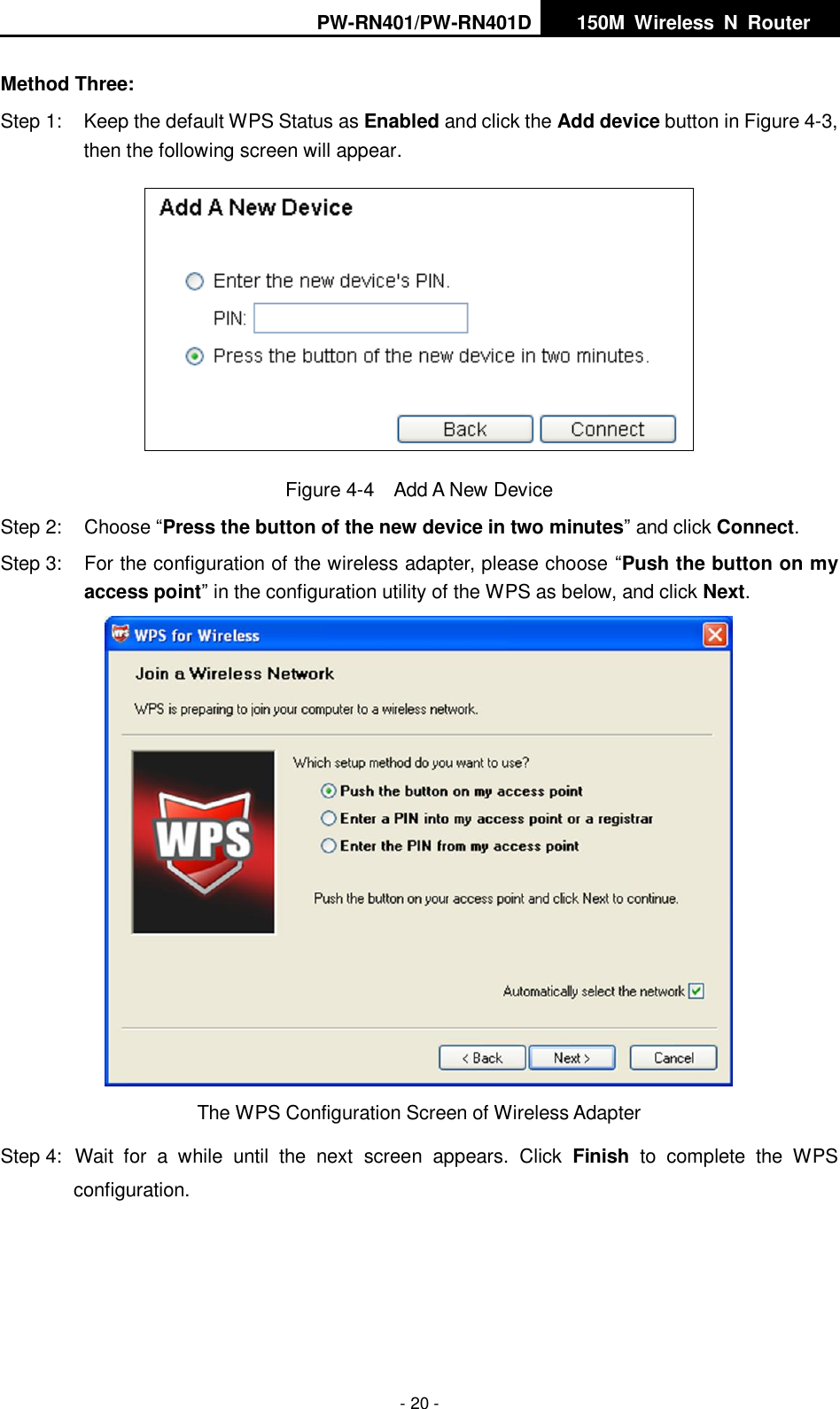
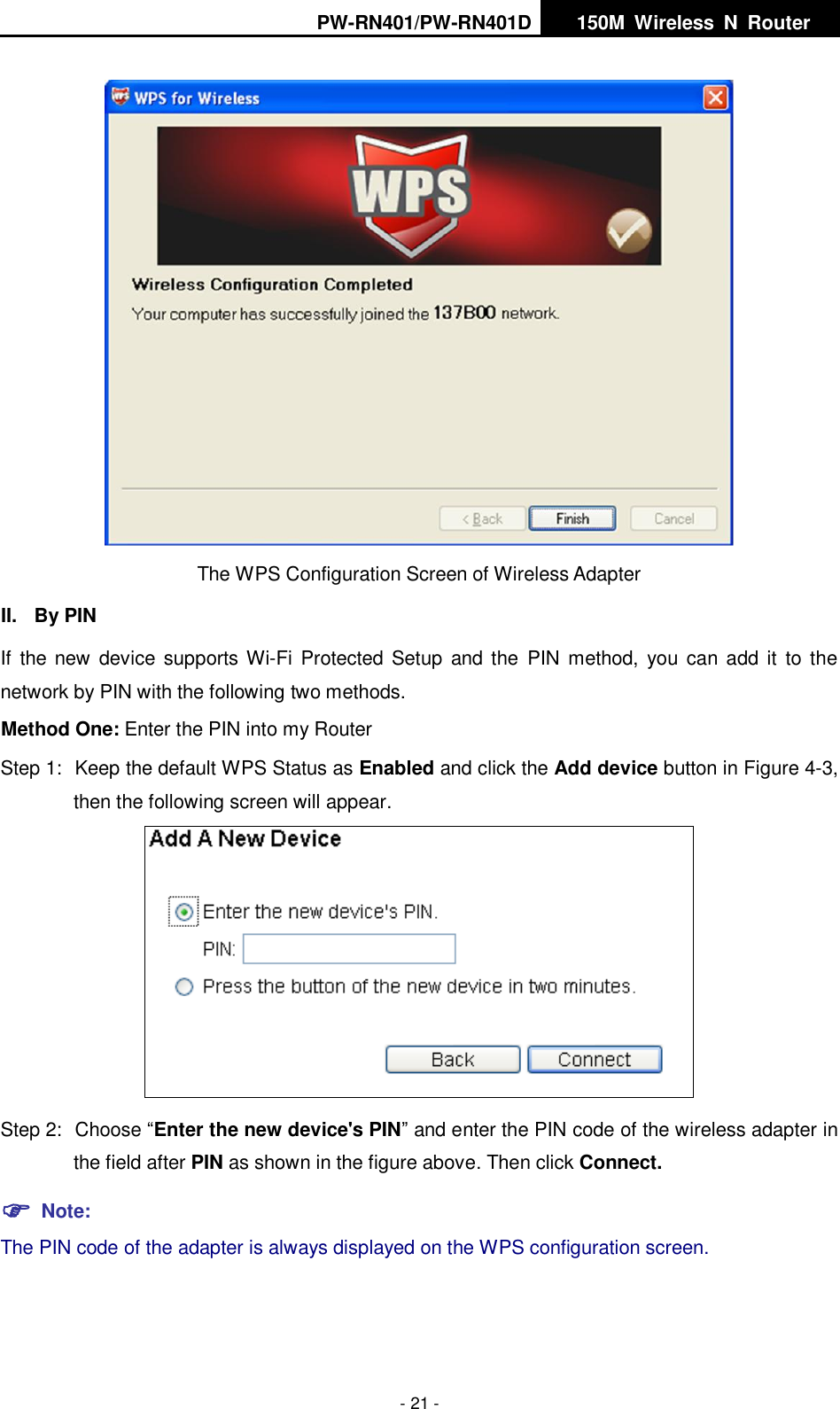
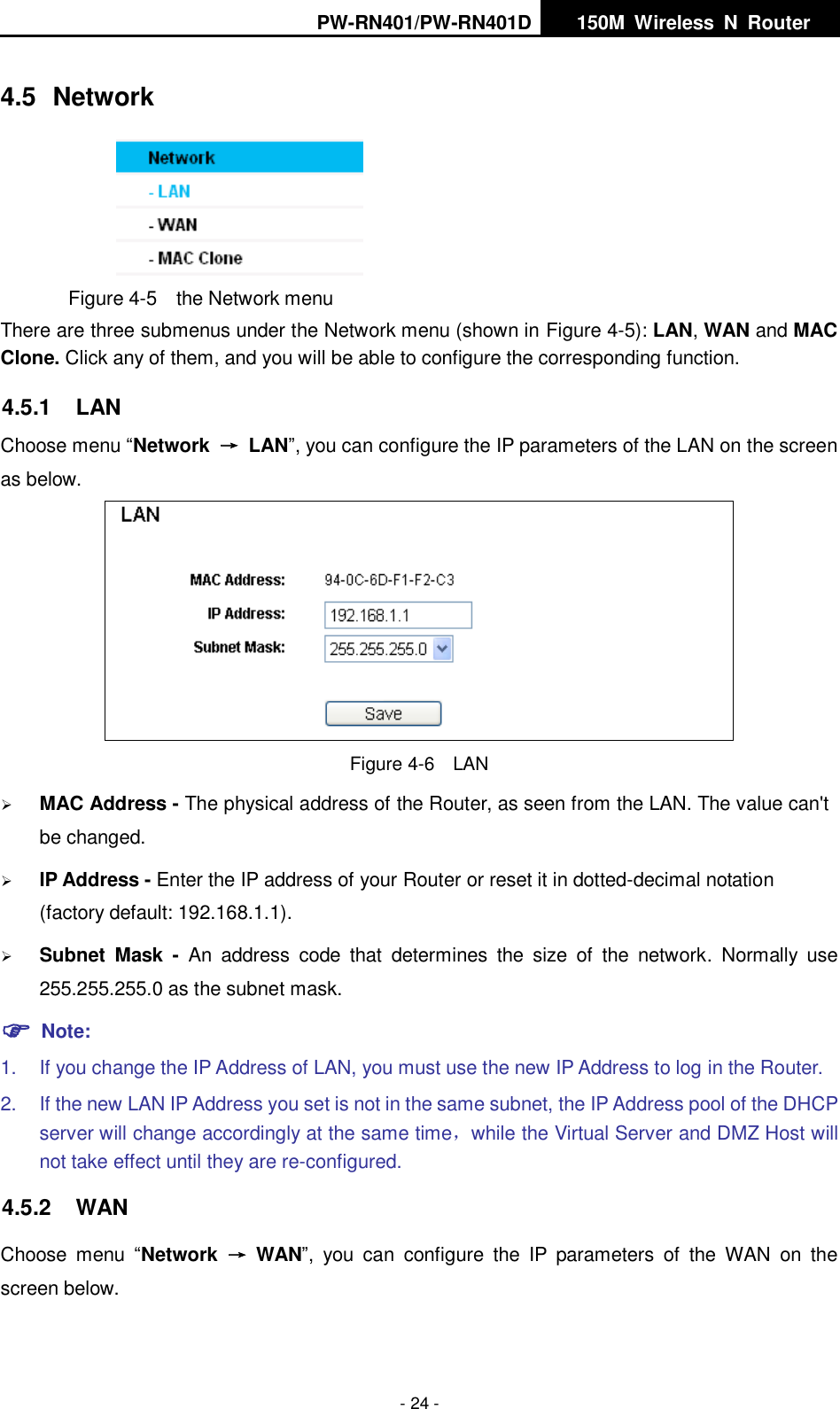
PW-RN401/PW-RN401D   150M  Wireless  N  Router    - 20 - Method Three: Step 1:  Keep the default WPS Status as Enabled and click the Add device button in Figure 4-3, then the following screen will appear.    Figure 4-4  Add A New Device Step 2:  Choose “Press the button of the new device in two minutes” and click Connect. Step 3:  For the configuration of the wireless adapter, please choose “Push the button on my access point” in the configuration utility of the WPS as below, and click Next.    The WPS Configuration Screen of Wireless Adapter Step 4:  Wait  for  a  while  until  the  next  screen  appears.  Click  Finish  to  complete  the  WPS configuration.
PW-RN401/PW-RN401D   150M  Wireless  N  Router    - 21 -  The WPS Configuration Screen of Wireless Adapter   II.  By PIN If  the new  device supports Wi-Fi  Protected  Setup  and the  PIN  method,  you can add it  to the network by PIN with the following two methods. Method One: Enter the PIN into my Router Step 1:  Keep the default WPS Status as Enabled and click the Add device button in Figure 4-3, then the following screen will appear.  Step 2:  Choose “Enter the new device's PIN” and enter the PIN code of the wireless adapter in the field after PIN as shown in the figure above. Then click Connect.  Note: The PIN code of the adapter is always displayed on the WPS configuration screen.
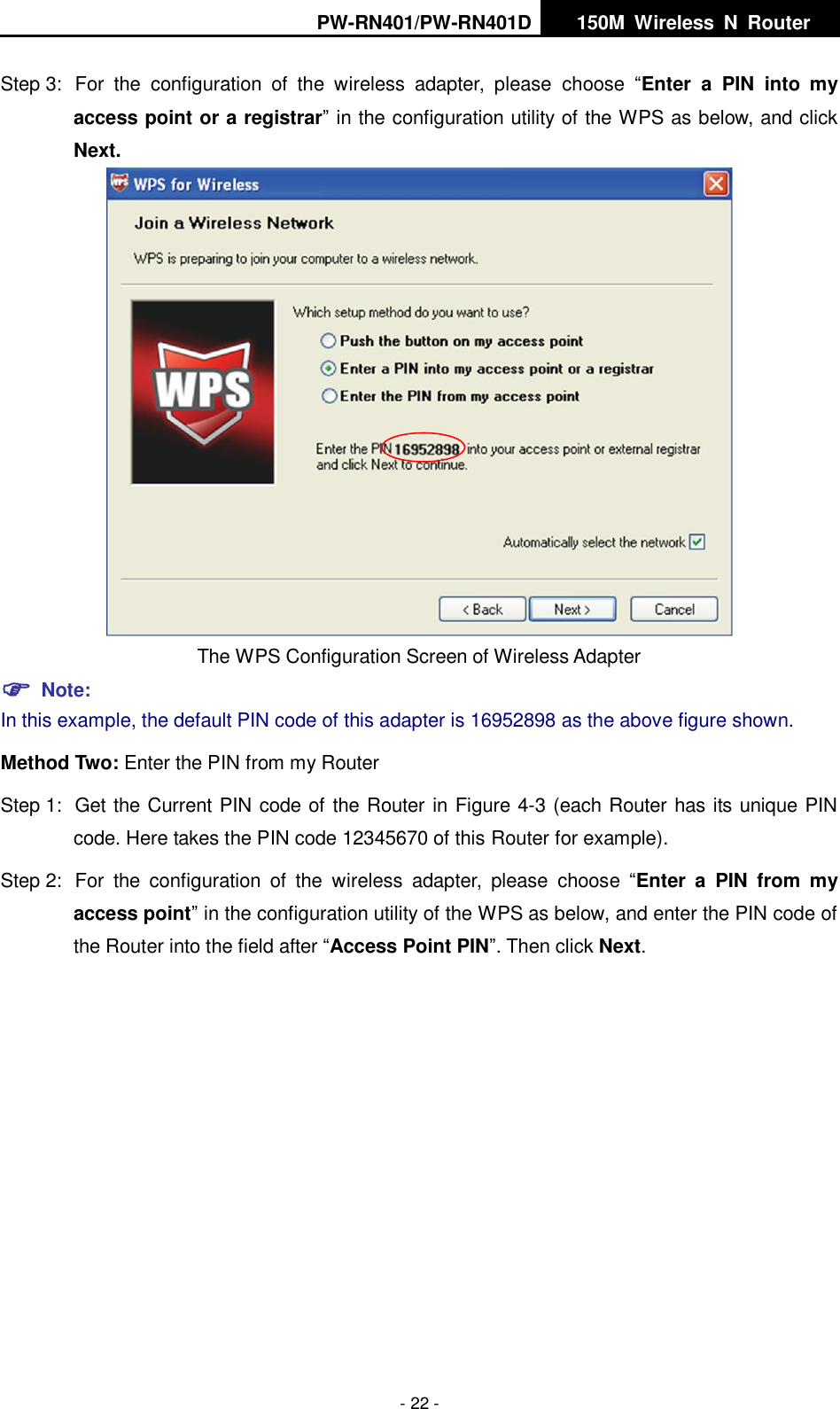
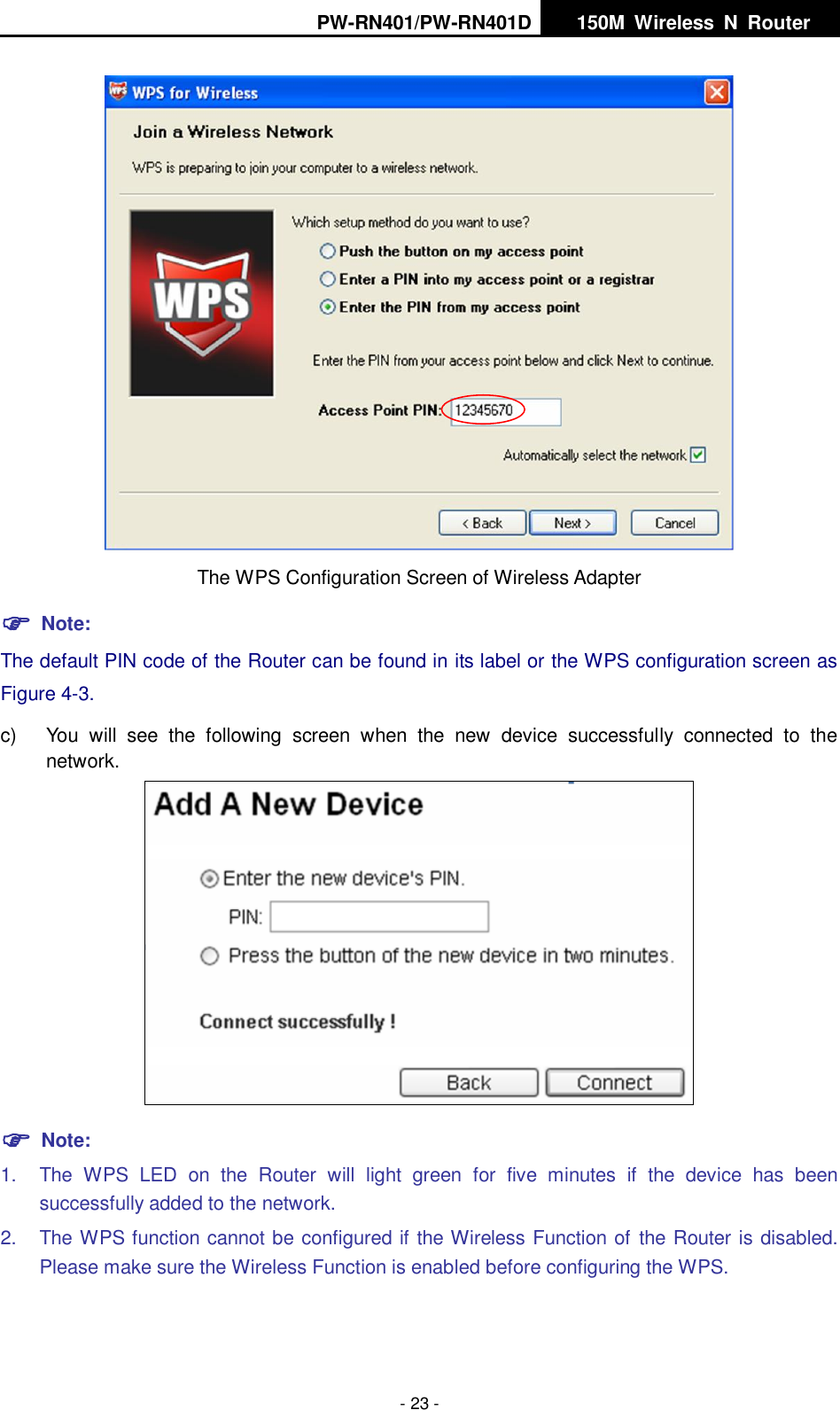
PW-RN401/PW-RN401D   150M  Wireless  N  Router    - 22 - Step 3:  For  the  configuration  of  the  wireless  adapter,  please  choose  “Enter  a  PIN  into  my access point or a registrar” in the configuration utility of the WPS as below, and click Next.    The WPS Configuration Screen of Wireless Adapter  Note: In this example, the default PIN code of this adapter is 16952898 as the above figure shown. Method Two: Enter the PIN from my Router Step 1:  Get the Current PIN code of the Router in Figure 4-3 (each Router has its unique PIN code. Here takes the PIN code 12345670 of this Router for example). Step 2:  For  the  configuration  of  the  wireless  adapter,  please  choose  “Enter  a  PIN  from  my access point” in the configuration utility of the WPS as below, and enter the PIN code of the Router into the field after “Access Point PIN”. Then click Next.
PW-RN401/PW-RN401D   150M  Wireless  N  Router    - 23 -  The WPS Configuration Screen of Wireless Adapter  Note: The default PIN code of the Router can be found in its label or the WPS configuration screen as Figure 4-3. c)  You  will  see  the  following  screen  when  the  new  device  successfully  connected  to  the network.   Note: 1.  The  WPS  LED  on  the  Router  will  light  green  for  five  minutes  if  the  device  has  been successfully added to the network. 2.  The WPS function cannot be configured if the Wireless Function of the Router is disabled. Please make sure the Wireless Function is enabled before configuring the WPS.
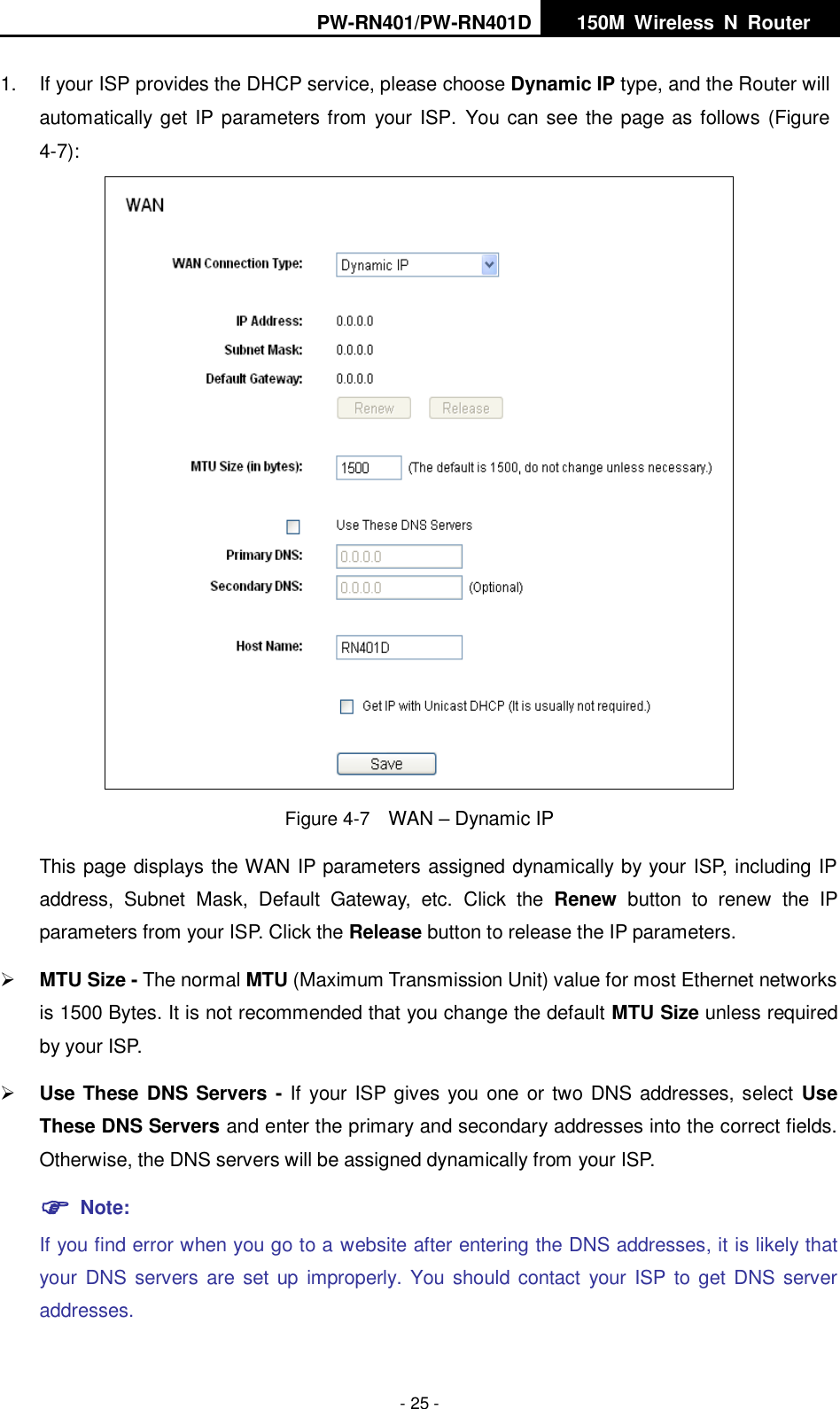
PW-RN401/PW-RN401D   150M  Wireless  N  Router    - 24 - 4.5  Network  Figure 4-5  the Network menu There are three submenus under the Network menu (shown in Figure 4-5): LAN, WAN and MAC Clone. Click any of them, and you will be able to configure the corresponding function.   4.5.1  LAN Choose menu “Network  →  LAN”, you can configure the IP parameters of the LAN on the screen as below.  Figure 4-6  LAN  MAC Address - The physical address of the Router, as seen from the LAN. The value can't be changed.  IP Address - Enter the IP address of your Router or reset it in dotted-decimal notation (factory default: 192.168.1.1).  Subnet  Mask  -  An  address  code  that  determines  the  size  of  the  network.  Normally  use 255.255.255.0 as the subnet mask.    Note: 1.  If you change the IP Address of LAN, you must use the new IP Address to log in the Router.   2.  If the new LAN IP Address you set is not in the same subnet, the IP Address pool of the DHCP server will change accordingly at the same time,while the Virtual Server and DMZ Host will not take effect until they are re-configured. 4.5.2  WAN Choose  menu  “Network  →  WAN”,  you  can  configure  the  IP  parameters  of  the  WAN  on  the screen below.
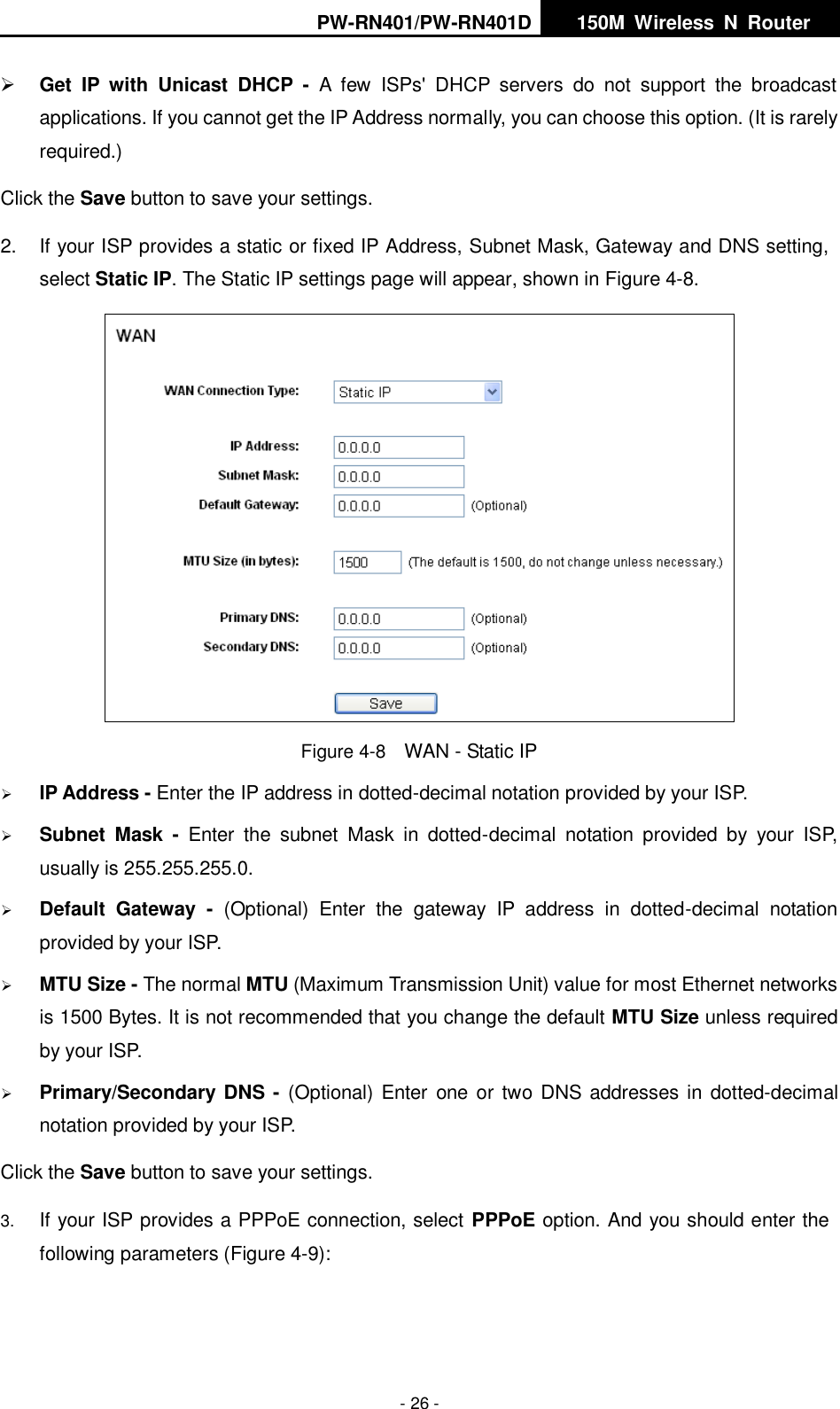
PW-RN401/PW-RN401D   150M  Wireless  N  Router    - 25 - 1.  If your ISP provides the DHCP service, please choose Dynamic IP type, and the Router will automatically get IP parameters from your ISP.  You can see the page as follows (Figure 4-7):  Figure 4-7  WAN – Dynamic IP This page displays the WAN IP parameters assigned dynamically by your ISP, including IP address,  Subnet  Mask,  Default  Gateway,  etc.  Click  the  Renew  button  to  renew  the  IP parameters from your ISP. Click the Release button to release the IP parameters.  MTU Size - The normal MTU (Maximum Transmission Unit) value for most Ethernet networks is 1500 Bytes. It is not recommended that you change the default MTU Size unless required by your ISP.    Use These DNS Servers - If your ISP gives you  one or two DNS addresses, select Use These DNS Servers and enter the primary and secondary addresses into the correct fields. Otherwise, the DNS servers will be assigned dynamically from your ISP.    Note: If you find error when you go to a website after entering the DNS addresses, it is likely that your DNS servers  are set up improperly. You should contact your  ISP  to get DNS server addresses.
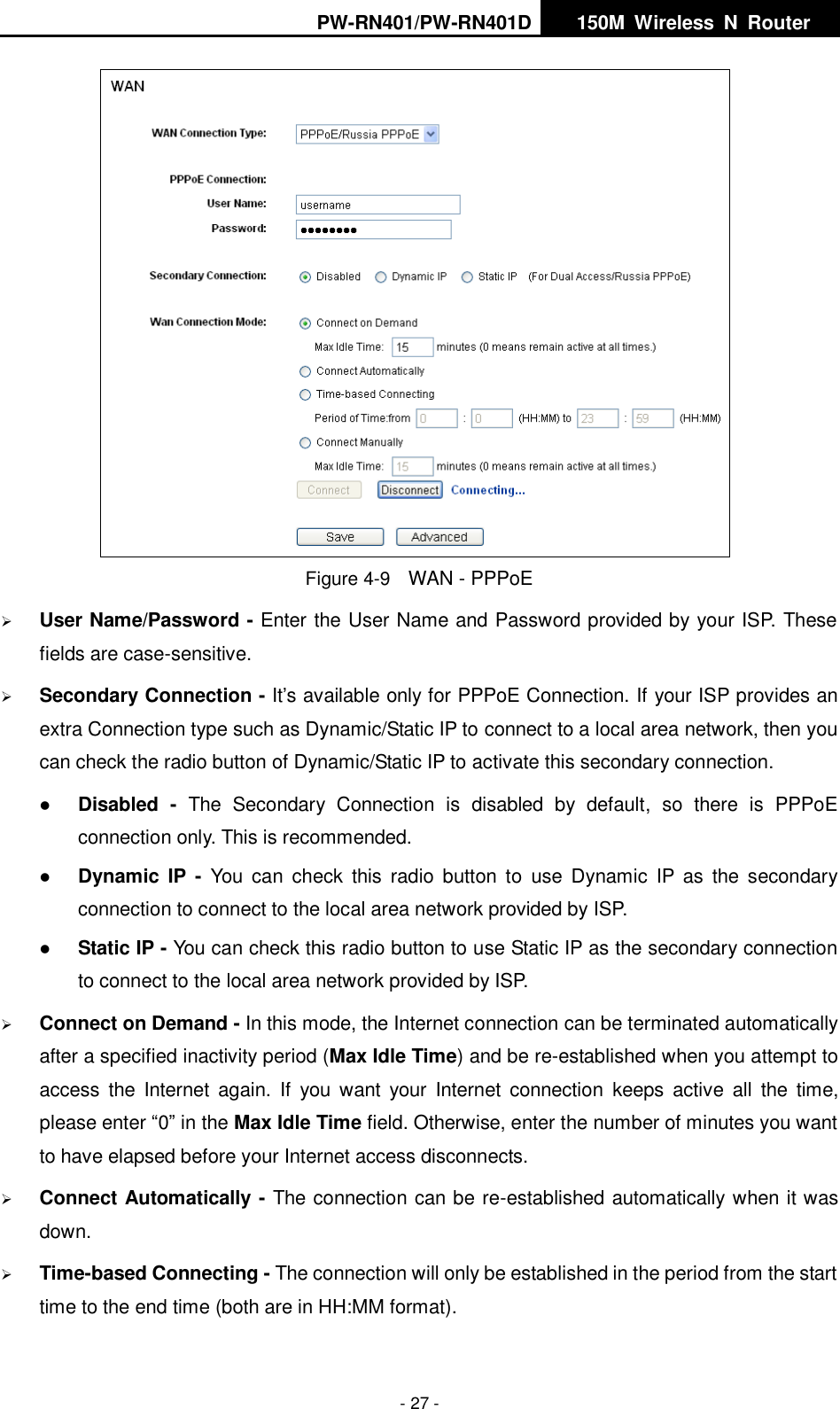
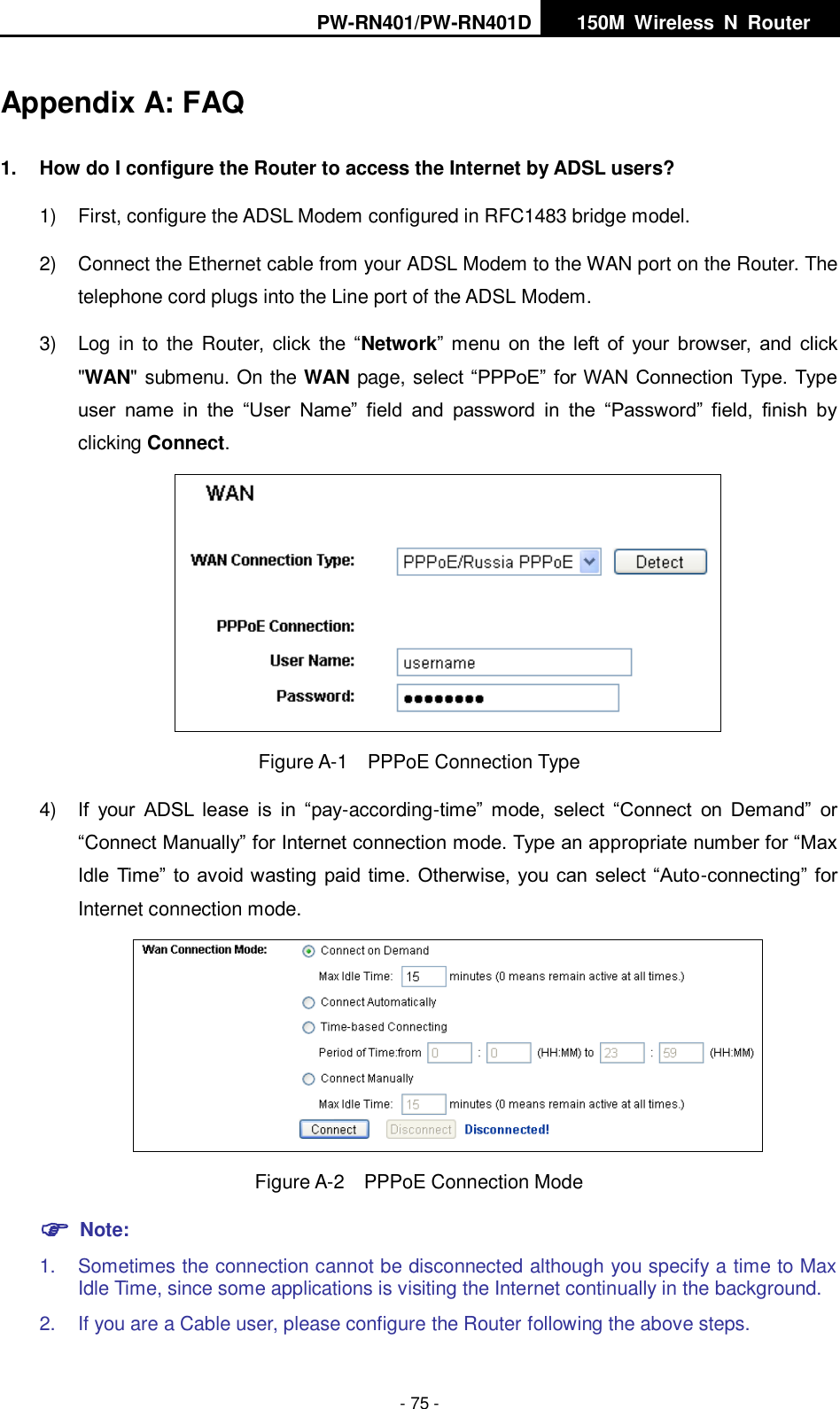
PW-RN401/PW-RN401D   150M  Wireless  N  Router    - 26 -  Get  IP  with  Unicast  DHCP  -  A  few  ISPs'  DHCP  servers  do  not  support  the  broadcast applications. If you cannot get the IP Address normally, you can choose this option. (It is rarely required.) Click the Save button to save your settings. 2.  If your ISP provides a static or fixed IP Address, Subnet Mask, Gateway and DNS setting, select Static IP. The Static IP settings page will appear, shown in Figure 4-8.  Figure 4-8  WAN - Static IP  IP Address - Enter the IP address in dotted-decimal notation provided by your ISP.  Subnet  Mask  -  Enter  the  subnet  Mask  in  dotted-decimal  notation  provided  by  your  ISP, usually is 255.255.255.0.  Default  Gateway  -  (Optional)  Enter  the  gateway  IP  address  in  dotted-decimal  notation provided by your ISP.  MTU Size - The normal MTU (Maximum Transmission Unit) value for most Ethernet networks is 1500 Bytes. It is not recommended that you change the default MTU Size unless required by your ISP.    Primary/Secondary DNS - (Optional) Enter  one or two DNS addresses in dotted-decimal notation provided by your ISP. Click the Save button to save your settings. 3. If your ISP provides a PPPoE connection, select PPPoE option. And you should enter the following parameters (Figure 4-9):
PW-RN401/PW-RN401D   150M  Wireless  N  Router    - 27 -  Figure 4-9    WAN - PPPoE  User Name/Password - Enter the User Name and Password provided by your ISP. These fields are case-sensitive.  Secondary Connection - It’s available only for PPPoE Connection. If your ISP provides an extra Connection type such as Dynamic/Static IP to connect to a local area network, then you can check the radio button of Dynamic/Static IP to activate this secondary connection.  Disabled -  The  Secondary  Connection  is  disabled  by  default,  so  there  is  PPPoE connection only. This is recommended.  Dynamic  IP -  You  can  check  this  radio  button  to  use  Dynamic  IP  as  the  secondary connection to connect to the local area network provided by ISP.  Static IP - You can check this radio button to use Static IP as the secondary connection to connect to the local area network provided by ISP.  Connect on Demand - In this mode, the Internet connection can be terminated automatically after a specified inactivity period (Max Idle Time) and be re-established when you attempt to access the  Internet  again. If  you  want  your  Internet  connection  keeps  active  all  the  time, please enter “0” in the Max Idle Time field. Otherwise, enter the number of minutes you want to have elapsed before your Internet access disconnects.  Connect Automatically - The connection can be re-established automatically when it was down.  Time-based Connecting - The connection will only be established in the period from the start time to the end time (both are in HH:MM format).
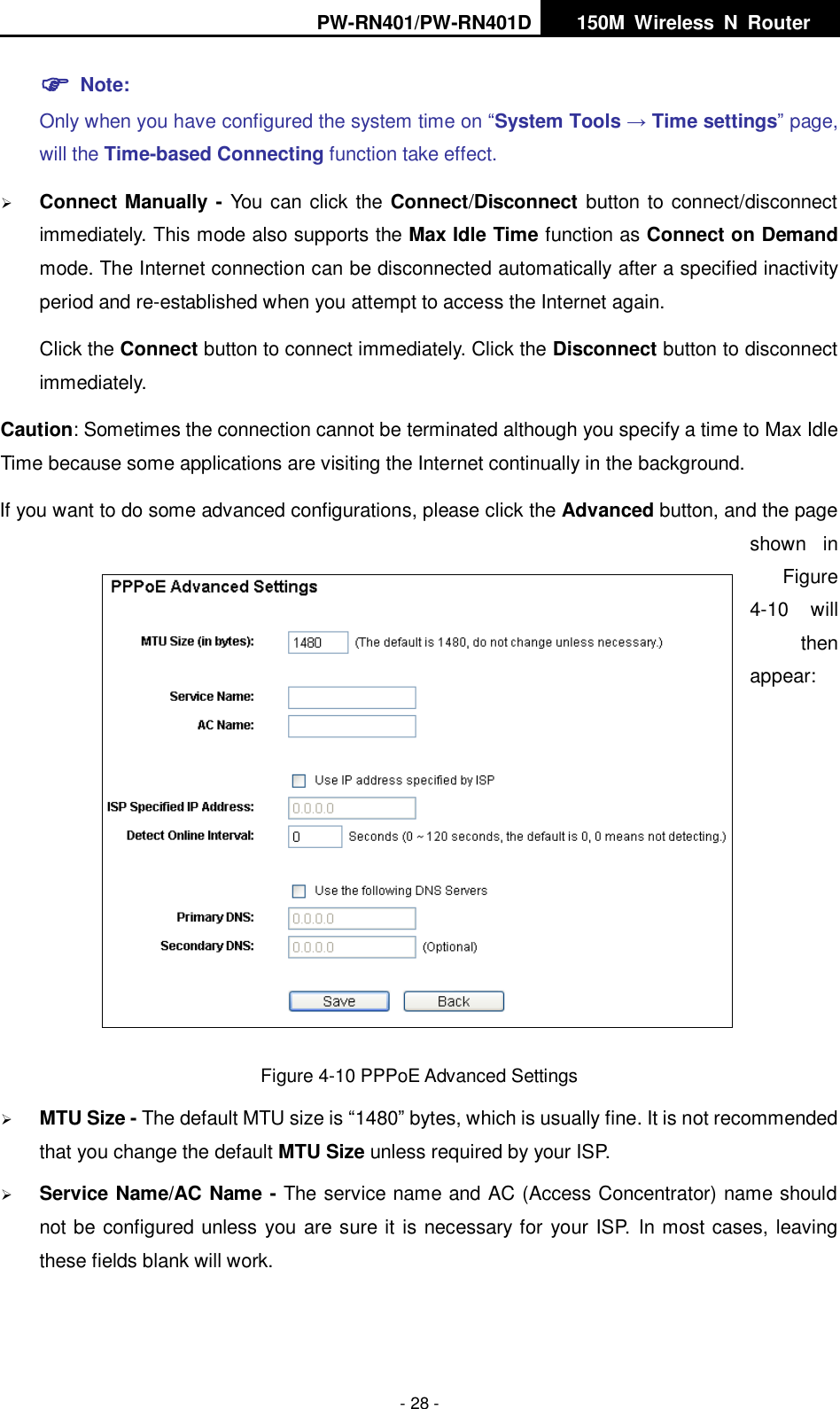
PW-RN401/PW-RN401D   150M  Wireless  N  Router    - 28 -  Note: Only when you have configured the system time on “System Tools → Time settings” page, will the Time-based Connecting function take effect.  Connect Manually - You can click the Connect/Disconnect button to connect/disconnect immediately. This mode also supports the Max Idle Time function as Connect on Demand mode. The Internet connection can be disconnected automatically after a specified inactivity period and re-established when you attempt to access the Internet again.   Click the Connect button to connect immediately. Click the Disconnect button to disconnect immediately. Caution: Sometimes the connection cannot be terminated although you specify a time to Max Idle Time because some applications are visiting the Internet continually in the background. If you want to do some advanced configurations, please click the Advanced button, and the page shown  in Figure 4-10  will then appear:   Figure 4-10 PPPoE Advanced Settings  MTU Size - The default MTU size is “1480” bytes, which is usually fine. It is not recommended that you change the default MTU Size unless required by your ISP.  Service Name/AC Name - The service name and AC (Access Concentrator) name should not be configured unless you are sure it is necessary for your ISP. In most cases, leaving these fields blank will work.
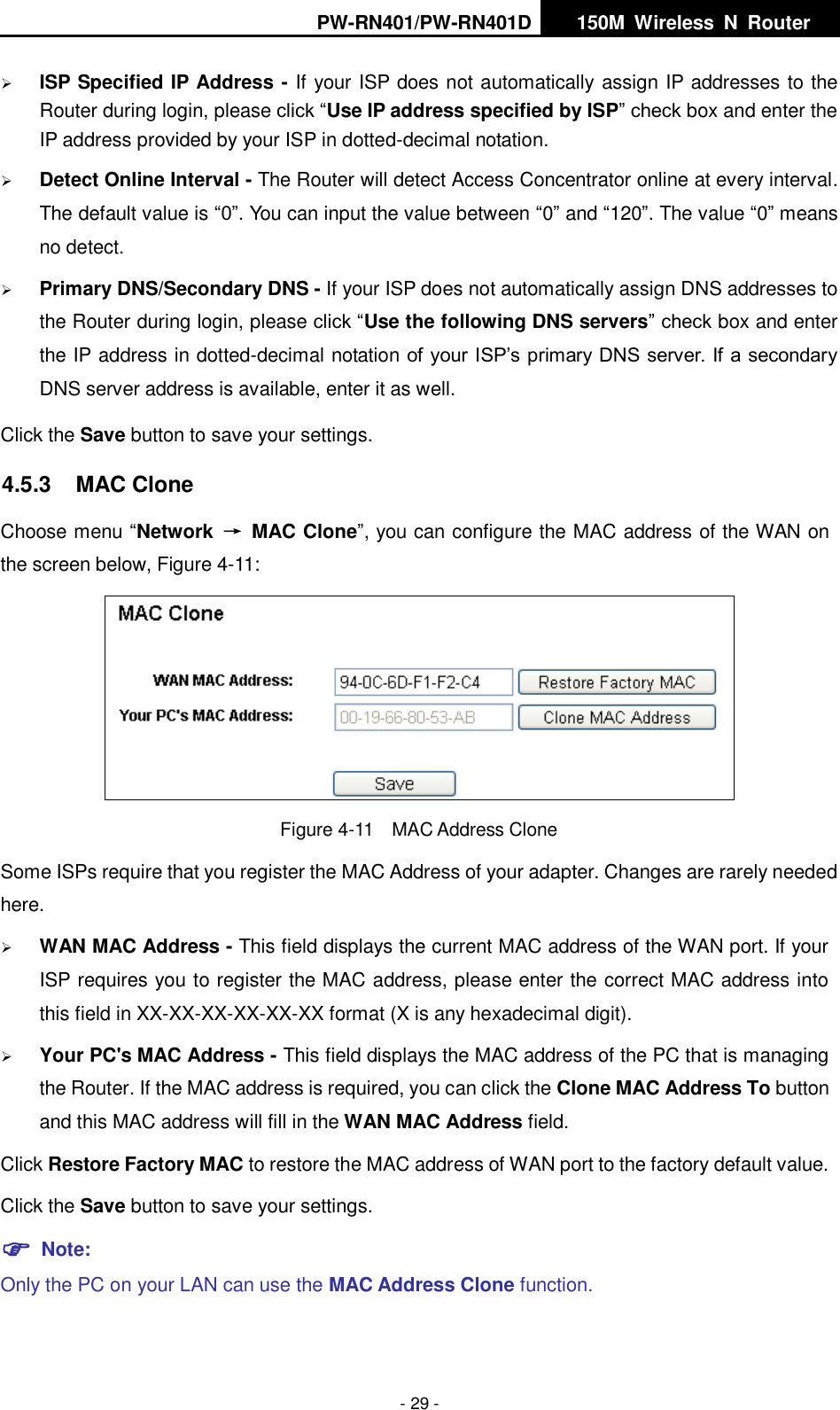
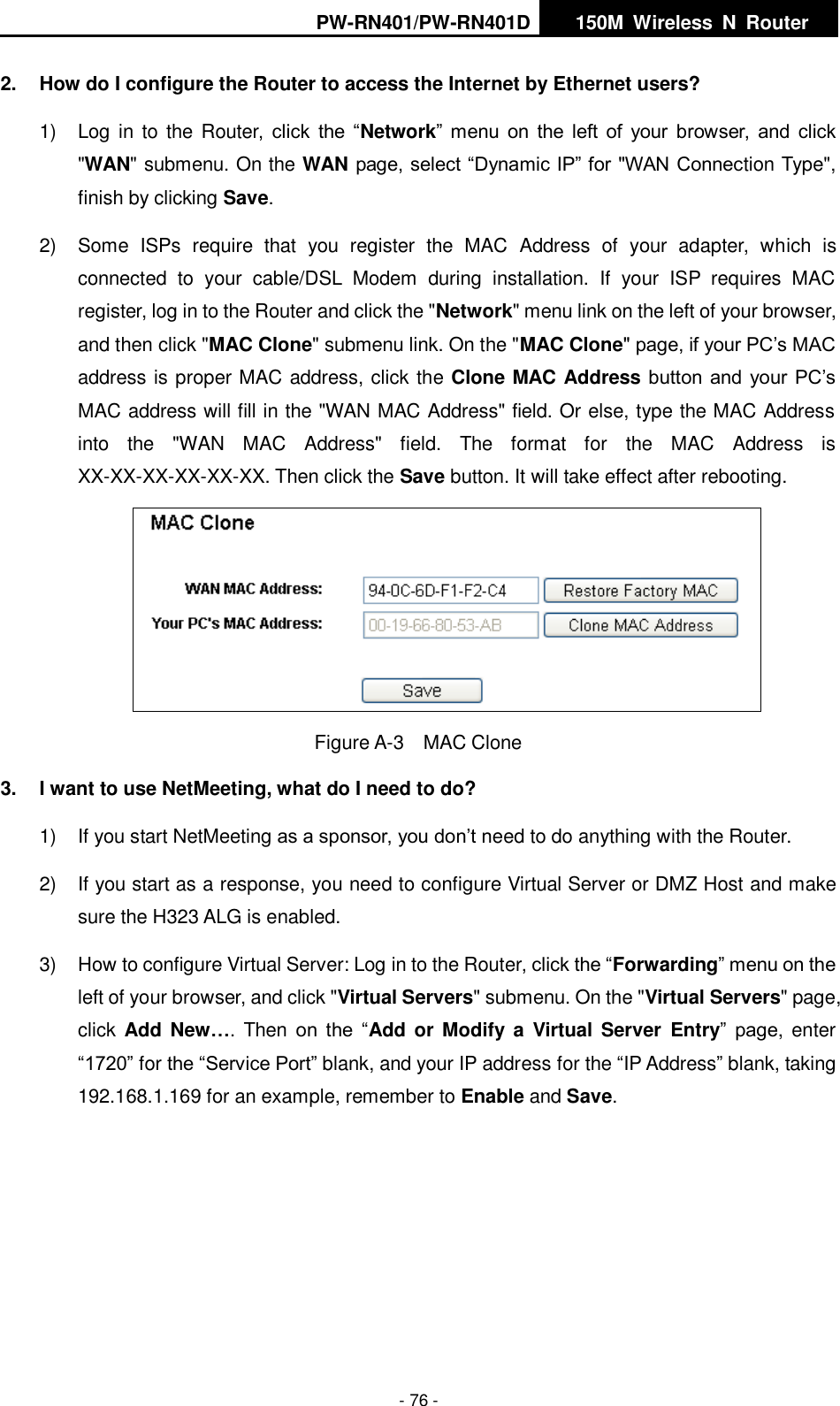
PW-RN401/PW-RN401D   150M  Wireless  N  Router    - 29 -  ISP Specified IP Address - If your ISP does not automatically assign IP addresses to the Router during login, please click “Use IP address specified by ISP” check box and enter the IP address provided by your ISP in dotted-decimal notation.  Detect Online Interval - The Router will detect Access Concentrator online at every interval. The default value is “0”. You can input the value between “0” and “120”. The value “0” means no detect.  Primary DNS/Secondary DNS - If your ISP does not automatically assign DNS addresses to the Router during login, please click “Use the following DNS servers” check box and enter the IP address in dotted-decimal notation of your ISP’s primary DNS server. If a secondary DNS server address is available, enter it as well. Click the Save button to save your settings. 4.5.3  MAC Clone Choose menu “Network  →  MAC Clone”, you can configure the MAC address of the WAN on the screen below, Figure 4-11:  Figure 4-11  MAC Address Clone Some ISPs require that you register the MAC Address of your adapter. Changes are rarely needed here.  WAN MAC Address - This field displays the current MAC address of the WAN port. If your ISP requires you to register the MAC address, please enter the correct MAC address into this field in XX-XX-XX-XX-XX-XX format (X is any hexadecimal digit).    Your PC's MAC Address - This field displays the MAC address of the PC that is managing the Router. If the MAC address is required, you can click the Clone MAC Address To button and this MAC address will fill in the WAN MAC Address field. Click Restore Factory MAC to restore the MAC address of WAN port to the factory default value. Click the Save button to save your settings.  Note:   Only the PC on your LAN can use the MAC Address Clone function.
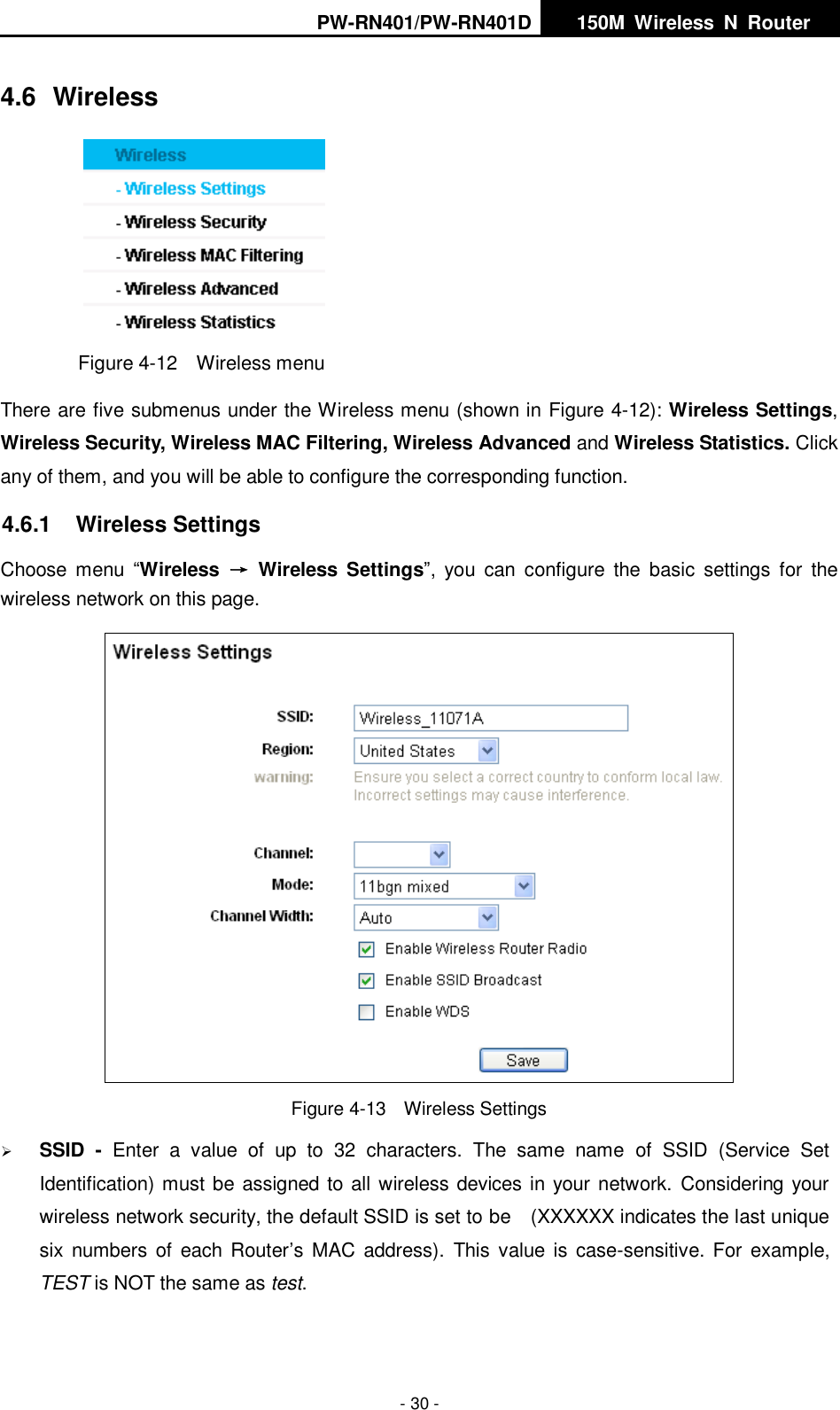
PW-RN401/PW-RN401D   150M  Wireless  N  Router    - 30 - 4.6  Wireless  Figure 4-12  Wireless menu There are five submenus under the Wireless menu (shown in Figure 4-12): Wireless Settings, Wireless Security, Wireless MAC Filtering, Wireless Advanced and Wireless Statistics. Click any of them, and you will be able to configure the corresponding function.   4.6.1  Wireless Settings Choose  menu  “Wireless  →  Wireless  Settings”,  you  can  configure  the  basic  settings  for  the wireless network on this page.  Figure 4-13  Wireless Settings  SSID  -  Enter  a  value  of  up  to  32  characters.  The  same  name  of  SSID  (Service  Set Identification) must be assigned to all wireless devices in your network.  Considering your wireless network security, the default SSID is set to be    (XXXXXX indicates the last unique six  numbers  of  each Router’s  MAC address).  This  value is case-sensitive. For  example, TEST is NOT the same as test.
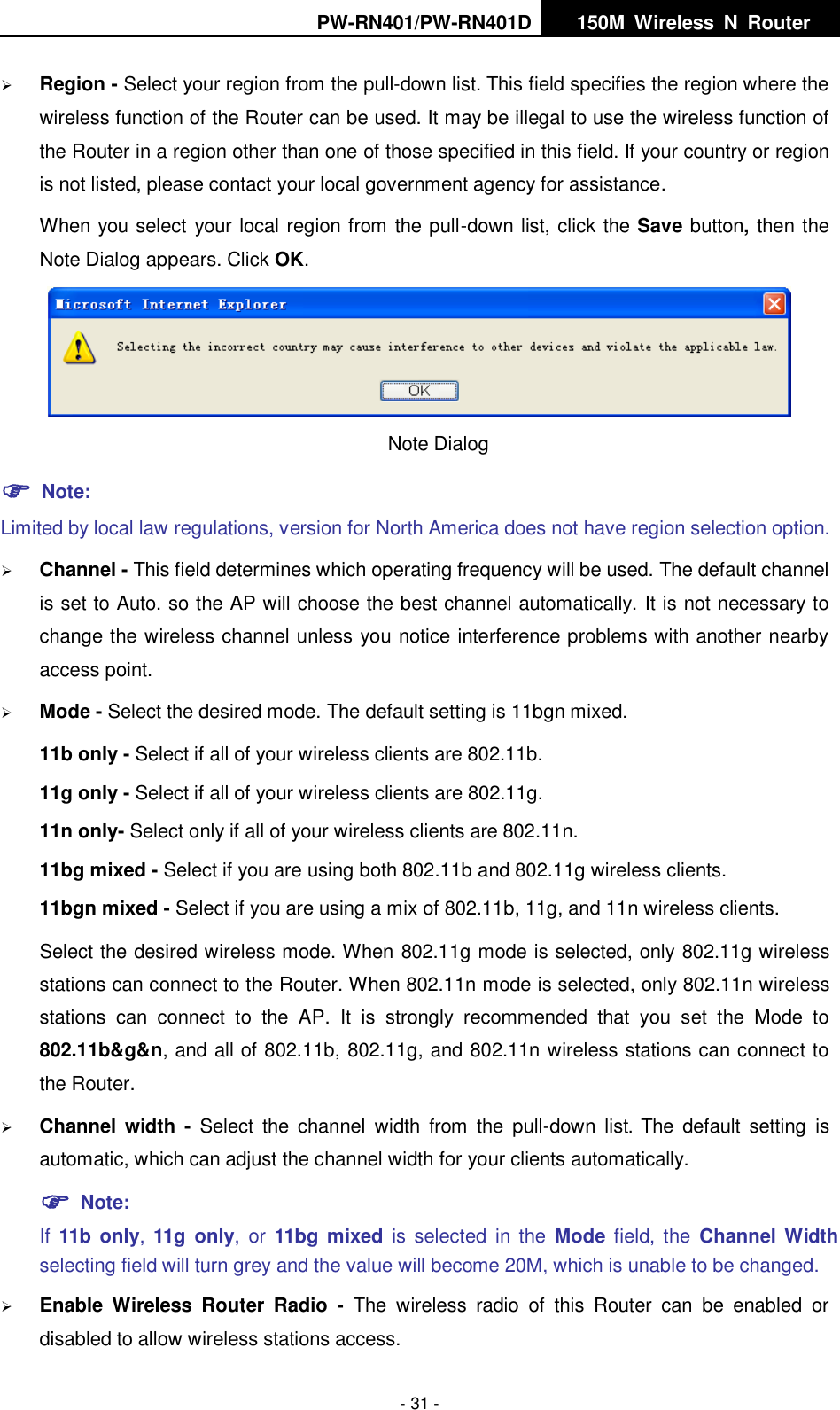
PW-RN401/PW-RN401D   150M  Wireless  N  Router    - 31 -  Region - Select your region from the pull-down list. This field specifies the region where the wireless function of the Router can be used. It may be illegal to use the wireless function of the Router in a region other than one of those specified in this field. If your country or region is not listed, please contact your local government agency for assistance. When you select your local region from the pull-down list, click the Save button, then the Note Dialog appears. Click OK.  Note Dialog    Note: Limited by local law regulations, version for North America does not have region selection option.  Channel - This field determines which operating frequency will be used. The default channel is set to Auto. so the AP will choose the best channel automatically. It is not necessary to change the wireless channel unless you notice interference problems with another nearby access point.  Mode - Select the desired mode. The default setting is 11bgn mixed. 11b only - Select if all of your wireless clients are 802.11b. 11g only - Select if all of your wireless clients are 802.11g. 11n only- Select only if all of your wireless clients are 802.11n. 11bg mixed - Select if you are using both 802.11b and 802.11g wireless clients. 11bgn mixed - Select if you are using a mix of 802.11b, 11g, and 11n wireless clients. Select the desired wireless mode. When 802.11g mode is selected, only 802.11g wireless stations can connect to the Router. When 802.11n mode is selected, only 802.11n wireless stations  can  connect  to  the  AP.  It  is  strongly  recommended  that  you  set  the  Mode  to 802.11b&g&n, and all of 802.11b, 802.11g, and 802.11n wireless stations can connect to the Router.  Channel width -  Select  the  channel  width  from  the  pull-down  list. The  default  setting  is automatic, which can adjust the channel width for your clients automatically.  Note:   If  11b only, 11g only,  or  11bg mixed is  selected in  the  Mode field, the  Channel Width selecting field will turn grey and the value will become 20M, which is unable to be changed.    Enable  Wireless  Router  Radio  -  The  wireless  radio  of  this  Router  can  be  enabled  or disabled to allow wireless stations access.
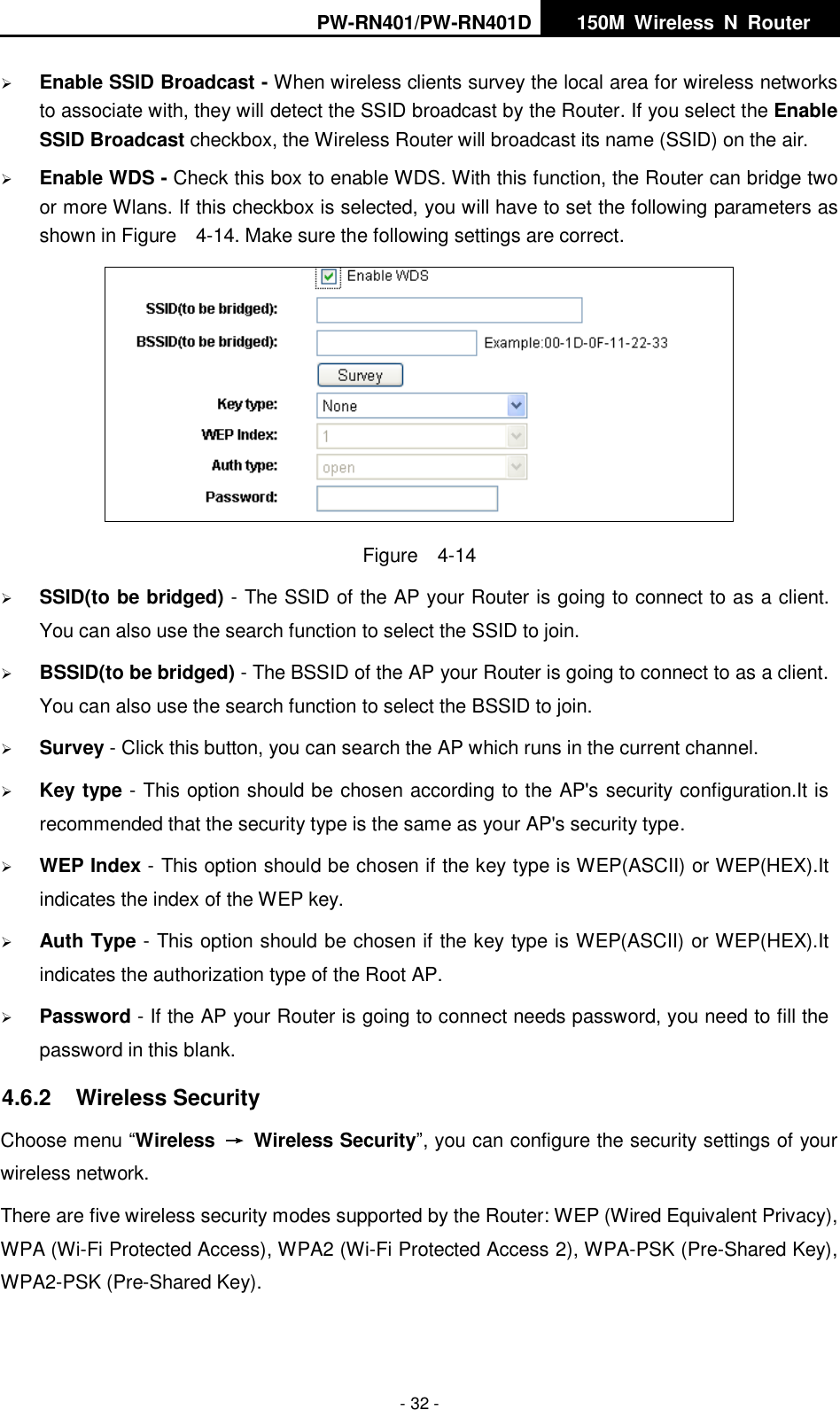
PW-RN401/PW-RN401D   150M  Wireless  N  Router    - 32 -  Enable SSID Broadcast - When wireless clients survey the local area for wireless networks to associate with, they will detect the SSID broadcast by the Router. If you select the Enable SSID Broadcast checkbox, the Wireless Router will broadcast its name (SSID) on the air.  Enable WDS - Check this box to enable WDS. With this function, the Router can bridge two or more Wlans. If this checkbox is selected, you will have to set the following parameters as shown in Figure    4-14. Make sure the following settings are correct.  Figure    4-14  SSID(to be bridged) - The SSID of the AP your Router is going to connect to as a client. You can also use the search function to select the SSID to join.  BSSID(to be bridged) - The BSSID of the AP your Router is going to connect to as a client. You can also use the search function to select the BSSID to join.  Survey - Click this button, you can search the AP which runs in the current channel.  Key type - This option should be chosen according to the AP's security configuration.It is recommended that the security type is the same as your AP's security type.  WEP Index - This option should be chosen if the key type is WEP(ASCII) or WEP(HEX).It indicates the index of the WEP key.  Auth Type - This option should be chosen if the key type is WEP(ASCII) or WEP(HEX).It indicates the authorization type of the Root AP.  Password - If the AP your Router is going to connect needs password, you need to fill the password in this blank. 4.6.2  Wireless Security Choose menu “Wireless  →  Wireless Security”, you can configure the security settings of your wireless network. There are five wireless security modes supported by the Router: WEP (Wired Equivalent Privacy), WPA (Wi-Fi Protected Access), WPA2 (Wi-Fi Protected Access 2), WPA-PSK (Pre-Shared Key), WPA2-PSK (Pre-Shared Key).
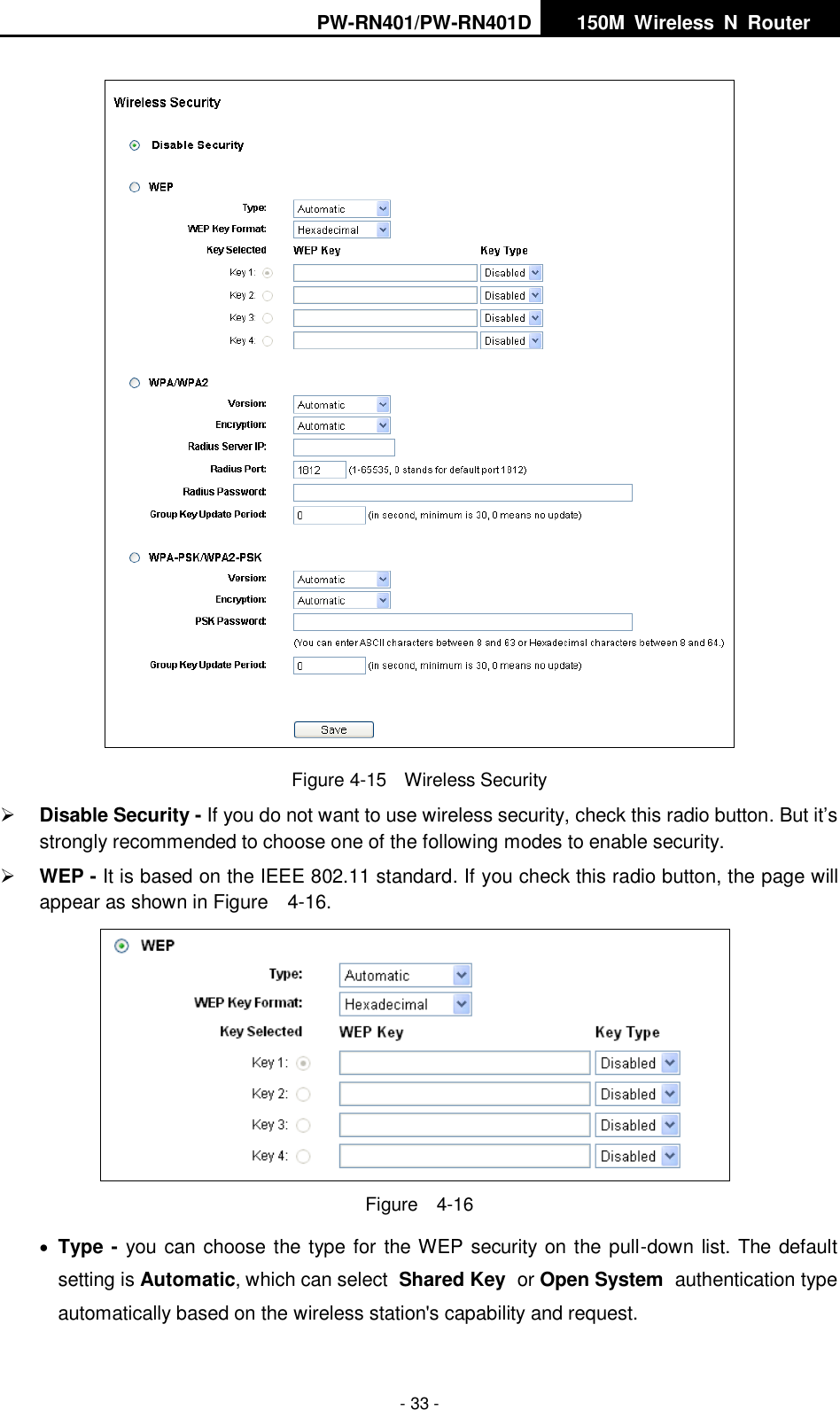
PW-RN401/PW-RN401D   150M  Wireless  N  Router    - 33 -  Figure 4-15    Wireless Security  Disable Security - If you do not want to use wireless security, check this radio button. But it’s strongly recommended to choose one of the following modes to enable security.  WEP - It is based on the IEEE 802.11 standard. If you check this radio button, the page will appear as shown in Figure    4-16.    Figure    4-16  Type - you can choose the type for the WEP security on the pull-down list. The default setting is Automatic, which can select Shared Key or Open System authentication type automatically based on the wireless station's capability and request.
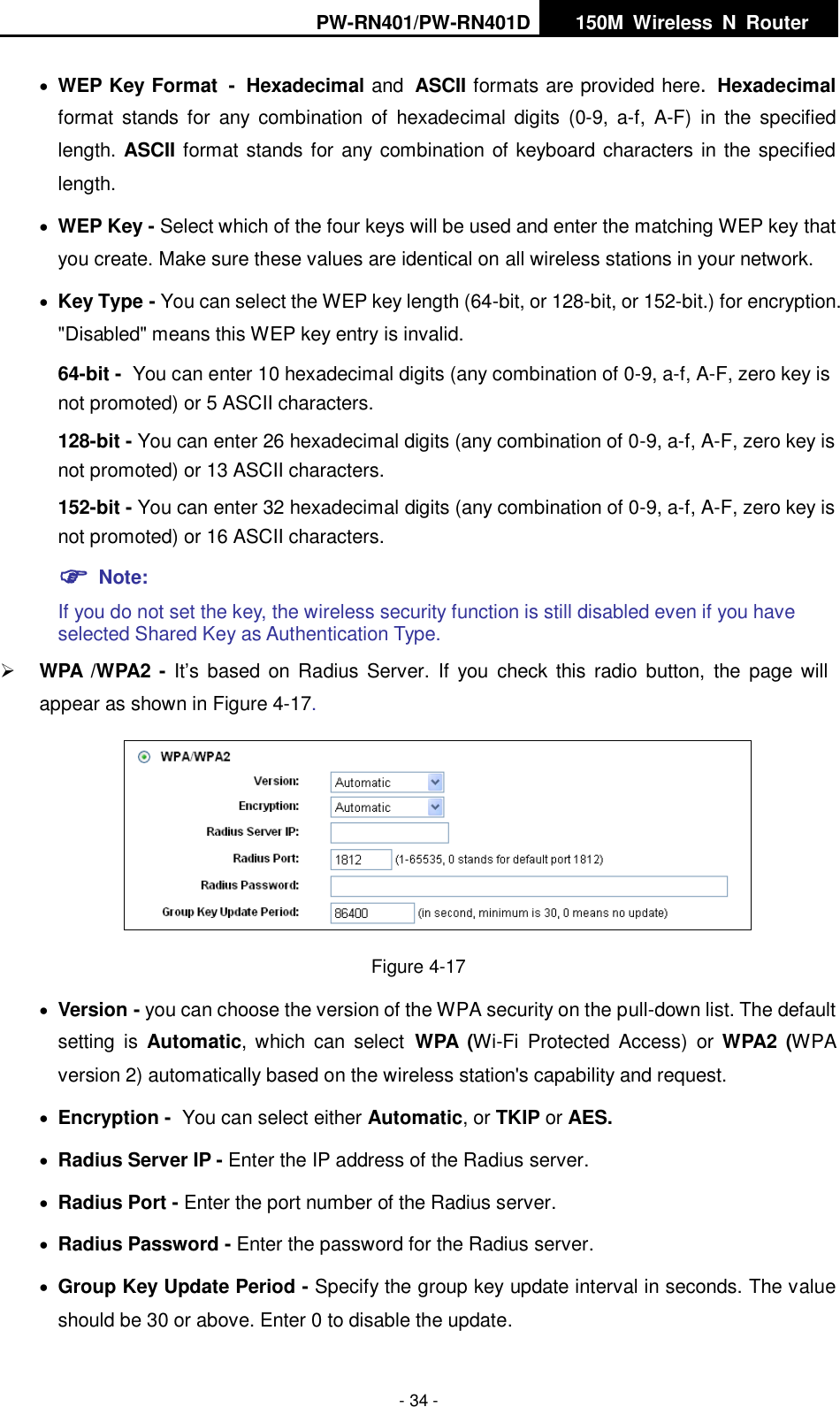
PW-RN401/PW-RN401D   150M  Wireless  N  Router    - 34 -  WEP Key Format - Hexadecimal and ASCII formats are provided here. Hexadecimal format  stands  for  any  combination  of  hexadecimal  digits  (0-9,  a-f,  A-F)  in  the  specified length. ASCII format stands for any combination of keyboard characters in the specified length.    WEP Key - Select which of the four keys will be used and enter the matching WEP key that you create. Make sure these values are identical on all wireless stations in your network.    Key Type - You can select the WEP key length (64-bit, or 128-bit, or 152-bit.) for encryption. "Disabled" means this WEP key entry is invalid. 64-bit - You can enter 10 hexadecimal digits (any combination of 0-9, a-f, A-F, zero key is not promoted) or 5 ASCII characters.   128-bit - You can enter 26 hexadecimal digits (any combination of 0-9, a-f, A-F, zero key is not promoted) or 13 ASCII characters.   152-bit - You can enter 32 hexadecimal digits (any combination of 0-9, a-f, A-F, zero key is not promoted) or 16 ASCII characters.    Note:   If you do not set the key, the wireless security function is still disabled even if you have selected Shared Key as Authentication Type.    WPA /WPA2 - It’s  based  on Radius Server.  If you check this radio  button,  the  page will appear as shown in Figure 4-17.  Figure 4-17  Version - you can choose the version of the WPA security on the pull-down list. The default setting  is  Automatic, which  can  select WPA  (Wi-Fi  Protected  Access)  or WPA2  (WPA version 2) automatically based on the wireless station's capability and request.  Encryption - You can select either Automatic, or TKIP or AES.  Radius Server IP - Enter the IP address of the Radius server.  Radius Port - Enter the port number of the Radius server.  Radius Password - Enter the password for the Radius server.  Group Key Update Period - Specify the group key update interval in seconds. The value should be 30 or above. Enter 0 to disable the update.
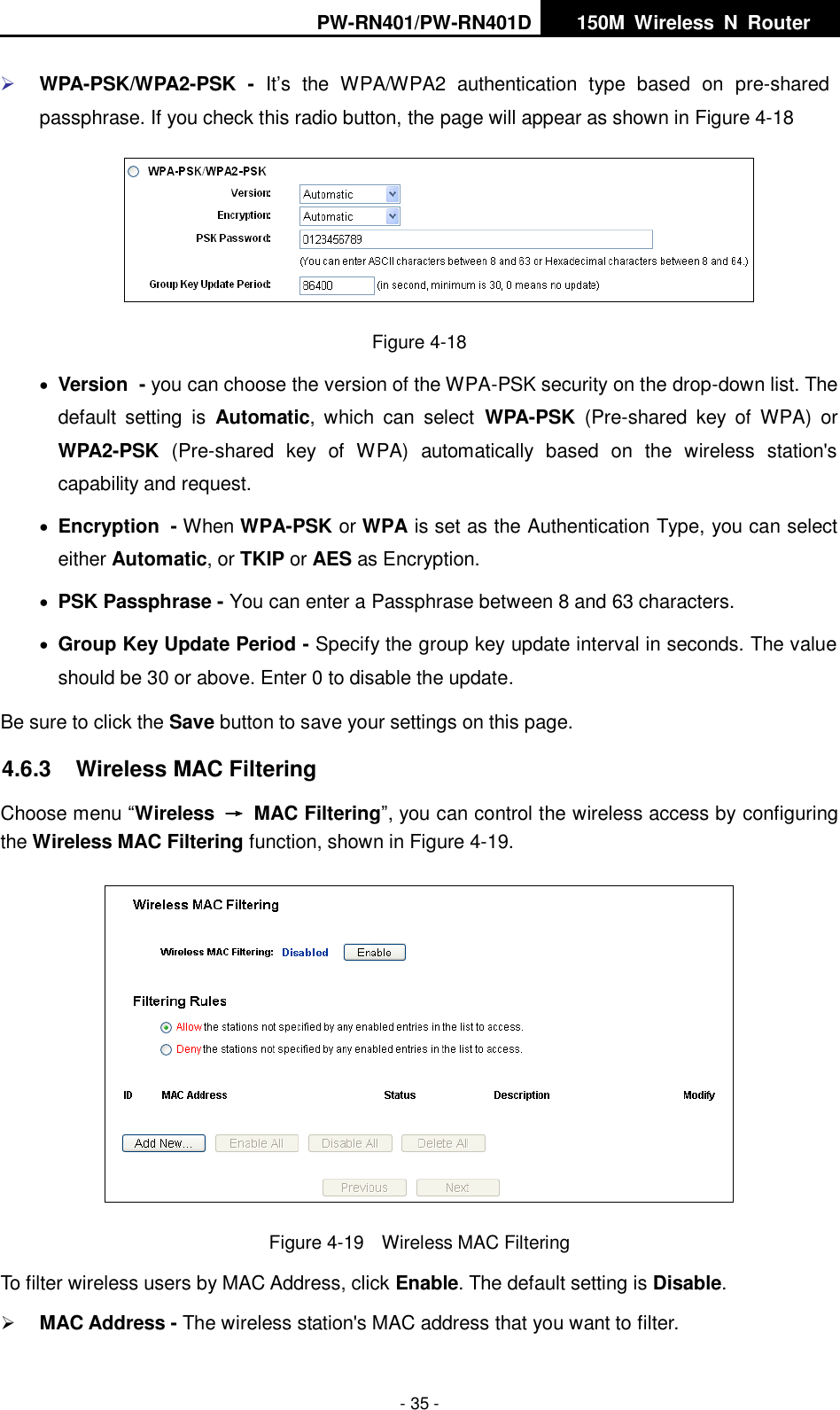
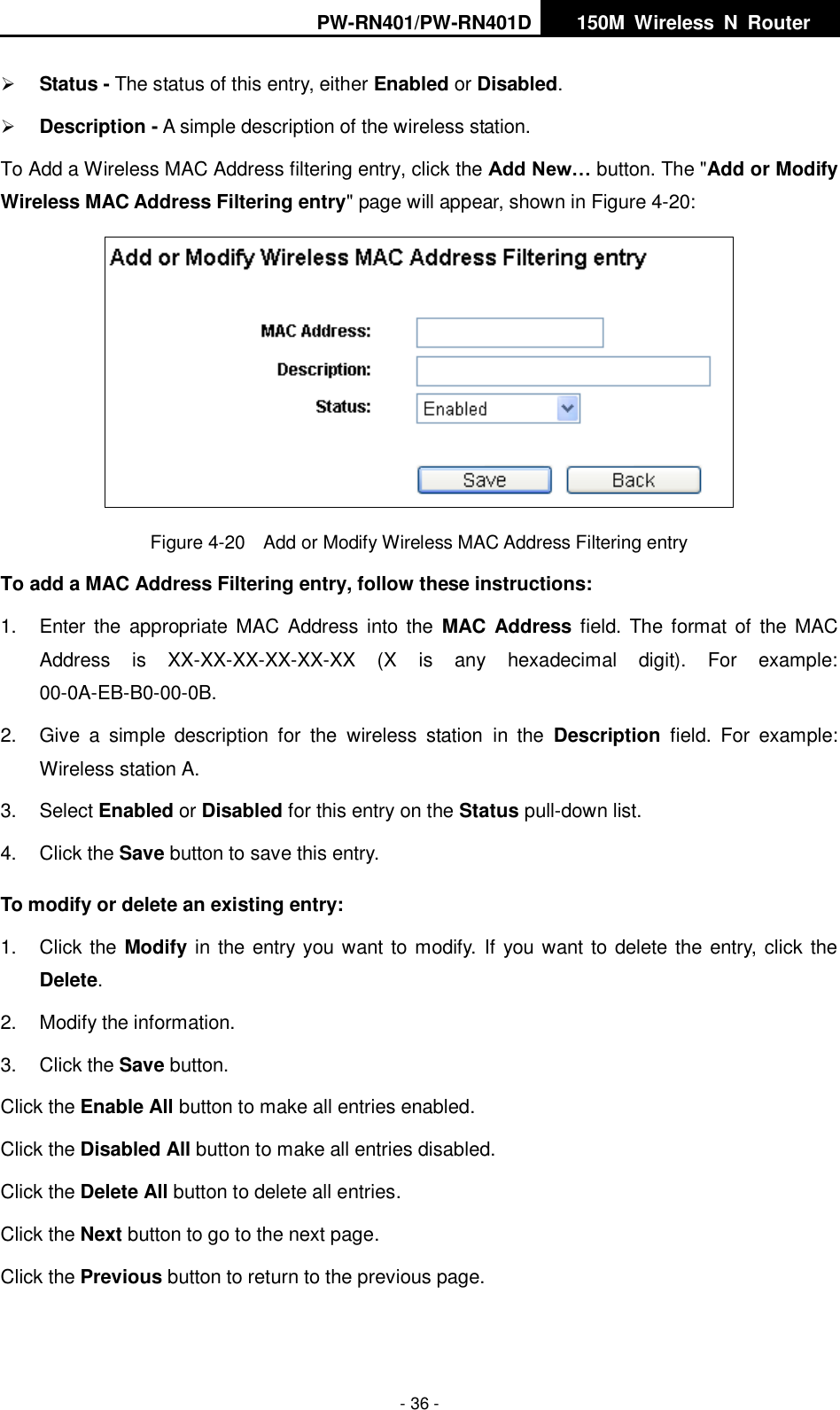
PW-RN401/PW-RN401D   150M  Wireless  N  Router    - 35 -  WPA-PSK/WPA2-PSK  - It’s  the  WPA/WPA2  authentication  type  based  on  pre-shared passphrase. If you check this radio button, the page will appear as shown in Figure 4-18  Figure 4-18  Version - you can choose the version of the WPA-PSK security on the drop-down list. The default  setting  is  Automatic,  which  can  select WPA-PSK  (Pre-shared  key  of  WPA)  or WPA2-PSK  (Pre-shared  key  of  WPA)  automatically  based  on  the  wireless  station's capability and request.  Encryption - When WPA-PSK or WPA is set as the Authentication Type, you can select either Automatic, or TKIP or AES as Encryption.  PSK Passphrase - You can enter a Passphrase between 8 and 63 characters.  Group Key Update Period - Specify the group key update interval in seconds. The value should be 30 or above. Enter 0 to disable the update. Be sure to click the Save button to save your settings on this page. 4.6.3  Wireless MAC Filtering   Choose menu “Wireless  →  MAC Filtering”, you can control the wireless access by configuring the Wireless MAC Filtering function, shown in Figure 4-19.  Figure 4-19  Wireless MAC Filtering To filter wireless users by MAC Address, click Enable. The default setting is Disable.  MAC Address - The wireless station's MAC address that you want to filter.
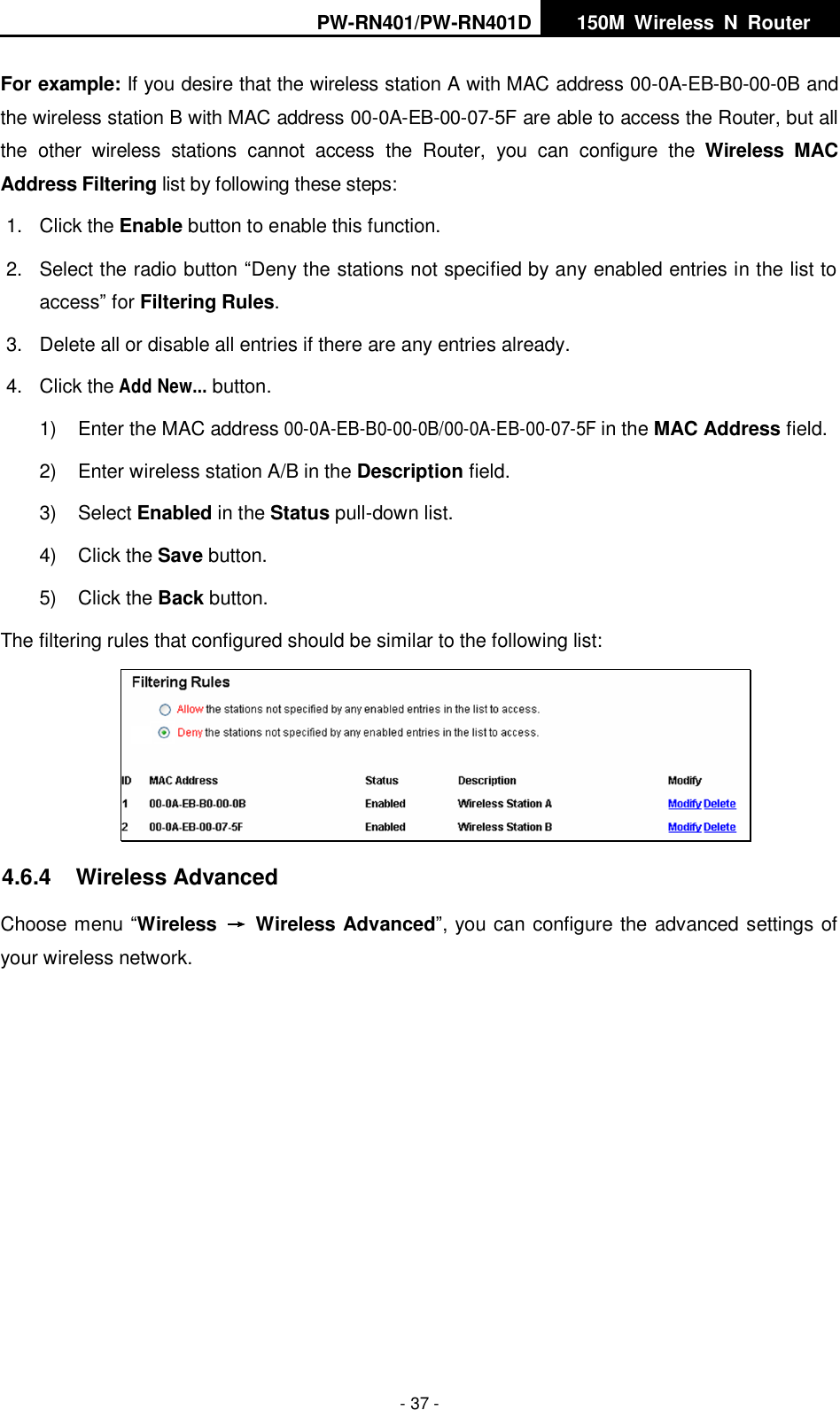
PW-RN401/PW-RN401D   150M  Wireless  N  Router    - 36 -  Status - The status of this entry, either Enabled or Disabled.  Description - A simple description of the wireless station.   To Add a Wireless MAC Address filtering entry, click the Add New… button. The "Add or Modify Wireless MAC Address Filtering entry" page will appear, shown in Figure 4-20:  Figure 4-20  Add or Modify Wireless MAC Address Filtering entry To add a MAC Address Filtering entry, follow these instructions: 1.  Enter  the  appropriate  MAC Address  into the  MAC Address field. The format  of  the  MAC Address  is  XX-XX-XX-XX-XX-XX  (X  is  any  hexadecimal  digit).  For  example: 00-0A-EB-B0-00-0B.   2.  Give  a  simple  description  for  the  wireless  station  in  the  Description  field.  For  example: Wireless station A. 3.  Select Enabled or Disabled for this entry on the Status pull-down list. 4. Click the Save button to save this entry. To modify or delete an existing entry: 1.  Click the Modify in the entry you want to modify.  If you want to delete the entry, click the Delete. 2.  Modify the information.   3.  Click the Save button. Click the Enable All button to make all entries enabled. Click the Disabled All button to make all entries disabled. Click the Delete All button to delete all entries. Click the Next button to go to the next page. Click the Previous button to return to the previous page.
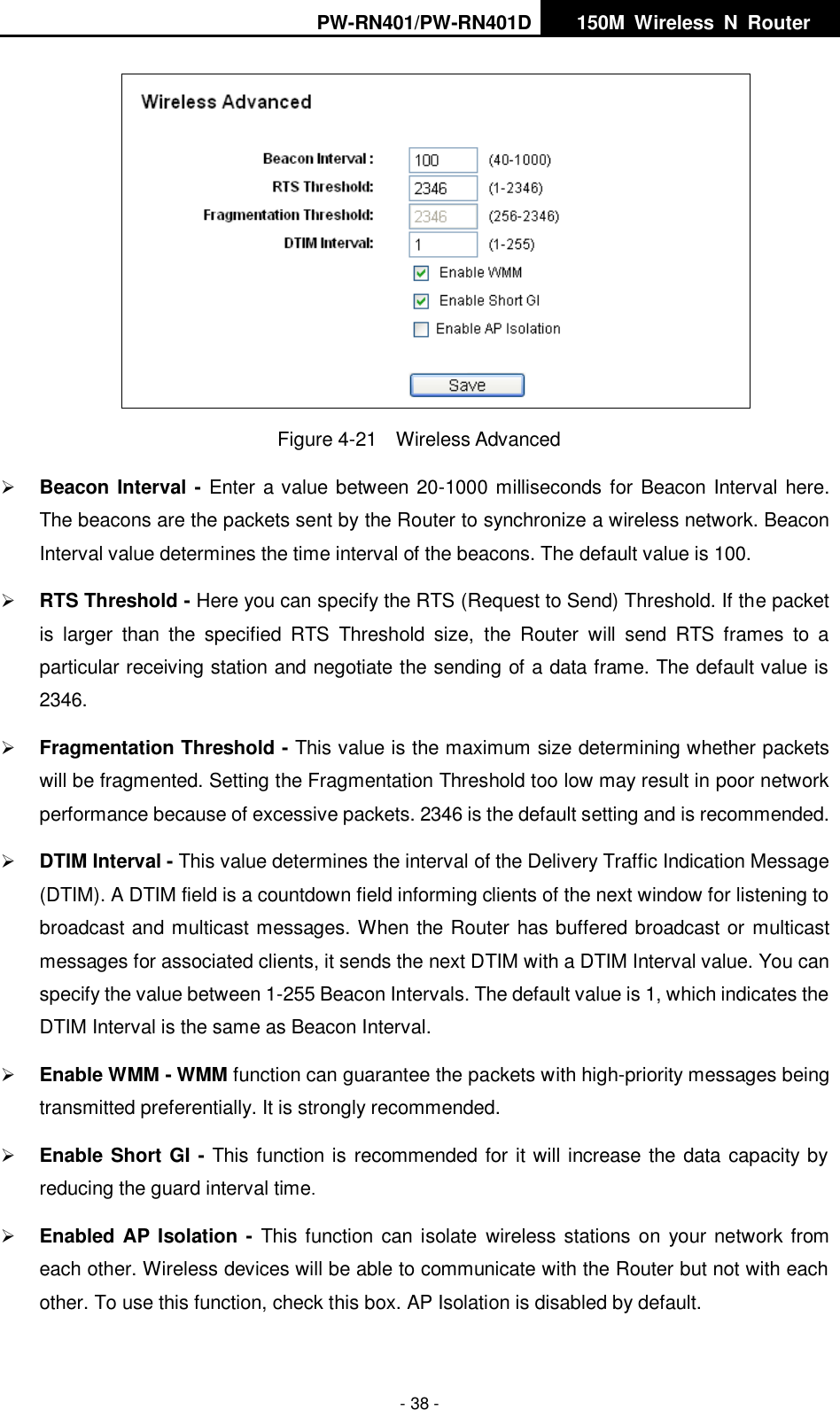
PW-RN401/PW-RN401D   150M  Wireless  N  Router    - 37 - For example: If you desire that the wireless station A with MAC address 00-0A-EB-B0-00-0B and the wireless station B with MAC address 00-0A-EB-00-07-5F are able to access the Router, but all the  other  wireless  stations  cannot  access  the  Router,  you  can  configure  the  Wireless  MAC Address Filtering list by following these steps: 1.  Click the Enable button to enable this function. 2.  Select the radio button “Deny the stations not specified by any enabled entries in the list to access” for Filtering Rules. 3.  Delete all or disable all entries if there are any entries already. 4.  Click the Add New... button.   1)  Enter the MAC address 00-0A-EB-B0-00-0B/00-0A-EB-00-07-5F in the MAC Address field. 2)  Enter wireless station A/B in the Description field. 3)  Select Enabled in the Status pull-down list. 4)  Click the Save button. 5)  Click the Back button. The filtering rules that configured should be similar to the following list:  4.6.4  Wireless Advanced Choose menu “Wireless  →  Wireless Advanced”, you can configure the advanced settings of your wireless network.
PW-RN401/PW-RN401D   150M  Wireless  N  Router    - 38 -  Figure 4-21    Wireless Advanced  Beacon Interval - Enter a value between 20-1000 milliseconds for Beacon Interval here. The beacons are the packets sent by the Router to synchronize a wireless network. Beacon Interval value determines the time interval of the beacons. The default value is 100.    RTS Threshold - Here you can specify the RTS (Request to Send) Threshold. If the packet is  larger  than  the  specified  RTS  Threshold  size,  the  Router  will  send  RTS  frames  to  a particular receiving station and negotiate the sending of a data frame. The default value is 2346.    Fragmentation Threshold - This value is the maximum size determining whether packets will be fragmented. Setting the Fragmentation Threshold too low may result in poor network performance because of excessive packets. 2346 is the default setting and is recommended.    DTIM Interval - This value determines the interval of the Delivery Traffic Indication Message (DTIM). A DTIM field is a countdown field informing clients of the next window for listening to broadcast and multicast messages. When the Router has buffered broadcast or multicast messages for associated clients, it sends the next DTIM with a DTIM Interval value. You can specify the value between 1-255 Beacon Intervals. The default value is 1, which indicates the DTIM Interval is the same as Beacon Interval.    Enable WMM - WMM function can guarantee the packets with high-priority messages being transmitted preferentially. It is strongly recommended.    Enable Short GI - This function is recommended for it will increase the data capacity by reducing the guard interval time.    Enabled AP Isolation -  This function can isolate  wireless stations on  your network from each other. Wireless devices will be able to communicate with the Router but not with each other. To use this function, check this box. AP Isolation is disabled by default.
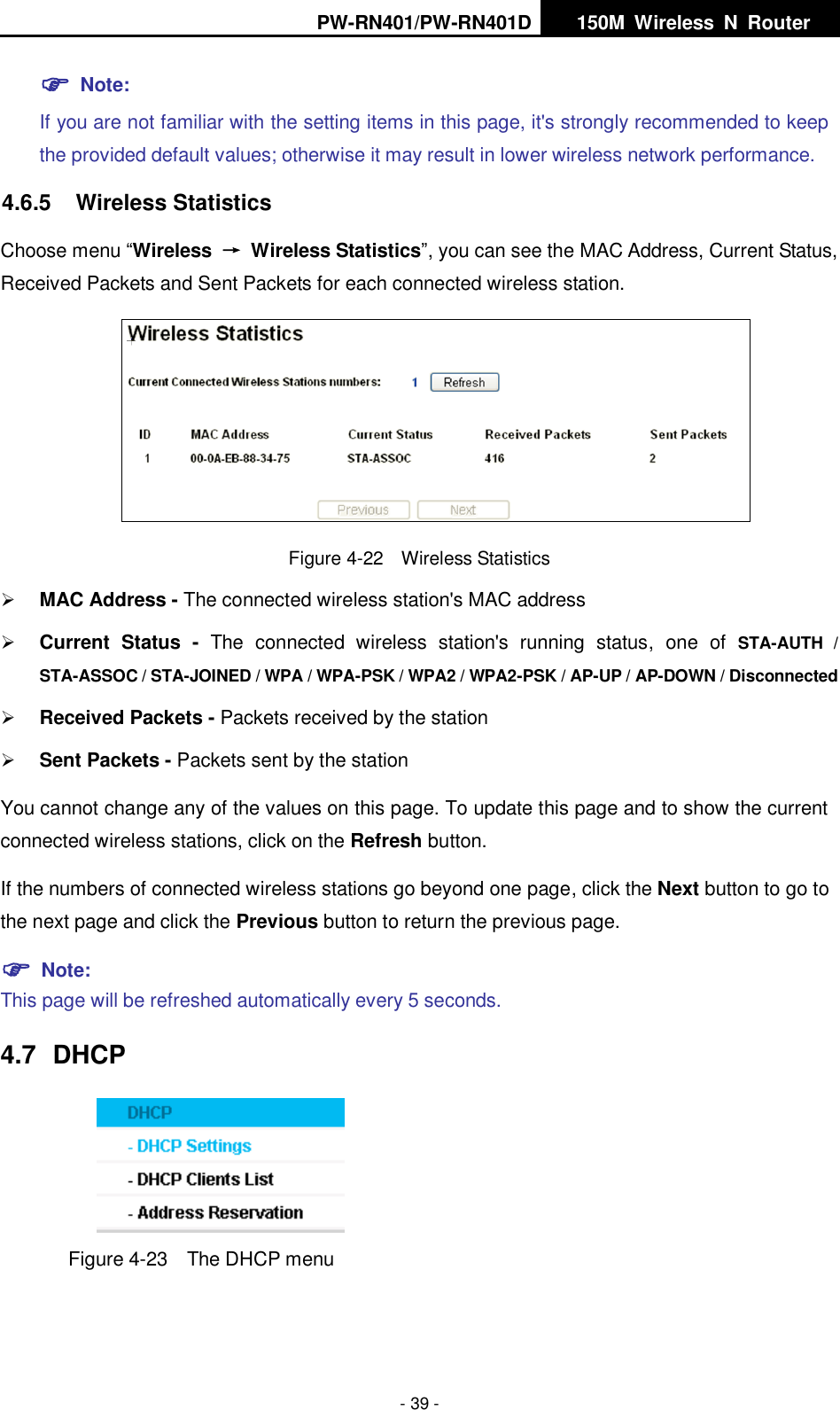
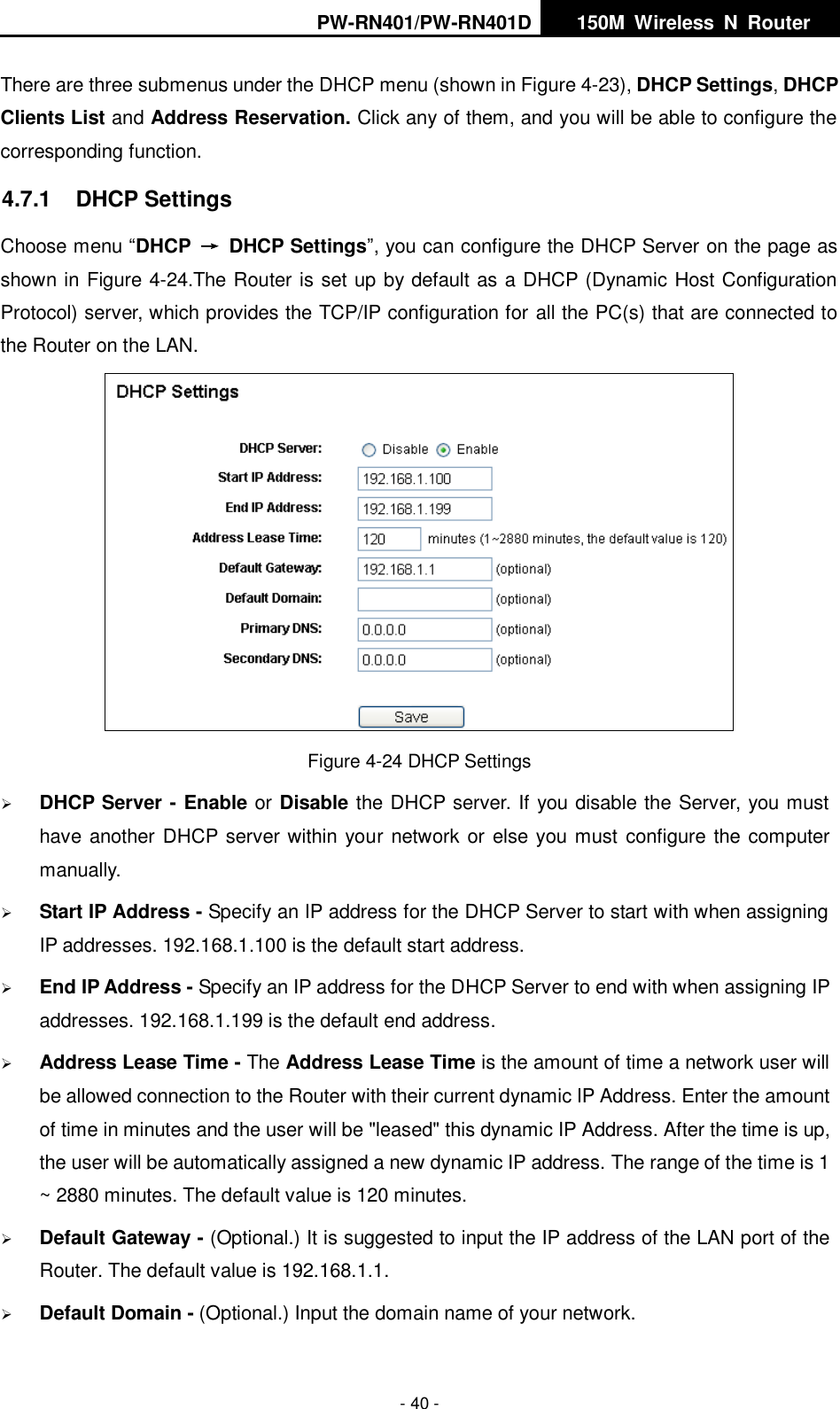
PW-RN401/PW-RN401D   150M  Wireless  N  Router    - 39 -  Note:   If you are not familiar with the setting items in this page, it's strongly recommended to keep the provided default values; otherwise it may result in lower wireless network performance. 4.6.5  Wireless Statistics Choose menu “Wireless  →  Wireless Statistics”, you can see the MAC Address, Current Status, Received Packets and Sent Packets for each connected wireless station.  Figure 4-22    Wireless Statistics  MAC Address - The connected wireless station's MAC address  Current  Status -  The  connected  wireless  station's  running  status,  one  of  STA-AUTH  / STA-ASSOC / STA-JOINED / WPA / WPA-PSK / WPA2 / WPA2-PSK / AP-UP / AP-DOWN / Disconnected  Received Packets - Packets received by the station  Sent Packets - Packets sent by the station You cannot change any of the values on this page. To update this page and to show the current connected wireless stations, click on the Refresh button.   If the numbers of connected wireless stations go beyond one page, click the Next button to go to the next page and click the Previous button to return the previous page.  Note:   This page will be refreshed automatically every 5 seconds. 4.7  DHCP  Figure 4-23  The DHCP menu
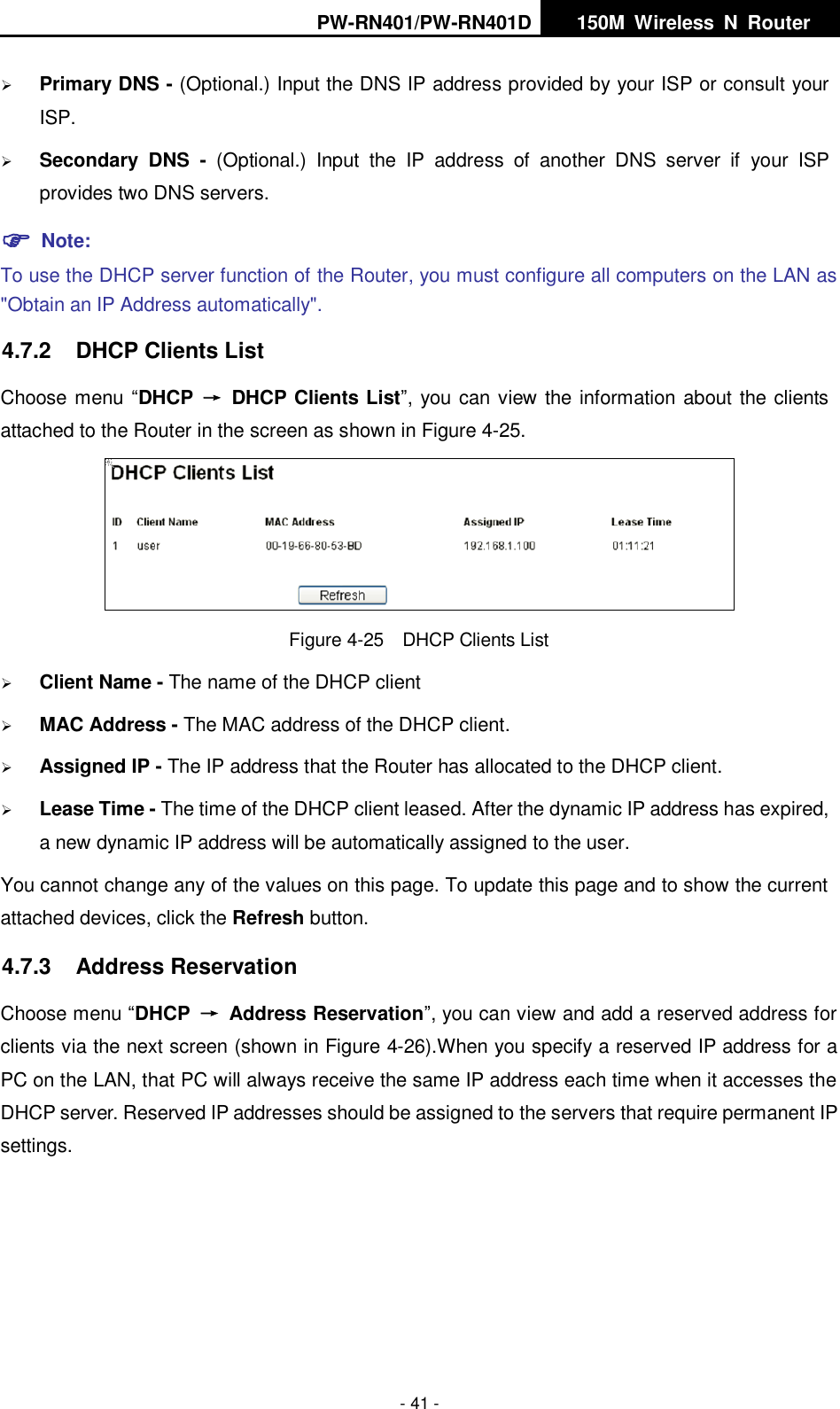
PW-RN401/PW-RN401D   150M  Wireless  N  Router    - 40 - There are three submenus under the DHCP menu (shown in Figure 4-23), DHCP Settings, DHCP Clients List and Address Reservation. Click any of them, and you will be able to configure the corresponding function. 4.7.1  DHCP Settings Choose menu “DHCP →  DHCP Settings”, you can configure the DHCP Server on the page as shown in Figure 4-24.The Router is set up by default as a DHCP (Dynamic Host Configuration Protocol) server, which provides the TCP/IP configuration for all the PC(s) that are connected to the Router on the LAN.    Figure 4-24 DHCP Settings  DHCP Server - Enable or Disable the DHCP server. If you disable the Server, you must have another DHCP server within your network or else you must configure the computer manually.  Start IP Address - Specify an IP address for the DHCP Server to start with when assigning IP addresses. 192.168.1.100 is the default start address.  End IP Address - Specify an IP address for the DHCP Server to end with when assigning IP addresses. 192.168.1.199 is the default end address.  Address Lease Time - The Address Lease Time is the amount of time a network user will be allowed connection to the Router with their current dynamic IP Address. Enter the amount of time in minutes and the user will be "leased" this dynamic IP Address. After the time is up, the user will be automatically assigned a new dynamic IP address. The range of the time is 1 ~ 2880 minutes. The default value is 120 minutes.  Default Gateway - (Optional.) It is suggested to input the IP address of the LAN port of the Router. The default value is 192.168.1.1.  Default Domain - (Optional.) Input the domain name of your network.
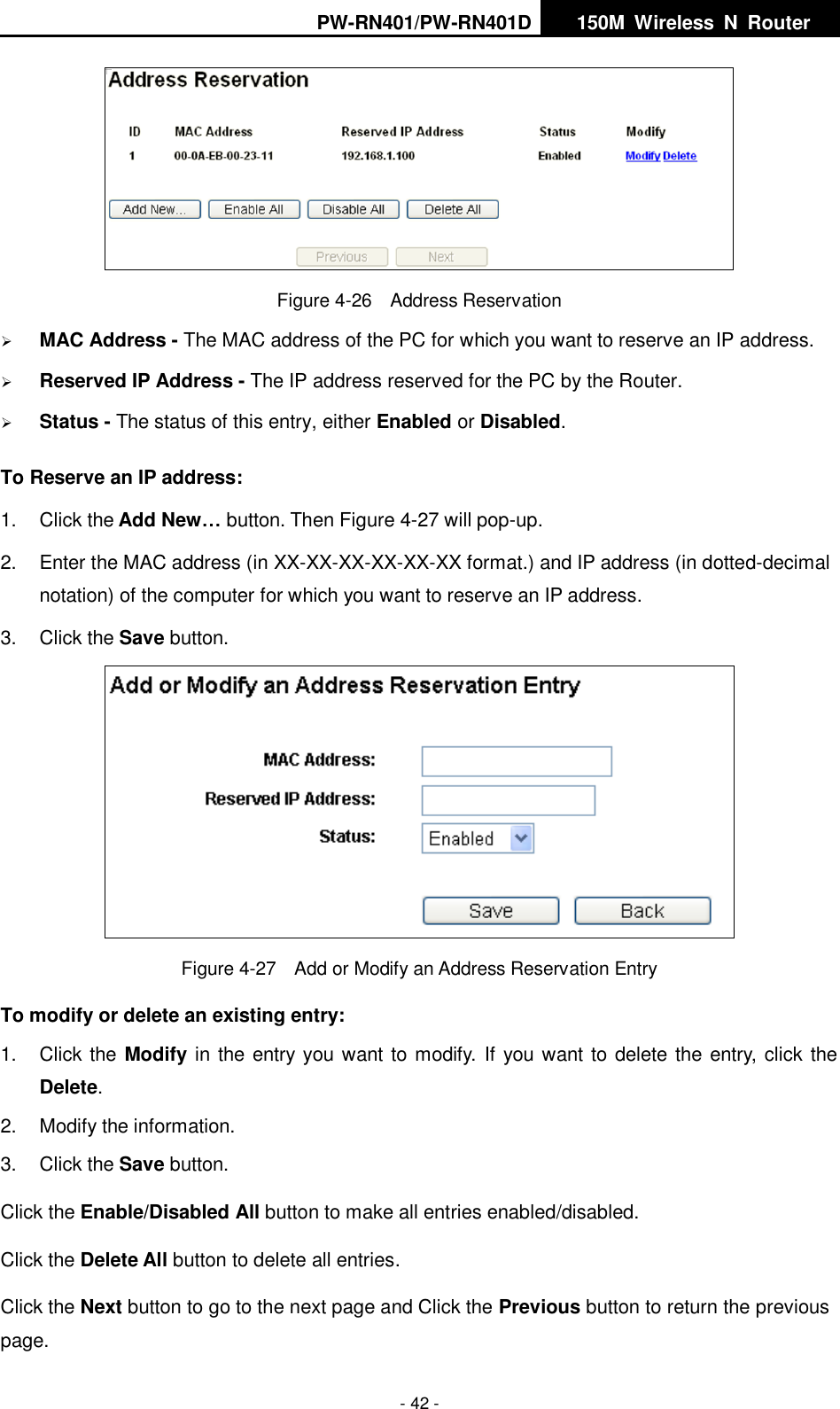
PW-RN401/PW-RN401D   150M  Wireless  N  Router    - 41 -  Primary DNS - (Optional.) Input the DNS IP address provided by your ISP or consult your ISP.  Secondary  DNS  -  (Optional.)  Input  the  IP  address  of  another  DNS  server  if  your  ISP provides two DNS servers.  Note: To use the DHCP server function of the Router, you must configure all computers on the LAN as "Obtain an IP Address automatically". 4.7.2  DHCP Clients List Choose menu “DHCP  →  DHCP Clients List”, you can view the information about the clients attached to the Router in the screen as shown in Figure 4-25.  Figure 4-25  DHCP Clients List  Client Name - The name of the DHCP client    MAC Address - The MAC address of the DHCP client.    Assigned IP - The IP address that the Router has allocated to the DHCP client.  Lease Time - The time of the DHCP client leased. After the dynamic IP address has expired, a new dynamic IP address will be automatically assigned to the user.     You cannot change any of the values on this page. To update this page and to show the current attached devices, click the Refresh button. 4.7.3  Address Reservation Choose menu “DHCP →  Address Reservation”, you can view and add a reserved address for clients via the next screen (shown in Figure 4-26).When you specify a reserved IP address for a PC on the LAN, that PC will always receive the same IP address each time when it accesses the DHCP server. Reserved IP addresses should be assigned to the servers that require permanent IP settings.
PW-RN401/PW-RN401D   150M  Wireless  N  Router    - 42 -  Figure 4-26  Address Reservation  MAC Address - The MAC address of the PC for which you want to reserve an IP address.  Reserved IP Address - The IP address reserved for the PC by the Router.  Status - The status of this entry, either Enabled or Disabled. To Reserve an IP address:   1.  Click the Add New… button. Then Figure 4-27 will pop-up. 2.  Enter the MAC address (in XX-XX-XX-XX-XX-XX format.) and IP address (in dotted-decimal notation) of the computer for which you want to reserve an IP address.   3.  Click the Save button.    Figure 4-27  Add or Modify an Address Reservation Entry To modify or delete an existing entry: 1.  Click the Modify in the entry you want to modify.  If you want to delete the entry, click the Delete. 2.  Modify the information.   3.  Click the Save button. Click the Enable/Disabled All button to make all entries enabled/disabled. Click the Delete All button to delete all entries. Click the Next button to go to the next page and Click the Previous button to return the previous page.
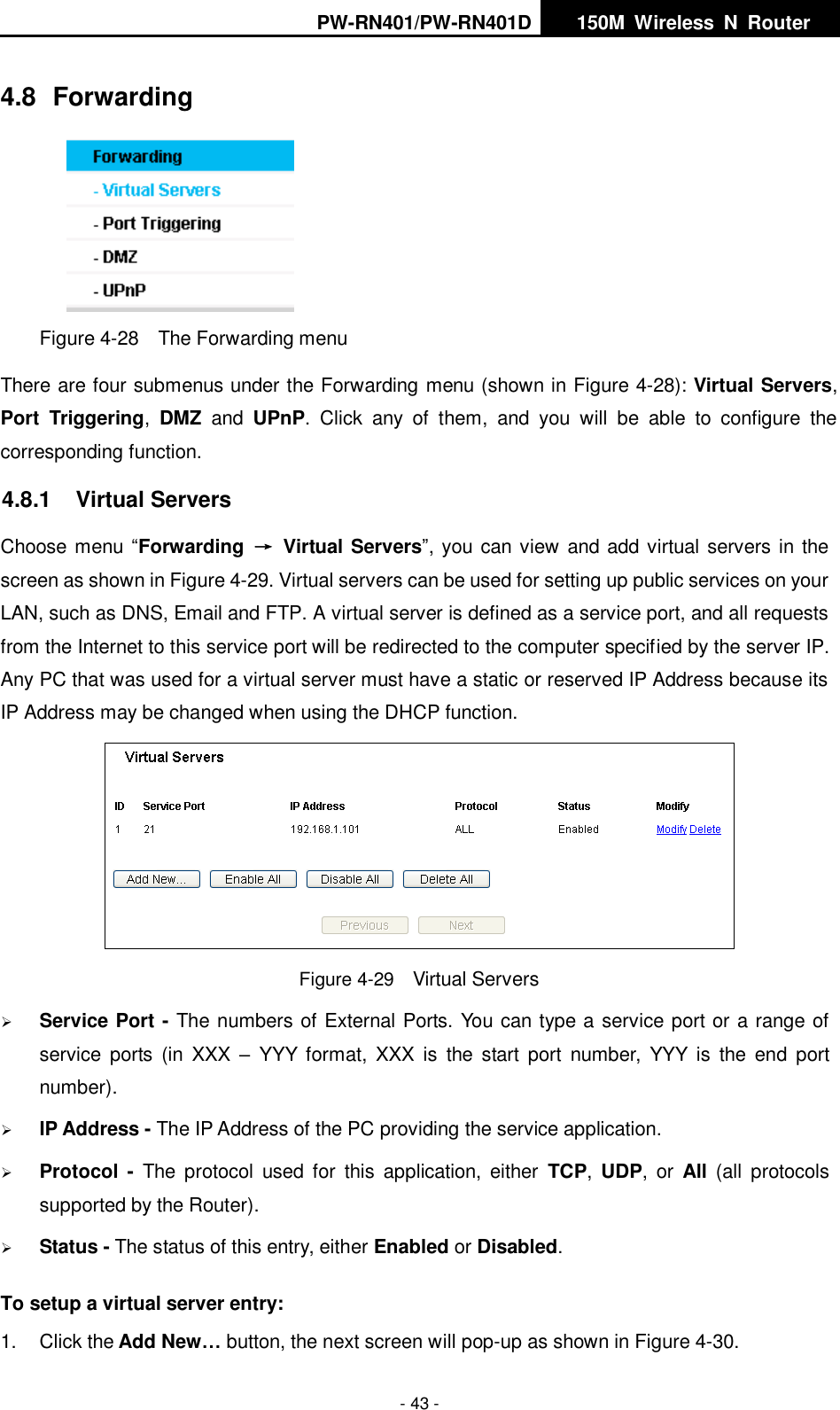
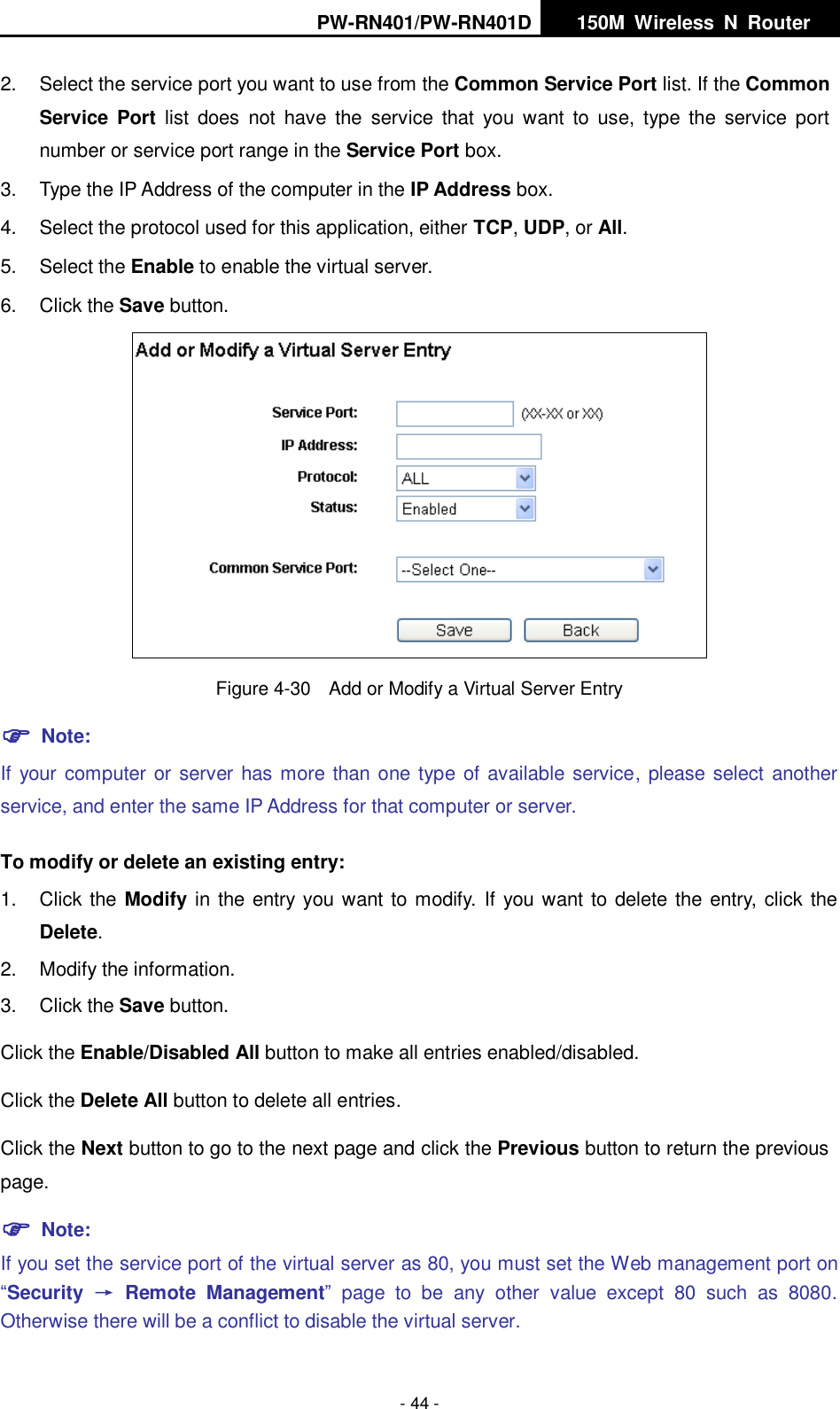
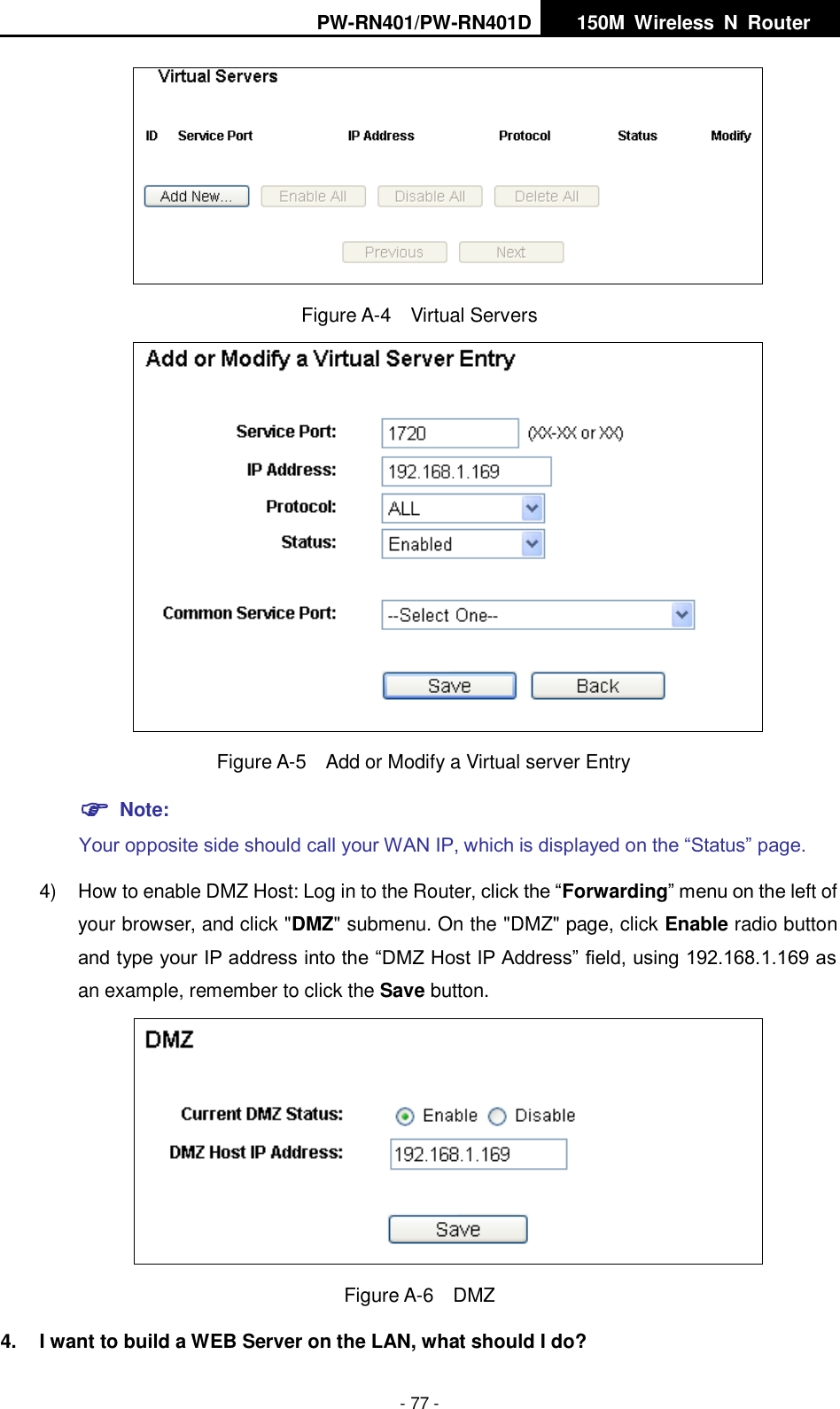
PW-RN401/PW-RN401D   150M  Wireless  N  Router    - 43 - 4.8  Forwarding  Figure 4-28    The Forwarding menu There are four submenus under the Forwarding menu (shown in Figure 4-28): Virtual Servers, Port  Triggering,  DMZ  and  UPnP.  Click  any  of  them,  and  you  will  be  able  to  configure  the corresponding function. 4.8.1  Virtual Servers Choose menu “Forwarding  →  Virtual Servers”, you can view and add virtual servers in the screen as shown in Figure 4-29. Virtual servers can be used for setting up public services on your LAN, such as DNS, Email and FTP. A virtual server is defined as a service port, and all requests from the Internet to this service port will be redirected to the computer specified by the server IP. Any PC that was used for a virtual server must have a static or reserved IP Address because its IP Address may be changed when using the DHCP function.    Figure 4-29  Virtual Servers  Service Port - The numbers of External Ports. You can type a service port or a range of service  ports  (in XXX  – YYY  format,  XXX  is  the  start  port  number,  YYY  is  the  end  port number).    IP Address - The IP Address of the PC providing the service application.  Protocol  -  The  protocol  used  for  this  application,  either  TCP,  UDP,  or  All  (all  protocols supported by the Router).  Status - The status of this entry, either Enabled or Disabled. To setup a virtual server entry:   1.  Click the Add New… button, the next screen will pop-up as shown in Figure 4-30.
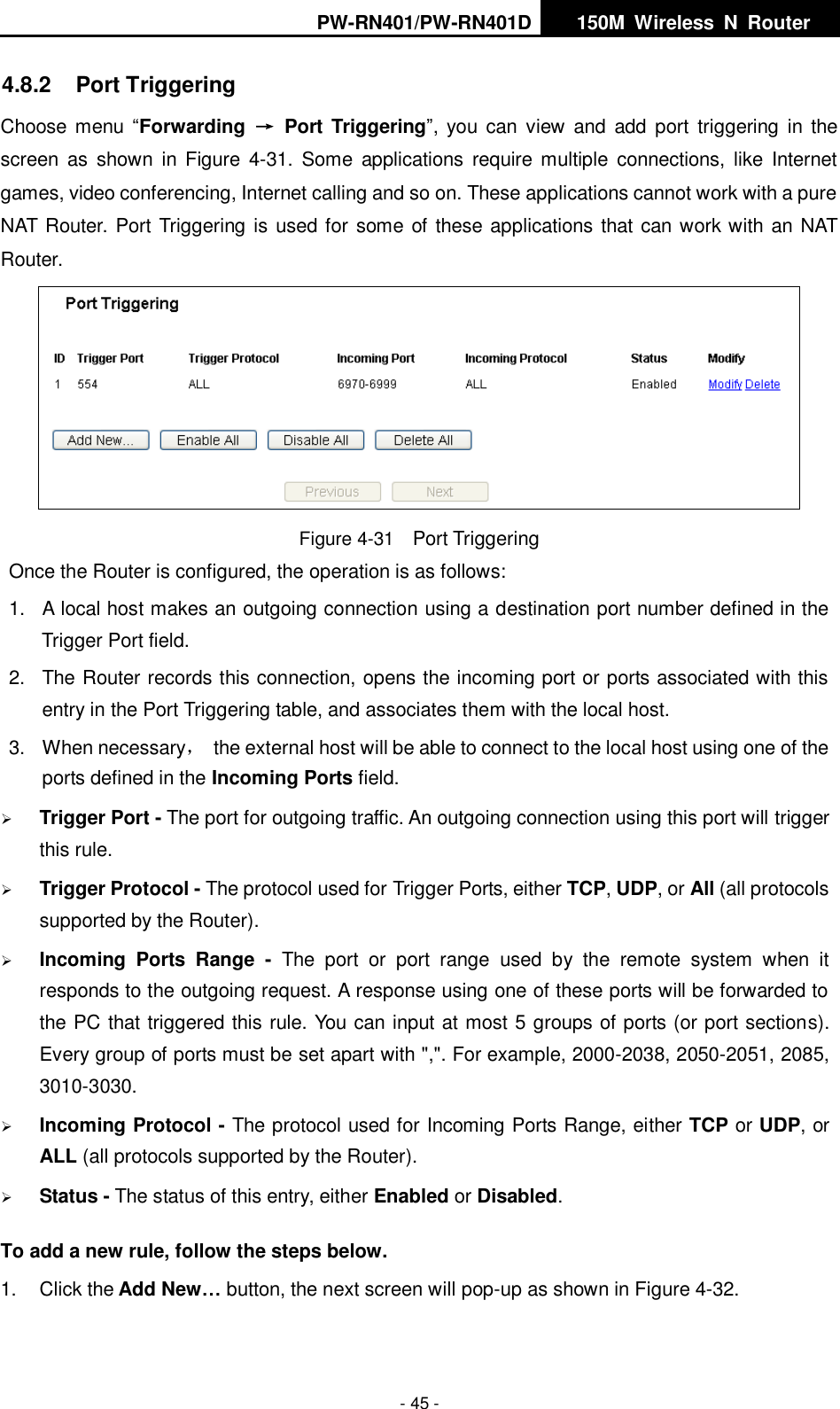
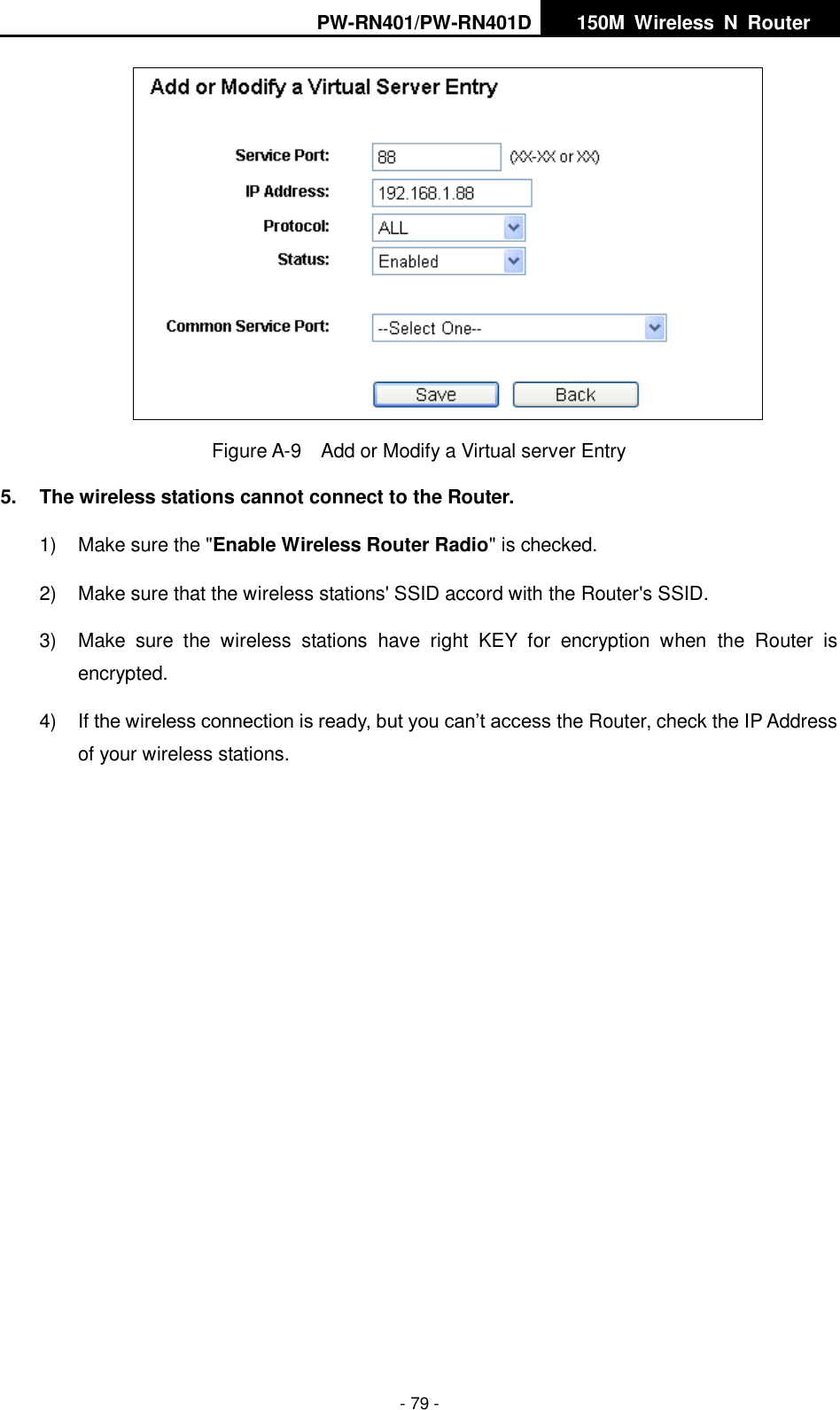
PW-RN401/PW-RN401D   150M  Wireless  N  Router    - 44 - 2.  Select the service port you want to use from the Common Service Port list. If the Common Service  Port  list  does  not  have  the  service  that  you  want  to  use,  type  the  service  port number or service port range in the Service Port box. 3.  Type the IP Address of the computer in the IP Address box.   4.  Select the protocol used for this application, either TCP, UDP, or All. 5.  Select the Enable to enable the virtual server. 6.  Click the Save button.    Figure 4-30  Add or Modify a Virtual Server Entry  Note: If your computer or server has more than one type of available service, please select another service, and enter the same IP Address for that computer or server. To modify or delete an existing entry: 1.  Click the Modify in the entry you want to modify.  If you want to delete the entry, click the Delete. 2.  Modify the information.   3.  Click the Save button. Click the Enable/Disabled All button to make all entries enabled/disabled. Click the Delete All button to delete all entries. Click the Next button to go to the next page and click the Previous button to return the previous page.  Note: If you set the service port of the virtual server as 80, you must set the Web management port on “Security  →  Remote  Management”  page  to  be  any  other  value  except  80  such  as  8080. Otherwise there will be a conflict to disable the virtual server.
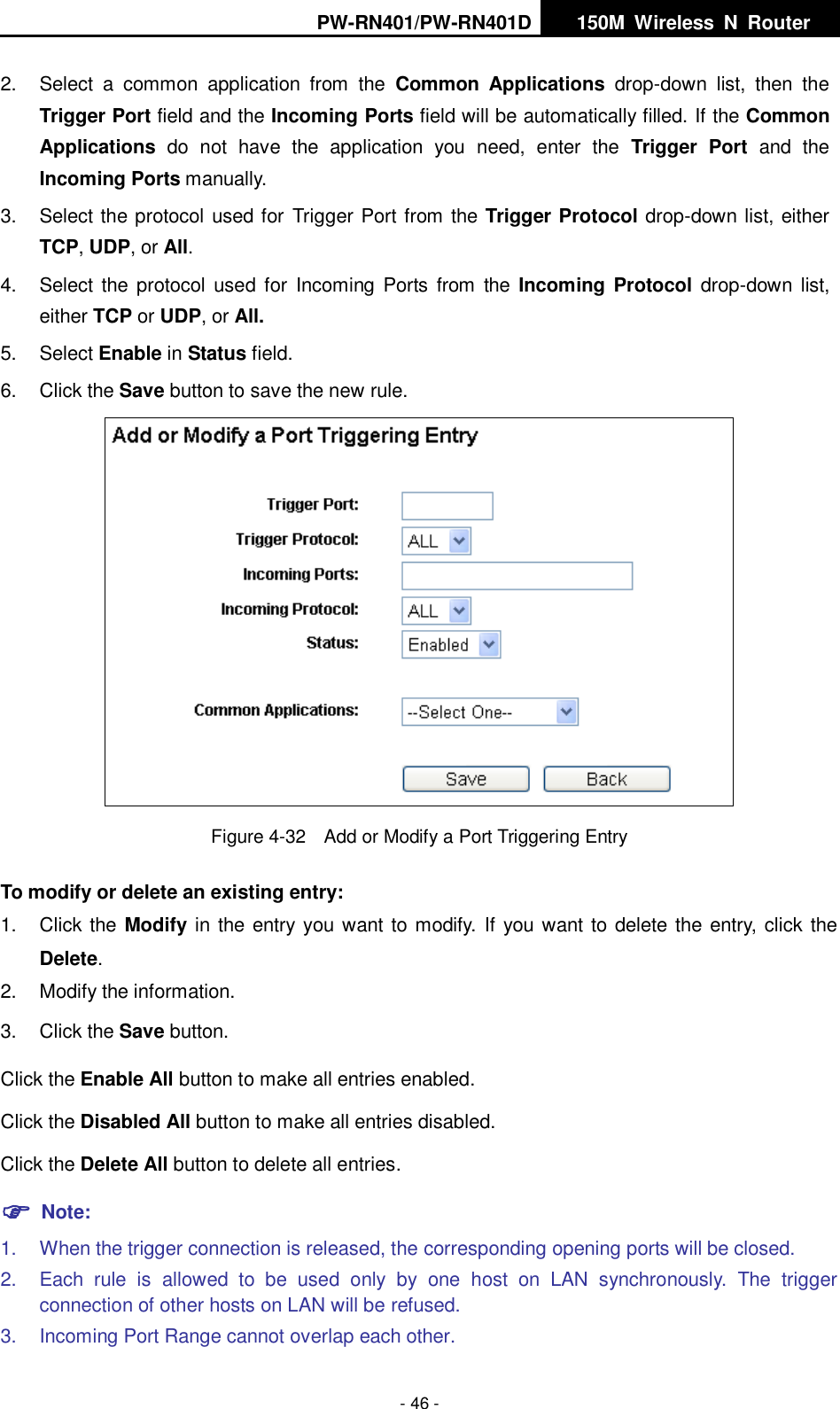
PW-RN401/PW-RN401D   150M  Wireless  N  Router    - 45 - 4.8.2  Port Triggering Choose menu “Forwarding  →  Port Triggering”,  you can  view  and  add  port  triggering  in  the screen  as  shown  in Figure  4-31.  Some  applications  require multiple  connections,  like  Internet games, video conferencing, Internet calling and so on. These applications cannot work with a pure NAT Router. Port Triggering is used for some of these applications that can work with an NAT Router.  Figure 4-31  Port Triggering Once the Router is configured, the operation is as follows:   1.  A local host makes an outgoing connection using a destination port number defined in the Trigger Port field.   2.  The Router records this connection, opens the incoming port or ports associated with this entry in the Port Triggering table, and associates them with the local host.   3.  When necessary,  the external host will be able to connect to the local host using one of the ports defined in the Incoming Ports field.  Trigger Port - The port for outgoing traffic. An outgoing connection using this port will trigger this rule.  Trigger Protocol - The protocol used for Trigger Ports, either TCP, UDP, or All (all protocols supported by the Router).  Incoming  Ports  Range  -  The  port  or  port  range  used  by  the  remote  system  when  it responds to the outgoing request. A response using one of these ports will be forwarded to the PC that triggered this rule. You can input at most 5 groups of ports (or port sections). Every group of ports must be set apart with ",". For example, 2000-2038, 2050-2051, 2085, 3010-3030.  Incoming Protocol - The protocol used for Incoming Ports Range, either TCP or UDP, or ALL (all protocols supported by the Router).  Status - The status of this entry, either Enabled or Disabled. To add a new rule, follow the steps below.   1.  Click the Add New… button, the next screen will pop-up as shown in Figure 4-32.
PW-RN401/PW-RN401D   150M  Wireless  N  Router    - 46 - 2.  Select  a  common  application  from  the  Common  Applications  drop-down  list,  then  the Trigger Port field and the Incoming Ports field will be automatically filled. If the Common Applications  do  not  have  the  application  you  need,  enter  the  Trigger  Port  and  the Incoming Ports manually. 3.  Select the protocol used for  Trigger Port from the Trigger Protocol drop-down list, either TCP, UDP, or All. 4.  Select  the protocol  used  for  Incoming Ports  from  the  Incoming Protocol drop-down list, either TCP or UDP, or All. 5.  Select Enable in Status field.   6.  Click the Save button to save the new rule.  Figure 4-32  Add or Modify a Port Triggering Entry To modify or delete an existing entry: 1.  Click the Modify in the entry you want to modify. If you want to delete the entry, click the Delete. 2.  Modify the information.   3.  Click the Save button. Click the Enable All button to make all entries enabled. Click the Disabled All button to make all entries disabled. Click the Delete All button to delete all entries.  Note: 1.  When the trigger connection is released, the corresponding opening ports will be closed. 2.  Each  rule  is  allowed  to  be  used  only  by  one  host  on  LAN  synchronously.  The  trigger connection of other hosts on LAN will be refused. 3.  Incoming Port Range cannot overlap each other.
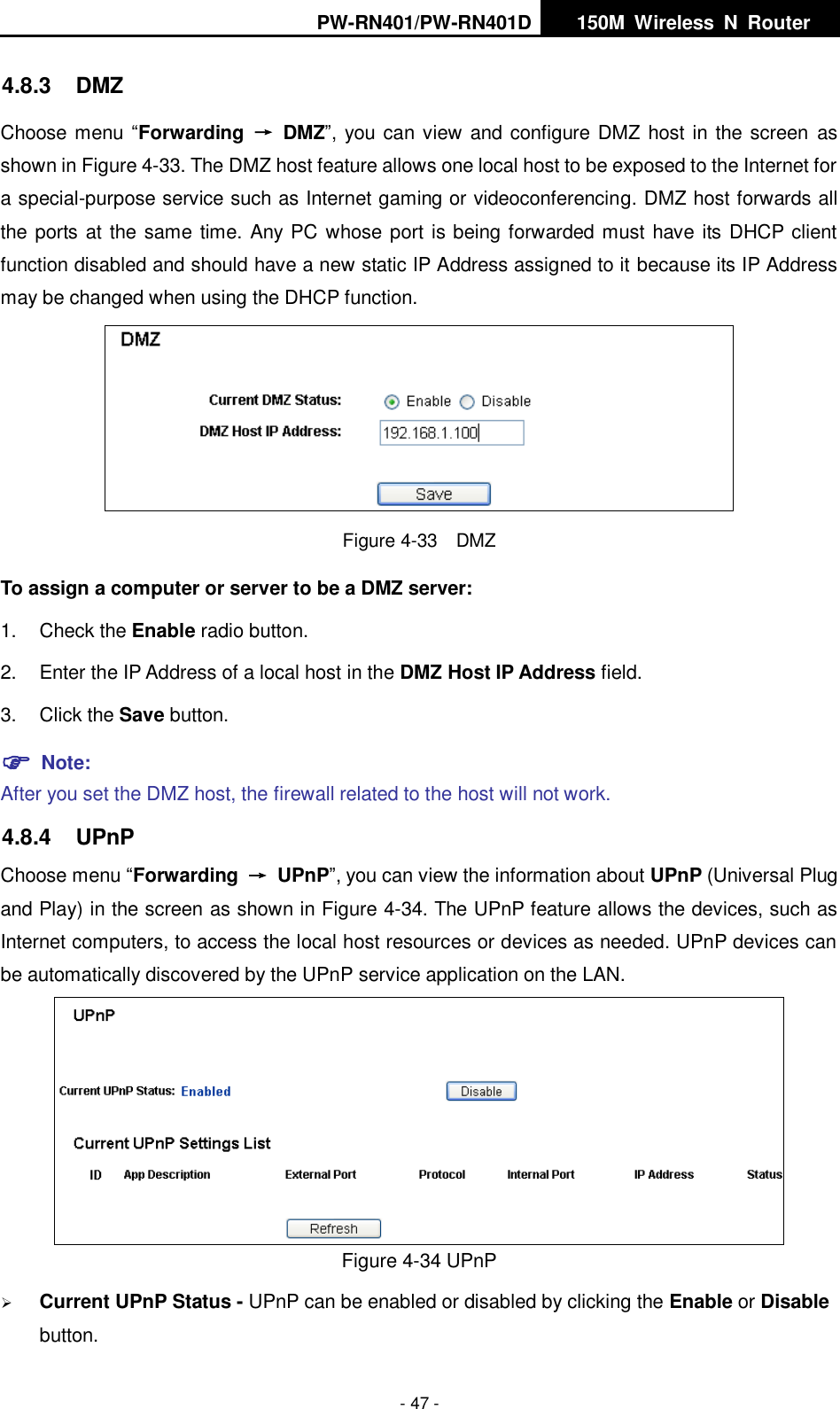
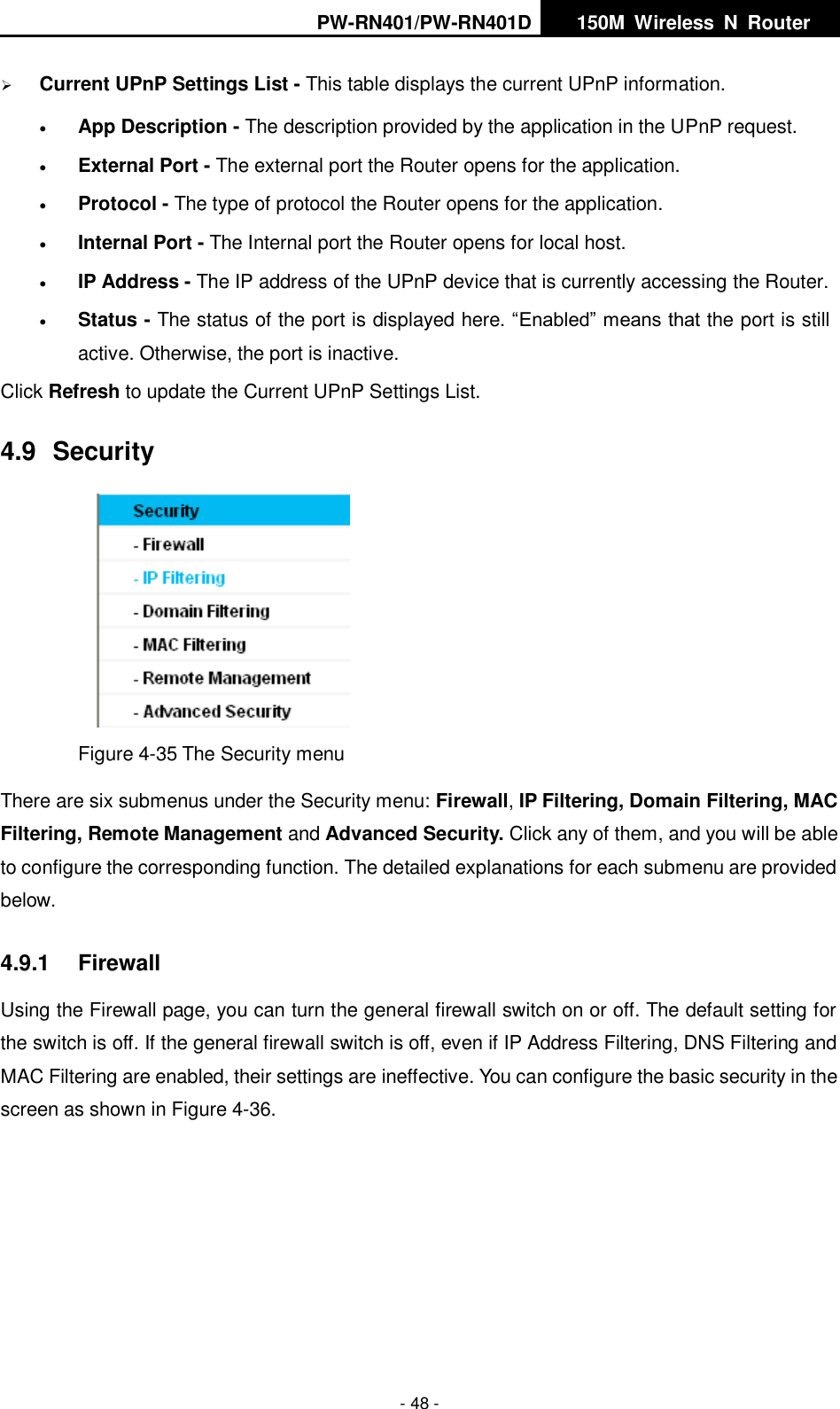
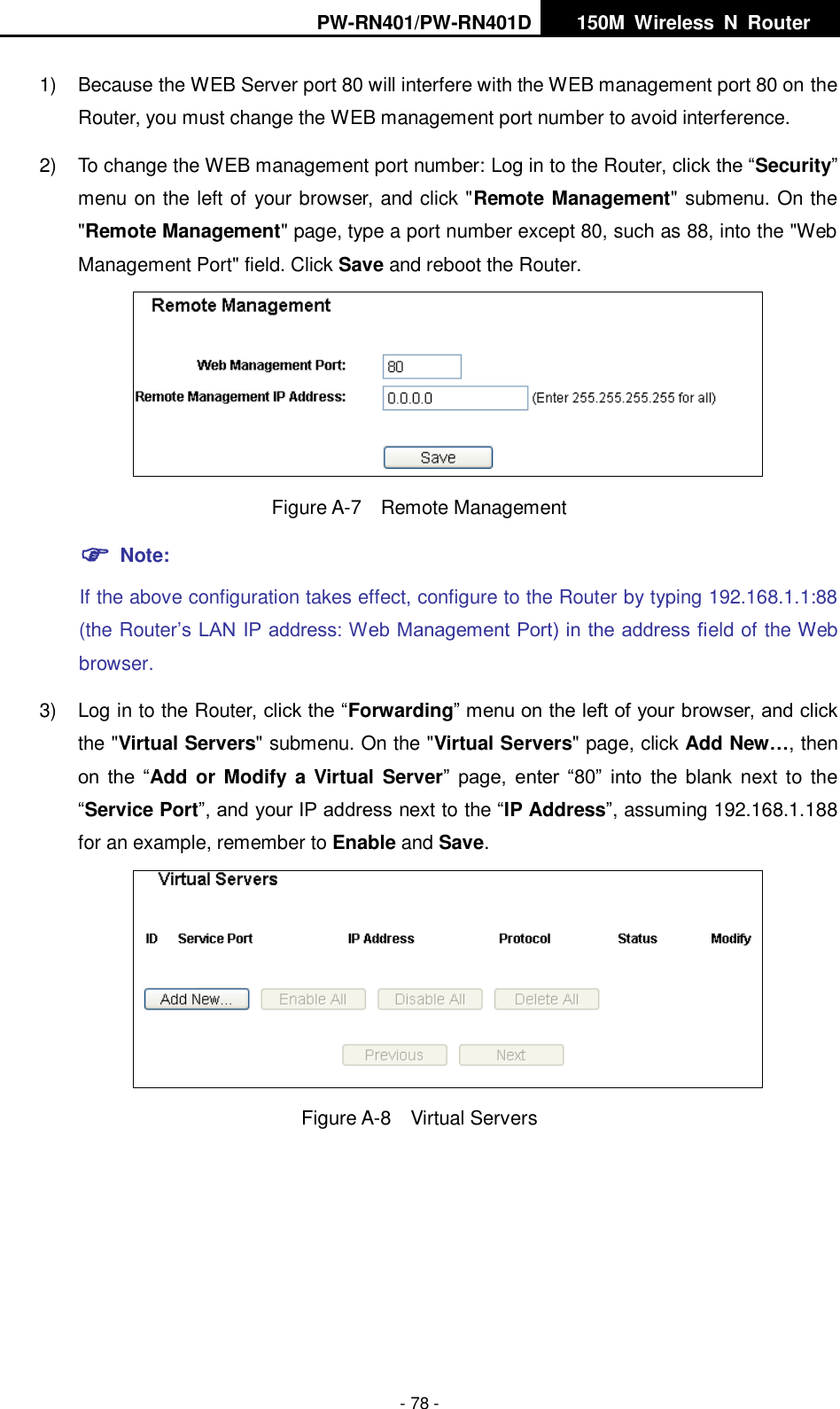
PW-RN401/PW-RN401D   150M  Wireless  N  Router    - 47 - 4.8.3  DMZ Choose menu “Forwarding  →  DMZ”, you can view and configure DMZ host in the screen  as shown in Figure 4-33. The DMZ host feature allows one local host to be exposed to the Internet for a special-purpose service such as Internet gaming or videoconferencing. DMZ host forwards all the ports at the same time. Any PC whose port is being forwarded must have its DHCP client function disabled and should have a new static IP Address assigned to it because its IP Address may be changed when using the DHCP function.  Figure 4-33  DMZ To assign a computer or server to be a DMZ server:   1.  Check the Enable radio button. 2.  Enter the IP Address of a local host in the DMZ Host IP Address field. 3.  Click the Save button.  Note:   After you set the DMZ host, the firewall related to the host will not work. 4.8.4  UPnP Choose menu “Forwarding  →  UPnP”, you can view the information about UPnP (Universal Plug and Play) in the screen as shown in Figure 4-34. The UPnP feature allows the devices, such as Internet computers, to access the local host resources or devices as needed. UPnP devices can be automatically discovered by the UPnP service application on the LAN.  Figure 4-34 UPnP    Current UPnP Status - UPnP can be enabled or disabled by clicking the Enable or Disable button.
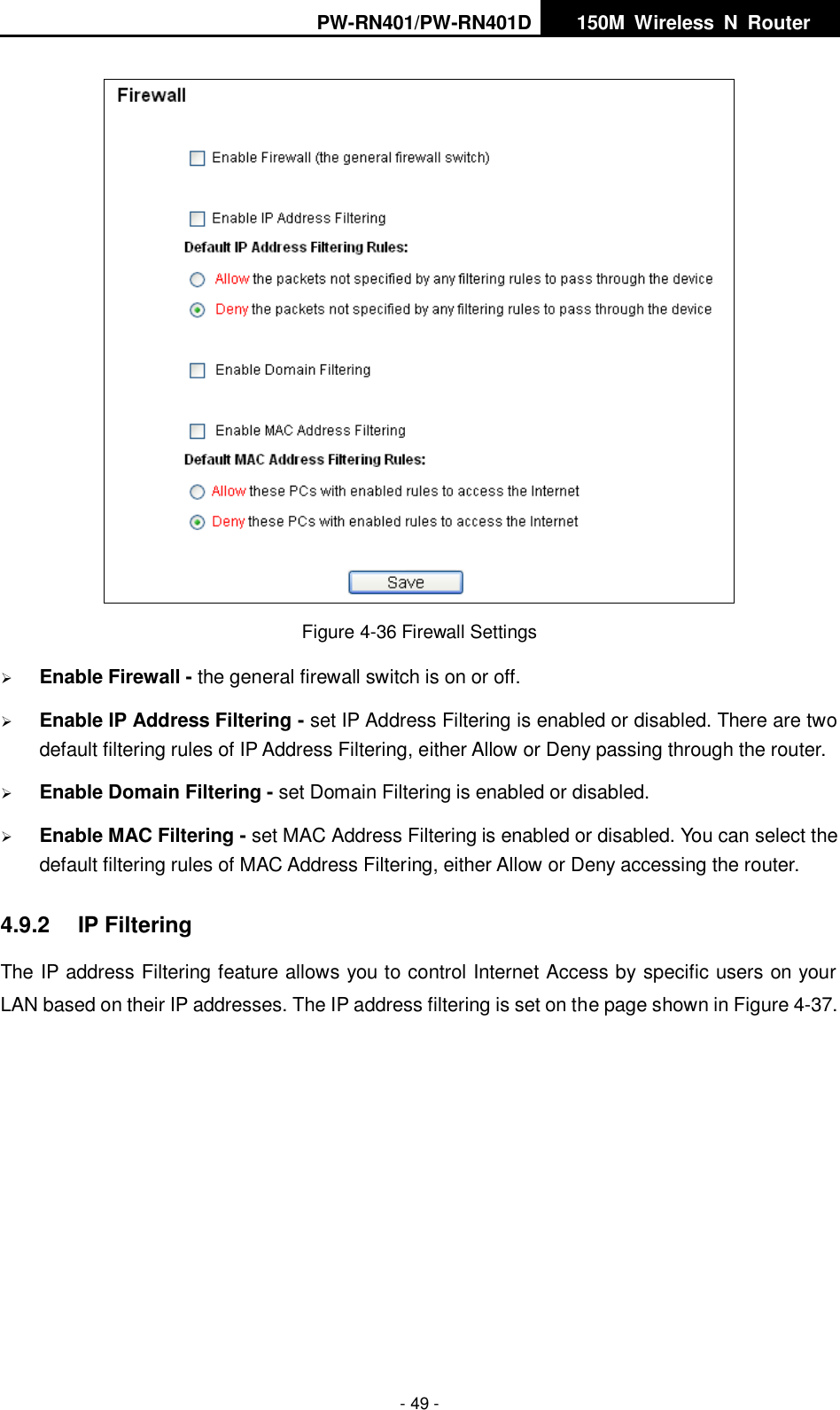
PW-RN401/PW-RN401D   150M  Wireless  N  Router    - 48 -  Current UPnP Settings List - This table displays the current UPnP information.  App Description - The description provided by the application in the UPnP request.  External Port - The external port the Router opens for the application.  Protocol - The type of protocol the Router opens for the application.  Internal Port - The Internal port the Router opens for local host.  IP Address - The IP address of the UPnP device that is currently accessing the Router.  Status - The status of the port is displayed here. “Enabled” means that the port is still active. Otherwise, the port is inactive. Click Refresh to update the Current UPnP Settings List.   4.9  Security  Figure 4-35 The Security menu There are six submenus under the Security menu: Firewall, IP Filtering, Domain Filtering, MAC Filtering, Remote Management and Advanced Security. Click any of them, and you will be able to configure the corresponding function. The detailed explanations for each submenu are provided below. 4.9.1  Firewall Using the Firewall page, you can turn the general firewall switch on or off. The default setting for the switch is off. If the general firewall switch is off, even if IP Address Filtering, DNS Filtering and MAC Filtering are enabled, their settings are ineffective. You can configure the basic security in the screen as shown in Figure 4-36.
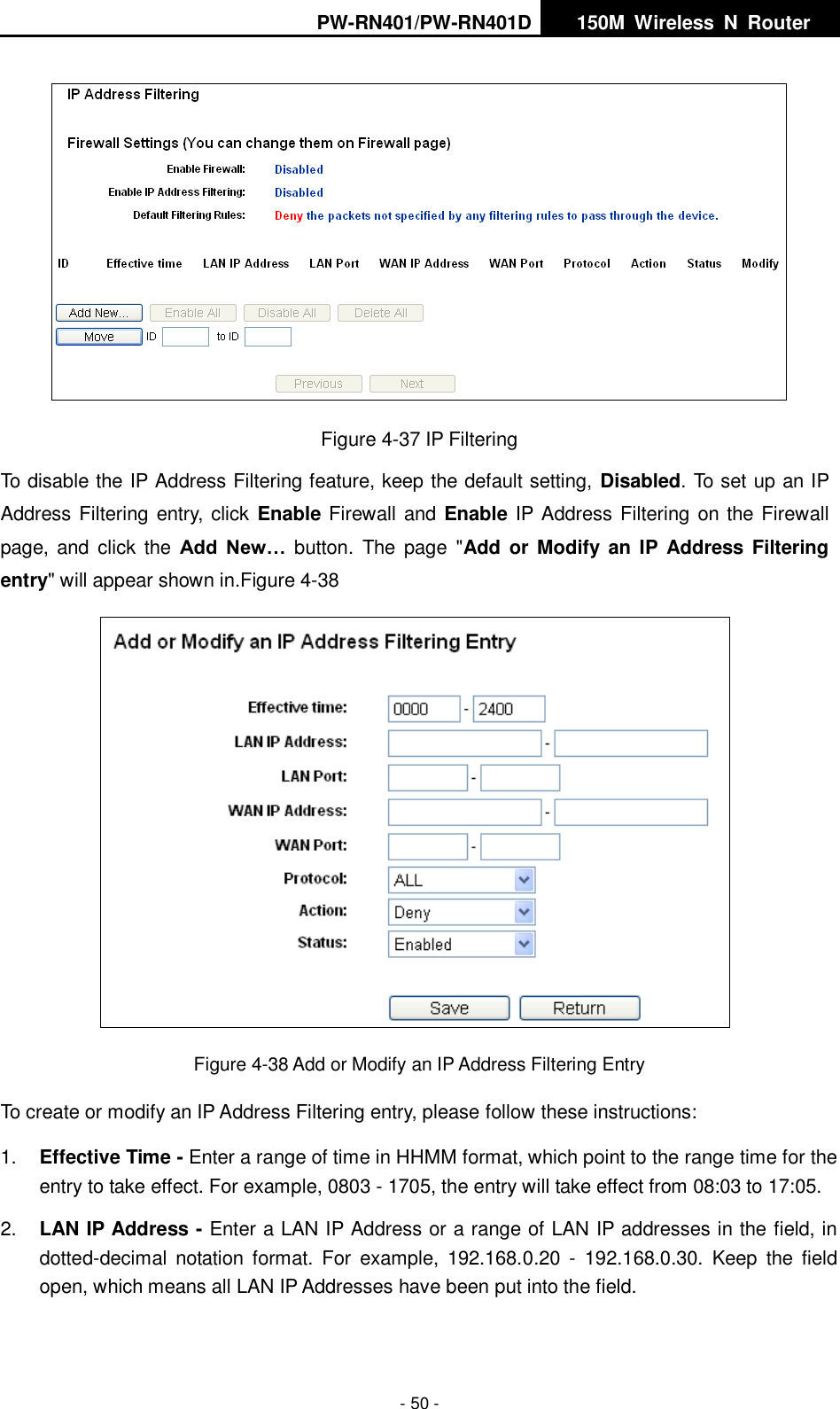
PW-RN401/PW-RN401D   150M  Wireless  N  Router    - 49 -  Figure 4-36 Firewall Settings  Enable Firewall - the general firewall switch is on or off.  Enable IP Address Filtering - set IP Address Filtering is enabled or disabled. There are two default filtering rules of IP Address Filtering, either Allow or Deny passing through the router.  Enable Domain Filtering - set Domain Filtering is enabled or disabled.  Enable MAC Filtering - set MAC Address Filtering is enabled or disabled. You can select the default filtering rules of MAC Address Filtering, either Allow or Deny accessing the router. 4.9.2  IP Filtering The IP address Filtering feature allows you to control Internet Access by specific users on your LAN based on their IP addresses. The IP address filtering is set on the page shown in Figure 4-37.
PW-RN401/PW-RN401D   150M  Wireless  N  Router    - 50 -  Figure 4-37 IP Filtering To disable the IP Address Filtering feature, keep the default setting, Disabled. To set up an IP Address Filtering entry, click  Enable Firewall and Enable IP Address Filtering on the Firewall page,  and  click the  Add  New…  button.  The page  "Add or  Modify an IP  Address  Filtering entry" will appear shown in.Figure 4-38  Figure 4-38 Add or Modify an IP Address Filtering Entry To create or modify an IP Address Filtering entry, please follow these instructions: 1. Effective Time - Enter a range of time in HHMM format, which point to the range time for the entry to take effect. For example, 0803 - 1705, the entry will take effect from 08:03 to 17:05. 2. LAN IP Address - Enter a LAN IP Address or a range of LAN IP addresses in the field, in dotted-decimal  notation  format.  For  example,  192.168.0.20  -  192.168.0.30.  Keep  the  field open, which means all LAN IP Addresses have been put into the field.
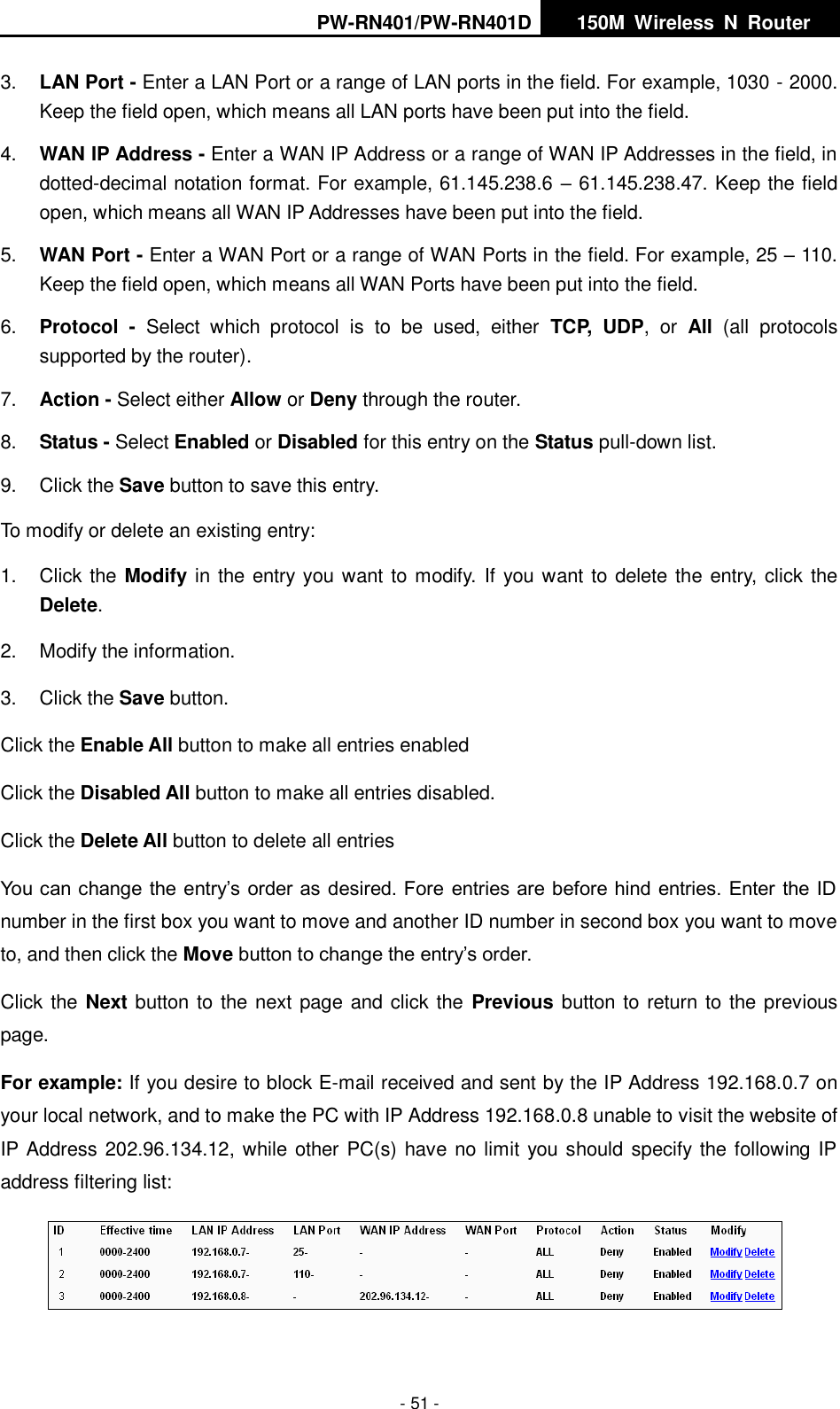
PW-RN401/PW-RN401D   150M  Wireless  N  Router    - 51 - 3. LAN Port - Enter a LAN Port or a range of LAN ports in the field. For example, 1030 - 2000. Keep the field open, which means all LAN ports have been put into the field.   4. WAN IP Address - Enter a WAN IP Address or a range of WAN IP Addresses in the field, in dotted-decimal notation format. For example, 61.145.238.6 – 61.145.238.47. Keep the field open, which means all WAN IP Addresses have been put into the field.   5. WAN Port - Enter a WAN Port or a range of WAN Ports in the field. For example, 25 – 110. Keep the field open, which means all WAN Ports have been put into the field.   6. Protocol  -  Select  which  protocol  is  to  be  used,  either  TCP,  UDP,  or  All  (all  protocols supported by the router). 7. Action - Select either Allow or Deny through the router. 8. Status - Select Enabled or Disabled for this entry on the Status pull-down list. 9.  Click the Save button to save this entry. To modify or delete an existing entry: 1.  Click the Modify in the entry you want to modify.  If you want to delete the entry, click the Delete. 2.  Modify the information.   3.  Click the Save button. Click the Enable All button to make all entries enabled Click the Disabled All button to make all entries disabled. Click the Delete All button to delete all entries You can change the entry’s order as desired. Fore entries are before hind entries. Enter the ID number in the first box you want to move and another ID number in second box you want to move to, and then click the Move button to change the entry’s order. Click the Next button to the next page and click the Previous button to return to the previous page. For example: If you desire to block E-mail received and sent by the IP Address 192.168.0.7 on your local network, and to make the PC with IP Address 192.168.0.8 unable to visit the website of IP Address 202.96.134.12, while other PC(s) have no limit you should specify the following IP address filtering list:
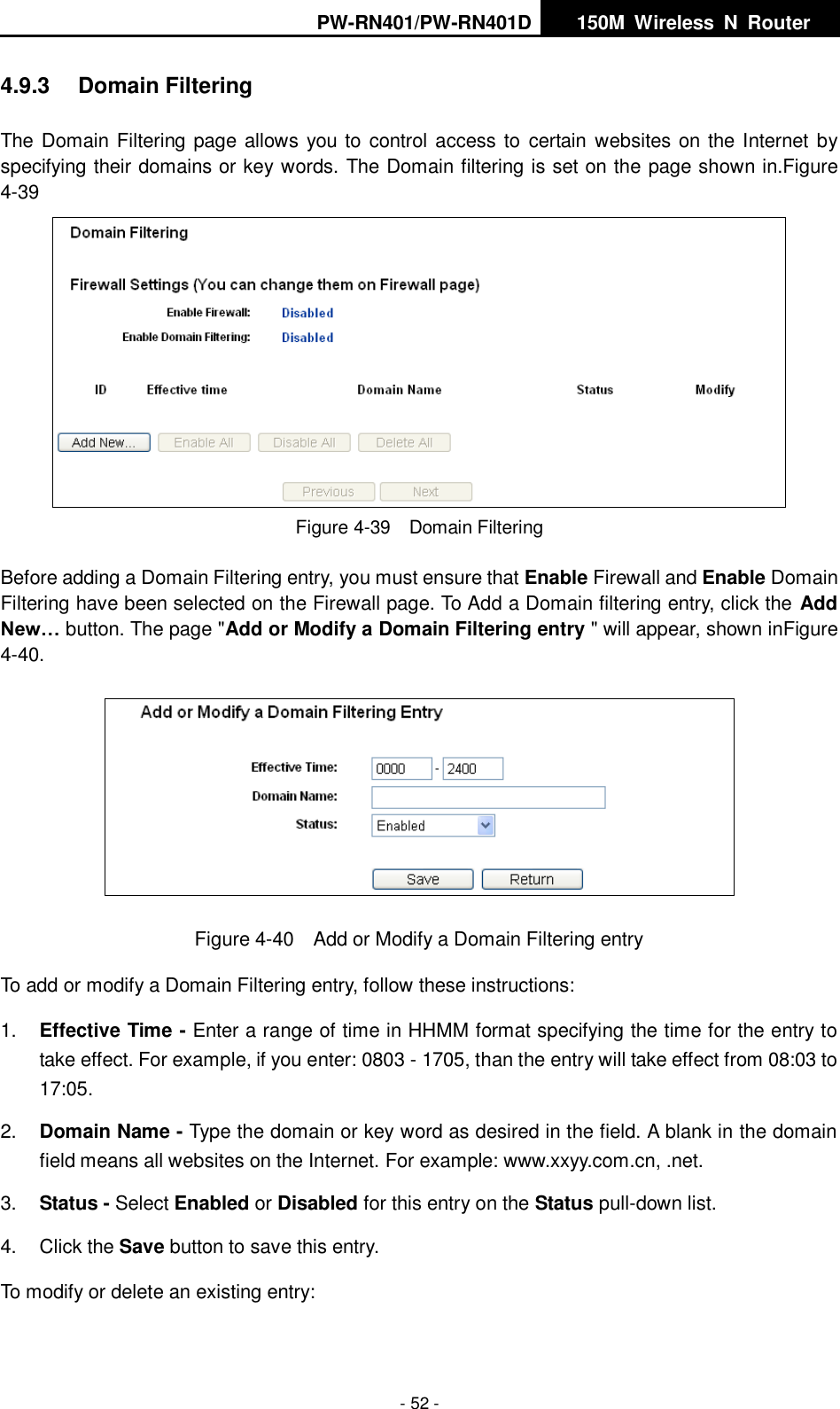
PW-RN401/PW-RN401D   150M  Wireless  N  Router    - 52 - 4.9.3  Domain Filtering The Domain Filtering page allows you to control access to  certain websites on the Internet by specifying their domains or key words. The Domain filtering is set on the page shown in.Figure 4-39  Figure 4-39  Domain Filtering Before adding a Domain Filtering entry, you must ensure that Enable Firewall and Enable Domain Filtering have been selected on the Firewall page. To Add a Domain filtering entry, click the Add New… button. The page "Add or Modify a Domain Filtering entry " will appear, shown inFigure 4-40.  Figure 4-40  Add or Modify a Domain Filtering entry To add or modify a Domain Filtering entry, follow these instructions: 1. Effective Time - Enter a range of time in HHMM format specifying the time for the entry to take effect. For example, if you enter: 0803 - 1705, than the entry will take effect from 08:03 to 17:05. 2. Domain Name - Type the domain or key word as desired in the field. A blank in the domain field means all websites on the Internet. For example: www.xxyy.com.cn, .net. 3. Status - Select Enabled or Disabled for this entry on the Status pull-down list. 4.  Click the Save button to save this entry. To modify or delete an existing entry:
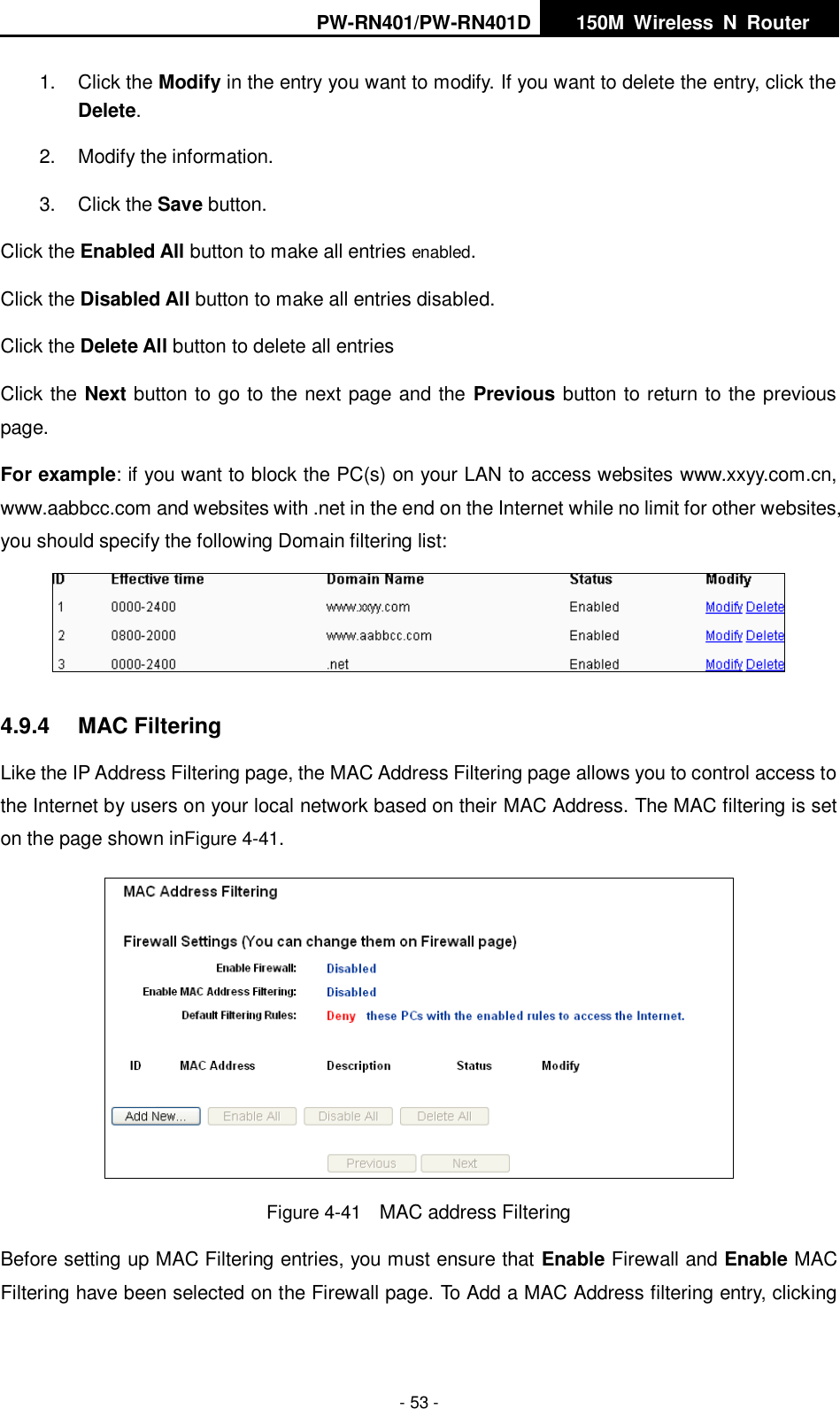
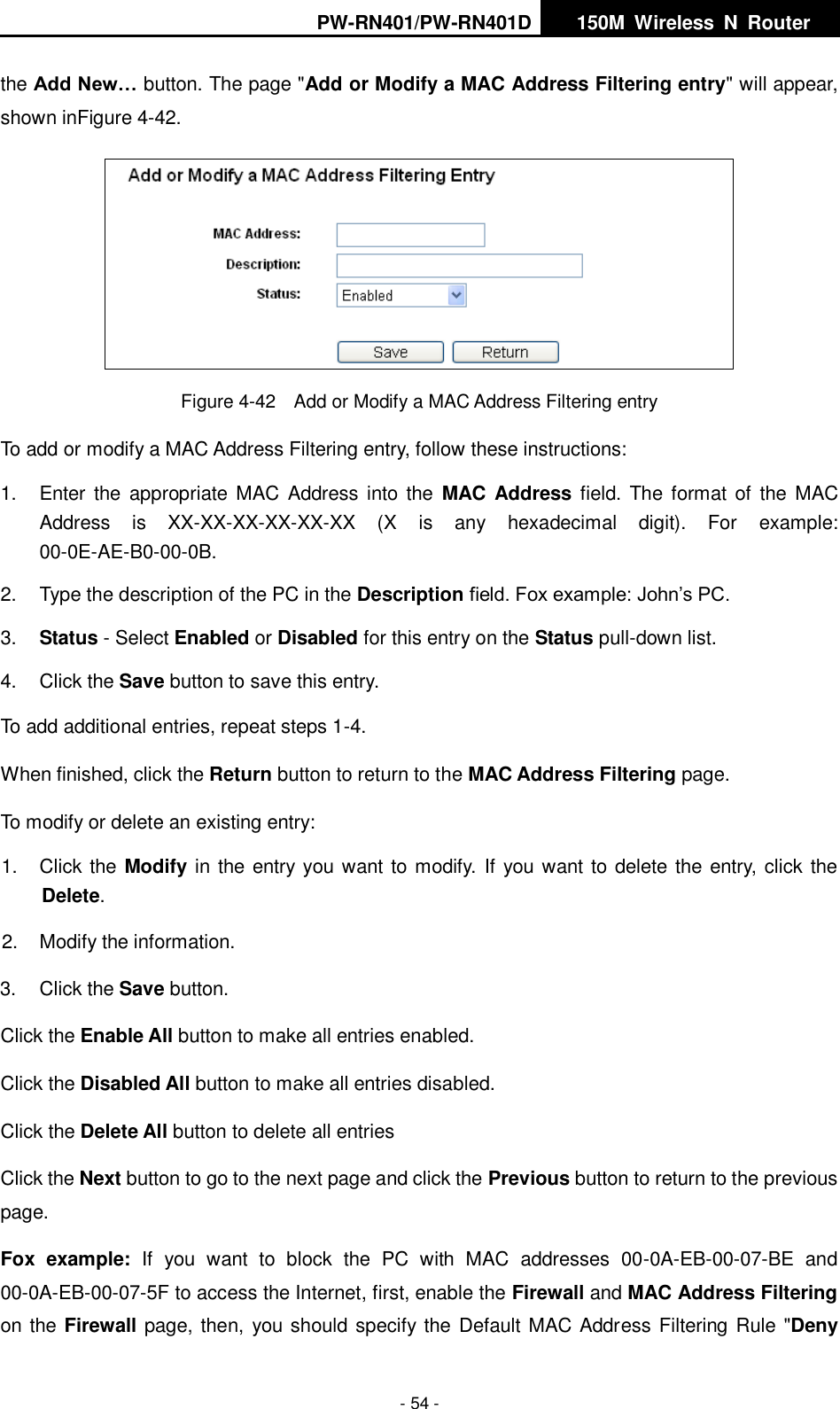
PW-RN401/PW-RN401D   150M  Wireless  N  Router    - 53 - 1.  Click the Modify in the entry you want to modify. If you want to delete the entry, click the Delete. 2.  Modify the information.   3.  Click the Save button. Click the Enabled All button to make all entries enabled. Click the Disabled All button to make all entries disabled. Click the Delete All button to delete all entries Click the Next button to go to the next page and the Previous button to return to the previous page. For example: if you want to block the PC(s) on your LAN to access websites www.xxyy.com.cn, www.aabbcc.com and websites with .net in the end on the Internet while no limit for other websites, you should specify the following Domain filtering list:  4.9.4  MAC Filtering Like the IP Address Filtering page, the MAC Address Filtering page allows you to control access to the Internet by users on your local network based on their MAC Address. The MAC filtering is set on the page shown inFigure 4-41.  Figure 4-41    MAC address Filtering Before setting up MAC Filtering entries, you must ensure that Enable Firewall and Enable MAC Filtering have been selected on the Firewall page. To Add a MAC Address filtering entry, clicking
PW-RN401/PW-RN401D   150M  Wireless  N  Router    - 54 - the Add New… button. The page "Add or Modify a MAC Address Filtering entry" will appear, shown inFigure 4-42.  Figure 4-42  Add or Modify a MAC Address Filtering entry To add or modify a MAC Address Filtering entry, follow these instructions: 1.  Enter  the  appropriate  MAC Address  into the  MAC Address field. The format  of  the  MAC Address  is  XX-XX-XX-XX-XX-XX  (X  is  any  hexadecimal  digit).  For  example: 00-0E-AE-B0-00-0B. 2.  Type the description of the PC in the Description field. Fox example: John’s PC. 3. Status - Select Enabled or Disabled for this entry on the Status pull-down list. 4.  Click the Save button to save this entry. To add additional entries, repeat steps 1-4. When finished, click the Return button to return to the MAC Address Filtering page. To modify or delete an existing entry: 1.  Click the Modify in the entry you want to modify.  If you want to delete the entry, click the Delete. 2.  Modify the information.   3.  Click the Save button. Click the Enable All button to make all entries enabled. Click the Disabled All button to make all entries disabled. Click the Delete All button to delete all entries Click the Next button to go to the next page and click the Previous button to return to the previous page. Fox  example:  If  you  want  to  block  the  PC  with  MAC  addresses  00-0A-EB-00-07-BE  and 00-0A-EB-00-07-5F to access the Internet, first, enable the Firewall and MAC Address Filtering on the Firewall page, then, you should specify the Default MAC Address Filtering Rule "Deny
PW-RN401/PW-RN401D   150M  Wireless  N  Router    - 55 - these PC(s) with effective rules to access the Internet" on the Firewall page and the following MAC address filtering list on this page:  4.9.5  Remote Management Choose menu “Security  →  Remote Management”, you can configure the Remote Management function in the screen as shown inFigure 4-43. This feature allows you to manage your Router from a remote location via the Internet.  Figure 4-43  Remote Management  Web Management Port - Web browser access normally uses the standard HTTP service port  80.  This  Router's  default  remote  management  web  port  number  is  80.  For  greater security, you can change the remote management web port to a custom port by entering that number in  the box provided.  Choose a number between  1  and 65534  but do not use the number of any common service port.    Remote Management IP Address - This is the current address you will use when accessing your Router from the Internet.  This function is disabled when the IP address is set to the default value of 0.0.0.0. To enable this function change 0.0.0.0 to a valid IP address. If set to 255.255.255.255, then all the hosts can access the Router from internet.    Note: 1.  To access the Router, you should type your Router's WAN IP address into your browser's address  (in  IE)  or  Location  (in  Navigator)  box,  followed  by  a  colon  and  the  custom  port number. For example, if your  Router's WAN address is 202.96.12.8, and the  port number used is 8080, please enter http://202.96.12.8:8080 in your browser. Later, you may be asked for the Router's password. After successfully entering the username and password, you will be able to access the Router's web-based utility. 2.  Be sure to change the Router's default password to a very secure password.
PW-RN401/PW-RN401D   150M  Wireless  N  Router    - 56 - 4.9.6  Advanced Security Choose  menu  “Security  →  Advanced  Security”,  you  can  protect  the  Router  from  being attacked by TCP-SYN Flood, UDP Flood and ICMP-Flood in the screen as shown inFigure 4-44.    Figure 4-44  Advanced Security  Packets Statistics Interval (5~60) - The default value is 10. Select a value between 5 and 60 seconds from the drop-down list. The Packets Statistics Interval value indicates the time section of the packets statistics. The result of the statistics is used for analysis by SYN Flood, UDP Flood and ICMP-Flood.  DoS protection - Denial of Service protection. Check the Enable or Disable button to enable or  disable  the  DoS  protection  function.  Only  when  it  is  enabled,  will  the  flood  filters  be enabled.  Note: Dos Protection will take effect only when the Traffic Statistics in “System Tool  →  Traffic Statistics” is enabled.  Enable  ICMP-FLOOD  Attack  Filtering -  Enable  or  Disable  the  ICMP-FLOOD  Attack Filtering.  ICMP-FLOOD  Packets  Threshold  (5~3600) -  The  default  value  is  50.  Enter  a  value between 5 ~ 3600. When the current ICMP-FLOOD Packets number is beyond the set value, the Router will startup the blocking function immediately.  Enable UDP-FLOOD Filtering - Enable or Disable the UDP-FLOOD Filtering.
PW-RN401/PW-RN401D   150M  Wireless  N  Router    - 57 -  UDP-FLOOD Packets Threshold (5~3600) - The default value is 500. Enter a value between 5 ~ 3600. When the current UPD-FLOOD Packets number is beyond the set value, the Router will startup the blocking function immediately.  Enable TCP-SYN-FLOOD Attack Filtering - Enable or Disable the TCP-SYN-FLOOD Attack Filtering.  TCP-SYN-FLOOD Packets  Threshold  (5~3600) -  The  default  value  is  50.  Enter  a value between 5 ~ 3600. When the current TCP-SYN-FLOOD Packets numbers is beyond the set value, the Router will startup the blocking function immediately.    Ignore Ping Packet From WAN Port - Enable or Disable Ignore Ping Packet From WAN Port. The default setting is disabled. If enabled, the ping packet from the Internet cannot access the Router.    Forbid Ping Packet From LAN Port - Enable or Disable Forbid Ping Packet From LAN Port. The  default  setting  is  disabled.  If  enabled,  the  ping  packet  from  LAN  cannot  access  the Router. This function can be used to defend against some viruses.   Click the Save button to save the settings. Click the Blocked DoS Host List button to display the DoS host table by blocking.  4.10  Advanced Routing Choose menu “Advanced Routing”, and you can configure the static route in the next screen, shown in Figure 4-45. A static route is a pre-determined path that network information must travel to reach a specific host or network.  Figure 4-45  Static Routing To add static routing entries, follow the steps below. 1.  Click Add New… shown in Figure 4-45, you will see the following screen Figure 4-46.
PW-RN401/PW-RN401D   150M  Wireless  N  Router    - 58 -  Figure 4-46  Add or Modify a Static Route Entry 2.  Enter the following data.  Destination IP Address - The Destination IP Address is the address of the network or host that you want to assign to a static route.  Subnet Mask - The Subnet Mask determines which portion of an IP Address is the network portion, and which portion is the host portion.  Gateway - This is the IP Address of the gateway device that allows for contact between the Router and the network or host. 3.  Select Enabled or Disabled for this entry on the Status drop-down list. 4.  Click the Save button to make the entry take effect. Click the Delete button to delete the entry. Click the Enable All button to enable all the entries. Click the Disable All button to disable all the entries. Click the Delete All button to delete all the entries. Click the Previous button to view the information in the previous screen, click the Next button to view the information in the next screen.
PW-RN401/PW-RN401D   150M  Wireless  N  Router    - 59 - 4.11  Bandwidth Control You can configure the Bandwidth control function on this page shown inFigure 4-47:  Figure 4-47  Bandwidth Control  Enable IP QoS - Enable or disable the function of IP QoS.  Choose BandWidth Type - Select the network connection type from the drop-down list.  Bandwidth Apply - The bandwidth you get. If you are not clear about that, please contact with your ISP for help.  IP Range - IP range of this entry.  Mode  -  There  are  two  types  of  mode:  Minimum  Bandwidth  Guarantee  and  Maximum Bandwidth Limit.  Bandwidth - The bandwidth you supply to this entry.  Description - The description for this entry. Click Enable to enable this entry. Click the Clear button to clear a single entry. Click the Clear All button to clear all entries. Click the Save button to save all configurations.  Note: 1.  The conversion relation of bandwidth: 1Mbps = 1000Kbps.
PW-RN401/PW-RN401D   150M  Wireless  N  Router    - 60 - 2.  Please  choose  the  Network  Connection  Type  and  set  the  bandwidth  according  to  your Network. If you are not clear about that, please contact with your ISP for help.   3.  If no IP QoS item is enabled, the Bandwidth Apply won't be effective.   4.  IP address range for different entries could not have intersection with each other.   5.  After the configurations, click the Save button for the change to take effect.   4.12  IP& MAC Binding  Figure 4-48 the IP & MAC Binding menu There  are  two  submenus  under the IP  &MAC  Binding menu (shown in  Figure  4-48): Binding Setting  and  ARP  List.  Click  any  of  them,  and  you  will  be  able  to  scan  or  configure  the corresponding function. The detailed explanations for each submenu are provided below. 4.12.1  Binding Settings This page displays the IP & MAC Binding Setting table; you can operate it in accord with your desire as shown in Figure 4-49.    Figure 4-49 Binding Settings  MAC Address - The MAC address of the controlled computer in the LAN.    IP Address - The assigned IP address of the controlled computer in the LAN.    Bind - Check this option to enable ARP binding for a specific device.    Modify - To modify or delete an existing entry.   When you want to add or modify an IP & MAC Binding entry, you can click the Add New… button or Modify button, and then you will go to the next page. This page is used for adding or modifying an IP & MAC Binding entry, shown in Figure 4-50.
PW-RN401/PW-RN401D   150M  Wireless  N  Router    - 61 -  Figure 4-50 IP & MAC Binding Settings To add IP & MAC Binding entries, follow the steps below. 1.  Click the Add New... button as shown in Figure 4-49.   2.  Enter the MAC Address and IP Address. 3.  Select the Bind checkbox.   4.  Click the Save button to save it. To modify or delete an existing entry, follow the steps below. 1.  Find the desired entry in the table.   2.  Click Modify or Delete as desired on the Modify column.   To find an existing entry, follow the steps below. 1.  Click the Find button as shown in Figure 4-49. 2.  Enter the MAC Address or IP Address. 3.  Click the Find button in the page as shown in Figure 4-51.  Figure 4-51 Find IP & MAC Binding Entry Click the Enable All button to make all entries enabled. Click the Delete All button to delete all entries.
PW-RN401/PW-RN401D   150M  Wireless  N  Router    - 62 - 4.12.2  ARP List To  manage  the  computer,  you  could  observe  the  computers  in  the  LAN  by  checking  the relationship of MAC address and IP address on the ARP list, and you could configure the items on the ARP list also. This page displays the ARP List; it shows all the existing  IP & MAC Binding entries as shown in Figure 4-52.      Figure 4-52  ARP List  MAC Address - The MAC address of the controlled computer in the LAN.    IP Address - The assigned IP address of the controlled computer in the LAN.    Status - Indicates whether or not the MAC and IP addresses are bound.  Configure - Load or delete an item.    Load - Load the item to the IP & MAC Binding list.    Delete - Delete the item.   Click the Bind All button to bind all the current items, available after enable. Click the Load All button to load all items to the IP & MAC Binding list. Click the Refresh button to refresh all items.  Note: An item could not be loaded to the IP & MAC Binding list if the IP address of the item has been loaded before. Error warning will prompt as well. Likewise, "Load All" only loads the items without interference to the IP & MAC Binding list. 4.13  Dynamic DNS Choose menu “Dynamic DNS”, you can configure the Dynamic DNS function.   The Router offers the DDNS (Dynamic Domain Name System) feature, which allows the hosting of a website,  FTP  server, or  e-mail server with  a  fixed  domain name (named by yourself)  and a dynamic IP address, and then your friends can connect to your server by entering your domain
PW-RN401/PW-RN401D   150M  Wireless  N  Router    - 63 - name no matter what your IP address is. Before using this feature, you need to sign up for DDNS service providers such as www.dyndns.org, or www.no-ip.com. The Dynamic DNS client service provider will give you a password or key. 4.13.1  Dyndns.org DDNS If the dynamic DNS Service Provider your select is www.dyndns.org, the page will appear as shown in Figure 4-53.  Figure 4-53    Dyndns.org DDNS Settings To set up for DDNS, follow these instructions: 1.  Type the User Name for your DDNS account.   2.  Type the Password for your DDNS account.   3.  Type the Domain Name you received from dynamic DNS service provider here.   4.  Click the Login button to log in to the DDNS service. Connection Status -The status of the DDNS service connection is displayed here. Click Logout to logout of the DDNS service.
PW-RN401/PW-RN401D   150M  Wireless  N  Router    - 64 - 4.13.2  Oray.net DDNS If your selected dynamic DNS Service Provider is www.oray.net, the page will appear as shown in Figure 4-54.  Figure 4-54 Oray.net DDNS Settings To set up for DDNS, follow these instructions: 1.  Type the User Name for your DDNS account.   2.  Type the Password for your DDNS account.   3.  Click the Login button to login the DDNS service.    Connection Status - The status of the DDNS service connection is displayed here.  Domain Name - The domain names are displayed here. Click Logout to logout the DDNS service. 4.13.3  Comexe.cn DDNS If  your  selected  dynamic  DNS  Service  Provider is www.comexe.cn,  the  page  will  appear  as shown inFigure 4-55:
PW-RN401/PW-RN401D   150M  Wireless  N  Router    - 65 -  Figure 4-55    Comexe.cn DDNS settings To set up for DDNS, follow these instructions: 1.  Type the domain names your dynamic DNS service provider gave.   2.  Type the User Name for your DDNS account.   3.  Type the Password for your DDNS account.   4.  Click the Login button to login to the DDNS service.  Connection Status -The status of the DDNS service connection is displayed here. Click Logout to logout of the DDNS service.
PW-RN401/PW-RN401D   150M  Wireless  N  Router    - 66 - 4.14  System Tools  Figure 4-56 The System Tools menu Choose menu “System Tools”, you can see the submenus under the main menu: Time Settings, Diagnostic,  Firmware  Upgrade,  Factory Defaults,  Backup  &  Restore,  Reboot,  Password, System  Log and  Statistics.  Click  any  of  them,  and  you  will  be  able  to  configure  the corresponding function. The detailed explanations for each submenu are provided below. 4.14.1  Time Settings Choose menu “System Tools  →  Time Settings”, you can configure the time on the following screen.  Figure 4-57  Time settings  Time Zone - Select your local time zone from this pull-down list.  Date - Enter your local date in MM/DD/YY into the right blanks.  Time - Enter your local time in HH/MM/SS into the right blanks.
PW-RN401/PW-RN401D   150M  Wireless  N  Router    - 67 - To set time manually, follow the steps below: 1.  Select your local time zone. 2.  Enter the Date in Month/Day/Year format.   3.  Enter the Time in Hour/Minute/Second format. 4.  Click Save. For automatic time synchronization: 1.  Enter the address of the NTP Server Prior. 2. Click the Get GMT button to get GMT time from Internet if you have connected to Internet.      Note: This setting will be used for some time-based functions such as firewall. You must specify your time zone once you login to the router successfully, if not, the time limited on these functions will not take effect.    The time will be lost if the router is turned off.    The  router  will  obtain  GMT  automatically  from  Internet  if  it  has  already  connected  to Internet. 4.14.2  Diagnostic Choose menu “System Tools  →  Diagnostic”, you can transact Ping or Traceroute function to check connectivity of your network in the following screen.
PW-RN401/PW-RN401D   150M  Wireless  N  Router    - 68 -  Figure 4-58    Diagnostic Tools  Diagnostic Tool - Check the radio button to select one diagnostic too.  Ping - This diagnostic tool troubleshoots connectivity, reachability, and name resolution to a given host or gateway.    Traceroute - This diagnostic tool tests the performance of a connection.  Note: You  can  use  ping/traceroute  to  test  both  numeric  IP  address  or  domain  name.  If pinging/tracerouting the IP address is successful, but pinging/tracerouting the domain name is not, you might have a name resolution problem. In this case, ensure that the domain name you are specifying can be resolved by using Domain Name System (DNS) queries.  IP  Address/Domain  Name  -  Type  the  destination  IP  address  (such  as  202.108.22.5)  or Domain name.  Pings Count - The number of Ping packets for a Ping connection.    Ping Packet Size - The size of Ping packet.  Ping Timeout - Set the waiting time for the reply of each Ping packet. If there is no reply in the specified time, the connection is overtime.    Traceroute Max TM - The max number of hops for a Traceroute connection.
PW-RN401/PW-RN401D   150M  Wireless  N  Router    - 69 - Click Start to check the connectivity of the Internet.   The Diagnostic Results page displays the result of diagnosis. If the result is similar to the following screen, the connectivity of the Internet is fine.  Figure 4-59  Diagnostic Results  Note: Only one user can use this tool at one time. Options “Number of Pings”, “Ping Size” and “Ping Timeout” are used for Ping function. Option “Tracert Hops” are used for Tracert function. 4.14.3  Firmware Upgrade Choose  menu  “System  Tools  →  Firmware  Upgrade”,  you  can  update  the  latest  version  of firmware for the Router on the following screen.  Figure 4-60  Firmware Upgrade  Firmware Version - This displays the current firmware version.  Hardware Version - This displays the current hardware version. The hardware version of the upgrade file must accord with the Router’s current hardware version. To upgrade the Router's firmware, follow these instructions below: 1. Download a more recent firmware upgrade file from our website.   2. Type the path and file name of the update file into the File field. Or click the Browse button to locate the update file. 3. Click the Upgrade button.
PW-RN401/PW-RN401D   150M  Wireless  N  Router    - 70 -  Note: 1.  New firmware versions are posted at our website and can be downloaded for free. There is no need to upgrade the firmware unless the new firmware has a new feature you want to use. However, when experiencing problems caused by the Router rather than the configuration, you can try to upgrade the firmware. 2.  When you upgrade the Router's firmware, you may lose its current configurations, so before upgrading the firmware please write down some of your customized settings to avoid losing important settings. 3.  Do not turn off the Router or press the Reset button while the firmware is being upgraded, otherwise, the Router may be damaged. 4.  The Router will reboot after the upgrading has been finished. 4.14.4  Factory Defaults Choose menu “System Tools  →  Factory Defaults”, and you can restore the configurations of the Router to factory defaults on the following screen.  Figure 4-61 Restore Factory Default Click the Restore button to reset all configuration settings to their default values.    The default User Name: admin  The default Password: admin  The default IP Address: 192.168.1.1  The default Subnet Mask: 255.255.255.0  Note:   1.  Any settings you have saved will be lost when the default settings are restored. 2.  Press and hold the WPS/Reset button for more than 5 seconds, you can reset the router, too. 4.14.5  Backup & Restore Choose menu “System Tools  →  Backup & Restore”, you can save the current configuration of the Router as a backup file and restore the configuration via a backup file as shown in Figure 4-62.
PW-RN401/PW-RN401D   150M  Wireless  N  Router    - 71 -  Figure 4-62    Backup & Restore Configuration  Click the Backup button to save all configuration settings as a backup file in your local computer.    To upgrade the Router's configuration, follow these instructions.  Click the Browse… button to locate the update file for the Router, or enter the exact path to the Setting file in the text box.  Click the Restore button.    Note: The current configuration will be covered by the uploading configuration file. The upgrade process lasts for  20  seconds  and  the  Router will  restart  automatically.  Keep  the  Router  on  during  the upgrading process to prevent any damage.   4.14.6  Reboot Choose menu “System Tools  →  Reboot”, you can click the Reboot button to reboot the Router via the next screen.  Figure 4-63 Reboot the Router Some settings of the Router will take effect only after rebooting, which include:   Change the LAN IP Address (system will reboot automatically).   Change the DHCP Settings.   Change the Wireless configurations.   Change the Web Management Port.   Upgrade the firmware of the Router (system will reboot automatically).   Restore the Router's settings to factory defaults (system will reboot automatically).   Update the configuration with the file (system will reboot automatically.
PW-RN401/PW-RN401D   150M  Wireless  N  Router    - 72 - 4.14.7  Password Choose menu “System Tools  →  Password”, you can change the factory default user name and password of the Router in the next screen as shown in Figure 4-64.  Figure 4-64  Password It is strongly recommended that you should change the factory default user name and password of the Router, because all users who try to access the Router's Web-based utility or Quick Setup will be prompted for the Router's default user name and password.  Note: The new user name and password must not exceed 14 characters in length and not include any spaces. Enter the new Password twice to confirm. Click the Save button when finished. Click the Clear All button to clear all. 4.14.8  System log Choose menu “System Tools  →  System Log”, you can view the logs of the Router.
PW-RN401/PW-RN401D   150M  Wireless  N  Router    - 73 -  Figure 4-65  System Log The router can keep logs of all traffic. You can query the logs to find what happened to the router. Click the Refresh button to refresh the logs. Click the Clear All button to clear all the logs. 4.14.9  Statistics Choose menu “System Tools  →  Statistics”, you can view the network traffic of each PC on the LAN, including total traffic and the value of the last Packets Statistic interval in seconds.  Figure 4-66  Statistics  Current Statistics Status - Enable or Disable. The default value is disabled. To enable, click the  Enable  button.  If  disabled,  the  function  of  DoS  protection  in  Security  settings  will  be disabled.
PW-RN401/PW-RN401D   150M  Wireless  N  Router    - 74 -  Packets Statistics Interval  (5-60)  - The default value is 10. Select a value between 5 and 60 seconds in the pull-down list. The Packets Statistic interval indicates the time section of the packets statistic.   Select the Auto-refresh checkbox to refresh automatically. Click the Refresh button to refresh the page.  Sorted Rules - Choose how displayed statistics are sorted. Click Reset All to reset the values of all the entries to zero. Click Delete All to delete all entries in the table. Statistics Table: IP Address/ MAC Address The IP Address and MAC address are displayed with related statistics Total Packets The total number of packets received and transmitted by the Router. Bytes The total number of bytes received and transmitted by the Router. Current Packets The  total  number  of  packets  received  and  transmitted  in  the  last Packets Statistic interval seconds. Bytes The  total  number  of  bytes  received  and  transmitted  in  the  last Packets Statistic interval seconds. ICMP Tx The number of ICMP packets transmitted to the WAN per second at the specified  Packets  Statistics  interval.  It  is  shown  like  "current transmitting rate / Max transmitting rate". UDP Tx The number of UDP packets transmitted to the WAN per second at the specified  Packets  Statistics  interval.  It  is  shown  like  "current transmitting rate / Max transmitting rate". TCP SYN Tx The number of TCP SYN packets transmitted to the WAN per second at the specified Packets Statistics interval. It is shown like "current transmitting rate / Max transmitting rate". There would be 5 entries on each page. Click Previous to return to the previous page and Next to the next page.
PW-RN401/PW-RN401D   150M  Wireless  N  Router    - 75 - Appendix A: FAQ 1.  How do I configure the Router to access the Internet by ADSL users? 1)  First, configure the ADSL Modem configured in RFC1483 bridge model. 2)  Connect the Ethernet cable from your ADSL Modem to the WAN port on the Router. The telephone cord plugs into the Line port of the ADSL Modem. 3)  Log in  to  the Router,  click  the  “Network” menu on  the left  of  your  browser,  and  click "WAN" submenu. On the WAN page, select “PPPoE” for WAN Connection Type. Type user  name  in  the  “User  Name”  field  and  password  in  the  “Password”  field,  finish  by clicking Connect.  Figure A-1  PPPoE Connection Type 4) If  your  ADSL  lease  is  in  “pay-according-time”  mode,  select  “Connect  on  Demand”  or “Connect Manually” for Internet connection mode. Type an appropriate number for “Max Idle Time” to avoid wasting paid time. Otherwise, you can select “Auto-connecting” for Internet connection mode.  Figure A-2  PPPoE Connection Mode  Note: 1.  Sometimes the connection cannot be disconnected although you specify a time to Max Idle Time, since some applications is visiting the Internet continually in the background. 2.  If you are a Cable user, please configure the Router following the above steps.
PW-RN401/PW-RN401D   150M  Wireless  N  Router    - 76 - 2.  How do I configure the Router to access the Internet by Ethernet users? 1)  Log in  to  the Router,  click  the  “Network” menu on  the left  of  your  browser,  and  click "WAN" submenu. On the WAN page, select “Dynamic IP” for "WAN Connection Type", finish by clicking Save. 2)  Some  ISPs  require  that  you  register  the  MAC  Address  of  your  adapter,  which  is connected  to  your  cable/DSL  Modem  during  installation.  If  your  ISP  requires  MAC register, log in to the Router and click the "Network" menu link on the left of your browser, and then click "MAC Clone" submenu link. On the "MAC Clone" page, if your PC’s MAC address is proper MAC address, click the Clone MAC Address button and  your PC’s MAC address will fill in the "WAN MAC Address" field. Or else, type the MAC Address into  the  "WAN  MAC  Address"  field.  The  format  for  the  MAC  Address  is XX-XX-XX-XX-XX-XX. Then click the Save button. It will take effect after rebooting.  Figure A-3  MAC Clone 3.  I want to use NetMeeting, what do I need to do? 1)  If you start NetMeeting as a sponsor, you don’t need to do anything with the Router. 2)  If you start as a response, you need to configure Virtual Server or DMZ Host and make sure the H323 ALG is enabled. 3)  How to configure Virtual Server: Log in to the Router, click the “Forwarding” menu on the left of your browser, and click "Virtual Servers" submenu. On the "Virtual Servers" page, click  Add  New….  Then  on  the  “Add or Modify a  Virtual  Server  Entry”  page,  enter “1720” for the “Service Port” blank, and your IP address for the “IP Address” blank, taking 192.168.1.169 for an example, remember to Enable and Save.
PW-RN401/PW-RN401D   150M  Wireless  N  Router    - 77 -  Figure A-4  Virtual Servers    Figure A-5    Add or Modify a Virtual server Entry  Note: Your opposite side should call your WAN IP, which is displayed on the “Status” page. 4)  How to enable DMZ Host: Log in to the Router, click the “Forwarding” menu on the left of your browser, and click "DMZ" submenu. On the "DMZ" page, click Enable radio button and type your IP address into the “DMZ Host IP Address” field, using 192.168.1.169 as an example, remember to click the Save button.    Figure A-6  DMZ 4.  I want to build a WEB Server on the LAN, what should I do?
PW-RN401/PW-RN401D   150M  Wireless  N  Router    - 78 - 1)  Because the WEB Server port 80 will interfere with the WEB management port 80 on the Router, you must change the WEB management port number to avoid interference. 2)  To change the WEB management port number: Log in to the Router, click the “Security” menu on the left of your browser, and click "Remote Management" submenu. On the "Remote Management" page, type a port number except 80, such as 88, into the "Web Management Port" field. Click Save and reboot the Router.  Figure A-7  Remote Management  Note: If the above configuration takes effect, configure to the Router by typing 192.168.1.1:88 (the Router’s LAN IP address: Web Management Port) in the address field of the Web browser. 3) Log in to the Router, click the “Forwarding” menu on the left of your browser, and click the "Virtual Servers" submenu. On the "Virtual Servers" page, click Add New…, then on the  “Add or Modify a Virtual  Server”  page,  enter  “80”  into  the blank next to  the “Service Port”, and your IP address next to the “IP Address”, assuming 192.168.1.188 for an example, remember to Enable and Save.  Figure A-8  Virtual Servers
PW-RN401/PW-RN401D   150M  Wireless  N  Router    - 79 -  Figure A-9  Add or Modify a Virtual server Entry 5.  The wireless stations cannot connect to the Router. 1)  Make sure the "Enable Wireless Router Radio" is checked. 2)  Make sure that the wireless stations' SSID accord with the Router's SSID. 3)  Make  sure  the  wireless  stations  have  right  KEY  for  encryption  when  the  Router  is encrypted. 4) If the wireless connection is ready, but you can’t access the Router, check the IP Address of your wireless stations.
PW-RN401/PW-RN401D   150M  Wireless  N  Router    - 80 - Appendix B: Configuring the PC In this section, we’ll introduce how to install and configure the TCP/IP correctly in Windows  XP. First make sure your Ethernet Adapter is working, refer to the adapter’s manual if necessary. 1.  Configure TCP/IP component 1)  On the Windows taskbar, click the Start button, and then click Control Panel. 2)  Click  the  Network  and  Internet  Connections  icon,  and  then  click  on  the  Network Connections tab in the appearing window. 3)  Right click the icon that showed below, select Properties on the prompt page.  Figure B-1 4)  In the prompt page that showed below, double click on the Internet Protocol (TCP/IP).
PW-RN401/PW-RN401D   150M  Wireless  N  Router    - 81 -  Figure B-2 5)  The following TCP/IP Properties window will display and the IP Address tab is open on this window by default. Now you have two ways to configure the TCP/IP protocol below:  Setting IP address automatically Select Obtain an IP address automatically, Choose Obtain DNS server automatically, as shown in the Figure below:
PW-RN401/PW-RN401D   150M  Wireless  N  Router    - 82 -  Figure B-3  Note: For Windows 98 OS or before, the PC and Router may need to be restarted.   Setting IP address manually 1  Select Use the following IP address radio button. And the following items available. 2  If the Router's LAN IP address is 192.168.1.1, specify the IP address as 192.168.1.x (x is from 2 to 254), and the Subnet mask as 255.255.255.0. 3  Type the Router’s LAN IP address (the default IP is 192.168.1.1) into the Default gateway field. 4  Select Use the following DNS server addresses.    In the Preferred DNS Server field you can enter the same value as the Default gateway or type the local DNS server IP address.
PW-RN401/PW-RN401D   150M  Wireless  N  Router    - 83 -  Figure B-4 Now, click OK to keep your settings.
PW-RN401/PW-RN401D   150M  Wireless  N  Router    - 84 - Appendix C: Specifications General Standards IEEE 802.3, 802.3u, 802.11b, 802.11g Compatible with 802.11n Protocols TCP/IP, PPPoE, DHCP, ICMP, NAT, SNTP Ports One  10/100M Auto-Negotiation WAN RJ45 port, Four  10/100M Auto-Negotiation LAN RJ45 ports supporting Auto MDI/MDIX Cabling Type 10BASE-T: UTP category 3, 4, 5 cable (maximum 100m) EIA/TIA-568 100Ω STP (maximum 100m) 100BASE-TX: UTP category 5, 5e cable (maximum 100m) EIA/TIA-568 100Ω STP (maximum 100m) LEDs PWR, SYS, WLAN, WAN, LAN (1-4), WPS Safety & Emissions FCC, CE Wireless Frequency Band 2.4~2.4835GHz Radio Data Rate 11n:up to 150Mbps(Automatic) 11g:54/48/36/24/18/12/9/6M(Automatic) 11b:11/5.5/2/1M(Automatic) Channels 1~13 Frequency Expansion DSSS(Direct Sequence Spread Spectrum) Modulation DBPSK, DQPSK, CCK, OFDM, 16-QAM, 64-QAM Security WEP/WPA/WPA2/WPA2-PSK/WPA-PSK Sensitivity @PER 130M: -68dBm@10% PER 108M: -68dBm@10% PER;   54M: -68dBm@10% PER 11M: -85dBm@8% PER;   6M: -88dBm@10% PER 1M: -90dBm@8% PER Antenna Gain 5dBi Environmental and Physical Temperature. Operating :      0℃~40℃ (32℉~104℉) Storage:          -40℃~70℃(-40℉~158℉) Humidity Operating:      10% - 90% RH, Non-condensing Storage:          5% - 90% RH, Non-condensing
PW-RN401/PW-RN401D   150M  Wireless  N  Router    - 85 - Appendix D: Glossary  802.11b  -  The  802.11b  standard  specifies  a  wireless  networking  at  11  Mbps  using direct-sequence spread-spectrum (DSSS) technology and operating in the unlicensed radio spectrum at 2.4GHz, and WEP encryption for security. 802.11b networks are also referred to as Wi-Fi networks.  802.11g  -  specification  for  wireless  networking  at  54  Mbps  using  direct-sequence spread-spectrum  (DSSS)  technology,  using  OFDM  modulation  and  operating  in  the unlicensed radio spectrum at 2.4GHz, and backward compatibility with IEEE 802.11b devices, and WEP encryption for security.  DDNS (Dynamic Domain Name System) - The capability of assigning a fixed host and domain name to a dynamic Internet IP Address.    DHCP (Dynamic  Host Configuration Protocol)  - A protocol that automatically configure the TCP/IP parameters for the all the PC(s) that are connected to a DHCP server.  DMZ (Demilitarized Zone) - A Demilitarized Zone allows one local host to be exposed to the Internet for a special-purpose service such as Internet gaming or videoconferencing.  DNS (Domain Name System) – An Internet Service that translates the names of websites into IP addresses.  Domain Name - A descriptive name for an address or group of addresses on the Internet.    DSL (Digital Subscriber Line) - A technology  that  allows data to be sent or received over existing traditional phone lines.  ISP (Internet Service Provider) - A company that provides access to the Internet.  MTU (Maximum Transmission Unit) - The size in bytes of the largest packet that can be transmitted.  NAT (Network Address Translation) - NAT technology translates IP addresses of a local area network to a different IP address for the Internet.  PPPoE (Point to Point Protocol over Ethernet) - PPPoE is a protocol for connecting remote hosts to the Internet over an always-on connection by simulating a dial-up connection.  SSID  - A  Service  Set  Identification is  a  thirty-two character  (maximum) alphanumeric key identifying  a  wireless  local  area  network.  For  the  wireless  devices  in  a  network  to communicate with each other, all devices must be configured with the same SSID. This is typically the configuration parameter for a wireless PC card. It corresponds to the ESSID in the wireless Access Point and to the wireless network name.
PW-RN401/PW-RN401D   150M  Wireless  N  Router    - 86 -  WEP (Wired Equivalent Privacy) - A data privacy mechanism based on a 64-bit or 128-bit or 152-bit shared key algorithm, as described in the IEEE 802.11 standard.    Wi-Fi - A trade name for the 802.11b wireless networking standard, given by the Wireless Ethernet Compatibility Alliance (WECA, see http://www.wi-fi.net), an industry standards group promoting interoperability among 802.11b devices.  WLAN  (Wireless  Local  Area  Network)  -  A  group  of  computers  and  associated  devices communicate with each other wirelessly, which network serving users are limited in a local area.

Navigation menu