Q Logic 5800V Users Manual QLogic Series Stackable Fibre Channel Switch Installation Guide
QLogic Switch 7.1 InstallGuide_5800V_Series_v8_59265-02B
5800V to the manual 86149add-f01a-4987-9280-68b329c73b9c
2015-02-05
: Q-Logic Q-Logic-5800V-Users-Manual-492532 q-logic-5800v-users-manual-492532 q-logic pdf
Open the PDF directly: View PDF  .
.
Page Count: 134 [warning: Documents this large are best viewed by clicking the View PDF Link!]
- Table of Contents
- Preface
- Intended Audience
- Related Materials
- What’s New in this Release
- Safety Notices
- Sicherheitshinweise
- Notes informatives relatives à la sécurité
- Advertencias de seguridad
- Communications Statements
- Laser Safety Information
- Electrostatic Discharge Sensitivity (ESDS) Precautions
- Accessible Parts
- Pièces Accessibles
- Zugängliche Teile
- General Public License
- qfsApp Program License
- Technical Support
- 1 General Description
- 2 Planning
- 3 Installation
- Site Requirements
- Installing a Switch
- Installing Firmware
- Adding a Switch to an Existing Fabric
- Installing Feature License Keys
- 4 Diagnostics/Troubleshooting
- Chassis Diagnostics
- Power-On Self Test Diagnostics
- Transceiver Diagnostics
- Power Supply Diagnostics
- Recovering a Switch Using Maintenance Mode
- Exiting the Maintenance Menu (Option 0)
- Unpacking a Firmware Image File in Maintenance Mode (Option 1)
- Resetting the Network Configuration in Maintenance Mode (Option 2)
- Resetting User Accounts in Maintenance Mode (Option 3)
- Copying Log Files in Maintenance Mode (Option 4)
- Removing the Switch Configuration in Maintenance Mode (Option 5)
- Remaking the File System in Maintenance Mode (Option 6)
- Resetting the Switch in Maintenance Mode (Option 7)
- Updating the Boot Loader in Maintenance Mode (Option 8)
- 5 Removal/Replacement
- A Specifications
- Glossary
- Index

59265-02 B
Installation Guide
Stackable Fibre Channel Switch
5800V Series
Firmware Version 8.0

ii 59265-02 B
Installation Guide Stackable Fibre Channel Switch
5800V Series
Information furnished in this manual is believed to be accurate and reliable. However, QLogic Corporation assumes no
responsibility for its use, nor for any infringements of patents or other rights of third parties which may result from its
use. QLogic Corporation reserves the right to change product specifications at any time without notice. Applications
described in this document for any of these products are for illustrative purposes only. QLogic Corporation makes no
representation nor warranty that such applications are suitable for the specified use without further testing or
modification. QLogic Corporation assumes no responsibility for any errors that may appear in this document.
This switch is covered by one or more of the following patents: 6697359; other patents pending.
Document Revision History
Revision A, October 2008
Revision B, November 2011
Changes Affected Pages
Support for transparent routing 2-6, 2-13, 3-18, 4-9, A-2, Glossary-4, Glossary-6
Support for Internet Key Exchange and Public Key
Infrastructure 2-19, Glossary-3, Glossary-4, Glossary-5
Corrected location of power supply LEDs 1-9, 4-12
Update document branding Throughout
Removed references to Fabric Security License
key, Extended Credit license key, SANdoctor, and
mPort license key
1-4, 2-3, 2-5, 2-20
Removed references to an internal battery 5-1
Correct 5- and 6-switch stacking cable illustrations 2-9, 2-10
Updated power source loading A-5
Updated regulatory certifications A-8

59265-02 B iii
Table of Contents
Preface
Intended Audience . . . . . . . . . . . . . . . . . . . . . . . . . . . . . . . . . . . . . . . . . . . . ix
Related Materials . . . . . . . . . . . . . . . . . . . . . . . . . . . . . . . . . . . . . . . . . . . . . x
What’s New in this Release . . . . . . . . . . . . . . . . . . . . . . . . . . . . . . . . . . . . . x
Safety Notices . . . . . . . . . . . . . . . . . . . . . . . . . . . . . . . . . . . . . . . . . . . . . . . xi
Sicherheitshinweise . . . . . . . . . . . . . . . . . . . . . . . . . . . . . . . . . . . . . . . . . . . xi
Notes informatives relatives à la sécurité. . . . . . . . . . . . . . . . . . . . . . . . . . . xi
Advertencias de seguridad. . . . . . . . . . . . . . . . . . . . . . . . . . . . . . . . . . . . . . xi
Communications Statements . . . . . . . . . . . . . . . . . . . . . . . . . . . . . . . . . . . . xii
Federal Communications Commission (FCC) Class A Statement . . . xii
Canadian Department of Communications Class A Compliance
Statement . . . . . . . . . . . . . . . . . . . . . . . . . . . . . . . . . . . . . . . . . . . . . xii
Avis de conformité aux normes du ministère des Communications du
Canada . . . . . . . . . . . . . . . . . . . . . . . . . . . . . . . . . . . . . . . . . . . . . . . xii
CE Statement . . . . . . . . . . . . . . . . . . . . . . . . . . . . . . . . . . . . . . . . . . . xiii
VCCI Class A Statement . . . . . . . . . . . . . . . . . . . . . . . . . . . . . . . . . . . xiii
Laser Safety Information . . . . . . . . . . . . . . . . . . . . . . . . . . . . . . . . . . . . . . . xiv
Electrostatic Discharge Sensitivity (ESDS) Precautions . . . . . . . . . . . . . . . xiv
Accessible Parts. . . . . . . . . . . . . . . . . . . . . . . . . . . . . . . . . . . . . . . . . . . . . . xiv
Pièces Accessibles. . . . . . . . . . . . . . . . . . . . . . . . . . . . . . . . . . . . . . . . . . . . xv
Zugängliche Teile . . . . . . . . . . . . . . . . . . . . . . . . . . . . . . . . . . . . . . . . . . . . . xv
General Public License . . . . . . . . . . . . . . . . . . . . . . . . . . . . . . . . . . . . . . . . xvi
Preamble . . . . . . . . . . . . . . . . . . . . . . . . . . . . . . . . . . . . . . . . . . . . . . . xvi
Terms and Conditions for Copying, Distribution and Modification . . . . xvii
qfsApp Program License . . . . . . . . . . . . . . . . . . . . . . . . . . . . . . . . . . . . . . . xxiii
Technical Support. . . . . . . . . . . . . . . . . . . . . . . . . . . . . . . . . . . . . . . . . . . . . xxiv
Training . . . . . . . . . . . . . . . . . . . . . . . . . . . . . . . . . . . . . . . . . . . . . . . . xxiv
Contact Information . . . . . . . . . . . . . . . . . . . . . . . . . . . . . . . . . . . . . . . xxiv
Knowledge Base . . . . . . . . . . . . . . . . . . . . . . . . . . . . . . . . . . . . . . . . . xxv
1 General Description
Chassis Controls and LEDs . . . . . . . . . . . . . . . . . . . . . . . . . . . . . . . . . . . . . 1-2
Input Power LED (Green) . . . . . . . . . . . . . . . . . . . . . . . . . . . . . . . . . . 1-2
Heartbeat LED (Green) . . . . . . . . . . . . . . . . . . . . . . . . . . . . . . . . . . . . 1-3

iv 59265-02 B
Installation Guide Stackable Fibre Channel Switch
5800V Series
System Fault LED (Amber) . . . . . . . . . . . . . . . . . . . . . . . . . . . . . . . . . 1-3
Maintenance Button. . . . . . . . . . . . . . . . . . . . . . . . . . . . . . . . . . . . . . . 1-3
Resetting a Switch . . . . . . . . . . . . . . . . . . . . . . . . . . . . . . . . . . . 1-3
Placing the Switch in Maintenance Mode. . . . . . . . . . . . . . . . . . 1-3
Fibre Channel Ports . . . . . . . . . . . . . . . . . . . . . . . . . . . . . . . . . . . . . . . . . . . 1-4
Port LEDs . . . . . . . . . . . . . . . . . . . . . . . . . . . . . . . . . . . . . . . . . . . . . . 1-5
Port Logged-In LED (Green) . . . . . . . . . . . . . . . . . . . . . . . . . . . 1-5
Port Activity LED (Green) . . . . . . . . . . . . . . . . . . . . . . . . . . . . . . 1-5
Transceivers . . . . . . . . . . . . . . . . . . . . . . . . . . . . . . . . . . . . . . . . . . . . 1-5
Port Types . . . . . . . . . . . . . . . . . . . . . . . . . . . . . . . . . . . . . . . . . . . . . . 1-6
Ethernet Port . . . . . . . . . . . . . . . . . . . . . . . . . . . . . . . . . . . . . . . . . . . . . . . . 1-7
Serial Port. . . . . . . . . . . . . . . . . . . . . . . . . . . . . . . . . . . . . . . . . . . . . . . . . . . 1-8
Power Supplies and Fans . . . . . . . . . . . . . . . . . . . . . . . . . . . . . . . . . . . . . . 1-9
Model 5800V . . . . . . . . . . . . . . . . . . . . . . . . . . . . . . . . . . . . . . . . . . . . 1-9
Model 5802V . . . . . . . . . . . . . . . . . . . . . . . . . . . . . . . . . . . . . . . . . . . . 1-9
Switch Management. . . . . . . . . . . . . . . . . . . . . . . . . . . . . . . . . . . . . . . . . . . 1-10
QuickTools Web Applet . . . . . . . . . . . . . . . . . . . . . . . . . . . . . . . . . . . . 1-10
Enterprise Fabric Suite . . . . . . . . . . . . . . . . . . . . . . . . . . . . . . . . . . . . 1-11
Command Line Interface . . . . . . . . . . . . . . . . . . . . . . . . . . . . . . . . . . . 1-11
Application Programming Interface . . . . . . . . . . . . . . . . . . . . . . . . . . . 1-11
Simple Network Management Protocol . . . . . . . . . . . . . . . . . . . . . . . . 1-12
Storage Management Initiative–Specification . . . . . . . . . . . . . . . . . . . 1-12
File Transfer Protocols . . . . . . . . . . . . . . . . . . . . . . . . . . . . . . . . . . . . 1-12
2 Planning
Devices. . . . . . . . . . . . . . . . . . . . . . . . . . . . . . . . . . . . . . . . . . . . . . . . . . . . . 2-1
Device Access . . . . . . . . . . . . . . . . . . . . . . . . . . . . . . . . . . . . . . . . . . . . . . . 2-2
Performance. . . . . . . . . . . . . . . . . . . . . . . . . . . . . . . . . . . . . . . . . . . . . . . . . 2-3
Distance. . . . . . . . . . . . . . . . . . . . . . . . . . . . . . . . . . . . . . . . . . . . . . . . 2-3
Bandwidth . . . . . . . . . . . . . . . . . . . . . . . . . . . . . . . . . . . . . . . . . . . . . . 2-4
Latency . . . . . . . . . . . . . . . . . . . . . . . . . . . . . . . . . . . . . . . . . . . . . . . . 2-5
Feature Licensing. . . . . . . . . . . . . . . . . . . . . . . . . . . . . . . . . . . . . . . . . . . . . 2-5
Multiple Chassis Fabrics . . . . . . . . . . . . . . . . . . . . . . . . . . . . . . . . . . . . . . . 2-6
Optimizing Device Performance . . . . . . . . . . . . . . . . . . . . . . . . . . . . . 2-6
Domain ID, Principal Priority, and Domain ID Lock . . . . . . . . . . . . . . . 2-7
Stacking. . . . . . . . . . . . . . . . . . . . . . . . . . . . . . . . . . . . . . . . . . . . . . . . 2-8
Common Topologies . . . . . . . . . . . . . . . . . . . . . . . . . . . . . . . . . . . . . . 2-10
Cascade Topology . . . . . . . . . . . . . . . . . . . . . . . . . . . . . . . . . . . 2-11
Mesh Topology . . . . . . . . . . . . . . . . . . . . . . . . . . . . . . . . . . . . . . 2-12
MultiStage Topology . . . . . . . . . . . . . . . . . . . . . . . . . . . . . . . . . . 2-13

59265-02 B v
Installation Guide Stackable Fibre Channel Switch
5800V Series
Transparent Routing . . . . . . . . . . . . . . . . . . . . . . . . . . . . . . . . . . . . . . 2-13
Switch Services . . . . . . . . . . . . . . . . . . . . . . . . . . . . . . . . . . . . . . . . . . . . . . 2-16
Internet Protocol Support . . . . . . . . . . . . . . . . . . . . . . . . . . . . . . . . . . . . . . . 2-18
Security . . . . . . . . . . . . . . . . . . . . . . . . . . . . . . . . . . . . . . . . . . . . . . . . . . . . 2-18
User Account Security. . . . . . . . . . . . . . . . . . . . . . . . . . . . . . . . . . . . . 2-18
IP Security . . . . . . . . . . . . . . . . . . . . . . . . . . . . . . . . . . . . . . . . . . . . . . 2-19
Port Binding. . . . . . . . . . . . . . . . . . . . . . . . . . . . . . . . . . . . . . . . . . . . . 2-19
Connection Security . . . . . . . . . . . . . . . . . . . . . . . . . . . . . . . . . . . . . . 2-20
Device Security . . . . . . . . . . . . . . . . . . . . . . . . . . . . . . . . . . . . . . . . . . 2-20
Security Example: Switches and Adapters with Authentication . 2-22
Security Example: RADIUS Server. . . . . . . . . . . . . . . . . . . . . . . 2-25
Security Example: Host Authentication . . . . . . . . . . . . . . . . . . . 2-29
Fabric Management . . . . . . . . . . . . . . . . . . . . . . . . . . . . . . . . . . . . . . . . . . . 2-31
3 Installation
Site Requirements . . . . . . . . . . . . . . . . . . . . . . . . . . . . . . . . . . . . . . . . . . . . 3-1
Fabric Management Workstation. . . . . . . . . . . . . . . . . . . . . . . . . . . . . 3-2
Switch Power Requirements . . . . . . . . . . . . . . . . . . . . . . . . . . . . . . . . 3-2
Environmental Conditions . . . . . . . . . . . . . . . . . . . . . . . . . . . . . . . . . . 3-2
Installing a Switch. . . . . . . . . . . . . . . . . . . . . . . . . . . . . . . . . . . . . . . . . . . . . 3-3
Mount the Switch. . . . . . . . . . . . . . . . . . . . . . . . . . . . . . . . . . . . . . . . . 3-4
Install the Transceivers . . . . . . . . . . . . . . . . . . . . . . . . . . . . . . . . . . . . 3-5
Configure the Workstation. . . . . . . . . . . . . . . . . . . . . . . . . . . . . . . . . . 3-7
Configuring the Workstation IP Address for Ethernet Connections 3-7
Configuring the Workstation Serial Port . . . . . . . . . . . . . . . . . . . 3-8
Connect the Switch to AC Power . . . . . . . . . . . . . . . . . . . . . . . . . . . . 3-9
Connect the Workstation to the Switch . . . . . . . . . . . . . . . . . . . . . . . . 3-11
Configure the Switch . . . . . . . . . . . . . . . . . . . . . . . . . . . . . . . . . . . . . . 3-12
QuickTools Switch Configuration . . . . . . . . . . . . . . . . . . . . . . . . 3-12
CLI Switch Configuration . . . . . . . . . . . . . . . . . . . . . . . . . . . . . . 3-12
Cable Devices to the Switch . . . . . . . . . . . . . . . . . . . . . . . . . . . . . . . . 3-13
Installing Firmware . . . . . . . . . . . . . . . . . . . . . . . . . . . . . . . . . . . . . . . . . . . . 3-14
Using QuickTools to Install Firmware . . . . . . . . . . . . . . . . . . . . . . . . . 3-15
Using the CLI to Install Firmware . . . . . . . . . . . . . . . . . . . . . . . . . . . . 3-15
One-Step Firmware Installation . . . . . . . . . . . . . . . . . . . . . . . . . 3-15
Custom Firmware Installation . . . . . . . . . . . . . . . . . . . . . . . . . . . 3-17
Adding a Switch to an Existing Fabric . . . . . . . . . . . . . . . . . . . . . . . . . . . . . 3-18
Installing Feature License Keys . . . . . . . . . . . . . . . . . . . . . . . . . . . . . . . . . . 3-19

vi 59265-02 B
Installation Guide Stackable Fibre Channel Switch
5800V Series
4 Diagnostics/Troubleshooting
Chassis Diagnostics. . . . . . . . . . . . . . . . . . . . . . . . . . . . . . . . . . . . . . . . . . . 4-1
Input Power LED Is Not Lit . . . . . . . . . . . . . . . . . . . . . . . . . . . . . . . . . 4-2
System Fault LED Is Lit. . . . . . . . . . . . . . . . . . . . . . . . . . . . . . . . . . . . 4-2
Power-On Self Test Diagnostics. . . . . . . . . . . . . . . . . . . . . . . . . . . . . . . . . . 4-3
Heartbeat LED Blink Patterns . . . . . . . . . . . . . . . . . . . . . . . . . . . . . . . 4-3
Internal Firmware Failure Blink Pattern . . . . . . . . . . . . . . . . . . . 4-4
Fatal POST Error Blink Pattern. . . . . . . . . . . . . . . . . . . . . . . . . . 4-4
Configuration File System Error Blink Pattern . . . . . . . . . . . . . . 4-5
Over-Temperature Blink Pattern . . . . . . . . . . . . . . . . . . . . . . . . . 4-6
Logged-In LED Indications . . . . . . . . . . . . . . . . . . . . . . . . . . . . . . . . . 4-7
E_Port Isolation . . . . . . . . . . . . . . . . . . . . . . . . . . . . . . . . . . . . . 4-8
Excessive Port Errors . . . . . . . . . . . . . . . . . . . . . . . . . . . . . . . . . 4-10
Transceiver Diagnostics . . . . . . . . . . . . . . . . . . . . . . . . . . . . . . . . . . . . . . . . 4-11
Power Supply Diagnostics . . . . . . . . . . . . . . . . . . . . . . . . . . . . . . . . . . . . . . 4-12
Recovering a Switch Using Maintenance Mode. . . . . . . . . . . . . . . . . . . . . . 4-13
Exiting the Maintenance Menu (Option 0) . . . . . . . . . . . . . . . . . . . . . . 4-14
Unpacking a Firmware Image File in Maintenance Mode (Option 1) . 4-14
Resetting the Network Configuration in Maintenance Mode (Option 2) 4-15
Resetting User Accounts in Maintenance Mode (Option 3). . . . . . . . . 4-15
Copying Log Files in Maintenance Mode (Option 4) . . . . . . . . . . . . . . 4-15
Removing the Switch Configuration in Maintenance Mode (Option 5) 4-15
Remaking the File System in Maintenance Mode (Option 6) . . . . . . . 4-16
Resetting the Switch in Maintenance Mode (Option 7) . . . . . . . . . . . . 4-16
Updating the Boot Loader in Maintenance Mode (Option 8) . . . . . . . . 4-16
5 Removal/Replacement
Transceiver Removal and Replacement . . . . . . . . . . . . . . . . . . . . . . . . . . . 5-1
Power Supply Removal and Replacement. . . . . . . . . . . . . . . . . . . . . . . . . . 5-2
A Specifications
Fabric Specifications . . . . . . . . . . . . . . . . . . . . . . . . . . . . . . . . . . . . . . . . . . A-2
Maintainability. . . . . . . . . . . . . . . . . . . . . . . . . . . . . . . . . . . . . . . . . . . . . . . . A-4
Fabric Management . . . . . . . . . . . . . . . . . . . . . . . . . . . . . . . . . . . . . . . . . . . A-4
Dimensions. . . . . . . . . . . . . . . . . . . . . . . . . . . . . . . . . . . . . . . . . . . . . . . . . . A-5
Electrical. . . . . . . . . . . . . . . . . . . . . . . . . . . . . . . . . . . . . . . . . . . . . . . . . . . . A-5
Power Cord Specifications . . . . . . . . . . . . . . . . . . . . . . . . . . . . . . . . . . . . . . A-5
Environmental . . . . . . . . . . . . . . . . . . . . . . . . . . . . . . . . . . . . . . . . . . . . . . . A-7
Regulatory Certifications . . . . . . . . . . . . . . . . . . . . . . . . . . . . . . . . . . . . . . . A-8

59265-02 B vii
Installation Guide Stackable Fibre Channel Switch
5800V Series
Glossary
Index
List of Figures
Figure Page
1-1 QLogic 5802V Stackable Fibre Channel Switch. . . . . . . . . . . . . . . . . . . . . . . . . . . . 1-1
1-2 Chassis LEDs and Controls . . . . . . . . . . . . . . . . . . . . . . . . . . . . . . . . . . . . . . . . . . . 1-2
1-3 Fibre Channel Ports . . . . . . . . . . . . . . . . . . . . . . . . . . . . . . . . . . . . . . . . . . . . . . . . . 1-4
1-4 Port LEDs. . . . . . . . . . . . . . . . . . . . . . . . . . . . . . . . . . . . . . . . . . . . . . . . . . . . . . . . . 1-5
1-5 Ethernet Port . . . . . . . . . . . . . . . . . . . . . . . . . . . . . . . . . . . . . . . . . . . . . . . . . . . . . . 1-7
1-6 Serial Port and Pin Identification . . . . . . . . . . . . . . . . . . . . . . . . . . . . . . . . . . . . . . . 1-8
1-7 Model 5802V Power Supplies . . . . . . . . . . . . . . . . . . . . . . . . . . . . . . . . . . . . . . . . . 1-9
2-1 Two-Switch Stack. . . . . . . . . . . . . . . . . . . . . . . . . . . . . . . . . . . . . . . . . . . . . . . . . . . 2-8
2-2 Three-Switch Stack . . . . . . . . . . . . . . . . . . . . . . . . . . . . . . . . . . . . . . . . . . . . . . . . . 2-8
2-3 Four-Switch Stack . . . . . . . . . . . . . . . . . . . . . . . . . . . . . . . . . . . . . . . . . . . . . . . . . . 2-9
2-4 Five-Switch Stack. . . . . . . . . . . . . . . . . . . . . . . . . . . . . . . . . . . . . . . . . . . . . . . . . . . 2-9
2-5 Six Switch Stack. . . . . . . . . . . . . . . . . . . . . . . . . . . . . . . . . . . . . . . . . . . . . . . . . . . . 2-10
2-6 Cascade-with-a-Loop Topology . . . . . . . . . . . . . . . . . . . . . . . . . . . . . . . . . . . . . . . . 2-11
2-7 Mesh Topology. . . . . . . . . . . . . . . . . . . . . . . . . . . . . . . . . . . . . . . . . . . . . . . . . . . . . 2-12
2-8 Multistage Topology . . . . . . . . . . . . . . . . . . . . . . . . . . . . . . . . . . . . . . . . . . . . . . . . . 2-13
2-9 Security Example: Switches and Adapters . . . . . . . . . . . . . . . . . . . . . . . . . . . . . . . 2-22
2-10 Security Example: RADIUS Server . . . . . . . . . . . . . . . . . . . . . . . . . . . . . . . . . . . . . 2-25
2-11 Security Example: Management Server. . . . . . . . . . . . . . . . . . . . . . . . . . . . . . . . . . 2-29
3-1 QLogic 5802V Fibre Channel Switch . . . . . . . . . . . . . . . . . . . . . . . . . . . . . . . . . . . . 3-3
3-2 Removing XPAK Port Covers. . . . . . . . . . . . . . . . . . . . . . . . . . . . . . . . . . . . . . . . . . 3-6
3-3 Installing XPAK Switch Stacking Cables . . . . . . . . . . . . . . . . . . . . . . . . . . . . . . . . . 3-6
3-4 Workstation Cable Connections. . . . . . . . . . . . . . . . . . . . . . . . . . . . . . . . . . . . . . . . 3-11
4-1 Chassis LEDs. . . . . . . . . . . . . . . . . . . . . . . . . . . . . . . . . . . . . . . . . . . . . . . . . . . . . . 4-1
4-2 Internal Firmware Failure Blink Pattern . . . . . . . . . . . . . . . . . . . . . . . . . . . . . . . . . . 4-4
4-3 Fatal POST Error Blink Pattern . . . . . . . . . . . . . . . . . . . . . . . . . . . . . . . . . . . . . . . . 4-4
4-4 Configuration File System Error Blink Pattern . . . . . . . . . . . . . . . . . . . . . . . . . . . . . 4-5
4-5 Over-Temperature Blink Pattern. . . . . . . . . . . . . . . . . . . . . . . . . . . . . . . . . . . . . . . . 4-6
4-6 Logged-In LED. . . . . . . . . . . . . . . . . . . . . . . . . . . . . . . . . . . . . . . . . . . . . . . . . . . . . 4-7
4-7 Model 5802V Power Supply LEDs. . . . . . . . . . . . . . . . . . . . . . . . . . . . . . . . . . . . . . 4-12
5-1 Power Supply Removal . . . . . . . . . . . . . . . . . . . . . . . . . . . . . . . . . . . . . . . . . . . . . . 5-2
5-2 Power Supply Installation. . . . . . . . . . . . . . . . . . . . . . . . . . . . . . . . . . . . . . . . . . . . . 5-3

viii 59265-02 B
Installation Guide Stackable Fibre Channel Switch
5800V Series
List of Tables
Table Page
1-1 Fibre Channel Port Types . . . . . . . . . . . . . . . . . . . . . . . . . . . . . . . . . . . . . . . . . . . . 1-6
1-2 Serial Port Pin Identification. . . . . . . . . . . . . . . . . . . . . . . . . . . . . . . . . . . . . . . . . . . 1-8
2-1 Zoning Database Limits . . . . . . . . . . . . . . . . . . . . . . . . . . . . . . . . . . . . . . . . . . . . . . 2-2
2-2 Port Transmission Distances . . . . . . . . . . . . . . . . . . . . . . . . . . . . . . . . . . . . . . . . . . 2-3
2-3 Extended Credit Distances and Cable Lengths . . . . . . . . . . . . . . . . . . . . . . . . . . . . 2-4
2-4 Port-to-Port Latency. . . . . . . . . . . . . . . . . . . . . . . . . . . . . . . . . . . . . . . . . . . . . . . . . 2-5
3-1 Management Workstation Requirements. . . . . . . . . . . . . . . . . . . . . . . . . . . . . . . . . 3-2
A-1 Available Power Cords. . . . . . . . . . . . . . . . . . . . . . . . . . . . . . . . . . . . . . . . . . . . . . . A-5

59265-02 B ix
Preface
This guide describes the features and installation of the QLogic® 5800V Series
Stackable Fibre Channel switch, firmware version 8.0. The QLogic 5800V Series
switch is a 24-port, 8Gbps Fibre Channel switch. The model 5802V switch has
dual, replaceable power supplies; the model 5800V switch has a single,
non-replaceable power supply.
This guide is organized as follows:
Section 1 is an overview of the switch. It describes indicator LEDs, all user
controls, and connections.
Section 2 describes the factors to consider when planning a fabric.
Section 3 explains how to install and configure the switch.
Section 4 describes the diagnostic methods and troubleshooting
procedures.
Section 5 describes the removal and replacement of field replaceable units:
media transceivers and power supplies.
Appendix A lists the switch specifications.
Read the communications statements and laser safety information later in this
section.
Intended Audience
This manual introduces users to the switch and explains its installation and
service. It is intended for users who are responsible for installing and servicing
network equipment.

Preface
Related Materials
x59265-02 B
Related Materials
The following materials are referenced in the text or provide additional
information.
QLogic 5800V Series Fibre Channel Switch Command Line Interface Guide
QLogic Fibre Channel Switch CLI Quick Reference Guide
QLogic 5800V Series Enterprise Fabric Suite User’s Guide
QLogic 5800V Series QuickTools Switch Management User’s Guide
QLogic Fibre Channel Switch Event Message Reference Guide
Simple Network Management Protocol Reference Guide
CIM Agent Reference Guide
QLogic Storage Networking Interoperability Guide. This PDF document can
be downloaded at www.qlogic.com.
Fibre Channel-Arbitrated Loop (FC-AL-2) Rev. 6.8
Fibre Channel-10-bit Interface Rev. 2.3.
Definitions of Managed Objects for the Fabric Element in Fibre Channel
Standard (draft-ietf-ipfc-fabric-element-mib-04.txt)
The Fibre Channel Standards are available from:
Global Engineering Documents
15 Inverness Way East
Englewood, CO 80112-5776
Phone: (800) 854-7179 or (303) 397-7956
Fax: (303) 397-2740
What’s New in this Release
This revision includes following features:
Support for transparent routing, which expands the fabric by enabling a
QLogic 5800V Series switch to connect to a Brocade® or Cisco® remote
fabric.
Support for Internet Key Exchange (IKE) for configuring IP security on host
devices and other switches in the fabric
Support for public key infrastructure (PKI) for the creation and management
of public keys, signed certificates, and certificate authority certificates.

Preface
Safety Notices
59265-02 B xi
Safety Notices
A Warning notice indicates the presence of a hazard that has the potential of
causing personal injury. The following pages contain warnings:
3-4, 3-9
A Caution notice indicates the presence of a hazard that has the potential of
causing damage to the equipment. The following pages contain cautions:
3-5, 3-5, 4-16, 5-2
Sicherheitshinweise
Ein Warnhinweis weist auf das Vorhandensein einer Gefahr hin, die
möglicherweise Verletzungen zur Folge hat.
3-4, 3-9
Ein Vorsichtshinweis weist auf das Vorhandensein einer Gefahr hin, die
möglicherweise Geräteschäden zur Folge hat.
3-5, 3-5, 4-16, 5-2
Notes informatives relatives à la sécurité
Une note informative Avertissement indique la présence d’un risque pouvant
entraîner des blessures.
3-4, 3-9
Une note informative Attention indique la présence d’un risque pouvant entraîner
des dégâts matériels.
3-5, 3-5, 4-16, 5-2
Advertencias de seguridad
Un aviso de Advertencia indica la presencia de un peligro que puede causar
lesiones personales.
3-4, 3-9
Un aviso de Precaución indica la presencia de un peligro que puede causar daño
al equipo.
3-5, 3-5, 4-16, 5-2

Preface
Communications Statements
xii 59265-02 B
Communications Statements
The following statements apply to this product. The statements for other products
intended for use with this product appear in their accompanying manuals.
Federal Communications Commission (FCC) Class A
Statement
This equipment has been tested and found to comply with the limits for a Class A
digital device, pursuant to Part 15 of the FCC Rules. These limits are designed to
provide reasonable protection against harmful interference when the equipment is
operated in a commercial environment. This equipment generates, uses, and can
radiate radio frequency energy, and, if not installed and used in accordance with
the instruction manual, may cause harmful interference to radio communications.
Operation of this equipment in a residential area may cause unacceptable
interference, in which case the user will be required to correct the interference at
their own expense.
Neither the provider nor the manufacturer is responsible for any radio or television
interference caused by unauthorized changes or modifications to this equipment.
Unauthorized changes or modifications could void the user's authority to operate
the equipment.
This device complies with Part 15 of the FCC Rules. Operation is subject to the
following two conditions:
This device may not cause harmful interference, and
This device must accept any interference received, including interference
that may cause undesired operation.
Canadian Department of Communications Class A
Compliance Statement
This equipment does not exceed Class A limits for radio emissions for digital
apparatus, set out in Radio Interference Regulation of the Canadian Department
of Communications. Operation in a residential area may cause unacceptable
interference to radio and TV reception requiring the owner or operator to take
whatever steps necessary to correct the interference.
Avis de conformité aux normes du ministère des
Communications du Canada
Cet équipement ne dépasse pas les limites de Classe A d'émission de bruits
radioélectriques por les appareils numériques, telles que prescrites par le
Réglement sur le brouillage radioélectrique établi par le ministère des
Communications du Canada. L'exploitation faite en milieu résidentiel peut
entraîner le brouillage des réceptions radio et télé, ce qui obligerait le propriétaire
ou l'opérateur à prendre les dispositions nécwssaires pour en éliminer les causes.

Preface
Communications Statements
59265-02 B xiii
CE Statement
The CE symbol on the equipment indicates that this system complies with the
EMC (Electromagnetic Compatibility) directive of the European Community
(2004/108/EC) and to the Low Voltage (Safety) Directive (2006/95/EC). Such
marking indicates that this system meets or exceeds the following technical
standards:
EN 60950-1: Safety of Information Technology Equipment
EN 55022: Limits and Methods of Measurement of Radio Interference
Characteristics of Information Technology Equipment
EN 55024: Electromagnetic compatibility - Generic immunity standard
Part 1: Residential commercial, and light industry
EN 61000-4-2: Electrostatic Discharge Immunity Test
EN 61000-4-3: Radiated, Radio-Frequency, Electromagnetic Field
Immunity Test
EN 61000-4-4: Electrical Fast Transient/Burst Immunity Test
EN 61000-4-5: Surge Immunity Test
EN 61000-4-6: Immunity To Conducted Disturbances, Induced By
Radio-Frequency Fields”
EN 61000-4-8: Power Frequency Magnetic Field Immunity Test”
EN 61000-4-11: Voltage Dips, Short Interruptions And Voltage
Variations Immunity Tests
EN 61000-3-2: Limits For Harmonic Current Emissions (Equipment Input
Current Less Than/Equal To 16 A Per Phase) Class A
EN 61000-3-3: Limitation Of Voltage Fluctuations And Flicker In
Low-Voltage Supply Systems For Equipment With Rated Current Less Than
Or Equal To 16 A
VCCI Class A Statement
This is a Class A product based on the standard of the Voluntary Control Council
For Interference by Information Technology Equipment (VCCI). If this equipment
is used in a domestic environment, radio disturbance may arise. When such
trouble occurs, the user may be required to take corrective actions.
Preface
Laser Safety Information
xiv 59265-02 B
Laser Safety Information
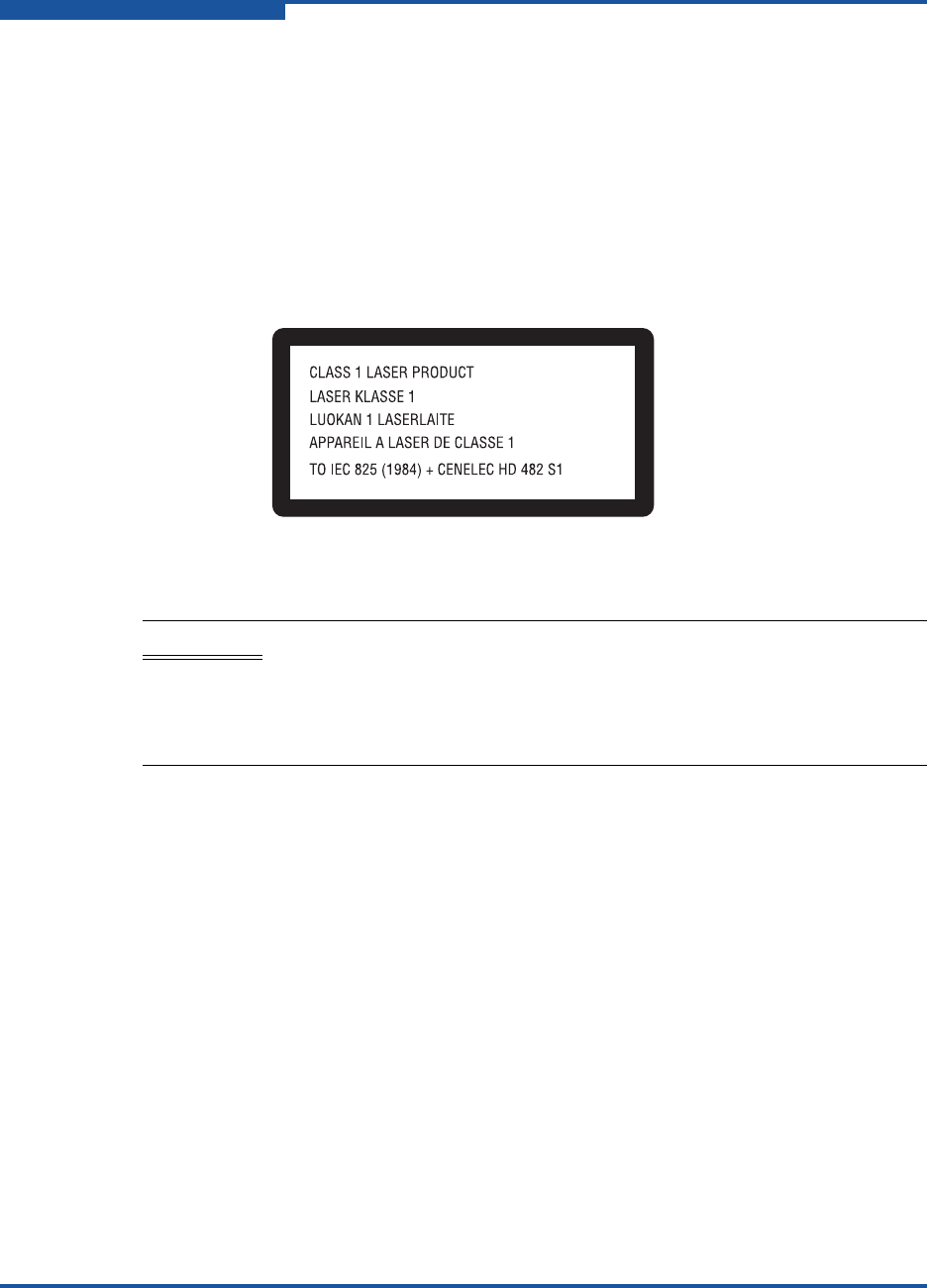
This product uses Class 1 laser optical transceivers to communicate over the fiber
optic conductors. The U.S. Department of Health and Human Services (DHHS)
does not consider Class 1 lasers to be hazardous. The International
Electrotechnical Commission (IEC) 825 Laser Safety Standard requires labeling in
English, German, Finnish, and French stating that the product uses Class 1
lasers. Because it is impractical to label the transceivers, the following label is
provided in this manual.
The following warning applies to XPAK optical transceivers:
Electrostatic Discharge Sensitivity (ESDS)
Precautions
The assemblies used in the switch chassis are ESD sensitive. Observe ESD
handling procedures when handling any assembly used in the switch chassis.
Accessible Parts
The Field Replaceable Units (FRUs) for the QLogic 5800V Series switch are the
following:
Power supplies
Small Form-Factor Pluggable (SFP) optical transceivers
XPAK optical transceivers
WARNING!!
LASER RADIATION
DO NOT VIEW DIRECTLY WITH OPTICAL INSTRUMENTS
CLASS 1M LASER PRODUCT

Preface
Pièces Accessibles
59265-02 B xv
Pièces Accessibles
Les pièces remplaçables, Field Replaceable Units (FRU), du commutateur
QLogic 5800V Series Fibre Channel Switch sont les suivantes:
Alimentations de courant
Interfaces aux media d’interconnexion appelés SFP transceivers
Interfaces aux media d’interconnexion appelés XPAK transceivers
Zugängliche Teile
Nur die folgenden Teile im QLogic 5800V Series Fibre Channel Switch können
kundenseitig ersetzt werden:
Netzteile
Schnittstellen für die Zwischenverbindungsträger, SFP transceivers
genannt.
Schnittstellen für die Zwischenverbindungsträger, XPAK transceivers
genannt.

Preface
General Public License
xvi 59265-02 B
General Public License
QLogic Fibre Channel switches are powered by the Linux operating system. A
machine-readable copy of the Linux source code is available upon written request
to the following address. A nominal fee will be charged for reproduction, shipping,
and handling costs in accordance with the General Public License.
QLogic Corporation
4601 Dean Lakes Boulevard
Shakopee, MN 55379
Attention: Technical Support - Source Request
Warning: Installation of software or files not authorized by QLogic will immediately
and irrevocably void all warranty and service contracts on the affected units.
The following general public license has been reproduced with permission from:
GNU General Public License
Version 2, June 1991
Copyright (C) 1989, 1991 Free Software Foundation, Inc.
59 Temple Place - Suite 330, Boston, MA 02111-1307, USA
Preamble
The licenses for most software are designed to take away your freedom to share
and change it. By contrast, the GNU General Public License is intended to
guarantee your freedom to share and change free software--to make sure the
software is free for all its users. This General Public License applies to most of the
Free Software Foundation's software and to any other program whose authors
commit to using it. (Some other Free Software Foundation software is covered by
the GNU Library General Public License instead.) You can apply it to your
programs, too.
When we speak of free software, we are referring to freedom, not price. Our
General Public Licenses are designed to make sure that you have the freedom to
distribute copies of free software (and charge for this service if you wish), that you
receive source code or can get it if you want it, that you can change the software
or use pieces of it in new free programs; and that you know you can do these
things.
To protect your rights, we need to make restrictions that forbid anyone to deny you
these rights or to ask you to surrender the rights. These restrictions translate to
certain responsibilities for you if you distribute copies of the software, or if you
modify it.
For example, if you distribute copies of such a program, whether gratis or for a
fee, you must give the recipients all the rights that you have. You must make sure
that they, too, receive or can get the source code. And you must show them these
terms so they know their rights.

Preface
General Public License
59265-02 B xvii
We protect your rights with two steps: (1) copyright the software, and (2) offer you
this license which gives you legal permission to copy, distribute and/or modify the
software.
Also, for each author's protection and ours, we want to make certain that
everyone understands that there is no warranty for this free software. If the
software is modified by someone else and passed on, we want its recipients to
know that what they have is not the original, so that any problems introduced by
others will not reflect on the original authors' reputations.
Finally, any free program is threatened constantly by software patents. We wish to
avoid the danger that redistributors of a free program will individually obtain patent
licenses, in effect making the program proprietary. To prevent this, we have made
it clear that any patent must be licensed for everyone's free use or not licensed at
all.
The precise terms and conditions for copying, distribution and modification follow.
Terms and Conditions for Copying, Distribution and
Modification
1. This License applies to any program or other work which contains a notice
placed by the copyright holder saying it may be distributed under the terms
of this General Public License. The "Program", below, refers to any such
program or work, and a "work based on the Program" means either the
Program or any derivative work under copyright law: that is to say, a work
containing the Program or a portion of it, either verbatim or with
modifications and/or translated into another language. (Hereinafter,
translation is included without limitation in the term "modification".) Each
licensee is addressed as "you".
Activities other than copying, distribution and modification are not covered
by this License; they are outside its scope. The act of running the Program is
not restricted, and the output from the Program is covered only if its contents
constitute a work based on the Program (independent of having been made
by running the Program). Whether that is true depends on what the Program
does.
2. You may copy and distribute verbatim copies of the Program's source code
as you receive it, in any medium, provided that you conspicuously and
appropriately publish on each copy an appropriate copyright notice and
disclaimer of warranty; keep intact all the notices that refer to this License
and to the absence of any warranty; and give any other recipients of the
Program a copy of this License along with the Program.
You may charge a fee for the physical act of transferring a copy, and you
may at your option offer warranty protection in exchange for a fee.

Preface
General Public License
xviii 59265-02 B
3. You may modify your copy or copies of the Program or any portion of it, thus
forming a work based on the Program, and copy and distribute such
modifications or work under the terms of Section 1 above, provided that you
also meet all of these conditions:
a. You must cause the modified files to carry prominent notices stating
that you changed the files and the date of any change.
b. You must cause any work that you distribute or publish, that in whole or
in part contains or is derived from the Program or any part thereof, to
be licensed as a whole at no charge to all third parties under the terms
of this License.
c. If the modified program normally reads commands interactively when
run, you must cause it, when started running for such interactive use in
the most ordinary way, to print or display an announcement including
an appropriate copyright notice and a notice that there is no warranty
(or else, saying that you provide a warranty) and that users may
redistribute the program under these conditions, and telling the user
how to view a copy of this License. (Exception: if the Program itself is
interactive but does not normally print such an announcement, your
work based on the Program is not required to print an announcement.)
These requirements apply to the modified work as a whole. If identifiable
sections of that work are not derived from the Program, and can be
reasonably considered independent and separate works in themselves, then
this License, and its terms, do not apply to those sections when you
distribute them as separate works. But when you distribute the same
sections as part of a whole which is a work based on the Program, the
distribution of the whole must be on the terms of this License, whose
permissions for other licensees extend to the entire whole, and thus to each
and every part regardless of who wrote it.
Thus, it is not the intent of this section to claim rights or contest your rights to
work written entirely by you; rather, the intent is to exercise the right to
control the distribution of derivative or collective works based on the
Program.
In addition, mere aggregation of another work not based on the Program
with the Program (or with a work based on the Program) on a volume of a
storage or distribution medium does not bring the other work under the
scope of this License.
4. You may copy and distribute the Program (or a work based on it, under
Section 2) in object code or executable form under the terms of Sections 1
and 2 above provided that you also do one of the following:
a. Accompany it with the complete corresponding machine-readable
source code, which must be distributed under the terms of Sections 1

Preface
General Public License
59265-02 B xix
and 2 above on a medium customarily used for software interchange;
or,
b. Accompany it with a written offer, valid for at least three years, to give
any third party, for a charge no more than your cost of physically
performing source distribution, a complete machine-readable copy of
the corresponding source code, to be distributed under the terms of
Sections 1 and 2 above on a medium customarily used for software
interchange; or,
c. Accompany it with the information you received as to the offer to
distribute corresponding source code. (This alternative is allowed only
for noncommercial distribution and only if you received the program in
object code or executable form with such an offer, in accord with
Subsection b above.)
The source code for a work means the preferred form of the work for making
modifications to it. For an executable work, complete source code means all
the source code for all modules it contains, plus any associated interface
definition files, plus the scripts used to control compilation and installation of
the executable. However, as a special exception, the source code
distributed need not include anything that is normally distributed (in either
source or binary form) with the major components (compiler, kernel, and so
on) of the operating system on which the executable runs, unless that
component itself accompanies the executable.
If distribution of executable or object code is made by offering access to
copy from a designated place, then offering equivalent access to copy the
source code from the same place counts as distribution of the source code,
even though third parties are not compelled to copy the source along with
the object code.
5. You may not copy, modify, sublicense, or distribute the Program except as
expressly provided under this License. Any attempt otherwise to copy,
modify, sublicense or distribute the Program is void, and will automatically
terminate your rights under this License. However, parties who have
received copies, or rights, from you under this License will not have their
licenses terminated so long as such parties remain in full compliance.
6. You are not required to accept this License, since you have not signed it.
However, nothing else grants you permission to modify or distribute the
Program or its derivative works. These actions are prohibited by law if you
do not accept this License. Therefore, by modifying or distributing the
Program (or any work based on the Program), you indicate your acceptance
of this License to do so, and all its terms and conditions for copying,
distributing or modifying the Program or works based on it.

Preface
General Public License
xx 59265-02 B
7. Each time you redistribute the Program (or any work based on the Program),
the recipient automatically receives a license from the original licensor to
copy, distribute or modify the Program subject to these terms and conditions.
You may not impose any further restrictions on the recipients' exercise of the
rights granted herein. You are not responsible for enforcing compliance by
third parties to this License.
8. If, as a consequence of a court judgment or allegation of patent infringement
or for any other reason (not limited to patent issues), conditions are imposed
on you (whether by court order, agreement or otherwise) that contradict the
conditions of this License, they do not excuse you from the conditions of this
License. If you cannot distribute so as to satisfy simultaneously your
obligations under this License and any other pertinent obligations, then as a
consequence you may not distribute the Program at all. For example, if a
patent license would not permit royalty-free redistribution of the Program by
all those who receive copies directly or indirectly through you, then the only
way you could satisfy both it and this License would be to refrain entirely
from distribution of the Program.
If any portion of this section is held invalid or unenforceable under any
particular circumstance, the balance of the section is intended to apply and
the section as a whole is intended to apply in other circumstances.
It is not the purpose of this section to induce you to infringe any patents or
other property right claims or to contest validity of any such claims; this
section has the sole purpose of protecting the integrity of the free software
distribution system, which is implemented by public license practices. Many
people have made generous contributions to the wide range of software
distributed through that system in reliance on consistent application of that
system; it is up to the author/donor to decide if he or she is willing to
distribute software through any other system and a licensee cannot impose
that choice.
This section is intended to make thoroughly clear what is believed to be a
consequence of the rest of this License.
9. If the distribution and/or use of the Program is restricted in certain countries
either by patents or by copyrighted interfaces, the original copyright holder
who places the Program under this License may add an explicit
geographical distribution limitation excluding those countries, so that
distribution is permitted only in or among countries not thus excluded. In
such case, this License incorporates the limitation as if written in the body of
this License.
10. The Free Software Foundation may publish revised and/or new versions of
the General Public License from time to time. Such new versions will be
similar in spirit to the present version, but may differ in detail to address new
problems or concerns.

Preface
General Public License
59265-02 B xxi
11. Each version is given a distinguishing version number. If the Program
specifies a version number of this License which applies to it and "any later
version", you have the option of following the terms and conditions either of
that version or of any later version published by the Free Software
Foundation. If the Program does not specify a version number of this
License, you may choose any version ever published by the Free Software
Foundation.
12. If you wish to incorporate parts of the Program into other free programs
whose distribution conditions are different, write to the author to ask for
permission. For software which is copyrighted by the Free Software
Foundation, write to the Free Software Foundation; we sometimes make
exceptions for this. Our decision will be guided by the two goals of
preserving the free status of all derivatives of our free software and of
promoting the sharing and reuse of software generally.
NO WARRANTY
13. BECAUSE THE PROGRAM IS LICENSED FREE OF CHARGE, THERE IS
NO WARRANTY FOR THE PROGRAM, TO THE EXTENT PERMITTED BY
APPLICABLE LAW. EXCEPT WHEN OTHERWISE STATED IN WRITING
THE COPYRIGHT HOLDERS AND/OR OTHER PARTIES PROVIDE THE
PROGRAM "AS IS" WITHOUT WARRANTY OF ANY KIND, EITHER
EXPRESSED OR IMPLIED, INCLUDING, BUT NOT LIMITED TO, THE
IMPLIED WARRANTIES OF MERCHANTABILITY AND FITNESS FOR A
PARTICULAR PURPOSE. THE ENTIRE RISK AS TO THE QUALITY AND
PERFORMANCE OF THE PROGRAM IS WITH YOU. SHOULD THE
PROGRAM PROVE DEFECTIVE, YOU ASSUME THE COST OF ALL
NECESSARY SERVICING, REPAIR OR CORRECTION.
14. IN NO EVENT UNLESS REQUIRED BY APPLICABLE LAW OR AGREED
TO IN WRITING WILL ANY COPYRIGHT HOLDER, OR ANY OTHER
PARTY WHO MAY MODIFY AND/OR REDISTRIBUTE THE PROGRAM AS
PERMITTED ABOVE, BE LIABLE TO YOU FOR DAMAGES, INCLUDING
ANY GENERAL, SPECIAL, INCIDENTAL OR CONSEQUENTIAL
DAMAGES ARISING OUT OF THE USE OR INABILITY TO USE THE
PROGRAM (INCLUDING BUT NOT LIMITED TO LOSS OF DATA OR DATA
BEING RENDERED INACCURATE OR LOSSES SUSTAINED BY YOU OR
THIRD PARTIES OR A FAILURE OF THE PROGRAM TO OPERATE WITH
ANY OTHER PROGRAMS), EVEN IF SUCH HOLDER OR OTHER PARTY
HAS BEEN ADVISED OF THE POSSIBILITY OF SUCH DAMAGES.
END OF TERMS AND CONDITIONS
How to Apply These Terms to Your New Programs
If you develop a new program, and you want it to be of the greatest possible use
to the public, the best way to achieve this is to make it free software which
everyone can redistribute and change under these terms.

Preface
General Public License
xxii 59265-02 B
To do so, attach the following notices to the program. It is safest to attach them to
the start of each source file to most effectively convey the exclusion of warranty;
and each file should have at least the "copyright" line and a pointer to where the
full notice is found.
one line to give the program's name and an idea of what it does.
Copyright (C) yyyy name of author
This program is free software; you can redistribute it and/or modify it under
the terms of the GNU General Public License as published by the Free
Software Foundation; either version 2 of the License, or (at your option) any
later version.
This program is distributed in the hope that it will be useful, but WITHOUT
ANY WARRANTY; without even the implied warranty of
MERCHANTABILITY or FITNESS FOR A PARTICULAR PURPOSE. See
the GNU General Public License for more details.
You should have received a copy of the GNU General Public License along
with this program; if not, write to the Free Software Foundation, Inc., 59
Temple Place - Suite 330, Boston, MA 02111-1307, USA.
Also add information on how to contact you by electronic and paper mail.
If the program is interactive, make it output a short notice like this when it
starts in an interactive mode:
Gnomovision version 69, Copyright (C) year name of author
Gnomovision comes with ABSOLUTELY NO WARRANTY; for details type
`show w'. This is free software, and you are welcome to redistribute it under
certain conditions; type `show c' for details.
The hypothetical commands `show w' and `show c' should show the
appropriate parts of the General Public License. Of course, the commands
you use may be called something other than `show w' and `show c'; they
could even be mouse-clicks or menu items--whatever suits your program.
You should also get your employer (if you work as a programmer) or your
school, if any, to sign a "copyright disclaimer" for the program, if necessary.
Here is a sample; alter the names:

Preface
qfsApp Program License
59265-02 B xxiii
Yoyodyne, Inc., hereby disclaims all copyright interest in the program
`Gnomovision' (which makes passes at compilers) written by James Hacker.
signature of Ty Coon, 1 April 1989
Ty Coon, President of Vice
This General Public License does not permit incorporating your program into
proprietary programs. If your program is a subroutine library, you may
consider it more useful to permit linking proprietary applications with the
library. If this is what you want to do, use the GNU Library General Public
License instead of this License.
qfsApp Program License
This source code may be used as you wish, subject to the MIT license.
© 2001 Bob Trower, Trantor Standard Systems Inc.
Permission is hereby granted, free of charge, to any person obtaining a copy of
this software and associated documentation files (the "Software"), to deal in the
Software without restriction, including without limitation the rights to use, copy,
modify, merge, publish, distribute, sublicense, and/or sell copies of the Software,
and to permit persons to whom the Software is furnished to do so, subject to the
following conditions:
The above copyright notice and this permission notice shall be included in all
copies or substantial portions of the Software.
THE SOFTWARE IS PROVIDED "AS IS", WITHOUT WARRANTY OF ANY KIND,
EXPRESS OR IMPLIED, INCLUDING BUT NOT LIMITED TO THE
WARRANTIES OF MERCHANTABILITY, FITNESS FOR A PARTICULAR
PURPOSE AND NONINFRINGEMENT. IN NO EVENT SHALL THE AUTHORS
OR COPYRIGHT HOLDERS BE LIABLE FOR ANY CLAIM, DAMAGES OR
OTHER LIABILITY, WHETHER IN AN ACTION OF CONTRACT, TORT OR
OTHERWISE, ARISING FROM, OUT OF OR IN CONNECTION WITH THE
SOFTWARE OR THE USE OR OTHER DEALINGS IN THE SOFTWARE.

Preface
Technical Support
xxiv 59265-02 B
Technical Support
Customers should contact their authorized maintenance provider for technical
support of their QLogic products. QLogic-direct customers may contact QLogic
Technical Support; others will be redirected to their authorized maintenance
provider. Visit the QLogic support Web site listed in Contact Information for the
latest firmware and software updates.
For details about available service plans, or for information about renewing and
extending your service, visit the Service Program Web page at
http://www.qlogic.com/services.
Training
QLogic offers training for technical professionals for all storage networking,
converged networking, and High Performance Computing (HPC) networking
products. From the main QLogic Web page at www.qlogic.com, click the Support
tab at the top, and then click the Training and Certification on the left. The
QLogic Global Training Portal offers online courses, certification exams, and
scheduling of in-person training.
Technical Certification courses include installation, maintenance, and
troubleshooting QLogic products. Upon demonstrating knowledge using live
equipment, QLogic awards a certificate identifying the student as a certified
professional. You can reach the training professionals at QLogic by e-mail at
training@qlogic.com.
Contact Information
Technical Support for products under warranty is available during local standard
working hours excluding QLogic Observed Holidays. For Support phone numbers,
see the Contact Support link at support@qlogic.com.
Support Headquarters QLogic Corporation
4601 Dean Lakes Blvd.
Shakopee, MN 55379 USA
QLogic Web Site www.qlogic.com
Technical Support Web Site http://support.qlogic.com
Technical Support E-mail support@qlogic.com
Technical Training E-mail training@qlogic.com

Preface
Technical Support
59265-02 B xxv
Knowledge Base
The QLogic knowledge base is an extensive collection of QLogic product
information that you can search for specific solutions. We are constantly adding to
the collection of information in our knowledge base to provide answers to your
most urgent questions. Access the knowledge base from the QLogic Support
Center: http://support.qlogic.com.

Preface
Technical Support
xxvi 59265-02 B
59265-02 B 1-1
1General Description
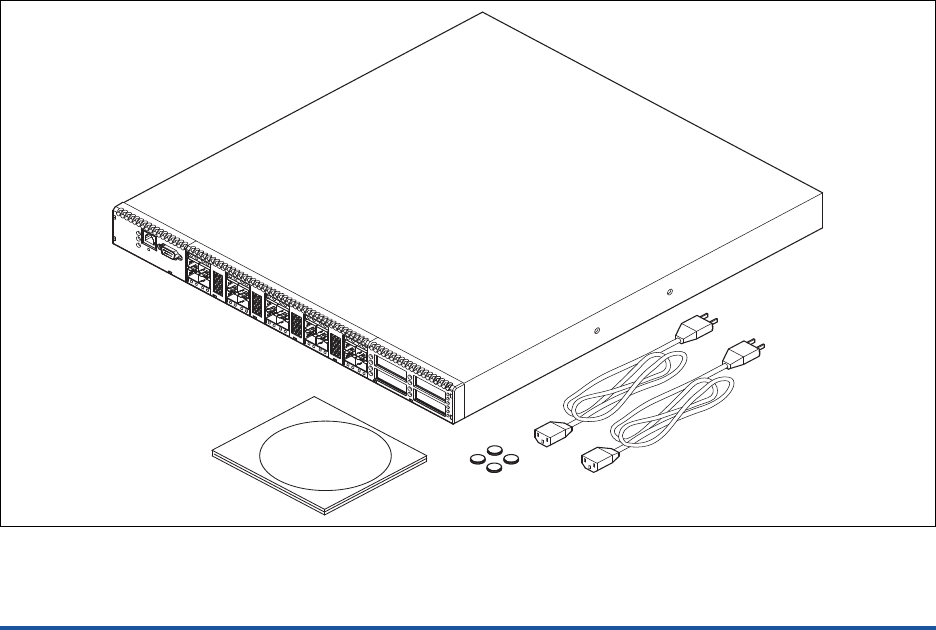
The QLogic 5800V Series switch, shown in Figure 1-1, is a 24-port, 8Gbps Fibre
Channel switch with both Ethernet and serial management interfaces. The model
5802V has dual, replaceable power supplies; the model 5800V switch has a
single, non-replaceable power supply.
This section describes the features and capabilities of the QLogic 5800V Series
switch including the following:
Chassis Controls and LEDs
Fibre Channel Ports
Ethernet Port
Power Supplies and Fans
Switch Management
Figure 1-1. QLogic 5802V Stackable Fibre Channel Switch
1–General Description
Chassis Controls and LEDs
1-2 59265-02 B
You can manage fabrics with the CLI, the QuickTools™ Web applet, or Enterprise
Fabric Suite™ (version 7.04).
Refer to theQLogic 5800V Series Fibre Channel Switch Command Line
Interface Guide for information about the CLI.
Refer to the QLogic 5800V Series QuickTools Switch Management User’s
Guide for information about QuickTools.
Refer to the QLogic 5800V Series Enterprise Fabric Suite User’s Guide for
information about using the Enterprise Fabric Suite application. The
Enterprise Fabric Suite CD comes with a 30-day trial license.
Chassis Controls and LEDs
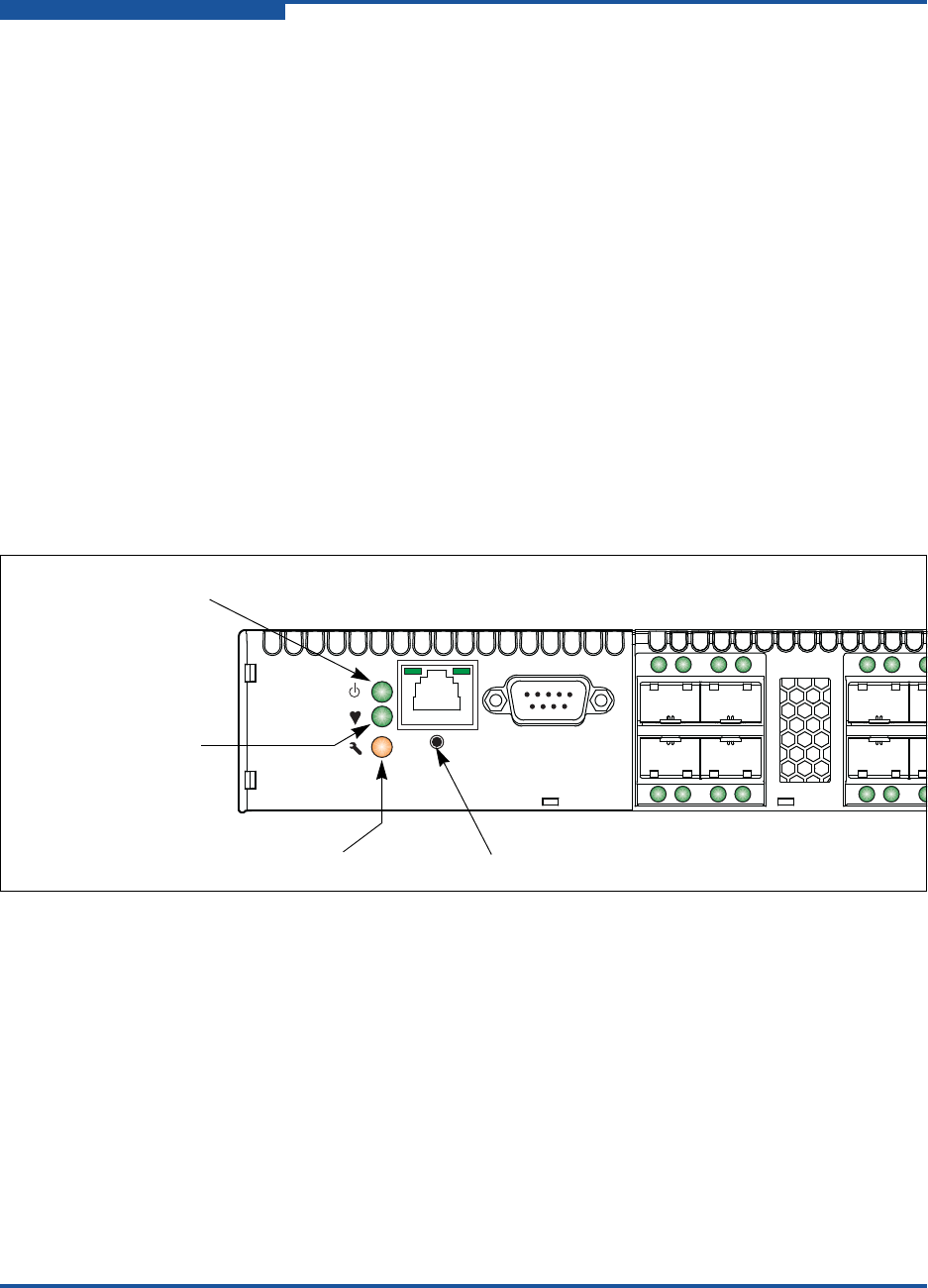
The chassis LEDs provide information about the switch’s operational status.
These LEDs include the Input Power LED (green), Heartbeat LED (green), and
the System Fault LED (amber) as shown in Figure 1-2. The Maintenance button,
shown in Figure 1-2, is the only chassis control, and is used to reset a switch or to
recover a disabled switch.
Figure 1-2. Chassis LEDs and Controls
To apply power to the switch, plug the power cords into the switch AC power
receptacles located on the back of the switch, and into a 100–240 VAC power
source.
Input Power LED (Green)
The Input Power LED indicates the voltage status at the switch logic circuitry.
During normal operation, this LED lights up to indicate that the switch logic
circuitry is receiving the correct DC voltages. When the switch is in maintenance
mode, this LED is not lit.
Maintenance
Button
Input Power LED
(Green)
Heartbeat LED
(Green)
System Fault LED
(Amber)

1–General Description
Chassis Controls and LEDs
59265-02 B 1-3
Heartbeat LED (Green)
The Heartbeat LED indicates the status of the internal switch processor and the
results of the power-on self test (POST). Following a normal power-up, the
Heartbeat LED blinks approximately once per second to indicate that the switch
passed the POST and that the internal switch processor is running. In
maintenance mode, the Heartbeat LED remains lit. Refer to “Heartbeat LED Blink
Patterns” on page 4-3 for more information about Heartbeat LED blink patterns.
System Fault LED (Amber)
The System Fault LED lights up to indicate that a fault exists in the switch
firmware or hardware. Fault conditions include POST errors, over-temperature
conditions, and power supply malfunctions. The Heartbeat LED shows a blink
code for POST errors and over temperature conditions. For more information,
refer to “Heartbeat LED Blink Patterns” on page 4-3.
Maintenance Button
The Maintenance button, shown in Figure 1-2, is a dual-function momentary
switch on the front panel. Press the maintenance button to reset the switch, or to
place the switch in maintenance mode. Maintenance mode sets the IP address to
10.0.0.1 and provides access to the switch for maintenance purposes when flash
memory or the resident configuration file has been corrupted. For more
information, see “Recovering a Switch Using Maintenance Mode” on page 4-13.
Resetting a Switch
To reset the switch, use a pointed tool to press and hold the Maintenance button
for less than two seconds. The switch responds as follows:
1. All the chassis LEDs light up except the System Fault LED.
2. After approximately one minute, the POST begins, extinguishing the
Heartbeat LED.
3. When the POST is complete, the Input Power LED lights up, and the
Heartbeat LED flashes once per second.
Placing the Switch in Maintenance Mode
To place the switch in maintenance mode:
1. Isolate the switch from the fabric.
2. Using a pointed tool, press and hold the Maintenance button for a few
seconds until only the Heartbeat LED is lit. Hold the maintenance button
until the Heartbeat LED goes out, and then release the button. The
Heartbeat LED remains lit while the switch is in maintenance mode.
To exit maintenance mode, and return to normal operation, press the
Maintenance button momentarily.
1–General Description
Fibre Channel Ports
1-4 59265-02 B
Fibre Channel Ports
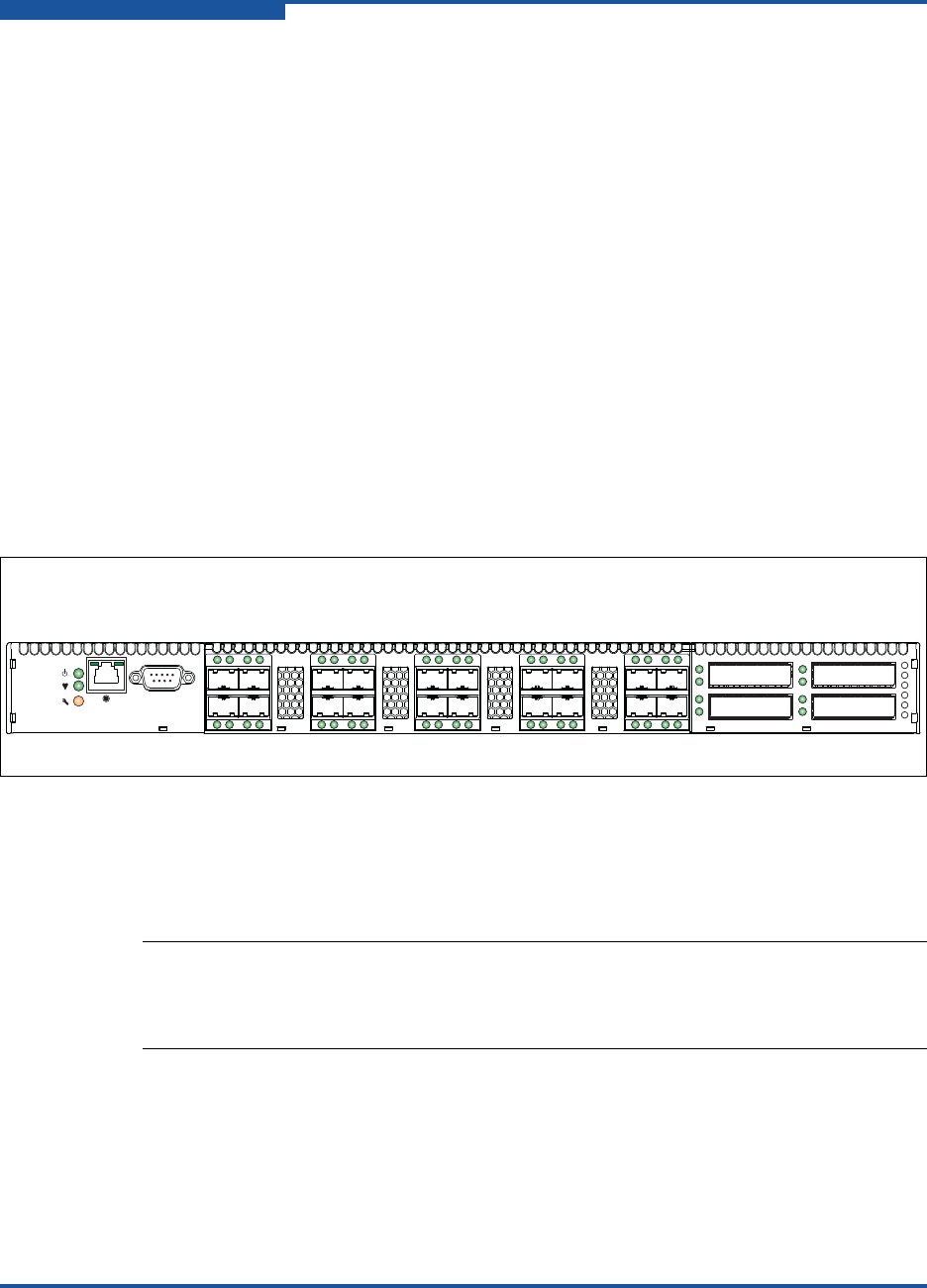
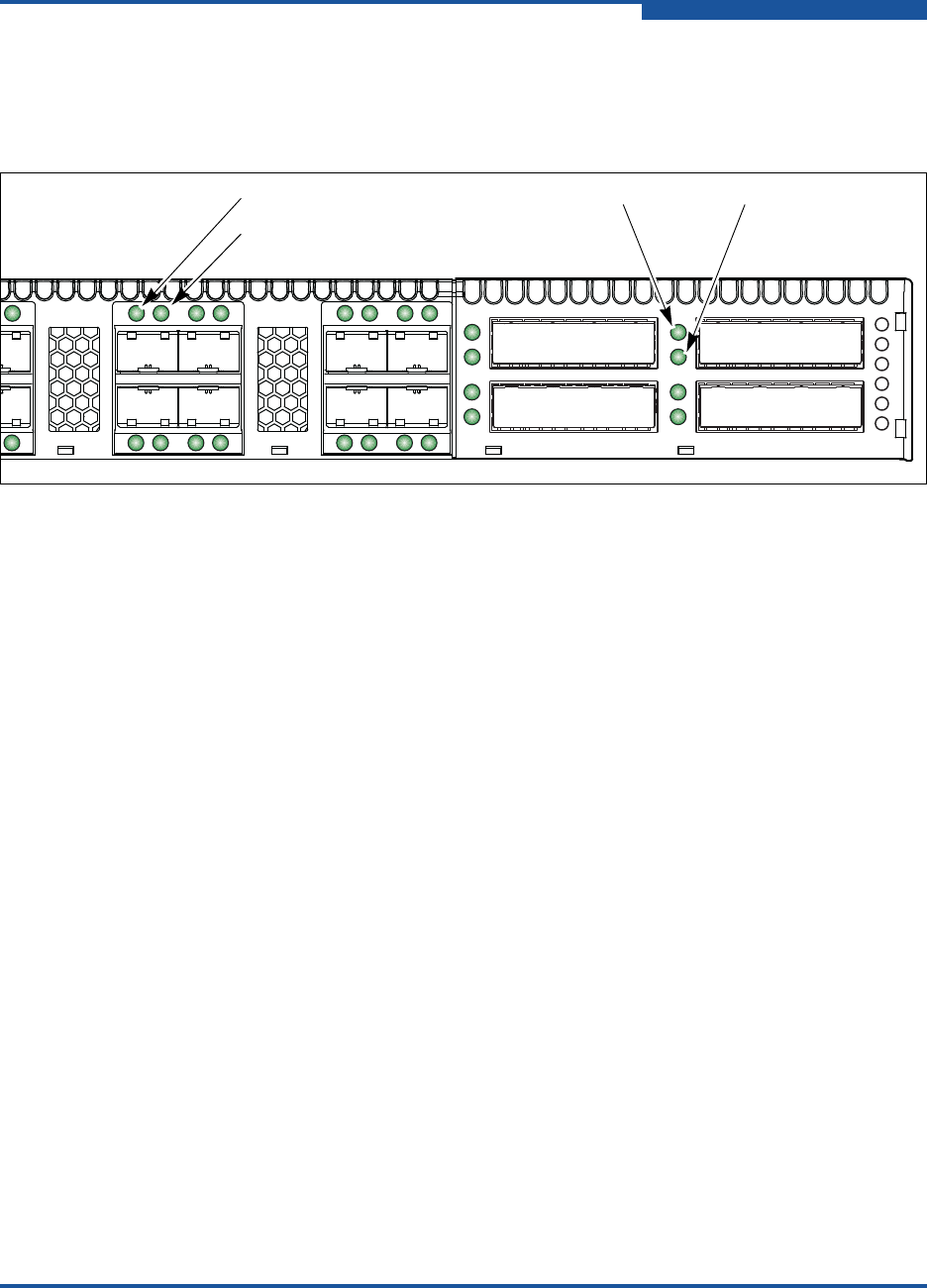
The QLogic 5800V Series switch has 20 Fibre Channel SFP ports and 4 Fibre
Channel XPAK ports. SFP ports are numbered 0–19 as shown in Figure 1-3. Each
SFP port is served by an SFP optical transceiver, and is capable of 1, 2, 4, or
8Gbps transmission. SFP ports are hot-pluggable and can self-discover both the
port type and transmission speed when connected to devices or other switches.
The port LEDs are located above ports 0–9 and below ports 10–19. The port
LEDs provide port login and activity status information.
The XPAK ports are numbered 20–23 as shown in Figure 1-3. Each XPAK port is
served by an XPAK optical transceiver or an XPAK switch stacking cable. An
XPAK port is capable of 12.75Gbps transmission or 25.5Gbps with the optional
license key. XPAK ports are hot-pluggable and can self-discover transmission
speed when connected to devices or other switches. The XPAK switch stacking
cable is a passive cable and transceiver assembly that connect to other
XPAK-capable switches. The XPAK ports come with covers that must be removed
before installing transceivers or cables. XPAK port LEDs are located to the left of
their respective ports and provide port login and activity status.
Figure 1-3. Fibre Channel Ports
Each SFP port is capable of 1, 2, 4, or 8Gbps transmission, depending on the
SFP. SFP ports are hot-pluggable and can self-discover both the port type and
transmission speed when connected to devices or other switches.
The QLogic 5800V Series switch can be a 12-, 16-, 20-, or 24-port switch. For
example, the base 12-port switch enables the four XPAK ports and SFP ports 0–7.
You can choose which ports are active using the mPort™ Technology feature in
Enterprise Fabric Suite. License keys are available from your authorized reseller
to enable additional SFP ports, or to upgrade the XPAK ports to 20Gbps. For more
information about license keys, refer to “Feature Licensing” on page 2-5.
NOTE:
Setting an SFP port to 1Gbps that has an 8Gbps SFP transceiver will bring
down the port.
SFP Ports XPAK Ports
289
10 11 12 13 14 15
3456701
16 17 18 19 21 23
20 22
1–General Description
Fibre Channel Ports
59265-02 B 1-5
Port LEDs
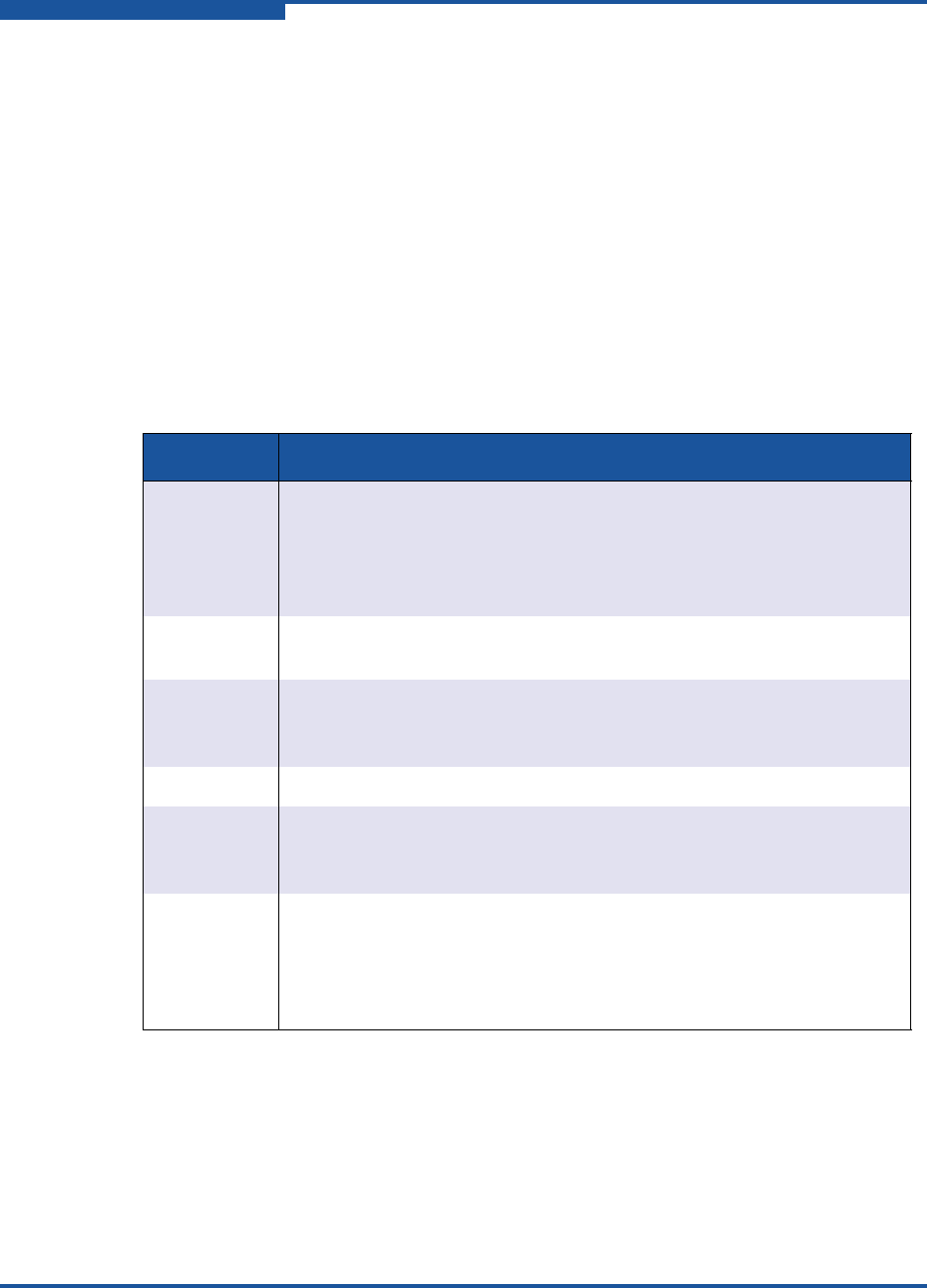
Each port has its own Logged-In LED (L) and Activity LED (A) as shown in
Figure 1-4.
Figure 1-4. Port LEDs
Port Logged-In LED (Green)
The Logged-in LED indicates the logged-in or initialization status of the connected
devices. After successful completion of the POST, the switch extinguishes all
Logged-In LEDs. Following a successful port login, the switch illuminates the
corresponding logged-in LED, indicating that the port is connected and able to
communicate with the attached devices. The Logged-In LED remains lit as long
as the port is initialized or logged in. If the port connection is broken or an error
occurs that disables the port, the Logged-In LED is not lit. For more information
about the Logged-In LED, refer to “Logged-In LED Indications” on page 4-7.
Port Activity LED (Green)
The Activity LED indicates that data is passing through the port. Each frame that
the port transmits or receives illuminates this LED for 50 milliseconds, which
makes it possible to observe the transmission of a single frame.
Transceivers
The QLogic 5800V Series switch supports SFP optical transceivers for the SFP
ports, and XPAK optical transceivers or XPAK stacking cables for the XPAK ports.
A transceiver converts electrical signals to and from optical laser signals to
transmit and receive data. Duplex fiber optic cables plug into the SFP
transceivers, which then connect to the devices. An SFP port is capable of
transmitting at 1, 2, 4, or 8Gbps; however, the transceiver must also be capable of
transmitting at these rates.
Logged-In LED Activity LED
Logged-In LED
Activity LED
1–General Description
Fibre Channel Ports
1-6 59265-02 B
The SFP and XPAK transceivers are hot-pluggable. This means that you can
remove or install a transceiver while the switch is operating without harming the
switch or the transceiver. However, communication with the connected device will
be interrupted. For more information about installing and removing transceivers,
refer to “Install the Transceivers” on page 3-5.
Port Types
QLogic 5800V Series switches support generic ports (G_Port, GL_Port), fabric
ports (F_Port, FL_Port), and expansion ports (E_Port). Switches come from the
factory with all SFP ports configured as GL_Ports. The XPAK ports come from the
factory configured as G_Ports. Generic, fabric, and expansion ports function as
follows:
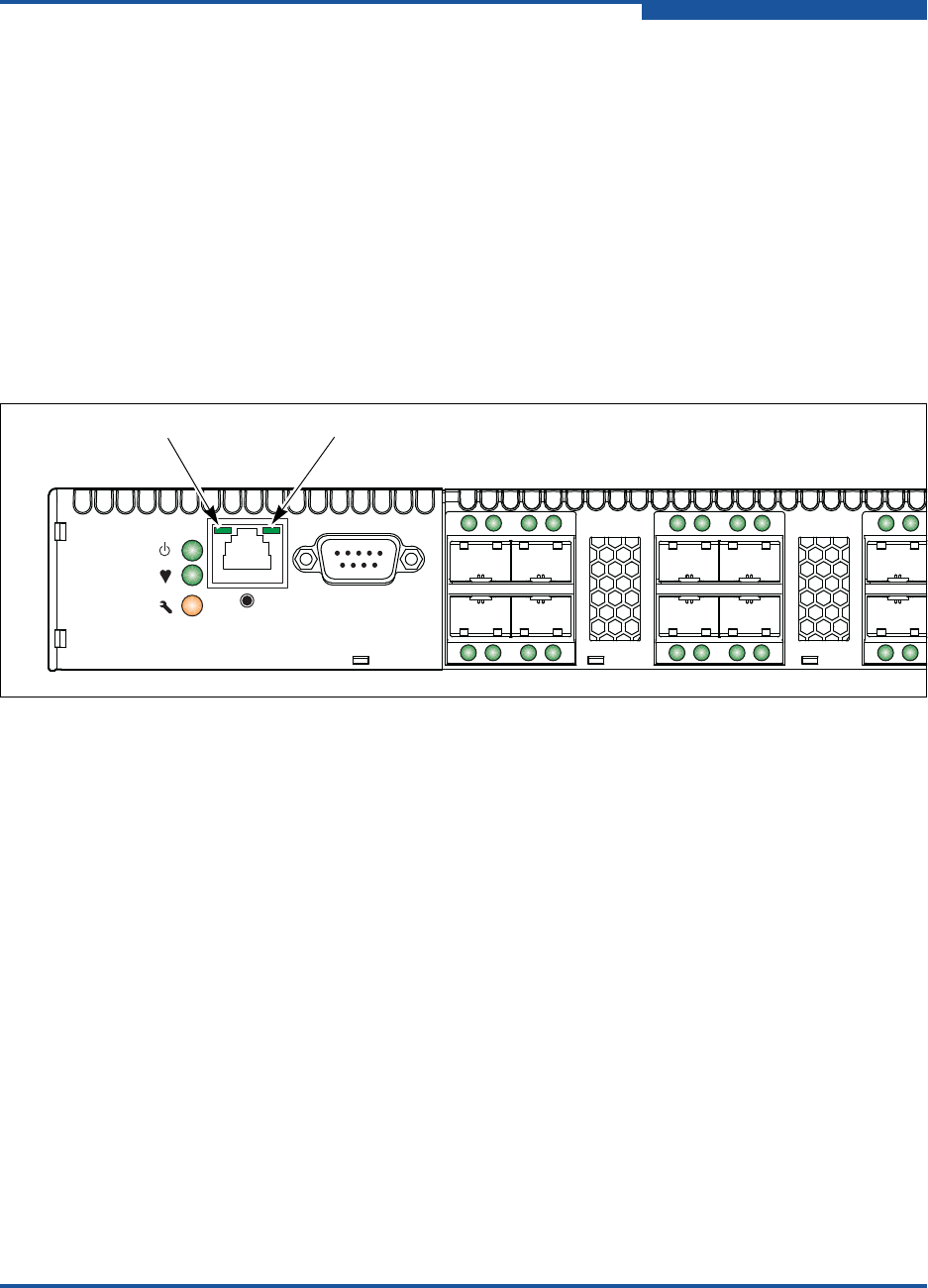
Table 1-1. Fibre Channel Port Types
Port type Description
GL_Port Generic loop port—self-configures as an FL_Port when connected to
a loop device, as an F_Port when connected to a single device, or as
an E_Port when connected to another switch. If the device is a single
device on a loop, the GL_Port will attempt to configure first as an
F_Port, then if that fails, as an FL_Port.
G_Port Generic port—self-configures as an F_Port when connected to a sin-
gle device, or as an E_Port when connected to another switch.
FL_Port Fabric loop port—supports a loop of up to 126 devices. An FL_Port
can also configure itself during the fabric login process as an F_Port
when connected to a single device (N_Port).
F_Port Fabric port—supports a single device.
E_Port Expansion port—expands the fabric by connecting switches. The
switch self-discovers all inter-switch connections. For more informa-
tion, see “Multiple Chassis Fabrics” on page 2-6.
TR_Port Transparent routing port—expands the fabric by connecting an QLogic
5800V Series switch to a Brocade® or Cisco® remote fabric. The
TR_Port provides transparent communication between local fabric
devices and remote fabric devices while maintaining separate fabrics.
For more information, see “Multiple Chassis Fabrics” on page 2-6.
1–General Description
Ethernet Port
59265-02 B 1-7
Ethernet Port
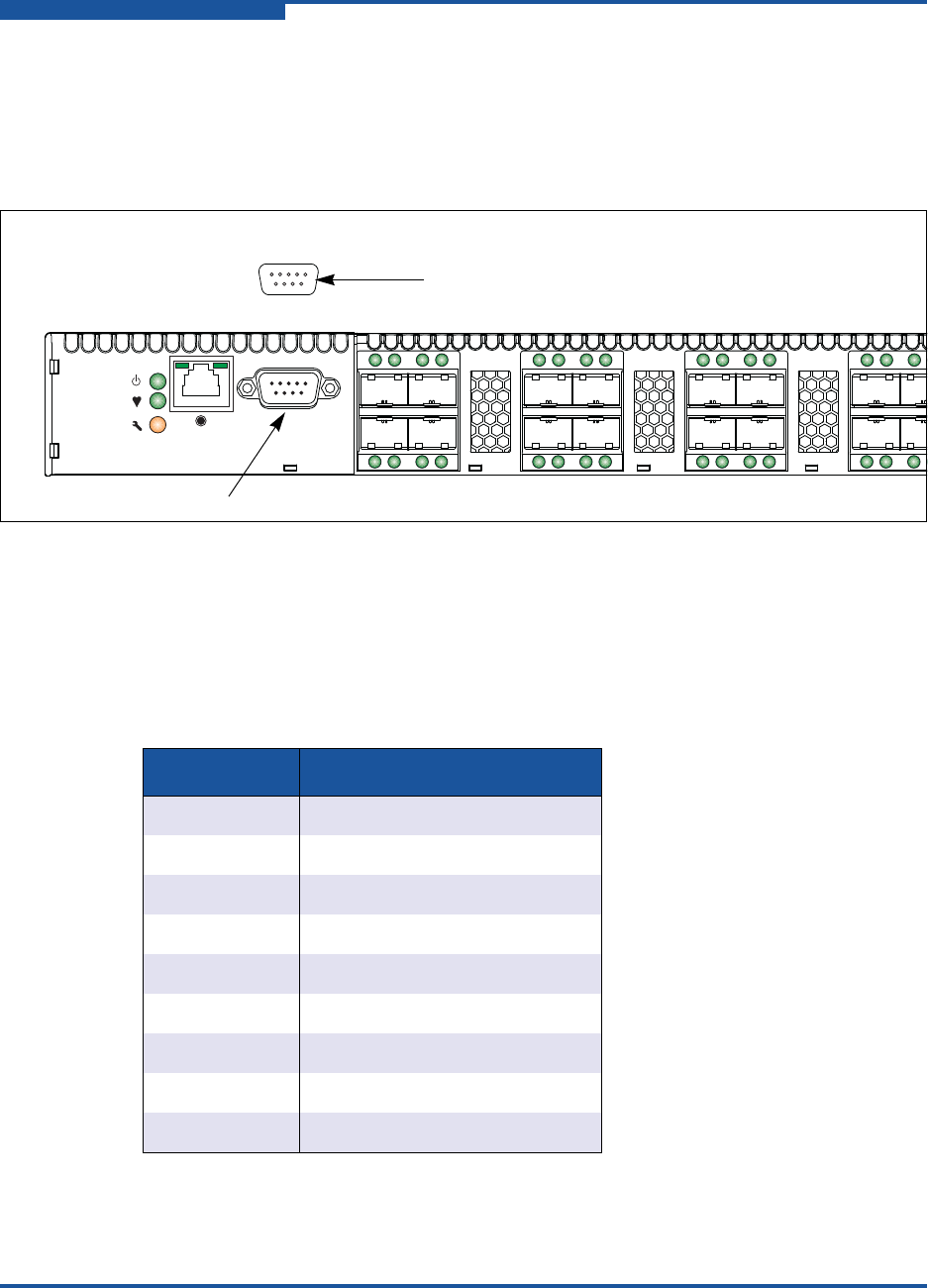
The Ethernet port is an RJ-45 connector that provides a connection to a
management workstation through a 10/100 Base-T Ethernet cable as shown in
Figure 1-5. A management workstation can be a Windows®, Solaris®, or a Linux®
workstation that is used to configure and manage the switch fabric. You can
manage the switch over an Ethernet connection using the CLI, QuickTools, or
SNMP.
The Ethernet port has two LEDs: the Link Status LED (green) and the Activity LED
(green). The Link Status LED remains lit when an Ethernet connection is
established. The Activity LED lights up when data is transmitted or received over
the Ethernet connection.
Figure 1-5. Ethernet Port
Link Status LEDActivity LED
1–General Description
Serial Port
1-8 59265-02 B
Serial Port
The QLogic 5800V Series switch is equipped with an RS-232 serial port for
maintenance purposes, as shown in Figure 1-6. You can manage the switch
through the serial port using the CLI.
Figure 1-6. Serial Port and Pin Identification
The serial port requires a null-modem F/F DB9 cable. The pins on the switch
RS-232 connector are shown in Figure 1-6 and identified in Table 1-2. For
information about connecting the management workstation through the serial port,
refer to “Connect the Workstation to the Switch” on page 3-11.
Table 1-2. Serial Port Pin Identification
Pin Number Description
1Carrier Detect (DCD)
2 Receive Data (RxD)
3Transmit Data (TxD)
4 Data Terminal Ready (DTR)
5Signal Ground (GND)
6 Data Set Ready (DSR)
7Request to Send (RTS)
8 Clear to Send (CTS)
9Ring Indicator (RI)
15
69
RS-232 Connector
Pin Identification
Serial Port
1–General Description
Power Supplies and Fans
59265-02 B 1-9
Power Supplies and Fans
The model 5800V switch is equipped with a single, non-replaceable power supply.
The model 5802V switch is equipped with dual, replaceable power supplies.
Model 5800V
The model 5800V switch has a single power supply that converts 100–240 VAC to
DC voltages for the various switch circuits. Internal fans provide cooling. The
switch monitors internal air temperature, and therefore does not monitor or report
fan operational status. Air flow is front-to-back. To energize the switch, plug the
power cord into the switch AC receptacle and into a 100–240 VAC power source.
Model 5802V
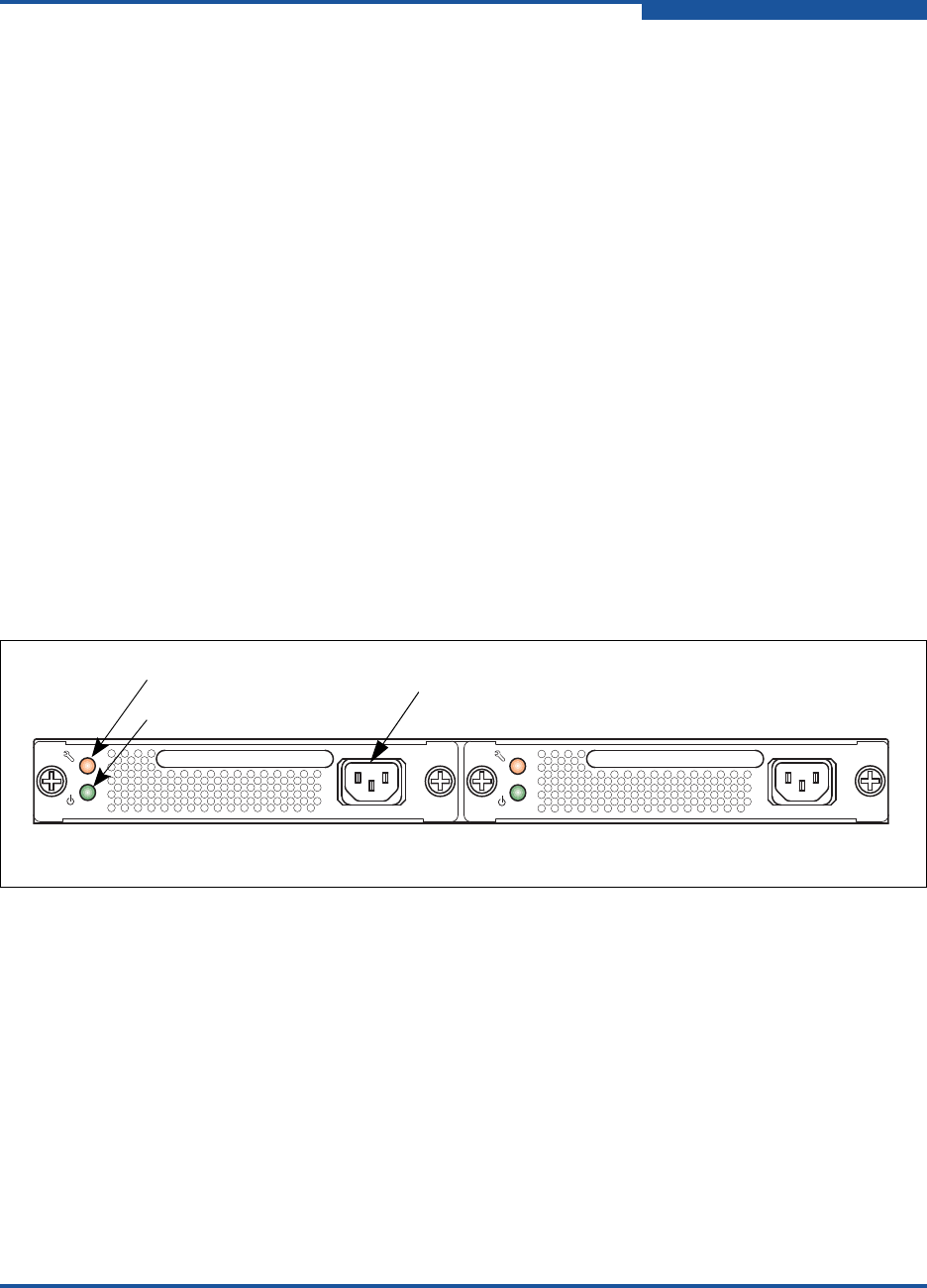
The model 5802V switch has two, hot-pluggable power supplies that convert
100–240 VAC to DC voltages for the various switch circuits. Each power supply
has an AC power receptacle and two status LEDs as shown in Figure 1-7:
The Power Supply Fault LED (amber) lights up to indicate that a power
supply fault exists and requires attention.
The Power Supply Status LED (green) lights up to indicate that the power
supply is receiving AC voltage and producing the correct DC voltages.
Figure 1-7. Model 5802V Power Supplies
Each power supply can supply all of the switch’s power needs. During normal
operation, each power supply provides half of the demand. If one power supply
goes offline, the second power supply steps up and provides the difference.
The power supplies are hot-pluggable and interchangeable. Hot-pluggable means
that you can remove and replace one power supply while the switch is in
operation without disrupting service. For information about replacing power
supplies, refer to Section 5.
Connecting a power supply to an AC voltage source energizes the switch logic
circuitry. Internal fans provide cooling. Air flow can be front-to-back or
back-to-front.
Fault LED (Amber)
Status LED (Green)
AC Power
Receptacle
Power Supply 1 Power Supply 2

1–General Description
Switch Management
1-10 59265-02 B
Switch Management
The switch supports the following management tools:
QuickTools Web Applet
Enterprise Fabric Suite
Command Line Interface
Application Programming Interface
Simple Network Management Protocol
Storage Management Initiative–Specification
File Transfer Protocols
QuickTools Web Applet
To provide basic switch management tools in a graphical user interface, and to
make switch management less dependent on a specific platform, each switch
contains a Web applet called QuickTools. QuickTools is best suited for fabrics with
fewer than four switches. For larger fabrics, consider the optional management
application, Enterprise Fabric Suite.
You run QuickTools by opening the switch IP address with an Internet browser.
QuickTools provides the following management features:
Faceplate device management
Switch and port statistics
Configuration wizard
Zoning administration
Fabric tree for fabric management
User account configuration
Switch and fabric events
Operational and environmental statistics
Global device nicknames
Online help
For more information about QuickTools, refer to the QLogic 5800V Series
QuickTools Switch Management User’s Guide.

1–General Description
Switch Management
59265-02 B 1-11
Enterprise Fabric Suite
Enterprise Fabric Suite is a separately licensed, workstation-based, Java®
application that provides a graphical user interface for fabric and switch
management. Enterprise Fabric Suite is best suited for fabrics of four or more
switches, and comes with a 30-day trial license. Enterprise Fabric Suite can run
on a Windows, Solaris, Linux, or Mac OS X workstation. Enterprise Fabric Suite
provides all of the management features of QuickTools plus the following:
Fabric tracker for monitoring fabric firmware versions
Port threshold alarm configuration
Topology display for fabric management
Stack management
Performance View for port performance
Extended Credits Wizard
Zoning Wizard
mPort Technology for moveable ports
For more information about Enterprise Fabric Suite, refer to the QLogic 5800V
Series Enterprise Fabric Suite User’s Guide.
Command Line Interface
The CLI provides monitoring and configuration functions that enable the
administrator to manage a single switch. The CLI manages a switch over an
Ethernet connection or a serial connection. Refer to QLogic 5800V Series Fibre
Channel Switch Command Line Interface Guide for more information.
Application Programming Interface
The API enables an application provider to build a management application for
QLogic switches. The library is implemented in ANSI standard C, relying only on
standard POSIX run-time libraries. Contact your distributor or authorized reseller
for information about the API.

1–General Description
Switch Management
1-12 59265-02 B
Simple Network Management Protocol
SNMP provides monitoring and trap functions for the fabric. QLogic firmware
supports SNMP versions 1, 2, and 3, the Fibre Alliance Management Information
Base (FA-MIB) version 4.0, and the Fabric Element Management Information
Base (FE-MIB) RFC 2837. You can format traps using SNMP version 1 or 2. For
more information about SNMP, refer to the Simple Network Management Protocol
Reference Guide.
You must use the CLI to configure SNMP version 3. For more information about
SNMP version 3 and the related commands, refer to the Snmpv3user command in
the QLogic 5800V Series Fibre Channel Switch Command Line Interface Guide.
Storage Management Initiative–Specification
SMI-S provides for the management of the switch through third-party applications
that use the SMI-S. Refer to the CIM Agent Reference Guide for more information.
File Transfer Protocols
FTP and TFTP provide the command line interface for exchanging files between
the switch and the management workstation. These files include firmware image
files, configuration files, and log files.

59265-02 B 2-1
2Planning
Consider the following when planning a fabric:
Devices
Device Access
Performance
Feature Licensing
Multiple Chassis Fabrics
Switch Services
Internet Protocol Support
Security
Fabric Management
Devices
When planning a fabric, consider the number of devices and the anticipated
demand. The number of devices will determine the number of ports that are
needed, and in turn, the number of switches.
Consider the transmission speeds of your adapters and SFPs. The switch ports
0–19 support 1Gbps, 2Gbps, 4Gbps, and 8Gbps transmission speeds depending
on the SFP.
Consider also the distribution of targets and initiators. An F_Port supports a single
device. An FL_Port can support up to 126 devices in an arbitrated loop.
NOTE:
Setting an SFP port to 1Gbps that has an 8Gbps SFP transceiver will bring
down the port.
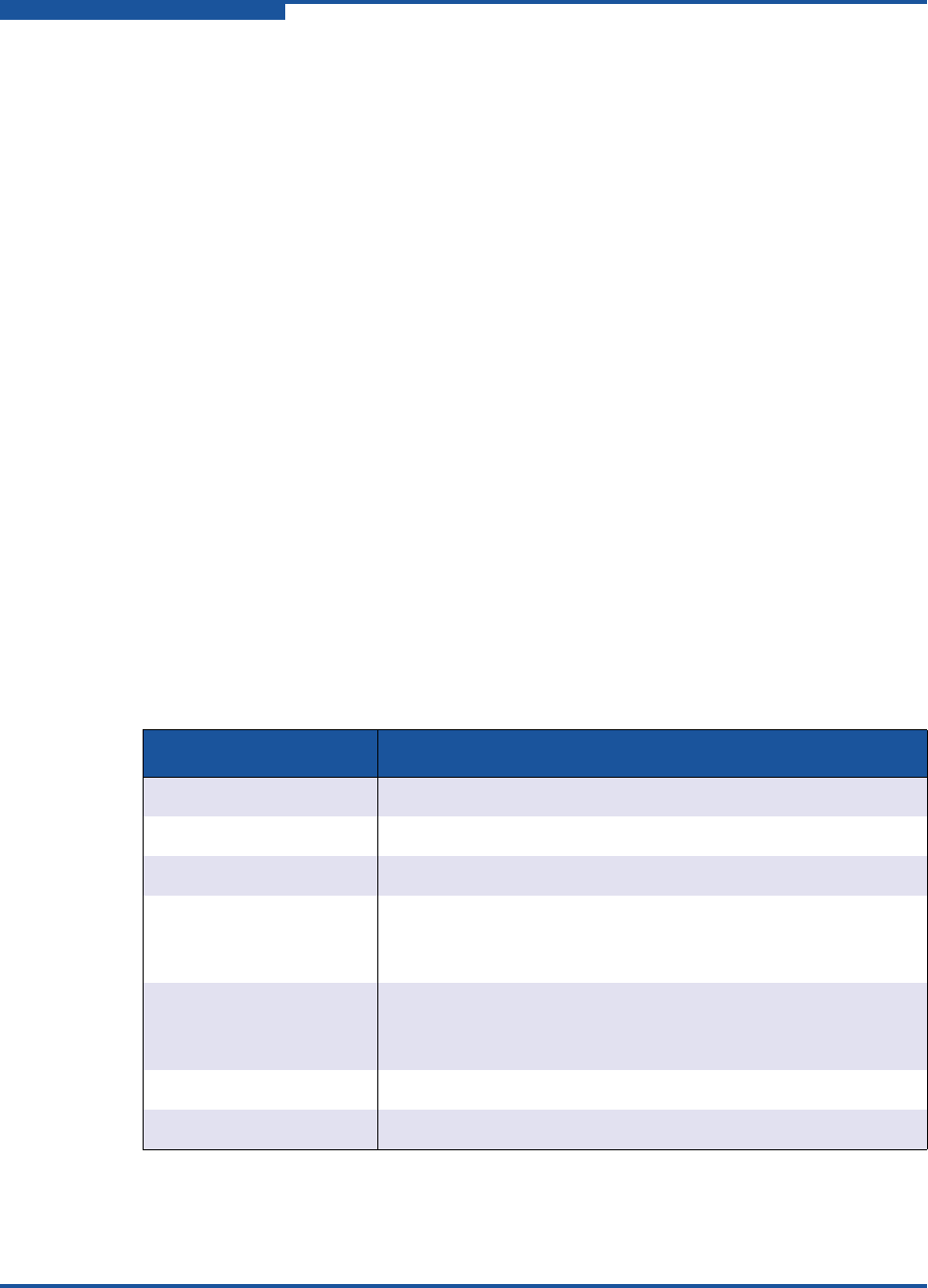
2–Planning
Device Access
2-2 59265-02 B
Device Access
Consider device access needs within the fabric. Access is controlled through the
use of zoning. Some zoning strategies include the following:
Separate devices by operating system.
Separate devices that have no need to communicate with other devices in
the fabric or that have classified data.
Separate devices into department, administrative, or other functional group.
Zoning divides the fabric to control discovery and inbound traffic. A zone is a
named group of ports or devices. Members of the same zone can communicate
with each other and transmit outside the zone, but cannot receive inbound traffic
from outside the zone. Zoning is hardware-enforced only when a port/device is a
member of no more than 8 zones whose combined membership does not exceed
64. If this condition is not satisfied, that port behaves as a soft zone member. You
can assign ports/devices to a zone individually, or as a group by creating an alias.
A zone can be a component of more than one zone set. Several zone sets can be
defined for a fabric, but only one zone set can be active at one time. The active
zone set determines the current fabric zoning. The switch maintains an orphan
zone set that contains zones that are not members of any other zone set.
A zoning database is maintained on each switch. Table 2-1 describes the zoning
database limits, excluding the active zone set.
Table 2-1. Zoning Database Limits
Limit Description
MaxZoneSets Maximum number of zone sets (256).
MaxZones Maximum number of zones (2,000).
MaxAliases Maximum number of aliases (2,500).
MaxTotalMembers Maximum number of zone and alias members (10,000) that
can be stored in the zoning database. Each instance of a
zone member or alias member counts toward this maximum.
MaxZonesInZoneSets Maximum number of zones that are components of zone
sets (2000), excluding the orphan zone set. Each instance of
a zone in a zone set counts toward this maximum.
MaxMembersPerZone Maximum number of members in a zone (2,000).
MaxMembersPerAlias Maximum number of members in an alias (2,000)
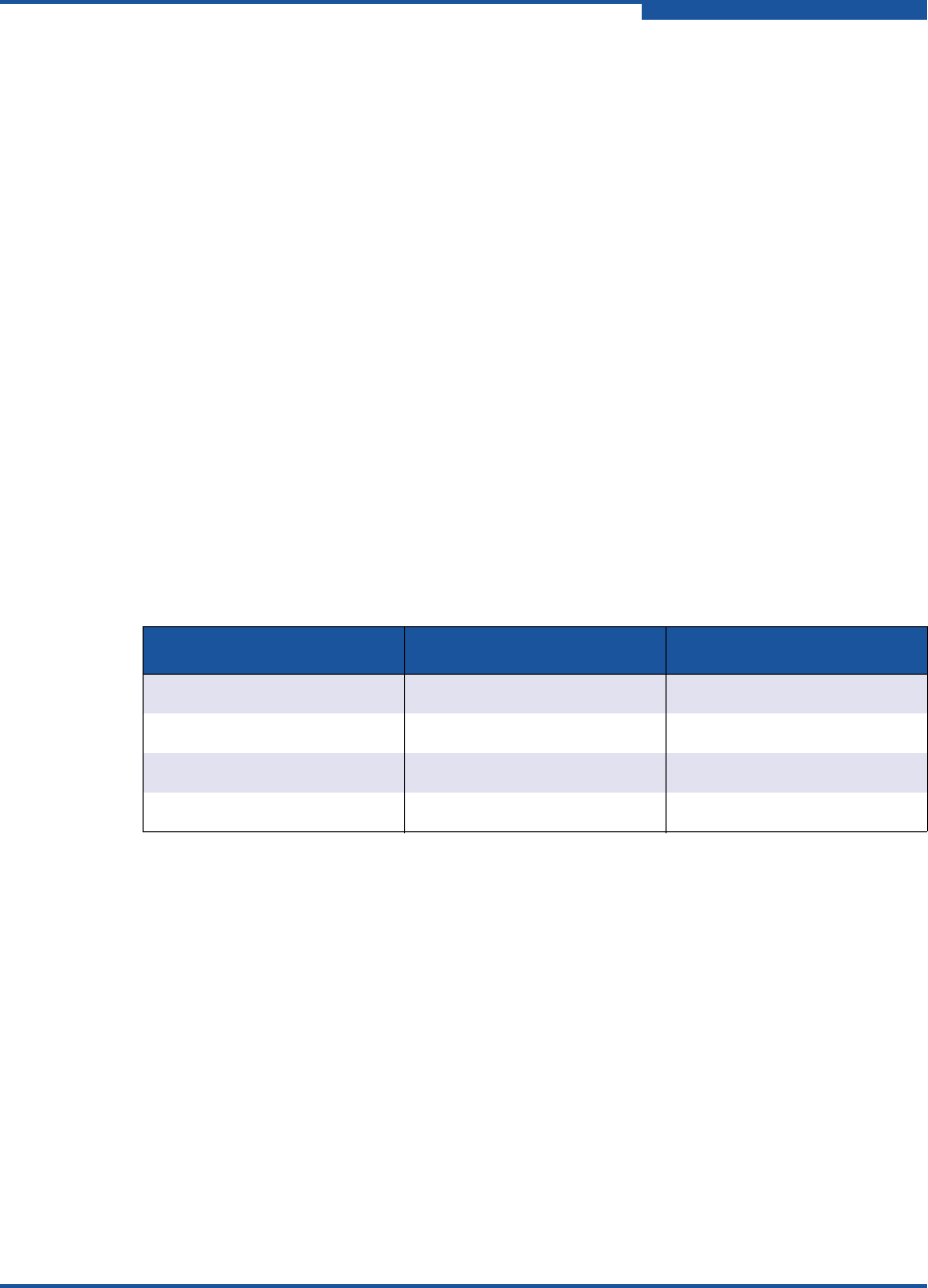
2–Planning
Performance
59265-02 B 2-3
Performance
The QLogic 5800V Series switch supports class 2 and class 3 Fibre Channel
service at transmission rates of 1, 2, 4, 8,10, or 20Gbps with a maximum frame
size of 2148 bytes. Each Fibre Channel port adapts its transmission speed to
match that of the device to which it is connected prior to login, when the
connected device powers up. Related performance characteristics include the
following:
Distance
Bandwidth
Latency
Distance
Consider the physical distribution of devices and switches in the fabric. Choose
SFP transceivers that are compatible with the cable type, distance, Fibre Channel
revision level, and the device adapter. Each SFP port is supported by a data buffer
with a 16-credit capacity; that is, 16 maximum-sized frames. Table 2-2 lists the
approximate transmission distances at full bandwidth over fiber optic cables:
With Enterprise Fabric Suite, longer distances can be spanned at full bandwidth
on SFP ports by extending credits to G_Ports, F_Ports, and E_Ports. Each port
can donate 15 credits to a pool from which a recipient port can borrow. However,
SFP ports can borrow only from other SFP ports. XPAK ports cannot borrow or
donate credits. The recipient port also loses a credit in the process. For example,
you can configure an SFP recipient port to borrow 15 credits from one donor port
for a total of 30 credits (15+15=30).
Table 2-2. Port Transmission Distances
Transmission Distance Port Speed Credits/Km
26 kilometers 1Gbps 0.6
13 kilometers 2Gbps 1.2
6 kilometers 4Gbps 2.4
3 kilometers 8Gbps 4.8
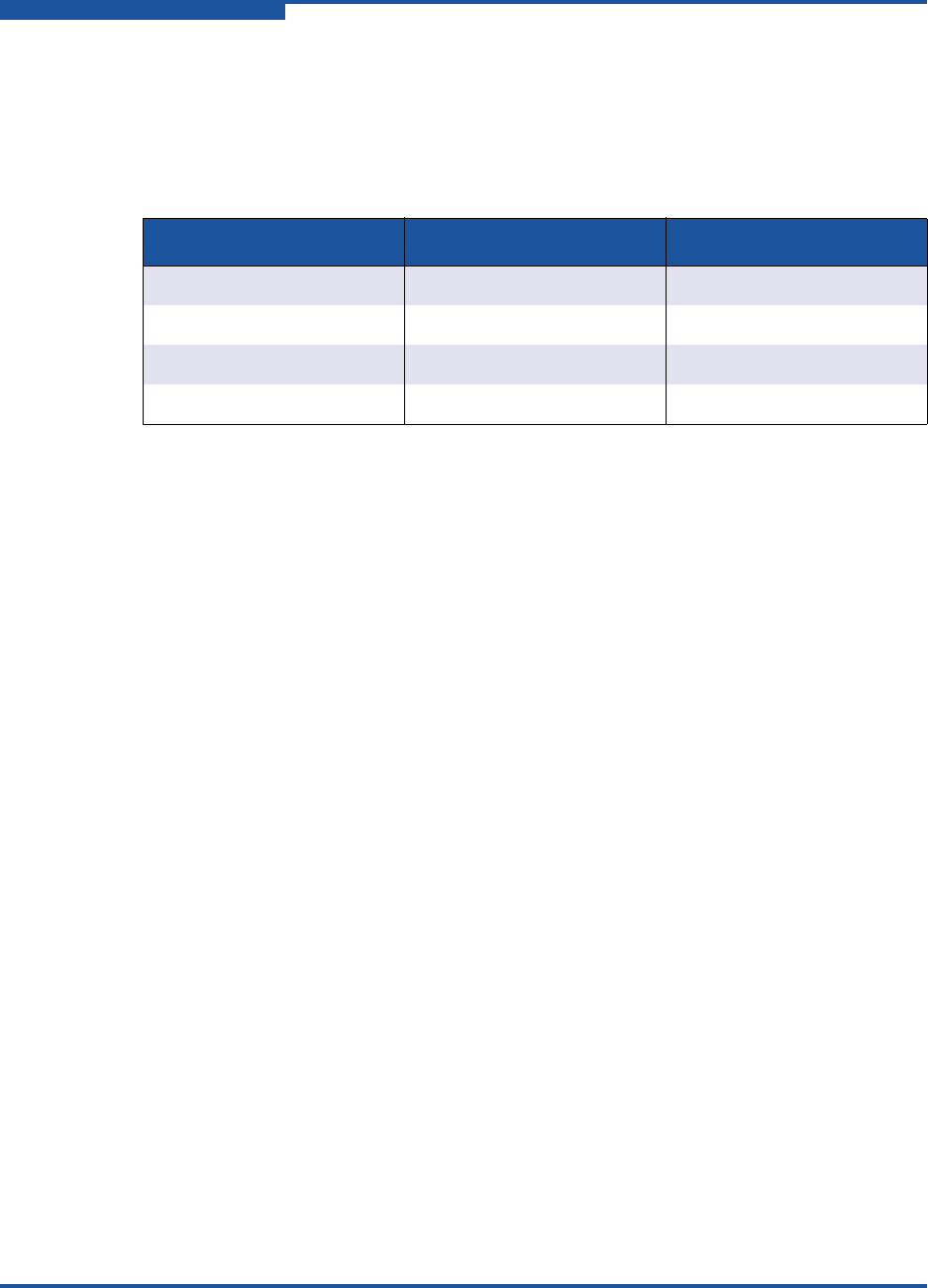
2–Planning
Performance
2-4 59265-02 B
Extending credits requires a minimum cable length that is dependent on
transmission speed. Extending credits over short cables can cause excessive port
resets. Table 2-3 lists the possible distances and minimum cable lengths for a port
with 30 credits.
Bandwidth
Bandwidth is a measure of the amount of data that can be transmitted at a
specified transmission rate. An SFP port can transmit or receive at nominal rates
of 1, 2, 4, or 8Gbps depending on the device to which it is connected. These rates
correspond to full-duplex bandwidth values of 212MB, 424MB, 850MB, and
1700MB respectively. XPAK ports transmit at a nominal rate of 10Gbps, which
corresponds to a full-duplex bandwidth value of 2550MB. With a 20Gbps license
key, XPAK ports can transmit at a nominal rate of 20Gbps (5100MB bandwidth).
Multiple source ports can transmit to the same destination port if the destination
bandwidth is greater than or equal to the combined source bandwidth. For
example, two 2Gbps source ports can transmit to one 4Gbps destination port.
Similarly, one source port can feed multiple destination ports if the combined
destination bandwidth is greater than or equal to the source bandwidth.
In multiple chassis fabrics, each link between chassis contributes 424, 850, 1700,
2550, or 5100MB of bandwidth between those chassis, depending on the speed
of the link. When additional bandwidth is needed between devices, increase the
number of links between the connecting switches. The switch guarantees in-order
delivery with any number of links between chassis.
Table 2-3. Extended Credit Distances and Cable Lengths
Transmission Speed Range for 30 Credits Minimum Cable Length
1Gbps 50 Km (30÷0.6) 3 Km
2Gbps 25 Km (30÷1.2) 1.5 Km
4Gbps 12 Km (30÷2.4) 0.75 Km
8Gbps 6 Km (30÷4.8) 0.37 Km
2–Planning
Feature Licensing
59265-02 B 2-5
Latency
Latency is a measure of how fast a frame travels through a switch from one port to
another. The factors that affect latency include transmission rate and the source
and destination port relationship as shown in Table 2-4.
Feature Licensing
License keys provide a way to expand the capabilities of your switch and fabric as
your needs grow. Consider your need for the following features and arrange to
purchase license keys from your switch distributor or authorized reseller:
The Enterprise Fabric Suite license provides access to the Enterprise Fabric
Suite graphical user interface that provides comprehensive fabric
management for fabrics of four or more switches. This license enables you
to download, install, and use Enterprise Fabric Suite on an unlimited number
of workstations. Enterprise Fabric Suite is available with a 30-day trial
license on the CD that is included with the switch product.
The port activation license activates additional SFP ports for a total of 16,
20, or 24 ports.
The 20Gb license enables the XPAK ports to transmit and receive at
25.5Gbps instead of the default 12.75Gbps.
Upgrading a switch is not disruptive, nor does it require a switch reset. To order a
license key, contact your switch distributor or your authorized reseller. For more
information about installing a license key, refer to “Installing Feature License
Keys” on page 3-19.
Table 2-4. Port-to-Port Latency
Destination Rate
Source Rate
Gbps 24810 20
2 < 0.6 µs < 0.7 µs 1
1 Based on minimum frame size of 36 bytes. Latency increases for larger frame sizes.
< 0.6 µs1< 0.6 µs1< 0.6 µs1
4< 0.4 µs < 0.3 µsec < 0.4 µsec1< 0.4 µsec1< 0.3 µsec1
8 < 0.3 µs < 0.2 µs < 0.2 µs < 0.2 µs1< 0.2 µs1
10 < 0.3 µs < 0.3 µs < 0.2 µs < 0.2 µs < 0.2 µs1
20 < 0.3 µs < 0.2 µs < 0.2 µs < 0.2 µs < 0.2 µs

2–Planning
Multiple Chassis Fabrics
2-6 59265-02 B
Multiple Chassis Fabrics
Connecting switches expands the number of available ports for devices. Each
switch in the fabric is identified by a unique domain ID, and the fabric can
automatically resolve domain ID conflicts. Because the Fibre Channel ports are
self-configuring, you can connect QLogic 5800V Series switches in a wide variety
of topologies. Transparent routing to a legacy fabric is also possible using
TR_Ports.
You can connect up to six QLogic 5800V Series switches through the XPAK ports,
thus preserving the SFP ports for devices. This is called stacking. QLogic 5800V
Series switches divide the XPAK port buffer to balance traffic across the
connection. The XPAK ports operate with any standard XPAK interface. You can
also connect QLogic 5800V Series switches with other switches through the SFP
ports in a wide variety of topologies. Consider your topology and cabling
requirements.
Optimizing Device Performance
When choosing a topology for a multiple chassis fabric, consider the proximity of
your server and storage devices, and the performance requirements of your
application. Storage applications such as video distribution, medical record
storage and retrieval, or real-time data acquisition can have specific latency or
bandwidth requirements.
The QLogic 5800V Series switch provides the lowest latency of any product in its
class. However, the highest performance is achieved on Fibre Channel switches
by keeping traffic within a single switch instead of relying on ISLs. Therefore, for
optimal device performance, place devices on the same switch under the
following conditions:
Heavy I/O traffic between specific server and storage devices.
Distinct speed mismatch between devices such as the following:
An 8-Gbps server and a slower 4-Gbps storage device
A high performance server and slow tape storage device
For specific information about latency, refer to “Performance” on page 2-3.

2–Planning
Multiple Chassis Fabrics
59265-02 B 2-7
Domain ID, Principal Priority, and Domain ID Lock
The following switch configuration settings affect multiple chassis fabrics:
Domain ID
Principal priority
Domain ID lock
The domain ID is a unique number (1–239) that identifies each switch in a fabric.
The principal priority is a number (1–255) that determines the principal switch,
which manages domain ID assignments for the fabric. The switch with the highest
principal priority (1 is high, 255 is low) becomes the principal switch. If the
principal priority is the same for all switches in a fabric, the switch with the lowest
WWN becomes the principal switch.
The domain ID lock allows (false) or prevents (true) the reassignment of the
domain ID on that switch. Switches come from the factory with the domain ID set
to 1, the domain ID lock set to False, and the principal priority set to 254. For
information about changing the default domain ID, domain ID lock, and principal
priority parameters, refer to the Set Config Switch command in the QLogic 5800V
Series Fibre Channel Switch Command Line Interface Guide.
If you connect a new switch (with its domain ID unlocked) to an existing fabric, and
a domain ID conflict occurs, the new switch will become isolated as a separate
fabric. However, you can remedy this by resetting the new switch or taking it
offline then putting it back online. The principal switch reassigns the domain ID,
and the switch will join the fabric.
NOTE:
Domain ID reassignment is not reflected in zoning that is defined by domain
ID/port number pair or Fibre Channel address. You must reconfigure zones
that are affected by domain ID reassignment. To prevent zoning definitions
from becoming invalid under these conditions, lock the domain IDs. Domain
ID reassignment has no effect on zone members defined by WWN.
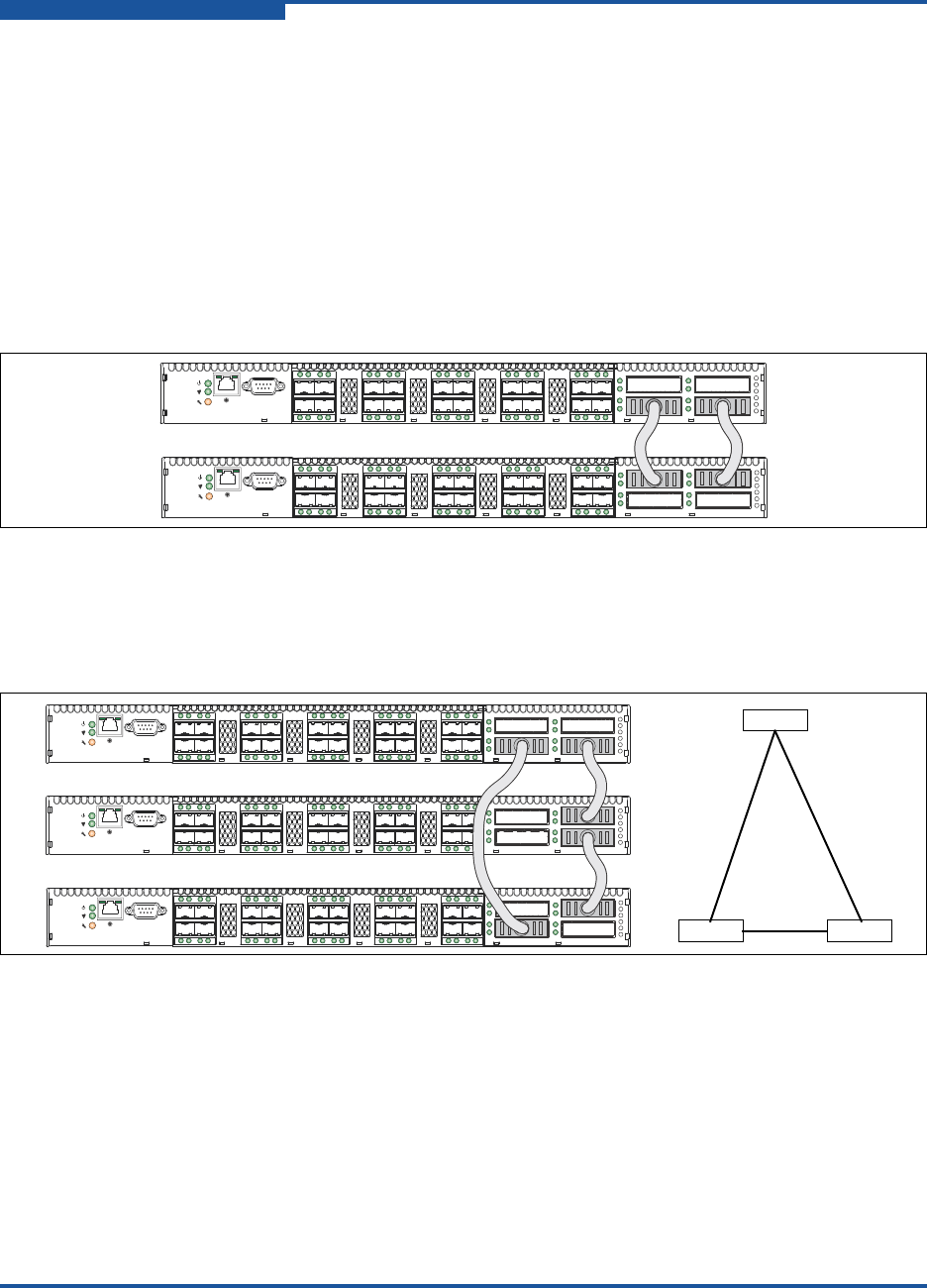
2–Planning
Multiple Chassis Fabrics
2-8 59265-02 B
Stacking
You can connect up to six QLogic 5800V Series switches through the XPAK ports,
thus preserving the SFP ports for devices. This is called stacking. The following
2-, 3-, 4-, 5-, and 6-switch stacking configurations are recommended for best
performance and redundancy. Each XPAK port contributes 1.275GB of bandwidth
between chassis in each direction, which is equivalent to three SFP connections
operating at 4Gbps. Upgrading the XPAK ports to 20Gbps is equivalent to 3 SFP
connections operating at 8Gbps. Figure 2-1 shows a two-switch stack of model
5800V Series switches using two 3-inch XPAK switch stacking cables. Forty SFP
ports are available for devices.
Figure 2-1. Two-Switch Stack
Figure 2-2 shows a three-switch stack of QLogic 5800V Series switches using two
3-inch and one 9-inch XPAK switch stacking cables. Sixty SFP ports are available
for devices.
Figure 2-2. Three-Switch Stack
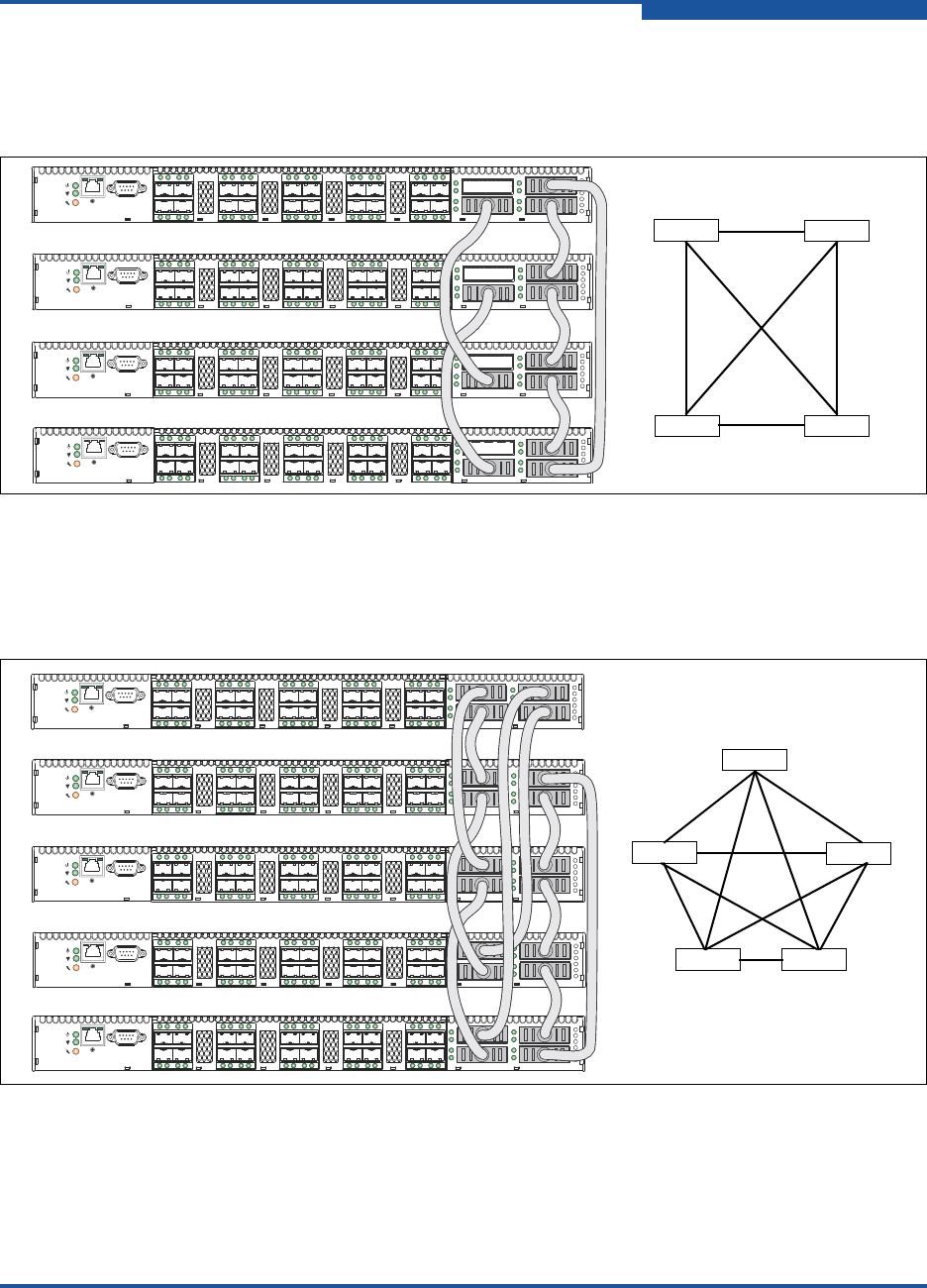
2–Planning
Multiple Chassis Fabrics
59265-02 B 2-9
Figure 2-3 shows a four-switch stack of model 5800V Series switches using three
3-inch and three 9-inch XPAK switch stacking cables. Eighty SFP ports are
available for devices.
Figure 2-3. Four-Switch Stack
Figure 2-4 shows a five-switch stack of model 5800V Series switches using four
3-inch and six 9-inch XPAK switch stacking cables. One hundred SFP ports are
available for devices.
Figure 2-4. Five-Switch Stack
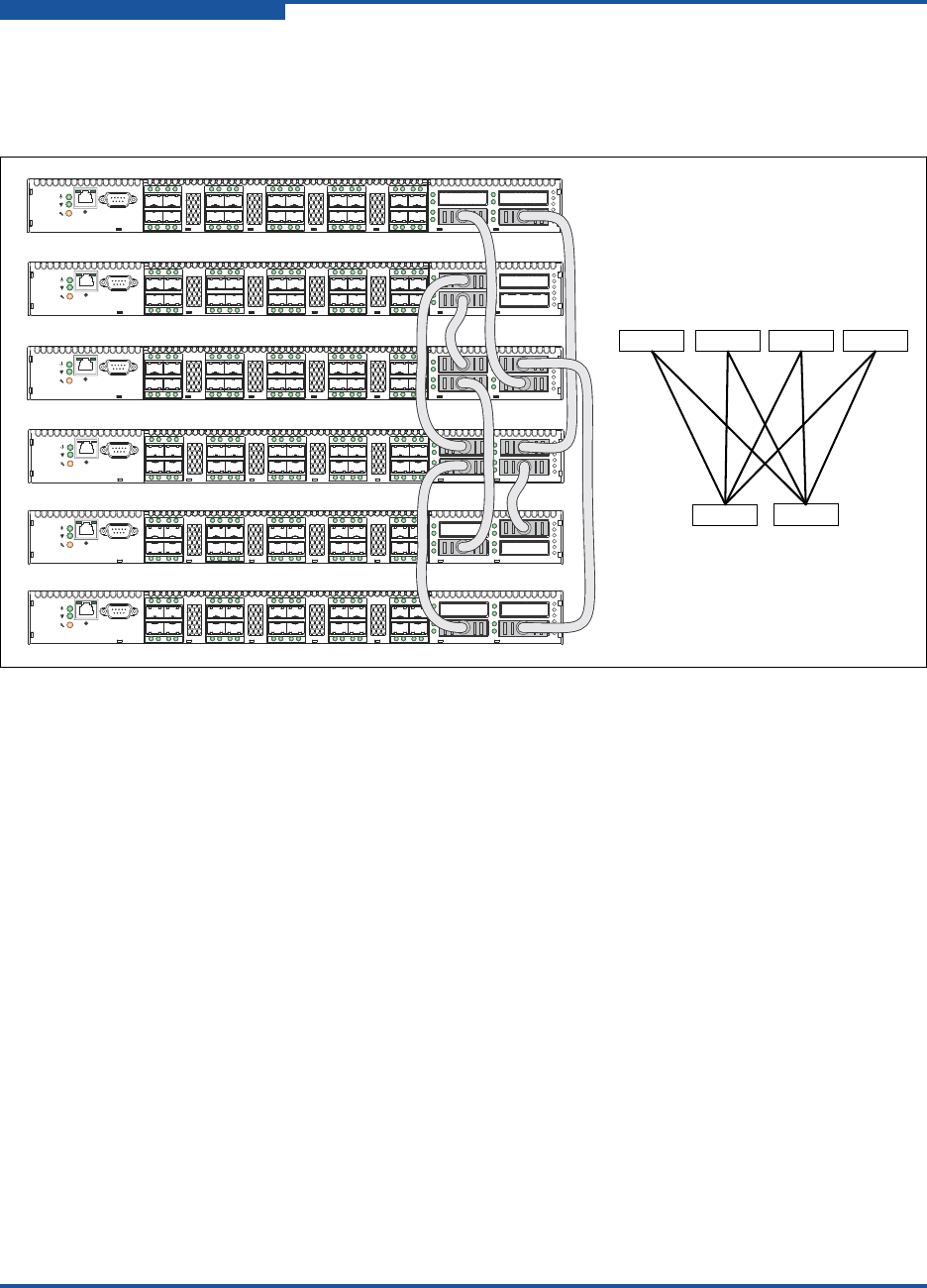
2–Planning
Multiple Chassis Fabrics
2-10 59265-02 B
Figure 2-5 shows a six-switch stack of model 5800V Series switches using two
3-inch and six 9-inch XPAK switch stacking cables. One hundred twenty SFP
ports are available for devices.
Figure 2-5. Six Switch Stack
Common Topologies
Although QLogic recommends using the XPAK stacking ports to achieve the
highest cabling efficiency and bandwidth, you can also create multiple switch
configurations using the SFP ports. The QLogic 5800V Series switch supports the
following topologies using the SFP ports:
Cascade Topology
Mesh Topology
MultiStage Topology
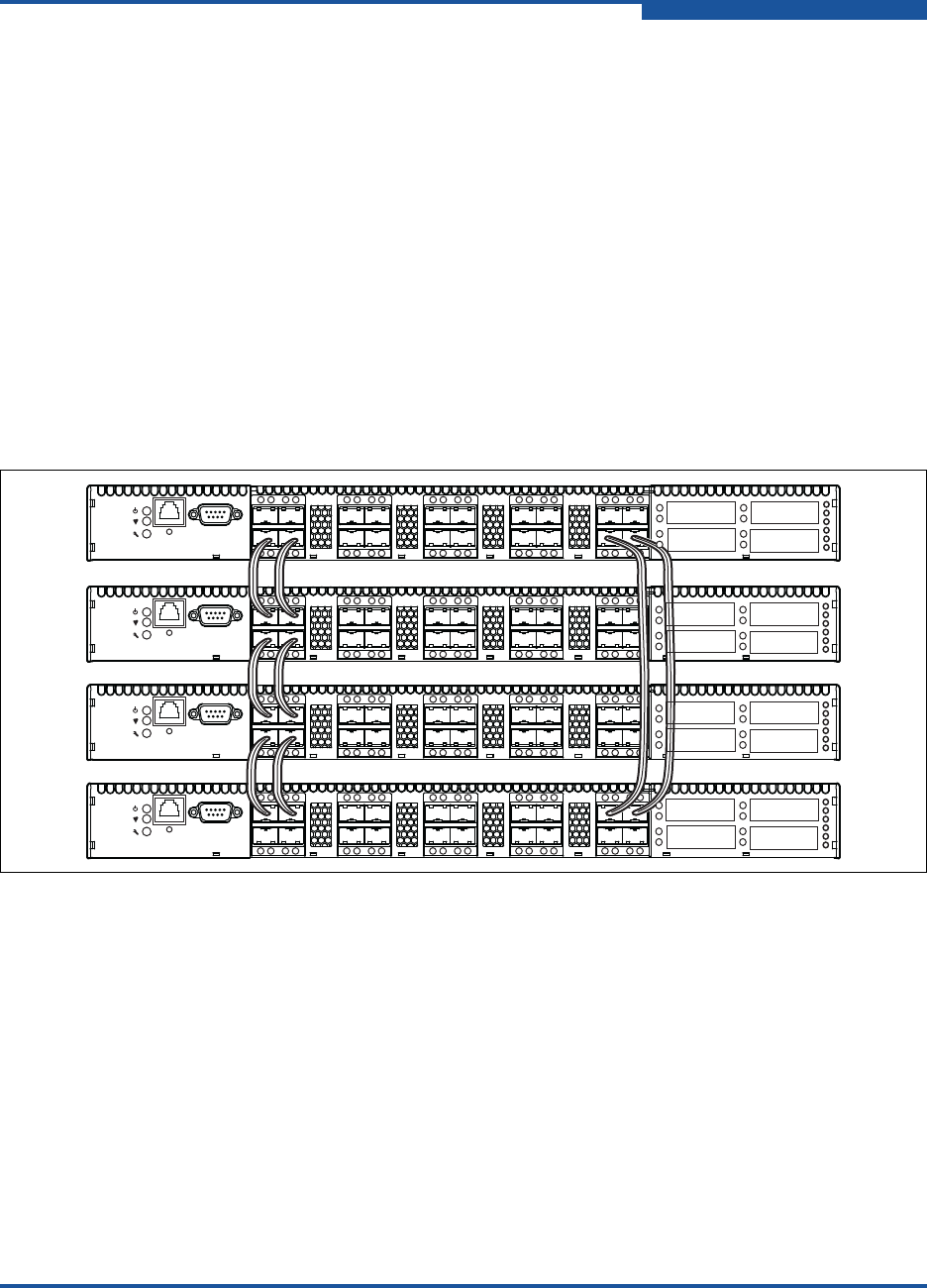
2–Planning
Multiple Chassis Fabrics
59265-02 B 2-11
Cascade Topology
A cascade topology describes a fabric in which the switches are connected in
series. If you connect the last switch back to the first switch, you create a
cascade-with-a-loop topology as shown in Figure 2-6. The loop reduces latency
because any switch can route traffic in the shortest direction to any switch in the
loop. The loop also provides failover if a switch fails.
Using 24-port QLogic 5800V Series switches, the cascade fabric shown in
Figure 2-6 has the following characteristics:
Each chassis link contributes up to 850MB of bandwidth between chassis,
1700MB in full duplex. However, because of the sequential structure, that
bandwidth is shared by traffic between devices on other chassis.
Latency between any two ports is no more than two chassis hops.
Sixty-four Fibre Channel SFP ports are available for devices.
Figure 2-6. Cascade-with-a-Loop Topology
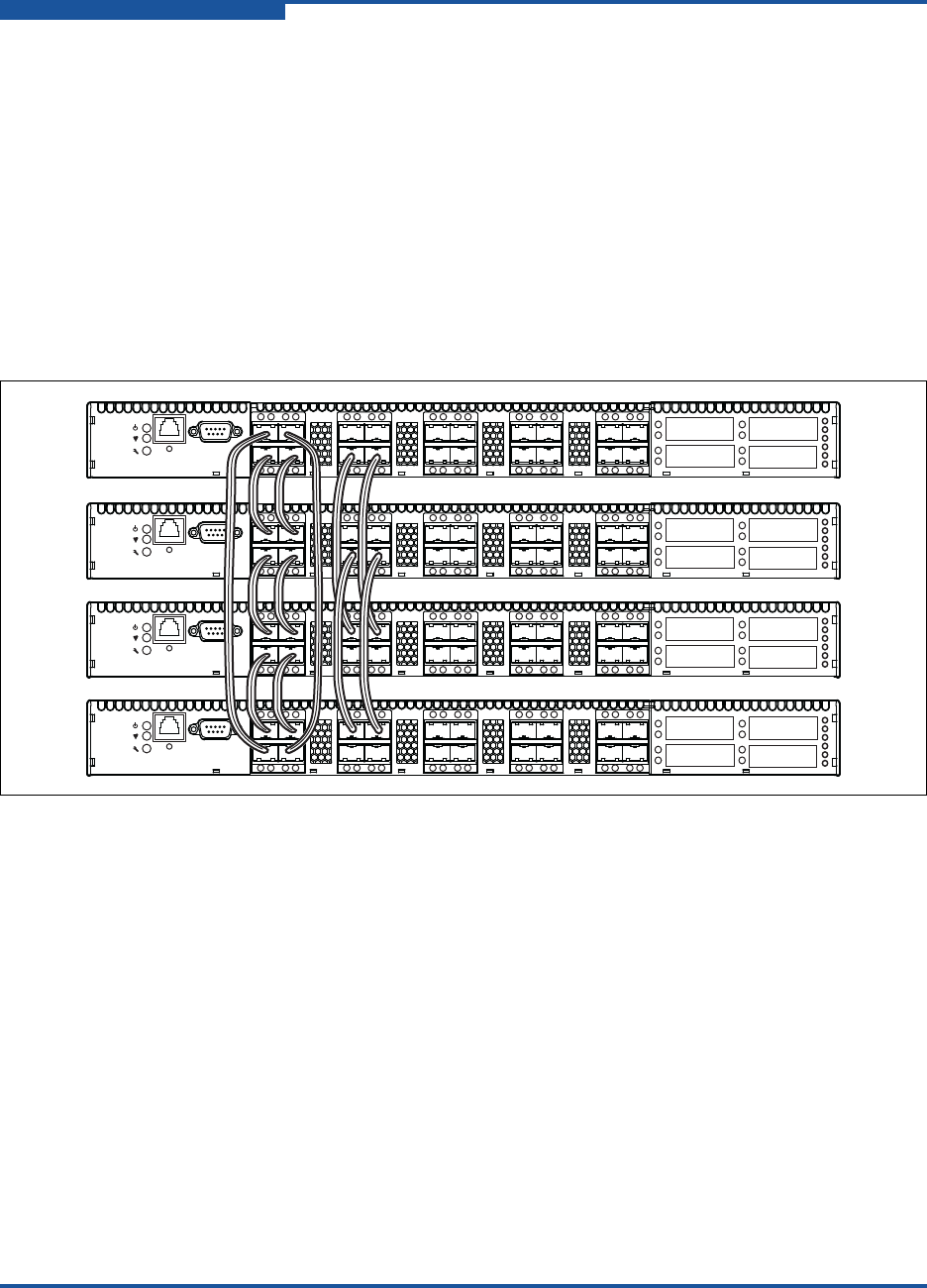
2–Planning
Multiple Chassis Fabrics
2-12 59265-02 B
Mesh Topology
A mesh topology describes a fabric in which each chassis has at least one port
directly connected to each other chassis in the fabric. Using 24-port QLogic
5800V Series switches, the mesh fabric shown in Figure 2-7 has the following
characteristics:
Each link contributes up to 850MB of bandwidth between switches, 1700MB
in full duplex. Because of multiple parallel paths, there is less competition for
this bandwidth than with a cascade or a Multistage™ topology.
Latency between any two ports is one chassis hop.
Fifty-six Fibre Channel SFP ports are available for devices.
Figure 2-7. Mesh Topology
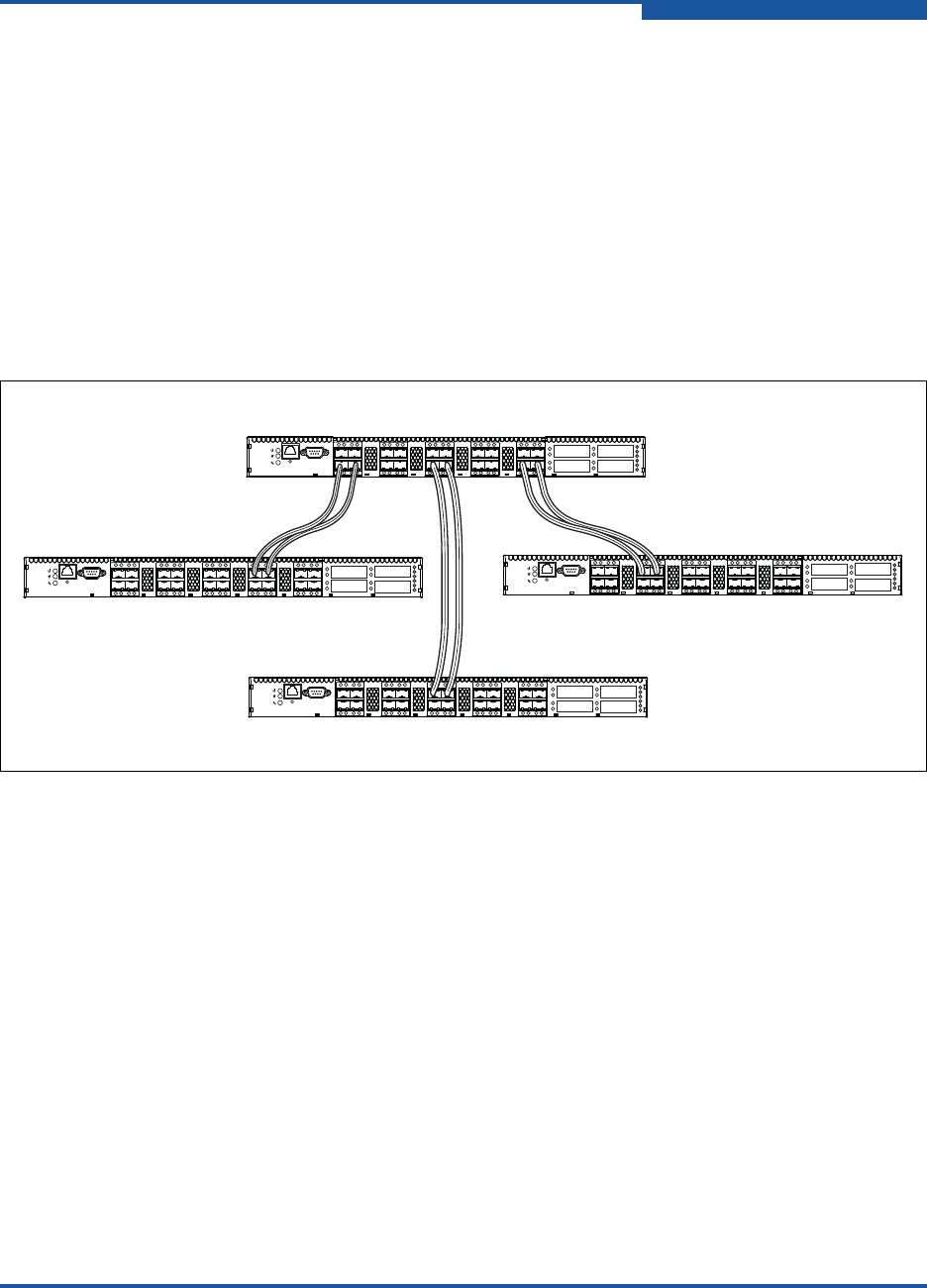
2–Planning
Multiple Chassis Fabrics
59265-02 B 2-13
MultiStage Topology
A Multistage topology describes a fabric in which two or more edge switches
connect to one or more core switches. Using 24-port QLogic 5800V Series
switches, the Multistage fabric shown in Figure 2-8 has the following
characteristics:
Each link contributes up to 850MB of bandwidth between chassis.
Competition for this bandwidth is less than that of a cascade topology, but
greater than that of the mesh topology.
Latency between any two ports is no more than two chassis hops.
Seventy-two Fibre Channel SFP ports are available for devices.
Figure 2-8. Multistage Topology
Transparent Routing
\
The transparent routing feature provides inter-fabric routing to allow controlled
and limited access between devices on a QLogic 5800V Series switch (local)
fabric and devices on a remote fabric consisting of noncompliant switches made
by other vendors. For a list of switches that are supported in a remote fabric, see
the QLogic 5800V Series Fibre Channel Switch Release Notes. This type of
inter-fabric connection uses the Fibre Channel industry N-Port ID Virtualization
(NPIV), and makes local and remote devices accessible to each other while
maintaining the local and remote fabrics as separate fabrics.
Edge Switch
Edge Switch Edge Switch
Core Switch

2–Planning
Multiple Chassis Fabrics
2-14 59265-02 B
You can configure transparent routing using QuickTools, Enterprise Fabric Suite,
or the CLI. However, only QuickTools and Enterprise Fabric Suite validate your
entries, manage the zone mapping for the local fabric, and create a list of zoning
commands that can be run in a script on an Brocade or Cisco SAN switch. For
more detailed information, see the QLogic 5800V Series QuickTools Switch
Management User’s Guide, QLogic 5800V Series Enterprise Fabric Suite User’s
Guide, and the QLogic 5800V Series Fibre Channel Switch Command Line
Interface Guide.
You can connect multiple QLogic 5800V Series Fibre Channel Switches to one or
more remote fabrics using multiple TR_Ports. Local and remote devices are
identified by their respective port worldwide names. Consider the following
mapping rules:
A TR_Port can support a maximum of 32 local device/remote device
mappings.
A specific local device can be mapped to devices on only one remote fabric.
Local devices on the same QLogic 5800V Series Fibre Channel Switch can
each be mapped to different remote fabrics.
For mappings between a specific QLogic 5800V Series Fibre Channel
Switch and a remote fabric, each local device or remote device can be
mapped over only one TR_Port. Additional mappings to either device must
use that same TR_Port.
Multiple local devices connected to different local switches can be mapped
to the same remote device over one TR_Port on each local switch.
A local device cannot be mapped over an E_Port to another local switch,
then over a TR_Port to the remote device. The local switch to which the local
device is connected must connect directly to the remote fabric over a
TR_Port.
NOTE:
When a local device is mapped over a TR_Port to a remote device, the
local device and its TR_Port appear as an NPIV connected device in
the remote fabric. It is possible, though not recommended, to map
such a local device over a second TR_Port to a local device in a
second local fabric. In this case, if you merge the two local fabrics, the
transparent route becomes inactive for the devices that now have a
path over an ISL, and an alarm is generated.

2–Planning
Multiple Chassis Fabrics
59265-02 B 2-15
Because Cisco switches do not support the Unzoned Name Server, Cisco
fabrics must be “pre-zoned” before you can set up TR mappings to a remote
Cisco fabric using the TR Mapping Manager dialog box. The Cisco fabric
zone set must be changed to add zones so that the WWNs of the remote
devices to be mapped and the WWNs of the QLogic 5800V Series Fibre
Channel Switch TR ports are zoned together. For more information, see the
Cisco documentation for specific information to configure zoning. Retain
these zones in the zone set after completion of the TR mapping as a best
practice, until you no longer need to map the device to the local fabric.
To configure transparent routing using QuickTools or Enterprise Fabric Suite:
1. Determine what devices on the local fabric require access to devices on the
remote fabric. Local devices must be attached directly to the QLogic 5800V
Series switch.
2. Configure one or more TR_Ports on the local QLogic 5800V Series switch
first and then connect the TR_Port to the remote fabric. The application
prompts you to configure TR_Ports where existing port connections to
remote fabrics have isolated. For remote Brocade or Cisco fabrics, the
switch to which the TR_Port connects must support N-Port ID Virtualization
(NPIV) and for Brocade fabrics the interoperability mode must be configured
to InteropMode=0. Other Brocade or Cisco switches in the remote fabric
need not support NPIV.
3. Map local devices to remote devices and activate the connection. The
mapping process creates an inter-fabric zone (IFZ) in the active zone set
consisting of the local device, the remote device, and the TR_Port. When
the mapping is complete, the new zone set is activated.
NOTE:
Be sure to configure the TR_Port before connecting the remote fabric
to the QLogic 5800V Series Fibre Channel Switch. If the remote fabric
is connected to a port on theQLogic 5800V Series Fibre Channel
Switch that is not a TR_Port, the two fabrics may establish an E_Port
connection and the local and remote fabrics may merge. This mixed
fabric is not a supported configuration. If the port type is changed to
TR_Port after connecting the remote fabric, a port reset may be
required to completely establish the TR connection.

2–Planning
Switch Services
2-16 59265-02 B
The name of the inter-fabric zone begins with IFZ followed by the lowest
device port WWN followed by the remaining port WWN, all uppercase,
separated by underscores (_). For example, consider the following local and
remote device WWNs:
Local device: 21:00:00:e0:8b:0e:d3:59
Remote device: 22:00:00:04:cf:a8:7f:2d
The inter-fabric zone name would be:
IFZ_210000E08B0ED359_22000004CFA87F2D
4. Apply the same inter-fabric zone that was created on the local fabric to the
active zoning on the remote fabric. The application creates a suggested list
of commands during the mapping process that, when run on a remote fabric
consisting of Brocade or Cisco switches, will make the necessary zoning
changes to the remote fabric. See the QLogic 5800V Series QuickTools
Switch Management User’s Guide or QLogic 5800V Series Enterprise
Fabric Suite User’s Guide for important details on creating and using this list
of suggested commands. When modifications to the active zoning on both
fabrics are complete, the transparent routing connection becomes active,
and the local devices will discover the remote devices.
Switch Services
You can configure your switch to suit the demands of your environment by
enabling or disabling a variety of switch services. Familiarize yourself with the
following switch services and determine which ones you need.
Telnet: Provides for the management of the switch over a Telnet connection.
Disabling this service is not recommended. The default is enabled.
Secure Shell (SSH): Provides for secure remote connections to the switch
using SSH. Your workstation must also use an SSH client. The default is
disabled.
GUI Management: Provides for out-of-band management of the switch with
Enterprise Fabric Suite, QuickTools, the API, SNMP, and SMI-S. If this
service is disabled, the switch can only be managed inband or through the
serial port. The default is enabled.
Inband Management: Provides for the management of the switch over an
inter-switch link using Enterprise Fabric Suite, QuickTools, SNMP,
management server, or the API. If you disable inband management, you can
no longer communicate with that switch by means other than an Ethernet or
serial connection.The default is enabled.

2–Planning
Switch Services
59265-02 B 2-17
Secure Socket Layer (SSL): Provides secure connections for Enterprise
Fabric Suite, the QuickTools Web applet, the API, and SMI-S. This service
must be enabled to authenticate users through a remote authentication dial
in-user service (RADIUS) server when using Enterprise Fabric Suite. To
enable SSL connections, you must first synchronize the date and time on
the switch and workstation. Enabling SSL automatically creates a security
certificate on the switch. The default is enabled.
QuickTools Web applet (Embedded GUI): Provides access to the
QuickTools Web applet. QuickTools enables you to point at a switch with an
Internet browser and manage the switch through the browser. The default is
enabled.
Simple Network Management Protocol (SNMP): Provides for switch
management through third-party applications that use SNMP. Security
consists of a read community string and a write community string that serve
as passwords that control read and write access to the switch. These strings
are set at the factory to well-known defaults, which should be changed if
SNMP is to be enabled. Otherwise, you risk unwanted access to the switch.
The switch supports SNMP versions 1, 2, and 3. The default is enabled.
Network Time Protocol (NTP): Provides for the synchronizing of switch
and workstation dates and times through an NTP server. Synchronizing the
workstation time helps to prevent invalid SSL certificates and timestamp
confusion in the event log. The default is disabled.
Common Information Model (CIM): Provides for switch management
through third-party applications that use SMI-S. The default is enabled.
File Transfer Protocol (FTP): Provides for rapid file transfer between the
workstation and the switch using FTP. The default is enabled.
Management Server (MS): Enables or disables switch management
through third-party applications that use GS-3 Management Server. The
default is disabled.
Call Home: Provides for automated e-mail notification of switch status and
operating conditions based on specified event severity levels. The Call
Home service is enabled by default. The Call Home service requires an
Ethernet connection to at least one SMTP server. In addition to enabling the
Call Home service, you must configure the following Call Home parameters:
Primary and secondary SMTP servers and their IP addresses
Contact information
One or more Call Home profiles to specify mail recipients, message
format, and the event severity level that will initiate a message.
You can configure periodic event data collection and processing through the
Tech_Support_Center profile for automated status and trend analysis.

2–Planning
Internet Protocol Support
2-18 59265-02 B
Internet Protocol Support
The switch supports IP version 4 (IPV4), IP version 6 (IPV6), and DNS host
names. IPV4 and IPV6 are enabled by default. Consider your IP version
requirements and the availability of a DNS server.
Security
Security is available at the following levels:
User Account Security
IP Security
Port Binding
Connection Security
Device Security
User Account Security
User account security consists of the administration of account names,
passwords, expiration dates, and authority levels. If an account has Admin
authority, all management tasks can be performed by that account in the CLI,
QuickTools, and Enterprise Fabric Suite. Otherwise, only monitoring tasks are
available. The Admin account name is the only account that can create or add
account names, and change passwords of other accounts. All users can change
their own passwords. Account names and passwords are always required when
connecting to a switch.
Authentication of the user account and password can be performed locally using
the switch’s user account database or it can be performed remotely using a
RADIUS server such as Microsoft® RADIUS. Authenticating user logins on a
RADIUS server requires a secure management connection to the switch. For
information about securing the management connection, refer to “Connection
Security” on page 2-20. A RADIUS server can also authenticate devices and other
switches as described in “Device Security” on page 2-20.
Consider your management needs, and determine the number of user accounts,
their authority needs, and expiration dates. Also consider the advantages of
centralizing user administration and authentication on a RADIUS server.
NOTE:
If the same user account exists on a switch and its RADIUS server, that user
can log in with either password, but the authority and account expiration
always come from the switch database.

2–Planning
Security
59265-02 B 2-19
IP Security
IP security provides encryption-based security for IPv4 and IPv6 communications
through policies and associations. Policies define security for host-to-host and
host-to-gateway connections; one policy for each direction. For example, to
secure the connection between two hosts, you need two policies: one for
outbound traffic from the source to the destination, and another for inbound traffic
to the source from the destination. A security association defines the encryption
algorithm and encryption key (public key or secret) to apply when called by a
security policy. A security policy can call several associations at different times,
but each association is related to only one policy.
You must configure matching security associations on the switch and on the
connected devices (peers) that require secure IP communication. To simplify the
IP security configuration process, the switch supports the Internet key exchange
(IKE). IKE is a protocol that automates the configuration of matching IP security
associations on the switch and on the connected device (or peer). The IKE peer
defines the IKE security association connection through which the IKE policy
configures the IP security associations.The IKE policy defines the type of data
traffic to secure between the switch and the peer, and how to encrypt that data.
You must create the same IKE peer and IKE policy configurations on the switch
and the peer device.
Public key encryption requires a public key, a corresponding private key, and the
necessary certificates to authenticate them. Public key infrastructure (PKI)
provides support for the creation and management of public/private key pairs,
signed certificates, and certificate authority (CA) certificates when using IKE. You
can create a public/private key and combine it with one or more device identities
to generate a certificate request. Submit the certificate request to a CA to obtain a
signed certificate, which contains the authenticated public/private key pair. In
addition to the signed certificate, you must also obtain a CA certificate to
authenticate the CA. After downloading the signed certificate and a CA certificate
to the switch and importing them into the PKI database, the signed certificate
(which contains the authenticated public key) can then be used to complete the
IKE peer configuration.
Consider your IP security requirements and the type of encryption you want to use
(public key or secret). Also consider which of the connected devices support IKE,
and how you will configure IP security on both the switch and connected devices.
Port Binding
Port binding provides authorization for a list of up to 32 switch and device WWNs
that are permitted to log in to a specific switch port. Switches or devices that are
not among the 32 are refused access to the port. Consider what ports to secure
and the set of switches and devices that are permitted to log in to those ports. For
information about port binding, refer to the QLogic 5800V Series Fibre Channel
Switch Command Line Interface Guide.

2–Planning
Security
2-20 59265-02 B
Connection Security
Connection security provides an encrypted data path for switch management
methods. The switch supports the SSH protocol for the command line interface
and the SSL protocol for management applications such as Enterprise Fabric
Suite and SMI-S.
The SSL handshake process between the workstation and the switch involves the
exchanging of certificates. These certificates contain the public and private keys
that define the encryption. When the SSL service is enabled, a certificate is
automatically created on the switch. The workstation validates the switch
certificate by comparing the workstation date and time to the switch certificate
creation date and time. For this reason, it is important to synchronize the
workstation and switch with the same date, time, and time zone. The switch
certificate is valid 24 hours before its creation date and 365 days after its creation
date. If the certificate becomes invalid, create a new certificate using the Create
Certificate CLI command. For information about the CLI commands, refer to the
QLogic 5800V Series Fibre Channel Switch Command Line Interface Guide.
Consider your connection security requirements: for the command line interface
(SSH), management applications such as Enterprise Fabric Suite (SSL), or both.
Access to the device security menu selections in Enterprise Fabric Suite requires
an SSL connection. If an SSL connection security is required, also consider using
the network time protocol (NTP) to synchronize workstations and switches.
Device Security
Device security provides for authorization and authentication of devices that you
connect to a switch. You can configure a switch with a group of devices against
which the switch authorizes new connections by devices, other switches, or
devices issuing management server commands. Device security is configured
through the use of security sets and groups.
A group is a list of device WWNs that are authorized to connect to a switch. There
are three types of groups: one for other switches (ISL), another for devices (port),
and a third for devices issuing management server commands (MS).
A security set is a set of up to three groups with no more than one of each group
type. The security configuration is made up of all security sets on the switch. The
security database has the following limits:
Maximum number of security sets is 4.
Maximum number of groups is 16.
Maximum number of members in a group is 1,000.
Maximum total number of group members is 1,000.

2–Planning
Security
59265-02 B 2-21
In addition to authorization, you can configure the switch to require authentication
to validate the identity of the connecting switch, device, or host. Authentication
can be performed locally using the switch’s security database, or remotely using a
RADIUS server such as Microsoft RADIUS. With a RADIUS server, the security
database for the entire fabric resides on the server. In this way, the security
database can be managed centrally, rather than on each switch. You can
configure up to five RADIUS servers to provide failover.
You can configure the RADIUS server to authenticate just the switch or both the
switch and the initiator device, if the device supports authentication. When using a
RADIUS server, every switch in the fabric must have a network connection. A
RADIUS server can also be configured to authenticate user accounts as
described in “Internet Protocol Support” on page 2-18. A secure connection is
required to authenticate user logins with a RADIUS server. For information about
secure connections, refer to “Connection Security” on page 2-20.
Consider the your devices, switches, and management agents, and evaluate the
need for authorization and authentication. Also consider whether the security
database is to be distributed on the switches or centralized on a RADIUS server,
and how many servers to configure.
The following examples illustrate how to configure a security database:
Security Example: Switches and Adapters with Authentication
Security Example: RADIUS Server
Security Example: Host Authentication
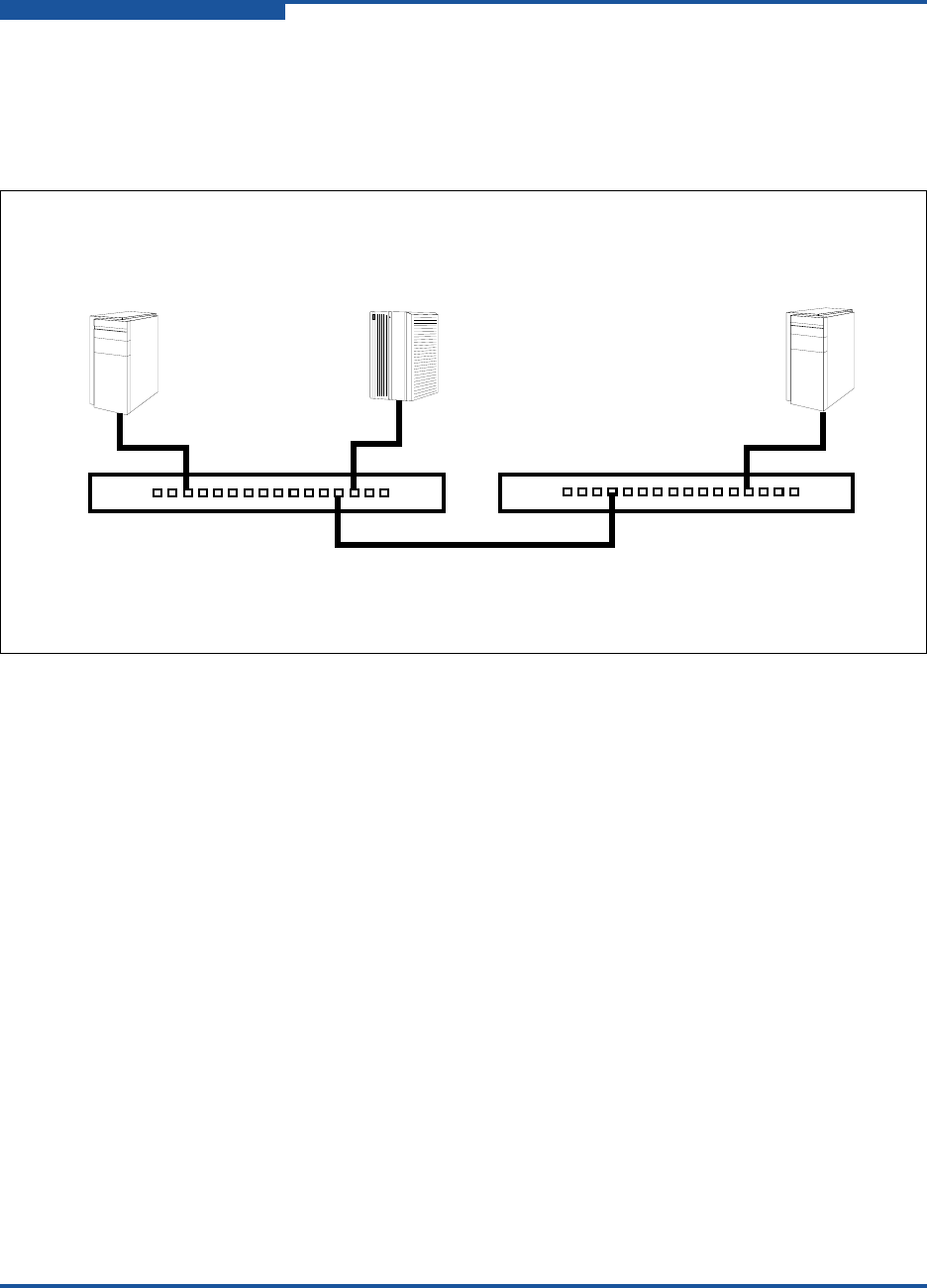
2–Planning
Security
2-22 59265-02 B
Security Example: Switches and Adapters with Authentication
Consider the fabric shown in Figure 2-9. In this fabric, Switch_1, Adapter_1, and
Switch_2 support authentication, while the JBOD and Adapter_2 do not. The
objective is to secure F_Ports and E_Ports in the fabric.
Figure 2-9. Security Example: Switches and Adapters
Device: Switch_1
WWN: 10:00:00:c0:dd:07:e3:4c
Security: Yes
Device: Switch_2
WWN: 10:00:00:c0:dd:07:e3:4e
Security: Yes
Device: Adapter_1
WWN: 10:00:00:c0:dd:07:c3:4d
Security: Yes
E_Port
F_Port F_Port
FL_Port
Device: JBOD
WWNS:10:00:00:d1:ee:18:d4:5e
10:00:00:d1:ee:18:d4:5f
10:00:00:d1:ee:18:d4:5g
Security: No
Device: Adapter_2
WWN: 10:00:00:c0:dd:07:c3:4f
Security: No

2–Planning
Security
59265-02 B 2-23
To secure F_Ports and E_Ports in the fabric, configure security on the devices that
support security: Switch_1, Switch_2, and Adapter_1:
1. Create a security set (Security_Set_1) on Switch_1.
a. Create a port group (Group_Port_1) in Security_Set_1 with Switch_1,
Adapter_1, and JBOD as members, as shown in the following table:
Observe the following rules:
Switch_1 and all devices and switches connected to Switch_1
must be included in the group even if the switch or devices does
not support authentication. Otherwise, the Switch_1 port will
become isolated.
You must specify adapters by node WWN. Switches can be
specified by port or node WWN. The type of switch WWN you
use in the switch security database must be the same as that in
the adapter security database. For example, if you specify a
switch with a port WWN in the switch security database, you
must also specify that switch in the adapter security database
with the same port WWN.
For CHAP authentication, create 32-character hexadecimal or
16-character ASCI secrets. The switch secret must be shared
with the adapter security database.
Switch_1 Node WWN: 10:00:00:c0:dd:07:e3:4c
Authentication: CHAP
Primary Hash: MD5
Primary Secret: 0123456789abcdef
Adapter_1 Node WWN: 10:00:00:c0:dd:07:c3:4d
Authentication: CHAP
Primary Hash: MD5
Primary Secret: fedcba9876543210
JBOD Node WWN: 10:00:00:d1:ee:18:d4:5e
Authentication: None
Node WWN: 10:00:00:d1:ee:18:d4:5f
Authentication: None
Node WWN: 10:00:00:d1:ee:18:d4:5g
Authentication: None

2–Planning
Security
2-24 59265-02 B
b. Create an ISL group (Group_ISL_1) in Security_Set_1 with Switch_1,
Switch_2, Adapter_1, and JBOD as members, as shown in the
following table:
The Switch_1 secret must be shared with the Switch_2 database.
2. Configure security on Adapter_1 using the appropriate management tool.
Logins between the Switch_1 and Adapter_1 will be challenged for their
respective secrets. Therefore, the secrets for Switch_1 and Adapter_1 that
you configured on Switch_1 must also be configured on Adapter_1.
3. Save and activate Security_Set_1 on Switch_1.
4. Create a security set (Security_Set_2) on Switch_2. Create an ISL group
(Group_ISL_2) in Security_Set_2 with Switch_2 and Switch_1 as members,
as shown in the following table:
5. Save and activate Security_Set_2 on Switch_2.
Switch_1 Node WWN: 10:00:00:c0:dd:07:e3:4c
Authentication: CHAP
Primary Hash: MD5
Primary Secret: 0123456789abcdef
Binding: None
Switch_2 Node WWN: 10:00:00:c0:dd:07:e3:4e
Authentication: CHAP
Primary Hash: MD5
Primary Secret: abcdefabcdef012
Binding: None
Switch_2 Node WWN: 10:00:00:c0:dd:07:e3:4e
Authentication: CHAP
Primary Hash: MD5
Primary Secret: 0123456789abcdef
Binding: None
Switch_1 Node WWN: 10:00:00:c0:dd:07:e3:4c
Authentication: CHAP
Primary Hash: MD5
Secret: abcdefabcdef012
Binding: None
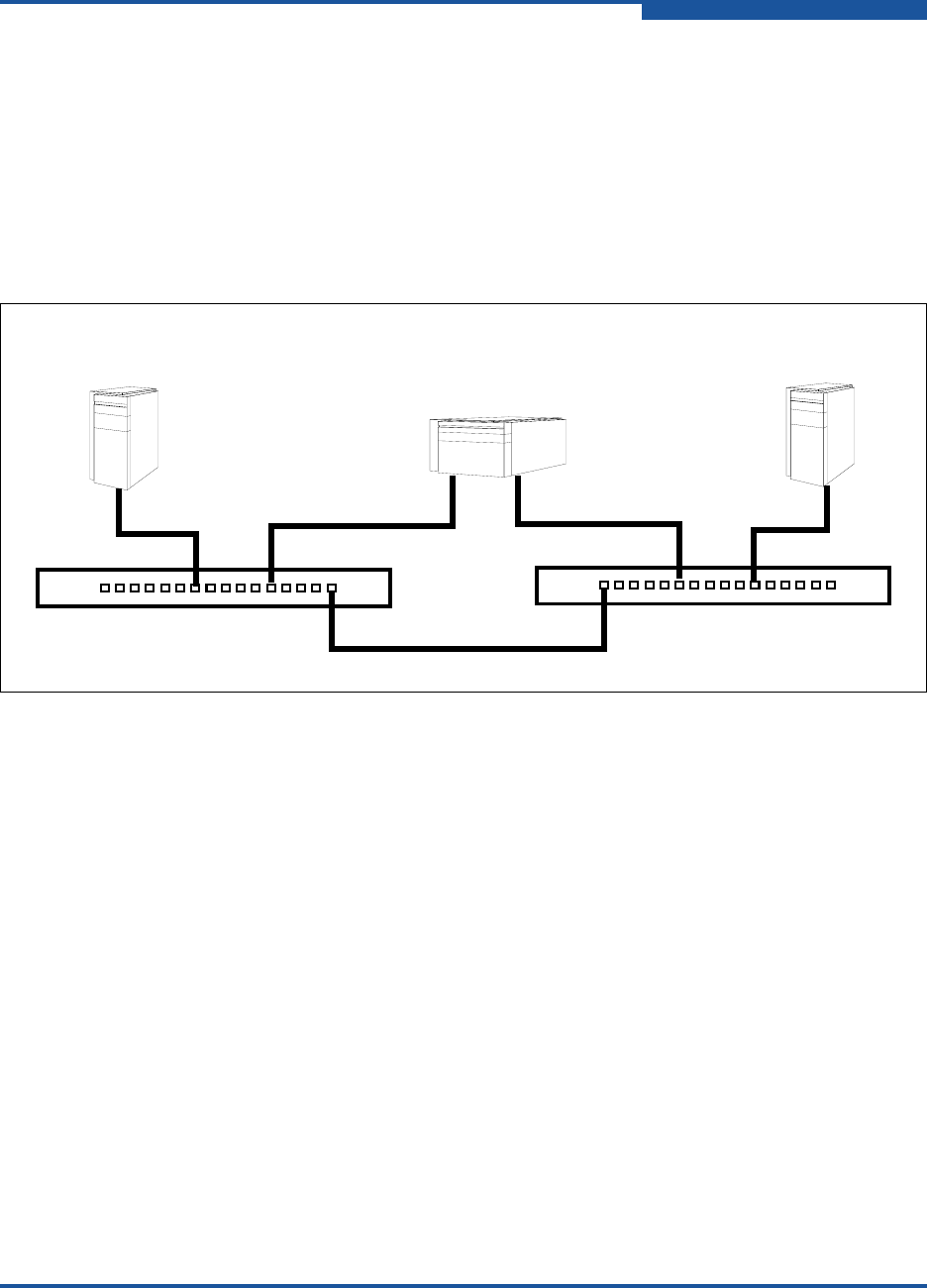
2–Planning
Security
59265-02 B 2-25
Security Example: RADIUS Server
Consider the fabric shown in Figure 2-10. This fabric is similar to the one shown in
Figure 2-9 with the addition of Radius_1 acting as a RADIUS server. Authorization
and authentication are passed from the switch to Radius_1 in the following cases:
Adapter_1 log in to Switch_1
Switch_1 log in to Switch_2
Switch_2 log in to Switch_1
Figure 2-10. Security Example: RADIUS Server
Device: Switch_1
WWN: 10:00:00:c0:dd:07:e3:4c
Security: Yes
Device: Switch_2
WWN: 10:00:00:c0:dd:07:e3:4e
Security: Yes
Device: Adapter_1
WWN: 10:00:00:c0:dd:07:c3:4d
Security: Yes
E_Port
F_Port F_Port
F_Port
Server: Radius_1
IP Address:10:20:30:40
Device: Adapter_2
WWN: 10:00:00:c0:dd:07:c3:4f
Security: No

2–Planning
Security
2-26 59265-02 B
To secure F_Ports and E_Ports, and pass authorization and authentication to a
RADIUS server:
1. Configure the Radius_1 host as a RADIUS server on Switch_1 and
Switch_2 to authenticate device logins, as shown in the following table:
Specify the server IP address and the secret with which the switches will
authenticate with the server. Configure the switches so that devices
authenticate through the switches only if the RADIUS server is unavailable.
2. Create a security set (Security_Set_1) on Switch_1.
a. Create a port group (Group_Port_1) in Security_Set_1 with Switch_1
and Adapter_1 as members, as shown in the following:
Device Authentication
Order RadiusLocal—Authenticate devices using the
RADIUS server security database first. If the RADIUS
server is unavailable, use the local switch security
database.
Total Servers 1—Enables support for one RADIUS server
Device Authentication
Server True—Enables Radius_1 to authenticate device log-
ins.
Server IP Address 10.20.30.40
Secret 1234567890123456—16-character ASCI string (MD5
hash). This is the secret that allows direct communica-
tion with the RADIUS server.
Switch_1 Node WWN: 10:00:00:c0:dd:07:e3:4c
Authentication: CHAP
Primary Hash: MD5
Primary Secret: 0123456789abcdef
Adapter_1 Node WWN: 10:00:00:c0:dd:07:c3:4d
Authentication: CHAP
Primary Hash: MD5
Primary Secret: fedcba9876543210

2–Planning
Security
59265-02 B 2-27
Observe the following rules:
Switch_1 and all devices and switches connected to Switch_1
must be included in the group even if the switch or device does
not support authentication. Otherwise, the Switch_1 port will
become isolated from the fabric.
You must specify adapters by node WWN. Switches can be
specified by port or node WWN. The type of switch WWN you
use in the switch security database must be the same as that in
the adapter security database. For example, if you specify a
switch with a port WWN in the switch security database, you
must also specify that switch in the adapter security database
with the same port WWN.
For CHAP authentication, create 32-character hexadecimal or
16-character ASCI secrets. The switch secret must be shared
with the adapter security database.
b. Create an ISL group (Group_ISL_1) in Security_Set_1 with Switch_1
and Switch_2 as members, as shown in the following. The Switch_1
secret must be shared with the Switch_2 security database.
3. Configure security on Adapter_1 using the appropriate management tool.
Logins between the Switch_1 and Adapter_1 will be challenged (CHAP) for
their respective secrets. Therefore, the secrets for Switch_1 and Adapter_1
that you configured on Switch_1 must also be configured on Adapter_1.
4. Save and activate Security_Set_1 on Switch_1.
Switch_1 Node WWN: 10:00:00:c0:dd:07:e3:4c
Authentication: CHAP
Primary Hash: MD5
Primary Secret: 0123456789abcdef
Binding: None
Switch_2 Node WWN: 10:00:00:c0:dd:07:e3:4e
Authentication: CHAP
Primary Hash: MD5
Primary Secret: abcdefabcdef012
Binding: None

2–Planning
Security
2-28 59265-02 B
5. Create a security set (Security_Set_2) on Switch_2. Create an ISL group
(Group_ISL_2) in Security_Set_2 with Switch_1 and Switch_2 as members,
as shown in the following:
6. Save and activate Security_Set_2 on Switch_2.
Switch_2 Node WWN: 10:00:00:c0:dd:07:e3:4e
Authentication: CHAP
Primary Hash: MD5
Primary Secret: abcdefabcdef0123
Binding: None
Switch_1 Node WWN: 10:00:00:c0:dd:07:e3:4c
Authentication: CHAP
Primary Hash: MD5
Primary Secret: 0123456789abcdef
Binding: None
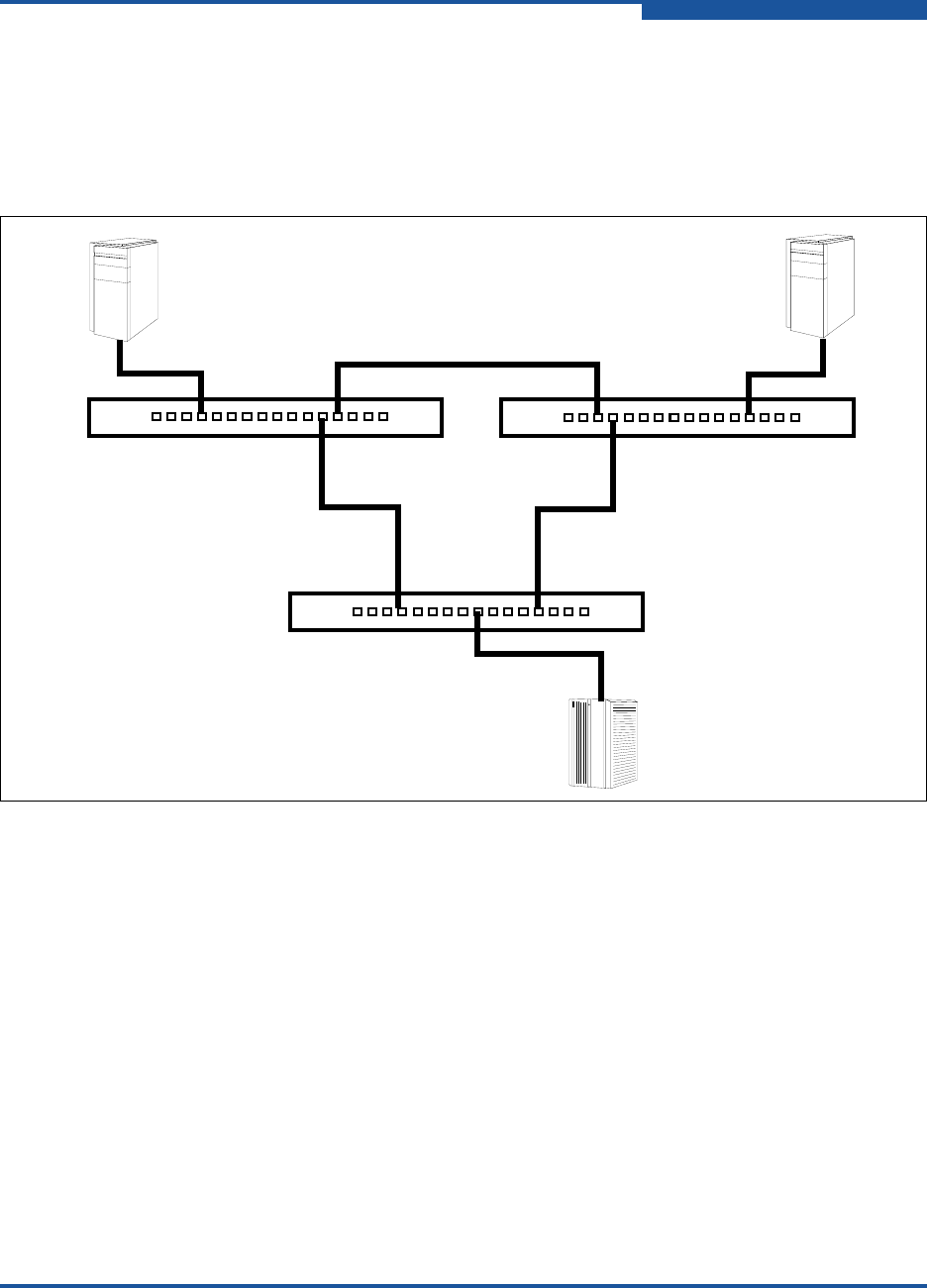
2–Planning
Security
59265-02 B 2-29
Security Example: Host Authentication
Consider the fabric shown in Figure 2-11. In this fabric, only Switch_2 and
Adapter_2/APP_2 support security, where APP_2 is a host application. The
objective is to secure the management server on Switch_2 from unauthorized
access by an adapter or an associated host application.
Figure 2-11. Security Example: Management Server
Device: Adapter_1/APP_1
Security: No
E_Port
F_Port F_Port
FL_Port
Device: Adapter_2/APP_2
WWN: 10:00:00:c0:dd:07:c3:4d
Security: Yes
Device: Switch_2
WWN: 10:00:00:c0:dd:07:e3:4e
Security: Yes
Device: Switch_1
Security: No
Device: Switch_3
Security: No

2–Planning
Security
2-30 59265-02 B
To secure the management server on Switch_2 from unauthorized access by an
adapter or an associated host application:
1. Create a security set (Security_Set_2) on Switch_2.
2. Create a management server group (Group_1) in Security_Set_2 with
Switch_2 and Adapter_2 or APP_2 as its member. You must specify
adapters by node WWN. Switches can be specified by port or node WWN.
The type of switch WWN you use in the switch security database must be
the same as that in the adapter security database. For example, if you
specify a switch with a port WWN in the switch security database, you must
also specify that switch in the adapter security database with the same port
WWN. For MD5 authentication, create secrets, as shown in the following:
3. Configure security on Adapter_2 or APP_2 using the appropriate
management tool. Logins between the Switch_2 and Adapter_2 or APP_2
will be challenged (MD5) for their respective secrets. Therefore, the secrets
that you configured for Adapter_2 or APP_2 on Switch_2 must also be
configured on Adapter_2 or APP_2.
4. Save and activate Security_Set_2.
Switch_2 Node WWN: 10:00:00:c0:dd:07:c3:4e
CT Authentication: True
Hash: MD5
Secret: 9876543210fedcba9
Adapter_2 or
APP_2 Node WWN: 10:00:00:c0:dd:07:c3:4d
CT Authentication: True
Hash: MD5
Secret: fedcba9876543210

2–Planning
Fabric Management
59265-02 B 2-31
Fabric Management
The Enterprise Fabric Suite application runs on a management workstation and
provides for the configuration, control, and maintenance of multiple fabrics.
Supported platforms include Windows, Solaris, Linux, and Mac OS X. Enterprise
Fabric Suite comes with a 30-day trial license—a permanent license is available
for purchase from your authorized reseller.
The browser-based application, QuickTools, and the CLI reside in the switch
firmware, and manage individual switches in a single fabric. Consider how many
fabrics and switches will be managed, how many management workstations are
needed, and whether the fabrics will be managed with Enterprise Fabric Suite,
QuickTools, or the CLI.
A switch supports a combined maximum of 19 logins that are reserved as follows:
Four logins or sessions for internal applications such as management server
and SNMP
Nine high priority Telnet sessions
Six logins or sessions for Enterprise Fabric Suite logins, QuickTools logins,
API logins, and Telnet logins.
Additional logins will be refused.

2–Planning
Fabric Management
2-32 59265-02 B

59265-02 B 3-1
3Installation
This section describes how to install and configure the switch. The following topics
are covered:
Site Requirements
Installing a Switch
Installing Firmware
Adding a Switch to an Existing Fabric
Installing Feature License Keys
Site Requirements
Consider the following items when installing a QLogic 5800V Series switch:
Fabric Management Workstation
Switch Power Requirements
Environmental Conditions

3–Installation
Site Requirements
3-2 59265-02 B
Fabric Management Workstation
The requirements for fabric management workstations are described in Table 3-1.
Telnet workstations require an RJ-45 Ethernet port or an RS-232 serial port, and
an operating system with a Telnet client.
Switch Power Requirements
Power requirements are 1.2A at 100VAC or 0.5A at 240VAC.
Environmental Conditions
Consider the factors that affect the climate in your facility, such as equipment heat
dissipation and ventilation. The switch requires the following operating conditions:
Operating temperature range: 5–40°C (41–104°F)
Relative humidity: 10–90 percent, non-condensing
Table 3-1. Management Workstation Requirements
Component Requirement
Operating System Windows 2003
Windows XP, SP1 and SP2
Solaris 9, 10, and 10 x86
Red Hat® Enterprise Linux® 4 and 5
SUSE™ Linux Enterprise Server 9 and 10
Mac® OS X 10.4 and 10.5
Memory 512MB or more; 1GB recommended
Processor 1GHz or faster
Internet Browser Microsoft® Internet Explorer® 6.0 and later
Netscape Navigator® 6.0 and later
Mozilla™ 1.5 and later
Safari® 1.0 and later (on Mac OS)
Firefox 1.5 and later
Java 2 Standard Edition Runtime Environment 1.4.2
for QuickTools
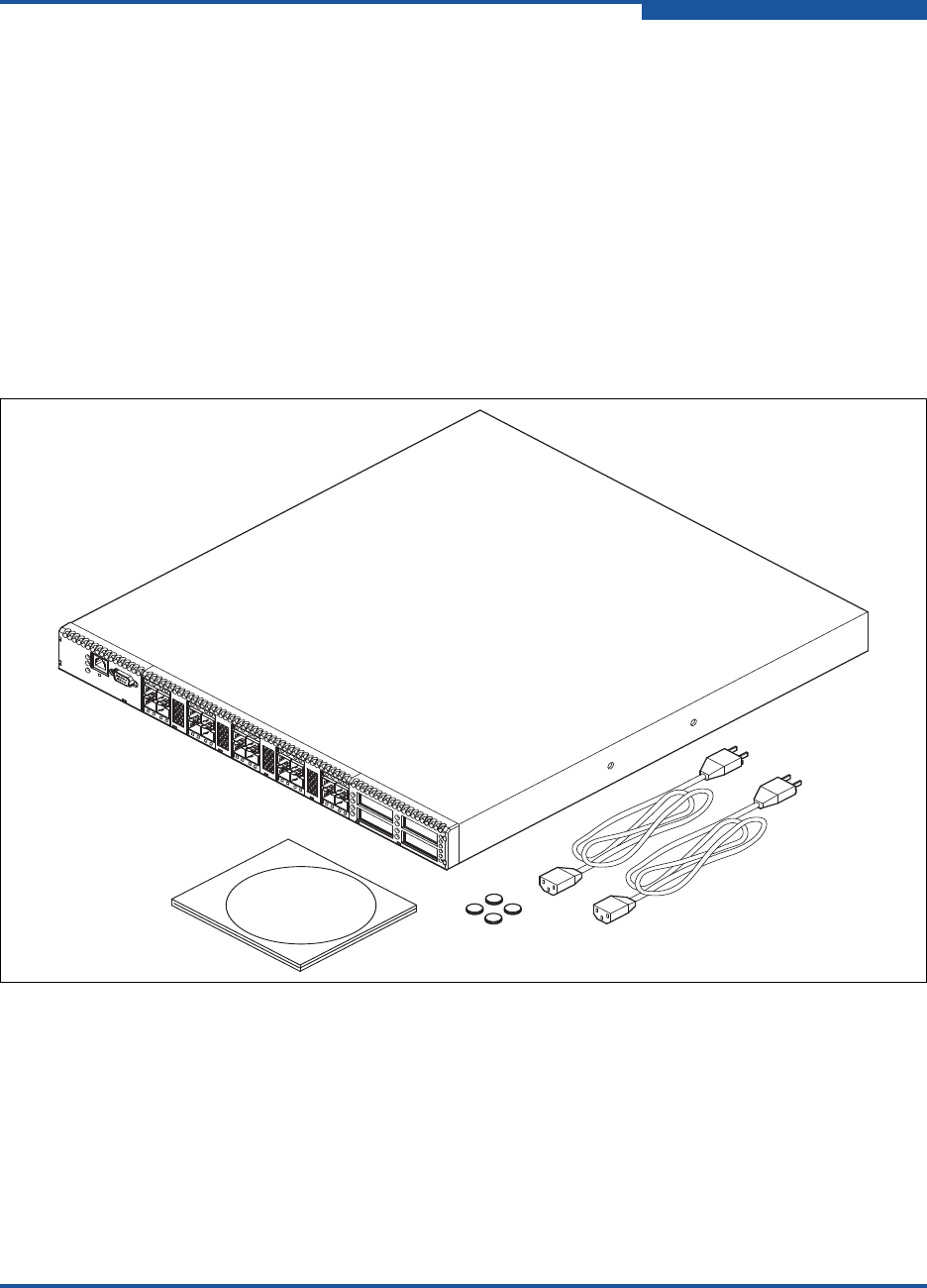
3–Installation
Installing a Switch
59265-02 B 3-3
Installing a Switch
Unpack the switch and accessories. The QLogic 5800V Series product is shipped
with the components shown in Figure 3-1:
QLogic 5800V Series Fibre Channel switch (1) with firmware installed
Power cord (1)—model 5800V
Power cords (2)—model 5802V
Rubber feet (4)
CD-ROM containing a 30-day trial license for Enterprise Fabric Suite switch
management application, release notes, and documentation
Figure 3-1. QLogic 5802V Fibre Channel Switch

3–Installation
Installing a Switch
3-4 59265-02 B
Installing a QLogic 5800V Series switch involves the following steps:
1. Mount the Switch
2. Install the Transceivers
3. Configure the Workstation
4. Connect the Switch to AC Power
5. Connect the Workstation to the Switch
6. Configure the Switch
7. Cable Devices to the Switch
Mount the Switch
The switch can be placed on a flat surface and stacked, or mounted in a 19”
Electronics Industries Association (EIA) rack. For weight and dimensional
specifications, refer to “Dimensions” on page A-5. Adhesive rubber feet are
provided for surface mounts. Without the rubber feet, the switch occupies 1U of
space in an EIA rack. Rack mounting requires a QLogic rail kit (part number
SB-RACKKIT).
WARNING!!
Mount switches in the rack so that the weight is distributed evenly. An
unevenly loaded rack can become unstable, possibly resulting in equipment
damage or personal injury.
AVERTISSEMENT!!
Installer les commutateurs dans l’armoire informatique de sorte que le poids
soit réparti uniformément. Une armoire informatique déséquilibré risque
d'entraîner des blessures ou d'endommager l'équipement.
WARNUNG!!
Switches so in das Rack einbauen, dass das Gewicht gleichmäßig verteilt
ist. Ein Rack mit ungleichmäßiger Gewichtsverteilung kann
schwanken/umfallen und Gerätbeschädigung oder Verletzung verursachen
¡ADVERTENCIA!
Monte los conmutadores en el estante de modo que el peso se distribuya de
manera uniforme. Un estante cuya carga no esté distribuida de manera
uniforme puede ser inestable y podría dañar el equipo o causar lesiones
personales.

3–Installation
Installing a Switch
59265-02 B 3-5
Install the Transceivers
The switch supports a variety of SFP and XPAK transceivers. To install a
transceiver, insert the transceiver into the port, and then gently press until it snaps
in place. To remove a transceiver, gently press the transceiver into the port to
release the tension, pull the release tab or lever, and then remove the transceiver.
Different transceiver manufacturers have different release mechanisms. Consult
the documentation for your transceiver.
CAUTION!
If the switch is mounted in a closed or multi-rack assembly, the operating
temperature of the rack environment may be greater than the ambient
temperature. Be sure to install the chassis in an environment that is
compatible with the maximum rated ambient temperature. For operating
temperature information, refer to “Environmental” on page A-7.
Do not restrict chassis air flow. Allow 16cm (6.5in) minimum clearance at
the front and rear of the switch (surface mount) or rack for service
access and ventilation.
Multiple rack-mounted units connected to the AC supply circuit may
overload that circuit or overload the AC supply wiring. Consider the
power source capacity and the total power usage of all switches on the
circuit. For power specifications, refer to “Electrical” on page A-5.
Reliable grounding in the rack must be maintained from the switch
chassis to the AC power source.
NOTE:
The transceiver will fit only one way. If the transceiver does not install under
gentle pressure, flip it over and try again.
CAUTION!
To maintain sufficient air flow and prevent the switch from overheating, keep
covers installed in unused XPAK ports.
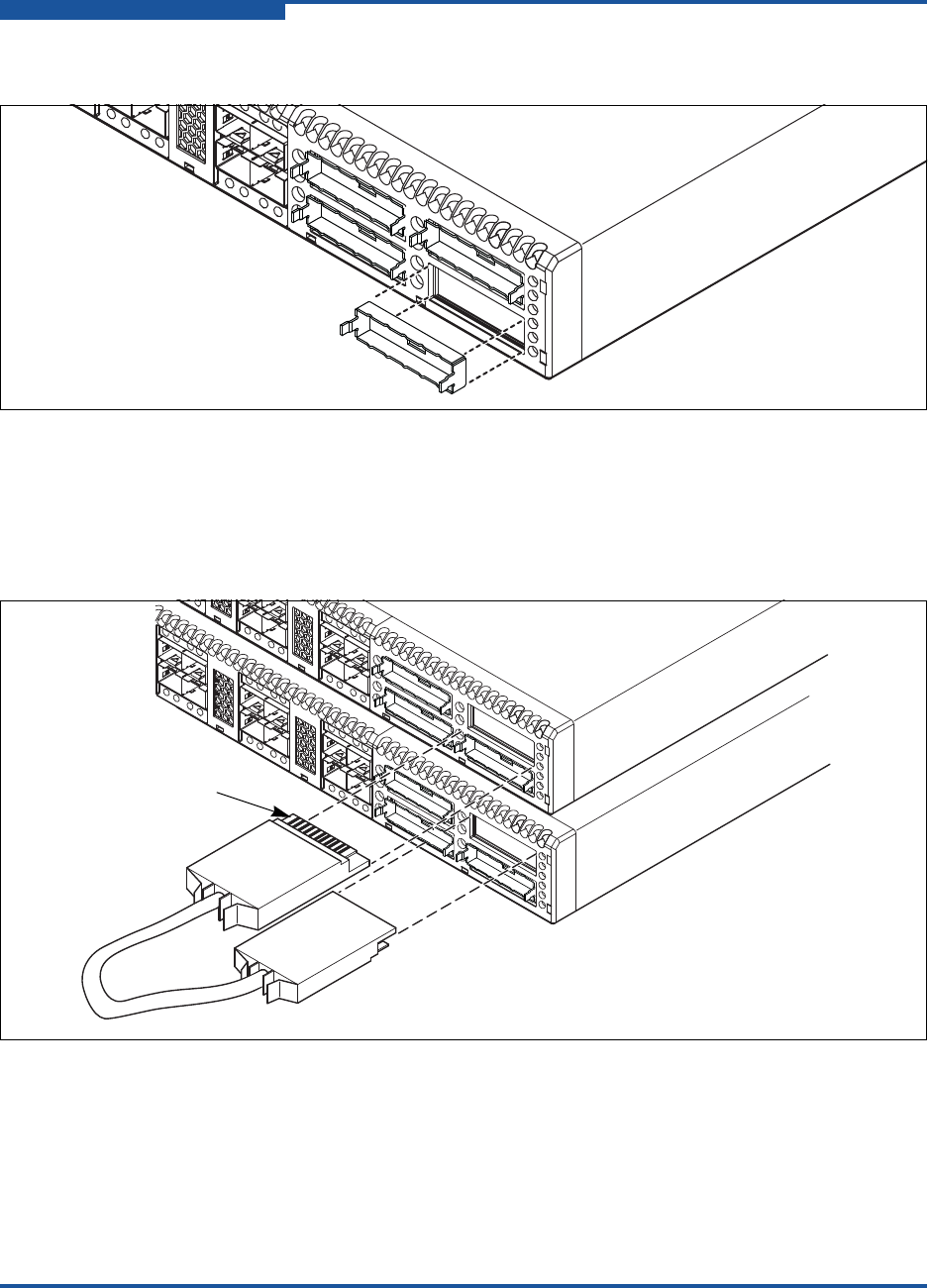
3–Installation
Installing a Switch
3-6 59265-02 B
If you are using the XPAK ports, remove the port covers, as shown in Figure 3-2.
Figure 3-2. Removing XPAK Port Covers
To install XPAK switch stacking cables, position the cable connectors with the
circuit board toward the mid-line of the respective switch faceplates, as shown in
Figure 3-3. When installing the 3-inch XPAK switch stacking cable, insert the
cable connectors into the XPAK ports at the same time.
Figure 3-3. Installing XPAK Switch Stacking Cables
Circuit Board

3–Installation
Installing a Switch
59265-02 B 3-7
Configure the Workstation
If you plan to use the CLI to configure and manage the switch, you must configure
the workstation. To configure the workstation, set the workstation IP address for
Ethernet connections, or configure the workstation serial port. If you plan to use
QuickTools or Enterprise Fabric Suite to manage the switch, the Configuration
Wizard manages the workstation IP address for you—proceed to “Connect the
Workstation to the Switch” on page 3-11.
Configuring the Workstation IP Address for Ethernet Connections
The default IP address of a new switch is 10.0.0.1. To ensure that your
workstation is configured to communicate with the 10.0.0 subnet, refer to the
following instructions for your workstation:
Windows Workstation
Do the following:
1. Click the Start button and choose Settings, Control Panel, and then
Network and Dial-Up Connections.
2. Click Make New Connection.
3. Click the Connect to a private network through the Internet radio button,
and then click Next.
4. Type 10.0.0.253 for the IP address.
Linux or Solaris Workstation
Open a command window and type the following command, where (interface) is
your interface name:
ifconfig (interface) ipaddress 10.0.0.253 netmask 255.255.255.0 up
Mac OS X Workstation
Do the following:
1. Choose System Preferences, System Preferences, and then Network.
2. Double-click your network adapter.
3. In the configuration dialog, select Manually from the Configure IPv4 list.
4. Type 10.0.0.253 in the IP Address field.
5. Type 255.255.255.0 in the Subnet Mask field.
6. Click Apply Now.

3–Installation
Installing a Switch
3-8 59265-02 B
Configuring the Workstation Serial Port
To configure the workstation serial port:
1. Connect a null modem F/F DB9 cable from a COM port on the management
workstation to the RS-232 serial port on the switch.
2. Configure the workstation serial port according to your platform:
For Windows:
a. Open the HyperTerminal application: click the Start button, and
then select Programs, Accessories, HyperTerminal, and then
HyperTerminal.
b. Type a name for the switch connection, and then choose an icon
in the Connection Description window. Click OK.
c. Type the following COM Port settings in the COM Properties
window, and then click OK.
Bits per second: 9600
Data Bits: 8
Parity: None
Stop Bits: 1
Flow Control: None
For Linux:
a. Set up minicom to use the serial port. Create or modify the
/etc/minirc.dfl file with the following content.
pr portdev/ttyS0
pu minit
pu mreset
pu mhangup
b. Verify that all users have permission to run minicom. Review the
/etc/minicom.users file and confirm that the line ALL exists, or
that there are specific user entries.
For Solaris: Modify the /etc/remote file to include the following line.
hardwire:\:dv=/dev/term/a:br#9600:el=^C^S^Q^U^D:ie=%$:oe=^D:
/dev/term/a refers to serial port a. Choose the dv setting to match
the workstation port to which you connected the switch.
3. Proceed to “Connect the Switch to AC Power” on page 3-9.

3–Installation
Installing a Switch
59265-02 B 3-9
Connect the Switch to AC Power
WARNING!!
This product is supplied with a three-wire power cable and plug for the
user’s safety (Table A-1). Use this power cable in conjunction with a
grounded outlet to avoid electrical shock. An electrical outlet that is not
correctly wired could place hazardous voltage on metal parts of the switch
chassis. The customer must ensure that the outlet is correctly wired and
grounded to prevent electrical shock.
A different power cable is required in some countries, because the plug on
the cable supplied with the equipment will not fit the electrical outlet. In this
case, you must supply your own power cable. For 125V and 250V electrical
service, the cable must be rated at 10A.
AVERTISSEMENT!!
Pour la sécurité de l’utilisateur, l’appareil est livré avec un câble
d’alimentation trifilaire et une fiche (Table A-1). Pour éviter toute secousse
électrique, enficher ce câble à une prise correctement mise à la terre.Une
prise électrique dont les fils sont mal branchés peut créer une tension
dangereuse dans les pièces métalliques du châssis switch. Pour éviter toute
secousse électrique, s’assurer que les fils sont correctement branchés et
que la prise est bien mise à la terre.
Dans certains pays les prises électriques sont de modèle différent; on ne
peut y enficher le câble de l’appareil. Alimentation 125 V et 250 V: Câble
pour courant nominal de 10 A..
WARNUNG!!
Dieses Produkt wird mit einem 3-adrigen Netzkabel mit Stecker geliefert
(Table A-1). Dieses Kabel erfüllt die Sicherheitsanforderungen und sollte an
einer vorschriftsmäßigen Schukosteckdose angeschlossen werden, um die
Gefahr eines elektrischen Schlages zu vermeiden.Elektrosteckdosen, die
nicht richtig verdrahtet sind, können gefährliche Hochspannung an den
Metallteilen des switch-Gehäuses verursachen. Der Kunde trägt die
Verantwortung für eine vorschriftsmäßige Verdrahtung und Erdung der
Steckdose zur Vermeidung eines elektrischen Schlages.
In manchen Ländern ist eventuell die Verwendung eines anderen Kabels
erforderlich, da der Stecker des mitgelieferten Kabels nicht in die
landesüblichen Steckdosen paßt. Für 125 und 250 Volt-Netze: 10 Ampere
Kabel.

3–Installation
Installing a Switch
3-10 59265-02 B
The switch comes with one or two NEMA 5-15, non-locking power cords (SKU:
CPK-5000-US). This power cord is approved for North America (USA, Canada,
Puerto Rico), Mexico, Central America, South America, Korea, Taiwan,
Philippines, and Thailand. For information about power cords for other countries,
refer to Table A-1.
To power up a QLogic 5800V Series switch:
For a model 5800V switch, connect the power cord to the AC power
receptacle on the front of the switch chassis and to a grounded AC outlet.
For a model 5802V switch, connect the power cords to the power supply
receptacles on the back of the switch chassis and to a grounded AC outlet.
To provide redundancy in the event of an AC power circuit failure, connect
the switch power supplies to separate AC circuits.
The switch responds in the following sequence:
1. The chassis LEDs (Input Power, Heartbeat, System Fault) light up followed
by all port Logged-In LEDs.
2. After a couple of seconds, the System Fault LED goes out while the Input
Power LED and Heartbeat LED remain lit.
3. After approximately one minute, the POST starts, and the Heartbeat LED is
not lit.
4. After approximately one minute, the POST is complete, and all LEDs are
out, except the Input Power LED and the Heartbeat LED:
The Input Power LED remains lit, indicating that the switch logic
circuitry is receiving DC voltage. If the LED is not lit, contact your
authorized maintenance provider.
¡ADVERTENCIA!
Para garantizar la seguridad del usuario, este producto se suministra con un
cable de alimentación de 3 hilos y un enchufe (Table A-1). Utilice este cable
de alimentación junto con un enchufe correctamente conectado a tierra para
evitar descargas eléctricas. Un enchufe eléctrico que no esté correctamente
conectado puede hacer que las piezas metálicas del chasis del conmutador
tengan un voltaje peligroso. Es responsabilidad del cliente asegurarse de
que el enchufe esté correctamente conectado a una toma de tierra para
evitar descargas eléctricas.
Es posible que en algunos países necesite un cable de alimentación
diferente porque el enchufe del cable suministrado con el equipo no se
ajusta a su enchufe eléctrico. En este caso, debe proveerse de su propio
cable de alimentación. Para un servicio eléctrico de 125 y 250 voltios, el
cable debe tener una corriente nominal de 10 amperios.
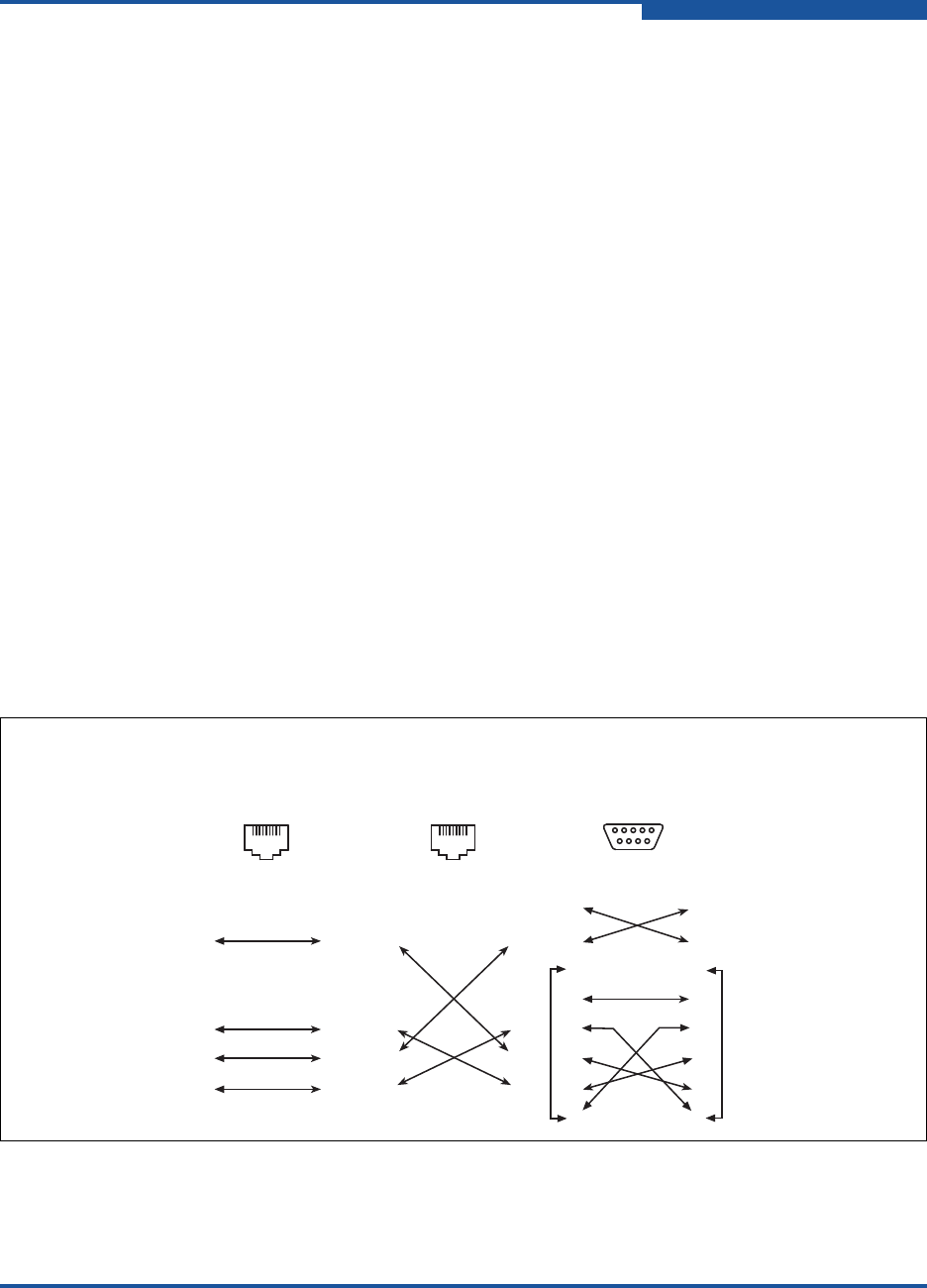
3–Installation
Installing a Switch
59265-02 B 3-11
The Heartbeat LED indicates the results of the POST. The POST
analyzes the condition of firmware, memories, data-paths, and switch
logic circuitry. If the Heartbeat LED blinks steadily (about once per
second), the POST was successful, and you can continue with the
installation process. Any other blink pattern indicates that an error has
occurred. For more information about error blink patterns, refer to
“Heartbeat LED Blink Patterns” on page 4-3.
Connect the Workstation to the Switch
You can manage the switch using the CLI, QuickTools, or Enterprise Fabric Suite.
QuickTools and Enterprise Fabric Suite require an Ethernet connection to the
switch. The CLI can use an Ethernet connection or a serial connection. Choose a
switch management method, and then connect the management workstation to
the switch in one of the following ways, as shown in Figure 3-4:
Indirect Ethernet connection from the management workstation to the switch
RJ-45 Ethernet connector through an Ethernet switch or a hub. This
connection requires a 10/100 Base-T straight cable.
Direct Ethernet connection from the management workstation to the switch
RJ-45 Ethernet connector. This connection requires a 10/100 Base-T
cross-over cable.
Serial port connection from the management workstation to the switch
RS-232 serial port connector. This connection requires a null modem F/F
DB9 cable.
Figure 3-4. Workstation Cable Connections
81
8
1
2
7
6
5
4
3
8
1
2
7
6
5
4
3
81
8
1
2
7
6
5
4
3
8
1
2
7
6
5
4
3
8
1
2
7
6
5
4
3
9
8
1
2
7
6
5
4
3
9
1
6
5
9
Direct Ethernet
RJ-45 Connection
Indirect Ethernet
RJ-45 Connection Serial RS-232
Connection

3–Installation
Installing a Switch
3-12 59265-02 B
Configure the Switch
You can configure the switch using the CLI, QuickTools, or Enterprise Fabric
Suite. Enterprise Fabric Suite is an optional, full fabric graphical user interface that
comes with a 30-day trial license. For information about installing Enterprise
Fabric Suite, refer to the QLogic 5800V Series Enterprise Fabric Suite User’s
Guide.
QuickTools Switch Configuration
To log in and configure the switch using QuickTools:
1. Open an Internet browser, and then type the default IP address 10.0.0.1 to
start the QuickTools Web applet.
2. Log in to the switch using the default user name (admin) and password
(password).
3. Obtain the IP address and subnet mask from your network administrator.
4. Open the QuickTools Wizards menu and select Configuration Wizard.
Follow the instructions to set the switch IP address and the password.
Changing the IP address will terminate the QuickTools session.
5. Open an Internet browser again and log in with the new IP address.
CLI Switch Configuration
To configure the switch using the CLI:
1. Open a command window according to the type of workstation and
connection:
Ethernet (all platforms): Open a Telnet session with the default switch
IP address, and then log in to the switch with default account name
(admin) and password (password). For example:
telnet 10.0.0.1
Switch Login: admin
Password: *******
NOTE:
To insure user account security, change the password for the
Admin account name. Refer to the Passwd command in the
QLogic 5800V Series Fibre Channel Switch Command Line
Interface Guide.

3–Installation
Installing a Switch
59265-02 B 3-13
Serial—Windows: Open the HyperTerminal application on a Windows
platform.
a. Click the Start button, and then select Programs, Accessories,
HyperTerminal, and then HyperTerminal.
b. Select the connection you created earlier, and then click OK.
Serial—Linux: Open a command window, and then type the following
command:
minicom
Serial—Solaris: Open a command window, and then type the following
command:
tip hardwire
2. Open an admin session, and then enter the Set Setup System command.
Type the values you want for switch IP address (EthNetworkAddress) and
the network mask (EthNetworkMask). For example:
Switch #> admin start
Switch (admin) #> set setup system
3. Open a Config Edit session, and then use the Set Config Switch command
to modify the switch configuration. For example:
Switch (admin) #> config edit
Switch (admin-config) #> set config switch
For more information about the CLI commands, refer to the QLogic 5800V Series
Fibre Channel Switch Command Line Interface Guide.
Cable Devices to the Switch
Connect cables to the SFP transceivers and their corresponding devices, and
then power up the devices. Device adapters can have SFP (or SFF) transceivers.
LC-type duplex fiber optic cable connectors are designed for SFP transceivers.
Duplex cable connectors are keyed to ensure correct orientation. Choose the fiber
optic cable with the connector combination that matches the device adapter.
GL_Ports self-configure as FL_Ports when connected to loop of devices, or
F_Ports when connected to a single device. G_Ports self-configure as F_Ports
when connected to a single device. Both GL_Ports and G_Ports self-configure as
E_Ports when connected to another switch.

3–Installation
Installing Firmware
3-14 59265-02 B
Installing Firmware
The switch comes with current firmware installed. You can upgrade firmware as
new firmware becomes available using the CLI, QuickTools, or Enterprise Fabric
Suite. This guide describes how to install firmware using QuickTools and the CLI.
For information about installing firmware using Enterprise Fabric Suite, refer to the
QLogic 5800V Series Enterprise Fabric Suite User’s Guide.
Using QuickTools to Install Firmware
Using the CLI to Install Firmware
You can load and activate firmware upgrades on an operating switch without
disrupting data traffic or re-initializing attached devices. If you attempt to perform a
non-disruptive activation without satisfying the following conditions, the activation
will fail:
The current firmware and the new firmware must support a non-disruptive
activation. For information about compatible firmware versions, refer to the
Firmware Release Notes.
No changes are being made to switches in the fabric including powering up,
powering down, disconnecting or connecting ISLs, changing switch
configurations, or installing firmware.
No port in the fabric is in the diagnostic state.
No Zoning Edit sessions are open in the fabric.
No changes are being made to attached devices including powering up,
powering down, disconnecting, connecting, or adapter configuration.
Install firmware on one switch at a time in the fabric. If you are installing firmware
on more than one switch, wait 120 seconds after the activation is complete before
installing firmware on the next switch.
Ports that are stable when the non-disruptive activation begins, and then change
states, will be reset. When the non-disruptive activation is complete, Enterprise
Fabric Suite and QuickTools sessions reconnect automatically. However, Telnet
sessions must be restarted manually.
NOTE:
If a non-disruptive activation fails, you will usually be prompted to try again
later. Otherwise, the switch will perform a disruptive activation.

3–Installation
Installing Firmware
59265-02 B 3-15
Using QuickTools to Install Firmware
To install firmware using QuickTools:
1. In the faceplate display, open the Switch menu and select Load Firmware.
2. In the Firmware Upload dialog, click Browse, and then select the firmware
file to be uploaded.
3. Click Start to begin the firmware load process.
A message appears indicating that the switch will be reset to activate the
firmware.
4. QuickTools prompts you to activate the new firmware using a hot
(non-disruptive) reset, if possible. Click OK to reset the switch and activate
the new firmware.
Using the CLI to Install Firmware
Choose one of the following firmware installation methods:
For a disruptive activation, enter the Firmware Install or Image Install
command to download the firmware image file from an FTP or TFTP server,
unpack it, and then activate it in one step. Refer to “One-Step Firmware
Installation” on page 3-15.
For a non-disruptive activation, enter the Image Fetch command to
download the firmware image file from an FTP or TFTP server. Enter the
Image Unpack command to unpack the image file, and then enter the
Hotreset command to perform a non-disruptive activation. Refer to “Custom
Firmware Installation” on page 3-17.
For more information about CLI commands, refer to the QLogic 5800V Series
Fibre Channel Switch Command Line Interface Guide.
One-Step Firmware Installation
The Firmware Install and Image Install commands download the firmware image
file from an FTP or TFTP server to the switch, unpack the image file, and perform
a disruptive activation in one step. The installation process prompts you to type
the following:
NOTE:
After upgrading firmware that includes changes to QuickTools, an open
QuickTools session may issue a message indicating that the firmware is not
supported. This message means that the new firmware is not supported by
the previous QuickTools version. To correct this, close the QuickTools
session and the browser window, and then open a new QuickTools session.

3–Installation
Installing Firmware
3-16 59265-02 B
File transfer protocol (FTP or TFTP)
IP address of the remote host
Account name and password on the remote host (FTP only)
Pathname for the firmware image file
To install firmware using the CLI when an FTP server is present on the
management workstation, use the Firmware Install command. For information
about the CLI commands, refer to the QLogic 5800V Series Fibre Channel Switch
Command Line Interface Guide.
1. Type the following commands to download the firmware from a remote host
to the switch, install the firmware, and then reset the switch to activate the
firmware.
Switch #> admin start
Switch #> firmware install
The switch will be reset. This process will cause a
disruption to I/O traffic.
Continuing with this action will terminate all management
sessions,including any Telnet sessions. When the firmware
activation is complete, you may log in to the switch again.
Do you want to continue? [y/n]: y
Press 'q' and the ENTER key to abort this command.
2. Choose the file transfer protocol with which to download the firmware image
file. FTP requires a user account and a password; TFTP does not. For
example:
FTP or TFTP : ftp
3. Type your account name on the remote host (FTP only) and the IP address
of the remote host. When prompted for the source file name, type the path
for the firmware image file. For example:
User Account : johndoe
IP Address : 10.0.0.254
Source Filename : 8.0.00.16_epc
About to install image. Do you want to continue? [y/n] y
4. When prompted to install the new firmware, type y to continue or n to
cancel. Typing y will disrupt traffic. This step is the last opportunity to cancel.
For example:
About to install image. Do you want to continue? [y/n] y
Connected to 10.20.20.200 (10.20.20.200).
220 localhost.localdomain FTP server (Version wu-2.6.1-18)
ready.

3–Installation
Installing Firmware
59265-02 B 3-17
5. Type the password for your account name (FTP only). For example:
331 Password required for johndoe.
Password:******
230 User johndoe logged in.
6. The firmware will now be downloaded from the remote host to the switch,
installed, and activated.
Custom Firmware Installation
A custom firmware installation downloads the firmware image file from an FTP or
TFTP server to the switch, unpacks the image file, and resets the switch in
separate steps. This type of installation allows you to choose the type of switch
reset, and whether the activation will be disruptive (Reset Switch command) or
non-disruptive (Hotreset command). The following example describes a custom
firmware installation with a non-disruptive activation.
1. Download the firmware image file from the workstation to the switch.
If your workstation has an FTP server, type the Image Fetch
command:
Switch (admin) #> image fetch account_name ip_address filename
If your workstation has a TFTP server, type the Image TFTP
command:
Switch (admin) #> image tftp ip_address filename
If your workstation has neither an FTP nor a TFTP server, open an
FTP session, and then type the following FTP commands:
>ftp ip_address or switchname
user:images
password: images
ftp>bin
ftp>put filename
ftp>quit
2. Type the Image List command, and then examine the display to confirm that
the file was loaded. For example:
Switch (admin) $>image list
3. Type the Image Unpack command to unpack the firmware image file, and to
install the new firmware in flash memory. For example:
Switch (admin) $>image unpack filename

3–Installation
Adding a Switch to an Existing Fabric
3-18 59265-02 B
4. Wait for following message to appear, indicating that the firmware image is
unpacked.
image unpack command result: Passed
5. When prompted to reset the switch to activate the firmware, type the
Hotreset command to attempt a non-disruptive activation. For example:
Switch (admin) $>hotreset
Adding a Switch to an Existing Fabric
If there are no special conditions to be configured for the new switch, plug in the
switch. The switch becomes functional with the following default fabric
configuration settings:
Fabric zoning is sent to the switch from the fabric.
All ports will be GL_Ports.
The default IP address 10.0.0.1 is assigned to the switch without a gateway
or boot protocol configured (RARP, BOOTP, and DHCP).
If you are adding a switch to a fabric and do not want to use the default fabric
configuration:
1. If the switch is not new from the factory, reset the switch to the factory
configuration before adding the switch to the fabric.
2. If you want to manage the switch through the Ethernet port, configure the IP
address.
3. Plug in the inter-switch links (ISL), but do not connect the devices.
4. Configure the port types for the new switch. The ports can be G_Port,
GL_Port, F_Port, FL_Port, TR_Port, or Donor.
5. Connect the devices to the switch.
6. Make any necessary zoning changes.

3–Installation
Installing Feature License Keys
59265-02 B 3-19
Installing Feature License Keys
For information about available license keys, refer to “Feature Licensing” on
page 2-5.
To install a license key using QuickTools:
1. Open the Switch Menu and select Features.
2. In the Feature Licenses dialog, click Add.
3. In the Add License Key dialog, type the license key in the Key field.
4. Click Get Description to display the upgrade description.
5. Click Add to upgrade the switch.
Allow a minute or two for the upgrade to complete.
To upgrade a switch using the command line interface, refer to the Feature
command in the QLogic 5800V Series Fibre Channel Switch Command Line
Interface Guide.

3–Installation
Installing Feature License Keys
3-20 59265-02 B
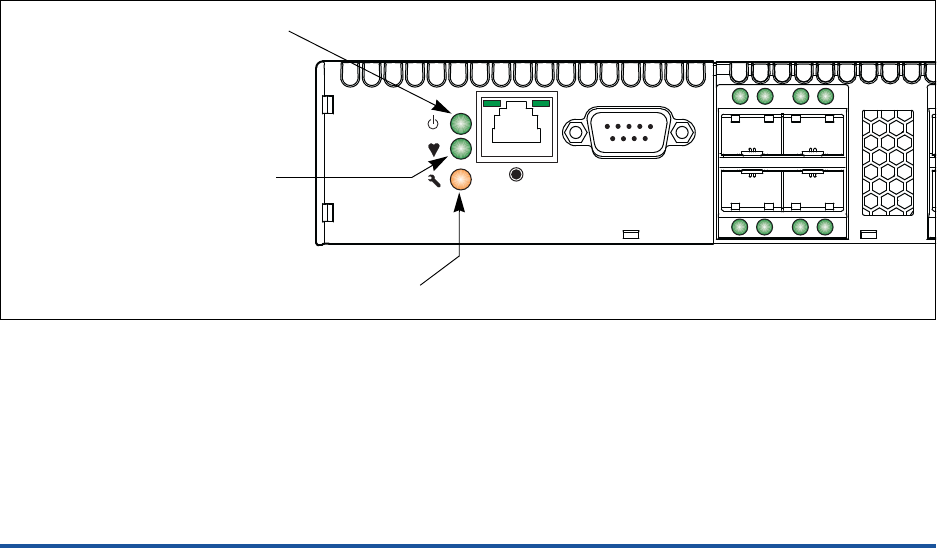
59265-02 B 4-1
4Diagnostics/Troubleshooting
Diagnostic information about the switch is available through the chassis LEDs and
the port LEDs. Diagnostic information is also available through the CLI,
QuickTools, and Enterprise Fabric Suite event logs and error displays. This
section describes the following types of diagnostics:
Chassis Diagnostics describe the Input Power LED and System Fault LED
indications.
Power-On Self Test Diagnostics describe the Heartbeat LED and the port
Logged-In LED indications.
Power Supply Diagnostics describe Power Supply Status LED and Power
Supply Fault LED indications for model 5802V switches.
This section also describes using maintenance mode to recover a disabled switch.
Chassis Diagnostics
Chassis diagnostics are indicated by the chassis LEDs as shown in Figure 4-1.
Figure 4-1. Chassis LEDs
The following conditions are described:
Input Power LED Is Not Lit
System Fault LED Is Lit
Input Power LED
(Green)
Heartbeat LED
(Green)
System Fault LED
(Amber)

4–Diagnostics/Troubleshooting
Chassis Diagnostics
4-2 59265-02 B
Input Power LED Is Not Lit
The Input Power LED lights up to indicate that the switch logic circuitry is receiving
the correct voltages. If the Input Power LED is not lit, do the following:
1. Inspect the power cords and connectors. Is the cord unplugged? Is the cord
or connector damaged?
Yes—Make necessary corrections or repairs. If the condition remains,
continue.
No—Continue.
2. Inspect the AC power source. Is the power source delivering the correct
voltage?
Yes—Continue.
No—
For a model 5800V, if the condition remains, contact your
authorized maintenance provider.
For a model 5802V, if the condition remains, continue.
3. Inspect the power supplies. Are the power supplies fully seated in their
bays?
Yes—Continue. Replace the power supplies.
No—Reinstall the power supplies. If the condition remains, replace the
power supplies.
System Fault LED Is Lit
The System Fault LED lights up to indicate that a fault exists in the switch
firmware or hardware. If the System Fault LED lights up, do the following:
Check the Heartbeat LED for an error blink pattern, and then take the
necessary actions. Refer to “Heartbeat LED Blink Patterns” on page 4-3.
For a model 5802V, check the power supply LEDs, and then take the
necessary actions. Refer to “Power Supply Diagnostics” on page 4-12.

4–Diagnostics/Troubleshooting
Power-On Self Test Diagnostics
59265-02 B 4-3
Power-On Self Test Diagnostics
The POST diagnostic program performs the following tests:
Checksum tests on the boot firmware in PROM and the switch firmware in
flash memory
Internal data loopback test on all ports
Access and integrity test on the ASIC
During the POST, the switch logs any errors encountered. Some POST errors are
critical, others are not. The switch uses the Heartbeat LED and the Logged-In
LED to indicate switch and port status. A critical error disables the switch so that it
will not operate. A non-critical error allows the switch to operate, but disables the
ports that have errors. If two or more ports fail the POST, the entire switch is
disabled. Whether the problem is critical or not, contact your authorized
maintenance provider.
If there are no errors, the Heartbeat LED blinks at a steady rate of once per
second. If a critical error occurs, the Heartbeat LED shows a blink pattern that
indicates an error, and the System Fault LED lights up. If there are non-critical
errors, the switch disables the failed ports and flashes the associated Logged-In
LEDs. For more information about Heartbeat LED blink patterns, refer to
“Heartbeat LED Blink Patterns” on page 4-3.
Heartbeat LED Blink Patterns
The Heartbeat LED indicates the operational status of the switch. When the POST
completes with no errors, the Heartbeat LED blinks at steady rate of once per
second. When the switch is in maintenance mode, the Heartbeat LED remains lit.
For more information about maintenance mode, refer to “Recovering a Switch
Using Maintenance Mode” on page 4-13. All other blink patterns indicate critical
errors. In addition to producing a heartbeat error blink patterns, a critical error also
illuminates the System Fault LED.
The Heartbeat LED shows an error blink pattern for the following conditions:
1 blink—Normal operation
2 blinks—Internal Firmware Failure Blink Pattern
3 blinks—Fatal POST Error Blink Pattern
4 blinks—Configuration File System Error Blink Pattern
5 blinks—Over-Temperature Blink Pattern
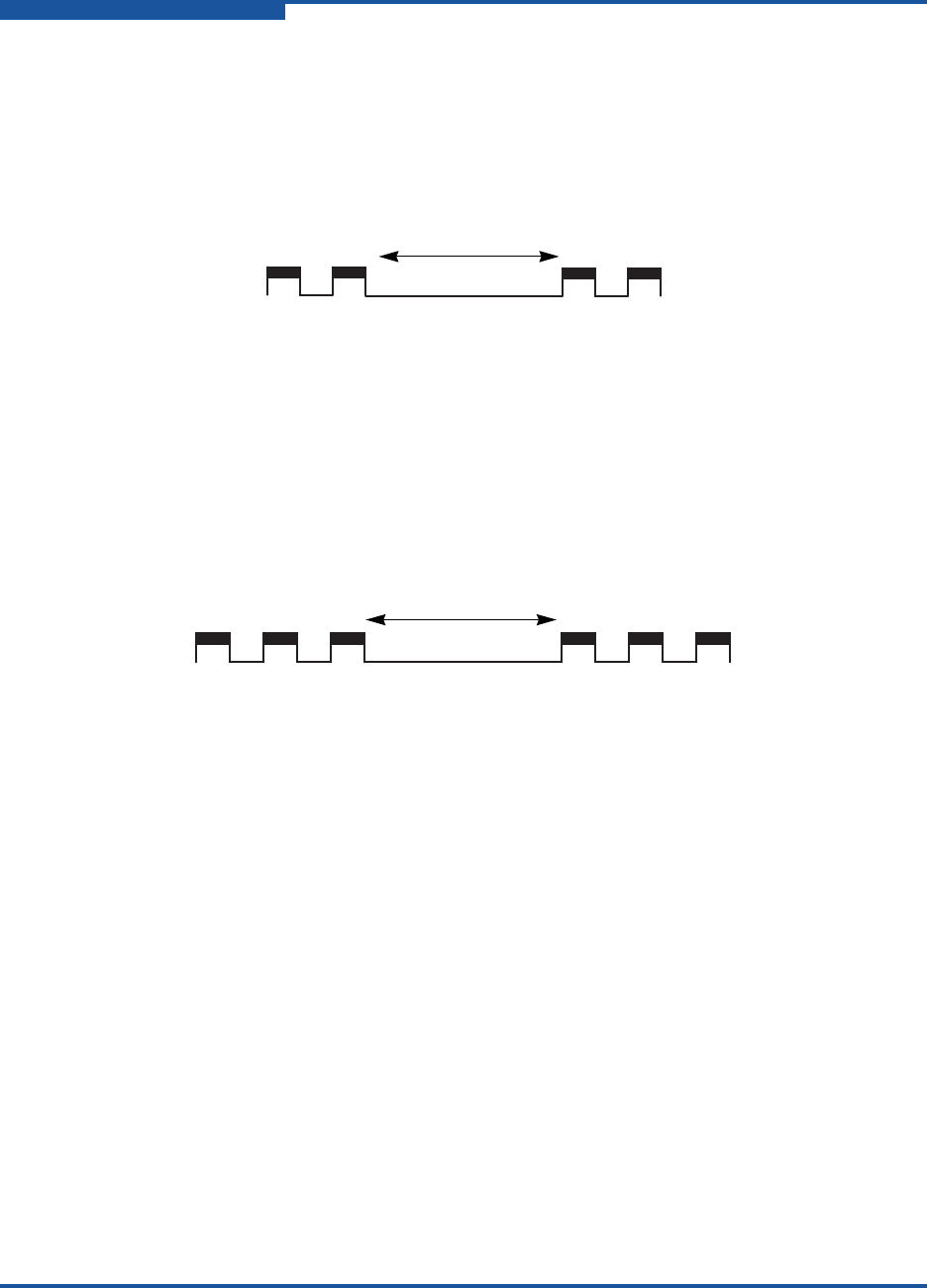
4–Diagnostics/Troubleshooting
Power-On Self Test Diagnostics
4-4 59265-02 B
Internal Firmware Failure Blink Pattern
An internal firmware failure blink pattern is two blinks followed by a two-second
pause. The two-blink error pattern indicates that the firmware has failed; the
switch must be reset. Momentarily press and release the Maintenance button to
reset the switch.
Figure 4-2. Internal Firmware Failure Blink Pattern
Fatal POST Error Blink Pattern
A system error blink pattern is three blinks followed by a two-second pause. The
three-blink error pattern indicates that a POST failure or a system error has left the
switch inoperable. If a system error occurs, contact your authorized maintenance
provider. Momentarily press and release the Maintenance button to reset the
switch.
Figure 4-3. Fatal POST Error Blink Pattern
Two seconds
Two seconds

4–Diagnostics/Troubleshooting
Power-On Self Test Diagnostics
59265-02 B 4-5
Configuration File System Error Blink Pattern
A configuration file system error blink pattern is four blinks followed by a
two-second pause. The four-blink error pattern indicates that a configuration file
system error has occurred, and that the configuration file must be restored.
Figure 4-4. Configuration File System Error Blink Pattern
To restore the switch configuration:
1. Establish communications with the switch using Telnet. Type one of the
following on the command line:
telnet xxx.xxx.xxx.xxx
or
telnet switchname
where xxx.xxx.xxx.xxx is the switch IP address and switchname is the
switch name associated with the IP address.
2. A Telnet window opens prompting you for a login. Type an account name
and password. The default account name and password are admin and
password.
3. Open an admin session to acquire the necessary authority. For example:
Switch $>admin start
4. Restore the configuration. When the restore is complete, the switch will
reset. For example:
Switch (admin) $>config restore
If a configuration does not exist, enter the Config Backup command, and
then enter the Config Restore command.
Two seconds

4–Diagnostics/Troubleshooting
Power-On Self Test Diagnostics
4-6 59265-02 B
Over-Temperature Blink Pattern
An over-temperature blink pattern is five blinks followed by a two-second pause.
The five-blink error pattern indicates that the air temperature inside the switch has
exceeded the failure temperature threshold.
Figure 4-5. Over-Temperature Blink Pattern
If the Heartbeat LED shows the over temperature blink pattern, do the following:
1. Inspect the chassis vents. Are the intake and exhaust vents clear?
Yes—Continue.
No—Remove any debris from fan intake and exhaust if necessary. If
the condition remains, continue.
2. For a model 5802V, inspect the Power Supply Fault LED on both power
supplies. Is the Power Supply Fault LED lit on either power supply?
Yes—Replace the power supply. If the condition remains, continue.
No—Continue.
3. For a model 5802V, observe the air flow direction from both power supplies.
Are they the same?
Yes—Continue.
No—Determine the correct air flow direction for the switch. Replace
the power supply with the incorrect air flow direction with another
having the correct air flow direction. Air flow direction is marked on the
power supply part number label. If the condition remains, continue.
4. Consider the ambient air temperature near the switch and clearance around
the switch. Make necessary corrections. If the condition remains, power
bring down the switch, and then contact your authorized maintenance
provider.
Two seconds
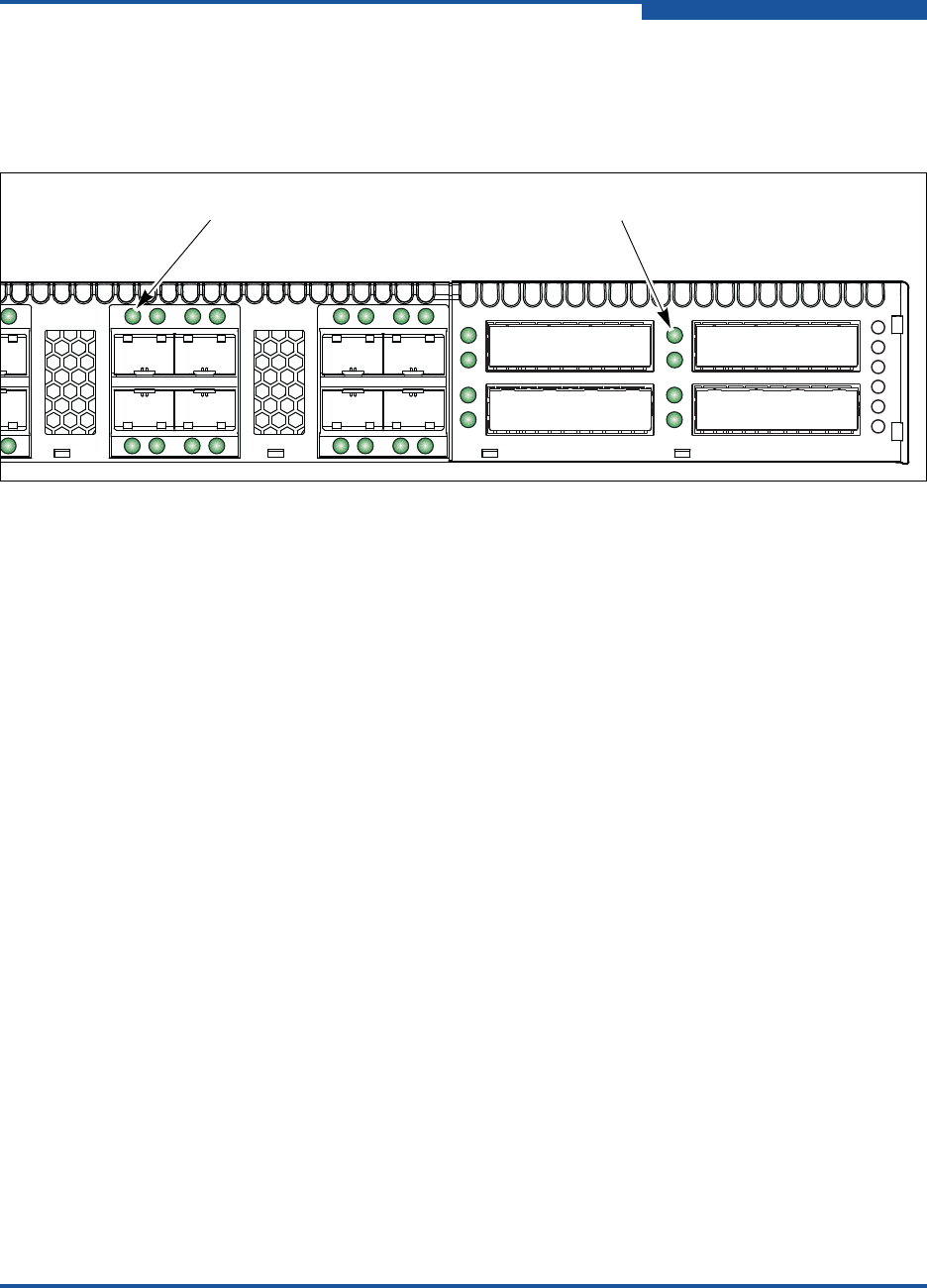
4–Diagnostics/Troubleshooting
Power-On Self Test Diagnostics
59265-02 B 4-7
Logged-In LED Indications
Port diagnostics are indicated by the Logged-In LED for SFP and XPAK ports as
shown in Figure 4-6.
Figure 4-6. Logged-In LED
The Logged-In LED has three indications:
Continuous illumination: A device is logged in to the port.
Flashing once per second: A device is logging in to the port, or the port is in
the diagnostics state.
Flashing twice per second: The port is down, offline, or an error has
occurred.
If a Logged-In LED is flashing twice per second, review the event browser for
alarm messages regarding the affected port. You can also inspect the alarm log
using the Show Alarm command. If there is an error, alarm messages may point to
one or more of the following conditions:
E_Port Isolation
Excessive Port Errors
XPAK Port
Logged-In LED
SFP Port
Logged-In LED

4–Diagnostics/Troubleshooting
Power-On Self Test Diagnostics
4-8 59265-02 B
E_Port Isolation
A Logged-In LED error indication is often the result of E_Port isolation. E_Port
isolation can be caused by the following:
Security failure
A port configured as FL_Port is connected to another switch
Conflicting domain IDs
Conflicting timeout values
Conflicting zone membership between active zone sets
Using QuickTools, review the event browser, and then do the following to
diagnose and correct an isolated E_Port:
1. Does the event browser show an alarm about an invalid attach on the
affected port?
Yes—If device security is configured, review the ISL group in the active
security set to ensure that the membership includes the necessary
ports, and that the secrets on all switches are correct.
No—Continue.
2. Does the event browser show a repeating alarm about an unsupported
E_Port command on the affected port?
Yes—The port is configured as an FL_Port and connected to another
switch. Correct the port connection or the port type.
No—Continue.
3. Display the fabric domain IDs using the Show Domains command, or click
the Switch tab and Summary icon in QuickTools. Are all domain IDs in the
fabric unique?
Yes—Continue.
No—Correct the domain IDs on the offending switches using the Set
Config Switch command. Reset the port. If the condition remains,
continue.

4–Diagnostics/Troubleshooting
Power-On Self Test Diagnostics
59265-02 B 4-9
4. Compare the RA_TOV and ED_TOV timeout values for all switches in the
fabric using the Show Config Switch command, or click the Switch tab and
Advanced icon in QuickTools. Is each timeout value the same on every
switch?
Yes—Continue.
No—Correct the timeout values on the offending switches using the
Set Config Switch CLI. Reset the port. If the condition remains,
continue.
5. Display the active zone set on each switch using the Zoning Active
command, or click the Active Zoneset tab in QuickTools. Compare the zone
membership between the two active zone sets. Are they the same?
Yes—Contact your authorized maintenance provider.
No—Deactivate one of the active zone sets, or edit the conflicting
zones so that their membership is the same, and then reset the port. If
the condition remains, contact your authorized maintenance provider.
6. Is the port connected to a switch that supports connection to a TR_Port of an
QLogic 5800V Series Fibre Channel Switch?
Yes—Configure the port as a TR_Port and map the local and remote
fabric devices.
No—Contact your authorized maintenance provider.
NOTE:
E_Port isolation can be caused by merging two fabrics whose
active zone sets have two zones with the same name, but
different membership.

4–Diagnostics/Troubleshooting
Power-On Self Test Diagnostics
4-10 59265-02 B
Excessive Port Errors
The switch can monitor a set of port errors and generate alarms based on
user-defined sample windows and thresholds. These port errors include the
following:
Cyclic redundancy check (CRC) errors
Decode errors
ISL connection count
Device login errors
Device logout errors
Loss-of-signal errors
Port threshold alarm monitoring is disabled by default. For information about
managing port threshold alarms, refer to the QLogic 5800V Series Fibre Channel
Switch Command Line Interface Guide.
If the count for any of these errors exceeds the rising trigger for three consecutive
sample windows, the switch generates an alarm, disables the affected port, and
changes the port operational state to down. Port errors can be caused by the
following:
Triggers are too low or the sample window is too small
Faulty Fibre Channel port cable
Faulty SFP
Faulty port
Faulty device or adapter
Review the event browser to determine if excessive port errors are responsible for
disabling the port. Look for a message that mentions one of the monitored error
types, indicating that the port has been disabled, and then do the following:
1. Examine the alarm configuration for the associated error using the Show
Config Threshold command. Refer to the Show Config Threshold command
in the QLogic 5800V Series Fibre Channel Switch Command Line Interface
Guide. Are the thresholds and sample window correct?
Yes—Continue.
No—Correct the alarm configuration. If the condition remains,
continue.

4–Diagnostics/Troubleshooting
Transceiver Diagnostics
59265-02 B 4-11
2. Reset the port, and then perform an external port loopback test to validate
the port and the SFP. For information about testing ports, refer to the QLogic
5800V Series Fibre Channel Switch Command Line Interface Guide or the
QLogic 5800V Series QuickTools Switch Management User’s Guide. Does
the port pass the test?
Yes—Continue.
No—Replace the SFP and repeat the test. If the port does not pass the
test, contact your authorized maintenance provider. Otherwise
continue.
3. Replace the Fibre Channel port cable. Is the problem corrected?
Yes—Complete.
No—Continue.
4. Inspect the device to which the affected port is connected, and confirm that
the device and its adapter are working properly. Make repairs and
corrections as needed. If the condition remains, contact your authorized
maintenance provider.
Transceiver Diagnostics
You can display the following transceiver information using the Show Media CLI
command:
Port number
Manufacturer
Temperature (°C)
Operating voltage (Volts)
Transmitter bias (Milliamps)
Transmitter power (Milliwatts)
Receiver power (Milliwatts)
The display indicates warning and alarm conditions for both high and low values.
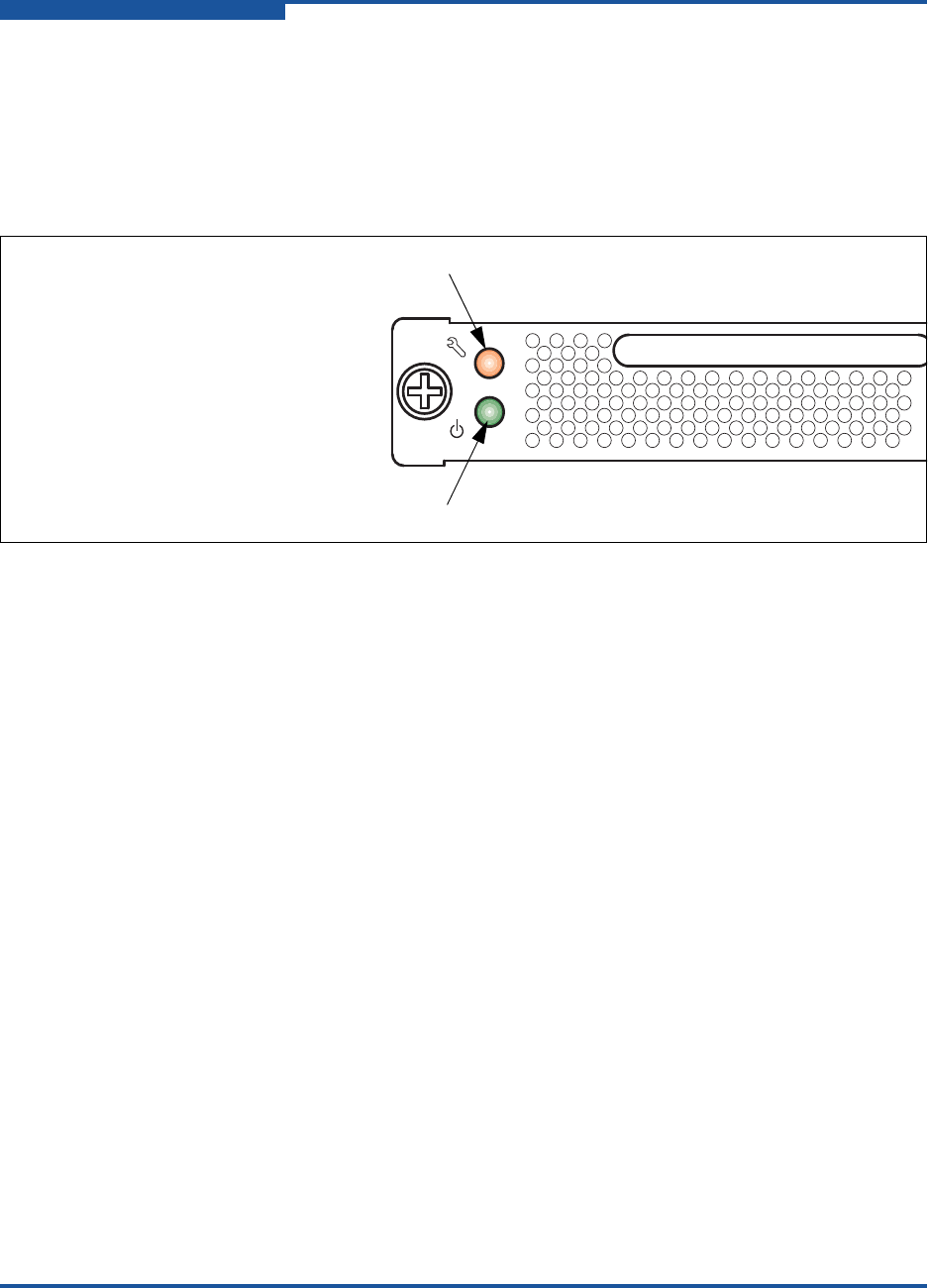
4–Diagnostics/Troubleshooting
Power Supply Diagnostics
4-12 59265-02 B
Power Supply Diagnostics
A power supply has a Fault LED (Amber) and a Status LED (Green), as shown in
Figure 4-7. Model 5802V power supplies are replaceable. Under normal operating
conditions, the Power Supply Status LED is lit, and the Power Supply Fault LED is
not lit.
Figure 4-7. Model 5802V Power Supply LEDs
Consider the following indications:
The Power Supply Fault LED is lit, indicating that the power supply is failing
or has failed.
For dual-power supply model 5802V switches, replace the power
supply with another power supply that has the same air flow direction.
Air flow direction is indicated on the power supply part number label.
Refer to “Power Supply Removal and Replacement” on page 5-2.
For single-power supply model 5800V switches, shut down the switch
and contact your authorized maintenance provider.
(Model 5802V only) All power supply LEDs are normal, the System Fault
LED is lit, and the Heartbeat LED does not show a blink pattern. This
condition means that the two power supplies have different air flow
directions. Replace the power supply with the incorrect air flow direction with
another power supply having the correct air flow direction. Air flow direction
is marked on the power supply part number label. Refer to “Power Supply
Removal and Replacement” on page 5-2.
Power Supply
Fault LED
Power Supply
Status LED

4–Diagnostics/Troubleshooting
Recovering a Switch Using Maintenance Mode
59265-02 B 4-13
Recovering a Switch Using Maintenance Mode
A switch can become inoperable or unmanageable for the following reasons:
Corrupt firmware
Lost IP address
Corrupt switch configuration
Forgotten password
In these specific cases, you can recover the switch using maintenance mode.
Maintenance mode temporarily returns the switch IP address to 10.0.0.1, and
provides access to the following menu options:
Exiting the Maintenance Menu (Option 0)
Unpacking a Firmware Image File in Maintenance Mode (Option 1)
Resetting the Network Configuration in Maintenance Mode (Option 2)
Resetting User Accounts in Maintenance Mode (Option 3)
Copying Log Files in Maintenance Mode (Option 4)
Removing the Switch Configuration in Maintenance Mode (Option 5)
Remaking the File System in Maintenance Mode (Option 6)
Resetting the Switch in Maintenance Mode (Option 7)
Updating the Boot Loader in Maintenance Mode (Option 8)
To recover a switch:
1. Place the switch in maintenance mode by pressing and holding the
Maintenance button with a pointed tool until only the Heartbeat LED is lit,
and then release the button.
The Heartbeat LED remains lit when the switch is in maintenance mode.
2. Establish a Telnet session with the switch using the maintenance mode IP
address 10.0.0.1.
3. Type the maintenance mode account name (prom) and password (prom).
Switch login: prom
Password:xxxx

4–Diagnostics/Troubleshooting
Recovering a Switch Using Maintenance Mode
4-14 59265-02 B
4. The Maintenance menu lists several recovery options. To select a switch
recovery option, type the corresponding number, and then press ENTER.
0) Exit
1) Image Unpack
2) Reset Network Config
3) Reset User Accounts to Default
4) Copy Log Files
5) Remove Switch Config
6) Remake Filesystem
7) Reset Switch
8) Update Boot Loader
Option:
These options and their use are described in the following subsections.
Exiting the Maintenance Menu (Option 0)
The Exit option closes the current Maintenance menu session. To log in again,
type the maintenance mode account name (prom) and password (prom). To return
to normal operation, momentarily press and release the Maintenance button, or
power cycle the switch.
Unpacking a Firmware Image File in Maintenance Mode
(Option 1)
The Image Unpack option unpacks and installs new firmware when the current
firmware has become corrupt. Before using this option, you must load the new
firmware image file onto the switch. To install new firmware using this option:
1. Place the switch in maintenance mode. Refer to the procedure for
maintenance mode in “Recovering a Switch Using Maintenance Mode” on
page 4-13.
2. Use FTP to load a new firmware image file onto the switch. Refer to “Custom
Firmware Installation” on page 3-17 for an example of how to load the image
file. When the download is complete, close the FTP session.
3. Establish a Telnet session with the switch using the default IP address
10.0.0.1. For example:
telnet 10.0.0.1
4. Type the maintenance mode account name (prom) and password (prom).
Switch login: prom
Password:xxxx

4–Diagnostics/Troubleshooting
Recovering a Switch Using Maintenance Mode
59265-02 B 4-15
5. Select option 1 from the maintenance menu. When prompted for a file name,
type the firmware image file name. For example:
Image filename: filename
Unpacking ’filename’, please wait...
Unpackage successful.
6. Select option 7 to reset the switch and exit maintenance mode.
Resetting the Network Configuration in Maintenance Mode
(Option 2)
The Reset Network Config option resets the network properties to the factory
default values, and saves them on the switch. For information about the default
network configuration values, refer to the QLogic 5800V Series Fibre Channel
Switch Command Line Interface Guide.
Resetting User Accounts in Maintenance Mode (Option 3)
The Reset User Accounts to Default option restores the password for the Admin
account name to the default (password), and removes all other user accounts
from the switch.
Copying Log Files in Maintenance Mode (Option 4)
The Copy Log Files option copies all log file buffers to a file on the switch named
logfile. You can use FTP to download this file to the management workstation;
however, you must download the logfile before resetting the switch. For
information about downloading files from the switch, refer to the QLogic 5800V
Series Fibre Channel Switch Command Line Interface Guide.
Removing the Switch Configuration in Maintenance Mode
(Option 5)
The Remove Switch Config option deletes all configurations from the switch,
except the default configuration. This option restores switch configuration
parameters to the factory defaults. For information about the factory default
values, refer to Reset command in the QLogic 5800V Series Fibre Channel
Switch Command Line Interface Guide.

4–Diagnostics/Troubleshooting
Recovering a Switch Using Maintenance Mode
4-16 59265-02 B
Remaking the File System in Maintenance Mode (Option 6)
If there is a loss of power, the switch configuration could become corrupt. The file
system on which the configuration is stored must be re-created. The Remake
Filesystem option resets the switch to the factory default values, including user
accounts and zoning. For information about the factory default values, refer to the
Reset command in the QLogic 5800V Series Fibre Channel Switch Command
Line Interface Guide.
Resetting the Switch in Maintenance Mode (Option 7)
The Reset Switch option closes the Telnet session, exits maintenance mode, and
reboots the switch using the current switch configuration. All unpacked firmware
image files that reside on the switch are deleted.
Updating the Boot Loader in Maintenance Mode (Option 8)
The Update Boot Loader option updates the system boot loader, which loads the
Linux kernel into memory. Use this option only at the direction of your authorized
maintenance provider.
CAUTION!
If you choose the Remake Filesystem option, you will lose all changes made
to the fabric configuration that involve that switch, such as password and
zoning changes. You must then restore the switch from an archived
configuration, or reconfigure the portions of the fabric that involve the switch.

59265-02 B 5-1
5Removal/Replacement
This section describes the removal and replacement procedures for the following
FRUs:
SFP and XPAK transceivers
Power supplies for model 5802V switches
Transceiver Removal and Replacement
The SFP and XPAK transceivers can be removed and replaced while the switch is
operating without damaging the switch or the transceiver. However, data
transmission on the affected port will be interrupted until the transceiver is
installed.
To remove a transceiver, gently press the transceiver into the port to release the
tension, pull the release tab or lever, and then remove the transceiver. Different
transceiver manufacturers have different release mechanisms. Consult the
documentation for your transceiver. To install, insert the transceiver into the port,
and then gently press until it snaps in place.
NOTE:
The SFP and XPAK transceivers will fit only one way. If the transceiver does
not install under gentle pressure, flip it over and try again.
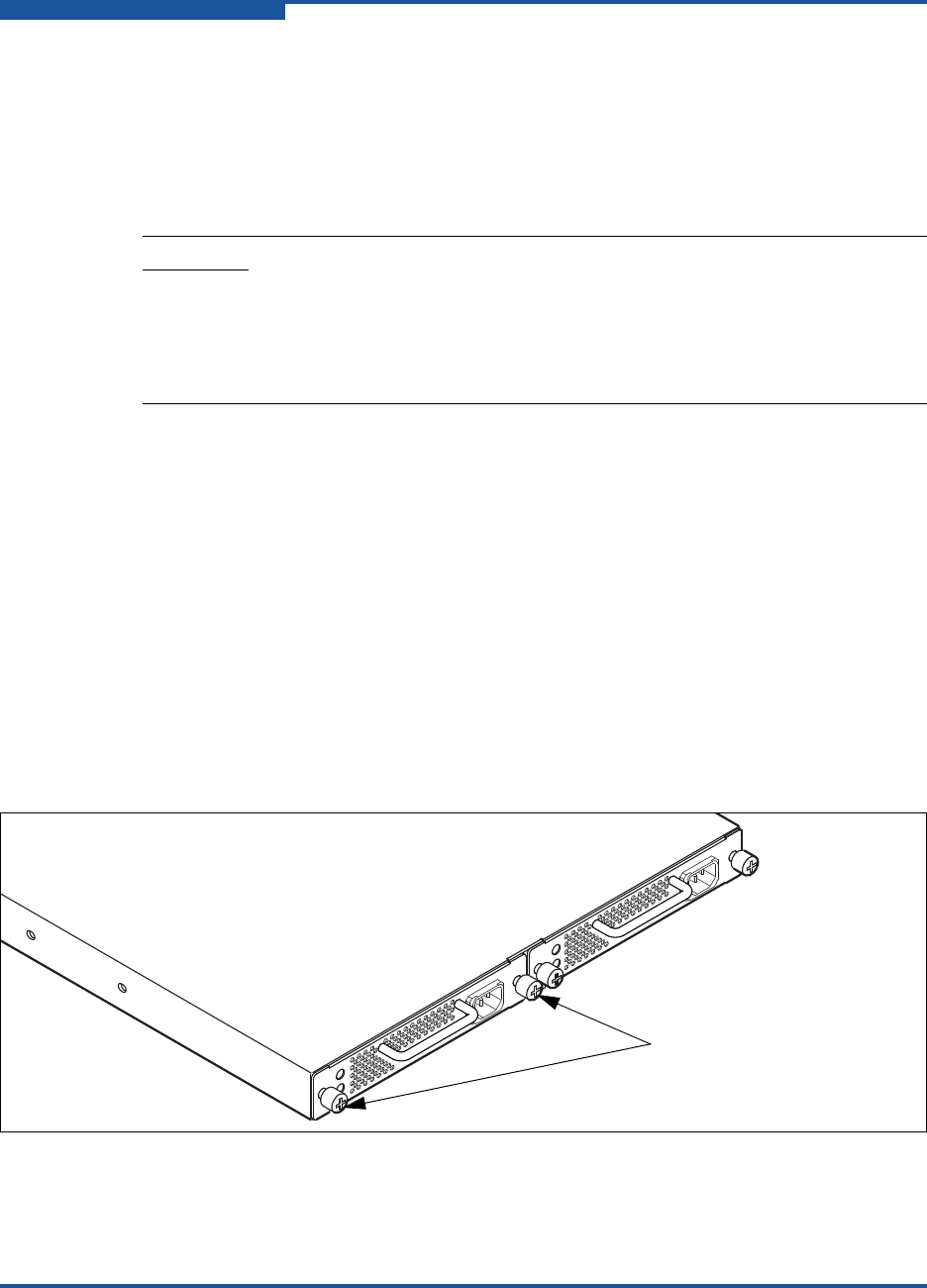
5–Removal/Replacement
Power Supply Removal and Replacement
5-2 59265-02 B
Power Supply Removal and Replacement
Model 5802V power supplies are hot-pluggable: you can remove or install one of
the power supplies while the switch is operating without disrupting service. The
power supplies are also interchangeable; that is, the left and right power supplies
are the same unit.
When removing or replacing a power supply, consider the following:
The left and right power supplies are interchangeable. However, you must
orient the power supply so that the AC receptacle is on the right.
Both power supplies must have the same air flow direction. The part number
label on the power supply indicates the air flow direction.
When removing or replacing a power supply on an operating switch, be sure
that the Heartbeat LED is blinking once per second (normal operation), so
that the switch can correctly report the power supply status.
To remove a power supply, unplug the power supply, and then loosen the two
knurled fasteners with a cross-head screw driver, as shown in Figure 5-1. Grasp
the power supply handle, and then pull firmly to disengage the modular connector.
Slide the power supply out of its bay.
Figure 5-1. Power Supply Removal
CAUTION!
Both power supplies must have the same air flow direction to prevent the
switch from overheating.
To avoid overheating, do not operate the switch with one power supply
any longer than necessary.
Knurled
Fasteners
Power Supply 1
Power Supply 2
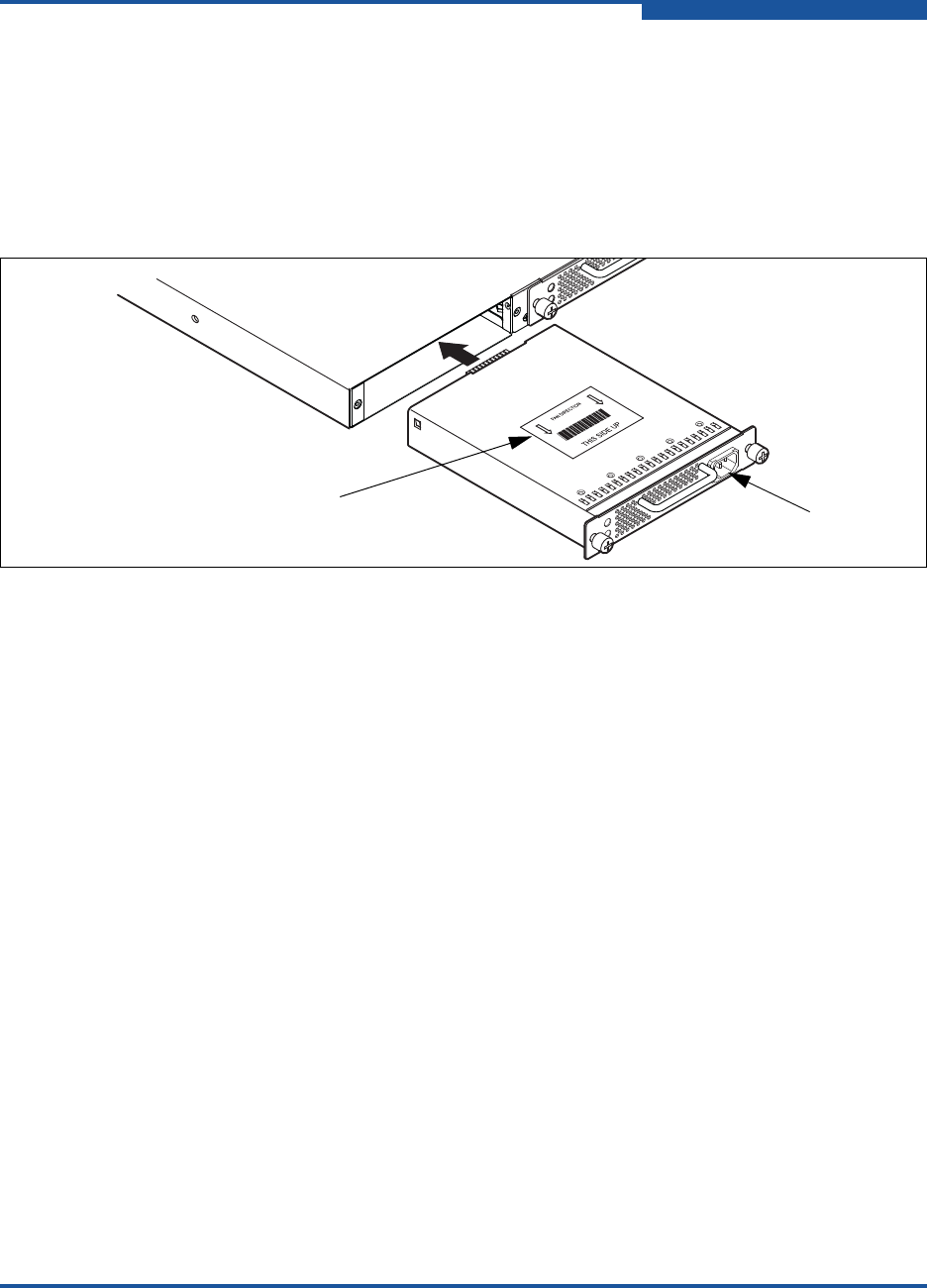
5–Removal/Replacement
Power Supply Removal and Replacement
59265-02 B 5-3
To install a power supply:
1. Confirm that the Heartbeat LED is blinking once per second (normal
operation), so that the switch can correctly report the power supply status.
2. Confirm that the new power supply is compatible with the switch air flow
direction. The part number label on the power supply indicates the air flow
direction, as shown in Figure 5-2.
Figure 5-2. Power Supply Installation
3. With the AC receptacle on the right, slide the power supply into the bay until
it is firmly seated. Secure the knurled fasteners.
4. Plug the power cord into the AC receptacle. Confirm that air flow is correct.
Air Flow
Label AC
Receptacle

5–Removal/Replacement
Power Supply Removal and Replacement
5-4 59265-02 B

59265-02 B A-1
ASpecifications
This appendix contains the specifications for the QLogic 5800V Series Fibre
Channel switch. To locate all connections, switches, controls, and components,
refer to Section 1.
Fabric Specifications
Maintainability
Fabric Management
Dimensions
Electrical
Power Cord Specifications
Environmental
Regulatory Certifications

A–Specifications
Fabric Specifications
A-2 59265-02 B
Fabric Specifications
Fibre Channel Protocols ................. FC-AL Rev 4.6
FC-AL-2 Rev 7.0
FC-DA
FC-FLA
FC-FS-2
FC-GS-5
FC-FG
FC-LS
FC-MI-2
FC-PH Rev. 4.3
FC-PH-2
FC-PH-3
FC-PI-3
FC-SP
FC-Tape
FC-VI
FC-SW-4
Fibre Channel Element MIB RFC 2837
Fibre Alliance MIB Version 4.0
Fibre Channel Classes of Service .. Classes 2 and 3
Modes of Operation........................ Fibre Channel Classes 2 and 3,
connectionless
Port Types
SFP Ports...................................
XPAK Ports.................................
G_Port, GL_Port, F_Port, FL_Port,
E_Port, TR_Port
G_Port, F_Port, E_Port
Port Characteristics ........................ All ports are auto-discovering and
self-configuring.
Number of Fibre Channel Ports...... 8, 12, 16, or 20 SFP ports
Four XPAK ports

A–Specifications
Fabric Specifications
59265-02 B A-3
Scalability........................................ Maximum 239 switches, depending on
configuration
Maximum User Ports ...................... > 475,000 ports depending on
configuration
Buffer Credits.................................. 16 buffer credits per port, ASIC embedded
memory
Media Type
Ports 0–19 ......................................
Ports 20–23 ....................................
SFP optical transceiver
XPAK switch stacking cables
Fabric Port Speed
Ports 0–19 ......................................
Ports 20–23 ....................................
1.0625, 2.125, 4.250, or 8.50Gbps
12.750 or 25.50Gbps
Maximum Frame Size..................... 2,148 bytes (2112-byte payload)
System Processor........................... 400MHz 440EP processor
Fabric Latency (intra-switch)
2Gbps to 2Gbps..............................
4Gbps to 4Gbps..............................
8Gbps to 8Gbps..............................
10Gbps to 10Gbps..........................
20Gbps to 20Gbps..........................
< 0.6 µs
< 0.3 µs
< 0.2 µs
< 0.2 µs
< 0.2 µs
Bandwidth
Point-to-Point .................................
Aggregate (single switch) ...............
425MB, full duplex @ 2Gbps
850MB, full duplex @ 4Gbps
1,700MB, full duplex @ 8Gbps
2,550MB, full duplex @ 10Gbps
5,100MB, full duplex @ 20Gbps
Up to 54.40GB full duplex

A–Specifications
Maintainability
A-4 59265-02 B
Maintainability
Fabric Management
Diagnostics ..................................... Power-on self test (POST) analyzes all
functional components except SFP
transceivers. Port tests include online,
internal, and external tests.
User Interface ................................. LED indicators
Field Replaceable Units.................. Power supplies (model 5802V only)
Management Methods.................... Enterprise Fabric Suite graphical user
interface
QuickTools Web applet
Command Line Interface
Application Programming Interface
SMI-S
GS-3 Management Server
SNMP
FTP
TFTP
Maintenance Connection................ RS-232 connector; null modem F/F DB9
cable
Ethernet Connection....................... RJ-45 connector; 10/100 BASE-T cable
Switch Agent................................... Enables a network management station to
obtain configuration values, traffic
information, and failure data pertaining to
the Fibre Channels using SNMP through
the Ethernet interface.

A–Specifications
Dimensions
59265-02 B A-5
Dimensions
Electrical
Power Cord Specifications
The switch comes with one or two power cords with NEMA 5-15 non-locking plugs
(SKU: CPK-9000-US). This power cord is approved for North America (USA,
Canada, Puerto Rico), Mexico, Central America, South America, Korea, Taiwan,
Philippines, and Thailand. A similar power cord with a locking plug is also
available (SKU: CPK-9000-USL). QLogic offers power cords for additional
regions/countries as listed in Table A-1.
Width...............................................
Height .............................................
Depth ..............................................
17” (432mm), 19-inch rack mount
1.70” (43.2mm) (1U)
19.69” (500mm)
Weight
Model 5800V ..............................
Model 5802V ..............................
13.5lbs (6.1Kg)
16.3lbs. (7.4Kg)
Operating voltage ........................... 100 to 240VAC; 50 to 60Hz
Power source loading .....................
(maximum) 1.2A at 120VAC
0.6A at 240VAC
Heat Output (maximum) ................. 120W
Table A-1. Available Power Cords
Region/Country Specification QLogic SKU
Number
Argentina IRAM 2073.1982 Plug CPK-9000-AR
Australia AS/NZS 3112 Plug CPK-9000-AUNZ
Bahrain BS1363/A Plug CPK-9000-UKHK
China (PRC) GB2099/GB1002-1 Plug CPK-9000-CN
Denmark Data DK-2-5A Plug CPK-9000-DK
Europe CEE 7/7 Plug CPK-9000-CEE
A–Specifications
Power Cord Specifications
A-6 59265-02 B
Finland CEE 7/7 Plug CPK-9000-CEE
Greece CEE 7/7 Plug CPK-9000-CEE
Hong Kong/Macau (PRC) BS1363/A Plug CPK-9000-UKHK
Hungary BS1363/A Plug CPK-9000-UKHK
India BS 546 Plug CPK-9000-ZAIN
Indonesia CEE 7/7 Plug CPK-9000-CEE
International (special) IEC 60309 Plug CPK-9000-IEC
Ireland (Northern) AS/NZS 3112 Plug CPK-9000-AUNZ
Ireland (Southern) BS1363/A Plug CPK-9000-UKHK
Israel SI-32 Plug CPK-9000-IL
Italy CEI 23-16/VII Plug CPK-9000-IT
Japan JIS 8303 PSE Plug CPK-9000-JP
Malaysia BS1363/A Plug CPK-9000-UKHK
Middle East CEE 7/7 Plug CPK-9000-CEE
New Zealand AS/NZS 3112 Plug CPK-9000-AUNZ
Norway CEE 7/7 Plug CPK-9000-CEE
Russia CEE 7/7 Plug CPK-9000-CEE
Singapore/Brunei BS1363/A Plug CPK-9000-UKHK
South Africa BS 546 Plug CPK-9000-ZAIN
Sweden CEE 7/7 Plug CPK-9000-CEE
Switzerland SEV 1011 Plug CPK-9000-CH
Tasmania AS/NZS 3112 Plug CPK-9000-AUNZ
United Kingdom BS1363/A Plug CPK-9000-UKHK
Table A-1. Available Power Cords (Continued)
Region/Country Specification QLogic SKU
Number

A–Specifications
Environmental
59265-02 B A-7
Environmental
Temperature
Operating....................................
Non-operating.............................
5–40°C (41 to 104°F)
–20–70°C (–4 to 158°F)
Humidity
Operating....................................
Non-operating.............................
10–90%, non-condensing
10–95%, non-condensing
Altitude
Operating....................................
Non-operating.............................
0–3,048m (0 to 10,000 feet)
0–15,240m (0 to 50,000 feet)
Vibration
Operating....................................
Non-operating.............................
IEC 68-2-6,5
5–500Hz, 0.2g, 3 axis, dwell
2–200Hz, 0.6g, 3 axis, dwell
Shock
Operating....................................
Non-operating.............................
IEC 68-2
4g, 1ms, half sine, 20 repetitions/axis
30g, 13msec., 3 axis
Air flow
Model 5800V ..............................
Model 5802V ..............................
Front-to-back
Front-to-back or back-to-front

A–Specifications
Regulatory Certifications
A-8 59265-02 B
Regulatory Certifications
Safety Standards ............................ UL 60950-1 (USA)
CSA 22.2 60950-1 (Canada)
EN60950-1 (EC)
CB Scheme-IEC 60950-1 (International)
Emissions Standards ...................... FCC Part 15 Class A (USA)
ICES-003 Class A ITE (Canada)
EN 55022 Level A (EC)
CISPR 22 Class A (international)
Environmental Standards................ RoHS-6/WEEE (EU and Japan)
Voltage Fluctuations ....................... EN 61000-3-3
Harmonics....................................... EN 61000-3-2
Immunity ......................................... EN 55024
Marking........................................... FCC Part 15, TUVus (USA)
ICES-003, TUVc (Canada)
WEEE, TUV, CE (Europe)
VCCI (Japan)
Gost (Russia)
KC (Korea)
C-Tick (AUS/NZ)
RoHS (China)

59265-02 B Glossary-1
Glossary
Active Zone Set
The zone set that defines the current
zoning for the fabric.
Active Firmware
The firmware image on the switch that is in
use.
Activity LED
A port LED that indicates when frames are
entering or leaving the port.
Administrative State
State that determines the operating state
of the port, I/O blade, or switch. The
configured administrative state is stored in
the switch configuration and can be
temporarily overridden using the command
line interface.
Alarm
A message generated by the switch that
specifically requests attention. Alarms are
generated by several switch processes.
Some alarms can be configured.
Alias
A named set of ports or devices that can
be used to define zone set membership
instead of listing each port or device
individually. An alias is not a zone, and
cannot have a zone or another alias as a
member.
AL_PA
Arbitrated Loop Physical Address
Arbitrated Loop
A Fibre Channel topology where ports use
arbitration to establish a point-to-point
circuit.
Arbitrated Loop Physical Address (AL_PA)
A unique one-byte value assigned during
loop initialization to each NL_Port on a
loop.
ASIC
Application Specific Integrated Circuit. A
microchip designed for special applica-
tions such as Fibre Channel, a transmis-
sion protocol, or a computer.
BootP
Boot Strap Protocol. A type of network
server.
Buffer Credit
A measure of port buffer capacity equal to
one frame.
Cascade Topology
A fabric in which the switches are
connected in series. If you connect the last
switch back to the first switch, you create a
cascade-with-a-loop topology.
Certificate Authority
An agency or organization that creates
signed digital certificates for use in public
key encryption.

Installation Guide Stackable Fibre Channel Switch
5800V Series
Glossary-2 59265-02 B
Certificate Authority Certificate
A certificate that validates a certificate
authority on a device to allow authentica-
tion of signed certificates from that
authority.
Challenge-Handshake Authentication
Protocol
CHAP is used for remote logon, usually
between a client and server or a Web
browser and Web server. A
challenge/response is a security mecha-
nism for verifying the identity of a person
or process without revealing a secret
password that is shared by the two
entities. Also referred to as a” three-way
handshake.”
Chassis Hop
A measure of fabric latency represented
by the ISL that any frame crosses when
travelling from one switch to another. A
frame that travels from one switch to
another over an ISL experiences one
chassis hop.
Class 2 Service
A connection-less Fibre Channel commu-
nication service where the receiver explic-
itly acknowledges frames and notifies of
delivery failure, including end-to-end flow
control.
Class 3 Service
A connection-less Fibre Channel commu-
nication service where frames are not
explicitly acknowledged and delivery is on
a “best effort” basis.
Common Information Model
An industry standard for defining device
and application characteristics so that
products from different vendors have
uniform information accessible to
programs. Defined using shared XML
schemas to facilitate the exchange of infor-
mation.
Configuration Wizard
A program that automates the switch or
adapter configuration process.
Configured Zone Sets
The zone sets stored on a switch
excluding the active zone set.
Device Security
A component of fabric security that
provides for the authorization and authen-
tication of devices that attach to a switch
through the use of groups and security
sets.
Domain ID
User-defined number that identifies the
switch in the fabric.
Enterprise Fabric Suite
A separately licensed workstation-based
switch management application.
Event Log
Log of messages describing events that
occur in the fabric.
Expansion Port
A port in an Fibre Channel switch that
connects to another Fibre Channel switch
or bridge device by an inter-switch link.
E_Ports are used to link Fibre Channel
switches to form a multi-switch fabric.

59265-02 B Glossary-3
Installation Guide Stackable Fibre Channel Switch
5800V Series
Extended Credits
A feature of Enterprise Fabric Suite that
enables you to reallocate port buffer
credits to extend transmission distances.
Fabric Database
The set of fabrics that have been opened
during a QuickTools or management
session.
Fabric Device Management Interface
An interface by which device host bus
adapters can be managed through the
fabric.
Fabric Management Switch
The switch through which the fabric is
managed.
Fabric Name
User defined name in QuickTools and
Enterprise Fabric Suite associated with the
file that contains user list data for the
fabric.
Fabric Port
See F_Port.
Fabric Security
A feature that provides security for fabric
users and devices, including user account
security and fabric services.
Fabric Services
A component of fabric security that
provides for the control of inband manage-
ment and SNMP on a switch.
Fabric View File
A file containing a set of fabrics that were
opened and saved during a previous
QuickTools or Enterprise Fabric Suite
session.
FDMI
See Fabric Device Management Interface.
Flash Memory
Memory on the switch that contains the
chassis control firmware.
Frame
Data unit consisting of a start-of-frame
(SOF) delimiter, header, data payload,
CRC, and an end-of-frame (EOF) delim-
iter.
FRU
Field Replaceable Unit
F_Port
A port within a Fibre Channel switch that
provides a point-to-point link attachment to
a single N_Port.
Group
A list of device world wide names that are
authorized to attach to a switch. There are
three group types: one for other switches
(ISL), another for devices (port), and a
third for devices issuing management
server (MS) commands.
Heartbeat LED
A chassis LED that indicates the status of
the internal switch processor and the
results of the POST.
IKE Peer
The device connected to a switch that
requires secure IP communication. The
IKE configuration associated with this
device that establishes an IKE security
association connection with the switch.
See Internet Key Exchange (IKE).

Installation Guide Stackable Fibre Channel Switch
5800V Series
Glossary-4 59265-02 B
IKE Policy
An IKE profile that defines the type of data
traffic to secure between the switch and
the peer, and how to encrypt that data.
See Internet Key Exchange (IKE).
Inband Management
The ability to manage a switch through
another switch over an inter-switch link.
Initiator
The device that initiates a data exchange
with a target device.
In-Order Delivery
A feature that requires that frames be
received in the same order in which they
were sent.
Input Power LED
A chassis LED that indicates that the
switch logic circuitry is receiving the
correct DC voltages.
Inter-Fabric Zone (IFZ)
A zone that is used to map local devices to
devices on a remote Brocade or Cisco
fabric across a TR_Port. The zone
membership consists of the port WWNs of
the local device, the remote device, and
the TR_Port. The zone name is a concate-
nation of the IFZ prefix, the lowest WWN,
and the remaining WWN, separated by
underscores (_).
Internet Key Exchange (IKE)
A protocol that automates the sharing of
encryption keys and algorithms through
the configuration of matching IP security
associations on the switch and on the
connected device or peer. See IKE Peer
and IKE Policy.
Inter-Switch Link
The connection between two switches
using E_Ports.
IP Security
Encryption-based security for IPv4 and
IPv6 communications through security
policies and security associations. See
Security Association and Security Policy.
License Key
A code associated with a
separately-purchased feature that
activates that feature on the switch.
LIP
Loop Initialization Primitive
Maintenance Button
Momentary button on the switch used to
reset the switch or place the switch in
maintenance mode.
Maintenance Mode
Maintenance mode sets the IP address to
10.0.0.1, and provides access to the
switch for maintenance purposes.
Management Information Base
A set of guidelines and definitions for
SNMP functions.
Management Workstation
PC workstation that manages the fabric
through the fabric management switch.
Mesh Topology
A fabric in which each chassis has at least
one port directly connected to every other
chassis in the fabric.
MIB
Management Information Base

59265-02 B Glossary-5
Installation Guide Stackable Fibre Channel Switch
5800V Series
mPort Technology
A feature that enables you to choose
which Fibre Channel ports are active on a
switch that is licensed for fewer than the
20 ports.
Multistage Topology
A fabric in which two or more edge
switches connect to one or more core
switches.
Network Time Protocol
A network protocol that enables a client to
synchronize its time with a server.
NL_Port
Node Loop Port. A Fibre Channel device
port that supports the arbitrated loop
protocol.
N_Port
Node Port. A Fibre Channel device port in
a point-to-point or fabric connection.
NTP
Network Time Protocol
Pending Firmware
The firmware image that will be activated
upon the next switch reset.
Port Activation
A licensed feature that enables you to
activate additional Fibre Channel ports.
Port Binding
An authorization method that defines a list
of device WWNs that can log in to a switch
port.
POST
Power-on self test
Power-On Self Test
Diagnostics that the switch chassis
performs at start up to test its components.
Principal Switch
The switch in the fabric that manages
domain ID assignments.
Public Key Infrastructure
A set of tools and procedures that support
the creation and management of
public/private key pairs, signed certifi-
cates, and certificate authority (CA) certifi-
cates
QuickTools
Browser-based switch management appli-
cation that resides in the switch firmware.
Remote Authentication Dial-in Server
A server that supports the remote authenti-
cation of user and device logins to a
switch.
Security Association
An IP security profile that defines the
encryption algorithm and encryption key to
apply when called by a security policy.
Security Policy
An IP security profile that defines
host-to-host and host-to-gateway connec-
tions; one policy for each direction.
Security Set
A set of up to three groups with no more
than one of each group type: ISL, Port, or
MS. The active security set defines the
device security for a switch.
Secure Shell
Protocol that secures connections to the
switch for the command line interface.

Installation Guide Stackable Fibre Channel Switch
5800V Series
Glossary-6 59265-02 B
Secure Socket Layer
Protocol that secures connections to the
switch for Enterprise Fabric Suite, Quick-
Tools, the API, and SMI-S.
Signed Certificate
A certificate that has been signed by a
certificate authority that contains the
public/private key pair and the valid device
identities.
Simple Network Management Protocol
A networking protocol that enables you to
monitor the switch using third-party appli-
cations that use SNMP.
SFP
Small Form-Factor Pluggable
Small Form-Factor Pluggable
A 1-/2-/4-/8-Gbps transceiver device that
plugs into the Fibre Channel port.
SMI-S
Storage Management Initiative–Specifica-
tion
SNMP
Simple Network Management Protocol
Stacking Cable
An XPAK cable that connects two or more
switches through the 10Gbps XPAK ports.
Storage Management
Initiative–Specification
A standard that provides for the manage-
ment of the switch through third-party
management applications.
Target
A storage device that responds to an initi-
ator device.
TR_Port
Transparent routing port. A port type that
uses the Fibre Channel industry standard
NPIV to provide access to devices on a
remote Brocade or Cisco fabric.
User Account
An object stored on a switch that consists
of an account name, password, authority
level, and expiration date.
authority level, and expiration date.
User Account Security
A component of fabric security that
provides for the administration and
authentication of account names,
passwords, expiration dates, and authority
levels.
VCCI
Voluntary Control Council for Interference
Voluntary Control Council for Interference
A consortium of Japanese electronics
industry associations that have estab-
lished voluntary standards for controlling
electromagnetic interference (EMI). The
council’s mission is to formulate and
amend basic policies regarding the volun-
tary controls for electromagnetic emissions
from information technology equipment.
World Wide Name (WWN)
A unique 64-bit address assigned to a
device by the manufacturer.
WWN
World Wide Name
XPAK
A specification authored by a consortium
of companies to govern the development
of small form factor 10Gb and 20Gb
modules.

59265-02 B Glossary-7
Installation Guide Stackable Fibre Channel Switch
5800V Series
Zone
A set of ports or devices grouped together
to control the exchange of information.
Zone Set
A set of zones grouped together. The
active zone set defines the zoning for a
fabric.
Zoning Database
The set of zone sets, zones, and aliases
stored on a switch.

Installation Guide Stackable Fibre Channel Switch
5800V Series
Glossary-8 59265-02 B

59265-02 B Index-1
Index
Numerics
10/100 Base-T straight cable 3-11
A
account name
default 3-12
FTP 3-17
maintenance mode 4-13
active zone set 2-2
Activity LED 1-5, 1-7
air flow A-7
alias 2-2
altitude A-7
Application Programming Interface 1-11
association 2-19
authority 2-19
authorization 2-20
B
bandwidth 2-4, A-3
boot loader 4-16
browser 3-2
buffer credit 2-3, A-3
C
cable
10/100 Base-T 3-11
10/100 Base-T crossover 3-11
fibre optic 2-1
null modem F/F DB9 3-11
XPAK switch stacking 3-6
Call Home service 2-17
cascade topology 2-11
certificate 2-19, 2-20
certificate authority 2-19
chassis
air flow A-7
diagnostics 4-1
marking A-8
shock A-7
vibration A-7
classes of service A-2
command line interface 1-11
Common Information Model 2-17
configuration
file system error 1-3, 4-5, 4-6
remove 4-15
restore default 4-15
controls 1-2
credits 2-3, A-3
critical error 4-3

Installation Guide Stackable Fibre Channel Switch
5800V Series
Index-2 59265-02 B
D
device
access 2-2
authentication 2-20
authorization 2-20
cabling 3-13
description 2-1
performance 2-6
security 2-20
security example 2-22
diagnostics 4-1, 4-3, A-4
digital certificate 2-19
dimensions A-5
distance 2-3
domain ID
conflict 4-8
description 2-7
lock 2-7
E
E_Port 1-6, 4-8
e-mail notification 2-17
emissions standards A-8
encryption 2-19
Enterprise Fabric Suite 1-11
environmental
conditions 3-2
specifications A-7
standard A-8
error
critical 4-3
fatal POST 4-4
port 4-10
Ethernet
direct connection 3-11
indirect connection 3-11
port 1-7
F
F_Port 1-6
fabric
management 2-31, A-4
management workstation 3-2
point-to-point bandwidth A-3
port 1-6
security 2-18
factory defaults 4-15
fiber optic cable 2-1
Fibre Channel
ports 1-4
protocols A-2
Field Replaceable Unit 5-1, A-4
File Transfer Protocol
account name 3-17
description 1-12
service 2-17
firmware
description 3-14
failure 4-4
install with CLI 3-15
install with QuickTools 3-15
non-disruptive activation 3-14
unpack image 4-14
five-switch stacking 2-9
FL_Port 1-6
flash memory 1-3
four-switch stacking 2-9
frame size A-3
FRU - See Field Replaceable Unit
FTP - See File Transfer Protocol
G
G_Port 1-6
generic ports 1-6
GL_Port 1-6

59265-02 B Index-3
Installation Guide Stackable Fibre Channel Switch
5800V Series
H
harmonics A-8
Heartbeat LED 1-3, 4-3
heat output A-5
host authentication example 2-29
host bus adapter 2-1
humidity 3-2, A-7
HyperTerminal application 3-8
I
IKE - See Internet Key Exchange
immunity A-8
inband management 2-16
Input Power LED 4-2
installation 3-3
Inter-Fabric Zone 2-15
internal firmware failure 4-4
Internet browser 3-2
Internet Key Exchange 2-19
IP security 2-19
L
latency 2-5, A-3
LED
Activity 1-5, 1-7
Heartbeat 1-3, 4-3
Input Power 1-2, 4-2
Link Status 1-7
Logged-In 1-5, 4-7
power supply 1-9
System Fault 1-3, 4-2
license key 1-4, 3-19
Link Status LED 1-7
log file 4-15
Logged-In LED 1-5, 4-7
login limit 2-31
M
maintainability A-4
maintenance
interface A-4
menu 4-14
mode 1-3, 4-3, 4-13
Maintenance button 1-2, 1-3, 4-13
Management Server 2-17
management workstation 1-7, 3-11
marking A-8
media type A-3
memory
flash 1-3
workstation 3-2
mesh topology 2-12
minicom 3-8
mPort Technology 1-4
multiple chassis fabrics 2-6
Multistage topology 2-13
N
Network Time Protocol service 2-17
non-critical error 4-3
non-disruptive activation 3-14
N-Port ID Virtualization 2-13
NTP - See Network Time Protocol
null modem F/F DB9 cable 3-11
O
operating systems 3-2
over temperature 4-6
P
password
file reset 4-15
maintenance mode 4-13
restore default 4-15
peer 2-19

Installation Guide Stackable Fibre Channel Switch
5800V Series
Index-4 59265-02 B
performance
device 2-6
switch 2-3
PKI - See Public Key Infrastructure
planning 2-1
policy
IKE 2-19
security 2-19
port 1-6
binding 2-19
buffer credits 2-3
characteristics A-2
diagnostics 4-7
Ethernet 1-7
fabric 1-6
Fibre Channel 1-4
generic 1-6
LEDs 1-5
maximum number of ports/users A-3
number of A-2
security 2-19
serial 1-8
SFP 1-4
speed A-3
types 1-6, A-2
XPAK 1-4
POST - See Power-on Self Test
power
consumption A-5
cord 3-10, A-5
requirements 3-2
source loading A-5
supply 5-2
supply diagnostics 4-12
Power Supply Fault LED 1-9, 4-12
Power Supply Status LED 1-9, 4-12
Power-on Self Test
description 4-3
fatal error 4-4
principal
priority 2-7
switch 2-7
processor 3-2, A-3
public key 2-19
Public Key Infrastructure 2-19
Q
QuickTools
service 2-17
Web applet 1-10
R
rack mount 3-4
RADIUS - See Remote Dial-In User Service.
recovering a switch 4-13
regulatory certifications A-8
remake filesystem 4-16
Remote Dial-In User Service
server authentication 2-18, 2-21
server example 2-25
removal/replacement 5-1
RS-232 port 1-8
rubber feet 3-3
S
safety standards A-8
scalability A-3
Secure Shell
description 2-20
service 2-16
Secure Socket Layer service 2-17
security
association 2-19
certificate 2-20
connection 2-20
database limits 2-20
device 2-20
fabric 2-18
IP 2-19
policy 2-19
user account 2-18
serial port 1-8, 3-8, 3-11
SFP - See Small Form-Factor Pluggable

59265-02 B Index-5
Installation Guide Stackable Fibre Channel Switch
5800V Series
shock A-7
Simple Mail Transfer Protocol 2-17
Simple Network Management Protocol
description 1-12
service 2-17
site requirements 3-1
six-switch stacking 2-10
small form-factor pluggable
port 1-4
transceiver 1-5, 3-5, 5-1
SMI-S - See Storage Management
Initiative-Specification
SMTP - See Simple Mail Transfer Protocol
SNMP - See Simple Network Management
Protocol
soft zone 2-2
SSH - See Secure Shell
SSL - See Secure Socket Layer
stacking 2-6, 2-8
Storage Management Initiative-Specification
1-12
switch
add to fabric 3-18
configuration 3-12
management 1-10
management service 2-16
power up 3-10
recovery 4-13
reset 1-3, 4-16
services 2-16
specifications A-2
upgrade 1-4
System Fault LED 1-3, 4-2
system processor A-3
T
table mount 3-4
Telnet service 2-16
temperature
error 4-6
operating range 3-2, A-7
three-switch stacking 2-8
timeout values 4-9
topology
cascade 2-11
mesh 2-12
Multistage 2-13
TR_Port 1-6
transceiver 1-5, 3-5, 5-1
transmission rate 2-3, 2-4
transparent routing
description 2-13
port 1-6
two-switch stacking 2-8
U
upgrade 1-4
user account security 2-18
user interface A-4
V
vibration A-7
voltage
fluctuations A-8
operating A-5
W
Web applet
description 1-10
service 2-17
workstation
configuration 3-7
connect 3-11
IP address 3-7
requirements 3-2
X
XPAK port 1-4


Corporate Headquarters QLogic Corporation 26650 Aliso Viejo Parkway Aliso Viejo, CA 92656 949.389.6000 www.qlogic.com
International Offices UK | Ireland | Germany | France | India | Japan | China | Hong Kong | Singapore | Taiwan
© 2011 QLogic Corporation. Specifications are subject to change without notice. All rights reserved worldwide. QLogic, the QLogic logo, Enterprise
Fabric Suite, QuickTools, and Multistage are trademarks or registered trademarks of QLogic Corporation. Gnome is a trademark of the GNOME
Foundation Corporation. Java and Solaris are registered trademarks of Oracle Corporation. Linux is a registered trademark of Linus Torvalds. Mac
OS X and Safari are registered trademarks of Apple Computer, Inc. Microsoft, Windows XP, and Windows 2000/2003, and Internet Explorer are
registered trademarks of Microsoft Corporation. Netscape Navigator and Mozilla are trademarks or registered trademarks of Netscape
Communications Corporation. PowerPC is registered trademark of International Business Machines Corporation. Red Hat is a registered trademark
of Red Hat Software Inc. S.u.S.E is a trademark of SUSE LINUX AG. Brocade is a registered trademark of Brocade Communications Systems, Inc.
Cisco is a registered trademark of Cisco Systems, Inc. All other brand and product names are trademarks or registered trademarks of their respective
owners. Information supplied by QLogic Corporation is believed to be accurate and reliable. QLogic Corporation assumes no responsibility for any
errors in this brochure. QLogic Corporation reserves the right, without notice, to make changes in product design or specifications.
