Q See Mac Os X 10.7.4 Pss User Manual
2015-03-18
User Manual: Q-See Mac Os X 10.7.4 Pss
Open the PDF directly: View PDF  .
.
Page Count: 5
MAC OS X 10.7.4 Lion QC PSS Setup
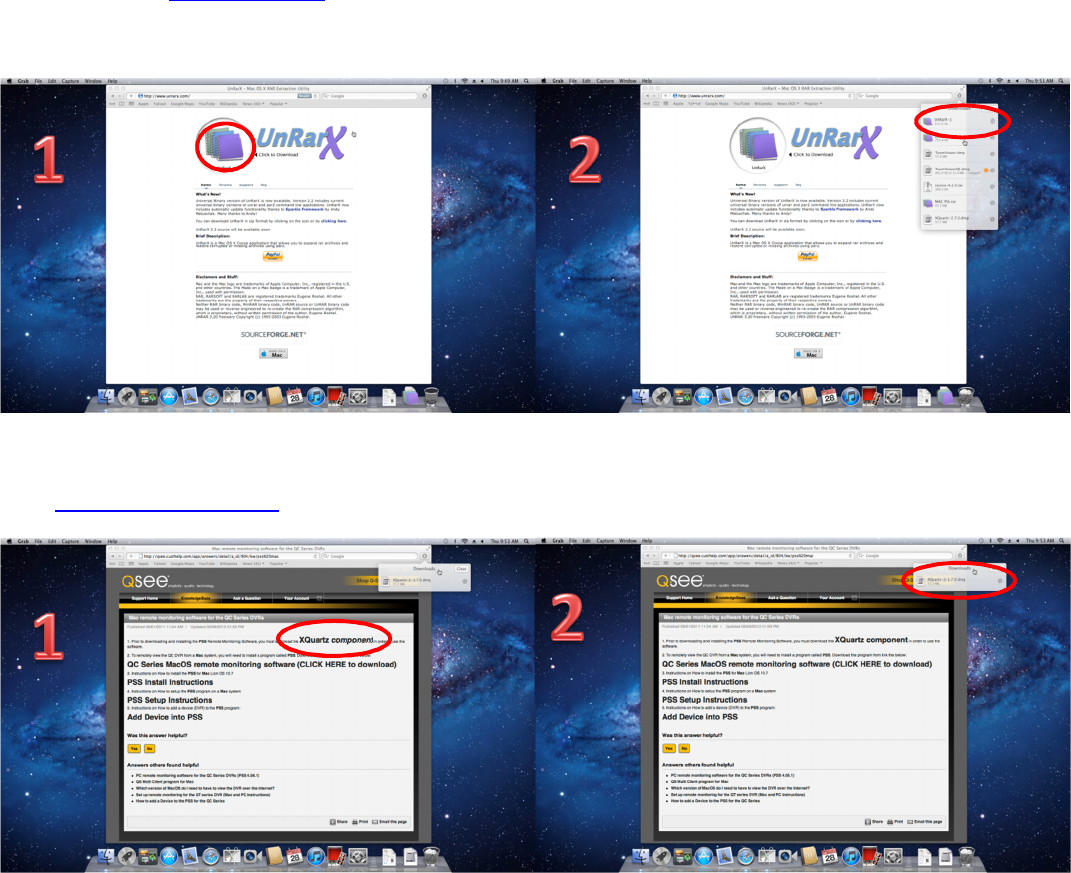
Step 1) Download and Install UnrarX So you can open the PSS Download package
Open Safari, Go to www.unrarx.com Click on the stack of notebooks to start the download
Once the download is completed, Double Click on “UnRarX” It will install in the background
Step 2) Download and Install the XQuartz component
Go to www.q-see.com/support Search for “904” Click on the “XQuartz component” Link, the download will begin.
Once completed, Double Click “XQuartz-2-1.70.dmg from the “Downloads” tab, Double Click “XQuartz.pkg” to launch
the Installer.
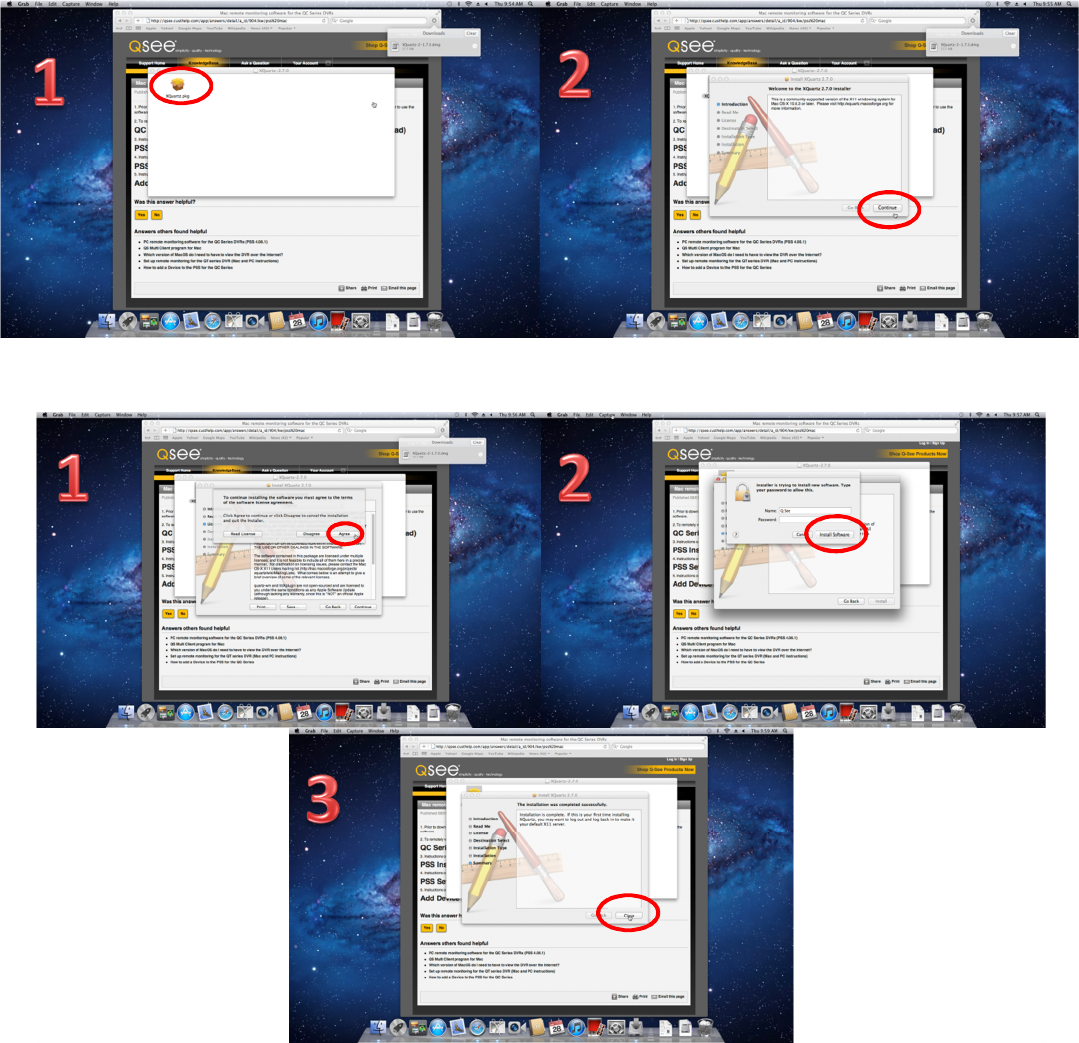
Proceed through the entire installation, clicking “Continue” when prompted, “Agree” to terms, and Click “Install”
Now we have the Xquartz component Installed
Step 3 Update the XQuartz Component
Open “Finder” Go to “Applications” then Double Click “Utilities” Double Click “XQuartz”
It will prompt you to Update, YOU MUST PERFORM THE UPDATE
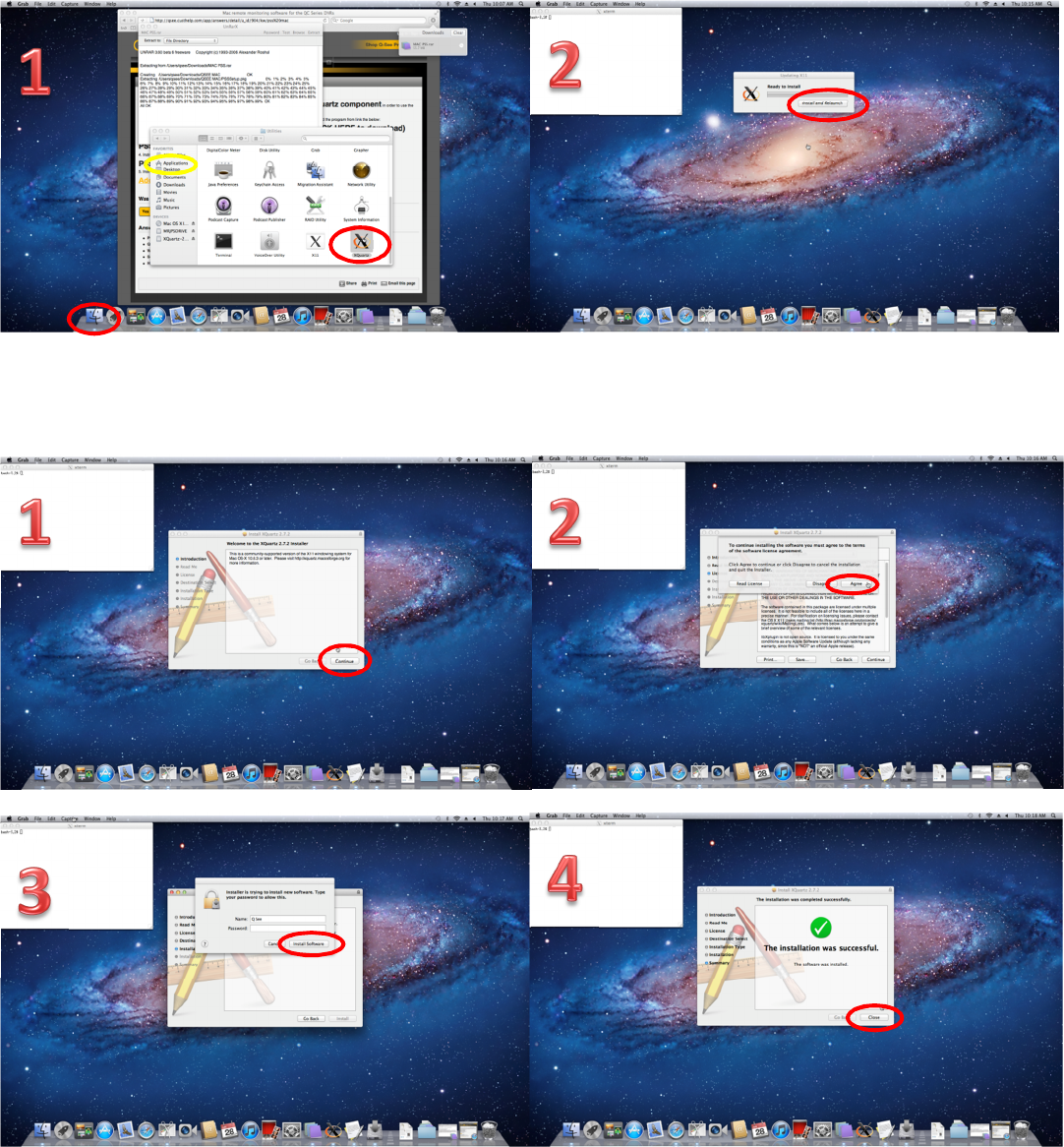
Once the Download completes, “Install and Re-launch”
Proceed through the entire installation, clicking “Continue” when prompted, “Agree” to terms, and Click “Install”
Step 4) Install QC Series MacOS Remote Monitoring Software (PSS)
Click on the Download link for “QC Series MacOS remote monitoring software” Double Click “MAC PSS.rar” to extract
the software.
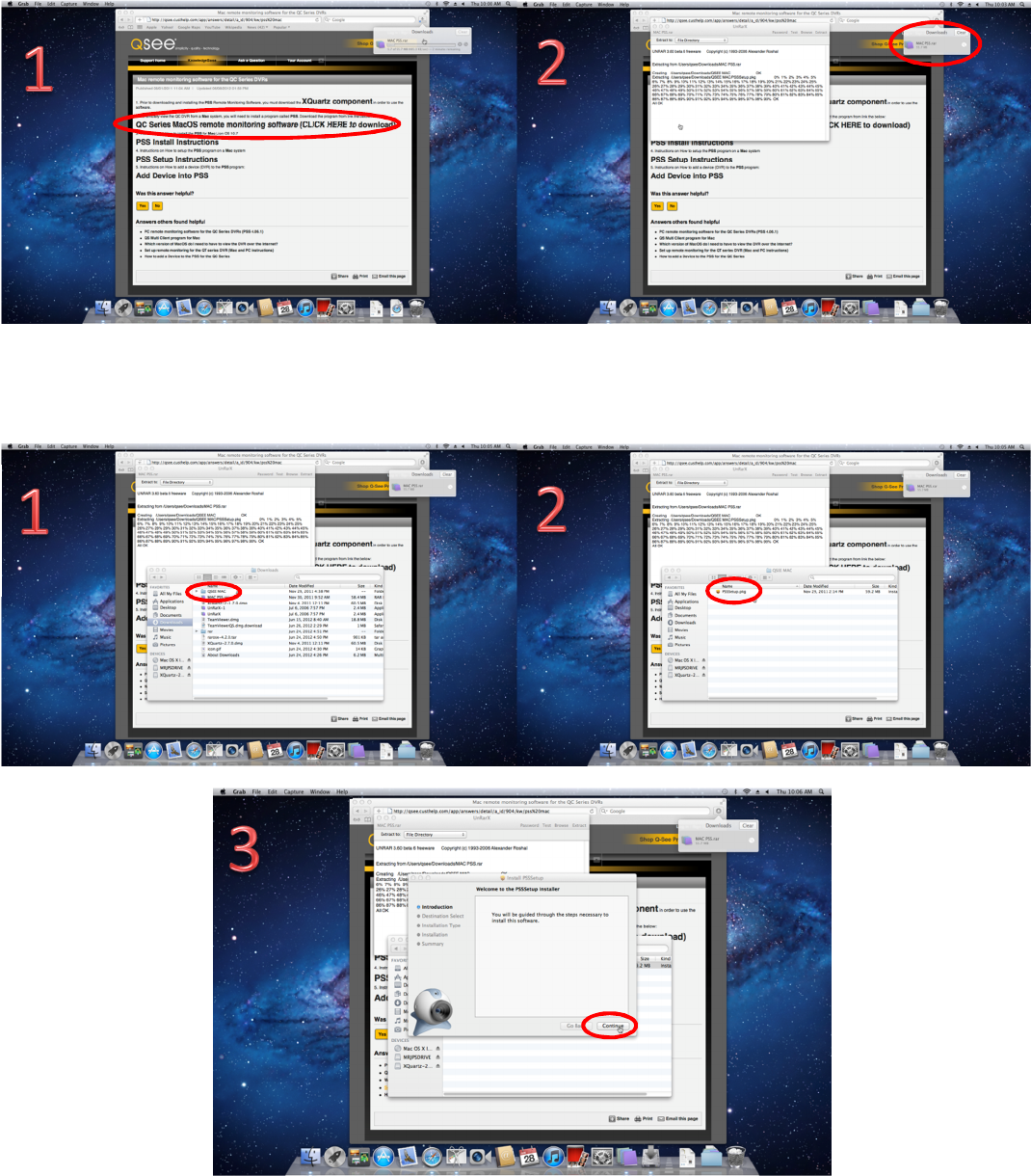
Once extracted, open “Finder” Go to “Downloads” Then locate and Double Click the folder “QSEE MAC”
Double Click “PSSSetup.pkg” To start the Installation of PSS
Click “Continue” and “Install” when prompted by the installation
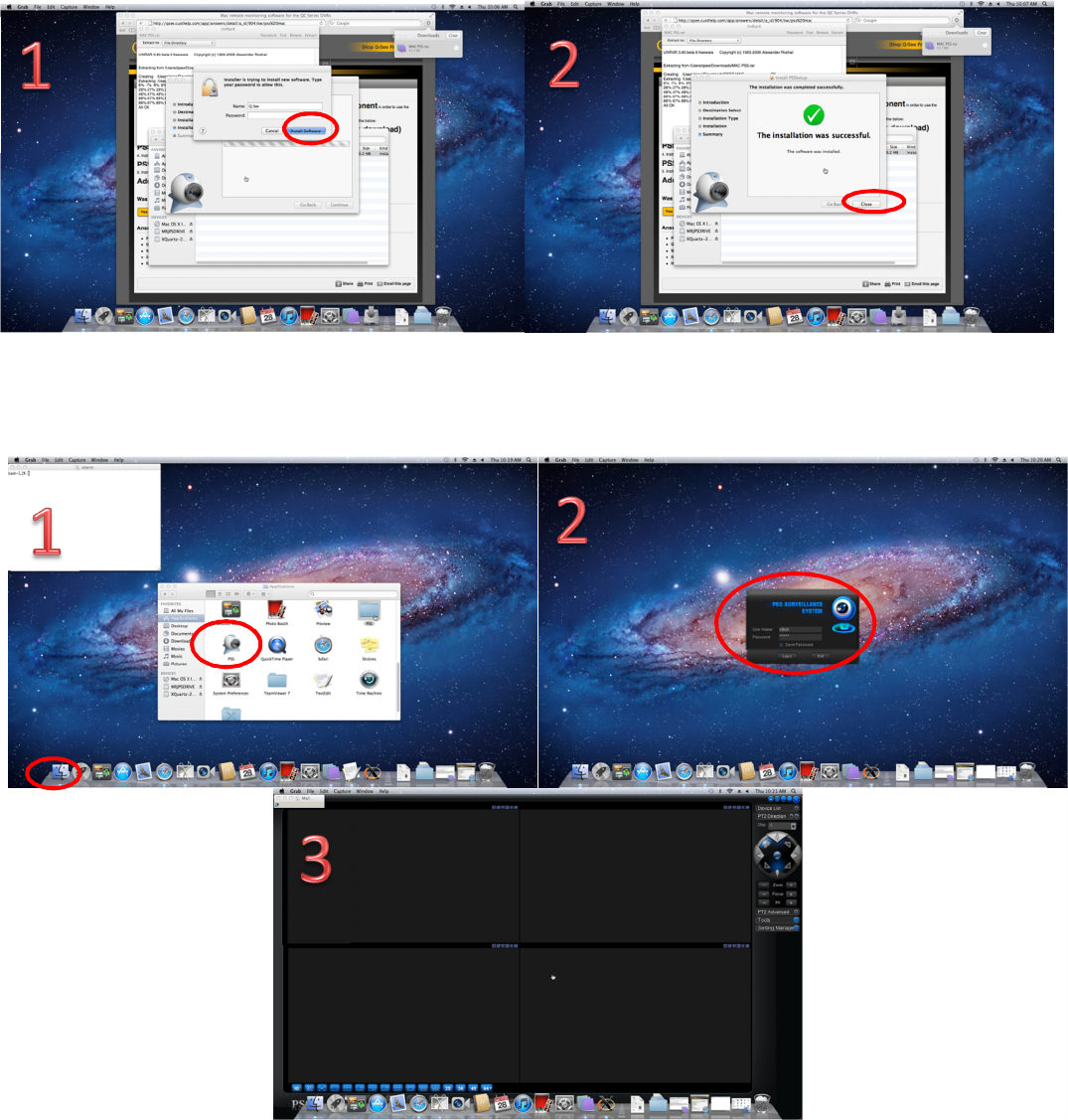
Once completed, go to “Finder” Click on “Applications” then Double Click on the PSS Camera Icon
The Software will now load (initial loading can take up to 5 minutes, be patient)
Congratulations, PSS is successfully Installed
