Q See Qc Motion Detection Sensitivity User Manual
2016-11-23
User Manual: Q-See Qc Motion Detection - Sensitivity
Open the PDF directly: View PDF  .
.
Page Count: 3
Motion Detection
Sensitivity
Your DVR is set to record video whenever motion is detected. You can limit motion detection to only
certain areas with different levels of sensitivity.
STEP 1
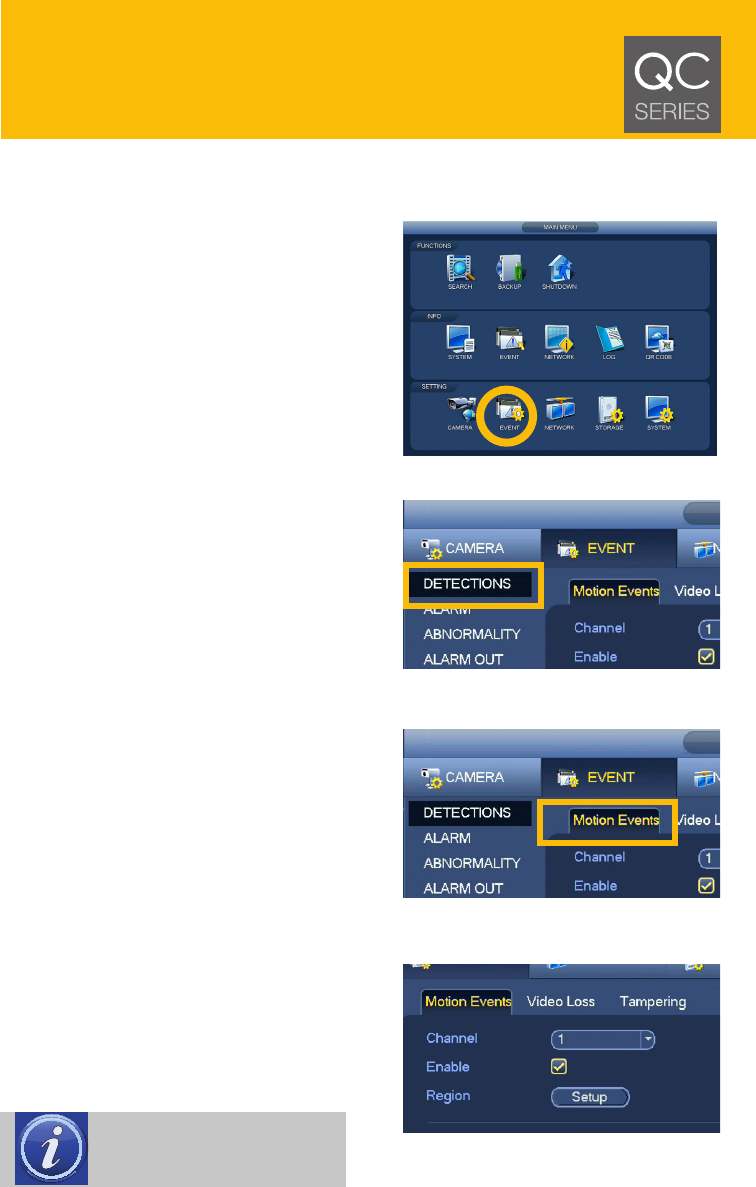
In the Main Menu, click on Event. (picture 1)
PICTURE 1
PICTURE 2
PICTURE 3
PICTURE 4
STEP 2
Make sure that Detections is selected in list on the
left. (picture 2)
STEP 3
Make sure that the Motion Events tab is selected.
(picture 3)
STEP 4
Select the Channel you want to configure using the
pulldown. (picture 4)
STEP 5
Click the Setup button next to Region. (picture 4)
NOTE: Motion detection will
only occur if the Enable box is
checked for that camera.
PICTURE 5
PICTURE 6
PICTURE 7
PICTURE 8
STEP 6
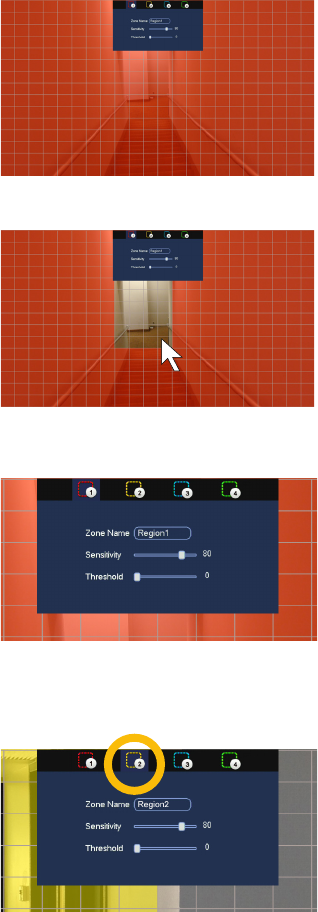
You will see the view from the selected camera with
a red overlay. (picture 5)
• Only the areas covered by an overlay will be
motion sensitive.
• The overlay will not appear on your video.
STEP 7
Click and drag with the mouse to remove the over-
lay from areas you do not want to detect motion.
(picture 6)
• Click and drag to restore the overlay to selected
areas.
STEP 8
Adjust the sensitivity of the area using the sliders.
(picture 7)
Sensitivity: How much motion must occur to
trigger an event.
Threshold: Over how big an area must motion
take place in order to trigger an event.
• The control area will disappear to allow you
to configure the entire area. It will reappear if
the cursor is moved to the top center of the
screen.
STEP 9
Create areas with different motion sensitivity, if
desired, by clicking on another zone. (picture 8)
• Zones with higher numbers will override the
settings of lower-numbered zones in areas
where they overlap.
STEP 10
Once you have completed setting up your zones, right-click to exit.
PICTURE 9
PICTURE 10
STEP 11
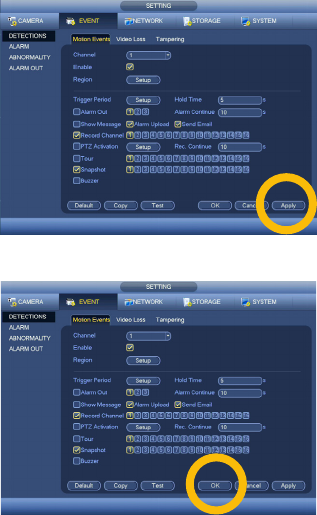
Click Apply. (picture 9)
STEP 12
Click OK to save your settings and exit the window.
(picture 10)
