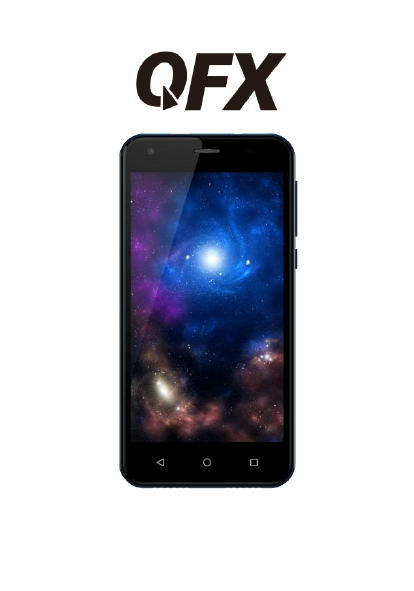
QFX TLW-100 3G Smart Phone User Manual

QFX Inc. 3G Smart Phone

Contents

user manual

 1  Content 1 General Information ...................................................... 3 1.1 Profile .......................................................................... 3 1.2 Safety warning and Attentions ..................................... 3 2 Your phone..................................................................... 5 2.1 Phone overview ........................................................... 5 2.2 Functions of Keys ........................................................ 5 2.3 Functions of icons ....................................................... 5 3 Getting started ............................................................... 6 3.1 Installing the SIM Card and the Battery ...................... 6 3.2 Charging the Battery ................................................... 6 3.3 Linking to the Networks and devices ........................... 7 3.4 Using the touch screen................................................ 8 3.5 Using the onscreen keypad ......................................... 8 3.6 Dialing Calls ................................................................ 9 4 Using the Menu ............................................................. 9 4.1 Android™ Keyboard settings ...................................... 9 4.2 Calculator .................................................................... 9 4.3 Calendar ...................................................................... 9 4.4 Camera ...................................................................... 10 4.5 Chrome ...................................................................... 10 4.6 Clock ......................................................................... 10 4.7 Contacts .................................................................... 10 4.8 Drive .......................................................................... 11 4.9 Duo ............................................................................ 11 4.10 File Manager ............................................................. 11 4.11 FM Radio ................................................................... 11 4.12 Gallery ....................................................................... 11 4.13 Gmail  ........................................................................ 11 4.14 Google™ ................................................................... 12 4.15 Hangouts ................................................................... 12 4.16 Maps  ........................................................................ 12 4.17 Messaging ................................................................. 12
 2  4.18 Phone ........................................................................ 12 4.19 Photos ....................................................................... 12 4.20 Play Movies & TV ...................................................... 12 4.21 Play Music ................................................................. 12 4.22 Google Play Store ..................................................... 12 4.23 Settings ..................................................................... 13 4.24 SIM Toolkit ................................................................. 14 4.25 Viber   ........................................................................ 14 4.26 WhatsApp .................................................................. 14 4.27 YouTube .................................................................... 14 5 Appendix ...................................................................... 15
 3  1  General Information 1.1 Profile Please read this pamphlet carefully in order to make your phone in perfect condition. Our company may change this mobile phone without prior written notice and reserves the final right to interpret the performance of this mobile phone. Due to different software and network operators, display on your phone may be different, refer to your phone for details. 1.2 Safety warning and Attentions Safety warning  ROAD SAFETY COMES FIRST Do not  use  a hand-held phone while driving. Use hands-free fittings when calls are  unavoidable while driving. In  some countries,  dialing or  receiving calls while driving is illegal!  SWITCH OFF IN AIRCRAFT Wireless devices can cause interference in aircraft. Using a mobile phone in flight is illegal and risky.   Please make sure that your mobile phone is powered off in flight.  SWITCH OFF BEFORE ENTERING RISKY AREAS Strictly  observe  the  relevant  laws,  codes,  and  regulations  on  the  use  of mobile phones in risky areas. Turn off your mobile phone before entering a place susceptible to explosion, such as an oil station, oil tank, chemical plant or a place where a blasting process is under way.  OBSERVE ALL SPECIAL REGULATIONS Follow any  special regulations in  force in  any  area such  as  hospitals  and always switch off your phone whenever it is forbidden to use it or, when it may cause interference or danger. Properly use your mobile phone near medical apparatuses, such as pacemakers, hearing aids and some other electronic medical devices, as it may cause interference to such apparatuses.  INTERFERENCE The  conversation  quality  of  any  mobile  phone  may  be  affected  by  radio interference. An antenna is built inside the mobile phone and located below the microphone. Do not touch the antenna area during a conversation, lest that the conversation quality deteriorate.  QUALIFIED SERVICE Only qualified personnel may install or repair phone equipment. Installing or repairing the mobile phone on your own may bring great danger and violates the warranty rules.  ACCESSORIES AND BATTERIES Use only approved accessories and batteries.
 4   USE SENSIBLY Use only in a normal and proper manner.  EMERGENCY CALLS Ensure the phone is switched on and in service, enter the emergency number, e.g. 112, then press the Dial key. Give your location and state your situation briefly. Do not end the call until told to do so. Note:  Just  like  all  other  mobile  phones,  this  mobile  phone  does  not necessarily support all the features described in this manual due to network or  radio  transmission  problems.  Some  networks  even  do  not  support  the emergency call service. Therefore, do not rely solely on the mobile phone for critical communications such  as first  aid.  Please  consult  the  local  network operator.  Precautions This mobile phone is well designed with fine art. Please exercise special care when using it. The following suggestions will help your mobile phone survive the warranty period and extend its service life:  Keep the mobile phone and all its fittings beyond children's reach.  Keep the  mobile  phone dry.  Keep  away  from  rain, moisture, liquid  or other substances that may corrode electronic circuits.  Do not use or store the mobile phone in dusty place, lest that active parts of the mobile phone be damaged.  Do  not  store  the  mobile  phone  in  a  high-temperature  place.  High temperature will  shorten  the life  of  electronic  circuits and  damage the battery and some plastic parts.  Do not store the mobile phone in a chilly place. Otherwise, moistures will be formed inside the mobile phone to damage electronic circuits when the mobile phone is moved to a constant temperature place.  Do not throw, knock or shock the mobile phone, as that will destroy the internal circuits and high-precision components of the mobile phone.
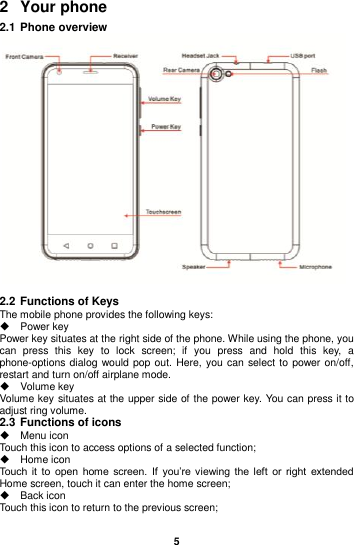
 5  2  Your phone 2.1 Phone overview   2.2 Functions of Keys The mobile phone provides the following keys:   Power key Power key situates at the right side of the phone. While using the phone, you can  press  this  key  to  lock  screen;  if  you  press  and  hold  this  key,  a phone-options dialog would pop out. Here, you can select to power on/off, restart and turn on/off airplane mode.   Volume key Volume key situates at the upper side of the power key. You can press it to adjust ring volume. 2.3 Functions of icons   Menu icon Touch this icon to access options of a selected function;   Home icon Touch  it  to  open  home  screen.  If  you’re viewing  the  left  or  right  extended Home screen, touch it can enter the home screen;   Back icon Touch this icon to return to the previous screen;
 6  3  Getting started 3.1 Installing the SIM Card and the Battery A SIM card carries useful information, including your mobile phone number, PIN (Personal Identification Number), PIN2, PUK (PIN Unlocking Key), PUK2 (PIN2  Unlocking  Key),  IMSI  (International  Mobile  Subscriber  Identity), network information, contacts data, and short messages data. Note: After powering off your mobile phone, wait for a few seconds before removing or inserting A SIM card. Exercise  caution  when  operating  A  SIM  card,  as  friction  or  bending  will damage the SIM card. Properly keep the mobile phone and its fittings such as the SIM cards beyond children's reach. Note: The SD card is a miniature object. Keep it out of the reach of children for fear that children swallow it! 3.2 Charging the Battery The  lithium  battery  delivered  with  the  mobile  phone  can  be  put  into  use immediately  after  being  unpacked.  A  new  battery  will  have  maximum performance after the first three full charge/discharge cycles. Battery level indication:   Your mobile phone can monitor and display the battery state.   Normally the remaining energy of the battery is indicated by the battery level icon at the upper right corner of the display screen.   When  the  battery  energy  is  insufficient,  the  mobile  phone  prompts "Battery low".   Using a travel adapter:   Install the battery into the mobile phone before charging the battery.   Connect the adapter of  the travel charger with the charging slot in  the mobile phone. Ensure that the adapter is fully inserted.   Insert the plug of the travel charger to an appropriate power outlet.   During  the  charging,  the  battery  level  grids  in  the  battery  icon  keep flickering till the battery is fully charged.   The battery icon does no longer flicker when the charging process ends. Note: Ensure that the plug of the charger, the plug of the headphones, and the plug of the USB cable are inserted in the right direction. Inserting them in a wrong direction may cause charging failure or other problems. Before the charging, ensure that the standard voltage and frequency of the local mains supply match the rated voltage and power of the travel charger. Optimizing battery life You  can  extend  your  battery’s life  between charges  by  turning off features that  you  don’t  need.  You  can  also  monitor  how  applications  and  system
 7  resources consume battery power.   To guarantee  the optimal  performance  of  your  battery,  please stick  to  the following rules:  Turn off radios that you aren’t using. If you aren’t using Wi-Fi, Bluetooth, or GPRS, use the Setting application to turn them off.   Turn down screen brightness and set a shorter screen timeout.  If you  don’t  need them,  turn  off automatic  syncing for Gmail, Calendar, Contacts, and other applications. Note: On the Home screen, press Menu icon and touch Settings >Battery .The Battery Use screen lists the applications that have been using the battery, from greatest to least battery use. The top of the screen displays the time since you were last connected to a charger or, if you’re currently connected to one, how long you were running on battery power before you connected to a charger. Then each application or service that used battery power during that time is displayed, in order of the amount of power they used. Touch an application in the Battery Use screen to learn details about its power consumption. Different applications offer different kinds of information.   3.3 Linking to the Networks and devices Your  phone  can  connect  to  a  variety  of  networks  and  devices,  including mobile networks for voice and data transmission, Wi-Fi data networks, and Bluetooth devices, such as headsets. You can also connect your phone to a computer, to transfer files from your phone’s SD card and share your phone’s mobile data connection via USB. Connecting to mobile networks When you assemble your phone with a SIM card, your phone is configured to use your provider’s mobile networks for voice calls and for transmitting data.   Connecting to Wi-Fi networks Wi-Fi is a wireless networking technology that can provide Internet access at distances of up to 100 meters, depending on the Wi-Fi router and your surroundings. Touch Settings>Wireless & networks >Wi-Fi. Check Wi-Fi to turn it on. The phone scans for available Wi-Fi networks and displays the names of those it finds. Secured networks are indicated with a Lock icon. Note: If the phone finds a network that you connected to previously, it connects to it. Touch a network to connect to it. If the network is open, you are prompted to confirm that you want to connect to that network by touching Connect. If the network is secured, you’re prompted to enter a password or other credentials. Connecting to Bluetooth devices Bluetooth is a short-range wireless communications technology that devices can use to exchange information over a distance of about 8 meters. The most common Bluetooth devices are headphones for making calls or listening to music, hands-free kits for cars, and other portable devices, including laptops
 8  and cell phones. Touch Settings>Wireless & networks >Bluetooth. Check Bluetooth to turn it on. You must pair your phone with a device before you can connect to it. Once you pair your phone with a device, they stay paired unless you unpair them. Your phone scans for and displays the IDs of all available Bluetooth devices in range. If the device you want to pair with isn’t in the list, make it discoverable. Connecting to a computer via USB You can connect your phone to a computer with a USB cable, to transfer music, pictures, and other files between your phone’s SD card and the computer. 3.4 Using the touch screen  Touch-screen tips    Touch To act on items on the screen, such as application and settings icons, to type letters  and  symbols  using  the  onscreen  keyboard,  or  to  press  onscreen buttons, you simply touch them with your finger.  Touch & hold   Touch & hold an item on the screen by touching it and not lifting your finger until  an  action  occurs.  For  example,  to  open  a  menu  for  customizing  the Home screen, you touch an empty area on the Home screen until the menu opens.  Drag   Touch & hold an item for a moment and then, without lifting your finger, move your finger on the screen until you reach the target position.    Swipe or slide  To swipe or  slide,  you quickly move  your finger  across  the  surface of  the screen, without  pausing  when you first  touch it  (so  you  don’t  drag  an  item instead). For example, you slide the screen up or down to scroll a list.  Lock screen   When Screen lock in Security setting is enabled, press Power key to lock the handset. This helps to  prevent accidental touching  of  keys and as well  as power saving. When Sleep function in Display setting is enabled, after the handset device  has been  idle for preset  period,  the  screen  will  be  locked automatically to save power.    Unlock screen   Press Power key to switch on the handset device. The lock screen appears. Swipe left/right to open camera/phone application. Swipe up to unlock screen, and the screen being locked last time will show.   3.5 Using the onscreen keypad You  enter  text  using  the  onscreen keyboard.  Some applications  open  the keyboard automatically. In others, you touch a text field where you want to enter text to open the keyboard. You can also enter text by speaking instead
 9  of by typing.    To enter text Touch  a  text  field,  and  the  onscreen  keyboard  opens.  Some  applications open the keyboard automatically. In others, you touch a text field where you want to enter text to open the keyboard.  Touch the keys on the keyboard to type. The characters you’ve entered appear in the text field, with suggestions for the word you are typing below.    Use the Delete icon to erase characters to the left of the cursor. After finishing typing, touch Back icon to close the keyboard. 3.6 Dialing Calls  Dialing a call to a number in the contacts Touch the Phone icon  or the  phone application icon  on  the Home  screen, then select the Contacts tab. Swipe or slide upward/downward to pick out the target contact. Then you can touch the dial icon to originate a call.  Dialing a call to a number in call log Touch the Phone icon  or the  phone application icon  on  the Home  screen, then select the call log tab. Swipe or slide upward/downward to pick out and touch the target contact. Then you can originate a call.  Answering incoming calls Drag the Answer icon towards right to answer an incoming call. Touch the End icon to end the current conversation. To reject an incoming call, drag the End icon towards left.  Managing multiple calls If  you accept a  new  call  when  you’re  already  on  a  call,  you  can  drag  the Answer icon towards right to answer the current calls.   4  Using the Menu 4.1 Android Keyboard settings You can use this to set the input keyboard. 4.2 Calculator You can use this  Calculator to  solve simple arithmetic problems or use its advanced operators to solve more complex equations. Enter numbers and arithmetic operators on the  basic screen;  swipe left  to open the advanced screen; Touch DEL to delete the last number or operator you entered. Touch & hold DEL to delete everything in the display. 4.3 Calendar You can open Calendar to view events you’ve created. Touch  the  Calendar  icon  in  the  main  menu  interface.  Events  from  each account  you’ve  added  to  your  phone  and  configured  to  synchronize calendars are displayed in Calendar.
 10  Creating an event You can use Calendar on your phone to create events. In any calendar view, touch menu icon at the left top of the screen > New event to open an event details screen for a new event. Enter event title, time, and optional additional details about the event.   Synchronizing and displaying calendars When you add a Google Account or Microsoft Exchange ActiveSync account to  your  phone  that  includes  a  calendar  service,  and  you  configure  that account to synchronize calendar events to the phone, the events from that calendar are added and kept up to date in Calendar on the phone. Change Calendar settings You can change the following settings for how Calendar displays event and how it notifies you of upcoming events. Open a Calendar view, touch menu icon and touch settings. 4.4 Camera Touch the Camera icon in the main menu interface, camera opens in Normal mode, ready to take a picture. In this mode, you can touch the bottom icon to take a photo or record a video.   4.5 Chrome You can use Chrome to view web pages and search for information on the web. 4.6 Clock Touch the Clock icon in the main menu interface. Clock opens with the date and time displayed on your Home screen wallpaper. You can set an alarm by modifying an existing alarm or by adding a new one. 4.7 Contacts Create contact: Touch add contacts icon in the right down side, fill in the information and save it. Delete contact: Long press the target contacts. Touch menu icon to select Delete to delete contacts.   In the contacts screen, touch menu icon and you can perform the following operations: SIGN IN:you can sync with your account. Contacts to display: you can select the contacts on different group to display. Labels: you can create labels and add contacts to labels from your phone contact. Settings: you can set sort list by and view contact names in this interface. Import/export: you can import/export the contacts form SIM card or storage; you can also share the visible contacts. Blocked numbers: you can screen calls and SMS from specific phone numbers.
 11  4.8 Drive Google™ Drive is a cloud storage and file management  program. You can enter it after logging in the Google account. 4.9 Duo This is a social application. You can do video chat with another user of the same  app.  Please connect  to  the internet  before  use. It  will  automatically switch between Wi-Fi and Cellular Data, depending on the speed of each. 4.10  File Manager The  phone  supports  the  SD  card.  You  can  use  the  File  Manager  to conveniently manage various directories and files on the phone and the SD card. 4.11  FM Radio Please plug in the compatible headphones to the device and then turn on the radio. The  headphones  cable  can be used as FM  Antenna. Please adjust appropriate  volume  when  listening  to  the  radio.  Continue  to  use  higher volume is harmful for your ear.   4.12  Gallery Both pictures and videos taken by camera or stored in the phone and the SD card can be scanned through this function.   4.13  Gmail You can use the Gmail application to read and send email.   Touch Gmail icon to access it. If the Gmail account has not been set up, you can set up a Gmail account in a few steps.  Account setup   Enter a Gmail address and the account’s password.    Account settings     Set inbox checking frequency.     Set Send email from this account by default.     Set Notify me when email arrives.     Set Synchronize contacts, calendar or Gmail from this account.     Set Automatically download attachments when connected to Wi-Fi.  Compose and sending Gmail   To compose and send an Gmail:   1.    Touch the create icon to compose a new Gmail.   2.    Enter Gmail address(es) for intended recipient(s).     3.    Touch Menu → Attach file to attach a file.     4.    Touch Menu → Add Cc/Bcc to add copy or blind copy this Gmail to other contacts.     5.    After completing the Gmail, Touch  send icon to send the Gmail. Touch folder icon to check the account status. For each Gmail account there are five default  folders, i.e.,  Inbox,  Drafts,  Outbox,  Send  and  Trash.  To  view  sent Gmails, open Sent folder and tap refresh icon.
 12  4.14  Google You  can  use  the  Google  application  to  instant  access  to  weather,  road conditions, such as practical information. 4.15  Hangouts Hangouts  is  a  communication  application,  you  can  create  or  sign  in  your hangouts  account,  chat  with  your  friends.  Please  connect  to  the  internet before use. 4.16  Maps Through this function, you can view the specific geographic location, or look for the place you want to reach. You must first add account. You can quickly see your favorite site and get a better suggestion after login. 4.17  Messaging You can use Messaging to exchange text messages (SMS) and multimedia messages (MMS) with your friends on their mobile phones.  Sending a message   1.    Touch message icon on the home screen and touch + icon to edit a new message.     2.    Enter a contact’s name or call number in the To field. As the information is  entered,  all  matching  contacts  appear.  Touch  a  suggested  contact  or multiple contacts as message recipient(s).     3.    Touch Enter message to compose your message. 4.    After completing the message, touch Send icon to send your message. 4.18  Phone Touch the phone icon on the Home screen or in main menu interface. Three tabs are listed at the top of the screen. Select the phone tab and you can find a dialpad screen where you can input phone number to originate a call. Note:  During  a  conversation,  you  can’t  originate  a  new  call  by  open  the dialpad, enter number and press dial key. If you press dial key, the  current conversation would hold.   4.19  Photos Both pictures and videos taken by camera or stored in the phone and the SD card can be scanned through this function. You can also view the files on line after you login the Google account. 4.20  Play Movies & TV You can use Play Movies & TV to watch the video. Please login the Google account before use. 4.21  Play Music Play Music plays audio files stored on your phone. It supports a wide variety of  audio  file  formats,  so  it  can play  music  that  you purchase  from  online stores,  music  that  you  copy from  your CD  collection,  and  so on.  You  can download music on line after you login the Google account 4.22  Google Play Store
 13  You can enter the play store after logging in the Google account, and browse or  download  related  applications  and  games,  entertainment,  film  and television, music, books, application for suspension, etc. Use the upper right corner of the microphone icon can help you find relevant content. 4.23  Settings  Wireless& Networks You  can  use  Wireless  &  Network  settings  to  manage  your  SIM  card, configure and manage connections to networks and devices by using Wi-Fi. You also can set Bluetooth, data usage, airplane mode, tethering & portable hotspot, VPN and Cellular networks in this interface.  Connectes Device You can use Connectes Device settings to manage Bluetooth、cast、printing and USB connected  Apps& Notifications You can use the Applications settings to view details about the applications installed on your phone, to manage their data and force them to stop, to view and control currently running services, and manage all applications to send notifications in this interface..  Battery   You  can  view  your  battery  status,  battery  level  and  battery  use  in  this interface.  Display You can set MiraVision™ ( to display picture quality optimization) , Brightness level, Adaptive brightness,  Wallpaper, Sleep, Auto-rotate screen, Font  size and When device is rotated in this interface.  Sound There  are  system  volume,  ringtone,  Other  sounds,  Cast  and  Sound enhancement for you set.  Storage Use the Storage settings to  monitor the used and available space on your phone and on your SD card and to manage your SD card.  DuraSpeed Use the DuraSpeed to foreground APP boosting  by  restricting  background Apps switched off in the list.  Security&Location You can set the parameters about security through this function.and turn on Access  to my location, set Mode: such as high accuracy, battery saving or device only, etc. through this function.  Users&Accounts You should add account first before using this function.  Accessibility You use the Accessibility settings to configure any accessibility plug-ins you have installed on your phone.
 14   Google You can use services such as Location, Ads, Nearby, Search & Now, Security, Set up nearby device. SYSTEM  Language & input Use the Language & input settings to select the language for the text on your phone and for configuring the input method.  Gestures you can set Press power button twice for camera  Date & time You can use Date & Time settings to set your preferences for how dates are displayed. You can  also use these settings to  set  your own time  and time zone, rather than obtaining the current time from the network, etc.  Backup You can backup your data in this interface.  System update You can check the version information and update here..  Reset option You can reset your phone in this interface.  About phone   This function enables you to view some phone related information. 4.24  SIM Toolkit STK  service  is  the  tool  kit  of  SIM  card.  This  phone  supports  the  service function .The specific items are depended by SIM card and network. Service menu will be auto added to the phone menu when supported by network and SIM card.. 4.25  Viber This is a communication application. You can create account with your phone number for chatting with your friends. Please connect to the internet before use. 4.26  WhatsApp This is a communication application. You can create account with your phone number  or  sign  in  your  WhatsApp  account  for  chatting  with  your  friends. Please connect to the internet before use. 4.27  YouTube You can use YouTube to watch the video. Please login the Google account before use.
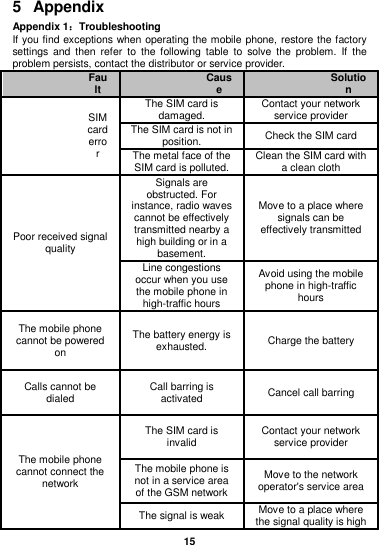
 15  5  Appendix Appendix 1:Troubleshooting If you find exceptions when operating the mobile phone, restore the factory settings and  then  refer  to the  following  table  to  solve the  problem.  If  the problem persists, contact the distributor or service provider. Fault Cause Solution SIM card error The SIM card is damaged. Contact your network service provider The SIM card is not in position. Check the SIM card The metal face of the SIM card is polluted. Clean the SIM card with a clean cloth Poor received signal quality Signals are obstructed. For instance, radio waves cannot be effectively transmitted nearby a high building or in a basement. Move to a place where signals can be effectively transmitted Line congestions occur when you use the mobile phone in high-traffic hours Avoid using the mobile phone in high-traffic hours The mobile phone cannot be powered on The battery energy is exhausted. Charge the battery Calls cannot be dialed Call barring is activated Cancel call barring The mobile phone cannot connect the network The SIM card is invalid Contact your network service provider The mobile phone is not in a service area of the GSM network Move to the network operator's service area The signal is weak Move to a place where the signal quality is high
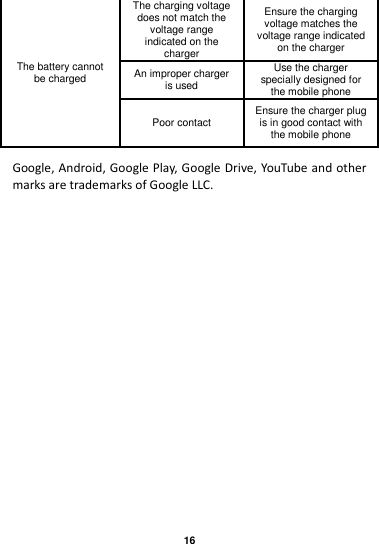
 16  The battery cannot be charged The charging voltage does not match the voltage range indicated on the charger Ensure the charging voltage matches the voltage range indicated on the charger An improper charger is used Use the charger specially designed for the mobile phone Poor contact Ensure the charger plug is in good contact with the mobile phone  Google, Android, Google Play, Google Drive, YouTube and other marks are trademarks of Google LLC.
 17  FCC RF Exposure Information and Statement This device meets the government's requirements for exposure to radio waves. The guidelines are based on standards that were developed by independent scientific organizations through periodic and thorough evaluation of scientific studies. The standards include a substantial safety margin designed to assure the safety of all persons regardless of age or health. The SAR limit of USA (FCC) is 1.6 W/kg averaged. Device types: Smart Phone has also been tested against this SAR limit. SAR information on this and other pad can be viewed on‐line at   http://www.fcc.gov/oet/ea/fccid/. Please use the device FCC ID number for search. This device was tested for typical body-worn operations with the back of the handset kept 10mm from the body. To maintain compliance with FCC RF exposure requirements, use accessories that maintain a 10mm separation distance between the user's body and the back of the handset. The use of belt clips, holsters and similar accessories should not contain metallic components in its assembly. The use of accessories that do not satisfy these requirements may not comply with FCC RF exposure requirements, and should be avoided.  FCC Warning This device complies with Part 15 of the FCC Rules. Operation is subject to the following two conditions: (1) This device may not cause harmful interference, and (2) this device must accept any interference received, including interference that may cause undesired operation. NOTE 1: This equipment has been tested and found to comply with the limits for a Class B digital device, pursuant to part 15 of the FCC Rules. These limits are designed to provide reasonable protection against harmful interference in a residential installation. This equipment generates, uses and can radiate radio frequency energy and, if not installed and used in accordance with the instructions, may cause harmful interference to radio communications. However, there is no guarantee that interference will not occur in a particular installation. If this equipment does cause harmful interference to radio or television reception, which can be determined by turning the equipment off and on, the user is encouraged to try to correct the interference by one or more of the following measures: - Reorient or relocate the receiving antenna. - Increase the separation between the equipment and receiver. -Connect the equipment into an outlet on a circuit different from that to which the receiver is connected. -Consult the dealer or an experienced radio/TV technician for help. NOTE 2: Any changes or modifications to this unit not expressly approved by the party responsible for compliance could void the user's authority to operate the equipment

Navigation menu