Qcom Technology LR802UKN2 802.11 b/g/n Wireless USB Module User Manual LR802UKN2 Manual
Qcom Technology Inc. 802.11 b/g/n Wireless USB Module LR802UKN2 Manual
Manual

LR802UKN2
User’s Manual
QCOM TECHNOLOGY INC.

2
Contents:
WINDOWS VISTA...................................................................................3
Driver Installation........................................................................................................3
Uninstalling the Wireless LAN Card..........................................................................5
Configuring the Wireless LAN Card..........................................................................8
Connecting to an existing network.........................................................................8
WINDOWS 7...........................................................................................11
Driver Installation......................................................................................................11
Uninstalling the Wireless LAN Card........................................................................13
Configuring the Wireless LAN Card........................................................................16
Connecting to an existing network.......................................................................16
WINDOWS XP SP2................................................................................19
Driver Installation......................................................................................................19
Uninstalling the Wireless LAN Card........................................................................21
Configuring the Wireless LAN Card........................................................................24
Connecting to an existing network.......................................................................24
3
Windows Vista
Driver Installation
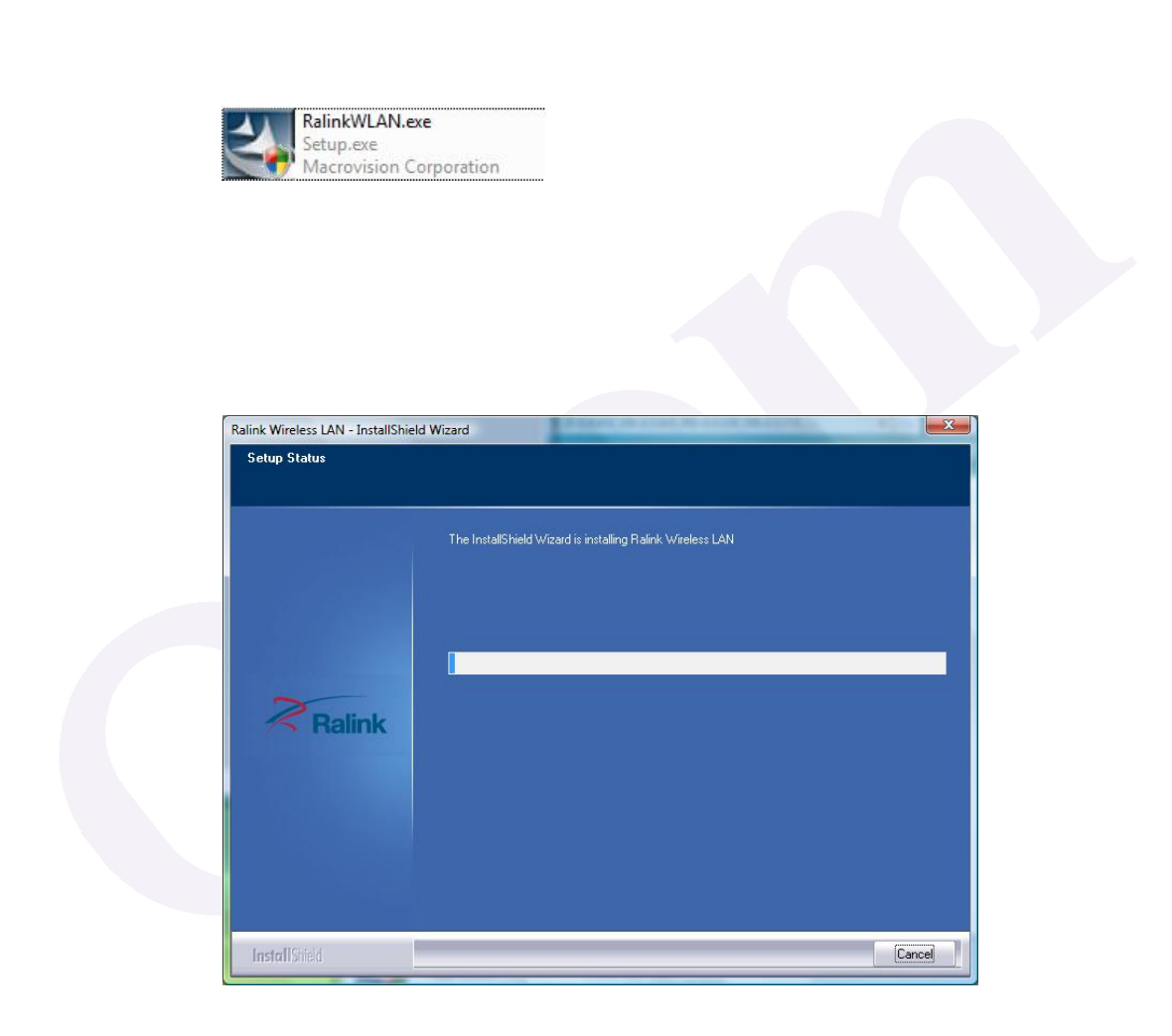
1. For installing the Wireless LAN Card driver, go to the directory where the
Wireless Adapter Installation stored, then double-click the Setup Program
to begin the installation.
(Exsample:RalinkWLAN.exe)
2. Ralink Wireless LAN Setup Wizard is preparing the setup. Please wait.
4
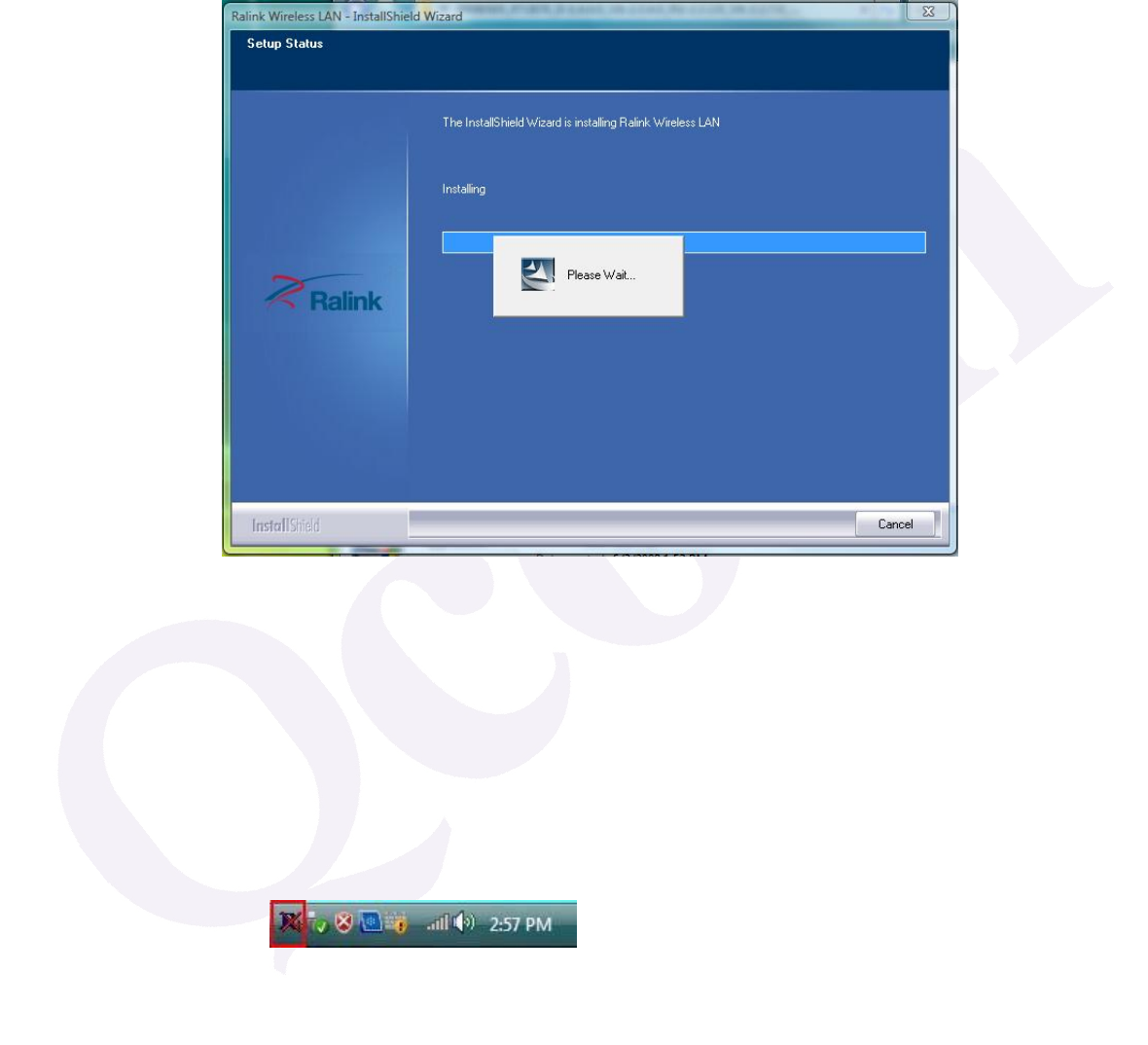
3. The Ralink Wireless LAN driver is installing. Please wait.
4. When the Ralink Wireless LAN – Installshield Winzard screen disappears, the
installation of Ralink Wireless LAN driver is now complete.
5. When you complete the installation, the utility icon will appear on the system
tray ( ). You could double-click it to configure
wireless network settings.
5
Uninstalling the Wireless LAN Card
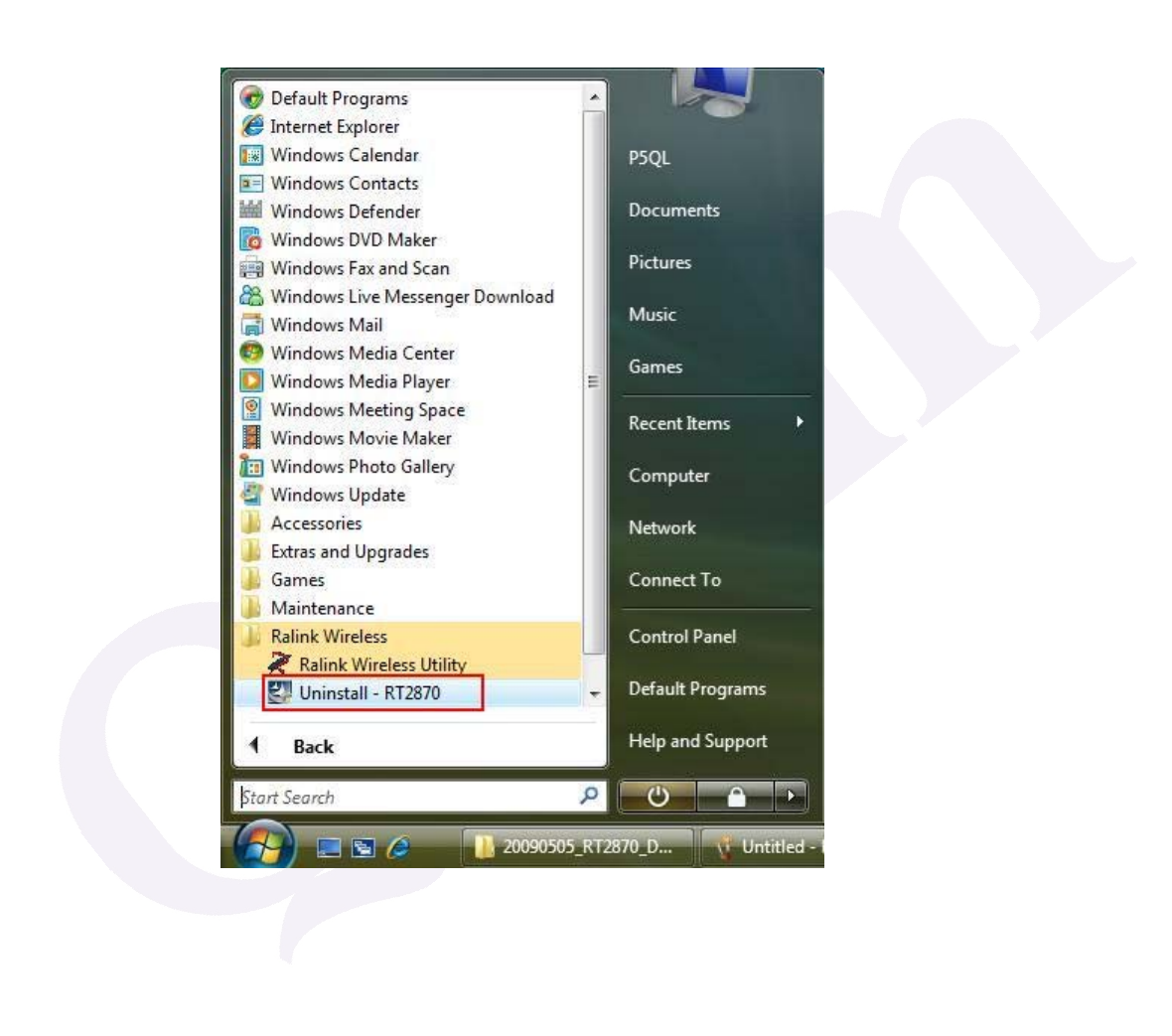
1. For uninstalling the Wireless LAN Card, please go to: Start Æ All Programs Æ
Ralink Wireless under Windows environment. Then click "Uninstall –
RT2870".
6
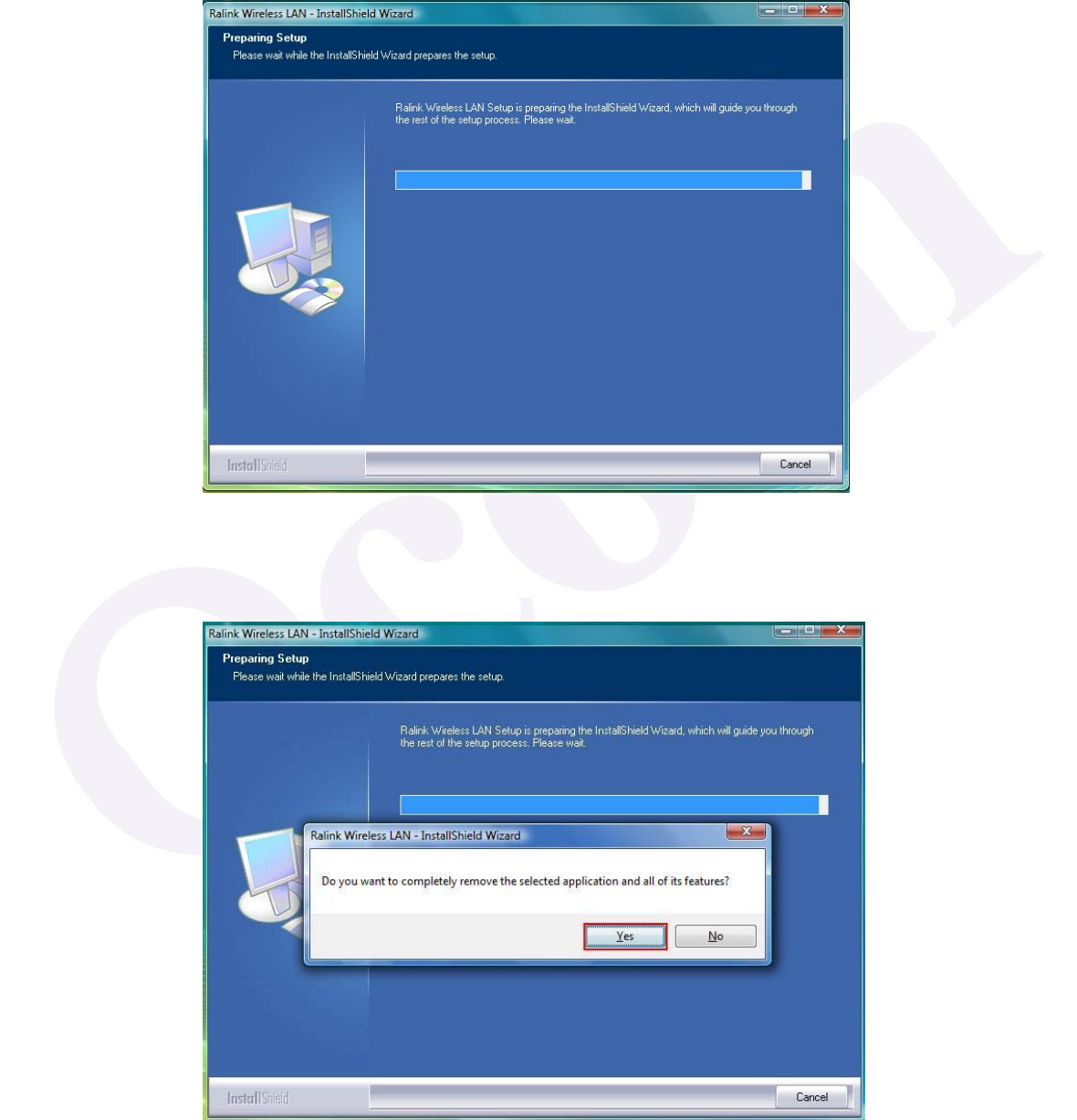
2. Ralink Wireless LAN Setup Wizard prepares to uninstall the driver on your
system. Please wait.
3. Click "Yes" to uninstall the Wireless LAN Card driver and utility.
7
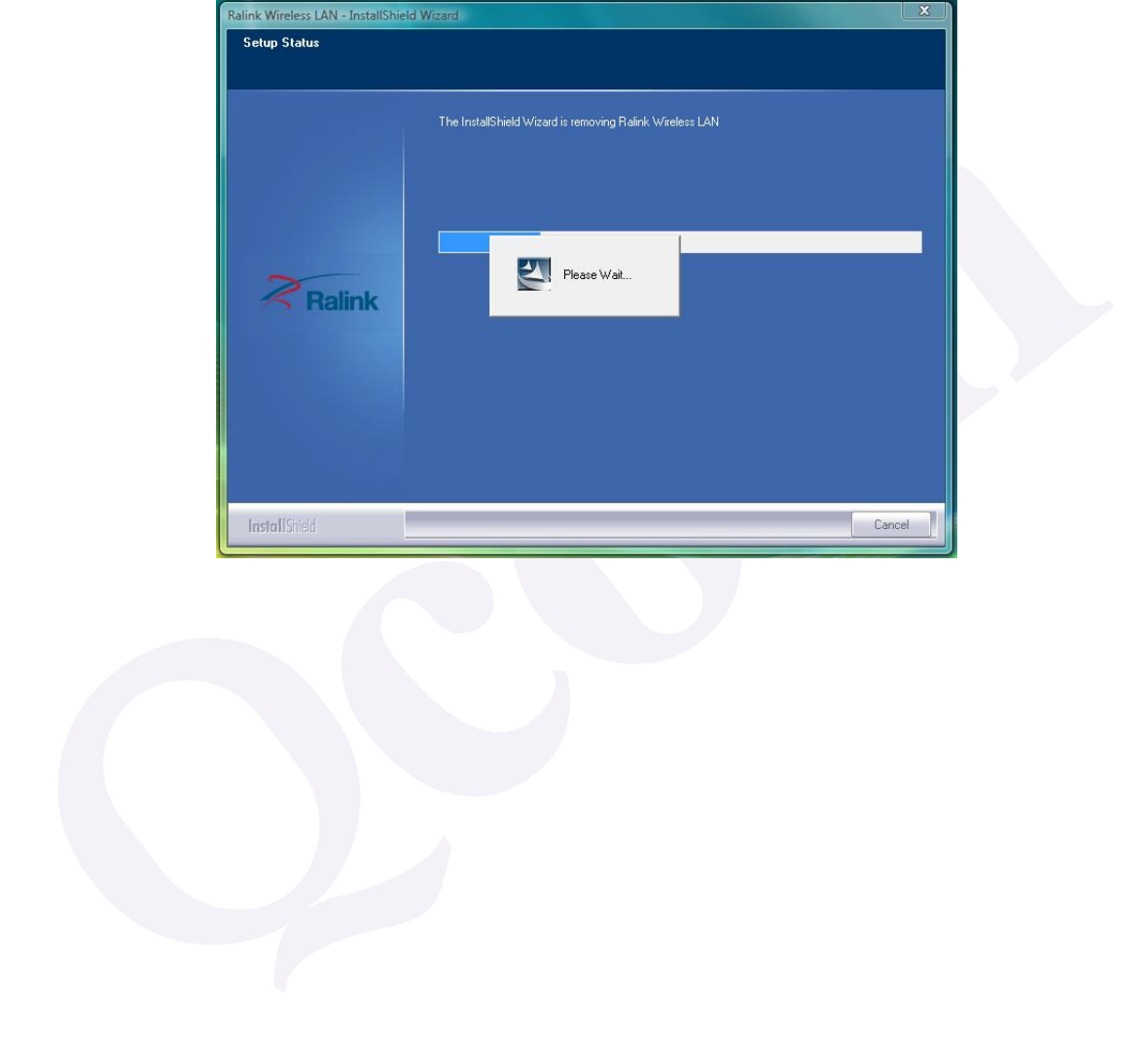
4. Wait for removing the driver and utility.
5. After completing the uninstallation, the Ralink Wireless LAN – Installshield
Winzard screen disappears.
8
Configuring the Wireless LAN Card
Double-click the utility icon in your system tray to begin the utility
configuration.
Connecting to an existing network
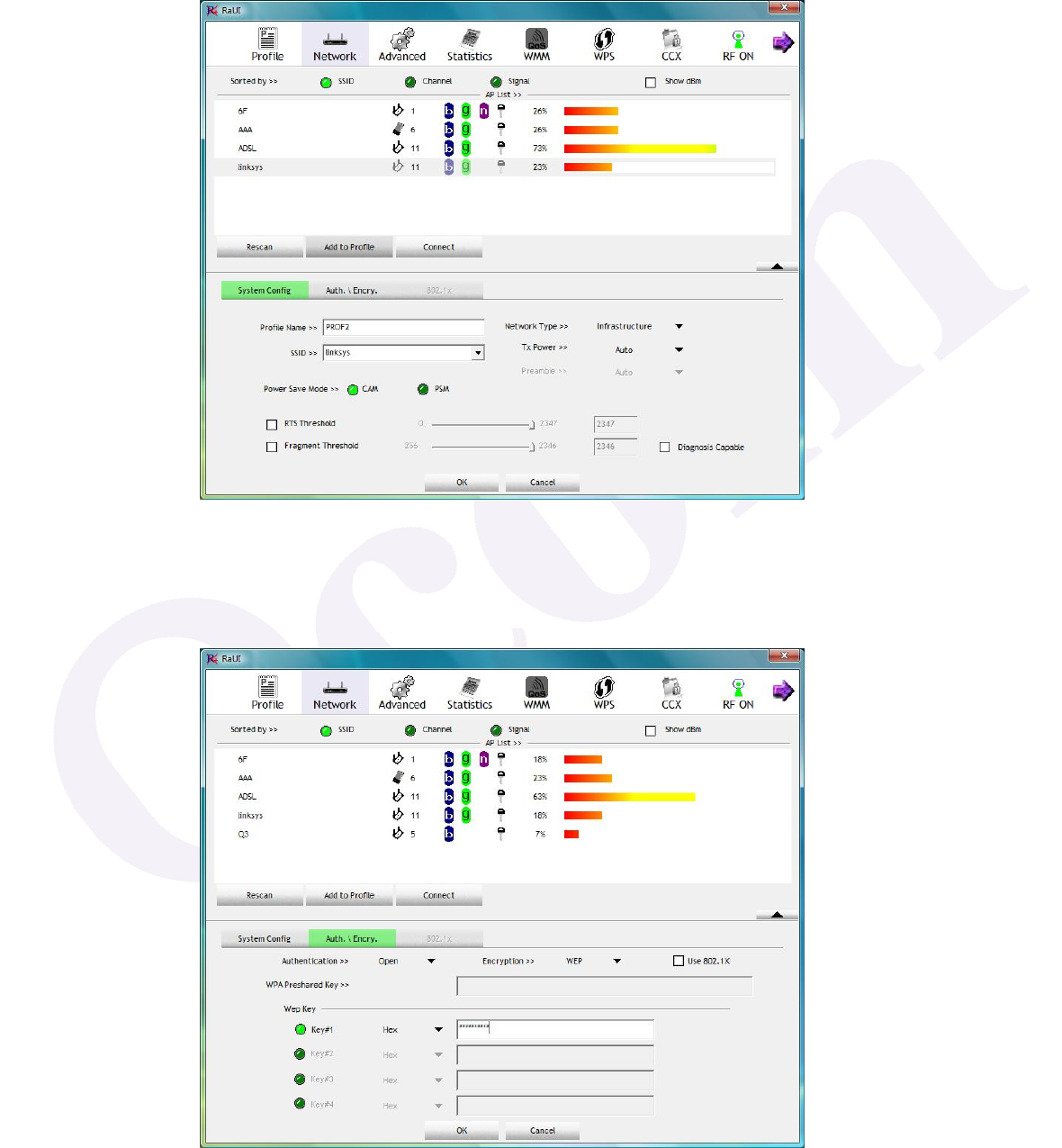
1. Select Network Tab, all available Access Points would be listed.
Click on the desired Access Point, and click "Add to Profile".
9
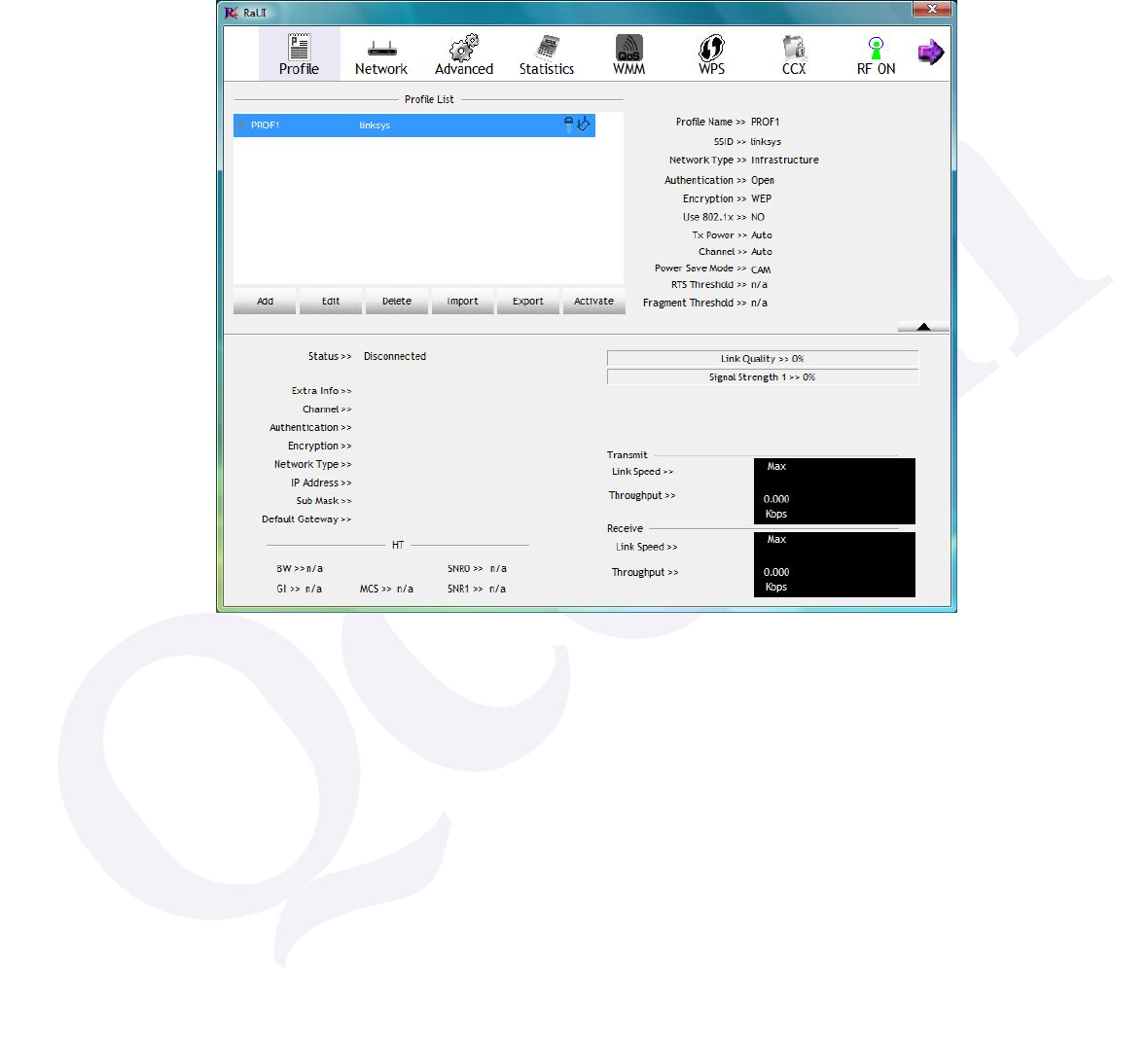
2. 2-1. Click “OK” if you connect to an unsecured network.
2-2. If you connect to a secured network please type the network security key or
passphrase and then click “OK”.
10
3. Go to Profile Tab, click on the Access Point you added, and click "Activate" to
connect.
11
Windows 7
Driver Installation
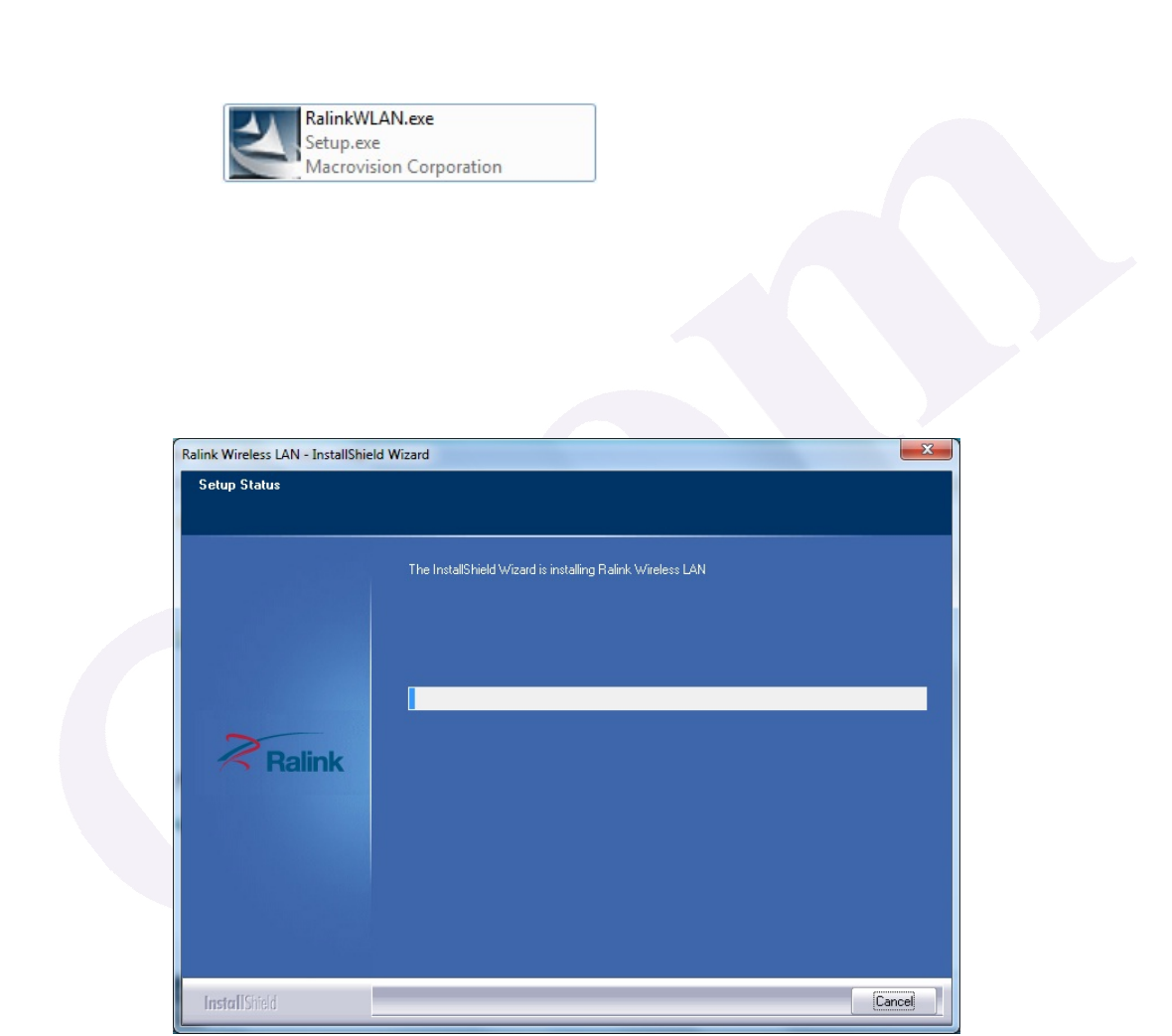
1. For installing the Wireless LAN Card driver, go to the directory where the
Wireless Adapter Installation stored, then double-click the Setup Program
to begin the installation.
(Exsample:RalinkWLAN.exe)
2. Ralink Wireless LAN Setup Wizard is preparing the setup. Please wait.
12
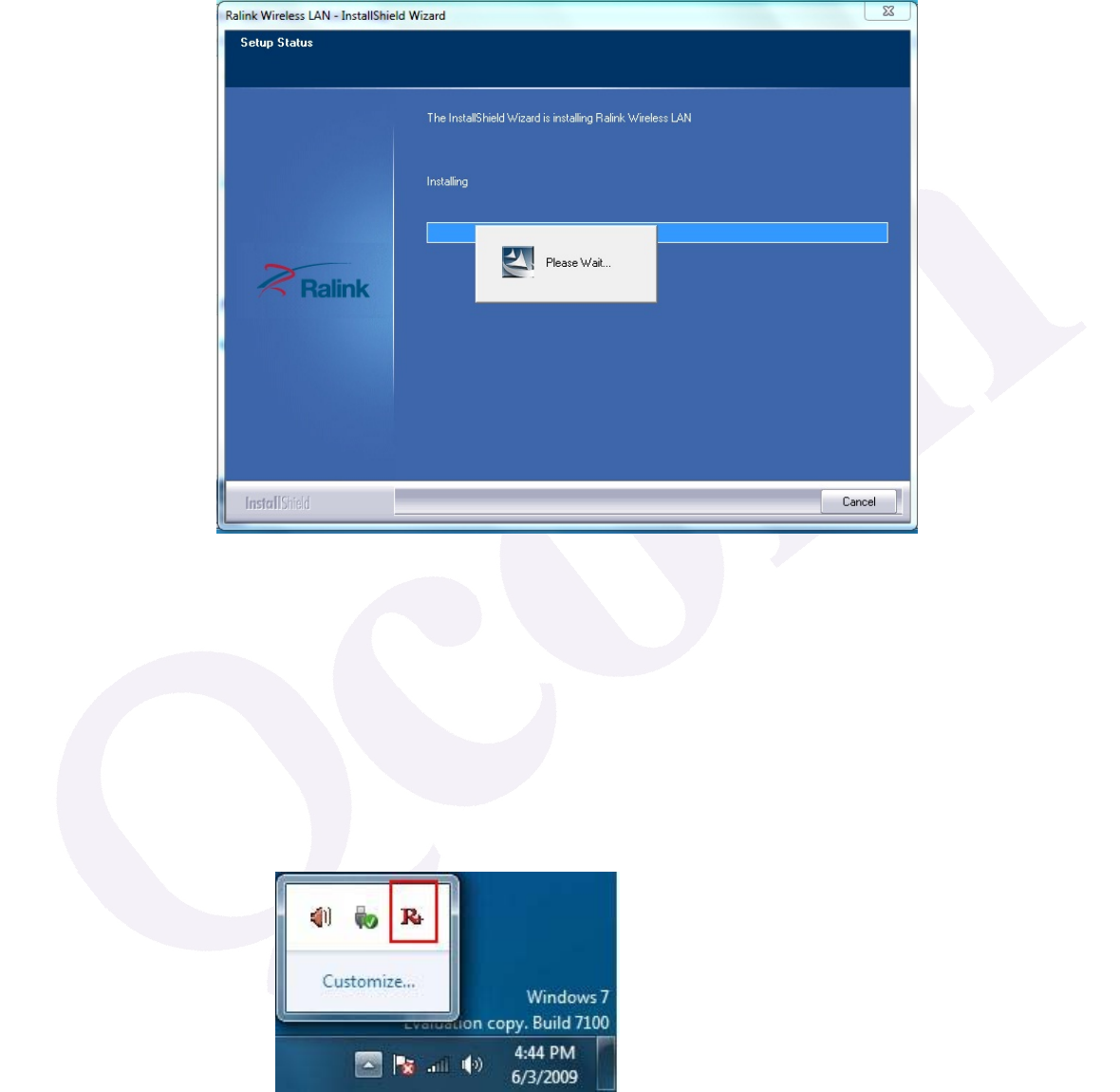
3. The Ralink Wireless LAN driver is installing. Please wait.
4. When the Ralink Wireless LAN – Installshield Winzard screen disappears, the
installation of Ralink Wireless LAN driver is now complete.
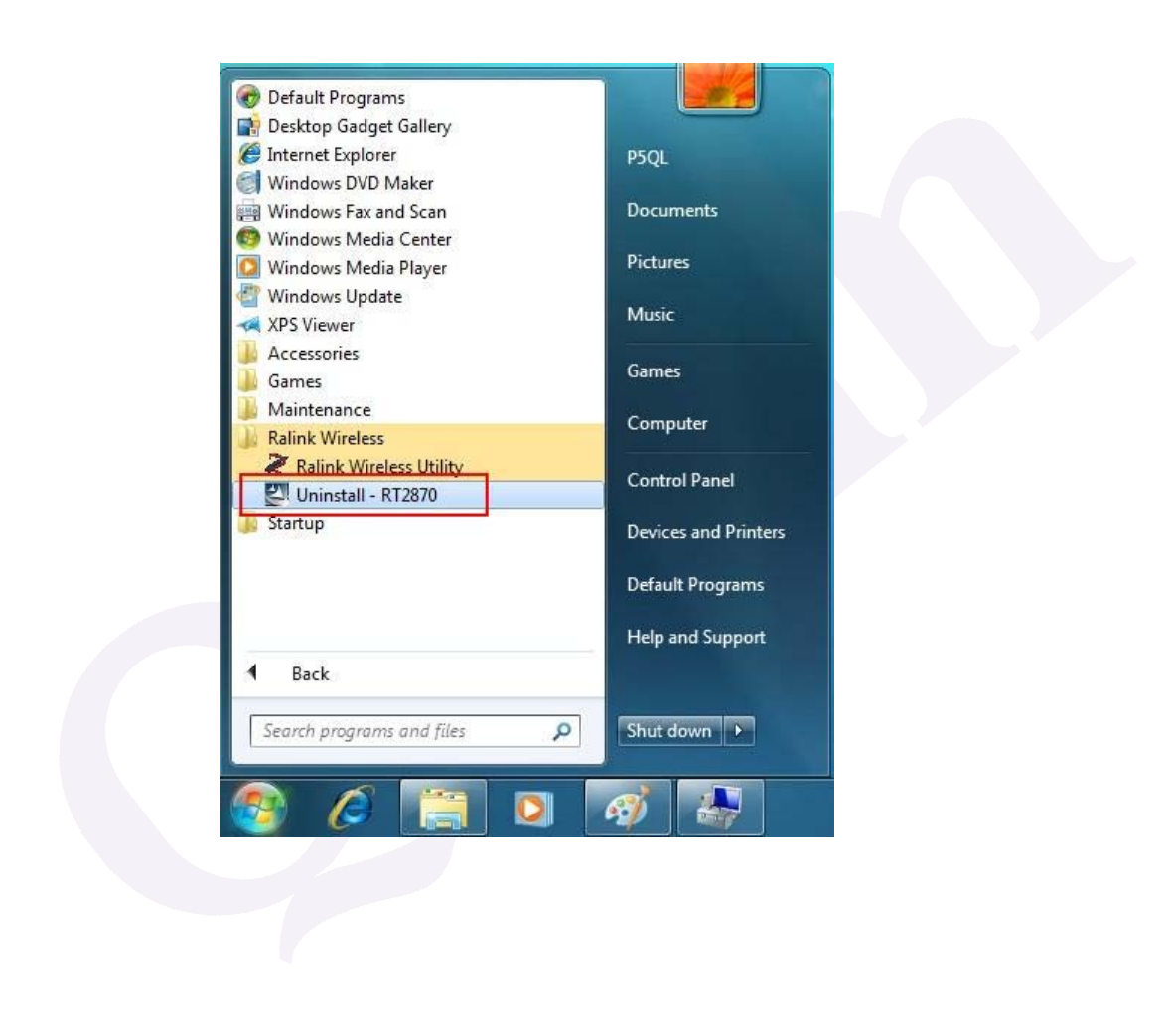
5. When you complete the installation, the utility icon will appear on the system
tray ( ). You could double-click it to
configure wireless network settings.
13
Uninstalling the Wireless LAN Card
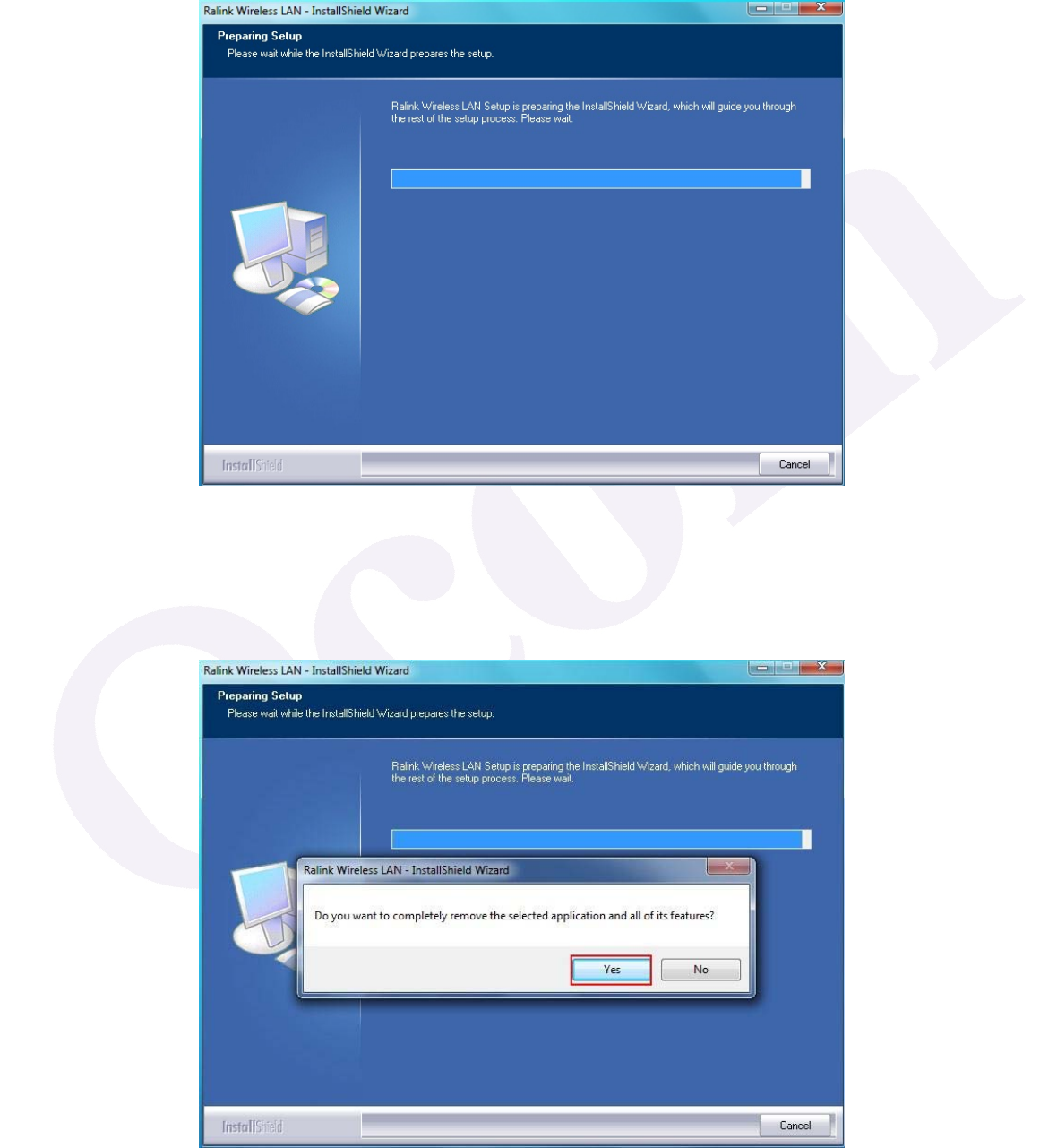
1. For uninstalling the Wireless LAN Card, please go to: Start Æ All Programs Æ
Ralink Wireless under Windows environment. Then click "Uninstall –
RT2870".
14
2. Ralink Wireless LAN Setup Wizard prepares to uninstall the driver on your
system. Please wait.
3. Click "Yes" to uninstall the Wireless LAN Card driver and utility.
15
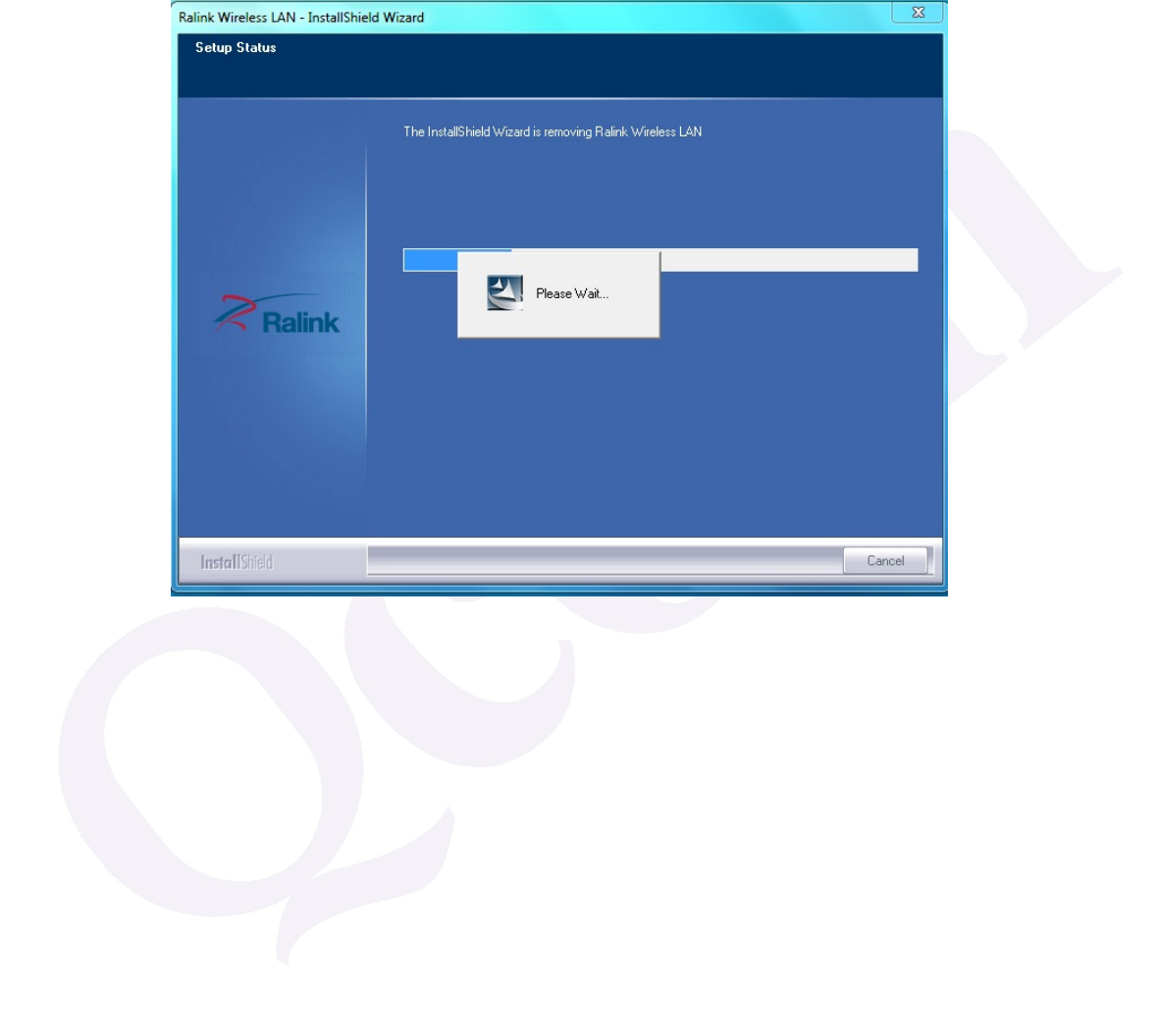
4. Wait for removing the driver and utility.
5. After completing the uninstallation, the Ralink Wireless LAN – Installshield
Winzard screen disappears.
16
Configuring the Wireless LAN Card
Double-click the utility icon in your system tray to begin the utility
configuration.
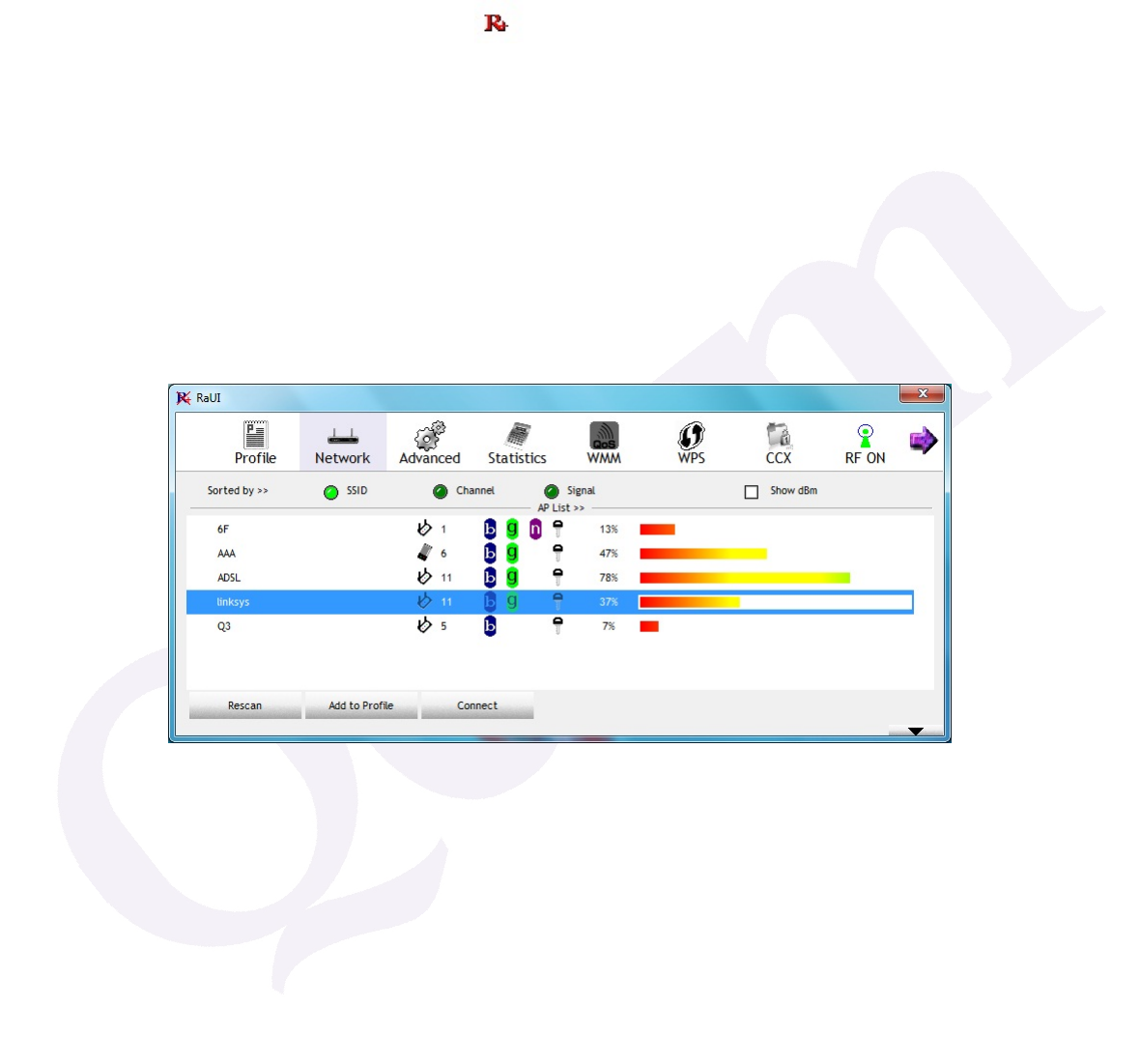
Connecting to an existing network
1. Select Network Tab, all available Access Points would be listed.
Click on the desired Access Point, and click "Add to Profile".

17
2. 2-1. Click “OK” if you connect to an unsecured network.
2-2. If you connect to a secured network please type the network security key or
passphrase and then click “OK”.
18
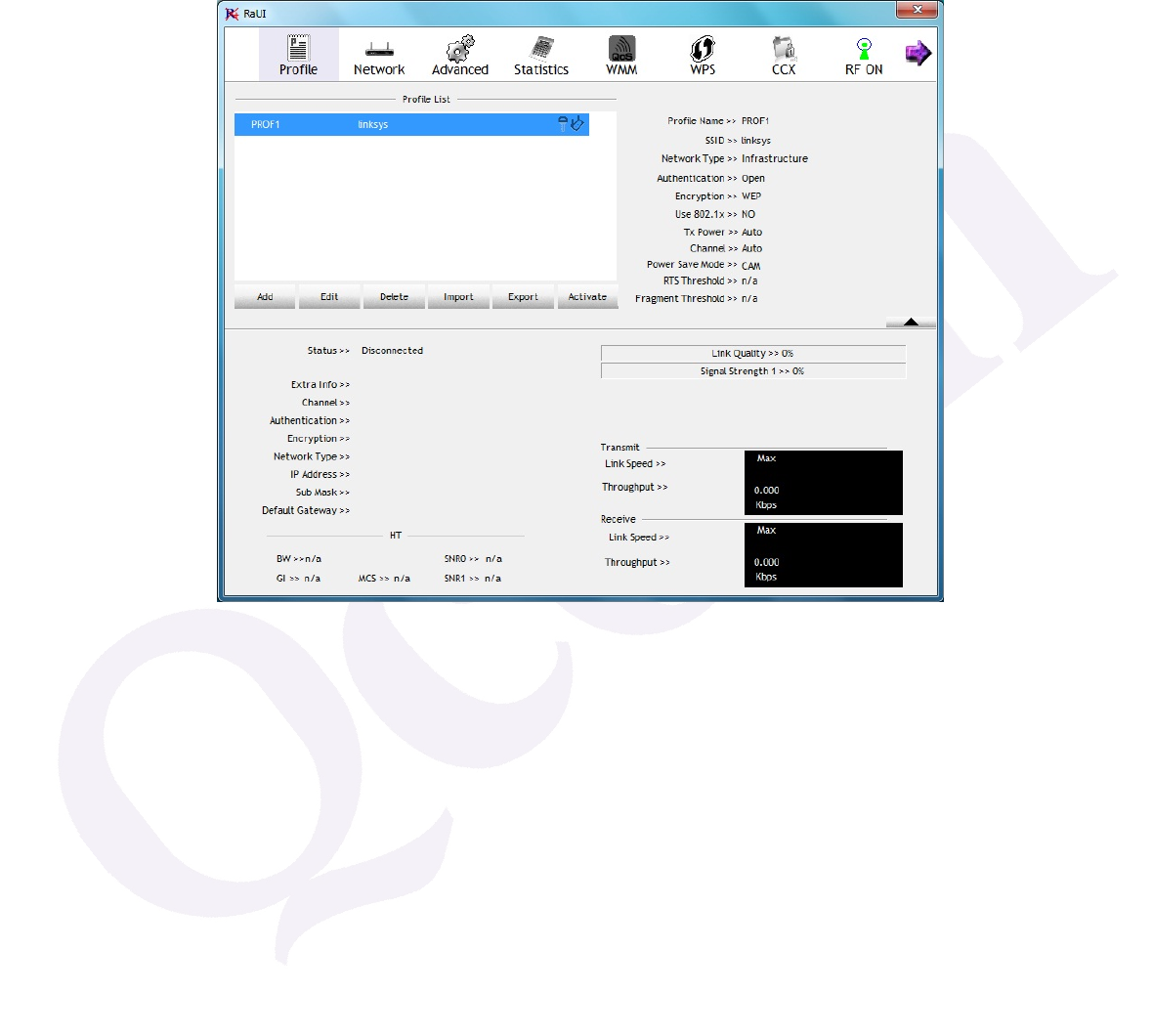
3. Go to Profile Tab, click on the Access Point you added, and click "Activate" to
connect.
19
Windows XP SP2
Driver Installation
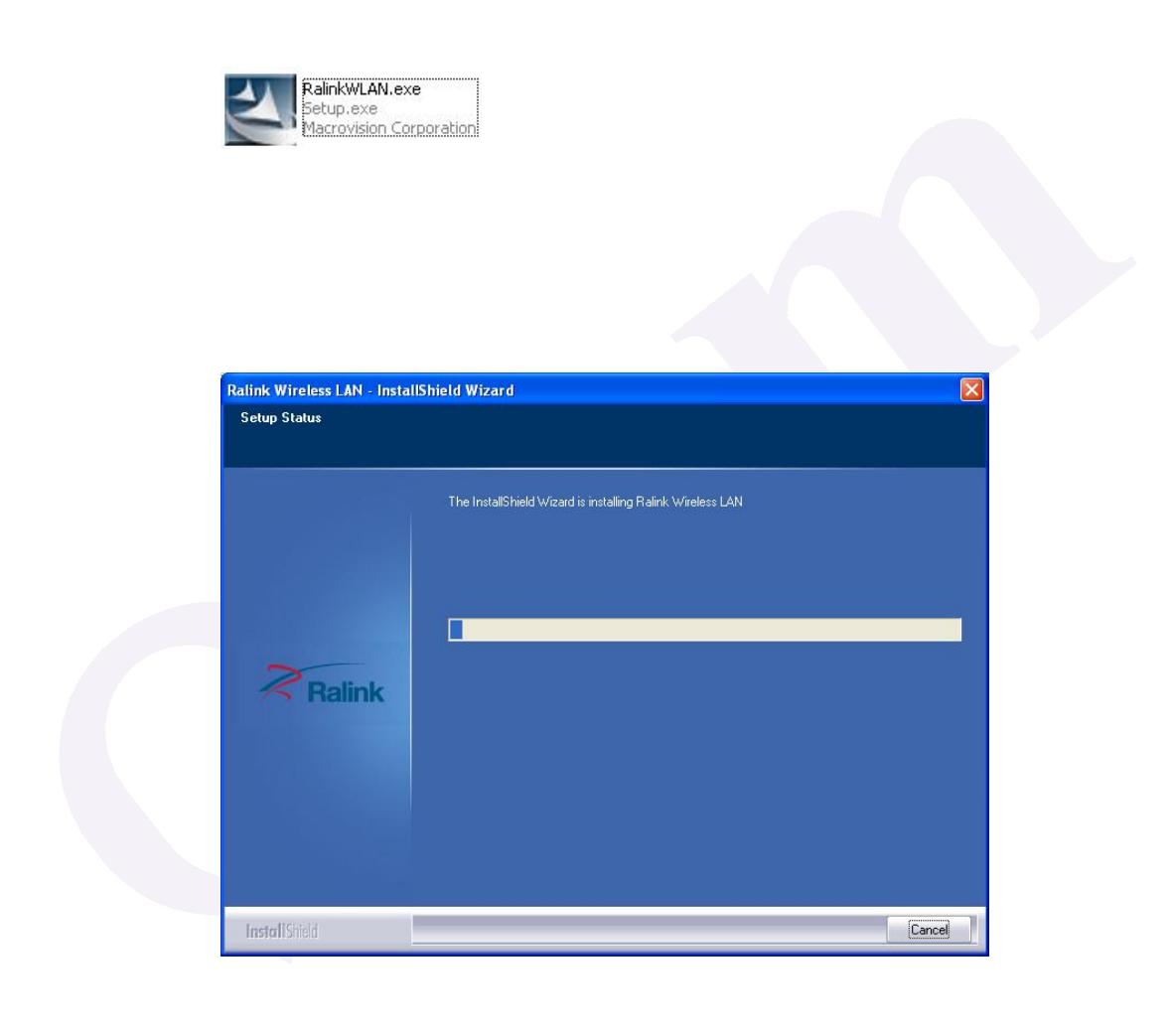
1. For installing the Wireless LAN Card driver, go to the directory where the
Wireless Adapter Installation stored, then double-click the Setup Program
to begin the installation.
(Exsample: RalinkWLAN.exe)
2. Ralink Wireless LAN Setup Wizard is preparing the setup. Please wait.
20
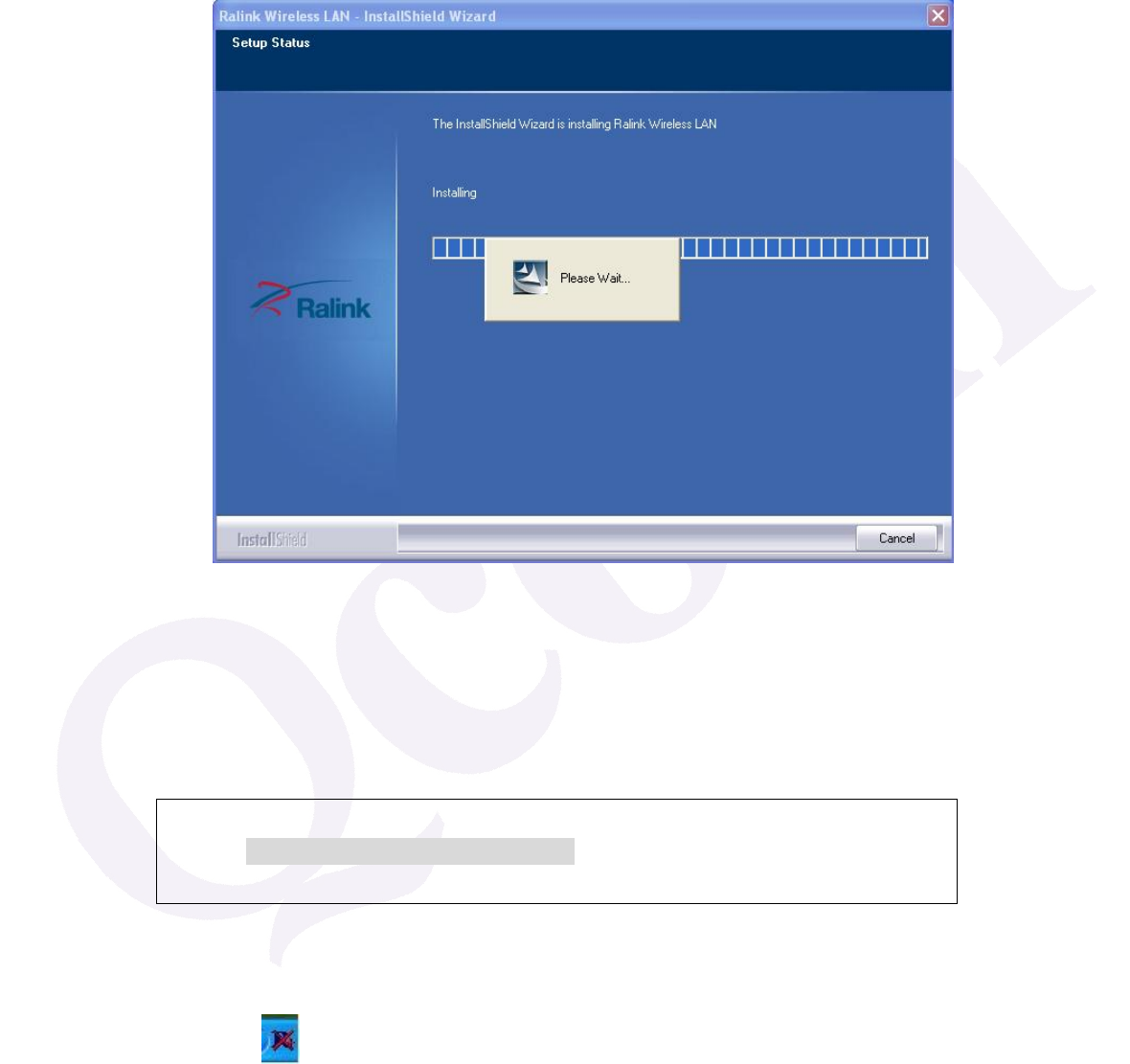
3. The Ralink Wireless LAN driver is installing. Please wait.
4. When the Ralink Wireless LAN – Installshield Winzard screen disappears, the
installation of Ralink Wireless LAN driver is now complete.
Note:
If you have installed the Windows XP Service Pack 2. You can use the
Windows Zero Configuration Tool for Wireless Configuring. Please refer
the Windows XP User’s Guide.
5. When you complete the installation, the utility icon will appear on the system
tray ( ). You could double-click it to configure wireless network settings.
21
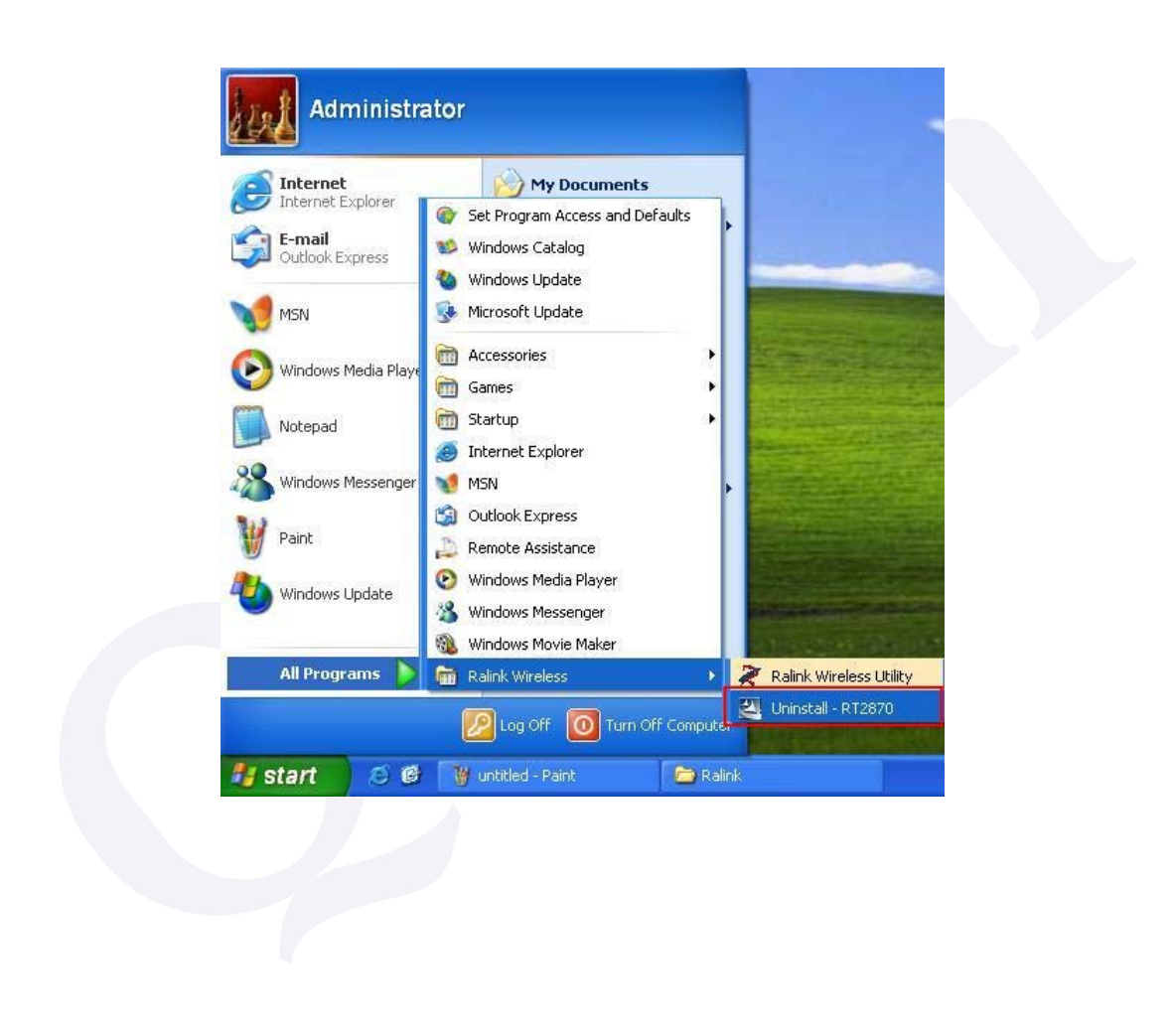
Uninstalling the Wireless LAN Card
1. For uninstalling the Wireless LAN Card, please go to: Start Æ All Programs Æ
Ralink Wireless under Windows environment. Then click "Uninstall –
RT2870".
22
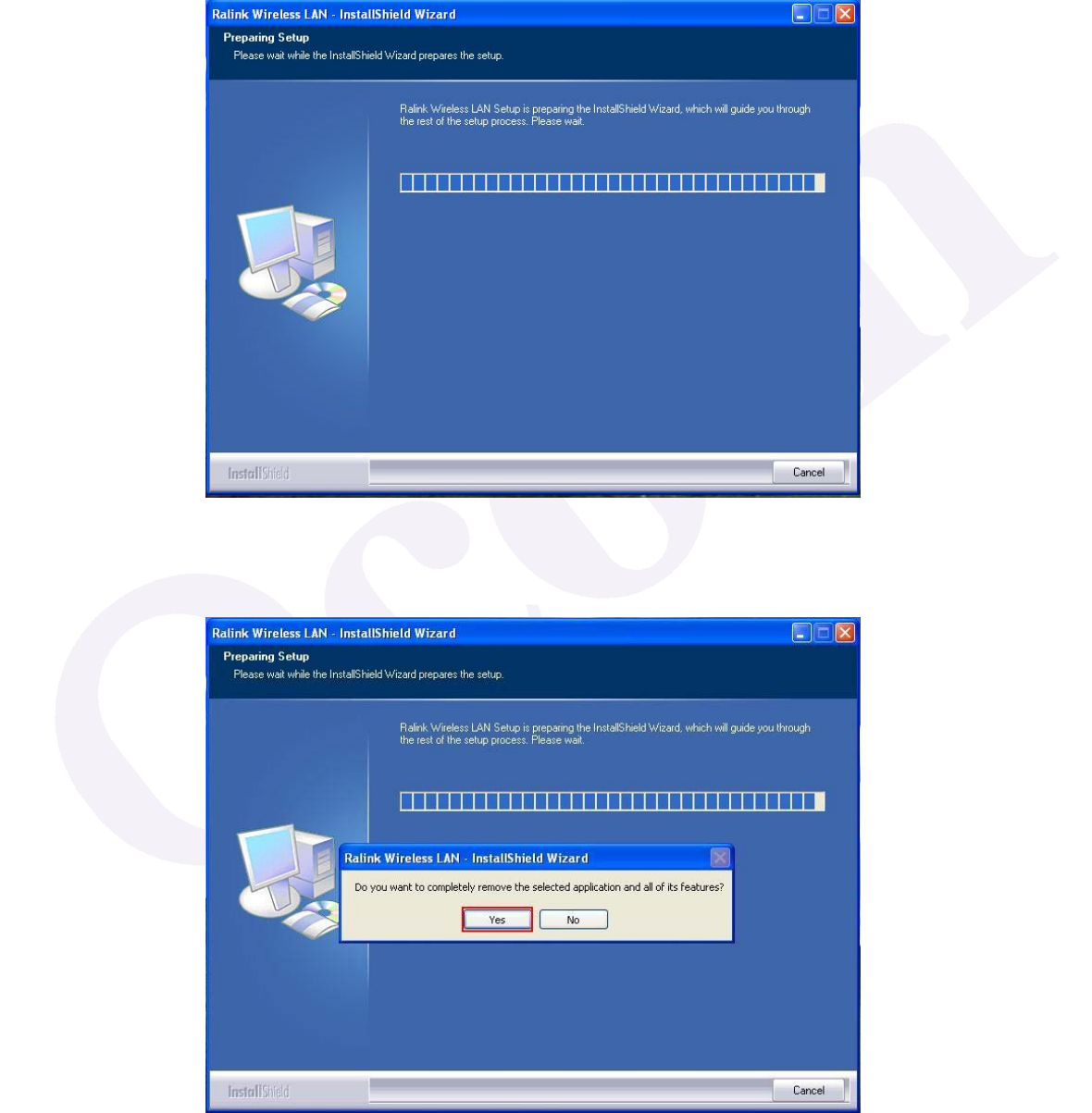
2. Ralink Wireless LAN Setup Wizard prepares to uninstall the driver on your
system. Please wait.
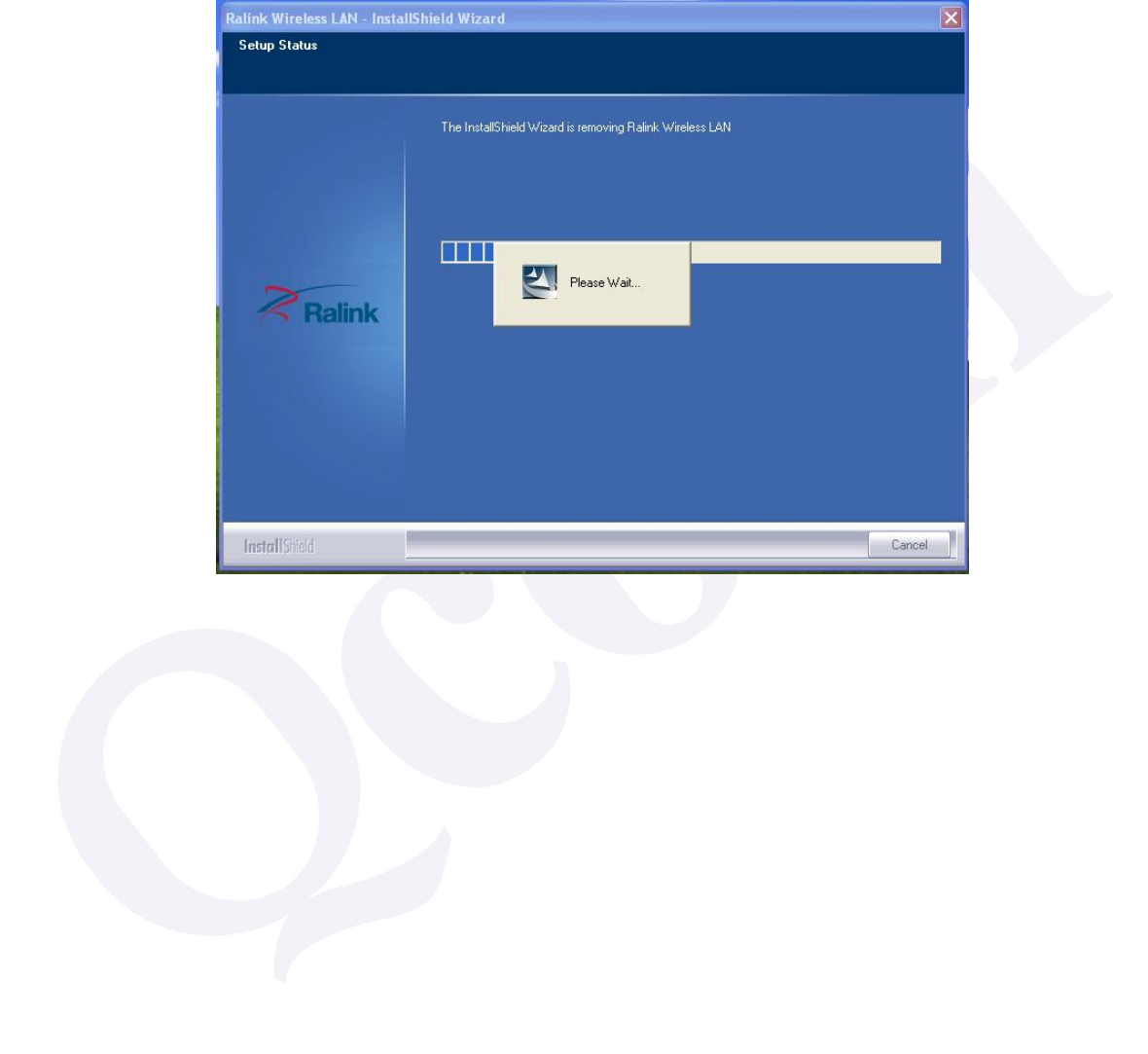
3. Click "Yes" to uninstall the Wireless LAN Card driver and utility.
23
4. Wait for removing the driver and utility.
5. After completing the uninstallation, the Ralink Wireless LAN – Installshield
Winzard screen disappears.
24
Configuring the Wireless LAN Card
Double-click the utility icon in your system tray to begin the utility
configuration.
Connecting to an existing network
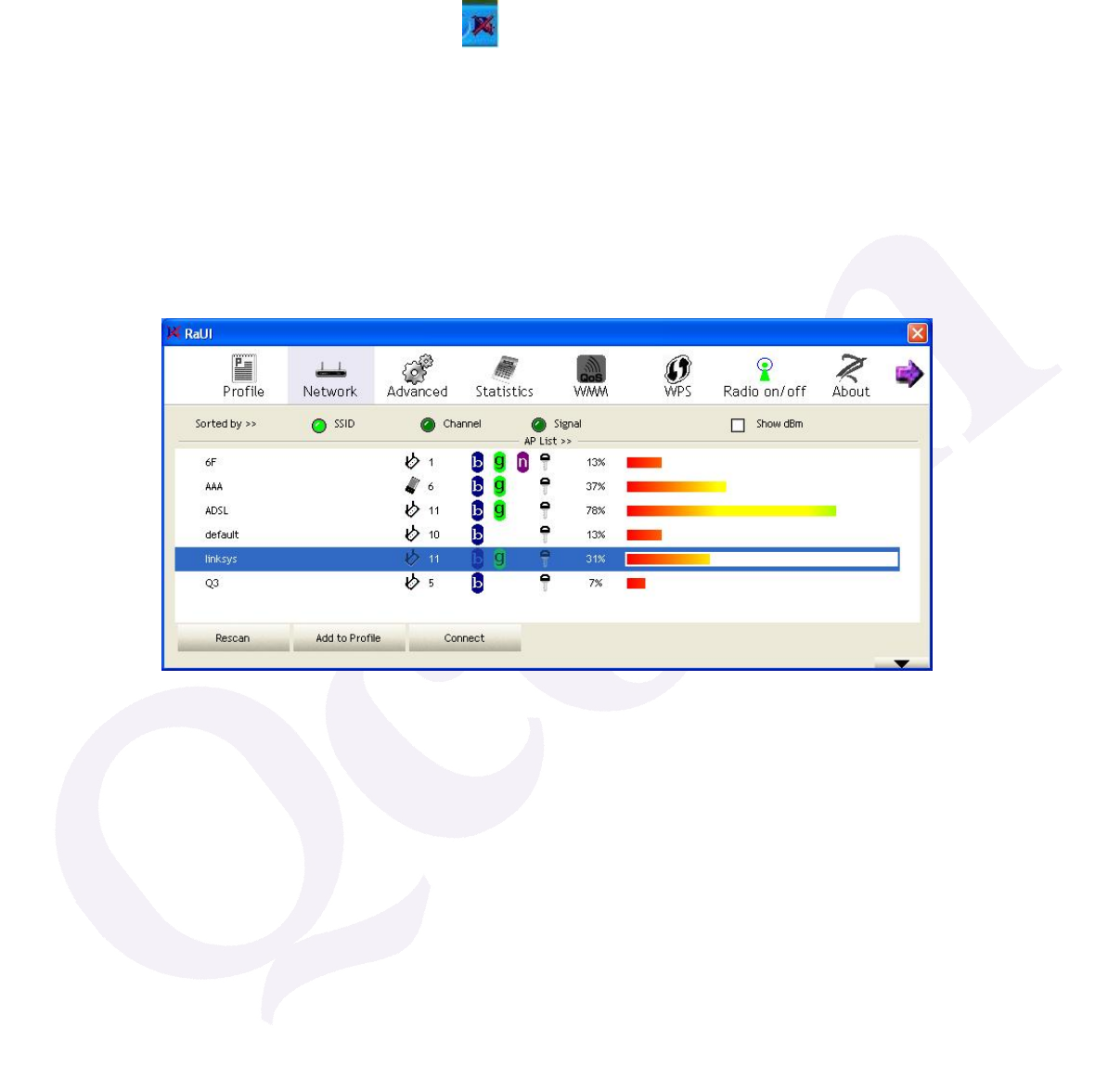
Select Network Tab, all available Access Points would be listed.
Click on the desired Access Point, and click "Connect" to connect.

Federal Communication Commission Interference Statement
This equipment has been tested and found to comply with the limits for a Class B digital
device, pursuant to Part 15 of the FCC Rules. These limits are designed to provide
reasonable protection against harmful interference in a residential installation. This
equipment generates, uses and can radiate radio frequency energy and, if not installed
and used in accordance with the instructions, may cause harmful interference to radio
communications. However, there is no guarantee that interference will not occur in a
particular installation. If this equipment does cause harmful interference to radio or
television reception, which can be determined by turning the equipment off and on, the
user is encouraged to try to correct the interference by one of the following measures:
- Reorient or relocate the receiving antenna.
- Increase the separation between the equipment and receiver.
- Connect the equipment into an outlet on a circuit different from that
to which the receiver is connected.
- Consult the dealer or an experienced radio/TV technician for help.
FCC Caution: Any changes or modifications not expressly approved by the party
responsible for compliance could void the user's authority to operate this equipment.
This device complies with Part 15 of the FCC Rules. Operation is subject to the following
two conditions: (1) This device may not cause harmful interference, and (2) this device
must accept any interference received, including interference that may cause undesired
operation.
IMPORTANT NOTE:
FCC Radiation Exposure Statement:
This equipment complies with FCC radiation exposure limits set forth for an uncontrolled
environment. This equipment should be installed and operated with minimum distance
20cm between the radiator & your body.
This transmitter must not be co-located or operating in conjunction with any other antenna
or transmitter.

This device is intended only for OEM integrators under the following conditions:
1) The antenna must be installed such that 20 cm is maintained between the antenna
and users, and
2) The transmitter module may not be co-located with any other transmitter or antenna,
3) For all products market in US, OEM has to limit the operation channels in CH1 to
CH11 for 2.4G band by supplied firmware programming tool. OEM shall not supply
any tool or info to the end-user regarding to Regulatory Domain change.
As long as 3 conditions above are met, further transmitter test will not be required.
However, the OEM integrator is still responsible for testing their end-product for any
additional compliance requirements required with this module installed.
IMPORTANT NOTE:
In the event that these conditions can not be met (for example certain laptop
configurations or co-location with another transmitter), then the FCC authorization is no
longer considered valid and the FCC ID can not be used on the final product. In these
circumstances, the OEM integrator will be responsible for re-evaluating the end product
(including the transmitter) and obtaining a separate FCC authorization.
End Product Labeling
This transmitter module is authorized only for use in device where the antenna may be
installed such that 20 cm may be maintained between the antenna and users. The final
end product must be labeled in a visible area with the following: “Contains FCC ID:
RUJ-LR802UKN2”.
Manual Information To the End User
The OEM integrator has to be aware not to provide information to the end user regarding
how to install or remove this RF module in the user’s manual of the end product which
integrates this module.
The end user manual shall include all required regulatory information/warning as show in
this manual.

Canadian Regulatory Wireless Notice
This device complies with RSS-210 of the Industry Canada Rules. Operation is subject to
the following two conditions:
1) this device may not cause interference and
2) this device must accept any interference, including interference that may cause
undesired operation of the device
IMPORTANT NOTE:
IC Radiation Exposure Statement:
This equipment complies with IC radiation exposure limits set forth for an uncontrolled
environment. This equipment should be installed and operated with minimum distance
20cm between the radiator and your body.
This device is intended only for OEM integrators under the following conditions:
1) The antenna must be installed such that 20 cm is maintained between the antenna
and users, and
2) The transmitter module may not be co-located with any other transmitter or antenna,
3) For all products market in IC, OEM has to limit the operation channels in CH1 to CH11
for 2.4G band by supplied firmware programming tool. OEM shall not supply any tool
or info to the end-user regarding to Regulatory Domain change.
As long as 3 conditions above are met, further transmitter test will not be required.
However, the OEM integrator is still responsible for testing their end-product for any
additional compliance requirements required with this module installed.
IMPORTANT NOTE:
In the event that these conditions can not be met (for example certain laptop
configurations or co-location with another transmitter), then the IC authorization is no
longer considered valid and the IC ID can not be used on the final product. In these
circumstances, the OEM integrator will be responsible for re-evaluating the end product
(including the transmitter) and obtaining a separate IC authorization.
End Product Labeling
This transmitter module is authorized only for use in device where the antenna may be
installed such that 20 cm may be maintained between the antenna and users. The final
end product must be labeled in a visible area with the following: “Contains IC:
4654A-LR802UKN2”.

Manual Information To the End User
The OEM integrator has to be aware not to provide information to the end user regarding
how to install or remove this RF module in the user’s manual of the end product which
integrates this module.
The end user manual shall include all required regulatory information/warning as show in
this manual.
For Taiwan 警語:
µ 第十二條
經型式認證合格之低功率射頻電機,非經許可,公司、商號或使用者均不得擅自變更頻
率、加大功率或變更原設計之特性及功能。
µ 第十四條
低功率射頻電機之使用不得影響飛航安全及干擾合法通信;經發現有干擾現象時,應立
即停用,並改善至無干擾時方得繼續使用。前項合法通信,指依電信法規定作業之無線
電通信。低功率射頻電機須忍受合法通信或工業、科學及醫療用電波輻射性電機設備之
干擾。
Note:
1. 本模組於取得認證後將依規定於模組本體標示審驗合格標籤
2. 系統廠商應於平台上標示「本產品內含射頻模組: CCXXXXYYyyyZzW」字樣