Qcom Technology MD560B Bluetooth with Modem Combo Card User Manual Manual

Qcom Technology Inc. Bluetooth with Modem Combo Card Manual

Users Manual

    MD560(B)  User’s Manual
Contents 1. Contents 2. Introduction 3. Bluetooth Basics 4. Installation Overview   4.1 Installation Procedures of Bluetooth Utility   4.2 Installation Procedures of Modem Driver 5. Troubleshooting
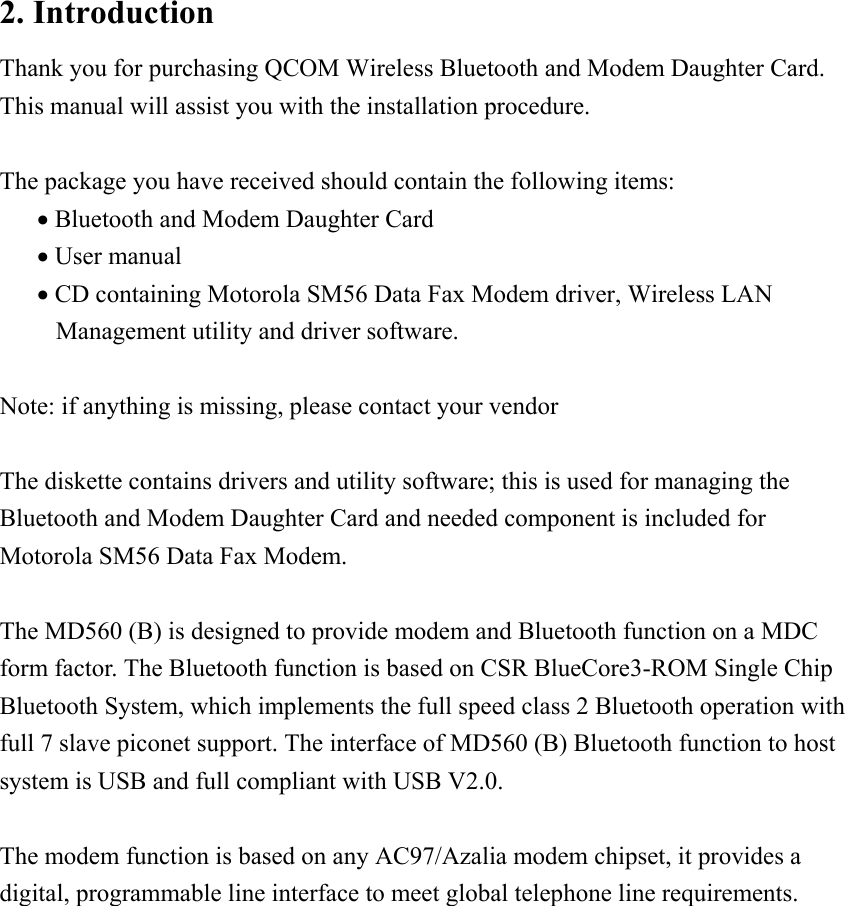
2. Introduction Thank you for purchasing QCOM Wireless Bluetooth and Modem Daughter Card. This manual will assist you with the installation procedure.  The package you have received should contain the following items: • Bluetooth and Modem Daughter Card • User manual • CD containing Motorola SM56 Data Fax Modem driver, Wireless LAN Management utility and driver software.  Note: if anything is missing, please contact your vendor  The diskette contains drivers and utility software; this is used for managing the Bluetooth and Modem Daughter Card and needed component is included for Motorola SM56 Data Fax Modem.  The MD560 (B) is designed to provide modem and Bluetooth function on a MDC form factor. The Bluetooth function is based on CSR BlueCore3-ROM Single Chip Bluetooth System, which implements the full speed class 2 Bluetooth operation with full 7 slave piconet support. The interface of MD560 (B) Bluetooth function to host system is USB and full compliant with USB V2.0.    The modem function is based on any AC97/Azalia modem chipset, it provides a digital, programmable line interface to meet global telephone line requirements.
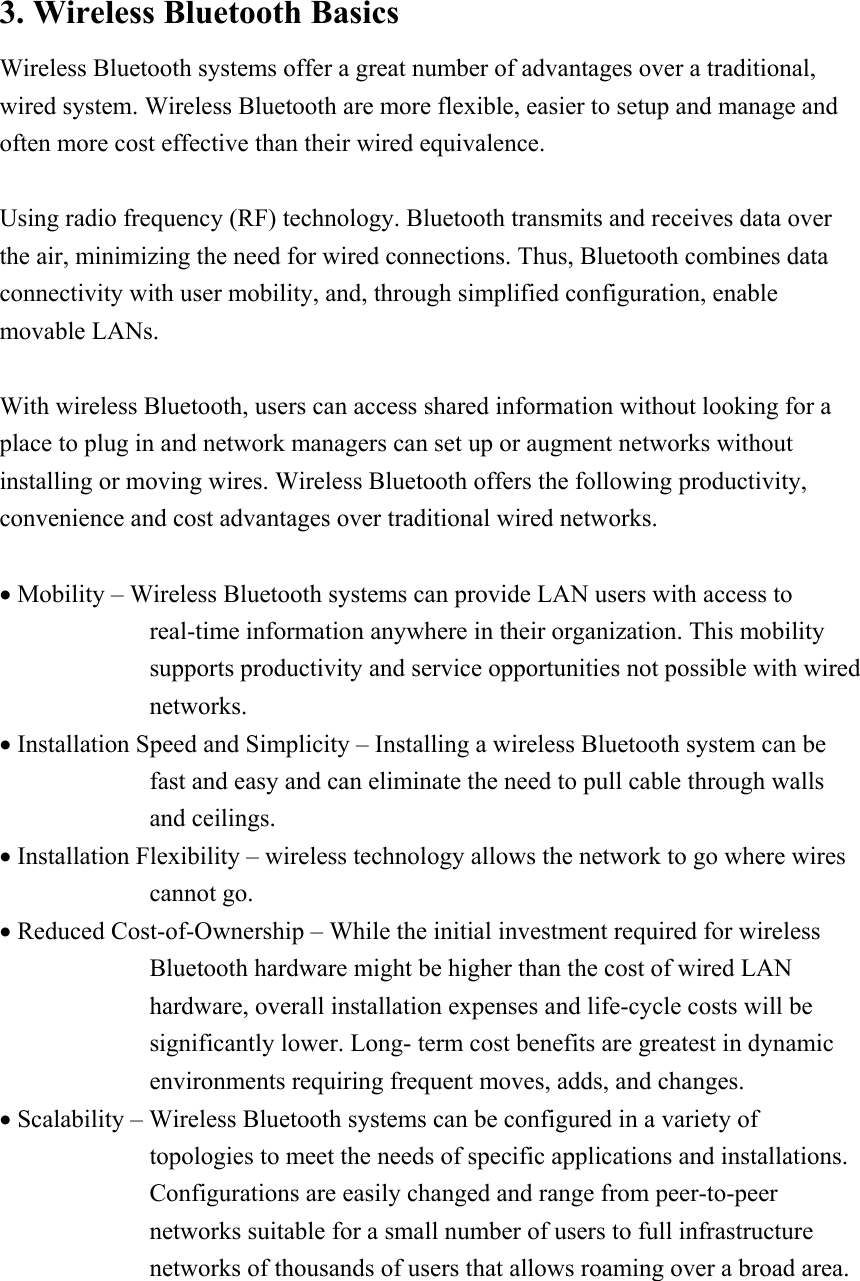
3. Wireless Bluetooth Basics Wireless Bluetooth systems offer a great number of advantages over a traditional, wired system. Wireless Bluetooth are more flexible, easier to setup and manage and often more cost effective than their wired equivalence.  Using radio frequency (RF) technology. Bluetooth transmits and receives data over the air, minimizing the need for wired connections. Thus, Bluetooth combines data connectivity with user mobility, and, through simplified configuration, enable movable LANs.  With wireless Bluetooth, users can access shared information without looking for a place to plug in and network managers can set up or augment networks without installing or moving wires. Wireless Bluetooth offers the following productivity, convenience and cost advantages over traditional wired networks.  • Mobility – Wireless Bluetooth systems can provide LAN users with access to real-time information anywhere in their organization. This mobility supports productivity and service opportunities not possible with wired networks. • Installation Speed and Simplicity – Installing a wireless Bluetooth system can be fast and easy and can eliminate the need to pull cable through walls and ceilings. • Installation Flexibility – wireless technology allows the network to go where wires cannot go. • Reduced Cost-of-Ownership – While the initial investment required for wireless Bluetooth hardware might be higher than the cost of wired LAN hardware, overall installation expenses and life-cycle costs will be significantly lower. Long- term cost benefits are greatest in dynamic environments requiring frequent moves, adds, and changes. • Scalability – Wireless Bluetooth systems can be configured in a variety of topologies to meet the needs of specific applications and installations. Configurations are easily changed and range from peer-to-peer networks suitable for a small number of users to full infrastructure networks of thousands of users that allows roaming over a broad area.
4. Installation and Overview Here are some steps you will perform in establishing your wireless network connection:  • Install Bluetooth Utility using the Installation CD. • Install Motorola SM56 Data Fax Modem driver using the Installation CD.
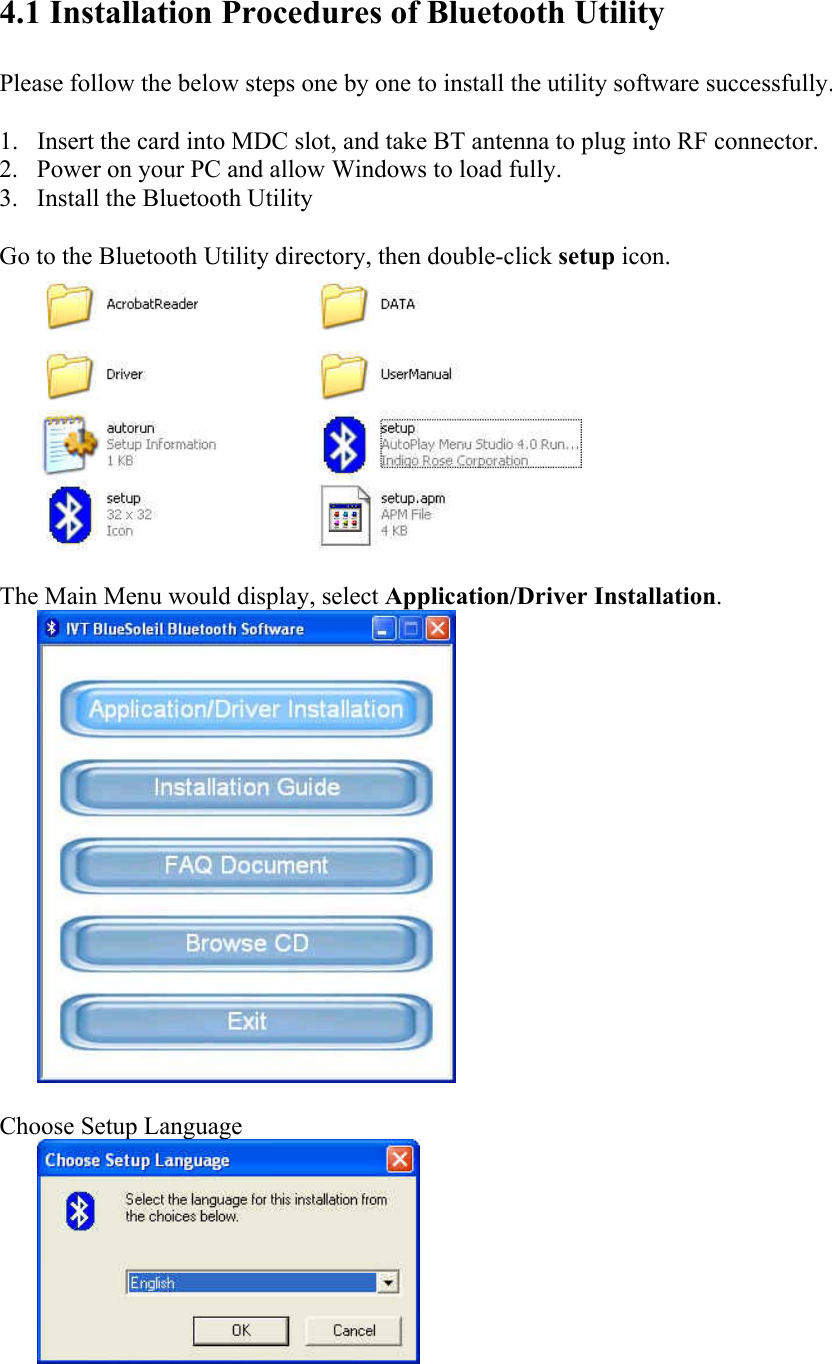
4.1 Installation Procedures of Bluetooth Utility  Please follow the below steps one by one to install the utility software successfully.  1. Insert the card into MDC slot, and take BT antenna to plug into RF connector. 2. Power on your PC and allow Windows to load fully. 3. Install the Bluetooth Utility    Go to the Bluetooth Utility directory, then double-click setup icon.   The Main Menu would display, select Application/Driver Installation.   Choose Setup Language
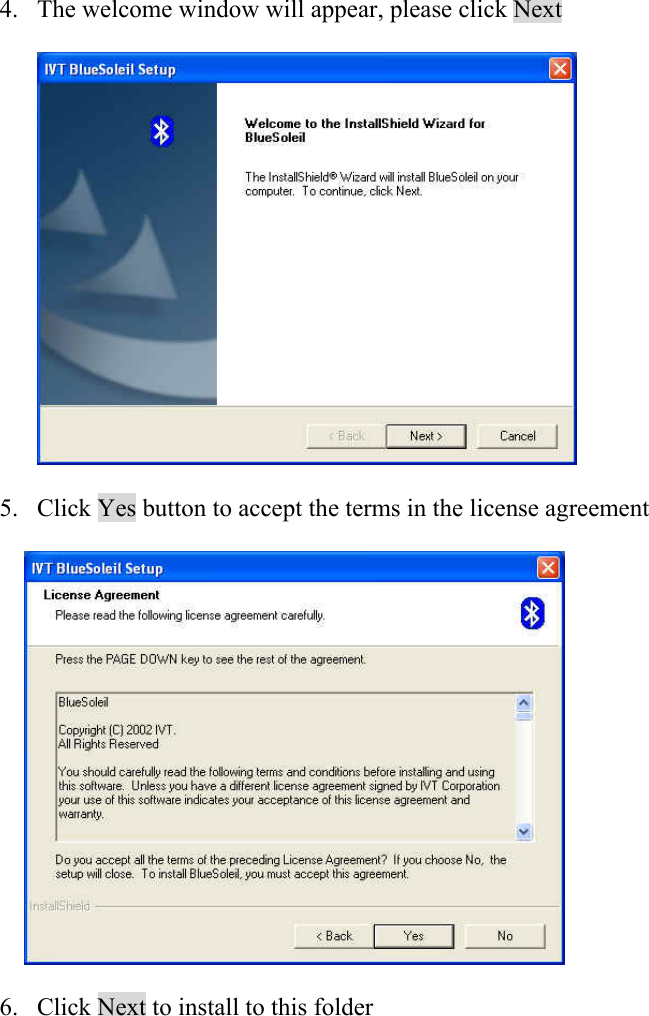
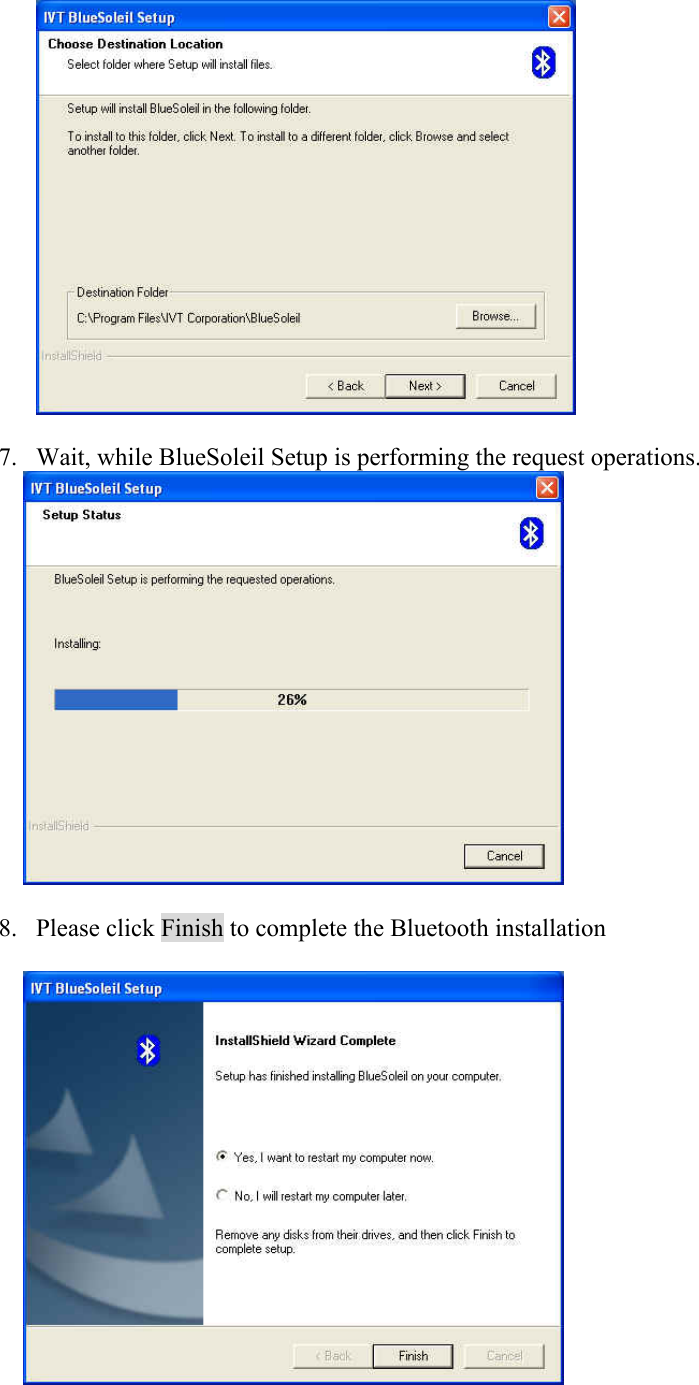
 4. The welcome window will appear, please click Next        5. Click Yes button to accept the terms in the license agreement      6. Click Next to install to this folder
    7. Wait, while BlueSoleil Setup is performing the request operations.        8. Please click Finish to complete the Bluetooth installation
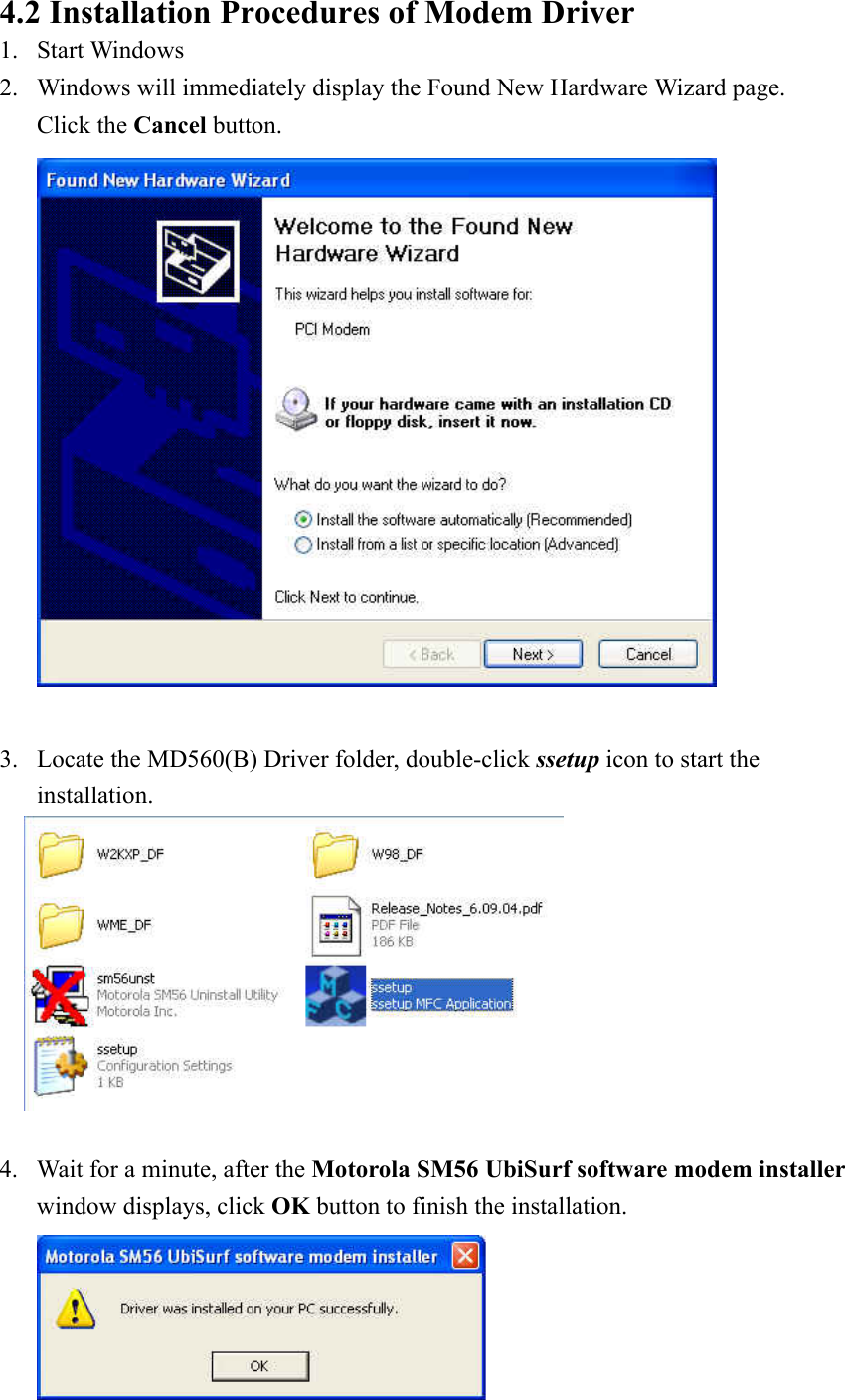
 4.2 Installation Procedures of Modem Driver 1. Start Windows   2. Windows will immediately display the Found New Hardware Wizard page.     Click the Cancel button.   3. Locate the MD560(B) Driver folder, double-click ssetup icon to start the installation.   4. Wait for a minute, after the Motorola SM56 UbiSurf software modem installer window displays, click OK button to finish the installation.
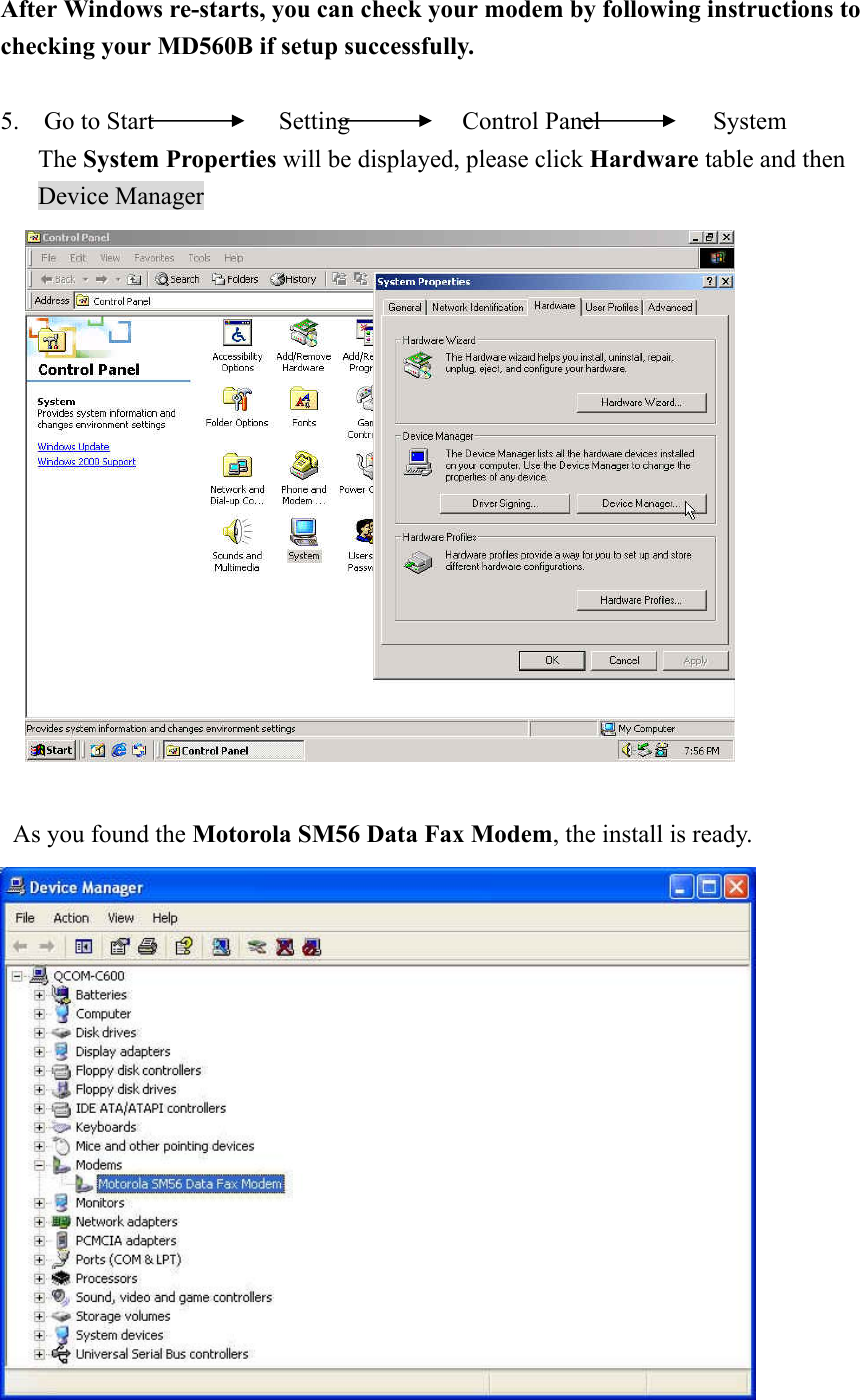
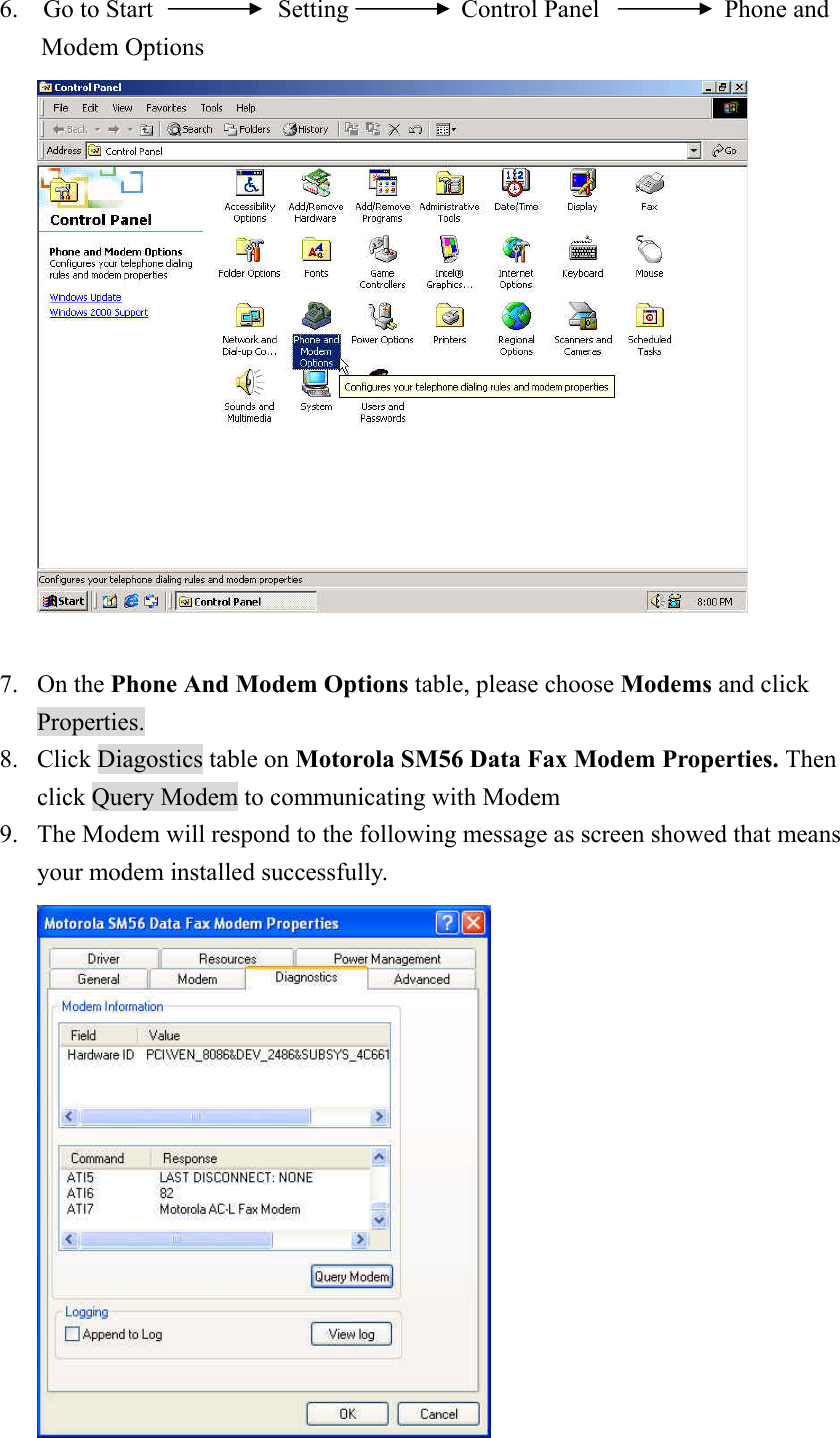
 After Windows re-starts, you can check your modem by following instructions to checking your MD560B if setup successfully.  5.  Go to Start          Setting         Control Panel         System    The System Properties will be displayed, please click Hardware table and then Device Manager       As you found the Motorola SM56 Data Fax Modem, the install is ready.
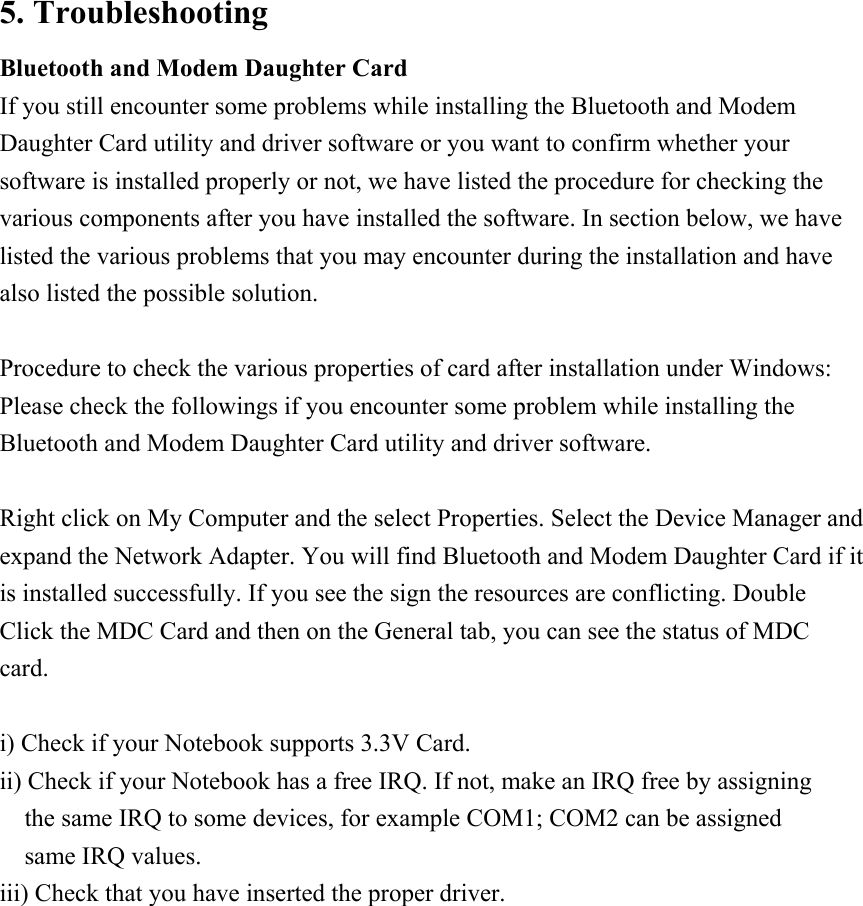
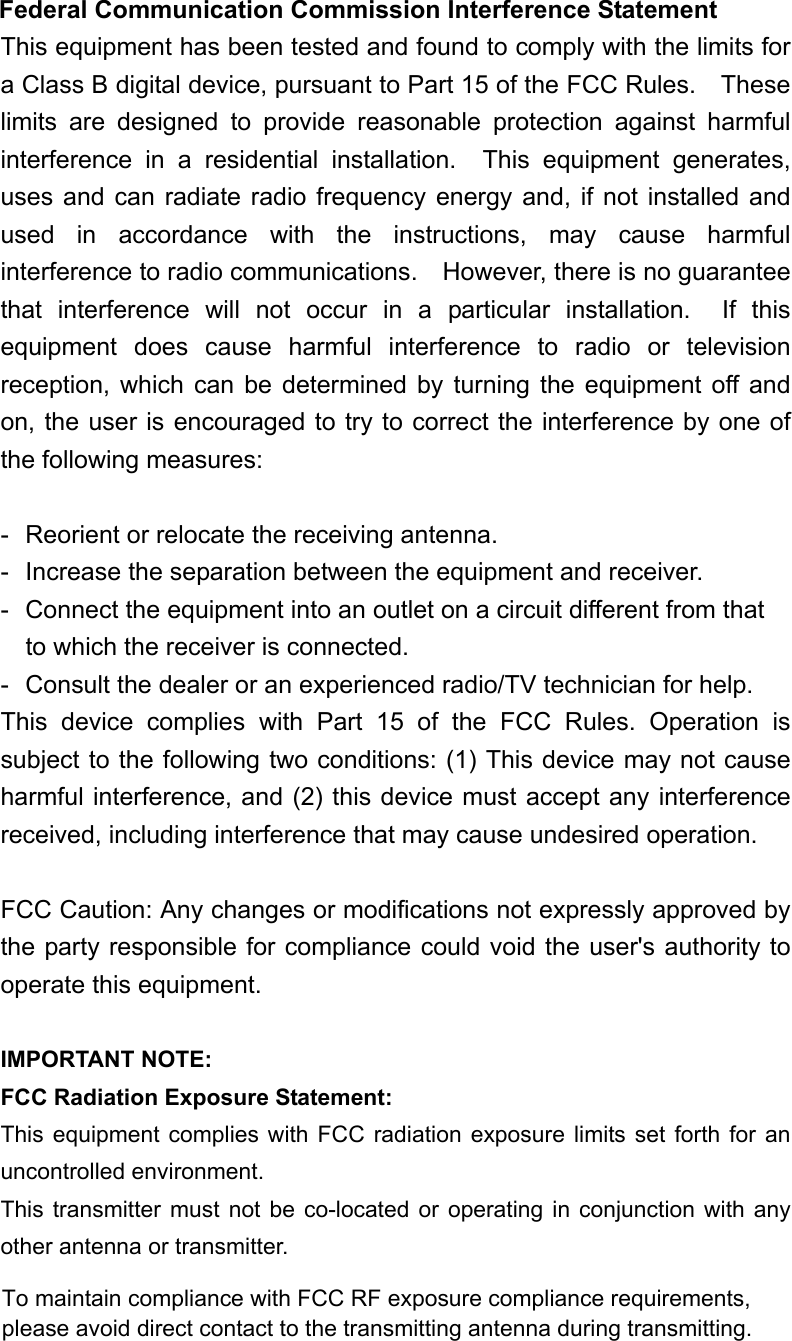
6.  Go to Start          Setting         Control Panel          Phone and Modem Options     7. On the Phone And Modem Options table, please choose Modems and click Properties. 8. Click Diagostics table on Motorola SM56 Data Fax Modem Properties. Then click Query Modem to communicating with Modem 9. The Modem will respond to the following message as screen showed that means your modem installed successfully.
 5. Troubleshooting Bluetooth and Modem Daughter Card If you still encounter some problems while installing the Bluetooth and Modem Daughter Card utility and driver software or you want to confirm whether your software is installed properly or not, we have listed the procedure for checking the various components after you have installed the software. In section below, we have listed the various problems that you may encounter during the installation and have also listed the possible solution.  Procedure to check the various properties of card after installation under Windows: Please check the followings if you encounter some problem while installing the Bluetooth and Modem Daughter Card utility and driver software.  Right click on My Computer and the select Properties. Select the Device Manager and expand the Network Adapter. You will find Bluetooth and Modem Daughter Card if it is installed successfully. If you see the sign the resources are conflicting. Double Click the MDC Card and then on the General tab, you can see the status of MDC card.  i) Check if your Notebook supports 3.3V Card. ii) Check if your Notebook has a free IRQ. If not, make an IRQ free by assigning the same IRQ to some devices, for example COM1; COM2 can be assigned same IRQ values. iii) Check that you have inserted the proper driver.
 Federal Communication Commission Interference Statement This equipment has been tested and found to comply with the limits for a Class B digital device, pursuant to Part 15 of the FCC Rules.    These limits are designed to provide reasonable protection against harmful interference in a residential installation.  This equipment generates, uses and can radiate radio frequency energy and, if not installed and used in accordance with the instructions, may cause harmful interference to radio communications.    However, there is no guarantee that interference will not occur in a particular installation.  If this equipment does cause harmful interference to radio or television reception, which can be determined by turning the equipment off and on, the user is encouraged to try to correct the interference by one of the following measures:  -  Reorient or relocate the receiving antenna. -  Increase the separation between the equipment and receiver. -  Connect the equipment into an outlet on a circuit different from that to which the receiver is connected. -  Consult the dealer or an experienced radio/TV technician for help. This device complies with Part 15 of the FCC Rules. Operation is subject to the following two conditions: (1) This device may not cause harmful interference, and (2) this device must accept any interference received, including interference that may cause undesired operation.  FCC Caution: Any changes or modifications not expressly approved by the party responsible for compliance could void the user's authority to operate this equipment.  IMPORTANT NOTE: FCC Radiation Exposure Statement: This equipment complies with FCC radiation exposure limits set forth for an uncontrolled environment.   This transmitter must not be co-located or operating in conjunction with any other antenna or transmitter.  To maintain compliance with FCC RF exposure compliance requirements, please avoid direct contact to the transmitting antenna during transmitting.
This device is intended only for OEM integrators under the following conditions: 1)  The transmitter module may not be co-located with any other transmitter or antenna.  As long as conduction above is met, further transmitter test will not be required. However, the OEM integrator is still responsible for testing their end-product for any additional compliance requirements required with this module installed (for Notebook).  IMPORTANT NOTE: In the event that these conditions can not be met (for example certain laptop configurations or co-location with another transmitter), then the FCC authorization is no longer considered valid and the FCC ID can not be used on the final product. In these circumstances, the OEM integrator will be responsible for re-evaluating the end product (including the transmitter) and obtaining a separate FCC authorization.  End Product Labeling The final end product must be labeled in a visible area with the following: “Contains TX FCC ID: RUJ-MD560B”.   Manual Information That Must be Included The OEM integrator has to be aware not to provide information to the end user regarding how to install or remove this RF module in the users manual of the end product which integrate this module. The end users manual for OEM integrators must include the following information in a prominent location “ IMPORTANT NOTE: To comply with FCC RF exposure compliance requirements. The antenna must not be co-located or operating in conjunction with any other antenna or transmitter.

Navigation menu